General Research of Electronics 0711 Scanning Receiver User Manual PSR 100

General Research of Electronics Inc Scanning Receiver PSR 100

User Manual

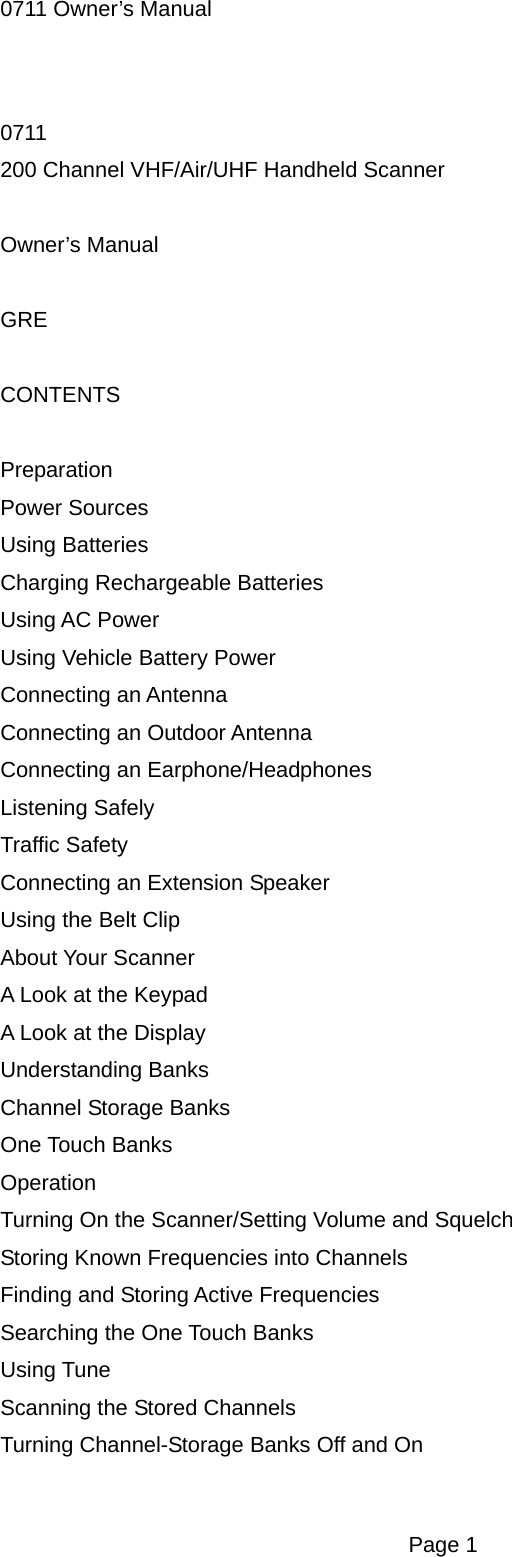
0711 Owner’s Manual 0711 200 Channel VHF/Air/UHF Handheld Scanner  Owner’s Manual  GRE  CONTENTS  Preparation Power Sources Using Batteries Charging Rechargeable Batteries Using AC Power Using Vehicle Battery Power Connecting an Antenna Connecting an Outdoor Antenna Connecting an Earphone/Headphones Listening Safely Traffic Safety Connecting an Extension Speaker Using the Belt Clip About Your Scanner A Look at the Keypad A Look at the Display Understanding Banks Channel Storage Banks One Touch Banks Operation Turning On the Scanner/Setting Volume and Squelch Storing Known Frequencies into Channels Finding and Storing Active Frequencies Searching the One Touch Banks Using Tune Scanning the Stored Channels Turning Channel-Storage Banks Off and On  Page 1
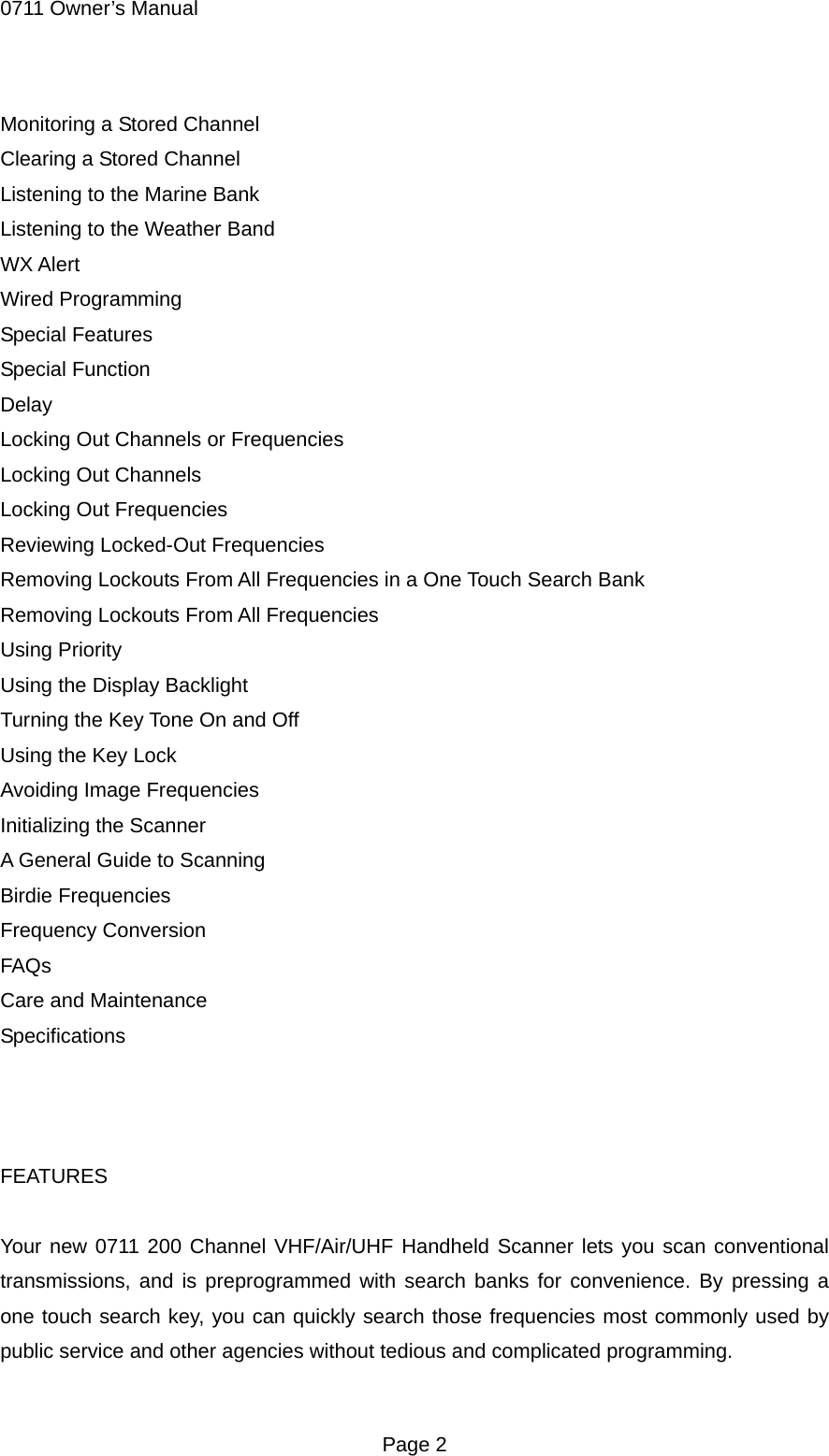
0711 Owner’s Manual Monitoring a Stored Channel Clearing a Stored Channel Listening to the Marine Bank Listening to the Weather Band WX Alert Wired Programming Special Features Special Function Delay Locking Out Channels or Frequencies Locking Out Channels Locking Out Frequencies Reviewing Locked-Out Frequencies Removing Lockouts From All Frequencies in a One Touch Search Bank Removing Lockouts From All Frequencies Using Priority Using the Display Backlight Turning the Key Tone On and Off Using the Key Lock Avoiding Image Frequencies Initializing the Scanner A General Guide to Scanning Birdie Frequencies Frequency Conversion FAQs Care and Maintenance Specifications    FEATURES  Your new 0711 200 Channel VHF/Air/UHF Handheld Scanner lets you scan conventional transmissions, and is preprogrammed with search banks for convenience. By pressing a one touch search key, you can quickly search those frequencies most commonly used by public service and other agencies without tedious and complicated programming.  Page 2
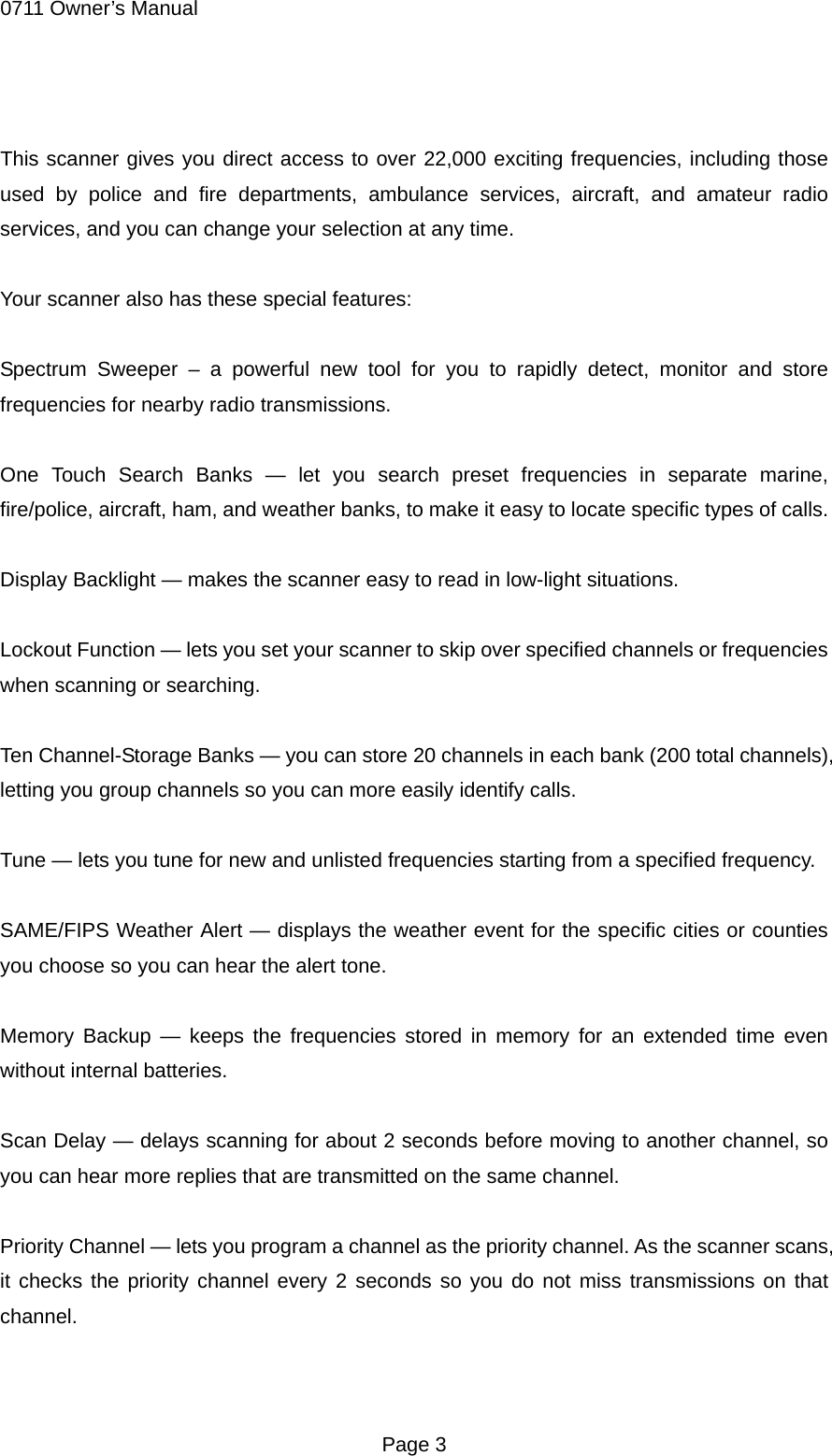
0711 Owner’s Manual  This scanner gives you direct access to over 22,000 exciting frequencies, including those used by police and fire departments, ambulance services, aircraft, and amateur radio services, and you can change your selection at any time.  Your scanner also has these special features:  Spectrum Sweeper – a powerful new tool for you to rapidly detect, monitor and store frequencies for nearby radio transmissions.  One Touch Search Banks — let you search preset frequencies in separate marine, fire/police, aircraft, ham, and weather banks, to make it easy to locate specific types of calls.  Display Backlight — makes the scanner easy to read in low-light situations.  Lockout Function — lets you set your scanner to skip over specified channels or frequencies when scanning or searching.  Ten Channel-Storage Banks — you can store 20 channels in each bank (200 total channels), letting you group channels so you can more easily identify calls.  Tune — lets you tune for new and unlisted frequencies starting from a specified frequency.  SAME/FIPS Weather Alert — displays the weather event for the specific cities or counties you choose so you can hear the alert tone.  Memory Backup — keeps the frequencies stored in memory for an extended time even without internal batteries.  Scan Delay — delays scanning for about 2 seconds before moving to another channel, so you can hear more replies that are transmitted on the same channel.  Priority Channel — lets you program a channel as the priority channel. As the scanner scans, it checks the priority channel every 2 seconds so you do not miss transmissions on that channel.   Page 3
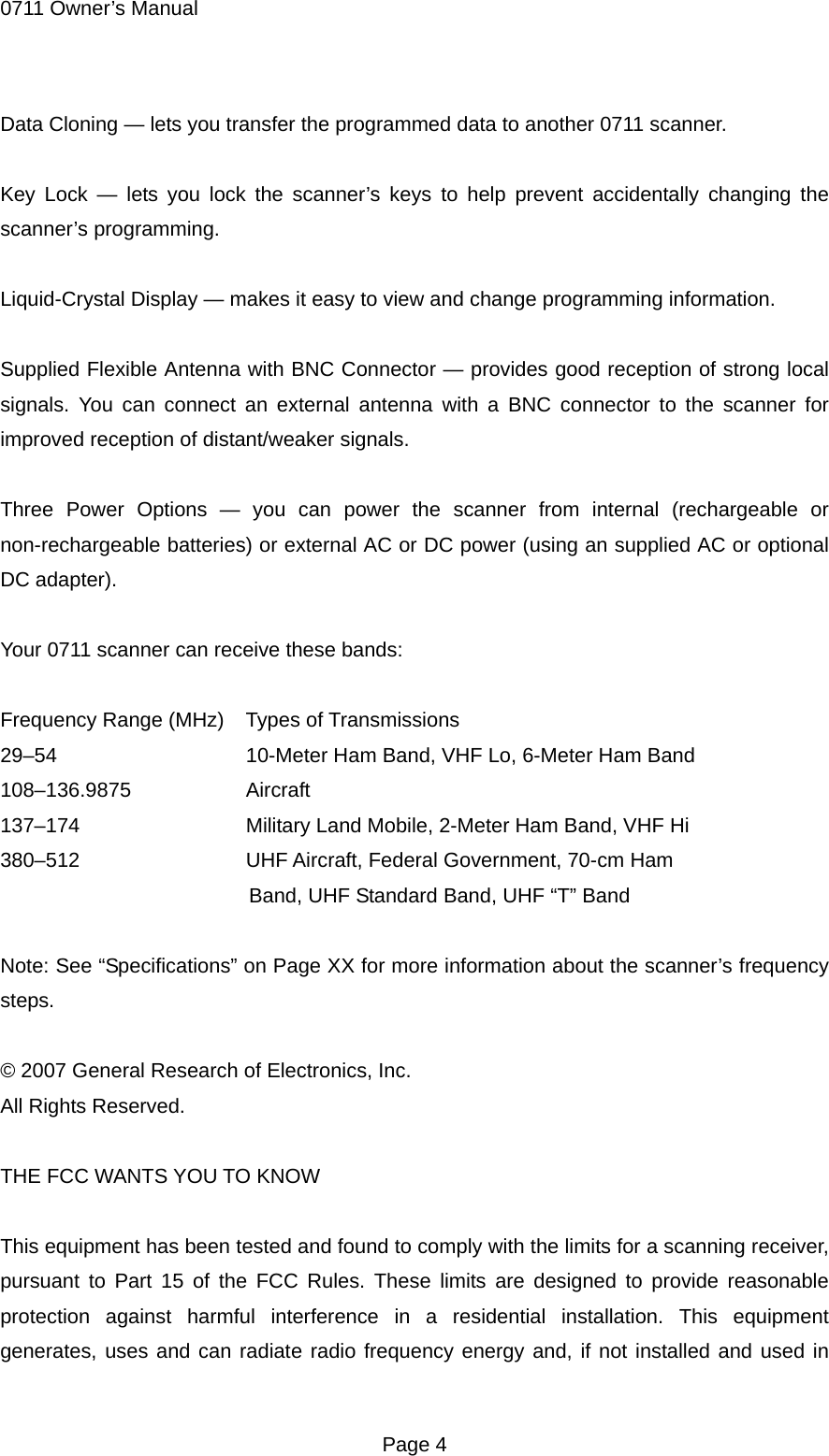
0711 Owner’s Manual Data Cloning — lets you transfer the programmed data to another 0711 scanner.  Key Lock — lets you lock the scanner’s keys to help prevent accidentally changing the scanner’s programming.  Liquid-Crystal Display — makes it easy to view and change programming information.  Supplied Flexible Antenna with BNC Connector — provides good reception of strong local signals. You can connect an external antenna with a BNC connector to the scanner for improved reception of distant/weaker signals.  Three Power Options — you can power the scanner from internal (rechargeable or non-rechargeable batteries) or external AC or DC power (using an supplied AC or optional DC adapter).  Your 0711 scanner can receive these bands:  Frequency Range (MHz)    Types of Transmissions 29–54        10-Meter Ham Band, VHF Lo, 6-Meter Ham Band 108–136.9875     Aircraft 137–174      Military Land Mobile, 2-Meter Ham Band, VHF Hi 380–512     UHF Aircraft, Federal Government, 70-cm Ham Band, UHF Standard Band, UHF “T” Band  Note: See “Specifications” on Page XX for more information about the scanner’s frequency steps.  © 2007 General Research of Electronics, Inc. All Rights Reserved.  THE FCC WANTS YOU TO KNOW  This equipment has been tested and found to comply with the limits for a scanning receiver, pursuant to Part 15 of the FCC Rules. These limits are designed to provide reasonable protection against harmful interference in a residential installation. This equipment generates, uses and can radiate radio frequency energy and, if not installed and used in  Page 4
0711 Owner’s Manual accordance with the instructions, may cause harmful interference to radio communications.  However, there is no guarantee that interference will not occur in a particular installation. If this equipment does cause harmful interference to radio or television reception, which can be determined by turning the equipment off and on, the user is encouraged to try to correct the interference by one or more of the following measures:  • Reorient or relocate the receiving antenna. • Increase the separation between the equipment and receiver. • Connect the equipment into an outlet on a circuit different from that to which the receiver is connected.  This device complies with Part 15 of the FCC Rules. Operation is subject to the following two conditions:  1. This device may not cause harmful interference. 2. This device must accept any interference received, including interference that may cause undesired operation.  SCANNING LEGALLY  Your scanner covers frequencies used by many different groups including police and fire departments, ambulance services, government agencies, private companies, amateur radio services, military operations, pager services, and wireline (telephone and telegraph) service providers. It is legal to listen to almost every transmission your scanner can receive. However, there are some transmissions you should never intentionally listen to. These include:  • Telephone conversations (cellular, cordless, or other private means of telephone signal transmission) • Pager transmissions • Any scrambled or encrypted transmissions  According to the Electronic Communications Privacy Act (ECPA), you are subject to fines and possible imprisonment for intentionally listening to, using, or divulging the contents of such a transmission unless you have the consent of a party to the communication (unless  Page 5
0711 Owner’s Manual such activity is otherwise illegal).  This scanner has been designed to prevent reception of illegal transmissions. This is done to comply with the legal requirement that scanners be manufactured so as to not be easily modifiable to pick up those transmissions. Do not open your scanner’s case to make any modifications that could allow it to pick up transmissions that are illegal to monitor. Doing so could subject you to legal penalties.  In some areas, mobile use of this scanner is unlawful or requires a permit. Check the laws in your area. It is also illegal in many areas to interfere with the duties of public safety officials by traveling to the scene of an incident without authorization.  We encourage responsible, safe and legal scanner use.  PREPARATION  POWER SOURCES  You can power your scanner from any of three sources:  • internal non-rechargeable batteries or rechargeable batteries (not supplied – see “Using Batteries”). • standard AC power (with an supplied AC adapter – see ”Using AC Power” on Page XX). • vehicle power (with an optional DC adapter – see “Using Vehicle Battery Power” on Page XX).  Notes: • Connecting an AC or DC adapter to the scanner disconnects internal batteries when you use the supplied non-rechargeable battery holder, but it does not disconnect internal batteries when you use the supplied rechargeable battery holder. • If you install the rechargeable battery holder, you can operate the scanner and recharge the rechargeable batteries at the same time. See “Using Batteries” and “Charging Rechargeable Batteries” on Page XX. • If the scanner stops working properly after connecting it to power, try resetting it. See “Initializing the Scanner” on Page XX).   Page 6
0711 Owner’s Manual USING BATTERIES  You can power the scanner with four AA batteries (not supplied). For the longest operation and best performance, we recommend alkaline batteries.  You can use either the supplied non-rechargeable battery holder (black), or the supplied rechargeable battery holder (yellow). If you use the rechargeable battery holder, we recommend nickel-metal hydride (Ni-MH) batteries.  Warning: Never install non-rechargeable batteries in the rechargeable yellow battery holder. Non-rechargeable batteries can get hot or explode if you try to recharge them.  Note: You must charge rechargeable batteries before you use them the first time. See “Charging Rechargeable Batteries” on Page XX.  Cautions: • The battery holder fits only one way. Do not force it. • Use only fresh batteries of the required size and recommended type. • Always remove old or weak batteries. Batteries can leak chemicals that destroy electronic circuits. • Do not mix old and new batteries, different types of batteries (alkaline, or rechargeable), or rechargeable batteries of different capacities. • If you do not plan to use the scanner with batteries for a month or longer, remove the batteries. Batteries can leak chemicals that can destroy electronic parts.  Follow these steps to install batteries. 1. Press in on the battery compartment cover on the back of the scanner and slide the cover down to remove it.  2. Pull the battery holder out of the battery compartment.  3. If you are using non-rechargeable batteries, place them into the black holder, as indicated by the polarity symbols (+ and –) marked on the holder. Or, if you are using rechargeable batteries, place them into the yellow holder, as indicated by the polarity symbols (+ and –) marked on the holder.   Page 7
0711 Owner’s Manual 4. Place the battery holder into the battery compartment.  5. Replace the cover.  When battery power is low, B appears and the scanner beeps continuously. When battery power is depleted, the scanner turns itself off. Replace all four non-rechargeable batteries, or recharge the rechargeable batteries. See “Charging Rechargeable Batteries” on Page XX.  Warning: Always dispose of old batteries promptly and properly. Do not burn or bury them.  CHARGING RECHARGEABLE BATTERIES  Your scanner has a built-in charging circuit that lets you charge nickel-metal hydride (Ni-MH) or nickel cadmium (Ni-CD) rechargeable batteries (not supplied) while they are in the scanner. To charge rechargeable batteries, you need to use a supplied AC adaptor. To charge batteries with a DC adapter from a DC power source, you must use a 9V, 400mA DC adaptor with 4.75mm outer/1.7mm inner plug.  It takes about 16 hours to recharge fully discharged 1600mAh Ni-MH rechargeable batteries. You can operate the scanner while recharging the rechargeable batteries, but charging takes longer.  Notes: • The scanner can also charge Ni-Cd batteries. 600mAh batteries require 6 hours and 850mAh batteries require 8 hours to charge. • When you charge Ni-Cd batteries, do not over charge them. Overcharging shortens battery life. • Rechargeable batteries last longer and deliver more power if you let them fully discharge once a month. To do this, use the scanner until B appears. Then fully charge the rechargeable batteries.  USING AC POWER  You can power the scanner using a supplied AC adaptor.   Page 8
0711 Owner’s Manual Cautions: !    You must use a Class 2 power source that supplies 9V DC and delivers at least 400 mA. Its center tip must be set to positive and its plug must fit the scanner's PWR DC 9V jack. Using an adapter that does not meet these specifications could damage the scanner or the adaptor. • Always connect the AC adapter to the scanner before you connect it to AC power. When you finish, disconnect the adapter from AC power before you disconnect it from the scanner. • The correct orientation for the enclosed power adaptor is in a vertical or floor-mount position.  To power the scanner using an AC adaptor, connect the plug into the scanner’s PWR DC 9V jack. Then connect the AC adaptor to a standard AC outlet.  WARNING: To prevent electric shock, do not use the AC adaptor’s polarized plug with an extension cord, receptacle, or other outlet unless you can fully insert the blades to prevent blade exposure.  USING VEHICLE BATTERY POWER  You can power the scanner from a vehicle’s 12V power source (such as cigarette-lighter socket) using a 9V, 400-mA DC adaptor with 4.75mm outer/1.7mm inner plug. Its center tip must be set to positive and its plug must fit the scanner's PWR DC 9V jack. Using an adaptor that does not meet these specifications could damage the scanner or the adaptor.  Cautions: Always connect the DC adaptor to the scanner before you connect it to the power source. When you finish, disconnect the adaptor from the power source before you disconnect it from the scanner.  To power the scanner using a DC adaptor, connect the plug into the scanner’s PWR DC 9V jack. Plug the other end of the DC adaptor into your vehicle’s cigarette-lighter socket.  Note: If you use a cigarette-lighter power cable and your vehicle’s engine is running, you might hear electrical noise from the engine while scanning. This is normal.  CONNECTING THE SUPPLIED ANTENNA   Page 9
0711 Owner’s Manual To attach the supplied flexible antenna to the antenna jack on top of your scanner, align the slots around the antenna’s connector with the tabs on the antenna jack. Press the antenna down over the jack and turn the antenna’s base clockwise until it locks into place.  Connecting an Outdoor Antenna  The antenna connector on your scanner makes it easy to use the scanner with a variety of antennas, such as an external mobile antenna or outdoor base station antenna.  Always use 50 Ohm coaxial cable, such as RG-58 or RG-8, to connect an outdoor antenna. For lengths over 50 feet, use RG-8 low-loss dielectric coaxial cable. If the antenna cable’s connector does not have a BNC connector, you will also need a BNC adapter.  Follow the installation instructions supplied with the antenna, route the antenna cable to the scanner, then connect it to the antenna jack.  Warning: Use extreme caution when you installing or removing an outdoor antenna. If the antenna starts to fall, let it go! It could contact overhead power lines. If the antenna touches a power line, contact with the antenna, mast, cable, or guy wires can cause electrocution and death. Call the power company to remove the antenna. DO NOT attempt to do so yourself.  CONNECTING AN EARPHONE/HEADPHONES  For private listening, you can plug an 1/8 -inch (3.5-mm) mini-plug earphone or headphones (not supplied), into the (headphone symbol mark) jack on the top of the scanner. This automatically disconnects the internal speaker.  Listening Safely  To protect your hearing, follow these guidelines when you use an earphone or headphones.  • Set the volume to the lowest setting before you begin listening. After you begin listening, adjust the volume to a comfortable level. • Do not listen at extremely high volume levels. Extended high-volume listening can lead to permanent hearing loss.  Page 10
0711 Owner’s Manual • Once you set the volume, do not increase it. Over time, your ears adapt to the volume level, so a volume level that does not cause discomfort might still damage your hearing.  Traffic Safety  Do not wear an earphone or headphones with your scanner when operating a motor vehicle or riding a bicycle in or near traffic. Doing so can create a traffic hazard and could be illegal in some areas.  If you use an earphone or headphones with your scanner while riding a bicycle, be very careful. Do not listen to a continuous broadcast. Even though some earphones and headphones let you hear some outside sounds when you listen at normal levels, they still can present a traffic hazard.  CONNECTING AN EXTENSION SPEAKER  In a noisy area, an amplified extension speaker (not supplied), might provide more comfortable listening. Plug the speaker cable’s 1/8 inch (3.5 mm) mini-plug into your scanner’s (headphone symbol mark) jack.  Note: You must use an amplified speaker with this scanner. Non-amplified speakers do not provide sufficient volume for comfortable listening.  USING THE BELT CLIP  You can use the belt clip attached to the back of the scanner for hands-free carrying when you are on the go. Slide the belt clip over your belt or waistband.   ABOUT YOUR SCANNER  Once you understand a few simple terms used in this manual and familiarize yourself with your scanner’s features, you can put the scanner to work for you. You simply determine the type of communications you want to receive, then set the scanner to scan them.  A frequency is the receiving signal location (expressed in kHz or MHz). To find active  Page 11
0711 Owner’s Manual frequencies, you can use the search function.  You can also search the One Touch Search Banks, which are preset groups of frequencies categorized by type of service.  When you find a frequency, you can store it into a programmable memory location called a channel, which is grouped with other channels in a channel-storage bank. You can then scan the channel-storage banks to see if there is activity on the frequencies stored there. Each time the scanner finds an active frequency, it stays on that channel until the transmission ends.  ABOUT THE KEYPAD  Here is a brief overview of your scanner’s keys and their functions.  SS Activates the Spectrum Sweeper function. PSE  Stops or restarts search or tune. MAR  Lets you search the scanner’s preprogrammed marine band. FD/PD  Lets you search the scanner’s preprogrammed fire/police band. AIR  Lets you search the scanner’s preprogrammed aircraft band. HAM  Lets you search the scanner’s preprogrammed amateur radio band. WX/Skywarn  Lets you search the scanner’s preprogrammed 7 weather channels, or jumps to a Skywarn channel you programmed (channel 200). SCAN/MAN   Scans any preprogrammed channels or stops scanning and lets you directly enter a channel number. PRI/ALERT   Turns on and off the priority feature; turns the SAME standby mode on and off. Number Keys    Each key has single-digit (0 to 9) and a range of numbers. Use the range of numbers above the key (21–40 for example) to select the channel in a channel-storage bank. TUNE/CLEAR  Lets you tune a frequency along with ^ or v or, clears an incorrect entry. ^/v   Searches up or down for active frequencies or selects the direction when scanning channels. L/O RVW/L/O   Reviews locked-out frequencies; lets you lock out selected channels or frequencies. (Key Symbol)/(Light Symbol)    Locks (and unlocks) the keypad to prevent accidental  Page 12
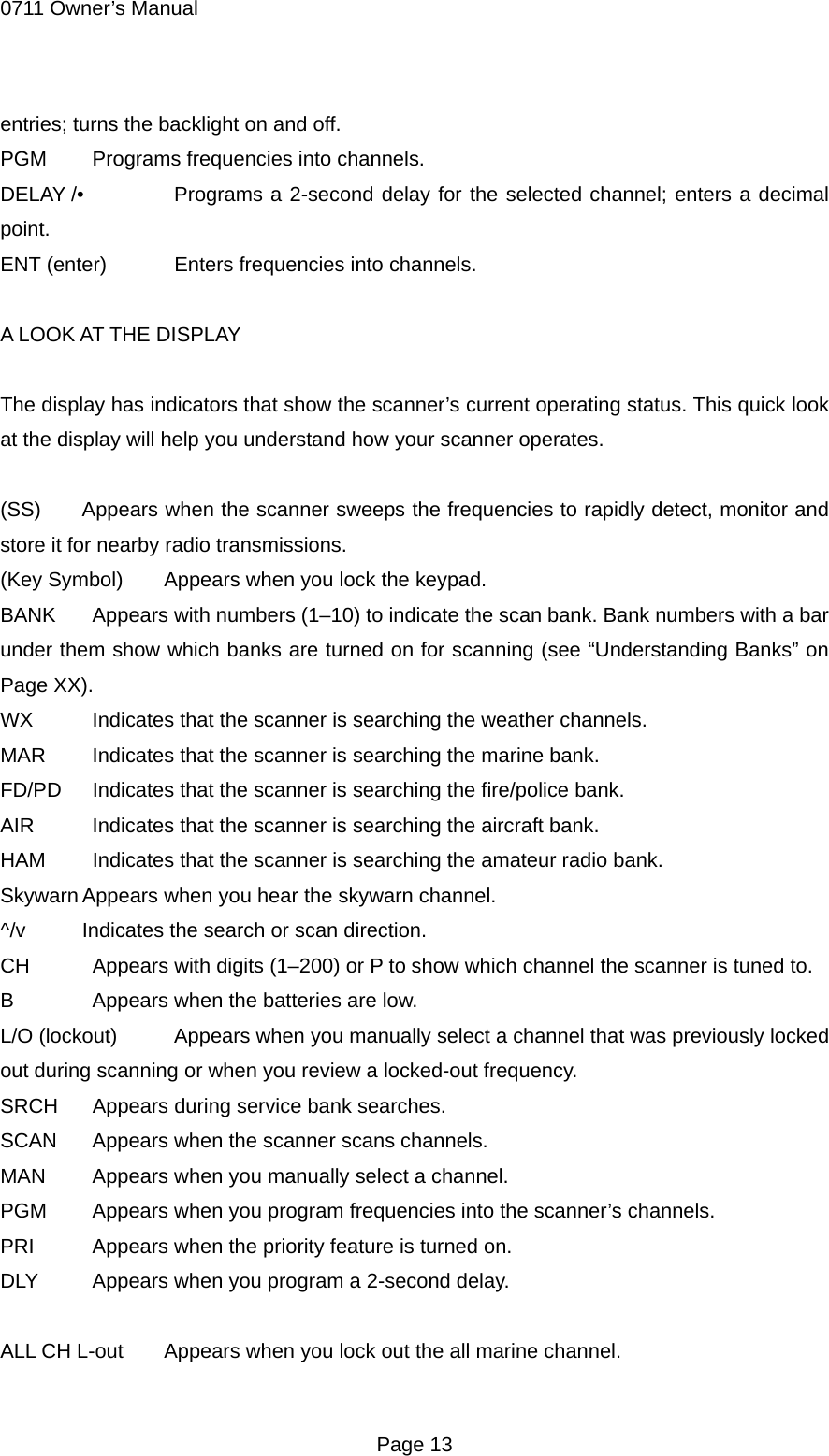
0711 Owner’s Manual entries; turns the backlight on and off. PGM    Programs frequencies into channels. DELAY /•   Programs a 2-second delay for the selected channel; enters a decimal point. ENT (enter)    Enters frequencies into channels.  A LOOK AT THE DISPLAY  The display has indicators that show the scanner’s current operating status. This quick look at the display will help you understand how your scanner operates.  (SS)  Appears when the scanner sweeps the frequencies to rapidly detect, monitor and store it for nearby radio transmissions. (Key Symbol)  Appears when you lock the keypad. BANK    Appears with numbers (1–10) to indicate the scan bank. Bank numbers with a bar under them show which banks are turned on for scanning (see “Understanding Banks” on Page XX). WX    Indicates that the scanner is searching the weather channels. MAR    Indicates that the scanner is searching the marine bank. FD/PD    Indicates that the scanner is searching the fire/police bank. AIR    Indicates that the scanner is searching the aircraft bank. HAM    Indicates that the scanner is searching the amateur radio bank. Skywarn Appears when you hear the skywarn channel. ^/v  Indicates the search or scan direction. CH    Appears with digits (1–200) or P to show which channel the scanner is tuned to. B    Appears when the batteries are low. L/O (lockout)    Appears when you manually select a channel that was previously locked out during scanning or when you review a locked-out frequency. SRCH    Appears during service bank searches. SCAN    Appears when the scanner scans channels. MAN    Appears when you manually select a channel. PGM    Appears when you program frequencies into the scanner’s channels. PRI    Appears when the priority feature is turned on. DLY    Appears when you program a 2-second delay.  ALL CH L-out  Appears when you lock out the all marine channel.  Page 13
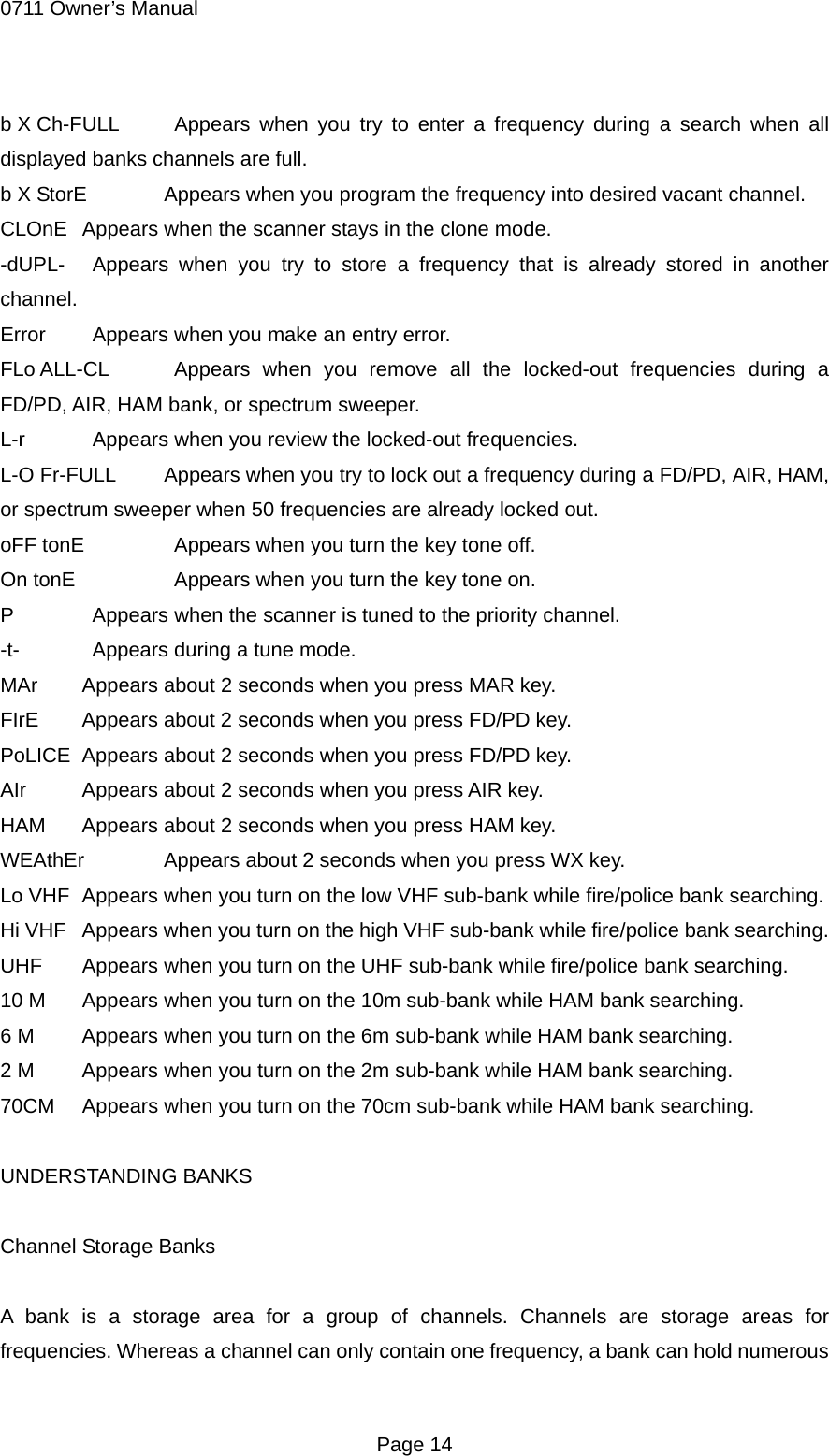
0711 Owner’s Manual b X Ch-FULL   Appears when you try to enter a frequency during a search when all displayed banks channels are full. b X StorE  Appears when you program the frequency into desired vacant channel. CLOnE  Appears when the scanner stays in the clone mode. -dUPL-   Appears when you try to store a frequency that is already stored in another channel. Error    Appears when you make an entry error. FLo ALL-CL   Appears when you remove all the locked-out frequencies during a FD/PD, AIR, HAM bank, or spectrum sweeper. L-r    Appears when you review the locked-out frequencies. L-O Fr-FULL  Appears when you try to lock out a frequency during a FD/PD, AIR, HAM, or spectrum sweeper when 50 frequencies are already locked out. oFF tonE    Appears when you turn the key tone off. On tonE     Appears when you turn the key tone on. P    Appears when the scanner is tuned to the priority channel. -t-    Appears during a tune mode. MAr  Appears about 2 seconds when you press MAR key. FIrE  Appears about 2 seconds when you press FD/PD key. PoLICE  Appears about 2 seconds when you press FD/PD key. AIr  Appears about 2 seconds when you press AIR key. HAM  Appears about 2 seconds when you press HAM key. WEAthEr  Appears about 2 seconds when you press WX key. Lo VHF  Appears when you turn on the low VHF sub-bank while fire/police bank searching. Hi VHF  Appears when you turn on the high VHF sub-bank while fire/police bank searching. UHF  Appears when you turn on the UHF sub-bank while fire/police bank searching. 10 M  Appears when you turn on the 10m sub-bank while HAM bank searching. 6 M  Appears when you turn on the 6m sub-bank while HAM bank searching. 2 M  Appears when you turn on the 2m sub-bank while HAM bank searching. 70CM  Appears when you turn on the 70cm sub-bank while HAM bank searching.  UNDERSTANDING BANKS  Channel Storage Banks  A bank is a storage area for a group of channels. Channels are storage areas for frequencies. Whereas a channel can only contain one frequency, a bank can hold numerous  Page 14
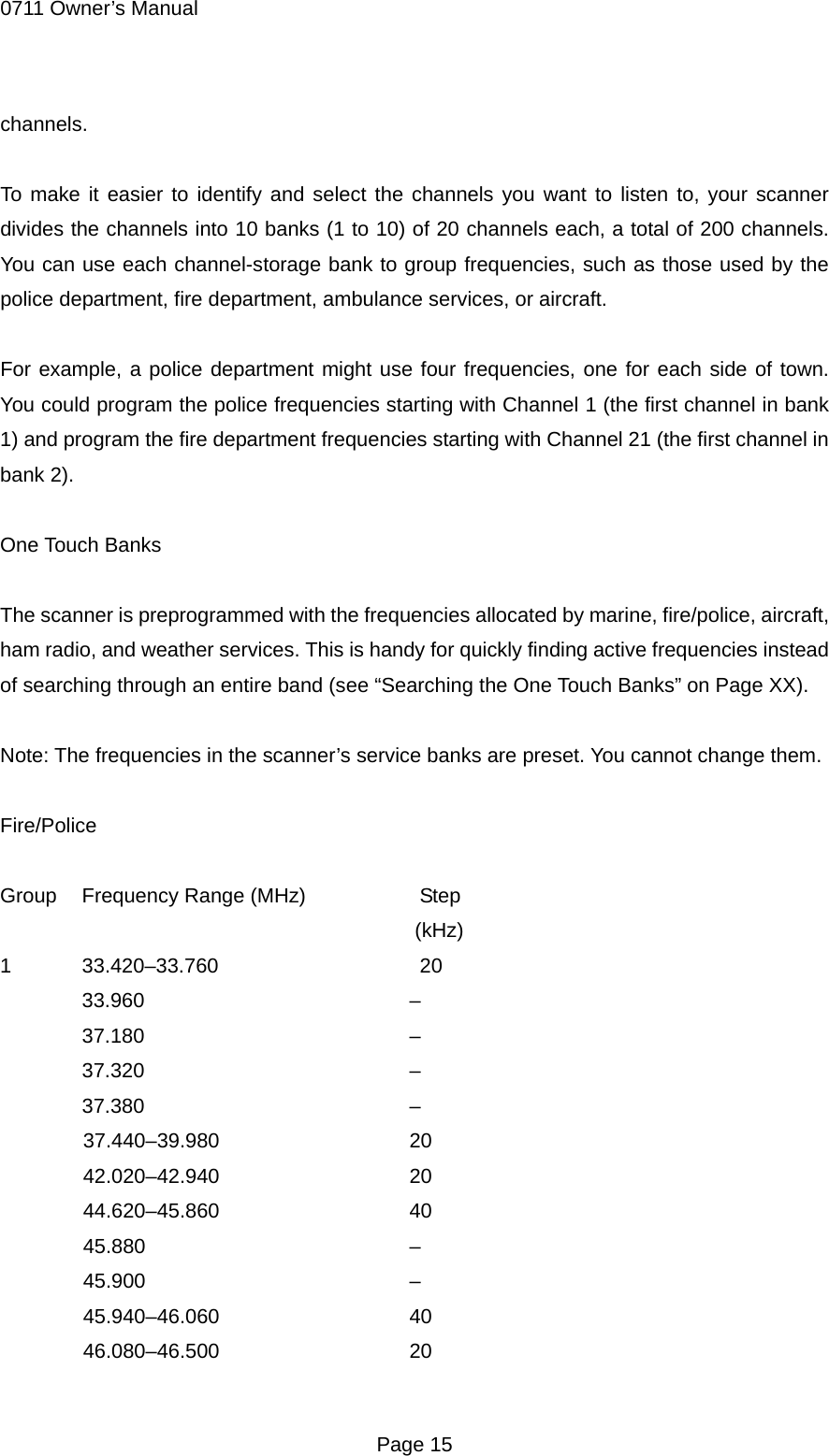
0711 Owner’s Manual channels.  To make it easier to identify and select the channels you want to listen to, your scanner divides the channels into 10 banks (1 to 10) of 20 channels each, a total of 200 channels. You can use each channel-storage bank to group frequencies, such as those used by the police department, fire department, ambulance services, or aircraft.  For example, a police department might use four frequencies, one for each side of town. You could program the police frequencies starting with Channel 1 (the first channel in bank 1) and program the fire department frequencies starting with Channel 21 (the first channel in bank 2).  One Touch Banks  The scanner is preprogrammed with the frequencies allocated by marine, fire/police, aircraft, ham radio, and weather services. This is handy for quickly finding active frequencies instead of searching through an entire band (see “Searching the One Touch Banks” on Page XX).  Note: The frequencies in the scanner’s service banks are preset. You cannot change them.  Fire/Police  Group  Frequency Range (MHz)      Step (kHz) 1 33.420–33.760    20  33.960    –  37.180    –  37.320    –  37.380    – 37.440–39.980   20 42.020–42.940   20 44.620–45.860   40 45.880    – 45.900    – 45.940–46.060   40 46.080–46.500   20  Page 15
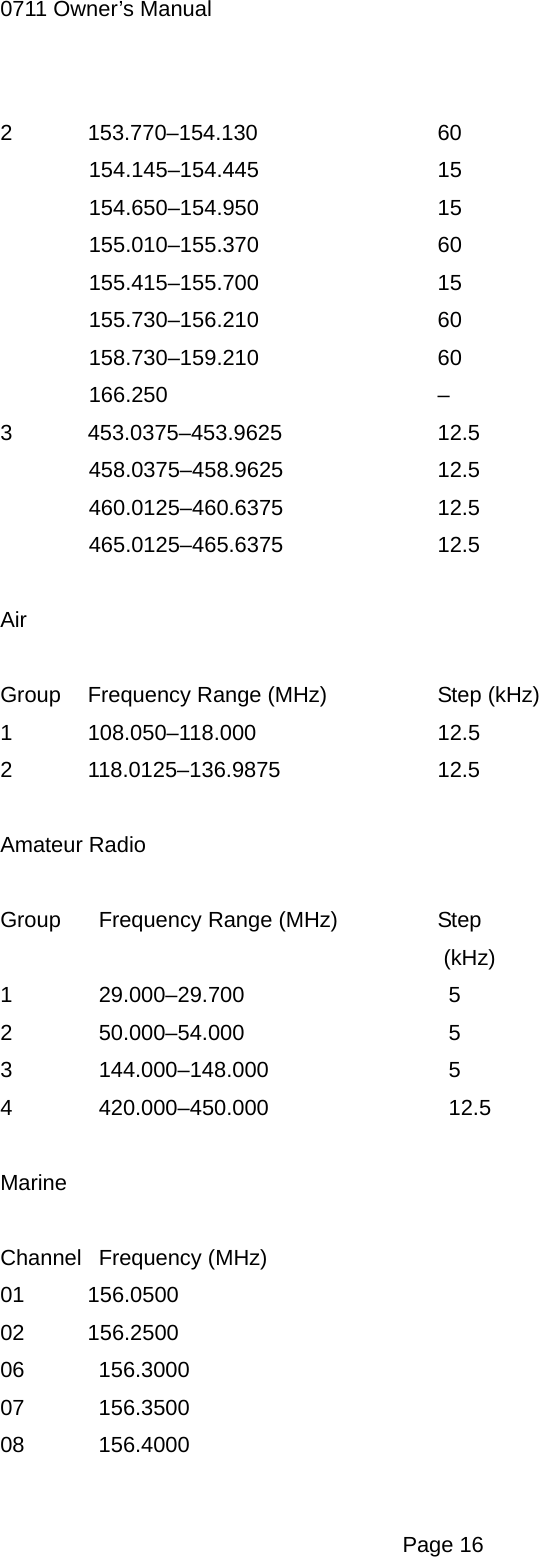
0711 Owner’s Manual 2 153.770–154.130   60 154.145–154.445   15 154.650–154.950   15 155.010–155.370   60 155.415–155.700   15 155.730–156.210   60 158.730–159.210   60 166.250    – 3 453.0375–453.9625   12.5 458.0375–458.9625   12.5 460.0125–460.6375   12.5 465.0125–465.6375   12.5  Air  Group  Frequency Range (MHz)      Step (kHz) 1 108.050–118.000   12.5 2 118.0125–136.9875   12.5  Amateur Radio  Group  Frequency Range (MHz)    Step (kHz) 1  29.000–29.700    5 2  50.000–54.000    5 3   144.000–148.000     5 4   420.000–450.000     12.5  Marine  Channel   Frequency (MHz) 01 156.0500 02 156.2500 06  156.3000 07  156.3500 08  156.4000  Page 16
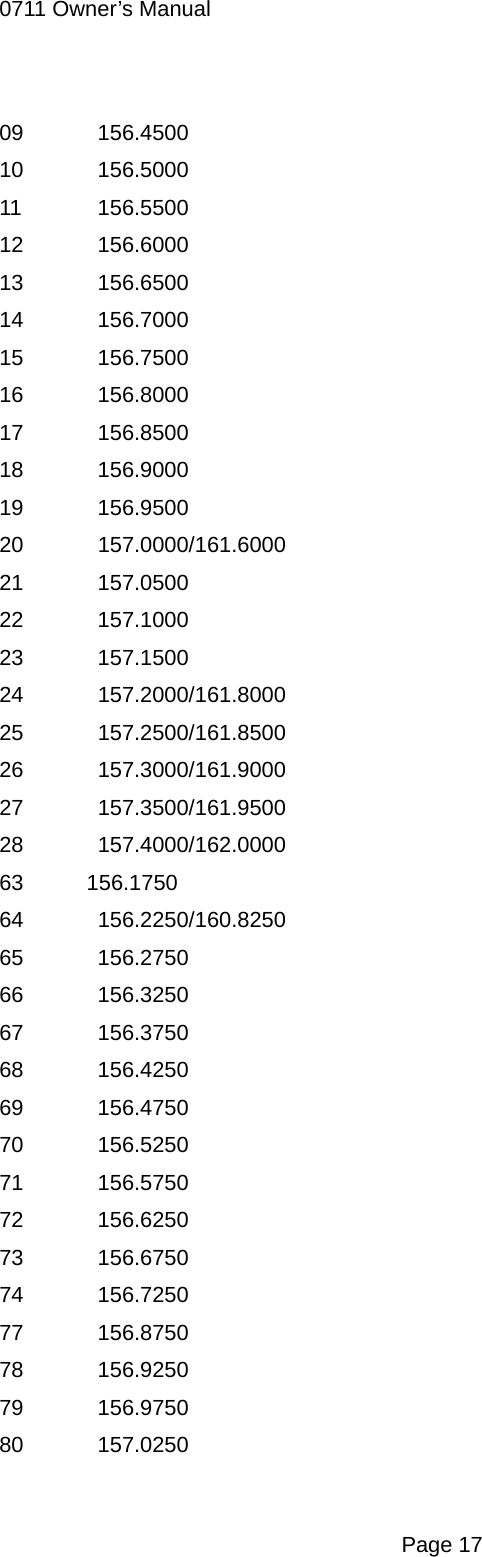
0711 Owner’s Manual 09  156.4500 10  156.5000 11  156.5500 12  156.6000 13  156.6500 14  156.7000 15  156.7500 16  156.8000 17  156.8500 18  156.9000 19  156.9500 20  157.0000/161.6000 21  157.0500 22  157.1000 23  157.1500 24  157.2000/161.8000 25  157.2500/161.8500 26  157.3000/161.9000 27  157.3500/161.9500 28  157.4000/162.0000 63 156.1750 64  156.2250/160.8250 65  156.2750 66  156.3250 67  156.3750 68  156.4250 69  156.4750 70  156.5250 71  156.5750 72  156.6250 73  156.6750 74  156.7250 77  156.8750 78  156.9250 79  156.9750 80  157.0250  Page 17
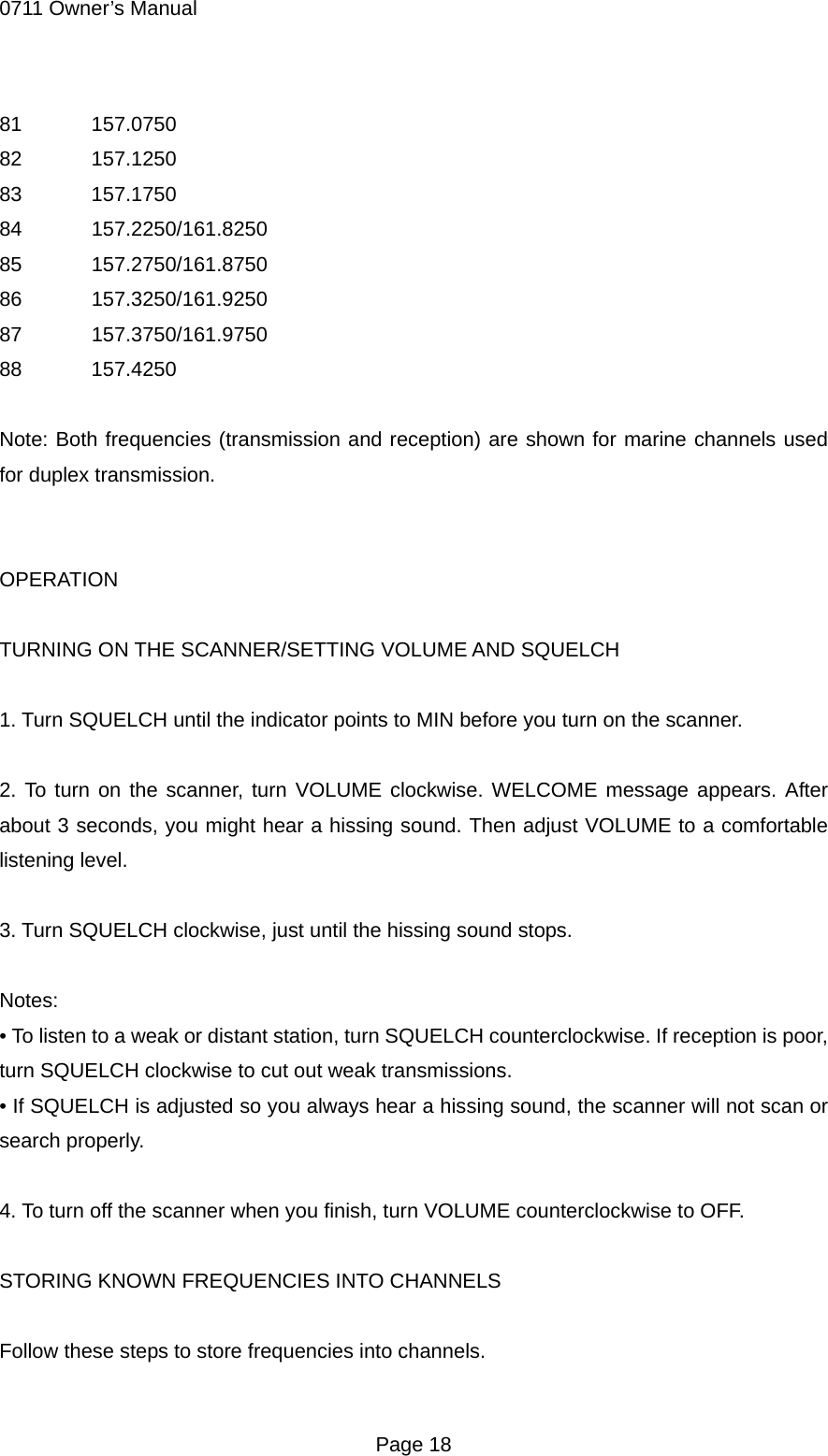
0711 Owner’s Manual 81  157.0750 82  157.1250 83  157.1750 84  157.2250/161.8250 85  157.2750/161.8750 86  157.3250/161.9250 87  157.3750/161.9750 88  157.4250  Note: Both frequencies (transmission and reception) are shown for marine channels used for duplex transmission.   OPERATION  TURNING ON THE SCANNER/SETTING VOLUME AND SQUELCH  1. Turn SQUELCH until the indicator points to MIN before you turn on the scanner.  2. To turn on the scanner, turn VOLUME clockwise. WELCOME message appears. After about 3 seconds, you might hear a hissing sound. Then adjust VOLUME to a comfortable listening level.  3. Turn SQUELCH clockwise, just until the hissing sound stops.  Notes: • To listen to a weak or distant station, turn SQUELCH counterclockwise. If reception is poor, turn SQUELCH clockwise to cut out weak transmissions. • If SQUELCH is adjusted so you always hear a hissing sound, the scanner will not scan or search properly.  4. To turn off the scanner when you finish, turn VOLUME counterclockwise to OFF.  STORING KNOWN FREQUENCIES INTO CHANNELS  Follow these steps to store frequencies into channels.  Page 18
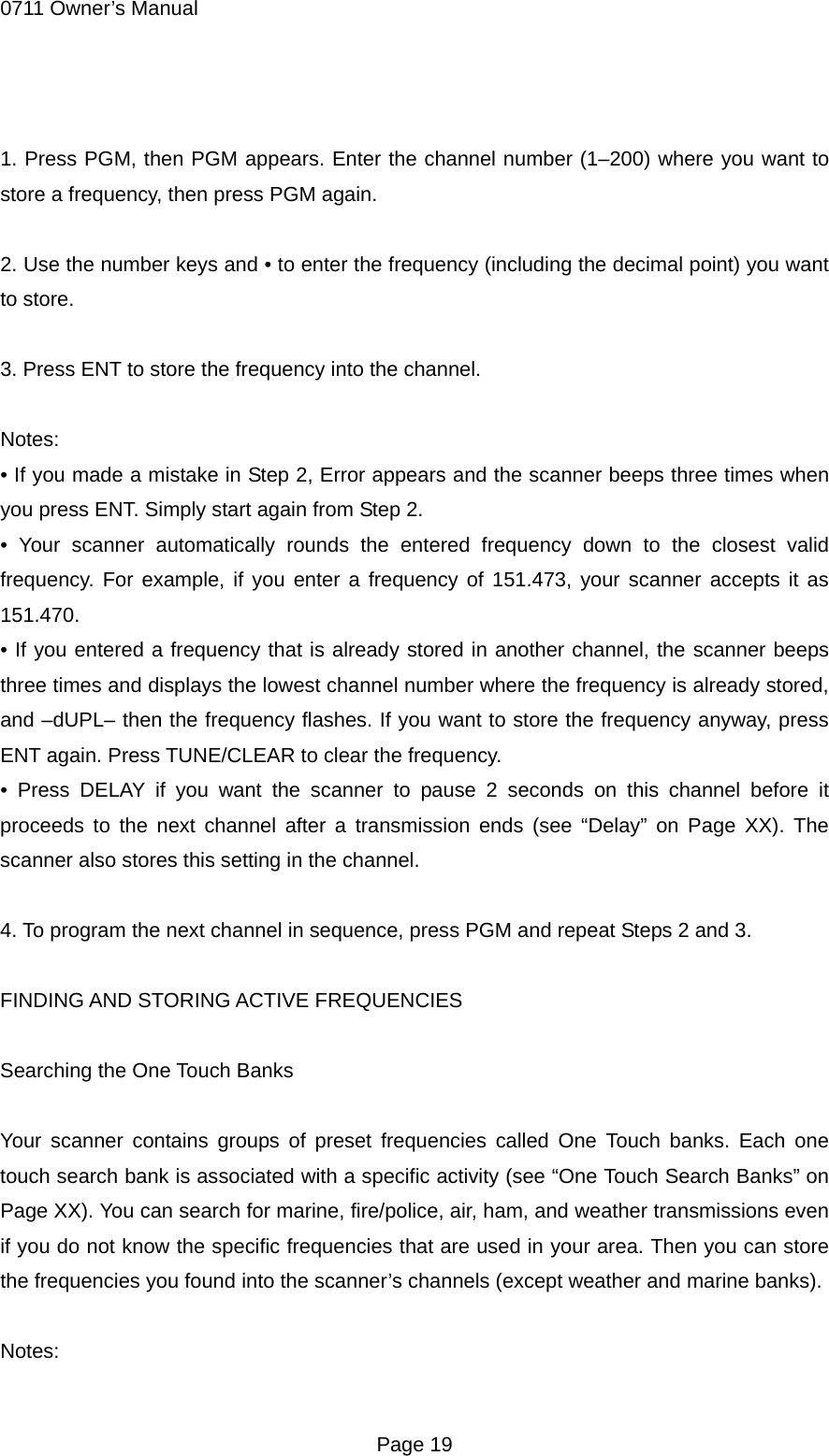
0711 Owner’s Manual  1. Press PGM, then PGM appears. Enter the channel number (1–200) where you want to store a frequency, then press PGM again.  2. Use the number keys and • to enter the frequency (including the decimal point) you want to store.  3. Press ENT to store the frequency into the channel.  Notes: • If you made a mistake in Step 2, Error appears and the scanner beeps three times when you press ENT. Simply start again from Step 2. • Your scanner automatically rounds the entered frequency down to the closest valid frequency. For example, if you enter a frequency of 151.473, your scanner accepts it as 151.470. • If you entered a frequency that is already stored in another channel, the scanner beeps three times and displays the lowest channel number where the frequency is already stored, and –dUPL– then the frequency flashes. If you want to store the frequency anyway, press ENT again. Press TUNE/CLEAR to clear the frequency. • Press DELAY if you want the scanner to pause 2 seconds on this channel before it proceeds to the next channel after a transmission ends (see “Delay” on Page XX). The scanner also stores this setting in the channel.  4. To program the next channel in sequence, press PGM and repeat Steps 2 and 3.  FINDING AND STORING ACTIVE FREQUENCIES  Searching the One Touch Banks  Your scanner contains groups of preset frequencies called One Touch banks. Each one touch search bank is associated with a specific activity (see “One Touch Search Banks” on Page XX). You can search for marine, fire/police, air, ham, and weather transmissions even if you do not know the specific frequencies that are used in your area. Then you can store the frequencies you found into the scanner’s channels (except weather and marine banks).  Notes:  Page 19
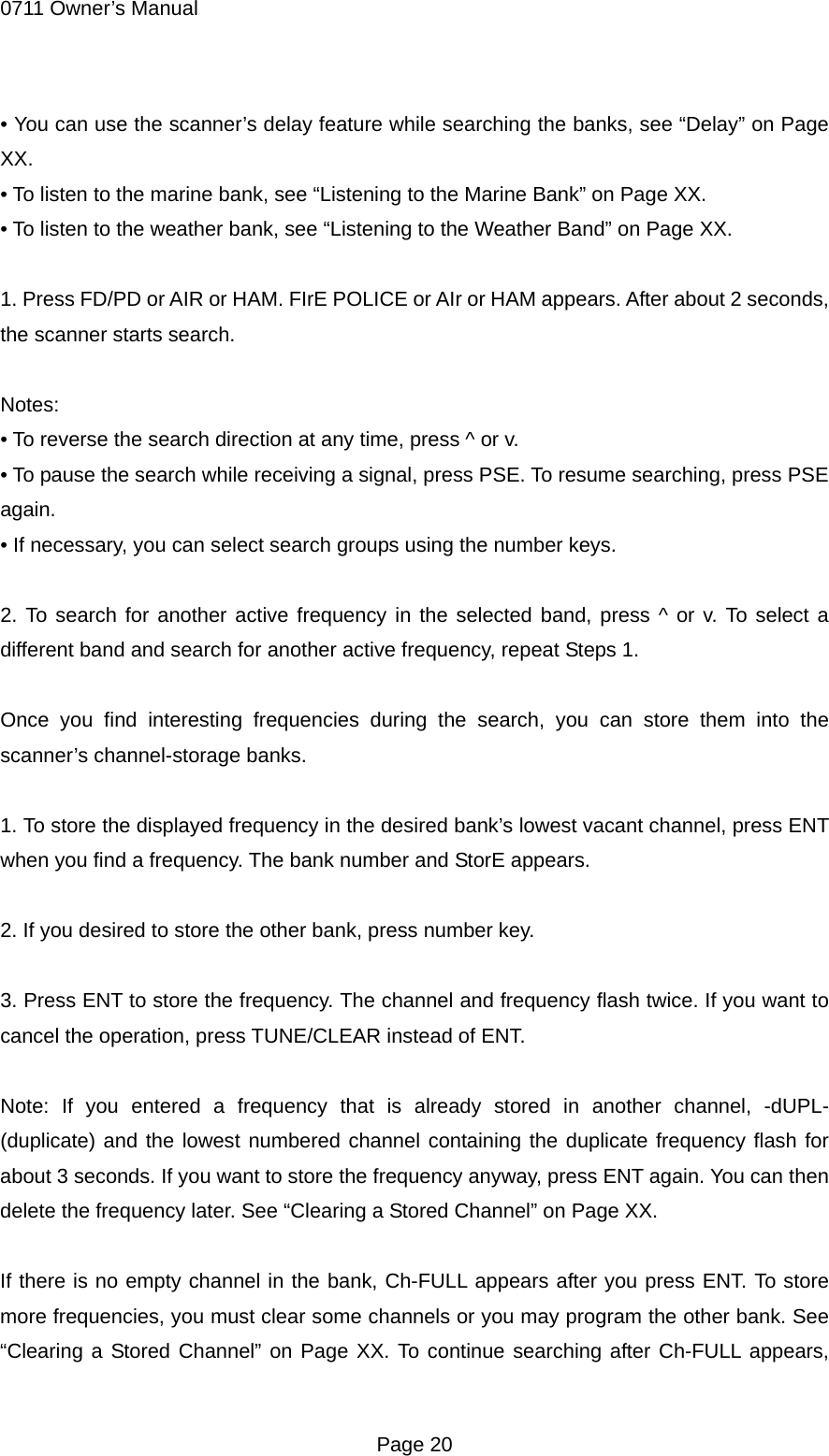
0711 Owner’s Manual • You can use the scanner’s delay feature while searching the banks, see “Delay” on Page XX. • To listen to the marine bank, see “Listening to the Marine Bank” on Page XX. • To listen to the weather bank, see “Listening to the Weather Band” on Page XX.  1. Press FD/PD or AIR or HAM. FIrE POLICE or AIr or HAM appears. After about 2 seconds, the scanner starts search.  Notes: • To reverse the search direction at any time, press ^ or v. • To pause the search while receiving a signal, press PSE. To resume searching, press PSE again. • If necessary, you can select search groups using the number keys.  2. To search for another active frequency in the selected band, press ^ or v. To select a different band and search for another active frequency, repeat Steps 1.  Once you find interesting frequencies during the search, you can store them into the scanner’s channel-storage banks.  1. To store the displayed frequency in the desired bank’s lowest vacant channel, press ENT when you find a frequency. The bank number and StorE appears.  2. If you desired to store the other bank, press number key.  3. Press ENT to store the frequency. The channel and frequency flash twice. If you want to cancel the operation, press TUNE/CLEAR instead of ENT.  Note: If you entered a frequency that is already stored in another channel, -dUPL- (duplicate) and the lowest numbered channel containing the duplicate frequency flash for about 3 seconds. If you want to store the frequency anyway, press ENT again. You can then delete the frequency later. See “Clearing a Stored Channel” on Page XX.  If there is no empty channel in the bank, Ch-FULL appears after you press ENT. To store more frequencies, you must clear some channels or you may program the other bank. See “Clearing a Stored Channel” on Page XX. To continue searching after Ch-FULL appears,  Page 20
0711 Owner’s Manual press TUNE/CLEAR.  Using Tune  During a tune, the scanner tunes up or down, starting from a frequency you specify. Follow these steps to use tune.  Note: You can use the scanner’s delay feature while using tune.  1. Press TUNE. PSE and start frequency appears.  2. If desired you can change the start frequency. To change the start frequency, enter frequency with numeral keys, then press ENT.  3. Press PSE to start tune. -t- appears on the display.  4. To change the tuning direction, press ^ or v. The scanner displays ^ or v and start tune.  Note: To pause the tune, press PSE. To resume tune, press PSE again.  5. To tune for another active frequency, press ^ or v.  Once you find interesting frequencies during the tune, you can store them into the scanner’s channel-storage banks.  1. To store the displayed frequency in the desired bank’s lowest vacant channel, press ENT when you find a frequency. The bank number and StorE appears.  2. If you desired to store the other bank, press number key.  3. Press ENT to store the frequency. The channel and frequency flash twice. If you want to cancel the operation, press TUNE/CLEAR instead of ENT.  Note: If you entered a frequency that is already stored in another channel, -dUPL- (duplicate) and the lowest numbered channel containing the duplicate frequency flash for about 3 seconds. If you want to store the frequency anyway, press ENT again. You can then  Page 21
0711 Owner’s Manual delete the frequency later. See “Clearing a Stored Channel” on Page XX.  If there is no empty channel in the bank, Ch-FULL appears after you press ENT. To store more frequencies, you must clear some channels or you may program the other bank. See “Clearing a Stored Channel” on Page XX. To continue searching after Ch-FULL appears, press TUNE/CLEAR.  SCANNING THE STORED CHANNELS  To set the scanner to continuously scan through all channels with stored frequencies, simply pressing SCAN until SCAN and ^ appear, then the scanner begins to rapidly scan until it finds an active frequency.  If the scanner finds an active frequency, it stops and displays that channel and frequency number, then it automatically begins scanning again when the transmission on that frequency ends.  Notes: • To reverse the scanning direction, press ^ or v. • To set the scanner to remain on the current channel for 2 seconds after the transmission ends, see “Delay” on Page XX. • To set the scanner to remain on the current channel, even after the transmission stops, press SCAN/MAN at any time during the transmission so MAN appears and SCAN disappears (see “Monitoring a Stored Channel”). • To lock out channels so the scanner does not stop for a transmission on those channels, see “Locking Out Channels or Frequencies” on Page XX.  TURNING CHANNEL-STORAGE BANKS OFF AND ON  Channel-storage banks (1–10) are on when they have a bar underneath them and off when no bar appears underneath them. To turn off a channel-storage bank, press the bank’s number key during scanning. The bar under the bank’s number disappears.  Note: The scanner does not scan any of the channels within the banks you have turned off.  To turn on a channel-storage bank (1–10) during scanning, press the bank’s number key. A  Page 22
0711 Owner’s Manual bar appears under the bank’s number.  Notes: • You cannot turn off all banks. There must be at least one active bank. • You can manually select any channel in a bank, even if the bank is turned off. • When you turn on a bank during scanning, the scanner moves to the selected bank and scans it.    If no transmission is found, the scanner continues scanning to scan through all selected banks.  MONITORING A STORED CHANNEL  You can continuously monitor a specific channel without scanning. This is useful if you hear an emergency transmission on a channel and do not want to miss any details — even though there might be periods of silence — or if you simply want to monitor that channel.  Follow these steps to manually select a channel.  1. Pressing SCAN/MAN until MAN appears.  2. Enter the channel number (1–200).  3. Press SCAN/MAN again.  CLEARING A STORED CHANNEL  If you no longer want a frequency stored in a channel (and you do not want to replace that frequency with a different one), follow these steps to clear the stored frequency.  1. Pressing SCAN/MAN to stop scanning.  2. To select the desired channel number, use the number keys to enter that channel number (1–200).  3. Press PGM. PGM appears.  Page 23
0711 Owner’s Manual  4. Press 0 then ENT. The frequency number changes to 000.0000 to indicate the channel is cleared.  5. To clear another channel, use the number keys to enter that channel number (1–200), then press PGM again. Or, repeatedly press PGM until the desired channel number appears. Then repeat Step 4.  LISTENING TO THE MARINE BANK  To listen to the marine bank, press MAR. MAr appears about 2 seconds, then the scanner starts searching from marine channel 16.  To stop searching the channels, press PSE. SRCH disappears and MAN appears.  To change the channel manually, press ^ or v.  To search through the marine bank again, press PSE. MAN disappears and SRCH appears To change the searching direction, press ^ or v.  You can select a marine channel directly. When the scanner stops scanning the marine bank, use the number keys to enter the two-digit channel number.  Note: While Marine band search, lock out functions. See “Locking Out Marine and WX Channels” on Page XX.  LISTENING TO THE WEATHER BAND  The FCC (Federal Communications Commission) has allocated channels for use by the National Oceanic and Atmospheric Administration (NOAA). Regulatory agencies in other countries have also allocated channels for use by their weather reporting authorities.  NOAA and your local weather reporting authority broadcast your local forecast and regional weather information on one or more of these channels.  Listening to a Weather Channel  Page 24
0711 Owner’s Manual  To hear your local forecast and regional weather information, press WX. WEAthEr appears for about 2 seconds, then the scanner starts searching the weather bank.  To stop searching the channels, press PSE. SRCH disappears and MAN appears.  To change the channel manually, press ^ or v.  To search through the weather bank again, press PSE. MAN disappears and SRCH appears. To change the searching direction, press ^ or v.  SAME Standby Mode  The National Weather Service precedes each weather alert with a digitally encoded SAME (Specific Area Message Encoding) signal, then a 1050 Hz tone. The SAME signal includes a FIPS (Federal Information Processing Standard) area code, and an event code that corresponds with the type of alert being sent. You can configure your scanner to operate in SAME Standby mode, where it monitors a selected weather radio station for SAME alerts for areas you specify. You can program your scanner with up to 7 FIPS codes for the areas you desire. The National Weather Service maintains a current list of FIPS codes at http://www.nws.noaa.gov/nwr/.  To configure your scanner for SAME Standby mode, follow these steps:  1. Press WX.  2. Press PGM to access the FIPS code entry table.  3. Use ^ or v keys to select the desired FIPS code storage location.  4. Use the number keys to enter the desired FIPS code, and then press ENT to store the code. Repeat this process for all the FIPS codes that you wish to store.  5. Press L/OUT to lock out or enable specific FIPS entries.  6. Press WX to exit the FIPS code entry table.  Page 25
0711 Owner’s Manual  Notes: • Your scanner can also detect the 1050 Hz weather alert tone when a weather channel is set as the priority channel and weather priority operation is enabled (see “Priority”). In this mode all alerts are received. FIPS settings are ignored. • The scanner sounds an alert or beep when it receives the SAME code. If you do not stop the alert (or beep) for five minutes, the alert stops and the scanner beeps every ten seconds. If the scanner receives a new message after five minutes, it sounds the alert or beep. To stop the sound and ready the scanner to receive a new alert signal before the five minute time out, press any key except LIGHT.  7. Press PRI/ALERT to initiate SAME standby. The scanner will monitor the all weather radio station for alerts with FIPS codes that match the codes you entered in the FIPS entry table. To exit SAME standby, press PRI/ALERT again.  Skywarn  Many areas of the country have amateur radio repeaters that have been designated as “Skywarn” repeaters. During times of severe weather, these repeaters are used to relay reports of severe weather directly to meteorologists at a local National Weather Service (NWS) forecast office. Using the Skywarn feature in your scanner, you can easily jump to Skywarn repeater frequencies and monitor these reports, in many cases hearing about severe weather in your area instantly as it occurs.  This function lets you quickly move to the skywarn channels (Channel 200) from any mode by pressing and holding WX about 2 seconds. The scanner displays SKYWARN symbol.  Note: To activate this function, you must program your desired Skywarn frequency into the Skywarn channel.  Spectrum Sweeper  Your scanner’s Spectrum Sweeper feature provides a powerful new tool for you to rapidly detect, monitor and store frequencies for nearby radio transmissions. The Spectrum Sweeper feature is similar in functionality to portable frequency counters that cost much more than your scanner, but provides many advantages over typical portable frequency  Page 26
0711 Owner’s Manual counters. For example:  The Spectrum Sweeper allows you to sweep the entire range of your scanner’s design frequencies, or you can specify those frequency ranges that you wish to sweep and exclude ranges that you do not want to sweep. This allows you to omit frequency ranges with constant strong frequency activity, such as those with paging or broadcast transmitters. Many portable frequency counters will remain locked to a nearby constant signal, such as a paging or broadcast transmitter, and will not function properly until you have left the vicinity of the transmitter.  The Spectrum Sweeper feature is more sensitive than portable frequency counters and will detect transmissions at a greater distance. You can activate the Attenuator to reduce the sensitivity if desired.  Once an active frequency is found, the transmission is played through your scanner’s speaker, and you can quickly store it in any of your scanner’s memory locations.  Using Spectrum Sweeper  The Spectrum Sweeper can be set to watch for activity on all band, Police/Fire, Aircraft, or Ham frequencies. When the scanner is in manual, scan or tune mode, press SS to watch for activity on all band. When the scanner is in Police/Fire search band, press SS to watch for activity on Police/Fire band. When the scanner is in Aircraft band, press SS to watch for activity on Aircraft band. When the scanner is in Ham band, press SS to watch for activity on Ham band.  You can also turn on/off frequency sub-bands using the corresponding number keys while Spectrum Sweeper is active.  Note: Priority mode is not available while using the Spectrum Sweeper.   SPECIAL FEATURES  DELAY   Page 27
0711 Owner’s Manual Many agencies use a two-way radio system that has a period of several seconds between a query and a reply. To avoid missing a reply, you can program a 2-second delay into any channel or frequency. When your scanner stops on a channel or frequency with a programmed delay, DLY appears and the scanner continues to monitor that channel or frequency for 2 seconds after the transmission stops before resuming scanning, searching,   tuning, or spectrum sweeping.  You can program a 2-second delay in any of these ways: • If the scanner is scanning and stops on an active channel, quickly press DELAY/• before it resumes scanning. • If the desired channel is not selected, manually select the channel, then press DELAY/• . • If the scanner is searching tuning, or spectrum sweeping, press DELAY/• . DLY appears and the scanner automatically adds a 2-second delay to every transmission it stops on in that band.  To turn off the 2-second delay in a channel or for all frequency, press DELAY /• while the scanner is monitoring that channel or frequency. DLY disappears.  LOCKING OUT CHANNELS OR FREQUENCIES  You can increase the effective scanning or search speed by locking out individual channels or frequencies that have a continuous transmission, such as a weather channel (see “National Weather Frequencies” on Page XX) or a birdie frequency (see “Birdie Frequencies” on Page XX).  Locking Out Channels  To lock out a channel during scanning, press L/O/L/O RVW when the scanner stops on the channel.  To manually lock out a channel, select the channel then press L/O/L/O RVW until L/O appears.  To remove the lockout from a channel, manually select that channel again, then press L/O/L/O RVW until L/O disappears.   Page 28
0711 Owner’s Manual Notes: • Your scanner automatically locks out empty channels. • You can still manually select locked-out channels.  Locking Out Marine and WX Channels  To lock out a Marine or WX channel during searching, press L/O when the scanner stops on the channel.  To manually lock out a Marine or WX channel, select the channel then press L/OUT.  To remove the lockout from a Marine or WX channel, manually select that channel again, then press L/O until L/O disappears.  Locking Out Frequencies  To lock out a frequency during a one touch search or spectrum sweeper, press L/O/L/O RVW when the scanner stops on that frequency. The scanner locks out the frequency then continues searching/sweeping.  Notes: • You can lock out as many as 50 frequencies during a search (or spectrum sweep). If you try to lock out more, FLo -FULL appears (see “Reviewing Locked-Out Frequencies” and “Removing Lockouts From All Frequencies”). • The scanner uses same Lockout List between one touch search bank and spectrum sweeper. (ex.: the scanner uses same lock out list between aircraft search band and aircraft spectrum sweeper band.)  Reviewing Locked-Out Frequencies  To review the frequencies you locked out, hold down L/O/L/O RVW for about 2 seconds during a search or spectrum sweeper, then repeatedly press ^ or v. L-r (Lockout Review) appears and the scanner displays all locked out frequencies as you press ^ or v, or, EMPty appears when the search bank has no locked out frequencies. When you reach the highest locked-out frequency, the scanner beeps twice and returns to the lowest locked-out frequency.  Page 29
0711 Owner’s Manual  Removing Lockouts Form All Frequencies in a One Touch Search Bank  Note: These steps do not clear any lockouts in the marine and weather bank.  1. Hold down L/O/L/O RVW for about 2 seconds during a desired search band. L-r appears.  2. While holding down TUNE/CLEAR, press L/O to clear the lockout. FLo ALL-CL appears about 2 seconds. After 2 seconds, YES ---Ent and No ---CLEAr appears alternately.  3. Press ENT. L-r EMPty appears. The scanner clears any lockouts from all frequencies in a one touch bank. Or, if you do not want to clear the lockouts, press TUNE/CLEAR.  USING PRIORITY  The priority feature lets you scan through channels and still not miss important or interesting calls on a frequency you select. You can program one frequency into the priority channel. As the scanner scans, if the priority feature is turned on, the scanner checks the priority channel for activity every 2 seconds.  1. Press PGM, then press PRI/ALERT. PCH and 000.0000 or the previously-stored frequency appear.  2. Enter the frequency you want to enter into the priority channel, then press ENT. The display flashes twice.  To program a weather channel as the priority channel:  1. Press WX.  2. Select the weather channel you want to program as the priority channel.  3. Press and hold ENT then PRI. P ChAnnEL is displayed momentarily. Aftter P ChAnnEL appears, PCH flashes and 000.0000 or the previously-stored frequency appears.  4. Press ENT to store the priority channel and display blinks two times. Press CLEAR to  Page 30
0711 Owner’s Manual cancel.  To turn on the priority feature, press PRI/ALERT during scanning or searching. PRI appears. The scanner checks the priority channel every 2 seconds and stays on the channel if there is activity. PCH and the frequency appear whenever the scanner is set to the priority channel.  To turn off the priority feature, press PRI/ALERT. PRI disappears.  Note: If you program a weather frequency into the priority channel and the scanner detects a WX alert tone on that frequency (see “WX Alert” on Page XX), the scanner sounds the alert tone and ALErt flashes. Press any key to turn off the alarm.  USING THE DISPLAY BACKLIGHT  You can turn on the display’s backlight for easy viewing in the dark. Press (light/key symbol) to turn on the light for 5 seconds. To turn off the light sooner, press (light/key symbol) again.  Press and hold PGM then press (light/key symbol) to turn on the display’s backlight for an extended period of time. To turn it off, press (light/key symbol).  TURNING THE KEY TONE ON AND OFF  The scanner is preset to sound a tone each time you press one of its keys (except (light/key symbol)). You can turn the key tone off or back on.  1. If the scanner is on, turn OFF/VOLUME counterclockwise until it clicks to turn it off.  2. Turn OFF/VOLUME clockwise to turn the scanner on. Welcome message appears..  3. While Welcome message appears, press 1 to turn on the key tone or 2 to turn it off..  USING THE KEY LOCK  Once you program your scanner, you can protect it from accidental program changes by turning on the keylock feature. When the keypad is locked, the only controls that operate are  Page 31
0711 Owner’s Manual LIGHT, VOLUME, and SQUELCH.  Note: The keylock does not prevent the scanner from scanning channels or monitoring a single channel, whichever feature you last selected.  To turn on the keylock, hold down (Key Symbol) for about 3 seconds until the scanner beeps three times and (Key Symbol) appears. To turn it off, hold down (Key Symbol) for about 3 seconds until the scanner beeps three times and (Key Symbol) disappears.  Cloning the Programmed Data  You can transfer the programmed data to and from another 0711 scanner using an optional connecting cable with 3.5mm phone plugs on both ends (not supplied).  1. Turn on both scanner.  2. Connect the connecting cable to each scanner’s PC/IF jack. CLOnE and UP to SEnd appears.  3. Press ^ at the host scanner.  4. SEndInG appears at the host scanner.  The scanner sends the data. To exit the clone mode, remove the cable.  CLOnE and Error may alternately appear when the scanner receives data from a scanner other than a 0711. If this happens when the scanner receives data from another 0711, turn off the scanner and then turn it on again.   INITIALIZING THE SCANNER  If the scanner’s display locks up or does not work properly after you connect a power source, you might need to initialize the scanner.  Important: This procedure clears all information you stored in the scanner’s memory.  Page 32
0711 Owner’s Manual Initialize the scanner only when you are sure the scanner is not working properly.  1. Turn off the scanner, then turn it on again. WELCOME SCAnnInG rECEIVEr appears.  2. Press 0 while welcome message. Then press 1. InItIAL appears about 2 seconds. After 2 seconds, YES ---Ent and No ---CLEAr appears alternately.  3. Press ENT. WAIt appears for about 2 seconds.  Note: Do not turn off the scanner until the initialization is complete. When the initialization is complete, 1CH 000.0000 appears on the display.  A GENERAL GUIDE TO SCANNING  Birdie Frequencies  Every scanner has birdie frequencies. Birdies are signals created inside the scanner’s receiver. These operating frequencies might interfere with transmissions on the same frequencies. If you program one of these frequencies, you hear only noise on that frequency. If the interference is not severe, you might be able to turn SQUELCH clockwise to cut out the birdie.  To find the birdies in your individual scanner, begin by disconnecting the antenna and moving it away from the scanner. Make sure that no other nearby radio or TV sets are turned on near the scanner. Use the search function and search every frequency range from its lowest frequency to the highest. Occasionally, the searching will stop as if it had found a signal, often without any sound. That is a birdie. Make a list of all the birdies in your scanner for future reference.  FREQUENCY CONVERSION  The tuning location of a station can be expressed in frequency (kHz or MHz) or in wavelength (meters). The following information can help you make the necessary conversions.  1 MHz (million) = 1,000 kHz (thousand)  Page 33
0711 Owner’s Manual  • To convert MHz to kHz, multiply the number of megahertz by 1,000: 30.62 (MHz) x 1000 = 30,620 kHz  • To convert from kHz to MHz, divide the number of kilohertz by 1,000: 127,800 (kHz) / 1000 = 127.8 MHz  • To convert MHz to meters, divide 300 by the number of megahertz: 300 / 50 MHz = 6 meters   FAQs (Frequently Asked Questions)  The scanner is not working at all. What’s wrong? • The AC or DC adaptor might not be connected. Be sure the adaptor’s barrel plug is fully inserted into the PWR DC 9V jack. The center tip of the adaptor’s barrel plug must be set to positive. • The batteries might be dead or need to be recharged. Recharge the rechargeable batteries or replace the standard batteries.  The scanner does not receive any stations or reception is poor. What’s wrong? • The scanner might need to be initialized. Turn the scanner off then on again, or initialize the scanner (see “Initializing the Scanner”).  The scanner is on but does not scan. What’s wrong? • The squelch might not be adjusted correctly. Turn SQ clockwise. There might only be one channel or no channels stored in the scanner. Store frequencies into more than one channel. • The keylock might be turned on. Turn off keylock.  While scanning, the scanner locks on frequencies that have an unclear transmission. What’s wrong? • Some frequencies programmed into the scanner might be the same as “birdie” frequencies. Avoid programming “Birdie Frequencies” or only listen to them manually.    Page 34
0711 Owner’s Manual CARE  Keep the scanner dry; if it gets wet, wipe it dry immediately. Use and store the scanner only in normal temperature environments. Handle the scanner carefully; do not drop it. Keep the scanner away from dust and dirt, and wipe it with a damp cloth occasionally to keep it looking new.  IN CASE OF FAULT  Where a fault arises, contact your supplier. However, before you do so check that the fault was not caused by an operational error. Carefully reread the relevant section in the instructions.  SPECIFICATIONS  Frequency Coverage (MHz): 10 Meter Amateur Radio ..................... 29–30 (in 5 kHz steps) VHF Lo ................................................ 30–50 (in 5 kHz steps) 6 Meter Amateur Radio ....................... 50–54 (in 5 kHz steps) Aircraft ............................... 108–136.9875 (in 12.5 kHz steps) Government .................................... 137–144 (in 5 kHz steps) 2 Meter Amateur Radio ................... 144–148 (in 5 kHz steps) VHF Hi ............................................ 148–174 (in 5 kHz steps) Amateur Radio/Government ...... 380–450 (in 12.5 kHz steps) UHF Standard ............................ 450–470 (in 12.5 kHz steps) UHF “T” ...................................... 470–512 (in 12.5 kHz steps) Channels of Operation ...... 200 channels Sensitivity (20 dB S/N): 29–54 MHz .................................................................... 0.5 uV 108–136.9875 MHz ....................................................... 1.0 uV 137–174 MHz ................................................................ 0.5 uV 380–512 MHz ................................................................ 0.7 uV Spurious Rejection (FM @154 MHz) ............................... 50 dB Selectivity: ±10 kHz .......................................................................... –6 dB ±18 kHz ........................................................................ –50 dB  Page 35
0711 Owner’s Manual  Page 36 Search Speed ............................................. Up to 50 Steps/Sec Scan Speed ......................................... Up to 25 Channels/Sec Delay Time ............................................................... 2 Seconds IF Frequencies: 1st IF .......................................................................... 10.7 MHz 2nd IF ........................................................................... 455 kHz IF Interference Ratio (10.7 MHz) .................. 70 dB at 150 MHz Squelch Sensitivity: Threshold ..................................................... Less than 0.5 uV Tight (FM) ....................................................... (S + N)/N 25 dB Tight (AM) ...................................................... (S + N)/N 20 dB Antenna Impedance .................................................... 50 Ohms Audio Output Power (10% THD) .................... 180 mW Nominal Built-In Speaker ........................... 1 3/8 Inches (36 mm), 8 Ohms Operating Temperature ...........................................14° to 140°F                                             (–10° to 60°C) Power Requirements ....................... 6 Volts DC, 4 AA Batteries                                      AC Adapter (Optional)                                     DC Adapter (Optional) Current Drain (Squelched) .............................................. 50 mA Dimensions (HWD) .............................. 5 11/16 x 2 3/8 x 1 9/16 Inches                                          (145 x 63 x 40 mm) Weight (without antenna) ............................................approx. 7.8 oz                                                   (220 g) Supplied Accessories ......................... Antenna, Battery Holder,                                Rechargeable Battery Holder  Specifications are typical; individual units might vary. Specifications are subject to change and improvement without notice.    GE-07D-XXXX Printed in China

Navigation menu