General Research of Electronics 2000515 Scanning Receiver User Manual OM

General Research of Electronics Inc Scanning Receiver OM

User Manual

RadioShack LOGO  PRO-99 500 Channel VHF/Air/UHF/800MHz Handheld Race Scanner  OWNER’S MANUAL – Please read before using this equipment. 20-515  Two-Second Scan/Search Delay – Delays scanning for 2 seconds before moving to another channel, so you can hear more replies.  Ten Channel-Storage Banks – Store up to 20 channels in each of 10 different banks, to group channels so you can more easily identify calls.  20 Monitor Memories – Temporarily save up to 20 frequencies located during a search, so you can move selected frequencies to channel storage later.  Preprogrammed Frequency Ranges – Lets you search for transmissions within preset frequency ranges or within ranges you set, to reduce search time and select interesting frequencies.  Memory Backup – Keeps the channel frequencies stored in memory for about 1 hour during a power loss.  Triple Conversion Superheterodyne Receiver – Eliminates interference from intermediate frequency (IF) images, so you hear only the frequency you select.  HyperSearchTM and HyperScanTM – Set the scanner to search at up to 50 steps per second and scan at up to 25 channels per second, to quickly find interesting transmissions.  Duplicate Frequency Check – Automatically notifies you if you are about to store a frequency you have already stored, to help avoid waiting storage space.  Tune – Tunes for new and unlisted frequencies starting from a specified frequency.  Priority Channel – Designate a channel to scan every two seconds so you do not miss important calls.  Weather Band Key – Scans seven preprogrammed weather frequencies to keep you informed about current weather conditions.  Weather Alert – Automatically sounds the alarm tone to advise of hazardous weather conditions when it detects the alert signal on the local NOAA weather channel.  Lock-Out Function – Set the scanner to skip over specified channels or frequencies when scanning or
searching.  Key Lock – Lock the scanner’s keys to prevent accidentally changing the scanner’s programming.  Two Supplied Antennal with BNC Connector – Select the antenna that best meets your needs. The supplied stub antenna helps your scanner receive strong local signals and makes the scanner easy to carry and use at events. The supplied flexible antenna provides excellent reception of weaker signals and is designed to help prevent antenna breakage.  Liquid Crystal Display – Makes it easy to view and change programming information.  Display Backlight – Makes the scanner easy to read in low light situations.  Three Power Options – Power the scanner from internal batteries (non-rechargeable batteries, rechargeable Ni-MH (nickel-metal hydride) or regular or high capacity Ni-Cd (nickel-cadmium) batteries), external AC power (using optional adapters), or vehicle battery power (using optional adapters).   ! IMPORTANT ! If an icon appears at the end of a paragraph, go to the box on that page with the corresponding icon for pertinent information. ! – Warning   ! – Important  thundervolt – Caution light – hint  notebook – Note  © 2003 RadioShack Corporation. All Rights Reserved. RadioShack and RadioShack.com are trademarks used by RadioShack Corporation.   CONTENTS  Will add    Thank you for purchasing the RadioShack 500-Channel VHF/Air/UHF/800 MHz handheld Race Scanner. It lets you in on all the action in the pits or on the track at the big race. This scanner gives you direct access to over 33,500 frequencies, including those used by participants and staff at auto races, police and fire departments, ambulance services, and amateur radio services. You can select up to 500 channels to scan, and you can change your selection at any time.  Your scanner can receive all of these frequencies:
 . 29-54 MHz . 108-136.9875 MHz . 137-174 MHz . 406-512 MHz . 806-823.9875 MHz . 849-868.9875 MHz . 894-960 MHz  This Owner’s Manual also includes the section :A General Guide to Scanning” on Page XX to help you target frequency ranges in your service area so you can search for a wide variety of transmissions.   FCC NOTICE  Your scanner might cause TV or radio interference even when it is operating properly. To determine whether your scanner is causing the interference, turn off your scanner. If the interference goes away, your scanner is causing it. Try to eliminate the interference by: . moving your scanner away from the receiver . connecting your scanner to an outlet that is on  different electrical circuit from the receiver . contacting your local RadioShack store for help  If you cannot eliminate the interference, the FCC requires that you stop using your scanner.  This device complies with Part 15 of the FCC Rules. Operation is subject to the following conditions: (1) This device must not cause harmful interference, and (2) this device must accept any interference received, including interference that may cause undesired operation.  Note: Mobile use of this scanner is unlawful or requires a permit in some areas. Check the laws in your area.   SCANNING LEGALLY  Your scanner covers frequencies used by many different groups including police and fire departments, ambulance services, government agencies, private companies, amateur radio services, military operations, pager services, and wireline (telephone and telegraph) services. It is legal to listen to almost every transmission your scanner can receive. However, there are some transmissions you should never intentionally listen to. These include: . telephone conversations (cellular, cordless, or other private means of telephone signal transmission) . pager transmissions . any scrambled or encrypted transmissions
 According to the Electronic Communications Privacy Act (ECPA), you are subject to fines and possible imprisonment for intentionally listening to, using, or divulging the contents of such a transmission unless you have the consent of a party to the communication (unless such activity is otherwise illegal).  This scanner has been designed to prevent reception of illegal transmissions. This is done to comply with the legal requirement that scanners be manufactured so as to not be easily modifiable to pick up those transmissions. Do not open your scanner’s case to make any modifications that could allow it to pick up transmissions that it is not legal to listen to. Doing so could subject you to legal penalties.  We encourage responsible, legal scanner use.   PREPARATION  INSTALLING BATTERIES  You can power your scanner with three AA batteries (not supplied).  Notes . Dispose of old batteries promptly and properly. . Do not burn or bury batteries. . Use only fresh batteries of the required size and recommended type. . Do not mix old and new batteries, different types of batteries (standard, alkaline, or rechargeable), or rechargeable batteries of different capacities. . If you do not plan to use the scanner for a month or more, remove the batteries. Batteries can leak chemicals that can destroy electronic parts.  You can use either the black non-rechargeable battery holder or the yellow rechargeable battery holder (both supplied) to hold the batteries. If you use the yellow battery holder, we recommend nickel-cadmium or nickel-metal hydride batteries (not supplied).  Warning: Never install non-rechargeable batteries in the yellow rechargeable battery holder. Non-rechargeable batteries can get hot or explode if you try to recharge them.  1. Press down on the battery compartment cover then slide the cover in the direction of the arrow to remove it.  2. If you are using non-rechargeable batteries, place them into the black holder, as indicated by the polarity symbols (+ and -) marked on the holder. Or, if you are using rechargeable batteries, place them into the yellow holder as indicated by the polarity symbols (+ and -) marked on the holder.
 3. Place the battery holder into the battery compartment.  Caution: The battery holder fits only one way inside the battery compartment. Do not force it.  4. Replace the cover.  When Low Battery! flashes on the display and the scanner beeps, or if the scanner stops operating properly, replace the batteries.  USING AC POWER  You can power the scanner using a 6V, 300-mA AC adapter and a size C Adaptaplug™ adapter (neither supplied). Both are available at your local RadioShack store.  Cautions: ! You must use a Class 2 power source that supplies 6V DC and delivers at least 300 mA. Its center tip must be set to positive and its plug must fit the scanner’s PWR DC 9V jack. Using an adapter that does not meet these specifications could damage the scanner or the adapter. . Always connect the AC adapter to the scanner before you connect it to AC power. When you finish, disconnect the adapter from AC power before you disconnect it from the scanner.  To power the scanner using an AC adapter, attach the Adaptaplug to the AC adapter so the tip reads positive (+), then insert the Adaptaplug into the scanner’s PWR DC 9V jack. Connect the other end of the adapter to a standard AC outlet.  USING VEHICLE BATTERY POWER  You can power the scanner from a vehicle’s 12V power source (such as a cigarette-lighter socket) using a 6V, 300-mA DC adapter and a size C Adaptaplug (neither supplied.) Both are available at your local RadioShack store.  Cautions: ! You must use a Class 2 power source that supplies regulated 6V DC and delivers at least 300 mA. Its center tip must be set to positive and its plug must fit the scanner’s PWR DC 6V jack. Using an adapter that does not meet these specifications could damage the scanner or the adapter. . Always connect the AC adapter to the scanner before you connect it to the power source. When you finish, disconnect the adapter from the power source before you disconnect it from the scanner.  To power the scanner using a DC adapter, attach the Adaptaplug to the DC adapter so the tip reads positive (+), set the adapter’s voltage switch to 9V, then insert the Adaptaplug into the scanner’s PWR DC 6V jack.
Plug the other end of the DC adapter into your vehicle’s cigarette-lighter socket.  Note: If you use a cigarette-lighter power cable and your vehicle’s engine is running, you might hear electrical noise from the engine while scanning. This is normal.  CHARGING RECHARGEABLE BATTERIES  Your scanner has a built-in charging circuit that lets you charge rechargeable batteries while they are in the scanner. To charge rechargeable batteries, you need to use an AC adapter which supplies 6V (RadioShack Cat. No. 273-1758) or a DC adapter which supplies 10V (RadioShack Cat. No. 273-1859). Connect a size C Adaptaplug to the adapter’s cable with the tip set to positive then insert the Adaptaplug into the scanner’s PWR DC 6V jack  Notes . Do not overcharge Ni-Cd batteries. Overcharging causes them to get hot and shortens their life. . Ni-Cd batteries last longer and deliver more power if you occasionally let them fully discharge. To do this, simply use the scanner until B flashes on the display and the scanner beeps. Then fully charge the batteries.  It takes between 14 and 16 hours to recharge Ni-MH or 7 and 8 hours to recharge Ni-Cd batteries that are fully discharged. You can operate the scanner while recharging the batteries, but charging takes longer.  IMPORTANT! The EPA certified RBRC® Battery Recycling Seal on the nickel-cadmium (Ni-Cd) battery indicates RadioShack is voluntarily participating in an industry program to collect and recycle these batteries at the end of their useful life, when taken out of service in the United States or Canada. The RBRC program provides a convenient alternative to placing used Ni-Cd batteries into the trash or the municipal waste stream, which may be illegal in your area. Please call 1-800-THE-SHACK (1-800-843-7422) for information on Ni-Cd battery recycling and disposal bans/restrictions in your area. RadioShack’s involvement in this program is part of the company’s commitment to preserving our environment and conserving our natural resources.  CONNECTING AN ANTENNA  Connecting a Supplied Antenna  You must install an antenna before you can operate the scanner.  The supplied stub antenna helps your scanner receive most strong transmissions at events and makes the scanner easier to carry and use. The supplied flexible antenna provides slightly better reception and helps your scanner receive strong local signals.  1. Align the slots around the antenna’s connector with the tabs on the antenna jack.
2. Press the antenna down over the jack and turn the antenna’s base clockwise until it locks into place.  Add illust  Connecting an Outdoor Antenna  Instead of a supplied antenna, you can connect an outdoor base-station or mobile antenna (not supplied) to your scanner using a BNC connector. Your local RadioShack stores sells a variety of antennas. Choose the one that best meets your needs.  When deciding on a mobile or base-station antenna and its location, consider these points.  . The antenna should be as high as possible on the vehicle or building. . The antenna and its cable should be as far as possible from sources of electrical noise, such as appliances or other radios. . The antenna should be vertical for the best performance.  Always use 50 Ohm coaxial cable, such as RG-58 or RG-8, to connect the base-station or mobile antenna. For lengths over 50 feet, use RG-8 low-loss dielectric coaxial cable. If the antenna cable’s connector does not fit in the scanner’s antenna jack, you might also need a PL-259-to-BNC antenna plug adapter. Your local RadioShack store carries a wide variety of coaxial antenna cable and connectors.  Caution . Do not run the cable over sharp edges or moving parts that might damage it. . Do not run the cable next to power cables or other antenna cables.  Once you choose an antenna, follow the mounting instructions supplied with the antenna, after removing a supplied antenna. Then route the antenna’s cable to the scanner and connect the cable to the scanner’s antenna jack.  WARNING Use extreme caution when you install or remove an outdoor antenna. If the antenna starts to fall, let it go! It could contact overhead power lines. If the antenna touches a power line, contact with the antenna, mast, cable, or guy wires can cause electrocution and death. Call the power company to remove the antenna. DO NOT attempt to do so yourself.  CONNECTING AN EARPHONE /HEADPHONES  For private listening, you can connect an earphone or headphones with a 1/8-inch (3.5 mm) plug to the (headphone symbol) jack on the top of the scanner. (Your local RadioShack store carries a wide selection of earphones and headphones). Connecting an earphone or headphones automatically disconnects the internal
speaker.  Add illust  LISTENING SAFELY  To protect your hearing, follow these guidelines when you use an earphone or headphones.  . Set the volume to the lowest setting before you begin listening. After you begin listening, adjust the volume to a comfortable level. . Do not listen at extremely high volume levels. Extended high-volume listening can lead to permanent hearing loss. . Once you set the volume, do not increase it. Over time, your ears adapt to the volume level, so a volume level that does not cause discomfort might still damage your hearing.  TRAFFIC SAFETY  . Do not use an earphone or headphones with your scanner when operating a motor vehicle or riding a bicycle in or near traffic. Doing so can create a traffic hazard and could be illegal in some areas. . If you use an earphone or headphones with your scanner while riding a bicycle, be very careful. Do not listen to a continuous transmission. Even though some earphones or headphones let you hear some outside sounds when listening at normal volume levels, they still can present a traffic hazard.  CONNECTING AN EXTENTION SPEAKER  In a noisy area, an amplified extension speaker (available at your local RadioShack store) might provide more comfortable listening. Plug the speaker cable’s 1/8-inch (3.5 mm) plug into your scanner’s (headphone symbol) jack  Add illust  Note: Connecting an external speaker disconnects the scanner’s internal speaker.   UNDERSTANDING THE SCANNER  Once you understand a few simple terms used in this manual and familiarize yourself with your scanner’s features, you can put the scanner to work for you. You simply determine the type of communications you want to receive, then set the scanner to scan them.  A frequency is the tuning location of a station (expressed in kHz or MHz). To find active frequencies, you can
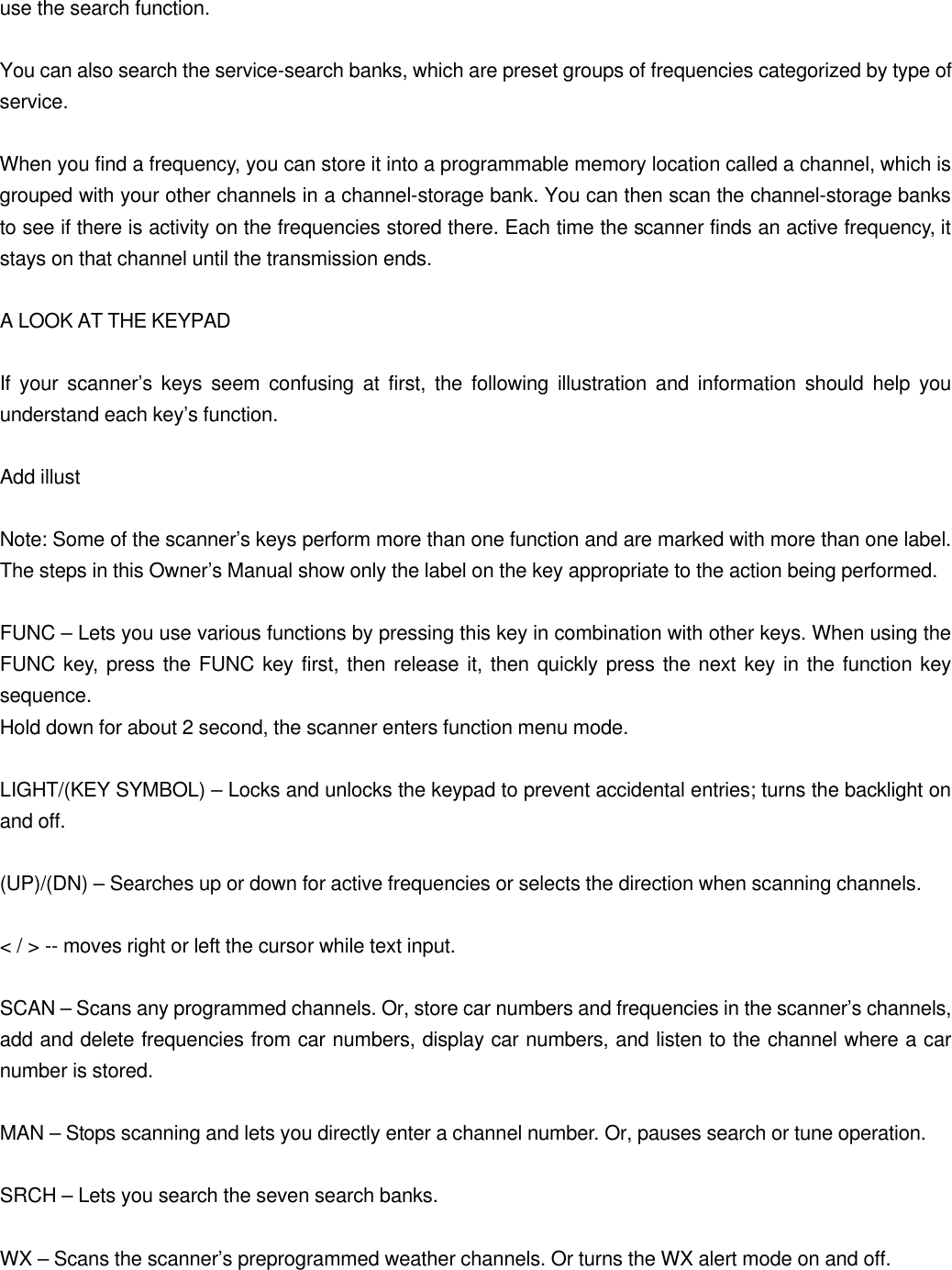
use the search function.  You can also search the service-search banks, which are preset groups of frequencies categorized by type of service.  When you find a frequency, you can store it into a programmable memory location called a channel, which is grouped with your other channels in a channel-storage bank. You can then scan the channel-storage banks to see if there is activity on the frequencies stored there. Each time the scanner finds an active frequency, it stays on that channel until the transmission ends.  A LOOK AT THE KEYPAD  If your scanner’s keys seem confusing at first, the following illustration and information should help you understand each key’s function.  Add illust  Note: Some of the scanner’s keys perform more than one function and are marked with more than one label. The steps in this Owner’s Manual show only the label on the key appropriate to the action being performed.  FUNC – Lets you use various functions by pressing this key in combination with other keys. When using the FUNC key, press the FUNC key first, then release it, then quickly press the next key in the function key sequence. Hold down for about 2 second, the scanner enters function menu mode.  LIGHT/(KEY SYMBOL) – Locks and unlocks the keypad to prevent accidental entries; turns the backlight on and off.  (UP)/(DN) – Searches up or down for active frequencies or selects the direction when scanning channels.  < / > -- moves right or left the cursor while text input.  SCAN – Scans any programmed channels. Or, store car numbers and frequencies in the scanner’s channels, add and delete frequencies from car numbers, display car numbers, and listen to the channel where a car number is stored.  MAN – Stops scanning and lets you directly enter a channel number. Or, pauses search or tune operation.  SRCH – Lets you search the seven search banks.  WX – Scans the scanner’s preprogrammed weather channels. Or turns the WX alert mode on and off.
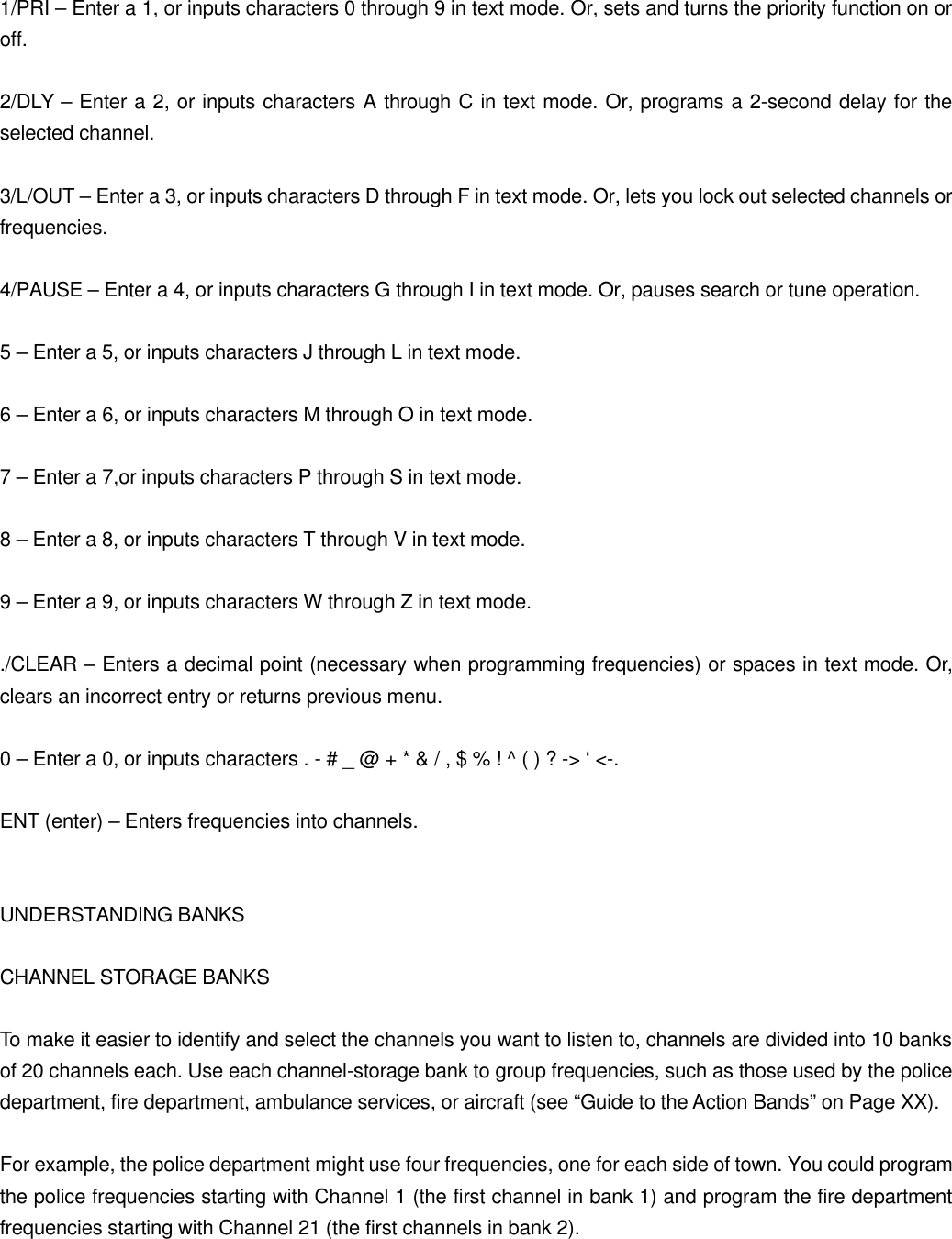
 1/PRI – Enter a 1, or inputs characters 0 through 9 in text mode. Or, sets and turns the priority function on or off.  2/DLY – Enter a 2, or inputs characters A through C in text mode. Or, programs a 2-second delay for the selected channel.  3/L/OUT – Enter a 3, or inputs characters D through F in text mode. Or, lets you lock out selected channels or frequencies.  4/PAUSE – Enter a 4, or inputs characters G through I in text mode. Or, pauses search or tune operation.  5 – Enter a 5, or inputs characters J through L in text mode.  6 – Enter a 6, or inputs characters M through O in text mode.  7 – Enter a 7,or inputs characters P through S in text mode.  8 – Enter a 8, or inputs characters T through V in text mode.  9 – Enter a 9, or inputs characters W through Z in text mode.  ./CLEAR – Enters a decimal point (necessary when programming frequencies) or spaces in text mode. Or, clears an incorrect entry or returns previous menu.  0 – Enter a 0, or inputs characters . - # _ @ + * & / , $ % ! ^ ( ) ? -> ‘ <-.  ENT (enter) – Enters frequencies into channels.   UNDERSTANDING BANKS  CHANNEL STORAGE BANKS  To make it easier to identify and select the channels you want to listen to, channels are divided into 10 banks of 20 channels each. Use each channel-storage bank to group frequencies, such as those used by the police department, fire department, ambulance services, or aircraft (see “Guide to the Action Bands” on Page XX).  For example, the police department might use four frequencies, one for each side of town. You could program the police frequencies starting with Channel 1 (the first channel in bank 1) and program the fire department frequencies starting with Channel 21 (the first channels in bank 2).
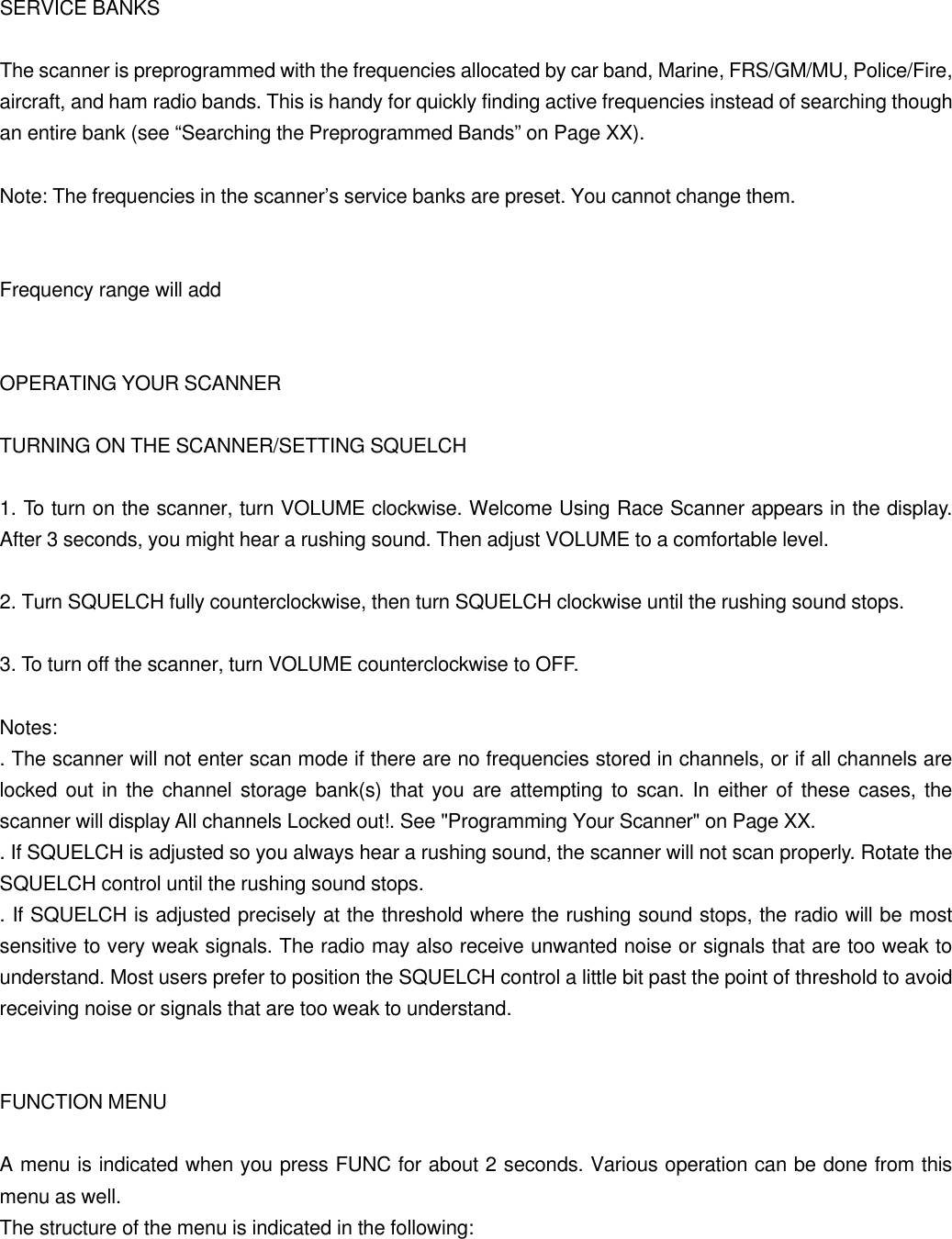
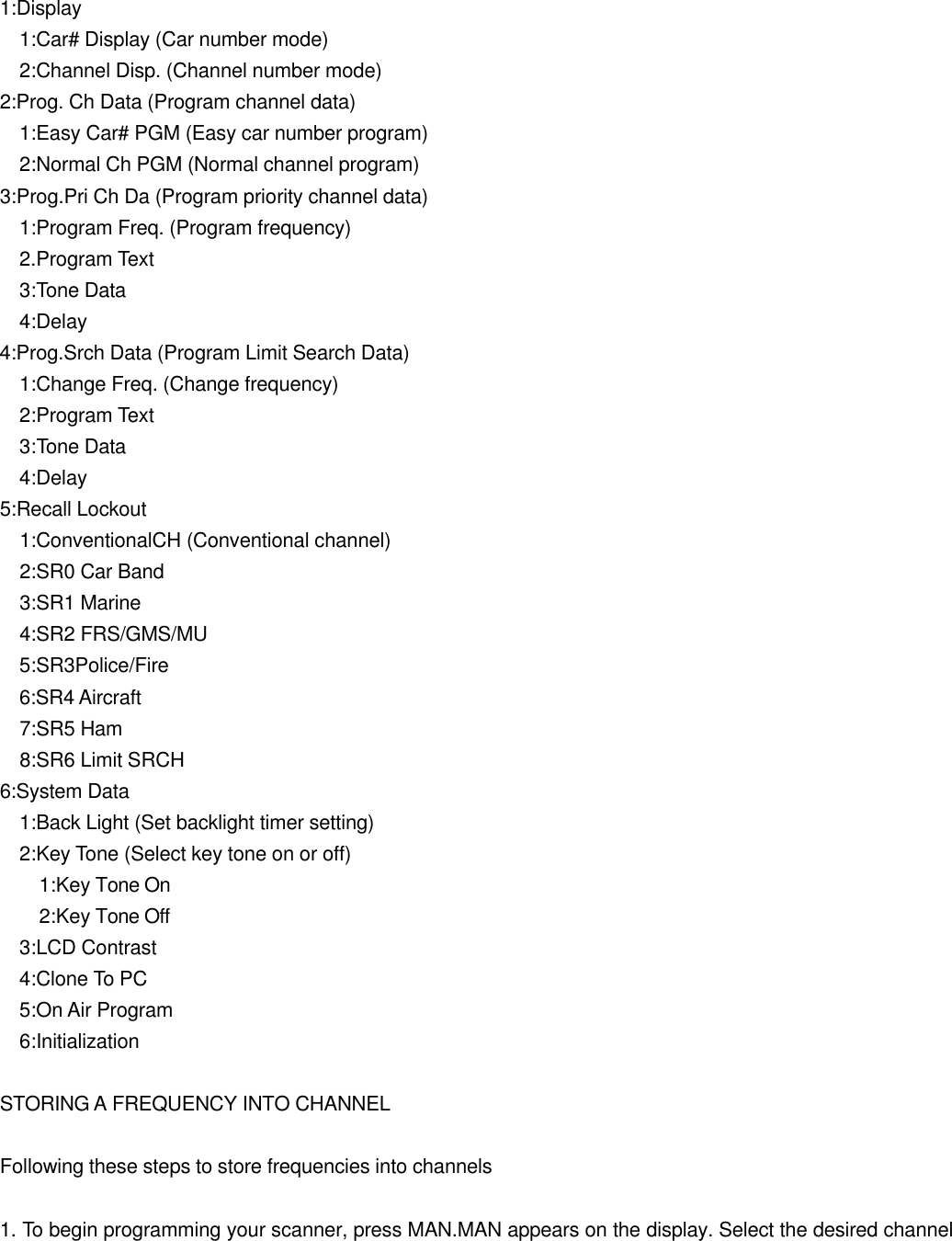
 SERVICE BANKS  The scanner is preprogrammed with the frequencies allocated by car band, Marine, FRS/GM/MU, Police/Fire, aircraft, and ham radio bands. This is handy for quickly finding active frequencies instead of searching though an entire bank (see “Searching the Preprogrammed Bands” on Page XX).  Note: The frequencies in the scanner’s service banks are preset. You cannot change them.   Frequency range will add   OPERATING YOUR SCANNER  TURNING ON THE SCANNER/SETTING SQUELCH  1. To turn on the scanner, turn VOLUME clockwise. Welcome Using Race Scanner appears in the display. After 3 seconds, you might hear a rushing sound. Then adjust VOLUME to a comfortable level.  2. Turn SQUELCH fully counterclockwise, then turn SQUELCH clockwise until the rushing sound stops.  3. To turn off the scanner, turn VOLUME counterclockwise to OFF.  Notes: . The scanner will not enter scan mode if there are no frequencies stored in channels, or if all channels are locked out in the channel storage bank(s) that you are attempting to scan. In either of these cases, the scanner will display All channels Locked out!. See "Programming Your Scanner" on Page XX. . If SQUELCH is adjusted so you always hear a rushing sound, the scanner will not scan properly. Rotate the SQUELCH control until the rushing sound stops. . If SQUELCH is adjusted precisely at the threshold where the rushing sound stops, the radio will be most sensitive to very weak signals. The radio may also receive unwanted noise or signals that are too weak to understand. Most users prefer to position the SQUELCH control a little bit past the point of threshold to avoid receiving noise or signals that are too weak to understand.   FUNCTION MENU  A menu is indicated when you press FUNC for about 2 seconds. Various operation can be done from this menu as well. The structure of the menu is indicated in the following:
 1:Display   1:Car# Display (Car number mode)   2:Channel Disp. (Channel number mode) 2:Prog. Ch Data (Program channel data)   1:Easy Car# PGM (Easy car number program)   2:Normal Ch PGM (Normal channel program) 3:Prog.Pri Ch Da (Program priority channel data)   1:Program Freq. (Program frequency)   2.Program Text   3:Tone Data   4:Delay 4:Prog.Srch Data (Program Limit Search Data)   1:Change Freq. (Change frequency)   2:Program Text   3:Tone Data   4:Delay 5:Recall Lockout   1:ConventionalCH (Conventional channel)   2:SR0 Car Band   3:SR1 Marine   4:SR2 FRS/GMS/MU   5:SR3Police/Fire 6:SR4 Aircraft   7:SR5 Ham   8:SR6 Limit SRCH 6:System Data   1:Back Light (Set backlight timer setting)   2:Key Tone (Select key tone on or off)     1:Key Tone On     2:Key Tone Off   3:LCD Contrast   4:Clone To PC   5:On Air Program   6:Initialization  STORING A FREQUENCY INTO CHANNEL  Following these steps to store frequencies into channels  1. To begin programming your scanner, press MAN.MAN appears on the display. Select the desired channel
storage bank and channel, and press MAN to advance to that channel.  Note: For direct channel entry, press MAN, enter the channel storage bank (0-9) and channel number (00-49) where you want to store a frequency, then press MAN again, For example, Bank 3, Channel 23 is entered as "323". The scanner advances to the selected channel storage bank and channel, and the channel storage bank and channel number appear at the top of the display.  2. Use the number keys and ./CLEAR to enter the frequency (including the decimal point) you want to store.  3. If you make a mistake, press and hold ./CLEAR for about 2 seconds to clear the entire field and start over.  4. Press ENT to store the frequency into the channel.  Notes: . If you made a mistake in entering the frequency, Invalid Freq. briefly appears and the scanner beeps when you press ENT. Enter the frequency again. . Your scanner automatically rounds the entered frequency to the nearest valid freequency. For example, if you enter a frequency of 151.53, your scanner accepts it as 151.5275. Reception of the frequency will not be adversely affected. . If you enter a frequency that has already been entered elsewhere in the same bank, the scanner sounds an error tone and displays Dupl.Freq. and the channel number that has been duplicated. If the dual entry is an error press ./CLEAR and enter the correct frequency. If the dual entry is intentional press ENT to accept. . You may replace any frequency by selecting the bank and channel, pressing MAN and entering the new frequency. . You can clear programmed frequency data, press 0 then press ENT.  5. By default, the scanner will configure the channels you enter for a two second delay after a transission is received. This is indicated by the D character that appears in the top row of the display. If you do not want the scanner to pause for reply traffic before resuming scanning operation, press FUNC then 2/DLY until D is not visible in the top line of the display.  6. If necessary, press FUNC then press 4/CTCSS to program the CTCSS code.  Storing Text Tags  You can customize your scanner by storing text tags (up to 16 characters) for easy identification of channel transmissions.  1. Press and hold FUNC about 2 seconds. Menu appears.  2. Press 2 then press 2 again to enter normal channel program mode.
 3. Press channel number then press ENT to select the channel you desired.  4. Press 2 to enter the Program Text.  5. Enter the text using number keys. (see "Text Input Chart").  Note: If you make a mistake, press < or > to move to the character you want to change.  For example, to identify amateur (ham) radio transmissions in the 6 meter range, input "HAM 6m" as follows:  . "H" is the second letter associated with 4 on the keypad. Press 4 then 2. . "A" is the first letter associated with 2 on the keypad. Press 2 then 1. ."M" is the first letter associated with 6 on the keypad. Press 6 then 1. . "Space" Press ./CLEAR. . "6" is the sixth number associated with 1 on the keypad. Press 1 then 6. . "m" is the first letter associated with 6 on the keypad. Press 6 and FUNC (for the lower case set), then press 1.  5. Press ENT to input the text.  Text Input Chart  Press    Character   Press    Character ./CLEAR   Space    1    1 2 3 4 5 6 7 8 9 0 2    A B C    2 FUNC   a b c 3    D E F    3 FUNC   d e f 4    G H I    4 FUNC   g h i 5    J K L    5 FUNC   j k l 6    M N O    6 FUNC   m n o 7    P Q R S    7 FUNC   p q r s 8    T U V    8 FUNC   t u v 9    W X Y Z    9 FUNC   w x y z  SCANNING CHANNELS  To begin scanning channels or to start scanning again after monitoring a specific channel, press SCAN.  Notes: . You must store frequencies into channels before the scanner can scan them. The scanner does not scan through empty channels.
. To change the scanning direction, press ^ or v while scanning.  The scanner scans through all channels (except those you have locked out) in the active channel storage banks (see "Turning Channel Storage Banks Off and On" on Page XX and "Locking Out Channels and Frequencies" on Page XX).  Turning Channel Storage Banks Off and On  To turn off channel storage banks while scanning, press the bank's number key so the bank's number disappears. For example, to turn off bank 1, press 1. The scanner does not scan any of the channels within the banks you turned off.  To turn on channel storage banks while scanning, press the number key until the bank's number appears. For example to turn bank 1 on again, press 1.  You cannot turn off all channel storage banks. There must be at least one active channel storage bank.  You can manually select any channel in a channel storage bank, even if the bank is turned off.  Monitoring a Single Channel/Power Save Circuit  You can monitor a single channel with your scanner by navigation to that channel while in manual mode. The scanner will receive traffic on the selected frequency.  Your scanner features a power save circuit that is automatically activated any time you manually select a channel. The power save mode works by allowing the receiver to "sleep" briefly while waiting for a call on the selected channel.  USING CTCSS  When your scanner stops on a conventional frequency that is configured for CTCSS, it checks for a match between the transmitted CTCSS code and the code that is stored with the channel memory. If the transmitted and stored codes match, the scanner stops on the transmission and allows the audio to pass to the speaker. If the codes do not match, the scanner resumes scan operation. If the codes do not match, the scanner resumes scan operation If the special "search" code is in use, the scanner will instantly display any detected CTCSS mode. You can store the detected code into the channel memory by pressing ENT while the code is displayed.  Programming channels for CTCSS  CTCSS allow you to program frequencies into your scanner that are used by more than one group in your
area and listen only to the group that is of interest to you by specifying the group’s specific CTCSS code. CTCSS can also help reduce instances where interfering signals cause your scanner to stop on one channel.  There are two ways you can program your scanner to operate with CTCSS. If you know the CTCSS code that is used on a particular frequency, you can manually enter the code when you are programming the scanner, or any time afterwards.  You can also set a special search code up that will instantly decode the CTCSS code on a received transmission. Channels programmed with the search code will receive all traffic on the channel, and will instantly decode and display any CTCSS code that is found with the transmission. You can then store the found code in the channel memory with one keystroke.  This section of the manual describes the process for configuring a memory channel for CTCSS operation and manually programming a known code.  To program channel memories for CTCSS operation, follow these steps:  1. First, enter a conventional frequency. See “Storing Conventional Frequencies” on Page XX.  2. Once you have entered the frequency, press FUNC then press 4/CTCSS. CT00:SRCH appears. The scanner detect the CTCSS code while receiving, the scanner sound a tone and detected code appears on the bottom line.  Note: If you enter the detected code into channel, press ENT to store the detected code.  To program a specific code, follow these steps:  1. Press and hold FUNC for about 2 seconds.  2. Press 2 then press 2 again to select Normal channel program.  3. Select channel you desired to program CTCSS code, then press ENT.  4. Press 4 to select 4:Tone Data. CTCSS Tone appears.  5. Press 1 to select 1:ON. Qcode00 CT SRCH appears. Then select CTCSS code using ^ or v key.  6. Press ENT to set the CTCSS code.  Deleting Frequencies from Channels
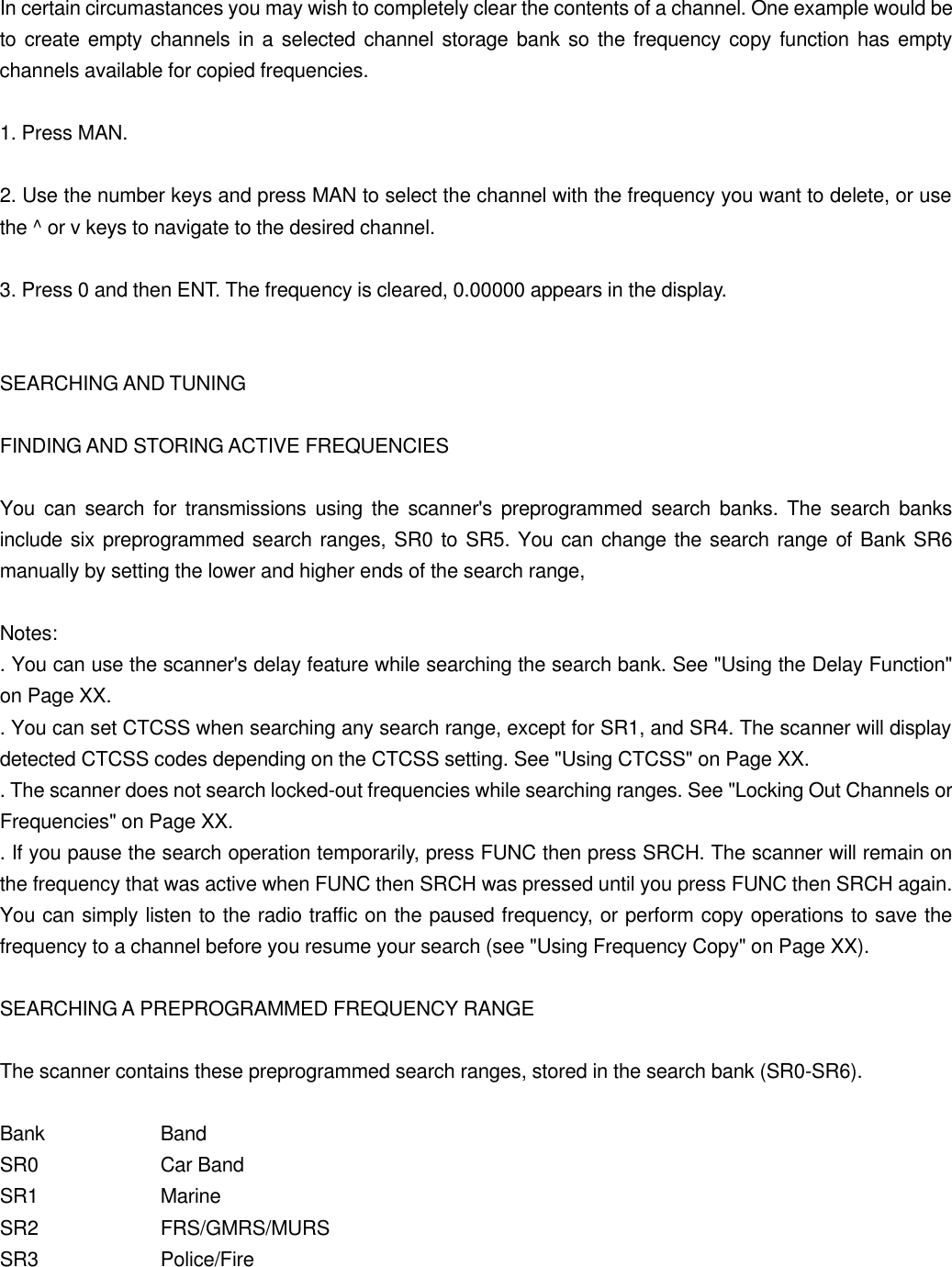
In certain circumastances you may wish to completely clear the contents of a channel. One example would be to create empty channels in a selected channel storage bank so the frequency copy function has empty channels available for copied frequencies.  1. Press MAN.  2. Use the number keys and press MAN to select the channel with the frequency you want to delete, or use the ^ or v keys to navigate to the desired channel.  3. Press 0 and then ENT. The frequency is cleared, 0.00000 appears in the display.   SEARCHING AND TUNING  FINDING AND STORING ACTIVE FREQUENCIES  You can search for transmissions using the scanner's preprogrammed search banks. The search banks include six preprogrammed search ranges, SR0 to SR5. You can change the search range of Bank SR6 manually by setting the lower and higher ends of the search range,  Notes: . You can use the scanner's delay feature while searching the search bank. See "Using the Delay Function" on Page XX. . You can set CTCSS when searching any search range, except for SR1, and SR4. The scanner will display detected CTCSS codes depending on the CTCSS setting. See "Using CTCSS" on Page XX. . The scanner does not search locked-out frequencies while searching ranges. See "Locking Out Channels or Frequencies" on Page XX. . If you pause the search operation temporarily, press FUNC then press SRCH. The scanner will remain on the frequency that was active when FUNC then SRCH was pressed until you press FUNC then SRCH again. You can simply listen to the radio traffic on the paused frequency, or perform copy operations to save the frequency to a channel before you resume your search (see "Using Frequency Copy" on Page XX).  SEARCHING A PREPROGRAMMED FREQUENCY RANGE  The scanner contains these preprogrammed search ranges, stored in the search bank (SR0-SR6).  Bank    Band SR0    Car Band SR1    Marine SR2    FRS/GMRS/MURS SR3    Police/Fire
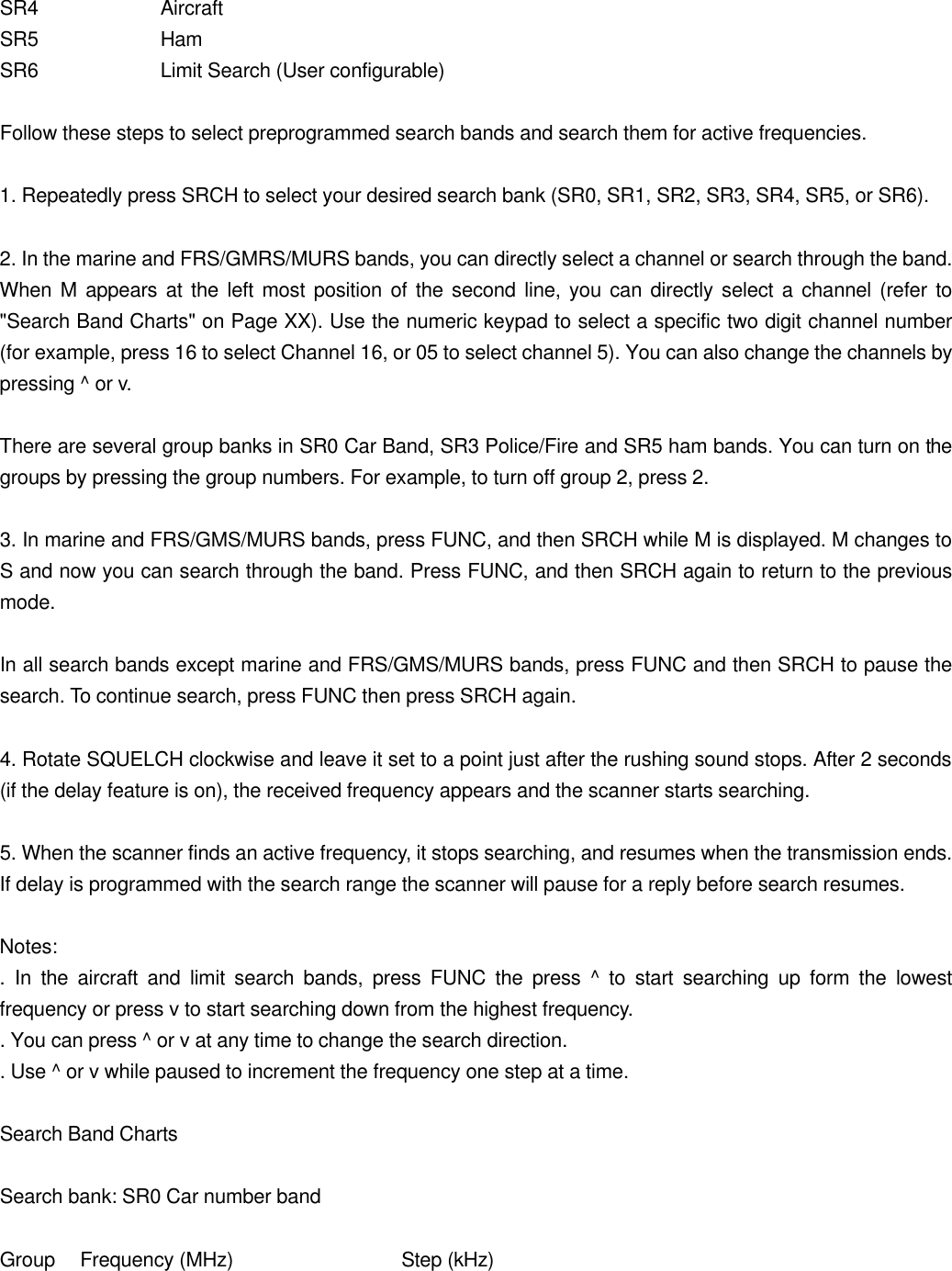
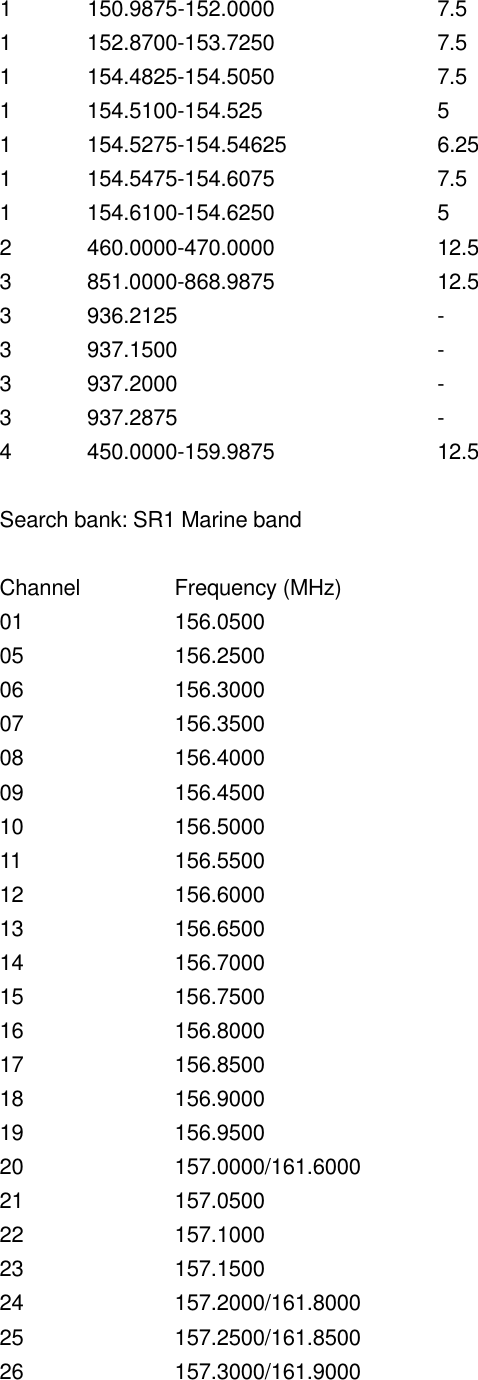
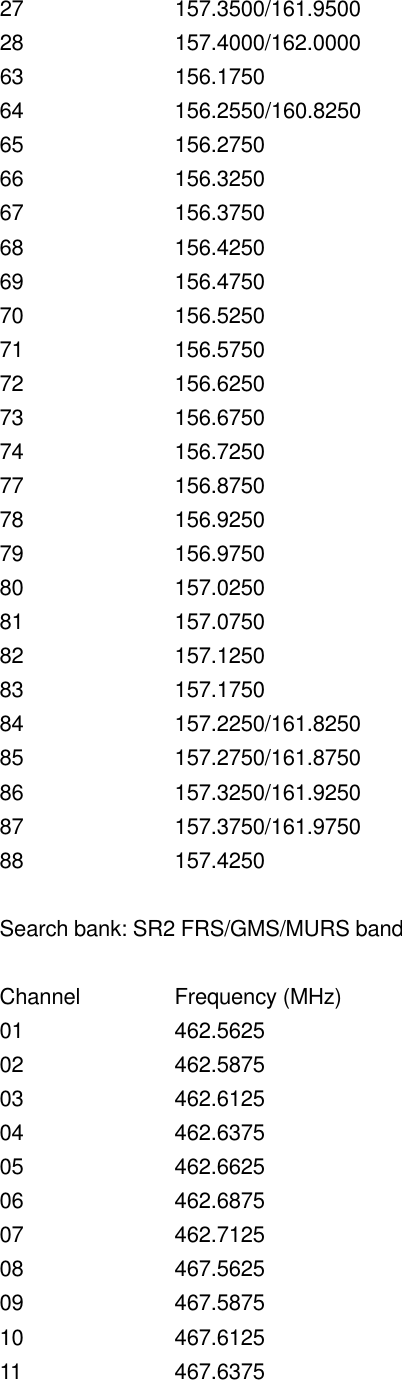
SR4    Aircraft SR5    Ham SR6    Limit Search (User configurable)  Follow these steps to select preprogrammed search bands and search them for active frequencies.  1. Repeatedly press SRCH to select your desired search bank (SR0, SR1, SR2, SR3, SR4, SR5, or SR6).  2. In the marine and FRS/GMRS/MURS bands, you can directly select a channel or search through the band. When M appears at the left most position of the second line, you can directly select a channel (refer to "Search Band Charts" on Page XX). Use the numeric keypad to select a specific two digit channel number (for example, press 16 to select Channel 16, or 05 to select channel 5). You can also change the channels by pressing ^ or v.  There are several group banks in SR0 Car Band, SR3 Police/Fire and SR5 ham bands. You can turn on the groups by pressing the group numbers. For example, to turn off group 2, press 2.  3. In marine and FRS/GMS/MURS bands, press FUNC, and then SRCH while M is displayed. M changes to S and now you can search through the band. Press FUNC, and then SRCH again to return to the previous mode.  In all search bands except marine and FRS/GMS/MURS bands, press FUNC and then SRCH to pause the search. To continue search, press FUNC then press SRCH again.  4. Rotate SQUELCH clockwise and leave it set to a point just after the rushing sound stops. After 2 seconds (if the delay feature is on), the received frequency appears and the scanner starts searching.  5. When the scanner finds an active frequency, it stops searching, and resumes when the transmission ends. If delay is programmed with the search range the scanner will pause for a reply before search resumes.  Notes: . In the aircraft and limit search bands, press FUNC the press ^ to start searching up form the lowest frequency or press v to start searching down from the highest frequency. . You can press ^ or v at any time to change the search direction. . Use ^ or v while paused to increment the frequency one step at a time.  Search Band Charts  Search bank: SR0 Car number band  Group Frequency (MHz)   Step (kHz)
1 150.9875-152.0000    7.5 1 152.8700-153.7250    7.5 1 154.4825-154.5050    7.5 1 154.5100-154.525    5 1 154.5275-154.54625    6.25 1 154.5475-154.6075    7.5 1 154.6100-154.6250    5 2 460.0000-470.0000    12.5 3 851.0000-868.9875    12.5 3 936.2125   - 3 937.1500   - 3 937.2000   - 3 937.2875   - 4 450.0000-159.9875    12.5  Search bank: SR1 Marine band  Channel   Frequency (MHz) 01    156.0500 05    156.2500 06    156.3000 07    156.3500 08    156.4000 09    156.4500 10    156.5000 11    156.5500 12    156.6000 13    156.6500 14    156.7000 15    156.7500 16    156.8000 17    156.8500 18    156.9000 19    156.9500 20    157.0000/161.6000 21    157.0500 22    157.1000 23    157.1500 24    157.2000/161.8000 25    157.2500/161.8500 26    157.3000/161.9000
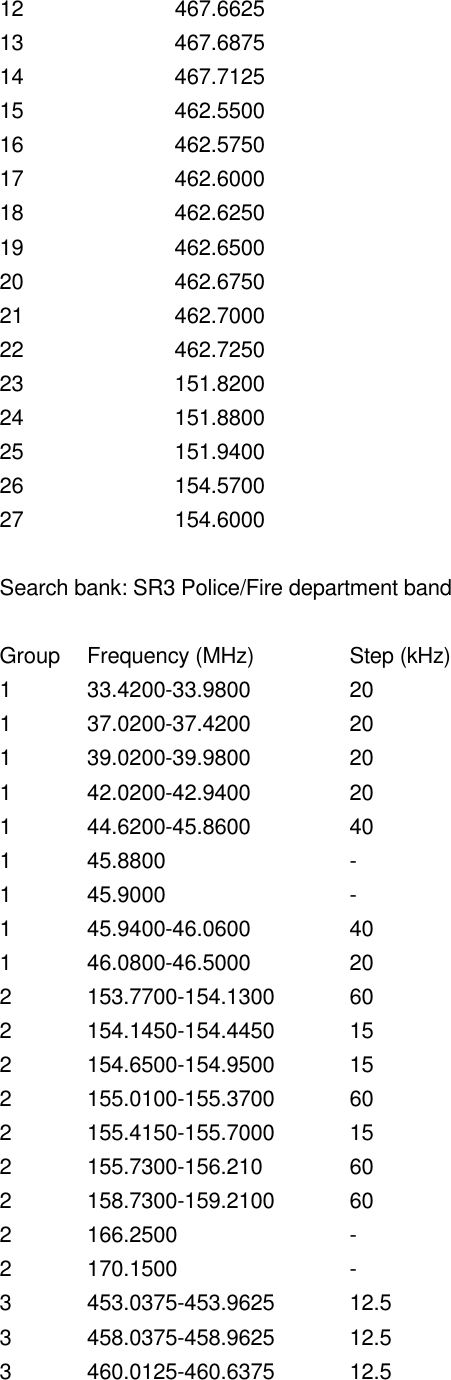
27    157.3500/161.9500 28    157.4000/162.0000 63    156.1750 64    156.2550/160.8250 65    156.2750 66    156.3250 67    156.3750 68    156.4250 69    156.4750 70    156.5250 71    156.5750 72    156.6250 73    156.6750 74    156.7250 77    156.8750 78    156.9250 79    156.9750 80    157.0250 81    157.0750 82    157.1250 83    157.1750 84    157.2250/161.8250 85    157.2750/161.8750 86    157.3250/161.9250 87    157.3750/161.9750 88    157.4250  Search bank: SR2 FRS/GMS/MURS band  Channel   Frequency (MHz) 01    462.5625 02    462.5875 03    462.6125 04    462.6375 05    462.6625 06    462.6875 07    462.7125 08    467.5625 09    467.5875 10    467.6125 11    467.6375
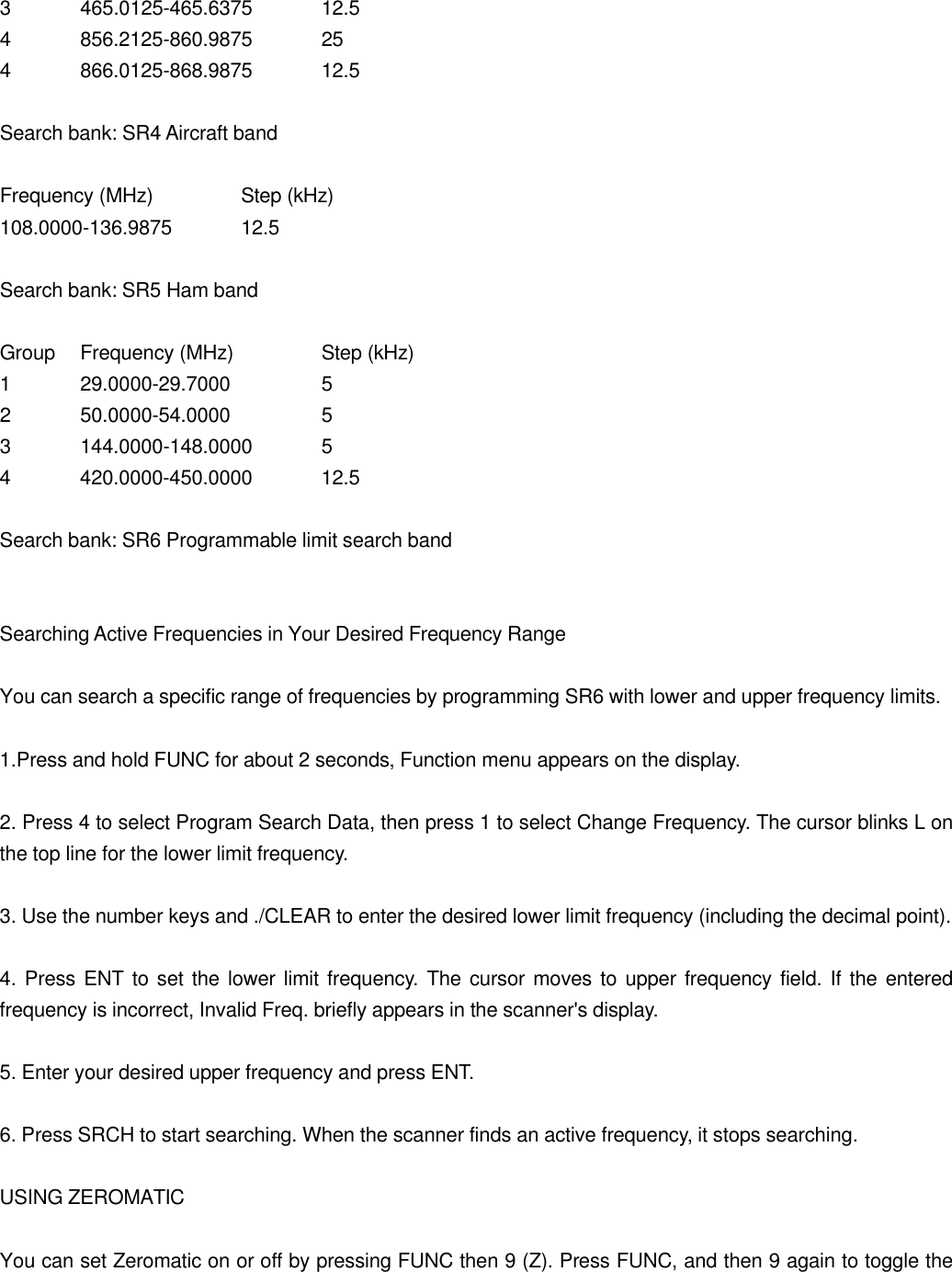
12    467.6625 13    467.6875 14    467.7125 15    462.5500 16    462.5750 17    462.6000 18    462.6250 19    462.6500 20    462.6750 21    462.7000 22    462.7250 23    151.8200 24    151.8800 25    151.9400 26    154.5700 27    154.6000  Search bank: SR3 Police/Fire department band  Group Frequency (MHz)   Step (kHz) 1 33.4200-33.9800    20 1 37.0200-37.4200    20 1 39.0200-39.9800    20 1 42.0200-42.9400    20 1 44.6200-45.8600    40 1 45.8800   - 1 45.9000   - 1 45.9400-46.0600    40 1 46.0800-46.5000    20 2 153.7700-154.1300 60 2 154.1450-154.4450 15 2 154.6500-154.9500 15 2 155.0100-155.3700 60 2 155.4150-155.7000 15 2 155.7300-156.210 60 2 158.7300-159.2100 60 2 166.2500    - 2 170.1500    - 3 453.0375-453.9625 12.5 3 458.0375-458.9625 12.5 3 460.0125-460.6375 12.5
3 465.0125-465.6375 12.5 4 856.2125-860.9875 25 4 866.0125-868.9875 12.5  Search bank: SR4 Aircraft band  Frequency (MHz)   Step (kHz) 108.0000-136.9875 12.5  Search bank: SR5 Ham band  Group Frequency (MHz)   Step (kHz) 1 29.0000-29.7000    5 2 50.0000-54.0000    5 3 144.0000-148.0000 5 4 420.0000-450.0000 12.5  Search bank: SR6 Programmable limit search band   Searching Active Frequencies in Your Desired Frequency Range  You can search a specific range of frequencies by programming SR6 with lower and upper frequency limits.  1.Press and hold FUNC for about 2 seconds, Function menu appears on the display.  2. Press 4 to select Program Search Data, then press 1 to select Change Frequency. The cursor blinks L on the top line for the lower limit frequency.  3. Use the number keys and ./CLEAR to enter the desired lower limit frequency (including the decimal point).  4. Press ENT to set the lower limit frequency. The cursor moves to upper frequency field. If the entered frequency is incorrect, Invalid Freq. briefly appears in the scanner's display.  5. Enter your desired upper frequency and press ENT.  6. Press SRCH to start searching. When the scanner finds an active frequency, it stops searching.  USING ZEROMATIC  You can set Zeromatic on or off by pressing FUNC then 9 (Z). Press FUNC, and then 9 again to toggle the
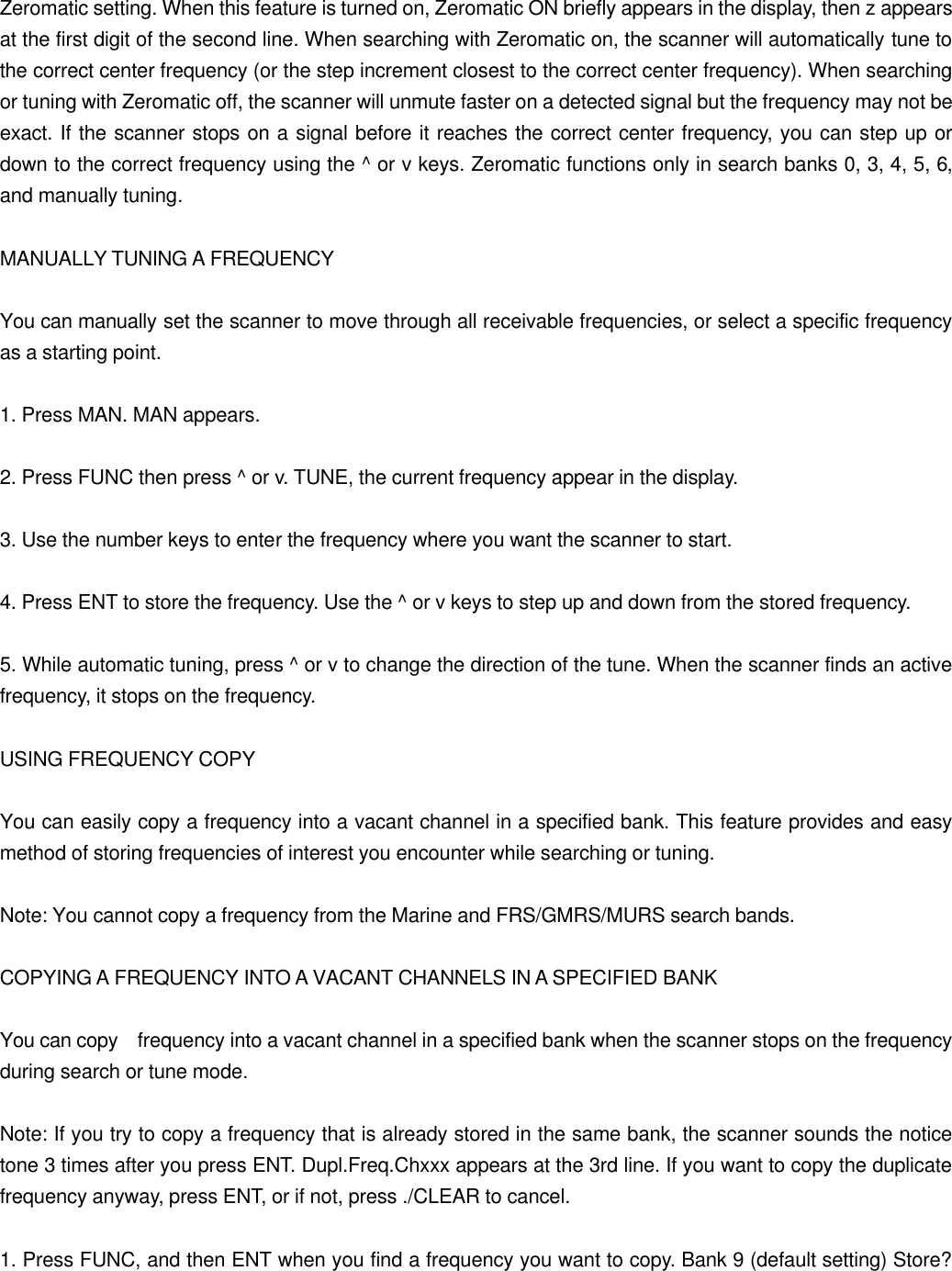
Zeromatic setting. When this feature is turned on, Zeromatic ON briefly appears in the display, then z appears at the first digit of the second line. When searching with Zeromatic on, the scanner will automatically tune to the correct center frequency (or the step increment closest to the correct center frequency). When searching or tuning with Zeromatic off, the scanner will unmute faster on a detected signal but the frequency may not be exact. If the scanner stops on a signal before it reaches the correct center frequency, you can step up or down to the correct frequency using the ^ or v keys. Zeromatic functions only in search banks 0, 3, 4, 5, 6, and manually tuning.  MANUALLY TUNING A FREQUENCY  You can manually set the scanner to move through all receivable frequencies, or select a specific frequency as a starting point.  1. Press MAN. MAN appears.  2. Press FUNC then press ^ or v. TUNE, the current frequency appear in the display.  3. Use the number keys to enter the frequency where you want the scanner to start.  4. Press ENT to store the frequency. Use the ^ or v keys to step up and down from the stored frequency.  5. While automatic tuning, press ^ or v to change the direction of the tune. When the scanner finds an active frequency, it stops on the frequency.  USING FREQUENCY COPY  You can easily copy a frequency into a vacant channel in a specified bank. This feature provides and easy method of storing frequencies of interest you encounter while searching or tuning.  Note: You cannot copy a frequency from the Marine and FRS/GMRS/MURS search bands.  COPYING A FREQUENCY INTO A VACANT CHANNELS IN A SPECIFIED BANK  You can copy  frequency into a vacant channel in a specified bank when the scanner stops on the frequency during search or tune mode.  Note: If you try to copy a frequency that is already stored in the same bank, the scanner sounds the notice tone 3 times after you press ENT. Dupl.Freq.Chxxx appears at the 3rd line. If you want to copy the duplicate frequency anyway, press ENT, or if not, press ./CLEAR to cancel.  1. Press FUNC, and then ENT when you find a frequency you want to copy. Bank 9 (default setting) Store?
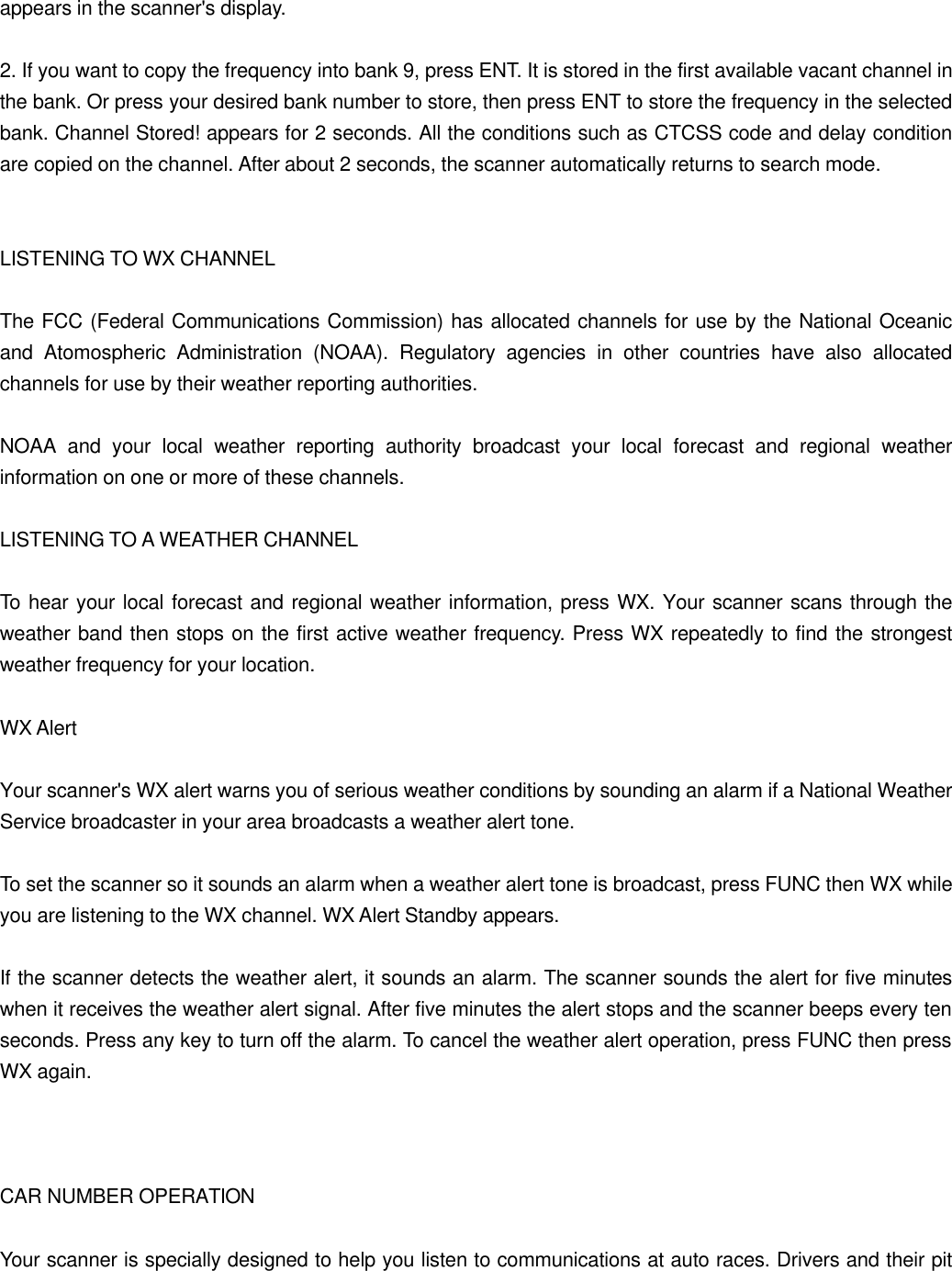
appears in the scanner's display.  2. If you want to copy the frequency into bank 9, press ENT. It is stored in the first available vacant channel in the bank. Or press your desired bank number to store, then press ENT to store the frequency in the selected bank. Channel Stored! appears for 2 seconds. All the conditions such as CTCSS code and delay condition are copied on the channel. After about 2 seconds, the scanner automatically returns to search mode.   LISTENING TO WX CHANNEL  The FCC (Federal Communications Commission) has allocated channels for use by the National Oceanic and Atomospheric Administration (NOAA). Regulatory agencies in other countries have also allocated channels for use by their weather reporting authorities.  NOAA and your local weather reporting authority broadcast your local forecast and regional weather information on one or more of these channels.  LISTENING TO A WEATHER CHANNEL  To hear your local forecast and regional weather information, press WX. Your scanner scans through the weather band then stops on the first active weather frequency. Press WX repeatedly to find the strongest weather frequency for your location.  WX Alert  Your scanner's WX alert warns you of serious weather conditions by sounding an alarm if a National Weather Service broadcaster in your area broadcasts a weather alert tone.  To set the scanner so it sounds an alarm when a weather alert tone is broadcast, press FUNC then WX while you are listening to the WX channel. WX Alert Standby appears.  If the scanner detects the weather alert, it sounds an alarm. The scanner sounds the alert for five minutes when it receives the weather alert signal. After five minutes the alert stops and the scanner beeps every ten seconds. Press any key to turn off the alarm. To cancel the weather alert operation, press FUNC then press WX again.    CAR NUMBER OPERATION  Your scanner is specially designed to help you listen to communications at auto races. Drivers and their pit
crews and corner watchers, pace car drivers, security officers, emergency personnel, track officials, and representatives of governing organizations such as NASCAR, SCCA, and NHRA all use radios to communicate with each other during a race. You might also hear transmissions from the news media and reporters, local police departments, and paramedics and doctors at the local hospital. You can even listen to transmissions by parking lot employees at the track, so you can find the best possible parking place when you arrive.  You can store a car number and frequency in each of the scanner's channels, associate one or more frequencies stored in channels with a car number, and recall any frequencies associated with that car number by simply entering the number. You can store one car number and frequency, or one frequency by itself, in each channel (for up to 500 car numbers and frequencies).  For example, if you want to listen to communications between the driver of car number 24 and that driver's pit crew, you find all the frequencies used by the driver's team by using any of the following options:  . the steps in "Searching the Service Banks" on Page XX . "Using Tune" on Page XX . frequencies you already know  Then, you store a car number and the frequencies associated with that car number in the scanner's channels and display the car number as you scan those frequencies by using the information in "Scanning by Car Number" on Page XX.  STORING A CAR NUMBER AND FREQUENCY  You can store a car number and frequency in each of the scanner's channels, and you can recall any frequencies associated with the car number by entering the number. You can store one car number in each channel (for up to 500 car numbers).  Notes: . After you store a car number and a frequency, you can store additional frequencies then associate those frequencies with the same car number. See "Adding Frequencies to a Car Number." . If you add one or more leading zeros to a single digit car number, your scanner recognizes them as different car numbers. For example, you can enter 5 for one car number, 05 for another car number, and 005 for another car number. . To clear the display (if you make a mistake), press ./CLEAR before you press ENT.  1. Press and hold FUNC for about 2 seconds. Then press 2 and 1. Input Car#? appears.  2. Enter the car number. If the number is one or two digits, enter the number then press ENT. If the number is three digits, enter the number only. The car number, channel number, and frequency appears.
 3. Enter the frequency (including the decimal point) you want to associate with the car number by using the number keys and ./CLEAR.  4. Press ENT to store the frequency. The car number and frequency are stored in the first available channel.  ADDING FREQUENCIES TO A CAR NUMBER  1. Press and hold FUNC for about 2 seconds. Then press 2 and 1. Input Car#? appears.  2. Use the number keys to enter the car number if the number is three digits. If the car number is less than three digits, enter the car number then press ENT. The car number and the first frequency associated with that number appear.  3. Repeatedly press ^ or v until 0.00000 MHz appears.  4. Enter the frequency (including the decimal point) you want to associate with the displayed car number by using the number keys and ./CLEAR.  5. Press ENT to store the frequency. The frequency is associated with the car number entered.  ADDING A CAR NUMBER TO THE CHANNEL  You can assign the car number after you program the frequency into the channel.  1. Press and hold FUNC for about 2 seconds. Then press 2 and 2. Channel number (and car number if you entered) appears.  2. Select the channel you want to use to store the car number by using the number keys and ENT.  3. Press 3 to select 3:Program Car#.  4. Enter the car number by using the number keys.  5. Press ENT to store the new car number.  VIEWING FREQUENCIES ASSOCIATED WITH A CAR NUMBER  1. Press and hold FUNC for about 2 seconds. Then press 2 and 1. Input Car#? appears.  2. Enter the car number. If the number is one or two digits, enter the number then press ENT. If the number is
three digits, enter the number only. One of the car number's frequencies appears.  3. Repeatedly press ^ or v to view each of the car numbers you entered. As you press ^ or v, you see all associated frequencies and 0.00000.  DELETING A FREQUENCY FROM A CAR NUMBER  1. Recall a car number using Easy Car# PGM menu.  2. Repeatedly press ^ or v until the frequency you want to delete appears.  3. Press FUNC to back to previous menu.  4. Press 2 to select Normal Ch PGM. Then press ENT.  5. Press 3 to select Program Car#.  6. Press and hold ./CLEAR for about 2 seconds. The car number clears on the display.  7. Press ENT.  SCANNING BY CAR NUMBER  Once you store car numbers into channels, you can set the scanner so it displays the car numbers you assigned to the channels as it scans them.  To scan by car number, press FUNC then press SCAN/CAR/CH. It is switches between Car number and bank/channel number. Scanner's display (top line) changes car number and bank/channel number, too. The scanner displays Car#, then press SCAN. As the scanner scans channels, the car numbers you stored appear in channel order, from the lowest to the highest channel.  Notes: . If no car number is assigned to a channel, No Car# in the active banks. appears. . If SQUELCH is adjusted so you always hear a hissing sound, the scanner does not scan properly.  When you finish scanning by car number, press FUNC then press SCAN/CAR/CH.   SPECIAL FEATURES  USING PRIORITY
 The priority feature lets you scan through channels and still not miss important or interesting calls on a frequency you select. You can program one frequency into the priority channel. As the scanner scans, if the priority feature is turned on, the scanner checks the priority channel for activity every 2 seconds.  1.Press and hold FUNC about 2 seconds. Function menu appears on the display.  2. Press 3 to select Program Priority Channel Data then press 1 to select Program Frequency. The cursor blinks at the second line.  3. Use the number keys and ./CLEAR to enter the priority frequency (including the decimal point).  4. Press ENT to set the priority channel. If the entered frequency is incorrect, Invalid Freq. briefly appears in the scanner's display.  To turn on the priority feature, press FUNC then press 1/PRI. P:OFF changes to P:ON. The scanner checks the priority channel every 2 seconds and stays on the channel if there is activity.  Pri. Channel and the frequency appear whenever the scanner is set to the priority channel.  To turn off the priority feature, press FUNC then press 1/PRI. P:ON changes to P:OFF.   DELAY  Many agencies use a two-way radio system that has a period of several seconds between a query and a reply. To avoid missing a reply, you can program a 2-second delay into any channel or frequency. When your scanner stops on a channel or frequency with a programmed delay, D appears and the scanner continues to monitor that frequency for 2 seconds after the transmission stops before resuming scanning or searching.  You can program a 2-second delay in any of these ways:  . If the scanner is scanning and stops on an active channel, quickly press FUNC then press 2/DLY before it resumes scanning. . If the desired channel is not selected, manually select the channel, press FUNC then press 2/DLY. . If the scanner is searching, press FUNC then press 2/DLY. D appears and the scanner automatically adds a 2-second delay to every transmission it stops on in that band.  To turn off the 2-second delay in a channel or frequency, press FUNC then press 2/DLY while the scanner is monitoring that channel or frequency. D disappears.
LOCKING OUT CHANNELS OR FREQUENCIES  You can lock out channels to force the scanner to skip and ignore any traffic while scanning. You can also lock out up to 50 frequencies while searching to skip undesired transmissions.  Locking Out Channels  To lock out a channel while scanning, press FUNC then press 3/L/OUT when the scanner stops on the channel.  To lock out a channel manually, select the channel then press FUNC, 3/L/OUT so L appears in the display.  Note: You can still manually select and monitor locked-out channels.  To remove the lockout from a channel, manually select the channel and press FUNC then press 3/L/OUT so L disappears.  Reviewing the Lock-Out Channels  To review all locked out channels, press and hold FUNC for about 2 seconds then press 5 and 1. Repeatedly press ^ or v to advance to the next locked out channel.  Note: If you want to remove the lockout from a channel, simply press 3/L/OUT to remove the lockout.  Clearing All Lockout Channels  To clear all lockout channel(s) as follows:  1. Press and hold FUNC for about 2 seconds then press 5 and 1.  2. Press and hold ./CLEAR for about 2 seconds. Confirm list clear? 1 -> YES. Other key -> No. appears on the display.  3. Press 1 to clear the all lockout channels, or press any key other than 1 to cancel clear.  Locking Out Search Frequencies  To lock out a frequency during a search, press FUNC then press 3/L/OUT when the scanner stops on that frequency. The scanner will lock out the frequency and continues searching.  Notes:
. You can lock out as many as 50 frequencies in each search bank. If you try to lock out more, Memory Full! will appear in the display, and you will be unable to lock out any more frequencies until some have been cleared. See "Clearing a Locked-Out Search Frequency" on Page XX. . If you lock out all frequencies in one search bank and only this search bank is activated, All ranges Locked out! appears in the display and the scanner will not search.  Reviewing Locked-Out Search Frequencies  To review the frequencies within  search bank that you locked out:  1. Press and hold FUNC for about 2 seconds.  2. Press 5 to select Recall Lockout.  3. Select search bank and press number key which you review all lockout frequency. Search bank number, Search bank name, lockout frequency, L/Olist xx of xx appears on the display.  Press ^ or v to scroll through the list. The locked-out number and the total locked-out number also appears as L/Olist XX or YY. (The tenth of twenty five locked out frequencies would appears as L/Olist 10 of 25). If the search bank has no locked-out frequencies, L/O List Empty appears in the scanner's display. Press SRCH to cancel reviewing locked-out frequencies.  Clearing a Locked-Out Search Frequency  To clear a locked-out frequency, select that frequency (see "Reviewing the Locked-Out Search Frequency"), and then press 3/L/OUT.  If all locked-out frequencies are cleared within a channel storage bank, L/O List Empty appears in the scanner's display.  Clearing All Locked-Out Frequencies in a Search Bank  1. Press and hold FUNC for about 2 seconds.  2. Press 5 to select Recall Lockout.  3. Select search bank and press number key which you review all lockout frequency. Search bank number, Search bank name, lockout frequency, L/Olist xx of xx appears on the display.  4. Press and hold ./CLEAR for about 2 seconds. The scanner will display Confirm list clear? 1 -> YES. Other key -> No.. Press 1 to clear all locked-out frequencies. L/O List Empty appears. Press any key other than 1 to
cancel clear.   USING BACKLIGHT  You can turn on the display's backlight for easy viewing in the dark. Press LIGHT to turn on the light for 5 seconds. If necessary, you can change the lighting time. See "Changing the Backlight Duration" below. To turn off the light sooner, press LIGHT again.  Press FUNC then press LIGHT to turn on the display's backlight for an extended period of time. To turn it off, press FUNC then press LIGHT again.  Changing the Backlight Duration  1. Press and hold FUNC for about 2 seconds. Function Menu appears.  2. Press 6 then press 1 to select 1:Back Light.  3. .Press ^ or v to select the desired backlight duration. Selecting 3, 5, 10 or 20 sets the backlight duration.   TURNING THE KEY TONE ON AND OFF  The scanner is preset to sound a tone each time you press one of its keys (except LIGHT). You can turn the key tone off or back on.  1. Press and hold FUNC for about 2 seconds. Function Menu appears.  2. Press 6 then press 2 to select 2:Key Tone.  3. Press 1 to select key tone on, or press 2 to select key tone off.  CHANGING THE DISPLAY CONTRAST  1. Press and hold FUNC about 2 seconds. Function Menu appears.  2. Press 6 then press 3 to select 3:LCD Contrast.  3. Press < or > to select LCD contrast. Then Press ENT to set the display contrast.  KEY LOCK
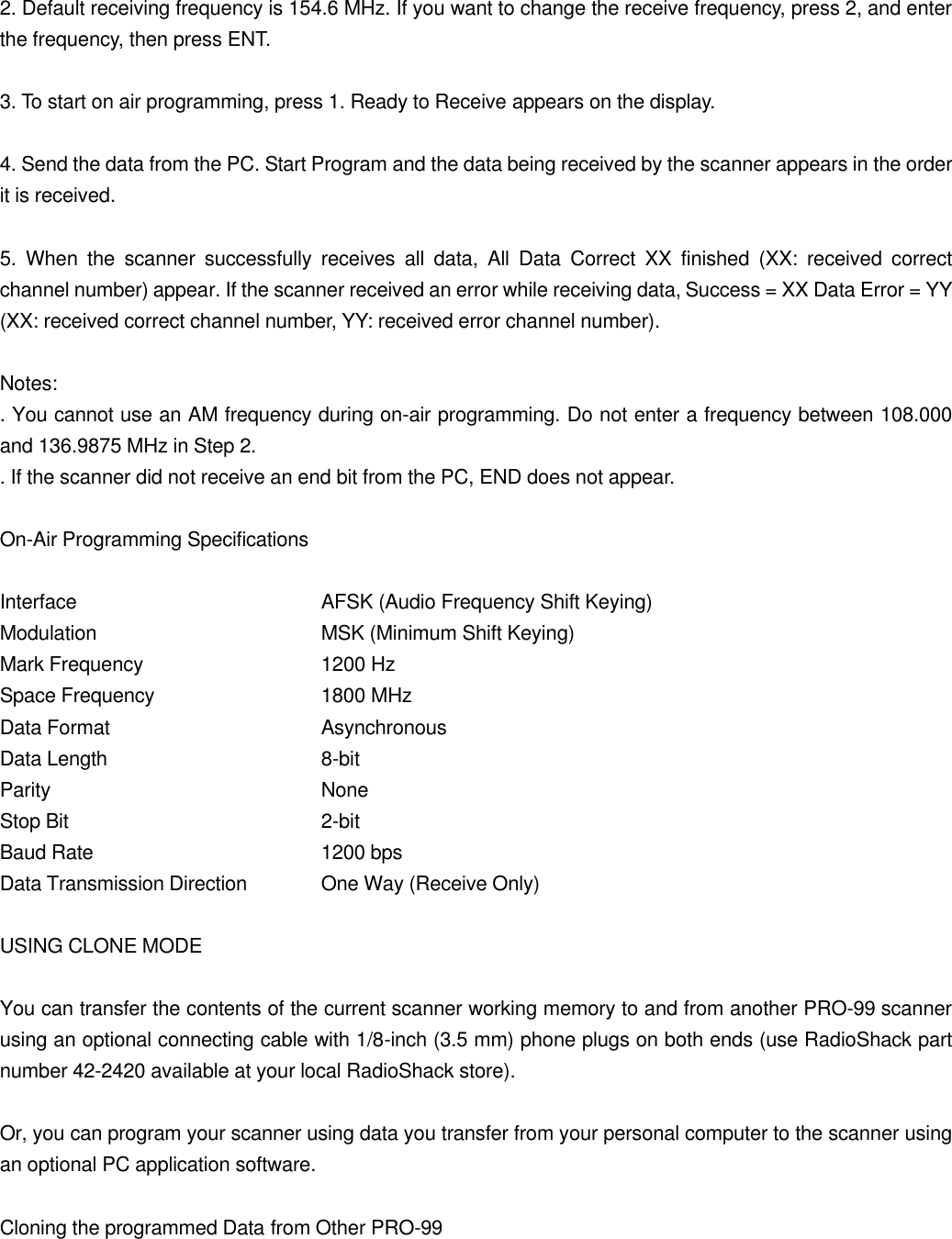
 Once you program your scanner, you can protect it from accidental program changes by turning on the key lock feature. When the keypad is locked, the only controls that operate are FUNC, LIGHT, SQUELCH, and VOLUME.  You cannot activate the key lock while you are entering a frequency into a channel.  1. To turn on the key lock, press FUNC then LIGHT/KEY LOCK. Key locked. appears for about 1 second. Key locked. appears when you press any key after locking the keypad, and the scanner sounds the low pitched Invalid tone.  2. To turn off the key lock, press FUNC and then LIGHT/KEY LOCK. The scanner beeps three times and Key unlocked appears in the scanner's display.   ON-AIR PROGRAMMING  You can also program your scanner by receiving data transmitted on a frequency your scanner can receive (called on-air programming).  You can use on-air programming to store the following data into the scanner:  . Channel number (from 000 to 949) . Frequency (any frequency the scanner scan receive) . Car number (from 0 to 999, including 00, 000, 01, and 001) . Channel text tag . Channel lockout setting (ON or OFF) . Channel delay setting (ON or OFF) . CTCSS code (67 Hz – 250.3 Hz) . CTCSS setting (ON or OFF)  Notes: . The scanner receives only the data shown above during on-air programming. . Invalid Freq. or Invalid Ch appears if the scanner receives a channel number equal to 0 or frequency data which is out of the range of frequencies the scanner can receive. . Checksum Error appears if the scanner receives a checksum error.  USING ON-AIR PROGRAMMING  1. Press and hold FUNC for about 2 seconds. Then press 6 and 4. On Air Program appears on the display.
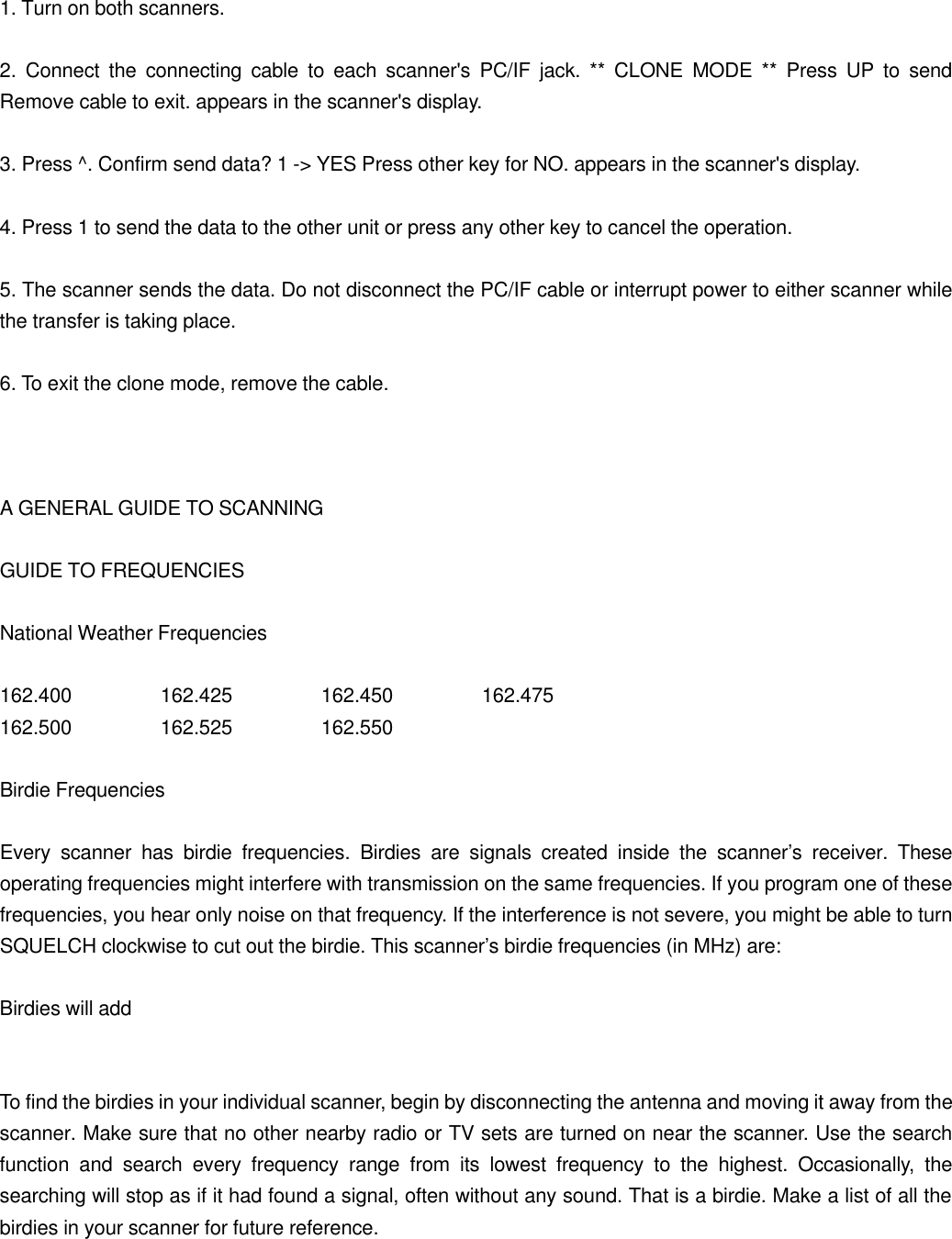
2. Default receiving frequency is 154.6 MHz. If you want to change the receive frequency, press 2, and enter the frequency, then press ENT.  3. To start on air programming, press 1. Ready to Receive appears on the display.  4. Send the data from the PC. Start Program and the data being received by the scanner appears in the order it is received.  5. When the scanner successfully receives all data, All Data Correct XX finished (XX: received correct channel number) appear. If the scanner received an error while receiving data, Success = XX Data Error = YY (XX: received correct channel number, YY: received error channel number).  Notes: . You cannot use an AM frequency during on-air programming. Do not enter a frequency between 108.000 and 136.9875 MHz in Step 2. . If the scanner did not receive an end bit from the PC, END does not appear.  On-Air Programming Specifications  Interface    AFSK (Audio Frequency Shift Keying) Modulation   MSK (Minimum Shift Keying) Mark Frequency   1200 Hz Space Frequency   1800 MHz Data Format   Asynchronous Data Length   8-bit Parity    None Stop Bit    2-bit Baud Rate   1200 bps Data Transmission Direction One Way (Receive Only)  USING CLONE MODE  You can transfer the contents of the current scanner working memory to and from another PRO-99 scanner using an optional connecting cable with 1/8-inch (3.5 mm) phone plugs on both ends (use RadioShack part number 42-2420 available at your local RadioShack store).  Or, you can program your scanner using data you transfer from your personal computer to the scanner using an optional PC application software.  Cloning the programmed Data from Other PRO-99
1. Turn on both scanners.  2. Connect the connecting cable to each scanner's PC/IF jack. ** CLONE MODE ** Press UP to send Remove cable to exit. appears in the scanner's display.  3. Press ^. Confirm send data? 1 -> YES Press other key for NO. appears in the scanner's display.  4. Press 1 to send the data to the other unit or press any other key to cancel the operation.  5. The scanner sends the data. Do not disconnect the PC/IF cable or interrupt power to either scanner while the transfer is taking place.  6. To exit the clone mode, remove the cable.    A GENERAL GUIDE TO SCANNING  GUIDE TO FREQUENCIES  National Weather Frequencies  162.400   162.425   162.450    162.475 162.500   162.525   162.550  Birdie Frequencies  Every scanner has birdie frequencies. Birdies are signals created inside the scanner’s receiver. These operating frequencies might interfere with transmission on the same frequencies. If you program one of these frequencies, you hear only noise on that frequency. If the interference is not severe, you might be able to turn SQUELCH clockwise to cut out the birdie. This scanner’s birdie frequencies (in MHz) are:  Birdies will add   To find the birdies in your individual scanner, begin by disconnecting the antenna and moving it away from the scanner. Make sure that no other nearby radio or TV sets are turned on near the scanner. Use the search function and search every frequency range from its lowest frequency to the highest. Occasionally, the searching will stop as if it had found a signal, often without any sound. That is a birdie. Make a list of all the birdies in your scanner for future reference.
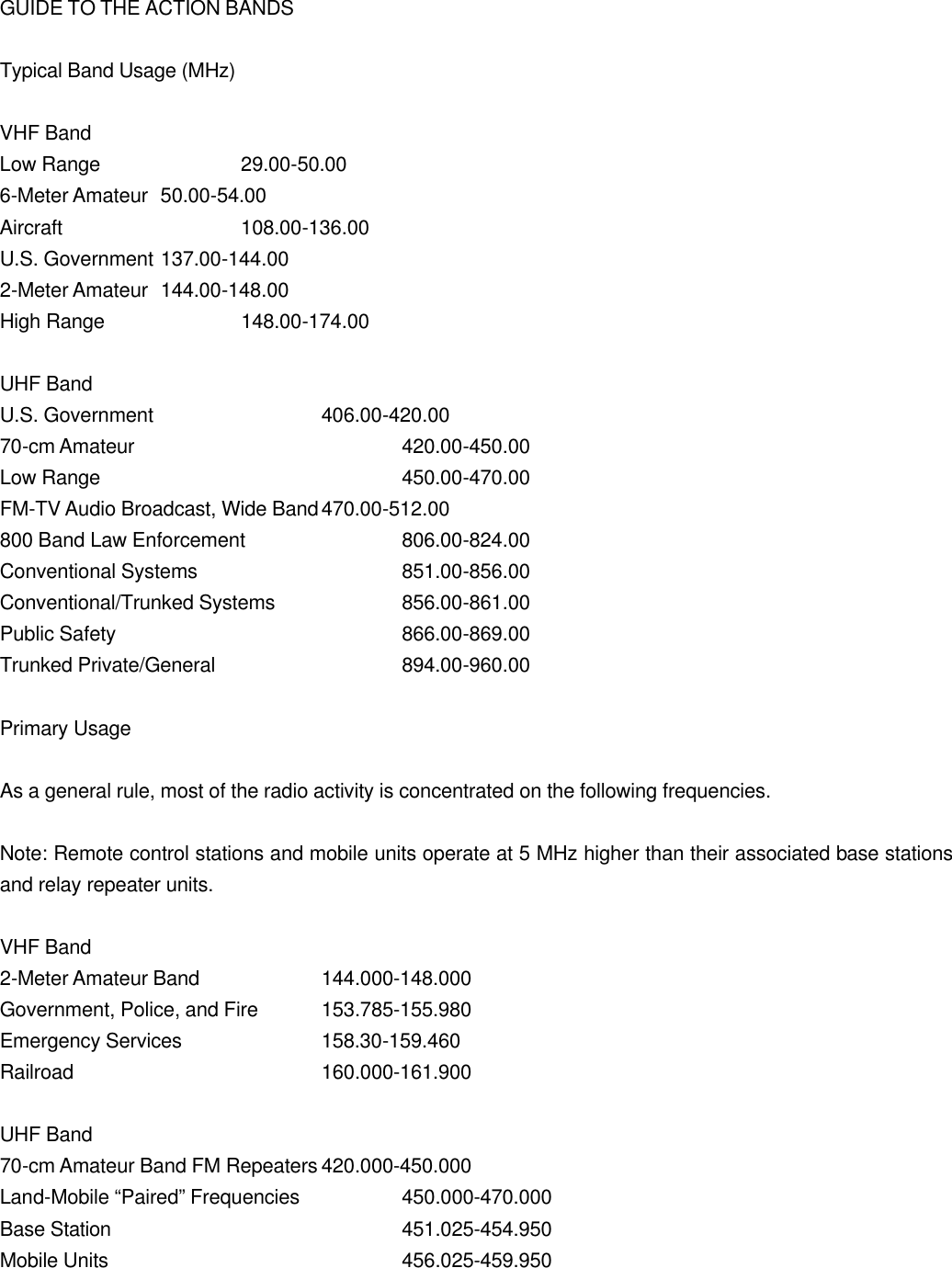
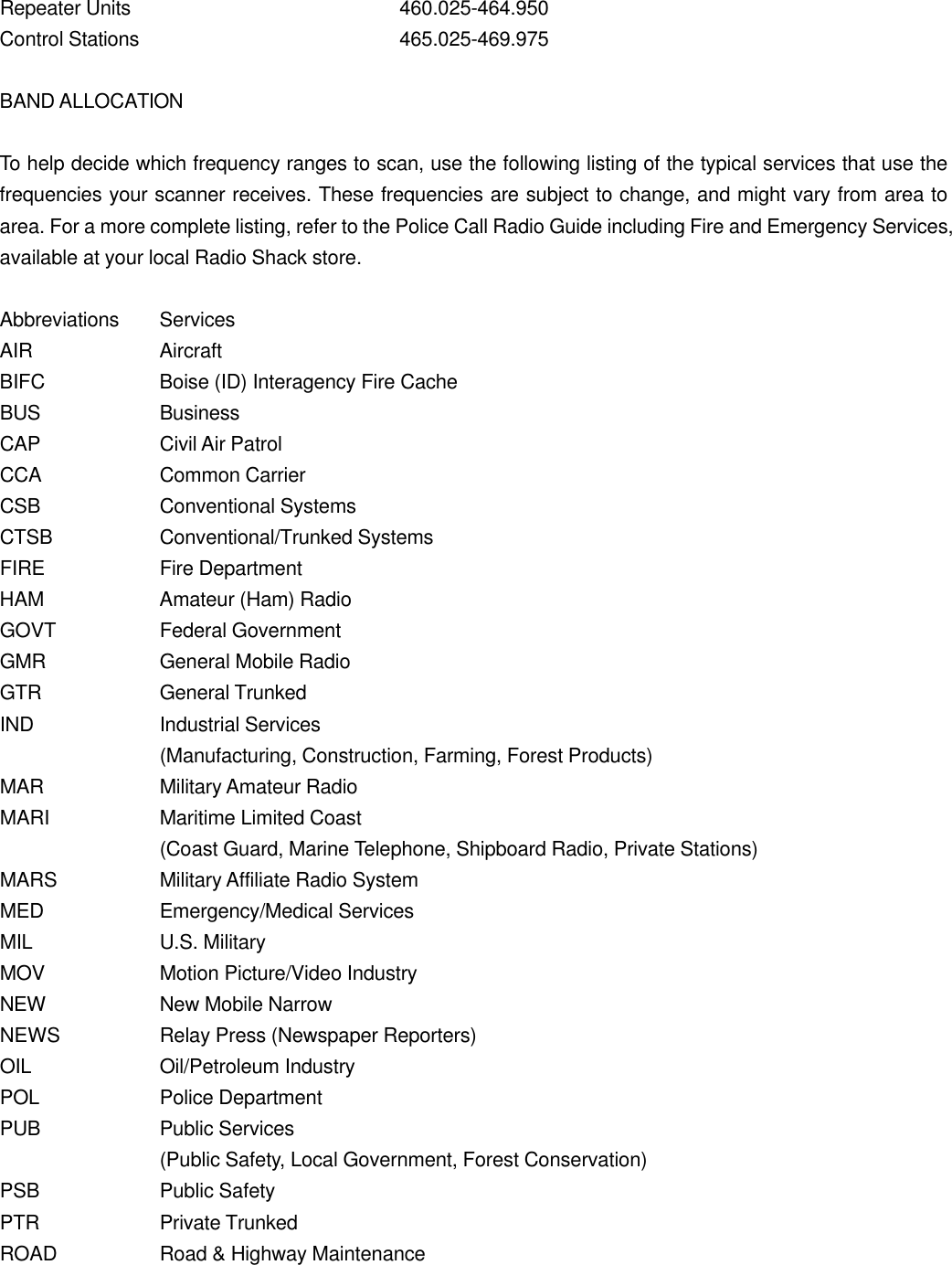
GUIDE TO THE ACTION BANDS  Typical Band Usage (MHz)  VHF Band Low Range    29.00-50.00 6-Meter Amateur 50.00-54.00 Aircraft   108.00-136.00 U.S. Government 137.00-144.00 2-Meter Amateur 144.00-148.00 High Range    148.00-174.00  UHF Band U.S. Government   406.00-420.00 70-cm Amateur    420.00-450.00 Low Range    450.00-470.00 FM-TV Audio Broadcast, Wide Band 470.00-512.00 800 Band Law Enforcement    806.00-824.00 Conventional Systems   851.00-856.00 Conventional/Trunked Systems    856.00-861.00 Public Safety    866.00-869.00 Trunked Private/General   894.00-960.00  Primary Usage  As a general rule, most of the radio activity is concentrated on the following frequencies.  Note: Remote control stations and mobile units operate at 5 MHz higher than their associated base stations and relay repeater units.  VHF Band 2-Meter Amateur Band    144.000-148.000 Government, Police, and Fire 153.785-155.980 Emergency Services    158.30-159.460 Railroad    160.000-161.900  UHF Band 70-cm Amateur Band FM Repeaters 420.000-450.000 Land-Mobile “Paired” Frequencies    450.000-470.000 Base Station    451.025-454.950 Mobile Units    456.025-459.950
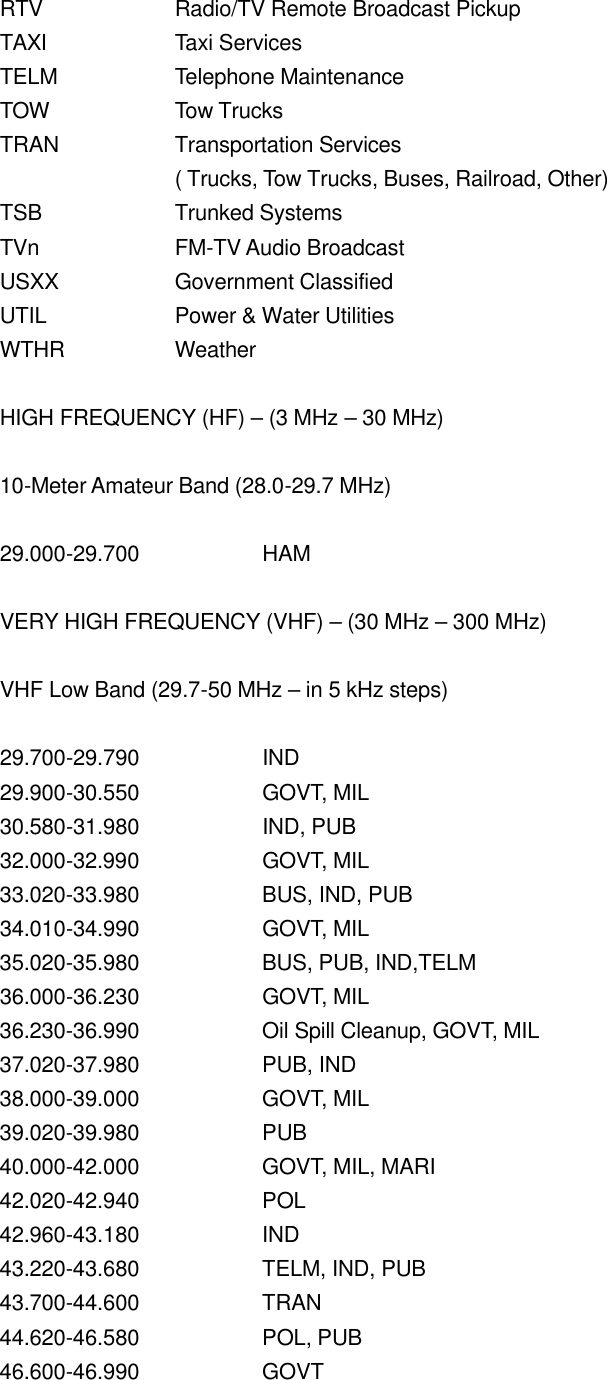
Repeater Units    460.025-464.950 Control Stations    465.025-469.975  BAND ALLOCATION  To help decide which frequency ranges to scan, use the following listing of the typical services that use the frequencies your scanner receives. These frequencies are subject to change, and might vary from area to area. For a more complete listing, refer to the Police Call Radio Guide including Fire and Emergency Services, available at your local Radio Shack store.  Abbreviations Services AIR    Aircraft BIFC    Boise (ID) Interagency Fire Cache BUS    Business CAP    Civil Air Patrol CCA    Common Carrier CSB    Conventional Systems CTSB    Conventional/Trunked Systems FIRE    Fire Department HAM    Amateur (Ham) Radio GOVT    Federal Government GMR    General Mobile Radio GTR    General Trunked IND    Industrial Services (Manufacturing, Construction, Farming, Forest Products) MAR    Military Amateur Radio MARI    Maritime Limited Coast   (Coast Guard, Marine Telephone, Shipboard Radio, Private Stations) MARS    Military Affiliate Radio System MED    Emergency/Medical Services MIL    U.S. Military MOV    Motion Picture/Video Industry NEW    New Mobile Narrow NEWS    Relay Press (Newspaper Reporters) OIL    Oil/Petroleum Industry POL    Police Department PUB    Public Services (Public Safety, Local Government, Forest Conservation) PSB    Public Safety PTR    Private Trunked ROAD    Road & Highway Maintenance
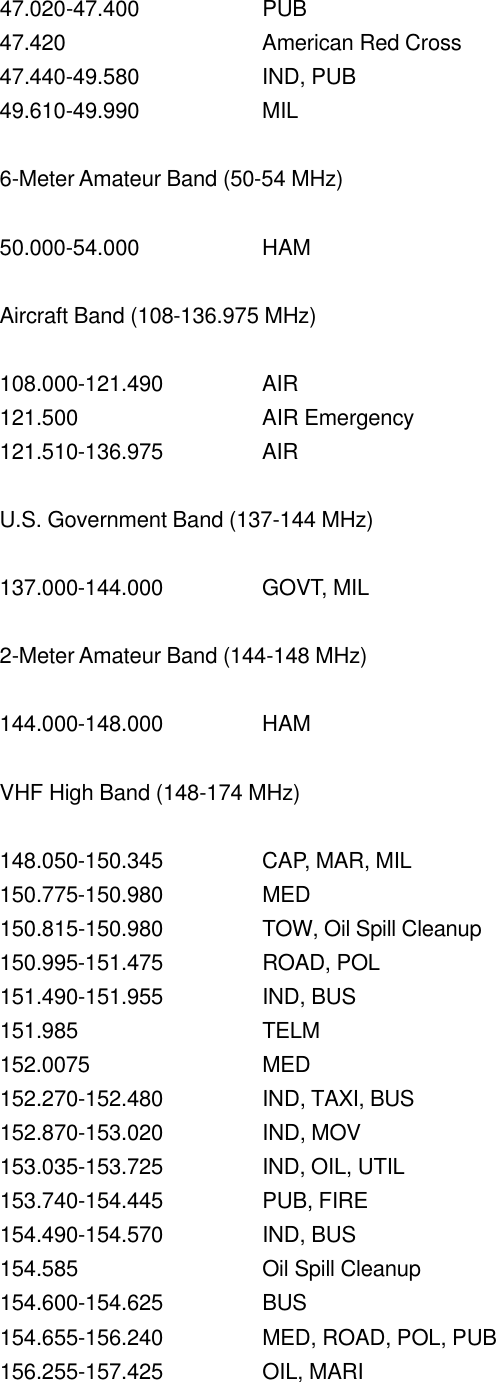
RTV    Radio/TV Remote Broadcast Pickup TAXI    Taxi Services TELM    Telephone Maintenance TOW    Tow Trucks TRAN    Transportation Services   ( Trucks, Tow Trucks, Buses, Railroad, Other) TSB    Trunked Systems TVn    FM-TV Audio Broadcast USXX    Government Classified UTIL    Power & Water Utilities WTHR    Weather  HIGH FREQUENCY (HF) – (3 MHz – 30 MHz)  10-Meter Amateur Band (28.0-29.7 MHz)  29.000-29.700    HAM  VERY HIGH FREQUENCY (VHF) – (30 MHz – 300 MHz)  VHF Low Band (29.7-50 MHz – in 5 kHz steps)  29.700-29.790    IND 29.900-30.550    GOVT, MIL 30.580-31.980    IND, PUB 32.000-32.990    GOVT, MIL 33.020-33.980    BUS, IND, PUB 34.010-34.990    GOVT, MIL 35.020-35.980    BUS, PUB, IND,TELM 36.000-36.230    GOVT, MIL 36.230-36.990    Oil Spill Cleanup, GOVT, MIL 37.020-37.980    PUB, IND 38.000-39.000    GOVT, MIL 39.020-39.980    PUB 40.000-42.000    GOVT, MIL, MARI 42.020-42.940    POL 42.960-43.180    IND 43.220-43.680    TELM, IND, PUB 43.700-44.600    TRAN 44.620-46.580    POL, PUB 46.600-46.990    GOVT
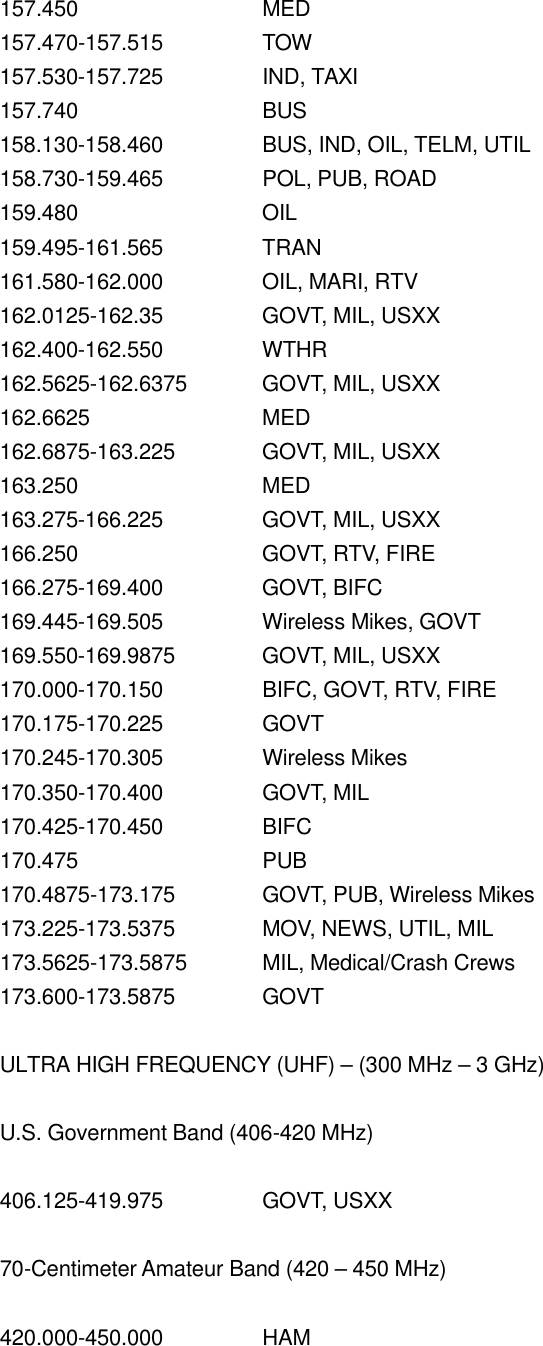
47.020-47.400    PUB 47.420   American Red Cross 47.440-49.580    IND, PUB 49.610-49.990    MIL  6-Meter Amateur Band (50-54 MHz)  50.000-54.000    HAM  Aircraft Band (108-136.975 MHz)  108.000-121.490    AIR 121.500   AIR Emergency 121.510-136.975    AIR  U.S. Government Band (137-144 MHz)  137.000-144.000    GOVT, MIL  2-Meter Amateur Band (144-148 MHz)  144.000-148.000    HAM  VHF High Band (148-174 MHz)  148.050-150.345    CAP, MAR, MIL 150.775-150.980    MED 150.815-150.980    TOW, Oil Spill Cleanup 150.995-151.475    ROAD, POL 151.490-151.955    IND, BUS 151.985   TELM 152.0075    MED 152.270-152.480    IND, TAXI, BUS 152.870-153.020    IND, MOV 153.035-153.725    IND, OIL, UTIL 153.740-154.445    PUB, FIRE 154.490-154.570    IND, BUS 154.585   Oil Spill Cleanup 154.600-154.625    BUS 154.655-156.240    MED, ROAD, POL, PUB 156.255-157.425    OIL, MARI
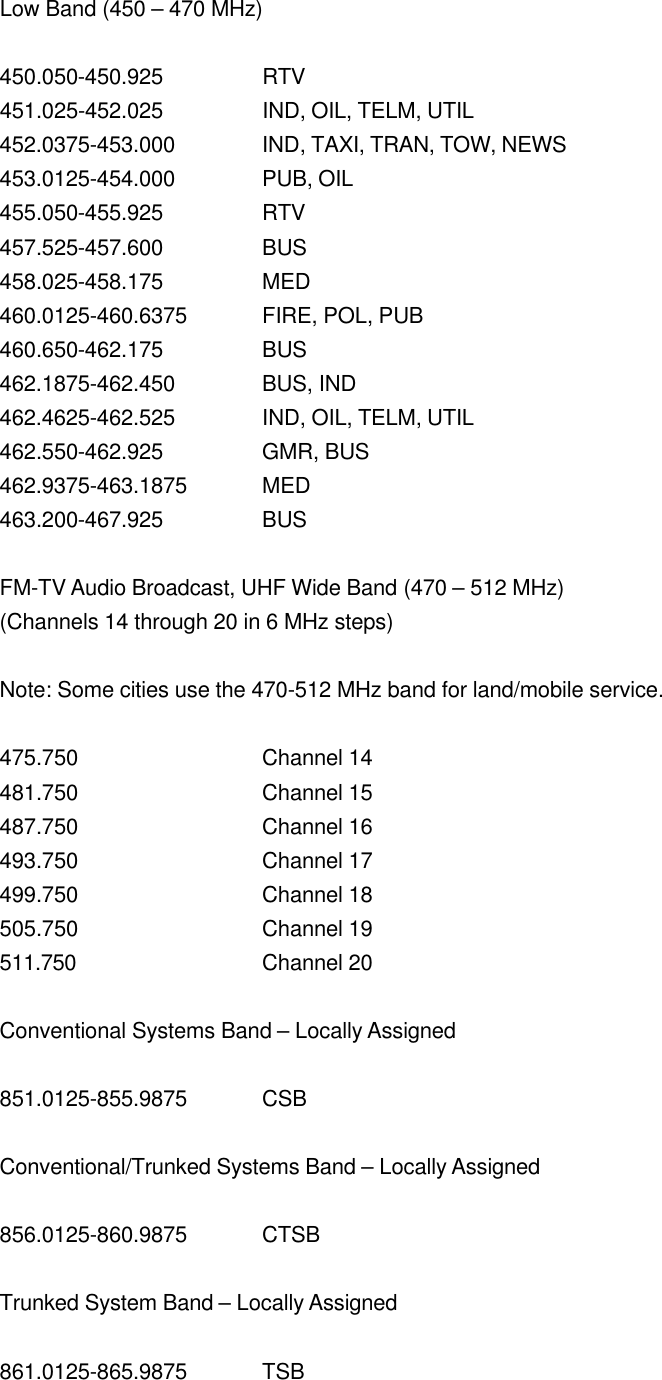
157.450   MED 157.470-157.515    TOW 157.530-157.725    IND, TAXI 157.740   BUS 158.130-158.460    BUS, IND, OIL, TELM, UTIL 158.730-159.465    POL, PUB, ROAD 159.480   OIL 159.495-161.565    TRAN 161.580-162.000    OIL, MARI, RTV 162.0125-162.35    GOVT, MIL, USXX 162.400-162.550    WTHR 162.5625-162.6375 GOVT, MIL, USXX 162.6625    MED 162.6875-163.225 GOVT, MIL, USXX 163.250   MED 163.275-166.225    GOVT, MIL, USXX 166.250   GOVT, RTV, FIRE 166.275-169.400    GOVT, BIFC 169.445-169.505    Wireless Mikes, GOVT 169.550-169.9875 GOVT, MIL, USXX 170.000-170.150    BIFC, GOVT, RTV, FIRE 170.175-170.225    GOVT 170.245-170.305    Wireless Mikes 170.350-170.400    GOVT, MIL 170.425-170.450    BIFC 170.475   PUB 170.4875-173.175 GOVT, PUB, Wireless Mikes 173.225-173.5375 MOV, NEWS, UTIL, MIL 173.5625-173.5875 MIL, Medical/Crash Crews 173.600-173.5875 GOVT  ULTRA HIGH FREQUENCY (UHF) – (300 MHz – 3 GHz)  U.S. Government Band (406-420 MHz)  406.125-419.975    GOVT, USXX  70-Centimeter Amateur Band (420 – 450 MHz)  420.000-450.000    HAM
Low Band (450 – 470 MHz)  450.050-450.925    RTV 451.025-452.025    IND, OIL, TELM, UTIL 452.0375-453.000 IND, TAXI, TRAN, TOW, NEWS 453.0125-454.000 PUB, OIL 455.050-455.925    RTV 457.525-457.600    BUS 458.025-458.175    MED 460.0125-460.6375 FIRE, POL, PUB 460.650-462.175    BUS 462.1875-462.450 BUS, IND 462.4625-462.525 IND, OIL, TELM, UTIL 462.550-462.925    GMR, BUS 462.9375-463.1875 MED 463.200-467.925    BUS  FM-TV Audio Broadcast, UHF Wide Band (470 – 512 MHz) (Channels 14 through 20 in 6 MHz steps)  Note: Some cities use the 470-512 MHz band for land/mobile service.  475.750   Channel 14 481.750   Channel 15 487.750   Channel 16 493.750   Channel 17 499.750   Channel 18 505.750   Channel 19 511.750   Channel 20  Conventional Systems Band – Locally Assigned  851.0125-855.9875 CSB  Conventional/Trunked Systems Band – Locally Assigned  856.0125-860.9875 CTSB  Trunked System Band – Locally Assigned  861.0125-865.9875 TSB
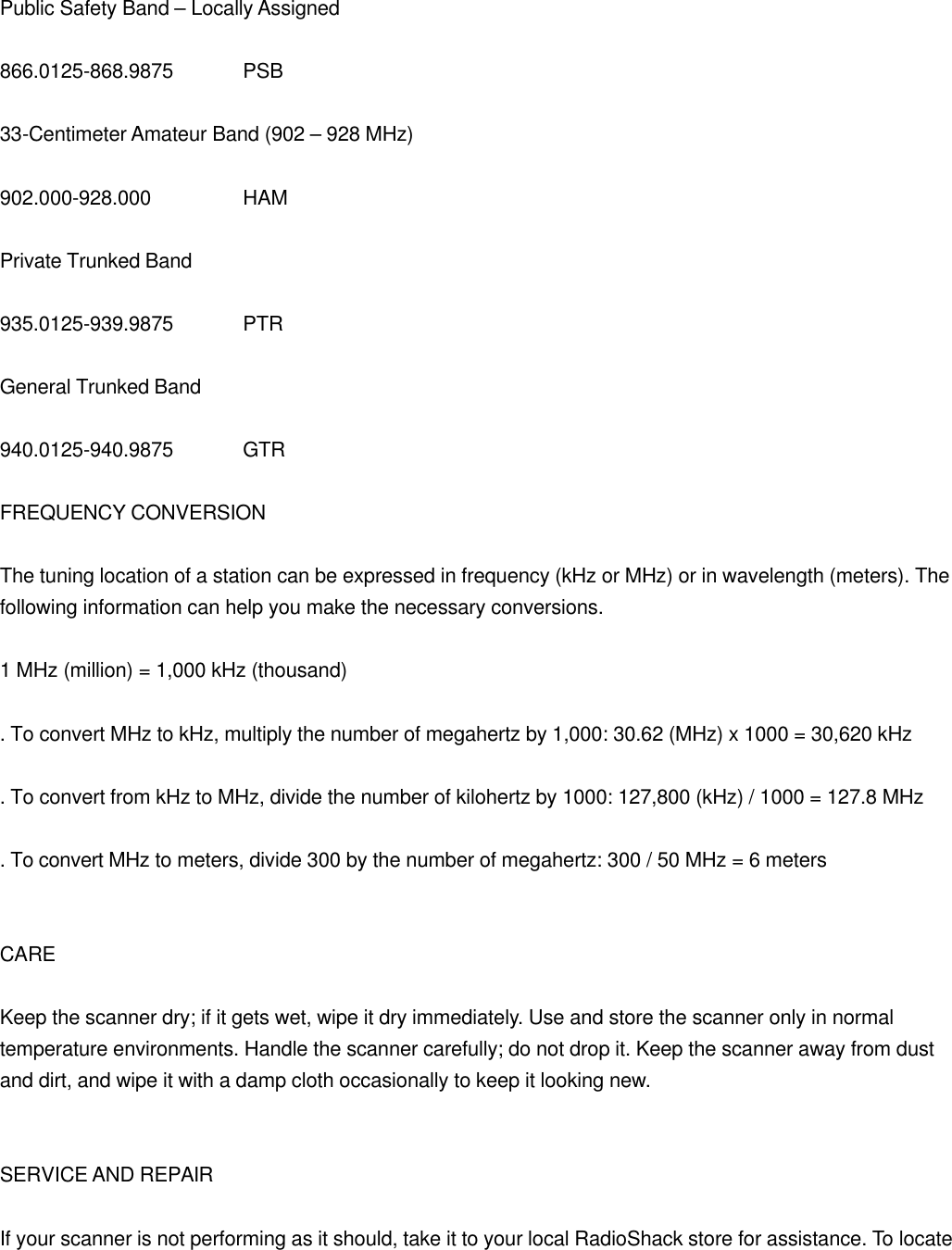
 Public Safety Band – Locally Assigned  866.0125-868.9875 PSB  33-Centimeter Amateur Band (902 – 928 MHz)  902.000-928.000    HAM  Private Trunked Band  935.0125-939.9875 PTR  General Trunked Band  940.0125-940.9875 GTR  FREQUENCY CONVERSION  The tuning location of a station can be expressed in frequency (kHz or MHz) or in wavelength (meters). The following information can help you make the necessary conversions.  1 MHz (million) = 1,000 kHz (thousand)  . To convert MHz to kHz, multiply the number of megahertz by 1,000: 30.62 (MHz) x 1000 = 30,620 kHz  . To convert from kHz to MHz, divide the number of kilohertz by 1000: 127,800 (kHz) / 1000 = 127.8 MHz  . To convert MHz to meters, divide 300 by the number of megahertz: 300 / 50 MHz = 6 meters   CARE  Keep the scanner dry; if it gets wet, wipe it dry immediately. Use and store the scanner only in normal temperature environments. Handle the scanner carefully; do not drop it. Keep the scanner away from dust and dirt, and wipe it with a damp cloth occasionally to keep it looking new.   SERVICE AND REPAIR  If your scanner is not performing as it should, take it to your local RadioShack store for assistance. To locate
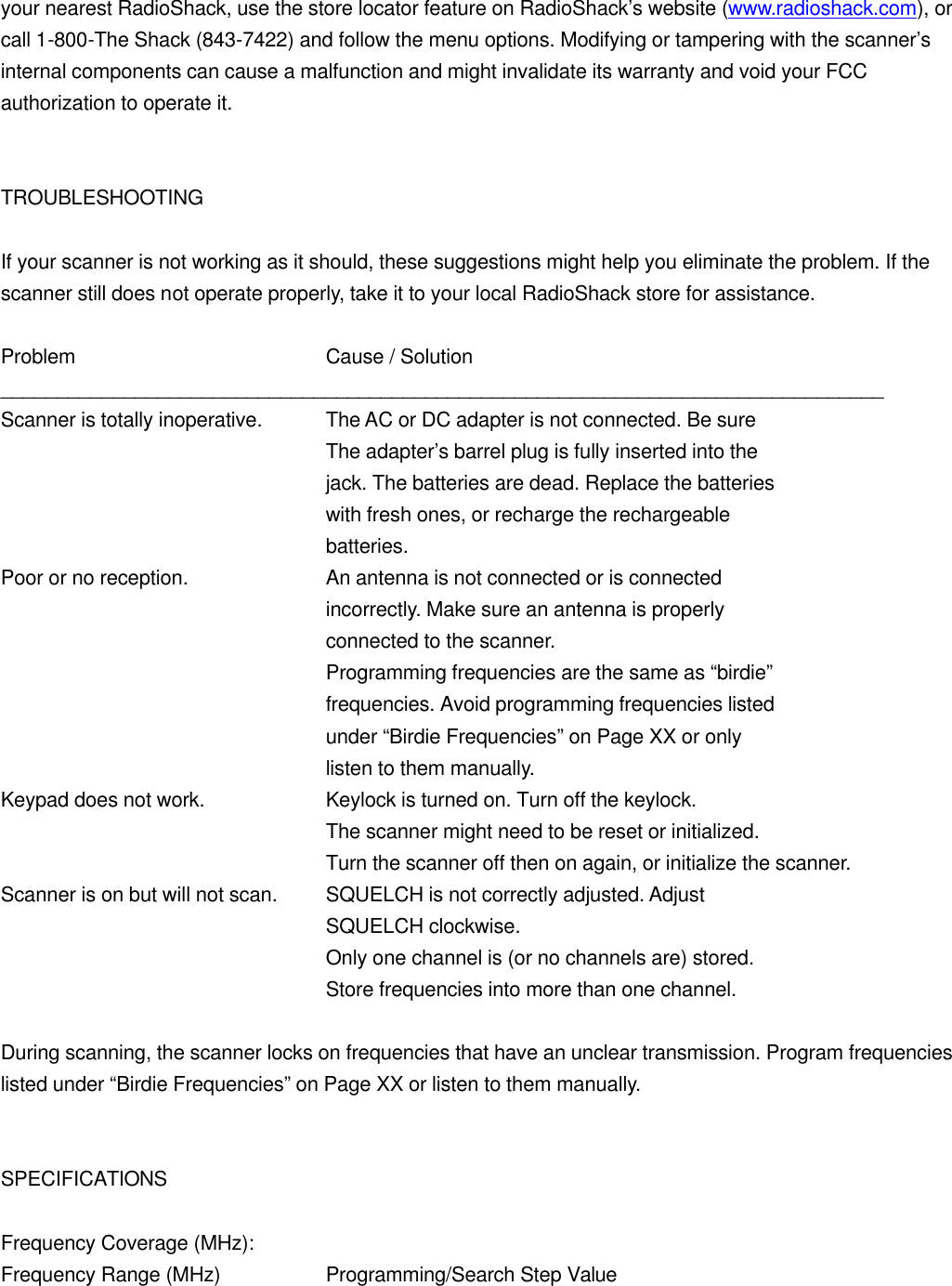
your nearest RadioShack, use the store locator feature on RadioShack’s website (www.radioshack.com), or call 1-800-The Shack (843-7422) and follow the menu options. Modifying or tampering with the scanner’s internal components can cause a malfunction and might invalidate its warranty and void your FCC authorization to operate it.   TROUBLESHOOTING  If your scanner is not working as it should, these suggestions might help you eliminate the problem. If the scanner still does not operate properly, take it to your local RadioShack store for assistance.  Problem    Cause / Solution _______________________________________________________________________________ Scanner is totally inoperative. The AC or DC adapter is not connected. Be sure     The adapter’s barrel plug is fully inserted into the     jack. The batteries are dead. Replace the batteries     with fresh ones, or recharge the rechargeable     batteries. Poor or no reception.    An antenna is not connected or is connected     incorrectly. Make sure an antenna is properly     connected to the scanner.     Programming frequencies are the same as “birdie”     frequencies. Avoid programming frequencies listed     under “Birdie Frequencies” on Page XX or only     listen to them manually. Keypad does not work.    Keylock is turned on. Turn off the keylock.     The scanner might need to be reset or initialized.     Turn the scanner off then on again, or initialize the scanner. Scanner is on but will not scan. SQUELCH is not correctly adjusted. Adjust     SQUELCH clockwise.     Only one channel is (or no channels are) stored.     Store frequencies into more than one channel.  During scanning, the scanner locks on frequencies that have an unclear transmission. Program frequencies listed under “Birdie Frequencies” on Page XX or listen to them manually.   SPECIFICATIONS  Frequency Coverage (MHz): Frequency Range (MHz)    Programming/Search Step Value
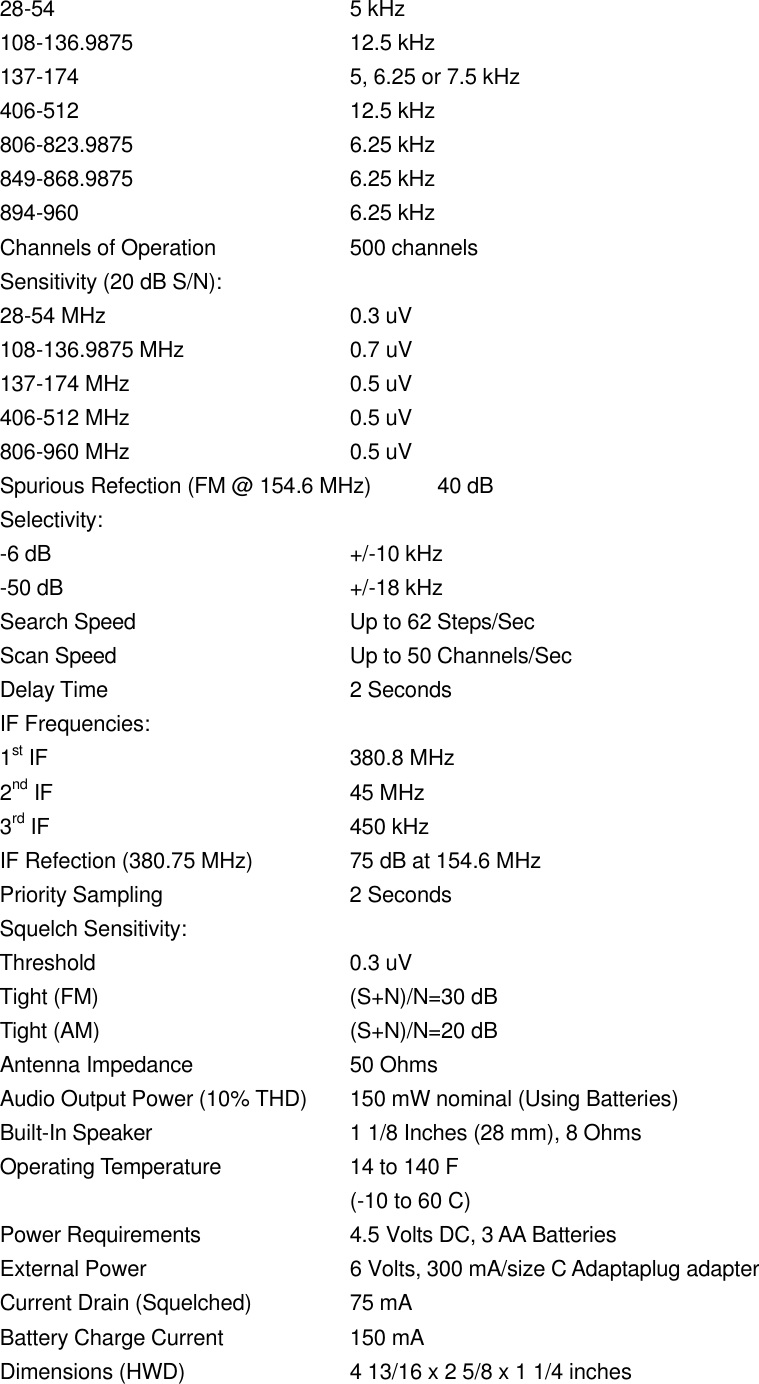
28-54    5 kHz 108-136.9875   12.5 kHz 137-174    5, 6.25 or 7.5 kHz 406-512    12.5 kHz 806-823.9875   6.25 kHz 849-868.9875   6.25 kHz 894-960    6.25 kHz Channels of Operation    500 channels Sensitivity (20 dB S/N): 28-54 MHz   0.3 uV 108-136.9875 MHz    0.7 uV 137-174 MHz   0.5 uV 406-512 MHz   0.5 uV 806-960 MHz   0.5 uV Spurious Refection (FM @ 154.6 MHz) 40 dB Selectivity: -6 dB    +/-10 kHz -50 dB    +/-18 kHz Search Speed   Up to 62 Steps/Sec Scan Speed   Up to 50 Channels/Sec Delay Time   2 Seconds IF Frequencies: 1st IF    380.8 MHz 2nd IF    45 MHz 3rd IF    450 kHz IF Refection (380.75 MHz)   75 dB at 154.6 MHz Priority Sampling   2 Seconds Squelch Sensitivity: Threshold   0.3 uV Tight (FM)   (S+N)/N=30 dB Tight (AM)   (S+N)/N=20 dB Antenna Impedance    50 Ohms Audio Output Power (10% THD) 150 mW nominal (Using Batteries) Built-In Speaker   1 1/8 Inches (28 mm), 8 Ohms Operating Temperature    14 to 140 F     (-10 to 60 C) Power Requirements    4.5 Volts DC, 3 AA Batteries External Power   6 Volts, 300 mA/size C Adaptaplug adapter Current Drain (Squelched)    75 mA Battery Charge Current    150 mA Dimensions (HWD)    4 13/16 x 2 5/8 x 1 1/4 inches
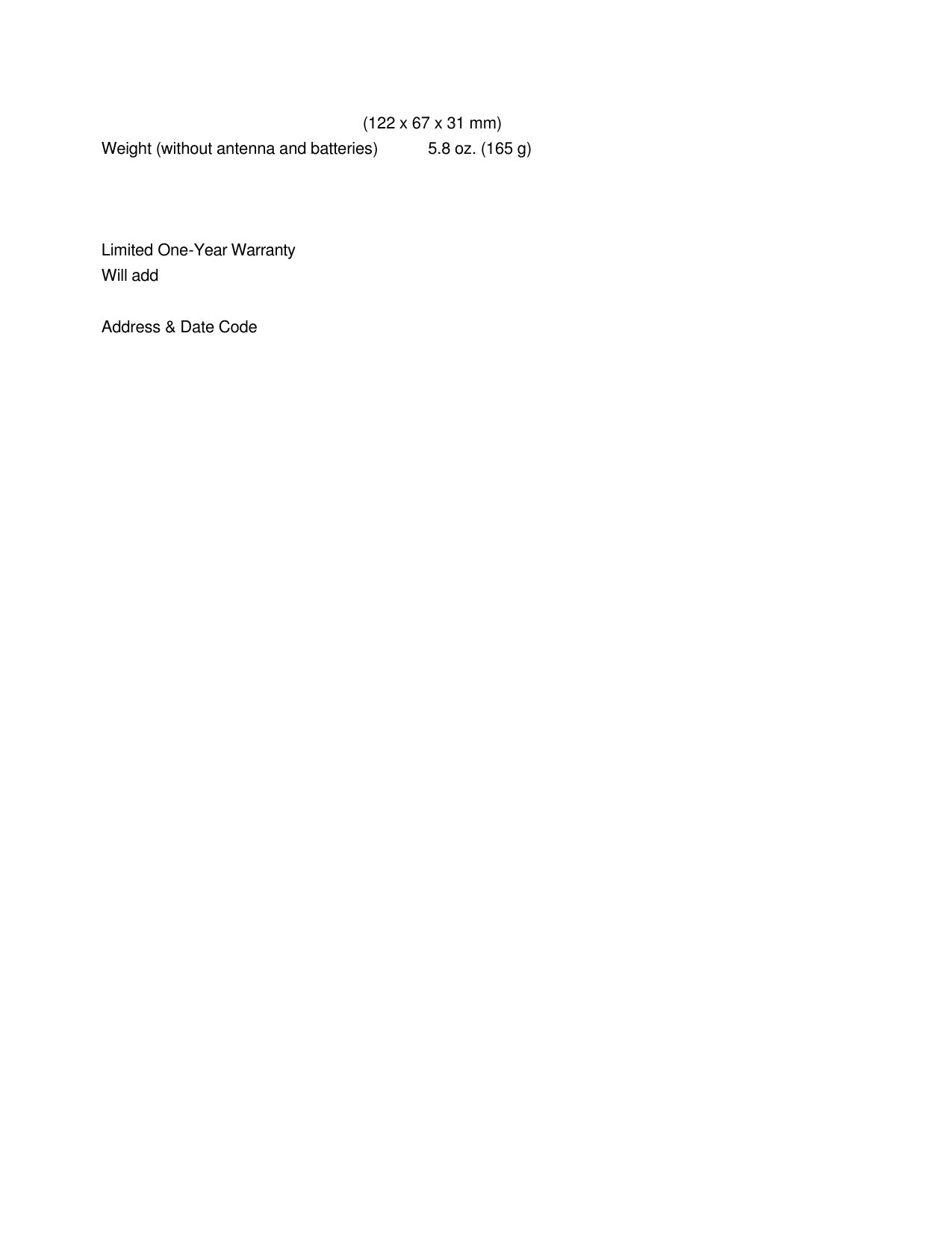
    (122 x 67 x 31 mm) Weight (without antenna and batteries) 5.8 oz. (165 g)    Limited One-Year Warranty Will add  Address & Date Code

Navigation menu