Genex Telecom GBH-200H Bluetooth Headset User Manual revised 01 12
Genex Telecom Co., Ltd. Bluetooth Headset revised 01 12
Users Manual

- 1 /16 -
This material may not in whole or part be copied, stored electronically or communicated
to third parties without GENEX Telecom’s prior agreement in writing.
User Manual
Genex Telecom Co.,Ltd
6F Farmax Plaza building, 796-27 BangBae-Dong, Seocho-Gu
Seoul Korea
Tel : +82 (02) 803-9002
Fax : +82 (02) 591-1802
Homepage: http://www.genexelec.co.kr
- 2 /16 -
This material may not in whole or part be copied, stored electronically or communicated
to third parties without GENEX Telecom’s prior agreement in writing.
Change History
Version Date Comment
1.0 2003-1-13 Draft

- 3 /16 -
This material may not in whole or part be copied, stored electronically or communicated
to third parties without GENEX Telecom’s prior agreement in writing.
Table
1. Definition................................................................................................................................................................ 4
1.1 Glossary 4
1.2 Usage Spec.................................................................................................................................................. 4
2. Figure ...................................................................................................................................................................... 5
2.1 Headset 5
2.2 Audiogate 5
3. Using Guide ............................................................................................................................................................ 6
3.1 Turning the Headset and Audiogate on 7
3.2 Receiving a call 8
3.3 Making a call 9
3.3.1 Headset connection and digit sending 9
3.3.2 Digit sending and Headset connection 10
3.4 Hanging up a call 11
3.5 Changing a device 12
3.5.1 Changing to Mobile phone during talking over the Headset 12
3.5.2 Changing to Headset during talking over the Mobile phone. 12
3.6 Turn off Headset and Audiogate 12
3.7 Using Headset with another bluetooth device 12
3.7.1 Using Headset with Mobile phone having Bluetooth chip 12
3.7.2 Paring the Headset form Mobile phone having Bluetooth to Audiogate 13
3.8 Low Battery indicator 13
3.9 Audio Signal 13
3.10 Volume control.......................................................................................................................................13
4. Trademark 14
5. FCC 15
- 4 /16 -
This material may not in whole or part be copied, stored electronically or communicated
to third parties without GENEX Telecom’s prior agreement in writing.
1. Definition
Bluetooth : The Wireless Personal Area Network(WPAN) technology which transmits audio and data within short
range through Radio Connection without using cables .
.
1.1 Glossary
Terms Description
Audio gate Device which is connected to mobile phone and transmits audio of the mobile
phonel.
Headset Device which communicates with Bluetooth adapter and transmits user’s voice.
1.2 Usage Spec
Operation distance : Indoor 3 M, Open Field 10M
Operation time : 340 min
Charging time : 158 hours
- 5 /16 -
This material may not in whole or part be copied, stored electronically or communicated
to third parties without GENEX Telecom’s prior agreement in writing.
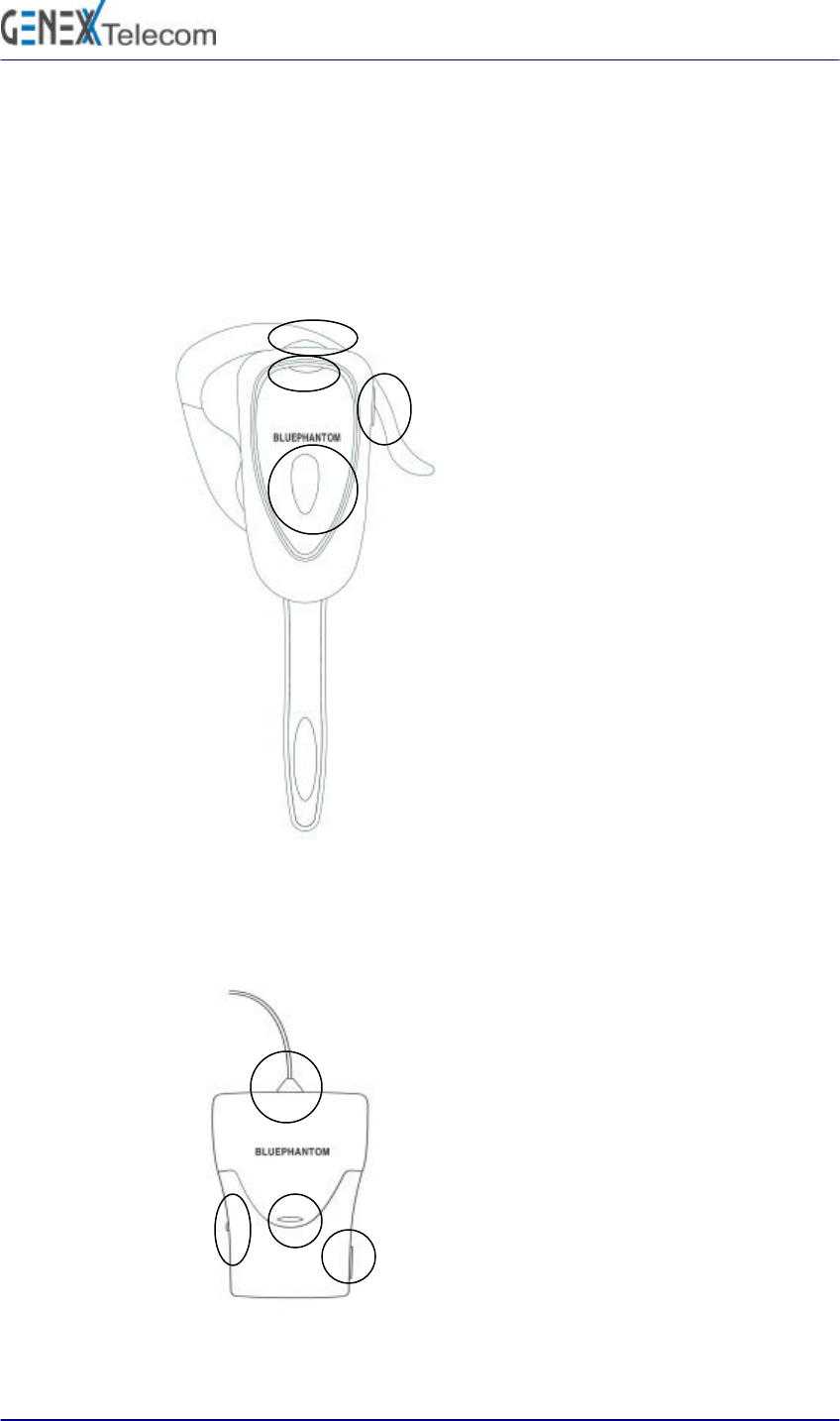
2. Figure
2.1 Headset
2.2 Audiogate
① Volume Up/Down
Power On/Off
② Charging
① Power On/Off
Switch ② Charging
③ LED
④ HDC-5/HDC-9
Connector
③ LED
④ Connecting/Disconnection
- 6 /16 -
This material may not in whole or part be copied, stored electronically or communicated
to third parties without GENEX Telecom’s prior agreement in writing.
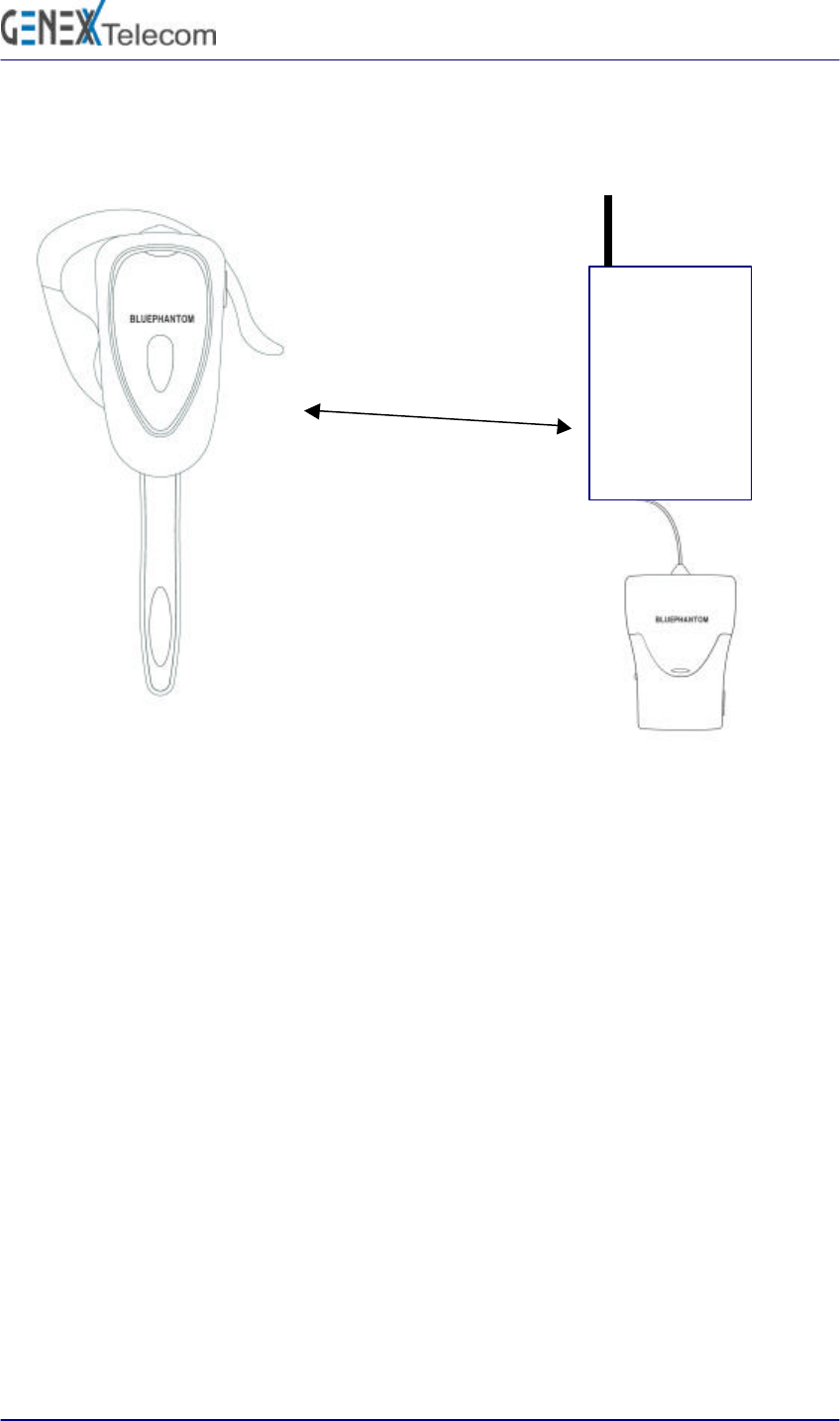
3 Using guide
Bluetooth Communication GSM / CDMA
Mobile Phone

- 7 /16 -
This material may not in whole or part be copied, stored electronically or communicated
to third parties without GENEX Telecom’s prior agreement in writing.
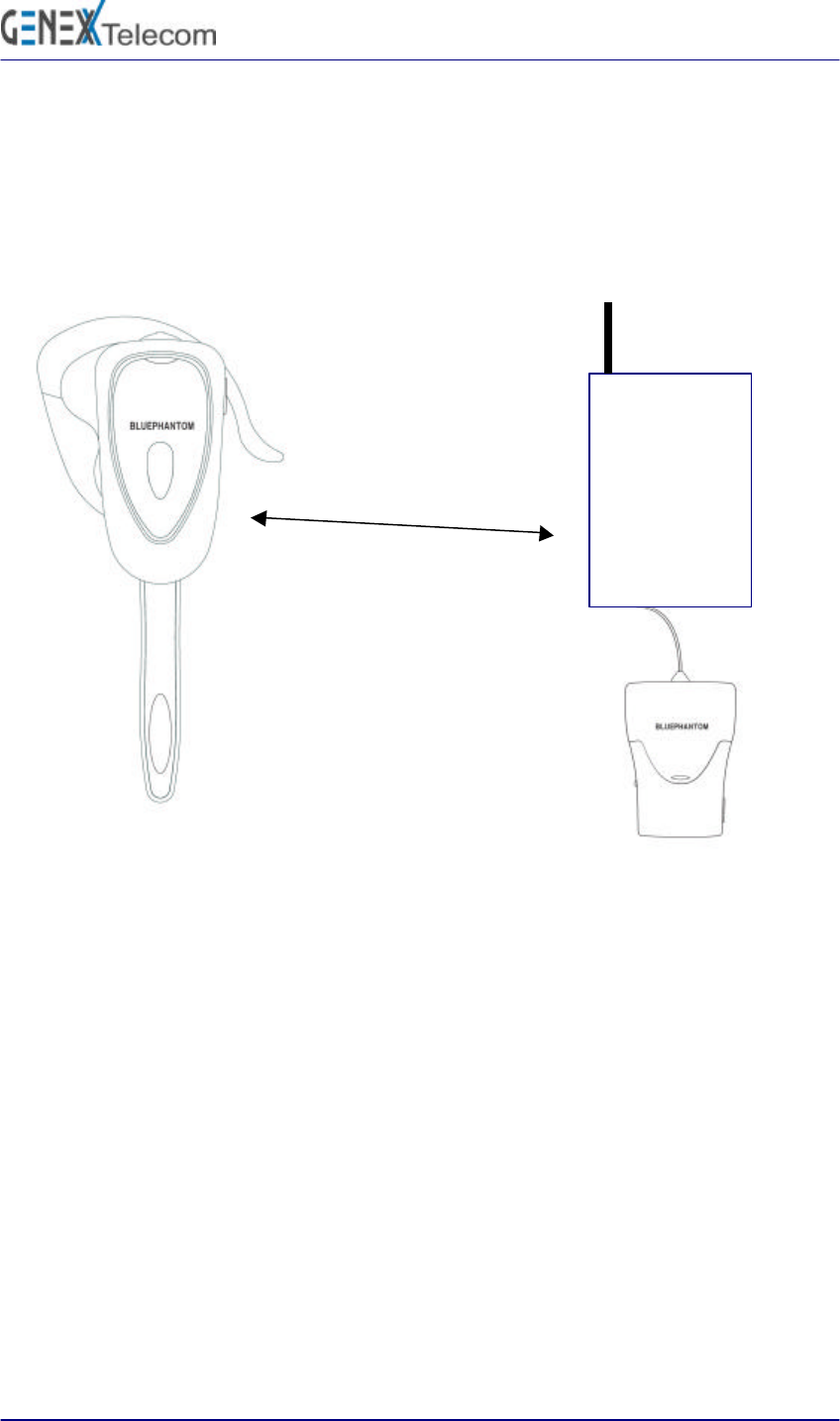
3.1. Turning the Headset and Audiogate on
1) Press the power button of the Headset, and it sounds a “ding-dong-dang” and the green LED flashes on and
off at intervals of 1second.
2) Connect the Ear Jack of the Audiogate to Ear Jack port of mobile phone.
3) Press the power button of the Audiogate, and the green LED flashes on and off at intervals of 1~1.5
seconds.
4) After 4~7 minutesThe initialization is over normally, it sounds a “ding-dong-dang” from Headset and then
the communication between Headset and terminal becomes possible and the green LED flashes on and off
at 3 second intervals.
- 8 /16 -
This material may not in whole or part be copied, stored electronically or communicated
to third parties without GENEX Telecom’s prior agreement in writing.
3.2 Receiving a call
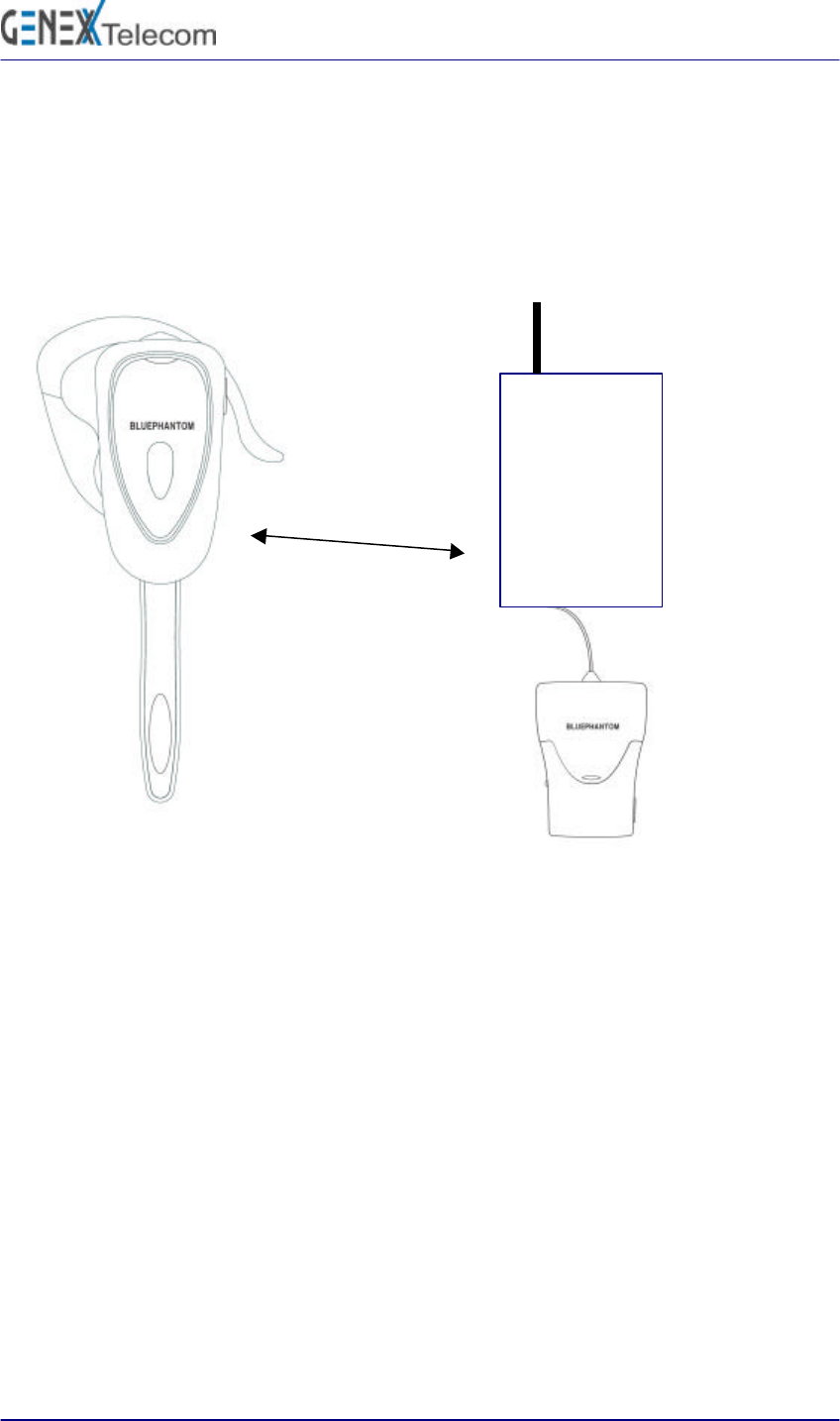
1) The phone is ringing, but the ring isn’t heard at the Headset.
2) While the mobile phone is ringing, press the “connection” button of the Headset, and it sounds a “ding”.
3) The communication channel between the mobile phone and the Headset is connected. And then the LED is
on continuously instead green LED flashes at 3 second intervals and it sounds a “ding-dong”.
Talk to someone over the Headset. During communication LED is on continuously.
① Receiving a call
GSM / CDMA
Mobile Phone
② Headset
③ Connected by bluetooth
communication.
- 9 /16 -
This material may not in whole or part be copied, stored electronically or communicated
to third parties without GENEX Telecom’s prior agreement in writing.
3.3 Making a call
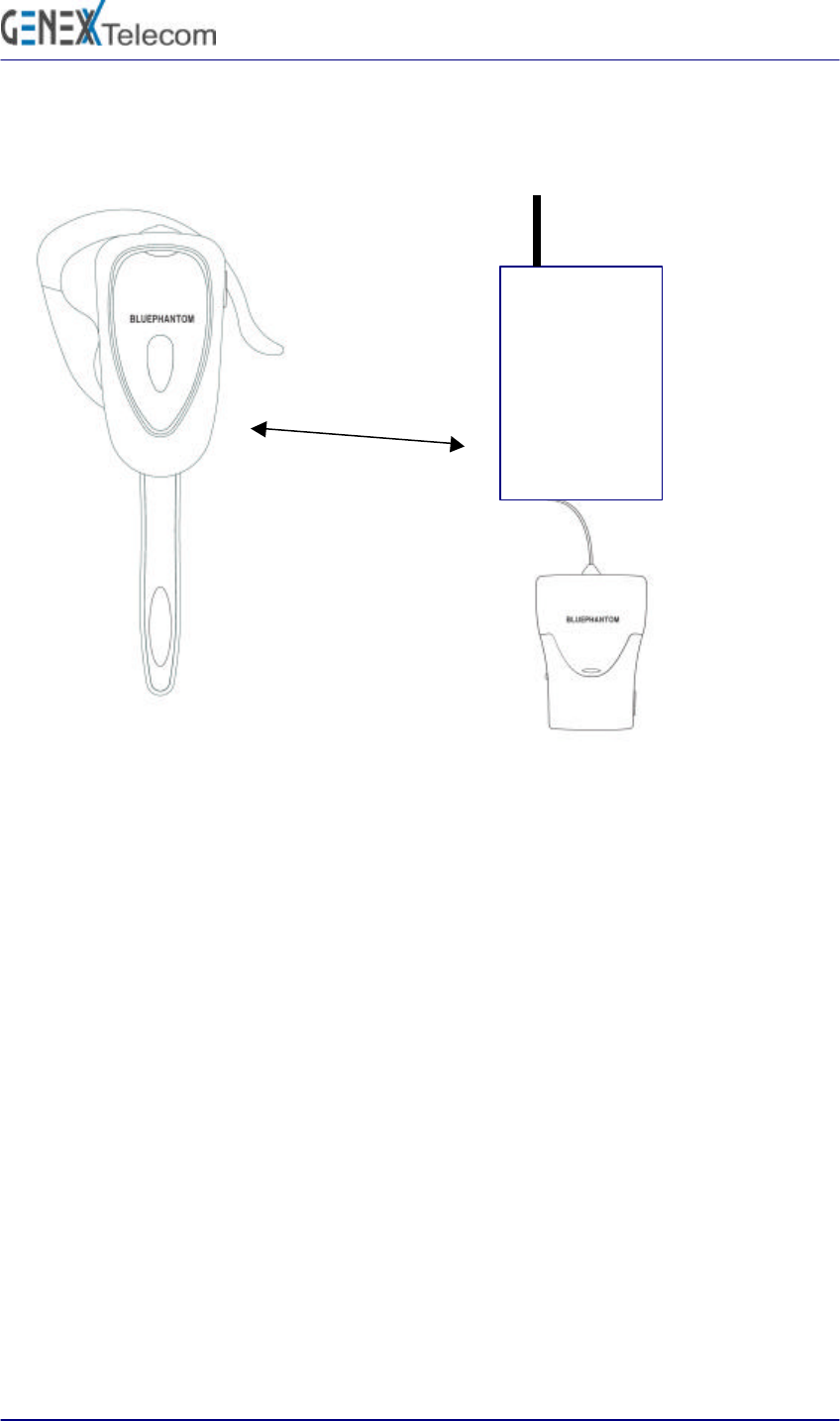
3.3.1 Headset connection and digit sending
1) Press the “connection” button of the Headset and it sounds a “ding”
2) The communication channel between the mobile phone and the Headset is connected. And then the Green
LED is on and it sounds a “ding-dong”.
3) Press the phone number on key button of mobile phone and then press the “send” button.
4) Talk to someone over the Headset.
GSM / CDMA
Mobile Phone
① Press the “connection” of Headset
② Press t
he phone
number on key button of
mobile phone and then
press the “send” button.
③
Talk to someone
over the Headset.
- 10 /16 -
This material may not in whole or part be copied, stored electronically or communicated
to third parties without GENEX Telecom’s prior agreement in writing.
3.3.2 Digit sending and Headset connection
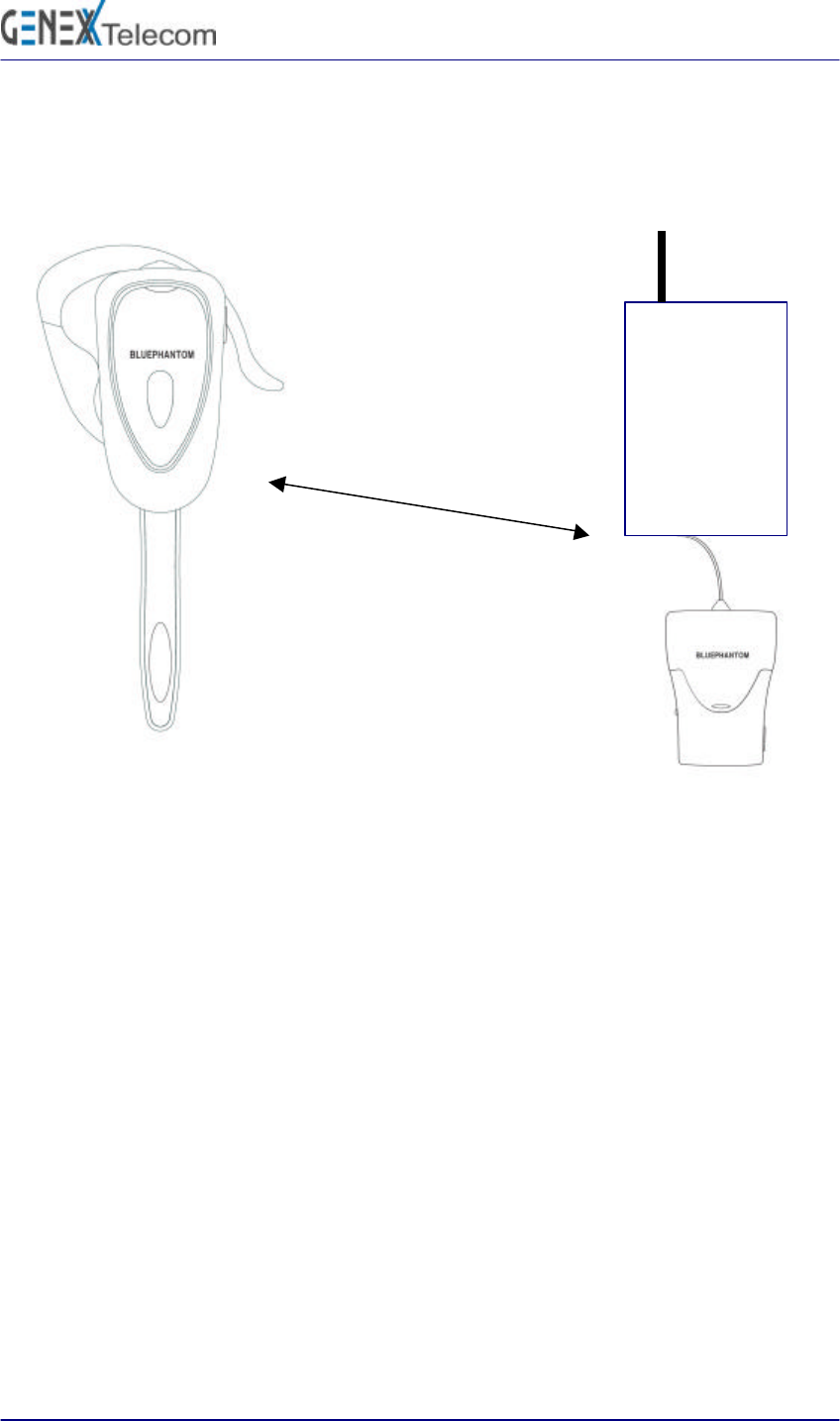
1) Input a phone number pressing the key buttons of the mobile phone and then press the “send” button.
2) Press the “connection” button of the Headset and it sounds a “ding” .
3) The communication channel between the mobile phone and the Headset is connected. And then the LED is
on and it sounds a “ding-dong”.
Talk to someone over the Headset. During communication green LED is on continuously.
①
Input a phone number
pressing the key buttons of
the mobile phone and then
press the “send” button.
GSM / CDMA
Mobile Phone
② Press the “connection”
button of
the Headset
③
Talk to someone
over the Headset
- 11 /16 -
This material may not in whole or part be copied, stored electronically or communicated
to third parties without GENEX Telecom’s prior agreement in writing.
3.4 Hanging up a call
1) If a call is finished, press the “connection” button of the Headset shortly.
2) The communication channel between the mobile phone and the Headset is disconnected. And green LED
flashes on and off at intervals of 3~4 seconds. The terminal turns to idle state.
GSM / CDMA
Mobile Phone
① Connected by bluetooth
communication.
②
Press disconnect button of
Headset
③ Hang up a call

- 12 /16 -
This material may not in whole or part be copied, stored electronically or communicated
to third parties without GENEX Telecom’s prior agreement in writing.
3.5 Changing a device
3.5.1 Changing to Mobile phone during talking over the Headset
1) Talk over the Headset.
2) To talk over the mobile phone, separate the Audiogate from the mobile phone.
3) Talk over the mobile phone.
3.5.2 Changing to Headset during talking over the Mobile phone.
1) Talk over the mobile phone.
2) To talk over the Headset, insert the Audiogate into the Ear Jack port of the mobile phone.
3) Turn on the Headset and Audiogate.
4) Press the “connection” button of the Headset and audiogate (see section. 3-1),
it is possible to talk over the Headset.
3.6 Turn off Headset and Audiogate
1) Slice down the button of Audiogate to turn off.
2) To turn off the headset press down and hold down the Volume Up/Down button (power button) for 3 seconds
until it sounds “Ding Dong”.
3.7. Using headset with another bluetooth device
3.7.1 Using headset with Mobile phone having bluetooth chip.(Without separate
Audiogate)
1) Press Volume Up/Down button (Power button) for 3 seconds and it sounds “Ding
Dong Dang” and then “beep”.
2) “Beep” sound means the mobile phone discover the headset.
3) Green LED and Red LED is blinking by turns.
4) Check the mobile phone display and follow any instruction.

- 13 /16 -
This material may not in whole or part be copied, stored electronically or communicated
to third parties without GENEX Telecom’s prior agreement in writing.
3.7.2 Paring the headset from Mobile phone having bluetooth to Audiogate
1) While the headset is paired with mobile phone with bluetooth, press Volume Up/Down button (Power
button) for 3 seconds and it sounds “Ding Dong” and then “Ding Ding Ding”.
2) And then press press Volume Up/Down button (Power button) until it sounds “Ding Dong Dang”.
5) “Ding Dong Dang” means the headset is connected to the audiogate that were packed with headset when
you purchased this products .
3.8 Low Battery Indicator
1) If the headset is short of battery, it sounds a “ding-dong-ding-dong” at proper intervals.
2) Red LED is blinking at 3 seconds intervals .
3.9 Audio Signal (Headset Speaker)
1) Ding Dong Dang : When Idle (Before connection to audiogate))
2) Ding Dong : when connection is done
when Headset turn off
3) Ding : when press the connection button of Headset,
when press volume Up/Down button
3) Beep : when delete Pairing information and enter idle mode( see section 3.7.1)
4) Ding Ding Ding : Default Dongle (3.7.2).
5) Ding Dong Ding Dong : Low Battery
3.10 Volume Control
The volume of the Headset is controlled by handling the Volume control button.
The changed Volume is stored at memory.
- 14 /16 -
This material may not in whole or part be copied, stored electronically or communicated
to third parties without GENEX Telecom’s prior agreement in writing.
4 Trademark
Windows™ is a trademark of the Microsoft Corporation
BluePhantom™ is a trademark of GENEX Telecom Co., Ltd.
Appendix
Audio & LED indicators
Headset state Audio indication LED indication
Power On Ding Dong Dang
Linked (Stand by mode) Ding Dong Dang Green LED at 3 seconds intervals
Pairing Failed Green LED and Red LED is blinking
by turns
Power on but is not linked to
mobilephone( Pairing successful)
Green LED at 1 second intervals.
Disconnected Ding Dong Ding Dong Green LED at 1 second intervals.
Talking over the mobile phone Green LED continuously
Connecting Ding Dong
Power off Ding Ding
Press button Ding
Low battery Ding Dong Ding Dong Red LED at 3 second intervals

- 15 /16 -
This material may not in whole or part be copied, stored electronically or communicated
to third parties without GENEX Telecom’s prior agreement in writing.
NOTICE:
This equipment has been tested and found to comply with the limits for a Class
B digital device, pursuant to Part 15 of the FCC Rules. These limits are designe
d to provide reasonable protection against harmful interference in a residential inst
allation. This equipment generates, uses and can radiate radio frequency energy
and, if not installed and used in accordance with the instructions, may cause har
mful interference to radio communications. However, there is no guarantee that in
terference will not occur in a particular installation. If this equipment does cause
harmful interference to radio or television reception, which can be determined by t
urning the equipment off and on, the user is encouraged to try to correct the inte
rference by one or more of the following measures:
l Reorient or relocate the receiving antenna.
l Increase the separation between the equipment and receiver.
l Connect the equipment into an outlet on a circuit different from that to whi
ch the receiver is connected.
l Consult the dealer or an experienced radio/TV technician for help.
NOTICE:
This device complies with Part 15 of the FCC Rules and with RSS-210 of Industry
Canada.
Operation is subject to the following two conditions:
(1) this device my not cause harmful interference, and
this device must accept any interference received, including interference that may
cause undesired operation.

- 16 /16 -
This material may not in whole or part be copied, stored electronically or communicated
to third parties without GENEX Telecom’s prior agreement in writing.
WARNING:
Changes or modifications made to this equipment not expressly approved by Genex
Telecom Co.,Ltd may void the FCC authorization to operate this equipment.
The radiated output power of GBH-200 is far below the FCC radio frequency exposure
limits. Nevertheless, the GBH-200 shall be used in such a manner that the potential for
human contact during normal operation is minimized.