Genex Telecom GX80 Transceiver, VHF, PTT User Manual 2

Genex Telecom Co., Ltd. Transceiver, VHF, PTT 2

Contents

programming manual

   PROGRAMMING MANUAL FOR THE GX Series Radios
CONTENTS  1. Program Install 2. Construction of GX Series PC Program   • Menu Bar, Tool Bar • Model Select • Data Frame Select • Port select • Program • Splash window 3. System Data Frame • Max Channel Number • Tx Delay • Vox Level Select • Scan • TOT (Time Out Timer) 4. Channel Data Frame • Rx Freq • R-Tone • 2Tone • BCL • BCLO • P-SC • SC • Tx Freq • T-Tone • PW • CS • Scr 5. Two Tone Data Frame • Super Group Tone • Group Tone • Individual tone
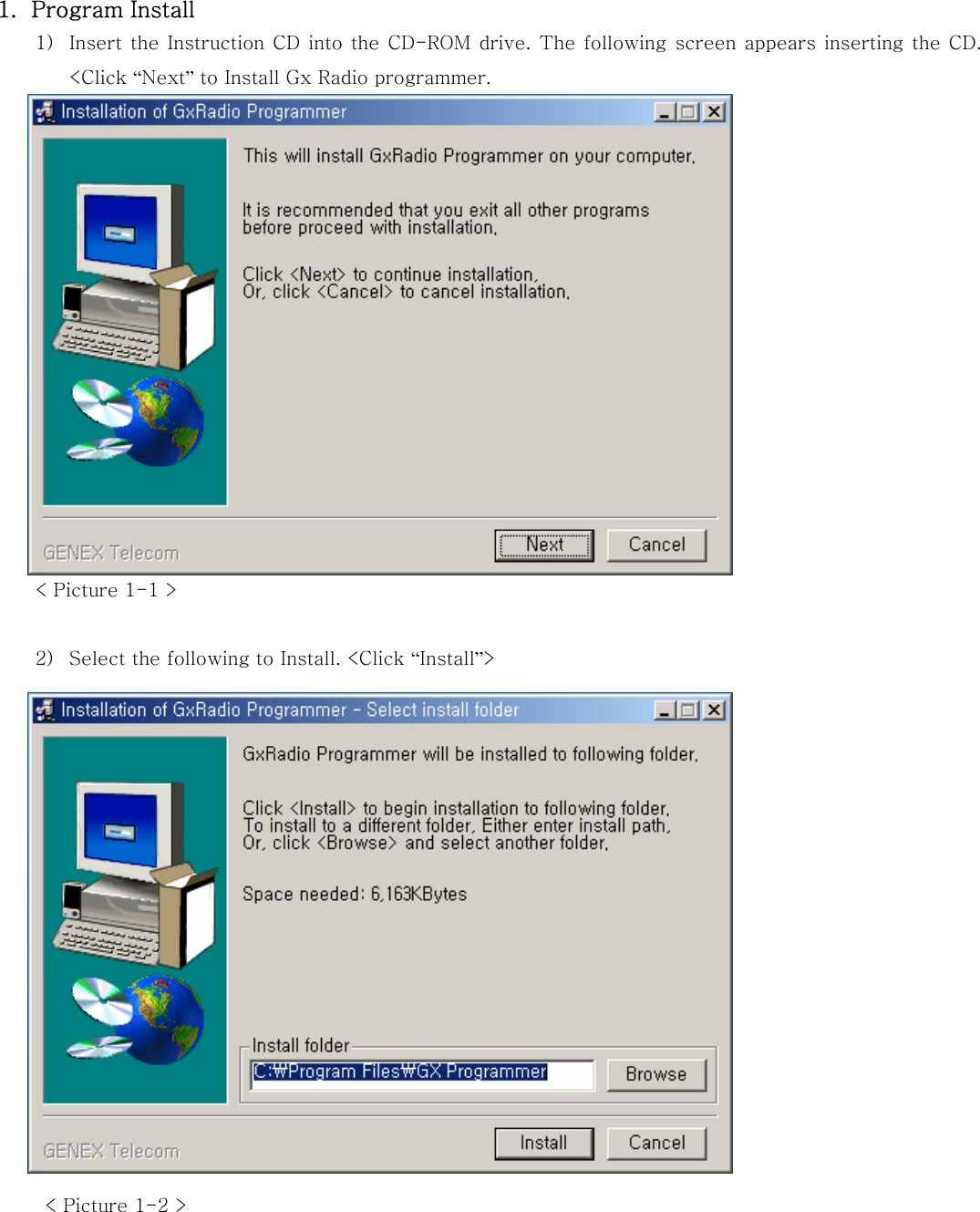
1. Program Install 1) Insert the Instruction CD into the CD-ROM drive. The following screen appears  inserting  the CD. <Click “Next” to Install Gx Radio programmer.                 < Picture 1-1 >  2) Select the following to Install. <Click “Install”>                       < Picture 1-2 >
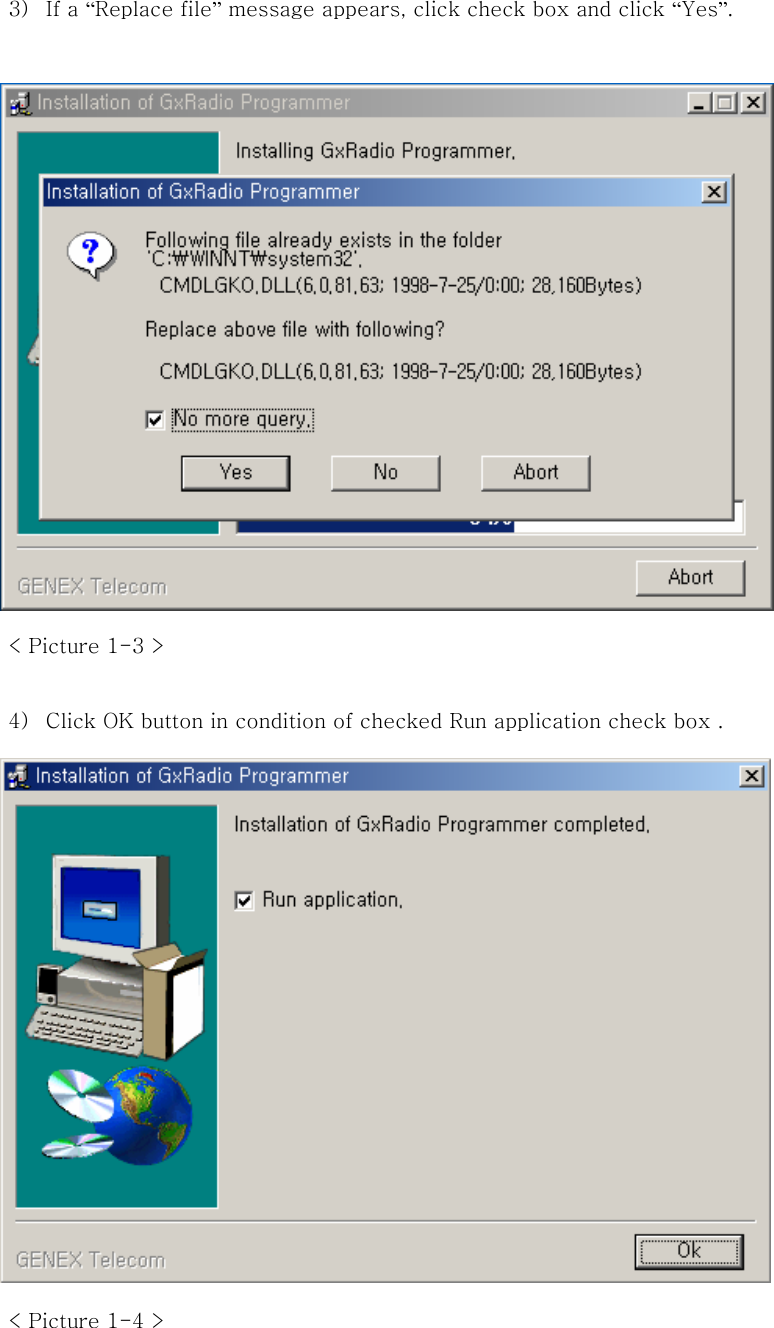
3) If a “Replace file” message appears, click check box and click “Yes”.                   < Picture 1-3 >  4) Click OK button in condition of checked Run application check box .                  < Picture 1-4 >
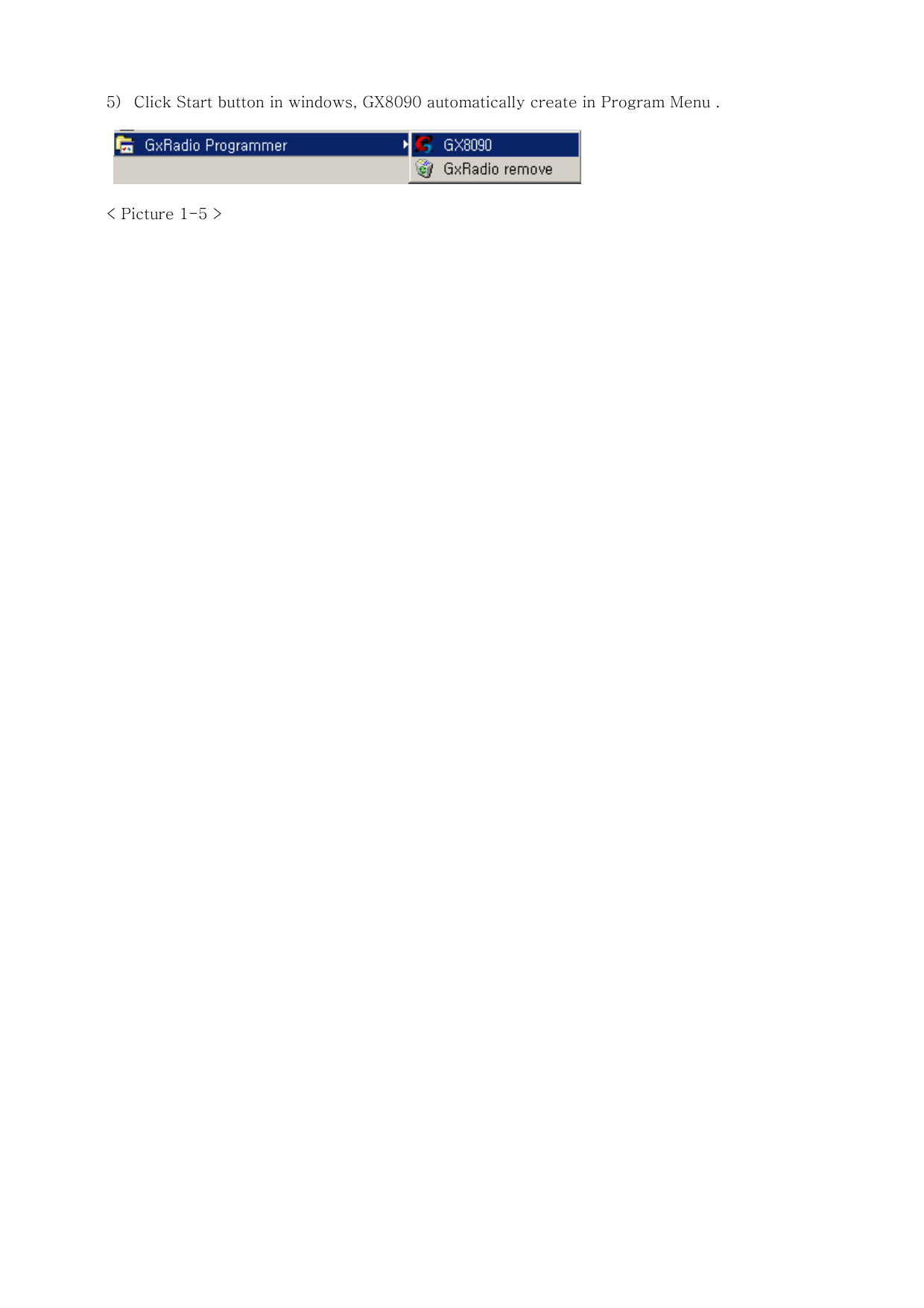
5) Click Start button in windows, GX8090 automatically create in Program Menu .    < Picture 1-5 >
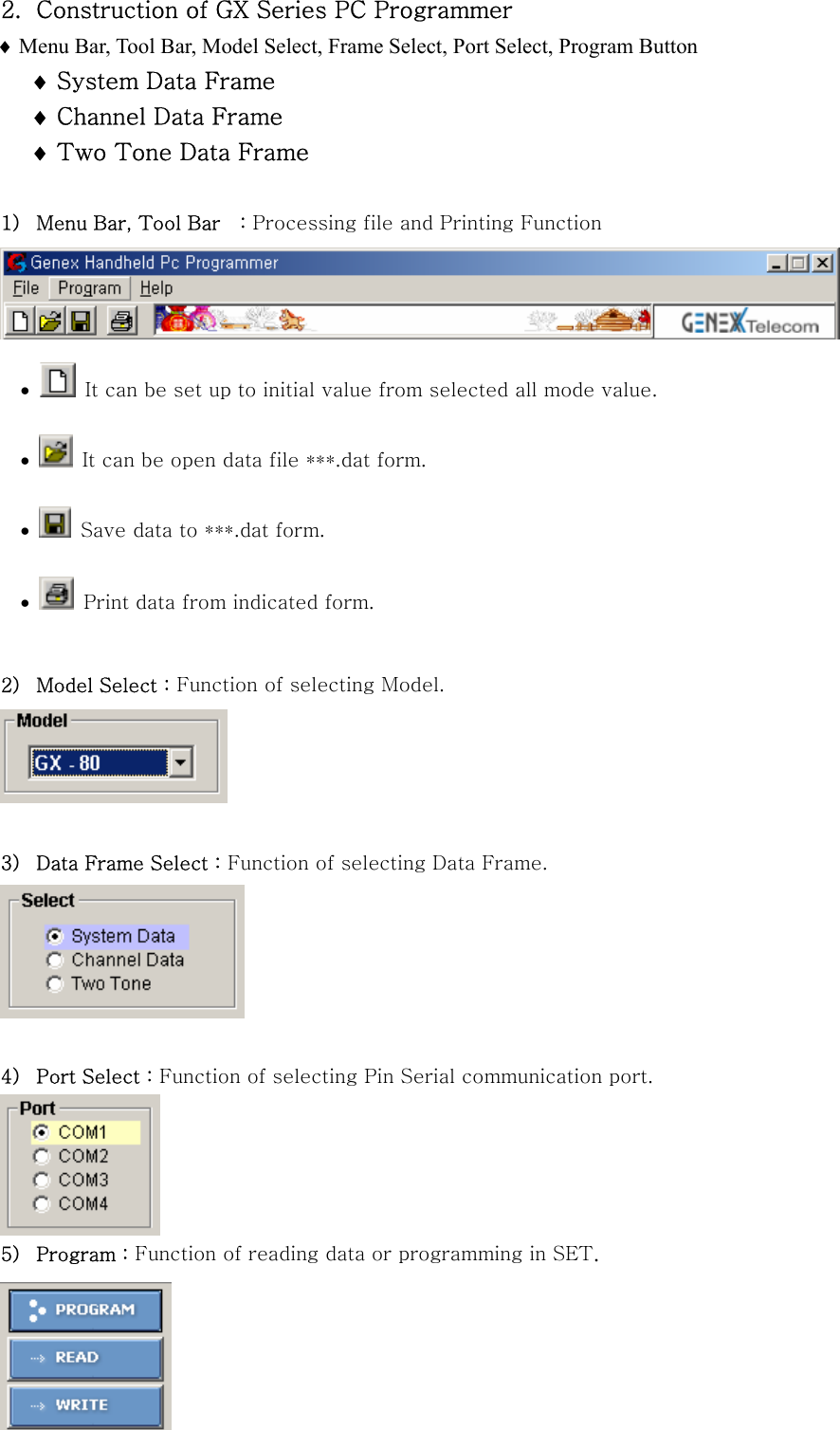
2. Construction of GX Series PC Programmer ♦ Menu Bar, Tool Bar, Model Select, Frame Select, Port Select, Program Button ♦ System Data Frame ♦ Channel Data Frame ♦ Two Tone Data Frame  1) Menu Bar, Tool Bar    : Processing file and Printing Function  •   It can be set up to initial value from selected all mode value. •   It can be open data file ***.dat form.  •   Save data to ***.dat form. •   Print data from indicated form.  2) Model Select : Function of selecting Model.   3) Data Frame Select : Function of selecting Data Frame.   4) Port Select : Function of selecting Pin Serial communication port.  5) Program : Function of reading data or programming in SET.
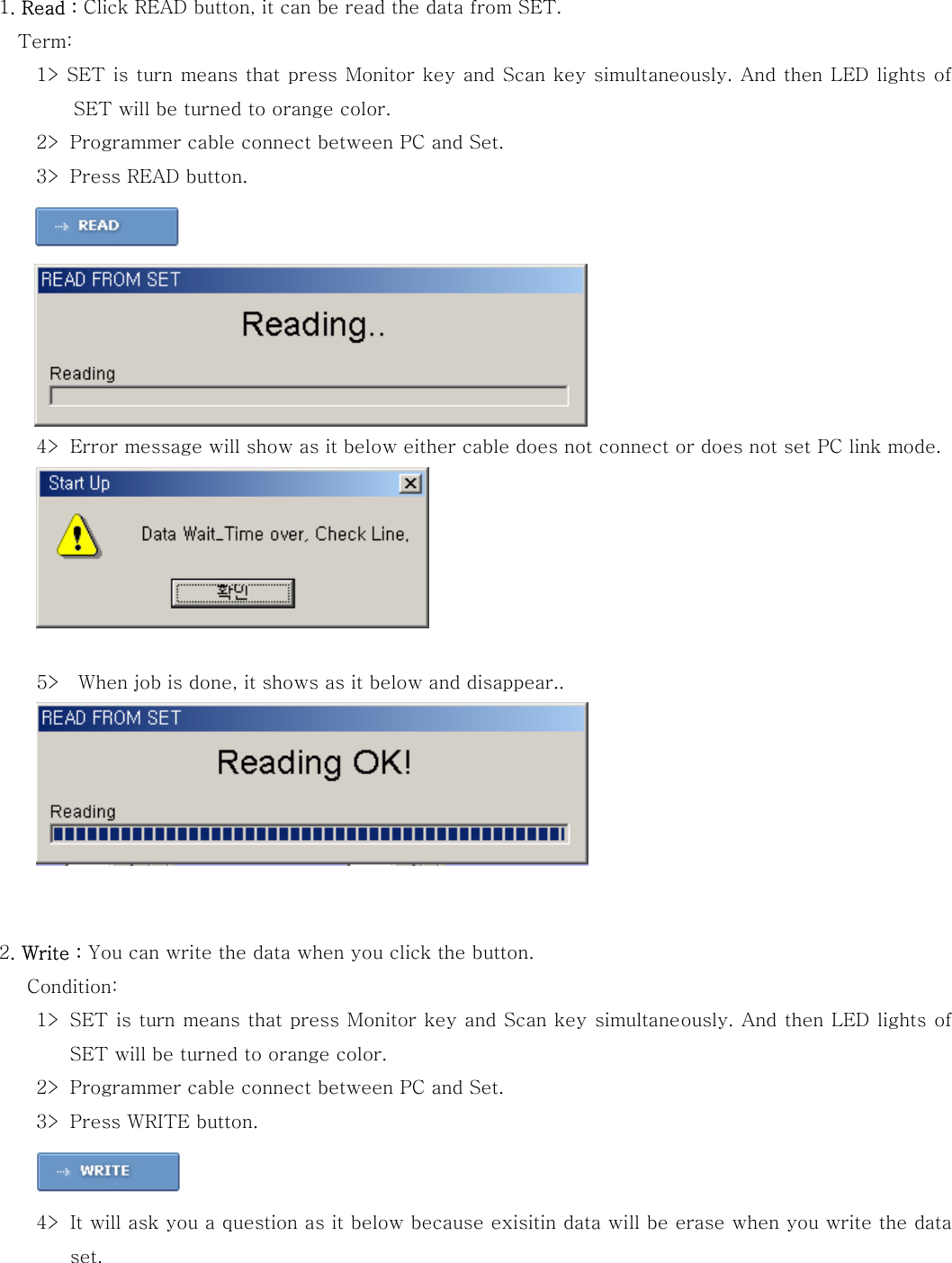
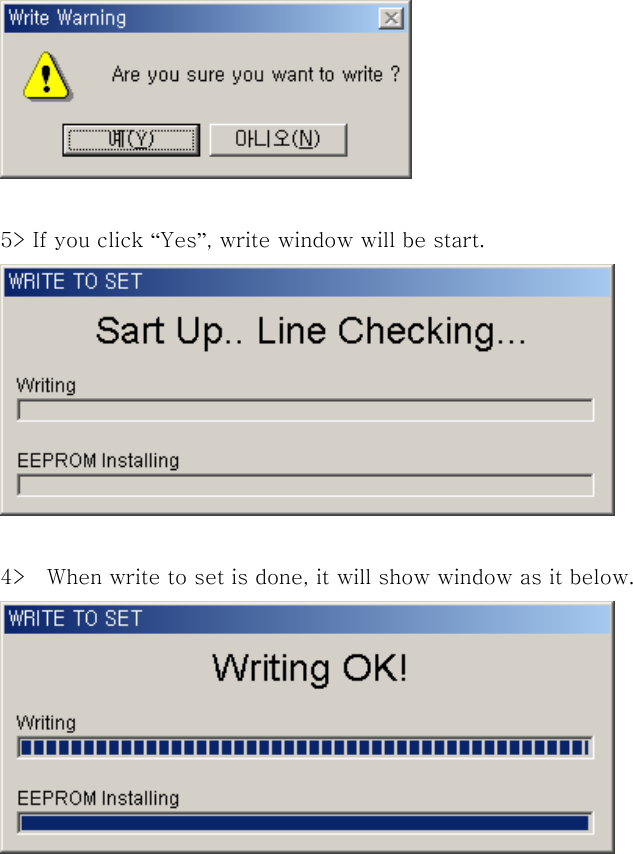
 1. Read : Click READ button, it can be read the data from SET.           Term:  1> SET is turn means that press Monitor key and Scan key simultaneously. And then LED lights of SET will be turned to orange color. 2> Programmer cable connect between PC and Set. 3> Press READ button.     4> Error message will show as it below either cable does not connect or does not set PC link mode.         5>    When job is done, it shows as it below and disappear..    2. Write : You can write the data when you click the button.          Condition:  1> SET is turn means that press Monitor key and Scan key simultaneously. And then LED lights of SET will be turned to orange color. 2> Programmer cable connect between PC and Set. 3> Press WRITE button.   4> It will ask you a question as it below because exisitin data will be erase when you write the data set.
  5> If you click “Yes”, write window will be start.                    4>  When write to set is done, it will show window as it below.
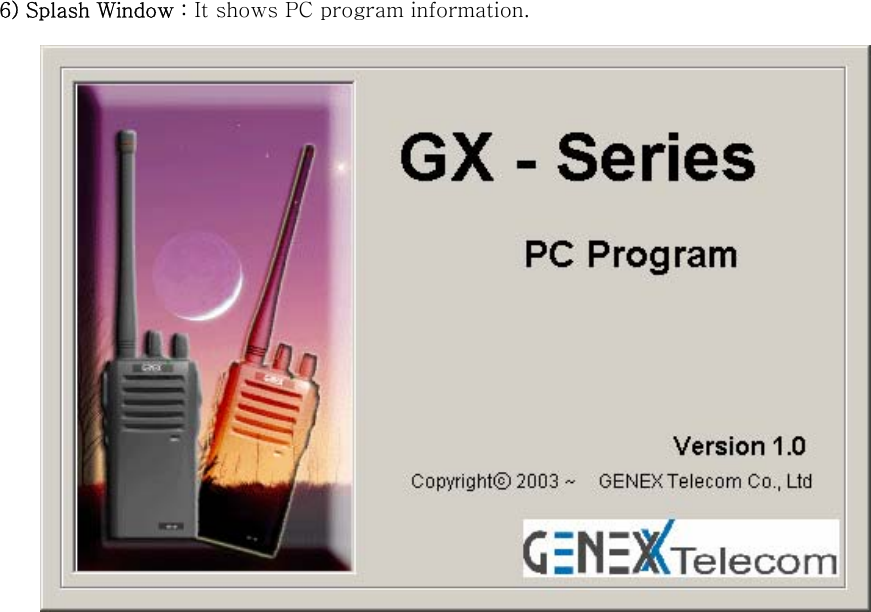
6) Splash Window : It shows PC program information.
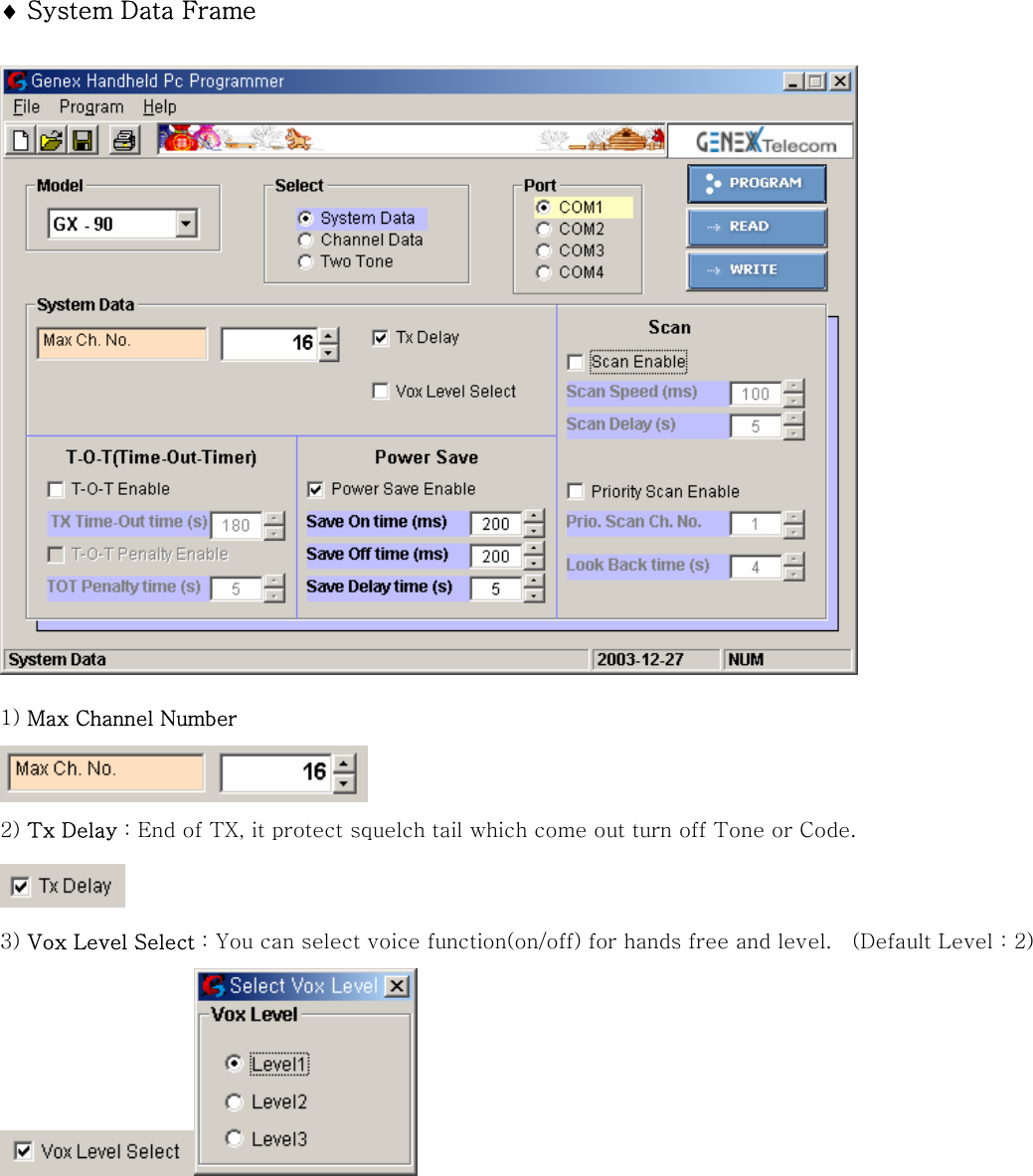
♦ System Data Frame                   1) Max Channel Number  2) Tx Delay : End of TX, it protect squelch tail which come out turn off Tone or Code.  3) Vox Level Select : You can select voice function(on/off) for hands free and level.  (Default Level : 2)
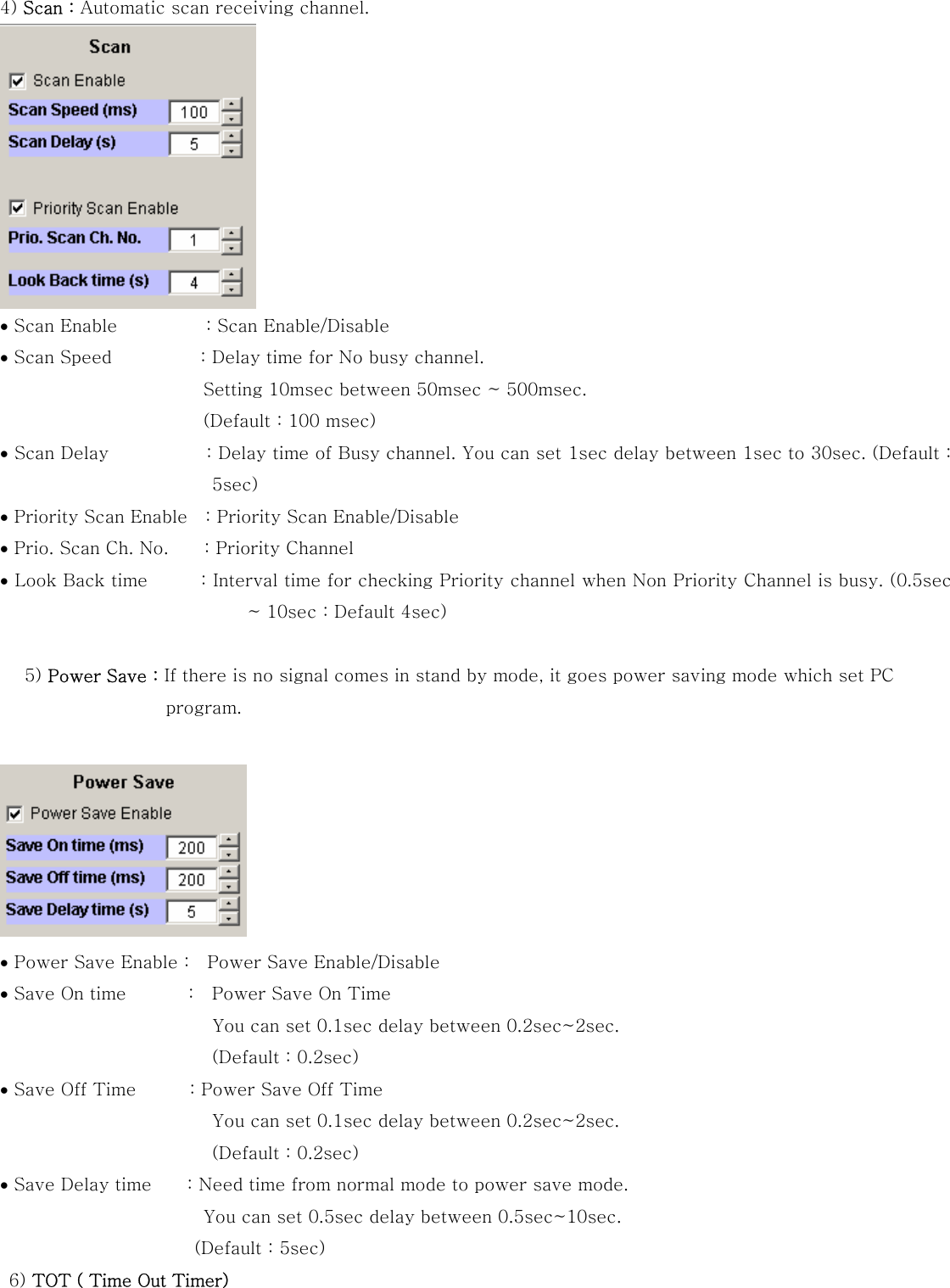
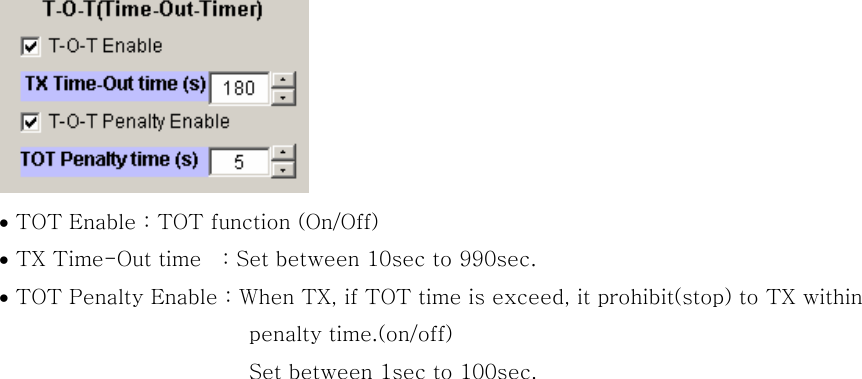
4) Scan : Automatic scan receiving channel.  • Scan Enable          : Scan Enable/Disable  • Scan Speed          : Delay time for No busy channel.   Setting 10msec between 50msec ~ 500msec.   (Default : 100 msec) • Scan Delay           : Delay time of Busy channel. You can set 1sec delay between 1sec to 30sec. (Default : 5sec) • Priority Scan Enable    : Priority Scan Enable/Disable • Prio. Scan Ch. No.        : Priority Channel   • Look Back time           : Interval time for checking Priority channel when Non Priority Channel is busy. (0.5sec ~ 10sec : Default 4sec)   5) Power Save : If there is no signal comes in stand by mode, it goes power saving mode which set PC program.   • Power Save Enable :    Power Save Enable/Disable • Save On time              :    Power Save On Time                             You can set 0.1sec delay between 0.2sec~2sec. (Default : 0.2sec) • Save Off Time            : Power Save Off Time   You can set 0.1sec delay between 0.2sec~2sec. (Default : 0.2sec) • Save Delay time        : Need time from normal mode to power save mode.          You can set 0.5sec delay between 0.5sec~10sec. (Default : 5sec)  6) TOT ( Time Out Timer)
 • TOT Enable : TOT function (On/Off) • TX Time-Out time    : Set between 10sec to 990sec. • TOT Penalty Enable : When TX, if TOT time is exceed, it prohibit(stop) to TX within   penalty time.(on/off) Set between 1sec to 100sec.
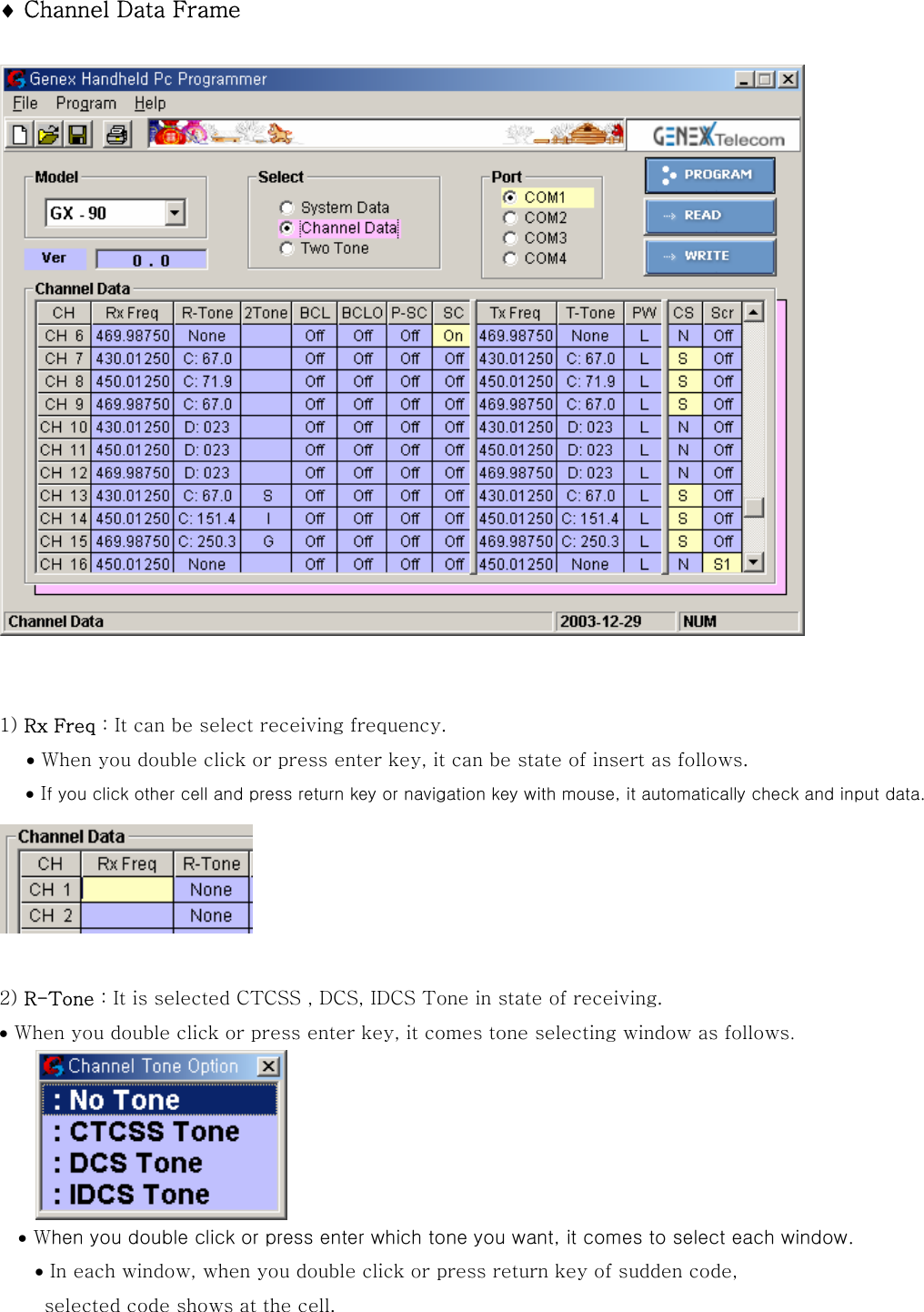
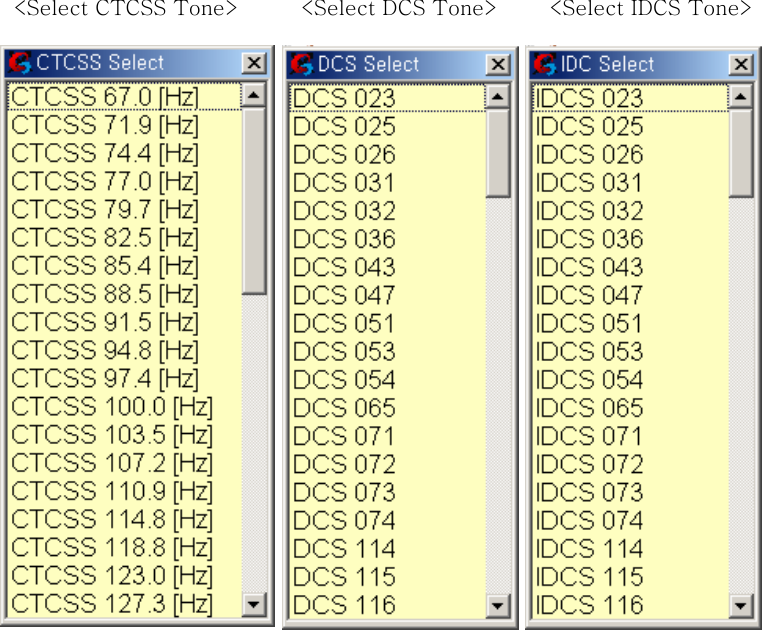
♦ Channel Data Frame     1) Rx Freq : It can be select receiving frequency. • When you double click or press enter key, it can be state of insert as follows. • If you click other cell and press return key or navigation key with mouse, it automatically check and input data.   2) R-Tone : It is selected CTCSS , DCS, IDCS Tone in state of receiving. • When you double click or press enter key, it comes tone selecting window as follows.    • When you double click or press enter which tone you want, it comes to select each window.  • In each window, when you double click or press return key of sudden code,   selected code shows at the cell.
  <Select CTCSS Tone>            <Select DCS Tone>          <Select IDCS Tone>
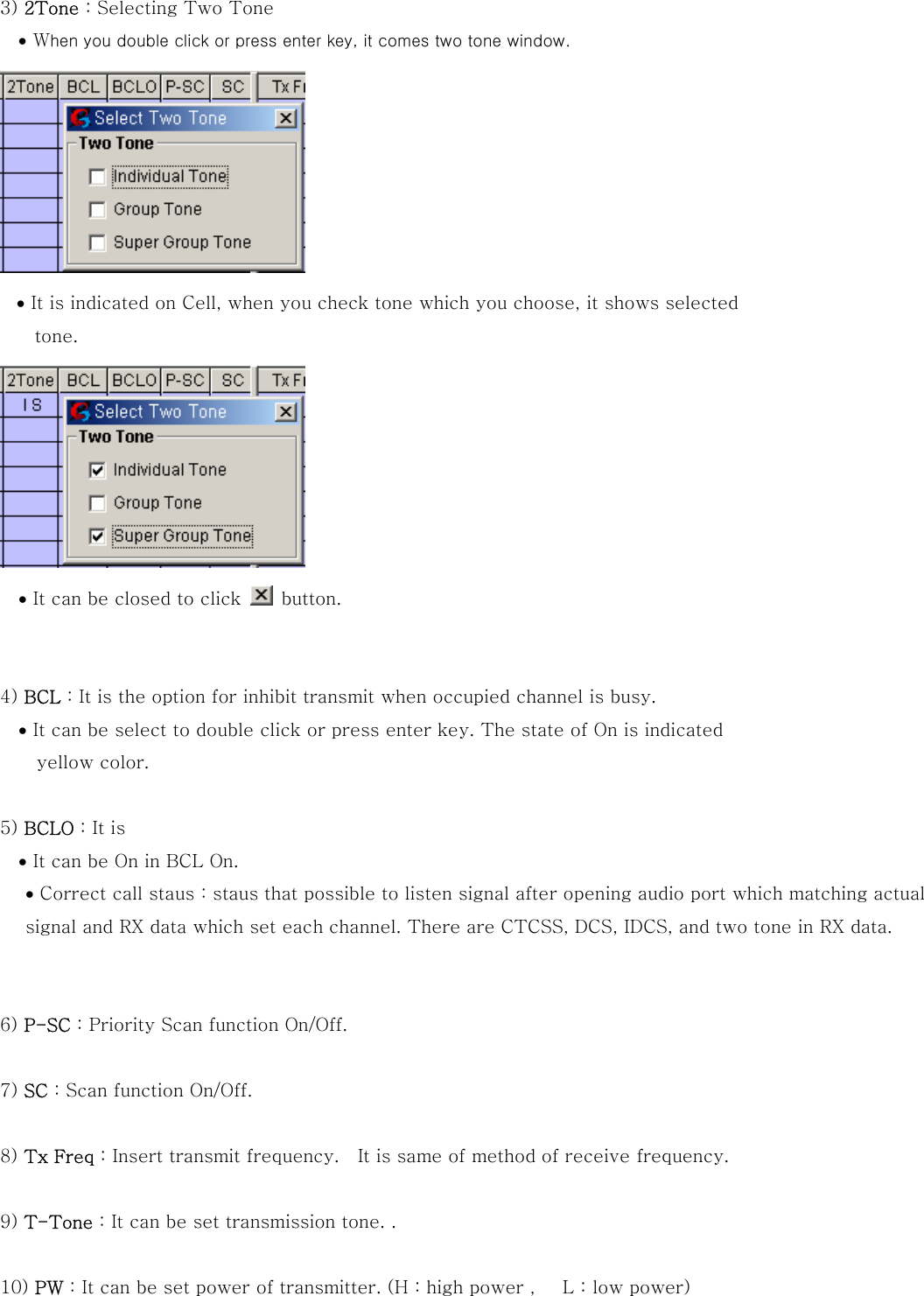
3) 2Tone : Selecting Two Tone • When you double click or press enter key, it comes two tone window.  • It is indicated on Cell, when you check tone which you choose, it shows selected   tone.    • It can be closed to click    button.   4) BCL : It is the option for inhibit transmit when occupied channel is busy. • It can be select to double click or press enter key. The state of On is indicated   yellow color.  5) BCLO : It is     • It can be On in BCL On. • Correct call staus : staus that possible to listen signal after opening audio port which matching actual signal and RX data which set each channel. There are CTCSS, DCS, IDCS, and two tone in RX data.   6) P-SC : Priority Scan function On/Off.  7) SC : Scan function On/Off.  8) Tx Freq : Insert transmit frequency.    It is same of method of receive frequency.  9) T-Tone : It can be set transmission tone. .  10) PW : It can be set power of transmitter. (H : high power ,      L : low power)
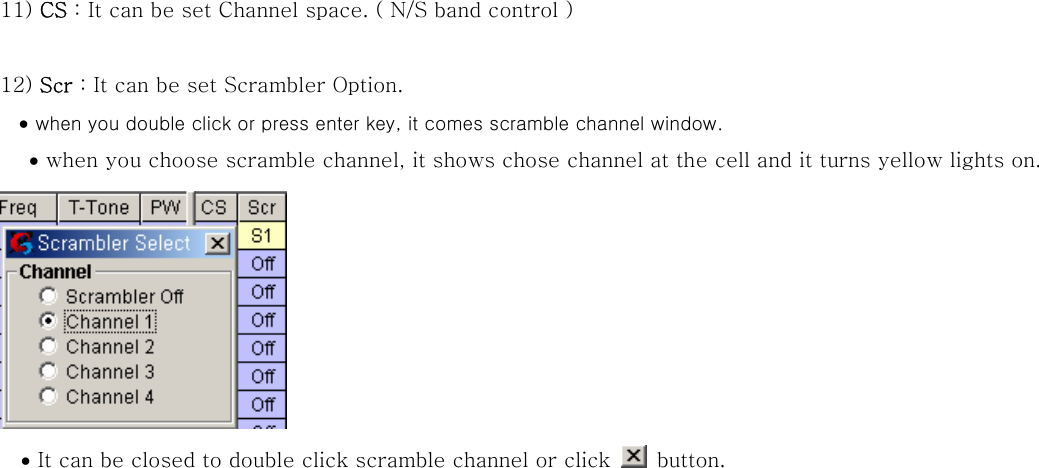
11) CS : It can be set Channel space. ( N/S band control )  12) Scr : It can be set Scrambler Option. • when you double click or press enter key, it comes scramble channel window. • when you choose scramble channel, it shows chose channel at the cell and it turns yellow lights on.   • It can be closed to double click scramble channel or click    button.
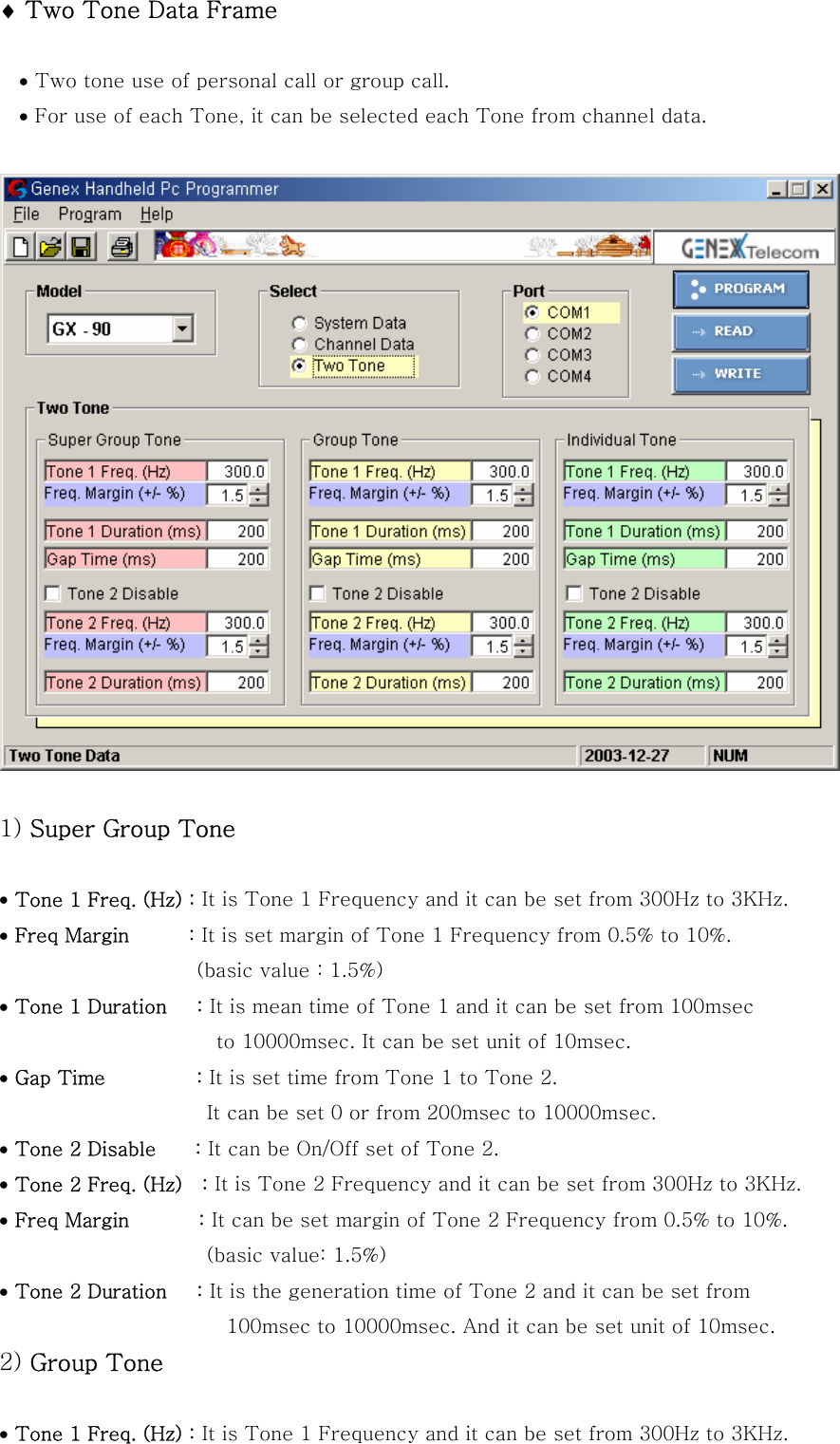
♦ Two Tone Data Frame  • Two tone use of personal call or group call. • For use of each Tone, it can be selected each Tone from channel data.      1) Super Group Tone  • Tone 1 Freq. (Hz) : It is Tone 1 Frequency and it can be set from 300Hz to 3KHz. • Freq Margin      : It is set margin of Tone 1 Frequency from 0.5% to 10%.             (basic value : 1.5%) • Tone 1 Duration   : It is mean time of Tone 1 and it can be set from 100msec   to 10000msec. It can be set unit of 10msec.   • Gap Time      : It is set time from Tone 1 to Tone 2.                                           It can be set 0 or from 200msec to 10000msec. • Tone 2 Disable    : It can be On/Off set of Tone 2. • Tone 2 Freq. (Hz)    : It is Tone 2 Frequency and it can be set from 300Hz to 3KHz. • Freq Margin       : It can be set margin of Tone 2 Frequency from 0.5% to 10%.               (basic value: 1.5%) • Tone 2 Duration   : It is the generation time of Tone 2 and it can be set from   100msec to 10000msec. And it can be set unit of 10msec. 2) Group Tone  • Tone 1 Freq. (Hz) : It is Tone 1 Frequency and it can be set from 300Hz to 3KHz.
• Freq Margin      : It is set margin of Tone 1 Frequency from 0.5% to 10%.             (basic value : 1.5%) • Tone 1 Duration   : It is mean time of Tone 1 and it can be set from 100msec   to 10000msec. It can be set unit of 10msec.   • Gap Time      : It is set time from Tone 1 to Tone 2.                                           It can be set 0 or from 200msec to 10000msec. • Tone 2 Disable    : It can be On/Off set of Tone 2. • Tone 2 Freq. (Hz)    : It is Tone 2 Frequency and it can be set from 300Hz to 3KHz. • Freq Margin       : It can be set margin of Tone 2 Frequency from 0.5% to 10%.               (basic value: 1.5%) • Tone 2 Duration   : It is the generation time of Tone 2 and it can be set from   100msec to 10000msec. And it can be set unit of 10msec.   3) Individual Group Tone  • Tone 1 Freq. (Hz) : It is Tone 1 Frequency and it can be set from 300Hz to 3KHz. • Freq Margin       : It is set margin of Tone 1 Frequency from 0.5% to 10%.          (basic value : 1.5%) • Tone 1 Duration   : It is mean time  of Tone 1 and it can be set from 100msec  to 10000msec. It can be set unit of 10msec. • Gap Time      : It is set time from Tone 1 to Tone 2.                                           It can be set 0 or from 200msec to 10000msec. • Tone 2 Disable    : It can be On/Off set of Tone 2. • Tone 2 Freq. (Hz)    : It is Tone 2 Frequency and it can be set from 300Hz to 3KHz. • Freq Margin       : It can be set margin of Tone 2 Frequency from 0.5% to 10%.               (basic value: 1.5%) • Tone 2 Duration   : It is the generation time of Tone 2 and it can be set from   100msec to 10000msec. And it can be set unit of 10msec.

Navigation menu