Gigabyte Ga 7Va Users Manual
GA-7VA motherboard_manual_ga-7va%28rev2.x%29_e
GA-7VA to the manual ae6f0ead-d29a-45a3-a38a-72d02b5ce48c
2015-01-25
: Gigabyte Gigabyte-Ga-7Va-Users-Manual-220635 gigabyte-ga-7va-users-manual-220635 gigabyte pdf
Open the PDF directly: View PDF  .
.
Page Count: 96
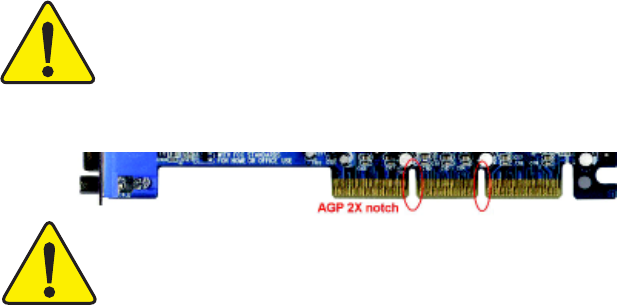
When you installing AGP card, please make sure the following
notice is fully understood and practiced. If your AGP card has
"AGP 4X/8X(1.5V) notch"(show below), please make sure your AGP
card is AGP 4X/8X(1.5V).
Caution: AGP 2X(3.3V) card is not supported by VIA® KT400. You
might experience system unable to boot up normally. Please insert
an AGP 4X/8X(1.5V) card
Example 1: Diamond Vipper V770 golden finger is compatible with
2X/4X mode AGP slot. It can be switched between AGP 2X(3.3V) or 4X
(1.5V) mode by adjusting the jumper. The factory default for this card is
2X(3.3V).
The GA-7VA (or any AGP 4X only) motherboards might not function
properly, if you install this card without switching the jumper to 4X(1.5V)
mode in it.
Example 2: Some ATi Rage 128 Pro graphics cards made by “Power
Color”, the graphics card manufacturer & some SiS 305 cards, their
golden finger is compatible with 2X(3.3V)/4X(1.5V) mode AGP slot, but
they support 2X(3.3V) only. The GA-7VA (or any AGP 4X only)
motherboards might not function properly, If you install this
card in it.
Note : Although Gigabyte's AG32S(G) graphics card is based on
ATi Rage 128 Pro chip, the design of AG32S(G) is compliance
with AGP 4X(1.5V) specification. Therefore, AG32S (G)will work
fine with VIA® KT400 based motherboards.
AGP 4X/8X notch
MM
MM
MThe author assumes no responsibility for any errors or
omissions that may appear in this document nor does the
author make a commitment to update the information contained
herein.
MM
MM
MThird-party brands and names are the property of their
respective owners.
MM
MM
MPlease do not remove any labels on motherboard, thismay void
the warranty of this motherboard.
MM
MM
MDue to rapid change in technology, some of the specifications
might be out of date before publication of this booklet.

Declaration of Conformity
We, Manufacturer/Importer
(full address)
G.B.T. Technology Träding GMbH
Ausschlager Weg 41, 1F, 20537 Hamburg, Germany
declare that the product
( description of the apparatus, system, installation to which it refers)
Mother Board
GA-7VA
is in conformity with
(reference to the specification under which conformity is declared)
in accordance with 89/336 EEC-EMC Directive
oo
oo
o EN 55011 Limits and methods of measurement
of radio disturbance characteristics of
industrial,scientific and medical (ISM
high frequency equipment
oo
oo
o EN 61000-3-2*
TT
TT
T EN 60555-2 Disturbances in supply systems cause
by household appliances and similar
electrical equipment “Harmonics”
oo
oo
o EN 55013 Limits and methods of measurement
of radio disturbance characteristics of
broadcast receivers and associated
equipment
oo
oo
o EN 61000-3-3* Disturbances in supply systems cause
by household appliances and similar
electrical equipment “Voltage fluctuations”
oo
oo
o EN 55014 Limits and methods of measurement
of radio disturbance characteristics of
household electrical appliances,
portable tools and similar electrical
apparatus
TT
TT
T EN 50081-1 Generic emission standard Part 1:
Residual commercial and light industry
TT
TT
T EN 50082-1 Generic immunity standard Part 1:
Residual commercial and light industry
oo
oo
o EN 55015 Limits and methods of measurement
of radio disturbance characteristics of
fluorescent lamps and luminaries
Generic emission standard Part 2:
Industrial environment
oo
oo
o EN 55081-2
Immunity from radio interference of
broadcast receivers and associated
equipment
Generic emission standard Part 2:
Industrial environment
oo
oo
o EN 55082-2
TT
TT
T EN 55022 Limits and methods of measurement
of radio disturbance characteristics of
information technology equipment
lmmunity requirements for household
appliances tools and similar apparatus
oo
oo
o ENV 55104
Cabled distribution systems; Equipment
for receiving and/or distribution from
sound and television signals
EMC requirements for uninterruptible
power systems (UPS)
oo
oo
o EN50091-2
oo
oo
o EN 55020
oo
oo
o DIN VDE 0855
oo
oo
o part 10
oo
oo
o part 12
(EC conformity marking)
TT
TT
T CE marking
The manufacturer also declares the conformity of above mentioned product
with the actual required safety standards in accordance with LVD 73/23 EEC
Safety requirements for mains operated
electronic and related apparatus for
household and similar general use
oo
oo
o EN 60950
oo
oo
o EN 60065
Safety of household and similar
electrical appliances
oo
oo
o EN 60335
Manufacturer/Importer
Signature:
Name:
(Stamp) Date : September 16, 2002
TT
TT
T EN 60555-3
Timmy Huang
oo
oo
o EN 50091-1
Timmy Huang
Safety for information technology equipment
including electrical bussiness equipment
General and Safety requirments for
uninterruptible power systems (UPS)

FCC Part 15, Subpart B, Section 15.107(a) and Section 15.109
(a),Class B Digital Device
DECLARATION OF CONFORMITY
Per FCC Part 2 Section 2.1077(a)
Responsible PartName:
Address:
Phone/Fax No:
hereby declares that the product
Product Name:
Conforms to the following specifications:
This device complies with part 15 of the FCC Rules. Operation is
subject to the following two conditions: (1) This device may not
cause harmful and (2) this device must accept any inference received,
including that may cause undesired operation.
Representative Person’s Name:
Signature: Eric Lu
Supplementary Information:
Model Number:
17358 Railroad Street
City of Industry, CA 91748
G.B.T. INC. (U.S.A.)
(818) 854-9338/ (818) 854-9339
Motherboard
GA-7VA
Date:
ERIC LU
September 16 ,2002

GIGABYTE obtained of the event to validate the
performance of ATi and Nvidia based graphics cards
(AGP 8X) with VIA Chipset based motherboards
running Microsoft operating systems. Certificates of
Validation will be supplied by VIA, ATi and nVIDIA for
GA-7VAXP; GA-7VAX and GA-7VA that successfully
passed in the AGP 8X standard validation

USER'S MANUAL
GA-7VA
AMD Socket A Processor Motherboard
AMD Athlon™/ Athlon™ XP / Duron™ Socket A Processor Motherboard
Rev. 2001
12ME-7VA-2001

- 2 -GA-7VA Motherboard
English
Table of Content
Item Checklist .........................................................................................4
WARNING!...............................................................................................4
Chapter 1 Introduction.............................................................................5
Features Summary...................................................................................... 5
GA-7VA Motherboard Layout........................................................................ 7
Block Diagram.............................................................................................8
Chapter 2 Hardware Installation Process................................................9
Step 1: Install the Central Processing Unit (CPU).....................................10
Step1-1: CPU Speed Setup............................................................................................ 10
Step1-2: CPU Installation .................................................................................................11
Step1-3:CPU Heat Sink Installation................................................................................ 12
Step 2: Install memory modules................................................................13
Step 3: Install expansion cards .................................................................15
Step 4: Connect ribbon cables, cabinet wires, and power supply ...........16
Step4-1:I/O Back Panel Introduction .............................................................................. 16
Step4-2: Connectors Introduction ................................................................................... 18
Chapter 3 BIOS Setup ..........................................................................29
The Main Menu (For example: BIOS Ver. :E1).........................................30
Standard CMOS Features.........................................................................32
Advanced BIOS Features ..........................................................................35
Integrated Peripherals ..............................................................................37

Table of Content
English
- 3 -
Power Management Setup .......................................................................41
PnP/PCI Configurations.............................................................................44
PC Health Status........................................................................................45
Frequency/Voltage Control........................................................................47
Load Fail-Safe Defaults.............................................................................49
Load Optimized Defaults........................................................................... 50
Set Supervisor/User Password..................................................................51
Save & Exit Setup.......................................................................................52
Exit Without Saving ...................................................................................53
Chapter 4 Technical Reference ............................................................55
BIOS Flash Procedure ..............................................................................55
@ BIOS Introduction..................................................................................59
Easy TuneTM 4 Introduction .......................................................................60
2-/4-/6-Channel Audio Function Introduction........................................ 61
Chapter 5 Appendix..............................................................................69
- 4 -GA-7VA Motherboard
English
þThe GA-7VA motherboard þ2 Port USB Cable x 1
þIDE cable x 2/ Floppy cable x 1 o4 Port USB Cable x 1
þMotherboard Settings Label oAudio combo Kit x1
þGA-7VA user's manual oIEEE 1394 Cable x1
oRAID Manual oSPDIF KIT x1 (SPD Kit)
þCD for motherboard driver & utility (Driver CD) oI/O Shield
þQuick PC Installation Guide
Item Checklist
Computer motherboards and expansion cards contain very delicate Integrated Circuit (IC) chips. To
protect them against damage from static electricity, you should follow some precautions whenever you
work on your computer.
1. Unplug your computer when working on the inside.
2. Use a grounded wrist strap before handling computer components. If you do not have
one, touch both of your hands to a safely grounded object or to a metal object, such as
the power supply case.
3. Hold components by the edges and try not touch the IC chips, leads or connectors, or
other components.
4. Place components on a grounded antistatic pad or on the bag that came with the
components whenever the components are separated from the system.
5. Ensure that the ATX power supply is switched off before you plug in or remove the ATX
power connector on the motherboard.
If the motherboard has mounting holes, but they don’t line up with the holes on the base and there are
no slots to attach the spacers, do not become alarmed you can still attach the spacers to the mounting
holes. Just cut the bottom portion of the spacers (the spacer may be a little hard to cut off, so be careful
of your hands). In this way you can still attach the motherboard to the base without worrying about short
circuits. Sometimes you may need to use the plastic springs to isolate the screw from the motherboard
PCB surface, because the circuit wire may be near by the hole. Be careful, don’t let the screw contact
any printed circuit write or parts on the PCB that are near the fixing hole, otherwise it may damage the
board or cause board malfunctioning.
Installing the motherboard to the chassis…
WARNING!
Introduction
English
- 5 -
Form Factor 29.3cm x 20.0cm ATX size form factor, 4 layers PCB.
CPU Socket A processor
AMD AthlonTM/AthlonTM XP/ DuronTM (K7)
128K L1 & 256K/64K L2 cache on die
200/266/333MHz FSB and DDR bus speeds
Supports 1.4GHz and faster
Chipset VIA KT400A Memory/AGP/PCI Controller (PAC)
VIA VT8235 Integrated Peripheral Controller (PSIPC)
Memory 3 184-pin DDR sockets
Supports DDR DRAM PC1600/PC2100/PC2700/PC3200
Supports up to 3.0GB DDR (Max)
Supports only 2.5V DDR DIMM
I/O Control IT8705
Slots 1 AGP slot supports 8X/4X/2X mode(1.5V) & AGP 3.0 Compliant
5 PCI slots supports 33MHz & PCI 2.2 compliant
On-Board IDE 2 IDE controllers provides IDE HDD/CD-ROM (IDE1, IDE2) with
PIO, Bus Master (Ultra DMA33/ATA66/ATA100/ATA133)
operation modes.
On-Board Peripherals 1 Floppy port supports 2 FDD with 360K, 720K,1.2M, 1.44M
and 2.88M bytes.
1 Parallel port supports Normal/EPP/ECP mode
2 Serial port (COMA & COMB)
6 x USB 2.0/1.1 (4 by cable)
Hardware Monitor CPU/System Fan Revolution detect
CPU/System temperature detect
System Voltage Detect
Thermal shutdown function
Chapter 1 Introduction
Features Summary
to be continued......
- 6 -GA-7VA Motherboard
English
Please set the CPU host frequency in accordance with your processor’s specifications.
We don’t recommend you to set the system bus frequency over the CPU’s specification
because these specific bus frequencies are not the standard specifications for CPU,
chipset and most of the peripherals. Whether your system can run under these specific
bus frequencies properly will depend on your hardware configurations, including CPU,
Chipsets,SDRAM,Cards….etc.
On-Board Sound Realtek ALC650 CODEC
Line Out / 2 front speaker
Line In / 2 rear speaker(by s/w switch)
Mic In / center& subwoofer(by s/w switch)
SPDIF Out /SPDIF In
CD In / AUX In / Game port
On-Board USB 2.0 Built in VIA VT8235 Chipset
PS/2 Connector PS/2 Keyboard interface and PS/2 Mouse interace
BIOS Licensed Award BIOS, 2M bit flash ROM
Supports Q-Flash
Additional Features PS/2 Keyboard power on by password,PS/2 Mouse power on
External Modem wake up
STR(Suspend-To-RAM)
AC Recovery
Poly fuse for keyboard over-current protection
USB KB/Mouse wake up from S3
Supports @BIOS
Supports EasyTune 4
Overclocking Over Voltage (DDR/AGP/CPU) by BIOS
Over Clock (DDR/AGP/CPU/PCI) by BIOS
Introduction
English
- 7 -
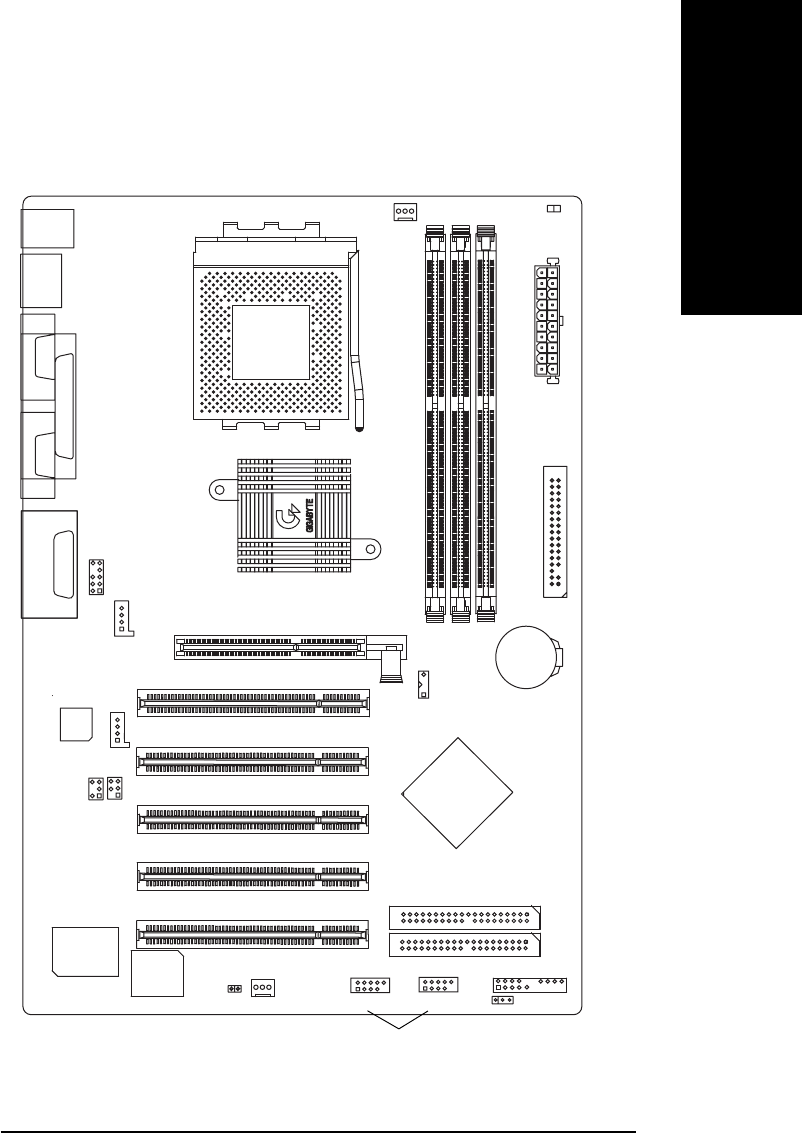
GA-7VA Motherboard Layout
GA-7VA
KB_MS
COMA
LPT
GAM E
LINE_OUT
MIC_IN USB
IT8705
AC97
BATTERY
BIOS SYS
FAN
VT8235
KT400A
SOCKET A
CPU
FAN
ATX
FLOPPY
IDE1
IDE2
PCI1
PCI2
PCI3
PCI4
DDR1
AGP
SW1
F_USB1
LINE_IN COMB
CD_IN
PCI5
DDR2
DDR3
F_AUDIO
CI F_PANEL
F_USB2
AUX_IN
SUR_CEN SPDIF_IO
USB 2.0
PWR_LED
RAM_LED
- 8 -GA-7VA Motherboard
English
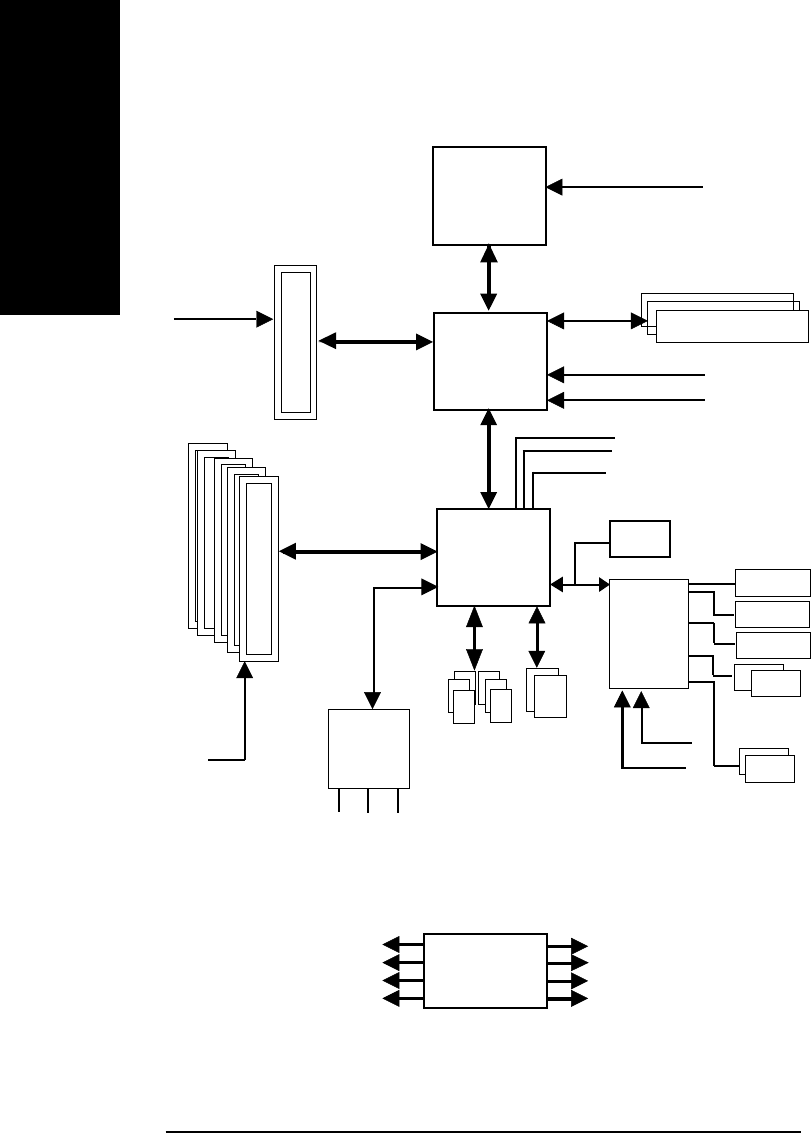
Block Diagram
VIA
KT400A
VIA
VT8235
CPUCLK+/- (100/133/166MHz)
System Bus100/133/166 MHz
DDR RAM
HCLK+/- (100/133/166MHz)
AGPCLK66MHz
33 MHz
14.318 MHz
48 MHz
AGP 2X/4X/8X
AGPCLK
(66MHz)
5 PCI
PCICLK
(33MHz)
AC97 Link
6 USB
Ports
ATA66/100/133
IDE Channels
CLK
GEN
HCLK+/- (100/133/166MHz)
CPUCLK+/- (100/133/166MHz)
AGPCLK (66MHz)
PCICLK (33MHz)
USBCLK (48MHz)
14.318 MHz
33 MHz
IT8705
24 MHz
33 MHz
Game Port
Floppy
LPT Port
PS/2 KB/Mouse
COM
Ports
AC97
CODEC
MIC
LINE-IN
LINE-OUT
AMD-K7TM
BIOS
66MHz V_Link
V_Link (66MHz)
- 9 - Hardware Installation Process
English
Chapter 2 Hardware Installation Process
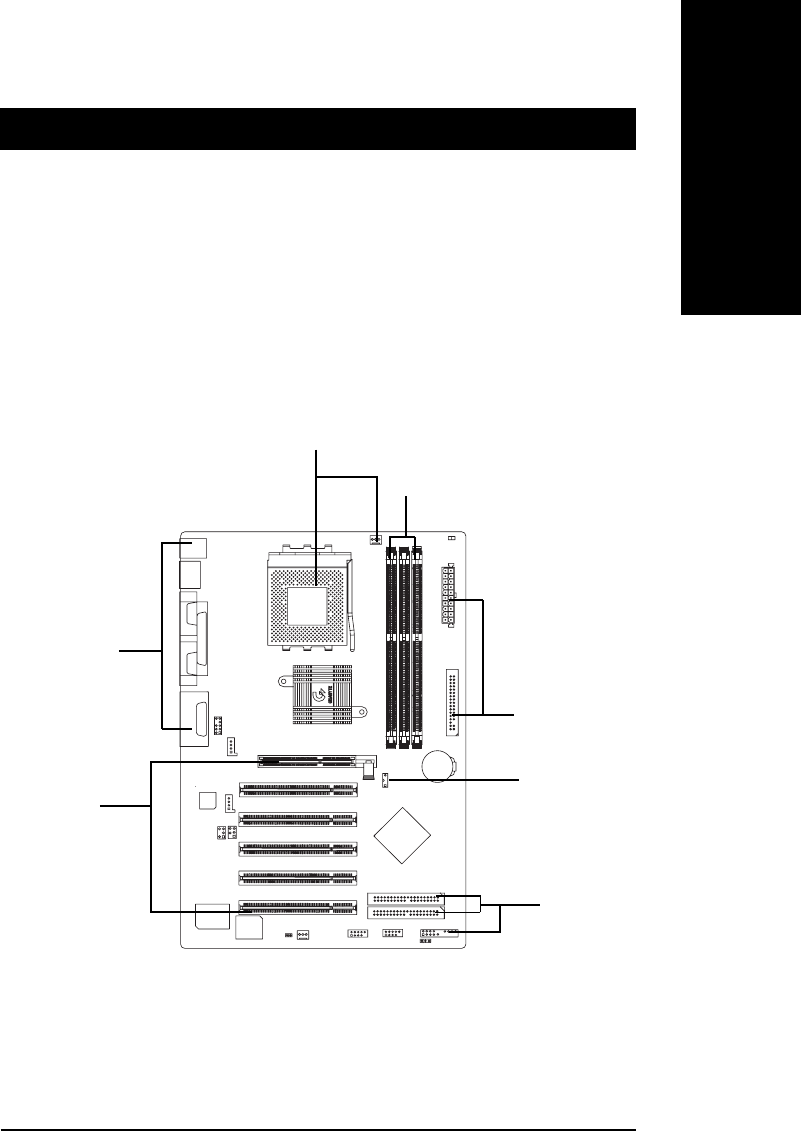
To set up your computer, you must complete the following steps:
Step 1- Set Dip Switch (CK_RATIO) and system Switch (SW1)
Step 2- Install the Central Processing Unit (CPU)
Step 3- Install memory modules
Step 4- Install expansion cards
Step 5- Connect ribbon cables, cabinet wires, and power supply
Step 6- Setup BIOS software
Step 7- Install supporting software tools
Congratulations you have accomplished the hardware installation!
Turn on the power supply or connect the power cable to the power outlet. Continue with
the BIOS/software installation.
Step 3
Step 1
Step 4
Step 5
Step 5
Step 2
Step 5
- 10 -GA-7VA Motherboard
English
Step 1: Install the Central Processing Unit (CPU)
Step1-1: CPU Speed Setup
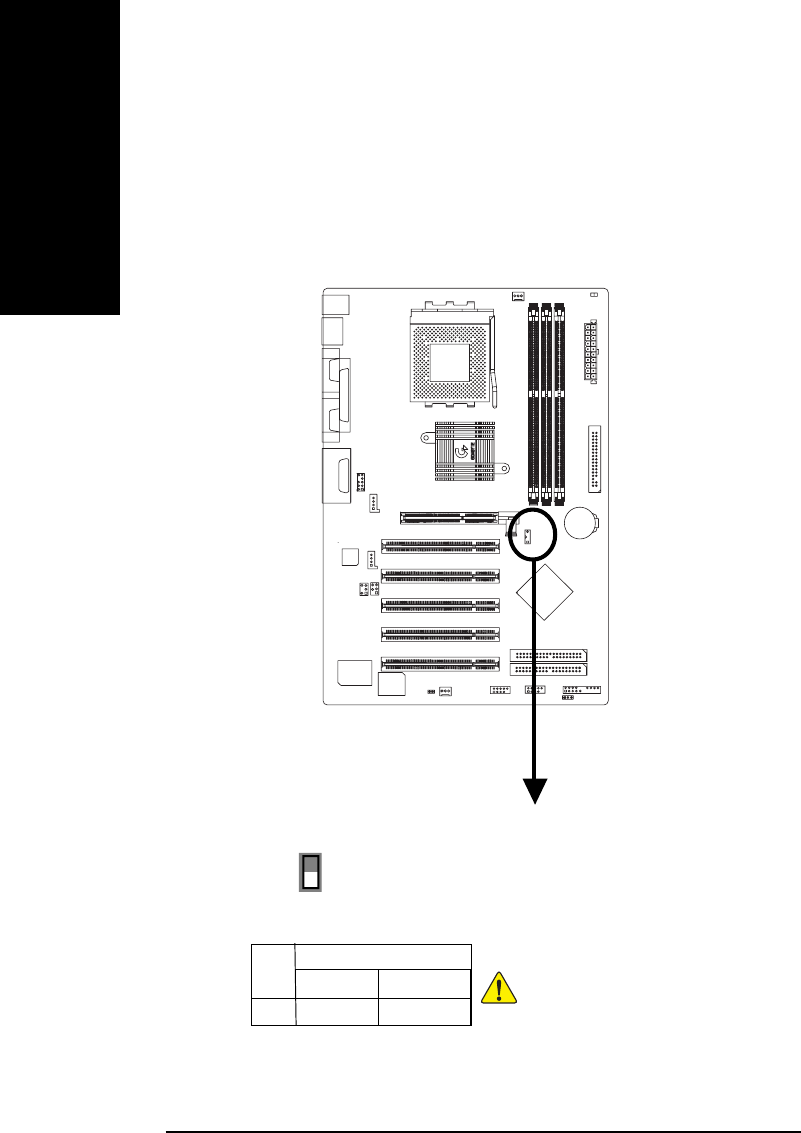
The system bus frequency can be switched at 100/133/166MHz by adjusting system switch (SW1).
(The internal frequency depend on CPU.)
O: ON / X :OFF
SW1 CPU CLOCK
100MHz Auto
1 ON OFF
SW1
1
ON
Default Setting: 100MHz
You must set SW1 to 100MHz when
you used FSB 200MHz CPU.
100MHz : Fix FSB 200MHz CPU
Auto : Support FSB 266/333 MHz CPU
- 11 - Hardware Installation Process
English
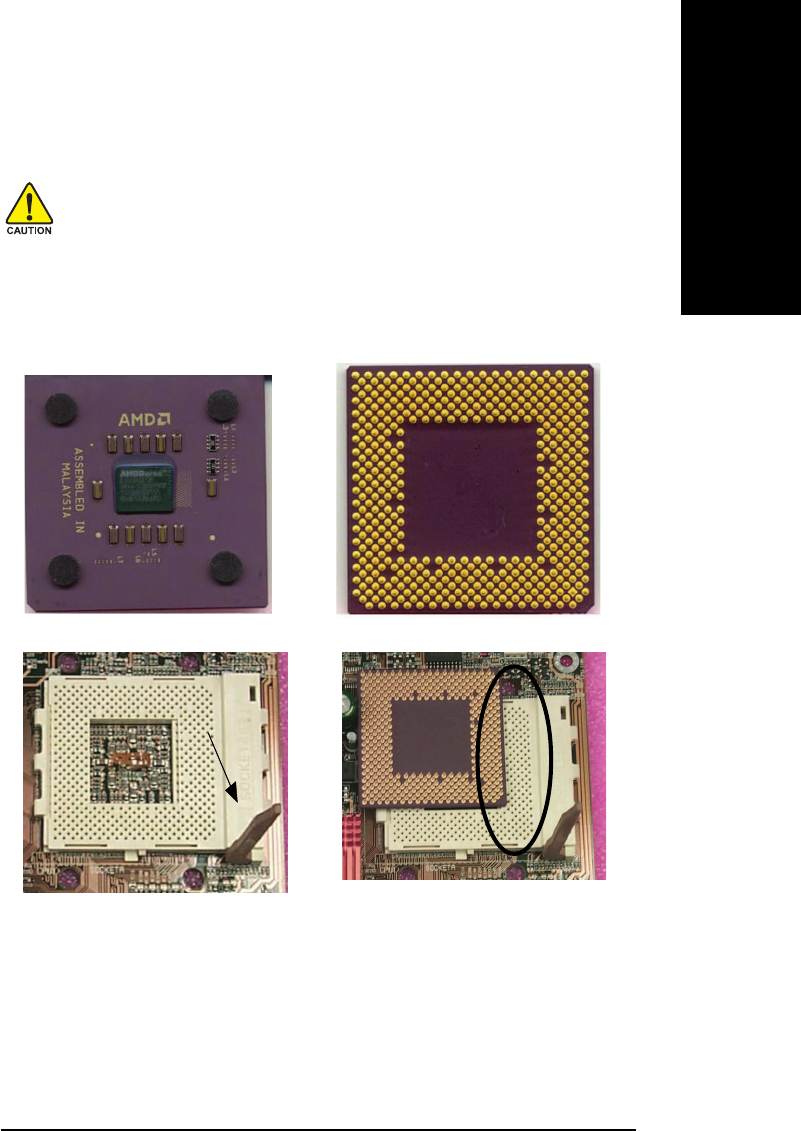
Step1-2: CPU Installation
CPU Top View CPU Bottom View
Socket Actuation Lever
1. Pull up the CPU socket lever
and up to 90-degree angle.
Pin1 indicator
2. Locate Pin 1 in the socket and look
for a (golden) cut edge on the CPU
upper corner. Then insert the CPU
into the socket.
Before installing the processor, adhere to the following warning:
1.Please make sure the CPU type is supported by the motherboard.
2.If you do not match the CPU socket Pin 1 and CPU cut edge well, it will
cause improper installation. Please change the insert orientation.
- 12 -GA-7VA Motherboard
English
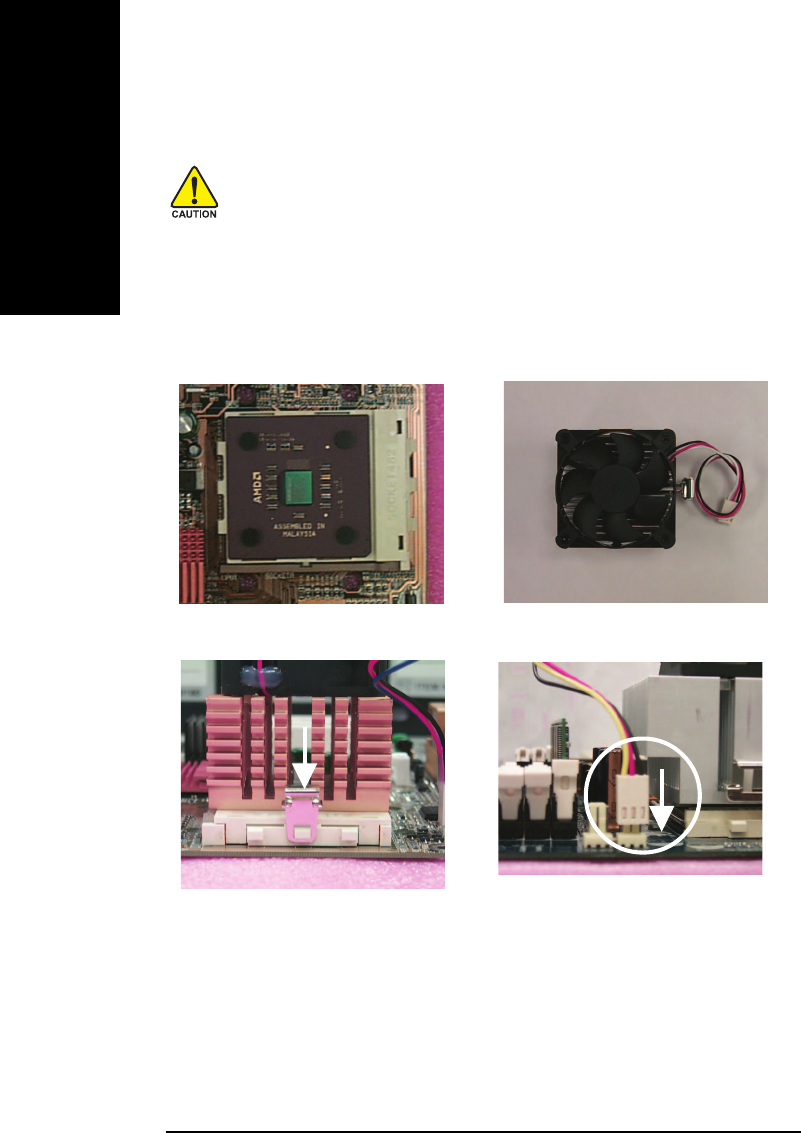
Step1-3:CPU Heat Sink Installation
3. Fasten the heatsink supporting-base
onto the CPU socket on the main-
board.
2. Use qualified fan approved by AMD.
4. Make sure the CPU fan is
plugged to the CPU fan connector,
than install complete.
1. Press down the CPU socket
lever and finish CPU installation.
1.Please use AMD approved cooling fan.
2.We recommend you to apply the thermal paste to provide better heat
conduction between your CPU and Cooling Fan.
3.Make sure the CPU fan power cable is plugged in to the CPU fan connector, this
completes the installation.
Please refer to CPU cooling fan user's manual for more detail installation procedure.
Before installing the CPU Heat Sink , adhere to the following warning:
- 13 - Hardware Installation Process
English
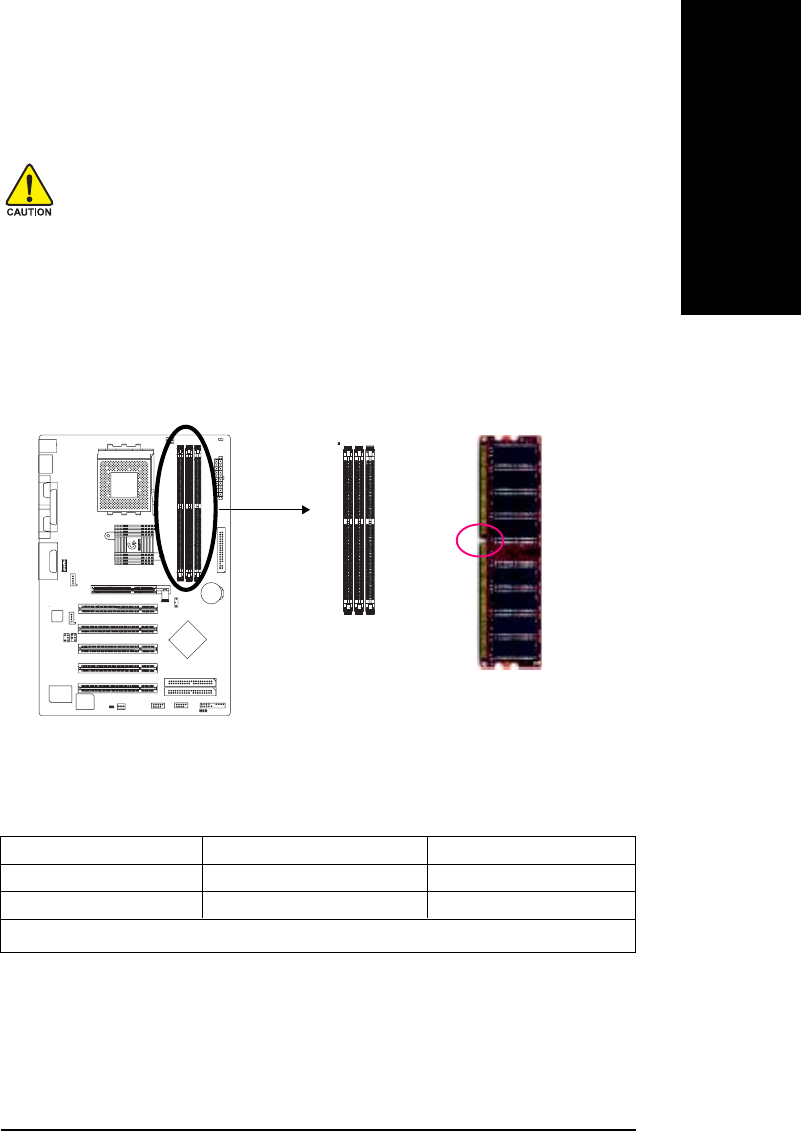
Step 2: Install memory modules
DDR
Notch
Before installing the memory modules, adhere to the following warning:
1. When DIMM LED is ON, do not install / remove DIMM from socket.
2.Please note that the DIMM module can only fit in one direction due to the one
notch. Wrong orientation will cause improper installation. Please change the
insert orientation.
The motherboard has 3 dual inline memory module(DIMM) sockets. The BIOS will automatically
detects memory type and size. To install the memory module, just push it vertically into the DIMM Slot.
The DIMM module can only fit in one direction due to the notch. Memory size can vary between sockets.
Support Unbuffered DDR DIMM Sizes type:
64 Mbit (2Mx8x4 banks) 64 Mbit (1Mx16x4 banks) 128 Mbit(4Mx8x4 banks)
128 Mbit(2Mx16x4 banks) 256 Mbit(8Mx8x4 banks) 256 Mbit(4Mx16x4 banks)
512 Mbit(16Mx8x4 banks) 512 Mbit(8Mx16x4 banks)
Total System Memory (Max3GB)
- 14 -GA-7VA Motherboard
English
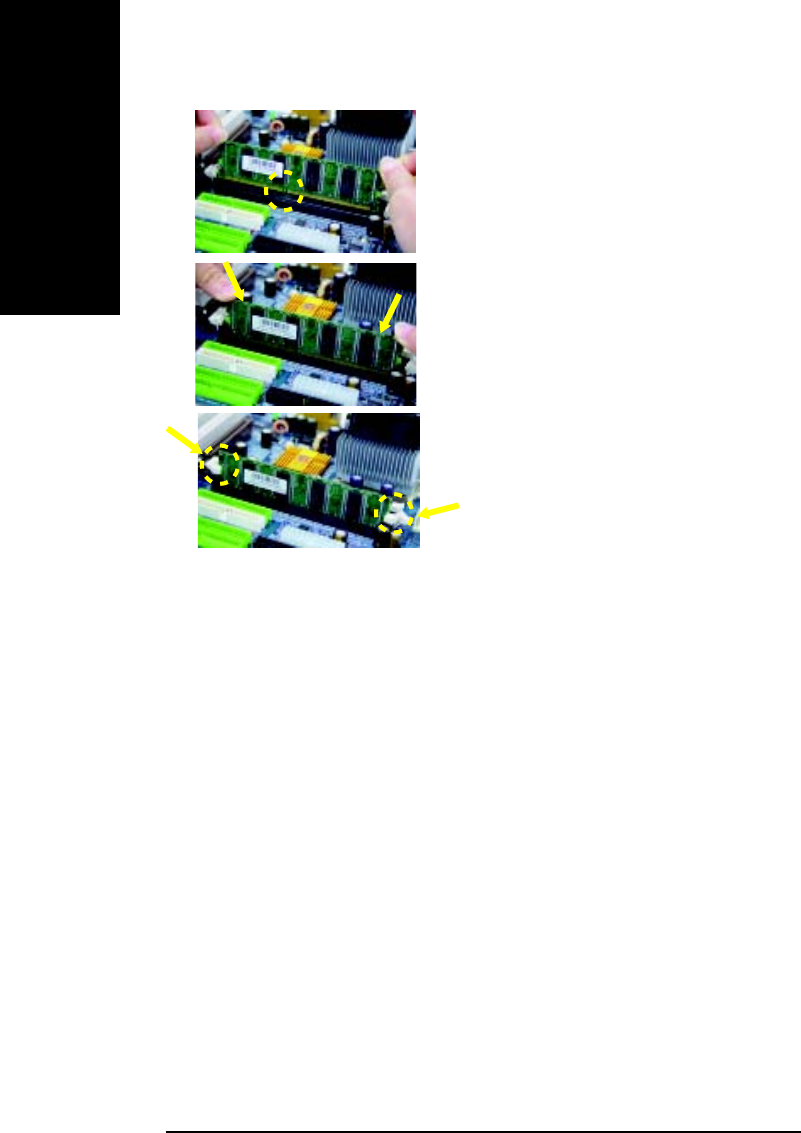
1. The DIMM slot has a notch, so the DIMM
memory module can only fit in one direction.
2. Insert the DIMM memory module vertically into
the DIMM slot. Then push it down.
3. Close the plastic clip at both edges of the DIMM
slots to lock the DIMM module.
Reverse the installation steps when you wish
to remove the DIMM module.
DDR Introduction
Established on the existing SDRAM infrastructure, DDR (Double Data Rate) memory is a high
performance and cost-effective solution that allows easy adoption for memory vendors, OEMs, and
system integrators.
DDR memory is a great evolutionary solution for the PC industry that builds on the existing SDRAM
architecture, yet make the awesome advances in solving the system performance bottleneck by doubling
the memory bandwidth. Nowadays, with the highest bandwidth of 3.2GB/s of DDR400 memory and
complete line of DDR400/333/266/200 memory solutions, DDR memory is the best choice for building
high performance and low latency DRAM subsystem that are suitable for servers, workstations, and full
range of desktop PCs.
- 15 - Hardware Installation Process
English
Step 3: Install expansion cards
AGP Card
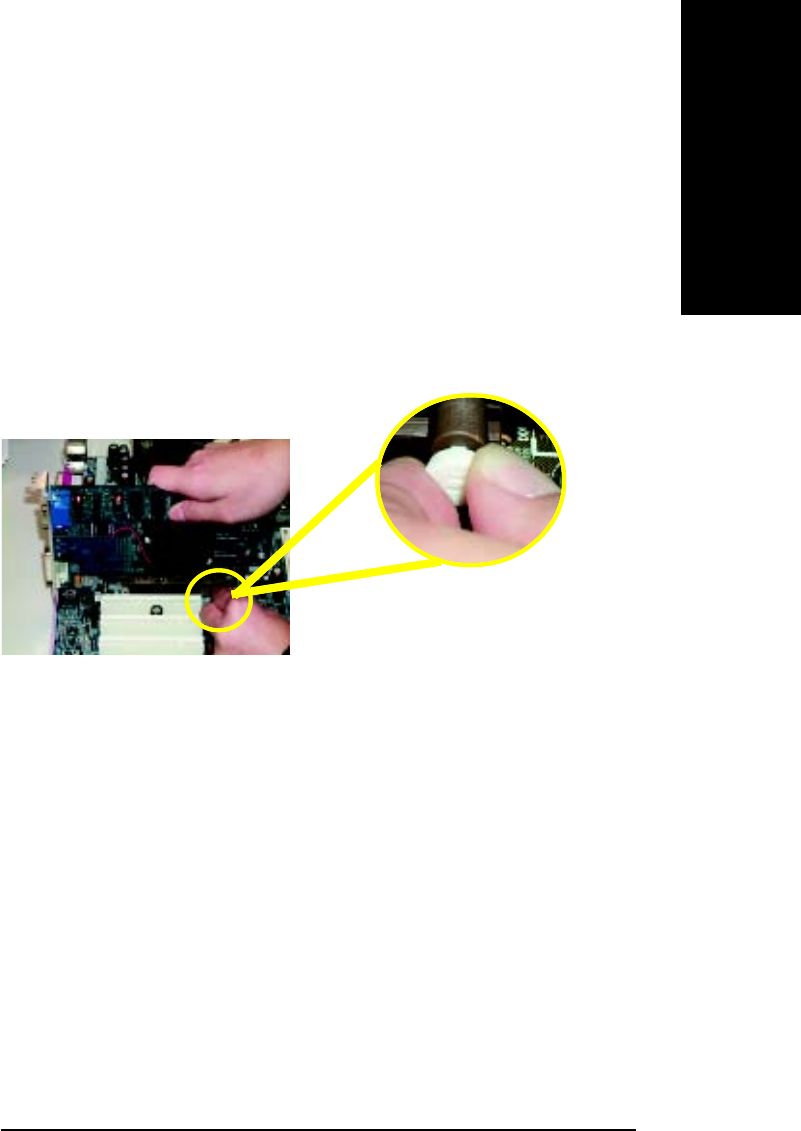
Please carefully pull out the small white-
drawable bar at the end of the AGP slot when
you try to install/ Uninstall the AGP card.
Please align the AGP card to the onboard
AGP slot and press firmly down on the slot .
Make sure your AGP card is locked by the
small white- drawable bar.
1. Read the related expansion card’s instruction document before install the expansion card into
the computer.
2. Remove your computer’s chassis cover, necessary screws and slot bracket from the computer.
3. Press the expansion card firmly into expansion slot in motherboard.
4. Be sure the metal contacts on the card are indeed seated in the slot.
5. Replace the screw to secure the slot bracket of the expansion card.
6. Replace your computer’s chassis cover.
7. Power on the computer, if necessary, setup BIOS utility of expansion card from BIOS.
8. Install related driver from the operating system.
- 16 -GA-7VA Motherboard
English
Step 4: Connect ribbon cables, cabinet wires, and power
supply
Step4-1 : I/O Back Panel Introduction
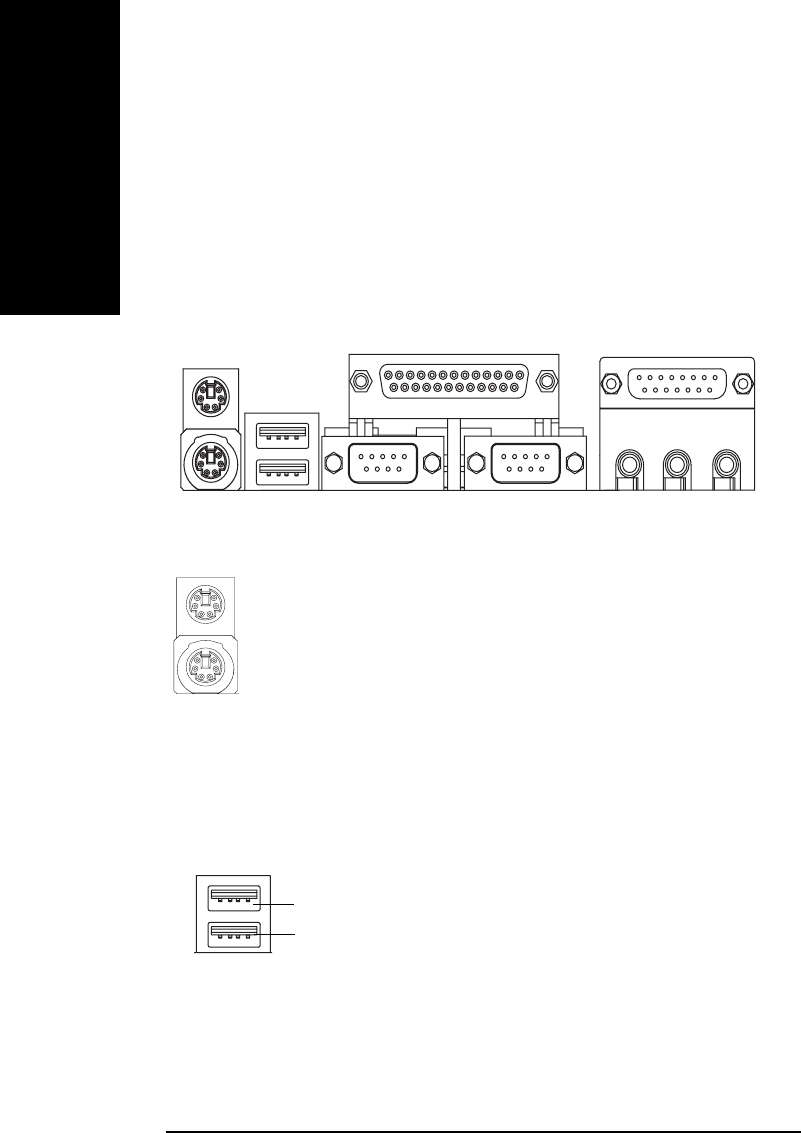
uu
uu
u PS/2 Keyboard and PS/2 Mouse Connector
PS/2 Mouse Connector
(6 pin Female)
PS/2 Keyboard Connector
(6 pin Female)
ØThis connector supports standard PS/2
keyboard and PS/2 mouse.
u
v
wx
y
vv
vv
vUSB Connector ØBefore you connect your device(s) into USB
connector(s), please make sure your device(s)
such as USB keyboard, mouse, scanner, zip,
speaker..etc. Have a standard USB interface.
Also make sure your OS supports USB
controller. If your OS does not support USB
controller, please contact OS vendor for
possible patch or driver upgrade. For more
information please contact your OS or device(s)
vendors.
USB 1
USB 0
- 17 - Hardware Installation Process
English
xx
xx
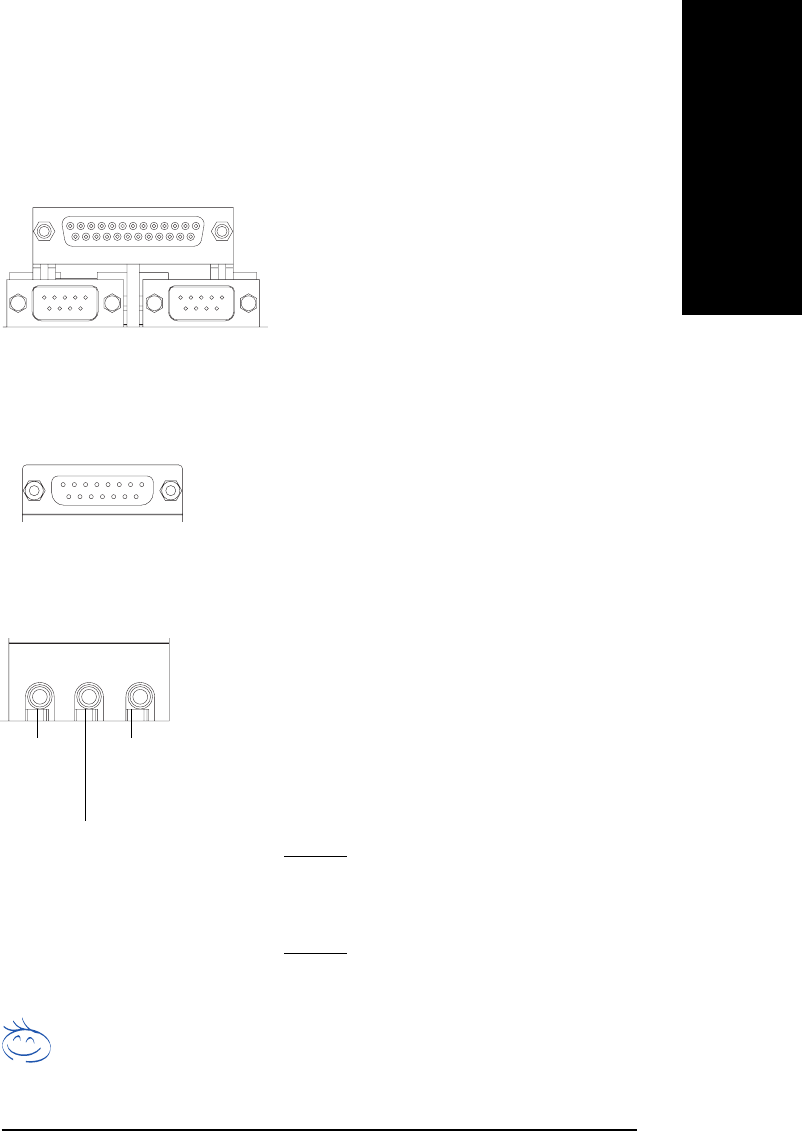
xGame /MIDI Ports
Joystick/ MIDI (15 pin Female)
yy
yy
yAudio Connectors
ØThis connector supports joystick, MIDI keyboard
and other relate audio devices.
Parallel Port
(25 pin Female)
COMA
ww
ww
wParallel Port ,VGA port and Serial Ports (COMA)
COMB
Serial Ports (9 pin Male)
ØThis connector supports 2 standard COM ports and 1
Parallel port. Device like printer can be connected to
Parallel port ; mouse and modem etc can be connected
to Serial ports.
Ø After install onboard audio driver, you may connect
speaker to Line Out jack, micro phone to MIC In jack.
Device like CD-ROM , walkman etc can be connected
to Line-In jack.
Please note:
You are able to use 2-/4-/6- channel audio feature by
S/W selection.
If you want to enable 6-channel function, you have 2
choose for hardware connection.
Method1:
Connect “Front Speaker” to “Line Out”
Connect “Rear Speaker” to “Line In”
Connect “Center and Subwooferr” to “MIC Out “.
Method2:
You can refer to page 24, and contact your nearest dealer
for optional SUR_CEN cable.
If you want the detail information for 2-/4-/6-channel audio setup installation, please
refer to “2-/4-/6-Channel Audio Function Introduction”
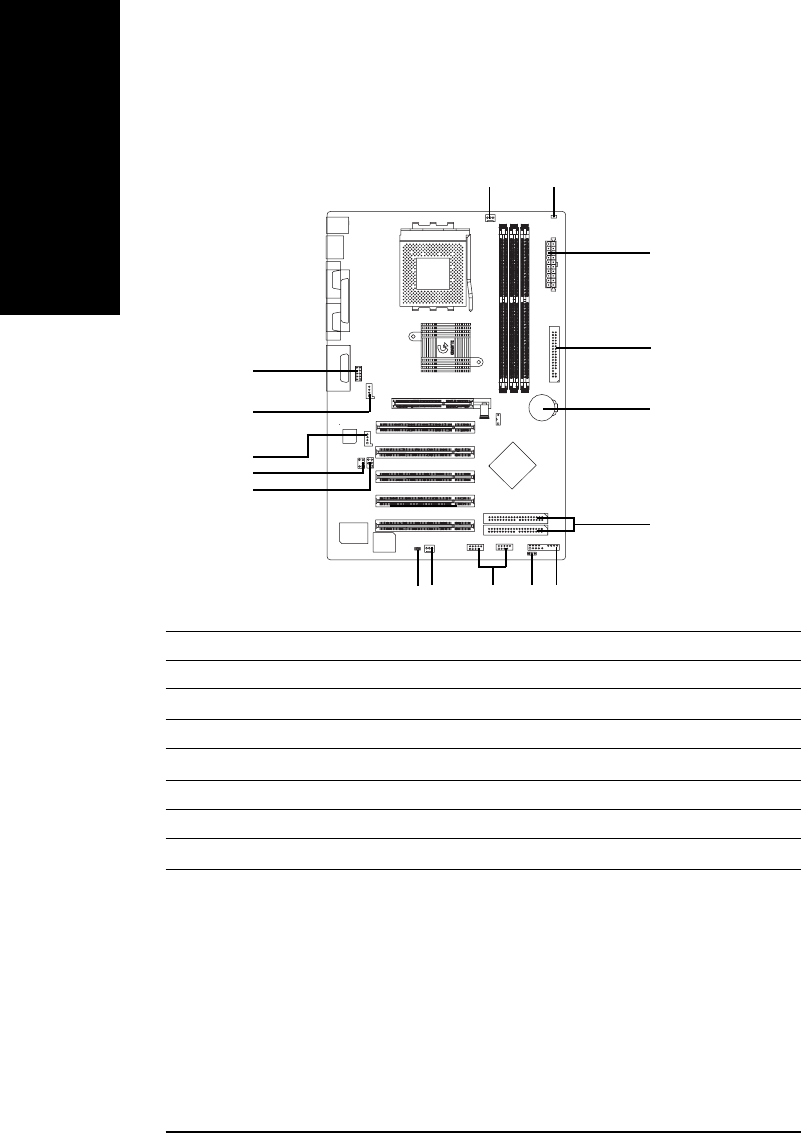
MIC In
(Center and Subwoofer)
Line Out
(Front
Speaker)
Line In
(Rear Speaker)
- 18 -GA-7VA Motherboard
English
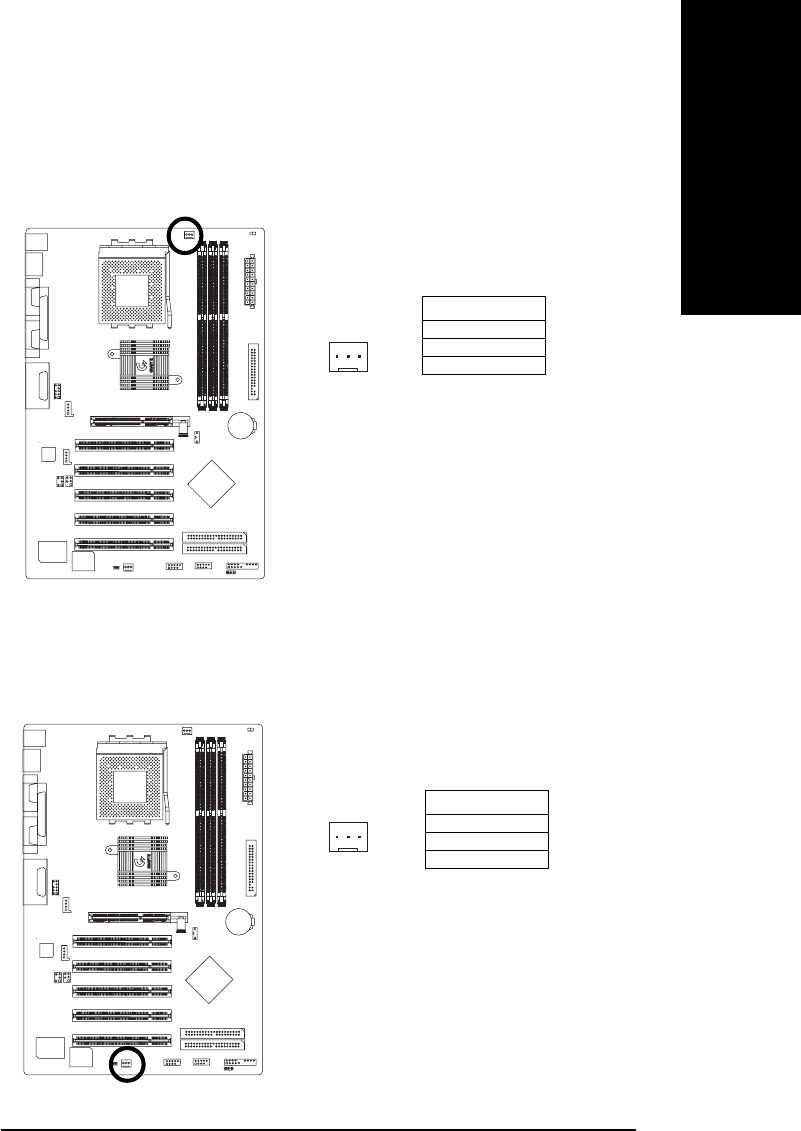
Step4-2 : Connectors Introduction
16
11
14
1) CPU_FAN
2) SYS_FAN
3) ATX_POWER
4) IDE1/IDE2
5) FDD
6) RAM_LED
7) PWR_LED
8) F_PANEL
6
5
3
1
4
12
10
9) BATTERY
10) F_AUDIO
11) SUR_CEN
12) CD_IN
13) AUX_IN
14) SPDIF_IO
15) F_USB1/F_USB2
16) CI
215
13
7
9
8
- 19 - Hardware Installation Process
English
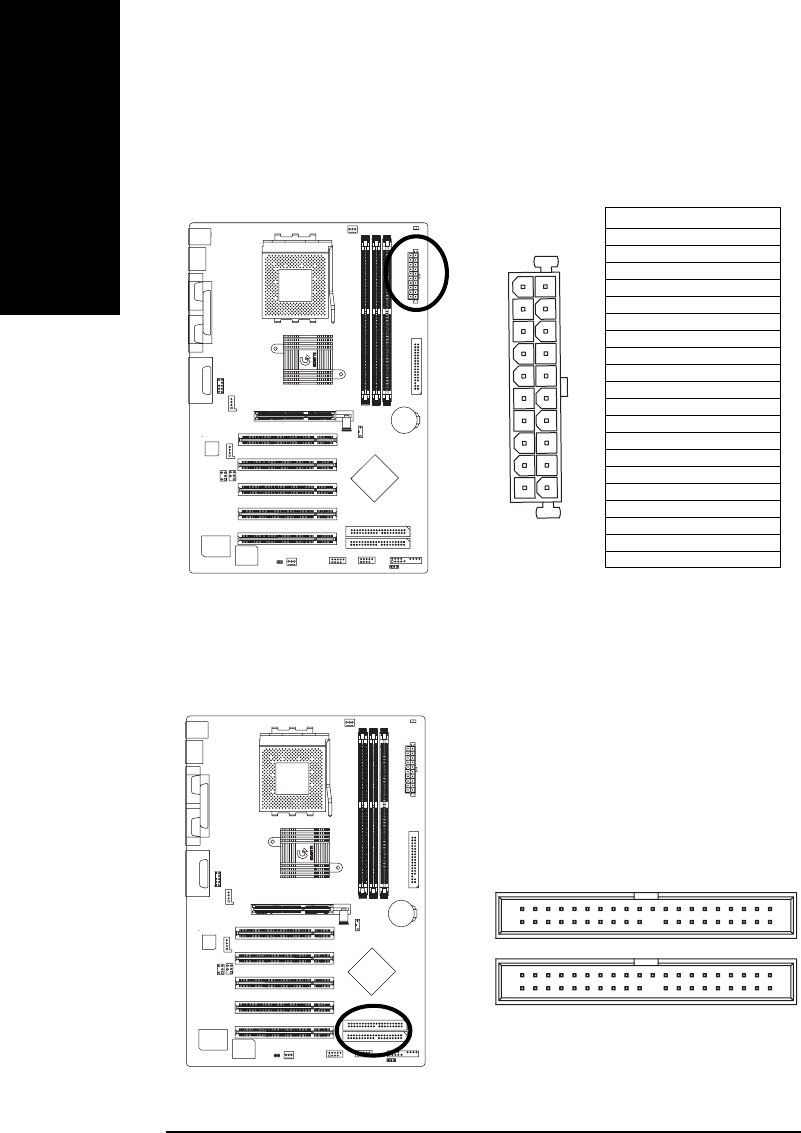
1) CPU_FAN (CPU FAN Connector)
Please note, a proper installation of the CPU cooler is essential to prevent the CPU from running
under abnormal condition or damaged by overheating.The CPU fan connector supports Max.
current up to 600 mA.
1
2) SYS_FAN (System FAN Connector)
This connector allows you to link with the cooling fan on the system case to lower the system
temperature.
Pin No. Definition
1 GND
2 +12V
3 Sense
Pin No. Definition
1 GND
2 +12V
3 Sense
1
- 20 -GA-7VA Motherboard
English
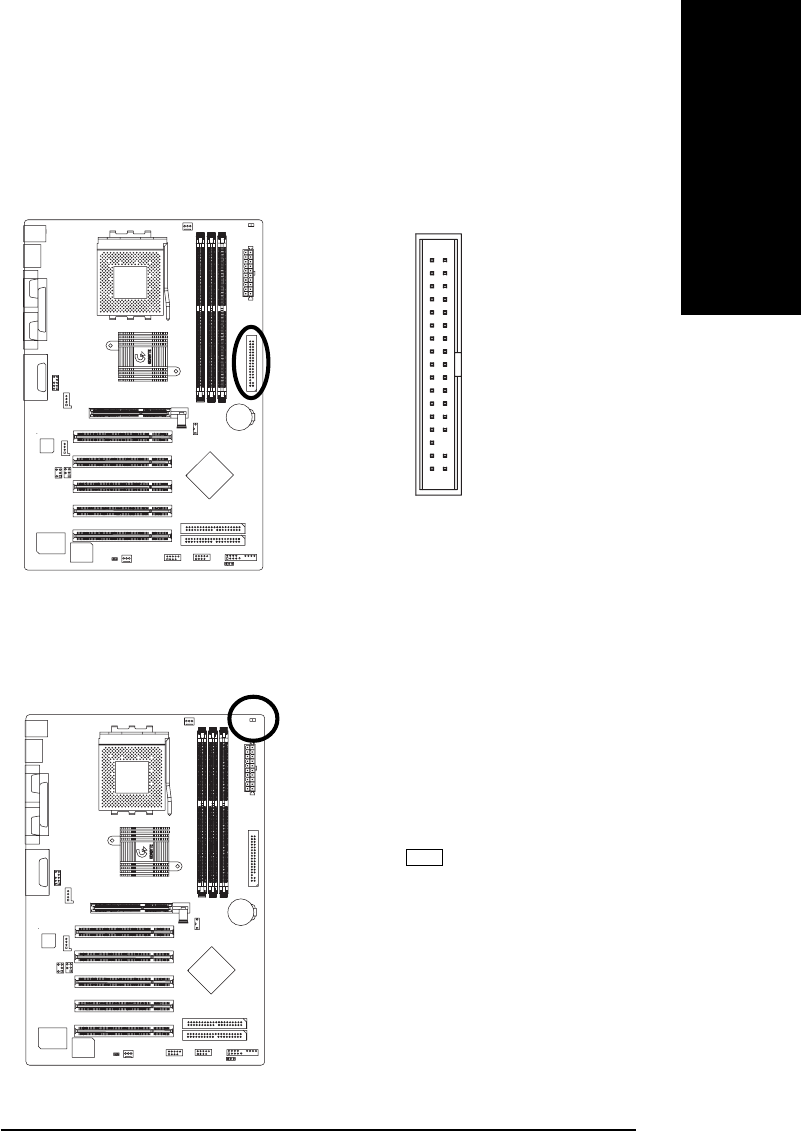
3) ATX_POWER (ATX Power)
AC power cord should only be connected to your power supply unit after ATX power cable and
otherrelated devices are firmly connected to the mainboard.
Pin No. Definition
1 3.3V
2 3.3V
3 GND
4 VCC
5 GND
6 VCC
7 GND
8 Power Good
95V SB(stand by +5V)
10 +12V
11 3.3V
12 -12V
13 GND
14 PS_ON(softOn/Off)
15 GND
16 GND
17 GND
18 -5V
19 VCC
20 VCC
20
111
10
4) IDE1/ IDE2(IDE1/IDE2 Connector)
Please connect first harddisk to IDE1 and connect CDROM to IDE2. The red stripe of the ribbon
cable must be the same side with the Pin1.
IDE1
IDE2
40
2
39
1
- 21 - Hardware Installation Process
English
5) FDD (Floppy Connector)
Please connect the floppy drive ribbon cables to FDD. It supports 360K,720K,1.2M,1.44M and
2.88Mbytes floppy disk types. The red stripe of the ribbon cable must be the same side with the
Pin1.
1
34
2
33
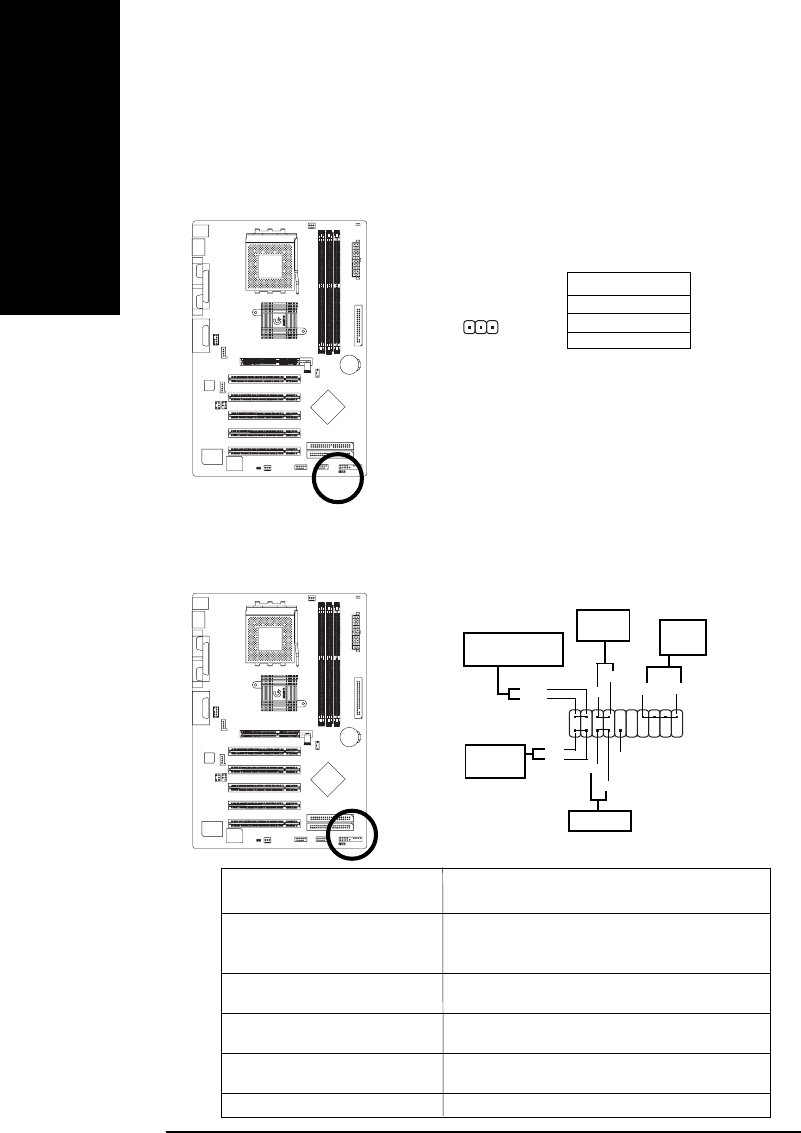
6) RAM_LED
Do not remove memory modules while DIMM LED is on. It might cause short or other
unexpected damages due to the 2.5V stand by voltage. Remove memory modules only when AC
Power cord is disconnected.
+-
- 22 -GA-7VA Motherboard
English
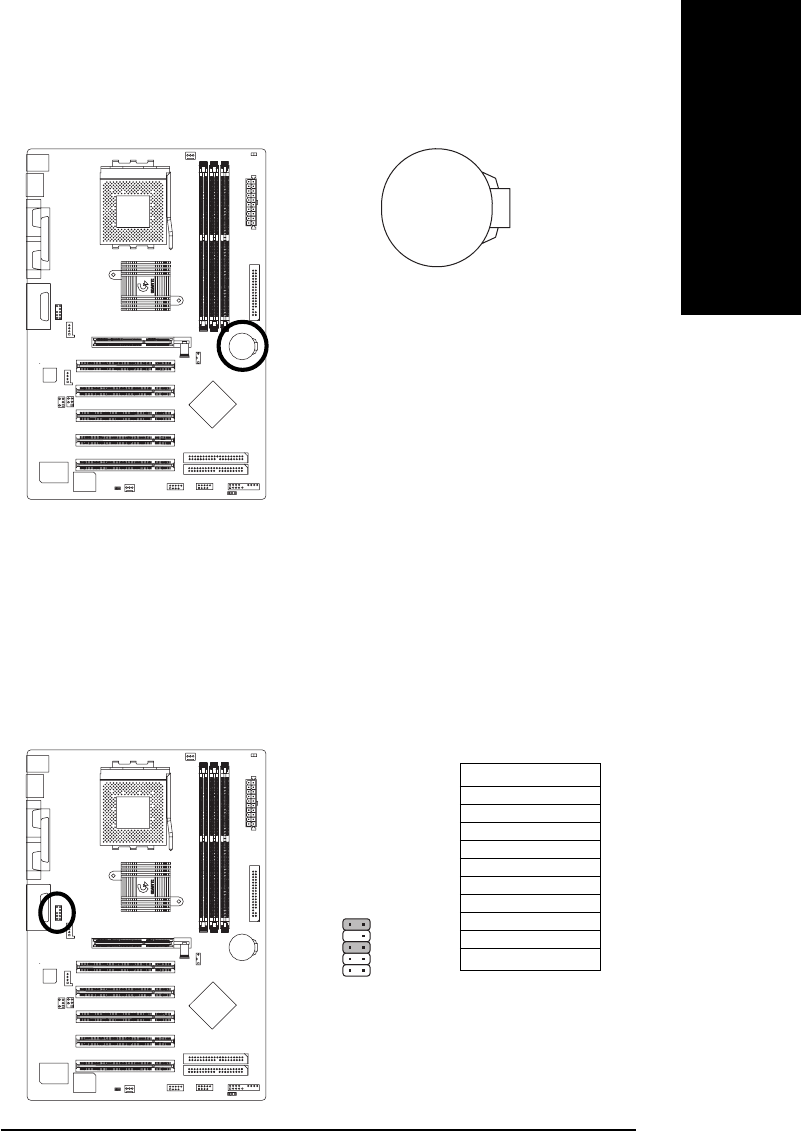
7) PWR_LED
PWR_LED is connect with the system power indicator to indicate whether the system is on/off. It
will blink when the system enters suspend mode. If you use dual color LED, power LED will turn
to another color.
1
Pin No. Definition
1 MPD+
2 MPD-
3 MPD-
1
HD+
SPK-
19
HD-
SPK+
20
211
Speaker
Connector
Soft Power
Connector
111
MSG+
MSG-
Message LED/Power/
Sleep LED
PW-
PW+
IDE Hard Disk
Active LED
RES+
RES-
Reset Switch
NC
8) F_PANEL (2x10 pins connector)
Please connect the power LED, PC peaker, reset switch and power switch etc of your
chassis front panel to the F_PANEL connector according to the pin assignment above.
HD (IDE Hard Disk Active LED) Pin 1: LED anode(+)
(Blue) Pin 2: LED cathode(-)
SPK (Speaker Connector) Pin 1: VCC(+)
(Amber) Pin 2- Pin 3: NC
Pin 4: Data(-)
RES (Reset Switch) Open: Normal Operation
(Green) Close: Reset Hardware System
PW (Soft Power Connector) Open: Normal Operation
(Red) Close: Power On/Off
MSG(Message LED/Power/ Pin 1: LED anode(+)
Sleep LED)(Yellow) Pin 2: LED cathode(-)
NC( Purple) NC
- 23 - Hardware Installation Process
English
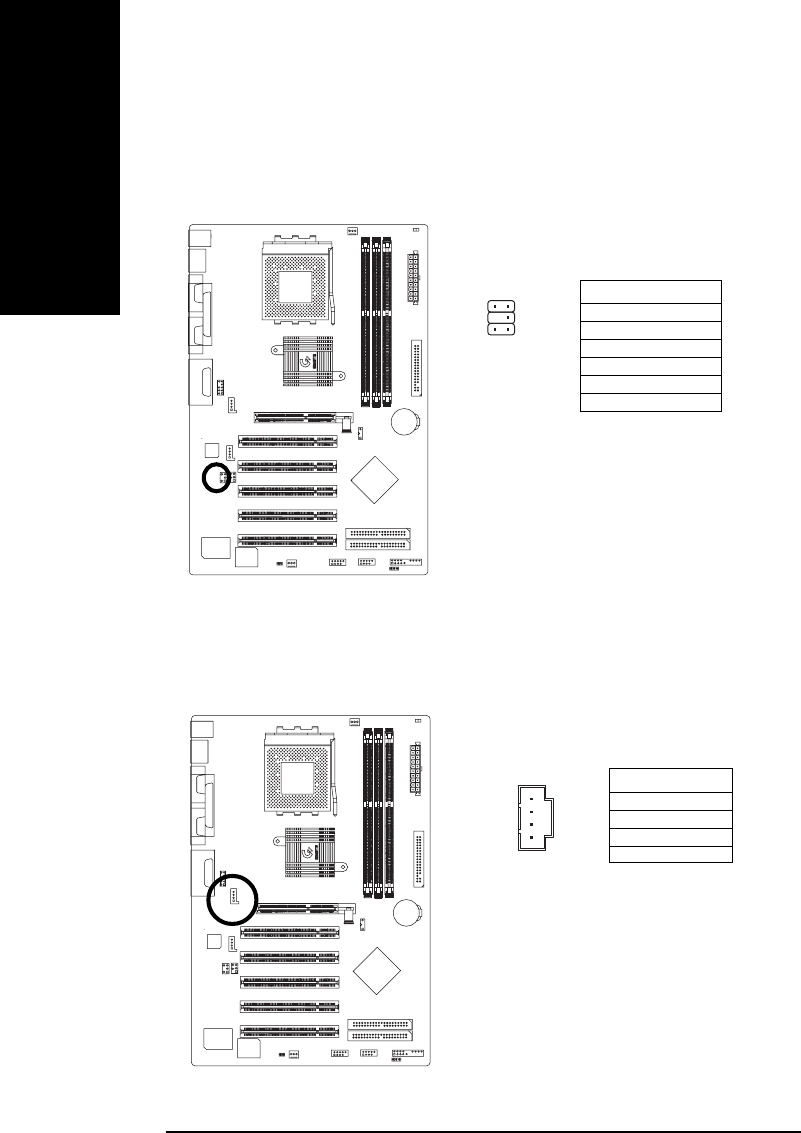
9) BATTERY (Battery)
CAUTION
vDanger of explosion if battery is incorrectly
replaced.
vReplace only with the same or equivalent
type recommended by the manufacturer.
vDispose of used batteries according to the
manufacturer’s instructions.
If you want to erase CMOS...
1.Turn OFF the computer and unplug the power
cord.
2.Remove the battery, wait for 30 second.
3.Re-install the battery.
4.Plug the power cord and turn ON the
computer.
+
10) F_AUDIO (F_AUDIO Connector)
If you want to use Front Audio connector, you must remove 5-6, 9-10 Jumper. In order to utilize the
front audio header, your chassis must have front audio connector. Also please make sure the pin
assigment on the cable is the same as the pin assigment on the MB header. To find out if the chassis
you are buying support front audio connector, please contact your dealer.
Pin No. Definition
1 MIC
2 GND
3 REF
4 POWER
5 FrontAudio(R)
6 RearAudio(R)
7 Reserved
8 No Pin
9 FrontAudio (L)
10 RearAudio(L)
1
10
2
9
- 24 -GA-7VA Motherboard
English
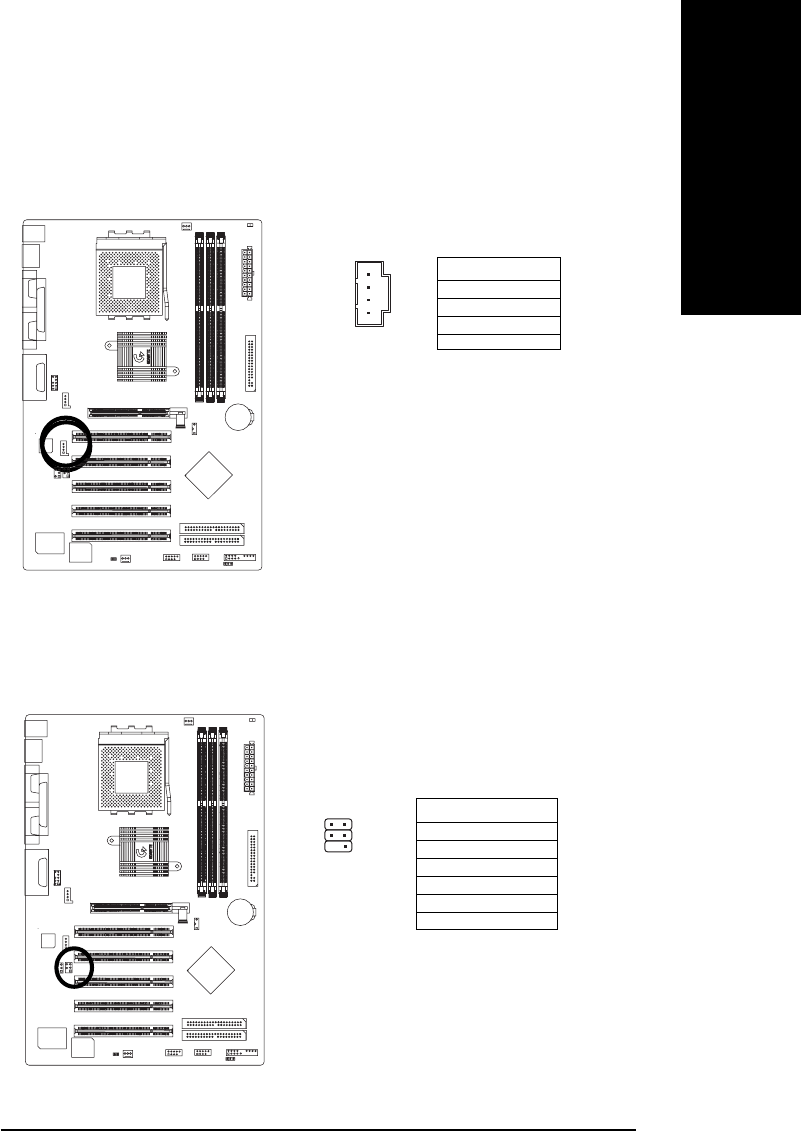
11) SUR_CEN
Please contact your nearest dealer for optional SUR_CEN cable.
Pin No. Definition
1 SUR OUTL
2 SUR OUTR
3 GND
4 No Pin
5 CENTER_OUT
6 BASS_OUT
1
6
25
12) CD_IN (CD IN,Blank)
Connect CD-ROM or DVD-ROM audio out to the connector.
Pin No. Definition
1 CD-L
2 GND
3 GND
4 CD_R
1
- 25 - Hardware Installation Process
English
13) AUX_IN ( AUX In Connector)
Connect other device(such as PCI TV Tunner audio out)to the connector.
1
Pin No. Definition
1 AUX-L
2 GND
3 GND
4 AUX_R
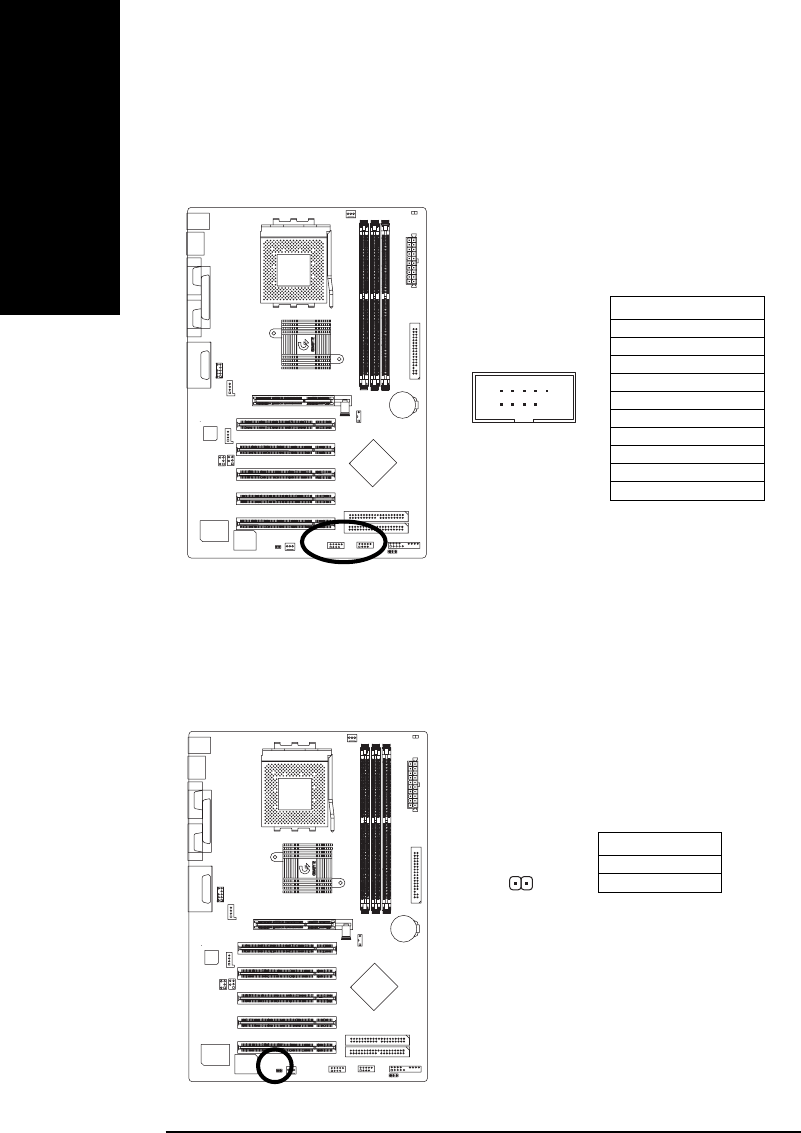
14) SPDIF_IO (SPDIF In/Out)
The SPDIF output is capable of providing digital audio to external speakers or compressed AC3
data to an external Dolby Digital Decoder. Use this feature only when your stereo system has
digital input function.
Pin No. Definition
1 VCC
2 No Pin
3 SPDIF
4 SPDIFI
5 GND
6 GND
1
6
25
- 26 -GA-7VA Motherboard
English
15) F_ USB1 / F_USB2(Front USB Connector, Yellow )
Be careful with the polarity of the front USB connector. Check the pin assignment while you
connect the front USB cable. Please contact your nearest dealer for optional front USB
cable.
1
Pin No. Definition
1 Power
2 Power
3 USB DX-
4 USB Dy-
5 USB DX+
6 USB Dy+
7 GND
8 GND
9 No Pin
10 USB Over Current
2
9
10
16) CI (CASE OPEN)
This 2 pin connector allows your system to enable or disable the “case open” item in BIOS
if the system case begin remove.
1
Pin No. Definition
1 Signal
2 GND

- 27 - Hardware Installation Process
English

- 28 -GA-7VA Motherboard
English
BIOS Setup
- 29 -
English
<á> Move to previous item
<â> Move to next item
<ß> Move to the item in the left hand
<à> Move to the item in the right hand
<Esc> Main Menu - Quit and not save changes into CMOS Status Page Setup Menu and
Option Page Setup Menu - Exit current page and return to Main Menu
<+/PgUp> Increase the numeric value or make changes
<-/PgDn> Decrease the numeric value or make changes
<F1> General help, only for Status Page Setup Menu and Option Page Setup Menu
<F2> Item help
<F3> Reserved
<F4> Reserved
<F5> Restore the previous CMOS value from CMOS, only for Option Page Setup Menu
<F6> Load the default CMOS value from BIOS default table, only for Option Page Setup
Menu
<F7> Load the Setup Defaults
<F8> Q-Flash
<F9> Reserved
<F10> Save all the CMOS changes, only for Main Menu
BIOS Setup is an overview of the BIOS Setup Program. The program that allows users to modify
the basic system configuration. This type of information is stored in battery-backed CMOS RAM so
that it retains the Setup information when the power is turned off.
ENTERING SETUP
After power on the computer, pressing <Del> immediately during POST (Power On Self Test) it will allow you to
enter standard BIOS CMOS SETUP.
If you require more advanced BIOS settings, please go to “Advanced BIOS” setting menu.To enter
Advanced BIOS setting menu, press “Ctrl+F1” key on the BIOS screen.
CONTROL KEYS
Chapter 3 BIOS Setup
- 30 -GA-7VA Motherboard
English
ll
ll
lStandard CMOS Features
This setup page includes all the items in standard compatible BIOS.
ll
ll
lAdvanced BIOS Features
This setup page includes all the items of Award special enhanced features.
ll
ll
lIntegrated Peripherals
This setup page includes all onboard peripherals.
GETTING HELP
Main Menu
The on-line description of the highlighted setup function is displayed at the bottom of the screen.
Status Page Setup Menu / Option Page Setup Menu
Press F1 to pop up a small help window that describes the appropriate keys to use and the possible
selections for the highlighted item. To exit the Help Window press <Esc>.
The Main Menu (For example: BIOS Ver. : E1)
Once you enter Award BIOS CMOS Setup Utility, the Main Menu (Figure 1) will appear on the
screen. The Main Menu allows you to select from eight setup functions and two exit choices. Use
arrow keys to select among the items and press <Enter> to accept or enter the sub-menu.
Figure 1: Main Menu
CMOS Setup Utility-Copyright (C) 1984-2003 Award Software
}Standard CMOS Features Load Fail-Safe Defaults
}Advanced BIOS Features Load Optimized Defaults
}Integrated Peripherals Set Supervisor Password
}Power Management Setup Set User Password
}PnP/PCI Configurations Save & Exit Setup
}PC Health Status Exit Without Saving
}Frequency/Voltage Control
ESC:Quit higf: Select Item
F8:Q-Flash F10:Save & Exit Setup
Time, Date, Hard Disk Type...

BIOS Setup
- 31 -
English
ll
ll
lPower Management Setup
This setup page includes all the items of Green function features.
ll
ll
lPnP/PCI Configurations
This setup page includes all the configurations of PCI & PnP ISA resources.
ll
ll
lPC Health Status
This setup page is the System auto detect Temperature, voltage, fan, speed.
ll
ll
lFrequency/Voltage Control
This setup page is control CPU’s clock and frequency ratio.
ll
ll
lLoad Fail-Safe Defaults
Fail-Safe Defaults indicates the value of the system parameters which the system would
be in safe configuration.
ll
ll
lLoad Optimized Defaults
Optimized Defaults indicates the value of the system parameters which the system would
be in better performance configuration.
ll
ll
lSet Supervisor password
Change, set, or disable password. It allows you to limit access to the system and Setup,
or just to Setup.
ll
ll
lSet User password
Change, set, or disable password. It allows you to limit access to the system.
ll
ll
lSave & Exit Setup
Save CMOS value settings to CMOS and exit setup.
ll
ll
lExit Without Saving
Abandon all CMOS value changes and exit setup.
- 32 -GA-7VA Motherboard
English
Standard CMOS Features
CMOS Setup Utility-Copyright (C) 1984-2003 Award Software
Standard CMOS Features
Date (mm:dd:yy) Thu, Feb 21 2002 Item Help
Time (hh:mm:ss) 22:31:24 Menu Level u
}IDE Primary Master [Press Enter None] Change the day, month,
}IDE Primary Slave [Press Enter None] year
}IDE Secondary Master [Press Enter None] <Week>
}IDE Secondary Slave [Press Enter None] Sun. to Sat.
Drive A [1.44M, 3.5”] <Month>
Drive B [None] Jan. to Dec.
Floppy 3 Mode Support [Disabled] <Day>
1 to 31(or maximun allowed
Halt On [All, But Keyboard] in the month.)
Base Memory 640K <year>
Extended Memory 130048K 1999 to 2098
Total Memory 131072K
higf: Move Enter:Select +/-/PU/PD:Value F10:Save ESC:Exit F1:General Help
F5:Previous Values F6:Fail-Safe Defaults F7:Optimized Defaults
Figure 2: Standard CMOS Features
FF
FF
FDate
The date format is <week>, <month>, <day>, <year>.
8Week The week, from Sun to Sat, determined by the BIOS and is display only
8Month The month, Jan. Through Dec.
8Day The day, from 1 to 31 (or the maximum allowed in the month)
8Year The year, from 1999 through 2098
FF
FF
FTime
The times format in <hour> <minute> <second>. The time is calculated base on the 24-hour military-
time clock. For example, 1 p.m. is 13:00:00.

BIOS Setup
- 33 -
English
FF
FF
FIDE Primary Master, Slave / Secondary Master, Slave
The category identifies the types of hard disk from drive C to F that has been installed in the
computer. There are two types: auto type, and manual type. Manual type is user-definable; Auto
type which will automatically detect HDD type.
Note that the specifications of your drive must match with the drive table. The hard disk will not work
properly if you enter improper information for this category.
If you select User Type, related information will be asked to enter to the following items. Enter the
information directly from the keyboard and press <Enter>. Such information should be provided in
the documentation form your hard disk vendor or the system manufacturer.
8Capacity: The hard disk size. The unit is Mega Bytes.
8Access Mode: The options are: Auto / Large / LBA / Normal.
8Cylinder: The cylinder number of hard disk.
8Head The read / Write head number of hard disk.
8Precomp The cyliner number at which the disk driver changes the write current.
8Landing Zone The cylinder number that the disk driver heads(read/write) are seated when the
disk drive is parked.
8SECTORS The sector number of each track define on the hard disk.
If a hard disk has not been installed select NONE and press <Enter>.
FF
FF
FDrive A / Drive B
The category identifies the types of floppy disk drive A or drive B that has been installed in the
computer.
8None No floppy drive installed
8360K, 5.25 “. 5.25 inch PC-type standard drive; 360K byte capacity.
81.2M, 5.25”. 5.25 inch AT-type high-density drive; 1.2M byte capacity
(3.5 inch when 3 Mode is Enabled).
8720K, 3.5 “. 3.5 inch double-sided drive; 720K byte capacity
81.44M, 3.5 “. 3.5 inch double-sided drive; 1.44M byte capacity.
82.88M, 3.5 “. 3.5 inch double-sided drive; 2.88M byte capacity.
FF
FF
FFloppy 3 Mode Support (for Japan Area)
8Disabled Normal Floppy Drive. (Default value)
8Drive A Enabled 3 mode function of Drive A.
8Drive B Enabled 3 mode function of Drive B.
8Both Drive A & B are 3 mode Floppy Drives.

- 34 -GA-7VA Motherboard
English
FF
FF
FHalt on
The category determines whether the computer will stop if an error is detected during power up.
8NO Errors The system boot will not stop for any error that may be detected
and you will be prompted.
8All Errors Whenever the BIOS detects a non-fatal error the system will be stopped.
8All, But Keyboar The system boot will not stop for a keyboard error; it will stop for
all other errors. (Default value)
8All, But Diskette The system boot will not stop for a disk error; it will stop for all
other errors.
8All, But Disk/Key The system boot will not stop for a keyboard or disk error; it will
stop for all other errors.
Memory
The category is display-only which is determined by POST (Power On Self Test) of the BIOS.
Base Memory
The POST of the BIOS will determine the amount of base (or conventional) memory
installed in the system.
The value of the base memory is typically 512 K for systems with 512 K memory
installed on the motherboard, or 640 K for systems with 640 K or more memory
installed on the motherboard.
Extended Memory
The BIOS determines how much extended memory is present during the POST.
This is the amount of memory located above 1 MB in the CPU’s memory
address map.
BIOS Setup
- 35 -
English
Advanced BIOS Features
CMOS Setup Utility-Copyright (C) 1984-2003 Award Software
Advanced BIOS Features
First Boot Device [Floppy] Item Help
Second Boot Device [HDD-0] Menu Levelu
Third Boot Device [CDROM]
Password Check [Setup]
higf: Move Enter:Select +/-/PU/PD:Value F10:Save ESC:Exit F1:General Help
F5:Previous Values F6:Fail-Safe Defaults F7:Optimized Defaults
Figure 3: Advanced BIOS Features
FF
FF
FFirst / Second / Third Boot device
MThis feature allows you to select the boot device priority.
8Floppy Select your boot device priority by Floppy.
8LS120 Select your boot device priority by LS120.
8HDD-0~3 Select your boot device priority by HDD-0~3.
8SCSI Select your boot device priority by SCSI.
8CDROM Select your boot device priority by CDROM.
8LAN Select your boot device priority by LAN.
8USB-CDROM Select your boot device priority by USB-CDROM.
8USB-ZIP Select your boot device priority by USB-ZIP.
8USB-FDD Select your boot device priority by USB-FDD.
8USB-HDD Select your boot device priority by USB-HDD.
8ZIP Select your boot device priority by ZIP.
8Disabled Disabled this function.

- 36 -GA-7VA Motherboard
English
FF
FF
FPassword Check
8System The system can not boot and can not access to Setup page will be denied
if the correct password is not entered at the prompt.
8Setup The system will boot, but access to Setup will be denied if the correct
password is not entered at the prompt. (Default value)

BIOS Setup
- 37 -
English
CMOS Setup Utility-Copyright (C) 1984-2003 Award Software
Integrated Peripherals
OnChip IDE Channel0 [Enabled] Item Help
OnChip IDE Channel1 [Enabled] Menu Levelu
AC97 Audio [Enabled]
USB 1.1 Controller [Enabled]
USB 2.0 Controller [Enabled]
USB Keyboard Support [Disabled]
USB Mouse Support [Disabled]
Onboard Serial Port 1 [3F8/IRQ4]
Onboard Serial Port 2 [2F8/IRQ3]
Onboard Parallel Port [378/IRQ7]
Parallel Port Mode [SPP]
Game Port Address [201]
Mdi Port Address [330]
Midi Port IRQ [5]
higf: Move Enter:Select +/-/PU/PD:Value F10:Save ESC:Exit F1:General Help
F5:Previous Values F6:Fail-Safe Defaults F7:Optimized Defaults
Integrated Peripherals
Figure 4: Integrated Peripherals

- 38 -GA-7VA Motherboard
English
FF
FF
FOnChip IDE Channel0
MM
MM
MWhen enabled, allows you to use the onboard primary PCI IDE. If a hard disk controller card
is used, set at Disabled.
8Enabled Enable onboard 1st channel IDE port. (Default value)
8Disabled Disable onboard 1st channel IDE port.
FF
FF
FOnChip IDE Channel1
MWhen enabled, allows you to use the onboard secondary PCI IDE. If a hard disk controller card
is used, set at Disabled.
8Enabled Enable onboard 2nd channel IDE port. (Default value)
8Disabled Disable onboard 2nd channel IDE port.
FF
FF
FAC97 Audio
8Enabled BIOS will automatically detect onboard AC97 Audio. (Default value)
8Disabled Disabled AC97 Audio.
FF
FF
FUSB 1.1 Controller
MDisable this option if you are not using the onboard USB feature.
8Enabled Enabled USB Controller. (Default value)
8Disabled Disabled USB Controller.
FF
FF
FUSB 2.0 Controller
MDisable this option if you are not using the onboard USB 2.0 feature.
8Enabled Enabled USB 2.0 Controller. (Default value)
8Disabled Disabled USB 2.0 Controller.
FF
FF
FUSB Keyboard Support
MWhen a USB keyboard is installed, please set at Enabled.
8Enabled Enabled USB Keyboard Support.
8Disabled Disabled USB Keyboard Support. (Default value)
FF
FF
FUSB Mouse Support
8Enabled Enabled USB Mouse Support.
8Disabled Disabled USB Mouse Support. (Default value)

BIOS Setup
- 39 -
English
.
FF
FF
FOnboard Serial Port 1
8Auto BIOS will automatically setup the port 1 address.
83F8/IRQ4 Enable onboard Serial port 1 and address is 3F8,Using IRQ4. (Default value)
82F8/IRQ3 Enable onboard Serial port 1 and address is 2F8,Using IRQ3.
83E8/IRQ4 Enable onboard Serial port 1 and address is 3E8,Using IRQ4.
82E8/IRQ3 Enable onboard Serial port 1 and address is 2E8,Using IRQ3.
8Disabled Disable onboard Serial port 1.
FF
FF
FOnboard Serial Port 2
8Auto BIOS will automatically setup the port 2 address.
83F8/IRQ4 Enable onboard Serial port 2 and address is 3F8,Using IRQ4.
82F8/IRQ3 Enable onboard Serial port 2 and address is 2F8,Using IRQ3. (Default Value)
83E8/IRQ4 Enable onboard Serial port 2 and address is 3E8,Using IRQ4.
82E8/IRQ3 Enable onboard Serial port 2 and address is 2E8,Using IRQ3.
8Disabled Disable onboard Serial port 2.
FF
FF
FOnBoard Parallel port
MThis feature allows you to select from a given set of parameters if the parallel port uses the
onboard I/O controller.
8378/IRQ7 Enable onboard LPT port and address is 378, Using IRQ7.(Default Value)
8278/IRQ5 Enable onboard LPT port and address is 278,Using IRQ5.
83BC/IRQ7 Enable onboard LPT port and address is 3BC,Using IRQ7.
8Disabled Disable onboard parallel port.
FF
FF
FParallel Port Mode
MThis feature allows you to connect with an advanced print via the port mode it supports.
8SPP Using Parallel port as Standard Parallel Port using IRQ7. (Default Value)
8EPP Using Parallel port as Enhanced Parallel Port IRQ5.
8ECP Using Parallel port as Extended Capabilities Port using IRQ7.
8ECP+EPP Using Parallel port as ECP & EPP mode.
FF
FF
FGame Port Address
8Disabled Disabled this function.
8201 Set Game Port Address to 201. (Default Value)
8209 Set Game Port Address to 209.

- 40 -GA-7VA Motherboard
English
FF
FF
FMidi Port Address
8Disabled Disabled this function.
8300 Set Midi Port Address to 300.
8330 Set Midi Port Address to 330.(Default Value)
FF
FF
FMidi Port IRQ
85 Set 5 for Midi Port IRQ. (Default value)
810 Set 10 for Midi Port IRQ.

BIOS Setup
- 41 -
English
Power Management Setup
CMOS Setup Utility-Copyright (C) 1984-2003 Award Software
Power Management Setup
ACPI Suspend Type [S1(POS)] Item Help
øUSB Device Wake-Up From S3 Disabled Menu Levelu
Power LED in S1 state [Blinking]
Soft-Off by PWRBTN [Instant-off]
AC Back Function [Soft-Off]
Keyboard Power On [Disabled]
Mouse Power On [Disabled]
PME Event Wake Up [Enabled]
ModemRingOn/WakeOnLAN [Enabled]
Resume by Alarm [Disabled]
ø Date(of Month) Alarm Everyday
ø Time(hh:mm:ss) Alarm 0 : 0 : 0
higf: Move Enter:Select +/-/PU/PD:Value F10:Save ESC:Exit F1:General Help
F5:Previous Values F6:Fail-Safe Defaults F7:Optimized Defaults
Figure 5: Power Management Setup

- 42 -GA-7VA Motherboard
English
FF
FF
FACPI Suspend Type
8S1(POS) Set suspend type to Power On Suspend under ACPI OS(Power On Suspend).
(Default value)
8S3(STR) Set suspend type to Suspend To RAM under ACPI OS (Suspend To RAM).
FF
FF
FUSB Device Wakeup From S3(When ACPI Suspend Type is set [S3(STR)])
USB device wakeup From S3 can be set when ACPI standby state set to S3/STR.
8Enabled USB Device can wakeup system from S3.
8Disabled USB Device can’t wakeup system from S3. (Default value)
FF
FF
FPower LED in S1 state
8Blinking In standby mode(S1), power LED will blink. (Default Value)
8Dual/Off In standby mode(S1):
a. If use single color LED, power LED will turn off.
b. If use dual color LED, power LED will turn to another color.
FF
FF
FSoft-off by PWRBTN
8Instant-off Press power button then Power off instantly. (Default value)
8Delay 4 Sec. Press power button 4 sec to Power off. Enter suspend if button is pressed less
than 4 sec.
FF
FF
FAC Back Function
8Memory System power on depends on the status before AC lost.
8Soft-Off Always in Off state when AC back. (Default value)
8Full-On Always power on the system when AC back.
FF
FF
F Keyboard Power On
This feature allows you to set the method for powering-on the system.
The option “Password“ allows you to set up to 8 alphanumeric characters to power-on the system.
The option “Keyboard 98” allows you to use the standard keyboard 98 to power on the system.
8Password Enter from 1 to 8 characters to set the Keyboard Power On Password.
8Disabled Disabled this function. (Default value)
8Keyboard 98 If your keyboard have “POWER Key” button, you can press the key to
power on your system.

BIOS Setup
- 43 -
English
FF
FF
FMouse Power On
8Disabled Can’t Power on system by Mouse Event. (Default value)
8Enabled Can Power on system by Mouse Event.
FF
FF
FPME Event Wake up
MWhen set at Enabled, any PCI-PM event awakes the system from a PCI-PM controlled
state.
MThis feature requires an ATX power supply that provides at least 1A on the +5VSB
lead.
8Disabled Disabled PME Event Wake up function.
8Enabled Enabled PME Event Wake up function. (Default Value)
FF
FF
FModem Ring On/ WakeOnLAN (When AC Back Function is set to [Soft-Off])
MYou can enable wake on LAN feature by the "ModemRingOn/WakeOnLAN" or "PME Event Wake
up" when the M/B has "WOL" onboard connector. Only enabled the feature by "PME Event Wake
up".
MAn incoming call via modem awakes the system from its soft-off mode.
MWhen set at Enabled, an input signal comes from the other client.
Server on the LAN awaks the system from a soft off state if connected over LAN.
8Disabled Disabled Modem Ring On / Wake On LAN function.
8Enabled Enabled Modem Ring On / Wake On LAN function. (Default Value)
FF
FF
FResume by Alarm
You can set "Resume by Alarm" item to enabled and key in Data/time to power on system.
8Disabled Disable this function. (Default Value)
8Enabled Enable alarm function to POWER ON system.
If RTC Alarm Lead To Power On is Enabled.
Date ( of Month) Alarm : Everyday, 1~31
Time ( hh: mm: ss) Alarm : (0~23) : (0~59) : (0~59)
- 44 -GA-7VA Motherboard
English
Figure 6: PnP/PCI Configurations
CMOS Setup Utility-Copyright (C) 1984-2003 Award Software
PnP/PCI Configurations
PCI1/PCI5 IRQ Assignment [Auto] Item Help
PCI2 IRQ Assignment [Auto] Menu Levelu
PCI3 IRQ Assignment [Auto]
PCI4 IRQ Assignment [Auto]
higf: Move Enter:Select +/-/PU/PD:Value F10:Save ESC:Exit F1:General Help
F5:Previous Values F6:Fail-Safe Defaults F7:Optimized Defaults
PnP/PCI Configurations
FF
FF
FPCI1/PCI5 IRQ Assignment
8Auto Auto assign IRQ to PCI 1/ PCI 5. (Default value)
83,4,5,7,9.,10,11,12,14,15 Set 3,4,5,7,9,10,11,12,14,15 to PCI1/ PCI5.
FF
FF
FPCI2 IRQ Assignment
8Auto Auto assign IRQ to PCI 2. (Default value)
83,4,5,7,9.,10,11,12,14,15 Set 3,4,5,7,9,10,11,12,14,15 to PCI2.
FF
FF
FPCI3 IRQ Assignment
8Auto Auto assign IRQ to PCI 3. (Default value)
83,4,5,7,9.,10,11,12,14,15 Set 3,4,5,7,9,10,11,12,14,15 to PCI3.
FF
FF
FPCI4 IRQ Assignment
8Auto Auto assign IRQ to PCI 4. (Default value)
83,4,5,7,9.,10,11,12,14,15 Set 3,4,5,7,9,10,11,12,14,15 to PCI4.

BIOS Setup
- 45 -
English
PC Health Status
Figure7: PC Health Status
CMOS Setup Utility-Copyright (C) 1984-2003 Award Software
PC Health Status
Reset Case Open Status [Disabled] Item Help
Case Opened No Menu Levelu
VCORE 1.810V
DDRVtt 1.248V
+3.3V 3.280V
+ 5V 4.919 V
+12V 11.968V
5VSB 5.053V
Current System Temperature 27°C
Current CPU FAN Speed 6250 RPM
Current SYSTEM FAN speed 0 RPM
CPU FAN Fail Warning [Disabled]
SYSTEM FAN Fail Warning [Disabled]
CPU Shutdown Temperature [Disabled]
Current CPU Temperature 47°C/116°F
higf: Move Enter:Select +/-/PU/PD:Value F10:Save ESC:Exit F1:General Help
F5:Previous Values F6:Fail-Safe Defaults F7:Optimized Defaults
CC
CC
CReset Case Open Status
CC
CC
CCase Opened
If the case is closed, "Case Opened" will show "No".
If the case have been opened, "Case Opened" will show "Yes".
If you want to reset "Case Opened" value, set "Reset Case Open Status" to
"Enabled" and save CMOS, your computer will restart.
FF
FF
FCurrent Voltage (V) VCORE /DDRVtt/ +3.3V/ +5V / +12V / 5VSB
Detect system’s voltage status automatically.

- 46 -GA-7VA Motherboard
English
FF
FF
FCurrent System Temperature (°C)
Detect System Temp. automatically.
FF
FF
FCurrent CPU FAN / SYSTEM FAN Speed (RPM)
Detect Fan speed status automatically.
FF
FF
FFan Fail Warning ( CPU / SYSTEM)
8Disabled Don’t monitor current fan speed. (Default value)
8Enabled Alarm when stops.
FF
FF
FCPU Shutdown Temperature
8Enabled System shutdown when current CPU temperature over than 110oC
8Disabled Don’t monitor current temperature.(Default value)
FF
FF
FCurrent CPU Temperature (°C)
Detect CPU Temp. automatically.
BIOS Setup
- 47 -
English
Frequency/Voltage Control
Figure 8: Frequency/Voltage Control
CMOS Setup Utility-Copyright (C) 1984-2003 Award Software
Frequency/Voltage Control
Spread spectrum Modulated [Auto] Item Help
CPU Host Clock Control [Disable] Menu Levelu
øCPU Host Frequency(MHz) 100
øPCI/AGP Frequency(MHz) 33/66
DRAM Clock(MHz) [Auto]
CPU Voltage Control [Auto]
AGP OverVoltage Control [Auto]
DIMM OverVoltage Control [Auto]
higf: Move Enter:Select +/-/PU/PD:Value F10:Save ESC:Exit F1:General Help
F5:Previous Values F6:Fail-Safe Defaults F7:Optimized Defaults
FF
FF
FSpread spectrum Modulated
8Auto Set clock spread spectrum by auto.
8Disabled Disable clock spread spectrum.
8Enabled Enable clock spread spectrum.(Default value)
FF
FF
FCPU Host Clock Control
Note: If system hangs up before enter CMOS setup utility, wait for 20 sec for times out reboot . When
time out occur, system will reset and run at CPU default Host clock at next boot.
8Disable Disable CPU Host Clock Control.(Default value)
8Enable Enable CPU Host Clock Control.
FF
FF
FCPU Host Frequency (MHz) (By switch SW1)
8100 Set CPU Host Clock to 100MHz~132MHz.
8133 Set CPU Host Clock to 133MHz~165MHz.
8166 Set CPU Host Clock to 166MHz~200MHz.
øThose items will be available when "CPU Host Clock Control" is set to Enabled.

- 48 -GA-7VA Motherboard
English
FF
FF
FPCI/AGP Frequency (MHz)
8The values depend on CPU Host Frequency(Mhz) .
FF
FF
FDRAM Clock (MHz)
8Please set DRAM Clock according to your requirement.
If you use DDR200 DRAM module, please set “DRAM Clock(MHz)” to “100-DDR200”. If you use DDR333
DRAM module, please set “DRAM Clock(MHz)” to “166-DDR333”.
Incorrect using it may cause your system broken. For power End-User use only!
8Auto Set Memory frequency by DRAM SPD data. (Default value)
FF
FF
FCPU OverVoltage Control
Increase CPU voltage may get stable for Over_Clock. But it may damage to CPU when enable this feature.
8Auto Supply voltage as CPU reguired. (Default value)
8+5% / +7.5% / +10% Increase voltage range as user selected.
FF
FF
FAGP OverVoltage Control
Increase AGP voltage may get stable for Over_Clock. But it may damage to AGP Card when enable this
feature.
8Auto Supply voltage as AGP Card reguired. (Default value)
8+0.1V~+.03V Set AGP voltage from 1.6V~1.8V.
FF
FF
FDIMM OverVoltage Control
Increase DRAM voltage may get stable for Over_Clock. But it may damage to DRAM module when enable this
feature.
8Auto Supply voltage as DRAM module reguired. (Default value)
8+0.1V~+.03V Set DIMM voltage from 2.6V~2.8V.
BIOS Setup
- 49 -
English
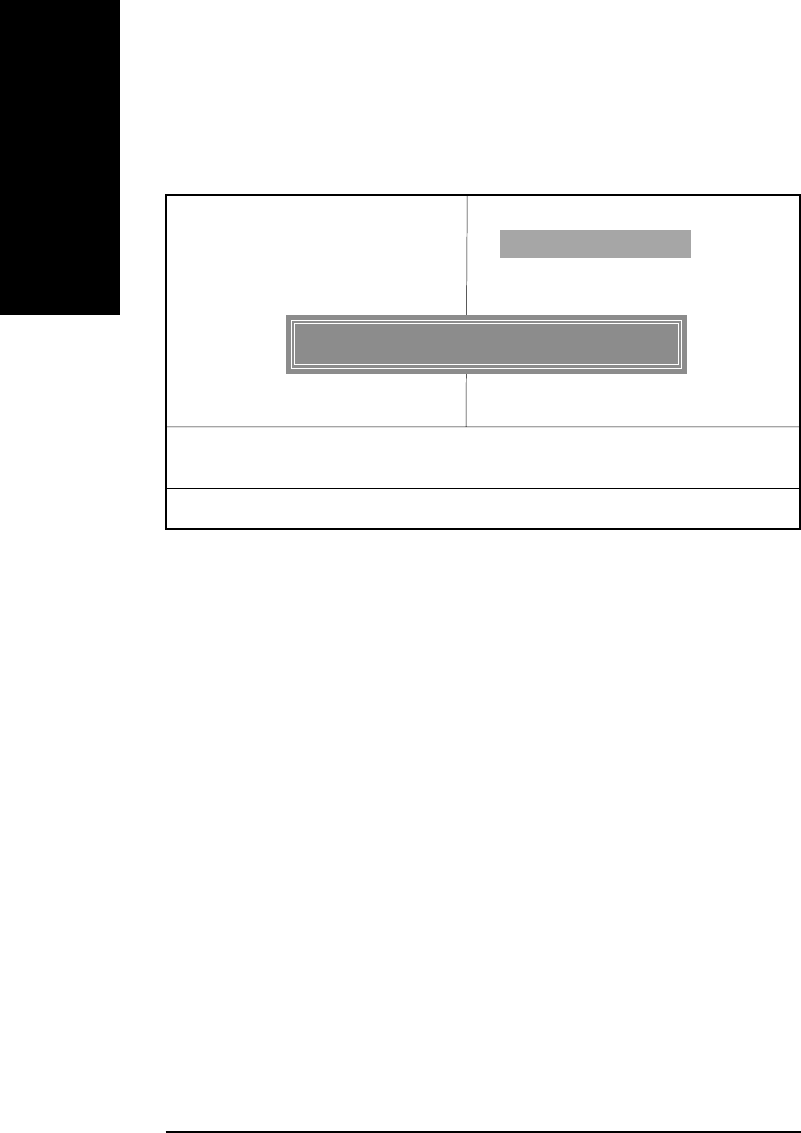
Load Fail-Safe Defaults
FF
FF
FLoad Fail-Safe Defaults
Fail-Safe defaults contain the most appropriate values of the system parameters that allow
minimum system performance.
Figure 9: Load Fail-Safe Defaults
CMOS Setup Utility-Copyright (C) 1984-2003 Award Software
}Standard CMOS Features Load Fail-Safe Defaults
}Advanced BIOS Features Load Optimized Defaults
}Integrated Peripherals Set Supervisor Password
}Power Management Setup Set User Password
}PnP/PCI Configurations Save & Exit Setup
}PC Health Status Exit Without Saving
}Frequency/Voltage Control g
ESC:Quit higf: Select Item
F8:Q-Flash F10:Save & Exit Setup
Load Fail-Safe Defaults
Figure 11: Load Fail-Safe Defaults
Load Fail-Safe Defaults? (Y/N)?N
- 50 -GA-7VA Motherboard
English
Load Optimized Defaults
Figure 10: Load Optimized Defaults
FF
FF
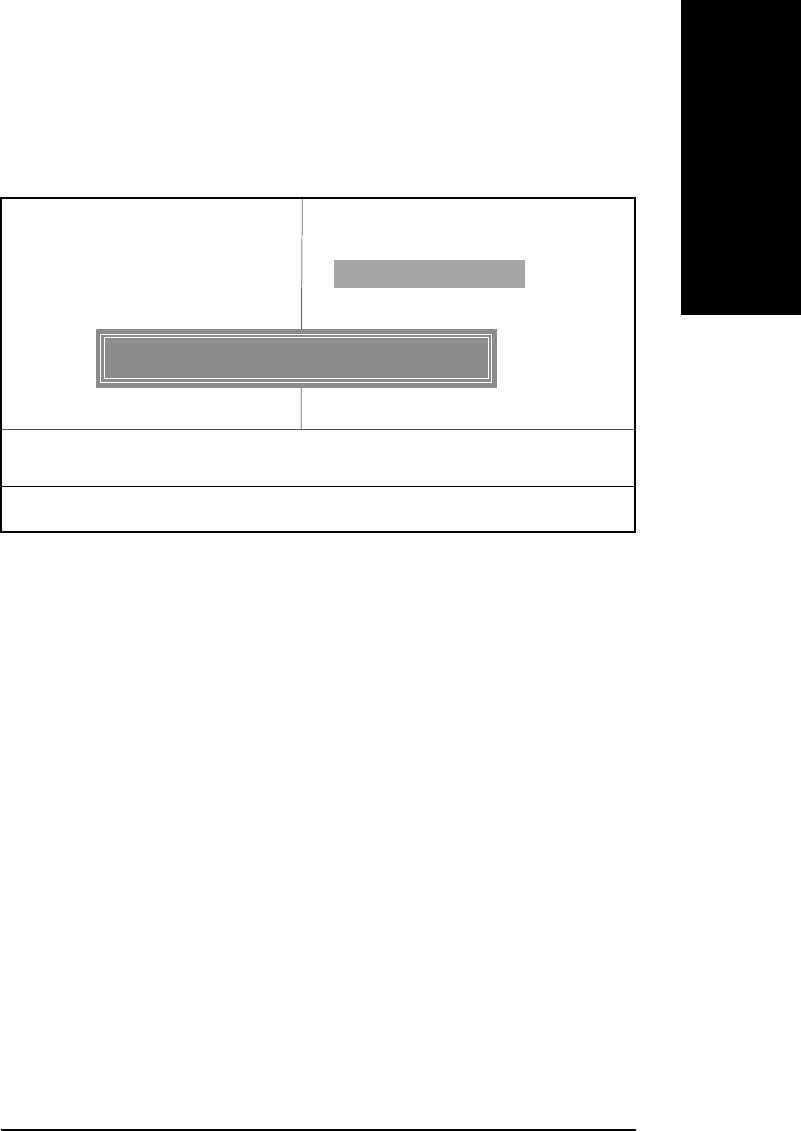
FLoad Optimized Defaults
Selecting this field loads the factory defaults for BIOS and Chipset Features which the
system automatically detects.
CMOS Setup Utility-Copyright (C) 1984-2003 Award Software
}Standard CMOS Features Load Fail-Safe Defaults
}Advanced BIOS Features Load Optimized Defaults
}Integrated Peripherals Set Supervisor Password
}Power Management Setup Set User Password
}PnP/PCI Configurations Save & Exit Setup
}PC Health Status Exit Without Saving
}Frequency/Voltage Control
ESC:Quit higf: Select Item
F8:Q-Flash F10:Save & Exit Setup
Load Optimized Defaults
Figure 11: Load Fail-Safe Defaults
Load Optimized Defaults? (Y/N)?N
BIOS Setup
- 51 -
English
Set Supervisor/User Password
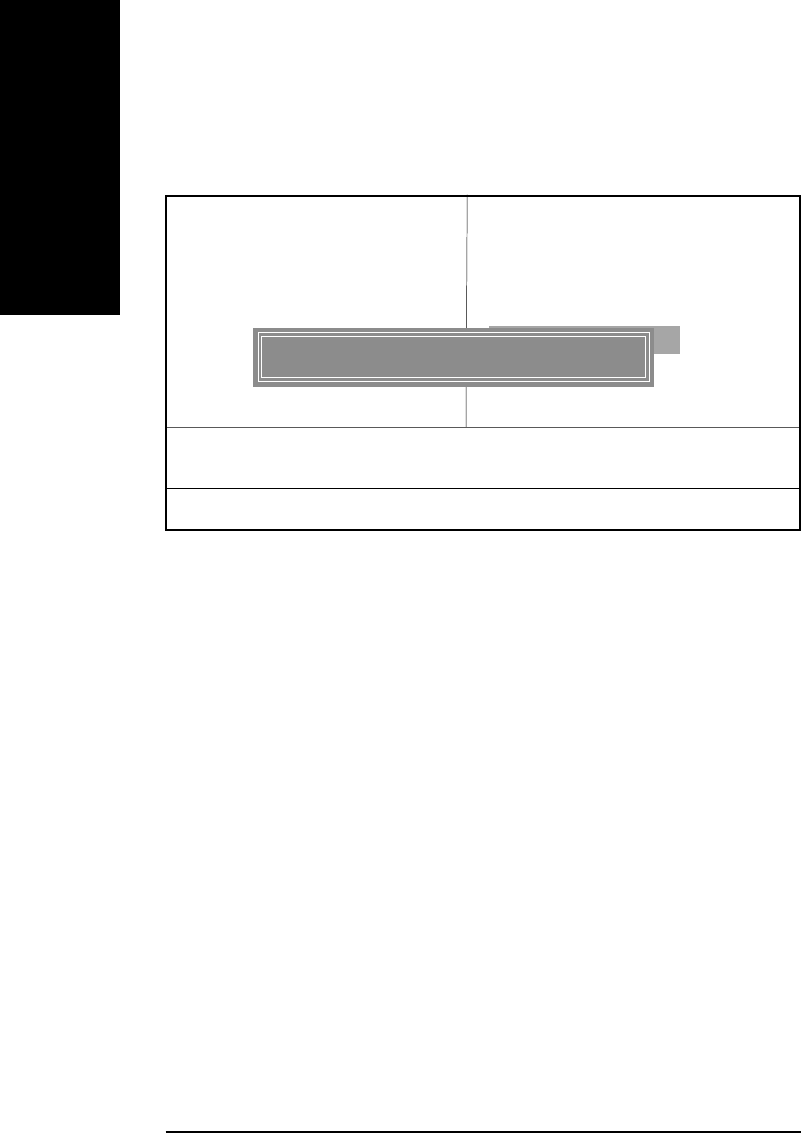
When you select this function, the following message will appear at the center of the screen to
assist you in creating a password.
Type the password, up to eight characters, and press <Enter>. You will be asked to confirm the
password. Type the password again and press <Enter>. You may also press <Esc> to abort the
selection and not enter a password.
To disable password, just press <Enter> when you are prompted to enter password. A message
“PASSWORD DISABLED” will appear to confirm the password being disabled. Once the password
is disabled, the system will boot and you can enter Setup freely.
The BIOS Setup program allows you to specify two separate passwords: a SUPERVISOR PASS-
WORD and a USER PASSWORD. When disabled, anyone may access all BIOS Setup program
function. When enabled, the Supervisor password is required for entering the BIOS Setup program
and having full configuration fields, the User password is required to access only basic items.
If you select “System” at “Security Option” in Advance BIOS Features Menu, you will be prompted
for the password every time the system is rebooted or any time you try to enter Setup Menu.
If you select “Setup” at “Security Option” in Advance BIOS Features Menu, you will be prompted
only when you try to enter Setup.
Figure 11: Password Setting
CMOS Setup Utility-Copyright (C) 1984-2003 Award Software
}Standard CMOS Features Load Fail-Safe Defaults
}Advanced BIOS Features Load Optimized Defaults
}Integrated Peripherals Set Supervisor Password
}Power Management Setup Set User Password
}PnP/PCI Configurations Save & Exit Setup
}PC Health Status Exit Without Saving
}Frequency/Voltage Control
ESC:Quit higf: Select Item
F8:Q-Flash F10:Save & Exit Setup
Change/Set/Disable Password
Figure 11: Load Fail-Safe Defaults
Enter Password:
- 52 -GA-7VA Motherboard
English
Save & Exit Setup
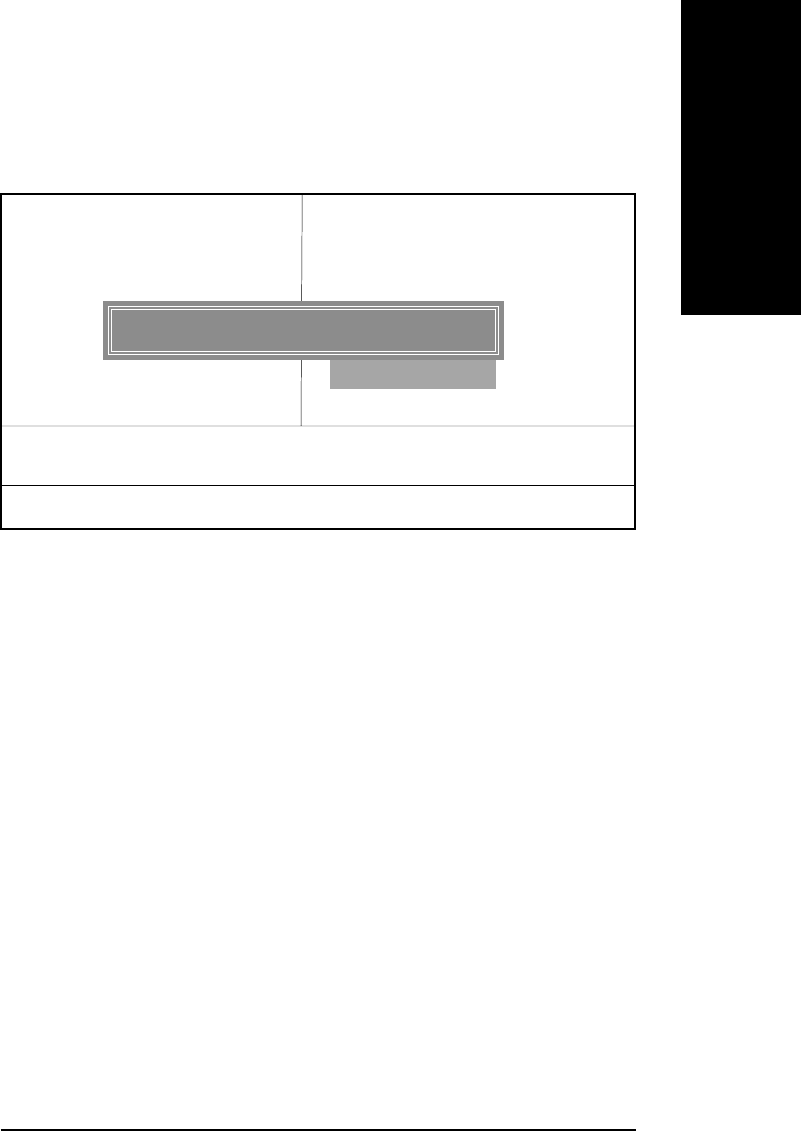
Type “Y” will quit the Setup Utility and save the user setup value to RTC CMOS.
Type “N” will return to Setup Utility.
Figure 12: Save & Exit Setup
CMOS Setup Utility-Copyright (C) 1984-2003 Award Software
}Standard CMOS Features Load Fail-Safe Defaults
}Advanced BIOS Features Load Optimized Defaults
}Integrated Peripherals Set Supervisor Password
}Power Management Setup Set User Password
}PnP/PCI Configurations Save & Exit Setup
}PC Health Status Exit Without Saving
}Frequency/Voltage Control
ESC:Quit higf: Select Item
F8:Q-Flash F10:Save & Exit Setup
Save Data to CMOS
Save to CMOS and EXIT (Y/N)? Y
BIOS Setup
- 53 -
English
Exit Without Saving
Type “Y” will quit the Setup Utility without saving to RTC CMOS.
Type “N” will return to Setup Utility.
Figure 13: Exit Without Saving
CMOS Setup Utility-Copyright (C) 1984-2003 Award Software
}Standard CMOS Features Load Fail-Safe Defaults
}Advanced BIOS Features Load Optimized Defaults
}Integrated Peripherals Set Supervisor Password
}Power Management Setup Set User Password
}PnP/PCI Configurations Save & Exit Setup
}PC Health Status Exit Without Saving
}Frequency/Voltage Control
ESC:Quit higf: Select Item
F8:Q-Flash F10:Save & Exit Setup
Abandon all Data
Quit Without Saving (Y/N)? N

- 54 -GA-7VA Motherboard
English
Technical Reference
- 55 -
English
Q-Flash Introduction
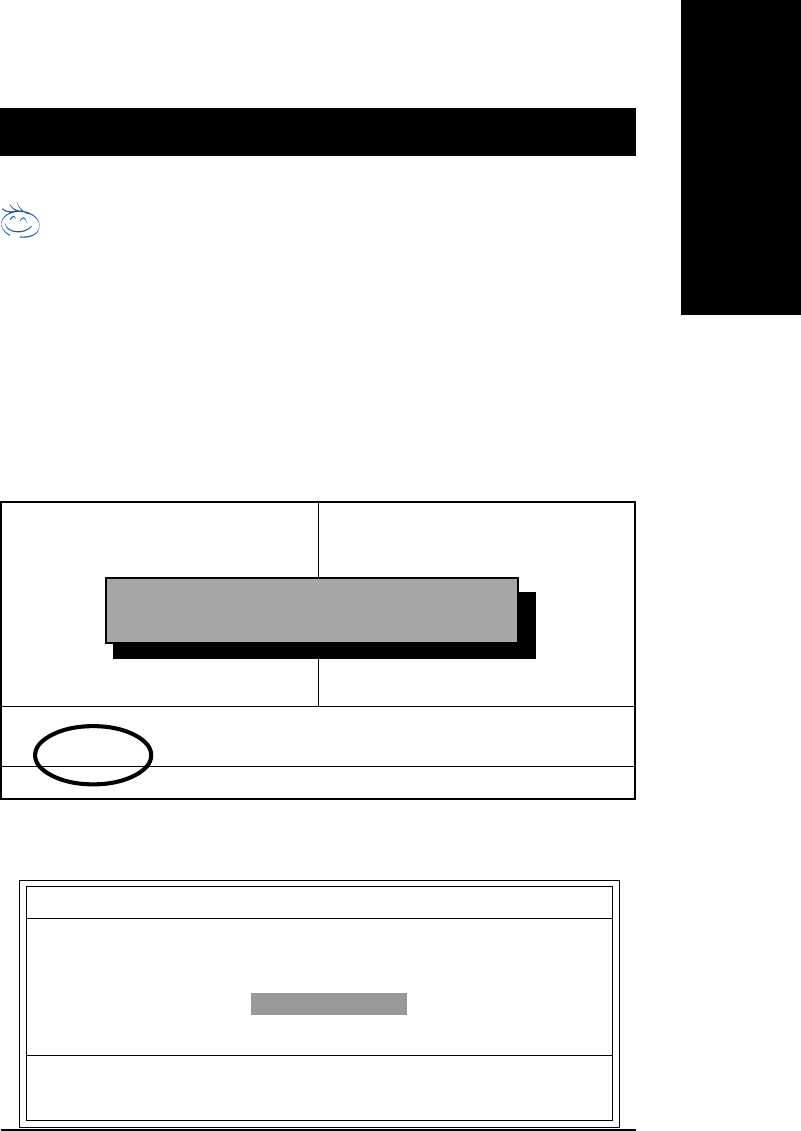
A. What is Q-Flash Utility?
Q-Flash utility is a pre-O.S. BIOS flash utility enables users to update its BIOS within BIOS
mode, no more fooling around any OS.
B. How to use Q-Flash?
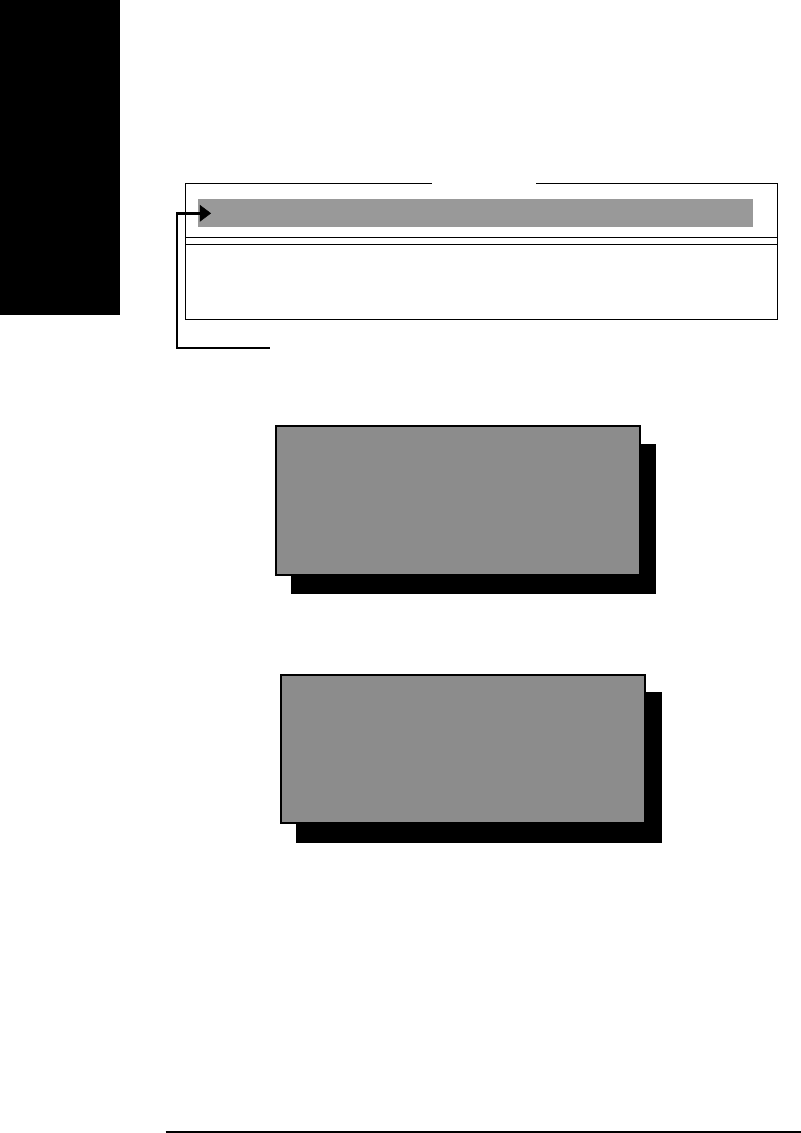
a. After power on the computer, pressing <Del> immediately during POST (Power On Self Test) it
will allow you to enter AWARD BIOS CMOS SETUP, then press <F8> to enter Q-Flash utility.
CMOS Setup Utility-Copyright (C) 1984-2002 Award Software
}Standard CMOS Features Top Performance
}Advanced BIOS Features Load Fail-Safe Defaults
}Integrated Peripherals Load Optimized Defaults
}Power Management Setup Set Supervisor Password
}PnP/PCI Configurations Set User Password
}PC Health Status Save & Exit Setup
}Frequency/Voltage Control Exit Without Saving
ESC:Quit higf:Select Item
F8: Q-Flash F10:Save & Exit Setup
Time, Date, Hard Disk Type...
Enter Q-Flash Utility (Y/N)? Y
b. Q-Flash Utility
Q-Flash Utility V3.05
Flash Type/Size : SST 39SF020 / 256K
Keep DMI Data : Yes
Space Bar:Change Value
Enter: Run ESC: Reset h/i: Select Item
Load BIOS from Floppy
Save BIOS to Floppy
Method 1:
BIOS Flash Procedure
Chapter 4 Technical Reference
- 56 -GA-7VA Motherboard
English
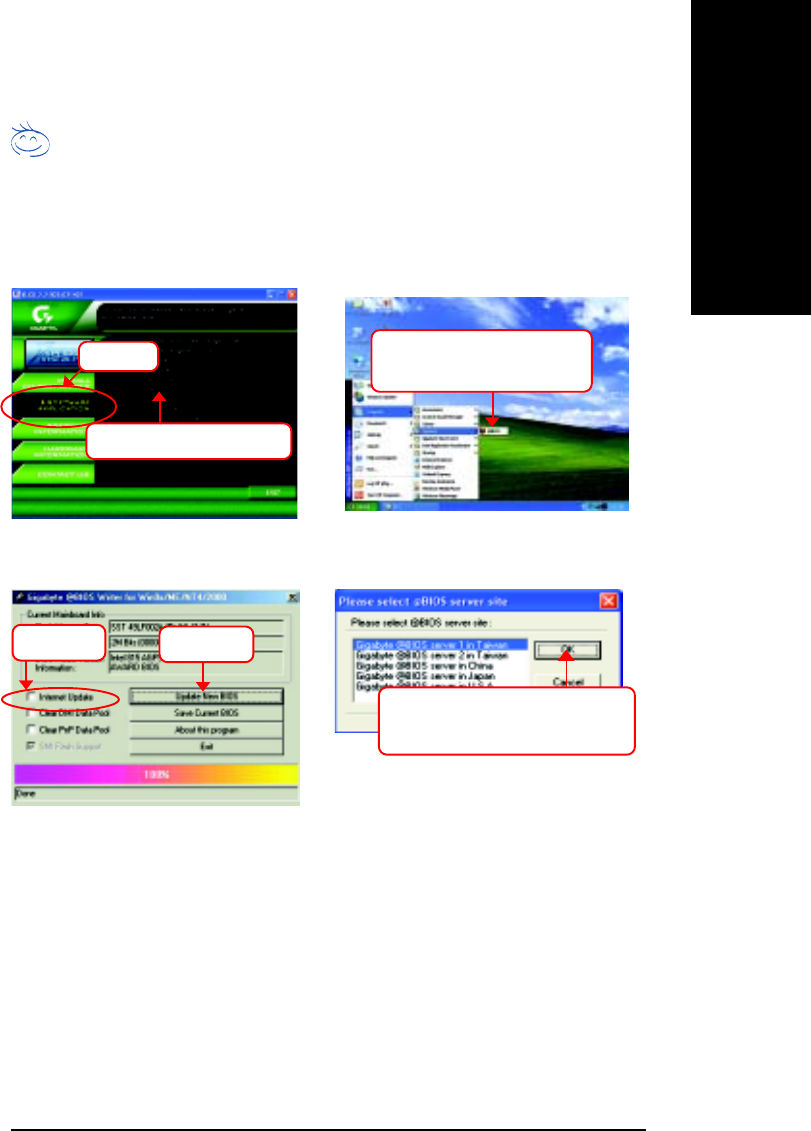
Congratulation! You have completed the flashed and now can restart system.
Load BIOS From Floppy
!In the A:drive, insert the "BIOS" diskette, then Press Enter to Run.
XXXX.XX 256K
Total Size: 1.39M Free Size: 1.14M
F5: Refresh DEL: Delete ESC: Return Main
!Press Enter to Run.
1 File(s) found
Are you sure to update BIOS?
[Enter] to contiune Or [ESC] ot abort...
!! COPY BIOS Completed -Pass !!
Please press any key to continue
!Press Enter to Run.
Where XXXX.XX is name of the BIOS file.
Technical Reference
- 57 -
English
Methods and steps:
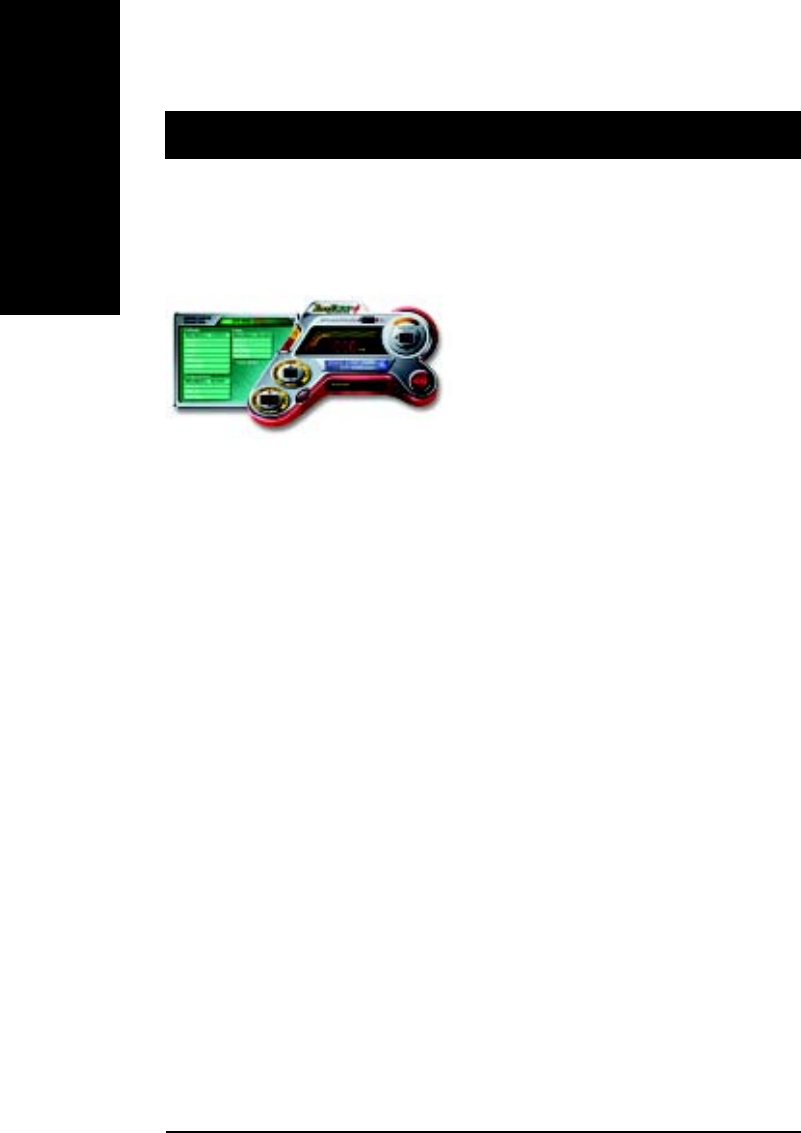
I. Update BIOS through Internet
a. Click "Internet Update" icon
b. Click "Update New BIOS" icon
c. Select @BIOSTM sever
d. Select the exact model name on your motherboard
e. System will automatically download and update the BIOS.
Method 2:
If you don’t have DOS boot disk, we recommend that you used Gigabyte @BIOSTM program to
flash BIOS.
Follow the setup that showing on the scween to install the Utility.
(1) (2)
2.Click"Start"-"Programs"-
"GIGABYTE"-"@BIOS"
1.Click "@BIOS .
Click "P". Click here.
(4)
3. Please select @BIOS sever site,
then Click "OK".
Press here.
(3)

- 58 -GA-7VA Motherboard
English
II. Update BIOS NOT through Internet:
a. Do not click "Internet Update" icon
b. Click "Update New BIOS"
c. Please select "All Files" in dialog box while opening the old file.
d. Please search for BIOS unzip file, downloading from internet or any other methods (such
as: 7VA-A.F1).
e. Complete update process following the instruction.
III. Save BIOS
In the very beginning, there is "Save Current BIOS" icon shown in dialog box. It means to
save the current BIOS version.
IV. Check out supported motherboard and Flash ROM:
In the very beginning, there is "About this program" icon shown in dialog box. It can help you
check out which kind of motherboard and which brand of Flash ROM are supported.
Note:
a. In method I, if it shows two or more motherboard's model names to be selected, please
make sure your motherboard's model name again. Selecting wrong model name will
cause the system unbooted.
b. In method II, be sure that motherboard's model name in BIOS unzip file are the same as
your motherboard's. Otherwise, your system won't boot.
c. In method I, if the BIOS file you need cannot be found in @BIOSTM server, please go onto
Gigabyte's web site for downloading and updating it according to method II.
d. Please note that any interruption during updating will cause system unbooted

Technical Reference
- 59 -
English
@ BIOS Introduction
Have you ever updated BIOS by yourself? Or like
many other people, you just know what BIOS is,
but always hesitate to update it? Because you
think updating newest BIOS is unnecessary and
actually you don’t know how to update it.
Maybe not like others, you are very experienced in BIOS updating and spend quite a lot of
time to do it. But of course you don’t like to do it too much. First, download different BIOS from
website and then switch the operating system to DOS mode. Secondly, use different flash utility to
update BIOS. The above process is not a interesting job. Besides, always be carefully to store the
BIOS source code correctly in your disks as if you update the wrong BIOS, it will be a nightmare.
Certainly, you wonder why motherboard vendors could not just do something right to save
your time and effort and save you from the lousy BIOS updating work? Here it comes! Now
Gigabyte announces @BIOS—the first Windows BIOS live update utility. This is a smart BIOS
update software. It could help you to download the BIOS from internetand update it. Not like the
other BIOS update software, it’s a Windows utility. With the help of “@BIOS’, BIOS updating is no
more than a click.
Besides, no matter which mainboard you are using, if it’s a Gigabyte’s product*, @BIOS help
you to maintain the BIOS. This utility could detect your correct mainboard model and help you to
choose the BIOS accordingly. It then downloads the BIOS from the nearest Gigabyte ftp site
automatically. There are several different choices; you could use “Internet Update” to download
and update your BIOS directly. Or you may want to keep a backup for your current BIOS, just
choose “Save Current BIOS” to save it first. You make a wise choice to use Gigabyte, and @BIOS
update your BIOS smartly. You are now worry free from updating wrong BIOS, and capable to
maintain and manage your BIOS easily. Again, Gigabyte’s innovative product erects a milestone
in mainboard industries.
For such a wonderful software, how much it costs? Impossible! It’s free! Now, if you buy a
Gigabyte’s motherboard, you could find this amazing software in the attached driver CD. But
please remember, connected to internet at first, then you could have a internet BIOS update from
your Gigabyte @BIOS.
Gigabyte announces @ BIOS
Windows BIOS live update utility
- 60 -GA-7VA Motherboard
English
Easy TuneTM 4 Introduction
Gigabyte announces EasyTuneTM 4 Windows based Overclocking utility
EasyTune 4 carries on the heritage so as to pave the way for future generations.
Overclock" might be one of the most common issues in computer field. But have many users ever
tried it? The answer is probably "no". Because
"Overclock" is thought to be very difficult and in-
cludes a lot of technical know-how, sometimes
"Overclock" is even considered as special skills
found only in some enthusiasts. But as to the ex-
perts in "Overclock", what's the truth? They may
spend quite a lot of time and money to study, try
and use many different hardware or BIOS tools to
do "Overclock". And even with these technologies,
they still learn that it's quite a risk because the safety
and stability of an "Overclock" system is unknown. Now everything is different because of a Win-
dows based overclocking utility "EasyTune 4" --announced by Gigabyte. This windows based utility
has totally changed the gaming rule of "Overclock". This is the first windows based overclocking
utility is suitable for both normal and power users. Users can choose either "Easy Mode" or "Ad-
vanced Mode" for overclocking at their convenience. For users who choose "Easy Mode", they just
need to click "Auto Optimize" to have autoed and immediate CPU overclocking. This software will
then overdrive CPU speed automatically with the result being shown in the control panel. If users
prefer "Overclock" by them, there is also another choice. Click "Advanced Mode" to enjoy "sport
drive" class Overclocking user interface. "Advanced Mode", allows users to change the system bus
/ AGP / Memory working frequency in small increments to get ultimate system performance. It oper-
ates in coordination with Gigabyte motherboards. Besides, it is different from other traditional over-
clocking methods, EasyTune 4 doesn't require users to change neither BIOS nor hardware switch/
jumper setting; on the other hand, they can do "Overclock" at easy step . Therefore, this is a safer
way for "Overclock" as nothing is changed on software or hardware. If user runs EasyTune 4 over
system's limitation, the biggest lost is only to restart the computer again and the side effect is then
well controlled. Moreover, if one well-performed system speed has been tested in EasyTune 4, user
can "Save" this setting and "Load" it in next time. Obviously, Gigabyte EasyTune 4 has already
turned the "Overclock" technology toward to a newer generation. This wonderful software is now
free bundled in Gigabyte motherboard attached in driver CD. Users may make a test drive of
"EasyTune 4" to find out more amazing features by themselves.
*Some Gigabyte products are not fully supported by EasyTune 4. Please find the products sup-
ported list in the web site.
*Any "Overclocking action" is at user's risk, Gigabyte Technology will not be responsible for any
damage or instability to your processor, motherboard, or any other components.
Technical Reference
- 61 -
English
Revision History
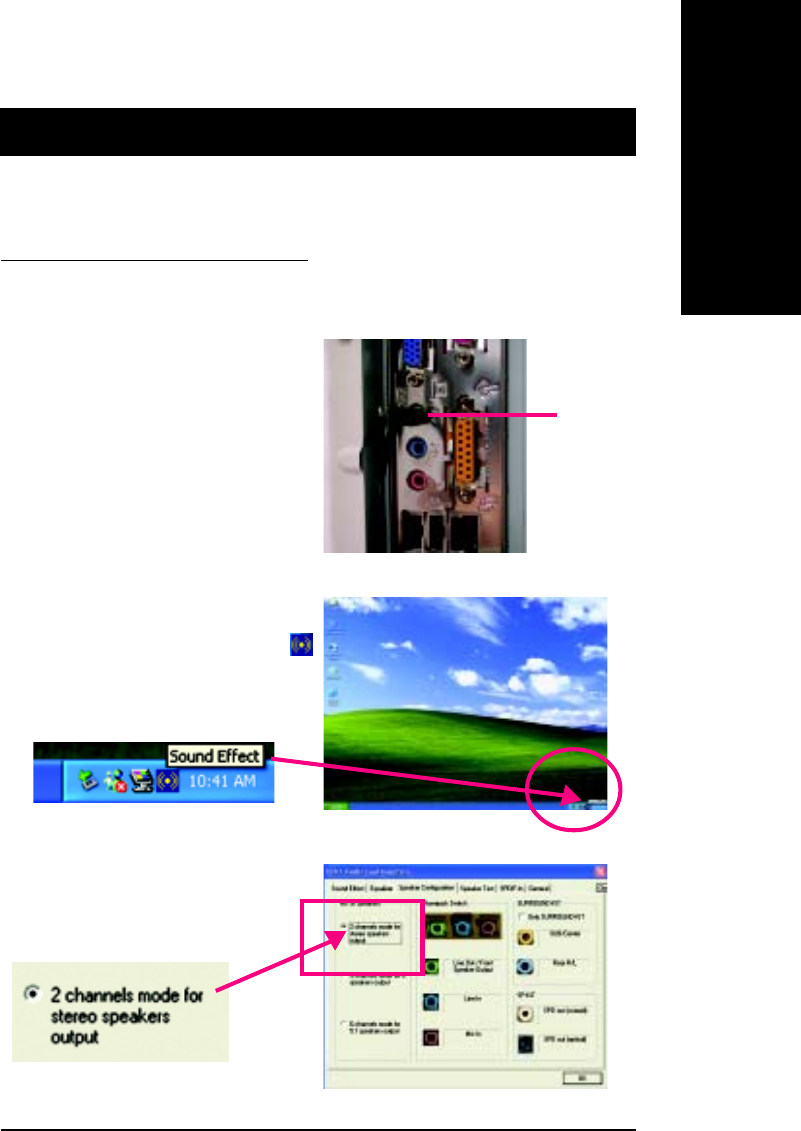
2-/4-/6-Channel Audio Function Introduction
Stereo Speakers Connection and Settings:
STEP 3:
Select “Speaker Configuration”, and choose the
“2 channels for stereo speakers out put”.
We recommend that you use the speaker with amplifier to acqiire the best sound effect if the stereo output is
applied.
STEP 1:
Connect the stereo speakers or earphone to “Line Out”.
STEP 2 :
After installation of the audio driver, you’ll find an
icon on the taskbar’s status area. Click the audio icon
“Sound Effect” from the windows tray at the bottom of
the screen.
The installation of windows 98SE/2K/ME/XP is very simple. Please follow next step to install the
function!
Line Out
- 62 -GA-7VA Motherboard
English
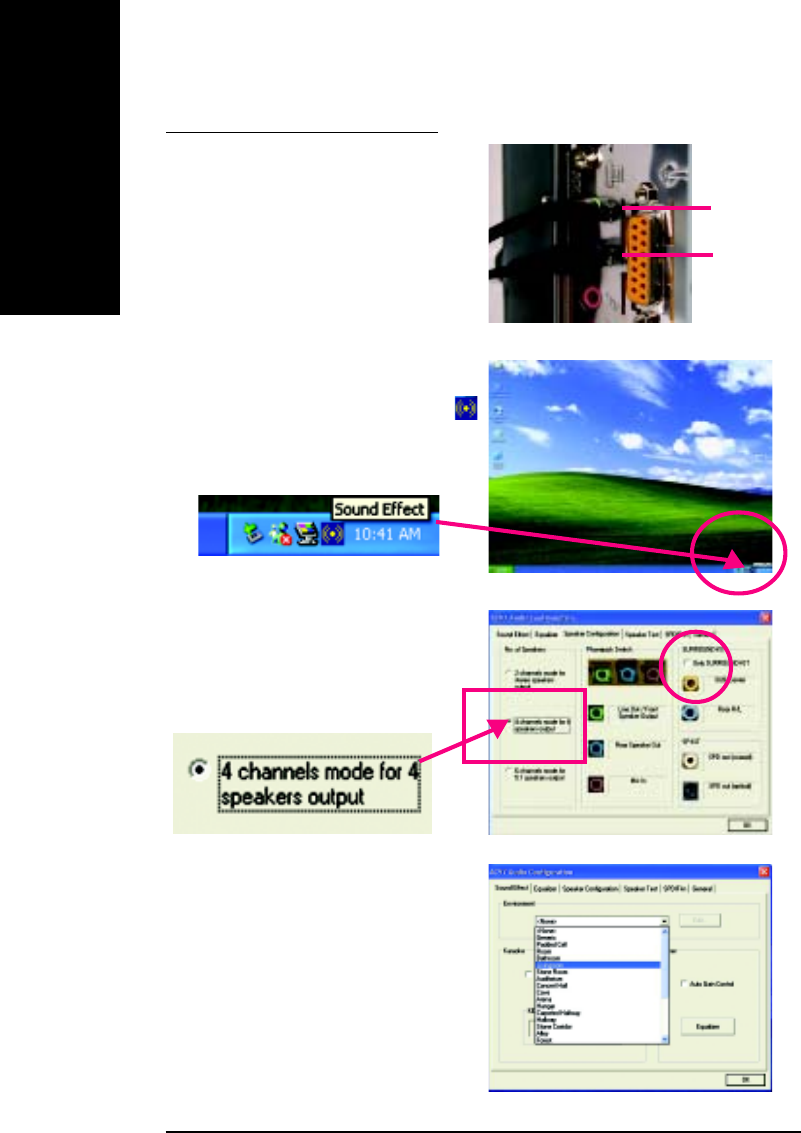
4 Channel Analog Audio Output Mode
STEP 1 :
Connect the front channels to "Line Out",the rear
channels to "Line In".
STEP 3 :
Select "Speaker Configuration", and choose the
"4 channels for 4 speakers out put".
Disable "Only SURROUND-KIT", and press "OK".
When the "Environment settings" is "None", the
sound would be performed as stereo mode
(2 channels output). Please select the other settings
for 4 channels output.
STEP 2 :
After installation of the audio driver, you'll find an
icon on the taskbar's status area. Click the audio icon
"Sound Effect" from the windows tray at the bottom of
the screen.
Line Out
Line In
Technical Reference
- 63 -
English
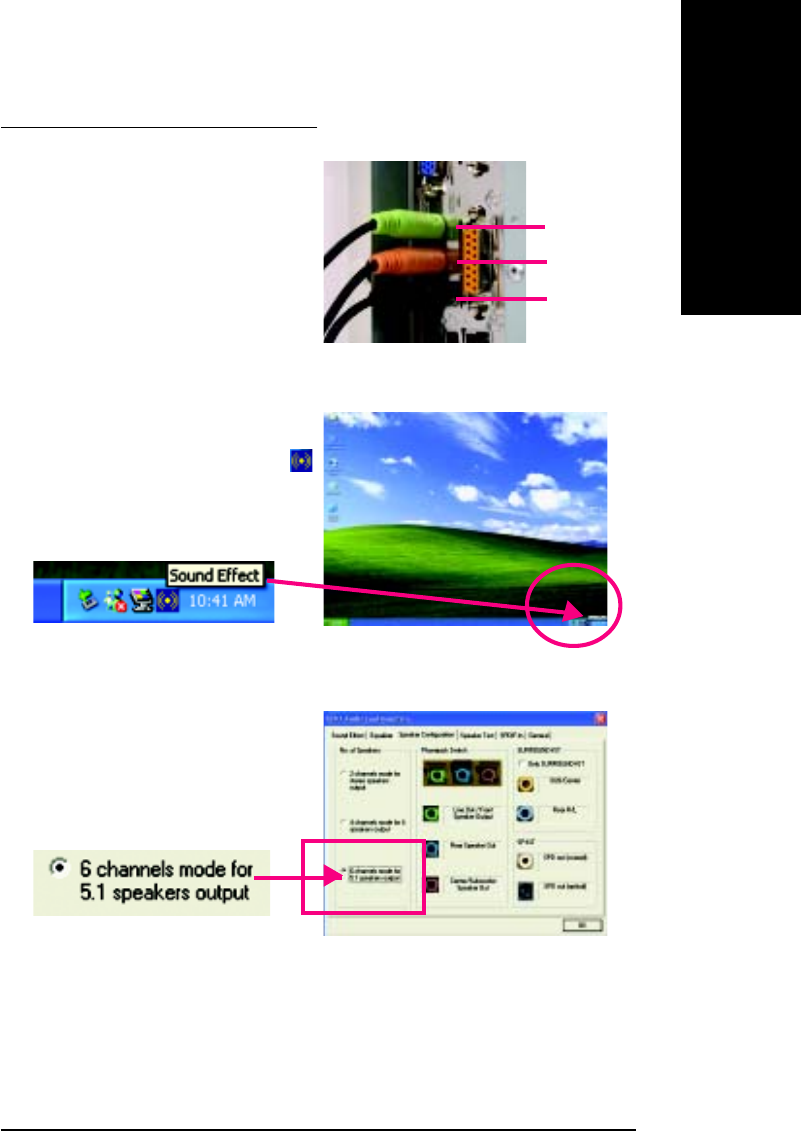
Use the back audio panel to connect the audio output
without any additional module.
STEP 1 :
Connect the front channels to "Line Out",the rear chan-
nels to "Line In", and the Center/Subwoofer channels
to "MIC In ".
Basic 6 Channel Analog Audio Output Mode
STEP 2 :
After installation of the audio driver, you’ll find an
icon on the taskbar’s status area. Click the audio icon
"Sound Effect" from the windows tray at the bottom of
the screen.
STEP 3 :
Select "Speaker Configuration", and choose the
"6 channels for 5.1 speakers out put".
Disable "Only SURROUND-KIT" and pess "OK"
Line Out
Line In
MIC In
- 64 -GA-7VA Motherboard
English
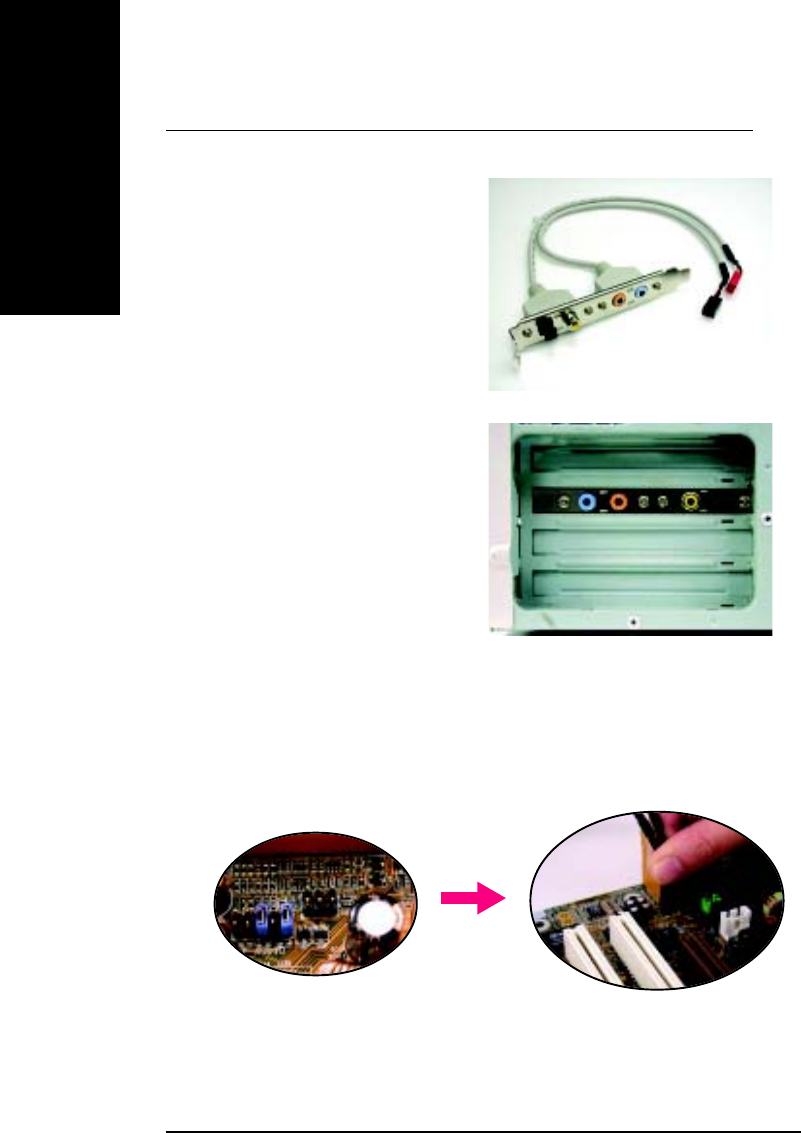
STEP 1 :
Insert the "Audio Combo Kit" in the back of the case ,
and fix it with the screw.
Advanced 6 Channel Analog Audio Output Mode (using Audio Combo Kit,Optional Device):
(Audio Combo Kit provides SPDIF output port : optical & coaxis and SURROUND-KIT : Rear R/L & CEN /
Subwoofer)
SURROUND-KIT access analog output to rear
channels and Center/Subwoofer channels. It is the best
solution if you need 6 channel output, Line In and MIC
at the same time. "SURROUND-KIT" is included in the
GIGABYTE unique "Audio Combo Kit" as picture.
STEP 2 :
Connect the "SURROUND-KIT" to SUR_CEN on the
M/B.
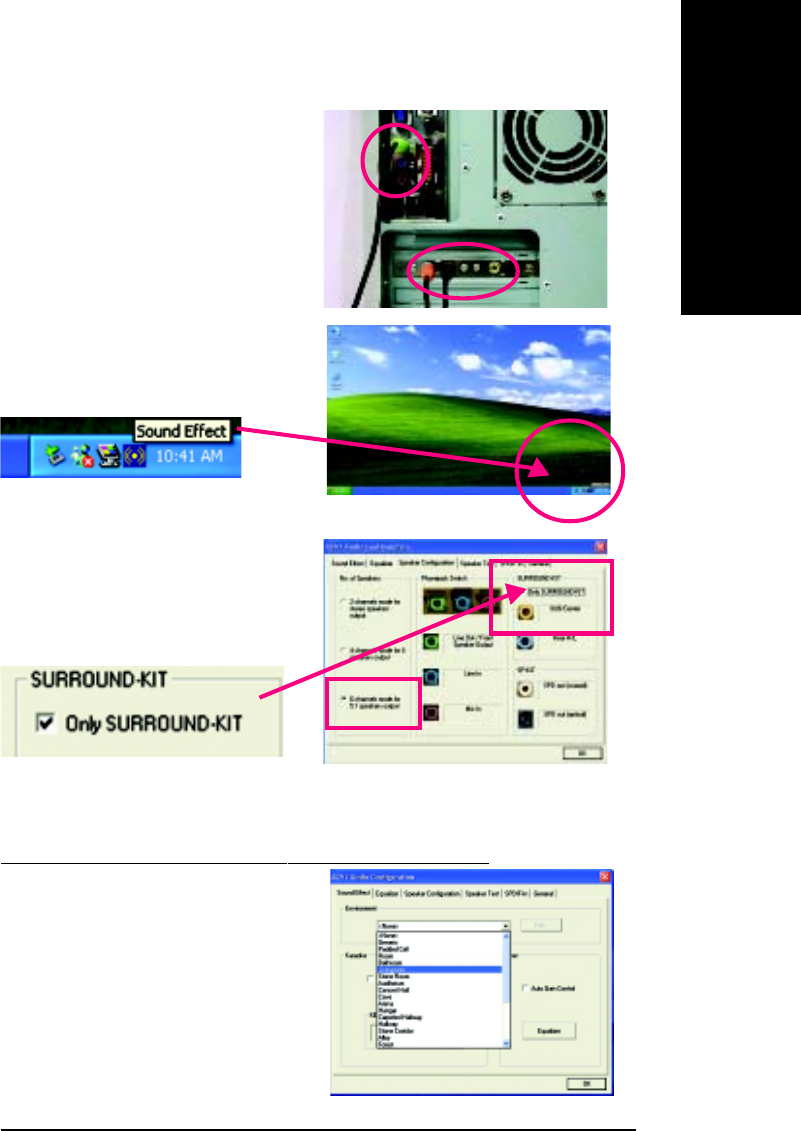
Technical Reference
- 65 -
English
STEP 4 :
Click the audio icon "Sound Effect" from the windows
tray at the bottom of the screen.
STEP 3 :
Connect the front channels to back audio panel's
"Line Out", the rear channels to SURROUND-KIT's
REAR R/L, and the Center/Subwoofer channels to
SURROUND-KIT's SUB CENTER.
STEP 5 :
Select "Speaker Configuration", and choose the
"6 channels for 5.1 speakers out put".
Enable "Only SURROUND-KIT" and press "OK".
When the "Environment settings" is "None", the sound
would be performed as stereo mode(2 channels
output). Please select the other settings for 6 channels
output.
Basic & Advanced 6 Channel Analog Audio Output Mode Notes
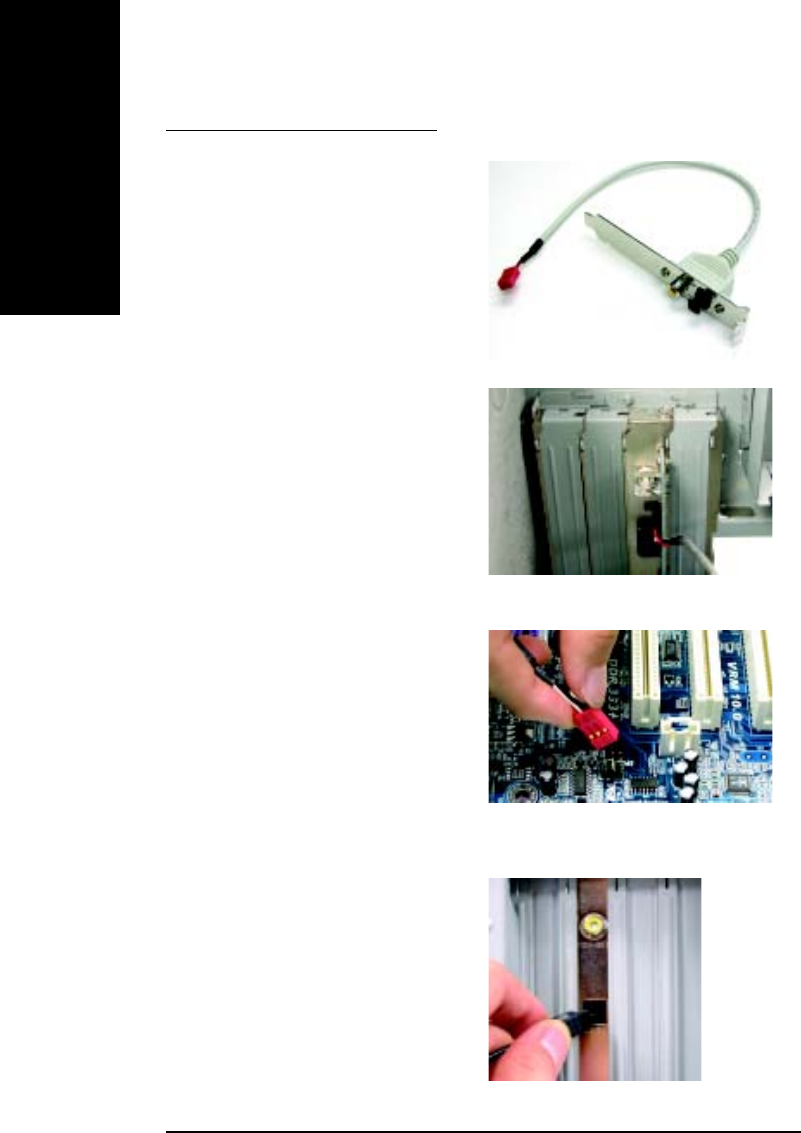
- 66 -GA-7VA Motherboard
English
SPDIF Output Device (Optional Device)
3. Connect co-axial or optical output to the SPDIF
decoder.
1. Connect the SPDIF output device to the rear
bracket of PC, and fix it with screw.
2. Connect SPDIF wire to the motherboard.
A "SPDIF output" device is available on the
motherboard. Cable with rear bracket is provided
and could link to the "SPDIF output" connector
(As picture.) For the further linkage to decoder,
rear bracket provides coaxial cable and Fiber con-
necting port.

Technical Reference
- 67 -
English

- 68 -GA-7VA Motherboard
English
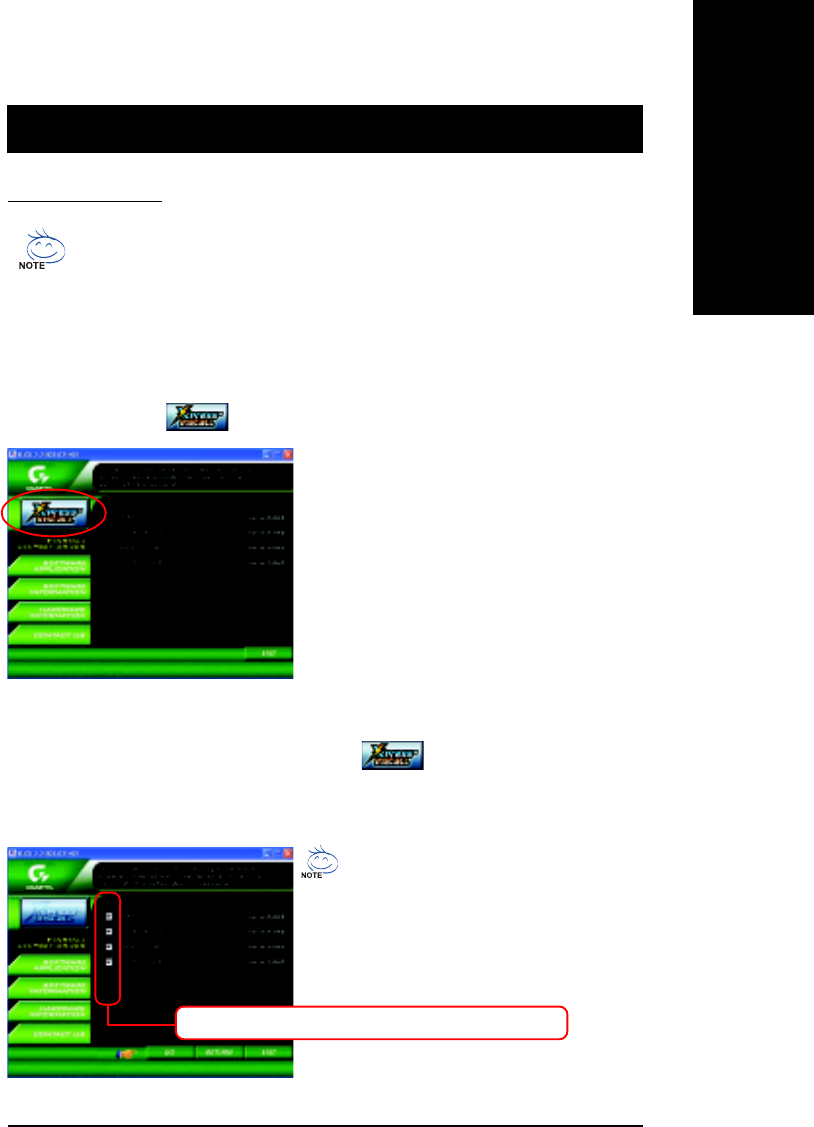
Appendix
- 69 -
English
Revision History
Chapter 5 Appendix
Picture below are shown in Windows XP (CD ver 2.2)
Insert the driver CD-title that came with your motherboard into your CD-ROM drive, the
driver CD-title will auto start and show the installation guide. If not, please double click the
CD-ROM device icon in "My computer", and execute the setup.exe.
INSTALL CHIPSET DRIVER
Install Drivers
This page shows the drivers that need to be installed for the system. Click each item to install the driver
manually or switch to the to install the drivers automatically.
We recommend that you install all components in the list.
Massage: Some device drivers will restart
your system automatically. After restarting
your system the "Xpress Install" will
continue to install other drivers.
The "Xpress Install" uses the"Click and Forget" technology to install the drivers automatically. Just select
the drivers you want then click the "GO" button. The will finish the installation for you
automatically.
- 70 -GA-7VA Motherboard
English
nVIA 4IN1 Driver
For INF, AGP, IDE and DMA Driver
nUSB Path for WinXP
This patch driver can help you to resolve the USB device wake up S3 hang up issue in XP
nRealTek AC97 Audio Driver
Audio driver for Realtek AC97 codec chipset
nVIA USB 2.0 Controller
For VIA VT8233 (VT6203) / VIA VT8235 south bridge
Item Description
Driver install finished !
You have to reboot system !
Appendix
- 71 -
English
SOFTWARE APPLICATION
This page reveals the value-added software developed by Gigabyte and its worldwide partners.
nGigabyte Windows Utilities Manager(GWUM)
This utility can integrate the Gigabyte's applications in the system tray
nGigabyte Management Tool(GMT)
A useful tool which can manage the computer via the network
nEastTune4
Powerful utility that integrates the overclocking and hardware monitoring functions
nDMI Viewer
Windows based utility which is used to browse the DMI/SMBIOS information of the system
nFace-Wizard
New utility for adding BIOS logo
n@BIOS
Gigabyte windows flash BIOS utility
nAcrobat e-Book
Useful utility from Adobe
nAcrobat Reader
Popular utility from Adobe for reading .PDF file format documents
nNorton Internet Security(NIS)
Integrated utility which includes anti-virus, ad control, etc.
nDirectX 9.0
Newest update from Microsoft
- 72 -GA-7VA Motherboard
English
SOFTWARE INFORMATION
This page list the contects of softwares and drivers in this CD title.
HARDWARE INFORMATION
This page lists all device you have for this motherboard.
CONTACT US
Contact us via the information in this page all over the world.

Appendix
- 73 -
English
FAQ
Below is a collection of general asked questions. To check general asked questions based on a specific
motherboard model, please log on to http://tw.giga-byte.com/faq/faq.htm
Question 1: I cannot see some options that were included in previous BIOS after updating BIOS. Why?
Answer: Some advanced options are hidden in new BIOS version. Please press Ctrl and F1 keys after entering
BIOS menu and you will be able to see these options.
Questions 2: Why is the light of my keyboard/optical mouse still on after computer shuts down?
Answer: In some boards, a small amount of electricity is kept on standby after computer shuts down and that's why
the light is still on.
Question 3: Why cannot I use all functions in EasyTune™ 4?
Answer: The availability of the listed functions in EasyTune™ 4 depends on the MB chipset. If the chipset doesn't
support certain functions in EasyTune™ 4, these functions will be locked automatically and you will not be able to
use them.
Question 4: Why do I fail to install RAID and ATA drivers under Win 2000 and XP on boards that support RAID
function after I connect the boot HDD to IDE3 or IDE4 ?
Answer: First of all, you need to save some files in the CD-ROM to a floppy disk before installing drivers. You also
need to go through some rather different steps in the installation process. Therefore, we suggest that you refer
to the installation steps in the RAID manual at our website.
(Please download it at http://tw.giga-byte.com/support/user_pdf/raid_manual.pdf)
Question 5: How do I clear CMOS?
Answer: If your board has a Clear CMOS jumper, please refer to the Clear CMOS steps in the manual. If your board
doesn't have such jumper, you can take off the on-board battery to leak voltage to clear CMOS. Please refer to the
steps below:
Steps:
1. Turn off power.
2. Disconnect the power cord from MB.
3. Take out the battery gently and put it aside for about 10 minutes (Or you can use a
metal object to connect the positive and negative pins in the battery holder to make
them short for one minute).
4. Re-insert the battery to the battery holder.
5. Connect power cord to MB again and turn on power.
6. Press Del to enter BIOS and load Fail-Safe Defaults.
7. Save changes and reboot the system.
Question 6: Why does system seem unstable after updating BIOS?
Answer: Please remember to load Fail-Safe Defaults (Or Load BIOS Defaults) after flashing BIOS. However, if the
system instability still remains, please clear CMOS to solve the problem.
Question 7: Why do I still get a weak sound after turning up the speaker to the maximum volume?
Answer: Please make sure the speaker you are using is equipped with an internal amplifier. If not, please change
another speaker with power/amplifier and try again later.

- 74 -GA-7VA Motherboard
English
Question 8: How do I disable onboard VGA card in order to add an external VGA card?
Answer: Gigabyte motherboards will auto-detect the external VGA card after it is plugged in, so you don't need
to change any setting manually to disable the onboard VGA.
Question 9: Why cannot I use the IDE 2?
Answer: Please refer to the user manual and check whether you have connected any cable that is not provided
with the motherboard package to the USB Over Current pin in the Front USB Panel. If the cable is your own cable,
please remove it from this pin and do not connect any of your own cables to it.
Question 10: Sometimes I hear different continuous beeps from computer after system boots up. What do these
beeps usually stand for?
Answer: The beep codes below may help you identify the possible computer problems. However, they are only
for reference purposes. The situations might differ from case to case.
gAMI BIOS Beep Codes
*Computer gives 1 short beep when system boots successfully.
*Except for beep code 8, these codes are always fatal.
1 beep Refresh failure
2 beeps Parity error
3 beeps Base 64K memory failure
4 beeps Timer not operational
5 beeps Processor error
6 beeps 8042 - gate A20 failure
7 beeps Processor exception interrupt error
8 beeps Display memory read/write failure
9 beeps ROM checksum error
10 beeps CMOS shutdown register read/write error
11 beeps Cache memory bad
Question 11: How to set in the BIOS in order to bootup from SATA HDDs by either RAID or ATA mode?
Answer: Please set in the BIOS as follow:
1. Advanced BIOS features--> SATA/RAID/SCSI boot order: "SATA"
2. Advanced BIOS features--> First boot device: "SCSI"
3. Integrated Peripherals--> Onboard H/W Serial ATA: "enable"
Then it depends on the SATA mode that you need to set "RAID" to RAID mode or "BASE" to normal ATA mode in the
item named Serial ATA function.
Question 12: For the M/B which have RAID function, how to set in the BIOS in order to bootup from IDE3, 4 by either
RAID or ATA mode?
Answer:Please set in the BIOS as follow:
1. Advanced BIOS features-->(SATA)/RAID/SCSI boot order: "SATA"
2. Advanced BIOS features--> First boot device: "SCSI"
3. Integrated Peripherals--> Onboard H/W ATA/RAID: "enable"
Then it depends on the RAID mode that you need to set "RAID" to RAID mode or "ATA" to normal ATA mode in the
item named RAID controller function.
Question 13: How to set in the BIOS to bootup from the IDE/ SCSI/ RAID card ?
Answer:Please set in the BIOS as follow:
1. Advanced BIOS features-->(SATA)/RAID/SCSI boot order: "SCSI"
2. Advanced BIOS features--> First boot device: "SCSI"
Then it depends on the mode(RAID or ATA) that you need to set in RAID/ SCSI BIOS.
g AWARD BIOS Beep Codes
1 short: System boots successfully
2 short: CMOS setting error
1 long 1 short: DRAM or M/B error
1 long 2 short: Monitor or display card error
1 long 3 short: Keyboard error
1 long 9 short: BIOS ROM error
Continuous long beeps: DRAM error
Continuous short beeps: Power error

Appendix
- 75 -
English
Question 10: Sometimes I hear different continuous beeps from computer after system boots up.
What do these beeps usually stand for?
Answer: The beep codes below may help you identify the possible computer
problems. However, they are only for reference purposes. The situations might differ
from case to case.
gAMI BIOS Beep Codes
*Computer gives 1 short beep when system boots successfully.
*Except for beep code 8, these codes are always fatal.
1 beep Refresh failure
2 beeps Parity error
3 beeps Base 64K memory failure
4 beeps Timer not operational
5 beeps Processor error
6 beeps 8042 - gate A20 failure
7 beeps Processor exception interrupt error
8 beeps Display memory read/write failure
9 beeps ROM checksum error
10 beeps CMOS shutdown register read/write error
11 beeps Cache memory bad
g AWARD BIOS Beep Codes
1 short: System boots successfully
2 short: CMOS setting error
1 long 1 short: DRAM or M/B error
1 long 2 short: Monitor or display card error
1 long 3 short: Keyboard error
1 long 9 short: BIOS ROM error
Continuous long beeps: DRAM error
Continuous short beeps: Power error
- 76 -GA-7VA Motherboard
English
Troubleshooting
If you encounter any trouble during boot up, please follow the
troubleshooting procedures .
Turn off the power and unplug the AC power cable, then remove
all of the add-on cards and cables from motherboard.
START
Failure has been excluded.
Yes
Please make sure motherboard & chassis are not short ?
No
A
Please make sure all jumper settings (such as CPU system bus
speed, frequency ratio, voltage and etc.) are set properly.
Failure has been excluded.
Check if the CPU cooling fan attached to CPU properly. ls
CPU cooling fan power connected to CPU_FAN
properly?
Plug the CPU
cooling fan power
in the CPU fan
connector. Plug
in the AC power
connector.
Check if the memory install properly into the DIMM slot.
Yes
No
Yes
Insert and push
the memory
module vertically
into the DIMM
slot.
Insert the VGA card. Then plug in ATX power cable and turn
on the system.
No
No
Yes
Failure has been excluded.
Failure has been excluded.
Please isolate
the short pin.
Make sure the
jumper setting
are correct.
Appendix
- 77 -
English
A
Failure has been excluded.
Yes
No
Yes
No
Failure has been excluded.
Failure has been excluded.
Yes
Reinstall Windows OS, and reinstall add-on cards and cables.
Then try to reboot the system. Failure has been excluded.
Yes
END
If the above procedure unable to solve your problem, please contact with your local retailer or national
distributor for help. Or, you could submit your question to the service mail via Gigabyte website
technical support zone
(http://www.gigabyte.com.tw). The appropriate response will be provided ASAP.
Is memory LED on and CPU fan running?
The problem could
be caused by
power supply,
CPU, memory or
CPU/memory
socket itself.
Check if there is display.
Perhaps your VGA
card / VGA slot or
monitor is defective.
Turn off the system. Reboot after keyboard and mouse have
been plugged in.
Check if keyboard is working properly.
It is possible that
your keyboard or
keyboard connector
is defective.
Press <Del> to enter BIOS setup. Choose "Load
Optimized Defaults" and save then exit setup.
Turn off the system and re-connect the IDE cable. Check if
the system can reboot successfully.
The problem was
probably caused by
the IDE device /
connector or cable.
No
No
- 78 -GA-7VA Motherboard
English
Technical Support/RMA Sheet
Customer/Country: Company: Phone No.:
Contact Person: E-mail Add. :
Model name/Lot Number: PCB revision:
BIOS version: O.S./A.S.:
Hardware Mfs. Model name Size: Driver/Utility:
Configuration
CPU
Memory
Brand
Video Card
Audio Card
HDD
CD-ROM /
DVD-ROM
Modem
Network
AMR / CNR
Keyboard
Mouse
Power supply
Other Device
Problem Description:
&
&

Appendix
- 79 -
English
Appendix E: Acronyms
Acronyms Meaning
ACPI Advanced Configuration and Power Interface
APM Advanced Power Management
AGP Accelerated Graphics Port
AMR Audio Modem Riser
ACR Advanced Communications Riser
BIOS Basic Input / Output System
CPU Central Processing Unit
CMOS Complementary Metal Oxide Semiconductor
CRIMM Continuity RIMM
CNR Communication and Networking Riser
DMA Direct Memory Access
DMI Desktop Management Interface
DIMM Dual Inline Memory Module
DRM Dual Retention Mechanism
DRAM Dynamic Random Access Memory
DDR Double Data Rate
ECP Extended Capabilities Port
ESCD Extended System Configuration Data
ECC Error Checking and Correcting
EM C Electromagnetic Compatibility
EPP Enhanced Parallel Port
ESD Electrostatic Discharge
FDD Floppy Disk Device
FSB Front Side Bus
HDD Hard Disk Device
IDE Integrated Dual Channel Enhanced
IRQ Interrupt Request
I/O Input / Output
IOAPIC Input Output Advanced Programmable Input Controller
ISA Industry Standard Architecture
LAN Local Area Network to be continued......

- 80 -GA-7VA Motherboard
English
Acronyms Meaning
LBA Logical Block Addressing
LED Light Emitting Diode
MHz Megahertz
MIDI Musical Instrument Digital Interface
MTH Memory Translator Hub
MPT Memory Protocol Translator
NIC Network Interface Card
OS Operating System
OEM Original Equipment Manufacturer
PAC PCI A.G.P. Controller
POST Power-On Self Test
PCI Peripheral Component Interconnect
RIMM Rambus in-line Memory Module
SCI Special Circumstance Instructions
SECC Single Edge Contact Cartridge
SRAM Static Random Access Memory
SMP Symmetric Multi-Processing
SMI System Management Interrupt
USB Universal Serial Bus
VID Voltage ID

Appendix
- 81 -
English

- 82 -GA-7VA Motherboard
English

Appendix
- 83 -
English

- 84 -GA-7VA Motherboard
English

Appendix
- 85 -
English

- 86 -GA-7VA Motherboard
English

Appendix
- 87 -
English

- 88 -GA-7VA Motherboard
English

Appendix
- 89 -
English

- 90 -GA-7VA Motherboard
English
Taiwan
Gigabyte Technology Co., Ltd.
Address: No.6, Bau Chiang Road, Hsin-Tien, Taipei
Hsien, Taiwan, R.O.C.
TEL: 886 (2) 8912-4888
FAX: 886 (2) 8912-4004
E-mail:
We have been constantly striving hard to provide
you with faster and more efficient mail replying
service.
If you have any inquiry please classify it into the fol-
lowing topics.
The respective department will attend to the inquiry
as soon as possible. Thank you for your cooperation!
WEB Address: http://tw.giga-byte.com
USA
G.B.T. INC.
Address: 17358 Railroad St, City of Industry, CA
91748.
Tel: 1 (626) 854-9338
Fax: 1 (626) 854-9339
E-mail: sales@giga-byte.com
support@giga-byte.com
WEB Address: http://us.giga-byte.com
Germany
G.B.T. Technology Trading GmbH
Tel: 49-40-2533040
49-01803-428468 (Tech.)
Fax: 49-40-25492343 (Sales)
49-01803-428329 (Tech.)
E-mail:support@gigabyte.de
WEB Address: http://de.giga-byte.com
Japan
Nippon Giga-Byte Corporation
WEB Address: http://www.gigabyte.co.jp
U.K
G.B.T. TECH. CO. LTD.
Tel: 44-1908-362700
Fax: 44-1908-362709
E-mail:support@gbt-tech.co.uk
WEB Address: http://uk.giga-byte.com
The Netherlands
Giga-Byte Technology B.V.
Address: Verdunplein 8 5627 SZ, Eindhoven, The
Netherlands
Tel: +31 40 290 2088
NL Tech.Support : 0900-GIGABYTE (0900-44422983,
£á0.2/M)
BE Tech.Support : 0900-84034 (£á0.4/M)
Fax: +31 40 290 2089
E-mail:info@giga-byte.nl
Tech. Support E-mail:support@giga-byte.nl
WEB Address: http://nl.giga-byte.com
China
Shanghai Office
Tel: 86-21-64737410
Fax: 86-21-64453227
WEB Address: http://cn.giga-byte.com
GuangZhou Office
Tel: 86-20-87586273
Fax: 86-20-87544306
WEB Address: http://cn.giga-byte.com
Beijing Office
Tel: 86-10-82856054
86-10-82856064
86-10-82856094
Fax: 86-10-82856575
E-mail:bjsupport@gigabyte.com.cn
WEB Address: http://cn.giga-byte.com
Chengdu Office
Tel: 86-28-85236930
Fax: 86-28-85256822
WEB Address: http://cn.giga-byte.com
Contact us via the information in this page all over the world.
CONTACT US
