Gigaset S790 S795 User Guide S790/S795
2015-08-11
: Gigaset Gigaset-S790-S795-User-Guide-800152 gigaset-s790-s795-user-guide-800152 gigaset pdf
Open the PDF directly: View PDF  .
.
Page Count: 78
- Gigaset S790/S795 - more than just a telephone
- The handset at a glance
- Display symbols
- The base at a glance
- Contents
- Safety precautions
- First steps
- Using the phone
- Menu overview
- Making calls
- Using the directory and lists
- Operating the Gigaset S795 base answering machine
- Using the network mailbox
- ECO DECT
- Setting an appointment (calendar)
- Setting the alarm clock
- Using multiple handsets
- Using a handset as a room monitor
- Handset settings
- Quick access to numbers and functions
- Changing the display language
- Setting the display
- Setting keypad illumination
- Activating/deactivating auto answer
- Changing the speaker/ earpiece volume
- Setting a handsfree profile
- Changing ringtones
- Resource Directory
- Activating/deactivating advisory tones
- Setting long-distance and area codes
- Restoring the handset default settings
- Setting the base
- Connecting the base to the PABX
- Troubleshooting
- Appendix
- Additional functions via the PC interface
- FCC / ACTA Information
- Service (Customer Care)
- Accessories
- Mounting the base on the wall (Gigaset S790 only)
- Mounting the charger on the wall
- Index
S790 - S795
S790 - S795
GIGASET. INSPIRING CONVERSATION.
Gigaset Communications GmbH
Frankenstr. 2a, D-46395 Bocholt
Manufactured by Gigaset Communications GmbH
under trademark license of Siemens AG.
As of 1 Oct. 2011 Gigaset products bearing the
trademark 'Siemens' will exclusively use the trademark 'Gigaset'.
All rights reserved. Subject to availability.
www.gigaset.com
© Gigaset Communications GmbH 2010

1
Gigaset S790/S795 – more than just a telephone
Gigaset S790-S795 / en / A31008-M2121-R301-2-3S19 / introduction.fm / 22.04.2010
Version 4.1, 21.11.2007
Gigaset S790/S795 – more than just a telephone
Your telephone sets new standards for the way you communicate at home. The
configuration and user interface of the cordless phone are excellent, providing you
with first-class voice quality in speaker mode, while the USB port offers you enor-
mous flexibility.
The large TFT display, user-friendly keypad and clearly laid out menu are very sim-
ple to use.
Your phone can do a whole lot more:
uYou can synchronise the directories on your telephone, mobile phone and PC via
the USB port using the Gigaset QuickSync software (¢page 63).
uYou can save appointments (¢page 44) and anniversaries, e.g., birthdays
(¢page 34), in your phone and it will remind you of them in advance.
uYou can designate important people as VIPs to identify important calls from the
ringtone (¢page 32).
uYou can assign a picture to entries in the directory – in the future the picture will
appear every time you receive a call from this number (¢page 32).
uIf you do not want to take calls where the caller has withheld their number, just
set your handset to only ring if Calling Line Identification (CID) has not been
blocked (¢page 55).
uIf you do not wish to be disturbed, you can simply set up a time control so that
your phone will only ring when it is convenient (¢page 55). VIP calls are still
connected during this time.
uYou can assign important numbers to the number keys on your phone. The
number is then dialed by simply pressing a key (¢page 52).
uAdapt your Gigaset to suit your handsfree requirements (¢page 54).
uView your personal pictures as a screensaver slide show (¢page 53).
uYou can set the display to large font to increase readability in particularly impor-
tant situations (e.g. the directory and lists) (¢page 53).
uYou can adapt the menu display to suit your individual requirements so that only
the most important functions (standard mode) or all functions
(expert mode •) display (¢page 26). Menu options that are only available in
expert mode are marked with the • icon.
uGigaset Green Home — Be environmentally aware when using your phone.
Details about our ECO DECT products can be found at
www.gigaset.com/customercare.
You can find additional information about your phone at
www.gigaset.com/gigasets790.
Have fun using your new phone!
2
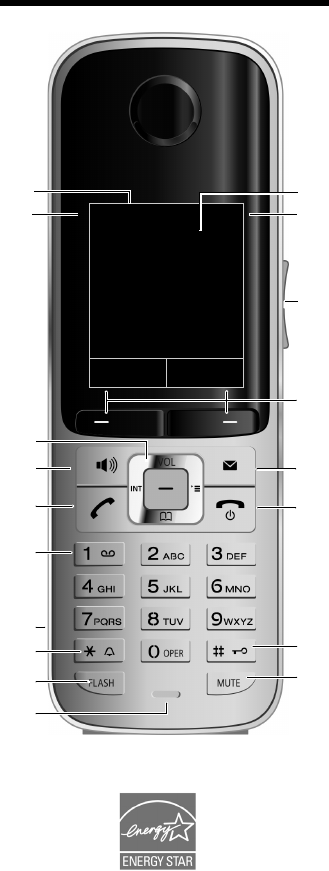
The handset at a glance
Gigaset S790-S795 / en / A31008-M2121-R301-2-3S19 / overview.fm / 22.04.2010
Version 4.1, 21.11.2007
The handset at a glance 1Display in idle status
2Battery charge status (¢page 16)
3Side keys
Set call (¢page 54) or ringtone volume
(¢page 55)
4Display keys (¢page 21)
5Message key (¢page 37)
Access to call and message lists;
Flashes: new message or new call
6End call key, On/Off key
End call, cancel function, go back one menu
level (press briefly), back to idle status (press
and hold), activate/deactivate handset (press
and hold in idle status)
7Pound key
Keypad lock on/off (press and hold in idle sta-
tus);
toggles between upper/lower case and digits
8MUTE key (¢page 31)
Mute the microphone
9Microphone
10 FLASH key
- Flashes: Consultation call
- Insert a dialing pause (press and hold)
11 Star key
Ringtone on/off (press and hold);
with an open connection: switch between
pulse dialing/tone dialing (press briefly);
text input: open table of special characters
12 Headset connection (¢page 18)
13 Key 1
Dial answering machine (S795 only)/
network mailbox (press and hold)
14 Talk key
Flashes: incoming call;
Accept a call; open redial list (press briefly);
start dialing (press and hold)
15 Speaker key
Switch between earpiece and speaker mode
16 Control key (¢page 20)
17 Signal strength (¢page 16)
Green: Eco Mode (¢page 44) activated
18 Answering machine symbol (S795 only)
Answering machine switched on;
Flashes: answering machine is recording a
message or is being operated by another inter-
nal party
ià V
07:15am
INT 1 Oct 14
INT Calls
2
4
6
5
7
8
16
14
9
1
15
17
11
13
3
10
12
18
3
The handset at a glance
Gigaset S790-S795 / en / A31008-M2121-R301-2-3S19 / overview.fm / 22.04.2010
Version 4.1, 21.11.2007
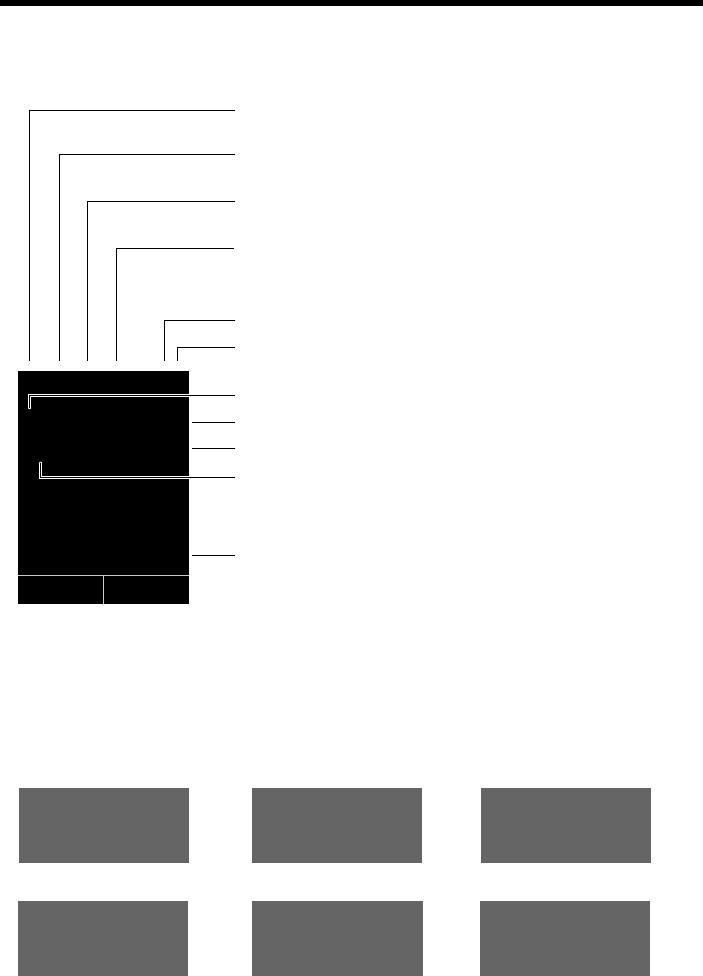
Display symbols
The following symbols may display, depending on the settings and the operating status of your
telephone:
Ø«Ú
Signaling
External call (¢page 29)
ØåÚ ØþÚ
Internal call (¢page 48)
answering machine is
recording (¢page 38)
i à ó˝
Û 08:00 07:15am
INT 1 Oct 14
Ù
02 10 08
INT Calls
ØðÚ
Anniversary (¢page 45)
ØìÚ
Alarm (¢page 46)
Signal strength i(¢page 44)
Answering machine switched on (S795 only)(¢page 4)
Ringtone switched off (¢page 55)
Keypad lock switched on (¢page 23)
ØáÚ
Appointment (¢page 45)
Batteries are charged (¢page 16)
Charge status of the batteries (¢page 16)
Alarm switched on and wake-up time set (¢page 46)
Current time (¢page 15)
Current day and month (¢page 15)
Name of the handset (¢page 50)
Number of new messages:
uÃon the network mailbox (¢page 37)
u™in the list of missed calls (¢page 37)
uin the list of missed appointments (¢page 37)
V
4
The base at a glance
Gigaset S790-S795 / en / A31008-M2121-R301-2-3S19 / overview.fm / 22.04.2010
Version 4.1, 21.11.2007
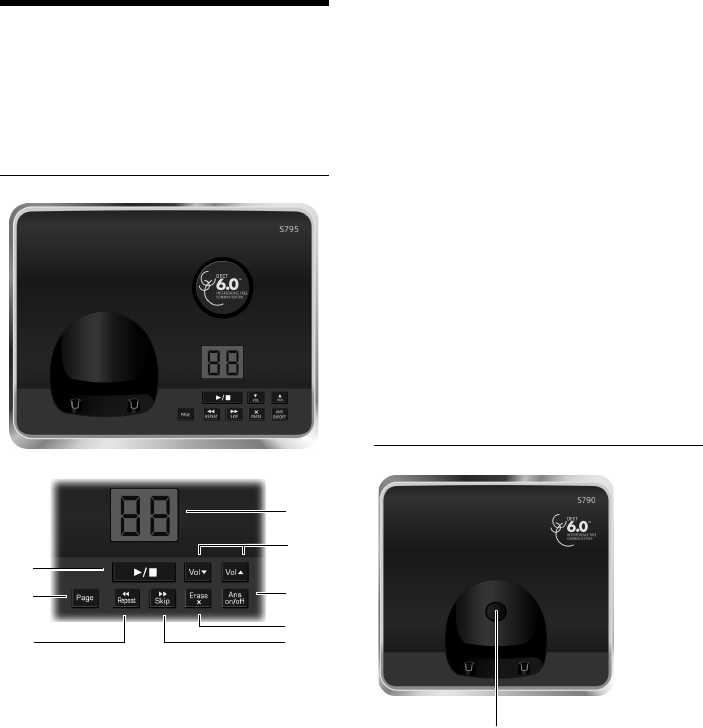
The base at a glance
You can use the keys on the base to register
handsets to the base, search for handsets
(paging) (¢page 48) and operate the inte-
grated answering machine (Gigaset S795
only).
Gigaset S795 base
1Registration/Paging button
Press briefly: search for handsets (paging)
(¢page 48).
Press and hold: register handsets and DECT
devices (¢page 47).
2On/Off button
Activating/deactivating the answering ma-
chine.
3Display
Lights up: answering machine is activated.
The number of saved messages displays.
00 flashes: the answering machine is record-
ing a new message.
Flashes slowly: there are new messages. The
number of new messages displays.
99 flashes quickly: the answering machine is
full.
During message playback:
4Play/Stop button
Play back new messages from answering
machine or cancel playback (press briefly).
Play back new and old messages (press and
hold).
5 Skip to next message (press once) or skip
ahead two messages (press twice).
6 Skip back five seconds (press briefly once),
skip back to the beginning of the message
(press and hold) or skip back to the previous
message (press twice).
7 Delete current message.
8 Adjust volume during message playback: ÷
= quieter; ø = louder.
While an external call is being signaled: adjust
ringtone volume.
Please note:
If the answering machine is being operated
from a handset or if it is recording a message
(00 flashes), it cannot be operated from the
base at the same time.
Gigaset S790 base
Registration/Paging button
– Press briefly: search for handsets (paging)
(¢page 48).
– Press and hold: register handsets and DECT
devices (¢page 47).
6
8
2
7
4
1
5
3

5
Contents
Gigaset S790-S795 / en / A31008-M2121-R301-2-3S19 / S795IVZ.fm / 22.04.2010
Version 4.1, 21.11.2007
Contents
Gigaset S790/S795 – more than just a telephone . . . . . . . . . . . . . . . . . . . . 1
The handset at a glance . . . . . . . . . . . . . . . . . . . . . . . . . . . . . . . . . . . . . . . . . . . . 2
Display symbols . . . . . . . . . . . . . . . . . . . . . . . . . . . . . . . . . . . . . . . . . . . . . . . . . . . 3
The base at a glance . . . . . . . . . . . . . . . . . . . . . . . . . . . . . . . . . . . . . . . . . . . . . . . 4
Safety precautions . . . . . . . . . . . . . . . . . . . . . . . . . . . . . . . . . . . . . . . . . . . . . . . . . 8
First steps . . . . . . . . . . . . . . . . . . . . . . . . . . . . . . . . . . . . . . . . . . . . . . . . . . . . . . . . . 9
Checking the package contents . . . . . . . . . . . . . . . . . . . . . . . . . . . . . . . . . . . . . . . . . . . . . . . 9
Setting up the base and charger (if included) . . . . . . . . . . . . . . . . . . . . . . . . . . . . . . . . . 10
Connecting the base . . . . . . . . . . . . . . . . . . . . . . . . . . . . . . . . . . . . . . . . . . . . . . . . . . . . . . . . . 10
Connecting the charger (if included) . . . . . . . . . . . . . . . . . . . . . . . . . . . . . . . . . . . . . . . . . 11
Setting up the handset . . . . . . . . . . . . . . . . . . . . . . . . . . . . . . . . . . . . . . . . . . . . . . . . . . . . . . . 12
Setting the date and time . . . . . . . . . . . . . . . . . . . . . . . . . . . . . . . . . . . . . . . . . . . . . . . . . . . . 15
Setting up area codes . . . . . . . . . . . . . . . . . . . . . . . . . . . . . . . . . . . . . . . . . . . . . . . . . . . . . . . . 17
Connecting the headset . . . . . . . . . . . . . . . . . . . . . . . . . . . . . . . . . . . . . . . . . . . . . . . . . . . . . 18
Connecting the USB data cable . . . . . . . . . . . . . . . . . . . . . . . . . . . . . . . . . . . . . . . . . . . . . . . 18
What would you like to do next? . . . . . . . . . . . . . . . . . . . . . . . . . . . . . . . . . . . . . . . . . . . . . . 19
Using the phone . . . . . . . . . . . . . . . . . . . . . . . . . . . . . . . . . . . . . . . . . . . . . . . . . . 20
Control key . . . . . . . . . . . . . . . . . . . . . . . . . . . . . . . . . . . . . . . . . . . . . . . . . . . . . . . . . . . . . . . . . . 20
Display keys . . . . . . . . . . . . . . . . . . . . . . . . . . . . . . . . . . . . . . . . . . . . . . . . . . . . . . . . . . . . . . . . . 21
Keys on the keypad . . . . . . . . . . . . . . . . . . . . . . . . . . . . . . . . . . . . . . . . . . . . . . . . . . . . . . . . . . 21
Side keys . . . . . . . . . . . . . . . . . . . . . . . . . . . . . . . . . . . . . . . . . . . . . . . . . . . . . . . . . . . . . . . . . . . . 21
Correcting incorrect entries . . . . . . . . . . . . . . . . . . . . . . . . . . . . . . . . . . . . . . . . . . . . . . . . . . 21
Using the menus . . . . . . . . . . . . . . . . . . . . . . . . . . . . . . . . . . . . . . . . . . . . . . . . . . . . . . . . . . . . . 22
Activating/deactivating the handset . . . . . . . . . . . . . . . . . . . . . . . . . . . . . . . . . . . . . . . . . . 23
Activating/deactivating the keypad lock . . . . . . . . . . . . . . . . . . . . . . . . . . . . . . . . . . . . . . 23
Using this guide . . . . . . . . . . . . . . . . . . . . . . . . . . . . . . . . . . . . . . . . . . . . . . . . . . . . . . . . . . . . . 24
Menu overview . . . . . . . . . . . . . . . . . . . . . . . . . . . . . . . . . . . . . . . . . . . . . . . . . . . 26
Making calls . . . . . . . . . . . . . . . . . . . . . . . . . . . . . . . . . . . . . . . . . . . . . . . . . . . . . . 29
Making an external call . . . . . . . . . . . . . . . . . . . . . . . . . . . . . . . . . . . . . . . . . . . . . . . . . . . . . . 29
Ending a call . . . . . . . . . . . . . . . . . . . . . . . . . . . . . . . . . . . . . . . . . . . . . . . . . . . . . . . . . . . . . . . . . 29
Accepting a call . . . . . . . . . . . . . . . . . . . . . . . . . . . . . . . . . . . . . . . . . . . . . . . . . . . . . . . . . . . . . . 29
Using Caller ID . . . . . . . . . . . . . . . . . . . . . . . . . . . . . . . . . . . . . . . . . . . . . . . . . . . . . . . . . . . . . . . 30
Using the speaker mode . . . . . . . . . . . . . . . . . . . . . . . . . . . . . . . . . . . . . . . . . . . . . . . . . . . . . 31
Switching to mute . . . . . . . . . . . . . . . . . . . . . . . . . . . . . . . . . . . . . . . . . . . . . . . . . . . . . . . . . . . 31
6
Contents
Gigaset S790-S795 / en / A31008-M2121-R301-2-3S19 / S795IVZ.fm / 22.04.2010
Version 4.1, 21.11.2007
Using the directory and lists . . . . . . . . . . . . . . . . . . . . . . . . . . . . . . . . . . . . . . . 32
Directory . . . . . . . . . . . . . . . . . . . . . . . . . . . . . . . . . . . . . . . . . . . . . . . . . . . . . . . . . . . . . . . . . . . . 32
Redial list . . . . . . . . . . . . . . . . . . . . . . . . . . . . . . . . . . . . . . . . . . . . . . . . . . . . . . . . . . . . . . . . . . . . 35
Answering machine list (Gigaset S795 only) . . . . . . . . . . . . . . . . . . . . . . . . . . . . . . . . . . . 36
Call lists . . . . . . . . . . . . . . . . . . . . . . . . . . . . . . . . . . . . . . . . . . . . . . . . . . . . . . . . . . . . . . . . . . . . . 36
Opening lists with the message key . . . . . . . . . . . . . . . . . . . . . . . . . . . . . . . . . . . . . . . . . . 37
List of missed alarms . . . . . . . . . . . . . . . . . . . . . . . . . . . . . . . . . . . . . . . . . . . . . . . . . . . . . . . . . 37
Operating the Gigaset S795 base answering machine . . . . . . . . . . . . . . 38
Operating via the handset . . . . . . . . . . . . . . . . . . . . . . . . . . . . . . . . . . . . . . . . . . . . . . . . . . . . 38
Activating/deactivating call screening . . . . . . . . . . . . . . . . . . . . . . . . . . . . . . . . . . . . . . . . 41
Setting the recording parameters . . . . . . . . . . . . . . . . . . . . . . . . . . . . . . . . . . . . . . . . . . . . 41
Resetting fast access for the answering machine using key 1 . . . . . . . . . . . . . . . . . . 42
Operating when on the move (remote operation) . . . . . . . . . . . . . . . . . . . . . . . . . . . . . 42
Using the network mailbox . . . . . . . . . . . . . . . . . . . . . . . . . . . . . . . . . . . . . . . 43
Configuring fast access for the network mailbox . . . . . . . . . . . . . . . . . . . . . . . . . . . . . . 43
Viewing the network mailbox message . . . . . . . . . . . . . . . . . . . . . . . . . . . . . . . . . . . . . . . 43
ECO DECT . . . . . . . . . . . . . . . . . . . . . . . . . . . . . . . . . . . . . . . . . . . . . . . . . . . . . . . . 44
Setting an appointment (calendar) . . . . . . . . . . . . . . . . . . . . . . . . . . . . . . . . 44
Displaying missed appointments, anniversaries . . . . . . . . . . . . . . . . . . . . . . . . . . . . . . . 46
Setting the alarm clock . . . . . . . . . . . . . . . . . . . . . . . . . . . . . . . . . . . . . . . . . . . 46
Using multiple handsets . . . . . . . . . . . . . . . . . . . . . . . . . . . . . . . . . . . . . . . . . . 47
Registering handsets . . . . . . . . . . . . . . . . . . . . . . . . . . . . . . . . . . . . . . . . . . . . . . . . . . . . . . . . . 47
De-registering handsets . . . . . . . . . . . . . . . . . . . . . . . . . . . . . . . . . . . . . . . . . . . . . . . . . . . . . . 48
Locating a handset ("Paging") . . . . . . . . . . . . . . . . . . . . . . . . . . . . . . . . . . . . . . . . . . . . . . . . 48
Changing the base . . . . . . . . . . . . . . . . . . . . . . . . . . . . . . . . . . . . . . . . . . . . . . . . . . . . . . . . . . . 48
Making internal calls . . . . . . . . . . . . . . . . . . . . . . . . . . . . . . . . . . . . . . . . . . . . . . . . . . . . . . . . . 48
Listening in to an external call . . . . . . . . . . . . . . . . . . . . . . . . . . . . . . . . . . . . . . . . . . . . . . . . 49
Changing the name of a handset . . . . . . . . . . . . . . . . . . . . . . . . . . . . . . . . . . . . . . . . . . . . . 50
Changing a handset's internal number . . . . . . . . . . . . . . . . . . . . . . . . . . . . . . . . . . . . . . . 50
Using a handset as a room monitor . . . . . . . . . . . . . . . . . . . . . . . . . . . . . . . . 50
Handset settings . . . . . . . . . . . . . . . . . . . . . . . . . . . . . . . . . . . . . . . . . . . . . . . . . 52
Quick access to numbers and functions . . . . . . . . . . . . . . . . . . . . . . . . . . . . . . . . . . . . . . . 52
Changing the display language . . . . . . . . . . . . . . . . . . . . . . . . . . . . . . . . . . . . . . . . . . . . . . 53
Setting the display . . . . . . . . . . . . . . . . . . . . . . . . . . . . . . . . . . . . . . . . . . . . . . . . . . . . . . . . . . . 53
Setting keypad illumination . . . . . . . . . . . . . . . . . . . . . . . . . . . . . . . . . . . . . . . . . . . . . . . . . . 54
Activating/deactivating auto answer . . . . . . . . . . . . . . . . . . . . . . . . . . . . . . . . . . . . . . . . . 54
Changing the speaker/earpiece volume . . . . . . . . . . . . . . . . . . . . . . . . . . . . . . . . . . . . . . 54
Setting a handsfree profile . . . . . . . . . . . . . . . . . . . . . . . . . . . . . . . . . . . . . . . . . . . . . . . . . . . 54
Changing ringtones . . . . . . . . . . . . . . . . . . . . . . . . . . . . . . . . . . . . . . . . . . . . . . . . . . . . . . . . . . 55
Resource Directory . . . . . . . . . . . . . . . . . . . . . . . . . . . . . . . . . . . . . . . . . . . . . . . . . . . . . . . . . . . 56
Activating/deactivating advisory tones . . . . . . . . . . . . . . . . . . . . . . . . . . . . . . . . . . . . . . . 57
Setting long-distance and area codes . . . . . . . . . . . . . . . . . . . . . . . . . . . . . . . . . . . . . . . . . 57
Restoring the handset default settings . . . . . . . . . . . . . . . . . . . . . . . . . . . . . . . . . . . . . . . . 57
7
Contents
Gigaset S790-S795 / en / A31008-M2121-R301-2-3S19 / S795IVZ.fm / 22.04.2010
Version 4.1, 21.11.2007
Setting the base . . . . . . . . . . . . . . . . . . . . . . . . . . . . . . . . . . . . . . . . . . . . . . . . . . 58
Changing the Gigaset S795 base ringtones . . . . . . . . . . . . . . . . . . . . . . . . . . . . . . . . . . . 58
Activating/deactivating music on hold . . . . . . . . . . . . . . . . . . . . . . . . . . . . . . . . . . . . . . . 58
Protecting against unauthorized access . . . . . . . . . . . . . . . . . . . . . . . . . . . . . . . . . . . . . . 58
Resetting the base to the factory settings . . . . . . . . . . . . . . . . . . . . . . . . . . . . . . . . . . . . . 58
Connecting the base to the PABX . . . . . . . . . . . . . . . . . . . . . . . . . . . . . . . . . . 59
Dialing modes and recall . . . . . . . . . . . . . . . . . . . . . . . . . . . . . . . . . . . . . . . . . . . . . . . . . . . . . 59
Setting pauses . . . . . . . . . . . . . . . . . . . . . . . . . . . . . . . . . . . . . . . . . . . . . . . . . . . . . . . . . . . . . . . 59
Switching temporarily to tone dialing (DTMF) . . . . . . . . . . . . . . . . . . . . . . . . . . . . . . . . . 59
Troubleshooting . . . . . . . . . . . . . . . . . . . . . . . . . . . . . . . . . . . . . . . . . . . . . . . . . 60
Appendix . . . . . . . . . . . . . . . . . . . . . . . . . . . . . . . . . . . . . . . . . . . . . . . . . . . . . . . . 61
Caring for your telephone . . . . . . . . . . . . . . . . . . . . . . . . . . . . . . . . . . . . . . . . . . . . . . . . . . . . 61
Contact with liquid . . . . . . . . . . . . . . . . . . . . . . . . . . . . . . . . . . . . . . . . . . . . . . . . . . . . . . . . . . 61
Specifications . . . . . . . . . . . . . . . . . . . . . . . . . . . . . . . . . . . . . . . . . . . . . . . . . . . . . . . . . . . . . . . . 62
Writing and editing text . . . . . . . . . . . . . . . . . . . . . . . . . . . . . . . . . . . . . . . . . . . . . . . . . . . . . . 63
Additional functions via the PC interface . . . . . . . . . . . . . . . . . . . . . . . . . . 63
Industry Canada Certification . . . . . . . . . . . . . . . . . . . . . . . . . . . . . . . . . . . . . . . . . . . . . . . . 65
FCC / ACTA Information . . . . . . . . . . . . . . . . . . . . . . . . . . . . . . . . . . . . . . . . . . . 65
Safety precautions . . . . . . . . . . . . . . . . . . . . . . . . . . . . . . . . . . . . . . . . . . . . . . . . . . . . . . . . . . . 66
Service (Customer Care) . . . . . . . . . . . . . . . . . . . . . . . . . . . . . . . . . . . . . . . . . . . 68
End-user limited warranty . . . . . . . . . . . . . . . . . . . . . . . . . . . . . . . . . . . . . . . . . . . . . . . . . . . . 68
Accessories . . . . . . . . . . . . . . . . . . . . . . . . . . . . . . . . . . . . . . . . . . . . . . . . . . . . . . . 71
Mounting the base on the wall (Gigaset S790 only) . . . . . . . . . . . . . . . . . 72
Mounting the charger on the wall . . . . . . . . . . . . . . . . . . . . . . . . . . . . . . . . . 72
Index . . . . . . . . . . . . . . . . . . . . . . . . . . . . . . . . . . . . . . . . . . . . . . . . . . . . . . . . . . . . 73
8
Safety precautions
Gigaset S790-S795 / en / A31008-M2121-R301-2-3S19 / security.fm / 22.04.2010
Version 4.1, 21.11.2007
Safety precautions
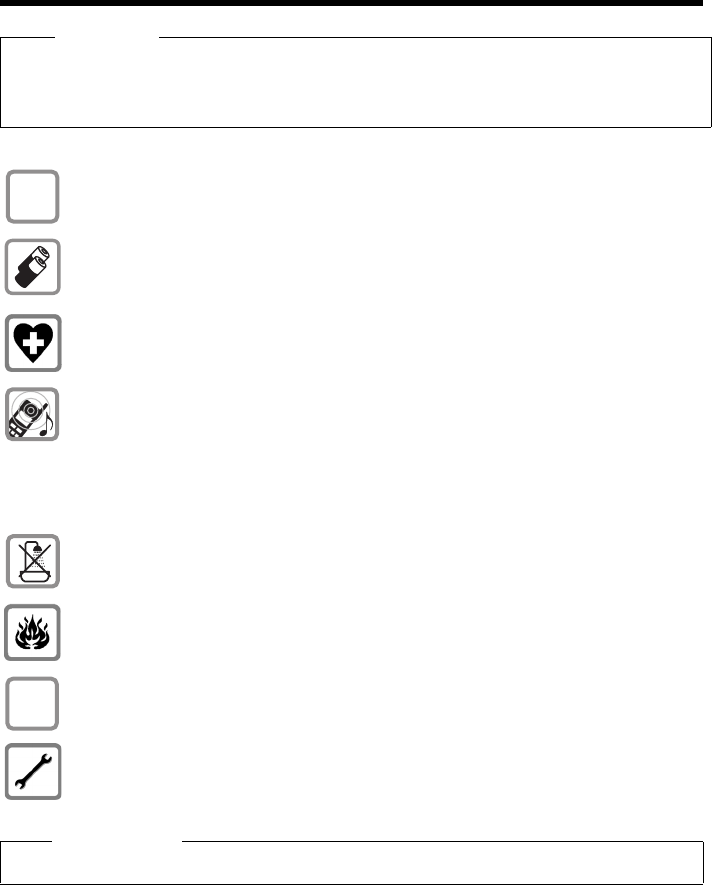
Warning
Be sure to read this user guide and the safety precautions before using your telephone.
Explain their content and the potential hazards associated with using the telephone to your
children.
Use only the power adapter supplied, as indicated on the underside of the base.
Use only rechargeable batteries that correspond to the specification provided on
page 62, as this could otherwise result in significant health risks and personal injury.
Do not charge the handset in charging unit or base while the headset is connected.
Using your telephone may affect nearby medical equipment. Be aware of the tech-
nical conditions in your particular environment, e.g., doctor's surgery.
Do not hold the rear of the handset to your ear when it is ringing or when speaker
mode is activated. You risk serious and permanent damage to your hearing.
Your Gigaset is compatible with the majority of digital hearing aids on the market.
However, perfect function with all hearing aids cannot be guaranteed.
The handset may cause an unpleasant humming or whistling noise in hearing aids
or cause them to overload. For assistance, please contact the hearing aid supplier.
Do not install the base or charger in bathrooms or shower rooms. The base and
charger are not splashproof (¢page 61).
Do not use your phone in environments with a potential explosion hazard
(e.g., paint shops).
If you give your phone to a third party, make sure you also give them the user guide.
Remove faulty bases from use or have them repaired by our Service department, as
they could interfere with other wireless services.
Please note
Not all of the functions described in this user guide are available in all countries.
$
ƒ
9
First steps
Gigaset S790-S795 / en / A31008-M2121-R301-2-3S19 / starting.fm / 22.04.2010
Version 4.1, 21.11.2007
First steps
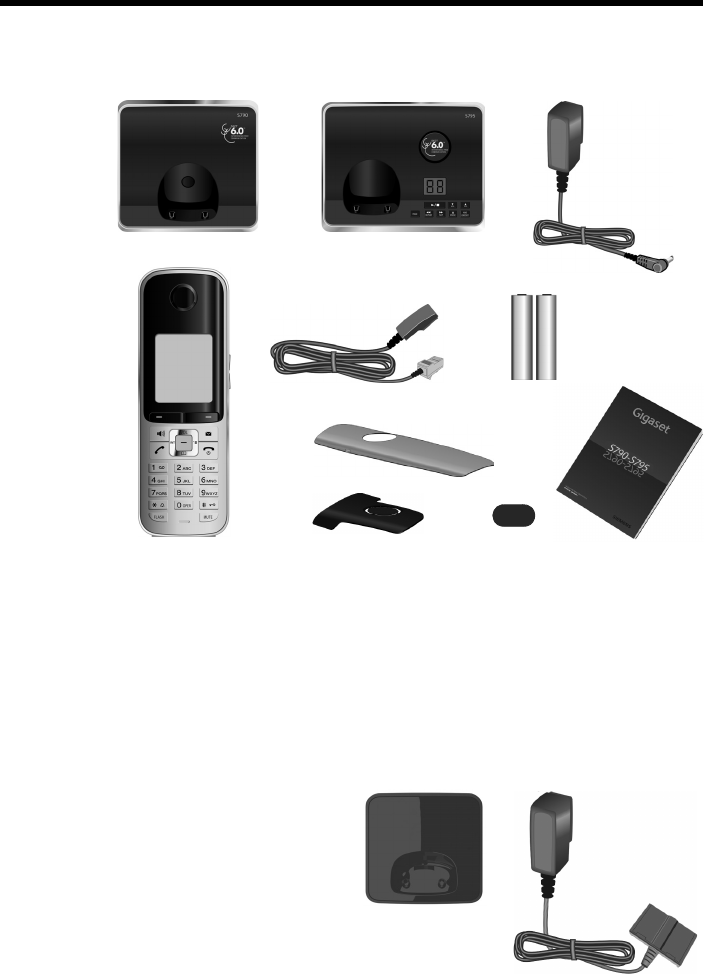
Checking the package contents
1One Gigaset S790 or S795 base
2One power adapter
3One Gigaset S79H handset
4One phone cord
5Two batteries
6One battery cover
7One belt clip
8One plastic headset connection cover
9One user guide
If you have purchased a
model with multiple hand-
sets the package should
contain one additional set
of each of the following
items for each handset: bat-
tery sets, battery cover, belt
clip, handset, and charging
cradle 9 with power
adapter J
21
345
7
6
9
8
or
9J
10
First steps
Gigaset S790-S795 / en / A31008-M2121-R301-2-3S19 / starting.fm / 22.04.2010
Version 4.1, 21.11.2007
Setting up the base and charger (if included)
The base and charger are designed for use in dry rooms in a temperature range of
+41°F to +113°F.
¤Set up the base at a central point in the building on a level, non-slip surface or
mount the base (Gigaset S790 only) or charger on the wall (¢page 72).
The phone's feet do not usually leave any marks on surfaces. However, due to the
multitude of different varnishes and polishes used on today's furnishings, the
occurrence of marks on the surfaces cannot be completely ruled out.
Please note:
uNever expose the telephone to the influence of heat sources, direct sunlight or
other electrical devices.
uProtect your telephone from moisture, dust, corrosive liquids and fumes.
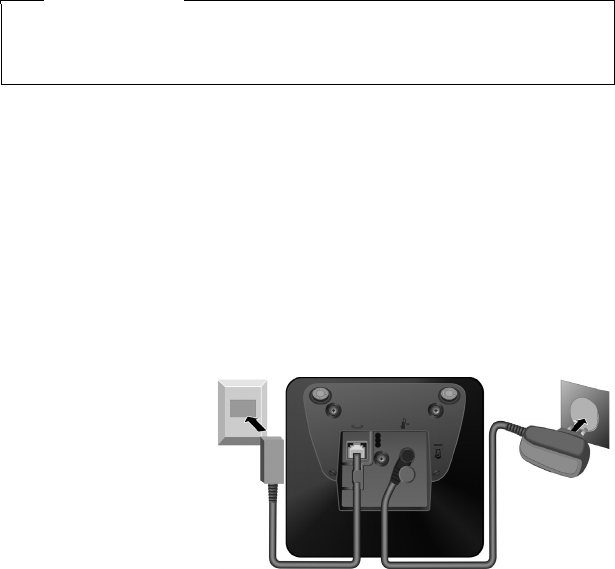
Connecting the base
¤First connect the
power adapter 1.
¤Then connect the
telephone jack 2
and insert the cables
into the cable ducts.
Please note:
uThe power adapter
must always be connected, as the phone will not operate without.
uUse only the power adapter and phone cord supplied. Pin connections on tele-
phone cables can vary (¢page 62).
Please note
Pay attention to the range of the base.
This is up to 984 feet in unobstructed outdoor areas and up to 165 feet inside
buildings. The range is reduced when Eco Mode (¢page 44) is activated.
1
1
1
2
11
First steps
Gigaset S790-S795 / en / A31008-M2121-R301-2-3S19 / starting.fm / 22.04.2010
Version 4.1, 21.11.2007
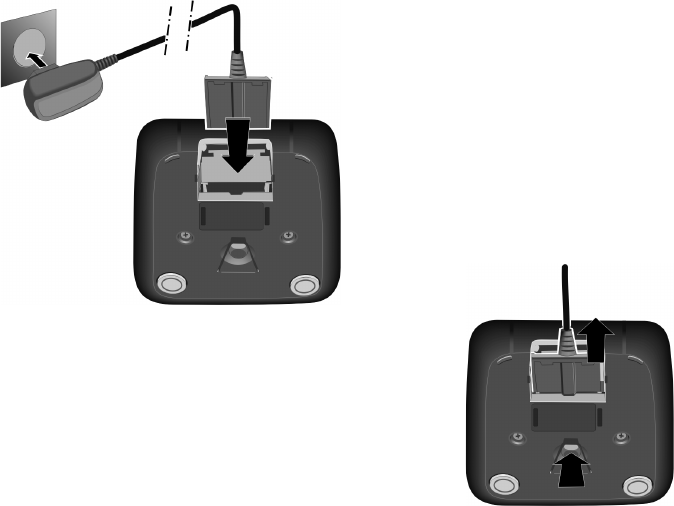
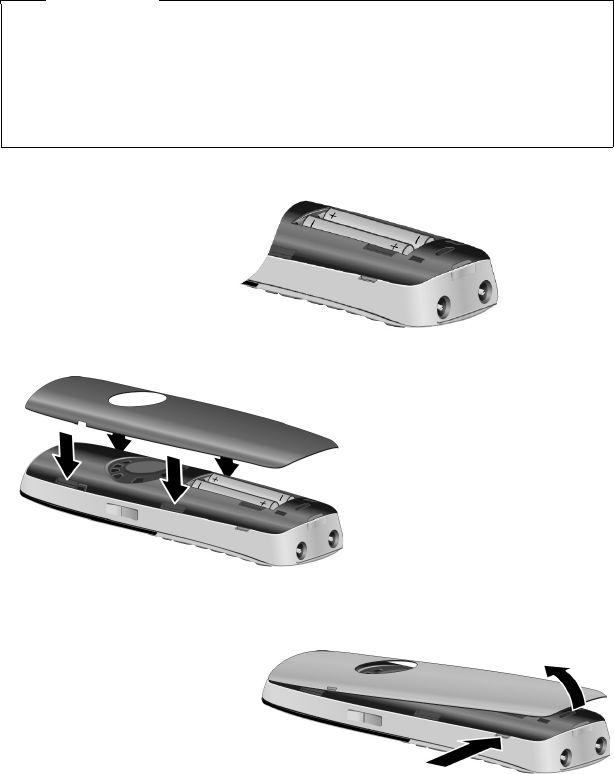
Connecting the charger (if included)
¤Plug the power adapter into the plug
socket 2.
¤Connect the flat plug from the power
adapter 1.
To disconnect the plug from the charger, press
the release button 1 and disconnect
the plug 2.
1
2
1
2
12
First steps
Gigaset S790-S795 / en / A31008-M2121-R301-2-3S19 / starting.fm / 22.04.2010
Version 4.1, 21.11.2007
Setting up the handset
The display and keypad are protected by plastic films.
Remove the protective films!
Inserting the batteries and closing the battery cover
Warning
Use only rechargeable nickel-metal hydride (NiMH) UL-approved AAA batteries.
Never use conventional (non-rechargeable) batteries, as this could result in sig-
nificant health risks and personal injury. For example, the outer casing of the
batteries could be damaged or the batteries could explode. The phone could
also malfunction or be damaged as a result of using batteries that are not of the
recommended type.
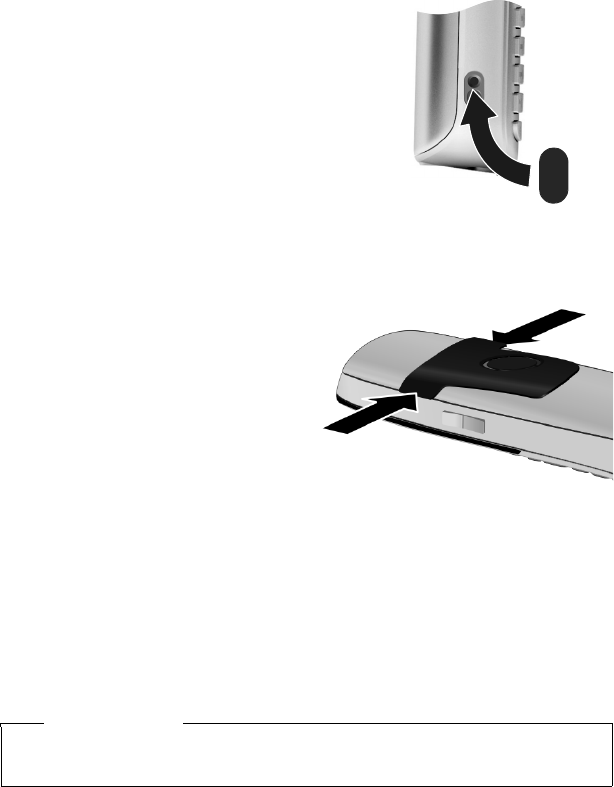
¤Insert the batteries with
the polarity in the cor-
rect direction.
The polarity is indicated
in/on the battery com-
partment.
¤First insert the battery
cover at the top a.
¤Then press the cover b
until it clicks into place.
To open the battery cover, for
instance to replace the batter-
ies, insert a coin into the cavity
on the left-hand side of the cas-
ing, then pull the battery cover
in an upward direction.
13
First steps
Gigaset S790-S795 / en / A31008-M2121-R301-2-3S19 / starting.fm / 22.04.2010
Version 4.1, 21.11.2007
¤Insert the plastic cover provided for the
headset socket to ensure optimum sound in
speaker mode.
Attaching the belt clip
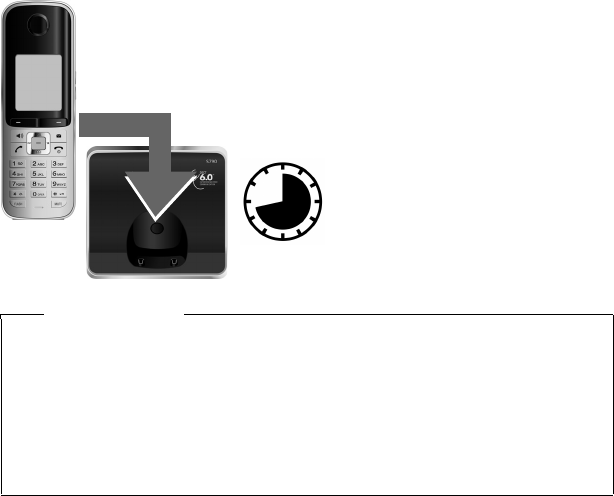
The handset has notches on each side to attach the belt clip.
¤To attach — press the belt clip
onto the back of the handset so
that the protrusions on the belt
clip engage with the notches.
¤To remove — press the center of
the belt clip firmly with your right
thumb, push the fingernail of
your left index finger up between
the clip and the housing and pull
the clip in an upward direction.
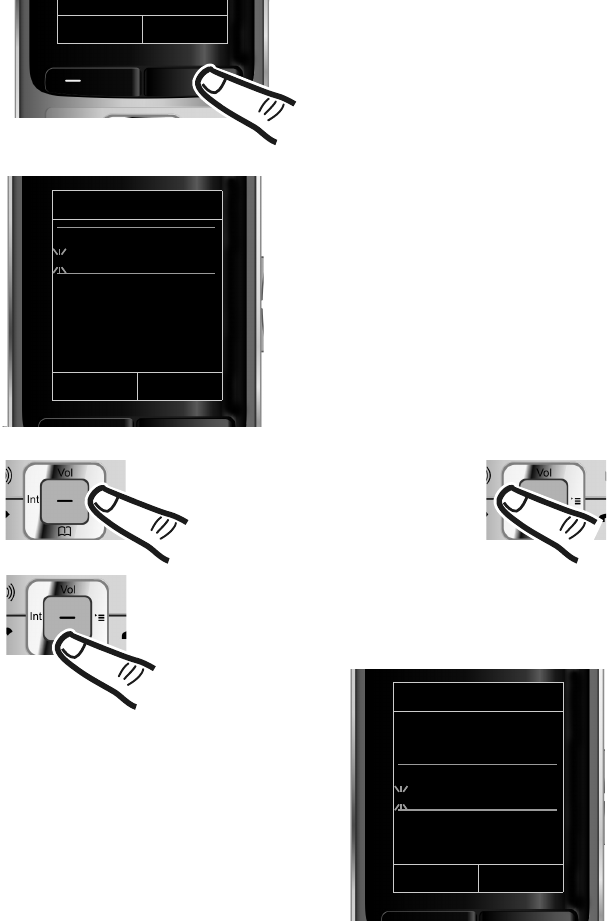
Placing the handset in the
base/charger
¤Place the handset in the base/charger with its display facing forward.
Each handset is registered with the base at the factory. You do not need to register
the handset again. If you wish to use your handset with a different base or use fur-
ther handsets with your base, register the handset manually (¢page 47).
To charge the batteries, leave the handset in the base/charger.
Please note
Only place the handset in the designated base/charger included with the hand-
set.
14
First steps
Gigaset S790-S795 / en / A31008-M2121-R301-2-3S19 / starting.fm / 22.04.2010
Version 4.1, 21.11.2007
First battery charge and discharge
The correct charge level can only display if the batteries are first fully charged and
discharged.
¤Charge the handset for 8.5 hours in the base/
charger.
¤Then remove the handset
from the base/charger and
do not replace it until the
batteries are fully dis-
charged.
8.5 hrs
Please note
uAfter the first battery charge and discharge, you may replace your handset in
the base/charger after every call.
uAlways repeat the charging and discharging procedure if you remove the
batteries from the handset and reinsert them.
uThe batteries may warm up during charging. This is not dangerous.
uAfter a while, the charge capacity of the batteries will decrease for technical
reasons.
15
First steps
Gigaset S790-S795 / en / A31008-M2121-R301-2-3S19 / starting.fm / 22.04.2010
Version 4.1, 21.11.2007
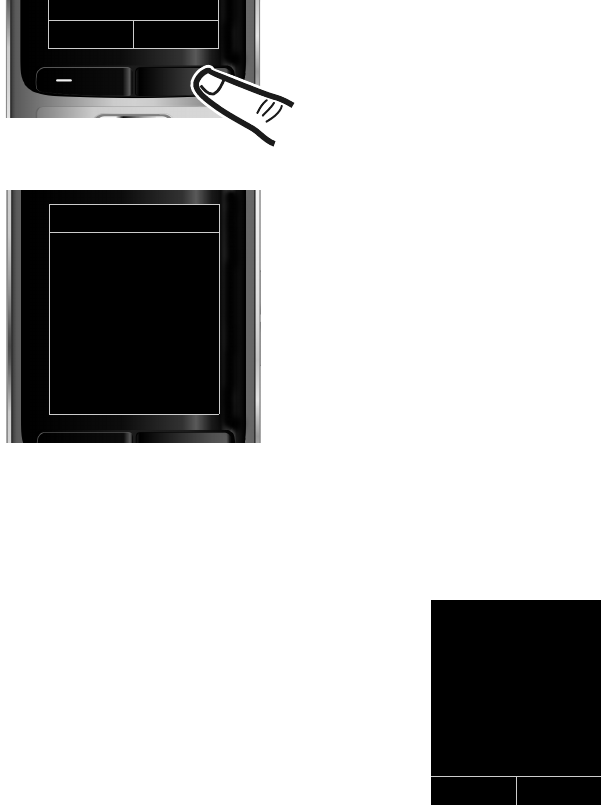
Setting the date and time
Set the date and time so that the correct date and time can be assigned to incoming
calls, and so that the alarm can be used.
Date/Time
Date:
10/14/2009
Time:
00:00am
AM/PM Save
¤Press the key below §Time§ on the dis-
play to open the input field.
If you have already set the time and
date, open the input field via the menu
(¢page 28.)
The Date/Time submenu displays.
¤The active input position flashes. Enter
the month, day and year as an 8-digit
number via the keypad,
e.g., Q42QQ
O for 10/14/2009.
Date/Time
Date:
01/31/2009
Time:
00:00am
AM/PM Save
INT Time
Press the right or left control key
to change the input position and
correct an entry.
¤When you switch to time entry, the Back
display key turns to AM/PM. Enter the
hours and minutes in 4-digit format via
the keypad, e.g., QM5
for 07:15 am.
Change the input position with
the control key if necessary.
If necessary, press the AM/PM display
key to change the time setting from AM
to PM.
¤Press down on the control key to switch
to the time input field.
16
First steps
Gigaset S790-S795 / en / A31008-M2121-R301-2-3S19 / starting.fm / 22.04.2010
Version 4.1, 21.11.2007
Display in idle status
After registering the phone and setting the time, the idle display shows as in this
example. If the answering machine is activate, the answering machine icon Ã
displays in the header.
Displays
uReception between the base and the handset:
– Poor to good: ÒÑiÐ
–No reception: | flashes
Green: Eco Mode activated (¢page 44)
uCharge status of the batteries:
–yy{{ (empty to full)
–yflashes red: batteries almost empty
–xyx{x{(charging)
uINT 1
Internal name of the handset (¢page 50)
Your answering machine is set with a pre-recorded announcement.
Your phone is now ready to use!
¤Press the key below §Save§ on the dis-
play to confirm your entry.
The display shows Saved. You will hear a
confirmation tone and the handset
automatically returns to idle status.
Back Save
Date/Time
‰
Saved
ÐÃV
07:15 am
INT 1 Oct 14
INT Calls
17
First steps
Gigaset S790-S795 / en / A31008-M2121-R301-2-3S19 / starting.fm / 22.04.2010
Version 4.1, 21.11.2007
Setting up area codes
Before you can return a call from the Calls list (¢page 36), you must store the local
area code of the area in which your phone is being used. If your phone is in a mul-
tiple area code area, you must also store the extra codes for that area.
Local Area Code
v ¢Ï ¢Teleph ony ¢Local Area Code
~Enter the local area code.
§Save§ Press the Display key.
a When the Saved message displays, press and hold to return to idle sta-
tus.
Extra Codes
v ¢Ï ¢Teleph ony ¢Extra Codes
~Enter the extra code.
§Save§ Press the Display key.
a When the Saved message displays, press and hold to return to idle sta-
tus.
Repeat the above steps until all the extra codes have been entered for your area. A
maximum of five (5) extra codes can be stored.
18
First steps
Gigaset S790-S795 / en / A31008-M2121-R301-2-3S19 / starting.fm / 22.04.2010
Version 4.1, 21.11.2007
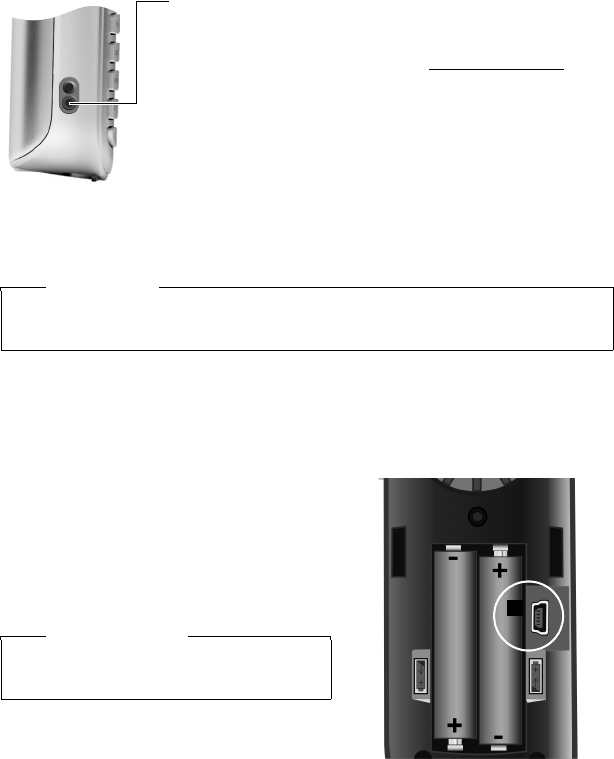
Connecting the headset
After removing the plastic cover, you can connect a head-
set to the left-hand side of your telephone with the 2.5 mm
jack connector.
See the relevant product page at www.gigaset.com for
information on recommended headsets.
The headset volume corresponds to the settings for the
handset volume (¢page 54).
After using the headset, replace the plastic cover to enable
optimum sound in speaker mode.
.
Connecting the USB data cable
You can connect a standard USB data cable with a mini-B connector to the back of
your handset to connect the handset to a PC (¢page 63).
¤Remove the belt clip (if attached)
(¢page 13).
¤Remove the battery cover (¢page 12).
¤Connect the USB data cable to the USB
socket 1.
Warning
Do not charge the handset in charging unit or base while the headset is
connected.
Please note
Please connect your handset directly to
the PC; do not connect via a USB hub.
1

19
First steps
Gigaset S790-S795 / en / A31008-M2121-R301-2-3S19 / starting.fm / 22.04.2010
Version 4.1, 21.11.2007
What would you like to do next?
Now that you have successfully set up your phone, you will certainly want to adapt
it to your personal requirements. Use the following guide to quickly locate the most
important topics.
If you are unfamiliar with menu-driven devices such as other Gigaset telephones,
read the section entitled "Using the phone" (¢page 20) first.
If you have any questions about using your phone, please read the tips
on troubleshooting (¢page 60) or contact our Customer Care team
(¢page 68).
Information about ... ... go to...
Setting the ringtone and volume page 55
Setting the earpiece volume page 54
Recording your own announcement for the
answering machine page 38
Setting Eco Mode page 44
Operating the telephone on a PABX page 59
Registering existing Gigaset handsets to a base page 47
Transferring directory entries from existing Gigaset
handsets to new handset(s) page 34
Connecting the phone to the PC page 63
g
g
g
g
g
g
g
g

20
Using the phone
Gigaset S790-S795 / en / A31008-M2121-R301-2-3S19 / starting.fm / 22.04.2010
Version 4.1, 21.11.2007
Using the phone
Control key
Below, the side of the control key that you must press in the
respective operating situation is marked in black (top, bottom,
right, left, center), e.g., v for "press right on the control key" or
w for "press the center of the control key".
The control key has a number of different functions:
When the handset is in idle status
s Open the directory.
v Open the main menu.
u Open the list of handsets.
tCall up the menu for setting the handset's call volume (¢page 54).
In the main menu
t, s, v or u
Navigate to the required function.
In submenus and lists
t/ s Scroll up/down line by line.
In input fields
Use the control key to move the cursor up t, down s, right v or left u. Press
and hold v or u to move the cursor word by word.
During an external call
s Open the directory.
u Initiate an internal consultation call.
tAdjust the volume for earpiece and speaker mode.
Functions when pressing the middle of the control key
Depending on the operating situation, the key has different functions.
uIn idle status the key opens the main menu.
uIn submenus, selection and input fields, the key takes on the function of the
display keys §OK§, §Yes§, §Save§, §Select§ or §Change§.
Please note
These instructions demonstrate the main menu being opened by pressing the
right of the control key and functions being actuated by pressing the appropri-
ate display key. However, if you prefer, you can use the control key as described
above.
21
Using the phone
Gigaset S790-S795 / en / A31008-M2121-R301-2-3S19 / starting.fm / 22.04.2010
Version 4.1, 21.11.2007
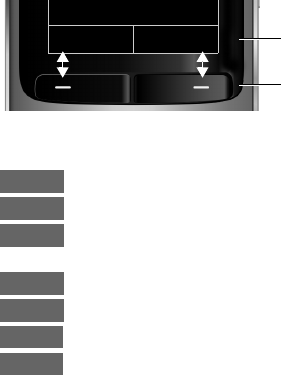
Display keys
The functions of the display keys change depending on the particular operating sit-
uation. Example:
Some important display keys:
Open a menu for further functions.
Confirm selection.
Delete key: delete character by character/word at a time from right to
left.
Go back one menu level or cancel operation.
Store entry.
Open the redial list.
Forward a call to the answering machine.
Keys on the keypad
c/ Q/ *etc.
Press the matching key on the handset.
~Enter digits or letters.
Side keys
ø / ÷Press the keys on the right of the handset to set the volume for the
handset, ringtone, speaker, alarm, signaling of appointments and the
headset depending on the situation.
Correcting incorrect entries
You can correct characters in the input fields by navigating to the incorrect entry
using the control key. You can then:
uDelete the character to the left of the cursor with the display key or delete the
entire word by pressing and holding Ñ
uInsert characters at the cursor position
uOverwrite the highlighted (flashing) character, e.g. when entering time and
date.
Back Save
Current display key functions.
Display keys
Options
OK
Û
Back
Save
Þ
à

22
Using the phone
Gigaset S790-S795 / en / A31008-M2121-R301-2-3S19 / starting.fm / 22.04.2010
Version 4.1, 21.11.2007
Using the menus
You can access your telephone's functions using a menu that has a number of lev-
els.
The menu display can be extended (expert mode •) or restricted (standard
mode). Expert mode is the default setting.
Settings or functions that are only available in expert mode are marked in these
instructions by the • icon.
For more information regarding "switching" between standard mode/expert mode
and Menu Overview, please refer to page 26. (¢page 26).
Main menu (first menu level)
¤When the handset is in idle status press the right control key v to open the
main menu.
The main menu functions display with icons. The icon
for the selected function is highlighted in orange and
the name of the associated function appears in the dis-
play header.
To access a function, i.e., to open the corresponding
submenu (next menu level):
¤Use the control key p to select the required func-
tion and press the display key §OK§.
Briefly press the display key §Back§ or the end call key a
to revert back to idle status.
Submenus
The functions in the submenus are displayed as lists (as
shown on the right).
To access a function:
¤Scroll to the function with the control key q and
press §OK§.
Briefly press the display key §Back§ or the end call key a
to return to the previous menu level/cancel the opera-
tion.
Settings
×·É
ìÊÌ
á Â Ï
Back OK
Settings
Date/Time
Display
Language
Registration
Telephony
Back OK
23
Using the phone
Gigaset S790-S795 / en / A31008-M2121-R301-2-3S19 / starting.fm / 22.04.2010
Version 4.1, 21.11.2007
Reverting to idle status
You can revert to idle status from anywhere in the menu as follows:
¤Press and hold the end call key a.
or:
¤Do not press any key: after 2 minutes the display will automatically revert to idle
status.
Settings that have not been saved by selecting the display keys §OK§, §Yes§, §Save§ or
§Change§ are lost.
An example of the display in idle status is shown on page 16.
Activating/deactivating the handset
aWith the phone in idle status, press and hold the end call key (confir-
mation tone) to switch off the handset.
Press and hold the end call key again to switch the handset on.
Activating/deactivating the keypad lock
The keypad lock prevents any unauthorized or accidental use of the phone.
#Press and hold the pound key in idle status to activate or deactivate the
keypad lock. You will hear the confirmation tone.
If the keypad lock is activate, you will see a message when you press a key.
The keypad lock deactivates automatically when you receive a call. It is reactivated
when the call is finished.
Please note
When the handset is switched on, an animation showing the Gigaset logo dis-
plays for several seconds.
Please note
When the keypad lock is active, you cannot call emergency numbers.
Emergency numbers cannot be dialed if the keypad lock is activated!
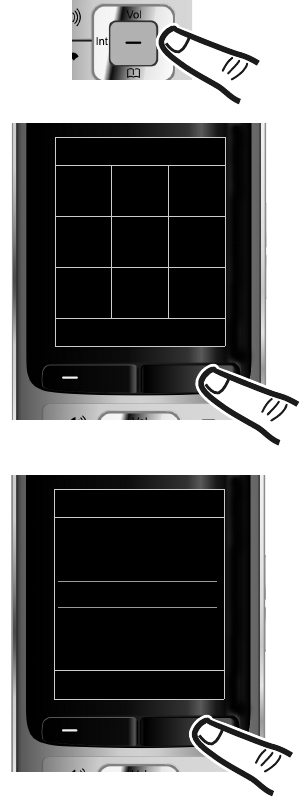
24
Using the phone
Gigaset S790-S795 / en / A31008-M2121-R301-2-3S19 / starting.fm / 22.04.2010
Version 4.1, 21.11.2007
Using this guide
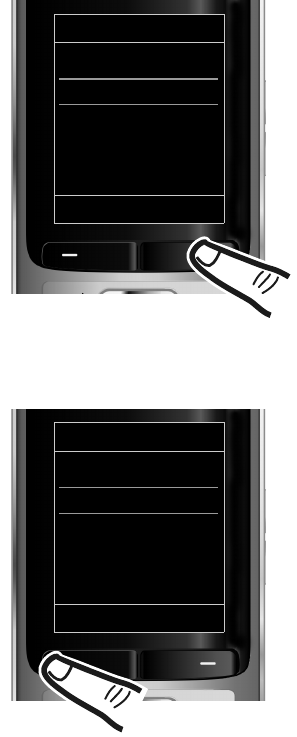
The operating steps are shown in abbreviated form.
Example:
The illustration:
v ¢Ï ¢Display ¢Large Font (³=on)
means:
¤Press right on the control key v
to open the main menu.
¤Press right, left, down and up on
the control key p to navigate to
the Settings submenu.
¤Press the display key §OK§ to confirm
your selection.
¤Press down on the control key s
until the Display menu option
appears on the display.
¤Press the display key §OK§ to confirm
your selection.
Settings
Date/Time
Display
Language
Registration
Telephony
Back OK
Settings
×·É
ìÊÌ
á Â Ï
Back OK
25
Using the phone
Gigaset S790-S795 / en / A31008-M2121-R301-2-3S19 / starting.fm / 22.04.2010
Version 4.1, 21.11.2007
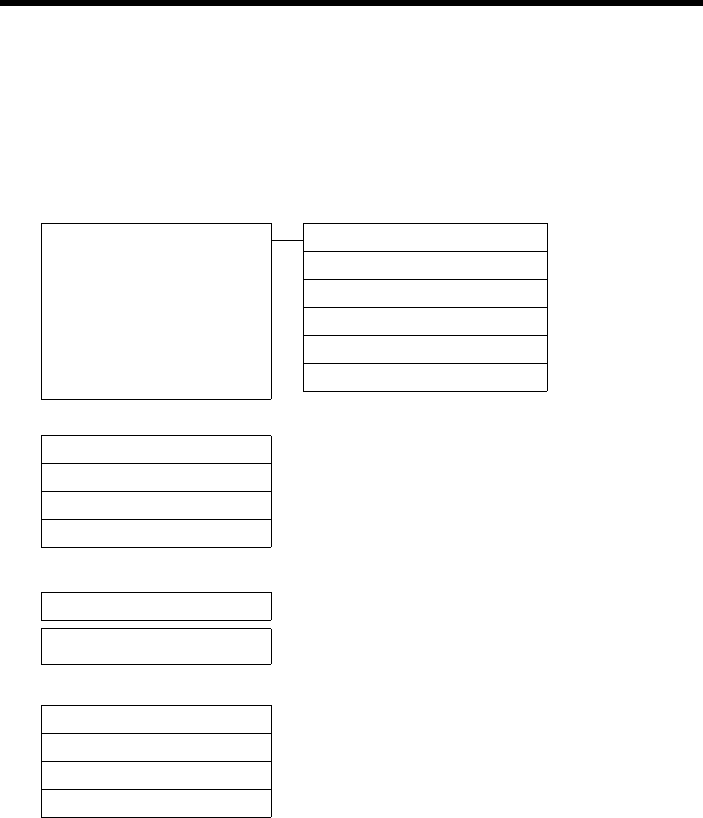
The change is effective immediately
and does not need to be confirmed.
¤Press down on the control key s
until the Large Font menu option
appears on the display.
¤Press the display key §Change§ to
activate/deactivate the function.
Display
Screensaver
Large Font ³
Color Schemes
Backlight
Back Change
Display
Screensaver
Large Font ´
Color Schemes
Backlight
Back Change
¤Press the key below §Back§ on the dis-
play to jump back to the previous
menu level.
or
Press and hold the end call key a to
return to idle status.
26
Menu overview
Gigaset S790-S795 / en / A31008-M2121-R301-2-3S19 / menuetree.fm / 22.04.2010
Version 4.1, 21.11.2007
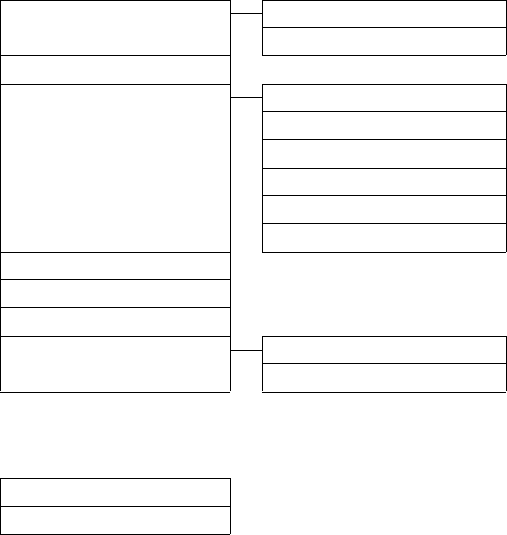
Menu overview
Setting standard mode or expert mode
The menu display can be extended (expert mode •) or restricted (standard mode). Menu
options that are only available in expert mode are marked with the • icon.
To change these settings:
Select v ¢Ï ¢Menu View ¢Simplified (standard mode) or Complete (expert mode)
¢§Select§ (the active mode is marked with Ø)
Open the main menu: Press v when the phone is in idle mode.
×Audio Settings Handset Volume ¢page 54
Handsfree Profiles ¢page 54
•Advisory Tones ¢page 57
Ringtones(Handset) ¢page 55
Ringtones (Base)* ¢page 58
•Music on Hold ¢page 58
·Resource Directory
Screensavers ¢page 56
Caller Pictures ¢page 56
Sounds ¢page 56
Capacity ¢page 56
ÉAdditional Features
Room Monitor ¢page 50
ìAlarm Clock ¢page 46
ÊCall Lists
All Calls ¢page 36
Outgoing Calls ¢page 36
Accepted Calls ¢page 36
Missed Calls ¢page 36
* Base with answering machine only
27
Menu overview
Gigaset S790-S795 / en / A31008-M2121-R301-2-3S19 / menuetree.fm / 22.04.2010
Version 4.1, 21.11.2007
ÌVoice Mail
Play Messages Network Mailbox ¢page 43
Answering Machine * ¢page 38
Activation * ¢page 38
Announcements * Rec. Announcement * ¢page 38
Play Announcement * ¢page 38
Del. Announcement * ¢page 38
•Rec. Advisory Msg. * ¢page 38
•Play Advisory Msg. * ¢page 39
•Del. Advisory Msg. * ¢page 39
•Recordings * ¢page 41
•Call Screening * ¢page 41
•Network Mailbox ** ¢page 43
•Set Key 1 * Network Mailbox ¢page 43
Answering Machine ¢page 43
* Base with answering machine only
** Base without answering machine only
áOrganizer
Calendar ¢page 44
Missed Alarms ¢page 46
ÂDirectory ¢page 32
28
Menu overview
Gigaset S790-S795 / en / A31008-M2121-R301-2-3S19 / menuetree.fm / 22.04.2010
Version 4.1, 21.11.2007
ÏSettings
Date/Time ¢page 15
Display + Keypad Screensaver ¢page 53
Large Font ¢page 53
Color Schemes ¢page 53
•Display Backlight ¢page 53
Keypad Illumination ¢page 53
Language ¢page 53
Registration Register Handset ¢page 47
De-reg. Handset ¢page 48
Select Base ¢page 48
•Telephony Auto Answer ¢page 54
Area Codes ¢page 57
Listening In ¢page 49
Dialing Mode ¢page 59
Flash ¢page 59
Local Area Code
Extra Codes
•System Handset Reset ¢page 57
Base Reset ¢page 58
System PIN ¢page 58
Menu View Simplified ¢page 26
Complete ¢page 26
Eco Mode Eco Mode ¢page 44
29
Making calls
Gigaset S790-S795 / en / A31008-M2121-R301-2-3S19 / telefony.fm / 22.04.2010
Version 4.1, 21.11.2007
Making calls
If the backlight is deactivated (¢page 53) it
is switched on by pressing any key. In this
case the pressed key has no other function.
Making an external call
External calls are calls using the public tele-
phone network.
~c Enter the number and press the
talk key.
or:
c~ Press and hold the talk key c
and then enter the number.
You can cancel the dialing operation with
the end call key a.
You are shown the duration of the call while
the call is in progress.
Ending a call
aPress the end call key.
Accepting a call
The handset indicates an incoming call in
three ways: by ringing, by a display on the
screen and by the flashing talk key c.
Accept the call by:
¤Pressing the talk key c.
¤Pressing the speaker key d.
¤Gigaset S790: press the display key
§Accept§.
¤Gigaset S795: press the display key Ô
to divert the call to the answering
machine (¢page 41).
If the handset is in the base/charger and the
Auto Answer function is activated
(¢page 54), the handset automatically
answers the call when you remove it from
the base/charger.
To deactivate the ringtone, press the §Silence§
display key. You can accept the call as long as
it displays on the screen.
Please note
Dialing with the directory (¢page 32),
call list (¢page 36), redial list
(¢page 35) and automatic redial
(¢page 35) saves you from repeatedly
keying in phone numbers.
30
Making calls
Gigaset S790-S795 / en / A31008-M2121-R301-2-3S19 / telefony.fm / 22.04.2010
Version 4.1, 21.11.2007
Using Caller ID
Caller ID (CID) and Caller Name ID (CNID) are
optional subscription services provided by
your telephone service provider. These fea-
tures supply incoming caller identification
information that displays on your handset.
Call display with Caller ID/ Name
If the number of the caller is saved in your
directory, you will see their name, and if you
have assigned a caller picture (CID picture)
to that caller, this will also be displayed.
or
1 Ringtone icon or CID picture
2 Number or name of caller
The following displays in place of the
number:
uExternal, if no number is transmitted.
uUnavailable, if the caller has not
arranged Calling Line Identification.
Display with CID
If you have CID, then the name that is regis-
tered with your network provider for the
caller's number will also be displayed. If the
number of the caller is stored in your direc-
tory, the CID display is replaced by the corre-
sponding directory entry.
1Caller's number
2Name
The display shows:
uExternal, if no number is transmitted.
uUnavailable, if the caller has not
arranged Calling Line Identification.
Ø«Ú
9725551234
Accept Silence
1
2
Gigaset S790
1
2
Gigaset S795
Ø«Ú
9725551234
àSilence
Please note
The ringtone can be switched off for
unknown calls (calls with Calling Line
Identification (CID) blocked)
(¢page 55).
Ø«Ú
9725551234
Anna Lechner
Accept Silence
2
1

31
Making calls
Gigaset S790-S795 / en / A31008-M2121-R301-2-3S19 / telefony.fm / 22.04.2010
Version 4.1, 21.11.2007
Using the speaker mode
In speaker mode, instead of holding the
handset to your ear you can put it down, for
example on the table in front of you. This
allows others to participate in the call.
Activating/deactivating speaker
mode
Activating while dialing
~d Enter the number and press the
speaker key.
¤Inform your caller before you use the
speaker function so that the caller knows
a third party may be listening.
Switching between earpiece and
speaker mode
dPress the speaker key.
During a call and when listening to the
answering machine (Gigaset S795 only),
activate or deactivate speaker mode.
To place the handset in the base/charger
during a call:
¤Press and hold the speaker key d while
placing the handset in the base/charger
and for a further 2 seconds.
For instructions on adjusting the speaker
volume (¢page 54).
Switching to mute
You can deactivate the microphone in your
handset during an external call.
hPress key to mute the handset.
The display shows Microphone
is off.
Press the key again to reactivate
the microphone.
Please note
If you have a headset connected, you can
switch between the headset and speaker
mode.
Please note
uIf the telephone is muted, all keys
except the MUTE key h and the
end-call key a will not work.
uA connected headset will also be
muted.
32
Using the directory and lists
Gigaset S790-S795 / en / A31008-M2121-R301-2-3S19 / direct_charges.fm / 22.04.2010
Version 4.1, 21.11.2007
Using the directory and
lists
The options are:
uDirectory
uRedial list
uCall lists
uList of missed appointments
uAnswering machine list
(Gigaset S795 only)
You can create a personalised directory for
your own handset. You can also send lists/
entries to other handsets (¢page 34).
Directory
You can save up to 500 entries in the direc-
tory.
Directory
In the directory, you can save:
uFor each directory entry, one first name,
one surname, and up to three telephone
numbers.
uE-mail addresses
uAnniversaries with reminder
uVIP ringtone with VIP icon
uCaller pictures (CID pictures).
You open the directory in idle status using
the s key.
Length of the entries
Saving a number in the directory
s ¢<New Entry>
¤You can enter data in the following fields:
First Name:/Last Name:
Enter first names and/or surnames.
If both name fields are left blank, the tel-
ephone number displays as the surname.
For instructions on entering text and spe-
cial characters, please see (¢page 63.)
Phone (Home):/Phone (Office):/Phone
(Mobile):
Enter a number in at least one of the
fields.
When scrolling through the directory, the
entries are highlighted by a prefixed sym-
bol: ä/ k/ l.
E-Mail:
Enter the e-mail address.
Anniversary:
Select On or Off.
With setting On:
Enter Anniversary Date and Anniv.
(Time) and select reminder type: Anniv.
(Signal) (¢page 34).
Caller Picture:
If required, select a picture to be dis-
played when this person calls (see
"Resource Directory", page 56).
Prerequisite:
Caller ID service subscription.
Caller Melody (VIP):
Mark a directory entry as a VIP (Very
Important Person) by assigning a specific
ringtone to it. VIP calls are recognised by
the ringtone.
When scrolling through the directory, VIP
entries are highlighted by the Æicon.
Prerequisite:
Caller ID service subscription.
§Save§ Press the display key.
Please note
To quickly access a number from the
directory (quick dial), you can assign the
number to a key (¢page 52).
3 numbers: each max. 32 digits
First name and
surname:
each max. 16 characters
E-mail address: max. 64 characters

33
Using the directory and lists
Gigaset S790-S795 / en / A31008-M2121-R301-2-3S19 / direct_charges.fm / 22.04.2010
Version 4.1, 21.11.2007
Order of directory entries
Directory entries are generally sorted alpha-
betically by surname. Spaces and digits take
first priority. If only the first name was
entered in the directory, this is incorporated
into the sort order instead of the surname.
The sort order is as follows:
1. Space
2. Digits (0–9)
3. Letters (alphabetical)
4. Other characters
To force an entry to appear at the beginning
of the list, insert a space or digit in front of
the first letter of the surname.
Select a directory entry
s Open the directory.
You have the following options:
uUse s to scroll through the entries until
the required name is selected.
uEnter the first letters of the name (max. 8),
if necessary scroll to the entry with the s
key.
The directory searches for the surname. If
a surname has not been entered, the
directory searches for the first name.
Select from the directory
s ¢s(Select entry)
c Press the talk key.
(If several numbers are entered,
select the required number by
pressing rand press the talk
key cagain).
The number is dialed.
Managing directory entries
Viewing entries
s ¢s(Select entry)
§View§ Press the display key. The entry
displays.
§Options§ Press the display key.
The following functions can be selected with
q:
Display Number
To edit or add to a saved number, or to
save it as a new entry, press Óafter the
number displays.
Delete Entry
Delete selected entry.
Copy Entry
to Internal: Send a single entry to a hand-
set (¢page 34).
Editing entries
s ¢s(Select entry)
§View§ §Edit§ Press display keys one after the
other.
¤Make the necessary changes and save.
Using other functions
s ¢s(Select entry)
¢§Options§ (Open menu)
The following functions can be selected with
q:
Display Number
Edit or add to a saved number and then
dial with c or save as a new entry; to do
so, press Óafter the number displays.
Edit Entry
Edit selected entry.
Delete Entry
Delete selected entry.
Copy Entry
to Internal: Send a single entry to a hand-
set (¢page 34).
Delete All
Delete all entries in the directory.
Copy All
to Internal: Send the complete list to a
handset (¢page 34).
Available Memory
Display the number of entries that are still
available in the directory (¢page 32).

34
Using the directory and lists
Gigaset S790-S795 / en / A31008-M2121-R301-2-3S19 / direct_charges.fm / 22.04.2010
Version 4.1, 21.11.2007
Using quick dial keys
¤Press and hold the required quick dial key
(¢page 52).
Transferring the directory to
another handset
Prerequisites:
uThe sending and receiving handsets must
both be registered to the same base.
uThe other handset and the base can send
and receive directory entries.
s ¢s(Select entry)
¢§Options§ (Open menu) ¢Copy Entry /
Copy All ¢to Internal
sSelect the internal number of
the receiving handset and press
§OK§.
You can transfer several individual entries
one after the other by responding to the
Entry copied - Copy next entry? prompt
with §Yes§.
A successful transfer is confirmed by a mes-
sage and confirmation tone on the receiving
handset.
Please note:
uEntries with identical numbers are not
overwritten on the receiving handset.
uThe transfer is cancelled if the phone
rings or if the memory of the receiving
handset is full.
uPictures and sounds assigned to entries
are not transferred.
Copying the displayed number to
the directory
You can copy numbers displayed in a list,
e.g., the call list or the redial list, to the direc-
tory.
If you have CID, the first 16 characters of the
transmitted name are also copied to the Last
Name line.
A number displays:
§Options§ ¢Copy to Directory
¤Complete the entry (¢page 32).
Gigaset S795: Message playback is inter-
rupted during the number transfer from the
answering machine list.
Copying a number or e-mail
address from the directory
In some operating situations, you can open
the directory to copy a number or e-mail
address, for example. Your handset need not
be in idle status.
¤Depending on the operating situation,
open the directory with s or Ó.
qSelect entry (¢page 33).
Storing an anniversary in the
directory
For each number in the directory, you can
save an anniversary and specify a time at
which a reminder call should be made on
the anniversary (default setting: Anniver-
sary: Off).
s ¢s (Select entry)
§View§ §Edit§ Press display keys one after the
other.
sScroll to the Anniversary line.
vSelect On.
¤You can enter data in the following fields:
Anniversary Date
Enter day/month/year in 8-digit format.
Anniv. (Time)
Enter the hour/minute for the reminder
call in 4-digit format.
Anniv. (Signal)
Select the reminder type.
§Save§ Press the display key.
Please note
You must specify a time for reminder calls.
The exception is when you select a visual
signal, which automatically sets the time
to 00.00.

35
Using the directory and lists
Gigaset S790-S795 / en / A31008-M2121-R301-2-3S19 / direct_charges.fm / 22.04.2010
Version 4.1, 21.11.2007
Deactivating anniversaries
s ¢s (Select entry)
§View§ §Edit§ Press display keys one after the
other.
sScroll to the Anniversary line.
vSelect Off.
§Save§ Press the display key.
Reminder call on an anniversary
In idle status, a reminder call is indicated on
the handset display and by the selected
ringtone and volume that has been set for
internal calls (¢page 55).
You can:
§Off§ Press the display key to
acknowledge and end the
reminder call.
During the reminder call, you can perma-
nently change the volume by pressing the
side keys ø (louder) or ÷ (quieter).
When you are on the phone, a reminder call
is indicated on the handset with a single
advisory tone.
Anniversaries that are indicated during a call
and are not acknowledged are entered in
the Missed Alarms list (¢page 37).
Redial list
The redial list contains the twenty numbers
last dialed with the handset (max. 32 digits).
If one of the numbers is in the directory, the
corresponding name displays.
Manual redial
cPress the key briefly.
sSelect entry.
cPress the talk key again. The
number is dialed.
When a name displays, you can display the
corresponding phone number by pressing
the display key §View§.
Managing entries in the redial list
cPress the key briefly.
sSelect entry.
§Options§ Open menu.
The following functions can be selected with
q:
Copy to Directory
Copy an entry to the directory (page 32).
Automatic Redial
The selected number is automatically
dialed at fixed intervals (at least every 20
seconds). The speaker key flashes and
"open listening" is activated.
– Party answers:
Press the talk key c. The function is
ended.
– Party does not answer:
The call is terminated after approx.
30 seconds. The function is ended
after pressing any key or after ten
unsuccessful attempts.
Display Number (as in the directory,
page 33)
Delete Entry (as in the directory, page 33)
Delete All (as in the directory, page 33)
ØðÚ
Miller,
Frank
Off

36
Using the directory and lists
Gigaset S790-S795 / en / A31008-M2121-R301-2-3S19 / direct_charges.fm / 22.04.2010
Version 4.1, 21.11.2007
Answering machine list
(Gigaset S795 only)
You can use the answering machine list to
listen to the messages that are on the
answering machine.
Call lists
Prerequisite: Caller ID service subscription
(CID, page 30)
Your telephone stores various types of calls:
uAnswered calls
uOutgoing calls
uMissed calls
uCalls recorded by the answering machine
(Gigaset S795 only)
You can view each type of call separately or
gain an overview of all calls. Each call record
contains the last 20 numbers in its category.
When in idle status, open the call lists by
selecting the §Calls§ display key or via the
menu:
v ¢Ê
List entry
New messages are displayed at the top.
Example of list entries:
uList type (in header)
uStatus of entry
Bold: New entry
uNumber or name of caller
uDate and time of call (if set, page 15)
uType of entry:
– Accepted calls ( › )
– Missed calls ( ™ )
– Outgoing calls ( š )
– Calls recorded by the answering
machine (Ã, Gigaset S795 only)
Press the talk key c to call the selected
caller back.
Press the §View§ display key to access addi-
tional information, including for example
the number linked to the name. If you have
CID, then the name and town that is regis-
tered with your network provider for this
number displays. If the name and town are
not shown, it means that the caller has not
requested CID or that CID has been with-
held.
Select the §Options§ display key to select the
following options:
Copy to Directory
Copy the number to the directory.
Delete Entry
Delete selected entry.
Delete All
Delete all entries.
When you quit the call lists, all entries are set
to the status "old", i.e., the next time you call
up the list, they will no longer be shown in
bold.
All Calls
™ Frank
10/14/09, 5:40pm
š 9725551234
10/14/09, 5:32pm
™ ...15125551234
10/14/09, 5:07pm
View Options
37
Using the directory and lists
Gigaset S790-S795 / en / A31008-M2121-R301-2-3S19 / direct_charges.fm / 22.04.2010
Version 4.1, 21.11.2007
Opening lists with the
message key
Use the message key f to open the follow-
ing list selection:
uAnswering machine list (Gigaset S795
only) or network mailbox, if your network
provider supports this function and fast
access is set for the network mailbox
(¢page 43).
uList of missed calls
uList of missed alarms (¢page 37)
An advisory tone sounds as soon as a new
message arrives in a list. The f key flashes
(it goes off when the key is pressed). In idle
status, the display shows an icon for the new
message:
The number of new entries displays under
the corresponding icon.
After pressing the message key f, you can
see all lists containing messages and the
network mailbox list.
Lists containing new messages are at the top
of the list and are marked in a bold font.
Select a list with q. To open, press §OK§.
List of missed alarms
Missed (unacknowledged) appointments
from the calendar (¢page 44) and anniver-
saries (¢page 34) are saved in the Missed
Alarms list under the following circum-
stances:
uYou do not accept an appointment/anni-
versary.
uThe appointment/anniversary was sig-
naled during a phone call.
uThe handset is deactivated at the time of
the appointment/anniversary.
uAutomatic redial was activated at the
time of an appointment/anniversary
(¢page 35).
uOpen the list by pressing the message
key f (¢page 37).
Each entry displays with:
uNumber or name
uDate and time
The most recent entry is at the head of the
list.
Press the display key §Delete§, to delete the
selected entry.
If 10 entries are already stored in the list, the
next appointment reminder will delete the
oldest entry.
Icon New message...
à ... in the answering machine list
(Gigaset S795 only) or on the network
mailbox
™ ... in the missed calls list
... in the Missed Alarms list:
Please note
If calls are saved in the network mailbox,
you will receive a message if the appro-
priate settings have been made (see your
network provider user guide).
Ü
02 10 08
Messages & Calls
Calls: (3)
Missed Alarms (1)
Back OK

38
Operating the Gigaset S795 base answering machine
Gigaset S790-S795 / en / A31008-M2121-R301-2-3S19 / answering_m.fm / 22.04.2010
Version 4.1, 21.11.2007
Operating the
Gigaset S795 base
answering machine
You can access the answering machine via
the handset, the buttons on the base
(¢page 4) or by remote operation (from
another phone/mobile phone). You can
record your own announcement message or
advisory message via the handset.
Answering machine mode
You can use the answering machine in two
different modes.
uIn Answer & Record mode, the caller
hears the announcement and can then
leave a message.
uIn Answer only mode, the caller hears
your announcement but cannot leave a
message.
Operating via the handset
The handset loudspeaker activates auto-
matically if you receive an acoustic prompt
or message while operating. You can switch
it off with the speaker key d.
Activating/deactivating and
setting the answering machine
mode
You can choose between Answer & Record,
Answer only and Alternating. By using the
Alternating setting, you can activate answer
and record mode for a set period of time,
outside this period the caller will only hear
the announcement.
v ¢Ì ¢Activation (μ=on)
§Edit§ Press the display key.
¤You can enter data in the following fields:
Activation:
Select On or Off to activate/deactivate
the answering machine.
Mode:
Select Answer & Record, Answer only or
Alternating.
If Alternating mode is selected:
Record from:
Enter hours/minutes for the start of
the period in 4-digit format.
(The time must be set on the phone
beforehand.)
Record until:
Enter hours/minutes for the end of the
period in 4-digit format.
If Answer & Record is not set, Answer
only mode applies.
§Save§ Press the display key.
If the messages memory is full and
Activation: On has been selected, saving is
interrupted and you will receive an instruc-
tion to delete old messages.
When you switch the answering machine
on, the remaining memory time is
announced. If the time has not yet been set,
an appropriate announcement is made (set
time ¢page 15). The à icon appears in
the display. The LED display on the base
lights up (¢page 4).
The phone is supplied with pre-recorded
announcements for Answer & Record mode
and for Announce only mode. If a personal
announcement has not been recorded, the
relevant pre-recorded announcement is
used.
Recording personal
announcements/ advisory
messages
v ¢Ì ¢Announcements
¢Rec. Announcement / Rec. Advisory
Msg.
§OK§ Press the display key to start the
recording.
You hear the ready tone (short tone).
¤Now speak your announcement (at least
3 secs.).
§End§ Press the display key to end the
recording.
•
•

39
Operating the Gigaset S795 base answering machine
Gigaset S790-S795 / en / A31008-M2121-R301-2-3S19 / answering_m.fm / 22.04.2010
Version 4.1, 21.11.2007
Cancel recording with a or §Back§. Restart
the recording with §OK§.
After recording, the announcement is
played back for you to check. You can re-
record the announcement with §New§.
Please note:
uRecording ends automatically if the max-
imum recording time of 170 seconds is
exceeded or there is a break in speech for
more than 2 seconds.
uIf you cancel the recording, the pre-
recorded announcement is used again.
uIf the answering machine's memory is
full, it will switch to Answer only mode.
¤Delete old messages and the answer-
ing machine will automatically switch
back to Answer & Record mode.
Repeat recording if required.
Playing back personal
announcements/ advisory
messages
v ¢Ì ¢Announcements
¢Play Announcement / Play Advisory
Msg.
If you have not recorded a personal
announcement, the relevant pre-recorded
announcement is played.
Record a new announcement while playing
back the announcement:
§New§ Press the display key.
If the answering machine's memory is full, it
will switch to Answer only mode.
¤Delete old messages and the answering
machine will automatically switch back
to Answer & Record mode. Repeat
recording if required.
Deleting personal
announcements/ advisory
messages
v ¢Ì ¢Announcements
¢Del. Announcement / Del. Advisory
Msg.
§Yes§ Press the display key to confirm
the prompt.
Once you have deleted your announcement,
the relevant pre-recorded announcement is
used again.
Playing back messages
The date and time of each message is logged
(provided this has been set, ¢page 15) and
displayed during the playback. If Calling Line
Identification is activated, the caller's
number or name displays. If the caller's
number is saved in the directory, their name
displays.
Playing back new messages
New messages that have not yet been
played back are indicated on the display
with an icon and number:
The fkey on the handset and the display
on the base will flash. The number of new
messages displays on the base.
fPress the message key.
Ans. Machine:
Select and press §OK§.
If there are new messages, playback then
begins with the first new message. After the
last new message, you will hear the end tone
and an announcement stating how much
recording time remains.
If the message has been saved with the date
and time, you will hear an appropriate
announcement before playback begins.
Playing back old messages
You can listen to old messages if there are no
more new messages. Begin playback as
described under "Playing back new mes-
sages".
•
•
Please note
Deleting announcements can take some
time.
Ã
02

40
Operating the Gigaset S795 base answering machine
Gigaset S790-S795 / en / A31008-M2121-R301-2-3S19 / answering_m.fm / 22.04.2010
Version 4.1, 21.11.2007
After the entry time and date have been
played back (after approx. 3 seconds) a new
message assumes the status "old".
Stopping and controlling playback
During message playback:
2 Pause playback. Press 2
again to resume.
or
§Options§ Open menu.
Pause Select and press §OK§.
To continue select Continue
and press §OK§.
t or
Go to the start of the current
message.
Press twice to go back to the
previous message.
s or 3Skip to next message.
Press twice to skip ahead two
messages.
If playback is interrupted for over a minute,
the answering machine returns to idle sta-
tus.
Marking a message as "new"
A previously played back "old" message dis-
plays as a "new" message again.
During message playback:
*Press the star key.
or:
§Options§ Open menu.
Mark as New
Select and press §OK§.
An announcement informs you of the mes-
sage's new status.
Playback of the current message is can-
celled. Playback of next message starts, if
applicable.
The f key on the handset flashes.
Copying a phone number from a
message to the directory
During playback or pause:
§Options§ ¢Copy to Directory
¤Complete the entry (¢page 34).
Deleting messages
You can either delete all old messages
together or individually.
Deleting all old messages
During playback or pause:
§Options§ ¢Delete Old List
§OK§ Press the display key to confirm
the prompt.
§Yes§ Press the display key to confirm
the prompt.
Deleting individual old messages
During playback or pause:
§Delete§ Press the display key.
Picking up a call from the
answering machine
You can pick up a call while the answering
machine is recording or is being operated
via remote operation:
c/ §Accept§
Press the talk or display key.
Recording stops and you can speak to the
caller.
If two seconds of the call have already been
recorded when you pick it up, the call dis-
plays as a new message. The f key on the
handset flashes.
You can answer the call, even if it is not sig-
naled on the handset.

41
Operating the Gigaset S795 base answering machine
Gigaset S790-S795 / en / A31008-M2121-R301-2-3S19 / answering_m.fm / 22.04.2010
Version 4.1, 21.11.2007
Diverting an external call to the
answering machine
You can divert an incoming external call to
the answering machine, even if it is deacti-
vated.
Prerequisite: Sufficient memory space is
available on the answering machine.
An external call is signaled on the handset:
ÔSelect display key.
The answering machine starts immediately
in Answer & Record mode and records the
call. The set time for ring delay (¢page 41)
is ignored.
Activating/deactivating two-way
record
You can record an external call with the
answering machine.
¤Inform the caller that the call is being
recorded.
§Options§ Open menu.
Two-way Record
Select and press §OK§.
Two-way record is indicated on the display
by an advisory text and is added to the
answering machine list as a new message.
§End§ Press the display key to stop
two-way record.
The maximum recording time depends on
the memory available on the answering
machine. If the memory is full, you will hear
an end tone, the recording is aborted, and
the call recorded up to that point is listed in
the answering machine list as a new mes-
sage.
Activating/deactivating
call screening
While a message is recording, you can screen
calls via the base loudspeaker and registered
handsets.
Permanently activating/deactivating
call screening
v ¢Ì ¢Call Screening
¢Handset / Base (³=on)
§Change§ Select display key to activate/
deactivate the function.
Call screening can be simultaneously acti-
vated on the base and handset.
Deactivating call screening for the
current recording
You can deactivate the function for your
own handset during the recording.
§Silence§ Press the display key.
Setting the recording
parameters
The answering machine has already been
preset at the factory. Individual settings can
be adjusted using the handset.
v ¢Ì ¢Recordings
¤You can enter data in the following fields:
Length:
Select maximum recording time 1 min., 2
min., 3 min. or Maximum.
Quality:
Select Long Play or High recording qual-
ity. If the quality is higher, the maximum
recording time is reduced.
Ring Delay:
Select when the answering machine
should accept a call:
Immediately, after 10 sec., 18 sec., 30
sec. or Auto.
§Save§ Press the display key.
Information about ring delay
In Auto mode, the following applies for ring
delay:
uIf there are no new messages, the answer-
ing machine answers a call after
18 seconds.
uIf there are new messages, the answering
machine answers a call after 10 seconds.
•
•

42
Operating the Gigaset S795 base answering machine
Gigaset S790-S795 / en / A31008-M2121-R301-2-3S19 / answering_m.fm / 22.04.2010
Version 4.1, 21.11.2007
When operating remotely (¢page 42), you
can tell after approx. 15 seconds that there
are no new messages (otherwise the
answering machine would have already
accepted your call). There are no call charges
if you hang up now.
Changing the language for voice
prompt and pre-recorded
announcement
v Open the main menu.
*#Q5#2
Enter digits and press
Q§OK§ To set English.
§OK§ To set French.
2§OK§ To set Spanish.
Resetting fast access for
the answering machine using
key 1
By default, key has been assigned for
fast access to the integrated answering
machine. However, if you have set the net-
work mailbox for fast access (¢page 43),
you can reset this setting.
v ¢Ì ¢Set Key 1
Answering Machine
Select and press §OK§.
Once you have selected the answering
machine, press and hold key . You are
connected directly.
The setting for fast access applies to all regis-
tered handsets.
Operating when on the move
(remote operation)
You can check and activate your answering
machine from any other telephone (hotel,
pay phone etc.),.
Prerequisites:
uYou have set a system PIN other than
0000 (¢page 58).
uThe phone you are using for remote oper-
ation has tone dialing (DTMF), i.e., you
hear different tones when you press the
keys. Alternatively, you can use a code
transmitter (available from your mobile
phone retailer).
Calling the answering machine and
playing back messages
~ Dial your own number.
9~ When you hear your announce-
ment, press 9 and enter the
system PIN.
You are informed whether any new mes-
sages have been recorded. The messages are
now played back. You can now operate the
answering machine with the keypad.
The following keys are used for operation:
A To return to the start of the cur-
rent message.
Press twice to go back to the
previous message.
B Stop playback. Press again to
resume.
3 Go to the next message.
0 Delete current message.
Activating the answering machine
¤Phone home and let the phone ring until
you hear: "Please enter PIN".
~ Enter system PIN.
Your answering machine is activated. It tells
you how much memory time is left.
The messages are now played back.
The answering machine cannot be deacti-
vated remotely.
•

43
Using the network mailbox
Gigaset S790-S795 / en / A31008-M2121-R301-2-3S19 / T-NetBox_SAG.fm / 22.04.2010
Version 4.1, 21.11.2007
Using the network
mailbox
The network mailbox is your network pro-
vider's answering machine within the net-
work. You cannot use the network mailbox
unless you have requested it from your net-
work provider.
Configuring fast access
for the network mailbox
With fast access, you can dial the network
mailbox or the integrated answering
machine (Gigaset S795 only) directly.
Gigaset S790: Fast access is preset for the
network mailbox. You only need to enter the
number of the network mailbox.
Gigaset S795: The integrated answering
machine is preset for fast access. You can
configure the network mailbox instead. Ask
your network provider about this.
Configuring fast access for the
network mailbox and entering the
network mailbox number
Gigaset S790:
v ¢Ì ¢Set Key 1
Network Mailbox
Select and press §Network Mailbox§
(ØSelect= selected).
Gigaset S795:
v ¢Ì ¢Network Mailbox
To continue:
~Enter the number for the net-
work mailbox.
§Save§ Press the display key.
The setting for fast access applies to all
Gigaset S79H handsets.
Calling the network mailbox
Press and hold. You are con-
nected straight to the network
mailbox.
dPress speaker key d if
required. You will hear the net-
work mailbox announcement.
Viewing the network mailbox
message
When a message is recorded, you receive a
call from the network mailbox. If you have
requested Calling Line Identification, the
network mailbox number displays. If you
accept the call, the new messages are played
back. If you do not accept the call, the net-
work mailbox number is saved in the missed
call list and the message key flashes
(¢page 37).
•
Please note
Enter the network mailbox phone
number into your directory along with
the designation "Network mailbox"; the
display and the call list will then show
this designation.
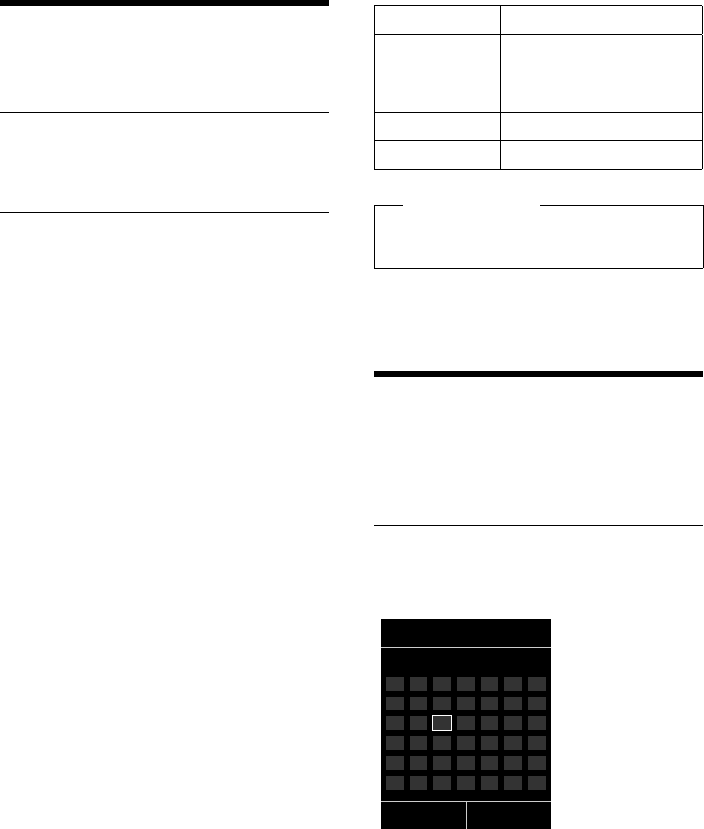
44
ECO DECT
Gigaset S790-S795 / en / A31008-M2121-R301-2-3S19 / registr_sett.fm / 22.04.2010
Version 4.1, 21.11.2007
ECO DECT
You are helping to protect the environment
with your Gigaset S790/S795.
Reducing energy consumption
By using a power-saving adapter plug, your
telephone consumes less power.
Reducing radiation
The radiation from your telephone is
reduced automatically:
uHandset: The closer the handset is to the
base, the lower the radiation.
uBase station: The radiation is reduced to
virtually zero when only one handset is
registered and the handset is placed in
the base.
You can reduce the radiation from the
handset and base even more by using Eco
Mode:
uEco Mode
Reduces the radiation of the base station
and handset by 80% - whether you are
making a call or not. Eco Mode reduces
the range of the base station by approx.
50%. Using Eco Mode always makes
sense when a reduced range is sufficient.
Activate/deactivate Eco Mode
v ¢Ï ¢Eco Mode ¢Eco Mode
§Change§ Press the display key (³=on).
Status displays
Setting an appointment
(calendar)
You can use your handset to remind yourself
of up to 30 appointments. Anniversaries
(¢page 34) entered in the directory are
automatically recorded in the calendar.
Saving an appointment.
Prerequisite: The date and time have
already been set (¢page 15).
v ¢Í ¢ Calendar
uThe current day is selected (highlighted
in white).
uDays on which appointments have
already been saved are highlighted in
white.
r/q Select the required day in the
graphical calendar.
Display icon
ÐiÑÒ
|(flashes)
Signal strength:
– good to poor
– no signal
Ðwhite Eco Mode deactivated
Ðgreen Eco Mode activated
Please note
Activating Eco Mode reduces the range
of the base.
Oct 2009
Back Options
Mo Tu We Th Fr Sa Su
01 02 03 04
05 06 07 08 09 10 11
12 13 14 15 16 17 18
19 20 21 22 23 24 25
26 27 28 29 30 31
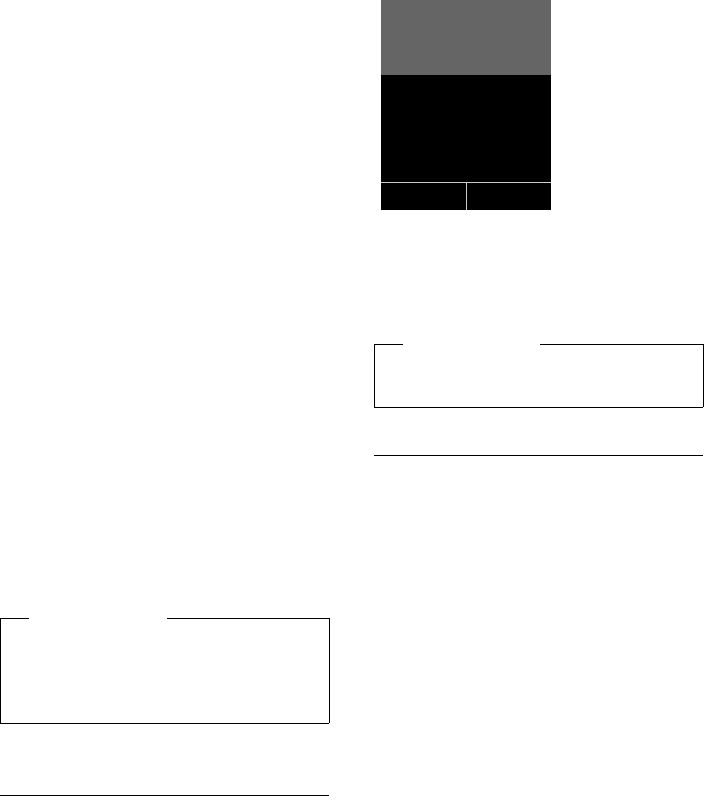
45
Setting an appointment (calendar)
Gigaset S790-S795 / en / A31008-M2121-R301-2-3S19 / registr_sett.fm / 22.04.2010
Version 4.1, 21.11.2007
The selected day is highlighted in white. The
current day is no longer highlighted.
w Press the center of the control
key.
uIf appointments have already been
entered, this will open the list of saved
appointments on that day.
Select <New Entry> ¢§OK§ to open the
data input window.
uIf no appointments have been entered,
the data input window will open immedi-
ately to add the new appointment.
¤You can enter data in the following fields:
Activation:
Select On or Off.
Date:
Enter day/month/year in 8-digit format.
Time:
Enter hours/minutes in 4-digit format,
then select AM/PM.
Text:
Enter text (max. of 16 characters). The
text appears as the appointment name in
the list and displays on the screen during
the appointment reminder. If you do not
enter any text, only the date and time of
the appointment are displayed.
Signal:
Select the reminder type.
§Save§ Press the display key.
Signaling appointments and
anniversaries
An appointment reminder is signaled in idle
status for 60 seconds with the selected ring-
tone at the volume that has been set for
internal calls (¢page 55). During the
reminder call, you can permanently change
the volume by pressing the side keys ø
(louder) or ÷ (quieter).
The name displays for anniversaries, while
the entered text displays for appointments
along with the date and time.
You can either deactivate or answer an
appointment reminder:
§§Off§§ Press the display key to deacti-
vate the appointment reminder.
Managing appointments
v ¢Í ¢ Calendar
Editing individual appointments
r/q Select a day in the graphical cal-
endar and press the control key
w. (Days on which appoint-
ments have already been saved
are highlighted in white in the
calendar).
q Select appointment for the day.
You have the following options:
§§View§§ Press the display key and edit or
confirm the entry.
or
§Options§ Open the menu for editing,
deleting and activating/deacti-
vating.
Deleting all appointments for one day
§Options ¢Delete all Appoints. ¢§OK§
Confirm the security prompt with §Yes§. All
appointments are deleted.
Please note
If you have already saved thirty appoint-
ments, you will have to first delete an
existing appointment before adding a
new one.
Please note
During a call, the appointment reminder
is signaled by a short tone.
ØáÚ
Meeting
11/03/09 9:38am
Off

46
Setting the alarm clock
Gigaset S790-S795 / en / A31008-M2121-R301-2-3S19 / registr_sett.fm / 22.04.2010
Version 4.1, 21.11.2007
Displaying missed
appointments, anniversaries
Missed appointments/anniversaries
(¢page 34) are displayed in the Missed
Alarms list if:
uYou do not accept an appointment/anni-
versary.
uThe appointment/anniversary was sig-
naled during a phone call.
uThe handset is deactivated at the time of
the appointment/anniversary.
uAutomatic redial was activated at the
time of an appointment/anniversary
(¢page 35).
The icon n and the number of new entries
are shown in the display. The most recent
entry is at the head of the list.
Open the list by pressing the message key
f(¢page 37) or via the menu:
v ¢Í ¢Missed Alarms
Select appointment/anniver-
sary.
Information about the appoint-
ment/anniversary displays. A
missed appointment displays
with the appointment name
and a missed anniversary dis-
plays with the last name and
first name. The date and time
will also be given.
§Delete§ Delete appointment.
If 10 entries are already stored in the list, the
next appointment reminder will delete the
oldest entry.
Setting the alarm clock
Prerequisite: The date and time have
already been set (¢page 15).
Activating/deactivating and
setting the alarm clock
v ¢á ¢Alarm Clock
¤You can enter data in the following fields:
Activation:
Select On or Off.
Time:
Enter the wake-up time in 4-digit format,
then select AM/PM.
Occurrence:
Select Daily or Monday-Friday.
Volume:
Set the volume (1–6). You can choose
between five volumes (1–5; e.g.,
volume 3 = Š) and the "crescendo"
ringtone (6; volume increases with each
ring = ‡).
Melody:
Select melody.
§Save§ Press the display key.
In idle status, the ¼ icon and wake-up time
are displayed.
A wake-up call is signaled on the display and
with the selected ringtone (¢page 3). The
wake-up call sounds for 60 seconds. If no key
is pressed, the wake-up call is repeated twice
at five minute intervals and then switched
off.
While the wake-up call sounds, you can
permanently change the volume by press-
ing the side keys ø (louder) or ÷ (quieter).
During a call, the wake-up call is only sig-
naled by a short tone.

47
Using multiple handsets
Gigaset S790-S795 / en / A31008-M2121-R301-2-3S19 / registr_sett.fm / 22.04.2010
Version 4.1, 21.11.2007
Deactivating the wake-up call/
repeating after a pause (snooze
mode)
Prerequisite: A wake-up call is sounding.
§Off§ Press the display key. The wake-
up call is deactivated.
or
§Snooze§ Press the display key or any key.
The wake-up call is deactivated
and then repeated after 5 min-
utes. After the second repetition
the wake-up call is deactivated
completely.
Using multiple handsets
Registering handsets
You can register up to six handsets to your
base.
A Gigaset S79H handset can be registered
on up to four bases.
Manually registering a
Gigaset S79H to a Gigaset S790/
S795
You must activate manual registration of the
handset on both the handset (1) and the
base (2).
When the registration process has com-
pleted successfully, the handset returns to
idle status. The handset's internal number is
shown in the display e.g., INT 1. If not, repeat
the procedure. .
Registering other handsets
You can register other Gigaset handsets and
handsets for other devices with GAP func-
tionality as follows. .
1) On the handset
The handset is not registered to a base.
§Register§ Press the display key.
The handset is already registered to a base:
v ¢Ï ¢Registration
¢Register Handset
If the handset is already registered to four
bases:
sSelect base, e.g., Base 3 and
press §OK§.
~If required, enter the system
PIN for the base and press §OK§.
A message appears stating that the hand-
set is searching for a base that is ready for
registration.
2) On the base
Within 60 seconds press and hold the reg-
istration/paging key on the base
(¢page 4) (approx. 3 seconds).
1) On the handset
¤Start to register the handset as
described in its user guide.
2) On the base
Press and hold the registration/paging key
on the base (¢page 4) (approx. 3 sec.).

48
Using multiple handsets
Gigaset S790-S795 / en / A31008-M2121-R301-2-3S19 / registr_sett.fm / 22.04.2010
Version 4.1, 21.11.2007
De-registering handsets
You can de-register any other registered
handset from any registered Gigaset S79H
handset.
v ¢Ï ¢Registration
¢De-reg. Handset
sSelect the internal subscriber
you wish to de-register and
press §OK§.
(The handset you are currently
using is highlighted with <).
~Enter the current system PIN
and press §Save§.
§Yes§ Press the display key.
Locating a handset ("Paging")
You can locate your handset using the base.
¤Briefly press the registration/paging key
on the base (¢page 4).
¤All handsets will ring simultaneously
("paging"), even if the ringtones are deac-
tivated.
Ending paging
¤Briefly press the registration/paging key
on the base or press the talk key c on
the handset.
Changing the base
If your handset is registered to more than
one base, you can set it to a particular base
or to the base that has the best reception
(Best Base).
v ¢Ï ¢Registration ¢Select Base
sSelect one of the registered
bases or Best Base and press
§Select§.
Making internal calls
Internal calls to other handsets registered on
the same base are free.
Calling a specific handset
uInitiate internal call.
~Enter the number of the hand-
set.
or:
uInitiate internal call.
s Select handset.
cPress the talk key.
Calling all handsets ("group call")
u Press and hold.
or:
u Initiate internal call.
*Press the star key.
or
Call All Select
cPress the talk key.
All handsets are called.
Ending a call
a Press the end call key.
Transferring a call to another
handset
You can transfer an external call to another
handset (connect).
u Open the list of handsets.
The external participant hears
music on hold, if activated
(¢page 58).
sSelect a handset or Call All and
press §OK§.
When the internal participant answers:
¤If necessary, announce the external call.
a Press the end call key.
The external call is transferred to the other
handset.

49
Using multiple handsets
Gigaset S790-S795 / en / A31008-M2121-R301-2-3S19 / registr_sett.fm / 22.04.2010
Version 4.1, 21.11.2007
If the internal participant does not answer or
the line is busy, press the display key §End§ to
return to the external call.
When transferring a call, you can also press
the end call key a before the internal par-
ticipant answers.
Then, if the internal participant does not
answer or the line is busy, the call will auto-
matically return to you.
Internal consultation/conference
calls
When you are conducting an external call,
you can call an internal participant at the
same time for consultation or hold a confer-
ence call between all 3 participants.
You are conducting an external call:
u Open the list of handsets.
The external participant hears
music on hold, if activated
(¢page 58).
sSelect handset and press §OK§.
The internal participant is
called.
If the participant picks up, you can either:
§End§ Press the display key.
You are reconnected with the
external participant.
or:
§Conference§ Press the display key.
All 3 participants are connected
with each other.
Ending a conference call
a Press the end call key.
If an internal participant presses the end call
key a, the other handset remains con-
nected to the external participant.
Accepting/rejecting call waiting
If you receive an external call during an
internal call, you will hear the call waiting
tone (short tone). With Calling Line Identifi-
cation, the caller's number or name will
appear in the display.
Ending an internal call, accepting an
external call
§Accept§ Press the display key.
The internal call is ended. You are connected
to the external caller.
Rejecting the external call
§Reject§ Press the display key.
The call waiting tone is turned off. You
remain connected to the internal partici-
pant. The ringtone can still be heard on
other registered handsets.
Listening in to an external call
Prerequisite: The Listening In function must
be activated.
You are conducting an external call. An inter-
nal participant can listen in on this call and
take part in the conversation. All the partici-
pants are made aware of additional listeners
by a signal tone.
Activating/deactivating
listening in
v ¢Ï ¢Telephony ¢Listening In
Press §Change§ to activate/deactivate the func-
tion (³=on).
Internal listening in
The line is engaged with an external call.
Your screen displays information to that
effect. To listen in to the external call.
c Press and hold the talk key.
You can listen in to the call. All participants
hear a signal tone. During this time, this
handset displays the Conference message
and it is not possible to dial another number
from this handset.
Please note
uIf only two handsets are registered,
the other handset is called immedi-
ately by pressing the u key.
uPressing and holding the u key calls
all handsets immediately.
•

50
Using a handset as a room monitor
Gigaset S790-S795 / en / A31008-M2121-R301-2-3S19 / registr_sett.fm / 22.04.2010
Version 4.1, 21.11.2007
Ending listening in
a Press the end call key.
All participants hear a signal tone.
If the first internal participant presses the
end call key a, the handset that has "lis-
tened in" remains connected to the external
participant.
Changing the name of a
handset
The names "INT 1", "INT 2" etc. are assigned
automatically on registration. You can
change these names. The name must be no
more than 10 characters. The changed name
displays in every handset's list.
uOpen the list of handsets. Your
own handset is indicated by f.
sSelect handset.
§Options§ Open menu.
Rename
~Enter name.
§Save§ Press the display key.
Changing a handset's
internal number
A handset is automatically assigned the
lowest free number when it is registered. If
all slots are occupied, number 6 is overwrit-
ten if this handset is in idle status. You can
change the internal number of all registered
handsets (1–6).
uOpen the list of handsets. Your
own handset is indicated by f.
§Options§ Open menu.
Assign Handset No.
Select and press §OK§.
rSelect number. Only numbers
that have not been assigned are
displayed.
§Save§ Press the display key to save the
input.
Using a handset as a
room monitor
If the room monitor is activated, a previously
saved destination number is called as soon
as a set noise level is reached. You can save
an internal or external number in your hand-
set as the destination number. All of the
handset keys are deactivated, with the
exception of the display keys.
The room monitor call to an external
number is terminated after approximately
90 seconds. The room monitor call to an
internal number (handset) is terminated
after approximately 3 minutes (depending
on the base). When the room monitor is acti-
vated, all keys are locked except the end call
key. The handset's speaker is muted.
When the room monitor is activated, incom-
ing calls to the handset are indicated with-
out a ringtone and are only shown on the
screen. The display and keypad are not illu-
minated and advisory tones are also turned
off.
If you accept an incoming call, the room
monitor is suspended for the duration of the
call, but the function remains activated.
If you deactivate then reactivate the hand-
set, the room monitor remains activated.

51
Using a handset as a room monitor
Gigaset S790-S795 / en / A31008-M2121-R301-2-3S19 / registr_sett.fm / 22.04.2010
Version 4.1, 21.11.2007
Activating the room monitor and
entering the destination number
v ¢É ¢Room Monitor
¤You can enter data in the following fields:
Activation:
Select On to activate.
Alarm to:
Select Internal or External.
External number: Select the number
from the directory (press display key ö)
or enter it manually.
Internal number: Select display key
§Change§ ¢. Select handset or Call All to
call all registered handsets ¢§OK§.
In idle status, the destination number or
the internal destination number displays.
Sensitivity:
Select noise level sensitivity (Low or
High).
¤Press §Save§ to save the settings.
When the room monitor function is acti-
vated, the idle display appears as shown
below:
Changing the set destination
number
v ¢É ¢Room Monitor
¤Enter and save number as described in
"Activating the room monitor and enter-
ing the destination number"
(¢page 51).
Cancel/deactivate room monitor
Press the end call key a to cancel the call
when the room monitor is activated.
In idle status, press the display key §Off§ to
deactivate room monitor mode.
Deactivating the room monitor
remotely
Prerequisites: The phone must support tone
dialing and the room monitor should be set
for an external destination number.
¤Accept the call from the room monitor
and press keys 9 ;.
The room monitor function will deactivate
after the call ends. There are no further room
monitor calls. The other room monitor set-
tings on the handset (e.g., no ringtone) will
remain activated until you press the display
key §Off§ on the handset.
To reactivate the room function with the
same phone number:
¤Turn on the activation again and save
with §Save§ (¢page 51).
Warning!
uAlways check the operation of the
room monitor before use. For exam-
ple, test its sensitivity. Check the
connection if you are diverting the
room monitor to an external
number.
uWhen the function is switched on, the
handset's operating time is considera-
bly reduced. If necessary, place the
handset in the base/charger. This
ensures that the battery does not run
down.
uIdeally the handset should be posi-
tioned 1 to 2 metres away from the
baby. The microphone must be
directed towards the baby.
uThe connection to which the room
monitor is diverted must not be
blocked by an activated answering
machine.
i à V
07:15 am
INT 1 Oct 22
Á
Room Monitor
9725551234
Off Options

52
Handset settings
Gigaset S790-S795 / en / A31008-M2121-R301-2-3S19 / registr_sett.fm / 22.04.2010
Version 4.1, 21.11.2007
Handset settings
Your handset is preconfigured, but you can
change the settings to suit your individual
requirements.
Quick access to numbers and
functions
You can assign a number from the directory
to each of the digit keys Q and 2to
O.
The left and right display keys have a default
function. You can change the assignment
(¢page 52).
The number is then dialed or the function
started by simply pressing a key.
Assigning digit keys
Prerequisite: You have not yet assigned a
number to the digit key.
¤Press and hold the digit key
or
Press the digit key briefly and press the
display key §QuickDial§.
The directory opens.
¤Select an entry and press §OK§.
The entry is saved to the corresponding digit
key.
Selecting numbers/changing an
assignment
Prerequisite: The digit key already has a
number assigned to it.
When the handset is in idle status
¤Press and hold the digit key:
The number is dialed immediately.
or
¤Briefly press the digit key.
Press the display key with the number/
name (abbreviated if necessary) to select
the number or
press the display key §Change§ to change
the assignment or to delete the assign-
ment.
Changing display key assignments
¤Press and hold the left or right side of the
display key.
The list of possible key assignments is
opened. The following can be selected:
Room Monitor
Assign menu for setting and activating
the room monitor to a key (¢page 50).
Alarm Clock
Assign menu for setting and activating
the alarm clock to a key (¢page 46).
Calendar
Display graphical calendar (¢page 44).
Redial
Display the redial list.
More Functions...
More features are available:
Call Lists
Display call lists (¢page 36).
INT
Internal calls (¢page 48).
¤Select an entry and press §OK§.
Please note
If you delete or edit the entry in the direc-
tory at a later date, this will not affect the
assignment to the number key.

53
Handset settings
Gigaset S790-S795 / en / A31008-M2121-R301-2-3S19 / registr_sett.fm / 22.04.2010
Version 4.1, 21.11.2007
Changing the display
language
You can view the display texts in different
languages.
v ¢Ï ¢Language
The current language is indicated by a Ø.
sSelect language and
press §Select§.
If you accidentally choose a language you do
not understand:
v ¢Ï ¢ s ¢ s ¢ s
Press keys in sequence and con-
firm by selecting §OK§.
sSelect the correct language and
press the right display key.
Setting the display
Setting the screensaver/slide show
When in idle state, a picture or a slide show
(all the pictures are displayed one after the
other) from the Screensaver folder of the
Resource Directory (¢page 56) or the
time can be displayed as a screensaver. This
will replace the idle state display.
The screensaver is not displayed in certain
situations, e.g., during a call or if the handset
is de-registered.
If a screensaver is activated, the Screensaver
menu option is marked with μ.
v ¢Ï ¢Display + Keypad
¢Screensaver
The current setting displays.
¤You can enter data in the following fields:
Activation:
Select On (screensaver displays) or Off
(no screensaver).
Selection:
Select screensaver or
§View§ Press the display key. The active
screensaver displays.
s Select screensaver and press
§OK§.
§Save§ Press the display key.
Briefly press the end call key a to return to
the idle display.
Setting large font
You can increase the font size of print and
symbols in call lists and in the directory to
improve readability. Only one entry is shown
at a time on the display instead of several
entries and names are abbreviated if neces-
sary.
v ¢Ï ¢Display + Keypad
¢Large Font
§Change§ Press display key (³=on).
Setting the colour scheme
You can set the display to be shown in vari-
ous colour combinations.
v ¢Ï ¢Display + Keypad
¢Color Schemes
Select Color Scheme (1 to 5) and press §OK§.
Setting the display backlight
Depending on whether or not the handset is
in the base/charger, you can activate or
deactivate the backlight. If it is activated, the
display is permanently dimmed. If the back-
light is deactivated it is switched on by
pressing any key. In this case the pressed key
has no other function.
v ¢Ï ¢Display + Keypad
¢Display Backlight
The current setting displays.
¤You can enter data in the following fields:
In Charger
Select On or Off.
Out of Charger
Please note
If the analogue clock has been set as the
screensaver, the second hand is shown
only when the handset is in the base.
•

54
Handset settings
Gigaset S790-S795 / en / A31008-M2121-R301-2-3S19 / registr_sett.fm / 22.04.2010
Version 4.1, 21.11.2007
Select On or Off.
§Save§ Press the display key.
Setting keypad illumination
The brightness of the keypad illumination
can be set to one of five levels.
v ¢Ï ¢Display + Keypad
¢Keypad Illumination
The current setting is displayed.
¤You can enter data in the following fields:
Brightness:
Select 1 (darkest) to 5 (brightest).
§Save§ Press the display key.
Activating/deactivating
auto answer
If you activate this function, when you
receive a call you can simply lift the handset
out of the base/charger without having to
press the talk key c.
v ¢Ï ¢Telephony ¢Auto Answer
§Change§ Press display key (³=on).
Changing the speaker/
earpiece volume
You can set the speaker volume for speaker
mode and the earpiece volume to five differ-
ent levels.
During a conversation via the earpiece or in
speaker mode:
ø/ ÷Press the side key to call up the
Handset Volume menu.
Change the volume by pressing
ø (louder) or ÷ (quieter).
or
tPress the control key to call up
the Handset Volume menu. Set
the earpiece or speaker volume
by pressing r.
The setting will automatically be saved after
approximately 3 seconds, if not then press
the display key §Save§.
If t is assigned to another function:
§Options§ Open menu.
Volume Select and press §OK§.
Configure setting (see above).
Setting a handsfree profile
In idle state, you can set various handsfree
profiles to optimally adapt your phone to
your environment.
Profile 1
The optimum setting for most connec-
tions and set as default.
Profile 2
Optimum volume in handsfree mode.
However, this means that the participants
cannot speak at the same time as the per-
son speaking is given preferential trans-
mission (making two-way conversations
difficult).
Profile 3
Optimises two-way conversations, both
callers can hear each other, even if they
talk at the same time.
Profile 4
Optimised for special connections. If the
default setting (profile 1) does not pro-
vide optimum sound, please give this a
try.
v ¢Ï ¢Audio Settings
¢Handsfree Profiles
Select handsfree profile (1 to 4) and press
§Select§.
Please note
With the On setting, the standby time
of the handset can be significantly
reduced.
•
Please note
uThe settings for the earpiece also
apply to a connected headset.
uYou can also set the call volume using
the menu (¢page 26).

55
Handset settings
Gigaset S790-S795 / en / A31008-M2121-R301-2-3S19 / registr_sett.fm / 22.04.2010
Version 4.1, 21.11.2007
Changing ringtones
uVolume:
You can choose between five volumes (1–
5; e.g., volume 3 = Š) and the "cre-
scendo" ringtone (6; volume increases
with each ring = ‡).
uRingtones:
You can select a ringtone from a list of
pre-loaded melodies.
You can select various ringtones, melo-
dies or any sound from the Resource
Directory (¢page 56).
You can set different ringtones for the fol-
lowing functions:
uIntrnl Calls
uExt. Calls
Setting volume/melodies
In idle status:
v ¢Ï ¢Audio Settings
¢Ringtones(Handset) ¢Volume/
Melodies
rSetting volume/melodies for
internal calls and anniversaries.
sScroll to the next line.
rSetting volumes/melodies for
external calls.
§Save§ Press the display key to save the
setting.
While the phone is ringing, you can perma-
nently change the volume by pressing the
side keys ø (louder) or ÷ (quieter).
Additionally for external calls:
You can specify a time period when you do
not want the telephone to ring, e.g., during
the night.
v ¢Ï ¢Audio Settings
¢Ringtones(Handset) ¢Time Control
Time Control:
Select On or Off.
If the time control is activated:
Suspend ring from:
Enter the start of the period in 4-digit for-
mat.
Suspend ring until:
Enter the end of the period in 4-digit for-
mat.
Activating/deactivating the
ringtone for unknown calls.
You can set your phone not to ring for calls
where Calling Line Identification has been
withheld. The call will only be signaled on
the display.
In idle status:
v ¢Ï ¢Audio Settings
¢Ringtones(Handset) ¢Anon. Calls
Silent
Press §Change§ to activate or deactivate the
function (³= on).
Activating/deactivating the
ringtone
You can deactivate the ringtone on your
handset before you answer a call or when
the handset is in idle status; the ringtone can
be deactivated permanently or just for the
current call. The ringtone cannot be re-acti-
vated while an external call is in progress.
Deactivating the ringtone
permanently
*Press and hold the star key.
The ó icon appears in the display.
Reactivating the ringtone
*Press and hold the star key.
•
Please note
During this period, you will continue to
receive calls from numbers to which you
have assigned a personalized melody in
the directory (VIP).

56
Handset settings
Gigaset S790-S795 / en / A31008-M2121-R301-2-3S19 / registr_sett.fm / 22.04.2010
Version 4.1, 21.11.2007
Deactivating the ringtone for the
current call
§Silence§ Press the display key.
Activating/deactivating the alert
tone
In place of the ringtone, you can activate an
alert tone. When you receive a call, you will
hear a short tone ("Beep") instead of the
ringtone.
*Press and hold the star key and
within 3 seconds:
§Beep§ Press the display key. A call will
now be signaled by one short
alert tone.
ñ appears in the display.
Resource Directory
The resource directory on the handset man-
ages sounds, which you can use as ring-
tones, and pictures, which you can use as
caller pictures or as screensavers. Prerequi-
site:
Caller ID service subscription (CID). The
resource directory can manage the follow-
ing media types:
Various mono and polyphonic sounds and
pictures are preconfigured on your handset.
You can listen to the available sounds and
view the pictures.
You can download pictures and sounds from
a PC (¢page 63). If there is not enough
memory available, you must first delete one
or more pictures or sounds.
Playing back sounds/viewing caller
pictures
v ¢· ¢Screensavers / Caller
Pictures / Sounds (select entry)
Pictures:
§View§ Press the display key. The
selected picture displays. Switch
between pictures using the q
key.
If you have saved a picture in an invalid file
format, you will see an error message after
selecting the entry.
Sounds:
The selected sound is played back immedi-
ately. Switch between the sounds using the
q key.
You can set the volume during playback.
§Options§ Open menu.
Volume Select and press §OK§.
rSet volume.
§Save§ Press the display key.
Deleting/renaming a picture/
sound
You have selected an entry.
§Options§ Open menu.
If a picture/sound cannot be deleted (¯),
these options are not available. You can
select the following functions:
Delete Entry
The selected entry is deleted.
Rename
Change the name (max. 16 characters)
and press §Save§. The entry is stored with
the new name.
Checking the memory
You can check how much memory is availa-
ble for screensavers and caller pictures.
v ¢· ¢Capacity
Type Format
Sound
Ringtones Internal
Monophonic Internal
Polyphonic Internal
Imported sounds WMA, MP3, WAV
Picture
– Caller picture
– Screensaver
BMP, JPG, GIF
128 x 86 pixels
128 x 160 pixels

57
Handset settings
Gigaset S790-S795 / en / A31008-M2121-R301-2-3S19 / registr_sett.fm / 22.04.2010
Version 4.1, 21.11.2007
Activating/deactivating
advisory tones
Your handset uses advisory tones to tell you
about different activities and statuses. The
following advisory tones can be activated/
deactivated independently of each other:
uKey tone: every key press is confirmed.
uAcknowledge tones:
–Confirmation tone (ascending tone
sequence): at the end of an entry/set-
ting and when a new entry arrives in
the answering machine list or call list
–Error tone (descending tone
sequence): when you make an incor-
rect entry
–Menu end tone: when scrolling to the
end of a menu
uBattery low beep: the battery needs
charging.
In idle status:
v ¢Ï ¢Audio Settings
¢Advisory Tones
¤You can enter data in the following fields:
Key Tones:
Select On or Off.
Confirmation:
Select On or Off.
Battery:
Select On or Off.
§Save§ Press the display key.
Setting long-distance and
area codes
To transfer phone numbers via USB phone
from your outlook (e.g., in vCards), it is essen-
tial that your area code (international and
local area code) is saved on the phone.
Some of these numbers are already preset.
v ¢Ï ¢Telephony ¢Area Codes
Check that the preset area code is correct.
¤You can enter data in the following fields:
qSelect/change input field.
rNavigate to the input field.
ÑIf necessary, delete number:
press the display key.
~Enter number.
§Save§ Press the display key.
Example:
Note:
If a long distance number is recorded in a
vCard without the national access code "1" (
i. e., 312 -555-1212 instead of 1-312-555-
1212), please add the "1" in front of the tele-
phone number before transferring the
number to the S79H handset via USB.
Restoring the handset
default settings
You can reset individual settings and
changes that you have made.
When you perform a reset, the settings listed
below are automatically retained.
uRegistration to the base
uDate and time
uEntries in the calendar
uEntries in the directory, the call lists and
the content of the resource directory
v ¢Ï ¢System ¢Handset Reset
§Yes§ Press the display key.
•
•
Area Codes
International code:
011- 1
Local access code:
1-972
ÛSave
•
58
Setting the base
Gigaset S790-S795 / en / A31008-M2121-R301-2-3S19 / registr_sett.fm / 22.04.2010
Version 4.1, 21.11.2007
Setting the base
The base settings are changed using a regis-
tered Gigaset S79H handset.
Changing the Gigaset S795
base ringtones
uVolume:
You can choose between five volumes (1–
5; e.g., volume 3 = Š) and the "cre-
scendo" ringtone (6; volume increases
with each ring = ‡).
uRingtones:
You can select a ringtone from a list of
pre-loaded melodies.
In idle status:
v ¢Ï ¢Audio Settings
¢Ringtones (Base)
¤You can enter data in the following fields:
rSet volume.
sScroll to the next line.
rSet melody.
§Save§ Press the display key to save the
setting.
Activating/deactivating
music on hold
v ¢Ï ¢Audio Settings
¢Music on Hold
Press §Change§ to activate or deactivate the
music on hold (³ = on).
Protecting against
unauthorized access
Protect the system settings of the base with
a PIN known only to yourself. The system PIN
must be entered when, for example, regis-
tering/de-registering a handset to/from the
base or when restoring the default settings.
Changing the system PIN
You can change the 4-digit system PIN set on
the base (default setting: 0000) to a 4-digit
PIN known only by you.
Gigaset S795: Setting a system PIN facilitates
remote operation of the answering machine
(¢page 42).
v ¢Ï ¢System ¢System PIN
~Enter the current system PIN
and press §OK§.
~Enter your new system PIN and
press §OK§.
Resetting the system PIN
If you have forgotten your system PIN, you
can reset the base to the original code 0000:
1. Disconnect the power cable from the
base.
2. Hold down the registration/paging key on
the base while reconnecting the power
cable to the base.
3. Hold down the key for at least 5 seconds.
4. The base has now been reset and the sys-
tem PIN set to 0000.
Resetting the base to the
factory settings
When the settings are restored:
uDate and time are retained
uHandsets are still registered
uEco Mode is activated deactivated,
uThe system PIN is not reset.
v ¢Ï ¢System ¢Base Reset
~Enter the system PIN and
press §OK§.
§Yes§ Press the display key.
•
•
Please note
All handsets are de-registered and must
be re-registered. All settings are reset to
the factory settings.
•

59
Connecting the base to the PABX
Gigaset S790-S795 / en / A31008-M2121-R301-2-3S19 / pabx.fm / 22.04.2010
Version 4.1, 21.11.2007
Connecting the base to
the PABX
The following settings are only necessary if
your PABX requires them; see the PABX user
guide.
Dialing modes and recall
The current setting is indicated by Ø.
Changing the dialing mode
The following dialing modes can be
selected:
uTone dialing (DTMF)
uPulse dialing (PD).
v ¢Ï ¢Telephony ¢Dialing Mode
sSelect dialing mode and press
§Select§ (Ø= selected).
Setting recall
Your phone is preset at the factory for oper-
ation on the main connection. For operation
on a PABX, you may have to change this
value. Please refer to the user guide for your
PABX.
v ¢Ï ¢Telephony ¢Flash
sSelect recall and
press §Select§
(Ø = set value). Possible values
are:
80 ms, 100 ms, 120 ms, 180 ms,
250 ms, 300 ms, 400 ms, 600 ms,
800 ms.
Setting pauses
Changing the pause after line
seizure
You can change the length of the pause that
is inserted between pressing the talk key c
and sending the number.
v Open the main menu.
*#Q5#L
Press keys.
~Enter number for the length of
the pause (1= 1 sec.; 2= 3 secs.;
3= 7 secs.) and press §OK§.
Change pause after recall key
You can change the length of the pause if
your PABX requires this (refer to the user
guide for your PABX).
v Open the main menu.
*#Q5#2
Press keys.
~Enter a number for the length of
the pause (1=800ms;
2=1600ms; 3= 3200 ms) and
press §OK§.
Switching temporarily to
tone dialing (DTMF)
If your PABX still operates with pulse dialing
(PD), but you need tone dialing for a connec-
tion (e.g., to listen to the network mailbox),
you must switch to tone dialing for the call.
Prerequisite: You are conducting a call or
have already dialed an external number.
*Press the star key.
After the call ends, pulse dialing is automati-
cally activated again.
•
60
Troubleshooting
Gigaset S790-S795 / en / A31008-M2121-R301-2-3S19 / appendix.fm / 22.04.2010
Version 4.1, 21.11.2007
Troubleshooting
If you have any questions about the use of
your telephone, you can contact us at any
time at www.gigaset.com/customercare.
The table below contains a list of common
problems and possible solutions.
The display is blank.
1. The handset is not switched on.
¥Press and hold the end call key a.
2. The battery is empty.
¥Charge the battery or replace it
(¢page 12).
Not all menu items are displayed.
The menu display is restricted (standard mode).
¥Activate extended menu display (expert
mode •) (¢page 26).
No Base flashes on the display.
1. The handset is outside the range of the base.
¥Move the handset closer to the base.
2. The base's range is reduced because Eco
Mode is activated.
¥Deactivate Eco Mode (¢page 44) or
reduce the distance between the handset
and the base.
3. The base is not switched on.
¥Check the base power adapter
(¢page 10).
Please registerhandset flashes on the display.
Handset has not been registered with the base or
has been deregistered.
¥Register the handset (¢page 47).
Handset does not ring.
1. The ringtone is deactivated.
¥Activate the ringtone (¢page 55).
2. The phone only rings if the phone number
has been transferred.
¥Switch on the ringtone for unknown calls
(¢page 55).
You cannot hear a ringtone/dialing tone from
the fixed line network.
The phone cord supplied has not been used or
has been replaced by a new cord with the wrong
pin connections.
¥Please always use the phone cord supplied or
ensure that the pin connections are correct
when purchasing from a retailer
(¢page 10).
Error tone sounds after system PIN prompt.
You have entered the wrong system PIN.
¥Reset the system PIN to 0000 (¢page 58).
Forgotten the system PIN.
¥Reset the system PIN to 0000 (¢page 58).
The other party cannot hear you.
You have pressed the mute button h. The
handset is "muted".
¥Reactivate the microphone (¢page 31).
The number of the caller is not displayed
despite CID.
Calling Line Identification is not enabled (CID).
¥The caller should ask the network provider to
enable Calling Line Identification (CID).
You hear an error tone when keying an input
(a descending tone sequence).
Action has failed/invalid input.
¥Repeat the operation.
Watch the display and refer to the user guide
if necessary.
You cannot listen to messages on the network
mailbox.
Your PABX is set for pulse dialing.
¥Set your PABX to tone dialing.
61
Appendix
Gigaset S790-S795 / en / A31008-M2121-R301-2-3S19 / appendix.fm / 22.04.2010
Version 4.1, 21.11.2007
Gigaset S795 only: Appendix
Caring for your telephone
¤Wipe the device with a damp cloth or an
antistatic cloth. Do not use solvent or a
microfiber cloth.
¤Impairments in the high-gloss finish can
be carefully removed using display pol-
ishes for mobile phones.
Never use a dry cloth as this can cause static.
Contact with liquid
If the device comes into contact with liquid:
1. Unplug the power supply and/or re-
move the battery from the handset im-
mediately.
2. Allow the liquid to drain from the device.
3. Pat all parts dry. Place the device (hand-
set with the battery compartment open
and the keypad facing down) in a dry,
warm place for at least 72 hours (not in
a microwave, oven etc.).
4. Do not switch on the device again until
it is completely dry.
When it has fully dried out, you will normally
be able to use it again.
No time is specified for a message in the call list.
Date and time have not been set.
¥Set the date and time (¢page 15).
The answering machine announces "PIN is
incorrect" during remote operation.
1. You have entered the wrong system PIN.
¥Enter the system PIN again.
2. The system PIN is still set to 0000.
¥Set the system PIN to something other
than 0000 (¢page 58).
The answering machine is not recording any
messages/has switched over to answer only.
Its memory is full.
¥Delete old messages.
¥Play back new messages and delete.
Exclusion of liability
Some displays may contain pixels (picture
elements), which remain activated or
deactivated. As a pixel is made up of three
sub-pixels (red, green, blue), it is possible
that pixel colours may vary.
This is completely normal and does not
indicate an error.
!

62
Appendix
Gigaset S790-S795 / en / A31008-M2121-R301-2-3S19 / appendix.fm / 22.04.2010
Version 4.1, 21.11.2007
Specifications
Batteries
Technology:
Nickel-metal-hydride (NiMH)
Size: AAA (Micro, HR03)
Voltage: 1.2 V
Capacity: 550 - 1000 mAh
The handset is supplied with nickel-metal
hydride UL-approved AAA batteries.
Handset operating times/charging
times
This telephone can charge batteries up to a
capacity of 1000 mAh. The use of special
high-performance batteries or batteries
with high capacities is not recommended for
cordless phones.
The operating time of your telephone
depends on the capacity and age of the bat-
teries and the way they are used. (All times
are maximum possible times).
Due to the constant progression in battery
development, the list of recommended bat-
teries in the FAQ section of the Gigaset Cus-
tomer Care pages is regularly updated.
Base power consumption
In standby mode:
Gigaset S790: approx. 1.1 watt
Gigaset S795: approx. 1.2 watt
During the conversation:
Gigaset S790: approx. 1.0 watt
Gigaset S795: approx. 1.1 watt
General specifications
Pin connections on the telephone
jack
Capacity (mAh) approx.
550 700 800 1000
Standby time
(hours)*
140/
50
165/
58
185/
67
230/
83
Talktime (hours) 11121417
Operating time for
1.5 hrs of calls per
day (hours)**
85 95 110 135
Charging time in
base (hours)
7.5 8.5 10 12
Charging time in
charger (hours)
6.5 7.5 8.5 10.5
* without/with display backlight
** without display backlight
(Setting the display backlight ¢page 53)
DECT standard Is supported
GAP standard Is supported
No. of channels 60 duplex channels
Radio frequency range 1880–1900 MHz
Duplex method Time multiplex,
10 ms frame length
Channel grid 1728 kHz
Bit rate 1152 kbit/s
Modulation GFSK
Language code 32 kbit/s
Transmission power 10 mW, average power
per channel
Range Up to 984 feet outdoors,
up to 165 feet indoors
Base power supply 120 V ~/60 Hz
Environmental condi-
tions in operation
+41°F to +113°F, 20% to
75% relative humidity
Dialing mode DTMF (tone dialing)/
PD (pulse dialing)
1unused
2unused
3a
4b
5unused
6unused
3
2
1
4
5
6
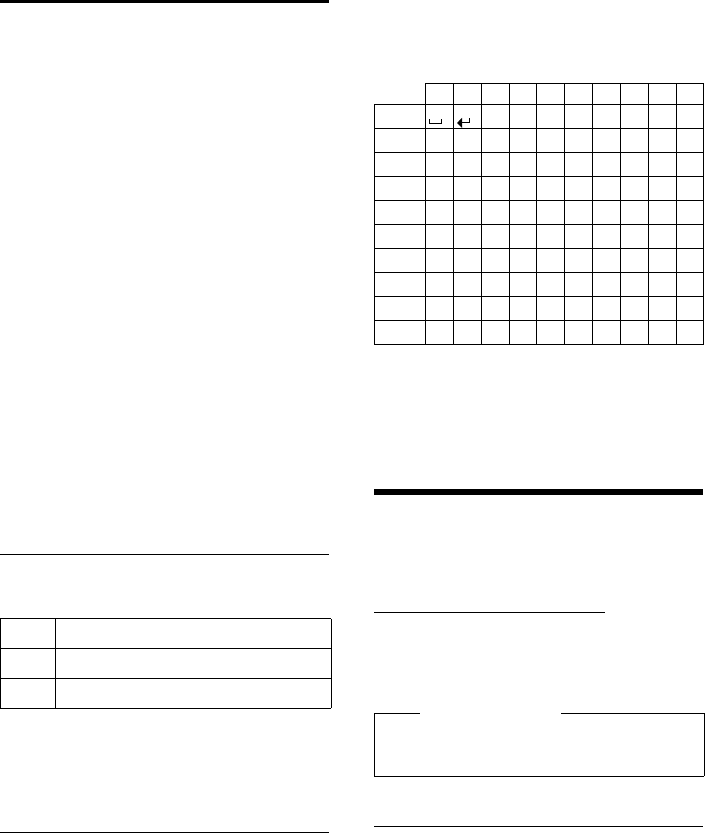
63
Additional functions via the PC interface
Gigaset S790-S795 / en / A31008-M2121-R301-2-3S19 / appendix.fm / 22.04.2010
Version 4.1, 21.11.2007
Writing and editing text
The following rules apply when writing text:
uEach key between Q and O is
assigned several letters and characters.
uControl the cursor with uvts.
Press and hold u or v to move the cur-
sor word by word.
uCharacters are inserted at the cursor posi-
tion.
uPress the star key * to display the
table of special characters. Select the
required character and press the display
key §Insert§ to insert the character at the
cursor position.
uPress and hold Q to O to enter dig-
its.
uPress display key Ñ to delete the char-
acter to the left of the cursor. Press and
hold to delete the word to the left of the
cursor.
uThe first letter of the name of directory
entries is automatically capitalised, fol-
lowed by lower case letters.
Setting upper/lower case or digits
Repeatedly press the pound key # to
change the text input mode.
The active mode is indicated at the bottom
right of the screen.
Writing names
¤Enter the individual letters/characters by
pressing the corresponding key.
The characters assigned to the key are
shown in a selection line at the bottom left
of the screen. The selected character is high-
lighted.
¤Briefly press the key several times in suc-
cession to select the required letter/char-
acter.
Standard characters
1) Space
2) Line break
Additional functions via
the PC interface
To enable your handset to communicate
with the PC, the "Gigaset QuickSync" pro-
gram must be installed on your PC (free to
download at
www.gigaset.com/gigasets790).
After installing "Gigaset QuickSync", co n -
nect the handset to your computer using a
USB data cable (¢page 18).
Transferring data
Start the "Gigaset QuickSync" program. You
can now:
uSynchronise your handset directory with
Outlook. (period)
uDownload caller pictures (.bmp, .jpg, .gif)
from the computer to the handset.
(period)
123 Writing digits
Abc Upper case *
abc Lower case
* First letter in capitals, all others in lower case
1x 2x 3x 4x 5x 6x 7x 8x 9x 10x
1
2abc2äáàâãç
3def3ëéèê
4gh i4ïíìî
5jkl5
Lmno6öñóòôõ
Mpqr s7ß
Ntuv8üúùû
Owx y z 9ÿ ýæøå
Q.,?!0
Please note
Please connect your handset directly to
the PC; do not connect via a USB hub.
1)
2)
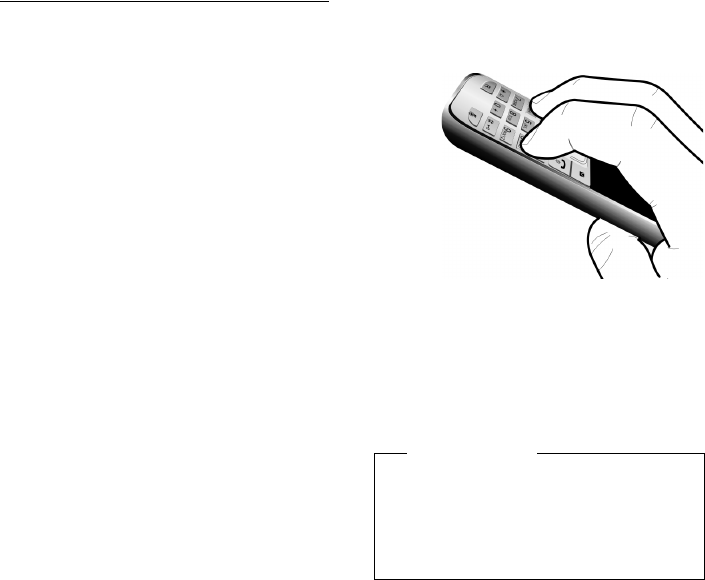
64
Additional functions via the PC interface
Gigaset S790-S795 / en / A31008-M2121-R301-2-3S19 / appendix.fm / 22.04.2010
Version 4.1, 21.11.2007
uDownload pictures (.bmp, .jpg, .gif) as a
screensaver from the computer to the
handset.
uDownload sounds (ringtones) from the
computer to the handset.
During the transfer of data between handset
and PC, you will see Data transferin
progress on the display. During this time the
keypad is disabled, and incoming calls will
be ignored.
Completing a firmware update
¤Connect you phone to your PC using a
USB data cable (¢page 18).
¤Start the "Gigaset QuickSync" program
on your PC.
¤Establish a connection to your handset.
¤Select [Settings] ¢[Device proper-
ties]to open the [Device properties] tab.
¤Click on [Firmware update].
This launches the firmware update.
The update process can take up to 10 min-
utes (not including the download time). Do
not interrupt the process or remove the
USB data cable.
The data is initially loaded from the update
server on the Internet. The amount of time
required depends on the speed of your
Internet connection.
The display on your phone is switched off
and the message key f and the talk key c
start flashing.
When the update is complete, your phone
will automatically restart.
Procedure in case of an error
If the update procedure fails or your phone
does not work properly following the
update, repeat the update procedure as fol-
lows:
¤Close the "Gigaset QuickSync" program
on the PC.
¤Remove the USB data cable from the tel-
ephone.
¤Remove the battery (¢page 12).
¤Replace the battery.
¤Complete the firmware update as
described.
If the update procedure fails several times or
you can no longer connect to the PC, pro-
ceed as follows (emergency update):
¤Close the "Gigaset QuickSync" program
on the PC.
¤Remove the USB data cable from the tel-
ephone.
¤Remove the battery (¢page 12).
¤Press and hold keys 4 and L with
the index and middle finger.
¤Replace the battery.
¤Release keys 4 and L. The message
key f and the talk key c will flash
alternately.
¤Complete the firmware update as
described.
Please note
Personal pictures and sounds that you
have loaded to your handset should
always be saved on your PC as they will
be deleted during an emergency
update.

65
FCC / ACTA Information
Gigaset S790-S795 / en / A31008-M2121-R301-2-3S19 / appendix.fm / 22.04.2010
Version 4.1, 21.11.2007
Industry Canada Certification
Operation is subject to the following two condi-
tions (1) this device may not cause interference,
and (2) this device must accept any interference,
including interference that may cause undesired
operation of the device.
NOTICE: The Industry Canada label identifies certi-
fied equipment. This certification means that the
equipment meets certain telecommunications
network, protective, operational and safety
requirements as prescribed in the appropriate Ter-
minal Equipment Technical Requirements docu-
ment(s). The Department does not guarantee the
equipment will operate to the user’s satisfaction.
Before installing this equipment, users should
ensure that it is permissible to be connected to
the facilities of the local telecommunications
company. The equipment must also be installed
using an acceptable method of connection. The
customer should be aware that compliance with
the above conditions may not prevent
degradation of service in some situations.
Repairs to certified equipment should be coordi-
nated by a representative designated by the sup-
plier. Any repairs or alterations made by the user
to this equipment, or equipment malfunctions,
may give the telecommunications company cause
to request the user to disconnect the equipment.
Users should ensure for their own protection that
the electrical ground connections of the power
utility, telephone lines and internal metallic water
pipe system, if present, are connected together.
This precaution may be particularly important in
rural areas
NOTE: Users should not attempt to make such
connections themselves, but should contact the
appropriate electric inspection authority,
or electrician, as appropriate.
This product meets the applicable Industry
Canada technical specifications.
The Ringer Equivalence Number is an indication of
the maximum number of devices allowed to be
connected to a telephone interface. The termina-
tion of an interface may consist of any combina-
tion of devices subject only to the requirement
that the sum of the RENs of all devices does not
exceed five.
This Class B digital apparatus complies with Cana-
dian ICES-003.
Cet appareil numérique de la classe B est con-
forme à la norme NMB-003 du Canada.
FCC / ACTA Information
Warning: Changes or modifications to this unit
not expressly approved by Gigaset Communica-
tions USA LLC could void the FCC authority to
operate the equipment. This includes the addition
of any external antenna device.
This equipment complies with Part 68 of the FCC
rules and the requirements adopted by the ACTA.
On the bottom of the base station is a label that
contains, among other information, a product
identifier in the format US:AAAEQ##TXXXX. If
requested, this number must be provided to the
telephone company.
A plug and jack used to connect this equipment to
the premises wiring and telephone network must
comply with the applicable FCC Part 68 rules and
requirements adopted by the ACTA. A compliant
telephone cord and modular plug is provided
with this product. It is designed to be connected
to a compatible modular jack that is also compli-
ant. See installation instructions for details.
The REN is used to determine the number of
devices that may be connected to a telephone
line. Excessive RENs on a telephone line may result
in the devices not ringing in response to an
incoming call. In most but not all areas, the sum of
RENs should not exceed five (5.0). To be certain of
the number of devices that may be connected to
a line, as determined by the total RENs, contact
the local telephone company. For products
approved after July 23, 2001, the REN for this prod-
uct is part of the product identifier that has the
format US:AAAEQ##TXXXX. The digits repre-
sented by ## are the REN without a decimal point
(e.g., 03 is a REN of 0.3). For earlier products, the
REN is separately shown on the label.
A copy of the supplier's Declaration of Conformity
(SDoC) is available at this Internet address:
www.gigaset.com/docs.
If this equipment causes harm to the telephone
network, the telephone company will notify you
in
advance, that temporary discontinuance of serv-
ice may be required. But if advance notice isn’t
practical, the telephone company will notify the
customer as soon as possible. Also, you will be
advised of your right to file a complaint with the
FCC if you believe it is necessary.
The telephone company may make changes in its
facilities, equipment, operations or procedures
that could affect the operation of the equipment.
If this happens the telephone company will pro-
vide advance notice in order for you to make nec-
essary modifications to maintain uninterrupted
service. If you experience trouble with this tele-
phone system, disconnect it from the network

66
FCC / ACTA Information
Gigaset S790-S795 / en / A31008-M2121-R301-2-3S19 / appendix.fm / 22.04.2010
Version 4.1, 21.11.2007
until the problem has been corrected or until you
are sure that the equipment is not malfunction-
ing.
If trouble is experienced with this equipment, for
repair or warranty information, please contact
Support at 1-866 247-8758. If the equipment is
causing harm to the telephone network, the tele-
phone company may request that you disconnect
the equipment until the problem is resolved. This
equipment is of a type that is not intended to be
repaired by the Customer (user).
This telephone system may not be used on coin
service provided by the telephone company. Con-
nection to party line service is subject to state tar-
iffs. Contact the state public utility commission,
public service commission or corporation com-
mission for information. Privacy of communica-
tions may not be ensured when using this phone.
If your home has specially wired alarm equipment
connected to the telephone line, ensure the
installation of this equipment does not disable
your alarm equipment. If you have questions
about what will disable alarm equipment, consult
your telephone company or a qualified installer.
This telephone system equipment has been
tested and found to comply with the limits for
Class B digital device, pursuant to Part 15 of the
FCC Rules. Operation is subject to the following
two conditions: (1) This device may not cause
harmful interference, and (2) This device must
accept any interference received, including inter-
ference that may cause undesired operation.
These limits are designed to provide reasonable
protection against harmful interference in a resi-
dential installation. Some cordless telephones
operate at frequencies that may cause interfer-
ence to nearby TV’s and VCR’s; to minimize or pre-
vent such interference, the system base should
not be placed near or on top of a TV or VCR; and, if
interference is experienced, moving the base far-
ther away from the TV or VCR will often reduce or
eliminate the interference.
However, there is no guarantee that interference
will not occur in a particular installation. If this tel-
ephone system does cause harmful interference
to radio or television reception, which can be
determined by turning the system off and on, the
user is encouraged to try to correct the interfer-
ence by one or more of the following measures:
1. Reorient or relocate the receiving antenna.
2. Increase the separation between the base sta-
tion and receiver.
3. Connect the base station into an outlet on a cir-
cuit different from that to which the receiver is
connected.
4. Consult the dealer or an experienced radio TV
technician for help.
Notice for Direct Inward Dialing
("DID")
ALLOWING THIS EQUIPMENT TO BE OPERATED IN
SUCH A MANNER AS TO NOT PROVIDE FOR
PROPER ANSWER SUPERVISION IS A VIOLATION
OF PART 68 OF THE FCC‘S RULES.
Notice to Hearing Aid Wearers:
This phone system is compatible with inductively
coupled hearing aids.
Power Outage:
In the event of a power outage, your cordless
telephone will not operate. The cordless tele-
phone requires electricity for operation. You
should have a telephone that does not require
electricity available for use during power outages.
Notice:
The installation of the base unit should allow
at least 8 inches between the base and persons to
be in compliance with FCC RF exposure guide-
lines.
For body worn operation, the portable part (hand-
set) has been tested and meets FCC RF exposure
guidelines. Use with an accessory that contains
metal parts may not ensure compliance with FCC
RF exposure guidelines.
Notice to telephone company service:
If you need service from your telephone company,
please provide them with the information
– Facility interface Code (FIC)
– Service Order Code (SOC)
– Universal Service Order Code (USOC)
as indicated on the label on the bottom side of the
base station.
Safety precautions
Before using your telephone equipment, basic
safety instructions should always be followed to
reduce the risk of fire, electric shock and injury to
persons.
1. Read and understand all instructions.
2. Follow all warnings and instructions marked on
the product.
3. Unplug this product from the wall telephone
jack and power outlet before cleaning. Do not use
liquid cleaners or aerosol cleaners. Use damp
cloth for cleaning.
4. Do not use this product near water, for example,
near a bathtub, wash bowl, kitchen sink, or laun-
dry tub, in a wet basement or near a swimming
pool.

67
FCC / ACTA Information
Gigaset S790-S795 / en / A31008-M2121-R301-2-3S19 / appendix.fm / 22.04.2010
Version 4.1, 21.11.2007
5. Place this product securely on a stable surface.
Serious damage and/or injury may result if the
unit falls.
6. Slots or openings in the cabinet and the back
and bottom are provided for ventilation, to pro-
tect it from overheating. These openings must not
be blocked or covered. This product should never
be placed near or over a radiator or heat register,
or in a place where proper ventilation is not pro-
vided.
7. This product should be operated only from the
type of power source indicated on the marking
label. If you are not sure of the type of AC line
power to your home, consult your dealer or local
power company.
8. Do not place objects on the power cord. Install
the unit where no one can step or trip on the cord.
9. Do not overload wall outlets and extension
cords as this can result in the risk of fire or electric
shock.
10. Never push objects of any kind into this prod-
uct through cabinet slots as they may touch dan-
gerous voltage points or short out parts that could
result in the risk of fire or electric shock. Never spill
liquid of any kind on this product.
11. To reduce the risk of electric shock or burns, do
not disassemble this product. Take it to a qualified
service center when service is required. Opening
or removing covers may expose you to dangerous
voltages, dangerous electrical current or other
risks. Incorrect reassembly can cause electric
shock when the appliance is subsequently used.
12. Unplug the product from the wall outlet and
refer servicing to qualified service personnel
under the following conditions:
a.) When the power cord is damaged or frayed.
b.) If liquid has been spilled into the product.
c.) If the product has been exposed to rain or
water.
d.) If the product does not operate normally by fol-
low
ing the operating instructions. Adjust only
those controls
that are covered by the operating
instructions because improper adjustment of
other controls may result in damage and may
require extensive work by a qualified technician to
restore the product to normal operation.
e.) If the product has been dropped or physically
has been damaged.
f.) If the product exhibits a distinct change in per-
formance.
13. Avoid using a telephone (other than a cordless
type) during a thunderstorm. There may be a
remote risk of electrical shock from lightning.
Therefore we suggest a surge arrestor.
14. Do not use the telephone to report a gas leak
in the vicinity of the leak.
15. Emergency/911 numbers may not be dialed if
the keypad is locked.
16. Minimum No. 26 AWG telecommunication line
cord must be used with this phone.
BATTERY SAFETY PRECAUTIONS
To reduce the risk of fire, injury or electric shock,
and to properly dispose of batteries, please read
and understand the following instructions.
CONTAINS NICKEL METAL HYDRIDE BATTERY. BAT-
TERY MUST BE RECYCLED OR DISPOSED OF PROP-
ERLY. DO NOT DISPOSE OF IN MUNICIPAL WASTE.
1. Only use the batteries specified for use with this
product.
2. DO NOT USE NICKEL CADMIUM OR LITHIUM
BATTERIES, or mix batteries of different sizes or
from different manufacturers in this product. DO
NOT USE NONRECHARGEABLE BATTERIES.
3. Do not dispose of the batteries in a fire; the cells
may explode. Do not expose batteries to water.
Check with local codes for special disposal instruc-
tions.
4. Do not open or mutilate the batteries. Released
electrolyte is corrosive and may cause damage to
the eyes or skin. The electrolyte may be toxic if
swallowed.
5. Exercise care in handling the batteries in order
not to short the batteries with conducting materi-
als such as rings, bracelets, and keys. The batteries
or conducting material may overheat and cause
burns or fire.
6. Charge the batteries provided with, or identi-
fied for use with, this product only in accordance
with the instructions and limitations specified in
the user’s manual. Do not attempt to charge the
batteries with any means other than that specified
in the users manual.
7. Periodically clean the charge contacts on both
the charger and handset.

68
FCC / ACTA Information
Gigaset S790-S795 / en / A31008-M2121-R301-2-3S19 / appendix.fm / 22.04.2010
Version 4.1, 21.11.2007
Service (Customer Care)
Customer Care Warranty for Cordless Products
To obtain Customer Care Warranty service,
product operation information, or for problem resolution, call:
Toll Free: 1-866 247-8758
End-user limited warranty
This product is covered by a one year limited war-
ranty. Any repair replacement or warranty service,
and all questions about this product should be
directed to: 1-866 247-8758.
This limited, non-transferable warranty is pro-
vided to the original buyer/end-consumer ("you")
for systems, handsets and accessories (collec-
tively, "Product") provided by Gigaset Communi-
cations USA LLC or Gigaset Communications Can-
ada Inc. (collectively "Gigaset NAM"). Gigaset NAM
warrants to you that at the date of purchase, the
Product is free of defects in workmanship and
materials and the software included in the Prod-
uct will perform in substantial compliance to its
program specifications.
1. WARRANTY PERIOD
The Product warranty period is one (1) year from
the original date of purchase by you. Proof of pur-
chase (e.g., sales slip or invoice) must be provided
with any Product returned during the warranty
period. Batteries supplied with the Products are
warranted to be free from defects at the time of
purchase only.
2. EXCLUSIVE REMEDY
Gigaset NAM's entire liability and your exclusive
remedy if the Product is defective in materials or
workmanship during the warranty period and is
returned shall be that the Product will be repaired
or replaced as set forth in Section 4 below. Recon-
ditioned replacement components, parts or mate-
rials may be used in the replacement or repair.
Data in the memory of the Product may be lost
during repair.
3. THIS LIMITED WARRANTY DOES NOT
COVER AND IS VOID WITH RESPECT
TO THE FOLLOWING:
– Cosmetic damage, physical damage to the sur-
face of the Product, including, without limita-
tion, breakage, cracks, dents, scratches or
adhesive marks on the LCD screen or outside
casing of the Product.
– Products which have been repaired, main-
tained or modified (including the antenna) by
anyone other than Gigaset NAM or a Gigaset
NAM-approved repair facility, or that have
been improperly installed.
– Cost of installation, removal or reinstallation.
– Damage due to any telephone, electronic,
hardware or software program, network, Inter-
net or computer malfunctions, failures, or diffi-
culties of any kind, including without limita-
tion, server failure or incomplete, incorrect,
garbled or delayed computer transmissions.
– Equipment and components not manufac-
tured, supplied or authorized by Gigaset NAM.
– Modification of the Product's components, or
operation of the Product in an unsuitable envi-
ronment or in a manner for which it is not
intended, including but not limited to failures
or defects caused by misuse, abuse, accidents,
physical damage, abnormal operation,
improper handling or storage, neglect, altera-
tions, unauthorized installation, removal or
repairs, failure to follow instructions, problems
caused by the carrier's network coverage,
exposure to fire, water or excessive moisture or
dampness, floods, or extreme changes in cli-
mate or temperature, acts of God, riots, acts of
terrorism, spills of food or liquids, viruses or
other software flaws introduced into the Prod-
uct or other acts which are not the fault of
Gigaset NAM and which the Product is not
specified to tolerate, including damage caused
by mishandling or blown fuses.
– Products which have had warranty stickers,
electronic serial number and/or serial number
label removed, altered, rendered illegible or
fraudulently applied to other equipment.
– Signal reception problems (unless caused by
defect in material or workmanship in the Prod-
uct).
– Products operated outside published maxi-
mum ratings.
– Performance of the Products when used in
combination with other products or equip-
ment not manufactured, supplied or author-
ized by Gigaset NAM.
– Consumables (such as batteries and fuses).
69
FCC / ACTA Information
Gigaset S790-S795 / en / A31008-M2121-R301-2-3S19 / appendix.fm / 22.04.2010
Version 4.1, 21.11.2007
– Payments for labor or service to representa-
tives or service centers not authorized to per-
form product maintenance by Gigaset NAM.
– Loss of data.
– Testing and examination discloses that the
alleged defect or malfunction in the Product
does not exist.
This warranty does not cover customer education,
instruction, installation or removal, set up adjust-
ments, problems related to service(s) provided by
a carrier or other service provider, and/or signal
reception problems. Gigaset NAM shall not be
responsible for software, firmware, information, or
memory data contained in, stored on, or inte-
grated with any Products returned for repair,
whether under warranty or not. This warranty is
valid only in the country in which it is purchased
(i.e., the United States of America or Canada
respectively, but not both).
USE WITH ACCESSORIES NOT SUPPLIED BY
GIGASET NAM OR NOT OTHERWISE EXPRESSLY
AUTHORIZED BY GIGASET NAM MAY VOID
WARRANTY.
4. WARRANTY CLAIM PROCEDURE
All warranty claims must be made by notifying
Gigaset NAM prior to the expiration of the war-
ranty period. Gigaset NAM's obligation to provide
warranty support shall not extend past the end of
the warranty period, except that any product
repaired or replaced during the warranty period
shall continue to be warranted for the balance of
such warranty period or thirty (30) days, which-
ever is greater.
Support service will be provided for you by
accessing the toll free customer service number:
1-866 247-8758
5. LIMITATION OF WARRANTY
Gigaset NAM makes no warranty or representa-
tion that the software in the Products will meet
your requirements or will work in combination
with any hardware or applications software prod-
ucts provided by third parties, that the operation
of the software will be uninterrupted or error free,
or that all defects in the software products will be
corrected.
6. LIMITATION ON REMEDIES; NO
CONSEQUENTIAL OR OTHER
DAMAGES
Your exclusive remedy for any breach of this lim-
ited warranty is as set forth above. Except for any
refund elected by Gigaset NAM, YOU ARE NOT
ENTITLED TO ANY DAMAGES, INCLUDING BUT
NOT LIMITED TO CONSEQUENTIAL DAMAGES,
if the Product does not meet the limited warranty
, and, to the maximum extent allowed by applica-
ble law, even if any remedy fails of its essential
purpose. The terms below ("Exclusion of Inciden-
tal, Consequential and Certain Other Damages")
are also incorporated into this limited warranty .
Some states/jurisdictions/provinces do not allow
the exclusion or limitation of incidental or conse-
quential damages, so the above limitation or
exclusion may not apply to you. This limited war-
ranty gives you specific legal rights. You may have
others which vary from state/jurisdiction/prov-
ince to state/jurisdiction/province.
7. DISCLAIMER OF WARRANTIES
GIGASET NAM AND ITS SUPPLIERS PROVIDE THE
PRODUCT AND SUPPORT SERVICES (IF ANY) AS IS
AND WITH ALL FAULTS. THE LIMITED WARRANTY
IS IN LIEU OF ANY OTHER EXPRESS WARRANTIES
(IF ANY) CREATED BY ANY DOCUMENTATION OR
PACKAGING EXCEPT FOR THE LIMITED WAR-
RANTY, AND TO THE MAXIMUM EXTENT PERMIT-
TED BY APPLICABLE LAW IS IN LIEU OF ANY
IMPLIED OR STATUTORY WARRANTIES, INCLUD-
ING, BUT NOT LIMITED TO, THE IMPLIED WARRAN-
TIES OF MERCHANTABILITY AND FITNESS FOR A
PARTICULAR PURPOSE, OF ACCURACY OR COM-
PLETENESS OR RESPONSES, OF RESULTS, OF
WORKMANLIKE EFFORT, OF LACK OF VIRUSES
AND OF LACK OF NEGLIGENCE, ALL WITH REGARD
TO THE PRODUCT, AND THE PROVISION OF OR
FAILURE TO PROVIDE SUPPORT SERVICES. ALSO,
THERE IS NO WARRANTY OR CONDITION OF TITLE,
QUIET ENJOYMENT, QUIET POSSESSION, OR COR-
RESPONDENCE TO DESCRIPTION OR NONIN-
FRINGEMENT WITH REGARD TO THE PRODUCT.
Some states/jurisdictions/provinces do not allow
limitations on how long an implied warranty lasts
or the exclusion or limitation of incidental or con-
sequential damages, so the above exclusions or
limitations may not apply to you. If an implied
warranty or condition is created by your state/
province and federal or state/provincial law pro-
hibits disclaimer of it, you also have an implied
warranty or condition, BUT ONLY AS TO DEFECTS
DISCOVERED DURING THE PERIOD OF THIS LIM-
ITED WARRANTY (ONE YEAR). AS TO ANY DEFECTS
DISCOVERED AFTER THE ONE YEAR PERIOD,
THERE IS NO WARRANTY OR CONDITION OF ANY
KIND. This limited warranty gives you specific legal
rights, and you may also have other rights which
vary from state to state/province to province. In
no event shall Gigaset NAM's liability exceed the
cost of repairing or replacing defective Products
as provided herein, and any such liabilities will ter-
minate upon expiration of the warranty period.
70
FCC / ACTA Information
Gigaset S790-S795 / en / A31008-M2121-R301-2-3S19 / appendix.fm / 22.04.2010
Version 4.1, 21.11.2007
Any supplements or updates to the Product or the
software in the Product, including without limita-
tion, any (if any) software fixes or upgrades or bug
fixes provided to you after the expiration of the
one year limited warranty period are not covered
by any warranty or condition, express, implied or
statutory.
8. EXCLUSION OF INCIDENTAL,
CONSEQUENTIAL AND CERTAIN
OTHER DAMAGES
TO THE MAXIMUM EXTENT PERMITTED BY APPLI-
CABLE LAW, IN NO EVENT SHALL GIGASET NAM,
SELLER OR THEIR SUPPLIERS BE LIABLE FOR ANY
SPECIAL, INCIDENTAL, INDIRECT, OR CONSEQUEN-
TIAL DAMAGES WHATSOEVER (INCLUDING, BUT
NOT LIMITED TO, DAMAGES FOR LOSS OF PROFITS
OR CONFIDENTIAL OR OTHER INFORMATION, FOR
BUSINESS INTERRUPTION, FOR PERSONAL INJURY,
FOR LOSS OF PRIVACY, FOR FAILURE TO MEET ANY
DUTY INCLUDING OF GOOD FAITH OR OF REA-
SONABLE CARE, FOR NEGLIGENCE, AND FOR ANY
OTHER PECUNIARY OR OTHER LOSS WHATSO-
EVER) ARISING OUT OF OR IN ANY WAY RELATED
TO THE USE OF OR INABILITY TO USE THE PROD-
UCT, THE PROVISION OF OR FAILURE TO PROVIDE
SUPPORT SERVICES, OR OTHERWISE UNDER OR IN
CONNECTION WITH ANY PROVISION OF THIS LIM-
ITED WARRANTY, EVEN IN THE EVENT OF THE
FAULT, TORT (INCLUDING NEGLIGENCE), STRICT
LIABILITY, BREACH OF CONTRACT OR BREACH OF
WARRANTY OF GIGASET NAM OR SELLER OR ANY
SUPPLIER, AND EVEN IF GIGASET NAM OR SELLER
OR ANY SUPPLIER HAS BEEN ADVISED OF THE
POSSIBILITY OF SUCH DAMAGES. REPAIR OR
REPLACEMENT, AS PROVIDED UNDER THE WAR-
RANTY, IS YOUR SOLE AND EXCLUSIVE REMEDY
FOR BREACH OF THE LIMITED WARRANTY.
9. LIMITATION OF LIABILITY AND
REMEDIES
NOTWITHSTANDING ANY DAMAGES THAT YOU
MIGHT INCUR FOR ANY REASON WHATSOEVER
(INCLUDING, WITHOUT LIMITATION, ALL DAM-
AGES REFERENCED ABOVE AND ALL DIRECT OR
GENERAL DAMAGES), THE ENTIRE LIABILITY OF
GIGASET NAM, SELLER AND ANY OF THEIR SUPPLI-
ERS UNDER ANY PROVISION OF THIS LIMITED
WARRANTY AND YOUR EXCLUSIVE REMEDY FOR
ALL OF THE FOREGOING (EXCEPT FOR ANY REM-
EDY OF REPAIR OR REPLACEMENT ELECTED BY
GIGASET NAM OR SELLER OR SUPPLIER WITH
RESPECT TO ANY BREACH OF THE LIMITED WAR-
RANTY) SHALL BE LIMITED TO THE GREATER OF
THE AMOUNT ACTUALLY PAID BY YOU FOR THE
PRODUCT OR FIVE DOLLARS ($5.00 USD/CAN).
THE FOREGOING LIMITATIONS, EXCLUSIONS AND
DISCLAIMERS SHALL APPLY TO THE MAXIMUM
EXTENT PERMITTED BY APPLICABLE LAW, EVEN IF
ANY REMEDY FAILS ITS ESSENTIAL PURPOSE.
10. GOVERNING LAW
If this Product was purchased in the United States
of America this limited warranty will be governed
by the laws of Texas, and exclude the United
Nations Convention on Contracts for the Interna-
tional Sale of Goods. If this Product was purchased
in Canada this limited warranty will be governed
by the laws of the Province of Ontario and the fed-
eral laws of Canada applicable therein, and
exclude the United Nations Convention on Con-
tracts for the
International Sale of Goods.
If you want to learn more about Gigaset Service or
for Support on your Gigaset phone, visit our web
site at http://www.gigaset.com or please call
1-866 247-8758.
Issued by
Gigaset Communications GmbH
Frankenstr. 2a, D-46395 Bocholt
Manufactured by Gigaset Communications GmbH
under trademark license of Siemens AG.
© Gigaset Communications GmbH 2010
All rights reserved.
Subject to availability. Rights of modifications
reserved.
Product attributes subject to change.
We reserve the right, to make changes without
notice in equipment design and/or components.
Part Number: A31008-M2121-R301-2-3S19
© Copyright 2010.
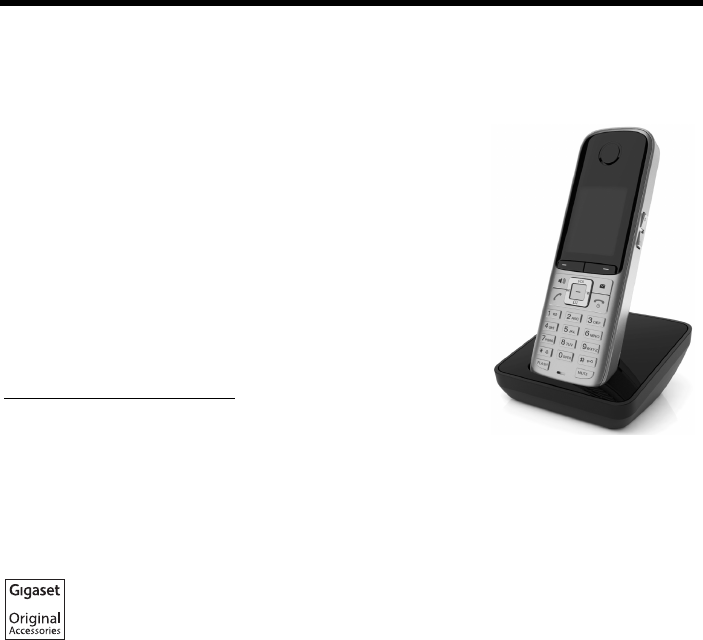
71
Gigaset S790-S795 / en / A31008-M2121-R301-2-3S19 / accessories_SAG.fm / 22.04.2010
Version 4.1, 21.11.2007
Accessories
Gigaset handsets
ADD MORE GIGASET HANDSETS TO YOUR CORDLESS TELEPHONE SYSTEM.
Gigaset S79H handset
uIlluminated graphic colour display (65k colours)
uIlluminated keypad
uSpeaker mode
uPolyphonic ringtones
uDirectory for approx. 500 entries
uCaller picture
uPC interface, e.g., for managing directory entries, ringtones
and screensavers
uHeadset socket
uRoom monitor
www.gigaset.com/gigasets79h
All accessories and batteries are available from your phone retailer.
Use only original accessories. This will avoid possible health risks and personal injury,
and also ensure that all the relevant regulations are complied with.
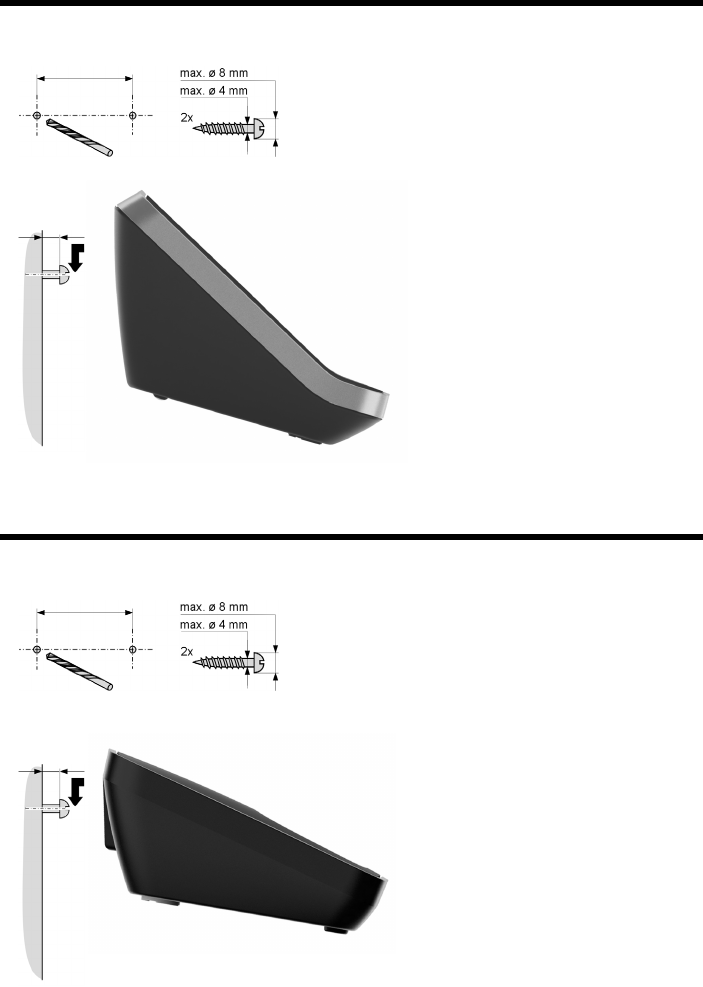
72
Mounting the base on the wall (Gigaset S790 only)
Gigaset S790-S795 / en / A31008-M2121-R301-2-3S19 / accessories_SAG.fm / 22.04.2010
Version 4.1, 21.11.2007
Mounting the base on the wall (Gigaset S790 only)
Mounting the charger on the wall
Approx. 5.5
41 mm
Approx. 4
21 mm

73
Index
Gigaset S790-S795 / en / A31008-M2121-R301-2-3S19 / S795SIX.fm / 22.04.2010
Version 4.1, 21.11.2007
Index
A
Access protection . . . . . . . . . . . . . . . . . . . . . 58
Accessories . . . . . . . . . . . . . . . . . . . . . . . . . . . 71
Acknowledge tones . . . . . . . . . . . . . . . . . . . 57
Activating
advisory tones . . . . . . . . . . . . . . . . . . . . . . 57
answering machine . . . . . . . . . . . . . . . . . 38
answering machine
(remote operation). . . . . . . . . . . . . . 42
appointment . . . . . . . . . . . . . . . . . . . . . . . 44
handset . . . . . . . . . . . . . . . . . . . . . . . . . . . . 23
keypad lock . . . . . . . . . . . . . . . . . . . . . . . . 23
listening in . . . . . . . . . . . . . . . . . . . . . . . . . 49
ring delay . . . . . . . . . . . . . . . . . . . . . . . . . . 54
room monitor . . . . . . . . . . . . . . . . . . . . . . 51
two-way record . . . . . . . . . . . . . . . . . . . . . 41
Advisory tones . . . . . . . . . . . . . . . . . . . . . . . . 57
Alarm clock . . . . . . . . . . . . . . . . . . . . . . . . . . . 46
Alert tone . . . . . . . . . . . . . . . . . . . . . . . . . . . . 56
Anniversary. . . . . . . . . . . . . . . . . . . . . . . . . . . 34
deactivating . . . . . . . . . . . . . . . . . . . . . . . . 35
missed . . . . . . . . . . . . . . . . . . . . . . . . . . 37, 46
saving in the directory. . . . . . . . . . . . . . . 34
Announcement (answering machine) . . . 39
Answering machine
activating/deactivating . . . . . . . . . . . . . . 38
deleting messages . . . . . . . . . . . . . . . . . . 40
playing back messages . . . . . . . . . . . . . . 39
recording a personal
announcement/advisory
message . . . . . . . . . . . . . . . . . . . . . . . 38
remote operation . . . . . . . . . . . . . . . . . . . 42
scrolling back . . . . . . . . . . . . . . . . . . . . . . . 40
scrolling forward . . . . . . . . . . . . . . . . . . . . 40
Answering machine list . . . . . . . . . . . . . 36, 37
Answering machine, see also
Network mailbox
Appointment . . . . . . . . . . . . . . . . . . . . . . . . . 44
Appointment/anniversary
display missed . . . . . . . . . . . . . . . . . . . . . . 46
Appointments
activating/deactivating . . . . . . . . . . . . . . 45
deleting . . . . . . . . . . . . . . . . . . . . . . . . . . . . 45
managing . . . . . . . . . . . . . . . . . . . . . . . . . . 45
Area codes
extra codes . . . . . . . . . . . . . . . . . . . . . . . . . 17
local area code. . . . . . . . . . . . . . . . . . . . . . 17
setting own area code . . . . . . . . . . . . . . . 57
Assigning a number key . . . . . . . . . . . . . . . 52
Automatic
redial . . . . . . . . . . . . . . . . . . . . . . . . . . . . . . 35
ring delay . . . . . . . . . . . . . . . . . . . . . . . 29, 54
B
Backlight
keypad. . . . . . . . . . . . . . . . . . . . . . . . . . . . . 54
Base
changing. . . . . . . . . . . . . . . . . . . . . . . . . . . 48
connecting . . . . . . . . . . . . . . . . . . . . . . . . . 10
connecting to PABX . . . . . . . . . . . . . . . . . 59
restoring to factory settings. . . . . . . . . . 58
setting ringtone . . . . . . . . . . . . . . . . . . . . 58
setting up . . . . . . . . . . . . . . . . . . . . . . . . . . 10
settings . . . . . . . . . . . . . . . . . . . . . . . . . . . . 58
system PIN . . . . . . . . . . . . . . . . . . . . . . . . . 58
Battery
charging . . . . . . . . . . . . . . . . . . . . . . . 2, 3, 14
display . . . . . . . . . . . . . . . . . . . . . . . . . . . . 2, 3
icon. . . . . . . . . . . . . . . . . . . . . . . . . . . . . . . 2, 3
inserting . . . . . . . . . . . . . . . . . . . . . . . . . . . 12
tone . . . . . . . . . . . . . . . . . . . . . . . . . . . . . . . 57
Best base . . . . . . . . . . . . . . . . . . . . . . . . . . . . . 48
Birthday, see Anniversary
C
Calendar . . . . . . . . . . . . . . . . . . . . . . . . . . . . . 44
Call
accepting . . . . . . . . . . . . . . . . . . . . . . . . . . 29
connect participant . . . . . . . . . . . . . . . . . 49
ending . . . . . . . . . . . . . . . . . . . . . . . . . . . . . 29
external . . . . . . . . . . . . . . . . . . . . . . . . . . . . 29
internal . . . . . . . . . . . . . . . . . . . . . . . . . . . . 48
picking up from answering machine . . 40
transferring (connecting) . . . . . . . . . 48, 50
two-way record . . . . . . . . . . . . . . . . . . . . . 41
Call duration. . . . . . . . . . . . . . . . . . . . . . . . . . 29
Call lists . . . . . . . . . . . . . . . . . . . . . . . . . . . . . . 36
Call screening during recording . . . . . . . . 41
Call waiting
internal call. . . . . . . . . . . . . . . . . . . . . . . . . 49
Caller ID . . . . . . . . . . . . . . . . . . . . . . . . . . . . . . 30
Caller Picture . . . . . . . . . . . . . . . . . . . . . . 32, 56
Calling
external . . . . . . . . . . . . . . . . . . . . . . . . . . . . 29
internal . . . . . . . . . . . . . . . . . . . . . . . . . . . . 48
Caring for your telephone. . . . . . . . . . . . . . 61
74
Index
Gigaset S790-S795 / en / A31008-M2121-R301-2-3S19 / S795SIX.fm / 22.04.2010
Version 4.1, 21.11.2007
Changing
destination number (room monitor) . . 51
dialing mode . . . . . . . . . . . . . . . . . . . . . . . 59
display language. . . . . . . . . . . . . . . . . . . . 53
earpiece volume . . . . . . . . . . . . . . . . . . . . 54
internal number of a handset . . . . . . . . 50
name of a handset . . . . . . . . . . . . . . . . . . 50
pauses . . . . . . . . . . . . . . . . . . . . . . . . . . . . . 59
ringtone. . . . . . . . . . . . . . . . . . . . . . . . . 55, 58
speaker volume. . . . . . . . . . . . . . . . . . . . . 54
system PIN . . . . . . . . . . . . . . . . . . . . . . . . . 58
Changing the system PIN . . . . . . . . . . . . . . 58
Character set . . . . . . . . . . . . . . . . . . . . . . . . . 63
Charge status display . . . . . . . . . . . . . . . . . 2, 3
Colour scheme. . . . . . . . . . . . . . . . . . . . . . . . 53
Conference
internal . . . . . . . . . . . . . . . . . . . . . . . . . . . . 49
Confirmation tone. . . . . . . . . . . . . . . . . . . . . 57
Connecting the headset . . . . . . . . . . . . . . . 18
Connecting, base to PABX. . . . . . . . . . . . . . 59
Consultation call
internal . . . . . . . . . . . . . . . . . . . . . . . . . . . . 49
Control key . . . . . . . . . . . . . . . . . . . . . . . . . 2, 20
Correcting incorrect entries . . . . . . . . . . . . 21
Customer Care . . . . . . . . . . . . . . . . . . . . . . . . 68
D
Deactivating
advisory tones . . . . . . . . . . . . . . . . . . . . . . 57
answering machine . . . . . . . . . . . . . . . . . 38
appointment . . . . . . . . . . . . . . . . . . . . . . . 44
handset . . . . . . . . . . . . . . . . . . . . . . . . . . . . 23
keypad lock . . . . . . . . . . . . . . . . . . . . . . . . 23
listening in . . . . . . . . . . . . . . . . . . . . . . . . . 49
ring delay . . . . . . . . . . . . . . . . . . . . . . . . . . 54
room monitor . . . . . . . . . . . . . . . . . . . . . . 51
two-way record . . . . . . . . . . . . . . . . . . . . . 41
Delete key . . . . . . . . . . . . . . . . . . . . . . . . . . . . 21
Deleting
announcement for answer
machine . . . . . . . . . . . . . . . . . . . . . . . 39
characters . . . . . . . . . . . . . . . . . . . . . . . . . . 21
message . . . . . . . . . . . . . . . . . . . . . . . . . . . 40
De-registering (handset) . . . . . . . . . . . . . . . 48
Destination number (room monitor) . . . . 51
Dialing
using quick dial . . . . . . . . . . . . . . . . . . 34, 52
using the directory . . . . . . . . . . . . . . . . . . 33
Dialing mode . . . . . . . . . . . . . . . . . . . . . . . . . 59
Directory . . . . . . . . . . . . . . . . . . . . . . . . . . . . . 32
copying number from text . . . . . . . . . . . 34
managing entries . . . . . . . . . . . . . . . . . . . 33
opening. . . . . . . . . . . . . . . . . . . . . . . . . . . . 20
order of entries . . . . . . . . . . . . . . . . . . . . . 33
saving anniversary . . . . . . . . . . . . . . . . . . 34
saving entry . . . . . . . . . . . . . . . . . . . . . . . . 32
sending entry/list to handset. . . . . . . . . 34
using to enter numbers. . . . . . . . . . . . . . 34
Display
backlight . . . . . . . . . . . . . . . . . . . . . . . . . . . 53
changing display language . . . . . . . . . . 53
colour scheme . . . . . . . . . . . . . . . . . . . . . . 53
directory memory. . . . . . . . . . . . . . . . . . . 33
in idle status . . . . . . . . . . . . . . . . . . . . . 16, 23
memory (resource directory) . . . . . . . . . 56
missed anniversaries . . . . . . . . . . . . . . . . 37
missed
appointments/anniversaries . . . . . 46
network mailbox message . . . . . . . . . . . 43
number (Caller ID/Name) . . . . . . . . . . . . 30
screensaver. . . . . . . . . . . . . . . . . . . . . . . . . 53
setting . . . . . . . . . . . . . . . . . . . . . . . . . . . . . 53
slide show . . . . . . . . . . . . . . . . . . . . . . . . . . 53
Display keys . . . . . . . . . . . . . . . . . . . . . . . . 2, 21
assigning. . . . . . . . . . . . . . . . . . . . . . . . . . . 52
E
Earpiece volume . . . . . . . . . . . . . . . . . . . . . . 54
ECO DECT . . . . . . . . . . . . . . . . . . . . . . . . . . . . 44
Eco mode . . . . . . . . . . . . . . . . . . . . . . . . . . . . 44
E-mail address
copying from
the directory . . . . . . . . . . . . . . . . . . . 34
End call key . . . . . . . . . . . . . . . . . . . . . . . . . 2, 29
Ending, call . . . . . . . . . . . . . . . . . . . . . . . . . . . 29
Entry
selecting from directory . . . . . . . . . . . . . 33
Error tone . . . . . . . . . . . . . . . . . . . . . . . . . . . . 57
Expert mode. . . . . . . . . . . . . . . . . . . . . . . 26, 60
External call
forwarding to ans. mach. . . . . . . . . . . . . 41
Extra codes . . . . . . . . . . . . . . . . . . . . . . . . . . . 17
F
Fast access
answering machine . . . . . . . . . . . . . . . . . 42
network mailbox. . . . . . . . . . . . . . . . . . . . 43
Firmware update . . . . . . . . . . . . . . . . . . . . . . 64
Flash key . . . . . . . . . . . . . . . . . . . . . . . . . . . . . . .2
75
Index
Gigaset S790-S795 / en / A31008-M2121-R301-2-3S19 / S795SIX.fm / 22.04.2010
Version 4.1, 21.11.2007
G
Group call . . . . . . . . . . . . . . . . . . . . . . . . . . . . 48
H
Handset
activating/deactivating . . . . . . . . . . . . . . 23
advisory tones . . . . . . . . . . . . . . . . . . . . . . 57
changing internal number . . . . . . . . . . . 50
changing name . . . . . . . . . . . . . . . . . . . . . 50
changing the number . . . . . . . . . . . . . . . 50
changing to a different base . . . . . . . . . 48
changing to best reception . . . . . . . . . . 48
colour scheme . . . . . . . . . . . . . . . . . . . . . . 53
contact with liquid . . . . . . . . . . . . . . . . . . 61
de-registering . . . . . . . . . . . . . . . . . . . 47, 48
display backlight. . . . . . . . . . . . . . . . . . . . 53
display language. . . . . . . . . . . . . . . . . . . . 53
earpiece volume . . . . . . . . . . . . . . . . . . . . 54
idle status . . . . . . . . . . . . . . . . . . . . . . . . . . 23
keypad backlight . . . . . . . . . . . . . . . . . . . 54
large font. . . . . . . . . . . . . . . . . . . . . . . . . . . 53
list . . . . . . . . . . . . . . . . . . . . . . . . . . . . . . . . . 20
locating . . . . . . . . . . . . . . . . . . . . . . . . . . . . 48
muting. . . . . . . . . . . . . . . . . . . . . . . . . . . . . 31
paging . . . . . . . . . . . . . . . . . . . . . . . . . . . . . 48
registering . . . . . . . . . . . . . . . . . . . . . . . . . 47
registering to a different base . . . . . . . . 48
restoring to factory settings. . . . . . . . . . 57
screensaver. . . . . . . . . . . . . . . . . . . . . . . . . 53
set up for use . . . . . . . . . . . . . . . . . . . . . . . 12
setting . . . . . . . . . . . . . . . . . . . . . . . . . . . . . 52
speaker volume. . . . . . . . . . . . . . . . . . . . . 54
transferring a call . . . . . . . . . . . . . . . . . . . 48
using multiple . . . . . . . . . . . . . . . . . . . . . . 47
using room monitor . . . . . . . . . . . . . . . . . 50
Handset mode . . . . . . . . . . . . . . . . . . . . . . . . 31
Handset operating time
in room monitor mode . . . . . . . . . . . . . . 51
Handsfree
set profile . . . . . . . . . . . . . . . . . . . . . . . . . . 54
Handsfree profile. . . . . . . . . . . . . . . . . . . . . . 54
Headset socket. . . . . . . . . . . . . . . . . . . . . . . . 18
Hearing aids . . . . . . . . . . . . . . . . . . . . . . . . . . . .8
I
Icon
alarm clock . . . . . . . . . . . . . . . . . . . . . . . . . 46
answering machine . . . . . . . . . . . . . . 38, 41
for new messages . . . . . . . . . . . . . . . . . . . 37
keypad lock . . . . . . . . . . . . . . . . . . . . . . . . 23
new message. . . . . . . . . . . . . . . . . . . . . . . 39
ringtone . . . . . . . . . . . . . . . . . . . . . . . . . . . 55
Idle status (display) . . . . . . . . . . . . . . . . . 16, 23
Idle status, returning to . . . . . . . . . . . . . . . . 23
Incorrect entries (correction) . . . . . . . . . . . 21
Industry Canada Certification . . . . . . . . . . 65
Installing, base . . . . . . . . . . . . . . . . . . . . . . . . 10
Internal
conference . . . . . . . . . . . . . . . . . . . . . . . . . 49
consulting. . . . . . . . . . . . . . . . . . . . . . . . . . 49
listening in . . . . . . . . . . . . . . . . . . . . . . . . . 49
making calls . . . . . . . . . . . . . . . . . . . . . . . . 48
Internal call . . . . . . . . . . . . . . . . . . . . . . . . . . . 48
call waiting . . . . . . . . . . . . . . . . . . . . . . . . . 49
K
Key
assigning to a function or
number . . . . . . . . . . . . . . . . . . . . . . . . 52
Key 1 (fast access) . . . . . . . . . . . . . . . . . . . 2, 42
Keypad backlight . . . . . . . . . . . . . . . . . . . . . 54
Keypad lock . . . . . . . . . . . . . . . . . . . . . . . . . . 23
Keys
control key . . . . . . . . . . . . . . . . . . . . . . . 2, 20
delete key . . . . . . . . . . . . . . . . . . . . . . . . . . 21
display keys . . . . . . . . . . . . . . . . . . . . . . 2, 21
end call key. . . . . . . . . . . . . . . . . . . . . . . 2, 29
fast access. . . . . . . . . . . . . . . . . . . . . . . . 2, 42
flash key . . . . . . . . . . . . . . . . . . . . . . . . . . . . .2
message key. . . . . . . . . . . . . . . . . . . . . . . . . .2
mute key . . . . . . . . . . . . . . . . . . . . . . . . . . . . .2
on/off key . . . . . . . . . . . . . . . . . . . . . . . . . . . .2
pound key. . . . . . . . . . . . . . . . . . . . . . . . . . 23
quick dial. . . . . . . . . . . . . . . . . . . . . . . . . . . 34
side keys . . . . . . . . . . . . . . . . . . . . . . . . . . . . .2
speaker key. . . . . . . . . . . . . . . . . . . . . . . . . . .2
star key . . . . . . . . . . . . . . . . . . . . . . . . . . . . . .2
talk key . . . . . . . . . . . . . . . . . . . . . . . . . . 2, 29
L
Language, display. . . . . . . . . . . . . . . . . . . . . 53
Large font . . . . . . . . . . . . . . . . . . . . . . . . . . . . 53
List
answering machine . . . . . . . . . . . . . . 36, 37
call lists . . . . . . . . . . . . . . . . . . . . . . . . . . . . 36
handsets . . . . . . . . . . . . . . . . . . . . . . . . . . . 20
missed calls . . . . . . . . . . . . . . . . . . . . . . . . 36
76
Index
Gigaset S790-S795 / en / A31008-M2121-R301-2-3S19 / S795SIX.fm / 22.04.2010
Version 4.1, 21.11.2007
network mailbox . . . . . . . . . . . . . . . . . . . . 37
Listening in to a call . . . . . . . . . . . . . . . . . . . 49
Local area code . . . . . . . . . . . . . . . . . . . . . . . 17
Locating, handset . . . . . . . . . . . . . . . . . . . . . 48
Lock
activating/deactivating keypad lock . . 23
M
Making calls
accepting a call . . . . . . . . . . . . . . . . . . . . . 29
external . . . . . . . . . . . . . . . . . . . . . . . . . . . . 29
internal . . . . . . . . . . . . . . . . . . . . . . . . . . . . 48
Manual redial . . . . . . . . . . . . . . . . . . . . . . . . . 35
Medical equipment . . . . . . . . . . . . . . . . . . . . .8
Memory
directory . . . . . . . . . . . . . . . . . . . . . . . . . . . 33
resource directory. . . . . . . . . . . . . . . . . . . 56
Menu
end tone . . . . . . . . . . . . . . . . . . . . . . . . . . . 57
opening. . . . . . . . . . . . . . . . . . . . . . . . . . . . 20
overview . . . . . . . . . . . . . . . . . . . . . . . . . . . 26
using . . . . . . . . . . . . . . . . . . . . . . . . . . . . . . 22
Menu display
expert mode. . . . . . . . . . . . . . . . . . . . . 26, 60
standard mode . . . . . . . . . . . . . . . . . . 26, 60
Message key
opening lists. . . . . . . . . . . . . . . . . . . . . . . . 37
Messages. . . . . . . . . . . . . . . . . . . . . . . . . . . . . 38
copying the number to the
directory . . . . . . . . . . . . . . . . . . . . . . . 40
deleting . . . . . . . . . . . . . . . . . . . . . . . . . . . . 40
key . . . . . . . . . . . . . . . . . . . . . . . . . . . . . . . . . .2
marking as "new" . . . . . . . . . . . . . . . . . . . 40
new message icon . . . . . . . . . . . . . . . . . . 39
playing back. . . . . . . . . . . . . . . . . . . . . . . . 39
Microphone . . . . . . . . . . . . . . . . . . . . . . . . . . . .2
Missed
anniversary . . . . . . . . . . . . . . . . . . . . . . . . . 46
appointment . . . . . . . . . . . . . . . . . . . . . . . 46
Missed calls. . . . . . . . . . . . . . . . . . . . . . . . . . . 36
Music on hold. . . . . . . . . . . . . . . . . . . . . . . . . 58
Mute key . . . . . . . . . . . . . . . . . . . . . . . . . . . . . . .2
Muting the handset . . . . . . . . . . . . . . . . . . . 31
N
Name
of a handset . . . . . . . . . . . . . . . . . . . . . . . . 50
Network mailbox. . . . . . . . . . . . . . . . . . . . . . 43
Number
as destination for room monitor. . . . . . 51
copying from directory . . . . . . . . . . . . . . 34
copying to the directory . . . . . . . . . . . . . 34
displaying caller’s number
(Caller ID) . . . . . . . . . . . . . . . . . . . . . . 30
entering with directory . . . . . . . . . . . . . . 34
saving in directory . . . . . . . . . . . . . . . . . . 32
O
On/Off key. . . . . . . . . . . . . . . . . . . . . . . . . . . . . .2
Operating remotely . . . . . . . . . . . . . . . . . . . 42
Order in directory . . . . . . . . . . . . . . . . . . . . . 33
P
PABX
connecting base . . . . . . . . . . . . . . . . . . . . 59
pauses . . . . . . . . . . . . . . . . . . . . . . . . . . . . . 59
setting dialing mode . . . . . . . . . . . . . . . . 59
setting recall. . . . . . . . . . . . . . . . . . . . . . . . 59
switching to tone dialing . . . . . . . . . . . . 59
Package contents . . . . . . . . . . . . . . . . . . . . . . .9
Paging . . . . . . . . . . . . . . . . . . . . . . . . . . . . . . . 48
Pause
after line seizure . . . . . . . . . . . . . . . . . . . . 59
after recall key . . . . . . . . . . . . . . . . . . . . . . 59
PC interface . . . . . . . . . . . . . . . . . . . . . . . . . . 63
PD (pulse dialing) . . . . . . . . . . . . . . . . . . . . . 59
Picture
Caller . . . . . . . . . . . . . . . . . . . . . . . . . . . 32, 56
deleting. . . . . . . . . . . . . . . . . . . . . . . . . . . . 56
renaming. . . . . . . . . . . . . . . . . . . . . . . . . . . 56
PIN change
system PIN . . . . . . . . . . . . . . . . . . . . . . . . . 58
Pin connections . . . . . . . . . . . . . . . . . . . . . . . 62
Playing back
announcement (answering machine) . 39
message (answering machine) . . . . . . . 39
Pound key . . . . . . . . . . . . . . . . . . . . . . . . . . . . 23
Power adapter . . . . . . . . . . . . . . . . . . . . . . . . . .8
Power consumption . . . . . . . . . . . . . . . . . . . 62
Protecting the phone against access . . . . 58
Pulse dialing . . . . . . . . . . . . . . . . . . . . . . . . . . 59
77
Index
Gigaset S790-S795 / en / A31008-M2121-R301-2-3S19 / S795SIX.fm / 22.04.2010
Version 4.1, 21.11.2007
Q
Quick dial. . . . . . . . . . . . . . . . . . . . . . . . . . 32, 52
R
Range . . . . . . . . . . . . . . . . . . . . . . . . . . . . . . . . 10
Recall . . . . . . . . . . . . . . . . . . . . . . . . . . . . . . . . 59
Recall key. . . . . . . . . . . . . . . . . . . . . . . . . . . . . 59
Recording
two-way record . . . . . . . . . . . . . . . . . . . . . 41
Recording quality . . . . . . . . . . . . . . . . . . . . . 41
Recording time . . . . . . . . . . . . . . . . . . . . . . . 41
Redial . . . . . . . . . . . . . . . . . . . . . . . . . . . . . . . . 35
Registering (handset). . . . . . . . . . . . . . . . . . 47
Reminder call . . . . . . . . . . . . . . . . . . . . . . . . . 35
Resource directory . . . . . . . . . . . . . . . . . . . . 56
Ring delay . . . . . . . . . . . . . . . . . . . . . . . . . 41, 54
Ringtone
changing . . . . . . . . . . . . . . . . . . . . . . . . 55, 58
setting volume. . . . . . . . . . . . . . . . . . . 55, 58
Ringtone deactivated for unknown
call . . . . . . . . . . . . . . . . . . . . . . . . . . . . . . 55
Room monitor . . . . . . . . . . . . . . . . . . . . . . . . 50
S
Screensaver. . . . . . . . . . . . . . . . . . . . . . . . . . . 53
Search directory . . . . . . . . . . . . . . . . . . . . . . 33
Sending
directory entry to handset . . . . . . . . . . . 34
Sensitivity (room monitor) . . . . . . . . . . . . . 51
Service (Customer Care) . . . . . . . . . . . . . . . 68
Setting the date. . . . . . . . . . . . . . . . . . . . 15, 28
Setting the time. . . . . . . . . . . . . . . . . . . . 15, 28
Setting up
handset . . . . . . . . . . . . . . . . . . . . . . . . . . . . 12
Side keys . . . . . . . . . . . . . . . . . . . . . . . . . . . . . . .2
Signal tone, see Advisory tones
Slide show. . . . . . . . . . . . . . . . . . . . . . . . . . . . 53
Snooze mode . . . . . . . . . . . . . . . . . . . . . . . . . 47
Sound, see Ringtone
Speaker
key . . . . . . . . . . . . . . . . . . . . . . . . . . . . . . . . . .2
Speaker mode . . . . . . . . . . . . . . . . . . . . . . . . 31
Special functions . . . . . . . . . . . . . . . . . . . . . . 59
Specifications . . . . . . . . . . . . . . . . . . . . . . . . . 62
Standard mode . . . . . . . . . . . . . . . . . . . . 26, 60
Star key . . . . . . . . . . . . . . . . . . . . . . . . . . . . . . . .2
System settings . . . . . . . . . . . . . . . . . . . . . . . 58
T
Talk key . . . . . . . . . . . . . . . . . . . . . . . . . . . . 2, 29
Telephone jack, pin connections. . . . . . . . 62
Tone dialing . . . . . . . . . . . . . . . . . . . . . . . . . . 59
Troubleshooting . . . . . . . . . . . . . . . . . . . . . . 60
U
Update . . . . . . . . . . . . . . . . . . . . . . . . . . . . . . . 64
USB connection . . . . . . . . . . . . . . . . . . . . . . . 18
V
Viewing the network mailbox
message . . . . . . . . . . . . . . . . . . . . . . . . . 43
Volume
earpiece. . . . . . . . . . . . . . . . . . . . . . . . . . . . 54
handset speaker volume. . . . . . . . . . . . . 54
loudspeaker . . . . . . . . . . . . . . . . . . . . . . . . 54
ringtone . . . . . . . . . . . . . . . . . . . . . . . . 55, 58
W
Warning tone, see Advisory tones
Writing and editing text . . . . . . . . . . . . . . . 63
