Global Technologies PANSAT250SM Digital Set-top Box User Manual
Global Technologies Inc. Digital Set-top Box
Users Manual

USER’S GUIDE
250SM
DIGITAL SATELLITE RECEIVER
Panarex Electronics
SUN VALLEY, CALIFORNIA, U.S.A.
2
3
4
5
6
PREFACE
1. OVERVIEW
1. WHAT IS THIS PRODUCT FOR?
2. WHAT FEATURE DOES THIS PRODUCT OFFER?
3. FOR YOUR SAFETY
4. PLEASE CHECK THE FOLLOWING ACCRSSORIES ARE ENCLOSED
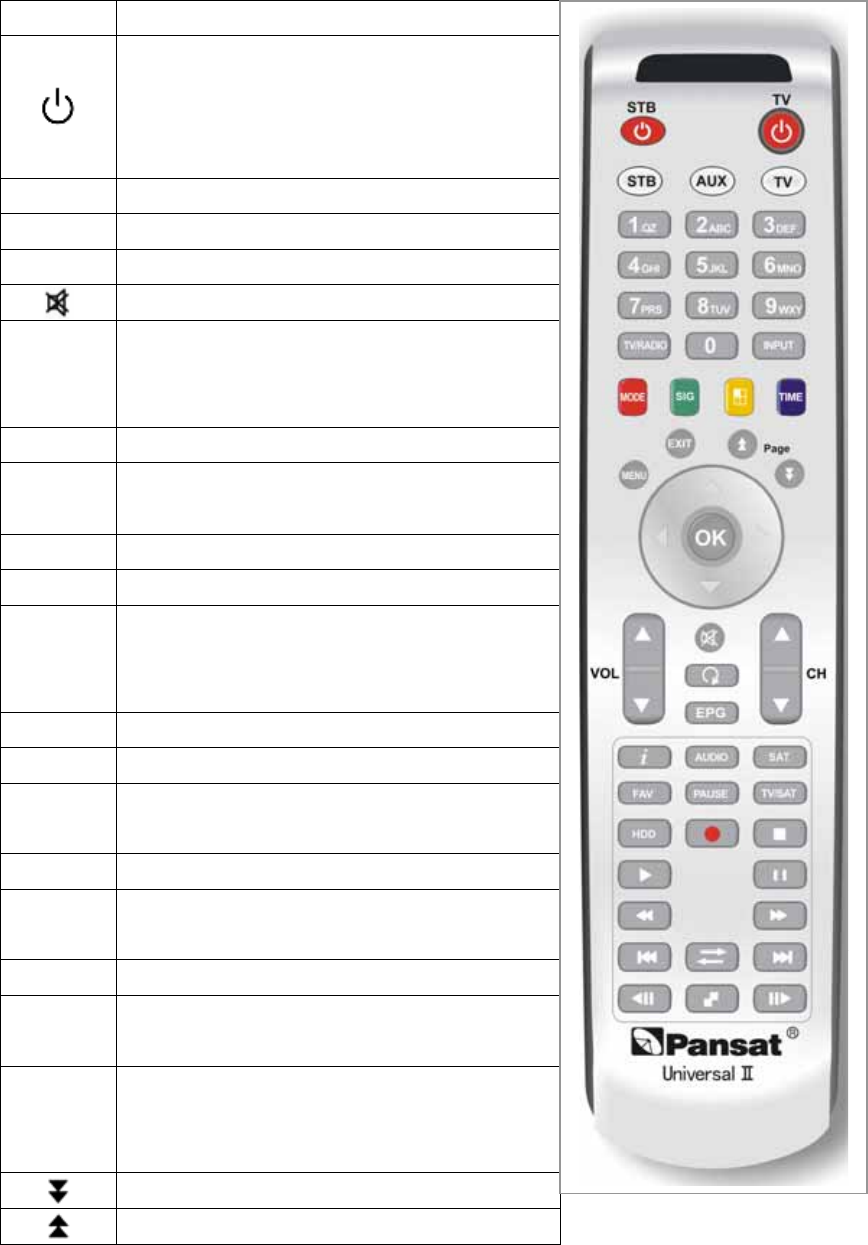
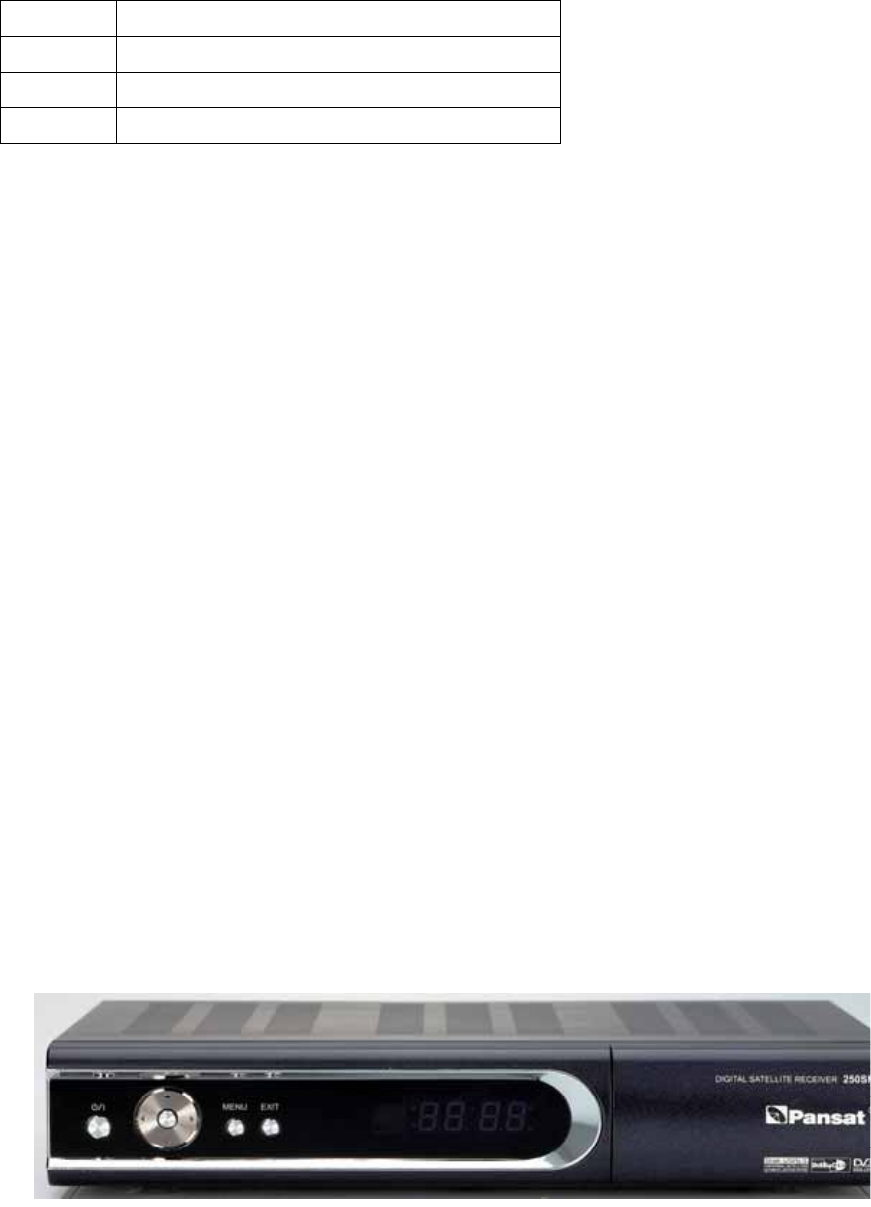
5. HOW TO USE THE REMOTE CONTROL KEY
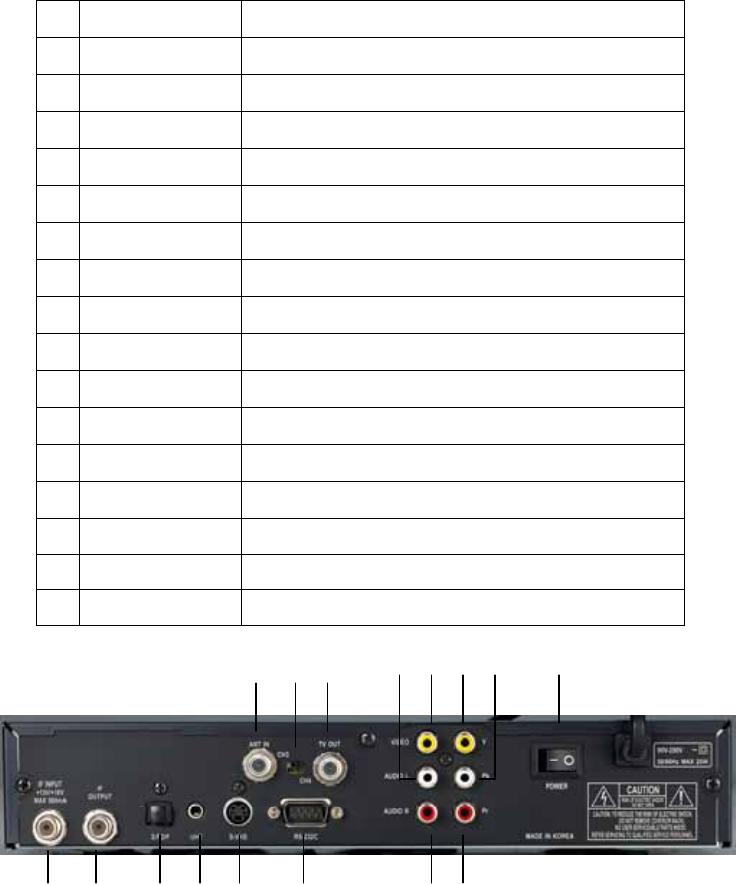
6. FRONT PANEL
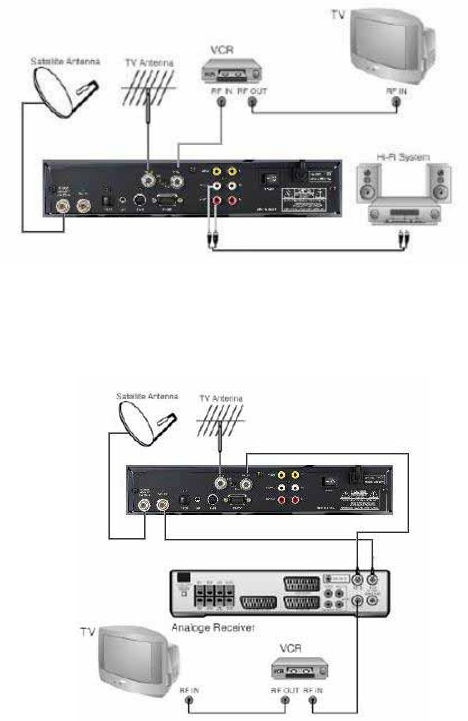
7. REAR PANEL
8. SIMPLE DIGITAL CONNECTION
9. ANALOGUE / DIGITAL CONNECTION
2. OPERATING
1. Start Up
2. Installation
3. Channel Edit
4. User Setup
5. System Setup
6. Channel List
7. Program Guide
8. Audio change
9. USB Memory Stick
10. Multi Pictures
11. Embedded
12. Recall the Favorite channel
13. Download Procedure between Receiver & PC
3. SPECIFICATION
4. TROUBLE SHOOTING
7
1. OVERVIEW
1. WHAT IS THIS PRODUCT FOR?
This product is designed for using Digital Satellite and allows you to enjoy a lot of broadcasting whenever you want to
watch it anytime. By simply pressing the button of the remote control unit, the vivid picture and life –like sound of digital
broadcasting that your TV portrays through this product, allows you to watch whatever channel you wish of the digital
broadcasting.
Through this manual you will notice that the operation is easy to use.
This manual will help you get the most from this product and guide you through Installation, channel selection and many
other functions.
In case you experience any difficulties to use this product, please consult the relevant section of this manual.
From now on, enjoy digital broadcasting with digital satellite receiver!!!
2. WHAT FEATURE DOES THIS PRODUCT OFFER?
2.1 General Features
▪ 10days EPG (Electronic Program Guide)
▪ Full Compliant of MPEG-2 Digital & DVB broadcasting
▪ 950-2, 150 MHz input Frequency (IF Loop Throughout)
▪ Variable Input Symbol Rate (1-45Msps)
▪ Multi Language OSD
▪ Automatic PAL/NTSC Conversion
▪ Fast Channel Change
▪ 5,000 Channel TV & Radio Program
▪ Flexible reception of SCPC & MCPC from C/Ku-Band Satellites
▪ S/PDIF (Digital Audio or Dolby AC3 Stream out)
▪ Timer Function (Automatic Turn On/Off by Setting Function)
▪ 256 Colors (Graphic Use Interface) Number
▪ PIG (Picture In Graphic)
▪ 5 Favorite List & 100 programs per each
▪ Powerful Channel Editing Function
- Sorting: Alphabetic, Satellite, FTA/Scramble, Parental Lock
- Move, Delete, Favorite Edit
- Parental Lock, Channel Rename, Channel Skip
▪ Manual PID/Satellite & TP/Network Scan
▪ Blind Scan
8
▪ Satellite Scan – Simultaneous Scan with various Satellites
▪ DiSEqC 1.2 & USALS Compatible
▪ Comparable of Setting the Frequency for SMATV System
▪ Software Upgrade via USB Memory Stick or RS232C (Receiver to Receiver, PC to Receiver)
▪ UHF- Ready
▪ S-VHS Out
▪ Universal Remote Control
2.2 Additional Features
▪ RTC (Real Time Clock)
▪ Component Out (YPbPr)
▪ Integrated USB2.0 (Host), Support to USB Memory Stick
▪ Multi pictures (Max. 16)
2.3 Conditional Access
▪ Conditional Access – Conax CAS Embedded
3. FOR YOUR SAFETY
▪ Do not open the cover. It may cause malfunction or electric shock.
▪ When you do not use the product for a long time, please pull the power cord out from the outlet.
Also do not use a damaged power cord that may cause fire or electric shock.
▪ Do not use install the product in a humid area.
▪ Do not cover the product or place anything heavy on the product, Keep clear space around the product for sufficient
ventilation.
▪ Avoid using spray or liquid materials around the product. Don’t make other materials come into the inside the product.
▪ Do not connect to modify cables when the product is plugged in.
▪ Socket-outlet shall be installed near the equipment and shall be easily accessible.
▪ Apparatus shall not be exposed to dripping or splashing and that no objects filled with liquids, such as vases
shall be placed on the apparatus.
4 PLEASE CHECK THE FOLLOWING ACCRSSORIES ARE ENCLOSED
▪ User manual 1 set
▪ Remote Control Unit 1 Set
▪ Batteries (AAA Type) 2EA
Note !
If any of the accessories listed above are missing, Please contact the sales outlet where this product was initially
purchased.
9
5. HOW TO USE THE REMOTE CONTROL KEY
Key Function
Turns this receiver on/off.
In the standby mode, it is automatically changed
to TV mode that enables to watch terrestrial TV
broadcasting.
TV/SAT Toggles between TV & SAT
TV/VCR Toggles between TV & VCR
TIME Time shows current Time
Sounds Off/On
Shows channel information, such as channel
number, channel name, Frequency, Polarity,
INFO
Symbol Rate, Video PID, Audio PID and PCR PID
EPG Shows program information
Toggles between the TV service and radio
TV/RADIO
service
PAUSE Holds the picture or release the pause
SIG Shows signal quality
Selects audio mode
(Stereo, left only and right only).
AUDIO
Select language in case of Multilingual program.
MENU Enters main menu screen. Or exits menu screen
EXIT Moves to upper menu
CH ▲▼
Channel up/down
Moves the cursor upward/downward in the menu screen
OK Shows Channel list. Confirms selection
VOL ◀▶
Volume down/up
Change the value of a selected line
LAST Returns to previous program
Enter favorite program or Exit from Favorite
FAV program
Changes channel directly.
Controls the numerical operation.
0~9
Input the alphabet in the name edit screen
Execute page down function in the menu
Execute page up function in the menu
10
SAT Classifies satellite by satellite
??? ???
TTX Teletext
SUB Subtitle
Operating Principle
▪ Select an item by using up and down key and change the value of the highlighted (selected) item by using keys shown
on the screen. Press OK to enter to the sub-menu if there is no instruction marks on the screen.
▪ The items is automatically stored and moved the upper menu by pressing the ‘EXIT’ key
▪ You can return to normal mode at any time by pressing the menu key from the menu mode
6. FRONT PANEL
1. POWER
To put Power in and out of standby mode.
2. VOLUME
To make volume up and down.
3. CHANNEL
To move up and down in the menus, To change channels.
4. Menu
To enter main menu screen.
5. Exit
To move to upper menu.
6. Select
To enter selected menu screen.
7. Display
To show channel number, error messages, remote control commands and time in standby mode.
11
7. REAR PANEL
NO NAME FUNCTION
1 S-VHS Super Video output to TV or VCR
2 UHF Option for UHF Remote Control lit
3 S/PDIF For digital audio output
4 RS232 Serial port used for software upgrade
5 L Left Audio Output
6 R Right Audio Output
7 Y Component Video Output
8 Pb Component Video Output
9 TV OUT Output to TV
10 IF OUTPUT IF Loop-through output to 2nd receiver
11 IF INPUT IF INPUT from LNB to receiver
12 Modulator Switch CH 3/4 Switch
13 ANT IN Input from terrestrial TV antenna
14 Pr Component Video Output
15 VIDEO Composite Video Output
16 AC SWITCH AC Power ON/OFF (Reset Function)
1 2 3 4
5
6
789
10 11
12
13
14
15 16
12
8. SIMPLE DIGITAL CONNECTION
When connecting receiver to TV and VCR with RF Cable (Single Antenna)
9. ANALOGUE / DIGITAL CONNECTION
When connecting receiver to analogue receiver and VCR with RF Cable
13
2. OPERATING
1. Start Up
If you are watching TV through the RF-cable, you need to adjust the Channel number. The type of TV and Channel
numbers are set to PAL-G and Channel 38 at the factory. For USA, Ch3 is factory preset.
Please follow the brief procedure below and watch the satellite programs.
1) Select the language
2) Select the antenna setup in main menu screen
3) Adjust LNB configuration per each satellite
4) Execute scanning to find program
5) Exit from installation after all programs are searched.
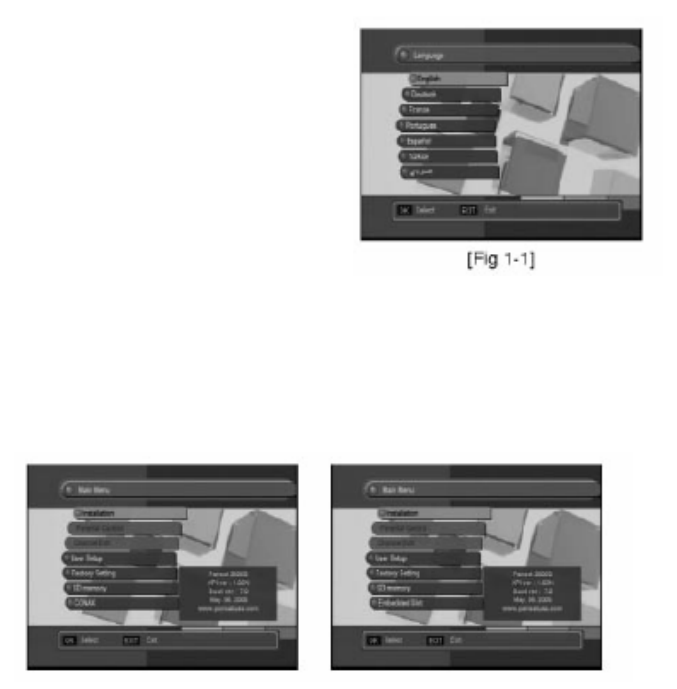
1.1 Language
When the receiver is turned on for the first time, the language selection menu is appeared as in the Fig 1-1. Select
the desired language and press OK to confirm it.
This Receiver supports 8 languages.
English
German
French
Spanish
Italiano
Portuguese
Turkish
Arabic
2. Installation
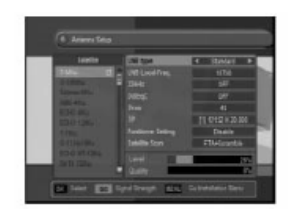
Press the OK Key. Use common password “0000”. Parental control and channel edit are not accessible until satellite
channel scanned and saved. Antenna setup is appeared on screen as upper second figure.
14
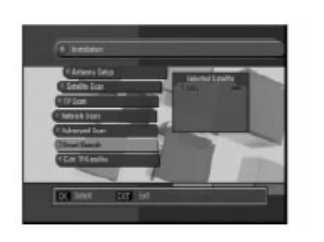
2.1 Antenna Setup
In this section you could know how to operate LNB set-up.
2.1.1 Satellite
• When you adjust the LNB set-up,
you select the satellite using OK key.
• Adjust LNB type , LNB Lo-Freq, 22kHz, DiSEqC, LNB power, TP, Positioner Setting.
• You can cancel the satellite you chose using EXIT key.
2.1.2 TP
Select a specific transponder by using the ◀▶ keys.
2.1.3 LNB type
Select LNB type using keys. ◀▶
There are 5 LNB alternatives.
• Universal 1 (9750MHz & 10600 MHz)
• Universal 2 (9750MHz & 10750 MHz)
• Single-SL (5150MHz & 5750 MHz)
• Single-SH (5150MHz & 5750 MHz)
• Standard for USA (10750 or 11250)
• Single Stack (10750(V) or 11250(H))
22KHz control is automatically set for each LNB alternative or you can change it by yourself.
2.1.4 LNB Lo-Freq
If the required LNB frequency is not available, select “Standard” and then input the frequency manually using the
numeric keys.
2.1.5 22Khz
In case you are using a Dual LNB or two antennas connected to a 22KHz tone switch box, make 22KHz tone switch
“ON” or “OFF” to select an LNB or an antenna.
2.1.6 DiSEqC
• DiSEqC 1.0, 1.2, 1.3 (STAB USALS) is compatible
• DiSEqC 2X1 & 4X1 is usually available.
2.1.7 Positioner Setting
It is used to set the DiSEqC 1.2 motor & USALS
If you have no positioner equipment, select “Disable”. Otherwise, you can select either DiSEqC 1.2 or USALS.
15
1) DiSEqC 1.2
(1) Current position
Select the position number by using keys◀▶ (#0~#26:default define, #27~#49: user define)
(2) Movement
Select East / West by using keys and press OK to stop◀▶
(3) East Limit Set
Move the position to the most eastern position and press OK then East Limit is stored.
(4) West Limit Set
Move the position to the most western position and press OK then East Limit is stored.
(5) Limits Disable
Select Disable limits by using OK key
(6) Go to reference
Select go to reference by using OK key
2) USALS (DiSEqC 1.3)
(1) Satellite Position
It points out the position of saved satellite. You can change the position of the satellite by numeric keys.
(2) My Longitude
Please input Local Longitude by numeric keys
(3) My latitude
Please input Local Latitude by numeric keys
(4) Reference position
This is the same as DiSEqC 1.2 Reference
(5) Move
The satellite’s position of (1) and the one calculated by value of (2) & (3) will be shown. Press OK key and it will
move.
(6) Store
Please select “Store” and the current position will be saved.
2.1.8 Satellite Scan
After all LNB setting is finished, adjust antenna direction toward satellite until signal quality level maximized. Then select
and confirm Satellite scan to start scan and saved.
# If you press SIG key on RCU, signal strength menu will be displayed in the screen.
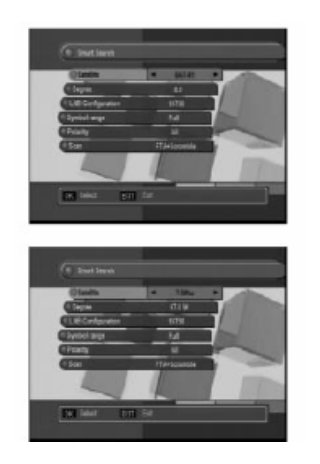
2.2 Satellite scan
Scan all the transponder of selected satellites.
(1)Press OK key and Select wanted satellite by using ▼&▲keys.
(If you want to scan several satellites once, you can control ◀▶ keys.)
16
Then press OK key to execute scanning.
(2) You can select satellite whatever you chose though.
(3) Transponder will be consecutively scanned all selected satellites.
2.3 Advanced & TP Scan
Select TP is scanning in this menu.
(1) Select a satellite
(2) Select TP in TP list.
(3) Set Scan Option by using ◀▶ keys. Select items in the list and press OK.
(4) You can set the PID to search program in PID Scan item.
(5) Then press OK to search in Scan Start.
2.4 Blind Scan
Blind Scan enables to search and scan all channels in the satellite without any preprogrammed data.
2.4.1 How to add a new satellite
1. Select the satellite name with ◀▶ keys
2. If you want to add a new satellite, press OK key.
2.4.2 LNB Configuration
Please refer to 2.1 Antenna Setup
2.4.3 Symbol range
• Select Full, High or Low
• Full : High and Low
• High :>7.5M • Low :<7.5M
2.4.4 Polarity
• Select Horizontal / Vertical with ◀▶ keys.
• All : High and Low
• Horizontal : Scan Horizontal TP only.
• Vertical : Scan Vertical TP only.
2.4.5 Scan
• Select Scan type with ◀▶ keys.
• When you select OK key, the scanning will start.
17
2.5 SAT & TP Edit
In this mode, you can add the New Satellite and the New transponder information.
Also you can update or delete the transponder information.
2.5.1 How to add a new satellite
• Select “New” in the satellite name by using numeric key or CH ▲▼ keys. Press VOL ◀▶ keys to move digit.
• Maximum number of characters is 12-digit.
• Press OK key.
• Enter the Down frequency, Symbol Rate and LNB Polarity.
• Press EXIT or OK key, then new transponder information is stored.
2.5.2 How to rename a satellite
• Press OK after selecting a satellite of which you want to change name.
• Select “Rename” in the menu.
• Enter new name by using numeric key or CH▲▼ keys and press OK key.
2.5.3 How to Delete/Restore a satellite
• Press OK key after selecting a satellite you want to delete.
• Press OK to confirm, otherwise press EXIT to cancel. The color of the deleted satellite name in the list is changed.
• The satellite which has had already searched channels cannot be deleted.
• To restore the deleted satellite, move the cursor to the deleted satellite and press OK key. Then select “Restore” in
the screen and press OK key.
2.5.4 How to add a new transponder
• Press OK after selecting a satellite
• Select Edit TP and then Transponder list is shown.
• Press OK key selecting “NEW” in the transponder list
• Enter the Down frequency, Symbol Rate and LNB Polarity.
• Press EXIT or OK. Then new transponder information is stored.
2.5.5 How to delete or update a transponder added
• Press OK key after selecting a satellite
• Select Edit TP, then transponder list is shown
• Select a transponder you want to delete or update.
• Press OK on the TP you want to Edit or Delete.
• You can see the Edit or Delete in the small-menu.
• In case you want to edit a TP list,
Select EDIT and press OK key.
18
Enter Down frequency, LNB polarity and Symbol Rate and press EXIT or OK
Then New TP date is automatically updated.
• In case you want to delete a TP
Select Delete in the small menu, press OK key.
Then the TP selected is deleted.
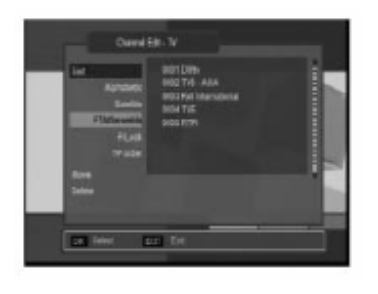
3. Channel Edit
3.1 Channel Edit
You can edit channels of Satellite in this mode.
(1) You can sort the channels out upon your Preference.
(2) You can rearrange the channel list.
(3) You can delete channels.
(4) You can skip channels.
(5) You can change the channel name, as you want.
(6) To enter channel edit mode, you need to press 4 digits password (factory setting is “0-0-0-0“).
3.1.1 How to sort the channel
(1) Press OK after selecting Sort
(2) Sub mode will be appeared as follows
▪ ALL
▪ Alphabetic
▪ Satellite
▪ TP order
▪ FTA/Scramble
▪ P-Lock
▪ S-ID
Select the mode that you want to sort and press OK
(3) Press EXIT to exit from this mode.
3.1.2 How to move the channel
(1) Press OK key after Selecting Move key
(2) Press OK to select a channel to move and then move the selected channel to the new position by using CH
▲▼ keys.
(3) Repress OK key.
3.1.3 How to delete the channel
(1) Select Delete and press OK
19
(2) Select a channel you want to delete by using the keys◀▶ .
(3) Press OK key.
(4) All channels that you selected are deleted.
3.1.4 How to lock/unlock the channel
(1) Select P-LOCK and press OK.
(2) Select the channel that you want to lock and press OK
(3) This channel is now locked and the symbol of lock will be shown as a locked channel.
(4) You can release the locked channel if you press OK after selecting the locked channel.
(5) Once locked channel is selected while watching television, password is requested.
(6) Picture and sound is appeared after the correct password is given by pressing the numeric key.
3.1.5 How to SKIP the channel
(1) Select SKIP and press OK
(2) Select the channel you want to hide
(3) Press OK
3.1.6 How to rename the channel
(1) Press OK after selecting RENAME mode
(2) Select the channel of which you want to change name
(3) Press OK to enter the character input mode
(4) Put new names, as you want using the 4 arrows keys and numeric key. The maximum number of characters
is 20.
(5) After completion of entering new, press OK
3.2 Favorite Edit
(1) Select one channel of channel list.
(2) Press OK, then this channel is moved to the favorite channel list.
(3) For deleting a channel from the favorite list, press ▶ key to go to Favorite List, select one channel to delete
and press OK. The selected channel disappears in favorite list.
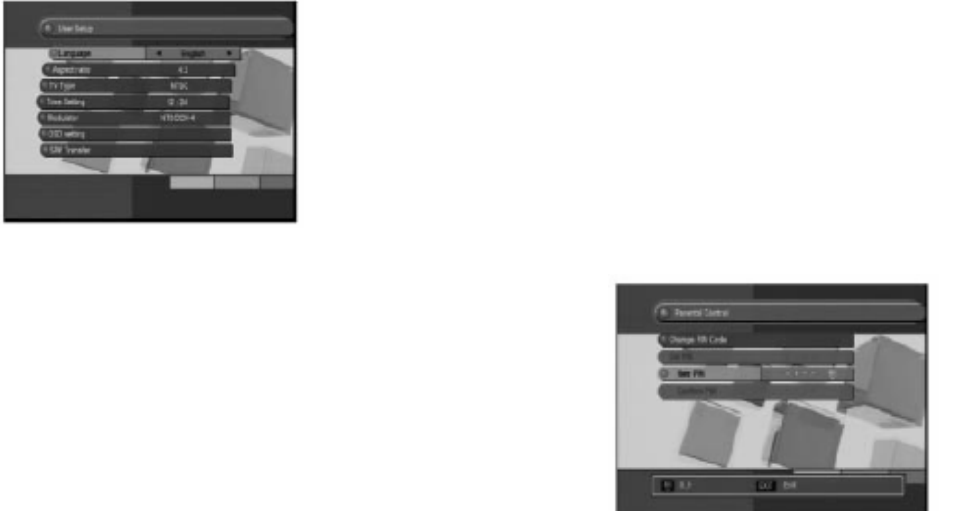
4. User Setup
In this USER SETUP mode, you can select the sub-mode by pressing OK and CH ▲▼ key.
The changed set-up is activated and stored by pressing EXIT key.
4.1 Time
After selecting Time, you can adjust the time. Also you can set the wakeup time and sleeping time to turn receiver on
20
and off automatically according to the time programmed.
4.2. Parental Control
After selecting Parental control and entering the correct password,
the screen as shown in the right appears. The default password at the factory
is “0-0-0-0”You may change the PIN code, which is your password
in other words, and lock the receiver to prevent children
from watching programs.
4.2.1 Change PIN Code
You can change the PIN Code (Password) if you want.
(1) Enter the Old password. If you enter this mode for the first time after purchasing the receiver, the OLD PIN Code
is the default password.
(2) Enter the new password.
(3) Reenter the new password to confirm.
Warning!
You must remember the exchanged password because it is used in several Functions as follows.
Password required
(1) To show parental locked channels
(2) To enter Parental Control menu
(3) To enter channel edit menu
(4) To execute factory setting
In case of forgotten password programmed call Pansat’s dealer to get master factory password.
4.3 Language
Press EXIT key after you select your preferable language and audio language by using VOL keys.◀▶
21
English, German, French, Spanish, Italiano, Portuguese, Turkish, Arabic
4.4 AV Output Setting
4.4.1 TV Type
You can set the TV type (PAL, NTSC and AUTO) by pressing VOL keys.◀▶
If the setting value is Auto, then TV is set automatically by source program.
So, the source program is PAL, TV set PAL source program is NTSC, TV set NTSC.
In case you selected PAL mode accidentally and the TV picture rolling up and down, press remote button as follows to
recover.
Power Off -> SAT -> SIG -> Power ON
4.4.2 Aspect ratio
You can set the TV aspect ratio (4:3 for normal TV & 16:9 for wide TV) by pressing VOL ◀▶ keys.
4.4.3 Closed caption
You can set the closed caption ON/OFF.
4.5 OSD setting
You can adjust the transparency level and Banner timeout by using key◀▶
5. System Setup
5.1 DATA Transfer (Receiver to Receiver)
1) Connect Null Modem RS 232 Cable (Pin #2 & #3 twisted) between master and slave receiver.
2) Leave the slave receiver power on condition all the time until completion of date transfer.
3) Hook up the master receiver to the TV and select “SW Transfer” at “User Setup” screen.
4) Select “Api Ver” or “Ch Data” by using “Vol◀” or “Vol▶” button. Then press “CH” button to start transfer. During
data transfer, processing percentage will be displayed on the screen.
Warning! Do not disturb data transfer by touching any Remote button, RS232 Cable, IF Cable, RCA Cable etc. during
data transfer period until “Please wait for saving” message disappeared. Interruption of data transfer could damage the
receiver’s Flash memory chip which makes the receiver dead and void warranty.
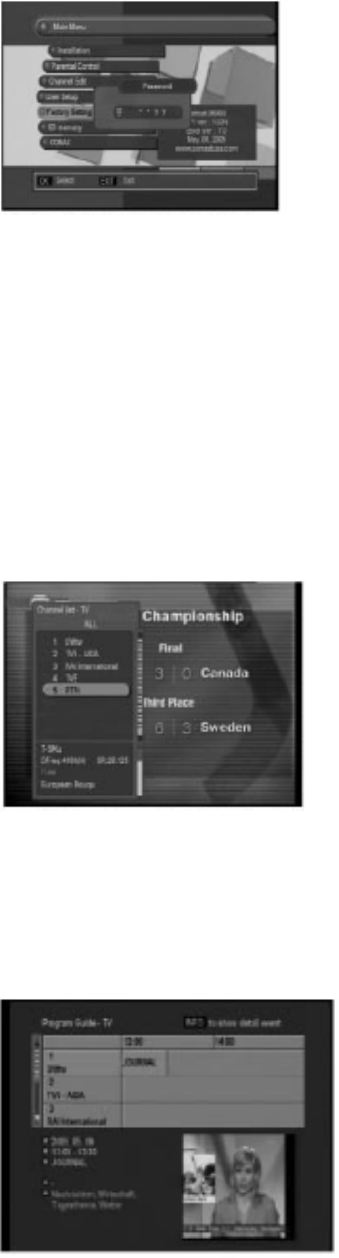
5.2 Factory Setting
Once the Factory setting is selected and the collect password is given by pressing 4-digit numeric keys followed by OK
key, whole parameters are changed to the value written in the factory. That is, factory setting functions your STB (Set
Top Box) the first stage. If you do not want to continue this mode, press EXIT key before you enter password.
Common password is “0000”. In case selected password is forgotten, call Pansat’s dealer to get factory master
22
password.
5.3. System Information
Show the information of model name, data and version of STB.
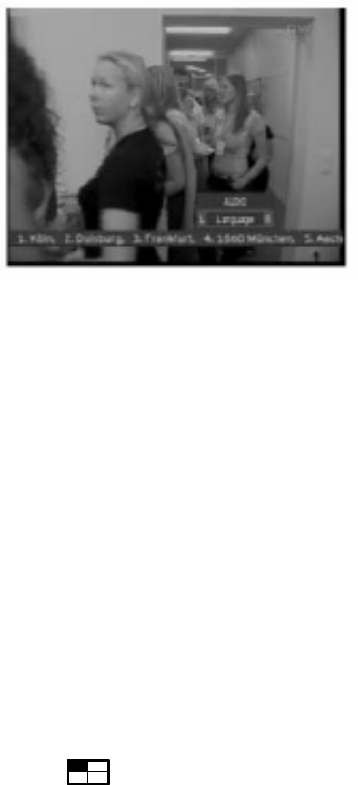
6. Channel List
▪ You can see the channel list as shown in the above figure by pressing OK key
▪ To watch another channel, move the cursor to the channel you want by using ▲▼ PG↑ PG↓ and press OK key
▪ If favorite channels are saved, the list is changed from channel list TV to favorite list.
▪ Pressing TV/RADIO key changed list Radio, you can exit from the list menu by pressing EXIT key.
7. Program Guide
▪ The title and start time of the program is shown as in the right figure after pressing EPG key.
▪ Select the particular channel you. The channel will be changed.
▪ If you want to watch TV with full screen, Press EXIT.
23
8. Audio change
▪ In multilingual program, favorite language is selected by pressing AUDIO key and CH▲▼ keys
▪ Audio mode (L-left, R-right, L/R-stereo) can be Changed by pressing AUDIO key and VOL key.◀▶
9. USB Memory Stick (DC 5V, Max.100mA)
Warning!
Please use USB Memory Stick Memory only.
Don’t use any other product like USB Charger.
1. USB menu can be watched after inserting USB Stick in Normal Video mode and the Menu list can be displayed.
2. Flash ROM Writing file is in Code Backup folder and Channel Data is in Channel Data Backup folder.
3. Select Flash ROM Writing file and press 'OK'. API Code Transfer Menu is displayed and API Code Download is
executed.
4. After API Code Download is done, "Complete" message is displayed and then the receiver starts rebooting.
5. Select the file in Channel Data folder and press 'OK' key. Channel Data Transfer Menu is displayed and Channel
Data download is executed.
6. API Code and CH Data uploading is possible.
7. In API Code uploading API code is saved in Code Backup folder of USB and in Channel Data uploading Channel
data file is save in Channel Data Backup folder of USB. Selected files (up to 20) will be played one by one.
10. Multi Pictures
1. Press and select the Multi Picture mode (2X2 or 3X3 or 4x4) that you want.
2. Move the cursor and select one picture to play
11. Embedded
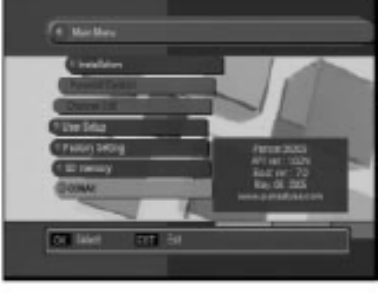
▪ If you insert Smart Card inside the receiver smart card reader, the receiver will recognize it automatically.
24
12. Recall the Favorite channel
▪ Press FAV key to recall a stored favorite channel.
▪ Favorite channel is programmed and stored in the Favorite Edit menu.
13. Download Procedure between Receiver & PC
1. Turn the receiver power on.
2. Connect Null Modern RS232C cable (#2&3 twisted) between PC and the receiver.
3. Open the GTROM Loader
4. Select the BIN file to download.
5. Select the file type and press download.
6. Press DOWNLOAD.
7. Wait until Download and the receiver Flash write are fully completed.
Warning!
Do not interrupt the receiver power until download and flash write are fully completed. Otherwise the receiver will be
damaged or dead

25
3. SPECIFICATION
Embedded Smart Card Slot 1 Smart Card Reader
USB2.0 with On-The-Go 1 Host
Front-End
1 Input Connector F-type, IEC 169-24
IF Input Frequency 950MHz to 2150MHz
IF Loop Throughout 950MHz to 2150MHz
IF Frequency Zero-IF
Input Level -65 dBm~-25 dBm
LNB Power 13 /18VDC / 500mA Max
DiSEQqC Control Diseqc 1.2 & USALS Compatiable
Band Switch 22KHz Tone
Demodulation QPSK
Symbol Rate 1~45 Msps(SCPC,MCPC)
Viterbi Decoding Rate 1/2,2/3,3/4,5/6 and 7/8
Reed Solomon Decoding FEC: 204, 188. t=8
MPEG transport Stream A/V Decoding
Demultiplex According to ISO/IEC 13818-1
Input syream Max. 90Mbit/s
Aspect Ratio 4:3, 16:9
Video Resolution 720x576 (PAL), 720X480 (NTSC)
Audio Decoding MPEG Layer l & ll
Audio Mode Single Channel /Dual Channel, Stereo, Joint Stereo
Audio Sampling Frequency 16/22, 05/24/32/41, 1/48 khz
Microprocessor & Memories
Main Processor VIRGO SE
CPU Clock 150 MHz
Flash Memory 8 Mbyte
SDRAM 32 Mbyte
EEPROM 32 Kbit
Data port
Connector 9 Pin D-Sub Type
Protocol RS232 Asynchronous
Data Rate Max. 19.2Kbps
RF Modulator
Connector IEC 169-24, Male/ Female
Frequency CH3 (61.25MHz), CH4 (67.25 MHz)
Output Channel CH 3-4
TV Standard NTSC
Preset Channel Ch3-4,Changeable by Menu Screen
Front Pane
l
4 Digits LED Channel Number Display
8 keys Volume Up/Down, Channel Down/Up, OK, Power, Menu, Exit
Smart Card Interface 1 Slot
USB Memory Card Slot(Max. 500mA) 1 Host
Rear Pane
l
IF Input F-type Connector
IF Loopthrough output F-type Connector
6 Phone (Cinch) Video, Audio L, Audio R, YPbPr
S/PDIF Optical
S-VHS
UHF
Modulator
RS232 Serial Port 9 Pin D-Sub Type
Remote Contro
l
Type IR Remote
Battery 2x1.5V AAA Type
Electrical and Mechanica
l
Input Voltage AC 90 -240V, 60Hz
Power Consumption Max. 25 Watts
Standby Power Less than 11 Watts
Size(WxHxD) 290x200x55mm
Weight 2.1kg

26
4. TROUBLE SHOOTING
There may be various reasons for the abnormal of the unit. Therefore, if the unit does not work properly,
Check the unit according to the procedures shown in the table below.
Problem Possible causes Remedy
LED on front panel
Does not light
AC Power cord disconnected Connect power cord properly into the
power socket
No Picture or Sound Wrong connection of the
Video/audio output to TV input
Terminal
Wrong connection of antenna
cable
Wrong direction of antenna
No signal or weak signal
Wrong setting of channels
Information in MENU screen
Connect two terminals correctly
With scart cable or RCA or RF
cable
Connect the antenna cable
Correctly
Adjust the direction of antenna
Check the cable connections,
Type the setting value correctly
Black-and-white
Screen or V-Hold
Your TV mode is different from
broadcasting mode
Use TV of same mode
Use the NTSC/PAL converter
Connection to the receiver and TV
The remote controller
is not working
Battery exhausted
Fluorescent light interfering with
the remote controller
Remote controller is incorrectly
aimed
Change the batteries
Switch off the light
Aim the remote control at the
receiver
Distorted menu
screen
Too high brightness and contrast
level of TV set
Adjust brightness and contrast to low
level
Not working Process Down Remove the power code or
AC switch OFF/ON