Godex 6PDL7 Barcode Printer User Manual P N

Godex International Co., Ltd. Barcode Printer P N

User Manual

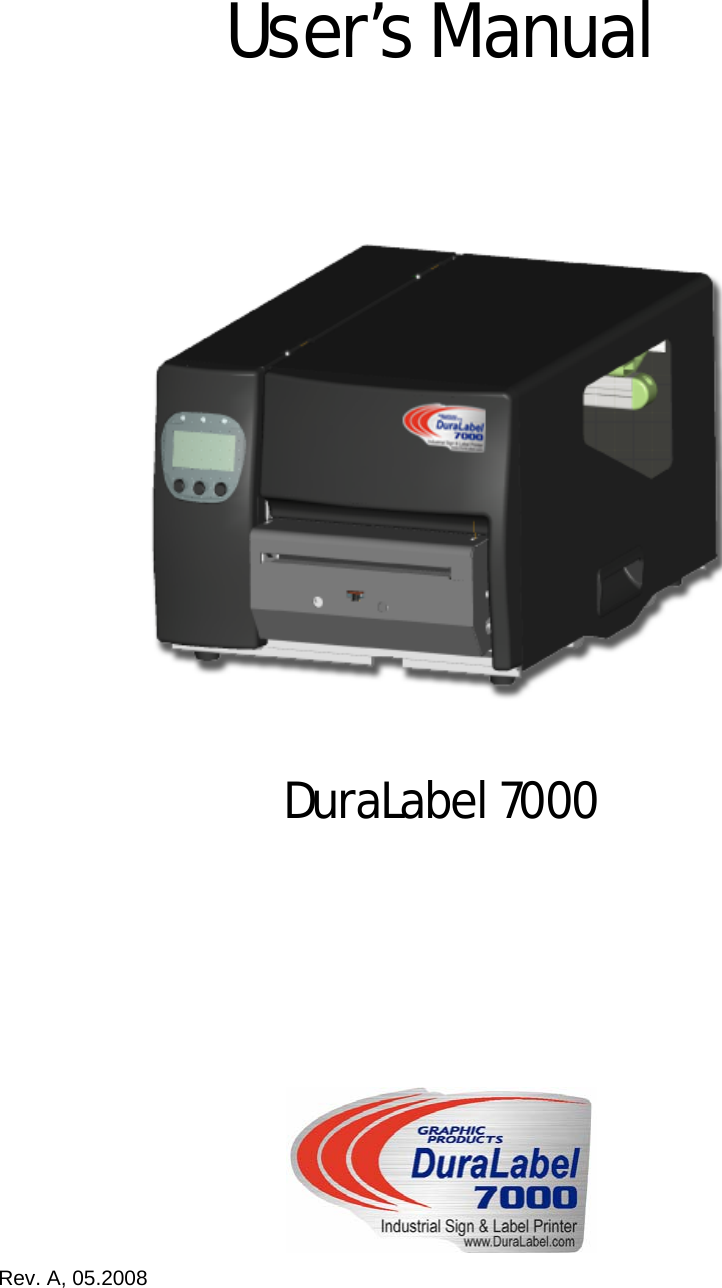
    User’s Manual  DuraLabel 7000  Rev. A, 05.2008
FCC COMPLIANCE STATEMENT FOR AMERICAN USERS  This equipment has been tested and found to comply with the limits for a CLASS A digital device, pursuant to Part 15 of the FCC Rules. These limits are designed to provide reasonable protection against harmful interference when the equipment is operated in a commercial environment. This equipment generates, uses, and can radiate radio frequency energy and, if not installed and used in accordance with the instructions, may cause harmful interference to radio communications. Operation of this equipment in a residential area is likely to cause harmful interference in which case the user will be required to correct the interference at own expense.                                    CAUTION Danger of explosion if battery is incorrectly replaced Replace only with the equivalent type recommended by the manufacture. Dispose of used batteries according to the manufacturer’s instructions.  Changes or modifications not expressly approved by the party responsible for compliance couldvoid the user's authority to operate the equipment.       Specifications are subject to change without notice.       DuraLabel 7000 User’s Manual  1
Safety Instructions  Bitte die Sicherheitshinweise sorgfältig lesen und für später aufheben.  1.  Die Geräte nicht der Feuchtigkeit aussetzen.  2.  Bevor Sie die Geräte ans Stromnetz anschließen, vergewissern Sie Sich, dass die Spannung des Geräts mit der Netzspannung übereinstimmt.  3.  Nehmen Sie das Gerät bei Überspannungen (Gewitter) vom Netz. Das Gerät könnte sonst Schaden nehmen.  4.  Sollte versehentlich Flüssigkeit in das Gerät gelangen, so ziehen sofort den Netzstecker. Anderenfalls besteht die Gefahr eines lebensgefährlichen elektrischen Schlags.  5.  Wartungs- und Reparaturarbeiten dürfen aus Sicherheitsgründen nur von autorisierten Personen durchgeführt werden.  6.  Bei Wartungs- und Reparaturarbeiten müssen die Sicherheitsvorschriften der zuständigen Berufsverbände und Behörden unbedingt eingehalten werden.   7.  Bei Verletzungen unbedingt den Arzt aufsuchen und die gegebenenfalls die zuständigen Stellen benachrichtigen. Unterlassung kann zum Verlust der Versicherungsleistungen führen.  DuraLabel 7000 User’s Manual  2
Safety Instructions  Please read the following instructions seriously.  1.  Keep the equipment away from humidity.  2.  Before you connect the equipment to the power outlet, please check the voltage of the power source.  3.  Disconnect the equipment from the voltage of the power source to prevent possible transient over voltage damage.  4.  Don’t pour any liquid to the equipment to avoid electrical shock.  5.  ONLY qualified service personnel for safety reason should open equipment.  6.  Don’t repair or adjust energized equipment alone under any circumstances. Someone capable of providing first aid must always be present for your safety  7.  Always obtain first aid or medical attention immediately after an injury. Never neglect an injury, no matter how slight it seems.     DuraLabel 7000 User’s Manual  3
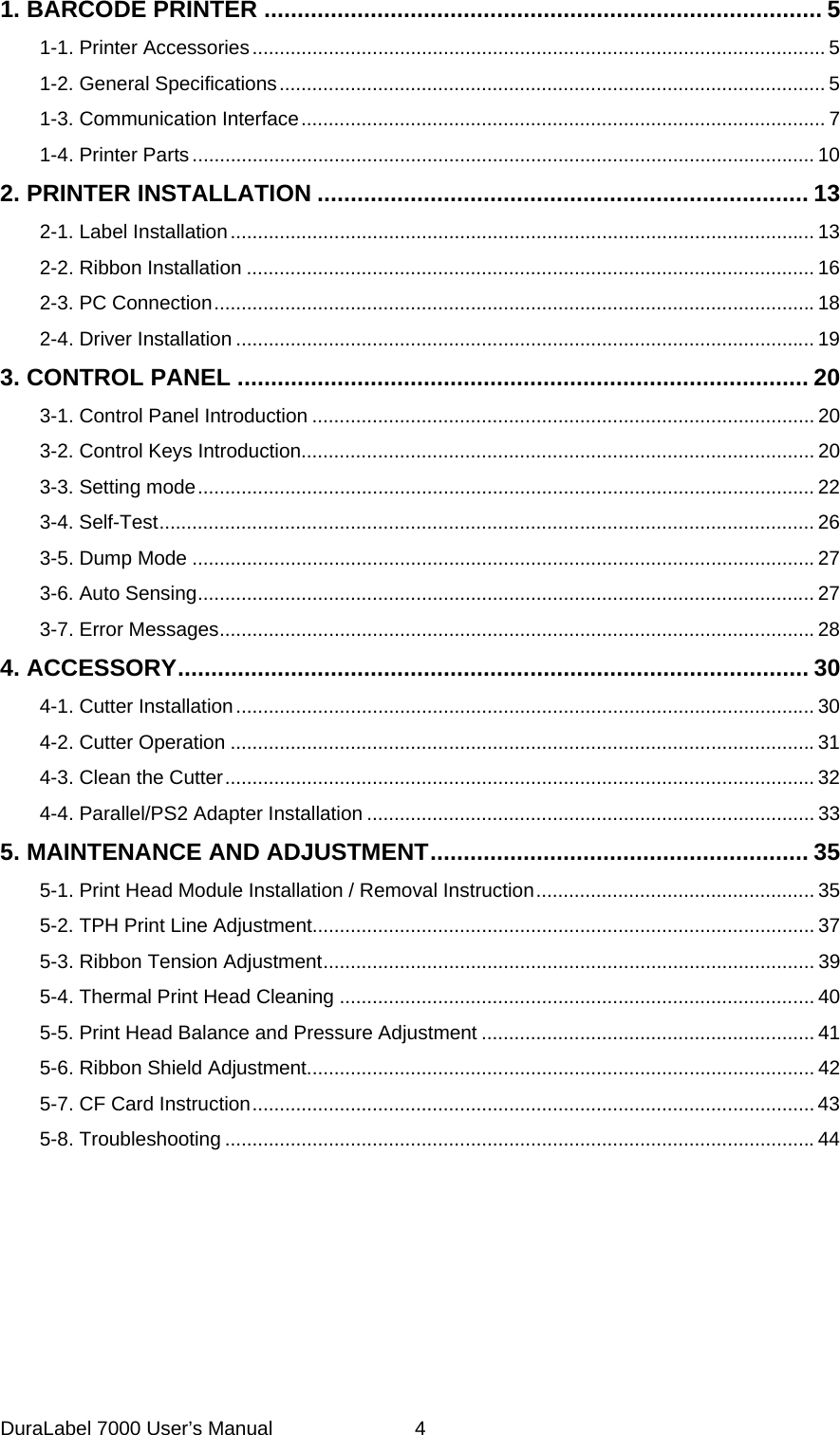
 1. BARCODE PRINTER .................................................................................... 5 1-1. Printer Accessories......................................................................................................... 5 1-2. General Specifications.................................................................................................... 5 1-3. Communication Interface................................................................................................ 7 1-4. Printer Parts.................................................................................................................. 10 2. PRINTER INSTALLATION .......................................................................... 13 2-1. Label Installation........................................................................................................... 13 2-2. Ribbon Installation ........................................................................................................16 2-3. PC Connection..............................................................................................................18 2-4. Driver Installation .......................................................................................................... 19 3. CONTROL PANEL ...................................................................................... 20 3-1. Control Panel Introduction ............................................................................................ 20 3-2. Control Keys Introduction.............................................................................................. 20 3-3. Setting mode................................................................................................................. 22 3-4. Self-Test........................................................................................................................ 26 3-5. Dump Mode ..................................................................................................................27 3-6. Auto Sensing................................................................................................................. 27 3-7. Error Messages.............................................................................................................28 4. ACCESSORY............................................................................................... 30 4-1. Cutter Installation.......................................................................................................... 30 4-2. Cutter Operation ...........................................................................................................31 4-3. Clean the Cutter............................................................................................................ 32 4-4. Parallel/PS2 Adapter Installation .................................................................................. 33 5. MAINTENANCE AND ADJUSTMENT......................................................... 35 5-1. Print Head Module Installation / Removal Instruction................................................... 35 5-2. TPH Print Line Adjustment............................................................................................ 37 5-3. Ribbon Tension Adjustment.......................................................................................... 39 5-4. Thermal Print Head Cleaning ....................................................................................... 40 5-5. Print Head Balance and Pressure Adjustment ............................................................. 41 5-6. Ribbon Shield Adjustment............................................................................................. 42 5-7. CF Card Instruction....................................................................................................... 43 5-8. Troubleshooting ............................................................................................................44  DuraLabel 7000 User’s Manual  4
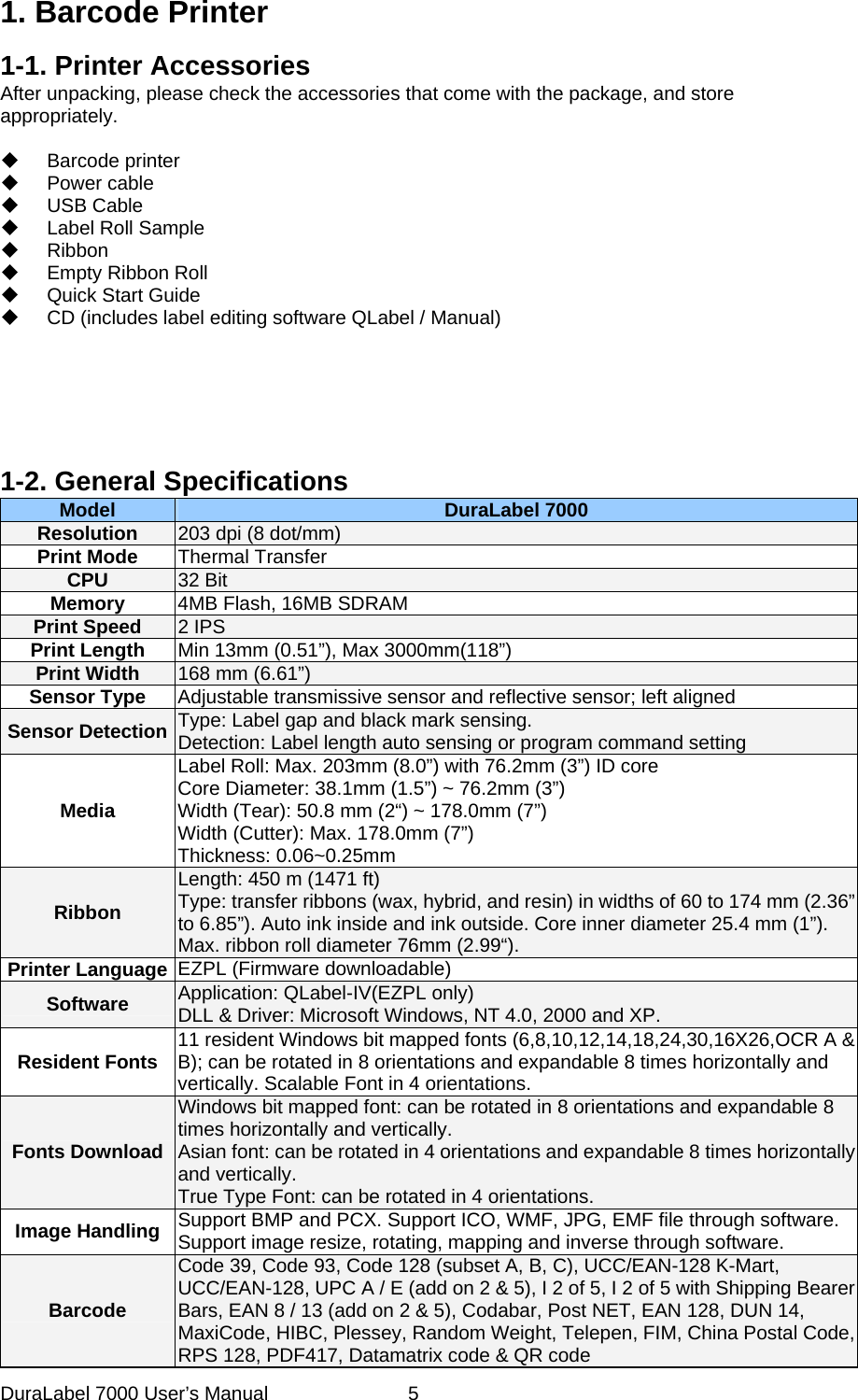
 1. Barcode Printer 1-1. Printer Accessories After unpacking, please check the accessories that come with the package, and store appropriately.   Barcode printer  Power cable  USB Cable  Label Roll Sample  Ribbon   Empty Ribbon Roll   Quick Start Guide   CD (includes label editing software QLabel / Manual)                1-2. General Specifications   Model  DuraLabel 7000 Resolution  203 dpi (8 dot/mm) Print Mode  Thermal Transfer CPU  32 Bit Memory  4MB Flash, 16MB SDRAM Print Speed  2 IPS   Print Length  Min 13mm (0.51”), Max 3000mm(118”) Print Width  168 mm (6.61”) Sensor Type  Adjustable transmissive sensor and reflective sensor; left aligned   Sensor Detection  Type: Label gap and black mark sensing. Detection: Label length auto sensing or program command setting Media Label Roll: Max. 203mm (8.0”) with 76.2mm (3”) ID core Core Diameter: 38.1mm (1.5”) ~ 76.2mm (3”) Width (Tear): 50.8 mm (2“) ~ 178.0mm (7”) Width (Cutter): Max. 178.0mm (7”) Thickness: 0.06~0.25mm Ribbon Length: 450 m (1471 ft) Type: transfer ribbons (wax, hybrid, and resin) in widths of 60 to 174 mm (2.36” to 6.85”). Auto ink inside and ink outside. Core inner diameter 25.4 mm (1”). Max. ribbon roll diameter 76mm (2.99“). Printer Language  EZPL (Firmware downloadable) Software  Application: QLabel-IV(EZPL only) DLL & Driver: Microsoft Windows, NT 4.0, 2000 and XP. Resident Fonts  11 resident Windows bit mapped fonts (6,8,10,12,14,18,24,30,16X26,OCR A & B); can be rotated in 8 orientations and expandable 8 times horizontally and vertically. Scalable Font in 4 orientations. Fonts Download Windows bit mapped font: can be rotated in 8 orientations and expandable 8 times horizontally and vertically.   Asian font: can be rotated in 4 orientations and expandable 8 times horizontally and vertically. True Type Font: can be rotated in 4 orientations. Image Handling  Support BMP and PCX. Support ICO, WMF, JPG, EMF file through software. Support image resize, rotating, mapping and inverse through software. Barcode Code 39, Code 93, Code 128 (subset A, B, C), UCC/EAN-128 K-Mart, UCC/EAN-128, UPC A / E (add on 2 & 5), I 2 of 5, I 2 of 5 with Shipping Bearer Bars, EAN 8 / 13 (add on 2 & 5), Codabar, Post NET, EAN 128, DUN 14, MaxiCode, HIBC, Plessey, Random Weight, Telepen, FIM, China Postal Code, RPS 128, PDF417, Datamatrix code & QR code DuraLabel 7000 User’s Manual  5
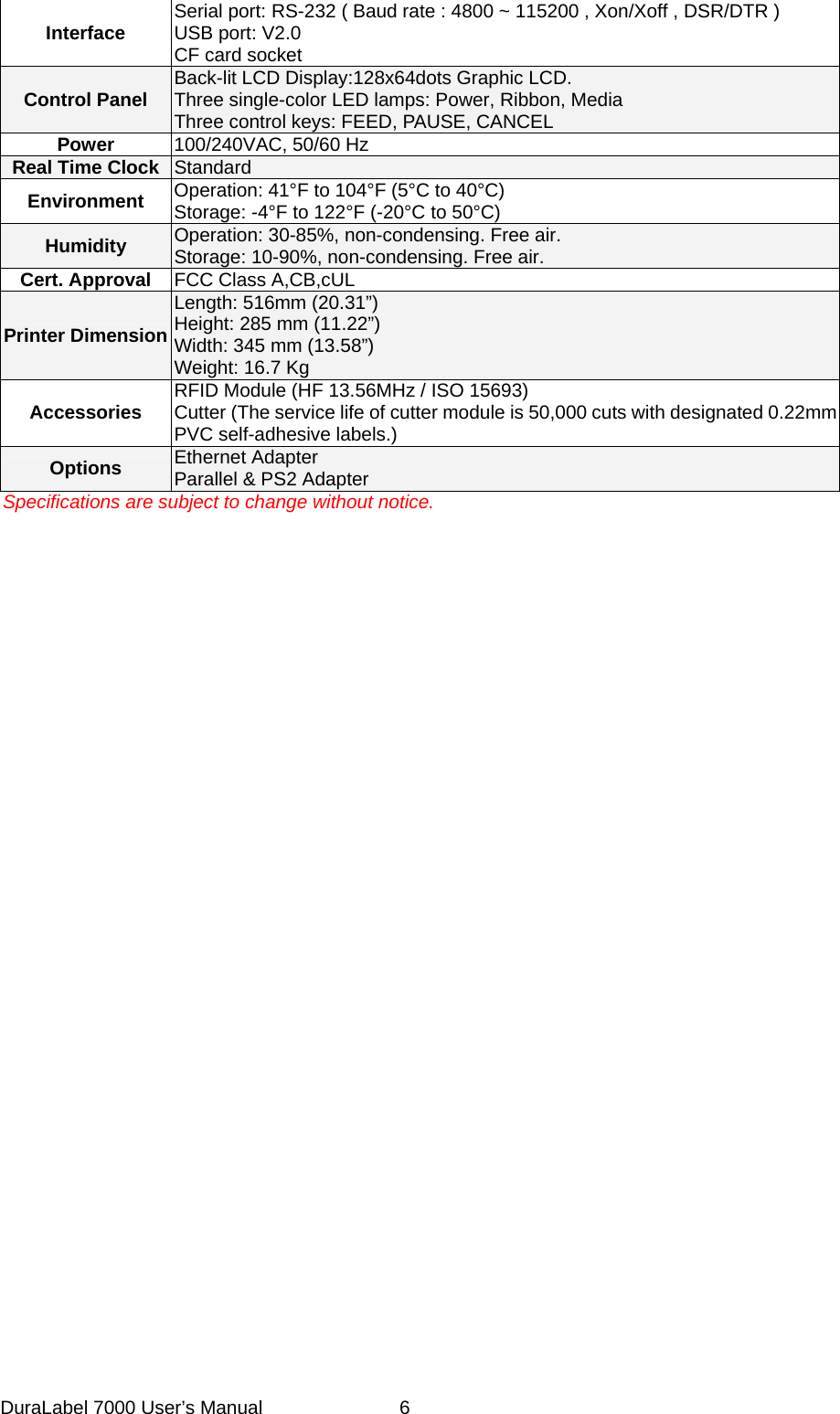
Interface  Serial port: RS-232 ( Baud rate : 4800 ~ 115200 , Xon/Xoff , DSR/DTR )   USB port: V2.0 CF card socket Control Panel  Back-lit LCD Display:128x64dots Graphic LCD. Three single-color LED lamps: Power, Ribbon, Media Three control keys: FEED, PAUSE, CANCEL Power  100/240VAC, 50/60 Hz Real Time Clock  Standard Environment  Operation: 41°F to 104°F (5°C to 40°C) Storage: -4°F to 122°F (-20°C to 50°C) Humidity  Operation: 30-85%, non-condensing. Free air. Storage: 10-90%, non-condensing. Free air. Cert. Approval  FCC Class A,CB,cUL Printer Dimension Length: 516mm (20.31”) Height: 285 mm (11.22”) Width: 345 mm (13.58”) Weight: 16.7 Kg Accessories  RFID Module (HF 13.56MHz / ISO 15693) Cutter (The service life of cutter module is 50,000 cuts with designated 0.22mm PVC self-adhesive labels.) Options   Ethernet Adapter Parallel & PS2 Adapter Specifications are subject to change without notice. DuraLabel 7000 User’s Manual  6
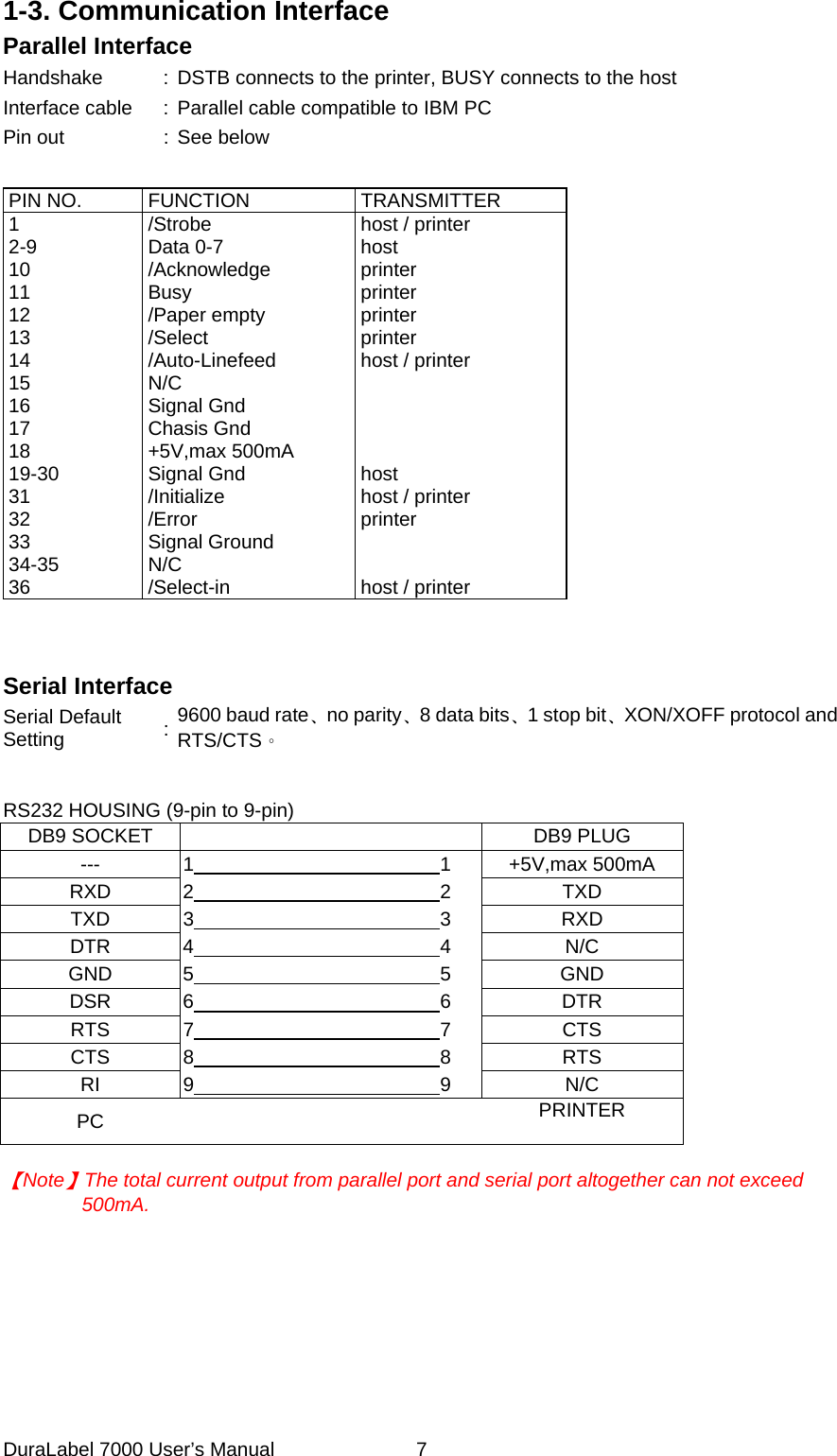
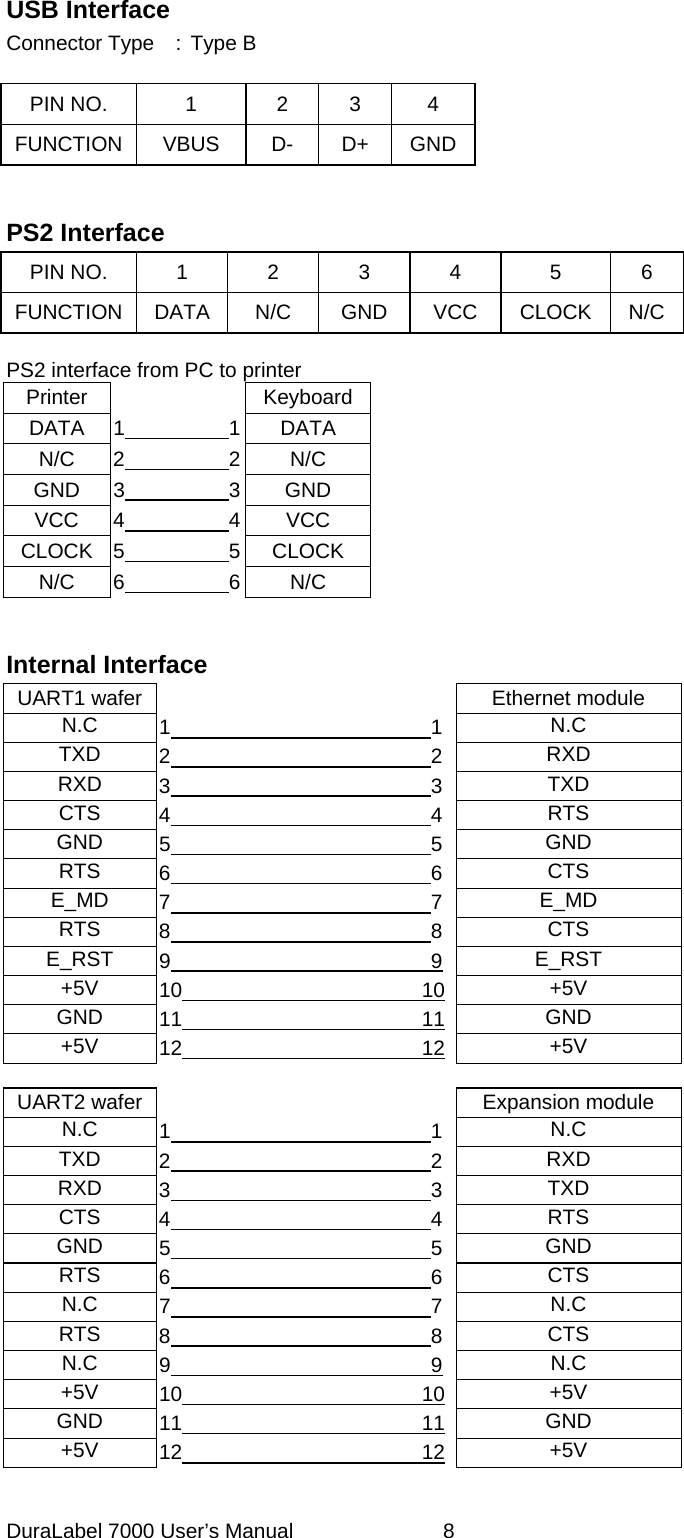
1-3. Communication Interface Parallel Interface Handshake  :  DSTB connects to the printer, BUSY connects to the host Interface cable  :  Parallel cable compatible to IBM PC Pin out  :  See below  PIN NO.  FUNCTION  TRANSMITTER 1 2-9 10 11 12 13 14 15 16 17 18 19-30 31 32 33 34-35 36 /Strobe Data 0-7 /Acknowledge Busy /Paper empty /Select /Auto-Linefeed N/C Signal Gnd Chasis Gnd +5V,max 500mA Signal Gnd /Initialize /Error  Signal Ground N/C /Select-in host / printer host printer printer printer printer host / printer     host host / printer printer   host / printer    Serial Interface Serial Default Setting  :  9600 baud rate、no parity、8 data bits、1 stop bit、XON/XOFF protocol and RTS/CTS。   RS232 HOUSING (9-pin to 9-pin) DB9 SOCKET    DB9 PLUG ---  1                         1 +5V,max 500mA RXD  2                         2 TXD TXD  3                         3 RXD DTR  4                         4 N/C GND  5                         5 GND DSR  6                         6 DTR RTS  7                         7 CTS CTS  8                         8 RTS RI  9                         9 N/C PC    PRINTER   【Note】The total current output from parallel port and serial port altogether can not exceed 500mA. DuraLabel 7000 User’s Manual  7
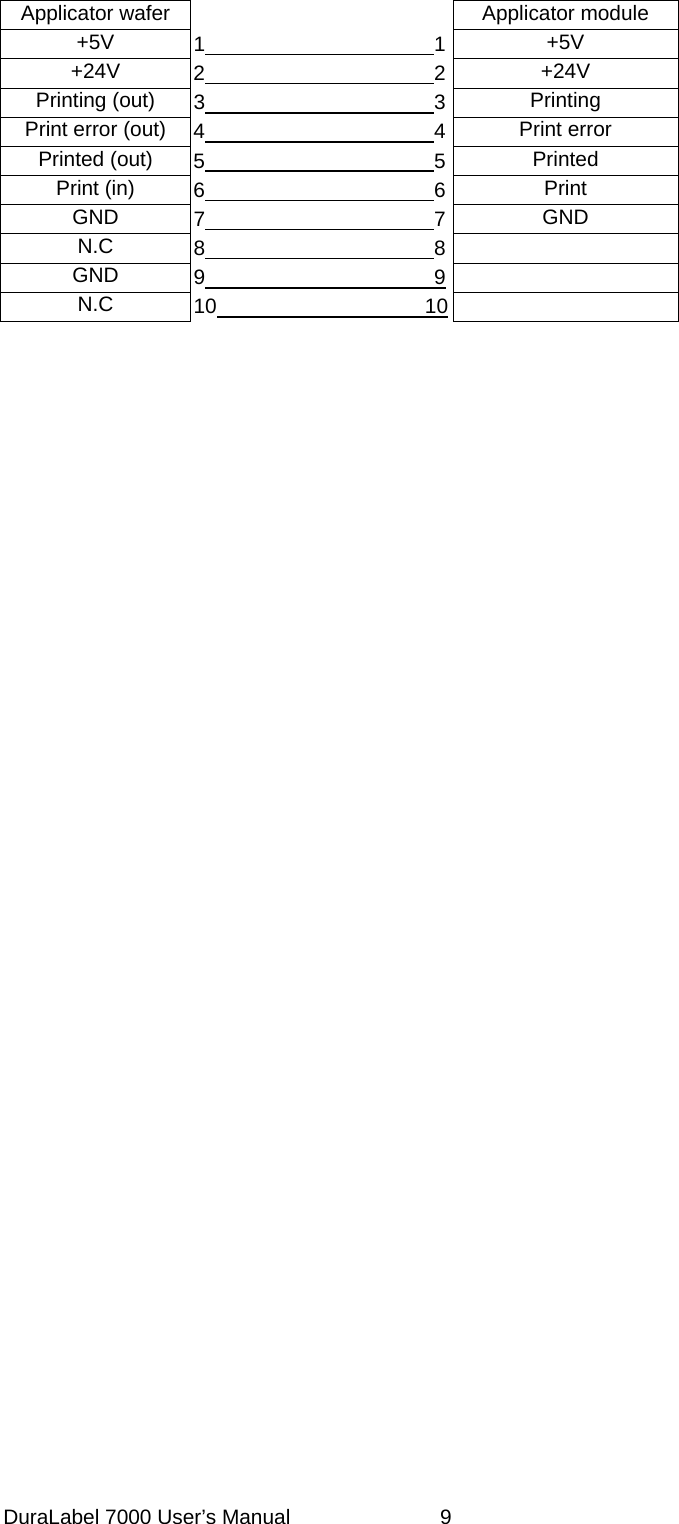
USB Interface Connector Type  : Type B  PIN NO.  1  2  3  4 FUNCTION VBUS  D-  D+ GND  PS2 Interface PIN NO. 1 2 3 4  5 6 FUNCTION DATA N/C  GND  VCC  CLOCK N/C PS2 interface from PC to printer Printer   KeyboardDATA  1          1 DATA N/C  2          2 N/C GND  3          3 GND VCC  4          4 VCC CLOCK  5          5 CLOCK N/C  6          6 N/C   Internal Interface UART1 wafer    Ethernet module N.C  1                         1N.C TXD  2                         2RXD RXD  3                         3TXD CTS  4                         4RTS GND  5                         5GND RTS  6                         6CTS E_MD  7                         7E_MD RTS  8                         8CTS E_RST  9                         9 E_RST +5V  10                       10 +5V GND  11                       11 GND +5V  12                       12 +5V  UART2 wafer    Expansion module N.C  1                         1N.C TXD  2                         2RXD RXD  3                         3TXD CTS  4                         4RTS GND  5                         5GND RTS  6                         6CTS N.C  7                         7N.C RTS  8                         8CTS N.C  9                         9 N.C +5V  10                       10 +5V GND  11                       11 GND +5V  12                       12 +5V  DuraLabel 7000 User’s Manual  8
 Applicator wafer   Applicator module +5V  1                      1+5V +24V  2                      2+24V Printing (out)  3                      3Printing Print error (out)  4                      4Print error Printed (out)  5                      5Printed Print (in)  6                      6Print GND  7                      7GND N.C  8                      8 GND  9                      9  N.C  10                    10   DuraLabel 7000 User’s Manual  9
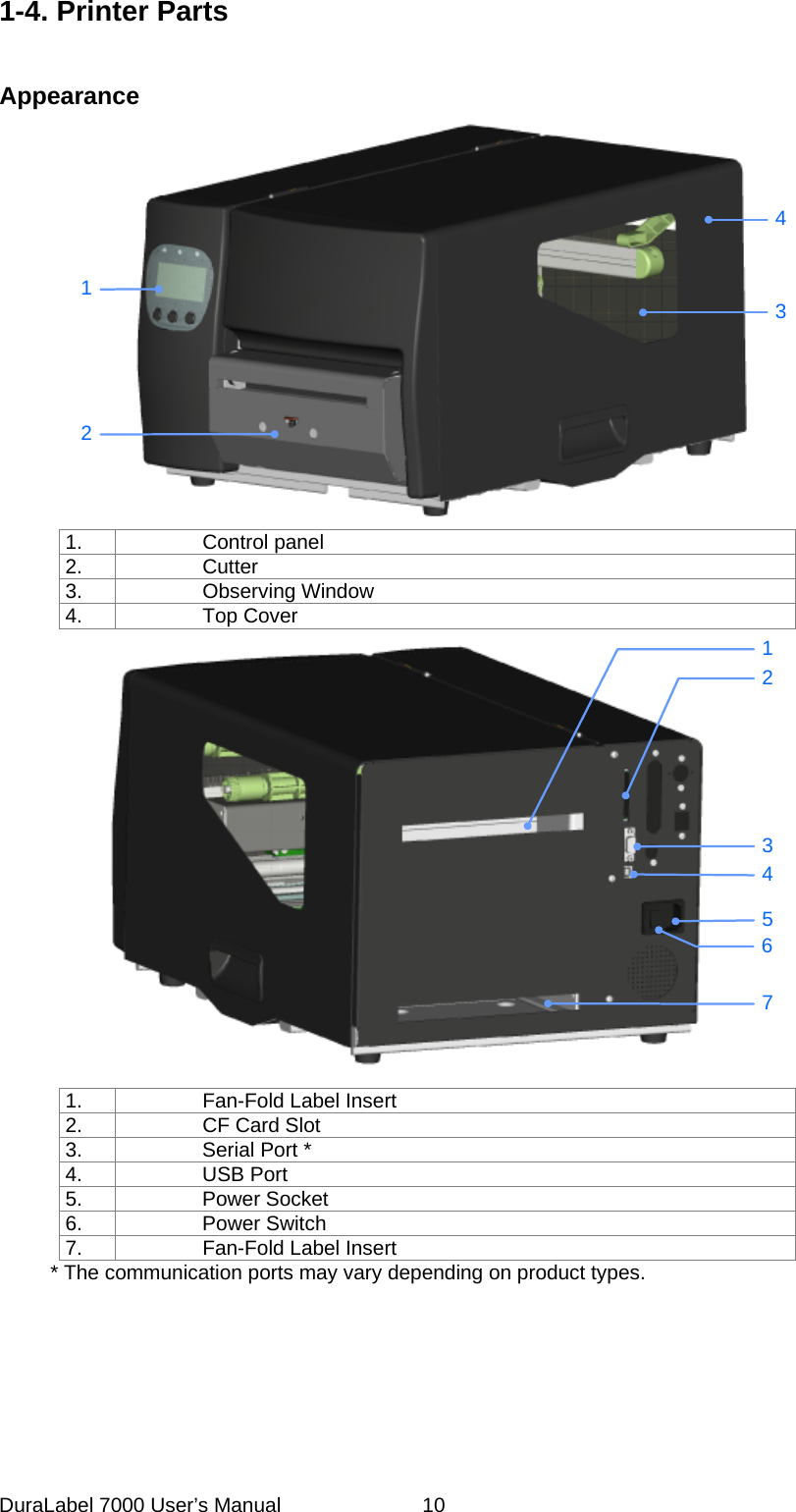
1-4. Printer Parts  Appearance 4312 1. Control panel 2. Cutter 3. Observing Window 4. Top Cover 1263457 1.  Fan-Fold Label Insert 2.  CF Card Slot 3.  Serial Port * 4. USB Port 5. Power Socket 6. Power Switch 7.  Fan-Fold Label Insert           * The communication ports may vary depending on product types. DuraLabel 7000 User’s Manual  10
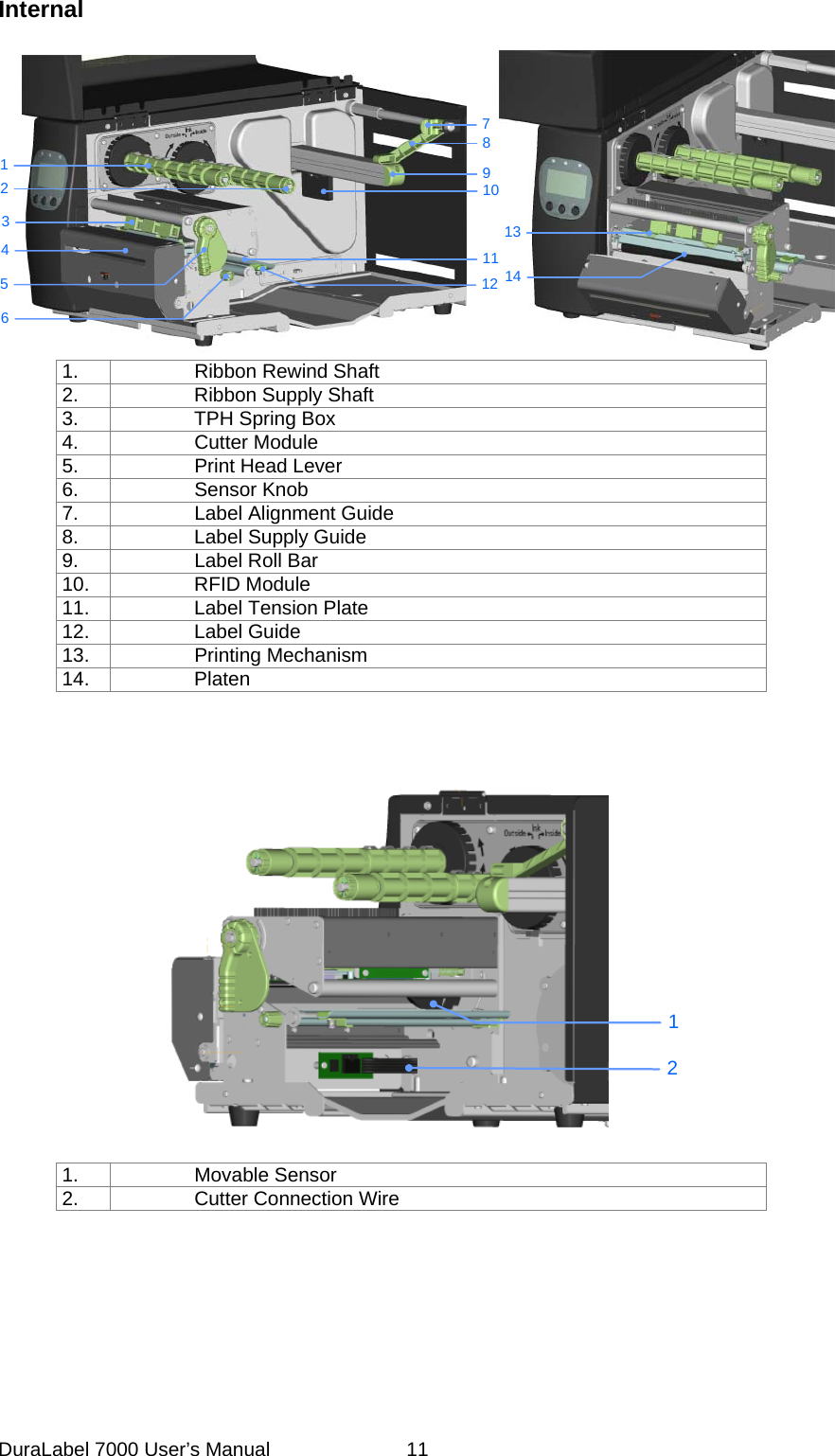
Internal   1314123456789111210 1.  Ribbon Rewind Shaft 2.  Ribbon Supply Shaft 3.  TPH Spring Box 4. Cutter Module 5.  Print Head Lever 6. Sensor Knob 7.  Label Alignment Guide 8.  Label Supply Guide 9. Label Roll Bar 10. RFID Module 11.  Label Tension Plate 12. Label Guide 13. Printing Mechanism 14. Platen     12 1. Movable Sensor 2. Cutter Connection Wire  DuraLabel 7000 User’s Manual  11
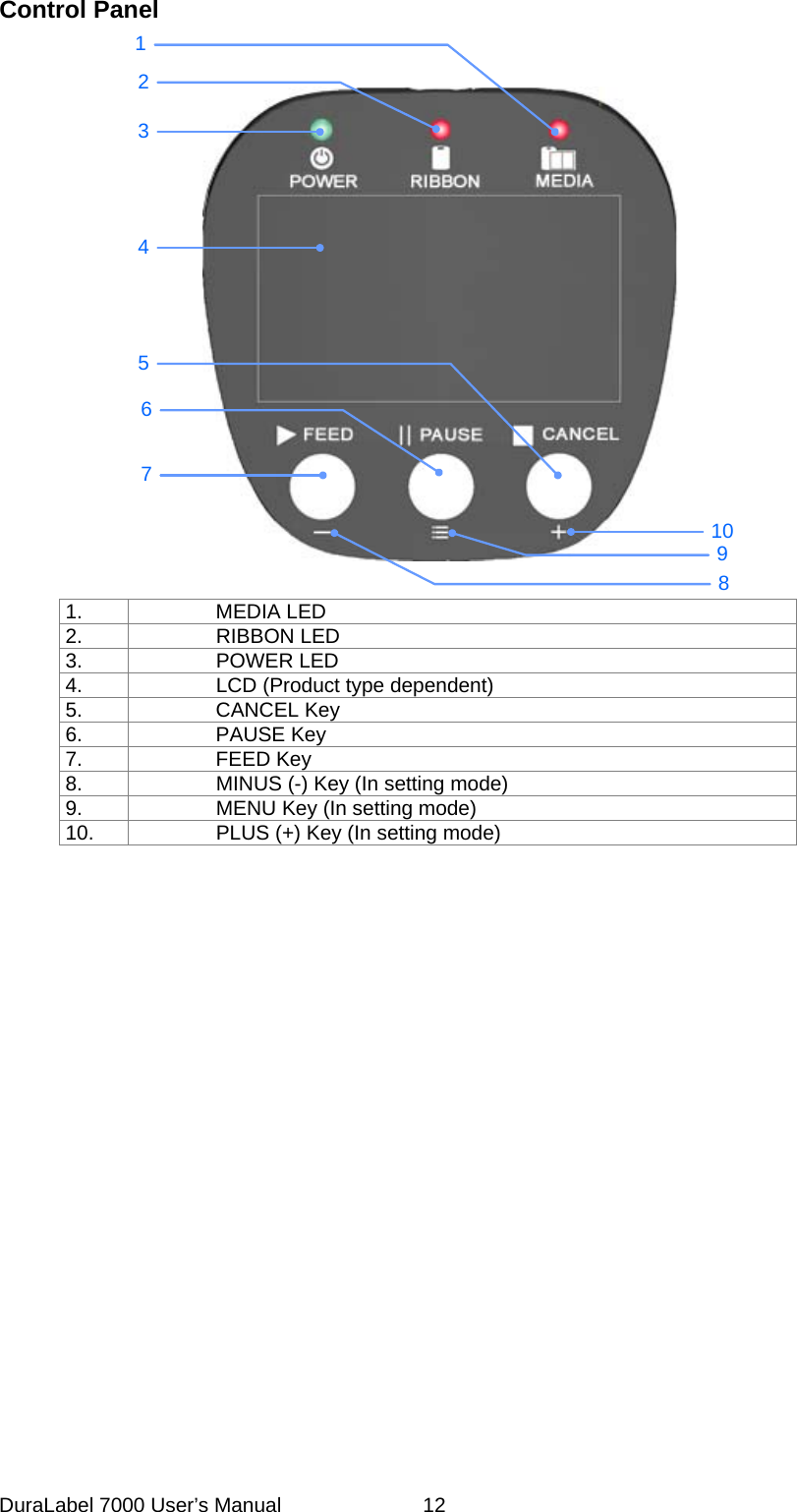
Control Panel 23146759108 1.   MEDIA LED 2.   RIBBON LED 3.   POWER LED 4.    LCD (Product type dependent) 5.   CANCEL Key 6.   PAUSE Key 7.   FEED Key 8.    MINUS (-) Key (In setting mode) 9.    MENU Key (In setting mode) 10.    PLUS (+) Key (In setting mode)          DuraLabel 7000 User’s Manual  12
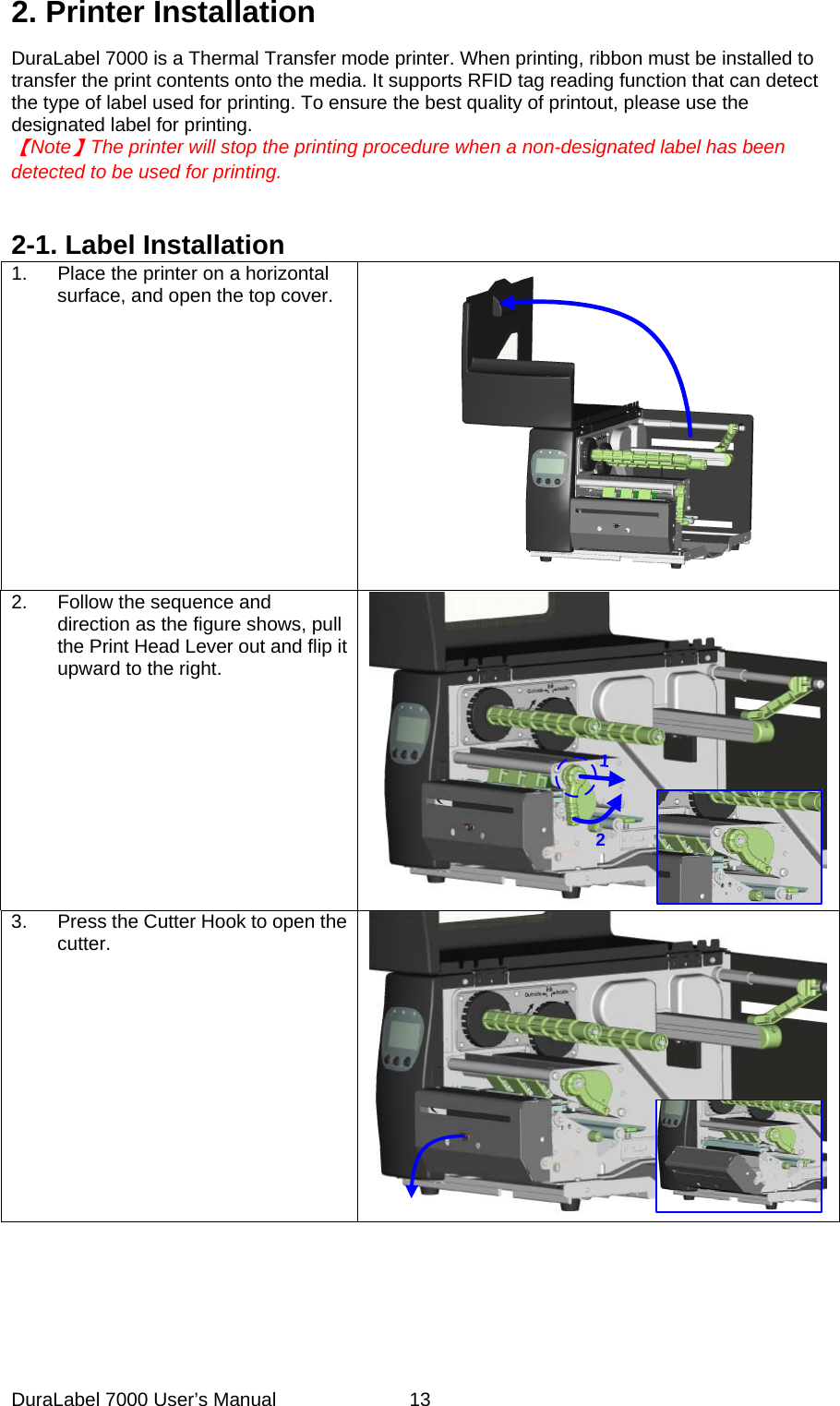
2. Printer Installation DuraLabel 7000 is a Thermal Transfer mode printer. When printing, ribbon must be installed to transfer the print contents onto the media. It supports RFID tag reading function that can detect the type of label used for printing. To ensure the best quality of printout, please use the designated label for printing.     【Note】The printer will stop the printing procedure when a non-designated label has been   detected to be used for printing.     2-1. Label Installation 1.  Place the printer on a horizontal surface, and open the top cover.  2.  Follow the sequence and direction as the figure shows, pull the Print Head Lever out and flip it upward to the right. 123.  Press the Cutter Hook to open the cutter.   DuraLabel 7000 User’s Manual  13
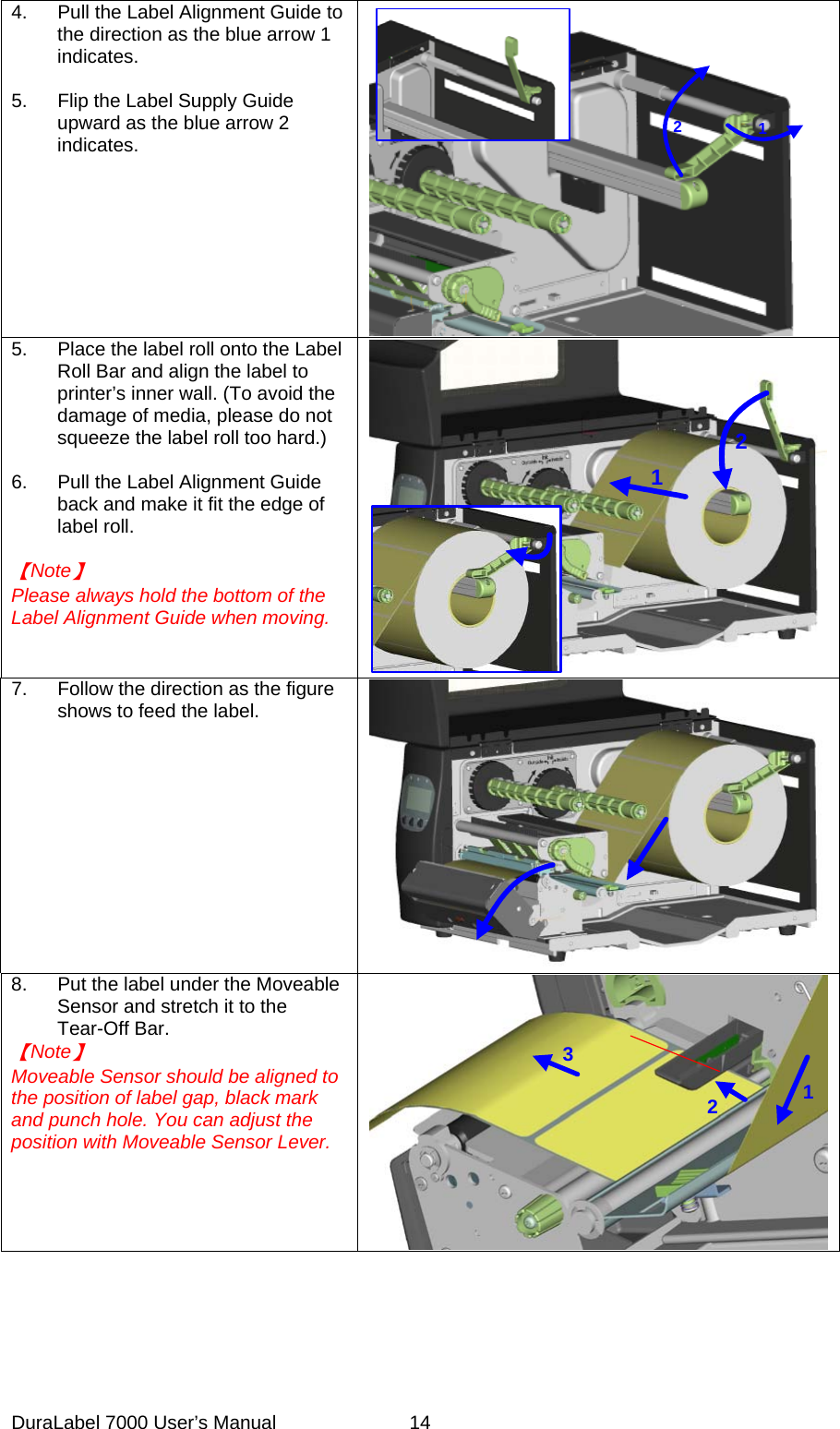
4.  Pull the Label Alignment Guide to the direction as the blue arrow 1 indicates.  5.  Flip the Label Supply Guide upward as the blue arrow 2 indicates.       2 15.  Place the label roll onto the Label Roll Bar and align the label to printer’s inner wall. (To avoid the damage of media, please do not squeeze the label roll too hard.)  6.  Pull the Label Alignment Guide back and make it fit the edge of label roll.  【Note】 Please always hold the bottom of the Label Alignment Guide when moving.      217.  Follow the direction as the figure shows to feed the label. 8.  Put the label under the Moveable Sensor and stretch it to the Tear-Off Bar. 【Note】 Moveable Sensor should be aligned to the position of label gap, black mark and punch hole. You can adjust the position with Moveable Sensor Lever. 123DuraLabel 7000 User’s Manual  14
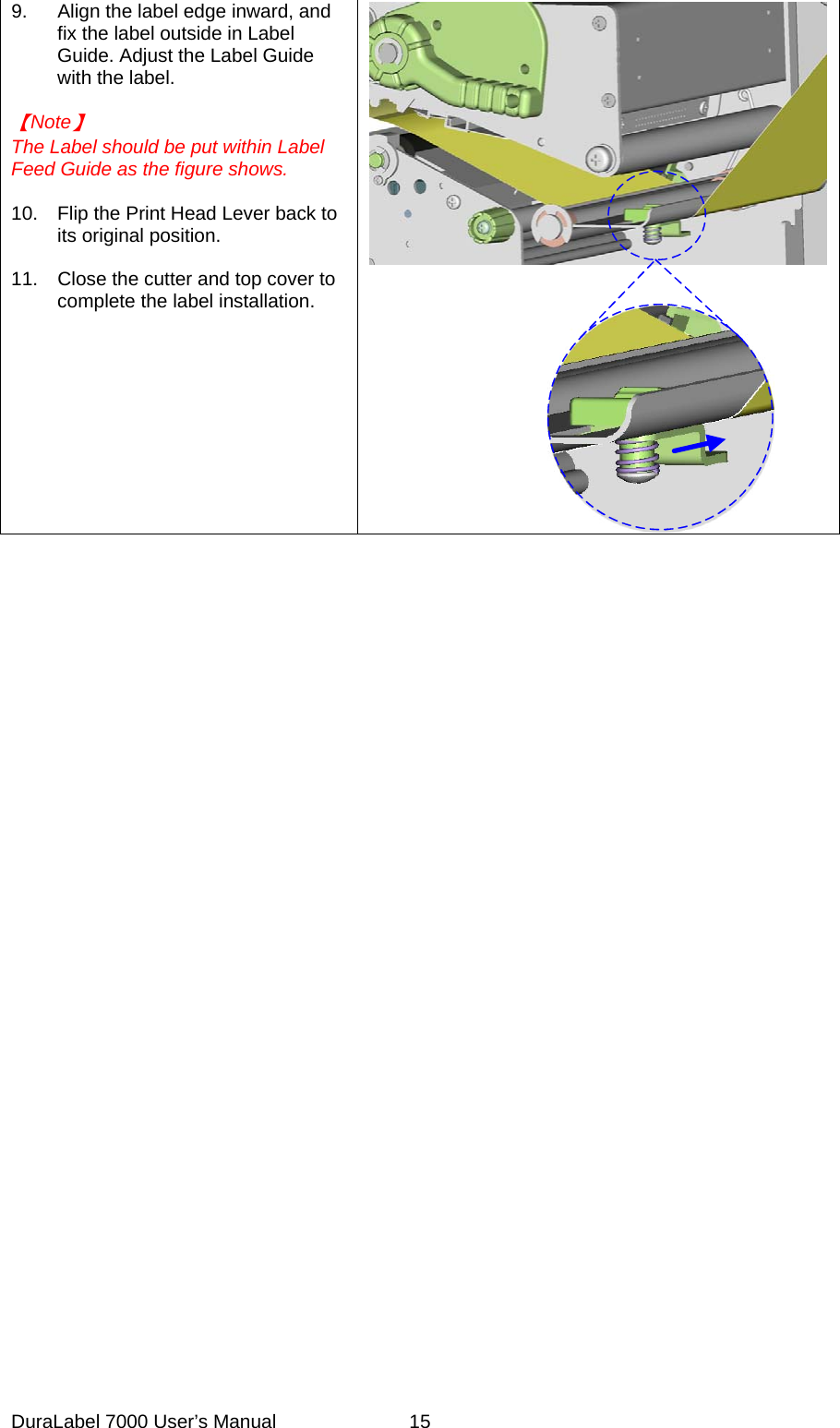
9.  Align the label edge inward, and fix the label outside in Label Guide. Adjust the Label Guide with the label.  【Note】 The Label should be put within Label Feed Guide as the figure shows.  10.  Flip the Print Head Lever back to its original position.  11.  Close the cutter and top cover to complete the label installation.      DuraLabel 7000 User’s Manual  15
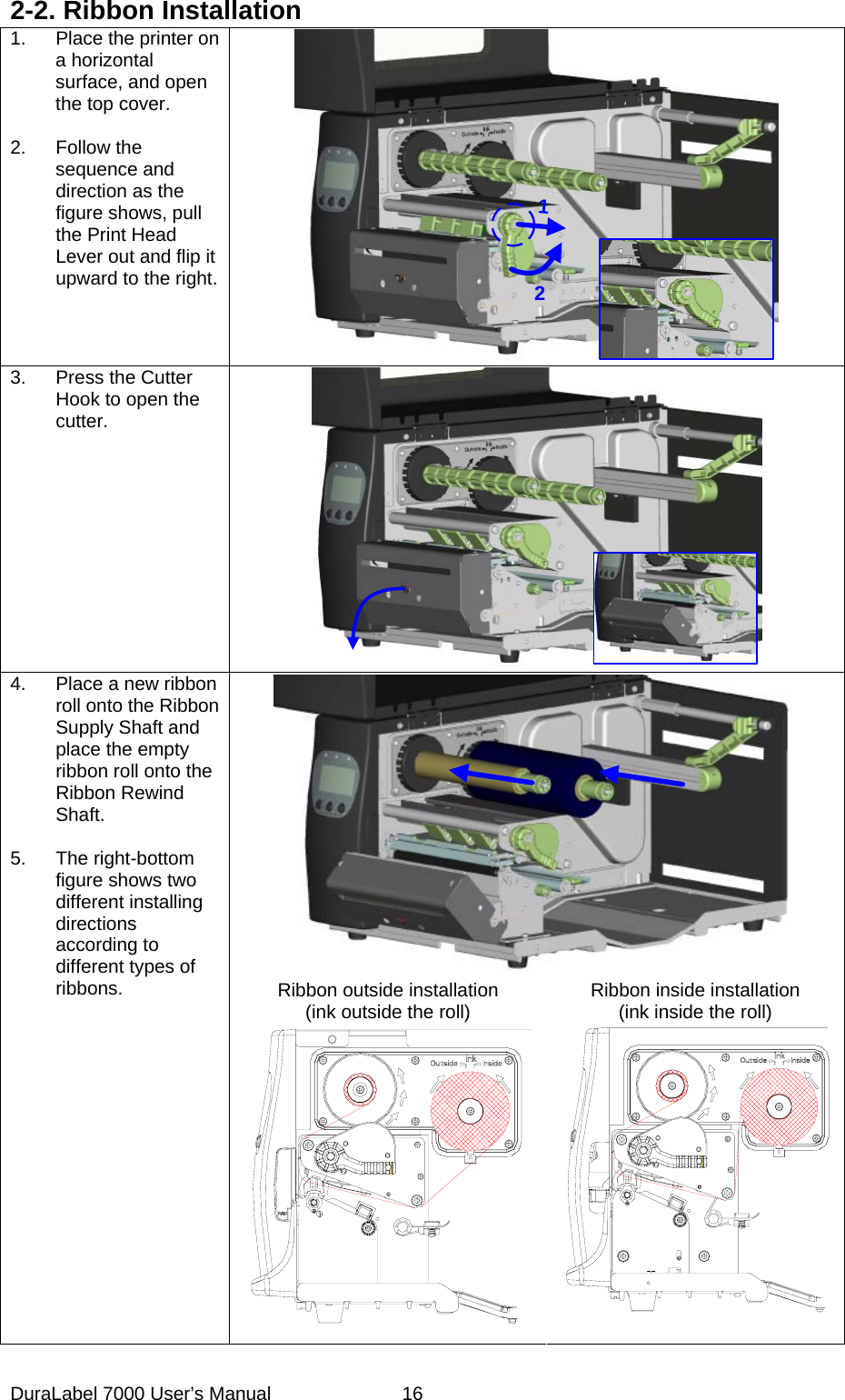
2-2. Ribbon Installation 1.  Place the printer on a horizontal surface, and open the top cover.  2. Follow the sequence and direction as the figure shows, pull the Print Head Lever out and flip it upward to the right. 12 3.  Press the Cutter Hook to open the cutter.   4.  Place a new ribbon roll onto the Ribbon Supply Shaft and place the empty ribbon roll onto the Ribbon Rewind Shaft.  5. The right-bottom figure shows two different installing directions according to different types of ribbons.  Ribbon outside installation (ink outside the roll)  Ribbon inside installation (ink inside the roll) DuraLabel 7000 User’s Manual  16
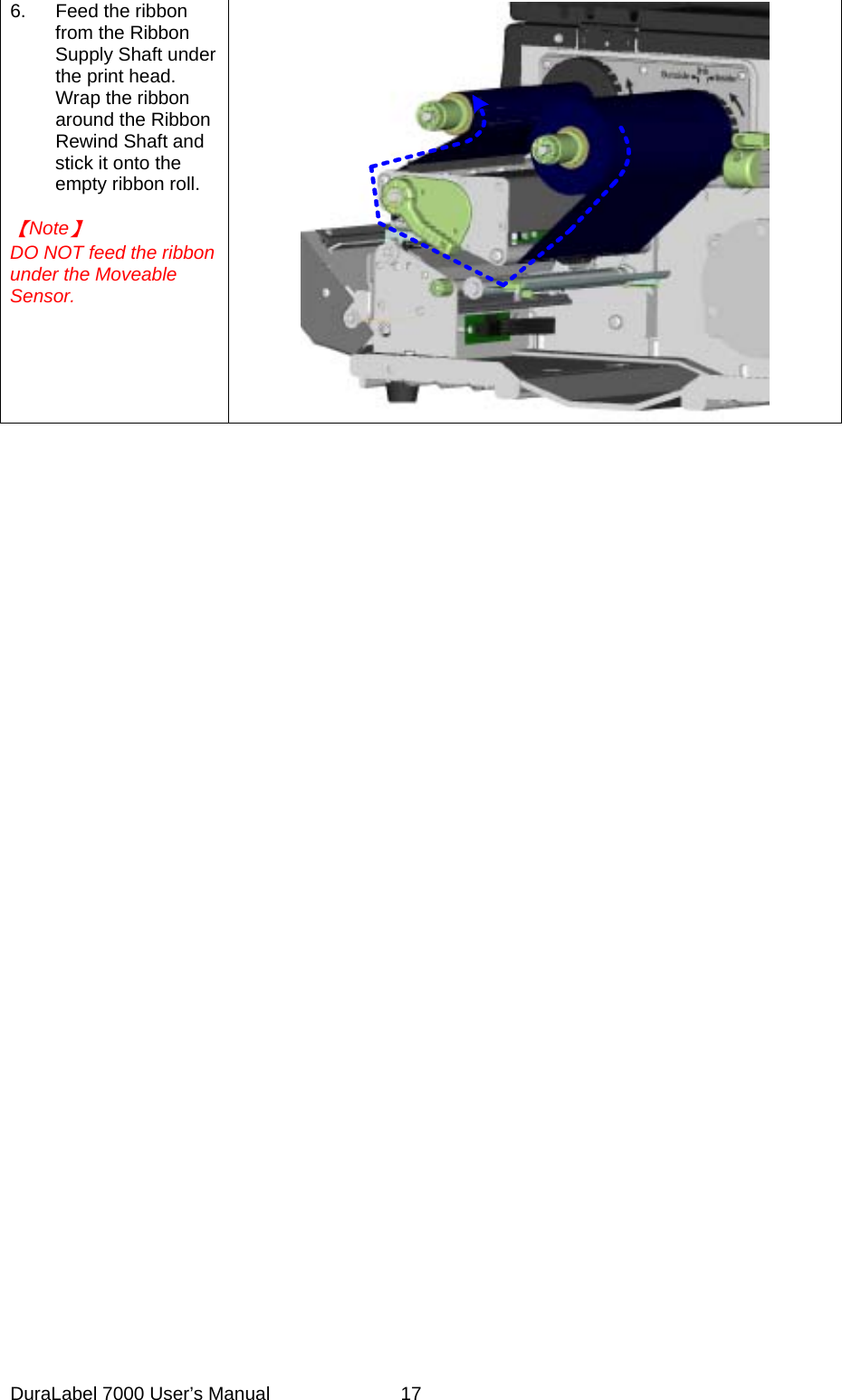
6.  Feed the ribbon from the Ribbon Supply Shaft under the print head. Wrap the ribbon around the Ribbon Rewind Shaft and stick it onto the empty ribbon roll.  【Note】 DO NOT feed the ribbon under the Moveable Sensor.   DuraLabel 7000 User’s Manual  17
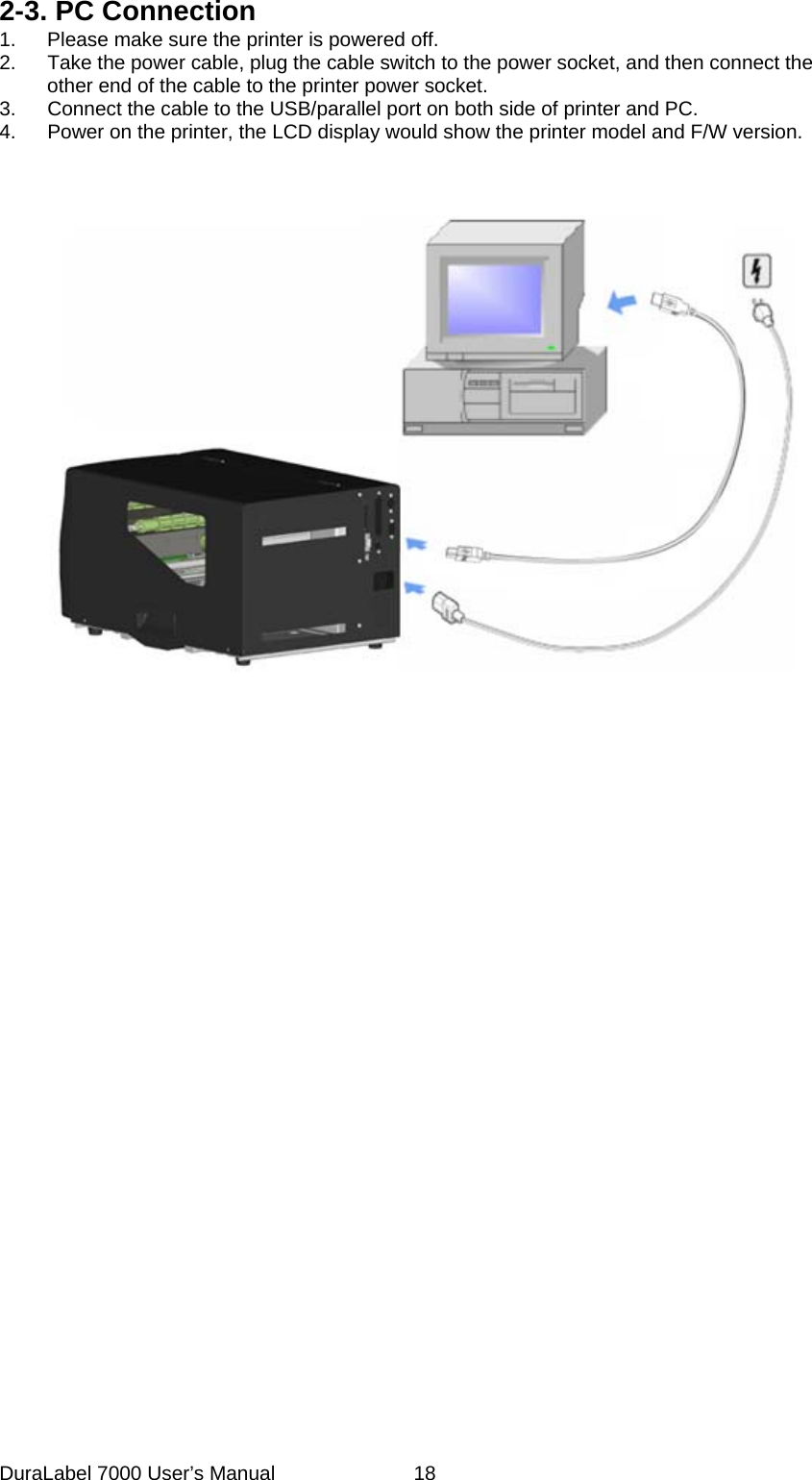
2-3. PC Connection 1.  Please make sure the printer is powered off. 2.  Take the power cable, plug the cable switch to the power socket, and then connect the other end of the cable to the printer power socket. 3.  Connect the cable to the USB/parallel port on both side of printer and PC. 4.  Power on the printer, the LCD display would show the printer model and F/W version.         DuraLabel 7000 User’s Manual  18
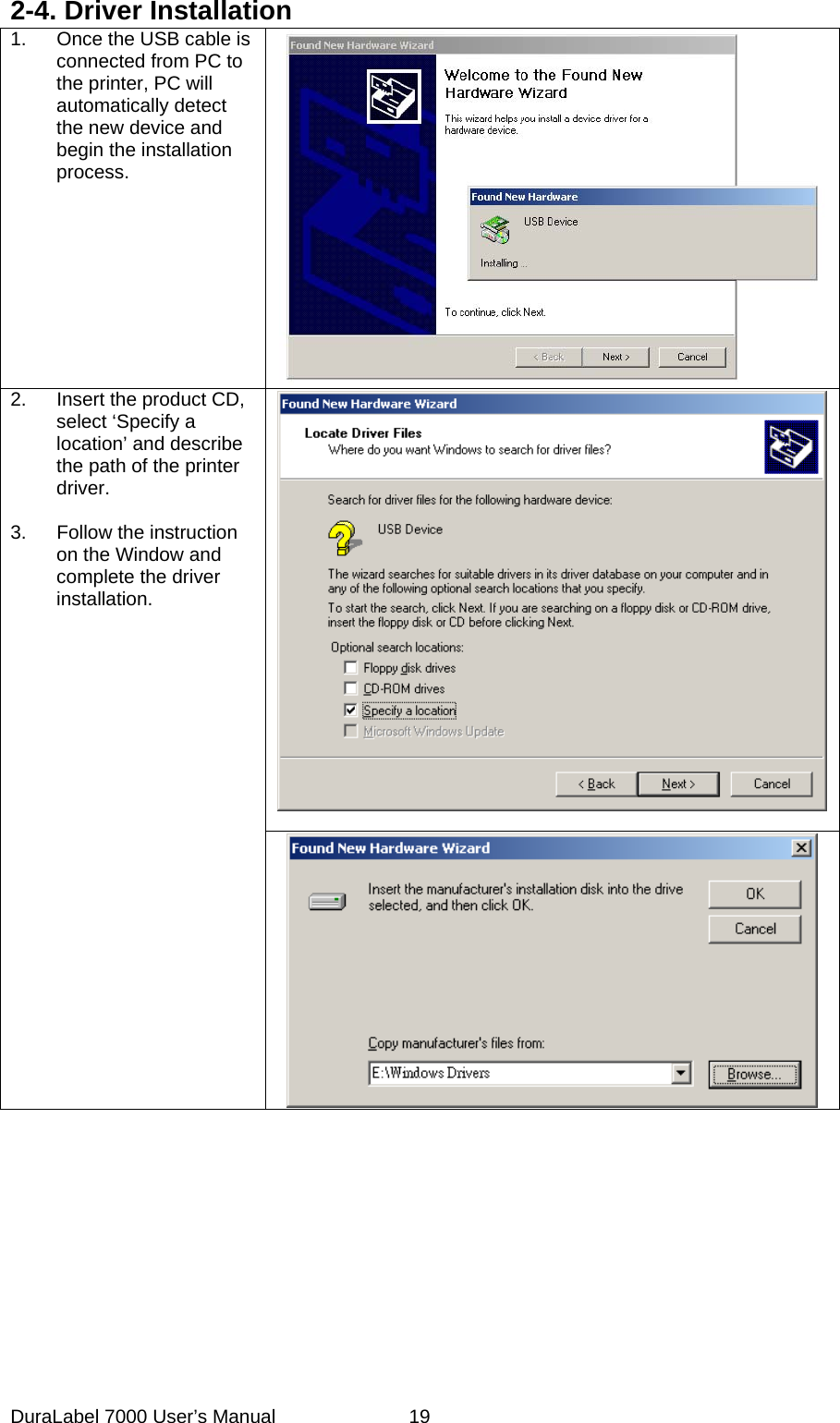
2-4. Driver Installation 1.  Once the USB cable is connected from PC to the printer, PC will automatically detect the new device and begin the installation process.  2.  Insert the product CD, select ‘Specify a location’ and describe the path of the printer driver.   3.  Follow the instruction on the Window and complete the driver installation.           DuraLabel 7000 User’s Manual  19
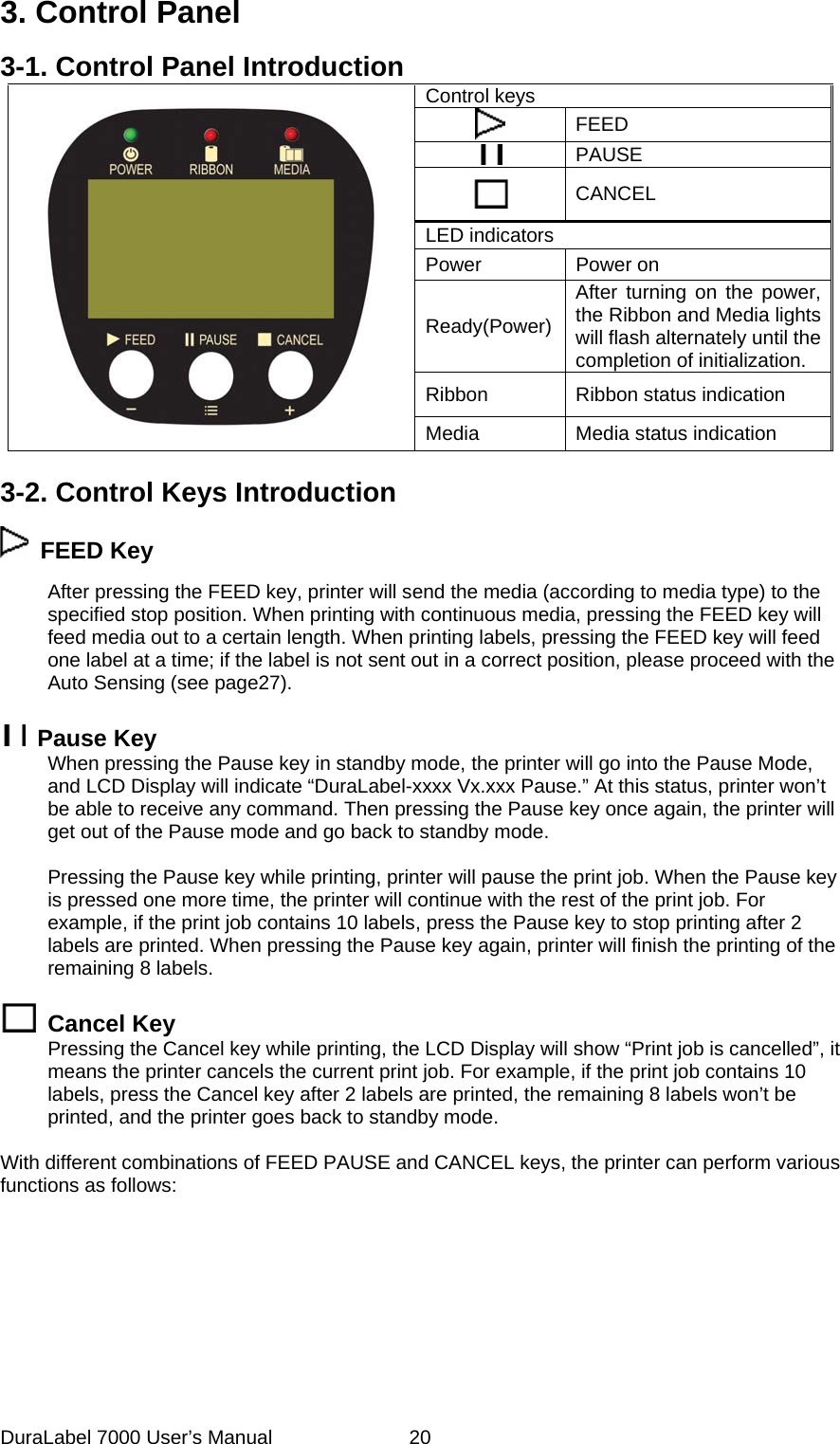
3. Control Panel 3-1. Control Panel Introduction Control keys  FEED  PAUSE  CANCEL LED indicators Power Power on Ready(Power)After turning on the power, the Ribbon and Media lights will flash alternately until the completion of initialization. Ribbon  Ribbon status indication  Media Media status indication  3-2. Control Keys Introduction  FEED Key After pressing the FEED key, printer will send the media (according to media type) to the specified stop position. When printing with continuous media, pressing the FEED key will feed media out to a certain length. When printing labels, pressing the FEED key will feed one label at a time; if the label is not sent out in a correct position, please proceed with the Auto Sensing (see page27).   Pause Key When pressing the Pause key in standby mode, the printer will go into the Pause Mode, and LCD Display will indicate “DuraLabel-xxxx Vx.xxx Pause.” At this status, printer won’t be able to receive any command. Then pressing the Pause key once again, the printer will get out of the Pause mode and go back to standby mode.  Pressing the Pause key while printing, printer will pause the print job. When the Pause key is pressed one more time, the printer will continue with the rest of the print job. For example, if the print job contains 10 labels, press the Pause key to stop printing after 2 labels are printed. When pressing the Pause key again, printer will finish the printing of the remaining 8 labels.   Cancel Key Pressing the Cancel key while printing, the LCD Display will show “Print job is cancelled”, it means the printer cancels the current print job. For example, if the print job contains 10 labels, press the Cancel key after 2 labels are printed, the remaining 8 labels won’t be printed, and the printer goes back to standby mode.  With different combinations of FEED PAUSE and CANCEL keys, the printer can perform various functions as follows:    DuraLabel 7000 User’s Manual  20
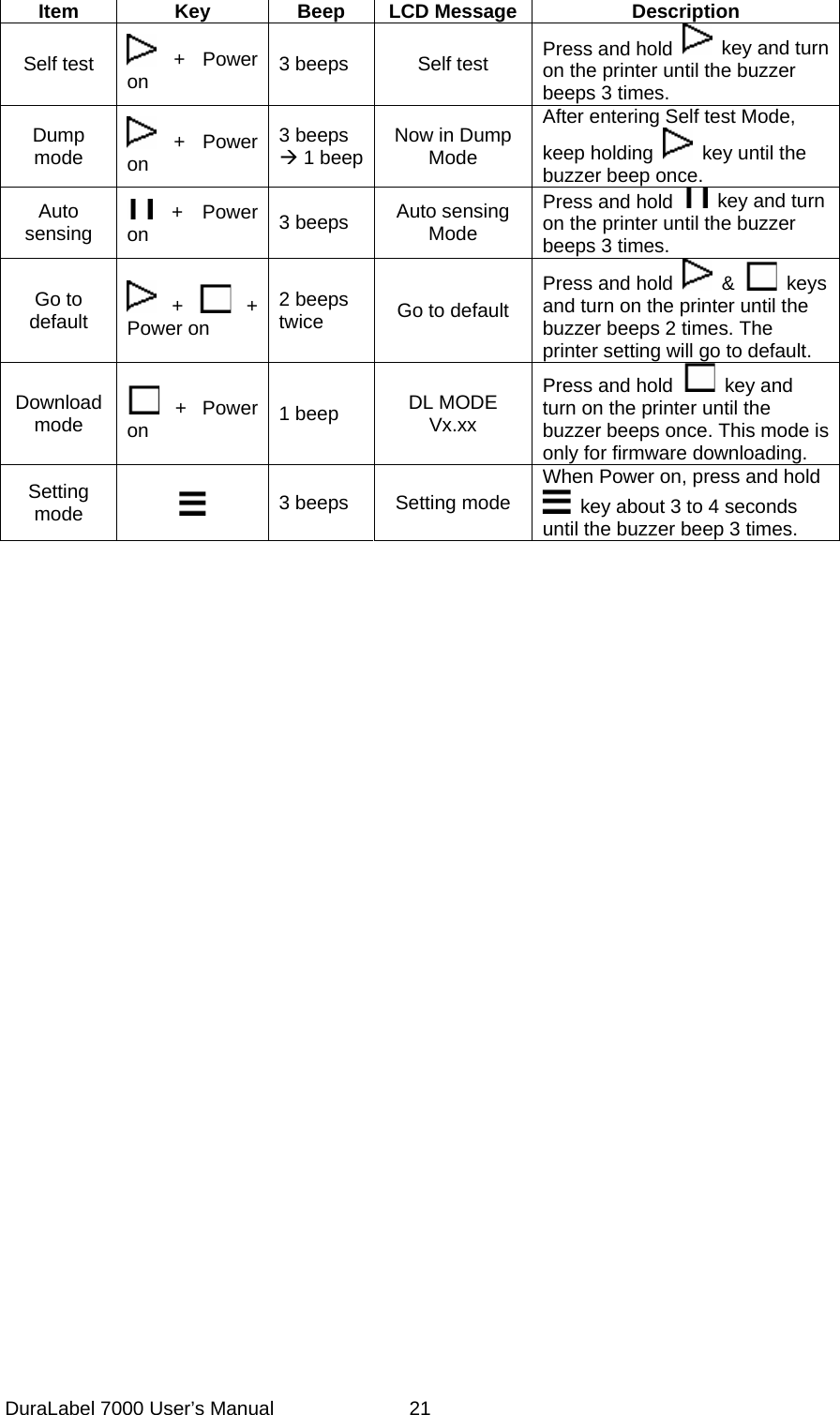
 Item Key Beep LCD Message Description Self test   +  Power on  3 beeps  Self test  Press and hold    key and turn on the printer until the buzzer beeps 3 times. Dump mode   +  Power on 3 beeps Æ 1 beep Now in Dump Mode After entering Self test Mode, keep holding    key until the buzzer beep once. Auto sensing   +  Power on  3 beeps  Auto sensing Mode Press and hold    key and turn on the printer until the buzzer beeps 3 times. Go to default   +   + Power on 2 beeps twice  Go to default Press and hold   &   keys and turn on the printer until the buzzer beeps 2 times. The printer setting will go to default. Download mode   +  Power on  1 beep  DL MODE Vx.xx Press and hold   key and turn on the printer until the buzzer beeps once. This mode is only for firmware downloading. Setting mode   3 beeps  Setting mode When Power on, press and hold   key about 3 to 4 seconds until the buzzer beep 3 times.    DuraLabel 7000 User’s Manual  21
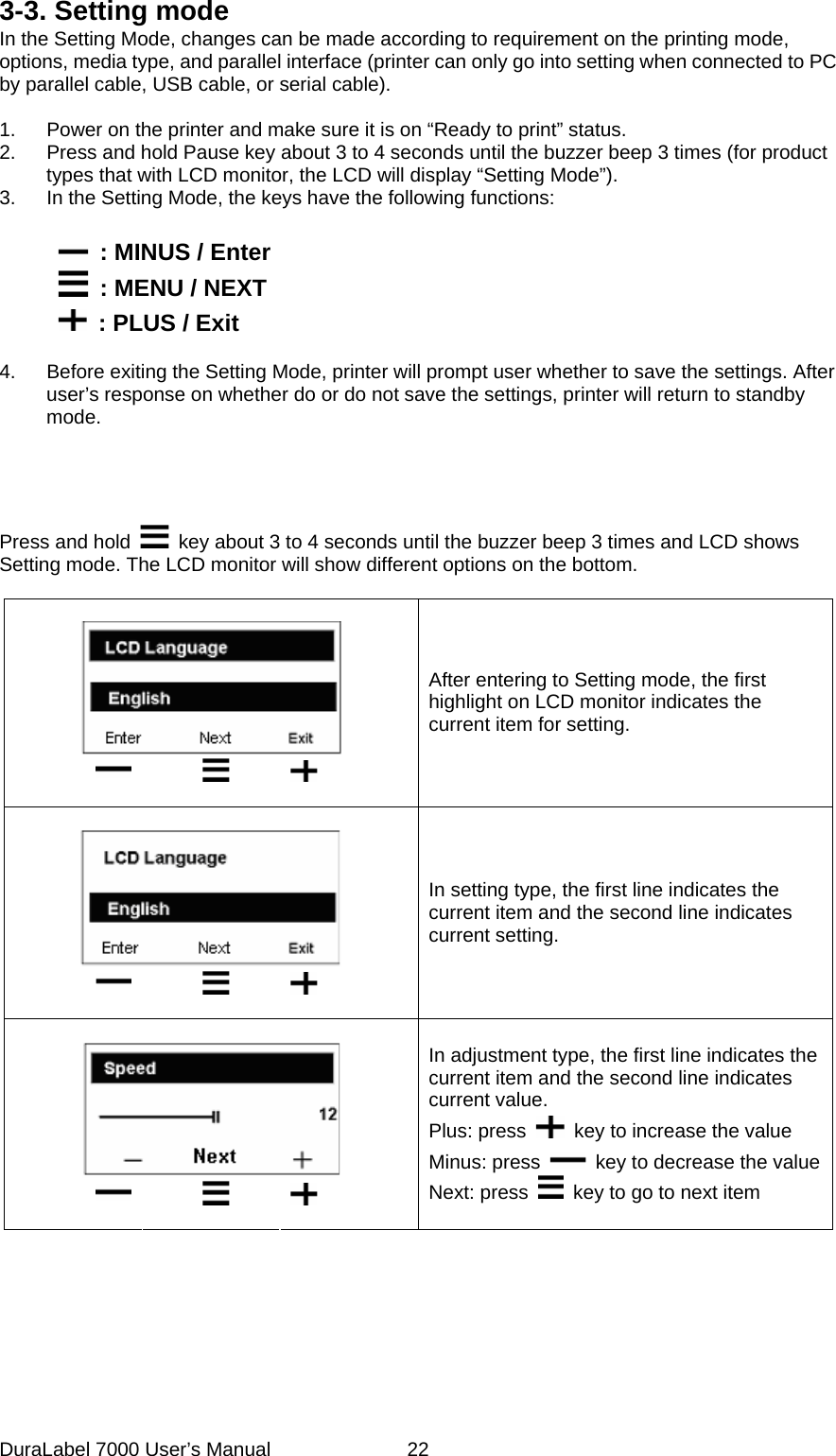
3-3. Setting mode In the Setting Mode, changes can be made according to requirement on the printing mode, options, media type, and parallel interface (printer can only go into setting when connected to PC by parallel cable, USB cable, or serial cable).  1.  Power on the printer and make sure it is on “Ready to print” status. 2.  Press and hold Pause key about 3 to 4 seconds until the buzzer beep 3 times (for product types that with LCD monitor, the LCD will display “Setting Mode”).   3.  In the Setting Mode, the keys have the following functions:          : MINUS / Enter         : MENU / NEXT         : PLUS / Exit  4.  Before exiting the Setting Mode, printer will prompt user whether to save the settings. After user’s response on whether do or do not save the settings, printer will return to standby mode.    Press and hold    key about 3 to 4 seconds until the buzzer beep 3 times and LCD shows Setting mode. The LCD monitor will show different options on the bottom.             After entering to Setting mode, the first highlight on LCD monitor indicates the current item for setting.          In setting type, the first line indicates the current item and the second line indicates current setting.          In adjustment type, the first line indicates the current item and the second line indicates current value. Plus: press    key to increase the value Minus: press    key to decrease the valueNext: press    key to go to next item   DuraLabel 7000 User’s Manual  22
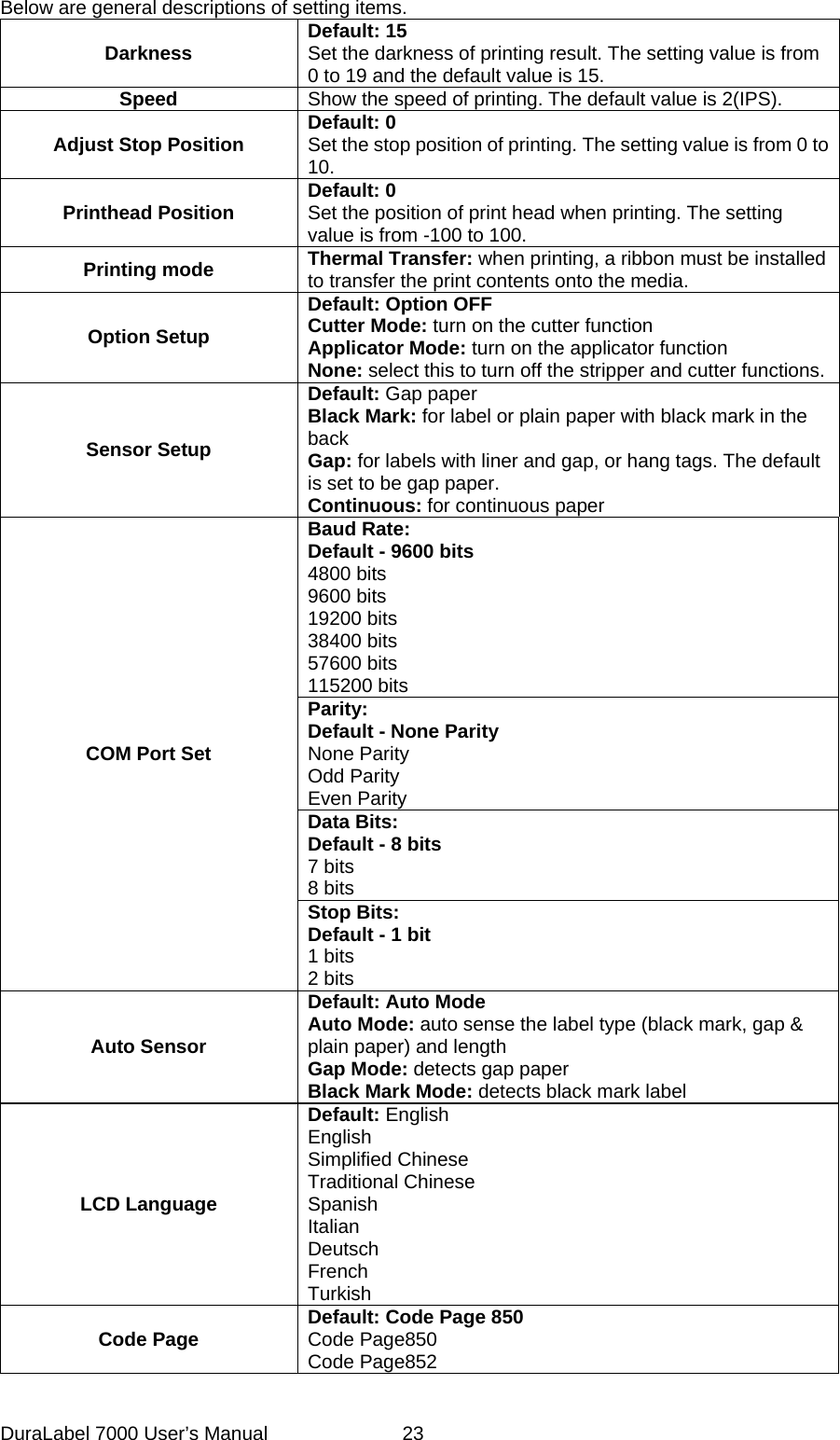
Below are general descriptions of setting items. Darkness  Default: 15 Set the darkness of printing result. The setting value is from 0 to 19 and the default value is 15.   Speed  Show the speed of printing. The default value is 2(IPS). Adjust Stop Position  Default: 0 Set the stop position of printing. The setting value is from 0 to 10.   Printhead Position  Default: 0 Set the position of print head when printing. The setting value is from -100 to 100. Printing mode  Thermal Transfer: when printing, a ribbon must be installed to transfer the print contents onto the media. Option Setup Default: Option OFF Cutter Mode: turn on the cutter function Applicator Mode: turn on the applicator function None: select this to turn off the stripper and cutter functions.Sensor Setup Default: Gap paper Black Mark: for label or plain paper with black mark in the back  Gap: for labels with liner and gap, or hang tags. The default is set to be gap paper. Continuous: for continuous paper Baud Rate:   Default - 9600 bits 4800 bits 9600 bits 19200 bits 38400 bits 57600 bits 115200 bits Parity: Default - None Parity None Parity Odd Parity Even Parity Data Bits:   Default - 8 bits 7 bits 8 bits   COM Port Set Stop Bits:   Default - 1 bit 1 bits 2 bits Auto Sensor Default: Auto Mode Auto Mode: auto sense the label type (black mark, gap & plain paper) and length Gap Mode: detects gap paper Black Mark Mode: detects black mark label LCD Language Default: English English Simplified Chinese Traditional Chinese Spanish Italian Deutsch French Turkish Code Page  Default: Code Page 850 Code Page850 Code Page852 DuraLabel 7000 User’s Manual  23
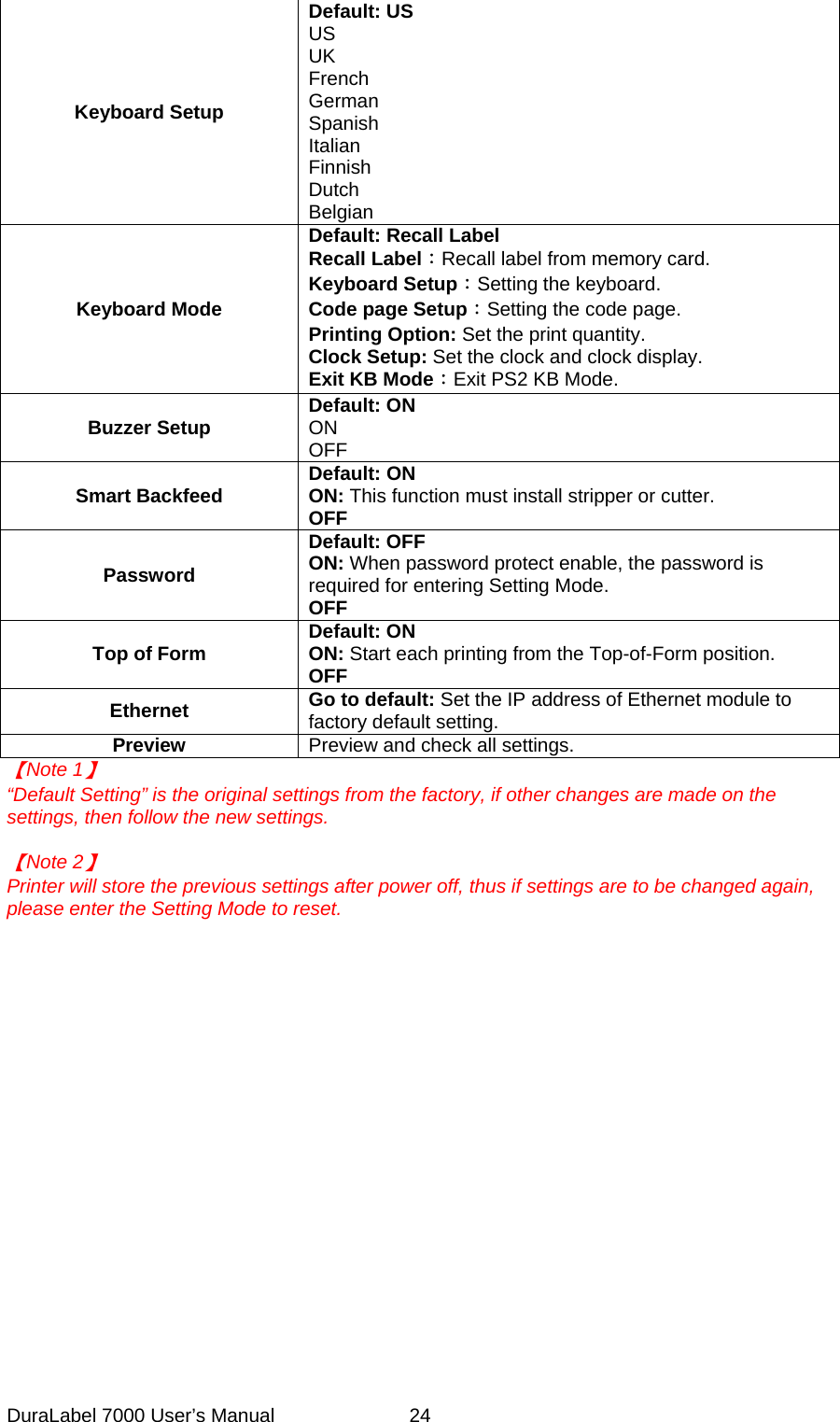
 Keyboard Setup Default: US US UK French German Spanish Italian Finnish Dutch Belgian Keyboard Mode Default: Recall Label Recall Label:Recall label from memory card. Keyboard Setup:Setting the keyboard. Code page Setup:Setting the code page. Printing Option: Set the print quantity. Clock Setup: Set the clock and clock display. Exit KB Mode:Exit PS2 KB Mode. Buzzer Setup  Default: ON ON OFF Smart Backfeed  Default: ON ON: This function must install stripper or cutter. OFF Password Default: OFF ON: When password protect enable, the password is required for entering Setting Mode.   OFF  Top of Form  Default: ON ON: Start each printing from the Top-of-Form position.     OFF  Ethernet  Go to default: Set the IP address of Ethernet module to factory default setting.     Preview  Preview and check all settings. 【Note 1】 “Default Setting” is the original settings from the factory, if other changes are made on the settings, then follow the new settings.  【Note 2】 Printer will store the previous settings after power off, thus if settings are to be changed again, please enter the Setting Mode to reset.  DuraLabel 7000 User’s Manual  24
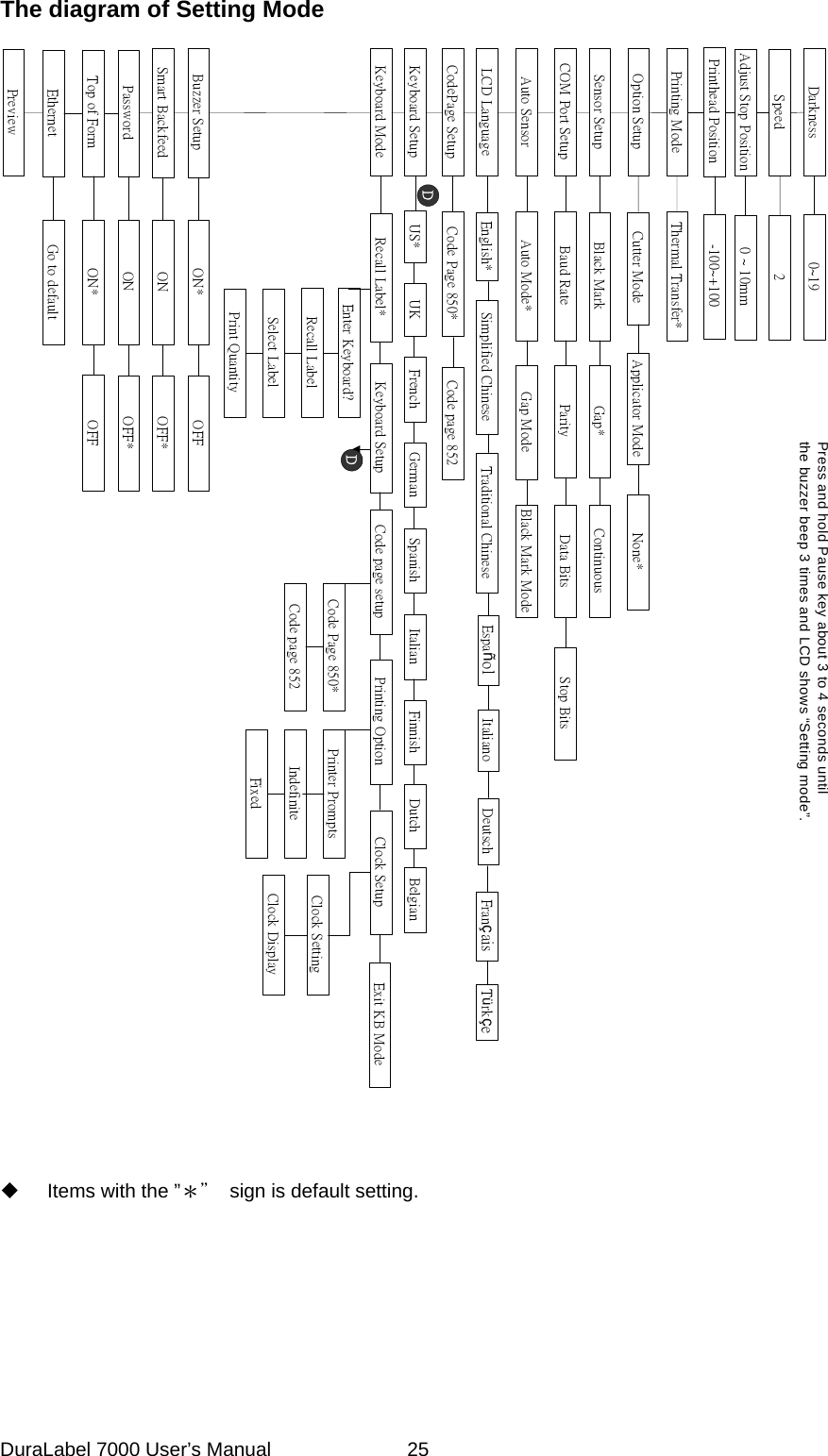
The diagram of Setting Mode    Press and hold Pause key about 3 to 4 seconds untilthe buzzer beep 3 times and LCD shows “Setting mode”.Printer PromptsIndefiniteFixedClock SettingClock DisplayEnter Keyboard?Recall LabelSelect LabelPrint QuantityPrinting ModeOption SetupSensor SetupCOM Port SetupAuto SensorLCD LanguageCodePage SetupKeyboard ModeKeyboard SetupBuzzer SetupPreviewGap*Black MarkBaud RateThermal Transfer*Español Italiano Deutsch Français TürkçeContinuousParity Data Bits Stop BitsAuto Mode* Gap Mode Black Mark ModeEnglish* Simplified Chinese Traditional ChineseCode Page 850*Code page 852US* UK French German Spanish Italian Finnish Dutch BelgianRecall Label* Keyboard Setup Code page setup Printing Option Clock SetupON* OFFSmart Backfeed ON OFF*Password ON OFF*DDExit KB ModeCode Page 850* Code page 852Darkness 0~19Speed 2Adjust Stop Position 0 ~ 10mmPrinthead Position -100~+100Top of Form ON* OFFEthernet Go to defaultCutter Mode None*Applicator Mode       Items with the ”*"  sign is default setting.  DuraLabel 7000 User’s Manual  25
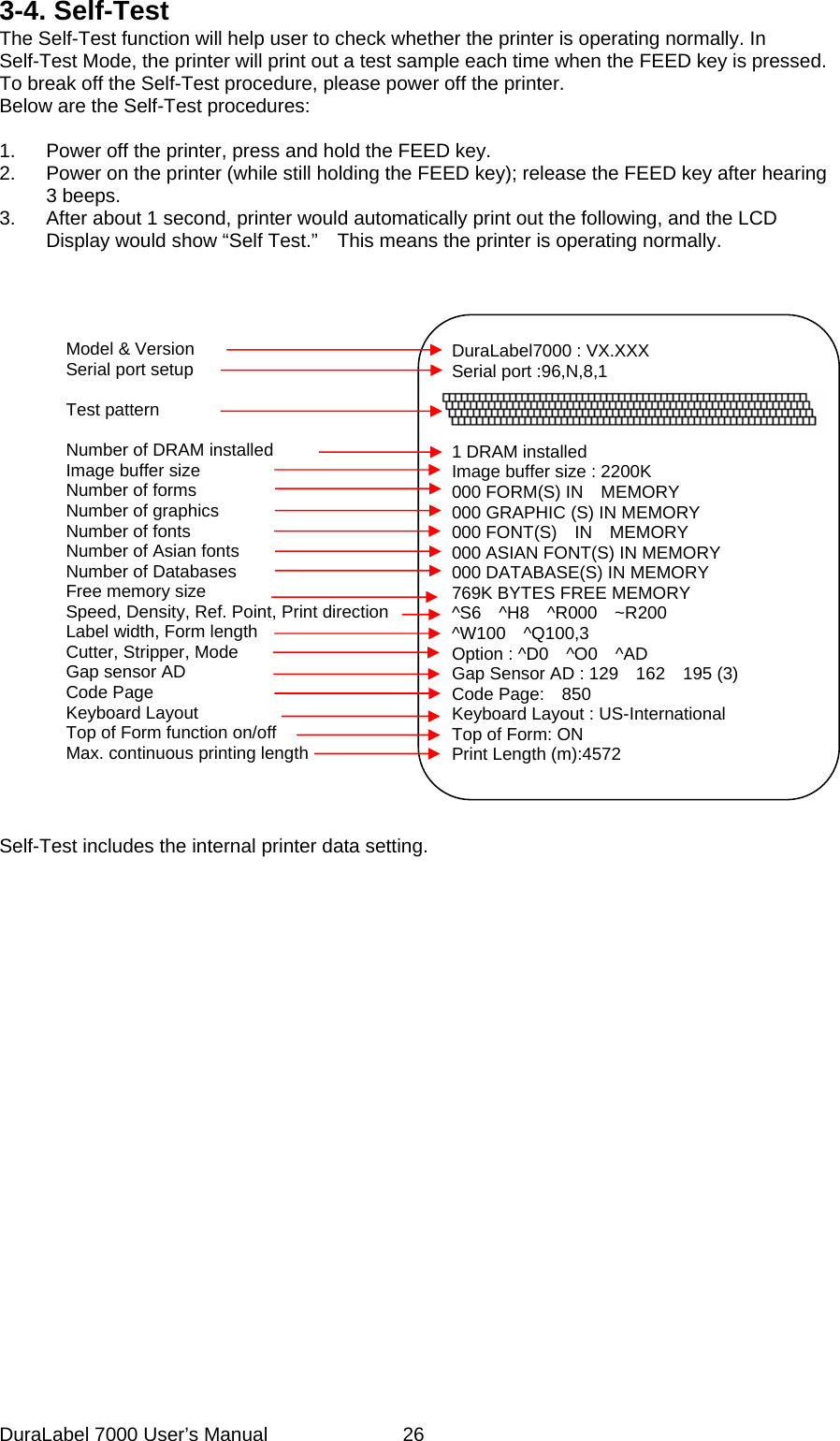
3-4. Self-Test The Self-Test function will help user to check whether the printer is operating normally. In Self-Test Mode, the printer will print out a test sample each time when the FEED key is pressed. To break off the Self-Test procedure, please power off the printer.   Below are the Self-Test procedures:  1.  Power off the printer, press and hold the FEED key. 2.  Power on the printer (while still holding the FEED key); release the FEED key after hearing 3 beeps. 3.  After about 1 second, printer would automatically print out the following, and the LCD Display would show “Self Test.”    This means the printer is operating normally.                           DuraLabel7000 : VX.XXX Serial port :96,N,8,1    1 DRAM installed Image buffer size : 2200K 000 FORM(S) IN    MEMORY 000 GRAPHIC (S) IN MEMORY 000 FONT(S)  IN  MEMORY 000 ASIAN FONT(S) IN MEMORY 000 DATABASE(S) IN MEMORY 769K BYTES FREE MEMORY ^S6  ^H8  ^R000  ~R200 ^W100  ^Q100,3 Option : ^D0  ^O0  ^AD Gap Sensor AD : 129    162    195 (3) Code Page:  850 Keyboard Layout : US-International Top of Form: ON Print Length (m):4572  Model & Version Serial port setup  Test pattern  Number of DRAM installed Image buffer size Number of forms Number of graphics Number of fonts Number of Asian fonts Number of Databases Free memory size Speed, Density, Ref. Point, Print directionLabel width, Form length Cutter, Stripper, Mode Gap sensor AD Code Page Keyboard Layout Top of Form function on/off Max. continuous printing length   Self-Test includes the internal printer data setting.   DuraLabel 7000 User’s Manual  26
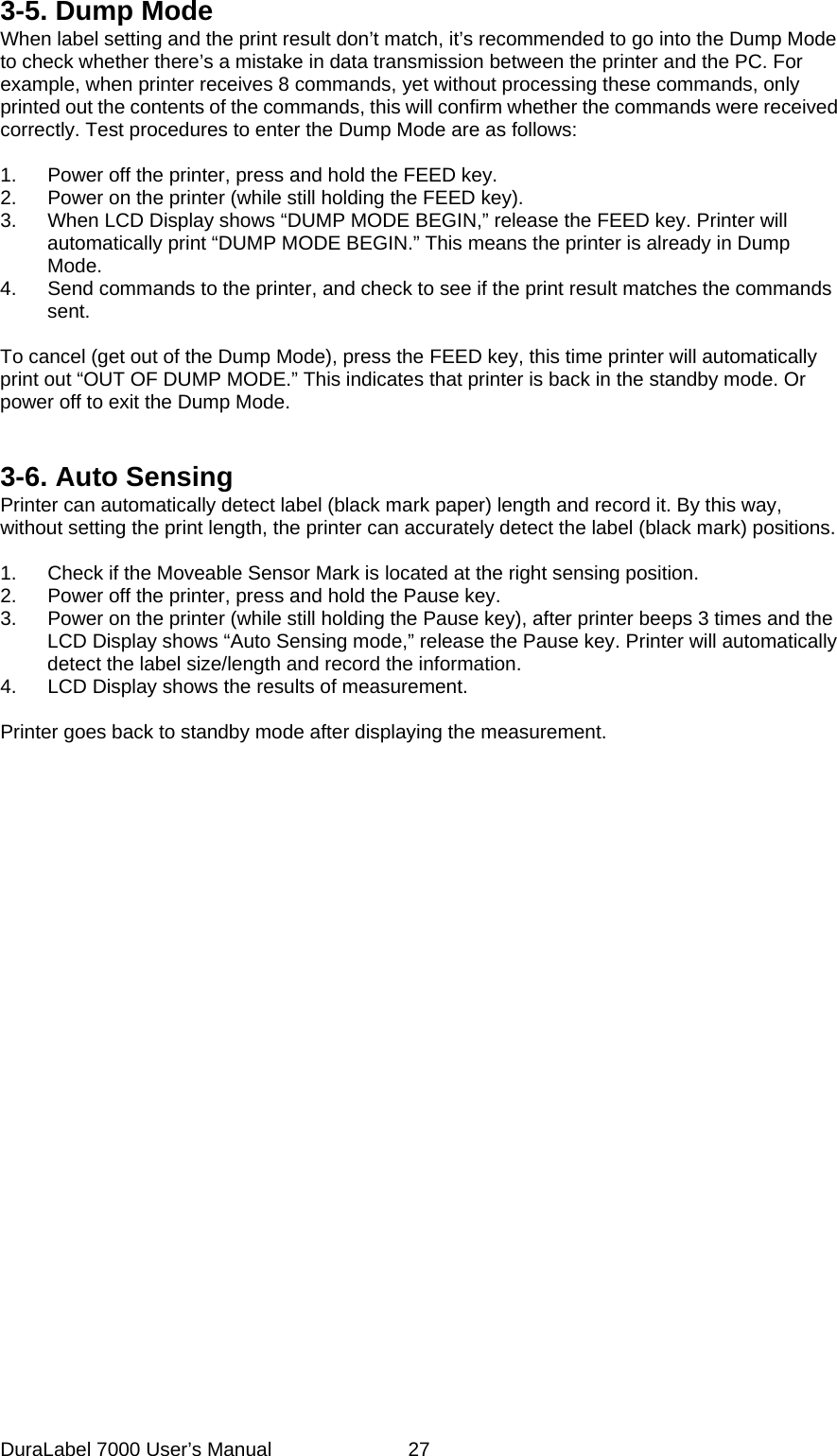
3-5. Dump Mode When label setting and the print result don’t match, it’s recommended to go into the Dump Mode to check whether there’s a mistake in data transmission between the printer and the PC. For example, when printer receives 8 commands, yet without processing these commands, only printed out the contents of the commands, this will confirm whether the commands were received correctly. Test procedures to enter the Dump Mode are as follows:  1.  Power off the printer, press and hold the FEED key. 2.  Power on the printer (while still holding the FEED key). 3.  When LCD Display shows “DUMP MODE BEGIN,” release the FEED key. Printer will automatically print “DUMP MODE BEGIN.” This means the printer is already in Dump Mode. 4.  Send commands to the printer, and check to see if the print result matches the commands sent.  To cancel (get out of the Dump Mode), press the FEED key, this time printer will automatically print out “OUT OF DUMP MODE.” This indicates that printer is back in the standby mode. Or power off to exit the Dump Mode.   3-6. Auto Sensing Printer can automatically detect label (black mark paper) length and record it. By this way, without setting the print length, the printer can accurately detect the label (black mark) positions.  1.  Check if the Moveable Sensor Mark is located at the right sensing position. 2.  Power off the printer, press and hold the Pause key. 3.  Power on the printer (while still holding the Pause key), after printer beeps 3 times and the LCD Display shows “Auto Sensing mode,” release the Pause key. Printer will automatically detect the label size/length and record the information. 4.  LCD Display shows the results of measurement.  Printer goes back to standby mode after displaying the measurement.    DuraLabel 7000 User’s Manual  27
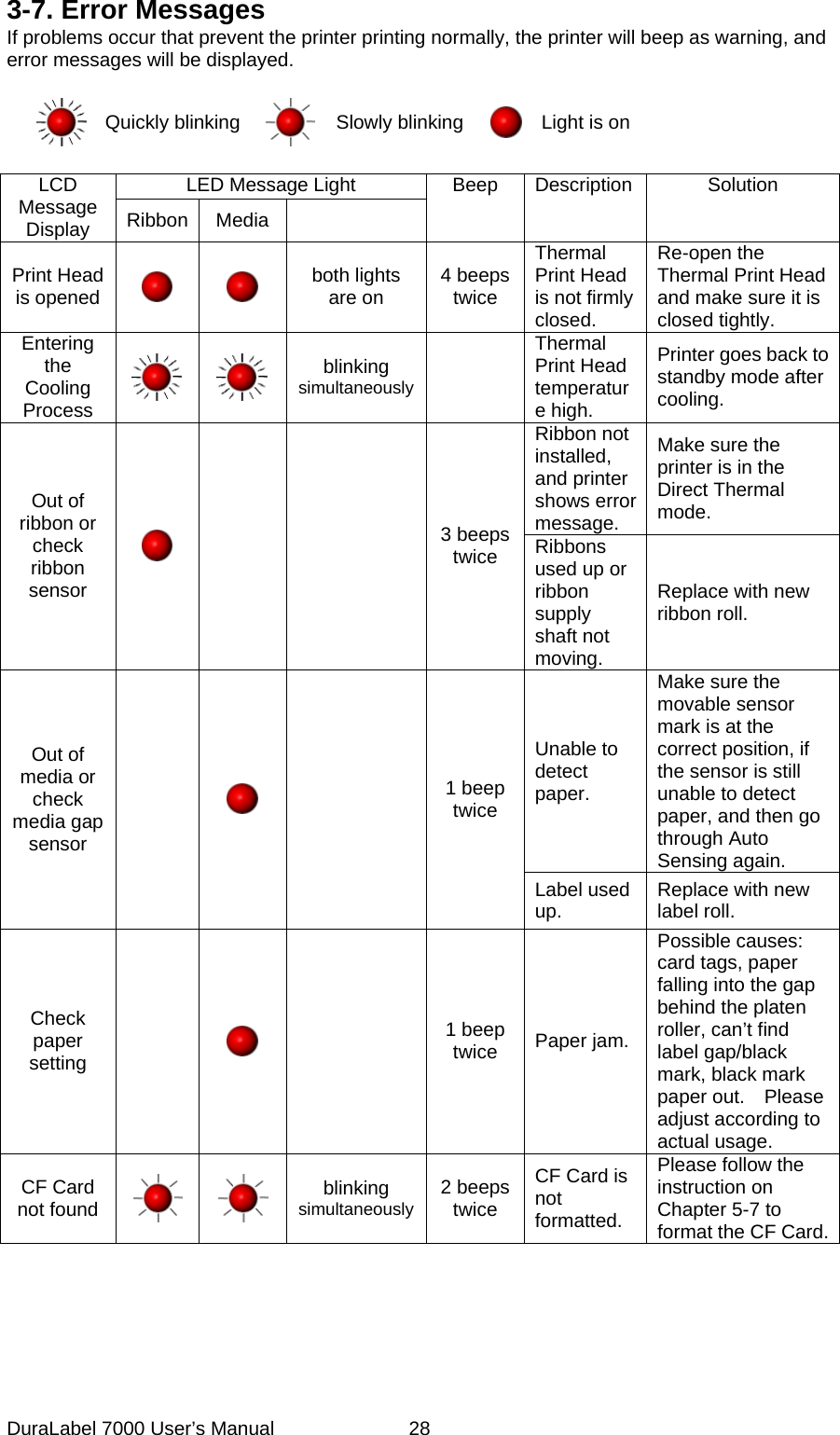
3-7. Error Messages If problems occur that prevent the printer printing normally, the printer will beep as warning, and error messages will be displayed.    Quickly blinking   Slowly blinking Light is on  LED Message Light LCD Message Display  Ribbon Media  Beep Description Solution Print Head is opened    both lights are on  4 beeps twice Thermal Print Head is not firmly closed. Re-open the Thermal Print Head and make sure it is closed tightly. Entering the Cooling Process   blinking  simultaneously  Thermal Print Head temperature high. Printer goes back to standby mode after cooling. Ribbon not installed, and printer shows error message. Make sure the printer is in the Direct Thermal mode. Out of ribbon or check ribbon sensor    3 beeps twice  Ribbons used up or ribbon supply shaft not moving. Replace with new ribbon roll. Unable to detect paper. Make sure the movable sensor mark is at the correct position, if the sensor is still unable to detect paper, and then go through Auto Sensing again. Out of media or check media gap sensor    1 beep twice Label used up.  Replace with new label roll. Check paper setting     1 beep twice  Paper jam. Possible causes: card tags, paper falling into the gap behind the platen roller, can’t find label gap/black mark, black mark paper out.  Please adjust according to actual usage. CF Card not found   blinking  simultaneously 2 beeps twice CF Card is not formatted. Please follow the instruction on Chapter 5-7 to format the CF Card.DuraLabel 7000 User’s Manual  28
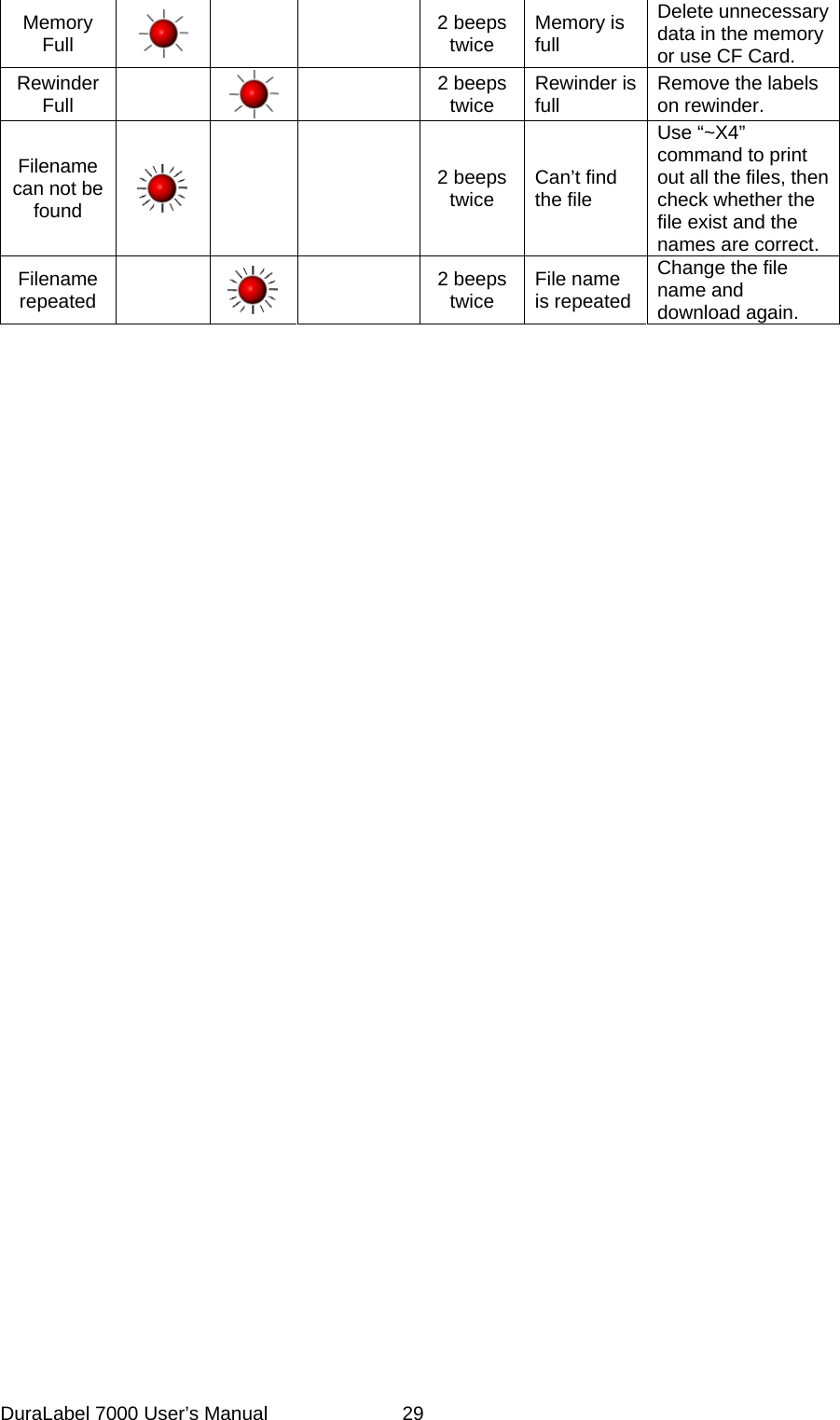
 Memory Full     2 beeps twice  Memory is full Delete unnecessary data in the memory or use CF Card. Rewinder Full     2 beeps twice  Rewinder is full  Remove the labels on rewinder. Filename can not be found     2 beeps twice  Can’t find the file Use “~X4” command to print out all the files, then check whether the file exist and the names are correct. Filename repeated     2 beeps twice  File name is repeatedChange the file name and download again.   DuraLabel 7000 User’s Manual  29
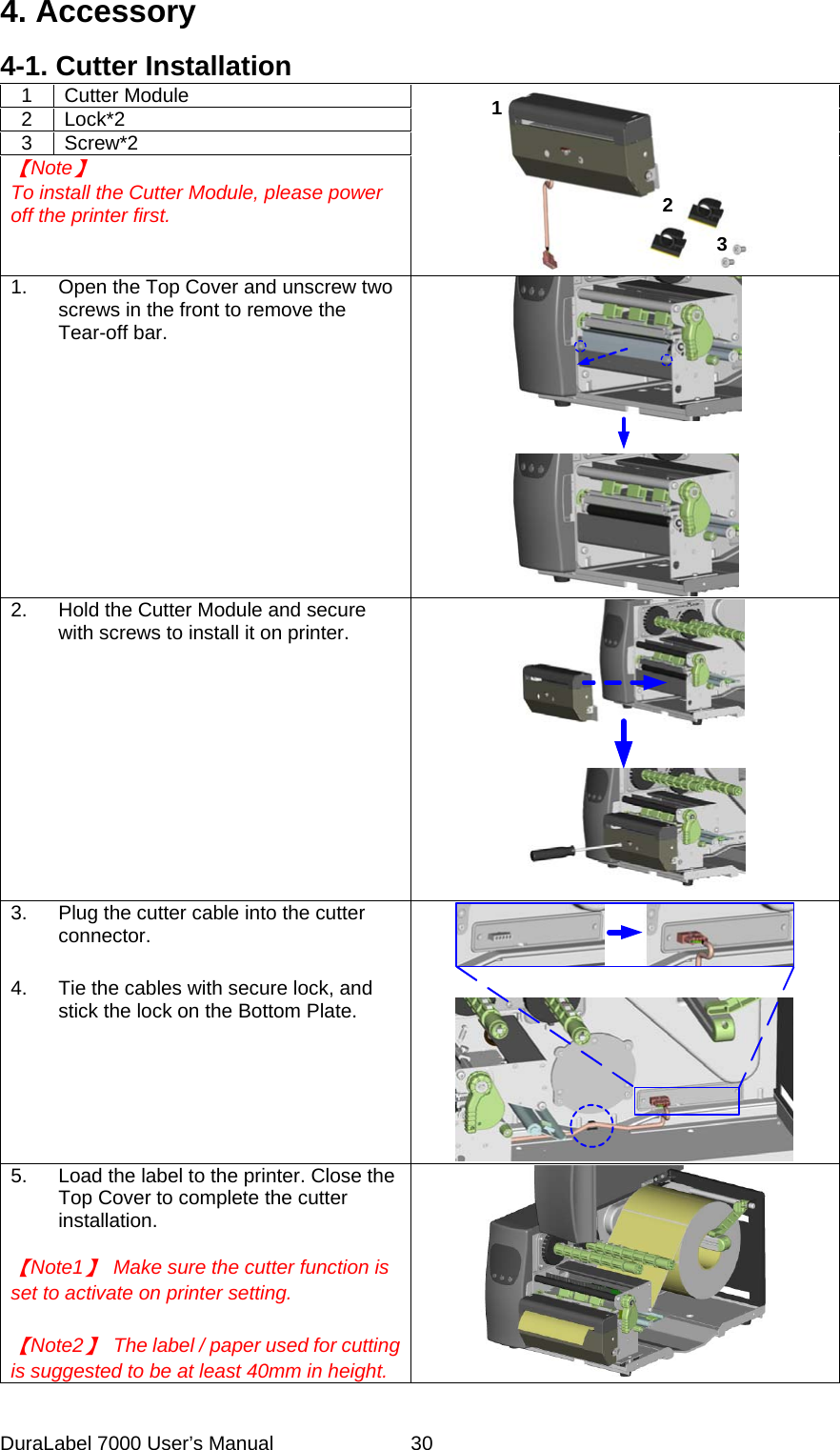
4. Accessory 4-1. Cutter Installation 1 Cutter Module  2 Lock*2 3 Screw*2 【Note】 To install the Cutter Module, please power off the printer first.   123 1.  Open the Top Cover and unscrew two screws in the front to remove the Tear-off bar.    2.  Hold the Cutter Module and secure with screws to install it on printer.    3.  Plug the cutter cable into the cutter connector.   4.  Tie the cables with secure lock, and stick the lock on the Bottom Plate.    5.  Load the label to the printer. Close the Top Cover to complete the cutter installation.  【Note1】  Make sure the cutter function is set to activate on printer setting.   【Note2】  The label / paper used for cutting is suggested to be at least 40mm in height.    DuraLabel 7000 User’s Manual  30
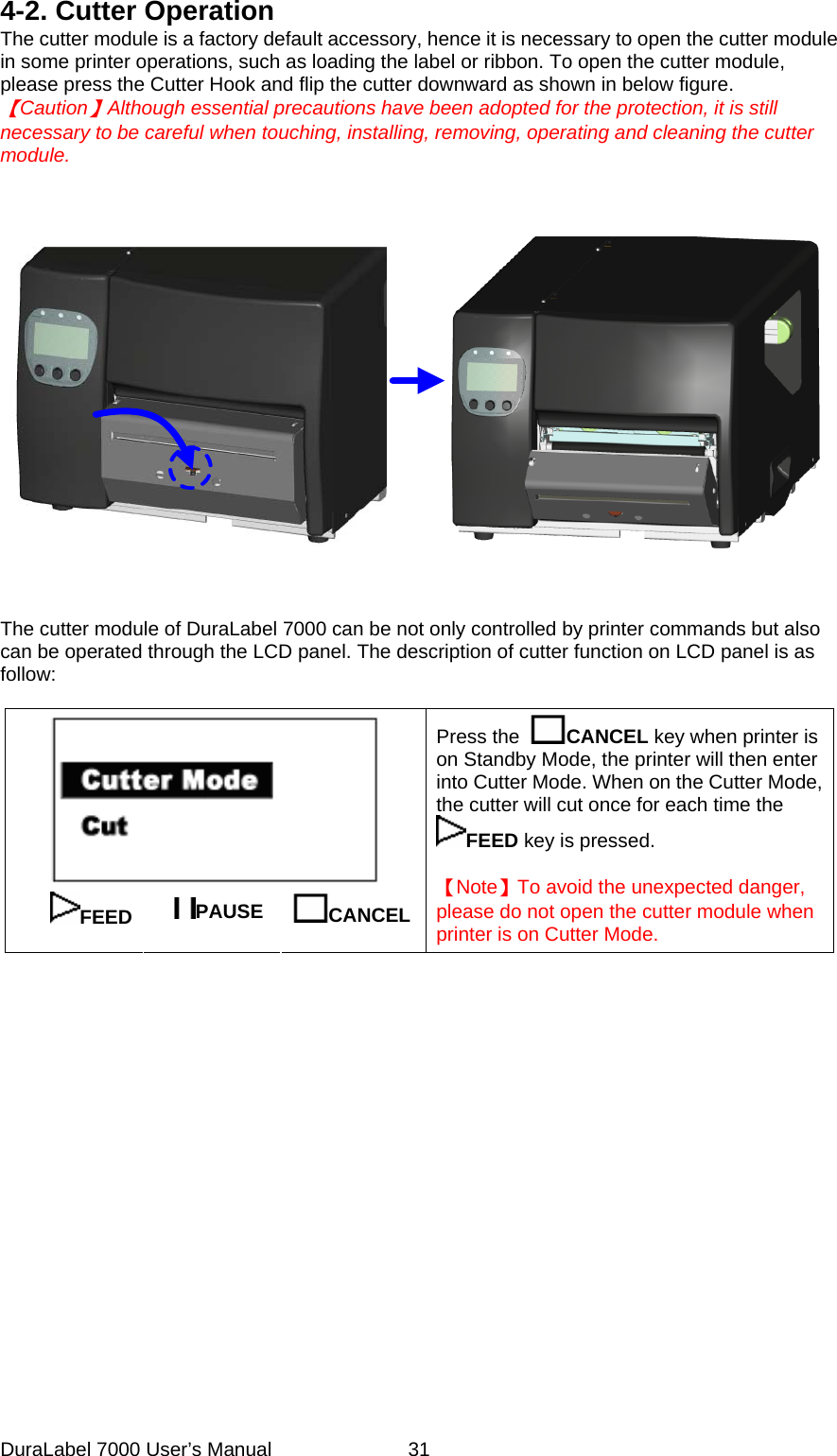
4-2. Cutter Operation The cutter module is a factory default accessory, hence it is necessary to open the cutter module in some printer operations, such as loading the label or ribbon. To open the cutter module, please press the Cutter Hook and flip the cutter downward as shown in below figure.   【Caution】Although essential precautions have been adopted for the protection, it is still necessary to be careful when touching, installing, removing, operating and cleaning the cutter module.              The cutter module of DuraLabel 7000 can be not only controlled by printer commands but also can be operated through the LCD panel. The description of cutter function on LCD panel is as follow:   FEED  PAUSE  CANCEL   Press the  CANCEL key when printer is on Standby Mode, the printer will then enter into Cutter Mode. When on the Cutter Mode, the cutter will cut once for each time the FEED key is pressed.      【Note】To avoid the unexpected danger, please do not open the cutter module when printer is on Cutter Mode.             DuraLabel 7000 User’s Manual  31
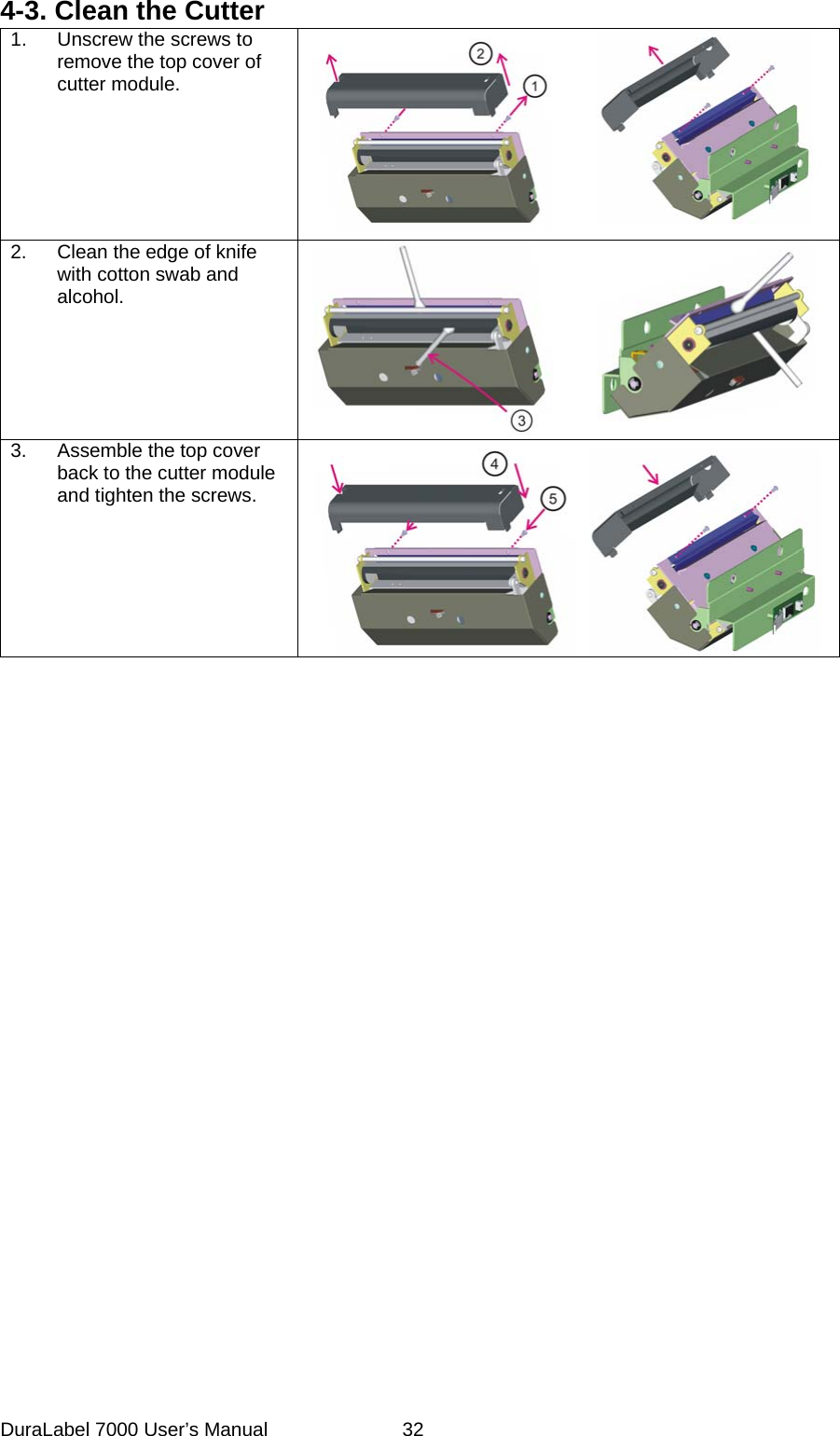
4-3. Clean the Cutter 1.  Unscrew the screws to remove the top cover of cutter module.   2.  Clean the edge of knife with cotton swab and alcohol.   3.  Assemble the top cover back to the cutter module and tighten the screws.     DuraLabel 7000 User’s Manual  32
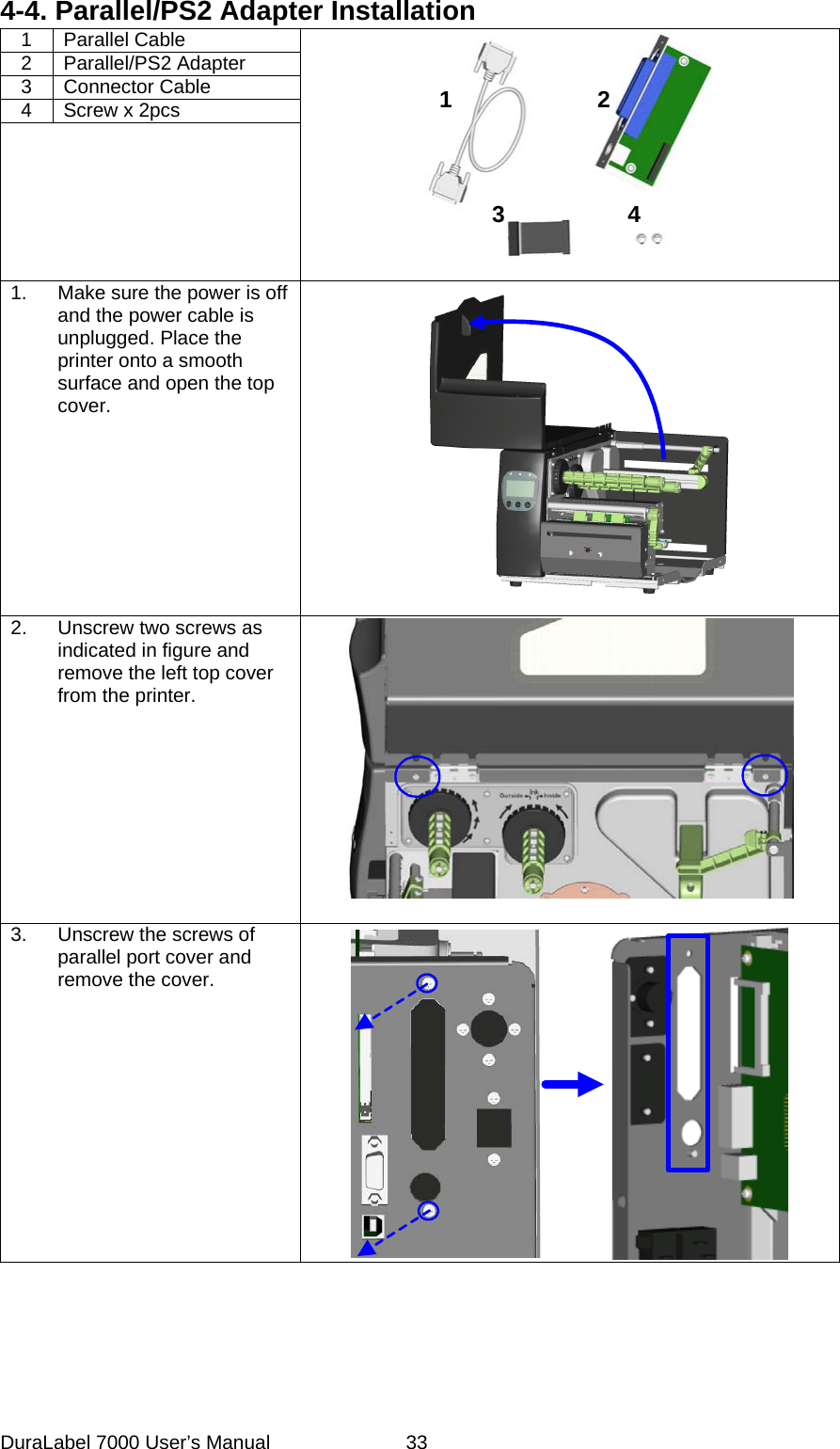
4-4. Parallel/PS2 Adapter Installation 1 Parallel Cable 2 Parallel/PS2 Adapter 3 Connector Cable 4  Screw x 2pcs   1234  1.  Make sure the power is off and the power cable is unplugged. Place the printer onto a smooth surface and open the top cover.   2.  Unscrew two screws as indicated in figure and remove the left top cover from the printer.   3.  Unscrew the screws of parallel port cover and remove the cover.  DuraLabel 7000 User’s Manual  33
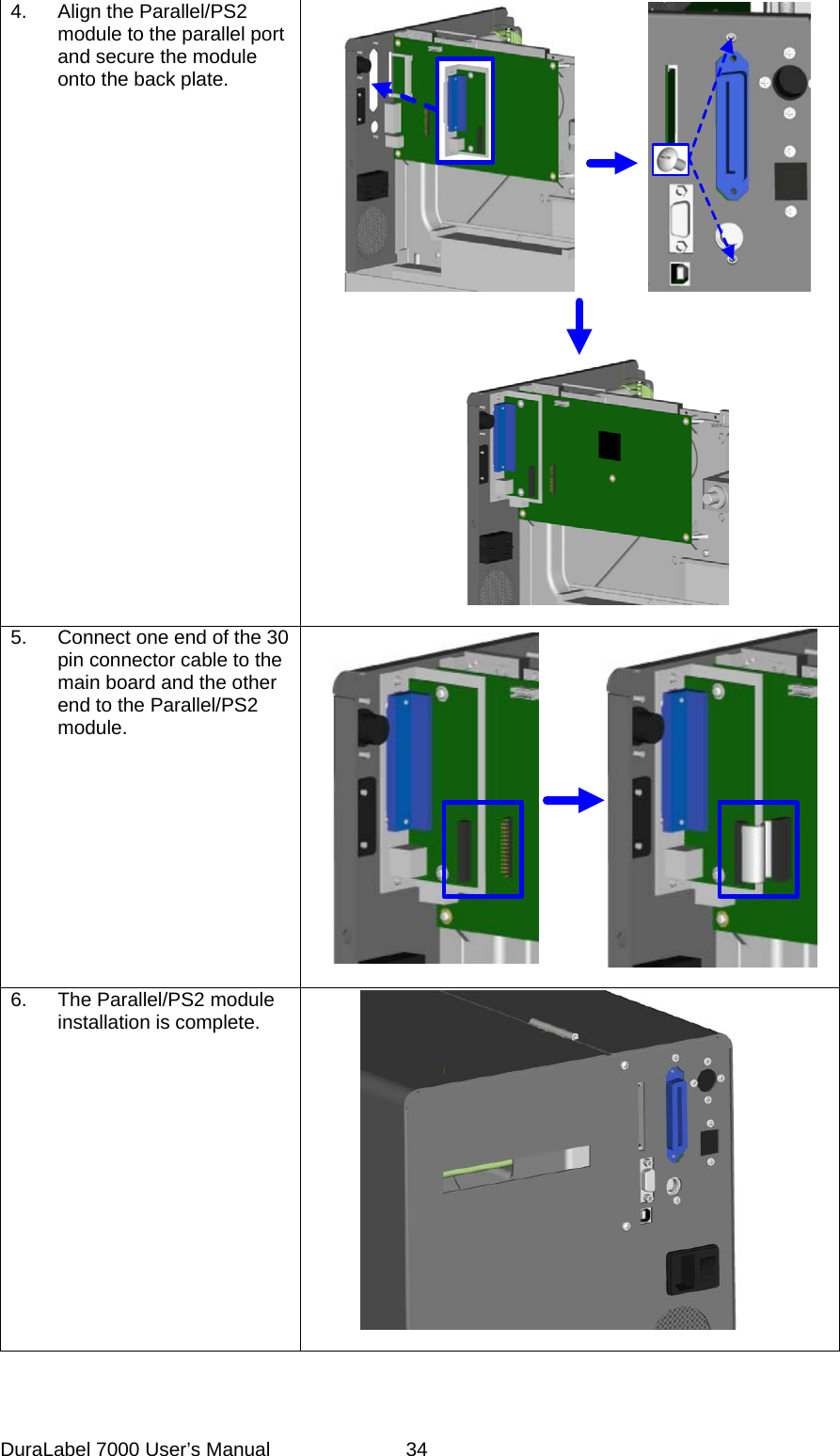
4.  Align the Parallel/PS2 module to the parallel port and secure the module onto the back plate.   5.  Connect one end of the 30 pin connector cable to the main board and the other end to the Parallel/PS2 module.   6.  The Parallel/PS2 module installation is complete.    DuraLabel 7000 User’s Manual  34
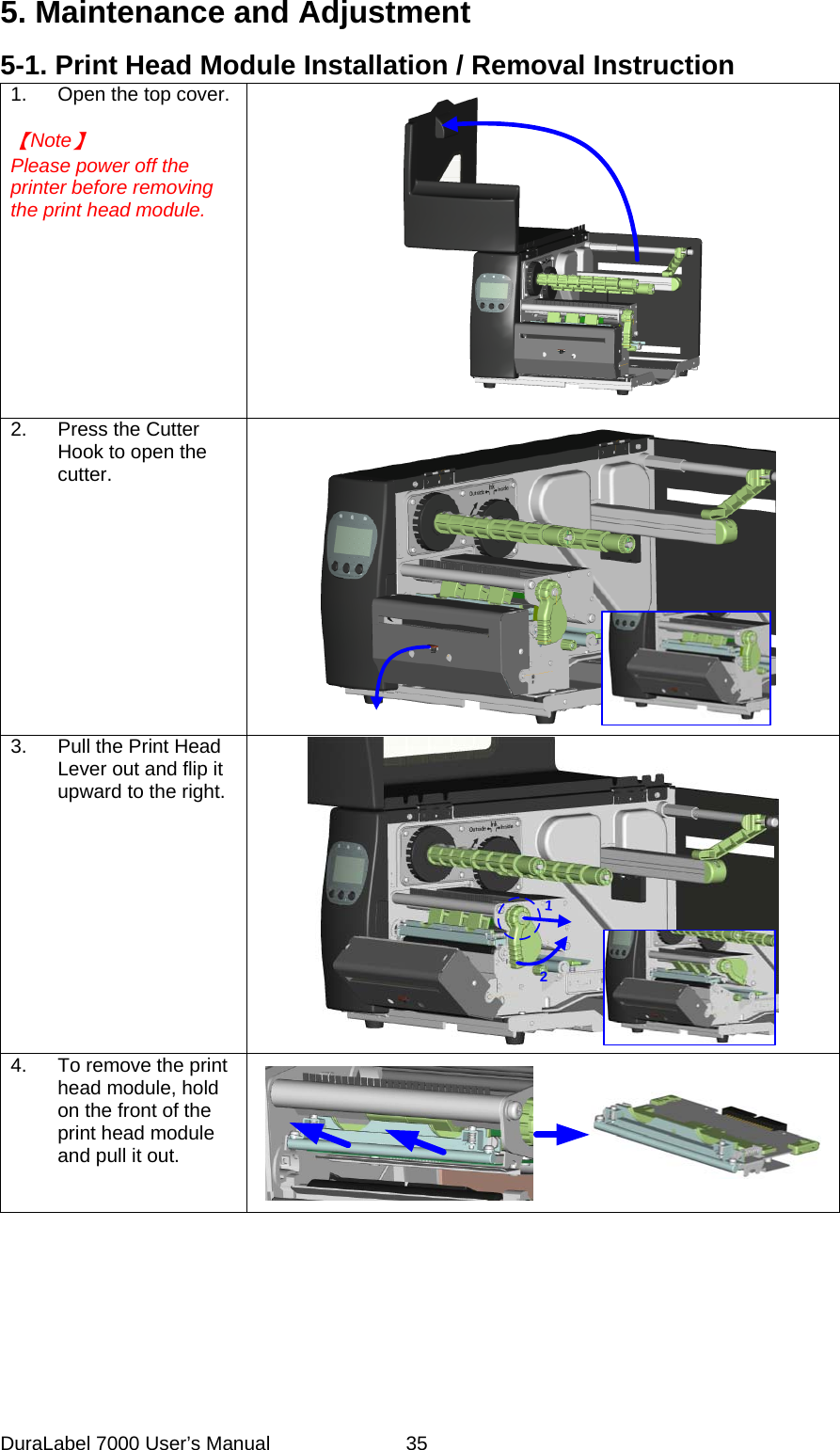
5. Maintenance and Adjustment 5-1. Print Head Module Installation / Removal Instruction 1.  Open the top cover.  【Note】 Please power off the printer before removing the print head module.  2.  Press the Cutter Hook to open the cutter.  3.  Pull the Print Head Lever out and flip it upward to the right.  12 4.  To remove the print head module, hold on the front of the print head module and pull it out.   DuraLabel 7000 User’s Manual  35
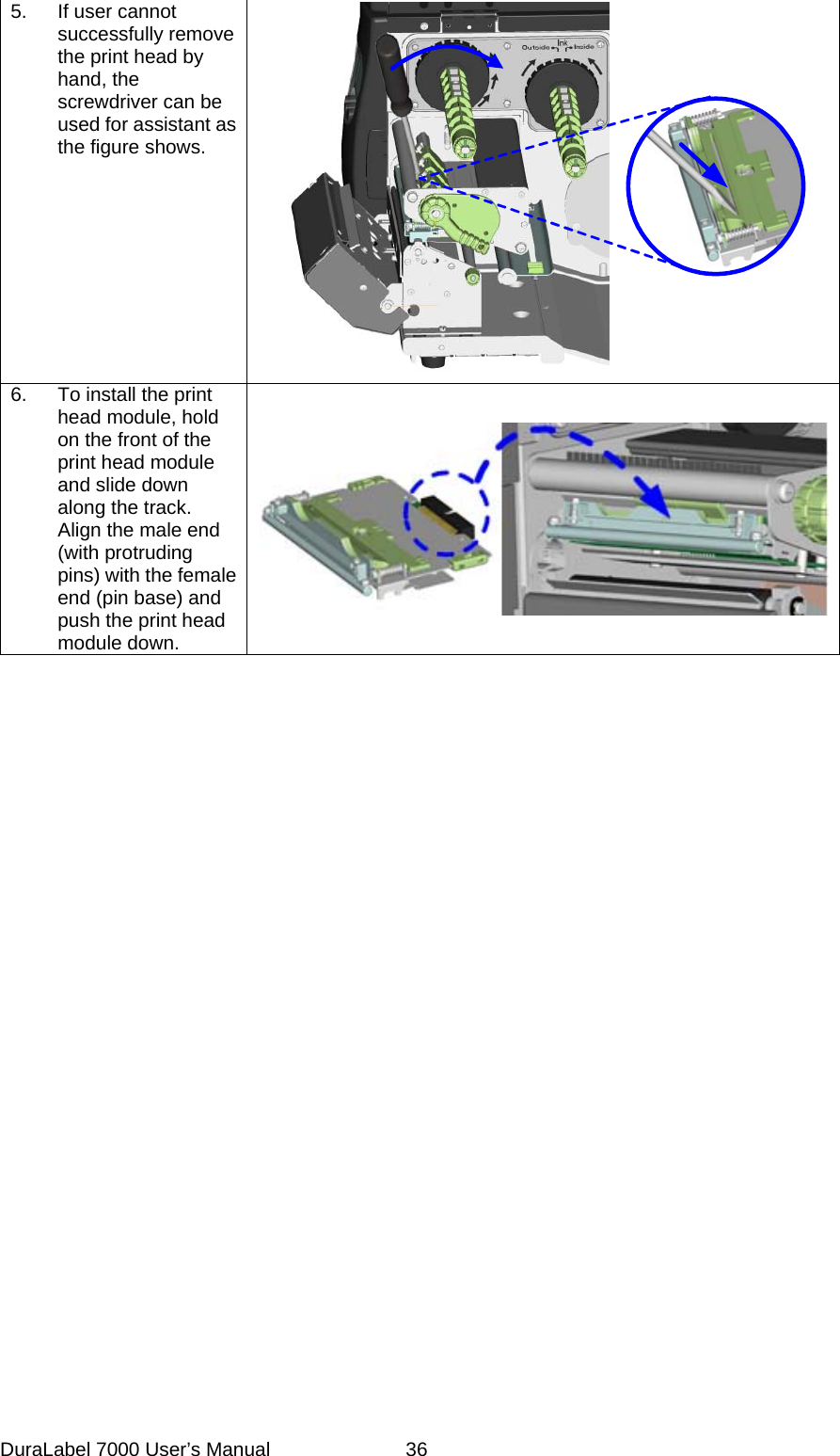
5.  If user cannot successfully remove the print head by hand, the screwdriver can be used for assistant as the figure shows.      6.  To install the print head module, hold on the front of the print head module and slide down along the track. Align the male end (with protruding pins) with the female end (pin base) and push the print head module down.  DuraLabel 7000 User’s Manual  36
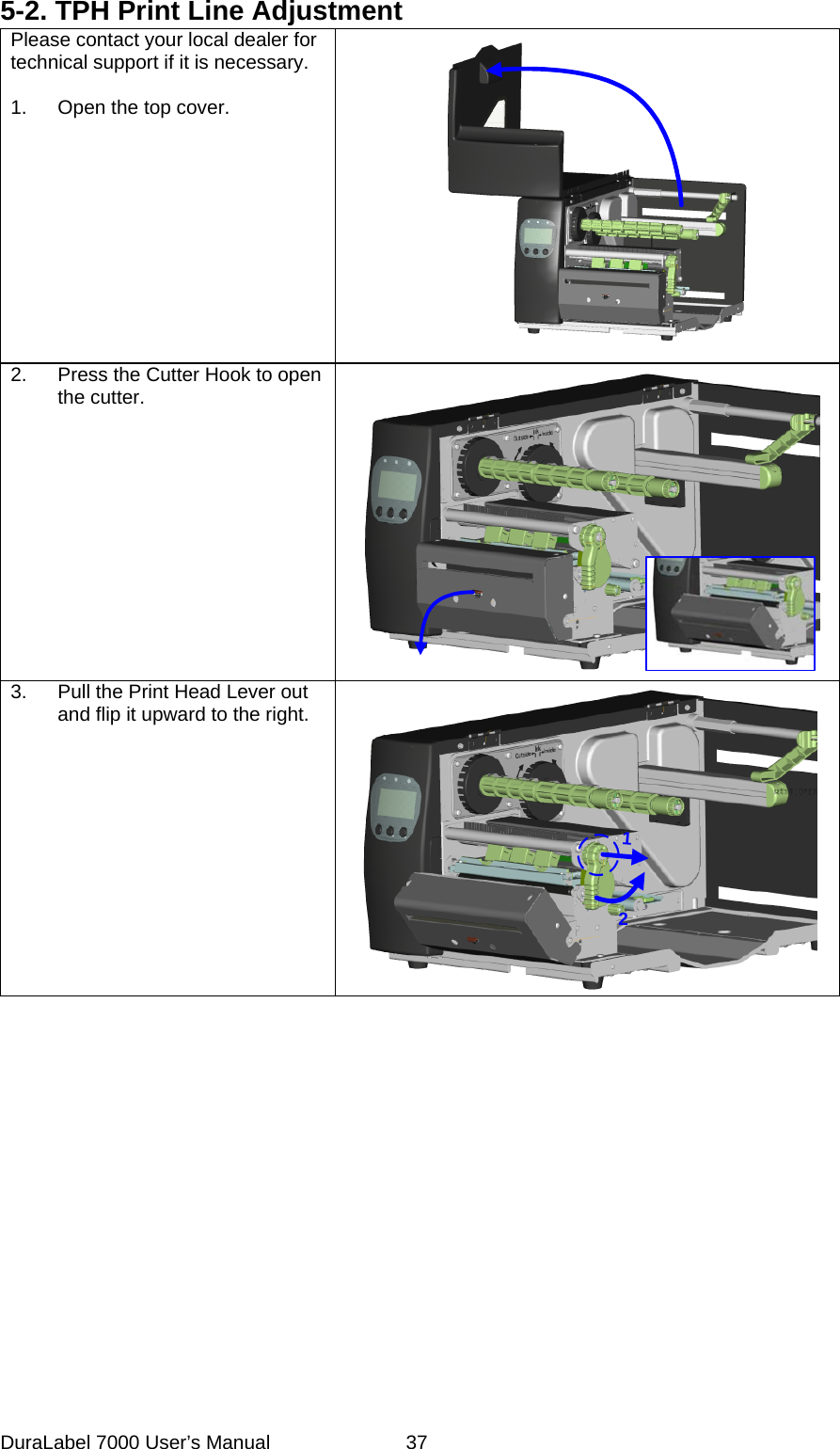
5-2. TPH Print Line Adjustment Please contact your local dealer for technical support if it is necessary.  1.  Open the top cover.  2.  Press the Cutter Hook to open the cutter. 3.  Pull the Print Head Lever out and flip it upward to the right. 12 DuraLabel 7000 User’s Manual  37
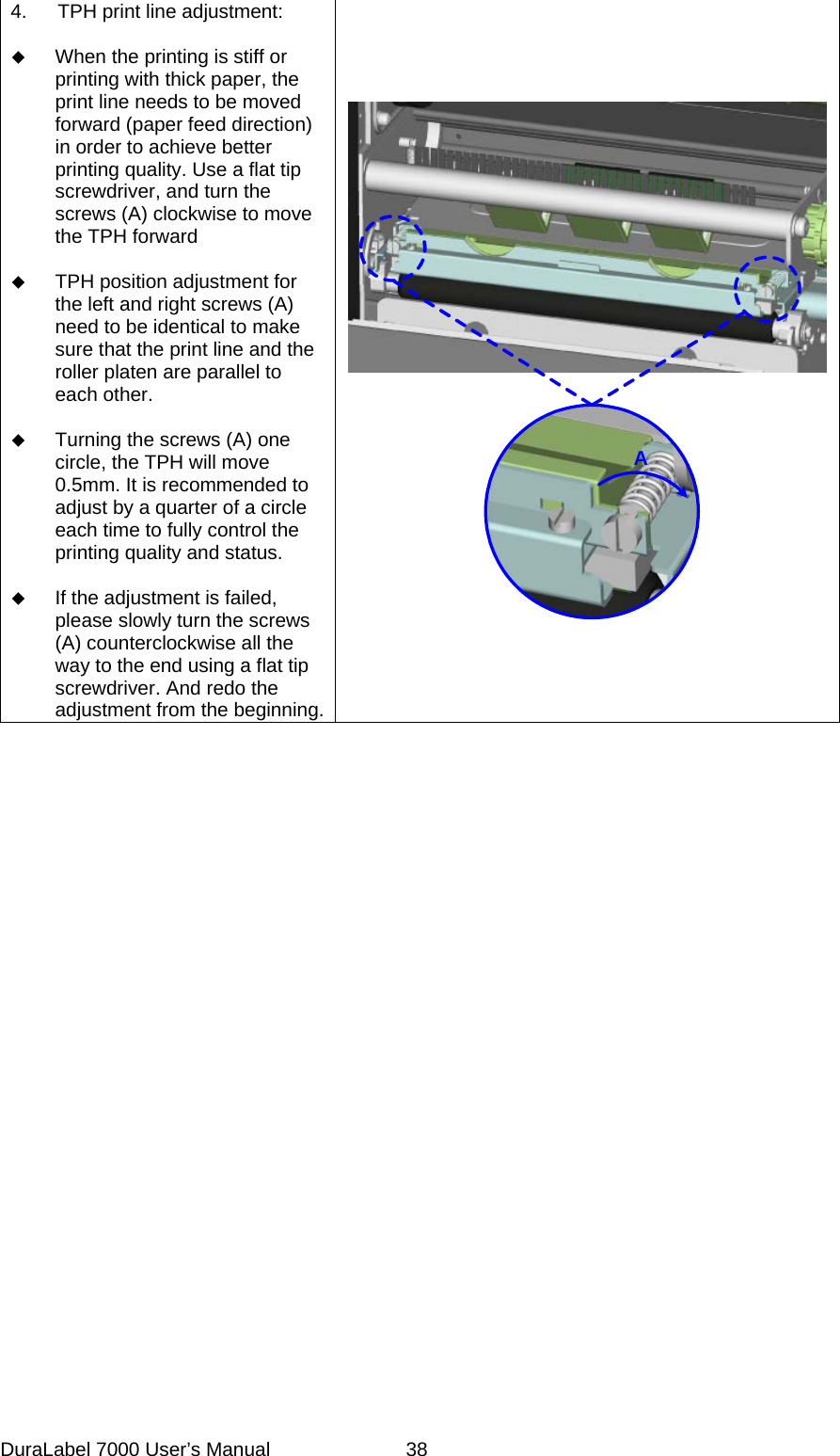
4.  TPH print line adjustment:   When the printing is stiff or printing with thick paper, the print line needs to be moved forward (paper feed direction) in order to achieve better printing quality. Use a flat tip screwdriver, and turn the screws (A) clockwise to move the TPH forward   TPH position adjustment for the left and right screws (A) need to be identical to make sure that the print line and the roller platen are parallel to each other.   Turning the screws (A) one circle, the TPH will move 0.5mm. It is recommended to adjust by a quarter of a circle each time to fully control the printing quality and status.   If the adjustment is failed, please slowly turn the screws (A) counterclockwise all the way to the end using a flat tip screwdriver. And redo the adjustment from the beginning.ADuraLabel 7000 User’s Manual  38
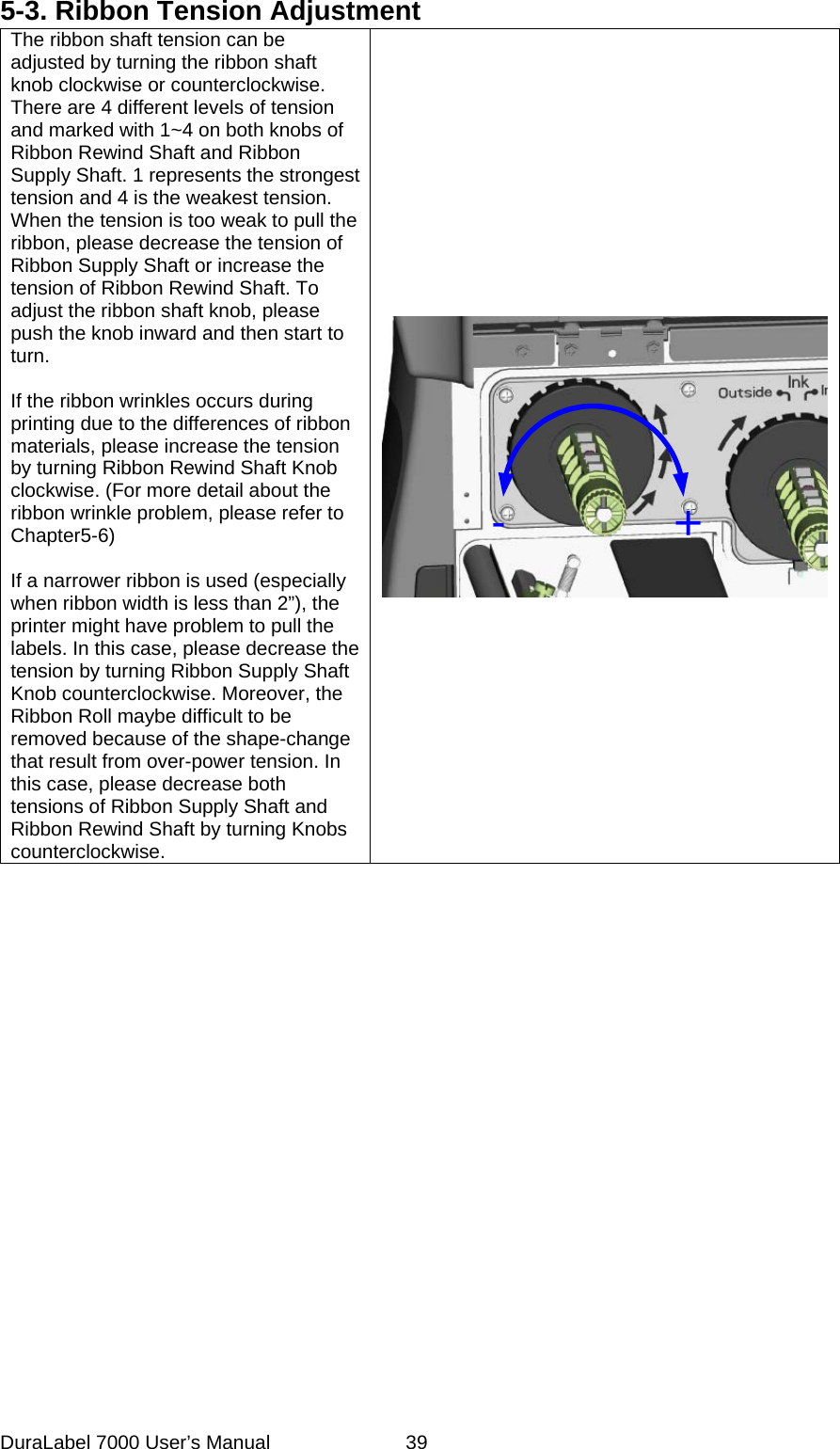
5-3. Ribbon Tension Adjustment The ribbon shaft tension can be adjusted by turning the ribbon shaft knob clockwise or counterclockwise. There are 4 different levels of tension and marked with 1~4 on both knobs of Ribbon Rewind Shaft and Ribbon Supply Shaft. 1 represents the strongest tension and 4 is the weakest tension. When the tension is too weak to pull the ribbon, please decrease the tension of Ribbon Supply Shaft or increase the tension of Ribbon Rewind Shaft. To adjust the ribbon shaft knob, please push the knob inward and then start to turn.    If the ribbon wrinkles occurs during printing due to the differences of ribbon materials, please increase the tension by turning Ribbon Rewind Shaft Knob clockwise. (For more detail about the ribbon wrinkle problem, please refer to Chapter5-6)  If a narrower ribbon is used (especially when ribbon width is less than 2”), the printer might have problem to pull the labels. In this case, please decrease the tension by turning Ribbon Supply Shaft Knob counterclockwise. Moreover, the Ribbon Roll maybe difficult to be removed because of the shape-change that result from over-power tension. In this case, please decrease both tensions of Ribbon Supply Shaft and Ribbon Rewind Shaft by turning Knobs counterclockwise.  +- DuraLabel 7000 User’s Manual  39
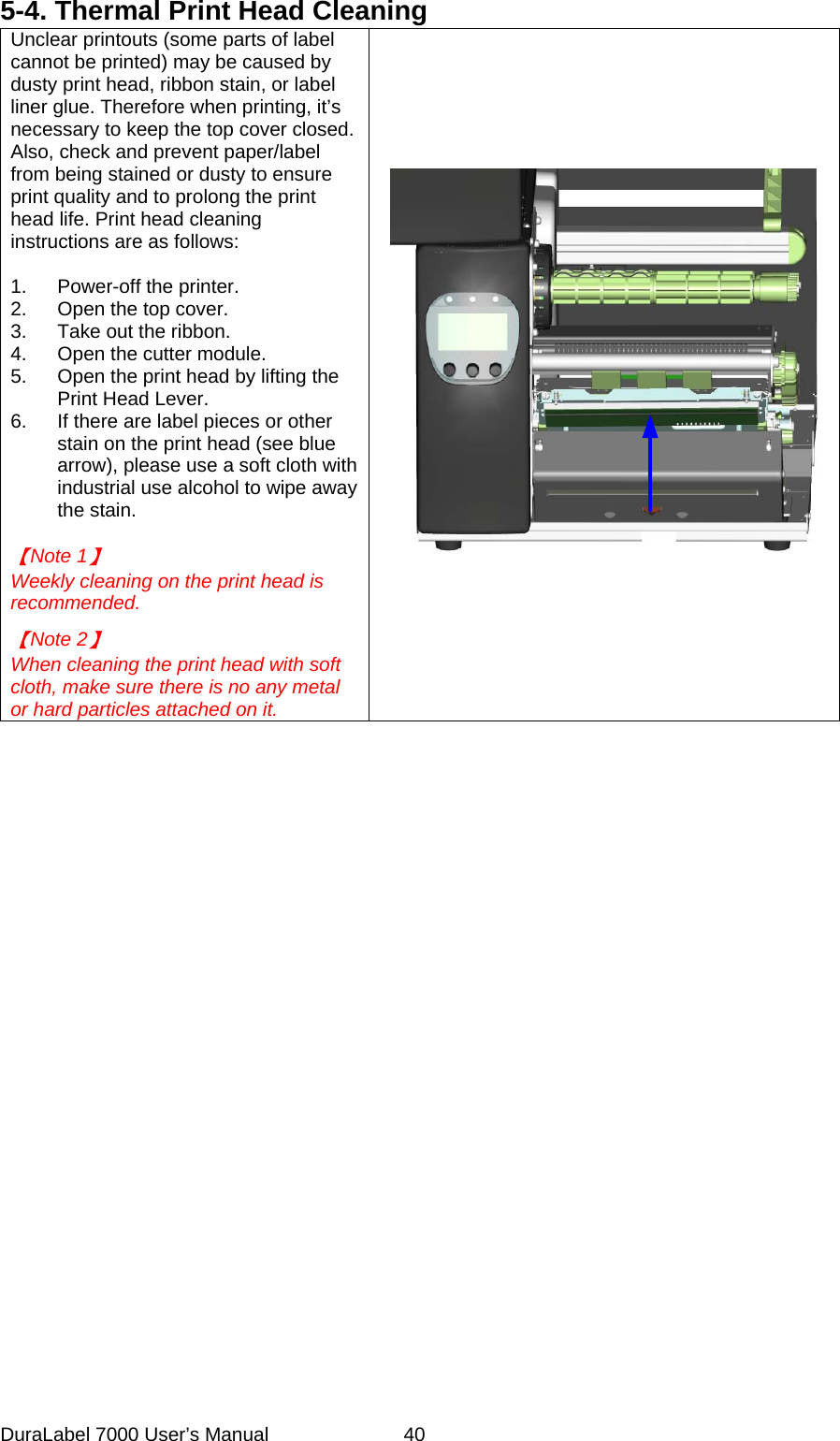
5-4. Thermal Print Head Cleaning Unclear printouts (some parts of label cannot be printed) may be caused by dusty print head, ribbon stain, or label liner glue. Therefore when printing, it’s necessary to keep the top cover closed. Also, check and prevent paper/label from being stained or dusty to ensure print quality and to prolong the print head life. Print head cleaning instructions are as follows:  1.  Power-off the printer. 2.  Open the top cover. 3.  Take out the ribbon. 4.  Open the cutter module. 5.  Open the print head by lifting the Print Head Lever. 6.  If there are label pieces or other stain on the print head (see blue arrow), please use a soft cloth with industrial use alcohol to wipe away the stain.  【Note 1】 Weekly cleaning on the print head is recommended.  【Note 2】 When cleaning the print head with soft cloth, make sure there is no any metal or hard particles attached on it.  DuraLabel 7000 User’s Manual  40
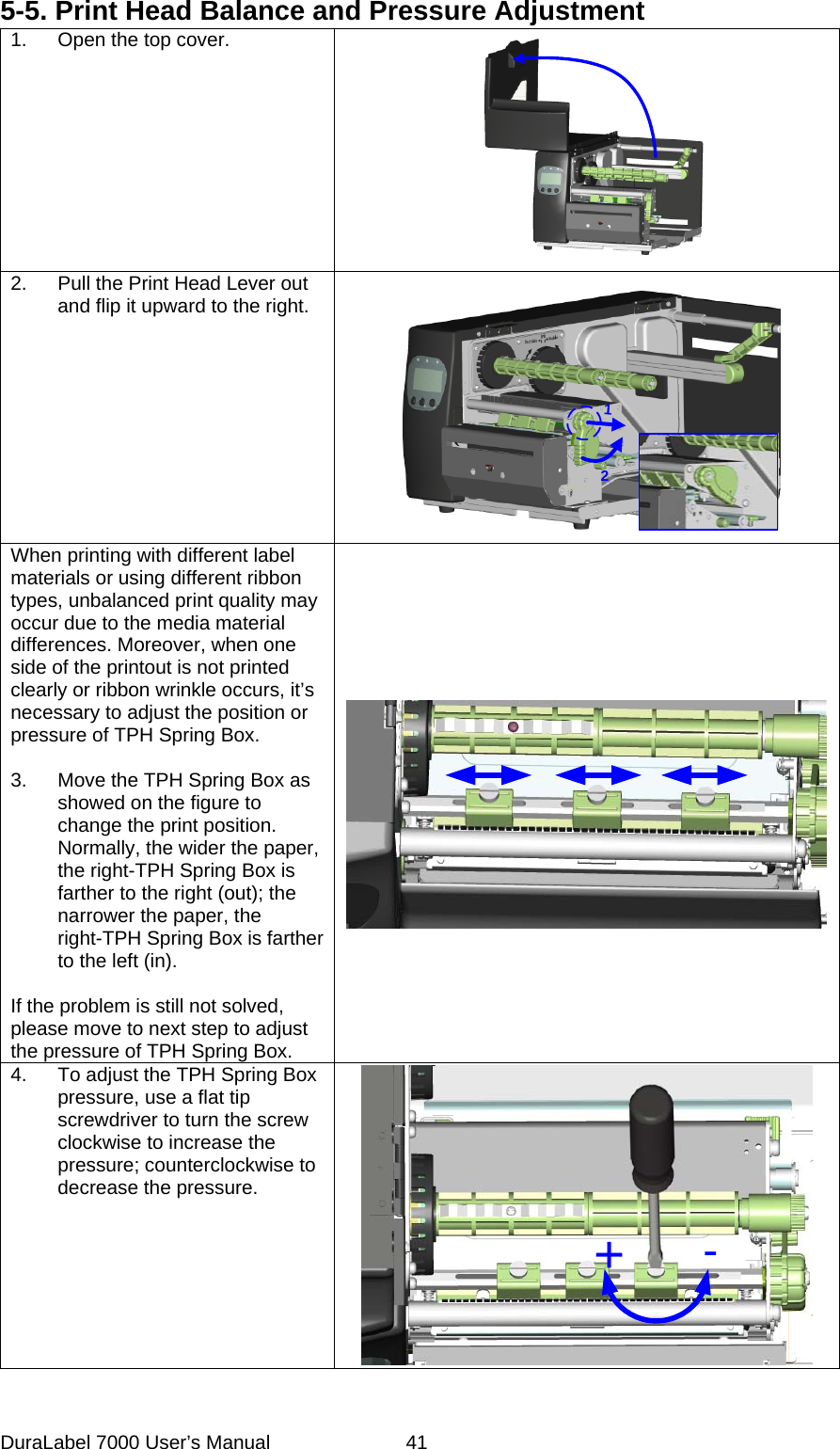
5-5. Print Head Balance and Pressure Adjustment 1.  Open the top cover.  2.  Pull the Print Head Lever out and flip it upward to the right. 12 When printing with different label materials or using different ribbon types, unbalanced print quality may occur due to the media material differences. Moreover, when one side of the printout is not printed clearly or ribbon wrinkle occurs, it’s necessary to adjust the position or pressure of TPH Spring Box.  3.  Move the TPH Spring Box as showed on the figure to change the print position. Normally, the wider the paper, the right-TPH Spring Box is farther to the right (out); the narrower the paper, the right-TPH Spring Box is farther to the left (in).  If the problem is still not solved, please move to next step to adjust the pressure of TPH Spring Box.  4.  To adjust the TPH Spring Box pressure, use a flat tip screwdriver to turn the screw clockwise to increase the pressure; counterclockwise to decrease the pressure. +-  DuraLabel 7000 User’s Manual  41
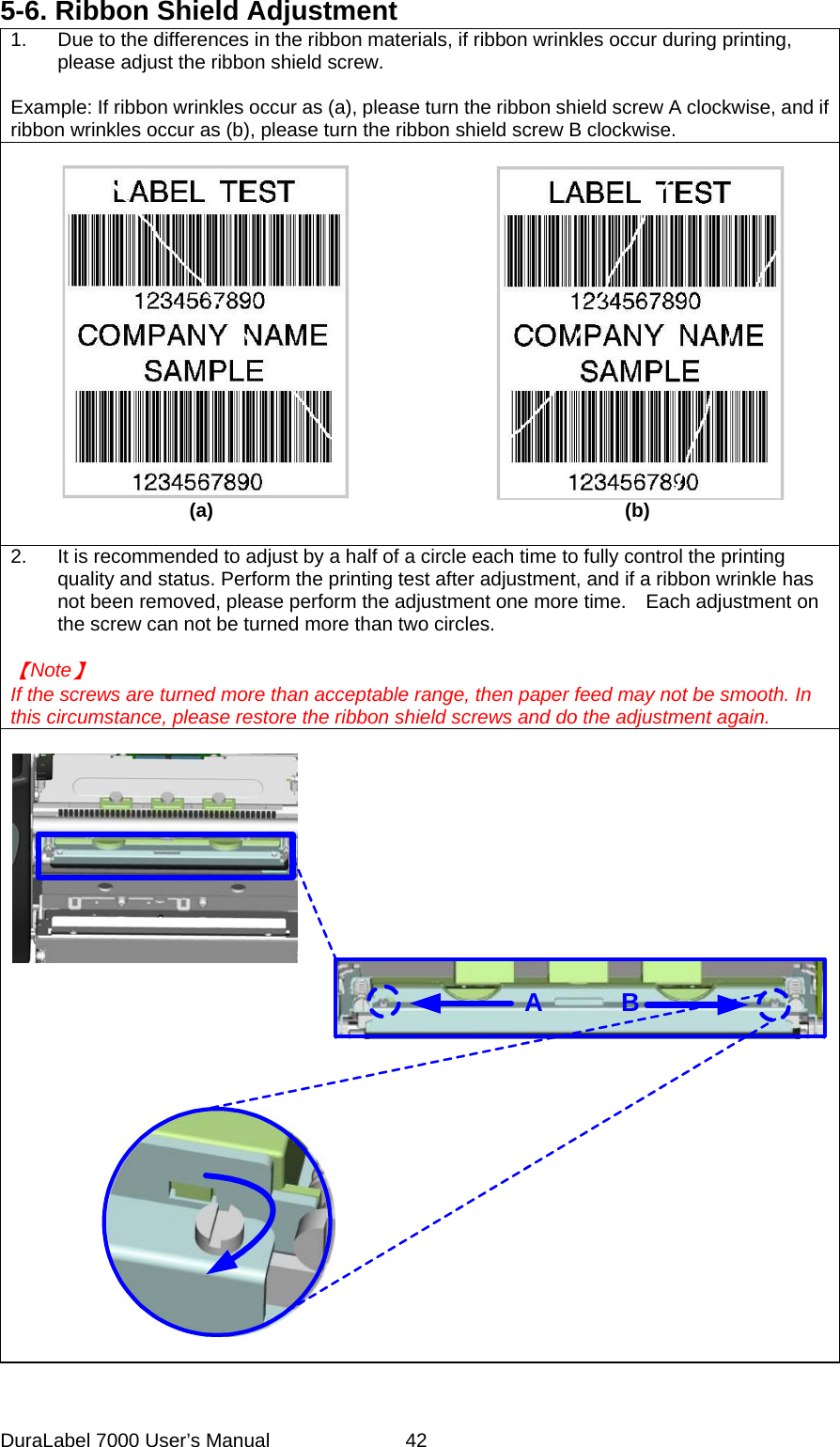
5-6. Ribbon Shield Adjustment   1.  Due to the differences in the ribbon materials, if ribbon wrinkles occur during printing, please adjust the ribbon shield screw.  Example: If ribbon wrinkles occur as (a), please turn the ribbon shield screw A clockwise, and if ribbon wrinkles occur as (b), please turn the ribbon shield screw B clockwise.                   (a)                                          (b)  2.  It is recommended to adjust by a half of a circle each time to fully control the printing quality and status. Perform the printing test after adjustment, and if a ribbon wrinkle has not been removed, please perform the adjustment one more time.    Each adjustment on the screw can not be turned more than two circles.  【Note】 If the screws are turned more than acceptable range, then paper feed may not be smooth. In this circumstance, please restore the ribbon shield screws and do the adjustment again.      AB DuraLabel 7000 User’s Manual  42
5-7. CF Card Instruction DuraLabel 7000 has built-in CF Card slot on the back of the printer. If the built-in memory is insufficient for storing label formats, graphics or fonts, users can use CF Card as external memory to provide more memory space.  When using the CF card, please follow the instruction as below:  1.  Please power off the printer before installing or removing CF Card from the card slot. 2.  The CF Card cannot be used for printer’s external memory until it is formatted in FAT16. When the printer has detected that the CF card is not formatted in FAT16, the LCD will show the message of “CF card not formatted, press FEED to format”.   3.  If user wants to format the CF Card, please follow the instruction to press the “FEED” key, and then the printer will format the CF Card in FAT16. 4.  After the format is complete, a file folder named “CF” would be created automatically. This folder is for storing all the data from the printer, please don’t do any change on it.   5.  The specification of CF Card that is supported by the printer is as follow: z  Compact Flash Type I   z  Compact Flash (CF) v1.4 specification z  Capacity: 128MB ~ 1GB z File system: FAT16  DuraLabel 7000 User’s Manual  43
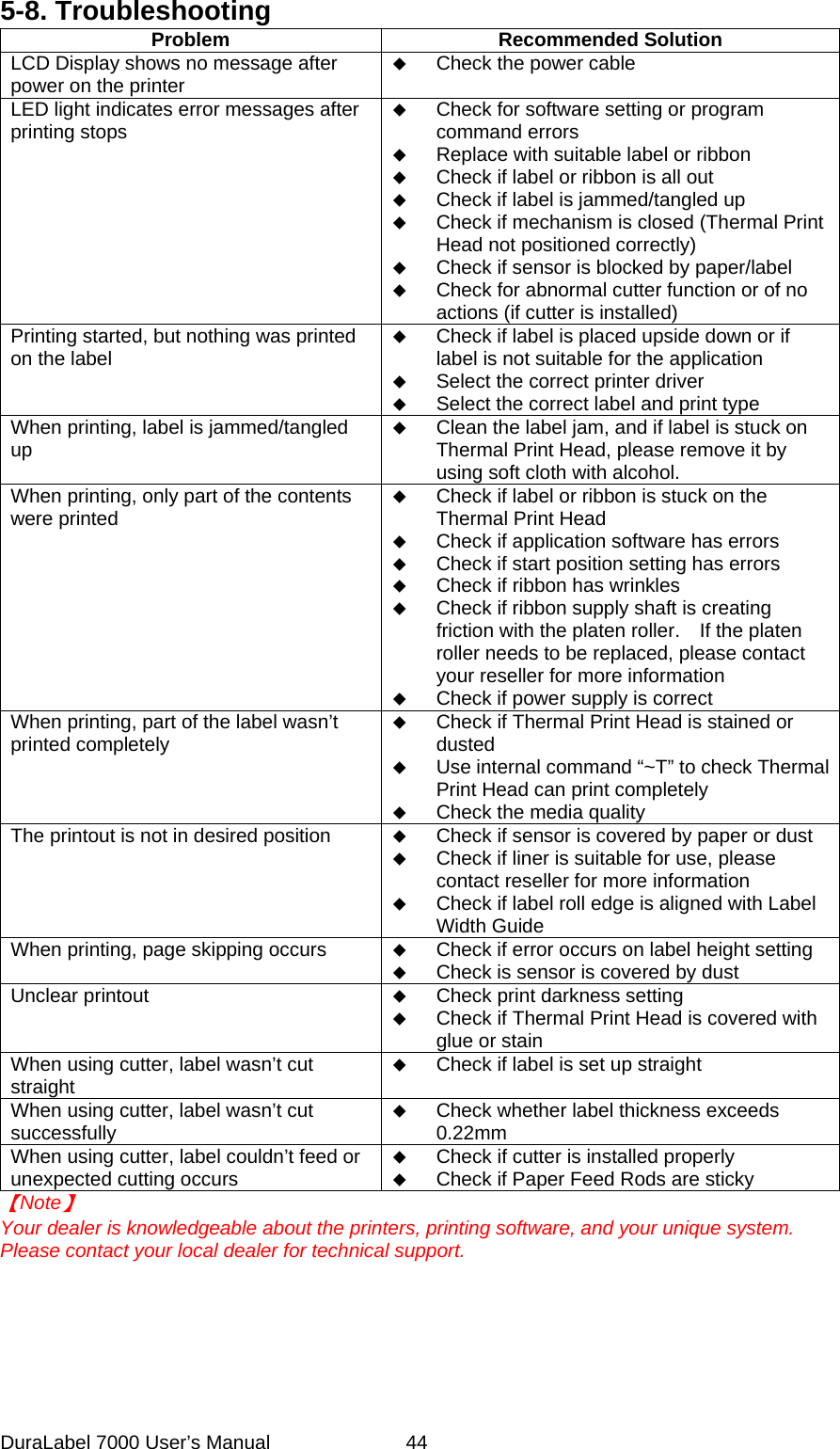
5-8. Troubleshooting Problem Recommended Solution LCD Display shows no message after power on the printer  Check the power cable LED light indicates error messages after printing stops  Check for software setting or program command errors  Replace with suitable label or ribbon  Check if label or ribbon is all out  Check if label is jammed/tangled up  Check if mechanism is closed (Thermal Print Head not positioned correctly)  Check if sensor is blocked by paper/label  Check for abnormal cutter function or of no actions (if cutter is installed) Printing started, but nothing was printed on the label  Check if label is placed upside down or if label is not suitable for the application  Select the correct printer driver  Select the correct label and print type When printing, label is jammed/tangled up  Clean the label jam, and if label is stuck on Thermal Print Head, please remove it by using soft cloth with alcohol. When printing, only part of the contents were printed  Check if label or ribbon is stuck on the Thermal Print Head  Check if application software has errors  Check if start position setting has errors  Check if ribbon has wrinkles  Check if ribbon supply shaft is creating friction with the platen roller.    If the platen roller needs to be replaced, please contact your reseller for more information  Check if power supply is correct When printing, part of the label wasn’t printed completely  Check if Thermal Print Head is stained or dusted  Use internal command “~T” to check Thermal Print Head can print completely  Check the media quality The printout is not in desired position   Check if sensor is covered by paper or dust  Check if liner is suitable for use, please contact reseller for more information  Check if label roll edge is aligned with Label Width Guide When printing, page skipping occurs   Check if error occurs on label height setting  Check is sensor is covered by dust Unclear printout   Check print darkness setting  Check if Thermal Print Head is covered with glue or stain When using cutter, label wasn’t cut straight  Check if label is set up straight When using cutter, label wasn’t cut successfully  Check whether label thickness exceeds 0.22mm When using cutter, label couldn’t feed or unexpected cutting occurs  Check if cutter is installed properly  Check if Paper Feed Rods are sticky 【Note】 Your dealer is knowledgeable about the printers, printing software, and your unique system.   Please contact your local dealer for technical support.      DuraLabel 7000 User’s Manual  44

Navigation menu