Godex STE5 Thermal Label Printer User Manual STE5 Eng
Godex International Co., Ltd. Thermal Label Printer STE5 Eng
Godex >
user manual
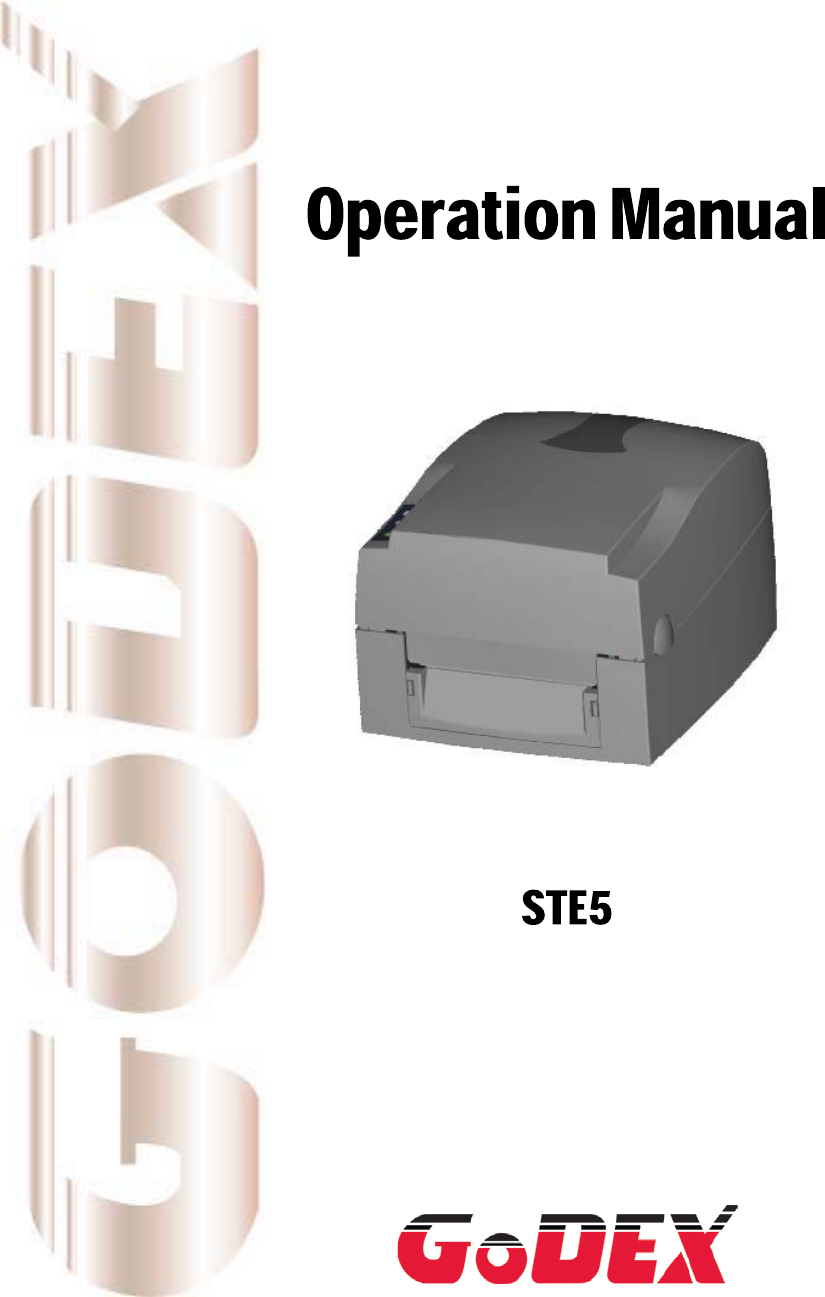
P/N. 920-013911-00
Rev. D, 03.2013
STE5 Operation Manual
1
CAUTION
Danger of explosion if battery is incorrectly replaced
Replace only with the equivalent type recommended by the manufacture.
Dispose of used batteries according to the manufacturer’s instructions.
STE5 Operation Manual
2
Safety Instructions
Bitte die Sicherheitshinweise sorgfältig lesen und für später aufheben.
1. Die Geräte nicht der Feuchtigkeit aussetzen.
2. Bevor Sie die Geräte ans Stromnetz anschließen, vergewissern Sie Sich, dass die
Spannung des Geräts mit der Netzspannung übereinstimmt.
3. Nehmen Sie das Gerät bei Überspannungen (Gewitter) vom Netz. Das Gerät könnte
sonst Schaden nehmen.
4. Sollte versehentlich Flüssigkeit in das Gerät gelangen, so ziehen sofort den
Netzstecker. Anderenfalls besteht die Gefahr eines lebensgefährlichen elektrischen
Schlags.
5. Wartungs- und Reparaturarbeiten dürfen aus Sicherheitsgründen nur von
autorisierten Personen durchgeführt werden.
6. Bei Wartungs- und Reparaturarbeiten müssen die Sicherheitsvorschriften der
zuständigen Berufsverbände und Behörden unbedingt eingehalten werden.
7. Bei Verletzungen unbedingt den Arzt aufsuchen und die gegebenenfalls die
zuständigen Stellen benachrichtigen. Unterlassung kann zum Verlust der
Versicherungsleistungen führen.
STE5 Operation Manual
3
Safety Instructions
Please read the following instructions seriously.
1. Keep the equipment away from humidity.
2. Before you connect the equipment to the power outlet, please check the voltage of the
power source.
3. Disconnect the equipment from the voltage of the power source to prevent possible
transient over voltage damage.
4. Don’t pour any liquid to the equipment to avoid electrical shock.
5. ONLY qualified service personnel for safety reason should open equipment.
6. Don’t repair or adjust energized equipment alone under any circumstances. Someone
capable of providing first aid must always be present for your safety
7. Always obtain first aid or medical attention immediately after an injury. Never neglect
an injury, no matter how slight it seems.
STE5 Operation Manual
4
1. BARCODE PRINTER AND RFID TAG ENCODER ..................... 5
1-1. Printer Accessories ......................................................................................................... 5
1-2. General Specifications .................................................................................................... 5
1-3. Communication Interface ................................................................................................ 7
1-4. Printer Parts .................................................................................................................... 8
2. PRINTER INSTALLATION ........................................................ 10
2-1. Ribbon Installation ........................................................................................................ 10
2-2. Label Installation ........................................................................................................... 12
2-3. Label Roll Core Installation Instruction ......................................................................... 14
2-4. Card / Hang tags Installation ........................................................................................ 15
2-5. PC Connection .............................................................................................................. 15
3. PRINTER SETTING .................................................................. 16
3-1. FEED Key ..................................................................................................................... 16
3-2. LED Status .................................................................................................................... 16
3-3. Auto Sensing ................................................................................................................. 16
3-4. Self-Test page ............................................................................................................... 17
3-5. Error Messages ............................................................................................................. 18
4. RFID TAG ENCODING ............................................................. 19
4-1. Install and Register Smart Media Manager .................................................................. 19
4-2. RFID Tag Encoding ...................................................................................................... 22
4-3. RFID Utilities ................................................................................................................. 25
4-4. RFID Messages ............................................................................................................ 27
5. ACCESSORY ............................................................................ 28
5-1. Stripper Module Installation .......................................................................................... 28
6. Maintenance and Adjustment .......................................................................................... 31
6-1. Thermal Print Head Cleaning ....................................................................................... 31
6-2. Thermal Print Head Balance Adjustment ...................................................................... 31
6-3. Print Line Adjustment .................................................................................................... 32
6-4. Adjust the cutter ............................................................................................................ 32
6-5. Troubleshooting ............................................................................................................ 33

STE5 Operation Manual
5
1. Barcode Printer and RFID Tag Encoder
The main purpose of STE5 is encoding a series of label attributes into a RFID tag. It can also
print readable content on the Smart Label that contains the RFIF tag. However, it cannot perform
normal printing alone. Please note that the printing function is only available when doing RFID
encoding. The Smart Media Manger software is provided to control all of STE5 printing and
encoding functions.
1-1. Printer Accessories
After unpacking, please check the accessories that come with the package, and store
appropriately.
STE5
Power cord
Switching Power
USB Cable
Label Roll Core
Label Stop Plate
Quick Start Guide
Product CD
1-2. General Specifications
Model STE5
Print Method Thermal Transfer / Direct Thermal
Resolution 203 dpi (8 dot/mm)
Print Speed 4 IPS (100 mm/s)
Print Width 4.25” (108 mm)
Print Length Min. 0.39” (10 mm); Max. 68” (1727 mm)
Memory 4MB Flash (2MB for user storage) ; 8MB SDRAM
Sensor Type Adjustable reflective sensor. Fixed transmissive sensor, central aligned
Ribbon
Types: Wax, wax/resin, resin
Length: 981’ (300 m)
Width: 1.18” Min. - 4.33” (30 mm - 110 mm) Max.
Ribbon roll diameter: 2.67“ (68 mm)
Core diameter: 1” (25.4 mm)
RFID HF RFID tag can support the transponder ICs which the radio frequency is on
13.56MHz and follows the ISO/IEC 15693 standard
Printer Language EZPL
Software Label design software: SMM (Smart Media Manager)
Resident Fonts
Bitmap fonts: 6, 8, 10, 12, 14, 18, 24, 30, 16X26 and OCR A & B
Bitmap fonts 90°, 180°, 270° rotatable, single characters 90°, 180°, 270°
rotatable
Bitmap fonts 8 times expandable in horizontal and vertical directions
Scalable fonts 90°, 180°, 270° rotatable

STE5 Operation Manual
6
Barcodes
1-D Bar codes:
Code 39, Code 93, Code 128 (subset A, B, C), UCC/EAN-128 K-Mart,
UCC/EAN-128, UPC A / E (add on 2 & 5), I 2 of 5, I 2 of 5 with Shipping Bearer
Bars, EAN 8 / 13 (add on 2 & 5), Codabar, Post NET, EAN 128, DUN 14, HIBC,
MSI (1 Mod 10), Random Weight, Telepen, FIM, China Postal Code, RPS 128
and GS1 DataBar
2-D Bar codes:
PDF417, Datamatrix code, MaxiCode, QR code and Micro QR code
Code Pages
CODEPAGE 437, 850, 851, 852, 855, 857, 860, 861, 862, 863, 865, 866, 869,
737
WINDOWS 1250, 1251, 1252, 1253, 1254, 1255
Unicode (UTF8, UTF16)
Graphics Resident graphic file types are BMP and PCX, other graphic formats are
downloadable from the software
Interfaces Serial port: RS-232 (DB-9)
USB port (default on)
Parallel port: Centronics 36-pin
Control Panel Two bi-color status-LEDs: Ready, Status
Control key: FEED
Power Auto Switching 100-240VAC, 50-60Hz
Environment Operation temperature: 41°F to 104°F (5°C to 40°C)
Storage temperature: -4°F to 122°F (-20°C to 50°C)
Humidity Operation: 30-85%, non-condensing.
Storage: 10-90%, non-condensing.
Agency
Approvals FCC part 15C class B
Dimension Length: 11.2” (285 mm)
Height: 6.8” (171 mm)
Width: 8.9” (226 mm)
Weight 6 lbs (2.72Kg) ,excluding consumables
Options Label Stripper
External label roll holder for 10” (250 mm) O.D. label rolls
External label rewinder
Specifications are subject to change without notice. All company and/or product names are
trademarks and/or registered trademarks of their respective owners.
STE5 Operation Manual
7
1-3. Communication Interface
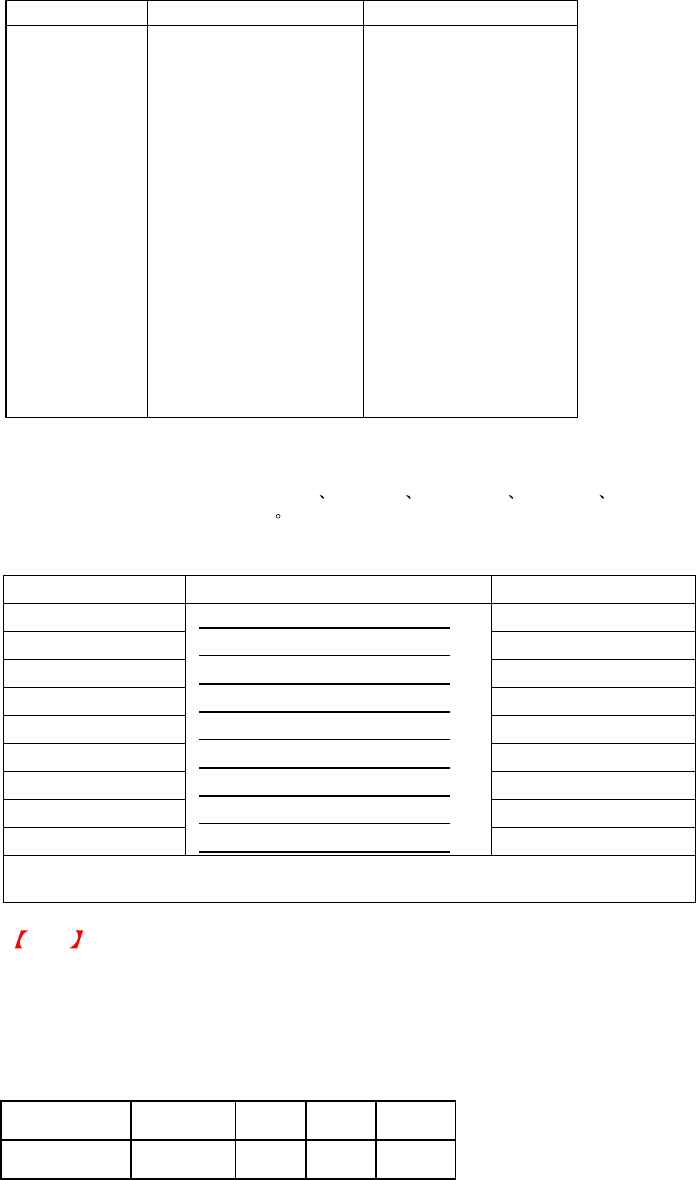
Parallel Interface
Handshake : DSTB connects to the printer, BUSY connects to the host
Interface cable : Parallel cable compatible to IBM PC
Pin out : See below
PIN NO. FUNCTION TRANSMITTER
1
2-9
10
11
12
13
14
15
16
17
18
19-30
31
32
33
34-35
36
/Strobe
Data 0-7
/Acknowledge
Busy
/Paper empty
/Select
/Auto-Linefeed
N/C
Signal Gnd
Chasis Gnd
+5V,max 500mA
Signal Gnd
/Initialize
/Error
Signal Ground
N/C
/Select-in
host / printer
host
printer
printer
printer
printer
host / printer
host
host / printer
printer
host / printer
Serial Interface
Serial Default
Setting : 9600 baud rate no parity 8 data bits 1 stop bit XON/XOFF protocol and
RTS/CTS
RS232 HOUSING (9-pin to 9-pin)
DB9 SOCKET DB9 PLUG
--- 1 1 +5V,max 500mA
RXD 2 2 TXD
TXD 3 3 RXD
DTR 4 4 N/C
GND 5 5 GND
DSR 6 6 RTS
RTS 7 7 CTS
CTS 8 8 RTS
RI 9 9 N/C
PC PRINTER
Note The total current output from parallel port and serial port altogether can not exceed
500mA.
USB Interface
Connector Type : Type B
PIN NO. 1 2 3 4
FUNCTION VBUS D- D+ GND
STE5 Operation Manual
8
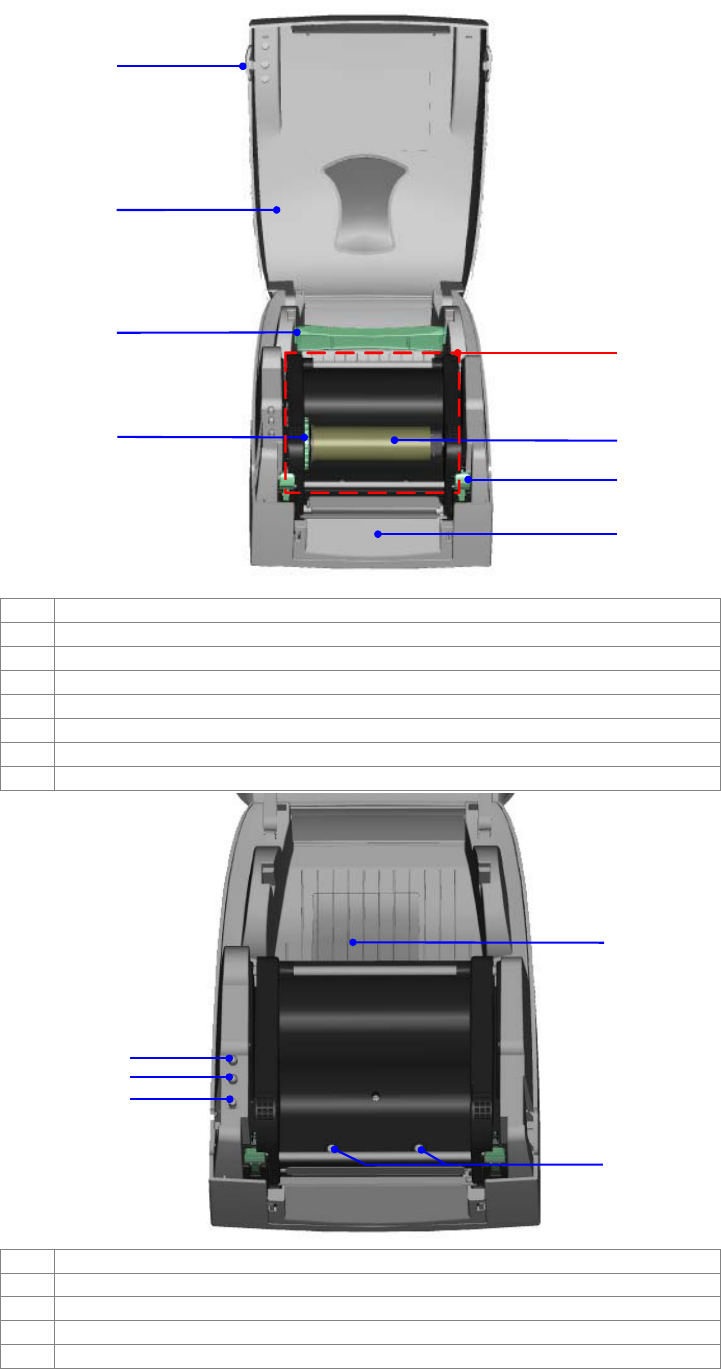
1-4. Printer Parts
2
1
3
4
5
6
7
8
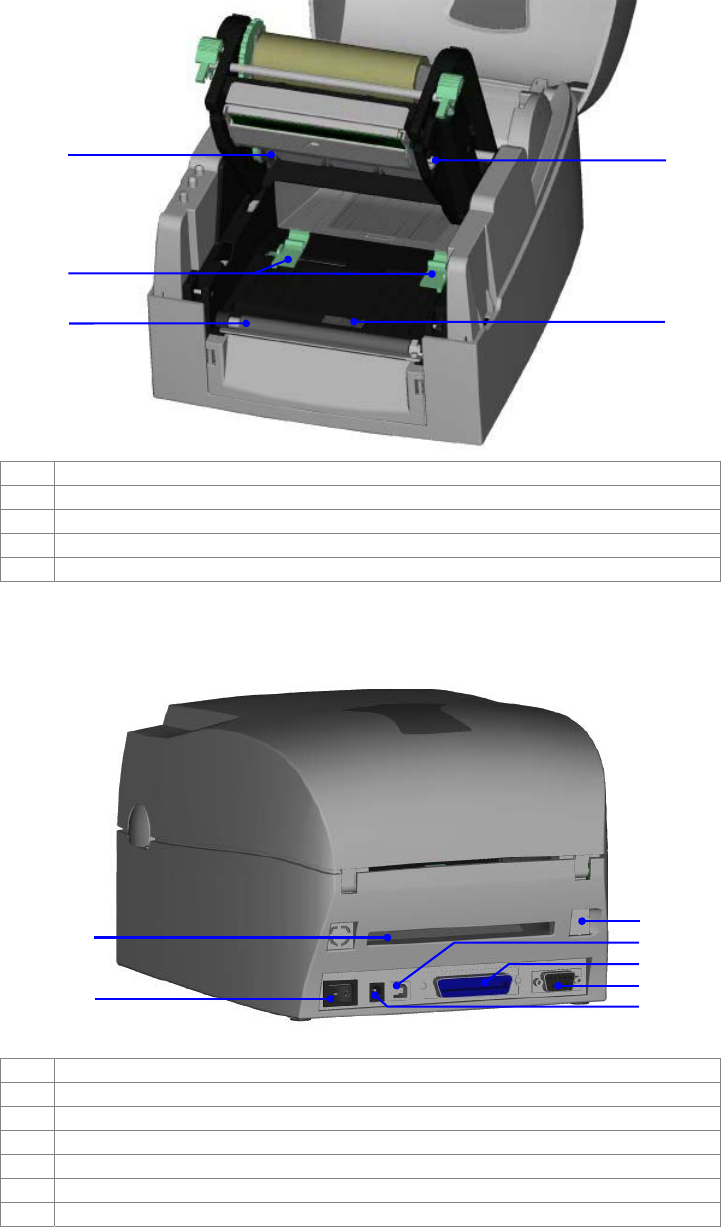
1. Cover Open Button
2. Top Cover
3. Label Roll Core
4. Ribbon Rewind Wheel
5. Print Mechanism
6. Ribbon Rewind Shaft + Empty Ribbon Roll
7. Locking Tenon (left/right)
8. Front Cover Piece
2
1
3
4
5
1. LED Light (Ready)
2. LED Light (Status)
3. FEED Key
4. CF Card Slot Cove
r
5. Print Head Pressure Adjustment Screw (left/right)
STE5 Operation Manual
9
4
5
1
3
2
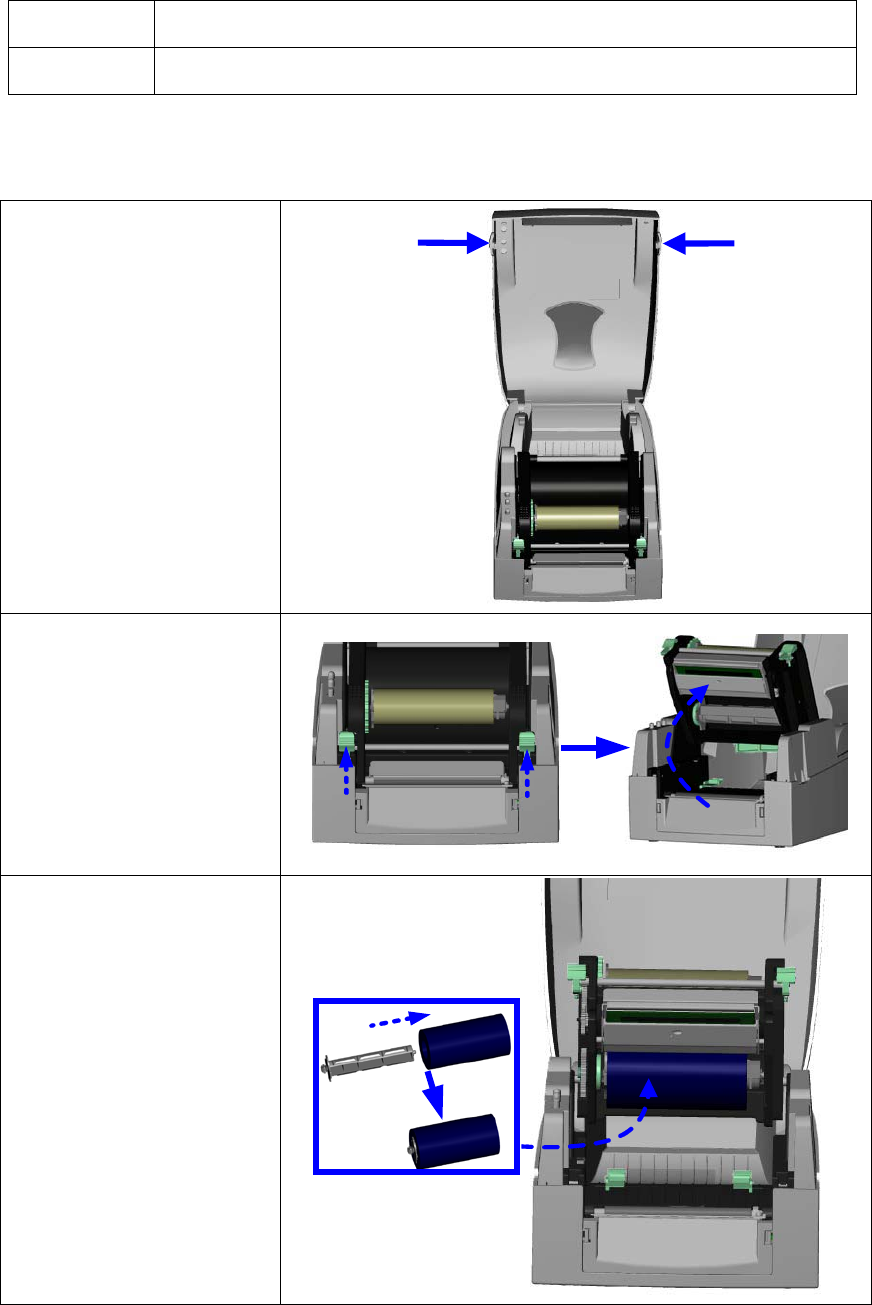
1. Ribbon Supply Shaft
2. Label Guide
3. Platen Roller
4. Print Line Adjustment Gear
5. Label Senso
r
1
2
5
4
6
7
3
1. Fan-Fold Label Insert
2. Power Switch
3. Ethernet Socket (Option)
4. USB Port
5. Parallel Port
6. Serial Port (RS-232)
7. Power Socket
* The communication ports may vary depending on product types.
STE5 Operation Manual
10
2. Printer Installation
This printer model has the following print modes:
Thermal
Transfer (TT) When printing, ribbon must be installed to transfer the print contents onto the
media.
Direct Thermal
(DT) When printing, no ribbon is necessary; it only requires direct thermal media.
Please check which print mode you will use and then go into the Setting Mode to change the
print mode setting if necessary.
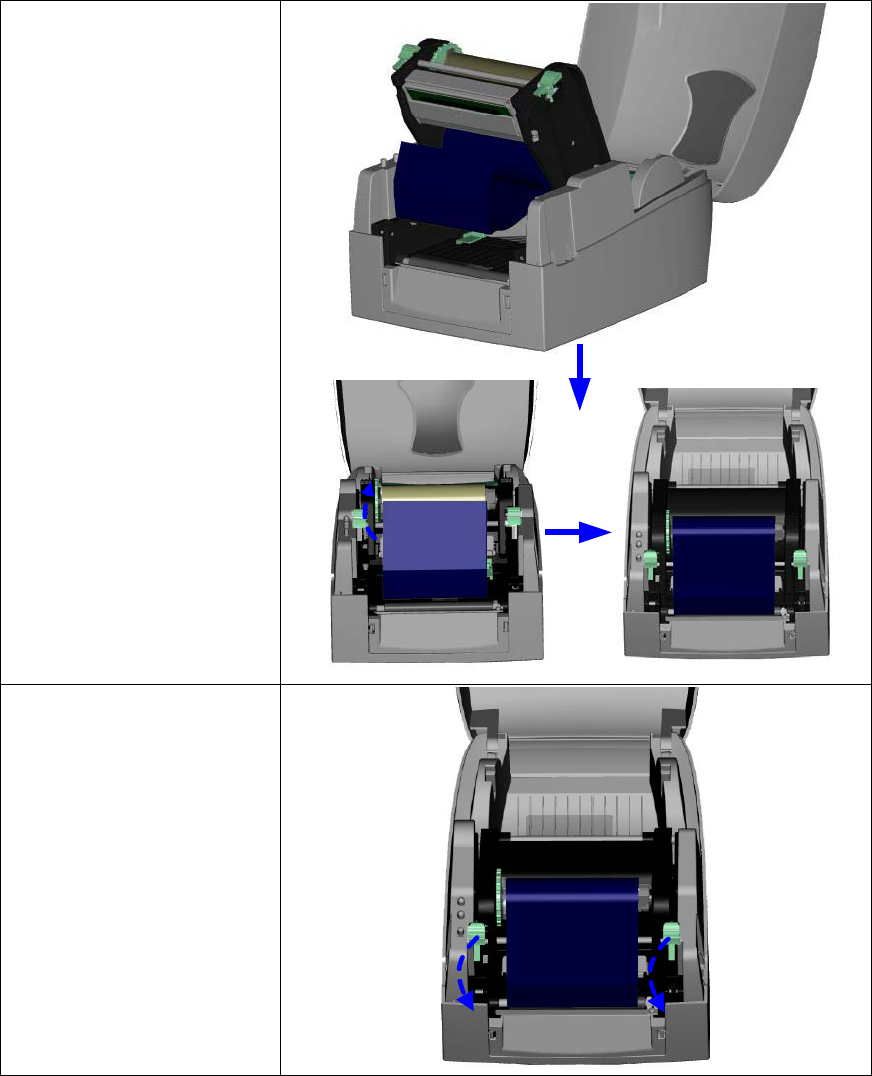
2-1. Ribbon Installation
1. Place the printer on a
horizontal surface, and
open the top cover by
pressing the Cover
Open Buttons on both
sides.
2. Loosen and then lift the
upper print mechanism
by pressing the locking
tenons.
3. Place a new ribbon roll
onto the ribbon supply
shaft.
STE5 Operation Manual
11
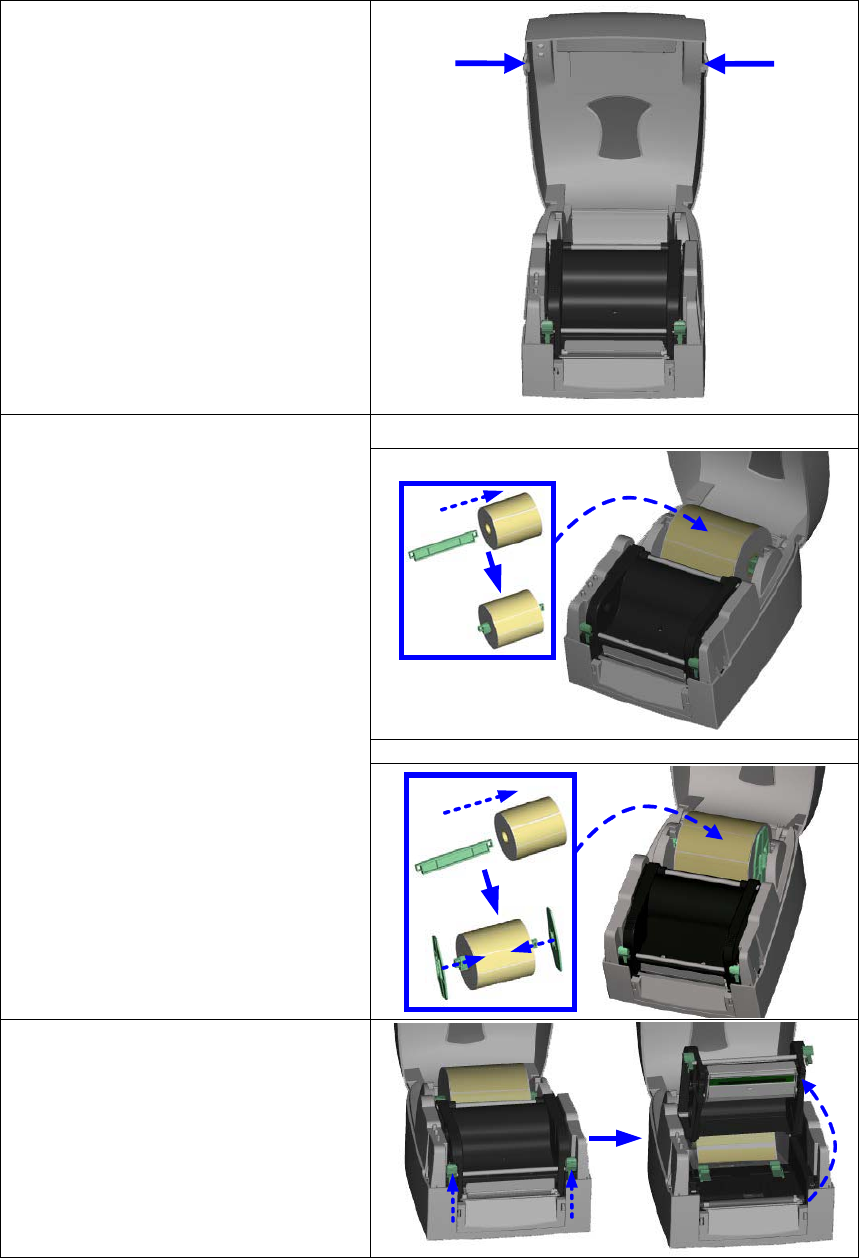
4. Feed the ribbon from
the Ribbon Supply
Shaft under the Print
Head.
5. Wrap the ribbon around
the Ribbon Shaft and
stick the ribbon onto the
Empty Ribbon Roll
Core.
6. Firmly close the upper
print mechanism.
STE5 Operation Manual
12
2-2. Label Installation
1. Open the top cover by pressing
the Cover Open Buttons on both
sides.
2. Insert the Label Roll Core into the
label roll and then place it into the
printer.
3. If it's necessary, you can also
assemble the Label Stop Plates
on both sides of label roll.
Without Label Stop Plate
With Label Stop Plate
4. Loosen and lift the upper print
mechanism by pressing the
locking tenons.
STE5 Operation Manual
13
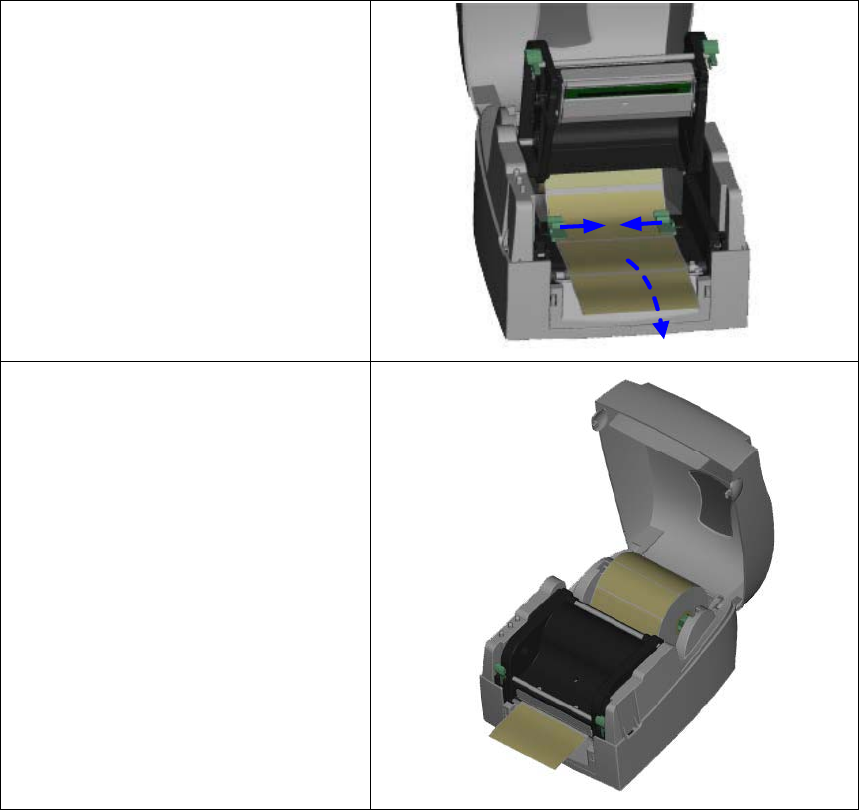
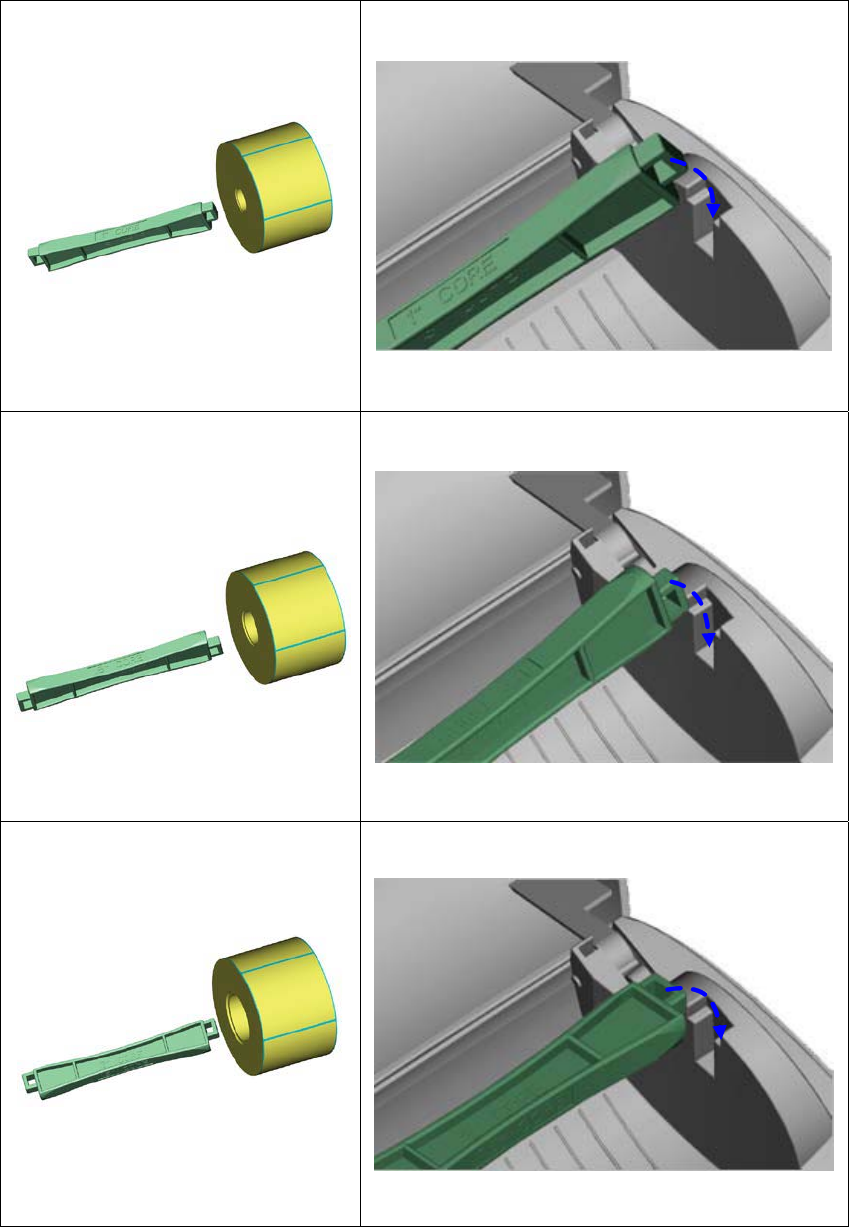
5. Feed the label through the two
Label Guides to the Tear-off Bar.
6. Align the label guides to the label
edge.
7. Close the upper print mechanism
from the top to finish label
installation.
STE5 Operation Manual
14
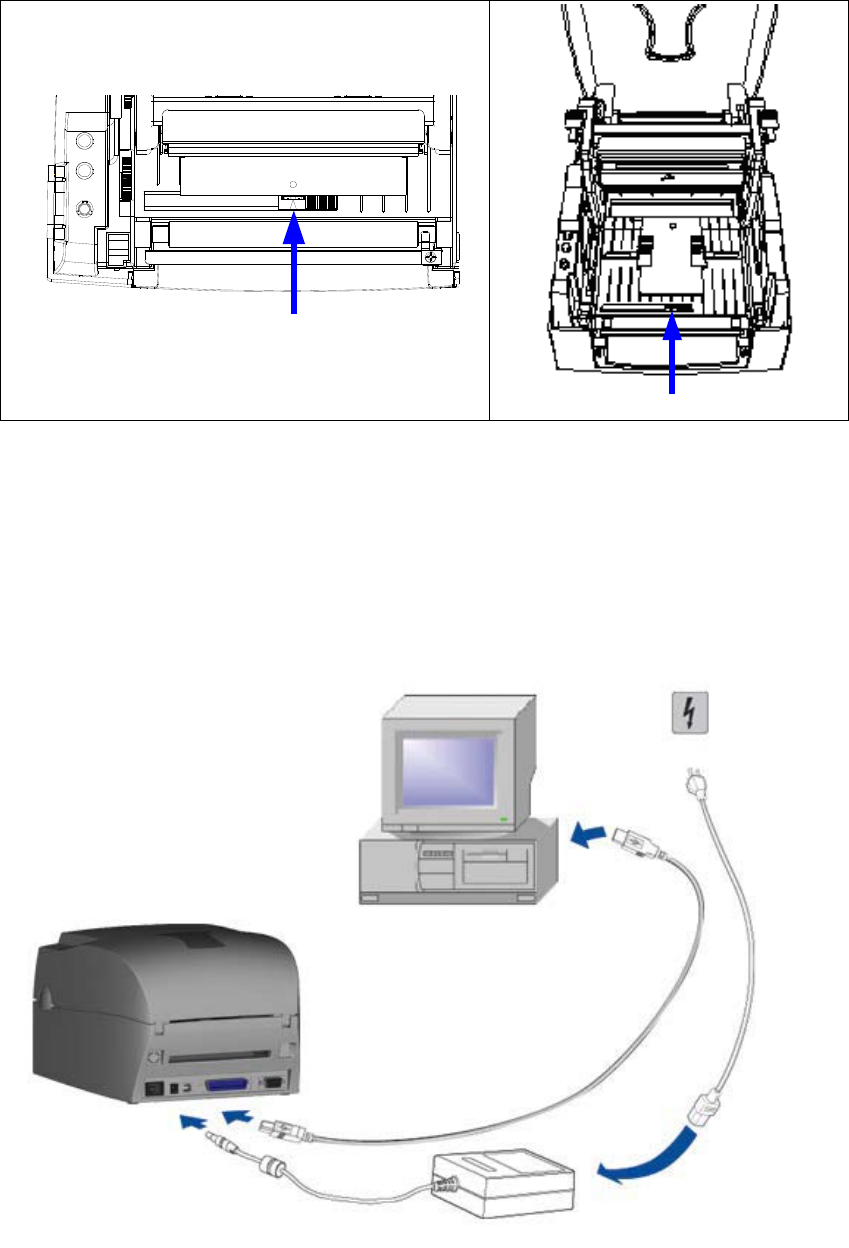
2-3. Label Roll Core Installation Instruction
(A) 1” roll core installation
(B) 1.5” roll core installation
(C) 3” roll core installation
STE5 Operation Manual
15
2-4. Card / Hang tags Installation
When installing cord tags, the tag hole must align
with the sensor arrow (as indicated in figure), then
use the Label Guide to secure the tags.
Tag hole position
Sensor Detection Position
Sensor
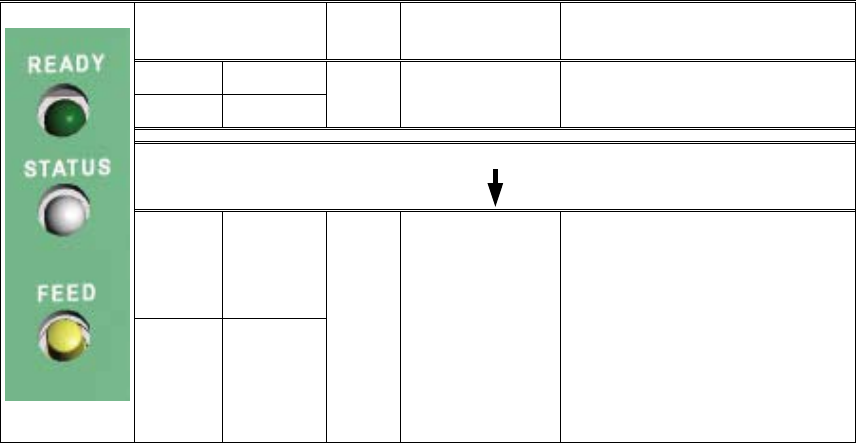
2-5. PC Connection
1. Please make sure the printer is powered off.
2. Take the power cable, plug the cable switch to the power socket, and then connect the
other end of the cable to the printer power socket.
3. Connect the cable to the USB/parallel port on the printer and on the PC.
4. Power on the PC and the printer and the printer’s LED light will shine.
STE5 Operation Manual
16
3. Printer Setting
3-1. FEED Key
After pressing the FEED key, printer will feed the media (according to media type) to the
specified stop position. When printing with continuous media, pressing the FEED key will feed
the media out to a certain length. When printing with labels, the printer will feed one label each
time the FEED key is pressed. If the label is not sent out in a correct position, please proceed
with the Auto Sensing (see next section).
3-2. LED Status
Press and hold the FEED key then power on the printer. Wait for the LED light flashing red and
then release the FEED key, the printer will enter into Auto Sensing Mode to do the calibration. A
Self-Test page will be printed out automatically after the calibration is completed. Below are the
sequence and the description of two modes:
LED Light Beep Status Description
READY Green X Normal status Normal status
STATUS X
Press and hold the FEED Key then power on the printer.
READY Red
(Flash)
3 Auto Sensing
Mode
Printers are currently in Auto
Sensing Mode. The calibration
will be performed and a
Self-Test page will be printed out
to show the configurations of
printer. For more detail about
Auto Sensing Mode, please refer
to next section. For the
descriptions of Self-Test page
please refer to page 17.
STATUS Orange
3-3. Auto Sensing
Printer can automatically detect the label and store the result of detecting. By doing this, the
printer will calibrate the printing position of the label and the user can do printing without setting
the label length. To perform the Auto Sensing, please do as follows:
1. Check if the label is correctly loaded on the printer.
2. Power off the printer, press and hold the FEED key.
3. Power on the printer while still holding the FEED key. Keep holding the FEED key, wait for
the LED light turn to flash red and then release the FEED key. Printer will automatically
detect the label and record it.
4. A Self-Test page will be printed out after Auto Sensing is completed and the printer goes
back to standby mode.
STE5 Operation Manual
17
3-4. Self-Test page
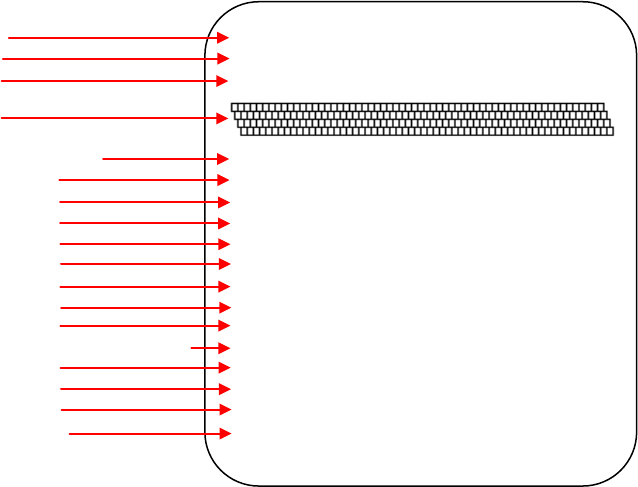
The Self-Test page helps user to figure out whether the printer is operating normally. Below are
some general descriptions about the content of Self-Test page:
STE5 : VX.XXX
Serial port :96,N,8,1
int-usb sw setting: ext-USB
1 DRAM installed
Image buffer size : 1500K
000 FORM(S) IN MEMORY
000 GRAPHIC (S) IN MEMORY
000 FONT(S) IN MEMORY
000 ASIAN FONT(S) IN MEMORY
000 DATABASE(S) IN MEMORY
000 TTF(S) IN MEMORY
2048K BYTES FREE MEMORY
^S4 ^H10 ^R000 ~R200
^W10 ^Q48,3
Option : ^D0 ^O0 ^AD
Reflective Sensor AD: 639 754 928 (10)
Code Page: 850
Model & Version
Serial port setup
USB port setting
Test pattern
Number of DRAM installed
Image buffer size
Number of forms
Number of graphics
Number of fonts
Number of Asian fonts
Number of Databases
Number of Scalable fonts
Free memory size
Speed, Density, Ref. Point, Print direction
Label width, Form length
Cutter, Stripper, Mode
Sensor Setting
Code Page

STE5 Operation Manual
18
3-5. Error Messages
LED Light Beep Description Solution
Ready Status
Red
4 beeps
twice Print head is not firmly closed. Re-open the print head and
make sure it closes tightly.
Red
(Flash) Red
(Flash) None The temperature of print head
is too high.
Wait for the print head
temperature drops to the
normal temperature range,
printer will go back to the
standby mode and the LED
light will stop flashing.
Red
3 beeps
twice
Ribbon is not installed, and
printer shows error message. Make sure the printer is in the
Direct Thermal mode.
Ribbon is used up or ribbon
supply shaft is not moving. Replace with new ribbon roll.
Red
2 beeps
twice
Unable to detect paper.
Make sure the movable sensor
mark is at the correct position,
if the sensor is still unable to
detect paper, and then go
through Auto Sensing again.
Paper used up. Replace with new label roll.
Red
2 beeps
twice Abnormal paper feed.
Possible causes: card tags or
paper fall into the gap behind
the platen roller, can’t find
label gap/black mark, black
mark paper out. Please adjust
it according to actual usage.
Red
2 beeps
twice Memory is full; printer will print
out “Memor
y
full.” Delete unnecessary data in
the memor
y
.
Red
2 beeps
twice
Can’t find the file; printer will
print out “Filename can not be
found.”
Use “~X4” command to print
out all the files, and then check
whether the file exist and the
file name is correct.
Red
2 beeps
twice
File name is repeated; printer
will print out “Filename is
repeated.”
Change the file name and
download again.
STE5 Operation Manual
19
4. RFID Tag Encoding
Before doing the RFID tag encoding, you should make sure below items are ready:
A STE5 printer that has been connected to PC through USB port.
The installation file of Smart Media Manager (SMM). You can get from the product CD.
A security code of SMM, which you can get from Godex.
The register file (with .LIC extension) of SMM. It should be provided by Godex, too.
Smart Labels with RFID tag that has been registered by Godex.
To do the RFID tag encoding, you should register the SMM first and then perform the encoding
and printing through the SMM. Please note that SMM is the only tool to make STE5 printing or
encoding.
4-1. Install and Register Smart Media Manager
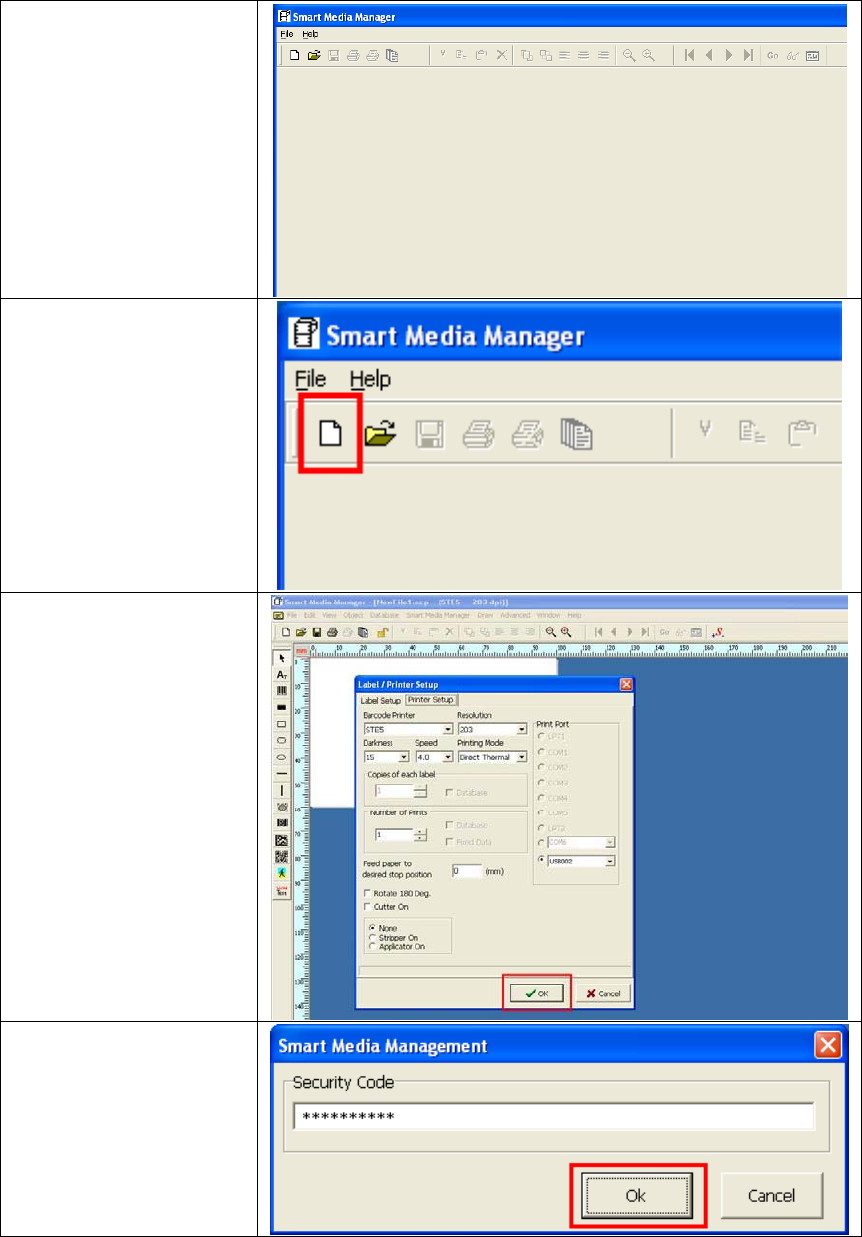
1. Insert the product CD
into PC's optical
driver.
2. On the user interface
of product CD, click
the installation link to
start the installation.
Or you can open the
file directory of product
CD and find the
installation file icon as
the figure showed.
3. Follow the instruction
of "Installation
Wizard" to complete
the installation.
4. You can find SMM
icon on PC's desktop
after the installation is
completed. To start
the SMM, just double
click the icon.
STE5 Operation Manual
20
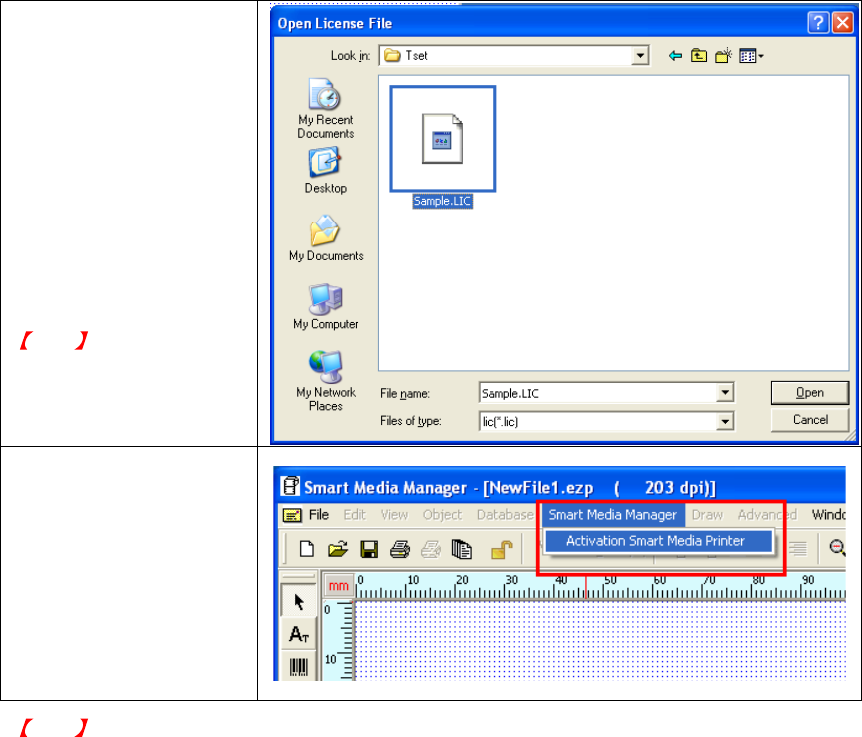
5. Before running the
SMM, please first
connect the STE5 to
PC through USB port
and turn on the
power.
6. Double click the SMM
icon to start the
program.
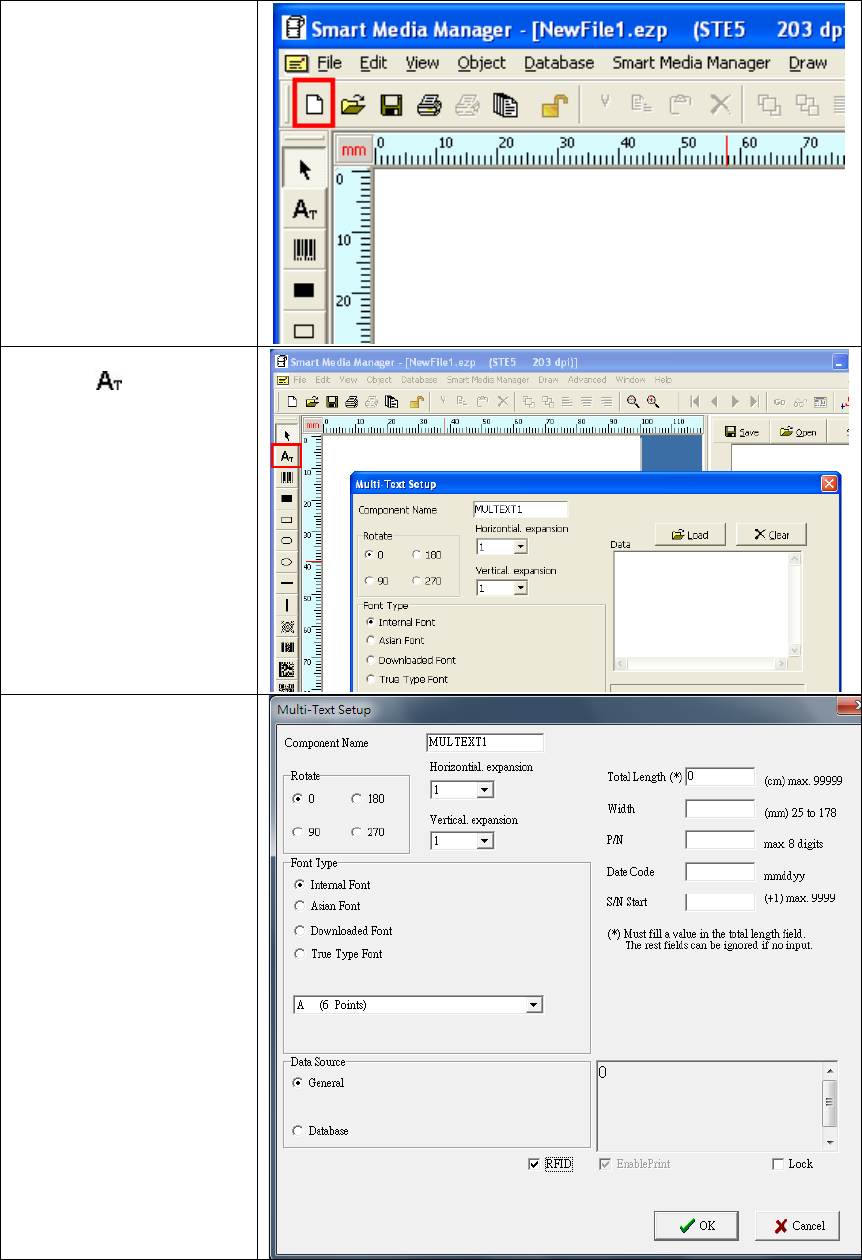
7. Click the "New" icon
on the up-left corner
of program window to
create a new label
file.
8. Complete label and
printer settings and
click the "OK" button.
A pop-up window will
be showed and ask
you to enter the
Security Code.
*Note: please refer to
"SMM Operation Manual"
for more details about
using and setting of SMM.
9. Enter the Security
Code on registration
window and then click
the "OK" button.
STE5 Operation Manual
21
10. If the Security Code is
accepted, the
program will then ask
to check the register
file. Please specify
the file path of register
file on the "Open
License File" window.
11. If the authorization of
Security code and
register is passed,
then you can start to
use SMM now.
Note
The Security Code and
register file should be
matched to each other and
can't be used separately.
12. After SMM has been
registered, you can
start to register STE5
printer now.
13. Please open the
registration window
from SMM's menu bar
and enter the same
Security code to
register STE5 printer.
Note
1. All SMM functions will be disabled before the registration is completed.
2. For security reason, you still need to enter the Security Code every time when the SMM is
started. However, the register file checking will be skipped after completed of first time
registration.
STE5 Operation Manual
22
4-2. RFID Tag Encoding
1. Follow the instruction
on "Chapter 2.2 Label
Installation" to load the
Smart Label properly
on STE5.
2. Press the "New Label"
icon on SMM tool bar
to start editing a new
label.
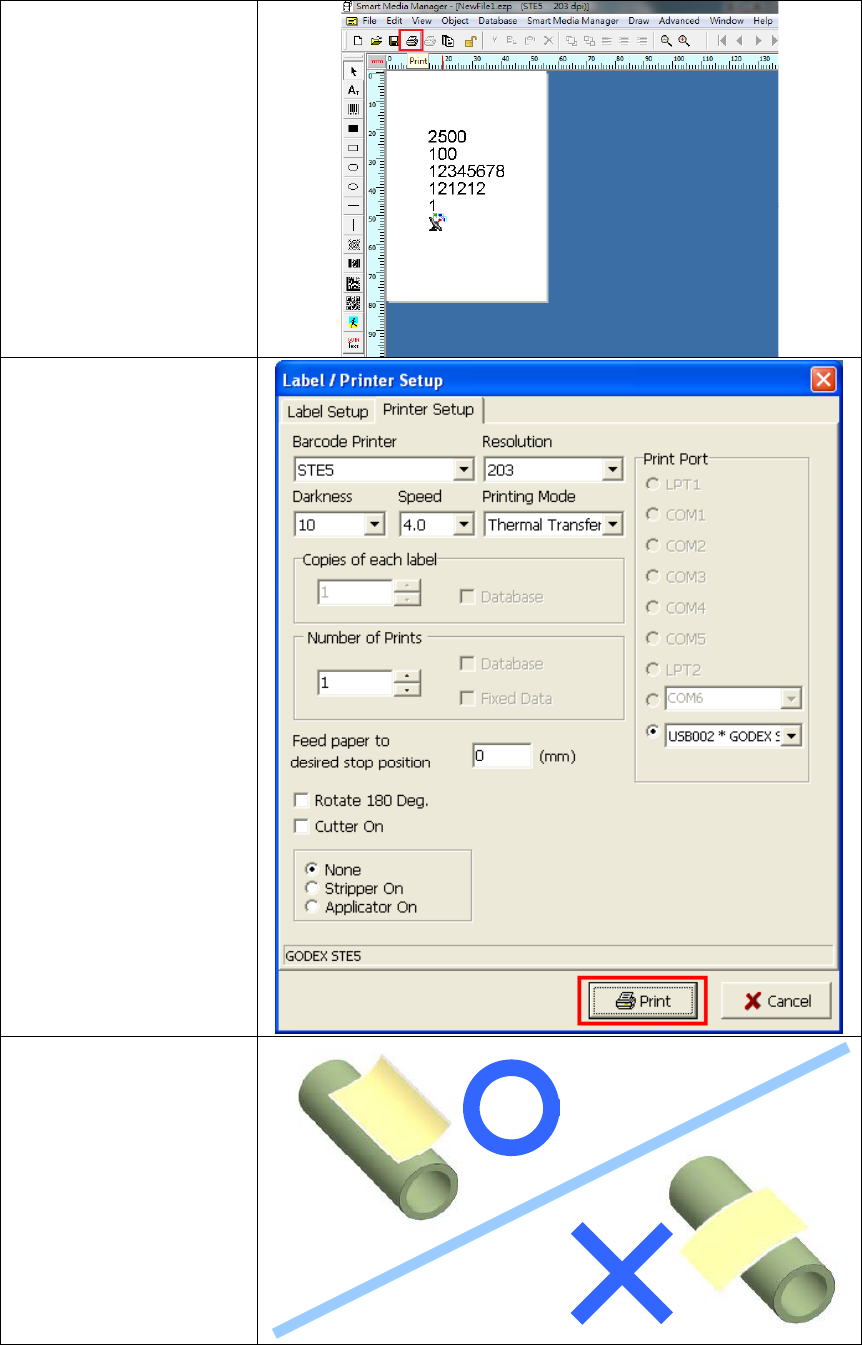
3. Press the "Printer
Font " icon on
SMM tool bar, a
Printer Font setting
page will pop up.
4. Tick the "RFID" option
on Printer Font setting
page, then the Printer
Font entry area will
switch to RFID entry
fields.

STE5 Operation Manual
23
5. In RFID entry fields,
you can put various
ribbon / label
configurations and
encode the
information into RFID
tag.
6. Press "OK" button on
the Printer Font setting
page when all RFID
entry fields are filled. A
RFID icon will appear
on the label editing
page to show the data
content in RFID tag.
7. If you need to print
readable content with
printer font on Smart
Label, just tick the
"Enable Print" option
and fill in the content
you want to print then
press "OK" button.
STE5 Operation Manual
24
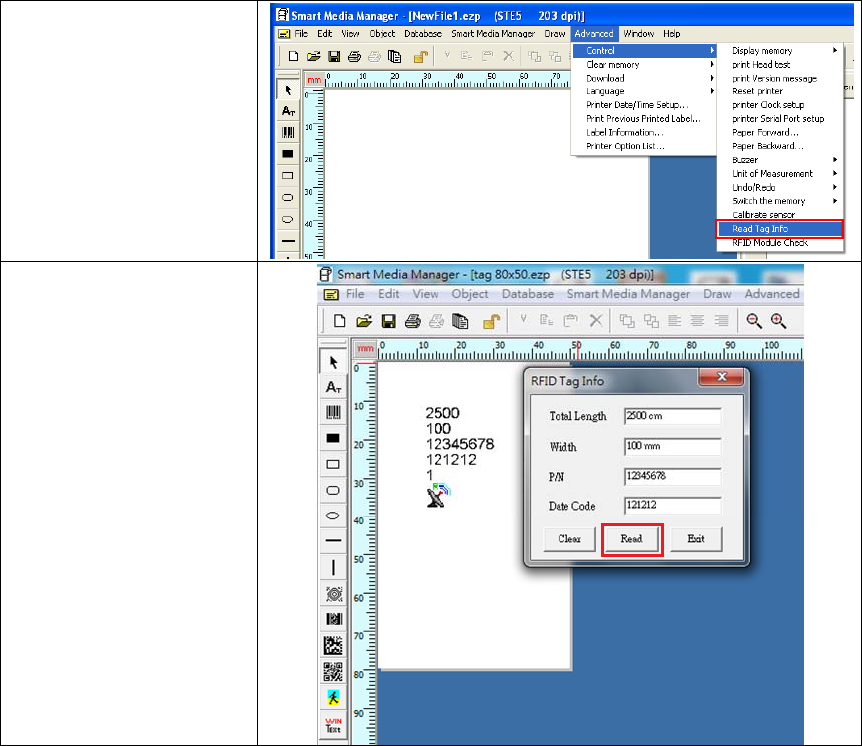
8. Press the "Printer"
icon on SMM tool bar
to enter Label / Printer
Setup page after RFID
tag and label editing
are completed.
9. On Label / Printer
Setup page, you can
change label and
printer settings
accordingly. Press the
"Print" button and the
printer will encode
RFID tag and print out
readable content at
the same time.
10. When sticking a
programmed Smart
Label on a new label
core, the Smart Label
should be parallel to
the label core as the
figure showed.
STE5 Operation Manual
25
4-3. RFID Utilities
SMM also provides two other RFID utilities to help user to check the status of RFID tag and RFID
module. The "RFID tag reading utility" can read the information in the RFID tag and the "RFID
module testing utility" will check if the module still works properly.
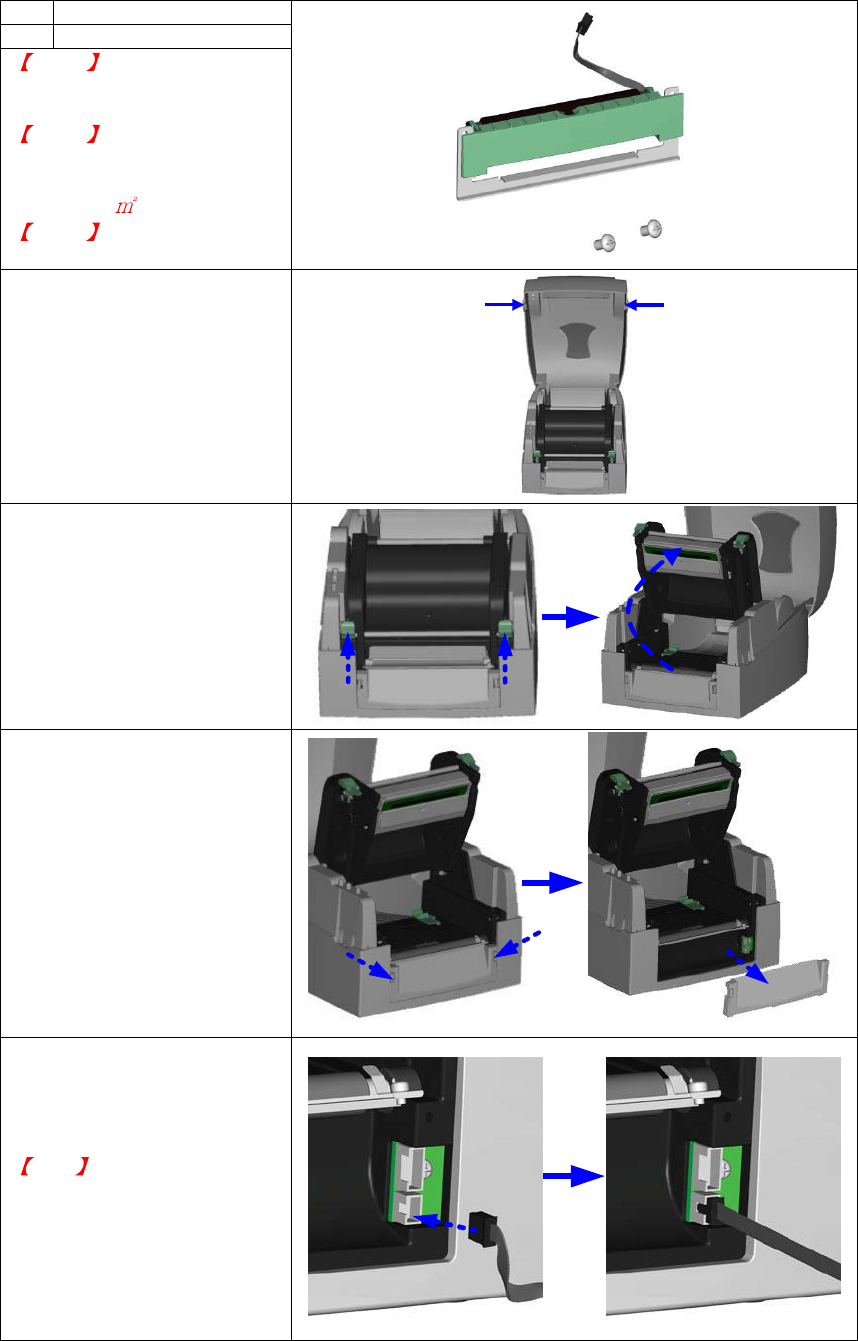
RFID tag Reading Utility
1. Load the Smart Label
properly on STE5.
2. Select the "Read Tag
Infor" function from
advanced functions on
SMM.
3. Press the "Read"
button on the bottom
of "RFID Tag Info"
display page. The
printer will start to read
the data that has been
encoded in RFID tag
and list the data on
corresponding data
fields. Hence you can
use this function to
check the correctness
of encoded data.

STE5 Operation Manual
26
RFID Module Testing Utility
1. Connect the STE5 to
PC and make sure it is
on standby mode.
Open the top cover
and printing
mechanism of printer.
2. Put a Smart Label on
the place that is
marked with red circle
in figure. This is the
place where the RFID
module is embedded.
3. Select the "RFID
Module Check"
function from
advanced functions on
SMM. The printer will
then keep beeping if
RFID module works
well.
4. To leave from RFID
Module Checking
mode, jut press the
FEED key on printer.

STE5 Operation Manual
27
4-4. RFID Messages
During the process of RFID functions, there may be some popup windows to show various
messages. Below are some general descriptions of these messages.
Content of message Description or Solution
When registering
the printer "Register Successfully" The printer is registered successfully.
"Register Fail"
The registration is failed. It maybe because
of wrong Security Code input. Please
make sure the Security Code is correct
and try again.
"This printer has registered" The printer has been registered before.
There is no necessary to register again.
When encoding
the RFID tag "Tag Invalid!" The message will appear when encoding
with RFID tag which is not provided by
Godex. Please change to right one.
"Communication Fail"
There may be some problems on data
transmission between printer and PC.
Please make sure the printer is connected
with PC through USB port.
the message "FAIL" is
printed out on Smart Label
The process of RFID encoding failed
because error occurred. The printer will try
to encode again on next Smart Label.
When reading the
RFID tag "No Tag" The printer cannot read the RFID tag
because there is no RFID tag or the RFID
tag is not loaded correctly.
"No Data in Tag" There is no data in RFID tag.
"Read Fail"
Error occurred when reading RFID tag.
Load the Smart Label correctly and try to
read again. If it keeps happen, the RFID
tag maybe broken.
STE5 Operation Manual
28
5. Accessory
5-1. Stripper Module Installation
1 Stripper Module
2
1
2 Screw (TAP 3*8) x 2pcs
Note1 Please power off
the printer before installing the
stripper module.
Note2 Label liner
thickness is recommended to
be 0.06mm ± 10% with basic
weight 65g/ ± 6%.
Note3 The max width for
stripper is 110mm
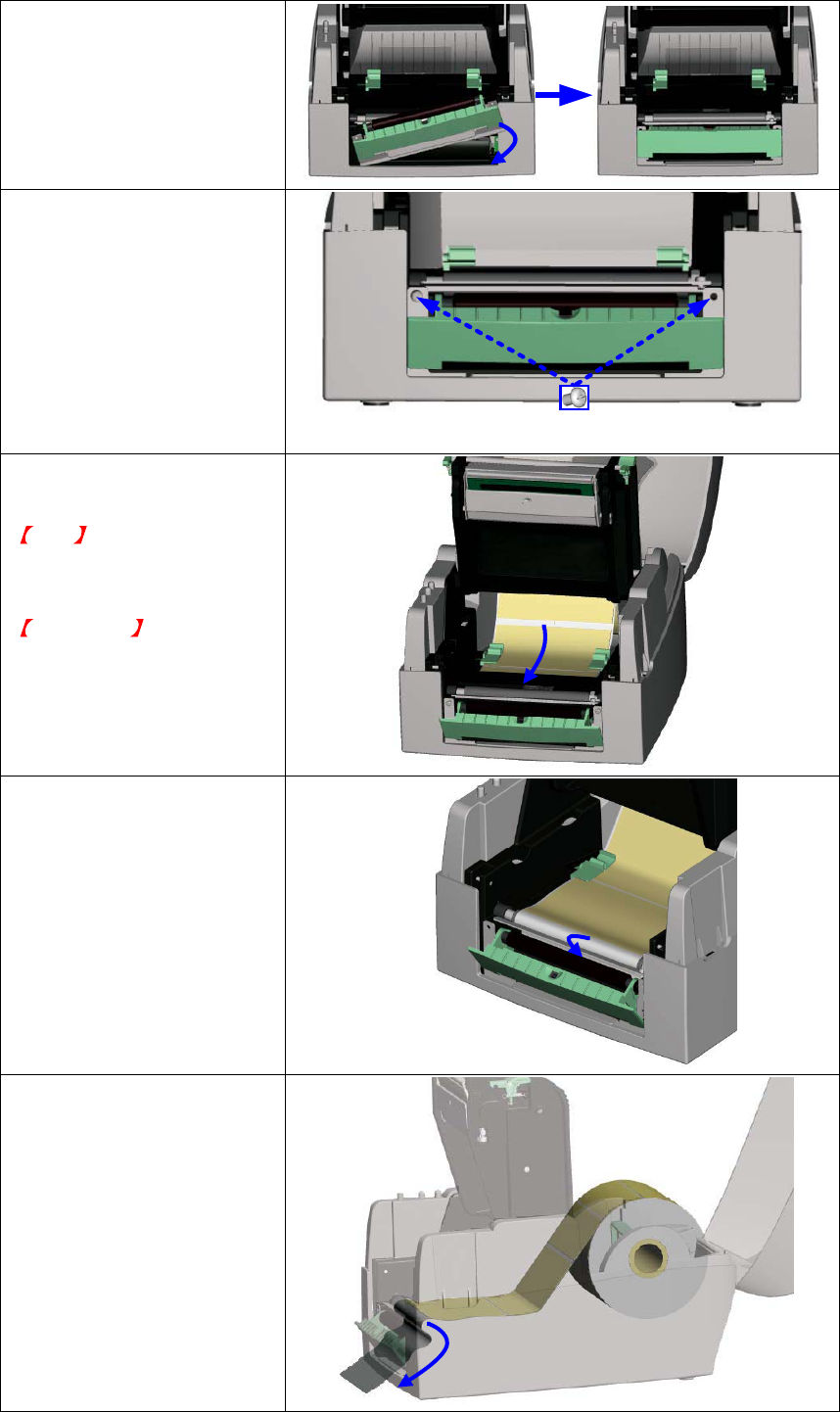
1. Open the top cover by
pressing the Cover Open
Buttons on both sides.
2. Loosen and then lift the
upper print mechanism
by pressing the locking
tenons.
3. Unlock the front cover
piece by pushing locks
inward.
4. Lift/take off the front
cover piece according to
the direction shown in
the figure.
5. Plug in the stripper
connector onto the
switchboard socket.
(refer to right figure)
Note
There are 2 sockets on the
converting boards (one is for
stripper installation, and
another one is for cutter),
before plug the connector into
socket, please check the pin
first.
STE5 Operation Manual
29
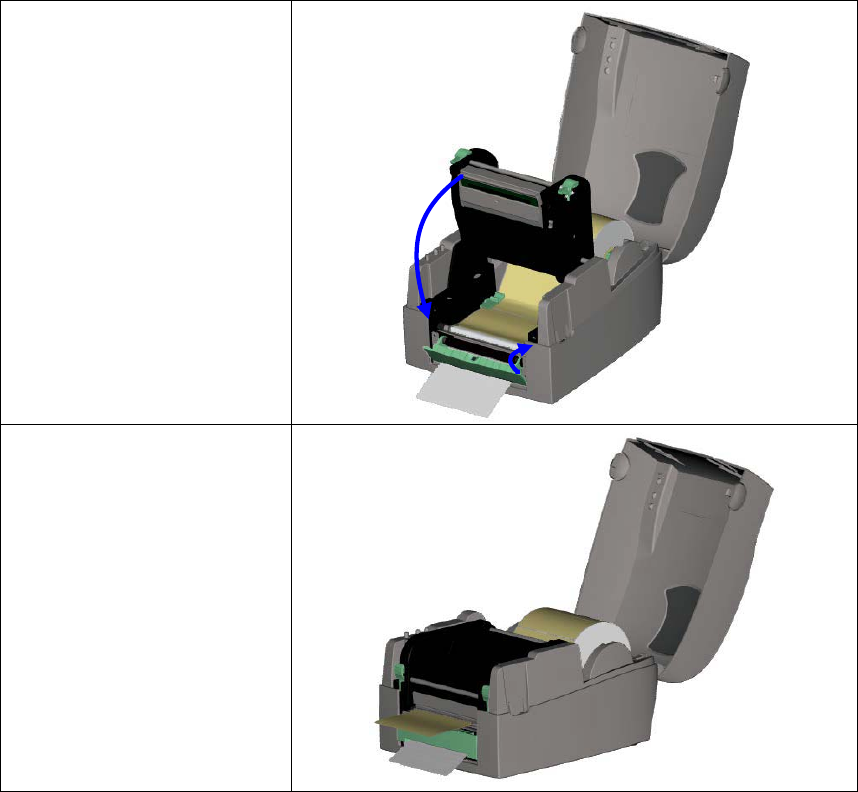
6. Place the left side of the
stripper first, and then fit
the right side.
7. Hold the stripper module
and tighten the screws.
8. Feed the label through
the Label Guides.
Note The label / paper used
for stripper is suggested to be
at least 25mm in height.
Suggestion When printing
with stripper module, it is
suggested to set the stop
position (^E) to 9.
9. Peel off the first label,
and feed the liner
through the roller and
the Tear-off Bar.
10. Follow the direction as
shown in figure to feed
the liner across the
stripper.
STE5 Operation Manual
30
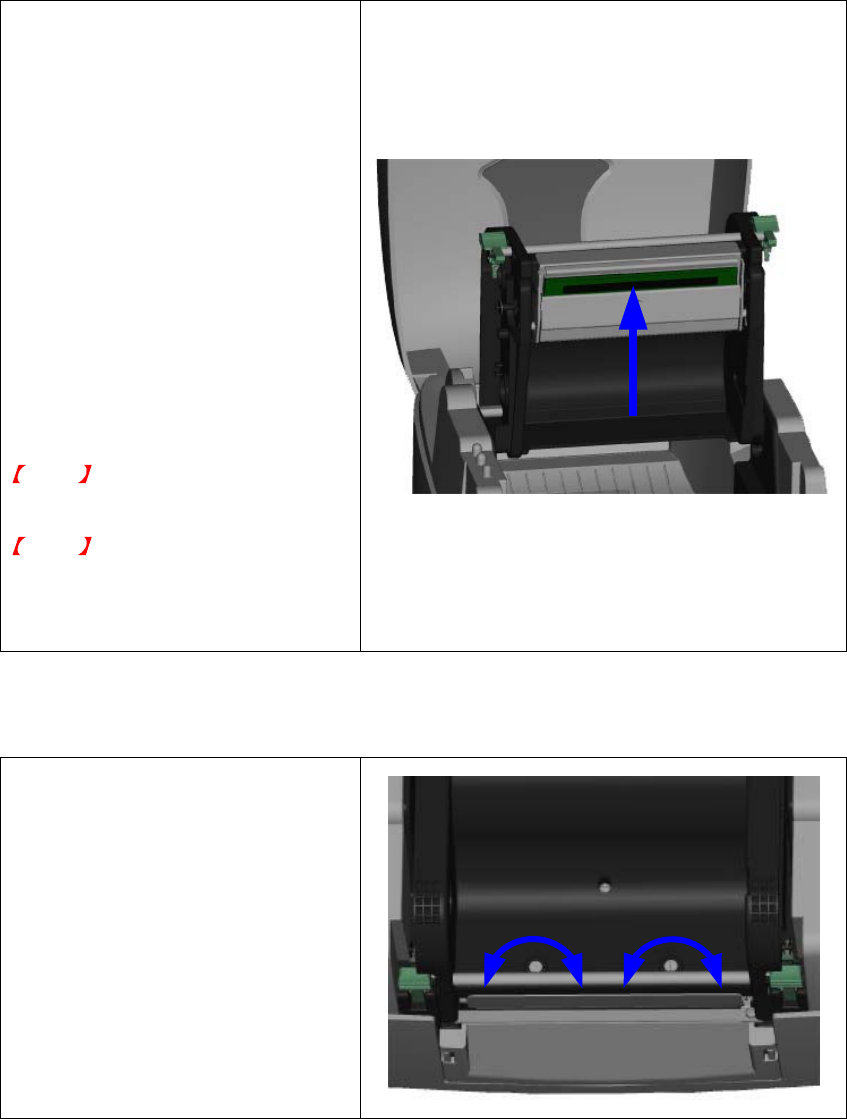
11. Close the upper print
mechanism and the
stripper.
12. Press the FEED key to
adjust the position of
label and complete the
installation.
STE5 Operation Manual
31
6. Maintenance and Adjustment
6-1. Thermal Print Head Cleaning
Unclear printouts may be caused by
dusty print head or label liner glue.
Therefore, it’s necessary to keep the top
cover closed when printing. Also, check
and prevent paper/label from being
stained or dusty to ensure print quality
and to prolong the print head life. Print
head cleaning instructions are as
follows:
1. Power-off the printer.
2. Open the top cover.
3. Open the print head by pressing
the locking tenons.
4. If on the print head (see blue
arrow) there’s label pieces or other
stain, please use a soft cloth with
industrial use alcohol to wipe away
the stain.
Note1
Weekly cleaning on the print head is
recommended.
Note2
When cleaning the print head
with soft cloth, make sure there
is no any metal or hard particles
attached on it.
6-2. Thermal Print Head Balance Adjustment
When printing with different label
materials, unbalanced print quality may
occur due to the material differences of
media, thus it’s necessary to adjust the
Thermal Print Head pressure.
1. Open the top cover.
2. Turning the print head adjustment
screws slightly by screwdriver to
increase or decrease print head
pressure.
+-+-

STE5 Operation Manual
32
6-3. Print Line Adjustment
To get better printing balance and
quality, use print head adjusting gear
to adjust the contacting surface
between print head and label.
1. When turning print head
adjusting gear counter-clockwise
(as arrow 1 shows), print head
would move in the direction
where arrow A shows.
2. When turning print head
adjusting gear clockwise (as
arrow 2 shows), print head
would move in the direction
where arrow B shows.
A
B
1
2
6-4. Adjust the cutter
1. A cutter-adjusting hole is present
on the side of cutter (where A is
pointing to).
2. The cutter will not work properly if
there is a paper jam. Turn the
power off and use a #M3 hexagon
wrench inserted into hole “A”, and
then turn it counter-clockwise.
3. Power on the printer after clearing
the paper jam, the cutter will reset
automatically.
Note
The label / paper used for cutting is
suggested to be at least 30mm in
height.
A

STE5 Operation Manual
33
6-5. Troubleshooting
Problem Recommended Solution
Power on the printer, but the
LED does not light up Check the power connector
LED light turns red
(power/status) after printing
stops
Check for software setting or program command errors
Replace with suitable label or ribbon
Check if label or ribbon is all out
Check if label is jammed/tangled up
Check if printing mechanism is not closed (Thermal Print
Head not positioned correctly)
Check if sensor is blocked by paper/label
Check for abnormal cutter function or of no actions (if cutter
is installed)
Printing started, but nothing
was printed on the label Check if label is placed upside down or if label is not
suitable for the application
Select the correct printer driver
Select the correct label and print type
When printing, label is
jammed/tangled up Clean the label jam, and if label is stuck on Thermal Print
Head, please remove it by using soft cloth with alcohol.
When printing, only part of the
contents were printed Check if label or ribbon is stuck on the Thermal Print Head
Check if application software has errors
Check if start position setting has errors
Check if ribbon has wrinkles
Check if ribbon supply shaft is creating friction with the
platen roller. If the platen roller needs to be replaced,
please contact your reseller for more information
Check if power supply is correct
When printing, part of the label
wasn’t printed completely Check if Thermal Print Head is stained or dusted
Use internal command “~T” to check Thermal Print Head
can print completely
Check the media quality
Printout not in desired position Check if sensor is covered by paper or dust
Check if liner is suitable for use, please contact reseller for
more information
Check if label roll edge is aligned with Label Width Guide
When printing, page skipping
occurs Check if error occurs on label height setting
Check is sensor is covered by dust
Unclear printout Check print darkness setting
Check if Thermal Print Head is covered with glue or stain
When using cutter, label
wasn’t cut straight Check if label is set up straight
When using cutter, label
wasn’t cut successfully Check whether label thickness exceeds 0.2mm
When using cutter, label
couldn’t feed or abnormal
cutting occurs
Check if cutter is installed properly
Check if Paper Feed Rods are sticky
When using stripper,
abnormal function occurs Check if stripper sensor is covered with dust
Check if label is installed properly
Note
Your dealer is knowledgeable about printers, printing software, and your unique system.
Please contact your local dealer for further technical support.