Gongjin Electronics R5500UN ADSL2+ Wireless Router User Manual

Shenzhen Gongjin Electronics Co., Ltd ADSL2+ Wireless Router

User Manual

       GAN5.PT156A-B User Manual Ver 1.0
GAN5.PT156A-B  i Contents 1 Safety Precautions ............................................................................................. 1 2 Overview ............................................................................................................ 2 2.1 Application ............................................................................................. 2 2.2 Features ................................................................................................ 2 2.3 Standards Compatibility and Compliance .............................................. 4 3 Hardware Description and Hardware Installation ............................................... 5 3.1 Hardware Description ............................................................................ 5 3.1.1 Front Panel ................................................................................. 5 3.1.2 Rear Panel .................................................................................. 6 3.2 Hardware Installation ............................................................................. 7 3.2.1 Choosing the Best Location for Wireless Operation ................... 7 3.2.2 Connecting the Device ............................................................... 8 4 PC Network Configuration and Login ................................................................. 9 4.1 PC Network Configuration ..................................................................... 9 4.2 Logging In to the DSL Router .............................................................. 11 5 Web-Based Management ................................................................................ 12 5.1 Device Information ............................................................................... 12 5.1.1 Summary .................................................................................. 12 5.1.2 WAN ......................................................................................... 13 5.1.3 Statistics .................................................................................... 14 5.1.4 LAN ...........................................................................................  14 5.1.5 WAN Service ............................................................................ 14 5.1.6 xTM ...........................................................................................  14 5.1.7 xDSL ......................................................................................... 15 5.1.8 Route ........................................................................................ 18 5.1.9 ARP .......................................................................................... 18 5.1.10 DHCP .................................................................................. 19 5.2 Advanced Setup .................................................................................. 19 5.2.1 Layer2 Interface ........................................................................ 21 5.2.2 WAN Service ............................................................................ 22 5.2.3 3G WAN Service ....................................................................... 45 5.2.4 LAN Configuration .................................................................... 47
GAN5.PT156A-B  ii 5.2.5 NAT ...........................................................................................  55 5.2.6 Security .....................................................................................  59 5.2.7 Parental Control ........................................................................ 61 5.2.8 Quality of Service...................................................................... 62 5.2.9 Routing ..................................................................................... 66 5.2.10 DNS .....................................................................................  68 5.2.11 DSL ..................................................................................... 70 5.2.12 UPnP ................................................................................... 71 5.2.13 DNS Proxy ........................................................................... 71 5.2.14 Print Server ......................................................................... 72 5.2.15 Storage Service ................................................................... 73 5.2.16 DLNA ................................................................................... 75 5.2.17 Interface Grouping............................................................... 76 5.2.18 IP Tunnel ............................................................................. 78 5.2.19 PCP ..................................................................................... 79 5.2.20 Multicast .............................................................................. 82 5.2.21 Packet Acceleration ............................................................. 83 5.3 Wireless ...............................................................................................  84 5.3.1 Basic Settings ........................................................................... 84 5.3.2 Security .....................................................................................  86 5.3.3 MAC Filter ................................................................................. 94 5.3.4 Wireless Bridge......................................................................... 95 5.3.5 Advanced Settings .................................................................... 95 5.3.6 Station Info ................................................................................ 98 5.4 Diagnostics .......................................................................................... 98 5.4.1 Diagnostics ............................................................................... 98 Diagnostic Toolkit ................................................................................... 99 5.5 Management ........................................................................................ 99 5.5.1 Settings ...................................................................................  100 5.5.2 System Log ............................................................................. 101 5.5.3 TR-69 Client ............................................................................ 102 5.5.4 Internet Time ........................................................................... 103 5.5.5 Access Control........................................................................ 104 5.5.6 Update Software ..................................................................... 106
GAN5.PT156A-B  iii 5.5.7 Reboot .................................................................................... 107 5.5.8 Logout .....................................................................................  107 6 Q&A ................................................................................................................ 108
GAN5.PT156A-B 1 1  Safety Precautions Read the following information carefully before operating the device. Please follow the following precaution items to protect the device from risks and damage caused by fire and electric power:    Use volume labels to mark the type of power.    Use the power adapter that is packed within the device package.    Pay attention to the power load of the outlet or prolonged lines. An overburden power outlet or damaged lines and plugs may cause electric shock or fire accident. Check the power cords regularly. If you find any damage, replace it at once.    Proper space left for heat dissipation is necessary to avoid any damage caused by overheating to the device. The holes on the device are designed for heat dissipation to ensure that the device works normally. Do not cover these heat dissipation holes.    Do not put this device close to a place where a heat source exits or high temperature occurs. Avoid the device from direct sunshine.    Do not put this device close to a place where is over damp or watery. Do not spill any fluid on this device.    Do not connect this device to any PC or electronic product, unless our customer engineer or your broadband provider instructs you to do this, because any wrong connection may cause any power or fire risk.    Do not place this device on an unstable surface or support.
GAN5.PT156A-B 2 2  Overview The DSL Router is a highly ADSL2+ Integrated Access Device and can support ADSL link with downstream up to 24 Mbps and upstream up to 1 Mbps. It is designed to provide a simple and cost-effective ADSL Internet connection for a private Ethernet or 802.11g/802.11b/802.11n wireless network. The Router combines high-speed ADSL Internet connection, IP routing for the LAN and wireless connectivity in one package. It is usually preferred to provide high access performance applications for the individual users, the SOHOs, and the small enterprises. The Router is easy to install and use. The Modem connects to an Ethernet LAN or computers via standard Ethernet ports. The ADSL connection is made using ordinary telephone line with standard connectors. Multiple workstations can be networked and connected to the Internet by a single Wide Area Network (WAN) interface and single global IP address. The advanced security enhancements, packet filtering and port redirection, can help protect your network from potentially devastating intrusions by malicious agents from outside your network. Network and Router management is done through the web-based management interface that can be accessed through the local Ethernet using any web browser. You may also enable remote management to enable configuration of the Router via the WAN interface. 2.1  Application   Home gateway   SOHOs   Small enterprises    Higher data rate broadband sharing    Audio and video streaming and transfer    PC file and application sharing    Network and online gaming 2.2  Features    User-friendly GUI for web configuration
GAN5.PT156A-B 3    Several pre-configured popular games. Just enable the game and the port settings are automatically configured.    Compatible with all standard Internet applications    Industry standard and interoperable DSL interface    Simple web-based status page displays a snapshot of system configuration, and links to the configuration pages    Downloadable flash software updates    Support for up to 8 permanent virtual circuits (PVC)    Support for up to 8 PPPOE sessions    Support SNMP v2, RIP v1 & RIP v2, NAT    WLAN with high-speed data transfer rates of up to 300 Mbps, compatible with IEEE 802.11b/g/n, 2.4GHz compliant equipment    Optimized Linux 2.6 Operating System    IP routing and bridging    Asynchronous transfer mode (ATM) and digital subscriber line (DSL) support    Point-to-point protocol (PPP)    Network/port address translation (NAT/PAT)    Quality of service (QoS)    Wireless LAN security: WPA, 802.1x, RADIUS client    Virtual private network (VPN): IPSec    Secure socket layer virtual private network (SSL VPN)   Universal plug-and-play    File server for network attached storage (NAS) devices   Print server   Web filtering    Management and control -  Web-based management (WBM) -  Simple network management protocol (SNMP) -  Command line interface (CLI) -  TR-069 WAN management protocol -  TR-064-LAN-side DSL CPE configuration   Remote update    3G Mobile WAN connection    System statistics and monitoring
GAN5.PT156A-B 4    DSL router is targeted at the following platforms: DSL modems, wireless access points and bridge.    Port Control Protocol 2.3  Standards Compatibility and Compliance    Support application level gateway (ALG)   ITU G.992.1 (G.dmt)   ITU G.992.2 (G.lite)   ITU G.994.1 (G.hs)   ITU G.992.3 (ADSL2)   ITU G.992.5 (ADSL2+)    ANSI T1.413 Issue 2   IEEE 802.3   IEEE 802.3u   IEEE 802.11b   IEEE 802.11g   IEEE 802.11n
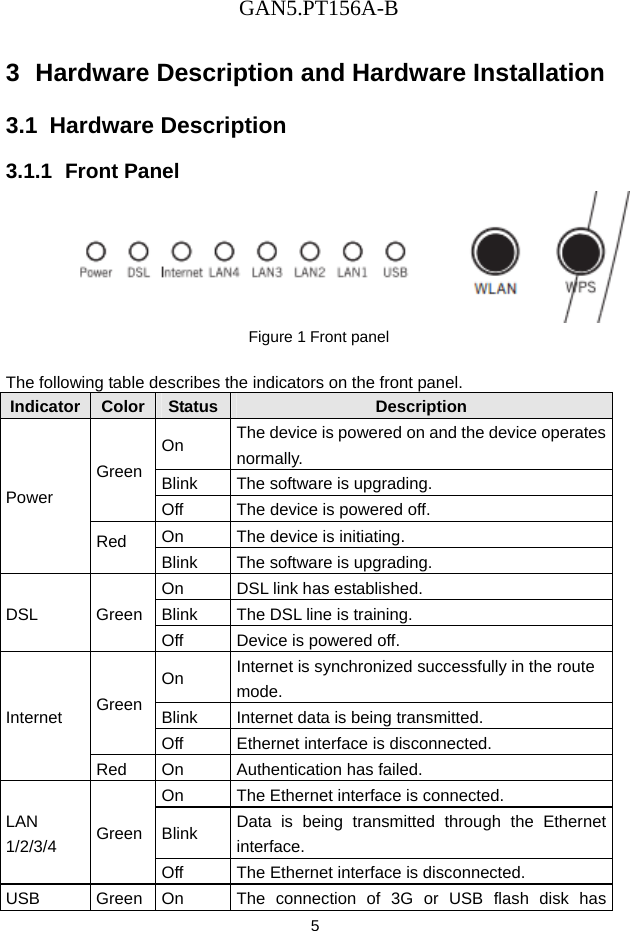
GAN5.PT156A-B 5 3  Hardware Description and Hardware Installation 3.1  Hardware Description 3.1.1  Front Panel  Figure 1 Front panel  The following table describes the indicators on the front panel. Indicator Color  Status Description Power Green On  The device is powered on and the device operates normally. Blink  The software is upgrading. Off  The device is powered off. Red  On  The device is initiating. Blink  The software is upgrading. DSL Green On  DSL link has established. Blink  The DSL line is training. Off  Device is powered off. Internet  Green On  Internet is synchronized successfully in the route mode. Blink  Internet data is being transmitted. Off  Ethernet interface is disconnected. Red  On  Authentication has failed. LAN 1/2/3/4  Green On  The Ethernet interface is connected. Blink  Data is being transmitted through the Ethernet interface. Off  The Ethernet interface is disconnected. USB  Green  On  The connection of 3G or USB flash disk has
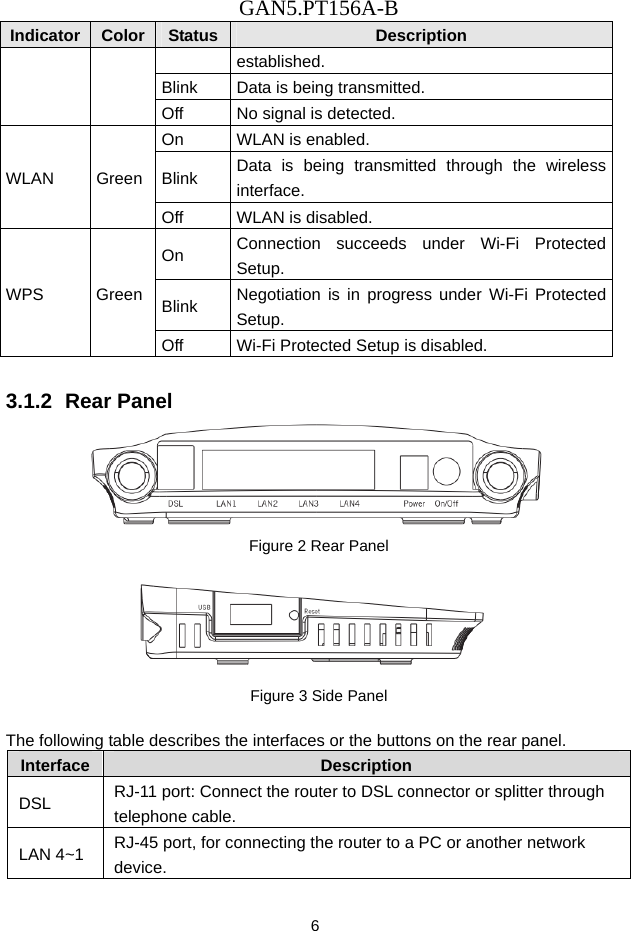
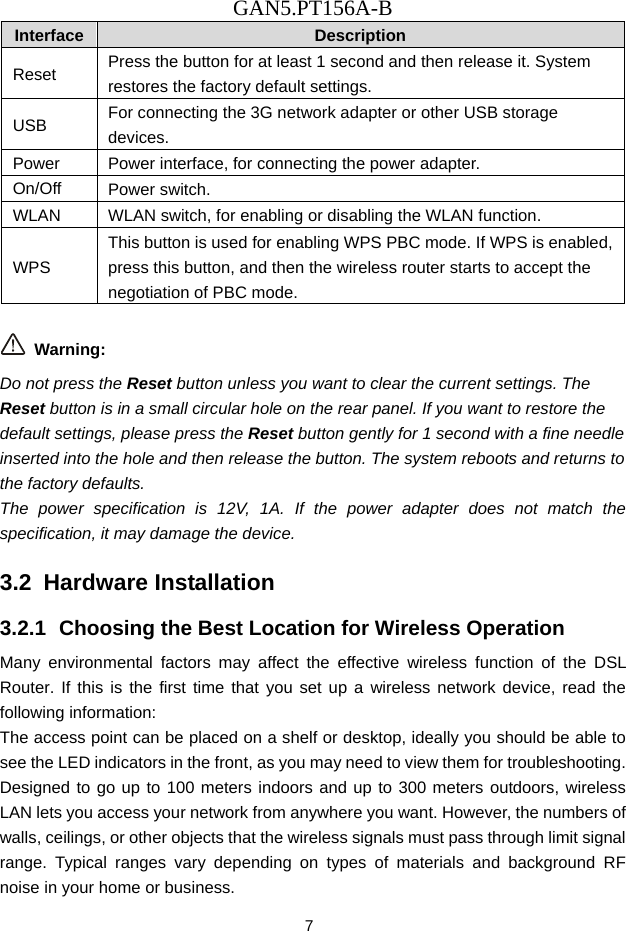
GAN5.PT156A-B 6 Indicator Color  Status Description established. Blink  Data is being transmitted. Off  No signal is detected. WLAN Green On  WLAN is enabled. Blink  Data is being transmitted through the wireless interface. Off  WLAN is disabled. WPS Green On  Connection succeeds under Wi-Fi Protected Setup. Blink  Negotiation is in progress under Wi-Fi Protected Setup. Off  Wi-Fi Protected Setup is disabled.  3.1.2  Rear Panel  Figure 2 Rear Panel      Figure 3 Side Panel  The following table describes the interfaces or the buttons on the rear panel. Interface   Description DSL  RJ-11 port: Connect the router to DSL connector or splitter through telephone cable. LAN 4~1  RJ-45 port, for connecting the router to a PC or another network device.
GAN5.PT156A-B 7 Interface   Description Reset  Press the button for at least 1 second and then release it. System restores the factory default settings. USB  For connecting the 3G network adapter or other USB storage devices. Power  Power interface, for connecting the power adapter. On/Off  Power switch. WLAN  WLAN switch, for enabling or disabling the WLAN function. WPS This button is used for enabling WPS PBC mode. If WPS is enabled, press this button, and then the wireless router starts to accept the negotiation of PBC mode.   Warning: Do not press the Reset button unless you want to clear the current settings. The Reset button is in a small circular hole on the rear panel. If you want to restore the default settings, please press the Reset button gently for 1 second with a fine needle inserted into the hole and then release the button. The system reboots and returns to the factory defaults. The power specification is 12V, 1A. If the power adapter does not match the specification, it may damage the device. 3.2  Hardware Installation 3.2.1  Choosing the Best Location for Wireless Operation Many environmental factors may affect the effective wireless function of the DSL Router. If this is the first time that you set up a wireless network device, read the following information: The access point can be placed on a shelf or desktop, ideally you should be able to see the LED indicators in the front, as you may need to view them for troubleshooting. Designed to go up to 100 meters indoors and up to 300 meters outdoors, wireless LAN lets you access your network from anywhere you want. However, the numbers of walls, ceilings, or other objects that the wireless signals must pass through limit signal range. Typical ranges vary depending on types of materials and background RF noise in your home or business.
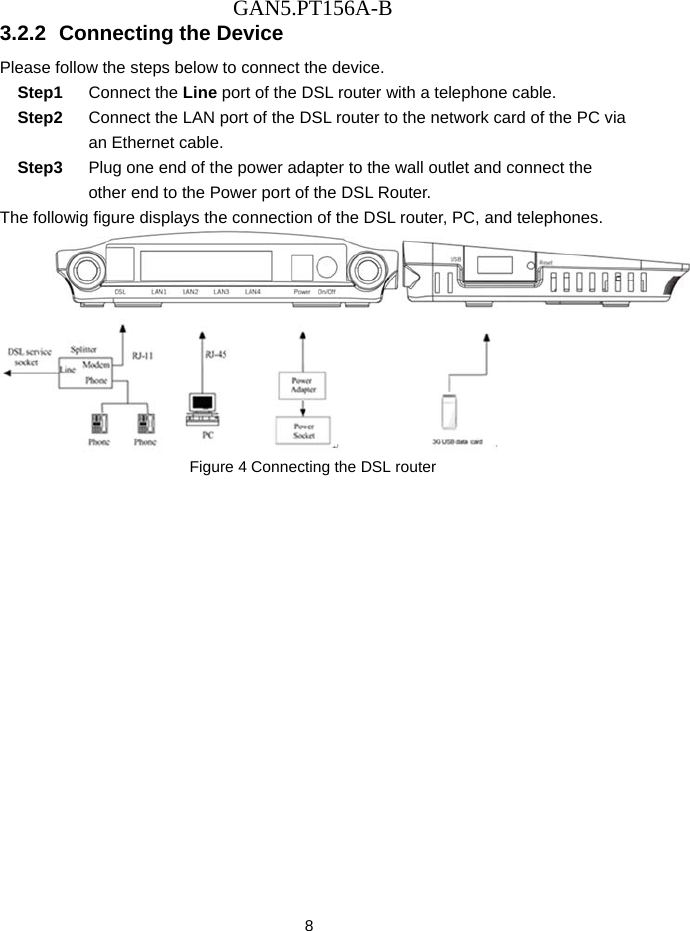
GAN5.PT156A-B 8 3.2.2  Connecting the Device Please follow the steps below to connect the device.   Step1  Connect the Line port of the DSL router with a telephone cable. Step2  Connect the LAN port of the DSL router to the network card of the PC via an Ethernet cable. Step3  Plug one end of the power adapter to the wall outlet and connect the other end to the Power port of the DSL Router. The followig figure displays the connection of the DSL router, PC, and telephones.  Figure 4 Connecting the DSL router
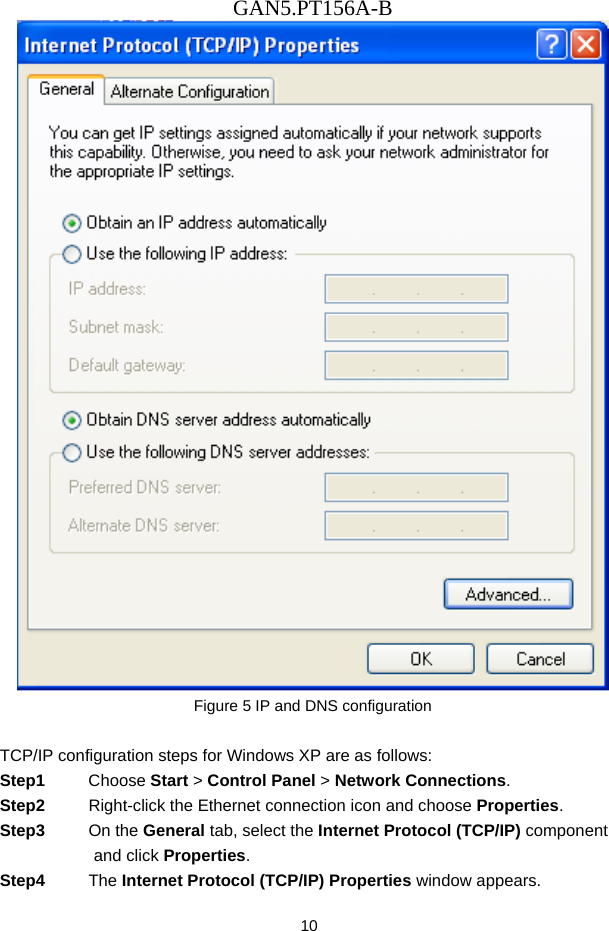
GAN5.PT156A-B 9 4  PC Network Configuration and Login 4.1  PC Network Configuration Each network interface on the PC should either be configured with a statically defined IP address and DNS address, or be instructed to automatically obtain an IP address using the network DHCP server. DSL router provides a DHCP server on its LAN and it is recommended to configure your LAN to automatically obtain its IP address and DNS server IP address. The configuration principle is identical but should be carried out differently on each operating system. The following displays the TCP/IP Properties dialog box on Windows XP.
GAN5.PT156A-B 10  Figure 5 IP and DNS configuration  TCP/IP configuration steps for Windows XP are as follows: Step1  Choose Start > Control Panel > Network Connections. Step2  Right-click the Ethernet connection icon and choose Properties. Step3  On the General tab, select the Internet Protocol (TCP/IP) component and click Properties. Step4  The Internet Protocol (TCP/IP) Properties window appears.
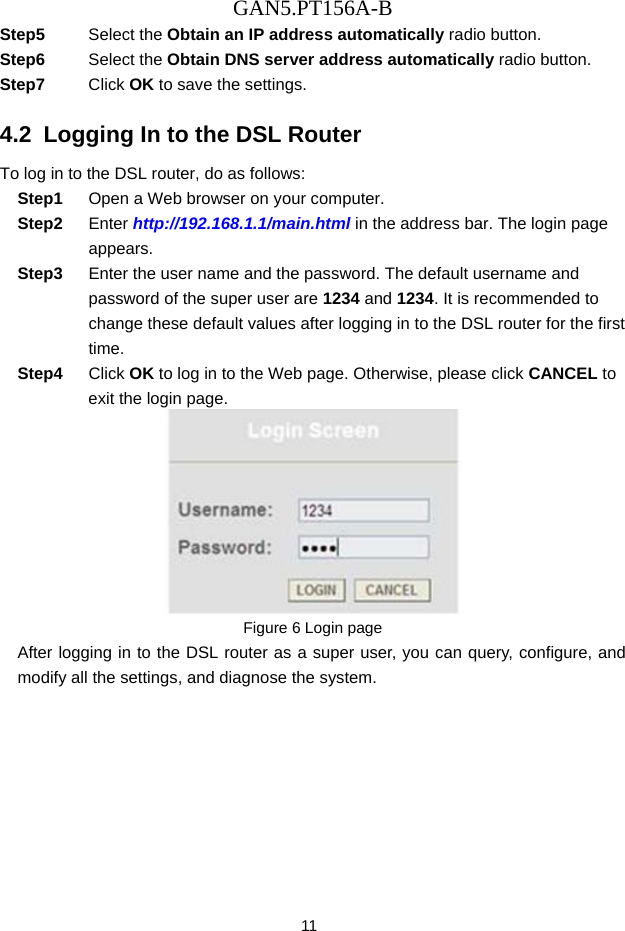
GAN5.PT156A-B 11 Step5  Select the Obtain an IP address automatically radio button. Step6  Select the Obtain DNS server address automatically radio button. Step7  Click OK to save the settings. 4.2  Logging In to the DSL Router To log in to the DSL router, do as follows: Step1  Open a Web browser on your computer. Step2  Enter http://192.168.1.1/main.html in the address bar. The login page appears. Step3  Enter the user name and the password. The default username and password of the super user are 1234 and 1234. It is recommended to change these default values after logging in to the DSL router for the first time. Step4  Click OK to log in to the Web page. Otherwise, please click CANCEL to exit the login page.  Figure 6 Login page After logging in to the DSL router as a super user, you can query, configure, and modify all the settings, and diagnose the system.
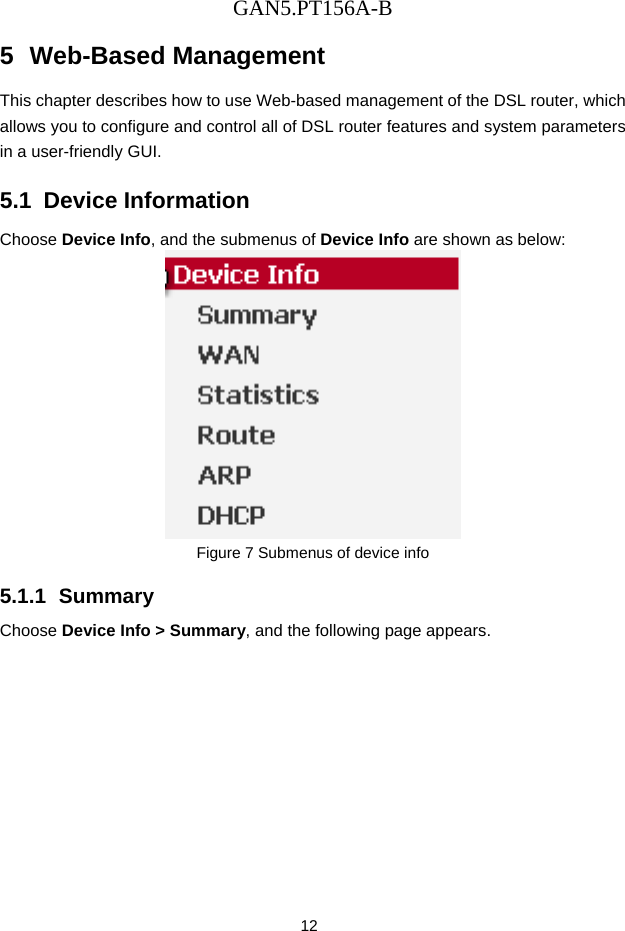
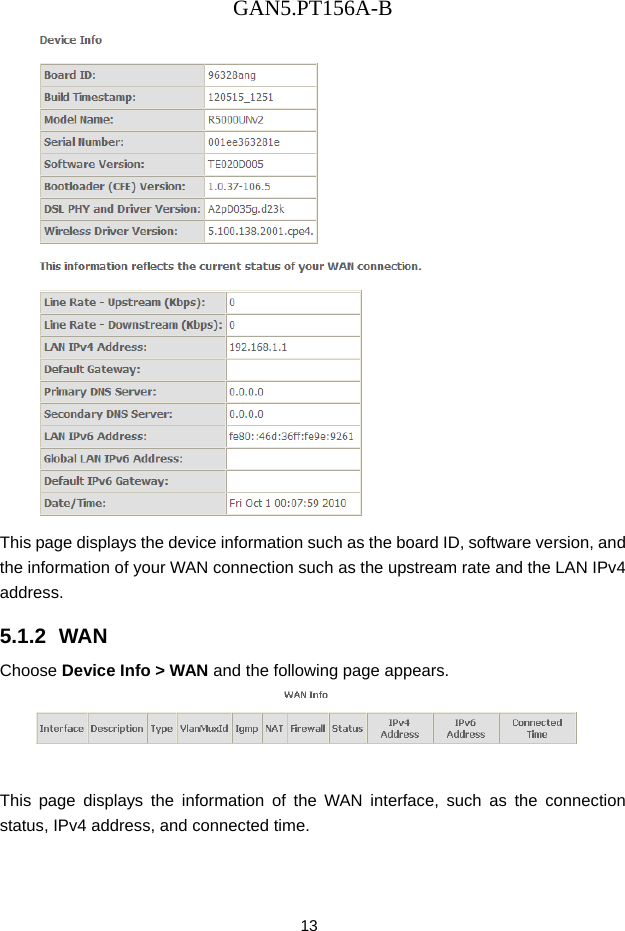
GAN5.PT156A-B 12 5  Web-Based Management This chapter describes how to use Web-based management of the DSL router, which allows you to configure and control all of DSL router features and system parameters in a user-friendly GUI.   5.1  Device Information Choose Device Info, and the submenus of Device Info are shown as below:  Figure 7 Submenus of device info   5.1.1  Summary Choose Device Info > Summary, and the following page appears.
GAN5.PT156A-B 13  This page displays the device information such as the board ID, software version, and the information of your WAN connection such as the upstream rate and the LAN IPv4 address. 5.1.2  WAN Choose Device Info > WAN and the following page appears.  This page displays the information of the WAN interface, such as the connection status, IPv4 address, and connected time.
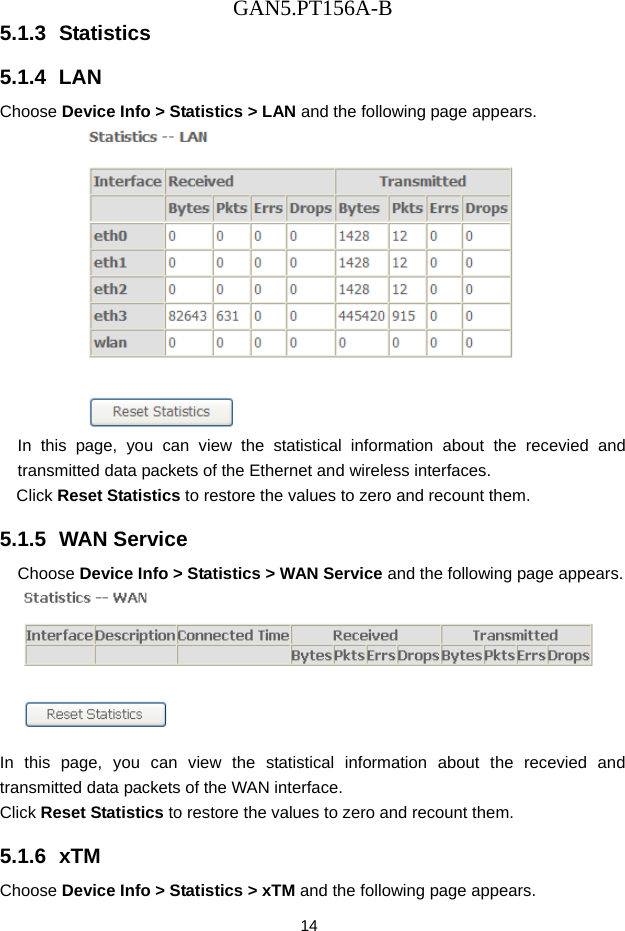
GAN5.PT156A-B 14 5.1.3  Statistics 5.1.4  LAN Choose Device Info > Statistics > LAN and the following page appears.  In this page, you can view the statistical information about the recevied and transmitted data packets of the Ethernet and wireless interfaces.   Click Reset Statistics to restore the values to zero and recount them. 5.1.5  WAN Service Choose Device Info > Statistics > WAN Service and the following page appears.    In this page, you can view the statistical information about the recevied and transmitted data packets of the WAN interface.   Click Reset Statistics to restore the values to zero and recount them. 5.1.6  xTM Choose Device Info > Statistics > xTM and the following page appears.
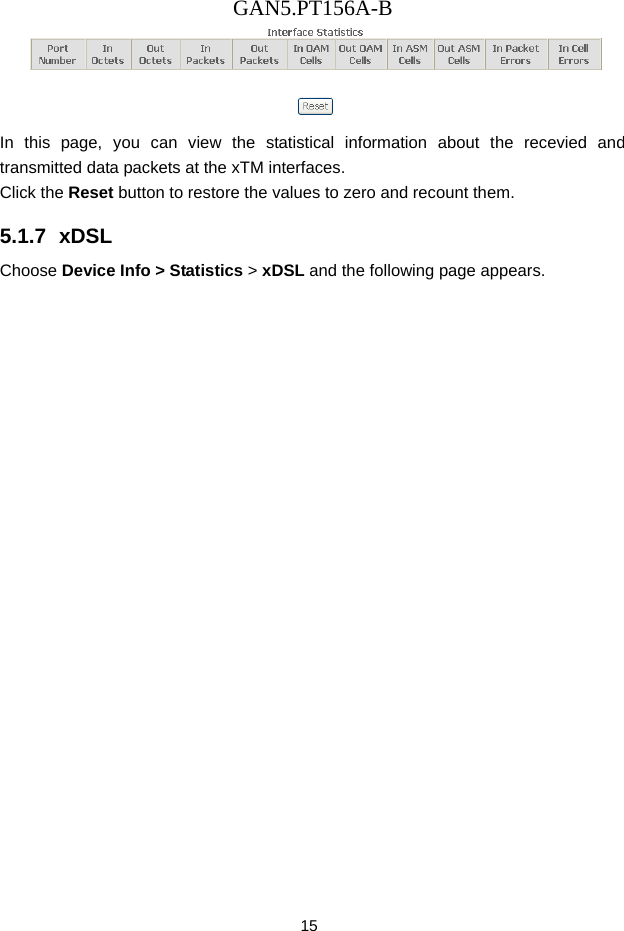
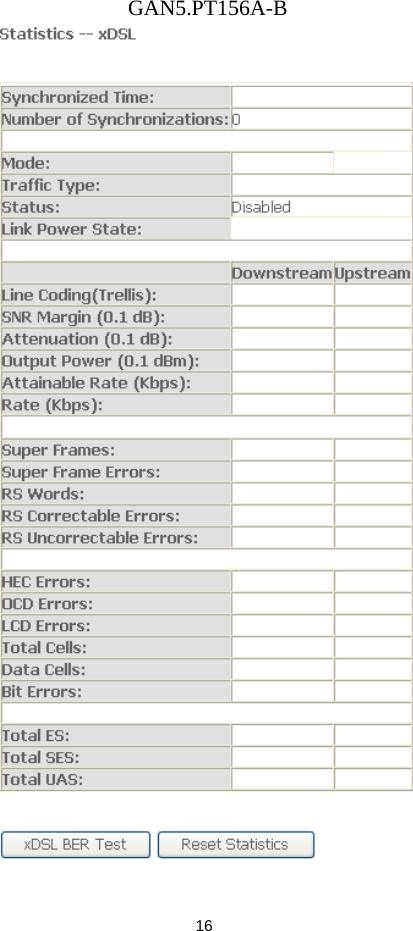
GAN5.PT156A-B 15  In this page, you can view the statistical information about the recevied and transmitted data packets at the xTM interfaces.   Click the Reset button to restore the values to zero and recount them. 5.1.7  xDSL Choose Device Info > Statistics > xDSL and the following page appears.
GAN5.PT156A-B 16
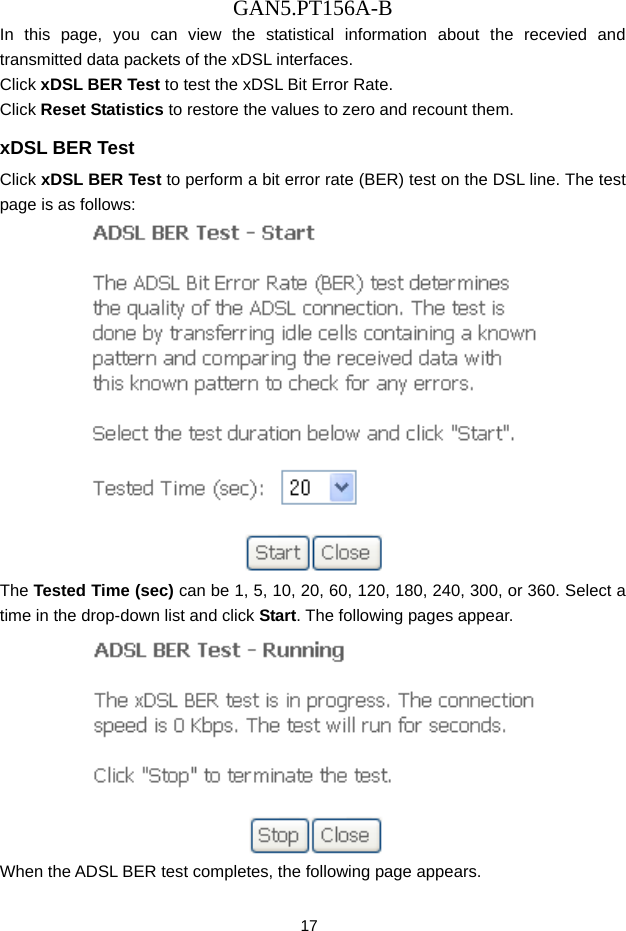
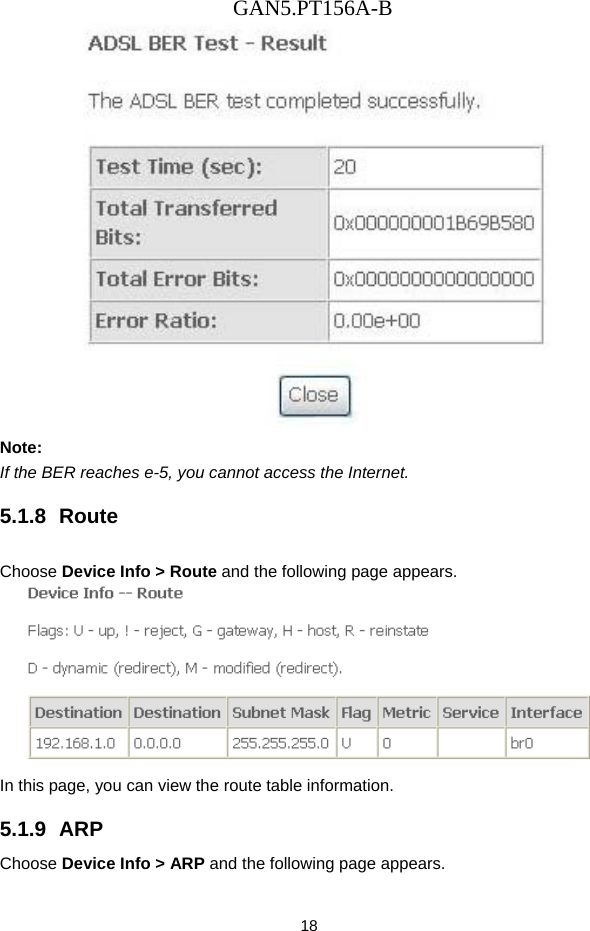
GAN5.PT156A-B 17 In this page, you can view the statistical information about the recevied and transmitted data packets of the xDSL interfaces.   Click xDSL BER Test to test the xDSL Bit Error Rate.   Click Reset Statistics to restore the values to zero and recount them. xDSL BER Test Click xDSL BER Test to perform a bit error rate (BER) test on the DSL line. The test page is as follows:  The Tested Time (sec) can be 1, 5, 10, 20, 60, 120, 180, 240, 300, or 360. Select a time in the drop-down list and click Start. The following pages appear.  When the ADSL BER test completes, the following page appears.
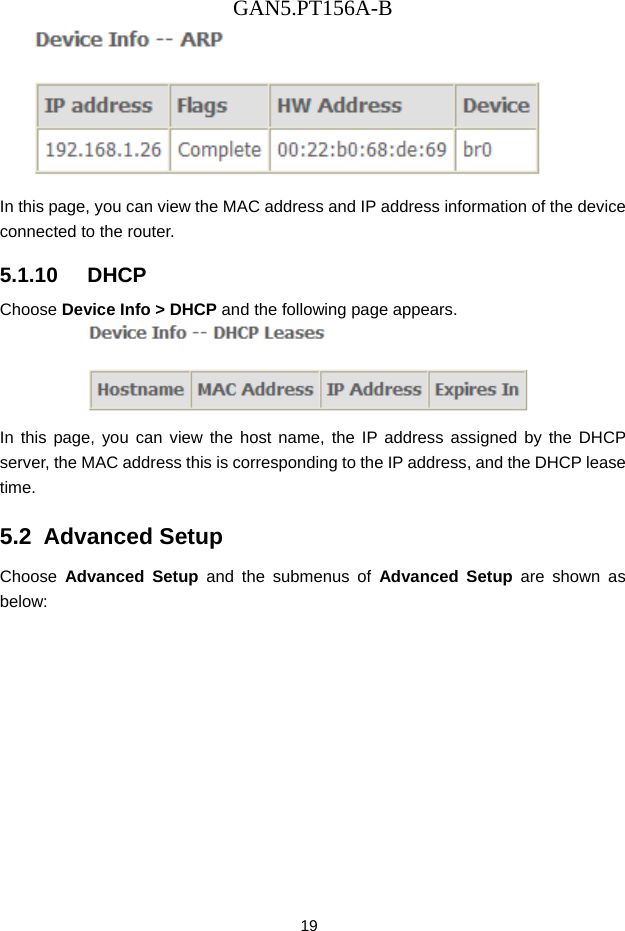
GAN5.PT156A-B 18  Note: If the BER reaches e-5, you cannot access the Internet. 5.1.8  Route Choose Device Info > Route and the following page appears.    In this page, you can view the route table information. 5.1.9  ARP Choose Device Info > ARP and the following page appears.
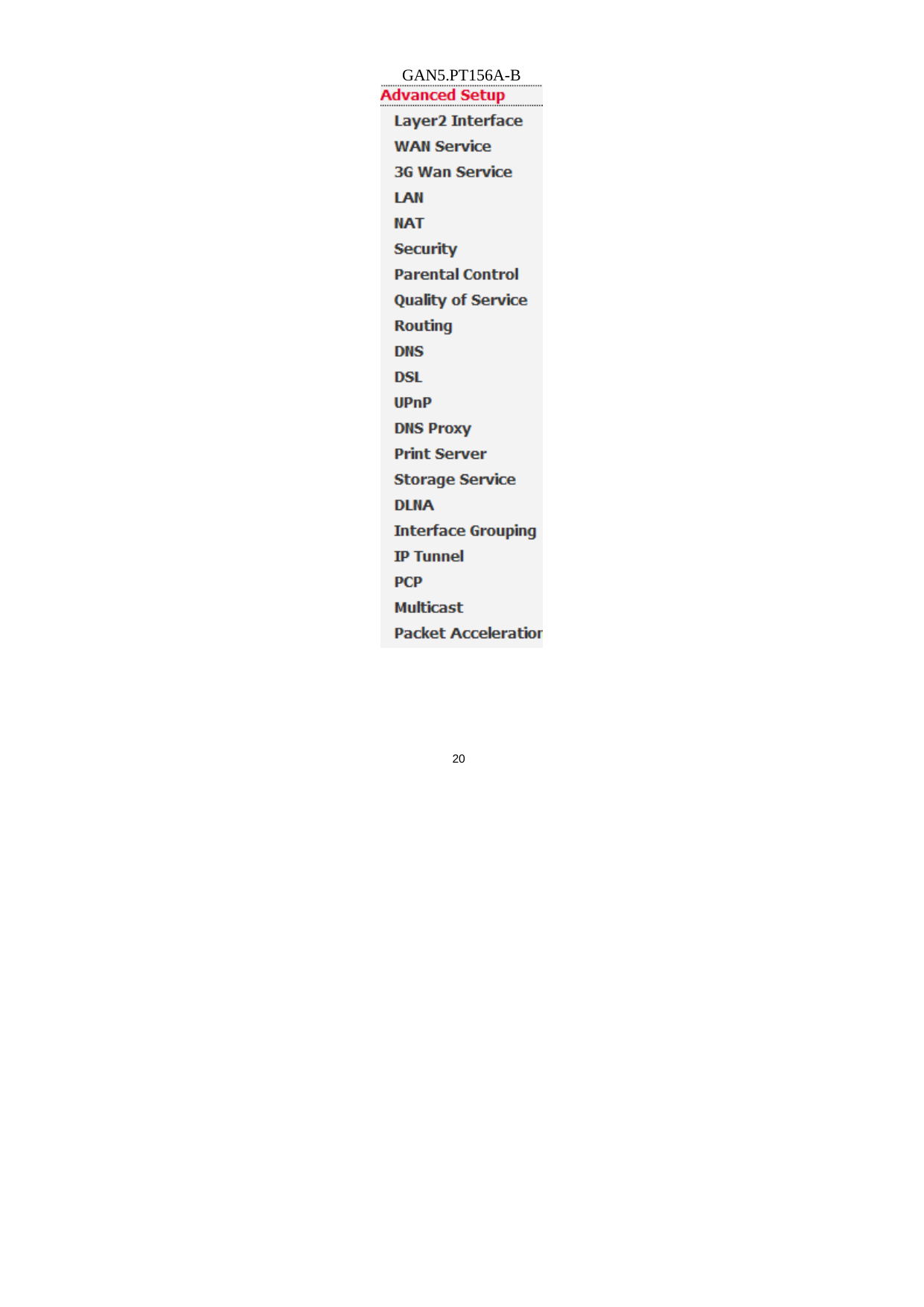
GAN5.PT156A-B 19  In this page, you can view the MAC address and IP address information of the device connected to the router. 5.1.10   DHCP Choose Device Info > DHCP and the following page appears.    In this page, you can view the host name, the IP address assigned by the DHCP server, the MAC address this is corresponding to the IP address, and the DHCP lease time.  5.2  Advanced Setup Choose  Advanced Setup and the submenus of Advanced Setup are shown as below:
GAN5.PT156A-B 20
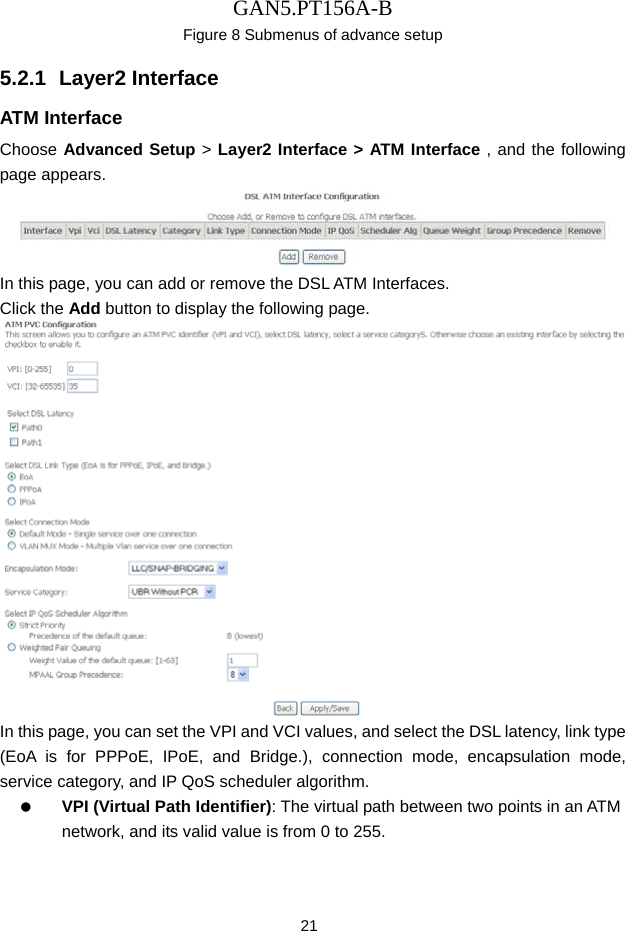
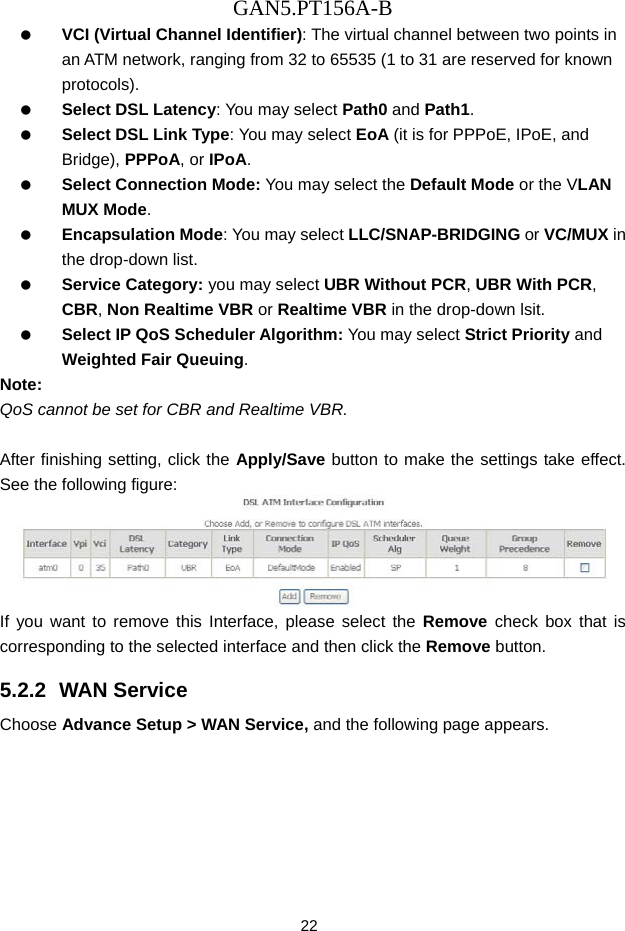
GAN5.PT156A-B 21 Figure 8 Submenus of advance setup   5.2.1  Layer2 Interface ATM Interface Choose Advanced Setup > Layer2 Interface > ATM Interface , and the following page appears.  In this page, you can add or remove the DSL ATM Interfaces. Click the Add button to display the following page.  In this page, you can set the VPI and VCI values, and select the DSL latency, link type (EoA is for PPPoE, IPoE, and Bridge.), connection mode, encapsulation mode, service category, and IP QoS scheduler algorithm.     VPI (Virtual Path Identifier): The virtual path between two points in an ATM network, and its valid value is from 0 to 255.
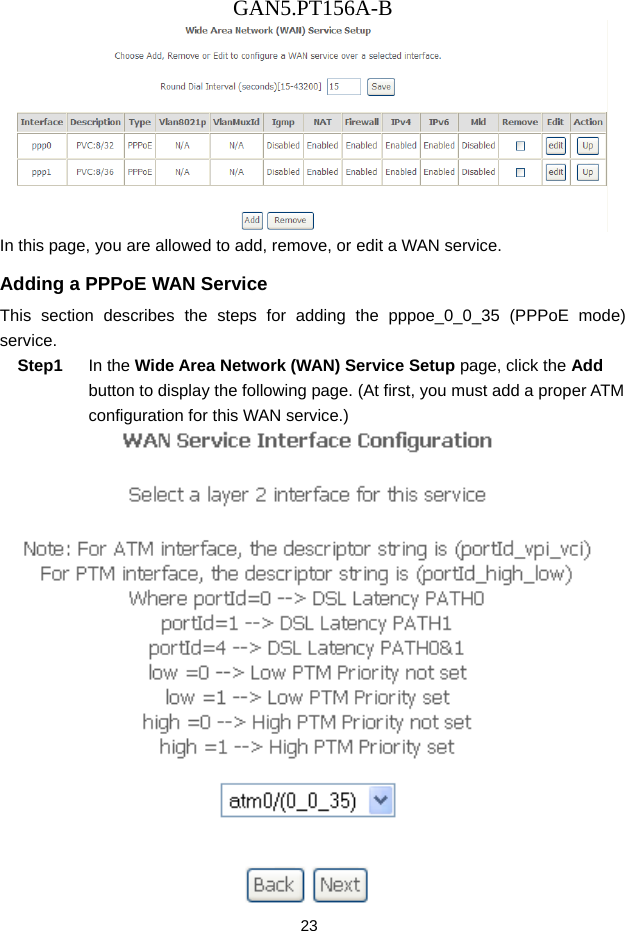
GAN5.PT156A-B 22   VCI (Virtual Channel Identifier): The virtual channel between two points in an ATM network, ranging from 32 to 65535 (1 to 31 are reserved for known protocols).   Select DSL Latency: You may select Path0 and Path1.   Select DSL Link Type: You may select EoA (it is for PPPoE, IPoE, and Bridge), PPPoA, or IPoA.   Select Connection Mode: You may select the Default Mode or the VLAN MUX Mode.   Encapsulation Mode: You may select LLC/SNAP-BRIDGING or VC/MUX in the drop-down list.   Service Category: you may select UBR Without PCR, UBR With PCR, CBR, Non Realtime VBR or Realtime VBR in the drop-down lsit.   Select IP QoS Scheduler Algorithm: You may select Strict Priority and Weighted Fair Queuing. Note: QoS cannot be set for CBR and Realtime VBR.  After finishing setting, click the Apply/Save button to make the settings take effect. See the following figure:  If you want to remove this Interface, please select the Remove check box that is corresponding to the selected interface and then click the Remove button. 5.2.2  WAN Service Choose Advance Setup > WAN Service, and the following page appears.
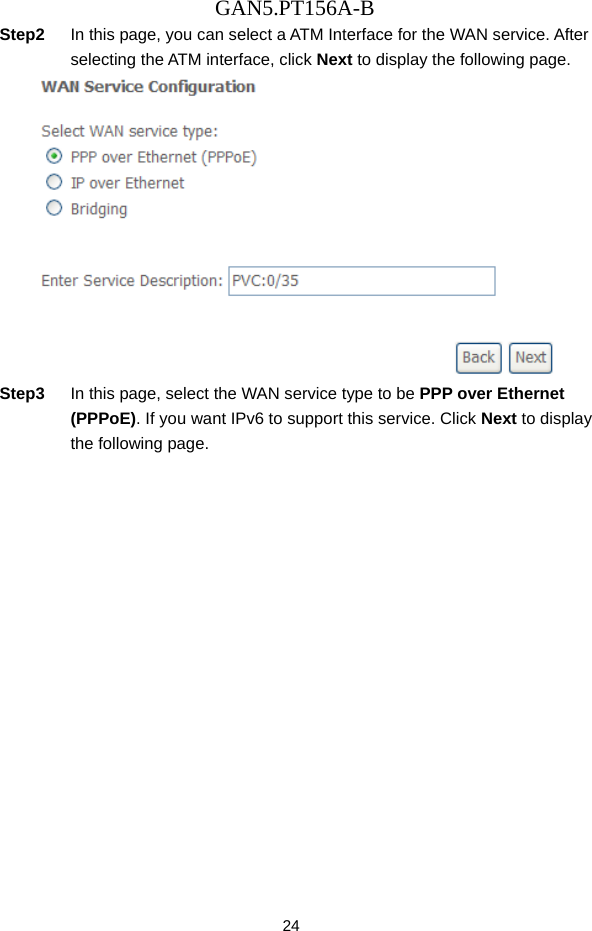
GAN5.PT156A-B 23  In this page, you are allowed to add, remove, or edit a WAN service. Adding a PPPoE WAN Service This section describes the steps for adding the pppoe_0_0_35 (PPPoE mode) service. Step1  In the Wide Area Network (WAN) Service Setup page, click the Add button to display the following page. (At first, you must add a proper ATM configuration for this WAN service.)
GAN5.PT156A-B 24 Step2  In this page, you can select a ATM Interface for the WAN service. After selecting the ATM interface, click Next to display the following page.  Step3  In this page, select the WAN service type to be PPP over Ethernet (PPPoE). If you want IPv6 to support this service. Click Next to display the following page.
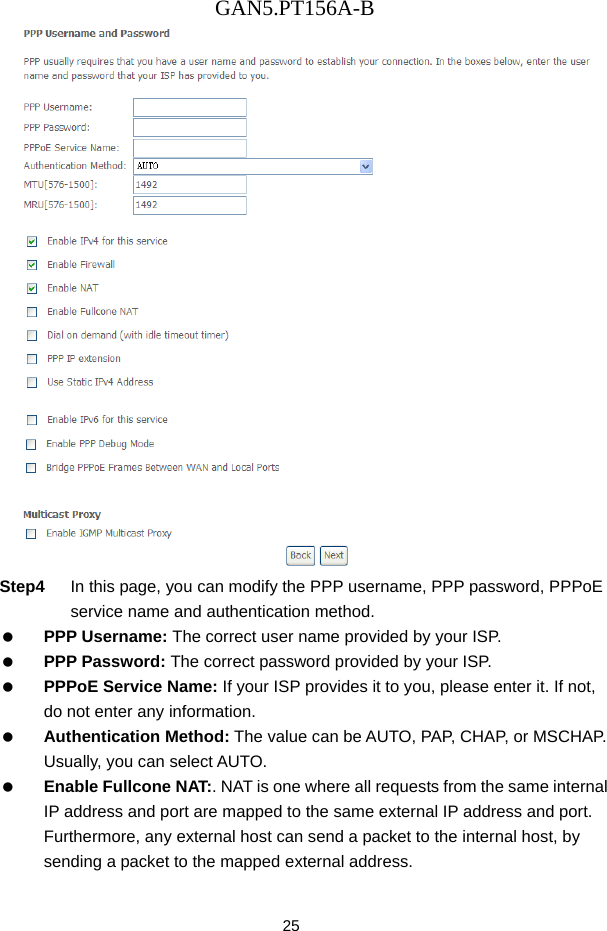
GAN5.PT156A-B 25  Step4  In this page, you can modify the PPP username, PPP password, PPPoE service name and authentication method.   PPP Username: The correct user name provided by your ISP.   PPP Password: The correct password provided by your ISP.   PPPoE Service Name: If your ISP provides it to you, please enter it. If not, do not enter any information.   Authentication Method: The value can be AUTO, PAP, CHAP, or MSCHAP. Usually, you can select AUTO.   Enable Fullcone NAT:. NAT is one where all requests from the same internal IP address and port are mapped to the same external IP address and port. Furthermore, any external host can send a packet to the internal host, by sending a packet to the mapped external address.
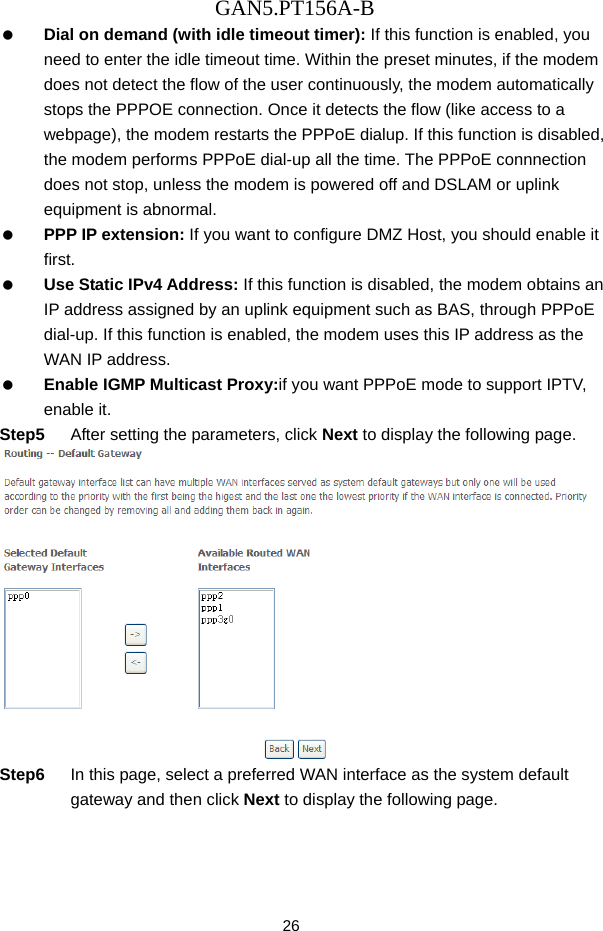
GAN5.PT156A-B 26   Dial on demand (with idle timeout timer): If this function is enabled, you need to enter the idle timeout time. Within the preset minutes, if the modem does not detect the flow of the user continuously, the modem automatically stops the PPPOE connection. Once it detects the flow (like access to a webpage), the modem restarts the PPPoE dialup. If this function is disabled, the modem performs PPPoE dial-up all the time. The PPPoE connnection does not stop, unless the modem is powered off and DSLAM or uplink equipment is abnormal.   PPP IP extension: If you want to configure DMZ Host, you should enable it first.   Use Static IPv4 Address: If this function is disabled, the modem obtains an IP address assigned by an uplink equipment such as BAS, through PPPoE dial-up. If this function is enabled, the modem uses this IP address as the WAN IP address.   Enable IGMP Multicast Proxy:if you want PPPoE mode to support IPTV, enable it. Step5  After setting the parameters, click Next to display the following page.  Step6  In this page, select a preferred WAN interface as the system default gateway and then click Next to display the following page.
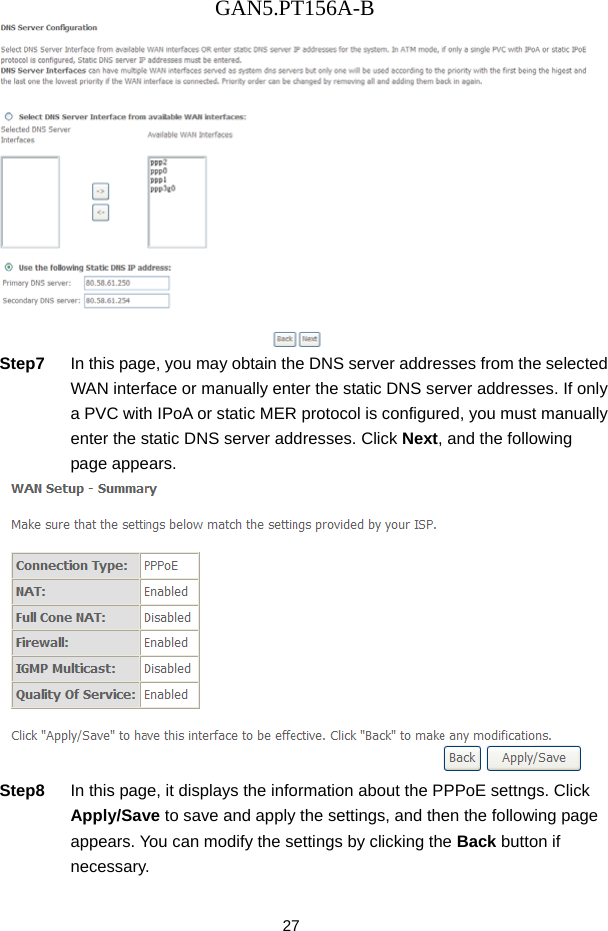
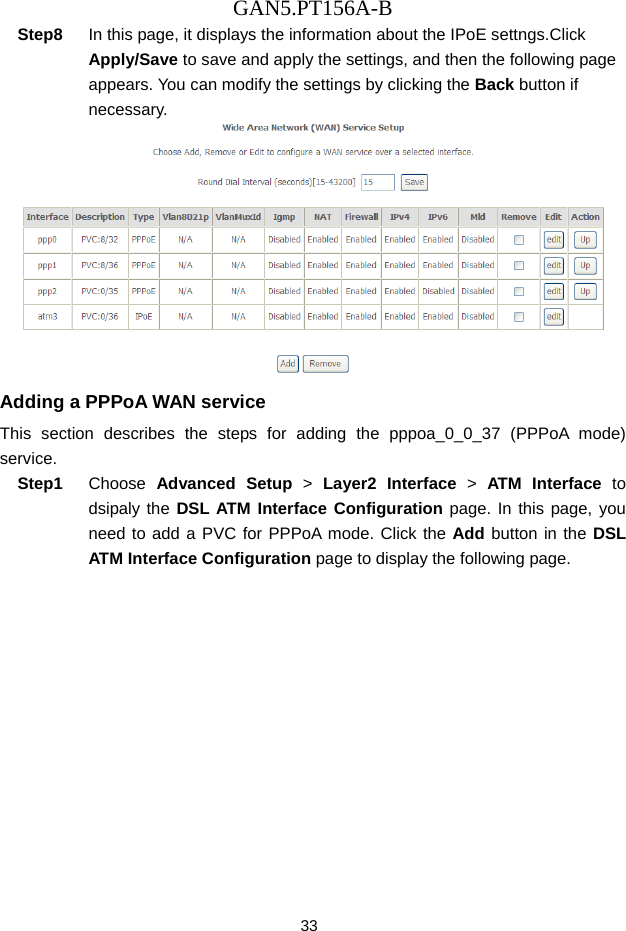
GAN5.PT156A-B 27  Step7  In this page, you may obtain the DNS server addresses from the selected WAN interface or manually enter the static DNS server addresses. If only a PVC with IPoA or static MER protocol is configured, you must manually enter the static DNS server addresses. Click Next, and the following page appears.  Step8  In this page, it displays the information about the PPPoE settngs. Click Apply/Save to save and apply the settings, and then the following page appears. You can modify the settings by clicking the Back button if necessary.
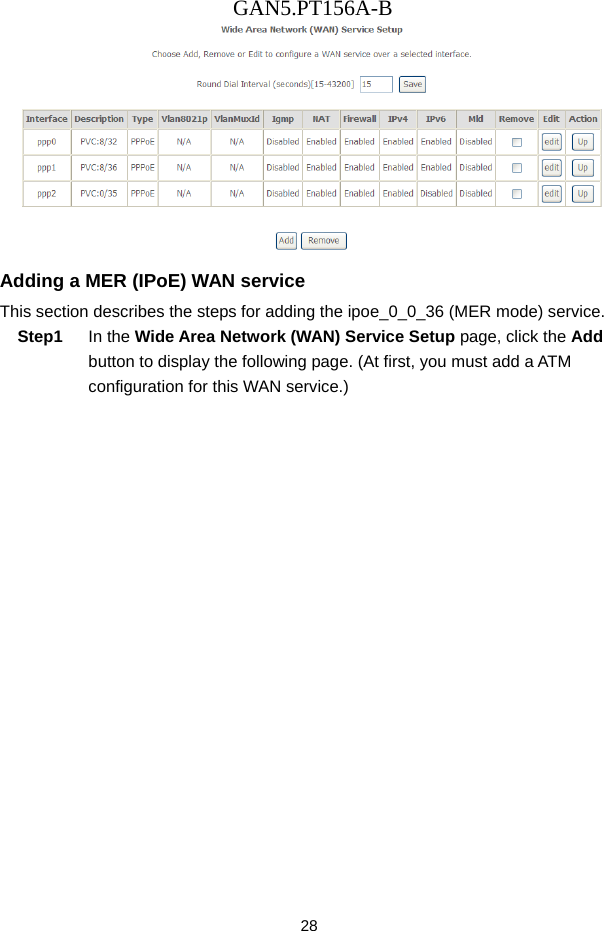
GAN5.PT156A-B 28  Adding a MER (IPoE) WAN service This section describes the steps for adding the ipoe_0_0_36 (MER mode) service. Step1  In the Wide Area Network (WAN) Service Setup page, click the Add button to display the following page. (At first, you must add a ATM configuration for this WAN service.)
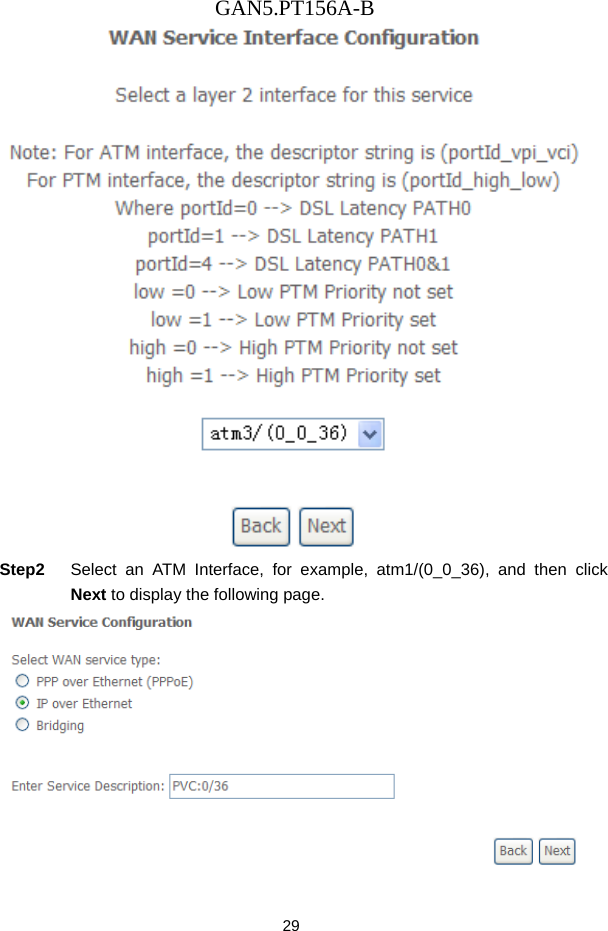
GAN5.PT156A-B 29  Step2  Select an ATM Interface, for example, atm1/(0_0_36), and then click Next to display the following page.
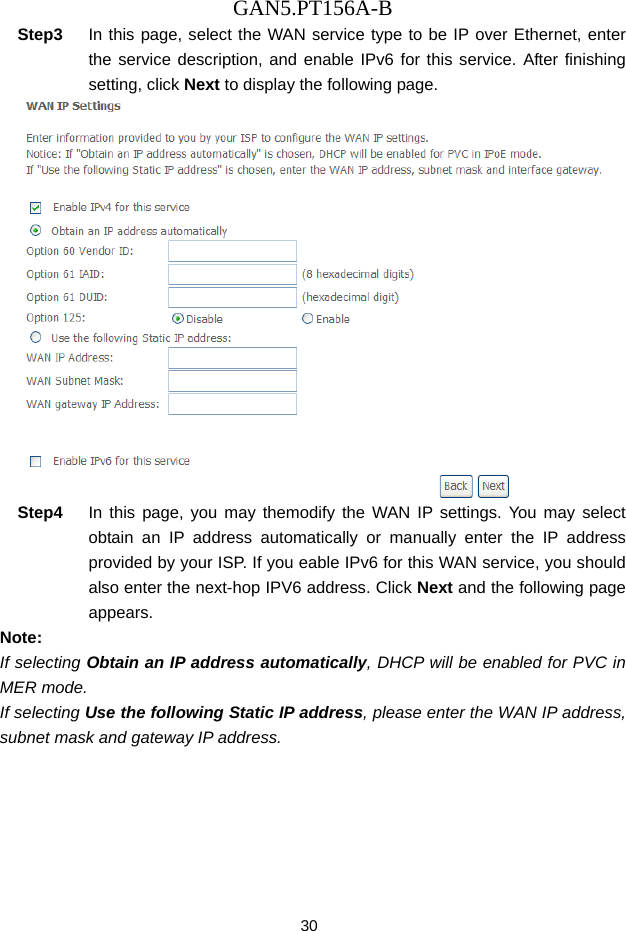
GAN5.PT156A-B 30 Step3  In this page, select the WAN service type to be IP over Ethernet, enter the service description, and enable IPv6 for this service. After finishing setting, click Next to display the following page.  Step4  In this page, you may themodify the WAN IP settings. You may select obtain an IP address automatically or manually enter the IP address provided by your ISP. If you eable IPv6 for this WAN service, you should also enter the next-hop IPV6 address. Click Next and the following page appears. Note: If selecting Obtain an IP address automatically, DHCP will be enabled for PVC in MER mode.   If selecting Use the following Static IP address, please enter the WAN IP address, subnet mask and gateway IP address.
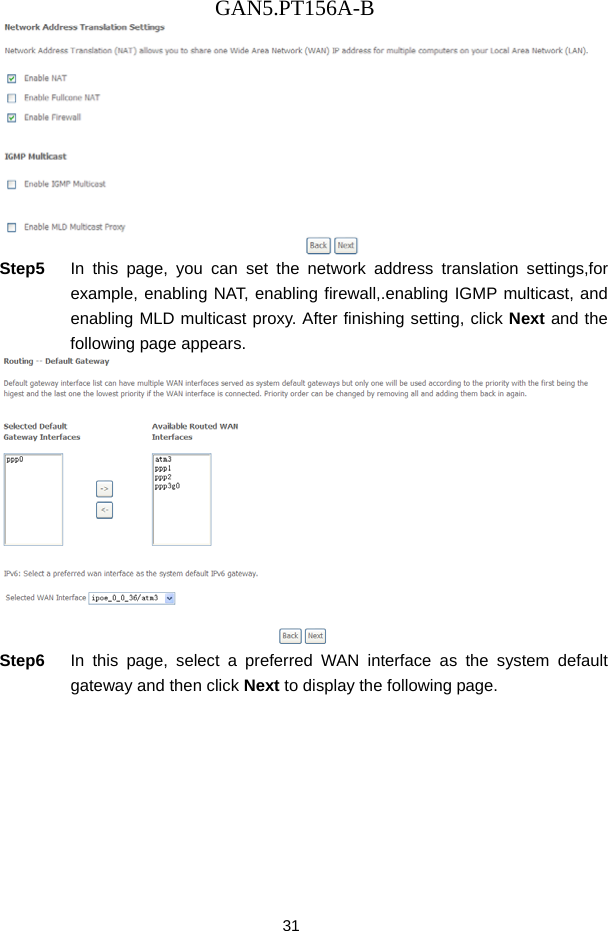
GAN5.PT156A-B 31  Step5  In this page, you can set the network address translation settings,for example, enabling NAT, enabling firewall,.enabling IGMP multicast, and enabling MLD multicast proxy. After finishing setting, click Next and the following page appears.  Step6  In this page, select a preferred WAN interface as the system default gateway and then click Next to display the following page.
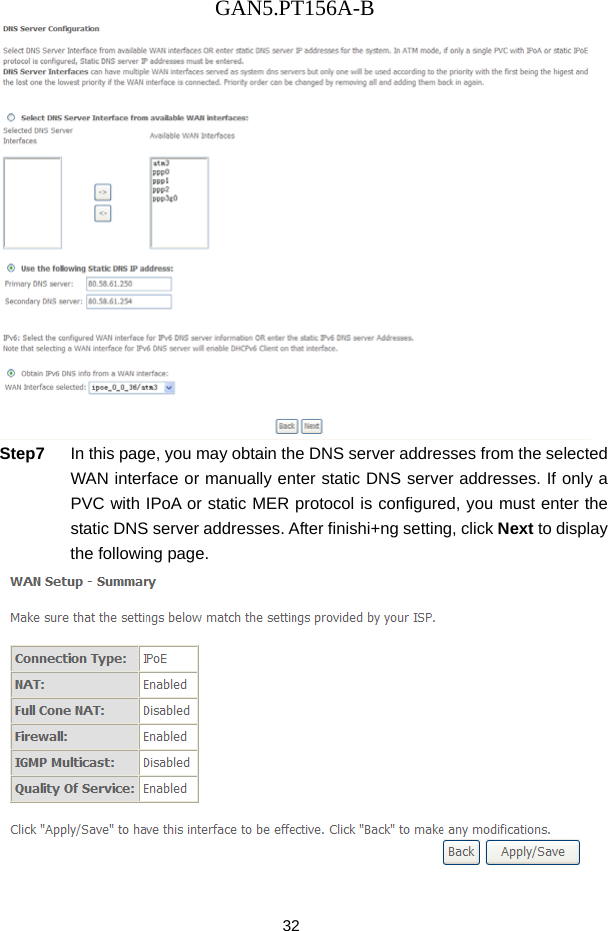
GAN5.PT156A-B 32  Step7  In this page, you may obtain the DNS server addresses from the selected WAN interface or manually enter static DNS server addresses. If only a PVC with IPoA or static MER protocol is configured, you must enter the static DNS server addresses. After finishi+ng setting, click Next to display the following page.
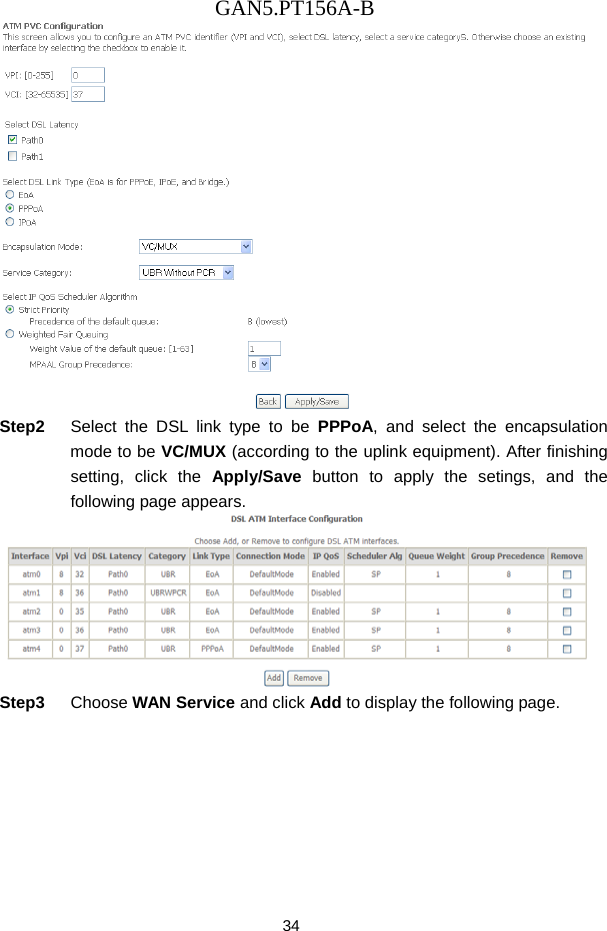
GAN5.PT156A-B 33 Step8  In this page, it displays the information about the IPoE settngs.Click Apply/Save to save and apply the settings, and then the following page appears. You can modify the settings by clicking the Back button if necessary.  Adding a PPPoA WAN service This section describes the steps for adding the pppoa_0_0_37 (PPPoA mode) service. Step1  Choose  Advanced Setup > Layer2 Interface > ATM Interface to dsipaly the DSL ATM Interface Configuration page. In this page, you need to add a PVC for PPPoA mode. Click the Add button in the DSL ATM Interface Configuration page to display the following page.
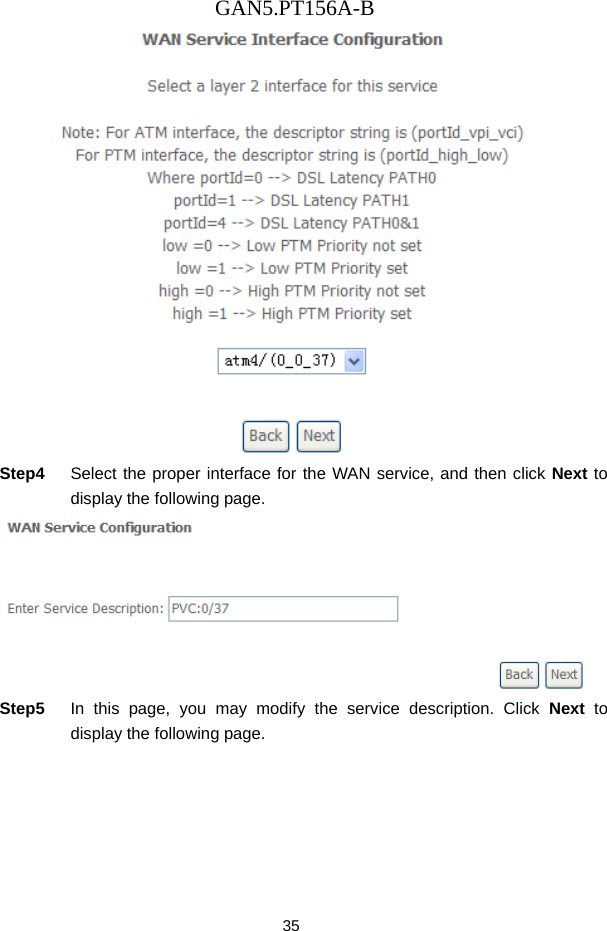
GAN5.PT156A-B 34  Step2  Select the DSL link type to be PPPoA, and select the encapsulation mode to be VC/MUX (according to the uplink equipment). After finishing setting, click the Apply/Save button to apply the setings, and the following page appears.  Step3  Choose WAN Service and click Add to display the following page.
GAN5.PT156A-B 35  Step4  Select the proper interface for the WAN service, and then click Next to display the following page.  Step5  In this page, you may modify the service description. Click Next to display the following page.
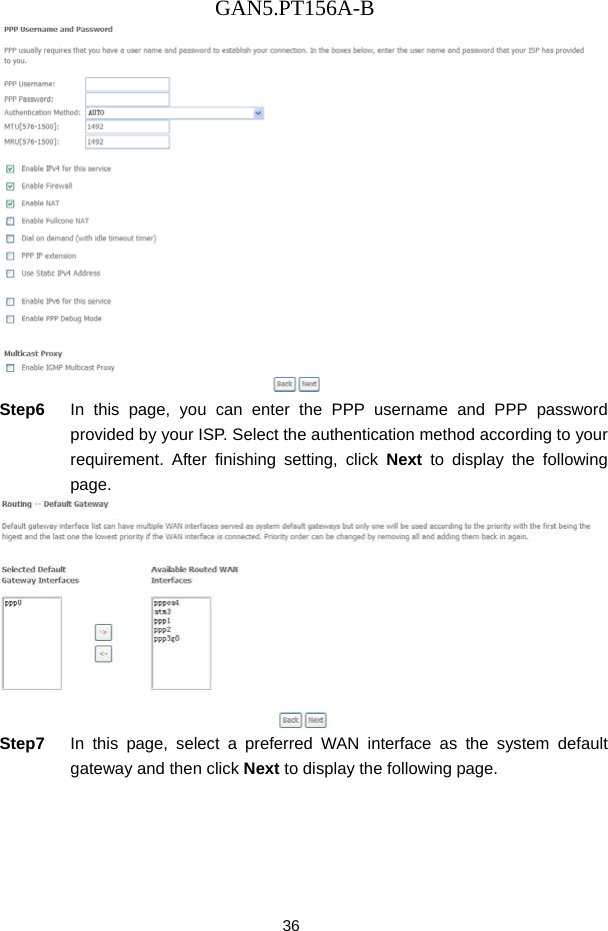
GAN5.PT156A-B 36  Step6  In this page, you can enter the PPP username and PPP password provided by your ISP. Select the authentication method according to your requirement. After finishing setting, click Next to display the following page.  Step7  In this page, select a preferred WAN interface as the system default gateway and then click Next to display the following page.
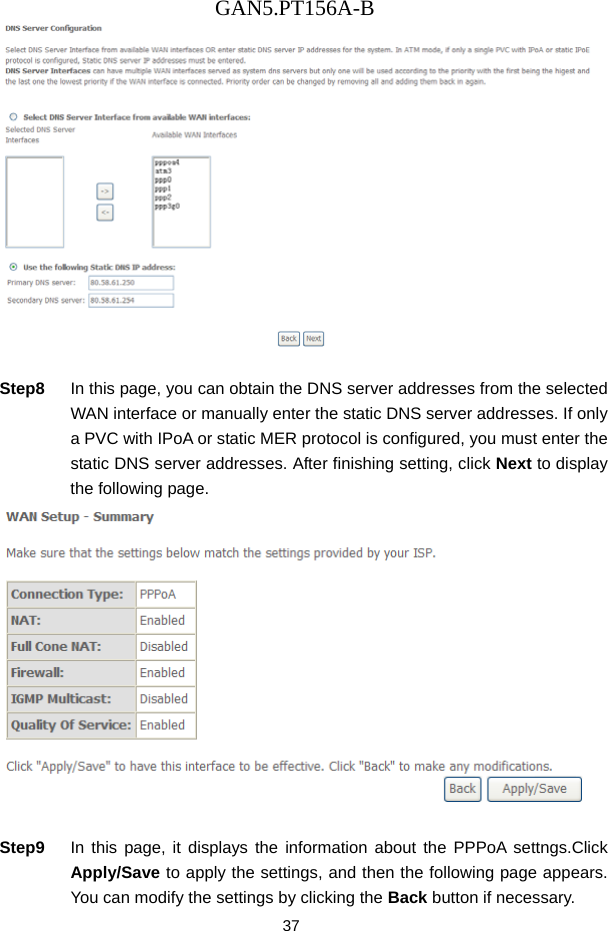
GAN5.PT156A-B 37   Step8  In this page, you can obtain the DNS server addresses from the selected WAN interface or manually enter the static DNS server addresses. If only a PVC with IPoA or static MER protocol is configured, you must enter the static DNS server addresses. After finishing setting, click Next to display the following page.   Step9  In this page, it displays the information about the PPPoA settngs.Click Apply/Save to apply the settings, and then the following page appears. You can modify the settings by clicking the Back button if necessary.
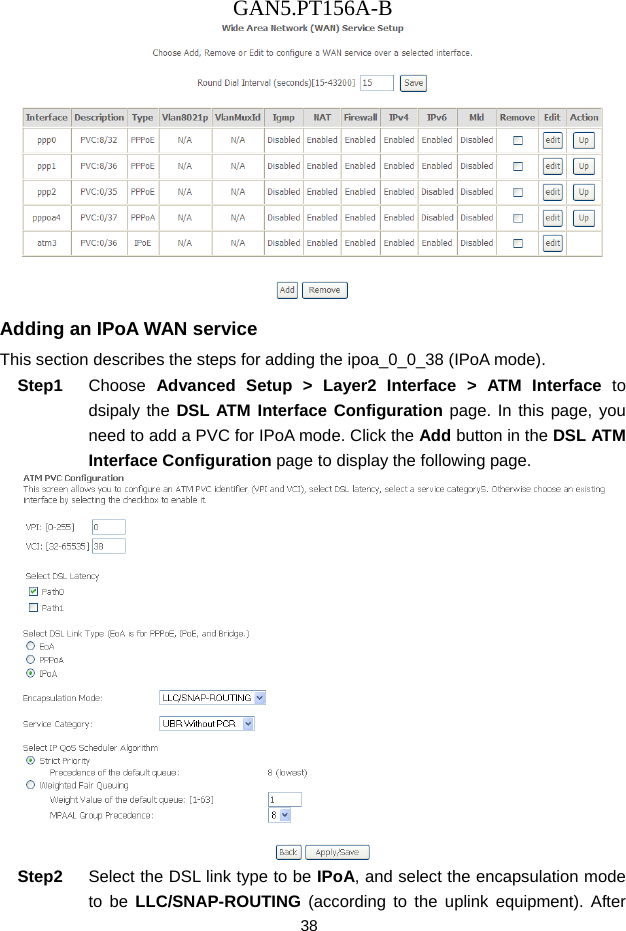
GAN5.PT156A-B 38  Adding an IPoA WAN service This section describes the steps for adding the ipoa_0_0_38 (IPoA mode). Step1  Choose  Advanced Setup > Layer2 Interface > ATM Interface to dsipaly the DSL ATM Interface Configuration page. In this page, you need to add a PVC for IPoA mode. Click the Add button in the DSL ATM Interface Configuration page to display the following page.  Step2  Select the DSL link type to be IPoA, and select the encapsulation mode to be LLC/SNAP-ROUTING (according to the uplink equipment). After
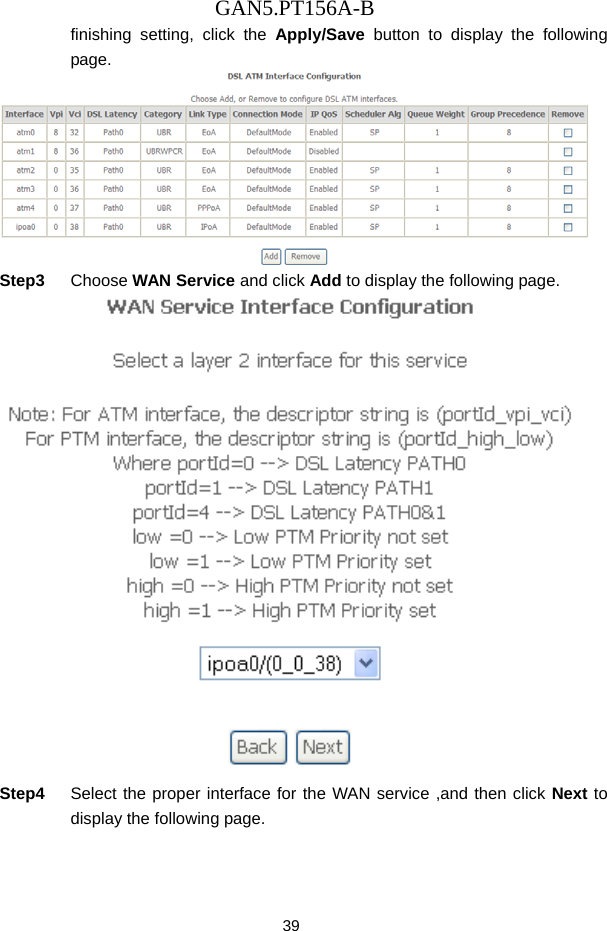
GAN5.PT156A-B 39 finishing setting, click the Apply/Save button to display the following page.  Step3  Choose WAN Service and click Add to display the following page.  Step4  Select the proper interface for the WAN service ,and then click Next to display the following page.
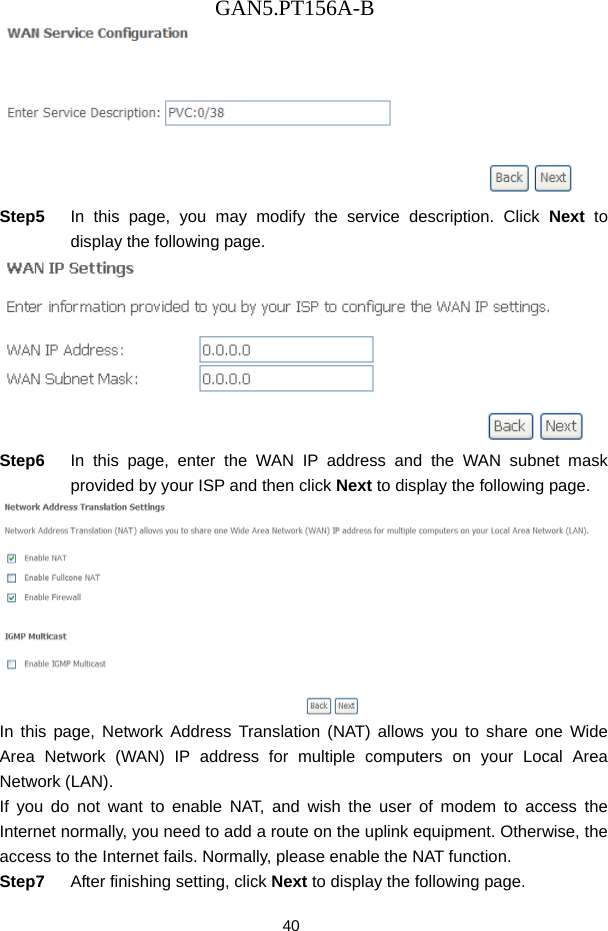
GAN5.PT156A-B 40  Step5  In this page, you may modify the service description. Click Next to display the following page.  Step6  In this page, enter the WAN IP address and the WAN subnet mask provided by your ISP and then click Next to display the following page.  In this page, Network Address Translation (NAT) allows you to share one Wide Area Network (WAN) IP address for multiple computers on your Local Area Network (LAN). If you do not want to enable NAT, and wish the user of modem to access the Internet normally, you need to add a route on the uplink equipment. Otherwise, the access to the Internet fails. Normally, please enable the NAT function. Step7  After finishing setting, click Next to display the following page.
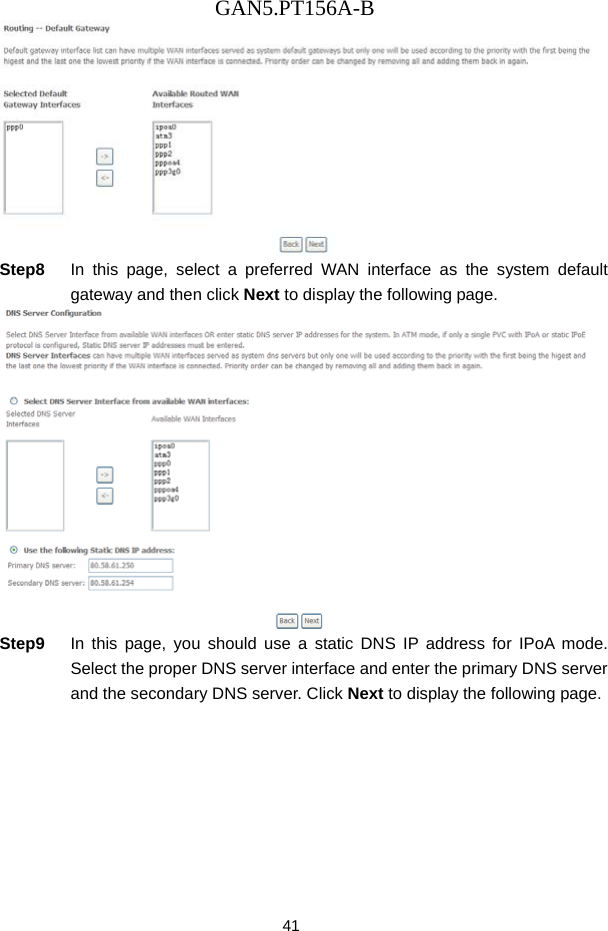
GAN5.PT156A-B 41  Step8  In this page, select a preferred WAN interface as the system default gateway and then click Next to display the following page.  Step9  In this page, you should use a static DNS IP address for IPoA mode. Select the proper DNS server interface and enter the primary DNS server and the secondary DNS server. Click Next to display the following page.
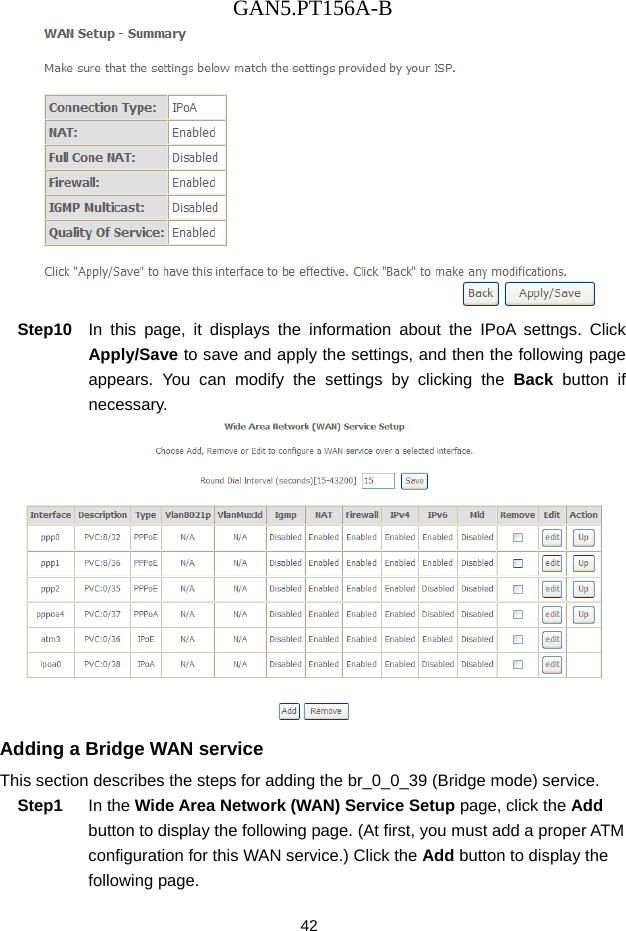
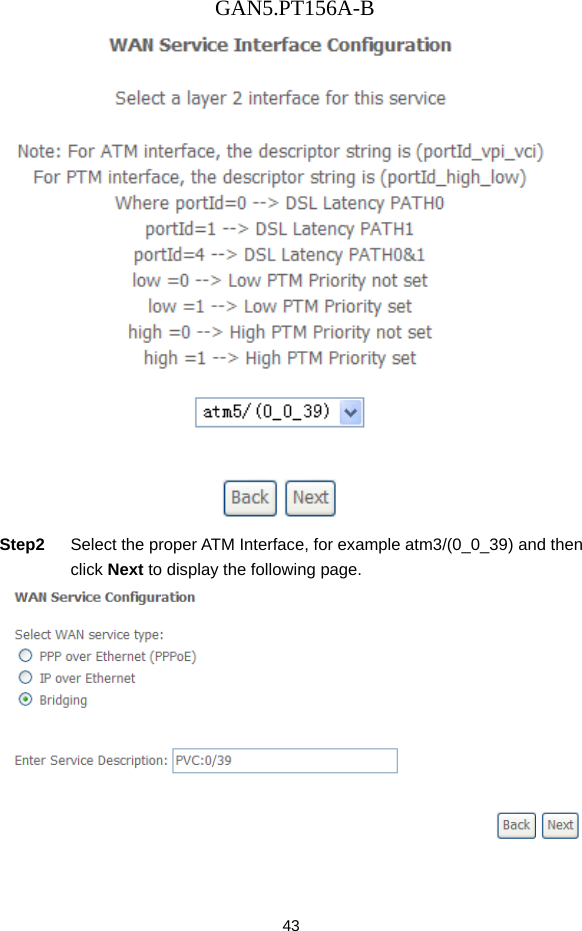
GAN5.PT156A-B 42  Step10  In this page, it displays the information about the IPoA settngs. Click Apply/Save to save and apply the settings, and then the following page appears. You can modify the settings by clicking the Back button if necessary.  Adding a Bridge WAN service This section describes the steps for adding the br_0_0_39 (Bridge mode) service. Step1  In the Wide Area Network (WAN) Service Setup page, click the Add button to display the following page. (At first, you must add a proper ATM configuration for this WAN service.) Click the Add button to display the following page.
GAN5.PT156A-B 43  Step2  Select the proper ATM Interface, for example atm3/(0_0_39) and then click Next to display the following page.
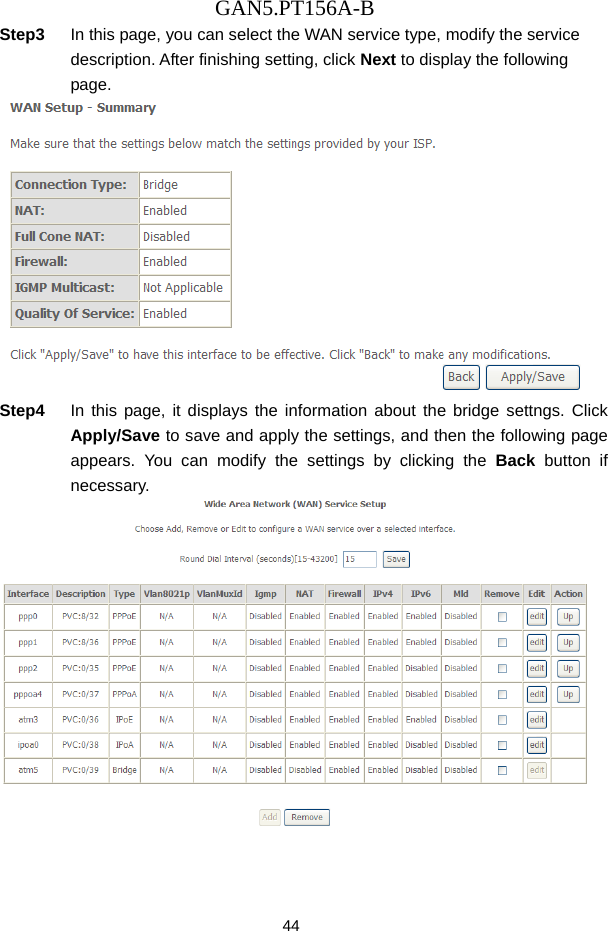
GAN5.PT156A-B 44 Step3  In this page, you can select the WAN service type, modify the service description. After finishing setting, click Next to display the following page.  Step4  In this page, it displays the information about the bridge settngs. Click Apply/Save to save and apply the settings, and then the following page appears. You can modify the settings by clicking the Back button if necessary.
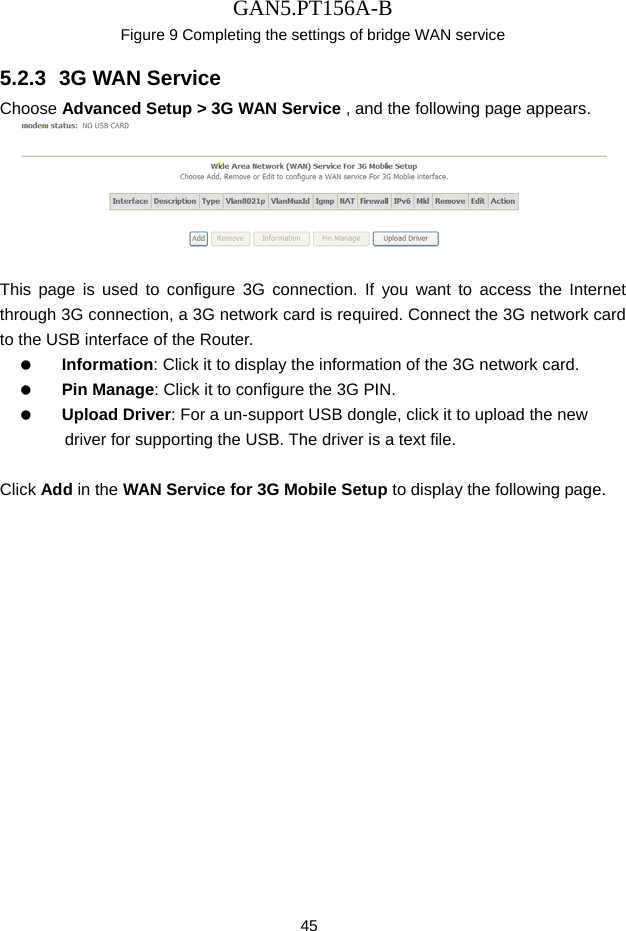
GAN5.PT156A-B 45 Figure 9 Completing the settings of bridge WAN service 5.2.3  3G WAN Service Choose Advanced Setup > 3G WAN Service , and the following page appears.   This page is used to configure 3G connection. If you want to access the Internet through 3G connection, a 3G network card is required. Connect the 3G network card to the USB interface of the Router.   Information: Click it to display the information of the 3G network card.   Pin Manage: Click it to configure the 3G PIN.   Upload Driver: For a un-support USB dongle, click it to upload the new driver for supporting the USB. The driver is a text file.  Click Add in the WAN Service for 3G Mobile Setup to display the following page.
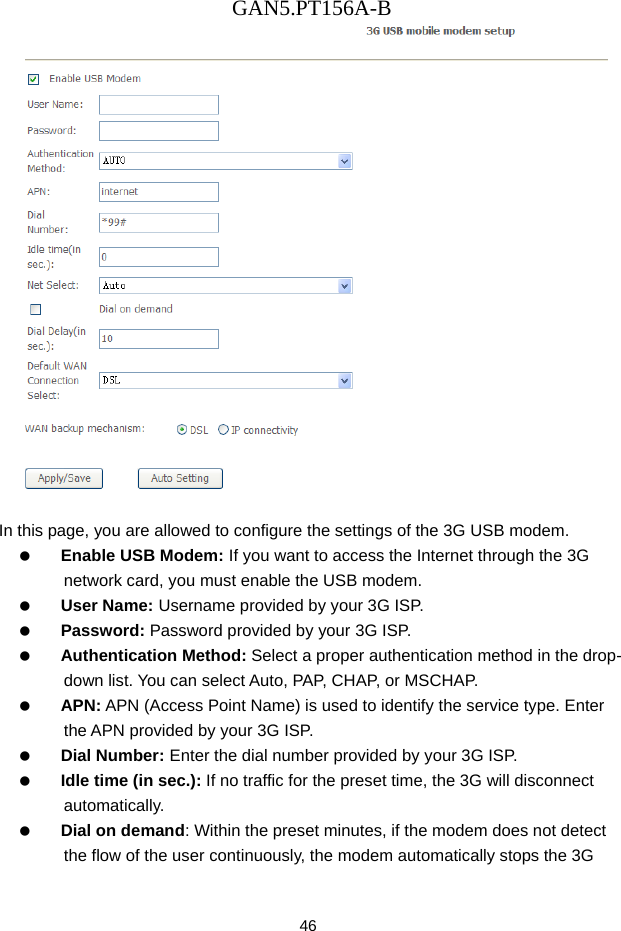
GAN5.PT156A-B 46   In this page, you are allowed to configure the settings of the 3G USB modem.   Enable USB Modem: If you want to access the Internet through the 3G network card, you must enable the USB modem.     User Name: Username provided by your 3G ISP.   Password: Password provided by your 3G ISP.   Authentication Method: Select a proper authentication method in the drop- down list. You can select Auto, PAP, CHAP, or MSCHAP.   APN: APN (Access Point Name) is used to identify the service type. Enter the APN provided by your 3G ISP.   Dial Number: Enter the dial number provided by your 3G ISP.   Idle time (in sec.): If no traffic for the preset time, the 3G will disconnect automatically.   Dial on demand: Within the preset minutes, if the modem does not detect the flow of the user continuously, the modem automatically stops the 3G
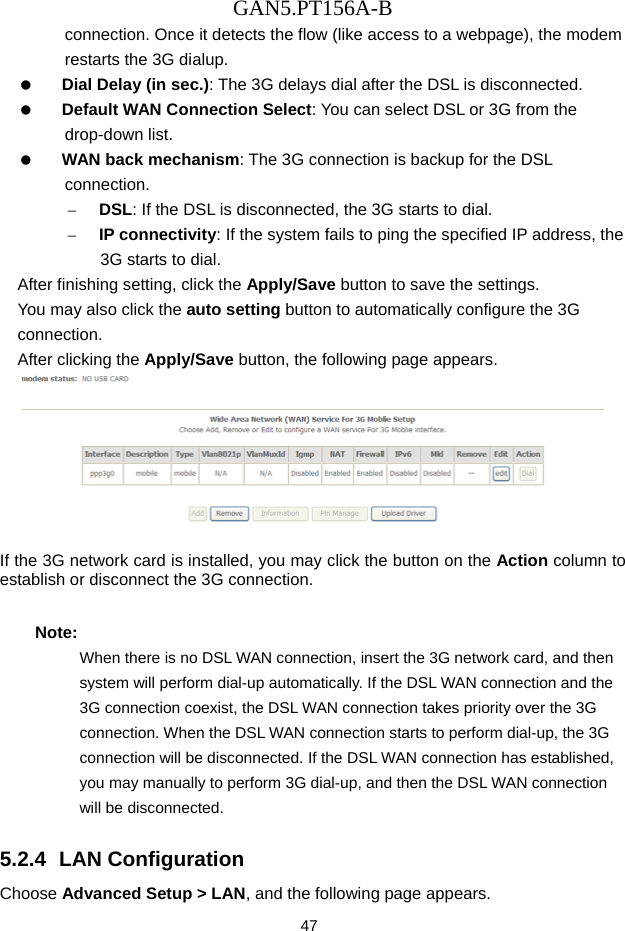
GAN5.PT156A-B 47 connection. Once it detects the flow (like access to a webpage), the modem restarts the 3G dialup.   Dial Delay (in sec.): The 3G delays dial after the DSL is disconnected.   Default WAN Connection Select: You can select DSL or 3G from the drop-down list.   WAN back mechanism: The 3G connection is backup for the DSL connection. – DSL: If the DSL is disconnected, the 3G starts to dial. – IP connectivity: If the system fails to ping the specified IP address, the 3G starts to dial. After finishing setting, click the Apply/Save button to save the settings. You may also click the auto setting button to automatically configure the 3G connection. After clicking the Apply/Save button, the following page appears.   If the 3G network card is installed, you may click the button on the Action column to establish or disconnect the 3G connection. Note: When there is no DSL WAN connection, insert the 3G network card, and then system will perform dial-up automatically. If the DSL WAN connection and the 3G connection coexist, the DSL WAN connection takes priority over the 3G connection. When the DSL WAN connection starts to perform dial-up, the 3G connection will be disconnected. If the DSL WAN connection has established, you may manually to perform 3G dial-up, and then the DSL WAN connection will be disconnected. 5.2.4  LAN Configuration Choose Advanced Setup > LAN, and the following page appears.
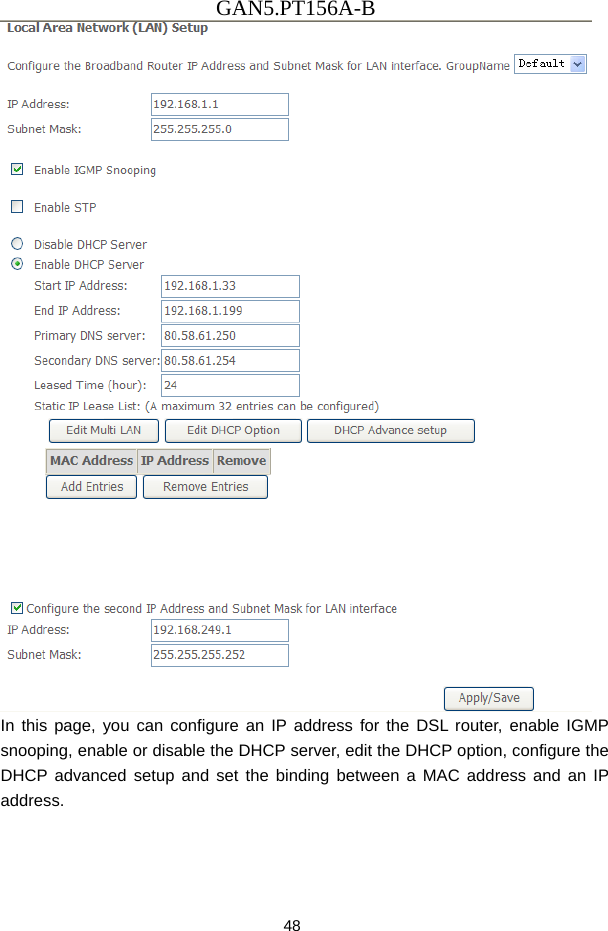
GAN5.PT156A-B 48  In this page, you can configure an IP address for the DSL router, enable IGMP snooping, enable or disable the DHCP server, edit the DHCP option, configure the DHCP advanced setup and set the binding between a MAC address and an IP address.
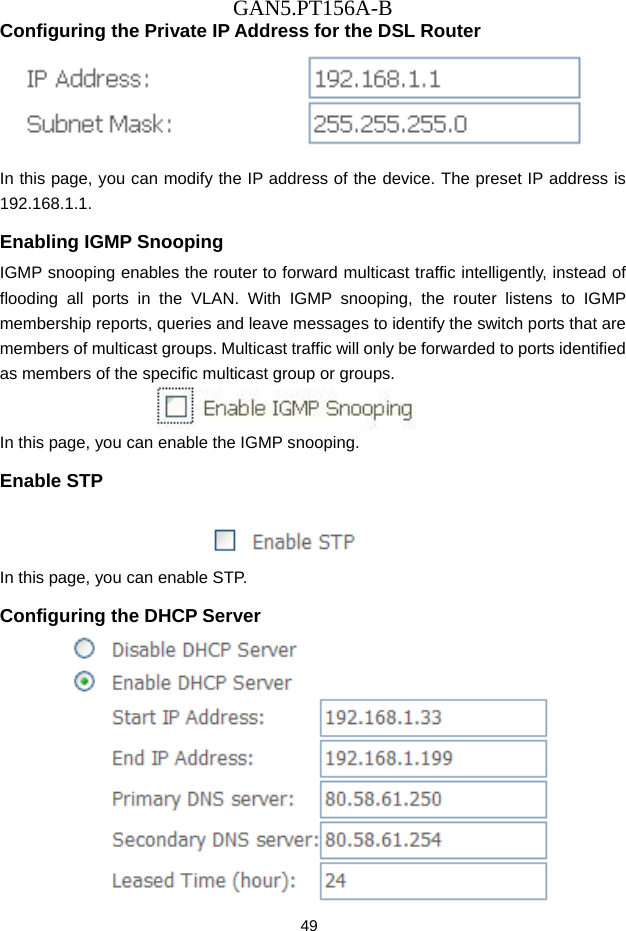
GAN5.PT156A-B 49 Configuring the Private IP Address for the DSL Router  In this page, you can modify the IP address of the device. The preset IP address is 192.168.1.1. Enabling IGMP Snooping IGMP snooping enables the router to forward multicast traffic intelligently, instead of flooding all ports in the VLAN. With IGMP snooping, the router listens to IGMP membership reports, queries and leave messages to identify the switch ports that are members of multicast groups. Multicast traffic will only be forwarded to ports identified as members of the specific multicast group or groups.  In this page, you can enable the IGMP snooping. Enable STP   In this page, you can enable STP. Configuring the DHCP Server
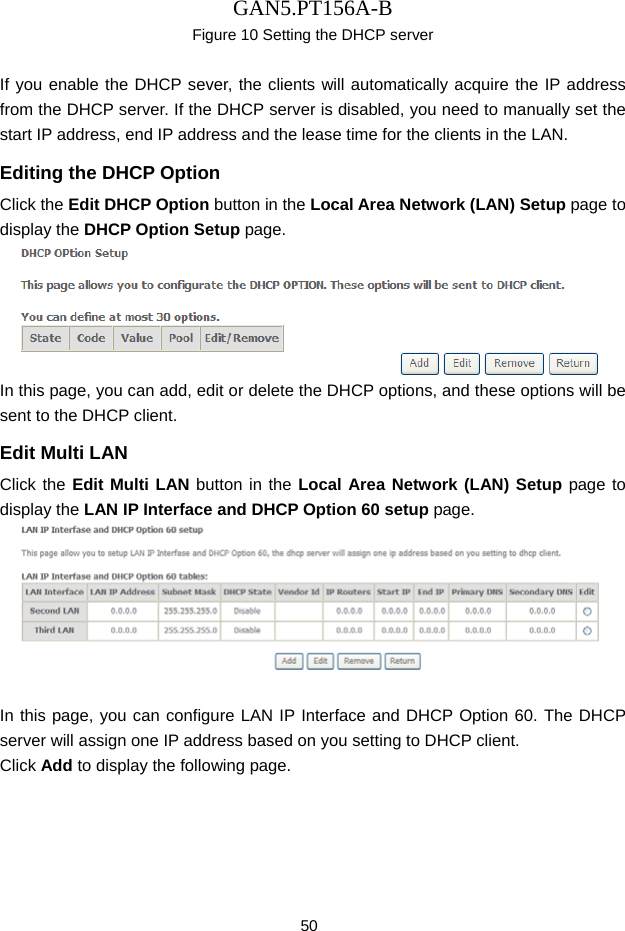
GAN5.PT156A-B 50 Figure 10 Setting the DHCP server  If you enable the DHCP sever, the clients will automatically acquire the IP address from the DHCP server. If the DHCP server is disabled, you need to manually set the start IP address, end IP address and the lease time for the clients in the LAN. Editing the DHCP Option Click the Edit DHCP Option button in the Local Area Network (LAN) Setup page to display the DHCP Option Setup page.    In this page, you can add, edit or delete the DHCP options, and these options will be sent to the DHCP client. Edit Multi LAN Click the Edit Multi LAN button in the Local Area Network (LAN) Setup page to display the LAN IP Interface and DHCP Option 60 setup page.   In this page, you can configure LAN IP Interface and DHCP Option 60. The DHCP server will assign one IP address based on you setting to DHCP client. Click Add to display the following page.
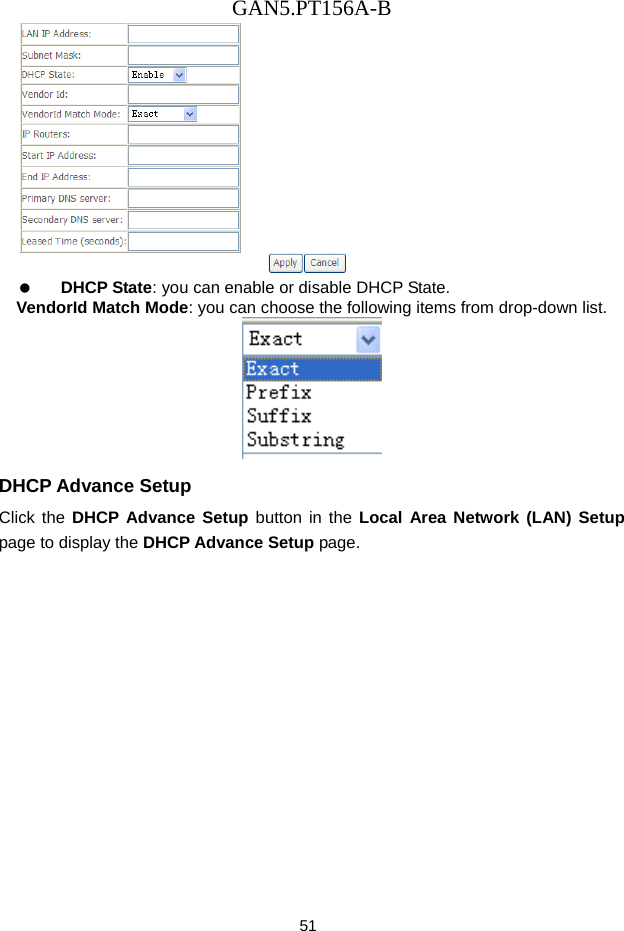
GAN5.PT156A-B 51    DHCP State: you can enable or disable DHCP State. VendorId Match Mode: you can choose the following items from drop-down list.  DHCP Advance Setup Click the DHCP Advance Setup button in the Local Area Network (LAN) Setup page to display the DHCP Advance Setup page.
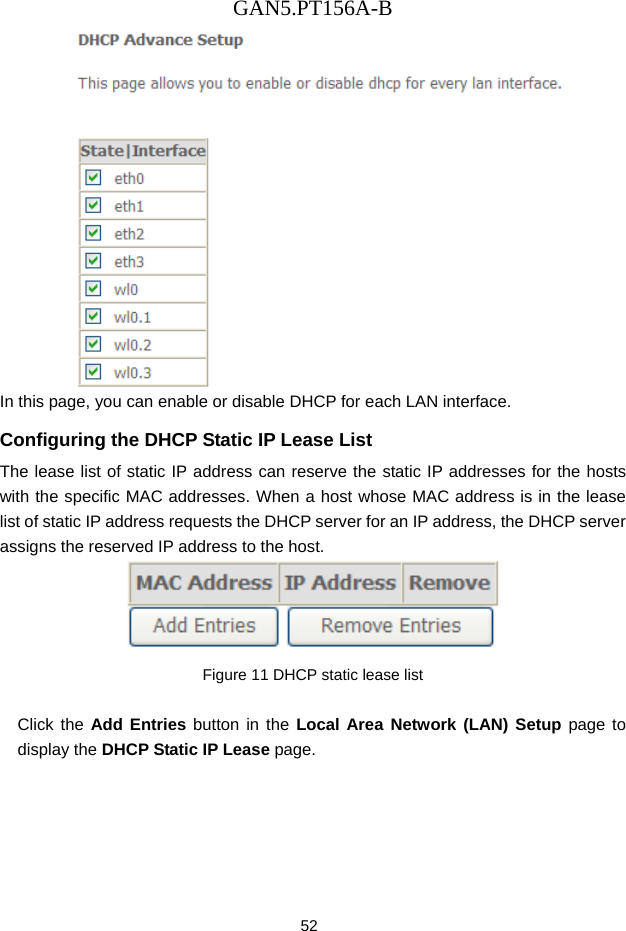
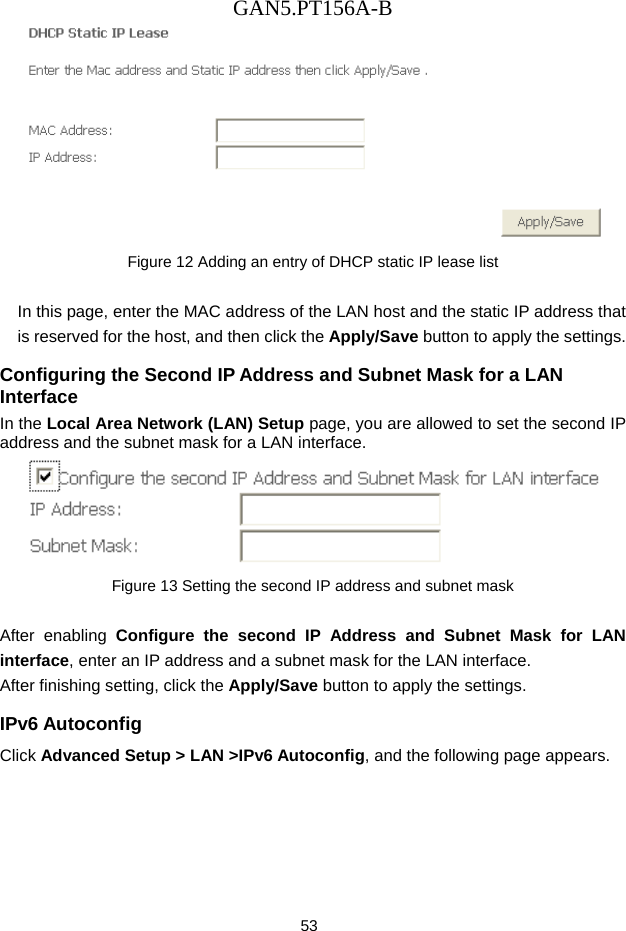
GAN5.PT156A-B 52  In this page, you can enable or disable DHCP for each LAN interface. Configuring the DHCP Static IP Lease List The lease list of static IP address can reserve the static IP addresses for the hosts with the specific MAC addresses. When a host whose MAC address is in the lease list of static IP address requests the DHCP server for an IP address, the DHCP server assigns the reserved IP address to the host.  Figure 11 DHCP static lease list  Click the Add Entries button in the Local Area Network (LAN) Setup page to display the DHCP Static IP Lease page.
GAN5.PT156A-B 53  Figure 12 Adding an entry of DHCP static IP lease list  In this page, enter the MAC address of the LAN host and the static IP address that is reserved for the host, and then click the Apply/Save button to apply the settings. Configuring the Second IP Address and Subnet Mask for a LAN Interface In the Local Area Network (LAN) Setup page, you are allowed to set the second IP address and the subnet mask for a LAN interface.  Figure 13 Setting the second IP address and subnet mask  After enabling Configure the second IP Address and Subnet Mask for LAN interface, enter an IP address and a subnet mask for the LAN interface.   After finishing setting, click the Apply/Save button to apply the settings. IPv6 Autoconfig Click Advanced Setup > LAN >IPv6 Autoconfig, and the following page appears.
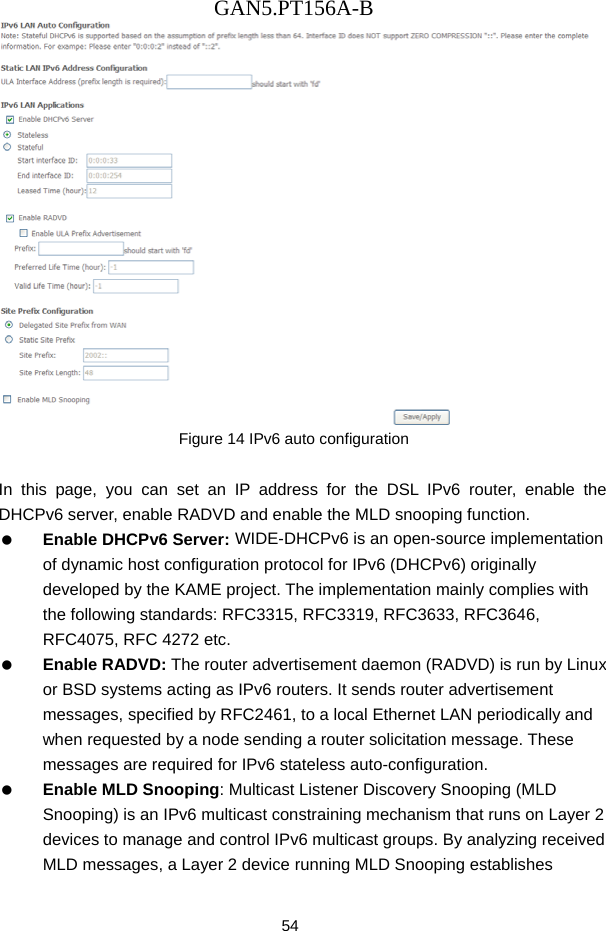
GAN5.PT156A-B 54  Figure 14 IPv6 auto configuration  In this page, you can set an IP address for the DSL IPv6 router, enable the DHCPv6 server, enable RADVD and enable the MLD snooping function.   Enable DHCPv6 Server: WIDE-DHCPv6 is an open-source implementation of dynamic host configuration protocol for IPv6 (DHCPv6) originally developed by the KAME project. The implementation mainly complies with the following standards: RFC3315, RFC3319, RFC3633, RFC3646, RFC4075, RFC 4272 etc.   Enable RADVD: The router advertisement daemon (RADVD) is run by Linux or BSD systems acting as IPv6 routers. It sends router advertisement messages, specified by RFC2461, to a local Ethernet LAN periodically and when requested by a node sending a router solicitation message. These messages are required for IPv6 stateless auto-configuration.   Enable MLD Snooping: Multicast Listener Discovery Snooping (MLD Snooping) is an IPv6 multicast constraining mechanism that runs on Layer 2 devices to manage and control IPv6 multicast groups. By analyzing received MLD messages, a Layer 2 device running MLD Snooping establishes
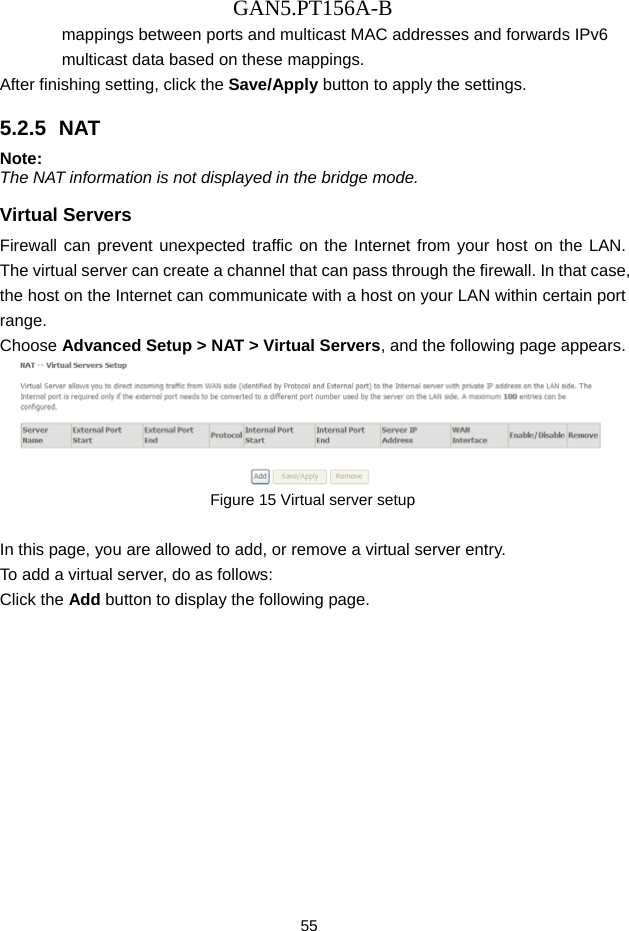
GAN5.PT156A-B 55 mappings between ports and multicast MAC addresses and forwards IPv6 multicast data based on these mappings. After finishing setting, click the Save/Apply button to apply the settings. 5.2.5  NAT Note: The NAT information is not displayed in the bridge mode. Virtual Servers Firewall can prevent unexpected traffic on the Internet from your host on the LAN. The virtual server can create a channel that can pass through the firewall. In that case, the host on the Internet can communicate with a host on your LAN within certain port range. Choose Advanced Setup > NAT > Virtual Servers, and the following page appears.    Figure 15 Virtual server setup  In this page, you are allowed to add, or remove a virtual server entry. To add a virtual server, do as follows: Click the Add button to display the following page.
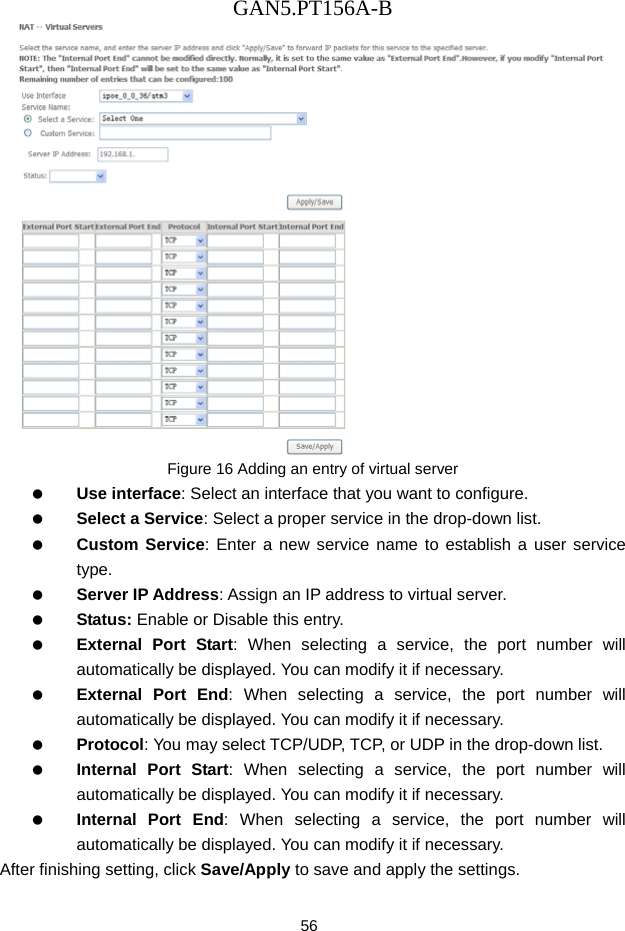
GAN5.PT156A-B 56  Figure 16 Adding an entry of virtual server   Use interface: Select an interface that you want to configure.   Select a Service: Select a proper service in the drop-down list.   Custom Service: Enter a new service name to establish a user service type.   Server IP Address: Assign an IP address to virtual server.   Status: Enable or Disable this entry.   External Port Start: When selecting a service, the port number will automatically be displayed. You can modify it if necessary.   External Port End: When selecting a service, the port number will automatically be displayed. You can modify it if necessary.   Protocol: You may select TCP/UDP, TCP, or UDP in the drop-down list.   Internal Port Start: When selecting a service, the port number will automatically be displayed. You can modify it if necessary.   Internal Port End: When selecting a service, the port number will automatically be displayed. You can modify it if necessary. After finishing setting, click Save/Apply to save and apply the settings.
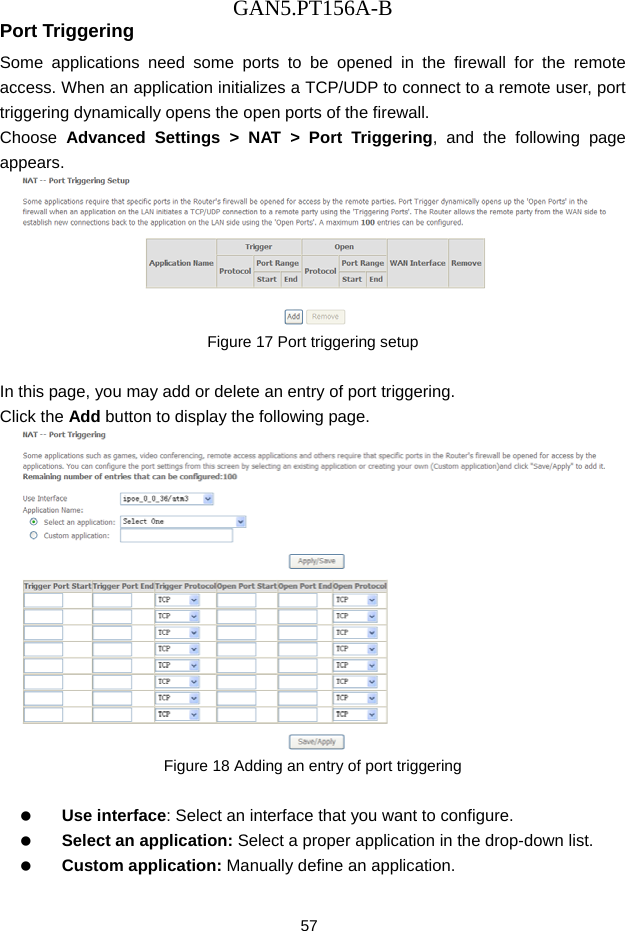
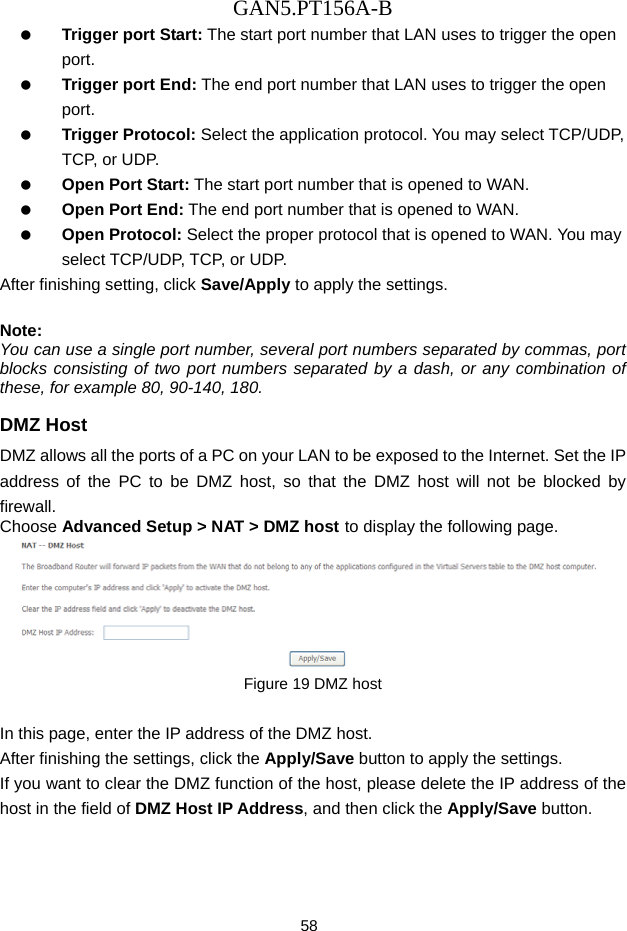
GAN5.PT156A-B 57 Port Triggering Some applications need some ports to be opened in the firewall for the remote access. When an application initializes a TCP/UDP to connect to a remote user, port triggering dynamically opens the open ports of the firewall. Choose  Advanced Settings > NAT > Port Triggering, and the following page appears.  Figure 17 Port triggering setup  In this page, you may add or delete an entry of port triggering. Click the Add button to display the following page.  Figure 18 Adding an entry of port triggering    Use interface: Select an interface that you want to configure.   Select an application: Select a proper application in the drop-down list.   Custom application: Manually define an application.
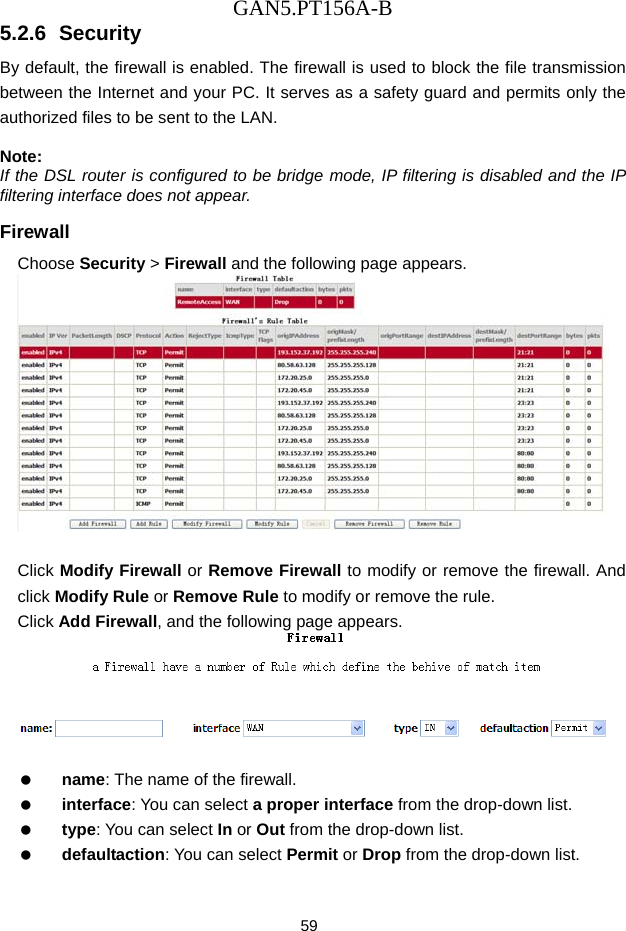
GAN5.PT156A-B 58   Trigger port Start: The start port number that LAN uses to trigger the open port.   Trigger port End: The end port number that LAN uses to trigger the open port.   Trigger Protocol: Select the application protocol. You may select TCP/UDP, TCP,  o r  U DP.   Open Port Start: The start port number that is opened to WAN.     Open Port End: The end port number that is opened to WAN.   Open Protocol: Select the proper protocol that is opened to WAN. You may select TCP/UDP, TCP, or UDP. After finishing setting, click Save/Apply to apply the settings.  Note: You can use a single port number, several port numbers separated by commas, port blocks consisting of two port numbers separated by a dash, or any combination of these, for example 80, 90-140, 180. DMZ Host DMZ allows all the ports of a PC on your LAN to be exposed to the Internet. Set the IP address of the PC to be DMZ host, so that the DMZ host will not be blocked by firewall. Choose Advanced Setup > NAT > DMZ host to display the following page.  Figure 19 DMZ host  In this page, enter the IP address of the DMZ host. After finishing the settings, click the Apply/Save button to apply the settings. If you want to clear the DMZ function of the host, please delete the IP address of the host in the field of DMZ Host IP Address, and then click the Apply/Save button.
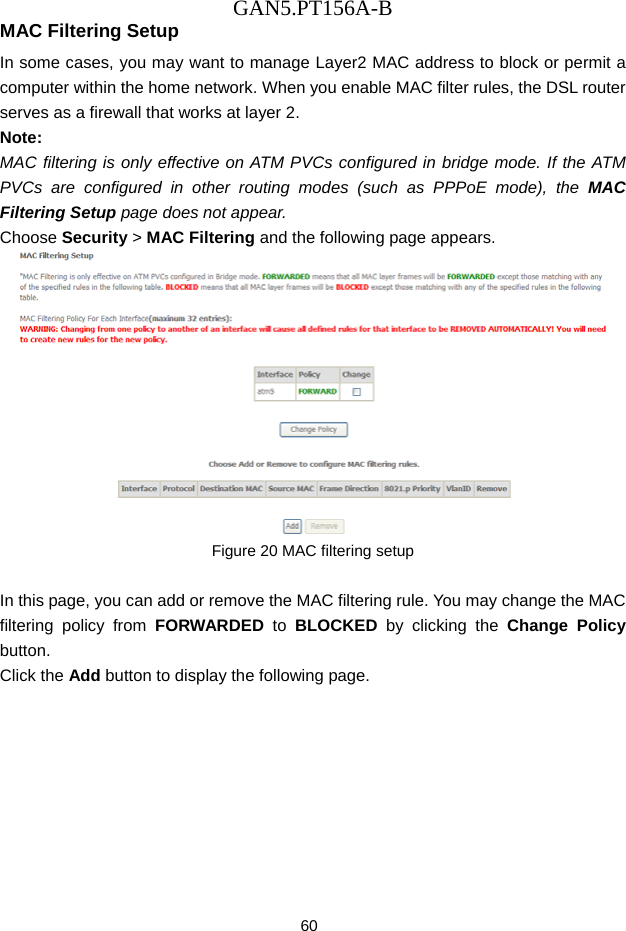
GAN5.PT156A-B 59 5.2.6  Security By default, the firewall is enabled. The firewall is used to block the file transmission between the Internet and your PC. It serves as a safety guard and permits only the authorized files to be sent to the LAN.  Note: If the DSL router is configured to be bridge mode, IP filtering is disabled and the IP filtering interface does not appear. Firewall Choose Security > Firewall and the following page appears.   Click Modify Firewall or Remove Firewall to modify or remove the firewall. And click Modify Rule or Remove Rule to modify or remove the rule. Click Add Firewall, and the following page appears.     name: The name of the firewall.   interface: You can select a proper interface from the drop-down list.   type: You can select In or Out from the drop-down list.   defaultaction: You can select Permit or Drop from the drop-down list.
GAN5.PT156A-B 60 MAC Filtering Setup In some cases, you may want to manage Layer2 MAC address to block or permit a computer within the home network. When you enable MAC filter rules, the DSL router serves as a firewall that works at layer 2. Note: MAC filtering is only effective on ATM PVCs configured in bridge mode. If the ATM PVCs are configured in other routing modes (such as PPPoE mode), the MAC Filtering Setup page does not appear. Choose Security > MAC Filtering and the following page appears.  Figure 20 MAC filtering setup  In this page, you can add or remove the MAC filtering rule. You may change the MAC filtering policy from FORWARDED to BLOCKED  by clicking the Change Policy button.  Click the Add button to display the following page.
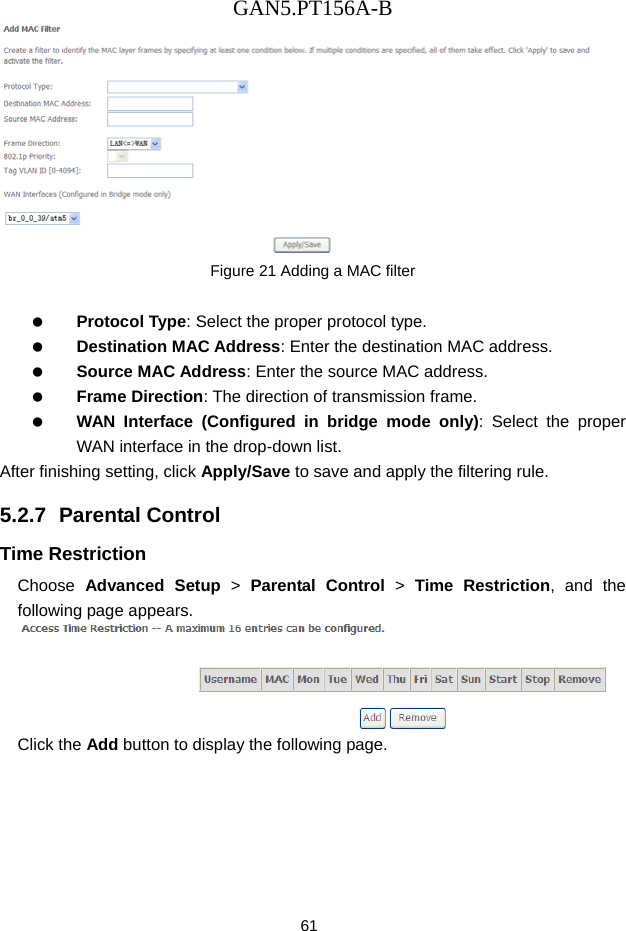
GAN5.PT156A-B 61  Figure 21 Adding a MAC filter    Protocol Type: Select the proper protocol type.   Destination MAC Address: Enter the destination MAC address.   Source MAC Address: Enter the source MAC address.   Frame Direction: The direction of transmission frame.   WAN Interface (Configured in bridge mode only): Select the proper WAN interface in the drop-down list. After finishing setting, click Apply/Save to save and apply the filtering rule. 5.2.7  Parental Control Time Restriction Choose  Advanced Setup > Parental Control > Time Restriction, and the following page appears.  Click the Add button to display the following page.
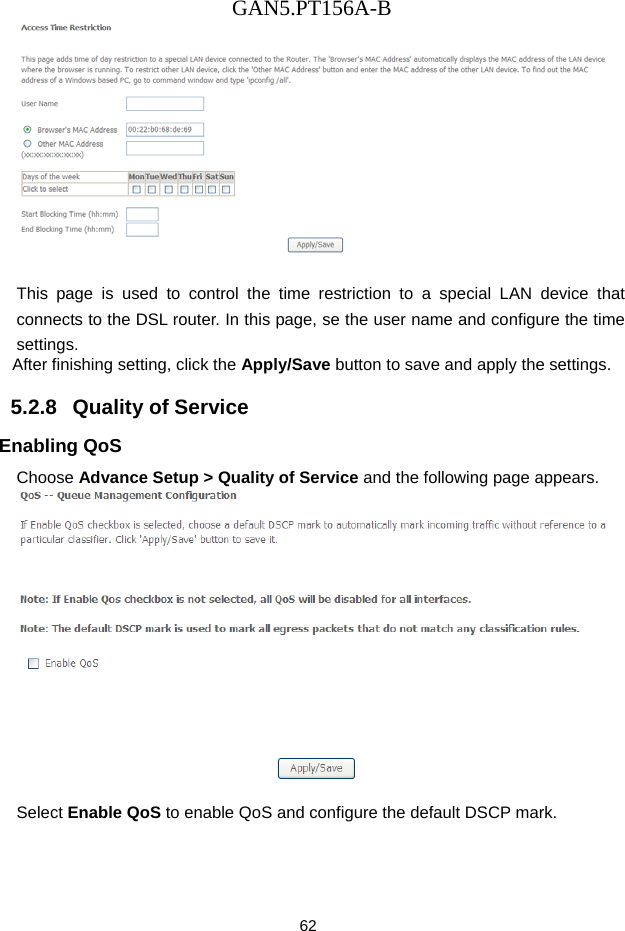
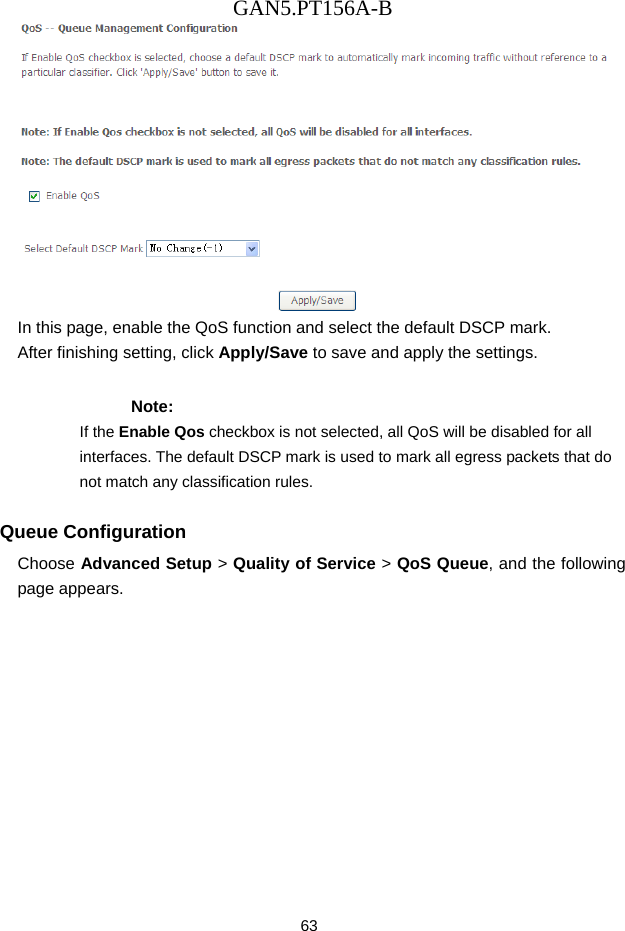
GAN5.PT156A-B 62   This page is used to control the time restriction to a special LAN device that connects to the DSL router. In this page, se the user name and configure the time settings.  After finishing setting, click the Apply/Save button to save and apply the settings. 5.2.8   Quality of Service Enabling QoS Choose Advance Setup > Quality of Service and the following page appears.   Select Enable QoS to enable QoS and configure the default DSCP mark.
GAN5.PT156A-B 63  In this page, enable the QoS function and select the default DSCP mark. After finishing setting, click Apply/Save to save and apply the settings. Note: If the Enable Qos checkbox is not selected, all QoS will be disabled for all interfaces. The default DSCP mark is used to mark all egress packets that do not match any classification rules. Queue Configuration Choose Advanced Setup > Quality of Service > QoS Queue, and the following page appears.
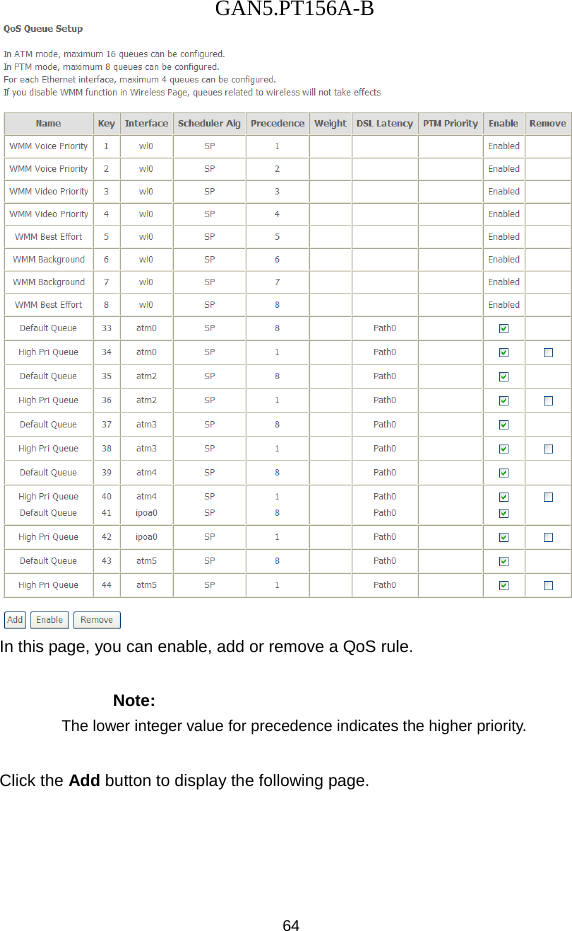
GAN5.PT156A-B 64  In this page, you can enable, add or remove a QoS rule.   Note: The lower integer value for precedence indicates the higher priority. Click the Add button to display the following page.
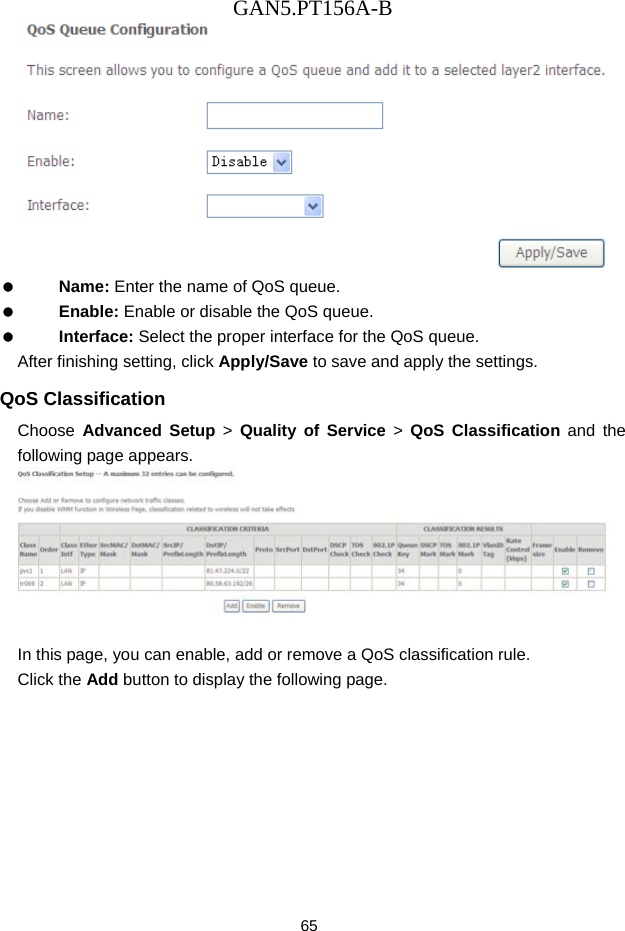
GAN5.PT156A-B 65    Name: Enter the name of QoS queue.   Enable: Enable or disable the QoS queue.   Interface: Select the proper interface for the QoS queue. After finishing setting, click Apply/Save to save and apply the settings. QoS Classification Choose  Advanced Setup > Quality of Service > QoS Classification and the following page appears.   In this page, you can enable, add or remove a QoS classification rule. Click the Add button to display the following page.
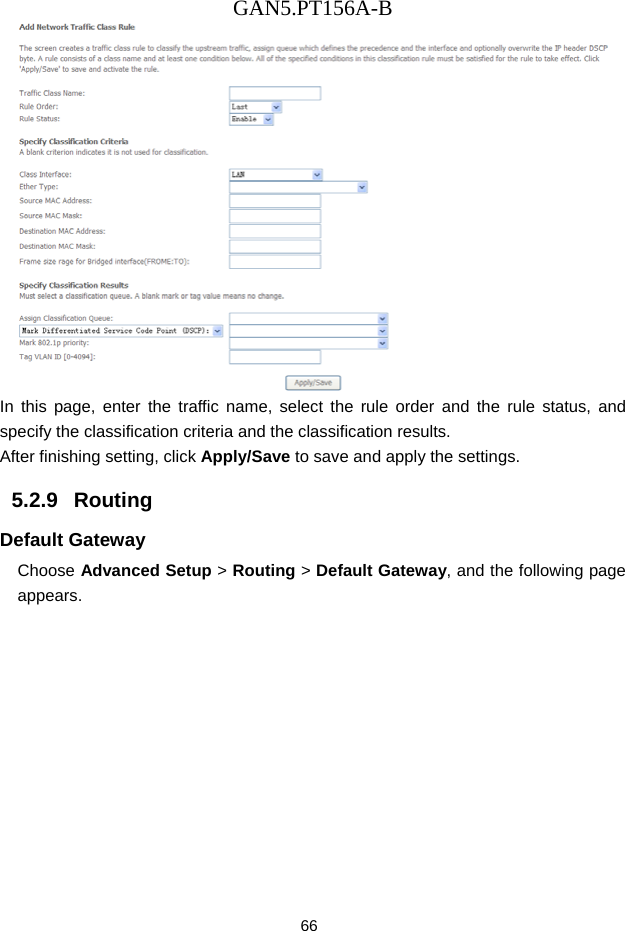
GAN5.PT156A-B 66  In this page, enter the traffic name, select the rule order and the rule status, and specify the classification criteria and the classification results.   After finishing setting, click Apply/Save to save and apply the settings. 5.2.9   Routing Default Gateway Choose Advanced Setup > Routing > Default Gateway, and the following page appears.
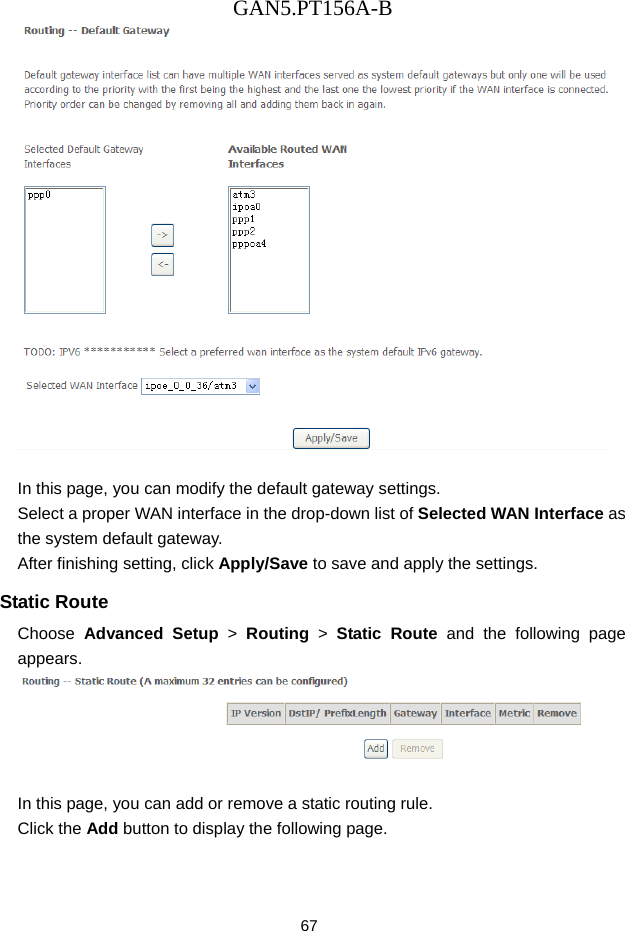
GAN5.PT156A-B 67   In this page, you can modify the default gateway settings. Select a proper WAN interface in the drop-down list of Selected WAN Interface as the system default gateway.   After finishing setting, click Apply/Save to save and apply the settings. Static Route Choose  Advanced Setup > Routing > Static Route and the following page appears.   In this page, you can add or remove a static routing rule. Click the Add button to display the following page.
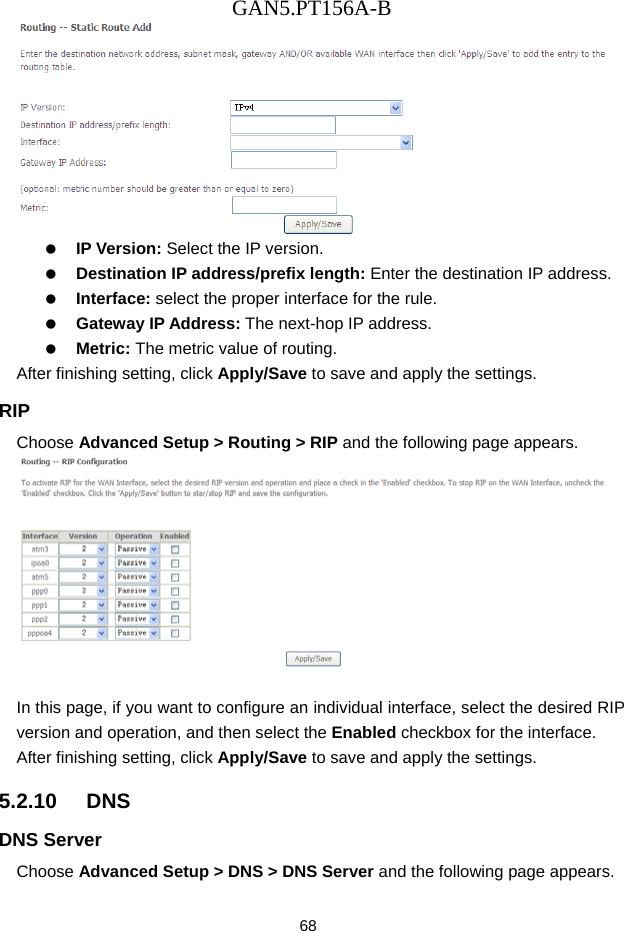
GAN5.PT156A-B 68    IP Version: Select the IP version.   Destination IP address/prefix length: Enter the destination IP address.   Interface: select the proper interface for the rule.   Gateway IP Address: The next-hop IP address.   Metric: The metric value of routing. After finishing setting, click Apply/Save to save and apply the settings. RIP Choose Advanced Setup > Routing > RIP and the following page appears.   In this page, if you want to configure an individual interface, select the desired RIP version and operation, and then select the Enabled checkbox for the interface. After finishing setting, click Apply/Save to save and apply the settings. 5.2.10   DNS DNS Server Choose Advanced Setup > DNS > DNS Server and the following page appears.
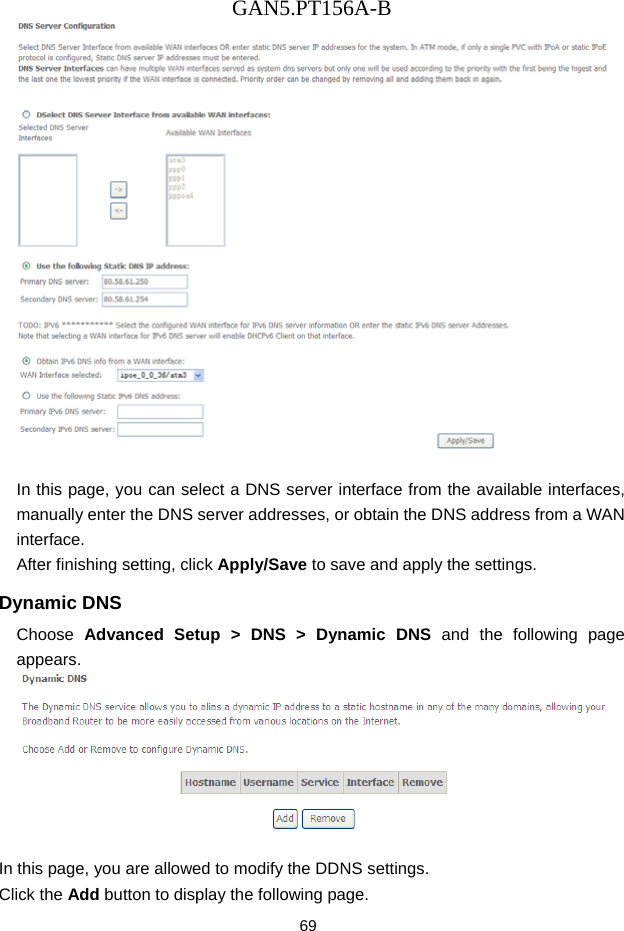
GAN5.PT156A-B 69   In this page, you can select a DNS server interface from the available interfaces, manually enter the DNS server addresses, or obtain the DNS address from a WAN interface. After finishing setting, click Apply/Save to save and apply the settings. Dynamic DNS Choose  Advanced Setup > DNS > Dynamic DNS and the following page appears.   In this page, you are allowed to modify the DDNS settings. Click the Add button to display the following page.
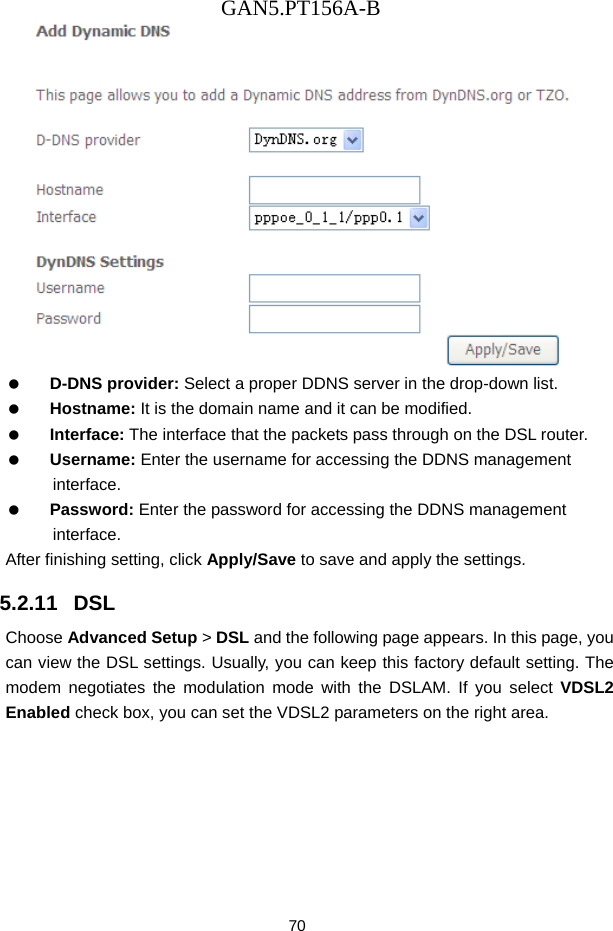
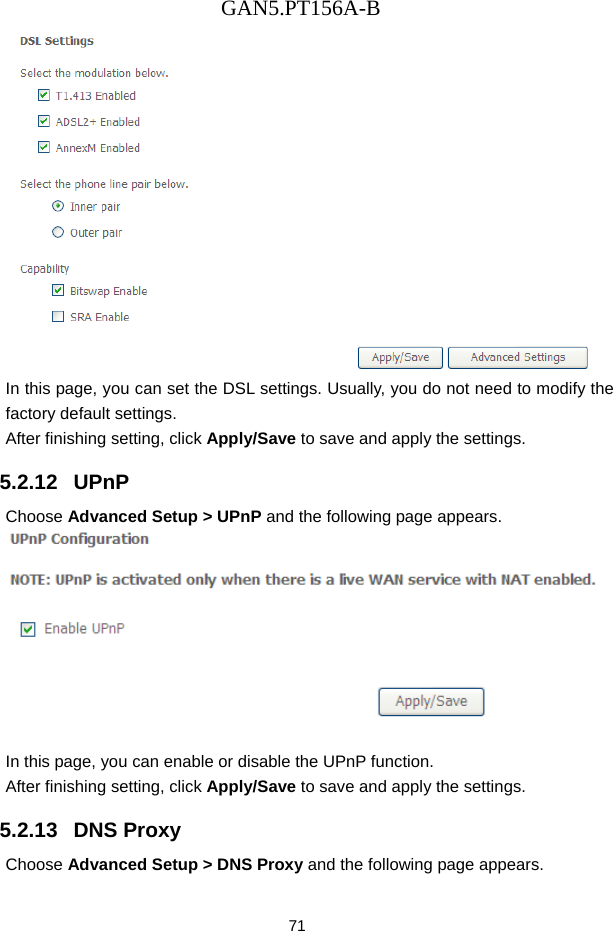
GAN5.PT156A-B 70    D-DNS provider: Select a proper DDNS server in the drop-down list.   Hostname: It is the domain name and it can be modified.   Interface: The interface that the packets pass through on the DSL router.   Username: Enter the username for accessing the DDNS management interface.   Password: Enter the password for accessing the DDNS management interface. After finishing setting, click Apply/Save to save and apply the settings. 5.2.11   DSL Choose Advanced Setup > DSL and the following page appears. In this page, you can view the DSL settings. Usually, you can keep this factory default setting. The modem negotiates the modulation mode with the DSLAM. If you select VDSL2 Enabled check box, you can set the VDSL2 parameters on the right area.
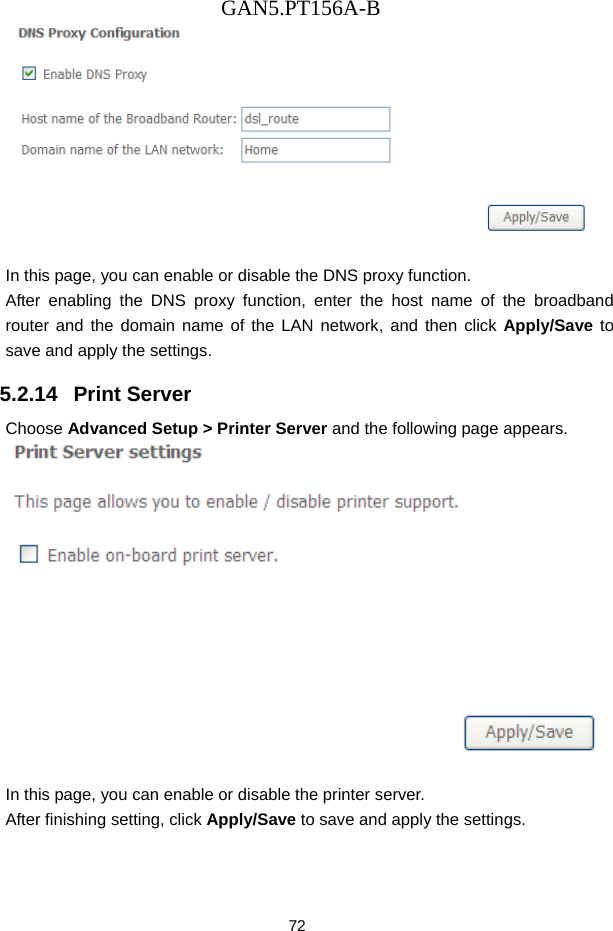
GAN5.PT156A-B 71  In this page, you can set the DSL settings. Usually, you do not need to modify the factory default settings.   After finishing setting, click Apply/Save to save and apply the settings. 5.2.12   UPnP Choose Advanced Setup > UPnP and the following page appears.   In this page, you can enable or disable the UPnP function. After finishing setting, click Apply/Save to save and apply the settings. 5.2.13   DNS Proxy Choose Advanced Setup > DNS Proxy and the following page appears.
GAN5.PT156A-B 72   In this page, you can enable or disable the DNS proxy function. After enabling the DNS proxy function, enter the host name of the broadband router and the domain name of the LAN network, and then click Apply/Save to save and apply the settings. 5.2.14   Print Server Choose Advanced Setup > Printer Server and the following page appears.   In this page, you can enable or disable the printer server. After finishing setting, click Apply/Save to save and apply the settings.
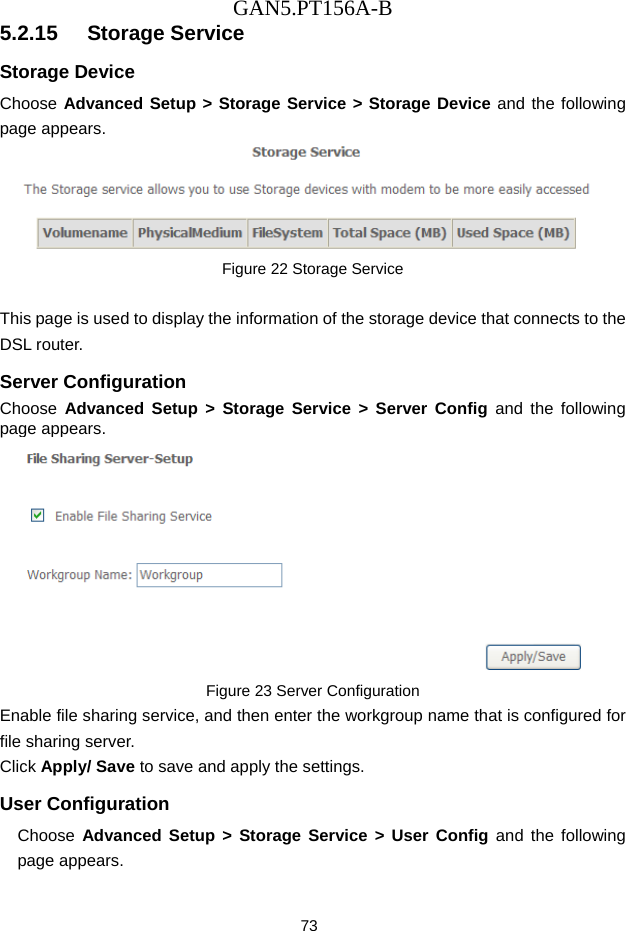
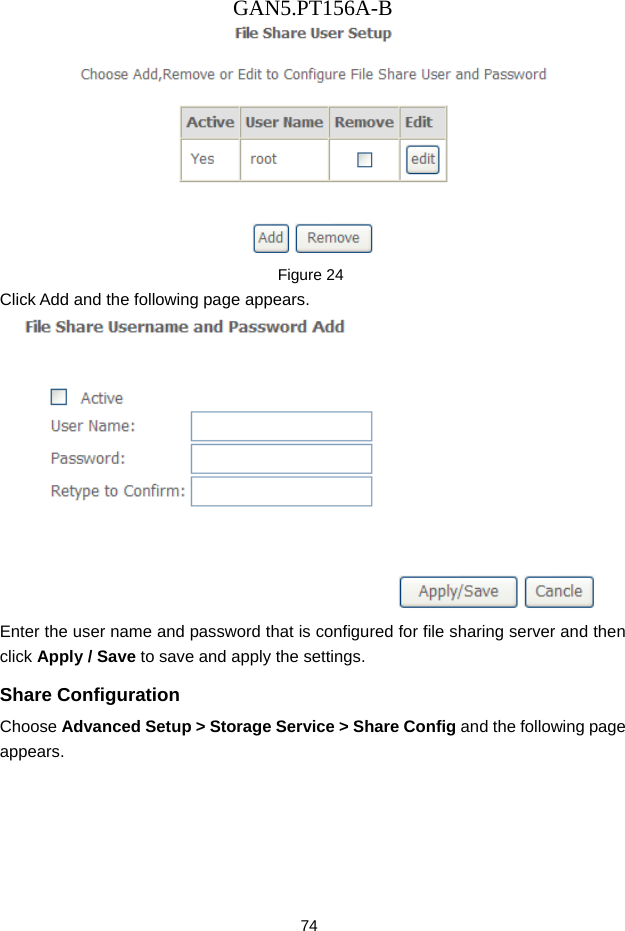
GAN5.PT156A-B 73 5.2.15   Storage Service Storage Device Choose Advanced Setup > Storage Service > Storage Device and the following page appears.  Figure 22 Storage Service  This page is used to display the information of the storage device that connects to the DSL router. Server Configuration Choose  Advanced Setup > Storage Service > Server Config and the following page appears.  Figure 23 Server Configuration Enable file sharing service, and then enter the workgroup name that is configured for file sharing server. Click Apply/ Save to save and apply the settings. User Configuration Choose  Advanced Setup > Storage Service > User Config and the following page appears.
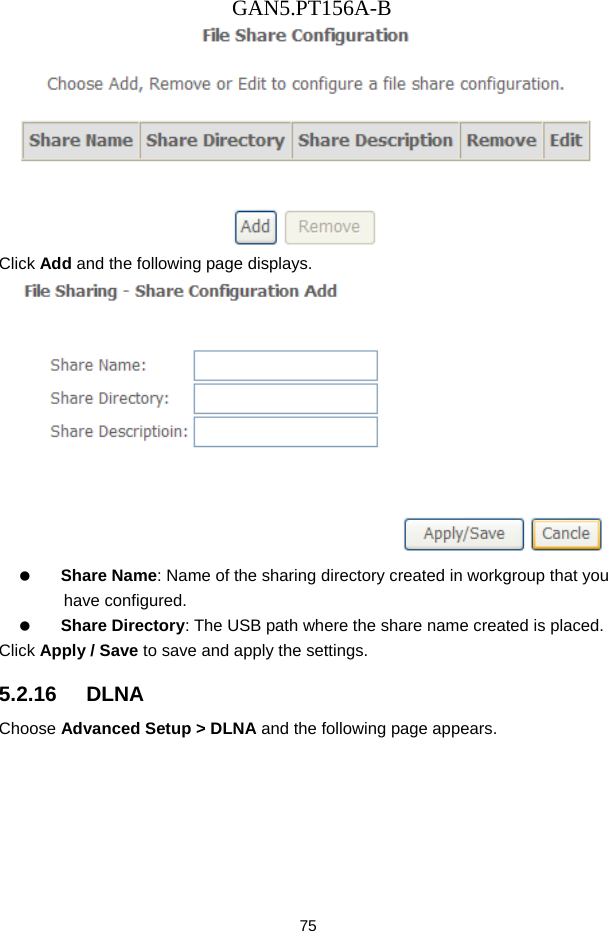
GAN5.PT156A-B 74  Figure 24  Click Add and the following page appears.  Enter the user name and password that is configured for file sharing server and then click Apply / Save to save and apply the settings. Share Configuration Choose Advanced Setup > Storage Service > Share Config and the following page appears.
GAN5.PT156A-B 75  Click Add and the following page displays.    Share Name: Name of the sharing directory created in workgroup that you have configured.   Share Directory: The USB path where the share name created is placed. Click Apply / Save to save and apply the settings. 5.2.16   DLNA Choose Advanced Setup > DLNA and the following page appears.
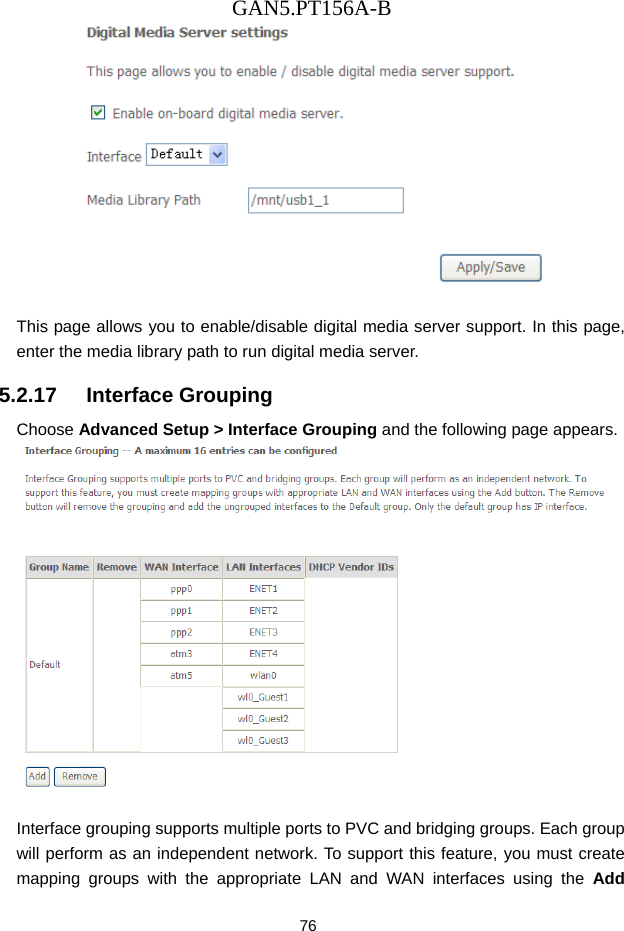
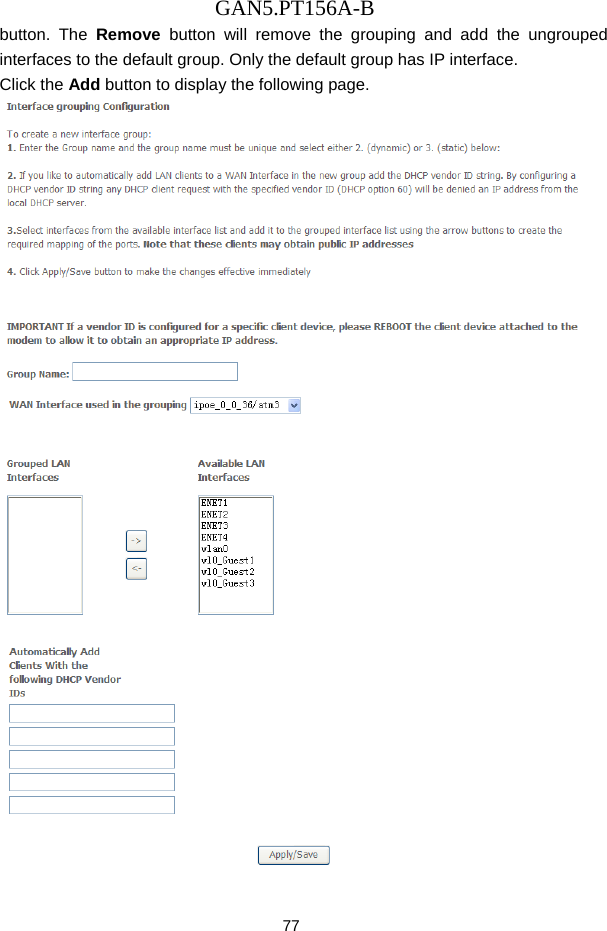
GAN5.PT156A-B 76   This page allows you to enable/disable digital media server support. In this page, enter the media library path to run digital media server. 5.2.17   Interface Grouping Choose Advanced Setup > Interface Grouping and the following page appears.   Interface grouping supports multiple ports to PVC and bridging groups. Each group will perform as an independent network. To support this feature, you must create mapping groups with the appropriate LAN and WAN interfaces using the Add
GAN5.PT156A-B 77 button. The Remove button will remove the grouping and add the ungrouped interfaces to the default group. Only the default group has IP interface. Click the Add button to display the following page.
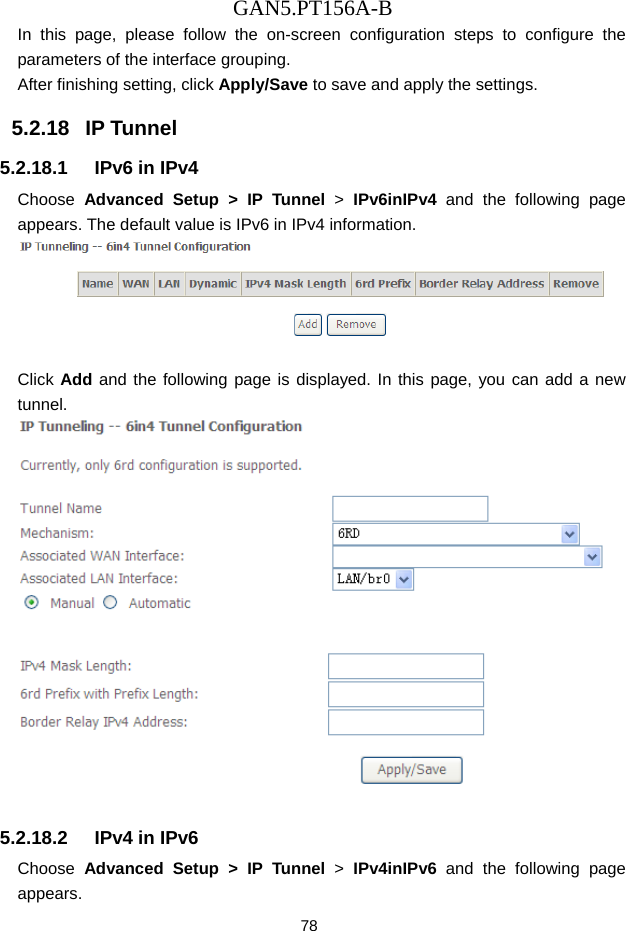
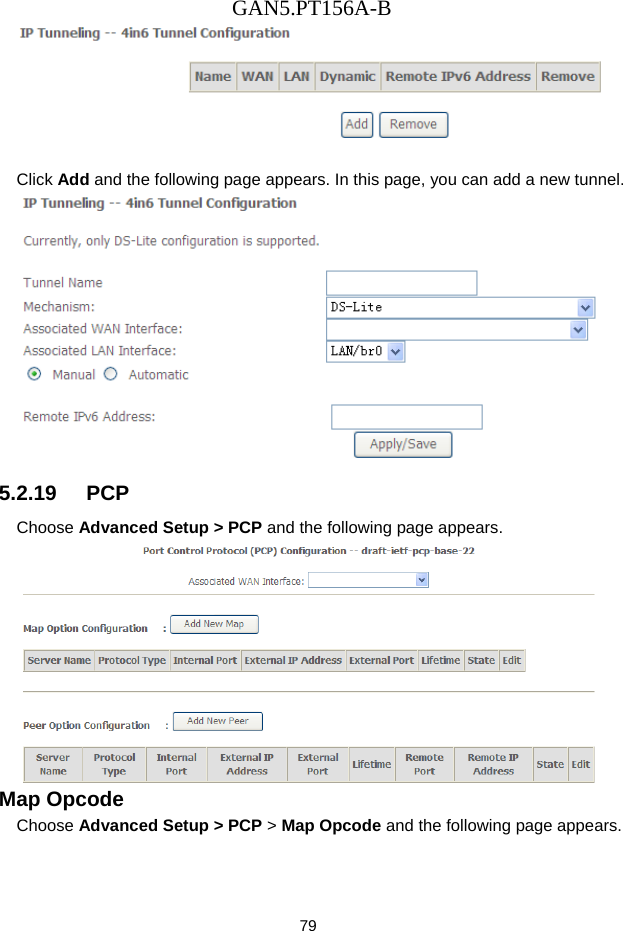
GAN5.PT156A-B 78 In this page, please follow the on-screen configuration steps to configure the parameters of the interface grouping. After finishing setting, click Apply/Save to save and apply the settings. 5.2.18   IP Tunnel 5.2.18.1  IPv6 in IPv4 Choose  Advanced Setup > IP Tunnel >  IPv6inIPv4 and the following page appears. The default value is IPv6 in IPv4 information.   Click Add and the following page is displayed. In this page, you can add a new tunnel.   5.2.18.2  IPv4 in IPv6 Choose  Advanced Setup > IP Tunnel >  IPv4inIPv6 and the following page appears.
GAN5.PT156A-B 79   Click Add and the following page appears. In this page, you can add a new tunnel.  5.2.19   PCP Choose Advanced Setup > PCP and the following page appears.  Map Opcode Choose Advanced Setup > PCP > Map Opcode and the following page appears.
GAN5.PT156A-B 80    PCP Server Name (IPv4/IPv6): The server side of the PCP protocol via which PCP clients request and manage explicit mappings.   Lifetime (seconds): Requested Lifetime.   Internal Port [0-65535]: Internal port for the mapping. The value 0 indicates "all ports".   Suggested External Port [0-65535]: Suggested external port for the mapping. This is useful for refreshing a mapping, especially after the PCP server loses state. If the PCP client does not know the external port, or does not have a preference, it MUST use 0.   Suggested External IP Address (IPv4/IPv6): Suggested external IPv4 or IPv6 address. This is useful for refreshing a mapping, especially after the PCP server loses state. If the PCP client does not know the external address, or does not have a preference, it MUST use the address-family-specific all-zeroes address.   Third Party: It is an Internal Host when a PCP client wants to control a mapping other than itself.
GAN5.PT156A-B 81   Prefer Failure: This Option indicates that if the PCP server is unable to map either the Suggested External Port or Suggested External Address, the PCP server should not create a mapping. Peer Opcode Choose Advanced Setup > PCP > Peer Opcode and the following page appears.    PCP Server Name (IPv4/IPv6): The server side of the PCP protocol via which PCP clients request and manage explicit mappings.   Lifetime (seconds): Requested Lifetime.   Internal Port [0-65535]: Internal port for the mapping.   Suggested External Port [0-65535]: Suggested external port for the mapping. If the PCP client does not know the external port, or does not have a preference, it MUST use 0.   Suggested External IP Address (IPv4/IPv6): Suggested External IP Address for the mapping. If the PCP client does not know the external address, or does not have a preference, it MUST use the address-family- specific all-zeroes address.
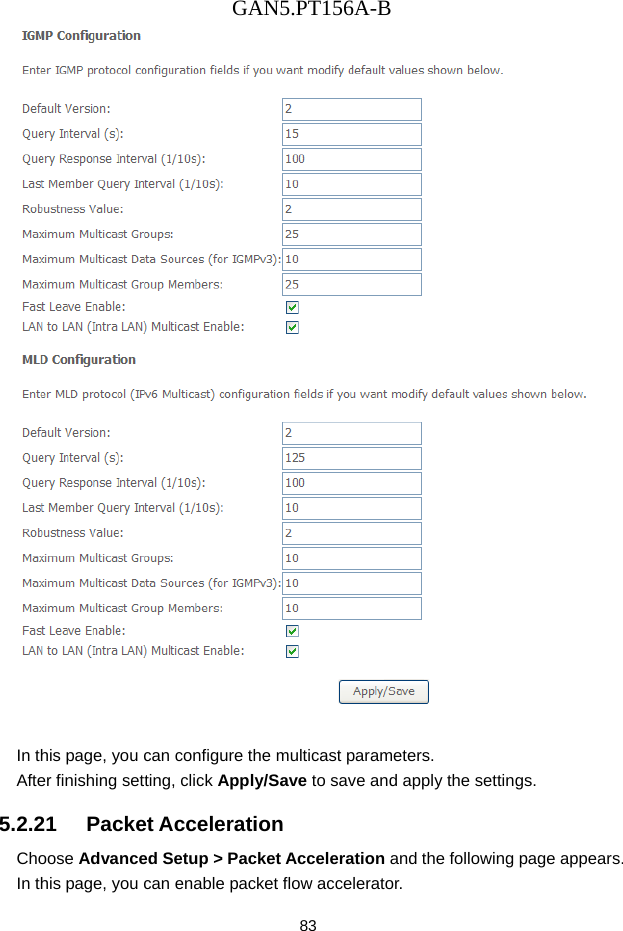
GAN5.PT156A-B 82   Remote Peer Port [0-65535]: Remote peer's port for the mapping.   Remote Peer IP Address (IPv4/IPv6): Remote peer's IP address from the perspective of the PCP client, so that the PCP client does not need to concern itself with NAT64 or NAT46. This field allows the PCP client and PCP server to disambiguate multiple connections from the same port on the Internal Host to different servers. An IPv6 address is represented directly, and an IPv4 address is represented using the IPv4-mapped address syntax.   Third Party: It is an Internal Host when a PCP client wants to control a mapping other than itself. 5.2.20   Multicast Choose Advanced Setup > Multicast and the following page appears.
GAN5.PT156A-B 83   In this page, you can configure the multicast parameters. After finishing setting, click Apply/Save to save and apply the settings. 5.2.21   Packet Acceleration Choose Advanced Setup > Packet Acceleration and the following page appears. In this page, you can enable packet flow accelerator.
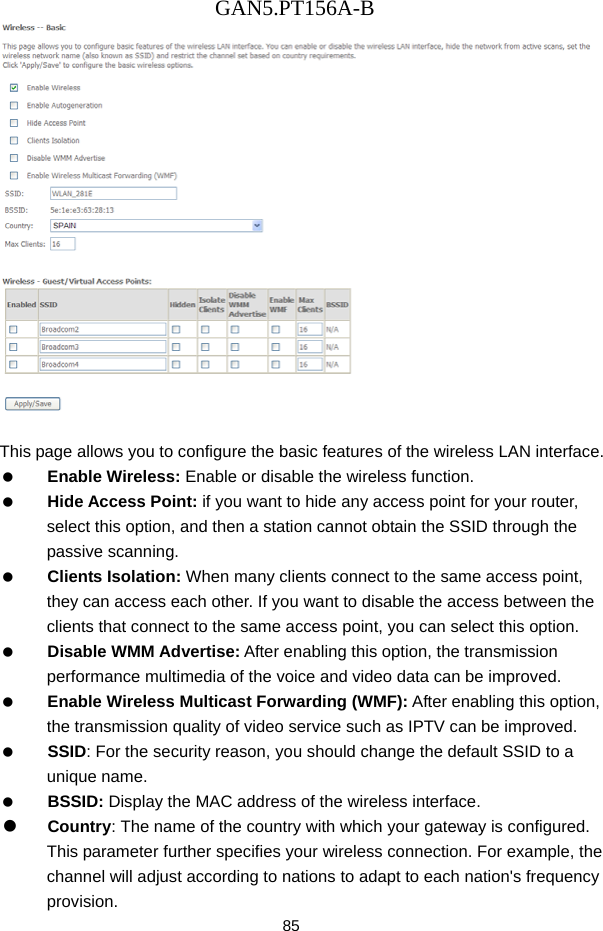
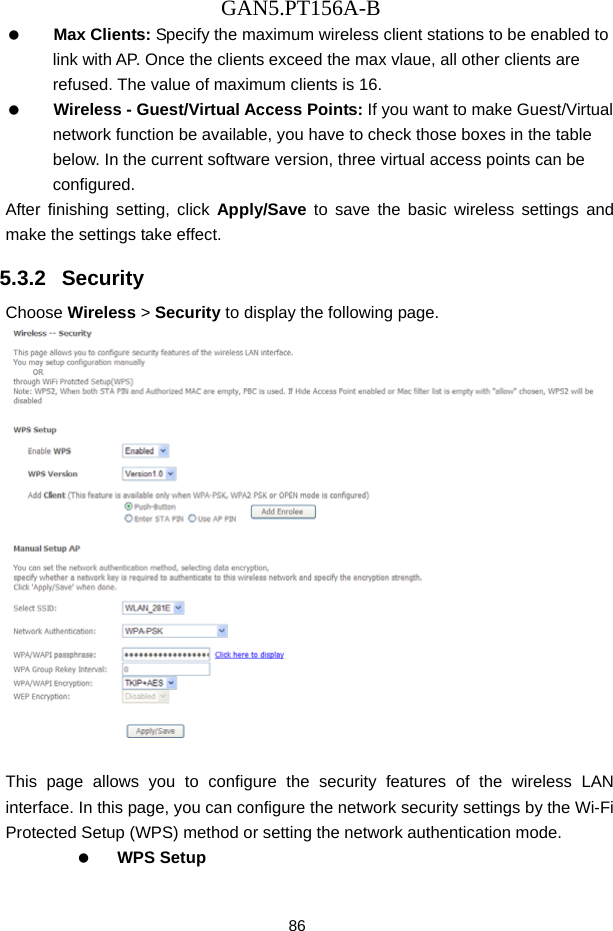
GAN5.PT156A-B 84  5.3   Wireless Choose Wireless and the submenus of Wireless are shown as below:  5.3.1   Basic Settings Choose Wireless > Basic to display the following page. In this page, the figure in the right area is 2-dimensional code. It includes the wireless SSID and password. You can obtain the wireless SSID and password through scanning this figure.
GAN5.PT156A-B 85   This page allows you to configure the basic features of the wireless LAN interface.   Enable Wireless: Enable or disable the wireless function.   Hide Access Point: if you want to hide any access point for your router, select this option, and then a station cannot obtain the SSID through the passive scanning.   Clients Isolation: When many clients connect to the same access point, they can access each other. If you want to disable the access between the clients that connect to the same access point, you can select this option.   Disable WMM Advertise: After enabling this option, the transmission performance multimedia of the voice and video data can be improved.   Enable Wireless Multicast Forwarding (WMF): After enabling this option, the transmission quality of video service such as IPTV can be improved.     SSID: For the security reason, you should change the default SSID to a unique name.   BSSID: Display the MAC address of the wireless interface.   Country: The name of the country with which your gateway is configured. This parameter further specifies your wireless connection. For example, the channel will adjust according to nations to adapt to each nation's frequency provision.
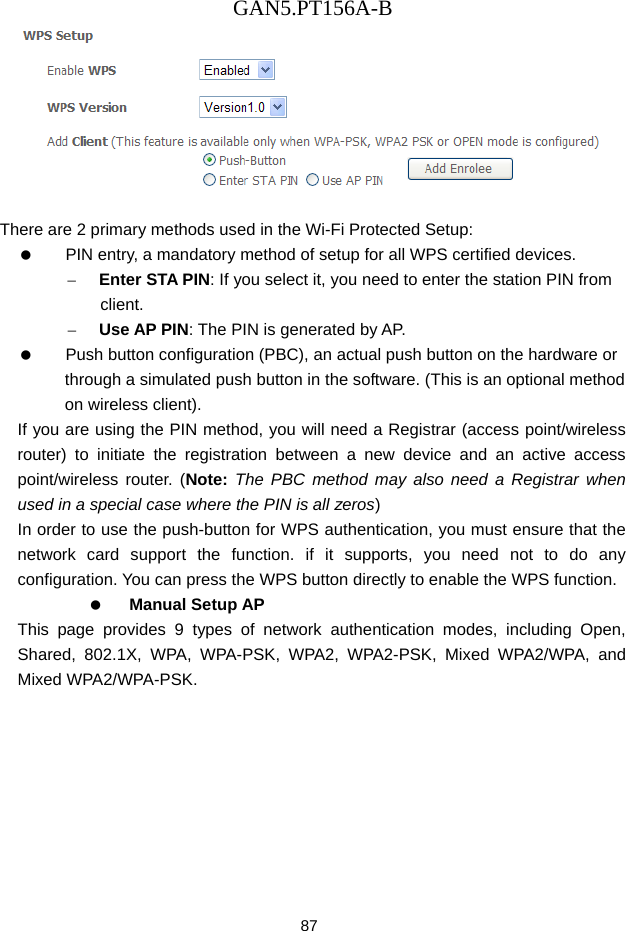
GAN5.PT156A-B 86   Max Clients: Specify the maximum wireless client stations to be enabled to link with AP. Once the clients exceed the max vlaue, all other clients are refused. The value of maximum clients is 16.   Wireless - Guest/Virtual Access Points: If you want to make Guest/Virtual network function be available, you have to check those boxes in the table below. In the current software version, three virtual access points can be configured. After finishing setting, click Apply/Save to save the basic wireless settings and make the settings take effect. 5.3.2   Security Choose Wireless > Security to display the following page.   This page allows you to configure the security features of the wireless LAN interface. In this page, you can configure the network security settings by the Wi-Fi Protected Setup (WPS) method or setting the network authentication mode.     WPS Setup
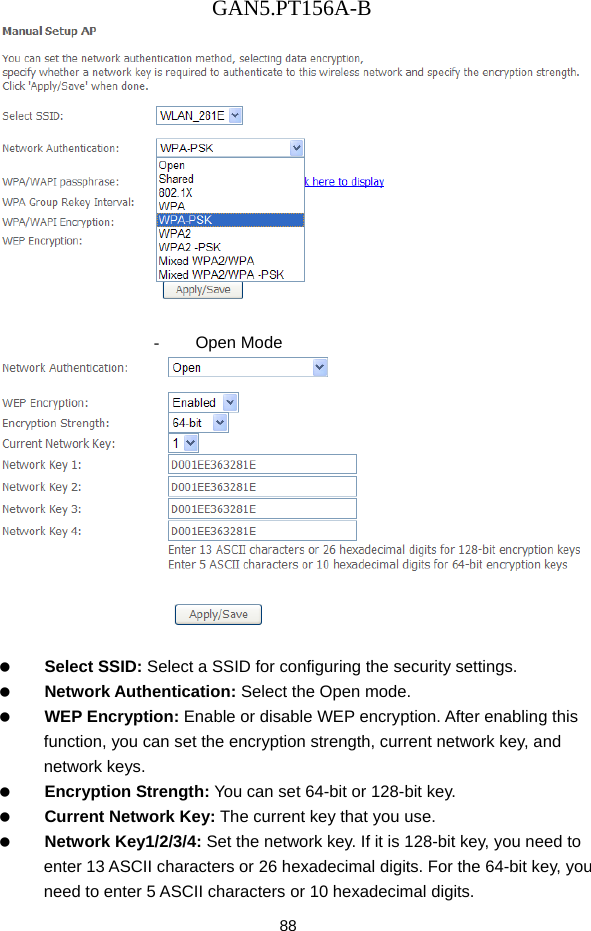
GAN5.PT156A-B 87   There are 2 primary methods used in the Wi-Fi Protected Setup:    PIN entry, a mandatory method of setup for all WPS certified devices. – Enter STA PIN: If you select it, you need to enter the station PIN from client. – Use AP PIN: The PIN is generated by AP.    Push button configuration (PBC), an actual push button on the hardware or through a simulated push button in the software. (This is an optional method on wireless client). If you are using the PIN method, you will need a Registrar (access point/wireless router) to initiate the registration between a new device and an active access point/wireless router. (Note: The PBC method may also need a Registrar when used in a special case where the PIN is all zeros) In order to use the push-button for WPS authentication, you must ensure that the network card support the function. if it supports, you need not to do any configuration. You can press the WPS button directly to enable the WPS function.   Manual Setup AP This page provides 9 types of network authentication modes, including Open, Shared, 802.1X, WPA, WPA-PSK, WPA2, WPA2-PSK, Mixed WPA2/WPA, and Mixed WPA2/WPA-PSK.
GAN5.PT156A-B 88   - Open Mode     Select SSID: Select a SSID for configuring the security settings.   Network Authentication: Select the Open mode.   WEP Encryption: Enable or disable WEP encryption. After enabling this function, you can set the encryption strength, current network key, and network keys.   Encryption Strength: You can set 64-bit or 128-bit key.   Current Network Key: The current key that you use.   Network Key1/2/3/4: Set the network key. If it is 128-bit key, you need to enter 13 ASCII characters or 26 hexadecimal digits. For the 64-bit key, you need to enter 5 ASCII characters or 10 hexadecimal digits.
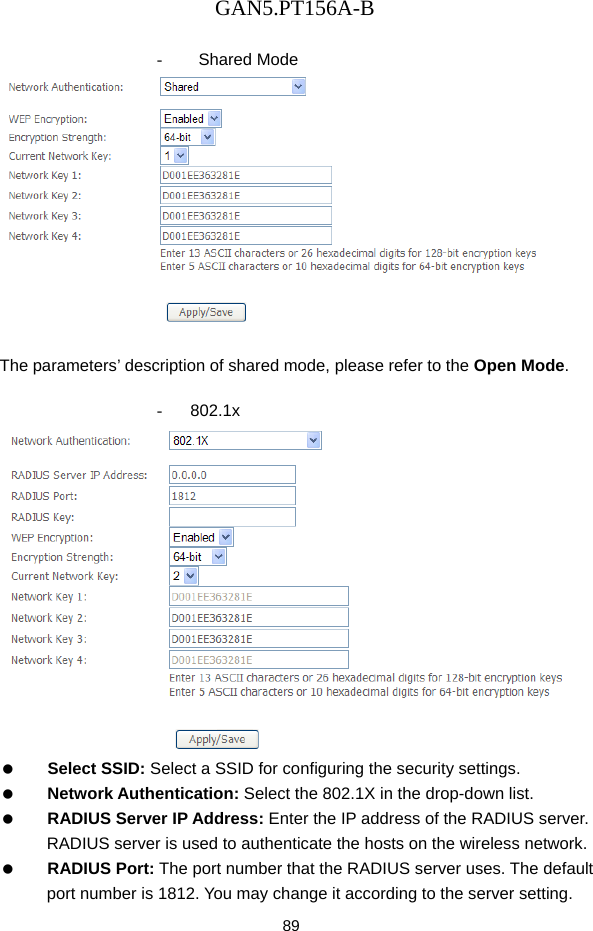
GAN5.PT156A-B 89  - Shared Mode   The parameters’ description of shared mode, please refer to the Open Mode.  - 802.1x    Select SSID: Select a SSID for configuring the security settings.   Network Authentication: Select the 802.1X in the drop-down list.   RADIUS Server IP Address: Enter the IP address of the RADIUS server. RADIUS server is used to authenticate the hosts on the wireless network.   RADIUS Port: The port number that the RADIUS server uses. The default port number is 1812. You may change it according to the server setting.
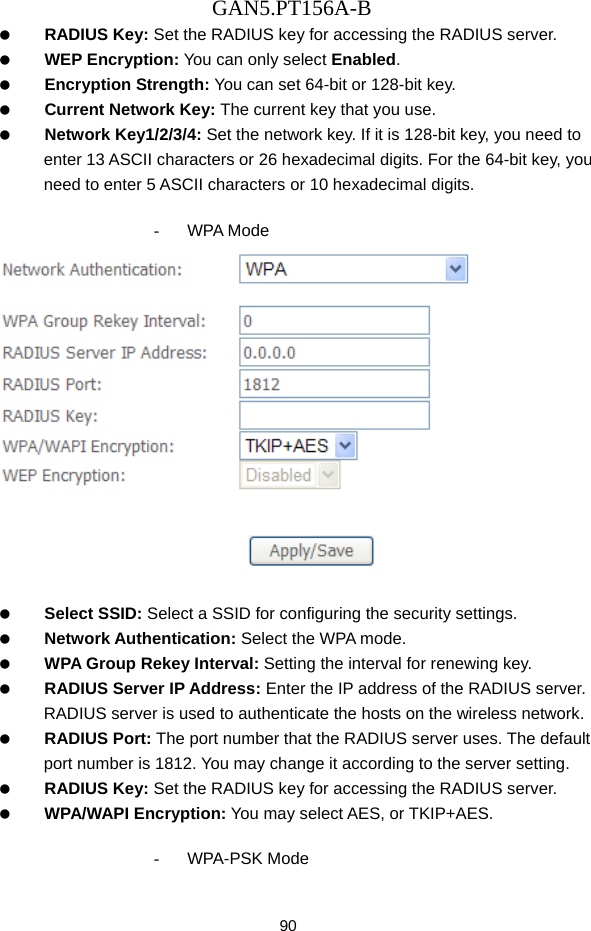
GAN5.PT156A-B 90   RADIUS Key: Set the RADIUS key for accessing the RADIUS server.   WEP Encryption: You can only select Enabled.   Encryption Strength: You can set 64-bit or 128-bit key.   Current Network Key: The current key that you use.   Network Key1/2/3/4: Set the network key. If it is 128-bit key, you need to enter 13 ASCII characters or 26 hexadecimal digits. For the 64-bit key, you need to enter 5 ASCII characters or 10 hexadecimal digits.  - WPA Mode     Select SSID: Select a SSID for configuring the security settings.   Network Authentication: Select the WPA mode.   WPA Group Rekey Interval: Setting the interval for renewing key.   RADIUS Server IP Address: Enter the IP address of the RADIUS server. RADIUS server is used to authenticate the hosts on the wireless network.   RADIUS Port: The port number that the RADIUS server uses. The default port number is 1812. You may change it according to the server setting.   RADIUS Key: Set the RADIUS key for accessing the RADIUS server.   WPA/WAPI Encryption: You may select AES, or TKIP+AES.  - WPA-PSK Mode
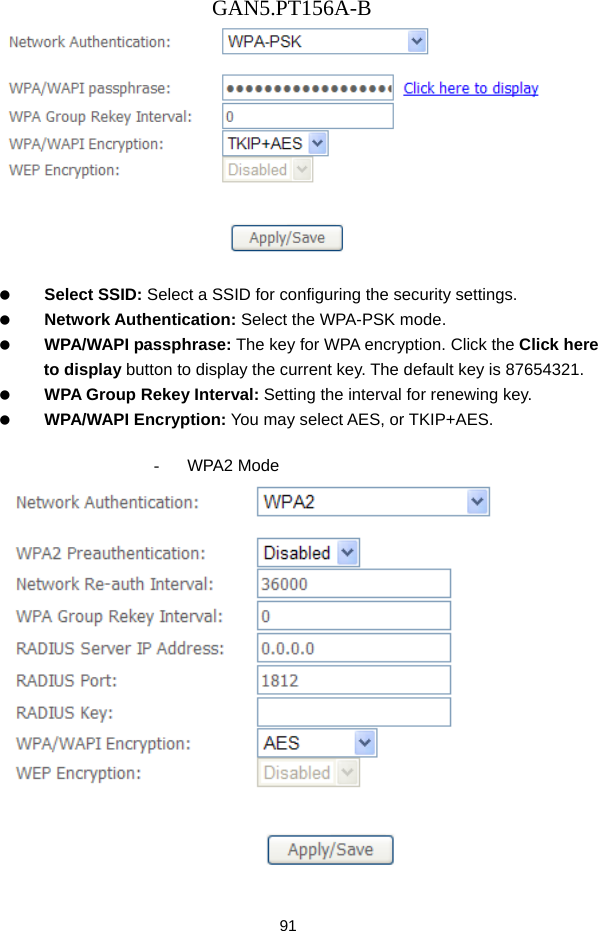
GAN5.PT156A-B 91     Select SSID: Select a SSID for configuring the security settings.   Network Authentication: Select the WPA-PSK mode.   WPA/WAPI passphrase: The key for WPA encryption. Click the Click here to display button to display the current key. The default key is 87654321.   WPA Group Rekey Interval: Setting the interval for renewing key.   WPA/WAPI Encryption: You may select AES, or TKIP+AES.  - WPA2 Mode
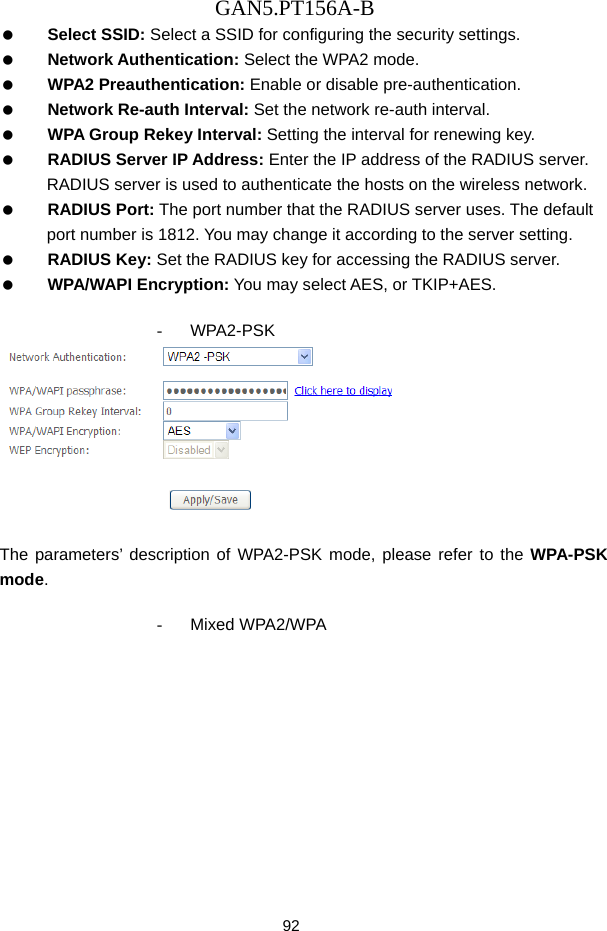
GAN5.PT156A-B 92   Select SSID: Select a SSID for configuring the security settings.   Network Authentication: Select the WPA2 mode.   WPA2 Preauthentication: Enable or disable pre-authentication.   Network Re-auth Interval: Set the network re-auth interval.   WPA Group Rekey Interval: Setting the interval for renewing key.   RADIUS Server IP Address: Enter the IP address of the RADIUS server. RADIUS server is used to authenticate the hosts on the wireless network.   RADIUS Port: The port number that the RADIUS server uses. The default port number is 1812. You may change it according to the server setting.   RADIUS Key: Set the RADIUS key for accessing the RADIUS server.   WPA/WAPI Encryption: You may select AES, or TKIP+AES.  - WPA2-PSK   The parameters’ description of WPA2-PSK mode, please refer to the WPA-PSK mode.  - Mixed WPA2/WPA
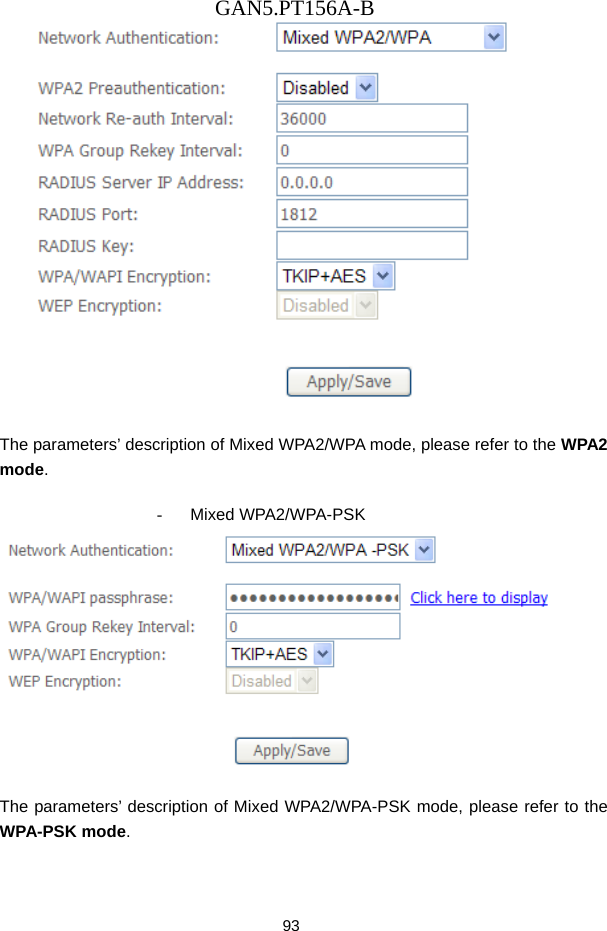
GAN5.PT156A-B 93   The parameters’ description of Mixed WPA2/WPA mode, please refer to the WPA2 mode.  - Mixed WPA2/WPA-PSK   The parameters’ description of Mixed WPA2/WPA-PSK mode, please refer to the WPA-PSK mode.
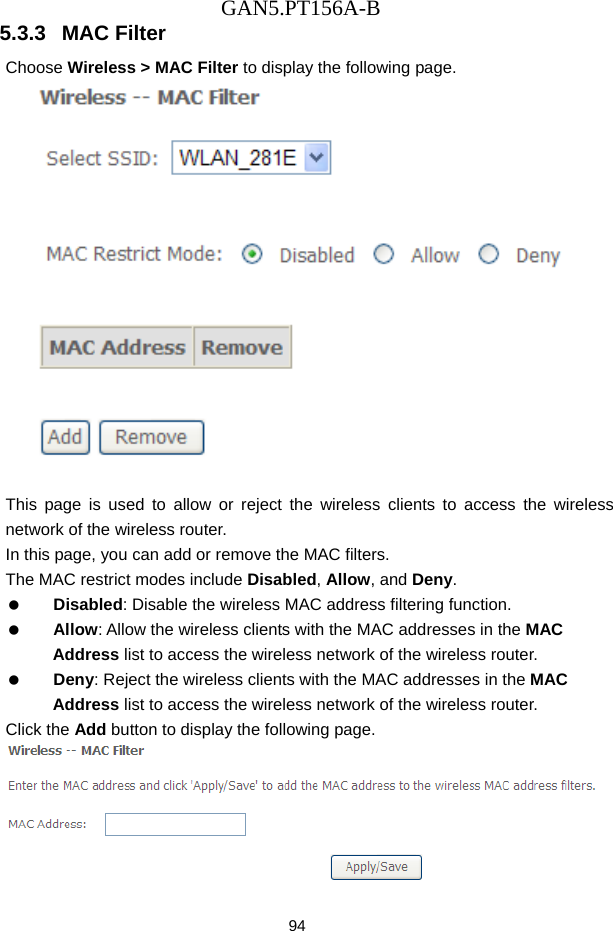
GAN5.PT156A-B 94 5.3.3   MAC Filter Choose Wireless > MAC Filter to display the following page.   This page is used to allow or reject the wireless clients to access the wireless network of the wireless router. In this page, you can add or remove the MAC filters. The MAC restrict modes include Disabled, Allow, and Deny.    Disabled: Disable the wireless MAC address filtering function.   Allow: Allow the wireless clients with the MAC addresses in the MAC Address list to access the wireless network of the wireless router.   Deny: Reject the wireless clients with the MAC addresses in the MAC Address list to access the wireless network of the wireless router. Click the Add button to display the following page.
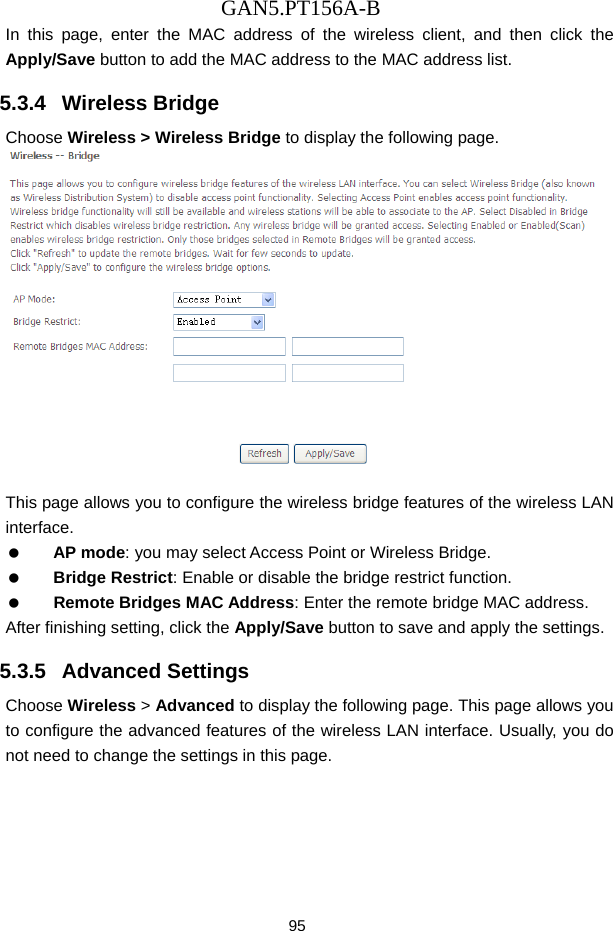
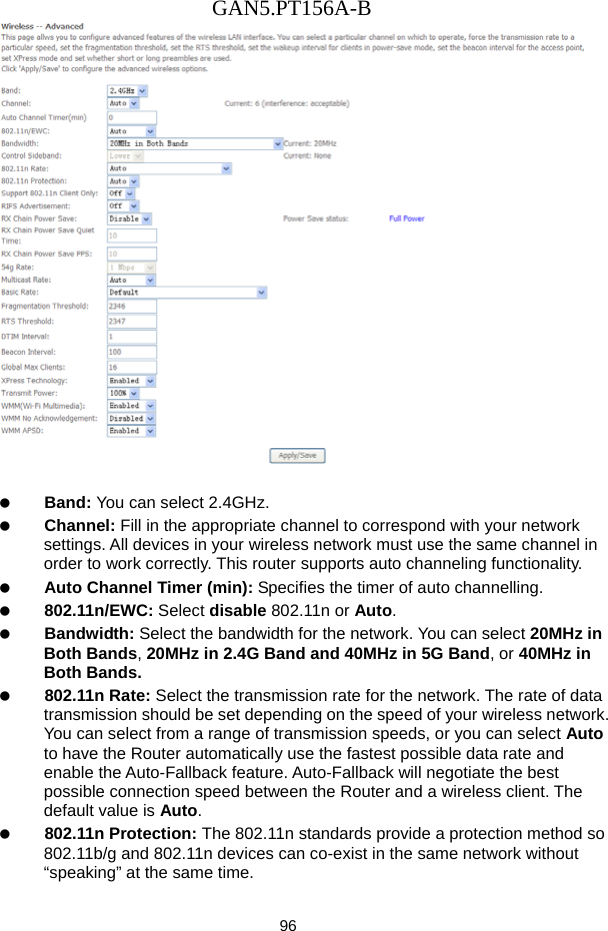
GAN5.PT156A-B 95 In this page, enter the MAC address of the wireless client, and then click the Apply/Save button to add the MAC address to the MAC address list.   5.3.4   Wireless Bridge Choose Wireless > Wireless Bridge to display the following page.   This page allows you to configure the wireless bridge features of the wireless LAN interface.   AP mode: you may select Access Point or Wireless Bridge.   Bridge Restrict: Enable or disable the bridge restrict function.   Remote Bridges MAC Address: Enter the remote bridge MAC address. After finishing setting, click the Apply/Save button to save and apply the settings. 5.3.5   Advanced Settings Choose Wireless > Advanced to display the following page. This page allows you to configure the advanced features of the wireless LAN interface. Usually, you do not need to change the settings in this page.
GAN5.PT156A-B 96     Band: You can select 2.4GHz.   Channel: Fill in the appropriate channel to correspond with your network settings. All devices in your wireless network must use the same channel in order to work correctly. This router supports auto channeling functionality.   Auto Channel Timer (min): Specifies the timer of auto channelling.   802.11n/EWC: Select disable 802.11n or Auto.   Bandwidth: Select the bandwidth for the network. You can select 20MHz in Both Bands, 20MHz in 2.4G Band and 40MHz in 5G Band, or 40MHz in Both Bands.   802.11n Rate: Select the transmission rate for the network. The rate of data transmission should be set depending on the speed of your wireless network. You can select from a range of transmission speeds, or you can select Auto to have the Router automatically use the fastest possible data rate and enable the Auto-Fallback feature. Auto-Fallback will negotiate the best possible connection speed between the Router and a wireless client. The default value is Auto.   802.11n Protection: The 802.11n standards provide a protection method so 802.11b/g and 802.11n devices can co-exist in the same network without “speaking” at the same time.
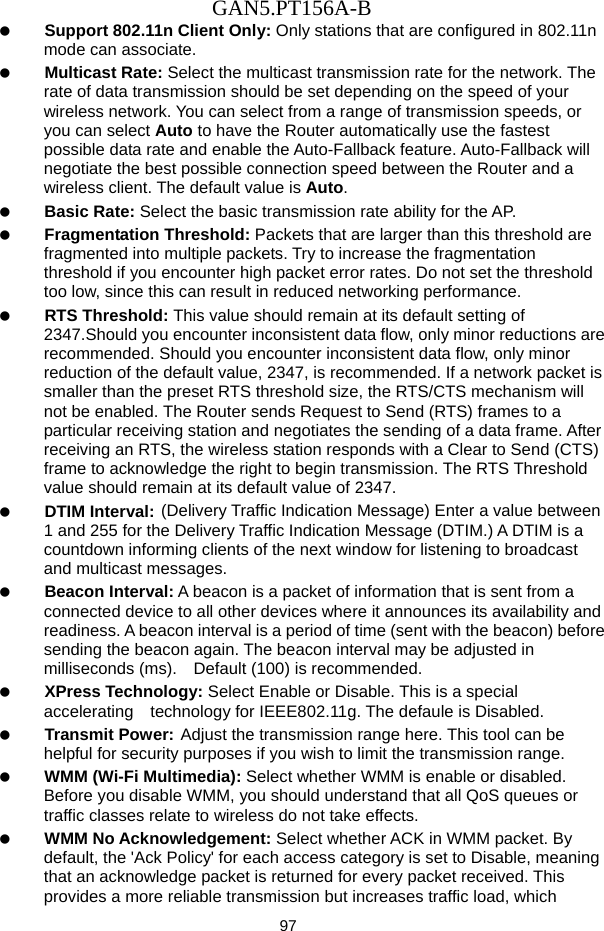
GAN5.PT156A-B 97   Support 802.11n Client Only: Only stations that are configured in 802.11n mode can associate.   Multicast Rate: Select the multicast transmission rate for the network. The rate of data transmission should be set depending on the speed of your wireless network. You can select from a range of transmission speeds, or you can select Auto to have the Router automatically use the fastest possible data rate and enable the Auto-Fallback feature. Auto-Fallback will negotiate the best possible connection speed between the Router and a wireless client. The default value is Auto.   Basic Rate: Select the basic transmission rate ability for the AP.   Fragmentation Threshold: Packets that are larger than this threshold are fragmented into multiple packets. Try to increase the fragmentation threshold if you encounter high packet error rates. Do not set the threshold too low, since this can result in reduced networking performance.   RTS Threshold: This value should remain at its default setting of 2347.Should you encounter inconsistent data flow, only minor reductions are recommended. Should you encounter inconsistent data flow, only minor reduction of the default value, 2347, is recommended. If a network packet is smaller than the preset RTS threshold size, the RTS/CTS mechanism will not be enabled. The Router sends Request to Send (RTS) frames to a particular receiving station and negotiates the sending of a data frame. After receiving an RTS, the wireless station responds with a Clear to Send (CTS) frame to acknowledge the right to begin transmission. The RTS Threshold value should remain at its default value of 2347.   DTIM Interval: (Delivery Traffic Indication Message) Enter a value between 1 and 255 for the Delivery Traffic Indication Message (DTIM.) A DTIM is a countdown informing clients of the next window for listening to broadcast and multicast messages.   Beacon Interval: A beacon is a packet of information that is sent from a connected device to all other devices where it announces its availability and readiness. A beacon interval is a period of time (sent with the beacon) before sending the beacon again. The beacon interval may be adjusted in milliseconds (ms).    Default (100) is recommended.   XPress Technology: Select Enable or Disable. This is a special accelerating  technology for IEEE802.11g. The defaule is Disabled.   Transmit Power: Adjust the transmission range here. This tool can be helpful for security purposes if you wish to limit the transmission range.   WMM (Wi-Fi Multimedia): Select whether WMM is enable or disabled. Before you disable WMM, you should understand that all QoS queues or traffic classes relate to wireless do not take effects.   WMM No Acknowledgement: Select whether ACK in WMM packet. By default, the 'Ack Policy' for each access category is set to Disable, meaning that an acknowledge packet is returned for every packet received. This provides a more reliable transmission but increases traffic load, which
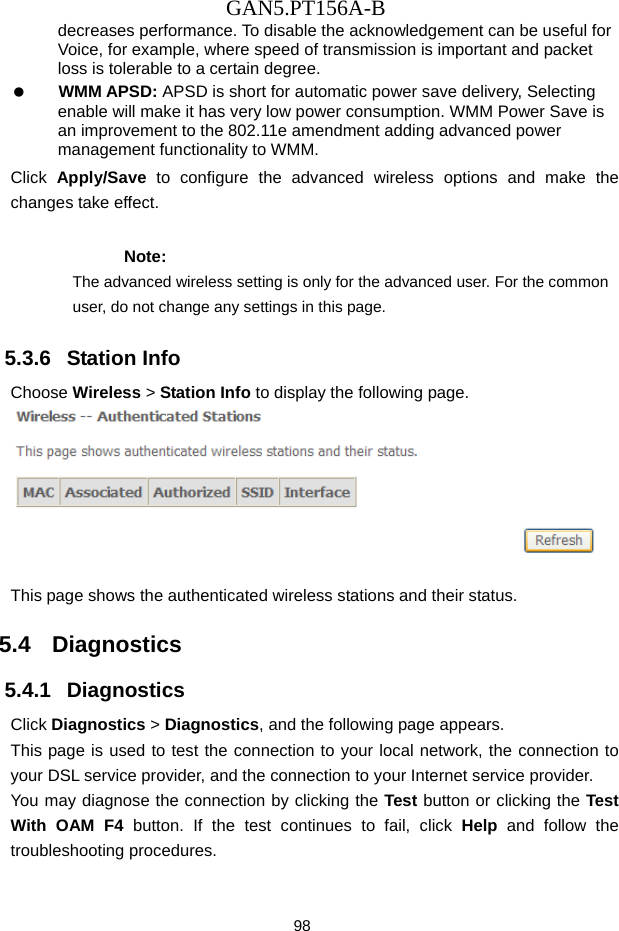
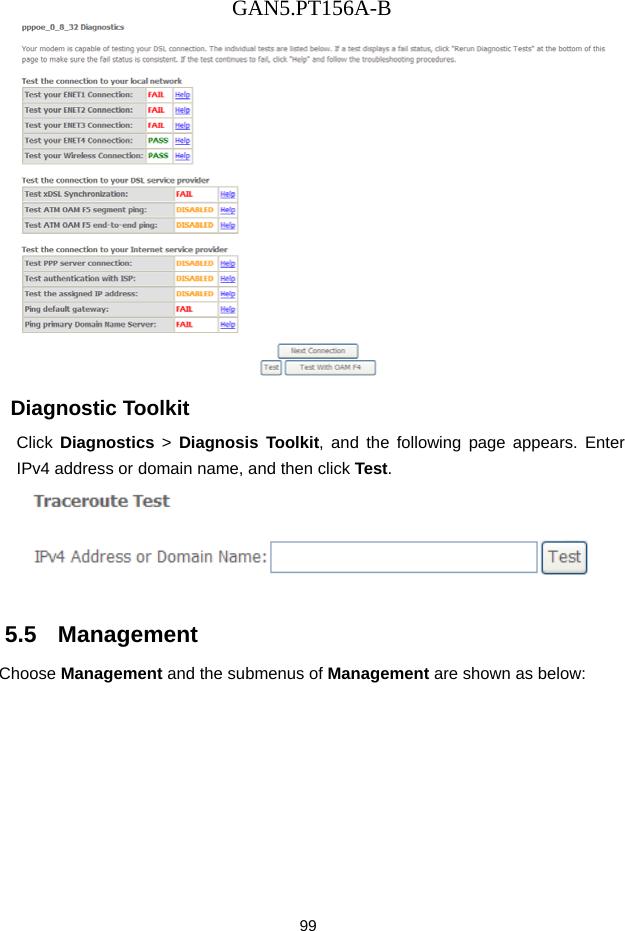
GAN5.PT156A-B 98 decreases performance. To disable the acknowledgement can be useful for Voice, for example, where speed of transmission is important and packet loss is tolerable to a certain degree.   WMM APSD: APSD is short for automatic power save delivery, Selecting enable will make it has very low power consumption. WMM Power Save is an improvement to the 802.11e amendment adding advanced power management functionality to WMM. Click  Apply/Save to configure the advanced wireless options and make the changes take effect. Note: The advanced wireless setting is only for the advanced user. For the common user, do not change any settings in this page. 5.3.6   Station Info Choose Wireless > Station Info to display the following page.   This page shows the authenticated wireless stations and their status. 5.4   Diagnostics 5.4.1   Diagnostics Click Diagnostics > Diagnostics, and the following page appears. This page is used to test the connection to your local network, the connection to your DSL service provider, and the connection to your Internet service provider.   You may diagnose the connection by clicking the Test button or clicking the Test With OAM F4 button. If the test continues to fail, click Help and follow the troubleshooting procedures.
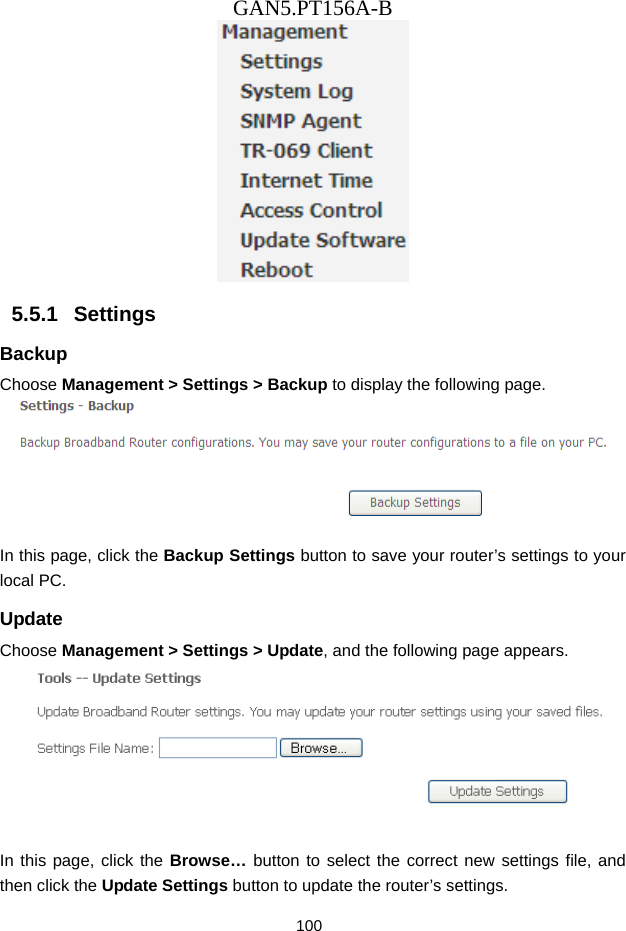
GAN5.PT156A-B 99  Diagnostic Toolkit Click  Diagnostics  > Diagnosis Toolkit, and the following page appears. Enter IPv4 address or domain name, and then click Test.  5.5   Management Choose Management and the submenus of Management are shown as below:
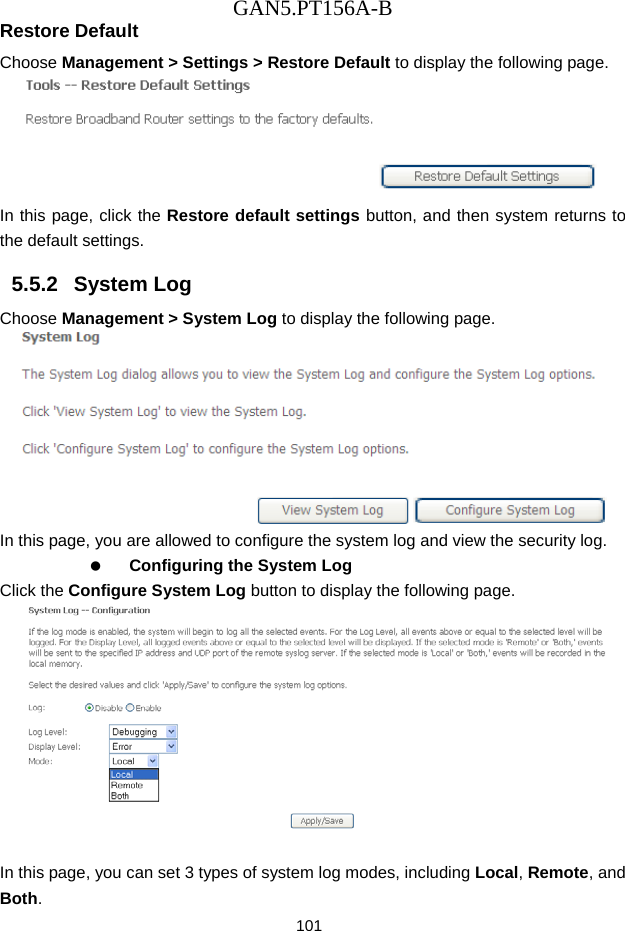
GAN5.PT156A-B 100  5.5.1   Settings Backup Choose Management > Settings > Backup to display the following page.   In this page, click the Backup Settings button to save your router’s settings to your local PC. Update Choose Management > Settings > Update, and the following page appears.   In this page, click the Browse… button to select the correct new settings file, and then click the Update Settings button to update the router’s settings.
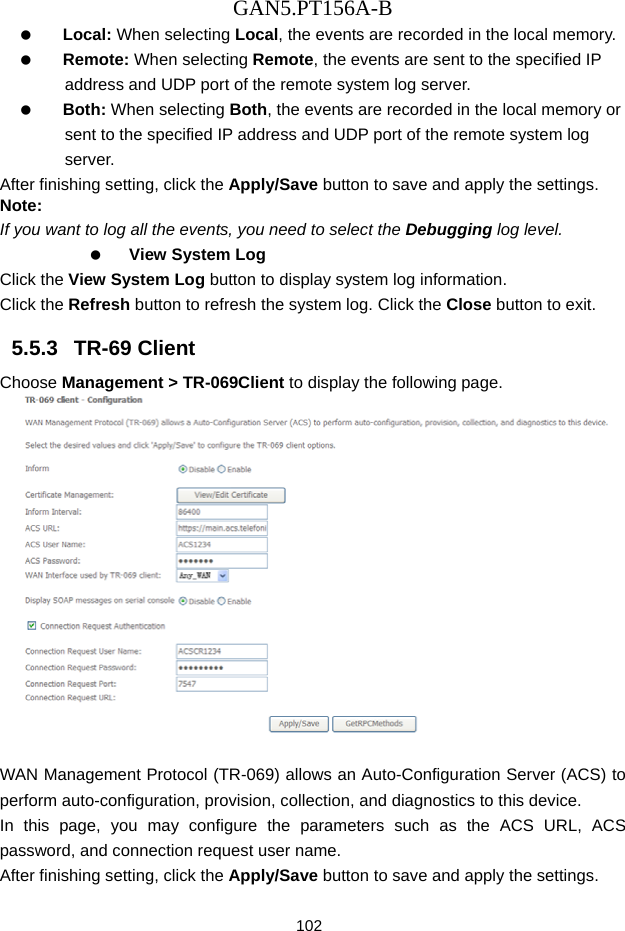
GAN5.PT156A-B 101 Restore Default Choose Management > Settings > Restore Default to display the following page.  In this page, click the Restore default settings button, and then system returns to the default settings. 5.5.2   System Log Choose Management > System Log to display the following page.    In this page, you are allowed to configure the system log and view the security log.   Configuring the System Log Click the Configure System Log button to display the following page.   In this page, you can set 3 types of system log modes, including Local, Remote, and Both.
GAN5.PT156A-B 102   Local: When selecting Local, the events are recorded in the local memory.   Remote: When selecting Remote, the events are sent to the specified IP address and UDP port of the remote system log server.   Both: When selecting Both, the events are recorded in the local memory or sent to the specified IP address and UDP port of the remote system log server. After finishing setting, click the Apply/Save button to save and apply the settings. Note: If you want to log all the events, you need to select the Debugging log level.   View System Log Click the View System Log button to display system log information.   Click the Refresh button to refresh the system log. Click the Close button to exit. 5.5.3   TR-69 Client Choose Management > TR-069Client to display the following page.     WAN Management Protocol (TR-069) allows an Auto-Configuration Server (ACS) to perform auto-configuration, provision, collection, and diagnostics to this device. In this page, you may configure the parameters such as the ACS URL, ACS password, and connection request user name. After finishing setting, click the Apply/Save button to save and apply the settings.
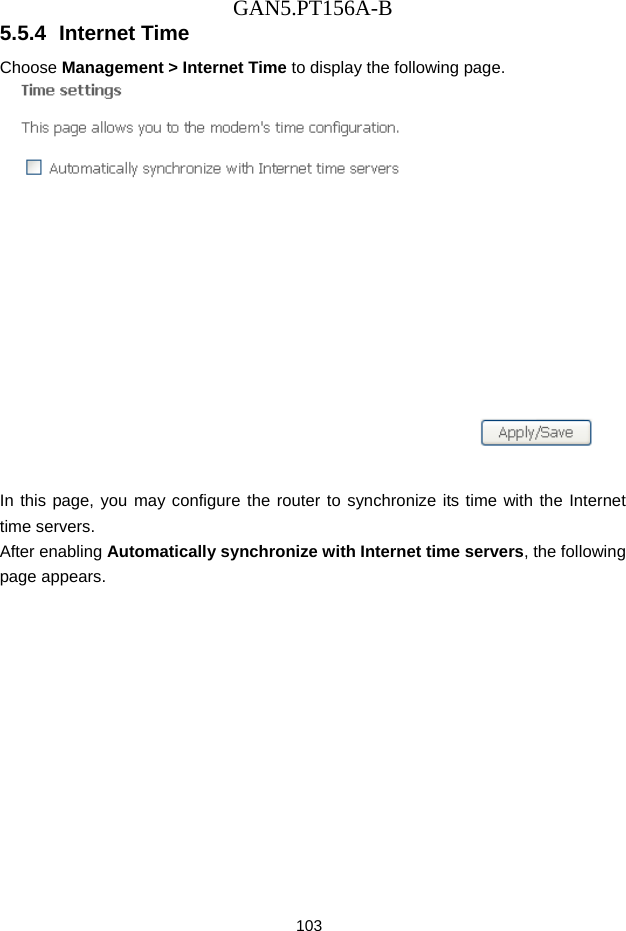
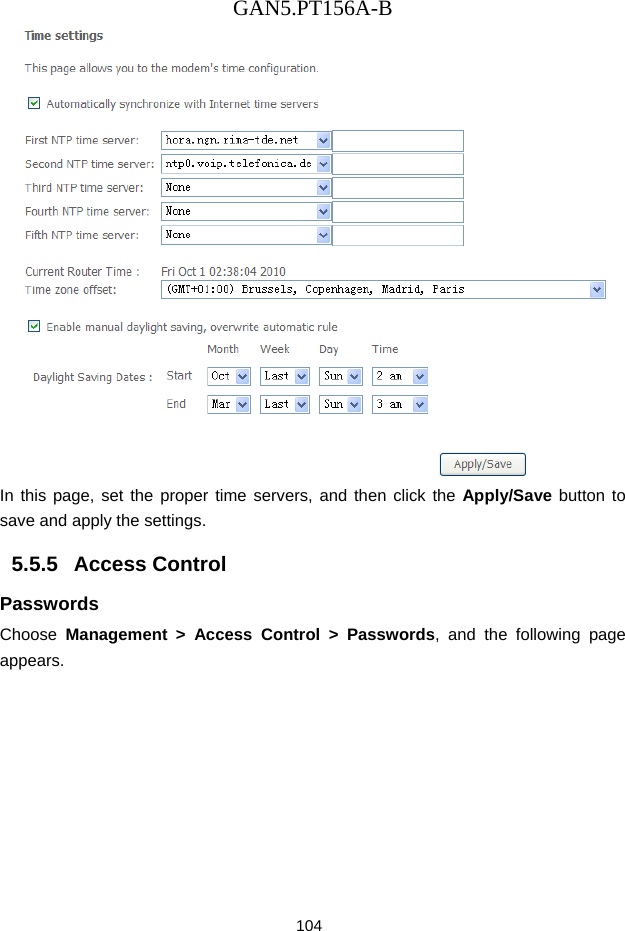
GAN5.PT156A-B 103 5.5.4  Internet Time Choose Management > Internet Time to display the following page.     In this page, you may configure the router to synchronize its time with the Internet time servers. After enabling Automatically synchronize with Internet time servers, the following page appears.
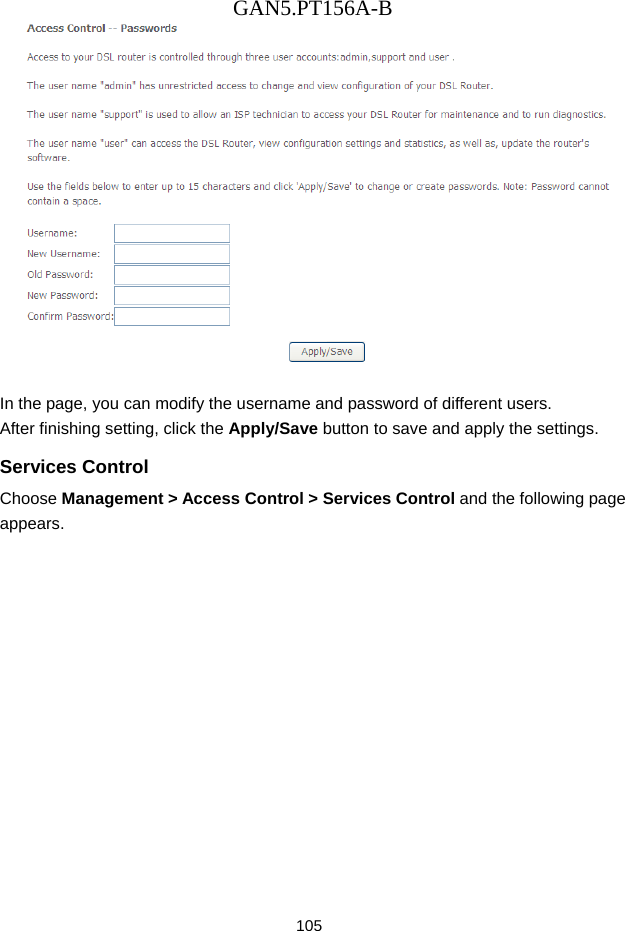
GAN5.PT156A-B 104  In this page, set the proper time servers, and then click the Apply/Save button to save and apply the settings. 5.5.5   Access Control Passwords Choose  Management > Access Control > Passwords, and the following page appears.
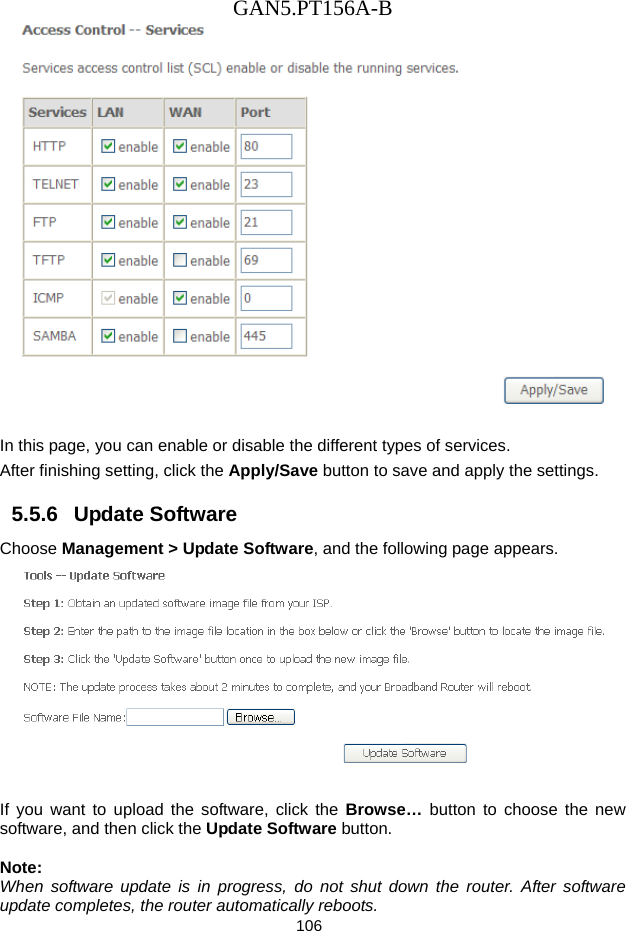
GAN5.PT156A-B 105     In the page, you can modify the username and password of different users. After finishing setting, click the Apply/Save button to save and apply the settings. Services Control Choose Management > Access Control > Services Control and the following page appears.
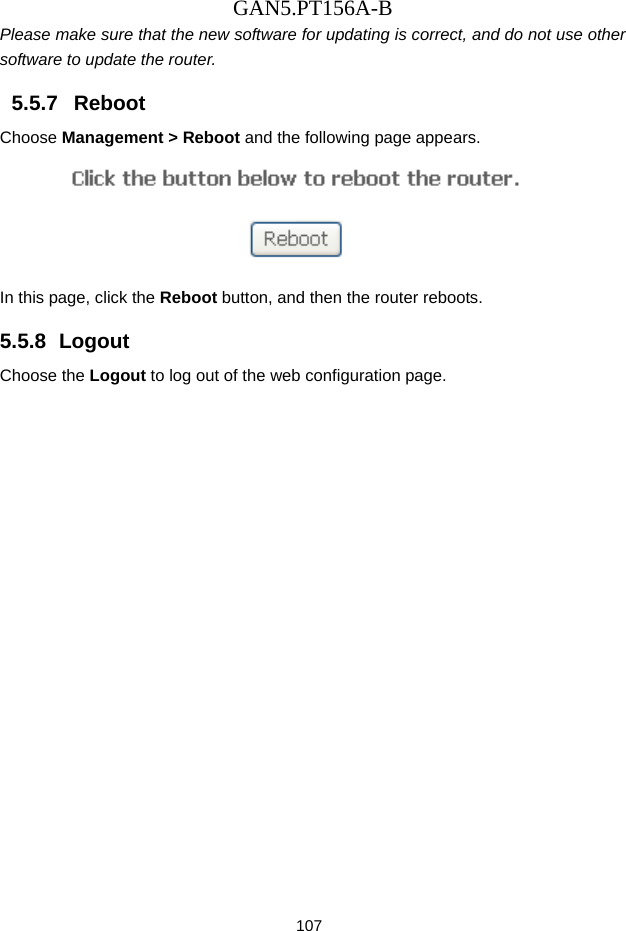
GAN5.PT156A-B 106   In this page, you can enable or disable the different types of services. After finishing setting, click the Apply/Save button to save and apply the settings. 5.5.6   Update Software Choose Management > Update Software, and the following page appears.     If you want to upload the software, click the Browse…  button to choose the new software, and then click the Update Software button.  Note: When software update is in progress, do not shut down the router. After software update completes, the router automatically reboots.
GAN5.PT156A-B 107 Please make sure that the new software for updating is correct, and do not use other software to update the router. 5.5.7   Reboot Choose Management > Reboot and the following page appears.    In this page, click the Reboot button, and then the router reboots. 5.5.8  Logout Choose the Logout to log out of the web configuration page.
GAN5.PT156A-B 108 6  Q&A (1)  Q: Why all the indicators are off? A: Check the following:    The connection between the power adaptor and the power socket.    The status of the power switch. (2)   Q: Why the Ethernet indicator is off? A: Check the following:    The connection between the ADSL router and your computer, hub, or switch.    The running status of your PC, hub, or switch. (3)   Q: Why the ADSL indicator is off? A: Check the connection between the “ADSL” port of router and the wall jack. (4)   Q: Why Internet access fails while the ADSL indicator is on? A:  Check whether the VPI, VCI, user name, and password are correctly entered. (5)   Q: Why I fail to access the web configuration page of the DSL router? A: Choose Start > Run from the desktop, and ping 192.168.1.1 (IP address of the DSL router). If the DSL router is not reachable, check the type of the network cable, the connection between the DSL router and the PC, and the TCP/IP configuration of the PC. (6)   Q: How to load the default settings after incorrect configuration? A: To restore the factory default settings, turn on the device, and press the reset button for about 1 second, and then release it. The default IP address and the subnet mask of the DSL router are 192.168.1.1 and 255.255.255.0, respectively.      User/password of super user: 1234/1234
FCC - PART 68     This  equipment  complies  with  Part  68  of  the  FCC  rules  and  the  requirements  adopted  by  the ACTA.    On  the  bottom  of  the  device  of  this  equipment  is  a  label  that  contains,  among  other information, a product identifier in the format US: SGEDL01BR5500UN  and REN: 0.09B for this equipment.        This equipment uses the following USOC jacks: RJ-11 Jacks!      A plug and jack used to connect this equipment to the premises wiring and telephone network must comply with the applicable FCC Part 68 rules and requirements adopted by the ACTA.    A compliant telephone cord and modular plug is provided with this product.    It is designed to be connected to a compatible modular jack that is also compliant.    See installation instructions for details.        REN  (RINGER  EQUIVALENT  NUMBERS)  STATEMENT    Notice:  The  Ringer  Equivalence  Number (REN)  assigned  to  each  terminal  device  provides  an  indication  of  the  maximum  number  of terminals allowed to be connected to a telephone interface. The termination on an interface may consist of any combination of devices subject only to the requirement that the sum of the Ringer Equivalence Numbers of all the devices does not exceed 5.        If this equipment US: SGEDL01BR5500UN causes harm to the telephone network, the telephone company will notify you in advance that temporary discontinuance of  service  may be required.   But if advance notice isn't practical, the telephone company will notify the customer as soon as possible.    Also, you will be advised of your right to file a complaint with the FCC if you believe it is necessary.      The telephone company may make changes in its facilities, equipment, operations or procedures that  could  affect  the  operation  of  the  equipment.  If  this  happens  the  telephone  company  will provide  advance  notice  in  order  for  you  to  make  necessary  modifications  to  maintain uninterrupted service.        If trouble is experienced with this equipment US ID , for repair or warranty information, please contact Shenzhen Gongjin Electronics Co.,Ltd. If the equipment is causing harm to the telephone network,  the  telephone  company  may  request  that  you  disconnect  the  equipment  until  the problem is resolved.      Connection  to  party  line  service  is  subject  to  state  tariffs.    Contact  the  state  public  utility commission, public service commission or corporation commission for information.        If your home has specially wired alarm equipment connected to the telephone line, ensure the installation of this US: SGEDL01BR5500UN does not disable your alarm equipment.    If you have questions  about  what  will  disable  alarm  equipment,  consult  your  telephone  company  or  a qualified installer.
FCC STATEMENT                                                   This device complies with Part 15 of the FCC Rules. Operation is subject to the following two conditions: (1) This device may not cause harmful interference, and   (2)  This  device  must  accept  any  interference  received,  including  interference  that  may  cause undesired operation.  The grantee is  not responsible for any changes or modifications not expressly approved by the party responsible for compliance. Such modifications could void the user’s authority to operate the equipment.  This equipment has been tested and found to comply with the limits for a Class B digital device,  pursuant to part 15 of the FCC Rules. These limits are designed to provide reasonable protection  against harmful interference in a residential installation. This equipment generates, uses and can radiate radio frequency energy and, if not installed and used in accordance with the instructions,  may cause harmful interference to radio communications. However, there is no guarantee that  interference will not occur in a particular installation. If this equipment does cause harmful  interference to radio or television reception, which can be determined by turning the equipment off and on, the user is encouraged to try to correct the interference by one or more of the  following measures: —Reorient or relocate the receiving antenna. —Increase the separation between the equipment and receiver. —Connect the equipment into an outlet on a circuit different from that to which the receiver is  connected. —Consult the dealer or an experienced radio/TV technician for help.  FCC RF Radiation Exposure Statement This equipment complies with FCC RF radiation exposure limits set forth for an uncontrolled environment. This equipment should be installed and operated with a minimum distance of 20 centimeters between the radiator and your body.

Navigation menu