Gongjin Electronics WNA699U8G1 USB Wireless Card User Manual

Shenzhen Gongjin Electronics Co., Ltd USB Wireless Card Users Manual

Users Manual

      WNA699U8G.1 USB DONGLE User manual  Ver: 1.0
    Contents Chapter 1   Introduction...............................................................................1 Product Outline.......................................................................................1 Applications...........................................................................................1 Compliance Certificates..........................................................................2 Feature....................................................................................................2 External Connectors...............................................................................2 Environment...........................................................................................2 Chapter 2    Driver Installation....................................................................3
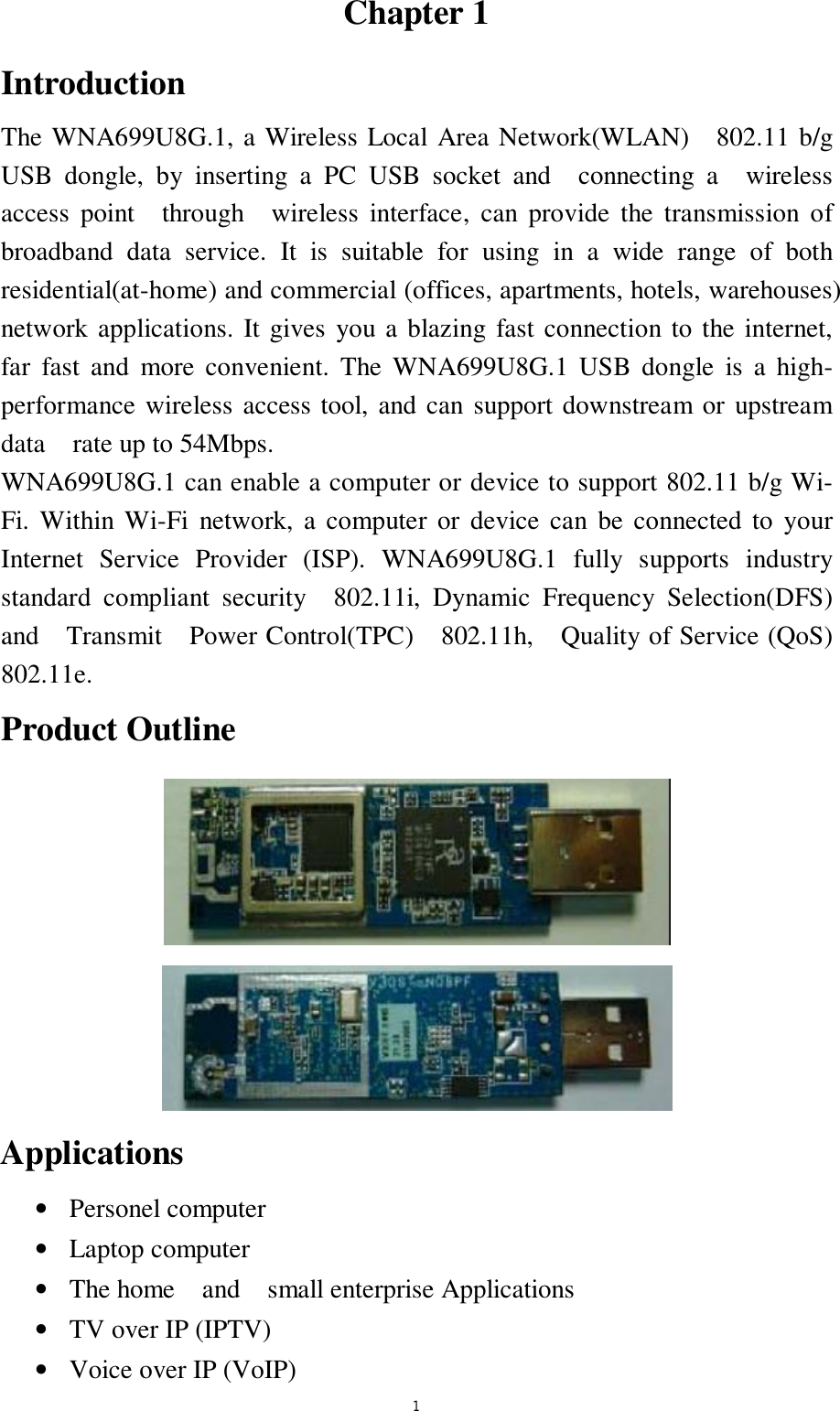
 1 Chapter 1 Introduction The WNA699U8G.1, a Wireless Local Area Network(WLAN)  802.11 b/g  USB dongle, by inserting a PC USB socket and  connecting a  wireless access point  through  wireless interface, can provide the transmission of broadband data service. It is suitable for using in a wide range of both residential(at-home) and commercial (offices, apartments, hotels, warehouses) network applications. It gives you a blazing fast connection to the internet, far fast and more convenient. The WNA699U8G.1 USB dongle is a high-performance wireless access tool, and can support downstream or upstream data  rate up to 54Mbps. WNA699U8G.1 can enable a computer or device to support 802.11 b/g Wi-Fi. Within Wi-Fi network, a computer or device can be connected to your Internet Service Provider (ISP). WNA699U8G.1 fully supports industry standard compliant security  802.11i, Dynamic Frequency Selection(DFS)  and  Transmit  Power Control(TPC)  802.11h,  Quality of Service (QoS) 802.11e. Product Outline   Applications •  Personel computer  •  Laptop computer •  The home  and  small enterprise Applications  •  TV over IP (IPTV) •  Voice over IP (VoIP)
 2 •  Broadband internet access •  Audio and video streaming and transfer •  PC file and application sharing •  Network and online gaming  Compliance Certificates •  FCC Class B •  CE Mark •  Wi-Fi Certification Feature •  USB 1.1/2.0  interface  •  Comply with IEEE802.11 b/g  •  Support 64/128-bit WEP, 802.1x, WPA, and WPA2 for wireless security •  Support  802.11e wireless multimedia Qos •  Support 802.11h Dynamic Frequency Selection and Transmit  Power Control •  Widely wireless signal rates: 54, 48, 36, 24, 18, 12, 9, 6 Mb/s for 802.11g; 11, 5.5, 2, 1 Mb/s for 802.11b •  UDP throughput: up to 25Mbps •  Support Win98/SE/ME, Win2000/XP, WinVista, MAC 10.3/10.4,Linux kernel 2.4/2.6 OS  External Connectors •  USB 1.1/2.0  interface  Environment •  Operating temperature: 0℃ to 40℃  •  Storage temperature: -20℃ to 70℃  •  Operating Humidity: 10%~95% no freezing  •  4Storage humidity: 5%~95% no freezing
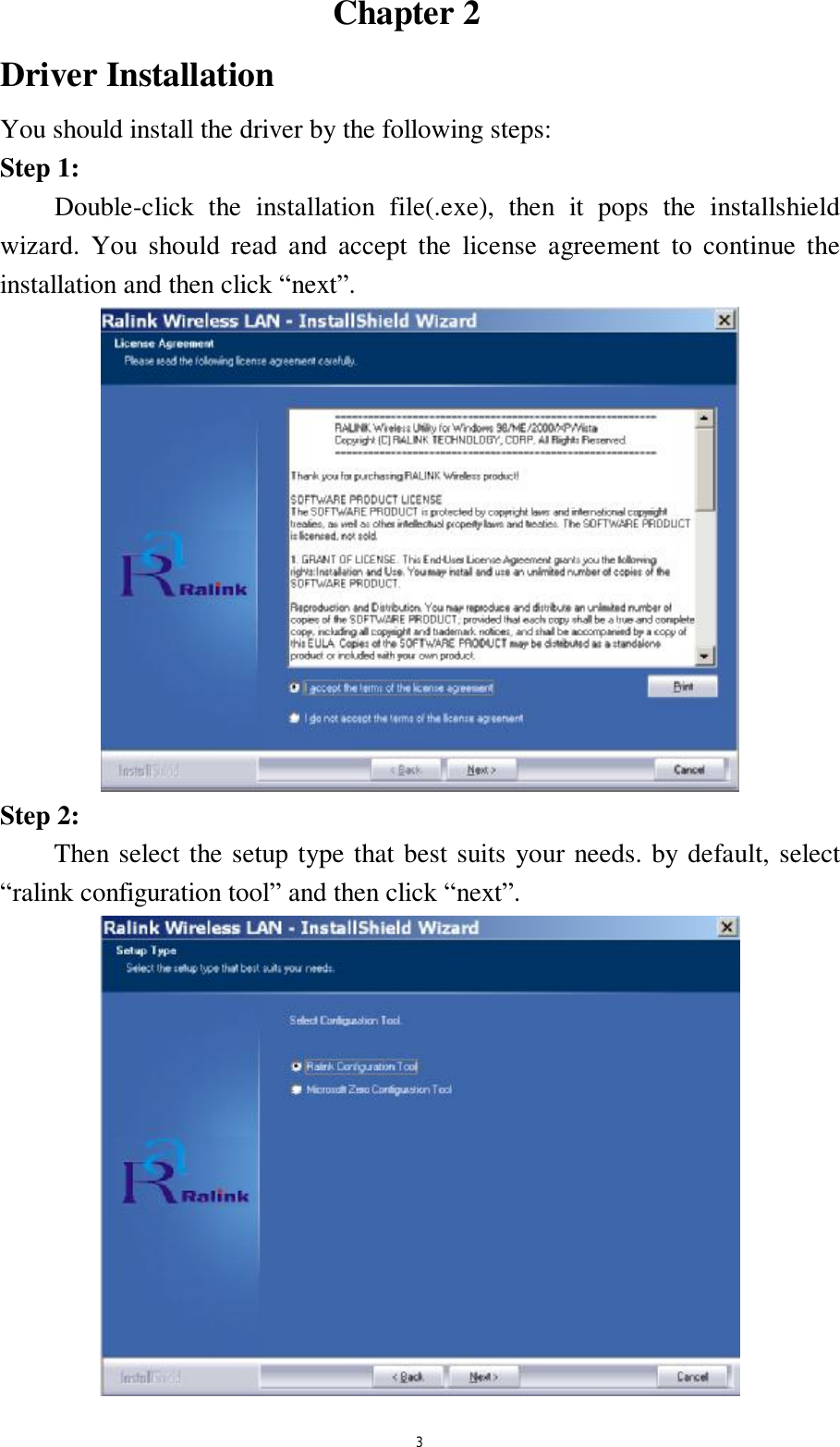
 3                               Chapter 2    Driver Installation You should install the driver by the following steps: Step 1:     Double-click the installation file(.exe), then it pops the installshield wizard. You should read and accept the license agreement to continue the installation and then click “next”.  Step 2: Then select the setup type that best suits your needs. by default, select “ralink configuration tool” and then click “next”.
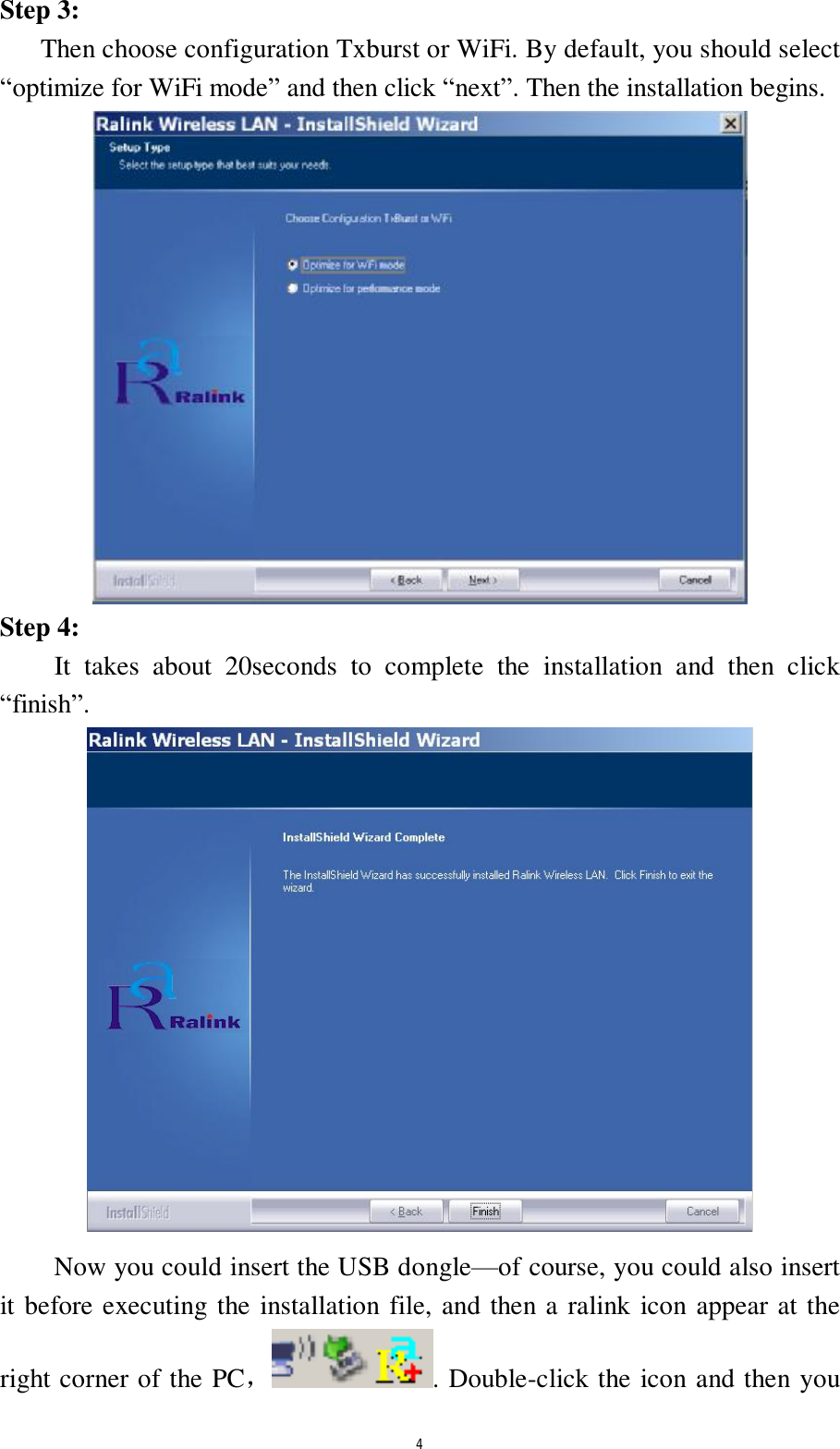
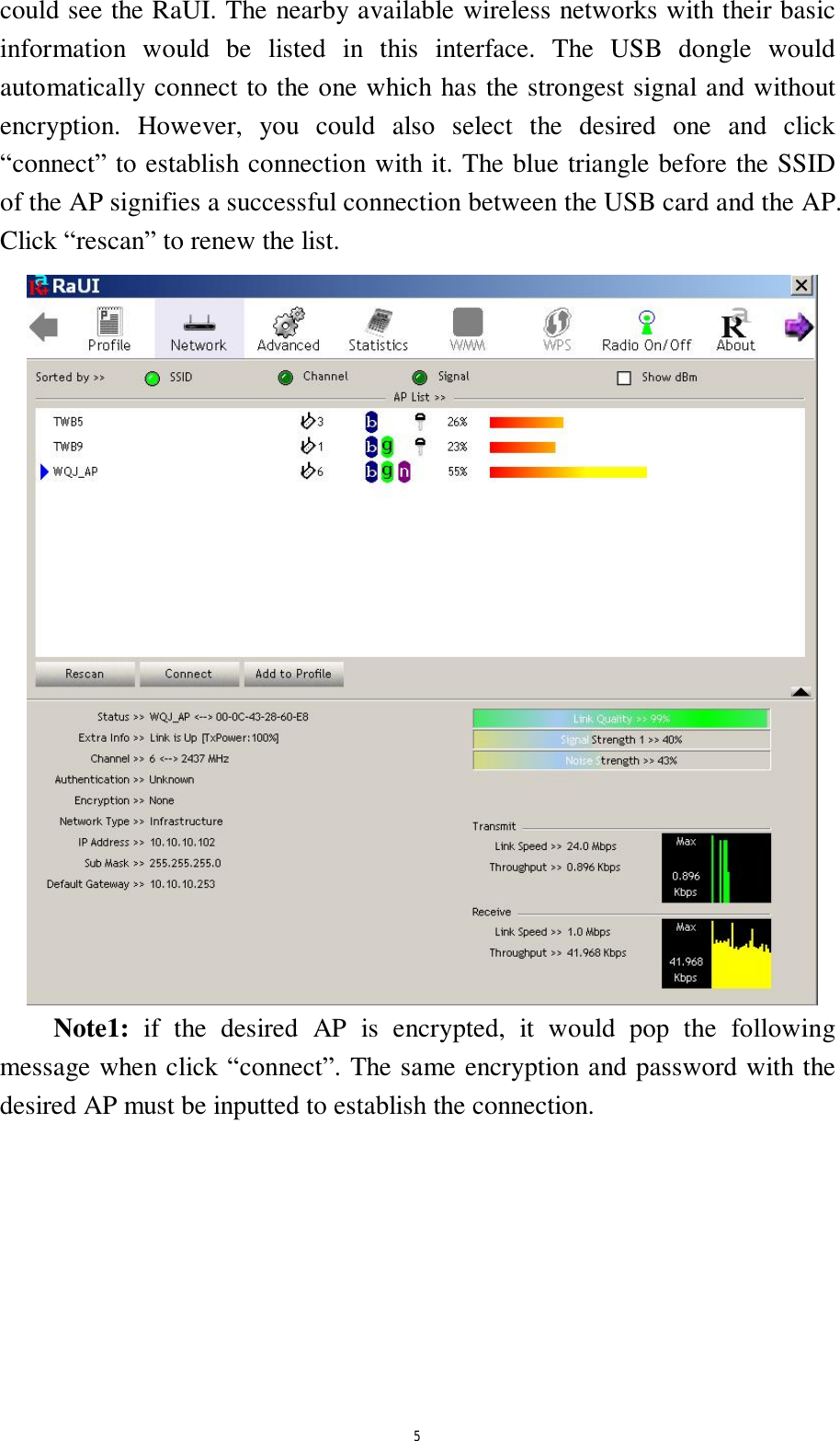
 4 Step 3:    Then choose configuration Txburst or WiFi. By default, you should select “optimize for WiFi mode” and then click “next”. Then the installation begins.  Step 4:     It takes about 20seconds to complete the installation and then click “finish”.  Now you could insert the USB dongle—of course, you could also insert it before executing the installation file, and then a ralink icon appear at the right corner of the PC,. Double-click the icon and then you
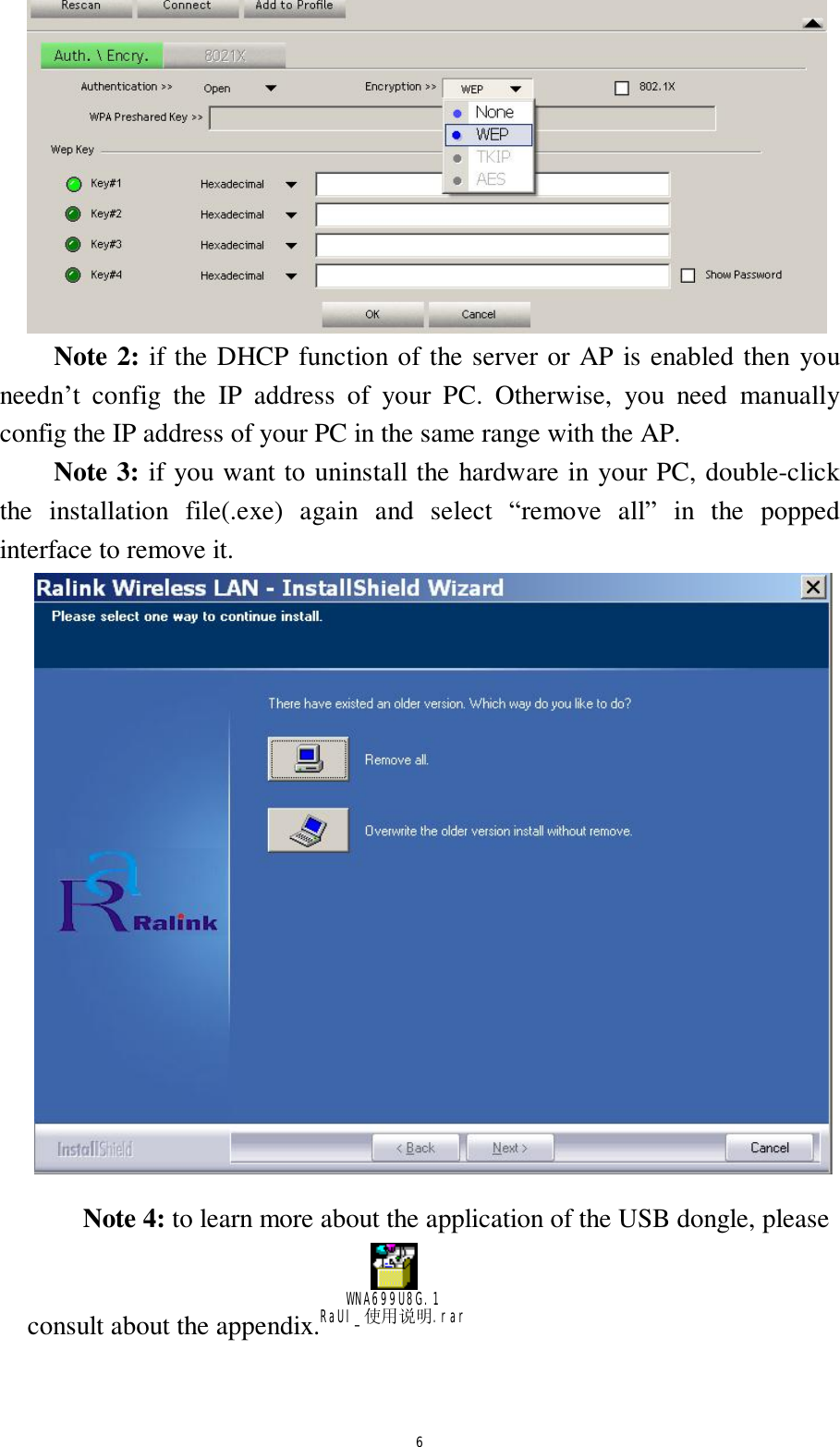
 5 could see the RaUI. The nearby available wireless networks with their basic information would be listed in this interface. The USB dongle would automatically connect to the one which has the strongest signal and without encryption. However, you could also select the desired one and click “connect” to establish connection with it. The blue triangle before the SSID of the AP signifies a successful connection between the USB card and the AP. Click “rescan” to renew the list.  Note1: if the desired AP is encrypted, it would pop the following message when click “connect”. The same encryption and password with the desired AP must be inputted to establish the connection.
 6  Note 2: if the DHCP function of the server or AP is enabled then you needn’t config the IP address of your PC. Otherwise, you need manually config the IP address of your PC in the same range with the AP.  Note 3: if you want to uninstall the hardware in your PC, double-click the installation file(.exe) again and select  “remove all” in the popped interface to remove it.       Note 4: to learn more about the application of the USB dongle, please  consult about the appendix. WNA699U8G.1 RaUI_使用说明.rar
 7 This device must not be co-located or operating in conjunction with any other antenna or transmitter NOTE: THE MANUFACTURER IS NOT RESPONSIBLE FOR ANY RADIO OR TV INTERFERENCE CAUSED BY UNAUTHORIZED MODIFICATIONS TO THIS EQUIPMENT. SUCH MODIFICATIONS COULD VOID THE USER’S AUTHORITY TO OPERATE THE EQUIPMENT.  Federal Communications Commission (FCC) Requirements, Part 15  This equipment has been tested and found to comply with the limits for a class B digital device, pursuant to part 15 of the FCC Rules. These limits are designed to provide reasonable protection against harmful interference in a residential installation. This equipment generates, uses and can radiate radio frequency energy and, if not installed and used in accordance with the instructions, may cause harmful interference to radio communications. However, there is no guarantee that interference will not occur in a particular installation. If this equipment does cause harmful interference to radio or television reception, which can be determined by turning the equipment off and on, the user is encouraged to try to correct the interference by one or more of the following measures: ---Reorient or relocate the receiving antenna. ---Increase the separation between the equipment and receiver. ---Connect the equipment into an outlet on a circuit different from that to which the receiver is connected. ---Consult the dealer or an experienced radio/TV technician for help.  Regulatory information / Disclaimers Installation and use of this Wireless LAN device must be in strict accordance with the instructions included in the user documentation provided with the product. Any changes or modifications (including the antennas) made to this device that are not expressly approved by the manufacturer may void the user’s authority to operate the equipment. The manufacturer is not responsible for any radio or television interference caused by unauthorized modification of this device, or the substitution of the connecting cables and equipment other than manufacturer specified. It is the responsibility of the user to correct any interference caused by such unauthorized modification, substitution or attachment. Manufacturer and its authorized resellers or distributors will assume no liability for any damage or violation of government  CAUTION: To maintain compliance with FCC’s RF exposure guidelines, this equipment should be installed and operated with minimum distance 20cm between the radiator and your body. Use on the supplied antenna. Unauthorized antenna, modification, or attachments could damage the transmitter and may violate FCC regulations.  MPE Statement (Safety Information) Your device contains a low power transmitter. When device is transmitted it sends out Radio Frequency (RF) signal.  Safety Information In order to maintain compliance with the FCC RF exposure guidelines, this equipment should be installed and operated with minimum distance 20cm between the radiator and your body. Use only with supplied antenna. Unauthorized antenna, modification, or attachments could damage the transmitter and may violate FCC regulations.

Navigation menu