Govideo Dj530 Users Manual UG 9 26 03.pm7
DJ530 to the manual f0b921b0-eda6-4642-ba6f-d77b25eac5f7
2015-02-05
: Govideo Govideo-Dj530-Users-Manual-412617 govideo-dj530-users-manual-412617 govideo pdf
Open the PDF directly: View PDF  .
.
Page Count: 28
User’s Guide
DJ530 UG 9-26-03.pm7 9/26/03, 11:33 AM1
Go Jr. User’s Guide
2
...on your purchase of this Go Jr. DVD Player! We know you
will enjoy this product for many years to come.
In case warranty service is required, please take a moment to
attach your receipt to this manual and write down your Serial
Number (located on the back panel of the player):
Caution
•To reduce the risk of fire or electric shock, do not expose this product
to rain or moisture.
•To prevent fire or shock hazard, or annoying interference, use only
the recommended accessories.
•To prevent electric shock, do not use this (polarized) plug with an
extension cord, receptacle, or other outlet unless the blades can be
fully inserted to prevent blade exposure.
•To reduce the risk of electric shock, do not remove the unit cover or
back. There are no serviceable parts inside.
•Refer servicing to qualified personnel only.
WARNING:
• TO AVOID HAZARDOUS EXPOSURE TO INVISIBLE LASER RADIA-
TION, DO NOT OPEN OR REMOVE/DEFEAT LASER TRANSPORT
PROTECTIVE HOUSING.
Cuidado
•Para prevenir incendio, riesgo de choque, o interferencia enfadosa,
use solamente los accesorios recomendados. Para prevenir
electrochoque, no use este enchufe (polarizado) con un cordón de
extensión, toma de corriente, o cualquier otra toma a menos que los
dientes puedan ser completamente insertados para prevenir
exposición de los dientes. Para reducir el riesgo de descarga
eléctrica, no remueva la cubierta o la parte posterior del equipo.
Dentro del equipo no hay partes que requieren servicio. Diríjase
solamente a personal calificado cuando requiera servicio.
Congratulations...
Attention
•Pour éviter les incendis, risque de chocs, ou interférences fâcheuses,
employer seulement les accessoires recommandés. Pour éviter les
chocs électriques, ne pas employer cette prise (polarisée) avec une
rallonge, une prise de courant ou une autre sortie de courant à moins
que les lames peuvent être insérées à fond pour l’exposition des
lames. Pour réduire les risques de chocs électriques, ne pas retirer le
couvercle ou l’arrière du module. Il n’y a pas de pièce utilisable à
l’intérieur. Ne faire effectuer l’entretien que par un personnel qualifié.
This symbol is intended to alert the user to the
presence of uninsulated dangerous voltage within
the product’s enclosure that may be of sufficient
magnitude to constitute risk of fire or electric
shock.
This symbol is intended to alert the user to the
presence of important operating and maintenance
instructions in the literature accompanying this
product.
DJ530 UG 9-26-03.pm7 9/26/03, 11:33 AM2
3
4 Need Help?
1. Read Instructions - All the safety and
operating instructions should be read
before the product is operated.
2. Retain Instructions - The safety and
operating instructions should be
retained for future reference.
3. Heed Warnings - All warnings on
the product and in the operating
instructions should be adhered
to.
4. Follow Instructions - All
operating and use instructions
should be followed.
5. Cleaning - Unplug this product from the
wall outlet before cleaning. Do not use liquid
cleaners or aerosol cleaners. Use a damp cloth for cleaning.
6. Attachments - Do not use attachments not recommended by the
product manufacturer as they may cause hazards.
7. Water and Moisture - Do not use this product near water - for
example, near a bathtub, wash bowl, kitchen sink, or laundry tub;
in a wet basement; or near a swimming pool; and the like.
8. Accessories - Use only the manufacturer’s approved mounting
instructions and hardware when installing product.
9. A product and cart combination should be moved with care. Quick
stops, excessive force, and uneven surfaces may cause the product
and cart combination to overturn.
10.Ventilation - Slots and openings in the cabinet are provided for
ventilation and to ensure reliable operation of the product and to
protect it from overheating, and these openings must not be
blocked or covered. The openings should never be blocked by
placing the product on a bed, sofa, rug, or other similar surface.
This product should not be placed in a built-in installation such as
a bookcase or rack unless proper ventilation is provided or the
manufacturer’s instructions have been adhered to.
11.Power Sources - This product should be operated only from the
type of power source indicated on the marking label. If you are not
sure of the type of power supply to your home, consult your
product dealer or local power company. For products intended to
operate from battery power, or other sources, refer to the operating
instructions.
12. Grounding or Polarization - This product may be equipped
with a polarized alternating-current line plug (a plug having one
blade wider than the other). This plug will fit into the power outlet
only one way. This is a safety feature. If you are unable to insert the
plug fully into the outlet, try reversing the plug. If the plug should
still fail to fit, contact your electrician to replace your obsolete
outlet. Do not defeat the safety purpose of the polarized plug.
13. Power-Cord Protection - Power-supply cords should be
routed so that they are not likely to be walked on or pinched by
items placed upon or against them, paying particular attention to
cords at plugs, convenience receptacles, and the point where they
exit from the product.
14.Overloading - Do not overload wall outlets, extension cords, or
integral convenience receptacles as this can result in a risk of fire or
electric shock.
15.Object and Liquid Entry - Never push objects of any kind into this
product through openings as they may touch dangerous voltage
points or short-out parts that could result in a fire or electric shock.
Never spill liquid of any kind on the product.
16.Servicing - Do not attempt to service this product yourself as
opening or removing covers may expose you to dangerous voltage
or other hazards. Refer all servicing to qualified service personnel.
17.Damage Requiring Service - Unplug this product from the wall
outlet and refer servicing to qualified service personnel under the
following conditions:
a) When the power-supply cord or plug is damaged,
b) If liquid has been spilled, or objects have fallen into the product,
c) If the product has been exposed to rain or water,
IMPORTANT SAFETY INSTRUCTIONS
DJ530 UG 9-26-03.pm7 9/26/03, 11:33 AM3
4
Go Jr. User’s Guide
User/Installer Caution
Your authority to operate this FCC certified equipment could be
voided if you make changes or modifications not expressly
approved by the manufacturer, who is responsible for compliance
with Part 15 FCC rules.
This equipment has been tested and found to comply with the
limits for a Class B digital device, pursuant to Part 15 of the FCC
Rules. These limits are designed to provide reasonable protection
against harmful interference in a residential installation. This
equipment generates, uses, and can radiate radio frequency
energy and, if not installed and used in accordance with the
instructions, may cause harmful interference to radio communica-
tions. However, there is no guarantee that interference will not
occur in a particular installation. If this equipment does cause
harmful interference to radio or television reception, which can be
determined by turning the equipment off and on, the user is
encouraged to try to correct the interference by one or more of
the following measures:
•Reorient or relocate the receiving antenna.
•Increase the separation between the equipment and receiver.
• Connect the equipment into an outlet on a circuit different
from that to which the receiver is connected.
•Consult the dealer or an experienced radio/TV technician for
help.
d) If the product does not operate normally by following the
operating instructions. Adjust only those controls that are covered
by the operating instructions as an improper adjustment of other
controls may result in damage and will often require extensive work
by a qualified technician to restore the product to its normal
operation,
e) If the product has been dropped or damaged in any way, and
f) When the product exhibits a distinct change in performance - this
indicates a need for service.
18.Replacement Parts - When replacement parts are required, be sure
the service technician has used replacement parts specified by the
manufacturer or have the same characteristics as the original part.
Unauthorized substitutions may result in fire, electric shock, or
other hazards.
19.Safety Check - Upon completion of any service or repairs to this
product, ask the service technician to perform safety checks to
determine that the product is in proper operating condition.
20.Heat - The product should be situated away from heat sources such
as radiators, heat registers, stoves, or other products (including
amplifiers) that produce heat.
© 2003 GoVideo. All Rights Reserved.
GoVideo Incorporated does not assume
any responsibility for errors or omissions in
this document or make any commitment to
update the information contained herein.
GoVideo is a trademark of GoVideo. All
other product names may be trademarks of
the companies with which they are
associated.
Copyright Notice
Federal law provides severe civil and criminal penalties for the
unauthorized reproduction, distribution, or exhibition of copyrighted
motion pictures and videotapes. (Title 17, United States Code, Sections
501 and 506).
Macrovision Notification
This product incorporates copyright protection technology that is
protected by method claims of certain U.S. patents and other
intellectual property rights owned by Macrovision Corporation and other
rights owners. Use of this copyright protection technology must be
authorized by Macrovision Corporation, and is intended for home and
other limited viewing uses only unless otherwise authorized by
Macrovision Corporation. Reverse engineering or disassembly is
prohibited.
DJ530 UG 9-26-03.pm7 9/26/03, 11:33 AM4
5
Table of Contents
Welcome to Go Jr.!
1 Getting Started page 7
2 Let's Have Some Fun! page 13
Watch Movies! page 13
Play Music! page 15
View Slideshows! page 17
Sing Along! page 18
3 Advanced Settings page 19
4 Need Help? page 23
DJ530 UG 9-26-03.pm7 9/26/03, 11:34 AM5
6
Go Jr. User’s Guide
DJ530 UG 9-26-03.pm7 9/26/03, 11:34 AM6
77
On Your Mark, Get Set...
Go Jr.!
1 - Getting Started
Welcome to Go Jr.! In this chapter you’ll get to know your
DVD player, including:
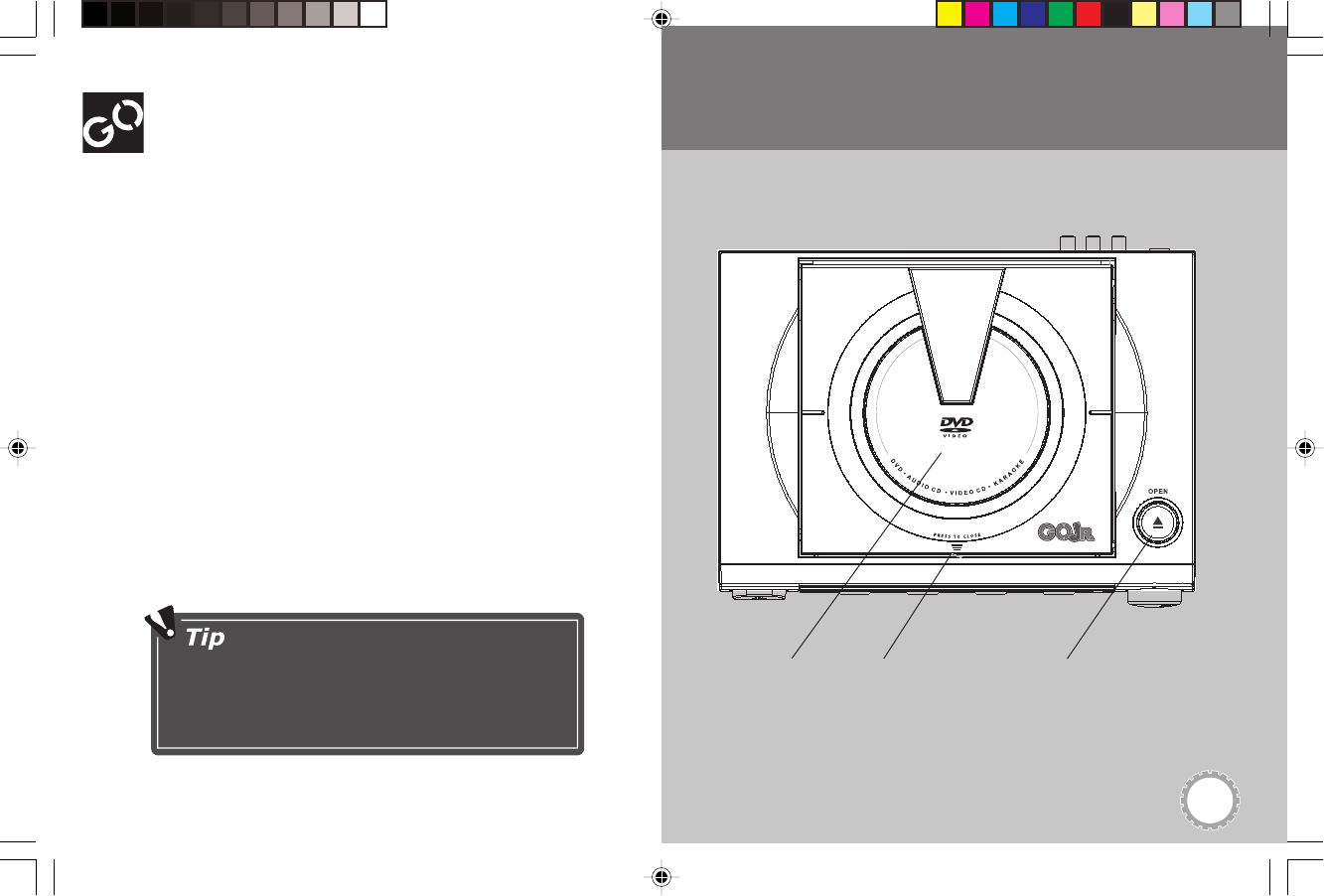
•Top Panel
•Front Panel
•Accessories
•Remote Control
•Rear Panel
You’ll also get to connect Go Jr. to your TV!
To prevent damage to the player and to your
discs, do not push down on the Go Jr. top
panel.
Open – Press
to open the
disc tray.
Disc Tray –
Insert your
discs here.
Go Jr. Top Panel
Close – Press
to close the
disc tray.
DJ530 UG 9-26-03.pm7 9/26/03, 11:34 AM7
Go Jr. User’s Guide
8
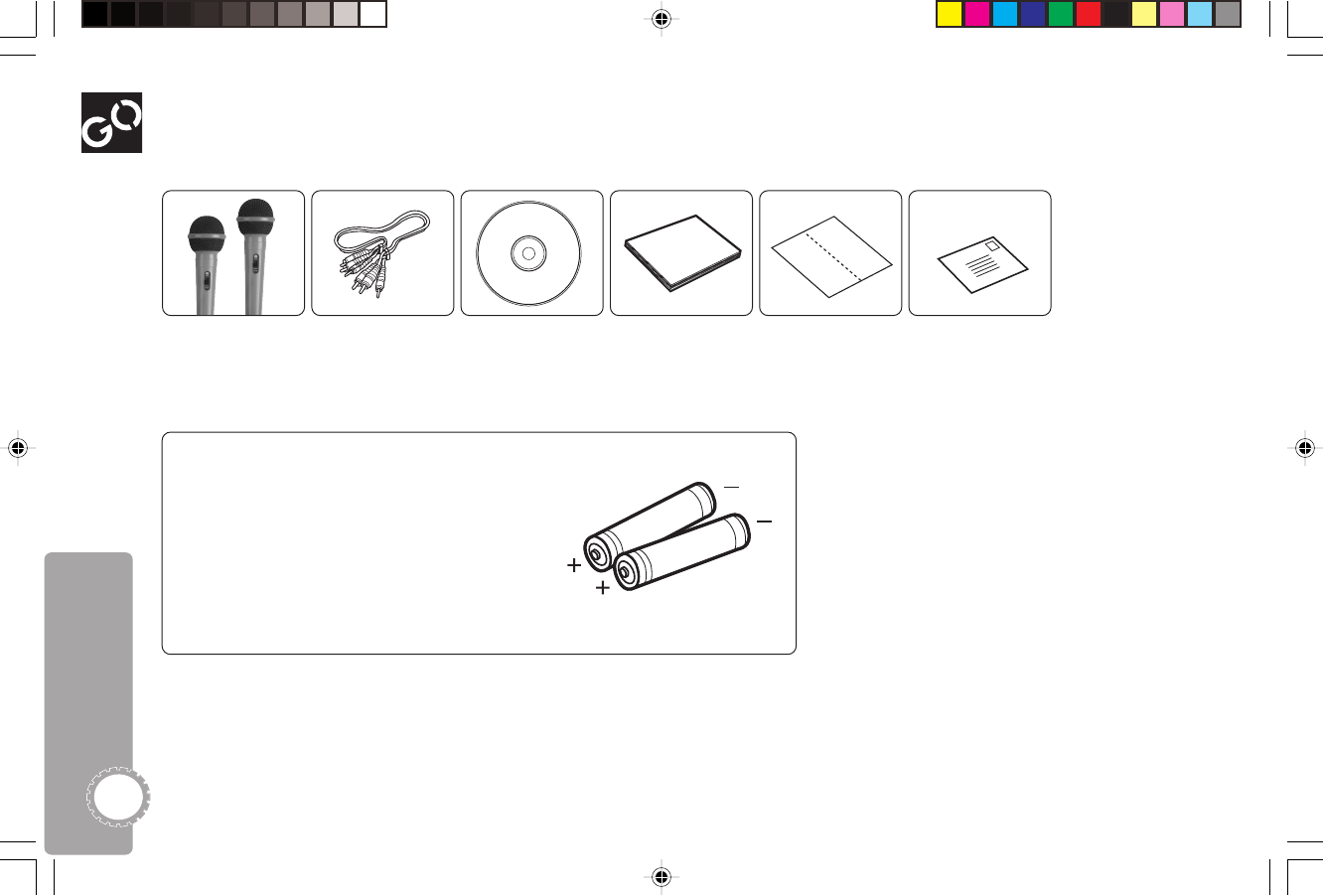
Audio/Video Cable Free Karaoke CD User’s Guide Quick Reference
Guide
Warranty Card
Microphones (2)
Go Jr. Accessories
Inserting Batteries
1 Remove the battery cover on the back of the
remote control using a Phillips screwdriver.
Ask your parents if you need help!
2Insert two 1.5 volt AAA batteries. Make sure
the + and - sides of the battery are in the
right way.
3Replace the cover.
DJ530 UG 9-26-03.pm7 9/26/03, 11:34 AM8
9
1 Getting Started
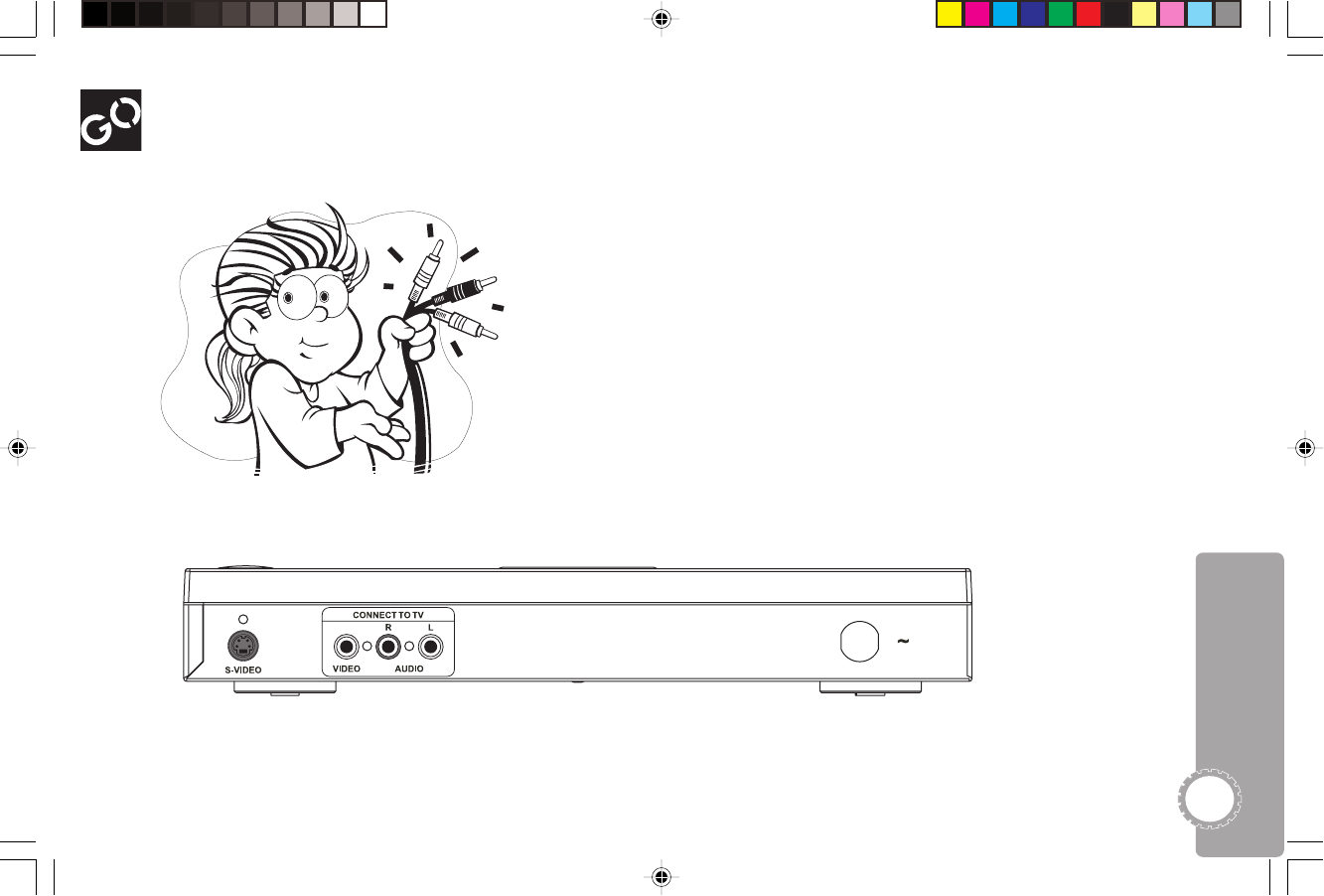
Go Jr. Back Panel
Video Output – Connects to the matching Video input jack on
your TV using the supplied video cable (with the yellow
plug).
Audio (R/L) Output – Connects to the matching Audio input
jacks on your TV using the supplied audio cable (with the
red and white plugs).
S-Video Output – Connects to the S-Video input on your TV
using an S-Video cable (sold separately).
• S-Video offers even better picture quality than standard
Composite Video. Use only if your TV is equipped with an
S-Video input.
Power Cable – Connects to any standard wall outlet.
DJ530 UG 9-26-03.pm7 9/26/03, 11:34 AM9
Go Jr. User’s Guide
10
Television
Go Jr.
OR
VIDEO
IN
S-VIDEO
IN
AUDIO
IN
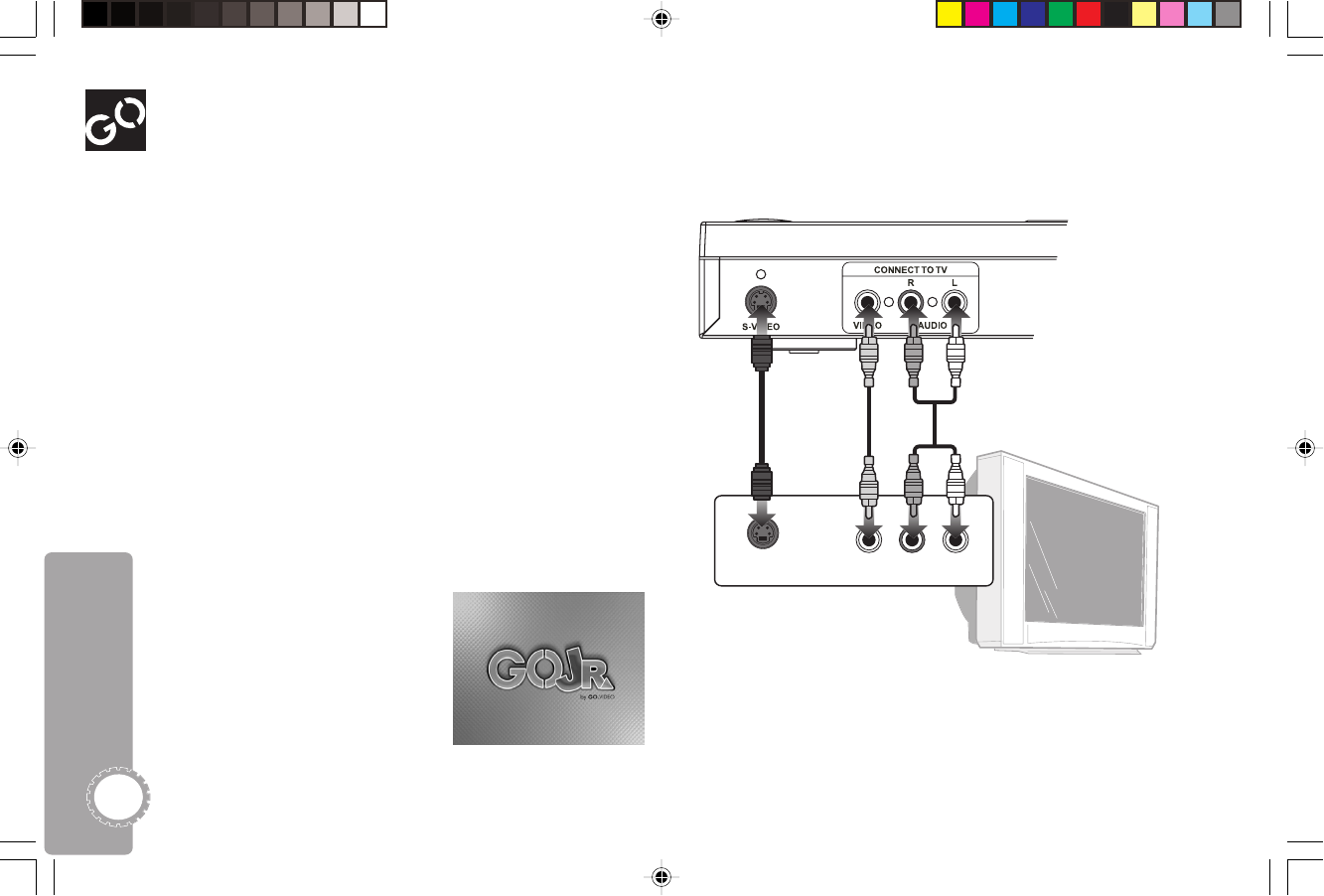
Connecting Go Jr. to Your TV
Follow these steps to connect Go Jr. to your TV...
1Connect Video
Connect the video cable (with the yellow plug) to the
matching Video input jack on your TV.
•If your TV has an S-Video input, you can get even
better picture quality by connecting an S-Video cable
to the matching S-Video input on your TV.
2Connect Audio
Connect the audio cables (with the red and white plugs)
to the matching Audio input jacks on your TV.
3Plug In
Plug Go Jr. into a wall outlet.
4Power On
Press the main POWER button on the front panel.
•Once this button is pressed in, use the POWER
button on the remote control to turn the player on
and off.
5 Let’s Go!
The Go Jr. splash screen appears
– now let’s have some fun!
DJ530 UG 9-26-03.pm7 9/26/03, 11:35 AM10
11
1 Getting Started
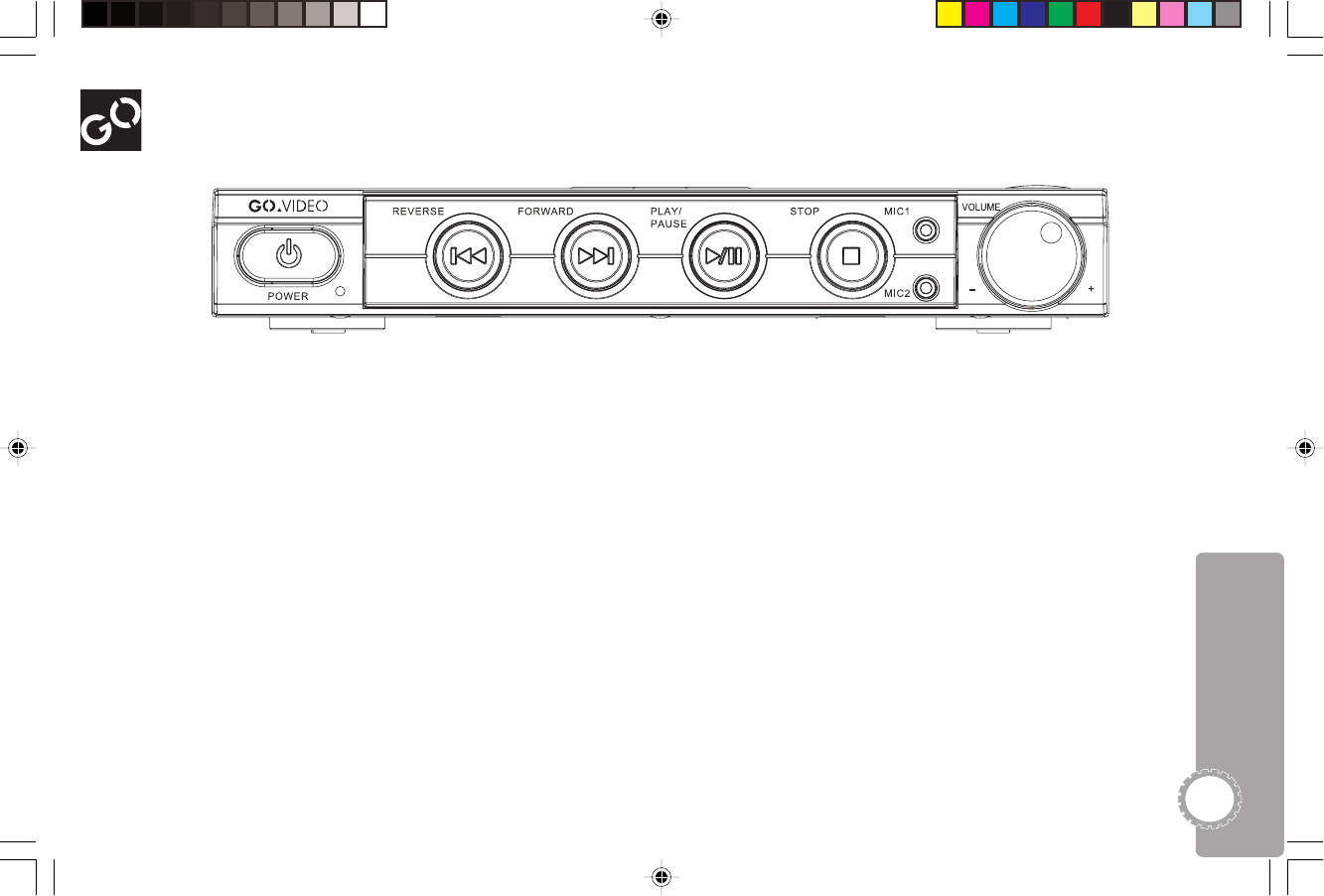
Go Jr. Front Panel
Power – Press to turn Go Jr. on and off.
•When the front panel POWER button
is pressed, the green light glows.
•Now use the remote control POWER
button to switch between On and
Standby (low power) modes. The red
light glows in Standby mode.
Reverse – Press to skip to the previous
chapter or track. Press and hold for fast
reverse.
Forward – Press to skip to the next
chapter or track. Press and hold for fast
forward.
Play/Pause – Press to start and pause
playback.
Stop – Press to stop playback.
Microphone Jacks (Mic 1/Mic 2) – Insert
the microphones here.
Volume Knob – Turn to adjust the
microphone volume. Remember, this
knob only adjusts the microphone
volume, and NOT the TV volume—use
your TV remote control to adjust the
volume when watching movies or
listening to CDs.
DJ530 UG 9-26-03.pm7 9/26/03, 11:35 AM11
Go Jr. User’s Guide
12
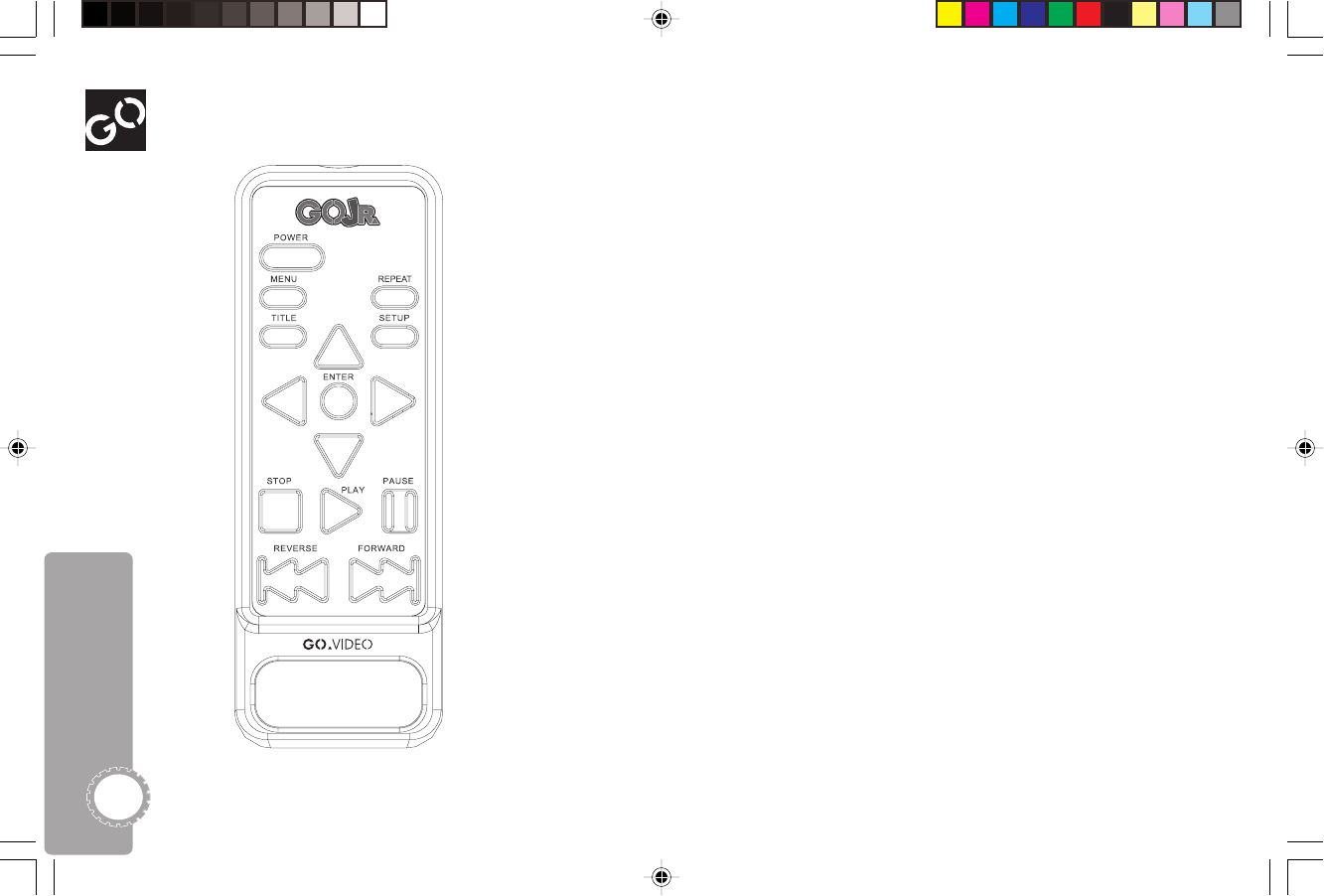
Power – Press to switch Go Jr. between On (green light) and Standby
(red light) modes. The front panel POWER button must be pressed
in for this button to work.
Menu – Press to view the disc menus on your DVDs.
Repeat – Press to repeat a title, chapter or track.
Title – Press to view the title menus on your DVDs.
Setup – Press to view Go Jr.’s advanced settings menu.
Arrows – Press to move around in menus. Also use for:
•
Instant Replay
- Press the Left arrow to replay the last 10 seconds.
•
Instant Skip
- Press the Right arrow to skip ahead 10 seconds.
Enter – Press to enter menu settings.
Stop – Press to stop playback.
Play – Press to start playback.
Pause – Press to pause playback. Press repeatedly to step forward
one frame at a time.
Reverse – Press to skip to the previous chapter or track. Press and
hold for fast reverse. While in Pause, press for Slow Reverse play.
Forward - Press to skip to the next chapter or track. Press and hold
for fast forward. While in Pause, press for Slow Forward play.
Go Jr. Remote Control
DJ530 UG 9-26-03.pm7 9/26/03, 11:35 AM12
13
To Play a DVD
1Press OPEN.
2Insert your DVD.
3Close the disc tray.
4 The disc will start playing automatically!
Watch Movies! 2 Lets Have Some Fun!
Movie Formats You Can Watch
•DVD Video
•DVD-R
•DVD+R
• DVD+RW
DJ530 UG 9-26-03.pm7 9/26/03, 11:35 AM13
Go Jr. User’s Guide
14
Special DVD Features
About Disc Menus
Disc menus let you pick the chapters you want to watch.
They also often have fun options for sound, picture, lan-
guage, and more. Use these buttons when viewing disc
menus:
MENU
•Press to open and close disc menus.
ARROWS
•Use to move around in the disc menu.
ENTER
•Press to choose the options you want in the disc menu.
Special Playback Features
STOP
•Press once to stop playback but keep your place in the
movie.
•Press twice to restart the disc from the beginning.
PAUSE
Press to pause playback. Press repeatedly to step forward.
REVERSE
•Press and release to skip to the previous chapter.
•Hold for 3 seconds and release to view FR 2X on screen.
Now each time you press REVERSE the playback will
speed up in this order: 4X - 8X - 16X - 32X – PLAY.
FORWARD
•Press and release to skip to the next chapter.
•Hold for 3 seconds and release to view FF 2X on screen.
Now each time you press FORWARD the playback will
speed up in this order: 4X - 8X - 16X - 32X - PLAY.
SLOW MOTION
•Press PAUSE, then press FORWARD repeatedly for Slow
Forward playback. Likewise, press REVERSE repeatedly for
Slow Reverse playback. Playback will gradually slow down
in this order: 1/2 - 1/4 - 1/8 - 1/16 - 1/32 - PLAY.
REPEAT
•Press to repeat the current chapter or title. When you
press REPEAT, these options will appear:
CHAPTER REPEAT ON - Repeats the current chapter.
TITLE REPEAT ON - Repeats the current title.
REPEAT OFF - Cancels Repeat mode.
INSTANT REPLAY
•Press the Left arrow to replay the last 10 seconds.
INSTANT SKIP
•Press the Right arrow to skip ahead 10 seconds.
“FR” means Fast Reverse and “FF”
means Fast Forward. “SR” means Slow
Reverse and “SF” means Slow Forward.
DJ530 UG 9-26-03.pm7 9/26/03, 11:36 AM14
15
2 Let’s Have Some Fun!
Play Music!
Special CD Playback features
STOP
•Press to stop playback.
PAUSE
•Press to pause playback.
REVERSE
•Press and release to skip to the previous track.
• If you are on the first track and press REVERSE, the disc
will stop playing.
•Hold for 3 seconds and release to view FR 2X on screen.
Now each time you press REVERSE the playback will
speed up in this order: 4X - 8X - 16X - 32X – PLAY.
FORWARD
•Press and release to skip to the next chapter or track.
•Hold for 3 seconds and release to view FF 2X on screen.
Now each time you press FORWARD the playback will
speed up in this order: 4X - 8X - 16X - 32X - PLAY.
REPEAT
•Press to repeat the current track or disc.
• When you press REPEAT, these options will appear:
REP-ONE - Repeats the current track.
REP-ALL - Repeats the current disc.
REPEAT OFF - Cancels Repeat mode.
To Play an Audio CD
1Press OPEN.
2Insert your audio CD.
3Close the disc tray.
4The first track on the disc will start
playing automatically.
DJ530 UG 9-26-03.pm7 9/26/03, 11:36 AM15
Go Jr. User’s Guide
16
To Play an MP3 CD
1Press OPEN.
2Insert your MP3 CD.
3Close the disc tray.
4The special MP3 playback screen appears.
5 Use the arrow keys to highlight the track you
want to play.
6Press PLAY or ENTER to play the track.
Special MP3 CD Playback features
STOP
•Press to stop playback.
PAUSE
•Press to pause playback.
REVERSE
•Press and release to skip to the previous track.
•If you are on the first track and press REVERSE,
the disc will stop playing.
•Hold for 3 seconds and release to view FR 2X on
screen. Now each time you press REVERSE the
playback will speed up in this order: 4X - 8X -
16X - 32X – PLAY.
Play MP3 CDs
FORWARD
•Press and release to skip to the next
chapter or track.
•Hold for 3 seconds and release to view
FF 2X on screen. Now each time you
press FORWARD the playback will
speed up in this order: 4X - 8X - 16X -
32X - PLAY.
REPEAT
•Press to repeat the current track or disc.
• When you press REPEAT, these options will appear:
REP-ONE - Repeats the current track.
REP-ALL - Repeats the current disc.
REPEAT OFF - Cancels Repeat mode.
DJ530 UG 9-26-03.pm7 9/26/03, 11:36 AM16
17
2 Let’s Have Some Fun!
View Slideshows!
To Play an Photo CD
1Press OPEN.
2Insert your Photo CD.
3Close the disc tray.
4The special Photo CD screen appears.
5 Use the arrow keys to highlight the first photo you want to
view.
6Press PLAY or ENTER to start the slideshow.
Special Photo CD Playback features
STOP
•Press to stop the slideshow.
PAUSE
•Press to pause the slideshow.
MENU
•Press to view tiny images called “thumbnails” of the
pictures on your disc. The screen displays up to nine
thumbnails at a time.
ARROWS
•Use the arrow keys to highlight
the name of the picture you want
to see and press ENTER to view
the highlighted picture.
• Use the right arrow key to rotate
the picture clockwise 90 degrees.
•Use the left arrow key to rotate the picture counterclock-
wise 90 degrees.
•Use the down arrow key to flip the picture horizontally.
•Use the up arrow key to flip the picture vertically.
FORWARD/REVERSE
• Use the FORWARD and REVERSE buttons to move
forward or backward one page at a time in menu view or
thumbnail view.
REPEAT
•Press for a variety of slideshow repeat options:
REP-ONE - Repeats the current image.
REP-ALL - Repeats all images on the current disc.
REPEAT OFF - Cancels Repeat mode.
DJ530 UG 9-26-03.pm7 9/26/03, 11:36 AM17
18
Go Jr. User’s Guide
Sing Along!
To Play a Karaoke CD
1Plug the microphones into the Mic 1 and Mic 2 jacks.
2Press OPEN.
3Insert your CD-G Karaoke disc (like the sample disc that
came with Go Jr.!).
4Close the disc tray.
5The disc will start to play automatically.
6Start singing and
following along with
the words on the
screen!
Special Karaoke CD Playback features
STOP
•Press to stop playback.
PAUSE
•Press to pause playback.
REVERSE
•Press and release to skip to the previous track.
• If you are on the first track and press REVERSE, the disc
will stop playing.
•Hold for 3 seconds and release to view FR 2X on screen.
Now each time you press REVERSE the playback will
speed up in this order: 4X - 8X - 16X - 32X – PLAY.
FORWARD
•Press and release to skip to the next chapter or track.
•Hold for 3 seconds and release to view FF 2X on screen.
Now each time you press FORWARD the playback will
speed up in this order: 4X - 8X - 16X - 32X - PLAY.
REPEAT
•Press to repeat the current track or disc.
• When you press REPEAT, these options will appear:
REP-ONE - Repeats the current track.
REP-ALL - Repeats the current disc.
REPEAT OFF - Cancels Repeat mode.
DJ530 UG 9-26-03.pm7 9/26/03, 11:37 AM18
19
How to Use the Setup Menu 3 Advanced Settings
Navigating the Setup Menu
The Setup menu lets you set your preferences for Go Jr.
Use these buttons when to get around the Setup menu:
SETUP
•Press to open and close the Setup menu.
ARROWS
•Use to move around in the Setup menu.
ENTER
•Press to choose the options you want
in the Setup menu.
Things You Can Set
•EZ Play
•My DVD
•TV Display
•Languages
•Subtitles
•Parental Controls
•Screen Saver
•Defaults
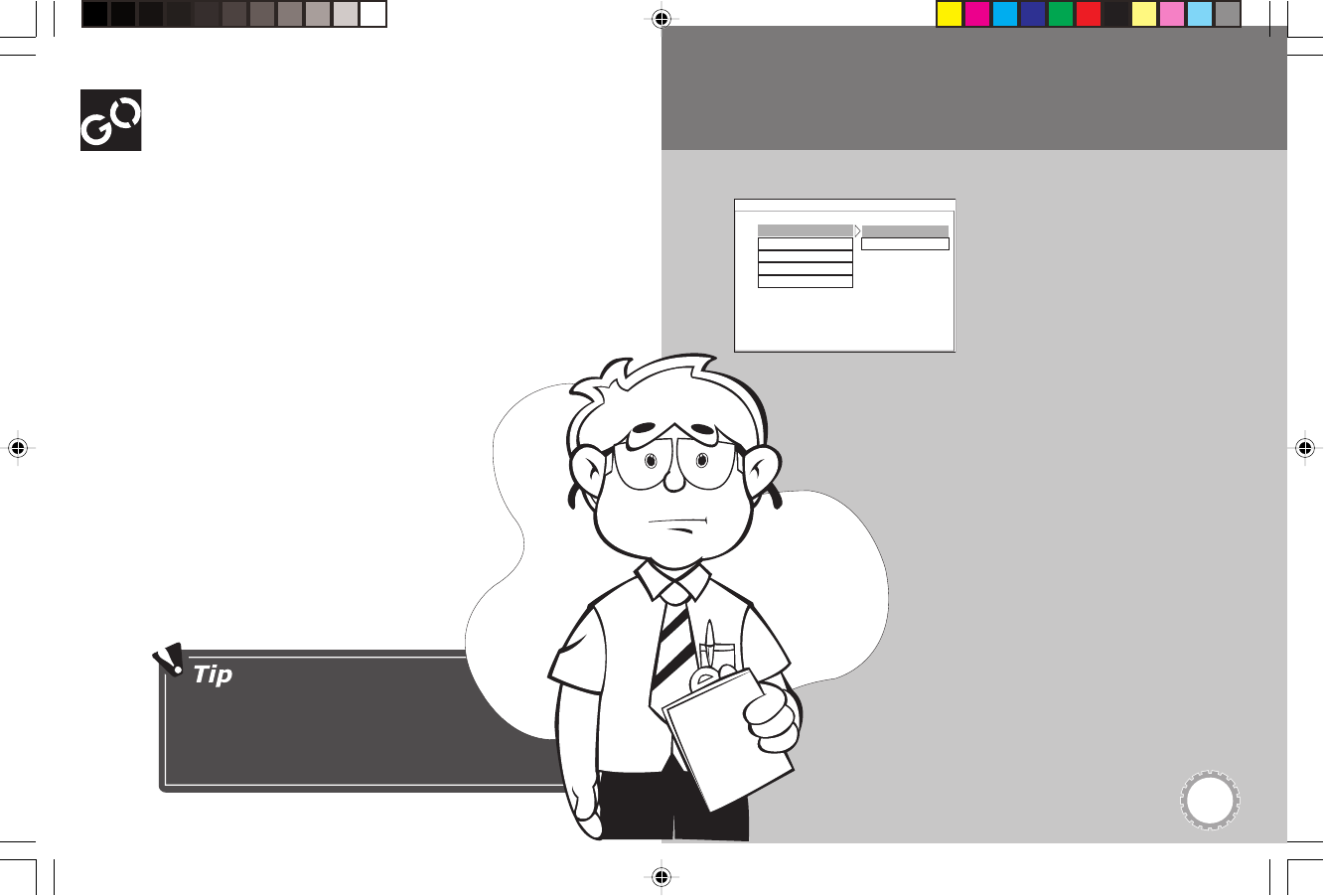
-- GO JR. SETUP MENU --
EZ PLAY
MY DVD
PARENTAL
SCREEN SAVER
DEFAULTS
ON
OFF
GO JR. SETUP
For an overview of the complete
Go Jr. Setup menu, see page 39.
DJ530 UG 9-26-03.pm7 9/26/03, 11:37 AM19
Go Jr. User’s Guide
20
EZ Play My DVD
When EZ Play is on, Go Jr. will skip DVD menus and trailers
automatically and start playing the movie!
To Set EZ Play
1Press SETUP.
2 Highlight EZ PLAY and press the right arrow key.
3 Highlight On or Off and press ENTER.
•ON - EZ Play is on.
•OFF - EZ Play is off.
With My DVD, Go Jr. will automatically remember your
preferences for TV Display, Language and Subtitle settings.
Just set it once and forget it!
To Set TV Display
1In Stop mode, press SETUP.
•You cannot access MY DVD when a disc is playing.
2Highlight MY DVD and press ENTER.
3Highlight TV DISPLAY and press the right arrow key.
4Highlight one of the following and press ENTER:
•FULLSCREEN - Select if you have a standard television
and like your DVD movies to fill the entire screen.
•LETTERBOX - Select if you have a standard television
and like your DVD movies to show black bars above and
below the picture.
•WIDESCREEN - Select if you have a widescreen television.
To Set Language
1In Stop mode, press SETUP.
•You cannot access MY DVD when a disc is playing.
2Highlight MY DVD and press ENTER.
3 Highlight LANGUAGE and press ENTER.
4Highlight one of the following and press the right arrow
key:
•ON-SCREEN - Sets your preferred language for the Go
Jr. Setup menu and on-screen displays. Highlight
English, French or Spanish and press ENTER.
DJ530 UG 9-26-03.pm7 9/26/03, 11:37 AM20
21
•AUDIO - Sets your preferred language for movie
soundtracks. Highlight English, French or Spanish and
press ENTER.
•DISC MENU - Sets your preferred language for DVD
disc menus. Highlight English, French or Spanish and
press ENTER.
•SUBTITLE - Sets your preferred language for DVD
subtitle languages. Highlight English, French or Spanish
and press ENTER.
To Set Subtitle
1In Stop mode, press SETUP.
•You cannot access MY DVD when a disc is playing.
2Highlight MY DVD and press ENTER.
3Highlight SUBTITLE and press the right arrow key.
4 Highlight On or Off and press ENTER.
•ON - Subtitles will be shown (if available).
•OFF - Subtitles will not be shown.
Viewing My DVD Preferences
Whenever you load a DVD, Go Jr. will look for your prefer-
ences on the disc. You will briefly see the My DVD menu on
screen indicating if your TV Display, Language & Subtitle
preferences were found.
Parental Control
The factory default password is “8-8-8-8”. You
must enter this password before you can
enter a new password; see page 22.
The Parental Control feature allows you to block playback of
movies based on their rating.
To Set the Parental Control Rating
1Press SETUP.
2Highlight PARENTAL and press the right arrow key.
3Highlight a rating from 1 (most restrictive) to 8 (least
restrictive) and press ENTER. The password screen will
appear.
4Use the ARROW keys to enter your password:
•Use the UP/DOWN arrow keys to scroll to the desired
number (0-9).
•Use the LEFT/RIGHT arrow keys to move to the next or
previous digit in the password.
•Press ENTER to confirm your new password.
5Press ENTER again to continue.
6Press SETUP to exit. Your rating is now set. Go Jr. will
block playback of any movie rated higher than your
Parental setting.
3 Advanced Settings
DJ530 UG 9-26-03.pm7 9/26/03, 11:37 AM21
Go Jr. User’s Guide
22
Screen Saver
Defaults
When you haven’t used Go Jr. for several minutes, the screen
saver will come on to protect your TV screen.
To Set the Screen Saver
1Press SETUP.
2Highlight SCREEN SAVER and press the right arrow key.
3 Highlight On or Off and press ENTER.
•ON - Screen saver is on.
•OFF - Screen saver is off.
If you want to return Go Jr. to its original factory settings,
choose the Defaults feature.
To Set Defaults
1Press SETUP.
2Highlight DEFAULTS and press the right arrow key.
• The word RESET will be highlighted.
4Press ENTER to reset Go Jr. to its factory defaults.
To Change Your Password
1Press SETUP.
2Highlight PARENTAL and press the right arrow key.
3Highlight PASSWORD and press ENTER.
4Use the ARROW keys to enter your current password:
•Use the UP/DOWN arrow keys to scroll to the desired
number (0-9).
•Use the LEFT/RIGHT arrow keys to move to the next or
previous digit in the password.
•Press ENTER to confirm your current password.
5Now use the ARROW keys as described above to enter
your new password, and press ENTER.
6Press ENTER again to continue.
7Your password has been changed.
•Please store your password in a safe place.
• If you forget your password, you can enter the factory
default number (8-8-8-8) and follow the instructions
above to change your password again.
Parental Control (cont.)
The Defaults function will not reset your
customized password.
DJ530 UG 9-26-03.pm7 9/26/03, 11:38 AM22
23
4 Need Help?Troubleshooting
Why is there no power?
• Make sure power cord is securely connected.
•Press the front panel POWER button.
Why is there no picture?
•Securely connect video cable.
•Repair or replace damaged video cable.
•Make sure player is connected to the correct TV input.
•Make sure video input on TV is set to view the DVD player.
Why is there picture noise?
•Make sure disc is not dirty or flawed.
Why doesn’t the picture fill the screen?
•The DVD may only include a widescreen version. Check the
disc menu to verify options.
•Make sure TV Display is set to NORMAL/PS in the menu
system.
Contacting Customer Service
Phone
800-736-7679
Web
www.GoVideo.com
E-mail
customersupport@GoVideo.com
Why is there no sound?
•Securely connect all audio cables.
•Repair or replace any damaged audio cables.
• Make sure the volume is turned up using the Volume knob.
•The player is in Pause, Fast Forward, or Fast Reverse. Press
PLAY on the remote control to return to normal playback
mode.
Why is the remote not working?
•Remove any obstacles between the remote and the player.
•Move closer to the player when operating the remote.
•Point the remote directly at the sensor on front panel of the
player.
•Replace the batteries.
Why doesn’t the disc play?
•Make sure there is a disc in the tray.
•Turn the disc over. Make sure the desired playback side is
facing down on the disc tray.
•The disc is skewed or warped.
•The region code on the DVD does not match the player.
• Moisture has condensed inside the player. Remove the disc
and leave the player turned on for about half an hour.
Why doesn’t the disc start playing from the beginning?
•Press STOP twice and then press PLAY to restart DVD
playback.
Why does the disc play automatically?
•Go Jr. features an auto playback function.
DJ530 UG 9-26-03.pm7 9/26/03, 11:38 AM23
Go Jr. User’s Guide
24
Technical Specifications
Notes about Discs
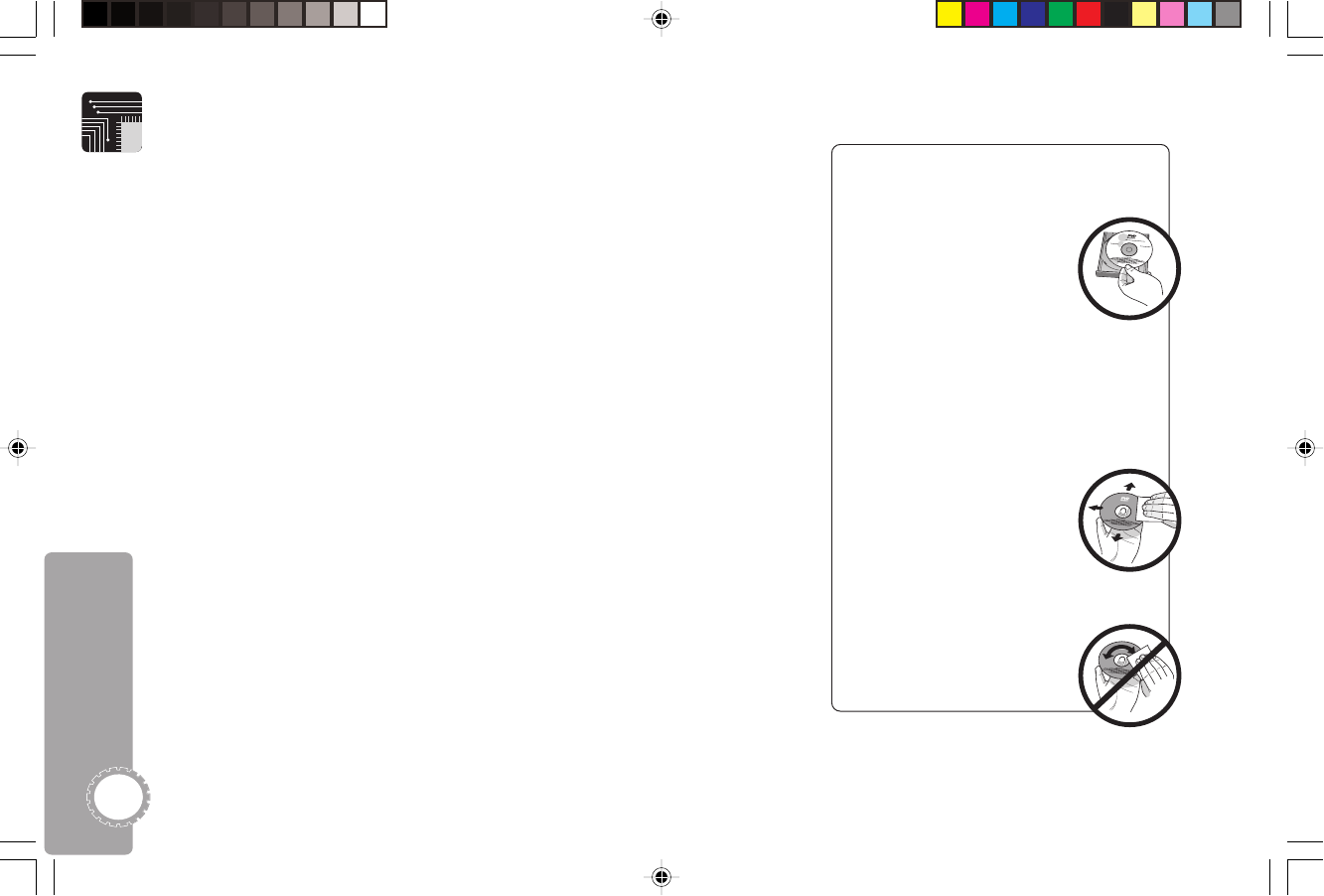
On handling discs
•To keep the disc clean,
handle the disc by its
edge. Do not touch the
surface.
•Do not expose the disc to
direct sunlight or heat
sources such as shot air ducts, or
leave it in a car parked in direct
sunlight as the temperature may rise
considerably inside the car.
•After playing, store the disc in its
case.
On cleaning discs
•Before playing, clean
the disc with a cleaning
cloth. Wipe the disc from
the center out.
•Do not use solvents such as benzine,
thinner, commercially
available cleaners, or
anti-static spray in-
tended for vinyl LPs.
CONNECTIVITY
Audio In
•2 mono audio inputs (front panel)
Audio Out
•1 analog L/R audio output
Video Out
•1 S-Video output
•1 Composite video output
SPECIFICATIONS
Power Requirements
•120V AC, 60 Hz, 10W
Environment
• 41-104° F; 5-90% humidity
Accessories
• 2 karaoke microphones (6’ cords)
• Big button, simplified remote
control
• Remote control batteries
• Composite audio/video cable (5’)
• User’s Manual
• Quick Start Guide
• Sample CDG karaoke disc
Dimensions
•Unit Weight: 4.3 lbs. (1.95 kg)
•Unit Dimensions: 11.2"w x 1.6"h x
8"d (280mm x 40mm x 200mm)
•Boxed Weight: 4.9 lbs. (2.23 kg)
•Boxed Dimensions: 14.5"w x 5.5"h x
11.6"d (368mm x 140mm x 295mm)
Free Karaoke Disc
All tracks provided as stereo perfor-
mance tracks and vocal demonstration
tracks:
• If You’re Happy And You Know It
•Twinkle, Twinkle Little Star
•Do Your Ears Hang Low
•The Ants Go Marching
•Oh Susanna
•Bingo
•This Old Man
•A Bicycle Built For Two
•Row, Row, Row Your Boat
•
Where Has My Little Dog Gone
DJ530 UG 9-26-03.pm7 9/26/03, 11:38 AM24
25
Limited Warranty
Who Provides the Limited Warranty
During the warranty period, the GoVideo
Warranty Administrator will honor service for
90 days parts and labor from the original
date of consumer purchase. See below for
Commercial, Industrial or Educational use
coverage. Remote controls are warrantied for
90 days from the date of purchase.
Who is Protected
This warranty protects the original consumer
owner of this GoVideo product.
What is Covered and How Long
This warranty covers internal operating parts
and service/labor to repair or replace
covered parts in this GoVideo product for 90
days parts and labor, from the date of
purchase, defined as follows: (1) Original
Consumer Retail Purchase; (2) First Rental
Purchase Agreement; or (3) First Lease
Purchase Agreement (the “Warranty Period”).
Labor and replacement parts supplied during
the Warranty Period are covered only for the
remaining portion of the original Warranty
Period. The GoVideo Warranty Administrator
shall have no liability for service under this
warranty if non-OEM (Original Equipment
Manufacturer) replacement parts are used in
the repair of your GoVideo product.
What the Owner Must Do If Service is Required
If service under this warranty is required, log onto
“www.govideo.com” to determine the nearest
authorized GoVideo service center.
Other Warranty Coverage
Commercial, Industrial or Educational use has the
same warranty coverage as stated in this warranty.
What are the Exceptions
This warranty does not cover: (1) Normal mainte-
nance service, such as cleaning. (2) Damage from
misuse, abuse, neglect or accident, natural
disasters or Acts of God. (3) Cabinetry, decorative
parts, A/C adapters, knobs or buttons. (4) The
foreign country use of this product. (5) GoVideo
product which has been electronically or mechani-
cally modified in any way or incorporated into
other products. (6) Installation and setup service
adjustments. (7) Owner instruction. Your Owner’s
Guide provides information regarding operating
instructions and user controls. For additional
information, contact your authorized GoVideo
dealer.
GoVideo is not responsible for any shipping,
handling or insurance charges.
This Exclusive Limited Warranty excludes all
incidental and consequential damages. Some
states do not allow the exclusion of incidental and
consequential damages, so the above exclusion
may not apply to you.
ALL IMPLIED WAR-
RANTIES, INCLUDING
IMPLIED WARRANTIES
OF MERCHANTABILITY
AND FITNESS FOR A
PARTICULAR PURPOSE
ARE LIMITED IN
DURATION TO THE DURATION OF THIS
WARRANTY PERIOD. Some states do not
allow limitations on how long an implied
warranty lasts, so the above limitation may
not apply to you.
This Exclusive Limited Warranty gives you
specific legal rights and you may also have
other rights which vary from state to state.
GOVIDEO WARRANTY ADMINISTRATOR
GoVideo
7835 East McClain Drive
Scottsdale, Arizona 85260-1732
customerservice@govideo.com
4 Need Help?
DJ530 UG 9-26-03.pm7 9/26/03, 11:38 AM25
Go Jr. User’s Guide
26
Index
A
Accessories 8
Arrow buttons
12, 14, 17, 19
Audio output 9
Audio setting 21
Audio/Video cable 8
B
Back panel 9
Batteries, inserting 8
C
CD Audio 15
CD Playback 15
Connections 10
D
Defaults 22
Disc Menu setting 21
Disc menus, About 14
Disc tray 7
DVD formats 13
DVD playback 13
DVD, special features 14
E
Enter button 12, 14, 19
EZ Play setting 20
F
Forward button
11, 12, 14, 15, 16, 17, 18
Front panel 11
I
Instant Replay 12, 14
Instant Skip 12, 14
K
Karaoke CD 8
Karaoke CD Playback 18
L
Letterbox setting 20
M
Menu button 12, 14, 17
Microphones 8, 11, 18
MP3 CD Playback 16
My DVD 20, 21
O
Open button 7
OSD Language setting 20
P
Pan & Scan setting 20
Parental Control settings 21
Password, changing 22
Pause button
14, 15, 16, 17, 18
Photo CD Playback 17
Play button 12
Play/Pause button 11
Power button 11, 12
Power cable 9
R
Remote control 12
Repeat button
12, 14, 15, 16, 17, 18
Reverse button
11, 12, 14, 15, 16, 17, 18
S
S-Video output 9
Screen Saver setting 22
Setup button 12, 19
Setup menu 19
Slow Motion playback 12, 14
Splash screen 10
Standby mode 11
Stop button
11, 12, 14, 15, 16, 17, 18
Subtitle setting 21
T
Technical Specifications 24
Title button 12
Top panel 7
Troubleshooting 23
TV Display setting 20
V
Video output 9
Volume knob 11
W
Warranty 25
DJ530 UG 9-26-03.pm7 9/26/03, 11:38 AM26
27
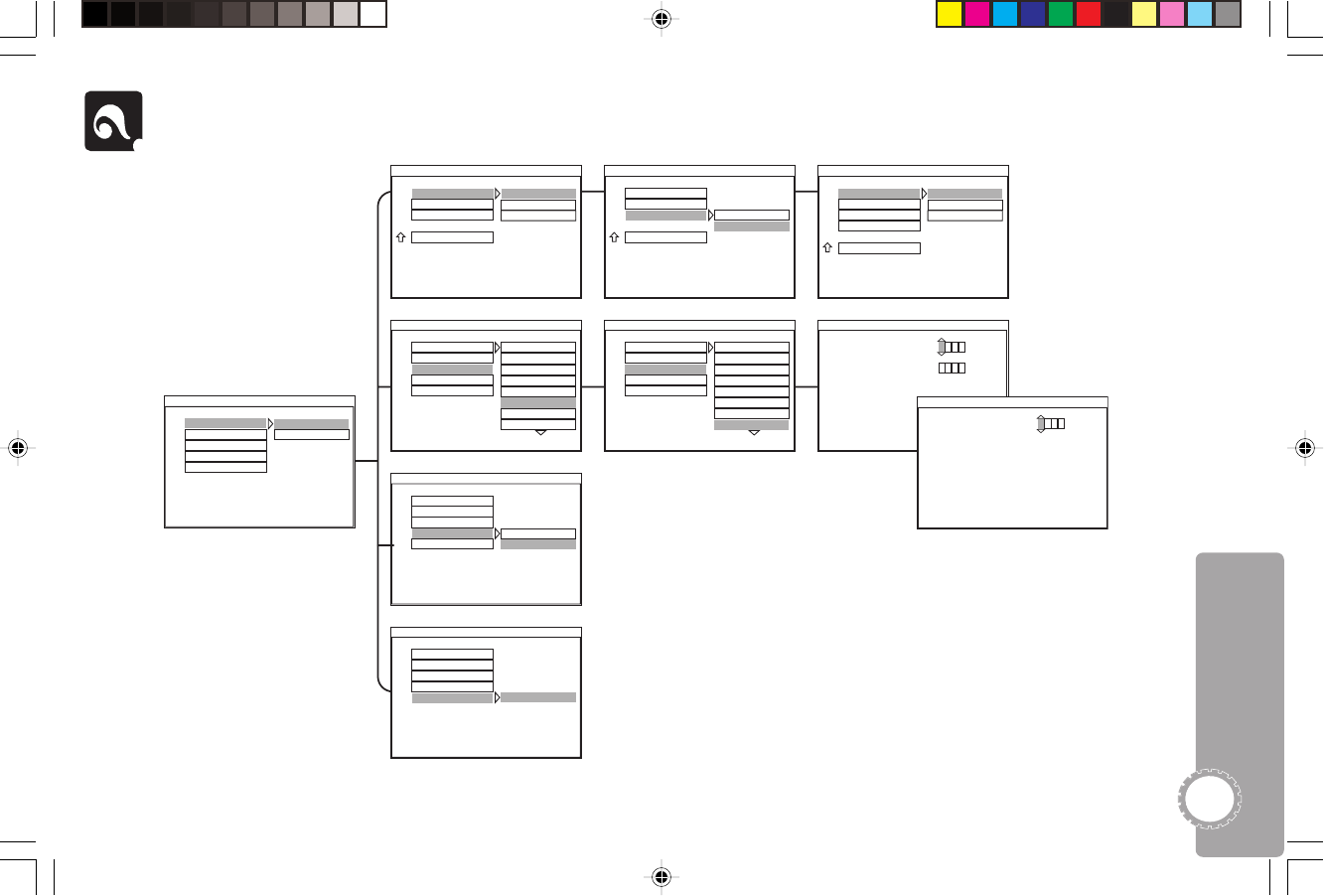
Menu Tree
-- GO JR. SETUP MENU --
EZ PLAY
MY DVD
PARENTAL
SCREEN SAVER
DEFAULTS
ON
OFF
GO JR. SETUP
-- GO JR. SETUP MENU --
EZ PLAY
MY DVD
PARENTAL
SCREEN SAVER
DEFAULTS
ON
OFF
SCREEN SAVER SETTING
-- GO JR. SETUP MENU --
EZ PLAY
MY DVD
PARENTAL
SCREEN SAVER
DEFAULTS RESET
LOAD FACTORY SETTINGS
FULLSCREEN
LETTERBOX
WIDESCREEN
-- MY DVD MENU --
TV DISPLAY
LANGUAGE
SUBTITLE
GO JR. SETUP
SET TV DISPLAY MODE
ENGLISH
FRENCH
SPANISH
-- LANGUAGE MENU --
ON-SCREEN
AUDIO
DISC MENU
SUBTITLE
MY DVD MENU
SET ON-SCREEN LANGUAGE
ON
OFF
-- MY DVD MENU --
TV DISPLAY
LANGUAGE
SUBTITLE
GO JR. SETUP
SET SUBTITLE
-- GO JR. SETUP MENU --
EZ PLAY
MY DVD
PARENTAL
SCREEN SAVER
DEFAULTS
1 G
2
3 PG
4 PG13
5
6 PG-R
7 NC-17
8 ADULT
SET PARENTAL CONTROL
-- GO JR. SETUP MENU --
EZ PLAY
MY DVD
PA RENTAL
SCREEN SAVER
DEFAULTS
3 PG
4 PG13
5
6 PG-R
7 NC-17
8 ADULT
NO PARENTAL
PASSWORD
CHANGE PASSWORD
PA SSWORD CHANGE MENU
OLD PASSWORD:
NEW PASSWORD:
0 0 0 0
0 0 0 0
(LEFT/RIGHT) MOVE
(UP/DOWN) CHANGE
PLEASE ENTER OLD PASSWORD
PA SSWORD VERIFY MENU
INPUT PASSWORD: 0 0 0 0
(LEFT/RIGHT) MOVE
(UP/DOWN) CHANGE
PLEASE ENTER PASSWORD
4 Need Help?
DJ530 UG 9-26-03.pm7 9/26/03, 11:39 AM27

7835 E. McClain Dr.
Scottsdale, AZ 85260
www.govideo.com
DJ530 UG 9-26-03.pm7 9/26/03, 11:39 AM28
