Greatcall Jitterbug Touch 2 User Guide
Jitterbug Touch 2 - User Guide GC_Jitterbug_Touch_2_UG_EN Free User Guide for GreatCall Mobile Phone, Manual
GreatCall+Jitterbug+Touch+2+User+Guide GreatCall - Schematics & Service Manuals PDF
2015-07-27
: Greatcall Greatcall-Jitterbug-Touch-2-User-Guide-775139 greatcall-jitterbug-touch-2-user-guide-775139 greatcall pdf
Open the PDF directly: View PDF  .
.
Page Count: 88

U
ser Guide
1User Guide
User Guide
Welcome to GreatCall!
The all-new Jitterbug Touch 2 – An
AndroidTM smartphone with the
simplicity of Jitterbug. This User Guide
features all the information you need
to get the most out of your phone, so
please read this before you get started.
For more information on the Jitterbug Touch 2, go to
www.greatcall.com.

User Guide 2

3User Guide
Contents
Chapter 1: Jitterbug Touch 2 Introduction ..........................7
1.1 Battery .......................................................................10
Charging the Battery .................................................................... 10
1.2 Jitterbug Touch 2 Overview .............................................11
1.3 Using the On-Screen Keyboard .......................................12
1.4 Using the Lock Screen ....................................................14
1.5 The Main Screen Overview .............................................16
Chapter 2: The Main Screen – Home Tab .........................17
2.1 Home Tab Overview ........................................................18
2.2 Phone .............................................................................19
Making Your First Call................................................................... 19
Dialing a Number ........................................................................ 19
Redialing a Number ..................................................................... 19
Answering a Call .......................................................................... 20
Ignoring a Call .............................................................................. 20
2.3 Setting up Voicemail .......................................................21
2.4 Text Messages ................................................................22
Sending a Text Message ............................................................. 22
Composing and Sending a Text Message ................................... 22
Sending a Photo or Video Message ............................................. 23

User Guide 4
2.5 Camera ...........................................................................24
Accessing the Camera ................................................................. 24
Taking a Photo ............................................................................. 25
Viewing a Photo from the Camera App ....................................... 25
Recording a Video........................................................................ 26
2.6 Photo Album ...................................................................27
Viewing a Picture in your Photo Album ........................................ 27
Sending a Photo ......................................................................... 28
2.7 5Star Urgent Response ...................................................29
2.8 Urgent Care .....................................................................31
2.10 Customizing your Home Tab .........................................33
Chapter 3: The Main Screen – People Tab .......................35
3.1 People Tab Overview ......................................................36
3.2 Creating a Contact ..........................................................37
3.3 Creating a Favorite ..........................................................38
3.4 Deleting a Contact ..........................................................39
3.5 Calling a Contact .............................................................40
Chapter 4: GreatCall Button .............................................41
4.1 GreatCall Button – Introduction ......................................42
4.2 Usage .............................................................................43
4.3 Help ................................................................................45

5User Guide
Chapter 5: Setting Up and Using Email and Gmail ...........47
5.1 Introduction ....................................................................48
5.2 Setting up your Google Gmail Account ...........................49
Creating an Gmail Account from your Computer ................49
Linking Your Google Account to Your Jitterbug Touch 2......50
5.3 Email ...............................................................................51
Chapter 6: All Apps Button ...............................................53
6.1 All Apps Overview ...........................................................54
6.2 Google Play Store ...........................................................55
Downloading a free app ....................................................56
Purchasing an app ............................................................56
Chapter 7: Settings and Options .....................................57
7.1 Options ...........................................................................58
7.2 Settings ..........................................................................59
7.3 Setting the Screen Lock ..................................................60
Chapter 8: Commercial Mobile Alert System (CMAS) .......61
8.1 About CMAS ...................................................................62
8.2 Types of Alerts ................................................................63
The Fine Print ...................................................................64

User Guide 6

7User Guide
Chapter 1: Jitterbug Touch 2 Introduction
This chapter explains how to start using your
Jitterbug Touch 2.
• Device Battery
• Jitterbug Touch 2 Overview
• Using the Lock Screen
• Main Screen Overview
For additional support, visit us online at www.greatcall.com.
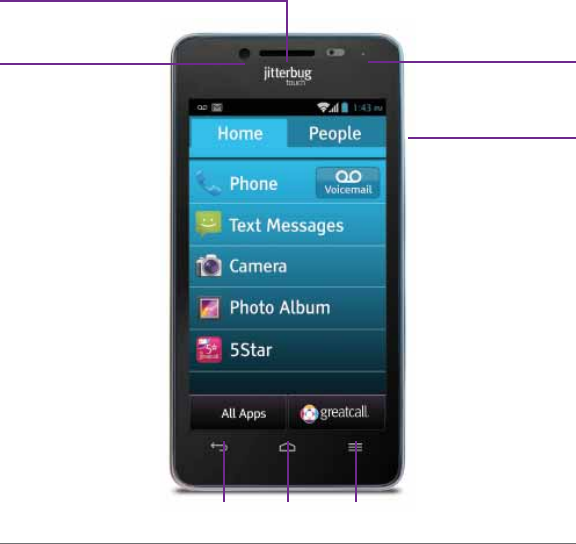
User Guide 8
Back Home Menu
Earpiece LED
Indicator Light
Volume Key
Front-Facing
Camera

9User Guide
Headset Jack
Battery Cover
Release
Speaker
Microphone
Rear-Facing
Camera
Power Key
Charger/
Data Port
User Guide 10
1.1 Battery
Your Jitterbug Touch 2 comes with the battery pre-installed
and pre-charged so you can get started right away.
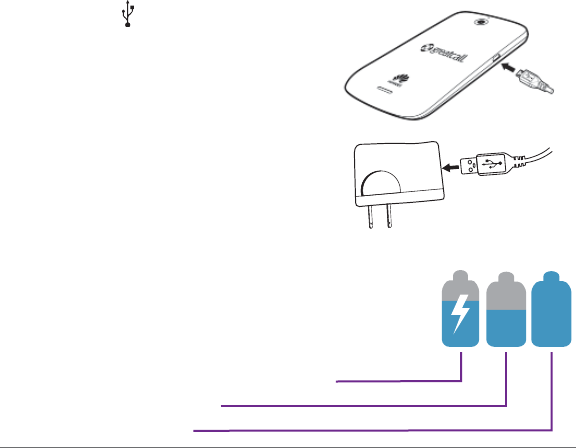
Charging the Battery
1. With the symbol on the
charger facing up and your
phone’s touch screen facing
down, insert the small end of
the charger into the micro-
USB port on the phone.
2. Insert the large end of the
charger cord into the port on
the wall adapter.
3. Plug the adapter into a standard outlet.
The battery icon in the upper right of the
screen tells you whether the device is:
- Charging (the icon is animated)
- Partially charged
- Fully charged

11User Guide
1.2 Jitterbug Touch 2 Overview
Get familiar with the three main keys, as you will use them
to navigate your phone.
1. Home key – no matter what you’re doing, this will
take you back to the Main screen on your phone.
2. Menu key – this gives you a menu of options for
every section of the phone. For example, this
button will allow you to add and delete contacts
while in your contacts list.
3. Back key – this will take you back to the previous
screen.
User Guide 12
1.3 Using the On-Screen Keyboard
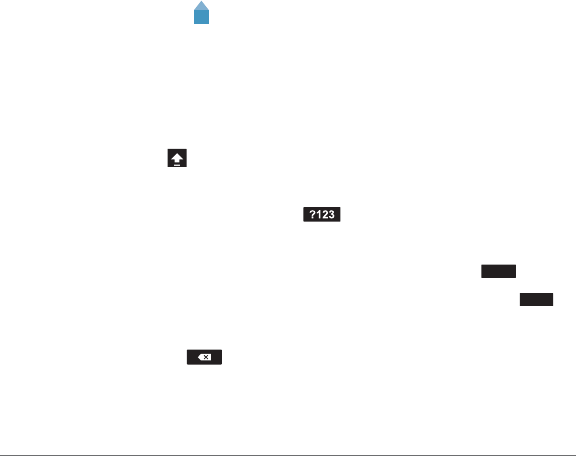
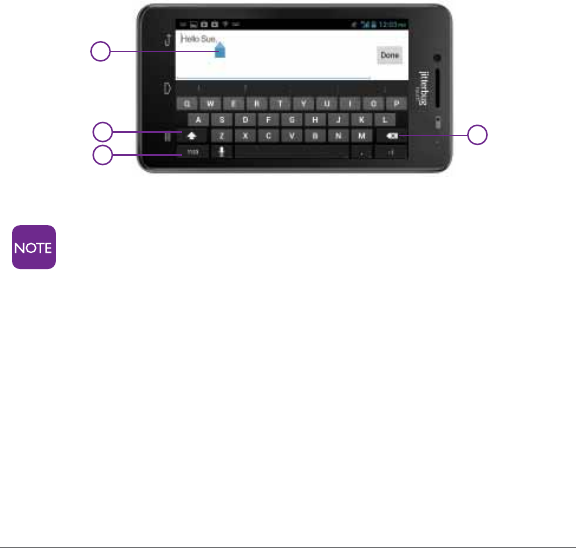
When typing an email or text, simply tap the screen in the
message entry area. This is the white area shown in the
image to the right.
1. The blue cursor will appear when tapping a text fi eld
on the screen and can be used to navigate your typed
text. You can select a specifi c place in the text by simply
tapping the place or by touching & dragging the cursor
to the desired location.
2. The Shift key changes the text from lower case to
upper case. Touch and hold for caps lock.
3. The Symbols/Numbers key enables you to choose
from numbers and various symbols. Once you have
reached the symbols/numbers keyboard, tap =\< to
see an additional keyboard of symbols. Press the ABC
button to return to the original keyboard.
4. The Delete key allows you to delete any previously
typed characters.
13User Guide
1
4
2
3
To change the orientation of your keyboard to
horizontal (shown above), simply rotate your phone
and hold it horizontally. The on-screen keyboard will
shift automatically.
User Guide 14
1.4 Using the Lock Screen
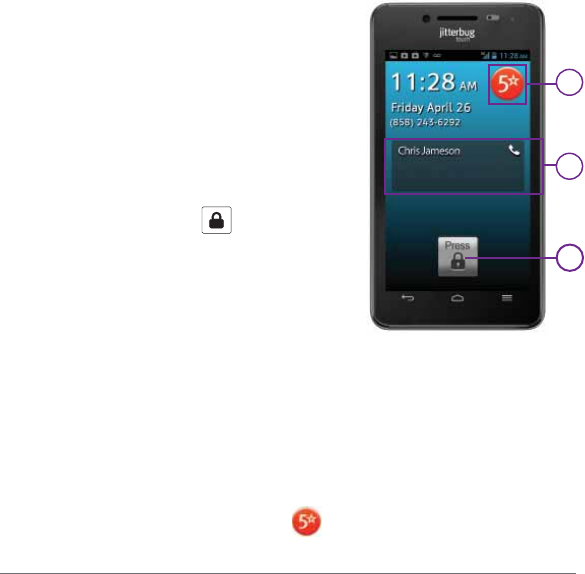
Your phone is equipped with a lock
screen that appears when your phone
is not in use, to prevent accidental
dialing.
1. The Unlock Function
– To unlock the screen, press and
hold the lock icon and drag it
toward the top of the screen.
2. The Events Window
– The Events Window shows your
missed messages and calls.
– To access these events, you will
need to unlock the screen.
3. 5Star
– This button gives you access to immediate help with 5Star
Urgent ResponseTM. This innovative safety app comes
pre-installed on your Jiterbug Touch 2. To open the app, press
and release the 5Star button .
1
3
2

15User Guide
– In order to use 5Star Urgent Response, you will need to visit
www.mygreatcall.com to set up your account and a Personal
Profi le. If you do not set up a 5Star account, this button will
take you to a screen where you can access 9-1-1 quickly in an
emergency situation.
For more information on 5Star Urgent Response, see
page 29.
After several minutes of non-use, your phone will go
into “sleep” mode to save battery power. To wake
your phone, press the power button once.
User Guide 16
1.5 The Main Screen Overview
As soon as you unlock your phone,
you will see the Main screen. From
this screen you can use every
function of your Jitterbug Touch 2.
The Main screen features only two
tabs – “Home” and “People.” It was
designed to be simple, so you can
easily access the apps and people
that are most important to you,
without having to dig through icons
and features you may never use.
The following two chapters show in
detail how to use these two tabs.
If you were ever to get lost in
your phone, you can always
press the Home button
to return to this Main screen.

17User Guide
Chapter 2: The Main Screen – Home Tab
This chapter explains the Home Tab.
• Home Tab Overview
• Phone
• Voicemail
• Text Messages
• Camera
• Photo Album
• 5Star
• Urgent Care
• Customizing your Apps List

User Guide 18
2.1 Home Tab Overview
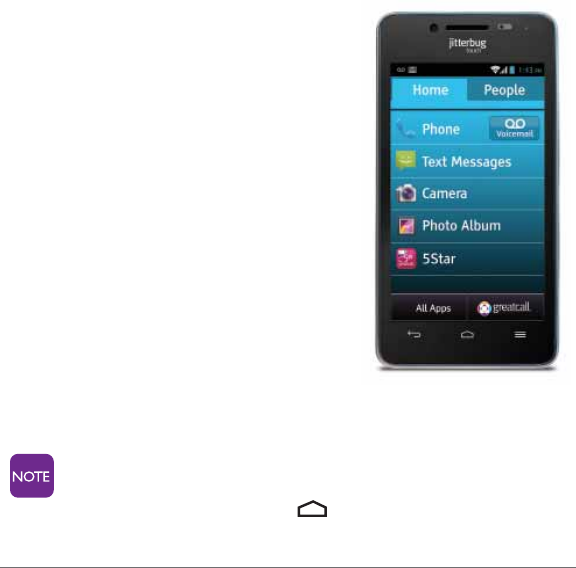
Your Jitterbug Touch 2 Home tab lists features that will be
most useful to you.
1. Phone
2. Text Messages
3. Camera
4. Photo Album
5. 5Star
6. Urgent Care
To learn more about the “All Apps” button see
page 53.
7. Email
8. Internet
9. Maps
10. Clock
19User Guide
2.2 Phone
Making Your First Call
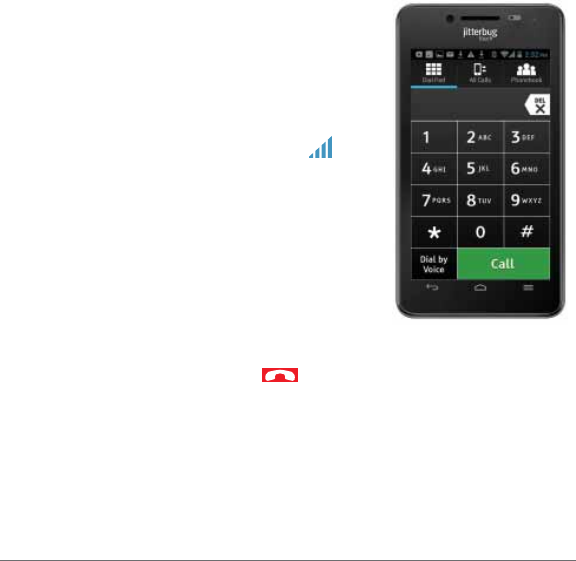
Making phone calls is easy on your
Jitterbug Touch 2. Make sure you are in
an area where a signal can be received.
Look for the signal strength icon in
the upper right of the screen. The more
bars, the stronger the signal.
Dialing a Number
1. Tap “Phone” on the Home tab.
2. Using the dialpad, enter the phone
number.
3. Tap the “Call” button to dial the number.
4. To end the call, tap the symbol.
Redialing a Number
1. Tap “Phone” on the Home tab.
2. At the dialpad, tap the “All Calls” button at the top of
the screen.
3. Tap the number or contact you wish to redial.
User Guide 20
Answering a Call
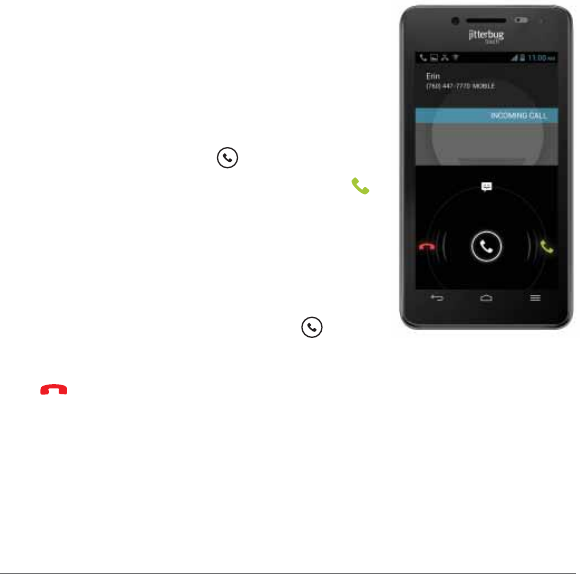
1. When receiving an incoming call,
three icons appear on your screen
as shown in the image to the right.
2. To answer a call, touch and hold the
center phone icon and drag it
toward the green phone symbol
on the right side of the screen.
Ignoring a Call
1. To ignore a call and send the caller
straight to your voicemail, touch and
hold the center phone icon and
drag it toward the red phone symbol
on the left side of the screen. You
can also press the Volume key to
silence the ringer. After several sec-
onds, the caller will be sent to your
voicemail.

21User Guide
2.3 Setting up Voicemail
Before your Jitterbug Touch 2 can receive a voicemail
message, you need to record a personal greeting and
set a password. Once you have set up your voicemail,
all unanswered calls to your phone are automatically
transferred even if your phone is in use or turned off.
1. From the Home tab, tap the “Voicemail” button next to
“Phone.”
2. Listen to and follow the prompts to create a password
and record a greeting.
At the dialpad, you can also touch and hold “1” to
access voicemail.

User Guide 22
2.4 Text Messages
Sending a Text Message
The Jitterbug Touch 2 was designed to send text messages
easily to your friends and family who have cell phones
capable of receiving them.
Composing and Sending a Text Message
1. Tap “Text Messages” on the Home tab.
2. Tap the new message symbol on the lower left to
create a new text message.
3a. If sending a message to a saved contact, begin typing
the name. A list of contacts will appear - tap to select
a contact. The contact’s name and phone number will
populate the “To” box. Tap the fi eld labeled “Type
message” to compose your text message.
b. If sending a message to a new person, type the 10-digit
phone number into the “To” fi eld. Tap the fi eld labeled
“Type message” to compose your text message.
4. After you fi nish composing your message, tap the
“Send” button.

23User Guide
Sending a Photo or Video Message
1. While in “Text Messages,” tap the new message
symbol in the lower left corner.
2. Once you have entered the desired contact or phone
number in the “To” fi eld, tap the attachment symbol ,
in the upper right corner of your screen.
3. To attach an existing photo from your phone’s Photo
Album, tap “Pictures.” To attach an existing video, tap
“Videos.”
4. To take a new photo to attach to your message, tap
“Capture Picture.” To record a new video to attach to
your message, tap “Capture Video.”
5. Once you have captured/chosen your photo or video
you will return to your compose message screen where
you can then tap “Send.”

User Guide 24
2.5 Camera
Accessing the Camera
1. Tap “Camera” on the Home tab and your phone will turn
into a digital camera.
Adjust the settings
Select one of the four options below by tapping the symbol
at the top of the screen.
1. Settings – Tap this button to adjust things like photo
size and quality.
2. White balance – Tap this to adjust the white
balance of your camera to either incandescent, daylight,
fl ourescent, or cloudy. You can also set it to “Auto.”
3. Effects – Tap this to select a lense effect such as
Sepia or Aqua.
4. Shooting Mode – Tap this to select either single or
panoramic shooting mode.

25User Guide
Taking a Photo
Rear-Facing Camera
1. Tap “Camera” on the Home tab.
2. The phone screen will display the view of the camera
and represents the image that will be captured for the
picture.
3. Tap the circular white button in the center of the
bottom of the screen. You will hear a shutter, indicating
the photo was taken.
Front-Facing Camera
1. Tap “Camera” on the Home tab.
2. Tap the lens rotation symbol to switch the lens
between front facing and rear facing.
3. Tap the circular white button in the center of the
bottom of the screen. You will hear a shutter, indicating
the photo was taken.
Viewing a Photo from the Camera App
1. While in the camera app, simply tap the small
thumbnail image in the lower left corner of the screen.

User Guide 26
2. The last picture taken will appear on screen.
3. Touch and hold the screen and slide it to the left or right
to view another photo.
4. Hit the back button to return to the camera app.
Recording a Video
1. Tap “Camera” on the Home tab.
2. Use the slider control on the bottom right corner
of the screen to switch from camera to video mode.
3. Tap the circular red button in the center of the
bottom of the screen to begin recording. Tap it again
to stop recording.

27User Guide
2.6 Photo Album
The Photo Album is where you can see all the pictures you
have on your phone. Your phone will automatically sort
pictures into “Albums,” so you can see where the picture
originated – such as “Camera” or “Downloads.”
Viewing a Picture in your Photo Album
1. Tap “Photo Album” on the Home tab.
2. At the albums list, tap the album you wish to view.
3. You will see thumbnails of the photos in the album. Tap
the thumbnail to enlarge it.
4. Touch and hold the screen and slide it to the left or right
to view the next photo.

User Guide 28
Sending a Photo
1. Enlarge the photos you wish to send by tapping the
thumbnail view.
2. Tap the share symbol in the upper right corner of the
screen.
3. Select a sharing option from the list, which will include
numerous options based on the accounts you have set
up (e.g. Gmail, Facebook and more).
4. To send the picture in a text message, tap the
messaging symbol .

29User Guide
2.7 5Star Urgent Response
GreatCall’s 5Star Urgent Response comes pre-loaded on
your Jitterbug Touch 2, however, you will need to have a
5Star subscription to access this service. This app
transforms your cell phone into a personal safety device.
In any unsafe or uncertain situation, 5Star gives you
immediate access to NAED Certifi ed Response Agents who
will identify you and your location, evaluate your situation
and get you the help you need.
If you have a GreatCall Service Plan that includes
free access to the 5Star Urgent Response service,
you will need to visit www.mygreatcall.com and click
“Phones” under the “Create Account” section. The
username and password you create will allow you
to gain access to your 5Star service and set up your
Personal Profi le. From there, you can simply tap the
5Star app on the Home tab and enter your username
and password.

User Guide 30
If you do not have access to 5Star through a
GreatCall Service Plan you can add the service
separately to your monthly plan by creating and
logging into your www.mygreatcall.com account.
Simply click “Phones” under the “Create an
Account” section. You will be able to add 5Star
Urgent Response, as well as a number of other
innovative services from GreatCall.

31User Guide
2.8 Urgent Care
Urgent Care comes pre-loaded on your Jitterbug Touch 2. If
you have a GreatCall Service Plan, you will have free,
unlimited access to a registered nurse or board-certifi ed
doctor, no appointment necessary. This app also gives you
access to a robust medical dictionary and symptom checker
tool. To access Urgent Care, simply tap the app and enter
your name and state.
If you do not have access to Urgent Care through a
GreatCall Service Plan, you will still have access to
the service, however you will be charged a fee to call
a nurse or doctor.

User Guide 32
2.9 Internet
Since the Jitterbug Touch 2 has a large color screen, brows-
ing the Web is easy.
1. From the Home tab or the “All Apps” button, scroll down
until you see “Internet.” Tap to select.
2. You will be brought to the www.google.com home page.
3. To type in a specifi c website address, tap the text fi eld
at the top of the screen and enter a URL.
33User Guide
2.10 Customizing your Home Tab
You can customize your Home tab by selecting your favorite
apps that you use most often.
1. From the Home tab, press the Menu key .
2. Tap “Add Favorites” and you will brought to a list of all
the apps on your phone.
3. To select an app, just tap the square box to the right and
a green checkmark will appear.
4. Tap “OK” when fi nished and the selected Apps will now
appear on the Home tab.
5. To change the order of the apps on your Home tab,
simply touch and hold an app and drag it up or down to
place it elsewhere in your list.
The “Phone” app cannot be moved.
Before you use the Calendar or Gmail apps, we
recommend you set up a Google account.
See page 49 for additional information.

User Guide 34

35User Guide
Chapter 3: The Main Screen – People Tab
This chapter explains the People Tab.
• People Tab Overview
• Creating a Contact
• Creating a Favorite
• Removing a Favorite
• Deleting a Contact
• Calling a Contact

User Guide 36
3.1 People Tab Overview
The People tab was designed to give you easy access to the
contacts that are most important to you. Creating a list of
Favorites will make dialing friends or family a snap.
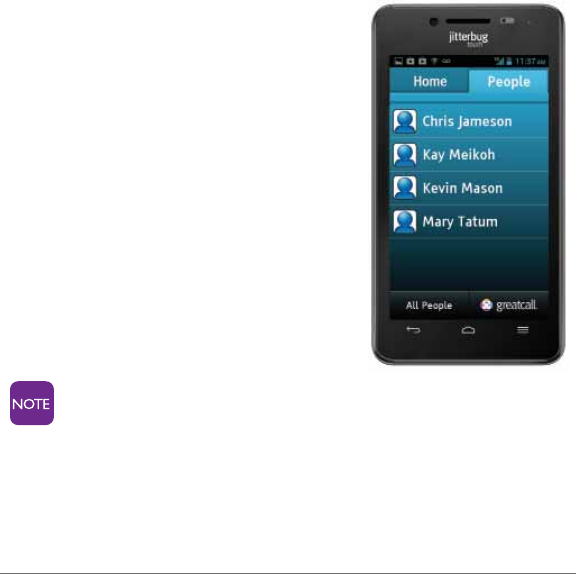
Tapping the People tab shows you a list of your favorite
contacts. To learn how to create a Favorite, see page 38.
Tap the “All People” button to see all of your
contacts.
If you are upgrading from a previous Jitterbug phone,
and have your Phonebook set up with GreatCall, you
can import your contacts all at one time. When you
turn on your Jitterbug Touch 2, you will see a pop-up
window that offers you the option to import your
contacts. Press “OK” to import them.
If you choose not to import your contacts, you can
select this option later by going to All People and
pressing the Menu key. Tap “Import Jitterbug
Contacts” and you will see a pop-up window. Press
“OK” to import your contacts.

37User Guide
3.2 Creating a Contact
1. From the People tab, press the menu key .
2. Tap “Add New” to add a new contact to your contacts
list.
3. At the new contact screen, tap “Name” to enter
a fi rst and last name.
4. Tap “Next” at the bottom right to enter a phone number.
5. If applicable, enter additional phone numbers, email
addresses and other contact details.
6. Tap “Done” in the upper left corner to save.
7. Your contact will now be saved in the “All People” list.
User Guide 38
3.3 Creating a Favorite
While you may have dozens of people in your contact list,
the Jitterbug Touch 2 has made it easy to quickly access your
most important contacts from the People tab.
1. From the People tab, tap “All People.”
2. Press the Menu key .
3. Tap “Add to Favorites.”
4. You will see a list of all your contacts.
5. Tap the check box next to a name, and a green check-
mark will appear. Tap “OK.”
6. The selected contacts will now appear on your People
tab.
You can press and hold a single name to add them
to your favorites without using the menu function.

39User Guide
3.4 Deleting a Contact
1. From the People tab, tap the “All People” button.
2. Tap the contact you wish to delete.
3. Once you’re on the contact screen, press the Menu
key .
4. Tap “Delete.” Tap “OK” to confi rm deletion.
5. This contact will no longer appear in your contact list or
on your People tab.
User Guide 40
3.5 Calling a Contact
Calling a Favorite from the People Tab
1. From the People tab, tap the
contact you wish to call.
2. Tap “Call.”
Calling a Contact from
the Contact List
1. From the People tab, tap the “All
People” button.
2. Tap the contact you wish to call.
3. Tap “Call.”
If a contact has multiple
numbers, a selection will
appear. Choose the
appropriate number.

41User Guide
Chapter 4: GreatCall Button
This chapter explains additional features on your
Jitterbug Touch 2 available when you tap the GreatCall
button .
• Introduction
• Usage
• Help

User Guide 42
4.1 GreatCall Button – Introduction
In both the Home and People tabs, you’ll see the GreatCall
button at the bottom right corner of your screen.
Tap this button to see the following options:
1. “Usage” – View how many minutes, text messages,
data megabytes you’ve used, how many you have left,
and when your next bill date is.
2. “Featured Apps” – Several featured apps recommended
by GreatCall.
3. “Help” – Help and information about your Jitterbug
Touch 2.
4. “Contact Us” – Options to contact our GreatCall
Operators or Customer Service Representatives.

43User Guide
4.2 Usage
The usage feature will allow you to easily keep track of your
usage right from your Jitterbug Touch 2. In addition to
minute and text usage, your phone will track your data
usage, or “megabyte” usage. Data is what your phone uses
to access the Internet, download an app, or send an email.
See the next page for examples of data usage.
There may be a slight delay in displaying your exact
usage. Usage is based on the estimated minutes,
text messages and data that you use per billing
cycle. You should check this often to ensure you are
within your monthly plan.
User Guide 44
How much data is enough?
Data What you can do with it
Send 50 emails, and send 7 emails with attachments, and
View 20 web pages, and
Post 2 photos on social media sites, and
Watch 1 minute of streaming video
10 MB
Send 250 emails, and send 35 emails with attachments, and
View 100 web pages, and
Post 12 photos on social media sites, and
Watch 5 minutes of streaming video
50 MB
Send 500 emails, and send 70 emails with attachments, and
View 200 web pages, and
Post 25 photos on social media sites, and
Watch 10 minutes of streaming video
100 MB
Send 1250 emails, and send 185 emails with attachments, and
View 500 web pages, and
Post 62 photos on social media sites, and
Watch 25 minutes of streaming video
250 MB
Send 2500 emails, and send 375 emails with attachments, and
View 1000 web pages, and
Post 125 photos on social media sites, and
Watch 50 minutes of streaming video
500 MB
45User Guide
4.3 Help
With the Jitterbug Touch 2, you can easily
fi nd help whenever you need it. We have
included an entire on-screen guide for
easy reference.
1. Tap the GreatCall button.
2. Tap “Help.”
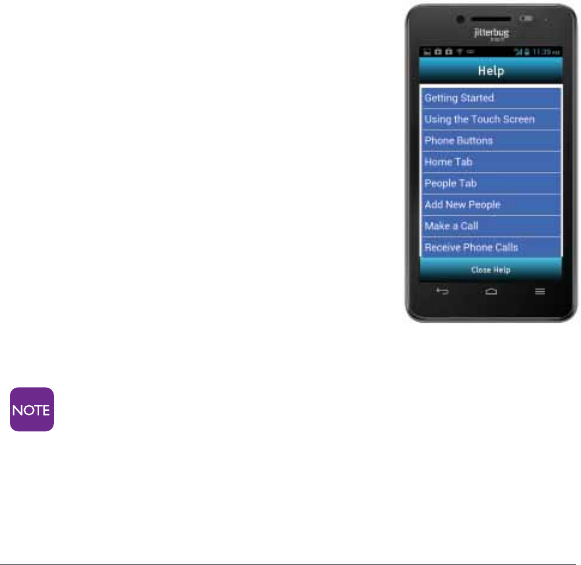
3. You will see a list of various help
topics. Tap one to select. While in a
help topic, you can scroll up or down
to read all the content or use the left
or right arrows to see the next topic.
Your Jitterbug Touch 2 also
features “Shake for HelpTM.” If you need help while
anywhere on the Main screen, just shake your phone
and a help bubble will appear.

User Guide 46

47User Guide
Chapter 5: Setting Up and Using Email and Gmail
This chapter explains how to set up and use email on your
Jitterbug Touch 2.
• Introduction
• Gmail
• Email

User Guide 48
5.1 Introduction
The Jitterbug Touch 2 offers two ways to use Email: Standard
Email and Gmail (Google Email).
If you don’t have a Gmail account, we highly recommend
setting one up to get the most out of your phone.

49User Guide
5.2 Setting up your Google Gmail Account
To get the most out of your Jitterbug Touch 2 we strongly
recommend linking your device to a Google email account.
This will allow you to download apps from the Google Play
Store, access your email and add contacts to your phone via
your computer. If you do not already have a Google account,
follow the steps below to get started:
Creating an Gmail Account from your Computer
The easiest way to create a Gmail account is right from your
computer.
1. Launch the Internet.
2. Go to www.google.com.
3. Select “Sign-In” to see the Google login page.
4. Select “Create an account” to create a new account.
5. Follow the prompts to create a free account.
You can synch other types of standard email
accounts with your Jitterbug Touch 2 as well.
See page 51 for details.

User Guide 50
Linking Your Google Account to Your Jitterbug Touch 2
1. From the Home tab, tap the “All Apps” button.
2. Tap “Gmail.”
3. At the “Add a Google account” screen, tap “Existing.”
4. At the “Sign in” screen, enter your Google username
and password.
5. Tap “Save.”

51User Guide
5.3 Email
You can use your Jitterbug Touch 2 to view, compose and
manage Email messages. It’s easy to synch most standard
Email accounts – like Yahoo, AOL or Hotmail – in just a few
steps.
1. From the Home Tab, tap the “All Apps” button.
2. Tap “Email.”
3. Select which type of email address you have.
4. Enter an email address and password in the entry
boxes.
5. Tap “Next.”
6. Follow the instructions on the screen.

User Guide 52

53User Guide
Chapter 6: All Apps Button
This chapter explains the All Apps button on your Jitterbug
Touch 2.
• All Apps Button Overview
• Internet
• Calendar
• Google Play Store

User Guide 54
6.1 All Apps Overview
Your Jitterbug Touch 2 comes with some of the primary apps
pre-programmed into your Home tab as “Favorites.” There
are, however, many other apps you can access by tapping
the “All Apps” button in the lower left corner of the Home
tab.
Some of the apps require you to have a Gmail or GreatCall
account, while others work immediately. If there are certain
apps you will be using more often, you can add them to your
“Favorites” on the Home tab for quicker access.
You can also download new apps from the Google Play Store
after you link your Google email (Gmail) account to your
phone. See pages 55-56 for details.

55User Guide
6.2 Google Play Store
After linking your Gmail account to your phone,
you can access the Google Play Store and down-
load games, movies, music and any other apps
that interest you. There are over 600,000 apps to
choose from.
1. From the Home tab, tap the “All Apps” button.
2. Tap “Play Store.”
3. You will be brought to the Google Play Store where you
can easily search and download apps.

User Guide 56
Downloading a free app
Once you see a free app you wish to download:
1. Simply tap “Install” and then “Accept & Download.”
2. Once downloaded, your new app will appear in your “All
Apps” list.
Purchasing an app
Once you see an app you wish to purchase and download:
1. Tap the price of the app.
2. Tap “Accept & Buy.”
3. Tap “OK.”
4. Once downloaded, your new app will now appear in
your “All Apps” list, and Google will charge the credit
card you use for your Google account. You will not see
this charge on your GreatCall bill.
You will only be charged if you agree to purchase an
app from the Google Play Store.

57User Guide
Chapter 7: Settings and Options
This chapter explains how you can customize the way your
phone looks and performs.
• Options
• Settings
• Setting the Screen Lock
User Guide 58
7.1 Options
We’ve made it easy to adjust some of the most commonly
used phone settings.
1. From the Home tab, press the menu key .
2. Tap “Options.”
3. You can adjust Color Theme, Lock Screen Photo, Blue-
tooth, Airplane Mode, Wi-fi and Sounds.
4. Simply tap the option you wish to adjust. For example,
to adjust the color theme of your Home screen:
- Tap “Color Theme”
- Tap the box next to the color you prefer
- Press the back button to return

59User Guide
7.2 Settings
There are multiple additional settings you can adjust with
your Jitterbug Touch 2, so that it best suits your needs,
including:
• Call Settings
• Display
• Security
• Date & Time
To adjust your settings
1. From the Home tab, tap the “All Apps” button.
2. Tap “Settings.”
3. You will see a list of settings. Tap the setting you wish to
adjust.
4. Follow the prompts to adjust the setting.

User Guide 60
7.3 Setting the Screen Lock
You can protect your Jitterbug Touch 2 from unauthorized
use by setting a password or other type of lock on your
Home screen.
1. From the Home tab, tap the “All Apps” button.
2. Tap “Settings.”
3. Tap “Security.”
4. Tap “Screen Lock.”
5. Choose whichever security method you prefer.
For example, to use a PIN code:
- Tap “PIN.”
- Enter a numeric pin code of at least 4 digits.
- Tap “Continue.”
6. Enter your code again and tap “OK.”
If you set a screen lock, you will be asked to enter your
password or pin when you unlock your phone.

61User Guide
Chapter 8: Commercial Mobile Alert System (CMAS)
This chapter explains CMAS on your Jitterbug Touch 2.
• About
• Types of Alerts

User Guide 62
8.1 About CMAS
The Commercial Mobile Alert System (CMAS) is a new
national public safety system that allows people who own
a CMAS-enabled mobile device to receive geographically-
targeted messages. These broadcast messages will alert
customers of imminent threats to their safety within their
immediate area.
Receiving a CMAS alert message on your Jitterbug
Touch 2 – Although alerts from CMAS are not text
messages, the alerts will look similar to text
messages. They will be short (not more than 90
characters) and easy to read. The alert messages
will provide basic information on safety/security
issues urging customers to take action to protect
themselves.

63User Guide
8.2 Types of Alerts
There are three types of alerts through CMAS:
1. Alerts issued by the President
2. Alerts involving imminent threats to life or property
issued by the National Weather Service or other
authorized emergency management agency.
3. Amber Alerts – missing child alert
Alert messages are provided by approved emergency
agencies and delivered via the Federal Emergency
Management Agency (FEMA).
CMAS does not use the customer mobile number to transmit
messages and does not use the GPS location of the device.
Instead, CMAS broadcasts messages similar to that of radio
today.
There is no charge for receiving CMAS messages.

User Guide 64
The Fine Print
Warnings and Precautions
This section contains important information pertaining to the operating instructions of your
device. It also contains information about how to use the device safely. Read this information
carefully before using your device.
Electronic Device
Power off your device if using the device is prohibited. Do not use the device when using the
device causes danger or interference with electronic devices.
Medical Device
• Follow rules and regulations set forth by hospitals and health care facilities. Do not use your
device when using the device is prohibited.
• Pacemaker manufacturers recommend that a minimum distance of 15 cm be maintained
between a device and a pacemaker to prevent potential interference with the pacemaker. If
you are using a pacemaker, use the device on the opposite side of the pacemaker and do
not carry the device in your front pocket.
• Some wireless devices may affect the performance of hearing aids. For any such problems,
consult your service provider.
• To ensure that the Hearing Aid Compatibility rating for your device is maintained, secondary
transmitters such as Bluetooth and Wi-Fi components must be disabled during a call.
Potentially Explosive Atmosphere
Power off your device in any area with a potentially explosive atmosphere, and comply with all
signs and instructions. Areas that may have potentially explosive atmospheres include the areas
where you would normally be advised to turn off your vehicle engine. Triggering of sparks in such
areas could cause an explosion or a fi re, resulting in bodily injuries or even deaths. Do not power
on your device at refueling points such as service stations. Comply with restrictions on the use
of radio equipment in fuel depots, storage, and distribution areas, and chemical plants. In addi-
tion, adhere to restrictions in areas where blasting operations are in progress. Before using the
device, watch out for areas that have potentially explosive atmospheres that are often, but not
always, clearly marked. Such locations include areas below the deck on boats, chemical transfer
or storage facilities, and areas where the air contains chemicals or particles such as grain, dust,
or metal powders. Ask the manufacturers of vehicles using liquefi ed petroleum gas (such as
propane or butane) whether this device can be safely used in their vicinity.
Traffi c Security
Observe local laws and regulations while using the device. In addition, if using the device while
driving a vehicle, comply with the following guidelines:

65User Guide
• Concentrate on driving. Your fi rst responsibility is to drive safely.
• Do not talk on the device while driving. Use hands-free accessories.
• When you have to make or answer a call, park the vehicle at the road side before using your
device.
• RF signals may affect electronic systems of motor vehicles. For more information, consult the
vehicle manufacturer.
• In a motor vehicle, do not place the device over the air bag or in the air bag deployment area.
Otherwise, the device may hurt you owing to the strong force when the air bag infl ates.
• Do not use your device while fl ying in an aircraft. Power off your device before boarding an
aircraft. Using wireless devices in an aircraft may cause danger to the operation of the aircraft
and disrupt the wireless telephone network. It may also be considered illegal.
Operating Environment
• Do not use or charge the device in dusty, damp, and dirty places or places with magnetic
fi elds. Otherwise, it may result in a malfunction of the circuit.
• The device complies with the RF specifi cations when the device is used near your ear or at a
distance of 0.59 inch (1.5 cm) from your body. Ensure that the device accessories such as a
device case and a device holster are not composed of metal components. Keep your device
0.59 inch (1.5 cm) away from your body to meet the requirement earlier mentioned.
• On a stormy day with thunder, do not use your device when it is being charged, to prevent
any danger caused by lightning.
• When you are on a call, do not touch the antenna. Touching the antenna affects the call qual-
ity and results in increase in power consumption. As a result, the talk time and the standby
time are reduced.
• While using the device, observe the local laws and regulations, and respect others’ privacy
and legal rights.
• Keep the ambient temperature between 32°F (0°C) and 113°F (45°C) while the device is be-
ing charged. Keep the ambient temperature between 14°F (-10°C) to 113°F (45°C) for using
the device powered by a battery.
Prevention of Hearing Damage
Using a headset at high volume can damage your hearing. To reduce the risk of damage to hear-
ing, lower the headset volume to a safe and comfortable level.
Safety of Children
Comply with all precautions with regard to children’s safety. Letting the child play with your
device or its accessories, which may include parts that can be detached from the device, may be

User Guide 66
dangerous, as it may present a choking hazard. Ensure that small children are kept away from
the device and accessories.
Accessories
Choose only batteries, chargers, and accessories approved for use with this model by the device
manufacturer. The use of any other type of battery, charger, or accessory may invalidate any war-
ranty for the device, may be in violation of local rules or laws, and may be
dangerous. Please contact your dealer for information about the availability of approved batter-
ies, chargers, and accessories in your area.
Battery and Charger
• Unplug the charger from the electrical plug and the device when not in use.
• The battery can be charged and discharged hundreds of times before it eventually wears
out. When the standby time and the talk time are shorter than the normal time, replace the
battery.
• Use the AC power supply defi ned in the specifi cations of the charger. An improper power
voltage may cause a fi re or a malfunction of the charger.
• Do not connect two poles of the battery with conductors, such as metal materials, keys, or
jewelries. Otherwise, the battery may be short-circuited and may cause injuries and burns on
your body.
• If battery electrolyte leaks out, ensure that the electrolyte does not touch your skin and eyes.
When the electrolyte touches your skin or splashes into your eyes, wash your eyes with clean
water immediately and consult a doctor.
• If there is a case of battery deformation, color change, or abnormal heating while you charge
or store the battery, remove the battery immediately and stop using it. Otherwise, it may lead
to battery leakage, overheating, explosion, or fi re.
• If the power cable is damaged (for example, the cord is exposed or broken), or the plug
loosens, stop using the cable at once. Otherwise, it may lead to an electric shock, a short
circuit of the charger, or a fi re.
• Do not dispose of batteries in fi re as they may explode. Batteries may also explode if dam-
aged.
• Do not modify or remanufacture, attempt to insert foreign objects into the battery, immerse
or expose to water or other liquids, expose to fi re, explosion or other hazard.
• Avoid dropping the device or battery. If the device or battery is dropped, especially on a hard
surface, and the user suspects damage, take it to a qualifi ed service center for inspection.
• Improper battery use may result in a fi re, explosion or other hazard.

67User Guide
• Promptly dispose of used batteries in accordance with local regulations.
• The device should only be connected to products that bear the USBIF logo or have completed
the USB-IF compliance program.
• Only use the battery with a charging system that has been qualifi ed with the system per this
standard, IEEE-Std-1725. Use of an unqualifi ed battery or charger may present a risk of fi re,
explosion, leakage, or other hazard.
• Replace the battery only with another battery that has been qualifi ed with the system per this
standard, IEEE-Std-1725. Use of an unqualifi ed battery may present a risk of fi re, explosion,
leakage or other hazard.
• Do not disassemble or open, crush, bend or deform, puncture or shred the battery. Other-
wise, it may lead to electrolyte leakage, overheating, fi re, or explosion.
Cleaning and Maintenance
• The device, battery, and charger are not water-resistant. Keep them dry. Protect the device,
battery, and charger from water or vapor. Do not touch the device or the charger with a wet
hand. Otherwise, it may lead to a short circuit, a malfunction of the device, and an electric
shock to the user.
• Do not place your device, battery, and charger in places where they can get damaged
because of collision. Otherwise, it may lead to battery leakage, device malfunction, overheat-
ing, fi re, or explosion.
• Do not place magnetic storage media such as magnetic cards and fl oppy disks near the
device. Radiation from the device may erase the information stored on them.
• Do not leave your device, battery, and charger in a place with an extreme high or low tem-
perature. Otherwise, they may not function properly and may lead to a fi re or an explosion.
When the temperature is lower than 32°F (0°C), performance of the battery is affected.
• Do not place sharp metal objects such as pins near the earpiece. The earpiece may attract
these objects and hurt you when you are using the device.
• Before you clean or maintain the device, power off the device and disconnect it from the
charger.
• Do not use any chemical detergent, powder, or other chemical agents (such as alcohol and
benzene) to clean the device and the charger. Otherwise, parts of the device may be dam-
aged or a fi re can be caused. You can clean the device and the charger with a piece of damp
and soft antistatic cloth.
• Do not dismantle the device or accessories. Otherwise, the warranty on the device and acces-
sories is invalid and the manufacturer is not liable to pay for the damage.

User Guide 68
• If the device screen is broken by colliding with hard objects, do not touch or try to remove the
broken part. In this case, stop using the device immediately, and then contact an authorized
service center in time.
Emergency Call
You can use your device for emergency calls in the service area. The connection, however, cannot
be guaranteed in all conditions. You should not rely solely on the device for essential communi-
cations.
Certifi cation Information (SAR)
This device meets guidelines for exposure to radio waves. Your device is a low-power radio
transmitter and receiver. As recommended by international guidelines, the device is designed
not to exceed the limits for exposure to radio waves. These guidelines were developed by the
independent scientifi c organization International Commission on Non-Ionizing Radiation Protec-
tion (ICNIRP) and include safety measures designed to ensure safety for all users, regardless of
age and health.
The Specifi c Absorption Rate (SAR) is the unit of measurement for the amount of radio frequency
energy absorbed by the body when using a device. The SAR value is determined at the high-
est certifi ed power level in laboratory conditions, but the actual SAR level of the device when
being operated can be well below the value. This is because the device is designed to use the
minimum power required to reach the network. The SAR limit adopted by USA and Canada is 1.6
watts/kilogram (W/kg) averaged over one gram of tissue. The highest SAR value reported to the
FCC and IC for this device type when tested for use at the ear is 0.917 W/kg, and when properly
worn on the body is 0.741 W/kg. and when using the WiFi function is 0.132 W/kg.
FCC Statement
This equipment has been tested and found to comply with the limits for a Class B digital device,
pursuant to Part 15 of the FCC Rules. These limits are designed to provide reasonable protection
against harmful interference in a residential installation. This equipment generates, uses and
can radiate radio frequency energy and, if not installed and used in accordance with the instruc-
tions, may cause harmful interference to radio communications. However, there is no guarantee
that interference will not occur in a particular installation. If this equipment does cause harmful
interference to radio or television reception, which can be determined by turning the equipment
off and on, the user is encouraged to try to correct the interference by one or more of the follow-
ing measures:
--Reorient or relocate the receiving antenna.
--Increase the separation between the equipment and receiver.
--Connect the equipment into an outlet on a circuit different from that to which the receiver is

69User Guide
connected.
--Consult the dealer or an experienced radio/TV technician for help.
This device complies with Part 15 of the FCC Rules. Operation is subject to the following two
conditions: (1) this device may not cause harmful interference, and (2) this device must accept
any interference received, including interference that may cause undesired operation.
Caution
Chan ges or modifi cations made to this device not expressly approved by Huawei Technologies
Co., Ltd. may void the FCC authorization to operate this device.
Hearing Aid Compatibility (HAC) regulations for Mobile phones
In 2003, the FCC adopted rules to make digital wireless telephones compatible with hearing aids
and cochlear implants. Although analog wireless phones do not usually cause interference with
hearing aids or cochlear implants, digital wireless phones sometimes do because of electromag-
netic energy emitted by the phone’s antenna, backlight, or other components.
Your phone is compliant with FCC HAC regulations (ANSI C63.19). While some wireless phones
are used near some hearing devices (hearing aids and cochlear implants), users may detect a
buzzing, humming, or whining noise. Some hearing devices are more immune than others to
this interference noise, and phones also vary in the amount of interference they generate. The
wireless telephone industry has developed a rating system for
wireless phones, to assist hearing device users fi nd phones that may be compatible with their
hearing devices. Not all phones have been rated. Phones that are rated have the rating on their
box or a label located on the box. The ratings are not guarantees. Results will vary depending on
the user’s hearing device and hearing loss. If your hearing device
happens to be vulnerable to interference, you may not be able to use a rated phone successfully.
Trying out the phone with your hearing device is the best way to evaluate it for your personal
needs.
M-Ratings: Phones rated M3 or M4 meet FCC requirements and are likely to generate less inter-
ference to hearing devices than phones that are not labeled.
M4 is the better/higher of the two ratings.
T-Ratings: Phones rated T3 or T4 meet FCC requirements and are likely to be more usable with a
hearing device’s telecoil (“T Switch” or “Telephone Switch”) than unrated phones. T4 is the bet-
ter/higher of the two ratings. (Note that not all hearing devices have telecoils in them.)
Hearing devices may also be measured.
Your phone meets the M4/T3 level rating. Hearing devices may also be rated. Your hearing
device manufacturer or hearing health professional may help you fi nd this rating.
This phone has been tested and rated for use with hearing aids for some of the wireless technol-

User Guide 70
ogies that it uses. However, there may be some newer wireless technologies used in this phone
that have not been tested yet for use with hearing aids. It is important to try the different features
of this phone thoroughly and in different locations, using your hearing aid or cochlear implant,
to determine if you hear any interfering noise. Consult your service provider or the manufacturer
of this phone for information on hearing aid compatibility. If you have questions about return or
exchange policies, consult your service provider or phone retailer.
For more information about the FCC Hearing Aid Compatibility please
go to http://transition.fcc.gov/cgb/dro/hearing.html
Personal Information and Data Security
The use of some functions or third-party applications on your device could result in your personal
information and data being lost or becoming accessible to others. Several measures are recom-
mended to help you protect personal and confi dential information.
• Place your device in a safe area to prevent it from unauthorized use.
• Set your device screen to lock and create a password or unlock
pattern to open it.
• Periodically back up personal information kept on your SIM/UIM card, memory card, or
stored in your device memory. If you change to a different device, be sure to move or delete
any personal information on your old device.
• If you are worried about viruses when you receive messages or emails from a stranger, you
can delete them without opening them.
• If you use your device to browse the Internet, avoid websites that might pose a security risk
to avoid theft of your personal information.
• If you use services such as Wi-Fi tether or Bluetooth, set passwords for these services to
prevent unauthorized access. When these services are not in use, turn them off.
• Install or upgrade device security software and regularly scan for viruses.
• Be sure to obtain third-party applications from a legitimate source. Downloaded third-party
applications should be scanned for viruses.
• Install security software or patches released by Huawei or third-party application providers.
• Some applications require and transmit location information. As a result, a third-party may
be able to share your location information.
• Your device may provide detection and diagnostic information to third-party application
providers. Third party vendors use this information to improve their products and services.
• If you have concerns about the security of your personal information and data, please contact
mobile@huawei.com.
Legal Notice

71User Guide
Copyright © Huawei Technologies Co., Ltd. 2013. All rights reserved.
No part of this manual may be reproduced or transmitted in any form or by any means without
prior written consent of Huawei Technologies Co., Ltd. and its affi liates (“Huawei”).
The product described in this manual may include copyrighted software of Huawei and possible
licensors. Customers shall not in any manner reproduce, distribute, modify, decompile, disas-
semble, decrypt, extract, reverse engineer, lease, assign, or sublicense the said software, unless
such restrictions are prohibited by applicable laws or such actions are approved by respective
copyright holders.
Trademarks and Permissions
, and and are trademarks or registered trademarks of Huawei Technologies Co.,
Ltd.
Android, Google, Google Play and other marks are trademarks of Google Inc.
The Bluetooth® word mark and logos are registered trademarks owned by Bluetooth SIG, Inc.
and any use of such marks by Huawei Technologies Co., Ltd. is under license. Other trademarks,
product, service and company names mentioned may be the property of their respective owners.
Notice
Some features of the product and its accessories described herein rely on the software installed,
capacities and settings of local network, and therefore may not be activated or may be limited
by local network operators or network service providers. Thus, the descriptions herein may not
exactly match the product or its accessories which you purchase.
Huawei reserves the right to change or modify any information or specifi cations contained in this
manual without prior notice and without any liability.
Third-Party Software Statement
Huawei does not own the intellectual property of the third-party software and applications that
are delivered with this product. Therefore, Huawei will not provide any warranty of any kind for
third party software and applications. Neither will Huawei provide support to customers who use
third-party software and applications, nor be responsible or liable for the functions or perfor-
mance of third-party software and applications. Third-party software and applications services
may be interrupted or terminated at any time, and Huawei does not guarantee the availability
of any content or service. Third-party service providers provide content and services through
network or transmission tools outside of the control of Huawei. To the greatest extent permitted
by applicable law, it is explicitly stated that Huawei shall not compensate or be liable for services
provided by third-party service providers, or the interruption or termination of third-party con-
tents or services. Huawei shall not be responsible for the legality, quality, or any other aspects of
any software installed on this product, or for any uploaded or downloaded third-party works in

User Guide 72
any form, including but not to limited texts, images, videos, or software etc. Customers shall bear
the risk for any and all effects, including incompatibility between the software and this product,
which result from installing software or uploading or downloading the third-party works. This
product is based on the open-source Android™ platform. Huawei has made necessary changes
to the platform. Therefore, this product may not support all the functions that are supported by
the standard Android platform or may be incompatible with third-party software. Huawei does
not provide any warranty and representation in connection with any such compatibility and
expressly excludes all liability in connection with such matters.

73User Guide
GreatCall, Inc. Headquarters:
10935 Vista Sorrento Parkway
Suite 200
San Diego, CA 92130
Tel: 1–858–720–7500
Customer Service Center:
P.O. Box 4428
Carlsbad, CA 92018
Tel: 1–800–733–6632
Internet Address:
www.greatcall.com
Copyright ©2013 GreatCall, Inc. Jitterbug and GreatCall are registered trademarks of
GreatCall, Inc.

User Guide 74
Disclaimer Of Warranties; Exclusion Of Liability
ALL CONTENTS OF THIS MANUAL ARE PROVIDED “AS IS”. EXCEPT AS REQUIRED BY APPLICABLE
LAWS, NO WARRANTIES OF ANY KIND, EITHER EXPRESS OR IMPLIED, INCLUDING BUT NOT LIMITED
TO, THE IMPLIED WARRANTIES OF MERCHANTABILITY AND FITNESS FOR A PARTICULAR PURPOSE,
ARE MADE IN RELATION TO THE ACCURACY, RELIABILITY OR CONTENTS OF THIS MANUAL. TO THE
MAXIMUM EXTENT PERMITTED BY APPLICABLE LAW, IN NO EVENT SHALL HUAWEI OR GREATCALL
BE LIABLE FOR ANY SPECIAL, INCIDENTAL, INDIRECT, OR CONSEQUENTIAL DAMAGES, OR LOSS OF
PROFITS, BUSINESS, REVENUE, DATA, GOODWILL SAVINGS OR ANTICIPATED SAVINGS REGARD-
LESS OF WHETHER SUCH LOSSES ARE FORSEEABLE OR NOT. THE MAXIMUM LIABILITY (THIS
LIMITATION SHALL NOT APPLY TO LIABILITY FOR PERSONAL INJURY TO THE EXTENT APPLICABLE
LAW PROHIBITS SUCH A LIMITATION) OF HUAWEI OR GREATCALL ARISING FROM THE USE OF THE
PRODUCT DESCRIBED IN THIS MANUAL SHALL BE LIMITED TO THE AMOUNT PAID BY CUSTOMERS
FOR THE PURCHASE OF THIS PRODUCT.

75User Guide
Your Customer Agreement
1. Welcome To The GreatCall® Family.
Please read this agreement regarding your phone and service. When you accept this
agreement, you’re bound by its conditions. It applies to all of your services from GreatCall
and covers important topics such as:
• How long this agreement lasts
• Your rights to refuse or cancel this agreement
• Our friendly 30-day return policy
• Our rights to limit or end service or this agreement
• Limitations of liability and privacy
• How to handle disputes if they arise, including arbitration
2. Your Monthly Rate Plan
The monthly rate plan you select is part of this agreement. To the extent any condition in
your plan expressly confl icts with this agreement, the condition in your plan will apply.
3. Your Rights To Refuse Or Cancel This Agreement
After you’ve had an opportunity to review this agreement, it will begin when you do any of the
following to indicate your acceptance:
• Activate your service
• Give us a written or electronic signature indicating your acceptance
• Tell us electronically that you accept
If you do not wish to accept this agreement, do not do any of the above actions.

User Guide 76
3.1 30-Day Return Policy
If for any reason, within 30 days from date of purchase, you are not completely satisfi ed with
your device, we will refund the activation fee, the fi rst month’s service charge and the cost of
the device, plus applicable taxes if you:
• Have used less than 30 minutes of talk time; and
• Return the device in “like new” condition, as determined by GreatCall, in the original box
with all components and materials.
The shipping charges are non-refundable and you will be charged a $10 restocking fee. If
you have used more than 30 minutes of talk time or more than 25 MB of data, then we will
charge you the lesser of:
• Your monthly service charge; or
• 35¢ per minute for each additional minute over 30 minutes
Return Information:
• Please contact our Customer Service Department at 1-800-733-6632, available 24 hours
a day, 7 days a week, to cancel your account and obtain a return authorization number.
• Approved returns must be shipped back at the customer’s expense in the original
packaging.
• Refunds, if applicable, will be processed back to the party that paid in the same manner
that payment was received. Please allow 21 business days for processing.
3.2 Service Cancellation
If for any reason you are not completely satisfi ed with your service and you wish to cancel,
you’ll be able to do so as described below. However, if you have purchased any Add-On
Minutes, they are not refundable and these minutes will expire after your last bill.

77User Guide
You will receive a fi nal bill that will detail all the charges and credits on your account.
If you wish to cancel your service before the end of a given month, you’ll be responsible for
any account charges and overages through the date of your fi nal bill. If you have purchased
any Add-On Minutes, they are not refundable and these minutes will expire after your fi nal
bill.
Although cancellations are effective immediately, we don’t bill for partial months; therefore,
you’ll be charged for the entire month.
4. Charges And Fees
There is a fee associated with beginning your service and there may be a fee associated
with reactivating your service. Usage charges vary depending on where, when and how you
call, including toll-free and Operator-assisted calls. Additional features and services, such as
Operator assistance, may have extra charges.
4.1 Roaming And Long Distance Charges
There are no long distance or roaming charges for any calls made within the domestic U.S.
There may be additional charges for international calls and texts.
4.2 International Rates
When calling from the domestic U.S. to other countries, or when calling from outside of the
domestic U.S., additional international calling rates will apply.
4.3 Taxes, Fees And Assessments
We are required by law to charge you certain taxes, surcharges and assessments that will be
included on your bill. You are responsible for paying all taxes, surcharges and assessments
associated with your GreatCall products and services. These may change from time to time,
and we may not be able to give you advance notice about how these changes may affect you.

User Guide 78
Except as prohibited by law, we may also, at our discretion, require you to pay regulatory and
administrative fees to recover our costs of complying with regulatory mandates and Universal
Service fees or similarly imposed charges. Any customer who is eligible for an exemption
from any tax or fee must provide us with a verifi able, valid and properly executed tax-exempt
certifi cate. Any tax exemption applies only after the date we receive the certifi cate from you and
have verifi ed your eligibility for the exemption.
4.4 How We Calculate Your Bill
Your bill is our notice to you of your fees, charges and other important information. It refl ects
the fees and charges in effect for your service plan at the time they are incurred. We charge
for usage after calls are made or received and charge access and other fees in advance.
The length of a call will be rounded up to the next full minute. Charges start when you’re
connected to an outgoing or incoming call and end after you hang up your phone, the other
party on your call hangs up, or the call ends through disconnection. We only bill for calls that
connect, including calls answered by machines. Standard usage charges apply to toll-free
calls. There may be additional usage charges for credit card or third party Operator-assisted
calls, which may be required in certain areas. You will incur usage charges at a minimum rate
of $0.35 per minute if you exceed your service plan minutes. Billing for usage and related
charges may sometimes be delayed. Delayed usage charges may be applied in the month
they appear on your bill against minutes included in your service plan for that month, rather
than against the included minutes for the month when you actually made or received the
call. This may result in charges higher than you’d expect in the later month.
4.5 Payments, Deposits, Credit Cards, And Checks
Payment is due in full as stated on your bill. IF WE DON’T RECEIVE PAYMENT IN FULL WHEN DUE,
WE MAY, TO THE EXTENT PERMITTED BY THE LAW OF THE STATE OF THE BILLING ADDRESS WE
HAVE ON FILE FOR YOU AT THE TIME, CHARGE YOU A LATE FEE UP TO 1.5 PERCENT A MONTH (18
PERCENT ANNUALLY) OR A FLAT $5 A MONTH, WHICHEVER IS GREATER, ON UNPAID BALANCES.
WE MAY ALSO CHARGE YOU FOR ANY COLLECTION AGENCY FEES BILLED TO US FOR TRYING
TO COLLECT FROM YOU. SHOULD WE NOT RECEIVE YOUR LATE PAYMENT, WE MAY SUSPEND

79User Guide
YOUR SERVICE UNTIL PAID IN FULL. WE RESERVE THE RIGHT TO CHARGE A REASONABLE
RECONNECTION FEE. IF YOUR ACCOUNT REMAINS UNPAID, WE WILL CANCEL SERVICE FOR NON-
PAYMENT. We reserve the right to require recurring credit card billing for certain products or
services. We also reserve the right to require an advance deposit (or an increased deposit) from
you based on your payment history and changes in your plan and/or the frequency of use of
our services. We’ll pay simple interest on any deposit at the rate the law requires. Please retain
your evidence of deposit. You agree that we can apply deposits, payments, or repayments in
any order to any amounts you owe us on your account(s). You can’t use a deposit to pay any
bill unless we agree. We will not honor limiting notations you make on or with your checks. We
may charge you up to $25 for any returned check or denied credit card charges, depending on
applicable law.
5. Service Subject To Change
Your service is dependent upon our business requirements, including policies, practices
and procedures, which we can change without notice. Unless otherwise prohibited by law,
we can also change prices and any other conditions in this agreement at any time by sending
you written notice prior to the billing period in which the changes would go into effect. If you
choose to use your service after that point, you’re accepting the changes. If the changes have
a material adverse effect on you, however, you can end the affected service, without any early
cancellation fee, just by calling us within 60 days after we send notice of the change.
6. Rights In Numbers And Electronic Addresses We Assign To You
You do not have any rights in the personal identifi cation number, email address or
identifi er we assign to you. The same is true for your wireless phone numbers, except for
your right to transfer it. In the event we need to change or reassign them, we’ll let you know.
Please know that your wireless phone number and/or name may appear when you call
someone. We rely on this feature to provide services you enjoy.
7. Transferring Or “Porting” Phone Numbers

User Guide 80
You may be able to transfer or “port” your phone number from us to another carrier or service
provider. We cannot guarantee that this transfer will be successful. If you request that another
service provider transfer or “port” your phone number, we will treat this request in the same
manner as a request to cancel your GreatCall service. When the transfer is complete you will
be responsible for all the terms of cancellation described in Section 3 of this agreement. We
may not be able to provide you with some services, such as 9-1-1 location services, while we
implement the transfer.
8. Availability Of Service
Wireless phones use radio transmissions to access service. Therefore, we can’t provide
service when your wireless phone is out of range of our provider’s transmission site
or if suffi cient network capacity is not available. You may not receive service in certain
places, particularly in remote areas, with no service at all. Weather, topography, buildings,
your wireless phone and other conditions that are outside of our control may also cause
dropped calls or other problems with your service.
9. Suspending Service If Your Phone Is Lost Or Stolen
Please notify us immediately if someone steals your phone or you lose it. We’ll be happy
to provide a courtesy suspension of service for 30 days or until you choose to replace or
recover your phone – whichever comes fi rst – if you haven’t received a courtesy of this kind
within the prior year. Until we provide a courtesy suspension, you’ll be responsible for all
fees and charges, including those related to the use of services, even if used by another
party. We may require a sworn statement about the loss or theft.
10. Our Rights To Limit/End Service Or This Agreement
You agree not to resell our service to someone else without prior written permission from
GreatCall. You also agree that your wireless phone won’t be used for any purpose that is
illegal, isn’t allowed by this agreement or by your User Guide. WE CAN, WITHOUT NOTICE,
LIMIT, SUSPEND OR END YOUR SERVICE OR ANY AGREEMENT WITH YOU FOR VIOLATING

81User Guide
THIS AGREEMENT OR FOR ANY OTHER GOOD CAUSE, INCLUDING, BUT NOT LIMITED TO:
a. Two or more late payments in a 12-month period.
b. Incurring charges greater than your required deposit or billing limit (even if we
haven’t yet billed the charges) if you are unwilling to increase your deposit with us.
c. Incurring charges materially in excess of your monthly access charge (even if we
haven’t yet billed the charges).
d. Harassing our employees or agents.
e. Lying to us.
f. Interfering with our operations.
g. Becoming insolvent or going bankrupt.
h. Breaching this agreement.
i. “Spamming,” or other abusive messaging or calling.
j. Modifying your phone from the manufacturer’s specifi cations.
k. Providing credit information we can’t verify.
l. Using your service in a way that adversely affects other customers.
m. Allowing anyone to tamper with your GreatCall number.
We can also temporarily limit your service for any operational or governmental reason.
11. Your Privacy
You agree to the terms of our Privacy Policy, available on our website at www.greatcall.com/
privacypolicy, when you use our services. It may change from time to time, so please review
this policy with regularity and care. Among other things, the policy outlines the information
we collect about you, how we use that information and with whom we share that information.
For example, it may be used to provide certain services, to protect our rights and interests, to
respond to legal process or to facilitate a merger. We may also monitor or record your calls with
GreatCall representatives to ensure the quality of our services and for other lawful purposes. If
you don’t agree with the terms of our Privacy Policy, do not purchase a GreatCall phone or use
GreatCall services.

User Guide 82
12. Disclaimer Of Warranties
WE MAKE NO REPRESENTATIONS OR WARRANTIES, EXPRESS OR IMPLIED, INCLUDING, TO
THE EXTENT PERMITTED BY APPLICABLE LAW, ANY IMPLIED WARRANTY OF MERCHANTABILITY
OR FITNESS FOR A PARTICULAR PURPOSE CONCERNING YOUR SERVICE OR YOUR PHONE. WE
CAN’T PROMISE UNINTERRUPTED OR ERROR-FREE SERVICE AND DON’T AUTHORIZE ANYONE
TO MAKE ANY WARRANTIES ON OUR BEHALF. THIS DOESN’T DEPRIVE YOU OF ANY WARRANTY
RIGHTS YOU MAY HAVE AGAINST ANYONE ELSE.
13. Indemnifi cation
You agree to indemnify, defend and hold GreatCall harmless from any claims arising out of
use of the phone or service, breach of this agreement or violation of any laws or regulations
or the rights of any third party by you or any person on your account or that you allow to use
your phone or service.
14. Waivers And Limitations Of Liability
UNLESS THE LAW FORBIDS IT IN ANY PARTICULAR CASE, WE EACH AGREE TO LIMIT CLAIMS
FOR DAMAGES OR OTHER MONETARY RELIEF AGAINST EACH OTHER TO DIRECT DAMAGES. THIS
LIMITATION AND WAIVER WILL APPLY REGARDLESS OF THE THEORY OF LIABILITY, WHETHER
FRAUD, MISREPRESENTATION, BREACH OF CONTRACT, PERSONAL INJURY, PRODUCTS
LIABILITY, OR ANY OTHER THEORY. THIS MEANS THAT NEITHER OF US WILL SEEK ANY
INDIRECT, SPECIAL, CONSEQUENTIAL, TREBLE, OR PUNITIVE DAMAGES FROM THE OTHER. THIS
LIMITATION AND WAIVER ALSO APPLIES TO ANY CLAIMS YOU MAY BRING AGAINST ONE OF
OUR SUPPLIERS, TO THE EXTENT THAT WE WOULD BE REQUIRED TO INDEMNIFY THE SUPPLIER
FOR SUCH CLAIM. You agree we aren’t liable for problems caused by you or a third party; by
buildings, hills, network congestion, tunnels, weather, or other things we don’t control. You
also agree GreatCall is not liable for missed VoiceMail(s), or deletions of VoiceMail(s) from your
VoiceMail box (if you have one), even if you’ve saved them.
15. Handling Disputes With GreatCall
ANY CLAIM OR DISPUTE BETWEEN YOU AND GREATCALL IN ANY WAY RELATED TO OR

83User Guide
CONCERNING THE AGREEMENT, OR THE PROVISION OF SERVICES OR PRODUCTS TO
YOU, INCLUDING ANY BILLING DISPUTES (CLAIM), SHALL BE SUBMITTED TO FINAL,
BINDING ARBITRATION BEFORE THE AMERICAN ARBITRATION ASSOCIATION (“AAA”). THIS
AGREEMENT TO ARBITRATE ALSO REQUIRES YOU TO ARBITRATE CLAIMS AGAINST OTHER
PARTIES RELATING TO SERVICES OR PRODUCTS PROVIDED OR BILLED TO YOU, INCLUDING
SUPPLIERS OF SERVICES AND PRODUCTS AND OUR RETAIL DEALERS, IF YOU ALSO ASSERT
CLAIMS AGAINST US IN THE SAME PROCEEDING. YOU AND WE ACKNOWLEDGE THAT THE
AGREEMENT AFFECTS INTERSTATE COMMERCE AND THAT THE FEDERAL ARBITRATION ACT
AND FEDERAL ARBITRATION LAW APPLY TO ARBITRATIONS UNDER THE AGREEMENT. BEFORE
INSTITUTING ARBITRATION, YOU AGREE TO PROVIDE US WITH AN OPPORTUNITY TO RESOLVE
YOUR CLAIM BY SENDING A WRITTEN DESCRIPTION OF YOUR CLAIM TO US AT: GREATCALL,
P.O. BOX 4428, CARLSBAD, CA 92018, AND NEGOTIATING WITH US IN GOOD FAITH
REGARDING YOUR CLAIM. IF WE ARE NOT ABLE TO RESOLVE YOUR CLAIM WITHIN 30 DAYS
OF RECEIPT OF YOUR NOTICE, THEN YOU OR WE, INSTEAD OF SUING IN COURT, MAY INITIATE
ARBITRATION PROCEEDINGS WITH THE AAA. ARBITRATION WILL BE CONDUCTED UNDER
THE AAA’S PUBLISHED WIRELESS INDUSTRY ARBITRATION RULES AND SUPPLEMENTAL
PROCEDURES FOR CONSUMER-RELATED DISPUTES, WHICH ARE AVAILABLE BY CALLING THE
AAA AT 800-778-7879 OR VISITING ITS WEB SITE AT WWW.ADR.ORG. THE AAA HAS A FEE
SCHEDULE FOR ARBITRATIONS. YOU WILL PAY YOUR SHARE OF THE ARBITRATOR’S FEES AND
ADMINISTRATIVE EXPENSES (“FEES AND EXPENSES”) EXCEPT THAT:
(A) FOR CLAIMS LESS THAN $25, WE WILL PAY ALL FEES AND EXPENSES; AND
(B) FOR CLAIMS BETWEEN $25 AND $1,000, YOU WILL PAY ONLY $25 IN FEES AND EXPENSES,
OR ANY LESSER AMOUNT AS PROVIDED UNDER AAA’S SUPPLEMENTAL PROCEDURES
FOR CONSUMER-RELATED DISPUTES.YOU AND WE AGREE TO PAY OUR OWN OTHER
FEES, COSTS, AND EXPENSES, INCLUDING THOSE FOR ANY ATTORNEYS, EXPERTS, AND
WITNESSES. AN ARBITRATOR MAY ONLY AWARD AS MUCH AND THE TYPE OF RELIEF AS
A COURT WITH JURISDICTION IN THE PLACE OF ARBITRATION THAT IS CONSISTENT WITH
LAW AND THIS AGREEMENT. AN ARBITRATOR MAY ISSUE INJUNCTIVE OR DECLARATORY

User Guide 84
RELIEF BUT ONLY APPLYING TO YOU AND US AND NOT TO ANY OTHER CUSTOMER OR
THIRD PARTY. AS A LIMITED EXCEPTION TO THE AGREEMENT TO ARBITRATE, YOU AND WE
AGREE THAT:
(A) YOU MAY MAKE CLAIMS TO SMALL CLAIMS COURT, IF YOUR CLAIMS QUALIFY FOR
HEARING BY SUCH COURT; AND
(B) IF YOU FAIL TO TIMELY PAY AMOUNTS DUE, WE MAY ASSIGN YOUR ACCOUNT FOR
COLLECTION, AND THE COLLECTION AGENCY MAY PURSUE IN COURT CLAIMS LIMITED
STRICTLY TO THE COLLECTION OF THE PAST DUE DEBT AND ANY INTEREST OR COST
OF COLLECTION AGREEMENT. AS PERMITTED BY LAW, OR WHETHER CLASS ACTION
IN COURT, WAIVER SMALL CLAIMS COURT, OR ARBITRATION, YOU AND WE MAY ONLY
BRING CLAIMS AGAINST EACH OTHER IN AN INDIVIDUAL CAPACITY AND NOT AS A CLASS
REPRESENTATIVE OR A CLASS MEMBER IN A CLASS OR REPRESENTATIVE ACTION. IF A
COURT OR ARBITRATOR DETERMINES IN A CLAIM BETWEEN YOU AND US THAT YOUR
WAIVER OF ANY ABILITY TO PARTICIPATE IN CLASS OR REPRESENTATIVE ACTIONS IS
UNENFORCEABLE UNDER APPLICABLE LAW, THE ARBITRATION AGREEMENT WILL NOT
APPLY, AND YOU AND WE AGREE THAT SUCH CLAIMS WILL BE RESOLVED BY A COURT OF
APPROPRIATE JURISDICTION, OTHER THAN A SMALL CLAIMS COURT. JURY TRIAL WAIVER,
WHETHER ANY CLAIM IS IN ARBITRATION OR IN COURT, YOU AND WE WAIVE ANY RIGHT
TO JURY TRIAL INVOLVING ANY CLAIMS OR DISPUTES BETWEEN YOU AND US.
16. About 5Star Service
NOT ALL PERSONAL EMERGENCY RESPONSE SYSTEMS (PERS) HAVE THE SAME FEATURES.
YOU SHOULD DETERMINE WHICH FEATURES ARE IMPORTANT TO YOU. CALCULATION WAS
DETERMINED BY AVERAGING THE PERS MARKET LEADERS’ MONTHLY PUBLISHED FEES. 5STAR
URGENT RESPONSE SERVICE REQUIRES THE PURCHASE OF THE 5STAR AND A ONE-TIME
SET-UP FEE FOR SERVICE ACTIVATION OF $35. COVERAGE AND SERVICE ARE NOT AVAILABLE
EVERYWHERE. OTHER CHARGES AND RESTRICTIONS MAY APPLY. 5STAR SERVICE MAY NOT
BE AVAILABLE IN REMOTE OR ENCLOSED AREAS. 5STAR SERVICE WILL BE ABLE TO TRACK
AN APPROXIMATE LOCATION WHEN YOUR DEVICE IS TURNED ON AND FULLY CHARGED,
BUT WE CANNOT GUARANTEE AN EXACT LOCATION. 5STAR SERVICE DOES NOT REQUIRE A

85User Guide
CONTRACT AND CAN BE CANCELLED AT ANY TIME. MONTHLY SERVICE FEES DO NOT INCLUDE
GOVERNMENT TAXES OR ASSESSMENT SURCHARGES. PRICES AND FEES ARE SUBJECT TO
CHANGE. OUR COVERAGE MAP ESTIMATES WHERE YOUR DEVICE WILL WORK. A NUMBER OF
FACTORS AFFECT THE SPECIFIC COVERAGE YOU WILL GET. YOU WILL NOT BE ABLE TO MAKE
9-1-1 CALLS WHEN CELLULAR SERVICE IS NOT AVAILABLE. GREATCALL IS NOT A HEALTH CARE
PROVIDER AND DOES NOT PROVIDE HEALTH CARE SERVICES. YOU SHOULD SEEK THE ADVICE
OF YOUR PHYSICIAN IF YOU HAVE ANY QUESTIONS ABOUT MEDICAL TREATMENT. GREATCALL
IS A REGISTERED TRADEMARK OF GREATCALL, INC. AND/OR ITS RELATED ENTITIES. 5STAR
URGENT RESPONSE AND 5STAR ARE TRADEMARKS OF GREATCALL, INC. COPYRIGHT 2013
GREATCALL, INC. NATIONAL ACADEMIES OF EMERGENCY DISPATCH © 2013.
17. About You
You represent that you’re at least 18 years old and have the legal capacity to accept this
agreement. If you are ordering for a friend or a member of your family, you are bound by the
terms of this agreement, unless and until, your friend or family member has agreed to the terms
of this agreement. If you’re ordering for a company, you’re representing that you are authorized
to bind the company to the terms of this agreement, where the context “you” means the
company.
18. About This Agreement
If either of us waives or doesn’t enforce a requirement under this agreement in an instance,
we don’t waive our right to later enforce that requirement. You can’t assign this agreement
or any of your rights or duties under it. We may assign all or part of this agreement or your
debts to us without notice, and you agree to make all subsequent payments as instructed.
Notices are considered delivered when we send them by email or fax to any email or fax
number you’ve provided to us, or three days after mailing to the most current billing address
we have on fi le for you, if by us, or to the Customer Service address on your most recent
bill. If any part of this agreement, including any part of its arbitration provisions, is held
invalid, that part may be severed from this agreement. This agreement and the documents

User Guide 86
to which it refers form the entire agreement between us on their subjects. You can’t rely on any
other documents or statements on those subjects by any sales or service representatives, and
you have no other rights with respect to service or this agreement, except as specifi cally provided
by law. This agreement isn’t for the benefi t of any third party except our parents, affi liates,
subsidiaries, agents and predecessors/successors in interest. Except to the extent we’ve agreed
otherwise in the provisions on late fees and arbitration, this agreement and disputes covered by
it are governed by the laws of the state of California, without regard to the confl icts of the laws or
rules of that state.
19. Additional Terms For Text Messaging
The message rates that we charge depend on the GreatCall service plan that you selected.
You will incur message charges when you send or receive a message, whether the message
has been read or unread, viewed or unviewed, solicited or unsolicited. GreatCall does not
guarantee that messages will be received. We are not responsible for lost or misdirected
messages.
www.greatcall.com
HUAWEI Ascend Y300
HUAWEI M881
JBT2-USERGUIDE
