Grundig Business Systems GXR2100 Digta CordEx Microphone User Manual

Grundig Business Systems GmbH Digta CordEx Microphone Users Manual

Users Manual

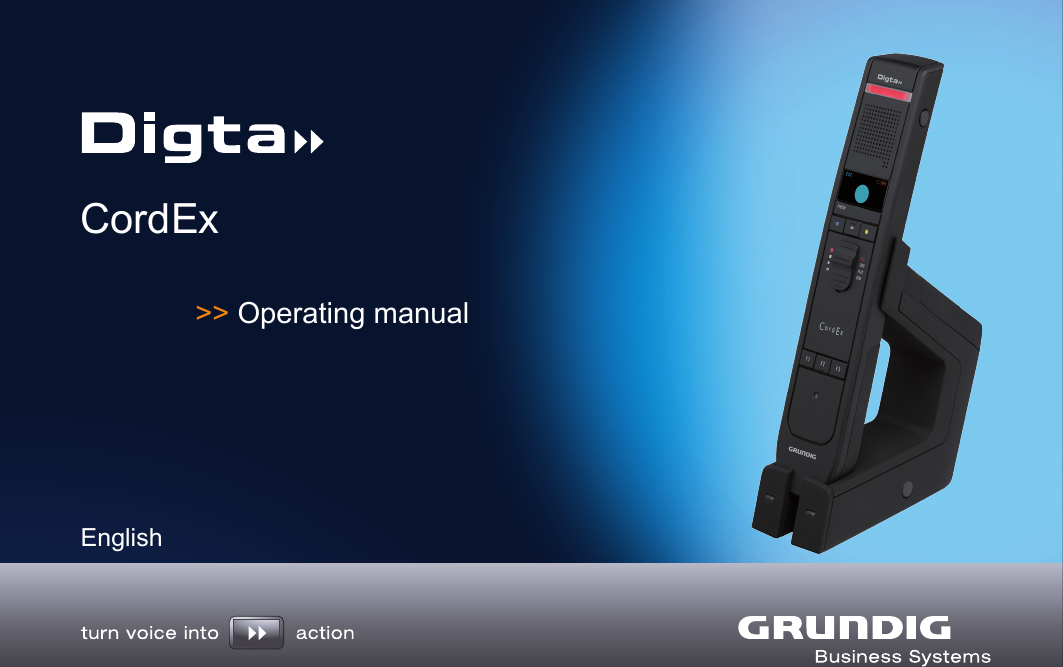
CordEx >> Operating manualEnglish
 This operating manual contains important instructions for safe and efficient handling of the Grundig Digta CordEx (herein-after referred to as “device”). This operating manual is part of the device and must be kept accessible in the immediate vicinity of the device for persons working on and with the device. Careful-ly read and make sure you understand this operating manual and all product safety labels prior to starting any work with the device. The basic prerequisite for safe work is compliance with all specified safety and handling instructions. In addition, all local accident pre-vention guidelines and general safety regulations effective at the implementation site of the device apply. Illustrations in this operat-ing manual are provided for basic understanding and can vary from the actual model of the device. No claims can be derived from the illustrations in this operating manual.DisclaimerAll information and instructions in this operating manual have been provided under due consideration of applicable guidelines and reg-ulations, the current and known state of the art, as well as our many years of in-house experience. The manufacturer assumes no liability for damages due to:Failure to comply with the instructions in this operating manualImproper use / misuseWillful operation by non-authorized persons■■■Unauthorized conversions or non-approved technical modificationsUse of non-approved spare partsThe originator is solely liable to the full extent for damages caused by such conduct. The agreed upon obligations in the delivery con-tract, the general terms and conditions, the manufacturer’s delivery conditions, and the statutory regulations valid at the time the con-tract was concluded, apply.CopyrightThis operating manual is protected by copyright. No part of this operating manual may be reproduced in any form or incorporat-ed into any information retrieval system without written permis-sion of Grundig Business Systems GmbH (“the Manufacturer”). Delivery of the operating manual to third parties, duplication in any form - including excerpts - as well as exploitation and/or communi-cation of the content, are not permitted without a written declara-tion of release from the manufacturer. Actions to the contrary make damage compensation mandatory. We reserve the right to enforce additional claims.The manufacturer © Grundig Business Systems GmbH Weiherstraße 10 D-95448 Bayreuth holds the copyright.■■
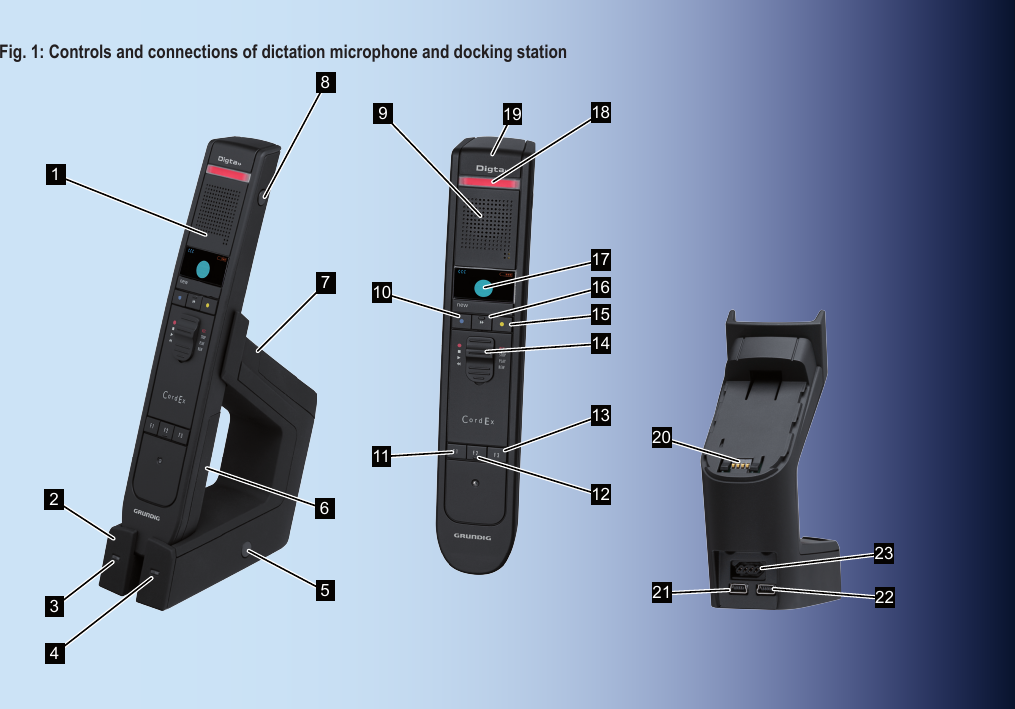
Fig. 1: Controls and connections of dictation microphone and docking station18756419 18171514122223112113169102032
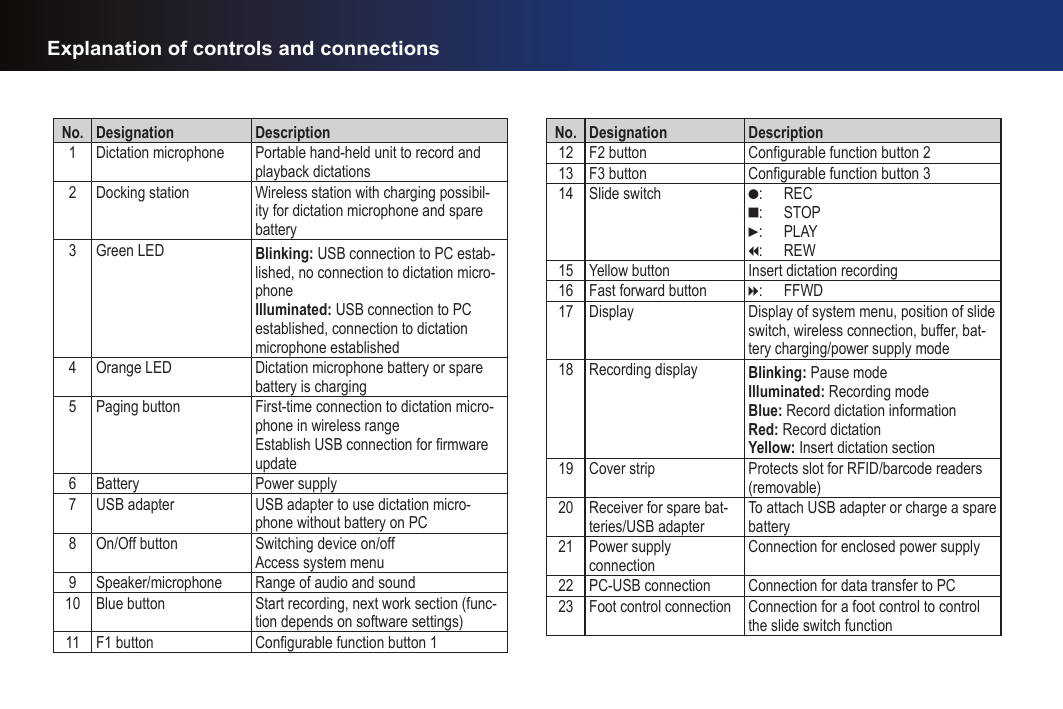
No. Designation Description1 Dictation microphone Portable hand-held unit to record and playback dictations2 Docking station Wireless station with charging possibil-ity for dictation microphone and spare battery3 Green LED Blinking: USB connection to PC estab-lished, no connection to dictation micro-phone  Illuminated: USB connection to PC established, connection to dictation microphone established4 Orange LED Dictation microphone battery or spare battery is charging5 Paging button First-time connection to dictation micro-phone in wireless rangeEstablish USB connection for rmware update6 Battery Power supply7 USB adapter USB adapter to use dictation micro-phone without battery on PC8 On/Off button Switching device on/offAccess system menu9 Speaker/microphone Range of audio and sound10 Blue button Start recording, next work section (func-tion depends on software settings)11 F1 button Configurable function button 1No. Designation Description12 F2 button Configurable function button 213 F3 button Configurable function button 314 Slide switch g:  RECe:  STOPf:  PLAYi:  REW15 Yellow button Insert dictation recording16 Fast forward button h:  FFWD17 Display Display of system menu, position of slide switch, wireless connection, buffer, bat-tery charging/power supply mode18 Recording display Blinking: Pause mode  Illuminated: Recording modeBlue: Record dictation informationRed: Record dictationYellow: Insert dictation section19 Cover strip Protects slot for RFID/barcode readers (removable)20 Receiver for spare bat-teries/USB adapterTo attach USB adapter or charge a spare battery21 Power supply connectionConnection for enclosed power supply22 PC-USB connection Connection for data transfer to PC23 Foot control connection Connection for a foot control to control the slide switch functionExplanation of controls and connections
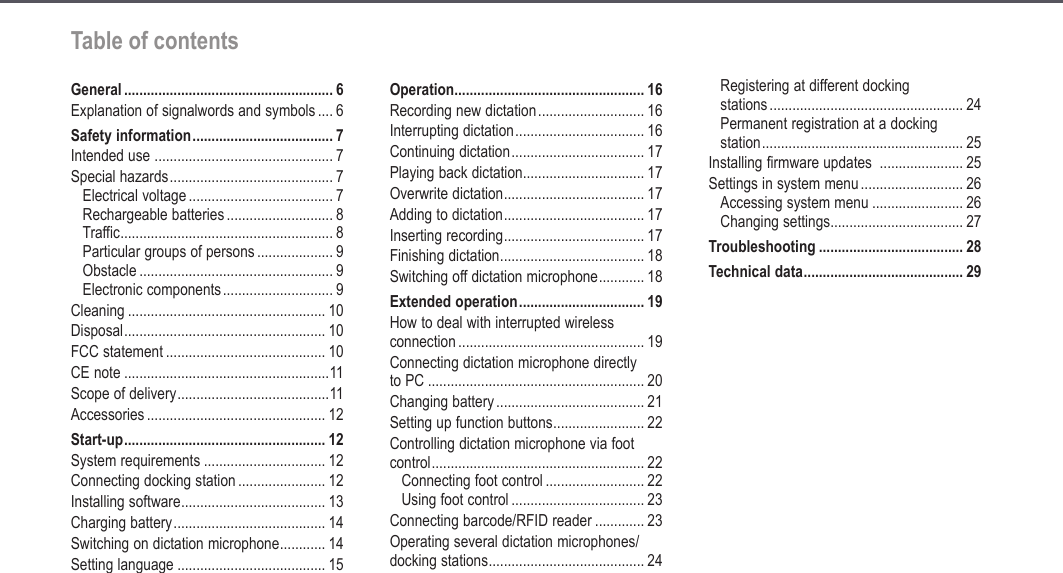
5Table of contentsTable of contentsGeneral ....................................................... 6Explanation of signalwords and symbols .... 6Safety information ..................................... 7Intended use  ............................................... 7Special hazards ........................................... 7Electrical voltage ...................................... 7Rechargeable batteries ............................ 8Traffic ........................................................ 8Particular groups of persons .................... 9Obstacle ................................................... 9Electronic components ............................. 9Cleaning .................................................... 10Disposal ..................................................... 10FCC statement .......................................... 10CE note ......................................................11Scope of delivery ........................................11Accessories ............................................... 12Start-up ..................................................... 12System requirements ................................ 12Connecting docking station ....................... 12Installing software ...................................... 13Charging battery ........................................ 14Switching on dictation microphone ............ 14Setting language ....................................... 15Operation .................................................. 16Recording new dictation ............................ 16Interrupting dictation .................................. 16Continuing dictation ................................... 17Playing back dictation ................................ 17Overwrite dictation ..................................... 17Adding to dictation ..................................... 17Inserting recording ..................................... 17Finishing dictation ...................................... 18Switching off dictation microphone ............ 18Extended operation ................................. 19How to deal with interrupted wireless  connection ................................................. 19Connecting dictation microphone directly  to PC ......................................................... 20Changing battery ....................................... 21Setting up function buttons ........................ 22Controlling dictation microphone via foot  control ........................................................ 22Connecting foot control .......................... 22Using foot control ................................... 23Connecting barcode/RFID reader ............. 23Operating several dictation microphones/ docking stations ......................................... 24Registering at different docking  stations ................................................... 24Permanent registration at a docking  station ..................................................... 25Installing firmware updates  ...................... 25Settings in system menu ........................... 26Accessing system menu ........................ 26Changing settings ................................... 27Troubleshooting ...................................... 28Technical data .......................................... 29
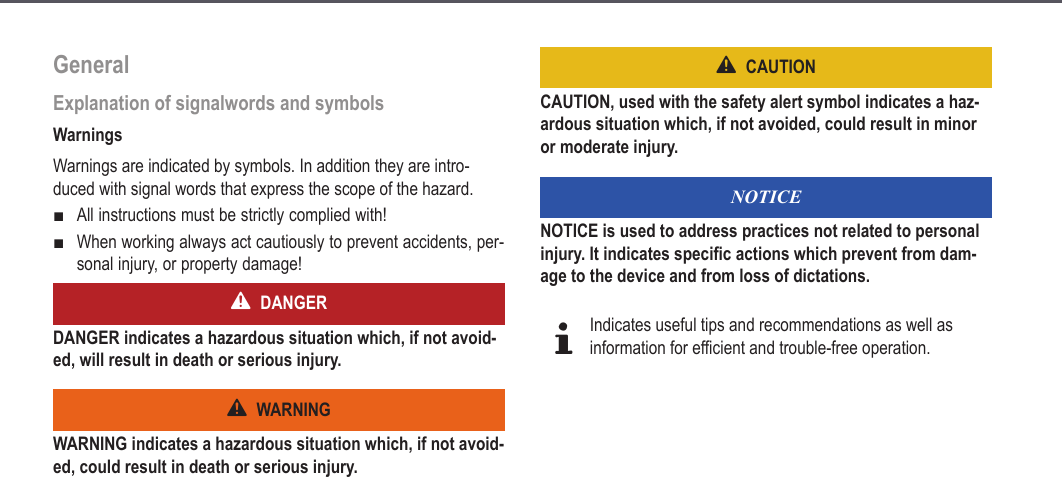
6GeneralExplanation of signalwords and symbolsWarningsWarnings are indicated by symbols. In addition they are intro-duced with signal words that express the scope of the hazard.All instructions must be strictly complied with!When working always act cautiously to prevent accidents, per-sonal injury, or property damage!DANGERDANGER indicates a hazardous situation which, if not avoid-ed, will result in death or serious injury.WARNINGWARNING indicates a hazardous situation which, if not avoid-ed, could result in death or serious injury.■■CAUTIONCAUTION, used with the safety alert symbol indicates a haz-ardous situation which, if not avoided, could result in minor or moderate injury.NOTICENOTICE is used to address practices not related to personal injury. It indicates specific actions which prevent from dam-age to the device and from loss of dictations.dIndicates useful tips and recommendations as well as information for efficient and trouble-free operation.General
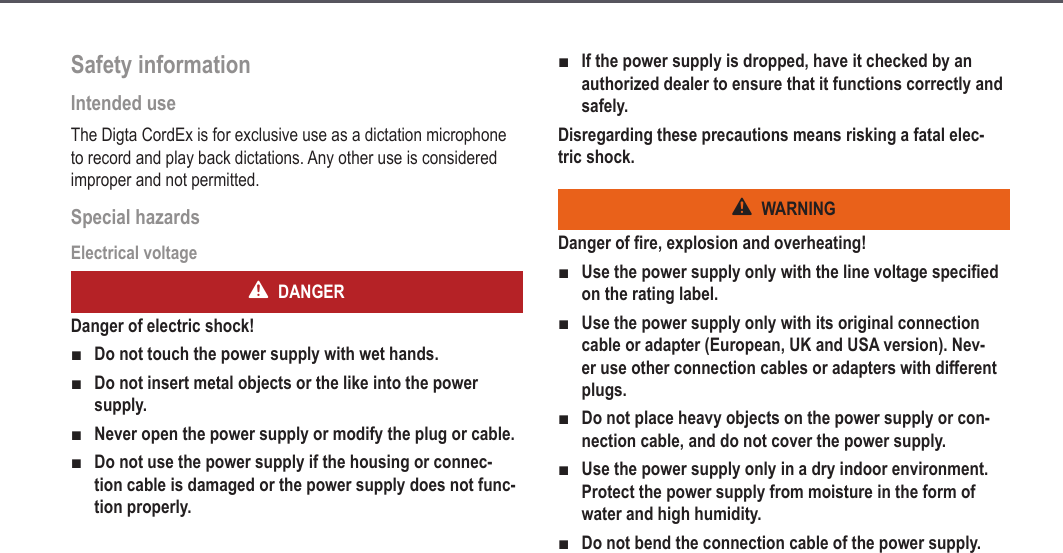
Safety informationIntended use The Digta CordEx is for exclusive use as a dictation microphone to record and play back dictations. Any other use is considered improper and not permitted.Special hazardsElectrical voltageDANGERDanger of electric shock!Do not touch the power supply with wet hands.Do not insert metal objects or the like into the power supply.Never open the power supply or modify the plug or cable.Do not use the power supply if the housing or connec-tion cable is damaged or the power supply does not func-tion properly.■■■■If the power supply is dropped, have it checked by an authorized dealer to ensure that it functions correctly and safely.Disregarding these precautions means risking a fatal elec-tric shock.WARNINGDanger of fire, explosion and overheating!Use the power supply only with the line voltage specified on the rating label.Use the power supply only with its original connection cable or adapter (European, UK and USA version). Nev-er use other connection cables or adapters with different plugs.Do not place heavy objects on the power supply or con-nection cable, and do not cover the power supply.Use the power supply only in a dry indoor environment. Protect the power supply from moisture in the form of water and high humidity.Do not bend the connection cable of the power supply.■■■■■■7Safety information
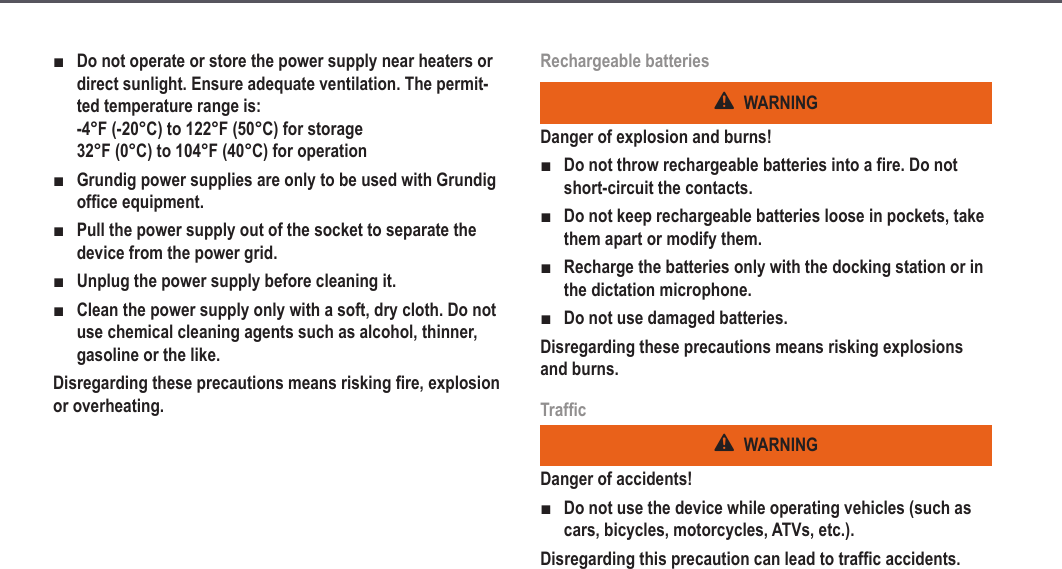
8Do not operate or store the power supply near heaters or direct sunlight. Ensure adequate ventilation. The permit-ted temperature range is: -4°F (-20°C) to 122°F (50°C) for storage 32°F (0°C) to 104°F (40°C) for operationGrundig power supplies are only to be used with Grundig office equipment.Pull the power supply out of the socket to separate the device from the power grid.Unplug the power supply before cleaning it.Clean the power supply only with a soft, dry cloth. Do not use chemical cleaning agents such as alcohol, thinner, gasoline or the like.Disregarding these precautions means risking fire, explosion or overheating.■■■■■Rechargeable batteriesWARNINGDanger of explosion and burns!Do not throw rechargeable batteries into a fire. Do not short-circuit the contacts.Do not keep rechargeable batteries loose in pockets, take them apart or modify them.Recharge the batteries only with the docking station or in the dictation microphone.Do not use damaged batteries.Disregarding these precautions means risking explosions and burns.TrafficWARNINGDanger of accidents!Do not use the device while operating vehicles (such as cars, bicycles, motorcycles, ATVs, etc.).Disregarding this precaution can lead to traffic accidents.■■■■■Safety information
9Particular groups of personsCAUTIONRisk of injury!Do not leave the device unattended and use it with extreme caution if children or persons who cannot assess the dangers are nearby.Keep the device away from persons (including children) who are unable to use it safely due to their physical, sen-sory or mental limitations, lack of experience or lack of knowledge.Disregarding these precautions means risking injury.ObstacleCAUTIONStumbling hazard!Ensure that the power supply is always in a safe position and that neither the power supply nor any cables connect-ed to the docking station constitute obstacles.■■■Disregarding these precautions may lead to a stumbling hazard.Electronic componentsNOTICERisk of damage and void warranty!Protect the device from moisture (such as rain or water spray).Do not place the device near a heater nor in direct sunlight.Do not open the device under any circumstances.Do not modify the device.Disregarding these points can cause the device to be dam-aged and the warranty to become void.■■■■Safety information
10NOTICELoss of data!Please check your recording to ensure that it is complete and repeat it if necessary.If you are electrostatically charged and touch a device which is switched on, the device may switch off automatically to protect against damage.NOTICESignal interference!Do not make recordings near mobile telephones. In case of interference (such as hissing), increase the distance.Disregarding this point may lead to disruption of the record-ing by interference.■■CleaningNOTICERisk of damage!Clean the device only on the outside with a dry, soft cloth. Do not use chemical cleaning agents.Disregarding these instructions can cause the device to be damaged.DisposalRechargeable batteries are not to be disposed of in ordinary household trash. Please dispose of them in an environmentally sound manner by bringing them to an appropriate public collection area or returning them to your dealer.FCC statementThis device complies with Part 15 of the FCC Rules. Operation is subject to the following two conditions:(1) This device may not cause harmful interference, and  (2) this device must accept any interference received, including interference that may cause undesired operation.■Safety information
11Note: This equipment has been tested and found to comply with the limits for a Class B digital device, pursuant to Part 15 of the FCC Rules. These limits are designed to provide reasonable pro-tection against harmful interference in a residential installation. This equipment generates, uses and can radiate radio frequen-cy energy and, if not installed and used in accordance with the instructions, may cause harmful interference to radio communi-cations. However, there is no guarantee that interference will not occur in a particular installation. If this equipment does cause harmful interference to radio or television reception, which can be determined by turning the equipment off and on, the user is encouraged to try to correct the interference by one or more of the following measures:Reorient or relocate the receiving antenna.Increase the separation between the equipment and receiver.Connect the equipment into an outlet on a circuit different from that to which the receiver is connected.Consult the dealer or an experienced radio/TV technician for help.Caution: Any changes or modfications not expressly approved by the party responsible for compliance could void the user‘s authori-ty to operate the equipment.■■■CE noteThe CE mark confirms that the device corresponds to the relevant guidelines of the Eurpean Union.Scope of deliveryDictation microphone Digta CordEx■USB cable for docking station■Docking station■Cover strip barcode/RFID reader connection channel■Power supply ■USB cable for power supply of dictation microphone without battery■Rechargeable battery■Safety information
12AccessoriesYou will find original accessories approved by the manufacturer for Digta CordEx under: www.grundig-gbs.comThe performance features described by Grundig only apply to genuine Grundig accessories. Please make sure to choose only genuine accessories from Grundig. Product liability and warran-ty service are provided only in this case. The use of non-Grundig accessories or those which are not recommended and approved by Grundig automatically void any warranty claims towards Grundig.Start-upSystem requirementsDigtaSoft/DigtaSoft Pro, as of V4.2.0 by Grundig Business Systems or compatible dictation software by other manufacturers.Processor (500 MHz or higher)Windows 2000 SP4 (Rollup 1), Windows XP SP2,  Windows VistaUSB 1.1 or USB 2.0MAPI compatible e-mail program for e-mail connection (e.g. Microsoft Outlook)Connecting docking stationPlace docking station [2] near the PC.Connect plug of power supply (as seen from the back) to left jack on docking station.■■■■■►►Start-up
13 WARNING! Insert the plug of the power supply only into power sockets which provide the line voltage speci-fied on the rating label. Otherwise there is a danger of fire, explosion and overheating.The orange LED [4] on docking station briefly illuminates when current supply is available.Connect USB cable to PC and docking station. For this pur-pose, plug USB cable (as seen from the back) into right jack of docking station and the other end into USB connection of the PC.►►The green LED [3] on docking station blinks as soon as dock-ing station of Digta CordEx is properly recognized by the PC.Installing softwaredRecording and playback of dictations with Digta Cor-dEx requires dictation software to be installed on the PC, e.g. DigtaSoft or DigtaSoft Pro by Grundig Business Sys-tems. For additional installing information, see operation instructions of dictation software.Start-up
14Charging batteryWARNINGDanger of explosion and burns!Recharge the batteries only with the docking station or in the dictation microphone.Do not use damaged batteries.Disregarding these precautions means risking explosions and burns.The battery has to be attached to the receiver of the dictation microphone and must be charged for start-up. Alternatively the dictation microphone can be supplied with power by means of a special USB adapter (see section “Connecting dictation micro-phone directly to PC”).Push battery into receiver on back of dictation microphone in direction of arrow until it snaps into place.■■►Place dictation microphone [1] into docking station [2].The orange LED [4] indicates that battery is being charged. When LED goes out, the battery is completely charged.dThe charging process does not start immediately, rather after several minutes.Switching on dictation microphonePress On/Off button [8] on right side of dictation microphone [1] and hold until company logo appears in display [17].On docking station [2] the green LED [3] signals the successful registration of the dictation microphone at docking station by continuous illumination.►►Start-up
15dTo conserve the battery, the device switches to sleep mode if no button is pressed on the dictation microphone for an extended time. By pressing any button, the device becomes operational again.If device is not used for an extended time, it switches off completely.Setting languageThe dictation microphone features a system menu for internal settings. During initial start-up, it is practical to set the display language.Additional configuration options via system menu are described in section “Settings in system menu”.Briefly press On/Off button [8] on dictation microphone [1] until the text Menu appears at bottom left of display text.Press blue button Menu [10].Move selection (marker) from one menu item to the next via the yellow button (up) [15] and F3 button (down) [13] on dicta-tion microphone .Select Language and press fast forward h OK [16].►►►►The corresponding submenu appears.Select the desired language and press fast forward h OK.Press blue button CANC to exit system menu.►►Start-up
16OperationRecording new dictationSwitch on dictation microphone [1].Start dictation software.Move slide switch [14] to e position.Press blue button [10] on dictation microphone.The display [17] shows readiness to record by the pause symbol.At the same, the recording indicator [18] blinks red.The dictation microphone is now ready to record. Move the slide switch to position g and dictate into the micro-phone [9].The recording symbol appears on display, and recording indi-cator illuminates permanently red.dIf you leave the reception area of the docking station dur-ing recording, the wireless connection to the dictation microphone is interrupted and the dictation is placed in a buffer up to 1 minute (see section “How to deal with inter-rupted wireless connection”). Interrupting dictationMove slide switch [14] to e position. The pause symbol appears on the display [17]. The recording indicator [18] blinks red.►►Operation
17Continuing dictationMove the slide switch [14] on the dictation microphone [1] to position g and continue dictating into the microphone [9].Playing back dictationMove the slide switch [14] on the dictation microphone [1] to position i (rewind) or press fast forward h [16] to move to the desired location in the recording.During fast forward/rewind, the according symbols appear on the display [17]. Move slide switch to f position.The dictation is played back at the current position.Overwrite dictationMove the slide switch [14] on the dictation microphone [1] to position i (rewind) or press fast forward h [16] to move to the position in the dictation to overwrite.►►►►Move slide switch to e position.Move the slide switch to position g and dictate the changes.The recording indicator [18] will be lit red. The dictation will be overwritten as of the previously selected position.Adding to dictationMove the slide switch [14] on the dictation microphone [1] to position e.Press fast forward h [16] and locate the end of the dictation.Move the slide switch to position g and dictate the additions into the microphone [9]. The dictation addition will be at the end.Inserting recordingAdditional recordings can be inserted into an existing dictation without overwriting the old dictation.Move the slide switch [14] on the dictation microphone [1] to position i (rewind) or press fast forward h [16] to move to the position in the dictation where text is to be inserted.►►►►►►Operation
18dThe function can vary, depending on applied dictation software.Move slide switch to e position.Press yellow button Insert [15].Move the slide switch [14] to position g and dictate the text to be added into the microphone.Starting at preselected position, new text is integrated into existing dictation.Move slide switch to e position.The recording will be interrupted. To continue, move the slide switch to position g.Press yellow button Insert.The inserted recording is finished.dDepending on applied dictation software, it is possible to insert additional information text (info) into dictations.For additional information, see operating instructions of dictation software.►►►►►Finishing dictationStopping the recording:  Move the slide switch [14] on the dictation microphone [1] briefly to position i (rewind) or press fast forward h [16].To finish dictation: Press blue button [10].dDepending on applied dictation software, function of the blue button can vary.For additional information, see operating instructions of dictation software.Switching off dictation microphoneKeep On/Off button [8] on dictation microphone [1] pressed until indication in display [17] goes out.►►►Operation
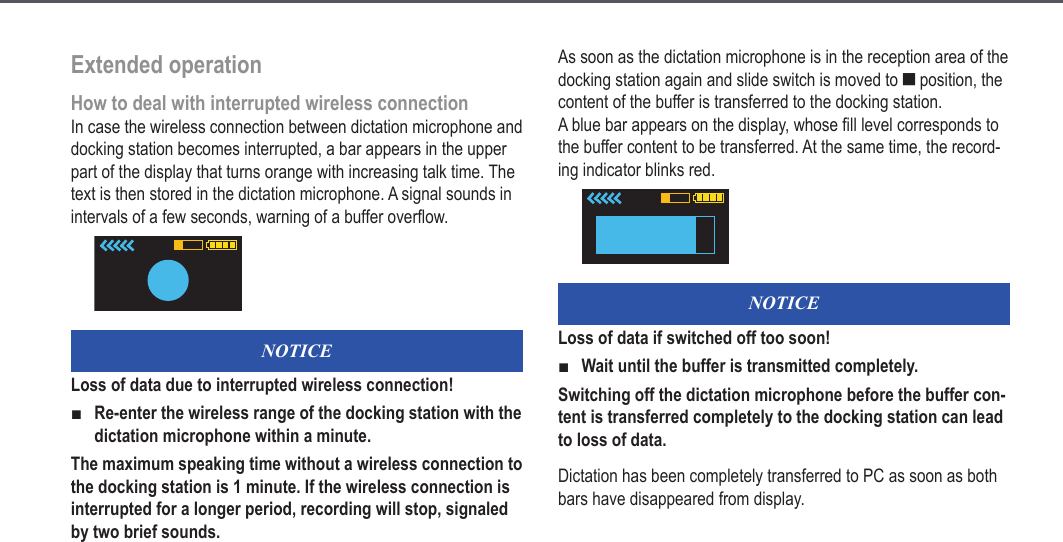
19Extended operationHow to deal with interrupted wireless connectionIn case the wireless connection between dictation microphone and docking station becomes interrupted, a bar appears in the upper part of the display that turns orange with increasing talk time. The text is then stored in the dictation microphone. A signal sounds in intervals of a few seconds, warning of a buffer overflow.NOTICELoss of data due to interrupted wireless connection!Re-enter the wireless range of the docking station with the dictation microphone within a minute.The maximum speaking time without a wireless connection to the docking station is 1 minute. If the wireless connection is interrupted for a longer period, recording will stop, signaled by two brief sounds.■As soon as the dictation microphone is in the reception area of the docking station again and slide switch is moved to e position, the content of the buffer is transferred to the docking station. A blue bar appears on the display, whose fill level corresponds to the buffer content to be transferred. At the same time, the record-ing indicator blinks red.NOTICELoss of data if switched off too soon!Wait until the buffer is transmitted completely.Switching off the dictation microphone before the buffer con-tent is transferred completely to the docking station can lead to loss of data.Dictation has been completely transferred to PC as soon as both bars have disappeared from display.■Extended operation
20Connecting dictation microphone directly to PCThe dictation microphone can be connected directly to PC by means of a special USB adapter for operation without battery. At time of delivery, the USB adapter is located in the docking station at the receiver for spare battery.Pull USB adapter [7] in direction of the arrow from docking sta-tion [2] .► NOTICE! Lift the cover plate of the adapter careful-ly using the point of a ballpoint pen or screwdriver. Using other tools may damage the cover plate.Connect USB plug to jack.Close cover plate. Ensure that the nibs of the cover plate prop-erly fit into the grooves of the adapter housing.Push USB adapter on back of dictation microphone [1] in direction of arrow into battery holder.►►►►Extended operation
21The dictation microphone is now ready.Changing batteryWARNINGDanger of explosion and burns!Recharge the batteries only with the docking station or in the dictation microphone.Do not use damaged batteries.Disregarding these precautions means risking explosions and burns.■■The useful life of Digta CordEx can be expanded by means of a replacement battery, without causing longer pauses by battery charging times. A replacement battery is available as accessory and not included in the scope of delivery.Switch off dictation microphone [1].Remove battery [6] on back of dictation microphone in direc-tion of arrow.Insert replacement battery into receiver of dictation micro-phone in reverse direction of arrow.The dictation microphone is now ready.An empty battery can be charged during operation at the dock-ing station.►►►Extended operation
22Remove already existing battery or USB adapter from dock-ing station.Insert battery to be charged completely into receiver of docking station in reverse direction of arrow.The orange LED indicates that battery is being charged. When LED goes out, the battery is completely charged.dThe battery on the docking station is only charged if dic-tation microphone is not located in docking station. Other-wise the battery in dictation microphone is charged first.The charging process does not start immediately, rather after several minutes.►►Setting up function buttonsFunction buttons F1 to F3 [11-13] can be assigned with spe-cial functions. Set-up is performed via software AdapterServer. Depending on applied dictation software, assignment of function buttons can vary.dFor additional set-up information, see operating instruc-tions of dictation software.Controlling dictation microphone via foot controlThe dictation microphone can be operated by means of a foot control (optionally available). This allows the control of dictation microphone functions without the use of hands.Connecting foot controlPlug connection cable of foot control into the provided connec-tion jack [23] on back of docking station.►Extended operation
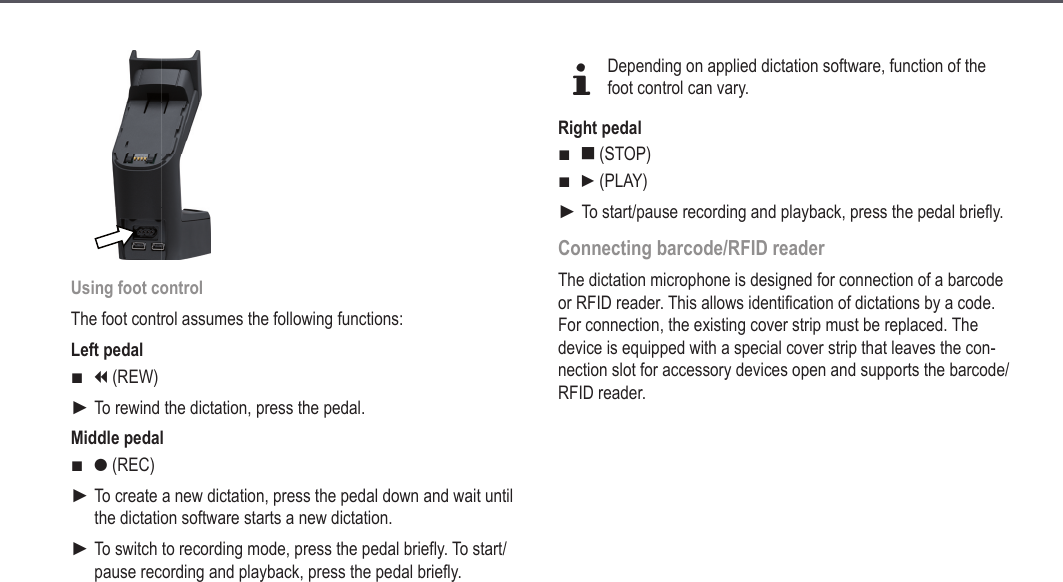
23Using foot controlThe foot control assumes the following functions:Left pedali (REW)To rewind the dictation, press the pedal.Middle pedalg (REC)To create a new dictation, press the pedal down and wait until the dictation software starts a new dictation.To switch to recording mode, press the pedal briefly. To start/pause recording and playback, press the pedal briefly.■►■►►dDepending on applied dictation software, function of the foot control can vary.Right pedale (STOP)f (PLAY)To start/pause recording and playback, press the pedal briefly.Connecting barcode/RFID readerThe dictation microphone is designed for connection of a barcode or RFID reader. This allows identification of dictations by a code.  For connection, the existing cover strip must be replaced. The device is equipped with a special cover strip that leaves the con-nection slot for accessory devices open and supports the barcode/RFID reader. ■■►Extended operation
24Remove existing cover strip [19] from dictation microphone [1].Attach new cover strip to dictation microphone.Connect barcode/RFID reader to dictation microphone. See operating instructions of accessory devices.dFor details on use of barcode/RFID reader see operating instructions of reader and dictation software.Operating several dictation microphones/docking stationsTo be able to record with one dictation microphone in different rooms with separate docking stations, a dictation microphone can be operated on different docking stations.►►►Registering at different docking stationsPresettingSwitch on dictation microphone [1].In system menu, set option Station allocation to Dynamic pair. (see section “Settings in system menu”).dThe setting Dynamic pair. is a factory setting.Switch off dictation microphone.RegisteringApproach docking station [2] with which connection is to be established, closely with dictation microphone [1].Switch on dictation microphone.The green LED [3] of docking station blinks fast when dictation microphone registers for the first time at the station.Press paging button [5] on docking station.The dictation microphone is now connected to docking station. Repeat the registration process for each docking station with which the dictation microphone is to be connected.►►►►►►Extended operation
25dRenewed registration is only required if dictation micro-phone has been disconnected from docking station for an extended time. Otherwise it is sufficient to switch on the dictation microphone in reception area of docking station to establish connection.Permanent registration at a docking stationIf several docking station are in close proximity (e.g. in one room), the dictation microphone may only be connected to one selected station when switched on.Switch on dictation microphone [1] near the permanently assigned docking station [2].The dictation microphone registers in variable mode at the docking station.In system menu, set option Station allocation to Static pair. (see section “Settings in system menu”).The dictation microphone is now permanently linked to the docking station and connects with it every time it is switched on.►►dThe setting can only be reversed by means of the perma-nently assigned dictation microphone.Installing firmware updates Firmware updates include important changes by the manufactur-er to the functions of the Digta CordEx. New firmware is available on the Internet site at:www.grundig-gbs.com An Internet connection is required for downloading.NOTICEThe device can be damaged if the update process is interrupted!Do not interrupt the update process!If the firmware is incomplete, the device may be rendered unusable.dPrior to an update check if a firmware with a higher ver-sion number is available.Switch on dictation microphone [1].■►Extended operation
26Check firmware version in dictation microphone (see section “Settings in system menu”).If a new firmware version for Digta CordEx is available online, download the corresponding file onto the PC.Keep paging button [5] on docking station [2] pressed down for several seconds.Now the Digta CordEx registers itself for data transfer at the PC and is assigned with a separate drive letter. Copy the new firmware file “CordEx.hex” to the Digta CordEx drive.The dictation microphone shows the progress of the update in display [17].After successful transfer, the dictation microphone is rebooted.Installation of firmware update is now complete and dictation microphone is ready.Settings in system menuThe dictation microphone features a system menu for internal settings.►►►►Accessing system menuBriefly press On/Off button [8] on dictation microphone [1] until the text Menu appears at bottom left of display text.Press blue button Menu [10].The system menu consists of the following menu items:Connection  Start pairing  Stop pairingConnects the dictation microphone to a docking station or discon-nects an existing connection. This function is required for multiple device operation (see section “Operating several dictation micro-phone/docking stations”).Version/Info  Serial no.  FW/UrloaderDisplay of serial number and firmware version. This function is required for firmware update (see section “Installing firmware update”).►►■■Extended operation
27LanguageSelecting display language.Station allocation  Static pair.  Dynamic pair.Depending on setting, the dictation microphone always perma-nently connects to a docking station or searches for a nearby sta-tion in the reception area. This function is required for multiple device operation (see section “Operating several dictation micro-phones/docking stations”).Changing settingsMove selection (marker) from one menu item to the next via the yellow button (up) [15] and F3 button (down) [13] on dicta-tion microphone [1].Select the entry and press fast forward h [16] OK.The corresponding submenu appears.Select the entry and press fast forward h OK.Press blue button CANC [10] to exit system menu.■■►►►►dIf no button is pressed for an extended time, system menu is automatically exited.Extended operation
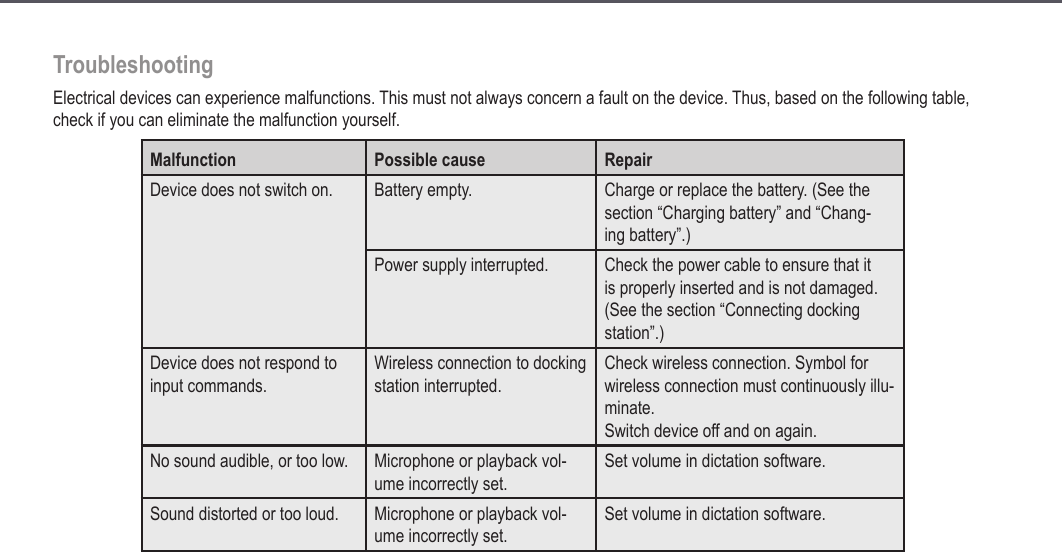
28TroubleshootingElectrical devices can experience malfunctions. This must not always concern a fault on the device. Thus, based on the following table, check if you can eliminate the malfunction yourself.Malfunction Possible cause RepairDevice does not switch on. Battery empty. Charge or replace the battery. (See the section “Charging battery” and “Chang-ing battery”.)Power supply interrupted. Check the power cable to ensure that it is properly inserted and is not damaged. (See the section “Connecting docking station”.)Device does not respond to input commands.Wireless connection to docking station interrupted.Check wireless connection. Symbol for wireless connection must continuously illu-minate. Switch device off and on again.No sound audible, or too low. Microphone or playback vol-ume incorrectly set.Set volume in dictation software.Sound distorted or too loud. Microphone or playback vol-ume incorrectly set.Set volume in dictation software.Troubleshooting
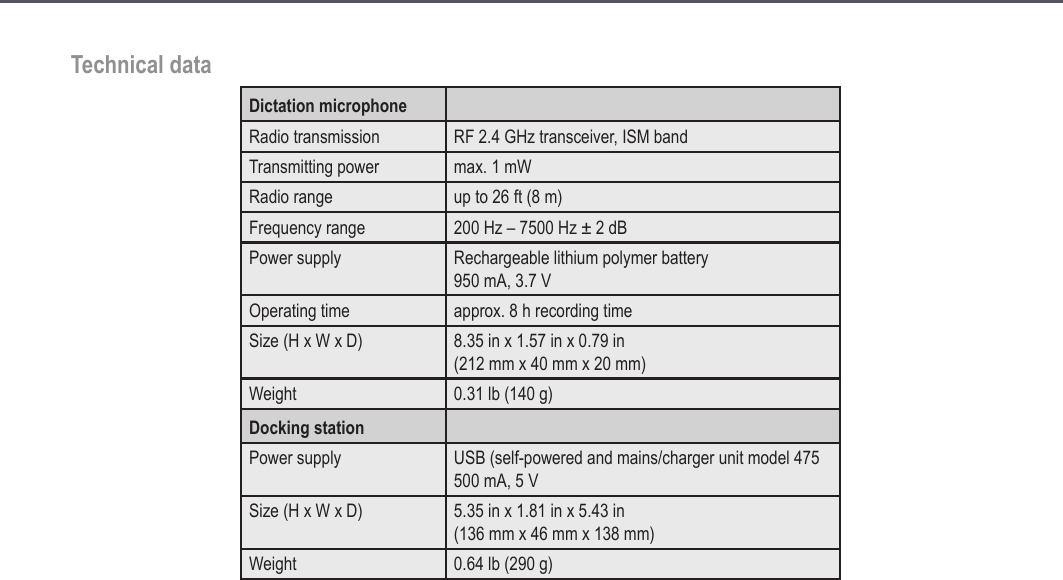
29Technical dataDictation microphoneRadio transmission RF 2.4 GHz transceiver, ISM bandTransmitting power max. 1 mWRadio range up to 26 ft (8 m)Frequency range 200 Hz – 7500 Hz ± 2 dBPower supply Rechargeable lithium polymer battery  950 mA, 3.7 VOperating time approx. 8 h recording timeSize (H x W x D) 8.35 in x 1.57 in x 0.79 in (212 mm x 40 mm x 20 mm)Weight 0.31 lb (140 g)Docking stationPower supply USB (self-powered and mains/charger unit model 475  500 mA, 5 VSize (H x W x D) 5.35 in x 1.81 in x 5.43 in (136 mm x 46 mm x 138 mm)Weight 0.64 lb (290 g)Technical data
30
31
32
Grundig Business Systems GmbH Weiherstraße 10 D-95448 Bayreuth Germanyinfo@grundig-gbs.comwww.grundig-gbs.com37335  941  0700   08/2008

Navigation menu