Grundig Platinum Pvr Remote Control Users Manual
Platinum PVR Remote Control to the manual 8fd191c0-735c-447f-b95d-db0358936fa9
2015-02-02
: Grundig Grundig-Platinum-Pvr-Remote-Control-Users-Manual-430192 grundig-platinum-pvr-remote-control-users-manual-430192 grundig pdf
Open the PDF directly: View PDF  .
.
Page Count: 1
FCC RULES
WIRELESS REMOTE CONTROL
This device complies with Part 15 of Federal Communications
Commission (FCC) Rules. Operation is subject to the following
conditions:
•This device may not cause harmful interference.
•This device must accept any interference that may cause
undesired operation.
•Unauthorized equipment changes may void FCC certification.
IMPORTANT SAFETY INSTRUCTIONS
You must keep safety in mind while using this device. Keep these
and any other instructions.
Installation
Heed Warnings: Carefully follow all warnings on the device
and in the operating instructions.
Heat: DON’T place the device near heat sources such as radiators,
stoves, heat registers, or other appliances that produce heat.
Care and Use
Cleaning: DON’T use liquid, abrasive, solvent, or aerosol cleaners.
Use a damp cloth for cleaning.
When Not in Use: Remove the batteries if you’re going to leave
this device alone or unused for a long time.
Get service from qualified persons when a solid
object or liquid has fallen onto or into the device.
Don’t try to service this device. Get service from
qualified persons. If you open any covers except
the battery cover you’ll void the warranty.
inside_front_cover_dishpvr.fm Page 0 Monday, July 9, 2001 1:03 PM
108933 1
CONTENTS OF THIS USER GUIDE
Remote Control Basics....................................... 2
Remote Control Batteries.................................... 2
Remote Control Signals: UHF and IR ................. 2
Remote Control Modes ....................................... 3
Remote Control Setup ........................................ 4
Set Up the Remote Control ................................. 4
Scan for Device Codes.........................4
Try the Device Codes...........................5
Check the Device Codes......................6
Change the Address ........................................... 6
Attach the Remote Control Antenna ................... 7
Install an Attenuator ............................................ 8
Switch Between TV and Device
Volume Control.............................................. 8
Remote Control Buttons................................... 10
Control the Receiver ......................................... 10
Control a TV (or a Second TV).......................... 15
Control a VCR (or a Second VCR).................... 17
Control a Cable TV Box .................................... 19
Control a Tuner or Amplifier .............................. 21
Device Codes .................................................... 23
TV Codes .......................................................... 23
VCR Codes ....................................................... 24
DVD Player Codes ...............................26
Cable TV Box Codes......................................... 26
Tuner/Amplifier Codes....................................... 26
Trouble-Shoot the Remote Control.................. 27
Limited Warranty ............................................... 29
If You Need Help ................................................31
Index ................................................................... 32
text_dishpvr.fm Page 1 Thursday, July 12, 2001 10:02 AM
2 108933
REMOTE CONTROL BASICS
•This remote control gives you easy access to all the features
of a DISH Network satellite TV receiver. Maybe best of all,
this remote lets you control DishPVR features. These features
let you record audio and video with full digital quality,
without a VCR.
•Also, you can set up the remote to control as many as three
devices along with the receiver. These can be TVs, VCRs,
DVD players, cable TV boxes, tuners, or audio amplifiers.
REMOTE CONTROL BATTERIES
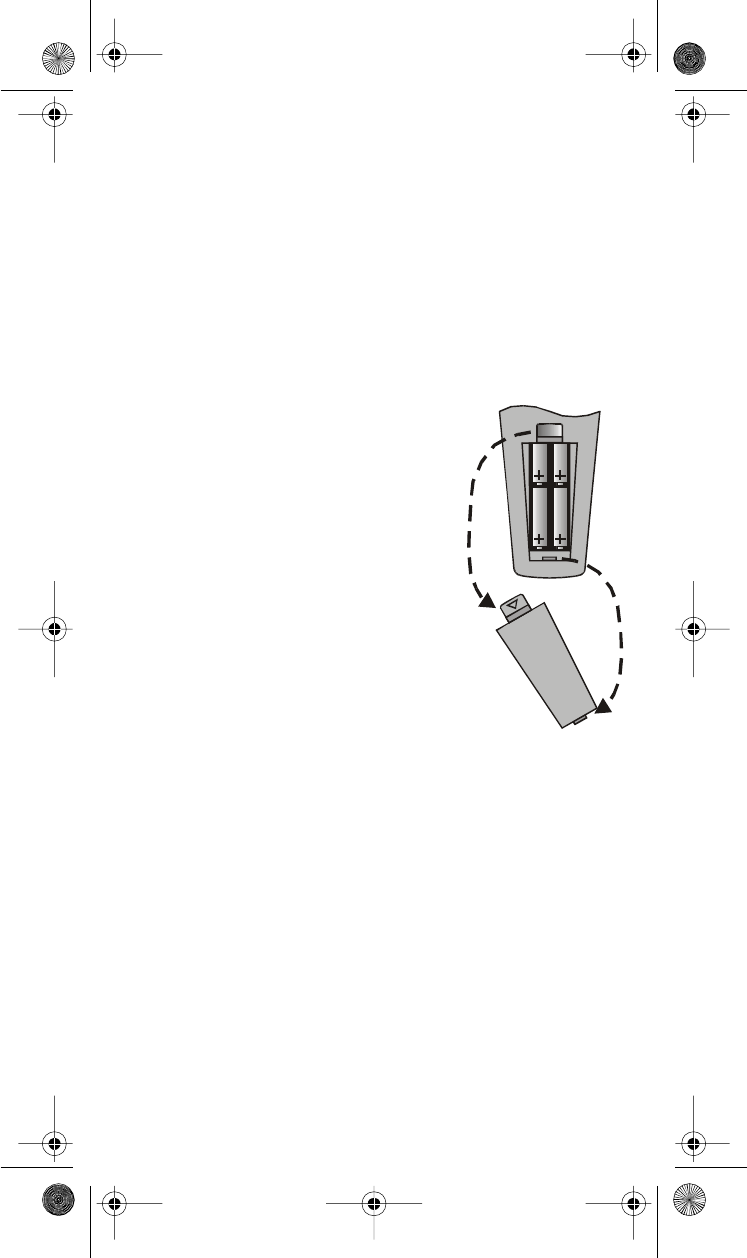
The remote control comes with AAA batteries.
When you replace old batteries, you should
replace all of the batteries. Use batteries of the
same kind, for example, alkaline or carbon
zinc, and don’t mix batteries of different kinds.
Alkaline batteries last longer.
1. Press down on the battery cover’s
top latch and lift the cover off.
2. Take out all of the old batteries.
3. Put the new batteries in. Make sure
you match the plus (“+”) ends with the
plus markings on the battery case.
4. Fit the battery cover’s bottom tab
back into the slot at the bottom of the
battery case, and snap the cover back
into place.
REMOTE CONTROL SIGNALS: UHF AND IR
Theremotecontrolusesboth Ultra-High Frequency (UHF) radio
signals and Infra-Red (IR) light signals to control the receiver
but uses only IR signals to control other devices.
•IR signals travel only short distances (40 feet or less),
and can’t go through walls or other solid objects.
You must point the remote control right at the device
you want to control, with no objects to block the signal path.
(for info about UHF signals, please go on to the next page)
text_dishpvr.fm Page 2 Thursday, July 12, 2001 10:02 AM
Remote Control Modes
108933 3
•UHF signals travel long distances (100 feet or more) and can
go through walls and other solid objects. Because UHF signals
travel so far, the receiver may respond to signals from other
nearby remote controls. To handle this problem, please see
Change the Address on page 6. If this doesn’t work,
please see Install an Attenuator on page 8.
•You need to attach the UHF remote antenna to the receiver’s
back panel UHF Remote Antenna
4 108933
REMOTE CONTROL SETUP
SET UPTHEREMOTE CONTROL
On the next few pages we tell you how to set up the remote to control
a TV, a VCR, or other devices.
When you get the remote it’s already setuptocontrolthe
receiver. But, you must set up the remote to control the
TV before you can use the Mute and Volume buttons.
To do this, you can either Scan for Device Codes here
or Try the Device Codes on page 5.
SCAN FOR DEVICE CODES
1. Use the device’s buttons or its remote control to turn it on.
2. Press and hold the mode button for the device, for about three
seconds. When all the other mode buttons light up, let go of the
button. For example, hold the TV button for a TV.
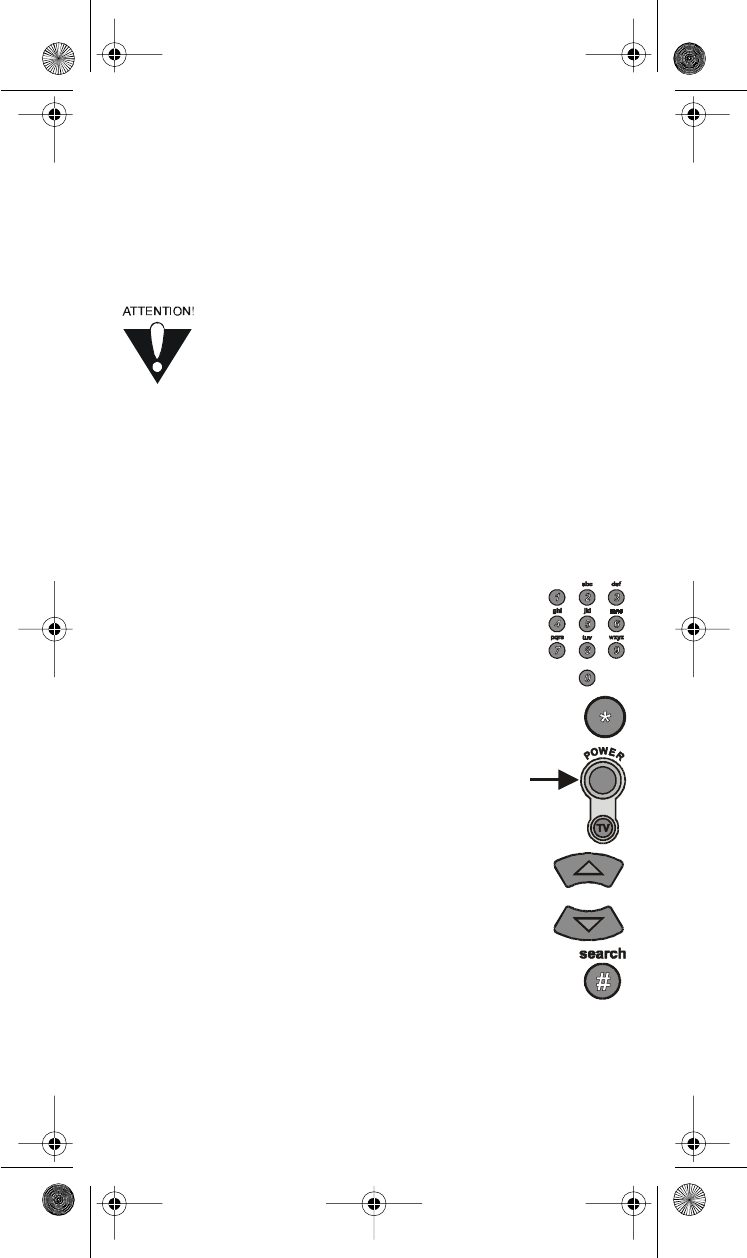
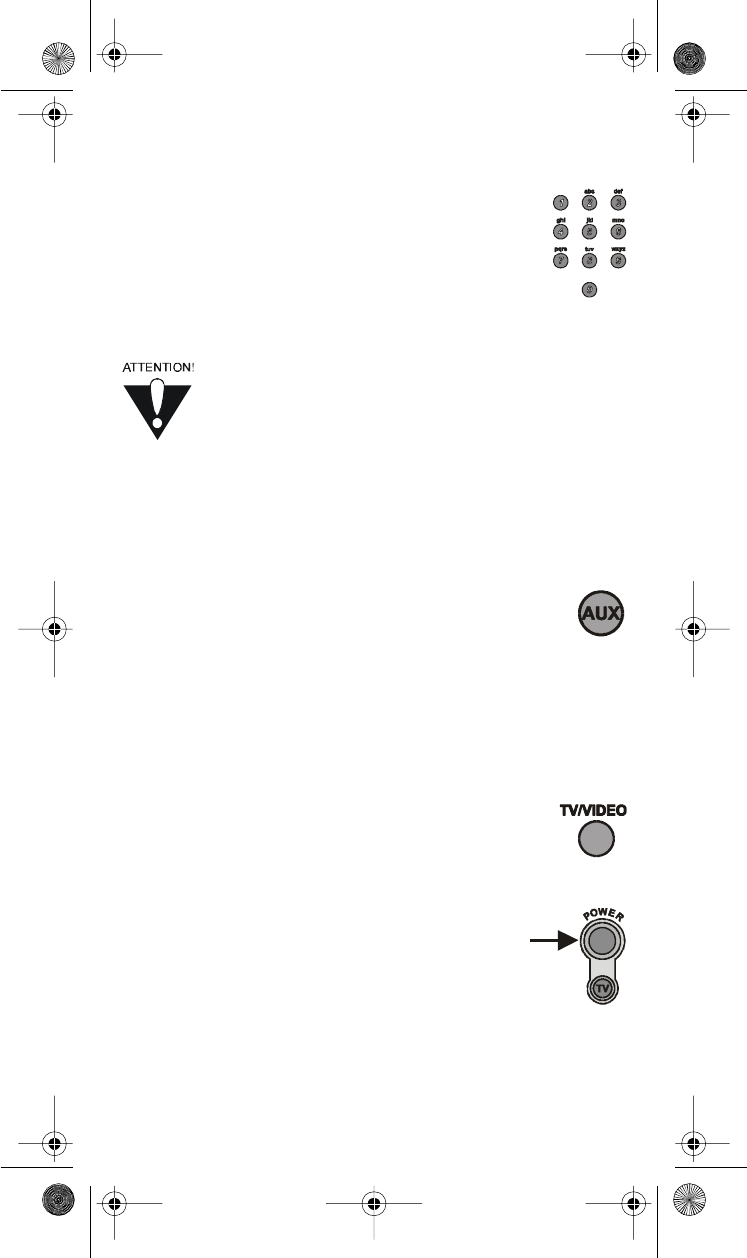
3. Only for the Aux mode, use the number buttons
toenter0forasecondTV,1forasecondVCR,
or 2 for a tuner or amplifier.
For any other mode, skip to step 5.
4. Only for the Aux mode, press the Star (*)button.
For any other mode, skip to step 5.
5. Press the blank Power button.
6. Press the up or down arrow button to set the
remote to the next code. The up arrow button
scans ahead and the down arrow button scans back.
Pressthebuttonagaintogoonwiththescan.
7. If the remote reaches the correct code, the device
turns off. When this happens, press the Pound (#)
button to store the code in the remote. If the code
works, the mode button flashes three times.
(pleasegoontothenextpage)
text_dishpvr.fm Page 4 Thursday, July 12, 2001 10:02 AM
Set Up the Remote Control
108933 5
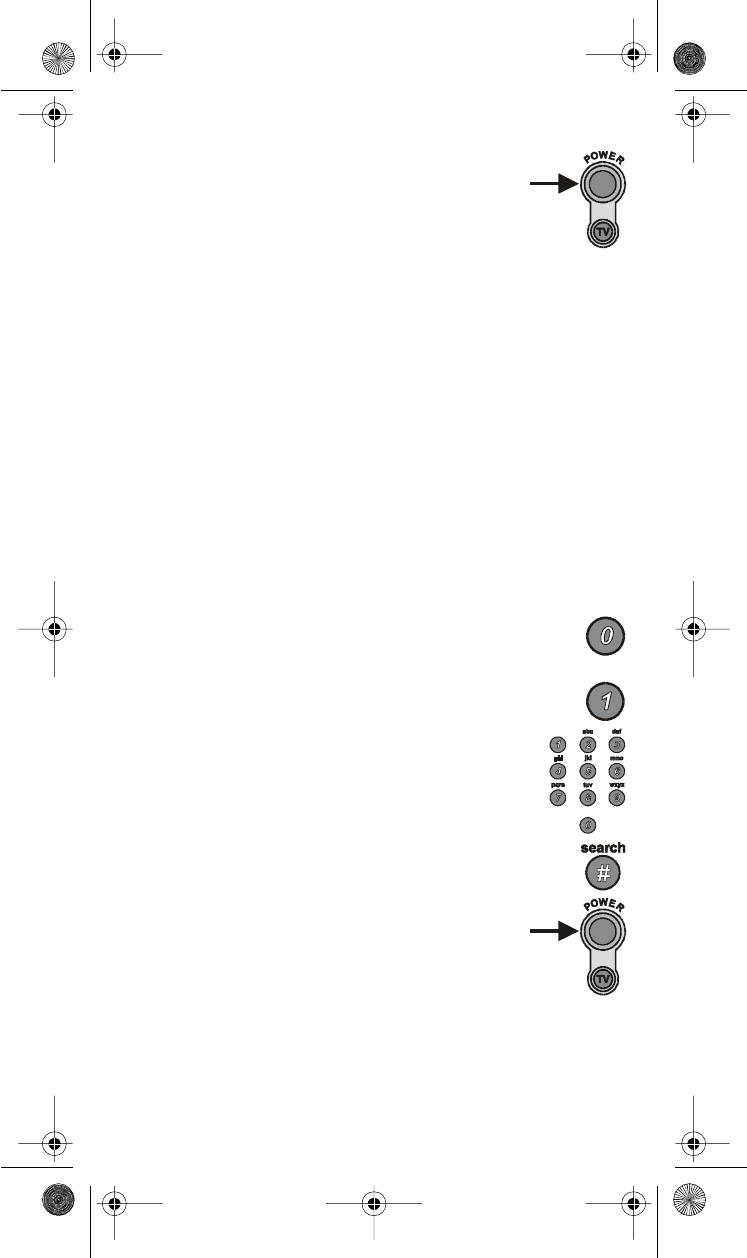
8. Press the blank Power button to turn the device
back on.
9. Try some other buttons to make sure they work.
Sometimes, the blank Power button works
when other buttons don’t.
Note: The mode button for the device starts to flash if you’ve scanned
all the codes for that device.
TRY THE DEVICE CODES
Note: If you just did the Scan for Device Codes,youdon’t
need to do this.
1. Use the device’s buttons or its remote control to turn it on.
2. Find the brand name of the device in the tables on page 23.
If the brand isn’t listed, please see Scan for Device Codes
on page 4.
3. Press and hold the mode button for the device you want
the remote to control, for about three seconds. When all
the other mode buttons light up, let go of the mode button.
For example, hold the TV mode button for a TV.
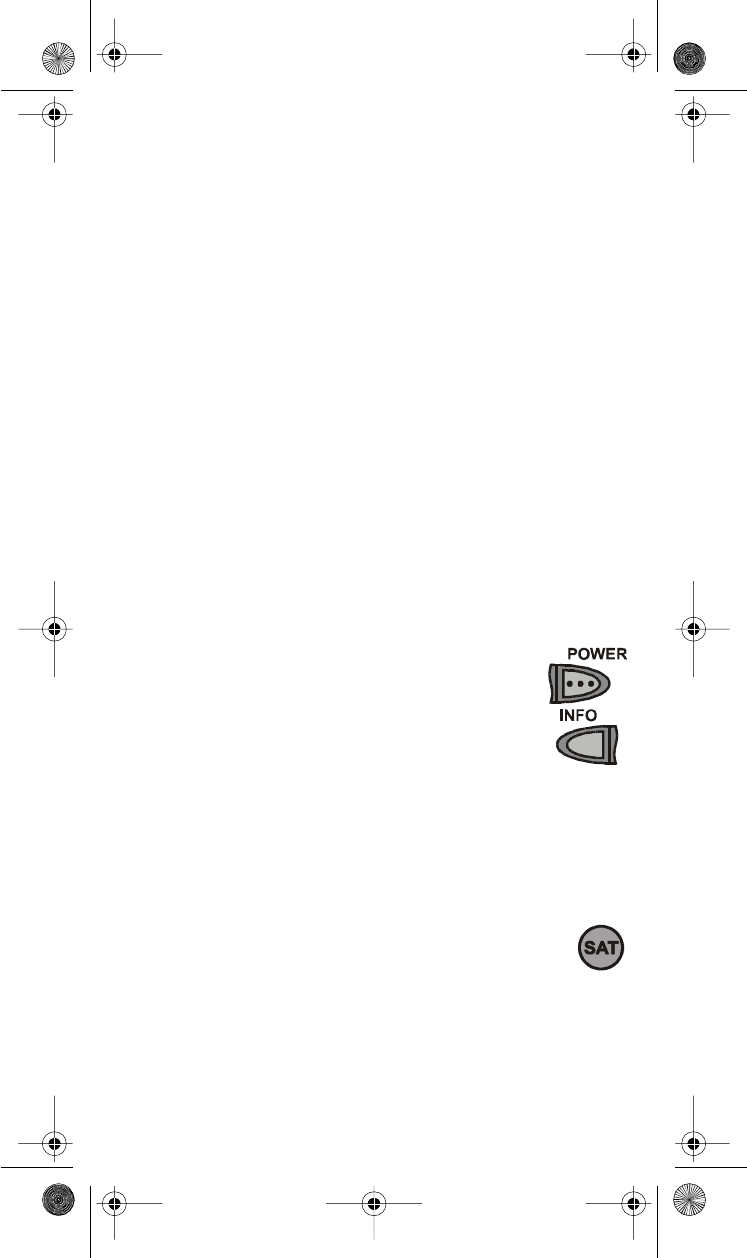
4. Only for the Aux mode, use a number button to enter 0
for a second TV, or 1 for a second VCR, or 2 for a tuner
or amplifier.
For any other mode, skip to step 5.
5. Use the number buttons to enter a device code
from the table.
6. Press the Pound (#) button. If the code works,
the mode button flashes three times.
7. Press the blank Power button to test if the code
works for the device. If it does, the device
should turn off.
8. Turn the device back on and try some other
buttons to make sure they work. Sometimes,
the blank Power button works when other
buttons don’t. If the code works for other buttons, stop here.
9.Ifthecodeyouentereddoesn’t work, do steps 3
through 8 again with another code from the tables.
or:
text_dishpvr.fm Page 5 Thursday, July 12, 2001 10:02 AM
6 108933
CHECK THE DEVICE CODES
You can find out what device code you’ve set for each remote control
mode. Here’s what to do:
1. Press and hold the mode button for the device, for about three
seconds. When all the other mode buttons light up, let go of the
mode button.
2. Press the Pound (#)buttontwice.
The mode button flashes the number for each digit of the device
code, with a pause between the groups of flashes. A quick flash
is for zero. For example, the mode button flashes five times,
pauses, flashes seven times, pauses, and flashes once quickly
for the 570 code.
CHANGE THE ADDRESS
Because UHF signals travel long distances and go through walls,
a neighbor’s remote may control your receiver by mistake.
To handle this problem, you can change the remote address.
Note: Here we show you examples of the receiver’s front panel
buttons. Your receiver’s buttons may look a bit different.
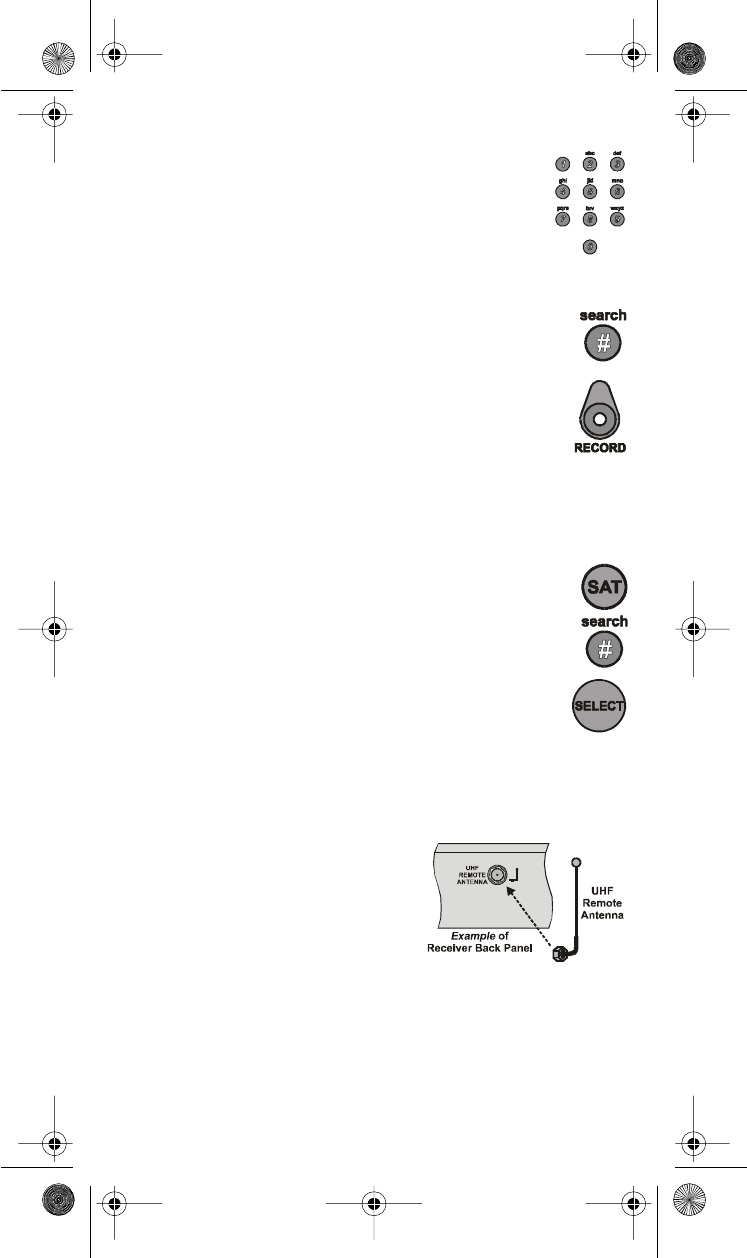
1. Open the Important System Information menu.
To do this, first make sure you turn the TV on.
Next, press the receiver’s front panel Power button
to turn the receiver off. Then, press the receiver’s
front panel Info button. (Please don’t use the remote
control’s buttons because they might control your
neighbor’s receiver.)
2. The Important System Information menu
shows a Remote Address.
Write down this number: _______.
3. Press and hold the Sat mode button about three
seconds, until all the mode buttons light up,
andthenletgooftheSat button.
(pleasegoontothenextpage)
text_dishpvr.fm Page 6 Thursday, July 12, 2001 10:02 AM
Attach the Remote Control Antenna
108933 7
4. Use the number buttons to enter any number
from 1 to 16, but not the one you found in step 2.
The Sat mode button goes out after you enter
each digit, and then lights up again.
Write down the number you enter _______.
5. Press the Pound (#) button.
If the address you enter works, the Sat mode button
flashes three times.
6. Press the Record button.
7. This is important: Make sure the Remote Address
on the Important System Information menu now
is the same as the one you entered in step 4. If it isn’t,
the remote can’t control the receiver.
8. To check the address, press and hold the Sat mode
button for three seconds. Then, let go of the Sat button,
and press the Pound (#) button twice.TheSat mode
button flashes the same number of times as the address
youenteredinstep4.
9. Press the Select button to close the
Important System Information menu.
ATTACH THE REMOTE CONTROL ANTENNA
To use the remote’s UHF signals to
control the receiver, you must attach the
UHF antenna to the receiver’s back
panel UHF Remote Antenna input.
Set the antenna straight up so you can
use the remote as far away as possible.
Note: If you don’t attach the antenna, you can still use the remote
to control the receiver at short distances. This is because
theremotesendsboth IR and UHF signals to the receiver.
text_dishpvr.fm Page 7 Thursday, July 12, 2001 10:02 AM
8 108933
INSTALL AN ATTENUATOR
Stray UHF signals can block signals from the remote control
to the receiver. To prevent blocks, you can install a 10 dB attenuator
(you can buy one from a consumer electronics parts store).
Note: This will help keep out stray UHF signals, but also cut down
how far away you can use the remote control.
1. Take the UHF antenna off
of the receiver’s back panel
UHF Remote Antenna input.
2. Put a 10 dB attenuator onto the
UHF Remote Antenna input.
3. Put the UHF antenna onto the
attenuator.
SWITCH BETWEEN TV AND DEVICE VOLUME CONTROL
If you set up the remote to control a television, the Mute and Volume
buttons control the TV volume, in most modes. But, if you use the Aux
mode to control a tuner or amplifier and the device has a volume
setting, you can set up the remote to control the device’s volume
instead
Switch Between TV and Device Volume Control
108933 9
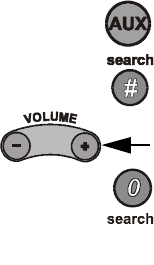
To set the remote to control the device’s volume:
1. Press and hold the Aux mode button
for three seconds, and then let go of it.
2. Press the Pound (#) button.
3. Press the plus (+) side of the Volume
button.
4. Press the 0number button.
5. Press the Pound (#) button.
The AUX mode button flashes three times.
To set the remote back to control the TV volume:
1. Press and hold the TV mode button
for three seconds, and then let go of it.
2. Press the Pound (#) button.
3. Press the plus (+) side of the Volume
button.
4. Press the 0number button.
5. Press the Pound (#) button.
The Aux mode button flashes
three times.
10 108933
REMOTE CONTROL BUTTONS
CONTROL THE RECEIVER
When you get the remote it’s already setuptocontrol
the receiver. But, you must set up the remote to control
the TV before you can use the Mute and Volume buttons.
Only the buttons we tell you about here control the
receiver. Some of the buttons we tell you about here
may not control your receiver. Please see the receiver
User Guide for info about the receiver’s features.
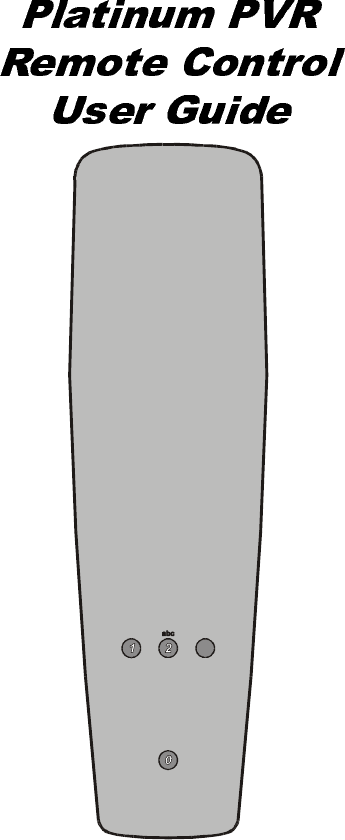
Please remember, the outside front cover of this Guide
shows you the whole remote control.
SAT MODE BUTTON
PressthisbuttontosettheremotetoSat (“satellite”) mode
to control the receiver. The Sat mode button’s back light
flashes once to show you’ve set the remote to Sat mode.
Make sure you keep the remote in Sat mode to use
the buttons we tell you about here.
TV/VIDEO BUTTON
If you connect the receiver with its back panel
TV Antenna/Cable In and TV Set Out ports, use this
button to switch the receiver between the satellite signal
(connect it to the Satellite In port) and another video signal
like a cable or broadcast TV antenna input (connect it
to the receiver’s TV Antenna/Cable In input).
Note: If you connect the receiver to other devices
with the phono (RCA) jacks or the S-Video output,
you must use the menus each device displays to change
the input from local broadcast TV to satellite TV.
POWER BUTTONS
Press the blank Power button to turn the receiver on
or off. The green Power light on the receiver’s front
panel turns on to show the receiver is on, and turns off
to show it’s off.
Note: To use the TV Power button, you must set up
theremotetocontroltheTV. PleaseseeSet Up the
Remote Control on page 4 for what to do.
text_dishpvr.fm Page 10 Thursday, July 12, 2001 10:02 AM

Control the Receiver
108933 11
MENU BUTTON
Press this button to open the Main Menu.
PAGE UP AND PAGE DOWN BUTTONS
Press the Page Up button or the Page Down
button to scan, page by page, through the
Program Guide,aThemes list, a Favorite List,
an Event Timers list, or a list of channels.
Note: An “event” is any satellite program.
MUTE BUTTON
To use this button, you must set up the remote to control
theTV. PleaseseeSet Up the Remote Control on page 4
for what to do.
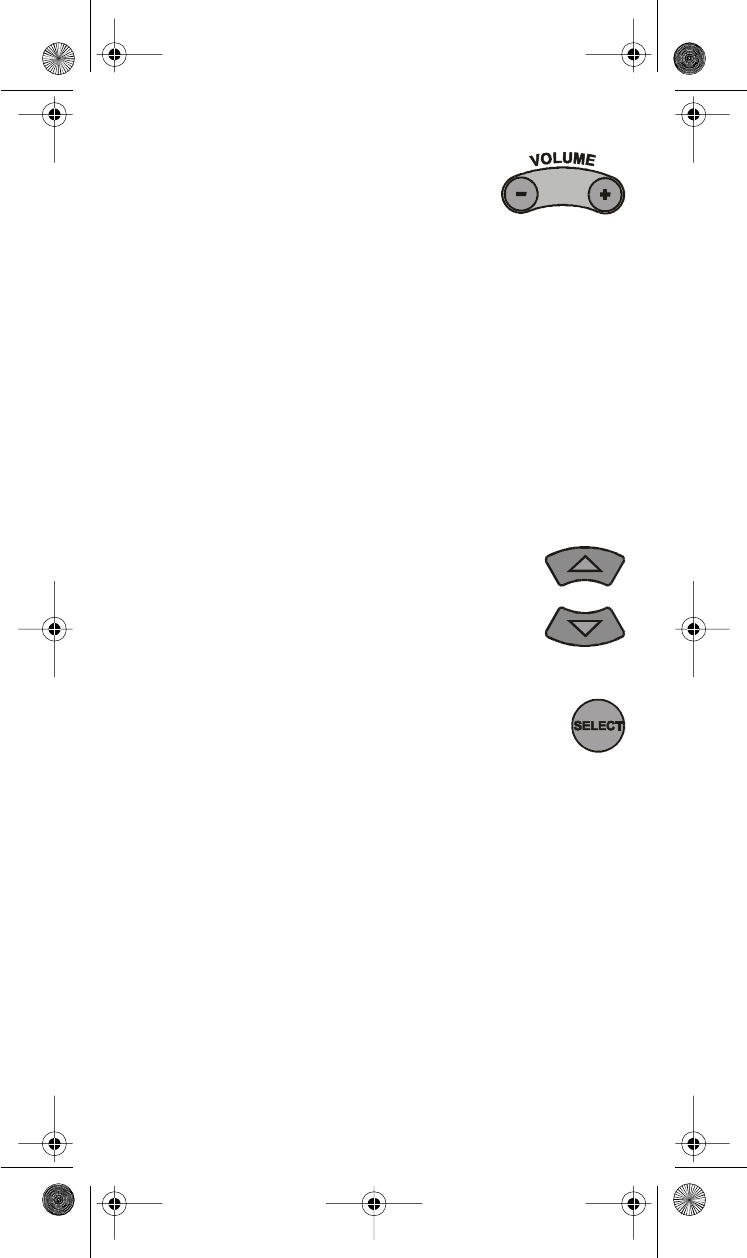
VOLUME BUTTON
To use this button, you must set up the remote
to control the TV. Please see Set Up the Remote
Control on page 4 for what to do.
GUIDE BUTTON
Press this button to open the Program Guide. When you
have the Program Guide open, press this button to apply
your Favorite Lists.
ARROW BUTTONS
•When you use a menu, press these buttons
to highlight an option.
•When you watch a program, press the
up or down arrow button to change channels.
•When you watch a program, press the Browse
button (the right arrow button) to open
the Browse Banner.
(for more about the arrow buttons, please see the next page)
12 108933
•When you have the Browse Banner open, press the
up or down arrow button to see the Browse Banner
for the next channel.
•When you have the Browse Banner open, press the
right or left arrow button to display the program on now
or the next program on a channel.
•Whenamenushowsyoualistofchoices,pressthe
up or down arrow button to see more choices.
•When you have the Program Guide open,
press these buttons to highlight a program.
•To enter a number in a menu, highlight the place
where you need to enter the number. Then, press
the up or down arrow button to increase or decrease
the number in the highlighted place. Or, you can use
the number buttons.
•When you watch a program, press the Theme button
(the left arrow button) to open the Themes menu.
SELECT BUTTON
Press this button to select the option you highlight in a menu.
RECALL BUTTON
Pressthisbuttontogobacktothelastreceiverchannel
youwatched. Pressitagaintoswitchbetweenthelasttwo
receiver channels you watched.
INFO BUTTON
•Press this button for more info when you have the
Program Guide or the Browse Banner open,
or when you watch a program.
•If a menu has a Help option, press this button to see
help info for that menu.
•Highlight a program in a Themes list and then
press this button for more info about that program.
•When you have the receiver off but the TV on,
press this button to open the Important System
Information menu.
text_dishpvr.fm Page 12 Thursday, July 12, 2001 10:02 AM

Control the Receiver
108933 13
VIEW BUTTON
•When you watch a program, press this button to briefly
display the Program Banner.
•When you use a menu, press this button to cancel
and go back to watch a program.
CANCEL BUTTON
Press this button to cancel and go back to the previous
menu or to watch a program.
DISHPVR BUTTONS
Use these buttons to record or play back a program.
•Press the PVR buttontoopentheDishPVR
Recorded Events menu.
•Press the Skip Back button to skip back about ten
seconds in a program. Press this button again to skip
back again.
•Press the Skip Ahead button to skip ahead about
30 seconds in a program. Press this button again
to skip ahead again.
•Press the Back button to move back through a
program four times as fast as normal play. Press this
button twice to move back at 15 times, three times
to move back at 60 times, and four times to move back
at 300 times as fast as normal play.
•Press the Pause button to pause a program.
Press this button again to go back to watch
the program.
•Press the FWD (“forward”) button to move ahead
through a program four times as fast as normal play.
Press this button twice to move ahead at 15 times,
three times to move ahead at 60 times, and four times
to move ahead at 300 times as fast as normal play.
•Press the Stop button to stop recording a program.
(for more, please see the next page)
14 108933
•Press the Play buttontowatchortogobacktowatcha
program. Also, press this button to switch from forward
or reverse back to watch the program as usual.
•Press the Record buttontostartrecordingaprogram.
Note: You also use this button if you change
the remote control address. Please see page 6.
DISH BUTTON
You may soon be able to use this button to see
the DISH Home.
NUMBER BUTTONS
Note: The letter groups above some of these buttons
mayworkwithafuturefeature.
•When you watch a program or have the Program
Guide open, use these buttons to enter a channel
number. This is how you can change to that channel.
•When you have the Program Guide open, enter
a number of hours with these buttons, and then press
the right or left arrow button. This is how you can skip
the Program Guide forward or backward that far.
•If a menu option has a number, press the button
with the same number to select that option.
•Use these buttons to enter numbers in a menu.
To do this, first move the highlight to the place where
you need to enter the number. Next, press a number button
(or, you can use the up/down arrow buttons to enter
the number). Then, move the highlight to the place
for the next number you need to enter, or press
the Select button if you don’t need to enter
another number.
STAR (*) BUTTON
Thisbuttonmayworkwithafuturefeature.
POUND (#) BUTTON
You use this button in several procedures in this User Guide.
The word “search” is for a possible future use for this button.
text_dishpvr.fm Page 14 Thursday, July 12, 2001 10:02 AM
Control a TV (or a Second TV)
108933 15
CONTROL A TV (OR A SECOND TV)
Only the buttons we tell you about here control a
TV. Some of the buttons we tell you about here
may not control your TV. Please see your TV
user’s manual for info about the TV’s features.
You can set up the remote to control a second TV
in Aux mode, the same way it controls the first TV
in TV mode. Please see Set Up the Remote Control
on page 4.
Please remember, the outside front cover of this Guide
shows you the whole remote control.
TV MODE BUTTON
You must first set up the remote to control the TV. Please see
Set Up the Remote Control on page 4. Then,youmust press
the TV mode button to set the remote to TV mode. The TV
mode button flashes once to show you’ve set the remote
to TV mode. Make sure you keep the remote in TV mode
to use the buttons we tell you about here.
TV/VIDEO BUTTON
If the TV has video format options, use this button
to switch the TV video format.
POWER BUTTONS
Press either Power button to turn the TV on or off.
Note: If you set up the remote to control one TV in TV mode
and another TV in Aux mode, press the TV Power
button to control only the TV you set up in TV mode.
MUTE BUTTON
Press this button to turn the sound on or off.
16 108933
VOLUME BUTTON
Press this button to raise (+)orlower(-) the sound
volume.
UP/DOWN ARROW BUTTONS
Use these buttons to change channels on the TV.
SELECT BUTTON
The Select button works as the Enter button for a TV.
RECALL BUTTON
PressthisbuttontogobacktothelastTVchannel
youwatched. Pressitagaintoswitchbetween
the last two TV channels you watched.
NUMBER BUTTONS
Use these buttons to enter numbers in a TV menu.
text_dishpvr.fm Page 16 Thursday, July 12, 2001 10:02 AM
Control a VCR (or a Second VCR)
108933 17
CONTROL A VCR (OR A SECOND VCR)
Only the buttons we tell you about here control a
VCR. Some of the buttons we tell you about here
may not control your VCR. Please see your VCR
user’s manual for info about the TV’s features.
You can set up the remote to control a second VCR
in Aux mode, the same way it controls the first VCR
in TV mode. Please see Set Up the Remote Control
on page 4.
Please remember, the outside front cover of this Guide
shows you the whole remote control.
VCR MODE BUTTON
You must first set up the remote to control the VCR.
Please see Set Up the Remote Control on page 4.
Then, you must press the VCR mode button to set the
remote to VCR mode. The VCR mode button flashes once
to show you’ve set the remote to VCR mode. Make sure
youkeeptheremoteinVCR mode to use the buttons
we tell you about here.
You must put the remote in VCR modetosetitup
to control a DVD player. Later, you must put
theremoteinVCR mode to use it to control
a DVD player.
TV/VIDEO BUTTON
Use this button to switch the VCR between its TV mode
and its VCR mode (please see your VCR user’s manual
for info).
POWER BUTTON
Press the blank Power button to turn the VCR on
or off.
text_dishpvr.fm Page 17 Thursday, July 12, 2001 10:02 AM
18 108933
MUTE BUTTON
To use this button, you must set up the remote to control
theTV. PleaseseeSet Up the Remote Control on page 4
for what to do.
VOLUME BUTTON
To use this button, you must set up the remote
to control the TV. Please see Set Up the Remote
Control on page 4 for what to do.
UP/DOWN ARROW BUTTONS
Use these buttons to change channels on the VCR.
SELECT BUTTON
The Select button works as the Play button for a VCR.
Pressthisbuttontoplayortogobacktoplayavideotape.
RECALL BUTTON
PressthisbuttontogobacktothelastVCRchannel
you used. Press it again to switch between the last two
VCR channels you used.
VCR BUTTONS
•Press the Back button to rewind a videotape.
•Press the Pause button to pause a videotape.
Press this button or the Play button to play the tape.
•Press the FWD (“forward”) button
to forward a videotape.
•Press the Stop button to stop playing
or recording on a videotape.
•Press the Record buttontorecord
on a videotape.
•Press the Play button to play a videotape.
text_dishpvr.fm Page 18 Thursday, July 12, 2001 10:02 AM
Control a Cable TV Box
108933 19
NUMBER BUTTONS
Use these buttons to enter numbers in a VCR menu.
CONTROL A CABLE TV BOX
Only the buttons we tell you about here control a
cable TV box. Some of the buttons we tell you
about here may not control your cable TV box.
Please see your cable box user’s manual for info
about the box’s features.
Please remember, the outside front cover of this Guide
shows you the whole remote control.
AUX MODE BUTTON
You must first set up the remote to control the cable TV box.
Please see Set Up the Remote Control on page 4.
Then, you must press the Aux mode button to set the remote
to Aux mode. The Aux mode button flashes once to show
you’ve set the remote to Aux mode. Makesuretokeep
theremoteinAux mode to use the buttons we tell you
about here.
TV/VIDEO BUTTON
Use this button to switch the cable box between
its TV mode and its video mode.
POWER BUTTON
Press the blank Power button to turn the cable box on
or off.
text_dishpvr.fm Page 19 Thursday, July 12, 2001 10:02 AM
20 108933
MUTE BUTTON
To use this button, you must set up the remote to control
theTV. PleaseseeSet Up the Remote Control on page 4
for what to do.
VOLUME BUTTON
To use this button, you must set up the remote
to control the TV. Please see Set Up the Remote
Control on page 4 for what to do.
UP/DOWN ARROW BUTTONS
Use these buttons to change channels on the cable box.
S
Control a Tuner or Amplifier
108933 21
CONTROL A TUNER OR AMPLIFIER
Only the buttons we tell you about here control a
tuner or amplifier. Some of the buttons we tell you
about here may not control your tuner or amplifier.
Please see the device user’s manual for info.
Please remember, the outs
22 108933
VOLUME BUTTON
•Ifthetuneroramplifierhas its own volume
control and you press this button to turn
the volume down (-) or up (+), the remote
controls the device in Aux mode. In this case
you do not have to set up the remote to control
theTVbeforeyoucanusetheVolume button.
•Ifthetuneroramplifierdoes not have its own
volume control, the remote switches into TV mode
and sends a signal to the TV. Then, the remote switches
back into Aux mode. In this case, you must set up
the remote to control the TV before you can use
the Volume button. Please see Set Up the Remote Control
on page 4 for what to do.
UP/DOWN ARROW BUTTONS
Use these buttons to change channels on the tuner
or amplifier.
SELECT BUTTON
This button works as the Input Select button
forthetuneroramplifier.
text_dishpvr.fm Page 22 Thursday, July 12, 2001 10:02 AM
Device Codes
108933 23
DEVICE CODES
Use these codes to set up the remote to control a TV, a VCR,
or other devices.
Note: If a device is not listed or the codes don’t work, maybe the
remote can’t control the device.
Note: The end of the VCR Codes table has codes for DVD players.
Note: Only for a receiver with its own volume control, use code 222
withtheremoteinSat,TV,orVCR mode to set up the remote
to control the receiver sound volume.
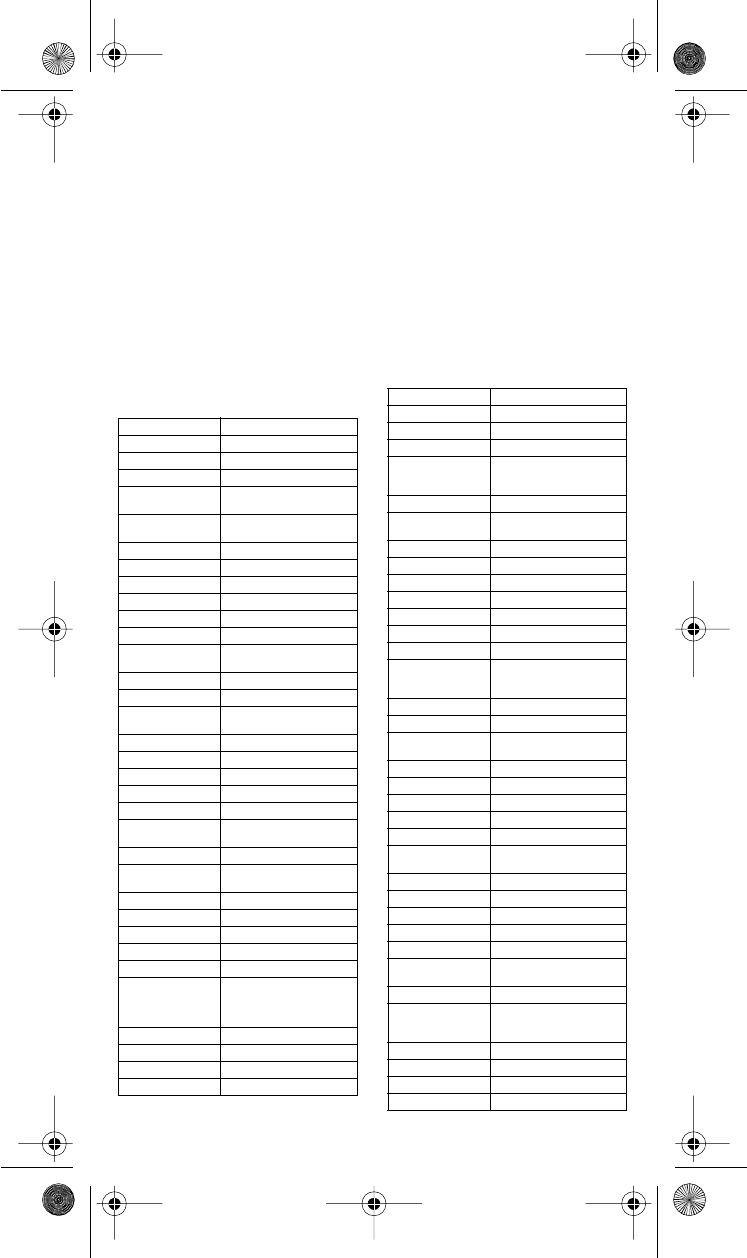
TV CODES
Akai 532, 570, 573
Alba 613
A-Mark 620
Amstrad 533
Anam 509,541,620,621,691,
698
AOC 505,506,519,520,620,
695, 712
Archer 620
Audiovox 620
Bauer 611
Baycraft 536
Brockwood 695
Broksonic 562, 691
Candle 506,522,523,525,536,
691,695,708,712
Capehart 519, 695
Circuit City 695
Citizen 506,516,522,523,524,
525 , 526, 691, 708, 712
Colortyme 573, 695
Concerto 523
Contec 527, 528, 541, 591, 691
Craig 536,541,691,694
Crown 526, 536
CurtisMathes 506,516,526,573,703,
712
CXC 541, 691
Daewoo 505,524,526,529,530,
531,532,698,712,719
Daytron 526, 695
Dixi 532,588,620
Dumont 695
Electrohome 526, 573, 709, 713
Elta 532
Emerson 526,527,528,533,534,
535,536,537,538,539,
540,541,573,622,691,
692,695,696,699,720
Envision 506, 712
Etron 532
Fisher 542, 590
Formenti 611
Fortress 573, 605
Fujitsu 534, 694
Funai 534, 541, 691, 694
Futuretech 541, 691, 694
General Electric
(GE) 503,508,509,515,540,
543,544,630,695,698,
701,714,715,716
Genexxa 613
Goldstar 505,523,526,545,546,
573,588,693,712
Granada 695, 711
Grand 695
Grandiente 711
Grundig 547
Hallmark 695
Harman Kardon 561
Hinari 534
Hitachi 523,526,548,549,550,
551,552,553,554,555,
585,597,626,702,718
Infinity 566
JBL 566
JC Penney 503, 505, 506, 516, 526,
531,543,596,701,714
Jensen 556, 573
JVC 557,558,559,560
Kawasho 548,561,712
Kenwood 506, 573, 712
Kloss 522, 561, 610, 698
KTV 526,539,540,541,691,
696, 712
Lloyds 695
Lloytron 526
Loewe 588
Logik 518
Luxman 523
LXI 503,563,566,590,595,
617,625,701
Magnasonic 573
Magnavox 506, 520, 525, 536, 564,
565,566,567,568,569,
573,575,610,710,712
Marantz 506, 566, 573, 588, 712
Matsui 532, 609
Megatron 695
Memorex 518, 532, 590, 695
text_dishpvr.fm Page 23 Thursday, July 12, 2001 10:02 AM
24 108933
MGA 504,505,506,571,573,
695
Mitsubishi 504, 505, 570, 571, 572,
597,623,695,705,707,
712
Montgomery
Wards 505,506,515,518,534,
536,543,564,565,567,
568,607,619,712,714,
715
MTC 505,506,516,523,531,
695, 712
NAD 502,617,695
National 509, 697
National Quenties 697
NEC 505,506,507,517,523,
573,627,712
Nikkai 612, 613, 618
Nordmende 551
Normande 717
Novabeam 561, 698
Nyon 701
Onwa 541, 691
Optonica 605, 607
Orion 694
Osaki 612
Panasonic 508, 509, 510, 511, 512,
566,574,689,697,698,
700,706,714,716
Philco 505,506,525,536,564,
565,568,573,610,712
Philips 566, 588
Pioneer 502, 548, 551, 576, 698,
708
Portland 505, 526, 712
Proscan 503
Proton 513, 519, 526, 536, 585,
624, 695
Pulsar 501
Quasar 508, 509, 577, 698, 700
Radio Shack 526, 541, 607, 612, 691,
698
RCA 503,505,515,548,579,
580,581,582,583,584,
586,587,625,633,634,
691,698,701,708,714,
715, 716
Realistic 590
Saba 551
Saisho 532, 533, 609
Sampo 506,519,698
Samsung 505,506,516,523,526,
532,588,612,695,704,
712, 721
Samwon 620
Sanyo 542, 589, 590, 591, 592,
609
SBR 588
Schneider 588
Scott 526,534,537,541,593,
600,691,696,701
Sears 503,523,534,542,563,
589,590,594,595,596,
598,599,601,602,603,
604,617,695,703
Seimitsu 695
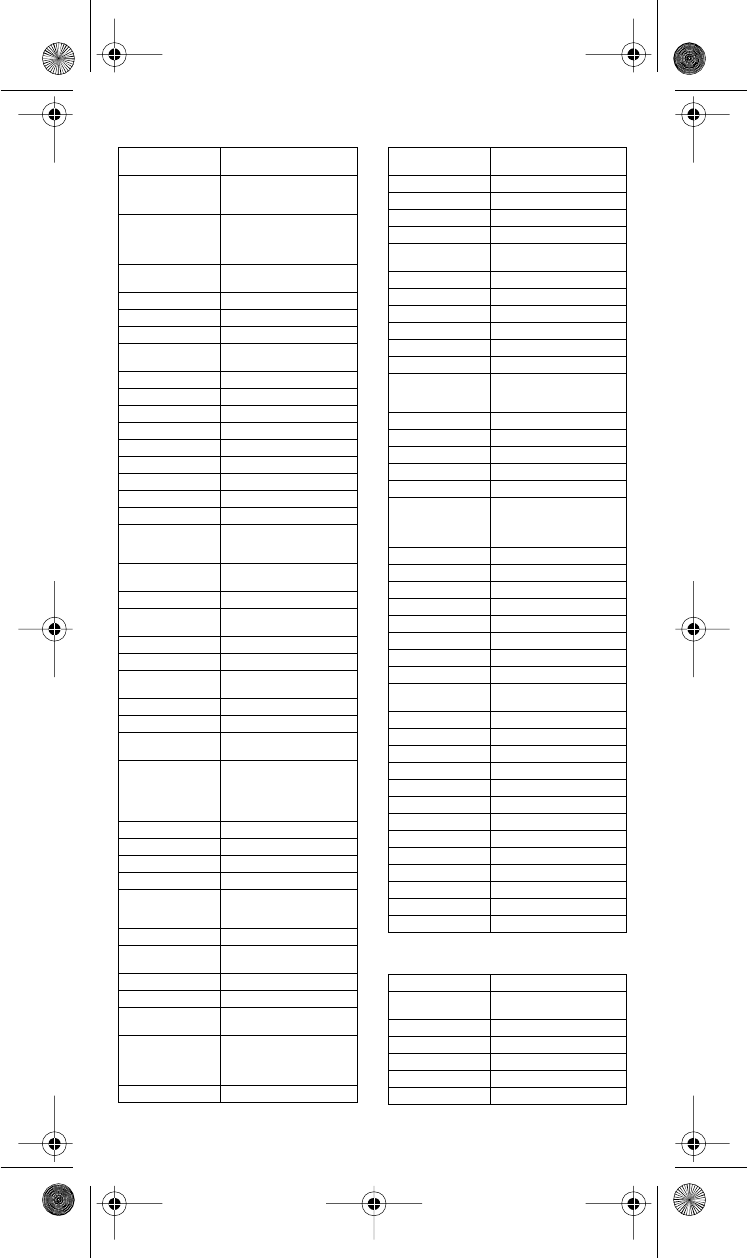
VCR CODES
Sharp 526, 585, 591, 605, 606,
607, 608, 628, 629
Siemens 591
Signature 518
Silver 573
Solavox 612
Sony 500, 514, 521, 578, 609,
619, 622, 690, 691
Soundesign 525, 536, 541, 691, 695
Spectricon 520, 620
Squareview 694
SSS 505, 541, 573, 691, 712
Supra 523
Supre-Macy 522
Sylvania 506, 525, 536, 564, 565,
566, 568, 573, 575, 600,
610, 611, 712
Symphonic 632, 692, 694
Tandy 605, 613
Tatung 509, 698
Technics 508
Techwood 523, 573
Teknika 504, 505, 516, 518, 522,
523, 524, 525, 526, 534,
536, 541, 614, 615, 691,
712
Teleavia 551
Telefunken 551
Te le t ec h 53 2
Tera 51 3
Thomas 695
Thompson 709
Thomson 551, 616
TMK 523, 573, 695
Toshiba 516, 590, 596, 617, 618,
631, 688
Tosonic 528
Totevision 526
Toyomenko 695
Universal 543
Vector Research 506
Victor 557
Video Concepts 570, 691
Vidtech 505, 695, 712
Viking 522
Yamaha 505, 506, 712
York 695
Zenith 501, 518, 693
Zonda 620
Aiwa 588, 622, 623, 624
Akai 513, 514, 515, 516, 517,
518, 519, 520, 568
Alba 546
Amstrad 588
ASA 565
Audio Dynamics 594, 600
Broksonic 559
text_dishpvr.fm Page 24 Thursday, July 12, 2001 10:02 AM
Device Codes
108933 25
Bush 589
Candle 580, 592, 593
Canon 542, 553, 554
Capehart 543, 546
Citizen 591,592,593
Craig 591, 608
Croslex 553
Curtis Mathes 554, 592, 605
Daewoo 534,545,546,547,593
Daytron 546
DBX 594, 600
Dumont 549
Dynatech 588
Electrohome 609
Emerson 505,506,507,508,509,
510, 511, 512, 559, 568,
588,590,609,618
Finlandia 549
Finlux 549, 565, 588
Fisher 548,549,584,588,608,
610
General Electric
(GE) 550,551,552,554,572,
591, 605
Goldstar 530,555,592,612,613
Goodmans 585, 589
Go Video 557, 558, 620
Granada 549, 581
Grundig 565
Harman Kardon 530, 569
Hinari 589
Hitachi 536,537,538,539,540,
541,553,588,595,596,
597
Instant Replay 553
ITT 518
JC Penney 530, 554, 580, 591, 594,
600, 601
Jensen 560
JVC 561,562,563,564,592,
594,600,601
Kenwood 562,581,592,594,600,
601
Lloyd 588
Logik 589
Luxor 518
Magnavox 527, 553, 554, 556, 565,
611
Marantz 530,554,565,585,592,
594,600,601,603
MEI 554
Memorex 533,549,554,566,581,
585,588,608
MGA 567,568,609
Mitsubishi 562, 567, 568, 569, 570,
571, 609
Montgomery
Wards 527,554,580,585,588,
589,590,591,607,608,
609
MTC 544,580,588
Multitech 588, 589, 591
NAD 573
NEC 530, 531, 532, 562, 592,
594, 599, 600, 601, 602,
603, 604
Olympic 553
Optonica 585
Orion 506, 507
Panasonic 521, 522, 523, 524, 526,
553, 554, 598, 614, 628
Pentax 537, 592
Perdio 588
Philco 553, 554, 611
Philips 553, 554, 565, 585
Pioneer 553, 562, 573, 574, 575,
576, 600
Portland 546, 593
Proscan 553, 605
Pulsar 533
Quartz 581
Quasar 553, 554, 577, 578
Radio Shack 607, 608, 609, 610
RCA 525, 526, 527, 528, 529,
537, 553, 591, 605, 606,
615, 630, 631
Realistic 549, 554, 580, 581, 584,
585, 588
Ricoh 502
Saisho 506, 507
Salora 567, 581
Samsung 517, 534, 579, 580, 591
Sansui 532, 544, 562, 600, 621
Sanyo 549, 581, 582, 583, 608
SBR 565
Schneider 589
Scott 508, 559, 590
Sears 548, 549, 581, 584, 608,
610
Sentra 546
Sharp 585, 607, 609, 625
Shintom 589
Sony 500, 501, 502, 503, 504,
629
Sylvania 553, 554, 556, 567, 588,
611
Symphonic 588, 594
Tandy 588
Tashiko 588
Tatung 586, 594, 601
Teac 588, 594, 601
Technics 553, 554
Teknika 554, 587, 588
TMK 506
Toshiba 534, 535, 567, 590
Totevision 580, 591
Unitech 580
Vector Research 530, 600
Victor 561, 562, 600
Video Concepts 568, 600
Videosonic 591
text_dishpvr.fm Page 25 Thursday, July 12, 2001 10:02 AM
26 108933
CABLE TV BOX CODES
Yamaha 530,592,594,600,601
Zenith 500, 501, 533
Note: The rest of this table
is for DVD players only.
DVD Players
Note: You must put the remote control
inVCRmodetosetituptocontrolaDVD
player. Later, you must put the remote control
in VCR mode to use it to control a DVD player.
Magnavox 626
Pioneer 619
RCA 627
Sony 617
Toshiba 616
Eastern 2649
GI/Tocom 2640
Jerrold 2635, 2636
Memorex 2637
Oak 2646
Panasonic 2637, 2644, 2645
Paragon 2637
Pioneer 2642, 2643
Regency 2649
Scientific Atlanta 2638, 2639, 2647, 2648,
2650
Zenith 2641
TUNER/AMPLIFIER CODES
Aiwa 2656, 2680
Carver 2653
Denon 2674
Fisher 2653
GE 2665
Goldstar 2677
Harmon Kardon 2672
JVC 2657, 2683
Kenwood 2676
Luxman 2681
LXI 2665
Marantz 2651
Memorex 2675
NAD 2669
Nakamichi 2671
Onkyo 2660, 2662, 2678
Optimus 2664
Panasonic 2652
Pioneer 2658, 2667, 2668, 2675,
2679
Proton 2654
Quasar 2652
RCA 2655
Realistic 2665, 2666
Scott 2659
Sherwood 2670
Sony 2673, 2680
Symphonic 2666
Technics 2652
Victor 2657
Yamaha 2663, 2682
text_dishpvr.fm Page 26 Thursday, July 12, 2001 10:02 AM
108933 27
TROUBLE-SHOOT THE REMOTE CONTROL
What’s
Happening What’s Wrong What You Can Do
While you
do a remote
procedure, the
remote control
“times out.”
If you don’t press
any button
for 20 seconds,
the remote “times
out.”
Start over again.
You can’t find
the remote
control.
• Maybe you lost the
remote control.
• Maybe someone
else has the remote.
• Use the receiver’s front panel buttons
to control the receiver until you find
the remote.
• If the remote control is lost for good or
too damaged to use, please call the
Customer Service Center to order a
replacement. You’ll have to pay
for the new remote control,
plus shipping and handling.
When you
press the
remote control
Power button
to turn the
receiver on,
the receiver’s
front panel
Power light
doesn’t turn
on.
• Maybe you can’t
see if the receiver
Power light is on,
if other lightsin the
room are too
bright.
• Maybe the remote
control isn’t
working right or
the batteries are
weak or dead.
• Maybe you didn’t
plug the receiver
power cord into a
power outlet, or
maybe there’s a
problem with the
power.
• Maybe the remote
isn’t in Sat mode.
• Maybe the remote
and the receiver
have different
addresses.
• Turn down the otherroom lights so you
can see if the receiver Power light
is on.
• Try other remote control buttons to see
if the receiver responds. Replace the
remote batteries with fresh ones.
• Make sure the receiver power cord
is okay, and the put the plug into the
outlet the right way.
• Make sure you set the remote to Sat
mode to control the receiver.
• Make sure the remote and the receiver
have the same address.
You set up the
remote control
for the TV
mode. Then,
youfindyou
can’t set up the
remote control
for the Aux
mode.
For a few remote
controls you must set
up the Aux mode
before you set up the
TV mode.
Do these things: (a) write down the
TV code, (b) reset the TV mode with
code 222, (c) set up the Aux mode, and
(d) reset the TV mode with the code
you wrote down in step (a).
text_dishpvr.fm Page 27 Thursday, July 12, 2001 10:02 AM
28 108933
When you
press a button
on the remote
control, the
device doesn’t
do what you
expect.
• Maybe you’re
trying to control a
device and you’re
not pointing the
remote control
rightatit.
• Maybe the remote
control is missing
batteries, maybe
you put the
batteries in the
remote the wrong
way, or maybe the
batteries are weak
or dead.
• Maybe you didn’t
set the remote to
themodeforthe
device you want to
control.
• Maybe you didn’t
set up the remote to
control the device.
• UHF signals from a
neighbor’s remote
may be blocking
signals from your
remote.
• Remember, the remote control uses IR
signals to control all devices except for
the receiver. IR signals travel only
40 feet or less, and can’t go through
walls or other solid objects. You must
point the remote control right at the
device, with no objects to block
the signal path.
• If the batteries are missing or dead, put
fresh AAA-size batteries in. If the
remote has fresh batteries, check
whether you put them in the right way.
If you didn’t, take them out and put
them in the right way.
• Make sure you set the remote to the
mode for the device you want
to control.
• Make sure you set up the remote
to control all the devices you want
to use.
• Put a UHF attenuator on the receiver’s
UHF Remote Antenna input. This
will help keep stray signals from
blocking your remote’s signals, but
also cut down how far away you can
use the remote.
When you
press the
remote control
Mute or
Volume
button,
nothing
happens.
• Maybe you’re
trying to control
TV volume but you
set up the remote
to control a tuner or
amplifier in Aux
mode.
• Maybe you’re
trying to control
tuner or amplifier
volume but you set
up the remote
to control a TV
in Aux mode.
Set up the remote to control either
TV volume or tuner/amplifier volume,
whichever you want.
text_dishpvr.fm Page 28 Thursday, July 12, 2001 10:02 AM
108933 29
LIMITED WARRANTY
This warranty extends only to the original user of the DISH Network
remote control (“you,” “your”) and is limited to the purchase price of the remote
control. EchoStar Communications Corporation and its affiliated companies
(“we,” “our,” “us”) warrant this remote control against defects
in materials or workmanship as follows.
For one year from the original date of purchase, if we find the remote control
is defective subject to the limits of this warranty, we will replace the remote
at no charge for parts or labor. We warrant any such work done against defects
in materials or workmanship for the remaining part of the original warranty
period.
This warranty does not cover installation of the DISH Network System;
consumer instruction; physical set up or adjustment of any consumer electronic
device; remote control batteries; signal reception problems; loss of use of the
equipment; unused programming charges due to equipment malfunction;
cosmetic damage; damage due to lightning, electrical or telephone line surges,
fire, flood, or other acts of Nature; accident; misuse; abuse; repair or alteration
by other than our factory service; negligence; commercial or institutional use;
improper or neglected maintenance; equipment sold AS IS or WITH ALL
FAULTS; equipment removal or reinstallation; shipping damage if the
equipment was not packed and shipped in the manner we prescribe; nor
equipment purchased, serviced, or operated outside the contiguous
United States of America.
REPLACEMENT AS PROVIDED UNDER THIS WARRANTY IS YOUR
EXCLUSIVE REMEDY. WE SHALL NOT BE HELD LIABLE FOR ANY
INCIDENTAL OR CONSEQUENTIAL DAMAGES FOR BREACH OF ANY
EXPRESSED OR IMPLIED WARRANTY ON THIS DEVICE, NOR FOR
ANY INCIDENTAL OR CONSEQUENTIAL DAMAGE RESULTING FROM
THE USE OF, OR INABILITY TO USE, THIS DEVICE. UNDER NO
CIRCUMSTANCES SHALL OUR LIABILITY, IF ANY, EXCEED THE
PURCHASE PRICE PAID FOR THIS DEVICE. EXCEPT TO THE EXTENT
PROHIBITED BY APPLICABLE LAW, ANY IMPLIED WARRANTY OF
MERCHANTABILITY OR FITNESS FOR A PARTICULAR PURPOSE ON
THIS DEVICE IS LIMITED IN DURATION TO THE DURATION OF THIS
WARRANTY. WE RESERVE THE RIGHT TO REFUSE TO HONOR THIS
WARRANTY IF WE DETERMINE ANY OF THE ABOVE EXCEPTIONS
This Limited Warranty is a legal document. Keep it
in a safe place. Please remember to keep your Sales
Receipt for warranty service. We will consider
any items you return without a copy of the
ProofofPurchaseto be out of warranty.
text_dishpvr.fm Page 29 Thursday, July 12, 2001 10:02 AM
30 108933
TO HAVE CAUSED THIS DEVICE NOT TO HAVE PERFORMED
PROPERLY. THIS WARRANTY SHALL BE VOID IF ANY FACTORY-
APPLIED IDENTIFICATION MARK, INCLUDING BUT NOT LIMITED TO
SERIAL OR CONDITIONAL ACCESS NUMBERS, HAS BEEN ALTERED
OR REMOVED. THIS WARRANTY SHALL ALSO BE VOID IF THE
DEVICE HAS BEEN OPENED BY AN UNAUTHORIZED PERSON
(with the exception of opening the battery cover).
This warranty gives you specific legal rights which may vary from state to state.
Some states do not allow the exclusion or limitations of incidental or
consequential damages, or allow limitations on the duration of an implied
warranty, so those limitations may not apply to you.
ADVANCE EXCHANGE PROGRAM
The Advance Exchange Program allows you to have replacement equipment
shipped immediately to you (depending upon where you live, it could take three
to five business days). Along with replacement equipment, you will receive a
prepaid shipping label and instructions on how to return the defective
equipment.
The shipping charge, for receiving replacement equipment and returning the
defective equipment, is a one time fee based on EchoStar’s competitive bulk
shipping rates (additional charges may apply outside of the continental US).
This fee will be charged to your billing account or your valid credit card.
If you do not ship the defective equipment to EchoStar within ten days after
receiving the replacement, your billing account or credit card will be charged
the market price of the replacement. If you return the defective equipment after
ten days, you will receive a full refund less an administrative fee.
If your equipment is out of warranty and can be repaired your billing account or
credit card will be charged the standard repair fee for the replacement.
If damage to the defective equipment is found, which EchoStar in its sole
discretion determines has voided the warranty, or makes the equipment
unrepairable, your billing account or credit card will be charged the market
price of the replacement.
POST RECEIPT EXCHANGE PROGRAM
You may choose to ship the equipment to us at your cost. To provide faster
service, upon receipt of your equipment you will be shipped a replacement.
Your original equipment will not be available for return.
The equipment you return will be checked to verify whether it is covered under
this warranty. If the defective equipment is covered under this warranty, it will
be replaced and shipped back to you at no additional cost (additional charges
may apply outside of the continental US).
text_dishpvr.fm Page 30 Thursday, July 12, 2001 10:02 AM
108933 31
If your equipment is out of warranty and can be repaired your billing account or
credit card will be charged the standard repair fee for the replacement.
If damage to the defective equipment is found, which EchoStar in its sole
discretion determines has voided the warranty, or makes the equipment
unrepairable, your billing account or credit card will be charged the market
price of the replacement.
IFYOU NEED HELP
1. Please review this User Guide.
2. Please see Trouble-Shoot the Remote on page 27.
3. Call the Customer Service Center at 1-800-333-DISH (3474).
Please have the date of purchase and your customer account
number ready.
4. A Representative will help you.
5. If the Rep finds you should return the remote control, you’ll get
a telephone number to call for a Return Authorization (RA)
number. Before shipping any equipment to us, you must get
a Return Authorization number.
6. You must package returned equipment the right way. Follow the
instructions the Rep gives you.
7. Write the RA number in large, clearly visible characters on the
outside of the shipping box used to return the equipment.
To avoid confusion and misunderstandings, we will return
shipments without an RA number clearly visible on the outside
of the box to you at your cost.
8. We will:
•Check the remote control, including whether it is covered
under the warranty.
•Replace any remote we find is defective with a new or
refurbished remote, if the defective remote is covered under
the warranty. We will ship the replacement remote at our
expense.
•If a defective remote is not covered under the warranty,
we will tell you. We may assess you a flat rate charge for a
replacement remote, including shipping and insurance.
text_dishpvr.fm Page 31 Thursday, July 12, 2001 10:02 AM
32 108933
INDEX
A
Address, Change the ...................................................................... 6
Advance Exchange Program ....................................................... 30
Amplifier Codes .......................................................................... 26
Amplifier, Control an .................................................................. 21
Antenna, Remote Control, Attach the ....................................... 2, 7
Attach the Remote Control Antenna ......................................... 2, 7
Attenuator, Install an ..................................................................... 8
B
Batteries, Remote Control .............................................................. 2
Buttons, Remote Control ............................................................. 10
C
Cable TV Box Codes................................................................... 26
Cable TV Box, Control a............................................................. 19
Change the Address ....................................................................... 6
Check the Device Codes................................................................ 6
Contents of This User Guide ......................................................... 1
Customer Service............................................................. 29, 30, 31
D
Device Codes............................................................................... 23
Amplifier Codes .................................................................. 26
Cable TV Box Codes........................................................... 26
DVD Player Codes .............................................................. 26
Tuner and Amplifier Codes ................................................. 26
Tuner Codes......................................................................... 26
TV Codes............................................................................. 23
VCR Codes .......................................................................... 24
Device Codes, Check the............................................................... 6
Device Codes, Scan for ................................................................. 4
Device Codes, Try the ................................................................... 5
DishPVR........................................................................................ 2
DishPVR Buttons ................................................................ 13
DVD Player Codes ...................................................................... 26
DVD Player, Control a ................................................................ 17
I
If You Need Help ........................................................................ 31
Index ......................................................................................... 32
Install an Attenuator ...................................................................... 8
IR Signals, Remote Control........................................................... 2
text_dishpvr.fm Page 32 Thursday, July 12, 2001 10:02 AM
108933 33
L
Limited Warranty ........................................................................ 29
M
Modes, Remote Control................................................................. 3
P
Post Receipt Exchange Program.................................................. 30
R
Receiver, Control the................................................................... 10
Remote Control Basics .................................................................. 2
DishPVR................................................................................ 2
Remote Control Batteries .......................................................2
Remote Control Modes.......................................................... 3
Remote Control Signals - UHF and IR.................................. 2
Remote Control Batteries ............................................................... 2
Remote Control Buttons .............................................................. 10
Amplifier, Control an .......................................................... 21
Cable TV Box, Control a..................................................... 19
DishPVR Buttons ................................................................ 13
DVD Player, Control a ........................................................ 17
Receiver, Control the........................................................... 10
Second TV, Control a .......................................................... 15
Second VCR, Control a ....................................................... 17
Tuner or Amplifier, Control a.............................................. 21
TV, Control a....................................................................... 15
VCR, Control a .................................................................... 17
Remote Control Modes.................................................................. 3
Remote Control Setup ................................................................... 4
Attach the Remote Control Antenna ..................................... 7
Change the Address............................................................... 6
Check the Device Codes........................................................ 6
Install an Attenuator .............................................................. 8
Scan for Device Codes .......................................................... 4
Set Up the Remote Control.................................................... 4
Switch Between TV and Device Volume Control................. 8
Try the Device Codes ............................................................ 5
Remote Control Trouble-Shooting .............................................. 27
S
Scan for Device Codes .................................................................. 4
Second TV, Control a .................................................................. 15
Second VCR, Control a ............................................................... 17
Set Up the Remote Control............................................................ 4
Setup, Remote Control .................................................................. 4
Switch Between TV and Device Volume Control......................... 8
text_dishpvr.fm Page 33 Thursday, July 12, 2001 10:02 AM

34 108933
T
Table of Contents........................................................................... 1
Trouble-Shoot the Remote Control ............................................. 27
Try the Device Codes .................................................................... 5
Tuner Codes................................................................................. 26
Tuner or Amplifier, Control a...................................................... 21
TV Codes..................................................................................... 23
TV, Control a............................................................................... 15
U
UHF Signals, Remote Control....................................................... 2
V
VCR Codes .................................................................................. 24
VCR, Control a ............................................................................ 17
Volume Control, Switch Between TV and Device........................ 8
text_dishpvr.fm Page 34 Thursday, July.5(3J)2, 20(y)34.0134 yd28
108933 35
Notes
text_dishpvr.fm Page 35 Thursday, July 12, 2001 10:02 AM
36 108933
Notes
text_dishpvr.fm Page 36 Thursday, July 12, 2001 10:02 AM
Copyright © 2001
EchoStar Technologies Corporation
Englewood, Colorado 80112
All rights reserved.
TheinfointhisGuide may change without notice.
We may issue revisions to tell you about such changes.
Please send any comments or questions to:
EchoStar Technologies Corporation,
Technical Publications, 94 Inverness Terrace East,
Englewood, Colorado 80112
Part Number: 108933
Printed in the United States of America.
DISH Network is a registered trademark of EchoStar Technologies
Corporation. For info about DISH Network, please visit our website
at www.dishnetwork.com.
inside_back_cover_dishpvr.fm Page 0 Monday, July 9, 2001 1:02 PM
For ALL your customer needs,
call the Customer Service Center
at 1-800-333-DISH (3474).
108933
outside_back_cover_dishpvr.fm Page 0 Monday, July 9, 2001 1:03 PM
