Guangzhou Shiyuan Electronics ANDROIDBOX ANDROID BOX User Manual

Guangzhou Shiyuan Electronics Co., Ltd. ANDROID BOX

User Manual

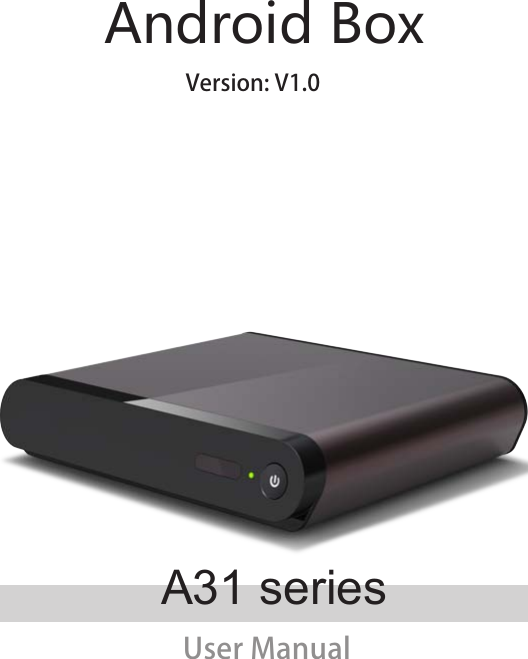
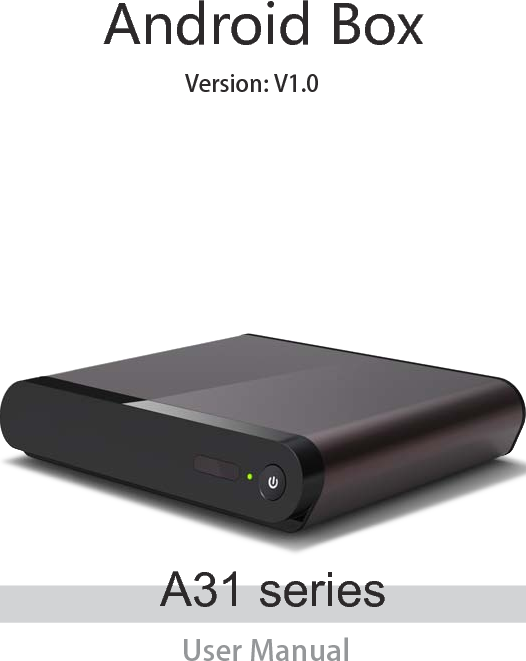
Android BoxUser ManualA31 seriesVersion: V1.0
Before operating the unit,please read through this manual.
Safety WarningPreparation                                                                                           51.1.Introduction                                                                                    5Connection                                                                                                          72.1.How to connect                                                                                          72.2.Terminal                                                                                                        7Install Wizard                                                                                                      83.1.Welcome page                                                                                            83.2.Setup page                                                                                                   8Main launcher                                                                                       114.1.Media player                                                            114.2.Settings                                                                                       114.3.Applications                                                                                                154.3.1.Install from U-disk/micro SD card                                                    154.3.2.Install from Browser                                                                      154.3.3.Install from ApkInstaller                                         154.4.Browser                                                     16Specifications               17Exception handling             186.1.System restore             18.....................................................................................................................................................................................................................................................................................................................................................................................................................................................................................................................................................................................................................................................................................................................................................................................................................................................................................................................................................................................................................................................................................................................................................................................................................................................................................................................................................................................................................Contents
Safety WarningBefore operating the unit, please read through this manual.PLACEMENT ●Do not place the unit on an unstable cart, stand, tripod, bracket, table, or shelf. ●Do not expose the unit to direct sunlight and other sources of heat. ●Do not handle liquids near or on the unit. ●Never spill liquid of any kind into the unit ●Do not put the unit near appliances that create magnetic elds. ●Do not put heavy objects on top of the unit.POWER SUPPLY ●Check that the unit’s operating voltage is identical with your local power supply. ●Please unplug power supply and aerial plug when the weather is thunder-storm or light-ning. ●Please unplug power supply, when there is nobody at home or didn’t use over a long period of time. ●Please keep power cord from physical or mechanical damage. ●Please use exclusive power cord, don’t modify or lengthen it. ●Please check and ensure AC source is connected with the ground.TEMPERATURE ●Do not place the unit near or over a radiator or a heater register. ●If your unit is suddenly moved from a cold to a warm place, unplug the power cord for at least two hours so that moisture that may have formed inside the unit can dry completely.HUMIDITY ●Do not expose machine in rain, damp or place near water. ●Ensure the indoor drying, cool.VENTILATION ●Keep the ventilation openings clear. ●Ensure that the unit has enough space for ventilation around: left, right and back >10cm, top> 20cm.BATTERY ●Accurate transaction and recal l scrap battery after using. ●Please don’t let kid touch battery, in case of dangerous don’t throw battery into re.SOFTWARES ●Some softwares for smart phones or unique CPU solutions may not suit for this product. ●Some softwares need unique peripherals to support, like G-sensor, may not suit for this product.
Front FuctionSignal receiverSignal LED(red--power off, green--power on)Power buttonPreparation1.1.       Introduction1.1.1 SketchBack FunctionUSB port x 2AV output (Best resolution experience in 480i or 576i)[Only for A31A]micro SD slot[SD card slot for A31]HDMI output (Best resolution experience in 720p or 1080p)Ethernet inputRecovery buttonDC inA31A31A
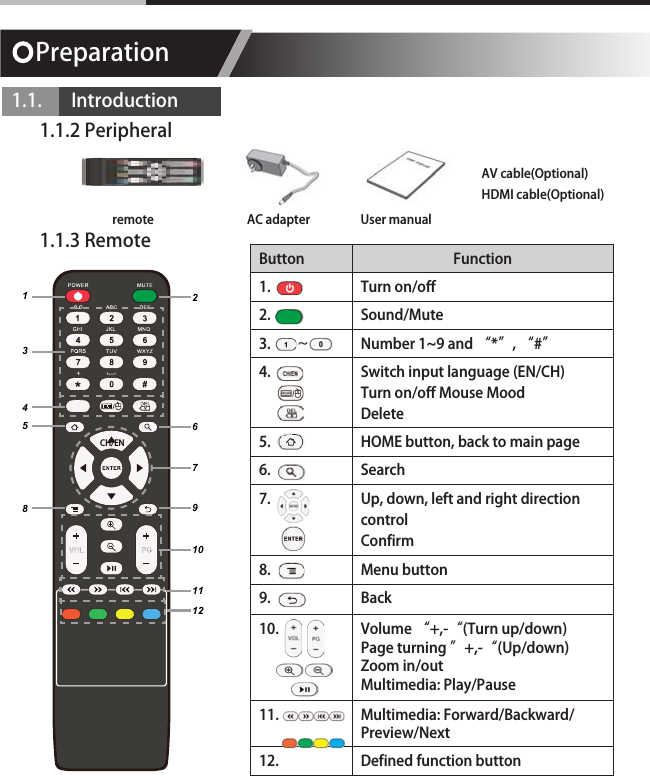
Preparation1.1.       Introduction1.1.2 Peripheral1.1.3 Remote123458679101112remote AC adapter User manualButton Function1. Turn on/off2. Sound/Mute3. Number 1~9 and “*”, “#”4. Switch input language (EN/CH)Turn on/off Mouse MoodDelete5. HOME button, back to main page6. Search7. Up, down, left and right direction controlConfirm8. Menu button9. Back10. Volume “+,-“(Turn up/down)Page turning ”+,-“(Up/down)Zoom in/outMultimedia: Play/Pause11. Multimedia: Forward/Backward/Preview/Next12. Defined function buttonCH/EN~HDMI cable(Optional)AV cable(Optional)
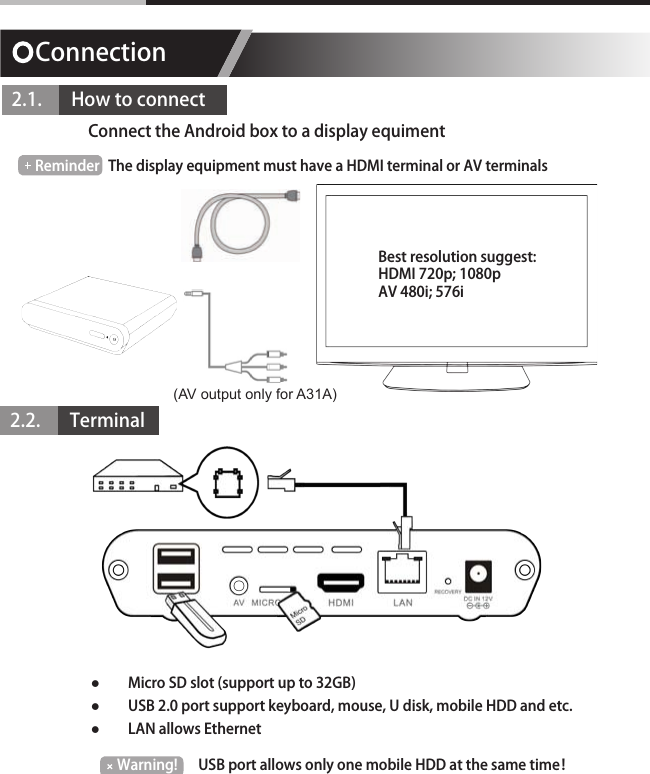
Connection2.1.       How to connectConnect the Android box to a display equiment Reminder The display equipment must have a HDMI terminal or AV terminals2.2.       TerminalWarning! USB port allows only one mobile HDD at the same time! ●Micro SD slot (support up to 32GB) ●USB 2.0 port support keyboard, mouse, U disk, mobile HDD and etc. ●LAN allows EthernetBest resolution suggest:HDMI 720p; 1080pAV 480i; 576i(AV output only for A31A)
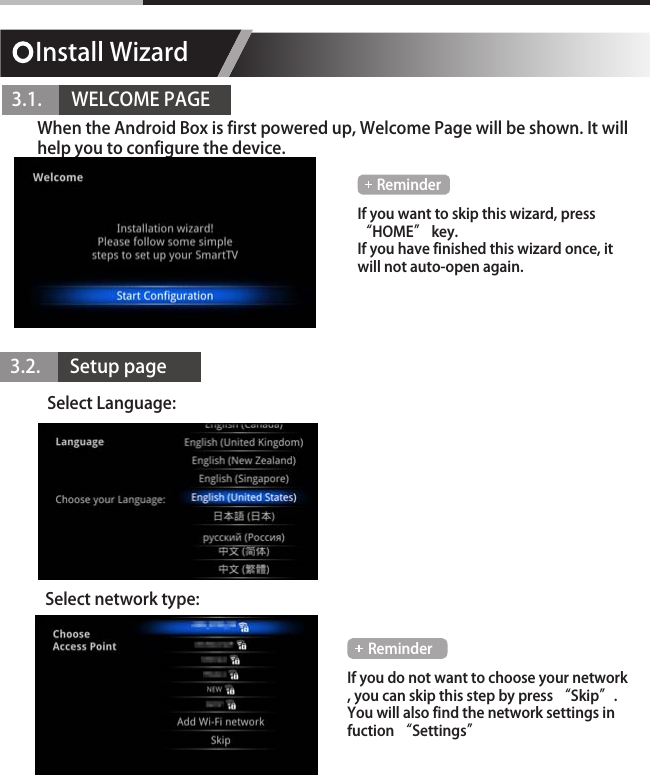
Install Wizard3.1.       WELCOME PAGE3.2.       Setup pageWhen the Android Box is first powered up, Welcome Page will be shown. It will help you to configure the device.Select Language:Select network type:If you want to skip this wizard, press “HOME” key.If you have finished this wizard once, it will not auto-open again.If you do not want to choose your network , you can skip this step by press “Skip”.You will also find the network settings in fuction “Settings”ReminderReminder
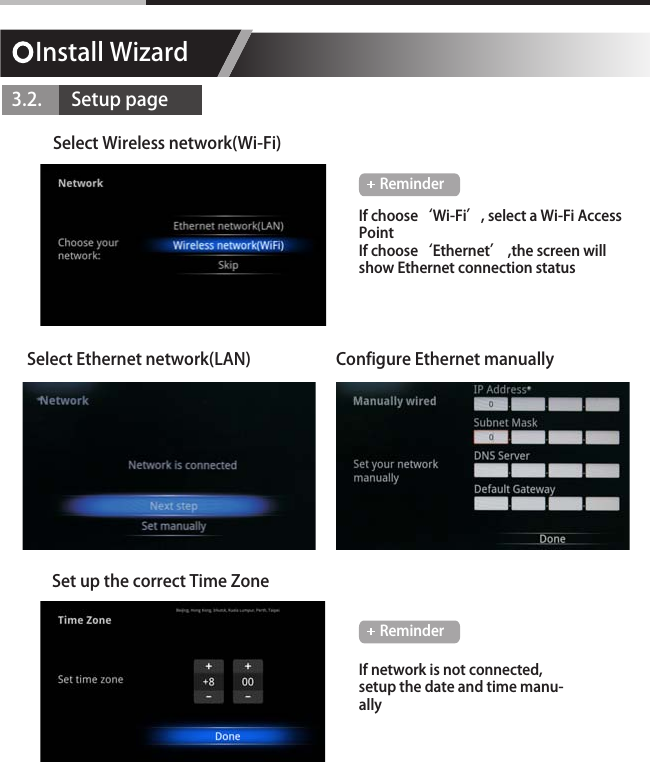
Install Wizard3.2.       Setup pageSelect Wireless network(Wi-Fi)Set up the correct Time ZoneSelect Ethernet network(LAN) Configure Ethernet manuallyIf choose‘Wi-Fi’, select a Wi-Fi Access PointIf choose‘Ethernet’ ,the screen will show Ethernet connection statusIf network is not connected, setup the date and time manu-allyReminderReminder
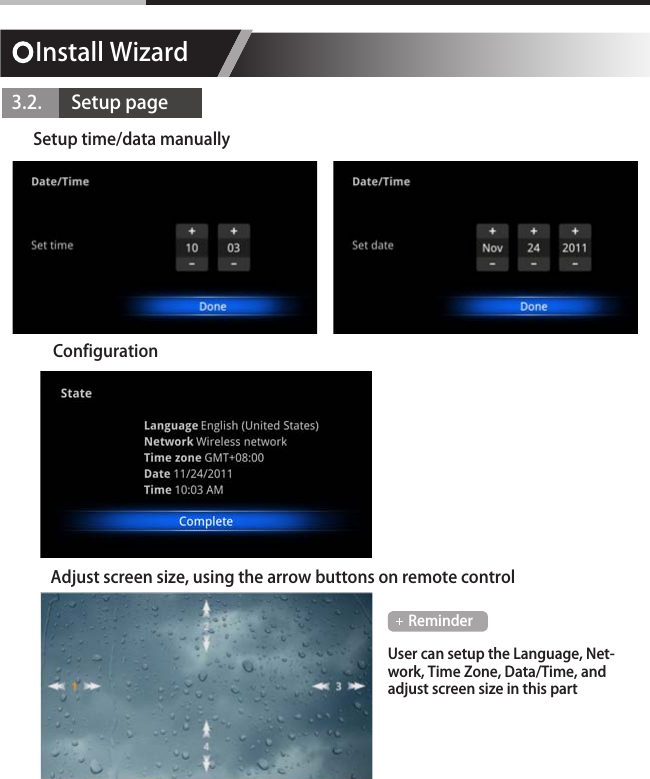
Install Wizard3.2.       Setup pageConfigurationSetup time/data manuallyAdjust screen size, using the arrow buttons on remote controlUser can setup the Language, Net-work, Time Zone, Data/Time, and adjust screen size in this partReminder
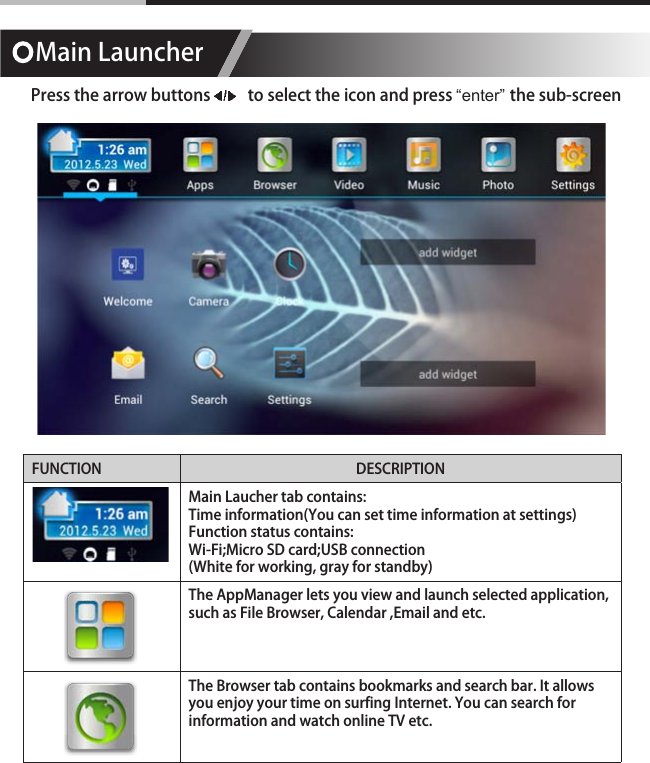
Main LauncherPress the arrow buttons          to select the icon and press “enter” the sub-screenFUNCTION DESCRIPTIONMain Laucher tab contains:Time information(You can set time information at settings)Function status contains:Wi-Fi;Micro SD card;USB connection(White for working, gray for standby)          The AppManager lets you view and launch selected application, such as File Browser, Calendar ,Email and etc.The Browser tab contains bookmarks and search bar. It allows you enjoy your time on surfing Internet. You can search for information and watch online TV etc.
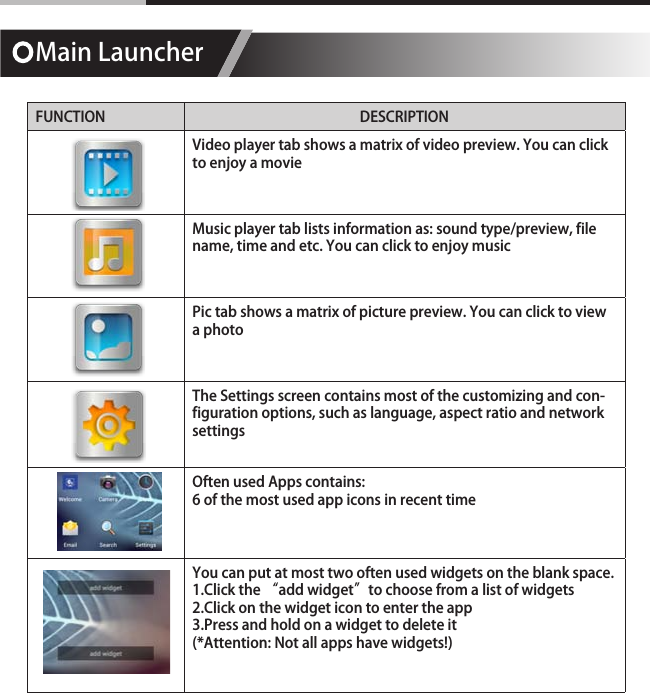
Main LauncherFUNCTION DESCRIPTIONVideo player tab shows a matrix of video preview. You can click to enjoy a movieMusic player tab lists information as: sound type/preview, file name, time and etc. You can click to enjoy musicPic tab shows a matrix of picture preview. You can click to view a photo          The Settings screen contains most of the customizing and con-figuration options, such as language, aspect ratio and network settingsOften used Apps contains:6 of the most used app icons in recent timeYou can put at most two often used widgets on the blank space.1.Click the “add widget”to choose from a list of widgets 2.Click on the widget icon to enter the app3.Press and hold on a widget to delete it(*Attention: Not all apps have widgets!)
Main Launcher4.2.       SETTINGSSeetings Generation introductionWi-Fi settings Check to turn on Wi-Fi so you can connect to Wi-Fi networksCheck to receive an alert when an open Wi-Fi network becomes availableOpens a dialog where you can add a Wi-Fi network by entering its SSID (the name it broadcasts) and security typeEthernet Turn on/off the EthernetEthernet settings:IP address, Subnet Mask, DNS Server, Default Gateway and etc.Display Output mode:HDMI  --- 1080p;720p;AV[only for A31A] --- 480i;576i(only for av output)Set your display overscan ratioFont sizeApplications DownloadedOn SD/Micro SD cardRunningAllFactory data reset Erases all data on the device
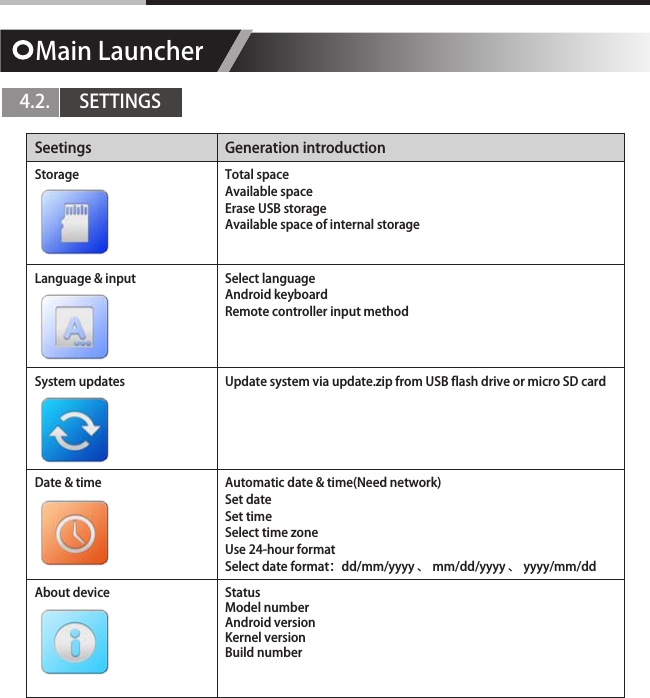
Seetings Generation introductionStorage Total spaceAvailable spaceErase USB storageAvailable space of internal storageLanguage & input Select languageAndroid keyboardRemote controller input methodSystem updates Update system via update.zip from USB flash drive or micro SD cardDate & time Automatic date & time(Need network)Set dateSet timeSelect time zoneUse 24-hour formatSelect date format:dd/mm/yyyy 、 mm/dd/yyyy 、 yyyy/mm/ddAbout device StatusModel numberAndroid versionKernel versionBuild numberMain Launcher4.2.       SETTINGS
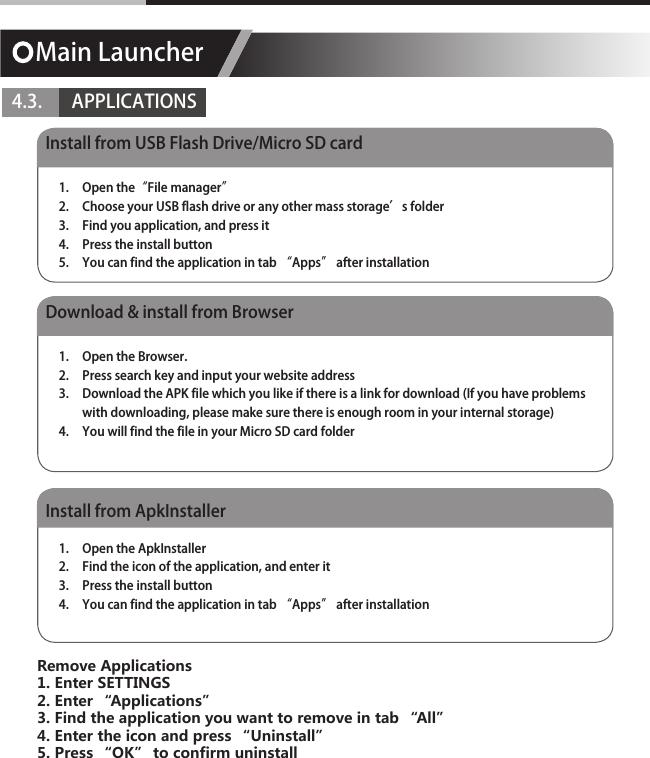
Main Launcher4.3.       APPLICATIONSInstall from USB Flash Drive/Micro SD cardDownload & install from BrowserInstall from ApkInstaller1.  Open the“File manager”2.  Choose your USB flash drive or any other mass storage’s folder3.  Find you application, and press it4.  Press the install button5.  You can find the application in tab “Apps” after installation1.  Open the Browser.2.  Press search key and input your website address3.  Download the APK file which you like if there is a link for download (If you have problems with downloading, please make sure there is enough room in your internal storage)4.  You will find the file in your Micro SD card folder1.  Open the ApkInstaller2.  Find the icon of the application, and enter it3.  Press the install button4.  You can find the application in tab “Apps” after installationRemove Applications1. Enter SETTINGS2. Enter “Applications”3. Find the application you want to remove in tab “All”4. Enter the icon and press “Uninstall”5. Press “OK” to confirm uninstall
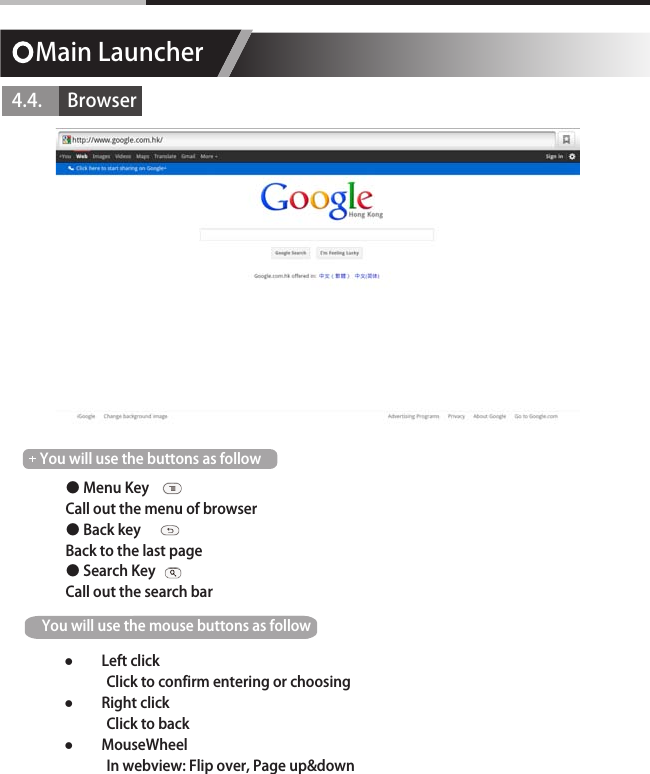
Main Launcher4.4.      Browser● Menu KeyCall out the menu of browser● Back keyBack to the last page● Search KeyCall out the search barYou will use the buttons as followYou will use the mouse buttons as follow  ●Left click             Click to confirm entering or choosing ●Right click             Click to back  ●MouseWheel             In webview: Flip over, Page up&down
SpecificationOS Android 4.0CPU ARM Cortex A9Frequency Up to 1GHzRAM 1GB DDR3ROM 4GB NAND FlashI/O USB port x 2Ethernet input RJ45 portMicro SD card slot[SD card slot for A31] AV output[only for A31A]HDMI outputSupport Wireless: Wi-Fi 802.11 b/g/nWired: Ethernet10/100 Base-TLanguage English, Chinese simplified, Chinese traditional and etc.Display Specs Aspect Ratio: 4:3(only for av output); 16:9Resolution: (HDMI)720p; 1080p     (AV)480i; 576i[only for A31A]Media Format Video Formats: Full-format 1080P HD video decoding playSupported Video decoding: MPEG 1, MPEG 2,MPEG4, H.264, H.263, VC-1, RV30/40,Supported Audio decoding: PCM, LPCM, MP3, AAC, MPEG Audio, WMSupported subtitle formats: SRT,SSA,ASS,SUBFeature First Time InstallationScreen keyboard or support USB keyboard, wireless keyboard and mouseVideo, music, picture playerFile managerApkInstallerEmail, Gmail and etc.(support POP, IMAP, Exchange)Support kinds of thirdparty softwaresSupport Adobe Flash
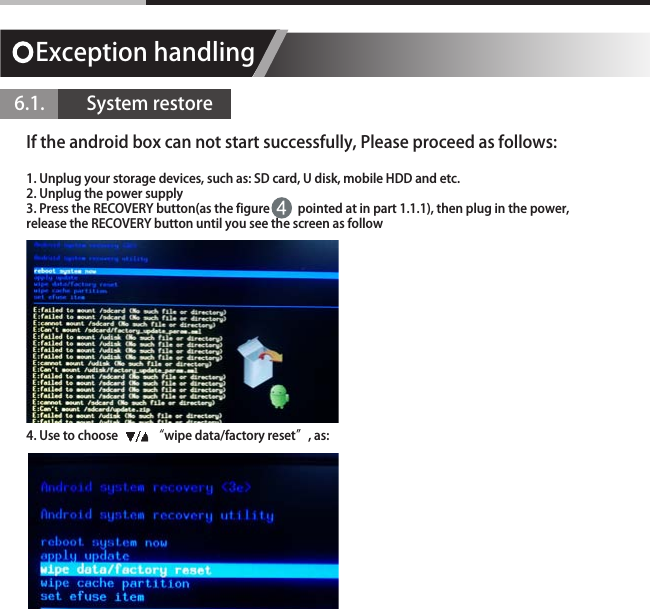
Exception handling 6.1.          System restoreIf the android box can not start successfully, Please proceed as follows:1. Unplug your storage devices, such as: SD card, U disk, mobile HDD and etc.2. Unplug the power supply3. Press the RECOVERY button(as the figure          pointed at in part 1.1.1), then plug in the power, release the RECOVERY button until you see the screen as follow4. Use to choose            “wipe data/factory reset”, as:
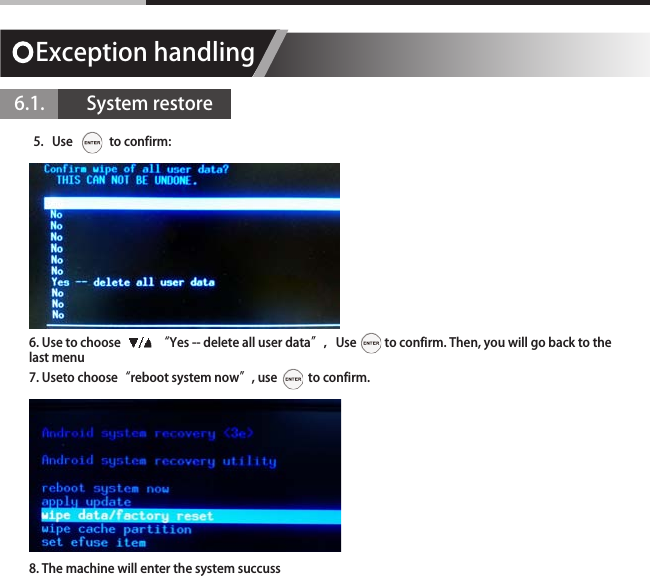
5.   Use             to confirm:     6. Use to choose             “Yes -- delete all user data”,Use          to confirm. Then, you will go back to the last menu7. Useto choose“reboot system now”, use           to confirm.8. The machine will enter the system succuss 6.1.          System restoreException handling
FCC NOTE: This device complies with Part 15 of the FCC Rules. Operation is subject to the following two conditions: (1) this device may not cause harmful  interference,  and  (2)  this  device  must  accept  any  interference  received, including interference that may cause undesired operation.  THE  MANUFACTURER  IS  NOT  RESPONSIBLE  FOR  ANY  RADIO  OR  TV INTERFERENCE  CAUSED  BY  UNAUTHORIZED  MODIFICATIONS  TO  THIS EQUIPMENT.  SUCH  MODIFICATIONS  COULD  VOID  THE  USER’S AUTHORITY TO OPERATE THE EQUIPMENT.  This equipment has been tested and found to comply with the limits for a Class B digital device, pursuant to part 15 of the FCC Rules. These limits are designed to provide reasonable protection against harmful interference in a residential installation. This equipment generates, uses and can radiate radio frequency energy and, if not installed and used in accordance with the instructions, may cause harmful interference to radio communications. However, there is no guarantee that interference will not occur in a particular installation. If this equipment does cause harmful interference to radio or television reception, which can be determined by turning the equipment off and on, the user is encouraged to try to correct the interference by one or more of the following measures:    -- Reorient or relocate the receiving antenna.    -- Increase the separation between the equipment and receiver.    -- Connect the equipment into an outlet on a circuit different from that to which the receiver is connected.    -- Consult the dealer or an experienced radio/TV technician for help.  To maintain compliance with FCC’s RF exposure guidelines, this equipment should be installed and operated with a minimum distance of 20cm between the radiator and your body.

Navigation menu