Guangzhou Shiyuan Electronics CVTD3X Android Dongle User Manual 2

Guangzhou Shiyuan Electronics Co., Ltd. Android Dongle 2

Contents

user manual 2

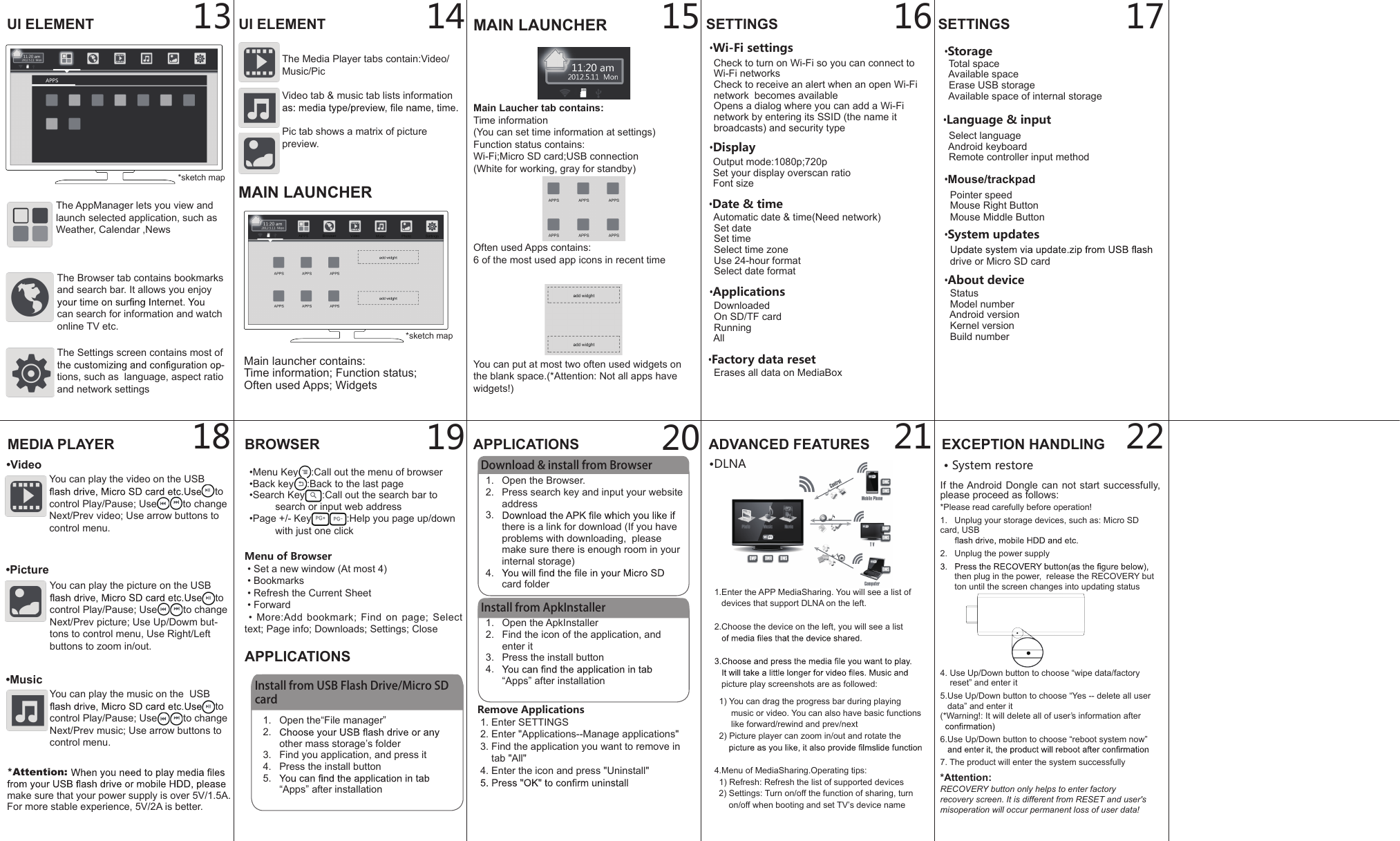
1.  Open the ApkInstaller2.  Find the icon of the application, and enter it3.  Press the install button4. “Apps” after installation14BROWSER•Menu Key :Call out the menu of browser•Back key :Back to the last page•Search Key :Call out the search bar to search or input web address•Page +/- Key :Help you page up/down with just one clickAPPLICATIONS13 15 16 172221201918•Language & input  Select language  Android keyboard  Remote controller input method•About device  Status  Model number  Android version  Kernel version  Build number•System updates  drive or Micro SD cardMenu of Browser • Set a new window (At most 4) • Bookmarks • Refresh the Current Sheet • Forward • More:Add  bookmark;  Find  on  page;  Select text; Page info; Downloads; Settings; CloseInstall from USB Flash Drive/Micro SD card1.  Open the“File manager”2. other mass storage’s folder3.  Find you application, and press it4.  Press the install button5. “Apps” after installationAPPLICATIONSDownload & install from Browser1.  Open the Browser.2.  Press search key and input your website address3. there is a link for download (If you have problems with downloading,  please make sure there is enough room in your internal storage)4. card folderInstall from ApkInstallerRemove Applications 1. Enter SETTINGS 2. Enter "Applications--Manage applications" 3. Find the application you want to remove in      tab "All" 4. Enter the icon and press "Uninstall"ADVANCED FEATURES1.Enter the APP MediaSharing. You will see a list of   devices that support DLNA on the left.2.Choose the device on the left, you will see a list   picture play screenshots are as followed:  1) You can drag the progress bar during playing        music or video. You can also have basic functions        like forward/rewind and prev/next  2) Picture player can zoom in/out and rotate the 4.Menu of MediaSharing.Operating tips:  1) Refresh: Refresh the list of supported devices  2) Settings: Turn on/off the function of sharing, turn       on/off when booting and set TV’s device nameEXCEPTION HANDLING• System restoreUI ELEMENT UI ELEMENTThe Browser tab contains bookmarks and search bar. It allows you enjoy can search for information and watch online TV etc.The Media Player tabs contain:Video/Music/Pic Video tab & music tab lists information Pic tab shows a matrix of picture preview.The AppManager lets you view and launch selected application, such as Weather, Calendar ,NewsThe Settings screen contains most of -tions, such as  language, aspect ratio and network settingsMEDIA PLAYER•VideoYou can play the video on the USB to control Play/Pause; Use to change Next/Prev video; Use arrow buttons to control menu.•PictureYou can play the picture on the USB to control Play/Pause; Use to change Next/Prev picture; Use Up/Dowm but-tons to control menu, Use Right/Left buttons to zoom in/out.•MusicYou can play the music on the  USB to control Play/Pause; Use to change Next/Prev music; Use arrow buttons to control menu.*sketch mapSETTINGS•Wi-Fi settings  Check to turn on Wi-Fi so you can connect to        Wi-Fi networks  Check to receive an alert when an open Wi-Fi   network  becomes available  Opens a dialog where you can add a Wi-Fi   network by entering its SSID (the name it   broadcasts) and security type•Display  Output mode:1080p;720p  Set your display overscan ratio  Font size•Applications  Downloaded  On SD/TF card  Running  All•Factory data reset  Erases all data on MediaBox•Storage   Total space  Available space  Erase USB storage  Available space of internal storage•DLNASETTINGSMAIN LAUNCHERMain Laucher tab contains:Time information(You can set time information at settings)Function status contains:Wi-Fi;Micro SD card;USB connection(White for working, gray for standby)Often used Apps contains:6 of the most used app icons in recent timeYou can put at most two often used widgets on the blank space.(*Attention: Not all apps have widgets!)Main launcher contains:Time information; Function status;Often used Apps; WidgetsMAIN LAUNCHER•Date & time  Automatic date & time(Need network)  Set date  Set time  Select time zone  Use 24-hour format  Select date format*sketch mapIf the Android Dongle can not start successfully, please proceed as follows:*Please read carefully before operation!1.   Unplug your storage devices, such as: Micro SD card, USB 2.   Unplug the power supply      then plug in the power,  release the RECOVERY but      ton until the screen changes into updating status4. Use Up/Down button to choose “wipe data/factory     reset” and enter it5.Use Up/Down button to choose “Yes -- delete all user     data” and enter it(*Warning!: It will delete all of user’s information after 6.Use Up/Down button to choose “reboot system now” 7. The product will enter the system successfully*Attention:RECOVERY button only helps to enter factoryrecovery screen. It is different from RESET and user'smisoperation will occur permanent loss of user data!*Attention: make sure that your power supply is over 5V/1.5A. For more stable experience, 5V/2A is better.  Pointer speed  Mouse Right Button  Mouse Middle Button•Mouse/trackpad

Navigation menu