Guangzhou Shiyuan Electronics UNIV701-2 Car audio navigation User Manual

Guangzhou Shiyuan Electronics Co., Ltd. Car audio navigation

User Manual

   Byweijw2016/9/23CVTEAVN  User ManualU702P
   Contents Safety Information ........................................... 1Safety Tips ................................................ 1Safety Statement ....................................... 1Warning .................................................... 1Installation Instructions ................................... 2Usage Notes ..................................................... 3Statements ........................................................ 3Front panel ........................................................ 4Radio ................................................................ 6FM/AM Switching ................................... 6Automatic Search and Storage Station .... 6Play Preset Station .................................... 6Manual Search Station ............................. 6Switch Station .......................................... 6Collect Station .......................................... 7Shut Off Radio ......................................... 7Multimedia ....................................................... 8Supporting Format ................................... 8Play Music ................................................ 8Play Video ................................................ 9View Picture ............................................. 9Play Folder Contents .............................. 10First Letter Search .................................. 10Switch Tracks ......................................... 10Play/Pause .............................................. 10Playing Modes ........................................ 11 Hands-free ..................................................... 11Search Bluetooth Device ........................ 11Bluetooth Pairing ................................... 12Automatic Connection ........................... 12Download Phone Book .......................... 12Call Out / Receive Call .......................... 13Hands-free Mode and Private Mode ...... 13Disconnection ......................................... 13Bluetooth  Audio Music ................................ 13Switch Tracks ......................................... 14Play/Pause .............................................. 14Switch Between USB and Bluetooth ..... 14CarPlay .......................................................... 14Call Out / Receive Call .......................... 15Play Music .............................................. 15Use Map ................................................. 15Check Message ...................................... 15Siri .......................................................... 15iPod................................................................. 15Android Link ................................................. 15How to connect ...................................... 16How to use ............................................. 16Remarks.................................................. 17Navigation ...................................................... 17AUX ............................................................... 1 8Settings .......................................................... 18General Settings ..................................... 18Advance settings .................................... 20Steering Wheel key ................................ 21Audio Settings ........................................ 22Display Settings ..................................... 23Bluetooth Settings .................................. 24Radio Settings ........................................ 25Connection ..................................................... 26Common Problems and Solutions ................. 27
 1Safety Information Safety Tips z Please drive according to driving regulations and obey traffic laws; z Please pay attention to the warning in the manual and avoid the operations that  mentioned during the installation and use. The ignoring of any warning would lead to  danger; z Please do not use any function that would disperse your attention in driving.  These functions should be used in the parking state. If you need the function, please  park the vehicle in the security zone and use handbrake to avoid the occurrence of  safety accidents; z During driving, please keep the volume of music in the state that does not affect  any security alert and make sure that the driver could be able to hear the noise out of the  window. Driver may not hear the emergency alert or road warning signal because of  high volume in vehicle and it may lead to traffic accident; z For security considerations, driver in the vehicle should not watch the video,  please enable the “handbrake test” function in system settings; z Please do not insert your finger, a foreign matter or conductive material into the  gap or slot; z Please do not wear headset in driving; z Please do not use the product for any other function except for navigation and  multimedia; z Any accessories should be matched with the parameters of the product during the replacing; Unsuitable accessories might damage the product and cause serious safety accidents, which will lead to personal injury; Safety Statement z This product is the auxiliary equipment for increasing driving experience, please  keep the safety in the first place and never be careless or lack of judgment. Please  avoid using any function that may affect your safety during driving, otherwise the  safety accidents caused by improper operation has nothing to do with our company;  Please take the actual situation as the basis for the processing; Such as map navigation,  it works only as a reference, please consider the actual road conditions; z The navigation map provider is responsible for navigation map data; z Please follow the manual steps. Any serious injury, death or goods damage that caused by the operation that does not be mentioned in the manual has nothing to do  with our company;  Warning z Please do not disassemble, install or repair the product by yourself. Please contact  the manufacturer specified service personnel first if it is necessary. The operation that  conduct by the person who has not electronic equipment, vehicle modification or  other related training may cause accidents, fire, electric shock, or other dangers; z Please do not arbitrarily change the system; z Please do not make products near the fire, contact liquid and avoid the damage to  the product that may lead to electric shock, fire and other accidents; z Please do not install and use this product in the environment that does not meet  the installation conditions. Otherwise it may cause the damage to the machine or  injury to user;
 2z Please do not arbitrarily change the emission frequency, increase the transmission power (including add RF power amplifier), add external antenna or use other transmit  antennas; z Please do not make interference to legitimate radio communication services during the using of product. Once the interference occurs, user should immediately stop using the product and the product should not be used unless the interference is disappeared; Installation Instructions z The vehicle must meet the voltage, current and power that required, please check  the conditions before installation; z The installation should be done while the battery of the vehicle is disconnected; z To ensure that the product has been fitted with a fuse; z The installation of the product should not affect the safety of the operation and  function of the vehicle; z The installation position should not block the driver's sight and should not be on  the place that the brake, steering wheel, seat belts, airbags and other vehicle safety  equipment should be; z Please confirm the matching condition of the vehicle interface before install this  product, use the appropriate patch plug if the interface is not matched; z Please be familiar with the connection of the vehicle before installation, confirm  the position of the piping, electrical wiring, fuel tank and other vehicle system  components. Do not touch or damage these components and avoid the exposure of  wires that may cause corrosion, leakage, etc.; z Please do not conduct the installation in place of condensation, drench water sites,  high humidity, containing dust and oil smoke. If water, moisture, dust and oil smoke  enter the product, it may cause smoke, fire or failure; z Please do not move or disassembled the existing screws, nuts, bolts, clips,  connecting fixed appliances, accessories and so on, do not change or remove vehicle  incidental contact system and wire clip, otherwise it may impair the function of automobile safety; z In order to avoid the occurrence of fire damage to the product or vehicle, please  do not allow the existing power supply circuit overload when power the product;  Please be sure that the power wires have insulation treatment and install with fuses,  circuit breakers and relays; z Please use nonconductive tape in insulation treatment, wrap the ends of the wire  and unused wire; correct insulating treatment can avoid the occurrence of electric arc,  electric shock or fire. In order not to impede the brake pedal, gearbox and steering  wheel, plastic belt could be used to fix the wires. Please do not make the wires contact  high temperature surface, the heat can easily cause damage to the wires and lead to  short circuit, arc or fire; z Please fix the wire on the electric chair or other parts of vehicle where will not  lead to the scratch or damage of wire. In addition, the wire should be fixed in the  hidden place as far as possible, it will make the environment inside the vehicle  beautiful; z Please do not block the airflow vents, otherwise it may cause internal overheat  and fire; z After the installation is completed, please check the wire connection of the vehicle, then run all functions, including lights, speakers, stereo, reversing operation and other electrical  systems and ensure that the vehicle function is normal and can be used safely.
 3Usage Notes z Please use this product in 9~16V DC voltage range. Mismatched voltage(too high or too low) will cause damage to the product and the battery of the vehicle; z Please use the 15A fuse; z Please operate the product at the temperature of -20°C to +70 °C; z Use the soft wet cloth to wipe the stain gently; z It is recommended to not use the product in excessive wet environment. If the  function is failed, please shut down the product and restart after the moisture  dispersed; z When restart, please use the tapered matter press the reset button lightly; z When OS is crashed and affects driving, please park the vehicle in the safety zone  and restart the machine; z When it is in cold start process, it may not be able to accurately display the  current time and location, user could use GPS positioning function to correct it; z The product may not run normally because of bumpy road. Users could reuse this product when the road conditions improve; z When playing HD video, it is suggested to close navigation system to avoid the  stuttering; z Foreign objects or water into the machine may cause the smoke or smell. When it occurs, please immediately shut down the machine and contact the service center; z If the product has any fault or any serious damage, stop using and contact  customer service center immediately; z It is not in the scope of warranty that the products cannot run normally, data is corrupted or lost because of operation without manual instruction or artificial damage to the product; Statements z This manual mainly introduces the function and operation method of the product,  it is only used as user's operating guidelines, not as a basis for other criteria and  maintenance services; z When there is improvement of products, specifications and design are subject to  change without notice, please consult the supplier for details; z Without our authorization, the contents of this manual shall not be used for other  commercial purposes; z The final interpretation of this manual shall be owned by manufacturer z This device complies with Part 15 of the FCC rules. Operation is subjected to the following two conditions: (1) this device may not cause harmful interference, and (2) this device must accept any interference received, including interference that may cause undesired operation. z Changes or modifications not expressly approved by the party responsible for compliance could void your authority to operate the equipment.
 4Front panel          ①     Microphone ②     Reset ③     Screen display area    Home   Long press to standby mode    Enable Siri     Mute/Unmute    ①6②③VOL- VOL+
 5Home menu       FM/AM              Listen to FM / AM radio program;  CarPlay              Connect to iPhone or iPod; Android Link     Connect to Android phone;  Phone                 Hands-free phoning;  Navigation          Use navigation system;  Bluetooth            Play Bluetooth audio music;  USB                     Play music/video in U disk;  DAB+/DTV        Use external DTV AUX                    Listen to External audio;  DVD                    Use external DVD Settings               Set the parameters of the product;
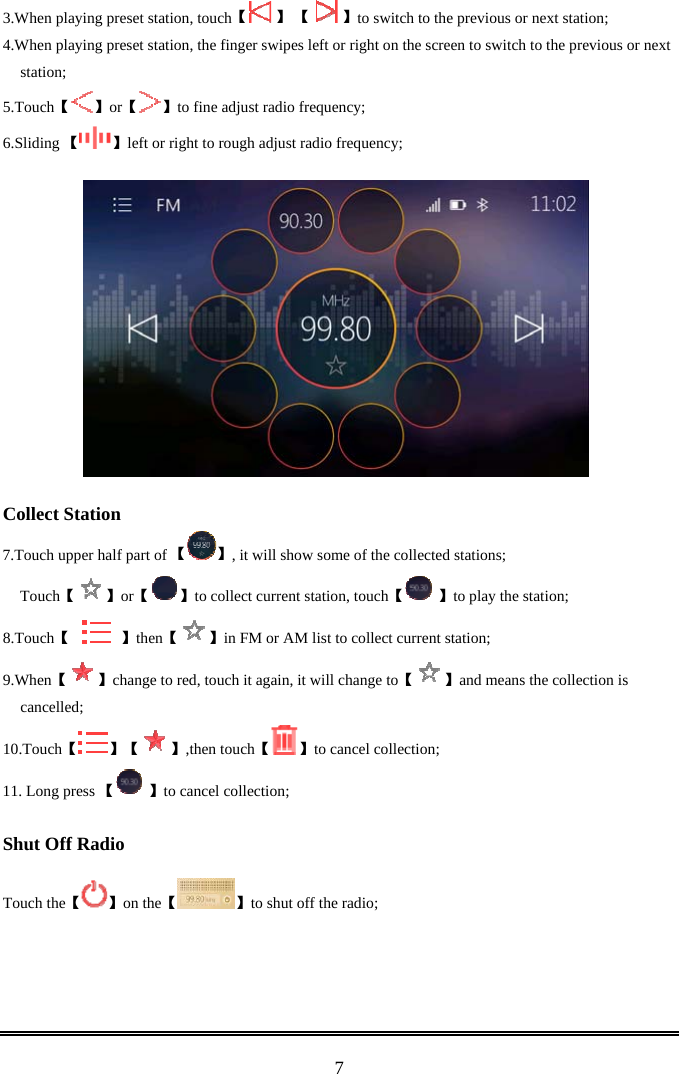
 6Radio  When broadcast radio is stereo, radio interface will display the "stereo";  (FM only)      FM/AM Switching 【Touch 】to alternate switch between FM and AM; Or touch【 】and then choose【】【 】to switch; Automatic Search and Storage Station 【Touch 】to automatic search and save station; When search is completed, the first radio station is automatically played and the radio list is displayed; Play Preset Station  【Touch 】【 】【or 】select the station in the list to play. Manual Search Station 1.  【If there is no default radio station, touch 】【or   】to automatic search the radio station. If the station is searched, the process will stop and play the current station, and then touch the button to search again; 2. If there is no default radio station, the finger swipes left or right on the screen to search the radio station. The search will stop and play the current station, and then touch the button to search again; Switch Station
 73.When playing pr 【eset station, touch  】 【   】to switch to the previous or next station; 4.When playing preset station, the finger swipes left or right on the screen to switch to the previous or next station; 5. 【Touch 】【or 】to fine adjust radio frequency; 6. 【Sliding  】left or right to rough adjust radio frequency;      Collect Station 7. 【Touch upper half part of  】, it will show some of the collected stations; 【Touch 】【or 】【to collect current station, touch  】to play the station; 8. 【Touch       】then【 】in FM or AM list to collect current station; 9. 【When 】change to red, touch it again 【, it will change to 】and means the collection is cancelled; 10. 【Touch 】【 】【,then touch 】to cancel collection; 11. Long press 【 】to cancel collection;  Shut Off Radio  【Touch the 】【on the 】to shut off the radio;
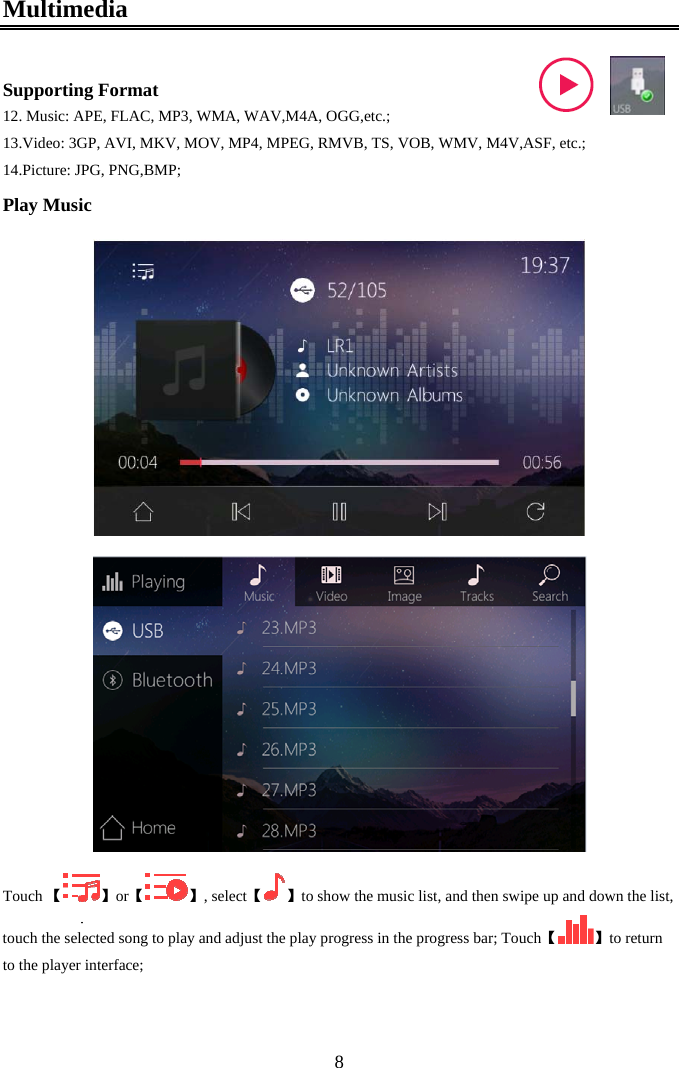
 8Multimedia  Supporting Format 12. Music: APE, FLAC, MP3, WMA, WAV,M4A, OGG,etc.; 13. Video: 3GP, AVI, MKV, MOV, MP4, MPEG, RMVB, TS, VOB, WMV, M4V,ASF, etc.; 14. Picture: JPG, PNG,BMP; Play Music  【Touch  】【or 】,  【select 】to show the music list, and then swipe up and down the list, touch the selected song to play and  【adjust the play progress in the progress bar; Touch 】to return to the player interface;
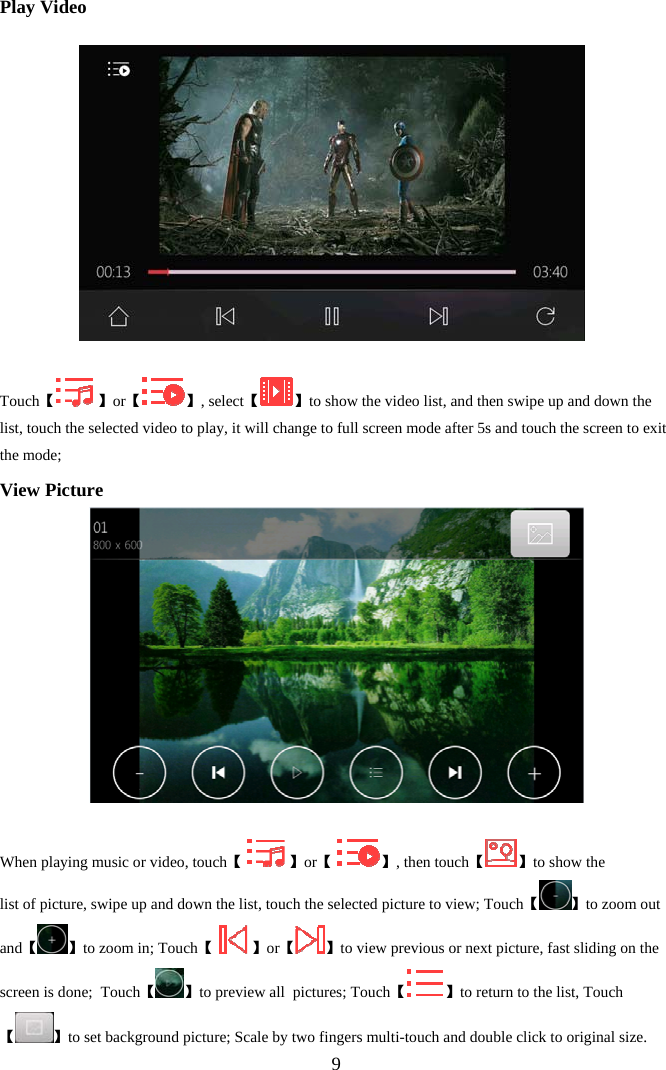
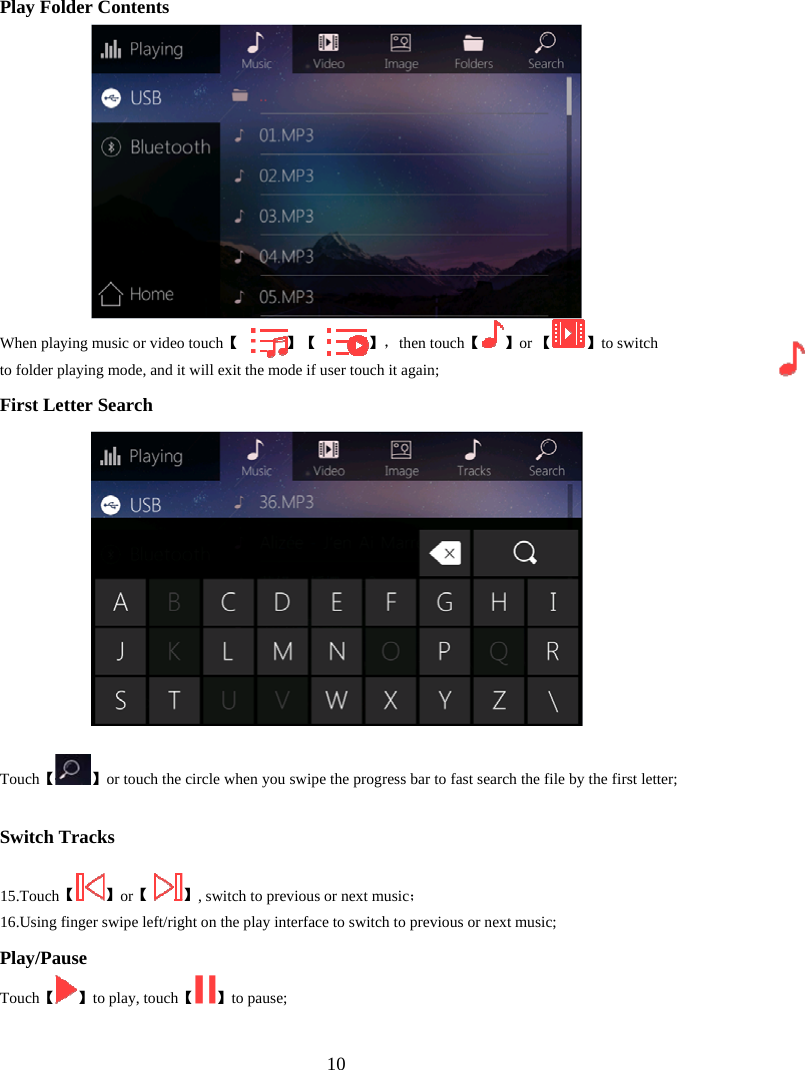
 9Play Video     【Touch  】【or 】, select【 】to show the video list, and then swipe up and down the list, touch the selected video to play, it will change to full screen mode after 5s and touch the screen to exit the mode; View Picture   Wh 【en playing music or video, touch    】【or   】【, then touch 】to show the list of picture, swipe up and down the list, touch the selected picture to view; Touch【 】to zoom out and【 】to zoom in; Touch【   】or【 】to view previous or next picture, fast sliding on the screen is done;  Touch【 】to preview all  pictures; Touch【 】to return to the list, Touch 【】to set background picture; Scale by two fingers multi-touch and double click to original size.
 10Play Folder Contents 【When playing music or video touch             】【             】, 【then touch 】or 【 】to switch to folder playing mode, and it will exit the mode if user touch it again; First Letter Search 【Touch 】or touch the circle when you swipe the progress bar to fast search the file by the first letter; Switch Tracks  15. 【Touch 】or【 】;, switch to previous or next music  16.Using finger swipe left/right on the play interface to switch to previous or next music; Play/Pause 【Touch 】【to play, touch 】to pause;
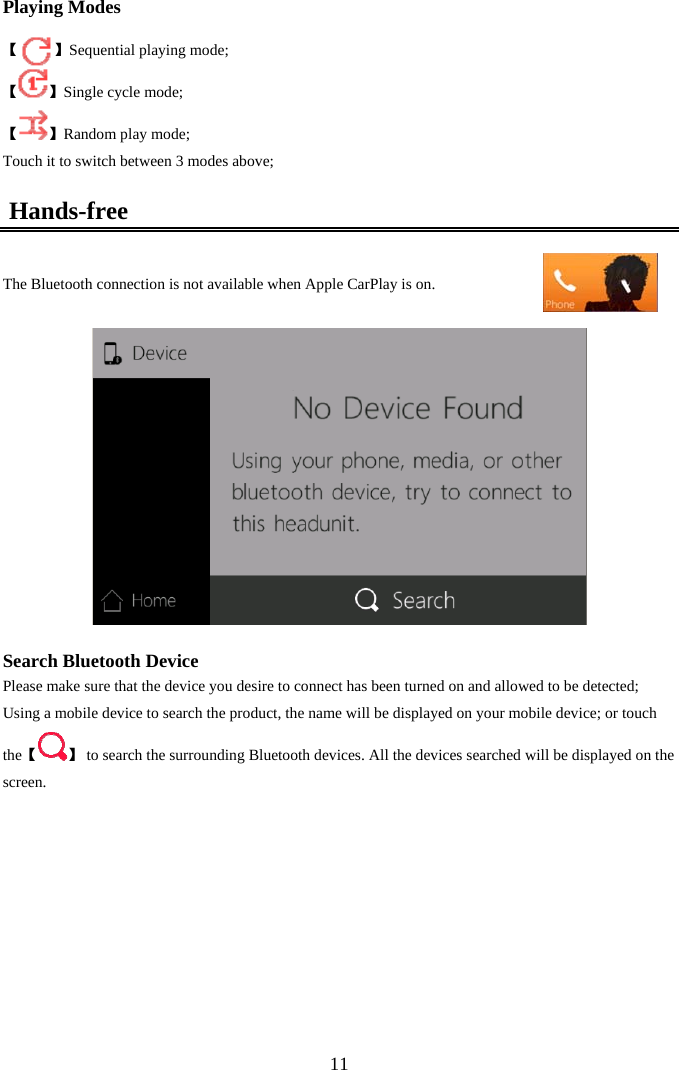
 11Playing Modes   【         】Sequential playing mode; 【 】Single cycle mode; 【 】Random play mode; Touch it to switch between 3 modes above;  Hands-free  The Bluetooth connection is not available when Apple CarPlay is on.    Search Bluetooth Device Please make sure that the device you desire to connect has been turned on and allowed to be detected; Using a mobile device to search the product, the name will be displayed on your mobile device; or touch 【the 】 to search the surrounding Bluetooth devices. All the devices searched will be displayed on the screen.
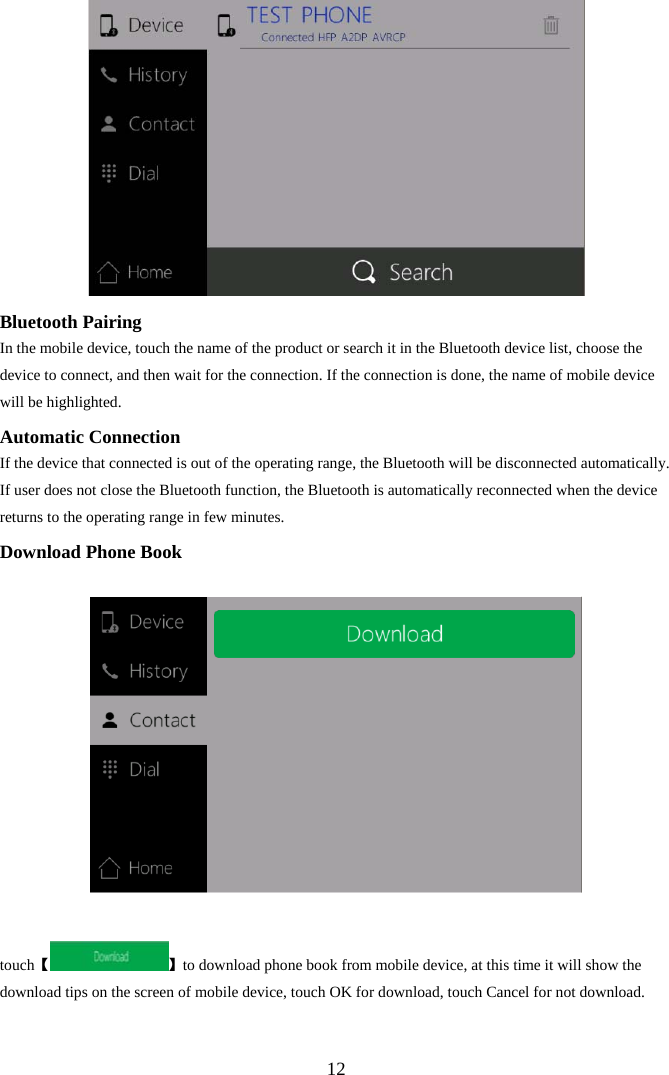
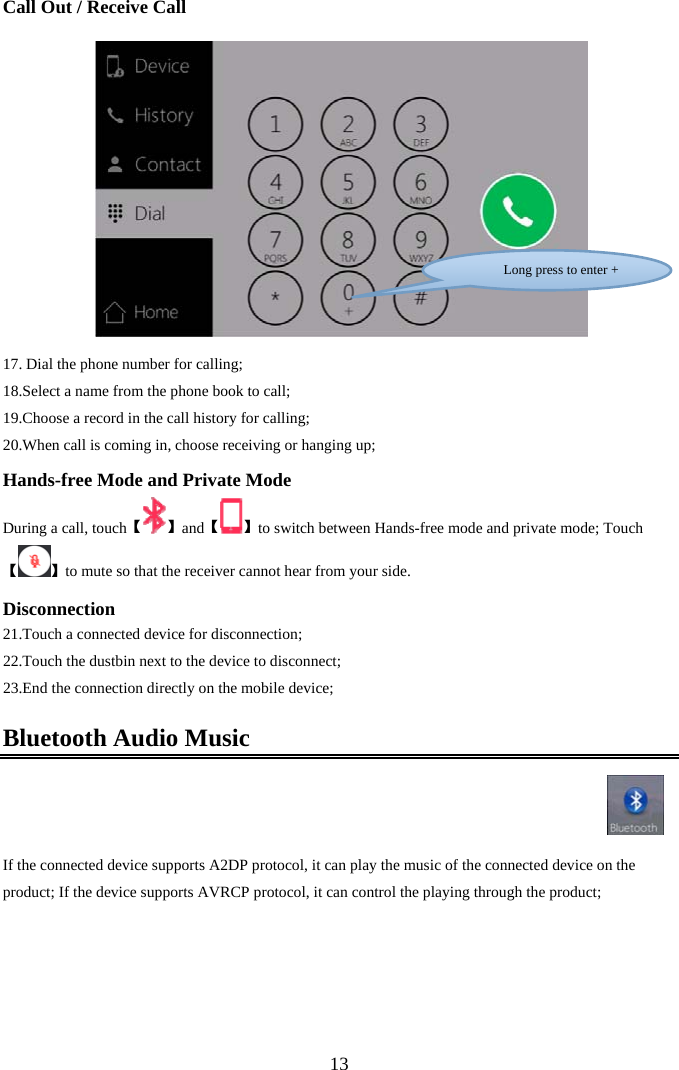
 12 Bluetooth Pairing In the mobile device, touch the name of the product or search it in the Bluetooth device list, choose the device to connect, and then wait for the connection. If the connection is done, the name of mobile device will be highlighted. Automatic Connection If the device that connected is out of the operating range, the Bluetooth will be disconnected automatically. If user does not close the Bluetooth function, the Bluetooth is automatically reconnected when the device returns to the operating range in few minutes. Download Phone Book  【touch 】to download phone book from mobile device, at this time it will show the download tips on the screen of mobile device, touch OK for download, touch Cancel for not download.
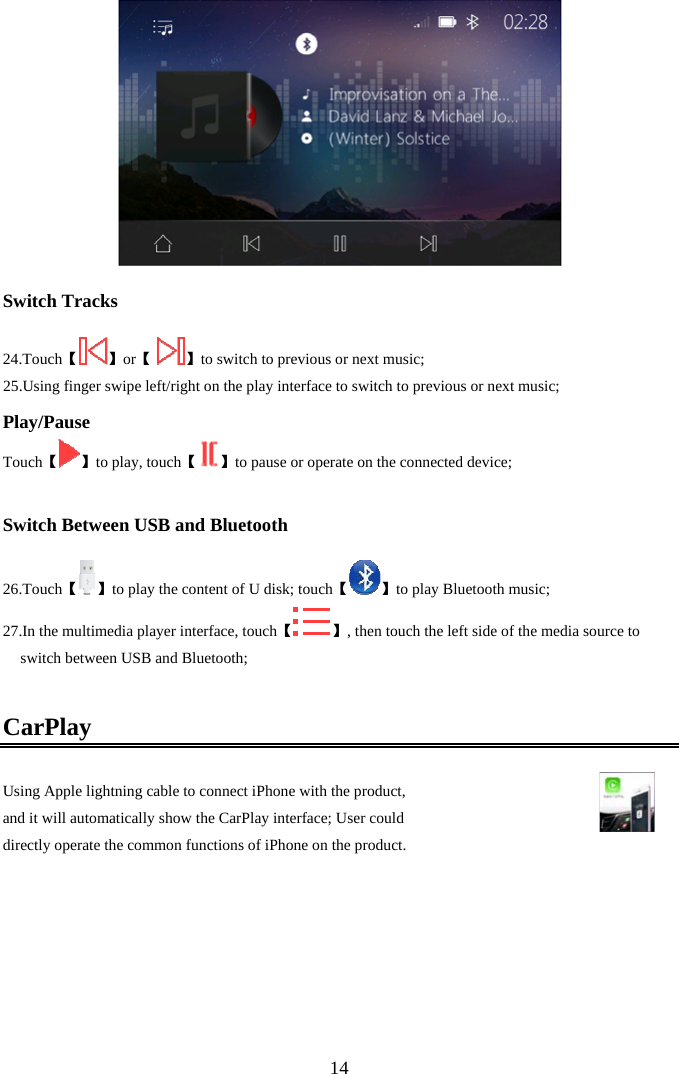
 13Call Out / Receive Call     17.  Dial the phone number for calling; 18.Select a name from the phone book to call; 19.Choose a record in the call history for calling; 20.When call is coming in, choose receiving or hanging up; Hands-free Mode and Private Mode During a call, touch【】【and 】to switch between Hands-free mode and private mode; Touch【】to mute so that the receiver cannot hear from your side. Disconnection 21. Touch a connected device for disconnection; 22.Touch the dustbin next to the device to disconnect; 23.End the connection directly on the mobile device; Bluetooth Audio Music    If the connected device supports A2DP protocol, it can play the music of the connected device on the product; If the device supports AVRCP protocol, it can control the playing through the product;  Long press to enter +
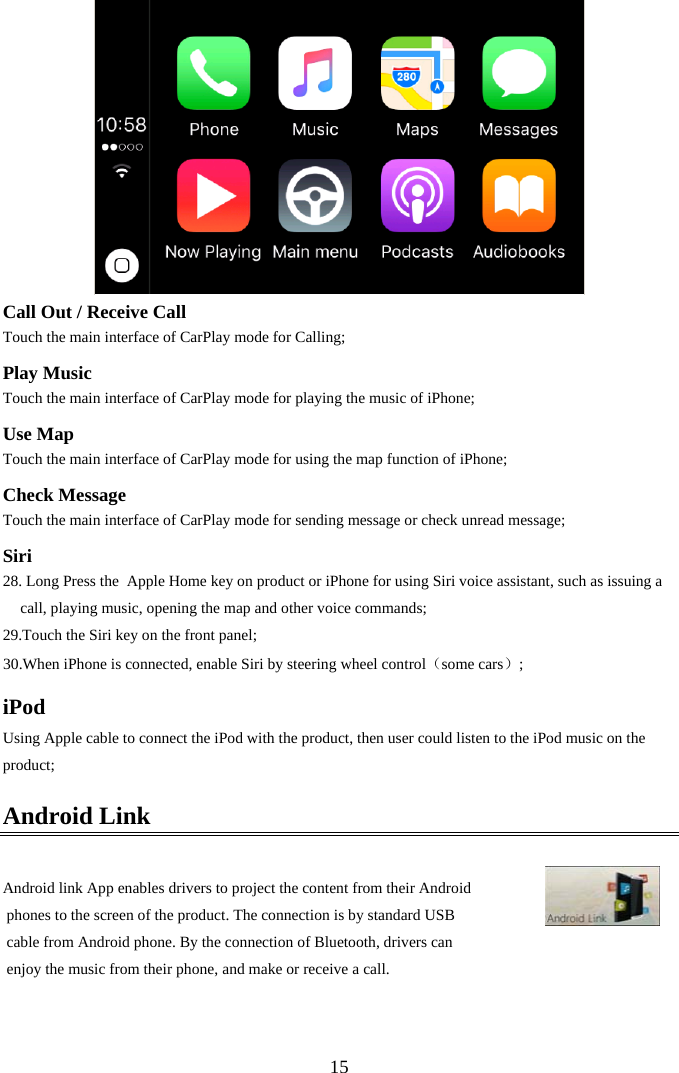
 14  Switch Tracks  24. Touch【】【or   】to switch to previous or next music; 25.Using finger swipe left/right on the play interface to switch to previous or next music; Play/Pause 【Touch 】【to play, touch 】to pause or operate on the connected device;  Switch Between USB and Bluetooth  26. Touch【】【to play the content of U disk; touch 】to play Bluetooth music; 27. 【In the multimedia player interface, touch 】, then touch the left side of the media source to switch between USB and Bluetooth;  CarPlay Using Apple lightning cable to connect iPhone with the product,  and it will automatically show the CarPlay interface; User could  directly operate the common functions of iPhone on the product.
 15 Call Out / Receive Call Touch the main interface of CarPlay mode for Calling; Play Music Touch the main interface of CarPlay mode for playing the music of iPhone; Use Map Touch the main interface of CarPlay mode for using the map function of iPhone; Check Message Touch the main interface of CarPlay mode for sending message or check unread message; Siri 28. Long Press the  Apple Home key on product or iPhone for using Siri voice assistant, such as issuing a call, playing music, opening the map and other voice commands;  29.Touch the Siri key on the front panel; 30.When iPhone is connected, enable Siri by steering wheel control(some cars); iPod Using Apple cable to connect the iPod with the product, then user could listen to the iPod music on the product; Android Link  Android link App enables drivers to project the content from their Android  phones to the screen of the product. The connection is by standard USB  cable from Android phone. By the connection of Bluetooth, drivers can  enjoy the music from their phone, and make or receive a call.
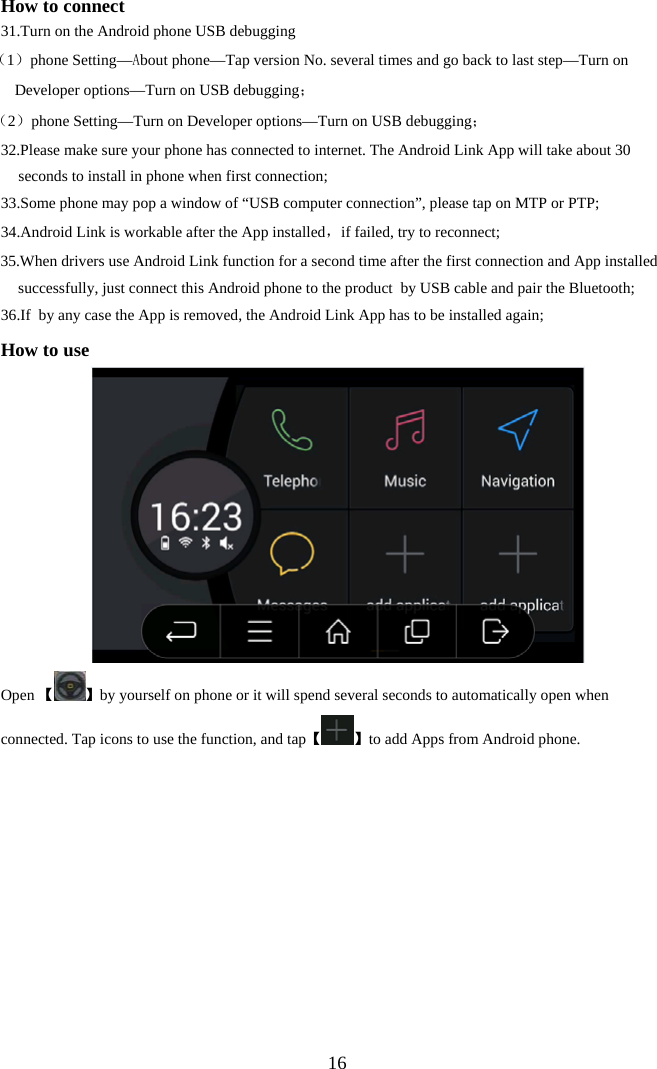
 16How to connect 31. Turn on the Android phone USB debugging       (1)phone Setting—About phone—Tap version No. several times and go back to last step—Turn on Developer options—Turn on USB debugging;    (2)phone Setting—Turn on Developer options—Turn on USB debugging;  32.Please make sure your phone has connected to internet. The Android Link App will take about 30 seconds to install in phone when first connection; 33. Some phone may pop a window of “USB computer connection”, please tap on MTP or PTP; 34. Android Link is workable after the App installed,if failed, try to reconnect; 35.When drivers use Android Link function for a second time after the first connection and App installed successfully, just connect this Android phone to the product  by USB cable and pair the Bluetooth; 36. If  by any case the App is removed, the Android Link App has to be installed again; How to use   Open 【 】by yourself on phone or it will spend several seconds to automatically open when connected. Tap icons to use the function, and tap【 】to add Apps from Android phone.
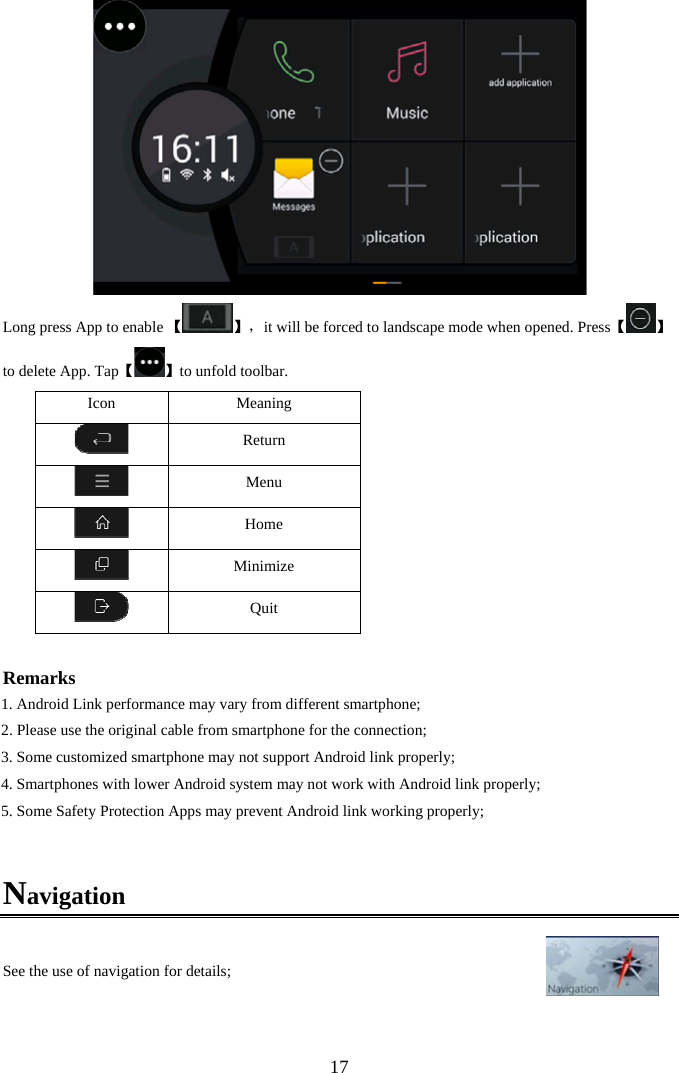
 17 Long press App to enable 【】,it will be forced to landscape mode when opened. Press【 】to delete App. Tap【】to unfold toolbar. IconMeaning Return Menu Home Minimize Quit  Remarks 1. Android Link performance may vary from different smartphone;  2. Please use the original cable from smartphone for the connection;  3. Some customized smartphone may not support Android link properly; 4. Smartphones with lower Android system may not work with Android link properly;  5. Some Safety Protection Apps may prevent Android link working properly;  Navigation  See the use of navigation for details;
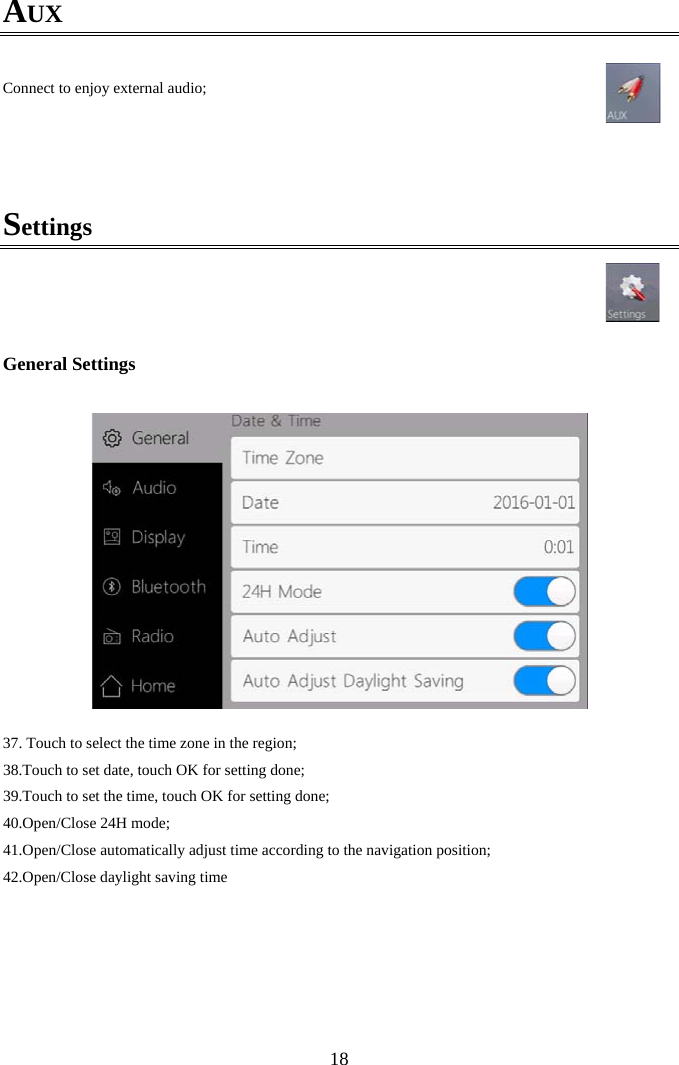
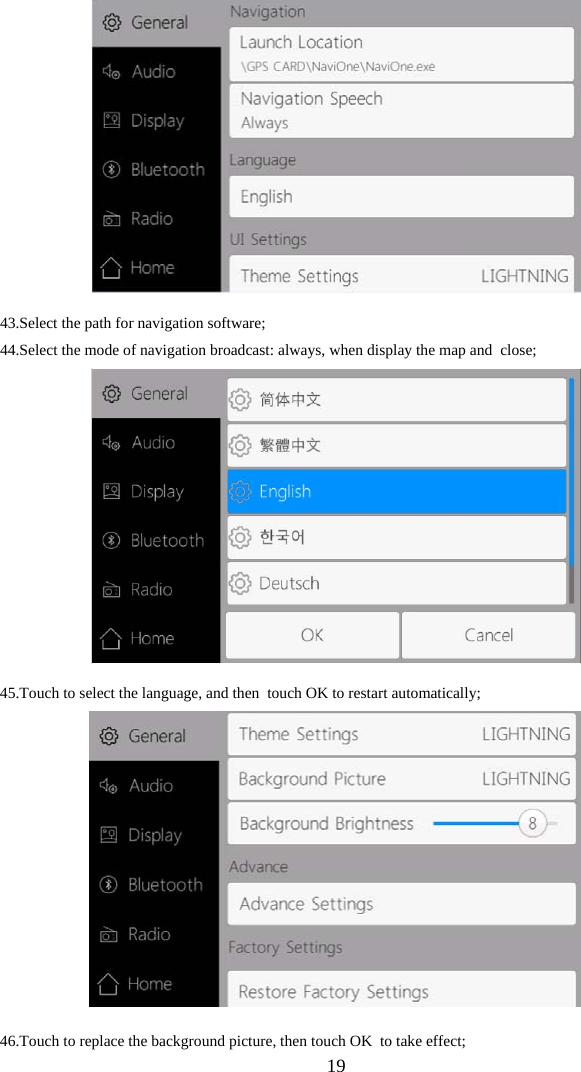
 18AUX  Connect to enjoy external audio;    Settings      General Settings   37.  Touch to select the time zone in the region; 38.Touch to set date, touch OK for setting done; 39.Touch to set the time, touch OK for setting done; 40.Open/Close 24H mode; 41.Open/Close automatically adjust time according to the navigation position; 42.Open/Close daylight saving time
 19  43.Select the path for navigation software; 44.Select the mode of navigation broadcast: always, when display the map and  close;   45.Touch to select the language, and then  touch OK to restart automatically;   46.Touch to replace the background picture, then touch OK  to take effect;
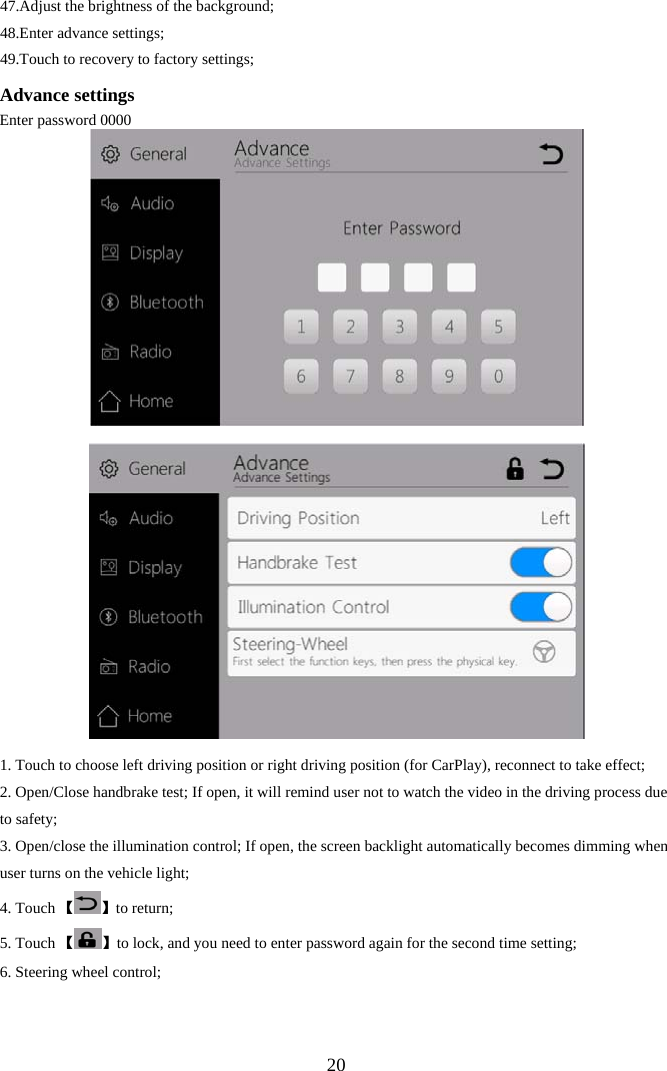
 2047.Adjust the brightness of the background; 48.Enter advance settings; 49.Touch to recovery to factory settings; Advance settings  Enter password 0000     1. Touch to choose left driving position or right driving position (for CarPlay), reconnect to take effect; 2. Open/Close handbrake test; If open, it will remind user not to watch the video in the driving process due to safety; 3. Open/close the illumination control; If open, the screen backlight automatically becomes dimming when user turns on the vehicle light; 4. Touch 【 】to return; 5. Touch 【 】to lock, and you need to enter password again for the second time setting; 6. Steering wheel control;
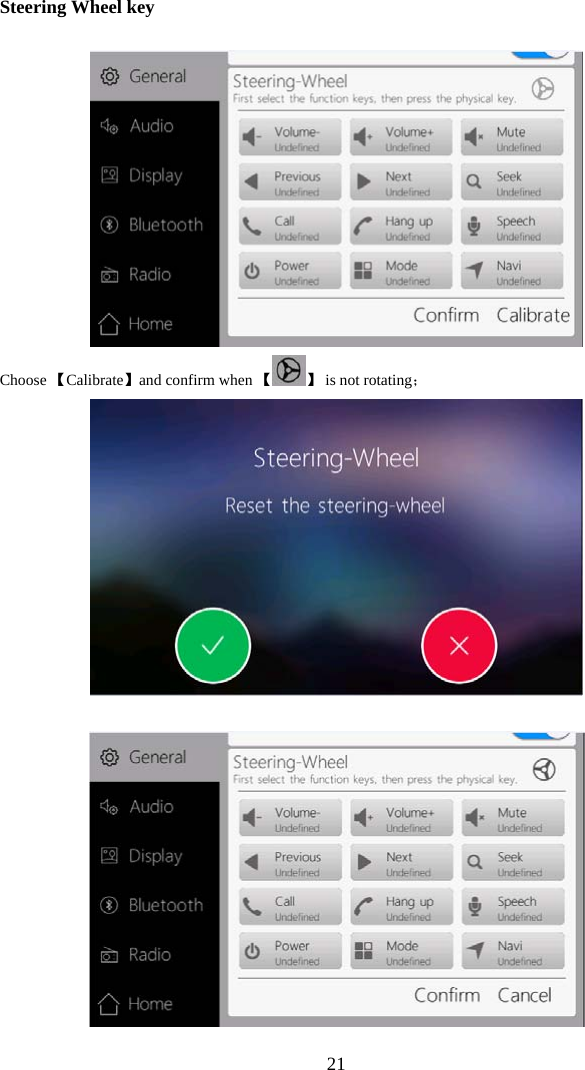
 21Steering Wheel key   Choose 【Calibrate】and confirm when 【 】 is not rotating;
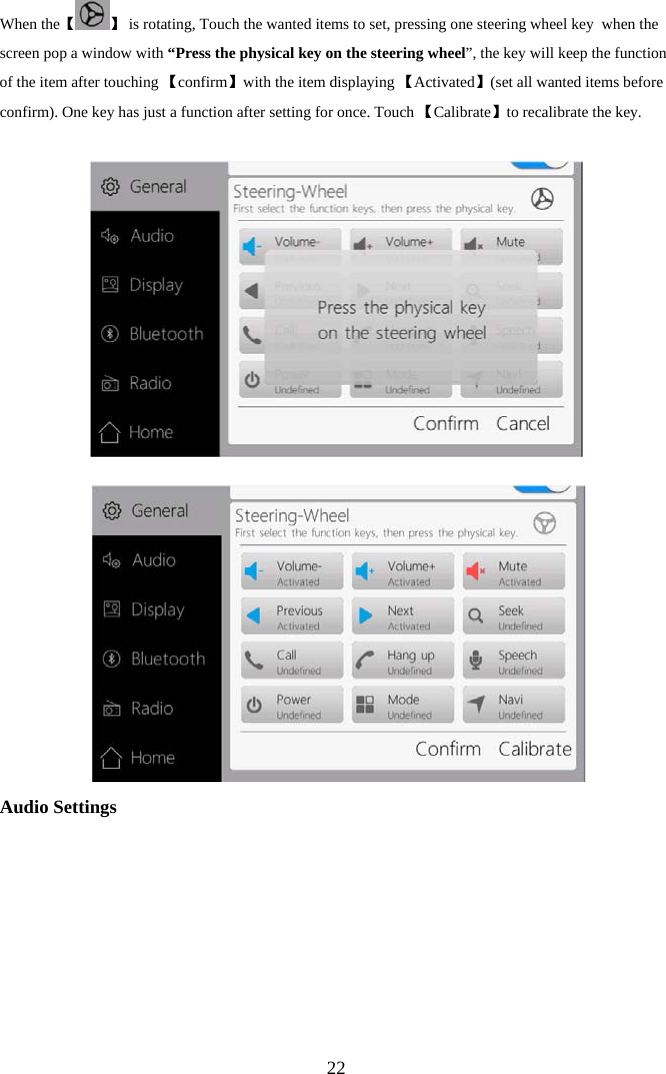
 22When the【 】 is rotating, Touch the wanted items to set, pressing one steering wheel key  when the screen pop a window with “Press the physical key on the steering wheel”, the key will keep the function of the item after touching 【confirm】with the item displaying 【Activated】(set all wanted items before confirm). One key has just a function after setting for once. Touch 【Calibrate】to recalibrate the key.   Audio Settings
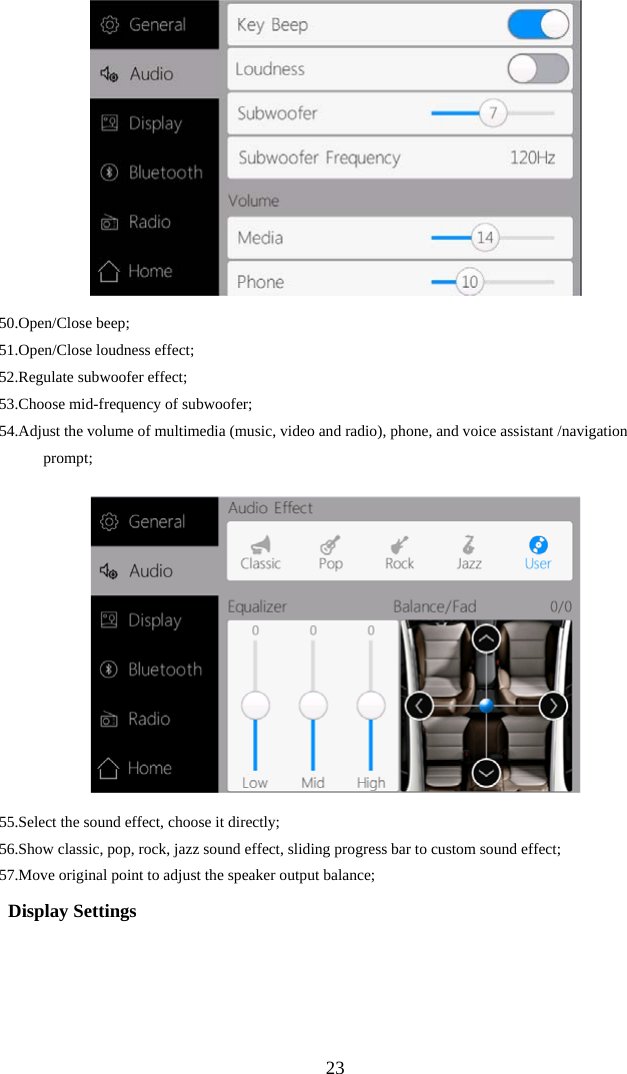
 2350. Open/Close beep; 51. Open/Close loudness effect;  52. Regulate subwoofer effect; 53. Choose mid-frequency of subwoofer; 54.Adjust the volume of multimedia (music, video and radio), phone, and voice assistant /navigation prompt;    55.Select the sound effect, choose it directly; 56.Show classic, pop, rock, jazz sound effect, sliding progress bar to custom sound effect; 57.Move original point to adjust the speaker output balance;   Display Settings
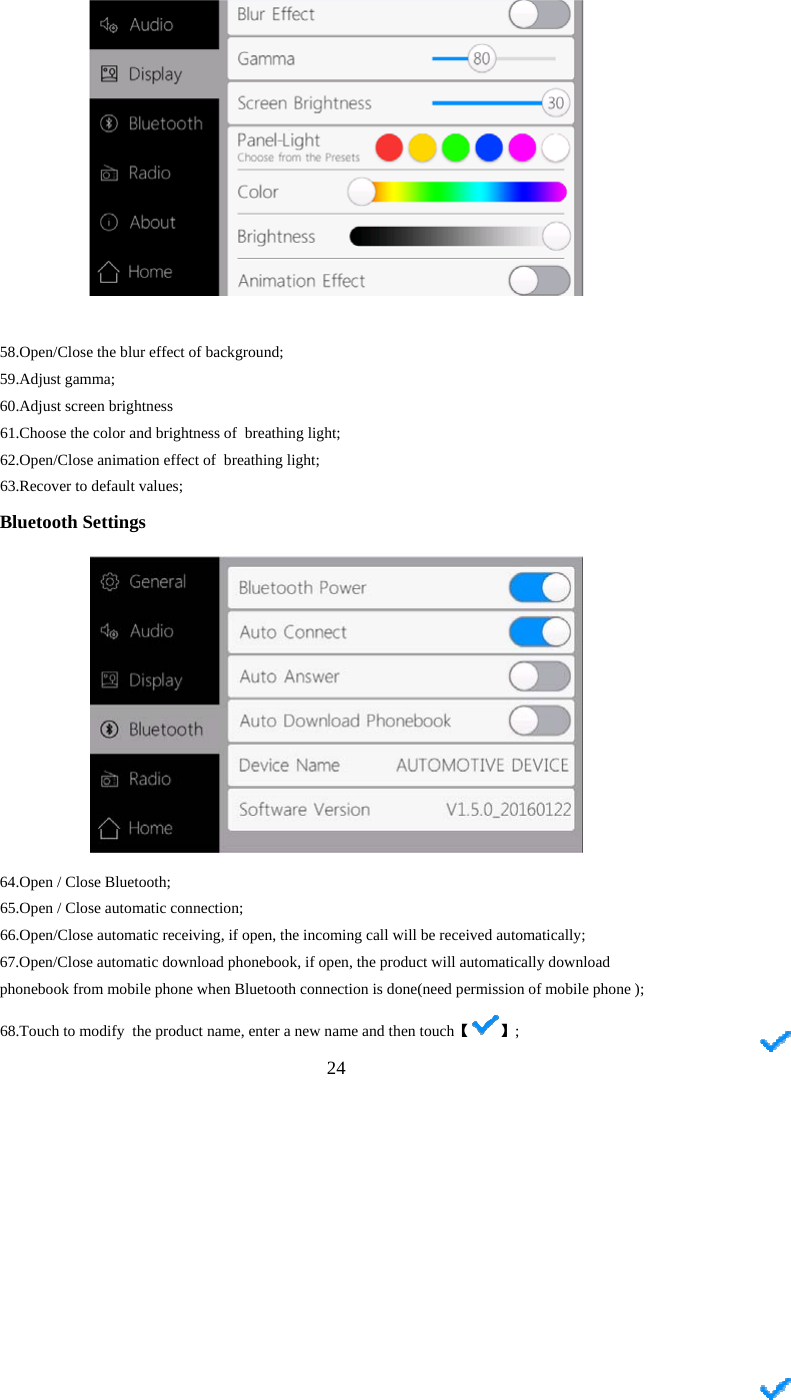
 24   58. Open/Close the blur effect of background; 59. Adjust gamma; 60. Adjust screen brightness 61.Choose the color and brightness of  breathing light; 62.Open/Close animation effect of  breathing light; 63.Recover to default values; Bluetooth Settings    64. Open / Close Bluetooth; 65.Open / Close automatic connection; 66.Open/Close automatic receiving, if open, the incoming call will be received automatically; 67.Open/Close automatic download phonebook, if open, the product will automatically download phonebook from mobile phone when Bluetooth connection is done(need permission of mobile phone ); 68.Touch to modify  the product  【name, enter a new name and then touch 】;
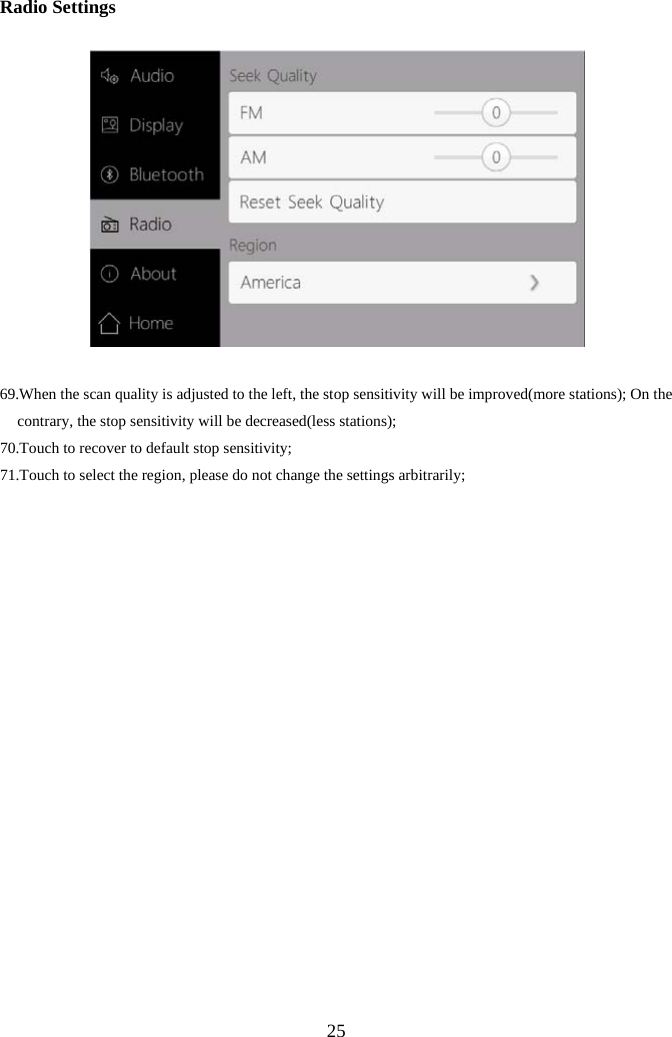
 25 Radio Settings     69.When the scan quality is adjusted to the left, the stop sensitivity will be improved(more stations); On the contrary, the stop sensitivity will be decreased(less stations); 70.Touch to recover to default stop sensitivity; 71.Touch to select the region, please do not change the settings arbitrarily;
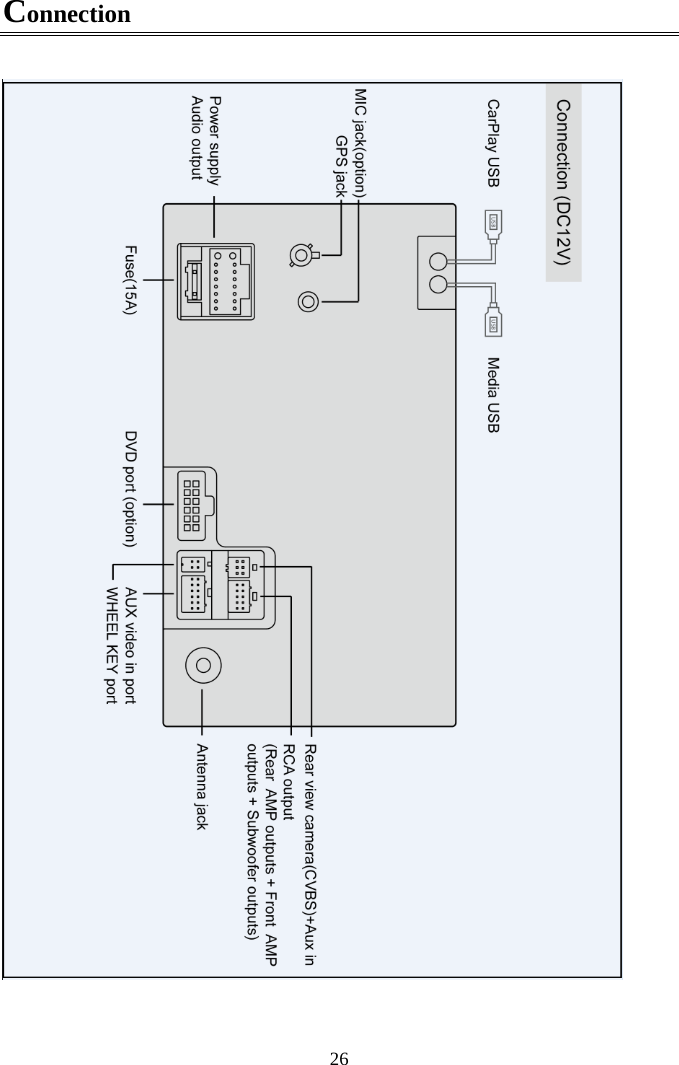
 26Connection
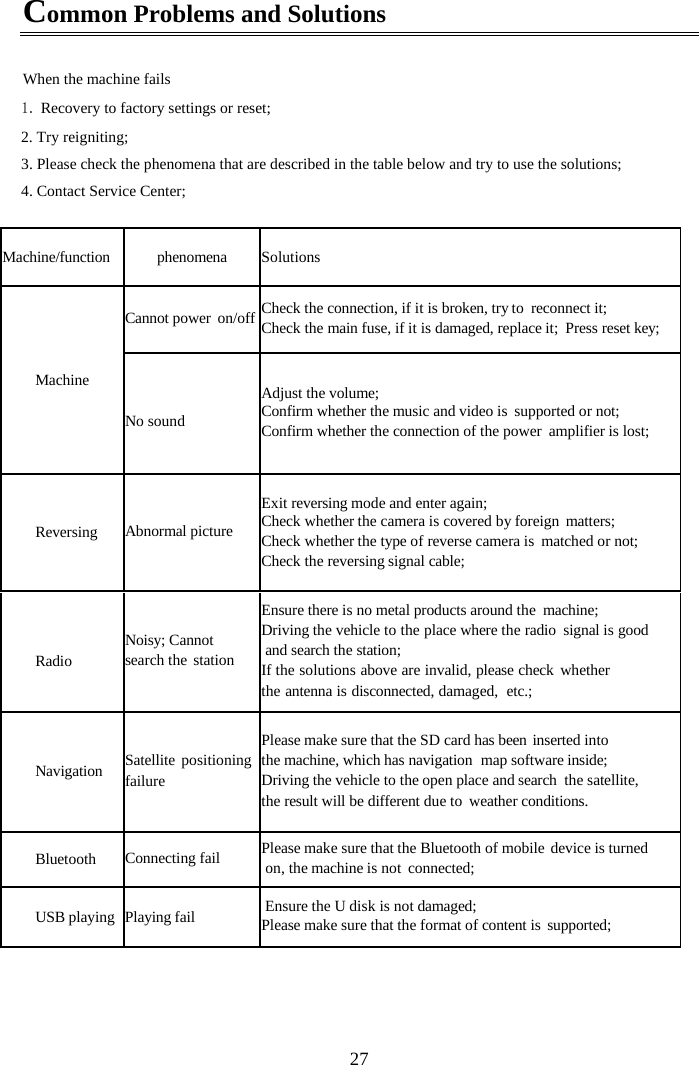
 27Common Problems and Solutions  When the machine fails 1. Recovery to factory settings or reset; 2. Try reigniting; 3. Please check the phenomena that are described in the table below and try to use the solutions; 4. Contact Service Center;  Machine/function phenomena Solutions Machine Cannot power  on/off Check the connection, if it is broken, try to  reconnect it; Check the main fuse, if it is damaged, replace it;  Press reset key; No sound Adjust the volume; Confirm whether the music and video is  supported or not; Confirm whether the connection of the power  amplifier is lost; Reversing  Abnormal picture Exit reversing mode and enter again; Check whether the camera is covered by foreign  matters; Check whether the type of reverse camera is  matched or not; Check the reversing signal cable; Radio Noisy; Cannot search the  station Ensure there is no metal products around the machine; Driving the vehicle to the place where the radio  signal is good  and search the station; If the solutions above are invalid, please check whether  the antenna is disconnected, damaged,  etc.; Navigation  Satellite positioning failure Please make sure that the SD card has been inserted into  the machine, which has navigation  map software inside; Driving the vehicle to the open place and search  the satellite,  the result will be different due to  weather conditions. Bluetooth  Connecting fail  Please make sure that the Bluetooth of mobile device is turned  on, the machine is not  connected; USB playing  Playing fail   Ensure the U disk is not damaged; Please make sure that the format of content is  supported;

Navigation menu