Guardtec CG-P100 Comguard User Manual 1

Guardtec, Inc. Comguard 1

users manual

  FCC NOTICE   THIS DEVICE COMPLIES WITH PART 15 OF THE FCC FULES. OPERATION IS SUBJECT TO THE FOLLOWING TWO CONDITION: (1) THIS DEVICE MAY NOT CAUSE HARMFUL INTERFERENCE, AND (2) THIS DEVICE MUST ACCEPT ANY INTERFERENCE RECEIVED,   INCLUDING INTERFERENCE THAT MAY CAUSE UNDERSIRED   OPERATION.    This equipment has been tested and found to comply with the limits for a Class B digital device, pursuant to part 15 of the FCC Rules. These limits are designed to provide reasonable protection against harmful interference in a residential installation. This equipment generates, uses and can radiate radio frequency energy and, if not installed and used in accordance with the instructions, may cause harmful interference to radio communication. However, there is no guarantee that interference will not occur in a   particular installation. If this equipment does cause harmful interference to radio or   television reception, which can be determined by turning the equipment off and on, the user is encouraged to try to correct the interference by one or more of the following measures :    - Reorient or relocate the receiving antenna.    - Increase the separation between the equipment and receiver.    - Connect the equipment into an outlet on a circuit difference from that to which       the receiver is connected.    - Consult the dealer of an experienced radio/TV technician for help.     NOTE : The manufacturer is not responsible for any radio or TV interference caused by   unauthorized modifications to this equipment. Such modifications could void the user’s   authority to operate the equipment.
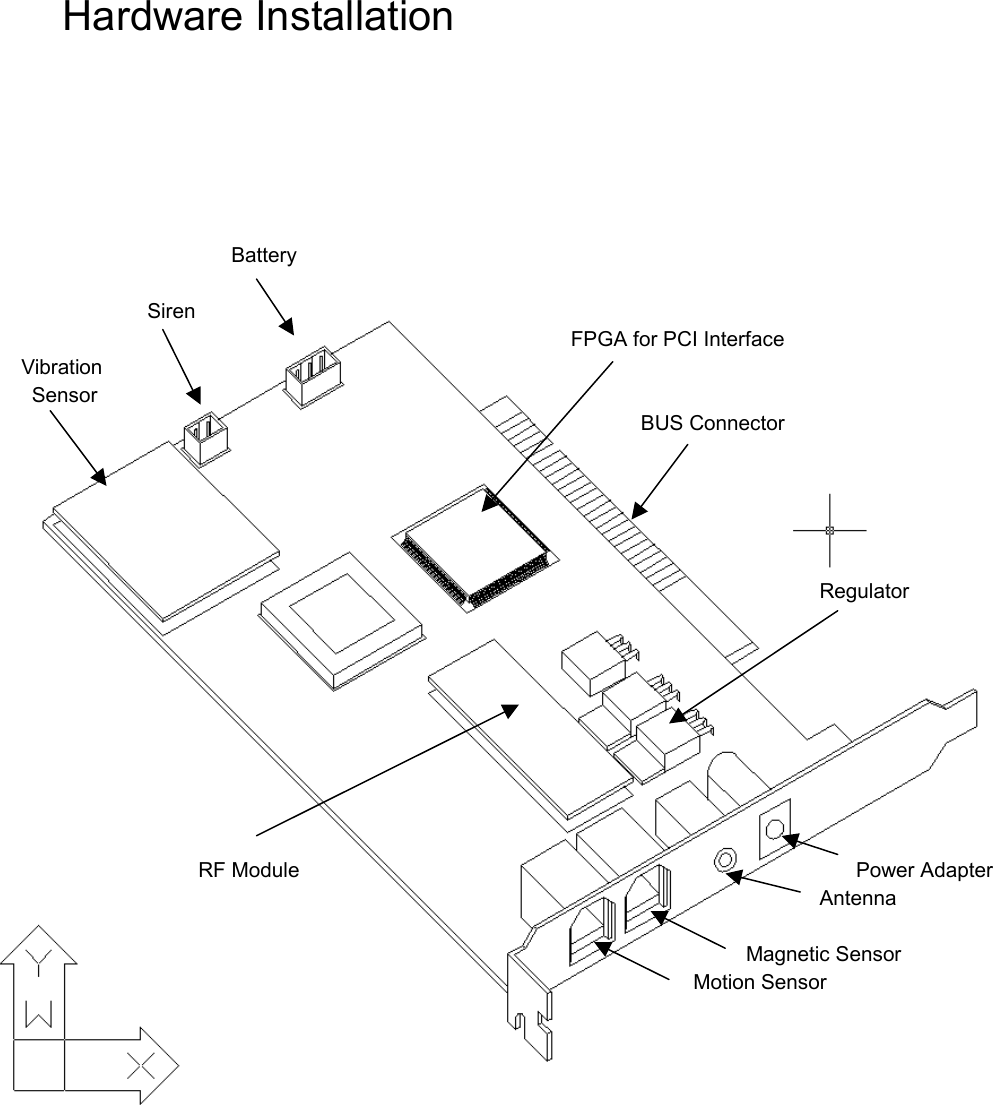
  Hardware Installation                              Battery                Siren           FPGA for PCI Interface   Vibration                                                       Sensor                                                                                                             BUS Connector                                                                                                                                                            Regulator                                                                                              RF Module                                                     Power Adapter                                                                               Antenna                                                                                                                                                 Magnetic Sensor                                                                   Motion Sensor
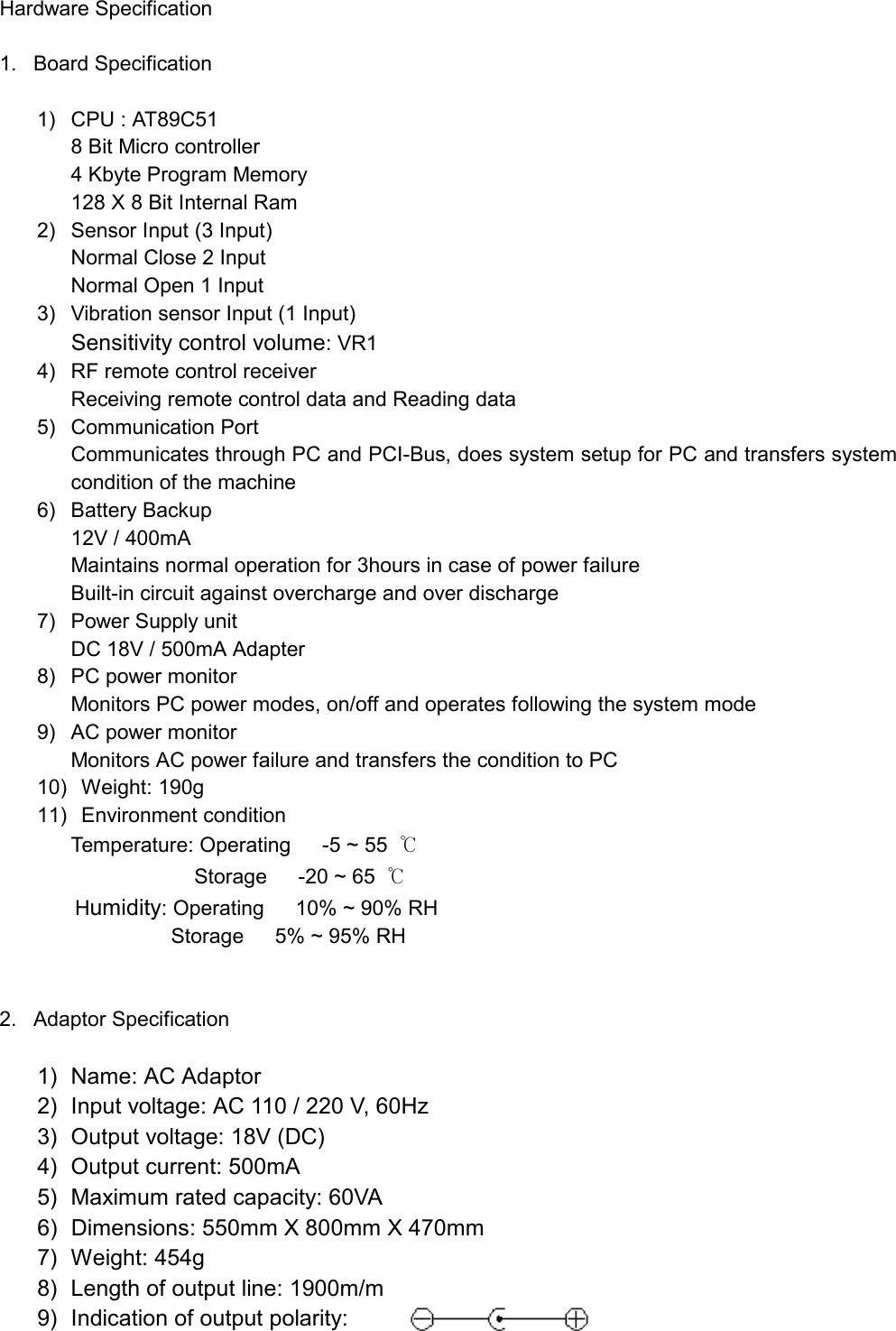
   Hardware Specification  1. Board Specification  1)  CPU : AT89C51 8 Bit Micro controller 4 Kbyte Program Memory 128 X 8 Bit Internal Ram 2)  Sensor Input (3 Input) Normal Close 2 Input Normal Open 1 Input 3)  Vibration sensor Input (1 Input) Sensitivity control volume: VR1 4)  RF remote control receiver Receiving remote control data and Reading data   5) Communication Port Communicates through PC and PCI-Bus, does system setup for PC and transfers system condition of the machine 6) Battery Backup 12V / 400mA Maintains normal operation for 3hours in case of power failure Built-in circuit against overcharge and over discharge 7)  Power Supply unit DC 18V / 500mA Adapter 8)  PC power monitor Monitors PC power modes, on/off and operates following the system mode 9)  AC power monitor Monitors AC power failure and transfers the condition to PC 10)   Weight: 190g 11)  Environment condition  Temperature: Operating   -5 ~ 55 ℃      Storage   -20 ~ 65 ℃          Humidity: Operating      10% ~ 90% RH             Storage   5% ~ 95% RH      2. Adaptor Specification  1)  Name: AC Adaptor 2)  Input voltage: AC 110 / 220 V, 60Hz 3)  Output voltage: 18V (DC) 4)  Output current: 500mA 5)  Maximum rated capacity: 60VA 6)  Dimensions: 550mm X 800mm X 470mm 7) Weight: 454g 8)  Length of output line: 1900m/m 9)  Indication of output polarity:
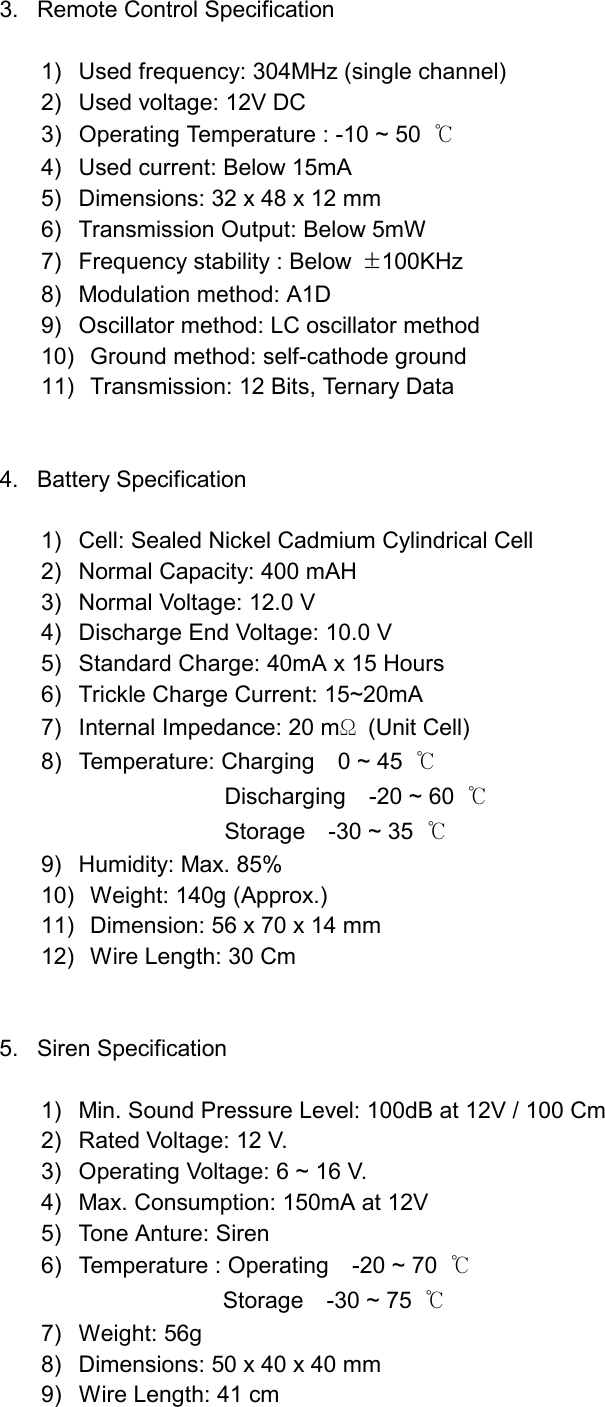
   3.  Remote Control Specification  1)  Used frequency: 304MHz (single channel) 2)  Used voltage: 12V DC   3)  Operating Temperature : -10 ~ 50  ℃ 4)  Used current: Below 15mA 5)  Dimensions: 32 x 48 x 12 mm 6)  Transmission Output: Below 5mW 7)  Frequency stability : Below  ±100KHz 8)  Modulation method: A1D 9)  Oscillator method: LC oscillator method 10)   Ground method: self-cathode ground 11)   Transmission: 12 Bits, Ternary Data   4. Battery Specification  1)  Cell: Sealed Nickel Cadmium Cylindrical Cell 2)  Normal Capacity: 400 mAH 3)  Normal Voltage: 12.0 V 4)  Discharge End Voltage: 10.0 V 5)  Standard Charge: 40mA x 15 Hours 6)  Trickle Charge Current: 15~20mA 7)  Internal Impedance: 20 mΩ (Unit Cell) 8)  Temperature: Charging    0 ~ 45  ℃  Discharging  -20 ~ 60 ℃  Storage  -30 ~ 35 ℃ 9)  Humidity: Max. 85% 10)   Weight: 140g (Approx.) 11)   Dimension: 56 x 70 x 14 mm 12)   Wire Length: 30 Cm   5. Siren Specification  1)  Min. Sound Pressure Level: 100dB at 12V / 100 Cm 2)  Rated Voltage: 12 V. 3)  Operating Voltage: 6 ~ 16 V. 4)  Max. Consumption: 150mA at 12V 5)  Tone Anture: Siren 6)  Temperature : Operating    -20 ~ 70  ℃       Storage  -30 ~ 75 ℃ 7) Weight: 56g 8)  Dimensions: 50 x 40 x 40 mm 9)  Wire Length: 41 cm
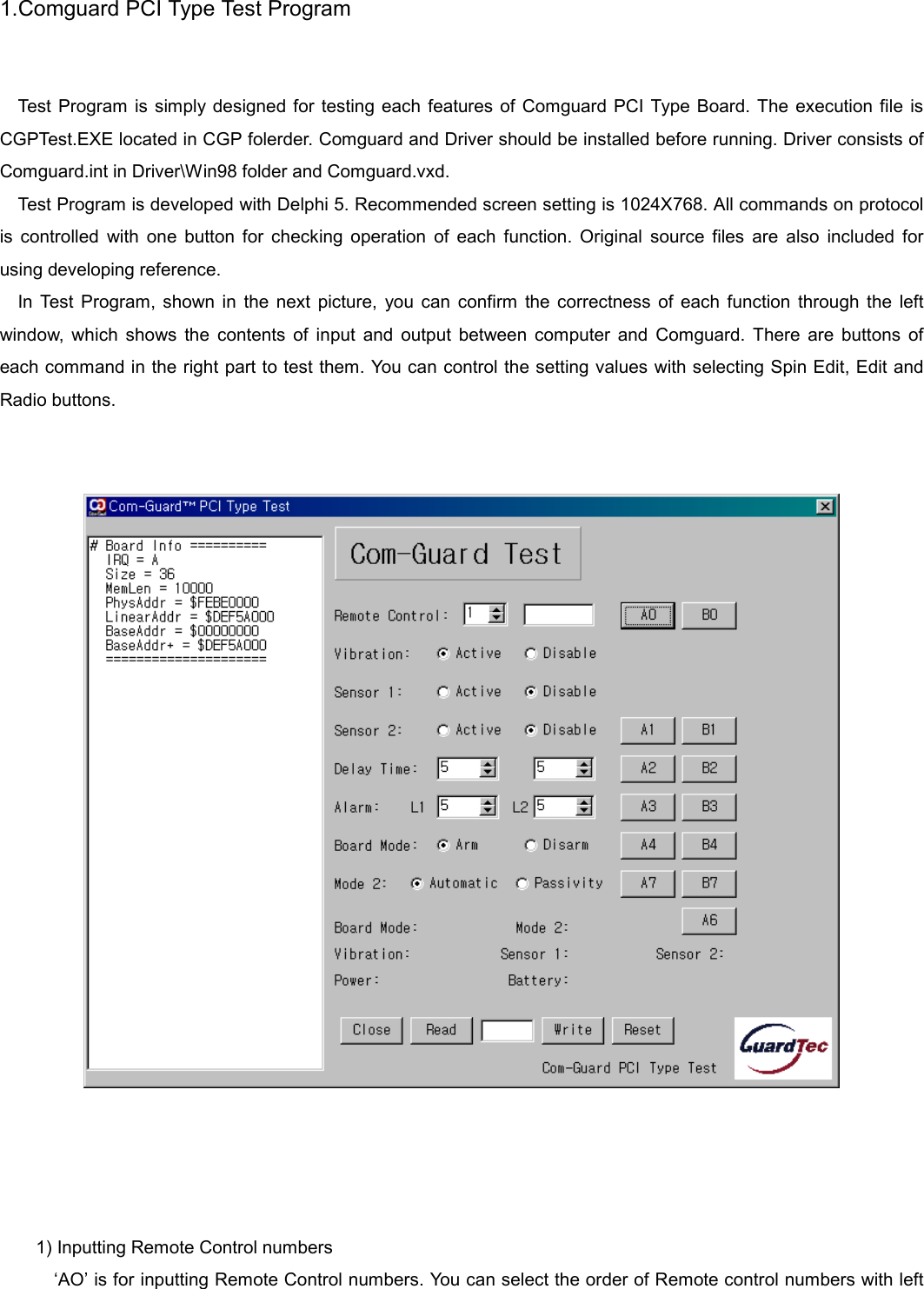
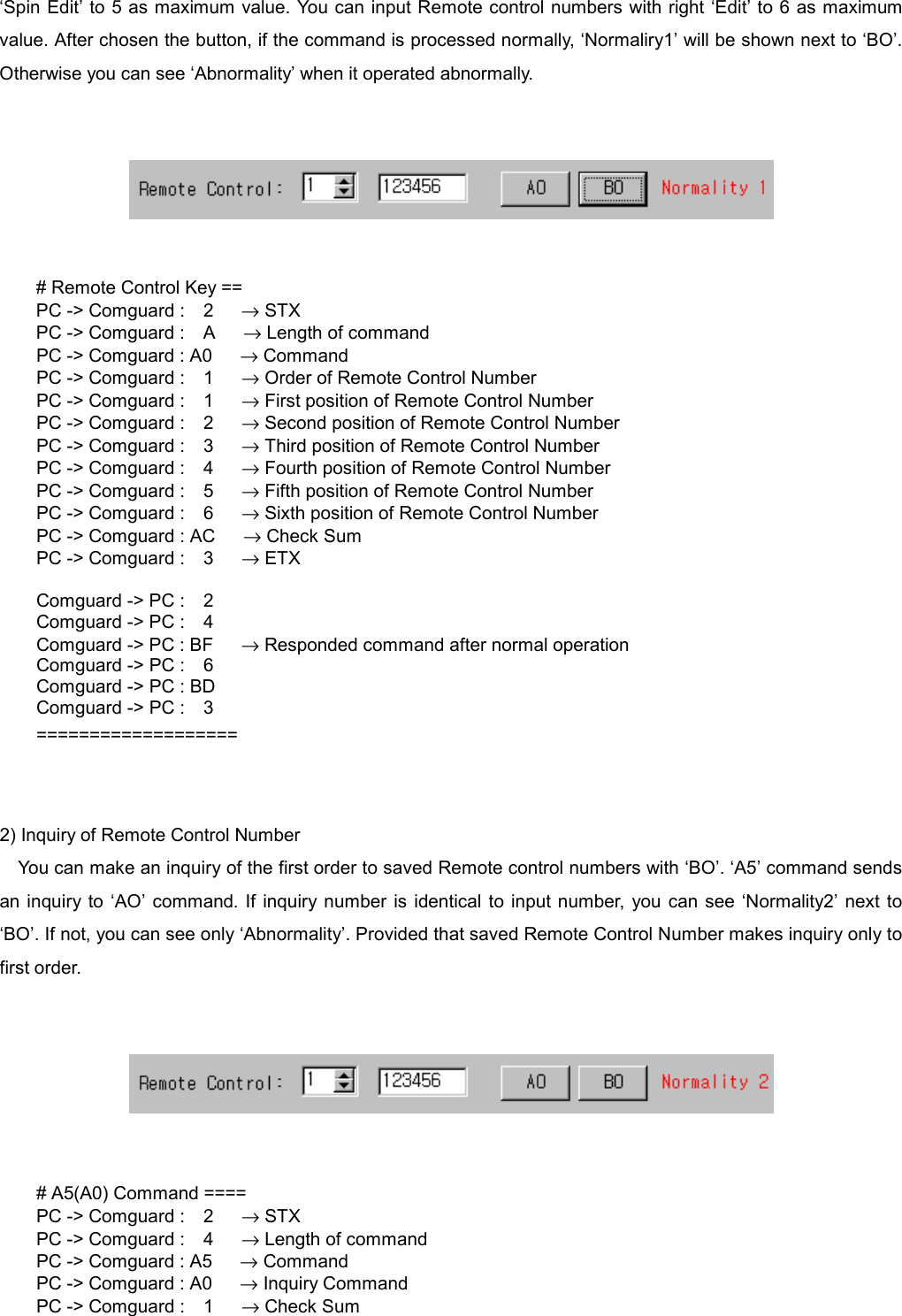
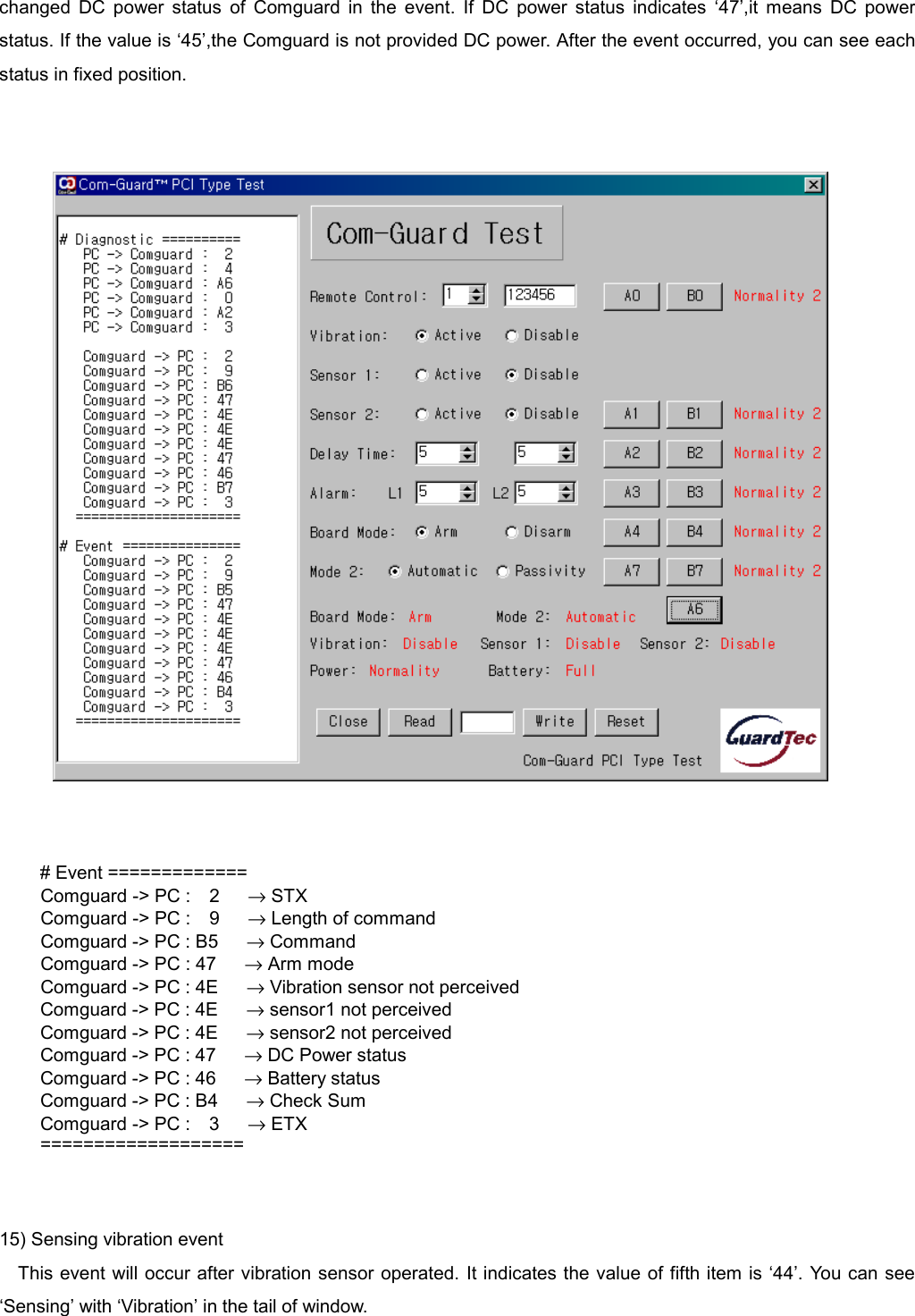
  1.Comguard PCI Type Test Program   Test Program is simply designed for testing each features of Comguard PCI Type Board. The execution file is CGPTest.EXE located in CGP folerder. Comguard and Driver should be installed before running. Driver consists of Comguard.int in Driver\Win98 folder and Comguard.vxd. Test Program is developed with Delphi 5. Recommended screen setting is 1024X768. All commands on protocol is controlled with one button for checking operation of each function. Original source files are also included for using developing reference. In Test Program, shown in the next picture, you can confirm the correctness of each function through the left window, which shows the contents of input and output between computer and Comguard. There are buttons of each command in the right part to test them. You can control the setting values with selecting Spin Edit, Edit and Radio buttons.        1) Inputting Remote Control numbers ‘AO’ is for inputting Remote Control numbers. You can select the order of Remote control numbers with left
  ‘Spin Edit’ to 5 as maximum value. You can input Remote control numbers with right ‘Edit’ to 6 as maximum value. After chosen the button, if the command is processed normally, ‘Normaliry1’ will be shown next to ‘BO’. Otherwise you can see ‘Abnormality’ when it operated abnormally.      # Remote Control Key == PC -> Comguard :  2   → STX PC -> Comguard :  A   → Length of command PC -> Comguard : A0      → Command PC -> Comguard :  1   → Order of Remote Control Number PC -> Comguard :  1   → First position of Remote Control Number PC -> Comguard :  2   → Second position of Remote Control Number PC -> Comguard :  3   → Third position of Remote Control Number PC -> Comguard :  4   → Fourth position of Remote Control Number PC -> Comguard :  5   → Fifth position of Remote Control Number PC -> Comguard :  6   → Sixth position of Remote Control Number PC -> Comguard : AC      → Check Sum PC -> Comguard :  3   → ETX  Comguard -> PC :    2 Comguard -> PC :    4 Comguard -> PC : BF      → Responded command after normal operation Comguard -> PC :    6 Comguard -> PC : BD Comguard -> PC :    3 ===================   2) Inquiry of Remote Control Number You can make an inquiry of the first order to saved Remote control numbers with ‘BO’. ‘A5’ command sends an inquiry to ‘AO’ command. If inquiry number is identical to input number, you can see ‘Normality2’ next to ‘BO’. If not, you can see only ‘Abnormality’. Provided that saved Remote Control Number makes inquiry only to first order.      # A5(A0) Command ==== PC -> Comguard :  2   → STX PC -> Comguard :  4   → Length of command PC -> Comguard : A5      → Command PC -> Comguard : A0      → Inquiry Command PC -> Comguard :  1   → Check Sum
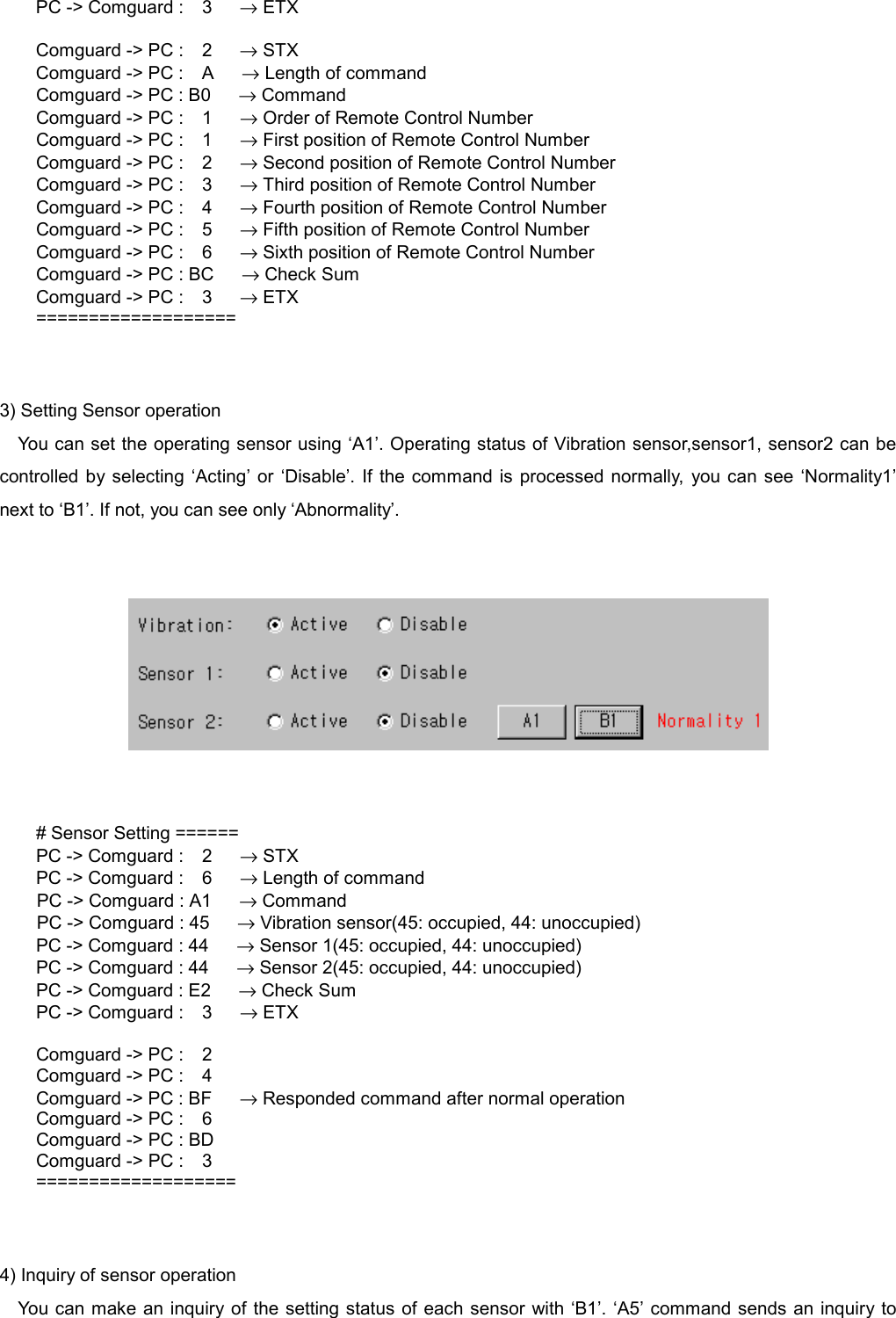
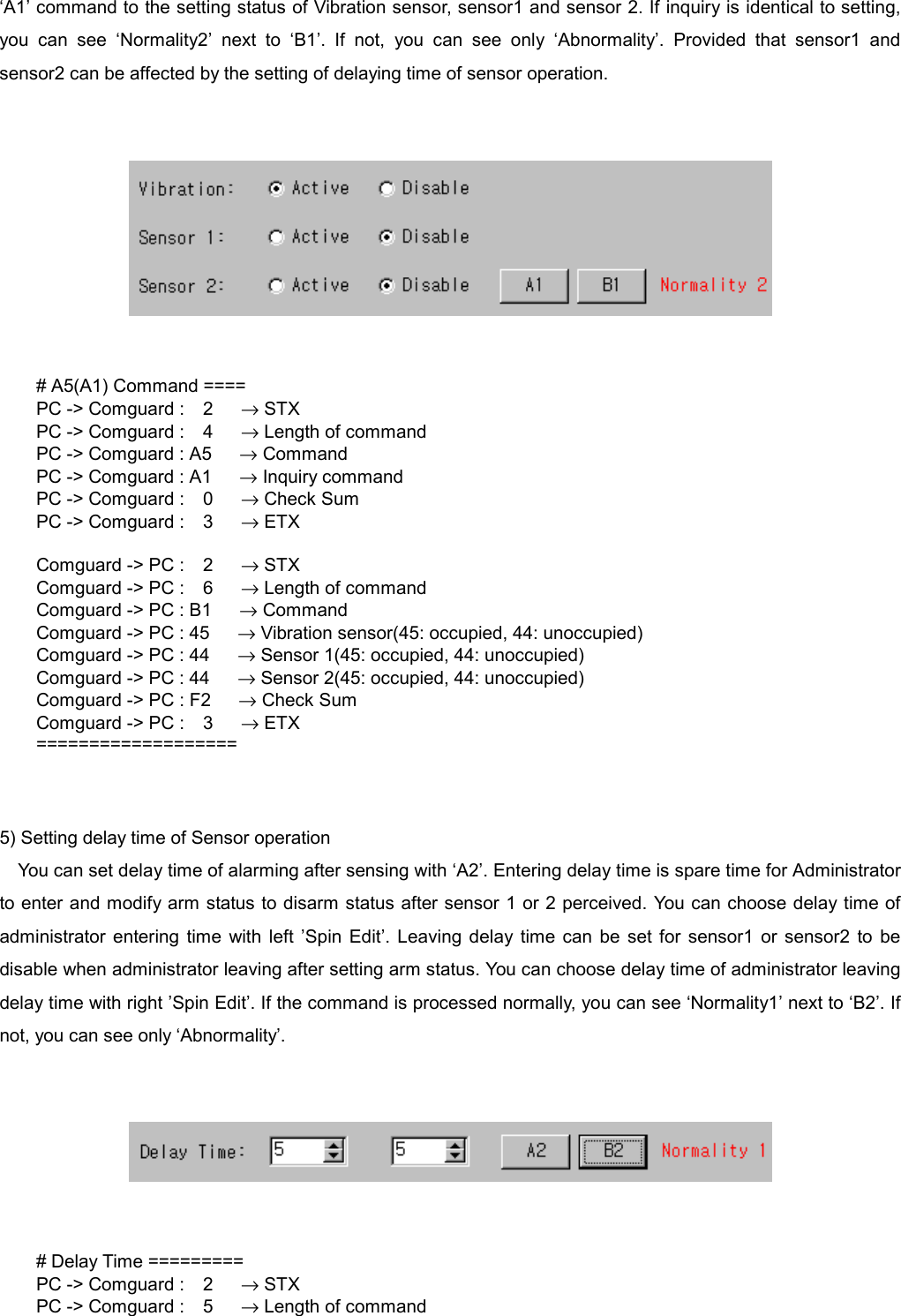
  PC -> Comguard :  3   → ETX  Comguard -> PC :  2   → STX Comguard -> PC :  A   → Length of command Comguard -> PC : B0      → Command Comguard -> PC :  1   → Order of Remote Control Number Comguard -> PC :  1   → First position of Remote Control Number Comguard -> PC :  2   → Second position of Remote Control Number Comguard -> PC :  3   → Third position of Remote Control Number Comguard -> PC :  4   → Fourth position of Remote Control Number Comguard -> PC :  5   → Fifth position of Remote Control Number Comguard -> PC :  6   → Sixth position of Remote Control Number Comguard -> PC : BC      → Check Sum Comguard -> PC :  3   → ETX ===================   3) Setting Sensor operation You can set the operating sensor using ‘A1’. Operating status of Vibration sensor,sensor1, sensor2 can be controlled by selecting ‘Acting’ or ‘Disable’. If the command is processed normally, you can see ‘Normality1’ next to ‘B1’. If not, you can see only ‘Abnormality’.      # Sensor Setting ====== PC -> Comguard :  2   → STX PC -> Comguard :  6   → Length of command         PC -> Comguard : A1   → Command         PC -> Comguard : 45   → Vibration sensor(45: occupied, 44: unoccupied) PC -> Comguard : 44      → Sensor 1(45: occupied, 44: unoccupied) PC -> Comguard : 44      → Sensor 2(45: occupied, 44: unoccupied) PC -> Comguard : E2      → Check Sum PC -> Comguard :  3   → ETX  Comguard -> PC :    2 Comguard -> PC :    4 Comguard -> PC : BF      → Responded command after normal operation Comguard -> PC :    6 Comguard -> PC : BD Comguard -> PC :    3 ===================   4) Inquiry of sensor operation You can make an inquiry of the setting status of each sensor with ‘B1’. ‘A5’ command sends an inquiry to
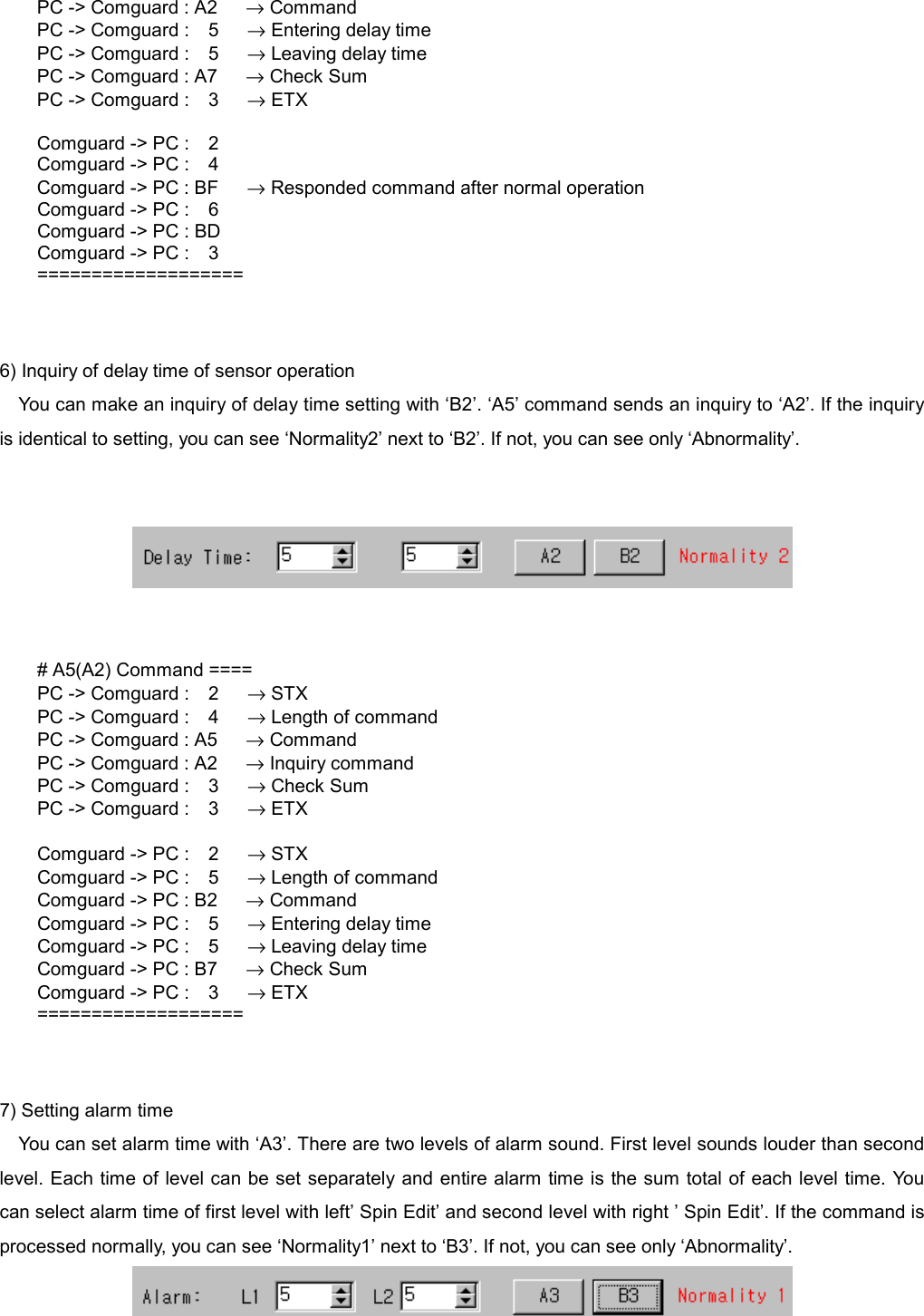
  ‘A1’ command to the setting status of Vibration sensor, sensor1 and sensor 2. If inquiry is identical to setting, you can see ‘Normality2’ next to ‘B1’. If not, you can see only ‘Abnormality’. Provided that sensor1 and sensor2 can be affected by the setting of delaying time of sensor operation.      # A5(A1) Command ==== PC -> Comguard :  2   → STX PC -> Comguard :  4   → Length of command PC -> Comguard : A5      → Command PC -> Comguard : A1      → Inquiry command PC -> Comguard :  0   → Check Sum PC -> Comguard :  3   → ETX  Comguard -> PC :  2   → STX Comguard -> PC :  6   → Length of command Comguard -> PC : B1      → Command Comguard -> PC : 45      → Vibration sensor(45: occupied, 44: unoccupied) Comguard -> PC : 44      → Sensor 1(45: occupied, 44: unoccupied) Comguard -> PC : 44      → Sensor 2(45: occupied, 44: unoccupied) Comguard -> PC : F2      → Check Sum Comguard -> PC :  3   → ETX ===================   5) Setting delay time of Sensor operation You can set delay time of alarming after sensing with ‘A2’. Entering delay time is spare time for Administrator to enter and modify arm status to disarm status after sensor 1 or 2 perceived. You can choose delay time of administrator entering time with left ’Spin Edit’. Leaving delay time can be set for sensor1 or sensor2 to be disable when administrator leaving after setting arm status. You can choose delay time of administrator leaving delay time with right ’Spin Edit’. If the command is processed normally, you can see ‘Normality1’ next to ‘B2’. If not, you can see only ‘Abnormality’.      # Delay Time ========= PC -> Comguard :  2   → STX PC -> Comguard :  5   → Length of command
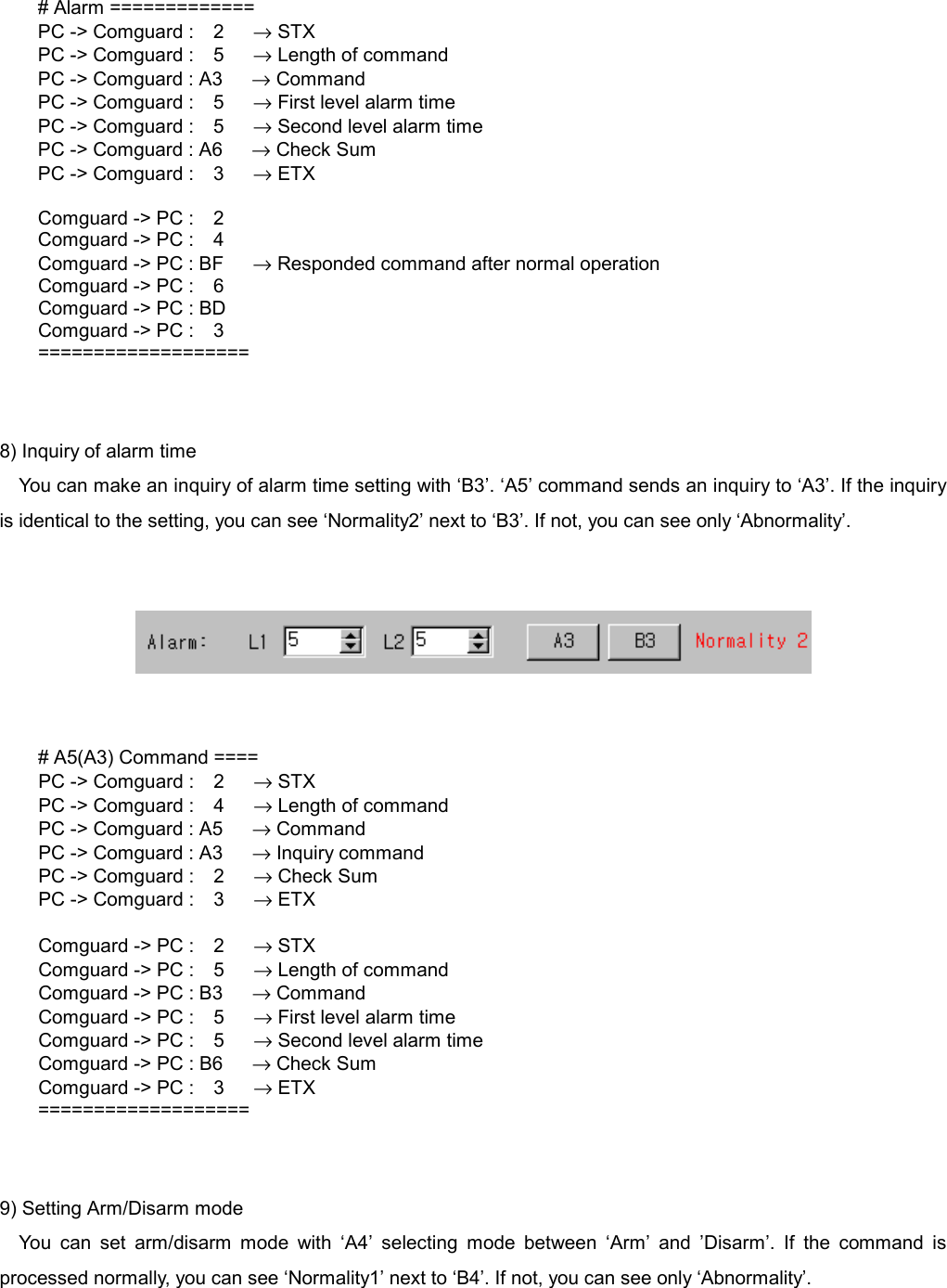
  PC -> Comguard : A2      → Command PC -> Comguard :  5   → Entering delay time PC -> Comguard :  5   → Leaving delay time PC -> Comguard : A7      → Check Sum PC -> Comguard :  3   → ETX  Comguard -> PC :    2 Comguard -> PC :    4 Comguard -> PC : BF      → Responded command after normal operation Comguard -> PC :    6 Comguard -> PC : BD Comguard -> PC :    3 ===================   6) Inquiry of delay time of sensor operation You can make an inquiry of delay time setting with ‘B2’. ‘A5’ command sends an inquiry to ‘A2’. If the inquiry is identical to setting, you can see ‘Normality2’ next to ‘B2’. If not, you can see only ‘Abnormality’.        # A5(A2) Command ==== PC -> Comguard :  2   → STX PC -> Comguard :  4   → Length of command PC -> Comguard : A5      → Command PC -> Comguard : A2      → Inquiry command PC -> Comguard :  3   → Check Sum PC -> Comguard :  3   → ETX  Comguard -> PC :  2   → STX Comguard -> PC :  5   → Length of command Comguard -> PC : B2      → Command Comguard -> PC :  5   → Entering delay time Comguard -> PC :  5   → Leaving delay time Comguard -> PC : B7      → Check Sum Comguard -> PC :  3   → ETX ===================   7) Setting alarm time You can set alarm time with ‘A3’. There are two levels of alarm sound. First level sounds louder than second level. Each time of level can be set separately and entire alarm time is the sum total of each level time. You can select alarm time of first level with left’ Spin Edit’ and second level with right ’ Spin Edit’. If the command is processed normally, you can see ‘Normality1’ next to ‘B3’. If not, you can see only ‘Abnormality’.
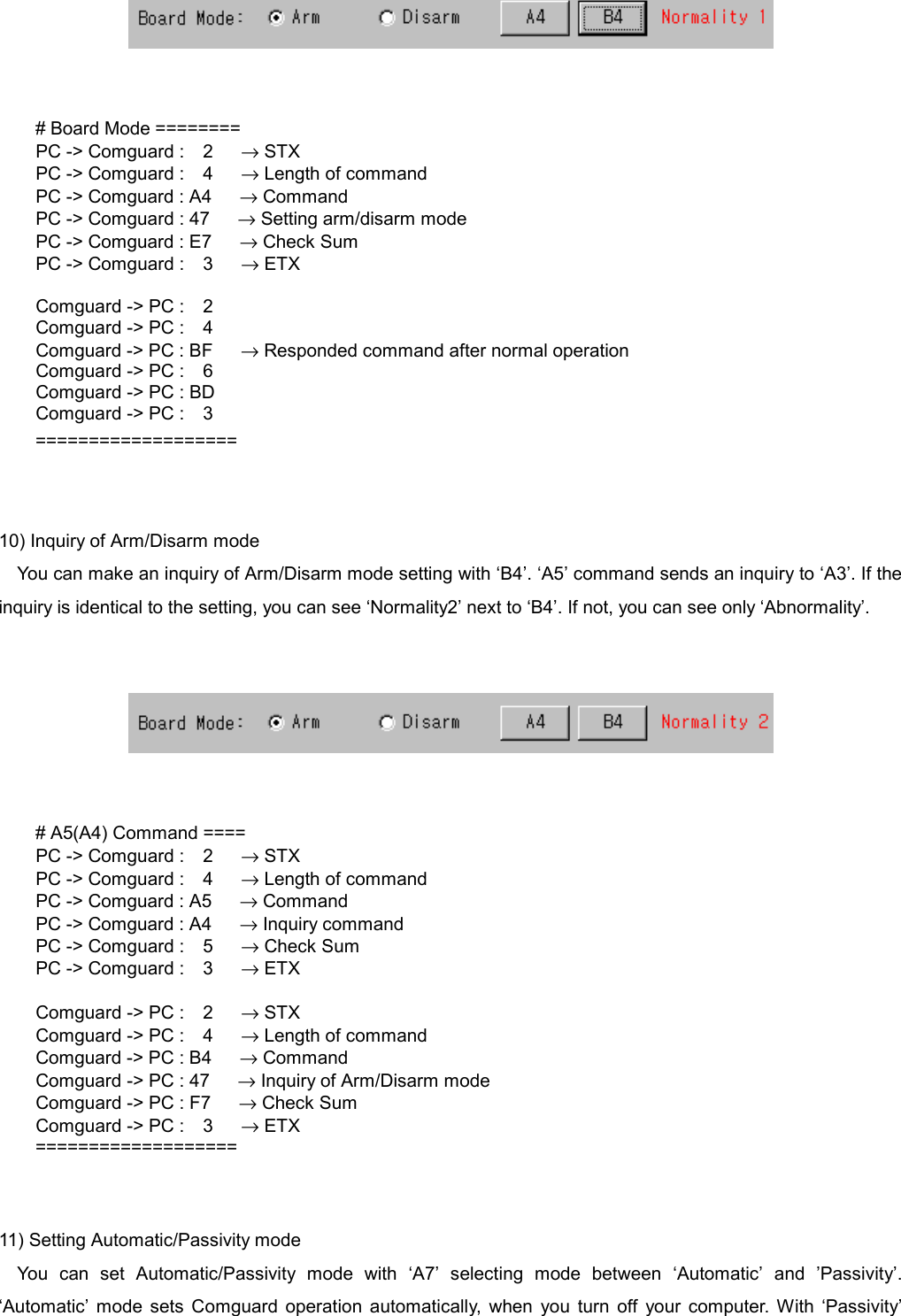
   # Alarm ============= PC -> Comguard :  2   → STX PC -> Comguard :  5   → Length of command PC -> Comguard : A3      → Command PC -> Comguard :  5   → First level alarm time PC -> Comguard :  5   → Second level alarm time PC -> Comguard : A6      → Check Sum PC -> Comguard :  3   → ETX  Comguard -> PC :    2 Comguard -> PC :    4 Comguard -> PC : BF      → Responded command after normal operation Comguard -> PC :    6 Comguard -> PC : BD Comguard -> PC :    3 ===================   8) Inquiry of alarm time You can make an inquiry of alarm time setting with ‘B3’. ‘A5’ command sends an inquiry to ‘A3’. If the inquiry is identical to the setting, you can see ‘Normality2’ next to ‘B3’. If not, you can see only ‘Abnormality’.      # A5(A3) Command ====   PC -> Comguard :  2   → STX   PC -> Comguard :  4   → Length of command     PC -> Comguard : A5      → Command     PC -> Comguard : A3      → Inquiry command   PC -> Comguard :  2   → Check Sum   PC -> Comguard :  3   → ETX    Comguard -> PC :  2   → STX   Comguard -> PC :  5   → Length of command     Comguard -> PC : B3      → Command   Comguard -> PC :  5   → First level alarm time   Comguard -> PC :  5   → Second level alarm time     Comguard -> PC : B6      → Check Sum   Comguard -> PC :  3   → ETX ===================   9) Setting Arm/Disarm mode You can set arm/disarm mode with ‘A4’ selecting mode between ‘Arm’ and ’Disarm’. If the command is processed normally, you can see ‘Normality1’ next to ‘B4’. If not, you can see only ‘Abnormality’.
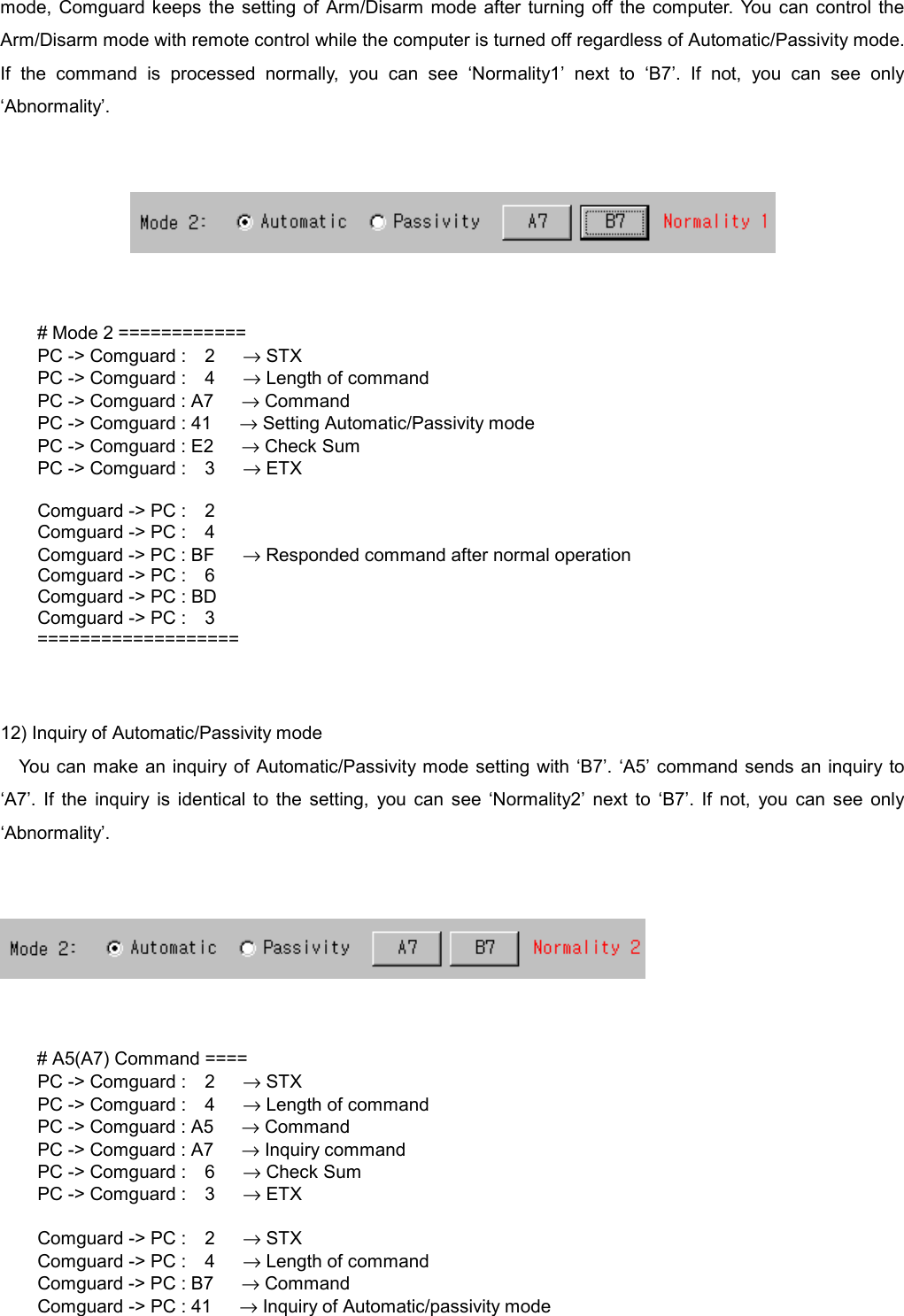
     # Board Mode ========   PC -> Comguard :  2   → STX   PC -> Comguard :  4   → Length of command     PC -> Comguard : A4      → Command     PC -> Comguard : 47      → Setting arm/disarm mode     PC -> Comguard : E7      → Check Sum   PC -> Comguard :  3   → ETX    Comguard -> PC :  2   Comguard -> PC :  4     Comguard -> PC : BF      → Responded command after normal operation   Comguard -> PC :  6     Comguard -> PC : BD   Comguard -> PC :  3 ===================   10) Inquiry of Arm/Disarm mode You can make an inquiry of Arm/Disarm mode setting with ‘B4’. ‘A5’ command sends an inquiry to ‘A3’. If the inquiry is identical to the setting, you can see ‘Normality2’ next to ‘B4’. If not, you can see only ‘Abnormality’.      # A5(A4) Command ====   PC -> Comguard :  2   → STX   PC -> Comguard :  4   → Length of command     PC -> Comguard : A5      → Command     PC -> Comguard : A4      → Inquiry command   PC -> Comguard :  5   → Check Sum   PC -> Comguard :  3   → ETX    Comguard -> PC :  2   → STX   Comguard -> PC :  4   → Length of command     Comguard -> PC : B4      → Command     Comguard -> PC : 47      → Inquiry of Arm/Disarm mode     Comguard -> PC : F7      → Check Sum   Comguard -> PC :  3   → ETX ===================   11) Setting Automatic/Passivity mode You can set Automatic/Passivity mode with ‘A7’ selecting mode between ‘Automatic’ and ’Passivity’. ‘Automatic’ mode sets Comguard operation automatically, when you turn off your computer. With ‘Passivity’
  mode, Comguard keeps the setting of Arm/Disarm mode after turning off the computer. You can control the Arm/Disarm mode with remote control while the computer is turned off regardless of Automatic/Passivity mode. If the command is processed normally, you can see ‘Normality1’ next to ‘B7’. If not, you can see only ‘Abnormality’.      # Mode 2 ============   PC -> Comguard :  2   → STX   PC -> Comguard :  4   → Length of command     PC -> Comguard : A7      → Command     PC -> Comguard : 41      → Setting Automatic/Passivity mode     PC -> Comguard : E2      → Check Sum   PC -> Comguard :  3   → ETX    Comguard -> PC :  2   Comguard -> PC :  4     Comguard -> PC : BF      → Responded command after normal operation   Comguard -> PC :  6     Comguard -> PC : BD   Comguard -> PC :  3 ===================   12) Inquiry of Automatic/Passivity mode You can make an inquiry of Automatic/Passivity mode setting with ‘B7’. ‘A5’ command sends an inquiry to ‘A7’. If the inquiry is identical to the setting, you can see ‘Normality2’ next to ‘B7’. If not, you can see only ‘Abnormality’.      # A5(A7) Command ====   PC -> Comguard :  2   → STX   PC -> Comguard :  4   → Length of command     PC -> Comguard : A5      → Command     PC -> Comguard : A7      → Inquiry command   PC -> Comguard :  6   → Check Sum   PC -> Comguard :  3   → ETX    Comguard -> PC :  2   → STX   Comguard -> PC :  4   → Length of command     Comguard -> PC : B7      → Command     Comguard -> PC : 41      → Inquiry of Automatic/passivity mode
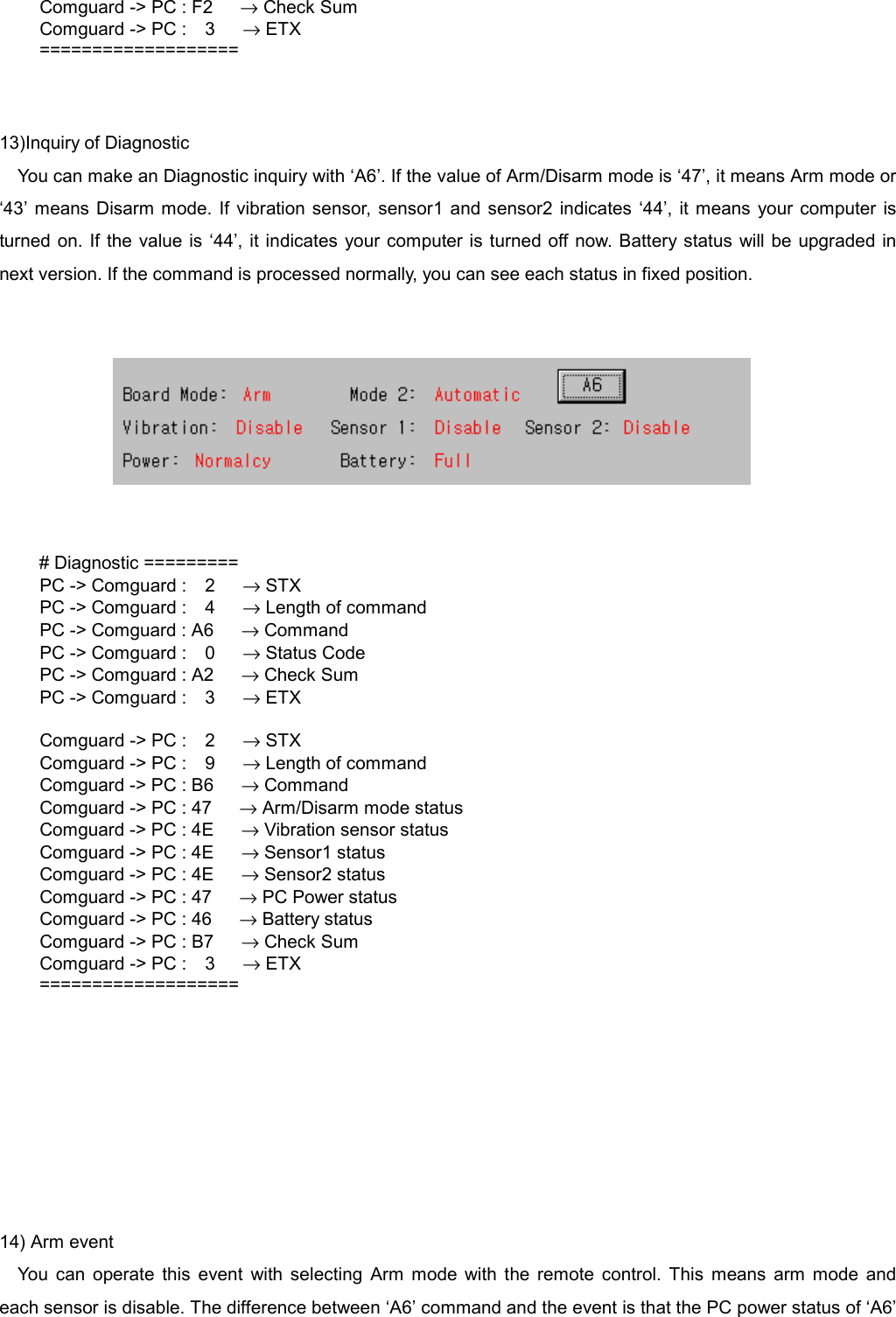
      Comguard -> PC : F2      → Check Sum   Comguard -> PC :  3   → ETX ===================   13)Inquiry of Diagnostic You can make an Diagnostic inquiry with ‘A6’. If the value of Arm/Disarm mode is ‘47’, it means Arm mode or ‘43’ means Disarm mode. If vibration sensor, sensor1 and sensor2 indicates ‘44’, it means your computer is turned on. If the value is ‘44’, it indicates your computer is turned off now. Battery status will be upgraded in next version. If the command is processed normally, you can see each status in fixed position.      # Diagnostic =========   PC -> Comguard :  2   → STX   PC -> Comguard :  4   → Length of command     PC -> Comguard : A6      → Command   PC -> Comguard :  0   → Status Code     PC -> Comguard : A2      → Check Sum   PC -> Comguard :  3   → ETX    Comguard -> PC :  2   → STX   Comguard -> PC :  9   → Length of command     Comguard -> PC : B6      → Command     Comguard -> PC : 47      → Arm/Disarm mode status     Comguard -> PC : 4E      → Vibration sensor status     Comguard -> PC : 4E      → Sensor1 status     Comguard -> PC : 4E      → Sensor2 status     Comguard -> PC : 47      → PC Power status     Comguard -> PC : 46      → Battery status     Comguard -> PC : B7      → Check Sum   Comguard -> PC :  3   → ETX ===================        14) Arm event You can operate this event with selecting Arm mode with the remote control. This means arm mode and each sensor is disable. The difference between ‘A6’ command and the event is that the PC power status of ‘A6’
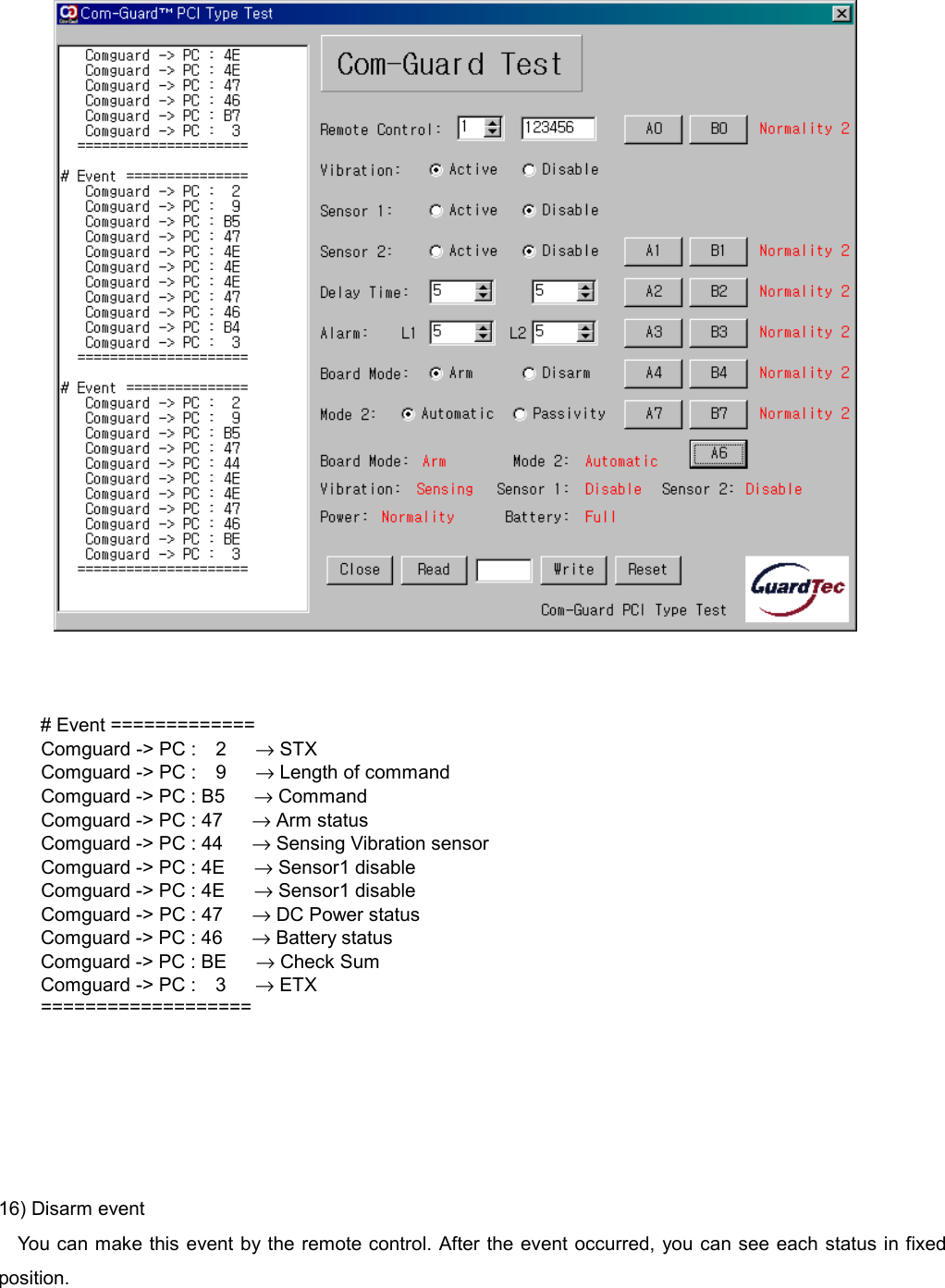
  changed DC power status of Comguard in the event. If DC power status indicates ‘47’,it means DC power status. If the value is ‘45’,the Comguard is not provided DC power. After the event occurred, you can see each status in fixed position.      # Event =============   Comguard -> PC :  2   → STX   Comguard -> PC :  9   → Length of command     Comguard -> PC : B5      → Command     Comguard -> PC : 47      → Arm mode     Comguard -> PC : 4E      → Vibration sensor not perceived Comguard -> PC : 4E      → sensor1 not perceived Comguard -> PC : 4E      → sensor2 not perceived Comguard -> PC : 47      → DC Power status Comguard -> PC : 46      → Battery status Comguard -> PC : B4      → Check Sum Comguard -> PC :  3   → ETX ===================   15) Sensing vibration event This event will occur after vibration sensor operated. It indicates the value of fifth item is ‘44’. You can see ‘Sensing’ with ‘Vibration’ in the tail of window.
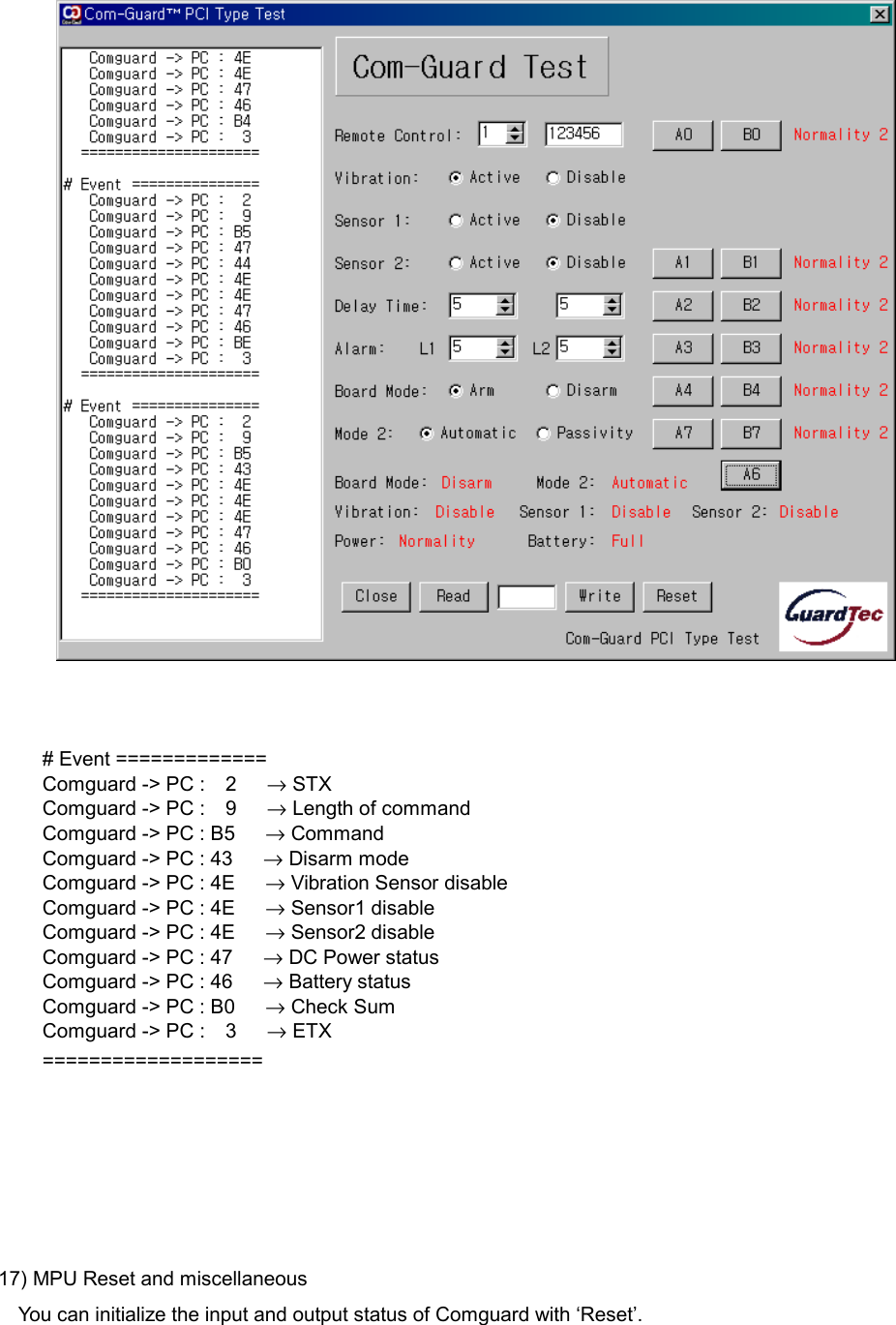
       # Event =============   Comguard -> PC :  2   → STX   Comguard -> PC :  9   → Length of command     Comguard -> PC : B5      → Command     Comguard -> PC : 47      → Arm status     Comguard -> PC : 44      → Sensing Vibration sensor     Comguard -> PC : 4E      → Sensor1 disable     Comguard -> PC : 4E      → Sensor1 disable     Comguard -> PC : 47      → DC Power status Comguard -> PC : 46      → Battery status Comguard -> PC : BE      → Check Sum Comguard -> PC :  3   → ETX ===================      16) Disarm event You can make this event by the remote control. After the event occurred, you can see each status in fixed position.
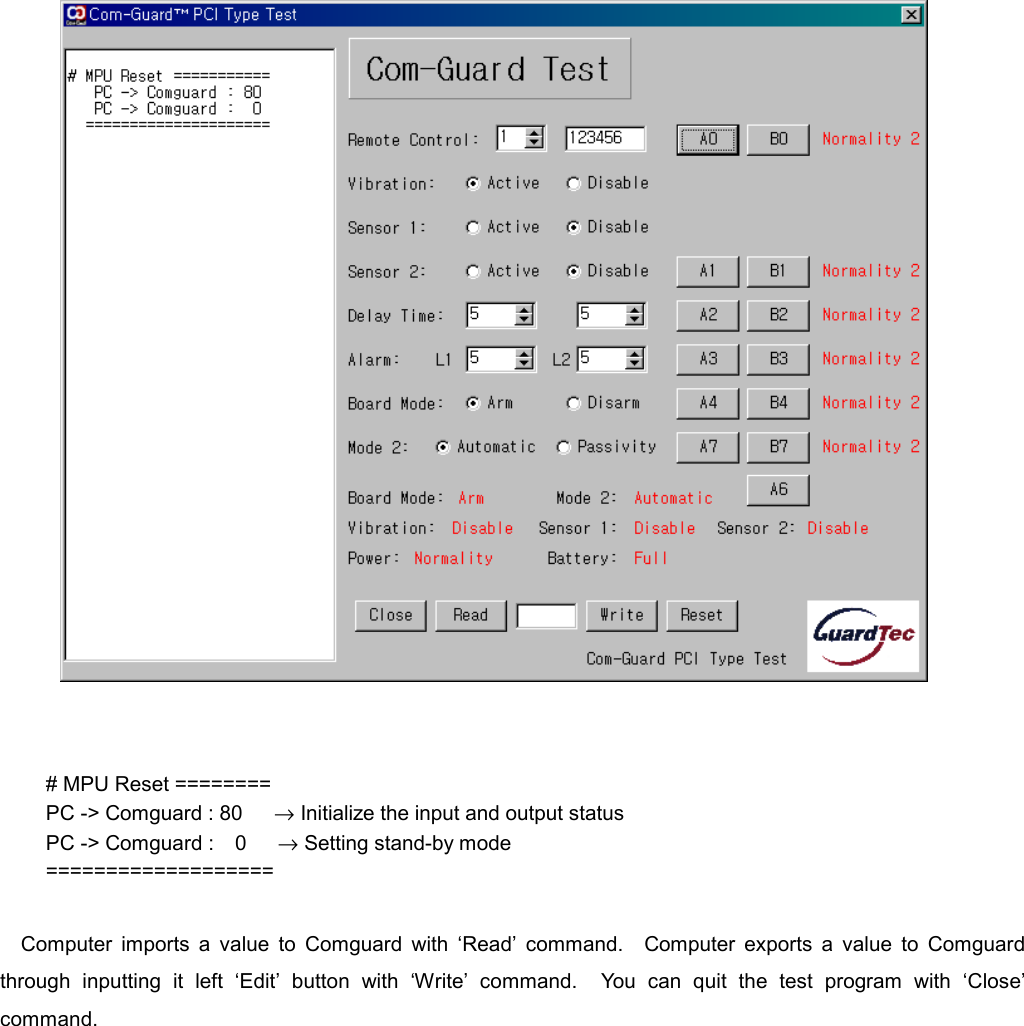
       # Event ============= Comguard -> PC :  2   → STX Comguard -> PC :  9   → Length of command Comguard -> PC : B5      → Command Comguard -> PC : 43      → Disarm mode Comguard -> PC : 4E      → Vibration Sensor disable Comguard -> PC : 4E      → Sensor1 disable Comguard -> PC : 4E      → Sensor2 disable Comguard -> PC : 47      → DC Power status Comguard -> PC : 46      → Battery status Comguard -> PC : B0      → Check Sum Comguard -> PC :  3   → ETX ===================      17) MPU Reset and miscellaneous You can initialize the input and output status of Comguard with ‘Reset’.
      # MPU Reset ======== PC -> Comguard : 80      → Initialize the input and output status PC -> Comguard :  0   → Setting stand-by mode ===================  Computer imports a value to Comguard with ‘Read’ command.  Computer exports a value to Comguard through inputting it left ‘Edit’ button with ‘Write’ command.  You can quit the test program with ‘Close’ command.

Navigation menu