Scaling Schematic Symbols 033009
2016-06-08
: Guides 033009 Scalingschematicsymbols 033009_ScalingSchematicSymbols tips pdf asi
Open the PDF directly: View PDF  .
.
Page Count: 1
www.advsolinc.com
ASI Client Center
1-877-438-2741
Autodesk Products Tip & Tricks
Copyright 2008 – Advanced Solutions, Inc.
Product: AutoCAD MEP
Topic: Scaling Schematic Symbols
Written by: Paul C. Sills III, Sr App. Eng.
Date: March 30th 2009
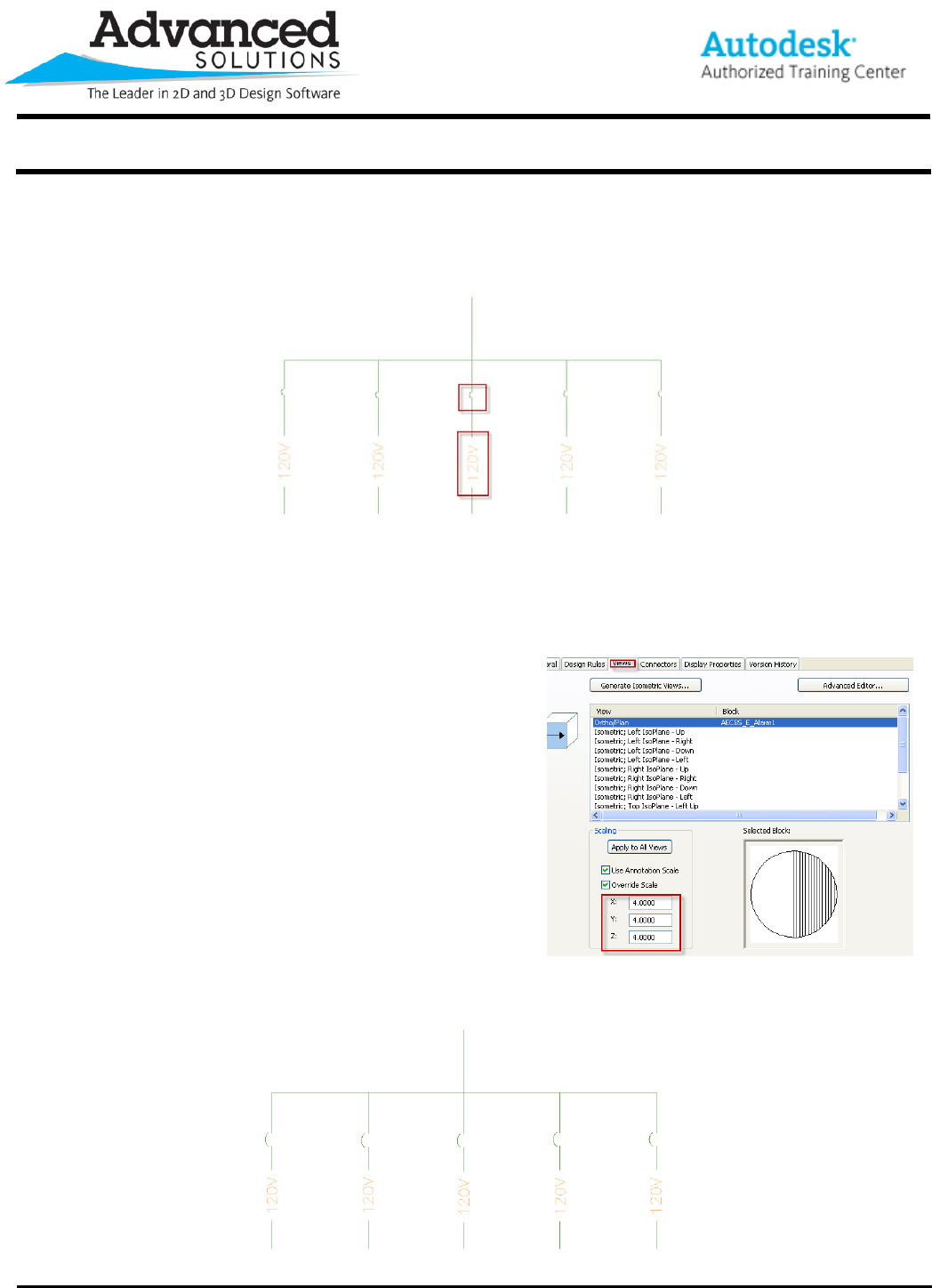
When working in AutoCAD MEP and using schematic symbols, you may have noticed the symbols are not scaled
properly. This is a know issue with the product. The problem is the symbols scale is much smaller than the text
scale for a given annotation scale. This can be fixed with a little effort on your part.
I will step you through changing the scales of the schematic symbols that are installed with the product.
I. Scaling Schematic Symbols.
a. Open the schematic drawing to change. Select
open. In the open dialog, select the folder on
the upper left label Content. This takes you to
the default location of the installed content.
b. Expand Aecb Content – US Imperial –
Schematic. Open Electrical One-Line Diagram
(US Imperial).dwg
c. Select Format menu and open Style Manager.
d. Expand Schematic Objects – Schematic
Symbol Styles
e. Select the first schematic symbol Alarm 1
(Diagrams)
f. Open the View Tab
g. Change the Override Scale for the X,Y,Z. We
will use 10 for the X,Y,Z scale.
h. Repeat scale change for each symbol. If you use the files that come with the product, you will
have to change twenty-one drawing files. To save on time only change the symbols you most
commonly use.
