Unfold Sheet Metal Part With Inventor Studio 063009
2016-06-08
: Guides 063009 Unfoldsheetmetalpartwithinventorstudio 063009_UnfoldSheetMetalPartWithInventorStudio tips pdf asi
Open the PDF directly: View PDF  .
.
Page Count: 2
www.advsolinc.com
ASI Client Center
1-877-438-2741
Autodesk Products Tip & Tricks
Copyright 2008 – Advanced Solutions, Inc.
Product: Autodesk Inventor
Topic: Unfold Sheet metal Part with Inventor Studio
Written by: Craig L. Bashor, Technical Engineer
Date: June 30, 2009
During this tip you will learn how to take a folded sheet metal part and unfold it with Inventor Studio.
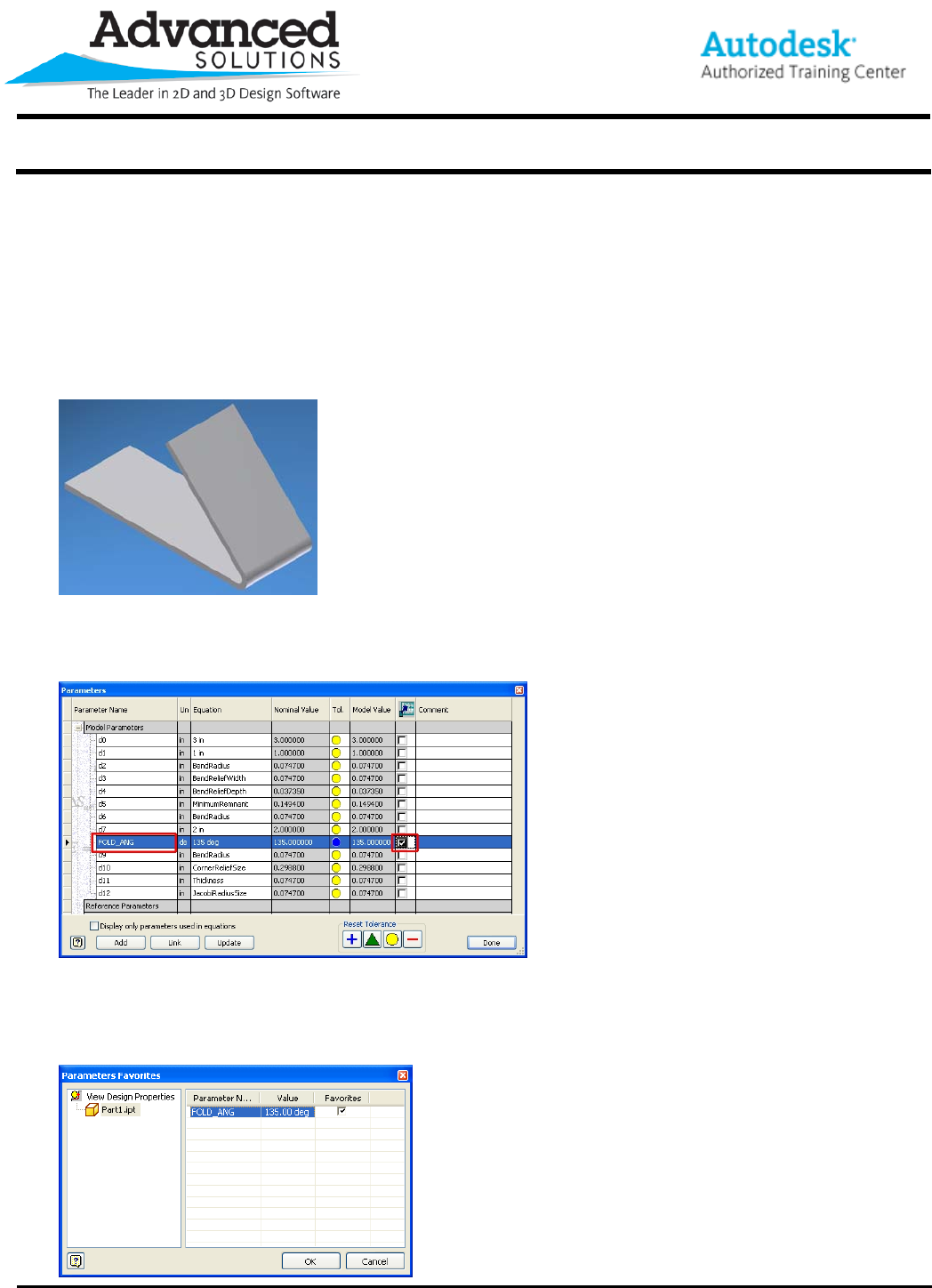
1. Begin by creating your Sheet Metal Part.
2. Next open the Parameters (fx) command and rename and export the folded angle parameter then the
Done button.
3. Now from the Application menu select Inventor Studio.
4. Select the Parameters Favorites (fx) from the Inventor Studio panel and in the dialog select the check
box for your parameter then select the OK button.
www.advsolinc.com
ASI Client Center
1-877-438-2741
Autodesk Products Tip & Tricks
Copyright 2008 – Advanced Solutions, Inc.
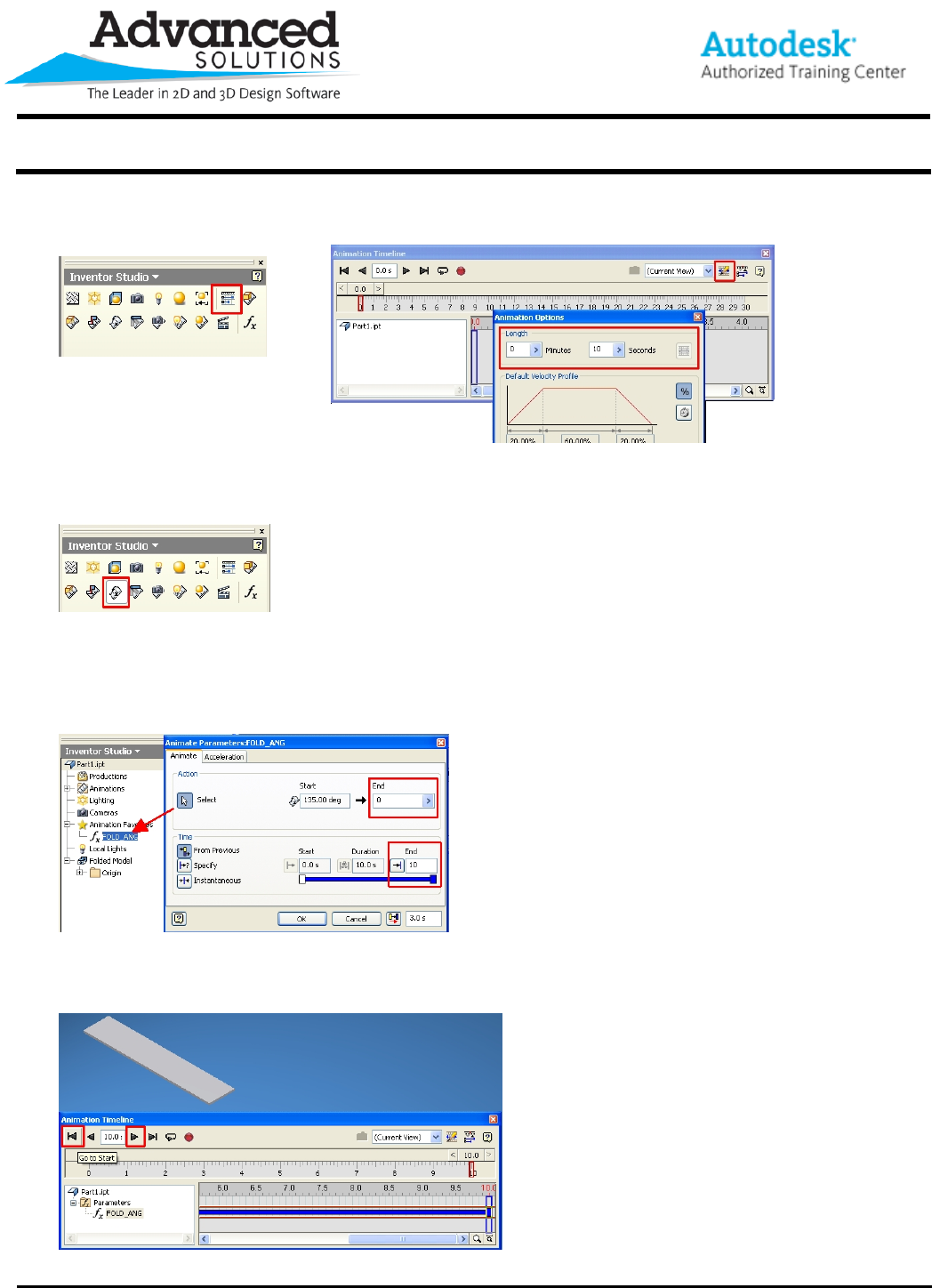
5. Next, select on the Animation Timeline icon and adjust your Animation Options. After adjusting the
setting click OK and keep your Animation Timeline dialog open.
6. Now select on the Animate Parameters icon on the Inventor Studio panel.
7. Set your options in your Animate Parameters to look similar to the figure below. Under the Action area,
select the parameter from the browser and change the End option to 0 degrees. Under the Time area,
edit the End options to the number of seconds you desire to see your part unfold. The smaller the
number the faster the unfold. Select the OK button and your part should be unfolded.
8. Finally, click the Go to Start button on the timeline and then the Play Animation button to watch your part
unfold.
