Updating Your Autodesk License Manager For 2009 Products 081908
2016-06-08
: Guides 081908 Updatingyourautodesklicensemanager 081908_UpdatingYourAutodeskLicenseManager tips pdf asi
Open the PDF directly: View PDF  .
.
Page Count: 3
www.advsolinc.com
ASI Client Center
1-877-438-2741
Autodesk Products Tip & Tricks
Copyright 2008 – Advanced Solutions, Inc.
Product: All Autodesk Products
Topic: Updating your Autodesk License Manager for 2009 Products
Written by: Adam Brown, ASI Support Specialist
Date: August 19, 2008
Setting up your License Manager for the new products
There are two steps we need to take to make sure we are able to get a license for our new software.
The First Step – Updating the License Manager software
To do this we will need to stop the service for a few minutes. Since we will be stopping the service make sure
anyone who is using the software is notified, they can continue working, but it is always best to make sure they
have saved their current work.
• Stop the License Server (a Windows Service) – Open LMTools > Start/Stop/Reread tab > check Force
server shutdown > Stop server
• Copy New Executable files – My Computer > C:\Program Files\Autodesk Network License Manager –
Copy/Paste the new files (lmutil.exe, lmgrd.exe, lmtools.exe, adskflex.exe: found under the Support\NLM
folder on the DVD) over the old exe files found in this folder.
• Restart the License Server (Service) – Open LMTools > Start/Stop/Reread tab > Start server
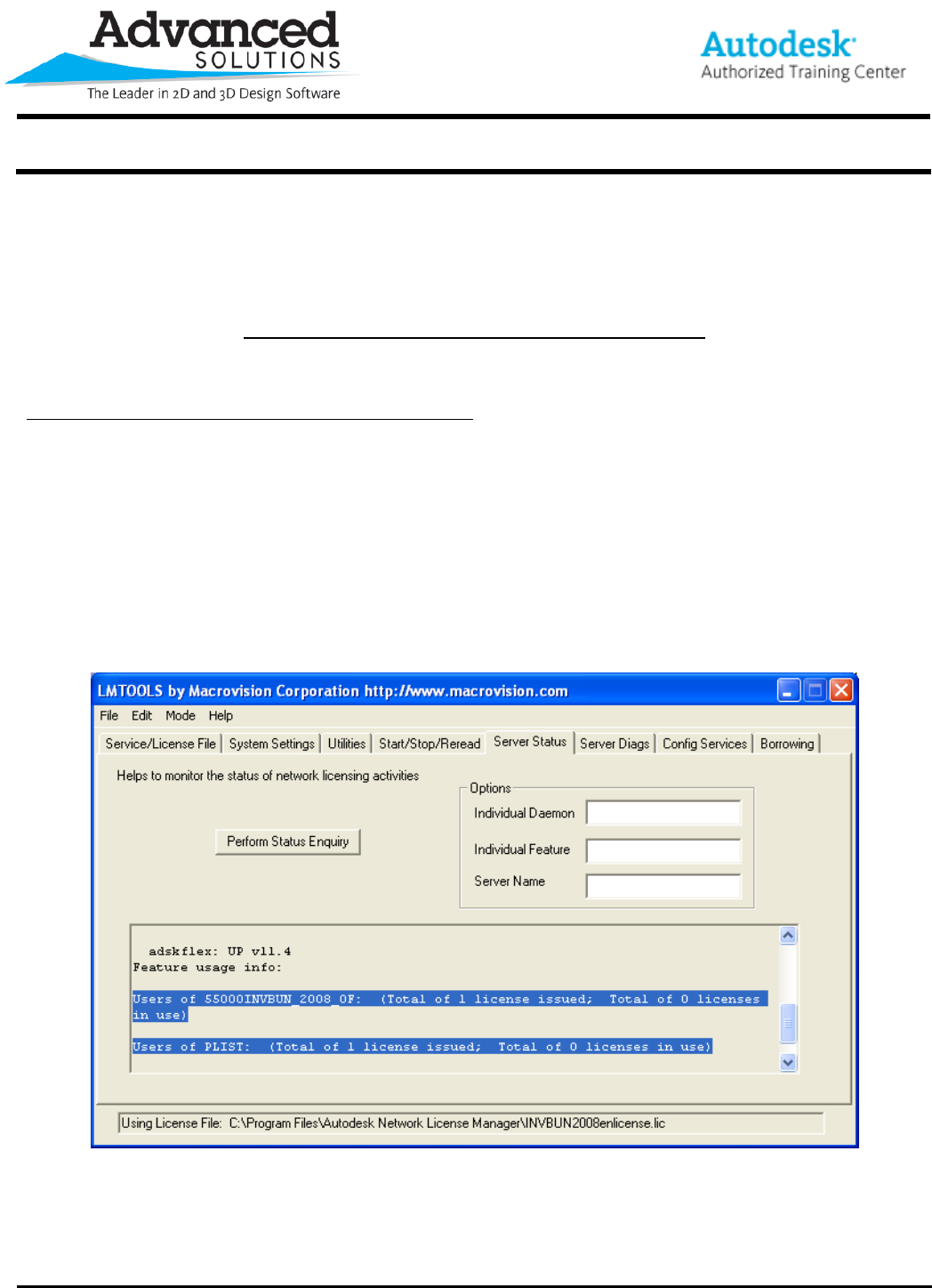
• Check License Status – Server status tab > Perform Status Enquiry – scroll down the information at the
bottom, if it is finding the license correctly you should see something like this:
• Verify Correct Version – Check Status output for:
o license server UP (MASTER) v11.4
o adskflex: UP v11.4
Both processes must indicate version 11.4
www.advsolinc.com
ASI Client Center
1-877-438-2741
Autodesk Products Tip & Tricks
Copyright 2008 – Advanced Solutions, Inc.
The Second Step – Updating Your License File
Each product you are upgrading will need a new license file. You obtain these files from Autodesk.
There are several ways of obtaining this license –
Online - https://registeronce.autodesk.com/
Phone – 1-800-551-1490
Activation Utility – this is installed from the DVDs under Tools and Utilities
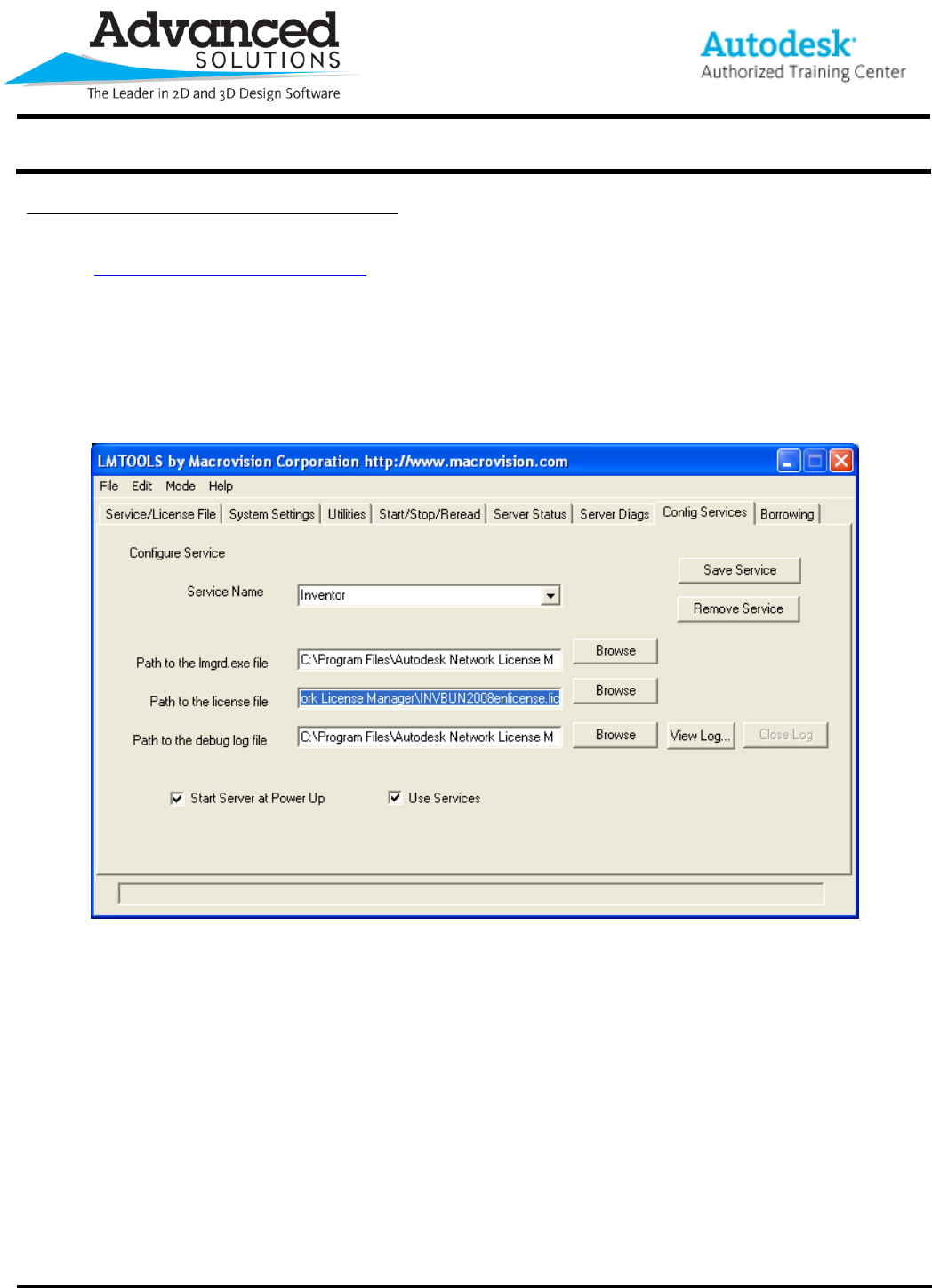
Once you have this license file you need to update LMTools so that it points to this new file. If you have multiple
license files you will need to combine them into one file, see how to do this below.
• Open LMTools
• Config Services tab - Path to license file (browse) > select the new license file. Save the Service
• Start/Stop/Reread tab - Force server shutdown > Stop Server (the status line at the bottom will say
“Stopping Server” indefinitely) > Start Server
• Server Status tab – Perform Status Enquiry – scroll down as above to make sure you are accessing the
correct license
Once these steps are done you should be able to obtain a license from your workstations for your new product.
www.advsolinc.com
ASI Client Center
1-877-438-2741
Autodesk Products Tip & Tricks
Combining Your License Files
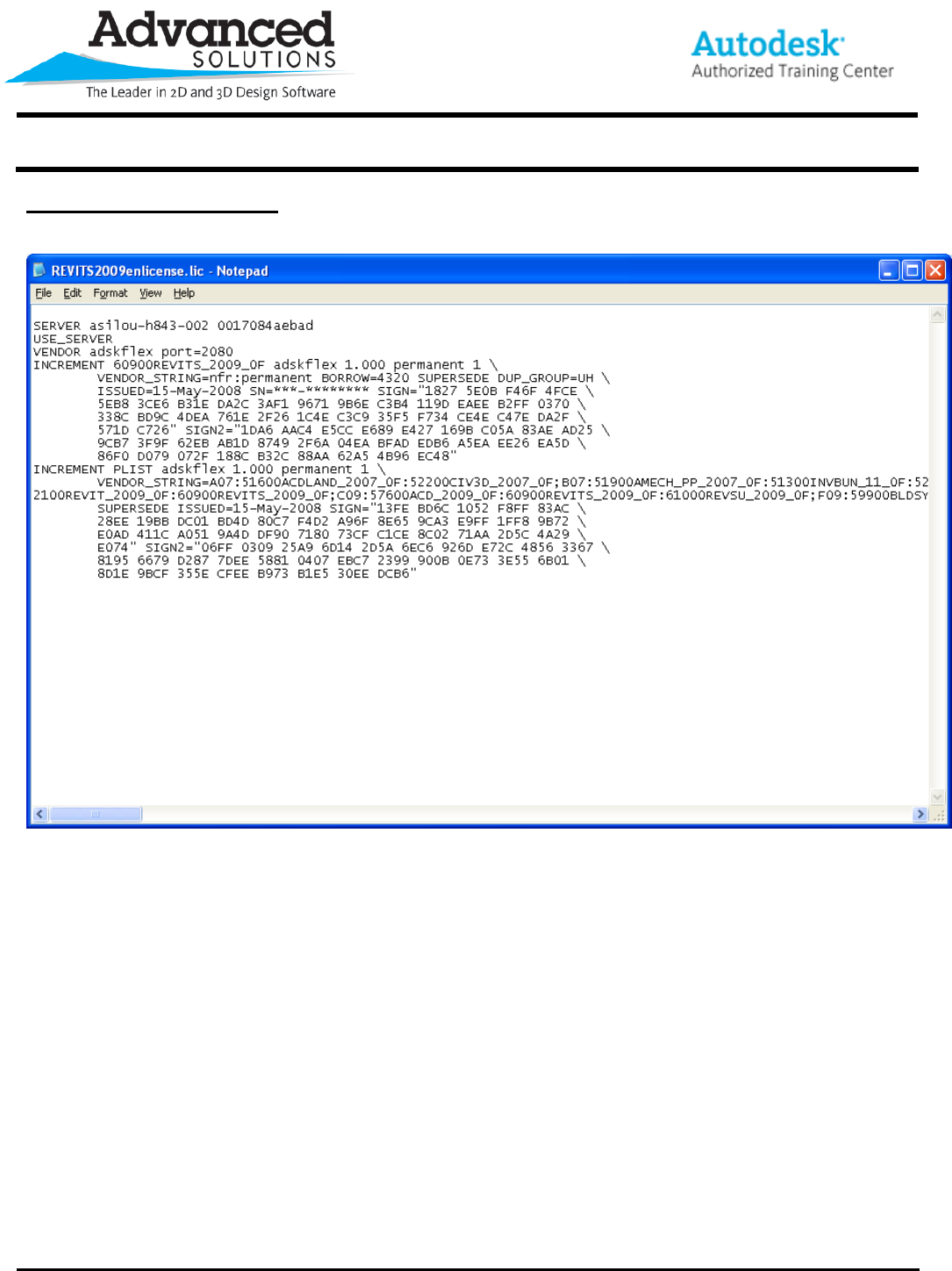
When you have multiple products you need to combine the license files into one file. To do this you will need to
open both license files with Notepad. They should look similar to this:
Your file may have a different look. If you are on subscription the fourth line will begin with the word Package
instead of Increment. This is a new feature of the 2009 license files that allows subscription members to access
previous versions of the software without needing a new license file.
In one of the documents (it doesn’t matter which one) you need to select everything from the fourth line, starting
with Increment (or Package), to the end of the document. Then you will paste this information to the bottom of the
other license file.
Save this as a separate file so that if you have the originals as backups.
Copyright 2008 – Advanced Solutions, Inc.
