Accelerate Erase Command 112608
2016-06-08
: Guides 112608 Accelerateerasecommand 112608_AccelerateEraseCommand tips pdf asi
Open the PDF directly: View PDF  .
.
Page Count: 3
www.advsolinc.com
ASI Client Center
1-877-438-2741
Autodesk Products Tip & Tricks
Copyright 2008 – Advanced Solutions, Inc.
Product:
AutoCAD 2009
Topic:
Accelerate Erase Command
Written by:
Justin Chartier, Manufacturing Technical Engineer
Date:
November 26, 2008
Hello and welcome to our Tips & Tricks session.
The erase command is a widely used command when using AutoCAD. It allows you to delete or remove your
selection.
In this Session, I will show you how to speed up your erase command by eliminating a confirmation step.
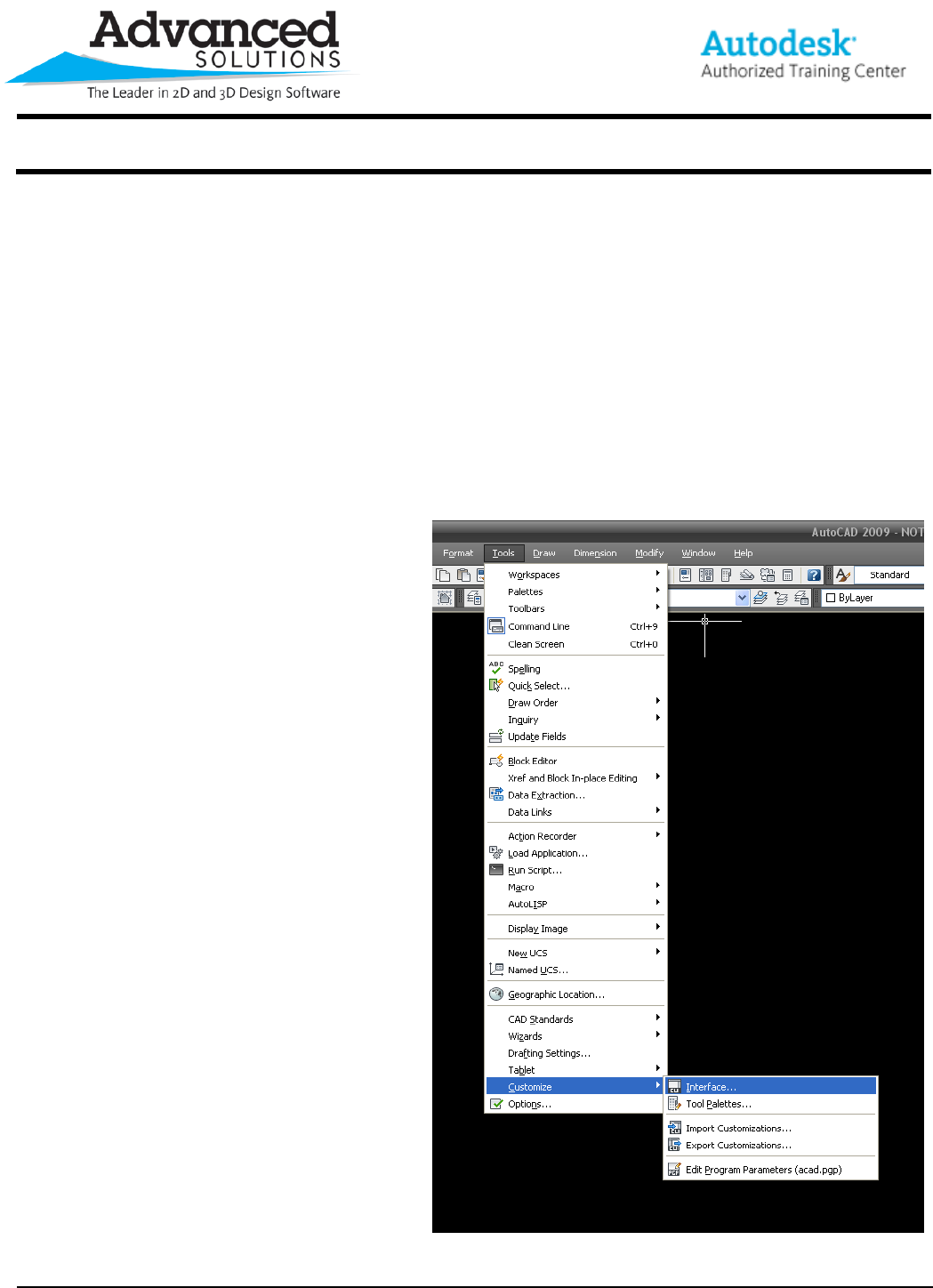
To access your Erase Command’s Property Macros:
From the Tools Tab
Customize
Interface
Or type cui at the command prompt.
Figure 1
www.advsolinc.com
ASI Client Center
1-877-438-2741
Autodesk Products Tip & Tricks
Copyright 2008 – Advanced Solutions, Inc.
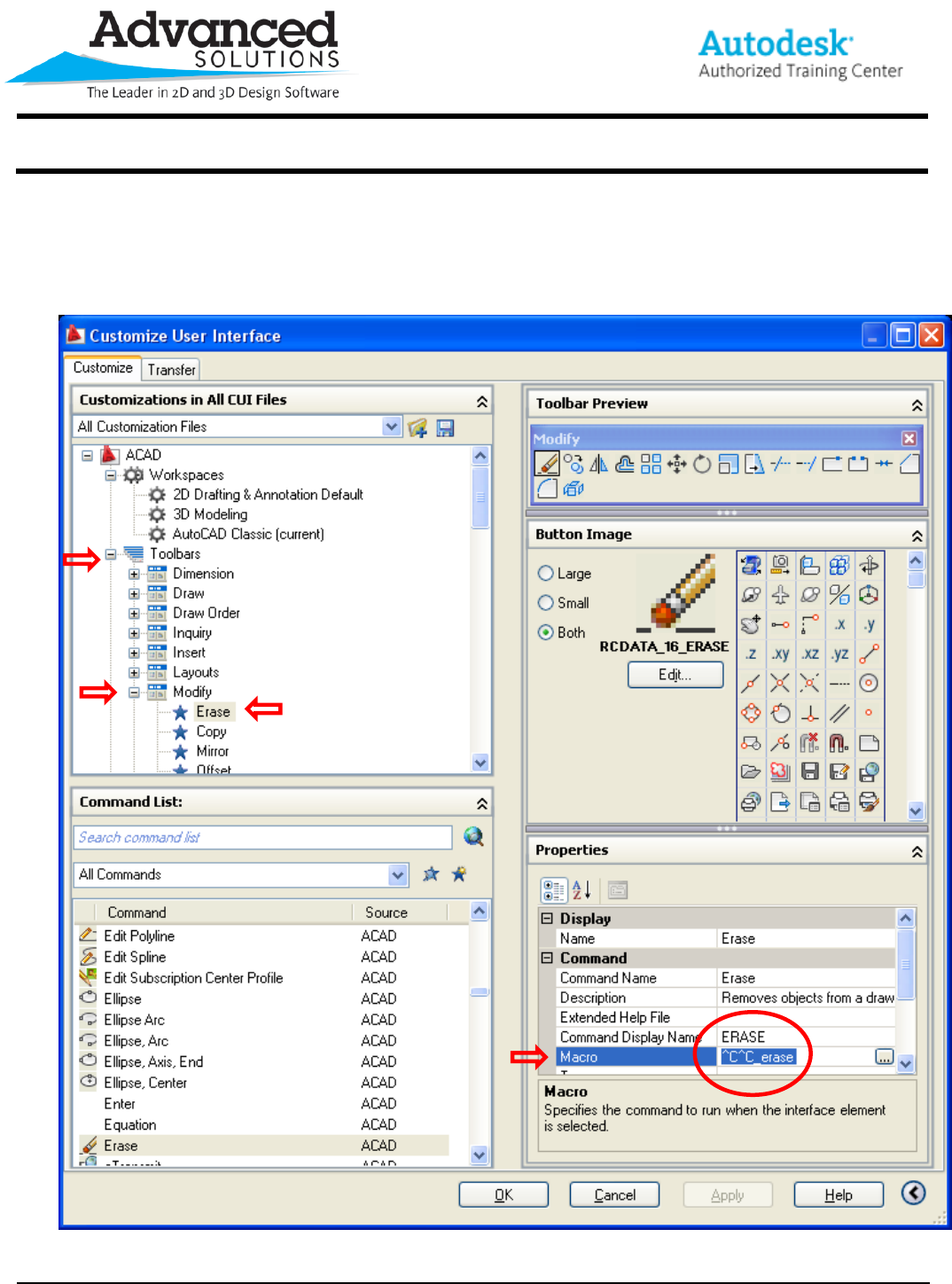
Next under the Customization tab
in the “Customization in all CUI Files” Pane
select Toolbars
select
Modify
select erase to display the Macro
Figure 2
www.advsolinc.com
ASI Client Center
1-877-438-2741
Autodesk Products Tip & Tricks
Copyright 2008 – Advanced Solutions, Inc.
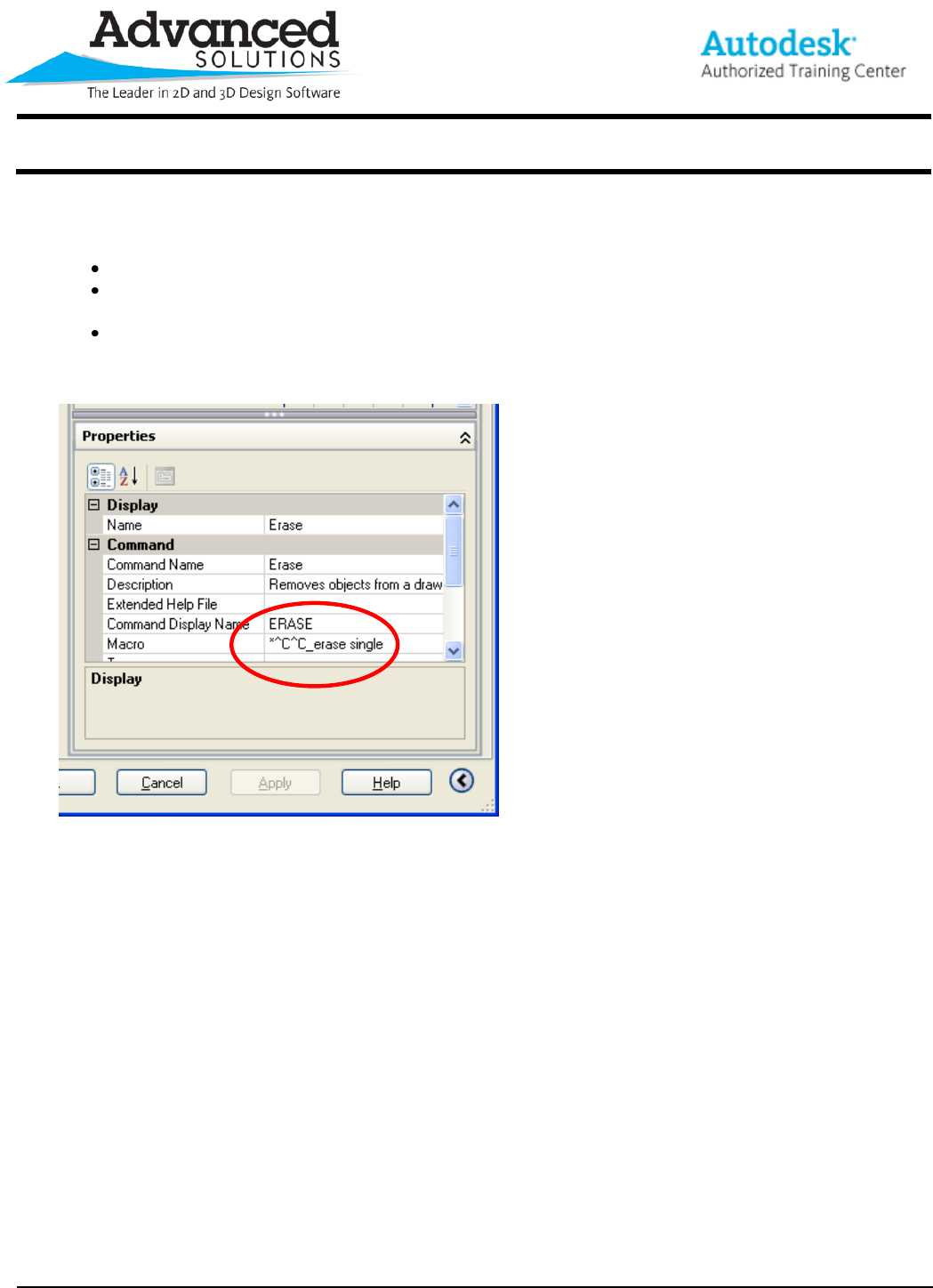
Now you can see the current Erase Macro which reads ^C^C_erase.
Manually add an asterisk (*) before the first carrot.
Next skip a space after the word erase, then type the word single.
So the new Erase Macro should read *^C^C_erase single
Figure 3
This modification will reduce the time it takes to delete objects by eliminating the additional confirmation step
with your RMB. Once you click on the object, it will erase without any additional steps, allowing you to be more
efficient.
Thank You for viewing this session of Tips & Tricks.
