Changing The Appearance Of Flex Duct In A Plan View 121908
2016-06-08
: Guides 121908 Changingappearanceofflexduct 121908_ChangingAppearanceOfFlexDuct tips pdf asi
Open the PDF directly: View PDF  .
.
Page Count: 2
www.advsolinc.com
ASI Client Center
1-877-438-2741
Autodesk Products Tip & Tricks
Copyright 2008 – Advanced Solutions, Inc.
Product: Revit MEP 2009
Topic: Changing the Appearance of Flex Duct in a Plan View
Written by: Emy McGann, BSD TE
Date: December 19, 2008
Changing the Appearance of Flex Duct in a Plan View
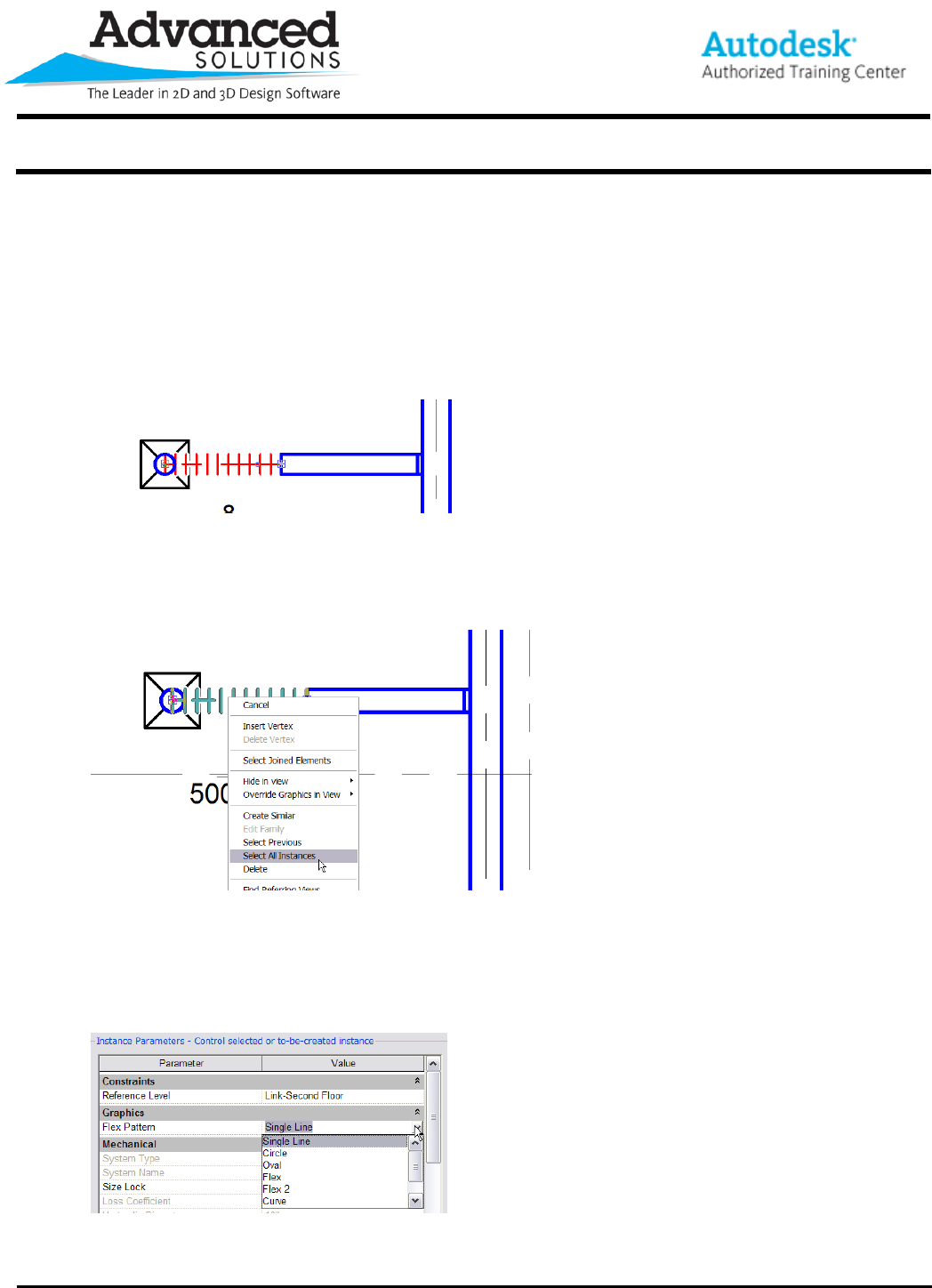
1. Select a piece of flex duct in a mechanical plan view
Figure 1
2. Right-click and choose Select All Instances – this will ensure that all the flex duct in the view will change
simultaneously
Figure 2
3. With the flex duct selected open the Element Properties (either by right-clicking again and selecting
Element Properties) or choosing the Element Properties icon on the Options Bar.
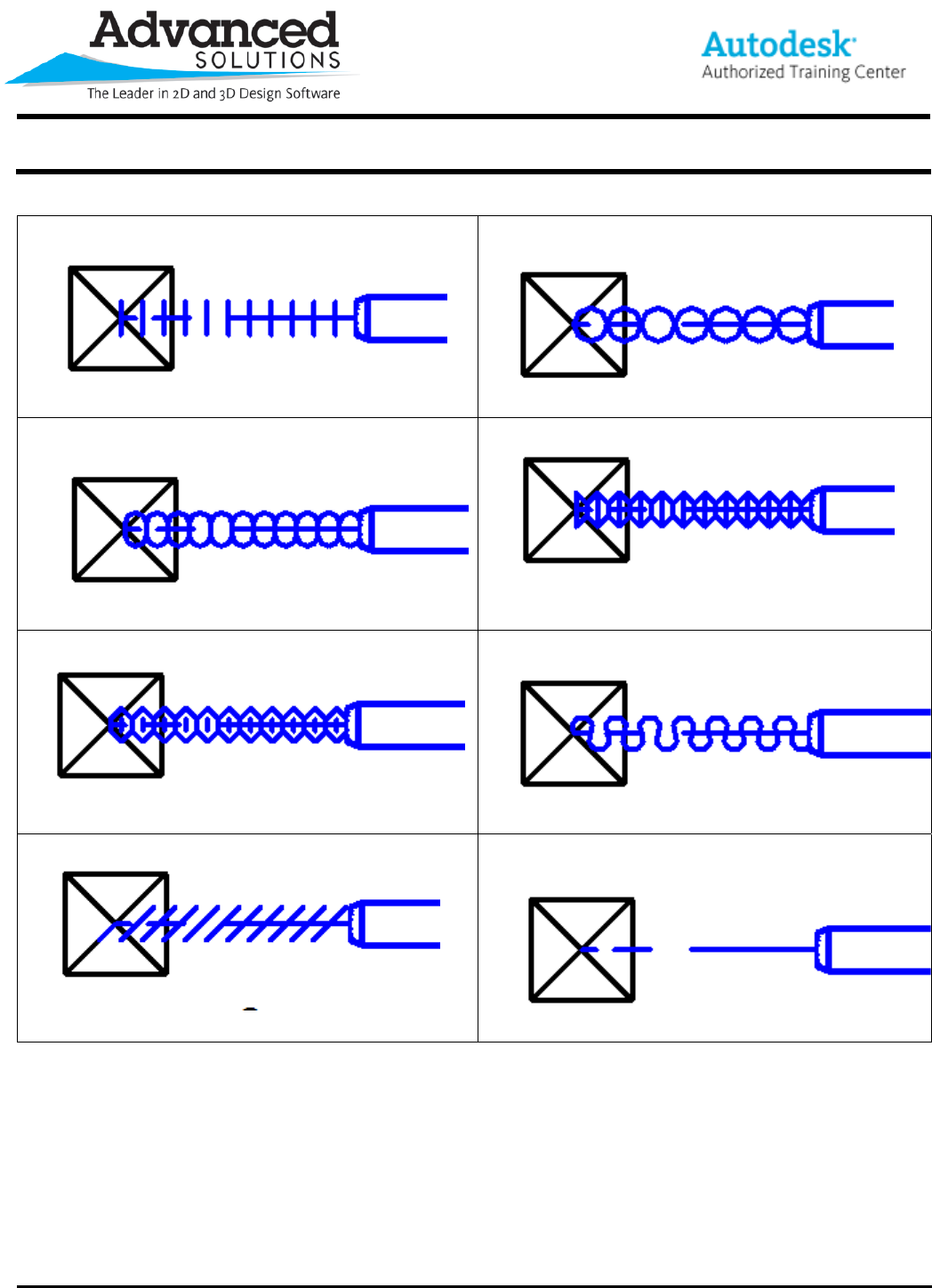
4. Change the Flex Pattern in the Instance Parameters area
Figure 3
www.advsolinc.com
ASI Client Center
1-877-438-2741
Autodesk Products Tip & Tricks
Copyright 2008 – Advanced Solutions, Inc.
Single Line
Circle
Oval
Flex
Flex 2 Curve
Single Line 45 Undefined
