Using Fields In Civil 3D 122308 Civil3D
2016-06-08
: Guides 122308 Usingfieldsincivil3D 122308_UsingFieldsInCivil3D tips pdf asi
Open the PDF directly: View PDF  .
.
Page Count: 2
www.advsolinc.com
ASI Client Center
1-877-438-2741
Autodesk Products Tip & Tricks
Copyright 2008 – Advanced Solutions, Inc.
Product: Civil 3D 2009
Topic: Using Fields in Civil 3D
Written by: Leo Lavayen, ISD Tech.
Date: December 23, 2008
Using fields in M-text is a good way of keeping track of objects, specifically Assemblies. After an Assembly has
been created (with or with out attached subassemblies) we can create a field.
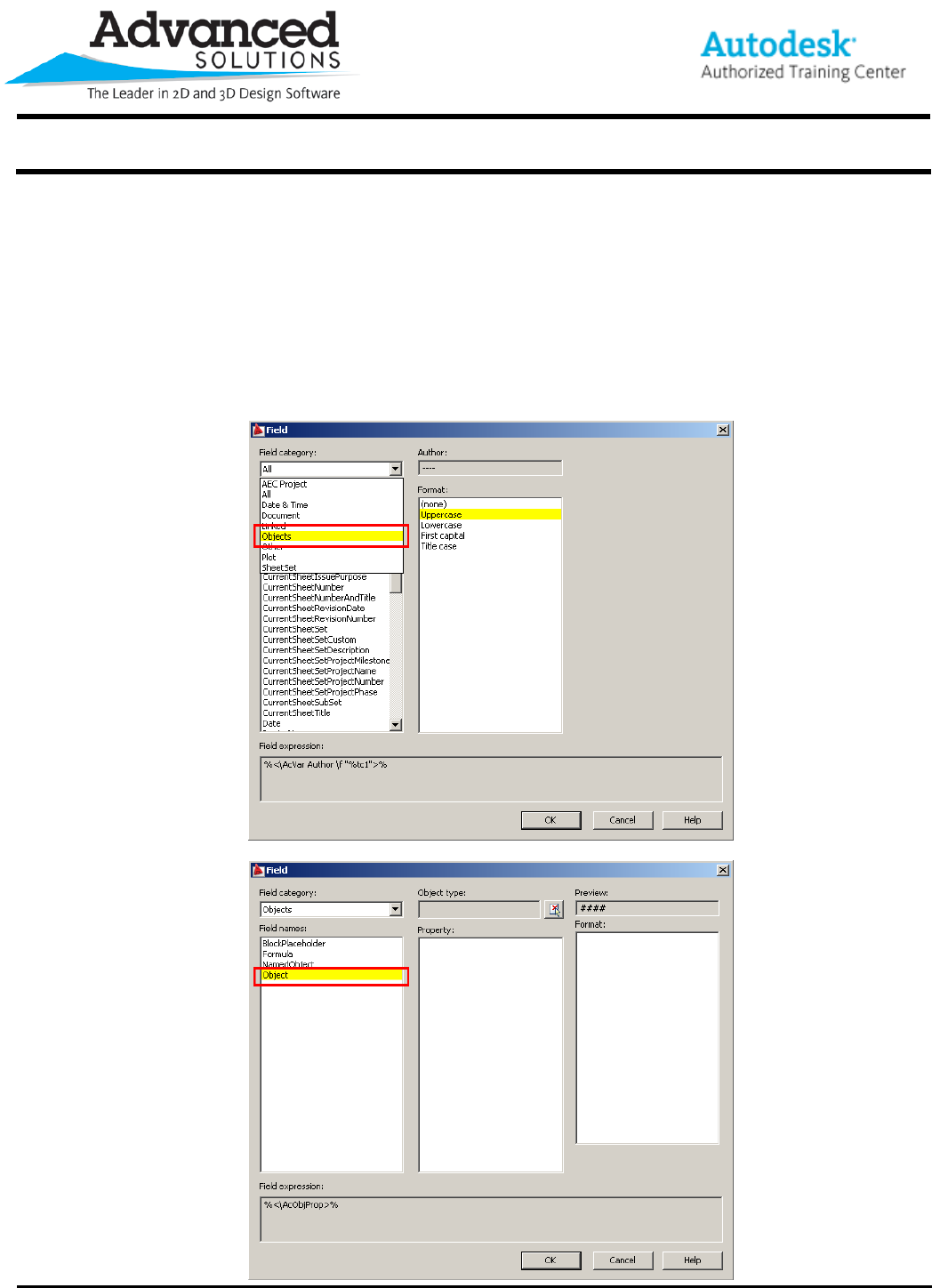
1. Start up the FIELD command.
2. In the Field Category drop down, select Objects.
3. In the filtered Field Names list select Object
www.advsolinc.com
ASI Client Center
1-877-438-2741
Autodesk Products Tip & Tricks
Copyright 2008 – Advanced Solutions, Inc.
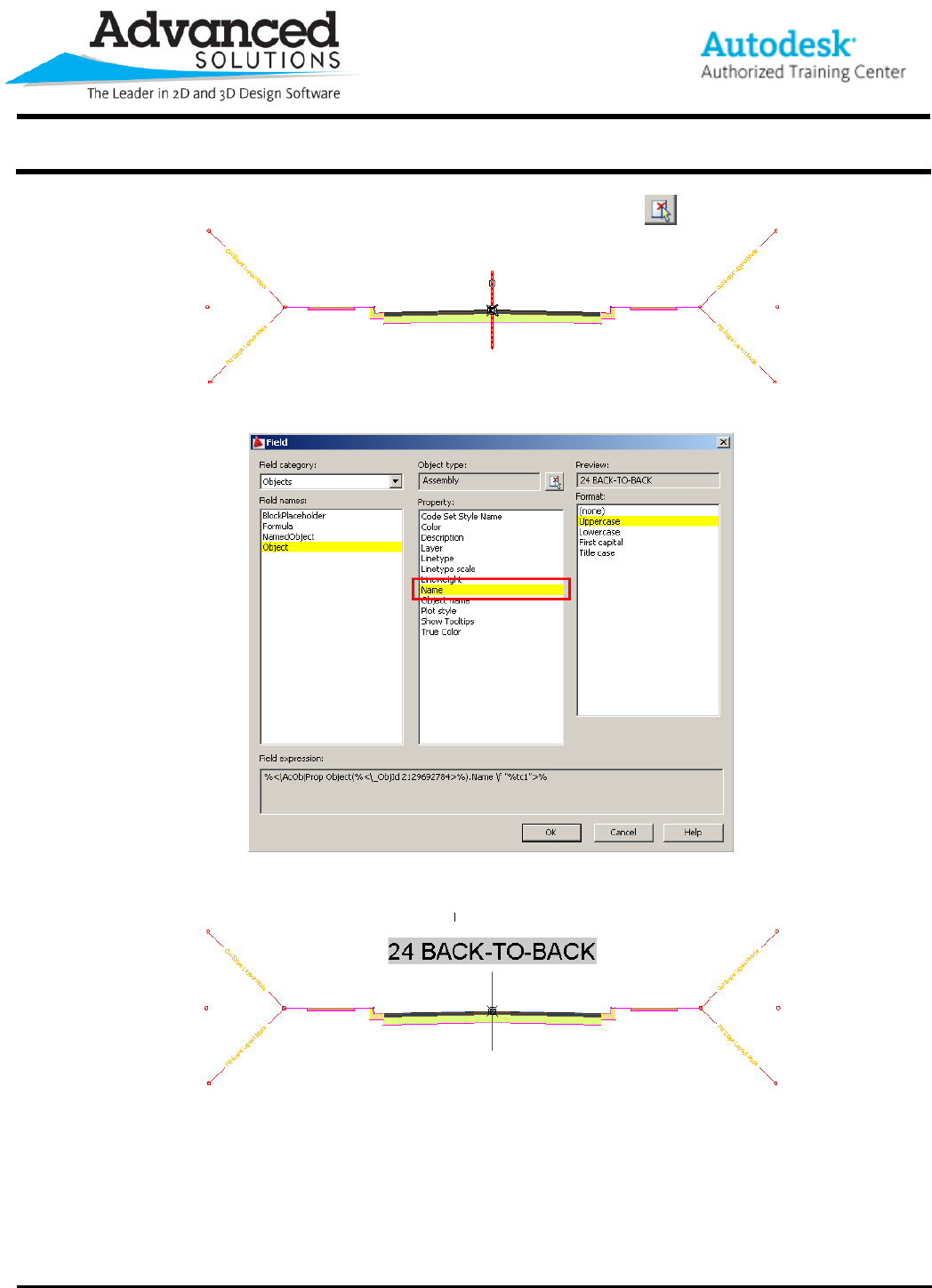
4. Then select the Assembly from the screen by using the select button.
5. Once the Object (assembly) has been selected choose what need to be displayed, in this case Name
6. Then exit out by clicking OK, you will be prompted to select a location on the screen for the field. The
created field will be M-text and uses the current AutoCAD text style.
