Using Large Point Files And Simplify Surface 123108
2016-06-08
: Guides 123108 Usinglargepointfilesandsimplifysurface 123108_UsingLargePointFilesAndSimplifySurface tips pdf asi
Open the PDF directly: View PDF  .
.
Page Count: 2
www.advsolinc.com
ASI Client Center
1-877-438-2741
Autodesk Products Tip & Tricks
Copyright 2008 – Advanced Solutions, Inc.
08
Product: Civil 3D 2009
Topic: Using Large Point Files and Simplify Surface
Written by: Leo Lavayen, ISD Tech.
Date: December 31, 20
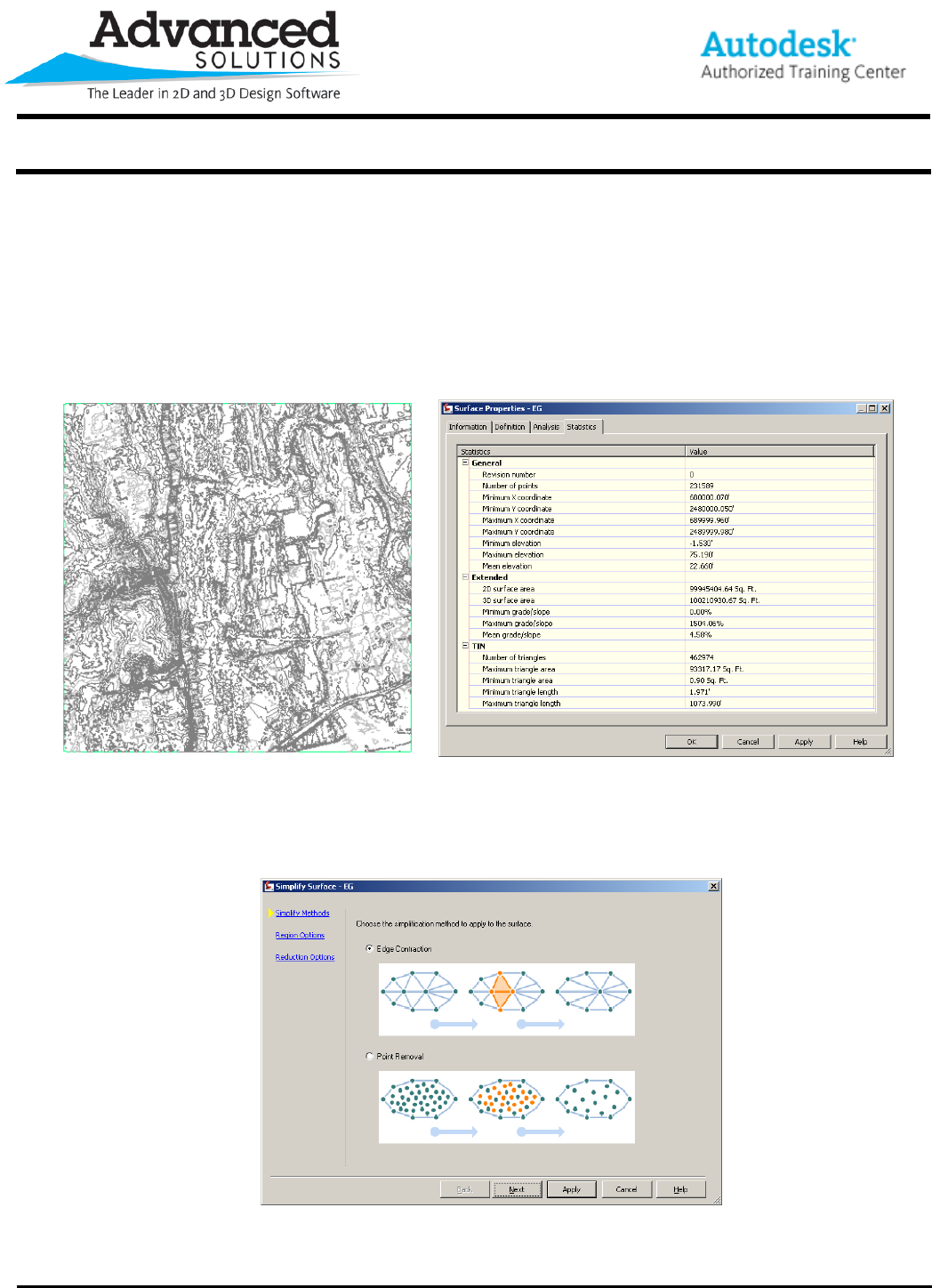
When bringing in large survey areas or LIDAR Data, surface models can become very large. In this example, the
Surface being created is reading a text file of an entire quadrant from a county. The data amounts to roughly
100,000,000sqft area of Northing, Easting and Elevation data containing about 231,589 points. A quick glimpse
into the Statistics Tab of the Surface properties reveals this.
Figure 1 Figure 2
To minimize the number of created triangles and surface points, the existing surface will be simplified.
1. From the Prospector Tab, Expand the Surface, expand the Definition Category, right click on Edits and
select Simplify Surface…
2. There are 2 options for the Surface clean up, Edge Contraction and Pont Removal.
Figure 3
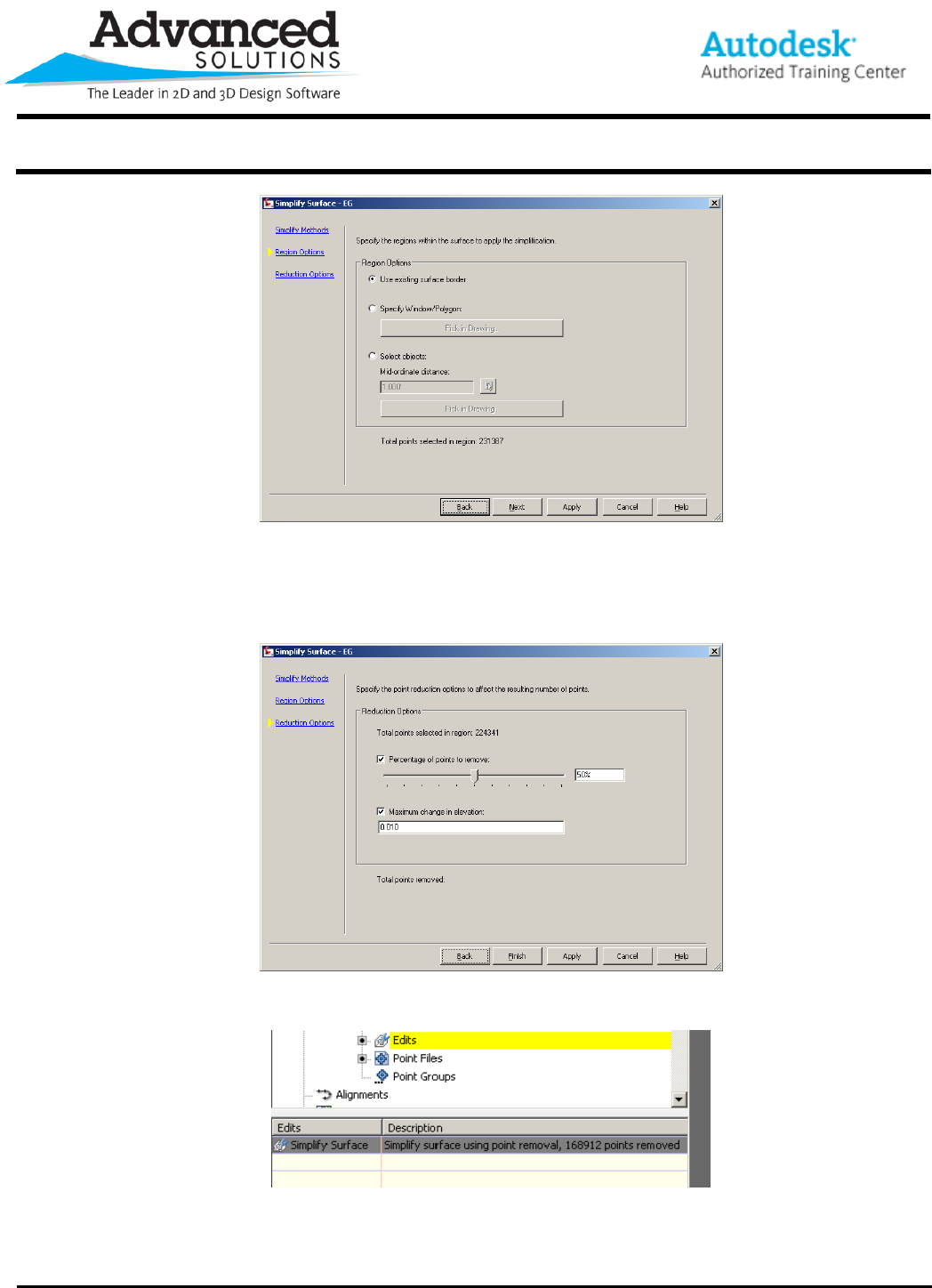
3. The process can be applied to the Entire Surface, a Window/Polygon can be specified on screen or an
existing Polygon can be used.
www.advsolinc.com
ASI Client Center
1-877-438-2741
Autodesk Products Tip & Tricks
Copyright 2008 – Advanced Solutions, Inc.
Figure 4
4. The last step is to assign a Percentage of Points to be removed. If using the Point removal option a
Maximum change in elevation is enabled. The Total of points removed is displayed according to the
criteria. You should be aware here if you click on Apply and then click on Finished the command will be
done twice.
Figure 5
5. The process will be listed in the surface edit area.
Figure 6
