Autodesk Vault 2015 What's New Guide
2016-06-08
: Guides Autodesk Vault 2015 What'S New Guide Autodesk_Vault_2015_What's_New_Guide products pdf asi
Open the PDF directly: View PDF  .
.
Page Count: 8
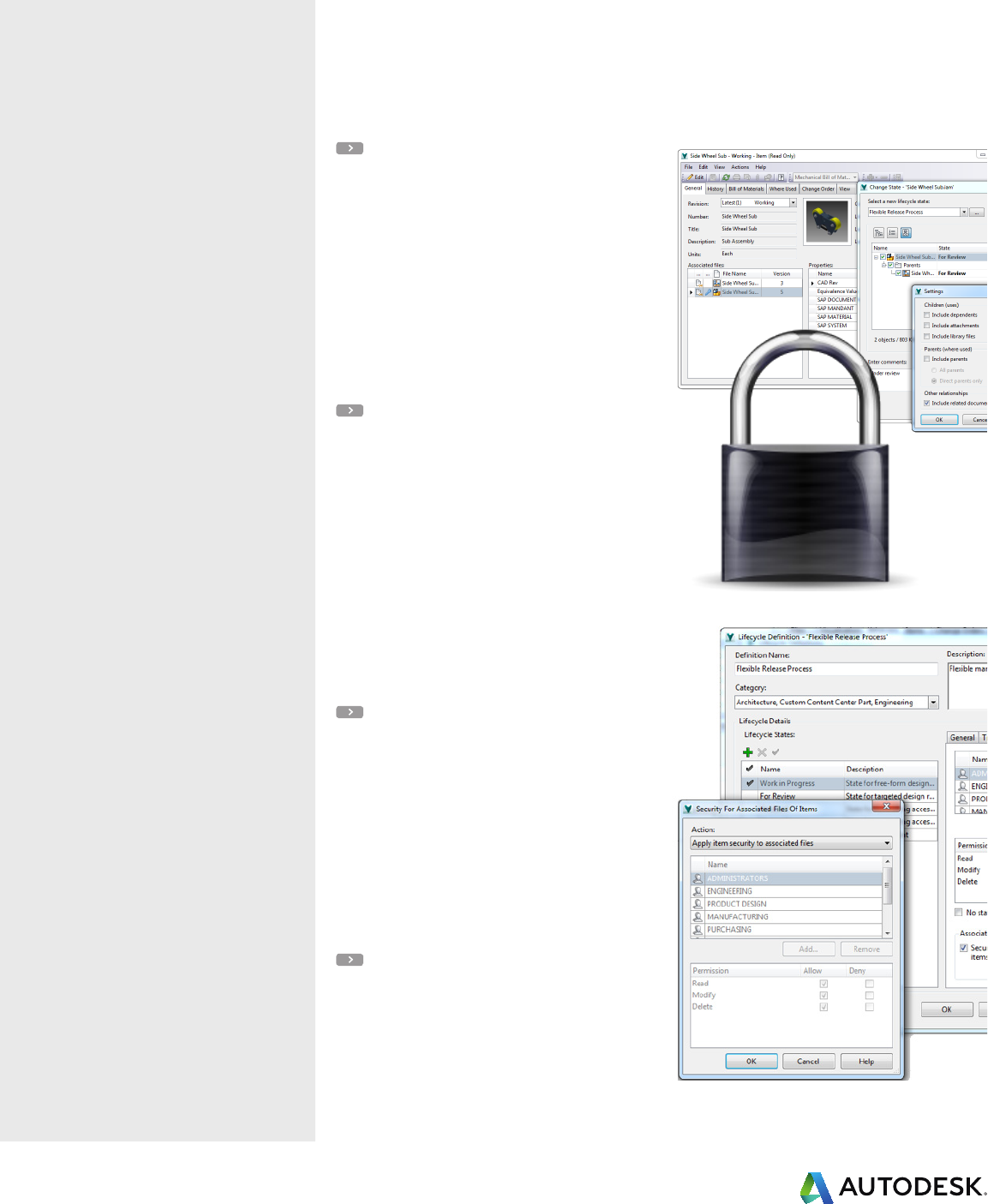
Unified lifecycles
The 2015 R2 release helps companies unify
lifecycle controls and adds the same great
document lifecycle flexibility to items.
Manage your file access and release
process using the traditional fixed
workflow item method—or separate the
two release methods and use the more
flexible document lifecycle controls in
parallel with item controls.
Part of the Autodesk® solution for Digital Prototyping, the Autodesk® Vault family of data
management software helps you keep track of all your digital design data. The Vault 2015
R2 release provides a number of key enhancements that simplify user workflows, provide
new item and BOM functionality, enhance the non-designer experience, and improve
productivity with an all new Copy Design interface.
Item lifecycle enhancements
Autodesk® Vault Professional 2015 R2 software
expands the concept of flexible lifecycle definitions
to item lifecycles, enabling users to manage several
lifecycle definitions per item category and use the
same release management process for items and
files.
In order to better manage the handling of obsolete
components, an Obsolete state flag has been
added, similar to the Released flag for modifying
component behaviors.
Item security flexibility
To better address access management, the
permission model has been updated with item-level
object-based permissions that can be applied
manually to an item by a user or group—similar to
file, folder, and custom object permissions. Flexible
rights management based on category, lifecycle
definition, and item state has also been added.
As with documents, it is now possible to define
user or group item permissions for:
• State transitions
• State-based access
Flexible link-based security
Management of linked documents is now available.
Rather than simply locking primary files associated
with an item, administrators can control documents
per item state to:
• Apply item security
• Apply custom security
Security settings can be unique for primary,
secondary, and design document link types.
Administration improvements
It is now simpler for administrators to work in the
lifecycle scheme dialogs. When a new state is
created, it is automatically selected so you can
quickly switch into edit mode. There is also an
entity filter available in the transition configuration
dialog to reduce the actions displayed and simplify
the definition of transition rules.
For more information about Autodesk
Vault here, visit
www.autodesk.com/vault.
To locate the reseller nearest you, visit
www.autodesk.com/reseller.
Autodesk® Vault 2015 R2
What’s new
What’s new Autodesk® Vault 2015 R2
Improved item management
Autodesk Vault Professional 2015 R2
includes several usability enhancements
and new features to improve your Item
workflows.
User interface consistency
The user experience has been improved to help
you work with items more eciently. You now
have a more visual and intuitive approach to item
management that is consistent with document
methods for tasks such as change state, revisions,
and categories.
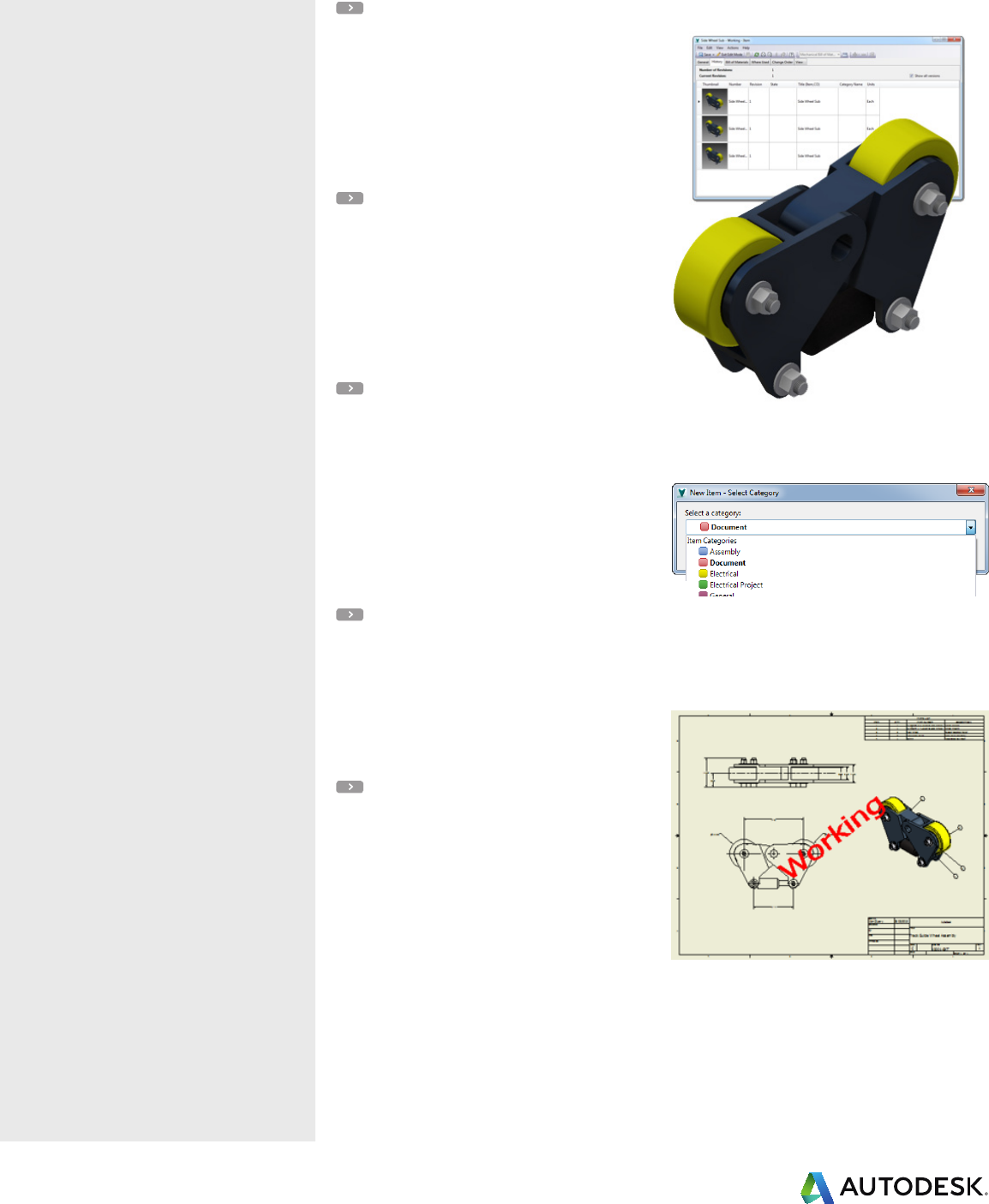
Item versions
In addition to capturing specific item revision
history, you are now able to view all item versions.
This enables you to see changes made to the
item between releases—including property and
document updates on the general tab through to
history, where used, and the bill of materials.
Assign item category
As in previous versions of Vault Professional, you
can automatically categorize items based on
predefined rules and change the item category as
required. The latest release introduces the ability to
assign a category on creation. This administrator-
controlled setting permits users to select a category
from the available list, streamlining the process
when creating new items.
Write-back item properties
In response to customer requests, you can now use
the Vault CAD add-ins, Vault Explorer, or the job
processor to map and write back item properties
directly to the CAD files for clearer and more
accurate design documentation.
Item dialog usability
Updates to the Item dialog enable you to configure
the associated files list view in the General tab,
resize the view within the General and View tabs,
and easily access Exit Edit Mode with toolbar
changes.
In addition, Save As has been improved to create
the new item in edit mode ready to update.
Watermarking has also been refreshed to provide
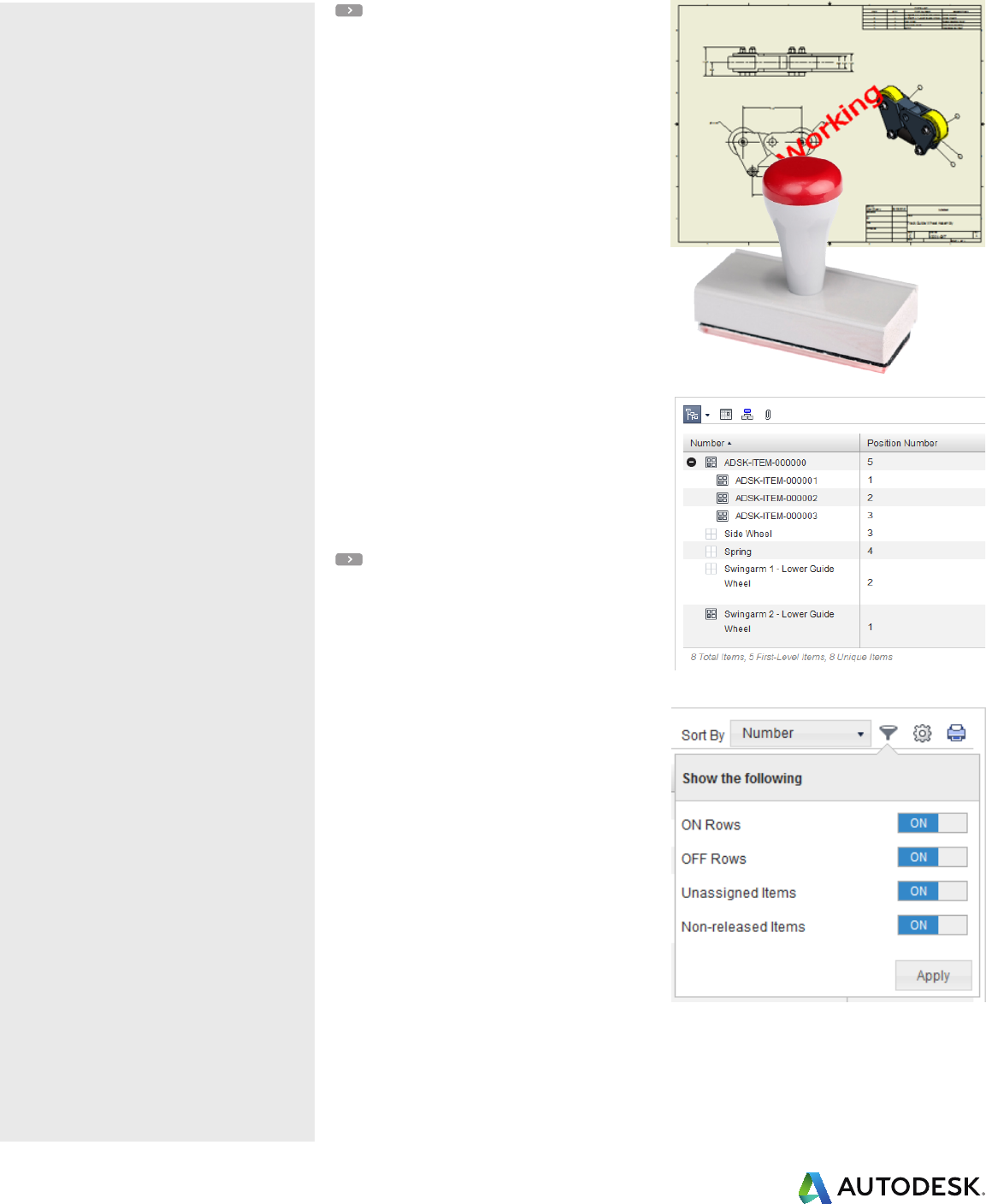
configurable stamp settings.
What’s new Autodesk® Vault 2015 R2
BOM enhancements
Enhancements to the bill of material
interface provide a more flexible and
collaborative approach to managing the
Item BOM with access to BOM properties,
support for multiple BOM rows, and
reporting directly out of the BOM view.
BOM properties
Configuration
Define BOM row properties and mapping using the
same interface for file-based user-defined
properties and map values as read-only from CAD.
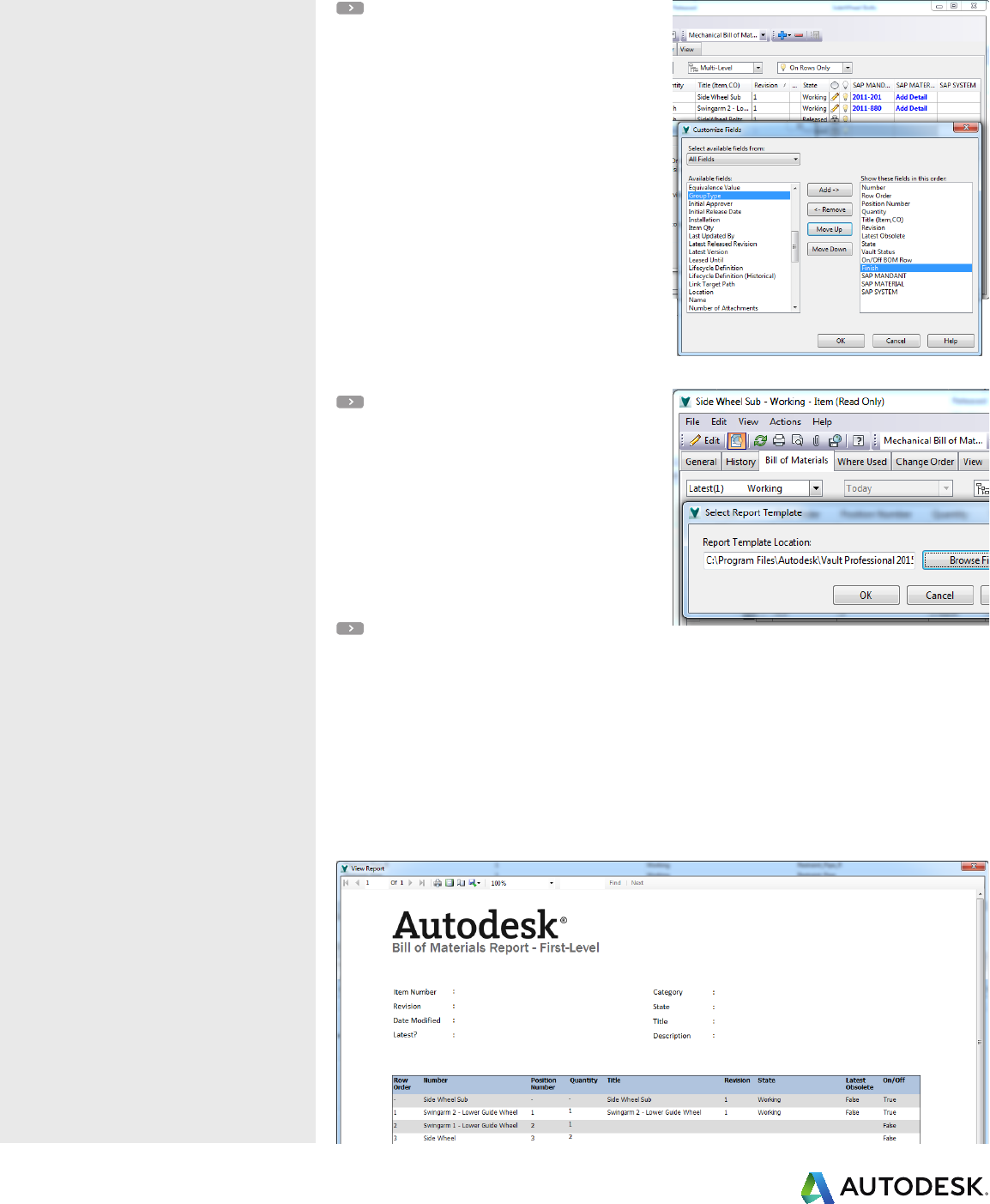
Modify BOM view
Add BOM row properties to the BOM grid,
configuring to show traditional system-based
properties like quantity, as well as custom and new
BOM row properties including row type, group
type, item quantity, and unit quantity.
Edit BOM properties
You can edit the BOM row properties directly, once
they are added, by clicking on the grid while in edit
mode.
Multiple BOM row support
New in this release is the addition of multiple BOM
row support, enabling you to display multiple BOM
rows that share the same Item definition.
You can use the traditional behavior to group items
where multiple exist—or permit the rows to exist
separately, modifying position number and BOM
row properties to accurately reflect the CAD BOM.
BOM reports
You can now extend access to BOM information
outside of Vault by creating BOM reports from
Vault Explorer and the item environment.
Create or utilize existing Autodesk Vault templates
to configure the bill of materials report for multi-
level, parts-only, or first-level-only views, and you
can include your own BOM row properties.
What’s new Autodesk® Vault 2015 R2
Copy Design
The Copy Design feature has been
completely redesigned, enabling new
user-requested workflows and productivity
enhancements, including reference-based
copy, property and file behavior
management, automatic file numbering,
and performance improvements.
Multiple file copy
The new copy design tool enables greater
productivity by now permitting users to copy more
than one set of files per operation. Add multiple
assemblies or individual files and configure them
independently to execute multiple copy operations
at one time.
Reference-based copy
In operations where the same component is
referenced by multiple assemblies, you can now
configure different operations for each reference in
the model context. Traditionally, when a
component is used in more than one location, such
as derived parts in skeletal models, it is copied in
all other assembly levels, making it impossible to
replace or reuse instances where required.
By selecting the reference option, each individual
component reference can have its copy behavior
set independently.
Copy Design reference support
Changes to reference management means you are
now also able to copy models containing circular
references, such as derived parts or Autodesk®
AutoCAD® overlays, as well as non-CAD file types,
including attachments.
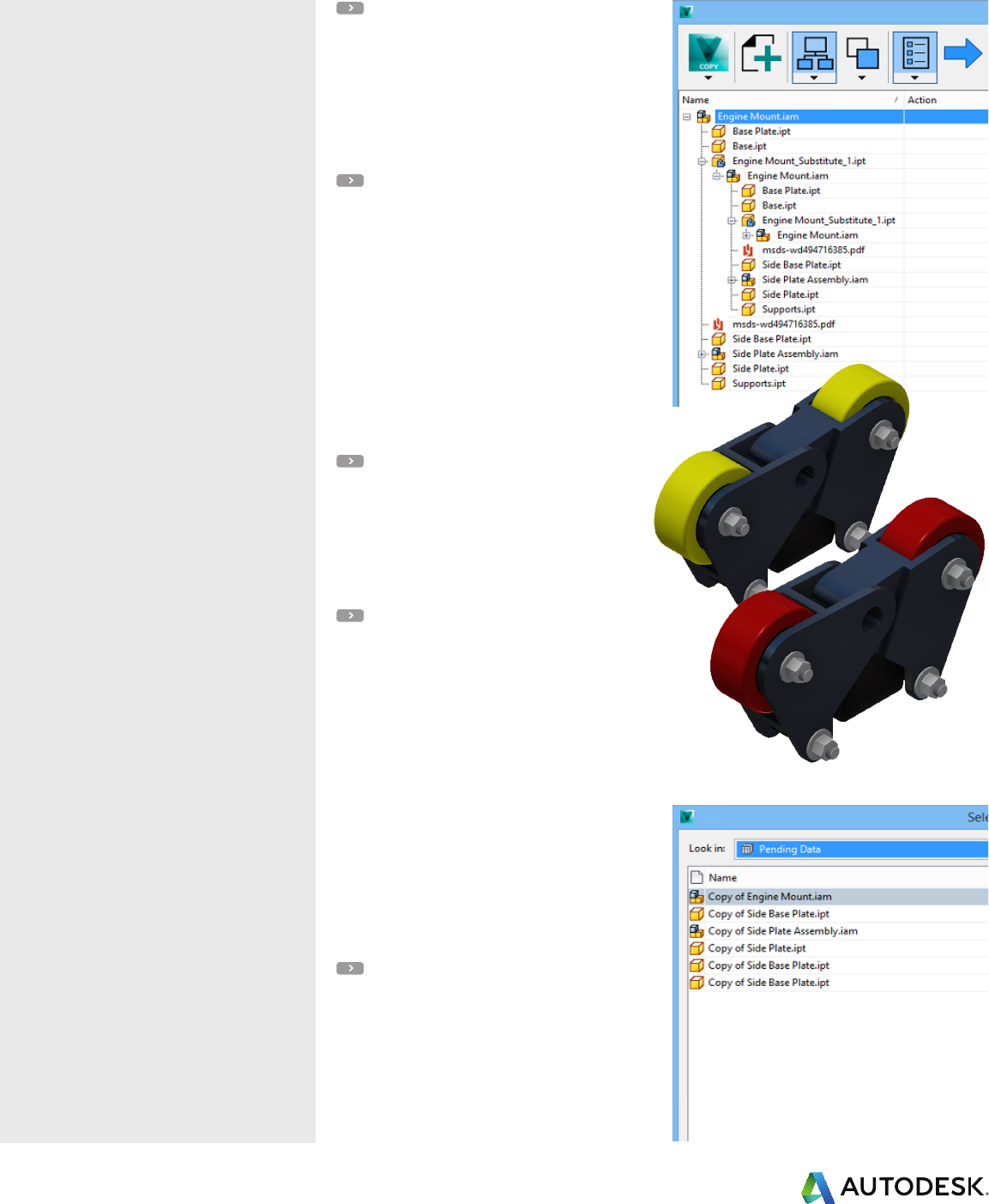
Replace with pending files
A new feature for use with skeletal modeling
techniques is the ability to replace components
with pending data. This means that files that will be
created as part of the copy process can be reused
throughout the structure.
When selecting Replace on a component, a
Pending Data option appears in the file dialog—
here you have access to the uncommitted new files
being created by copy operations elsewhere in the
model.
Once referenced into the operation, Vault will
create the new file and rebuild the new structure
with the selected file, like it would with any normal
replace operation.
Folder-based Copy Design
Based on user feedback, the new Copy Design
interface enables you to execute copy operations
based on folder location. After selecting your
data, you can create new folders, carry out file
operations based on the folder location, drag and
drop between folders, and use a visual method for
configuring the copy.
What’s new Autodesk® Vault 2015 R2
Copy Design
In addition to enabling a number of new
workflows, Copy Design also makes it
easier to manage file behavior with the
ability to apply auto-numbering schemes
and control properties and category
behavior.
Auto-numbering
The most frequently requested enhancement
for Copy Design was the inclusion of automated
numbering schemes, so you can apply Vault file
numbering schemes to the new copied files in one
operation.
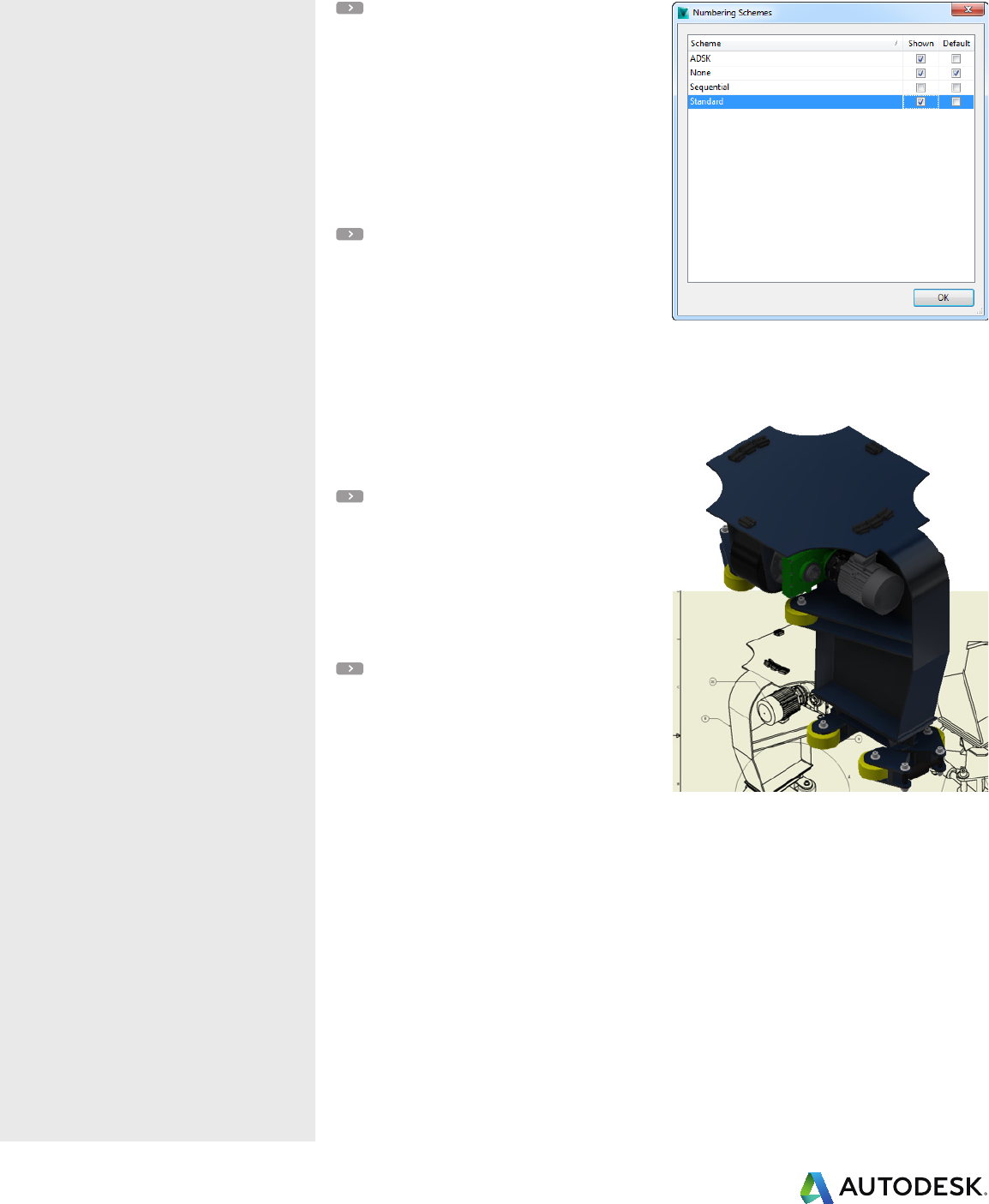
You are now able to specify which schemes should
be available in Copy Design, and a simple approach
enables you to set schemes across all copied files.
Property management
By default, all new files will follow new file
assignment rules—part number equals file name,
configured new file category, lifecycle, and revision.
Special case overrides are now possible, enabling
you to maintain the source files category
properties for the new document, reset properties,
or set user-defined properties to blank.
Basic mapping capabilities have also been added to
enable iLogic reset and tracking original file name
and copy user.
Server-based Copy Design
The new command execution no longer requires
file transfer from server to client. The copy
operation is now completely handled on the server
with the new file structure repaired on the next
download operation, similar to move and rename
commands.
Copy Design drawing view
Another new workflow enablement is the Model
Copy and Drawing Copy options. By default, when
you add files to the copy operation only the models
are shown—drawings are linked in the background
and will follow the same behavior as the model,
inheriting the same new name and folder location.
By switching to drawing view, you can control
the drawing file behavior independently of the
model—managing the new file name, location, and
behaviors—making it easy to copy drawings with
links to the same model or reuse drawings linked to
a new version of the model.
What’s new Autodesk® Vault 2015 R2
Copy Design
The Copy Design interface has been
updated to enable simple control of the
new workflows and better aid you in the
configuration of the copy.
Copy Design interface
Configurable grid properties
Copy Design is now available as a separate window
and uses the standard Vault file grid, so you are
able to configure the displayed properties to suit
your requirements.
The main grid displays the current configuration
settings—including action applied to the original
file, the new file name, and new Copy Design
specific values, including:
• Component ID
• Component Qty
These two values enable users to identify individual
reference information (which reference the original
component and how many references exist or are
being created).
The main grid is also used to show the success or
failure of individual Copy Design operations once
the copy is complete.
Panels
Using the main grid, you can configure and run a
simple copy operation. In larger assembly
configurations or more complicated operations, you
can utilize the Copy Design panels to see alternate
views of the data being, find specific source
components, change the part number settings, or
get an overview of the results.
The panels provide a number of specific capabilities
aimed at providing a different approach to copy
configuration and additional tools to accomplish
the desired results.
Naming – Manage scheme assignment and modify
configurable numbering scheme values, including
the legacy No Scheme format with prefix and sux.
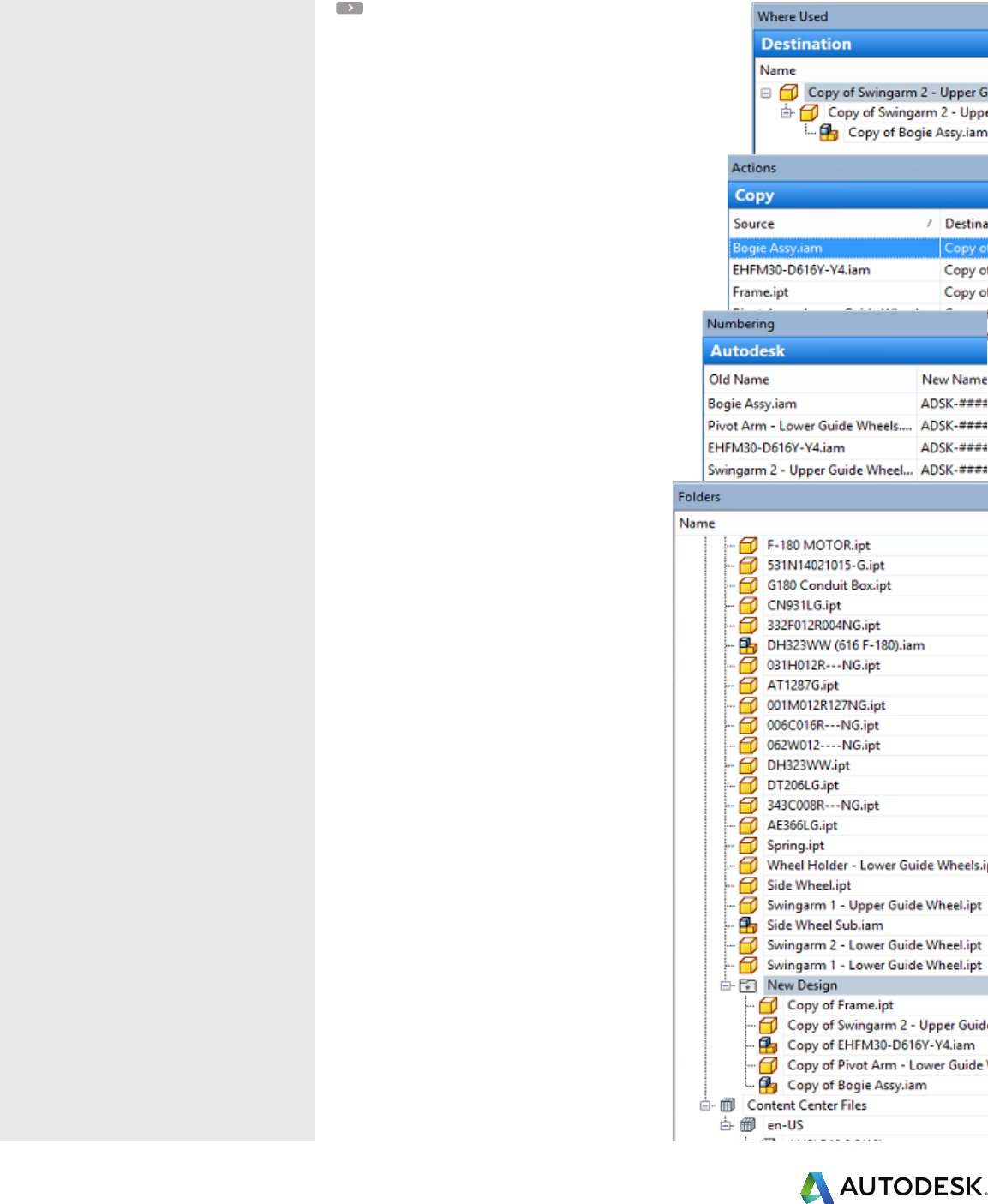
Where used – Review the source and destination of
specific components as part of the copy operation.
Action – Review current actions, change
component behavior, and check configuration
before execution.
Folder – The folder view enables you to execute
certain actions by folder content and review file
destination or new folder creation.
What’s new Autodesk® Vault 2015 R2
Vault Oce
In response to customer need for enhanced
non-designer capabilities in Vault Oce,
you now have the option to install a
modified thick client with additional
capabilities around document release and
change order participation.
The thin client has also been updated to
support the new Item BOM views.
Vault Oce thick client
The new Vault Oce thick client enables non-CAD
users to create and edit supporting project and
design data—and also includes additional
capabilities to view, batch print, send transmittals,
and even participate in some basic ECO activity and
approval processes.
The Vault Oce thick client connects to Vault
Workgroup and Vault Professional servers, although
it cannot be installed alongside an existing Vault
Client and does restrict a number of basic CAD
user capabilities. It permits users to modify non-
CAD files, folders, ECOs, and custom objects, and
provides read-only interaction with CAD files and
items.
With the Vault Oce thick client, users can use
Data Standard for non-CAD files and change life-
cycle states for CAD files and Items. They can also
create a job and update views with the Job
Processor. In addition, basic client customization
is permitted and users can create and manage
shortcuts and links, making it easier than ever to
collaborate across the extended organization and
incorporate non-CAD users in the engineering
release process.
Thin client
The Autodesk Vault thin client has had another
update to items that enables new access controls
and support for the Vault Explorer Item BOM views.
Users can now view all the Item version history or
revision history as they do with files.
The BOM view has been extended to support
partial BOM views, electrical reference designators,
additional BOM row properties, viewing of BOM
component grouping, and filter row types
permitted by the administrator.
Administrators can configure the BOM view in the
thin client to display ON, OFF, or Both Rows, as well
as allowing for access to both assigned and
unassigned item rows.
In addition to configuring the BOM view, admin-
istrators can configure item state-based access,
extending from hard coded Released/Effective to
align with the new consolidated released states for
items. If required, the administrator can limit user
access to latest item versions or “Tip” version only.
What’s new Autodesk® Vault 2015 R2
Autodesk, the Autodesk logo, AutoCAD, Revit, Autodesk Inventor, Inventor, and Buzzsaw are registered trademarks or trademarks of Autodesk,
Inc., and/or its subsidiaries and/or aliates in the USA and/or other countries. All other brand names, product names, or trademarks belong to
their respective holders. Autodesk reserves the right to alter product and services offerings, and specifications and pricing at any time without
notice, and is not responsible for typographical or graphical errors that may appear in this document. © 2014 Autodesk, Inc. All rights reserved.
Integrations and Project Sync
The Autodesk Vault add-ins incorporate
collaboration-based enhancements around
open models in a mixed application
environment, as well as IFC enhancements
and updates to Project Sync, making it
more functional for sharing related project
data.
File open version support
The Vault 2015 R2 add-ins for Autodesk® Inventor®,
AutoCAD, and Autodesk® Revit® software now
enables users to default to the version of the
application that it was created in when opening
files from Vault Explorer. This ensures that the file
is opened by a compatible version and will not be
migrated to an incompatible database version—
important for group projects where multiple
versions of software may be in use.
IFC file support
Changes to IFC file type provides support for the
following workflows involving IFC files:
• Link currently open Revit model to IFC file in
Vault
• Save Revit model to Vault along with its linked
IFC file and the intermediate
cache/scaffolding files
• Open a Revit model from Vault and
download/checkout the related IFC file and
associated cache files
• Open an IFC file saved in Vault and import into
the Revit model
Project Sync
A small change to Project Sync supports pushing
related files from Vault to Autodesk® Buzzsaw®
software via Project Sync. A file and all of its
dependencies and attachments can be sent to
Buzzsaw with the Share to Buzzsaw command.
