Guilin Zhishen Information Technology ZYYH2 3-Axis Stabilizer User Manual
Guilin Zhishen Information Technology Co.,Ltd. 3-Axis Stabilizer Users Manual
Users Manual
ZHISHENDOCCENTER
CRANE 2
User Guide
V1.00
ZHISHENDOCCENTER
桂林智神信息技术有限公司

ZHISHENDOCCENTER
Packing
Contents
Packing List
Disclaimer and Warning
Get to Know CRANE 2
Preparing and Charging the Batteries
Installation
Balance Adjustment
How to Use
APP Operations
Calibration and Firmware Upgrade
Usage of Main Accessories
Parameter Specifications
Warranty Terms
Contact Card
1
2
7
8
10
13
16
23
25
29
33
34
36
ZHISHENDOCCENTER
Packing List Disclaimer and Warning
2
1zhiyun-tech.com zhiyun-tech.com
Glossary
11
31
1
1
Shoulder Stripe User Guide
Manual
11
1
1
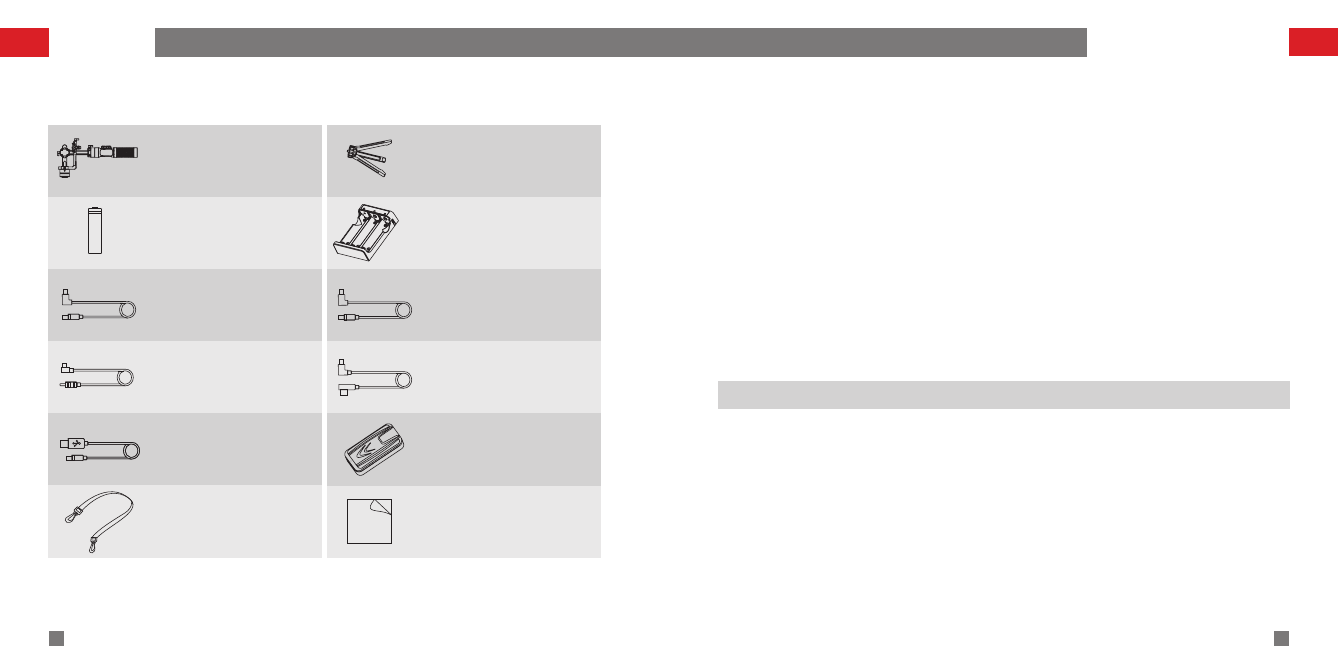
The product package comes with the following items. In case that any item is found
missing, please contact ZHIYUN or your local selling agent.
Crane 2 Three-axis
Gimbal Stabilizer Tripod
18650 Li-ion Battery Battery Charger
Canon Camera
Control Cable
ZW-Mini-002
Canon Camera
Control Cable
ZW-Micro-002
Panasonic Camera
Control Cable
ZW-CTIA-002
Sony Camera
Control Cable
ZW-MULTI-002
Micro USB Cable Storage Case
1
1
The following terms are used throughout the product literature to indicate various levels of
potential harm when operating this product.
WARNING: Procedures, which if not properly followed, may incur property damage, grave
accident, or serious injury.
CAUTION: Procedures, which if not properly followed, may incur property damage and
serious injury.
NOTICE: Procedures, which if not properly followed, may incur property damage or minor
injury.
Thank you for using ZHIYUN CRANE 2. The information contains herein affects your safety and
your legal rights and responsibilities. Read this entire document carefully to ensure proper
configuration before use. Failure to read and follow the instructions and warnings herein may result
in serious injury to you or bystanders, or damage to your device or property.
ZHIYUN reserves the right of final explanation for this document and all relevant documents
relating to CRANE 2, and the right to make changes at any time without notice. Please visit
www.ZHIYUN-TECH.com for the latest product information.
By using this product, you hereby signify that you have read this document carefully and that you
understand and agree to abide by the terms and conditions herein. You agree that you are solely
responsible for your own conduct while using this product, and for any consequences thereof. You
agree to use this product only for purposes that are proper and in accordance with all terms,
precautions, practices, policies and guidelines ZHIYUN has made and may make available.
TM
ZHIYUN accepts no liability for damage, injury or any legal responsibility incurred directly or
indirectly from the use of this product. Users shall observe safe and lawful practices including, but
not limited to, those set forth herein.
TM
ZHIYUN is the trademark of Guilin Zhishen Information Technology Co., Ltd. (hereinafter referred
to as "ZHIYUN" or "ZHIYUN TECH") and its affiliates. All product names or marks referred to
hereunder are trademarks or registered trademarks of their respective holders.

ZHISHENDOCCENTER
Warning
4
3zhiyun-tech.com zhiyun-tech.com
Safe Operation Guidelines
Disclaimer and Warning
Read the ENTIRE User Guide to become familiar with the features of this product before
operating. Failure to operate the product correctly can result in damage to the product or
personal property and cause serious injury. This is a sophisticated product. It must be
operated with caution and common sense and requires some basic mechanical ability.
Failure to operate this product in a safe and responsible manner could result in injury or
damage to the product or other property. This product is not intended for use by children
without direct adult supervision. DO NOT use with incompatible components or in any way
otherwise as mentioned or instructed in the product documents provided by ZHIYUN. The
safety guidelines herein contain instructions for safety, operation and maintenance. It is
essential to read and follow all of the instructions and warnings in the User Guide, prior to
assembly, setup or use, in order to operate the product correctly and avoid damage or
serious injury.
CAUTION:
1.CRANE 2 is a high-precision control device. Damage may be caused to CRANE 2 if it is
dropped or subject to external force, and this may result in malfunction.
2.Make sure the rotation of the gimbal axes is not blocked by external force when CRANE
2 is turned on.
3.CRANE 2 is not waterproof. Prevent contacts of any kind of liquid or cleaner with
CRANE 2. It is recommended to use dry cloth for cleaning.
4.Protect CRANE 2 from dust and sand during use.
WARNING
To avoid fire, serious injury, and property damage, observe the following safety guidelines
when using, charging, or storing your batteries.
Battery Safety Guidelines
1. Prevent the batteries to come into contact with any kind of liquid. Do not leave batteries
out in the rain or near a source of moisture. Do not drop the battery into water. If the inside
of the battery comes into contact with water, chemical decomposition may occur,
potentially resulting in the battery catching on fire, and may even lead to an explosion.
2. If the battery falls into water with the stabilizer during use, take it out immediately and
put it in a safe and open area. Maintain a safe distance from the battery until it is
completely dry. Never use the battery again, and dispose of the battery properly as
described in the Battery Disposal section below.
3. If the battery catches fire, use water, water spray, sand, fire blanket, dry powder, or
carbon dioxide fire extinguisher immediately to put out the fire. Please extinct the fire by
applying the methods recommended above according to the actual situation.
4. Never use non-ZHIYUN batteries. If replacement or backup is needed, please purchase
new batteries from ZHIYUN's official website or authorized channels. ZHIYUN takes no
responsibility for any damage caused by non-ZHIYUN batteries.
5. Never use or charge swollen, leaky, or damaged batteries. Never use or charge if the
battery smells, or overheats (exceeding maximum temperature of 160°F / 71°C). If your
batteries are abnormal, contact ZHIYUN or a ZHIYUN authorized dealer for further
assistance.
6. The battery should be used within the temperature range from -10°C to 50°C. Use the
battery in environments above 50°C can lead to a fire or explosion. Use of battery below -
10°C can lead to serious battery damage.
7. Do not use the battery in strong electrostatic or electromagnetic environments.
Otherwise, the battery protection board may malfunction.
8. Do not disassemble or use any sharp object to puncture the battery in any way.
Otherwise, the battery may leak, catch fire or explode.
9. Do not mechanically strike, crush, or throw the battery. Do not place heavy objects on
the battery or charger.
10. Electrolytes inside the battery are highly corrosive. In case of accidental contact of any
electrolytes with your skin or eyes, rinse immediately with water for at least 15 minutes
and seek medical advice as soon as possible.
11. Do not use the battery if it has been involved in a crash or heavy impact.
12. Do not heat the battery and never put the battery in a microwave oven or in a
pressurized container.
Disclaimer and Warning
ZHISHENDOCCENTER
6
5zhiyun-tech.com zhiyun-tech.com
13. Do not place the battery cell on a conductive surface (such as a metal desk surface).
14. Prevent use of wires or other metal objects that could cause positive and negative
short-circuit to the battery.
15. If the battery terminal is dirty, wipe it with a clean, dry cloth. Otherwise it will cause a
bad battery connection, which may result in energy loss or charging failure.
Battery Charging
1.Do not attach the batteries to a wall outlet or car charger socket directly. Always use a
ZHIYUN approved adapter for charging. ZHIYUN takes no responsibility if the battery is
charged using a non-ZHIYUN charger.
2.Do not put the battery and charger near flammable materials or on flammable surfaces
(such as carpet or wood). Never leave the battery unattended during charging to prevent
any accident.
3.Do not charge the battery immediately after use, because the battery temperature may be
too high. Do not charge the battery until it cools down to normal room temperature.
Charging the battery with its temperature over 40°C or lower than 15°C may lead to
leakage, overheating, or damage.
4.Examine the charger before use, make sure there is no damage to the enclosure, cord,
plug, or other parts. Never use a damaged charger. Do not clean the charger with any liquid
containing alcohol or other flammable solvents. Disconnect the charger when not in use.
Battery Storage
1.Keep batteries out of the reach of children and pets.
2.Do not leave the battery near heat sources such as a furnace or heater, or inside of a
vehicle on hot days. Never expose the battery in any environment with temperature of over
60°C. The ideal storage temperature is 22°C-28°C.
3.Store batteries in a dry environment.
4.Do not leave the battery unused for too long after it has been completely discharged to
prevent over-discharge of battery which may result in battery damage and permanent
failure.
Battery Maintenance
1.Never use the battery when the temperature is too high or too low.
2.Do not store the battery in any environment with a temperature of over 60°C.
Transportation Notice
1.Discharge the battery power to 5% or lower before carrying the battery on an airline flight.
Only discharge the battery in a fireproof location, ideally in a dry and open area.
2.Do not store or transport batteries together with metal objects such as eyeglasses,
watch, and jewelries, etc.
3.Do not transport damaged batteries. When transporting, be sure to discharge the battery
to less than 50%.
Battery Disposal
Dispose of the battery in specific recycling boxes only after a complete discharge. Do not
put away the battery in regular trash containers. Strictly follow your local regulations
regarding the disposal and recycling of batteries.
NOTICE
Battery Use
Make sure the batteries are fully charged before each time of use.
Battery Charging
The battery will stop charging automatically when it is full. Disconnect the batteries from
the charger when fully charged.
Battery Storage
1.Discharge the battery to 40%-65% if it will NOT be used for over 10 days. This can greatly
extend the battery life.
2.The battery enters hibernation mode when voltage gets too low. Charge the battery will
bring it out of hibernation.
3.Remove batteries from the stabilizer when not in use and store them in a specialized
container.
Battery Disposal
If the battery cannot be fully discharged, do not leave it in the recycling box, but contact a
professional battery disposal/recycling agent for further assistance.
This document is subject to change.
TM
ZHIYUN is a trademark of ZHIYUN TECH.
Copyright©2017 ZHIYUN TECH. All rights reserved.
Disclaimer and Warning Disclaimer and Warning
ZHISHENDOCCENTER
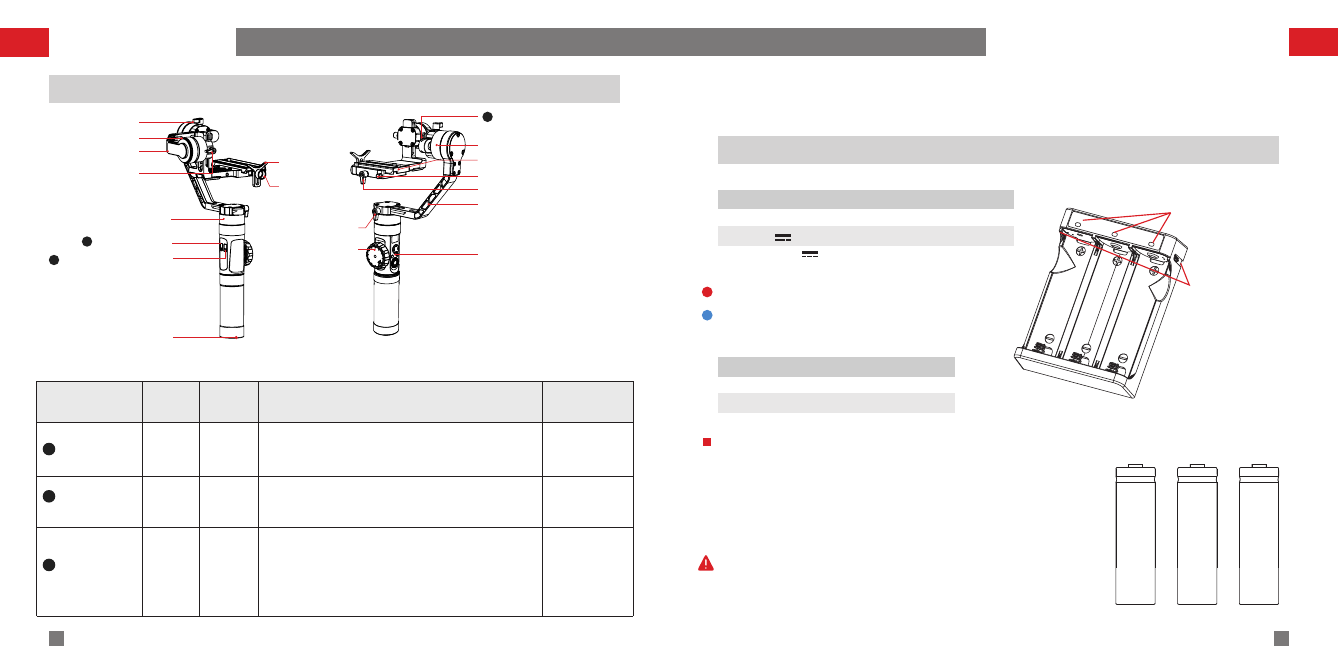
Get to Know CRANE 2
8
7zhiyun-tech.com zhiyun-tech.com
Get to Know CRANE 2
Shines solid RED light when charging.
Shines BLUE light when fully charged.
Micro USB Port
(5V power input)
Status Indicator Light
Name: ZHIYUN 18650*3 Li-ion battery charger
Model: ZC-18650-3
Input:5V 2400mA
Output: 4.2V 800mA*3
Notice:
Charger & Battery Description
Preparing and Charging the Batteries
Charger Specifications
2
3
Crane 2 Interface Description
Capacity: 2000mAh
Voltage: 3.7V
Model: IMR 18650
Battery Specifications
Name: ZHIYUN 18650 Li-ion battery
Follow Focus
Controller
Camera Mounting Plate
Mounting Plate Thumb Screw
Control Panel
(see more on Page 16)
Roll Axis Motor
Safety Lock
Vertical Arm
Camera Control Interface
3
Thumb Screw
Horizontal Arm
Tilt Axis Motor
Thumb Screw
Thumb Screw
Pan Axis Motor
Micro USB port
1
Camera
Mounting Screw
Lens support
2DC 8.0 V Power Outlet
1/4"-3/8" Threaded Hole
Port
Output
Voltage
Input
Current
Function
Note
Micro USB
\
\
The Micro USB port can only be used for firmware
upgrade, and can neither be used for power input
nor output.
DC 8.0 V
Power Output
8V
2A
The DC 8.0 Power Output outlet can be used for
charging cameras like Canon 5D series (see more on
page 22 - DC 8.0 V Power Outlet Usage Description)
Camera
Control Interface
5V
1A
1.The camera control interface is connectable to
camera control cable (see more on page 22 -
ZHIYUN Camera Control Cable Description)
2.It can also be used as a USB charging port for Sony
mirrorless cameras.
Canon and
Panasonic
cameras do
not support
USB charging.
1
For the first use of Crane 2, please use the dedicated charging device contained in
the package to fully charge and activate the batteries to ensure the normal use of
the product.
1.Please read the disclaimer and warning herein as well as
the description on the battery label carefully before using
the batteries.
2. The ZC-18650-3 charger is for charging ZHIYUN's IMR
18650 Li-ion Battery only. Do not charge batteries of other
models or brands, otherwise it may lead to accident.
Please use and charge batteries provided or approved by
ZHIYUN only. ZHIYUN will not take any responsibility for
explosion, fire and/or accidents caused by non-ZHIYUN
batteries.
ZHISHENDOCCENTER
Installation
9zhiyun-tech.com 10
zhiyun-tech.com
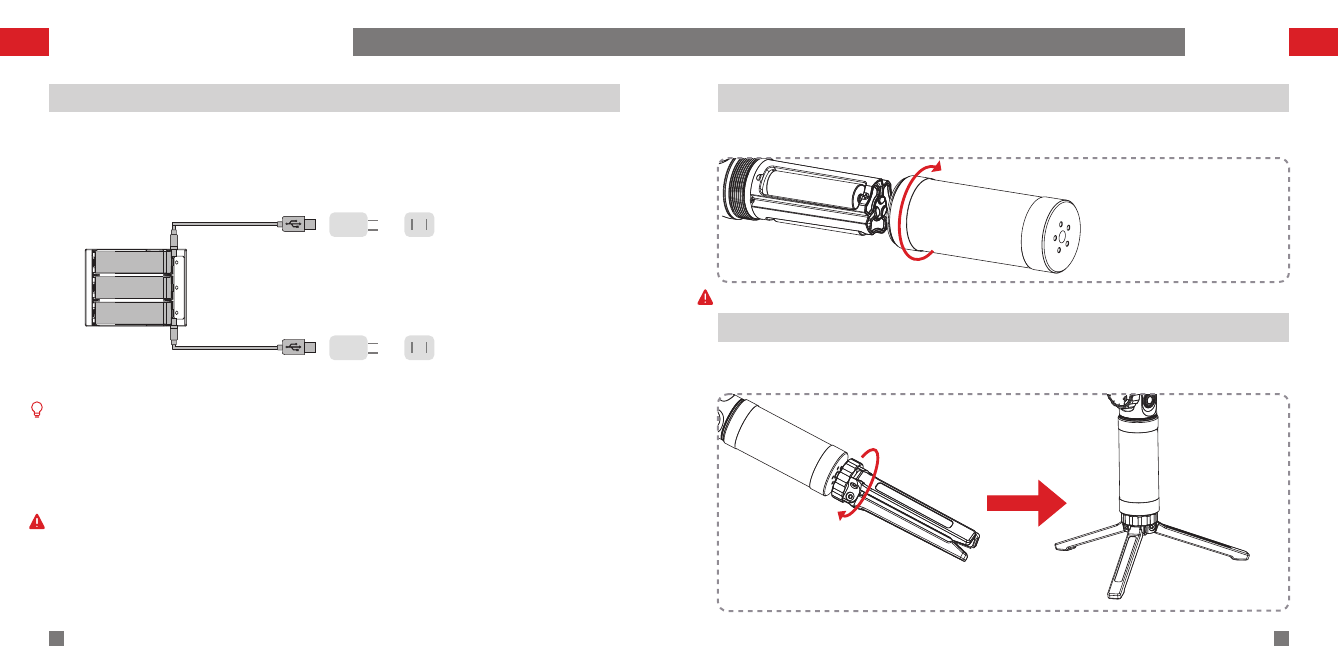
Charging Procedure
Tripod
Battery Installation
Please use and charge batteries provided or approved by ZHIYUN only, in case of accidents.
Preparing and Charging the Batteries
1.Insert the batteries into the charger in the right direction (positive/negative end) accordingly.
2.Connect the charger to the adapter via the Micro USB cable.
3.Plug the adapter into the power outlet to start charging.
Micro USB Cable Adapter Power Outlet
Micro USB Cable Adapter Power Outlet
There is a Micro USB 5V power input port on both sides of the charger, which supports one
adapter or two adapters charging simultaneously (faster).
2. The simultaneous charging with two adapters may fail when the power is under charged
(like when the current of adapter is below 1000mA); Adapter with higher current capacity is
recommended;
3. The USB Port along side the stabilizer does not support charging to batteries.
1.Please use qualified standard 5V/≥2000mA adapter for battery charging; Charging time
depends on the maximum input current of the adapter.
2.The stabilizer comes standard with three high-discharge-rate dedicated batteries.
Please use and charge batteries provided or approved by ZHIYUN only.
3.Please make sure all three batteries are fully charged. Either under charged battery can
lead to the failure of the stabilizer.
Unscrew the battery compartment and insert the three IMR 18650 batteries in the right
direction (positive/negative end), then tighten the battery compartment.
Get the tripod ready and tighten it to the 1/4"-3/8" threaded hole at the bottom of the
stabilizer, then unfold the tripod on a flat surface.
ZHISHENDOCCENTER
11 zhiyun-tech.com 12
zhiyun-tech.com
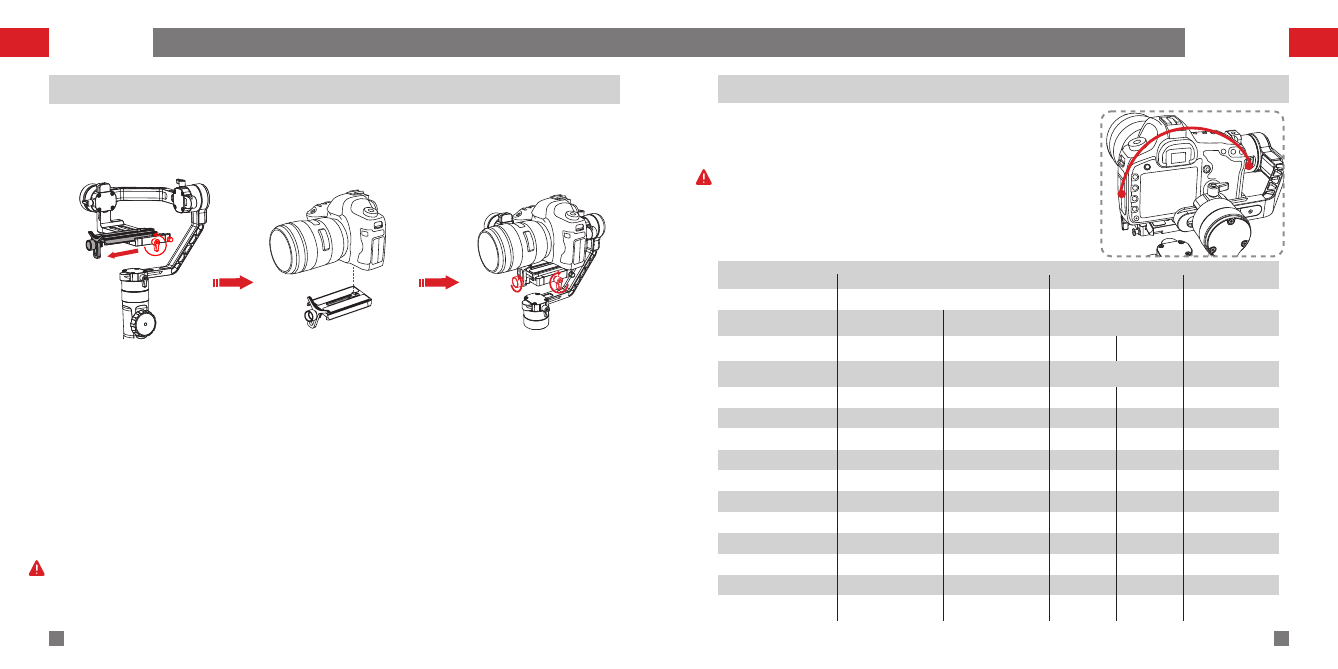
Installing Camera
Installation
Connecting Camera Control Cable
Installation
1.Loosen the mounting plate thumb screw, press and hold the safety lock while sliding out
the quick release plate (to the opposite direction of the arrow mark on it).
2.Install the camera to the quick release plate following the direction of the arrow mark,
then tighten the 1/4" screw at the bottom.
3.Slide in the quick release plate installed with the camera following the direction of the
arrow mark on camera mounting plate, then tighten the thumb screw to finish the
installation of the quick release plate.
4.Loosen the screw on lens support and adjust the support to keep the lens firm and
stabilized.
Do not power on the stabilizer before finishing the camera installation; Please hold the
camera with one hand when powering on the stabilizer in case of malfunctioned rotation.
In the case of Canon camera, connect the control cable to
the port on the tilt motor axis with the Micro USB end, and
then the other end to the left-side port on the camera.
Please make sure the stabilizer is powered off or in standby
mode when connecting the camera control cable in case of
malfunctioned rotation.
Camera brand
Camera model
Camera control
cable model
Camera control
cable interface
Photo
Video
Real-time preview
AV
TV
ISO
Zoom
Focus
EV
Camera charging
Standard camera
control cable
Canon Sony Panasonic
5D2/5D3 Sony camera with
MULTI interface GH3/GH4
ZW-Mini-002 ZW-Micro-002 ZW-MULTI-001 ZW-MULTI-002
Micro USB to Mini USB Micro USB to Micro USB Micro USB to MULTI USB Micro USB to CTIA
√
√
√
√
√
√
×
√
√
×
√
√
√
√
√
√
√
×
√
√
×
√
√
×
×
×
×
×
√
×
×
×
×
√
×
×
×
×
×
√
×
×
√
√
×
×
×
×
×
×
×
×
Zhiyun Camera Control Cable Function Table
√
√ √
5D4
ZW-CTIA-002
ZHISHENDOCCENTER
5.开机与启动
Balance Adjustment
14
13 zhiyun-tech.com zhiyun-tech.com
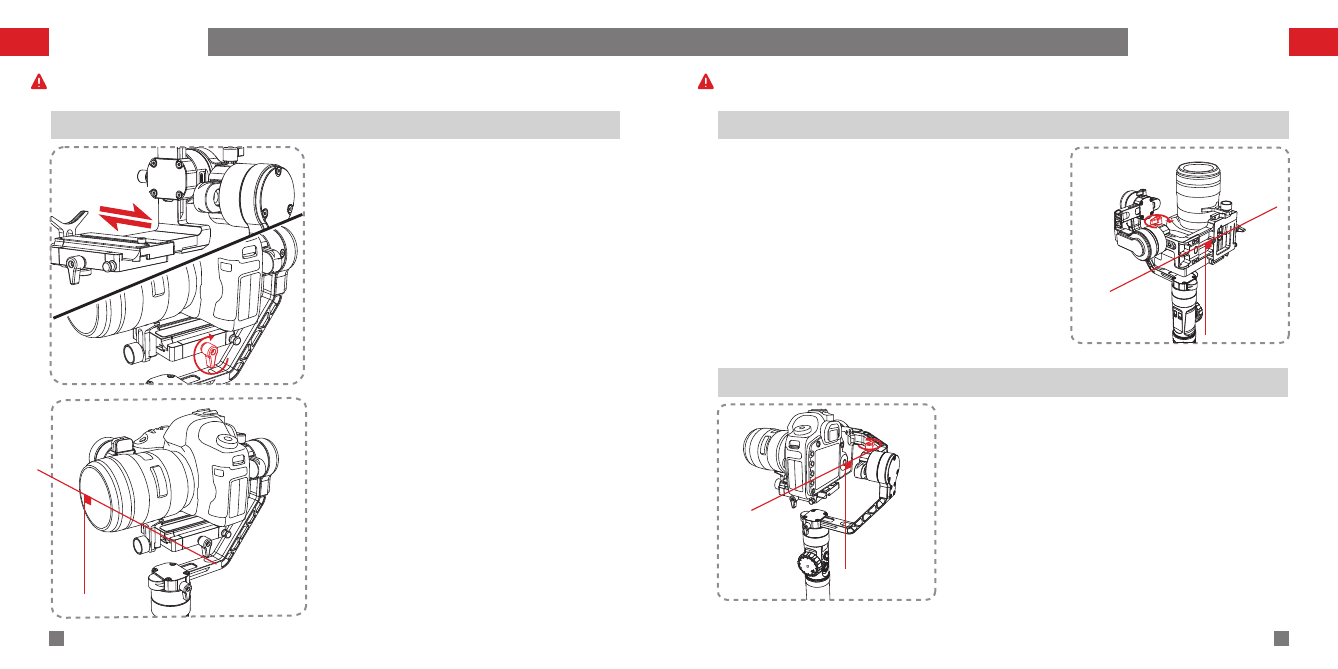
Level Adjustment on Tilt Axis Balance Adjustment on Tilt Axis
Balance Adjustment on Roll Axis
The balance status of the stabilizer will greatly affect the run time.
Please make sure the camera is properly mounted and balanced, otherwise the stabilizer
may fail to start or operate normally.
Loosen the thumb screw on the quick release
plate so that it can slide forward or backward.
Hold the horizontal arm on the tilt axis with
one hand and adjust the position of the camera
to find a level balance where the the camera
can stay still and almost level with its lens
facing front, complete this step by tightening
up the camera mounting thumb screw.
Balance Adjustment
Loosen the thumb screw (rotate about 3 times); Adjust
the tilt axis until the camera can stay still with the lens
facing up (i.e. the camera stays still and vertical to the
ground), complete this step by tightening up thumb
screw.
Loosen the thumb screw (rotate about 3 times); Adjust
the tilt axis until the camera can stay still with the lens
facing up (i.e. the camera stays still and vertical to the
ground), complete this step by tightening up thumb
screw.

ZHISHENDOCCENTER
How to Use
16
15 zhiyun-tech.com zhiyun-tech.com
Balance Adjustment on Pan Axis Control Panel Description
Joystick
Mode
MENU
ON/OFF&Video
OLED Display
LV
1
2
3
Real-time Preview
4
Left
5Right
6
Menu
9
Mode
11
Follow Focus
Controller
10
8Control Dial
7Shutter Release
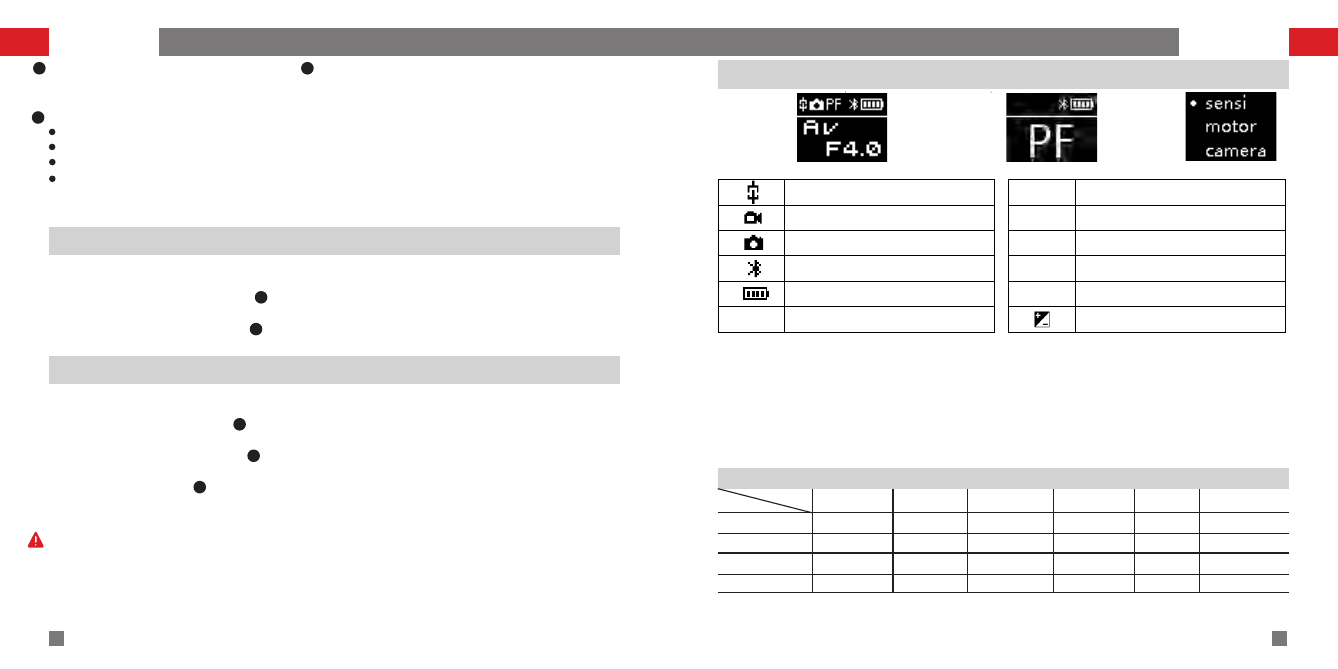
OLED Display
Stabilizer status and camera parameters
display (see more on page 18).
1Joystick
Four-way direction control of the
camera/lens.
2
Real-time Preview*
Single press the button to enter the real-
time preview mode.
4
ON/OFF&Video*
3
Long press for 3 seconds to power on/off.
Single press to start/end video recording.
Left*
In main screen, single press to return to
revious option.
In menu screen, single press to return to
previous screen.
5Right*
In main screen, single press to move to
next option.
In menu screen, single press to confirm
selection.
6
Shutter Release*
Halfway press the button to activate
auto focus.
Full press the button to take single shots.
7Dial*
In main screen, rotate the dial to adjust
camera parameters.
In menu screen, rotate the dial to switch
between options.
8
Balance Adjustment
Loosen the thumb screw on the pan axis. Adjust the pan axis until the camera can stay still
while keeping the vertical arm level when turned to the right/left side. Complete balance
adjustment by tightening up all thumb screws.
If the camera installed is too light that it's
impossible to achieve balanced adjus tment,
please purchase the dedicated counterweight
(100g) provided by ZHIYUN and install it under
the camera mounting plate to finish balance
installation.
ZHISHENDOCCENTER
How to Use How to Use
18
17 zhiyun-tech.com zhiyun-tech.com
Menu
Single press to enter or exit the menu.
9Follow Focus Controller*
Rotate the controller to adjust the focal length
in real time and realize follow focus control.
10
Mode
Press for 1 second to enter or exit standby mode.
Single press to switch between pan-following and lock mode.
Quick double press to enter the following mode.
Quick triple press to enter the selfie mode (180°rotation on pan axis)
11
OLED Display Description
1.Icon Description
2.Menu Description
Sensi: Camera focus sensitivity control; with 3 adjustable options: low, medium and high;
Motor: Stabilizer motor force adjustment; with 3 adjustable options: low, medium and high;
Camera: Extension interface configuration to adapt different camera models;
Options: Close, Sony, Panaso (Panasonic), Canon
Calibration: Six-side calibration for stabilizer; See more on page 25.
Angle: Fine tunes the motor angle on the tilt/roll axis; See more on page 27.
About: Displays software version and stabilizer model information.
Camera Connection Status
Photo Mode
Video Mode
Bluetooth Connection
Battery Level (stabilizer)
Pan Following Mode
PF
Following Mode
F
Locking Mode
L
AV
TV
ISO
Aperture Value
Time Value
ISO
EV
7
5
ZHIYUN - Panasonic Camera Control Function Description
ZHIYUN - Sony Camera Control Function Description
7
5
10 Crane 2 - Canon Controllability Table
Camera Mode
TV
M
P
Options Photo Video AV TV ISO EV
√ √ √ √
×
√ √ ×√ √ √
√
√ √ √ √ √√
√ √ √ √
× ×
“*” marked functions are only available for Canon cameras properly connected to the
stabilizer. See more at Zhiyun Camera Control Cable Function Table on page 12.
Please refer to the instruction on Camera Control Cable Configuration on page 19 to choose
the right option for your camera.
1.Shutter release: Halfway press “Shutter Release” button to realize auto focus and take
single shots.
2.Video recording: Single press “ON/OFF&Video” button to start or end video
recording.
Please refer to the instruction on Camera Control Cable Configuration on page 19 to choose
the right option for your camera.
1.Shutter release: Fully press “Shutter Release” button to realize auto focus and take
single shots.
2.Video recording: Single press ”ON/OFF&Video” button to start or end video
recording.
3.Zooming: Rotate the “Follow Focus Controller” to control the focal length.
Note: The non-motor-driven lens does not support optical zoom (recommended motor-
driven lens: E PZ 18-105mm F4 GOSS, E PZ 16-50mm F3.6-5.6 OSS).
1. For Sony and Panasonic mirrorless camera with EVF, Real-time Preview is not needed.
2. When mounting a Sony camera to the stabilizer, make sure to power on the stabilizer before the
camera, otherwise the stabilizer may fail to control the camera.
3. When powering on the stabilizer, please hold the camera with one hand in case of malfunctioned
rotation.
4. When powering on, avoid shaking of the stabilizer which may lead to start-up failure.
Display screen
for camera
params setting
Display screen for
stabilizer modes
(camera params
setting unavailable)
Menu screen
AV
Note: For Canon 5D4, the EV can be adjusted by setting iso “AUTO” while the Mode Dial is set to
“M”. Canon cameras, under real-time preview, can realize focus control.
ZHISHENDOCCENTER
20
19 zhiyun-tech.com zhiyun-tech.com
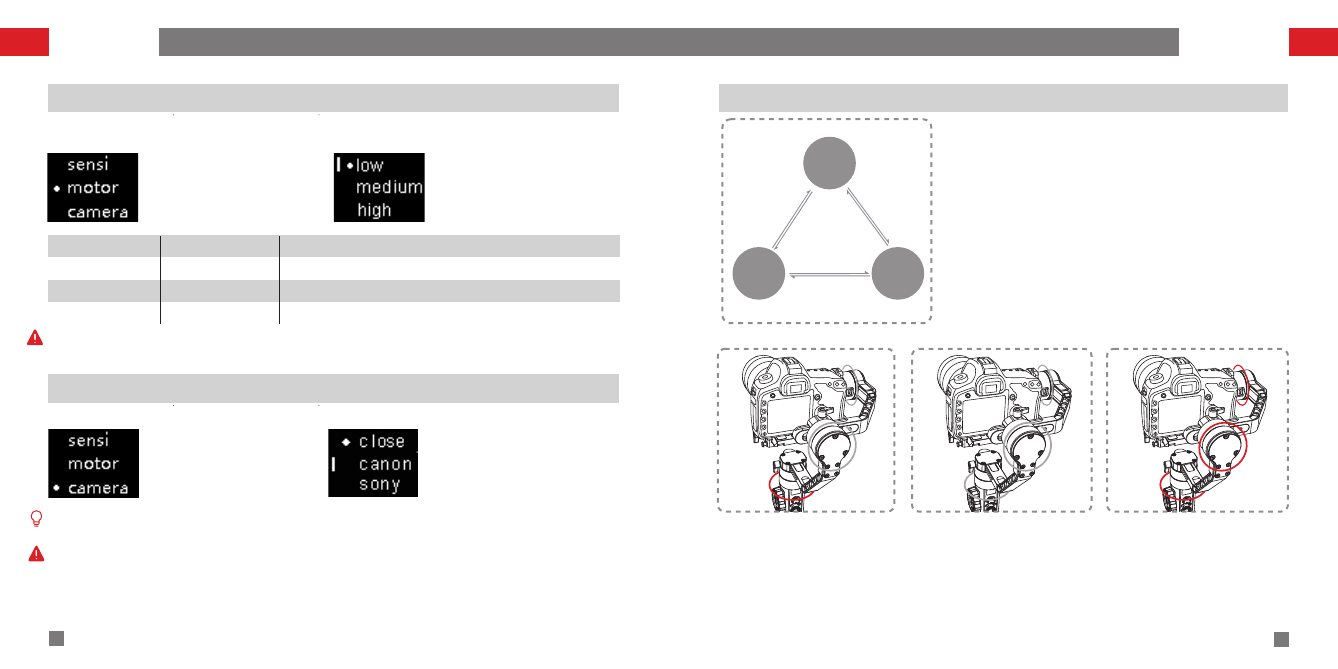
Motor Force Adjustment
Medium (default)
High
Motor Force Weight Capacity
Light
Medium
Heavy
Compatible Camera & Lens Examples
Sony A7S Camera+SEL35F28Z Lens
Canon 5D Camera+EF 50mm F/1.8 ⅡLens
Canon 5D Camera+EF 24-70mm f/2.8 L ⅡUSM Lens
Camera Control Cable Configuration
Low
Please choose the corresponding option to configure your camera control cable.
1. Single press Menu and
rotate the dial to “camera”,
then press right to enter the
“camera” setting.
2.Rotate the dial to choose your
camera brand, press right to
confirm the option and restart
the stabilizer to finish.
Mode Switch
Pan Following Mode (PF): The
camera pans left/right following
the movement of the stabilizer
while the tilt and roll axes are
l o c k e d . P u s h t h e j o y s t i c k
up/down allows manual control
of the tilt axis.
Following Mode (F): The camera
p a n s a n d t i l t s fo l l o w i n g th e
movement of the stabilizer. Push
t h e jo y s t i c k l e f t/ r i gh t a l l o ws
manual control of the roll axis.
Locking Mode (L): This mode locks
movement of all three axes to
ke e p th e ca m e r a fi x e d o n a
shooting direction. Push the
joystick up/down and left/right
allows manual control of the tilt
axis and pan axis.
Double pressMODE
Single pressMODE
Single pressMODE
Single pressMODE
Double pressMODE
Single pressMODE
The stabilizer enters Pan Following Mode (PF) by default
each time when powered on. Switch into Locking Mode(L)
by single pressing on Joystick. Double press Joystick to
enter Following mode (F) . Single press Joystick under
Following Mode will return to the previous mode.
Tilt Axis
Pan Axis Roll Axis
Control Mode Description
How to Use How to Use
The motor force of the stabilizer needs to be adjusted (3 levels) to adapt the stabilizer to
cameras and lens of different weight for ideal use.
1.Single press Menu and
rotate the dial to “motor ”,
then press right to enter the
“motor” setting.
2.Rotate the dial to choose
the appropriate motor force
( 3 l e v e l s ) , p r e ss ri g ht to
c o n f i r m t h e o p t i o n , t h e n
restart the stabilizer to finish.
Either the motor force is set too high or too low (unmatched with weight capacity) can lead
to camera shake and affect normal use of the stabilizer.
If there is no option to match your camera brand or there is no need to connect your camera,
choose “Close”.
1.You need to restart the stabilizer to finish adjustment and configuration of motor force
and camera control cable.
2. After re-setting the parameters, the stabilizer will enter standby mode, please long press
mode button to activate the camera.
Pan-
Following
Mode (PF)
Locking
Mode (L)
Following
Mode (F)
Tilt Axis
Pan Axis Roll Axis
Tilt Axis
Pan Axis Roll Axis
ZHISHENDOCCENTER
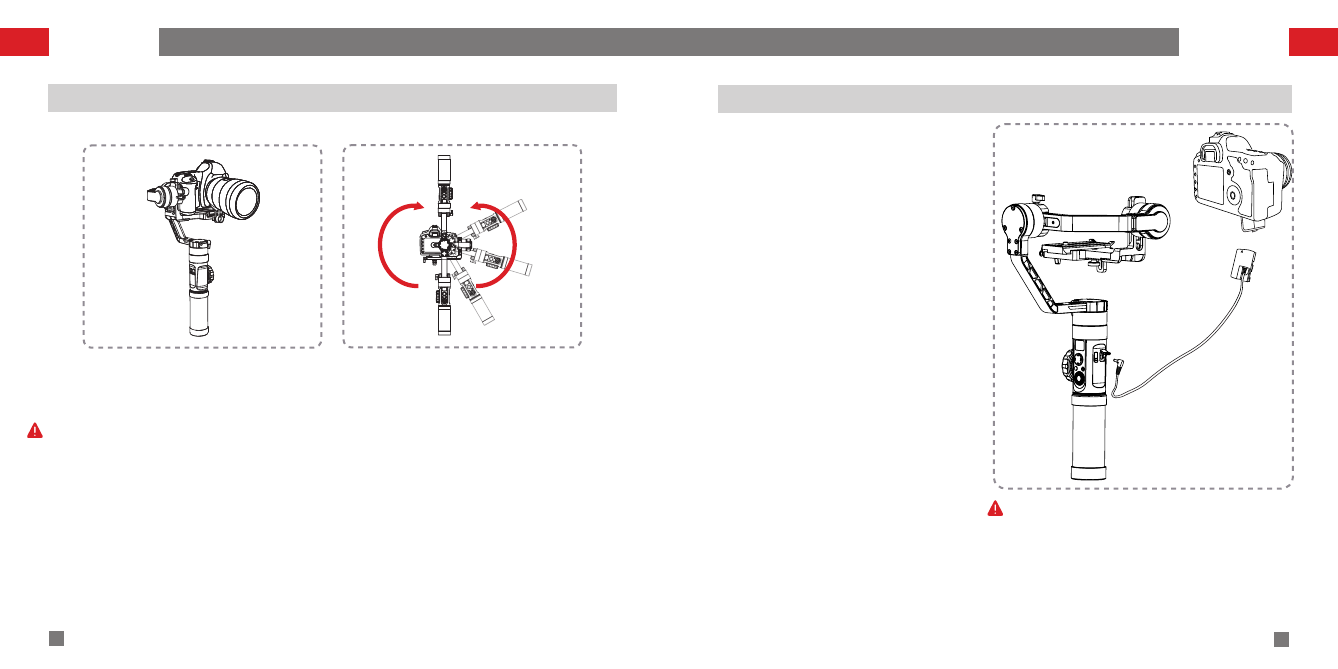
Please ensure balanced installation of the camera under top down mode and do not rotate
or shake the handle while initiating the bottom up mode (as seen in graph).
Note: The size of the camera and its balance condition when mounted may affect the
successful access to Bottom Up mode. For certain camera models, balance should be
adjusted after access to Bottom Up mode.
Bottom up Mode Operation
22
21 zhiyun-tech.com zhiyun-tech.com
DC 8.0 V Power Outlet Usage
The DC 8.0 V power outlet on the side of the
stabilizer can be used for charging the Canon
5D camera through a DC connector DR-E6 (
purchase separately).
Charging 5D3/5D4 camera:
Powering on:
1.First, connect the power input end of the
connector to the DC 8.0V power outlet, then
connect the other end of the connector to the
camera.
2.Install the camera to the stabilizer and
power on the stabilizer, then start up the
camera.
Powering off :
First, power off the camera, then unplug the
connector from the stabilizer.
Charging 5D2 camera:
Powering on:
1.Start up the stabilizer, long press the mode
button to enter standby mode.
2. Connect the powe r i npu t e nd of th e
connector to the DC 8.0V power outlet, then
connect the other end of the connector to the
camera.
3. Install the camera to the stabilizer and
adjust gimbal balance.
4. Power on the camera and long press mode
button to activate the stabilizer.
Powering off :
First, power off the camera, then unplug the
connector from the stabilizer.
Top Down Mode Bottom Up Mode
How to Use How to Use
1.Original Canon DR-E6 DC power connector is
recommended; Please follow the procedure herein in
case of accidents.
2.Please power on/off the camera in accordance with
the procedure, otherwise the camera may fail to start.
ZHISHENDOCCENTER
24
zhiyun-tech.com
APP Operations
23 zhiyun-tech.com
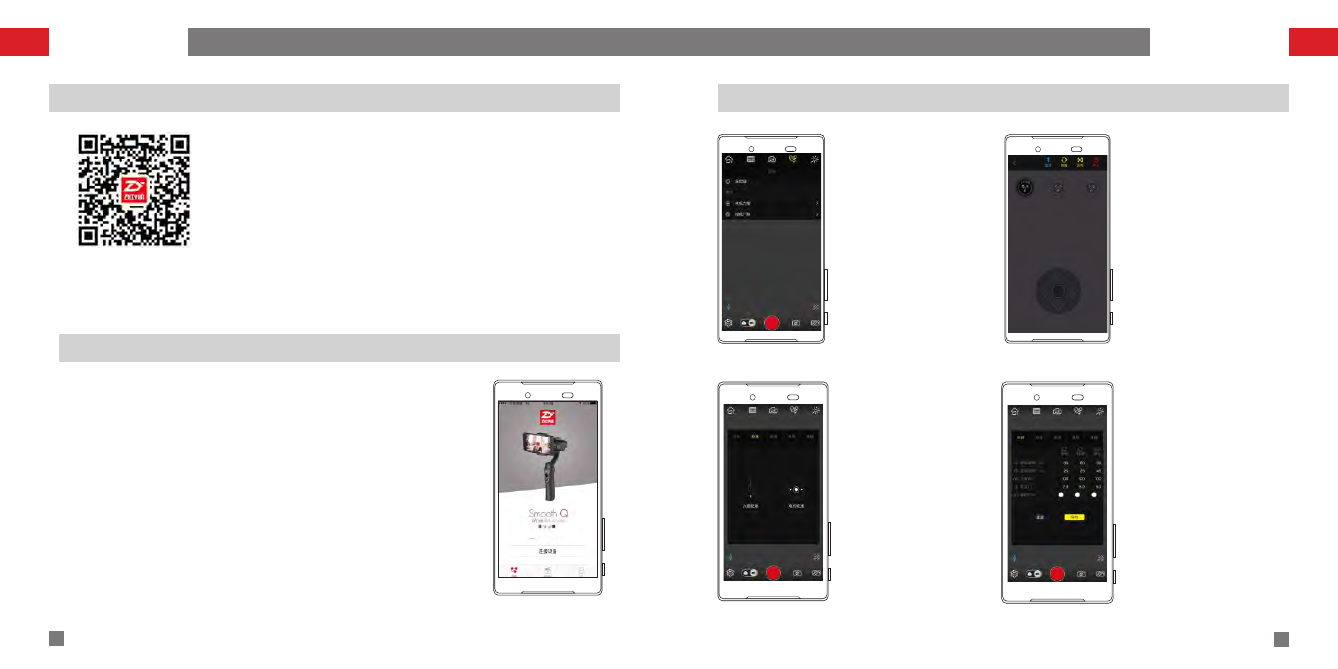
Main Features of the APP
Connecting the Stabilizer to Smartphone
APP Download and Installation
APP Operations
Download the APP from ZHIYUN's official website www.ZHIYUN-
TECH.com, or by directly scanning the QR code on the left
(Android 5.0 above or iOS9.0 above required) to download. iOS or
Android users can download the APP by searching "ZY Play" in APP
Store.
The ZHIYUN APP is subject to regular update, try out now to
discover more functions.
1.Power on the stabilizer.
2.Tap ZHIYUN's APP icon to open.
3.Tap the signal icon on the top to activate Bluetooth and search
for nearby signals, choose your stabilizer to connect.
Basic Setting Screen:
Motor force setting and
camera brand selection.
Control Screen:
Stabilizer control panel
via Bluetooth.
Calibration Screen:
Calibration is required
when deviations are
found in the 3 axes and
t h e l e v e l i n g o f t h e
c a m e r a . Ta p " S t a r t
C a l i b r a t i o n " , a n d
c o m p le t e th e 6 -s i d e
calibrati on proc ed ure
following onscreen
illustrations.
Gimbal Setting Screen:
Allows adjustment of
various parameter
settings of the stabilizer
(Refer to APP instructions
for specific operations.)
ZHISHENDOCCENTER
Six-side calibration
Six-side calibration
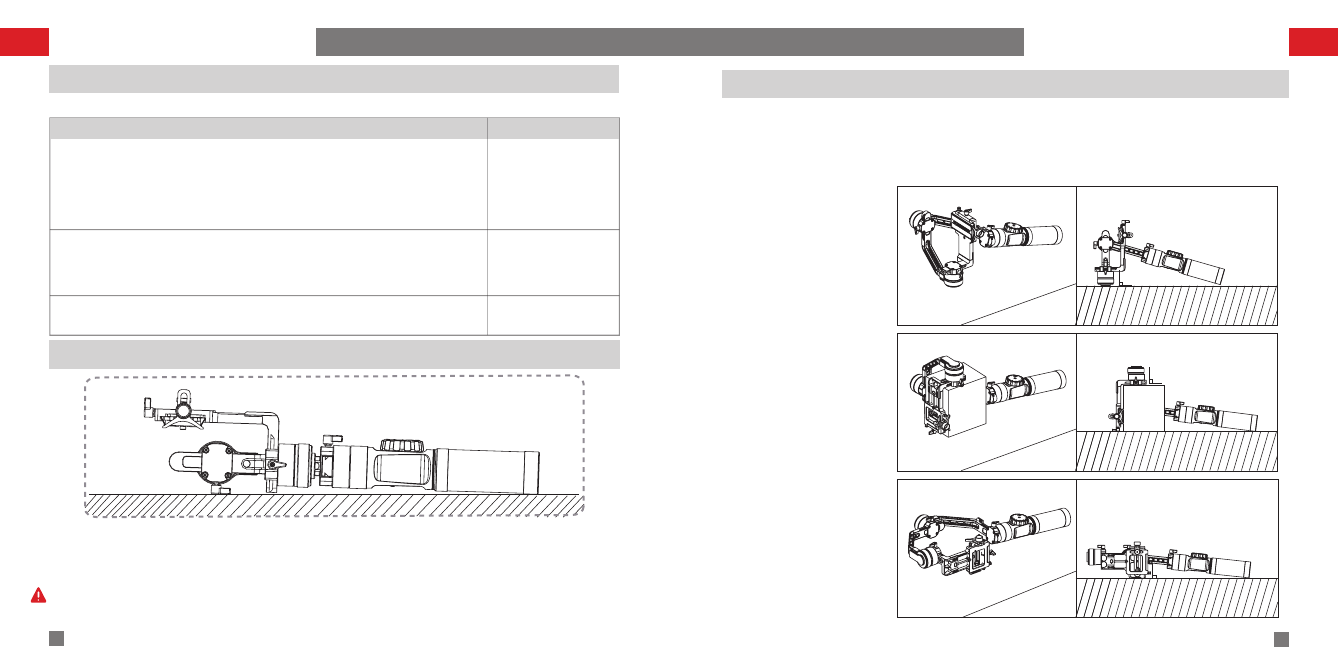
1. Power on the stabilizer and enter the standby mode, press menu, rotate the dial to
“calibration” option, press Right to enter the option.
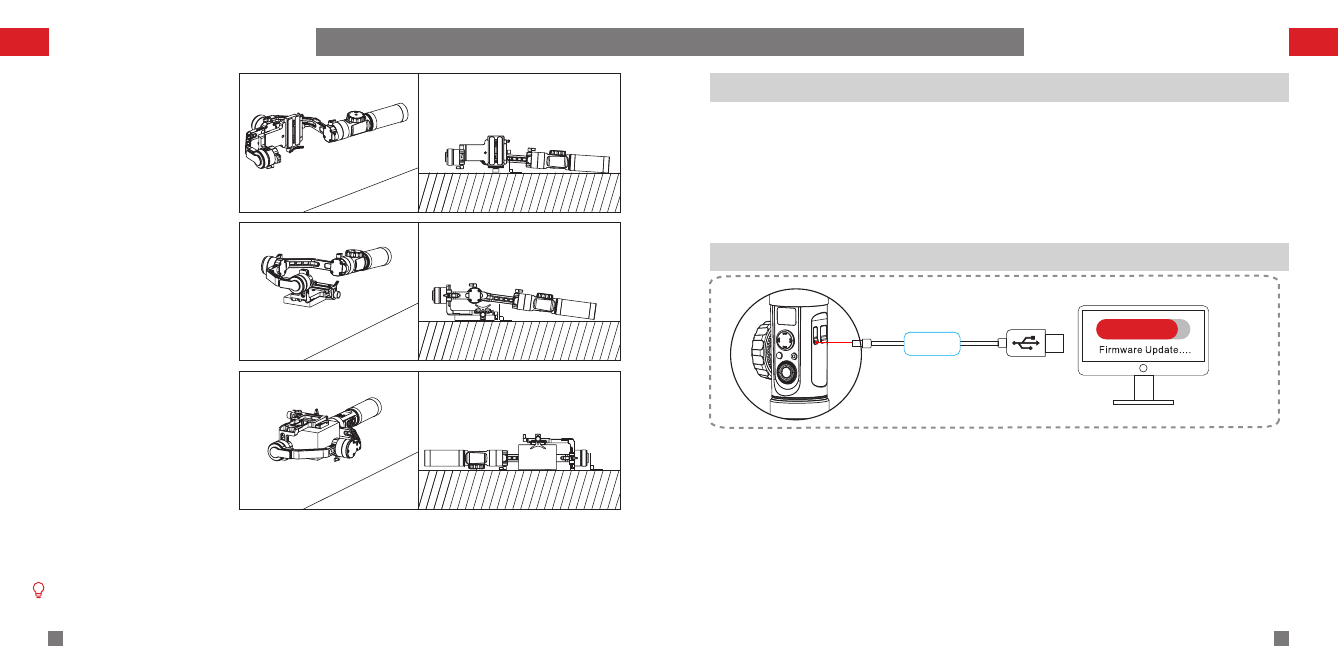
2. As seen below, conduct the six-side calibration following the 6 steps shown in the graphs,
finish by pressing any button to exit the menu.
Calibration and Firmware Upgrade
26
25 zhiyun-tech.com zhiyun-tech.com
STEP 1
STEP 2
When do you need to calibrate the stabilizer?
Please calibrate the stabilizer when necessary to ensure normal use.
Initialization method
STEP 3
Calibration and Firmware Upgrade
How
When
a) Slight deviation is found in the tilt angle of the camera in level position after
startup.
b)Slight deviation is found in the roll angle of the camera in level position after
startup.
c)Frequent small angle correction is found when the camera is in level position
while the stabilizer stays still.
Initialize the
stabilizer
a) Slight deviation is still found in level position after the initialization of the
stabilizer.
b)Stabilizer unused for a long time.
c)Too large temperature difference between operation environments.
Conduct six-side
calibration
Slight deviation is still found in the tilt or roll angle of the camera in level
position after the initialization and six-side calibration of the stabilizer.
Fine tune motor
force
1.Correctly install the batteries.
2.Hold the camera mounting plate with one hand, long press the power button to start up
the stabilizer; Long press the Mode button to enter the standby mode while holding the
camera mounting plate through the whole process in case of start-up failure.
If the angle deviation still persists after the initialization, please try again following the
procedure.
ZHISHENDOCCENTER
5.开机与启动
28
zhiyun-tech.com
27 zhiyun-tech.com
STEP 4
STEP 5
STEP 6
Firmware upgrade
Motor fine-tuning
Fine tune the motor through stabilizer:
Power on the stabilizer and enter standby mode, then rotate the dial and press right to enter the
“angle” option; Adjust the value of the tilt and roll axis angle to your actual needs.
Calibration and Firmware Upgrade Calibration and Firmware Upgrade
Six-side calibration through APP
Please refer to “APP Operations” for more information; Connect the stabilizer to
ZHIYUN's APP - ZY Play - via Bluetooth, enter “calibration” and finish the six-side
calibration following the APP instruction.
Six-side calibration is to make all six sides of the camera mounting plate vertical to the level
surface.
Fine tune the motor through APP:
Please refer to “APP Operations” for more information; Connect the stabilizer to ZHIYUN's APP -
ZY Play - via Bluetooth, then enter “Gimbal Setting” screen and adjust the value of the tilt and roll
axis angle to your actual needs.
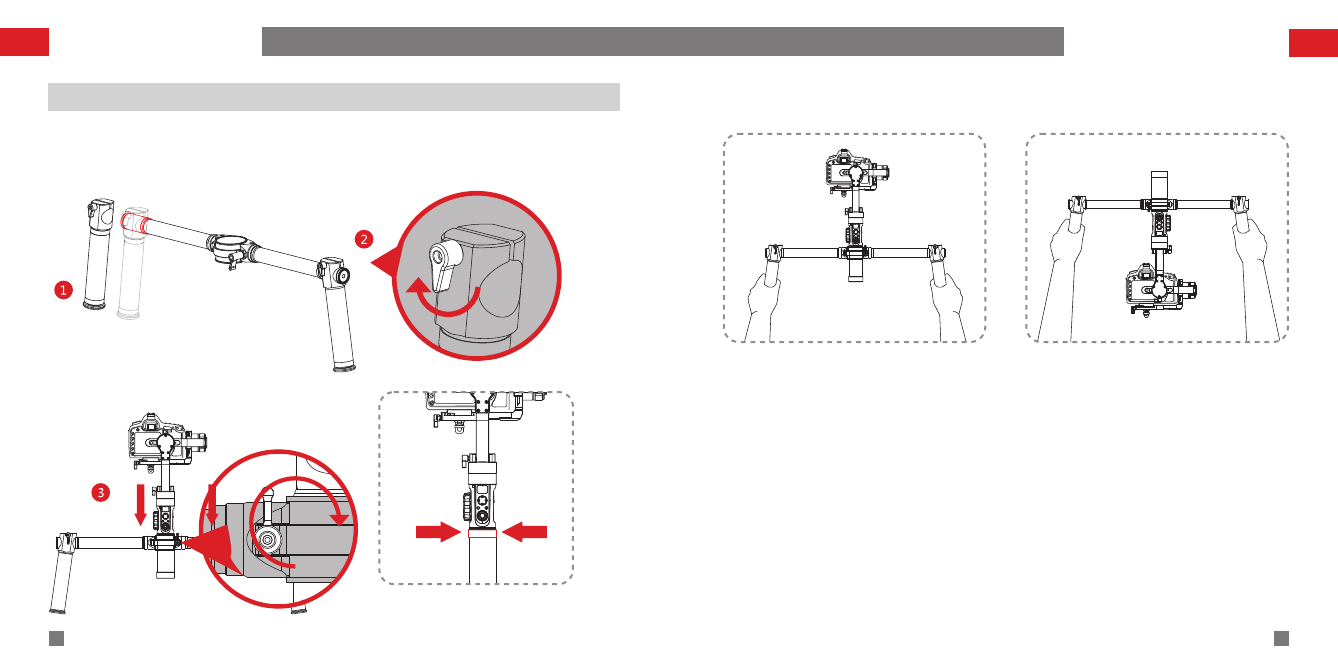
Make sure the batteries have been
properly installed before upgrade.
Connect the stabilizer to your computer via Micro USB cable to get ready for the firmware
upgrade and calibration.
1.Visit ZHIYUN's offcial website: www.zhiyun-tech.com Click “DOWNLOAD” and find the
Firmware Upgrade Tutorial package, then download the driver, calibration tool and latest
firmware corresponding to your stabilizer. (USB driver installation is not needed for Mac
and WIN 10 system).
2.Connect the stabilizer to your computer via Micro USB cable, power on the stabilizer and
finish the installation of the driver.
3.Power on the stabilizer and long press mode button to enter standby mode.
4.Enter the downloaded “Zhiyun Gimbal Tools” and upgrade firmware following the
instructions indicated in the Firmware Upgrade Tutorial.
USB
ZHISHENDOCCENTER
Usage of Main Accessories Usage of Main Accessories
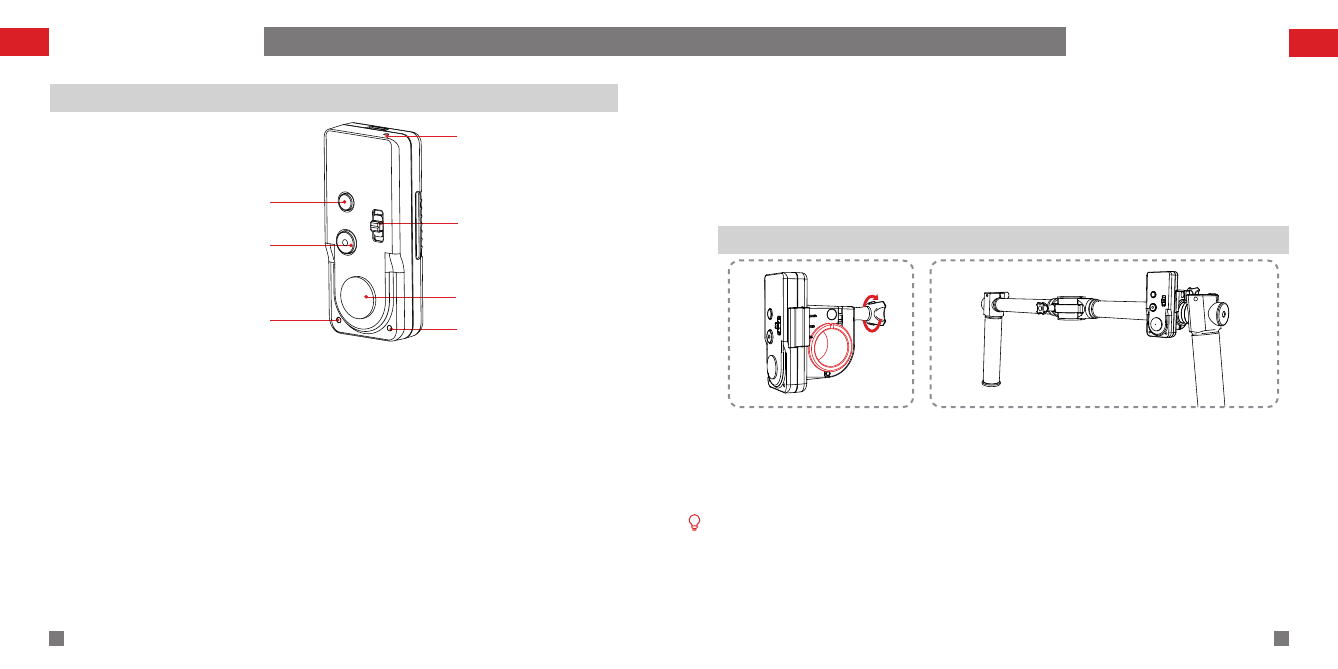
Top down gesture Bottom up gesture
30
29 zhiyun-tech.com zhiyun-tech.com
Crane-EH002 CRANE 2 Extended Handle (purchase separately)
Installation method:
1.Insert in the two handles from the two sides of the horizontal rod.
2.Tighten the screws on the handles.
3.Loosen the screws on the fixing clamp to install the stabilizer, then tighten the screw to fix it.
Clip the fixing clamp onto the
s t a b i l i z e r a t t h e p o s i t i o n
indicated.
ZHISHENDOCCENTER
Mounting Method
1.Loosen the thumb screw on
t h e b a c k o f t h e r e m o t e
controller to let loose of the
rubber case (as marked red in
the Figure).
2.Install the remote controller to the extension rod or
dual handle for convenient operations (as shown in the
Figure above). Fasten up by tightening the thumb screw
on the back.
32
31 zhiyun-tech.com zhiyun-tech.com
ZW-B02 Remote Controller
MODE Button
Power/Shutter
(Dual-function button)
Bluetooth Indicator Power Level Indicator
Joystick
Toggle
Charging Indicator
Usage of Main Accessories Usage of Main Accessories
Power/Shutter (Dual-function button):
1.Press for 1-2 seconds to power on/off (enters Master Mode by default):
2.Fully press for 1-2 seconds to power off (the indicator light turned off accordingly)
3.When the stabilizer is connected to camera:
Halfway press the button, under photo mode, to focus; Full press to take single shots; Quick
double press (full press) to switch between video and photo shooting.
Combined Button Control
Power Button + toggle: Push the toggle in W direction simultaneously when powering up to
enter Slave Mode. This allows firmware upgrade of the remote controller through mobile APP
(requires Bluetooth pairing with the smartphone using Zhiyun Assistant).
Power Button + MODE Button: Press the MODE Button simultaneously when powering up to
operate quick pairing with the nearest stabilizer.
MODE Button: Switches between gimbal control modes (works like the MODE button on the
stabilizer).
Joystick: Controls camera movement (functions the same as the Joystick on the stabilizer.)
Toggle: Allows focusing control of the camera.
Basic Specifications:
Charging voltage: 5V
Charging current: 100mA
Theoretical work time: ≥30 hr.
Built-in Polymer lithium battery
capacity: 150mAh
Emission and received current:
11.9mA
Operating current: 4.2mA
Effective control distance: 10M
(without blockage)
Power Level Indicator
90%-100%: quick flash for 4
times each second.
75%-90%: quick flash for3 times
each second.
55%-75%: quick flash for2 times
each second.
30%-55%: quick flash for1 time
each second.
0%-30%: quick flashing.
Bluetooth Indicator
No connection: Continuous flashing.
Connected: Shines solid light.
Charging Indicator
Charging: RED light.●
Charging complete: GREEN light.●
The remote controller turns off automatically when left idle for 2 minutes.
Main body of the remote controller can be easily separated from the mounting buckle for
independent use. The mounting buckle is for fix mounting only and will not affect
performance of the remote control after separation.

ZHISHENDOCCENTER
Warranty Period
This warranty does not apply to the followings
1. Products subjected to unauthorized repair, misuse, collision, neglect, mishandling, soaking, accident, and
unauthorized alteration.
2. Products subjected to improper use or whose labels or security tags have been torn off or altered.
3. Products whose warranty has expired.
4. Products damaged due to force majeure, such as fire, flood, lightening, etc.
Warranty Claim Procedure
1. If failure or any problem occurs to your product after purchase, please contact a local agent for
assistant, or you can always contact ZHIYUN's customer service through email at SERVICE@ZHIYUN-
TECH.COM or website at WWW.ZHIYUN-TECH.COM.
2. Your local agent or ZHIYUN's customer service will guide you through the whole service procedure
regarding any product issue or problem you have encountered. ZHIYUN reserves the right to
reexamine damaged or returned products.
34
33 zhiyun-tech.com zhiyun-tech.com
Product model: CRA02
Parameter Specifications
Min.
Standard
Max.
Remarks
Input Vol.
9.8V
11.1V
12.6V
Operation Current
110mA
6000mA
Operation
Temperature
-10°C
25°C
40°C
Operation Time
12h
18h
Well balanced with camera
mounted
Charging Time
2.5h
Charging current 2400mA
Weight
1250g
Excluding batteries
Tilt Angle Range
-135°
+185°
Roll Angle Range
360°
Unlimited rotation
Pan Angle Range
360°
Unlimited rotation
Following Deviation
in Static State
±0.01°
±0.03°
Following Deviation
in Motion State
±0.05°
±0.1°
Payload
500g
3200g
Compatible Camera
Sizes
The max. horizontal length from the point of camera gravity to the
roll axis is 90mm, from the 1/4" threaded hole to tilt axis 90mm,
and from gravity point to quick release plate 65mm.
Product Dimension
210*118*450mm
Warranty Terms
1.Customers are entitled to replacement or free repair service in case of quality defect(s)
found in the product within 15 days upon receipt of the product.
2.Customers are entitled to free repair service from ZHIYUN for any product proven
defective in material or workmanship that results in product failure during normal consumer
usage and conditions within the valid warranty period, which is 12 months counting from the
date of delivery.
ZHISHENDOCCENTER
36
35 zhiyun-tech.com zhiyun-tech.com
Warranty Terms Contact Card
ZHISHENDOCCENTER
合格证
本产品经严格检验符合标准,准予销售
检验员:
FCC statements:
This device complies with part 15 of the FCC rules. Operation is subject to
the following two conditions:
(1) this device may not cause harmful interference, and
(2) this device must accept any interference received, including interference
that may cause undesired operation.
NOTE: The manufacturer is not responsible for any radio or TV interference
causedby unauthorized modifications or changes to this equipment. Such
modifications or changes could void theuser’s authority to operate the
equipment.
Federal Communication Commission Radiation Exposure Statement
When using zhi yun 3-Axis Stabilizer(Model No:CRA02), maintain a distance of
20cm from the body to ensure compliance with RF exposure requirements.