Guizhou Fortuneship Technology B125C 4G Smart Phone User Manual User Manaul

Guizhou Fortuneship Technology Co., Ltd 4G Smart Phone User Manaul

Contents

User Manaul

   For more informawww.nc1mobile.com tthe website, you can almore help? Call  Dispo - 1 -   C145L Model #C145L Quick Start Guide ation about how to use this ceto download the complete useso download a FAQ, find softwl our Customer Support Line 2017 Version 1.2 English  onible en Español at NC1Mo   ell phone, please go to er manual. Additionally, from ware information, etc. Need at (1-844-828-7637)obile.com
- 2 -    YOUR NEW WIRELESS PHONE ····················································· - 3 -WHAT’S IN THE BOX? ································································ - 3 -CHARGING THE  BATTERY ··························································· - 3 -PHYSICAL FEATURES OF YOUR NEW WIRELESS PHONE····················· - 3 -SIM CARD ··············································································· - 5 -START UP & BURN-IT CONFIGURATION ········································ - 5 -HOME SCREEN ········································································· - 5 -KEYBOARD: ENTERING INFORMATION ········································· - 5 -SETTING UP WI-FI ····································································· - 6 -DEVICE MEMORY ······································································ - 6 -ADDING A MICRO SD MEMORY CARD ·········································· - 6 -CALL FEATURES ········································································ - 6 -ADDING A GOOGLE ACCOUNT ·················································· - 7 -TEXT AND MMS MESSAGING ······················································· - 7 -INTERNET BROWSER AND SURFING THE WEB ································ - 8  -CONTACTS ············································································· - 8 -TAKING PHOTOS AND VIDEOS ···················································· - 8 -VIEWING PHOTOS AND VIDEOS··················································· - 9 -CHANGING BASIC PHONE SETTINGS ··········································· - 9 -ADDING A BLUETOOTH DEVICE ················································· - 10 -FACTORY DATA RESET ······························································ - 10 -SAFETY AND LEGAL INFORMATION ············································ - 10 -SOFTWARE AND CONTENT COPYRIGHT NOTICES ························ - 13 -EMERGENCY CALLS (911) ·························································· - 14 -FCC NOTICE ··········································································· - 14 -HEARING AID COMPATIBILITY (HAC) ··········································· - 15 -
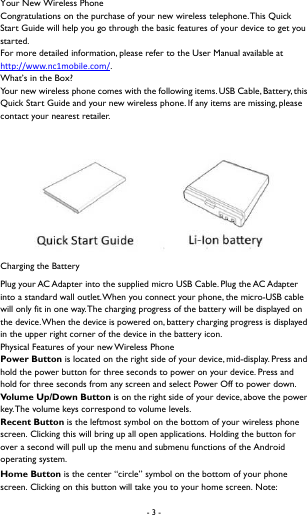
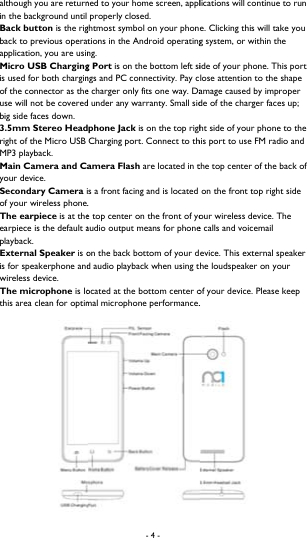
- 3 -    Your New Wireless Phone Congratulations on the purchase of your new wireless telephone. This Quick Start Guide will help you go through the basic features of your device to get you started.  For more detailed information, please refer to the User Manual available at http://www.nc1mobile.com/.  What’s in the Box?  Your new wireless phone comes with the following items. USB Cable, Battery, this Quick Start Guide and your new wireless phone. If any items are missing, please contact your nearest retailer.   Charging the Battery Plug your AC Adapter into the supplied micro USB Cable. Plug the AC Adapter into a standard wall outlet. When you connect your phone, the micro-USB cable will only fit in one way. The charging progress of the battery will be displayed on the device. When the device is powered on, battery charging progress is displayed in the upper right corner of the device in the battery icon. Physical Features of your new Wireless Phone Power Button is located on the right side of your device, mid-display. Press and hold the power button for three seconds to power on your device. Press and hold for three seconds from any screen and select Power Off to power down. Vol u me  Up /Dow n Button is on the right side of your device, above the power key. The volume keys correspond to volume levels.   Recent Button is the leftmost symbol on the bottom of your wireless phone screen. Clicking this will bring up all open applications. Holding the button for over a second will pull up the menu and submenu functions of the Android operating system. Home Button is the center “circle” symbol on the bottom of your phone screen. Clicking on this button will take you to your home screen. Note:
 although you are returnin the background until Back button is the rigback to previous operatapplication, you are usinMicro USB Chargingis used for both charginof the connector as theuse will not be coveredbig side faces down.  3.5mm Stereo Headright of the Micro USB MP3 playback.   Main Camera and Cayour device.   Secondary Camera iof your wireless phone.The earpiece is at theearpiece is the default aplayback.  External Speaker is ois for speakerphone andwireless device.   The microphone is lothis area clean for optim- 4 - ned to your home screen, appl properly closed. ghtmost symbol on your phontions in the Android operatingng.   g Port is on the bottom left sings and PC connectivity. Pay ce charger only fits one way. Dad under any warranty. Small sidphone Jack is on the top righCharging port. Connect to thamera Flash are located in ts a front facing and is located .   e top center on the front of yoaudio output means for phoneon the back bottom of your dd audio playback when using tocated at the bottom center omal microphone performance.lications will continue to run e. Clicking this will take you g system, or within the ide of your phone. This port lose attention to the shape amage caused by improper de of the charger faces up; ht side of your phone to the his port to use FM radio and the top center of the back of  on the front top right side our wireless device. The e calls and voicemail evice. This external speaker he loudspeaker on your of your device. Please keep .
  SIM Card Your SIM card is providfunctionality to your neyour SIM, it could be eaby starting at the batterRemove the battery (if card size holder. Be caryour device chip side fayour battery and batterStart Up   After installing your SIMready to power on youdevice vibrates. You shoon for the first time or displayed. Please be patnecessary files and settiregistration times may tcomplete the initial setu Home ScreeFrom the Home Screencommon features and vcalls, received messagesSelect an application icoand functionality. Press to return to your Hom Application white circle wThis key is used to pull applications available onKeyboard: Entering InfoRegardless of which appthe built-in on-screen AUsing the On-screennumeric input, select thkeys on the keyboard tcomplete your input.   - 5 - ded by your wireless carrier anew wireless phone. If your wirsily done in a few seconds. Firsry cover release on the lower installed). Remove the SIM careful not to damage the SIM oracing down with the cut cornery cover door.     M Card and charging the devicr phone. Press and hold the pould see the power on logo oafter a Factory Reset, a one-titient during the first start up aings for operation. Please be ptake up to five minutes in certup.  en n, you can quickly access view notifications of missed s, and connection status. on to access its features  the Home Screen symbol e Screen at any time.  Drawer appears as a with six small dots inside.  up all available device n through device menu.   ormation plication you are using, you caAndroid keyboard.   n Keyboard: When an applicahe input box to display the on-o enter the proper charactersnd is required to   provide reless retailer did not install st, remove the battery cover  left of the device. Lift up. ard out of the plastic credit r the frame. Slide your SIM in er in the upper left. Replace e battery, you are now power button until your new on display. When powering me Welcome Screen will be as your device is configuring patient, as device network tain situations. Click okay to an enter information using ation requires text or -screen keyboard. Select the s. Select the Return key to
 Setting up Wi-Fi Your new wireless phonnetworks. Complete thscreen, select the ApplicIcon shows as six gray dSwipe from top to bottWi-Fi in the settings meavailable wireless netwoprompted to enter secuIf the security informatibe connected. Please nosecurity key set by youryou have issues connectnetwork administrator.  Device MemYour wireless phone hadevice healthy and free Micro SD memory cardTo remove unwanted filapplications from using download a memory cleinstall an application fro“insufficient storage,” trapplications, or move ap Adding a MicYour device is capable ocard up to 32Gb in sizeso your device memorythe back battery cover bottom of the device. Rin the direction displayepanel. The card will onlyimage to avoid unnecesthe battery, replace the automatically setup to wyour status bar when yo Call FeaturMaking a Call: From yleft. Click on the dial pa- 6 - ne is equipped with Wi-Fi so yese steps to configure Wi-Fi pcation drawer icon (Press Homdots in a white circle just abovom and scroll to the Settings enu. If turned off, turn Wi-Fi onorks. Select the network you wurity information, enter the paion matches the wireless netwote password is case sensitive r network administrator or intting, please contact your Wi-F mory as a preset amount of internal  of unnecessary files, it may bed on your device and routinelyles that may be slowing your d available system memory, it is eaner application from the Goom the Google Play Store and ry deleting old SMS & MMS mepplications to a Micro SD cardcro SD Memory Card of supporting removable storage. It is highly recommended thay doesn’t get full. To add a Microf your device by popping theRemove your device battery, thed on the card holder on the ry fit in one way, so pay special sary damage to your device an cover and power on the devicwork with your device. You wiou initially insert your memores your home screen, click on thad icon in the bottom center tyou can connect to wireless properly. From your home me, The Application  Drawer ve the Home Screen Key). icon and select it. Select n. You should see a list of wish to connect to. If assword and select Connect. work, you will automatically  and must match your ternet service provider. If i service provider or  storage space. To keep your e necessary that you install a y remove unnecessary files. device down, or to prevent  recommended that users oogle Play Store. If you try to  receive a message that says essages, remove unnecessary d.   ge in the form of a Micro SD at you add a Micro SD card, ro SD card, simply remove e cover off starting at the left hen insert the Micro SD card right side of the interior attention to the orientation nd Micro SD card. Re-insert ce. Your memory card will ll also receive notification in ry card.   he phone icon in the bottom to bring up the dialer. Enter
- 7 -  your area code, and telephone number then click on the green “Call” phone icon to dial. To end the call, press the red “End” phone icon to disconnect.   Answering a Call: When an incoming call is registered, caller ID information will be displayed on the phone screen. If you’ve saved the caller’s name in your Contacts, the caller’s name will also be displayed. See Contacts on page-9 for more information.   Ending a Call: To end a call press the red phone “End” button at any time during the call.     Adding a Google Account Your device is compatible with current up to date Google content and your Google account (if you have one). To log in, you must first have internet connectivity via Wi-Fi or mobile network. Please ensure your plan includes mobile data, and your account is properly provisioned to avoid unexpected charges or deductions from your account. It is recommended that Wi-Fi is used to add and configure your Google account settings on your wireless device.    Setting Up a New or Adding an existing Google Account: From your Home Screen, Click on the Google Play icon next to the Burner browser. When you run the Google Account Wizard for the first time, you will be asked if you want to add an existing account or create a new one. Click on New to create a new account for your wireless device or add your existing Google account if applicable. Follow the onscreen prompts to complete the setup.    Text and MMS Messaging Your Burner supports both regular text messaging service (SMS) and multimedia messaging (MMS) also known as picture messaging.   To Send a New SMS or MMS Message: From your home screen, select the Messaging icon in the far right lower corner next to the Internet application. Click on the Message+ icon in the top center, then add the telephone number or contact you wish to message. Enter the message you want the recipient to receive. If you wish to add pictures or other multimedia, click on the paperclip in the upper right corner. Your wireless phone will automatically format your message for the appropriate service. To send the message click on the right facing “Send” arrow.   To Reply to an SMS or MMS: Click on the message you received, then click on reply, enter the text you wish to send to the recipient followed by the right facing “Send” arrow.   To Delete an SMS or MMS Message: From your messaging application, press and hold the message you wish to delete, then click on the “Trashcan” icon on the top right of the screen. The message thread will be permanently deleted.
- 8 -  Performance Notice: It may be necessary to delete old message threads to free up device memory. You can delete messages as you read them or save them to a Micro SD card, this will ensure optimal performance of your device.   Internet Browser and Surfing the Web To surf the internet, click on the Browser icon (multi-color globe) from your home screen.   Type in the desired URL for any website or type in any keyword into the search box and click return on your keyboard. If you use any other browser on your device, it will have the standard browser functionality and user experience.  Contacts To add a Contact: From your home screen, click on Contacts icon next to the phone icon from your home screen OR select the application drawer icon and scroll to the Contacts icon. From inside the Contacts application, click on the lower right blue icon (face+) to create a new entry. If you have a Google account associated with your device, you can choose to save your contacts to Google, or locally on the device. We recommend setting up a Google account so your contact information can be shared between your Google account and your device. Enter the requested information in the text input boxes and click the “Checkmark” icon in the upper left corner when complete.   To Delete a Contact: Select the contact you wish to remove from inside the Contacts application. Click on the three squares icon from the upper right side of the display. Select Delete. When prompted again, select OK.   To Import/Export Contacts: From inside your Contacts application, click on the three squares icon on the top upper side of your display. Select the location you wish to import from or export to. Select Next, followed by the location you wish to save your information. When importing, choose # Selected then Select All to bulk import your data.   To add a Caller Ringtone: From inside the Contacts application, first, select a contact. Next click on the “Pencil” icon in the upper right. Click on the three squares icon from the upper right side and then select Set Ringtone. Assign a ringtone for your contact from the list provided.   To add a Picture of your Caller: To add a picture of your caller, you must have an existing image of the person on your device or Micro SD card. From inside of your Contacts application, select the proper contact you wish to modify, then click on the “Pencil” icon in the upper right. Click “More Fields” and then “Change” button to take a new photo or choose an existing photo from the library. After you’ve cropped the photo, click DONE in the upper left to save the contact.  Taking Photos and Videos
- 9 -  Your wireless phone is equipped with two 5.0 megapixel cameras to take photos and videos.   To Take a Photo: From your home screen select the camera icon next to the Internet Browser and Burn-It application. Touch the capture button to take a picture. To toggle to the front facing camera, select the camera to rotate icon for “selfies.”  To  Ta k e   a  V i d e o :  From your home screen select the camera icon next to the Internet Browser and Gmail. Click on the Camcorder icon next to the capture icon. Once you tap the icon, video recording will begin. Tap the icon again to stop recording.   Viewing Photos and Videos To view and edit photos and videos follow the following steps. Additional 3rd party photo and video editing software can be downloaded from the Google Play store.   To View  Photos:  From your home screen, select your Application drawer icon. Swipe from top to bottom until you reach the Photos Icon. You can also select Camera, to view photos taken from your device, Scroll through your photographs until you reach the desired image and click on it. If a Google account is synchronized with your device, your Google photographs and videos will also be displayed here. You may be asked to enable or allow Backup & Sync for your Google account to enable this wireless synchronization feature.    To View Videos:  From your home screen, select your Application drawer icon. Swipe from top to bottom until you reach Video Player. Click on the Video Player application and select the video file you wish to playback.    Changing Basic Phone Settings To Change your Ringtone: From your home screen, select the Application drawer icon. Swipe from top to bottom and scroll to the Settings icon and select it. From your Settings, select Sound & Notification in your list. You will be taken to your Audio Profile Settings page. Select the profile which you wish to modify by selecting the gear next to the profile name (General is default profile). In the dropdown select Phone Ringtone. From there you can choose your ringtone.    To Change the Time and Date: From your home screen, select the Application drawer icon. Swipe from top to bottom and scroll to the Settings icon and select it. Scroll to the near bottom of the list and select Date & Time. From inside this menu, you can change the date and time along with display formats. It is recommended to use Automatic Date and Time and Automatic Time Zone which uses information provided by your Wireless Carrier. Note: Some
 wireless providers may requiring manual date aChange your Displaydrawer icon. Swipe fromit. From your settings mmenu, you can modify LScreen Sleep (timeout), Other Settings: Thereof your device. You can power settings. It is higharea of your device.   Adding a BluYour wireless phone is Bluetooth devices such To Add  a Bluetooth Ddrawer icon. Swipe fromit. Select the Bluetooth the ON position. Enableyour wireless phone. ODevices dropdown. ClicBluetooth PIN prompteinstruction manual for Bdefault PIN numbers toTo  R e m o v e  a  B l u e t oApplication drawer iconicon and select it. Selectwish to Unpair, and seleFactory Data Reset To reset your wireless pthe Application drawer icon and select it. Scrollbottom of the list and sbox that says “Erase PhoFactory resetting a deviup before the reset, all Safety and Legal Inform- 10 -  not send this information oveand time settings.      y Settings: From your home sm top to bottom and scroll to menu, scroll to the Display iconLock Screen Notifications, The and Font Sizes.     e are many other settings thatenable device security and lochly recommended that you famuetooth Device equipped with Bluetooth for c as Headsets, Speakers, VehicleDevice: From your home screm top to bottom and scroll to  Setting. Enable Bluetooth by se pairing mode on the device wnce enabled, the device shouldck on the device you wish to ped by the device. Please consuBluetooth PIN information. Moo “0000”.   oth Device: From your homen. Swipe from top to bottom at Bluetooth. Select the gear neect Forget.     phone to a factory state from icon. Swipe from top to bottol down to Backup & Reset andselect Factory Data Reset, andone Storage” followed by Resice will erase all data permaneinformation will be removed fation er the wireless network screen, select the Application  the Settings icon and select n and select it. From this mes, Wallpaper,  Brightness, t can be found in the Settings ck from here, or change the miliarize yourself with this connectivity to different es, etc.   een, select the Application  the Settings icon and select swiping the toggle switch to which you wish to pair with d be listed in the Available pair with and enter the lt your Bluetooth device ost device manufacturers set e screen, select the and scroll to the Settings ext to the device which you  your home screen, select om and scroll to the Settings d select it. Scroll to the very d when prompted check the et Phone. WARNING: ently. Unless data is backed from the device memory.
- 11 -  Please read before proceeding.   Safety Information:    Use only batteries and power adapters provided by BTG Mobile or authorized affiliates. The use of unauthorized accessories may void any device warranty and may present a risk of fire, explosion, leakage, or another hazard.  Do not remove the battery while the phone is charging due to the risk of damage.    Avoid dropping the phone or battery. Dropping these items, especially on a hard surface can potentially cause damage.  Unplug the power adapter from the wall outlet during storms to avoid potential damage to charger and phone.    Do not expose the phone to temperatures higher than 140˚F.   Avoid direct exposure to sunlight or leaving the device in a hot vehicle.   Do not use harsh detergents or cleaning agents to clean your device.    Do not expose the phone to liquids such as water, soda, coffee, etc. as liquids will cause irreversible damage to your device which is not covered by any warranty.    Safety Precautions for Battery Use:  Use only approved batteries provided by BTG Mobile or its affiliates.    Keep the battery dry and away from any liquid as this may cause a short circuit.  Keep the battery away from metal objects to avoid an electrical short.    Do not place the battery near a heat source. Excessive heat can damage the phone and battery. High temperatures can cause the battery to swell, leak or malfunction.    If the battery emits a foul odor, immediately discontinue use and take the battery outside.    Do not disassemble, crush, puncture shred or otherwise attempt to change the form of the battery.    Never attempt to open or service the battery yourself.    Do not dispose of the battery in water, other liquids or fire. Dispose of battery according to State and local laws and regulations.   Tips for Charging your Battery:   Keep the battery near room temperature when charging. Never expose your battery to temperatures in excess of 140˚F or below 32 ˚F.
- 12 -   New batteries are not fully charged when they are manufactured and packaged. New batteries may take longer to charge for the first time.    Batteries stored for a long period of time may take additional time to charge properly.   Road and Environmental Safety:  Turn off your phone when in areas with a potentially explosive atmosphere or where flammable objects exist such as gas stations, fuel depots, chemical plants, and while in similar scenarios.  Do not use this device while driving a vehicle or operating any machinery. Serious injury or death may result from such action.   Aircraft Safety:  It may be necessary to place your device in Airplane Mode when traveling in an airplane. Consult flight attendants and your flight safety guide for information regarding the operation of portable electronic devices in flight. It may be against the law in some countries to use this device while onboard of an aircraft.   Exposure to Radio Frequency: Your mobile device contains a radio transmitter and receiver. When your device is ON, it receives and transmits RF energy. When you communicate with your mobile device, the system handling your call controls the power level at which your mobile device transmits. Your mobile device is designed to comply with local regulatory requirements in your country concerning exposure of RF to humans.    For optimal mobile device performance, and to be sure that human exposure to RF energy does not exceed the guidelines set forth by the relevant standards, always follow these instructions and precautions.   When placing or receiving a call, hold your mobile phone just like you would a landline phone. If you wear the device on a body-worn accessory such as a case or holster, try to keep the device at least one inch from your body while transmitting. Using accessories not supplied or approved by BTG Mobile or affiliates may cause your mobile device to exceed RF energy exposure guidelines.    Nearly every electronic device is subject to RF energy interference from external sources if inadequately shielded, designed, or otherwise configured for RF energy compatibility. In some circumstances, your mobile device may cause interference with other devices. Follow provided instruction to avoid interference problems. Turn off your mobile device in any location where posted notices instruct you to do so.
- 13 -  Implantable Medical Devices: If you have an implantable medical device, such as a pacemaker or defibrillator, consult your physician before using this mobile device. Persons with medical devices should always observe the following precautions:  ALWAYS keep the mobile device at least 8 inches from the implanted medical device.  DO NOT carry the mobile device in the breast pocket.    Use the opposite ear of the implanted medical device to minimize the potential for interference.    Immediately discontinue use if you suspect your device is causing interference with your implanted medical device.   Seizures and Blackouts: Some people may be susceptible to epileptic seizures or blackouts when exposed to flashing lights such as when playing a video game. These may occur even if a person has never had a previous seizure of blackout.   If you have experienced seizures or blackouts, or if you have a family history of such occurrences, please consult with your physician before playing video games or enabling certain display features on your device.   Discontinue use and consult a physician if any of the following symptoms occur: convulsion, eye or muscle twitching, loss of awareness, involuntary movements, or disorientation. It is always a good idea to hold the screen away from your eyes, leave the lights on in the room, and take a 15-minute break every hour. Stop use if you are tired.   Caution about high Volume usage: Exposure to loud noise from any source for extended periods of time may affect your hearing. The louder the volume, the less time required to damage your hearing permanently. To protect your hearing:  Limit the amount of time you use headsets or earphones.    Avoid turning the volume up to block out noisy surroundings.    Turn the volume down if you can’t hear what’s going on around you.    If you experience hearing discomfort, including the sensation of pressure of fullness in your ears, ringing, or headaches discontinue use and consult a physician.   Repetitive Motion:   When you repetitively perform actions such as pressing keys or entering finger-written characters, you may experience occasional discomfort in your hands, arms, shoulders, neck, or other parts of your body. If you continue to have discomfort during or after such use, stop use and see a physician.   Software and Content Copyright Notices Your wireless phone includes copyrighted third-party software stored in semiconductor memory or other media. Laws in the United States of America and other countries preserve for third-party software provider’s certain exclusive rights for copyrighted software such as the exclusive rights to distribute
- 14 -  or reproduce the copyrighted software. Accordingly, any copyrighted software contained in this device may not be modified, reverse-engineered, distributed, or reproduced in any manner to the extent allowed by law. The purchase of this device will not be deemed to grant, either directly or by implication, estoppels, or otherwise, any license under the copyrights, patents, or patent applications of any third-party software provider, except for the normal, non-exclusive, royalty-free license to use that arises by operation of law in the sale of this product.   Content Copyright: The unauthorized copying of the copyrighted materials is contrary to the provisions of the Copyrights Laws of the United States of America and other countries. This phone model is intended solely for copying non-copyrighted materials, materials in which you own the copyright, or materials which you are legally authorized or permitted to copy. If you are uncertain about your right to copy any material, please contact a legal advisor.   Yo u r  L o c a t i o n :  Location-based information includes information that can be used to determine the approximate location of a mobile device. Mobile phones which are connected to a wireless network transmit location-based information. Devices enabled with GPS or AGPS (Assisted GPS) technology also transmit location-based information. Additionally, if you use applications that require location based information (e.g. local restaurant search) such applications transmit location-based information. This location based information may be shared with third parties including your wireless provider, service provider, application providers, and other third parties providing services.   Emergency Calls (911) When you make an emergency call, the cellular network may activate your device’s Assisted GPS (AGPS) technology to assist the emergency responders in determining your approximate location. AGPS has limitations and may not work in your area therefore always tell emergency responders your location to the best of your ability, and remain on the phone for as long as the emergency operator needs to determine your exact location if possible.    FCC Notice The following statement applies to all products that have received FCC approval. Applicable products bear the FCC logo, and FCC ID in the format FCC-ID: 2ALQJB125C on the product label.   This mobile device complies with part 15 of the FCC Rules. The operation is subject to the following two conditions: 1) This mobile device may not cause harmful interference, and 2) this mobile device must accept any interference received, including interference that may cause undesired operation. This mobile device has been tested and found to comply with the limits for a Class B digital device, pursuant to Part 15 of the FCC Rules. These limits are designed to provide reasonable protection against harmful interference in a residential installation. This equipment generates, uses, and can radiate radio frequency energy and, if not installed and used in accordance with these instructions, may cause harmful interference to radio communications. However, there is no guarantee that interference will not occur in a measurement known as Specific Absorption Rate or SAR. The SAR limit set by the FCC is 1.6W/kg averaged over one gram of tissue. Tests for SAR are conducted using standard operating positions accepted by the FCC with the mobile transmitting at its highest
- 15 -  certified power level in all tested frequency bands. Although the SAR is determined at the highest certified power level, the actual SAR level of the phone while operating can be well below the maximum value. This is because the mobile device is designed to operate at multiple power levels so as to use only the power required to reach the mobile network. In general, the closer you are to a wireless tower, the lower the power output.   While there may be differences in the SAR levels of various mobile devices and at various positions, they must all be tested and certified to the FCC that they meet the government requirement before being made available for sale to the public in the U.S.A.   The FCC has granted an Equipment Authorization for this mobile phone with all reported SAR levels evaluated as in compliance with the FCC RF exposure guidelines. SAR information on this mobile phone is on file with the FCC and can be found under the Display Grant section of https://www.fcc.gov/general/fcc-id-search-page after searching the above FCC ID. Please note that modifications to this device could cause slight differences in the SAR value for later products; in all cases, products are designed to be within guidelines. Additional information on SAR can be found on the Cellular Telecommunications & Internet Association (CTIA) website at: http://www.phonefacts.net.     FCC Hearing-Aid Compatibility (HAC) Regulations for Wireless Devices  On July 10, 2003, the U.S. Federal Communications Commission (FCC) Report and Order in WT Docket 01- 309 modified the exception of wireless phones under the Hearing Aid Compatibility Act of 1988 (HAC Act) to require digital wireless phones be compatible with hearing-aids. The intent of the HAC Act is to ensure reasonable access to telecommunications services for persons with hearing disabilities. While some wireless phones are used near some hearing devices (hearing aids and cochlear implants), users may detect a buzzing, humming, or whining noise. Some hearing devices are more immune than others to this interference noise, and phones also vary in the amount of interference they generate. The wireless telephone industry has developed a rating system for wireless phones, to assist hearing device users find phones that may be compatible with their hearing devices. Not all phones have been rated. Phones that are rated have the rating on their box or a label located on the box.  The ratings are not guarantees. Results will vary depending on the user’s hearing device and hearing loss. If your hearing device happens to be vulnerable to interference, you may not be able to use a rated phone successfully. Trying out the phone with your hearing device is the best way to evaluate it for your personal needs.  M-Ratings: Phones is M4 meet FCC requirements and are likely to generate less interference to hearing devices than phones that are not rated.   C145 is rated M4.
- 16 -  T-Ratings: Phones is T4 meet FCC requirements and are likely to be more usable with a hearing aid’s telecoil than phones that are not rated.   C145 is rated T4.  Please power off the Bluetooth and Wi-Fi function while using hearing aid devices with your C145. Hearing devices may also be rated. Your hearing device manufacturer or hearing health professional may help you find this rating. Higher ratings mean that the hearing device is relatively immune to Interference noise.  This phone has been tested and rated for use with hearing aids for some of the wireless technologies that it uses. However, there may be some newer wireless technologies used in this phone that have not been tested yet for use with hearing aids. It is important to try the different features of this phone thoroughly and in different locations, using your hearing aid or cochlear implant, to determine if you hear any interfering noise. Consult your service provider or the manufacturer of this phone for information on hearing aid compatibility. If you have questions about return or exchange policies, consult your service provider or phone retailer.
       NC1™byNBMHoCopyBTGMobile,LLC.Rese - 17 -  ldings,Inc.andisusedunderyright©symbol2017BTGMoAllrightsreserved®ervestherighttoaltermateriawithoutpriornotice. licensebyBTGLimited.obile,LLC.alortechnicalspecification

Navigation menu