Guoguang Electric VIFAR1 RF remote control User Manual 190814 Stockholm Manual 6 indd

Guoguang Electric Co.,Ltd RF remote control 190814 Stockholm Manual 6 indd

User Manual

STOCKHOLM  owner’s manual
2You’ve chosen wellThe Vifa Stockholm. A loudspeaker for anyone who values exclusive Nordic design and authentic sound.It’s designed to be intuitive for you to use. Thismanual just spells out the details - for instance, howto connect wirelessly in a flash.Enjoy!
31  Read these instructions.2  Keep these instructions. 3  Heed all warnings. 4  Follow all instructions. 5  Do not use this apparatus near water. 6  Clean only with dry cloth. 7  Do not block any ventilation openings. Install in accordance with the manufac-turer’s instructions. 8  Do not install near any heat sources such as radiators, heat registers, stoves, or other apparatus (including amplifiers) that produce heat. 9  Do not defeat the safety purpose of the polarized or grounding-type plug. A polarized plug has two blades with one wider than the other. A grounding type plug has two blades and a third ground-ing prong. The wide blade or the third prong are provided for your safety. If the provided plug does not fit into your outlet consult an electrician for replace-ment of the obsolete outlet. 10  Make sure the power cord is not stepped on or otherwise interferred with, particu-larly at the mains socket and where it exits the apparatus. 11  Only use attachments/accessories specified by the manufacturer. 12  Use only with the cart, stand, tripod, bracket or table speci-fied by the manufacturer or sold with the apparatus. When a cart is used, use caution when moving the cart/apparatus combination to avoid injury from tip-over. 13  Unplug this apparatus during lightning storms or when unused for long periods of time.14  Refer all servicing to qualified service personnel. Servicing is required when the apparatus has been damaged in any way, such as damage to the power cord or plug, liquid has been spilled or objects have fallen into the apparatus, the apparatus has been exposed to rain or moisture, does not operate normally or has been dropped. 15  To completely disconnect unit power from the AC mains, disconnect the unit’s power cord from the mains socket.WARNING:•  To reduce the risk of fire and electric shock do not expose this apparatus to rain or moisture.•  Do not place objects filled with liquids such as vases on the apparatus.•  Do not open the appartus. There are no user-serviceable parts inside. Risk of electric shock inside. The lightning flash and arrow head within the triangle is a warning sign alerting you of dangerous voltage inside the product. The exclamation point within the triangle is a warning sign alert-ing you to important instructions  accompanying the product.  IMPORTANT SAFETY INSTRUCTIONS Regulatory Safety Information
4This device complies with Part 15 of the FCC Rules. Its operation is subject to the following two conditions:1.   This device may not cause harmful inter-ference, and2.   This device must accept any interference received, including interference that may cause undesired operation.Cet appareil est conforme à la section 15 des ré-glementations de la FCC. Le fonctionnement de l’appareil est sujetaux deux conditions suivantes:1.  Cet appareil ne doit pas provoquer d’interférences néfastes, et 2. Cet appar-eil doit tolérer les interférences reçues, y compris celles qui risquent de provoquer un fonctionnement indésirable.Note: This product has been tested and found to comply with the limits for a Class B digital device, pursuant to Part 15 of the FCC Rules. These limits are designed to provide reason-able protection against harmful interference in a residential installation. This product gen-erates, uses, and can radiate radio frequency energy and, if not installed and used in accord-ance with the instructions, may cause harmful interference to radio communications.However, there is no guarantee that interfer-ence will not occur in a particular installation. If this product does cause harmful interference to radio or television reception, which can be determined by turning the equipment off and on, the user is encouraged to try to correct the interference by one or more of the followingmeasures:·   Reorient or relocate the receiving antenna.·   Increase the separation between the equipment and receiver.·   Connect the equipment into an outlet on a circuit different from that to which the receiver is connected.·   Consult the dealer or an experienced radio/TV technician for help.Changes or modifications not expressly ap-proved by the party responsible for compliance could void the user’s authority to operate the equipment.This device complies with Industry Canada licence-exempt RSS standard(s).Operation is subject to the following two con-ditions:1.  This device may not cause interference, and2.   This device must accept any interference, including interference that may cause un-desired operation of the device.Le présent appareil est conforme aux CNR d’Industrie Canada applicables aux appareils radioexempts de licence. L’exploitation est au-torisée aux deux conditions suivantes :1.   l’appareil ne doit pas produire de brouil-lage, et2.   l’utilisateur de l’appareil doit accepter tout brouillage radioélectrique subi, même si le brouillage est susceptible d’en comprom-ettre le fonctionnement.Vifa Denmark A/SMariendalsvej 2ADK-8800 - Denmark www.vifa.dkIMPORTANT STATEMENTS:
5Buttons and indicators on Stockholm ............................................ 6 Status indicator .............................................................................. 7 The Vifa remote ............................................................................. 8 Input options ................................................................................ 10 Connecting priority ...................................................................... 11Connecting to StockholmBluetooth  ...................................................................................... 12 Wi-Fi Direct .................................................................................. 13 Wi-Fi Network manual setup  ...................................................... 14 Wi-Fi Network using an iOS device ............................................. 16  Wi-Fi Network using WPS ........................................................... 18 Playback through Wi-Fi ................................................................ 19 Wired connection - optical, analog or USB .................................. 20Reset and set to factory default .................................................. 21 Vifa app ........................................................................................ 22 Product care ................................................................................ 23 Troubleshooting ........................................................................... 24 Specifications .............................................................................. 25 Register and Trademarks ............................................................. 26 For manuals in other languages, please visit: www.vifa.dk/support
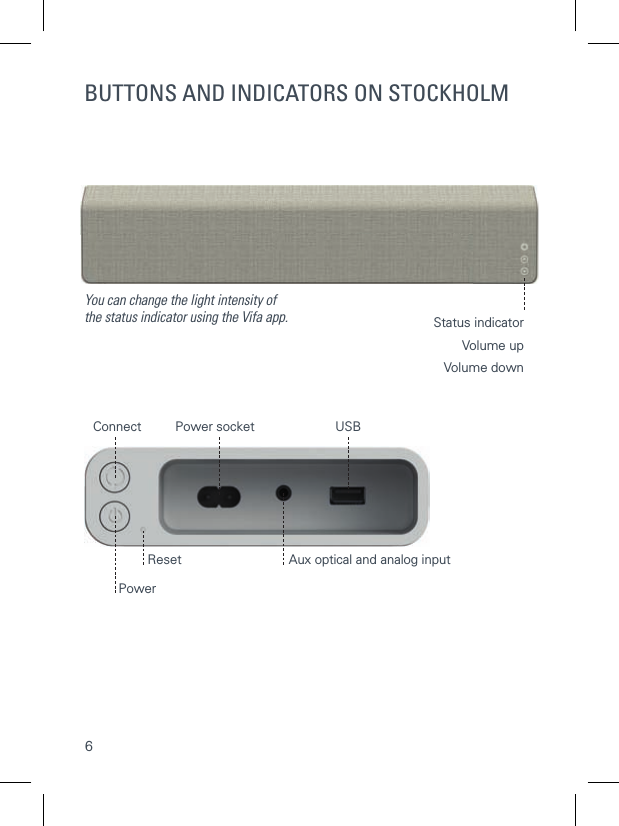
6BUTTONS AND INDICATORS ON STOCKHOLMPower socketConnectPowerReset Aux optical and analog inputUSB You can change the light intensity of the status indicator using the Vifa app.Volume downVolume upStatus indicator
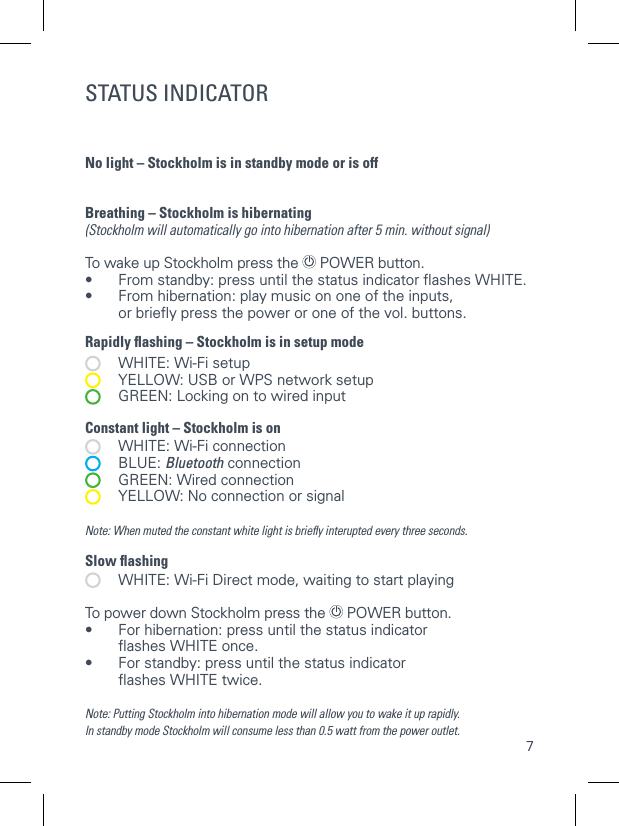
7STATUS INDICATORNo light – Stockholm is in standby mode or is off  Breathing – Stockholm is hibernating (Stockholm will automatically go into hibernation after 5 min. without signal) To wake up Stockholm press the  POWER button. •  From standby: press until the status indicator flashes WHITE. •   From hibernation: play music on one of the inputs, or briefly press the power or one of the vol. buttons.Rapidly flashing – Stockholm is in setup mode   WHITE: Wi-Fi setup   YELLOW: USB or WPS network setup   GREEN: Locking on to wired input Constant light – Stockholm is on   WHITE: Wi-Fi connection  BLUE: Bluetooth connection   GREEN: Wired connection   YELLOW: No connection or signalNote: When muted the constant white light is briefly interupted every three seconds.Slow flashing   WHITE: Wi-Fi Direct mode, waiting to start playing To power down Stockholm press the  POWER button.•   For hibernation: press until the status indicator flashes WHITE once. •  For standby: press until the status indicator   flashes WHITE twice.Note: Putting Stockholm into hibernation mode will allow you to wake it up rapidly.In standby mode Stockholm will consume less than 0.5 watt from the power outlet. BUTTONS AND INDICATORS ON STOCKHOLM
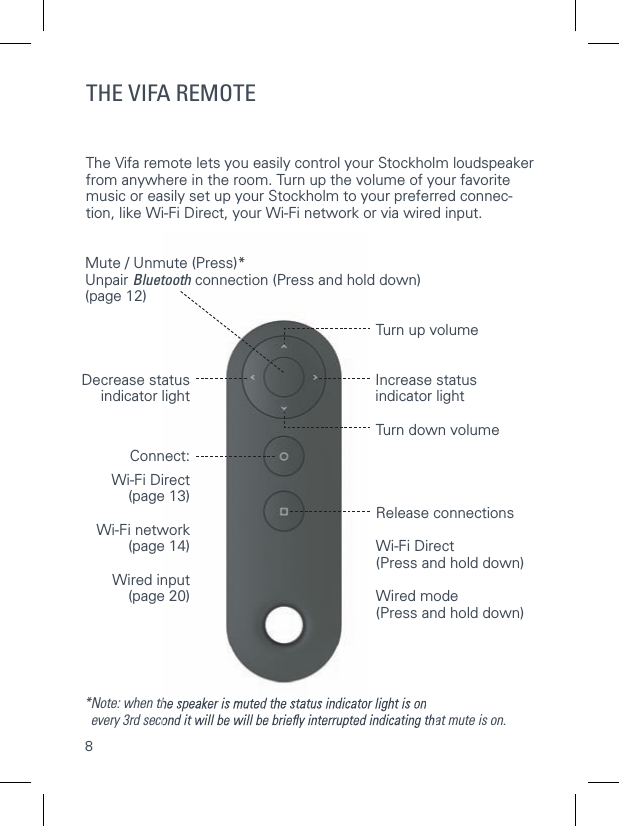
8*Note: when the speaker is muted the status indicator light is on   every 3rd second it will be will be briefl y interrupted indicating that mute is on.*Note: when the speaker is muted the status indicator light is on   every 3rd second it will be will be briefl y interrupted indicating that mute is on.Turn up volumeMute / Unmute (Press)*Unpair Bluetooth connection (Press and hold down) (page 12)Decrease status indicator lightIncrease status indicator lightTurn down volumeConnect:Wi-Fi Direct(page 13)Wi-Fi network (page 14)Wired input (page 20)Release connectionsWi-Fi Direct (Press and hold down)Wired mode (Press and hold down)THE VIFA REMOTEThe Vifa remote lets you easily control your Stockholm loudspeaker from anywhere in the room. Turn up the volume of your favorite music or easily set up your Stockholm to your preferred connec-tion, like Wi-Fi Direct, your Wi-Fi network or via wired input.
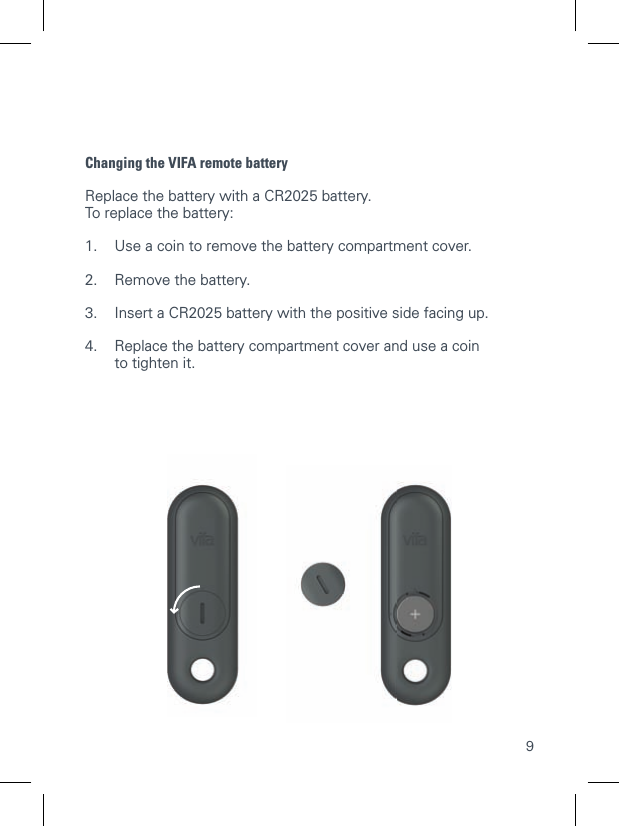
9Changing the VIFA remote batteryReplace the battery with a CR2025 battery.To replace the battery:1.  Use a coin to remove the battery compartment cover.2.  Remove the battery.3.  Insert a CR2025 battery with the positive side facing up.4.  Replace the battery compartment cover and use a coin   to tighten it.
10INPUT OPTIONS•  Bluetooth   Fast and easy and works for virtually every phone, tablet or MAC/PC - supports aptX for Hi-Fi sound. • Wi-Fi     Works for phones, tablets, MAC/PC Wi-Fi and networked DLNA enabled devices - supports Wi-Fi Direct. • Wired optical or analog    For music players, media players or televisions.•  Wired USB    USB playback works for iOS. USB will charge your device.
11INPUT OPTIONSCONNECTING PRIORITYStockholm automatically selects input for you based on the following rules. 1.  1st priority is Wi-Fi and USB   If Wi-Fi or USB is connected and playing music, other connections are disconnected. 2.  2nd  priority is Bluetooth   If  Bluetooth is connected and playing music, a wired analog or optical connection will be disconnected. 3.  3rd priority is wired   When  no  Bluetooth, USB or Wi-Fi is used, you can use the wired input. You can, however, lock Stockholm to wired input, look for further information on page 20.
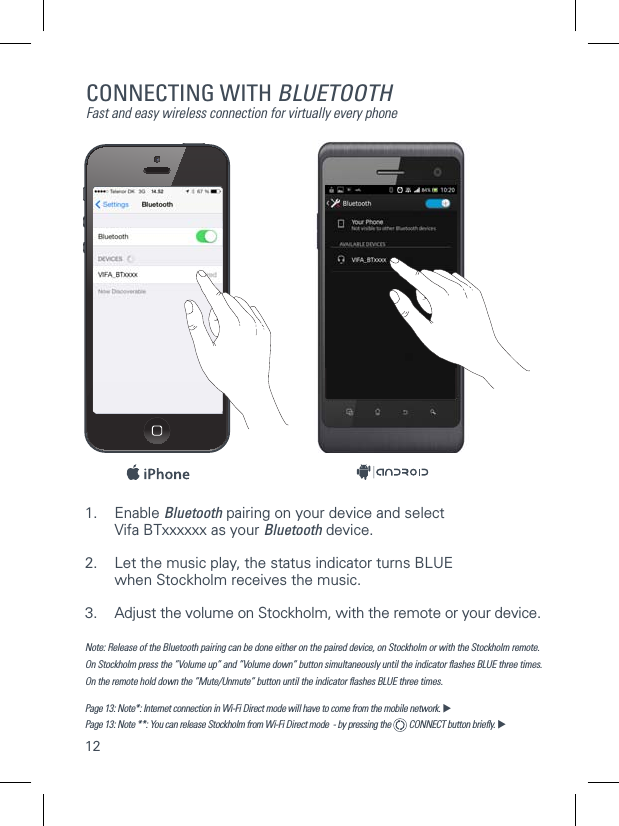
12CONNECTING WITH BLUETOOTHFast and easy wireless connection for virtually every phone1. Enable Bluetooth pairing on your device and select    Vifa BTxxxxxx as your Bluetooth device.2.  Let the music play, the status indicator turns BLUE    when Stockholm receives the music. 3.  Adjust the volume on Stockholm, with the remote or your device.Note: Release of the Bluetooth pairing can be done either on the paired device, on Stockholm or with the Stockholm remote. On Stockholm press the ”Volume up” and ”Volume down” button simultaneously until the indicator flashes BLUE three times.  On the remote hold down the ”Mute/Unmute” button until the indicator flashes BLUE three times.  Page 13: Note*: Internet connection in Wi-Fi Direct mode will have to come from the mobile network. Page 13: Note **: You can release Stockholm from Wi-Fi Direct mode  - by pressing the   CONNECT button briefly. 
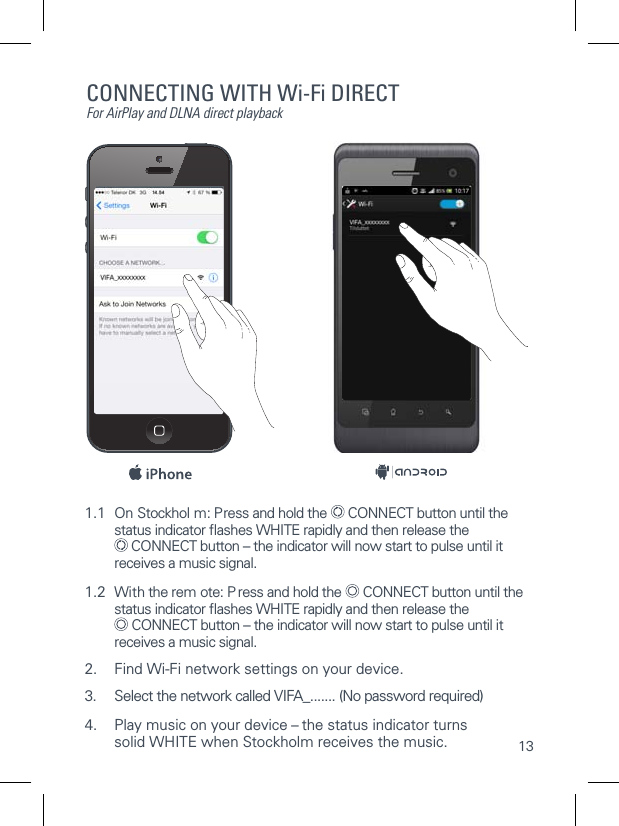
131.1  On Stockhol m: Press and hold the   CONNECT button until the   status indicator flashes WHITE rapidly and then release the    CONNECT button – the indicator will now start to pulse until it   receives a music signal.1.2  With the rem ote: P ress and hold the   CONNECT button until the   status indicator flashes WHITE rapidly and then release the    CONNECT button – the indicator will now start to pulse until it   receives a music signal.2.  Find Wi-Fi network settings on your device.3. Select the network called VIFA_....... (No password required)4.  Play music on your device – the status indicator turns  solid WHITE when Stockholm receives the music.CONNECTING WITH Wi-Fi DIRECTFor AirPlay and DLNA direct playback
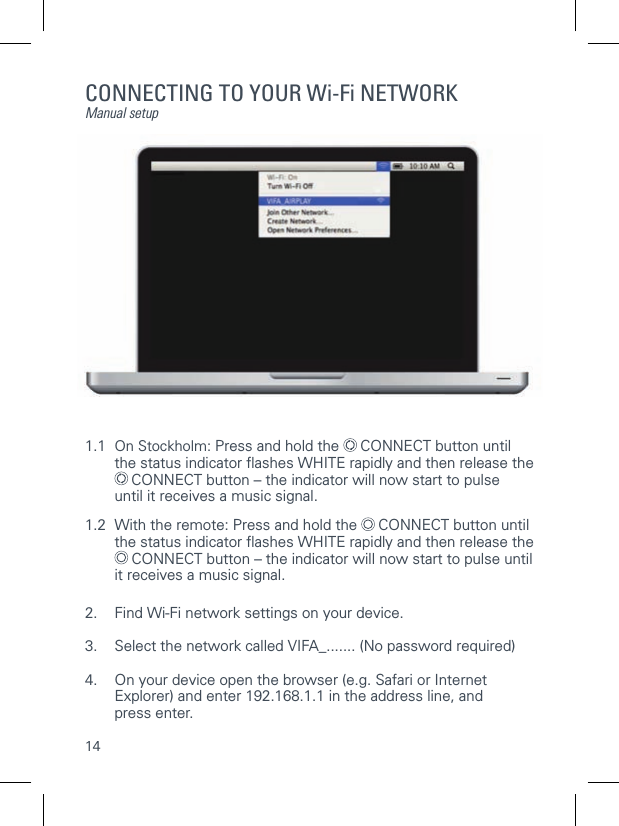
14CONNECTING TO YOUR Wi-Fi NETWORKManual setup1.1  On Stockholm: Press and hold the   CONNECT button until   the status indicator fl ashes WHITE rapidly and then release the   CONNECT button – the indicator will now start to pulse      until it receives a music signal.1.2  With the remote: Press and hold the   CONNECT button until   the status indicator fl ashes WHITE rapidly and then release the   CONNECT button – the indicator will now start to pulse until   it receives a music signal. 2.  Find Wi-Fi network settings on your device.3.  Select the network called VIFA_....... (No password required)4.   On your device open the browser (e.g. Safari or Internet Explorer) and enter 192.168.1.1 in the address line, andpress enter.
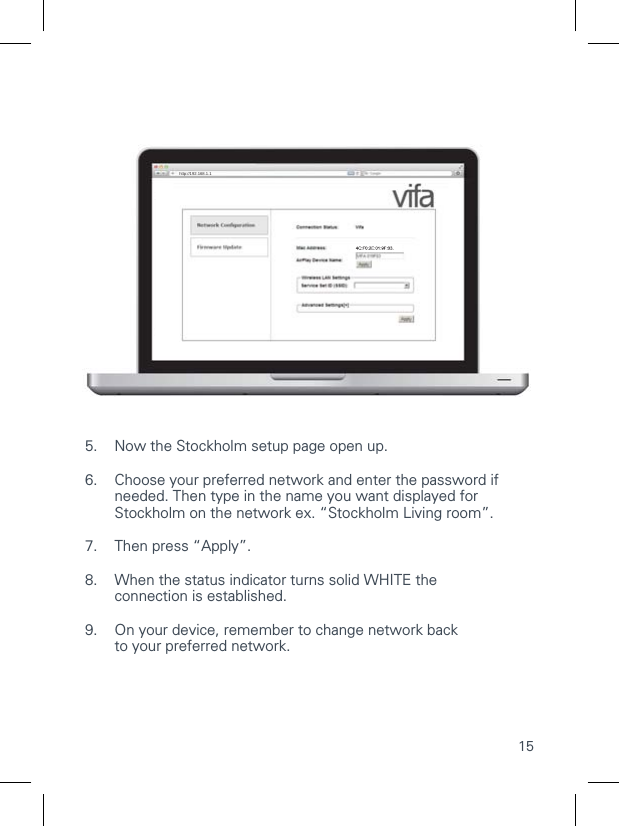
15CONNECTING TO YOUR Wi-Fi NETWORKManual setup1.1  On Stockholm: Press and hold the   CONNECT button until    the status indicator flashes WHITE rapidly and then release the    CONNECT button – the indicator will now start to pulse     until it receives a music signal.1.2  With the remote: Press and hold the   CONNECT button until    the status indicator flashes WHITE rapidly and then release the    CONNECT button – the indicator will now start to pulse until    it receives a music signal. 2.  Find Wi-Fi network settings on your device.3.  Select the network called VIFA_....... (No password required)4.  On your device open the browser (e.g. Safari or Internet  Explorer) and enter 192.168.1.1 in the address line, and press enter.5.  Now the Stockholm setup page open up.6.  Choose your preferred network and enter the password if     needed. Then type in the name you want displayed for    Stockholm on the network ex. “Stockholm Living room”.7.  Then press “Apply”.8.   When the status indicator turns solid WHITE the  connection is established.9.  On your device, remember to change network back  to your preferred network.http://192.168.1.1VIFA AIRPLAY SETUP
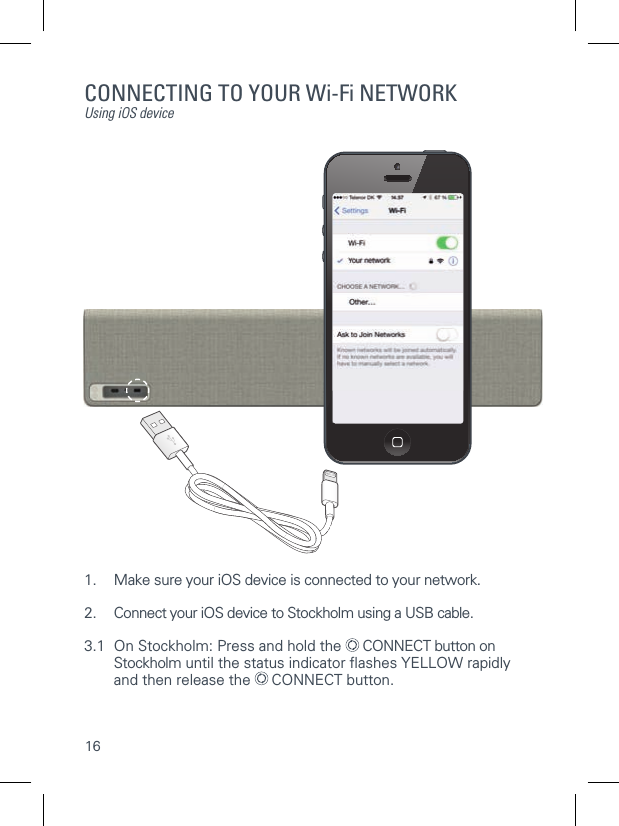
16CONNECTING TO YOUR Wi-Fi NETWORKUsing iOS device1.  Make sure your iOS device is connected to your network.2.  Connect your iOS device to Stockholm using a USB cable.3.1  On Stockholm: Press and hold the   CONNECT button on   Stockholm until the status indicator fl ashes YELLOW rapidly   and then release the   CONNECT button.
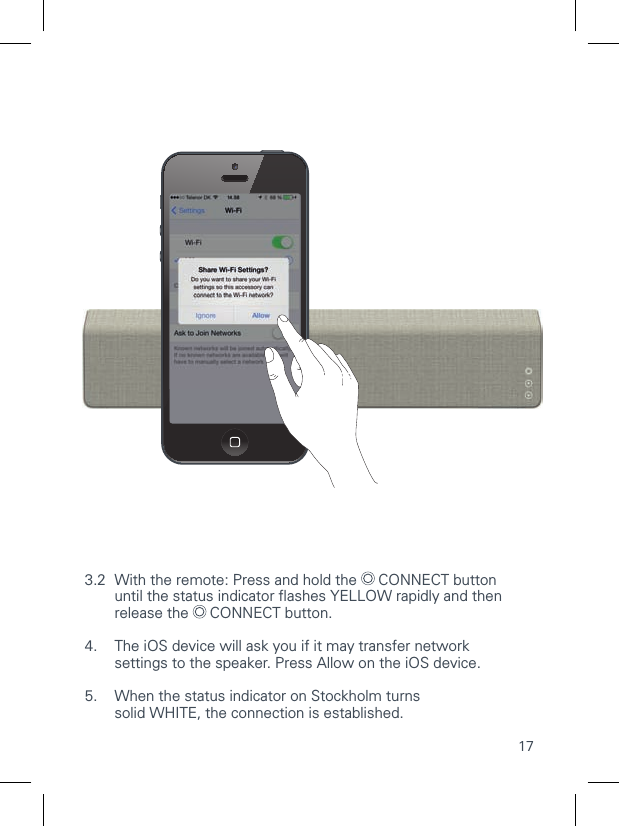
173.2  With the remote: Press and hold the   CONNECT button   until the status indicator fl ashes YELLOW rapidly and then    release the   CONNECT button.4.   The iOS device will ask you if it may transfer network settings to the speaker. Press Allow on the iOS device.5.   When the status indicator on Stockholm turnssolid WHITE, the connection is established.
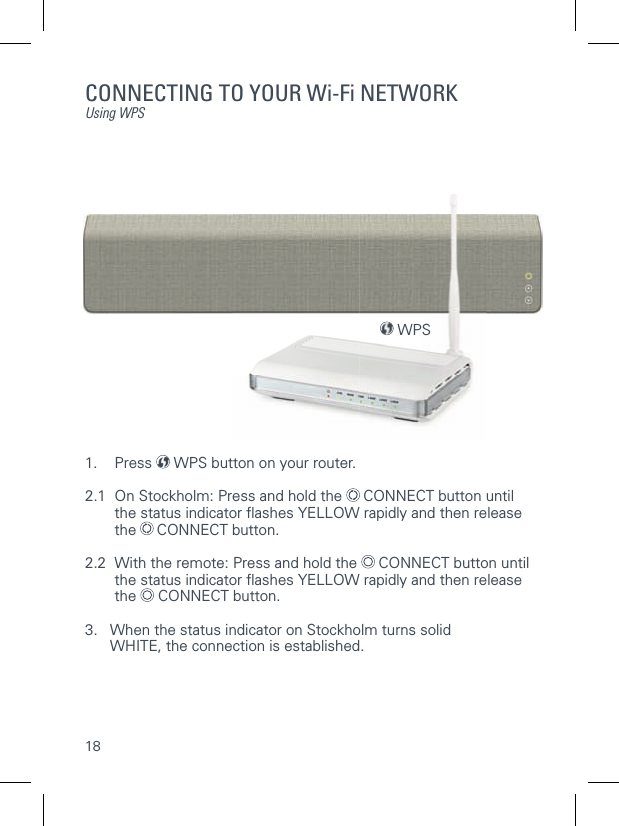
18CONNECTING TO YOUR Wi-Fi NETWORKUsing WPS1. Press  WPS button on your router.2.1  On Stockholm: Press and hold the   CONNECT button until   the status indicator fl ashes YELLOW rapidly and then release  the  CONNECT button.2.2  With the remote: Press and hold the   CONNECT button until     the status indicator fl ashes YELLOW rapidly and then release  the  CONNECT button.3.    When the status indicator on Stockholm turns solid WHITE, the connection is established.   WPS
19CONNECTING TO YOUR Wi-Fi NETWORKUsing WPS   WPSPLAYBACK THROUGH Wi-FiConnect your playback device and Stockholm to the same Wi-Fi network - and playback is simple, choose Stockholm as sound device or renderer on your playback device.For iOS device just press the AirPlay logoand choose Stockholm. Using iTunes on a MAC/PC, you can stream music through your preferred network to multiple Vifa Stockholms simultaneously.  You can even remote control iTunes with a free Apple remote app.In this way you can control the music stream from iTunes to multi-ple Vifa Stockholms with your iPhone, iPod or iPad.LIVE STREAMINGWe recommend that you connect Stockholm to your preferred  Wi-Fi network when possible. This gives you access to Wi-Fi streaming within your entire Wi-Fi network range, and allows  you to have stable streaming from internet radio services or music services.Please note: When streaming from the internet the playback  quality will depend on your internet connection. If the connection  is slow, dropouts may occur. Also be aware that internet connec-tion can be expensive when using a mobile phone.
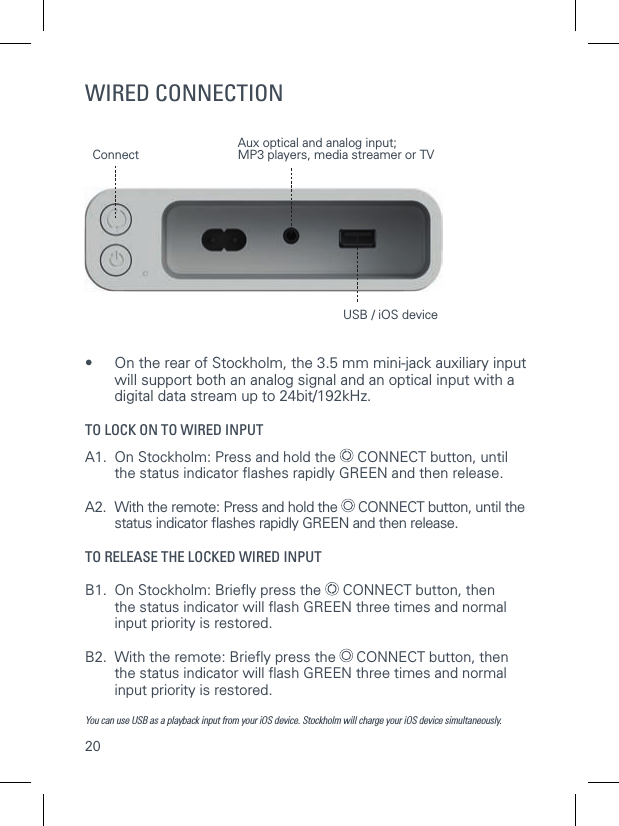
20WIRED CONNECTION•     On the rear of Stockholm, the 3.5 mm mini-jack auxiliary input will support both an analog signal and an optical input with a digital data stream up to 24bit/192kHz. TO LOCK ON TO WIRED INPUTA1.  On Stockholm: Press and hold the   CONNECT button, until   the status indicator fl ashes rapidly GREEN and then release. A2.  With the remote: Press and hold the   CONNECT button, until the   status indicator fl ashes rapidly GREEN and then release. TO RELEASE THE LOCKED WIRED INPUTB1.  On Stockholm: Briefl y press the   CONNECT button, then   the status indicator will fl ash GREEN three times and normal    input priority is restored.B2.  With the remote: Briefl y press the   CONNECT button, then    the status indicator will fl ash GREEN three times and normal    input priority is restored. You can use USB as a playback input from your iOS device. Stockholm will charge your iOS device simultaneously.Aux optical and analog input; MP3 players, media streamer or TVUSB / iOS deviceConnect
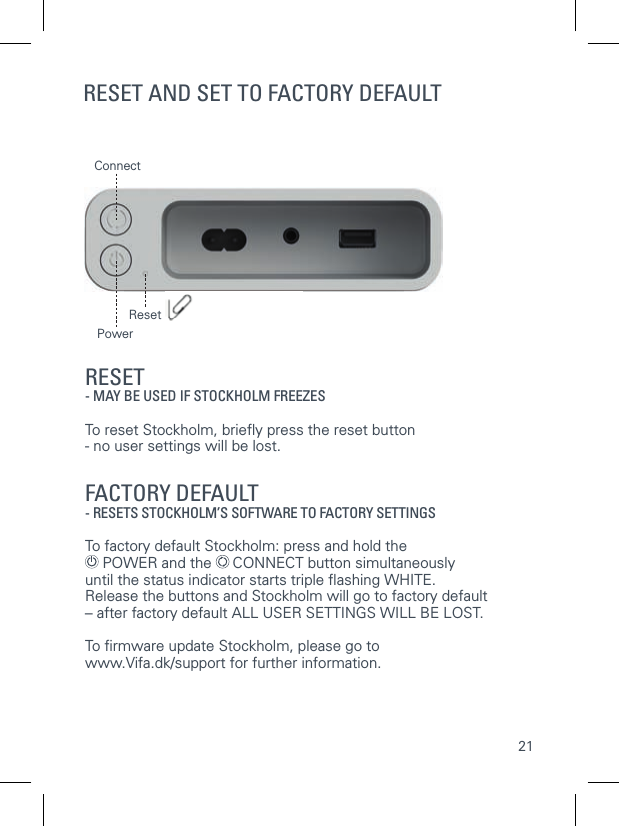
21ResetConnectRESET AND SET TO FACTORY DEFAULTRESET- MAY BE USED IF STOCKHOLM FREEZESTo reset Stockholm, briefl y press the reset button- no user settings will be lost. FACTORY DEFAULT  - RESETS STOCKHOLM’S SOFTWARE TO FACTORY SETTINGSTo factory default Stockholm: press and hold the  POWER and the   CONNECT button simultaneously until the status indicator starts triple fl ashing WHITE. Release the buttons and Stockholm will go to factory default– after factory default ALL USER SETTINGS WILL BE LOST.To fi rmware update Stockholm, please go to www.Vifa.dk/support for further information.Power
22THE VIFA APPTo get the most out of your Vifa Stockholm, download the free Vifa app. You can find links to the app. under “support” on the Vifa website.  The Vifa app allows you to:•  Adjust the sound to your preferred taste  or surroundings •  Change the name that Stockholm will show  on the Wi-Fi network •  Change the network settings on Stockholm •  Manage your inputs on Stockholm•  Adjust the light intensity of the ”status indicator”    www.vifa.dk/support
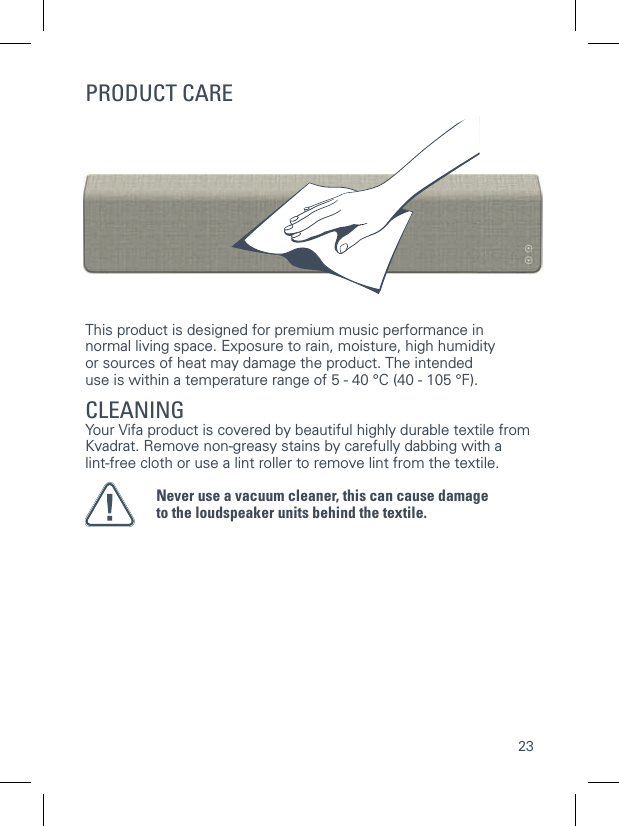
23This product is designed for premium music performance innormal living space. Exposure to rain, moisture, high humidityor sources of heat may damage the product. The intended use is within a temperature range of 5 - 40 °C (40 - 105 °F).CLEANINGYour Vifa product is covered by beautiful highly durable textile from Kvadrat. Remove non-greasy stains by carefully dabbing with a lint-free cloth or use a lint roller to remove lint from the textile.Never use a vacuum cleaner, this can cause damageto the loudspeaker units behind the textile.PRODUCT CARE
24TROUBLESHOOTINGIn the extreme case that Stockholm is pushed to overheating,  the status indicator lights RED constantly - please unplug the power cord and wait for approximately 5 min. before plugging in Stockholm and powering it up again.   Here you can find further support  on our Vifa products: www.vifa.dk/support
25SPECIFICATIONSDescription  Wireless loudspeaker Technical features  Bluetooth aptX  Wi-Fi Direct  Apple AirPlay   Works with DLNA   DSP signal processing   Force Balanced Woofers   Digital pure path amplifiersDrive units Tweeter  2 X 28 mm Vifa drive units with soft dome    and neodymium magnet.Midrange  2 X 80 mm Vifa drive units with    aluminium cone and neodymium magnet.Woofer  4 X 100 mm Vifa drive units with flat sandwich    cone and neodymium magnet. Mounted    mechanically back to back in a force balanced   configuration supported by 4 passive radiators.Frequency response  42Hz - 20kHz @ +/- 3 dBInput voltage  100 Volt - 240 Volt 50/60 HzMax. Rated power consumption  150 wattStandby power consumption  Less than 0.5 wattOutput  USB 5 volt / 2.1 A  Inputs  Bluetooth aptX   Wi-Fi Direct  Wi-Fi networked  Wired optical or analog (3.5 mm minijack)   Wired USB (only iOS device at present)Dimensions Height/Width/Depth  215 mm / 1100 mm / 100 mmNet weight  9.8 kgFrame  Diecast aluminiumTextile  Custom made Kvadrat textile
26REGISTER AND TRADEMARKSWe encourage you to register your  product at: www.vifa.dk/registerMade for iPhone 5s, iPhone 5c, iPhone 5, iPhone 4s, iPhone 4, iPhone 3GS, iPhone 3, iPad AIR, iPad (3rd and  4th generation), iPad 2, iPad, iPad mini with Retina dis-play, iPad mini, iPod touch (1st through 5th generation), iPod classic, and iPod nano (1st through 7th generation).AirPlay works with iPhone, iPad and iPod touch with iOS 4.3.3 or later, Mac with OS X Mountain Lion or later, and PC with iTunes 10.2.2 or later.USB works with iPhone 5s, iPhone 5c, iPhone 5, iPhone 4s, iPhone 4, iPhone 3GS, iPhone 3, iPad AIR, iPad (3rd and  4th generation), iPad 2, iPad, iPad mini with Retina display, iPad mini, iPod touch (1st through 5th generation), iPod classic, and iPod nano (1st through 7th generation).AirPlay, iPad, iPhone, iPod, iPod classic, iPod nano, iPod touch, and Retina are trade-marks of Apple Inc., registered in the U.S. and other countries. iPad Air, iPad mini, and Lightning are trademarks of Apple Inc.”Made for iPod”, ”Made for iPhone” and ”Made for iPad” mean that an electronic accessory has been designed to connect specifically to iPod, iPhone, or iPad, re-spectively, and has been certified by the developer to meet Apple performance standards. Apple is not responsible for the operation of this device or its compliance with safety and regulatory standards. Please note that the use of this accessory with iPod, iPhone, or iPad may affect wireless performance.A Vifa product is in compliance with   directives of relevance, including RoHS directive  – see product label for more regional regulatory approvals.
27REGISTER AND TRADEMARKSWe encourage you to register your  product at: www.vifa.dk/registerThe Wi-Fi Certified Logo is a certification mark of the Wi-Fi Alliance.The Bluetooth logo, the Bluetooth name and the combination are trademarks owned by Bluetooth SIG Inc.© 2013 CSR pic and its group companies. The aptX® mark and the aptX logo are trade marks of CSR pic or one of its group companies and may be registered in one or more jurisdictions.
For more information please visit our website at www.vifa.dk2014 08 REV.2

Navigation menu