HANNspree AD32U User Manual To The 08eda2f5 2fcd 4766 B852 6e20d35fc539
User Manual: HANNspree AD32U to the manual
Open the PDF directly: View PDF  .
.
Page Count: 25

ENGLISH
1
Contents
Regulatory Information ......................2
Description of Warning Symbols ......2
Safety Notices .....................................2
Preface ...............................................4
Warranty and Service / Repair ...........4
Cleaning ..............................................4
1. Getting Started ................................5
Package Contents• ..........................5
Introducing the TV• ..........................5
Features• ..........................................5
Foot Stand Installation• ....................6
Disconnecting the Stand• .................6
Installing the Wall Mount Kit• ............7
Control Panel• ..................................8
Input and Output Jacks• ...................9
Remote Control• .............................10
2. Setting up your TV ........................11
Power Connection• ........................ 11
Rear Connections• ......................... 11
Using the TV• .................................12
Turning the TV On and Off ...........12
Running Setup Wizard .................12
Selecting Your Content Source ....13
Performing an Automatic Channel
Search .........................................13
Setting Up Your Favorite
Channels ......................................13
Adjusting the ECO Dynamic
Backlight ......................................14
Using the PAP Function ...............14
Customizing the Input Settings ....14
Changing Your Location ...............14
Resetting to Factory Default
Settings ........................................14
3. Adjusting On-Screen Display (OSD)
Settings ..........................................15
On-Screen Menus Selection• .........16
Media Center Menu• ......................21
Viewing Photos ............................21
Playback Music ............................22
Watching Videos ..........................22
Time Shift Function• .......................22
PVR (Personal Video Record)• ......23
4. Troubleshooting ...........................24
5. Support Timing .............................25
6. Specications ...............................25
ENGLISH
2
Regulatory Information
CE Conformity Statement
This device is in conformity with
the requirements of EU Council
Directive 2004/108/EC on the
approximation of the laws of
the Member States relating to
electromagnetic compatibility
and Directive 2006/95/EC on
the harmonization of the laws of
Member States relating to electrical
equipment for use within certain
voltage limits. Hannspree cannot
accept responsibility for any
failure to satisfy the requirements
resulting from a non-recommended
modication of the device.
Description of Warning
Symbols
Safety Notices
Installation Safety Notes
Location
Avoid allowing the TV to get
prolonged exposure to sunlight or
other strong sources of heat. Leave
sufcient distance between the
TV and the wall to provide enough
space for the emission of heat.
To reduce the risk of re
or electric shock, do not
expose this apparatus to
rain or moisture. Apparatus shall not
be exposed to dripping or splashing
and no objects lled with liquids,
such as vases, shall be placed on
the apparatus.
These servicing
instructions are for use by
qualied service personnel
only. To reduce the risk of electric
shock, do not perform any servicing
other than that contained in the
operating instructions unless you
are qualied to do so.
To prevent the spread of
re, keep candles or other
open ames away
from this product at all times.
Installation
Do not place the TV in locations •
where there is excessive steam
or dust.
Avoid blocking the TV’s vents, do •
not place the TV on a bed, sofa,
carpet, or in a sealed cabinet.
Install the outdoor antenna away •
from power transmission lines to
avoid possible danger.
Personal Safety
To av• oid overloading the power
supply, never plug too many
electrical devices into an outlet,
power strip, or extension cable.
Dangerous high-voltage electric •
power components are located
inside the TV. To avoid electric
shock, do not disassemble the
casing.
Do not place or drop metals, small •
objects, or ammable materials
into the vent of the TV.
If the TV is dropped, falls down, •
or is otherwise damaged, unplug
the power cord immediately and
contact an authorized service
technician.
If any uid is sprayed or dropped •
into the TV, contact an authorized
service technician.
The screen of the TV is made of •
glass. Avoid hitting or scraping
it. If the screen is broken, do not
touch the broken glass.
Do not allow children to use the •
TV unattended.
Be careful when disconnecting the •
power plug. Hold the plug. Do not
attempt to disconnect the plug by
pulling on the power cord.
Batteries shall not be exposed to •
excessive heat such as sunshine,
re or the like.
A warning that excessive noise •
when using earphones and
headphones can cause a loss of
listening.
Manufactured
under license from
Dolby Laboratories. Dolby and the
double-D symbol are trademarks of
Dolby Laboratories.
CAUTION
RISK OF ELECTRIC SHOCK
DO NOT OPEN
Where the mains plug or an •
appliance coupler is used as the
disconnect device, the disconnect
device shall remain readily
operable.
If the remote control is not used •
for a long period, remove the
batteries and store them properly.
Handle damaged or leaking •
batteries carefully, and wash
hands with soap if they come
in contact with leaked chemical
uids.
If your remote control has two •
batteries, do not mix new and
old batteries, or the life of the
new batteries will be shortened.
Chemical uids may leak from the
old batteries.
Danger of explosion if battery •
is incorrectly replaced. Replace
only with the same or equivalent
type recommended by the
equipment manufacturer. Discard
used batteries according to
manufacturer’s instructions.
Refer to your local recycling or •
waste disposal rules and contact
a local waste disposal vendor to
dispose of used batteries.
The remote control cover may •
have a magnet in it, so do not
place magnetic sensitive items
such as watches, credit cards, or
ash media close to the cover.
Do not use force when pulling the •
remote control cover open; you
may damage the hinge.
WARNING
This symbol is used to alert users
to pay attention to important
descriptions regarding usage,
maintenance (repair), and
additional important information
related to this TV.
CAUTION
This symbol is used to alert users
to the risk of electric shocks due
to dangerous and uninsulated
components.
The “HD TV” Logo is a
trademark of DIGITALEUROPE.
(AD32U)
“DVB and the DVB logos
are trademarks of the DVB
Project”.
Trademark Notice
Hannspree products
incorporate High-
Denition Multimedia Interface (HDMI™)
technology.
HDMI, the HDMI Logo, and High-
Denition Multimedia Interface are
trademarks or registered trademarks
of HDMI Licensing LLC in the United
States and other countries.
“The Freeview words and logos are
trade marks of DTV Services Ltd
and are used under licence. © DTV
Services Ltd.”
The CI Plus Logo is a trademark of
CI Plus LLP.
ENGLISH
3
Copyright
© Copyright 2011 Hannspree, Inc.
All rights reserved. This manual is protected by copyright and distributed under licenses restricting its use, copying
and distribution. No part of this manual may be reproduced in any form by any means without the prior written
authorization of Hannspree. The TV described in this manual may include copyrighted software of Hannspree (or
other third parties). Hannspree (or other third parties) preserves the exclusive rights for copyrighted software, such
as the right to distribute or reproduce the copyrighted software. Accordingly, and to the extent allowed by applicable
law,anycopyrightedsoftwarecontainedintheproductdescribedhereinshallnotbedistributed,modied,reverse
engineered, or reproduced in any manner without the prior written authorization of Hannspree (or of other third
parties).
The Hannspree logos presented herein are trademarks of Hannspree. All other product names, trademarks or logos
mentionedhereinareusedforidenticationpurposeonly,andmaybethetrademarksorregisteredtrademarksof
their respective owners.
The purchase of the product described herein shall not be deemed to grant, either directly or by implication, estoppel
or otherwise, any license under the copyrights, patents, patent applications or trademarks of Hannspree, except for
the normal, non-exclusive use that arises by operation of law in the sale of a product.
RECYCLING INFORMATION
We,theHannspreecareverymuchaboutourenvironmentprotectionstrategyandrmlybelievethatithelpsushave
healthier earth via appropriate treatment and recycling of industrial technology devices at the end-of-life.
These devices contain recyclable materials, which can be re-decomposed and re-integrated into brand-new marvels.
Onthecontrary,othermaterialcanbeclassiedtohazardousandpoisonedsubstances.Westronglyencourageyou
to contact the provided information to recycle this product.
For more information, please visit
www.hannspree.com/
According to WEEE regulation, this TV can’t be handled as normal trash in Europe when it is out of usage.
Please refer to the recycle information from our website to handle it.

ENGLISH
4
Preface
Thank you for purchasing a Hannspree LED TV. Your new TV will allow you to enjoy superior audio and video while
enriching your lifestyle with advanced technology.
Please carefully read this manual in its entirety before setting up, using or operating your TV. To ensure the safe and
correct installation and operations of the TV, it is important that the safety and operation instructions in this manual
are followed.
This instruction manual is designed to assist you in setting up and using the TV. The information in this manual
has been carefully checked for accuracy; however, no guarantee is given to the correctness of the contents. The
information in this manual is subject to change without notice.
To the extent allowed by applicable law, Hannspree, Inc. (“Hannspree”) shall not be liable for direct, indirect, special,
exemplary, incidental or consequential damages arising from any defect or omission in this manual, even if advised
of the possibility of such damages in advance.
Warranty and Service / Repair
For complete warranty service information, please refer to the “Warranty Card” enclosed with your TV.
Service and Repair Information for United Kingdom:
Should the need for service arise, please contact HANNspree Technical Service Center and refer to the warranty
card for the Terms and Conditions.
Please visit HANNspree Europe Website:
http://www.hannspree.com/eu
and go to the “Service” – “Repair Service” section.
Packing Material Disposal:
Please refer to your local laws and directives to ensure an environmentally safe disposal.
Keep this manual for later use.
Cleaning
Instruction for cleaning the TV
1 Clean your TV frequently with a soft cloth to remove dust and dirt. More persistent dirt can be removed with a moist
cloth with soft soap.
2 Do not use detergents or any other aggressive cleaning. This might damage the housing or screen surface.
Notes:
The LED TV is for entertainment use only and visual display tasks are excluded.•
ThisdeviceusesaVGAconnectortoconnecttoaPC.Toreducetheinuenceofmainfrequencyonthesource•
signal, use a VGA monitor cable with ferrite shield.
ENGLISH
5
Package Contents
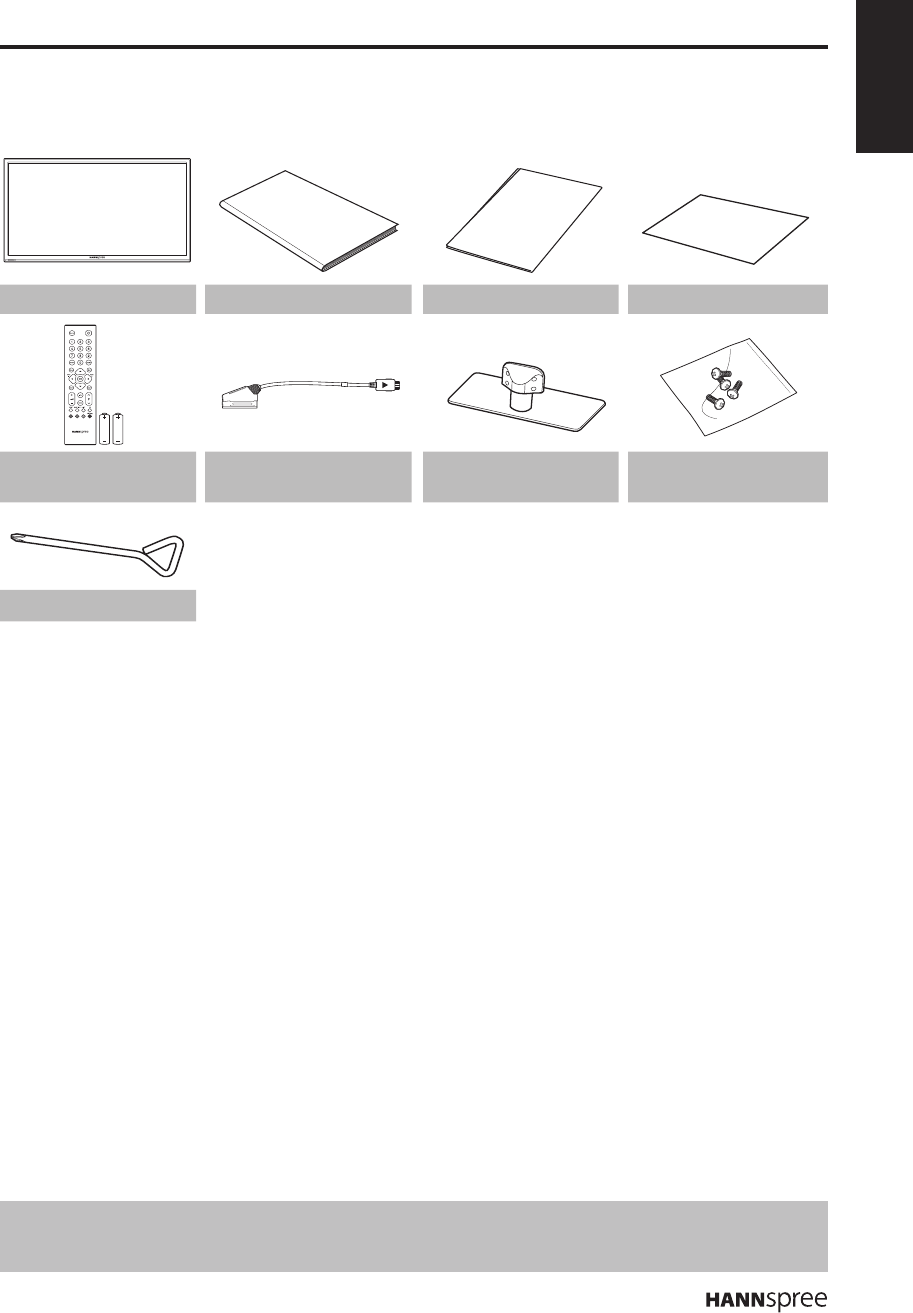
Make sure the following components are included in the box. Please contact Hannspree Customer
Service immediately if anything is missing or damaged.
TV User’s manual Quick start guide Warranty card
Remote control
and batteries
SCART adapter TV stand Screws
Simple screwdriver
Introducing the TV
You can watch DVB-T, DVB-C broadcast, cable, or digital television channels, and easily connect a
VCR, STB or DVD player to the SCART, HDTV (Component), and HDMI input ports (location of these
ports depends on model). You can also use the TV as a monitor for your PC by connecting it through
the VGA port.
Convenient control buttons located on the TV and a handy remote control let you change channels,
adjust the volume, and change display settings through an easy-to-use on-screen display menu system.
The built-in stereo speakers provide full rich sound and a convenient audio output port lets you connect
to an external audio system or earphones.
Features
TV Tuner: Built-in • TV Tuner (analog, DVB-T,
DVB-C)
Audio/ Video support:•
– SCART input
– VGA (PC) input
– HDMI inputs
– HDTV (Component) input
– R/L audio inputs
– VGA(PC) audio input
– 3.5 mm stereo earphone output
– SPDIF output
On-Screen Display (OSD) me• nu system
Tel• etext (TV RF+SCART) 1.5v. with 1000
pages memory
Built-in stereo speakers•
Image Enhancement Technology•
– 3:2/2:2 pull down (24P)
– 3D Comb Filter
Noise Reduction•
Advanced 3D de-interlacing•
Edge Enhancement•
HDTV (32”)•
PVR and Time Shift functions•
Note:
The supporting devices mentioned in this manual may vary on different models. For more information, please •
refer to the manufacturer’s user manual or the Quick Start Guide of your TV model.
1. Getting Started
User's Manual
Quick Start
Guide
Warranty Card
ENGLISH
6
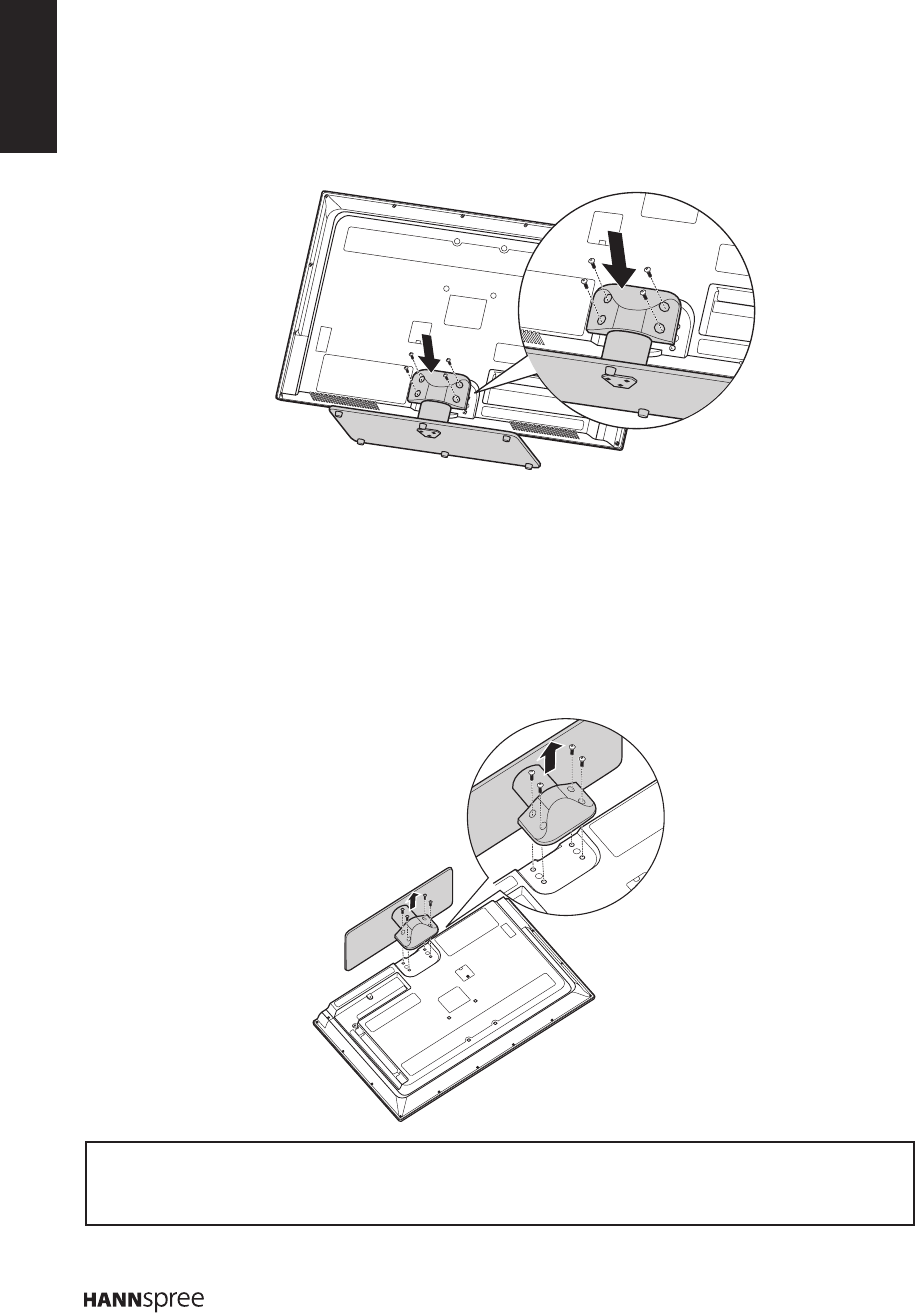
Foot Stand Installation
1 Carefully place the TV screen side down on a cushioned surface to protect the screen from damage.
n Install only with another person’s assistance.
n Make sure to distinguish between the front and back of the stand when assembling them.
2 Attach the foot stand and secure it with the included screws. Please fasten with a cross screw driver.
Disconnecting the Stand
1 Carefully place the TV screen side down on a cushioned surface to protect the screen from damage.
2 Remove the screws and detach the stand from the TV.
Installing the LED TV requires special skill that should only be performed by qualied service
personnel. Customers should not attempt to do the work themselves. Hannspree bears no
responsibility for improper mounting or mounting that results in accident or injury. You can ask a
qualied service personnel about using an optional bracket to mount the TV to the wall.
ENGLISH
7
Installing the Wall Mount Kit
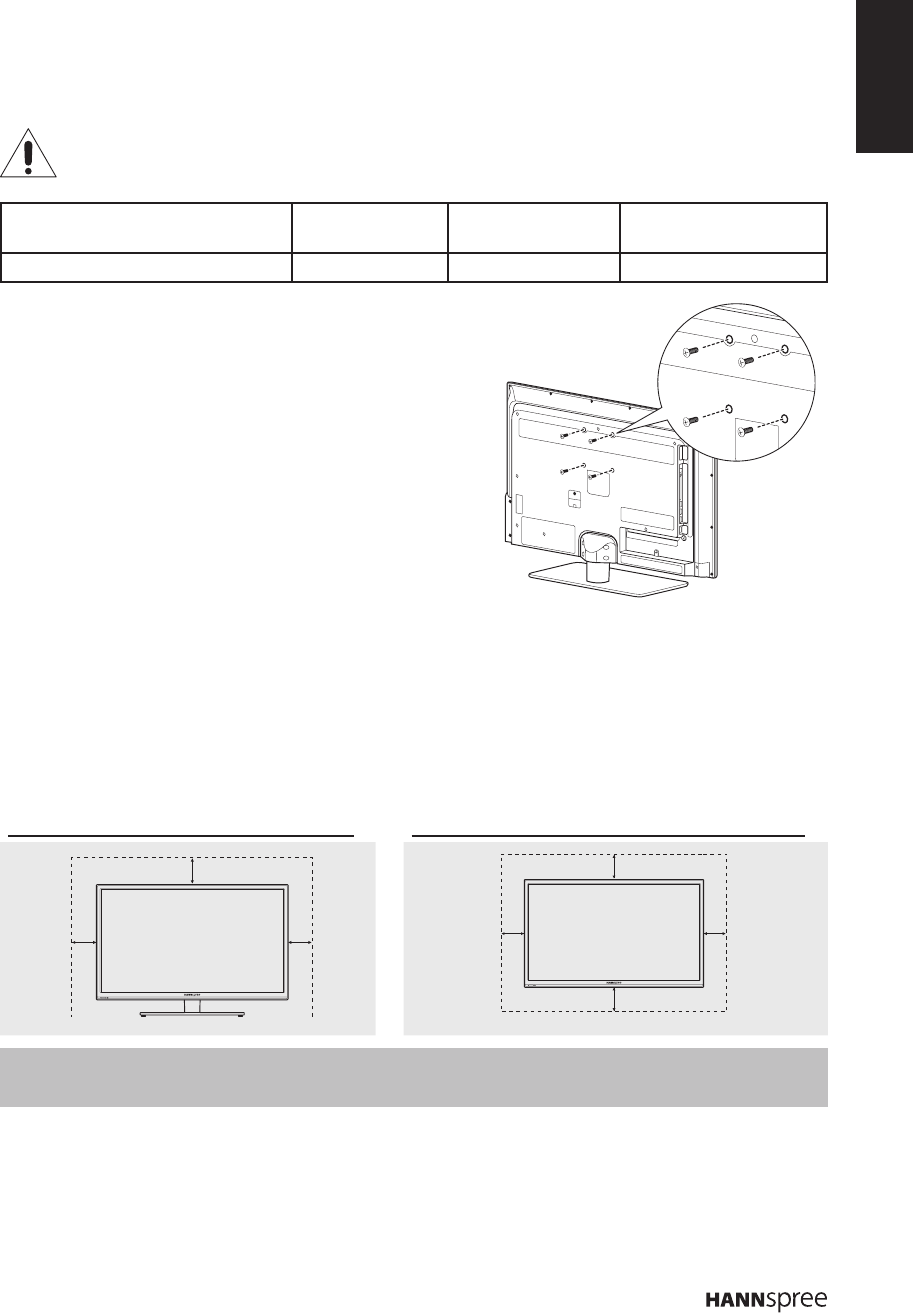
Wall mount items (sold separately) allow you to mount the TV on the wall. For detailed information on
installing the wall mount, see the instructions provided with the Wall Mount items. Contact a technician
for assistance when installing the wall mounted bracket. Hannspree is not responsible for any damage
to the product or injury to yourself or others if you select to install the TV on your own.
n Do not install your Wall Mount Kit while your TV is turned on. It may result in personal
injury due to electric shock.
VESA-compatible wall bracket
(WxH)
Mount holes
number Screw type Maximum loading
100x100 mm 4 Metric 4 x 12 mm 60 kg
1 Purchase a VESA compatible wall bracket (please refer
to the table above).
2 Locate your ideal TV position on the wall.
3 Fixthewallbracketrmlyonthewall.
4 Secure the TV to the bracket using the 4 mount holes on
the back and center of the TV.
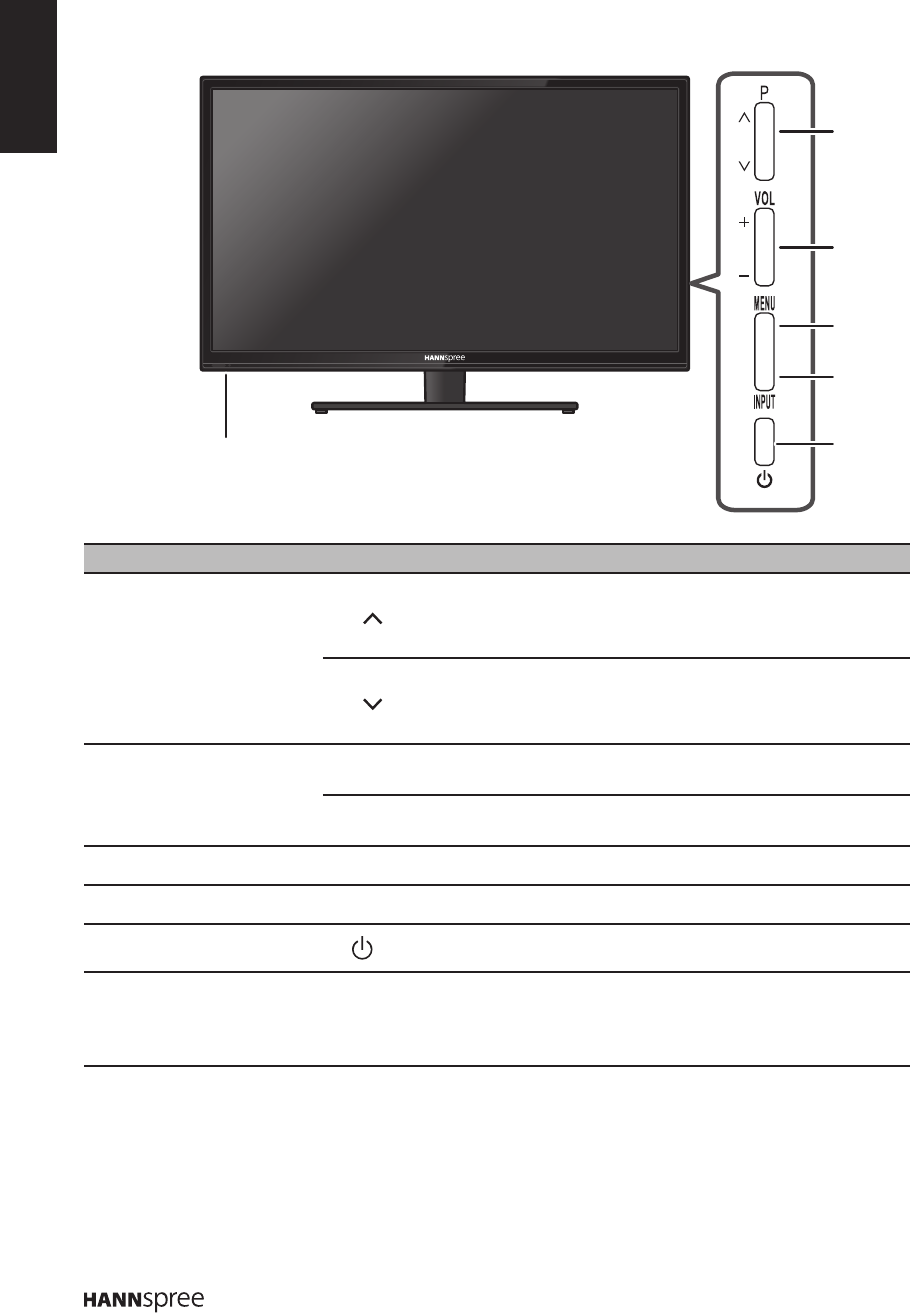
Securing the Installation Space
Keep the required distances between the product and other objects (e.g. walls) to ensure proper
ventilation.Failingtodosomayresultinreoraproblemwiththeproductduetoanincreaseinthe
internaltemperatureoftheproduct.Installtheproductsothattherequireddistancesshowninthegure
are kept.
n When using a stand or wall-mount, use parts provided by Hannspree only.
When installing the product with a stand When installing the product with a wall-mount
Note:
PleasereadtheinstructionsofyourspecicwallbrackettoproperlywallmounttheTV.•
10 cm
10 cm
10 cm 10 cm 10 cm
10 cm
10 cm
ENGLISH
8
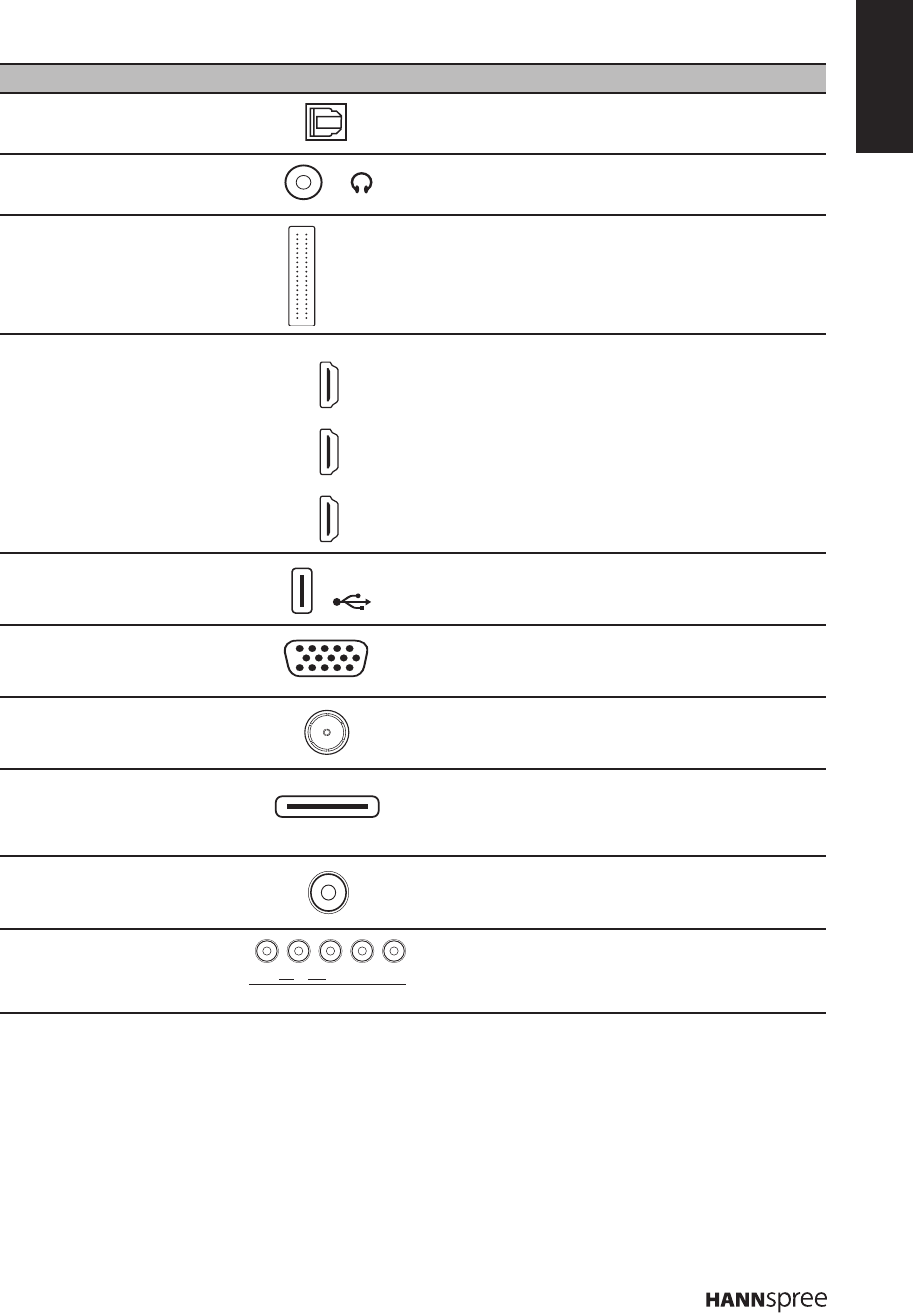
Control Panel
No. Description Button Function
1 Program select
P
Press to increase the program number or move upward to
the previous item on the OSD menu.
During standby mode, press to turn the TV on.
P
Press to decrease the program number or move downward
to the next item on the OSD menu.
During standby mode, press to turn the TV on.
2 Volume adjust
VOL + Press to increase the volume or move to the right on the
OSD menu.
VOL - Press to decrease the volume or move to the left on the OSD
menu.
3 Menu MENU Press to turn the on-screen display (OSD) menu on / off.
4 Input INPUT PresstoconrmtheselectionontheOSDmenu.
5 Power Press to turn the TV on or off.
6Light sensor and Remote IR
sensor
Used to detect the current level of visible light in the
surrounding environment.
Receive incoming remote control commands.
1
5
2
3
4
6
ENGLISH
9
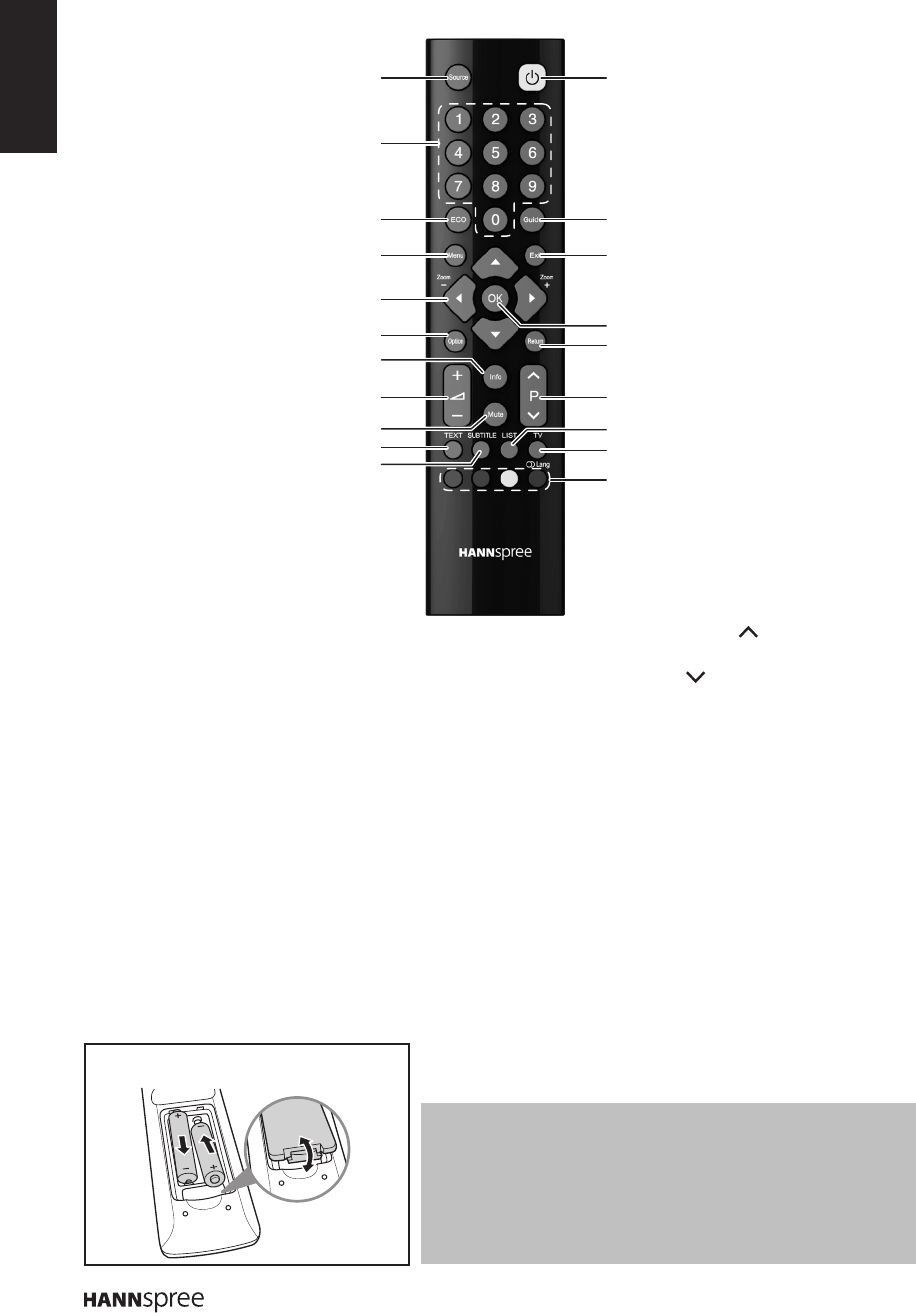
Input and Output Jacks
Please refer to the front cover illustration for the Input & Output location.
No. Description Connector Function
1 SPDIF
SPDIF
Connect to a digital audio output device such as
a home theater.
2 Earphone Output Connect to earphones or external speakers with
built-inamplier.
3 CI
CI SLOT
Connect to a CI device (the CI slot as CI+).
4HDMI 1/HDMI 2/
HDMI 3 Input
1
2
3
HDMI
Connect an HDMI equipment or an HDMI-DVI
adapter cable to devices such as a DVD player
or set-top box.
5 USB
USB
ConnecttoaUSBdevicesuchasaUSBash
drive or USB hard disk drive.
6 VGA (PC IN)
PC IN
VGA
Connect to a PC’s VGA port.
7 Cable/Antenna
DTV/TV
CABLE/ANTENNA
Connect to an antenna or cable TV.
8 SCART Adapter
SCART
ADAPTER
Connect to an external device, such as a VCR,
STB, or a DVD player using the included SCART
adapter cable.
9 PC Audio Input
PC IN
AUDIO
Connect to a PC’s line / audio port.
10 Component Inputs
COMPONENT
YPbVIDEO Pr R-AUDIO-L
Connect to an external device, such as a VCR,
STB, or a DVD player.
ENGLISH
10
Notes:
For best results, use the remote control within a proper distance •
from the front of the TV. Do not exceed an angle of 30 degrees
when pointing at TV.
The operational distance may be shortened when the signal •
sensor is directly exposed to strong light.
Aim the transmitter on the remote control at the signal sensor and •
ensure that there are no obstacles between them.
Inserting Batteries (Battery size: AAA)
1
2
3
12
4 14
15
616
8
10
17
19
20
5
18
7
9
11
13
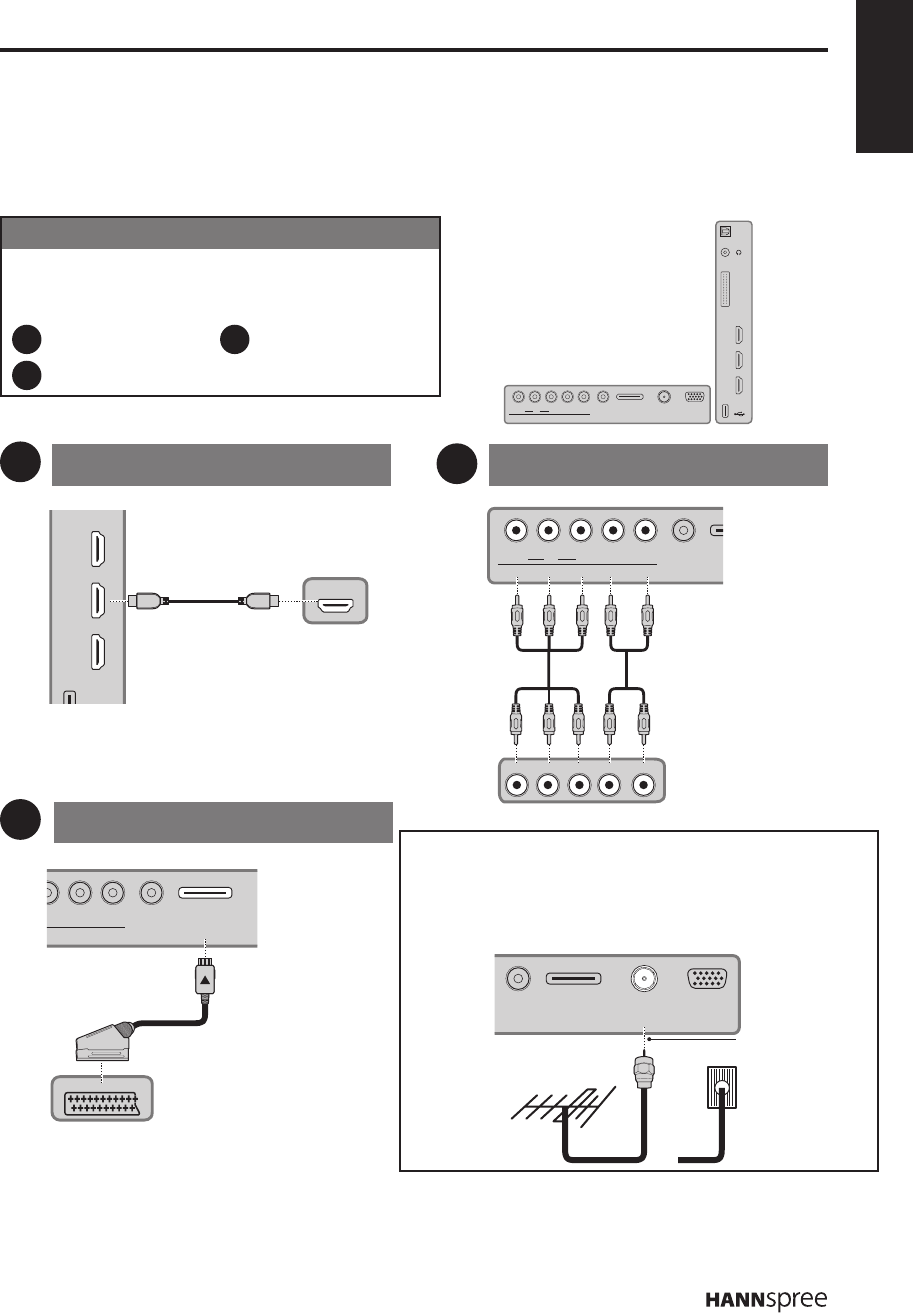
Remote Control
1 Source
Press to select the input
signal type selections.
2 Keypad
Press to select a program
directly. Press 0-9 to enter
the program numbers (press
1 and 0 for program 10).
3 ECO
Press to toggle ECO
dynamic backlight setting.
4 Menu
Press to access the main
menu, return to the previous
menu, or exit the menu
screen.
5 Arrows
p q To navigate in the
main menu, to select menu
options, to switch to the
previous or next photo, song,
or video in USB mode.
t u (*Zoom +-) To navigate
in the main menu; to set
functions and change values.
u can also be used to open
the corresponding submenu.
* To select the picture format.
6 Option
Press to display the Quick
Access menu: Picture preset,
Sound preset, Time shift,
PVR, Schedule list, and
USB.
7 Info
Press to display program
information (if available).
8 Volume adjust
Press + to increase audio
volume. Press - to decrease
audio volume.
9 Mute
Press to toggle the sound off
and back on again.
10 Teletext mode
Press to toggle teletext on or
off.
11 Subtitle
With an ATV source, if teletext
mode is activated and the
teletext has a subtitle page,
press to display the subtitle
page. With a DTV source,
press to select a subtitle
language available for
selected digital TV program.
12 Power
Press to turn the TV on or off.
13 Guide
Press to display detailed
programming information for
channels (only for DTV).
14 Exit
Press to exit the menu screen
or Teletext.
15 OK
Press to enter a submenu or
activate a setting; to freeze/
unfreeze the picture in digital
TV mode.
16 Return
Press to return to the
previous channel; to return
to the previous menu in USB
function.
17 Select program
Press P to increase the
program number. Press
P to decrease the program
number.
18 List
To display channel list.
19 TV
Press to access conventional
analogue TV mode.
20 Color buttons
Press the colored buttons to
performspecictasksinthe
OSD menu or teletext mode.
Blue (Lang): To select a
sound type available for
selected analog TV program,
to select an audio language
available for selected digital
TV program.
ENGLISH
11
2. Setting up your TV
Power Connection
Insert the plug at the end of the power cord into a power outlet.
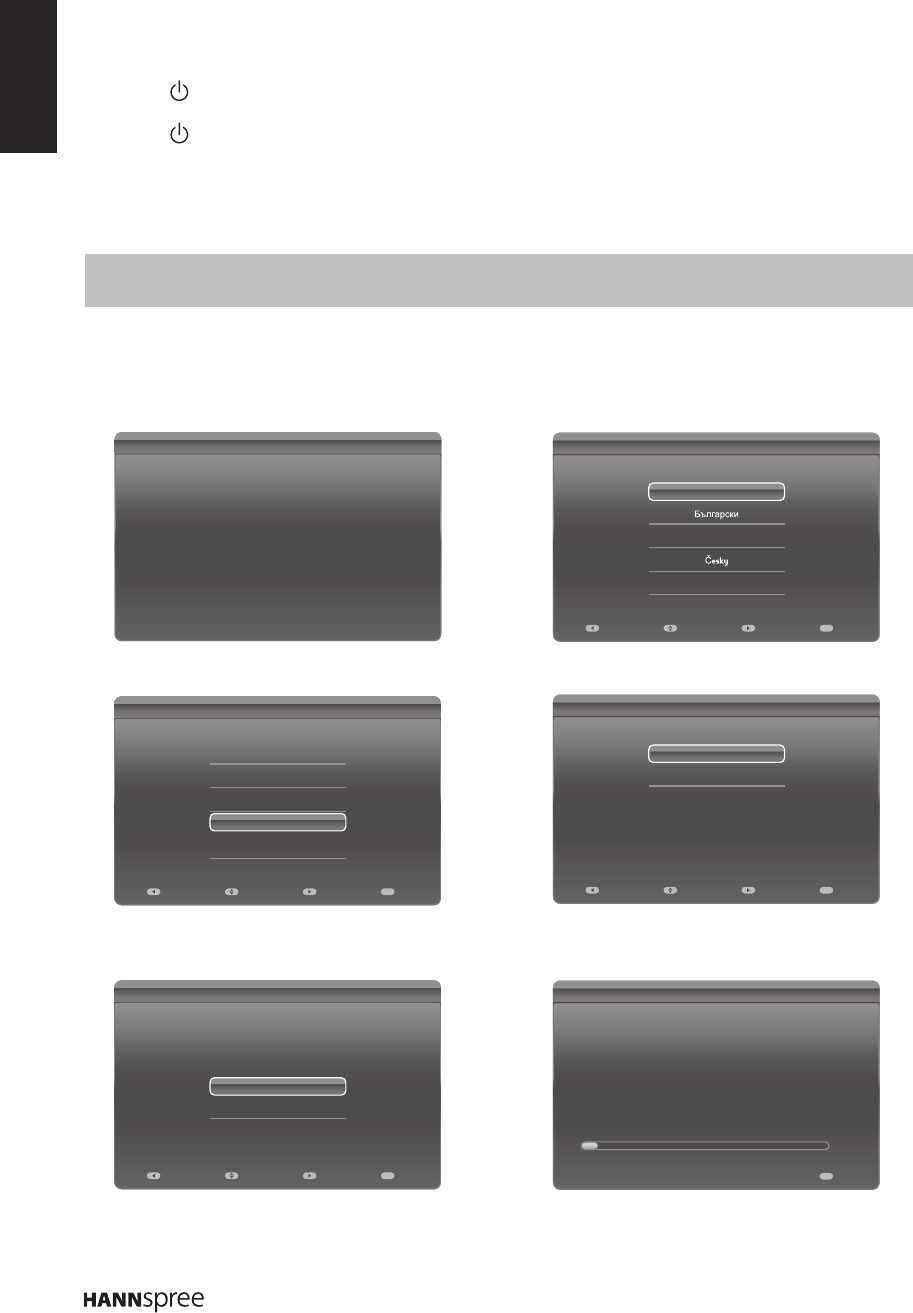
Rear Connections
See the illustration and table below for device connection instructions.
Connection Order
HDMI is the best way to connect a device. If it’s not
available, move down the list in order until you nd a
connection that’s available on each device.
HDMI Component
SCART
1
2
3
USB
HDMI
HDMI
COMPONENT PC IN
S
YPbVIDEO Pr R-AUDIO-L AUDIO
A
YPb/CbPr/Cr LR
Use HDMI to connect
external devices when
available. If not available, use
Component.
COMPONENT PC IN PC INSCART DTV/TV
YPbVIDEO Pr R-AUDIO-L AUDIO ADAPTER CABLE/ANTENNA VGA
SPDIF
1
2
3
USB
CI SLOT
HDMI
HDMI Component
SCART
* Typical Layout
1
3
2
12
3
Use COMPONENT to
connect with the AV
devices.
O
NENT PC IN SCART
D
Y
R-AUDIO-L AUDIO ADAPTER CAB
L
SCART
Use SCART to
connect with the
AV devices that are
equipped with the
SCART connectors
using the included
SCART adapter
cable.
Antenna/Cable
Use this connection when you need to connect directly to
an antenna or cable system instead of using a cable box.
Antenna Cable TV
Be careful not
to bend the
copper wire.
PC IN PC INSCART DTV/TV
AUDIO ADAPTER CABLE/ANTENNA VGA
Or
RF Coaxial Wire (75 Ω)
ENGLISH
12
Using the TV
Turning the TV On and Off
1 Press on the control panel or remote control to turn the TV on.
2 Press again. The power LED turns red, indicating that the TV is off.
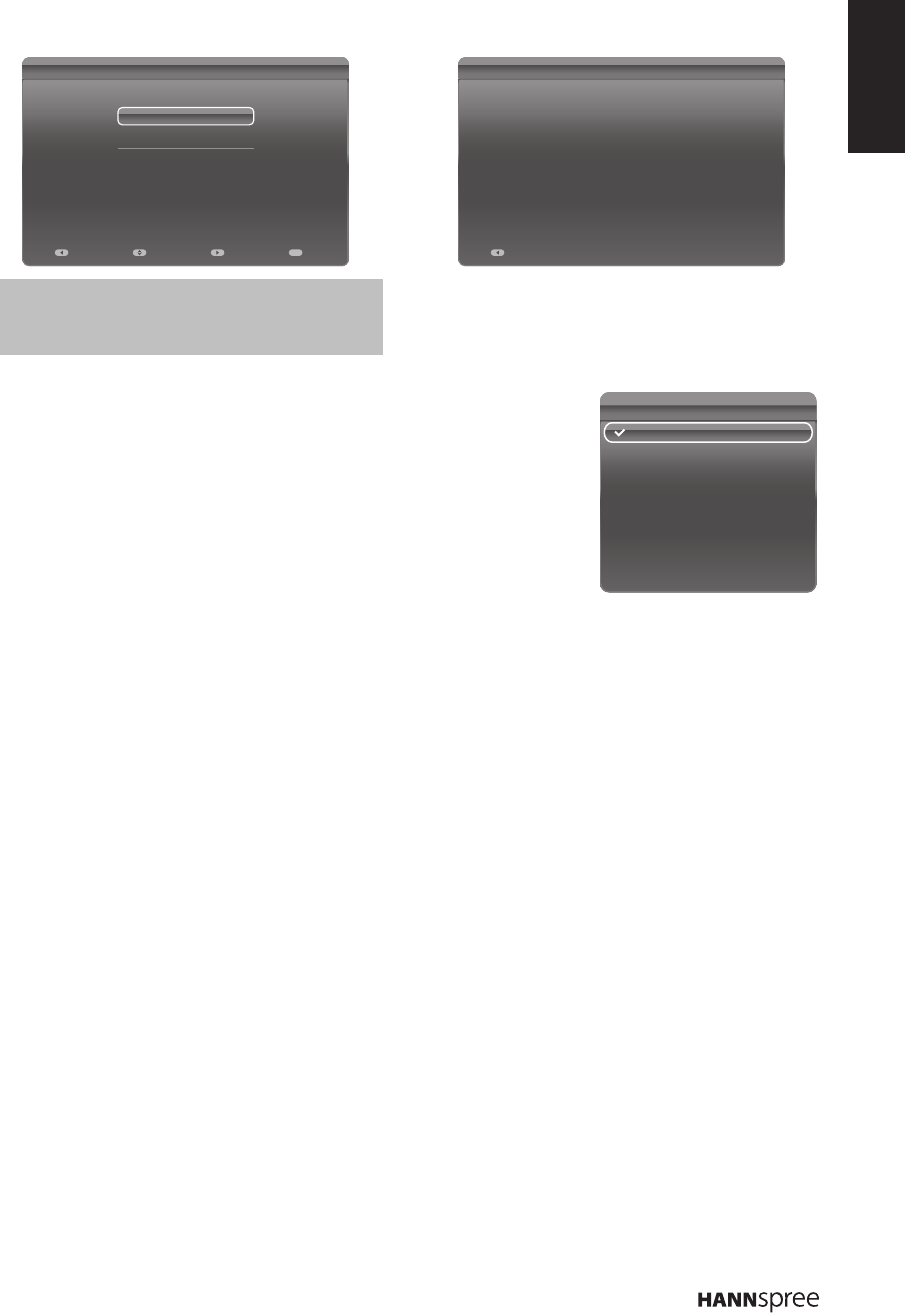
Running Setup Wizard
TheSetupWizardisdisplayedonthescreenwhenyouturnonyourLEDTVforthersttime.
1 The Wizard appears to guide you through
the initial setup. Press OK to start.
3 Select your country.
5 Select Scan and press OK for channel
scan.
2 Select your language for the on-screen
display (OSD) menu.
4 Select your tuner mode.
6 The channel scan may take a while to
complete.
Initial Setup Welcome
Welcome to use the Wizard for Initial Setup !!
Please press [OK] to start the wizard.
Initial Setup Country
Please select your country:
Spain
Finland
France
United Kingdom
Italy
Back Next Exit
Exit
Select
Initial Setup Language
Please select your language:
English
Hrvatski
Dansk
Back Next Exit
Exit
Select
Initial Setup Tuner Mode
Please select your tuner mode:
Air
Cable
Back Next Exit
Exit
Select
Initial Setup Channel Scan
First, please connect antenna.
Start channel scan now?
If you skip this step, the channel scan could be performed in Menu.
Scan
Skip Scan
Back Next Exit
Exit
Select
Initial Setup Channel Scan
The channel scan may take a while to complete.
Status: Scanning.
Analog channels: 0
Digital channels:0
Cancel
Exit
8%
Note:
Press • p/q on the remote control to move through the menu. Press OK to select.
ENGLISH
13
7 Once the automatic search ends, select
your location.
Note:
In Home mode, TV will be powered off •
automatically if there is no operations in 4 hours.
8 Press OK when initial setup is completed.
Selecting Your Content Source
You can watch cable or broadcast TV, play DVD or connect to your PC.
To select the source signal:
Press • Source on the remote control. The Input Source menu
appears.
Press • p/q to highlight the desired source, then press OK to
conrm.
Performing an Automatic Channel Search
BeforeusingtheTVtoviewprograms,youneedtoactivatethechannelsearchrst.
1 Press MENU on the control panel or press Menu on the remote control to enter the TV menu.
2 Select Tuner mode.
3 Select Channel install > Automatic search.
4 Select Country and press OK.
5 Select the signal type.
6 Press OK/u on the remote control to run the channel search.
Setting Up Your Favorite Channels
1 Press LIST.
2 Press the yellow button to enter Channel list selection. Press p/q to select the favorite list you
want to set up your favorite channels. Then press OK to enter the selected list.
3 Press the blue button to start to edit your favorite list. Press p/q to scroll through the channel list
and press OK to select it.
n Repeat this procedure to setup other favorite channels.
4 Press LIST/Exit to exit.
Initial Setup Location
Please select your location:
Home
Shop
Back Next Exit
Exit
Select
Initial Setup Complete
Back
Congratulations !!
Completed Initial Setup.
Please press [OK] to exit.
Source
TV
CMP
AV
VGA
HDMI1
HDMI2
HDMI3
No label
No label
No label
No label
No label
No label
ENGLISH
14
Note:
The default password is 1234.•
Adjusting the ECO Dynamic Backlight
1 Press Menu on the remote control to display the main menu.
2 Select Picture > ECO Dynamic back light.
3 Press t/u to select the desired setting. At this time, the Picture preset option under Picture will be
set at Personal synchronically.
4 Press Exit to close the menu.
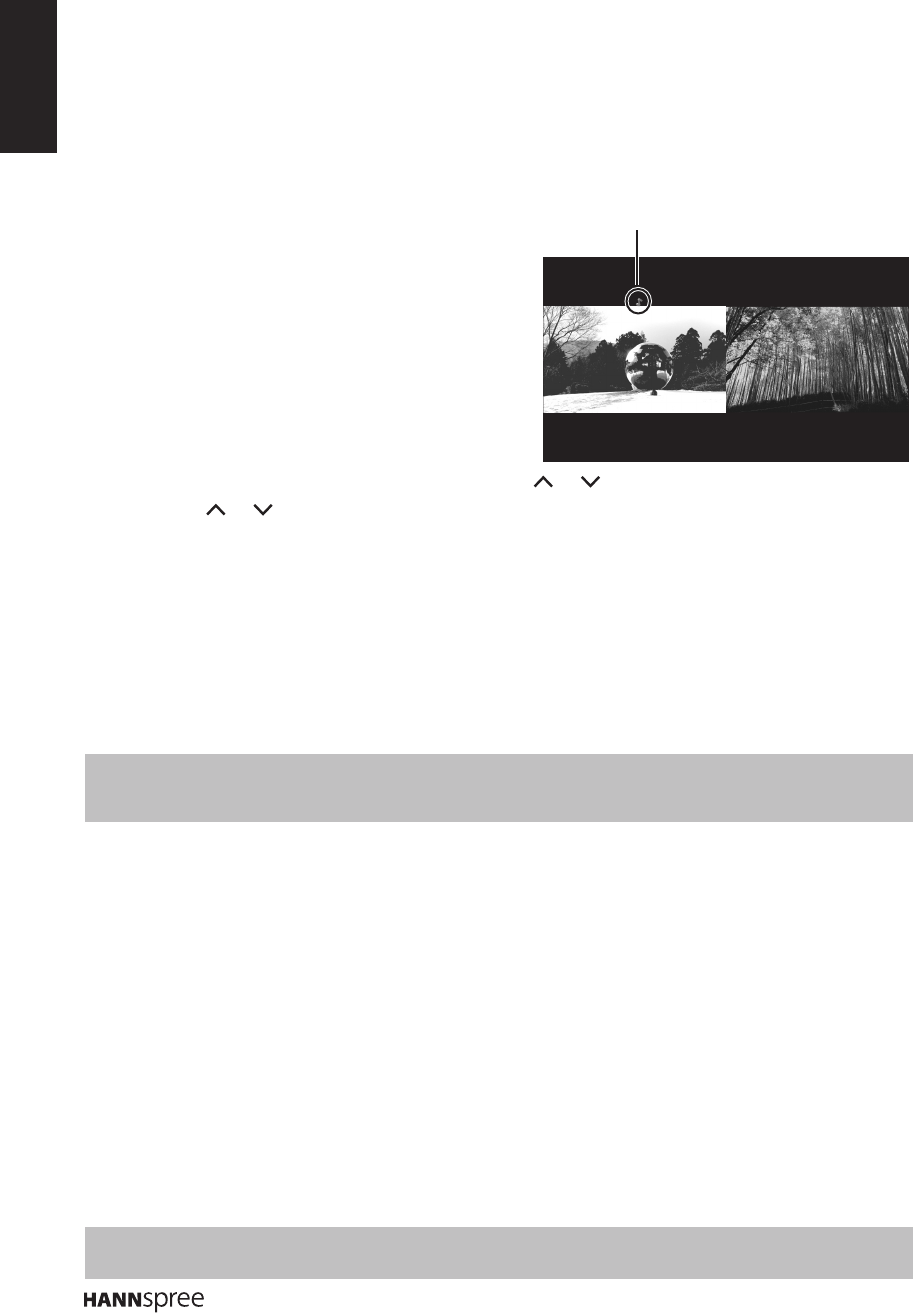
Using the PAP Function
1 Press Menu on the remote control to display the
main menu.
2 Select Setup > PAP and press OK/u to enter its
submenu.
3 To activate the PAP function, press t/u to select
On.
4 Press t/u to set the position of the TV window.
5 Press t/u to toggle the focus window.
6 When focus is on TV window, the digit buttons and P /P work in TV. When focus is on other
windows, P /P can change available extension sources.
Customizing the Input Settings
1 Press Menu on the remote control to display the main menu.
2 Select TV > Input settings and press OK/u to enter its submenu.
3 Press p/q to select a connector your equipment is connected to.
4 Press t/u to select the device type that is attached to this connector.
5 Press Menu to return to the TV menu.
Note:
Afterconguringtheabovesetting,theselectedsourcelabelwillbedisplayedafterthenameselectedinthe•
source list.
Changing Your Location
1 Press Menu on the remote control to display the main menu.
2 Select Setup > Location.
3 Press t/u to select your location (Shop or Home).
4 Press Exit to close the menu.
Resetting to Factory Default Settings
1 Press Menu on the remote control to display the main menu.
2 Select TV > Reset and press OK/u to enter its submenu.
3 Use the digit buttons to enter the password.
4 Press◄/►toselectOK and press OKtoconrm.
5 The Initial setup menu appears. Follow the on-screen instructions.
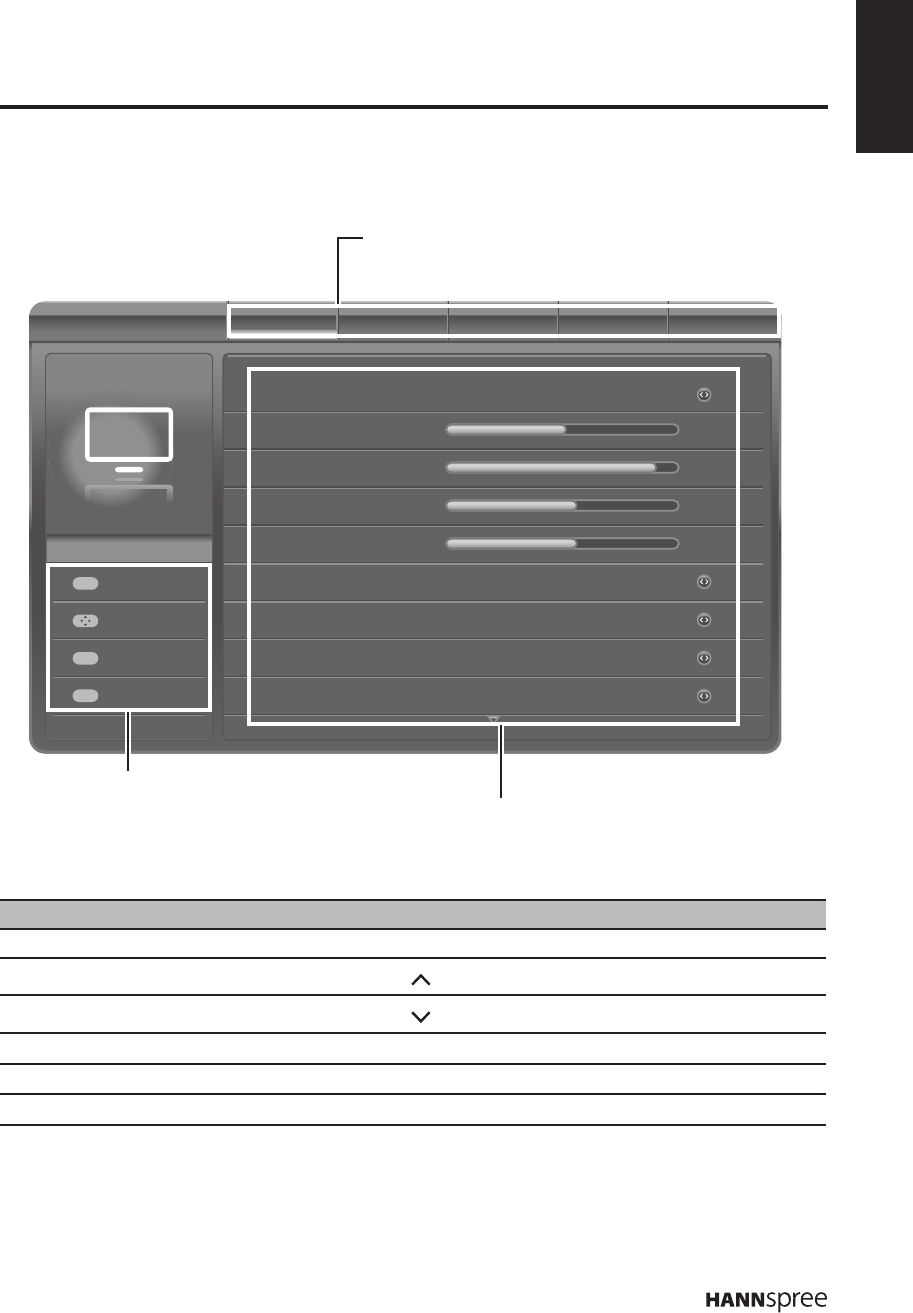
Focus window position indicator
ENGLISH
15
The On-Screen Display (OSD) menu system provides a quick and simple method to adjust the TV
settings. The OSD menu can be accessed conveniently through the buttons on the remote control.
Before going into details of each OSD option, you may get acquainted with the placement of the OSD
system:
Function TV Control Panel Remote Control
OSD Menu MENU Menu
Up P Arrow p
Down P Arrow q
Select/ Increase VOL + Arrow u
Select/ Decrease VOL - Arrow t
Return MENU Menu
3. Adjusting On-Screen Display (OSD)
Settings
Picture Picture Sound TV Setup Parental
Picture preset
Brightness
Contrast
Saturation
Sharpness
ECO Dynamic back light
Color temperature
Screen mode
Auto format
Personal
Auto
Cool
16:9 format
On
52
90
55
4
Exit
Menu
Exit
Exit
Enter
OK
Select
Main Menus:
Display the main menus.
Adjustable Options:
Display the setting/value of the adjustable
options.
Instructions:
Quick instructions for adjusting the
settings.
ENGLISH
16
Wide Zoom Zoom 2
On-Screen Menus Selection
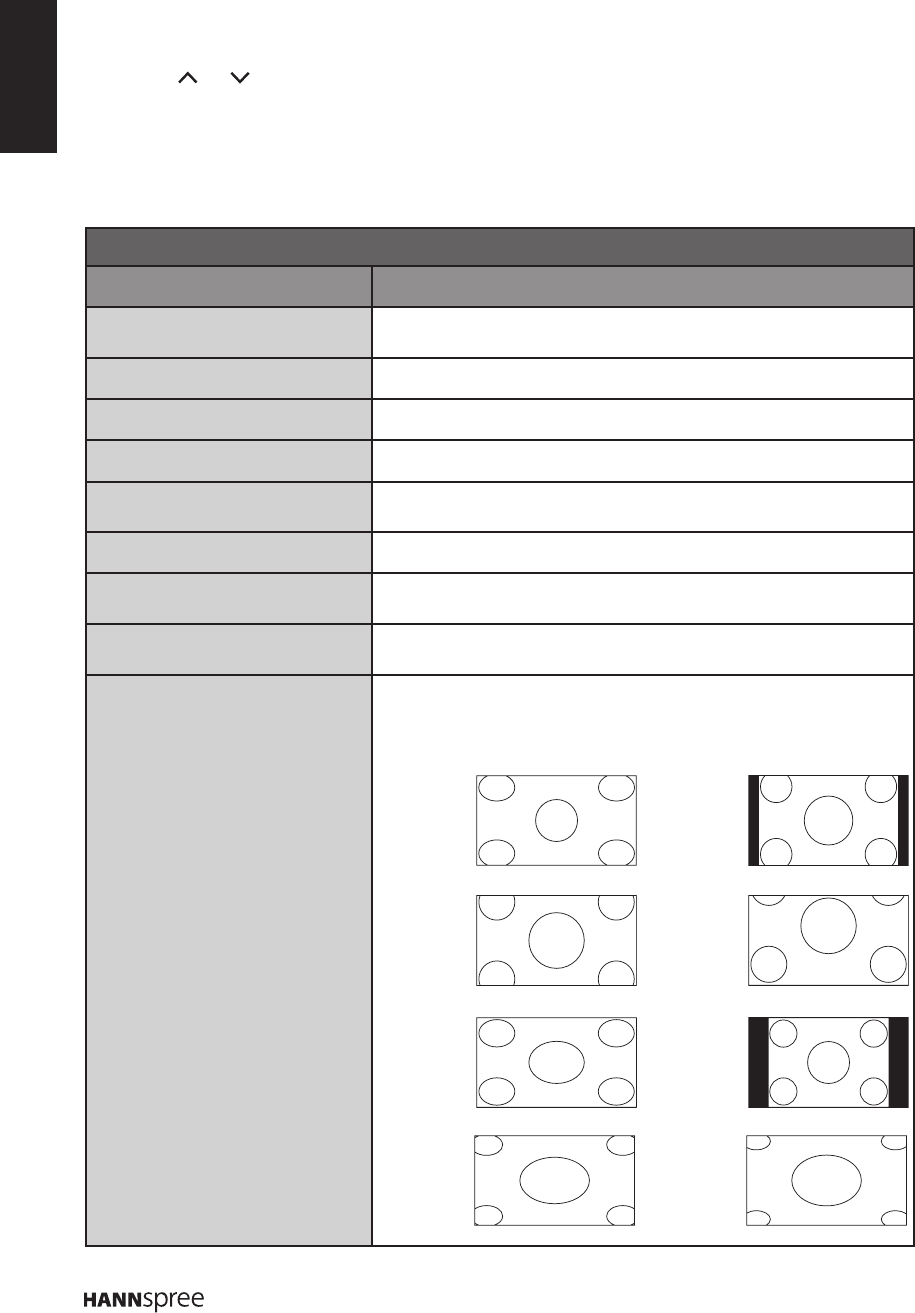
Follow the instructions indicated on the left side of the OSD Function Menu.
Press • P /P on the control panel or p/q arrow keys to scroll through the menus.
Press • VOL + on the control panel or the u arrow key to enter a correspond submenu.
Press • VOL +/VOL - on the control panel or the t/u arrow keys to adjust the desired setting.
Press • MENU on the control panel repeatedly or Exit to exit the OSD menu.
Picture
Option Description
Picture preset Select a preset view option optimized for different viewing
conditions (ECO/Vivid/Studio/Personal/Movie).
Brightness Adjust the base level of the signal in the picture (0~100).
Contrast Adjust the gradient of the video signal (0~100).
Saturation Adjust the color intensity (0~100).
Tint
(only shown on NTSC system)
Adjust the balance of the red, green, and blue colors of the
display (-32~32).
Sharpness Adjust the sharpness or softness of the display (0~7).
Eco Dynamic back light Select the ECO Dynamic back light setting
(Auto/Low/Middle/High).
Color temperature Select the color temperature in the display
(Normal/Warm/Cool).
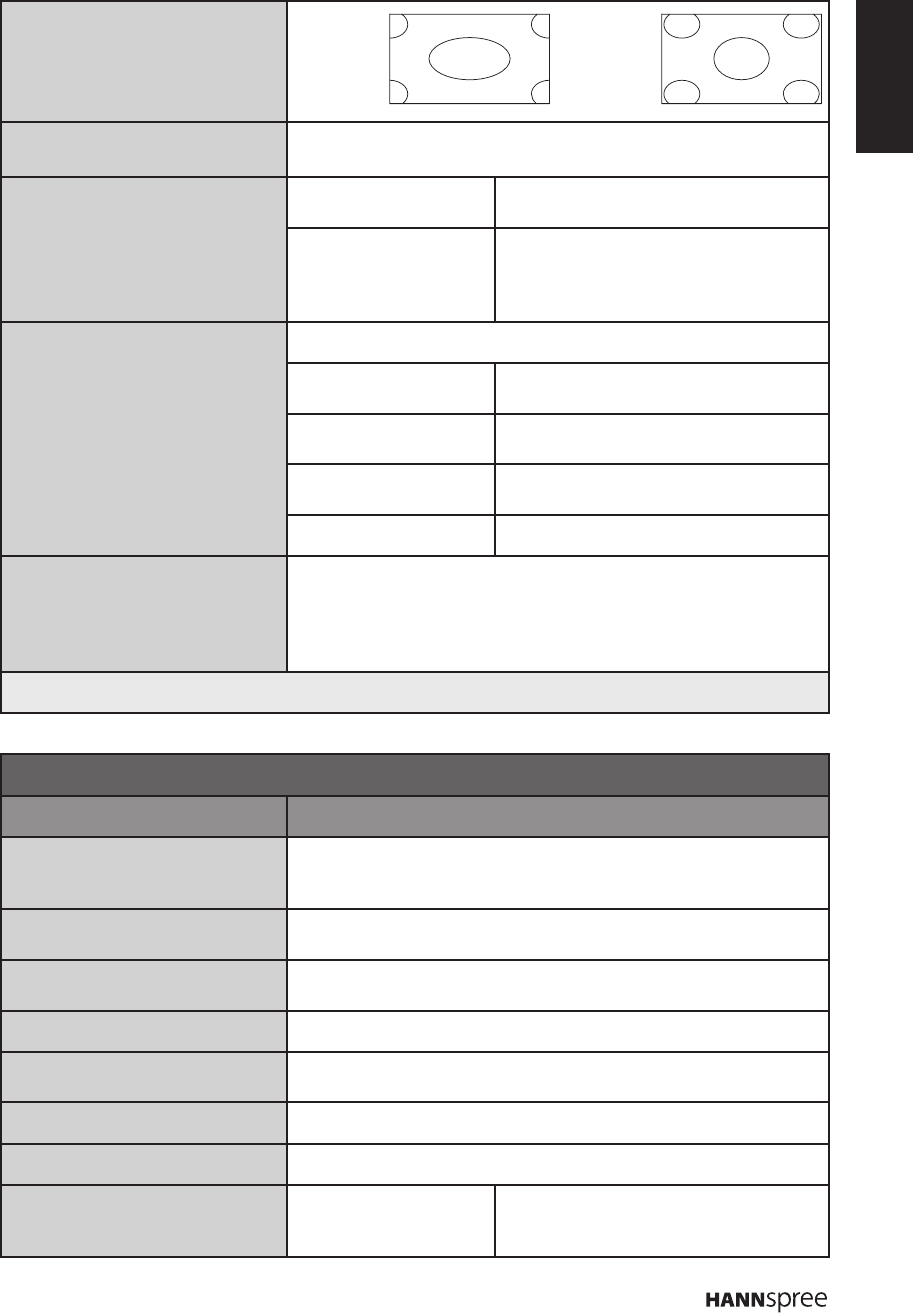
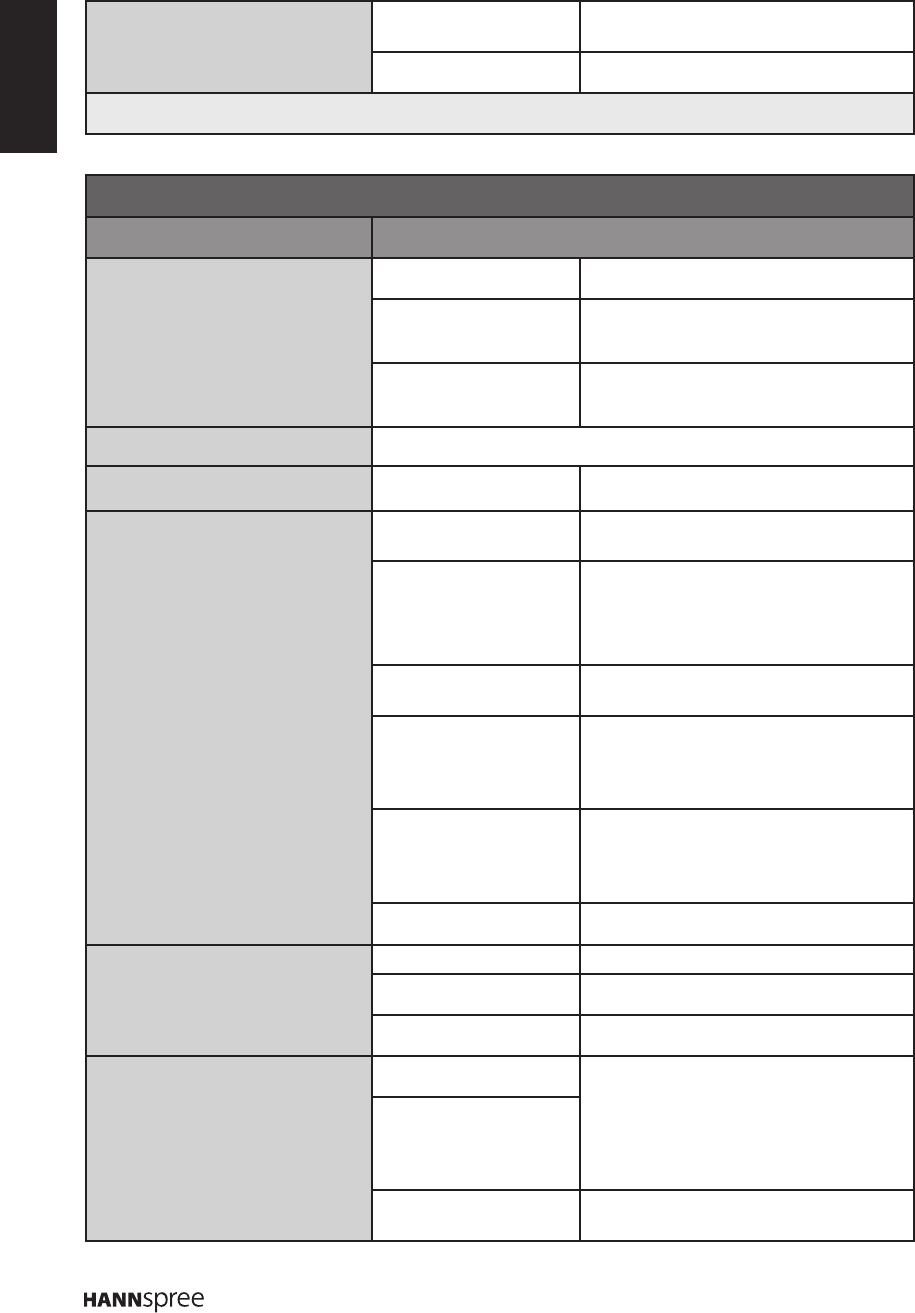
Screen mode Select the aspect ratio of the display
(Cinerama/ 14:9 Zoom/16:9 Zoom/16:9 Zoom up/
16:9 format/ 4:3 format/Wide Zoom/Zoom 2/Wide Zoom 2/
Stretch Zoom).
Cinerama 14:9 Zoom
16:9 Zoom 16:9 Zoom
up
16:9 format 4:3 format
ENGLISH
17
Screen mode
Auto format Enable/disable the aspect ratio selection automatically
(On/Off).
Advanced video Noise reduction Reduce the noise level
(High/Off/Low).
Light sensor
Enable/disable the light sensor to
detect the current level of visible light in
the surrounding environment
(On/Off).
VGA
(only shown on VGA source) Auto adjust (Sychronize the display automatically).
H. Position Adjust the position of the image left and
right (0~100).
V. Position Adjust the position of the image up and
down (0~100).
Phase Adjust to reduce horizontal noise
(0~31).
Clock Adjust to reduce vertical noise (0~255).
Active Contrast
Enable/disable Active Contrast function (Automatic backlight
control function based on average luminance of input pattern)
(On/Off).
* If Active Contrast was set as On, the ECO Dynamic back light &
Light sensor function will be disabled.
Note: The options available on the OSD may vary depending on the input signal source.
Sound
Option Description
Sound preset
Select a preset audio option optimized for different sounding
conditions (Rock/Pop/Live/Dance/Techno/Classic/Soft/Personal/
Off).
Balance Adjust the sound balance between the left and right speakers
(-50~50).
Audio delay Adjust the audio delay setting in millisecond (0~1000).
* This option is only available for digital channels.
Wide stereo Enable/disable the wide stereo feature (On/Off).
Auto volume control Select to automatically adjust the volume.
* This option will only appear when the input source is TV.
Sound type Select the sound type setting (Stereo/Dual1/Dual2/Mono).
Type Select the sound type mode (Normal/Visually impaired).
Visually impaired
(only available when Type is set
to Visually impaired)
Speaker Turn on or off the speaker (On/Off).
Wide
Zoom 2
Stretch
Zoom
ENGLISH
18
Visually impaired
(only available when Type is set
to Visually impaired)
Headphones Turn on or off the headphones
(On/Off).
Volume Adjust the volume level (0~100).
Note: The options available on the OSD may vary depending on the input signal source.
TV
Option Description
Language Menu language Set the on-screen display language.
Preferred audio
language
Set the audio language.
Preferred audio
language 2nd
Set the second audio language.
Country Select your country.
Tuner mode Air/Cable Select the tuner mode type.
Channel install Automatic search Scan the channel search automatically
based on the selected tuner mode.
Automatic update Update the channel search
automatically if you are receiving TV
channels with an antenna.
* only on Air mode
Analog manual scan Scan the analog channel search
manually.
Air manual installation Scan the channel search manually if
you are receiving TV channels with an
antenna.
* only on Air mode
Cable manual
installation
Scan the channel search manually if
you are receiving TV channels with a
cable.
* only on Cable mode
Clean channel list Reset all scanned channels.
Organiser Channel skip Skip viewing the selected TV channel.
Channel sort Sort the TV channel list.
Channel edit Edit the TV channel list.
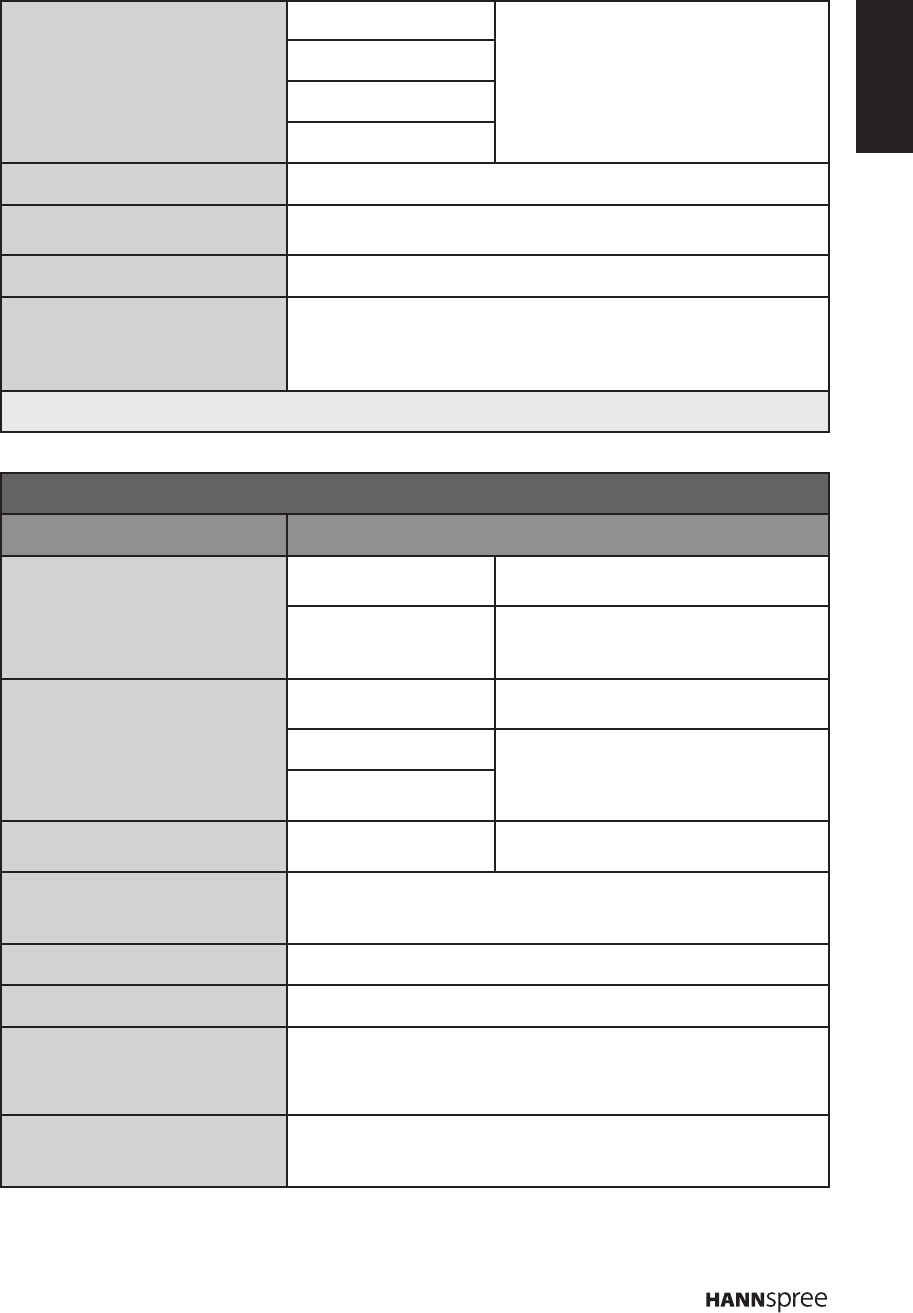
Input settings CMP Name Set the device name
(No label/DVD/Blu-ray/HDD/DVDR/HD
rec./Game/VCR/PC/Digital STB/HD dig
STB/Camera/Recorder/Other).
AV Name
AV video input Select the AV input type
(Auto/S-Video/RGB/CVBS).
ENGLISH
19
Input settings VGA Name Set the device name
(No label/DVD/Blu-ray/HDD/DVDR/HD
rec./Game/VCR/PC/Digital STB/HD dig
STB/Camera/Recorder/Other).
HDMI1 Name
HDMI2 Name
HDMI3 Name
Decode Decode analog channels.
Diagnostics Display the diagnostics information about the TV.
* Only available for digital channels.
Time Shift Enable/Disable the time shift feature (On/Off).
Reset
Reset all LED TV operational settings to the factory default
settings (OK/Cancel).
* Restores all settings to factory defaults, including Picture,
Sound, Password, Country, Language, and TV program settings.
Note: The options available on the OSD may vary depending on the input signal source.
Setup
Option Description
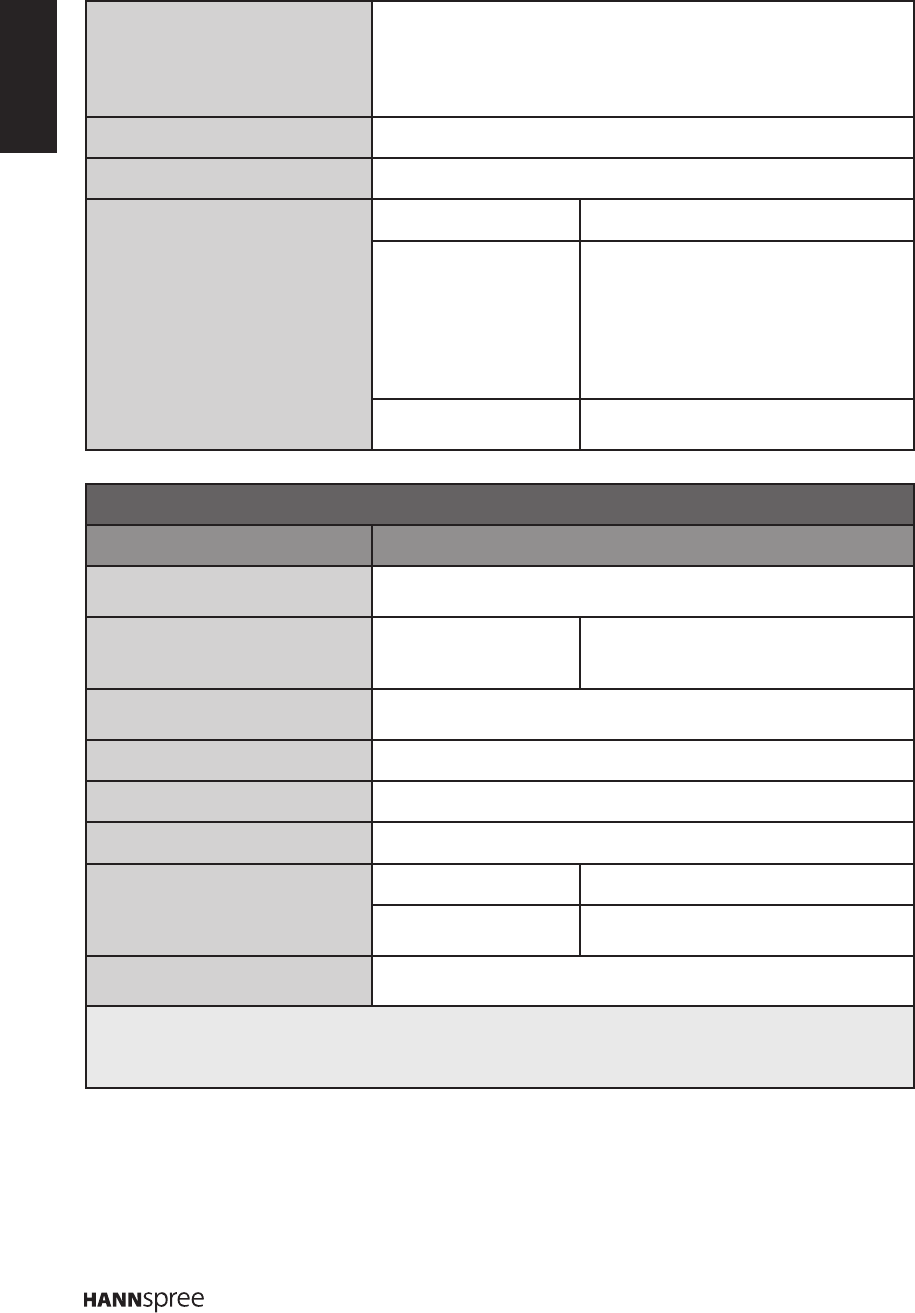
PAP PAP Enable/Disable the PAP feature (On/
Off).
TV position
(only available when
PAP is set to On)
Set the TV window position
(Left/Right).
Subtitle Subtitle Enable/Disable the subtitle
(On/Off).
Digital subtitle language Set the subtitle language for digital
broadcast.
Digital subtitle language
2nd
Subtitle Subtitle type Select the subtitle type mode (Normal/
Hearing impaired).
Decoding page language
Set the decoding page language for teletext display (Arabic/
Byelorussian/West EUR/East EUR/Russian/Russian-2/Greek/
Turkish/Arabic/Hebrew/Farsi).
Digital teletext language Set the teletext language for digital broadcast.
SPDIF type Select the SPDIF type mode (PCM/Off/Dolby D).
SPDIF Delay
(only available when SPDIF type
is set to PCM)
Adjust the SPDIF delay time to synchronize the sound with the
picture (0~1000).
T-Link
To search for CEC devices connected to the HDMI sockets of the
TV and enable one-touch play and one-touch standby between
CEC devices (On/Off).
ENGLISH
20
Common interface (the CI slot as
CI+)
Access common interface services.
* This menu option is only available if the common interface
module is correctly inserted and activated. The on-screen
applications and content are provided by your digital TV service
operator.
Location Set your current location (Home/Shop).
Software update Enable you to install the latest version of the software if available.
Timer Time zone Set the time zone.
Clock Set the clock settings.
- Auto synchronization (On/Off)
- Power on timer (Off/Daily/Once)
- Power on channel
(only available when Power on time
is set to Daily/Once)
- Power off timer (Off/Daily/Once)
Sleep timer Set the timer to turn the TV off at the
preset time.
Parental
Option Description
Channel lock Block any channels that you do not want to watch or that you do
not want your children to watch.
Parental rating Age rating
Prevent children from watching certain
TV programs, according to the ratings
limit set (None/4~18).
Input lock Select the input source that you want to block (TV/CMP/AV/VGA/
HDMI1/HDMI2/HDMI3).
Front panel lock Enable/Disable the front panel lock feature (On/Off).
Installation lock Enable/Disable the Installation lock (On/Off).
Max volume Set the maximum volume (0~100).
Change password New password Set the new password.
Conrm password Enter the new password again to
conrmation.
Clean all Reset all parental settings to the factory default settings (OK/
Cancel).
Note:
The default password is 1234. •
The Channel lock is only accessible in TV mode.•
ENGLISH
21
Media Center Menu
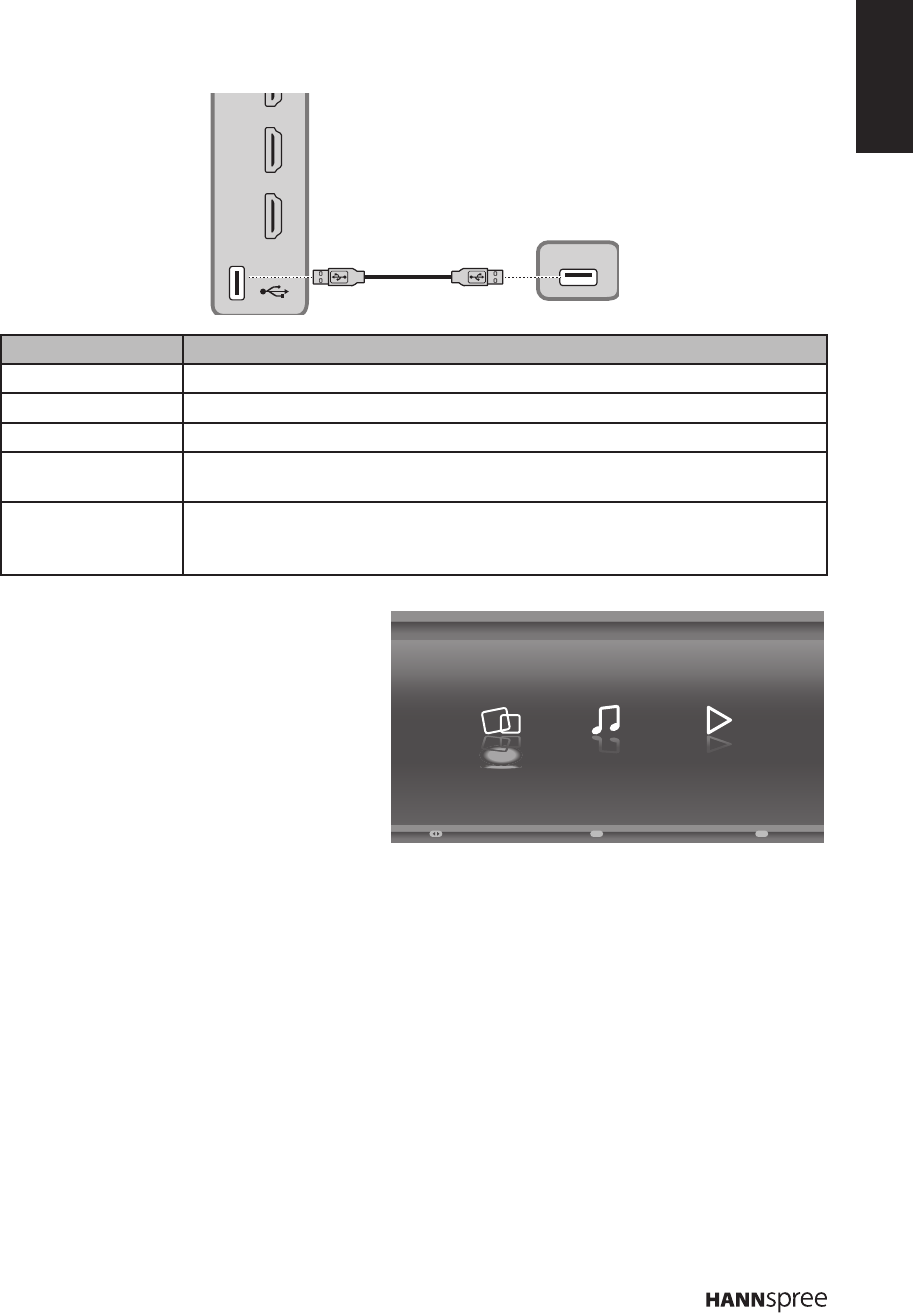
Your TV is equipped with a USB connector that enables you to view photos, listen to music, or watch
videos stored on a USB storage device.
2
3
USB
USB
Device File Format
USB 2.0 device USB memory, USB card reader
File System FAT/FAT 32/NTFS
Photo le format JPEG (*.JPG)
Music format MPEG1 (*.MP3) Bitrate: 32k, 64k, 96k, 128k, 196k, 256k, 320kbps
Sampling frequency: 32k, 44.1k, 48kHz
Video le format
MPEG1/2 (*.AVI, *.MPG, *.MPEG, *.TS)
MPEG4 (*.AVI, *.MP4)
H.264 (*.AVI, *.MP4, *.TS)
Plug a USB device to the USB connector on
the TV. When this USB device is detected, it
enters the Media Center menu directly.
Viewing Photos
1 Select Media Center > Photo, then press OK to enter the main le content browser.
2 In the main le content browser, use p/q/t/u to select a photo or an inner le folder.
n Select an inner le folder, press OK to enter a sub le content browser.
n Press Menu to display the photo menu in the folder mode.
- Sort: Sort folders and photos by Date or Name.
- Edit: Copy, Paste, or Delete a selected photo.
- Parser: Select Recursive to display photos from all sub le folders.
3 Select a photo, press OK to view in full screen, and a slide show begins from the selected photo.
n Press Menu to display the photo menu in the browser mode. You can play, pause or rotate the
photo, and set other related slide show settings.
4 Press OK to pause the slide show.
n Press p/q to view the previous or next photo.
Media Center
Enter
OK Exit
Exit
Select
MusicPhoto Video

ENGLISH
22
Quick Access
Picture Preset
Sound Preset
Time shift
PVR
Schedule List
USB
Playback Music
1 Select Media Center > Music, then press OKtoenterthemainlecontentbrowser.
2 Inthemainlecontentbrowser,usep/q/t/utoselectasongoraninnerlefolder.
n Selectaninnerlefolder,pressOKtoenterasublecontentbrowser.
n Press Menu to display the music menu in the folder mode.
- Sort: Sort folders and songs by Name, Genre, Artist, or Album.
- Edit: Copy, Paste, or Delete a selected song.
- Parser: Select Recursivetodisplaysongsfromallsublefolders.
3 Select a song, press OK to play, and an automatic playback begins from the selected song.
n Press Menu to display the music menu in the browser mode. You can play or pause the song,
select different play mode, and set other related playback settings.
4 Press the related buttons on the remote control to perform the available functions shown on the
function bar at the bottom of the TV screen.
Watching Videos
1 Select Media Center > Video, then press OKtoenterthemainlecontentbrowser.
2 Inthemainlecontentbrowser,usep/q/t/utoselectavideooraninnerlefolder.
n Selectaninnerlefolder,pressOKtoenterasublecontentbrowser.
n Press Menu to display the video menu in the folder mode.
- Sort: Sort folders and videos by Type, Date, or Name.
- Edit: Copy, Paste, or Delete a selected video.
- Parser: Select Recursivetodisplayvideosfromallsublefolders.
3 Select a video, press OK to play, and an automatic playback begins from the selected video.
n Press Menu to display the video menu in the browser mode. You can play or pause the video,
select different play mode, and set other related playback settings.
4 Press the related buttons on the remote control to perform the available functions shown on the
function bar at the bottom of the TV screen.
Time Shift Function
Allows you to record the TV program so that you won’t miss the favorite part even if you go out. Before
youusethefunction,connectaUSBdevicetotheTVrst.Forthersttime,youshoulddothedisk
setup for the USB device.
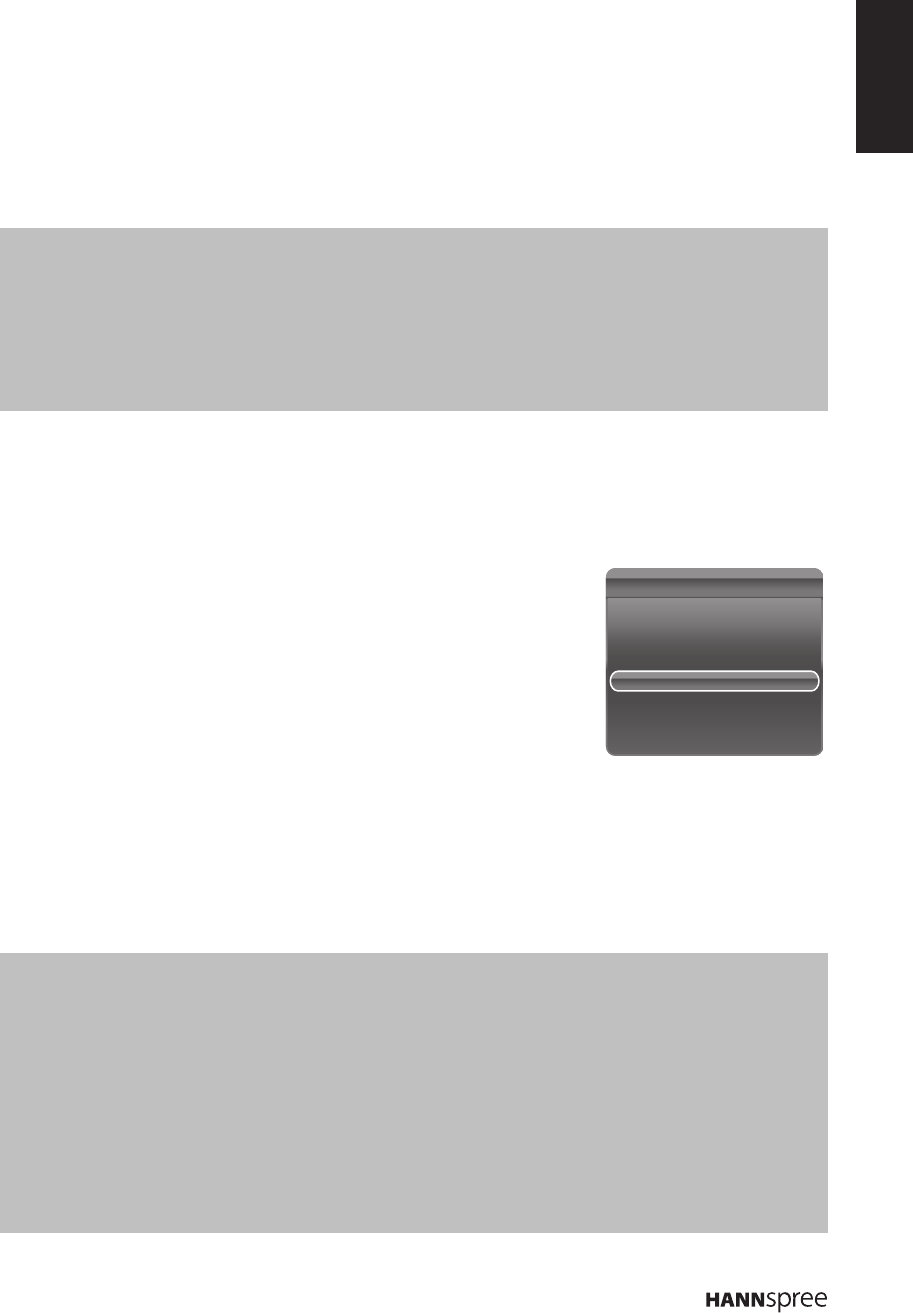
1 Press Menu on the remote control and select TV > Time shift.
2 Press t/u to select On to switch on the time shift function, then
press Exit to close the menu.
3 Press Option on the remote control and select Time shift, then
press OKtoconrm.
4 Follow the directions on the screen to do the setup.
5 After the disk setup is done, press Option and select Time shift.
ENGLISH
23
6 Press OK to display the time shift menu.
n Press the red button to pause the picture and begin the time shift.
n Press the red button to play the recorded part.
n When the time shift menu disappears and only the timing of the time shift remains on the screen,
you can press the red button or OK to call out the time shift menu.
n Press the green button to fast backward or the yellow button to fast forward.
n Press the blue button to quit the time shift function.
Notes:
Before you plug the USB device to TV, make sure you have backed up the data in the device to avoid the •
unusual performance make your important data lost.
WerecommendyouuseaUSBdevicewiththefreelesizebiggerthan1Gbanddiskspeedfasterthan5.0M/•
sec.
Thebiggerlesizeforthetimeshift,thelongeryoucanrecordtheprogram.•
If changing channel in time shifting, a message prompts to let you select • Yes or No. You can select Yes to exit
the time shift function and execute the channel change.
PVR (Personal Video Record)
This function allows you to record your favorite TV program to a USB device.
1 Plug a USB device to the USB connector on the TV.
2 Press Option on the remote control and select Quick access >
PVR.
3 Press OK/u to enter.
4 Press the red button to start recording. A PVR mini panel appears
on the screen to indicate the recording progress.
n Use p/q/t/u to adjust the recording duration.
n Press the green button to stop recording manually. Otherwise, the recording will stop
automatically when the recording duration is complete.
n TherecordedleissavedintoaPVRfolderinMedia Center > Video > pvr.
5 To watch the recorded program, exit the PVRmoderstandswitchtoUSB mode. Go to Media
Center > VideoandselectthedesiredrecordedleinthePVRfolder.PressOK to play.
Notes:
When CI+ card is used, this function will be disabled. •
This function is only available for digital channels.•
This function only supports USB device of FAT32 format.•
Before you plug the USB device to the TV, make sure that you have backed up the data in the device to avoid •
the unusual performance that might cause data lost.
The bigger storage size of the USB device for PVR function, the longer you can record the program.•
If you want to switch the channel or signal source during recording, it will prompt you whether to stop recording, •
select OK if you want to save the recorded data. Then switch to a new channel or signal source.
TheTVcannotplaylesnormallyiftheleparametersexceedthesystemlimitations,theleformatisnot•
supported,theleisdamaged,orthelecannotbedecoded.
DonotunplugtheUSBdevicewhenthesystemisrecordingdataorreadingale.Thismaycausesystemor•
device malfunction.
Quick Access
Picture Preset
Sound Preset
Time shift
PVR
Schedule List
USB
ENGLISH
24
4. Troubleshooting
Situation Solution
No picture and sound.
Connect the power cord properly.•
Check if the power LED is on or not.•
Press • on the control panel or remote control.
Press • Source on the remote control to select the
connected video sources.
Press • P or P on the remote control or the control
panel to switch to other TV programs.
Make sure all cables are connected properly.•
No picture, or poor picture, sound
is OK.
Check the antenna and cable connections.•
Adjust the • Brightness in the Picture menu.
Picture is not in color. Try the • Picture preset function in the Picture menu.
Picture is OK, no sound.
Make sure the source device is functioning properly.•
Make sure the audio cable is connected securely.•
Turn the mute off.•
Press • VOL + on the control panel or + on the remote
control.
One of the speakers has no sound. Adjust the • Balance in the Sound menu.
Cannot receive some TV channels
using cable TV. Try the • Automatic search function in the TV menu.
Want to reset TV settings. Use the • Reset function in the TV menu.
Cannot operate menus. If OSD items are colored in gray, the system is in a state •
such that those settings are not available.
Screen image turns over. Make sure the video signal cable is connected properly.•
Snow appears on the screen.
Adjust the location of the antenna, placing it far from roads •
or sources of interference.
Check the antenna and the video signal line connections.•
Blurred or overlapped images.
Adjust the sharpness setting.•
Choose programs with high quality signals.•
Adjust the direction of the antenna or replace the video •
signal cable.
Remote control doesn’t work.
Make sure the battery is inserted correctly.•
Replace the battery with a new one.•
Make sure the TV power cord is plugged in.•
Make sure the path between the remote control and the •
sensor is clear.
Try operating the remote control at a closer distance to the •
TV.
ENGLISH
25
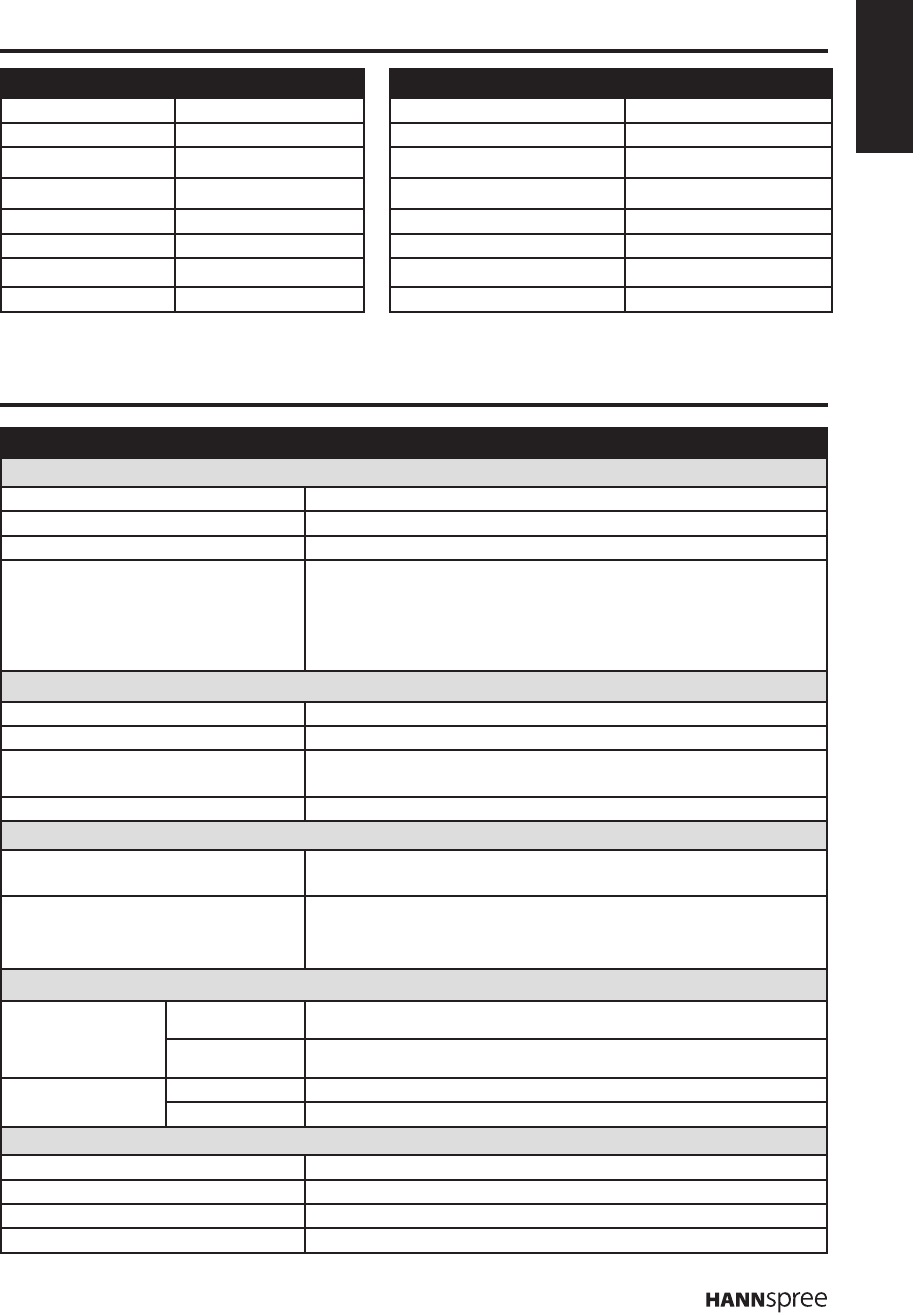
5. Support Timing
PC Mode Support Timing Video Mode Support Timing
Resolution Frequency Resolution (active dot) HDMI/Component
640 x 480 60Hz 480i V
640 x 480 75Hz 576i V
800 x 600 60Hz 480p V
800 x 600 75Hz 576p V
1024 x 768 60Hz 720p V
1024 x 768 75Hz 1080i V
1360 x 768 60Hz 1080p V
6. Specications
Model No. AD32U
DISPLAY
Screen Size 81.2 cm / 32 inches
Aspect Ratio 16:9
Resolution 1366 x 768
OSD Language English, Spanish, French, German, Italy, Czech, Croatian,
Danish, Hungarian, Dutch, Norwegian, Polish, Portuguese,
Romanian, Slovak, Slovenian, Serbian, Finnish, Swedish,
Turkish, Greek, Bulgarian, Russian, Latvian, Lithuanian,
Estonian, Ukrainian
ENHANCEMENT
Sound Output (RMS Watts) 5W + 5W
Sound Mode Rock, Pop, Live, Dance, Techno, Classic, Soft, Personal, Off
Picture Format Cinerama, 14:9 Zoom, 16:9 Zoom, 16:9 Zoom up, 16:9 format,
4:3 format, Wide Zoom, Zoom 2, Wide Zoom 2, Stretch Zoom
Picture Mode ECO, Vivid, Studio, Personal, Movie
CONNECTION
Rear Connectors - Tuner Input (75 Ω)
- PC IN: D-SUB and PC Audio
- Component Input
- SCART
Side Connectors - SPDIF Output
- Earphone Output
- Common Interface
- USB
- HDMI 1
- HDMI 2
- HDMI 3
WEIGHT & DIMENSIONS
Product
Dimensions
(W x H x D mm)
With Stand 734.7 x 488.4 x 183
Without Stand 734.7 x 441.3 x 68.7
Net Weight With Stand 8.2kg
Without Stand 6.6kg
POWER
Main power - Operation (Max.) 70W
Standby < 0.5 W
Main Power 220-240V~ 50Hz
Ambient Temperature 5ºC ~ 35ºC
