HK AONYSTAR 201502 GSM MOBILE PHONE User Manual

HK AONYSTAR CO.,LIMITED GSM MOBILE PHONE Users Manual

Contents

User Manual

User ManualModel:SHELABrand:MYCOM
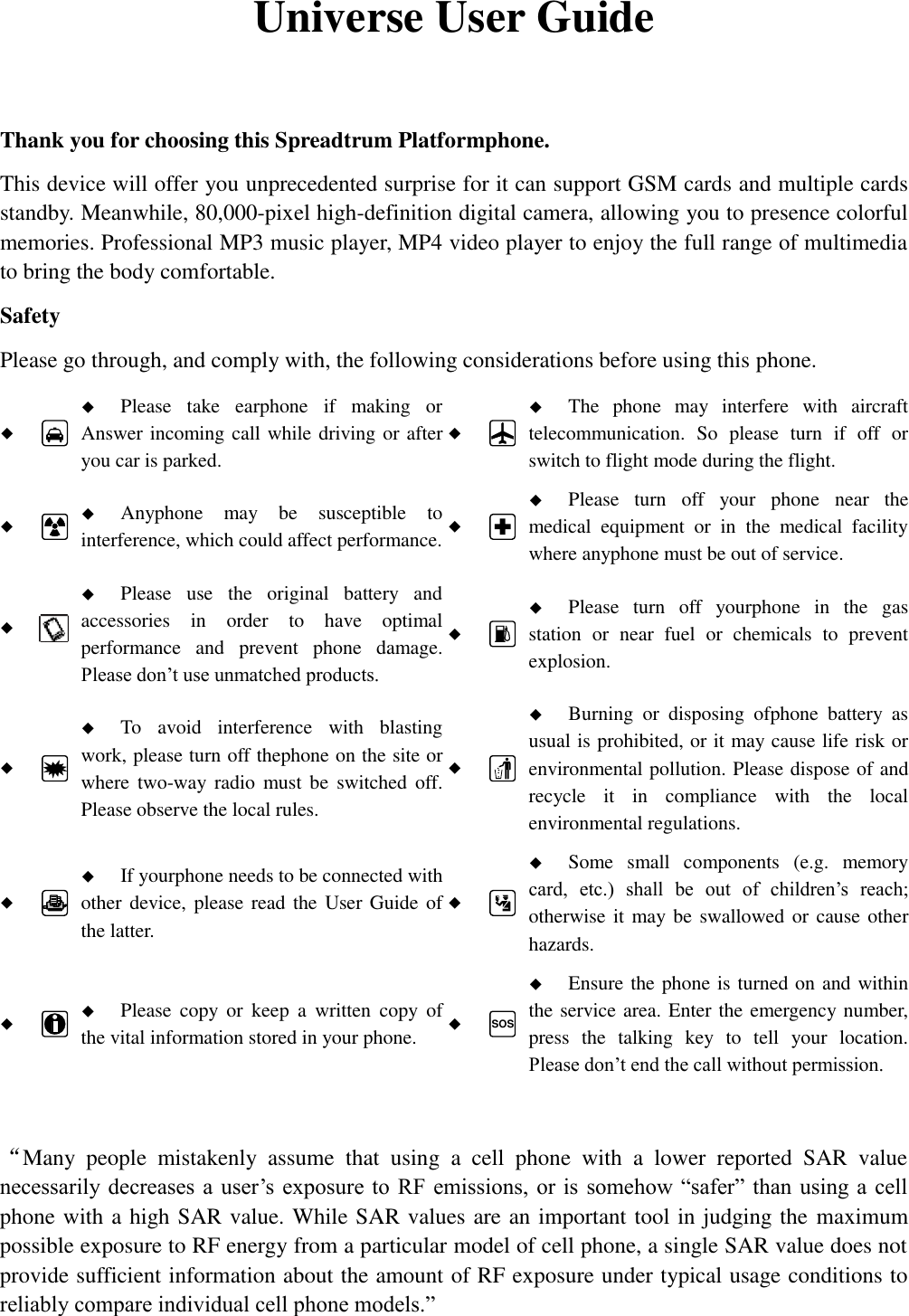
  Universe User Guide  Thank you for choosing this Spreadtrum Platformphone. This device will offer you unprecedented surprise for it can support GSM cards and multiple cards standby. Meanwhile, 80,000-pixel high-definition digital camera, allowing you to presence colorful memories. Professional MP3 music player, MP4 video player to enjoy the full range of multimedia to bring the body comfortable. Safety Please go through, and comply with, the following considerations before using this phone.    Please  take  earphone  if  making  or Answer incoming call while driving or after you car is parked.    The  phone  may  interfere  with  aircraft telecommunication.  So  please  turn  if  off  or switch to flight mode during the flight.    Anyphone  may  be  susceptible  to interference, which could affect performance.    Please  turn  off  your  phone  near  the medical  equipment  or  in  the  medical  facility where anyphone must be out of service.     Please  use  the  original  battery  and accessories  in  order  to  have  optimal performance  and  prevent  phone  damage. Please don’t use unmatched products.    Please  turn  off  yourphone  in  the  gas station  or  near  fuel  or  chemicals  to  prevent explosion.    To  avoid  interference  with  blasting work, please turn off thephone on the site or where two-way radio  must be  switched  off. Please observe the local rules.    Burning  or  disposing  ofphone  battery  as usual is prohibited, or it may cause life risk or environmental pollution. Please dispose of and recycle  it  in  compliance  with  the  local environmental regulations.    If yourphone needs to be connected with other device,  please read the User Guide of the latter.    Some  small  components  (e.g.  memory card,  etc.)  shall  be  out  of  children’s  reach; otherwise it may be  swallowed or  cause other hazards.    Please  copy  or  keep  a  written  copy  of the vital information stored in your phone.   SOS   Ensure the phone is turned on and within the service area. Enter the emergency number, press  the  talking  key  to  tell  your  location. Please don’t end the call without permission.  “Many  people  mistakenly  assume  that  using  a  cell  phone  with  a  lower  reported  SAR  value necessarily decreases a  user’s exposure to RF emissions, or is  somehow “safer” than  using a cell phone with a high SAR value. While SAR values are an important tool in judging the maximum possible exposure to RF energy from a particular model of cell phone, a single SAR value does not provide sufficient information about the amount of RF exposure under typical usage conditions to reliably compare individual cell phone models.”
 ii World Health Organization (WHO) Advice,Organizations such as the World Health Organization and the US Food and Drug Administration have stated that if people are concerned and want to reduce their exposure they could use a hands-free device to keep the phone away from the head and body during phone calls, or reduce the amount of time spent on the phone.
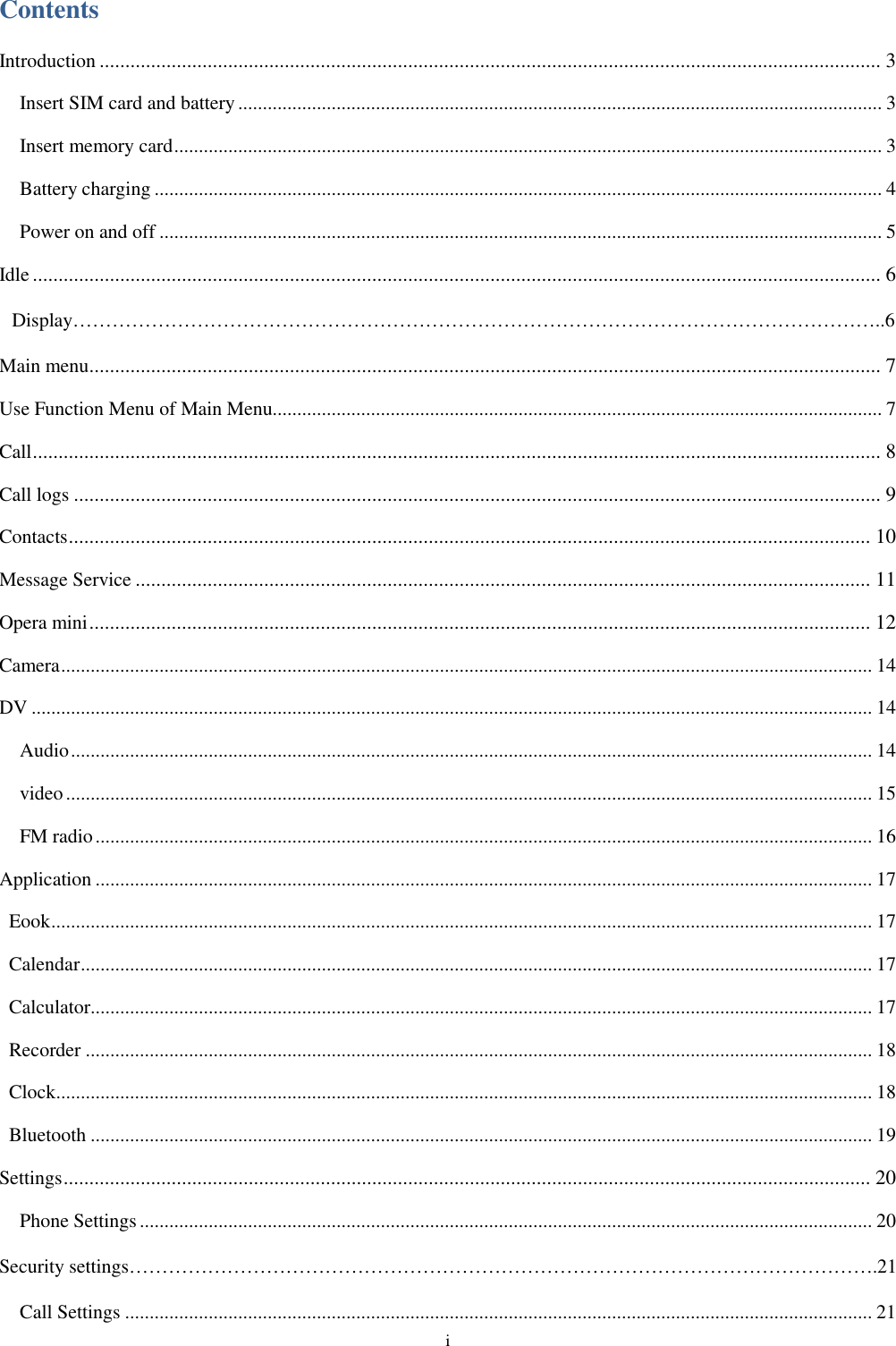
 i Contents Introduction ........................................................................................................................................................ 3 Insert SIM card and battery ................................................................................................................................... 3 Insert memory card ................................................................................................................................................ 3 Battery charging .................................................................................................................................................... 4 Power on and off ................................................................................................................................................... 5 Idle ..................................................................................................................................................................... 6  Display……………………………………………………………………………………………………………..6 Main menu .......................................................................................................................................................... 7 Use Function Menu of Main Menu............................................................................................................................ 7 Call ..................................................................................................................................................................... 8 Call logs ............................................................................................................................................................. 9 Contacts ............................................................................................................................................................ 10 Message Service ............................................................................................................................................... 11 Opera mini ........................................................................................................................................................ 12 Camera ..................................................................................................................................................................... 14 DV ........................................................................................................................................................................... 14 Audio ................................................................................................................................................................... 14 video .................................................................................................................................................................... 15 FM radio .............................................................................................................................................................. 16 Application .............................................................................................................................................................. 17 Eook ....................................................................................................................................................................... 17 Calendar ................................................................................................................................................................. 17 Calculator............................................................................................................................................................... 17 Recorder ................................................................................................................................................................ 18 Clock ...................................................................................................................................................................... 18 Bluetooth ............................................................................................................................................................... 19 Settings ............................................................................................................................................................. 20 Phone Settings ..................................................................................................................................................... 20 Security settings…………………………………………………………………………………………………….21 Call Settings ........................................................................................................................................................ 21
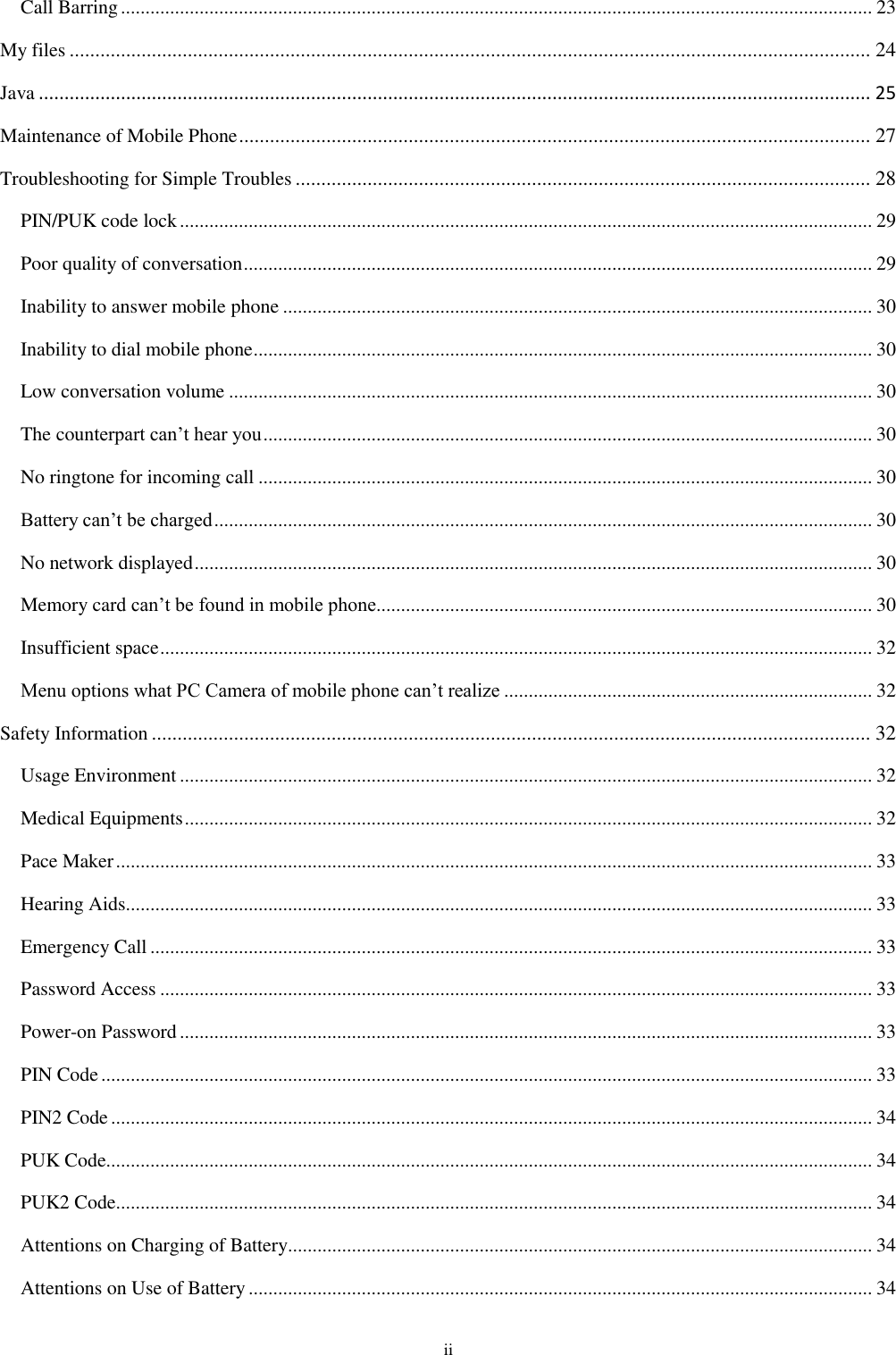
 ii Call Barring ......................................................................................................................................................... 23 My files ............................................................................................................................................................ 24 Java .................................................................................................................................................................. 25 Maintenance of Mobile Phone ........................................................................................................................... 27 Troubleshooting for Simple Troubles ................................................................................................................ 28 PIN/PUK code lock ............................................................................................................................................. 29 Poor quality of conversation ................................................................................................................................ 29 Inability to answer mobile phone ........................................................................................................................ 30 Inability to dial mobile phone .............................................................................................................................. 30 Low conversation volume ................................................................................................................................... 30 The counterpart can’t hear you ............................................................................................................................ 30 No ringtone for incoming call ............................................................................................................................. 30 Battery can’t be charged ...................................................................................................................................... 30 No network displayed .......................................................................................................................................... 30 Memory card can’t be found in mobile phone..................................................................................................... 30 Insufficient space ................................................................................................................................................. 32 Menu options what PC Camera of mobile phone can’t realize ........................................................................... 32 Safety Information ............................................................................................................................................ 32 Usage Environment ............................................................................................................................................. 32 Medical Equipments ............................................................................................................................................ 32 Pace Maker .......................................................................................................................................................... 33 Hearing Aids ........................................................................................................................................................ 33 Emergency Call ................................................................................................................................................... 33 Password Access ................................................................................................................................................. 33 Power-on Password ............................................................................................................................................. 33 PIN Code ............................................................................................................................................................. 33 PIN2 Code ........................................................................................................................................................... 34 PUK Code............................................................................................................................................................ 34 PUK2 Code .......................................................................................................................................................... 34 Attentions on Charging of Battery....................................................................................................................... 34 Attentions on Use of Battery ............................................................................................................................... 34
 iii Attention on Use of Accessories ......................................................................................................................... 35 Other Safety Information ..................................................................................................................................... 35
Introduction Page 4 of 38 4 Introduction Insert SIM card and battery Long press power supply key for 3s to turn it off; Slide the back cover downwards and remove it; Remove the battery. Insert SIM1 (per the mark “SIM1” on the card slot. The contactor shall face down (note the notch on the SIM card is in line with the slot). Push the SIM card inwards from the card slot until it absolutely fits the slot. Insert SIM2 in the same manner. Insert the battery with metallic contact aligned to thephone battery contact and replace the back cover. Note:   1.  This User Guide is designed for both SIM cards inserted by selecting [Settings→Call Settings→Dual-SIM→Standby mode→Dual SIM dual standby]. If only one card is inserted or no Dual SIM dual standby is set up, the screen and options may differ from this manual. Insert memory card This phone supports the T-Flash memory card. After it is inserted, you can browse or copy, etc. the files stored in the memory card. Also, the disk spaceof this phone can be expanded.   Remove the back cover and battery and turn over the cover of the memory card in the direction as shown thereon;   Let the side of the memory card bearing metallic contact face down, insert the narrower end into the slot until absolutely fitted by it, and replace the back cover Warning: Please don’t insert or remove the memory card quickly or frequently to avoid damage Battery charging The phone battery may be charged with travel charger   Insert the battery in the phone correctly; Open the  rubber cover on the left side of this device below the screen,,let the charger arrow towards the screen, insert the charger plug into the screen, and connect the charger to the standard power supply socket.   After the charger  is inserted,  the battery intensity icon on the upper  right of the  screen    starts running, which means the battery begins charging. When it is charged full, the icon stops running and the battery icon on the screen comes full . After charging is over, cut off the connection between the charger and the standard power supply socket and then that between this device and the charger by pressing the buttons on both sides of the charger。 Note: 1.  Please use the standard matched battery and charger to prevent explosion. 2.  If the battery is absolutely of no power, the battery icon will appear 2~3min after charging. Charging may
 5 take 2~5h depending on the current condition of this device (whether it is started, any call is made, etc.). 3.  Please use charger to charge this device. USB wire charging shall be avoided if possible. 4.  In  order  to  help  the  new  battery  perform  best,  it  shall  complete  2~3  charge-discharge  cycles.  Its  initial chargings shall last for more than 10h unceasingly for each Power on and off Power on Long press power supply key for 3s to turn on this phone Power off Long press power supply key for 3s to turn off this phone. Warning: Please don’t turn on this phone where it is prohibited or using it may cause interference or danager. In this case, please ensure this phone does not activate the reguler power on/off or other functions.
Main menu Page 6 of 38 6 Idle Display Standby screen displays the time and date, operators, battery icon, signal and other information  Left soft key: press the left soft key standby interface can directly open the menu interface  Right soft key: press the right soft key to quickly open the camera  Lock / Unlock: standby screen press the left soft key plus the * key to lock and unlock functions  Long press the # key: the idle screen press the # key to toggle mute, conference mode, standard mode  Dial key: standby screen, press the dial button to open the call log interface directly
 7  Main menu Use Function Menu of Main Menu Standby mode, press the left soft key to open the main menu menu; Select the left soft key menu interface OK button or the OK button to open the navigation module directly; Menu interface, press the navigation keys can easily flip around and manipulate
Call Page 8 of 38 8 Call Dial Standby mode, enter any number into the dialing interface Dial interface to select the left soft key to perform the call, add contacts, write information, call records and other operations Making an overseas call. Enter the country code (in this case, “+” shall be entered by pressing * twice continuously); Enter the area code (without “0” prefixed to that as usual) and the phone number; Select the call, escape the SIM card option screen. Select SIM1 to dial with SIM1; select SIM2 to dial with SIM2 Dialing via Contacts Enter the Contacts and search for the phone number you need; Cursor to select the contact you want to dial a call, eject the SIM card selection screen, select the card 1/2 can be directly exhaled card Calling an extension number Enter the switchboard number; Click [Options-Insert-P] and then enter the extension number Press “call”, escape the SIM card select screen. Select SIM1 to dial with SIM1; select SIM2 to dial with SIM2 Making an emergency phone Enter the emergency phone number; Press “Call”, escape the SIM card select screen. Select SIM1 to dial with SIM1; select SIM2 to dial with SIM2 Answer or reject incoming calls When there is an incoming call, select "Answer" button to answer   When a call comes in, select the "hang up" button to refuse to answer   Menu during a call During a call, you can : Hold: Press [Hold] to hold current call, and press [Activate] to resume current call when holding the call (the function needs to be supported by network). Contacts:Enter into the interface of contact list. Dial pad:Enter into the dial interface.   Record: Record the call details, and the document will be kept in the file manager automatically.    It is illegal to record any call in some countries. So please do so with the speaker’s prior consent.
 9  Mute: Turn off the microphone during the call. In the mute mode, you can hear the speaker but the speaker can’t hear you. Turn on handfree: Start or cancel a handsfree call. Adjust volume During a call, you can adjust the earpiece volume through Menu Options End a call Press “Hang up” to end a call.
Call logs Page 10 of 38 10 Call logs Show the phone numbers missed recently Moving a number and press dial keys to call back, you can press [Options] and select other operations Set as a rejected call In the record details interface, press[Options]to select[Set as a rejected call],Set the phone number as a rejected call, which may be available in the [Contacts→Blacklist]. Commonly Used Functions Select a single record, open the Options menu: Write SMS: Send SMS to the current number. Language call: Callback this number. Add to New Contacts : Store the number to this phone. More Functions Call History page, the list shows: Delete All: Delete all phone numbers. Call timers: The details of the SIM card is available after selecting that card to be viewed. GPRS volume :Read the information of GPRS volume.
Contacts Page 11 of 38 11 Contacts Browsing contacts When this device standby, select [Contacts] and open the namelist. The contacts are listed in the order of unnamed, special symbol, digit and English letter respectively (for Chinese names, the English letter corresponding to their pinyin prevails). Quick search When this device standby, select [Contacts] and open the namelist.   Click search bar to search and position (vague search is allowed) through the virtual keyboard.   Example 2: search for “sam” Enter keys “726” where the letters “sam” are located. New contact   SIM1: The input is added to SIM1 with only one number stored under a name.   SIM2: The input is added to SIM2 with only one number stored under a name. Phnone: All records other than in SIM1 and SIM2 are stored in the memory of this device. New entries can be edited phone contacts names, phone numbers, groups and other functions. Function Menu of Contacts On the interface of the contact list, Select "Options" to operate the functions:   Group:Enter into the group list interface. Delete: Delete a single contact Delete Tag: delete a single or multiple contacts vCard: Import or export all the cards.   More: Query the settings of this phone number and the size.  Contact list screen, select a record, operational features are: Wirte message:send one message to the contacts. Call: ring the contact. Delete: Delete the person information. Copy: Copy the contact information. Send vCard: send the contact in vCard. Export: Export the contact.
Message Service Page 12 of 38 12 Message Service   Message service is actually a network service. This menu works soundly depending on the type of your SIM card and the service provided by the network operator. Therefore, please check it before applying such function. Wirte message Please  have  the  service  center  number  from  the  network  operator  before  applying  this  function.  The  storage capacity of SIM card depends on its type. SMS Under  idle  situation,  press  “information  service”  button  to  enter  into  the  mailbox  list  interface,  press  [Write message→New  SMS] to enter into the message editor interface, manual input  or  insert the contacts  from the address list as the recipients, press “send” button to send the messages after editing the contents.   Note: This device supports multi-messaging. Four common SMS are editable at most with each containing 268 Chinese characters or 612 English ones. Creat a message, pressing“Menu”, you can: Insert template: Insert template in the cursor position. Add contact info: Insert in the message a name and its number from the Contacts. Add phiz symbol: Insert an expression symbol in the cursor position. Save as draft: Save the edited message in the Draftbox.   Inbox Save the received SMS . Outbox Save the SMS not sent out successfully. Draftbox Save the unsent messages. Send messages Save the SMS    you sent successfully.
Opera mini Page 13 of 38 13 Opera mini Note: Your Opera mini 1.   service  provider  may  not  support  some  functions,  please  confirm  that  your  SIM  card  supports  Internet function and the function has been opened. 2.  To browse webpages, you might be charger of corresponding flow rate 3.    If WLAN network is applicable, surf the internet through WLAN interlinkage.   Internet is an application platform integrating wireless communication and Internet technology, which makes it possible for you to access to rich Internet information source and e-commerce application etc. Browser     Open the starting page of the brower, users can enter into input URL, search, bookmarks, history and stored pages through the interfaces. Press Menu button to open more menus: homepage, settings, clear records and exit brower homepage, and users can the homepage of ISP intermet (set in advance or default homepage).   Current Page: Option: Enter into option list of the browser.   Forward\Back: Open WAP page forward and backward.   Stop: stop loading WAP webpage Refresh: Refresh current WAP page.   Add to bookmark: Add current WAP page to the bookmark list. Bookmark: Open the list of the stored bookmark. History: Open the list of browsing WAP.
Camera   Page 14 of 38 14  Camera   Take pictures and vidieo clips with audio through the self-contained camera function. Press return button to exit the camera procedure.    Shoot Mode There are photo and video mode in the device. The default mode is photo. Select the video mode in the mode option, make the optional video camera. Select mode option in camera mode, camera mode to take pictures after the selection.  Settings   The  camera  preview  screen  to  open  the  options,  select  Settings  function  on  the  camera  /  camcorder  related operations              Audio   Thephone is able to play music files saved inphone and the downloaded music and support background play of MP3 file.     Instruction: MP3 supports MPEG 1 layer 3 audio; supports MPEG 2 layer 3 low sampling rate extension; MPEG 2.5 layer 3 (unofficial).
Audio  Page 15 of 38 15  Play songs: When play some certain contents, select the needed items from the list.   Please press    to pause; please press    to continue; press    or    to fast forward or back. Please press    or    to turn to next or previous, Please select settings > shuffle to open or close the shuffle ( ). Please select Settings > Repeat to repeat current contents ( ) or all the contents ( ), or close the repeat function.   Select AB to review. To modify the music playback, select Options - Settings – homogenizer To return to the standby screen, the music playing in the background, press Back button or hang up keys To turn off the player, press Options and select Quit List   Select menu > music list and select the list. Create New List   1.    Select menu > new list. 2.    Enter name of the list and select Confirm.   3.    Select Yes to immediately add the songs; please select No to add the songs later.   4.    Select Finish.   To delete or edit custom playlists, select the Options menu editor. Select Option > Add music when checking the list to add more songs later on.       Video Player The video player supports playback file formats 3gp. If the document is the standard format not supported, use the tools to convert into the standard format.     Play:   When play some certain contents, select the needed items from the list.
Video Player  Page 16 of 38 16 Please press    to pause; please press    to continue; press    or    to fast forward or back. Please press    or    to turn to next or previous, and users can also switch by sliding to left and right. Please select  settings  >  shuffle  to  open  or  close  the  shuffle  ( ).  Please  select  settings  >  repeat  to  repeat  current contents ( ) or all the contents ( ), or close the repeat function. Press    to open the browser fast.    Open: Open local browse, network browse or local list.   Local browse: Browse the video documents in the phone or memory card.   Local list: Play the stored video documents, you can add the videos in the memory card or the phone to local list for watching next time.    FM Radio The phone can play music files stored in your phone, you can also play downloaded ringtones, MP3 background play...    Search Broadcast Channel  • Automatically search the broadcast channels, and press menu button → scan and save. • Manually search for radio channels, manually enter the frequency. Background Play FM hook key player interface to select an executable background background playing. FM player interface, select Options and then select the background play, perform background playback
Application Page 17 of 38 17  Application E-book     E-book can support file of TXT format. You can copy TXT file to [E-book] folder on the T-FLASH card by PC. In standby mode, enter the function menu, then select [E-book]. Randomly select a book in the bookshelf to read; slide to turn pages.     Instruction: Please delete the unnecessary files when you read the E-book with the hint that there is no enough space. Make sure there is over 500KB free space in your mobile phone.   Calendar Enter into the function list, then select Calendar. Add new schedule 1.    Select Options--Add new schedule 2.    Write the schedule details.   3.    Select Store. View schedules 1.    Select the date on the calendar, and check the events on special date. 2.    Select [All agenda], and check all the records.  Calculator   1.    Select Calculator under function menu mode. 2.    Use the buttons matched with the calculator to carry out basic arthmetic operation.
Recorder  Page 18 of 38 18 Recorder Enter into the function menu to select the Recorder.   1. Press Record button on the interface to record. 2. Press Pause button to pause the record. 3. Press Stop button to stop the record. 4. After stopping record, the recording documents will be automatically saved in the  “My Music”  file in the memory card, click Folder to check.    Alarm Enter into the function list, then select Alarm. New Alarm 1. Turn on switch of the needed alarm clock. 2. Set the parameters of the alarm clock as needed. 3. Select Save. Close the switch of the alarm clock to cancel the alarm clock.     Bluetooth Start Bluetooth Wireless Function 1. Enter into the function menu, and select Bluetooth. 2. Click the switch button to start the bluetooth wireless function. 3. If allowing other devices to position your telephone, please the swith button behind Visibility.   Search Other Started Bluetooth Devices and Pair 1. Select Paired Device → Add New Device. 2. Select devices from the list. 3. Input PIN code of the bluetooth wireless function or other devices (if exist), and then select Having Finished. When the owner of other device inputs the same PIN code or accept the connection, the pair is completed.   Send Dtata by Bluetooth Wireless Function 1. Select the expected documents or items from the applications in the mobile phone. 2. Select to send through bluetooth. Receive Data by Bluetooth Wireless Function
  Page 19 of 38 19 1. Input PIN code of the bluetooth wireless function, and then select Having Finished (if necessary). 2. Select Yes to confirm to receive the data of the device (if necessary).
Settings Page 20 of 38 20 Settings Phone Settings The items include: Time and Date: You can customize time and date as well as their formats Language: You can customize the display language and writing language. Navigation Shortcuts: set the phone navigation key shortcut Automatic Power On/Off: Set time and repeat ways of the automatically power on/off. Power Management, Display the battery power. Restore Factory Settings: Restore factory settings  Connection Management The items are :   Internet account: Manage internet account, and support editor and delete.   Data connection settings: Select to connect as needed or all the time. Network selection: Select to automatically or manually connect. Display Settings: The settings items: Wallpaper Settings:Supported wallpapers: Static wallpapers, dynamic wallpapers, more pictures. Backlight: adjust the screen backlight. Button Backlight: adjust the backlight time. Standby display settings: Time can  be turned on or off,  music player,  FM and other  functions are displayed in standby   Security settings Including: PIN code: Start and close of PIN code and the modification of PIN. Warning   Please use this function cautiously. If you forget the PUK code, please get it from the service provider. Ten consective incorrect PUK code entries will make the SIM card card unserviceable.
Settings  Page 21 of 38 21 Modify PIN2 code: Modification of PIN2 code.   Warning:   Be cautious to use this function, if wrong PUK2 code is entered for 10 times, SIM card can not be used. Phone Lock:Open or close the phone lock.   Change Phone Password:change the phone password. Privacy Protection: set the privacy protection Automatic lock: Set time of the automatic lock. MSD MSD is also called Mobile phone dog. Its main function is to collect information like the current CELL ID to a pre-determined phone when your phone is used by others illegally, and prevent others using the phone after a limited period or a certain number of power-on. The default MSD is off. You need to change the password before actvating it. After that, passwaord is required to activate or cancel the function as well as change the password. The password must be  6 digits long. To  activate the function, you have to input a pre-determined  phone  number  (to  receive  the  informing  message  when  the  phone  is  stolen)  besides  the password. After the function is activated, the phone will memorize IMSI number of this card. Because the number is the only one, when another SIM card card is inserted, a prompt box will appear after power-on and you need to input MSD password. Three incorrect enteries or choosing exit will be considered as illegal use,  and  then  an  illeagal  use  prompt  is  given.  At  this  time,  information  like  CELL  ID  (refers  to:  cell indentity), LAC (refers to: Location Area Code, used to indentify different locations), MCC (“460” stands for China), MNC  and MCN will  be  read and short messages  will be sent to  the pre-determinded phone number. The legal user could report a case to the Public Security Organs where the illegal use of the phone can  be  checked  according  to  the  information  through  the  internet  service  provider  (including  the  phone location, call log and so on). If the short messages fail to send or are being sent, they will be sent in the next minute until they are sent successfully. Keeping in standby mode for 24 hours or powering the phone on again, the phone will send a short message again to the pre-determined phone number. When thenumber of the successful short messages comes to a certain amount (15 times), none illegal used SIM card card can be used on the phone. The phone will power off automatically.    Note: Please report a case to the Public Security Organs when the phone is stolen. But they do not ensure to find the stolen phone. Therefore, please take good care of your personal belongings.  If  the  phone  considers  the  card  is  illegally  used,  Unauthorized  to  use  will  appear  if  someone  wants  to activate the MSD, namely the corresponding functions under the MSD menu can not be used. If other cards are used to power on the phone and the password is correct, the number of the messages will be counted form 0, and the peompt Bind the card or not will appear. Choose Bind the card, the phone will update the IMSI card information, regarding the card as the appointed card of the phone.
Settings  Page 22 of 38 22 Start:  Firstly  set  the  password  to  start  this  function,  input  the  guardlock  password  and  notify  the mobile  phone  when  starting  (Receive  illegally  using  SIM  card  of  this  mobile  phone  and  send  the information about the illegal SIM card), the settings is  comleted, and the guardlock function can be started.     Cancel: To cancel the MSD. You have to input MSD password when canceling the function.   Change password: Change the MSD password.  Warning: Please use this function cautiously. You can not use the phone if you forget the password.  Fixed Dialling:Start and close of the fixed dialling, and management of the fixed dialling list. Blacklist: Settings of the blacklist and management of the list.       Call settings   Including: Dual SIM settings: including Standby mode, Reply by original SIM, Set SIM name. Call Divert:  Divert  all  voice  calls:  After  the  function  is  activated,  you  can  divert  all  incoming  calls  to Voicemail or     the pre-determined phone numbers. Choose [Check Status] to view the current status of the Divert all voice calls service.  Divert when busy: After the function is activated, you can divert the incoming calls to Voicemail or the pre-determined phone numbers if you are on a call  Divert when not answered: After the function is activated, if the call is not answered within the pre-determined time, you can divert the incoming calls to Voicemail or the pre-determined phone numbers.  Divert when phone off or no coverage: After the function is activated, if you are unavailable because there is no coverage or the phone is powered off, you can divert the incoming calls to Voicemail or the pre-determined phone numbers.  Cancel all diverts: Cancel all the call diverts.  Note: You have to turn off “Flight mode” before setting “Call divert”. Call Waiting:
Settings  Page 23 of 38 23  Activate: After the function is  activated,  the  network will inform  you  of  the new incoming  calls when you are on a call. You can hold on the current call and answer another call.      Cancel: Cancel the Call waiting service, and the incoming calls will not be informed when you are on a call.  Check status: You can check and view the current status of the Call waiting service. Call Barring:  Outgoing calls: All outgoing calls are limited    Incoming calls: All incoming calls are limited  Incoming calls when roaming: All calls can not be answered when roaming  International calls: International calls are limited  International calls when abroad: International calls are limited when you are abroad    Cancel all call barrings: All call barrings are cancelled  Edit barringpassword: Barringpassword can be edited Note: Some internet service providers may limit the use of this function. For details, please contact your internet service provider. When  you  are  applying  this  service,  your  internet  service  provider  will  offer  you  the  original  network password。 Line Options:You can choose Line 1 or Line 2. Hide My Caller ID: Set the display mode of the phone number.   Others:the settings item include IP Push-To-Talk, Voice calls minute beep, Automatic redial, Vibration for outcoming calls, Message after rejecting, Voice broadcast for incoming calls.    Phone profile The  preset  modes  are  General  mode,  Mute  mode,  Conference  mode,  Indoor  mode,  Outdoor  mode,.  It support custom profiles, define at most 5 profiles, and users can set the parameters of the profiles. Instruction: The preset profiles do not support delete, while the custom profiles support delete.
My files Page 24 of 38 24 My files  File manager can manages the files in the memory card. Copy Files 1. Copy the file, select the file to enter the copy mode   2. Select the target folder, click the confirm icon on the right or click “select the contents” in the folder. 3. Click “Mark” to copy multiple files.           New Folders 1. Open the file manager. 2. Press Menu button → New Folder. 3. Input folder name and click to save.
java  Page 25 of 38 25   Java This model offers two free games Sokoban, Snake, games to provide entertainment space          Additional Function U Disk Function U disk is used as follows:   Before using U disk, please confirm your computer is Windows 2000 or Windows XP system.   Link mobile phone to computer with the USB data line provided to the mobile phone. The mobile phone is linked to computer, select[U disk]at the end of mobile phone. After the computer successfully identify U disk, a green USB equipment small sign will appear on the status bar at the right corner below.  Open “My computer”, now see “Removable disc”, operate U disk.   The multi-media files browsed by mobile phone must be saved under designated content before it can be identified, or it can be read or broadcast through mobile phone under other contents. For example, photo file is readable only under the content of “Photos”.     Note:   1.  When the mobile phone is in the status U disk is being used, you can see some default files. Once deleted, the default files in U disk will be lost forever.   2.  After U disk is used, remove U disk from computer first and receive a sign from system before taking U disk safely, or the data of U dsik may be lost or file system of U disk is damaged.   3.  Support USB1.1.
Maintenance of Mobile Phone Page 26 of 38 26 Maintenance of Mobile Phone Mobile phone is a high-precision electronic product, so please take good care of it. The following suggestions can help you preserve it and lengthen its useful life:      Put mobile phone and its accessories to the place where children are out of reach.    Keep mobile phone dry. Rain, moisture or water may erode circuit board. If mobile phone falls into water carelessly, take battery out in time and send it to local authorized service center immediately.    Please do not put mobile phone at dust-covered place or its normal usage will be affected.    Liquid crystal display is an  easily vulnerable  part  of  mobile  phone,  try to prevent  it  from  falling down or violently shaken; it is forbidden to use sharp item to touch the screen.    Please do not put mobile phone on the place where temperature is too high. High temperature will shorten the life of electric equipment, damage the battery, deform or melt its plastic cover.    Please do not put mobile phone on the place where temperature is too low, or moisture will come out when its temperature increases to normal temperature, it will damage the circuit board of mobile phone.  Please do not  throw,  knock or forcefully shake  mobile phone to avoid its inner  circuit board and  precise structure are damaged.    Please do not clean mobile or with chemical agent, cleaning solvent or powerful detergent, instead, clean it lightly with soft cloth with soap water.  Please do not draw mobile phone with painting material to prevent its removable parts from being stuck, which will affect its normal operation.    Please use cleaning soft cloth to clean lens, such as camera’s lens.  When  antenna  is  replaced,  use  only  supporting  or  designated  antenna.  Using  unauthorized  antenna, accessories or reshaping mobile phone may damage it or violated relevant wireless electric equipments.
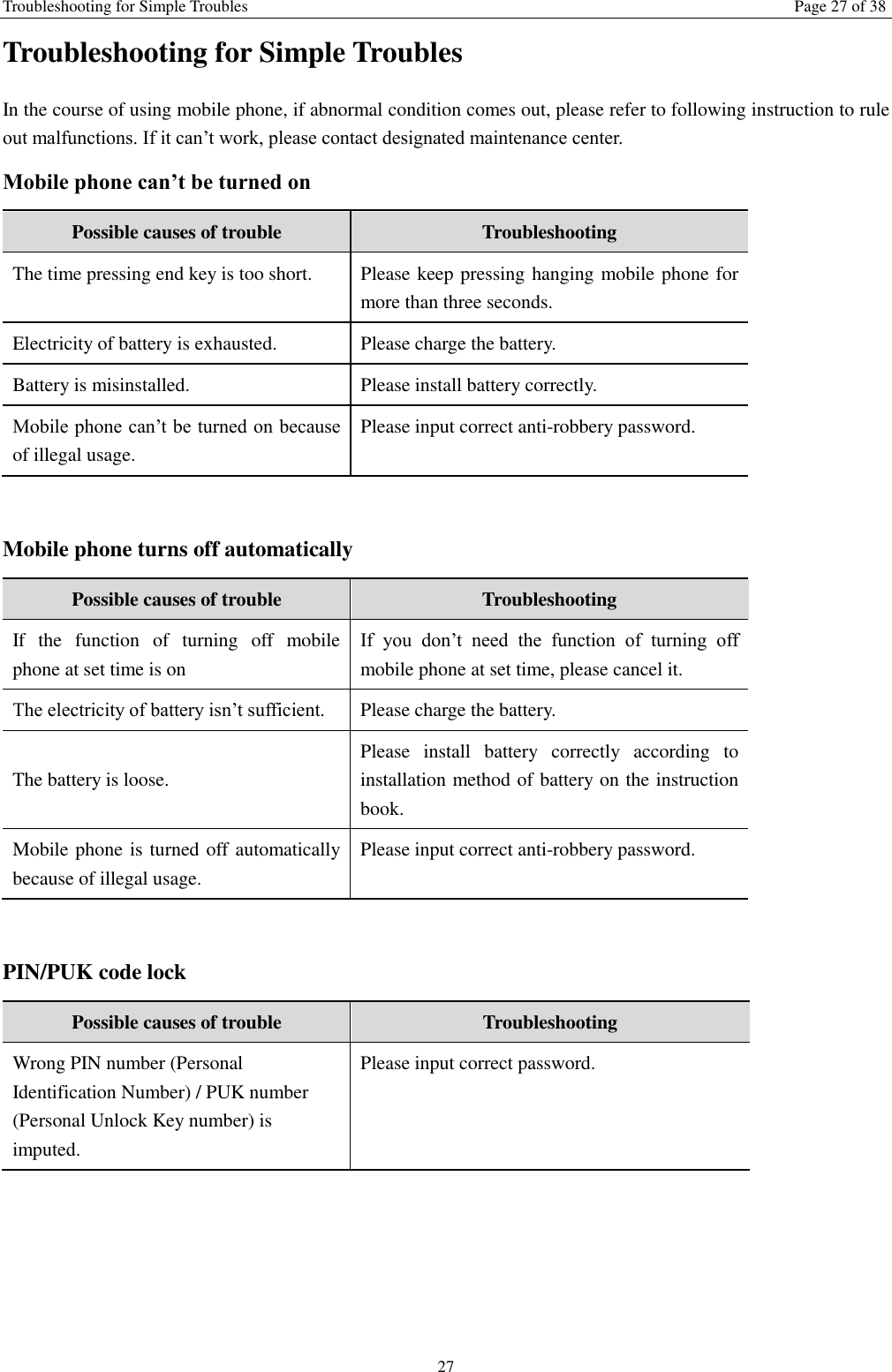
Troubleshooting for Simple Troubles Page 27 of 38 27 Troubleshooting for Simple Troubles In the course of using mobile phone, if abnormal condition comes out, please refer to following instruction to rule out malfunctions. If it can’t work, please contact designated maintenance center. Mobile phone can’t be turned on Possible causes of trouble Troubleshooting The time pressing end key is too short. Please keep pressing hanging mobile phone for more than three seconds.   Electricity of battery is exhausted.   Please charge the battery. Battery is misinstalled.   Please install battery correctly.   Mobile phone can’t be turned on because of illegal usage. Please input correct anti-robbery password.  Mobile phone turns off automatically   Possible causes of trouble Troubleshooting If  the  function  of  turning  off  mobile phone at set time is on If  you  don’t  need  the  function  of  turning  off mobile phone at set time, please cancel it.   The electricity of battery isn’t sufficient.   Please charge the battery. The battery is loose.   Please  install  battery  correctly  according  to installation method of battery on the instruction book. Mobile phone is turned off automatically because of illegal usage.   Please input correct anti-robbery password.  PIN/PUK code lock Possible causes of trouble Troubleshooting Wrong PIN number (Personal Identification Number) / PUK number (Personal Unlock Key number) is imputed.   Please input correct password.
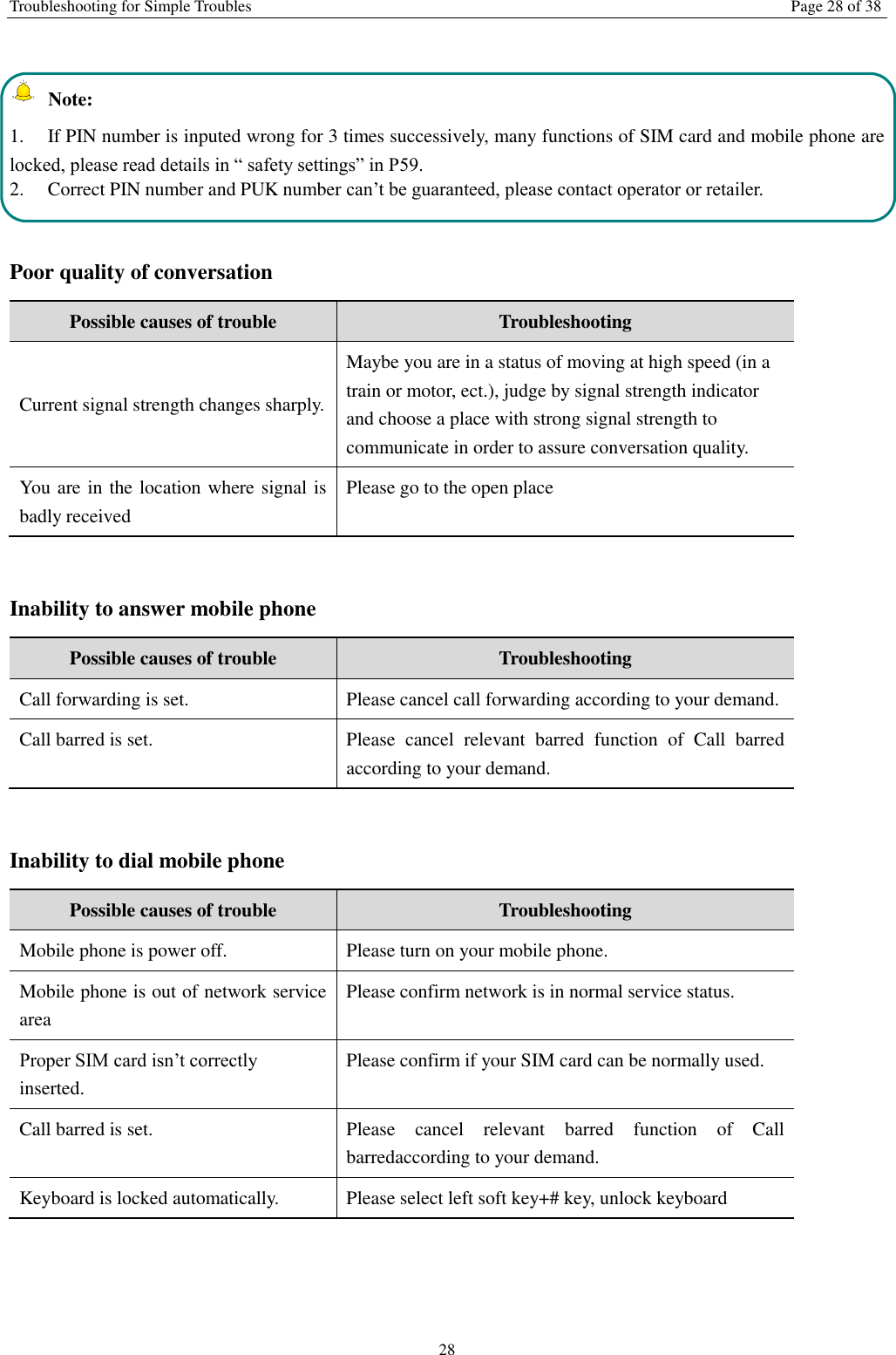
Troubleshooting for Simple Troubles  Page 28 of 38 28   Note:   1.  If PIN number is inputed wrong for 3 times successively, many functions of SIM card and mobile phone are locked, please read details in “ safety settings” in P59.   2.  Correct PIN number and PUK number can’t be guaranteed, please contact operator or retailer.  Poor quality of conversation Possible causes of trouble Troubleshooting Current signal strength changes sharply. Maybe you are in a status of moving at high speed (in a train or motor, ect.), judge by signal strength indicator and choose a place with strong signal strength to communicate in order to assure conversation quality.   You are in the location where signal is badly received Please go to the open place    Inability to answer mobile phone Possible causes of trouble Troubleshooting Call forwarding is set.   Please cancel call forwarding according to your demand.   Call barred is set.   Please  cancel  relevant  barred  function  of  Call  barred according to your demand.    Inability to dial mobile phone Possible causes of trouble Troubleshooting Mobile phone is power off.   Please turn on your mobile phone. Mobile phone is out of network service area Please confirm network is in normal service status. Proper SIM card isn’t correctly inserted. Please confirm if your SIM card can be normally used.   Call barred is set.   Please  cancel  relevant  barred  function  of  Call barredaccording to your demand. Keyboard is locked automatically.   Please select left soft key+# key, unlock keyboard
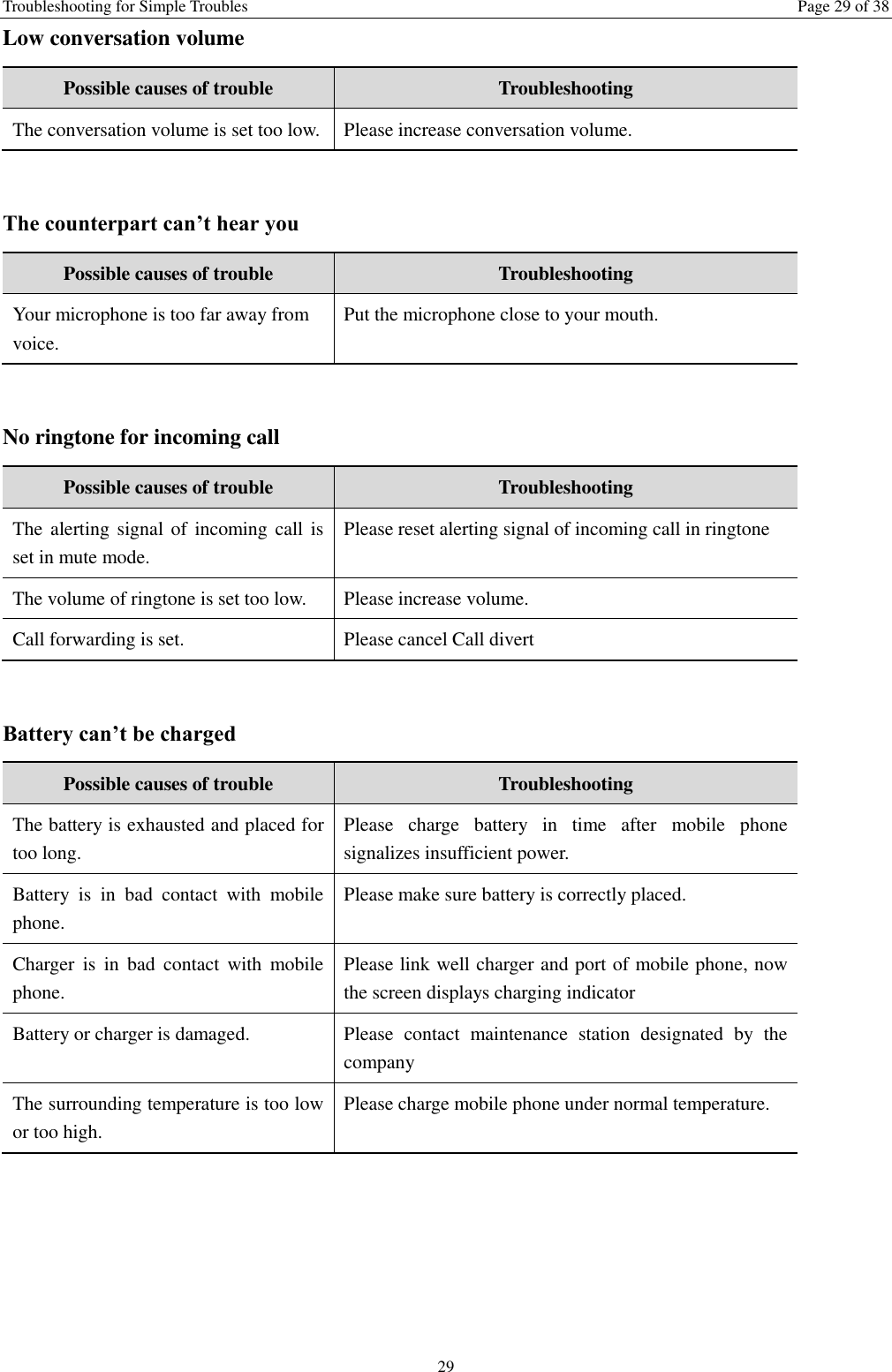
Troubleshooting for Simple Troubles  Page 29 of 38 29 Low conversation volume   Possible causes of trouble Troubleshooting The conversation volume is set too low.   Please increase conversation volume.  The counterpart can’t hear you Possible causes of trouble Troubleshooting Your microphone is too far away from voice. Put the microphone close to your mouth.    No ringtone for incoming call Possible causes of trouble Troubleshooting The alerting signal of incoming  call  is set in mute mode. Please reset alerting signal of incoming call in ringtone The volume of ringtone is set too low. Please increase volume. Call forwarding is set.   Please cancel Call divert  Battery can’t be charged Possible causes of trouble Troubleshooting The battery is exhausted and placed for too long.   Please  charge  battery  in  time  after  mobile  phone signalizes insufficient power. Battery  is  in  bad  contact  with  mobile phone. Please make sure battery is correctly placed.   Charger  is  in  bad  contact  with  mobile phone. Please link well charger and port of mobile phone, now the screen displays charging indicator Battery or charger is damaged.   Please  contact  maintenance  station  designated  by  the company The surrounding temperature is too low or too high.   Please charge mobile phone under normal temperature.
Troubleshooting for Simple Troubles  Page 30 of 38 30 No network displayed Possible causes of trouble Troubleshooting SIM card is wrongly placed.   Please  place  SIM  card  correctly  according  to  its installation method on the instruction book. There  are  impurities  between  SIM  card and contacts of mobile phone.   Please keep clean between SIM card and the contacts of mobile phone. SIM card is ineffective.   Please check if SIM card is expired.   Network  environment  is  in  weak  field strength area. Please move to the place with good signal strength of network for using mobile phone.    Memory card can’t be found in mobile phone Possible causes of trouble Troubleshooting Memory card is wrongly inserted.   Please  use  memory  card  correctly  according  to  its inserting method on instruction book. Memory card is damaged. Please change memory card.  Insufficient space Possible causes of trouble Troubleshooting MMS  or  SMS  have  occupied  too  much storing space. Please  Clear  unnecessary  MMS  or  SMS  to  free  up space. History  recording  saved  in  browser  has occupied too much storing space. Please select Communication→Browser→WAP settings→Browser settings→Clear cache]  to free up space.    Menu options what PC Camera of mobile phone can’t realize Possible causes of error Troubleshooting After mobile phone is linked to computer, no menu of “PC Camera”is displayed on mobile phone.     1. Please check if USB port of computer is complete. 2. Please check if you have correctly used linking line provided by retailer.
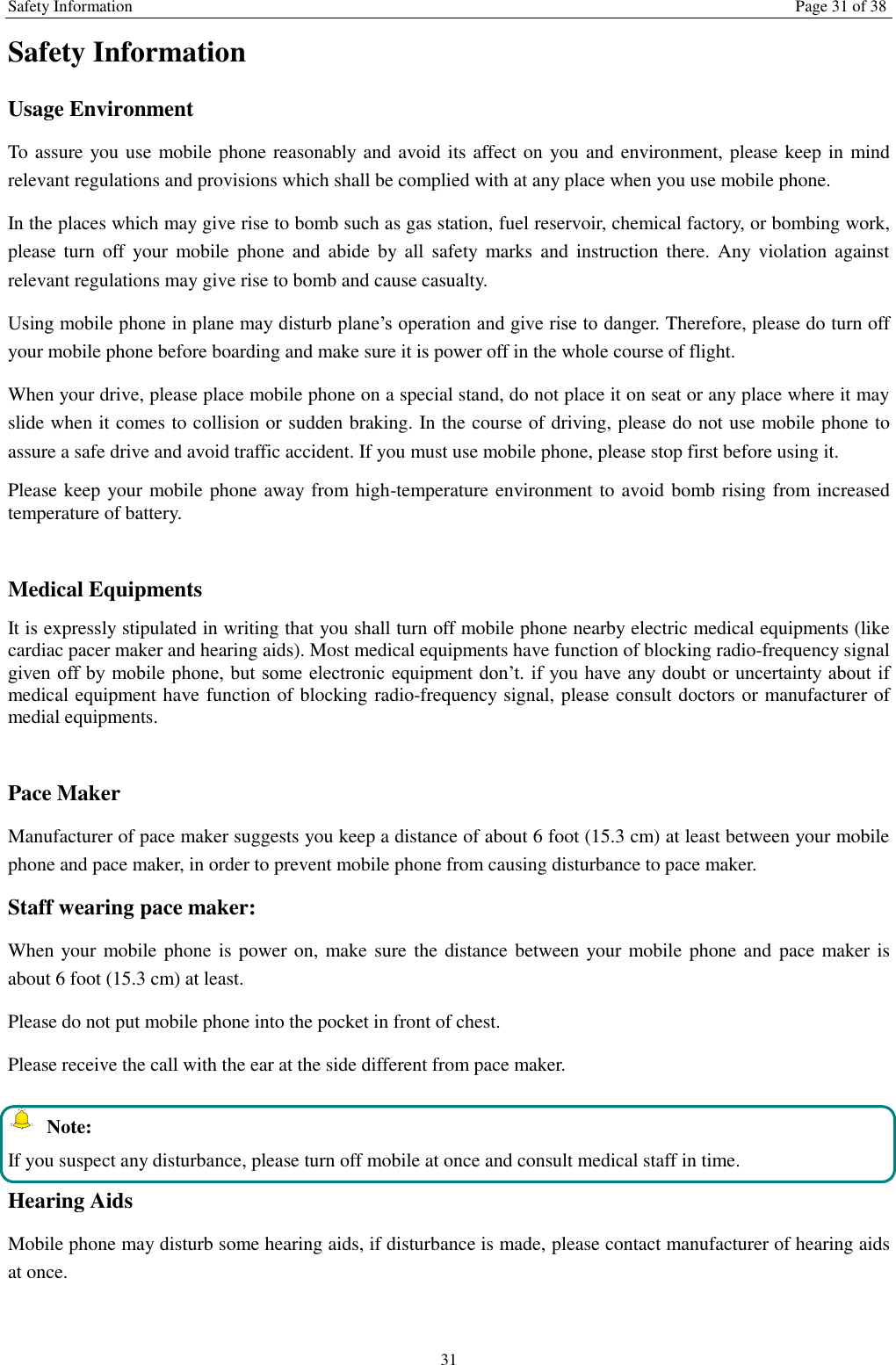
Safety Information Page 31 of 38 31 Safety Information Usage Environment   To assure you use mobile phone reasonably and avoid its affect on you and environment, please keep in mind relevant regulations and provisions which shall be complied with at any place when you use mobile phone. In the places which may give rise to bomb such as gas station, fuel reservoir, chemical factory, or bombing work, please turn  off  your  mobile phone  and  abide  by  all  safety marks and  instruction there.  Any  violation  against relevant regulations may give rise to bomb and cause casualty.   Using mobile phone in plane may disturb plane’s operation and give rise to danger. Therefore, please do turn off your mobile phone before boarding and make sure it is power off in the whole course of flight. When your drive, please place mobile phone on a special stand, do not place it on seat or any place where it may slide when it comes to collision or sudden braking. In the course of driving, please do not use mobile phone to assure a safe drive and avoid traffic accident. If you must use mobile phone, please stop first before using it.   Please keep your mobile phone away from high-temperature environment to avoid bomb rising from increased temperature of battery.  Medical Equipments It is expressly stipulated in writing that you shall turn off mobile phone nearby electric medical equipments (like cardiac pacer maker and hearing aids). Most medical equipments have function of blocking radio-frequency signal given off by  mobile phone, but some electronic equipment don’t. if you have any doubt or uncertainty about if medical equipment have function of blocking radio-frequency signal, please consult doctors or manufacturer of medial equipments.  Pace Maker   Manufacturer of pace maker suggests you keep a distance of about 6 foot (15.3 cm) at least between your mobile phone and pace maker, in order to prevent mobile phone from causing disturbance to pace maker. Staff wearing pace maker:   When your mobile phone is power on, make sure the distance between  your mobile phone and  pace maker is about 6 foot (15.3 cm) at least. Please do not put mobile phone into the pocket in front of chest. Please receive the call with the ear at the side different from pace maker.   Note: If you suspect any disturbance, please turn off mobile at once and consult medical staff in time. Hearing Aids Mobile phone may disturb some hearing aids, if disturbance is made, please contact manufacturer of hearing aids at once.
Safety Information  Page 32 of 38 32 Emergency Call   The  same  as  other  mobile  phones,  this  kind  of  mobile  phone  uses  radio  signal,  wireless  and  ground communication network and personal setting function, it can’t guarantee it can get linked successfully under any situations.  Please  don’t  reply  on  only  mobile  phone  for  sending  important  communication  (such  as  medical emergency) Dial emergerncy call If your mobile phone is power off, please turn it on and check if network signal is strong enough.    Input correct local emergency number (like 120 emergency center), the number differs from one district to another.    Please call by pressing talking key.     Note: In  case  of  emergency  call,  please  try  to  provide  all  important  informtions.  The  mobile  phone  may  be  at  the accident site. It is the only conversation tool, please do not end conversation without approval.  Password Access The mobile phone and SIM card can be protected by password to prevent them from illegal usage. Power-on Password To prevent your mobile phone from being used by others without your approval, you can set password when you use the function for the  first time.  After  you use mobile phone, please  change power-on  password as  soon  as possible and keep it secret. PIN Code   It is personal identification number to protect SIM card from being used by others without your approval. Usually PIN code and SIM card are provided together. When you use using power-on PIN code, every time when you turn on mobile phone, you have to input password before starting the normal phone function.     Note: If PIN code is imputed wrong for three times successively, SIM card will be locked. You need to input PUK code to unlock it. (If no PUK code is available, please contact your network operator or SIM card retailer asking for PUK code. Please don’t input any character.)  PIN2 Code PIN2 is password to realize special function of SIM card. If the network operation company provides this number to you, it is to be imputed for getting access to some functions (such as unit of account, fixed dial numbers, etc.). Usually PIN2 number and SIM card are provided together. If you input PIN2 code wrong three times successively, PIN2 code will be locked. You need to input PIN2 code to unlock it.
Safety Information  Page 33 of 38 33 PUK Code Unlock Key PIN code. Usually PUK code and SIM card are provided together. If you don’t have, please contact your network operator or SIM card retailer. If you imput wrong PUK code for ten times successively, SIM card can’t be used any more. Then please apply to your network operator for a new card. Do not change PUK code. PUK2 Code Unlock  PIN2  code.  Usually  PUK2  code  and  SIM  card  are  provided  together,  PUK2  code  can  alter  locked PIN2code. If PUK2 number is imputed wrong for ten times successively, some functions can’t be used any more. Then please apply to your network operator for a new card. Do not change PUK2 code. If it is lost, please contact service provider. Attentions on Charging of Battery This kind of mobile phone provides energy by lithium ion battery, system environment, mobile phone settings and others will affect waiting and conversation time of mobile phone. Please use the standard battery and charger provided by the company, or the company isn’t responsible for damage caused by battery or charger unauthorized by the company. When the mobile phone is power on, the batty starts to roll on the battery indicator on the screen.  Note: 1.  If  the  battery  doesn’t  have  power  at  all,  the  battery  indicator  will  show  up  after  it  is  charged  for  2  to  3 minutes. Generally according to current status of mobile phone (if it is power on,  with conversation, etc), the charging time is 2 to 5 hours. 2.  To make new battery reach perfect performance, please finish two to three charging and discharging cycles. A new battery shall be charged continuously for above 10 hours for the first time.  In the course of charging mobile phone, please do not contact its battery or charger with wet hand in order to avoid danger.   When mobile phone is charged, please do not to use it as possible as you can. After the battery is charged full, the electricity indicator stops rolling, then take mobile phone out from the port of its adaptor. Attentions on Use of Battery The usage of battery is determined by network, settings of mobile phone, usage of mobile phone, take lithium ion battery with capacity of 1600 MA, for example, its conversation time is about 6 to 8 hours and standby time is 150 to 240 hours.   Please do not use damaged charged battery. When mobile phone is used nearby network base, battery consumes little electricity. Therefore, conversation and standby time, to great extent, are affected by signal strength of cellular network and parameter set by network operator.   Time of charging battery depends on residual capacity, type of battery and electronic equipment type. When usage
Safety Information  Page 34 of 38 34 time of battery is obviously shortened, you have better change battery to guarantee the performance of mobile phone.   Please use standard battery and charger provided by Amoi Company, or it may give rise to bomb. When you don’t need  charger,  please  cut  off  electricity  source.  Do  not  keep  battery  linked  with  charger  for  over  one  week, overcharge will shorten useful life of battery.   Please do not place battery by mistaking its cathode and anode. Please do not place battery at place where it is too high or too low, or it will decrease battery’s capacity and life. Please use battery at domestic temperature as possible as you can. Do not make battery short-circuit, or it will damage battery core or protective circuit inside battery. When you put unused battery in pocket or bag, medal items (coin, pin or pen, etc.) may link two ends of battery immediately and make battery short-circuit, so please place battery singly and safety.   Please do not burn battery of mobile phone or do with it as common rubbish. To avoid potential life hazards and harm to environment, please comply with environment-friendly policy stipulated by local government, treat and recycle battery in time.   If your mobile phone, battery or other charging equipment fall into water carelessly, please do not dry it in any heating equipment (such as drier, microwaver) . Mobile phone or other products may give rise to malfunction, and mobile phone, battery or other charger may burn, expand bomb.   Please do with abandoned used battery according to relevant stipulation. Amoi Company isn’t responsible for any direct or indirect loss caused by above-mentioned wrong operation.   Attention on Use of Accessories   Please put all accessories (such as SIM card, memory card, battery) in the place where children are out of reach, to avoid danger.   Before  taking  out  battery  of  mobile  phone,  please  make  sure  mobile  phone  is  power  off  and  cut  off  linkage between mobile phone and charger.   Accessories of mobile phone don’t have waterproof performance, please keep all accessories dry. When cutting off electricity from any accessory, take out plug correctly, do not draw power cable.   If  mobile  phone,  battery  and  charger  don’t  function  normally,  please  contact  the  nearest  and  qualifying maintenance department. Other Safety Information When mobile phone is not used, you’d better turn off mobile phone and take out battery in order to save energy and eliminate radiation of mobile phone. When mobile phone is used, please do not adjust its volume too high or it will do harm to hearing   Non-professional shall not take out terminal and battery of mobile phone by himself or herself.   You’d better not use leather case with magnetic button as possible as you can to avoid magnet what  may cause disturbance to signal of powering on or off the mobile phone, and its hard iron button may damage fluid crystal
Safety Information  Page 35 of 38 35 display; plastic case  may cause unsmooth evaporation to steam, eroding components inside mobile phone and oxidizing and discoloring its cover.
Safety Information  Page 36 of 38 36  FCC FCC RF Exposure Information and Statement The SAR limit of USA (FCC) is 1.6 W/kg averaged over on one gram of tissue. Device types:  SHELA (FCCID: 2AB7A-201502) has also been tested against this SAR  limit. The highest SAR value reported under  this standard  during product  certification  for use  at  the  ear  is  0.266  W/kg  and  when properly  worn  on  the  body  is 0.311W/kg. This device was tested for typical body-worn operations. To comply with RF exposure requirements, a minimum separation distance of 1.0 cm must be maintained between the user’s body and the handset, including the antenna. Third-party belt-clips,  holsters,  and  similar  accessories  used  by  this  device  should  not  contain  any  metallic  components.  Body-worn accessories that do not meet these requirements may not comply with RF exposure requirements and should be avoided. Use only the supplied or an approved antenna. The use of belt clips, holsters and similar accessories should not contain metallic components in its assembly. The use of accessories  that  do  not  satisfy  these  requirements  may  not  comply  with  FCC  RF  exposure  requirements,  and  should  be avoided. This device complies with part 15 of the FCC rules. Operation is subject to the following two conditions: (1) this device may not cause harmful interference, and (2) this device must accept any interference received, including interference that may cause undesired operation. NOTE: The manufacturer is not responsible for any  radio or  TV  interference caused by unauthorized modifications to  this equipment. Such modifications could void the user’s authority to operate the equipment .This equipment has been tested and found to comply with the limits for a Class B digital device, pursuant to part 15 of the FCC Rules. These limits are designed to provide reasonable protection against harmful interference in a residential installation. This equipment generates uses and can radiate  radio  frequency  energy  and,  if  not  installed  and  used  in  accordance  with  the  instructions,  may  cause  harmful interference to radio communications. However, there is no guarantee that interference will not occur in a particular installation. If this equipment does cause harmful interference to radio or television reception, which can be  determined by turning the equipment off and on, the user is encouraged to try to correct the interference by one or more of the following measures: - Reorient or relocate the receiving antenna. - Increase the separation between the equipment and receiver. - Connect the equipment into an outlet on a circuit different from that to which the receiver is connected. - Consult the dealer or an experienced radio/TV technician for help. The  user’s manual  or  instruction  manual  for  an  intentional or  unintentional  radiator shall caution the user that changes or modifications not expressly approved by the party responsible for compliance could void the user's authority to operate the equipment. In cases where the manual is provided only in a form other than paper, such as on a computer disk or over the Internet, the information required by this section may be included in the manual in that alternative form, provided the user can reasonably be expected to have the capability to access information in that form

Navigation menu