HK AONYSTAR 2017 Mobile Phone User Manual Contents

HK AONYSTAR CO.,LIMITED Mobile Phone Contents

User manual

      User Manual Model: A300 Brand: AONYSTAR
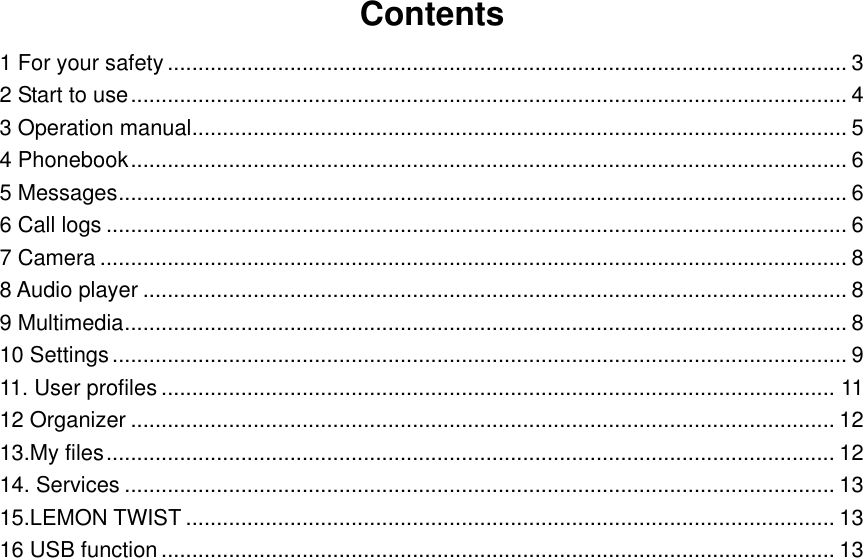
Contents 1 For your safety ............................................................................................................... 3 2 Start to use ..................................................................................................................... 4 3 Operation manual ........................................................................................................... 5 4 Phonebook ..................................................................................................................... 6 5 Messages ....................................................................................................................... 6 6 Call logs ......................................................................................................................... 6 7 Camera .......................................................................................................................... 8 8 Audio player ................................................................................................................... 8 9 Multimedia ...................................................................................................................... 8 10 Settings ........................................................................................................................ 9 11. User profiles .............................................................................................................. 11 12 Organizer ................................................................................................................... 12 13.My files ....................................................................................................................... 12 14. Services .................................................................................................................... 13 15.LEMON TWIST .......................................................................................................... 13 16 USB function .............................................................................................................. 13
1 For your safety Notice: To use your handset safely and efficiently, please read the following instruction carefully before using and abide by it.     Be careful when you are driving. Please abide by the relative local laws and regulations. Use both of your hands to drive! Put the handset in its seat to avoid falling down. The ballonet will charge quickly when it is in  danger,  please  don’t  put  anything  in  its  security  scope,  including  fixed  phone  and handset equipment. Otherwise it may cause serious body injuries.   The handset must be turned off when you are on the plane. The interference of mobile will  influence the flight. It is illegal to  use mobile on phone, please power it off.     The handset must be turned off when you are in blowing-up area. When you are  at  a  blowing-up area  or  near  it,  please abide  by the  relevant  laws  and power your mobile off.   The handset must be turned off when you are near a danger product.   Please do not use mobile when you are near gas station or chemical plant.   The handset must be turned off when you are in a hospital. You have to abide by the relevant regulations of hospital and turn your handset off when you are near medical equipment. Any wireless transmission device, including mobile, will interfere those equipment not fully-protected.     Interference All the mobile handset may be interfered by the radio and reduce the performance of the handset.   Professional service Only  the  professional  can  setup  or  maintain  the  handset.  Improper  installation  or maintenance would bring out great danger, it also disobey  regulations  of  maintenance guarantee.   Accessory and battery Only the appointed accessory and battery can be used. It is suggested that you return the used battery to the factory or put it in the appointed recycle zone. Do not put it together with other rubbish or discard it.   Reasonable use Please use the handset in reasonable way. It is prohibited to put your handset in high temperature (over 60°C), such as beside the window where there is sunshine. Please use
wet or antistatic cloth to clean the handset. Do not use dry or static cloth to clean it. Your handset is not waterproof, please keep it dry.   Emergency call Please make sure the handset is powered on so that it can dial the emergency call. In idle mode, the handset can dial emergency numbers, such as 112, 911 and 110. Press dial key to  dial it, report  your location and the situation  briefly. Do not  end the call without permission.   Note: this handset, like any other one, may not support all the features because of the network coverage and wireless transmission. Some network even can not support 112. So do not rely totally on your handset about some significant calling (like medical aid). Please refer to the local operator. 2 Start to use Please read the following section carefully before using the handset. It will instruct you how to insert and unlock the SIM card, how to setup and maintain the handset, how to charge the battery, and also the information about digital GSM network. 2.1 Battery installation Please charge the battery after it has been completely used up, and use it after it has been completely charged. Three times later, the battery will be in best status. 2.1.1 Installing and discharging of the battery Pull the cover to take out the battery, and put it inside then close the cover to install it. 2.1.2Charge of the battery connect the charger with power supply connect the charge with handset The battery indication on LCD will bicker. If the handset is powered off when charging, LCD will display charging picture. If you overuse the handset when it is out of battery, LCD will display charging picture a while after you begin to charge it. When the battery indication is full and stops bickering, it means the handset has been completely charged. If the handset is charged when power off, the indication will also be displayed on LCD. It will take about 3 hours to charge, the battery, the handset and the charger will get warm during the charging time. Please disconnect the jacket and charger after finishing charging. The handset can be normally used when it is charging. Warning:  the  handset  must  be  put  in  a  ventilated  place  where  the  temperature  is -40℃—+55℃.And you must use the charger supplied by the factory. It is dangerous not to use the appointed charger, and it will break the guarantee terms of the handset.    2.1.3 Use of the battery When the handset is powered off automatically or when there is low battery indication, you should charge it in time. If the battery is not run out of energy before charging, the handset will adjust and reduce the time of charging. The idle time and talk time of the handset specified by the factory is based on the perfect working environment. Actually, the working time of the battery will vary with the network
status, work environment and the way of usage.   2.2 Connecting to network 2.2.1 SIM card The phone supports two SIM cards which can be in use at the same time when power on. Your network provider will supply you two inserted SIM cards. SIM card is the key for you to  enter  the  digital  GSM  network.  Please  insert  the  useful  SIM  card  before  using  the phone. Two SIM cards can be inserted into the phone at one time and switched to your wanted one at power-on such as dual SIM open, only one SIM open. All information about the network connecting and your calling record will be saved in the SIM card, and also the list of your phonebook and messages. You can take it out and insert to any other GSM handset. You  should  avoid  touching  the  metal  area  of  the  card,  and  put  it  far  away  from  the magnetic area. Once it is damaged, you can not enter the GSM network.     2.2.2 Insert and take out the SIM card Normally, SIM card is put in SIM card slot, please take it out carefully before installing. Power off the handset, discharge the battery or other power supply. Insert the card, the metal face being downward. When you need to take out the card, please turn off the handset and discharge the battery first.  Warning: forbid to take out the SIM card when the handset is powered on. It is definitely prohibitive to insert or take out SIM card when the handset is connected to external power supply, or SIM card may be damaged. 2.2.3 Connecting to network After  unlocking  the  SIM  card,  the  handset  will  search  the  registered  network  or  other available network. Once connected, the name of network supplier will show in the middle of the LCD. At this time, your handset is in idle mode. 2.2.4 USB The phone support USB function both power on all power off.   3 Operation manual 3.1 Power on/off 3.1.1 Power on Long press the power key to turn on the handset. If there is prompt “insert SIM card”, please power it off and check the SIM card. When the handset is powered on and indicate you to input the handset password or the PIN code,  you  have  to  input  it  correctly. If  you  do  not  know  the  PIN  code  yet,  please contact with the network supplier. The default handset password is 1234. 3.1.2Power off Long press the power key to turn off the handset. The handset is power off after displaying the flash on LCD.   3.2 Emergency calls
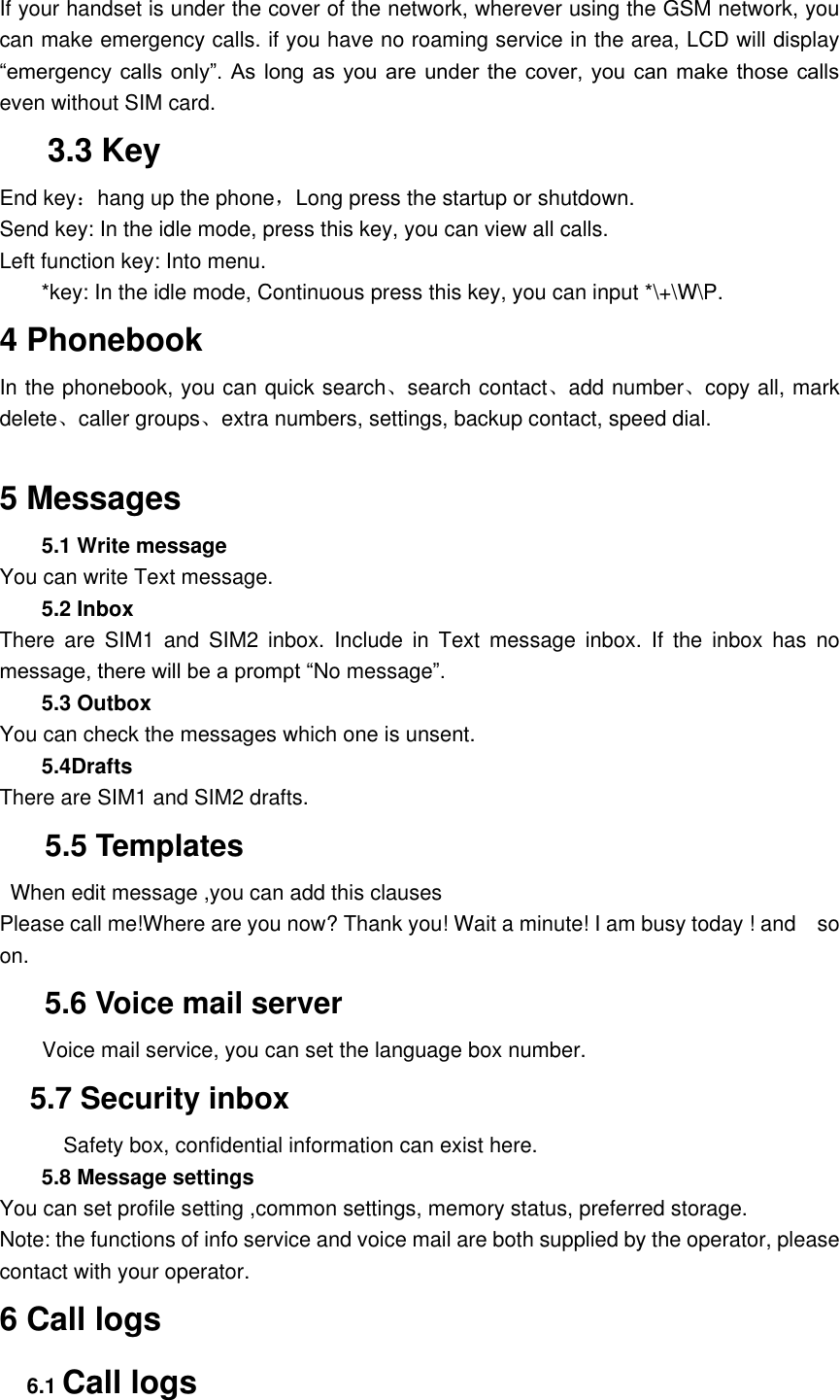
If your handset is under the cover of the network, wherever using the GSM network, you can make emergency calls. if you have no roaming service in the area, LCD will display “emergency calls  only”. As  long  as you  are under  the  cover,  you can  make  those calls even without SIM card. 3.3 Key End key:hang up the phone,Long press the startup or shutdown. Send key: In the idle mode, press this key, you can view all calls.   Left function key: Into menu. *key: In the idle mode, Continuous press this key, you can input *\+\W\P. 4 Phonebook In the phonebook, you can quick search、search contact、add number、copy all, mark delete、caller groups、extra numbers, settings, backup contact, speed dial.  5 Messages 5.1 Write message You can write Text message. 5.2 Inbox There  are  SIM1  and  SIM2  inbox.  Include  in  Text  message  inbox.  If  the  inbox  has  no message, there will be a prompt “No message”. 5.3 Outbox You can check the messages which one is unsent.   5.4Drafts There are SIM1 and SIM2 drafts.    5.5 Templates   When edit message ,you can add this clauses Please call me!Where are you now? Thank you! Wait a minute! I am busy today ! and    so on. 5.6 Voice mail server         Voice mail service, you can set the language box number.   5.7 Security inbox             Safety box, confidential information can exist here. 5.8 Message settings You can set profile setting ,common settings, memory status, preferred storage. Note: the functions of info service and voice mail are both supplied by the operator, please contact with your operator. 6 Call logs 6.1 Call logs
Missed calls: you can view SIM1 and SIM2 missed calls.   Dialed calls: you can view SIM1 and SIM2 dialed calls. Received calls:    you can view received SIM1 and SIM2 received calls.         Rejected call: you can view SIM1 and SIM2 rejected call. Delete call logs: You can either delete all call records or separated delete the missed, the dialed , received ,rejected and the all call..         SIM1 call timers There are four submenus of the call timers Last call: the duration of last call Total call sent: the duration of all sent call Total received: Call duration for all the received calls Reset all time: Clear the data SIM2 call times Please refer to SIM1 call times for operation.  SIM1 call cost For you to check call cost. Last call cost: the cost of last call Total cost: The cost for all calls Reset cost: Clear the data: input the PIN2 code, you can clear the data Max cost: you can view, change or cancel this function. Change or cancel this function needs PIN2 code Price and unit: you can browse, change or cancel this function. Change or cancel this function needs PIN2 code   Note: some of the functions need PIN2 code. Please contact with the operator to get the code. SIM2 call cost Please refer to SIM1 call cost for operation.    SIM1 text message counter Sent: the total number of the messages sent. Received: the total number of the messages received. You can click “reset” to clear the list.       SIM2 text message counter Please refer to SIM1 text message counter          SIM1 GPRS counter Last sent: the characters sent last time Last received: the characters received last time All sent: all characters sent All received: all characters received Reset counter: Clear the date and restart counting.   SIM2 GPRS counter
Please refer to SIM1 GPRS counter for operation. 7 Camera In camera, Press OK key to take picture. Press the left function key to go to the options interface as the followings: Photos: view the pictures   Camera settings Image settings White balance : There are 6 options. Scene mode: :Auto mode or night mode.   Effect settings: At previewing status, press 3 to switch. There are 6 options.   Storage:To phone or memory card.   8 Audio player In audio player, Press OK key to play music. Press MP3 key to stop music. Press left\right key  to  change  the  volume  .After  choosing  music  settings,  there  are  the  following operations: Music playlist can add songs. Repeat: you can repeat playing. There are 3 options: close, single repeat, all repeat. Shuffle: set the playing order. You can choose to open or close this function. Background play: choose this function; you can play the music when in other operations. (Except camera operation and record operation.) Note: the player only put the music in My Music to the list.  9 Multimedia 9.1 Image viewer View: view the photos. Image information: you can view the details about photos. Browse style: list style or matrix style. Send: via Bluetooth. Use as: Wallpaper\Screen saver\Power on or off display. Rename: rename the photos. Delete: delete the selected photo. Delete all files: delete all photos. Sort by: you can arrange the photos order according to name, type, time, size or none (the first record). Storage: You can choose phone or Memory card. 9.2 Video player After entering the film list, you can: Select the file by up/down key, then you press options to go to the interface: play, send, rename, delete, delete all files, sort by or storage.
Click the film file to go to the option interface. When it is ready to play, Press OK to play to play or pause it. Press up or down direction key to adjust the volume. Press left or right to control the playing speed. During video playing, you can adjust the speed by left/right key, and to pause/continue by OK key. You can press “1”to switch full screen.   9.3 Camcorder You can enter the Camcorder through multimedia.   After  entering  Multimedia,  at  the  previewing  status.  Press  left/right  key  to  adjust  EV parameter.  Press  up/down  key  to  adjust  the  enlarging  fold.  Press  ok  key  to  begin recording video. Press    to stop recording for a while,then press    to continue . 9.4 Recorder Press left function key, you can make a new record or play recording, Press up\down key to change the volume when play the recording.      9.5 FM radio Input headset then you can receive the FM radio. Press OK key to play, Press up\down key to change the volume .Press left function key, Channel  list:  After  setting  9  channels,  you  can  switch  among  them  by  pressing  the numeric key. Manual input:input the channel you want Auto search:Auto search the channels and set them as a list. Settings:To set about background, Loud speaker. Auto search:Auto search the channels and set them as a list.         You can also put it outside, background playback and recording and so on.   10 Settings 10.1 Phone settings Time and date Schedule power on/off: you can set 4 different times on or off. Language: to choose a language for your headset. Pref. input method: choose a default input method.       Display characteristic on idle interface:   Wallpaper: choose the wallpaper for the idle mode Power on display: choose the flash when power on Power off display: choose the flash when power off Shortcuts:  Add  number,  search  contact,  Caller  group,  write  message,  memory  status,
preferred storage, greeting text, pref. Input methods, alert type.    Dedicated key: up key is camera, down key is calendar, left key is write message, right key is user profiles.  10.2 Dual SIM settings There are 4 models: dual SIM open, only SIM1 open, only SIM2 open and flight mode. 10.3 Network settings   SIM1 network s settings   Network selection   Preferential network: save some preferential network     SIM2 network settings: The detail is referred to SIM1 network    setup.  10.4 Security settings  SIM lock: You can lock the SIM to avoid being illegally used.  Fixed dial If the SIM card supports this function, you can set the certain dialing then you can only dial the number on the list. Enter “fixed dial”, you can set: Format: open/close this function (PIN2 code is needed). The list: input the numbers.   Note:  to  open/close  this  function,  the  PIN2  code  is  needed.  Please  contact  with  your operator to get it.  Barred dial: set the numbers you can not dial.  Phone lock You can lock the handset to avoid being illegally used. You have to input the handset password each time you power on the handset. Note: The default password is 1234; please change it to your personal password as soon as possible.  Auto keypad lock Set  the  waiting  time  for  locking  keypad.  After  setting,  the  keypad  will  be  locked automatically .  Change the password: including PIN, PIN2 code and the password of the handset lock. Note: some functions need the support of the operator. 10.5 Call settings
10.5.1 SIM call settings   Call waiting: open or close this function Call divert Call barring Line switch: line switch form 1 to 2. The default is line 1. 10.5.2 SIM call settings The detail is referred to SIM1 call settings. Call time reminder: you can choose off, Single, Periodic, when you are calling that can remind you by a voice. Auto  redial:  when  you  set  this function, each time  you  fail  to  get  through, it  will  redial automatically. Black list       Mode: on/off Black list numbers: you can edit black numbers. IP dial: enter IP number and press OK to confirm the settings, and then you can cancel or edit it.  10.6 Restore factory settings Input the password of the handset lock, you can set the parameter to factory default. Note: The default password is 1234;  11. User profiles The  handset  supplies  three  modes:  general  mode,  silent  mode,metting  mode    indoor mode ,outdoor mode, headset mode and bluetooth mode. 11.1 General mode You can operate on each mode. Activate : activate general mode Tone settings: set incoming call tone, Power on/off tone, message tone and keypad tone; Volume: 1~7 volume levels for ring and key tone Alert type: ring only, vibration only, ring and vibration, ring then    vibration You can also set up other types and so on. 11.2 silent mode The same to the general mode 11.3 meeting mode The same to the general mode 11.4 outdoor mode The same to the general mode 11.5 indoor mode The same to the general mode 11.6 Headset mode It will enter headset mode when you insert the headset. 11.7 Bluetooth mode
          Activate  bluetooth  and  it  automatically  enters  bluetooth  mode.  The  settings  are same as general mode.  12 Organizer 12.1 Alarm   There are 3 alarm clocks for you to choose.   Open/close Alarm time Alarm periods: one time, every day, one day or several days in a week. You can select by up/down key. Snooze: choose from 1 to 10 minutes.And view world clock. 12.2 Calendar You can view the date. 12.3Ebook If you have a memory card, you can view the ebook. 13.4 Calcukator There is calculator in the handset, and you can operate it by keypad. The operation is as follows: Input the first number: when 0 is displayed on LCD, input the first number.   Input the counting symbol and then the second number. Choose +、-、*、/、= by press the up, down, left ,right key Press the OK key to come out the result. press right functional key to clear.   12.5 Bluetooth Enter this menu, there are the following settings. Power:on/off Visibility:on/off My device:The name of handset device will be displayed after matching and connecting successfully. Search audio device: activate Bluetooth and the headset before entering this menu, and then  begin  to  search  the  handset  device.  You  will  be  asked  to  input  the  password  of Bluetooth headset. And then you can use Bluetooth for talking or play MP3 after matching. Note: the password is different by each factory; please refer to the Bluetooth manual for the detail.   My name:The name of handset device will be displayed during connection。 Advanced:set audio path、Storage and so on. 13.My files You can view the file from phone and memory card. Open: open an appointed file New folder: add a new file folder Format: format the file
Note : you will lose all the information after formatting. Note: Some folders are hidden. To show them, you’ll have to save it to root directory of the handset with a right format, and move them to a corresponding folder.  14. Services 14.1 service   Homepage: select  this menu;  you  can  enter  the  default  website  to  get  the  information about entertainment, movies, fashion, friends, games, etc. Bookmarks Input address: input the address of the website you want to log on. Recent page: the recently-entered websites will be saved in this menu. Settings: you can set homepage、data account and so on. 14.2 STK   The functions supplied by STK is decided by the operator .and it need the support by both SIM card and network. 15.LEMON TWIST After the card can surf the Internet. 16 USB function When the USB data-wire is in use, it will start the charging function at the same time. It is no  need  to  install  driver  when  under  Windows2000/XP  systems;  while  you  have  to download the driver from the internet under Windows98/98SE systems. There are 3 different functions of the USB data-wire in the handset: Storing: connecting the data-wire to the computer, If the handset is power on, USB setting will pop out, please choose the storage. If the handset is power off, there is no need to set the storage, computer will find the storage in handset automatically, and show the USB icon on computer. Open it and you can see and change the content.   Video  camera:  connecting  the  data-wire  to  the  computer,  and  then  choosing  “video camera”, you can use the handset as network camera. Com port: connecting the data-wire to the computer, and then choosing “Sequence port”, you can dial-up to the internet. Note:  this  function  needs  network  support,  please  contact  network  service  supplier  if possible.
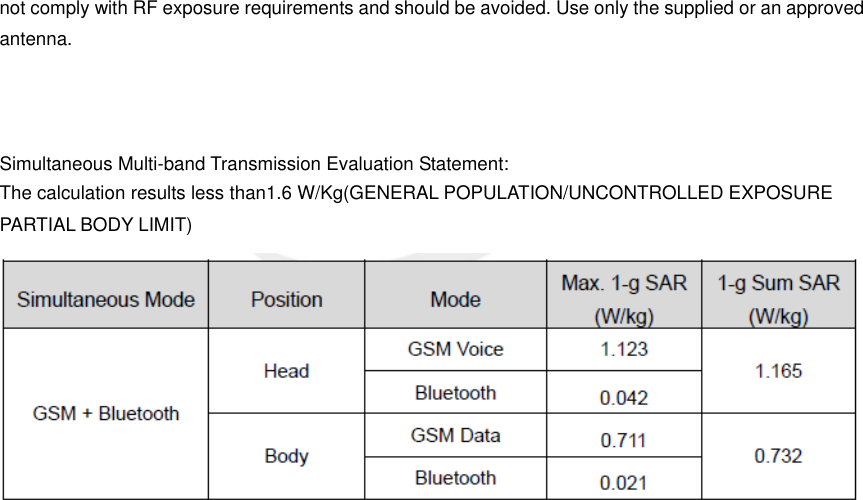
FCC Warning  This device complies with part 15 of the FCC Rules. Operation is subject to the following two conditions: (1) This device may not cause harmful interference, and (2) this device must accept any interference received, including interference that may cause undesired operation.  Any Changes or modifications not expressly approved by the party responsible for compliance could void the user's authority to operate the equipment.    Note: This equipment has been tested and found to comply with the limits for a Class B digital device, pursuant to part 15 of the FCC Rules. These limits are designed to provide reasonable protection against harmful interference in a residential installation. This equipment generates uses and can radiate radio frequency energy and, if not installed and used in accordance with the instructions, may cause harmful interference to radio communications. However, there is no guarantee that interference will not occur in a particular installation. If this equipment does cause harmful interference to radio or television reception, which can be determined by turning the equipment off and on, the user is encouraged to try to correct the interference by one or more of the following measures:     -Reorient or relocate the receiving antenna.     -Increase the separation between the equipment and receiver.     -Connect the equipment into an outlet on a circuit different from that to which the receiver is connected.     -Consult the dealer or an experienced radio/TV technician for help.    Specific Absorption Rate (SAR) information:   This Mobile phone meets the government's requirements for exposure to radio waves. The guidelines are based on standards that were developed by independent scientific organizations through periodic and thorough evaluation of scientific studies. The standards include a substantial safety margin designed to assure the safety of all persons regardless of age or health.    FCC RF Exposure Information and Statement   The SAR limit of USA (FCC) is 1.6 W/kg averaged over one gram of tissue. Device types: Mobile phone (FCC ID: 2AB7A-2017) has also been tested against this SAR limit. The highest SAR value reported under this standard during product certification for use at the ear is 1.123W/kg and when properly worn on the body is 0.711W/kg. This device was tested for typical body-worn operations with the back of the handset kept 10mm from the body. To maintain compliance with FCC RF exposure requirements, use accessories that maintain a 10mm separation distance between the user's body and the back of the handset. The use of belt clips, holsters and similar accessories should not contain metallic components in its assembly. The use of accessories that do not satisfy these requirements may not comply with FCC RF exposure requirements, and should be avoided.    Body-worn Operation   This device was tested for typical body-worn operations. To comply with RF exposure requirements, a minimum separation distance of 10mm must be maintained between the user’s body and the handset, including the antenna. Third-party belt-clips, holsters, and similar accessories used by this device should not contain any metallic components. Body-worn accessories that do not meet these requirements may
not comply with RF exposure requirements and should be avoided. Use only the supplied or an approved antenna.      Simultaneous Multi-band Transmission Evaluation Statement: The calculation results less than1.6 W/Kg(GENERAL POPULATION/UNCONTROLLED EXPOSURE PARTIAL BODY LIMIT)

Navigation menu