HLS Technology M10181 Tablet PC User Manual

HLS Technology Corporation Limited Tablet PC

user manual

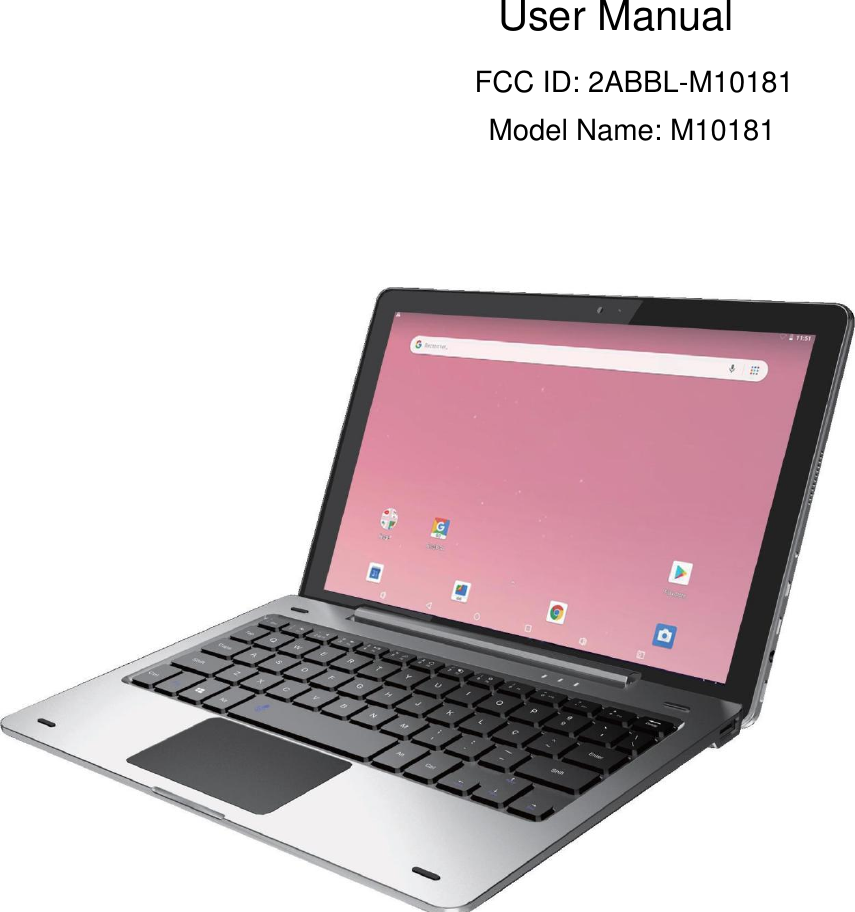
User ManualFCC ID: 2ABBL-M10181Model Name: M10181
Warning: This product is not a toy, adult SUPERVISION is Recommended.Important Safety PrecautionsPlease always follow these basic safety precautions when using your tablet. This reduces the risk of fire, electrocution and Injury.•Please avoid exposing the device to direct sunlight and heat sources.•Be sure to protect the power Cord. Please install the power cables so that they cannot be trampled or pinched by objects placed on or against it. Payspecial attention to the place where the cord connects to the Unit.•Only use the AC adapter supplied with the unit. The use of another power adapter will void the warranty.•Do not remove the back cover. This device does not contain any elements that may be repaired by the User.•If the appliance is damaged, it must be repaired by the manufacturer, its after-sales service or by a similarly qualified person.•This device is not intended for use by children under the age of 3.•Children over 3 years of age may use this product exclusively under parental supervision. (adults have the responsibility to control the websites, appsand games used by the child)•The product must never be disassembled by the User.•The product should not be used in a humid room, in the rain or at the beach.•Do not leave the product in an unventilated place.•Do not disassemble the unit. This will void the warranty.•Do not exert excess pressure on the screen.•Unplug the appliance during a thunderstorm or if it is not being used for a long time.•Do not use the product next to explosive or flammable products.•Do not use near strong magnetic fields.•Do not drop the appliance and protect it from shocks and impact.•Do not use next to medical devices or pacemakers.
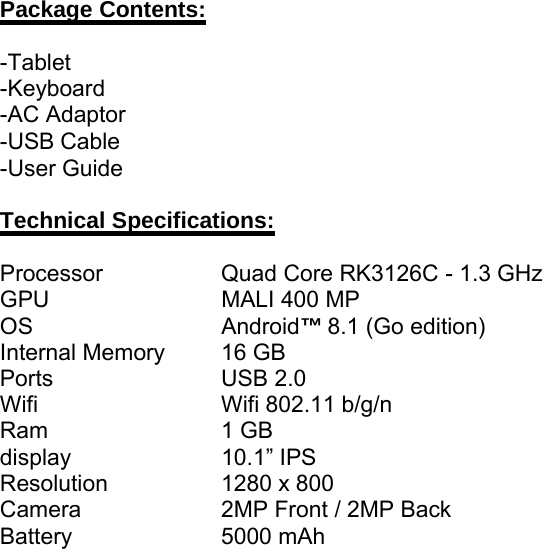
Package Contents:-Tablet-Keyboard-AC Adaptor-USB Cable-User GuideTechnical Specifications:Processor Quad Core RK3126C - 1.3 GHzGPU MALI 400 MPOS Android™8.1 (Go edition)Internal Memory 16 GBPorts USB 2.0Wifi Wifi 802.11 b/g/nRam 1 GBdisplay 10.1” IPSResolution 1280 x 800Camera 2MP Front / 2MP BackBattery 5000 mAh
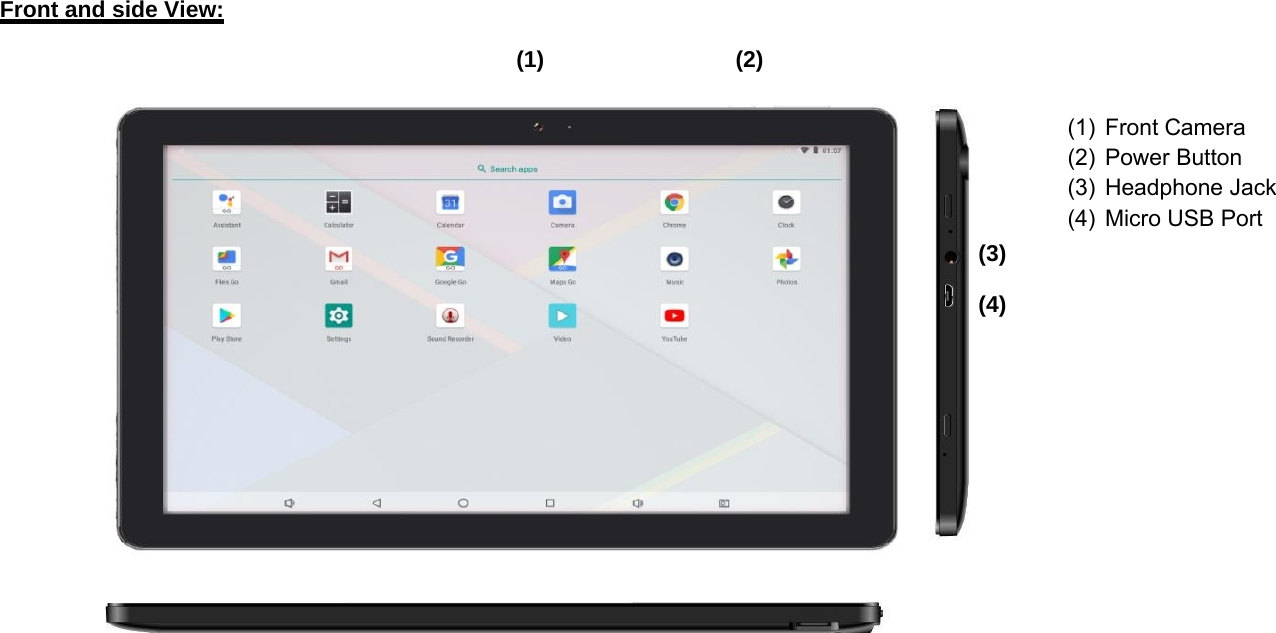
Front and side View:(1) (2)(1) Front Camera(2) Power Button(3) Headphone Jack(4) Micro USB Port(3)(4)
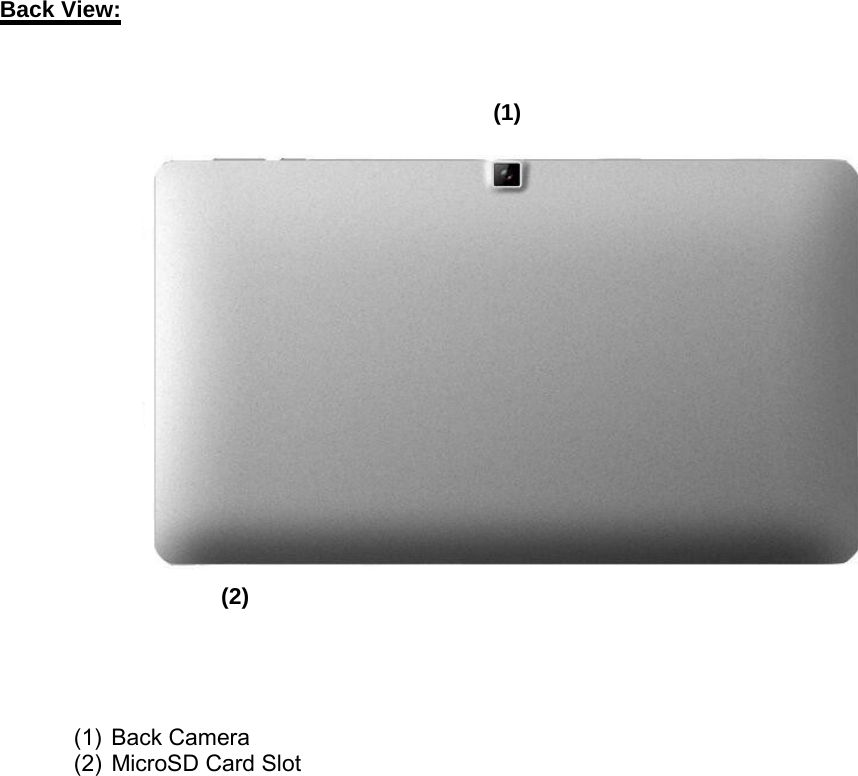
Back View:(1)(2)(1) Back Camera(2) MicroSD Card Slot
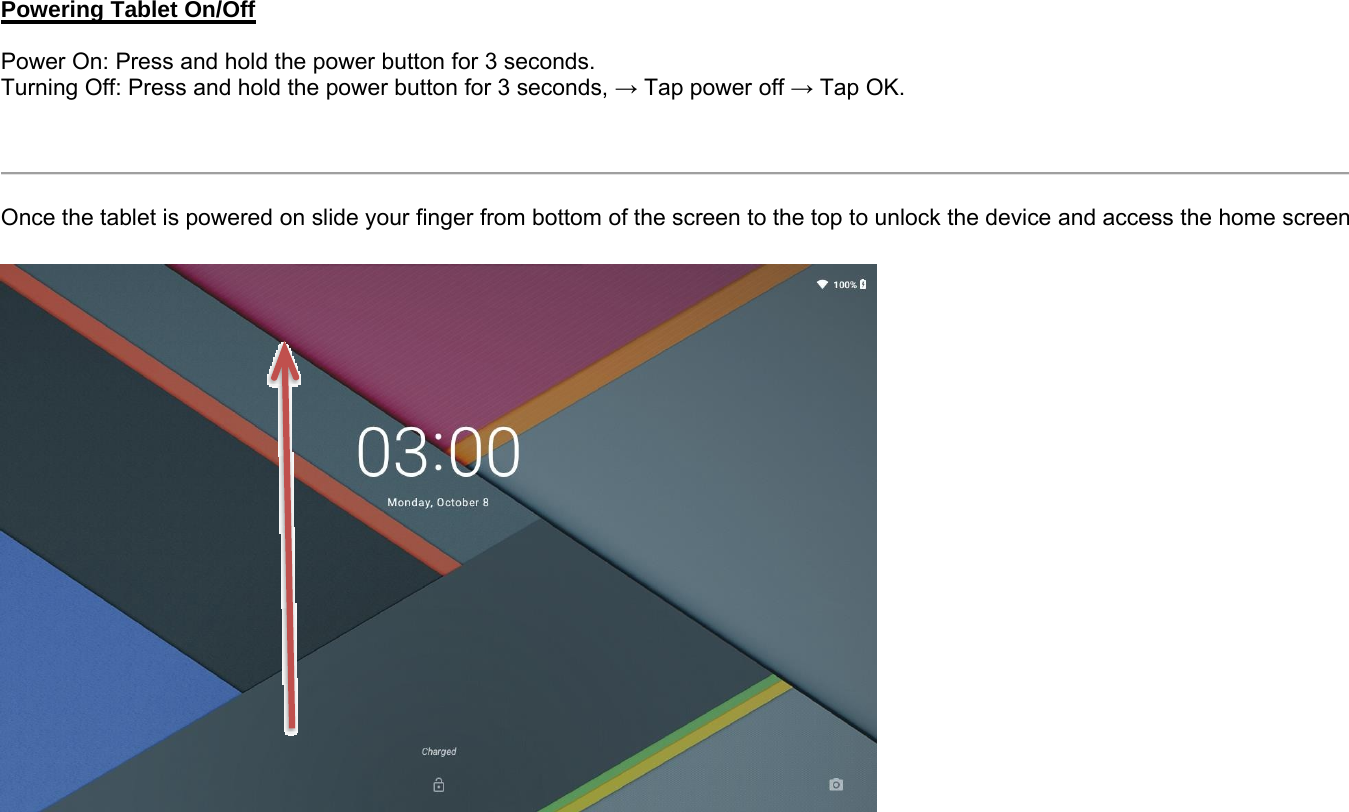
Powering Tablet On/OffPower On: Press and hold the power button for 3 seconds.Turning Off: Press and hold the power button for 3 seconds, →Tap power off →Tap OK.Once the tablet is powered on slide your finger from bottom of the screen to the top to unlock the device and access the home screen
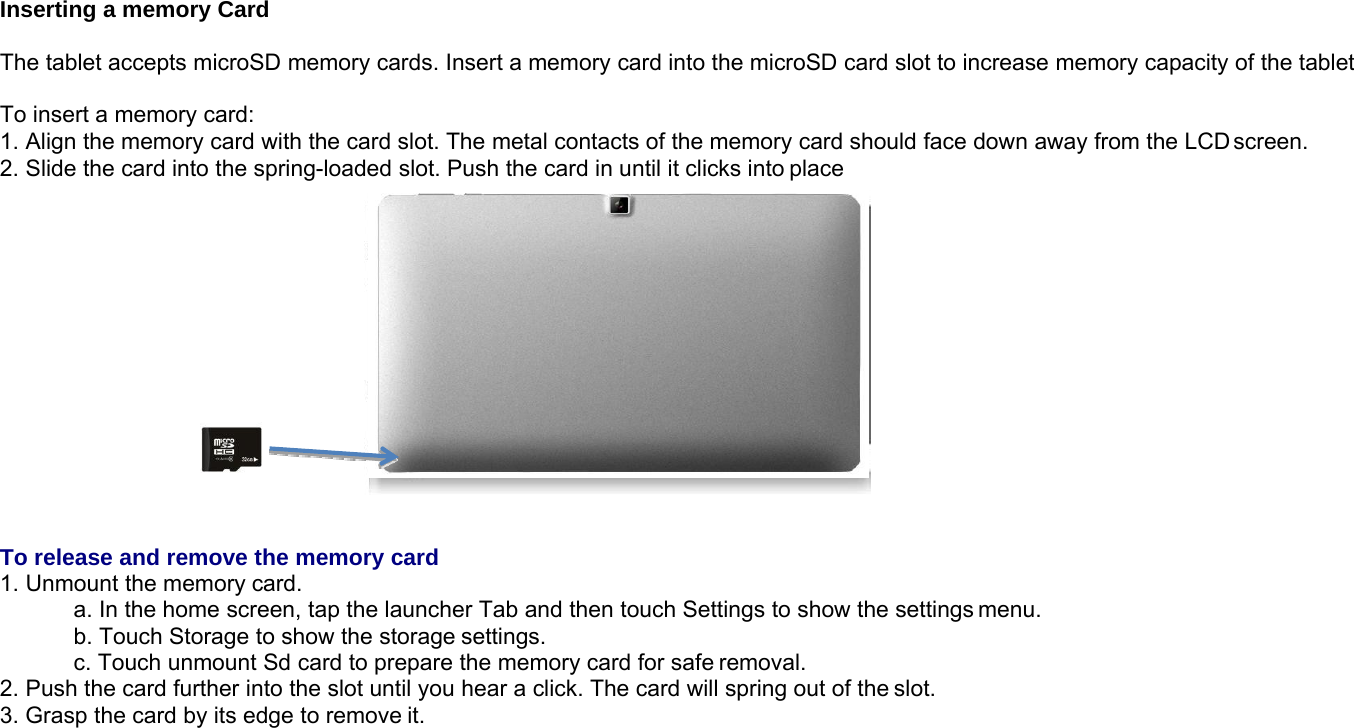
Inserting a memory CardThe tablet accepts microSD memory cards. Insert a memory card into the microSD card slot to increase memory capacity of the tabletTo insert a memory card:1. Align the memory card with the card slot. The metal contacts of the memory card should face down away from the LCD screen.2. Slide the card into the spring-loaded slot. Push the card in until it clicks into placeTo release and remove the memory card1. Unmount the memory card.a. In the home screen, tap the launcher Tab and then touch Settings to show the settings menu.b. Touch Storage to show the storage settings.c. Touch unmount Sd card to prepare the memory card for safe removal.2. Push the card further into the slot until you hear a click. The card will spring out of the slot.3. Grasp the card by its edge to remove it.
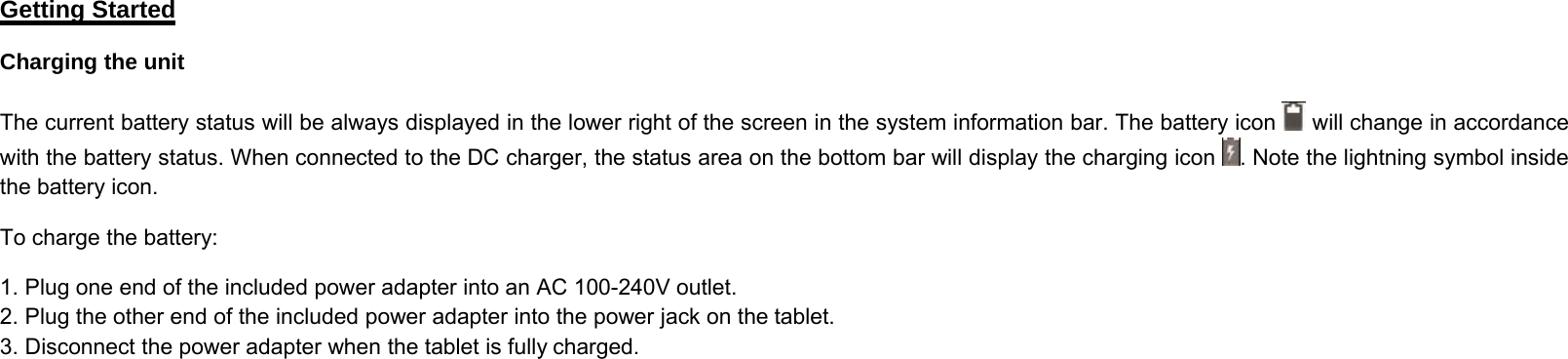
Getting StartedCharging the unitThe current battery status will be always displayed in the lower right of the screen in the system information bar. The battery icon will change in accordancewith the battery status. When connected to the DC charger, the status area on the bottom bar will display the charging icon . Note the lightning symbol insidethe battery icon.To charge the battery:1. Plug one end of the included power adapter into an AC 100-240V outlet.2. Plug the other end of the included power adapter into the power jack on the tablet.3. Disconnect the power adapter when the tablet is fully charged.
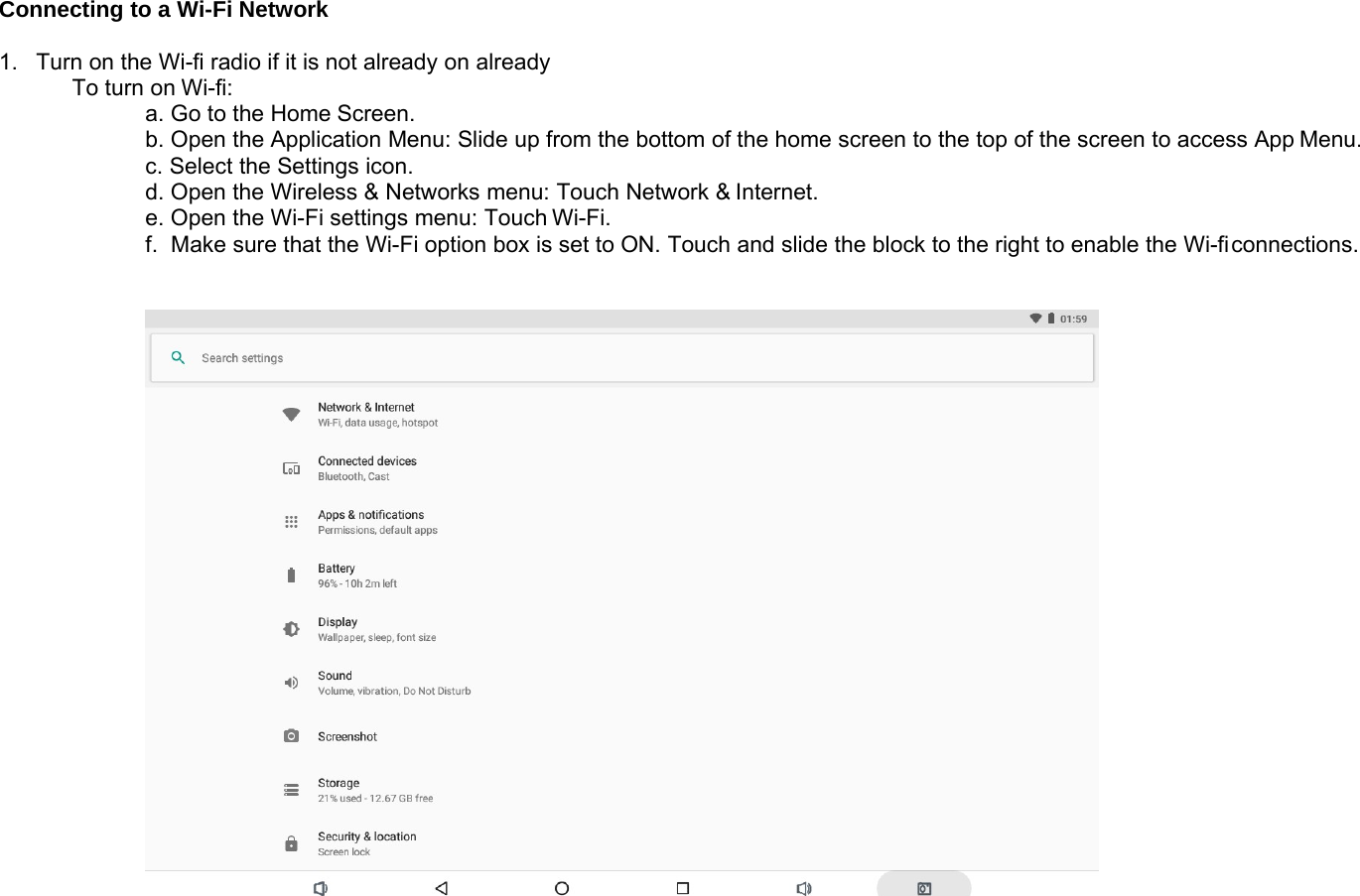
Connecting to a Wi-Fi Network1. Turn on the Wi-fi radio if it is not already on alreadyTo turn on Wi-fi:a. Go to the Home Screen.b. Open the Application Menu: Slide up from the bottom of the home screen to the top of the screen to access App Menu.c. Select the Settings icon.d. Open the Wireless & Networks menu: Touch Network & Internet.e. Open the Wi-Fi settings menu: Touch Wi-Fi.f. Make sure that the Wi-Fi option box is set to ON. Touch and slide the block to the right to enable the Wi-ficonnections.
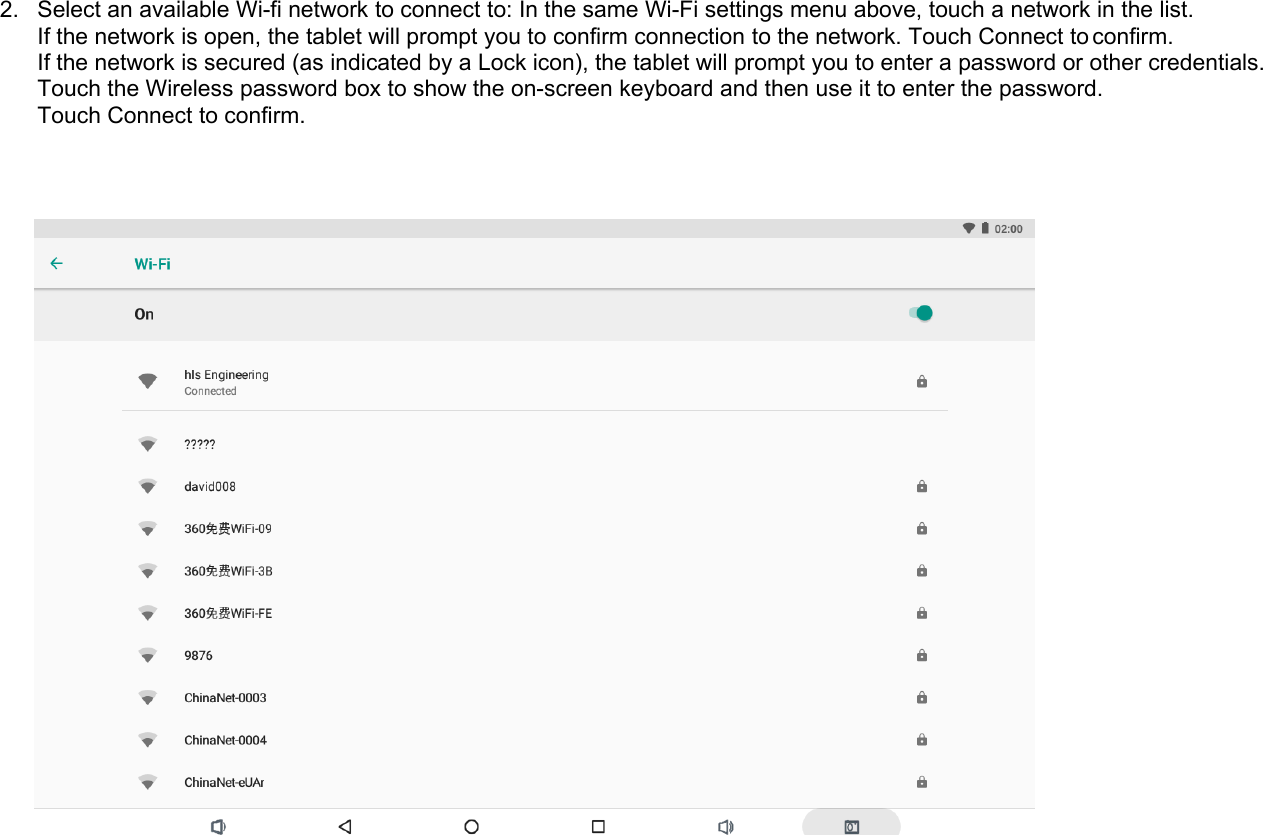
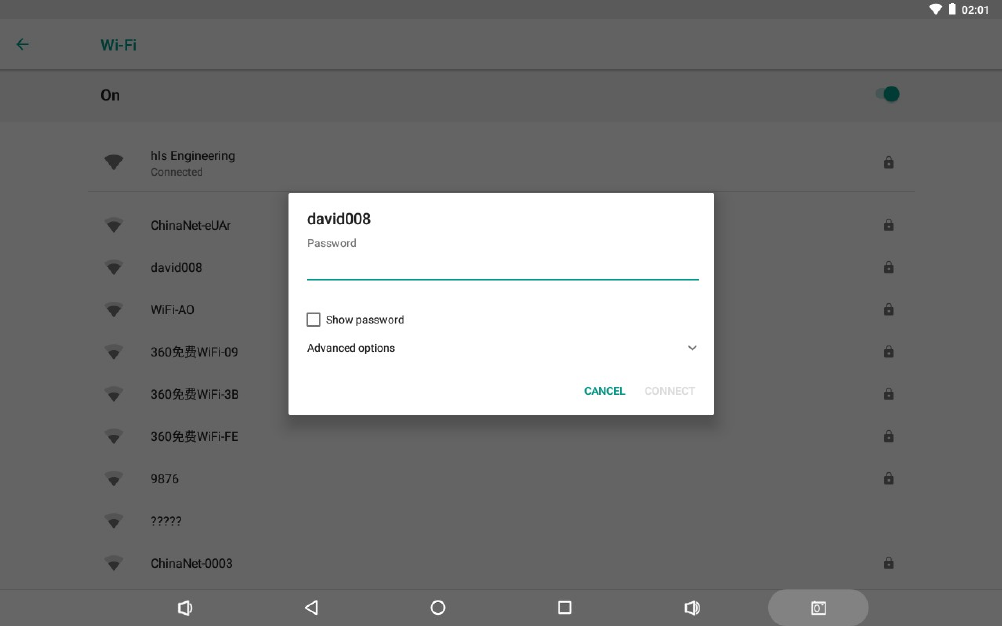
2. Select an available Wi-fi network to connect to: In the same Wi-Fi settings menu above, touch a network in the list.If the network is open, the tablet will prompt you to confirm connection to the network. Touch Connect to confirm.If the network is secured (as indicated by a Lock icon), the tablet will prompt you to enter a password or other credentials.Touch the Wireless password box to show the on-screen keyboard and then use it to enter the password.Touch Connect to confirm.
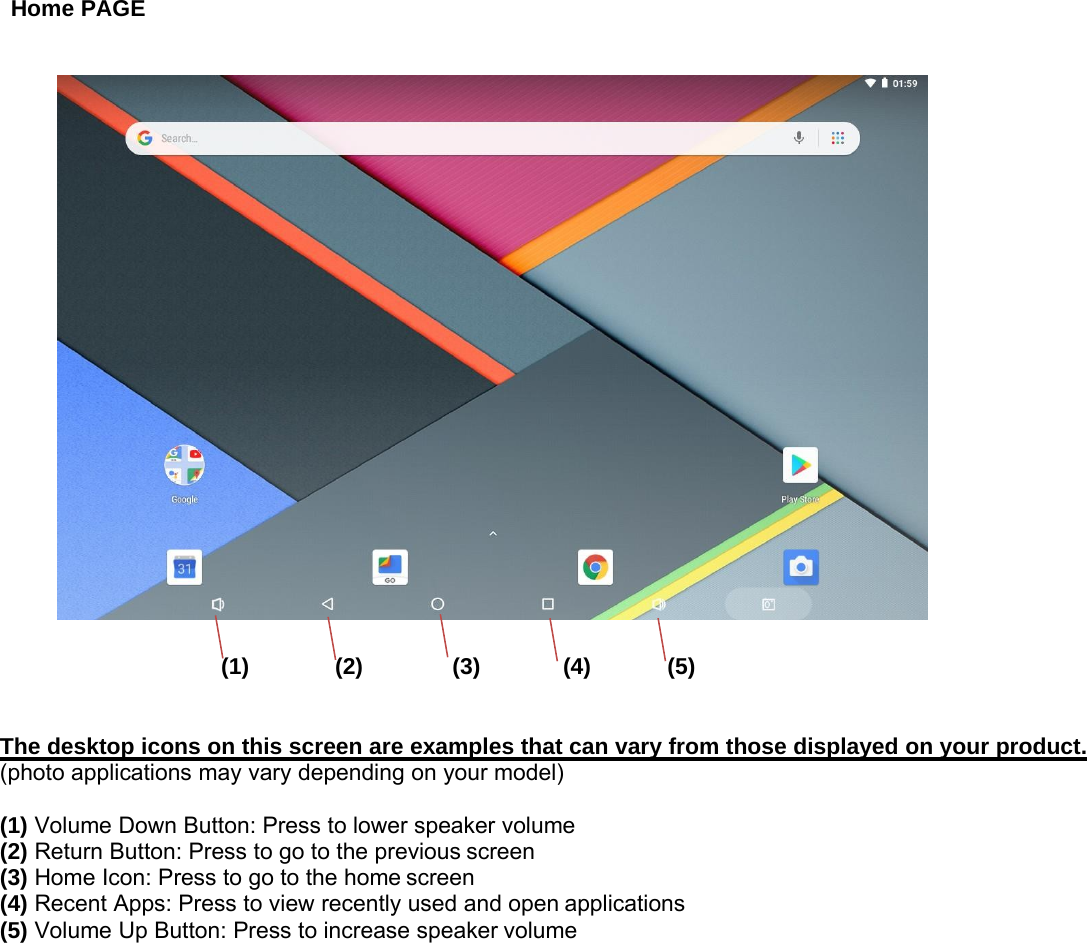
Home PAGE(1) (2) (3) (4) (5)The desktop icons on this screen are examples that can vary from those displayed on your product.(photo applications may vary depending on your model)(1) Volume Down Button: Press to lower speaker volume(2) Return Button: Press to go to the previous screen(3) Home Icon: Press to go to the home screen(4) Recent Apps: Press to view recently used and open applications(5) Volume Up Button: Press to increase speaker volume
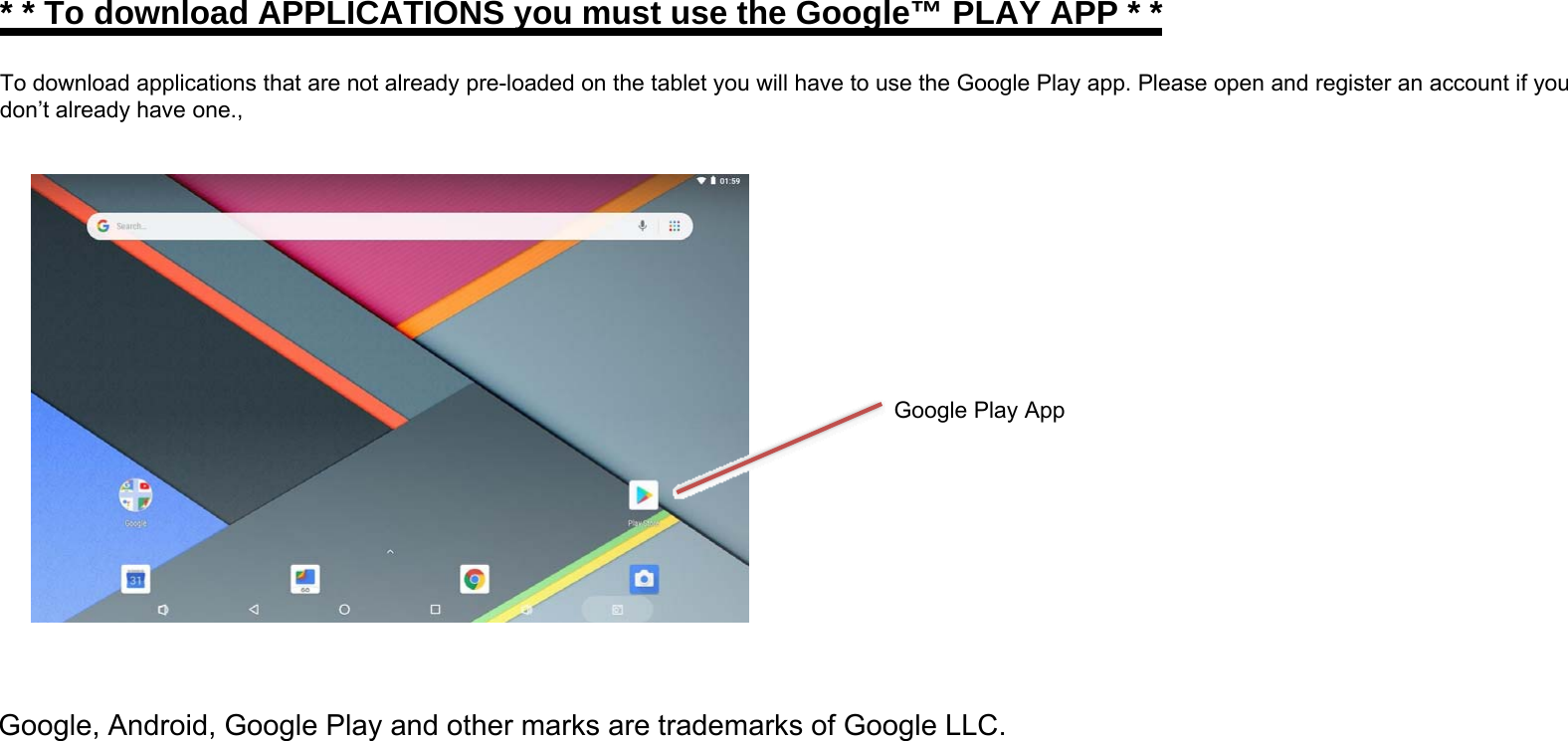
* * To download APPLICATIONS you must use the Google™ PLAY APP * *To download applications that are not already pre-loaded on the tablet you will have to use the Google Play app. Please open and register an account if youdon’t already have one.,Google Play AppGoogle, Android, Google Play and other marks are trademarks of Google LLC.
WarrantyLimited WarrantyThe Astro Tab brand and its products are owned by Inspira Technologies LLC (“Astro Tab” or the “Company”). This is a limited warranty for the productpurchased and contained in this package (the “Product”). For Astro Tab to honor this limited warranty, the original retail purchaser (“you”) must present a validproof of purchase of the Product, such as a receipt.This warranty is void if Company deems, in its discretion, that the Product may have been damaged through modification, improper use, end user negligence,water damage, or tampering of the bar code of the Product unit. This warranty is a limited warranty for repair/replacement of product, subject to the conditionsset forth herein.INSPIRA TECHNOLOGIES LLC IS NOT LIABLE FOR CONSEQUENTIAL, INDIRECT, INCIDENTAL, SPECIAL OR PUNITIVE DAMAGES AND COMPANY’STOTAL LIABILITY HEREUNDER SHALL NOT EXCEED AN AMOUNT GREATER THAN THE RETAIL PURCHASE PRICE OF THE PRODUCT.Subject to the applicable provisions set forth herein, with regard to this limited warranty, you are responsible for all costs in connection with the shipping andhandling of the Product to Astro Tab, and Astro Tab is likewise responsible for all shipping and handling of the Product back to you. Astro Tab bears no riskof loss of the Product in connection with the transportation and shipment of the Product in any way relating to this limited warranty.90 Days parts & laborLimited Manufacturer’s Warranty – Astro Tab warrants to you as the original retail purchaser of the Product, that should the Product have any defect, undernormal conditions, such defect(s) will be repaired or replaced with new or reconditioned product (at the Company’s option) without charge, if submitted toAstro Tab within a period of 90 days from the date of purchase of Product. This warranty only covers manufacturer defects and the Product must be returnedto Company in its original condition. Proof of Purchase, in the form of a valid receipt, is required.1 Year limited partsThe 1 year limited parts warranty gives you the option to return Product to Astro Tab for repair/replacement. You will be responsible for labor charges.Thiswarranty does not cover any incidental or indirect costs incurred as a result of a defect in the Product, including any consequential, incidental or indirectdamages.Contact usOur email address is: support@inspira-tech.com
FCC Caution.  This  device  complies  with  part  15  of  the  FCC  Rules.  Operation  is  subject  to  the  following  two conditions:   (1) This device may not cause harmful interference, and   (2)  this  device  must  accept  any  interference  received,  including  interference  that  may  cause undesired operation.  Any  Changes  or  modifications  not  expressly  approved  by  the  party  responsible for  compliance could void the user's authority to operate the equipment.  Note: This equipment has been tested and found to comply with the limits for a Class B digital device,  pursuant to part  15 of  the  FCC  Rules.  These  limits are  designed  to  provide  reasonable protection  against  harmful  interference  in  a  residential  installation.  This  equipment  generates uses and can radiate radio frequency energy and, if not installed and used in accordance with the instructions,  may  cause  harmful  interference  to  radio  communications.  However,  there  is  no guarantee  that  interference  will  not  occur  in  a  particular  installation.  If  this  equipment  does cause harmful interference to radio or television reception, which can be determined by turning the equipment off  and on, the  user  is  encouraged to try  to  correct the  interference  by one  or more of the following measures: -Reorient or relocate the receiving antenna. -Increase the separation between the equipment and receiver. -Connect the equipment into  an  outlet on  a  circuit different from that to which the receiver  is connected. -Consult the dealer or an experienced radio/TV technician for help.  The device has been evaluated to meet general RF exposure requirement. The device can be used in portable exposure condition without restriction.

Navigation menu