HLS Technology M10701 TABLET PC User Manual

HLS Technology Corporation Limited TABLET PC

User Manual

                                     1 Foreword 1. Announcements Maintenances  Please keep Device dry. Do not let equipment, charger contact water and vapor, or use wet hand to operate equipment or charger. Lest cause short-circuit, corrosion caused by equipment failure and personnel.  Don’t make equipment and charger strongly impact or vibration. Lest cause equipment, battery and charger fault, fire or explosion.  Don’t put this equipment and charger in the too high or too low temperature region.    Otherwise you may cause equipment, battery and charger fault, fire or explosion.  Don’t hit, throw, acupuncture the Device, and avoid drop, extrusion, bending Device.  Don’t unauthorized equipment and accessories, otherwise the equipment and accessories will not in the company’s warranty scope.
                                     2 2. Safety Tips Before using internet Tablet, please read this section information,and let your child know this information. For detailed information, please refer to the Safety guidelines and notes:  Do not use Device when driving, in order to remain safe.  In medical sites, please comply with relevant provisions or regulations. Please close Device near the medical equipment area.  Please close Device or open planes mode when you are boarding to avoid wireless signals jamming aircraft control signal.  Please close Device near the use of high precision electronic equipment; otherwise it may lead to electronic equipment disable.  Do not unauthorized to remove Device and accessories. Only authorized institutions can repair this Device.  Please put Device away from magnetic equipment. The radiation of Device will erase information which is on magnetic storage device.  Please don’t use Device in the high temperature and flammable areas.
                                     3  Please don’t put Device and accessories in this place which children can touch it, please do not let the child use Device unsupervised.  Pease abide by the relevant laws and regulations when you use the Device, and respect others lawful rights and privacy.  Please strictly abide by relevant specification of this manual when you use USB cable. Otherwise it might damage your Device or personal computer.  Please don’t use Device in the damp environment such as bathroom etc. to avoid the Device soaked or flushed by the liquid.
                                     4 Contents Appearance and Buttons……………………………………………………………6 Quick Start…………………………………………………………………………………7 Main Interface Function/Icon…………………………………………………….8 Application Installation………………………………………………………………10 Internet………………………………………………………………………………………11 3G Connection…………………………………………………………………………...12 Operating Details of Main Interface……………………………………………13 OTG Function……………………………………………………………………………..17 TF Card………………………………………………………………………………………18 Basic Setting……………………………………………………………………………….19 Accessibility…………………………………………………………………………………22 Trouble Shooting………………………………………………………………………..24 Do’s for disposal of product…………………………………………………………27
                                     5 Appearance and Buttons 1. Front Camera 2. “ ”: Power Button-long press this button to turn On/Off the player, short press this button to turn off and lock the display. 3. Earphone Jack 4. USB Port: Micro USB 5 Pin data port supports external U-disc, USB mouse/keyboard, 3G data card, etc. 5. DC in   6. “V-”: volume down 7. Reset socket 8. TF card slot 9. “V+”: volume up
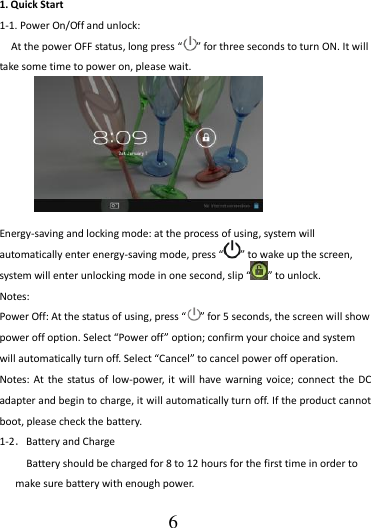
                                     6 1. Quick Start 1-1. Power On/Off and unlock: At the power OFF status, long press “ ” for three seconds to turn ON. It will take some time to power on, please wait.          Energy-saving and locking mode: at the process of using, system will automatically enter energy-saving mode, press “ ” to wake up the screen, system will enter unlocking mode in one second, slip “ ” to unlock. Notes:   Power Off: At the status of using, press “ ” for 5 seconds, the screen will show power off option. Select “Power off” option; confirm your choice and system will automatically turn off. Select “Cancel” to cancel power off operation. Notes: At  the status of  low-power, it  will  have warning voice; connect  the DC adapter and begin to charge, it will automatically turn off. If the product cannot boot, please check the battery. 1-2.Battery and Charge Battery should be charged for 8 to 12 hours for the first time in order to make sure battery with enough power.
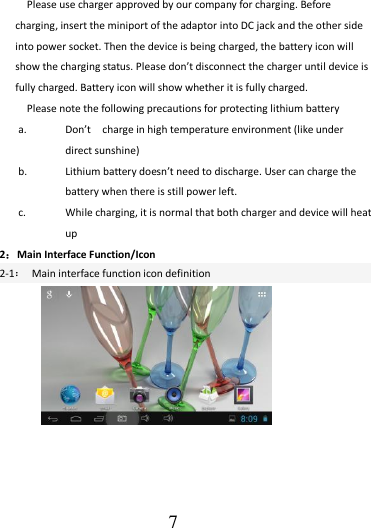
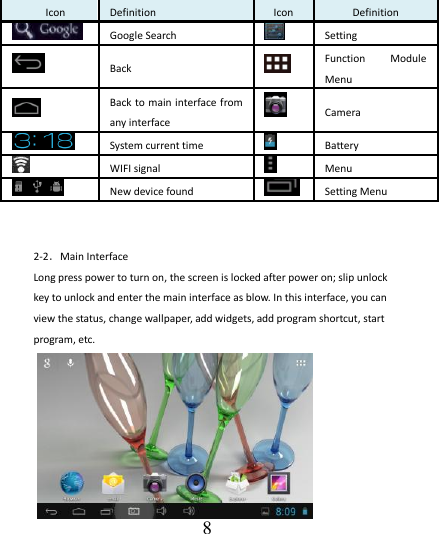
                                     7 Please use charger approved by our company for charging. Before charging, insert the miniport of the adaptor into DC jack and the other side into power socket. Then the device is being charged, the battery icon will show the charging status. Please don’t disconnect the charger until device is fully charged. Battery icon will show whether it is fully charged.   Please note the following precautions for protecting lithium battery a. Don’t    charge in high temperature environment (like under direct sunshine) b. Lithium battery doesn’t need to discharge. User can charge the battery when there is still power left. c. While charging, it is normal that both charger and device will heat up 2:Main Interface Function/Icon 2-1:  Main interface function icon definition
                                     8 Icon Definition Icon Definition  Google Search  Setting  Back  Function  Module Menu  Back to main interface from any interface  Camera  System current time  Battery  WIFI signal  Menu  New device found  Setting Menu   2-2.Main Interface Long press power to turn on, the screen is locked after power on; slip unlock key to unlock and enter the main interface as blow. In this interface, you can view the status, change wallpaper, add widgets, add program shortcut, start program, etc.
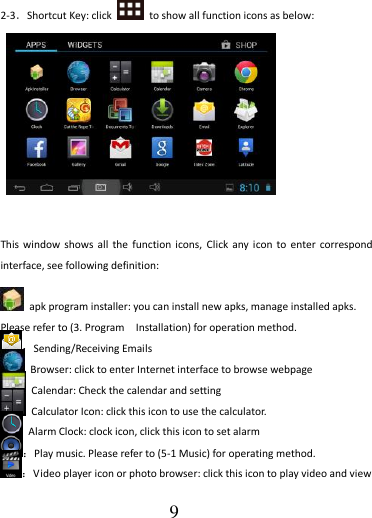
                                     9  2-3.Shortcut Key: click    to show all function icons as below:           This  window shows all  the  function  icons,  Click  any icon  to enter correspond interface, see following definition:    apk program installer: you can install new apks, manage installed apks. Please refer to (3. Program    Installation) for operation method. :Sending/Receiving Emails   Browser: click to enter Internet interface to browse webpage   Calendar: Check the calendar and setting   Calculator Icon: click this icon to use the calculator.   Alarm Clock: clock icon, click this icon to set alarm :Play music. Please refer to (5-1 Music) for operating method. :Video player icon or photo browser: click this icon to play video and view
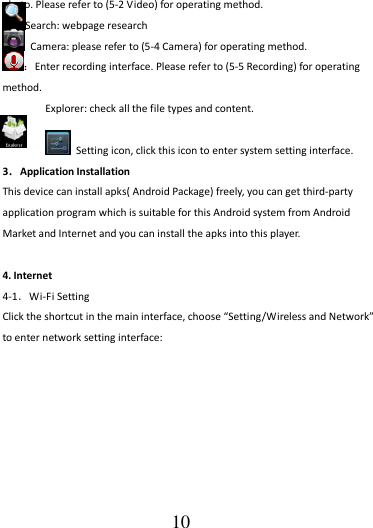
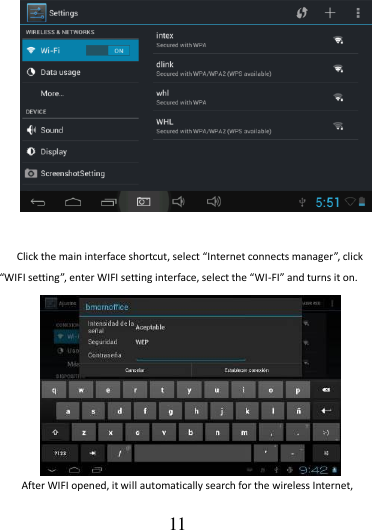
                                     10 photo. Please refer to (5-2 Video) for operating method. Search: webpage research   Camera: please refer to (5-4 Camera) for operating method. :Enter recording interface. Please refer to (5-5 Recording) for operating method. Explorer: check all the file types and content.    Setting icon, click this icon to enter system setting interface. 3.Application Installation This device can install apks( Android Package) freely, you can get third-party application program which is suitable for this Android system from Android Market and Internet and you can install the apks into this player.    4. Internet 4-1.Wi-Fi Setting Click the shortcut in the main interface, choose “Setting/Wireless and Network” to enter network setting interface:
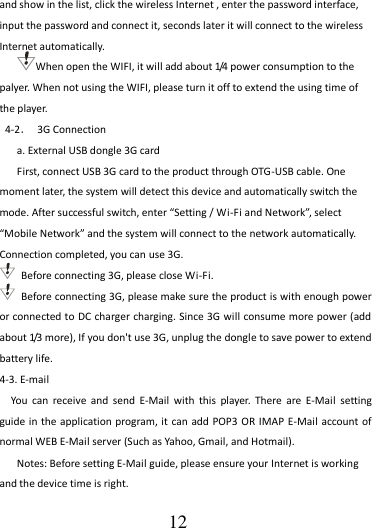
                                     11  Click the main interface shortcut, select “Internet connects manager”, click “WIFI setting”, enter WIFI setting interface, select the “WI-FI” and turns it on.   After WIFI opened, it will automatically search for the wireless Internet,
                                     12 and show in the list, click the wireless Internet , enter the password interface, input the password and connect it, seconds later it will connect to the wireless Internet automatically. When open the WIFI, it will add about 1/4 power consumption to the palyer. When not using the WIFI, please turn it off to extend the using time of the player. 4-2.  3G Connection a. External USB dongle 3G card First, connect USB 3G card to the product through OTG-USB cable. One moment later, the system will detect this device and automatically switch the mode. After successful switch, enter “Setting / Wi-Fi and Network”, select “Mobile Network” and the system will connect to the network automatically. Connection completed, you can use 3G.   Before connecting 3G, please close Wi-Fi.   Before connecting 3G, please make sure the product is with enough power or connected to DC charger charging. Since 3G will consume more power (add about 1/3 more), If you don't use 3G, unplug the dongle to save power to extend battery life. 4-3. E-mail You  can  receive  and  send  E-Mail  with  this  player.  There  are  E-Mail  setting guide in  the application program, it can add POP3 OR  IMAP E-Mail account of normal WEB E-Mail server (Such as Yahoo, Gmail, and Hotmail). Notes: Before setting E-Mail guide, please ensure your Internet is working and the device time is right.
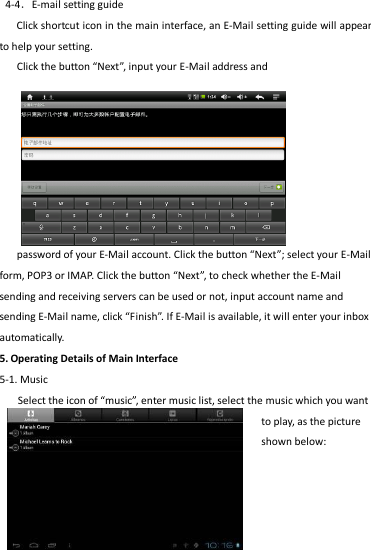
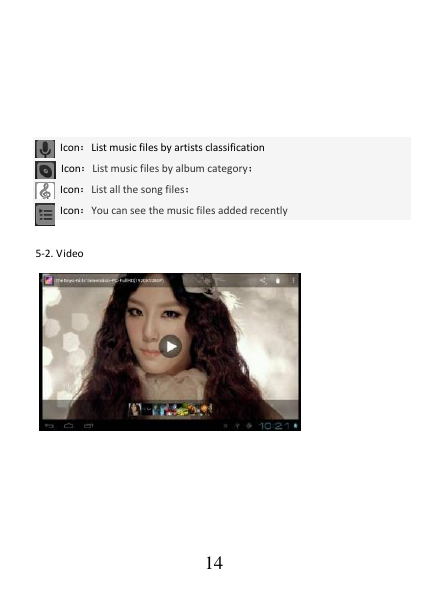
                                     13   4-4.E-mail setting guide Click shortcut icon in the main interface, an E-Mail setting guide will appear to help your setting.   Click the button “Next”, input your E-Mail address and           password of your E-Mail account. Click the button “Next”; select your E-Mail form, POP3 or IMAP. Click the button “Next”, to check whether the E-Mail sending and receiving servers can be used or not, input account name and sending E-Mail name, click “Finish”. If E-Mail is available, it will enter your inbox automatically. 5. Operating Details of Main Interface 5-1. Music Select the icon of “music”, enter music list, select the music which you want to play, as the picture shown below:
                                     14        Icon:List music files by artists classification   Icon:List music files by album category;   Icon:List all the song files;   Icon:You can see the music files added recently  5-2. Video
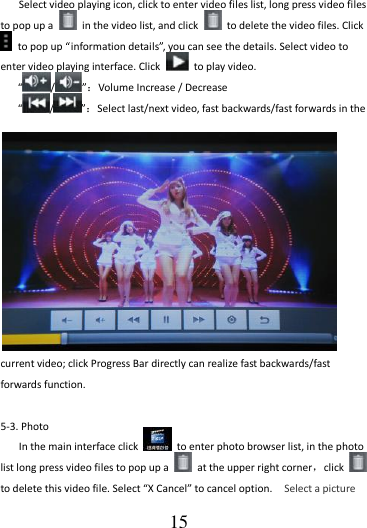
                                     15 Select video playing icon, click to enter video files list, long press video files to pop up a    in the video list, and click    to delete the video files. Click  to pop up “information details”, you can see the details. Select video to enter video playing interface. Click    to play video.  “/”:Volume Increase / Decrease  “/”:Select last/next video, fast backwards/fast forwards in the current video; click Progress Bar directly can realize fast backwards/fast forwards function.  5-3. Photo   In the main interface click    to enter photo browser list, in the photo list long press video files to pop up a    at the upper right corner,click   to delete this video file. Select “X Cancel” to cancel option.    Select a picture
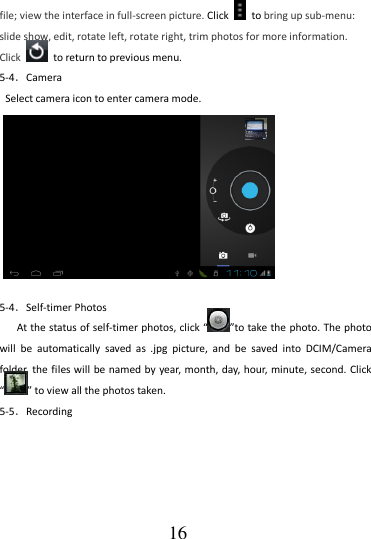
                                     16 file; view the interface in full-screen picture. Click    to bring up sub-menu: slide show, edit, rotate left, rotate right, trim photos for more information. Click    to return to previous menu. 5-4.Camera Select camera icon to enter camera mode.          5-4.Self-timer Photos At the status of self-timer photos, click “ ”to take the photo. The photo will  be  automatically  saved  as  .jpg  picture,  and  be  saved  into  DCIM/Camera folder, the files will be named by  year, month, day, hour, minute, second. Click “ ” to view all the photos taken. 5-5.Recording
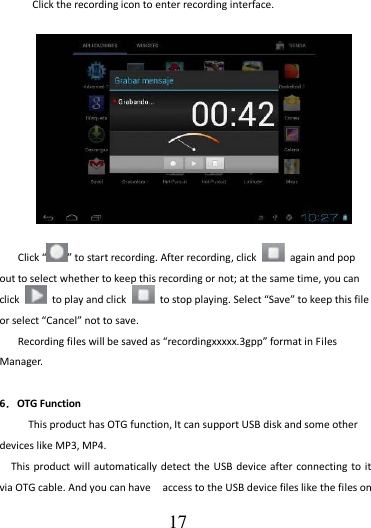
                                     17 Click the recording icon to enter recording interface.   Click “ ” to start recording. After recording, click    again and pop out to select whether to keep this recording or not; at the same time, you can click    to play and click    to stop playing. Select “Save” to keep this file or select “Cancel” not to save. Recording files will be saved as “recordingxxxxx.3gpp” format in Files Manager.  6.OTG Function    This product has OTG function, It can support USB disk and some other devices like MP3, MP4. This product will automatically detect the USB  device after connecting to it via OTG cable. And you can have    access to the USB device files like the files on
                                     18 the player. With  low  battery  or  DC  charger  not  charging,  please  don’t  use  OTG function, or the player may turn off automatically because of low power.      7. TF Card     This  product  comes  with  TF  card  slot.  It supports  reading  the  files  in  TF card. When  using, insert the  TF card  to the product.  To drag  out the TF  card, push the TF  card inside a little and release; TF card  will pop out automatically and you can take it out. This product supports TF card from 1GB to 32GB.   Tips:   A. Please insert TF card to the card slot on the right correctly. B. When TF card is working (such as reading, copying, etc.), please do not pull out the card or it will lead to data errors. C.  Avoid  using  the  memory  card  in  high  temperature  or  high  humidity environment. D. Keep the memory card away from liquid or corrosive material. Note: If you cannot take out the memory card, or it’s stuck with other material or smudged and so on, you can use tweezers or other tools to pull it out slowly and carefully.  8. Basic Setting Click icon    to enter menu setting: Wireless & Networks, Sound, Display, Storage, Battery, Applications, Accounts & sync, Location services, Security, Language & input, Backup & reset, Date & time, Accessibility,
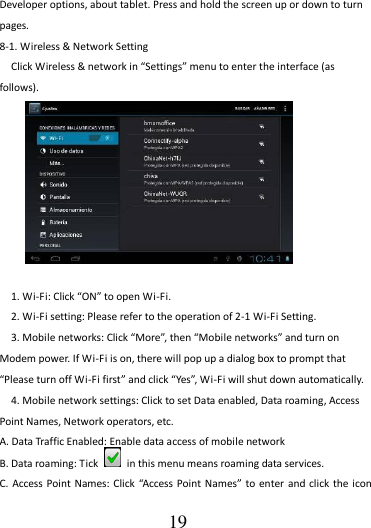
                                     19 Developer options, about tablet. Press and hold the screen up or down to turn pages. 8-1. Wireless & Network Setting   Click Wireless & network in “Settings” menu to enter the interface (as follows).          1. Wi-Fi: Click “ON” to open Wi-Fi. 2. Wi-Fi setting: Please refer to the operation of 2-1 Wi-Fi Setting. 3. Mobile networks: Click “More”, then “Mobile networks” and turn on Modem power. If Wi-Fi is on, there will pop up a dialog box to prompt that “Please turn off Wi-Fi first” and click “Yes”, Wi-Fi will shut down automatically. 4. Mobile network settings: Click to set Data enabled, Data roaming, Access Point Names, Network operators, etc. A. Data Traffic Enabled: Enable data access of mobile network B. Data roaming: Tick    in this menu means roaming data services. C.  Access Point Names: Click  “Access Point Names”  to enter and click  the icon
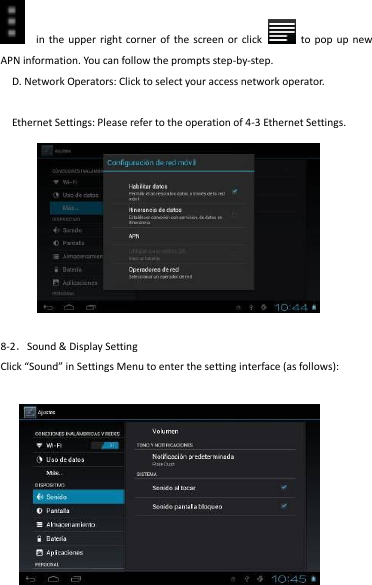
                                     20   in  the upper right corner of  the  screen or  click    to pop  up  new APN information. You can follow the prompts step-by-step.   D. Network Operators: Click to select your access network operator.  Ethernet Settings: Please refer to the operation of 4-3 Ethernet Settings.  8-2.Sound & Display Setting Click “Sound” in Settings Menu to enter the setting interface (as follows):
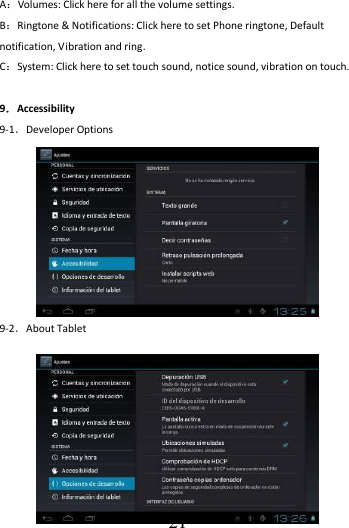
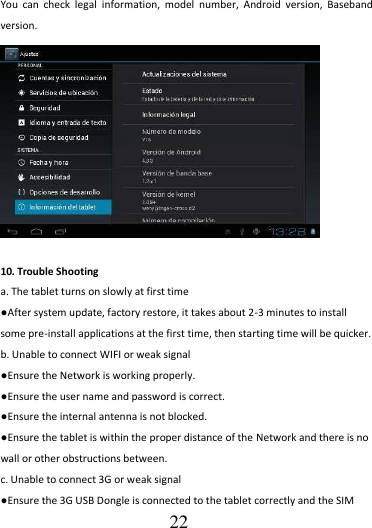
                                     21 A:Volumes: Click here for all the volume settings. B:Ringtone & Notifications: Click here to set Phone ringtone, Default notification, Vibration and ring. C:System: Click here to set touch sound, notice sound, vibration on touch.  9.Accessibility 9-1.Developer Options 9-2.About Tablet
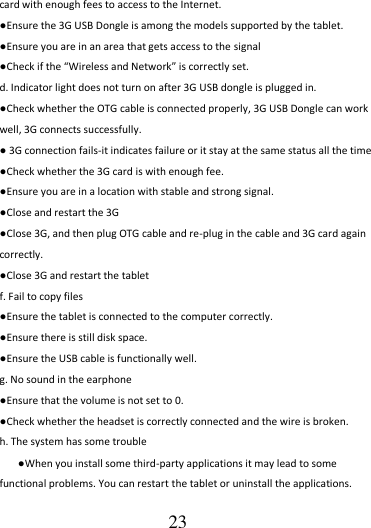
                                     22 You  can  check  legal  information,  model  number,  Android  version,  Baseband version.    10. Trouble Shooting a. The tablet turns on slowly at first time ●After system update, factory restore, it takes about 2-3 minutes to install some pre-install applications at the first time, then starting time will be quicker. b. Unable to connect WIFI or weak signal ●Ensure the Network is working properly.   ●Ensure the user name and password is correct. ●Ensure the internal antenna is not blocked.   ●Ensure the tablet is within the proper distance of the Network and there is no wall or other obstructions between.   c. Unable to connect 3G or weak signal ●Ensure the 3G USB Dongle is connected to the tablet correctly and the SIM
                                     23 card with enough fees to access to the Internet. ●Ensure the 3G USB Dongle is among the models supported by the tablet. ●Ensure you are in an area that gets access to the signal ●Check if the “Wireless and Network” is correctly set.   d. Indicator light does not turn on after 3G USB dongle is plugged in. ●Check whether the OTG cable is connected properly, 3G USB Dongle can work well, 3G connects successfully. ● 3G connection fails-it indicates failure or it stay at the same status all the time ●Check whether the 3G card is with enough fee. ●Ensure you are in a location with stable and strong signal. ●Close and restart the 3G ●Close 3G, and then plug OTG cable and re-plug in the cable and 3G card again correctly. ●Close 3G and restart the tablet f. Fail to copy files ●Ensure the tablet is connected to the computer correctly.   ●Ensure there is still disk space. ●Ensure the USB cable is functionally well. g. No sound in the earphone ●Ensure that the volume is not set to 0. ●Check whether the headset is correctly connected and the wire is broken. h. The system has some trouble   ●When you install some third-party applications it may lead to some functional problems. You can restart the tablet or uninstall the applications.
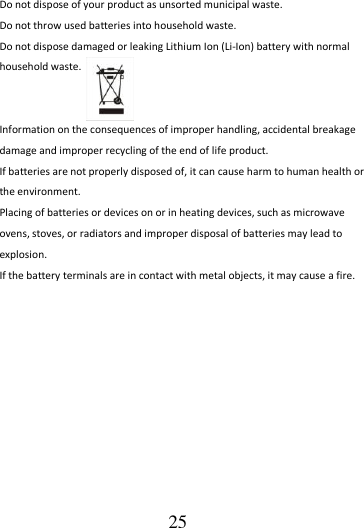
                                     24 i. Unable to set E-mail or use registration applications. ●Ensure your Network is working properly. ●Ensure the E-Mail account is correctly set. ●Ensure your system time is the same with the local time. ●Please run the “Advanced Task Manager” to stop some other running applications.   j. The memory capacity is different from the nominal figure. ●Just like hard disk  on computer, the  capacity shown on  the  computer is usually less  than the nominal  capacity; this is  due  to different unit conversion used by computer and storage device manufacturers. In  computer,  1GB=1024MB,  but  storage  device  manufacturers  use 1GB=1000MB as default. The actual capacity is not lessened.   ●The  OS  of  this  tablet  pre-installs  some  applications,  games  and  the  OS itself occupies some capacity. This is also one reason why the capacity that can be used for storage is less than the nominal figure.    11. Do’s for disposal of product Always drop your used electronic products, batteries, and packaging materials after the end of their life in nearest collection point or collection center Separate the packaging material according to responsible waste disposal options and sorting for recycling.   The battery can easily be removed from the product for recycling. Don’t of disposal of equipment   Never dump E-waste in garbage bins or municipal solid waste stream.
                                     25 Do not dispose of your product as unsorted municipal waste.   Do not throw used batteries into household waste. Do not dispose damaged or leaking Lithium Ion (Li-Ion) battery with normal household waste.     Information on the consequences of improper handling, accidental breakage damage and improper recycling of the end of life product. If batteries are not properly disposed of, it can cause harm to human health or the environment. Placing of batteries or devices on or in heating devices, such as microwave ovens, stoves, or radiators and improper disposal of batteries may lead to explosion.   If the battery terminals are in contact with metal objects, it may cause a fire.
                                     26 FCC Caution.  § 15.19 Labelling requirements. This device complies with part 15 of the FCC Rules. Operation is subject to the following two conditions: (1) This device may not cause harmful interference, and (2) this device must accept any interference received, including interference that may cause undesired operation.  § 15.21 Changes or modification warning Any Changes or modifications not expressly approved by the party responsible for compliance could void the user's authority to operate the equipment.  § 15.105 Information to the user. Note: This equipment has been tested and found to comply with the limits for a Class B digital device, pursuant to part 15 of the FCC Rules. These limits are designed to provide reasonable protection against harmful interference in a residential installation. This equipment generates uses and can radiate radio frequency energy and, if not installed and used in accordance with the instructions, may cause harmful interference to radio communications. However, there is no guarantee that interference will not occur in a particular installation. If this equipment does cause harmful interference to radio or television reception, which can be determined by turning the equipment off and on, the user is encouraged to try to correct the interference by one or more of the following measures:
                                     27 -Reorient or relocate the receiving antenna. -Increase the separation between the equipment and receiver. -Connect the equipment into an outlet on a circuit different from that to which the receiver is connected. -Consult the dealer or an experienced radio/TV technician for help.   * RF warning for Portable device: The device has been evaluated to meet general RF exposure requirement. The device can be used in portable exposure condition without restriction.

Navigation menu