HOSEOTELNET HSD8000 ReFLEX 2-Way Messaging Device User Manual 446373

Hoseo Telnet Co., Ltd. ReFLEX 2-Way Messaging Device 446373

Contents

User Manual

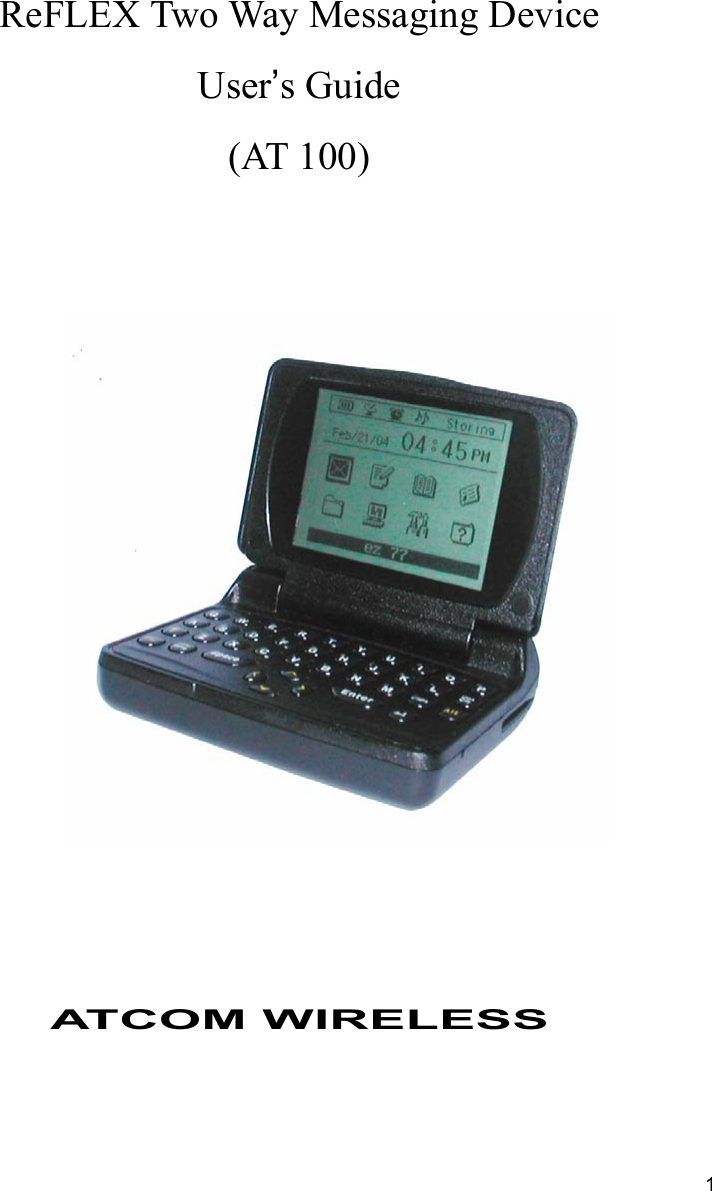
 1  ReFLEX Two Way Messaging Device User’s Guide (AT 100)                               ATCOM WIRELESS
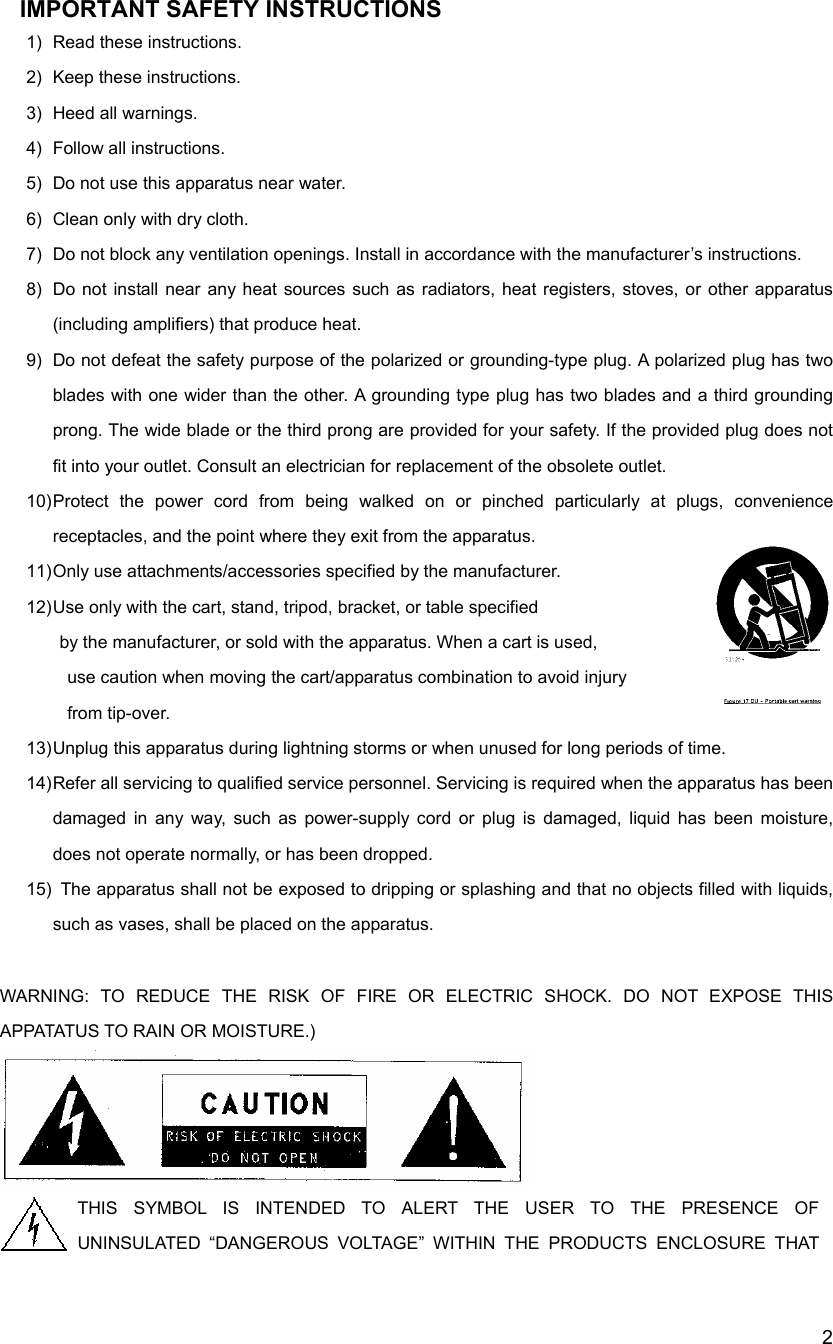
 2IMPORTANT SAFETY INSTRUCTIONS                  1) Read these instructions. 2) Keep these instructions. 3)  Heed all warnings. 4) Follow all instructions. 5)  Do not use this apparatus near water. 6)  Clean only with dry cloth. 7)  Do not block any ventilation openings. Install in accordance with the manufacturer’s instructions. 8)  Do not install near any heat sources such as radiators, heat registers, stoves, or other apparatus (including amplifiers) that produce heat. 9)  Do not defeat the safety purpose of the polarized or grounding-type plug. A polarized plug has two blades with one wider than the other. A grounding type plug has two blades and a third grounding prong. The wide blade or the third prong are provided for your safety. If the provided plug does not fit into your outlet. Consult an electrician for replacement of the obsolete outlet. 10) Protect the power cord from being walked on or pinched particularly at plugs, convenience receptacles, and the point where they exit from the apparatus. 11) Only  use  attachments/accessories specified by the manufacturer. 12) Use only with the cart, stand, tripod, bracket, or table specified   by the manufacturer, or sold with the apparatus. When a cart is used,   use caution when moving the cart/apparatus combination to avoid injury  from tip-over. 13) Unplug this apparatus during lightning storms or when unused for long periods of time. 14) Refer all servicing to qualified service personnel. Servicing is required when the apparatus has been damaged in any way, such as power-supply cord or plug is damaged, liquid has been moisture, does not operate normally, or has been dropped. 15)  The apparatus shall not be exposed to dripping or splashing and that no objects filled with liquids, such as vases, shall be placed on the apparatus.  WARNING: TO REDUCE THE RISK OF FIRE OR ELECTRIC SHOCK. DO NOT EXPOSE THIS APPATATUS TO RAIN OR MOISTURE.)     THIS SYMBOL IS INTENDED TO ALERT THE USER TO THE PRESENCE OF UNINSULATED “DANGEROUS VOLTAGE” WITHIN THE PRODUCTS ENCLOSURE THAT
 3MAY BE OF SUFFICIENT MAGNITUDE TO CONSTITUTE A RISK OF ELECTRIC SHOCK TO PERSONS.    THIS SYMBOL IS INTENDED TO ALERT THE USER TO THE PERSENCE OF INPORTANT OPERATING AND MAINTENANCE (SERVICING) INSTRUCTIONS IN THE LITERATURE ACCOMPANYING THE APPLIANCE.   CAUTION      Danger of explosion if battery is incorrectly replaced.        Replace only with the same or equivalent type.
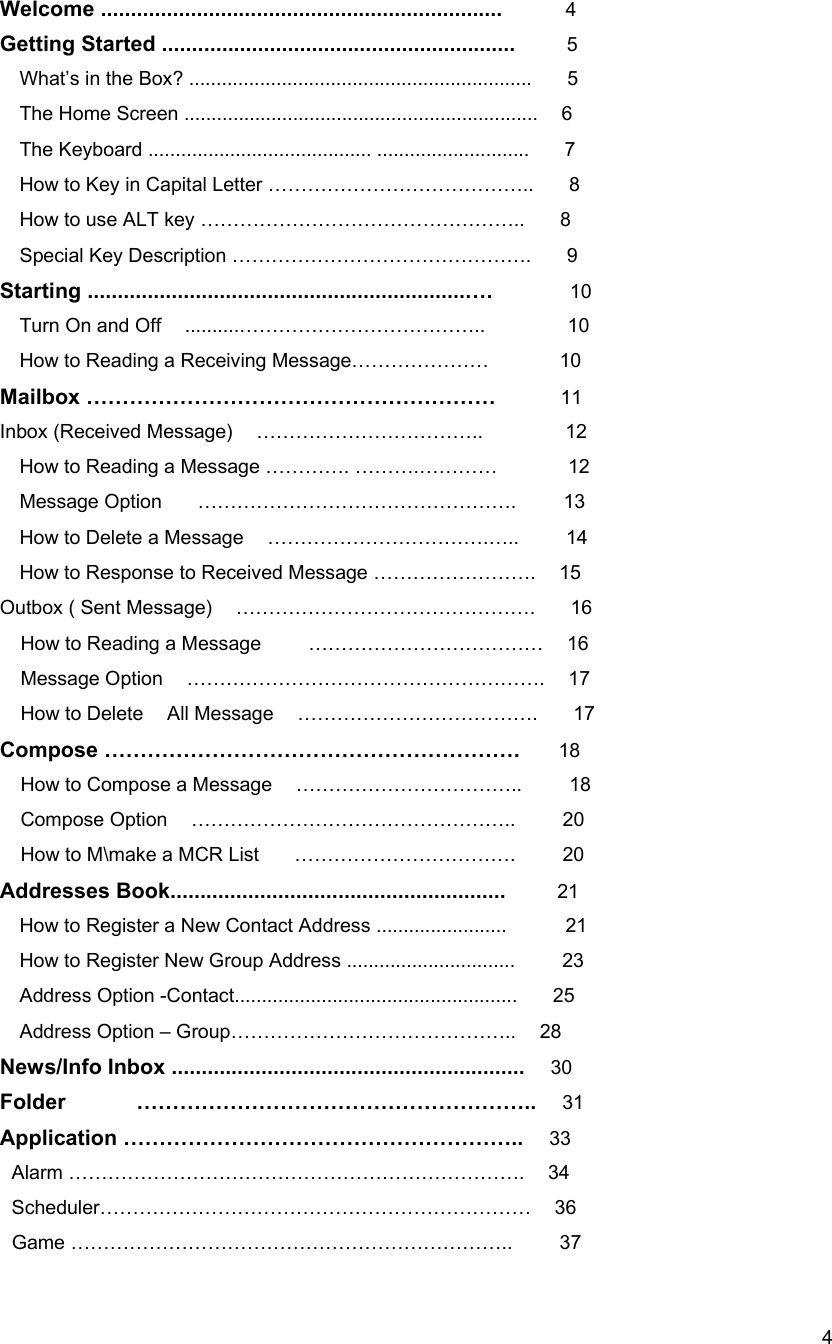
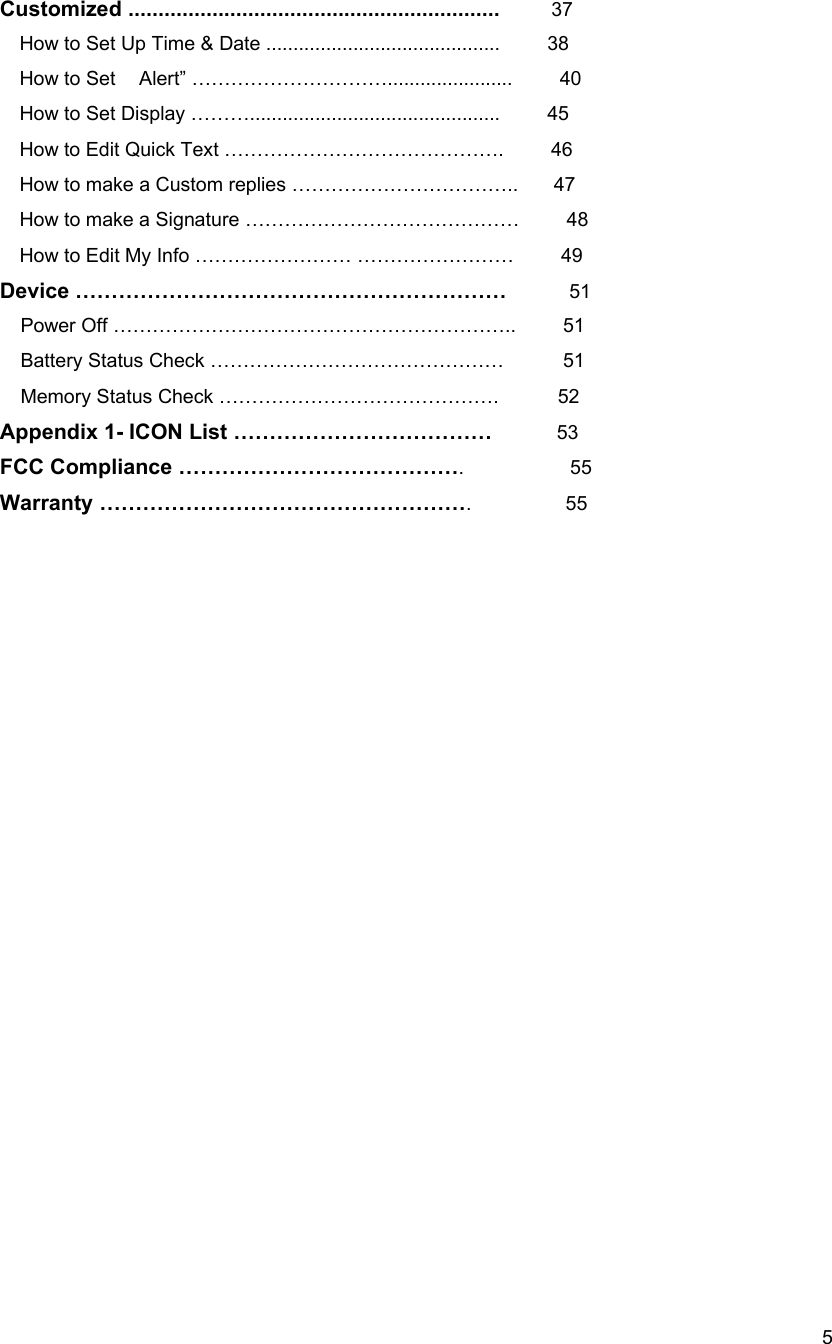
 4Welcome ...................................................................     4 Getting Started ...........................................................        5  What’s in the Box? ...............................................................      5 The Home Screen .................................................................  6 The Keyboard ......................................... ............................   7 How to Key in Capital Letter …………………………………..      8 How to use ALT key …………………………………………..      8 Special Key Description ……………………………………….   9         Starting ...............................................................….      10 Turn On and Off  ..........………………………………..       10 How to Reading a Receiving Message…………………            10 Mailbox …………………………………………………     11 Inbox (Received Message)  ……………………………..       12 How to Reading a Message …………. ……….…………            12 Message Option   ………………………………………….    13 How to Delete a Message  …………………………….…..    14 How to Response to Received Message …………………….    15 Outbox ( Sent Message)  ……………………………………….   16 How to Reading a Message        ………………………………    16 Message Option  ……………………………………………….  17 How to Delete  All Message  ……………………………….   17 Compose ………………………………………………….      18  How to Compose a Message    ……………………………..        18 Compose Option  …………………………………………..    20 How to M\make a MCR List      …………………………….        20 Addresses Book........................................................    21 How to Register a New Contact Address ........................          21 How to Register New Group Address ...............................        23 Address Option -Contact....................................................   25 Address Option – Group……………………………………..    28 News/Info Inbox ...........................................................    30 Folder      ………………………………………………..  31 Application ………………………………………………..    33     Alarm …………………………………………………………….  34  Scheduler…………………………………………………………  36  Game …………………………………………………………..    37
 5Customized ..............................................................    37     How to Set Up Time & Date ...........................................        38 How to Set  Alert” ………………………….......................    40  How to Set Display ………..............................................        45 How to Edit Quick Text …………………………………….        46 How to make a Custom replies ……………………………..      47 How to make a Signature ……………………………………        48 How to Edit My Info …………………… ……………………        49 Device ……………………………………………………        51 Power Off ……………………………………………………..    51 Battery Status Check ………………………………………          51 Memory Status Check …………………………………….     52 Appendix 1- ICON List ………………………………          53 FCC Compliance ………………………………….         55 Warranty …………………………………………….        55
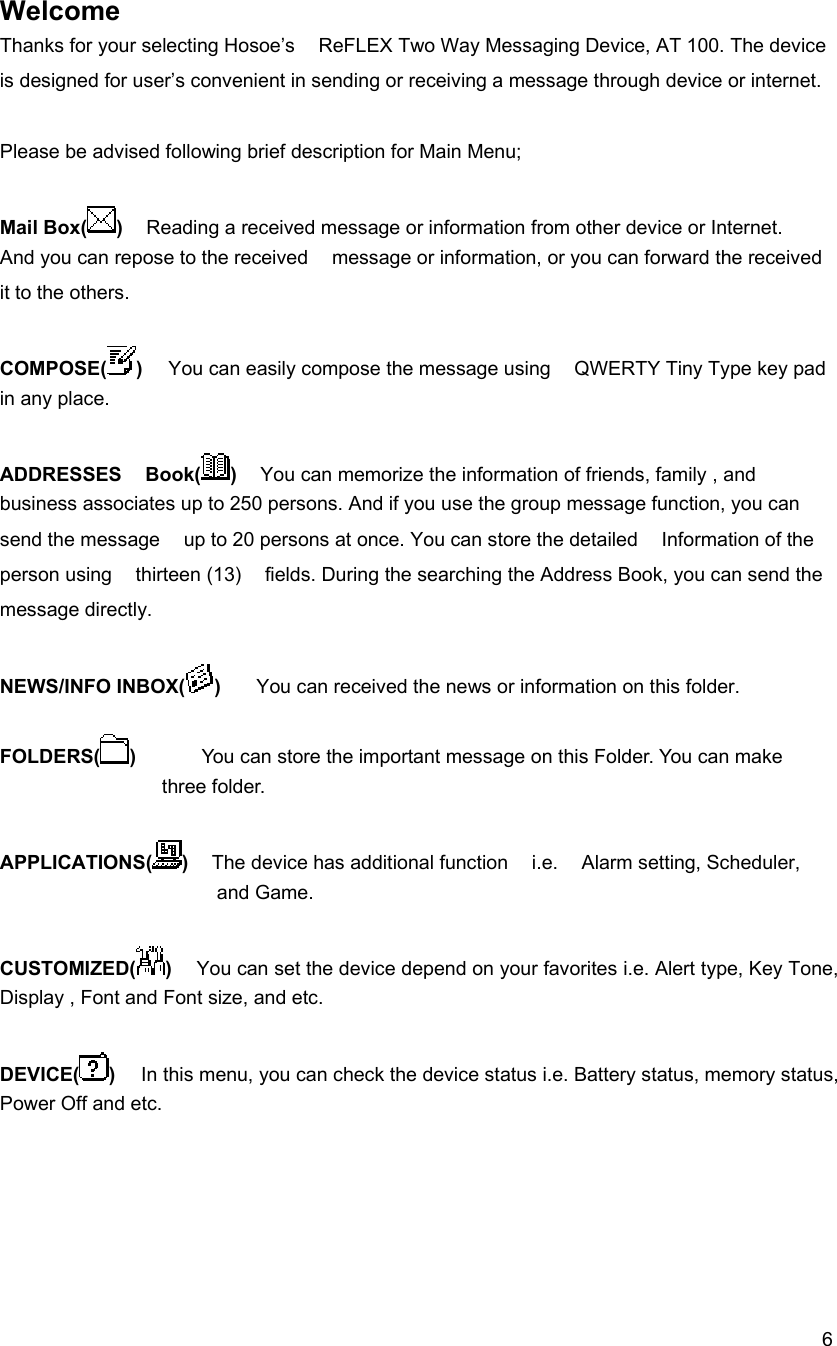
 6Welcome  Thanks for your selecting Hosoe’s    ReFLEX Two Way Messaging Device, AT 100. The device is designed for user’s convenient in sending or receiving a message through device or internet.    Please be advised following brief description for Main Menu;  Mail Box( )    Reading a received message or information from other device or Internet.   And you can repose to the received    message or information, or you can forward the received it to the others.   COMPOSE( )  You can easily compose the message using    QWERTY Tiny Type key pad in any place.   ADDRESSES  Book( )    You can memorize the information of friends, family , and business associates up to 250 persons. And if you use the group message function, you can send the message    up to 20 persons at once. You can store the detailed    Information of the person using    thirteen (13)    fields. During the searching the Address Book, you can send the message directly.    NEWS/INFO INBOX( )   You can received the news or information on this folder.  FOLDERS( )       You can store the important message on this Folder. You can make three folder.      APPLICATIONS( )  The device has additional function    i.e.    Alarm setting, Scheduler, and Game.    CUSTOMIZED( )   You can set the device depend on your favorites i.e. Alert type, Key Tone, Display , Font and Font size, and etc.  DEVICE( )  In this menu, you can check the device status i.e. Battery status, memory status, Power Off and etc.
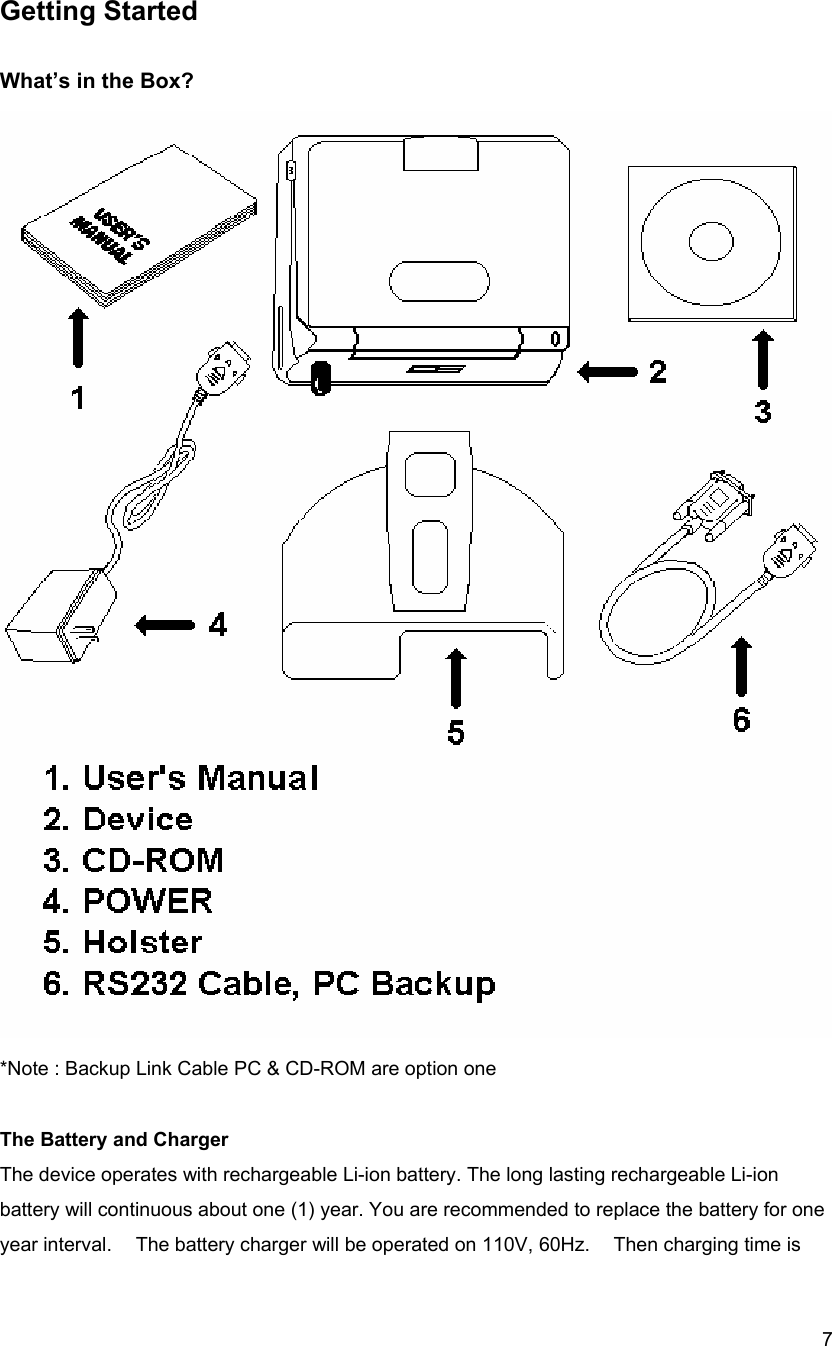
 7Getting Started   What’s in the Box?   *Note : Backup Link Cable PC & CD-ROM are option one  The Battery and Charger   The device operates with rechargeable Li-ion battery. The long lasting rechargeable Li-ion battery will continuous about one (1) year. You are recommended to replace the battery for one year interval.    The battery charger will be operated on 110V, 60Hz.    Then charging time is
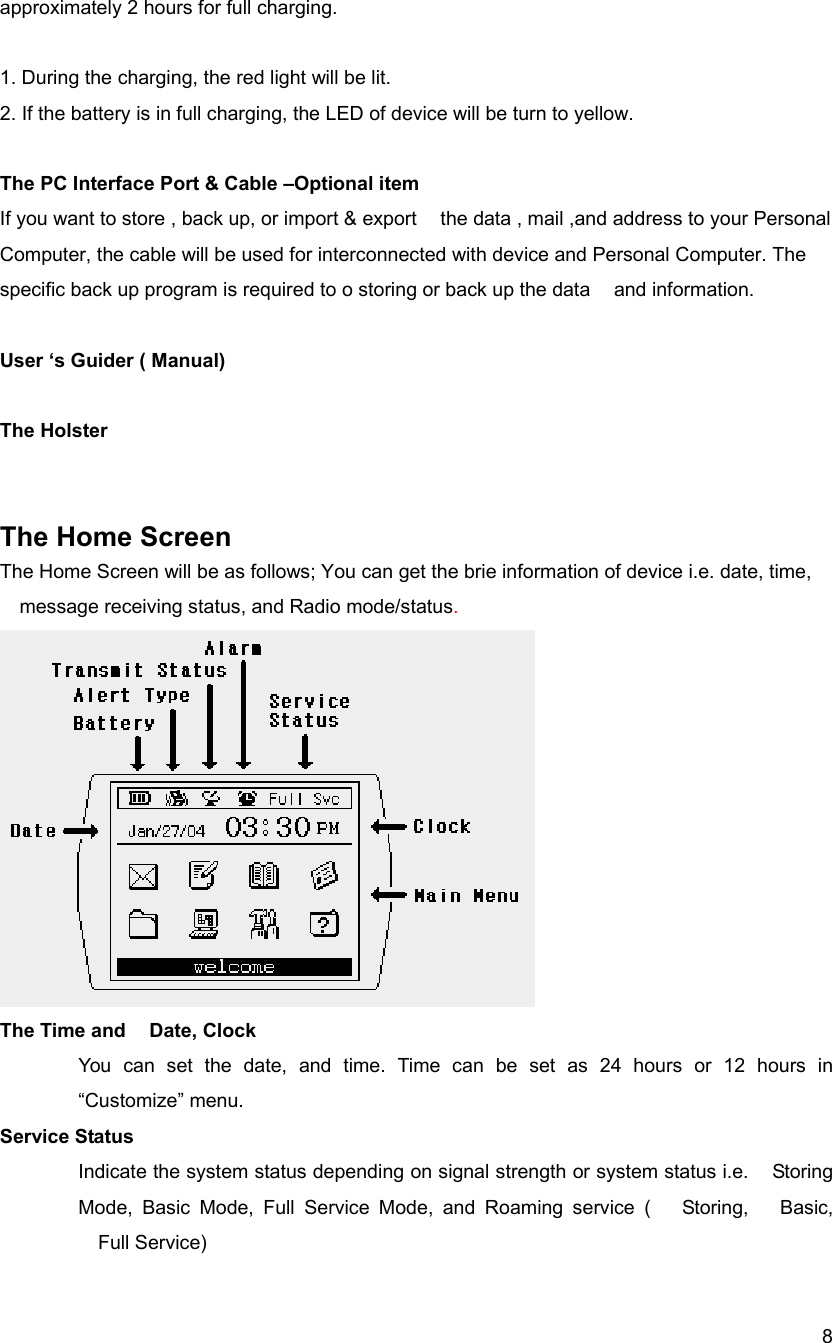
 8approximately 2 hours for full charging.   1. During the charging, the red light will be lit.   2. If the battery is in full charging, the LED of device will be turn to yellow.  The PC Interface Port & Cable –Optional item If you want to store , back up, or import & export    the data , mail ,and address to your Personal Computer, the cable will be used for interconnected with device and Personal Computer. The specific back up program is required to o storing or back up the data    and information.    User ‘s Guider ( Manual)  The Holster     The Home Screen  The Home Screen will be as follows; You can get the brie information of device i.e. date, time, message receiving status, and Radio mode/status.    The Time and    Date, Clock You can set the date, and time. Time can be set as 24 hours or 12 hours in “Customize” menu.   Service Status Indicate the system status depending on signal strength or system status i.e.    Storing Mode, Basic Mode, Full Service Mode, and Roaming service (  Storing,  Basic,  Full Service)
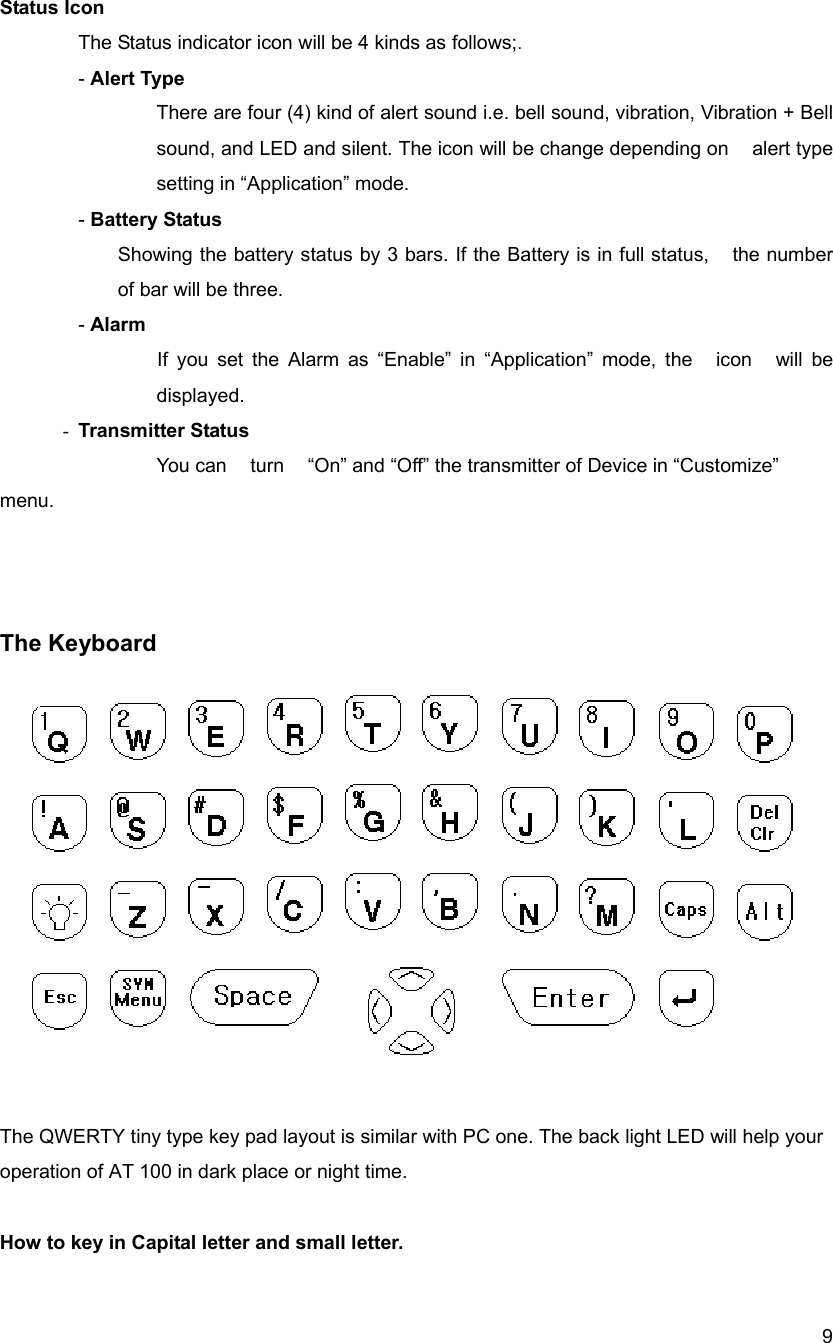
 9Status Icon  The Status indicator icon will be 4 kinds as follows;. - Alert Type There are four (4) kind of alert sound i.e. bell sound, vibration, Vibration + Bell sound, and LED and silent. The icon will be change depending on    alert type setting in “Application” mode.  - Battery Status Showing the battery status by 3 bars. If the Battery is in full status,    the number of bar will be three.      - Alarm If you set the Alarm as “Enable” in “Application” mode, the    icon    will be displayed. - Transmitter Status You can    turn    “On” and “Off” the transmitter of Device in “Customize” menu.     The Keyboard   The QWERTY tiny type key pad layout is similar with PC one. The back light LED will help your   operation of AT 100 in dark place or night time.      How to key in Capital letter and small letter.
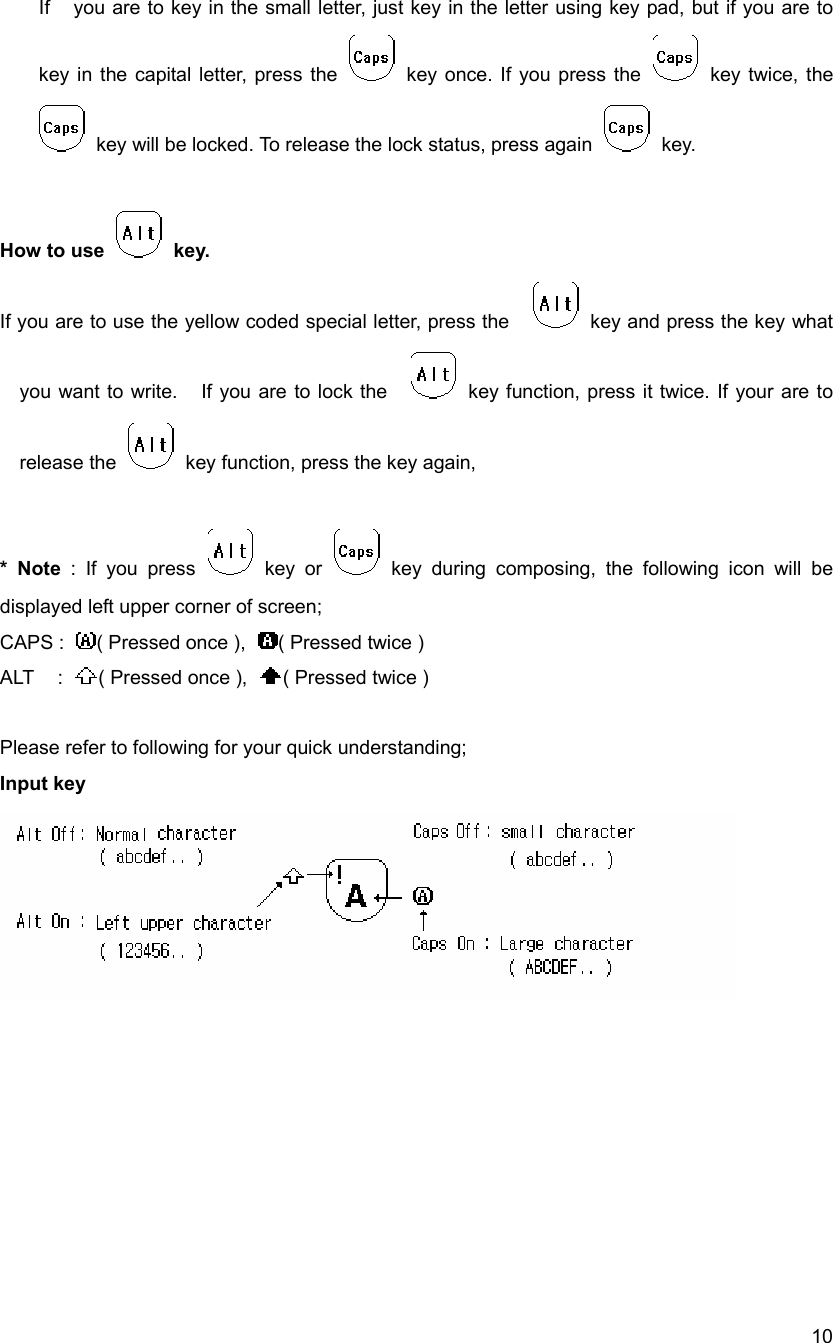
 10If    you are to key in the small letter, just key in the letter using key pad, but if you are to key in the capital letter, press the    key once. If you press the   key twice, the   key will be locked. To release the lock status, press again   key.    How to use   key. If you are to use the yellow coded special letter, press the      key and press the key what you want to write.    If you are to lock the      key function, press it twice. If your are to release the    key function, press the key again,    * Note : If you press   key or   key during composing, the following icon will be displayed left upper corner of screen;   CAPS :  ( Pressed once ),  ( Pressed twice ) ALT  :  ( Pressed once ),  ( Pressed twice )  Please refer to following for your quick understanding; Input key
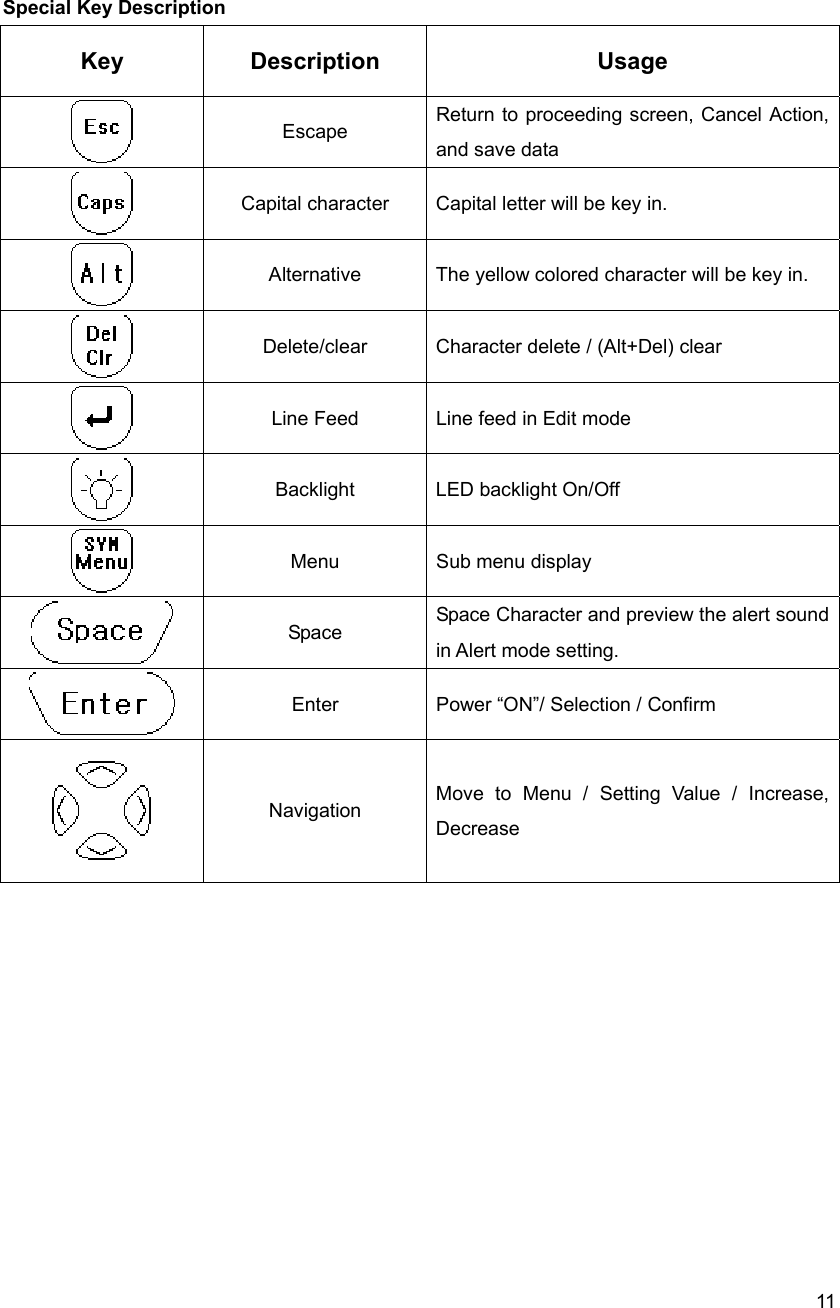
 11 Special Key Description Key Description  Usage  Escape  Return to proceeding screen, Cancel Action, and save data  Capital character  Capital letter will be key in.  Alternative  The yellow colored character will be key in.  Delete/clear  Character delete / (Alt+Del) clear  Line Feed  Line feed in Edit mode  Backlight  LED backlight On/Off  Menu Sub menu display  Space  Space Character and preview the alert sound in Alert mode setting.  Enter  Power “ON”/ Selection / Confirm    Navigation  Move to Menu / Setting Value / Increase, Decrease
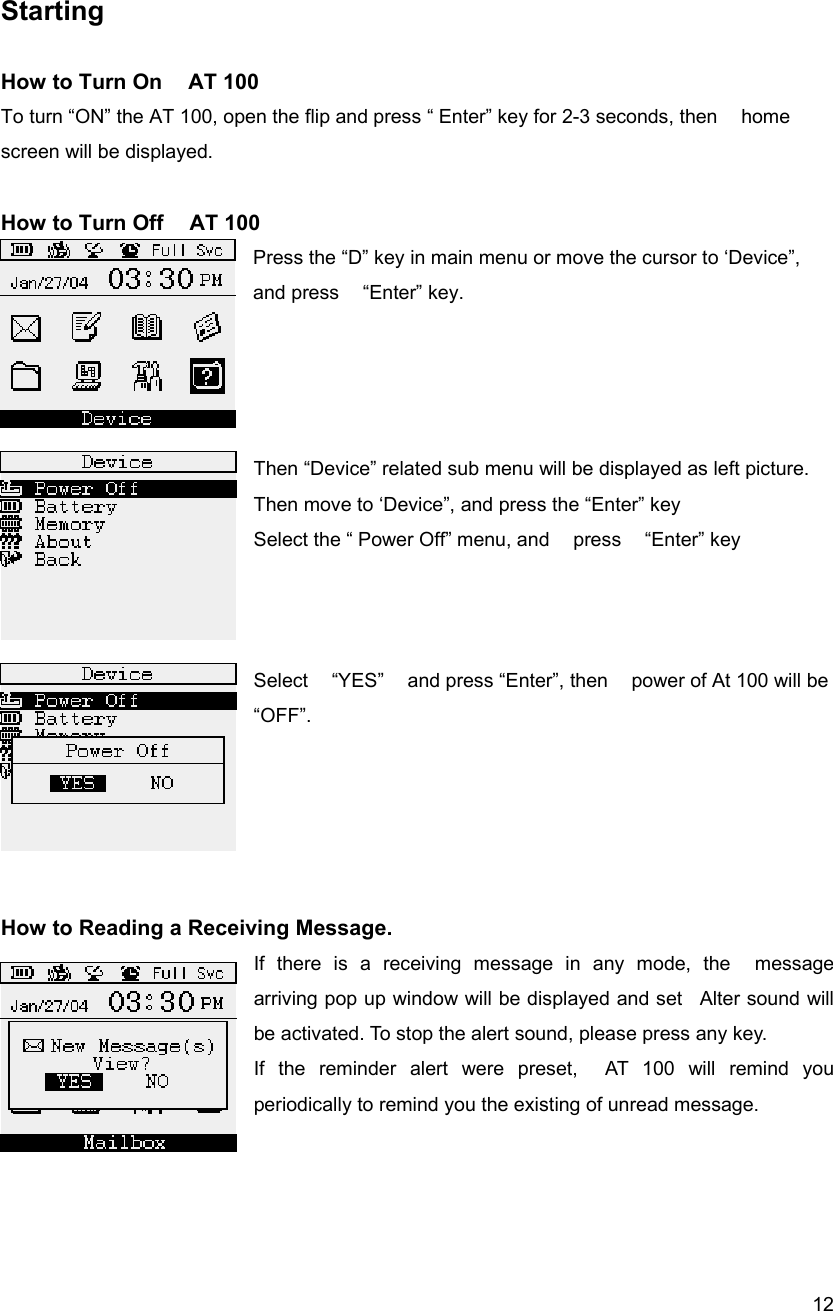
 12 Starting   How to Turn On    AT 100 To turn “ON” the AT 100, open the flip and press “ Enter” key for 2-3 seconds, then    home screen will be displayed.    How to Turn Off    AT 100 Press the “D” key in main menu or move the cursor to ‘Device”, and press    “Enter” key.       Then “Device” related sub menu will be displayed as left picture. Then move to ‘Device”, and press the “Enter” key Select the “ Power Off” menu, and    press    “Enter” key    Select    “YES”    and press “Enter”, then    power of At 100 will be “OFF”.      How to Reading a Receiving Message. If there is a receiving message in any mode, the  message arriving pop up window will be displayed and set  Alter sound will be activated. To stop the alert sound, please press any key.   If the reminder alert were preset,  AT 100 will remind you periodically to remind you the existing of unread message.
 13 Select “YES” or “NO” using navigation key, and press “Enter”. If you select “YES”, you can read the message.      Mail box In Mailbox, there are      three(3) sub menus. The first one is “ Inbox”(received message). Please be advised that the Information related message will be stored in New/Info Folder. The seconds one is “Outbox (sent message). The third one is draft message, and it will be stored in “Draft box..   Select the Mailbox in main screen, press    “Enter”.      The Mail Box menu will be as following picture;        1] Inbox Store the received message.    The number show you the unread message and total received message number.   2] Outbox The sent and sending message will be stored in “Outbox”.    The forwarded message    also stored on “Outbox”. The number show you the failed message number and total sent message number.  3] Drafts During the message composing, you can hold    or cancel the message sending. Then it will be
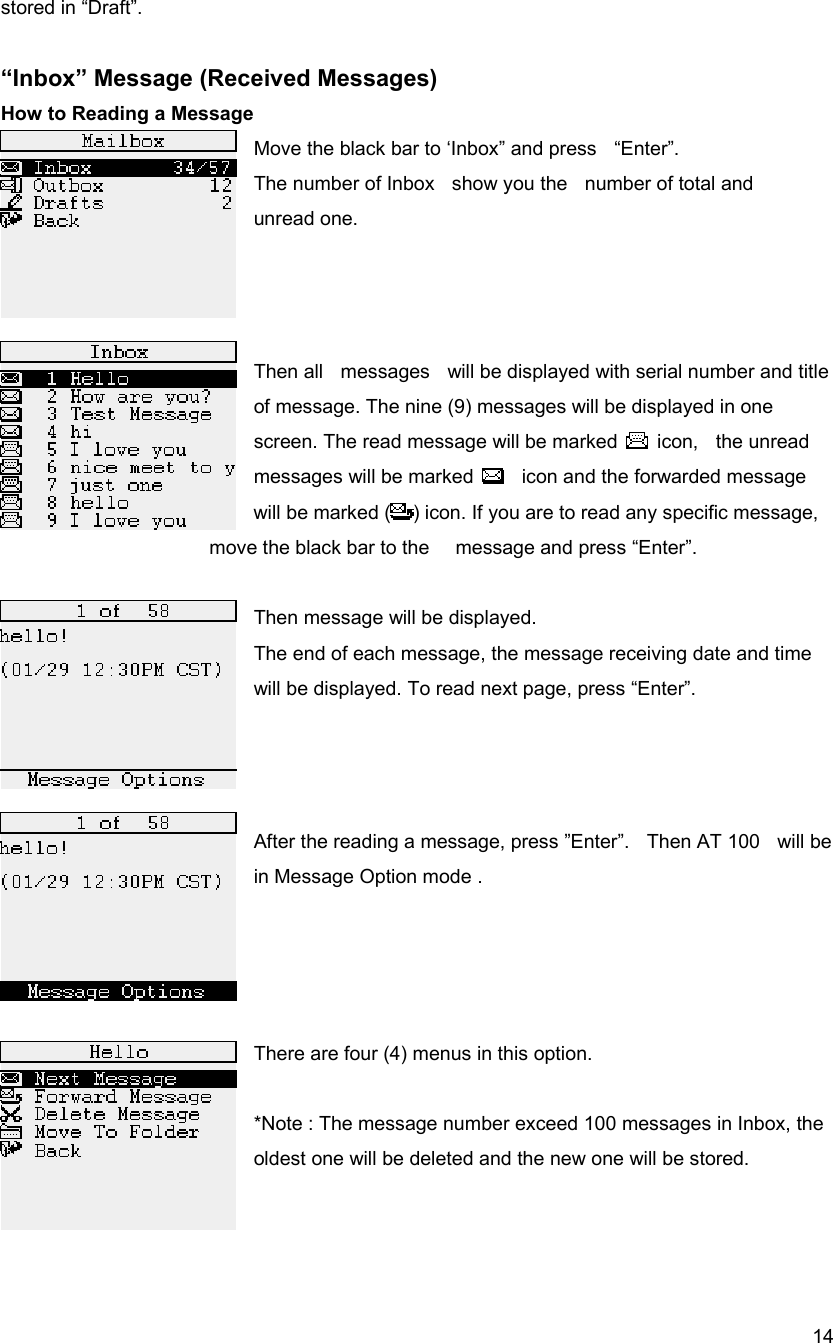
 14stored in “Draft”.    “Inbox” Message (Received Messages) How to Reading a Message   Move the black bar to ‘Inbox” and press    “Enter”.   The number of Inbox    show you the    number of total and       unread one.      Then all    messages    will be displayed with serial number and title of message. The nine (9) messages will be displayed in one screen. The read message will be marked   icon,  the unread messages will be marked      icon and the forwarded message will be marked ( ) icon. If you are to read any specific message,           move the black bar to the   message and press “Enter”.   Then message will be displayed.   The end of each message, the message receiving date and time will be displayed. To read next page, press “Enter”.      After the reading a message, press ”Enter”.    Then AT 100    will be in Message Option mode .       There are four (4) menus in this option.                      *Note : The message number exceed 100 messages in Inbox, the oldest one will be deleted and the new one will be stored.
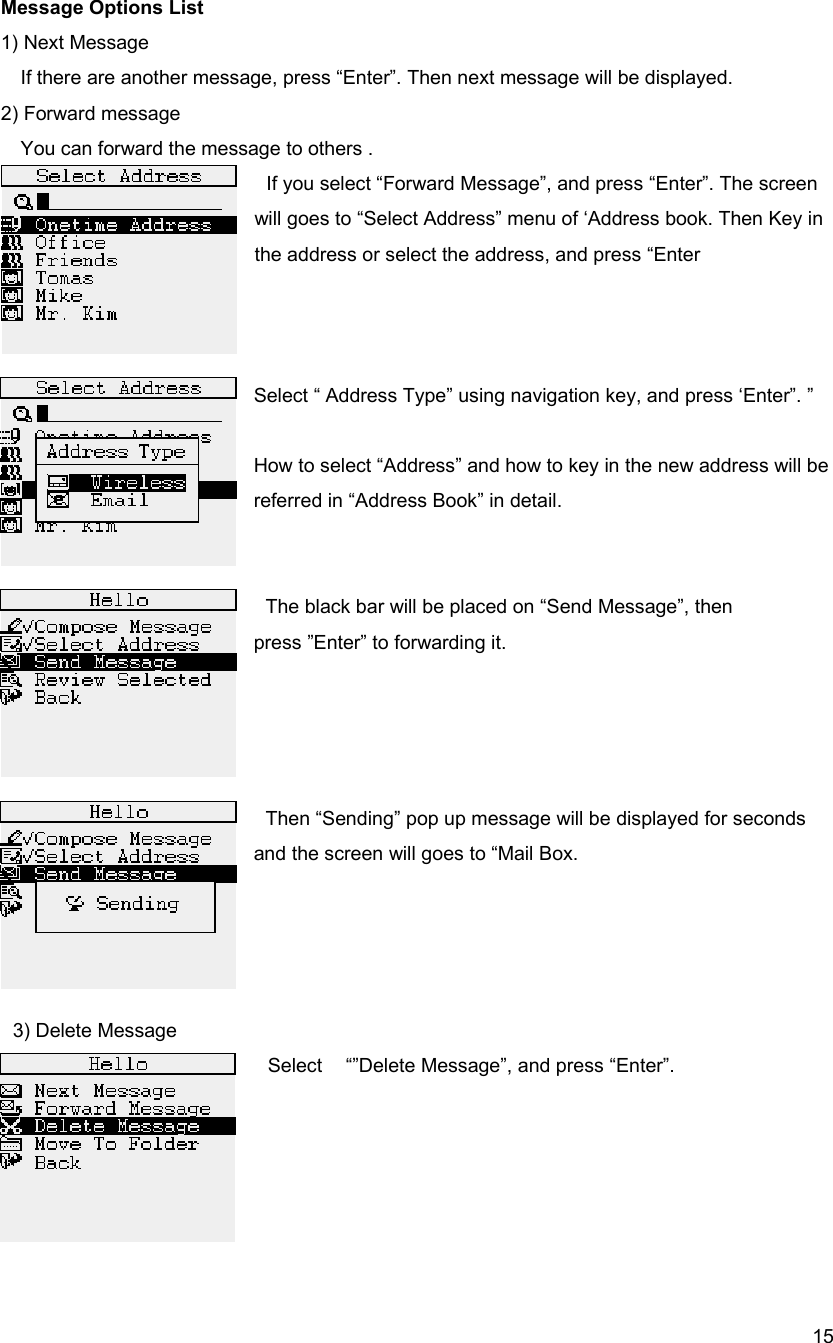
 15Message Options List 1) Next Message If there are another message, press “Enter”. Then next message will be displayed.   2) Forward message   You can forward the message to others .   If you select “Forward Message”, and press “Enter”. The screen will goes to “Select Address” menu of ‘Address book. Then Key in the address or select the address, and press “Enter                       Select “ Address Type” using navigation key, and press ‘Enter”. ”    How to select “Address” and how to key in the new address will be referred in “Address Book” in detail.       The black bar will be placed on “Send Message”, then press ”Enter” to forwarding it.                              Then “Sending” pop up message will be displayed for seconds and the screen will goes to “Mail Box.        3) Delete Message Select    “”Delete Message”, and press “Enter”.
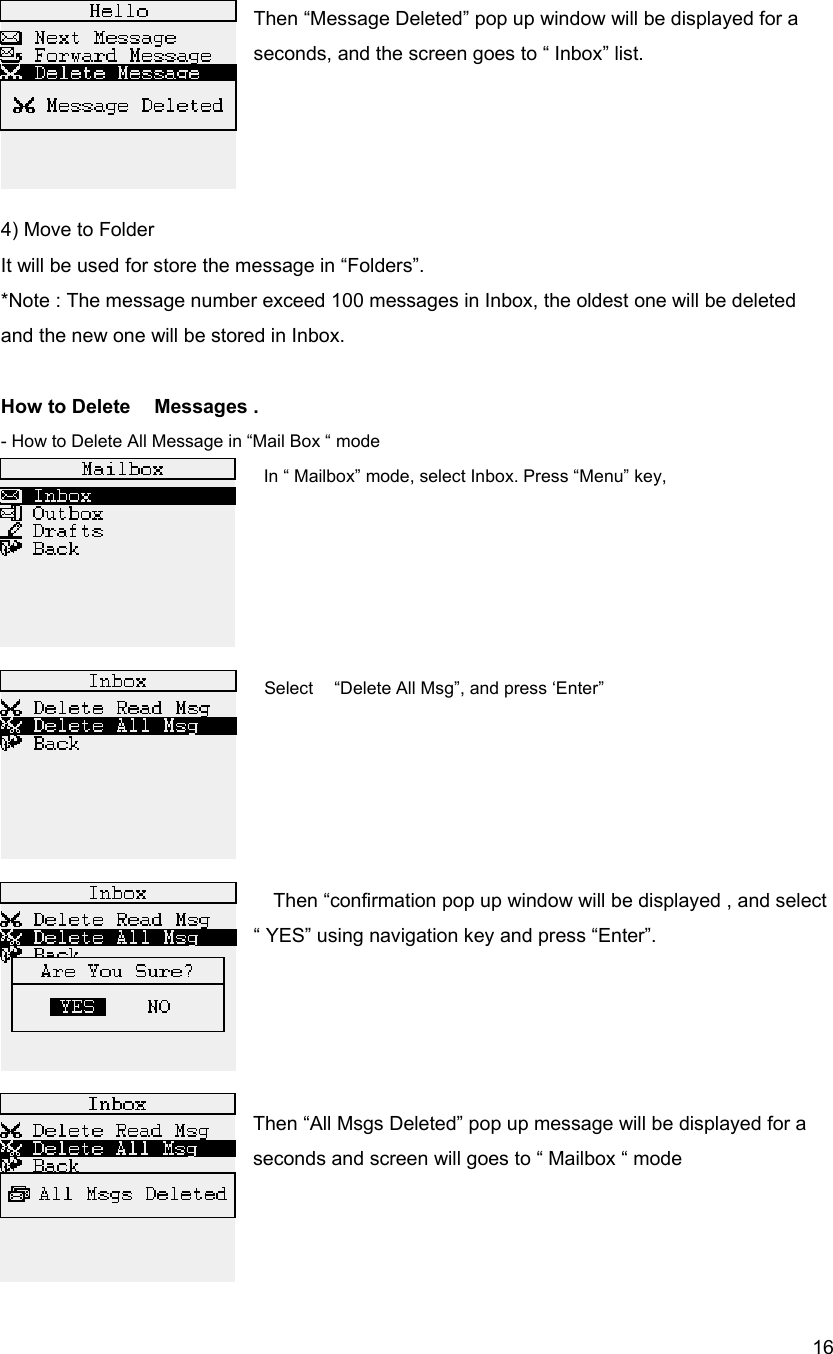
 16Then “Message Deleted” pop up window will be displayed for a seconds, and the screen goes to “ Inbox” list.       4) Move to Folder It will be used for store the message in “Folders”.   *Note : The message number exceed 100 messages in Inbox, the oldest one will be deleted and the new one will be stored in Inbox.  How to Delete    Messages . - How to Delete All Message in “Mail Box “ mode   In “ Mailbox” mode, select Inbox. Press “Menu” key,           Select    “Delete All Msg”, and press ‘Enter”                          Then “confirmation pop up window will be displayed , and select “ YES” using navigation key and press “Enter”.      Then “All Msgs Deleted” pop up message will be displayed for a seconds and screen will goes to “ Mailbox “ mode
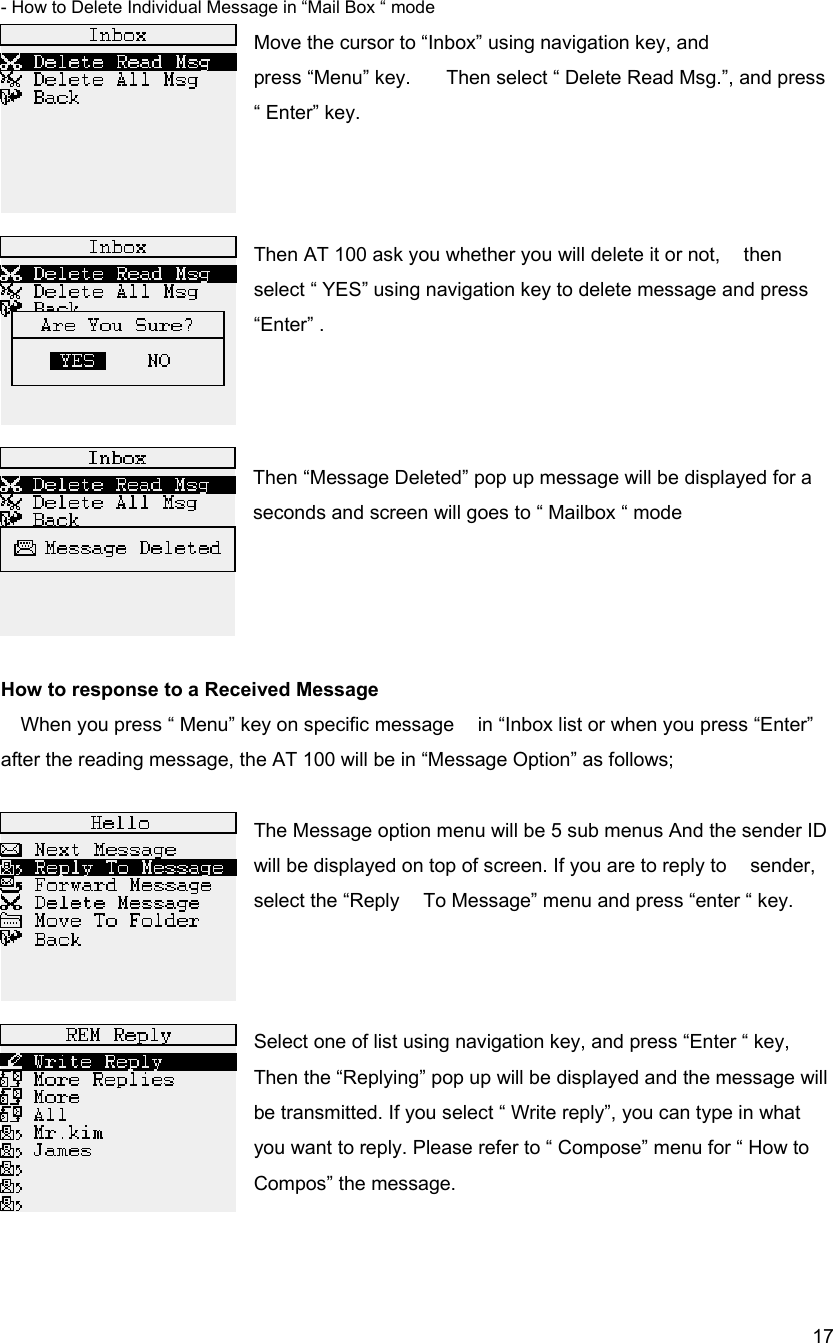
 17- How to Delete Individual Message in “Mail Box “ mode Move the cursor to “Inbox” using navigation key, and   press “Menu” key.      Then select “ Delete Read Msg.”, and press   “ Enter” key.      Then AT 100 ask you whether you will delete it or not,    then select “ YES” using navigation key to delete message and press “Enter” .      Then “Message Deleted” pop up message will be displayed for a seconds and screen will goes to “ Mailbox “ mode     How to response to a Received Message When you press “ Menu” key on specific message    in “Inbox list or when you press “Enter”   after the reading message, the AT 100 will be in “Message Option” as follows;  The Message option menu will be 5 sub menus And the sender ID will be displayed on top of screen. If you are to reply to    sender, select the “Reply    To Message” menu and press “enter “ key.                   Select one of list using navigation key, and press “Enter “ key, Then the “Replying” pop up will be displayed and the message will be transmitted. If you select “ Write reply”, you can type in what you want to reply. Please refer to “ Compose” menu for “ How to Compos” the message.
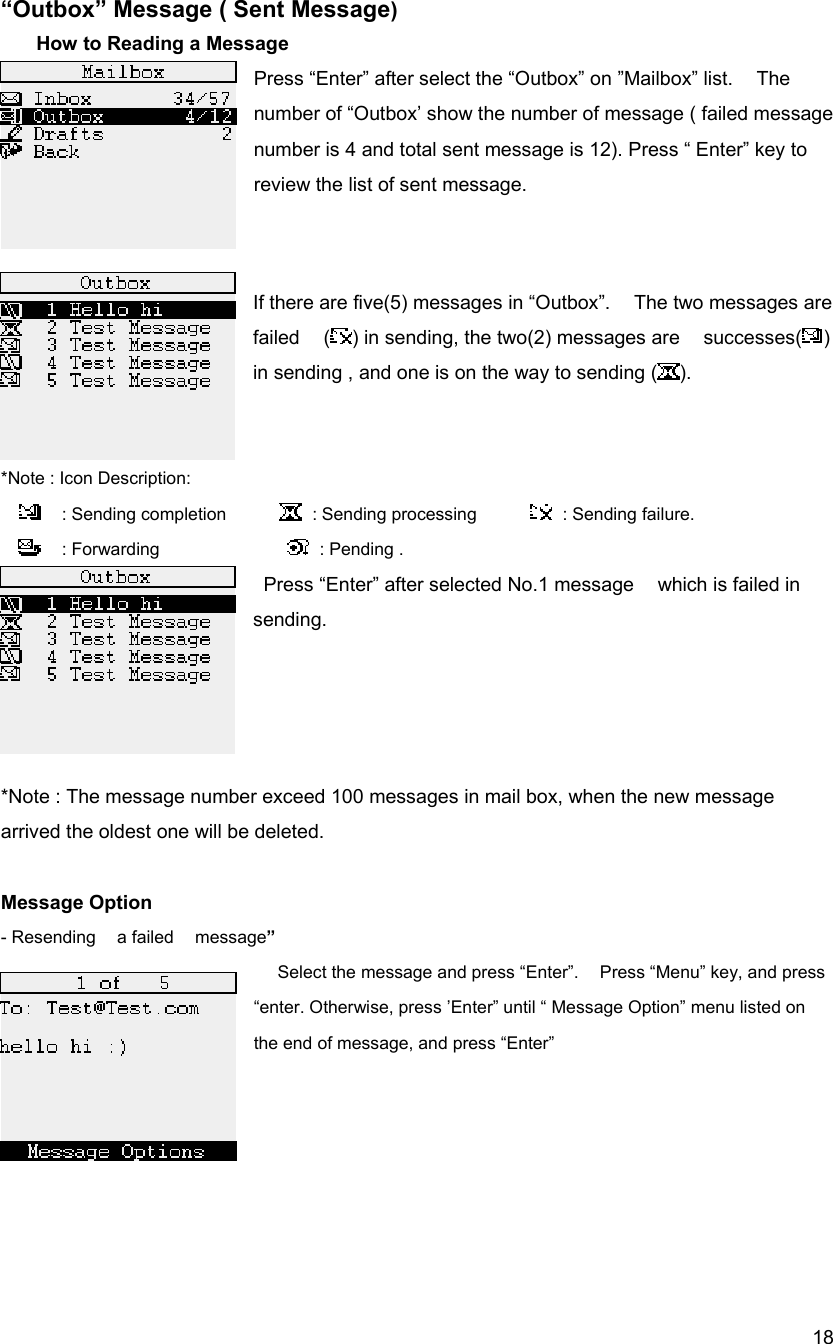
 18“Outbox” Message ( Sent Message)       How to Reading a Message Press “Enter” after select the “Outbox” on ”Mailbox” list.    The number of “Outbox’ show the number of message ( failed message number is 4 and total sent message is 12). Press “ Enter” key to review the list of sent message.   If there are five(5) messages in “Outbox”.    The two messages are failed  ( ) in sending, the two(2) messages are    successes( )  in sending , and one is on the way to sending ( ).     *Note : Icon Description:   : Sending completion       : Sending processing       : Sending failure.    : Forwarding               : Pending .    Press “Enter” after selected No.1 message    which is failed in sending.     *Note : The message number exceed 100 messages in mail box, when the new message arrived the oldest one will be deleted.  Message Option - Resending  a failed  message”   Select the message and press “Enter”.    Press “Menu” key, and press “enter. Otherwise, press ’Enter” until “ Message Option” menu listed on the end of message, and press “Enter”
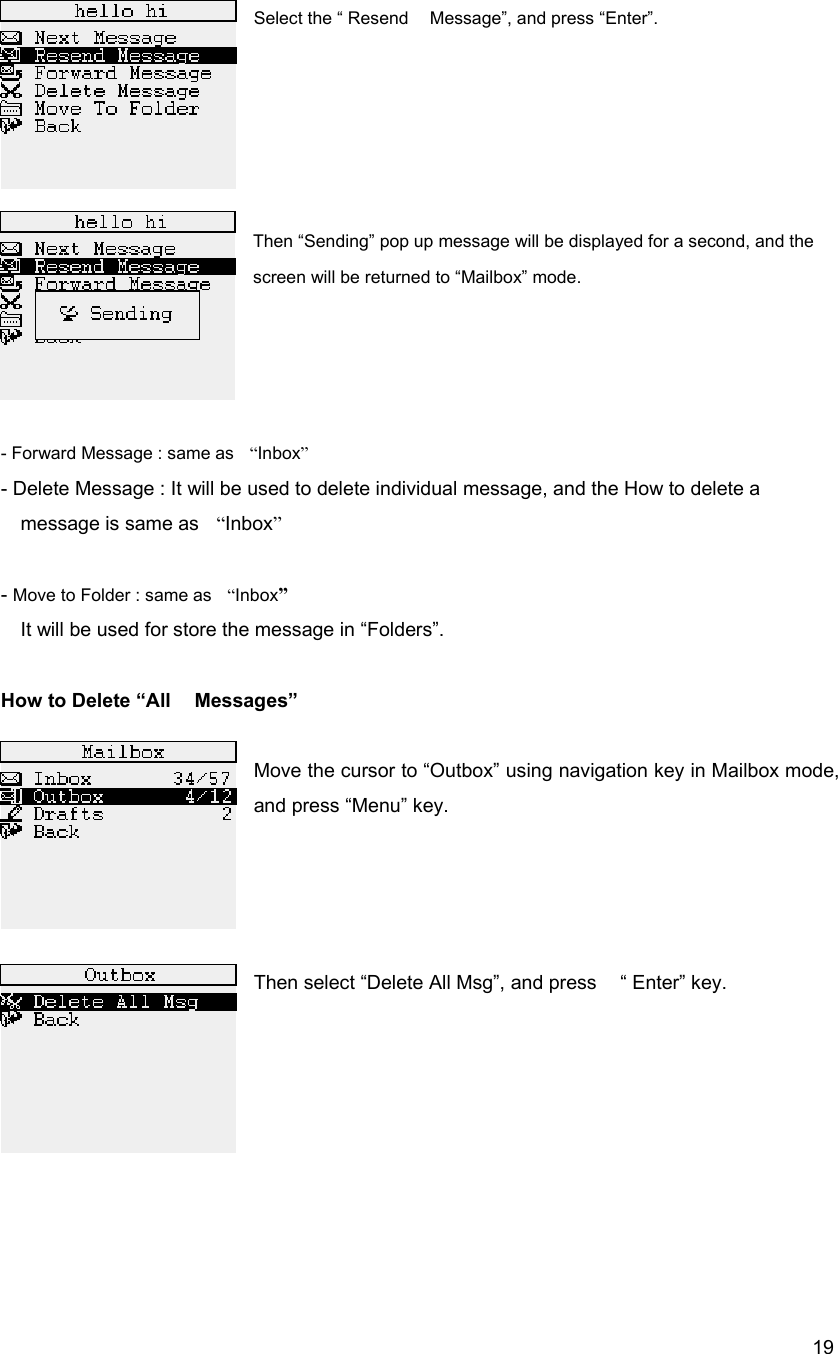
 19Select the “ Resend    Message”, and press “Enter”.      Then “Sending” pop up message will be displayed for a second, and the screen will be returned to “Mailbox” mode.     - Forward Message : same as    “Inbox”     - Delete Message : It will be used to delete individual message, and the How to delete a message is same as    “Inbox”  - Move to Folder : same as    “Inbox” It will be used for store the message in “Folders”.                                  How to Delete “All    Messages”    Move the cursor to “Outbox” using navigation key in Mailbox mode, and press “Menu” key.         Then select “Delete All Msg”, and press    “ Enter” key.
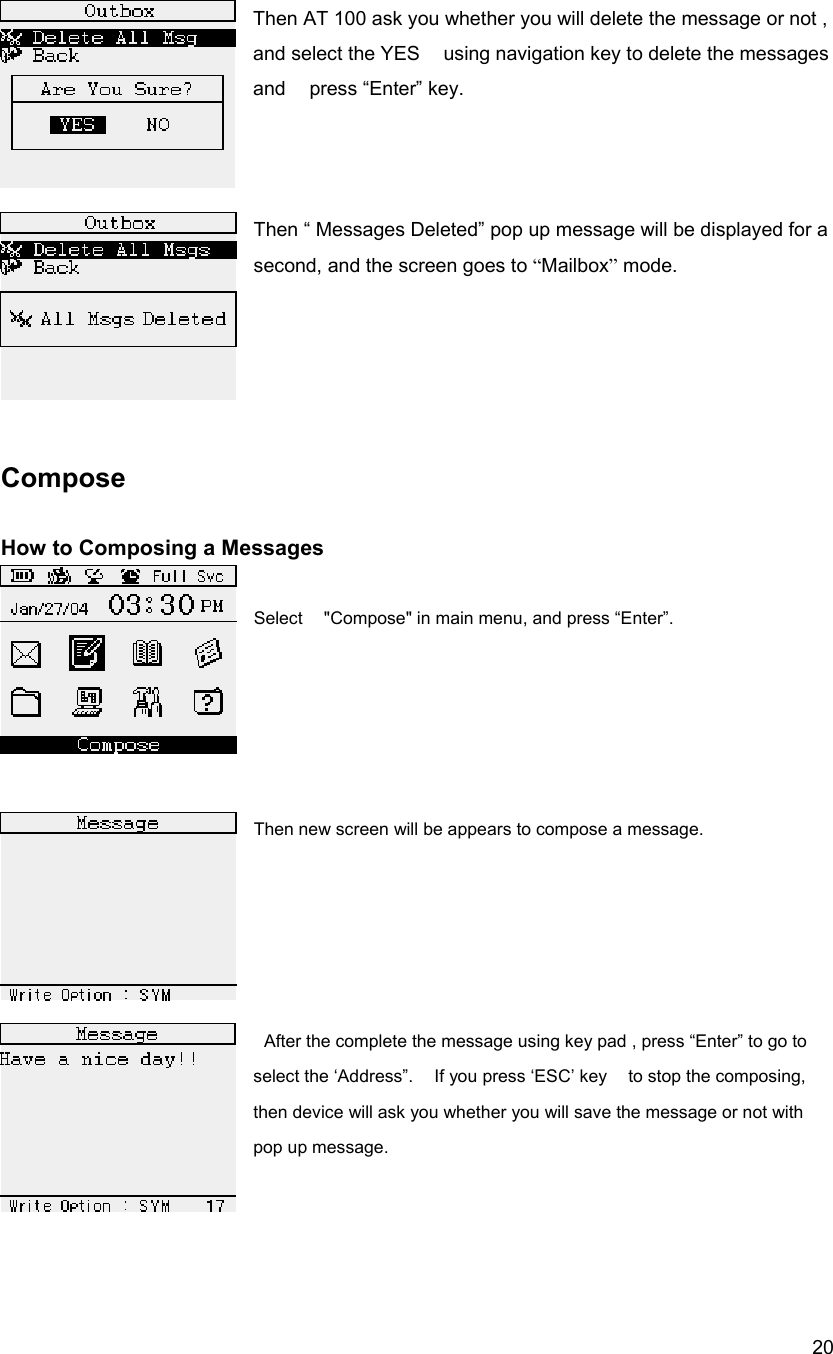
 20Then AT 100 ask you whether you will delete the message or not , and select the YES    using navigation key to delete the messages and  press “Enter” key.    Then “ Messages Deleted” pop up message will be displayed for a second, and the screen goes to “Mailbox” mode.       Compose   How to Composing a Messages    Select    "Compose" in main menu, and press “Enter”.      Then new screen will be appears to compose a message.         After the complete the message using key pad , press “Enter” to go to select the ‘Address”.    If you press ‘ESC’ key    to stop the composing, then device will ask you whether you will save the message or not with pop up message.
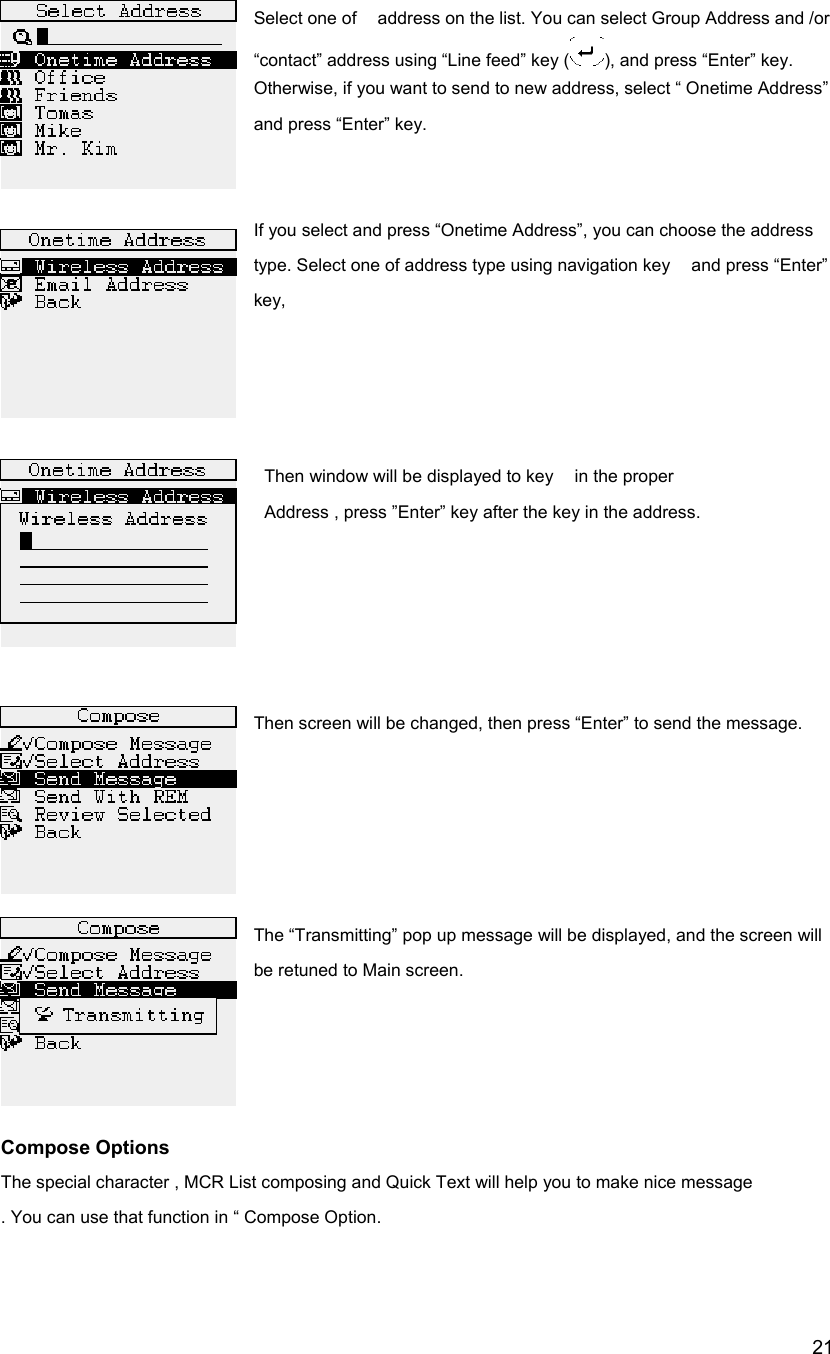
 21Select one of    address on the list. You can select Group Address and /or “contact” address using “Line feed” key ( ), and press “Enter” key.   Otherwise, if you want to send to new address, select “ Onetime Address” and press “Enter” key.   If you select and press “Onetime Address”, you can choose the address type. Select one of address type using navigation key    and press “Enter” key,      Then window will be displayed to key  in the proper     Address , press ”Enter” key after the key in the address.      Then screen will be changed, then press “Enter” to send the message.       The “Transmitting” pop up message will be displayed, and the screen will be retuned to Main screen.                                                                                                                                  Compose Options The special character , MCR List composing and Quick Text will help you to make nice message . You can use that function in “ Compose Option.
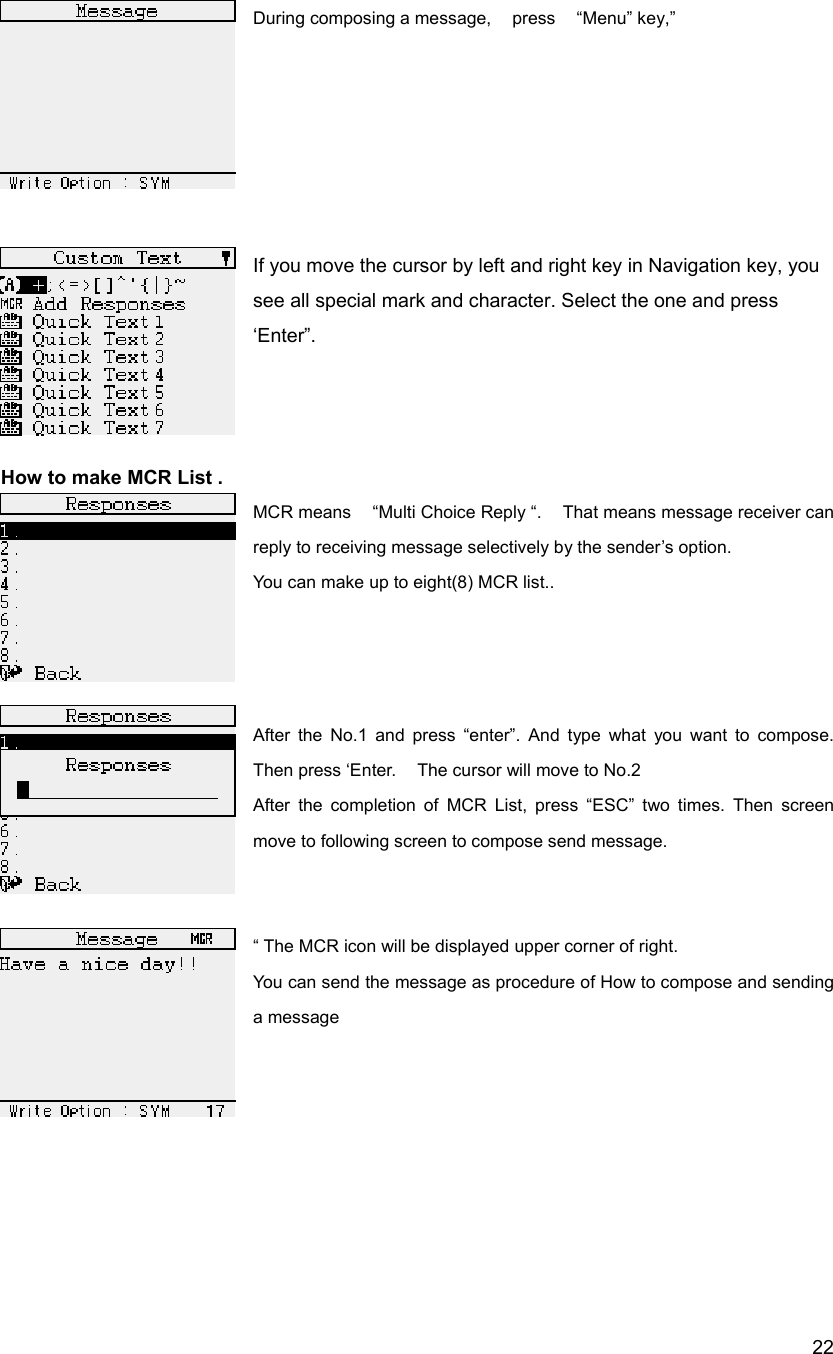
 22During composing a message,  press  “Menu” key,”       If you move the cursor by left and right key in Navigation key, you see all special mark and character. Select the one and press ‘Enter”.     How to make MCR List . MCR means    “Multi Choice Reply “.    That means message receiver can reply to receiving message selectively by the sender’s option.     You can make up to eight(8) MCR list..     After the No.1 and press “enter”. And type what you want to compose. Then press ‘Enter.    The cursor will move to No.2   After the completion of MCR List, press “ESC” two times. Then screen move to following screen to compose send message.   “ The MCR icon will be displayed upper corner of right.   You can send the message as procedure of How to compose and sending a message
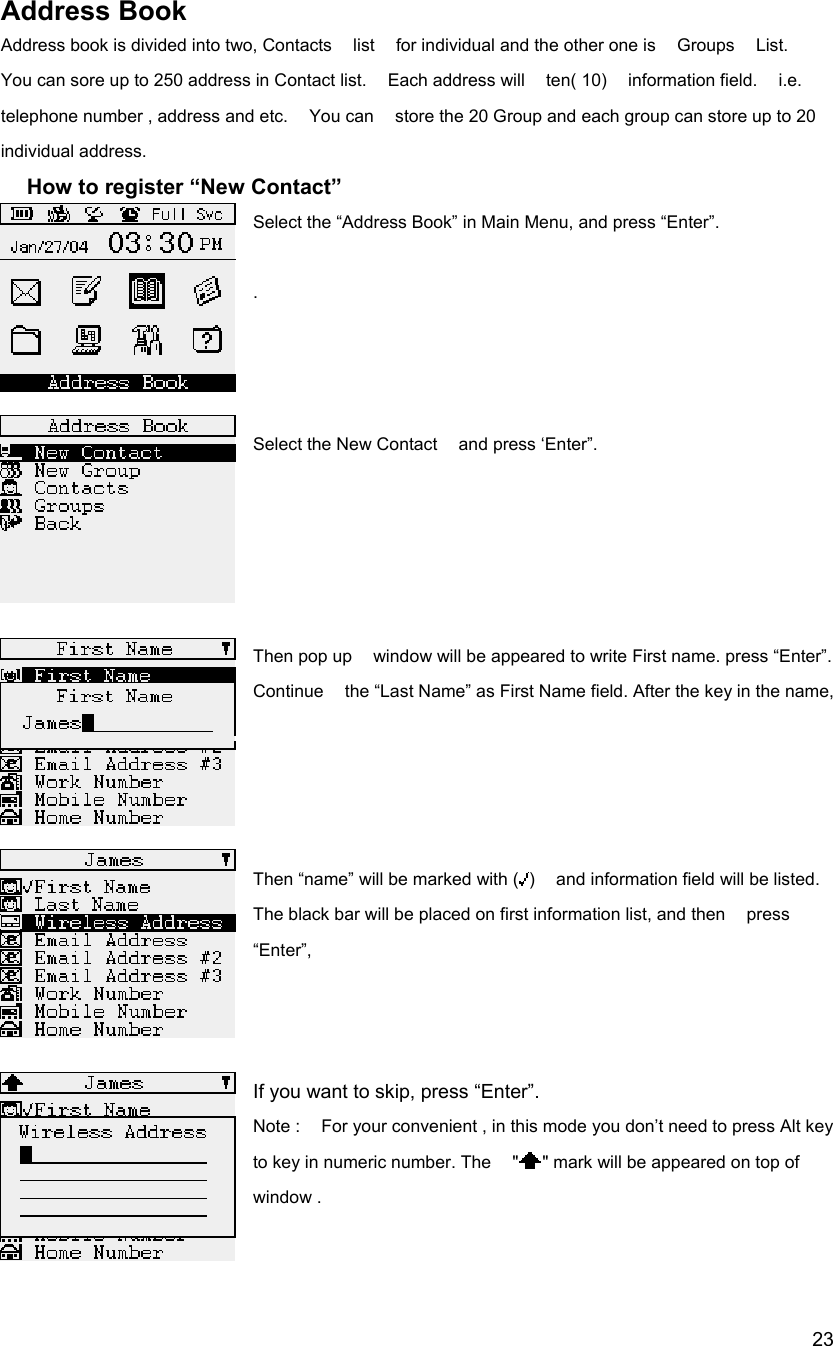
 23Address Book Address book is divided into two, Contacts  list  for individual and the other one is  Groups  List.  You can sore up to 250 address in Contact list.    Each address will    ten( 10)    information field.    i.e.   telephone number , address and etc.    You can    store the 20 Group and each group can store up to 20 individual address.       How to register “New Contact” Select the “Address Book” in Main Menu, and press “Enter”.  .    Select the New Contact    and press ‘Enter”.      Then pop up    window will be appeared to write First name. press “Enter”. Continue    the “Last Name” as First Name field. After the key in the name,     Then “name” will be marked with ( )    and information field will be listed.   The black bar will be placed on first information list, and then    press “Enter”,     If you want to skip, press “Enter”. Note :    For your convenient , in this mode you don’t need to press Alt key to key in numeric number. The    " " mark will be appeared on top of   window .
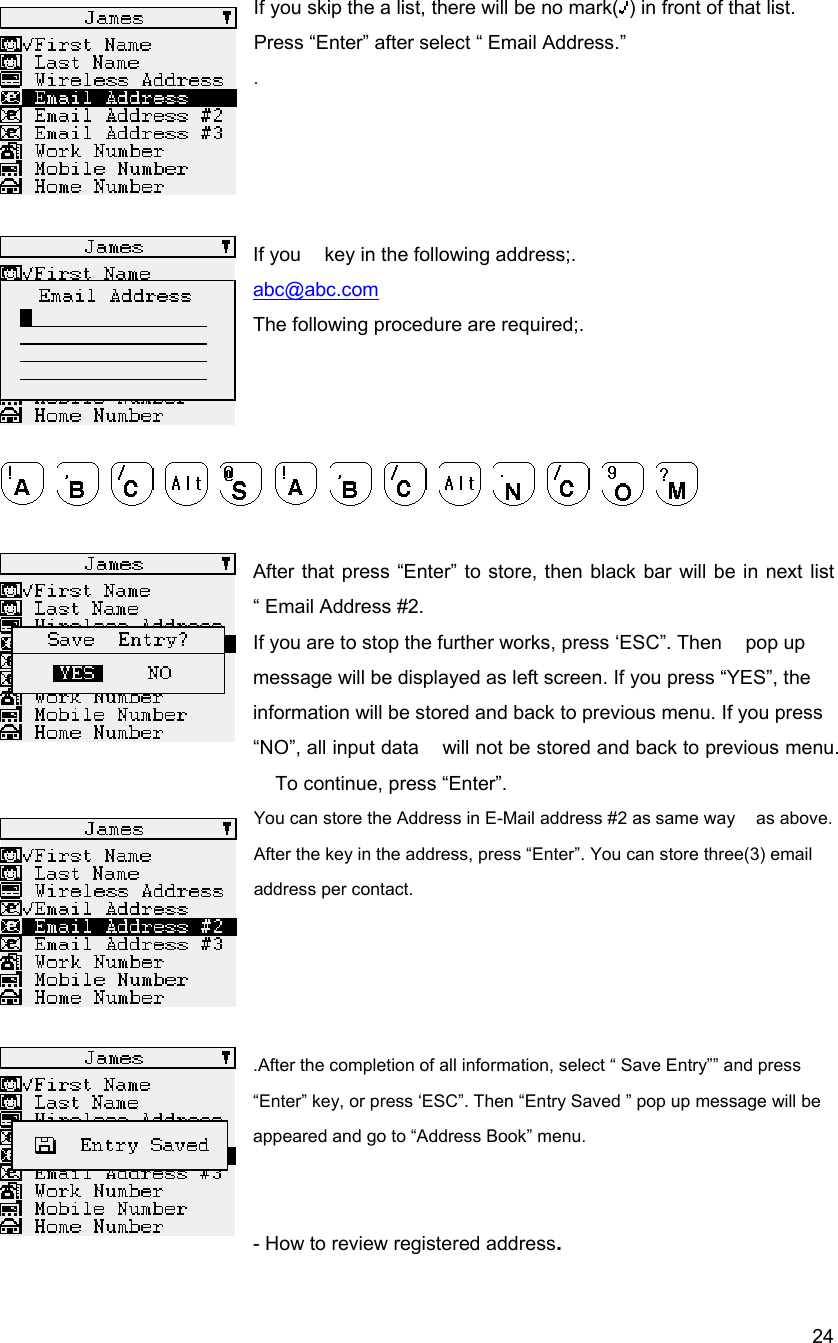
 24If you skip the a list, there will be no mark( ) in front of that list. Press “Enter” after select “ Email Address.”    .     If you    key in the following address;.   abc@abc.com The following procedure are required;.                  After that press “Enter” to store, then black bar will be in next list “ Email Address #2. If you are to stop the further works, press ‘ESC”. Then    pop up message will be displayed as left screen. If you press “YES”, the   information will be stored and back to previous menu. If you press “NO”, all input data    will not be stored and back to previous menu. To continue, press “Enter”. You can store the Address in E-Mail address #2 as same way    as above. After the key in the address, press “Enter”. You can store three(3) email address per contact.      .After the completion of all information, select “ Save Entry”” and press “Enter” key, or press ‘ESC”. Then “Entry Saved ” pop up message will be appeared and go to “Address Book” menu.   - How to review registered address.
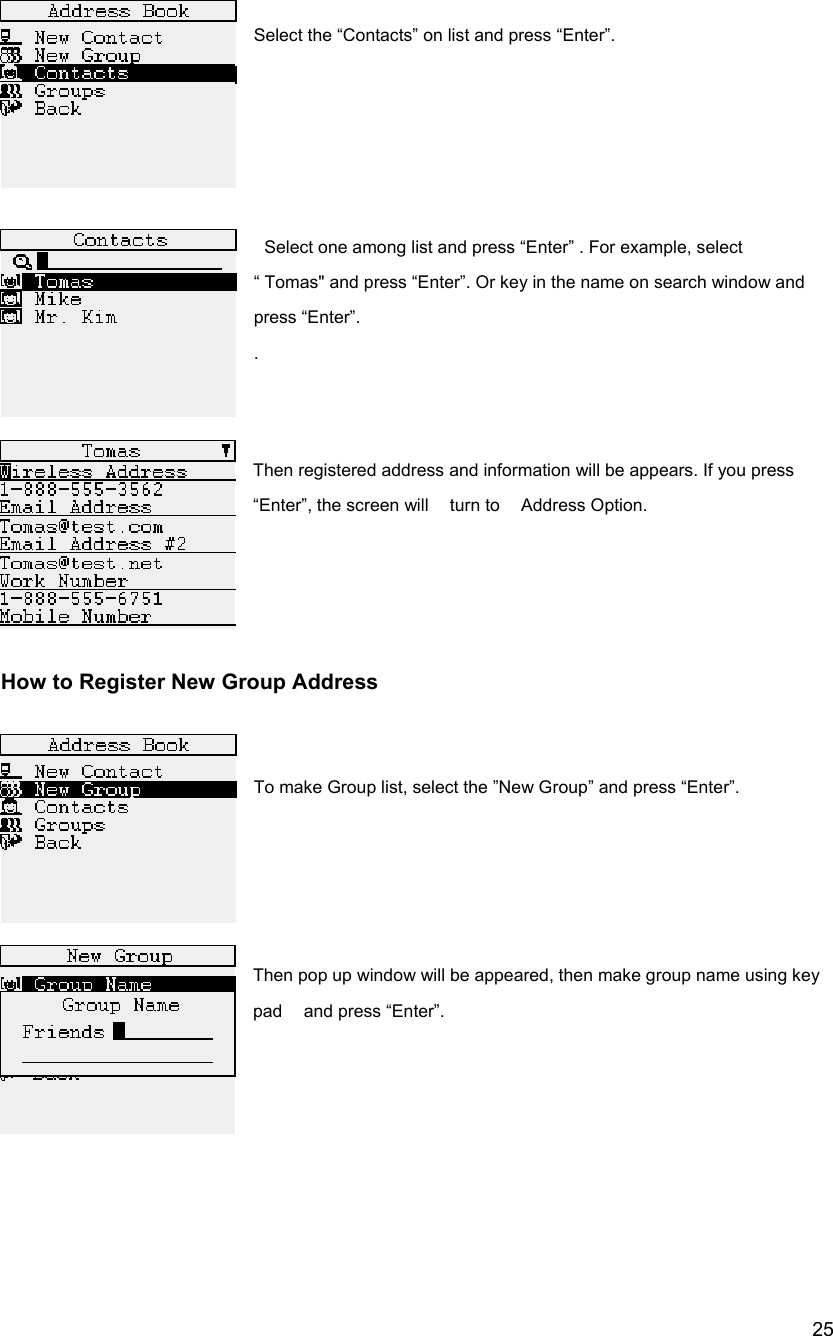
 25 Select the “Contacts” on list and press “Enter”.          Select one among list and press “Enter” . For example, select   “ Tomas" and press “Enter”. Or key in the name on search window and press “Enter”. .    Then registered address and information will be appears. If you press “Enter”, the screen will    turn to    Address Option.     How to Register New Group Address   To make Group list, select the ”New Group” and press “Enter”.      Then pop up window will be appeared, then make group name using key pad  and press “Enter”.
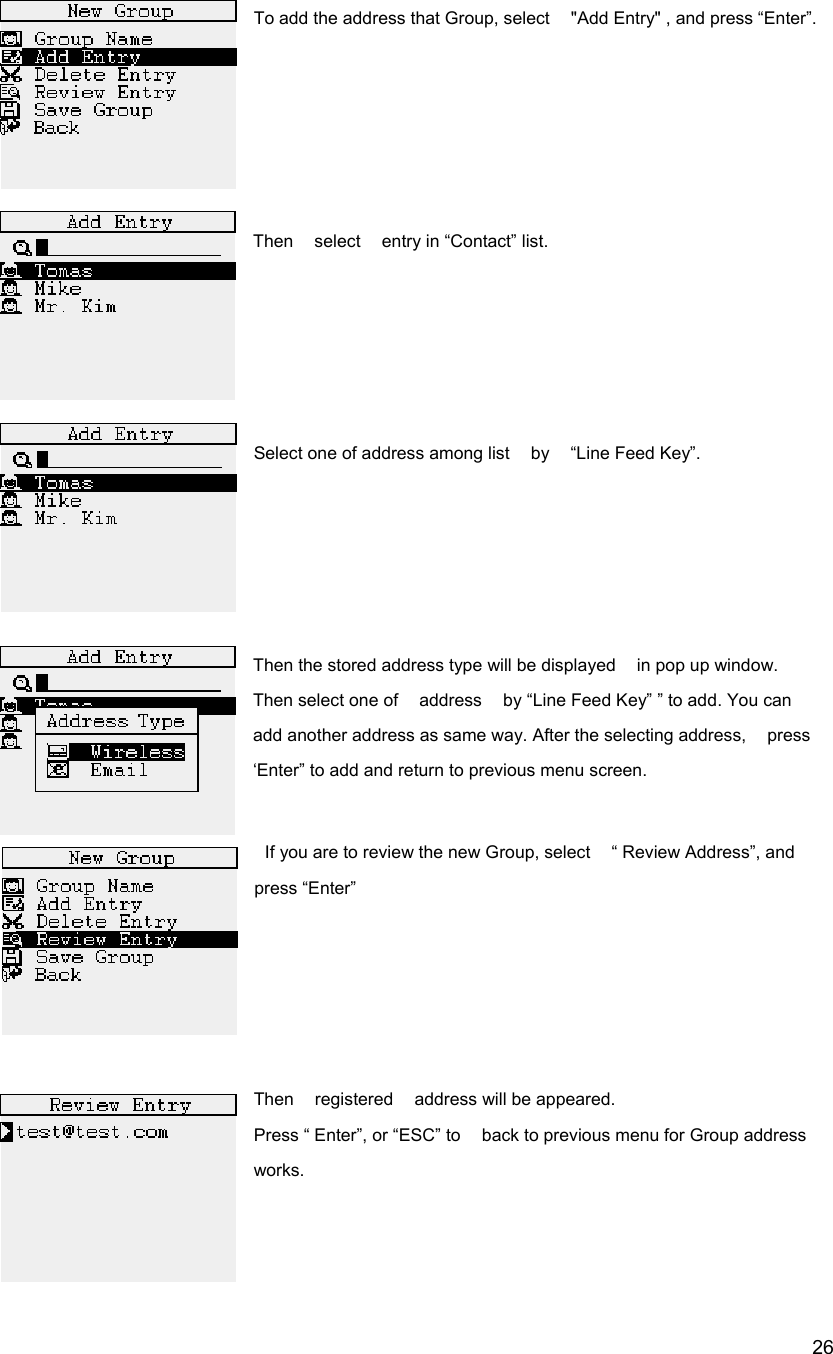
 26To add the address that Group, select    "Add Entry" , and press “Enter”.      Then    select    entry in “Contact” list.        Select one of address among list  by  “Line Feed Key”.       Then the stored address type will be displayed    in pop up window.     Then select one of    address    by “Line Feed Key” ” to add. You can   add another address as same way. After the selecting address,    press ‘Enter” to add and return to previous menu screen.      If you are to review the new Group, select    “ Review Address”, and press “Enter”      Then  registered  address will be appeared.  Press “ Enter”, or “ESC” to    back to previous menu for Group address works.
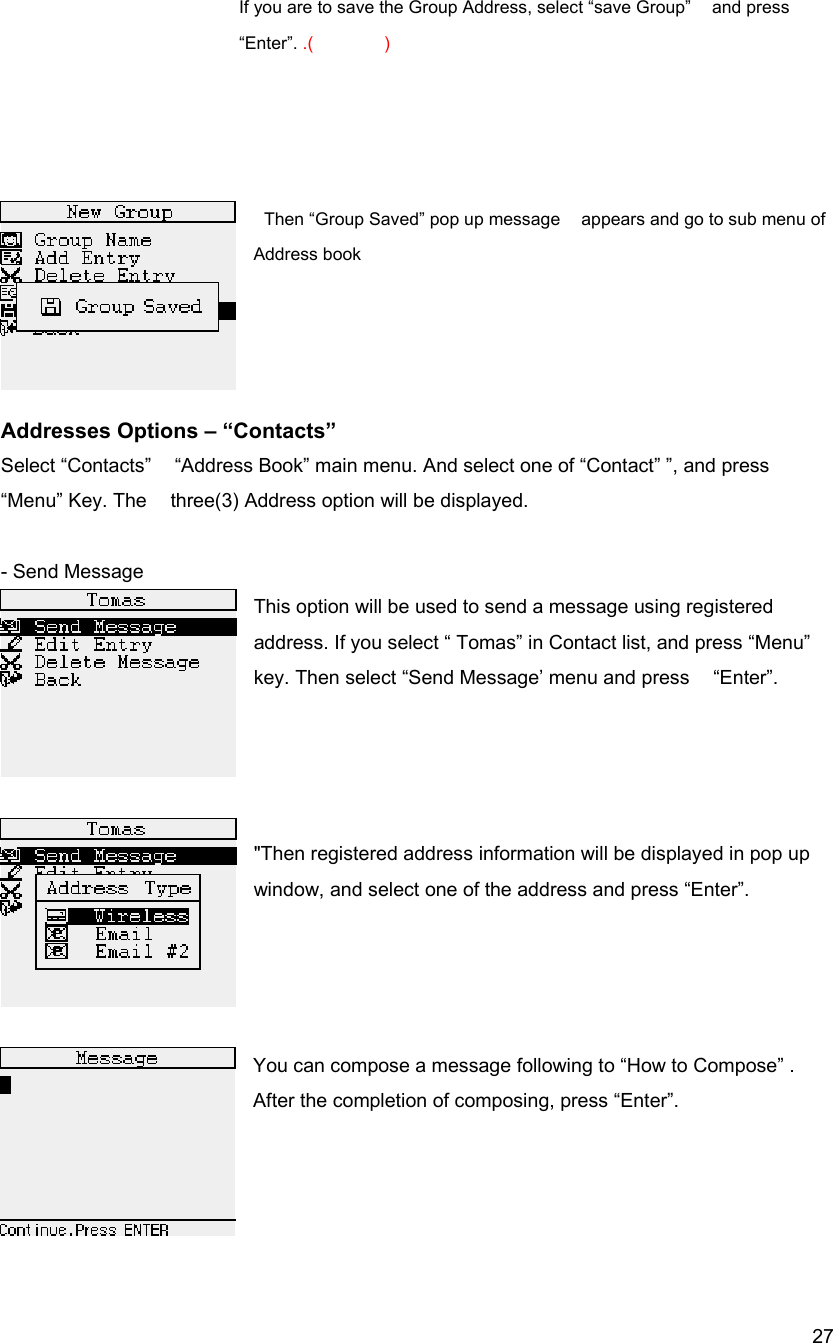
 27If you are to save the Group Address, select “save Group”    and press “Enter”. .()                   Then “Group Saved” pop up message    appears and go to sub menu of Address book     Addresses Options – “Contacts” Select “Contacts”    “Address Book” main menu. And select one of “Contact” ”, and press “Menu” Key. The    three(3) Address option will be displayed.  - Send Message   This option will be used to send a message using registered   address. If you select “ Tomas” in Contact list, and press “Menu” key. Then select “Send Message’ menu and press    “Enter”.       "Then registered address information will be displayed in pop up window, and select one of the address and press “Enter”.     You can compose a message following to “How to Compose” . After the completion of composing, press “Enter”.
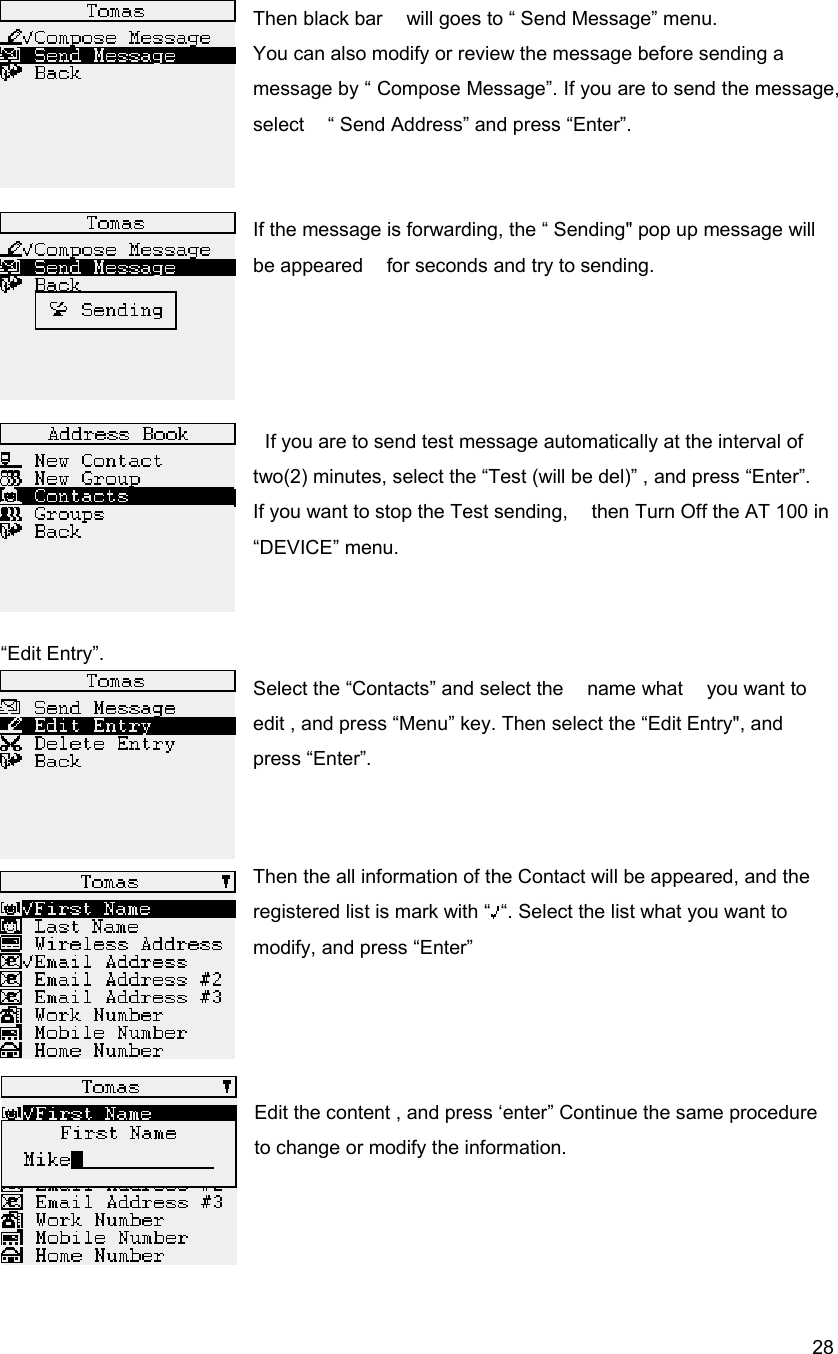
 28Then black bar    will goes to “ Send Message” menu.   You can also modify or review the message before sending a message by “ Compose Message”. If you are to send the message, select    “ Send Address” and press “Enter”.   If the message is forwarding, the “ Sending" pop up message will be appeared    for seconds and try to sending.         If you are to send test message automatically at the interval of two(2) minutes, select the “Test (will be del)” , and press “Enter”. If you want to stop the Test sending,    then Turn Off the AT 100 in “DEVICE” menu.     “Edit Entry”. Select the “Contacts” and select the    name what    you want to edit , and press “Menu” key. Then select the “Edit Entry", and press “Enter”.   Then the all information of the Contact will be appeared, and the registered list is mark with “ “. Select the list what you want to modify, and press “Enter”    Edit the content , and press ‘enter” Continue the same procedure to change or modify the information.
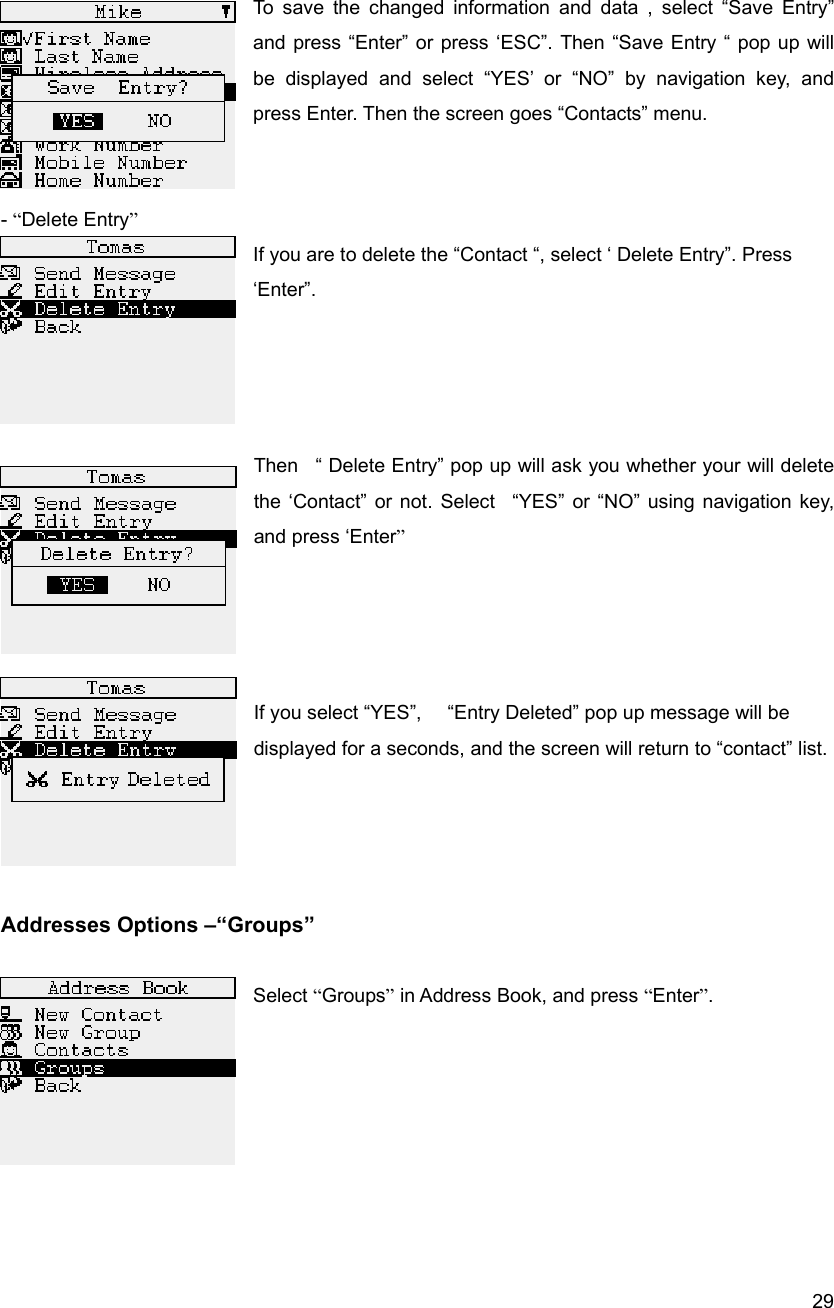
 29 To save the changed information and data , select “Save Entry” and press “Enter” or press ‘ESC”. Then “Save Entry “ pop up will be displayed and select “YES’ or “NO” by navigation key, and press Enter. Then the screen goes “Contacts” menu.       - “Delete Entry” If you are to delete the “Contact “, select ‘ Delete Entry”. Press ‘Enter”.      Then   “ Delete Entry” pop up will ask you whether your will delete the ‘Contact” or not. Select  “YES” or “NO” using navigation key, and press ‘Enter”     If you select “YES”,      “Entry Deleted” pop up message will be displayed for a seconds, and the screen will return to “contact” list.                            Addresses Options –“Groups”   Select “Groups” in Address Book, and press “Enter”.
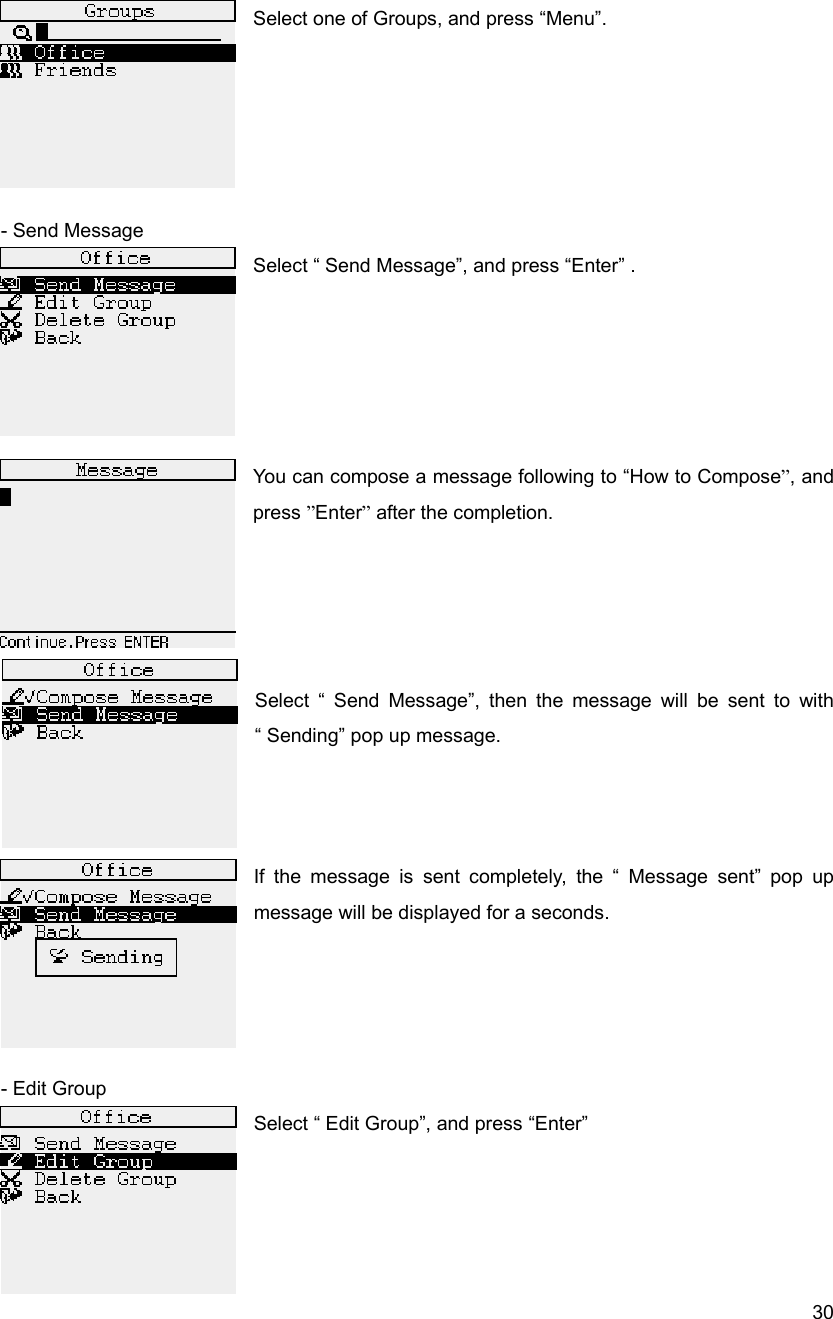
 30 Select one of Groups, and press “Menu”.                          - Send Message   Select “ Send Message”, and press “Enter” .        You can compose a message following to “How to Compose”, and press ”Enter” after the completion.                     Select “ Send Message”, then the message will be sent to with  “ Sending” pop up message.            If the message is sent completely, the “ Message sent” pop up message will be displayed for a seconds.      - Edit Group Select “ Edit Group”, and press “Enter”
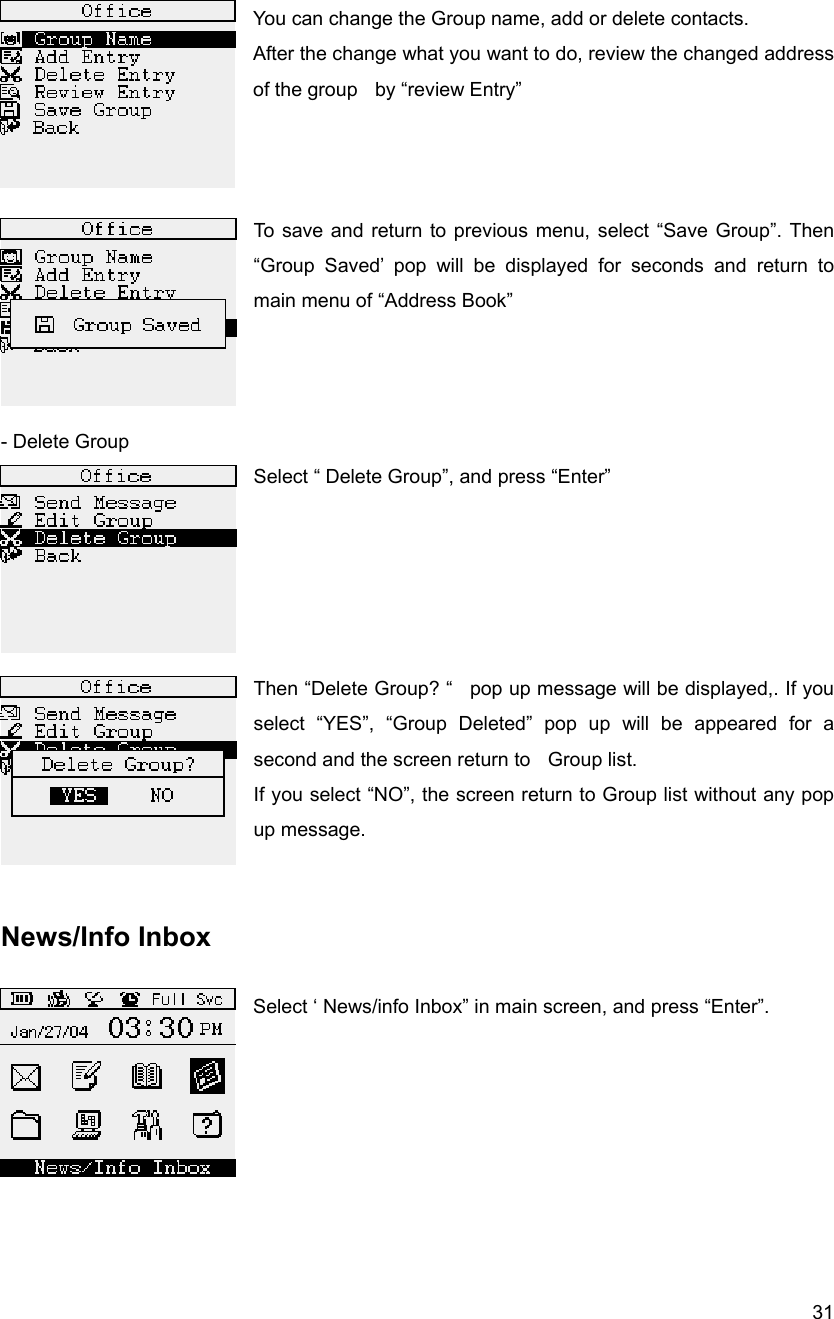
 31 You can change the Group name, add or delete contacts. After the change what you want to do, review the changed address of the group    by “review Entry”      To save and return to previous menu, select “Save Group”. Then “Group Saved’ pop will be displayed for seconds and return to main menu of “Address Book”      - Delete Group Select “ Delete Group”, and press “Enter”       Then “Delete Group? “   pop up message will be displayed,. If you select “YES”, “Group Deleted” pop up will be appeared for a second and the screen return to    Group list. If you select “NO”, the screen return to Group list without any pop up message.    News/Info Inbox  Select ‘ News/info Inbox” in main screen, and press “Enter”.
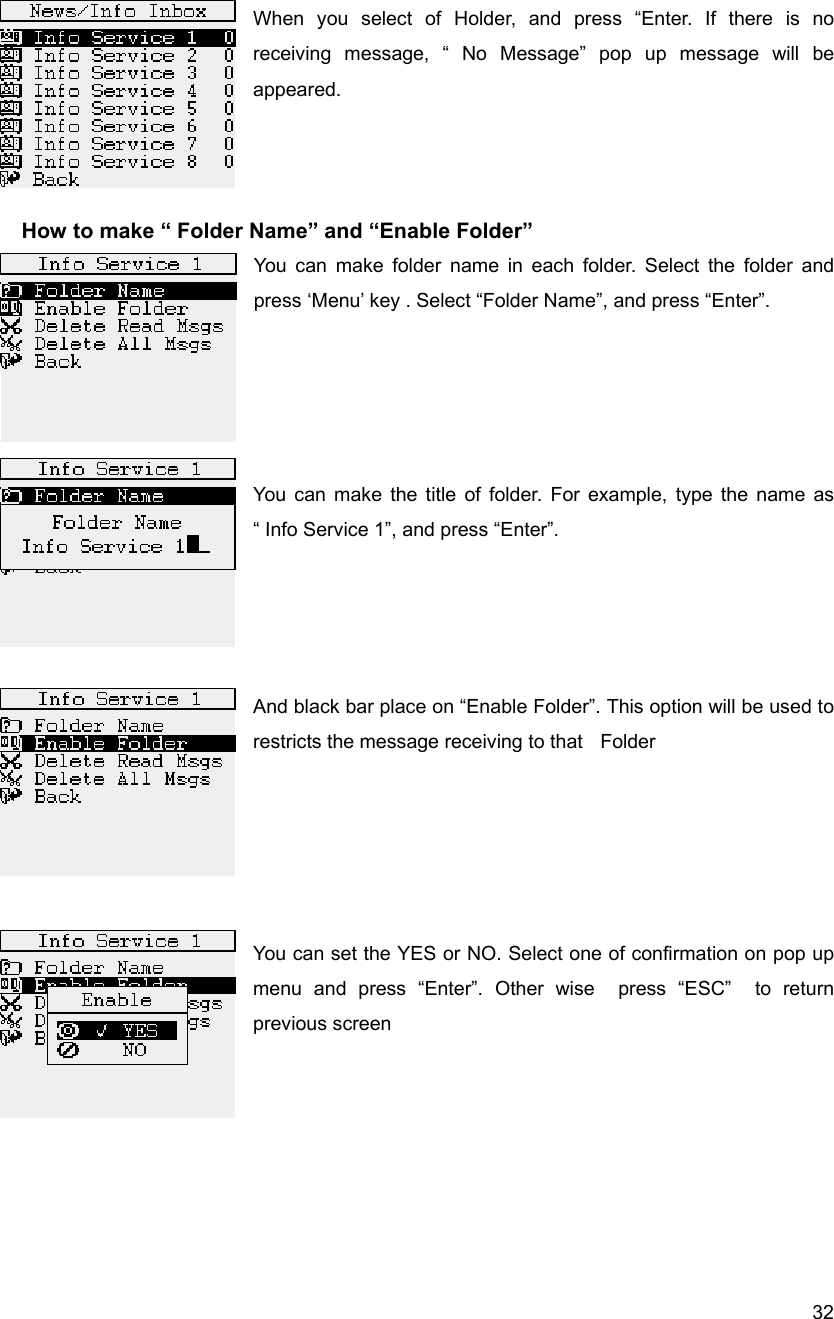
 32 When you select of Holder, and press “Enter. If there is no receiving message, “ No Message” pop up message will be appeared.     How to make “ Folder Name” and “Enable Folder” You can make folder name in each folder. Select the folder and press ‘Menu’ key . Select “Folder Name”, and press “Enter”.     You can make the title of folder. For example, type the name as “ Info Service 1”, and press “Enter”.      And black bar place on “Enable Folder”. This option will be used to restricts the message receiving to that    Folder       You can set the YES or NO. Select one of confirmation on pop up menu and press “Enter”. Other wise  press “ESC”  to return previous screen
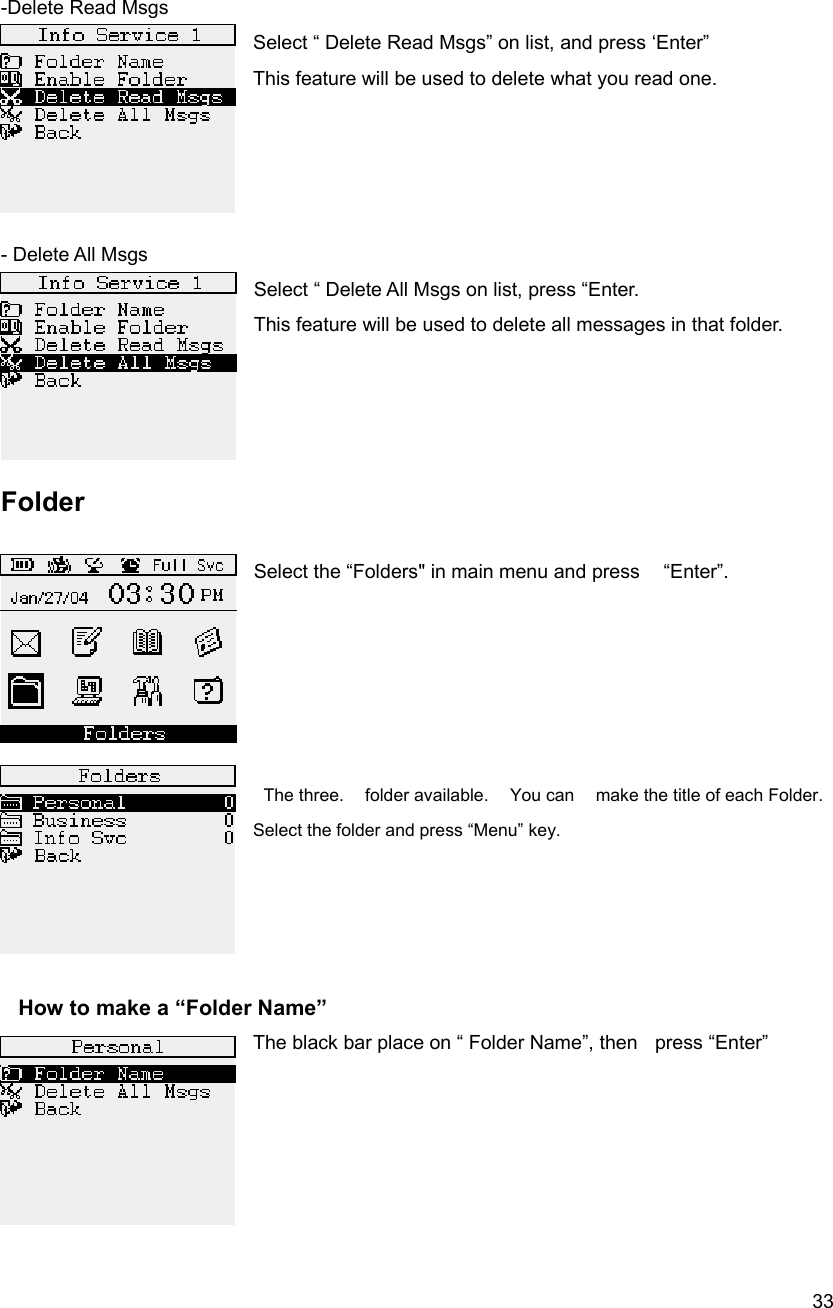
 33 -Delete Read Msgs Select “ Delete Read Msgs” on list, and press ‘Enter”  This feature will be used to delete what you read one.       - Delete All Msgs Select “ Delete All Msgs on list, press “Enter.   This feature will be used to delete all messages in that folder.            Folder  Select the “Folders" in main menu and press    “Enter”.          The three.    folder available.    You can    make the title of each Folder. Select the folder and press “Menu” key.         How to make a “Folder Name” The black bar place on “ Folder Name”, then    press “Enter”
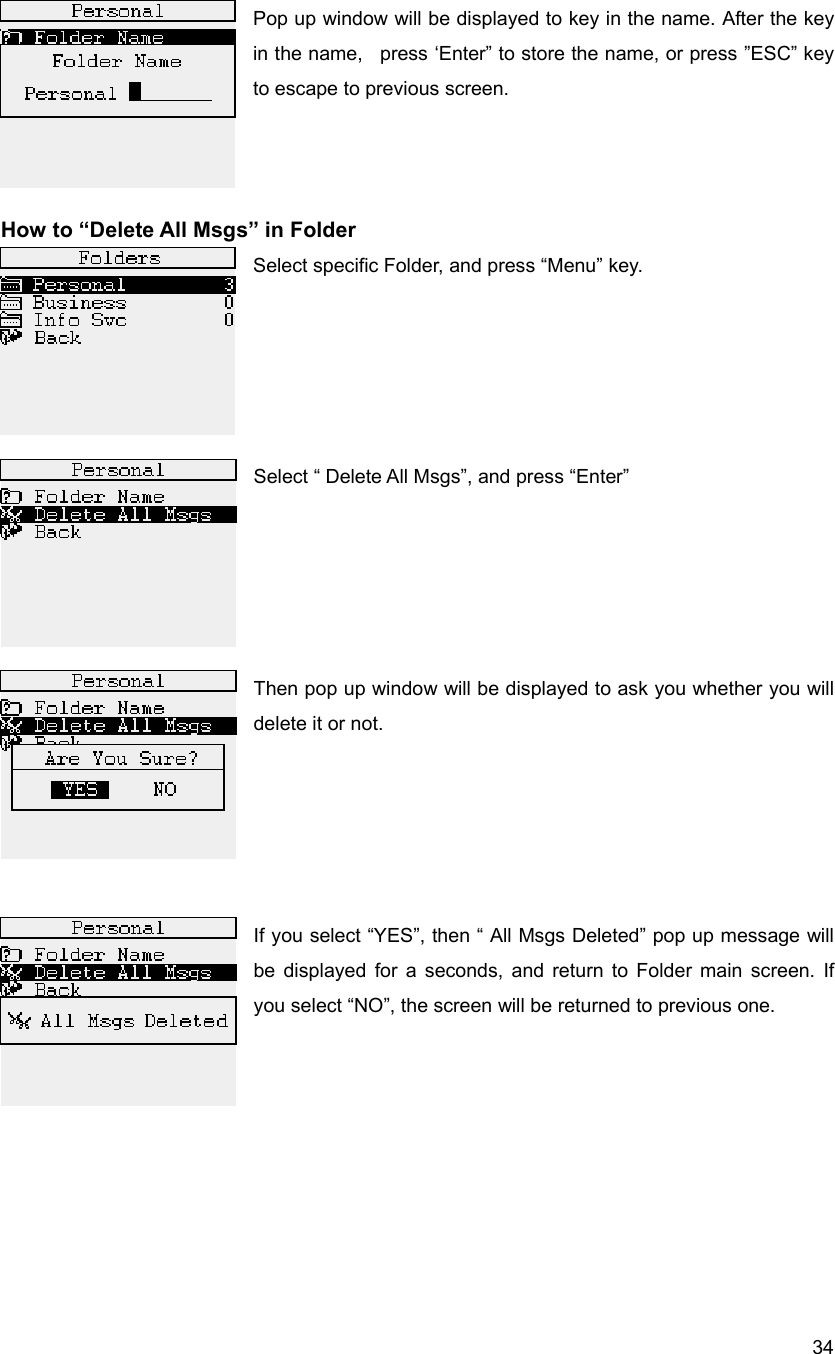
 34Pop up window will be displayed to key in the name. After the key in the name,   press ‘Enter” to store the name, or press ”ESC” key to escape to previous screen.    How to “Delete All Msgs” in Folder Select specific Folder, and press “Menu” key.                                    Select “ Delete All Msgs”, and press “Enter”       Then pop up window will be displayed to ask you whether you will delete it or not.        If you select “YES”, then “ All Msgs Deleted” pop up message will be displayed for a seconds, and return to Folder main screen. If you select “NO”, the screen will be returned to previous one.
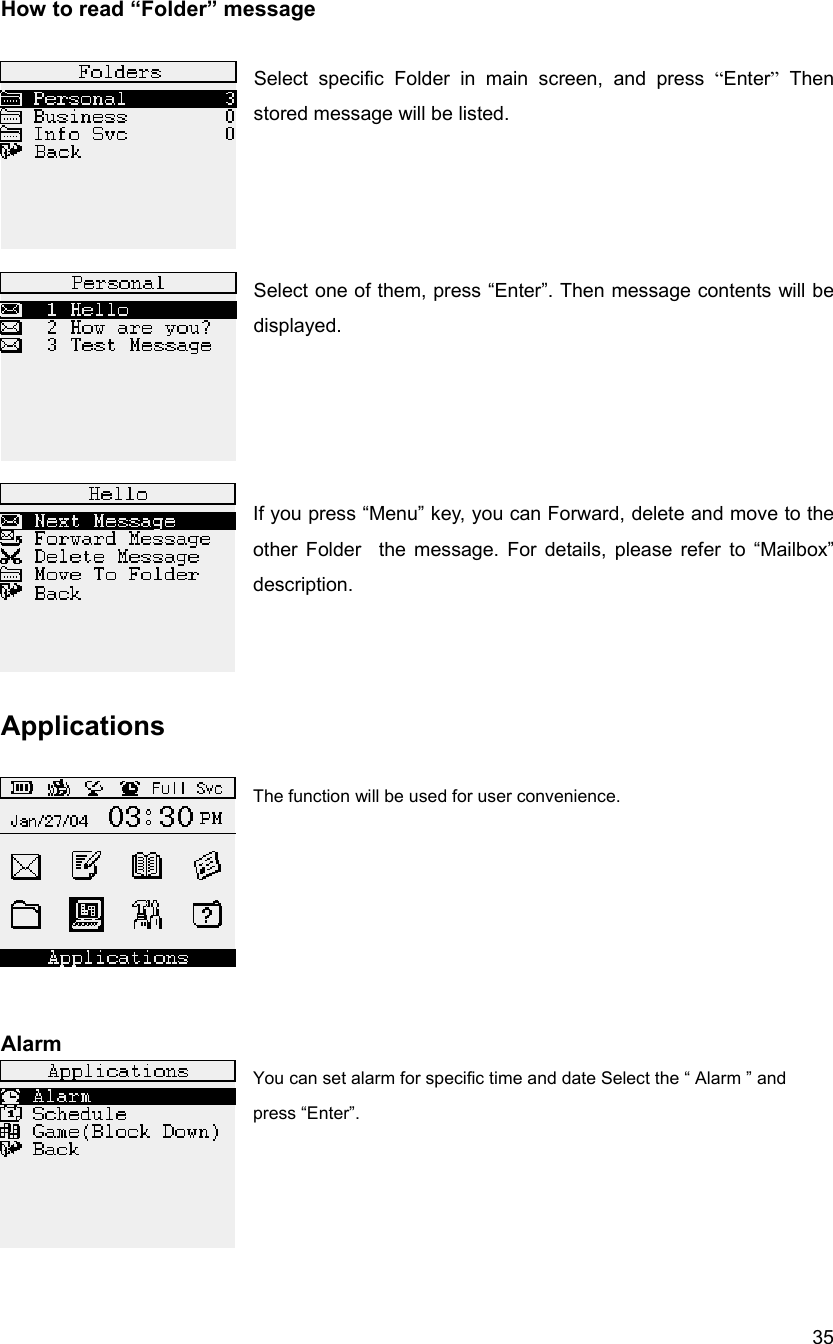
 35How to read “Folder” message  Select specific Folder in main screen, and press “Enter” Then stored message will be listed.     Select one of them, press “Enter”. Then message contents will be displayed.       If you press “Menu” key, you can Forward, delete and move to the other Folder  the message. For details, please refer to “Mailbox” description.     Applications  The function will be used for user convenience.         Alarm You can set alarm for specific time and date Select the “ Alarm ” and press “Enter”.
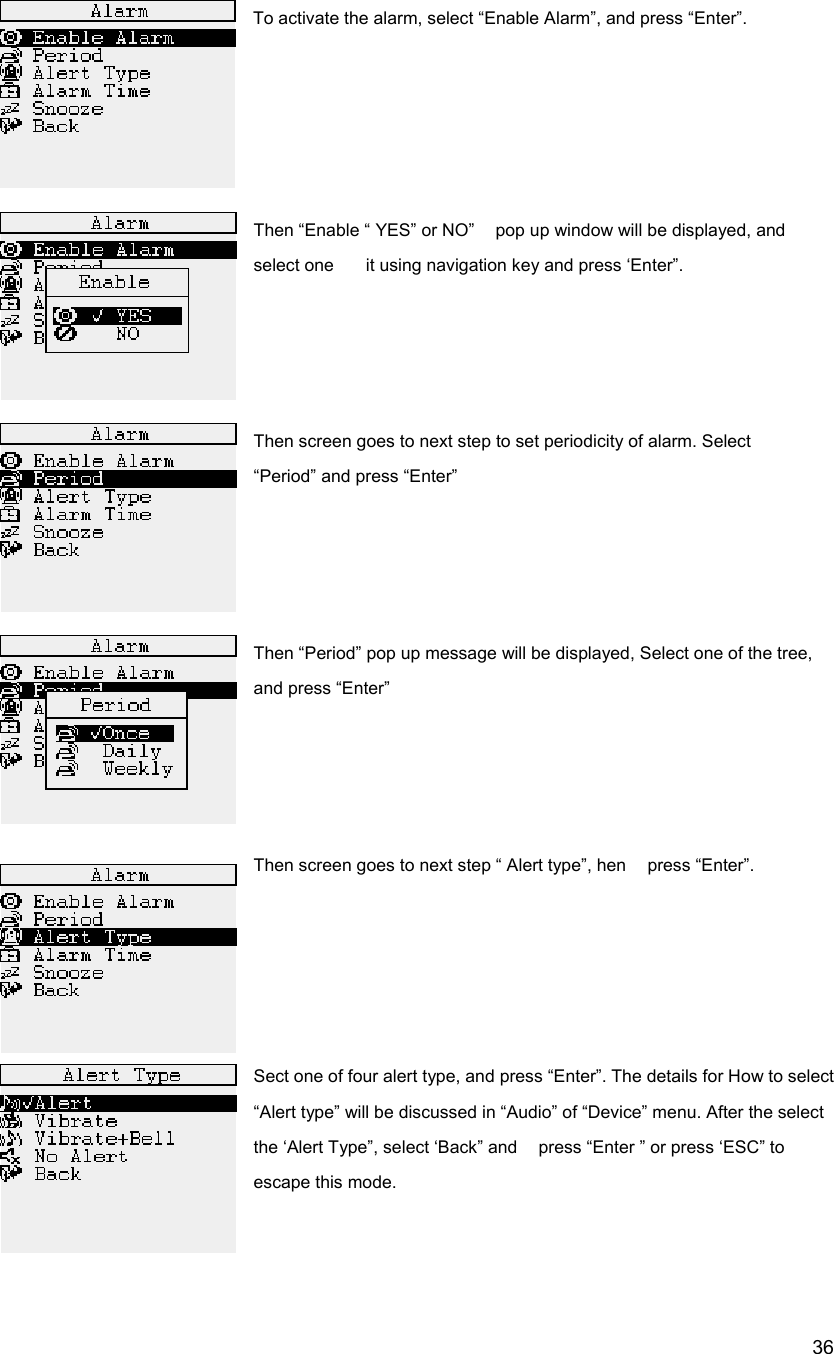
 36To activate the alarm, select “Enable Alarm”, and press “Enter”.      Then “Enable “ YES” or NO”    pop up window will be displayed, and select one      it using navigation key and press ‘Enter”.       Then screen goes to next step to set periodicity of alarm. Select   “Period” and press “Enter”                                                                          Then “Period” pop up message will be displayed, Select one of the tree, and press “Enter”     Then screen goes to next step “ Alert type”, hen    press “Enter”.      Sect one of four alert type, and press “Enter”. The details for How to select “Alert type” will be discussed in “Audio” of “Device” menu. After the select the ‘Alert Type”, select ‘Back” and    press “Enter ” or press ‘ESC” to escape this mode.
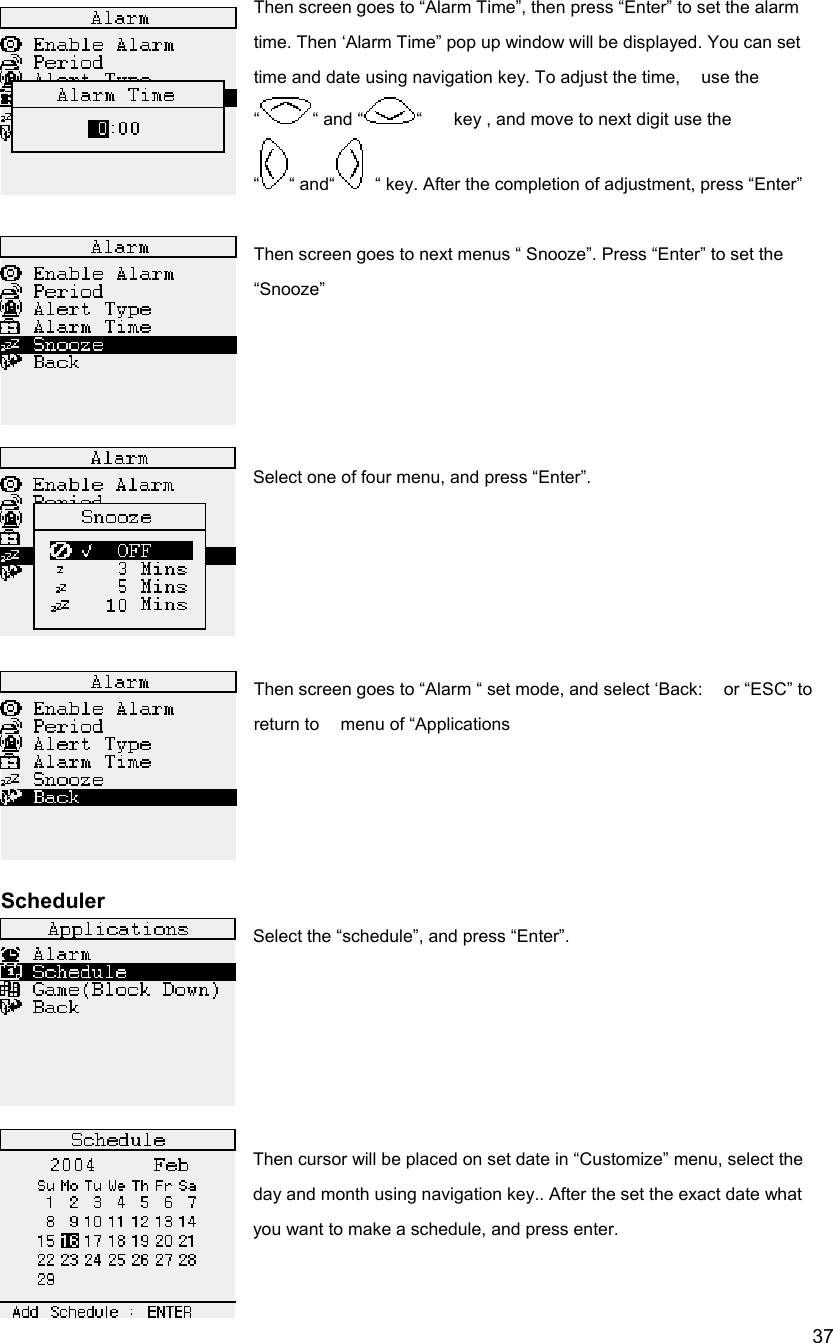
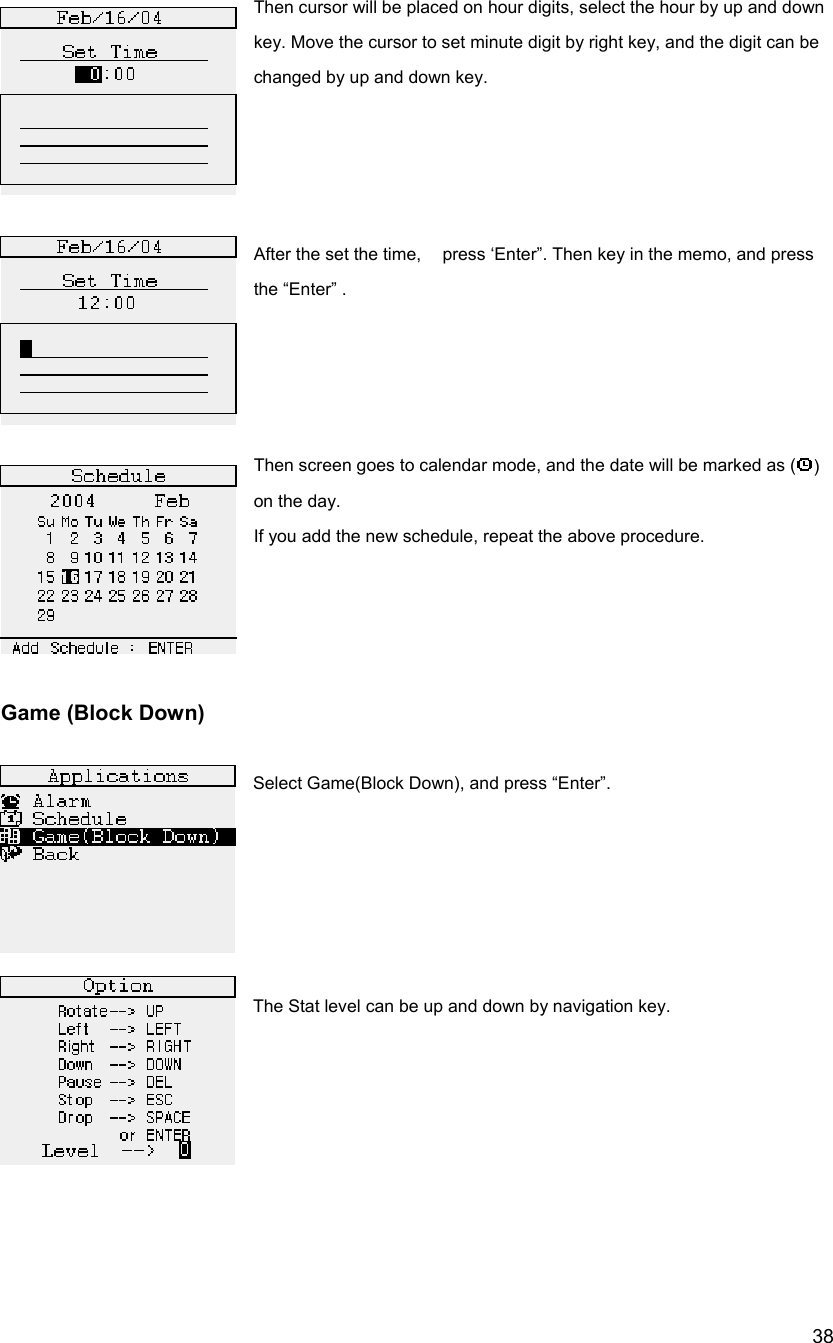
 37Then screen goes to “Alarm Time”, then press “Enter” to set the alarm time. Then ‘Alarm Time” pop up window will be displayed. You can set   time and date using navigation key. To adjust the time,    use the ““ and “ “      key , and move to next digit use the ““ and“   “ key. After the completion of adjustment, press “Enter”  Then screen goes to next menus “ Snooze”. Press “Enter” to set the “Snooze”     Select one of four menu, and press “Enter”.      Then screen goes to “Alarm “ set mode, and select ‘Back:    or “ESC” to return to    menu of “Applications     Scheduler Select the “schedule”, and press “Enter”.      Then cursor will be placed on set date in “Customize” menu, select the day and month using navigation key.. After the set the exact date what you want to make a schedule, and press enter.
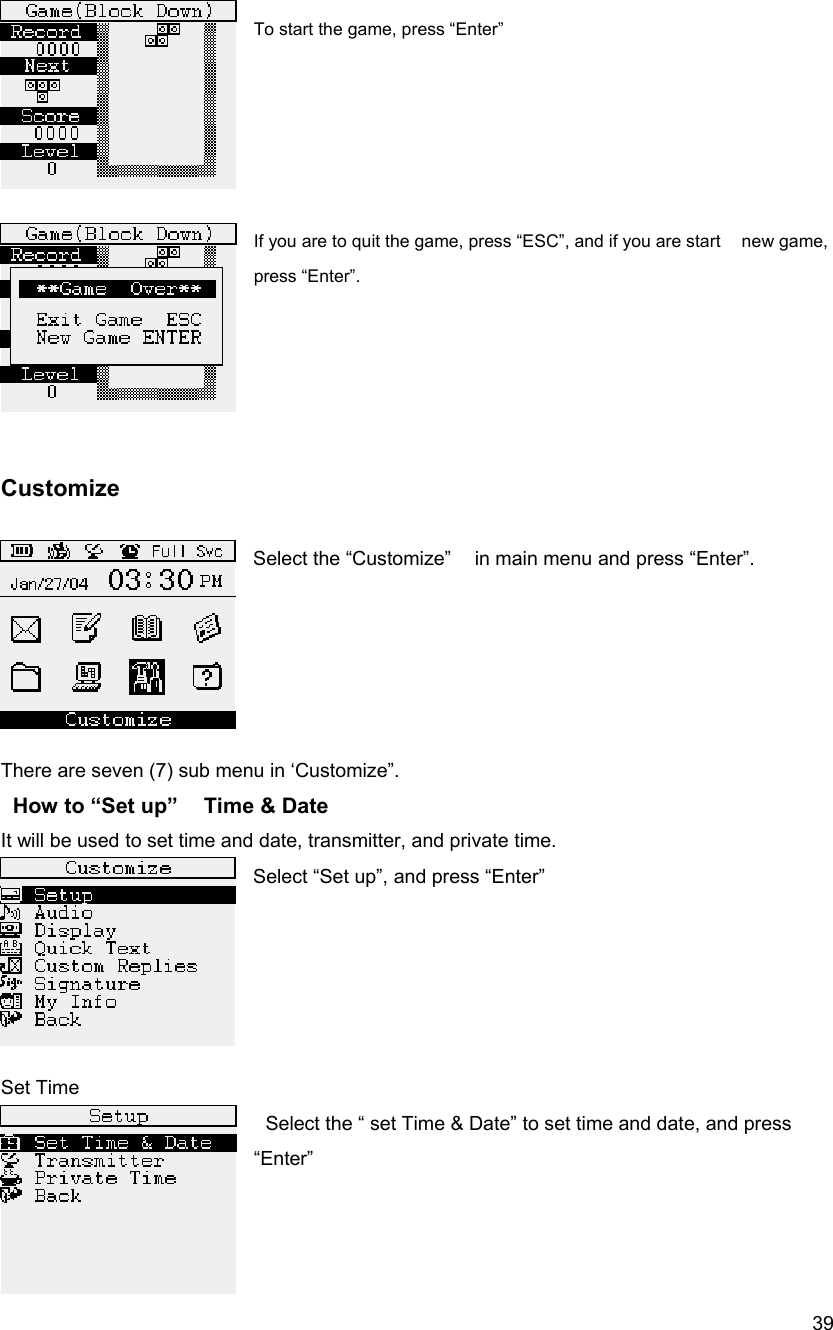
 38Then cursor will be placed on hour digits, select the hour by up and down key. Move the cursor to set minute digit by right key, and the digit can be changed by up and down key.         After the set the time,    press ‘Enter”. Then key in the memo, and press the “Enter” .                                  Then screen goes to calendar mode, and the date will be marked as ( ) on the day. If you add the new schedule, repeat the above procedure.     Game (Block Down)  Select Game(Block Down), and press “Enter”.      The Stat level can be up and down by navigation key.
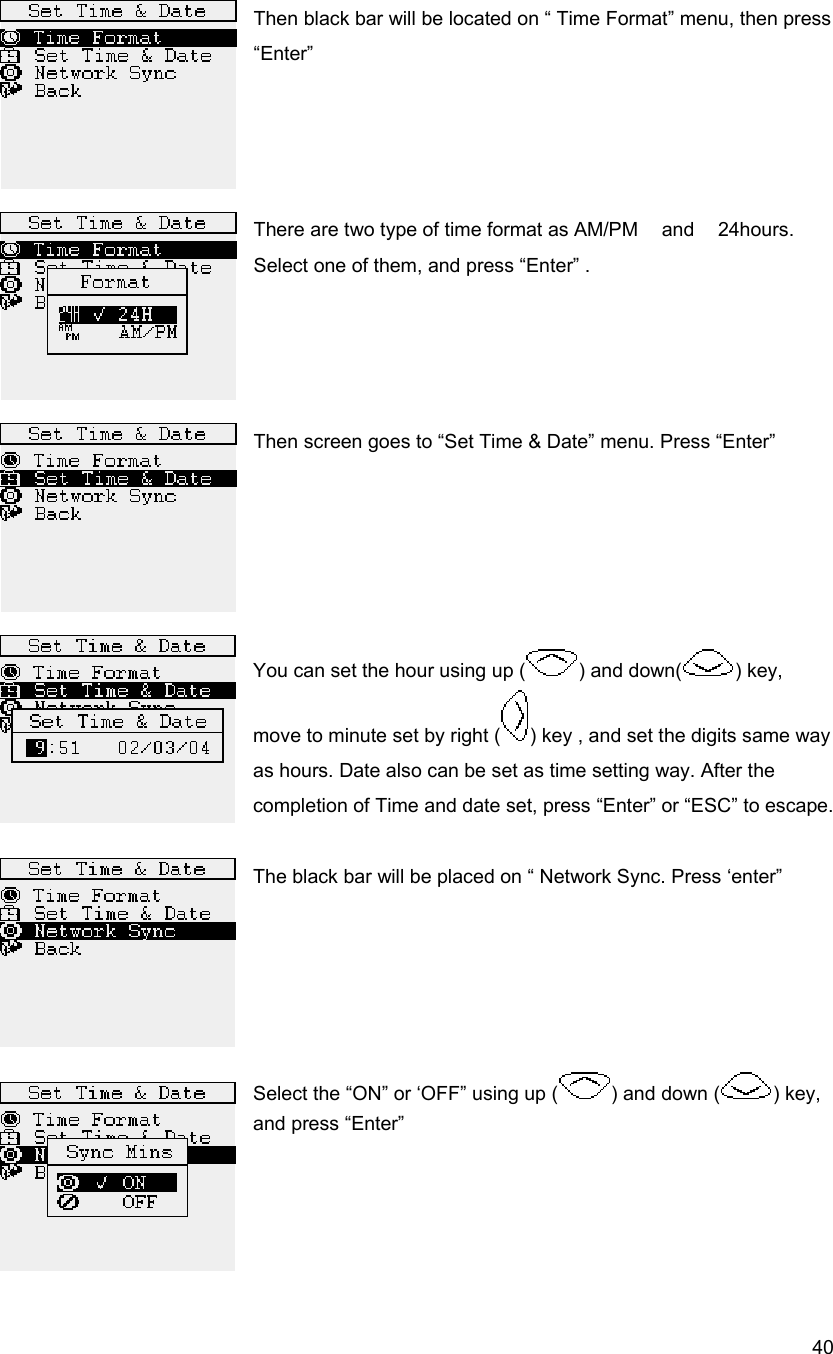
 39 To start the game, press “Enter”        If you are to quit the game, press “ESC”, and if you are start    new game, press “Enter”.     Customize    Select the “Customize”    in main menu and press “Enter”.      There are seven (7) sub menu in ‘Customize”.    How to “Set up”    Time & Date It will be used to set time and date, transmitter, and private time. Select “Set up”, and press “Enter”      Set Time   Select the “ set Time & Date” to set time and date, and press “Enter”
 40Then black bar will be located on “ Time Format” menu, then press “Enter”      There are two type of time format as AM/PM    and    24hours.   Select one of them, and press “Enter” .       Then screen goes to “Set Time & Date” menu. Press “Enter”      You can set the hour using up ( ) and down( ) key, move to minute set by right ( ) key , and set the digits same way as hours. Date also can be set as time setting way. After the completion of Time and date set, press “Enter” or “ESC” to escape.  The black bar will be placed on “ Network Sync. Press ‘enter”      Select the “ON” or ‘OFF” using up ( ) and down ( ) key, and press “Enter”
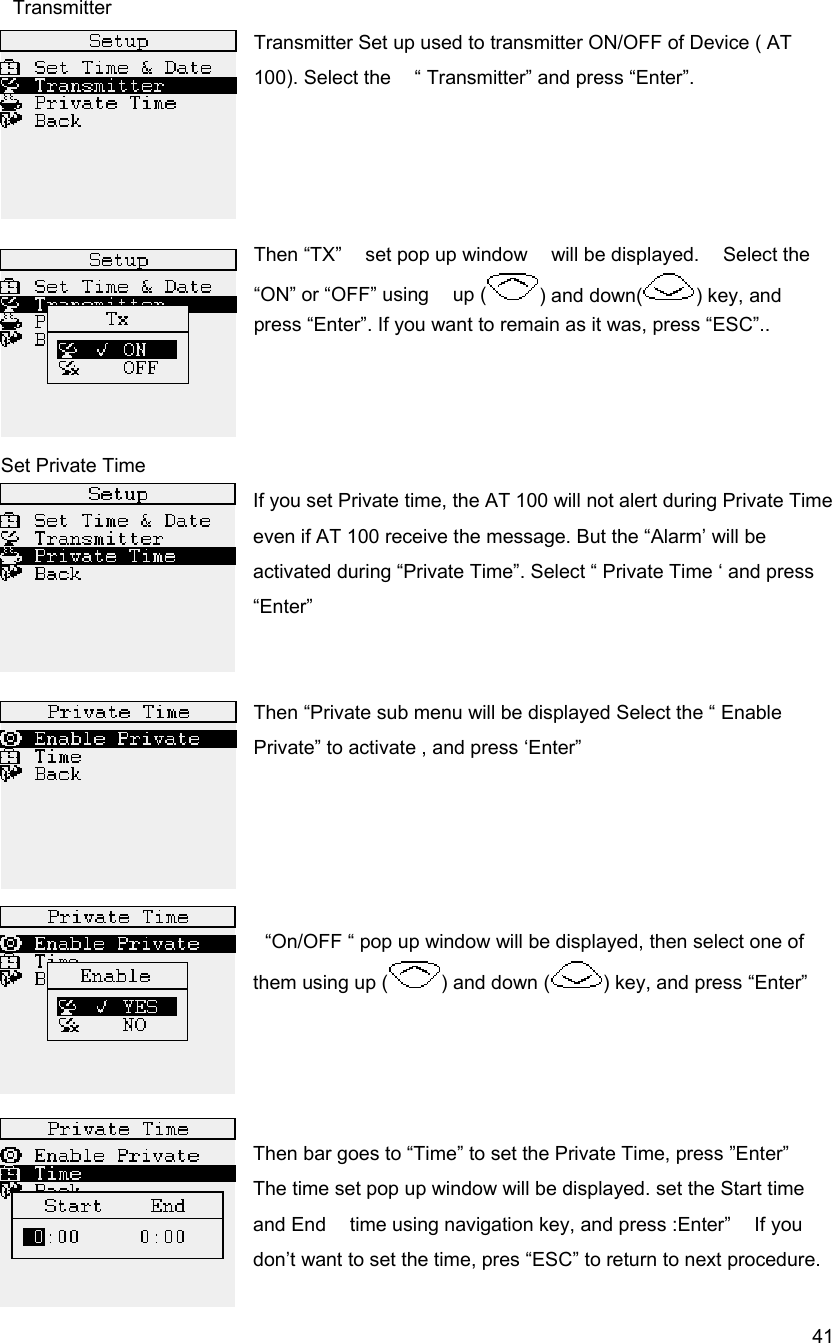
 41 Transmitter Transmitter Set up used to transmitter ON/OFF of Device ( AT 100). Select the    “ Transmitter” and press “Enter”.     Then “TX”  set pop up window  will be displayed.  Select the “ON” or “OFF” using    up ( ) and down( ) key, and press “Enter”. If you want to remain as it was, press “ESC”..    Set Private Time If you set Private time, the AT 100 will not alert during Private Time even if AT 100 receive the message. But the “Alarm’ will be activated during “Private Time”. Select “ Private Time ‘ and press “Enter”   Then “Private sub menu will be displayed Select the “ Enable Private” to activate , and press ‘Enter”       “On/OFF “ pop up window will be displayed, then select one of them using up ( ) and down ( ) key, and press “Enter”       Then bar goes to “Time” to set the Private Time, press ”Enter” The time set pop up window will be displayed. set the Start time and End    time using navigation key, and press :Enter”    If you don’t want to set the time, pres “ESC” to return to next procedure.
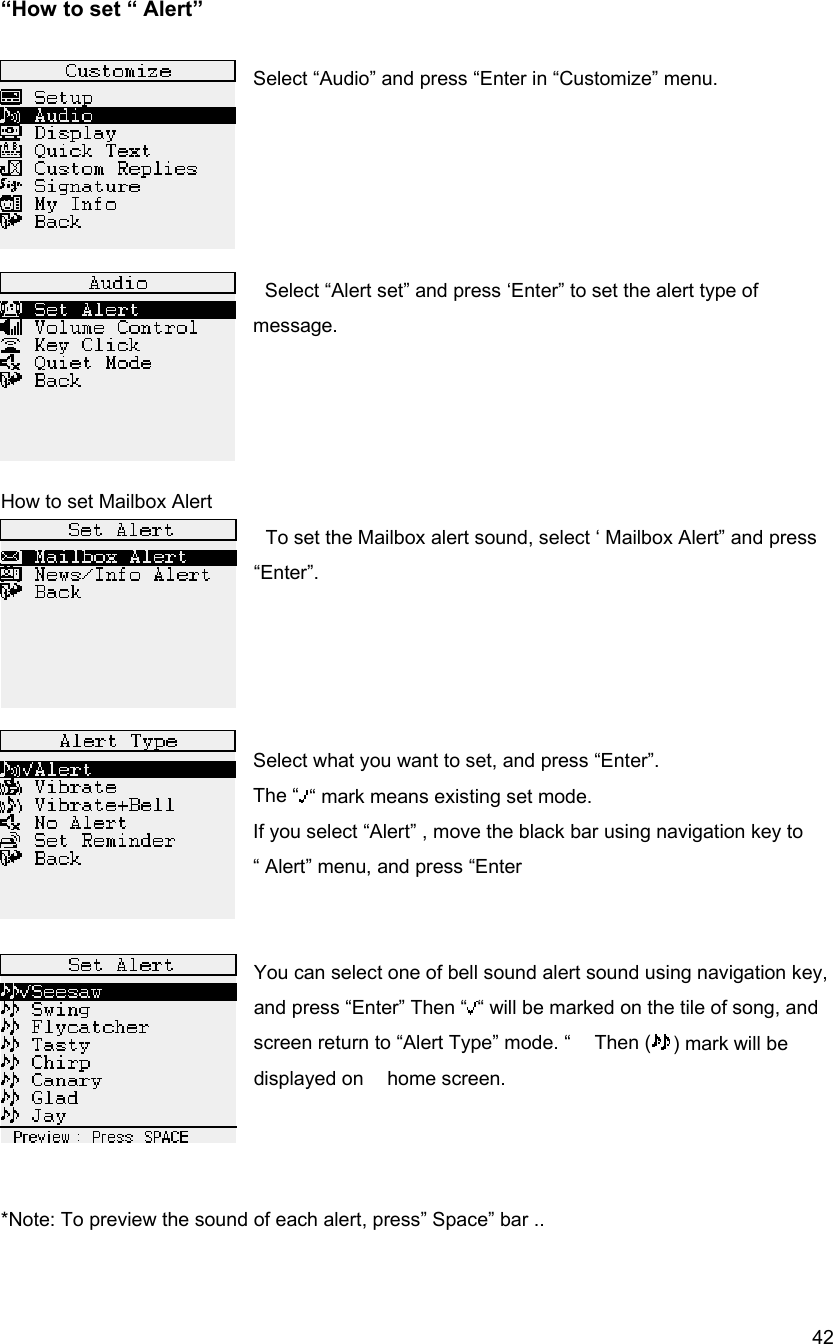
 42“How to set “ Alert”  Select “Audio” and press “Enter in “Customize” menu.        Select “Alert set” and press ‘Enter” to set the alert type of message.     How to set Mailbox Alert   To set the Mailbox alert sound, select ‘ Mailbox Alert” and press “Enter”.      Select what you want to set, and press “Enter”. The “ “ mark means existing set mode. If you select “Alert” , move the black bar using navigation key to “ Alert” menu, and press “Enter   You can select one of bell sound alert sound using navigation key, and press “Enter” Then “ “ will be marked on the tile of song, and screen return to “Alert Type” mode. “    Then ( ) mark will be displayed on  home screen.     *Note: To preview the sound of each alert, press” Space” bar ..
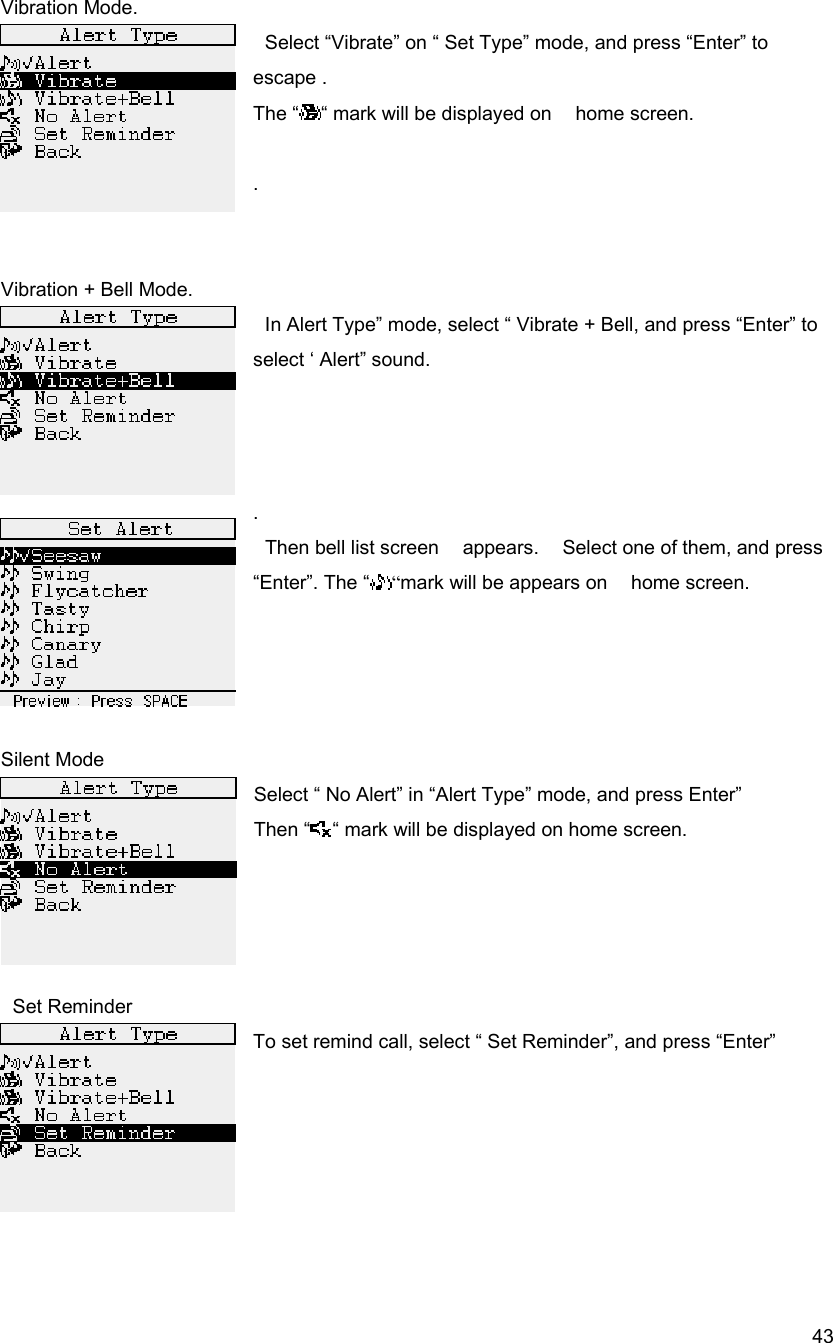
 43Vibration Mode.   Select “Vibrate” on “ Set Type” mode, and press “Enter” to escape . The “ “ mark will be displayed on    home screen.  .   Vibration + Bell Mode.   In Alert Type” mode, select “ Vibrate + Bell, and press “Enter” to select ‘ Alert” sound.      .   Then bell list screen    appears.    Select one of them, and press “Enter”. The “ “mark will be appears on    home screen.       Silent Mode Select “ No Alert” in “Alert Type” mode, and press Enter” Then “ “ mark will be displayed on home screen.        Set Reminder To set remind call, select “ Set Reminder”, and press “Enter”
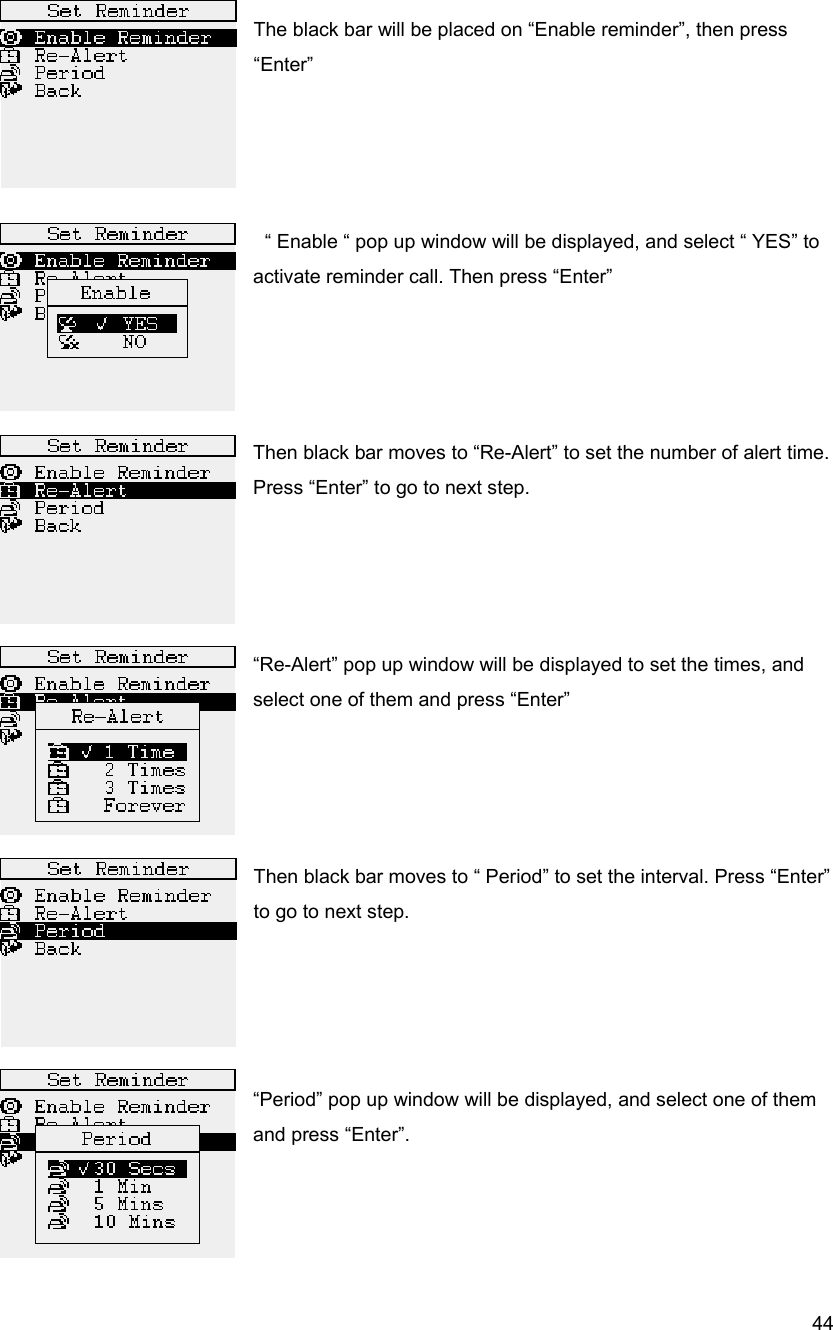
 44 The black bar will be placed on “Enable reminder”, then press “Enter”       “ Enable “ pop up window will be displayed, and select “ YES” to activate reminder call. Then press “Enter”     Then black bar moves to “Re-Alert” to set the number of alert time. Press “Enter” to go to next step.     “Re-Alert” pop up window will be displayed to set the times, and select one of them and press “Enter”     Then black bar moves to “ Period” to set the interval. Press “Enter” to go to next step.     “Period” pop up window will be displayed, and select one of them and press “Enter”.
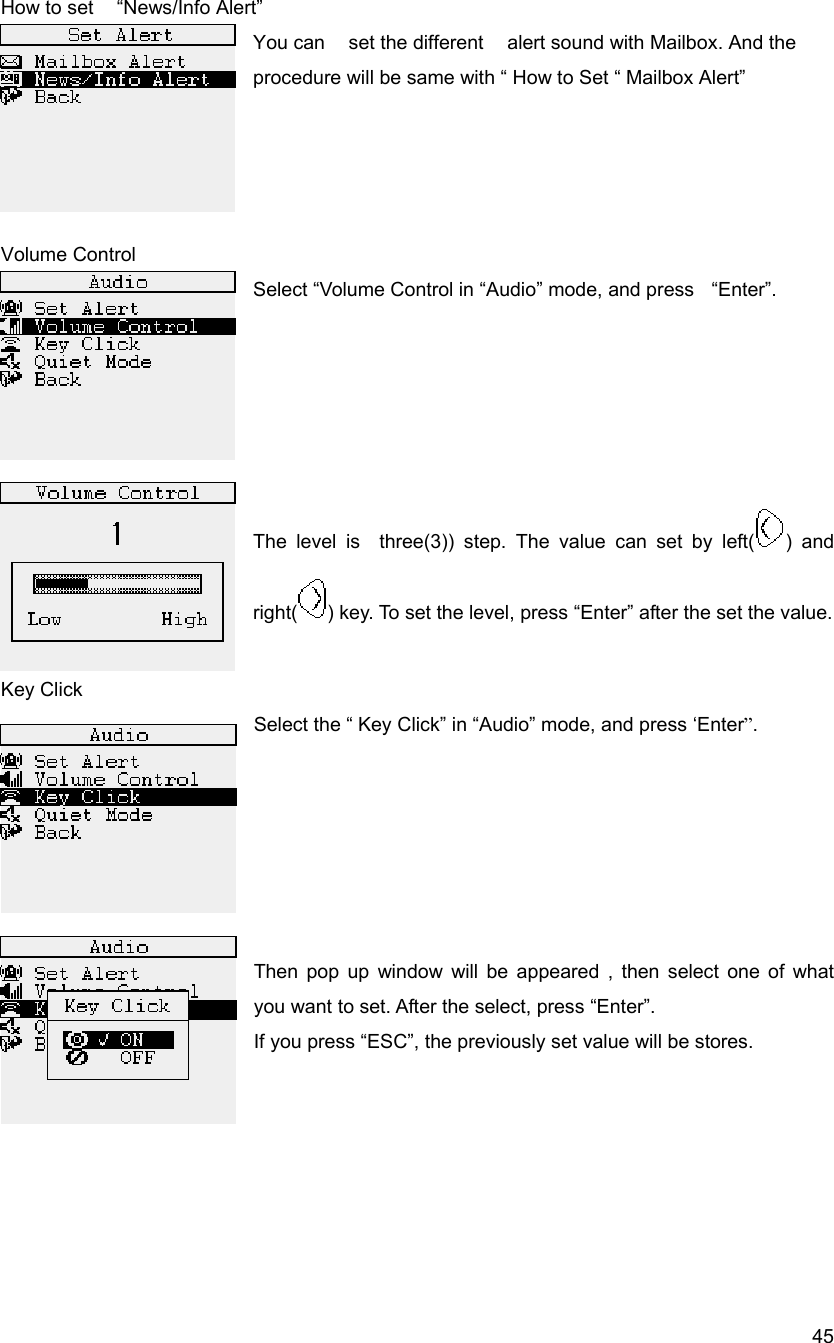
 45How to set    “News/Info Alert” You can    set the different    alert sound with Mailbox. And the procedure will be same with “ How to Set “ Mailbox Alert”     Volume Control Select “Volume Control in “Audio” mode, and press    “Enter”.        The level is  three(3)) step. The value can set by left( ) and right( ) key. To set the level, press “Enter” after the set the value.     Key Click Select the “ Key Click” in “Audio” mode, and press ‘Enter”.       Then pop up window will be appeared , then select one of what you want to set. After the select, press “Enter”. If you press “ESC”, the previously set value will be stores.
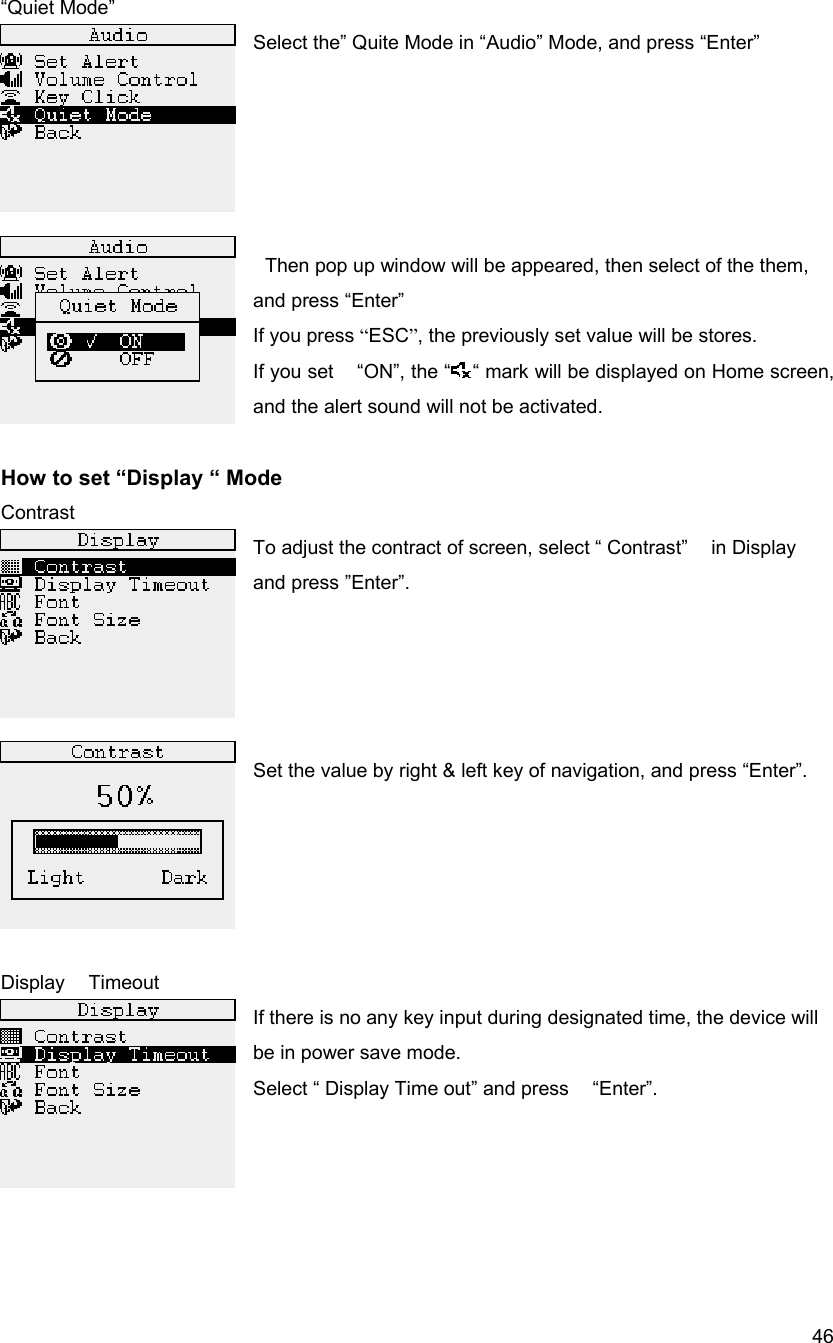
 46“Quiet Mode” Select the” Quite Mode in “Audio” Mode, and press “Enter”        Then pop up window will be appeared, then select of the them, and press “Enter” If you press “ESC”, the previously set value will be stores. If you set    “ON”, the “ “ mark will be displayed on Home screen, and the alert sound will not be activated.  How to set “Display “ Mode   Contrast To adjust the contract of screen, select “ Contrast”    in Display   and press ”Enter”.     Set the value by right & left key of navigation, and press “Enter”.      Display  Timeout If there is no any key input during designated time, the device will be in power save mode. Select “ Display Time out” and press    “Enter”.
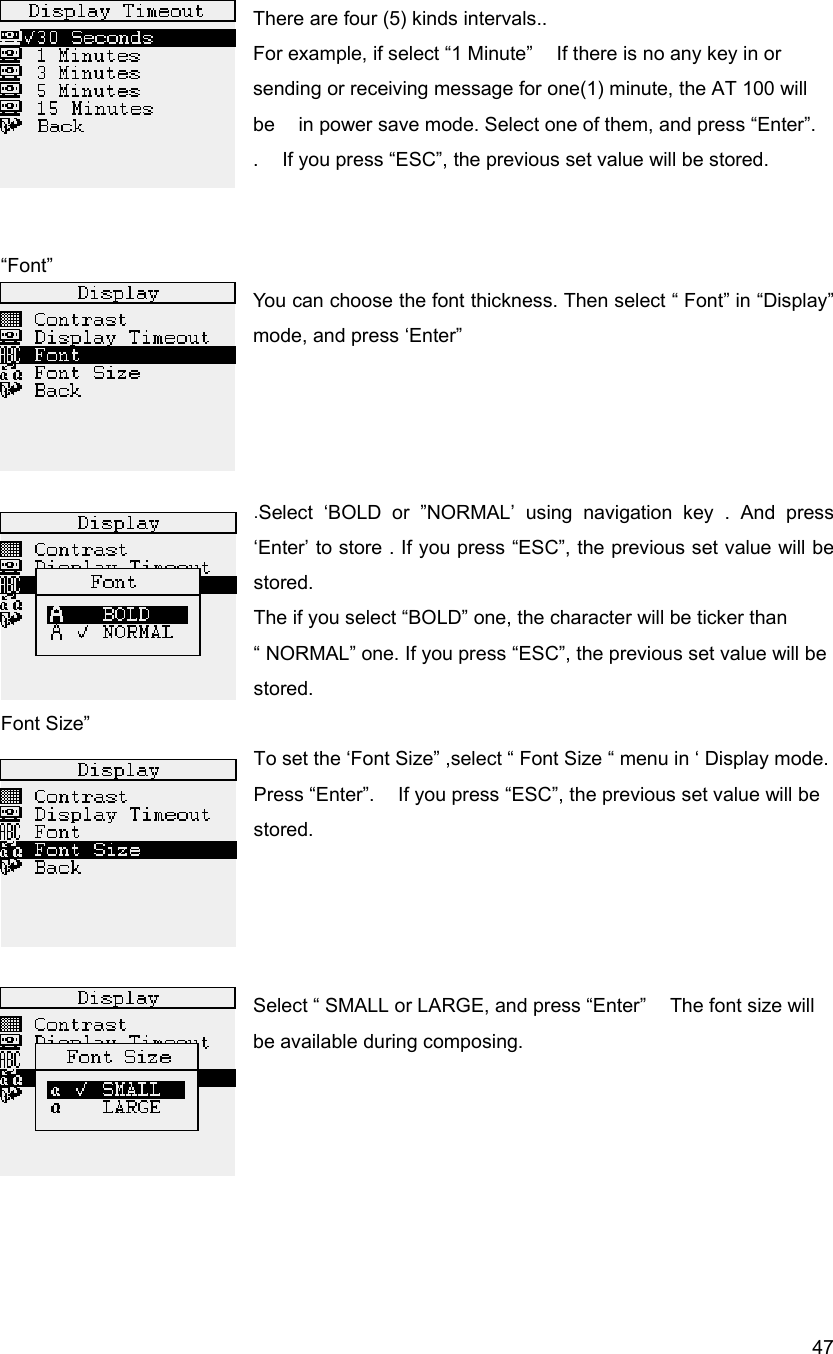
 47There are four (5) kinds intervals.. For example, if select “1 Minute”    If there is no any key in or sending or receiving message for one(1) minute, the AT 100 will be    in power save mode. Select one of them, and press “Enter”. .    If you press “ESC”, the previous set value will be stored.   “Font” You can choose the font thickness. Then select “ Font” in “Display” mode, and press ‘Enter”     .Select ‘BOLD or ”NORMAL’ using navigation key . And press ‘Enter’ to store . If you press “ESC”, the previous set value will be stored. The if you select “BOLD” one, the character will be ticker than “ NORMAL” one. If you press “ESC”, the previous set value will be stored. Font Size” To set the ‘Font Size” ,select “ Font Size “ menu in ‘ Display mode. Press “Enter”.    If you press “ESC”, the previous set value will be stored.     Select “ SMALL or LARGE, and press “Enter”    The font size will be available during composing.
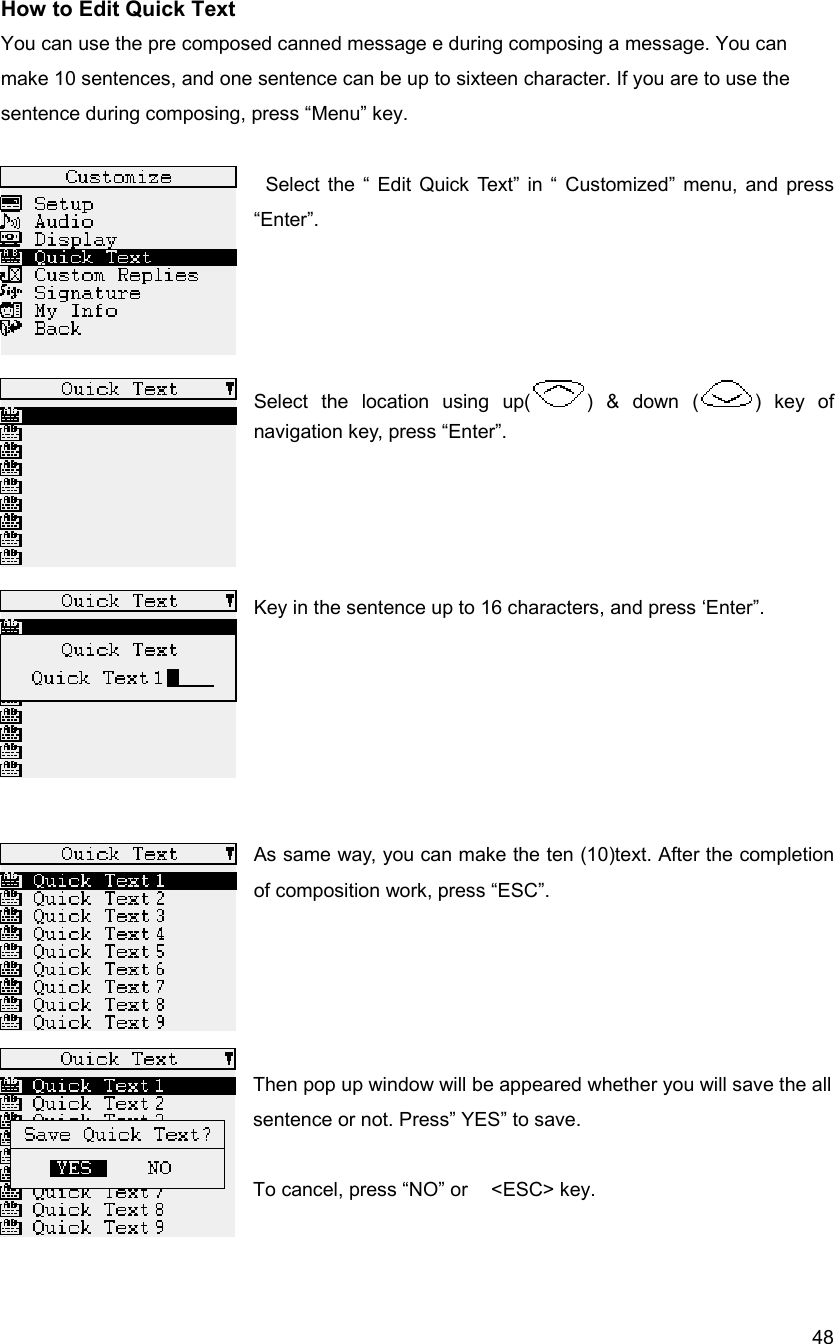
 48How to Edit Quick Text You can use the pre composed canned message e during composing a message. You can make 10 sentences, and one sentence can be up to sixteen character. If you are to use the   sentence during composing, press “Menu” key.    Select the “ Edit Quick Text” in “ Customized” menu, and press “Enter”.      Select the location using up( ) & down ( ) key of navigation key, press “Enter”.     Key in the sentence up to 16 characters, and press ‘Enter”.       As same way, you can make the ten (10)text. After the completion of composition work, press “ESC”.       Then pop up window will be appeared whether you will save the all sentence or not. Press” YES” to save.    To cancel, press “NO” or    <ESC> key.
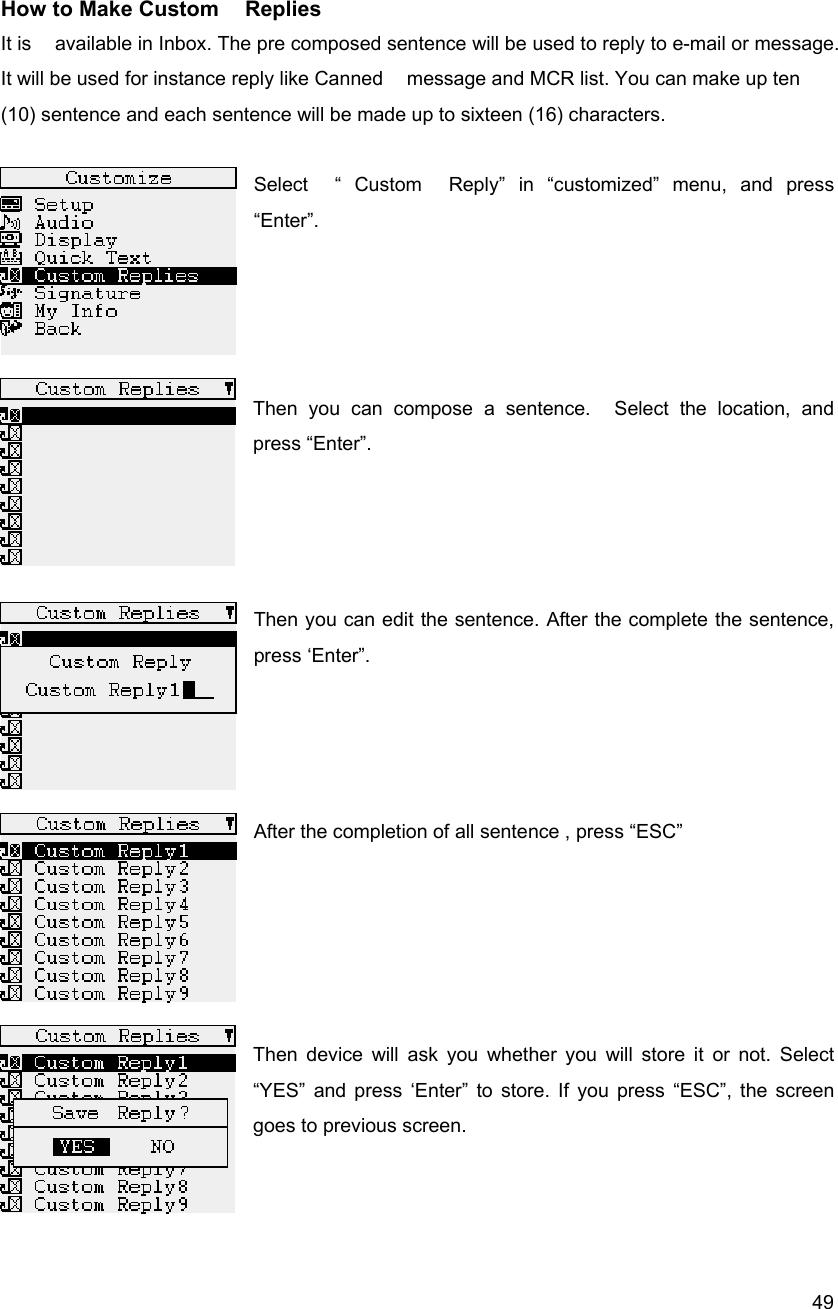
 49 How to Make Custom    Replies It is    available in Inbox. The pre composed sentence will be used to reply to e-mail or message.   It will be used for instance reply like Canned    message and MCR list. You can make up ten (10) sentence and each sentence will be made up to sixteen (16) characters.   Select  “ Custom  Reply” in “customized” menu, and press “Enter”.     Then you can compose a sentence.  Select the location, and press “Enter”.       Then you can edit the sentence. After the complete the sentence, press ‘Enter”.     After the completion of all sentence , press “ESC”      Then device will ask you whether you will store it or not. Select   “YES” and press ‘Enter” to store. If you press “ESC”, the screen goes to previous screen.
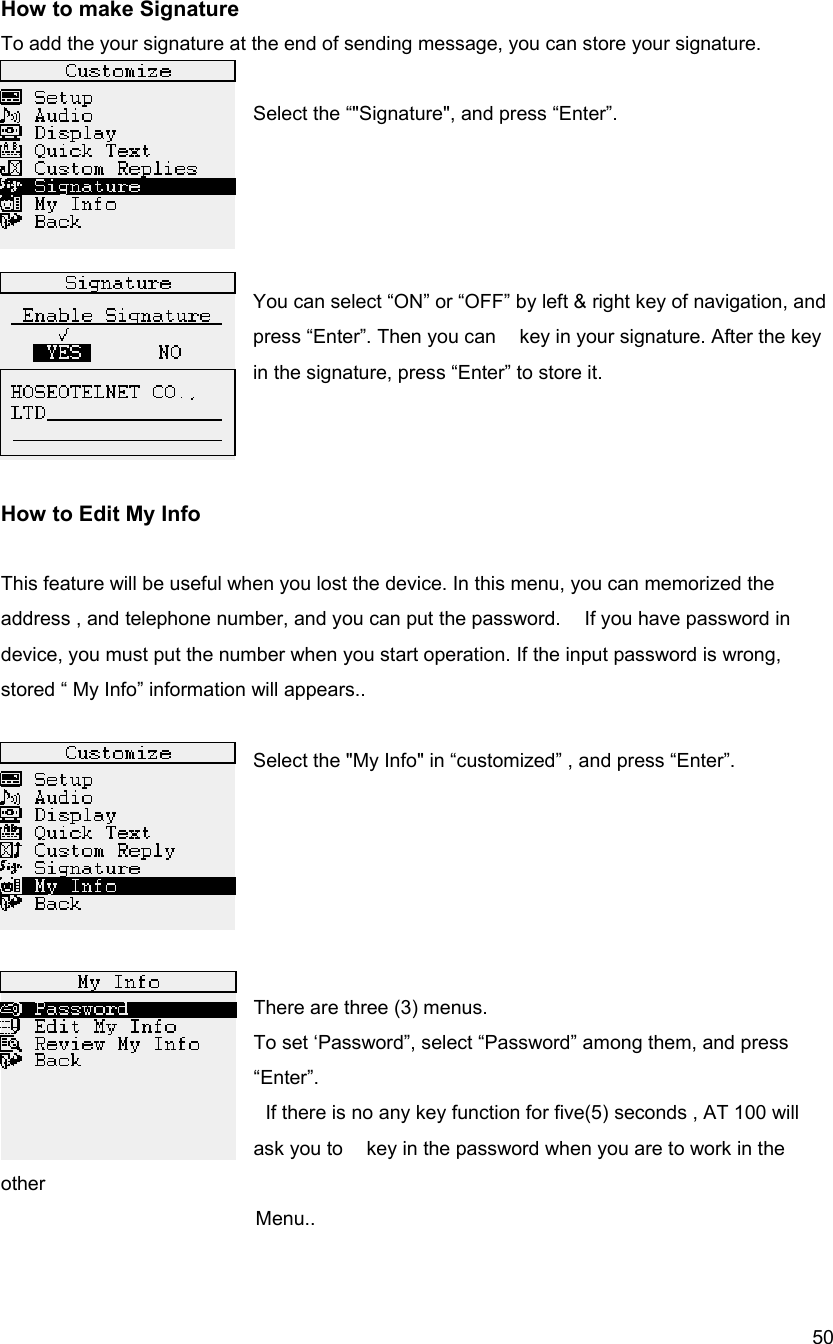
 50How to make Signature To add the your signature at the end of sending message, you can store your signature.    Select the “"Signature", and press “Enter”.     You can select “ON” or “OFF” by left & right key of navigation, and press “Enter”. Then you can    key in your signature. After the key in the signature, press “Enter” to store it.      How to Edit My Info  This feature will be useful when you lost the device. In this menu, you can memorized the address , and telephone number, and you can put the password.    If you have password in device, you must put the number when you start operation. If the input password is wrong, stored “ My Info” information will appears..    Select the "My Info" in “customized” , and press “Enter”.       There are three (3) menus.   To set ‘Password”, select “Password” among them, and press “Enter”.   If there is no any key function for five(5) seconds , AT 100 will ask you to    key in the password when you are to work in the other   Menu..
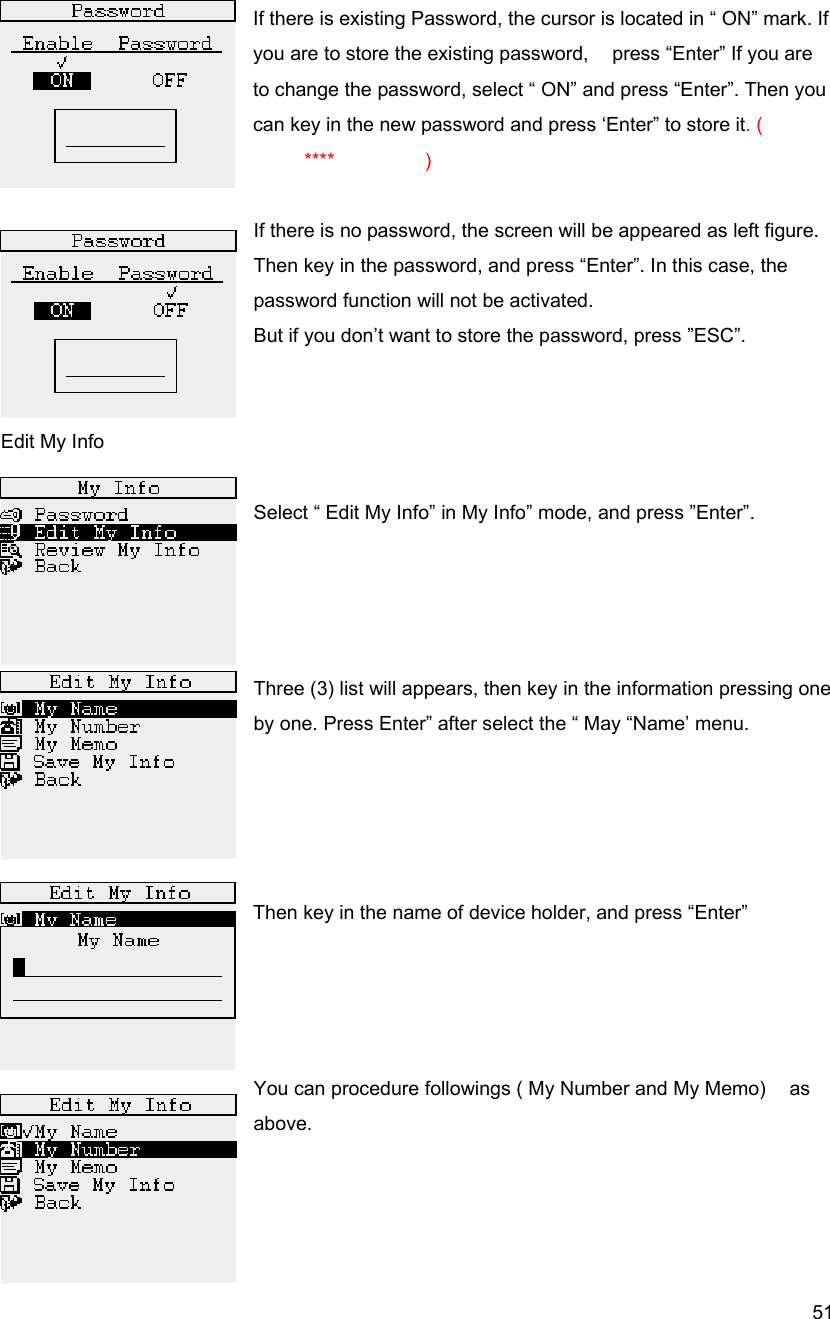
 51 If there is existing Password, the cursor is located in “ ON” mark. If you are to store the existing password,    press “Enter” If you are to change the password, select “ ON” and press “Enter”. Then you can key in the new password and press ‘Enter” to store it. (    **** )  If there is no password, the screen will be appeared as left figure. Then key in the password, and press “Enter”. In this case, the password function will not be activated. But if you don’t want to store the password, press ”ESC”.   Edit My Info  Select “ Edit My Info” in My Info” mode, and press ”Enter”.       Three (3) list will appears, then key in the information pressing one by one. Press Enter” after select the “ May “Name’ menu.     Then key in the name of device holder, and press “Enter”     You can procedure followings ( My Number and My Memo)    as above.
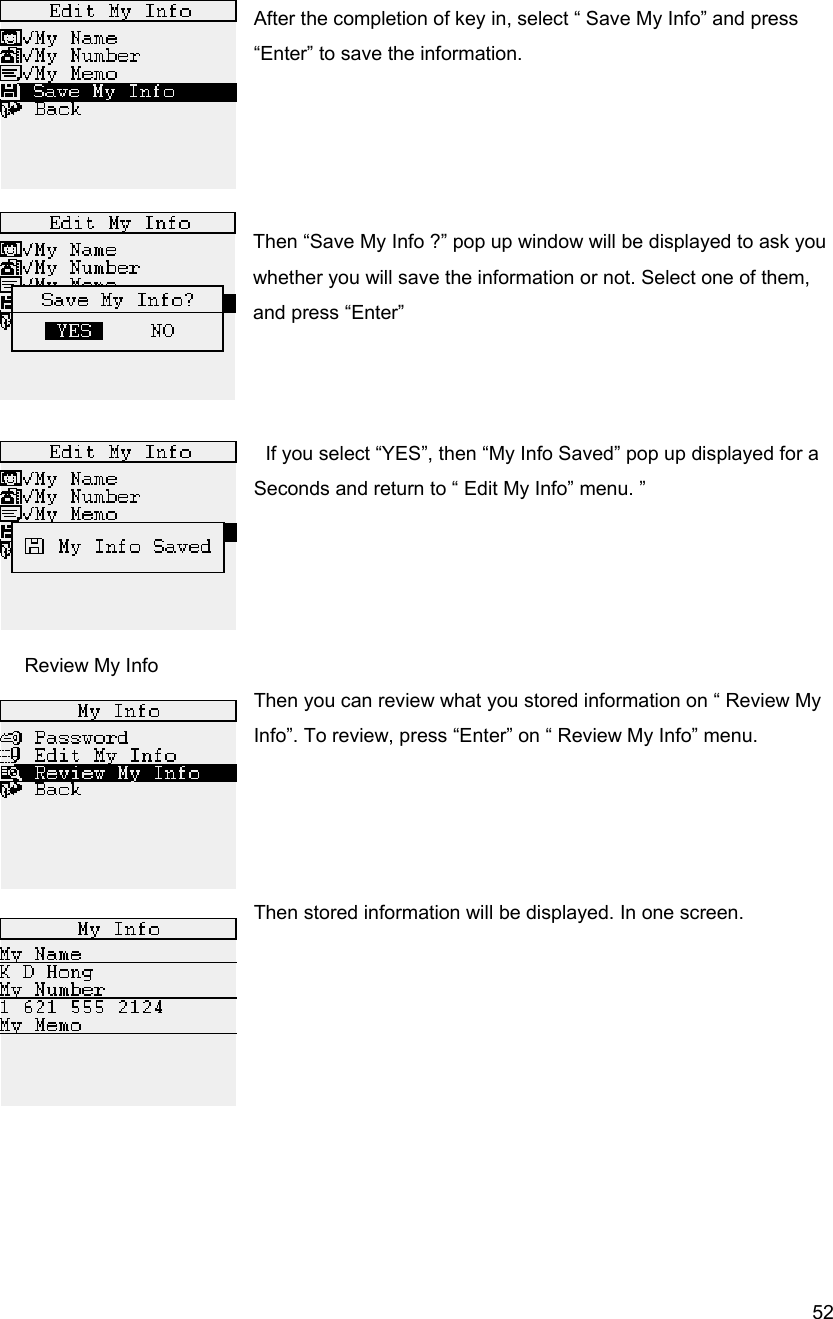
 52 After the completion of key in, select “ Save My Info” and press “Enter” to save the information.     Then “Save My Info ?” pop up window will be displayed to ask you whether you will save the information or not. Select one of them, and press “Enter”         If you select “YES”, then “My Info Saved” pop up displayed for a   Seconds and return to “ Edit My Info” menu. ”           Review My Info Then you can review what you stored information on “ Review My Info”. To review, press “Enter” on “ Review My Info” menu.     Then stored information will be displayed. In one screen.
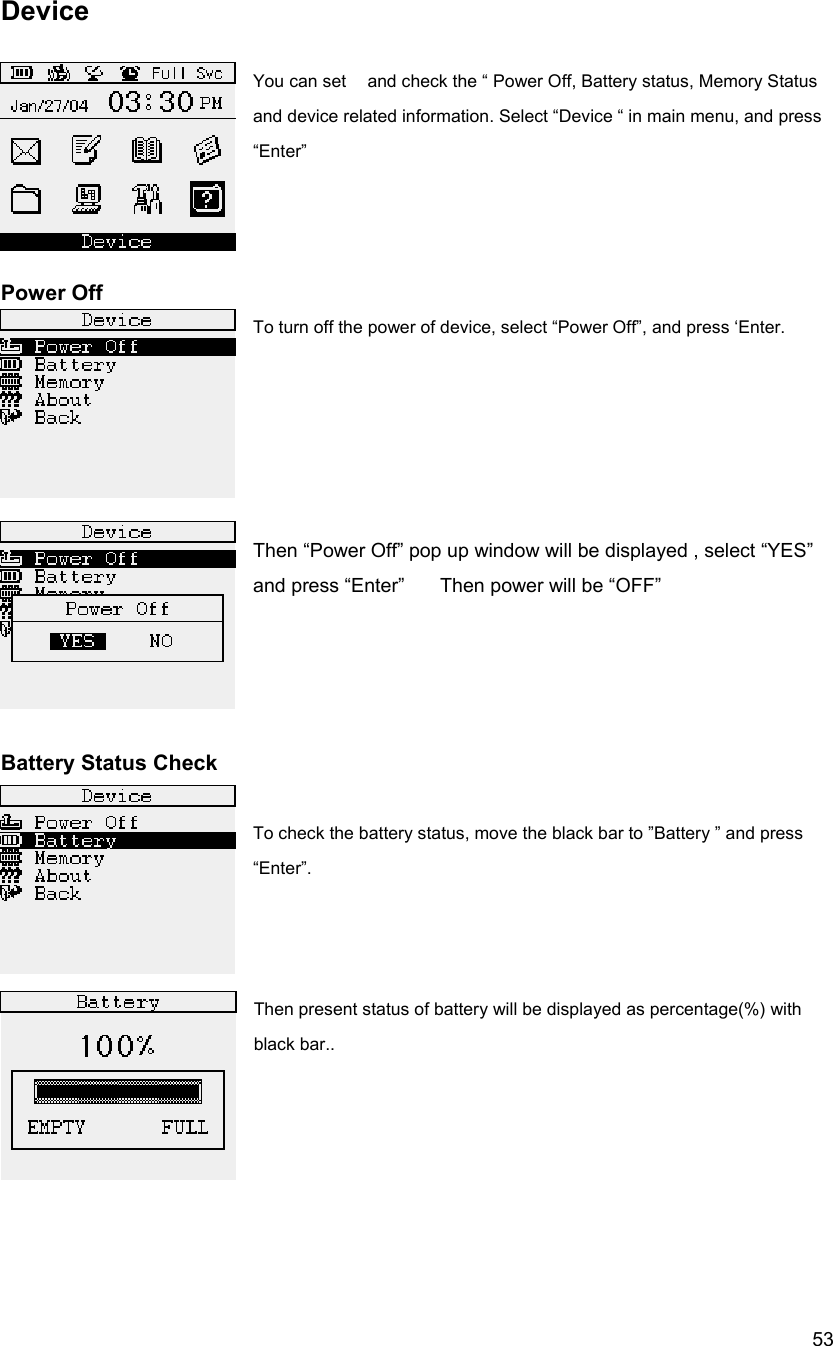
 53Device  You can set    and check the “ Power Off, Battery status, Memory Status and device related information. Select “Device “ in main menu, and press “Enter”     Power Off To turn off the power of device, select “Power Off”, and press ‘Enter.      Then “Power Off” pop up window will be displayed , select “YES” and press “Enter”   Then power will be “OFF”            Battery Status Check  To check the battery status, move the black bar to ”Battery ” and press “Enter”.    Then present status of battery will be displayed as percentage(%) with black bar..
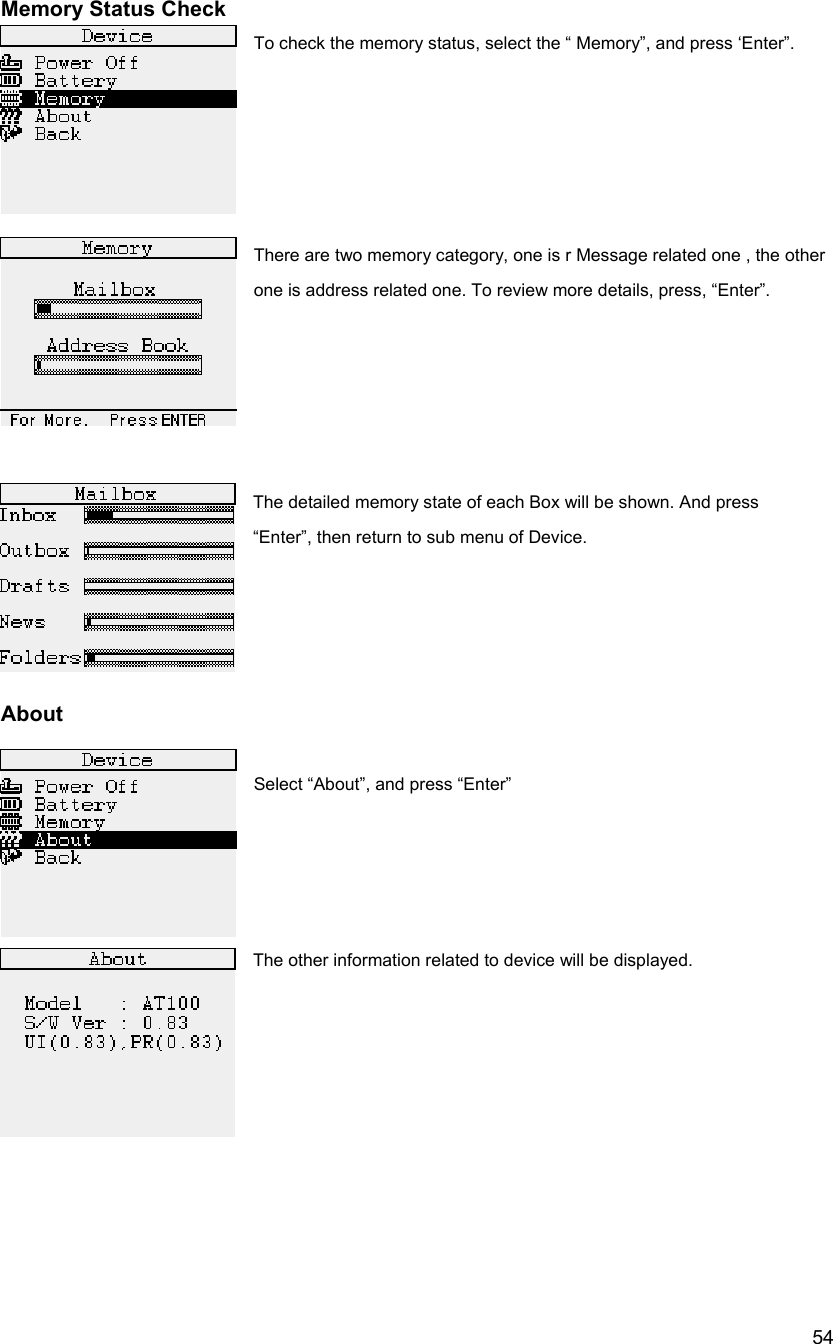
 54Memory Status Check To check the memory status, select the “ Memory”, and press ‘Enter”.      There are two memory category, one is r Message related one , the other one is address related one. To review more details, press, “Enter”.      The detailed memory state of each Box will be shown. And press       “Enter”, then return to sub menu of Device.                                                                                               About  Select “About”, and press “Enter”                              The other information related to device will be displayed.
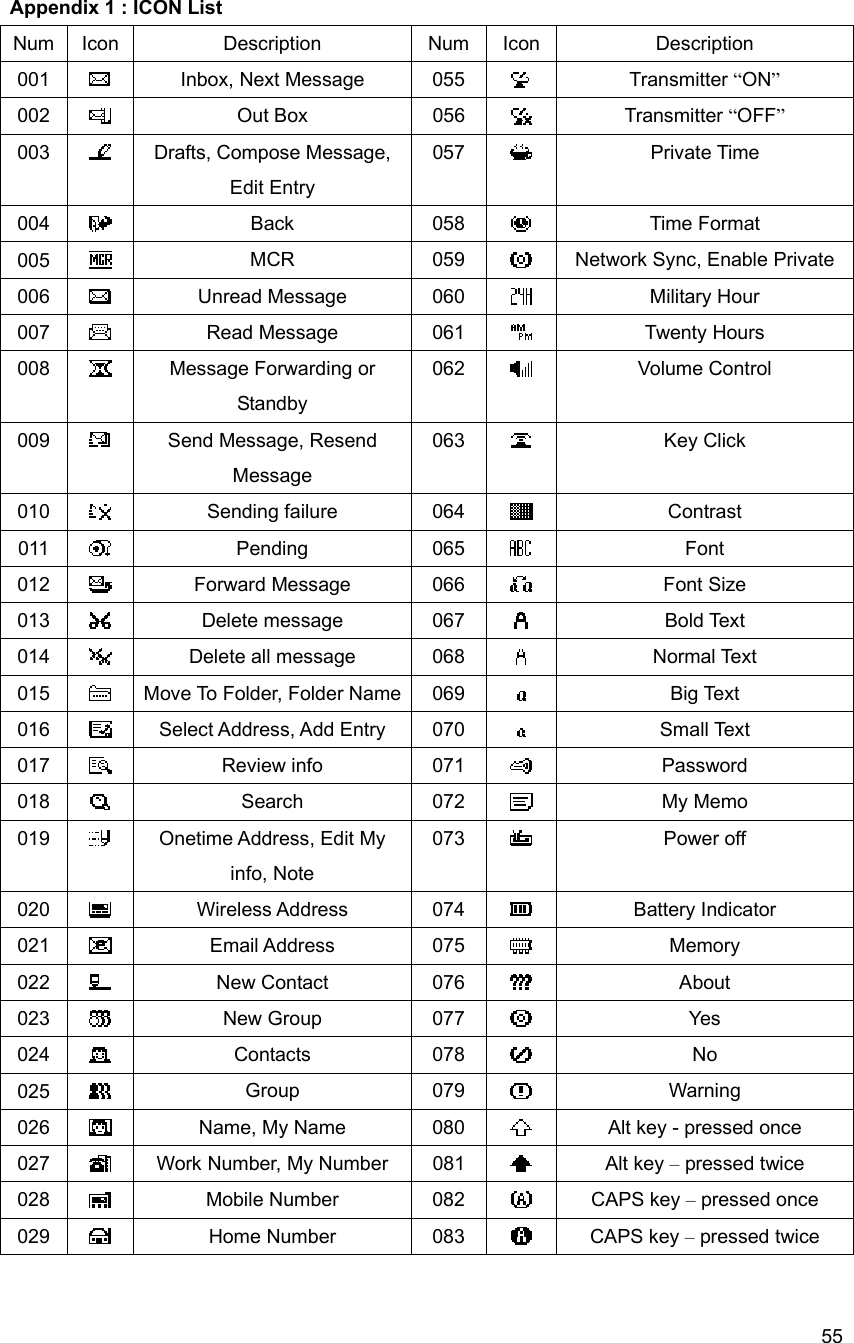
 55Appendix 1 : ICON List Num Icon  Description  Num  Icon  Description 001   Inbox, Next Message  055   Transmitter “ON” 002   Out Box  056   Transmitter “OFF” 003   Drafts, Compose Message, Edit Entry 057   Private Time 004   Back 058  Time Format 005   MCR 059  Network Sync, Enable Private 006   Unread Message  060   Military Hour 007   Read Message  061   Twenty Hours 008   Message Forwarding or Standby 062   Volume Control 009   Send Message, Resend Message 063   Key Click 010   Sending failure  064   Contrast 011   Pending 065  Font 012   Forward Message  066   Font Size 013   Delete message  067   Bold Text 014   Delete all message  068   Normal Text 015   Move To Folder, Folder Name 069   Big Text 016   Select Address, Add Entry  070   Small Text 017   Review info  071   Password 018   Search 072  My Memo 019   Onetime Address, Edit My info, Note 073   Power off 020   Wireless Address  074   Battery Indicator 021   Email Address  075   Memory 022   New Contact  076   About 023   New Group  077   Yes 024   Contacts 078  No 025   Group 079  Warning 026   Name, My Name  080   Alt key - pressed once 027   Work Number, My Number  081   Alt key – pressed twice 028   Mobile Number  082   CAPS key – pressed once 029   Home Number  083   CAPS key – pressed twice
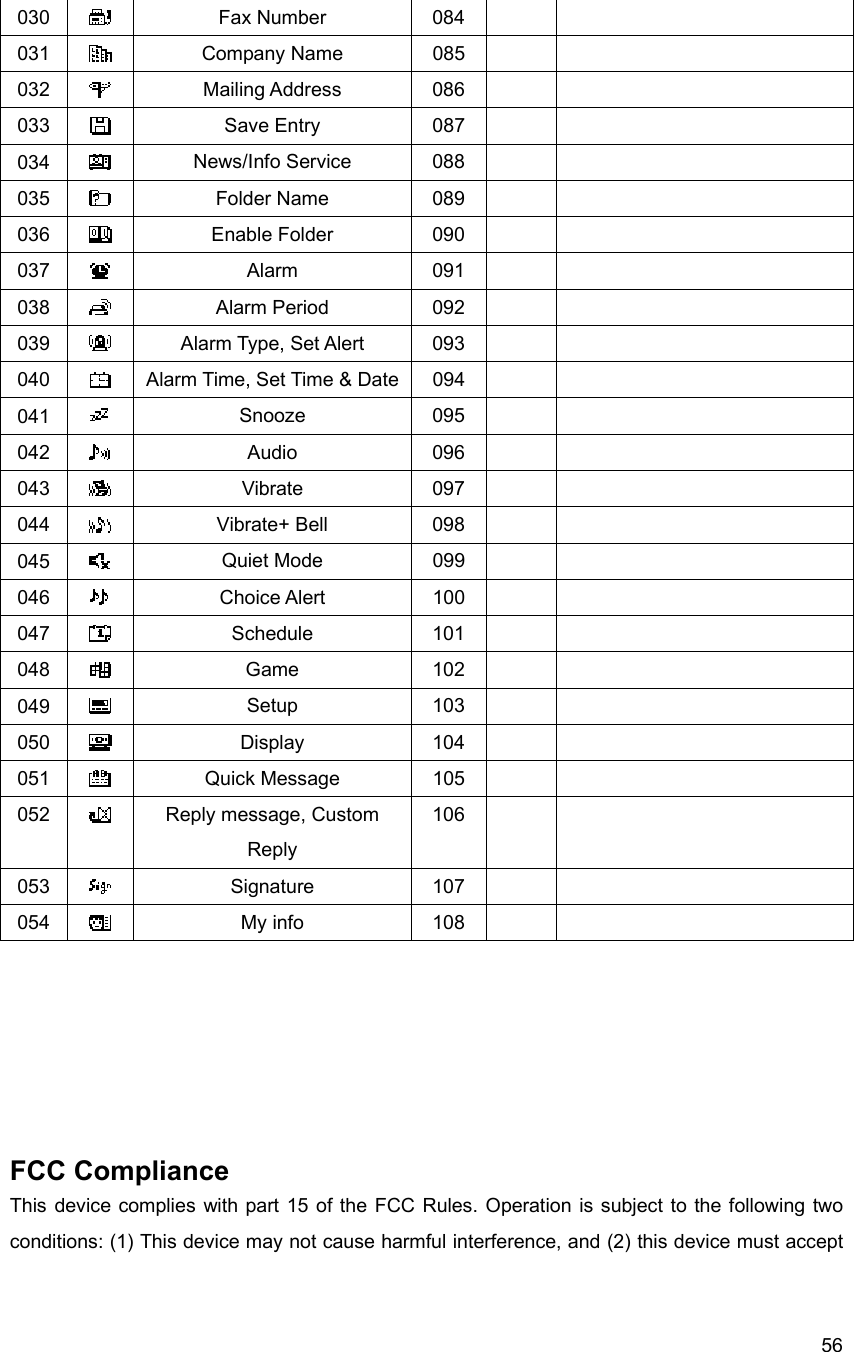
 56030   Fax Number  084     031   Company Name  085     032   Mailing Address  086     033   Save Entry  087     034   News/Info Service  088     035   Folder Name  089     036   Enable Folder  090     037   Alarm 091    038   Alarm Period  092     039   Alarm Type, Set Alert  093     040   Alarm Time, Set Time & Date  094     041   Snooze 095    042   Audio 096    043   Vibrate 097    044   Vibrate+ Bell  098     045   Quiet Mode  099     046   Choice Alert  100     047   Schedule 101    048   Game 102    049   Setup 103    050   Display 104    051   Quick Message  105     052   Reply message, Custom Reply 106    053   Signature 107    054   My info  108           FCC Compliance This device complies with part 15 of the FCC Rules. Operation is subject to the following two conditions: (1) This device may not cause harmful interference, and (2) this device must accept
 57any interference received, including interference that may cause undesired operation. This equipment has been tested and found to comply with the limits for a Class B digital device, pursuant to part 15 of the FCC Rules. These limits are designed to provide reasonable protection against harmful interference in a residential installation. This equipment generates, uses and can radiate radio frequency energy and, if not installed and used in accordance with the instruction, may cause harmful interference will not occur in a particular installation. If this equipment does cause harmful interference to radio or television reception, which can e determined by turning the equipment off and on, the user is encouraged to try correct the interference by one or more of the following measure: •  Reorient or relocate the receiving antenna. •  Increase the separation between the equipment and receiver. • Connect the equipment into an outlet on a circuit different from that which the receiver is connected. •  Consult the dealer or an experienced radio/TV technician for help.
 58SAFETY INFORMATION FOR FCC RF EXPOSURE  WARNING! Read this information before using your phone  CAUTION In August 1996, the Federal Communications Commission (FCC) of the United States with its action in Report and Order FCC 96-326 adopted an updated safety standard for human exposure to radio frequency electromagnetic energy emitted by FCC regulated transmitters. Those guidelines are consistent with the safety standard previously set by both U.S. and international standards bodies. The design of this pager complies with the FCC guidelines and these international standards. Use only the supplied or an approved antenna. Unauthorized antennas, modifications, or attachments could impair quality, damage the pager, or result in violation of FCC regulations. Do not use the pager with a damaged antenna. If a damaged antenna comes into contact with the skin, a minor burn may result. Please contact your local dealer for replacement antenna. Body-worn Operation This device was tested for typical body-worn operations with the back of the pager kept 1.0 cm from the body. To maintain compliance with FCC RF exposure requirements, use only belt-clips, holsters or similar accessories that maintain a 1.0 cm separation distance between the user's body and the back of the pager, including the antenna. The use of belt-clips, holsters and similar accessories should not contain metallic components in its assembly. The use of accessories that do not satisfy these requirements may not comply with FCC RF exposure requirements, and should be avoided. Note: For more information about RF exposure, please visit the FCC website at www.fcc.gov.
 59Warranty ONE (1) YEAR STANDARD LIMITED WARRANTY AND PROVISION (U.S.A. ONLY) AT 100 warrants the pager against defects in material in workmanship under normal use and service for the period of time specified below. This express warranty is extended by AT 100,                    to the original end user purchaser only and is not assignable or transferable to any other party. This warranty sets forth the full extent of AT 100’s responsibilities regarding the pager. Repair replacement, or refund or the purchase price, at ATCOM’s option, is the exclusive remedy. THIS WARRANTY IS GIVEN IN LIEU IF ALL OTHER WARRANTIES, EXPRESS OR IMPLIED, INCLUDING WITHOUT LIMITATION, IMPLIED WARRANTIES OF MERCHANTABILITY AND FITNESS FOR A PARTICULAR PURPOSE. THIS WARRANTY IS LIMITED TO THE DURATION CHOSEN. IN NOEVENT SHALL AT 100 BE LIABLE  FOR DAMAGES IN EXCESS OF THE PURCHASE PRICE OF THE AT 100 PAGER, FOR ANY LOSS OF USE, LOSS OF TIME, INCONVENIENCE, COMMERCIAL LOSS, LOST PROFITS OR SAVING OR OTHER INCIDENTAL, SPECIAL OR CONSEQUENTIAL DAMAGES ARISING OUT OF THE USE OR INABILITY TO USE SUCH PRODUCT, TO THE FULL EXTENT SUCH MAY BE DISCLAIMED BY LAW.   AT 100 pagers are shipped from the factory with a standard limited warranty of one (1) year on parts and labor from date of purchase by the original end user purchaser, based on proof of purchase. In the event of a defect, malfunction, or failure to conform to specifications during the warranty period, AT 100, at its option, will either repair, replace or refund the purchase price of the pager. Repair, at ATCOM’s option, may include the replacement of part of boards with functionally equivalent reconditioned or new parts or boards. Replaced parts and boards are warranted for the balance of the original warranty period. All parts and boards removed in the replacement process shall become the property of AT 100. This warranty does not cover defects, malfunctions, performance failures or damages to the unit resulting from use in other than its normal and customary manner, misuse, accident or neglect, the use of non-conforming parts, or improper alteration or repairs. This warranty does not cover wear and teat on covers or housings, nor coverage or range over which the pager will receive signals. For information on how to receive service on AT 100 pagers or covered accessories, call    Pager warranty will be VOID if any of the following conditions occur: •  Pagers that are incomplete such as those in which boards or components are missing and/ or incompatible. • Pager whose serial numbers do not match on the boards, or pagers in which the board serial
 60numbers don’t match the housing. • Pagers that have been opened by, or had work performed by, anyone other than a AT 100 authorized pager service center. •  Pagers received with non-conforming or non-AT 100 housing or parts. Flat rate repair fees apply to pagers and accessories not covered under warranty. STATE LAW RIGHTS SOME STATE DO NOT ALLOW THE EXCLUSION OR LIMITATION OF INCIDENTAL OR CONSEQUENTIAL DAMAGES, OR LIMITATION ON HOW LONG AN IMPLIED WARRANTY LASTS, THEREFORE THE ABOVE LIMITATIONS OR EXCLUSIONS MAY NOT APPLY. This warranty gives you specific legal rights and you may also have other rights which vary from state to state.

Navigation menu