HP Workstations For Linux User Guide C00063015
User Manual: HP HP Workstations for Linux - User Guide
Open the PDF directly: View PDF  .
.
Page Count: 51

HP Workstations for Linux
User Guide
SUMMARY
This document supports the HP Z200, Z200 SFF, Z210 CMT, Z210 SFF, Z400, Z600, Z800, xw4x00,
xw4550, xw6x00, xw8x00, and the xw9x00 Workstations. For information on using Linux with newer
HP Workstations, please see the User Guide and the Maintenance and Service Guide for your
workstation at http://www.hp.com/support/manuals.
This document does not directly address recent releases such as Red Hat Enterprise Linux (RHEL) 6,
although newer Linux operating systems might work on the workstation platforms described in this
document. Consult the distributor’s website for detailed platform certification information, and for current
product documentation.
Copyright Information
© 2007–2012 Copyright Hewlett-Packard
Development Company, L.P.
Warranty
Hewlett-Packard Company shall not be
liable for technical or editorial errors or
omissions contained herein or for incidental
or consequential damages in connection
with the furnishing, performance, or use of
this material. The information in this
document is provided “as is” without
warranty of any kind, including, but not
limited to, the implied warranties of
merchantability and fitness for a particular
purpose, and is subject to change without
notice. The warranties for HP products are
set forth in the express limited warranty
statements accompanying such products.
Nothing herein should be construed as
constituting and additional warranty.
This document contains proprietary
information that is protected by copyright.
No part of this document may be
photocopied, reproduced, or translated to
another language without the prior written
consent of Hewlett-Packard Company.
Trademark Credits
The HP Invent logo is a trademark of
Hewlett-Packard Company in the U.S. and
other countries.
Linux is a registered trademark of Linus
Torvalds.
Red Hat is a trademark of Red Hat, Inc.
SUSE is a registered trademark of Novell,
Inc.
AMD, ATI, Eyefinity, FireGL, and FirePro are
trademarks of Advanced Micro Devices.
PCI Express and PCIe are trademarks of PCI-
SIG.
Quadro is a registered trademark and
TwinView, Scalable Link Interface, and SLI
are trademarks of NVIDIA Corporation.
LSI is a trademark of LSI Corporation
Intel is a trademark of Intel Corporation in
the U.S. and other countries.
Acrobat and Acrobat Reader are trademarks
of Adobe Systems Incorporated.
ENERGY STAR is a registered mark owned
by the U.S. government.
Part number: 448676-008
Eighth Edition: October 2012

Table of contents
1 Linux on HP Workstations ................................................................................................ 1
Introduction ............................................................................................................................. 1
HP Linux Installer Kit ................................................................................................................. 1
Red Hat Enterprise Linux ........................................................................................................... 1
SUSE Linux Enterprise ............................................................................................................... 2
Warranty ................................................................................................................................ 2
Graphics cards ........................................................................................................................ 2
System RAM ............................................................................................................................ 2
Audio ..................................................................................................................................... 3
Network cards ......................................................................................................................... 3
Hyper-threading ....................................................................................................................... 3
NUMA ................................................................................................................................... 3
2 HP Installer Kit for Red Hat Linux ...................................................................................... 5
Introduction ............................................................................................................................. 5
HP Driver CDs ....................................................................................................................... 10
Description ............................................................................................................. 10
Installing with the HP Driver CD ................................................................................ 11
Installing with the HP Installer Kit for Linux ................................................................................. 11
3 HP Installer Kit for SUSE Linux Enterprise Desktop ........................................................... 12
Obtaining the HP Installer Kit for Linux ...................................................................................... 12
Restoring SLED ....................................................................................................................... 14
Creating restore media ............................................................................................ 14
4 Linux graphics for HP workstations ................................................................................ 15
Linux graphics drivers for HP workstations ................................................................................. 15
NVIDIA® Graphics Workstations ............................................................................................. 16
X Server configuration ............................................................................................. 16
SLI Graphics Acceleration ........................................................................................ 16
Xinerama / NVIDIA TwinView .................................................................................. 17
30-bit (10-bit-per-channel) X Visuals ........................................................................... 17
AMD® / ATI graphics workstations .......................................................................................... 17
Troubleshooting ..................................................................................................................... 18
iii
5 Software RAID in HP Linux Workstations ........................................................................ 19
Introduction ........................................................................................................................... 19
Software RAID considerations .................................................................................................. 19
Performance considerations ..................................................................................................... 19
Configuring software RAID ...................................................................................................... 20
6 Installing and configuring SAS hardware RAID ............................................................... 21
Introduction ........................................................................................................................... 21
Supported Configurations ....................................................................................................... 22
LSI 3041E and Integrated LSI 1064/1068 Setup ....................................................................... 23
LSI 8344ELP, LSI 8888ELP, and LSI 9260-8i Setup ..................................................................... 28
Additional RAID Information .................................................................................................... 35
7 Links .............................................................................................................................. 36
Appendix A Appendix—Updates and Advisories for Linux Operating Systems ................... 38
Introduction ........................................................................................................................... 38
Customer advisories for Red Hat Enterprise Linux WS 3 .............................................................. 39
Customer advisories for Red Hat Enterprise Linux WS 4 .............................................................. 42
Customer advisories for Red Hat Enterprise Linux Client 5 ........................................................... 45
Customer advisories for SUSE Linux Enterprise Desktop 11 .......................................................... 47
iv

1 Linux on HP Workstations
Introduction
This document describes the supported use of the Linux® operating system on legacy HP workstations.
HP offers a variety of Linux solutions for HP workstation customers:
●HP certifies and supports versions of Red Hat Enterprise Linux (RHEL) on HP workstations.
●HP certifies versions of SUSE® Linux Enterprise Desktop (SLED) and Server (SLES) on HP
workstations.
●HP offers a SLED 11 preload on the Z200, Z200 SFF, Z210 CMT, Z210 SFF, Z400, and xw4600
Workstations.
For information about Linux on HP workstations, navigate to http://www.hp.com/linux/.
1. Select Certification & Support in the Platforms and distributions section.
2. Select Workstations.
3. Choose the appropriate tab for the desired distribution.
HP Linux Installer Kit
HP offers the HP Linux Installer Kit to facilitate installation of certified RHEL or SLED versions on HP
workstations. This kit contains tested drivers that augment and/or replace (as necessary) those found in
RHEL or SLED to enable proper use and behavior on HP workstations. This kit does not include the Linux
operating system, which must be purchased separately from Red Hat or Novell.
The HP Linux Installer Kit is available as an operating system option on all HP workstations. The
contents of the Linux Installer Kit are also available for download at: http://www.hp.com/go/
workstationsupport.
HP offers a preload option based on FreeDOS that includes the HP Linux Installer Kit DVD media. This
operating system option accommodates those who have a customized Linux distribution, or who have
licensed versions of RHEL and would like to install the HP-recommended driver additions.
Red Hat Enterprise Linux
The HP Z Series Workstations (Z200, Z200 SFF, Z210 CMT, Z210 SFF, Z400, Z600, and Z800) are
certified and supported on RHEL 4.7 and RHEL 5.3, both 32-bit and 64-bit versions and newer updates
of those streams. Other HP workstation models are certified on various versions of RHEL. For details of
RHEL support, refer to the Hardware Support Matrix for HP Linux Workstations at:http://www.hp.com/
support/linux_hardware_matrix.
For information about Red Hat certifications on HP workstations, see: https://hardware.redhat.com/.
Introduction 1

SUSE Linux Enterprise
HP offers a 64-bit SLED 11 preload on the Z200, Z200 SFF, Z210 CMT, Z210 SFF, Z400, and
xw4600 Workstations and supports both 32-bit and 64-bit SLED 11 on these workstations.
Other HP workstation models are certified on various versions of SLED and SLES. Novell provides
support for certified versions of SLED and SLES on HP workstations. For more information, refer to the
Novell certification bulletin search page at: http://developer.novell.com/yessearch/.
Warranty
As part of the HP workstation hardware warranty, HP provides software configuration and installation
support for certified versions of Red Hat Linux for up to 90 days from date of purchase.
HP provides configuration and installation support for SLED 11 on the Z200, Z200 SFF, Z210 CMT,
Z210 SFF, Z400, and xw4600 Workstations for up to 90 days from date of purchase. Novell also
provides support for all versions of SLED or SLES that are certified on HP workstations.
Graphics cards
HP workstations can be ordered without a graphics card, or with numerous cards that have been
through extensive verification by HP. See the Hardware Support Matrix for HP Linux Workstations at
http://www.hp.com/support/linux_hardware_matrix for a complete list of cards supported on HP
workstations.
NOTE: Not all graphics cards are available on every workstation. Limitations generally occur for
cards that consume large amounts of power in lower-power workstations.
Proprietary graphics drivers that are supported by HP and the graphics vendors are available with the
HP Linux Installer Kit, with the SLED 11 preload on the Z200, Z200 SFF, Z210 CMT, Z210 SFF, Z400,
Z600, Z800, xw4600, and xw9400 Workstations and from HP Workstation Support at
http://www.hp.com/go/workstationsupport.
These proprietary drivers are not a standard part of the RHEL, SLED, or SLES distributions because they
are not open source. Driver revisions more recent than those at the HP support website are supported
directly by the vendor.
System RAM
HP supports different amounts of total RAM in various HP workstations based on the number of
hardware DIMM slots and the capabilities of the system. The total memory supported for each
configuration is listed in the Hardware Support Matrix for HP Linux Workstations at
http://www.hp.com/support/linux_hardware_matrix.
2 Chapter 1 Linux on HP Workstations

Audio
All HP workstations come with built-in audio hardware. The audio hardware is supported by Advanced
Linux Sound Architecture (ALSA) sound drivers included with all modern Linux distributions.
The audio hardware provides basic playback and recording features. The ability to simultaneously play
audio from multiple sources, such as applications and CDROM, is provided by software mixing
functionality in the ALSA driver. The performance of software audio mixing and playback functionality
is greatly improved in ALSA version 1.0.13 and later drivers.
Network cards
All HP workstations include one or two integrated network interface controllers. Specific network
interface controller cards are also supported as optional devices. Please refer to the Hardware Support
Matrix for HP Linux Workstations at http://www.hp.com/support/linux_hardware_matrix for details on
which cards are supported.
Hyper-threading
The Z200, Z200 SFF, Z210 CMT, Z210 SFF, Z400, Z600, and Z800 Workstations support Intel
Hyper-Threading Technology. This technology can provide performance benefits in certain situations.
Hyper-Threading is enabled in the system BIOS. As the system is booting, press F10 to enter the BIOS
Setup Utility. Select Advanced > Processors. Use the arrow keys to set Hyper-Threading to Enable,
and then press F10 to exit the menu. Select the File > Save Changes and Exit. Hyper-Threading is
enabled when the system is restarted.
On most recent Linux distributions (including RHEL 5.3, SLED/SLES 10 SP2, SLED/SLES 11, updates to
those streams), the kernel automatically detects that Hyper-Threading is enabled and works correctly.
Certain older Linux distributions such as RHEL 4.7 require the use of the largesmp kernel for Hyper-
Threading support on dual-socket quad core Z600 and Z800 configurations.
NUMA
Non-Uniform Memory Access (NUMA) is available on the Z600, Z800, and xw9400 workstations.
NUMA can improve memory bandwidth and latency for multi-process or multi-threaded applications or
workloads. Observed performance improvements depend on the operating system, customer workload,
system configuration, and the degree to which the applications used are designed to be NUMA-
aware/efficient.
NUMA requires that both processor sockets be populated, and installed memory should be balanced
between both processors for maximum performance.
NUMA is enabled if Memory Node Interleave is disabled in the system BIOS. As the system is booting,
press F10 to enter the BIOS Setup Utility. Select Advanced > Chipset/Memory. Use the arrow
keys to set Memory Node Interleave to Disable. Press F10 to exit the menu. Select File > Save
Changes and Exit. NUMA is enabled when the system is restarted.
The Z600 and Z800 BIOS also provide a NUMA Split Mode option, which must be set to Disable
when running Linux.
Audio 3
On most recent 64-bit Linux distributions (including RHEL 5.4, SLED/SLES 10 SP2, SLED/SLES 11, and
updates to those streams), the kernel automatically detects that NUMA is enabled. Certain older 64-bit
Linux distributions such as RHEL 4.7 require the use of the numa=acpi kernel parameter on the Z600
and Z800 Workstations.
4 Chapter 1 Linux on HP Workstations

2 HP Installer Kit for Red Hat Linux
Introduction
The HP Installer Kit for Linux enables you to install Red Hat Linux on HP workstations. The kit provides
updated drivers, tools, and an operating system to enable HP hardware with various Linux operating
system versions. This kit does not include the RHEL operating system, which must purchased from Red
Hat.
This document discusses the CDs (ISOs) contained in the HP Installer Kit for Linux, the platforms, and
how to download the CDs (ISOs) from the HP support website.
For information on driver updates and HPIKL images:
1. See https://www.hp.com/support/.
2. Select the desired country.
3. Select Download drivers and software...
4. Enter the desired platform and select >>.
5. Select the desired operating system.
6. Select the desired package.
7. Download the associated package and install as directed.
Table 2-1 Red Hat Linux supported hardware platforms
Red Hat Enterprise Linux 5 Desktop (x86)
Red Hat Enterprise Linux 5 Desktop (x86–64)
Revision Supported Red
Hat update
Supported hardware
platforms
CDs (ISOs) in the HP Installer Kit for Linux
Rev. A Update 0 xw4400
xw4600
xw6400
xw8400
xw9400
HP Installer Kit for Linux—HP Driver CD for RHEL 5
Introduction 5

Table 2-1 Red Hat Linux supported hardware platforms (continued)
Update 1
Rev. B
Update 1 xw4400
xw4550
xw4600
xw6400
xw6600
xw8400
xw8600
xw9400
HP Installer Kit for Linux—HP Driver CD for RHEL 5
Update 2
Rev. B
Update 2 xw4550
xw4600
xw6600
xw8600
xw9400
HP Installer Kit for Linux—HP Driver CD for RHEL 5
Update 3
Rev. C
Update 3 xw4600
xw6600
xw8600
xw9400
Z400
Z600
Z800
HP Installer Kit for Linux—HP Driver CD for RHEL 5
Update 4
Rev. D
Update 4 xw4600
xw9400
Z200
Z200 SFF
Z400
Z600
Z800
HP Installer Kit for Linux—HP Driver CD for RHEL 5
Update 5
Rev. E
Update 5 xw9400
Z200
Z200 SFF
Z400
Z600
Z800
HP Installer Kit for Linux—HP Driver CD for RHEL 5
Red Hat Enterprise Linux 4 (x86)
Red Hat Enterprise Linux 4 (AMD64 / EM64T)
6 Chapter 2 HP Installer Kit for Red Hat Linux

Table 2-1 Red Hat Linux supported hardware platforms (continued)
Revision Supported Red
Hat update
Supported hardware
platforms
CDs (ISOs) in the HP Installer Kit for Linux
Update 1
Rev. A
Update 1 xw4200
xw4300
xw6200
xw8200
xw9300
HP Installer Kit for Linux—HP Driver CD for RHEL 4
HP Installer Kit for Linux—Red Hat Drivers Disk for RHEL 4
Update 2
Rev. A
Update 2 xw4200
xw4300
xw6200
xw8200
xw9300
HP Installer Kit for Linux—HP Driver CD for RHEL 4
Update 3
Rev. A
Update 3 xw4300
xw6200
xw6400
xw8200
xw8400
xw9300
HP Installer Kit for Linux—HP Driver CD for RHEL 4
Update 4
Rev. A
Update 4 xw4300
xw4400
xw6200
xw6400
xw8200
xw8400
HP Installer Kit for Linux—HP Driver CD for RHEL 4
Update 5
Rev. A
Update 5 xw4400
xw4600
xw6400
xw8400
xw9400
HP Installer Kit for Linux—HP Driver CD for RHEL 4
Introduction 7

Table 2-1 Red Hat Linux supported hardware platforms (continued)
Update 6
Rev. B
Update 6 xw4400
xw4550
xw4600
xw6400
xw6600
xw8400
xw8600
xw9400
HP Installer Kit for Linux—HP Driver CD for RHEL 4
Update 7
Rev. B
Update 7 xw4550
xw4600
xw6600
xw8600
xw9400
HP Installer Kit for Linux—HP Driver CD for RHEL 4
Update 8
Rev. C
Update 8 xw4600
xw6600
xw8600
xw9400
Z400
Z600
Z800
HP Installer Kit for Linux—HP Driver CD for RHEL 4
Update 8
Rev. D
Update 8 xw4600
xw9400
Z200
Z200 SFF
Z400
Z600
Z800
HP Installer Kit for Linux—HP Driver CD for RHEL 4
Red Hat Enterprise Linux 3 (x86)
Red Hat Enterprise Linux 3 (AMD64 / EM64T)
Revision Supported Red
Hat update
Supported hardware
platforms
CDs (ISOs) in the HP Installer Kit for Linux
Update 1
Rev. B
Update 1 xw4100
xw6000
xw8000
HP Installer Kit for Linux—HP Driver CD for RHEL 3
8 Chapter 2 HP Installer Kit for Red Hat Linux

Table 2-1 Red Hat Linux supported hardware platforms (continued)
Update 2
Rev. A
Update 2 xw4200
xw6200
xw8200
HP Installer Kit for Linux—HP Driver CD for RHEL 3
HP Installer Kit for Linux—Red Hat Drivers Disk for RHEL 3
Update 4
Rev. A
Update 4 xw4200
xw6200
xw8200
xw9300
HP Installer Kit for Linux—HP Driver CD for RHEL 3
Update 5
Rev. B
Update 5
Rev. A
Update 5 xw4200
xw4300
xw6200
xw8200
xw9300
HP Installer Kit for Linux—HP Driver CD for RHEL 3
HP Installer Kit for Linux—Red Hat Drivers Disk for RHEL 3
Update 5
Rev. B
Update 6 xw4200
xw4300
xw6200
xw8200
xw9300
HP Installer Kit for Linux—HP Driver CD for RHEL 3
Update 7
Rev. B
Update 7 xw4300
xw6200
xw6400
xw8200
xw8400
xw9300
HP Installer Kit for Linux—HP Driver CD for RHEL 3
Update 8
Rev. A
Update 8 xw4300
xw4400
xw6200
xw6400
xw8200
xw8400
xw9300
xw9400
HP Installer Kit for Linux—HP Driver CD for RHEL 3
Introduction 9

HP Driver CDs
Description
HP supports multiple versions of Red Hat Linux on HP xw and Z series Workstations. The supported
versions include Red Hat Enterprise Linux WS 3 (RHEL WS 3), RHEL WS 4, and RHEL Desktop 5.
To provide flexibility in installing the Red Hat operating system version, HP has created Driver CDs.
These CDs are included in the HP Installer Kit for Linux. The CD images (ISOs) for these CDs can be
downloaded from the HP support website at http://www.hp.com/go/workstationsupport
.
The Installer Kit does not include the operating system, so you must download the operating system
from the web or purchase a Red Hat box-set with the Red Hat version to be used with the Driver CD. To
view the existing Installation Support Matrix for HP Linux Workstations and the supported configurations
and operating systems, seehttp://www.hp.com/support/linux_hardware_matrix.
HP provides a Driver CD for a Red Hat Enterprise Linux version when the amount of content added by
HP for drivers and other software packages (called RPMs) is small, and not as critical as when HP
provides an Installer CD. Recent versions of Red Hat Linux include the most recent device drivers and
typically only require up-to-date driver updates with minor fixes to support HP workstations. These
recent releases can usually be supported using the Driver CD. This Driver CD can be used as a post-
installation utility for the standard Red Hat Linux install.
After the standard Red Hat install is complete and the system is restarted, a Red Hat first-boot utility is
invoked to set up the security level, time and date, root password, user accounts, and other settings.
The last thing that first-boot does is enable you to load additional CDs.
The Driver CD is designed for use during this additional CD phase. (Refer to Installing with the HP
Installer Kit for Linux. ) All the content added by HP is in the /HP directory on the CD. You can use it to
build your own image or to browse the HP content.
HP provides a Driver CD for various RHEL versions. The Driver CD includes software packages (called
RPMs) that enable or enhance the functionality or performance of RHEL on HP workstations.
NOTE: Some installations may encounter problems if they are performed with a DisplayPort
connection to the monitor. This is because the default drivers that the OS installers use do not support
DisplayPort functionality. If you experience problems, try overriding the monitor choice for DisplayPort
during the start of the install and using the VESA driver instead. You can then set up the DisplayPort
monitor later.
10 Chapter 2 HP Installer Kit for Red Hat Linux

Installing with the HP Driver CD
Install the operating system using the CDs included in the Red Hat Linux box-set.
1. If there is a Red Hat Driver Disk that corresponds to the Red Hat Linux operating system that is
being installed, enter linux dd on the initial install splash screen, and then press Enter.
NOTE: You must enter linux dd before pressing Enter.
2. When asked if you have a driver CD, select Yes. Place the Red Hat Driver Disk in the drive, and
select the appropriate drive:hd[abcd]. Continue the normal installation.
3. After successfully installing the Red Hat Linux operating system, reboot the workstation.
The Red Hat Setup Agent (also known as first-boot) now sets up system parameters such as
networking, time/date, and adding new users.
4. Insert the HP Driver CD.
5. When prompted, select Install for the Additional CD option. This process initializes the system
with HP Driver CD components.
6. When the driver installation task is completed, continue following the prompts until the operating
system is successfully installed.
7. Reboot the workstation to enable post-installation driver configuration.
Installing with the HP Installer Kit for Linux
To install using the HP Driver CD:
1. Install the operating system using the CDs included in the Red Hat Linux box-set.
2. If there is a Red Hat Driver Disk that corresponds to the Red Hat Linux operating system that is
being installed, enter linux dd on the initial install splash screen and then press Enter.
NOTE: (Do not press Enter only, without first entering linux dd.)
3. When asked if you have a driver CD, select Yes. Place the Red Hat Driver Disk in the drive, and
select the appropriate drive:hd[abcd]. Continue the normal installation.
4. After successfully installing the Red Hat Linux operating system, restart the workstation.
5. The Red Hat Setup Agent (also known as first-boot) will set up system parameters such as
networking, time/date, adding new users, etc.
6. Complete this process. The Additional CDs screen displays, and you initialize the system with HP
Driver CD components.
7. Insert the HP Driver CD.
8. When prompted, select Install for the Additional CD option.
9. When the driver installation task is completed, finish the first-boot setup.
10. Continue following the prompts until the operating system is successfully installed.
11. Restart the workstation to enable the proper post-installation driver configuration.
Installing with the HP Installer Kit for Linux 11

3 HP Installer Kit for SUSE Linux
Enterprise Desktop
HP provides an HP Installer Kit for SUSE Linux Enterprise Desktop 11 CD. This CD includes software
packages (called RPMs) that enable or enhance the functionality or performance of SLED 11 on the Z
Series and xw4600 Workstations. The contents of this CD are included in the SLED 11 preload on
these workstations. The CD is useful for installing a copy of SLED 11, or for restoring the SLED 11
preload on the Z200, Z200 SFF, Z210 CMT, Z210 SFF, Z400, and xw4600 Workstations.
After the operating system has been installed, insert the HP Driver CD included with the workstation or
downloaded from the http://www.hp.com/support website.
The content added by HP is in the /HP directory on the CD. You can use it to build an image or to
browse the HP content.
Obtaining the HP Installer Kit for Linux
SUSE Linux Enterprise Desktop 11 (x86)
SUSE Linux Enterprise Desktop 11 (AMD64/ EM64T)
Revision Supported HW
Platforms
HP Installer Kits (ISOs)
11 Rev. B xw4600 and Z400 HP Workstation Enhancements for SUSE Linux Enterprise Desktop 11
11 Rev. A xw4600
xw6600
xw8600
xw9400
Z400
Z600
Z800
HP Installer Kit for Linux - HP Driver CD for SLED11
12 Chapter 3 HP Installer Kit for SUSE Linux Enterprise Desktop

SUSE Linux Enterprise Desktop 11 (x86)
SUSE Linux Enterprise Desktop 11 (AMD64/ EM64T)
11 Rev. A xw4600
xw9400
Z200
Z200 SFF
Z400
Z600
Z800
HP Installer Kit for Linux - HP Driver CD for SLED11
11 Rev. A xw9400
Z200
Z200 SFF
Z400
Z600
Z800
HP Installer Kit for Linux - HP Driver CD for SLED11 SP1
To obtain the HP Installer Kit CD for Linux from the HP support website:
1. Go to http://www.hp.com/go/workstationsupport.
2. Select the desired workstation.
3. Select Download drivers and software in the Tasks for… section.
4. Select the desired operating system.
5. Select Software in the Quick jump to downloads by category section.
6. Download the ISO title.
7. Untar the ISOs. (Use a command such as: tar -zxf<filename>).
Obtaining the HP Installer Kit for Linux 13
Restoring SLED
The SLED restore media is required to restore the Linux operating system.
Creating restore media
THE SUSE Linux Enterprise Desktop preload includes a SUSE ISO icon on the desktop. Select this icon
to go to the /iso directory. The /iso directory contains all iso images used to preload the workstation.
Open the file that contains the instructions to create and restore the SUSE Linux Enterprise Desktop at /
iso/ReadMe, or select the SUSE ISO icon.
14 Chapter 3 HP Installer Kit for SUSE Linux Enterprise Desktop
4 Linux graphics for HP workstations
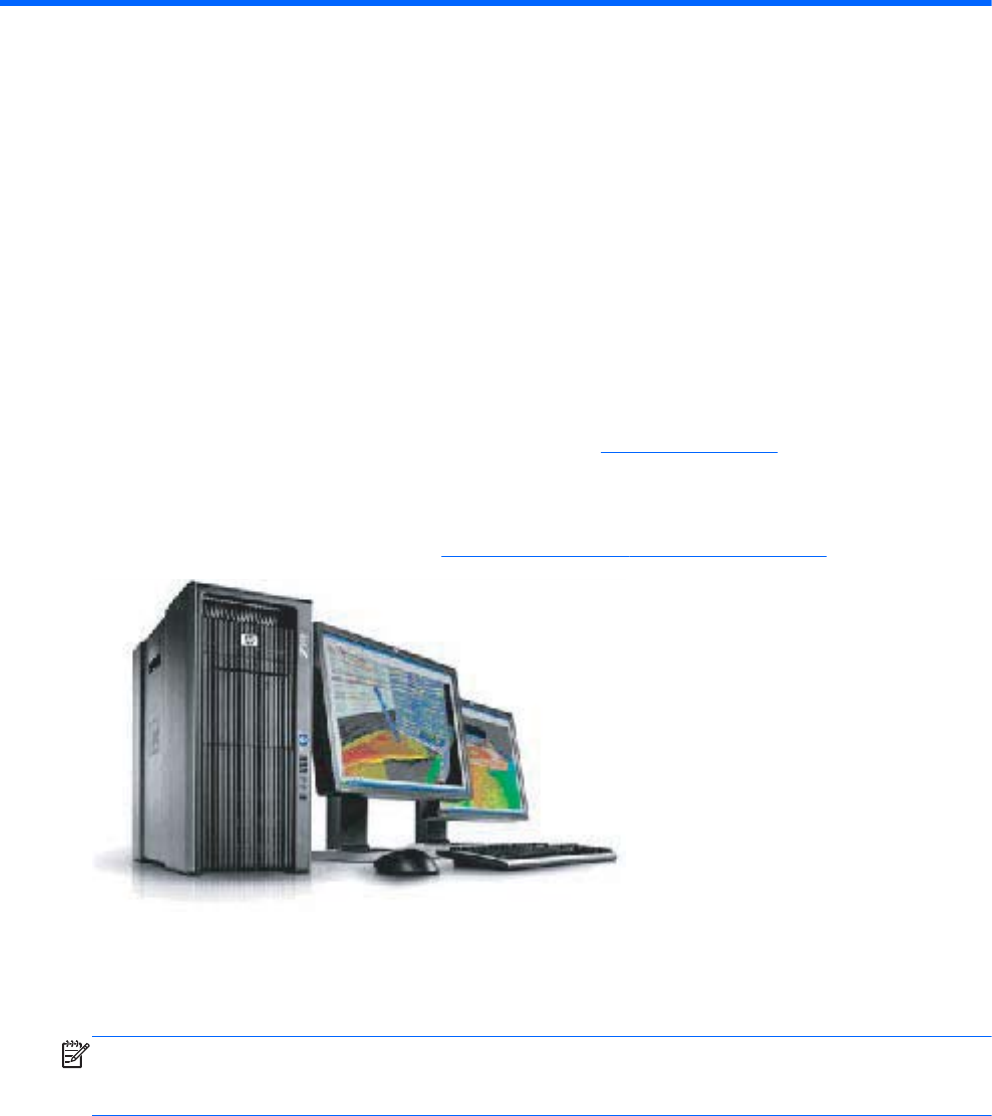
This chapter provides an overview of accelerated graphics solutions for HP workstations running the
Linux operating system and the X.org X Window System. It covers vendor-specific driver configuration
utilities, system functionality, and support information for workstation users. This chapter assumes
familiarity with Linux configuration, basic X server usage, window managers, and essential video
graphics card fundamentals such as PCI Express versus PCI, VGA (DMS-59) versus DVI connectors, and
3D versus 2D accelerated graphics.
Linux graphics drivers for HP workstations
While Linux distributions offer graphics support within their packaging, HP recommends using the
accelerated device drivers available for its workstations at http://www.hp.com or on support media
included with the products. These drivers enable the latest features for supported devices and are
quality tested for specific enterprise Linux distributions. They are available with the HP Linux Installer Kit,
with the SLED 11 preload on the Z Series and xw4600 Workstations. These drivers are also available
from the HP Workstation Support site at http://www.hp.com/go/workstationsupport.
Driver packages available from HP build proprietary kernel modules provided by the graphics vendors.
They require properly matched kernel development source header files and compiler tools to properly
install on configured workstations. They also require system administrator (root) privileges and a system
restart to complete installation.
NOTE: If installation is attempted while an X server is running at system init level 5, then installation
and enablement are completed after the workstation is restarted. See individual vendor sections below
for additional installation specifics.
Linux graphics drivers for HP workstations 15
NVIDIA® Graphics Workstations
This section describes NVIDIA graphics configurations for HP Linux Workstations.
X Server configuration
HP recommends that you use the interactive configuration utilities provided by NVIDIA after you install
their accelerated driver packages.
If you use the HP version of the tested NVIDIA drivers, use the /usr/bin/nvidia-settings
command or click on the desktop icon to access the graphical utility.
This utility provides access to:
●X Server information
●X Server Display Information - includes screen layouts, display resolutions and timings, and
TwinView™ settings.
●X Screen # - includes color gamma correction, XVideo settings, cursor and OpenGL settings, and
Antialiasing requirements
●GPU # - includes thermal, power, and probed monitor information
Use /usr/bin/nvidia-settings to output a usable X server configuration file. This utility can
merge existing contents, write a clean file, or specify an alternate location so that the X -config startup
line can be used to test a configuration before accepting.
Additional documentation is installed in the /usr/share/doc/NVIDIA_GLX-1.0 directory. This directory
includes:
●README.txt—Complete NVIDIA features discussion and X server configuration options
●NVIDIA Changelog—Driver version release notes
●Sample X server configuration files.
SLI Graphics Acceleration
Dual PCIe cards can be linked together to drive a single graphics display to achieve up to two times
more performance of a single graphics card. This is accomplished through Scalable Link Interface™, a
card-bridge technology provided by NVIDIA. Only specific graphics card models support SLI™
technology, and SLI requires that the two cards be of the same type (homogenous configuration). For
more information on these advanced settings, see the documentation provided with the drivers.
16 Chapter 4 Linux graphics for HP workstations

Xinerama / NVIDIA TwinView
The X.org extension supports continuous display technology on the X server for multiple card and
monitor configurations. When enabled, it changes independent displays to continuous displays.
●Xinerama—The X.org/XFree86 extension that supports continuous display technology on the X
server. When enabled, it changes independent displays to continuous displays. Xinerama is
configured with a ServerFlags option or enabled with a command-line option.
●TwinView—TwinView is an NVIDIA technology for creating/managing continuous desktop
regions that span multiple cards/monitors. NVIDIA cards recognize TwinView configuration
options to manage continuous desktops across screens hosted on the same card. The /usr/bin/
nvidia-settings configuration tool provides the most accurate and reliable management of these
options for multiple NVIDIA graphics cards.
30-bit (10-bit-per-channel) X Visuals
Except for NVS-series cards, NVIDIA Quadro® cards with G80 or later GPUs support internal circuitry
for 30-bit (10-bit-per-channel) color. Cards that support the DisplayPort connection standard can
generate signals to drive select high-color-gamut DisplayPort monitors (including the HP DreamColor
Professional Displays). These cards have higher fidelity than standard DVI-driven or VGA-driven
monitors that support 24-bit, 8-bit-per-channel signals.
Work to support 30-bit visuals on the enterprise desktop is ongoing with X.org X servers at X11 R7.4 or
later. (To correctly manage mixed 30-bit and 24-bit visual requests, these servers require later versions
of GDM , Gnome, and KDE display managers). For more information on these advanced settings, see
the documentation provided with the drivers and the Linux distribution.
AMD® / ATI graphics workstations
ATI™ provides a command line tool to automatically configure the Xorg configuration file /etc/X11/
xorg.conf. The aticonfig tool should be used immediately after the ATI graphics driver is installed to
perform the initial configuration of the xorg.conf file.
NOTE: The ATI graphics driver will not become functional until the following command is issued.
(Some driver installation packages run this utility automatically.)
<prompt> # aticonfig --initial
HP recommends the Catalyst Control Center utility, an interactive configuration utility provided by ATI.
This utility provides access to:
●3D Performance Management
●X Server Display Information and Management- including screen layouts, display resolutions and
timings, multi-display settings and Xinerama.
●X Screen # - including color gamma correction, XVideo settings, and Antialiasing requirements
●GPU # - including vbios version, clock speed, driver, and probed monitor information
Configuration changes can be previewed and saved by clicking Apply in the utility interface.
Additional documentation in html format is installed in the /usr/share/doc/ati directory.
AMD® / ATI graphics workstations 17

In addition to the Catalyst Control Center application, the /usr/bin/aticonfig application can
configure the following features:
●Xinerama/Xrandr— Xinerama is a X.org/XFree86 extension that supports continuous
display technology on the X server. When enabled, it changes independent displays to continuous
displays. Xinerama is configured with a ServerFlags option or enabled with a command-line
option. Recent releases of the X server support the Xrandr extension in preference to Xinerama. If
version 1.2 or later of Xrandr is available in the server, additional display features may be
configurable via Catalyst Control Center.
●ATI Big Desktop– An ATI-specific driver configuration mode that supports Xinerama-like
functionality across the two video ports of a single ATI graphics card. When configured, it allows
the X server to manage dual video ports as one independent display. User windows can traverse
the entire graphics card framebuffer.
NOTE: This mode is configurable only with the aticonfig configuration tool provided by ATI.
●ATI Overdrive— Enables you to change core or memory clock values.
NOTE: Use of this feature may reduce the life of the graphics card.
●Framelock/ Genlock— Genlock is commonly used in video post-production, nonlinear editing
(NLE), and broadcast studios. Its ensures that workstation graphics output is locked (LOCK) to an
externally generated (GEN) signal. This guarantees that the studio’s devices (cameras, videotape
recorders, or character or title generators) work together effectively.
Frame lock uses hardware to synchronize the frames on each display in a connected system.
When graphics and video are displayed across multiple monitors, framelocked systems help
maintain image continuity to create a virtual canvas. Frame lock is especially critical for stereo
viewing, where the left and right fields must be in sync across all displays.
Troubleshooting
When editing an xorg.conf or XF86Config X server configuration file, know that each time the X server
is started it writes out the /var/log/Xorg.0.log or /var/log/XFree86.0.log log file. If the
results are not as expected, or the X server fails to start, check this log file. The X server and OEM
accelerated drivers write configuration confirmations, warnings, and errors to this file.
Most often you can resolve configuration issues based simply on output in the log file. If you want
additional X server debugging output, start the X server manually with a request for verbose logging:
X -logverbose 6 -s -ac 0 :0
This example outputs a level 6 detailed set of messages into the /var/log/Xorg.0.log file.
For technical support of NVIDIA drivers, use the /usr/bin/nvidia-bug-report.sh system profiling utility.
This utility generates nvidia-bug-report.log—a comprehensive report to further diagnose configuration
issues.
18 Chapter 4 Linux graphics for HP workstations

5 Software RAID in HP Linux
Workstations
Introduction
This chapter provides a summary of software RAID considerations for HP workstations running the Linux
operating system. This chapter also provides references to procedures on configuring software RAID.
NOTE: While BIOS messages might refer to hardware RAID, only SAS hardware RAID is supported
by HP Linux Workstations. See Installing and configuring SAS hardware RAID on page 21 the for
information about configuring hardware RAID.
Software RAID considerations
The Linux kernel offers integrated software RAID without the need for additional hardware disk
controllers or kernel patches. All that is required are multiple hard disks and a small amount of setup.
Unlike most hardware RAID solutions, software RAID can be used with all types of disk technologies,
including SATA, SAS, SCSI, and solid state drives.
Compared to hardware-based RAID, software RAID has disadvantages in managing the disks,
breaking up data as necessary, and managing parity data. The CPU must assume some extra loading.
It has been found that heavily disk-intensive workloads result in roughly double the CPU overhead (for
example, from 15% to 30%) when software RAID is in use. For most applications, this overhead is
easily handled by excess headroom in the processors. But for some applications where disk and CPU
performance are very well balanced and already near-bottleneck levels, this additional CPU overhead
can become troublesome. Hardware RAID offers advantages because of its large hardware cache and
the capability for better scheduling of operations in parallel. However, software RAID offers more
flexibility for disk and disk controller setup. Additionally, hardware RAID requires that a failed RAID
controller must be replaced with an identical model to avoid data loss, whereas software RAID imposes
no such requirements.
Some software RAID schemes offer data protection through mirroring (copying the data to multiple disks
in case one fails) or parity data (checksums that allow error detection and limited rebuilding of data in
case of a failure), but all software RAID solutions on HP workstations require the shutdown of the system
so that the failed drive can be replaced before redundancy can be restored. The replacement of failed
drives in software RAID requires only a minimum amount of work.
Performance considerations
Disk I/O bandwidth is typically limited by the system bus speeds, the disk controller, and the disks
themselves. The balance of these hardware limitations, as affected by the software configuration,
determines where the real bottleneck is in the system.
Introduction 19

Several RAID levels offer improved performance relative to a standalone disk. If the disk throughput is
lessened by a single disk controller, there is probably little you can do with RAID to improve the
performance without adding another controller. On the other hand, if the raw disk performance is the
bottleneck, a tuned software RAID solution can dramatically improve the throughput. The slower the
disk is relative to the rest of the system, the better RAID performance will scale, because the slowest
piece of the performance pipeline is being directly addressed by moving to RAID.
Configuring software RAID
See the following links for additional resources on how to configure software RAID on Red Hat
Enterprise Linux or SUSE Linux Enterprise Desktop (SLED):
●Red Hat Enterprise Linux 5— Deployment Guide Software RAID:http://www.redhat.com/
docs/en-US/Red_Hat_Enterprise_Linux/5/html/Deployment_Guide/s1-raid-config.html
●Red Hat Enterprise Linux 4— System Administrator Guide Software
RAID:http://www.redhat.com/docs/manuals/enterprise/RHEL-4-Manual/en-US/
System_Administration_Guide_/Software_RAID_Configuration.html
●SLED 11— Guide Software RAID:http://www.novell.com/documentation/sled11/
sled11_deployment/data/sec_yast2_system_raid.html
●SLED 10 SP2— Deployment Guide Software RAID:http://www.novell.com/documentation/
sled10/sled_deployment_sp2/data/sec_yast2_system_raid.html
See the following websites for more information:
●Open Source and Linux at HP: http://h10018.www1.hp.com/wwsolutions/linux/index.html
●Linux operating systems for HP workstations: http://h20331.www2.hp.com/hpsub/cache/
286526-0-0-225-121.html
20 Chapter 5 Software RAID in HP Linux Workstations

6 Installing and configuring SAS
hardware RAID
Introduction
This chapter provides an overview of hardware RAID solutions for HP workstations running the Linux
operating system. It assumes a basic understanding of workstation hardware, filesystems, and the Linux
operating system. It covers an overview of hardware RAID solutions, the differences between software
and hardware RAID offerings, and information regarding the configuration of hardware RAID on HP
Linux Workstations.
There are different levels of hardware RAID available. Not all of them are supported options for HP
Linux Workstations.
●Hardware-assisted RAID is a step up from software RAID, but is not considered true hardware
RAID. Hardware-assisted SAS RAID uses the LSI mptsas driver already present in the Linux kernel.
It is provided by the LSI 3041E plug-in card on the HP Z400, Z600, xw4x00, and xw6x00
Workstation series and by the LSI 1064 and 1068 controllers on the motherboard on the HP
Z800, xw8000, and xw9000 Workstation series.
●True hardware RAID, also known as raid-on-chip, or ROC, makes use of a dedicated RAID
processor. It is also supported by the megaraid_sas driver in the OS. It is provided by the LSI
8344ELP and 8888ELP plug-in cards on the HP xw8x00 and xw9x00 family platforms, and the
LSI 8888ELP and 9260-8i cards on appropriate models of the Z-series machines. SAS drives are
the only drives supported for use with RAID on HP Linux Workstations.
●SATA RAID requires use of the dmraid interface because there are no current Linux drivers for the
Intel ICH SATA RAID controllers found in HP workstations. The dmraid interface is included in all
Linux distributions.
Introduction 21

Supported Configurations
Hardware RAID for HP Linux Workstations is currently supported for user-configured RAID solutions for
the HP workstations below. Not all configurations that are made available by the RAID chipsets or
plugin cards are supported by HP; only the configurations listed below are supported on HP Linux
Workstations.
NOTE: Hardware RAID is not supported on the Z200, Z200 SFF, Z210 CMT, or Z210 SFF
Workstations.
Table 6-1 Maximum supported hard drives
xw4600 xw6600 xw8600 xw9400 Z400 Z600 Z800
LSI 3041E 43 43
LSI 8344ELP 4
LSI 8888ELP 446* 435
LSI 9260-8i 43 5
LSI 1068 5
LSI 1068e 5
* HP xw8600 Workstation can accommodate six internal 2.5” drives
Not all possible hardware RAID configurations are supported on HP Linux Workstations.
●Only SAS drives are supported with hardware-assisted and full hardware RAID.
●SATA and PATA drives are not supported with hardware RAID, but can be used with software
RAID solutions.
●Supported operating systems are:
◦Red Hat Enterprise Linux 4.5 and later
◦Red Hat Enterprise Linux 5.0 and later
◦SUSE Linux Enterprise Server 9 SP4 and later
◦SUSE Linux Enterprise Server 10 SP1 and later
◦SUSE Linux Enterprise Desktop 10 SP1 and later
◦SUSE Linux Enterprise Desktop 11 and later
●The Linux Hardware Matrix contains information on all current platforms and is a good place to
learn which RAID controllers are supported on a given platform.
22 Chapter 6 Installing and configuring SAS hardware RAID
LSI 3041E and Integrated LSI 1064/1068 Setup
The LSI 3041E is a 4-port SATA/SAS RAID controller providing SAS support for the HP xw4000 and
xw6000 Workstation series as well as the Z400 and Z600.
NOTE: While the controller provides functionality for SATA RAID, SATA RAID is not supported on HP
Linux Workstations.
The HP xw8000, xw9000, and Z800 Workstation series use an onboard LSI 1064, 1068 or 1068e
SAS controller, which uses the same BIOS configuration utility as the LSI 3041E plug-in card.
Use the following steps as a guide to set up the LSI 3041E or the onboard LSI controllers for SAS RAID.
Details vary based on the specific configuration, such as RAID level and number of disks used.
1. Boot the workstation.
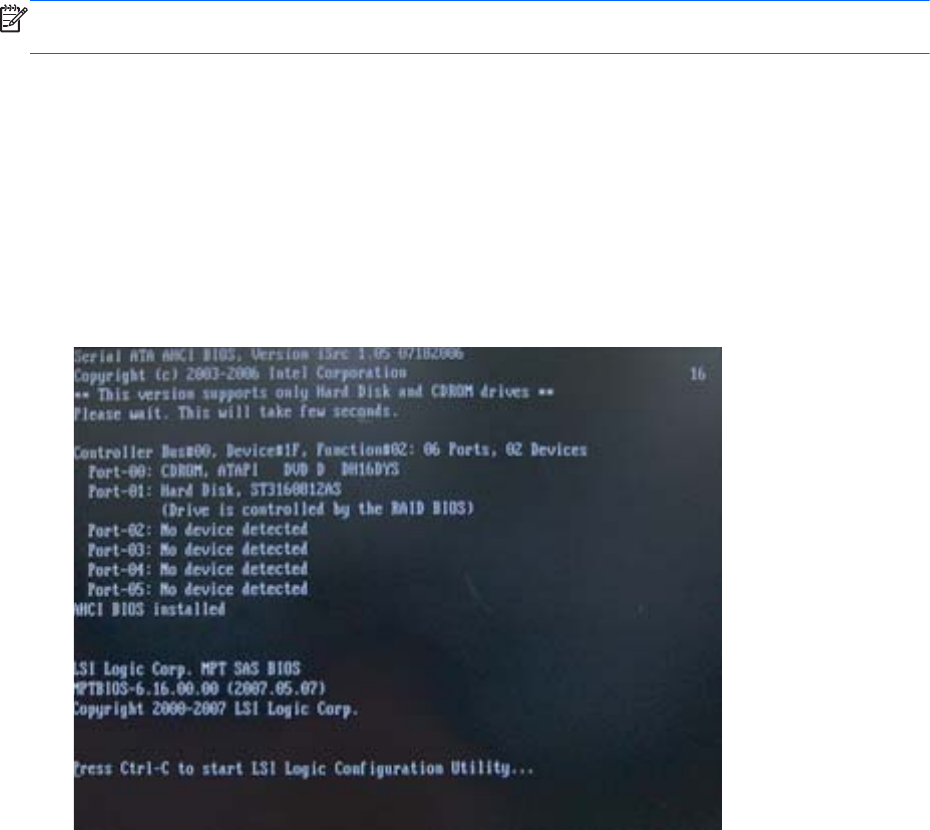
2. When prompted, press any key to view option ROM messages. A message indicating the
presence of the LSI onboard controller or plug-in card and the LSI Logic MPT SAS BIOS appears.
Figure 6-1 LSI Logic MPT SAS BIOS
LSI 3041E and Integrated LSI 1064/1068 Setup 23
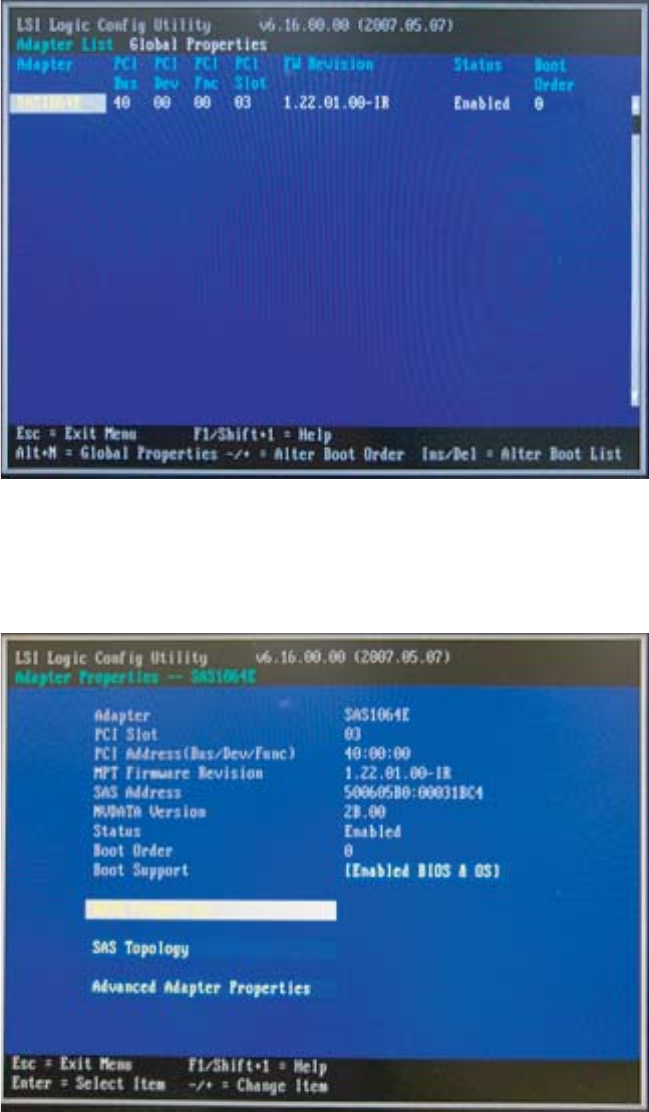
3. Press CTRL-C when indicated to begin RAID configuration and enter the LSI Logic MPT Setup
Utility. The first screen displays a list of available adapters. The LSI 3041E plug-in card appears
on this list as the SAS1064E, the LSI onboard controllers are listed as the LSI1064 or LSI1068.
This screen can be used to change the boot order of the adapters.
Figure 6-2 LSI Logic MPT Setup Utility – Adapter selection
4. Press Enter to select and configure the highlighted adapter from the list. The next screen displays
properties of the selected adapter. Information on the attached drives, any RAID arrays present,
and more advanced adapter properties is available.
Figure 6-3 LSI Logic MPT Setup Utility – Adapter properties
24 Chapter 6 Installing and configuring SAS hardware RAID
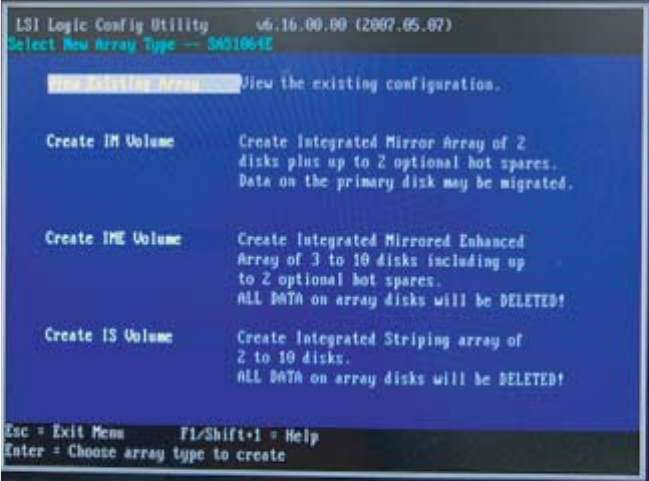
5. To create, manage or delete a SAS RAID array, highlight RAID Properties, and press Enter. If an
array is presently configured on the controller, the View Existing Array message will be
present.
Figure 6-4 Logic MPT Setup Utility – RAID properties
LSI 3041E and Integrated LSI 1064/1068 Setup 25
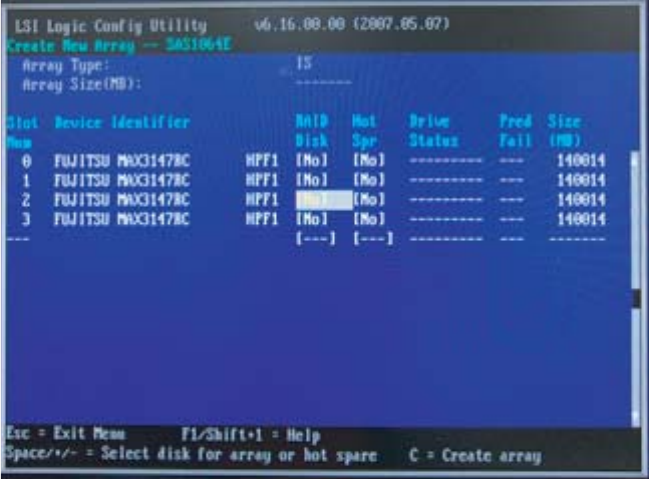
6. To create a new array, select one of the options to create either an IM, IME, or IS volume and
press Enter. IM, or Integrated Mirroring, is also known as RAID-1. IME, or Integrated Mirroring
Enhanced, is RAID-10. IS, or Integrated Striping, is RAID-0. The next screen lists the disks. For
each disk to be part of the array, move to the column labeled RAID Disk, and press the Space
Bar to add the disk to the array. The next column, Hot Spr, can be used to mark disks to be hot
spares in case of disk failure. When the disks have been marked as desired, press C to create the
array.
Figure 6-5 LSI Logic MPT Setup Utility – Array creation
26 Chapter 6 Installing and configuring SAS hardware RAID
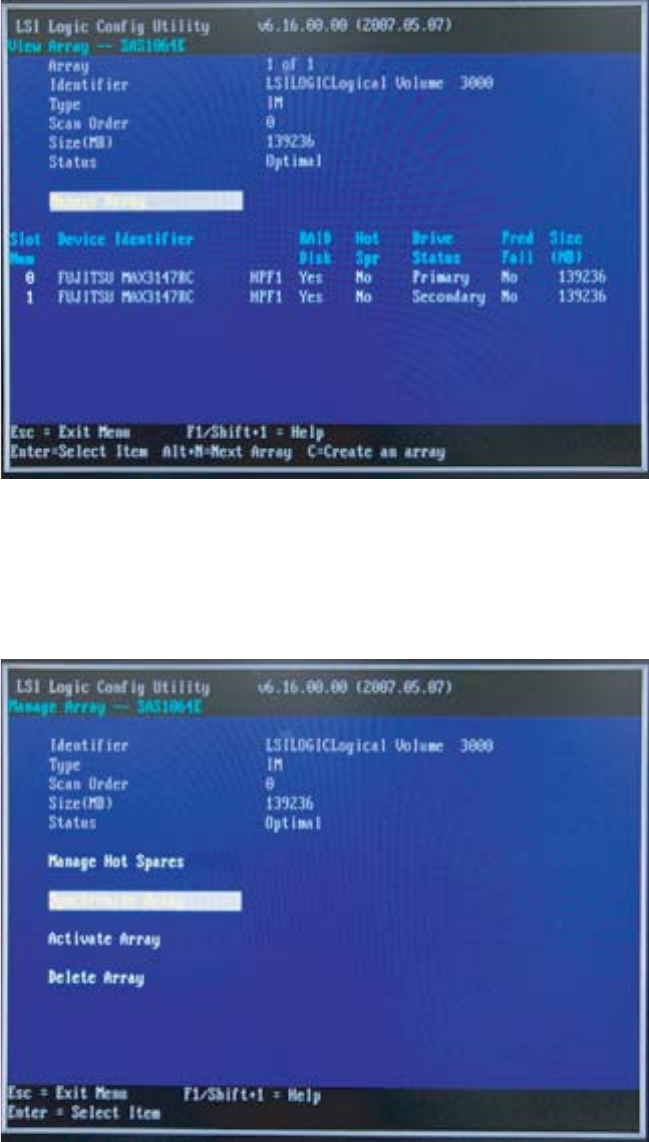
7. After an array has been created, the utility gives options for managing it through the View
Existing Array menu. Viewing the array displays various properties of the RAID array, including
the disks present and their status.
Figure 6-6 LSI Logic MPT Setup Utility – View array
8. Select Manage Array and press Enter to use the management features. From here, the disks that
are configured to be hot spares can be managed, the array can be activated, deactivated, or
deleted, and if the array is not at an Optimal status due to a disk failure or other problem, it can
be synchronized from this menu.
Figure 6-7 LSI Logic MPT Setup Utility – Manage array
LSI 3041E and Integrated LSI 1064/1068 Setup 27
When finished, or at any step in the process, press Esc to exit the current view, canceling or saving any
changes.
LSI 8344ELP, LSI 8888ELP, and LSI 9260-8i Setup
The LSI 8344ELP, LSI 8888ELP, and LSI 9260-8i are 8-port SATA/SAS RAID controllers providing
additional SAS support for the HP xw8000, xw9000, and Z series Workstations. The xw8000,
xw9000, and Z series Workstations also have onboard SAS RAID capabilities that can be described
as hardware-assisted RAID; the 8344ELP, 8888ELP, and 9260-8i plug-in cards are considered to be
full hardware RAID.
NOTE: Although the controller provides functionality for SATA RAID, SATA RAID is not supported on
HP Linux Workstations.
Use the following steps as a guide to set up the LSI hardware or SAS RAID. Details vary based on the
specific configuration used. In particular, some of the interface screens in the LSI MegaRAID WebBIOS
configuration utility vary from one model to another.
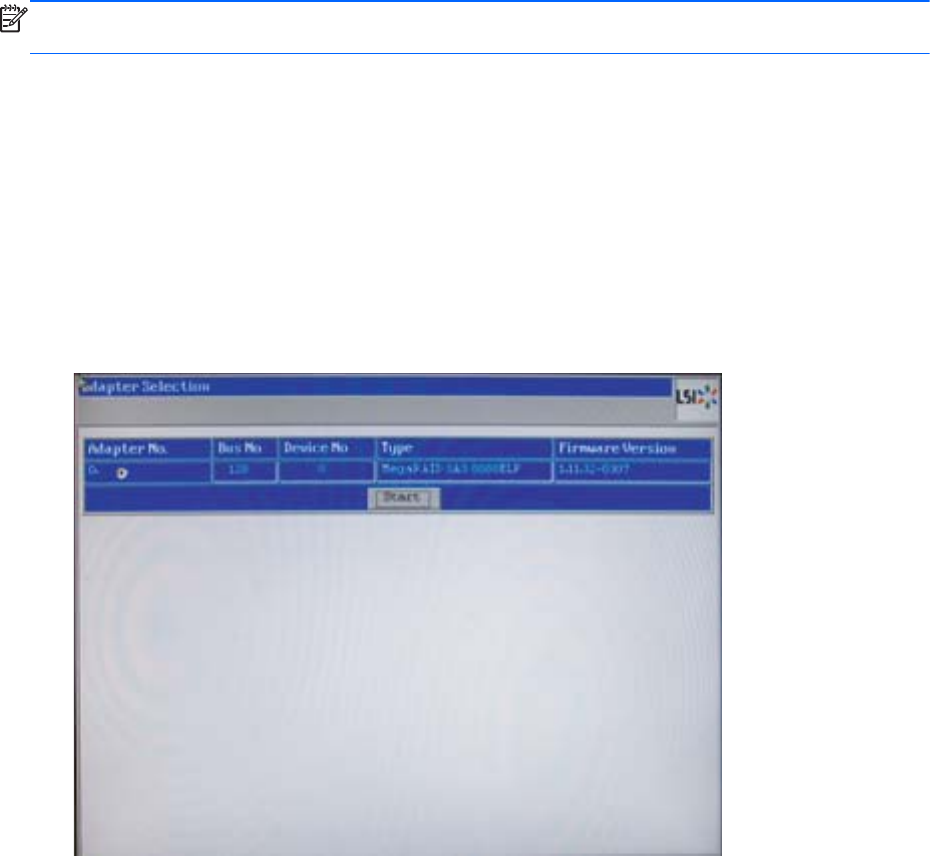
1. Boot the workstation.
2. When prompted, press CTRL-H to enter the LSI WebBIOS utility. WebBIOS runs after POST
completes.
3. Select the desired adapter from the Adapter Selection screen and select Start to enter the
utility.
Figure 6-8 LSI WebBIOS – Adapter selection
28 Chapter 6 Installing and configuring SAS hardware RAID
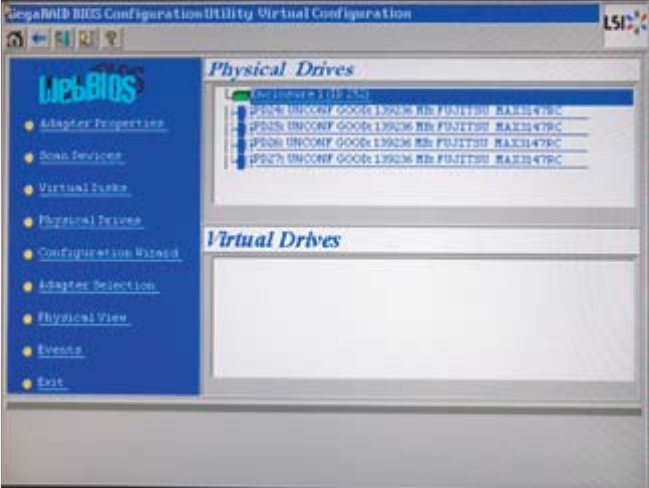
4. The main WebBIOS screen lets you configure the adapter, the physical disks, and the virtual disks
or RAID arrays. The first view shows the physical disks connected to the adapter, any RAID arrays
presently configured, and the status of both physical and virtual disks.
Figure 6-9 LSI WebBIOS – Main screen
LSI 8344ELP, LSI 8888ELP, and LSI 9260-8i Setup 29
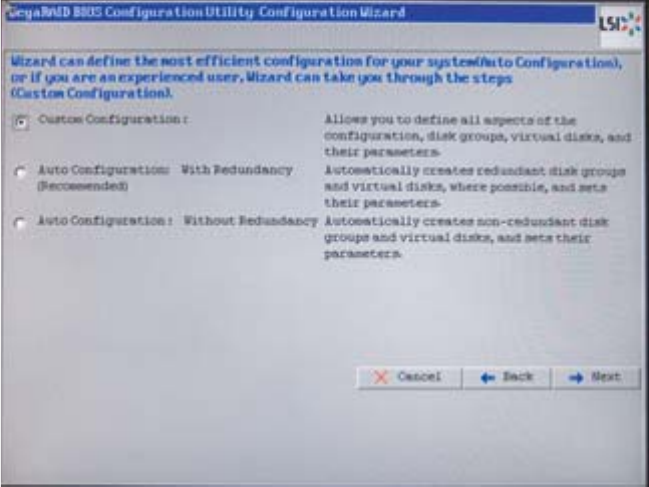
5. The Configuration Wizard lets you create a new RAID array on the device. From the MegaRAID
Configuration Wizard screen, use the options clear any existing device configuration, add
new drives to an existing configuration, or create a new configuration from scratch. Select either
New Configuration or Add Configuration proceeds to the next step of the wizard, where
options let you set up custom or automatic configurations.
Figure 6-10 LSI WebBIOS – Configuration wizard
30 Chapter 6 Installing and configuring SAS hardware RAID
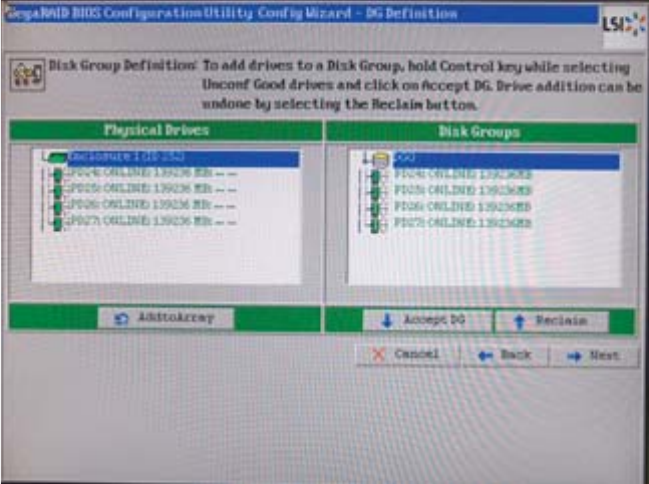
6. Auto Configurations automatically adds all available disks to a RAID array, with the RAID level
determined by whether or not Redundancy is selected. Custom configuration lets you select disks,
array size, and RAID level. The next screen lets you select the disks that will be part of the RAID
array by creation of a "Disk Group" (or DG). Select from the available disks those disks that you
want to be part of the RAID array, and then click Accept DG to proceed.
Figure 6-11 LSI WebBIOS – Configuration of disk group
7. When configuring the 9260-8i, a screen appears after you select Accept DG. This screen
prompts you to add the group to a Span, which is a virtual grouping. Normally, you add only one
DG to create one Span, or Virtual Device (VD). After creating a VD, you can move on to the next
screen where you configure the RAID attributes on the virtual device.
LSI 8344ELP, LSI 8888ELP, and LSI 9260-8i Setup 31
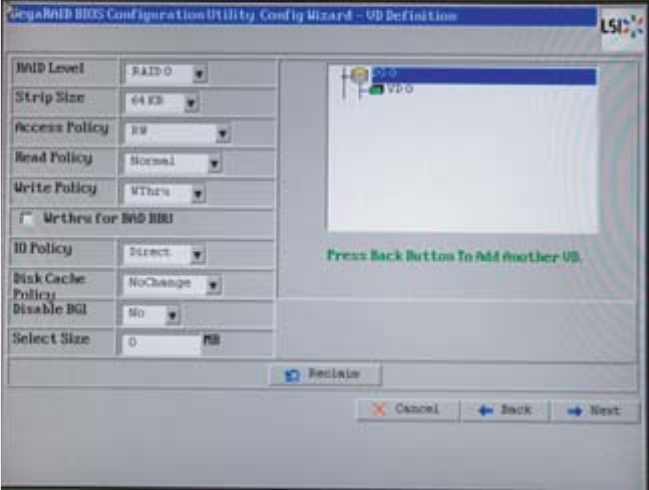
8. The Virtual Disk Config screen lets you configure advanced settings for the RAID array,
including many details about the disk policies. The most important options are the RAID level and
size. First select the RAID level from the drop-down menu- the RAID levels available vary
depending on the number of physical disks in the disk group. The configuration window to the
right of the screen displays information on the maximum size of the RAID array for the different
available RAID levels. In the Select Size text box, enter a size in MB up to this available
maximum size. When these options have been selected, further customization can be done, or
select Accept or Next to move to the next step of configuration.
Figure 6-12 LSI WebBIOS – Virtual disk configuration
32 Chapter 6 Installing and configuring SAS hardware RAID
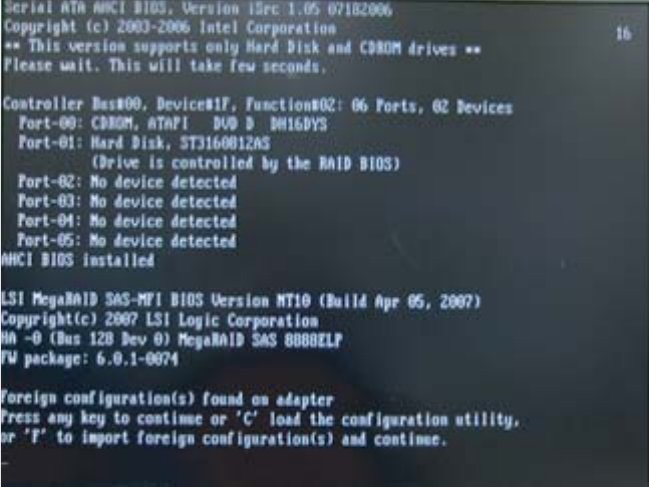
9. The next screen displays the physical disks on the left and the proposed virtual disk (RAID array)
on the right as a preview of the proposed disk configuration. If changes are needed, select Back
to go back and change details of the configuration, or select Accept to accept the configuration.
On the next screen, select Yes to save the configuration, then click Yes to initialize the new RAID
array.
Figure 6-13 Foreign configuration on LSI adapter
10. If a disk in the RAID array fails or needs to be replaced for any reason, you can easily use the
WebBIOS utility to rebuild the RAID array. If a disk failure occurs, a message that indicates the
change to the RAID array appears on the screen before you enter the utility.
LSI 8344ELP, LSI 8888ELP, and LSI 9260-8i Setup 33
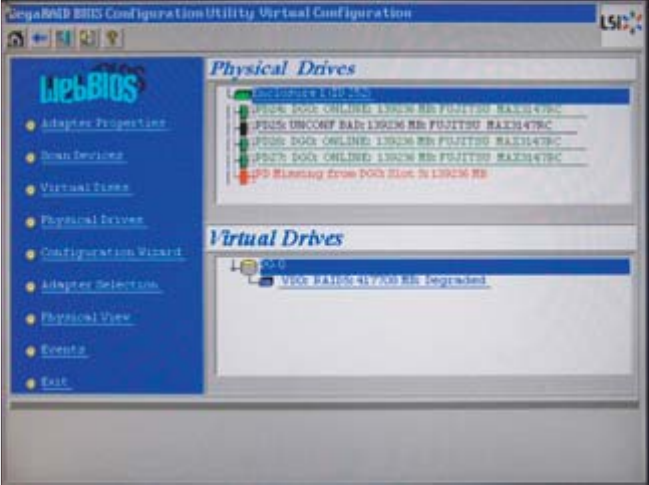
11. Press C or CTRL+H when indicated to enter the utility. When the home screen appears, the new
disk will be marked as Unconfigured bad and the missing disk will be labeled in red. Click on
the new unconfigured disk in order to configure it and add it to the RAID array.
Figure 6-14 LSI WebBIOS – Unconfigured bad disk
34 Chapter 6 Installing and configuring SAS hardware RAID
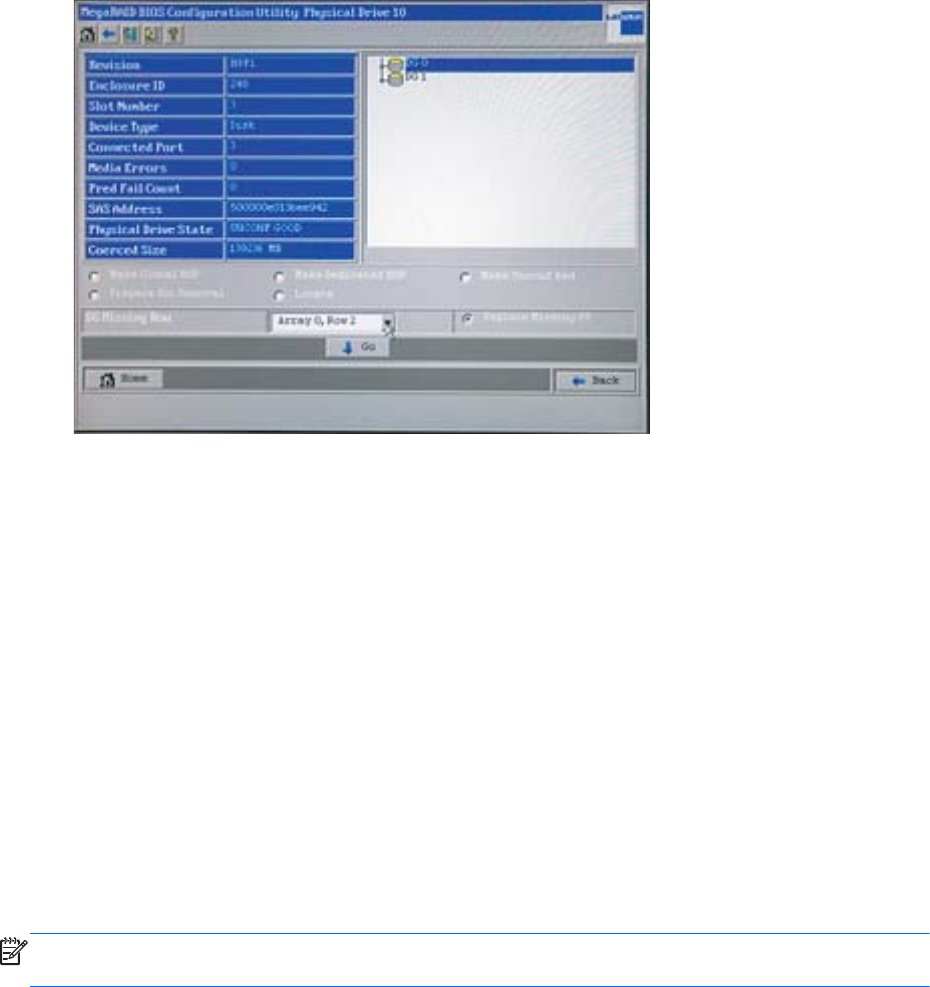
12. From the next screen, select the option to make the disk Unconfigured good so it can be made
to be part of a disk group, and then select Go. The next screen displays the configured disk
groups. The group from which the original disk was missing is indicated. Select the location of the
disk from the row labeled DG Missing Row, where the listed options are the locations where a
disk was missing from the RAID array. The radio button marked Replace Missing PD is checked.
Select Go to complete the operation.
Figure 6-15 LSI WebBIOS – Replacing a physical disk
13. After the disk has been replaced, it will start with an offline status. Select Make Online to bring
the physical disk online and finish rebuilding the RAID array.
At any point during RAID configuration or management, click the home button to return to the main
screen of the configuration utility. The exit button cancels any unsaved changes and exits the
application.
Additional RAID Information
OS Installation
The above steps document the process for setting up a hardware RAID array using the tools provided
by the hardware RAID adapter. After this setup process is complete, an operating system can be
installed. If the user does not wish to have the RAID array be bootable, a separate SATA or SAS boot
disk can be used, and the RAID array can be a separate disk group for data storage only. During
operating system installation, the configured RAID array will be recognized as a logical disk group,
and can be set up and partitioned as desired. (Pay attention to the OS partitioning plan during
installation, or you might end up installing part of the OS on what you intended to be a data RAID.)
NOTE: The Z200 and Z200 SFF Workstations do not support SAS drives and thus do not support
hardware RAID. (Software RAID is supported on these workstations.)
Additional RAID Information 35

7Links
Check the following resources for additional information on topics presented in this user manual.
●Linux on HP workstations: http://www.hp.com/go/linux
◦Select Platforms
◦Select Workstations
●Driver Updates and HPIKL images: http://www.hp.com/support/
◦Select the country
◦Select Download drivers and software...
◦Enter the desired platform, and then select >>
◦Select the operating system
◦Select the desired package
◦Download the associated package and install as directed
●HP Linux Workstation certifications at: http://www.hp.com/go/linux
◦Select Certification & Support under the Platforms and distributions section
◦Select Workstations under the Linux on Clients section
◦Select the tab for the desired distribution
●HP Workstations Home Page: http://www.hp.com/workstations
●Hardware Support Matrix for HP Linux Workstations: http://www.hp.com/support/
linux_hardware_matrix
●HP User Manual for HP Linux Workstations (this manual): http://www.hp.com/support/
linux_user_manual
●For additional information on HP products and services, see: http://www.hp.com/
●For the location of the nearest sales office, call:
◦United States: +1 800 637 7740
◦Japan: +81 3 3331 6111
◦Canada: +1 905 206 4725
◦Latin America: +1 305 267 4220
◦Australia/New Zealand: +61 3 9272 2895
◦Asia Pacific: +8522 599 7777
◦Europe/Africa/Middle East: +41 22 780 81 11
36 Chapter 7 Links
For more information, contact any of our worldwide sales offices or HP Channel Partners (in the U.S.
call 1 800 637 7740).
37

A Appendix—Updates and Advisories
for Linux Operating Systems
Introduction
This appendix presents customer advisories for Release Notes for Red Hat Enterprise Linux (RHEL)
contain a list of known issues on HP Linux Workstations when using RHEL 3, RHEL 4, and RHEL Client
5, and SLED 11
To get updated software, go to http://www.hp.com/go/workstationsupport and complete the
following steps:
1. In the Personal Workstations section, select your workstation (for example, Z400).
2. In the Tasks for HP Z400 Workstation section, select Download drivers and software.
3. In the Select operating system section, select the Linux version that matches your operating system,
for example, Red Hat Enterprise Linux 5 Desktop (x86-64). This displays a page listing
downloadable updates by category, including BIOS, drivers, firmware, graphics, software, and
others.
If you are interested in other distributions that are certified on HP workstations, see:
http://www.hp.com/go/linux
Advisories
Customer advisories for Red Hat Enterprise Linux WS 3 on page 39
Customer advisories for Red Hat Enterprise Linux WS 4 on page 42
Customer advisories for Red Hat Enterprise Linux Client 5 on page 45
Customer advisories for SUSE Linux Enterprise Desktop 11 on page 47
38 Appendix A Appendix—Updates and Advisories for Linux Operating Systems

Customer advisories for Red Hat Enterprise Linux
WS 3
Use the following table to determine which advisories are applicable to the RHEL 3 workstation.
Table A-1 Customer advisories for Red Hat Enterprise Linux WS 3
Advisory Update 8 Update 7 Update 6 Update 5 Update 4 Update 3 Update 2
/c00911429 NVIDIA
Quadro FX Fails to Start X
Server
xw4200
xw4300
xw6200
xw8200
xw9300
xw4200
xw4300
xw6200
xw8200
xw9300
xw4200
xw4300
xw6200
xw8200
xw9300
xw4200
xw4300
xw6200
xw8200
xw9300
xw4200
xw6200
xw8200
xw9300
xw4200
xw6200
xw8200
xw4200
xw6200
xw8200
/c00676466 ATI
Graphics Resolution
Unexpected
xw6200
xw8200
xw6200
xw8200
/c00529204 X Hang
with 100% CPU
Utilization
xw4200
xw4300
xw6200
xw8200
xw9300
xw4200
xw6200
xw8200
xw9300
xw4200
xw6200
xw8200
xw4200
xw6200
xw8200
/c01117497 (AMD64/
EM64T) [AMD64/EM64T]
Configured With 4GB to
4.5GB Of Memory May
Panic During Boot
xw8200 xw8200
/c01117503 (AMD64/
EM64T) Kernel Panic with
Greater than or Equal to
4GB of Memory
xw8200 xw8200
/c01131107 Creating X
configs with ATI FireGL
V3100
xw4200
xw4300
xw6200
xw8200
xw4200
xw4300
xw6200
xw8200
xw4200
xw4300
xw6200
xw8200
xw4200
xw4300
xw6200
xw8200
/c01131106 ATI FireGL
Driver Fails to Save and
Restore libGL
xw4200
xw4300
xw6200
xw8200
xw4200
xw4300
xw6200
xw8200
xw4200
xw4300
xw6200
xw8200
xw4200
xw4300
xw6200
xw8200
/c01122456 (i386)
System May Hang with UP
Kernel
xw6200
xw8200
/c00576088 (AMD64/
EM64T) X Server May
Hang
xw4200
xw4300
xw9300
xw9300
/c01117519 (x86) SMP
Kernel Requires Additional
Boot Option
xw4200
Customer advisories for Red Hat Enterprise Linux WS 3 39

Table A-1 Customer advisories for Red Hat Enterprise Linux WS 3 (continued)
Advisory Update 8 Update 7 Update 6 Update 5 Update 4 Update 3 Update 2
/c01122454 (AMD64/
EM64T) System Hangs
Booting if APIC Disabled
xw4200
/c00676511 ATI
Graphics X Hangs
xw4300
xw4400
xw6400
xw8400
xw4300
xw6400
xw8400
/c00676526 No Audio
with UP Kernel
xw4300
xw4400
xw6400
xw8400
xw9400
xw4300
xw6400
xw8400
c/00676466 ATI
Graphics Resolution
Unexpected
xw4300
xw4400
xw6400
xw8400
xw4300
xw6400
xw8400
/c00532521 Missing
Audio Driver
xw4300
/c00645844 Lan Driver
Issues
xw4300
/c01095522 (AMD64/
EM64T) Total Memory
May Report Less than
Expected
xw9300 xw9300 xw9300 xw9300 xw9300
/c01117500 (x86) Total
Memory May Report Less
than Expected
xw9300 xw9300 xw9300 xw9300 xw9300
/c01117506 USB 2.0
DOK Device Limitations
xw9300 xw9300 xw9300
/c01117498 (AMD64/
EM64T) Kernel May Panic
if Memory on CPU #1
xw9300 xw9300 xw9300
/c01095604 (AMD64/
EM64T) Networking
Requires Some Setup
xw9300
/c01111037 (AMD64/
EM64T) NVIDIA Driver
May Fail to Install
xw9300
/c01122431 (AMD64/
EM64T) PXE Boot and
Network Install Issues
xw9300
/c01122424 (x86)
Network Driver Not
Functional
xw9300
40 Appendix A Appendix—Updates and Advisories for Linux Operating Systems

Table A-1 Customer advisories for Red Hat Enterprise Linux WS 3 (continued)
Advisory Update 8 Update 7 Update 6 Update 5 Update 4 Update 3 Update 2
/c00767604 High Speed
USB Fails
xw4400
/c00680525 FX4500
Graphics Problems
xw4400
xw6400
xw8400
xw6400
xw8400
/c00767062 ATI
Graphics Install Problems
xw4400
xw6400
xw8400
/c00768052 RHEL3U8
x86 Currently Not
Supported
xw9400
/c00768016 Network
Interface eth0 May Fail
xw9400
/c00767049 Wake-on-
LAN May Fail
xw9300
/c00909919 (AMD64/
EM64T) FX4600 issues
with vesa driver
xw4400
xw6400
xw8400
xw9400
xw6400
xw8400
Customer advisories for Red Hat Enterprise Linux WS 3 41

Customer advisories for Red Hat Enterprise Linux
WS 4
Use the following tables to determine which advisories are applicable to the RHEL 4 workstation.
Table A-2 Customer advisories for Red Hat Enterprise Linux WS 4
Advisory Update
s 7 & 8
Update 6 Update
5
Update
4
Update
3
Update
2
Update 1 Base
/
WO050209_CW02
Install Failure with
Mix of USB/PS2
xw4200
xw4300
xw6200
xw8200
xw9300
xw4200
xw6200
xw8200
xw4200
xw6200
xw8200
xw4200
xw6200,
xw8200
xw4200
xw6200
xw8200
/WV050209_CW01
(AMD64/EM64T)
NVIDIA Quadro FX
540/1400 Fails to
Start X Server
xw4200
xw6200
xw8200
xw4200
xw6200
xw8200
xw4200
xw6200
xw8200
xw4200
xw6200
xw8200
xw4200
xw6200
xw8200
/c00676466 ATI
Graphics Resolution
Unexpected
xw4300
xw4400
xw6200
xw6400
xw8200
xw8400
xw4300
xw4400
xw6200
xw6400
xw8200
xw8400
xw4300
xw4400
xw6200
xw6400
xw8200
xw8400
xw4300
xw6200
xw6400
xw8200
xw8400
/c00646207
(AMD64/EM64T)
Install May Fail
xw6200
xw6400
xw8200
xw8400
xw9300
/c00572928
(AMD64/EM64T)
Kernel May Panic
During NVIDIA 8184
Installation
xw6200
xw8200
/c00532509
FX5400 Needs 7676
Driver
xw4300
xw6200
xw8200
xw9300
/c00576088
(AMD64/EM64T) X
Server May Hang
xw4200
xw4300
xw6200
xw8200
xw9300
/
WA050209_CW01
Audio Volume
Defaults to Zero
xw4200
xw6200
xw8200
xw9300
/c00513625 Audio
Muted by Default
xw4300 xw4300 xw4300 xw4300
42 Appendix A Appendix—Updates and Advisories for Linux Operating Systems

Table A-2 Customer advisories for Red Hat Enterprise Linux WS 4 (continued)
Advisory Update
s 7 & 8
Update 6 Update
5
Update
4
Update
3
Update
2
Update 1 Base
/WV050624_CW02
Creating X Configs
with ATI FireGL
V3100
xw4300 xw4300 xw4300 xw4300
/c00517759 (x86)
SMP Kernel may
Panic after X Starts
xw4300
xw9300
/c00645864 LAN
Driver Issues
xw4300
/c00632558
Network Issues with
System BIOS Prior to
v2.05
xw9300 xw9300 xw9300 xw9300 xw9300 xw9300
/c00767049 Wake-
on-LAN May Fail
xw9300
/c00677579 ACPI
Errors Can be
Ingnored
xw6400
xw8400
xw9300
/c00516933
(AMD64/EM64T)
Kernel May Panic
Starting X
xw9300
/
WO050906_CW01
(AMD64/EM64T)
SMP Kernel May
Panic
xw9300
/
WO050217_CW01
(x86) Install on SCSI
Harddrive May Fail
xw9300
/c00680525
FX4500 Graphics
Problems
xw4400
xw6400
xw8400
xw6400
xw8400
/c00769110 Internal
Speakers Output of
Right Channel is
Missing
xw4400
xw6400
xw8400
xw9400
/c00768016
Network Interface
eth0 May Fail
xw9400 xw9400
/c00769127 CPU
Frequency
Adjustments May be
Slow
xw9400 xw9400 xw9400
Customer advisories for Red Hat Enterprise Linux WS 4 43

Table A-2 Customer advisories for Red Hat Enterprise Linux WS 4 (continued)
Advisory Update
s 7 & 8
Update 6 Update
5
Update
4
Update
3
Update
2
Update 1 Base
/c00778021
(AMD64/EM64T)
Kernel May Panic in
time_cpufreq_notifier
xw6400
xw8400
xw6400
xw8400
xw6400
xw8400
xw6400
xw8400
/c00683113 Audio
is Muted
xw6400
xw8400
/c00909919
(AMD64/EM64T)
FX4600 issues with
vesa driver
xw6400
xw8400
xw6400
xw8400
/c01106514 X may
fail to start with
Specific NVIDIA
Quadro Graphics
Cards and certain
Red Hat Linux 32 bit
versions
xw6400
xw8400
xw4600
xw6600
xw8600
xw6400
xw8400
xw4600
xw6600
xw8600
xw6400
xw8400
xw6400
xw8400
/c00767604 USB
2.0, Hi-Speed USB
Devices may fail to
function properly with
some versions of Red
Hat Enterprise Linux
xw4400 xw4400 xw4400
/c01742190 Linux
Operating Systems
using NVIDIA
Graphics Driver
Need to be
Upgraded
xw4600
xw6600
xw8600
xw9400
Z400
Z600
Z800
/c01766812 HP
Workstations -
Workstations
Connected to a Dual
Link Monitor or a HP
LP3065 Monitor
Display Black Screen
when Installing the
Linux Operating
System
xw4600
xw6600
xw8600
xw9400
Z400
Z600
Z800
44 Appendix A Appendix—Updates and Advisories for Linux Operating Systems

Customer advisories for Red Hat Enterprise Linux
Client 5
Use the following tables to determine which advisories are applicable to the RHEL Client 5 workstation.
Table A-3 Customer advisories for Red Hat Enterprise Linux Client 5
Advisory Update 3 Update 1 Base
/c00910216 (x86_64) xw9400 may panic
during install
xw9400 xw9400
/c00910190 (x86) Installed kernel may report
less memory than expected
xw4400
xw6400
xw8400
xw9300
xw9400
/c00910967 xw9300 or xw9400 may report
time issue with Xen kernel
xw9300
xw9400
xw9300
xw9400
/c00911010 Support for Fully Virtualized guest
OS requires BIOS setting
xw4400
xw6400
xw8400
xw9400
xw4400
xw6400
xw8400
xw9400
/c00909919 (x86_64) FX4600 issues with vesa
driver
xw4400
xw6400
xw8400
xw9400
/c01160514 X may fail to start with Specific
NVIDIA Quadro Graphics Cards and certain Red
Hat Linux 32 bit versions
xw4400
xw6400
xw8400
xw4400
xw6400
xw8400
/c01210315 Certain NVIDIA Quadro Graphics
Cards may display a Black Screen during Red
Hat Enterprise Linux 5 Desktop [x86_64] Install
xw4600
xw9400
/c01210325 Updated NVIDIA Graphics Driver
Required for Dual Graphics Cards and Certain
Red Hat Linux Versions
xw4600
/c01210413 Black Screen with NVIDIA Quadro
FX 4600 or FX 5600 Graphics Card and Red
Hat Enterprise Linux 5 [x86_64]
xw4600
xw9400
Customer advisories for Red Hat Enterprise Linux Client 5 45

Table A-3 Customer advisories for Red Hat Enterprise Linux Client 5 (continued)
Advisory Update 3 Update 1 Base
/c01742190 Linux Operating Systems using
NVIDIA Graphics Driver Need to be Upgraded
xw4600
xw6600
xw8600
xw9400
Z400
Z600
Z800
/c01742190 Linux Operating Systems using
NVIDIA Graphics Driver Need to be Upgraded
xw4600
xw6600
xw8600
xw9400
Z400
Z600
Z800
/c01766812 HP Workstations - Workstations
Connected to a Dual Link Monitor or a HP
LP3065 Monitor Display Black Screen when
Installing the Linux Operating System
xw4600
xw6600
xw8600
xw9400
Z400
Z600
Z800
/c01766989 HP Z400 and Z600 Workstations -
System is Sluggish when Running Red Hat
Enterprise Linux 5
Z400
Z600
46 Appendix A Appendix—Updates and Advisories for Linux Operating Systems

Customer advisories for SUSE Linux Enterprise
Desktop 11
Advisory Base
/c01742190 HP Z series Workstations - Linux Operating
Systems using NVIDIA Graphics Driver Need to be Upgraded
xw4600
xw6800
xw9400
Z400
Z600
Z800
/c01742287 HP xw4600 and Z400 Workstations -
Configure Audio on HP Workstations running SuSE Linux
Enterprise Desktop 11
xw4600
Z400
/c01766812 HP Workstations - Workstations Connected to a
Dual Link Monitor or a HP LP3065 Monitor Display Black
Screen when Installing the Linux Operating System
xw4600
xw6600
xw8600
xw9400
Z400
Z600
Z800
/c01766767 HP Workstations - Workstations running SUSE
Linux Enterprise Desktop 11 will go to Sleep when Trying to
'Switch Users'
xw4600
xw6600
xw8600
xw9400
Z400
Z600
Z800
Customer advisories for SUSE Linux Enterprise Desktop 11 47
