HP Color LaserJet 4650 Software Technical Reference ENWW Laser Jet (External) C00141973
User Manual: HP HP Color LaserJet 4650 - Software Technical Reference (External)
Open the PDF directly: View PDF  .
.
Page Count: 309 [warning: Documents this large are best viewed by clicking the View PDF Link!]
- 1 Purpose and scope
- Introduction
- HP Color LaserJet 4650 printers
- Printing-system software CD
- Structure and availability of the software CD
- 2 Software description
- Introduction
- Supported operating systems
- Technology background information
- Driver Configuration
- HP Driver Preconfiguration
- Euro character
- International Color Consortium profiles
- PANTONE (R)* color profiles
- HP Embedded Web Server
- HP Toolbox
- HP Web Jetadmin
- Bluetooth (R)*
- Remote firmware update
- Determining the current level of firmware
- Downloading the new firmware from the HP Web site
- Remote firmware update by using the FTP through a browser
- Remote firmware update by using FTP on a direct network connection
- Remote firmware update through a local Windows port
- Remote firmware update through a Windows network
- Remote firmware update for UNIX systems
- Remote firmware update by using Fetch (Mac OS 9.x only)
- Remote firmware update by using the HP LaserJet Utility (Mac OS 9.x only)
- Remote firmware update by using the LPR command
- Remote firmware update by using HP Web Jetadmin
- Printer messages during the firmware update
- Troubleshooting a firmware update
- Printing print-ready documents from a command line
- Print-ready file printing by using FTP through a browser
- Print-ready file printing by using FTP on a direct network connection
- Print-ready printing by using a local Windows port
- Print-ready file printing in a Windows network
- Print-ready file printing in UNIX systems
- Print-ready file printing by using Fetch (Mac OS 9.x only)
- File printing by using the HP LaserJet Utility (Mac OS 9.x only)
- Print-ready file printing by using the LPR command
- Driver-feature comparison in various operating systems
- Job stream output
- PCL6 raster compression
- PJL/PJL Encoding
- Job tracking
- Connectivity
- Bidirectional communication
- HP Driver Preconfiguration
- Bundle support
- Tray and paper assignment
- Installable options
- UI features
- Help features
- Job storage
- Print quality and resolution
- Resizing options
- Color settings
- Other document options
- Watermarks
- Alternative source/paper type
- Printing destination
- Font support
- Postscript-specific features
- 3 HP traditional print drivers for Windows
- Introduction
- HP Traditional PCL 6 and HP Traditional PCL 5c Driver features
- Access to print drivers
- Help system
- Finishing tab features
- Effects tab features
- Paper tab features
- Job Storage tab features
- Basics tab features
- Color tab features
- Properties tabs
- HP Traditional Postscript 3 Emulation Driver features
- Access to Document Default drivers in Windows NT 4.0
- Access to Properties print-driver settings in Windows NT 4.0
- Access to drivers in Windows 98 and Windows Me
- PS 3 emulation support for the HP Color LaserJet 4650 printer
- Help system
- Page Setup tab features
- Advanced tab features
- Job Storage tab features
- Device Settings tab
- 4 HP PCL 6, HP PCL 5c, and HP PS 3 emulation unidrivers for Windows
- 5 Installing Windows printing-system components
- Introduction
- Supported Windows operating systems
- System requirements
- Font support
- Installation instructions
- General installation for Windows 98, Me, NT 4.0, 2000, and XP
- Detailed Windows installation
- Setting a default printer
- 6 Installation for Macintosh and Linux operating systems
- Introduction
- System requirements
- Macintosh
- 7 Engineering Detail
- Index
software
technical
reference
hp color LaserJet 4650

HP Color LaserJet 4650
Software Technical Reference
Copyright
(c) 2004 Copyright Hewlett-Packard
Development Company, L.P.
Reproduction, adaptation or translation
without prior written permission is prohibited,
except as allowed under the copyright laws.
The information contained herein is subject
to change without notice.
The only warranties for HP products and
services are set forth in the express warranty
statements accompanying such products
and services. Nothing herein should be
construed as constituting an additional
warranty. HP shall not be liable for technical
or editorial errors or omissions contained
herein.
Edition 1, 05/2004
Trademarks
Adobe (R), Adobe Photoshop (R), Acrobat
(R), PostScript (R), and the Acrobat logo (R)
are trademarks of Adobe Systems
Incorporated.
Java (TM) is a US trademark of Sun
Microsystems, Inc.
The Bluetooth (R) trademarks are owned by
its proprietor and used by Hewlett-Packard
Company under license.
Linux is a U.S. registered trademark of Linus
Torvalds
Microsoft (R), Windows (R), and Windows
NT (R) are U.S. registered trademarks of
Microsoft Corporation.
Pantone *Pantone, Inc.'s check-standard
trademark for color.
Pentium (R) is a trademark or registered
trademark of Intel Corporation or its
subsidiaries in the United States and other
countries.
UNIX (R) is a registered trademark of The
Open Group.
EnergyStar (R) and the Energy Star logo (R)
are US registered marks of the United States
Environmental Protection Agency.
Table of contents
1 Purpose and scope 1
Introduction ...................................................................................................................................1
HP Color LaserJet 4650 printers ..................................................................................................2
Printing-system software CD.........................................................................................................4
HP Color LaserJet print drivers ..............................................................................................4
Additional drivers....................................................................................................................5
Software features ...................................................................................................................5
Driver Autoconfiguration...................................................................................................5
Update Now......................................................................................................................5
HP Driver Preconfiguration...............................................................................................6
Printing system and installer ...........................................................................................6
HP Color LaserJet 4650 printing-system software CD for Windows systems .........6
Installer features .......................................................................................................7
Installable print drivers ....................................................................................................8
PCL 5c, PCL 6, and HP PS emulation drivers .........................................................8
Windows 98, Windows Me, Windows NT 4.0, Windows 2000, Windows
XP, and Windows Server 2003 driver versions .....................................................8
Macintosh and Macintosh-compatible system-driver versions .................................9
Additional driver availability ......................................................................................9
HP Color LaserJet documentation .......................................................................................10
HP Color LaserJet 4650 User Guide .............................................................................10
HP Color LaserJet 4650 printing-system install notes ..................................................11
HP Embedded Web Server user guide..........................................................................11
HP Jetdirect administrator's guide.................................................................................12
HP Device Installer Customization Wizard....................................................................12
Structure and availability of the software CD .............................................................................12
In-box file layout ...................................................................................................................12
HP LaserJet software CD, Windows partition ...............................................................12
HP LaserJet software CD, Macintosh partition .............................................................13
Availability and fulfillment .....................................................................................................13
In-box CDs .....................................................................................................................13
Web deployment ...........................................................................................................17
Printing-system software ........................................................................................17
Standalone drivers ..................................................................................................17
Other operating systems .........................................................................................17
Software component availability ..........................................................................................18
2 Software description 19
Introduction..................................................................................................................................19
Supported operating systems .....................................................................................................19
Technology background information ..........................................................................................20
Driver Configuration..............................................................................................................20
Bidirectional communication..........................................................................................20
Software Technical Reference i
Enterprise AutoConfiguration................................................................................................21
HP Driver Preconfiguration .........................................................................................................23
Lockable features .................................................................................................................24
Euro character ............................................................................................................................24
International Color Consortium profiles.......................................................................................25
PANTONE (R)* color profiles......................................................................................................25
HP Embedded Web Server ........................................................................................................26
The EWS frame....................................................................................................................26
Links to off-product solutions................................................................................................27
Information tab .....................................................................................................................27
Device Status screen ...........................................................................................................2 8
Configuration Page ..............................................................................................................29
Settings tab ..........................................................................................................................29
Configure Device .................................................................................................................30
Alerts ....................................................................................................................................31
Networking tab .....................................................................................................................32
Configuration section .....................................................................................................32
Security section .............................................................................................................32
Diagnostics section .......................................................................................................33
Network settings ............................................................................................................33
HP Toolbox .................................................................................................................................33
HP Toolbox requirements.....................................................................................................33
To view the HP Toolbox........................................................................................................34
The HP Toolbox frame .........................................................................................................34
Top banner............................................................................................................................34
Status tab..............................................................................................................................35
Troubleshooting tab..............................................................................................................36
Print Quality Tools..........................................................................................................36
Maintenance...................................................................................................................37
Error Messages..............................................................................................................37
Paper Jams....................................................................................................................38
Supported Media............................................................................................................39
Printer Pages..................................................................................................................39
Alerts tab ..............................................................................................................................40
Documentation tab ...............................................................................................................41
Linking to the HP Embedded Web Server............................................................................41
Other Links ...........................................................................................................................42
HP Web Jetadmin .......................................................................................................................43
Bluetooth (R)*..............................................................................................................................44
Remote firmware update ............................................................................................................45
Determining the current level of firmware ............................................................................45
Downloading the new firmware from the HP Web site ........................................................45
Remote firmware update by using the FTP through a browser ...........................................46
Remote firmware update by using FTP on a direct network connection .............................46
Windows operating systems .........................................................................................47
Macintosh operating systems ........................................................................................47
Remote firmware update through a local Windows port ......................................................48
Windows 98 or Windows Me .........................................................................................48
Windows NT 4.0, Windows 2000, Windows XP, or Windows Server 2003 ..................49
Remote firmware update through a Windows network ........................................................49
Remote firmware update for UNIX systems ........................................................................50
Remote firmware update by using Fetch (Mac OS 9.x only) ...............................................50
Remote firmware update by using the HP LaserJet Utility (Mac OS 9.x only) ....................50
Remote firmware update by using the LPR command ........................................................51
Remote firmware update by using HP Web Jetadmin .........................................................51
ii Software Technical Reference
Printer messages during the firmware update ..............................................................52
Troubleshooting a firmware update ...............................................................................52
Printing print-ready documents from a command line .........................................................53
Print-ready file printing by using FTP through a browser ..............................................54
Print-ready file printing by using FTP on a direct network connection ..........................54
Windows operating systems ...................................................................................54
Macintosh operating systems .................................................................................55
Print-ready printing by using a local Windows port .......................................................55
Windows 98 or Windows Me ..................................................................................56
Windows NT 4.0, Windows 2000, Windows XP, or Windows Server 2003 ...........56
Print-ready file printing in a Windows network ..............................................................56
Print-ready file printing in UNIX systems ......................................................................57
Print-ready file printing by using Fetch (Mac OS 9.x only) ............................................57
File printing by using the HP LaserJet Utility (Mac OS 9.x only) ..................................57
Print-ready file printing by using the LPR command .....................................................58
Driver-feature comparison in various operating systems ....................................................58
Job stream output ..........................................................................................................59
PCL6 raster compression ..............................................................................................59
PJL/PJL Encoding .........................................................................................................59
Job tracking ...................................................................................................................60
Connectivity ...................................................................................................................6 0
Bidirectional communication .........................................................................................61
HP Driver Preconfiguration ...........................................................................................61
Bundle support ..............................................................................................................62
Tray and paper assignment ..........................................................................................62
Installable options ..........................................................................................................62
UI features .....................................................................................................................63
Help features .................................................................................................................64
Job storage ....................................................................................................................64
Print quality and resolution ............................................................................................65
Resizing options ............................................................................................................65
Color settings ................................................................................................................66
Other document options ................................................................................................66
Watermarks ...................................................................................................................67
Alternative source/paper type .......................................................................................67
Printing destination ........................................................................................................68
Font support...................................................................................................................68
Postscript-specific features ...........................................................................................69
3 HP traditional print drivers for Windows 71
Introduction .................................................................................................................................71
HP Traditional PCL 6 and HP Traditional PCL 5c Driver features .............................................71
Access to print drivers...........................................................................................................72
Access to print drivers in Windows NT 4.0....................................................................72
Document Default driver tabs..................................................................................72
Properties driver tabs...............................................................................................72
Access to print drivers in Windows 98 and Windows Me..............................................73
Help system .........................................................................................................................73
What's this? Help ...........................................................................................................73
Context-sensitive Help ..................................................................................................73
Incompatible Options messages ...................................................................................74
Bubble Help ...................................................................................................................75
Finishing tab features ...........................................................................................................76
Print Task Quick Sets ....................................................................................................76
Software Technical Reference iii
Default Print Settings .....................................................................................................77
HP Color LaserJet 4550 Color Emulation......................................................................79
User Guide Print Settings ..............................................................................................80
Document Options ...............................................................................................................80
Print on Both Sides check box ......................................................................................80
Automatically printing on both sides .......................................................................80
Manually printing on both sides...............................................................................81
Flip Pages Up ................................................................................................................82
Booklet Printing .............................................................................................................83
Book and Booklet Printing ......................................................................................83
Pages per Sheet ............................................................................................................84
Print Page Borders ........................................................................................................85
Page Order ....................................................................................................................85
Document preview image ....................................................................................................85
Print Quality group box ........................................................................................................86
Print Quality Details for the PCL 6 Driver ......................................................................86
Current Setting group box .......................................................................................86
Graphics Settings group box...................................................................................86
Font Settings group box ..........................................................................................87
Output Settings .......................................................................................................87
Print Quality Details for the PCL 5c driver ....................................................................87
Current Setting ........................................................................................................88
Font Settings ...........................................................................................................88
Output Settings .......................................................................................................88
Effects tab features ....................................................................................................................89
Print Task Quick Sets ..........................................................................................................89
Fit To Page group box .........................................................................................................90
Print Document On setting ............................................................................................90
Scale to Fit option ..........................................................................................................90
% of Normal Size option ................................................................................................91
Watermarks group box ........................................................................................................91
Watermarks drop-down menu .......................................................................................91
First Page Only check box ............................................................................................92
Edit button (Watermark Details) ....................................................................................92
Current Watermarks ...............................................................................................93
Watermark Message ...............................................................................................93
Message Angle .......................................................................................................93
Document preview image .......................................................................................93
Font Attributes .........................................................................................................93
Paper tab features ......................................................................................................................95
Print Task Quick Sets ..........................................................................................................95
Paper Options ......................................................................................................................96
Size is.............................................................................................................................96
Use Different Paper/Covers...........................................................................................96
Source Is........................................................................................................................97
Type is ...........................................................................................................................97
Custom ..........................................................................................................................98
Name ......................................................................................................................99
Save, Delete, or Rename .......................................................................................99
Custom size (width and height controls) ..............................................................100
Custom width and height control limits .................................................................101
Dynamic measurement units ................................................................................101
Close .....................................................................................................................102
Use Different Paper/Covers.........................................................................................102
First Page ..............................................................................................................103
iv Software Technical Reference
Other Pages ...................................................................................................103
Back Cover .....................................................................................................104
Document preview image ............................................................................................105
Product image..............................................................................................................106
Job Storage tab features ...................................................................................................106
Job Storage tab ...........................................................................................................107
Print Task Quick Sets ..................................................................................................108
Status group box..........................................................................................................108
Job Storage Mode .......................................................................................................108
Off .........................................................................................................................108
Proof and Hold ......................................................................................................108
Private Job ............................................................................................................109
Using a PIN for Private Job ............................................................................109
Quick Copy ...........................................................................................................109
Stored Job .............................................................................................................110
Job notification ............................................................................................................110
User Name ............................................................................................................111
Job Name...............................................................................................................111
PIN ........................................................................................................................111
Using Job Storage features when printing ..................................................................111
Releasing a Job Storage print job ........................................................................112
Deleting a Job Storage print job ...........................................................................112
Basics tab features ............................................................................................................113
Print Task Quick Sets ..................................................................................................113
Copies .........................................................................................................................114
Orientation ...................................................................................................................114
Document preview image ............................................................................................114
About ...........................................................................................................................115
Color tab features...............................................................................................................116
Print Task Quick Sets...................................................................................................116
Color Options...............................................................................................................117
Automatic......................................................................................................................117
Manual..........................................................................................................................117
Neutral Grays...............................................................................................................118
Halftone........................................................................................................................118
RGB Color....................................................................................................................119
General.........................................................................................................................119
Print in Grayscale.........................................................................................................119
Properties tabs ...................................................................................................................119
NT Forms tab features ................................................................................................120
Configuring the trays .............................................................................................121
Configure tab features .................................................................................................121
Printer Model..........................................................................................................122
Paper Handling Options ........................................................................................123
Duplexing Unit.................................................................................................123
Allow Manual Duplexing..................................................................................123
Mopier Enabled ..............................................................................................123
Optional Paper Sources .................................................................................124
Other Options ........................................................................................................124
More configuration options .............................................................................125
Automatic configuration ........................................................................................127
Printer image .........................................................................................................128
HP Traditional Postscript 3 Emulation Driver features .............................................................128
Access to Document Default drivers in Windows NT 4.0...................................................128
Access to Properties print-driver settings in Windows NT 4.0...........................................129
Software Technical Reference v
Access to drivers in Windows 98 and Windows Me..................................................................129
PS 3 emulation support for the HP Color LaserJet 4650 printer ..............................................129
Help system...............................................................................................................................130
What's this Help .................................................................................................................130
Context-sensitive Help........................................................................................................130
Page Setup tab features ...........................................................................................................131
Advanced tab features..............................................................................................................132
Paper/Output.......................................................................................................................132
Graphic................................................................................................................................133
Document Options..............................................................................................................133
Page Layout Option............................................................................................................133
PostScript Options..............................................................................................................134
Printer Features..................................................................................................................134
Job Storage tab features...........................................................................................................137
Job Storage tab ..................................................................................................................138
Status group box.................................................................................................................138
Job Storage Mode ..............................................................................................................139
Off ................................................................................................................................139
Proof and Hold ............................................................................................................139
Private Job ...................................................................................................................139
Using a PIN for Private Job ..................................................................................140
Quick Copy ..................................................................................................................140
Stored Job....................................................................................................................140
Job Identification.................................................................................................................141
User Name...................................................................................................................141
Job Name.....................................................................................................................141
PIN................................................................................................................................141
Using Job Storage features when printing .........................................................................142
Releasing a Job Storage print job ...............................................................................142
Deleting a Job Storage print job ..................................................................................143
Device Settings tab ..................................................................................................................143
Form to Tray Assignment ..................................................................................................145
Font Substitution Table ......................................................................................................146
PostScript Device Settings ................................................................................................146
Available PostScript Memory ......................................................................................146
Output Protocol ...........................................................................................................146
Send Ctrl-D Before Each Job ......................................................................................147
Send Ctrl-D After Each Job .........................................................................................147
Job Timeout .................................................................................................................147
Wait Timeout ...............................................................................................................147
Minimum Font Size to Download as Outline ...............................................................147
Maximum Font Size to Download as Outline ..............................................................147
Installable Options .............................................................................................................147
Tray 3 ..........................................................................................................................148
Tray 4 ..........................................................................................................................148
Duplex Unit (for 2-sided Printing) ................................................................................148
Printer Memory ............................................................................................................148
Printer Hard Disk..........................................................................................................148
Job Storage..................................................................................................................148
Mopier Mode................................................................................................................149
4 HP PCL 6, HP PCL 5c, and HP PS 3 emulation unidrivers for Windows 151
Introduction .....................................................................................................................................151
HP PCL 6, HP PCL 5c, and PS emulation unidriver features ........................................................151
vi Software Technical Reference
Access to drivers ................................................................................................................152
Help system .......................................................................................................................152
What's this? Help .........................................................................................................152
Context-sensitive Help ................................................................................................152
Incompatible Print Settings messages ........................................................................153
Advanced tab features .......................................................................................................154
Paper/Output ...............................................................................................................155
Copy Count ...........................................................................................................155
Collated ..........................................................................................................155
Graphic ........................................................................................................................156
Image Color Management ....................................................................................156
Document Options .......................................................................................................156
Advanced Printing Features .................................................................................156
Color Printing Mode...............................................................................................157
Print Optimizations ................................................................................................157
Printer Features.....................................................................................................157
Print All Text as Black ....................................................................................157
Send TrueType as Bitmap .............................................................................157
Raster Compression.......................................................................................157
Graphics Mode................................................................................................158
Layout Options ......................................................................................................158
Orientation.......................................................................................................158
Page Order .....................................................................................................158
Paper/Quality tab features .................................................................................................159
Print Task Quick Sets ..................................................................................................160
Default Print Settings ............................................................................................160
HP Color LaserJet 4550 Color Emulation.............................................................163
User Guide Print Settings .....................................................................................163
Type new Quick Set name here ...........................................................................164
Paper Options .............................................................................................................164
Size is....................................................................................................................165
Custom paper sizes...............................................................................................165
Use different paper................................................................................................165
Source Is................................................................................................................165
Type is ..................................................................................................................166
Use different paper ...............................................................................................167
First Page .......................................................................................................167
Other Pages ...................................................................................................168
Back Cover .....................................................................................................169
Document preview image ............................................................................................170
Finishing tab features ........................................................................................................170
Print Task Quick Sets ..................................................................................................171
Document Options .......................................................................................................171
Print on Both Sides ...............................................................................................171
Automatically printing on both sides ..............................................................171
Manually printing on both sides.............................................................................172
Flip Pages Up .......................................................................................................173
Booklet layout .......................................................................................................174
Book and Booklet Printing ..............................................................................174
Pages per Sheet ...................................................................................................175
Print Page Borders ...............................................................................................175
Page Order ...........................................................................................................175
Document preview image ............................................................................................176
Rotate...........................................................................................................................176
Effects tab features ............................................................................................................177
Software Technical Reference vii
Print Task Quick Sets ........................................................................................................177
Resizing options .................................................................................................................178
Actual Size....................................................................................................................178
Print Document On ......................................................................................................178
Scale to Fit ...................................................................................................................178
% of Normal Size .........................................................................................................179
Document preview image ..................................................................................................179
Watermarks ........................................................................................................................179
Current watermarks .....................................................................................................180
Watermark Message ...................................................................................................181
Message Angle ............................................................................................................181
Font Attributes .............................................................................................................181
Name ....................................................................................................................181
Color .....................................................................................................................182
Shading .................................................................................................................182
Size .......................................................................................................................182
Style ......................................................................................................................182
Default settings .....................................................................................................182
Job Storage tab features ..........................................................................................................182
Job Storage tab ..................................................................................................................184
Print Task Quick Sets.........................................................................................................185
Status group box.................................................................................................................185
Job Storage Mode ..............................................................................................................185
Off ................................................................................................................................185
Proof and Hold ............................................................................................................185
Private Job ...................................................................................................................186
Using a PIN for Private Job ..................................................................................186
Quick Copy ..................................................................................................................186
Stored Job ...................................................................................................................187
Job notification ...................................................................................................................187
User Name .........................................................................................................................187
Job Name ...........................................................................................................................188
PIN .....................................................................................................................................188
Using Job Storage features when printing .........................................................................188
Releasing a Job Storage print job ...............................................................................189
Deleting a Job Storage print job ..................................................................................189
Color tab....................................................................................................................................190
Print Task Quick Sets.........................................................................................................190
Color Options......................................................................................................................191
Automatic............................................................................................................................191
Manual................................................................................................................................192
Neutral Grays......................................................................................................................193
Halftone...............................................................................................................................193
RGB Color...........................................................................................................................194
General...............................................................................................................................194
Print in Grayscale................................................................................................................194
Properties tabs..........................................................................................................................194
Device Settings ..................................................................................................................195
Form to Tray Assignment ............................................................................................196
External Fonts .............................................................................................................196
Installing external fonts .........................................................................................197
Removing external fonts .......................................................................................197
Font Substitution Table ...............................................................................................198
Installable Options ................................................................................................198
Duplex Unit (for 2-Sided Printing) .........................................................................199
viii Software Technical Reference
Allow Manual Duplexing..................................................................................199
Printer Memory ...............................................................................................199
Printer Hard Disk.............................................................................................199
Job Storage.....................................................................................................200
Mopier Mode ..................................................................................................200
5 Installing Windows printing-system components 203
Introduction ...............................................................................................................................203
Supported Windows operating systems ...................................................................................203
System requirements ...............................................................................................................204
Font support .............................................................................................................................204
Basic fonts .........................................................................................................................204
Default fonts .......................................................................................................................204
Installation instructions .............................................................................................................209
General installation for Windows 98, Me, NT 4.0, 2000, and XP ......................................210
Installing from the printing-system CD ........................................................................210
Installing from a network or from downloaded files .....................................................210
Detailed Windows installation ............................................................................................210
Typical Installation dialog box sequence ....................................................................211
Custom Installation ......................................................................................................234
Installing print drivers by using Add Printer..................................................................236
Installer Customization Wizard for Windows ...............................................................236
Running the installer customization wizard...........................................................237
Dialogs...................................................................................................................237
Distribution.............................................................................................................254
Command-line silent install ...................................................................................255
Point and Print installation for Windows 98, Me, NT 4.0, 2000, XP, and 2003 ..........255
Setting a default printer ......................................................................................................256
6 Installation for Macintosh and Linux operating systems 257
Introduction ...............................................................................................................................257
System requirements ...............................................................................................................257
Macintosh ...........................................................................................................................257
Linux ...................................................................................................................................258
UNIX....................................................................................................................................258
Macintosh .................................................................................................................................258
Macintosh component descriptions ...................................................................................258
HP LaserJet PPDs ......................................................................................................258
PDEs ...........................................................................................................................258
HP Toolbox...................................................................................................................259
HP Embedded Web Server .........................................................................................259
Install notes .................................................................................................................259
Online help ..................................................................................................................259
Screen fonts ................................................................................................................259
Font support ..........................................................................................................259
Installing the Macintosh printing system ............................................................................262
To install the HP LaserJet printing-system software for the Macintosh OS ...............263
To set up an AppleTalk networked Printer with Mac OS 9.x ......................................263
To set up a Printer with Mac OS X ..............................................................................263
To set up an IP/LPR networked Printer with Mac OS 9.x ...........................................264
Uninstalling the Macintosh printing system .......................................................................264
In-box disk layout ...............................................................................................................264
Software Technical Reference ix
Folders and files added through installation of the HP Color LaserJet 4650
software (Mac OS) ................................................................................................................264
Mac OS Classic installation ......................................................................................................264
Main Install dialog box sequence ......................................................................................265
HP LaserJet Screen Fonts Installer dialog box sequence ................................................267
Mac OS X installation ...............................................................................................................268
Main Install dialog box sequence ......................................................................................269
7 Engineering Detail 271
Introduction .....................................................................................................................................271
Media attributes ..............................................................................................................................271
Paper sources and destinations ...............................................................................................271
Paper-tray configurations .........................................................................................................272
Paper-source commands .........................................................................................................272
Media types and sizes ..............................................................................................................273
Driver features and attributes.............................................................................................273
PCL 6 custom paper sizes .................................................................................................276
Paper type commands .......................................................................................................276
Index 279
x Software Technical Reference
List of tables
Table 1-1. Features of the HP Color LaserJet 4650 printers .............................................2
Table 1-2. Print drivers included with the HP Color LaserJet 4650 printer.........................4
Table 1-3. Documentation availability...............................................................................10
Table 1-4. CD 1 (Q3668-60101)........................................................................................14
Table 1-5. CD 2 (Q3668-60102)........................................................................................14
Table 1-6. CD 3 (Q3668-60103)........................................................................................15
Table 1-7. CD 4 (Q3668-60104)........................................................................................16
Table 1-8. Software component availability for HP Color LaserJet 4650 printer .............18
Table 2-1. Enterprise AutoConfiguration availability in Microsoft Windows and
Microsoft Share................................................................................................22
Table 2-2. Enterprise Autoconfiguration availability in Novell Netware environments .....23
Table 2-3. HP Web Jetadmin support ..............................................................................43
Table 2-4. Update messages ...........................................................................................52
Table 2-5. Troubleshooting a firmware update ................................................................53
Table 2-6. Troubleshooting a firmware update failure .....................................................53
Table 2-7. Driver support for the job stream output feature .............................................59
Table 2-8. PCL6 color raster compression support .........................................................59
Table 2-9. Printer Job Language (PJL) and PJL encoding ..............................................59
Table 2-10. Driver support for job tracking .........................................................................60
Table 2-11. Driver support for connectivity features ..........................................................60
Table 2-12. Driver support for bidirectional communication features ................................61
Table 2-13. Driver support for HP Driver Preconfiguration ................................................61
Table 2-14. Bundle support ................................................................................................62
Table 2-15. Tray and paper assignment ............................................................................62
Table 2-16. Driver support for installable options ...............................................................62
Table 2-17. Driver support for UI features ..........................................................................63
Table 2-18. Driver support for Help features ......................................................................64
Table 2-19. Driver support for job storage features ...........................................................64
Table 2-20. Print quality and resolution features ................................................................65
Table 2-21. Resizing options ..............................................................................................65
Table 2-22. Color settings ..................................................................................................66
Table 2-23. Other document options ..................................................................................66
Table 2-24. Driver support for watermarks feature ............................................................67
Table 2-25. Driver support for alternate source/paper type feature ...................................67
Table 2-26. Driver support for printing destination feature .................................................68
Table 2-27. Font support.....................................................................................................68
Table 2-28. Driver support for postscript-specific features ................................................69
Table 3-1. Print Task Quick Set default values for the HP Color LaserJet 4650
printer ..............................................................................................................77
Table 3-2. Page orientation ..............................................................................................82
Table 3-3. Name drop-down menu text strings ..............................................................100
Table 3-4. PCL 6 custom media sizes ...........................................................................101
Table 3-5. Close dialog box text strings .........................................................................102
Table 3-6. Driver Mopier mode and collation settings ....................................................124
Table 4-1. Print Task Quick Set default values for the HP Color LaserJet 4650 ...........160
Software Technical Reference xi
Table 4-2. Page orientation ...................................................................................................173
Table 4-3. Driver Mopier mode and collation settings ..........................................................200
Table 5-1. Default fonts .........................................................................................................205
Table 5-2. Additional PS emulation fonts ..............................................................................207
Table 7-1. HP Color LaserJet 4650 paper sources and destinations ...................................271
Table 7-2. Media tray configurations for the HP Color LaserJet 4650..................................272
Table 7-3. Paper-source commands ....................................................................................273
Table 7-4. Supported features and attributes by driver ........................................................273
Table 7-5. Supported input media types ...............................................................................274
Table 7-6. PCL 6 custom paper sizes ...................................................................................276
Table 7-7. Paper-type commands ........................................................................................276
xii Software Technical Reference
List of figures
Figure 1-1. Installation software CD main screen ...............................................................6
Figure 2-1. Device Status screen on the Information tab ..................................................28
Figure 2-2. Configuration screen on Information tab .........................................................29
Figure 2-3. Settings tab - Configure Device ......................................................................30
Figure 2-4. Settings tab - Alerts screen .............................................................................31
Figure 2-5. Networking tab - Configuration section............................................................32
Figure 2-6. Toolbox Device Status tab...............................................................................35
Figure 2-7. Troubleshooting tab – Print Quality Tools........................................................36
Figure 2-8. Troubleshooting tab – Maintenance.................................................................37
Figure 2-9. Troubleshooting tab – Control panel messages..............................................37
Figure 2-10. Troubleshooting tab – Paper jams...................................................................38
Figure 2-11. Troubleshooting tab – Supported Media..........................................................39
Figure 2-12. Troubleshooting tab – Printer Pages...............................................................39
Figure 2-13. Current Alerts...................................................................................................40
Figure 2-14. Documentation tab Install Notes......................................................................41
Figure 2-15. Status tab with Advanced Printer Settings button ...........................................42
Figure 3-1. A typical constraint message with an OK button.............................................74
Figure 3-2. A property page with a Bubble Help icon ........................................................75
Figure 3-3. The default appearance of the Finishing tab ..................................................76
Figure 3-4. Print on Both Sides Instructions.......................................................................82
Figure 3-5. Printing a booklet ............................................................................................84
Figure 3-6. Page-order preview images ............................................................................85
Figure 3-7. Print Quality Details dialog box for the HP Traditional PCL 6 Driver ..............86
Figure 3-8. Print Quality Details dialog box for HP traditional PCL 5c driver ....................87
Figure 3-9. Effects tab .......................................................................................................89
Figure 3-10. Preview images - Legal on Letter; Scale to Fit off (left) and on (right) ...........90
Figure 3-11. Watermark Details ...........................................................................................92
Figure 3-12. Paper tab .........................................................................................................95
Figure 3-13. Paper Options group box (default)...................................................................96
Figure 3-14. Custom Paper Size dialog box ........................................................................98
Figure 3-15. First Page options .........................................................................................103
Figure 3-16. Other Pages options .....................................................................................104
Figure 3-17. Back Cover setting ........................................................................................105
Figure 3-18. Job Storage tab .............................................................................................107
Figure 3-19. Basics tab ......................................................................................................113
Figure 3-20. About This Driver dialog box .........................................................................115
Figure 3-21. Color tab.........................................................................................................116
Figure 3-22. Color Settings dialog box...............................................................................117
Figure 3-23. Driver NT Forms tab ......................................................................................120
Figure 3-24. Configure tab .................................................................................................121
Figure 3-25. More Configuration Options dialog box ........................................................125
Figure 3-26. Configure Font Cards dialog box ..................................................................126
Figure 3-27. Page Setup tab .............................................................................................131
Figure 3-28. Advanced tab ................................................................................................132
Figure 3-29. Job Storage tab .............................................................................................138
Software Technical Reference xiii
Figure 3-30. Device Settings tab in Windows NT 4.0 ..............................................................144
Figure 3-31. Device Options tab in Windows 98 ......................................................................145
Figure 4-1. An Incompatible Print Settings message .............................................................153
Figure 4-2. The default appearance of the Advanced tab .....................................................154
Figure 4-3. Paper/Quality tab .................................................................................................159
Figure 4-4. Paper Options group box .....................................................................................164
Figure 4-5. First Page options ................................................................................................167
Figure 4-6. Other Pages options ............................................................................................168
Figure 4-7. Back Cover setting ...............................................................................................169
Figure 4-8. Finishing tab ........................................................................................................170
Figure 4-9. Print on Both Sides Instructions...........................................................................173
Figure 4-10. Page-order preview images .................................................................................175
Figure 4-11. Effects tab ............................................................................................................177
Figure 4-12. Preview images - Legal on Letter; Scale to Fit off (left) and on (right) ................178
Figure 4-13. Watermark Details ...............................................................................................180
Figure 4-14. Job Storage tab ...................................................................................................184
Figure 4-15. Color tab...............................................................................................................190
Figure 4-16. Color settings .......................................................................................................192
Figure 4-17. Device Settings tab ..............................................................................................195
Figure 4-18. Font Installer dialog box ......................................................................................197
Figure 4-19. Font Substitution Table ........................................................................................198
Figure 5-1. Installation path ....................................................................................................212
Figure 5-2. Choose Setup Language dialog box ...................................................................213
Figure 5-3. Preparing to Install dialog box .............................................................................214
Figure 5-4. Welcome dialog box ............................................................................................215
Figure 5-5. HP Software License Agreement dialog box .......................................................216
Figure 5-6. Printer Connection dialog box .............................................................................217
Figure 5-7. Network Setup dialog box ....................................................................................218
Figure 5-8. Connection type dialog box .................................................................................219
Figure 5-9. Cable Connection dialog box ...............................................................................220
Figure 5-10. Print Job Management dialog box .......................................................................221
Figure 5-11. Recommended Network Setup dialog box ..........................................................222
Figure 5-12. Identify Printer dialog box ....................................................................................223
Figure 5-13. Select Printer dialog box ......................................................................................224
Figure 5-14. Network Configuration Options dialog box ..........................................................225
Figure 5-15. Set Network Communication Mode dialog box ...................................................226
Figure 5-16. Model dialog box ..................................................................................................227
Figure 5-17. Installation Type dialog box .................................................................................228
Figure 5-18. Features dialog box .............................................................................................229
Figure 5-19. Printer Name dialog box ......................................................................................230
Figure 5-20. Printer Sharing Setup dialog box .........................................................................231
Figure 5-21. Client Driver Support dialog box ..........................................................................232
Figure 5-22. Printer Location and Comment dialog box ..........................................................233
Figure 5-23. Ready to Install dialog box ..................................................................................234
Figure 5-24. Features dialog box, Custom Installation ............................................................235
Figure 5-25. Installer Customization Wizard Welcome dialog box...........................................238
Figure 5-26. Language dialog box............................................................................................239
Figure 5-27. Printer Port dialog box..........................................................................................240
Figure 5-28. Specify Printer dialog box.....................................................................................241
Figure 5-29. IP Settings dialog box...........................................................................................242
Figure 5-30. Model dialog box...................................................................................................243
Figure 5-31. Features dialog box..............................................................................................244
Figure 5-32. Driver Configuration dialog box............................................................................245
Figure 5-33. Driver Configuration preconfigure driver dialog box.............................................246
Figure 5-34. Printer Name dialog box.......................................................................................247
xiv Software Technical Reference
Figure 5-35. Printer Sharing dialog box..............................................................................248
Figure 5-36. Client Driver Support dialog box....................................................................249
Figure 5-37. Printer Location and Comment support dialog box.......................................250
Figure 5-38. Custom Installer Location dialog box.............................................................251
Figure 5-39. Change Current Destination Folder dialog box..............................................252
Figure 5-40. Installing dialog box........................................................................................253
Figure 5-41. Finish dialog box............................................................................................254
Figure 6-1. HP LaserJet for Macintosh installer splash screen dialog box .....................265
Figure 6-2. HP LaserJet Installer dialog box (easy install) ..............................................265
Figure 6-3. HP LaserJet Installer dialog box (custom install) ..........................................266
Figure 6-4. Installing dialog box .......................................................................................266
Figure 6-5. Installation was successful dialog box ..........................................................267
Figure 6-6. HP LaserJet Screen Fonts splash screen dialog box ...................................267
Figure 6-7. HP LaserJet Screen Fonts installer dialog box (1 of 2) ................................268
Figure 6-8. Installation was successful dialog box ..........................................................268
Figure 6-9. HP LaserJet for Macintosh installer splash screen dialog box .....................269
Figure 6-10. HP LaserJet Installer dialog box (easy install) ..............................................269
Figure 6-11. HP LaserJet Installer dialog box (custom install) ..........................................270
Figure 6-12. Installing dialog box .......................................................................................270
Software Technical Reference xv
xvi Software Technical Reference

1
Purpose and scope
Introduction
This software technical reference (STR) provides information about and troubleshooting tips
for the printing-system software for the HP Color LaserJet 4650 printer.
This document is prepared in an electronic format to serve as a quick-reference tool for
Customer Care Center (CCC) agents, support engineers, system administrators,
management information systems (MIS) personnel, and HP Color LaserJet 4650 end users,
as appropriate.
This STR describes drivers that are shipped with the printing-system software CD. This STR
does not cover drivers that might be released for use by support personnel.
The following information is included in this technical reference:
●descriptions of drivers and platforms with system modifications
●procedures for installing and uninstalling software components
An addendum to this STR includes system modification information and descriptions of
problems that can arise while using the HP Color LaserJet 4650 printer, and known solutions
to those problems.
The following table contains descriptions of the HP Color LaserJet 4650 printers that are
described in this STR.
Product configurations might vary among countries/regions.
Note
Note
Note
EN Chapter 1 Purpose and scope 1

HP Color LaserJet 4650 printers
Table 1-1. Features of the HP Color LaserJet 4650 printers
Feature Model Specifications
Performance ●22 pages per minute (ppm) for letter and
A4 size paper.
Memory ●160 megabytes (MB) of memory for the
HP Color LaserJet 4650, 4650n, and
4650dn printers: 128 MB of dual data-rate
(DDR) plus 32 MB of additional memory on
the formatter board and an additional DDR
slot.
●288 MB of memory for the
HP Color LaserJet 4650dtn and 4650hdn
printers: 256 MB DDR plus 32 MB of
additional memory on the formatter board
and an additional DDR slot.
●Can be expanded to 512 MB.
●Optional hard-disk drive: standard on the
HP Color LaserJet 4650hdn printer and
available for the other printer models.
User interface ●A graphical display on the product control
panel.
●Enhanced Help that features animated
graphics.
●An embedded Web server to get support
and order supplies (available on network-
connected printers).
●HP Toolbox software to provide product
status and alerts.
Supported printer personalities ●PCL 6
●PCL 5c
●PDF
●MIME
●Postscript
Storage features ●Job storage.
●Personal identification number (PIN)
printing (for printers with hard disk).
●Fonts and forms.
Environmental features ●PowerSave setting.
●High content of recyclable components and
materials.
●Energy Star® compliant.
●Blue Angel compliant.
2HP Color LaserJet 4650 printers EN

Feature Model Specifications
Fonts ●66 default TrueType fonts installed with
typical installation.
●92 additional postscript fonts available on
the installation CD.
●Supports forms and fonts on the disk by
using HP Web Jetadmin.
Paper Handling ●Prints on media from 77 mm by 127 mm (3
inches by 5 inches) to legal size.
●Prints on media of weights from 60 g/m
2
to
200 g/m
2
(16 lb bond to 53 lb bond).
●Prints on a wide range of media types
including glossy paper, labels,
transparencies, and envelopes.
●Multiple gloss levels are supported.
●500-sheet paper feeder (Tray 2).
●Optional 500-sheet paper feeder (Tray 3);
standard on the HP Color LaserJet 4650dn
printer.
●Optional dual 500-sheet paper feeder (Tray
3 and Tray 4); standard on the
HP Color LaserJet 4650hdn printer.
●Duplexing unit: standard on the
HP Color LaserJet 4650dn, 4650dtn, and
4650hdn printers.
●250-sheet face-down output bin.
Accessories ●CompactFlash slots for additional fonts and
firmware upgrades.
●Printer stand.
Connectivity ●Optional enhanced input/output (EIO)
network card; standard on the
HP Color LaserJet 4650n, 4650dn,
4650dtn, and 4650hdn printers.
●HP Web Jetadmin software
●Standard bidirectional parallel cable
interface (IEEE-1284-C compliant).
●HP Jetlink.
●Universal Serial Bus (USB) 1.1 connection.
Note
Both USB and parallel connections are
supported, but cannot be used at the same time.
Table 1-1. Features of the HP Color LaserJet 4650 printers (continued)
EN Chapter 1 Purpose and scope 3
Feature Model Specifications
Supplies ●Supplies-status page contains information
about toner level, page count, and
estimated pages remaining.
●Product uses a no-shake cartridge design.
●Product checks for authentic HP print
cartridges at cartridge installation.
●Product offers internet-enabled supply-
ordering capabilities (by using the
embedded Web server or the HP Toolbox
software).
Printing-system software CD
This section contains information about the following topics:
●HP Color LaserJet print drivers
●Additional drivers
●Software features
●HP Color LaserJet documentation
HP Color LaserJet print drivers
HP Color LaserJet 4650 print drivers make the product features available and allow the
computer to communicate with the product. The printing-system software includes software for
end users and network administrators who are working in the following operating environments:
●Microsoft Windows 98 and Windows Me
●Microsoft Windows NT 4.0, Windows 2000, Windows XP (32-bit and 64-bit), and Windows
Server 2003 (32-bit and 64-bit)
●
For the latest information about the printing-system software components, view the Readme files
on the CD. For additional information about installing the printing-system software, view the
Install Notes on the CD that is included with the product.
Table 1-2. Print drivers included with the HP Color LaserJet 4650 printer
Operating System
1
PCL 6 PS emulation
Windows 98, Me X X
Windows NT 4.0 X X
Windows 2000 X X
Windows XP X X
Windows Server 2003 X X
Note
Table 1-1. Features of the HP Color LaserJet 4650 printers (continued)
4Printing-system software CD EN

Operating System
1
PCL 6 PS emulation
Macintosh OS X
1
Not all product features are available from all drivers or operating systems. See the online
Help in your driver for information about the features that are available.
For a list of print drivers, updated HP printing-system software, and product support
information, go to http://www.hp.com/support/clj4650.
Additional drivers
The following drivers are not included on the CD, but are available from the Internet :
●PCL 5c printer drivers for Windows 98, Windows Me, Windows NT 4.0, Windows 2000,
Windows XP, and Windows Server 2003
●OS/2 PCL printer driver
●OS/2 PS printer driver
●UNIX model scripts
●Linux drivers
●HP OpenVMS drivers
The OS/2 drivers are available from IBM and are packaged with OS/2.
Software features
Automatic configuration, driver updates after a new configuration, and Preconfiguration
features are available with the HP Color LaserJet 4650 printers.
Driver Autoconfiguration
The HP Color LaserJet PCL 6 and PCL 5c drivers for Windows features automatic discovery
and driver configuration for product accessories at the time of installation. Some supported
accessories are the duplexing unit, optional paper trays, and dual inline memory modules
(DIMMs).
Update Now
The Update Now feature is not supported in environments where shared Windows NT 4.0,
Windows 2000, or Windows XP clients are connected to Windows NT 4.0, Windows 2000, or
Windows XP hosts.
Note
Note
Note
Table 1-2. Print drivers included with the HP Color LaserJet 4650 printer (continued)
EN Chapter 1 Purpose and scope 5
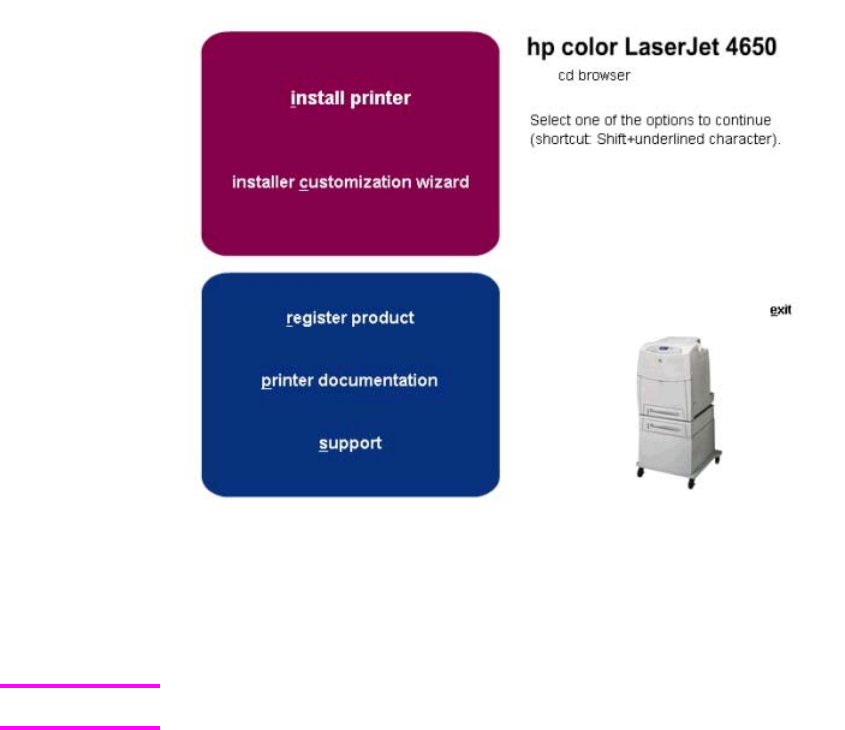
HP Driver Preconfiguration
Printing system and installer
The following sections contain information about the printing-system software and the
installer on the software CD that came with the product.
HP Color LaserJet 4650 printing-system software CD for Windows systems
For the Microsoft Windows environment (Windows 98, Windows Me, Windows NT 4.0, Windows
2000, Windows XP, and Windows Server 2003), the HP Color LaserJet 4650 printer software
CD provides an interactive software window that you can use not only to install the printer drivers
and related components, but also to gain access to online user documentation, a customization
utility, Adobe Acrobat Reader software, and optional HP software.
The following illustration shows the main screen of the HP Color LaserJet 4650 printer software
CD, which appears when you insert the printing-system software CD in your CD-ROM drive. If
the screen does not appear when you insert the software CD, click Start, click Run, click
Browse..., navigate to the root directory of the software CD, and then double-click the
SETUP.EXE file to start the installer.
Figure 1-1.
The main screen of the software CD contains installation options in the upper-left panel and
documentation options in the lower-left panel. As you move your cursor over each option, a
description of the option will display above the product image.
The options on your product might vary from the illustration.
Note
6Software features EN

install printer. This wizard guides you through the installation of your HP Color LaserJet 4650
series printing-system software. You are given the choice of performing a Typical Installation or
a Custom Installation. If you select Typical Installation, only the necessary software is installed. If
you select Custom Installation, you can select the components that you want to install.
installer customization wizard. Use this wizard to customize the HP Color LaserJet 4650
printer installer by presetting the options for installation in a response file. The installer that
you have customized can then be used for silent, unattended installation.
register product. Use this option to register your product online. Using the web registration,
you can access support and services, manage your profile, and sign up for free support
alerts, driver notices, and personalized newsletters
●view user guide
●print user guide
●install notes
●web server user guide
●hp jetdirect guide
If your system does not have Adobe(R) Acrobat(R) Reader 4.0 or later installed, you are
given the option to install that software. Clicking any of the links to documentation that is
provided in the portable document format (PDF) file format opens a dialog box from which
you can install Adobe Acrobat Reader software, from the HP Color LaserJet 4650 printing-
system software CD.
●Click hp web jetadmin to download HP Web Jetadmin software from the Web for a
Web browser-based network-product-management tool.
●Click color matching information for an introduction to color printing, with information
about how to print the best simulation of the PANTONE (R)* Matching System colors,
and installing and using International Color Consortium (ICC) profiles on your product.
●Click supplies for information about ordering HP Color LaserJet 4650 printer supplies.
●Click product information for HP Color LaserJet 4650 printer support information and
updates.
●Click hp.com to go to the HP Web page for products and services, support, drivers,
and HP online stores.
Installer features
The common installer is designed to provide a simple and consistent installation method for
the product. The common installer is available for the Windows 98, Windows Me, Windows
NT 4.0, Windows 2000, Windows XP, and Windows Server 2003 operating systems.
The common installer offers the following features:
●The HP Color LaserJet 4650 printer software CD features an interactive software
interface. See HP Color LaserJet 4650 printing-system software CD for Windows
systems .
●Acrobat Reader is available.
Note
EN Chapter 1 Purpose and scope 7

●Network connection is integrated so that you can install drivers and connect to a
network product in a single process.
●The selection dialog box sets the operating-system language as the default language
(for Windows 98, Windows Me, Windows NT 4.0, Windows 2000, Windows XP, and
Windows Server 2003 only). You can use the installer to select any of the languages
on the HP Color LaserJet 4650 printer software CD.
The HP Color LaserJet 4650 printer software CD also includes the following features:
●The HP Color LaserJet Uninstaller Utility
●The HP Customization Utility for custom installations
●HP Toolbox
All of the Windows system components are installed by using the HP Color LaserJet 4650 series
printing-system installer. The installer automatically senses your language of choice and your
operating system. You can select the type of installation that you prefer: Typical Installation or
Custom Installation.
Installable print drivers
PCL 5c, PCL 6, and HP PS emulation drivers
The following drivers are available for the HP Color LaserJet 4650 printer:
●The HP Traditional PCL 5c driver for Windows 98, Windows Me, and Windows NT 4.0.
●The HP Traditional PCL 6 Driver for Windows 98, Windows Me, and Windows NT 4.0.
●The HP Traditional Postscript 3 Emulation Driver for Windows 98, Windows Me, and
Windows NT 4.0.
●The HP PCL 6, HP PCL 5c, and HP Postscript 3 Emulation unidrivers for Windows 2000,
Windows XP, and Windows Server 2003.
All of the drivers provide access to the paper-handling and print-quality features, and are
described in chapters 3 and 4 of this reference document.
If you select a Typical Installation during installation of the printing-system software, the HP
PCL 6 driver is installed by default.
Windows 98, Windows Me, Windows NT 4.0, Windows 2000, Windows XP, and Windows
Server 2003 driver versions
The HP Color LaserJet 4650 printer PCL 6 and PCL 5c print drivers support Windows 98,
Windows Me, Windows NT 4.0, Windows 2000, Windows XP, and Windows Server 2003
operating systems. The HP Color LaserJet 4650 printer software provides postscript feature
support for the HP Color LaserJet 4650.
If you are using an HP Traditional driver, you can view the print driver version number by clicking
the HP logo in the lower-left corner of the following HP Traditional PCL 6 or
HP Traditional PCL 5c Driver tabs:
●Configure
●Finishing
●Effects
●Paper
Note
8Software features EN
●Job Storage
●Basics
If you are using an HP Unidriver in Windows 2000, Windows XP, or Windows Server 2003
environments, follow these steps to find driver version information:
1Click Start.
2Click Settings.
3Click Printers (or Printers and Faxes in Windows XP and Windows Server 2003).
4Right-click the printer icon.
5Click Properties.
6Click the About tab.
Macintosh and Macintosh-compatible system-driver versions
The HP Color LaserJet 4650 series printing solution for Macintosh is composed of the Print
Center for OS X and the Apple LaserWriter driver for OS 9, which are provided with the
operating system, and HP-created PPD files. The driver uses these files to determine the
features and postscript commands that the product supports. Bidirectional support in
AppleTalk connections supports autoconfiguration of the software. The following are
installable components:
●The HP Color LaserJet Installer for Mac OS 9, and Mac OS X.
●The HP Color LaserJet Screen Fonts Installer.
●SYSTEM/EXTENSIONS/PRODUCT DESCRIPTIONS (for Mac OS 9).
●LIBRARY/PRINTERS/PPDS/CONTENTS/RESOURCES/LANGUAGE.LPROJ (for Mac
OS X).
●The HP LaserJet Utility, an HP utility that is installed in the HP LaserJet folder of Mac
OS. The HP LaserJet Utility provides configuration and management support for
postscript.
●Online Help, an HTML-based product and utility help that can be viewed through a
browser or in the Macintosh OS Help Center (in English only).
●Install notes.
Additional driver availability
The following additional drivers are available from the Internet:
●UNIX model scripts. For further information about UNIX model scripts, go to
http://www.hp.com/go/unixmodelscripts.
●Linux drivers. For further information, go to http://www.hp.com/go/linuxprinting.
●PCL 5c print drivers
●HP OpenVMS drivers
●OS/2 PCL 5c/6 print driver
●OS/2 PS print driver
EN Chapter 1 Purpose and scope 9
HP Color LaserJet documentation
Table 1-3. Documentation availability
Document Windows
98/Me
Windows
NT 4.0
Windows
2K/XP/
Server 2003
Mac
HP Color LaserJet 4650 User Guide
(.PDF)
x x x x
HP Color LaserJet 4650 User Guide
(.CHM)
x x x x
HP Color LaserJet 4650 Printing-system
Install Notes
x x x
HP Embedded Web Server Guide x x x x
HP Jetdirect Administrator's Guide x x x x
HP Device Installer Customization Wizard x x x x
Access to HP Color LaserJet documents depends on the kind of document and its location.
Some documents can be opened from the installer CD Browser. Others are found on the
software CD and can be opened by navigating to the folder where they reside. Still others are
available on the Web. Documents are available in the following formats:
●Portable Document Format (.PDF). The HP Color LaserJet 4650 printer software CD
includes Adobe Acrobat Reader for viewing online documentation. When you click a
documentation link to a .PDF document on the software CD, the installer scans the system
for an installed .PDF reader. If the installer cannot find a reader, the installer presents the
option to install the Adobe Acrobat Reader.
Adobe Acrobat Reader 4.0 or later is required in order to view the documents on the
HP Color LaserJet 4650 printer software CD.
●Compiled HTML (.CHM). When you click a documentation link to a .CHM document, a
Microsoft HTML Viewer opens the file on your computer screen. The .CHM files can reside
either on the printing-system software CD or on the Web.
●Hypertext Markup (.HTM). This is the format for links to Web pages using Hypertext
Markup Language (HTML). You must have a Web connection and Web browser to view
these files. The .HTM link contains JavaScript(TM) code that links directly to the guide on
the Web. The .HTM link directs your browser software to the guide on the Web.
●Rich Text format (.RTF). This is a text file. You can navigate to .RTF files and open them
in any text editor, such as NotePad or WordPad.
HP Color LaserJet 4650 User Guide
To view this guide, click printer documentation in the installer CD Browser, and then click view
user guide. The guide opens as a Windows Help file (.CHM file). This readable, onscreen
version of the guide is provided in accordance with the Americans with Disabilities Act (ADA).
Note
10 HP Color LaserJet documentation EN

The screen-readable version (.CHM) of the User Guide for the HP Color LaserJet 4650 printer is
also available on the HP Color LaserJet 4650 printer software CD. To open the guide from the
software CD, navigate to the <language> folder for your language, and then to the Manuals
folder. There, open the file that has this file name:
●
The "XX" in the file name varies in each language. For instance, the file name for the French
version of the guide is LJ4650_USE_FRWW.CHM
To print the User Guide, click printer documentation in the installer CD Browser, and then
click print user guide. The guide is displayed as a .PDF file, which you can print.
This document is also available on the software CD. To open the .PDF version of the guide,
navigate to the <language> folder for your language, and then to the Manuals folder. There,
open the file that has the following name:
●LJ4650_USE_XXWW.PDF
The "XX" in the file name varies in each language. For instance, the file name for the French
version of the guide is LJ4650_USE_FRWW.PDF
When you have the .PDF file open, you can click File, and then click Save As to save a
copy of the file to another location.
HP Color LaserJet 4650 printing-system install notes
To view this file from the software CD, click printer documentation on the main screen in
the installer CD Browser, and then click install notes.
You can also open the file by inserting the software CD into the CD-ROM drive and
navigating to <language>. There, open the file that has the following file name:
●LJ4650_INSTALL-NOTE_XXWW.HTM
The "XX" in the file name varies in each language. For instance, the file name for the English
version of the document is LJ4650_INSTALL-NOTE_ENWW.HTM.
When you have the file open in a text editor (such as NotePad or WordPad), you can click
File, and then click Save As to save a copy of the file to another location.
HP Embedded Web Server user guide
To view this guide, click printer documentation on the main screen in the installer CD
Browser, and then click web server user guide.
●EWS77_USE_XXWW.PDF
The "XX" in the file name varies in each language. In French, the file name is
EWS77_USE_FRWW.HTM.
When you have the file open, you can click File, and then click Save As to save a copy of
the file to another location.
Note
Note
Note
Note
EN Chapter 1 Purpose and scope 11

HP Jetdirect administrator's guide
The HP Jetdirect Administrator's Guide is a network administrator's guide (in .PDF format) to
information about connecting the product directly to a network.
To view this guide, click printer documentation on the main screen in the installer CD Browser,
and then click hp jetdirect guide.
●HPJDAG_XXWW.PDF
The "XX" in the file name varies in each language. In French, the file name is
HPJDAG_FRWW.PDF.
When you have the file open, you can click File, and then click Save As to save a copy of the
file to another location.
HP Device Installer Customization Wizard
The HP Device Installer Customization Wizard (in .RTF format) provides network administrators
with information about pre-selectable options and installation settings for the Installer
Customization Wizard.
●CUSTOMIZATIONDOC.RTF
The file name is the same for all languages. The document itself has been localized. To open the
French version of the document, for instance, navigate to the francais folder.
When you have the file open in a text editor (such as NotePad or WordPad), you can click File,
and then click Save As to save a copy of the file to another location.
Structure and availability of the software CD
The software CD for the HP Color LaserJet 4650 printer contains a variety of files for installing
the printing-system software on your computer. This section describes the files that are available
on the software CD, as well as additional support and fulfillment information.
In-box file layout
The HP Color LaserJet 4650 series printing-system software consists of two partitions: one for
installation using Windows operating systems, and the other for Macintosh operating systems.
The files include documentation files and files that are required to install and uninstall the
printing-system components.
HP LaserJet software CD, Windows partition
The root directory in the Windows partition of the software CD contains the AUTORUN.EXE file
and the SETUP.EXE file, as well as the following directories and support files:
●autorun
●Fonts
Note
Note
12 Structure and availability of the software CD EN
●HW
●System32
●Temp
●toolbox
●WebReg
●Language directories for all the languages that are on the software CD
The printing-system files for each language reside in the following directories:
●Drivers
●Manuals
●Reader
File layouts differ by language for each regional version of the software CD.
To view the files, insert the HP Color LaserJet 4650 printer software CD, right-click Start,
click Explore, and then select the CD-ROM drive.
HP LaserJet software CD, Macintosh partition
The files contained in the Macintosh partition of the HP LaserJet software CD are grouped
by language and reside in the following directories:
●Root directory
●HP LASERJET INSTALLERS (for Macintosh operating systems)
●PDF (for guides and manuals)
File layouts differ by language for each regional version of the software CD.
Availability and fulfillment
This section provides information about the availability of the HP Color LaserJet 4650
software and related software and firmware. Printing-system software on a CD is available
from HP fulfillment centers.
In-box CDs
●CD 1 (Q3668-60101) (DE = German (Deutsch), EN = English, ES = Spanish (Español),
FR = French (Français), IT = Italian (Italiano), NL = Dutch (Nederland), PT =
Portuguese (Português) - Brazilian), TR = Turkish (Turkçe))
●CD 2 (Q3668-60102) (AR = Arabic, CZ = Czech (Cesky), EL = Greek, EN = English,
FR = French (Français), HU = Hungarian (Magyar), PL = Polish (Polski), RU = Russian
(Russ))
●CD 3 (Q3668-60103) (EN = English, DN = Danish (Dansk), FI = Finnish (Suomi), HE =
Hebrew, NO = Norwegian (Norsk), SV = Swedish)
●CD 4 (Q3668-60104) (EN = English, JA = Japanese, KO = Korean, TH = Thai, ZHCN =
Chinese (Simplified), ZHTW = Chinese (Traditional))
EN Chapter 1 Purpose and scope 13
Drivers for various languages do not necessarily correspond to geographic countries/
regions. European languages, for instance, are distributed on three CDs.
In the following tables, "98/Me" refers to Windows 98 and Windows Me; "2K" refers to Windows
2000; "4.0" refers to Windows NT 4.0; "XP" refers to Windows XP.
Table 1-4. CD 1 (Q3668-60101)
Component DE EN ES FR IT NL PT TR
HP Traditional
Postscript 3
Emulation Driver
xxxxxxxx
HP Traditional
PCL 6 Driver
xxxxxxxx
HP PCL 6 Unidriver xxxxxxxx
HP Postscript 3
Emulation Unidriver
xxxxxxxx
Common Windows
Installer
xxxxxxxx
Customization Utility
Wizard
xxxxxxxx
CD Browser xxxxxxxx
HP Preconfiguration xxxxxxxx
HP Color
LaserJet 4650 User
Guide (PDF)
xxxxxxxx
HP Color
LaserJet 4650 User
Guide (CHM)
xxxxxxxx
HP Jetdirect
Administrator's Guide
xxxxxxxx
Install Notes xxxxxxxx
HP Embedded Web
Server Guide
xxxxxx x
Customization Utility
Doc
xxxxxxxx
HP Toolbox xxxxxxx
Table 1-5. CD 2 (Q3668-60102)
Component AR CZ EL EN FR HU PL RU
HP Traditional
Postscript 3
Emulation Driver
xxxxxxxx
Note
Note
14 Availability and fulfillment EN
Component AR CZ EL EN FR HU PL RU
HP Traditional
PCL 6 Driver
xxxxxxxx
HP PCL 6 Unidriver xxxxxxxx
HP Postscript 3
Emulation Unidriver
xxxxxxxx
Common Windows
Installer
xxxxxxxx
Customization Utility
Wizard
xxxxxxxx
CD Browser xxxxxxxx
HP Preconfiguration xxxx xxx
HP Color
LaserJet 4650 User
Guide (PDF)
xxxxxxxx
HP Color
LaserJet 4650 User
Guide (CHM)
xxxxxxxx
HP Jetdirect
Administrator's Guide
xxxxxxx
Install Notes xxxxxxxx
HP Embedded Web
Server Guide
xxxxxxx
Customization Utility
Doc
xxxxxxx
HP Toolbox x x x x x
Table 1-6. CD 3 (Q3668-60103)
Component EN DN FI HE NO SV
HP Traditional Postscript
3 Emulation Driver
x x x x x x
HP Traditional PCL 6
driver
x x x x x x
HP PCL 6 Unidriver x x x x x x
HP Postscript 3
Emulation Unidriver
x x x x x x
Common Windows
Installer
x x x x x x
Customization Utility
Wizard
x x x x x x
CD Browser x x x x x x
Table 1-5. CD 2 (Q3668-60102) (continued)
EN Chapter 1 Purpose and scope 15
Component EN DN FI HE NO SV
HP Preconfiguration xxxxxx
HP Color LaserJet 4650
User Guide (PDF)
xxxxxx
HP Color LaserJet 4650
User Guide (CHM)
xxxxxx
HP Jetdirect
Administrator's Guide
xxxxxx
Install Notes xxxxxx
HP Embedded Web
Server Guide
xxxxxx
Customization Utility Doc xxxxxx
HP Toolbox x x x x x
Table 1-7. CD 4 (Q3668-60104)
Component EN JA KO TH ZHCN ZHTW
HP Traditional Postscript
3 Emulation Driver
x x x x x x
HP Traditional PCL 6 driver x x x x x x
HP PCL 6 Unidriver x x x x x x
HP Postscript 3 Emulation
Unidriver
x x x x x x
Common Windows
Installer
x x x x x x
Customization Utility
Wizard
x x x x x x
CD Browser x x x x x x
HP Preconfiguration x x x x
HP Color LaserJet 4650
User Guide (PDF)
x x x x x x
HP Color LaserJet 4650
User Guide (CHM)
x x x x x x
HP Jetdirect
Administrator's Guide
x x x x x
Install Notes x x x x x x
Customization Utility Doc x x x x x x
HP Toolbox x
Table 1-6. CD 3 (Q3668-60103) (continued)
16 Availability and fulfillment EN

Web deployment
All software contained on the installation CD is also available on the Web.
Web deployment is the preferred method for obtaining the latest software. The Web site
offers a notification option for automatic e-mail notification about new software releases.
Printing-system software
The HP Color LaserJet 4650 series printing-system software is available for download from
http://www.hp.com/support/clj4650.
The printing-system software supports the following operating systems:
If your computer is running a 64-bit operating system, you must install a 64-bit print driver.
Both 64-bit print drivers and 32-bit print drivers are available on the printing-system software
CD. For more information about installing print drivers for Windows, see Chapter 5, Installing
Windows printing-system components.
●Windows 98 and Windows Me
●Windows NT 4.0
●Windows XP Professional (32-bit and 64-bit)
●Windows Server 2003 (32-bit and 64-bit)
●Windows XP Home Edition
●Windows 2000 (32-bit)
Standalone drivers
The HP PCL 6, PCL 5c, and PS emulation drivers are available individually to support the
following operating systems:
●Windows 98 and Windows Me
●Windows NT 4.0
●Windows 2000 (32-bit)
●Windows XP (32-bit and 64-bit)
●Windows Server 2003 (32-bit and 64-bit)
Other operating systems
Drivers and related software are available for these additional operating environments:
●UNIX
●Linux
●OS/2
●HP Open VMS
●Mac 9.x
●Mac OS X (10.1 or later)
Note
EN Chapter 1 Purpose and scope 17
Software component availability
The following table lists the availability of HP LaserJet software components by operating
system.
In the following table, "98/Me" refers to Windows 98 and Windows Me; "2K" refers to Windows
2000; "4.0" refers to Windows NT 4.0; "XP" refers to Windows XP; and "Mac" refers to Macintosh
operating systems.
Table 1-8. Software component availability for HP Color LaserJet 4650 printer
Component 98/Me 4.0 2K/XP
2
XP64
Drivers
HP Traditional PCL 5c and PCL 6 driver x x
HP PCL 5c and PCL 6 Unidrivers x x
HP Postscript 3 emulation Unidriver x x
HP Traditional Postscript 3 emulation
Driver
x x
HP Preconfiguration x x x x
Installer
Common Windows Installer x x x
Customization Utility Wizard x x x
CD Browser x x x
Add Printer Wizard install x x x x
Web Registration x x x
2
This information also applies to Windows Server 2003.
Note
18 Software component availability EN

2
Software description
Introduction
The HP Color LaserJet 4650 printer comes with software and installers for Microsoft
Windows and Apple Computer, Inc., Macintosh systems. Linux, and UNIX systems are
supported, and software is available on the Web. For information about specific system
installers, drivers, and components, see the section that corresponds to that system.
This chapter contains information about the following topics:
●Supported operating systems
●Technology background information
Supported operating systems
The support for Windows operating systems (OSs) offers a full-featured configuration of the
HP Color LaserJet 4650 printer; support for OSs that are not described in this document
offer varying levels of functionality. The following OSs are supported by the
HP Color LaserJet 4650 printing-system software, including HP PCL 5c, HP PCL6, and PS
Emulation drivers:
●Windows 98
●Windows Millennium Edition (Me)
●Windows NT 4.0 (Service packs 3 through 6)
●Windows 2000 (Service packs 1 and 2)
●Windows XP Home Edition
●Windows XP Professional (Service pack 1 and greater)
●Windows Server 2003
Throughout this manual, Windows XP is used to denote Windows XP Home Edition,
Windows XP Professional, and Windows Server 2003 unless noted otherwise.
Note
EN Chapter 2 Software description 19

The following operating environments are also supported by the HP Color LaserJet 4650
printer:
●Mac OS 9 and Mac OS X (10.1 or later)
●Linux (available at http://www.hp.com/go/linux)
●UNIX (available at http://www.hp.com/go/jetdirectunix_software)
●Windows Terminal Server
●Citrix Terminal Server
●Windows Cluster Server 8
●HP OpenVMS (available at http://h71000.www7.hp.com/)
For more information about the HP Color LaserJet 4650, go to: http://www.hp.com/support/clj4650.
Technology background information
This section contains information about the following topics:
●Driver Configuration
●HP Driver Preconfiguration
●Euro character
●International Color Consortium profiles
●PANTONE (R)* color profiles
●HP Embedded Web Server
●HP Toolbox
●HP Web Jetadmin
●Bluetooth (R)*
●Remote firmware update
●Printing print-ready documents from a command line
●Driver-feature comparison in various operating systems
Driver Configuration
Automatic discovery and driver configuration through bidirectional communication occurs in the
following circumstances:
●Upon the first installation of a driver, when using Enterprise Autoconfiguration (EAC)
●When you use the Update Now feature for a driver that is already installed
Bidirectional communication
In environments that support bidirectional communication, the computer communicates with the
product during installation, determines the physical configuration, and then configures the driver
accordingly.
20 Technology background information EN

Bidirectional communication enables the product to respond to data inquiries from the computer
and report back information, such as what type of print media is available or what accessories
are connected to the product. If the connection does not have this capability (that is, if it has no
bidirectional mode), it can only accept commands from the host and cannot report back
information to the host computer.
Bidirectional communication depends on your network operating system and on the type of
connection you have between your computer and your product.
When you install the HP Toolbox, bidirectional communication is always enabled. Installing
the HP Toolbox activates the HP Network Registry Agent (HPNRA) to ensure constant
communication between your computer and the product. When you install a driver without
installing the HP Toolbox at the same time, bidirectional communication is enabled only to
configure the driver, and is then disabled unless the driver's Update Now feature is used to
update the driver.
Enterprise AutoConfiguration
Enterprise AutoConfiguration (EAC) uses bidirectional communication to provide
autoconfiguration functionality for installation of the print driver over a network, whether you
use the installer on your printing-system software CD or the Add Printer wizard to install the
driver. Driver installation that includes EAC is configured with the same settings as the
physical configuration of the device. Configuration occurs without user interaction. If
bidirectional-communication software has been installed previously, EAC is not activated,
and the the pre-existing bidirectional-communication software is used to configure the print
driver.
If bidirectional communication software has not been installed, EAC installs bidirectional-
communication software that allows it to communicate with the product and automatically
match the print driver with the actual product configuration. EAC is activated during
installation of the driver or whenever the Update Now feature is used.
If the configuration of the HP Color LaserJet 4650 printer changes after installation, the
driver can be automatically updated with the new configuration in environments that support
bidirectional communication by using the Update Now feature. For example, if the
HP Color LaserJet 4650 is installed and an optional paper-handling accessory is added
later, you can use the Update Now feature to query the product and update the settings to
match the product's configuration.
If you are using an HP PCL or PS Emulation unidriver, you must select Update Now through
the Automatic Configuration setting in Device Settings tab. If you are using an HP
traditional PCL6 driver, you must click the Update Now button on the Configure tab. The
Update Now feature is not available with the HP Traditional PS Emulation driver.
The following tables show the availability of EAC for various operating systems and network
environments that support bidirectional communication.
Note
EN Chapter 2 Software description 21
Table 2-1. Enterprise AutoConfiguration availability in Microsoft Windows and Microsoft Share
Method Connection type Microsoft Windows Microsoft Share
1
98 Me NT 4.0 2000 XP 2000/
XP
host
with
2000/
XP
client
NT 4.0
host
with
NT 4.0
client
Installer Direct
connect
Parallel
USB
Network HP Jetdirect TCP/IP x x x x x x x
2
IPX/
SPX
x x x x x x x
2
Standard TCP/IP
(HP)
x x x x x x x
2
TCP/IP
(MS)
x x x x x x x
2
IPX/
SPX
(HP)
x x x x x x x
2
Add
Printer
Direct
connect
Parallel
USB
Network HP Jetdirect TCP/IP x x x x x x
IPX/
SPX
x x x x x x x
2
Standard TCP/IP
(HP)
x x x x x x x
2
TCP/IP
(MS)
xxxx
2
IPX/
SPX
(HP)
x x x x x x x
2
1
This column represents the following Microsoft Share configurations:
– Windows 2000, Windows XP, or Windows 2003 Server host with Windows NT 4.0, Windows 98, or
Windows Me client
– Windows NT 4.0 host with Windows 2000, Windows XP, Windows 2003, Windows 98, or Windows Me client
– Windows 98 or Windows Me host with any client
2
In this environment, client machines use Point and Print to download the configured driver from the host.
22 Driver Configuration EN

Table 2-2. Enterprise Autoconfiguration availability in Novell Netware environments
Method Connection type Novell
Netware 4.x Netware 5.x
Bindery
queue
NDS queue Bindery
queue
NT 4.0
Installer Direct
connect
Universal serial bus (USB)
Parallel
Network Jetdirect TCP/IP x x x x
IPX/SPX
Standard TCP/IP (HP)
TCP/IP
(MS
1
)
IPX/SPX
(HP)
1
Bidirectional functionality is supported only with the client software from Novell. It is not supported with Microsoft
(MS) Client Service for NetWare.
HP Driver Preconfiguration
HP Driver Preconfiguration is a software architecture and set of tools that permits HP
printing-system software to be customized and distributed in managed corporate printing
environments. Using HP Driver Preconfiguration, information technology (IT) administrators
in corporate and enterprise environments can preconfigure the printing and device defaults
for HP print drivers before installing the drivers in the network environment.
HP Driver Preconfiguration is most beneficial when configuring print drivers for multiple
workstations or print servers for print queues that share the same configuration. Two types
of features can be configured: device settings and printing-preferences settings. The driver is
configured to match the product hardware so that gaining access to all of the product
accessories through the driver is enabled correctly (for example, for duplexing units and
additional input trays). Most driver feature settings can also be configured.
HP Preconfiguration configures the driver to match the accessories installed on the printer,
or to match the settings that IT administrators make in the configuration (.CFG) file (for
example, optional trays, total amount of memory, job storage settings, mopier settings).
The preconfiguration process consists of three basic steps: driver acquisition, driver
preconfiguration, and driver installation and deployment. These steps can be accomplished
in different ways, depending on the tool that is being used to define the configuration.
EN Chapter 2 Software description 23
The configuration process for driver preconfiguration is supported through three distinct
tools. All three are designed with the same basic UI controls for interacting with the
configuration (.CFG) file, but are packaged differently, either to support established product
installation workflows or to leave the deployment and installation of the driver entirely up to
the user.
●HP Driver Configuration Editor. The HP Driver Configuration Editor is a small
standalone Windows software program that the administrator can use to open
the .CFG file that is associated with a particular driver and make modifications that are
applied when that driver is installed on the target computer. It is intended for use in
environments that have an established process for deploying drivers. This is the
preconfiguration tool of choice to support any Novell or HP Print Server Appliance
(PSA) Point and Print environments. It is used in the way that any ordinary Windows
software program is used.
The HP Driver Configuration Editor is available at the following URL: http://www.hp.com/go/
hpdpc_sw.
●The HP Web Jetadmin Driver Configuration Plugin. HP Web Jetadmin provides a queue
creation program that can be used to create printers on any Windows NT 4.0, Windows
2000, Windows XP, or Windows 2003 server or workstation. The HP Web Jetadmin Driver
Configuration Plugin adds a number of screens to the existing queue creation workflow
from which the drivers that are being installed for the queues can be customized as part of
the process. The plug-in is limited to Internet Explorer browsers. Netscape Navigator is not
supported.
The HP Web Jetadmin Driver Configuration Plugin is available at the following URL:
http://www.hp.com/pond/wja/live/manual/html/wjacomp_winnt.html.
●HP Customization Utility/Silent Installer. The Customization Utility features an install-
time mode of HP Driver Preconfiguration. IT administrators can use the utility to
preconfigure the drivers for a printing-system software driver installation with the silent
installer.
Detailed information about gaining access to and installing these tools can be found in the HP
Driver Preconfiguration Support Guide, which is available on the printing-system software CD.
Lockable features
The following driver features can be locked to prevent end-users from changing settings:
●Print on Both Sides (Duplex)
●Media Type
●Paper Source
●Print in Grayscale
When a feature is locked, the selected default option is the only option that is available to users.
Generally, the feature is simply unavailable in the driver UI after it has been installed.
Euro character
The euro is the name for the currency of the European Union (EU). This unit was launched on
January 1, 1999. The euro has changed the way business is conducted in Europe and has
affected every company and industry in the world. It is vital that companies understand and
prepare for the changes the euro brings.
24 Euro character EN
International Color Consortium profiles
HP provides cyan-magenta-yellow-black (CMYK) (HP4650C.ICM) and sustained redgreen-
blue (sRGB) (HP4650R.ICM) International Color Consortium (ICC) profiles with its HP Color
LaserJet 4650 printers. The CMYK profile can only be used with a postscript driver; the
sRGB profile can be used with any of the HP Color LaserJet 4650 drivers. The profiles are
available on the HP Web site at the following URL: http://www.hp.com/support/clj4650.
ICC profiles describe the way color will be interpreted in the default CMYK and RGB modes.
The sRGB profile matches the default RGB mode (sRGB), which is enabled with the Screen
Match or Automatic Color Smart II setting in either a PCL or postscript driver. The CMYK
profile is based on the default mode, which is a Specifications for Web Offset Publications
(SWOP) simulation with a CMYK Inkset setting of FASTin the postscript driver. These
profiles can be used for color conversions in a color-managed workflow.
PANTONE (R)* color profiles
Automatic PANTONE (R)* Calibration is the default setting for HP Color LaserJet products.
This feature automatically converts PANTONE (R)* colors to optimal color values for the
product by recognizing the PANTONE (R)* color name or number in the data stream sent to
the product. The feature is activated when printing colors that were chosen using the
PANTONE (R)* Color picker in supported graphics applications.
Applications known to generate postscript files with graphic objects preserving the
PANTONE (R)* name are listed below:
●Adobe Illustrator
●Adobe Photoshop (R)
●Adobe PageMaker
●Adobe InDesign
●CorelDRAW (TM)
●Macromedia Freehand
●QuarkXPress
Some applications substitute CMYK values to the product if they cannot provide PANTONE
(R)* names. If your application does not pass the PANTONE (R)* names to the product, the
application will substitute default CMYK values to be printed for each color. In this case, the
accuracy of color matching will depend on the ink emulation selected - FAST, SWOP, Euro
standard, or DIC (Dainippon). If your application does not pass the PANTONE (R)* names to
the product, the custom CMYK values created by PANTONE (R)* for this product are
available in the manual PANTONE (R)* palettes.
PANTONE (R)* Application Palettes might be available on the Web at the following URL:
http://www.hp.com/support/clj4650.
Vector graphics such as company logos created in PANTONE (R)* Application Palettes can
be imported into Microsoft Word, PowerPoint, or other MS Office applications. To do this, the
color application must create an encapsulated postscript (EPS) file of the image for insertion
as a file into the Office document (using the insert file function).
EN Chapter 2 Software description 25

Cutting and pasting from the clipboard does not work. These tasks do not preserve the
PANTONE (R)* name or the CMYK palette value.
HP Embedded Web Server
The HP Embedded Web Server (EWS) is a standard feature for the HP Color LaserJet 4650
printer.
The EWS provides a simple, easy-to-use solution for one-to-one product management. In offices
that have a limited number of products, remote management of printing devices can be
accomplished without installing any management software, such as HP Web Jetadmin. The only
requirement is that the management console have a supported Web browser.
In environments that have a larger number of products, where one-to-one management is
impractical, the HP Embedded Web Server and HP Web Jetadmin work together to provide
scalable remote product management. Use HP Web Jetadmin for consolidated management
tasks, when you want to perform operations on a selected set of products instead of on
individual products. For such environments, HP provides hooks between the HP Embedded Web
Server and HP Web Jetadmin so that you can configure HP Embedded Web Server features on
multiple products in one operation. For example, you can set the security password for the
HP Embedded Web Server simultaneously on a population of products.
For additional information and a copy of the HP Embedded Web Server User Guide, go to:
http://www.hp.com/support/clj4650.
To view information about the product by using the HP Embedded Web Server, open a
supported Web browser and type in the product transmission control protocol/internet protocol
(TCP/IP) address or host name. To find the TCP/IP address, look for IP Address on the
enhanced input/output (EIO) Jetdirect page, in the TCP/IP section. To find the host name of the
product, look for Host Name in the TCP/IP section.
You also can view information about an installed HP Jetdirect print server by clicking the
Networking tab in the HP Embedded Web Server window.
To print a copy of the EIO Jetdirect page from the control-panel display, follow these steps:
1Press the select button (the one with the check mark) to open the menus.
2Press the up and down buttons to scroll to INFORMATION, and then press the select button.
3Press the up and down buttons to scroll to PRINT CONFIGURATION.
4Press the select button to print the configuration page.
5Look in the configuration page section marked "Printer Information" for the firmware date
code. The firmware date code looks something like this: 20031002 07.000.0. (The EIO
Jetdirect page is the second page of the Configuration Page printout.)
The EWS frame
Each screen in the EWS has a frame that contains a top banner, three category tabs, a left-
aligned navigation menu bar, and a main-content area. Selecting one of the category tabs
causes the corresponding left-aligned navigation bar to appear. The left-aligned navigation menu
includes links to content that is appropriate for that tab. The main-content area shows
information and opens options in response to navigation tab selections and menu bar selections.
Note
26 HP Embedded Web Server EN

See the following sections for more information about each tab or area:
●Information tab
●Settings tab
●Networking tab
Links to off-product solutions
Links on the HP Web Server screens provide an easy way to locate information or complete
tasks.
●hp instant support. This link connects you to a set of dynamic Web resources that
help you solve specific problems and determine additional services that might be
available for your product. Specific status and configuration information about the
product is retained and directed to the "Solve a Problem" Web site. This site offers
targeted support content and messages to help resolve problems as quickly as
possible.
●Order Supplies. This link connects you to an HP product supplies screen from which
you can order genuine HP supplies for your product.
●Product Support. This link connects to an HP product-support screen from which you
can search for information, contact the HP customer care home page, or find additional
resources for your product.
Information tab
The following information is available on the HP Embedded Web Server Information tab. To
view the information, click the menu items on the left side of the HP Embedded Web Server
Information tab.
Not all of the screens on the tab are shown in this document. For more information, see the
HP EWS User Guide.
●Device Status screen. This screen provides current status information about the
product.
●Configuration Page. This screen provides information about the configuration of the
product.
●Supplies Status. This screen provides information about the print cartridge and the
total pages that have been printed, and the serial number of the product.
●Event log. This screen provides information about reported product errors.
●Usage page. This screen provides a page count for each size of media that has
passed through the device, as well as the number of duplexed pages.
●Device Information. This screen shows device information, such as the product TCP/
IP address and serial number.
●Control Panel. This screen shows the product control panel.
●Print. You can use this screen to print documents that are print-ready, such as those
generated by a "print to file" driver option, .PCL documents, .PS documents, .PDF files,
and text (.TXT) files.
EN Chapter 2 Software description 27
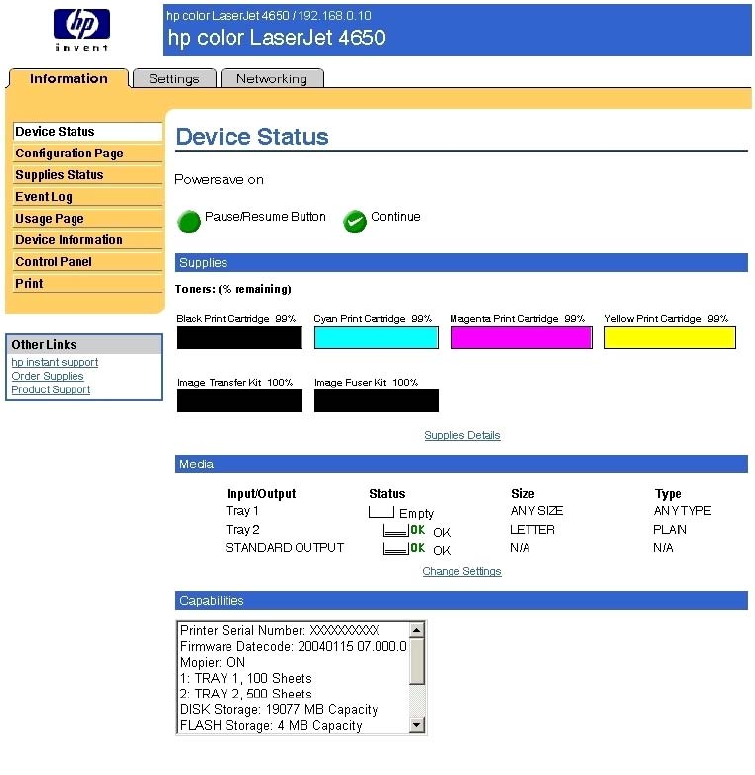
Device Status screen
Status information (such as whether the product is online or the toner is low) is available
through your Web browser on a computer that is linked directly to the product. You can view
this information without physically going to the product to identify the status. The following
illustration shows how this information is presented on the product Web page:
Figure 2-1. Device Status screen on the Information tab
28 HP Embedded Web Server EN
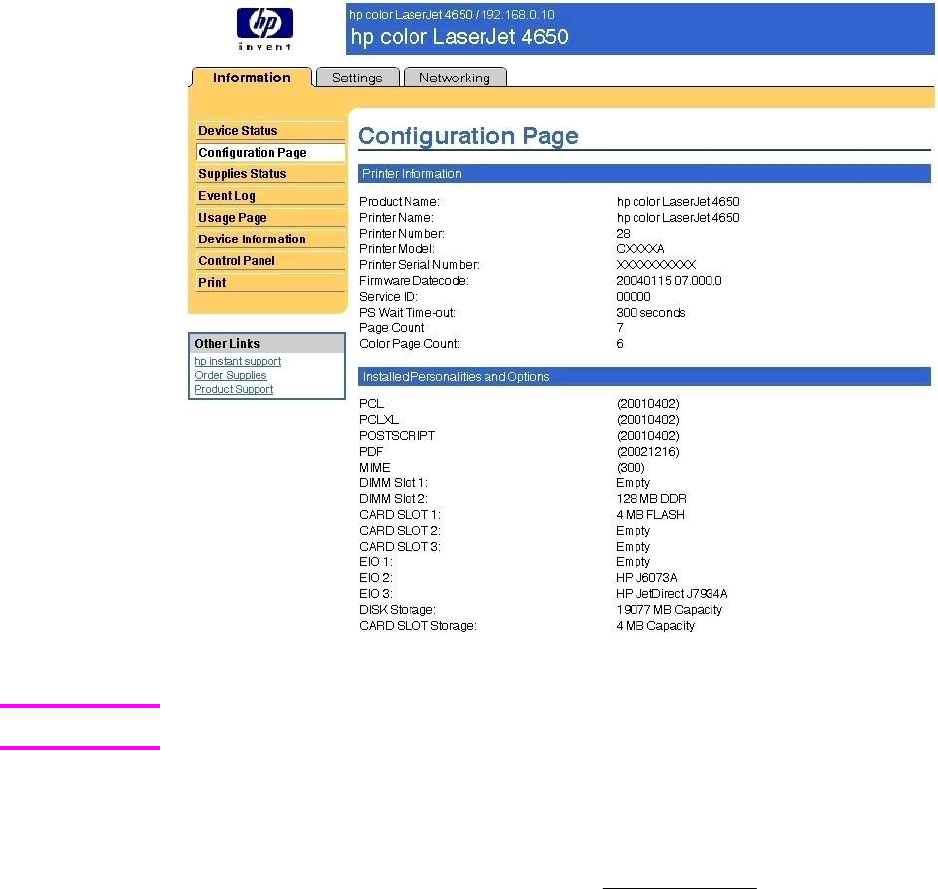
Configuration Page
Figure 2-2. Configuration screen on Information tab
This illustration is provided as an example only. The complete screen is not shown.
Settings tab
The following information is available on the HP Embedded Web Server Settings tab. To
view the information, click the menu items on the left side of the HP Embedded Web Server
Settings tab. The Settings tab is shown in the Configure Device section.
Not all of the screens on the tab are shown in this document. For more information, see the
HP Embedded Web Server Guide.
●Configure Device. You can use the Configure Device screen to print product
information pages and configure the product remotely.
●Email Server. Use the Email Server screen to configure e-mail settings for outgoing e-
mail.
●Alerts. IT Administrators can set up the product to send alerts to anyone through e-
mail messages.
●AutoSend. Use the AutoSend screen to send device configuration and supplies-usage
information periodically to your service provider.
●Security. Use this screen to manage security on the product.
●Edit Other Links. Use the Edit Other Links screen to add or customize up to five links
to the Web sites of your choice.
Note
EN Chapter 2 Software description 29
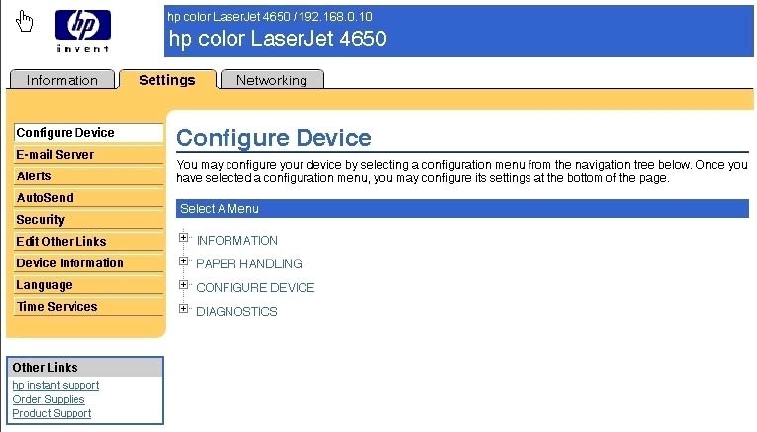
●Device Information. Use the Device Information screen to provide a name of your
choice for the product, assign an asset number, and configure the company name, the
person to contact about the product, and the physical location of the product.
●Language. Use the Language screen to select the language in which the EWS screens
appear.
●Time Services. Use the Time Services screen to manage network time settings on the
product.
Configure Device
You can obtain product configuration information through a Web browser by opening the product
HP Embedded Web Server screen and changing any of the basic configuration information on
the Settings tab. Security and password controls give management information system
managers the level of control that they require within their environments. The following
illustration shows an example of product options that can be configured remotely.
Figure 2-3. Settings tab - Configure Device
30 HP Embedded Web Server EN
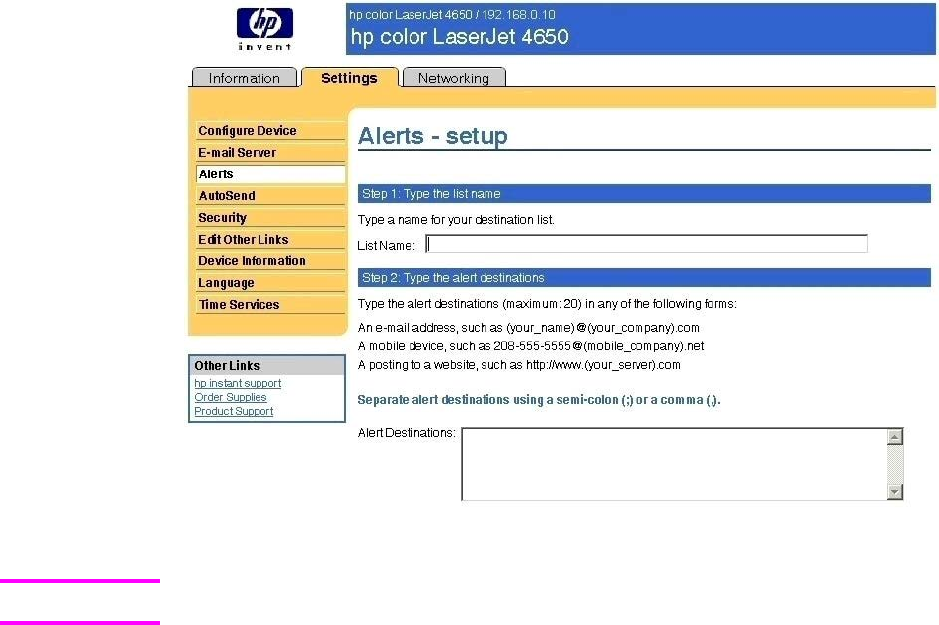
Alerts
Figure 2-4. Settings tab - Alerts screen
This illustration is provided as an example only. The complete screen is not shown.
Note
EN Chapter 2 Software description 31
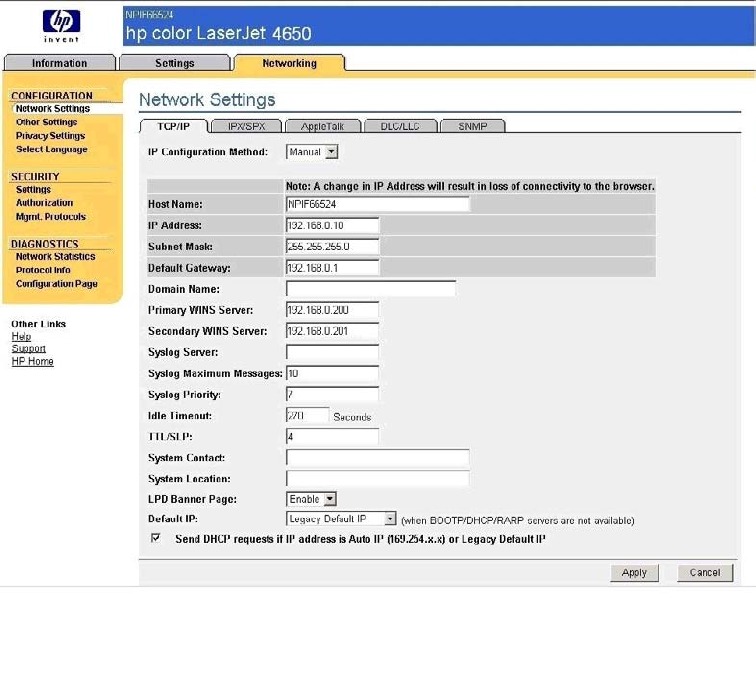
Networking tab
The following options are available on the HP Embedded Web Server Networking tab.
Not all of the screens on the tab are shown in this document. For more information, see the
HP EWS User Guide.
Figure 2-5. Networking tab - Configuration section
The menu on the left side of the screen contains other networking options under three
categories: configuration, security, and diagnostics. For more information, see the HP Jetdirect
Administrator's Guide.
Configuration section
●Network Settings
●Other Settings
●Privacy Settings
●Select Language
Security section
●Settings
●Authorization
●Mgmt. Protocols
32 HP Embedded Web Server EN
Diagnostics section
●Network Statistics
●Protocol Info
●Configuration Page
Network settings
From the Networking tab, you can enable and configure the following network protocols:
●TCP/IP
●Internetwork packet exchange/Sequenced packet exchange ( IPX/SPX)
●AppleTalk
●Data link control/logical link control (DLC/LLC)
●Simple network management protocol (SNMP)
HP Toolbox
The HP Toolbox is a series of Web pages and a supporting Windows-based software
program that provide access to the HP Color LaserJet 4650 embedded Web servers and
other firmware functions, making them available on a browser-driven user interface where
product properties can be viewed and manipulated. Some screens are accessed through the
toolbox interface.
The HP Toolbox provides links to printer status information, help information, and tools for
diagnosing and solving problems. The HP Toolbox also provides product status and settings
information from the embedded Web server, by clicking the Advanced Settings button in
the upper-right corner of each of the four tabs.
HP Toolbox requirements
HP Toolbox requires one of these recent Internet browsers in order to show product
embedded Web server pages:
●Microsoft Internet Explorer 5.5 or later (Internet Explorer 5.2 or later for Macintosh)
●Netscape Navigator 7.0 or later (Netscape Navigator 7.0 or later for Macintosh)
●Opera Software ASA Opera 7.0 for Windows
●Safari 1.0 software for Macintosh
These browser requirements are not necessarily minimum standards, but they are the
minimum tested environments. Other, untested browsers might also provide access to
HP Toolbox screens.
The HP Toolbox is supported only for Windows 98 and later operating systems (Windows
Me, Windows 2000, and 32-bit Windows XP). You must have performed a complete
software installation in order to use the HP Toolbox.
When the HP Color LaserJet 4650 printer is connected both through a network using a
HP Jetdirect card and through a local parallel or USB connection, the network connection
takes precedence. On a network connection, bidirectional communication is supported
through a TCP/IP or an IPX/SPX connection. When the product is connected using both a
parallel and a USB connection, the parallel connection takes precedence, and the USB
connection is disconnected.
EN Chapter 2 Software description 33
To view the HP Toolbox
To open the HP Color LaserJet 4650 Toolbox, on the Start menu, point to Programs, point to
hp color LaserJet 4650, and then click hp LaserJet toolbox.
The HP Toolbox opens in your Web browser. The HP Toolbox software contains four tabs.
●The Status tab
●The Troubleshooting tab
●The Alerts tab
●The Documentation tab
These tabs are on local browser screens that are installed when you install the printing-system
software, and you do not need an Internet service provider to view them.
The HP toolbox also contains an area with links to the HP Web site. While you do not need to
have Internet access to open and use the HP Toolbox, you must have Internet access in order to
gain access to the sites that are associated with the links in the Other Links area.
If your computer is connected to the HP Color LaserJet 4650 printer through a network, you can
bookmark the URL of the HP Toolbox so that you can return to it quickly in the future.
The HP Toolbox frame
Each screen in the HP Toolbox has a frame that contains a top banner, three category tabs, a
left-aligned navigation menu bar, and a main-content area. Selecting one of the category tabs
causes the corresponding left-aligned navigation bar to appear. The left-aligned navigation menu
includes links to the content that is appropriate for that tab. The main-content area shows
information and options in response to selections that you make on a HP Toolbox screen
navigation tab.
See the following sections for more information about each tab or area:
●Top banner
●Status
●Troubleshooting
●Alerts
●Documentation
●Other Links
Top banner
The top banner has an HP logo. Next to the HP logo, the title of the page appears followed by
the product name and a copyright notice. The top banner is the same for all of the HP Toolbox
Web pages. The HP logo contains a link to http://www.hp.com.
34 HP Toolbox EN
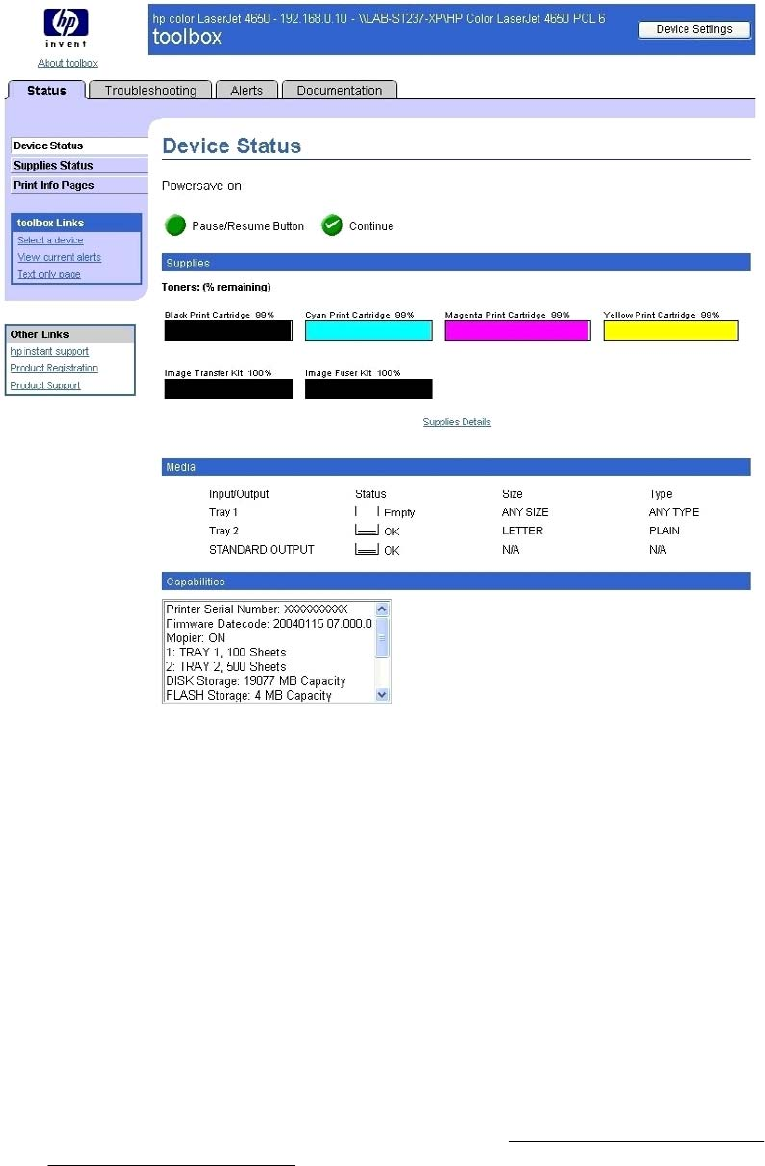
Status tab
The Status tab, with the Device Status setting selected, is shown in the following illustration.
Figure 2-6. Toolbox Device Status tab
The Status tab provides the following options:
●Device Status. This screen shows the percentage of life remaining for each
consumable, the status and configuration information for the input trays and output,
and the accessories that are installed on the product.
●Supplies Status. This screen shows the levels remaining for all consumables and the
HP Part Numbers for each consumable. (It is helpful to have the part numbers
available when it is time to order supplies.)
●Print Info Pages. Print the configuration page and various other information pages that
are available for the product, such as the Supplies Status page, the Demo page, and
Menu Map.
●toolbox Links. Select a device, view current alerts, or view the HP Toolbox Web site
in text-only format (without graphics).
●Other Links. For information about these links, see Links to off-product solutions in the
HP Embedded Web Server section of this guide.
EN Chapter 2 Software description 35

Troubleshooting tab
●Print Quality Tools
●Maintenance
●Error Messages
●Paper Jams
●Supported Media
●Printer Pages
Netscape users must download a plug-in so that product management features can operate
correctly. A link and instructions are provided in the Other Links section. After you click a link, a
pop-up window appears that provides information and instructions about how to locate this plug-
in.
Print Quality Tools
The Print Quality Tools screen, shown in the following illustration, provides options for General
Troubleshooting, Print Quality Troubleshooting Pages, a Print Quality Defect Chart, and a
Calibrate Now function.
Figure 2-7. Troubleshooting tab – Print Quality Tools
Note
36 HP Toolbox EN
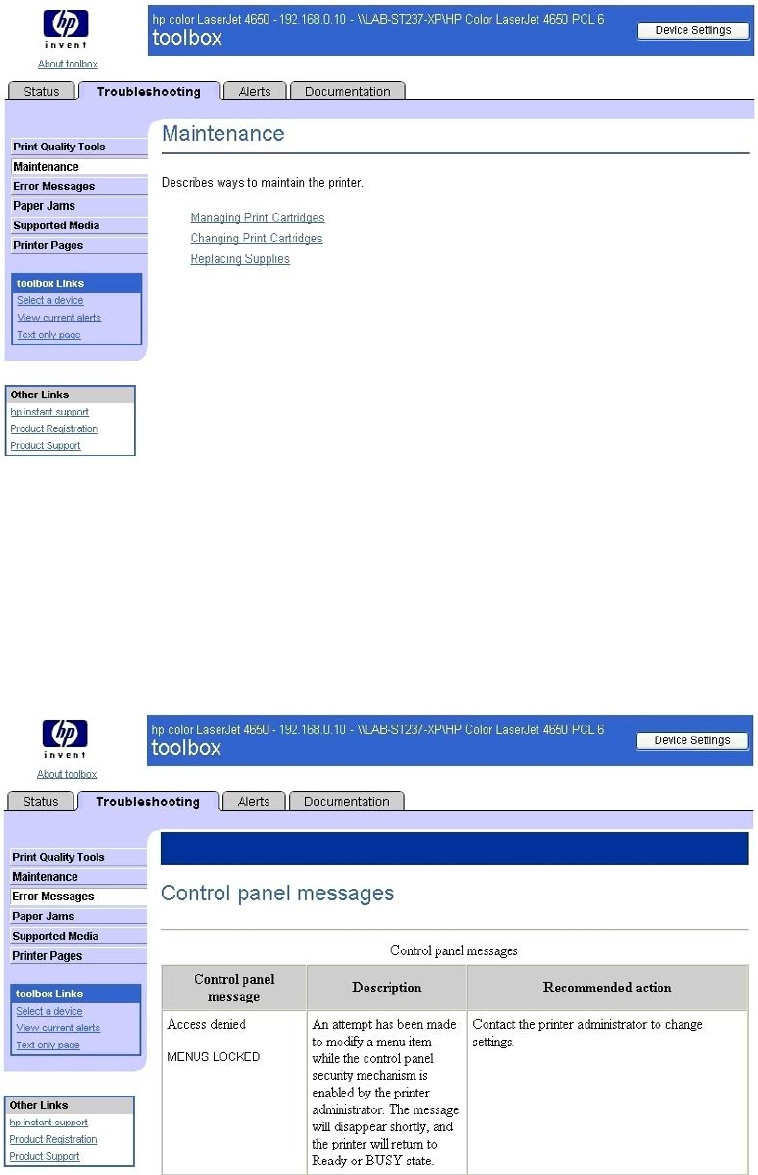
Maintenance
The Maintenance screen is shown in the following illustration.
Figure 2-8. Troubleshooting tab – Maintenance
The Maintenance screen contains information about the following options:
●Managing Print Cartridges
●Changing Print Cartridges
●Replacing Supplies
Error Messages
Figure 2-9. Troubleshooting tab – Control panel messages
EN Chapter 2 Software description 37
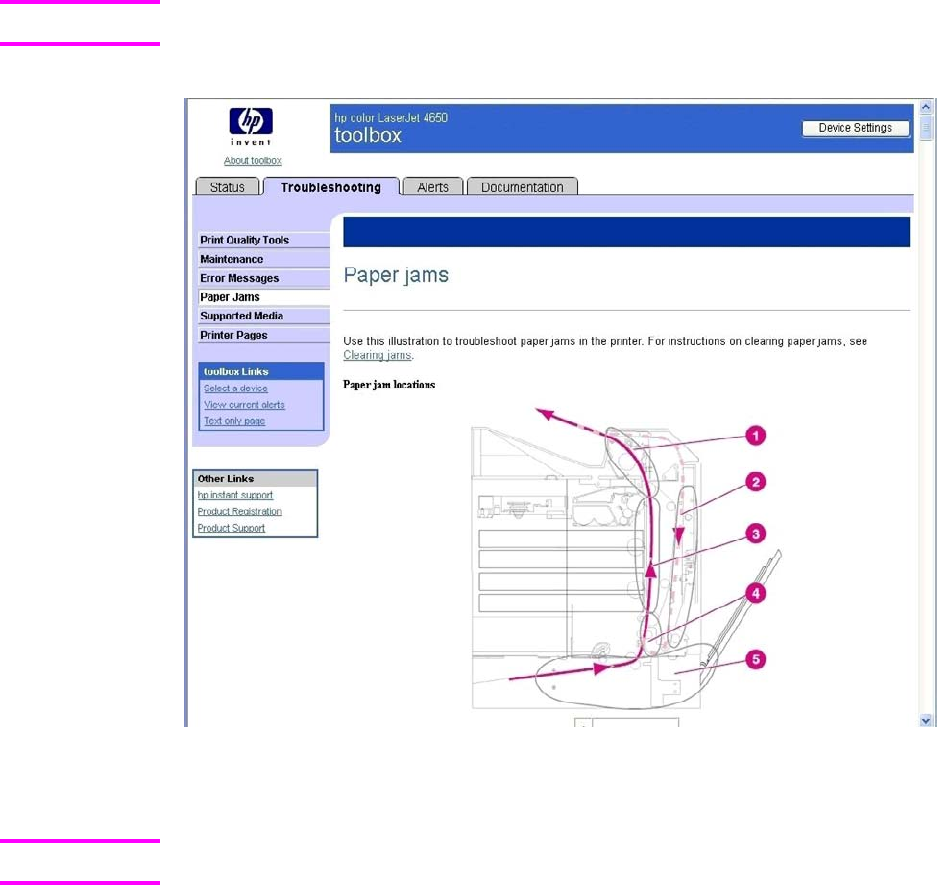
The Control panel messages screen lists messages that might appear in the control panel
on the product or in the HP Toolbox.
This illustration is provided as an example only. The complete screen is not shown.
Paper Jams
Figure 2-10. Troubleshooting tab – Paper jams
The Paper Jam Option screen shows the internal paper path and explains jam recovery.
This illustration is provided as an example only. The complete screen is not shown.
Note
Note
38 HP Toolbox EN
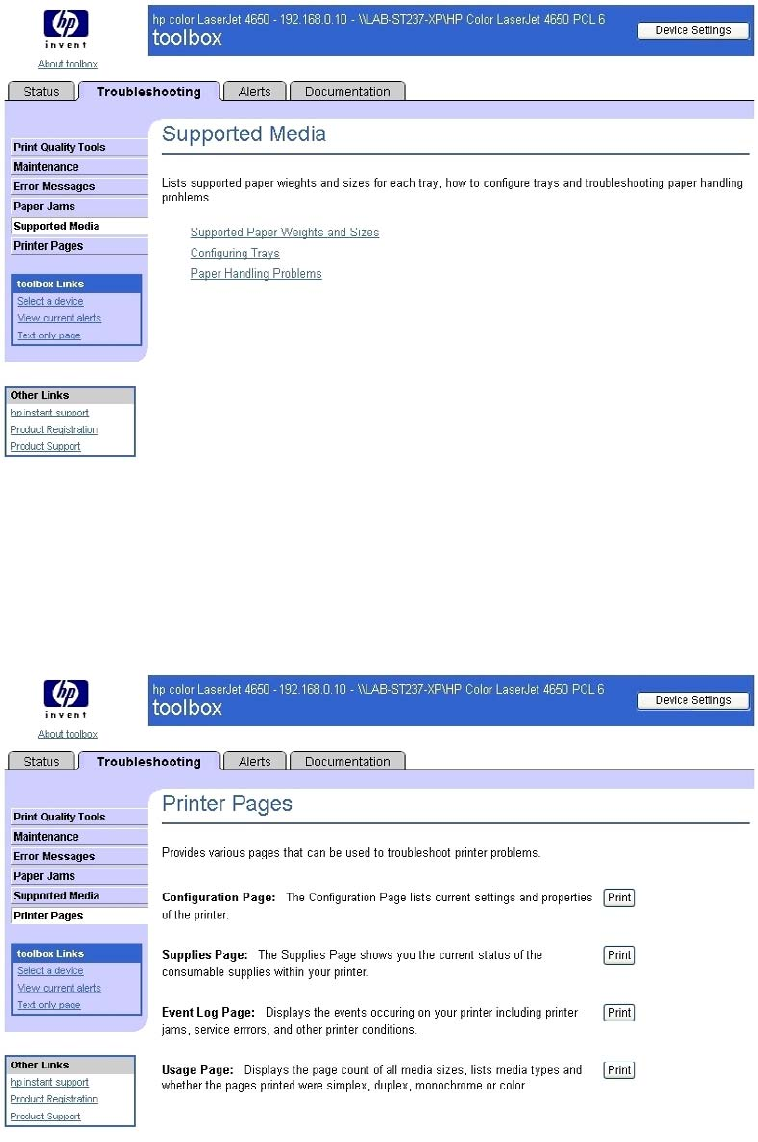
Supported Media
The Supported Media screen is shown in the following illustration.
Figure 2-11. Troubleshooting tab – Supported Media
The Supported Media screen shows a list of supported paper widths and sizes, explains
how to configure trays, and discusses paper-handling problems.
Printer Pages
The Printer Pages screen is shown in the following illustration
Figure 2-12. Troubleshooting tab – Printer Pages
The Printer Pages screen shows a list of useful information pages that the product
generates, with a description of the purpose of each page.
EN Chapter 2 Software description 39
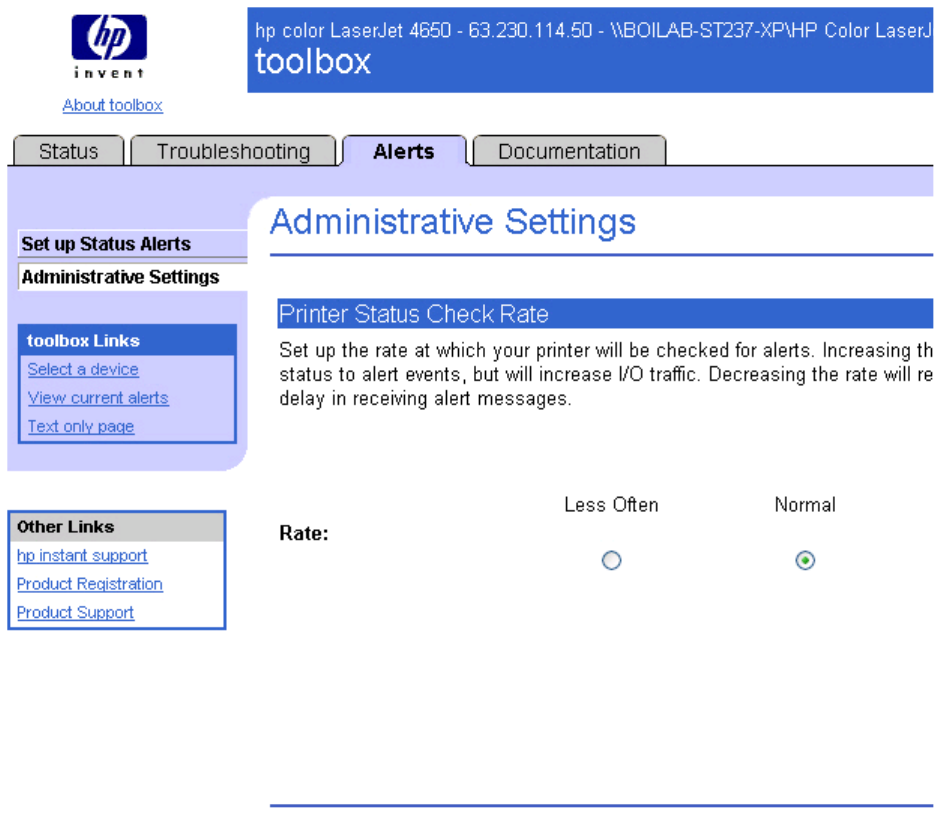
Alerts tab
The Alerts tab is shown in the following illustration.
Figure 2-13. Current Alerts
The navigation bar on the Alerts tab contains links to the information pages for the product.
Some of these pages are also available from other sources, such as the embedded Web server
or the product itself. From this section, you can view the following screens:
●Set up Status Alerts
●Administrative Settings
40 HP Toolbox EN
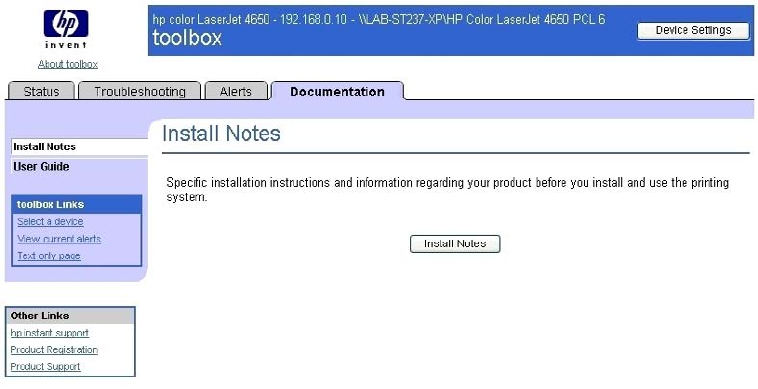
Documentation tab
The Documentation tab is shown in the following illustration.
Figure 2-14. Documentation tab Install Notes
The navigation bar on the Documentation tab contains links to these information sources:
●Install Notes. Contains specific installation instructions and information regarding your
product.
●User Guide. Contains information about product usage, warranty, specifications, and
support. The HTML format (for Windows-based computers only) allows you to search
easily for specific topics and jump between topics.
The User Guide is also available in .PDF file format, which can be printed by page or
by chapter, or you can print the entire document. The printed document is formatted as
a traditional book.
Linking to the HP Embedded Web Server
To gain access to the HP Embedded Web Server, click the Advanced Printer Settings
button in the upper right of any HP Toolbox screen. You can also open a browser window
and type in the HP Jetdirect IP address.
EN Chapter 2 Software description 41
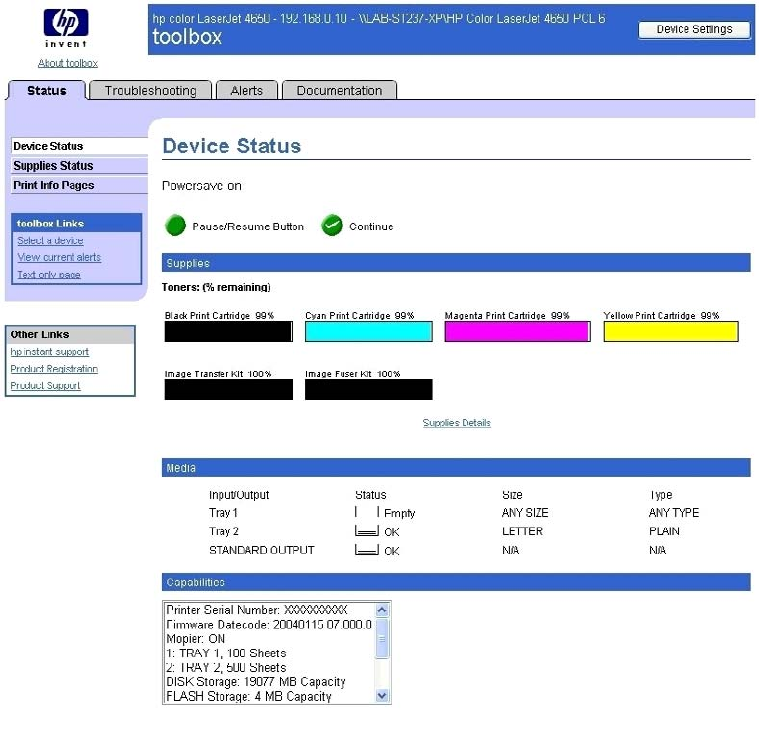
The HP Toolbox Device Status option on the Status tab is shown in the following illustration:
Figure 2-15. Status tab with Advanced Printer Settings button
For additional information and a copy of the HP Embedded Web Server Guide, go to the
following URL: http://www.hp.com/support/clj4650
Other Links
This section contains links that connect you to the Internet. These links appear on the left
navigational bar throughout the HP Toolbox screens. You must have Internet access in order to
use any of these links. If you use a dial-up connection and did not connect when you first opened
the HP Toolbox, you must connect before you can visit these Web sites. Connecting might
require that you close the HP Toolbox and reopen it.
HP Instant Support (TM). This link connects you to a set of dynamic Web resources that you
can use to solve specific problems and determine additional services that might be available for
your product. Specific status and configuration information about the product is retained and
directed to the Solve a Problem Web site, which offers targeted support content and messages
to help resolve problems as quickly as possible.
Product Registration. Click this link to connect to a screen where you can register your HP
Color LaserJet 4650 printer.
42 HP Toolbox EN

Product Support. This link connects you with an HP product support page from which you can
search for information, contact the HP customer care home page, or find additional resources for
your product.
HP Web Jetadmin
HP Web Jetadmin allows you to manage HP Jetdirect connected products within your
intranet using a browser. HP Web Jetadmin is a browser-based management tool, and
should be installed only on a single network administration server. It can be installed and run
on Red Hat Linux; Suse Linux; Windows NT 4.0 Server and Workstation; Windows 2000
Professional, Server, and Advanced Server; and Windows XP Professional Service Pack 1
systems.
To download a current version of HP Web Jetadmin and for the latest list of supported host
systems, visit http://www.hp.com/go/webjetadmin
When installed on a host server, HP Web Jetadmin can be accessed by any client through a
supported web browser (such as Microsoft Internet Explorer 5.5 and 6.0 or Netscape
Navigator 7.0).
HP Web Jetadmin has the following features:
●Task-oriented user interface that provides configurable views for network managers
●User profiles that can be customized to let network administrators include only the
function that is being viewed or used
●Routing of instant e-mail notification of hardware failure, low supplies, and other
product problems to different people
●Remote installation and management from anywhere, using only a standard Web
browser
●Advanced automatic discovery of peripherals on the network without manually typing
information about each product into a database
●Simple integration into enterprise-management packages
●Capacity to find peripherals based on parameters such as the Internet protocol (IP)
address, color capability, and model name
●Capacity to organize peripherals into logical groups, with an option that provides virtual
office maps for easy navigation
●Manages and configures multiple products at once.
The HP Color LaserJet 4650 printer software CD provides the following link to download the
latest version of the HP Web Jetadmin software: http://www.hp.com/go/webjetadmin.
Click support on the main screen in the installer CD Browser, and then click
hp web jetadmin. The following table shows the supporting operating systems and
hardware for HP Web Jetadmin.
Table 2-3. HP Web Jetadmin support
Protocols ●TCP/IP
●IPX/SPX
EN Chapter 2 Software description 43

Compatible operating systems ●Microsoft Windows 2000 Professional, Windows
Server, and Windows Advanced Server
●Microsoft Windows XP Professional with service
pack 1 and Windows Server 2003
●Microsoft Windows NT Server and Workstation
with service pack 3 or later
●Red Hat Linux 8.0
●SuSE Linux V8.1
Shared print queue creation support
●Microsoft Windows 2000 Professional, Server and
Advanced Server
●Microsoft Windows XP Professional and Windows
Server 2003
●Microsoft Windows NT 4.0 Server and Workstation
●HP-UX (R) 11.0
●Red Hat Linux 8.0
●Solaris 2.6, 7 and 8
●SuSE Linux V8.1
●Novell NetWare 5.1 and 6.0 (IPX only) using
Netware Client 4.83 (using HP Web Jetadmin only
on a Microsoft Windows NT 4.0, Windows 2000,
Windows XP, or Windows Server 2003 system)
Supported products All HP and non-HP products that are connected through
HP Jetdirect print servers, and standard Management
Information Base-compliant (MIB-compliant) third-party
network-connected products
Supported browsers ●Microsoft Internet Explorer 5.5 and 6.0, for
Windows only
●Netscape 7.0 (English) for for all operating systems
Supported products All HP and non-HP products connected through HP
Jetdirect print servers, and standard MIB-compliant third-
party network connected products
Bluetooth (R)*
Bluetooth (R) wireless technology is a low-power, short-range radio technology that can be used
to wirelessly connect computers, products, personal digital assistants (PDAs), cell phones, and
other devices.
Since Bluetooth wireless technology uses radio signals, devices do not have to be in the same
room, office, or cubicle with an unobstructed line of sight in order to communicate. This wireless
technology increases portability and efficiency within business network applications.
Table 2-3. HP Web Jetadmin support (continued)
44 Bluetooth (R)* EN
The HP Color LaserJet 4650 can use a Bluetooth adapter (hp bt1300) to incorporate Bluetooth
wireless technology. The adapter is available for either USB or parallel connections. The adapter
has a 10-meter, line-of-site operation range in the 2.5 GHz ISM band and can achieve data
transfer rates up to 723 Kbps. The device supports the following Bluetooth profiles:
●Hardcopy Cable Replacement Profile (HCRP)
●Serial Port Profile (SPP)
●Object Push Profile (OPP)
●Basic Imaging Profile (BIP)
●Basic Printing Profile (BPP) with XHTML-Print
The HP Color LaserJet 4650 is compatible with the following Nokia imaging phones using
Bluetooth (R) wireless technology :
●Nokia 3600
●Nokia 3650
●Nokia 3660
●Nokia 6600
●Nokia 7650
Remote firmware update
The process for remotely upgrading product firmware involves three steps:
1Determine the current level of firmware that is installed on the HP Color LaserJet 4650
printer.
2Go to the HP Web site and download the latest firmware to your computer.
3Download the new firmware to the product.
Determining the current level of firmware
To determine the current level of firmware, view the configuration page. To print a
configuration page, follow these instructions.
1Press the select button (the one with the check mark) to open the menus.
2Press the up and down buttons to scroll to INFORMATION, and then press the select
button.
3Press the up and down buttons to scroll to PRINT CONFIGURATION.
4Press the select button to print the configuration page.
5Look in the "Printer Information" section on the configuration page for the firmware date
code. The firmware date code looks something like this: 20031002 07.000.0.
Downloading the new firmware from the HP Web site
For support information about downloading new firmware from the Web, go to
http://www.hp.com/support/clj4650.
The product can receive an .RFU update to a product when the product is in a READY state.
The product waits for all of the I/O channels to become idle before performing the update.
EN Chapter 2 Software description 45

If the firmware update involves a change in the format of nonvolatile random-access memory
(NVRAM), any menu settings that are changed from the default settings will return to default
settings. The settings must be changed again if you want them to be different from the defaults.
Examples of settings that are affected in this way are tray types, default symbol sets, and Web-
access alerts.
The elapsed time for an update depends on the I/O transfer time, as well as the time that it takes
for the product to reinitialize. The I/O transfer time depends on a number of things, including the
speed of the host computer that is sending the update and the I/O method (parallel or network).
The reinitialization time depends on the specific hardware configuration of the product, such as
the number of EIO devices installed, the presence of external paper-handling devices, and the
amount of memory that is installed.
If the remote firmware update process is interrupted before the firmware is downloaded (while
RECEIVING UPGRADE appears on the control-panel display), the firmware file must be sent
again. If power is lost during the flash dual inline memory module (DIMM) update (while
PERFORMING UPGRADE appears on the control-panel display), the update is interrupted and
the message RESEND UPGRADE appears (in English only) on the control panel display. The
update must now be sent only by a computer that is attached to the parallel port of the product.
Finally, any print jobs that are ahead of the .RFU job in the queue are printed before the update
is processed.
Use one of the following methods to update your product.
Remote firmware update by using the FTP through a browser
Complete the following steps to update the product firmware by using file transfer protocol (FTP)
through a browser.
The following instructions can be used on Windows or Macintosh operating systems.
1Take note of the TCP/IP address on the EIO-Jetdirect page. The EIO-Jetdirect page is the
second page of the configuration page printout. To print a configuration page, see
Determining the current level of firmware .
2Open a browser window.
3In the address line of the browser, type ftp://<IPADDRESS>, where <IPADDRESS> is
the TCP/IP address for your product. For example, if the TCP/IP address is 192.168.0.90,
type FTP://192.168.0.90
4Locate the downloaded .RFU file for the product.
5Drag and drop the .RFU file onto the PORT1 icon in the browser window.
The product automatically turns off and then on again to activate the update. At the end of the
update process, the READY message appears on the control panel.
Remote firmware update by using FTP on a direct network
connection
If the HP Color LaserJet 4650 printer uses a direct network connection, (FTP) to update your HP
LaserJet firmware. Complete the following steps for your operating system.
Note
Note
Note
46 Remote firmware update EN

Windows operating systems
1Take note of the TCP/IP address on the EIO-Jetdirect page. The EIO-Jetdirect page is
the second page of the configuration page printout. To print a configuration page, see
Determining the current level of firmware .
Before connecting to the product, make sure that the product is not in Powersave mode.
Also make sure that any error messages are cleared from the control-panel display.
2Open a command window on your computer.
3Type ftp <TCP/IP printer ADDRESS>. For example, if the TCP/IP address is
192.168.0.90, type ftp 192.168.0.90.
4Press Enter on the keyboard.
5When prompted for the user name, press Enter.
6When prompted for the password, press Enter.
7Type bin at the command prompt.
8Press Enter. The message 200 Type set to I, Using binary mode to transfer files
appears in the command window.
9Type put <FILENAME>, where <FILENAME> is the name of the .RFU file that was
downloaded from the Web, including the path. For example, type put C:\LJ
\4650FW.RFU and then press Enter.
If the file name or path includes a space, you must enclose the file name or path in quotation
marks. For example, type put "c:\My Documents\LJ\4650fw.rfu".
The following series of messages appears in the command window:
●200 PORT command successful
●150 Opening BINARY mode data connection
●226 Ready
●226 Processing Job
●226 Transfer complete
After these messages appear, a message containing transfer-speed information appears.
10 The download process begins and the firmware is updated on the product. This can
take about five minutes. Let the process finish without further interaction with the
product or the computer.
The product automatically turns off and then on again to activate the update. At the end of
the update process, the READY message appears on the control panel.
11 At the command prompt, type bye to exit the FTP command.
12 At the command prompt, type exit to return to the Windows interface.
Macintosh operating systems
1Take note of the TCP/IP address on the EIO-Jetdirect page. The EIO-Jetdirect page is
the second page of the configuration page printout. To print a configuration page, see
Determining the current level of firmware .
2Open a Terminal window on your Macintosh. You can find the Terminal program on the
computer hard drive in the Applications/Utilities folder.
Note
Note
Note
EN Chapter 2 Software description 47

3Type FTP <TCP/IP printer ADDRESS> For example, if the TCP/IP address is
192.168.0.90, type FTP 192.168.0.90
4Press Enter on the keyboard.
5When prompted for a user name and password, press Enter.
6Type put <path>, where <path> is the location where the .RFU file was downloaded from
the Web, including the path. For example, type put /username/desktop/4650fw.rfu
and then press Enter.
If the file name or path includes a space, you must enclose the file name or path in quotation
marks. For example, type put "/user name/desktop/4650FW.RFU".
To ensure that the entire path to the .RFU file is placed in the put command, type put and a
space, and then drag and drop the .RFU file onto the terminal window. The complete path to the
file is automatically placed after the put command.
7The download process begins and the firmware is updated on the product. This can take
about five minutes. Let the process finish without further interaction with the product or
computer.
The product automatically turns off and then on again to activate the update. At the end of the
update process, the READY message appears on the control panel.
Remote firmware update through a local Windows port
If the product is connected through a local port (parallel), then you can send the .RFU file directly
to the product by using a COPY command from a command prompt or an MS-DOS window. At
the command prompt, perform the following steps for your operating system.
Windows 98 or Windows Me
1From a command prompt or in an MS-DOS window, type:
Mode lpt1:,,p
If the product is attached to a parallel port other than LPT1, then substitute the correct LPT port
number in the mode command.
2Press Enter on the keyboard. The response that you receive should be similar to these
examples:
> LPT1 Not Rerouted
> Resident portion of MODE loaded
> Infinite retry on parallel printer time-out
3At a command prompt, type copy/b <FILENAME> <PORTNAME>, where <FILENAME> is
the name of the .RFU file (including the path) and <PORTNAME> is the name of the
appropriate product port (such as LPT1). For example, C:\>copy/b c:\4650fw.rfu
lpt1
If the file name or path includes a space, you must enclose the file name or path in quotation
marks. For example, type C:\>copy/b "c:\My Documents\4650fw.rfu" lpt1
4Press Enter on the keyboard. The messages that are described in the section Printer
messages during the firmware update appear on the control panel.
The product automatically turns off and then on again to activate the update. At the end of the
update process, the READY message appears on the control panel.
Note
Note
Note
Note
Note
48 Remote firmware update EN

5Print a configuration page and verify that the firmware revision number matches the revision
of the current update.
6Type exit at the command prompt to close the command window.
Windows NT 4.0, Windows 2000, Windows XP, or Windows Server 2003
The .RFU file can be sent directly to the product by typing a copy command at a command
prompt or in an MS-DOS window.
1At a command prompt, type copy/b <FILENAME> <PORTNAME> , where
<FILENAME> is the name of the .RFU file (including the path) and <PORTNAME> is
the name of the appropriate product port (such as LPT1). For example, C:\>copy/b
c:\4650fw.rfu lpt1.
If the file name or path includes a space, you must enclose the file name or path in quotation
marks. For example, type C:\>copy/b "c:\My Documents\4650fw.rfu" lpt1.
2Press Enter on the keyboard. The messages described in the section Printer messages
during the firmware update appear on the control panel.
The product automatically turns off and then on again to activate the update. At the end of
the update process, the READY message appears on the control panel.
3At the command prompt, type exit to close the command window.
Remote firmware update through a Windows network
If the product is shared on a Windows network, follow these instructions.
1From a command prompt or in an MS-DOS window, type copy/b <FILENAME> \
\<COMPUTERNAME>\<SHARENAME>, where <FILENAME> is the name of the .RFU file
(including the path), <COMPUTERNAME> is the name of the computer from which the
product is being shared, and <SHARENAME> is the product share name. For example,
C:\>copy/b c:\4650fw.rfu \\your_server\your_computer
If the file name or path includes a space, you must enclose the file name or path in quotation
marks. For example, type C:\>copy/b "c:\My Documents\4650fw.rfu" \
\your_server\your_computer
2Press Enter on the keyboard. The messages that are described in the section Printer
messages during the firmware update appear on the control panel. The message 1 file
(s) copied appears on the computer screen.
The product automatically turns off and then on again to activate the update. At the end of
the update process, the READY message appears on the control panel.
Note
Note
Note
Note
EN Chapter 2 Software description 49

Remote firmware update for UNIX systems
For UNIX systems, any command method that delivers the .RFU file to the product is
acceptable, including the following:
1At the command prompt, type cp /home/yourmachine/FILENAME /dev/
parallel>, where </home/yourmachine/FILENAME> contains the .RFU file.
The product automatically turns off and then on again to activate the update. At the end of
the update process, the READY message appears on the control panel.
Remote firmware update by using Fetch (Mac OS 9.x only)
For Mac OS 9.x, a shareware program called Fetch provides FTP control for a put command.
Download and install the program from: http://download.com.com/3000-2151-10182446.html.
Complete the following steps to update the product firmware by using Fetch.
1Start the program by clicking the Fetch icon.
2Type the IP address of the product in the Host: box.
3Click the Put Files button and browse to the location of the .RFU file.
4Double-click the file to select it and download it to the product. A confirmation message
appears in the main window.
5Click OK.
The product automatically turns off and then on again to activate the update. At the end of the
update process, the READY message appears on the control panel.
Remote firmware update by using the HP LaserJet Utility
(Mac OS 9.x only)
Complete the following steps to update the firmware by using the HP LaserJet Utility.
1Make sure that you have the tools and files that are necessary for the update. You will need
the HP LaserJet Utility and the 4650FW.RFU file, which is the firmware file for the product.
The HP LaserJet Utility can be found on the HP LaserJet 4650 printing-system software CD
that came with the product. If you do not have the CD, you can obtain the
HP LaserJet Utility by downloading the latest product installer from: http://www.hp.com.
The firmware file (4650FW.RFU) can be downloaded from: http://www.hp.com/support/
clj4650 .
See Downloading the new firmware from the HP Web site for more information.
After you have the firmware file and the HP LaserJet Utility, you are ready to begin the
update process.
2Open the HP LaserJet Utility.
3Click Select Printer and locate the product that you would like to update on the network.
Select the product on the right side of the dialog box, and then click OK. An information
dialog box for the HP Color LaserJet 4650 printer appears.
4On the left side of the information dialog box, click Files. A dialog box appears where you
can select a file to be downloaded to the product.
5Click Select File.
Note
Note
50 Remote firmware update EN

6Locate the 4650FW.RFU file on your hard disk, and click the file name to highlight it. Click
Select. The Files dialog boxes update to show the 4650FW.RFU file under File to download.
7Click Download. The HP LaserJet Utility starts downloading the file to the product. A
progress bar shows how much of the file has been downloaded. While the file is
downloading, the RECEIVING UPGRADE message appears on the control panel
display on the product. After the file has been downloaded to the product the
PERFORMING UPGRADE message appears on the control-panel display.
The product automatically turns off and then on again to activate the update. At the end of
the update process, the READY message appears on the control panel.
Remote firmware update by using the LPR command
This remote firmware update method is for use in Windows NT 4.0, Windows 2000,
Windows XP, and Windows Server 2003.
Complete the following steps to update the firmware by using the LPR command.
1From a command window, type lpr -P <IPADDRESS> -S <IPADDRESS> -o l
<FILENAME> -OR- lpr -S <IPADDRESS> -Pbinps <FILENAME>, where
<IPADDRESS> can be either the TCP/IP address or the hostname of the product, and
where <FILENAME> is the filename of the .RFU file.
The parameter (-o l) consists of a lowercase "O", not a zero, and a lowercase "L", not the
numeral 1. This parameter sets the transport protocol to binary mode.
2Press Enter on the keyboard. The messages that are described in Printer messages
during the firmware update appear on the control panel.
The product automatically turns off and then on again to activate the update. At the end of
the update process, the READY message appears on the control panel.
3Type exit at the command prompt to close the command window.
Remote firmware update by using HP Web Jetadmin
This procedure requires that you install HP Web Jetadmin version 7.0 or later on your
computer. Complete the following steps to update a single product through
HP Web Jetadmin after downloading the .RFU file from the HP Web site.
1Start HP Web Jetadmin.
2Type the TCP/IP address or IP host name of the product in the Quick Device Find field,
and then click Go. The product Status window opens.
3Open the Device Management folder in the drop-down list in the Navigation panel.
Navigate to the Device Lists folder.
4Expand the Device Lists folder and select All Devices. Locate the product that you
want to update in the list of products, and click to select it.
5Locate the drop-down box for Device Tools in the upper-right corner of the window.
Select Update Printer Firmware from the choose action list.
Note
Note
Note
Note
EN Chapter 2 Software description 51
6If the name of the .RFU file is not listed in the All Available Images dialog box, click
Browse in the Upload New Firmware Image dialog box and navigate to the location of
the .RFU file that you downloaded from the Web at the start of this procedure. If the
filename is listed, select it.
7Click Upload to move the .RFU file from your hard drive to the HP Web Jetadmin server.
8Refresh the browser.
9Select the .RFU file from the Printer Firmware Update drop-down menu.
10 Click Update Firmware. HP Web Jetadmin sends the selected .RFU file to the product. The
messages that are described in Printer messages during the firmware update appear on the
control panel.
The product automatically turns off and then on again to activate the update. At the end of the
update process, the READY message appears on the control panel.
HP Web Jetadmin version 7.0 and later can also be used to perform multiple or unattended
installations. Complete the following steps for multiple or unattended installations.
1Start HP Web Jetadmin.
2Create a device group. A simple way to do this is to follow these steps:
a. Click Device Management, then click All Devices.
b. Shift-click to select products that you want to be included in the group, and then click OK.
c. When prompted, type a name for the new device group, and then click OK.
3To modify several products in a group, click the group name, and then click Open.
4The drop-down menu for Device Group Tools appears in the right side of the window.
Scroll if necessary to view it.
5In the Device Group Tools drop-down box, select an action. Type in the appropriate
information. Click Return to Device Group when finished.
Printer messages during the firmware update
Table 2-4. Update messages
Product message Explanation
RECEIVING UPGRADE This message appears from the time the product recognizes the
beginning of an .RFU update until the time the product has verified
the validity and integrity of the .RFU update.
PERFORMING
UPGRADE
This message appears while the product is actually reprogramming
the firmware.
INITIALIZING This message appears from the time the product has finished
reprogramming the DIMM until the product reinitializes.
To verify that the firmware update succeeded, print a new Configuration page from the control
panel and verify that the firmware date code on the Configuration page has changed.
Troubleshooting a firmware update
The following table lists the causes and results of possible interruptions to the firmware update.
Note
Note
52 Remote firmware update EN
Table 2-5. Troubleshooting a firmware update
Cause Result
The job was cancelled from the control panel. No update has occurred.
A break in the I/O stream occurred during send
(for example, the parallel cable was removed).
No update has occurred.
A power cycle occurred during the RECEIVING
UPGRADE process.
No update has occurred.
A power cycle occurred during the
PERFORMING UPGRADE process.
No update has occurred. Resend the
update through a parallel port.
A power cycle occurred during the
INITIALIZING process.
The update has been completed.
Print jobs that are sent to the product while an update is in process do not interrupt the
update.
The following table lists possible reasons for the failure of a remote firmware update and the
corrective action required for each situation.
Table 2-6. Troubleshooting a firmware update failure
Reason for firmware
update failure
Corrective action
The .RFU file is corrupted. The product recognizes that the file is corrupted and rejects
the update. Download the file again and send the new file
to the product. Download the file from: http://www.hp.com/
support/clj4650.
The wrong product is
contained in the .RFU file.
The product recognizes the product mismatch and rejects
the update. Download the correct file and send it to the
product. Download the file from: http://www.hp.com/support/
clj4650 .
The upgrade was interrupted. See Troubleshooting a firmware update .
A flash hardware failure
occurred.
Although it is extremely unlikely, the device might have a
hardware failure. Call technical support to address the
problem (see the flyer that came with the product for a local
telephone support list).
All HP LaserJet products leave the factory with the latest available firmware version
installed. If a remote firmware update fails, the .RFU file must be sent over a parallel port
connection.
Printing print-ready documents from a
command line
●HP LaserJet Printer Control Language (.PCL)
●Portable document format (.PDF)
Note
EN Chapter 2 Software description 53

●Postscript (.PS)
●Text (.TXT)
The examples used in this section are for printing .PDF documents. However, any print-ready file
type may be substituted.
Print-ready file printing by using FTP through a browser
Complete the following steps to print print-ready files from a command line by using FTP through
a browser.
The following instructions can be used on Windows or Macintosh operating systems.
1Take note of the TCP/IP address on the EIO-Jetdirect page. The Jetdirect page is the
second page of the configuration page printout. To print a configuration page, see
Determining the current level of firmware .
2Open a browser window.
3In the address line of the browser, type ftp://<IPADDRESS>. For example, if the TCP/IP
address of your product is 192.168.0.90, type FTP 192.168.0.90
4Locate the print-ready file for the product.
5Drag and drop the print-ready file onto the PORT1 icon in the browser window.
Print-ready file printing by using FTP on a direct network
connection
If the HP Color LaserJet 4650 printer uses a direct network connection, use FTP to print a print-
ready file. Complete the appropriate steps for the operating system:
Windows operating systems
1Take note of the TCP/IP address on the EIO-Jetdirect page. The EIO-Jetdirect page is the
second page of the Configuration page printout. To print a Configuration page, see
Determining the current level of firmware .
2Open a command window on your computer.
3Type ftp <TCP/IP printer ADDRESS>. For example, if the TCP/IP address is
192.168.0.90, type ftp 192.168.0.90
4Press Enter on the keyboard.
5When prompted for the user name, press Enter.
6When prompted for the password, press Enter.
7Type bin at the command prompt.
8Press Enter. The message 200 Types set to I, Using binary mode to transfer files
appears in the command window.
Note
Note
54 Printing print-ready documents from a command line EN

9Type put <FILENAME>, where <FILENAME> is the name of the print-ready file to be
printed, including the path. For example, type put C:\LJ\4650FW.PDF and then press
Enter.
If the file name or path includes a space, you must enclose the file name or path in quotation
marks. For example, type put "c:\My Documents\LJ\4650fw.pdf"
The following series of messages appears in the command window:
200 PORT command successful
150 Opening BINARY mode data connection
226 Ready
226 Processing Job
10 Your print-ready file prints.
Macintosh operating systems
1Take note of the TCP/IP address on the EIO-Jetdirect page. The EIO-Jetdirect page is
the second page of the Configuration page printout. To print a Configuration page, see
Determining the current level of firmware .
2Open a Terminal window on your Macintosh computer. You can find the Terminal
application on the computer hard drive in the Applications/Utilities folder.
3Type FTP <TCP/IP printer ADDRESS>. For example, if the TCP/IP address is
192.168.0.90, type FTP 192.168.0.90
4Press Enter on the keyboard.
5When prompted for a user name and password, press Enter.
6Type put <path>, where <path> is the location where the print-ready file was
downloaded from the Web. For example, type put /username/
desktop/4650FW.PDF and then press Enter.
If the file name or path includes a space, you must enclose the file name or path in quotation
marks. For example, type put "/user name/desktop/4650FW.PDF"
To ensure that the entire proper path to the print-ready file is placed in the put command,
type put and a space and then click and drag the print-ready file onto the terminal window.
The complete path to the file is placed after the put command automatically.
7The download process begins and the firmware is updated on the product. This can
take about five minutes. Let the process finish without further interaction with the
product or computer.
8The product automatically turns off and on again to activate the update.
Print-ready printing by using a local Windows port
To print from the command line by using a local Windows port, follow the instructions in this
section for your operating system.
Note
Note
Note
EN Chapter 2 Software description 55

Windows 98 or Windows Me
1From a command prompt or in an MS-DOS window, type Mode lpt1:,,p
If the product is attached to a parallel port other than LPT1, then substitute the proper LPT
port number in the mode command.
2Press Enter on the keyboard. The response that you receive should be similar to these
examples: > LPT1 Not Rerouted , > Resident portion of MODE loaded, > Infinite retry
on parallel printer time-out
3At a command prompt, type copy/b <FILENAME> <PORTNAME>, where <FILENAME> is
the name of the print-ready file (including the path) and <PORTNAME> is the name of the
appropriate product port (such as LPT1). For example, at the c:\> command prompt, type
copy/b c:\4650fw.pdf lpt1
If the file name or path includes a space, you must enclose the file name or path in quotation
marks. For example, type C:\>copy/b "c:\My Documents\4650fw.pdf"
4Press Enter on the keyboard. The message PROCESSING JOB appears on the control
panel, and the job prints.
5At the command prompt, type exit to close the command window.
Windows NT 4.0, Windows 2000, Windows XP, or Windows Server 2003
The print-ready file can be sent directly to the product by typing a copy command at a command
prompt or in an MS-DOS window.
1At a command prompt, type copy/b <FILENAME> <PORTNAME>, where <FILENAME> is
the name of the print-ready file (including the path) and <PORTNAME> is the name of the
appropriate printer port (such as LPT1). For example, type C:\>copy/b c:\4650fw.pdf
lpt1
2Press Enter on the keyboard.
If the file name or path includes a space, you must enclose the file name or path in quotation
marks. For example, type C:\>copy/b "c:\My Documents\4650fw.pdf". The message
PROCESSING JOB appears on the control panel, and the job prints.
3At the command prompt, type exit to close the command window.
Print-ready file printing in a Windows network
If the product is shared on a Windows network, complete the following steps.
1From a command prompt or in an MS-DOS window, type copy/b <FILENAME> \
\<COMPUTERNAME>\<SHARENAME>, where <FILENAME> is the name of the print-ready file
(including the path), <COMPUTERNAME> is the name of the computer from which the
product is being shared, and <SHARENAME> is the product share name. For example, type
C:\>copy/b c:\4650fw.pdf \\your_server\sharename
If the file name or path includes a space, you must enclose the file name or path in quotation
marks. For example, type C:\>copy/b "c:\My Documents\4650fw.pdf" \
\your_server\sharename
2Press Enter on the keyboard. The message PROCESSING JOB appears on the control
panel, and the job prints. The message 1 file(s) copied appears on the computer screen.
Note
Note
Note
Note
56 Printing print-ready documents from a command line EN
Print-ready file printing in UNIX systems
For UNIX systems, any command method that delivers the print-ready file to the product is
acceptable, including the following:
1At the command prompt, type $cp </home/yourmachine/FILENAME/dev/
parallel>, where </home/yourmachine/FILENAME> contains the print-ready file.
Print-ready file printing by using Fetch (Mac OS 9.x only)
For Mac OS 9.x, a shareware program called Fetch provides FTP control for a Put
command. Download and install the program from:
http://download.com.com/3000-2151-10182446.html.
Complete the following steps to print print-ready files by using Fetch.
1Start the program by clicking the Fetch icon.
2Type IP address of the product in the Host: box
3Click the Put Files button and browse to the location of the print-ready file.
4Double-click the file to select it and download it to the product. A confirmation message
appears in the main window.
5Click OK.
File printing by using the HP LaserJet Utility (Mac OS 9.x
only)
Complete the following steps to print a print-ready file by using the HP LaserJet Utility.
1Make sure that you have the tools and files that are necessary for the update. You will
need the HP LaserJet Utility and the print-ready file that you want to print.
The HP LaserJet Utility can be found on the HP Color LaserJet 4650 printing-system
software CD that came with the product. If you do not have the CD, you can obtain the
HP LaserJet Utility by downloading the latest printer installer from: http://www.hp.com.
After you have the HP LaserJet Utility and you know the location of the print-ready file
that you want to print, you are ready to begin the command-line printing process.
2Open the HP LaserJet Utility.
3Click Select Printer and locate the product that you would like to upgrade on the
network.
4Select the product on the right side of the dialog box, and click OK. An information
dialog box for the HP Color LaserJet 4650 printer appears.
5On the left side of the Information dialog box, click Files. A dialog box appears where
you can select a file to be downloaded to the product.
6Click Select File.
EN Chapter 2 Software description 57

7On your hard disk, locate the print-ready file that you want to print, and then click the file
name to highlight it. Then click Select. The Files dialog box updates and shows the
print-ready file that you want to print under File to download.
8Click Download.
The HP LaserJet Utility starts downloading the file to the product. A progress bar keeps
you updated about how much of the file has been downloaded. While the file is
downloading, the PROCESSING JOB message appears on the product control-panel,
and the the print-ready file prints.
Print-ready file printing by using the LPR command
This command-line printing method is for use in Windows NT 4.0, Windows 2000, Windows XP,
and Windows Server 2003.
Complete the following steps to print a print-ready file by using the LPR command.
1Take note of the TCP/IP address on the EIO-Jetdirect page. The EIO-Jetdirect page is the
second page of the Configuration page printout. To print a Configuration page, see
Determining the current level of firmware .
2From a command window, type lpr -P IPADDRESS -S IPADDRESS -o l FILENAME
lpr -S <IPADDRESS> -Pbinps <FILENAME>, where IPADDRESS can be either the
TCP/IP address or the host name of the product, and where FILENAME is the file name of
the print-ready file.
The parameter (-o l) consists of a lowercase "O", not a zero, and a lowercase "L", not the
numeral 1. This parameter sets the transport protocol to binary mode.
3The file prints, but no further messages appear in the command-prompt window.
4Type exit at the command prompt to close the command window.
Driver-feature comparison in various
operating systems
The following tables detail the software features that are available for each driver type and for
each supported operating system that the HP Color LaserJet 4650 printer supports. The printing-
system drivers for Windows 98, Windows Me, and Windows NT 4.0 are the HP Traditional PCL
5c, HP Traditional PCL 6, and PS Emulation drivers. The printing-system drivers for Windows
2000, Windows XP, and Windows Server 2003 are the new HP unidrivers, with a user interface
look and feel that is consistent across the HP PCL 5c, HP PCL 6, and PS Emulation unidrivers.
For more information about the HP Traditional HP PCL 6, PCL 5c, and PS Emulation drivers,
see Chapter 3, HP traditional print drivers for Windows. For more information about the HP
PCL 6, HP PCL 5c, and PS Emulation unidrivers, see Chapter 4, HP PCL 6, HP PCL 5c, and HP
PS 3 emulation unidrivers for Windows.
Note
Note
58 Driver-feature comparison in various operating systems EN
Job stream output
Table 2-7. Driver support for the job stream output feature
Operating
system
Windows XP (32-bit),
Windows 2000
Windows NT 4.0 Windows 98, Me Mac
Driver type HP unidriver HP traditional driver HP traditional driver Mac
Driver PCL6 PCL
5c
PS
Emulation
PCL
6
PCL
5c
PS
Emulation
PCL
6
PCL
5c
PS
Emulation
Postscript
PCL 6 support x x x
PCL 5c pass-
through support
x x x
PCL6 XL Color x x x
Postscript 3 x x x
Postscript 1, 2 x x x x
PCL6 raster compression
Table 2-8. PCL6 color raster compression support
Operating
system
Windows XP (32-bit),
Windows 2000
Windows NT 4.0 Windows 98, Me Mac
Driver type HP unidriver HP traditional driver HP traditional driver Mac
Driver PCL
6
PCL
5c
PS
Emulation
PCL
6
PCL
5c
PS Emulation PCL
6
PCL
5c
PS
Emulation
Postscript
PCL 6 color
raster
compression
x x x
PJL/PJL Encoding
Table 2-9. Printer Job Language (PJL) and PJL encoding
Operating
system
Windows XP (32-bit),
Windows 2000
Windows NT 4.0 Windows 98, Me Mac
Driver type HP unidriver HP traditional driver HP traditional driver Mac
Driver PCL
6
PCL
5c
PS
Emulation
PCL
6
PCL
5c
PS
Emulation
PCL
6
PCL
5c
PS
Emulation
Postscript
PJL support x x x x x x x x x
UTF-8 encoding
for PJL
(Unicode to 8-
bit)
x x x x x
EN Chapter 2 Software description 59
Job tracking
Table 2-10. Driver support for job tracking
Operating
system
Windows XP (32-bit),
Windows 2000
Windows NT 4.0 Windows 98, Me Mac
Driver type HP unidriver HP traditional driver HP traditional driver Mac
Driver PCL
6
PCL
5c
PS
Emulation
PCL
6
PCL
5c
PS
Emulation
PCL
6
PCL
5c
PS
Emulation
Postscript
PRN file
driver
identification
xxx xxx xxx
Job
accounting
information
xxx xxx xxx
Job
accounting
enhancements
(UUID)
x x x x x x
Reliable Time
- born on date
(PJL DMINFO)
xxx xxx xxx
Sending user
name with
every job
x x x x x x x
Connectivity
Table 2-11. Driver support for connectivity features
Operating
system
Windows XP (32-bit),
Windows 2000
Windows NT 4.0 Windows 98, Me Mac
Driver type HP unidriver HP traditional driver HP traditional driver Mac
Driver PCL
6
PCL
5c
PS
Emulation
PCL
6
PCL
5c
PS
Emulation
PCL
6
PCL
5
PS
Emulation
Postscript
Parallel
(direct
connect)
x x x x x x x x x
Network x x x x x x x x x x
USB (direct
connect)
x x x x x x x
Wireless x x x x x x x x x x
60 Driver-feature comparison in various operating systems EN
Bidirectional communication
Table 2-12. Driver support for bidirectional communication features
Operating
System
Windows XP (32-bit),
Windows 2000
Windows NT 4.0 Windows 98, Me Mac
Driver type HP unidriver HP traditional driver HP traditional driver Mac
Driver PCL
6
PCL
5c
PS
Emulation
PCL
6
PCL
5c
PS
Emulation
PCL
6
PCL
5c
PS
Emulation
Postscript
EAC x x x x x x x
Parallel (direct
connect)
x x x x x x x x
Network x x x x x x x x
USB (direct
connect)
x x x x x x
Update Now x x x x x x x x
Language
Monitor
x x x x x x x
1
MasterMon, a pseudo-language monitor that is used for all HP LaserJet products for the duplex communication
channel with bidirectional communication products and to insert PJL commands into the job stream. It loads
TCPMON for TCP/IP ports.
HP Driver Preconfiguration
Table 2-13. Driver support for HP Driver Preconfiguration
Operating
system
Windows XP (32-bit),
Windows 2000
Windows NT 4.0 Windows 98, Me Mac
Driver type HP unidriver HP traditional driver HP traditional driver Mac
Driver PCL
6
PCL
5c
PS
Emulation
PCL
6
PCL
5c
PS
Emulation
PCL
6
PCL
5c
PS
Emulation
Postscript
HP Driver
Preconfiguration
x x x x x x x
Feature lockout x x x x x x x
Enterprise
Autoconfiguratio
n (EAC)
x x x x x x x
Continuous
export
x x x x x x x
DMC macro
automation
x x x x x x x
EN Chapter 2 Software description 61
Bundle support
Table 2-14. Bundle support
Operating
system
Windows XP (32-bit),
Windows 2000
Windows NT 4.0 Windows 98, Me Mac
Driver type HP unidriver HP traditional driver HP traditional driver Mac
Driver PCL
6
PCL
5c
PS
Emulation
PCL
6
PCL
5c
PS
Emulation
PCL
6
PCL
5c
PS
Emulation
Postscript
Assign Bundle
support through
HP
Preconfiguration
xxx xx xxx
Printer bundle
setting in driver
UI
x x x x
Tray and paper assignment
Table 2-15. Tray and paper assignment
Operating
system
Windows XP (32-bit),
Windows 2000
Windows NT 4.0 Windows 98, Me Mac
Driver type HP unidriver HP traditional driver HP traditional driver Mac
Driver PCL
6
PCL
5c
PS
Emulation
PCL
6
PCL
5c
PS
Emulation
PCL
6
PCL
5c
PS
Emulation
Postscript
Assign paper
size to tray
x x x x x x x
Assign paper
type to tray
x x
Installable options
Table 2-16. Driver support for installable options
Operating
system
Windows XP (32-bit),
Windows 2000
Windows NT 4.0 Windows 98, Me Mac
Driver type HP unidriver HP traditional driver HP traditional driver Mac
Driver PCL
6
PCL
5c
PS
Emulation
PCL
6
PCL
5c
PS
Emulation
PCL
6
PCL
5c
PS
Emulation
Postscript
Duplexing unit x x x x x x x x x x
Manual duplex
enable
x x x x x x x x x x
Printer hard disk x x x x x x x x x x
Total Memory x x x x x x x x x
62 Driver-feature comparison in various operating systems EN
Operating
system
Windows XP (32-bit),
Windows 2000
Windows NT 4.0 Windows 98, Me Mac
Driver type HP unidriver HP traditional driver HP traditional driver Mac
Driver PCL
6
PCL
5c
PS
Emulation
PCL
6
PCL
5c
PS
Emulation
PCL
6
PCL
5c
PS
Emulation
Postscript
Paper Driver
Workspace
(DWS)
x x x x x x x
Additional
source trays
x x x x x x x x x x
Font DIMM
Installer
x x x x x x x
Mopier Enabled x x x x x x x x x x
Job Storage
Enabled
x x x x x x x x x x
UI features
Table 2-17. Driver support for UI features
Operating
system
Windows XP (32-bit),
Windows 2000
Windows NT 4.0 Windows 98, Me Mac
Driver type HP unidriver HP traditional driver HP traditional driver Mac
Driver PCL
6
PCL
5c
PS
Emulation
PCL
6
PCL
5c
PS
Emulation
PCL
6
PCL
5c
PS
Emulation
Postscript
UI tabs x x x x x x x x x x
UI extensions x x x x x
Page preview
images
x x x x x x x
printer image
bitmaps with hot
spots
x x x x
Paper size
dimensions
x x x x x x x x x
Page layout
graphical
representation
x x x x x x x x x
About . . . x x x x x x x x x
Accessibility/
Disability
x x x x x x x x
Accessibility
architecture
x x x x x x x
Table 2-16. Driver support for installable options (continued)
EN Chapter 2 Software description 63
Help features
Table 2-18. Driver support for Help features
Operating
system
Windows XP (32-bit),
Windows 2000
Windows NT 4.0 Windows 98, Me Mac
Driver type HP unidriver HP traditional driver HP traditional driver Mac
Driver PCL
6
PCL
5c
PS
Emulation
PCL
6
PCL
5c
PS
Emulation
PCL
6
PCL
5c
PS
Emulation
Postscript
What's this Help
(F1)
x x x x x x x x x
Help button x x x x x x x
Bubble Help x x x x
MS Windows "?"
Help
x x x x x x x x x
Job storage
Table 2-19. Driver support for job storage features
Operating
system
Windows XP (32-bit),
Windows 2000
Windows NT 4.0 Windows 98, Me Mac
1
Driver type HP unidriver HP traditional driver HP traditional driver Mac
Driver PCL
6
PCL
5c
PS
Emulation
PCL
6
PCL
5c
PS
Emulation
PCL
6
PCL
5c
PS
Emulation
Postscript
Proof and hold x x x x x x x x x x
Private job x x x x x x x x x x
Quick Copy x x x x x x x x x x
Stored Job x x x x x x x x x x
Job name x x x x x x x x x
User name x x x x x x x x x x
PIN x x x x x x x x x x
Job storage pop-
up
x x x x x x x x x
Automatic job
and user name
x x x x x x x x x
1
Job Storage features are available only in Mac OS 9.x. They are not available for Mac OS X.
64 Driver-feature comparison in various operating systems EN
Print quality and resolution
Table 2-20. Print quality and resolution features
Operating
system
Windows XP (32-bit),
Windows 2000
Windows NT 4.0 Windows 98, Me Mac
Driver type HP unidriver HP traditional driver HP traditional driver Mac
Driver PCL
6
PCL
5c
PS
Emulation
PCL
6
PCL
5c
PS
Emulation
PCL
6
PCL
5c
PS
Emulation
Postscript
Print quality
options
x x x x x x x
Print quality -
custom options
recall
x x x x
Rendering mode
(automatic)
x x
Send graphics
as vector
xxx
Send graphics
as raster
xxx
Send page as
raster
x x
Color REt x x x x x x x x x x
Scale patterns
(WYSIWYG)
x x x x x
Image mode x x x x x x x x x x
Resizing options
Table 2-21. Resizing options
Operating
system
Windows XP (32-bit),
Windows 2000
Windows NT 4.0 Windows 98, Me Mac
Driver type HP unidriver HP traditional driver HP traditional driver Mac
Driver PCL
6
PCL
5c
PS
Emulation
PCL
6
PCL
5c
PS
Emulation
PCL
6
PCL
5c
PS
Emulation
Postscript
Print Document
On
x x x x x x x
Scale to Fit x x x x x x x
Allow Scaling
from Large
Paper
x x x x x x x
% of Normal Size x x x x x x x x x
EN Chapter 2 Software description 65
Color settings
Table 2-22. Color settings
Operating
system
Windows XP (32-bit),
Windows 2000
Windows NT 4.0 Windows 98, Me Mac
Driver type HP unidriver HP traditional driver HP traditional driver Mac
Driver PCL
6
PCL
5c
PS
Emulation
PCL
6
PCL
5c
PS
Emulation
PCL
6
PCL
5c
PS
Emulation
Postscript
Color Options x x x x x x x x x x
Manual color
options recall
x x x x x x x x x x
Gloss print media x x x x x x x x x
Print in grayscale x x x x x x x x x
Color/
monochrome
switching
x x x x x x x x x x
Other document options
Table 2-23. Other document options
Operating
system
Windows XP (32-bit),
Windows 2000
Windows NT 4.0 Windows 98, Me Mac
Driver type HP unidriver HP traditional driver HP traditional driver Mac
Driver PCL
6
PCL
5c
PS
Emulation
PCL
6
PCL
5c
PS
Emulation
PCL
6
PCL
5c
PS
Emulation
Postscript
Orientation
(Portrait/
Landscape)
x x x x x x x x x x
Rotate by 180
degrees
x x x x x x x x x
Number of copies x x x x x x x x x x
Ignore
Application
Collation
x x x x
Collate - feature
in driver UI
x x x x x x
Collate through
mopy
x x x x x x x x x x
Collate through
OS/server
x x x x x x x x x x
66 Driver-feature comparison in various operating systems EN
Watermarks
Table 2-24. Driver support for watermarks feature
Operating
system
Windows XP (32-bit),
Windows 2000
Windows NT 4.0 Windows 98, Me Mac
Driver type HP unidriver HP traditional driver HP traditional driver Mac
Driver PCL
6
PCL
5c
PS
Emulation
PCL
6
PCL
5c
PS
Emulation
PCL
6
PCL
5c
PS
Emulation
Postscript
Watermarks on/
off
x x x x x x x x x x
First page only x x x x x x x x x x
Custom
watermark
definition
x x x x x x x x x x
Watermark angle x x x x x x x x x x
Watermark font
name
x x x x x x x x x x
Watermark font
color
x x x x x x x x x
Watermark font
shading
x x x x x x x x x
Watermark font
size
x x x x x x x x x x
Watermark font
style
x x x x x x x x x x
Locally defined
watermarks
x x x x x x x
1
Mac 8.5 through 9.x only; not supported by Mac X or later.
Alternative source/paper type
Table 2-25. Driver support for alternate source/paper type feature
Operating
system
Windows XP (32-bit),
Windows 2000
Windows NT 4.0 Windows 98, Me Mac
Driver type HP unidriver HP traditional driver HP traditional driver Mac
Driver PCL
6
PCL
5c
PS
Emulation
PCL
6
PCL
5c
PS
Emulation
PCL
6
PCL
5c
PS
Emulation
Postscript
All pages the
same
x x x x x x x x x x
First Page x x x x x x x x
Other pages x x x x x x x x
EN Chapter 2 Software description 67
Operating
system
Windows XP (32-bit),
Windows 2000
Windows NT 4.0 Windows 98, Me Mac
Driver type HP unidriver HP traditional driver HP traditional driver Mac
Driver PCL
6
PCL
5c
PS
Emulation
PCL
6
PCL
5c
PS
Emulation
PCL
6
PCL
5c
PS
Emulation
Postscript
Back Cover -
Insert Blank
Back Cover
xxx xx xx
Printing destination
Table 2-26. Driver support for printing destination feature
Operating
system
Windows XP (32-bit),
Windows 2000
Windows NT 4.0 Windows 98, Me Mac
Driver type HP unidriver HP traditional driver HP traditional driver Mac
Driver PCL
6
PCL
5c
PS
Emulation
PCL
6
PCL
5c
PS
Emulation
PCL
6
PCL
5c
PS
Emulation
Postscript
Main bin x x x x x x x x x x
Font support
Table 2-27. Font support
Operating
system
Windows XP (32-bit),
Windows 2000
Windows NT 4.0 Windows 98, Me Mac
Driver type HP unidriver HP traditional driver HP traditional driver Mac
Driver PCL6 PCL
5c
PS
Emulation
PCL6 PCL
5c
PS
Emulation
PCL6 PCL
5c
PS
Emulation
Postscript
General device
font support
x x x x x x x x x x
Font substitution x x x x
Arabic, Cyrillic,
Hebrew, Greek
device
x x x x x x x x
Font DIMM (on/
off)
x x x x x x
Send TrueType
as Bitmap
x x x x x x
TrueType Fonts
(UI option)
xxx
Print Text as
Black
x x x x x x x
Table 2-25. Driver support for alternate source/paper type feature (continued)
68 Driver-feature comparison in various operating systems EN
Postscript-specific features
Table 2-28. Driver support for postscript-specific features
Operating system Windows
XP
Windows
NT 4.0
Windows
98, Me
Mac
Driver PS
Emulation
PS
Emulation
PS
Emulation
Postscript
Postscript memory x x x
Output protocol x x x
Send CTRL-D before each job x x x
Send CTRL-D after each job x x x
Job timeout x x x
Wait timeout x x x
Minimum font size to download as outline x x
Minimum font size to download as bitmap x x
Postscript language level x x x x
Send postscript error handler x x x
Mirrored output x x x
Negative output x x x
Output options
Optimize for speed x x x
Optimize for portability x x x
Encapsulated postscript (EPS) x x x x
Archive format x x x
Fit to Page x x x
TrueType font download option
Outline x x x
Bitmap x x x
Native TrueType x x x
EN Chapter 2 Software description 69
70 Driver-feature comparison in various operating systems EN
3
HP traditional print drivers
for Windows
Introduction
This chapter describes the features of the HP Color LaserJet 4650 printer traditional print
drivers. The chapter contains the following sections:
●HP Traditional PCL 6 Driver and HP Traditional PCL 5c Driver features. This section
describes the HP PCL 6 and HP PCL 5c drivers for Windows 98, Windows Me, and
Windows NT 4.0.
●HP Traditional Postscript 3 Emulation Driver (PS Emulation Driver) features. This
section describes the PS Emulation Driver for Windows 98, Windows Me, and
Windows NT 4.0.
You can control print jobs from several places: the product control panel, the software
program, and the driver user interface. Generally, for features that are common to two or
more of these places (for instance, you can select the media input tray from any of them),
settings that are established in the software program take precedence over print-driver
settings. Print-driver settings override product control-panel settings.
HP Traditional PCL 6 and HP Traditional
PCL 5c Driver features
When you install the print drivers using the printing-system installer in Windows 98 or
Windows Me, the HP Traditional PCL 6 Driver is installed. The Traditional HP PCL 5c Driver
can be installed by performing a Custom Installation.
This section describes the options that are available on each tab of the HP Traditional PCL 6
and the HP Traditional PCL 5c Document Default print-driver interface and on some of the
tabs of the HP Traditional PCL 6 and HP Traditional PCL 5c Properties print-driver interface.
This section also describes differences between the HP Traditional PCL 6 Driver and the HP
Traditional PCL 5c Driver.
EN Chapter 3 HP traditional print drivers for Windows 71

Access to print drivers
Depending on the operating system that you are installing the print drivers on, there are
different ways to gain access to the print drivers and different print-driver interfaces.
To gain access to the print-driver settings from within most software programs, click File, click
Print, and then click Properties. These driver settings apply only while the software program is
open.
Access to print drivers in Windows NT 4.0
In Windows NT 4.0, you can gain access to the Document Default driver tabs and the Properties
driver tabs. The settings that you make on these driver tabs control print job output.
Document Default driver tabs
In Windows NT 4.0, click Start, select Settings, and then click Printers. Right-click the product
name, and then click Document Defaults... to gain access to all Document Default print-driver
tabs, which are the same set of driver tabs that the software program controls. These driver
settings change the default settings that are used across all software programs.
The following Document Default print-driver tabs are available in Windows NT 4.0:
●Finishing tab
●Effects tab
●Paper tab
●Job Storage tab
If your HP Color LaserJet 4650 printer is equipped with a hard disk drive, all Job Storage
options are available (Proof and Hold, Private Job, Quick Copy, and Stored Job). If your
HP Color LaserJet 4650 printer is not equipped with a hard disk drive, but has a minimum of 288
MB of memory, the Proof and Hold and Private Job options are available.
●Basics tab
●Color tab
HP driver tabs are indicated by the HP logo in the lower-left corner of the driver tab. Only HP
tabs are documented in this STR.
Properties driver tabs
In Windows NT 4.0, click Start, select Settings, and then click Printers. Right-click the product
name, and then click Properties to gain access to all Properties print-driver tabs. The following
Properties driver tabs are available in Windows NT 4.0:
●General
●Ports
●Scheduling
●Sharing
●Security
●NT Forms
●Configure
Note
72 Access to print drivers EN

Only the NT Forms tab and the Configure tab are described in this guide. See the
Properties tabs section in this chapter.
Access to print drivers in Windows 98 and Windows Me
In Windows 98 and Windows Me, click Start, click Settings, and then click Printers. Right-
click the product name, and then click Properties to gain access to all print-driver tabs. The
settings that you make on these driver tabs control print job output. The following print-driver
tabs are available in Windows 98 and Windows Me:
●General
●Details
●Color Management
●Paper
●Graphics
●Fonts
●Device Options
●PostScript
Only the Device Options tab is described in this guide. See Device Settings tab in this
chapter.
Help system
The HP Traditional PCL 6 Driver and the HP Traditional PCL 5c Driver include a full-featured
Help system to provide assistance with printing and configuration options.
What's this? Help
What's this? Help is supported in Windows 98, Windows Me, and Windows NT 4.0. You can
gain access to What's this? Help messages in any of the following ways:
●Right-click a control and click What's this?, and a pop-up Help window appears.
●Click the ? button at the upper-right corner of the frame, next to the X, to change the
cursor to an arrow with a question mark. Use this special cursor to select a control, and
the pop-up Help window for that feature appears.
●Press the F1 key, and the Help window for the currently selected control appears.
Context-sensitive Help
Press the Help button on a driver tab or in a dialog box, and a context-sensitive Help
message appears.
Note
Note
EN Chapter 3 HP traditional print drivers for Windows 73
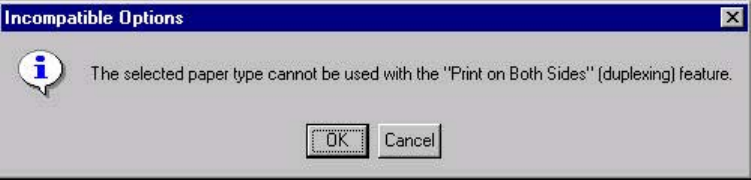
Incompatible Options messages
Incompatible Options settings (constraint) messages are unsolicited messages that appear
in response to specific actions that you take. These messages alert you to selections that
are illogical or impossible given the capabilities of the product or the current settings of other
controls. For example, if you click Print on Both Sides and then change the media type to
Transparency, a message appears asking you to resolve this conflict.
Figure 3-1. A typical constraint message with an OK button
Whenever a constraint message appears with the OK or Cancel button, the interpretation of the
button is as follows:
●Clicking OK accepts the change that was just made, and the driver then resets the
conflicting control to a setting that is compatible with the new value.
●Clicking Cancel rejects the change that was just made, and the control returns to its
previous value.
74 Help system EN
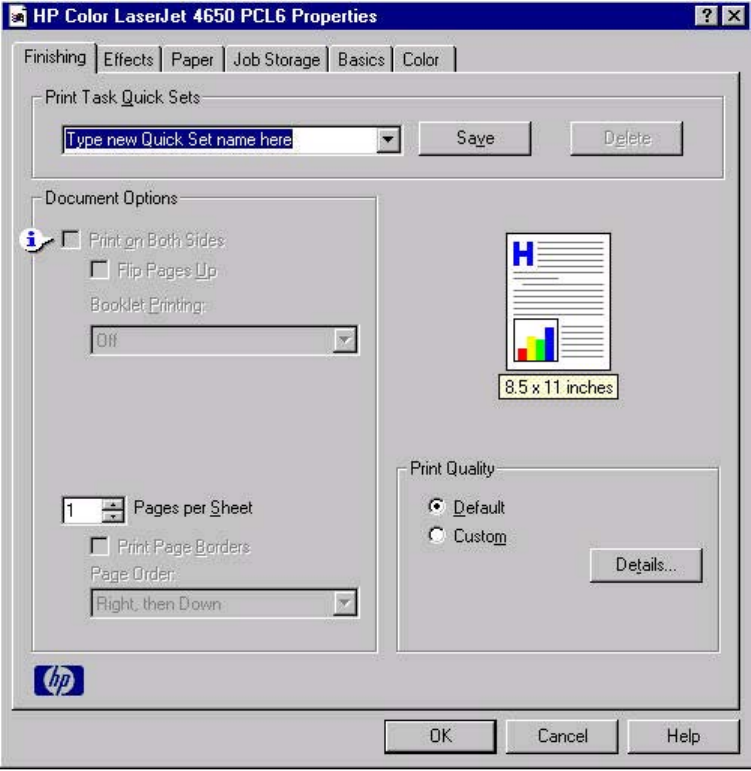
Bubble Help
Bubble Help features a graphical icon that resembles a cartoon speech bubble with a lowercase
"i" in it, representing the international symbol for information. The following illustration shows a
Bubble Help icon on a driver tab.
Figure 3-2. A property page with a Bubble Help icon
The bubble typically appears next to a control that is unavailable, although it can also
accompany an available control if an important note concerning its use is available within the
Help. Moving the pointer over the bubble changes the arrow to a gloved hand, which
indicates that the area underneath the pointer is selectable. When the bubble is selected by
using either the mouse or the keyboard, a message box appears that contains a brief
explanation about why the control is disabled and what can be done to enable it. If the
control is not disabled, the message is a tip or a precaution that you should be aware of
when using that particular feature.
EN Chapter 3 HP traditional print drivers for Windows 75
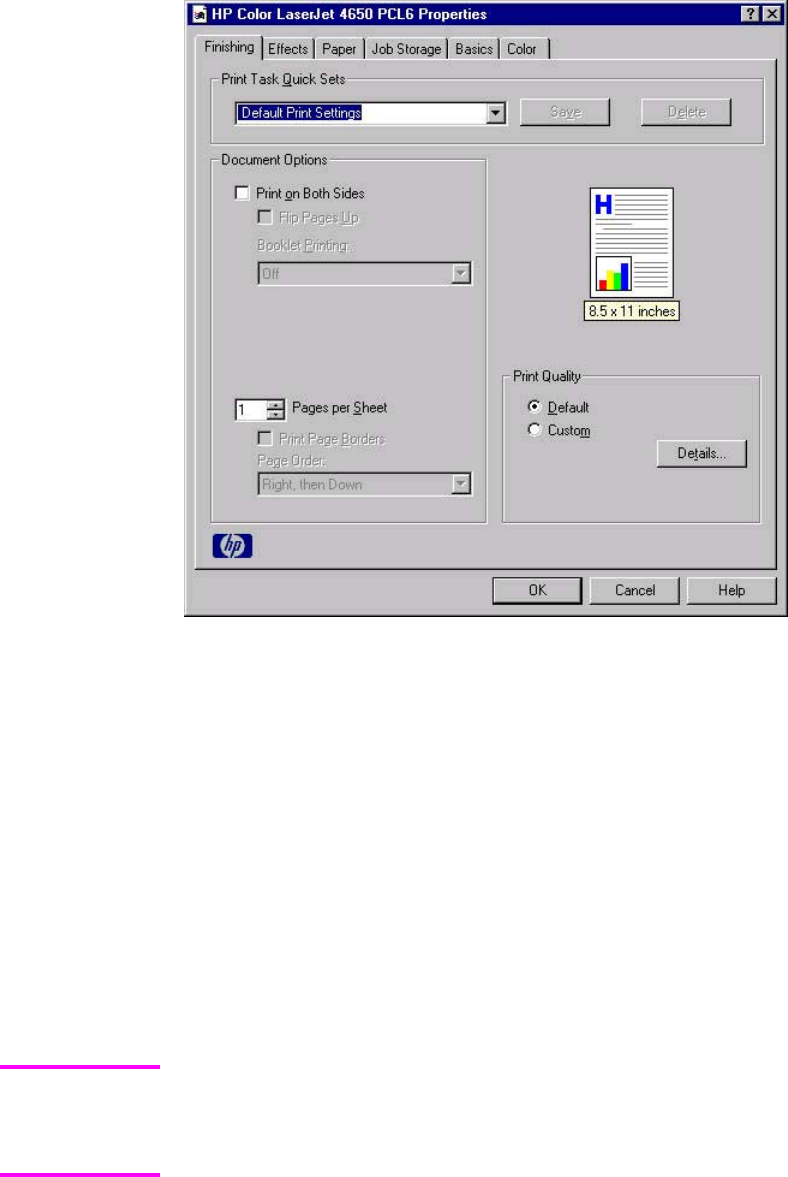
Finishing tab features
Use the Finishing tab to print booklets and control the media output. The following
illustration shows the Finishing tab.
Figure 3-3. The default appearance of the Finishing tab
The Finishing tab contains the following controls:
●Print Task Quick Sets group box
●Document Options group box
●Document preview image
●Print Quality group box
Print Task Quick Sets
Use the Print Task Quick Sets setting to store the current combination of driver settings that
are found on all of the other print driver tabs. Print Task Quick Sets are either preset by
network-administrator settings or user-defined printing specifications (such as media size, pages
per sheet, and so on). The Print Task Quick Sets control does not appear on the driver
Properties tabs.
Administrators can predefine Print Task Quick Sets for their users. These administrator Print
Task Quick Sets are defined on the server and are available to users, but usually cannot be
modified by users. Users can also define Print Task Quick Sets for their own use. User-defined
Print Task Quick Sets are described later in this section.
Note
76 Finishing tab features EN
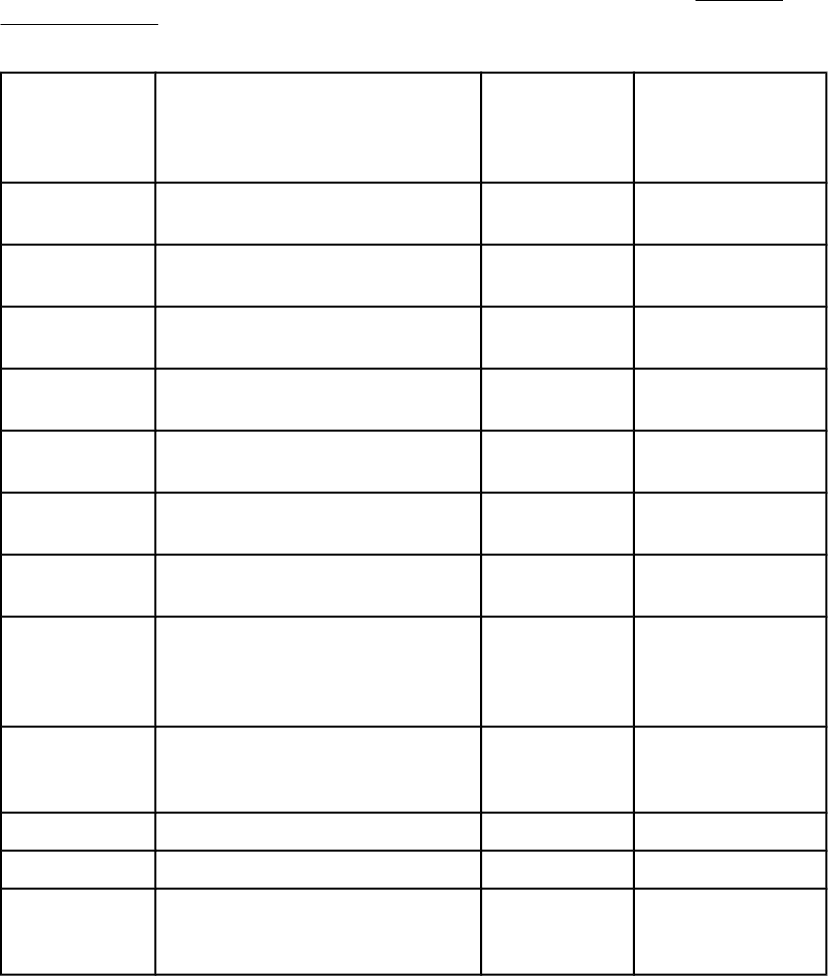
The following settings are available in the Print Task Quick Sets drop-down menu:
●Default Print Settings
●HP CLJ 4550 Color Emulation
●User Guide Print Settings
Default Print Settings
When you select Default Print Settings, nearly all of the settings are restored to the
combination that existed after the driver was installed (the original settings). However, if the
attribute combinations that are associated with watermark definitions, custom media sizes,
or the other quick sets have been changed or deleted, the original settings for those items
are not restored.
The following table shows the default settings for Print Task Quick Sets. See HP Driver
Preconfiguration for information about preconfigurable driver settings.
Table 3-1. Print Task Quick Set default values for the HP Color LaserJet 4650 printer
Driver feature Feature setting location U.S. English
Print Task
Quick Sets
default values
Preconfigurable
1
Print on Both
Sides
Finishing tab, Document
Options group box
Off Yes
Flip Pages Up Finishing tab, Document
Options group box
Unavailable Yes
Booklet Printing Finishing tab, Document
Options group box
Unavailable Yes
Pages per
sheet
Finishing tab, Document
Options group box
1 Yes
Print page
borders
Finishing tab, Document
Options group box
Unavailable Yes
Page order Finishing tab, Document
Options group box
Unavailable Yes
Print Quality Finishing tab, Print Quality
group box
On Yes
Print document
on
Effects tab, Fit to Page group box Off - print on
the size that is
specified on
the Paper tab
Yes
Size to print on Effects tab, Fit to Page group box Actual size
specified on
the Paper tab
Yes
2
Scale to fit Effects tab, Fit to Page group box Unavailable Yes
Watermarks Effects tab (none) Yes
Watermarks
first page only
Effects tab, Watermark Details
dialog box (Edit for Watermark
Details)
Unavailable Yes
EN Chapter 3 HP traditional print drivers for Windows 77

Driver feature Feature setting location U.S. English
Print Task
Quick Sets
default values
Preconfigurable
1
Current
watermarks
Effects tab, Watermark Details
dialog box (Edit for Watermark
Details)
(none) Yes
2
Watermark
message
Effects tab, Watermark Details
dialog box (Edit for Watermark
Details)
(none) Yes
2
Watermark
message angle
Effects tab, Watermark Details
dialog box (Edit for Watermark
Details)
Diagonal Yes
2
Watermark
message
angle (angle)
Effects tab, Watermark Details
dialog box (Edit for Watermark
Details)
Unavailable
unless Angle
option is
selected
Yes
Watermark
font name
Effects tab, Watermark Details
dialog box, Font Attributes group
box
Arial Yes
2
Watermark
font color
Effects tab, Watermark Details
dialog box, Font Attributes group
box
Gray Yes
Watermark
font shading
Effects tab, Watermark Details
dialog box, Font Attributes group
box
Very Light Yes
2
Watermark
font size
Effects tab, Watermark Details
dialog box, Font Attributes group
box
150 No
Watermark
font style
Effects tab, Watermark Details
dialog box, Font Attributes group
box
Regular Yes
Use different
paper/covers
Paper tab, Paper Options group
box
Off - all of the
pages use the
same media
No
Size is: Paper tab, Paper Options group
box
Letter Yes
Source is: Paper tab, Paper Options group
box
Automatically
Select
Yes
Type is: Paper tab, Paper Options group
box
Unspecified Yes
Unlabeled
group box
Job Storage tab Status
message
about
destination of
job
No
Table 3-1. Print Task Quick Set default values for the HP Color LaserJet 4650 printer
(continued)
78 Finishing tab features EN
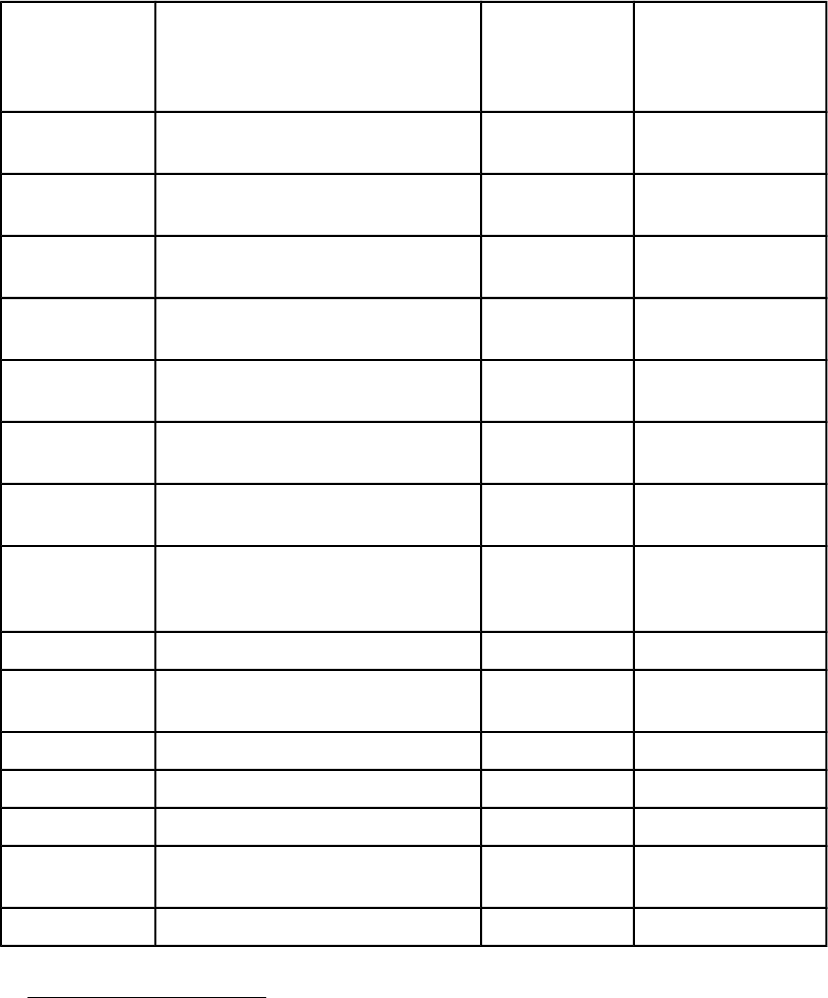
Driver feature Feature setting location U.S. English
Print Task
Quick Sets
default values
Preconfigurable
1
Job storage
mode
Job Storage tab, Job Storage
Mode group box
Off No
Proof and Hold Job Storage tab, Job Storage
Mode group box
Available, not
selected
No
Private Job Job Storage tab, Job Storage
Mode group box
Available, not
selected
No
Quick Copy Job Storage tab, Job Storage
Mode group box
Available, not
selected
No
Stored Job Job Storage tab, Job Storage
Mode group box
Available, not
selected
No
Require PIN to
print option
Job Storage tab, Job Storage
Mode group box
Unavailable No
Windows user
name
Job Storage tab, User Name
group box
Unavailable,
selected
No
Job name Job Storage tab, Job Name
group box
Unavailable,
Automatic
selected
No
PIN to print Job Storage tab, PIN group box Unavailable No
Display Job ID
when printing
Job Storage tab, Job
Notification Options group box
Unavailable No
Copy Basics tab, Copies group box 1 Yes
Portrait Basics tab, Orientation group box On Yes
Landscape Basics tab, Orientation group box Off Yes
Rotate by 180
degrees
Basics tab, Orientation group box Off Yes
About Basics tab No
1
Preconfigurable by using one of the HP Preconfiguration tools. For more information, See
HP Driver Preconfiguration, or go to: http://www.hp.com/support/clj4650.
2
Not supported in Windows 98 and Windows Me.
HP Color LaserJet 4550 Color Emulation
The settings for the HP Color LaserJet 4650 printer's color rendering of RGB color can be
made to emulate the standard settings for the HP Color LaserJet 4550 printer.
Table 3-1. Print Task Quick Set default values for the HP Color LaserJet 4650 printer
(continued)
EN Chapter 3 HP traditional print drivers for Windows 79

When you select HP CLJ 4550 Color Emulation, all of the settings are restored to the
default settings, except for the following differences in the Color tab Manual settings:
●Text RGB Color is set to Vivid
●Graphics RGB Color is set to Vivid
●Photographs RGB Color is set to Vivid
User Guide Print Settings
The User Guide Print Settings option provides a Print Task Quick Set for optimal printing of the
hp color LaserJet 4650 series printer User Guide.
When you select User Guide Print Settings, all of the settings are restored to the default
settings, except for the following:
●Print on Both Sides is set to ON
●Left Edge Binding is set to ON
●Pages per Sheet is set to 2
●Page Order is set to Right then Down
Document Options
The Document Options group box contains the following controls:
●Print on Both Sides check box
●Flip Pages Up check box
●Booklet Printing drop-down menu
●Pages Per Sheet spin box
●Print Page Borders check box
●Page Order drop-down menu
Print on Both Sides check box
The default setting for the Print on Both Sides option is off (not selected). Print on Both Sides
is available when the following conditions exist:
●Type is: on the Paper tab is set to any type except : Labels, Transparency, Envelope,
Envelope #10, Envelope #DL, Envelope #C5, Envelope #D5, Envelope Monarch, or
Tough Paper.
Print on Both Sides (Manually) is available for Ex Heavy 120 x 163 g/m
2
and Cardstock 164
x 200 g/m
2
.
●Size is: is set to any size except for A6, B6 (JIS), or Custom.
When Paper Size is set to Letter, Legal, or A4, selecting Print on Both Sides makes the Flip
Pages Up and Booklet Printing options available.
Automatically printing on both sides
The duplexing unit in the product prints on two sides of a sheet of media when the Print on Both
Sides option is specified in the print job. The HP Color LaserJet 4650dn, 4650dtn, and 4650hdn
models come with a duplexing unit installed.
Note
80 Finishing tab features EN

The HP Color LaserJet 4650 printer supports smart duplexing. The smart duplexing feature
increases printing performance by not sending one-page print jobs or single-sided pages of a
duplexed print job through the duplexing unit even when the duplexing feature has been enabled
in the driver.
All media types support the smart duplexing feature, except for media types that cannot be
printed on both sides, such as labels, and the following media types:
●Prepunched
●Preprinted
●Letterhead
When the media type is set to Unspecified, the smart duplexing feature is disabled.
Manually printing on both sides
To make the Print on Both Sides (Manually) check box available in the document options,
select the Allow Manual Duplexing check box on the Configure tab in the Properties print-
driver tabs. See Paper Handling Options in this chapter.
Manually printing on the second side of a page is available when you are using the HP
Traditional PCL 6 Driver or the HP Traditional PCL 5c Driver. The HP Traditional Postscript 3
Emulation Driver does not support the manual duplexing feature. If a duplexing unit is
installed and manual duplexing is enabled in the driver, the printer automatically duplexes
media types that are supported by automatic duplexing (Letter, A4, Legal, 8.5 x 13, and
Executive (JIS) only), and forces manual printing on both sides for media types that are not
supported.
●Plain
●Preprinted
●Letterhead
●Prepunched
●Bond
●Recycled
●Colored
●Rough
Heavy and Cardstock media can be manually printed on the second side, but there is no
change to the print mode. Transparencies and labels should not be manually printed on the
second side.
Note
EN Chapter 3 HP traditional print drivers for Windows 81
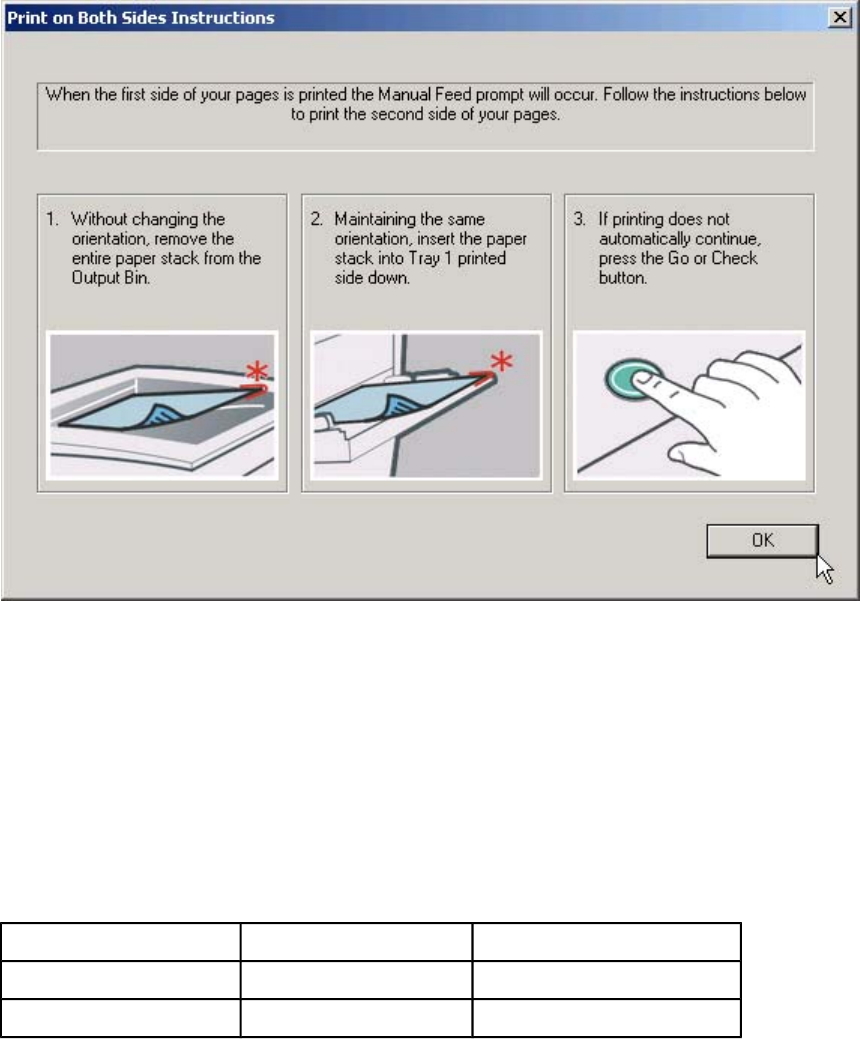
To print a multiple-page document, follow these steps:
1Select the Print on Both Sides (Manually) check box.
2Click OK. The even-number pages of the document print.
3When the control panel shows the MANUALLY FEED message, insert the stack of
media (on which the even-number pages have been printed) as indicated in the
following figure.
Figure 3-4. Print on Both Sides Instructions
When you have completed the steps that appear in the dialog box, the second half of the print
job prints on the back side of the stack of media. The driver does not require the application to
specifically support odd- and even-page printing, because the driver coordinates this function.
Flip Pages Up
The Flip Pages Up check box, which is available only when Print on Both Sides is selected, is
used to specify the duplex-binding option. By default, the Flip Pages Up check box is not
available. The following table demonstrates the results of selecting this box, depending on the
media orientation that is selected on the Basics tab.
Table 3-2. Page orientation
Orientation (Basics tab) Flip Pages Up selected Flip Pages Up not selected
Portrait Short-edge binding Long-edge binding
Landscape Long-edge binding Short-edge binding
82 Finishing tab features EN

When Print on Both Sides is selected, the document preview image changes to show a spiral
binding along either the left edge or the top edge of the page. In addition, a folded-over corner
appears in the lower-right portion of the preview image, indicating that printing occurs on the
back side. An arrow on the folded-over corner points in the direction that the pages would be
flipped if they were bound together.
Short-side binding is for print jobs with pages that read by flipping over like the pages of a
note pad. Long-side binding is for print jobs with pages that read by turning like the pages of
a book.
Booklet Printing
The Booklet Printing drop-down menu is visible when Print on Both Sides is selected and
a supported media size is selected in the Size is: drop-down menu on the Paper tab. The
Booklet Printing drop-down menu offers choices that are based on the current media size.
The default setting is Off. The other settings have the following format, where [paper size]
depends on the media size that is set on the Paper tab.
●[paper size] (Left Binding)
●[paper size] (Right Binding)
When you select [paper size] (Left Binding) or [paper size] (Right Binding), the
document preview image changes to show the location of the binding. If you change the
Pages per Sheet setting manually to 4, 6, 9, or 16 pages per sheet, the booklet setting is
disabled. See the Pages per Sheet section of this document for more information.
Booklet printing is disabled when A6 or B6 (JIS) is selected as the media size, and an
incompatibility error message appears when you click OK to close the driver.
The Booklet Printing drop-down menu appears only when the following conditions exist:
●Print on Both Sides (on the Finishing tab) is selected.
●%of Normal Size (on the Effects tab) is 100.
●Pages per Sheet (on the Finishing tab) is 1.
●Size is (on the Paper tab) is set to Letter, Legal, or A4.
If any of these conditions is not met (except the first), a Bubble Help appears next to
Booklet Printing to tell you why it is disabled.
Book and Booklet Printing
The HP Color LaserJet 4650 supports both book and booklet printing.
A book is a print job that consists of at least two pages and that can have a different media
type for the first page, other pages, or back cover. Use the First Page, Other Pages, or
Back Cover settings on the Paper tab (available when you select the Use Different Paper/
Covers check box) to select different printing options for the book.
A booklet is a print job that places two pages on each side of a sheet that can be folded into
a booklet that is half the size of the media type. Use the Booklet Printing drop-down menu
on the Finishing tab to control booklet settings.
Printing a Booklet
1In the software program, click File, click Print, and then click Properties.
2Click the Finishing tab.
EN Chapter 3 HP traditional print drivers for Windows 83
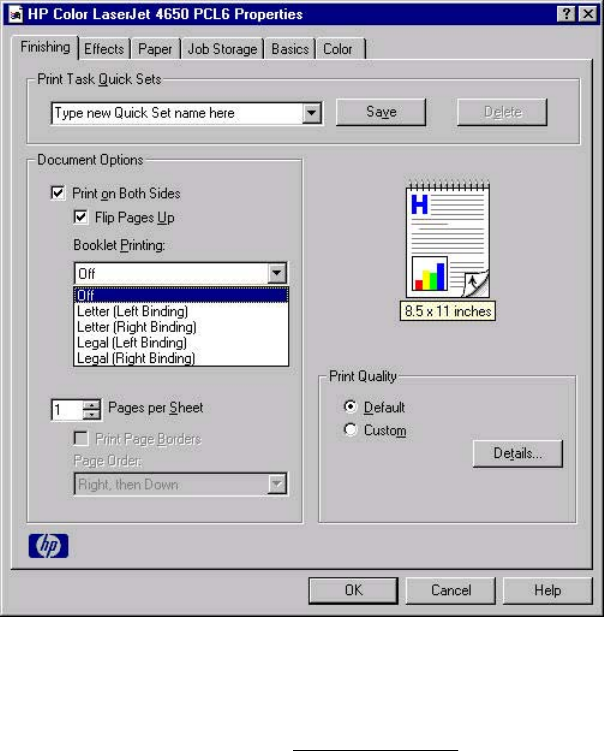
3Select the Print on Both Sides check box.
4In the Booklet Printing drop-down menu, select the type of booklet printing that you want.
The booklet printing type consists of the media size and the location of the binding (for
example, Letter [Left binding]).
5Click OK in the print driver.
6Click OK in the print dialog box to print.
Figure 3-5. Printing a booklet
Printing a Book
You can print a book in which the first page, other pages, and back cover have different media
types. For more information, see Paper tab features of this chapter.
Pages per Sheet
Use the Pages per Sheet option to select the number of pages that you want to print on a single
sheet of media. If you choose to print more than one page per sheet, the pages appear smaller
and are arranged on the sheet in the order that they would otherwise be printed. The Pages per
Sheet drop-down menu provides six settings:
●1 page per sheet (this is the default)
●2 pages per sheet
●4 pages per sheet
●6 pages per sheet
●9 pages per sheet
●16 pages per sheet
84 Finishing tab features EN
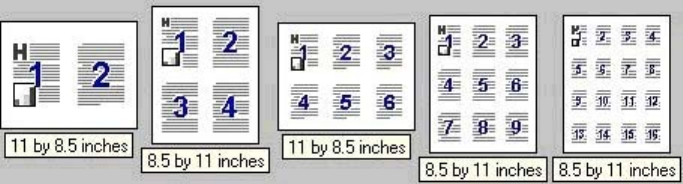
Print Page Borders
Related controls that are indented beneath the Pages per Sheet edit box are Print Page
Borders and Page Order, which become active when Pages per Sheet is greater than 1.
Print Page Borders sets a line around each page image on a printed sheet to help visually
define the borders of each logical page.
Page Order
The Page Order drop-down menu contains four selections:
●Right, then Down
●Down, then Right
●Left, then Down
●Down, then Left
The document preview image changes to reflect alterations in these settings, as shown by
the examples in the following illustration.
Figure 3-6. Page-order preview images
●2 pages per sheet
●4 pages per sheet
●6 pages per sheet
●9 pages per sheet
●16 pages per sheet
Document preview image
The document preview image is a line-drawn image of a page that represents graphics and
text. The document preview image is always oriented so that the contents of the page are
right-side up. The document preview image appears in the upper-right corner of the
Finishing, Output, Effects, Paper, and Basics tabs.
Switching between tabs does not change the location or appearance of the document
preview image. When you move the mouse over the document preview image, the mouse
cursor changes from an arrow to a gloved hand. You can toggle between portrait and
landscape page orientation by clicking on the image. The dimensions label that appears
below the preview image reflects the selected page size. The horizontal dimension is always
first, so the order of the numbers reverses when the orientation changes. Click the
dimensions label to toggle between English and metric units.
EN Chapter 3 HP traditional print drivers for Windows 85
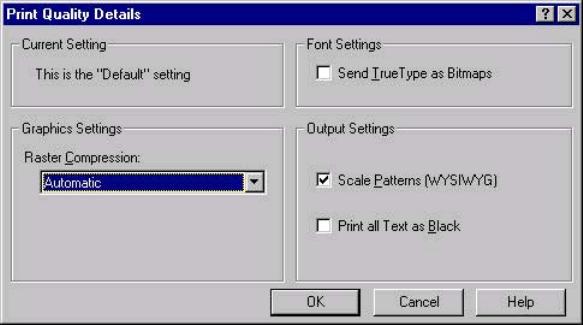
Print Quality group box
The HP Color LaserJet 4650 print driver Print Quality group box provides options that
output settings and font settings.
The default setting for Print Quality is Default. To change the default print-quality settings, click
the Details button. Clicking the Details button opens the Print Quality Details dialog box. The
Print Quality Details dialog box has different options depending on the driver that you are using.
Print Quality Details for the PCL 6 Driver
The Print Quality Details dialog box provides the options for print-quality settings in the
HP Traditional PCL 6 Driver as shown in the following illustration.
Figure 3-7. Print Quality Details dialog box for the HP Traditional PCL 6 Driver
The following options are available:
●Current Settings group box
●Graphics Settings group box
●Font Settings group box
●Output Settings group box
Current Setting group box
The Current Setting group box has two settings in the HP traditional PCL 6 driver. When you
make a change in the Print Quality Details dialog box, the setting changes from This is the
"Default" setting to This is a "Custom" setting.
Graphics Settings group box
Use the Graphics Settings group box to set the amount of raster compression that is applied to
the print job. The Graphics Settings drop-down menu provides three settings:
●Automatic (default)
●Best Quality
●Maximum Compression
86 Finishing tab features EN
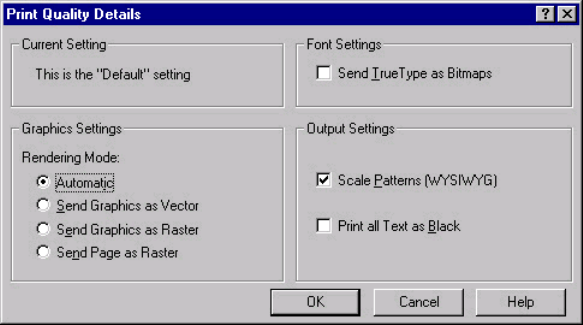
Font Settings group box
In the Font Settings group box, the only available option is Send TrueType as Bitmaps, which
provides an alternative for software programs that cannot easily use TrueType fonts for special
graphic purposes, such as shading, rotation, or slanting. The Send TrueType as Bitmaps check
box is not selected (clear) by default. If you select this option, the driver sends TrueType fonts to
the printer as outlines, which retains the standard format (outlines) of the fonts.
Output Settings
The Output Settings group box contains controls for pattern scaling, and to print all text as
black.
The default values for the Output Settings are as follows:
●Scale Patterns (WYSIWYG) is selected
●Print all Text as Black is not selected
Scale Patterns (WYSIWYG)
Use the Scale Patterns (WYSIWYG) feature to address the moiré effect that is created
when certain programs encounter certain patterns. Use this feature to turn off the pattern
scaling. What you lose is WYSIWYG with patterns, but the printed result might look better.
The feature works only with programs that use vector hatch patterns. This option is selected
by default.
Print all Text as Black
The Print All Text as Black feature is not selected by default. When the feature is selected,
the driver prints all text as black regardless of the original document text color. Color text is
printed as black, except for white text, which remains white. (White text is a reliable method
of printing reverse typeface against a dark background.) This setting does not affect graphic
images on the page, nor does it affect any text that is part of a graphic.
Print Quality Details for the PCL 5c driver
Figure 3-8. Print Quality Details dialog box for HP traditional PCL 5c driver
The following options are available:
●Current Setting group box
●Font Settings group box
EN Chapter 3 HP traditional print drivers for Windows 87
●Output Settings group box
●Graphic Settings group box
Current Setting
The Current Setting group box has two settings in the HP Traditional PCL 5c Driver. When you
make a change in the Print Quality Details dialog box, the setting changes from This is the
"Default" setting to This is a "Custom" setting.
Font Settings
In the Font Settings group box, the only available option is Send TrueType as Bitmaps, which
provides an alternative for software programs that cannot easily use TrueType fonts for special
graphic purposes, such as shading, rotation, or slanting. The Send TrueType as Bitmaps check
box is not selected (clear) by default. If you select this option, the driver sends TrueType fonts to
the printer as outlines, which retains the standard format (outlines) of the fonts.
Output Settings
The Output Settings group box contains controls for pattern scaling, and to print all text as black.
The default values for the Output Settings are as follows:
●Scale Patterns (WYSIWYG) is selected
●Print all Text as Black is not selected
Scale Patterns (WYSIWYG)
Use the Scale Patterns (WYSIWYG) feature to address the moiré effect that is created when
certain programs encounter certain patterns. Use this feature to turn off the pattern scaling. What
you lose is WYSIWYG with patterns, but the printed result might look better. The feature works
only with programs that use vector hatch patterns. This option is selected by default.
Print all Text as Black
The Print All Text as Black feature is not selected by default. When the feature is selected, the
driver prints all text as black regardless of the original document text color. Color text is printed
as black, except for white text, which remains white. (White text is a reliable method of printing
reverse typeface against a dark background.) This setting does not affect graphic images on the
page, nor does it affect any text that is part of a graphic.
Graphic Settings
The Graphic Settings group box in the HP Traditional PCL 5c Driver has settings for the
graphics rendering mode. The following Rendering Mode: option buttons are available:
●Automatic. This is the default setting.
●Send Graphics as Vector. Select this setting to send graphics to the product as a
combination of HP Graphics Language, version 2 (HP-GL/2) and raster images. This
setting might produce higher-quality output.
●Send Graphics as Raster. Select this setting to send all graphics to the product as images
composed of individual dots. This setting might improve printing speed in some cases.
●Send Page as Raster. Select this setting to send all graphics and text (TrueType fonts) to
the product as images composed of individual dots. Use Send Page as Raster if you are
experiencing problems with overlapping text and graphics. With this setting, the Send
TrueType as Bitmaps option has no effect.
88 Finishing tab features EN

Effects tab features
The Effects tab is used to create unique media effects such as scaling and watermarks. The
following illustration shows the Effects tab.
Figure 3-9. Effects tab
The Effects tab contains the following controls:
●Print Task Quick Sets group box
●Fit to Page group box
●Document preview image
●Watermarks group box
Print Task Quick Sets
The Print Task Quick Sets control is used to store the current combination of driver settings
that are found on all other Document Defaults driver tabs. Print Task Quick Sets are either
preset (by the administrator) or user-defined printing specifications, such as media size and
pages per sheet. For more information, see Finishing tab features.
EN Chapter 3 HP traditional print drivers for Windows 89
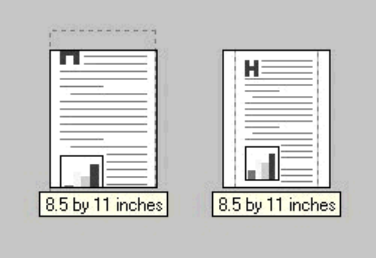
Fit To Page group box
The Fit To Page group box contains the following controls:
●Print Document on setting
●Scale to Fit check box
●% of Normal Size setting
Print Document On setting
Use Print Document On to format the document for one media size, and then print the
document on a different media size, with or without scaling the page image to fit the new media
size.
The Print Document On control is disabled by either of the following conditions:
●% of Normal Size is not 100.
●Pages per Sheet (on the Finishing tab) is not 1.
When Print Document On is selected, the drop-down menu shows the media sizes on which
you can print. The list contains all of the standard media sizes that are supported by the selected
media source, and any custom size that you have created. When Print Document On is
selected, Scale to Fit is automatically selected. Clear this check box if you do not want your
document reduced or enlarged to fit on the selected media size.
Scale to Fit option
The Scale to Fit option specifies whether each formatted document page image is scaled to fit
the target media size. By default, Scale to Fit is selected when Print Document On is selected.
If the setting is turned off, then the document page images will not be scaled, and are instead
centered at full size on the target media. If the document size is larger than the target media
size, then the document image is clipped. If the document size is smaller, then it is centered
within the target media. The following illustration shows preview images for a document
formatted for Legal-size media with the Print Document On option selected, and the target size
specified as Letter.
Figure 3-10. Preview images - Legal on Letter; Scale to Fit off (left) and on (right)
When the size for which the document is formatted (that is, the logical size) differs from the
target size, the document preview image uses a dashed gray line to show the boundaries of the
logical page in relation to the target page size.
90 Effects tab features EN
% of Normal Size option
The % of Normal Size option provides a slider bar for scaling the percentage setting. The
default setting in the entry box is 100 percent of the normal size. The normal size is defined as
the media size that is selected within the driver or what the driver receives from the software
program (if the software program does not negotiate the media size with the driver). The driver
scales the page by the appropriate factor and sends it to the printer.
The limits of the range are from 25 percent to 400 percent, and any values outside the range
are adjusted to those limits as soon as the focus is removed from the control (that is, when
the Tab key is pressed or another control is selected).
Any change to the scale also changes the document preview image, which increases or
decreases from the upper-left corner of the preview.
The slider bar controls the scale directly. The value in the edit box changes as the scroll bar
indicator is dragged, and the document preview image is updated to the new image scale.
Each click on the scroll bar arrows increases or decreases the scale by one percent. Each
click on the slider bar affects the scale by 10 percent.
You cannot achieve an exact value by dragging the scroll bar indicator at the default
Windows resolution; use the scroll bar indicator to approximate the value that you want, and
then use the scroll bar arrows to refine the value. Or, type the value into the entry box.
The following settings disable % of Normal Size:
●Print Document On (on the Effects tab) is selected.
●Pages per Sheet (on the Finishing tab) is not 1.
Watermarks group box
Use the Watermarks feature to select a watermark, create your own custom watermarks
(text only), or edit an existing watermark.
The Watermarks group box contains the following controls:
●Watermarks drop-down menu
●First Page Only check box
●Edit button (opens the Watermark Details dialog box)
Watermarks drop-down menu
The following watermarks are preset in the driver:
●(None)
●Confidential
●Draft
●SAMPLE
The drop-down menu shows alphabetically-sorted watermarks that are currently available on
the system, plus the string "(none)", which indicates that no watermark is selected. This is
the default setting. Any watermark selected from this list appears in the document preview
image.
EN Chapter 3 HP traditional print drivers for Windows 91
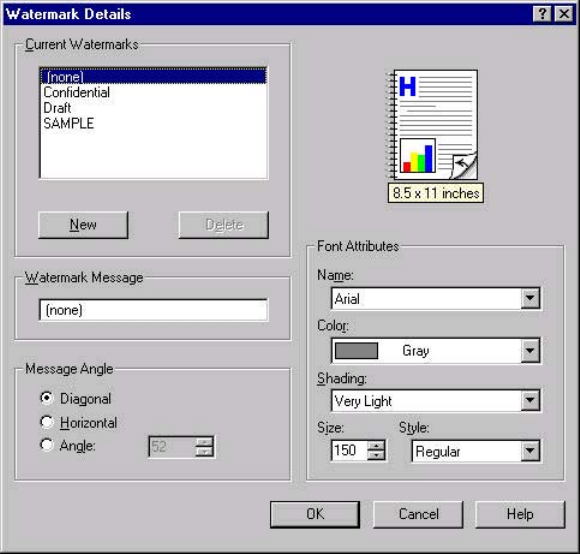
First Page Only check box
When First Page Only is selected, the watermark is printed only on the first page of the
document. The First Page Only check box is not available when the current watermark
selection is "(none)".
Watermarks are applied to logical pages. For example, when Pages per Sheet is set to "4" and
First Page Only is turned off, four watermarks appear on the physical page (one on each logical
page).
Edit button (Watermark Details)
Click Edit, and the Watermark Details dialog box appears. The following illustration shows the
Watermark Details dialog box.
Figure 3-11. Watermark Details
The dialog box shows a document preview image and provides options for creating a new
watermark and controlling the message angle and the font attributes.
The Watermark Details dialog box contains the following controls:
●Current Watermarks group box
●Watermark Message text box
●Message Angle group box
●Font Attributes group box
92 Effects tab features EN

Current Watermarks
The Current Watermarks group box contains a list of available watermarks, both predefined
watermarks that are available in the driver and any new watermarks that you have created. To
create a new watermark, click New. The new watermark appears in the Current Watermarks
list and in the Watermark Message edit box as Untitled until you name it. To name the new
watermark, type the selected watermark text in the Watermark Message edit box. To delete a
watermark, select the watermark in the Current Watermarks list and click Delete.
You can have no more that 30 watermarks in the Current Watermarks list at one time.
When you reach the limit of 30 watermarks, the New button is disabled, and a Bubble Help
message appears that explains why the button is disabled and how to make it available.
To edit an existing watermark, select the watermark in the Current Watermarks list. If you
change the Watermark Message for that watermark, you are, in effect, creating a new
watermark.
Watermark Message
The Watermark Message is also the name that identifies the watermark in the Current
Watermarks list, except when more than one watermark has the same message. For
example, you might want several different watermarks with the message DRAFT, each in a
different font or size. When this occurs, the string is appended with a space, a pound sign,
and a number (for example, Draft #2). When a number is added, the number two is used
first, but if the resulting name is also in the list, then the number increases until the name is
unique.
Message Angle
Use the controls in the Message Angle group box to print the watermark in a diagonal,
horizontal, or angle (custom) orientation to the text on the page. The default is Diagonal. All
three settings automatically center the watermark string within the page; the selection of a
particular setting affects only the angle of the string placement. Diagonal places the text
along a line that spans the lower-left to upper-right corners of the page.
Document preview image
The document preview image is a line-drawn image of a page that represents graphics and
text. The document preview image appears in the upper-right corner of the Watermark
Details dialog box. The document preview image changes to reflect the modifications that
you make in the Watermark Details dialog box.
Font Attributes
Use the controls in the Font Attributes group box to change the font and the shading, size,
and style of the font.
The Font Attributes group box contains the following controls:
●Name drop-down menu
●Color drop-down menu
●Shading drop-down menu
●Size spin box
●Style drop-down menu
Note
EN Chapter 3 HP traditional print drivers for Windows 93
Name
The Name drop-down menu lists TrueType fonts that are currently installed on the system.
The default is language-dependent.
Color
The Color drop-down menu contains seven settings: Gray, Red, Yellow, Green, Cyan, Blue,
and Magenta.
Shading
The default Shading setting for new and preset watermarks is Very Light. The following range
of shades is available from the Shading drop-down menu:
●Lightest
●Very Light (default)
●Light
●Medium Light
●Medium
●Medium Dark
●Dark
●Very Dark
●Darkest
Size
Font sizes from 1 to 999 points are available from the Size menu. The default point size is
language-dependent. The default point size for preset watermarks is language-dependent.
Style
The choice of Regular, Bold, Italic, and Bold Italic is available from the Style drop-down menu.
The default Style setting for new and current watermarks is Regular.
Default settings
The default settings for new watermarks are Arial font, Gray color, Very Light shading, 150
points, and Regular style. The default settings for preset watermarks are Arial font, Very Light
shading, and Bold style. The default font name and point size for preset watermarks are
language-dependent, and vary.
Click OK to accept all of the changes that have been made in the Watermark Details dialog
box. Clicking Cancel does not cancel all of the changes. If you make changes to a watermark,
and then select a different watermark or click New, all of the changes made to the previous
watermark are saved, and only the current, unsaved changes can be canceled.
94 Effects tab features EN
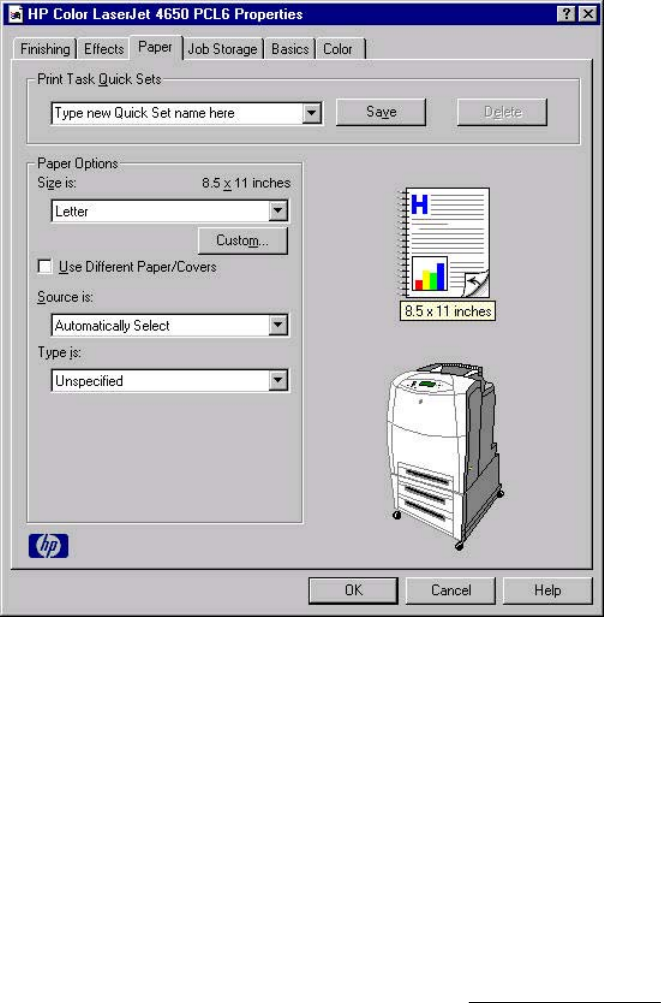
Paper tab features
Figure 3-12. Paper tab
The Paper tab contains the following controls:
●Print Task Quick Sets group box
●Paper Options group box
●Document preview image
●printer image
Print Task Quick Sets
The Print Task Quick Sets control is used to store the current combination of driver settings
that are found on all of the other Document Defaults driver tabs. Print task quick sets are
either preset (by the administrator) or user-defined printing specifications, such as media
size and pages per sheet. For more information, see Finishing tab features.
EN Chapter 3 HP traditional print drivers for Windows 95
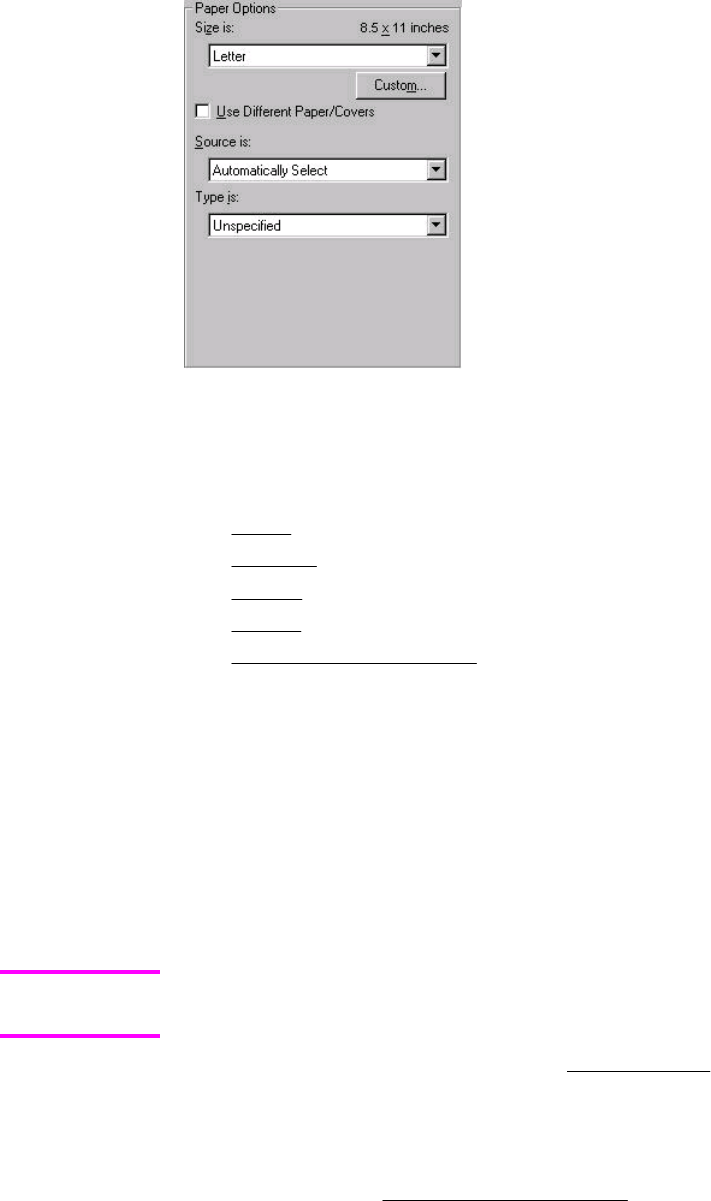
Paper Options
Figure 3-13. Paper Options group box (default)
The appearance of the Paper Options group box changes when the Use Different Paper/
Covers check box is selected. For convenience, the settings in the Paper Options group box
are described in the following order:
●Size is
●Source Is
●Type is
●Custom
●Use Different Paper/Covers
Size is
You can specify size for all of the settings in the Paper Options group box. When you set the
media size in the driver, the entire print-job output uses that media size. That is, if the print job
uses Letter-size media, any option that you select from the available Use Different Paper/
Covers options must also use Letter-size media.
Because driver settings are overridden by media-size settings in most software programs, it is
generally best to use the driver to set media size only for software programs that lack a media-
size setting, such as NotePad, or when you are producing a book or a booklet that does not
require different media sizes.
Certain software programs can override the size command and specify different media sizes
within a single document.
For information about media sizes, see the Media attributes section of this guide.
Use Different Paper/Covers
When the Use Different Paper/Covers check box is selected and different options are
configured, the Size is:, Source is:, and Type is: menus change, offering a variety of options. For
more information, see Use Different Paper/Covers.
Note
96 Paper tab features EN

Source Is
The Source is: setting specifies the source tray to use for printing a document. The list of source
trays depends on the printer accessories. Any optional source trays that are installed through the
Configure tab also appear here.
The Source is: drop-down menu can contain the following options:
●Automatically select
●Manual Feed in Tray 1
●Tray 1 (100-sheet multipurpose tray)
●Tray 2 (500-sheet tray)
●Tray 3 (500-sheet tray)
●Tray 4 (500-sheet tray)
The default setting is Automatically Select. When this setting is selected, the printer uses
the source tray that supports the media size that you have selected. If you select a source
tray other than Automatically select, make sure that the correct media size is loaded in the
source tray. For more information about media sources, see the Media attributes section of
this guide.
Type is
The Type is: drop-down menu shows all the media types that the HP Color LaserJet 4650
printer supports. When you use the default setting, Unspecified, the product uses the default
media type, which is usually Plain.
The following standard types appear in the lists:
●Unspecified
●Plain
●Preprinted
●Letterhead
●Transparency
●Prepunched
●Labels
●Bond
●Recycled
●Color
●Cardstock (164 to 200 g/m
2
or 43 to 53 lb.)
●Heavy (105 to 119 g/m
2
or 28 to 31 lb.)
●Envelope
●Light (60 to 75 g/m
2
or 16 to 20 lb.)
●Intermediate (90 to 104 g/m
2
or 24 to 27 lb.)
●Ex Heavy (120 to 163 g/m
2
or 31 to 43 lb.)
●Glossy (75 to 105 g/m
2
or 20 to 28 lb.)
●Heavy Glossy (106 to 120 g/m
2
or 28 to 31 lb.)
EN Chapter 3 HP traditional print drivers for Windows 97
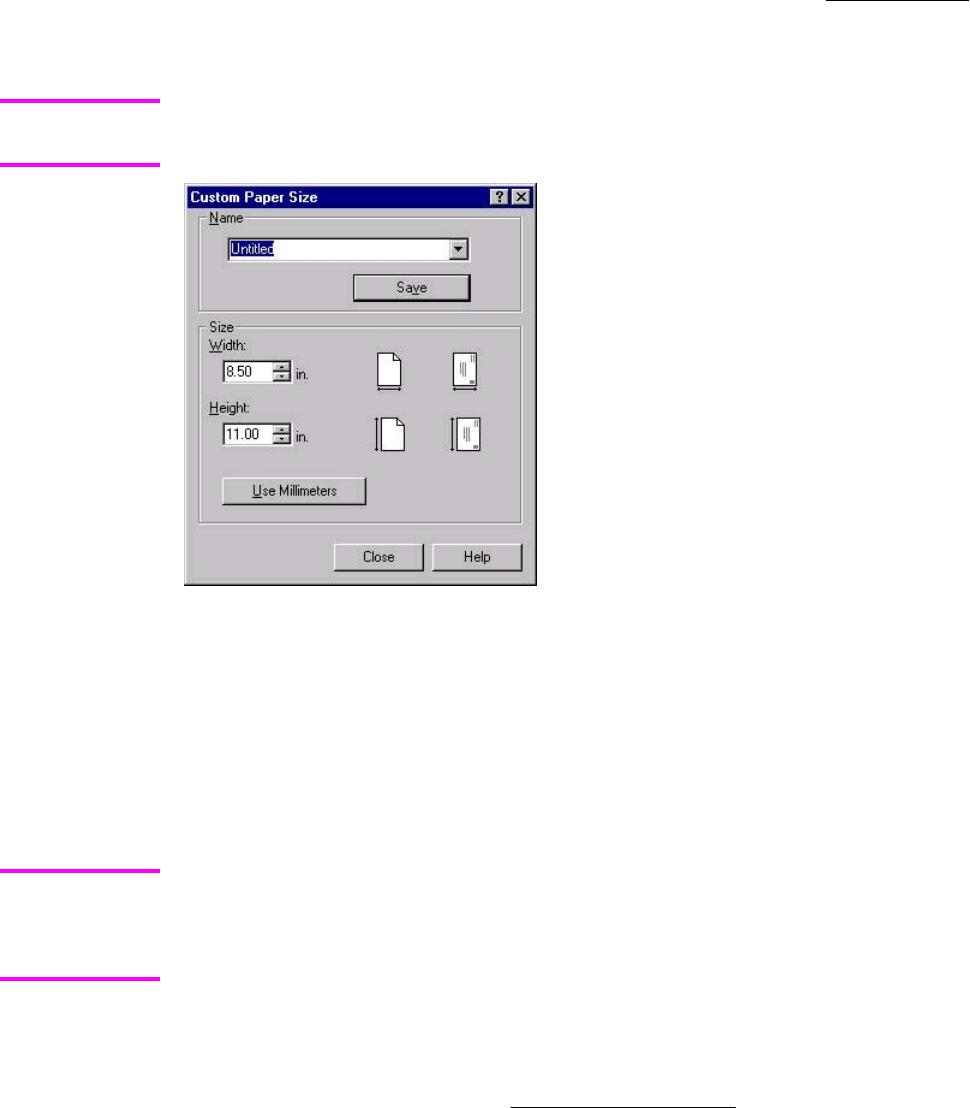
●HP High Glossy (Images)
●Tough Paper
The default setting is Unspecified, and the program selects the media type. If you select a
different setting, make sure that the correct media type is loaded in the tray that you selected in
the Source is: setting. For more information about media types, see the Media attributes section
of this guide.
Custom
The Custom button is not available when Use Different Paper/Covers is selected and any
setting other than First Page is also selected.
Figure 3-14. Custom Paper Size dialog box
When the Custom Paper Size dialog box appears, the drop-down menu in the Name group
contains one of two things, depending on the current media-size selection on the Paper tab:
●If the media-size selection is a previously defined custom size, then the drop-down menu
contains the name of that custom size.
●If the media-size selection is a standard media size, then the drop-down menu shows the
default name Untitled (plus a number sign "#" and a numerical value) for a custom media
size.
In Windows 98 and Windows Me, two names for the same size media can coexist (for example,
"big" and "BIG" can both be used as names for custom-size media measuring 8.4 inches by 11
inches). In Windows NT 4.0, Windows 2000, and Windows XP, both uppercase and lowercase
names can be used, but they cannot be used to name the same media size.
The new name is compared only against the list of user-defined custom media-size names, and
not against the standard media-size names.
The complete set of titles for this button and the specific characteristics that determine its title
and capabilities are discussed in the Save, Delete, or Rename section.
Note
Note
98 Paper tab features EN
Name
The Name drop-down menu shows the name of the custom media size that was selected most
recently. Use the Name drop-down menu to select from the list of currently defined custom
media sizes, or to type a new name for a custom media size.
The name that appears in the Name drop-down menu is one of three things, depending on
the following conditions:
●If a saved custom media size has been selected from the drop-down menu and the
other controls in the dialog box have not been changed since then, the Name drop-
down menu shows the name of the last selected custom media size.
●If the width or height controls have been changed since a custom size was selected or
saved, or if a saved media size has just been deleted, then the Name drop-down menu
shows the default name of "Untitled."
●If a new name has been typed into the Name drop-down menu for the purpose of
saving a new size or renaming an existing size, then that new name will remain in the
drop-down menu until a saved custom media size has been selected from the drop-
down menu.
If you type a new name into the Name drop-down menu, but then do not click the Save
button, you should be able to change the width and height values without losing the name.
However, if a saved media-size name is selected from the drop-down menu, any unsaved
name or size values are lost without warning, and replaced by the values of the selected
custom media size.
Save, Delete, or Rename
The dynamic command button located under the Name drop-down menu has three possible
labels: Save, Delete, and Rename.
●Save is the button title whenever the height and width values have been changed since
the most recent save action or since the selection of an existing custom media size.
Clicking the button causes the name in the Name drop-down menu to be compared
against each of the saved names. If a duplicate is found, a dialog box appears, asking
if it is okay to replace the existing item. If you click Yes, the old item is updated with the
new values. If you click No, the driver returns to the Custom Paper Size dialog box,
where you can type a different name. The new name is compared only against the list
of user-defined custom media names, and not against the standard media-size names.
Whenever the command button has the Save title, it is the default button.
●Delete is the button title whenever the name of an existing (previously saved) custom
media size appears in the Name drop-down menu, such as immediately after selecting
an item from the drop-down menu or clicking the Save button. Clicking the Delete
button causes the saved custom media size to be deleted, after which the Name drop-
down menu changes to Untitled, the height and width controls are unchanged, and the
button title changes to Save.
●Rename is the button title when you type something into the Name drop-down menu
after selecting an existing custom media size from the drop-down menu. If no duplicate
is found, then the name of the stored custom media size changes to match the
contents of the Name drop-down menu.
The following table illustrates the relationships between the Name drop-down menu, the
command button, and the actions that take users from one state to another.
EN Chapter 3 HP traditional print drivers for Windows 99
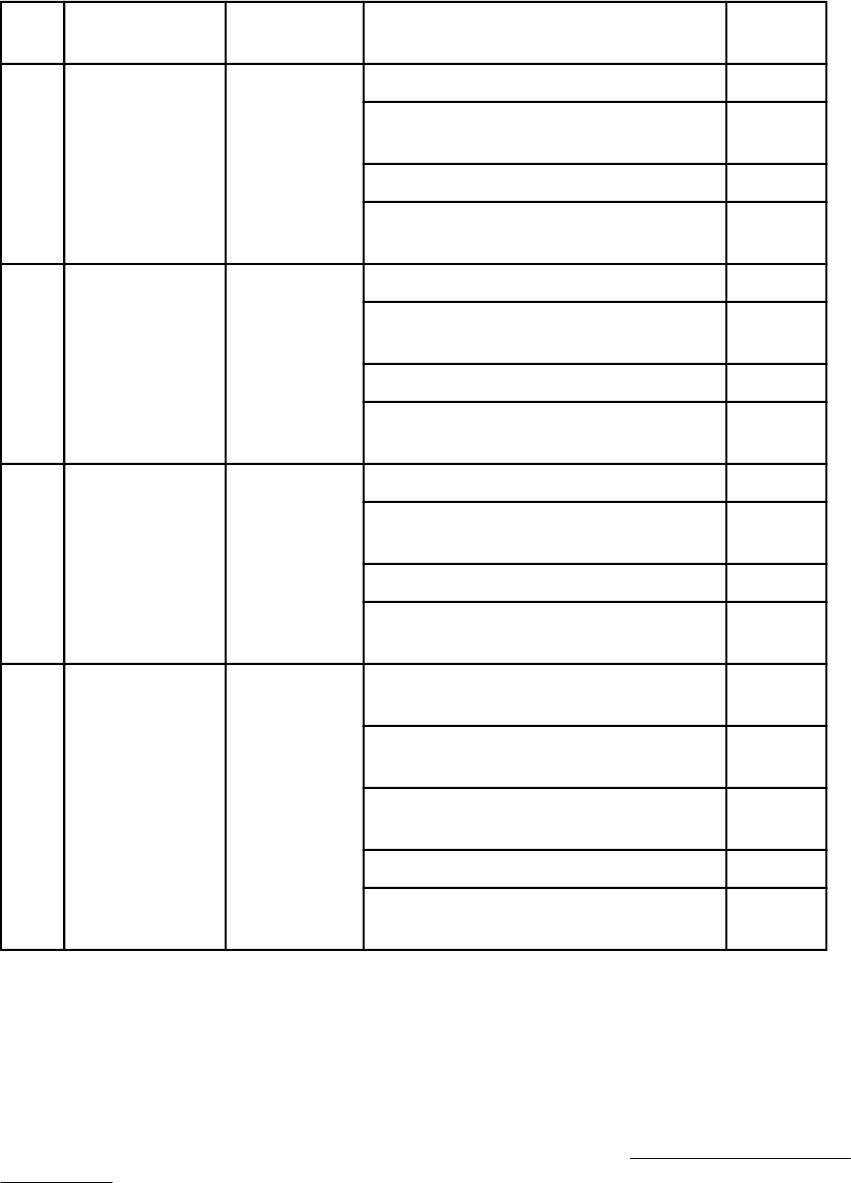
Table 3-3. Name drop-down menu text strings
State Drop-down
menu contents
Button label Action Next
state
1 Untitled Save Click Save. 3
Type something into the Name drop-
down menu.
2
Change the width or height values. 1
Select a saved item from the drop-
down menu.
3
2 <user-typed
text>
Save Click Save. 3
Type something into the Name drop-
down menu.
2
Change the width or height values. 2
Select a saved item from the drop-
down menu.
3
3<name of
saved item>
Delete Click Delete. 1
Type something into the Name drop-
down menu.
4
Change the width or height values. 1
Select a saved item from the drop-
down menu.
3
4 <user-typed
text>
Rename Click Rename (when the name is
unique).
3
Click Rename (when the name is a
duplicate).
4
Type something into the Name drop-
down menu.
4
Change the width or height values. 2
Select a saved item from the drop-
down menu.
3
Custom size (width and height controls)
The width and height values can be changed either by typing numeric strings into the edit boxes,
or by using the up and down arrows.
Any entry that is greater than the maximum limits of the width and height control is rounded
down to the maximum valid entry, while any entry that is smaller than the minimum limits of the
width and height control is rounded up to the minimum valid entry. See Custom width and height
control limits.
100 Paper tab features EN

If units are in millimeters, the custom media-size range minimum is the limit rounded up to the
nearest whole millimeter. The custom media-size range maximum is the limit rounded down to
the nearest whole millimeter. Any non-numerical entry reverts to the last valid entry. Width and
height entries are validated when the focus has changed.
The resolution of each control is one millimeter or one-tenth of an inch, depending on the current
measurement units. Clicking the up and down arrows increases or decreases the current value
by the increment amount (within the allowed range of values). The computer determines the rate
at which the values change.
Unit indicator labels change dynamically to indicate inches or millimeters, depending on the
measurement units the driver is currently using. To change measurement units, click the
dynamic Measurement Units button (either Use Inches or Use Metric).
Custom width and height control limits
The minimum media size for the HP Color LaserJet 4650 is 76.2 by 127 mm (3 by 5 inches)
and the maximum is 215.9 by 355.6 mm (8.5 by 14 inches). The following table summarizes
media size limits for each media-handling device.
Table 3-4. PCL 6 custom media sizes
Tray Dimensions Minimum Maximum
Tray 1 (multipurpose) Width 76.2 mm (3 inches) 215.9 mm (8.5 inches)
Height 127.0 mm (5 inches) 355.6 mm (14 inches)
Tray 2 (500-sheet) Width 148.0 mm (5.83 inches) 215.9 mm (8.5 inches)
Height 210.0 mm (8.27 inches) 355.6 mm (14 inches)
Tray 3 (500-sheet) Width 148.0 mm (5.83 inches) 215.9 mm (8.5 inches)
Height 210.0 mm (8.27 inches) 355.6 mm (14 inches)
Tray 4 (500-sheet) Width 148.0 mm (5.83 inches) 215.9 mm (8.5 inches)
Height 210.0 mm (8.27 inches) 355.6 mm (14 inches)
Duplexing unit Width Custom sizes not
supported
Custom sizes not
supported
Height Custom sizes not
supported
Custom sizes not
supported
Paper and envelope icons
The paper and envelope icons visually define width and height.
Dynamic measurement units
Use the Dynamic Measurement Units button to toggle the unit of measurement between
standard (inches) and metric (millimeters) units of measurement. The label on this button is
dynamic, depending on the measurement units that are in use. If the custom size currently
shows the measurements in inches, the button is labeled Use Millimeters. If the custom
size currently shows the measurements in millimeters, the button is labeled Use Inches.
Click the button to switch measurement-unit types.
EN Chapter 3 HP traditional print drivers for Windows 101

Close
The Close button closes the Custom Paper Size dialog box according to the logic in the
following table. In all cases, any custom media sizes that are successfully saved (and not
renamed or deleted) while the dialog box is open will remain in the Size is: drop-down menu
on the Paper tab. The following table lists options that appear when you click the Close
button.
Table 3-5. Close dialog box text strings
If the drop-down menu contains And the button says Then this happens when the
Close button is clicked
Untitled Save The dialog box closes, but you lose
the changes that were not saved.
The current media size remains the
same as it was when the Custom
button was selected.
<user-typed text> Save The dialog box closes, but you lose
the changes that were not saved.
The current media size remains the
same as it was when the Custom
button was selected.
<name of saved item> Delete The dialog box closes, and the
current media size is set to that
which was last shown in the drop-
down menu.
<user-typed text> Rename The dialog box closes, but you lose
the changes that were not saved.
The current media size remains the
same as it was when the Custom
button was selected.
Use Different Paper/Covers
You can print books that are comprised of different media types using the Use Different Paper/
Covers options.
When you select the Use Different Paper/Covers check box, the following settings can appear
in the group box, along with associated options.
●First Page
●Other Pages
●Back Cover
You must use the same size of media for the entire print job. All options that you select from the
available Use Different Paper/Covers options use the size that you selected in the First Page
settings.
When you change the type and source of the media and covers, the settings you select remain
configured until you close the software program.
Note
102 Paper tab features EN
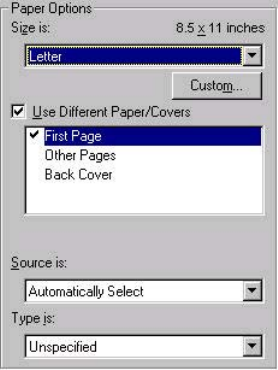
Each option for the Use Different Paper/Covers setting is described in the following sections,
beginning with the First Page option, which is selected by default. The other options are
described in the order that they appear.
First Page
Figure 3-15. First Page options
The First Page options are as follows:
●Size is: drop-down menu
●Source is: drop-down menu
●Type is: drop-down menu
The Size is: driver setting for the first page applies to the entire print job. When this is set,
the setting becomes unavailable for all the other Use Different Paper/Covers options.
Other Pages
Use the Other Pages options to select an alternative media source (or the same source as
First Page) for the other pages of the document.
EN Chapter 3 HP traditional print drivers for Windows 103
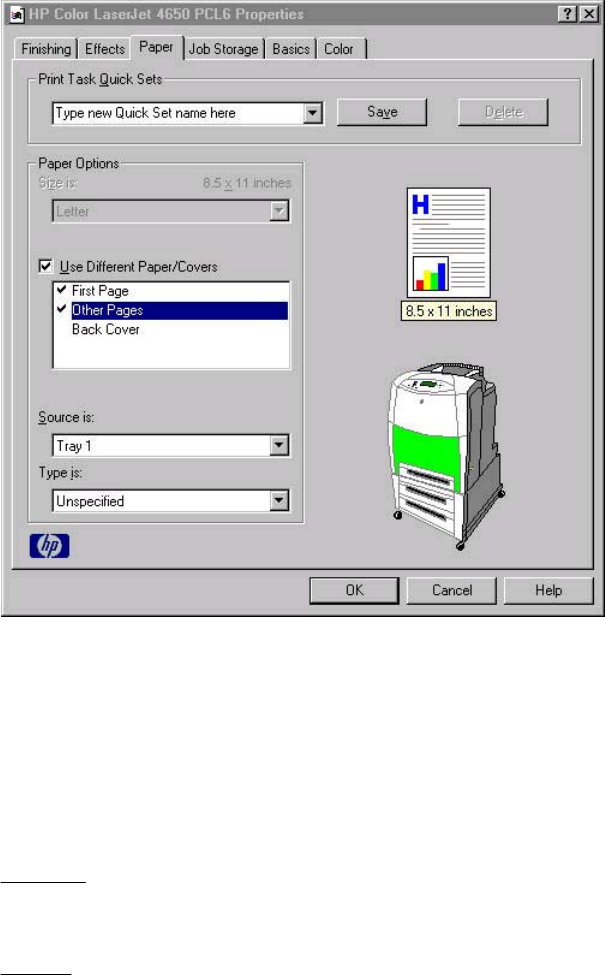
The Other Pages setting and options are shown in the following illustration.
Figure 3-16. Other Pages options
The Other Pages options are as follows:
●Source is: drop-down menu
●Type is: drop-down menu
The Source is: setting specifies the source tray to use for printing a document. The list of source
trays depends on the product accessories. Any optional media trays that are installed through
the Configure tab also appear here. For more information about the Source is: setting, see the
Source Is section of this chapter.
The Type is: drop-down menu shows all of the media types that the product supports. For more
information about the Type is: drop-down menu settings, see the description for Type is: in the
Type is section of this chapter.
Back Cover
Use the Back Cover options to include a blank or preprinted back cover on a document.
104 Paper tab features EN
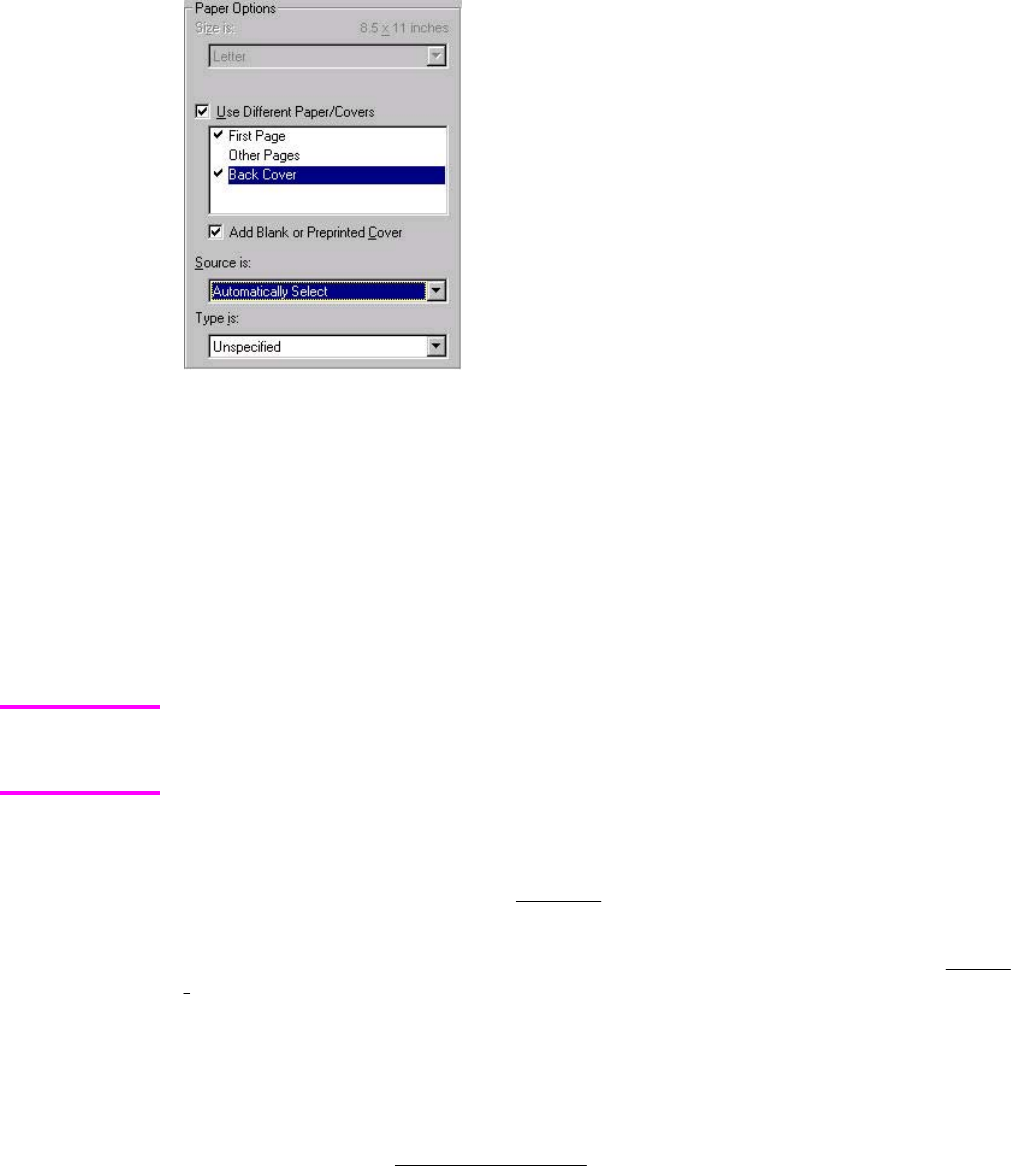
The following illustration shows the Back Cover setting and options.
Figure 3-17. Back Cover setting
The Back Cover options are as follows:
●Add a Blank or Preprinted Cover check box
●Source is: drop-down menu
●Type is: drop-down menu
When you select Back Cover, you must also select the Add a Blank or Preprinted Cover
check box to enable the setting. When you select this check box, the Source is: and Type
is: drop-down menus become available and a check mark appears next to the Back Cover
option.
The Back Cover options are not available when the Booklet Printing Layout setting is
enabled on the Finishing tab. The back cover setting is unavailable, because this page
would otherwise be printed in the middle of a booklet.
The Source is: setting specifies the source tray to use for adding a back cover to the
document. The list of source trays depends on the product accessories. Any optional media
trays that are installed through the Configure tab also appear here. For more information
about the Source is: setting, see the Source Is section of this chapter.
The Type is: drop-down menu shows all of the media types that the product supports. For
more information about the Type is: drop-down menu settings, see the Type is: in the Type is
section of this chapter.
Document preview image
The document preview image is a line-drawn image of a page that represents graphics and
text. The document preview image appears in the upper-right corner of all of the Document
Defaults driver tabs except the Job Storage tab. For more information about the document
preview image, see the Finishing tab features section of this chapter.
Note
EN Chapter 3 HP traditional print drivers for Windows 105

Product image
The bitmap image in the lower-right portion of the Paper tab represents the current physical
configuration of the product and corresponds to its configuration data. It should look the
same as the image that appears in the same location on the Configure tab in the Printer
Properties.
On the Paper tab, the product image contains hot spots where you can select a media source.
When you use the mouse to move the pointer over a hot spot, the arrow reverts to a gloved
hand. The current media source tray, whether selected from the drop-down menu or from a
product image hot spot, is highlighted on the product image. The following points are worth noting:
●The Automatically Select setting in the Source is: drop-down menu does not have a
corresponding area to highlight in the product image. Selecting other settings in this menu
highlights the corresponding part in the product image.
●Selecting the area that represents a tray in the image always selects the corresponding
tray in the Source is: option. Manual Feed in Tray 1, which is available from the Source
is: drop-down menu, cannot be selected by selecting the image.
●On the Paper tab, only source trays have product image hot spots and can be highlighted.
Job Storage tab features
The HP Color LaserJet 4650 printer lets you store print jobs in the product's memory for printing
at a later time. These job-storage features are described in the following sections.
The Job Storage tab appears among the driver tabs only if Job Storage is enabled. To support
job-storage features for complex jobs, or if you often print complex graphics, print postscript
(.PS) documents, or use many downloaded fonts, HP recommends that you install additional
memory, install a hard disk, or both. Added memory also gives you more flexibility in supporting
job storage features. A minimum total memory of 288 MB is required to use Job Storage features.
After a hard disk or additional memory is installed, the driver must be configured to reflect the
changes in the product. If bidirectional communication is enabled in your environment, the
Update Now feature can be used to update the drivers. For more information, see the Configure
tab features in this chapter.
To configure the drivers manually after installing a hard disk or additional memory, follow these
steps:
1Click Start, select Settings, and then click Printers.
2Right-click the product name, click Properties, and then click the Configure tab.
3Under Other Options, click More....
4If additional memory has been installed, change the setting in the Total Memory: drop-
down menu. If you select a minimum of 288 MB, this also selects the Job Storage Enabled
check box.
5If a hard disk has been installed, select the Printer Hard Disk check box in the Storage
group box. This also selects the Job Storage Enabled check box.
6Click OK to make the printer hard disk and job-storage features available.
106 Job Storage tab features EN
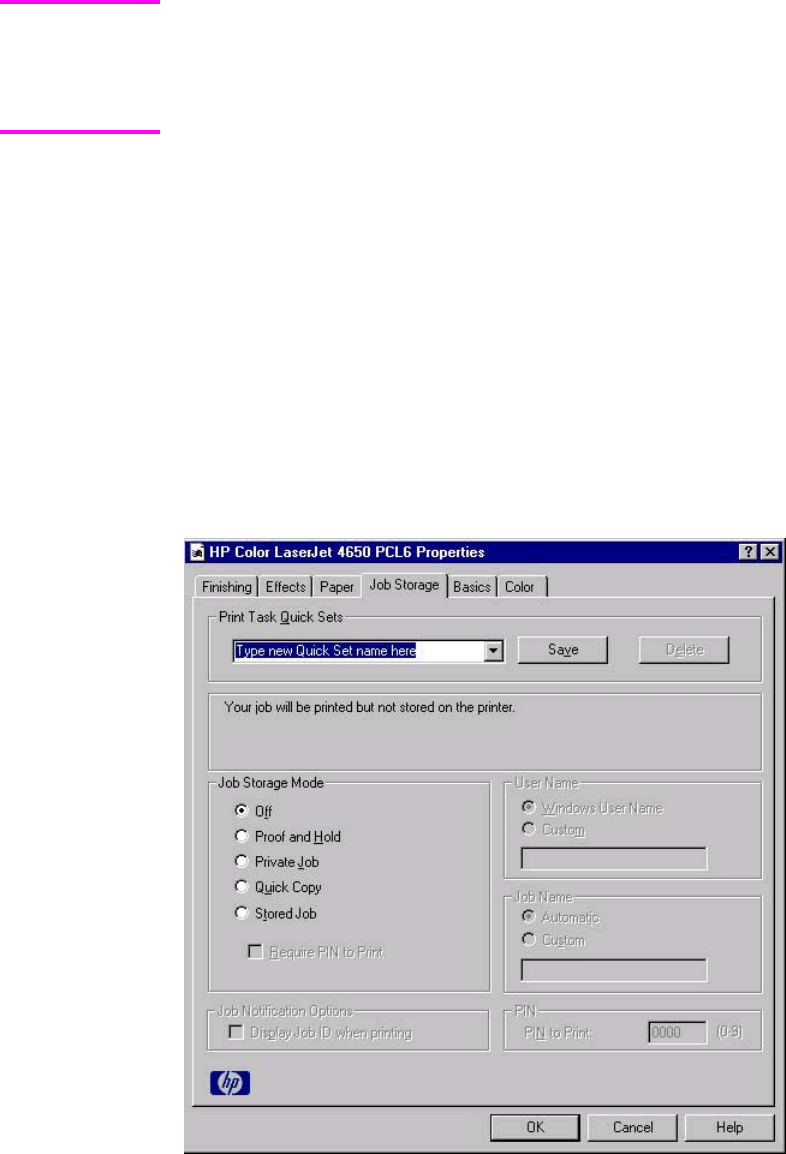
You can disable Job Storage while leaving the product hard-disk enabled. To disable Job
Storage, click Start, select Settings, and then click Printers. Right-click the product name, click
Properties, click the Configure tab, click More..., and then click to clear the Job Storage
Enabled check box in the More Configuration Options box. When Job Storage is disabled,
the Job Storage tab is not visible.
If Job Storage is enabled (without installing a hard disk), two Job Storage Mode settings are
available on the Job Storage tab:
●Proof and Hold
●Private Job
Two additional Job Storage Mode settings become available on the Job Storage tab if a
hard disk is installed:
●Quick Copy
●Stored Job
Job Storage tab
The following illustration shows the Job Storage tab.
Figure 3-18. Job Storage tab
The Job Storage tab contains the following controls:
●Print Task Quick Sets group box
●Status group box (unlabeled)
Note
EN Chapter 3 HP traditional print drivers for Windows 107

●Job Storage Mode group box
●Job Notification Options group box
●User Name group box
●Job Name group box
●PIN group box
Print Task Quick Sets
Use the Print Task Quick Sets control to store the current combination of driver settings that
are found on all other Document Defaults driver tabs. Print Task Quick Sets are either preset
(by the administrator) or user-defined printing specifications, such as media size and pages per
sheet. For more information, see Finishing tab features.
Status group box
The unlabeled group box on the Job Storage tab contains a status message about the
destination of a print job. The status information changes depending on the selections that are
made on the Job Storage tab.
Job Storage Mode
Use the Job Storage Mode options on the HP Color LaserJet 4650 printer to store documents
at the product and then control their printing at the product control panel. This feature is intended
to provide greater flexibility, convenience, security, and cost savings.
The HP Color LaserJet 4650 printer offers the following Job Storage Mode options:
●Off
●Proof and Hold
●Private Job
●Quick Copy
●Stored Job
●Require PIN to Print (available when Stored Job is selected)
These options and the settings that control them are described in the following sections.
Off
When selected, this option turns the Job Storage feature off (it is disabled), which means that
the print job will not be stored in the product.
Proof and Hold
To use the Proof and Hold option, Job Storage must be enabled, and the product must have a
minimum total memory of 288 MB.
When selected, this option stores the print job in memory and prints only the first copy of the job,
allowing you to check the first copy. If the document prints correctly, you can print the remaining
copies of the print job at the control panel. You can set the number of proof-and-hold print jobs
that can be stored in the product at the control panel.
108 Job Storage tab features EN

After it is released for printing, the proof-and-hold job is immediately deleted from the product. If
more copies are needed, you must reprint the job from the software program. If you send a
second proof-and-hold job to the product with the same user name and job name as an existing
proof-and-hold job (and you have not released the original job for printing), the job will overwrite
the existing job. Proof-and-hold jobs are deleted if you turn off the product.
The product configuration can be set to hold a maximum of 50 quick-copy or proof-and-hold
jobs. The number is set at the product control panel in the CONFIGURATION menu, and the
default is 32. When this preset limit is reached, the new document overwrites the oldest held
document. Also, a document that has the same user and job name as one that is already
stored on the hard disk will overwrite the existing document.
Private Job
To use the Private Job option, Job Storage must be enabled, and the product must have a
minimum total memory of 288 MB.
When you select Private Job, the print job is sent to the product, but is not printed until you
request the job at the product control panel. Selecting Private Job activates the PIN group
box. The print job can be printed only after you type the correct PIN at the control panel.
After the job is printed, the job is deleted from the product. This feature is useful when you
are printing sensitive or confidential documents that you do not want to leave in an output
bin after printing.
After it is released for printing, the private job is immediately deleted from the product. If
more copies are needed, you must reprint the job from the software program. If you send a
second private job that has the same user name and job name as an existing private job
(and you have not released the original job for printing), the job will overwrite the existing
job, regardless of the PIN. Private jobs are deleted if you turn off the product.
Using a PIN for Private Job
The Private Job option can be secured by a four-digit personal identification number (PIN).
You must type in this number at the product control panel before the product can print the job.
The group box labeled PIN is usually inactive. It becomes active when you select the Private
Job option.
The Private Job/PIN coupling has a PIN restriction of four ASCII numeric characters (0
though 9). If you type non-numeric characters, they are removed immediately. If you type
more than four characters, the characters past the fourth are truncated. The field temporarily
accepts fewer than four digits in the string, but when the edit field loses focus, the zeroes
pad the left end until the PIN contains exactly four digits. The default initialized value for the
PIN is 0000 for Private Job.
Quick Copy
To use the Quick Copy option, a hard disk must be installed, Job Storage must be enabled,
and the product must have a minimum total memory of 288 MB.
When you select Quick Copy, the entire print job prints and a copy of the print job is stored
on the product, after which you can print additional copies of the print job at the product
control panel. The number of quick-copy print jobs that can be stored in the product is set by
using the product control panel.
Note
EN Chapter 3 HP traditional print drivers for Windows 109

The product configuration can be set to hold a maximum of 50 quick-copy or proof-and-hold
jobs. The number is set at the product control panel in the CONFIGURATION menu, and the
default is 32. When this preset limit is reached, the new document overwrites the oldest held
document. Also, a document that has the same user and job name as one that is already
stored on the hard disk will overwrite the existing document. Quick Copy jobs are deleted if
you turn off the product.
Stored Job
To use the Stored Job option, a hard disk must be installed, Job Storage must be enabled, and
the product must have a minimum total memory of 288 MB.
Use the Stored Job option to send a print job directly to the product hard disk without printing it.
The print job is stored in the product as if it is an electronic file cabinet. After the print job is
stored on the product hard disk, you can print the job at the product control panel.
The job remains stored in the product until it is deleted or overwritten by a document that has the
same user and job names. Stored jobs remain on the product hard disk when the product is
turned off. Use this feature for forms and other common or shared documents.
A stored job can be managed in two ways: as either a private or a public job. Use a private
stored job to send a print job directly to the product, which can then be printed only after you
type in a PIN at the product control panel. (You can set the PIN in the PIN group box.) After the
job is printed, the job remains in the product and can be printed again at the product control
panel. The private mode is initiated by selecting the Require PIN to Print check box. In this
mode, a PIN that is typed at the product control panel is required in order to release the job.
The box labeled PIN is usually inactive. The Require PIN to Print option becomes available
when you select Stored Job. If you select the Require PIN to Print box, you must type a PIN to
make the stored job private.
A private stored job is not the same as a private job (see above). Private jobs are deleted from
the product after they are printed. Private stored jobs are retained in the product after printing,
but require that a PIN be typed each time they are printed.
Job notification
Clicking a job storage mode selection causes the User Name and Job Name options to become
available. The Display Job ID when printing check box is selected by default. The Display Job
ID when printing option causes a pop-up dialog box to appear when the job-storage print job is
printed. The dialog box shows the user name and job name that are associated with the stored
print job, as well as the product name, port, and location.
Note
Note
110 Job Storage tab features EN

User Name
Use the User Name settings to help identify the job at the product control panel. The following
are the User Name settings:
●User Name. This option associates your Windows user name with the stored print job. The
Windows user name automatically appears in the text field below the User Name options.
●Custom. Use this option to type a custom name for the stored print job. When you click the
Custom radio button, the text field below the option becomes available. The User Name
field can contain no more than 16 characters, and is limited to A through Z and 0 through 9
because the name appears on the product control-panel display. If you try to type a
lowercase character, it automatically shifts to uppercase. If you try to type a character in an
ASCII code of fewer than 32 or more than 126 characters, the character is removed from
the edit field, along with all of the characters that follow it. If you try to type more than 16
characters, any character beyond 16 is truncated.
Job Name
Use the Job Name text box to specify a name to identify the job at the product control panel.
This text box uses Untitled as the default job name associated with the stored print job. The
file name of the print job is used if it is available to the print driver. Otherwise, the software
program name or a time stamp is used for the job name. To enter a custom name, type the
custom job name in the text box. The Job Name text box can contain no more than 16
characters, and is limited to A through Z and 0 through 9 because the name appears on the
product control-panel display. If you try to type a lowercase character, it automatically shifts
to uppercase. If you try to type a character in an ASCII code of fewer than 32 or more than
126 characters, the character is removed from the edit field, along with all of the characters
that follow it. If you try to type more than 16 characters, any character beyond 16 is truncated.
PIN
The PIN group box is usually inactive. The option within the PIN group box, PIN to Print, is
activated if you select either of the following options:
●Select Private Job. If selected, you must type in the PIN number at the product control
panel in order to make the job print. For more information, see Using a PIN for Private
Job .
●Select Stored Job, and then select the Require PIN to Print check box. If the Require
PIN to Print check box is selected, you must type a PIN in order to make the stored
job private. For more information, see the Stored Job.
Using Job Storage features when printing
1Click File and then click Print from the software program. The Print dialog box appears.
Clicking the print icon in the software program toolbar prints the job without Job Storage
features.
2Click Properties. The Properties dialog box appears.
3Click the Job Storage tab.
4Select the Job Storage options described above by clicking the appropriate option
button and complete any required fields.
5Click OK.
Note
EN Chapter 3 HP traditional print drivers for Windows 111
Releasing a Job Storage print job
After you send a print job that uses the Job Storage feature, you can release the job to print
from the product control panel.
1Press the select button (the one with the check mark) to open the menus. RETRIEVE JOB
is highlighted.
2Press the select button.
3Press the up and down buttons to scroll to your User Name, and then press the select button.
4Press the up and down buttons to scroll to the Job Name, and then press the select button.
PRINT JOB is highlighted.
5Press the select button.
6If a PIN number is assigned to the job, press the up and down buttons to select the first digit
of the PIN, and then press the select button. The number in the product control-panel
display changes to an asterisk. Repeat this step for each of the remaining three digits of the
PIN number.
If no PIN number is assigned to the job, continue with step 7.
7Press the up and down buttons to select the number of copies to print.
8Press the select button to print the job.
Deleting a Job Storage print job
Sometimes it is necessary to delete a print job from the product hard disk. You can do this from
the product control panel.
1Press the select button (the one with the check mark) to open the menus. RETRIEVE JOB
is highlighted.
2Press the select button.
3Press the up and down buttons to scroll to your User Name, and then press the select button.
4Press the up and down buttons to scroll to the Job Name, and then press the select button.
5Press the up and down buttons to select Delete.
6If a PIN number is assigned to the job, press the up and down buttons to select the first digit
of the PIN, and then press the select button. The number in the product control-panel
display changes to an asterisk. Repeat this step for each of the remaining three digits of the
PIN number.
If no PIN number is assigned to the job, continue with step 7.
7Press the select button to delete the job.
The stored print job is deleted and the product returns to the READY state.
112 Job Storage tab features EN
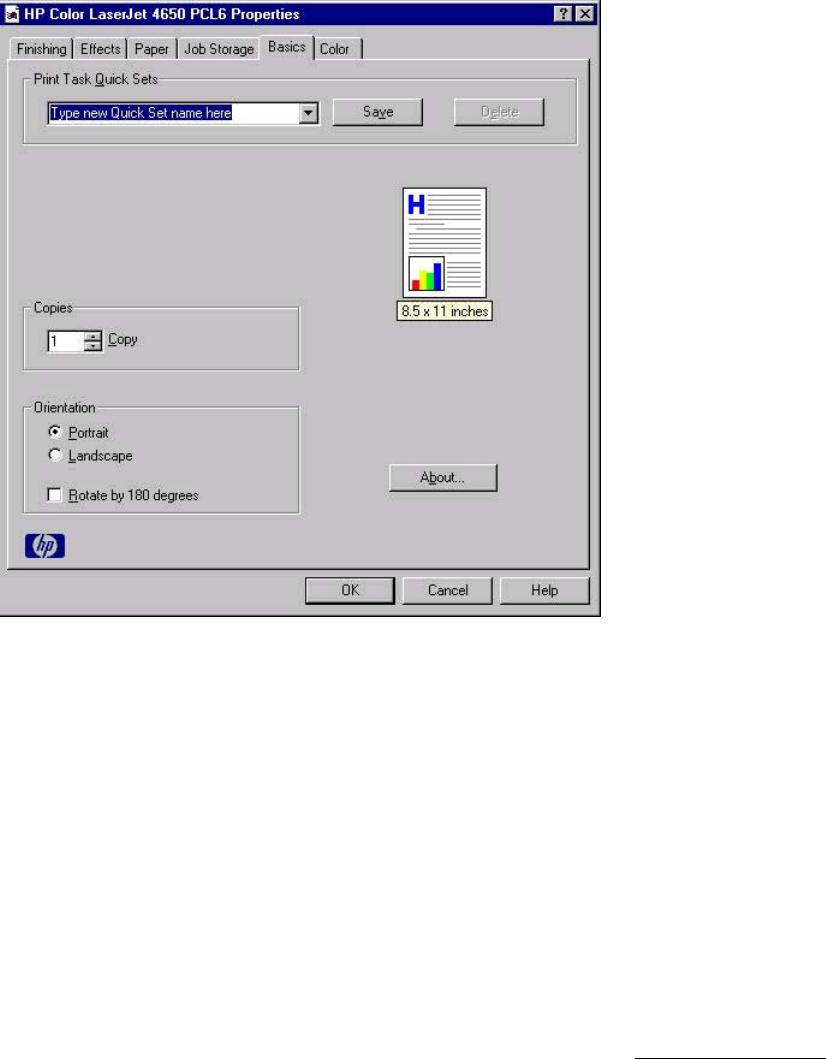
Basics tab features
The Basics tab provides options for setting the number of copies to be printed and for the
orientation of the print job. You can also use it to retrieve information about the driver.
Figure 3-19. Basics tab
The Basics tab contains the following controls:
●Print Task Quick Sets group box
●Copies group box
●Orientation group box
●Document preview image
●About button
Print Task Quick Sets
The Print Task Quick Sets control is available on all of the Properties driver tabs (the
Finishing, Output, Effects, Paper, Job Storage, and Basics tabs). The feature is used to
store the current combination of driver settings that are found on all other tabs. Print Task
Quick Sets are either preset (by the administrator) or user-defined printing specifications,
such as media size and pages per sheet. For more information, see the Finishing tab features
section of this chapter.
EN Chapter 3 HP traditional print drivers for Windows 113

Copies
Use the Copies option to specify the number of copies to print.
The number of copies that you request appears in the Copies group box. You can select the
number by typing in the box or by using the up and down arrows to the right of the text box.
Valid entries are numbers from 1 to 9999 for the HP Color LaserJet 4650. The copies value
will not advance from the maximum number (9999) to 1 when the up arrow is used, or
change from 1 to the maximum number (9999) when the down arrow is used. When you
click another group box or leave the Basics tab, invalid entries into the edit box (such as
non-numerical input, numbers less than 1, or numbers greater than the maximum allowed)
are changed to the last valid value that appeared in the box. The default number of copies is
1.
Because you can set the number of copies that you want from some software programs,
conflicts between the software program you are using and the driver can arise. In most cases,
the software program and the driver communicate, so that the number of copies set in one
location (such as the program) will appear in the other (such as the driver). For some programs,
this communication does not take place, and the copies values are treated independently. For
these programs, setting 10 copies in the program and then setting 10 copies in the driver will
result in 100 copies (10 x 10) being printed. It is recommended that you set the number of copies
in the program, wherever possible.
Orientation
Orientation refers to the layout of the image on the page, and does not affect the manner in
which media is fed into the printer. You can specify the orientation of the print job. The three
available orientations are portrait, landscape, and rotated. The default orientation is Portrait.
Nearly all software programs establish the orientation for the printed page, so the page
orientation in the driver is useful only for the few software programs that do not set an orientation.
The Orientation group box contains three options:
●Portrait. The top edge of the document is the shorter edge of the media.
●Landscape. The top edge of the document is the longer edge of the media.
●Rotate by 180 degrees. This creates a landscape or portrait orientation in which the image
is rotated 180 degrees. This setting is useful for printing prepunched media.
You can toggle orientation between portrait and landscape by clicking the document preview
image. If you select the Rotate by 180 degrees check box, no change occurs in the document
preview image.
Document preview image
The document preview image is a line-drawn image of a page that represents graphics and text.
The document preview image appears in the upper-right corner of all of the Properties driver
tabs (the Finishing, Output, Effects, Paper, Job Storage, and Basics tabs). For more
information about the document preview image, see Finishing tab features.
Note
114 Basics tab features EN
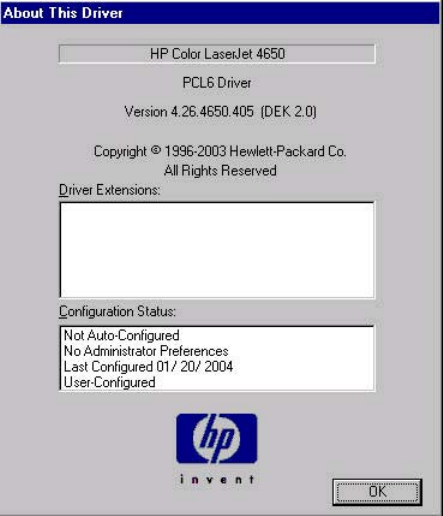
About
When you click the About button on the Basics tab, or you click the HP logo on any of the driver
Properties tabs, the About This Driver dialog box appears. To close the About box, click OK,
press Esc, press Alt + F4, or press Enter. The following figure shows the About This Driver
dialog box. The information it contains varies according to driver, date, and version.
Figure 3-20. About This Driver dialog box
The About This Driver dialog box provides the following information:
●Printer name
●Driver name
●Print driver version number
●Copyright information
●Driver Extensions (if any)
●Configuration Status
The printer name, the driver name, the print driver version number, and the copyright
information appear at the top of the About This Driver dialog box.
The Driver Extensions group box lists the driver extensions, if any.
The Configuration Status group box indicates whether the driver was autoconfigured,
whether administrator preferences were set, the date the driver was last configured, and
whether the configuration is default or user-defined.
EN Chapter 3 HP traditional print drivers for Windows 115
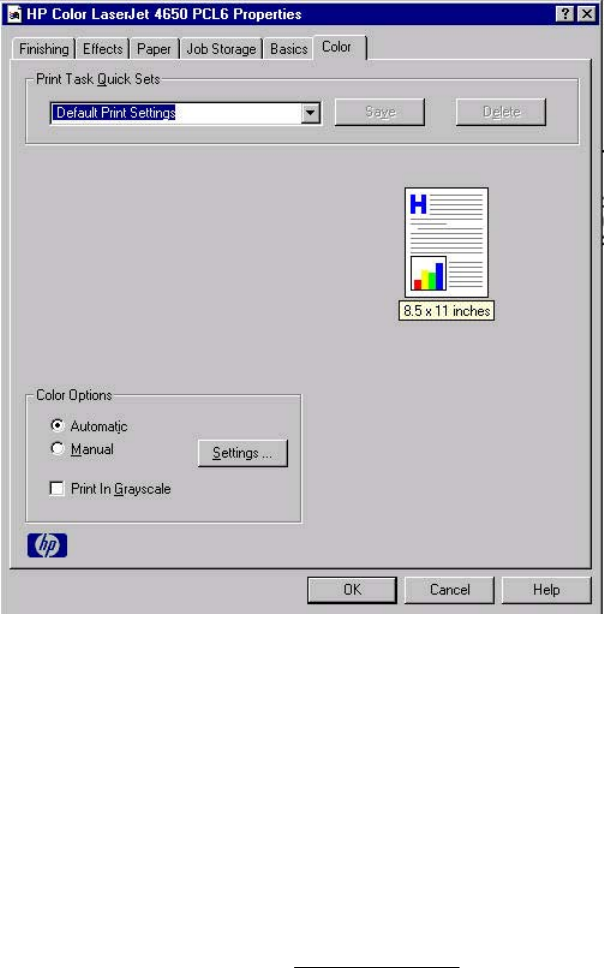
Color tab features
Use the Color tab to specify predefined color-option settings or to fine-tune the color
treatments and half-toning. Color output can also be converted to grayscale. The Color tab
is shown in the following illustration.
Figure 3-21. Color tab
The Color tab contains the following controls:
●Print Task Quick Sets group box
●Color Options group box
●Document preview image
Print Task Quick Sets
The Print Task Quick Sets control is available on each Printing Preference tab, and is used to
store the current combination of driver settings found on all of the other tabs. Print Task Quick
Sets are either preset or user-defined printing specifications, such as media size and pages per
sheet. For more information, see Paper tab features.
116 Color tab features EN
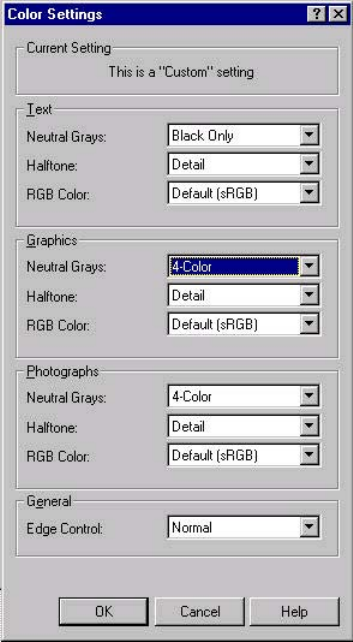
Color Options
Use the Color Options group box to adjust the independent color controls. The settings affect
the print job color rendering and print quality. The Color Options group box contains the
following controls:
●Automatic option (default)
●Manual option
●Settings button (that opens the Color Settings dialog box)
●Print in Grayscale check box
Automatic
Use the Automatic option for default color settings that automatically tune the printed
output. The HP Automatic default color settings provide high-quality output for most color
printing needs.
Manual
To change the default color settings, select the Manual option, and then click the Settings
button. The Color Settings dialog box appears.
To change the settings, make your selections by using the drop-down menus in the Color
Settings dialog box, and then click OK. The following illustration shows the Color Settings
dialog box with "Custom" settings.
Figure 3-22. Color Settings dialog box
EN Chapter 3 HP traditional print drivers for Windows 117
The Color Settings dialog box contains the following controls for each of the following
components:
●Text
●Neutral Grays
●Halftone
●RGB Color
●Graphics
●Neutral Grays
●Halftone
●RGB Color
●Photographs
●Neutral Grays
●Halftone
●RGB Color
●General
●Edge Control
Neutral Grays
The Neutral Grays drop-down menu controls the selection of a device-dependent color table
that is embedded in the product firmware. The options are Black Only or 4-Color. You can
adjust the Neutral Grays setting independently for text, graphics, or photographs.
●Black Only. This option generates neutral colors (grays and black) by using only black
toner. This option guarantees that neutral colors do not have a color cast. Black Only is
the default setting for the Text and Graphics components.
●4-Color. This option generates neutral colors by combining all four colors of toner, which
produces smoother gradients and transitions to non-neutral colors. It also produces the
darkest possible black. 4-Color is the default setting for Photographs.
Halftone
The Halftone setting controls the selection of a product-dependent halftone algorithm that is
embedded in the product firmware. The Halftone options, Smooth and Detail, affect the
resolution and clarity of your color output.
●Detail. This option is optimized for the best reproduction of images, graphics, and large,
solid-filled print areas. It also enhances photographs by smoothing out the fine color
gradations. Select this option when the color fidelity of large objects is the top priority.
Detail is the default setting for all components.
●Smooth. This option is optimized for the best readability and sharpness of small text.
118 Color tab features EN

RGB Color
The RGB Color settings affect the color treatment for object types and determines how colors
are rendered. The options are Default (sRGB), Device, and Vivid.
●Default (sRGB). This option interprets RGB color space (sRGB), which is the accepted
standard for many software companies and organizations such as Microsoft and the
Worldwide Web Consortium. Default (sRGB) is the default setting for all components.
●Vivid. This option sets the product to increase the color saturation in the midtones.
Less colorful objects are rendered more colorfully. This value is recommended for
printing business graphics.
●Device. This option sets the product to print RGB data in raw device mode. To render
photographs correctly when this option is selected, you must manage color in the
software program in which you are working or in the operating system.
If your software program converts text and graphics to raster, the Photographs settings also
control the Text and Graphics settings.
General
Use the General setting group to control Edge Control settings for all color printing.
Edge Control determines how edges are rendered. Edge Control consists of three
components: Adaptive Halftoning, Trapping, and C-REt. Adaptive Halftoning increases the
edge sharpness. Trapping reduces the effect of color plane misregistration by slightly
overlapping the edges of adjacent objects. C-REt increases the apparent resolution by
placing each dot for the smoothest edges.
The Edge Control option offers four settings:
●Normal. The Normal setting provides the default trapping settings. Adaptive Halftoning
is set to On, and C-REt is set to On.
●Light. The Light setting provides minimal trapping. Adaptive Halftoning is set to On
and C-REt is set to On.
●Maximum. The Maximum setting provides the most trapping. Adaptive Halftoning is
set to On, and C-REt is set to On.
●Off. The Off setting turns Trapping, Adaptive Halftoning, and C-REt to Off.
Print in Grayscale
Select Print in Grayscale to print a document in black and white. This option is useful for
previewing preliminary copies of slides and hardcopy output quickly or for printing color
documents that will be photocopied or faxed.
Properties tabs
The Properties tabs contain information about and options for configuring the product.
Note
EN Chapter 3 HP traditional print drivers for Windows 119
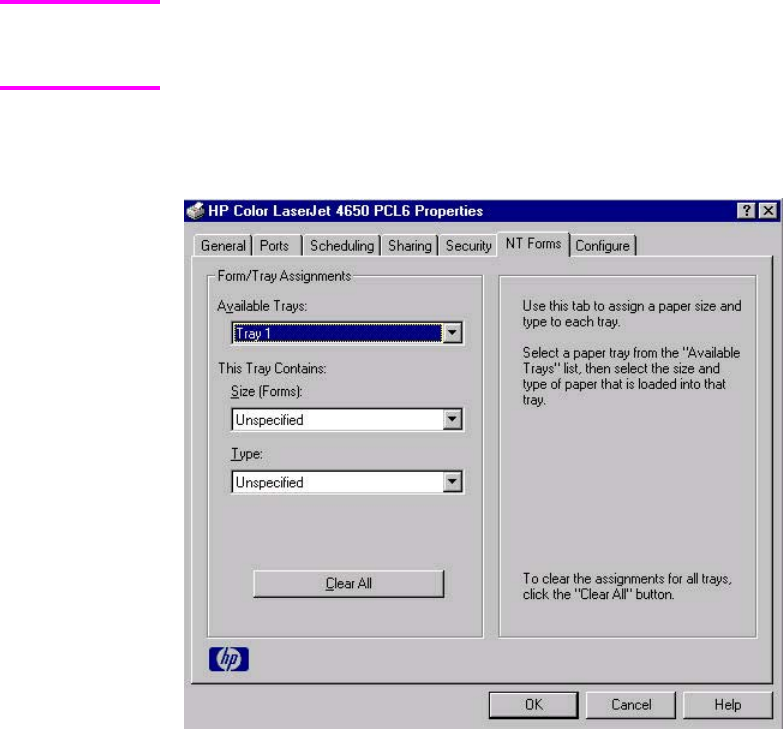
NT Forms tab features
The NT Forms tab is in the Properties for the print driver.
To gain access to the Properties tabs, click Start on the Window task bar, click Settings,
and then click Printers. Right-click the product name, and then click Properties.
The NT Forms tab appears only in the Microsoft Windows NT 4.0 operating environment. The
NT Forms tab (like the Configure tab) can be viewed only from the Properties window. The
following illustration shows the NT Forms tab.
Figure 3-23. Driver NT Forms tab
Use the NT Forms tab to specify which media sizes and types are loaded in each of the
available source trays. This constrains the choices that are available in the Size and Type lists
on the Paper tab.
The NT Forms tab contains a single group box (the Form/Tray Assignments group box) which
contains the following controls:
●Available Trays is a drop-down menu that contains all the trays that are specified on the
Configure tab.
●This Tray Contains/Size (Forms) drop-down menu contains a list of standard media sizes
that the HP Color LaserJet 4650 printer supports, as well as any custom forms that are
defined on the NT Forms tab.
●This Tray Contains/Type drop-down menu lists all of the media types that the
HP Color LaserJet 4650 printer supports.
●Clear All button removes all the size and type constraints on the Paper tab.
Note
120 Properties tabs EN
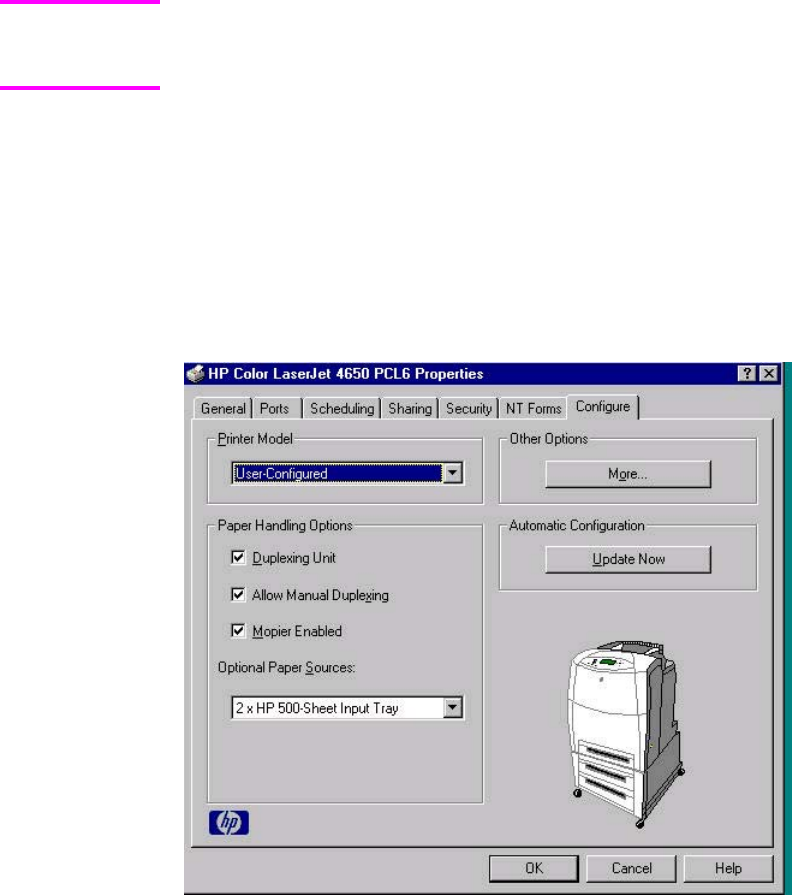
Configuring the trays
1Select the appropriate tray from the Available Trays drop-down menu.
2Use the This Tray Contains/Size (Forms) drop-down menu to select the media size (or
form) that is loaded in that tray.
3Use the This Tray Contains/Type drop-down menu to select the media type that is
configured for the tray.
4Repeat steps 1 through 3 for the remaining trays.
5Click OK to enable your settings, or, if necessary, click the Clear All button to
reconfigure all of the trays, and remove the size and type constraints that have been
imposed on the Paper tab.
Configure tab features
The Configure tab is in the Properties for the print driver.
To gain access to the Properties tabs, click Start on the Window task bar, click Settings,
and then click Printers. Right-click the product name, and then click Properties.
Use the Configure tab to tell the driver about the product hardware configuration. If
bidirectional communication is enabled in a supported environment, set up this tab by
clicking the Update Now button. If your environment does not support bidirectional
communication, the Update Now button is unavailable, so you must manually configure the
options on this tab.
The Configure tab is available when the driver is opened from the Printers folder by clicking
Properties. When you open the driver from within a program, the Configure tab is not
visible (with a few exceptions, such as when using Excel 5.0 or Corel (R) Chart 4.0). When
opened from the Printers folder, the Configure tab looks like the following illustration.
Figure 3-24. Configure tab
Note
EN Chapter 3 HP traditional print drivers for Windows 121
The Configure tab contains the following controls.
●Printer Model group box
●Paper Handling Options group box
●Other Options group box
●Automatic Configuration group box
●product image
Printer Model
In the Printer Model group box, the driver title remains HP Color LaserJet 4650 for all models.
Selection of another product bundle makes the appropriate changes to other configuration
options on the tab. The list of models and the changes they produce are described below.
When the HP Color LaserJet 4650 model or the HP Color LaserJet 4650n model is selected, the
following settings apply:
●The Driver Work Space (DWS) value shown in the Other Options dialog box is 6.0 MB.
●The Total Printer Memory value is 160 MB.
●No optional media destinations, media sources, duplexing unit, or hard disk are selected.
HP Color LaserJet 4650dn resets all configuration settings to match the capabilities of the
4650dn model. Settings affected are:
●The Total Printer Memory value is 160 MB.
●Duplexing Unit is selected.
●No optional media destinations, media sources, duplexing unit, or hard disk are selected.
When the HP Color LaserJet 4650dtn model is selected, the following changes are made to the
default settings:
●The Total Printer Memory value is 288 MB.
●Duplexing Unit is selected.
●Mopier Enabled is selected.
●HP 500-Sheet Input Tray is selected in Optional Paper Sources.
●No optional media destinations are selected.
When the HP Color LaserJet 4650hdn model is selected, the following changes are made to the
default settings:
●The Total Printer Memory value is 288 MB.
●Duplexing Unit is selected.
●Mopier Enabled is selected.
●Printer Hard Disk and Job Storage Enabled are selected.
●2 x 500-Sheet Input Tray is selected.
If it is installed and working, the bidirectional mechanism will detect the correct model and
update the configuration accordingly, either during installation or when you select Update Now
on the Configure tab. However, the printer model name shown in the Printer Model text box
does not change.
122 Properties tabs EN

Paper Handling Options
The Paper Handling Options group box contains the following controls:
●Duplexing Unit check box
●Allow Manual Duplexing check box
●Mopier Enabled check box
●Optional Paper Sources drop-down menu
Duplexing Unit
The HP Color LaserJet 4650dn, 4650dtn, and 4650hdtn models are equipped with automatic
2-sided printing (duplexing), which allows you to print on both sides of supported media.
Automatic 2-sided printing is not supported for certain media types, including transparencies,
labels, envelopes, heavy, extra heavy, cardstock, and glossy film.
The HP Color LaserJet 4650 printer supports smart duplexing. The product uses the smart
duplexing feature to detect information on both sides of the print job pages and only runs the
pages through the duplexing unit if there is printable information on the second side of the
page.
Allow Manual Duplexing
Select Allow Manual Duplexing to print on both sides of any size and most types of media
(except transparencies, envelopes, and labels). To use this feature, you must reinsert the
media stack into the input tray to print the second side. The product pauses while you make
this adjustment.
Mopier Enabled
The multiple-original print (mopy) function is an HP-designed feature that produces multiple,
collated copies from a single print job. Multiple-original printing (mopying) increases
performance and reduces network traffic by transmitting the job to the product once, and
then storing it on the hard disk. The remainder of the copies are printed at the fastest speed.
All documents that are printed in mopier mode can be created, controlled, managed, and
finished from the computer, which eliminates the extra step of using a photocopier.
The HP Color LaserJet 4650 printer supports the transmit-once mopying feature when the
product has an installed hard disk or a minimum total memory of 288 MB, and the Mopier
Enabled setting on the Configure tab is on.
Mopier mode and collation
Mopying and collating print jobs are independent but closely related functions. Mopying, the
ability to send multiple original print jobs to the product , is performed by the print driver and
the product . Collating can be controlled by using either the print driver or the document
software program. The mopying mode is selected by default in the driver, and can be
disabled by clearing the Mopier Enabled selection on the Configure tab to disable the
feature.
You can control collation through the print driver by selecting or clearing the Ignore
Application Collation check box on the More Configuration Options dialog box that
appears when you click the More... button on the Configure tab. You can clear the check
box, which is available only when the Mopier Enabled setting on the Configure tab is
selected, to allow the software program to control collation.
Note
EN Chapter 3 HP traditional print drivers for Windows 123

To receive uncollated multiple copies of a print job with the mopier enabled, you must clear
the Ignore Application Collation check box and make sure that the software program
collation feature is not selected.
The following table shows the relation between Mopier Enabled settings and collation settings
in the software program and the driver. The first three columns show the settings; the last
column, "Expected result", shows how a 3-page print job would appear.
Table 3-6. Driver Mopier mode and collation settings
Mopier Enabled Application collation Ignore Application
Collation
Expected result
Not selected Not selected Not available 3 copies uncollated
Not selected Selected Not available 3 copies collated
Selected Not selected Not selected 3 copies uncollated
Selected Not selected Selected 3 copies uncollated
Selected Selected Not selected 3 copies collated by
printer
Selected Selected Selected 3 copies collated by
printer
Optional Paper Sources
The Optional Paper Sources drop-down menu lists optional media source trays for the
HP Color LaserJet 4650 printer. The list of available source trays varies depending on your
product , its input accessories, and the product configuration settings on the Configure tab.
For the HP Color LaserJet 4650 printer, the following settings are available in the Optional
Paper Sources drop-down menu:
●(None). This is the default setting for the HP Color LaserJet 4650 printer.
●2x HP 500-Sheet Input tray.
●HP 500-Sheet Input tray.
Other Options
The Other Options group box contains a single More... command button. Clicking the More...
button opens the More Configuration Options dialog box.
124 Properties tabs EN
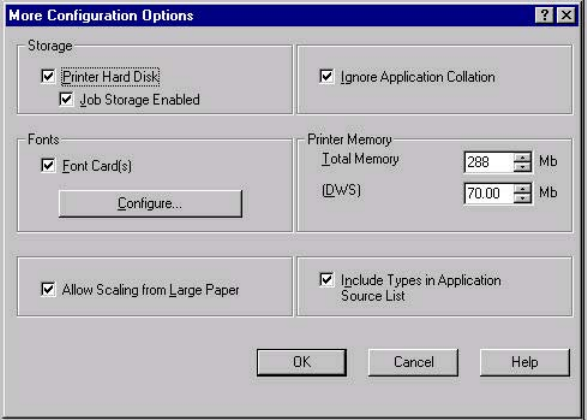
More configuration options
When you click the More... button under Other Options, more configuration options are
available. The More Configuration Options dialog box is shown in the following illustration.
Figure 3-25. More Configuration Options dialog box
The More Configuration Options dialog box contains the following controls:
●Storage group box
●Fonts group box
●Allow Scaling from Large Paper check box
●Ignore Application Collation check box
●Printer Memory group box
●Include Types in Application Source List check box
Storage
The Storage group box contains the Printer Hard Disk and Job Storage Enabled check
boxes. If your HP Color LaserJet 4650 printer is equipped with a hard disk drive, the Printer
Hard Disk check box should be selected and all job storage options are available. If your
HP Color LaserJet 4650 printer is not equipped with a hard disk drive but has a minimum of
288 MB of memory, limited job storage options are available. When job storage is enabled,
the product can store print jobs so that you can gain access to those print jobs later at the
product control panel.
EN Chapter 3 HP traditional print drivers for Windows 125
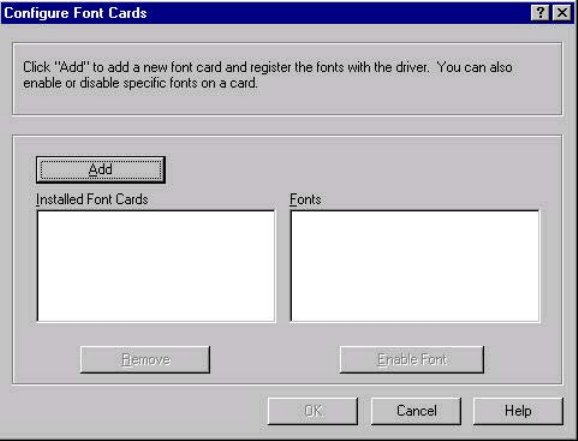
Fonts
The Fonts group box contains a Font Card(s) check box and a corresponding Configure
button. Selecting the Font Card(s) check box tells the driver that a Font card is installed,
and that stored data about the fonts on the card is available. When the check box is
selected, the Configure button is enabled. Click the Configure button to open the
Configure Font Card(s) dialog box. If the Font Card(s) check box was not selected when
you opened the More Configuration Options dialog box, selecting that check box
automatically opens the Configure Font Cards dialog box.
Figure 3-26. Configure Font Cards dialog box
Use the Configure Font Cards dialog box to perform the following tasks:
●Add up to two font cards by clicking the Add button.
●Specify a unique font-card name.
●Select specific font card data files that contain lists of fonts on specified cards.
●Select one or more installed cards in the Installed Font Cards list. The list to the right
(Fonts) shows all of the fonts that are available on the selected card(s).
●Enable or disable one or more of the selected font(s).
1Make sure that the font card is installed correctly.
2Click Add. The Add Font Card dialog box appears.
3Click Browse. The Font Card Files dialog box appears.
4Find and select the appropriate Printer Cartridge Metrics (PCM) file that came with the font
card.
5Click OK.
6If you want, you can specify a Font Card Name in the Add Font Card dialog box.
7Click OK. The selected .PCM file appears in the Installed Font Cards list. Select the .PCM
file to see a list of available fonts in the Fonts list.
8Click OK to close the Add Font Card dialog box. The fonts on the card should now be
available on the system.
126 Properties tabs EN

When using font cards with the PCL 6c drivers: To install screen fonts that match the font
card, use the .HPB file that is specifically designed to work with that card. If no screen fonts
exist for the card, use the .PCM file that is specifically designed to work with that card.
Allow Scaling from Large Paper
The Allow Scaling from Large Paper selection can be helpful, for example, when printing a
document with a large media size of 11 x 17 or A3. You can use the Print Document On:
setting on the Effects tab to print the document on a media size that is supported by the
printer.
Ignore Application Collation
This setting overrides collation options that are selected in a software program's print
options. Ignore Application Collation allows the print driver to collate in the most
appropriate way for the print job. The performance of this feature depends on the software
program that you are using.
Printer memory
The Total Memory group box shows the total amount of memory that is physically installed
in the product. The default values for total product memory are specified on the
Configuration tab. Total product memory is updated through a successful bidirectional
query, or can be set manually.
The Driver Work Space (DWS) value shows the amount of memory that is available for
keeping track of fonts that are downloaded from the driver. The driver deletes downloaded
fonts if it has exceeded the available memory value. The (DWS) value is a dynamic value
that varies depending on the specific configuration of the product. An accurate (DWS) value
optimizes driver performance.
The HP Traditional PCL 6 and HP Traditional PCL 5c drivers automatically configure the
(DWS) value in Windows 98, Windows Me, and Windows NT 4.0 environments that support
bidirectional communication. Use the (DWS) option to specify the amount of work-space
memory that is available to the product. To manually set the (DWS) value, print a
Configuration page and find the DWS value in the Memory section of the page. Then, click
the More... button on the Configuration tab, and type the DWS value in the (DWS) field of
the More Configuration Options dialog box.
Include types in application source list
The Include types in application source list check box is available only when using a
computer that is running Windows NT 4.0.
When the Include types in application source list check box is selected, all media types
(such as heavy media and transparencies) are available from the Source is: list on the
Paper tab. When you are in a software program, you can open the Paper tab by clicking
Print from the File menu, and then clicking Properties.
Automatic configuration
If you have modified the configuration of the HP Color LaserJet 4650 printer since
installation, click the Update Now button to automatically reflect the new configuration in the
driver. For more information about the print driver's automatic configuration feature, see the
Driver Configuration section of this guide.
Note
Note
EN Chapter 3 HP traditional print drivers for Windows 127

If the Update Now button is not available, select the appropriate configuration options on the
Configure tab.
Printer image
The bitmap image in the lower-right portion of the Configure tab represents the current physical
configuration of the product according to the driver configuration data. It should have the same
appearance as the image in the same location on the Paper tab.
The printer image shown on the Configure tab might differ from your HP Color LaserJet 4650
printer, depending on the installed accessory devices.
HP Traditional Postscript 3 Emulation
Driver features
When you install the printing-system software in Windows 98 or Windows Me, the
HP Traditional PCL 6 Driver is installed by default. The HP Traditional PCL 5c Driver and the PS
Emulation Driver can be installed by performing a Custom Installation.
Depending on the operating system that you are using when you install the print drivers, different
methods are available to gain access to the print drivers and different print-driver interfaces.
This section describes the options that are available on each tab of the PS Emulation Driver
Document Default interface and on one of the tabs of the PS Emulation DriverProperties
interface. It also shows the tabs that are available on the PS Emulation Driver interface for
Windows 98 and Windows Me.
The information and illustrations in this section reflect the PS Emulation Driver when the
computer is running Windows NT 4.0. The PS Emulation Driver looks significantly different for
computers that are running Windows 98 and Windows Me.
Access to Document Default drivers in
Windows NT 4.0
To gain access to the Document Default print-driver settings from within most software
programs, click File, click Print, and then click Properties. These driver settings apply only
while the software program is open.
You can also control the Document Default print drivers directly from the Printers folder. In
Windows NT 4.0, click Start, select Settings, click Printers, right-click the product name, and
then click Document Defaults... to gain access to the same set of driver tabs that the software
program controls. These driver settings change the default settings used across all software
programs.
Note
Note
128 HP Traditional Postscript 3 Emulation Driver features EN

The following Document Default print driver tabs are available in Windows NT 4.0:
●Page Setup tab
●Advanced tab
●Job Storage tab
If your HP Color LaserJet 4650 printer is equipped with a hard disk drive, all Job Storage
options are available (Proof and Hold, Private Job, Quick Copy, and Stored Job). If your
HP Color LaserJet 4650 printer is not equipped with a hard disk drive, but has a minimum of
288 MB of memory, the Proof and Hold and Private Job options are available.
Access to Properties print-driver settings
in Windows NT 4.0
In Windows NT 4.0, click Start, select Settings, and then click Printers. Right-click the
product name, and then click Properties to gain access to all Properties print-driver tabs.
The following Properties print-driver tabs are available in Windows NT 4.0:
●General
●Ports
●Scheduling
●Sharing
●Security
●Device Setting
Only the Device Setting tab is described in this section.
Access to drivers in Windows 98 and
Windows Me
In Windows 98 and Windows Me, click Start, click Settings, and then click Printers. Right-
click the product name, and then click Properties to gain access to all print-driver tabs.
PS 3 emulation support for the HP Color
LaserJet 4650 printer
A set of 92 postscript soft fonts is included with the printing-system software. If you want to
permanently install the fonts in the product, postscript fonts are also available from HP in an
optional font DIMM. The PS emulation maintains full compatibility with Adobe PostScript
when PostScript fonts are purchased from Adobe.
See the Font support section of this guide for a list of the additional fonts.
Note
Note
EN Chapter 3 HP traditional print drivers for Windows 129

Help system
Bubble Help, a feature of HP Traditional PCL Drivers, is not available in the PS Emulation Driver.
What's this Help
In Windows 98, Windows Me, and Windows NT 4.0, What's this? Help is supported. You can
gain access to What's this? Help messages in any of the following ways:
●Right-click a control and click What's this?, and a pop-up Help window appears.
●Click the ? button at the upper-right corner of the frame, next to the X, to change the cursor
to an arrow with a question mark. Use this special cursor to select a control, and the pop-
up Help window for that feature appears.
●Press the F1 key, and the Help window for the currently selected control appears.
Context-sensitive Help
Press the Help button on a driver tab or in a dialog box, and a context-sensitive Help message
appears.
Note
130 Help system EN
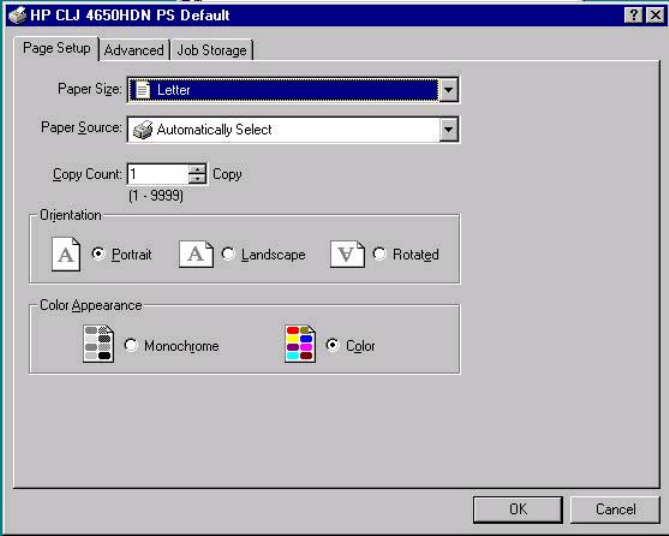
Page Setup tab features
The Page Setup tab controls media and finishing options for the HP Traditional PScript Driver.
The following illustration shows the Page Setup tab.
Figure 3-27. Page Setup tab
●Paper Size drop-down menu. Click this to specify the media size (form). The list of
available forms matches those that the product supports.
●Paper Source drop-down menu. Use these settings to select a tray. The default setting is
Automatically Select.
●Copy Count spin box. Use this box to specify the number of copies.
●Orientation group box. The settings in this group box specify how the document is
positioned on the page.
●Color Appearance group box. The settings in this group box specify Monochrome or
Color output.
EN Chapter 3 HP traditional print drivers for Windows 131
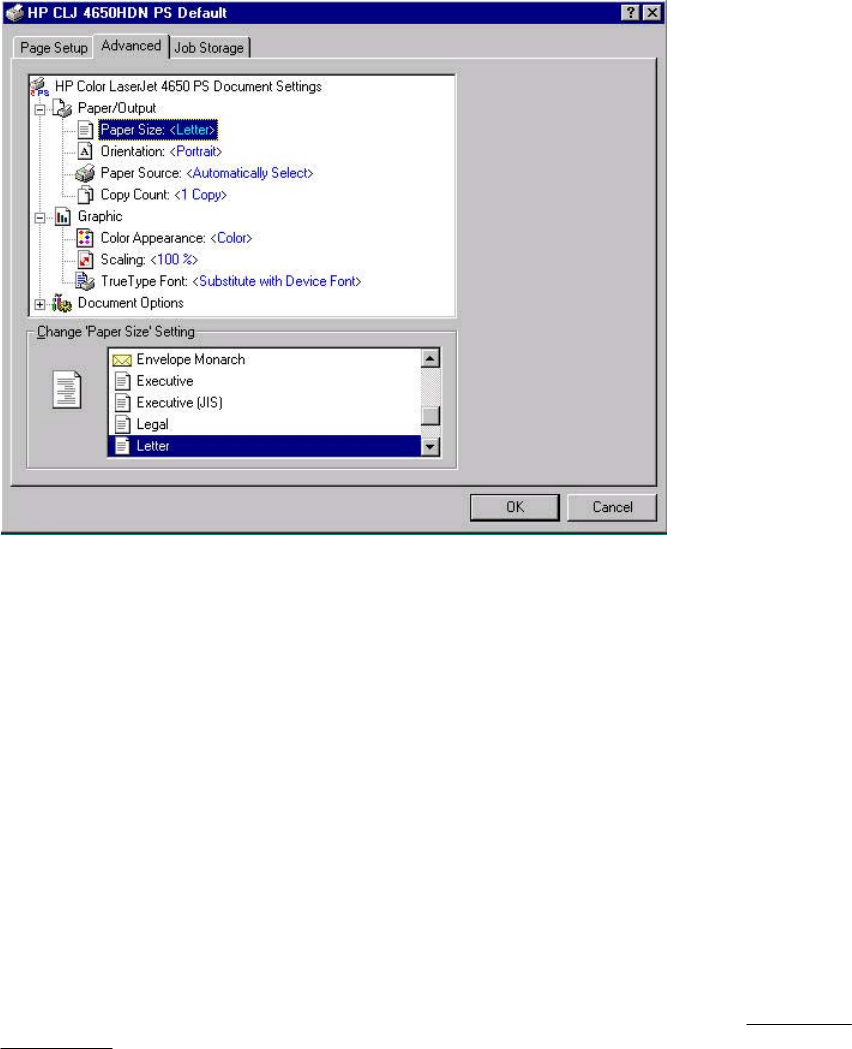
Advanced tab features
The Advanced tab controls the settings for output, graphics, and printer features. The
following illustration shows the Advanced tab.
Figure 3-28. Advanced tab
The Advanced tab contains the following controls:
●Paper/Output drop-down menu (advanced control over the options that are available on
the Page Setup tab)
●Graphic drop-down menu (including resolution, scaling, and TrueType font controls)
●Document Options drop-down menu (including product features and postscript options)
Paper/Output
The Paper/Output settings are as follows:
●Paper Size
●Orientation
●Paper Source
●Copy Count
These settings are also available on the Page Setup tab. For more information, see Page Setup
tab features .
132 Advanced tab features EN
Graphic
The Graphic settings are as follows:
●Color Appearance. The settings in this group specify Monochrome or Color output.
●Scaling. Use this setting to reduce or enlarge documents by a specified percentage. When
you enlarge a document, only the portion of the document that fits on the page will print.
The default setting is 100%.
●TrueType Font. The default setting is Substitute with Device Font. The other
available setting is Download as Softfont. Use this setting when when your document
has overlapping text and graphics.
Document Options
The Document Options settings are as follows:
●Page Layout Option
●PostScript Options
●Printer features
Page Layout Option
The Page Layout Option specifies whether the N-up printing feature is enabled. The
settings are as follows:
●Normal (One-up). This is the default setting.
●Two-up. The print job prints two pages per sheet.
●Four-up. The print job prints four pages per sheet.
●Six-up. The print job prints six pages per sheet.
●Nine-up. The print job prints nine pages per sheet.
●Sixteen-up. The print job prints 16 pages per sheet.
EN Chapter 3 HP traditional print drivers for Windows 133
PostScript Options
The settings for PostScript Options are as follows:
●PostScript Output Options offers the following settings:
●Optimize for Speed. This is the default setting.
●Optimize for Portability. Use this setting to create a file that conforms to the
Adobe Document Structuring Conventions (ADSC). Each page of the document
will be a self-contained object. This is useful, for instance, if you want to create a
PostScript file and print it on a different product.
●Encapsulated PostScript (EPS). Use this setting to include the file as an image in
another document that is to be printed from a different program.
●Archive Format. Use this setting to create a PostScript file that you can use later.
●TrueType Font Download Option offers the following settings:
●Automatic (default )
●Outline
●Bitmap
●Native TrueType
●The PostScript Language Level specifies which PostScript language level to use, from 1
to the highest level that your product supports. Some products support multiple levels. It is
usually best to select the highest level that is available, because a higher language-level
provides more features. In some instances, however, you would still use level 1. For
example, if you are printing a file to disk and that file will be printed by someone who has a
level-1 printer, you would need to select level 1. The PostScript Language Level spin box
offers settings 1 through 3.
●Send PostScript Error Handler specifies whether a PostScript error handler message is
sent. If you want the product to print an error page when an error occurs in the print job,
click Yes.
●Mirrored Outputspecifies mirrored print output. Click Yes to print a mirror image of your
document by reversing the horizontal coordinates.
Printer Features
●Print Color as Gray
●On
●Off (default)
●Fit to Page
●Prompt User (default)
●Nearest Size Scale
●Nearest Size Crop
●Letter
●A4
●Output Bin
●Automatically Select (default)
●150-Sheet Top Bin (Face down)
●75-Sheet Rear Bin (Face up)
134 Advanced tab features EN
●CMYK Inkset Emulation
●Default (default)
●SWOP
●Euroscale
●DIC (dianippon)
●Device
●Color Options
●Automatic (default)
●Manual
●Text Neutral Grays
●Black Only (default)
●4-Color
●Text Halftone
●Detail (default)
●Smooth
●Text RGB Color
●Default (sRGB) (default)
●Vivid
●Device
●Graphic Neutral Grays
●Black Only (default)
●4-Color
●Graphics Halftone
●Detail (default)
●Smooth
●Graphics RGB Color
●Default (sRGB) (default)
●Vivid
●Device
●Photographs Neutral Grays
●Black Only
●4-Color (default)
●Photographs Halftone
●Detail (default)
●Smooth
●Photo RGB Color
●Default (sRGB) (default)
●Vivid
●Device
EN Chapter 3 HP traditional print drivers for Windows 135
●Edge Control
●Maximum
●Normal (default)
●Light
●Off
●Manually Print on 2nd Side
●On
●Off (default)
●Print Watermark
●No (default)
●All Pages
●First Page Only
●Watermark. The following settings are available:
●Draft (this is the default setting)
●Company Confidential
●Company Proprietary
●Company Private
●Confidential
●Copy
●Copyright
●File Copy
●Final
●For Internal Use Only
●Preliminary
●Proof
●Review Copy
●Sample
●Top Secret
●Urgent
●Custom
●Watermark Font
●Courier Bold
●Times Bold
●Helvetica Bold (default)
●Watermark Size. Settings for the watermark size range from 24 points to 90 points. 48
points is the default.
●Watermark Angle. Settings for the watermark angle range from 90 degrees to -90 degrees
in 15-degree intervals. A 45-degree angle is the default.
136 Advanced tab features EN
●Watermark Style
●Narrow Outline
●Medium Outline (default)
●Wide Outline
●Wide Halo Outline
●Filled
●Watermark Color
●Gray (default)
●Red
●Orange
●Yellow
●Green
●Blue
●Violet
●Watermark Intensity
●Darkest
●Darker
●Dark
●Medium Dark
●Medium (default)
●Medium Light
●Light
●Lighter
●Lightest
Job Storage tab features
The HP Color LaserJet 4650 printer lets you store print jobs in the product's memory for
printing at a later time. These job-storage features are described in the following sections.
The Job Storage tab appears among the driver tabs only if Job Storage is enabled. To
support job-storage features for complex jobs, or if you often print complex graphics, print
postscript (.PS) documents, or use many downloaded fonts, HP recommends that you install
additional memory, install a hard disk, or both. Added memory also gives you more flexibility
in supporting job storage features. A minimum total memory of 288 MB is required to use
Job Storage features.
Bidirectional communication is not supported in Windows 98, Windows Me, or Windows NT
4.0, the operating environments that support the HP PS Emulation Driver. The driver must
therefore be updated manually.
1Click Start, select Settings, and then click Printers.
2Right-click the product name, click Properties, and then click the Device Settingstab.
3If additional memory has been installed, select Printer Memory: under Installable
Options, and then select either 288-415 MB or 416-544 MB, depending on the amount
of additional memory installed.
EN Chapter 3 HP traditional print drivers for Windows 137
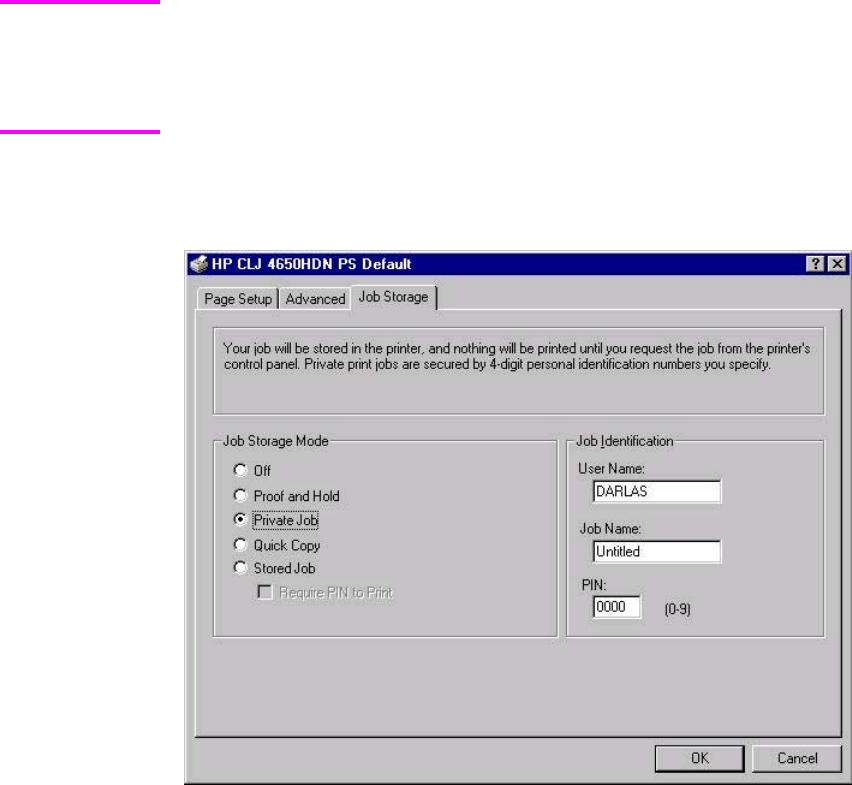
4If a hard disk has been installed, select Printer Hard Disk: under Installable Options,
and then select Installed in the Change 'Printer Hard Disk' Setting dialog box that
appears.
5
You can disable Job Storage while leaving the product hard-disk enabled. To disable Job
Storage, click Start, select Settings, and then click Printers. Right-click the product name, click
Properties, click the Device Settings tab, select Job Storage:, and then select Disabled in
the Change 'Job Storage' Setting dialog box that appears. When Job Storage is disabled, the
Job Storage driver tab is not visible.
Job Storage tab
The following illustration shows the Job Storage tab.
Figure 3-29. Job Storage tab
The Job Storage tab contains the following controls:
●Status group box (unlabeled)
●Job Storage Mode group box
●Job Identification group box
Status group box
The unlabeled group box on the Job Storage tab contains a status message about the
destination of a print job. The status information changes depending on the selections that are
made on the Job Storage tab.
Note
138 Job Storage tab features EN

Job Storage Mode
Use the Job Storage Mode options on the HP Color LaserJet 4650 printer to store documents
at the product and then control their printing at the product control panel. This feature is intended
to provide greater flexibility, convenience, security, and cost savings.
The HP Color LaserJet 4650 printer offers the following Job Storage Mode options:
●Off
●Proof and Hold
●Private Job
●Quick Copy
●Stored Job
●Require PIN to Print (available when Stored Job is selected)
These options and the settings that control them are described below.
Off
When selected, this option turns the Job Storage feature off (it is disabled), which means
that the print job will not be stored in the product.
Proof and Hold
To use the Proof and Hold option, Job Storage must be enabled, and the product must
have a minimum total memory of 288 MB.
When selected, this option stores the print job in memory and prints only the first copy of the
job, allowing you to check the first copy. If the document prints correctly, you can print the
remaining copies of the print job at the control panel. You can set the number of proof-and-
hold print jobs that can be stored in the product at the control panel.
After it is released for printing, the proof-and-hold job is immediately deleted from the
product. If more copies are needed, you must reprint the job from the software program. If
you send a second proof-and-hold job to the product with the same user name and job name
as an existing proof-and-hold job (and you have not released the original job for printing), the
job will overwrite the existing job. Proof-and-hold jobs are deleted if you turn off the product.
The product configuration can be set to hold a maximum of 50 quick-copy or proof-and-hold
jobs. The number is set at the product control panel in the CONFIGURATION menu, and the
default is 32. When this preset limit is reached, the new document overwrites the oldest held
document. Also, a document that has the same user and job name as one that is already
stored on the hard disk will overwrite the existing document.
Private Job
To use the Private Job option, Job Storage must be enabled, and the product must have a
minimum total memory of 288 MB.
When you select Private Job, the print job is sent to the product, but is not printed until you
request the job at the product control panel. Selecting Private Job activates the PIN group
box. The print job can be printed only after you type the correct PIN at the control panel.
After the job is printed, the job is deleted from the product. This feature is useful when you
are printing sensitive or confidential documents that you do not want to leave in an output
bin after printing.
Note
EN Chapter 3 HP traditional print drivers for Windows 139

After it is released for printing, the private job is immediately deleted from the product. If
more copies are needed, you must reprint the job from the software program. If you send a
second private job that has the same user name and job name as an existing private job
(and you have not released the original job for printing), the job will overwrite the existing
job, regardless of the PIN. Private jobs are deleted if you turn off the product.
Using a PIN for Private Job
The Private Job option can be secured by a four-digit personal identification number (PIN). You
must type in this number at the product control panel before the product can print the job.
The group box labeled PIN is usually inactive. It becomes active when you select the Private
Job option.
The Private Job/PIN coupling has a PIN restriction of four ASCII numeric characters (0 though
9). If you type non-numeric characters, they are removed immediately. If you type more than four
characters, the characters past the fourth are truncated. The field temporarily accepts fewer than
four digits in the string, but when the edit field loses focus, the zeroes pad the left end until the
PIN contains exactly four digits. The default initialized value for the PIN is 0000 for Private Job.
Quick Copy
To use the Quick Copy option, a hard disk must be installed, Job Storage must be enabled, and
the product must have a minimum total memory of 288 MB.
When you select Quick Copy, the entire print job prints and a copy of the print job is stored on
the product, after which you can print additional copies of the print job at the product control
panel. The number of quick-copy print jobs that can be stored in the product is set by using the
product control panel.
The product configuration can be set to hold a maximum of 50 quick-copy or proof-and-hold
jobs. The number is set at the product control panel in the CONFIGURATION menu, and the
default is 32. When this preset limit is reached, the new document overwrites the oldest held
document. Also, a document that has the same user and job name as one that is already stored
on the hard disk will overwrite the existing document. Quick Copy jobs are deleted if you turn off
the product.
Stored Job
To use the Stored Job option, a hard disk must be installed, Job Storage must be enabled, and
the product must have a minimum total memory of 288 MB.
Use the Stored Job option to send a print job directly to the product hard disk without printing it.
The print job is stored in the product as if it is an electronic file cabinet. After the print job is
stored on the product hard disk, you can print the job at the product control panel.
The job remains stored in the product until it is deleted or overwritten by a document that has the
same user and job names. Stored jobs remain on the product hard disk when the product is
turned off. Use this feature for forms and other common or shared documents.
A stored job can be managed in two ways: as either a private or a public job. Use a private
stored job to send a print job directly to the product, which can then be printed only after you
type in a PIN at the product control panel. (You can set the PIN in the PIN group box.) After the
job is printed, the job remains in the product and can be printed again at the product control
panel. The private mode is initiated by selecting the Require PIN to Print check box. In this
mode, a PIN that is typed at the product control panel is required in order to release the job.
Note
140 Job Storage tab features EN

The box labeled PIN is usually inactive. The Require PIN to Print option becomes available
when you select Stored Job. If you select the Require PIN to Print box, you must type a PIN to
make the stored job private.
A private stored job is not the same as a private job (see above). Private jobs are deleted
from the product after they are printed. Private stored jobs are retained in the product after
printing, but require that a PIN be typed each time they are printed.
Job Identification
●User Name text box
●Job Name text box
●PIN text box
User Name
Use the User Name text box to help identify the job at the product control panel. The
Windows user name is automatically displayed in the User Name text box. To enter a
custom user name, type the custom user name in the text box. The User Name text box can
contain no more than 16 characters, and is limited to A through Z and 0 through 9 because
the name appears on the product control-panel display. If you try to type a lowercase
character, it automatically shifts to uppercase. If you try to type a character in an ASCII code
of fewer than 32 or more than 126 characters, the character is removed from the edit field,
along with all of the characters that follow it. If you try to type more than 16 characters, any
character beyond 16 is truncated.
Job Name
Use the Job Name text box to specify a name to identify the job at the product control panel.
This text box uses Untitled as the default job name associated with the stored print job. The
file name of the print job is used if it is available to the print driver. Otherwise, the software
program name or a time stamp is used for the job name. To enter a custom name, type the
custom job name in the text box. The Job Name text box can contain no more than 16
characters, and is limited to A through Z and 0 through 9 because the name appears on the
product control-panel display. If you try to type a lowercase character, it automatically shifts
to uppercase. If you try to type a character in an ASCII code of fewer than 32 or more than
126 characters, the character is removed from the edit field, along with all of the characters
that follow it. If you try to type more than 16 characters, any character beyond 16 is truncated.
PIN
The box labeled PIN is usually inactive. The Require PIN to Print option is activated if you
select either of the following options:
●Select Private Job. If selected, you must type in the PIN number at the product control
panel in order to make the job print. For more information, see Using a PIN for Private
Job .
●Select Stored Job, and then select the Require PIN to Print check box. If the Require
PIN to Print check box is selected, you must type a PIN in order to make the stored
job private. For more information, see Stored Job.
Note
EN Chapter 3 HP traditional print drivers for Windows 141

Using Job Storage features when printing
The print driver that is installed on your computer must be configured to use the Job
Storage features. Job Storage is enabled by default when the printer is equipped with a
hard disk drive. To enable Job Storage (if it has been disabled), follow these steps:
1Click Start, select Settings, and then click Printers.
2Right-click the printer name, click Properties, click the Device Settings tab, and then click
the Job Storage option.
3Use the drop-down menu to select Enabled,
4
To use Job Storage features when printing, follow these steps:
1Click File and then click Print from the software program. The Print dialog box appears.
Clicking the print icon in the software program toolbar prints the job without Job Storage features.
2Click Properties. The Properties dialog box appears.
3Click the Job Storage tab.
4Select the Job Storage options described above by clicking the appropriate option button
and complete any required fields.
5Click OK.
Releasing a Job Storage print job
After you send a print job that uses the Job Storage feature, you can release the job to print
from the product control panel.
1Press the select button (the one with the check mark) to open the menus. RETRIEVE JOB
is highlighted.
2Press the select button.
3Press the up and down buttons to scroll to your User Name, and then press the select button.
4Press the up and down buttons to scroll to the Job Name, and then press the select button.
PRINT JOB is highlighted.
5Press the select button.
6If a PIN number is assigned to the job, press the up and down buttons to select the first digit
of the PIN, and then press the select button. The number in the product control-panel
display changes to an asterisk. Repeat this step for each of the remaining three digits of the
PIN number.
If no PIN number is assigned to the job, continue with step 7.
7Press the up and down buttons to select the number of copies to print.
8Press the select button to print the job.
Note
Note
142 Job Storage tab features EN

Deleting a Job Storage print job
Sometimes it is necessary to delete a print job from the product hard disk. You can do this from
the product control panel.
1Press the select button (the one with the check mark) to open the menus. RETRIEVE JOB
is highlighted.
2Press the select button.
3Press the up and down buttons to scroll to your User Name, and then press the select
button.
4Press the up and down buttons to scroll to the Job Name, and then press the select
button.
5Press the up and down buttons to select Delete.
6If a PIN number is assigned to the job, press the up and down buttons to select the first
digit of the PIN, and then press the select button. The number in the product control-
panel display changes to an asterisk. Repeat this step for each of the remaining three
digits of the PIN number.
If no PIN number is assigned to the job, continue with step 7.
7Press the select button to delete the job.
The stored print job is deleted and the product returns to the READY state.
Device Settings tab
The Device Settings tab is in the Properties for the print driver in Windows NT 4.0. In
Windows 98 and Windows Me, a tab with similar options and settings is called the Device
Options tab.
To gain access to the print driver Properties, click Start on the Window task bar, select
Settings, and then click Printers. Right-click the product name, and then click Properties.
The Device Settings tab communicates information about the hardware configuration to the
print driver. The Device Settings tab appears when you open the driver from the Printers
folder by selecting and right-clicking the printer, and then clicking Properties for the driver.
When the driver is opened from within a software program, the Configure tab is not visible.
When opened from the Printers folder, the Device Settings tab appears, as shown in the
following illustration.
Note
EN Chapter 3 HP traditional print drivers for Windows 143
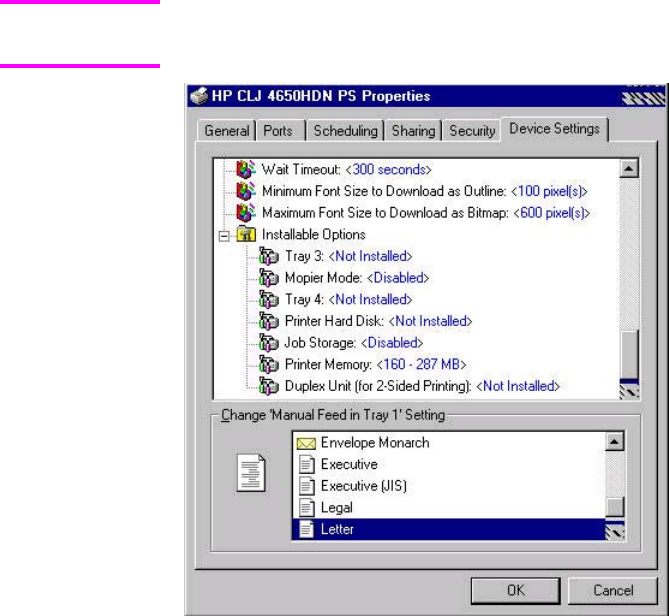
The illustration below shows the Device Settings tab in Windows NT 4.0. The appearance
of the equivalent tab in Windows 98 follows this illustration.
Figure 3-30. Device Settings tab in Windows NT 4.0
Note
144 Device Settings tab EN
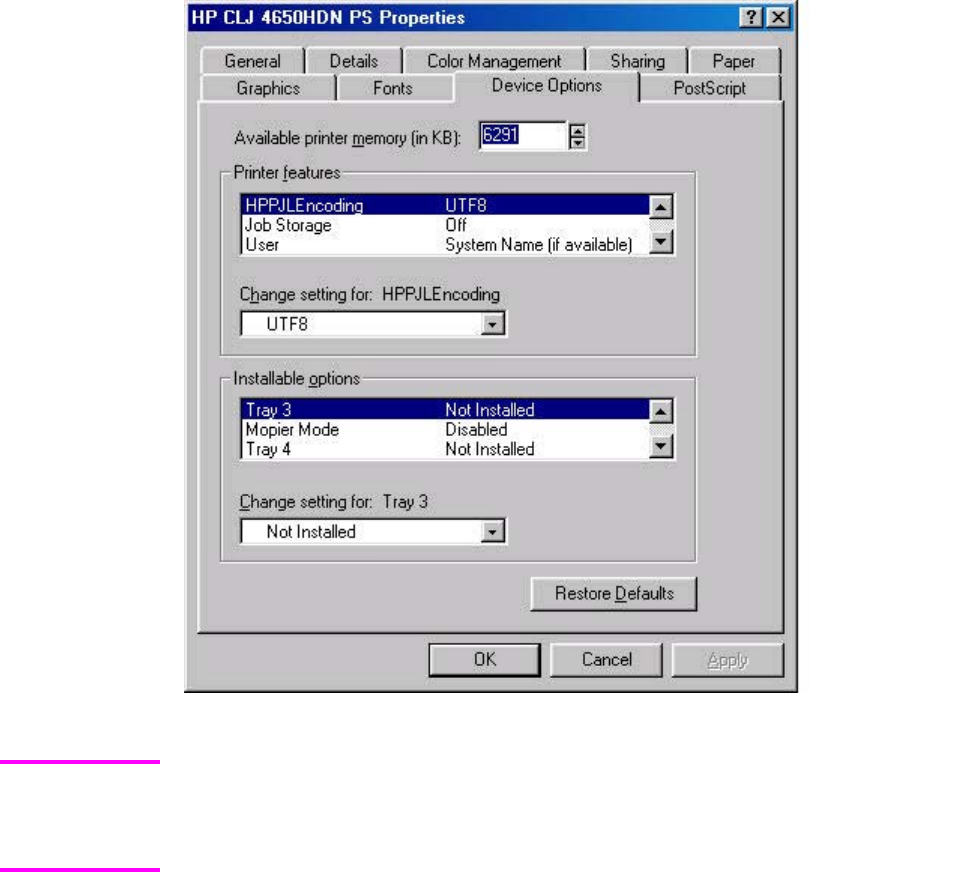
The following illustration shows the Device Options tab in Windows 98.
Figure 3-31. Device Options tab in Windows 98
Changes made to the Device Settings tab are not reflected in the Document Defaults
settings until the modified device settings have been applied. For example, the duplexing
unit will not appear until you modify the Configure tab, apply the settings, and then re-open
Document Defaults.
The Device Settings tab contains the following options:
●Form to Tray Assignment
●Font Substitution Table
●PostScript Configure
●Installable Options
Form to Tray Assignment
Many products support more than one source of media, such as upper and lower trays. You
can assign a form (which defines the media size and margins) to each of your product media
sources. When a form is matched to a source, you can select the form when you print from
your software programs. The product prints from the tray to which that form is assigned.
Note
EN Chapter 3 HP traditional print drivers for Windows 145
Network administrators can use the Form to Tray Assignment setting to specify, in the
driver, the media size that is loaded into each available input tray. The use of forms
constrains the choices that are available in the media-size list on the Advanced tab in the
Document Defaults driver tabs. This constraint prevents (or reduces the likelihood of) tying
up the printer with media-mount messages that occur when users request sizes or types that
are not available.
The trays listed in the Form to Tray Assignment setting include standard trays and optional
accessory trays. Generally, items that are installed separately have a separate Installable
Options setting. For example, for the HP Color LaserJet 4650 printer, trays 3 and 4 are listed in
both the Form to Tray Assignment setting and the Installable Options setting.
The input trays listed here are also listed as media sources on the Page Setup tab.
Font Substitution Table
Clicking this option opens the font substitution table and makes available the options for
changing the TrueType-to-PostScript font mapping.
PostScript Device Settings
The following controls are available and appear in the PS Emulation Driver:
Available PostScript Memory
This control specifies the amount of available postscript memory and provides a spin box for
changing this value. The available postscript memory is a subset of the product total physical
memory. It is usually best to set the postscript memory to match what is shown on the
Configuration page. To print a Configuration page from the control panel, press the Select
button (the one with the check mark) to open the menus. Next, press the up and down buttons to
scroll to INFORMATION, and then press the select button. Next, press the up and down buttons
to scroll to PRINT CONFIGURATION, and then press the select button.
Output Protocol
This control specifies the protocol that the product uses for print jobs. The following options are
available:
●ASCII (default)
●TBCP
●Binary
When you click ASCII, data is sent in ASCII format (7-bit), which might take longer to print but
can be sent through any I/O channel, such as a serial, parallel, or network port.
When you click TBCP (Tagged Binary Communications Protocol), all data except special control
characters is sent in binary (8-bit) format. The binary formats can be sent over parallel or serial
communications ports and are faster than sending data in ASCII format.
When you click Binary, all data except special control characters is sent in binary (8-bit) format.
The binary formats can be sent over parallel or serial communications ports and are faster than
sending data in ASCII format.
146 Device Settings tab EN
Send Ctrl-D Before Each Job
This control specifies whether the product will be reset at the beginning of every postscript
document. The default setting is No. Ctrl-D resets the product to its default setting to ensure that
previous print jobs do not affect the current print job. Ctrl-D might cause a print job to fail if the
product is connected through a network. If your document fails to print when sent to a product
connected through parallel or serial ports, change No to Yes.
Send Ctrl-D After Each Job
This control specifies whether the product will be reset at the end of every postscript
document. The default setting is Yes. Ctrl-D resets the product to its default setting to ensure
that future print jobs are not affected by the current print job. Ctrl-D might cause a print job to
fail if the product is connected through a network. If your document fails to print when sent to
a network printer, change Yes to No.
Job Timeout
This control specifies how long the document can take to get from the computer to the
product before the product stops trying to print the document. If you specify 0 seconds, the
product continues trying to print indefinitely. The default setting is 0 seconds. You can use
the spin box to change this value to a maximum of 32,767 seconds.
Wait Timeout
This control specifies how long the product waits to get more postscript information from the
computer. After the specified time passes, the product stops trying to print the document and
prints an error message. If you are trying to print a very complicated document, you might
want to increase this value. If you specify 0 seconds, the product waits indefinitely. The
default setting is 300 seconds. You can use the spin box to change this value to a
maximum of 32,767 seconds.
Minimum Font Size to Download as Outline
This control specifies the minimum font size (in pixels) for which the postscript driver
downloads TrueType fonts as outline (Type 1) fonts. A font smaller than the minimum setting
is downloaded as a bitmap (Type 3) font. Use this option to fine-tune the Automatic setting
for the TrueType Font Download option on the Advanced tab in Document Defaults. The
default setting is 100 pixels. You can use the spin box to change this value to a maximum of
32,767 pixels.
Maximum Font Size to Download as Outline
This control specifies the maximum font size (in pixels) for which the postscript driver will
download TrueType fonts as bitmap (Type 3) fonts. A font larger than the maximum setting
will be downloaded as an outline (Type 1) font. Use this option to fine-tune the Automatic
setting or override the Send TrueType as Bitmap setting for the TrueType Font Download
option on the Advanced tab in Document Defaults. The default setting is 600 pixels. You
can use the spin box to change this value to a maximum of 32,767 pixels.
Installable Options
This section provides information to configure the printing options that you can install for the
HP Color LaserJet 4650 printer. The following controls are available:
●Tray 3
●Tray 4
●Duplex Unit (for 2-sided Printing)
EN Chapter 3 HP traditional print drivers for Windows 147

●Printer Memory
●Printer Hard Disk
●Job Storage
●Mopier Mode
Tray 3
This control specifies whether you have Tray 3, an additional 500-sheet media feeder, installed
on your product. The default setting is Not Installed. In order to use Tray 3, you must change
this setting to Installed.
Tray 4
This control specifies whether you have Tray 4, an additional 500-sheet media feeder, installed
on your product. The default setting is Not Installed. In order to use Tray 4, you must change
this setting to Installed.
Duplex Unit (for 2-sided Printing)
The HP Color LaserJet 4650dn, 4650dtn, and 4650hdtn models are equipped with automatic 2-
sided printing (duplexing), which allows you to print on both sides of supported media. Automatic
2-sided printing is not supported for certain media types, including transparencies, labels,
envelopes, heavy, extra heavy, cardstock, and glossy film.
The HP Color LaserJet 4650 printer supports smart duplexing. The product uses the smart
duplexing feature to detect information on both sides of the print job pages and only runs the
pages through the duplexing unit if there is printable information on the second side of the page.
Printer Memory
This option matches the setting to the amount of memory that is installed in the product. The
driver generates ranges of memory that can be selected, up to the maximum that the product
can accept. The driver can use this information to manage how the print driver uses the product
memory.
When a minimum total memory of 288 MB is installed, the Stored Job option and the Mopier
Mode are enabled in the print driver. The Stored Job option allows you to store print jobs, and
then print them later from the control panel. The multiple-original print (mopy) function is an HP-
designed feature that produces multiple, collated copies from a single print job.
Printer Hard Disk
When this option is enabled, the Stored Job option and the Mopier Mode are enabled in the
print driver. The Stored Job option allows you to store print jobs, and then print them later from
the control panel. The multiple-original print (mopy) function is an HP-designed feature that
produces multiple, collated copies from a single print job.
Only the HP Color LaserJet 4650hdn comes with a hard disk installed.
Job Storage
If your HP Color LaserJet 4650 is equipped with a hard disk drive, the Job Storage option
should be enabled and all job storage options are available. If your HP Color LaserJet 4650 is
not equipped with a hard disk drive but has a minimum of 288 MB of memory, limited job storage
options are available. When job storage is enabled, the product can store print jobs so that you
can gain access to those print jobs later at the control panel.
Note
148 Device Settings tab EN
Mopier Mode
The multiple-original print (mopy) function is an HP-designed feature that produces multiple,
collated copies from a single print job. Multiple-original printing (mopying) increases performance
and reduces network traffic by transmitting the job to the product once, and then storing it on the
hard disk. The remainder of the copies are printed at the fastest speed. All documents that are
printed in mopier mode can be created, controlled, managed, and finished from the computer,
which eliminates the extra step of using a photocopier.
EN Chapter 3 HP traditional print drivers for Windows 149
150 Device Settings tab EN

4
HP PCL 6, HP PCL 5c, and
HP PS 3 emulation
unidrivers for Windows
Introduction
This chapter describes the features of the HP Color LaserJet 4650 printer unidrivers. The
unidrivers are the HP PCL 6 Unidriver, the HP PCL 5c Unidriver, and the HP Postscript 3
Emulation Unidriver (the PS Emulation Unidriver) for Windows 2000, Windows XP, and
Windows Server 2003.
You can control print jobs from several places: the product control panel, the software
program, and the driver user interface. Generally, for features that are common to two or
more of these places (for instance, you can select the media input tray from any of them),
settings that are established in the software program take precedence over print-driver
settings. Print-driver settings override product control-panel settings.
HP PCL 6, HP PCL 5c, and PS emulation
unidriver features
For a comparison of features between the HP unidrivers and HP traditional print drivers in
various operating systems, see the Driver-feature comparison in various operating systems
section of this guide.
When you install the print-system software in Windows 2000, Windows XP, and Windows
Server 2003, the HP PCL 6 Unidriver is installed by default. The HP PCL 5c Unidriver and
the PS Emulation Unidriver can be installed by performing a Custom Installation.
The following sections describe the options that are available on each tab of the HP PCL 6,
the HP PCL 5c, and the PS Emulation Unidriver interface.
The sections also describe differences between the HP PCL 6, the HP PCL 5c, and the PS
Emulation unidrivers.
Note
EN Chapter 4 HP PCL 6, HP PCL 5c, and HP PS 3 emulation unidrivers for Windows 151

Access to drivers
To gain access to driver settings from within most software programs, click File, click Print,
and then click Properties. The appearance and names of the driver tabs can vary,
depending on the operating system. These settings apply only while the software program is
open.
You can also control the drivers directly from the printers folder. These settings change the
default settings used across all software programs. To gain access to the printers folder, click
Start, select Settings, and then click Printers (Windows 2000) or Printers and Faxes (Windows
XP Professional and Windows Server 2003) or Printers and Other Hardware Devices
(Windows XP Home). Right-click the product name, and then click Printing Preferences to gain
access to the same set of driver tabs that the software program controls.
If your HP Color LaserJet 4650 printer is equipped with a hard disk drive, all Job Storage
options are available (Proof and Hold, Private Job, Quick Copy, and Stored Job). If your
HP Color LaserJet 4650 printer is not equipped with a hard disk drive, but has a minimum of 288
MB of memory, the Proof and Hold and Private Job options are available.
If, after right-clicking the product name, you click Properties, you gain access to a different set
of tabs that control the driver behavior and driver connections.
Help system
The HP PCL 6 Unidriver, the HP PCL 5c Unidriver, and the PS Emulation Unidriver include a full-
featured Help system to provide assistance with printing and configuration options.
Bubble Help, a feature of HP Traditional PCL 6 and HP Traditional PCL 5c Drivers, is not
available in the HP PCL 6, PCL 5c, and PS Emulation unidrivers.
What's this? Help
Windows 2000, Windows XP, and Windows Server 2003 support "What's this?" Help. You can
gain access to "What's this?" Help messages in any of the following ways:
●Click the Help button in the lower-right corner of the Paper/Quality, Finishing, Effects, or
Job Storage tabs for a general Help message that describes the use of the driver tabs.
●Right-click a control and click What's this?, and a pop-up Help window appears.
●Click the ? button in the upper-right corner of the frame, next to the X, to change the cursor
to an arrow with a question mark. Use this special cursor to select a control, and the pop-
up Help window for that feature appears.
●Press the F1 key, and the Help window for the currently selected control appears.
Context-sensitive Help
Click the Help button on a driver tab or in a dialog box, and a context-sensitive Help message
appears.
Note
Note
152 Access to drivers EN
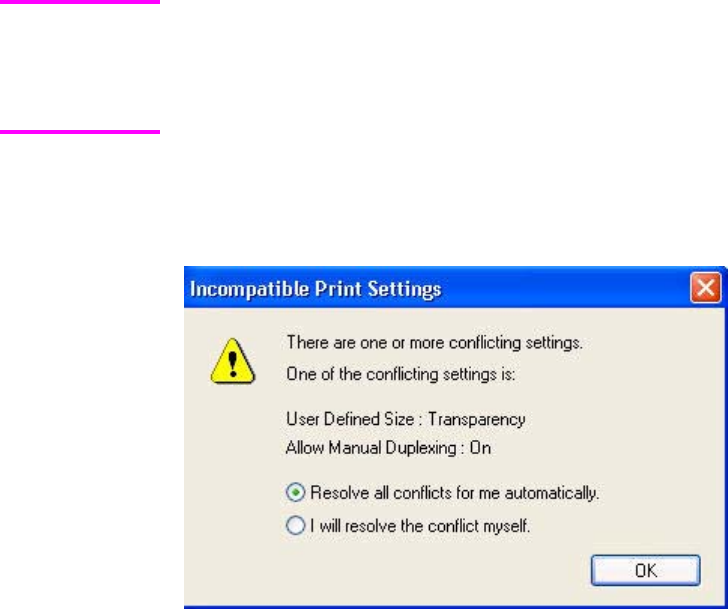
Incompatible Print Settings messages
Incompatible print settings (constraint) messages are unsolicited messages that appear in
response to specific actions that you take. These messages alert you that the selections are
illogical or impossible given the capabilities of the printer or the current settings of other controls.
Constraint messages are limited for HP unidrivers. The HP unidrivers allow some settings
that are illogical or impossible for the printer to perform. If you try to print with incompatible
settings, the printed documents might have unexpected results because the print driver did
not provide feedback that the settings were incompatible. If print jobs do not print as
expected, check the printer's documentation for the product capabilities.
In Windows 2000, Windows XP, and Windows Server 2003 operating environments, some
technically invalid print-driver configurations result in the appearance of warning messages.
Duplexing, for instance, is not possible when the Transparency media type is selected. The
following illustration shows an Incompatible Print Settings message that appears.
Figure 4-1. An Incompatible Print Settings message
Clicking the Resolve all conflicts for me automatically option button and then clicking OK
accepts the change that was just made, and the driver then resets the conflicting control to a
setting that is compatible with the new value. If you want to keep the conflicting setting, click
I will resolve the conflict myself and then click OK.
Note
EN Chapter 4 HP PCL 6, HP PCL 5c, and HP PS 3 emulation unidrivers for Windows 153
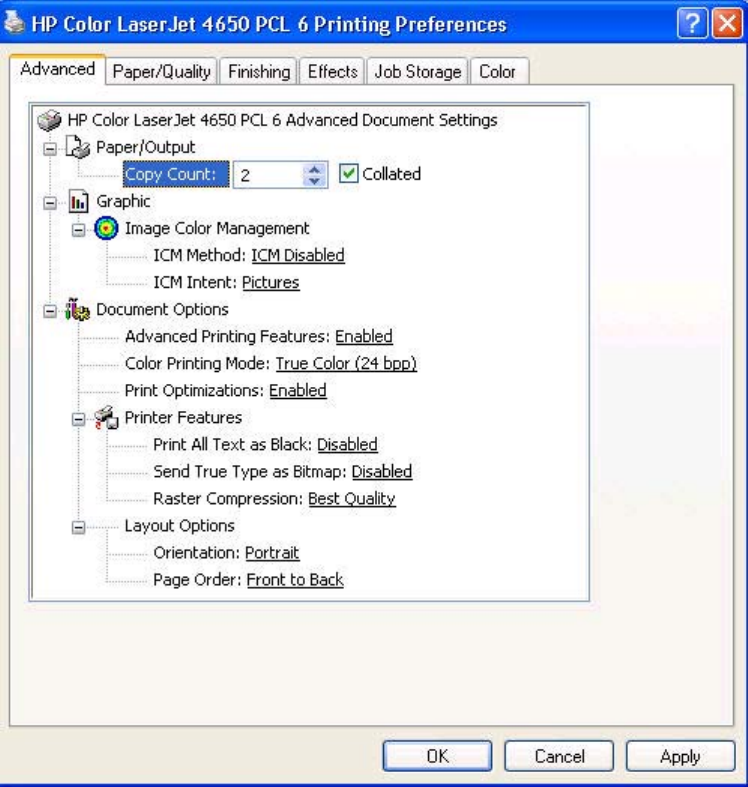
Advanced tab features
You can use the Advanced tab to change the layout of printed pages. Use this tab to
configure special controls that are not commonly used, as well as features such as media
size and copies in the driver (although most current software programs support these
features in the print dialog box or through the software program page settings). The following
illustration shows the Advanced tab:
Figure 4-2. The default appearance of the Advanced tab
The Advanced tab contains the following controls:
●Paper/Output settings
●Graphic settings
●Document Options settings (containing Advanced Printing Features, Print Optimizations,
Printer Features, and Layout Options)
154 Advanced tab features EN
Paper/Output
The Paper/Output settings contain the following controls:
●Copy Count setting
●Collated check box (appears when you select Copy Count)
Copy Count
This driver setting is useful for software programs that do not provide a copy count. If a copy
count is available in the software program, set the copy count in the software program. Copy
Count specifies the number of copies to print.
Because you can set the number of copies that you want from some software programs,
conflicts between the software program you are using and the driver can arise. In most
cases, the software program and the driver communicate, so that the number of copies set
in one location (such as the program) will appear in the other (such as the driver). For some
programs, this communication does not take place, and the copies values are treated
independently. For these programs, setting 10 copies in the program and then setting 10
copies in the driver will result in 100 copies (10 x 10) being printed. It is recommended that
you set the number of copies in the program, wherever possible.
Collated
The Collated check box appears next to the Copy Count setting. The check box is
selected, but is not available. It becomes available and can be changed when the Copy
Count setting is greater than 1.
When collated, pages print consecutively for each copy of the document. When not collated,
copies of each page print together.
This setting is not synchronized with the collate setting in the software program print dialog
box. Settings in the software program override settings in the print driver. For instance, when
using Microsoft Word, the Collate check box in the Print dialog box is selected by default.
However, in the print driver, the Collated check box in the Advanced tab is not selected by
default. The software program setting takes precedence over the driver setting, and the
printed output is collated by default. To obtain uncollated printed output, clear the Collate
setting in both the driver and the software program. Similarly, if the Collated check box is
selected in the driver, but the Collate setting is not enabled in the software program, the
printed output is uncollated.
EN Chapter 4 HP PCL 6, HP PCL 5c, and HP PS 3 emulation unidrivers for Windows 155
Graphic
The Graphic settings contain the following option:
●Image Color Management settings.
Image Color Management
This control lists the available Image Color Management (ICM) options used for printing
color graphics. ICM, a set of calculations for color matching, makes it possible for programs
to adjust colors before printing so that the color of images displayed on the screen more
closely match the color of images when printed. The following options are available:
●ICM Method. The ICM Method setting specifies how to print your color graphics.
●To enable Image Color Management, click on the option and then select ICM
Enabled.
●If you want the calculations for color matching to be performed on the host
computer before it sends the document to the product, click ICM Handled by Host
System.
●If you want the calculations for color matching to be performed on your product, click
ICM Handled by Printer. In this case, a set of rules for mapping the colors will be
created and downloaded to the product. The product will use these rules to adjust
colors in the document.
●If you want the calculations for color matching to be performed on your product, click
ICM Handled by Printer using printer calibration. In this case, the set of rules for
mapping the colors has already been downloaded to the product (which must be
postscript language level 2 or higher), so they will not be created or downloaded again.
●ICM Intent.The ICM Intent setting specifies how color images are created to produce the
best looking image on the printed page.
●If you are printing a chart or using fully saturated, bright colors, click Graphics.
●For photographs or pictures where the colors blend together, click Pictures to
maximize the contrast.
●If your document uses a color that you need to match exactly, and you are sending the
document to a product that has that specific color of ink, click Proof.
●If you want to preview the color settings from another product, click Match.
Document Options
The Document Options settings contain the following controls:
●Advanced Printing Features
●Color Printing Mode
●Print Optimizations
Advanced Printing Features
When the Advanced Printing Features setting is Enabled, metafile spooling is turned on and
Finishing tab options such as Page Order, Booklet Layout, and Pages per Sheet are
available, depending on your product. For normal printing, leave the Advanced Printing
Features setting at the default (Enabled). If compatibility problems occur, you can disable the
feature. However, some advanced printing features might still be available in the print driver,
even though they have been disabled. If you select an advanced printing feature in the print
driver that has been disabled on the Advanced tab, the feature is automatically re-enabled.
156 Advanced tab features EN

Color Printing Mode
Color Printing Mode specifies whether to print in Black and White or color. Use
Monochrome mode to sharpen details in graphics or to speed up the printing of your color
document.
Print Optimizations
Print Optimization settings are available only in the HP PCL 6 and HP PCL 5c unidrivers.
They are not available in the PS Emulation Unidriver.
The default setting for Print Optimizations is Enabled. When this feature is enabled and
your document contains overlapping text and graphics, text placed on top of a graphic might
not print correctly. If the printed output is not correct, you can disable this feature. When
disabled, print optimization features, such as substituting device fonts for TrueType fonts
and scanning for horizontal and vertical rules, are turned off.
Printer Features
The following Printer Features are available:
●Print All Text as Black
●Send True Type as Bitmap (HP PCL 6 and HP PCL 5c unidrivers only)
●Raster Compression
Print All Text as Black
The Print All Text as Black feature is Disabled by default. When Enabled is selected, the
driver prints all text as black regardless of the original document text color. Color text is
printed as black, except for white text, which remains white. (White text is a reliable method
of printing reverse typeface against a dark background.) This setting does not affect graphic
images on the page, nor does it affect any text that is part of a graphic.
Send TrueType as Bitmap
The Send TrueType as Bitmap option is available only in the HP PCL 6 and HP PCL 5c
unidrivers. It is not available in the PS Emulation Unidriver.
Send True Type as Bitmap provides an alternative for those software programs that have
trouble using TrueType fonts for special graphic purposes such as shading, rotation, or
slanting. The setting is Disabled (off) by default. The TrueType fonts are first converted to
bitmap soft fonts before downloading. The Enabled setting causes the driver to send
TrueType fonts to the printer as outlines, which retains the standard format (outline) of the
fonts.
Raster Compression
The Raster Compression option is available only in the HP PCL 6 and HP PS Emulation
unidrivers. It is not available in the HP PCL 5c Unidriver.
Note
Note
Note
EN Chapter 4 HP PCL 6, HP PCL 5c, and HP PS 3 emulation unidrivers for Windows 157

Use the Raster Compression feature to select the graphics compression method:
●Automatic. The software determines the best compression method to use.
●Best Quality. Forces the software to use a lossless compression method. (Lossless
means that no data is lost during compression.)
●Maximum Compression. Where applicable, requires the software to always use a
lossy compression method (some data is lost).
Graphics Mode
The Graphics Mode option is available only in the HP PCL 5c Unidriver. It is not available in the
HP PCL 6 and HP PS Emulation unidrivers.
Use the Graphics Mode feature to select one of the following settings:
●Send Graphics as Vector. Select this setting to send graphics to the product as a
combination of HP Graphics Language, version 2 (HP-GL/2) and raster images. This
setting might produce higher-quality output.
●Send Graphics as Raster. Select this setting to send all graphics to the product as images
composed of individual dots. This setting might improve printing speed in some cases.
Layout Options
The following Layout Options are available:
●Orientation
●Page Order
Orientation
Orientation specifies how the document is positioned on the page. Portrait orients the print
vertically so that the printed image is taller than it is wide. Landscape orients the print
horizontally so that the printed image is wider than it is tall.
Page Order
Page Order specifies the order in which the pages of your document are printed. Front to Back
prints the document so that page 1 prints first. Back to Front prints the document so that page 1
prints last. The Back to Front setting is useful if you are printing to a face-up output bin to
achieve output in the correct order.
The page-ordering operation works on whole sheets of media rather than on individual logical
pages. Accordingly, if you set Pages per Sheet (on the Finishing tab) to be greater than one,
the ordering of logical pages on a physical sheet of media does not change.
Note
Note
158 Advanced tab features EN
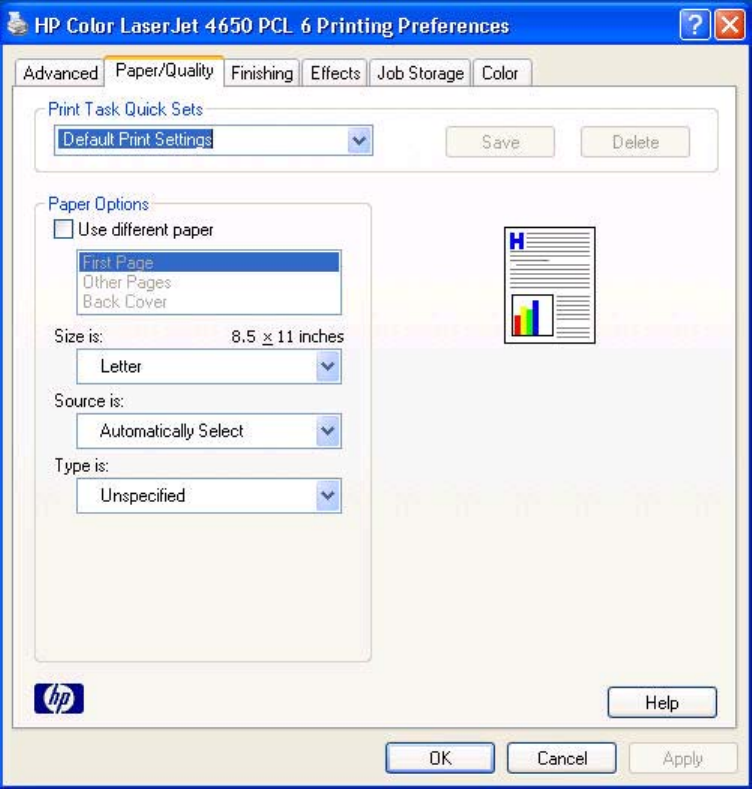
Paper/Quality tab features
Use the Paper/Quality tab to specify the size, type, and source of the media. You can also use
this tab to indicate different media-selection choices for the first page, other pages, and back
cover of the document. The following illustration shows the Paper/Quality tab.
Figure 4-3. Paper/Quality tab
The Paper/Quality tab contains the following controls:
●Print Task Quick Sets group box
●Paper Options group box
●Document preview image
EN Chapter 4 HP PCL 6, HP PCL 5c, and HP PS 3 emulation unidrivers for Windows 159

Print Task Quick Sets
Use the Print Task Quick Sets setting to store the current combination of driver settings
that are found on all of the other print driver tabs (except the Advanced tab, where the
setting is not available). Print Task Quick Sets are either preset by network-administrator
settings or user-defined printing specifications (such as media size, pages per sheet, and so
on). The Print Task Quick Sets control does not appear on the driver Properties tabs.
Administrators can predefine Print Task Quick Sets for their users. These administrator Print
Task Quick Sets are defined on the server and are available to users, but usually cannot be
modified by users. Users can also define Print Task Quick Sets for their own use. User-defined
Print Task Quick Sets are described later in this section.
The following selections are available in the Print Task Quick Sets drop-down menu:
●Default Print Settings
●HP CLJ 4550 Color Emulation
●User Guide Print Settings
Default Print Settings
When you select Default Print Settings, nearly all of the settings are restored to the
combination that existed after the driver was installed (the original settings). However, if the
attribute combinations that are associated with watermark definitions, custom media sizes, or the
other quick sets have been changed or deleted, the original settings for those items are not
restored.
Type a new Quick Set name here appears in the Print Task Quick Sets menu automatically if
no other driver settings have been changed since the driver was installed, or if all of the driver
settings match the original settings. Otherwise, the setting in the Print Task Quick Sets menu is
the same label that appeared when you last closed the printing Properties dialog box by clicking
OK.
The following table shows the default settings for Print Task Quick Sets. See the HP Driver
Preconfiguration section for information about preconfigurable driver settings.
Table 4-1. Print Task Quick Set default values for the HP Color LaserJet 4650
Driver
feature
Feature setting location U.S. English
Print Task
Quick Sets
default
values
Other
language
default
setting (if
different)
Preconfigurable
1
Print on
Both Sides
Finishing tab, Document
Options group box
Off Yes
Flip Pages
Up
Finishing tab, Document
Options group box
Unavailable Yes
Booklet
Layout
Finishing tab, Document
Options group box
Unavailable Yes
Pages per
Sheet
Finishing tab, Document
Options group box
1 Yes
Print Page
Borders
Finishing tab, Document
Options group box
Unavailable Yes
Note
160 Paper/Quality tab features EN

Driver
feature
Feature setting location U.S. English
Print Task
Quick Sets
default
values
Other
language
default
setting (if
different)
Preconfigurable
1
Page Order Finishing tab, Document
Options group box
Unavailable Yes
Orientation Finishing tab, Orientation
group box
Portrait Yes
Rotate by
180 degrees
Finishing tab, Orientation
group box
Off Yes
Resizing
Options
Effects tab, Resizing
Options group box
Actual Size Yes
Print
document on
Effects tab, Resizing
Options group box
Off - print on
the size
specified in
the Paper/
Quality tab
Yes
Size to print
on
Effects tab, Resizing
Options group box
Actual Size Default value
depends on
regional
media size
Yes
Scale to Fit Effects tab, Resizing
Options group box
Unavailable Yes
% of
Normal Size
Effects tab, Resizing
Options group box
Off Yes
Watermarks Effects tab (none) Yes
Watermarks
First Page
Only
Effects tab, Watermark
Details dialog box
Unavailable Yes
Current
watermarks
Effects tab, Watermark
Details dialog box (Click
Edit for Watermark Details)
(none) Yes
2
Watermark
Message
Effects tab, Watermark
Details dialog box (Click
Edit for Watermark Details)
(none) Yes
2
Watermark
Message
Angle
Effects tab, Watermark
Details dialog box (Click
Edit for Watermark Details)
Diagonal Yes
2
Watermark
Message
Angle
(angle)
Effects tab, Watermark
Details dialog box (Click
Edit for Watermark Details)
Unavailable
unless Angle
option is
selected
Yes
Watermark
Font Name
Effects tab, Watermark
Details dialog box, Font
Attributes group box
Arial Language
dependent
Yes
2
Table 4-1. Print Task Quick Set default values for the HP Color LaserJet 4650
(continued)
EN Chapter 4 HP PCL 6, HP PCL 5c, and HP PS 3 emulation unidrivers for Windows 161

Driver
feature
Feature setting location U.S. English
Print Task
Quick Sets
default
values
Other
language
default
setting (if
different)
Preconfigurable
1
Watermark
Font Color
Effects tab, Watermark
Details dialog box, Font
Attributes group box
Gray Yes
Watermark
Font
Shading
Effects tab, Watermark
Details dialog box, Font
Attributes group box
Very Light Yes
2
Watermark
Font Size
Effects tab, Watermark
Details dialog box, Font
Attributes group box
80 No
Watermark
Font Style
Effects tab, Watermark
Details dialog box, Font
Attributes group box
Regular Yes
2
Size is: Paper/Quality tab, Paper
Options group box
Letter Default value
depends on
regional
media size
Yes
Use
Different
Paper
Paper/Quality tab, Paper
Options group box
Off - all of the
pages use
the same
media
No
Source is: Paper/Quality tab, Paper
Options group box
Automatically
Select
Yes
Type is: Paper/Quality tab, Paper
Options group box
Unspecified Yes
EconoMode
(may save
Print
Cartridges)
Paper/Quality tab, Print
Quality group box
Off Yes
Unlabeled
group box
Job Storage tab Status
message
about
destination of
job
No
Job Storage
Mode
Job Storage tab, Job
Storage Mode group box
Off is selected No
Proof and
Hold
Job Storage tab, Job
Storage Mode group box
Available, not
selected
No
Private Job Job Storage tab, Job
Storage Mode group box
Available, not
selected
No
Quick Copy Job Storage tab, Job
Storage Mode group box
Available, not
selected
No
Table 4-1. Print Task Quick Set default values for the HP Color LaserJet 4650 (continued)
162 Paper/Quality tab features EN

Driver
feature
Feature setting location U.S. English
Print Task
Quick Sets
default
values
Other
language
default
setting (if
different)
Preconfigurable
1
Stored Job Job Storage tab, Job
Storage Mode group box
Available, not
selected
No
Require PIN
to Print
Job Storage tab, Job
Storage Mode group box
Unavailable No
Windows
User Name
Job Storage tab, User
Name group box
Unavailable No
Job Name Job Storage tab, Job
Name group box
Unavailable No
PIN to Print Job Storage tab, PIN
group box
Unavailable No No
Display Job
ID when
printing
Job Storage tab, Job
Notification Options group
box
Unavailable No No
1
Preconfigurable by using one of the HP Preconfiguration tools. For more information, See HP
Driver Preconfiguration, or go to: http://www.hp.com/support/clj4650.
2
Not supported in Windows 98 and Windows Me.
HP Color LaserJet 4550 Color Emulation
The settings for the HP Color LaserJet 4650 printer’s color rendering of RGB color can be
made to emulate the standard settings for the HP Color LaserJet 4550 printer.
When you select HP CLJ 4550 Color Emulation, all of the settings are restored to the
default settings, except for the following differences in the Color tab Manual settings:
●Text RGB Color is set to Vivid
●Graphics RGB Color is set to Vivid
●Photographs RGB Color is set to Vivid
User Guide Print Settings
The User Guide Print Settings option provides a Print Task Quick Set for optimal printing of
the hp color LaserJet 4650 series printer User Guide.
When you select User Guide Print Settings, all of the settings are restored to the default
settings, except for the following:
●Print on Both Sides is set to ON
●Left Edge Binding is set to ON
●Pages per Sheet is set to 2
●Page Order is set to Right then Down
Table 4-1. Print Task Quick Set default values for the HP Color LaserJet 4650
(continued)
EN Chapter 4 HP PCL 6, HP PCL 5c, and HP PS 3 emulation unidrivers for Windows 163
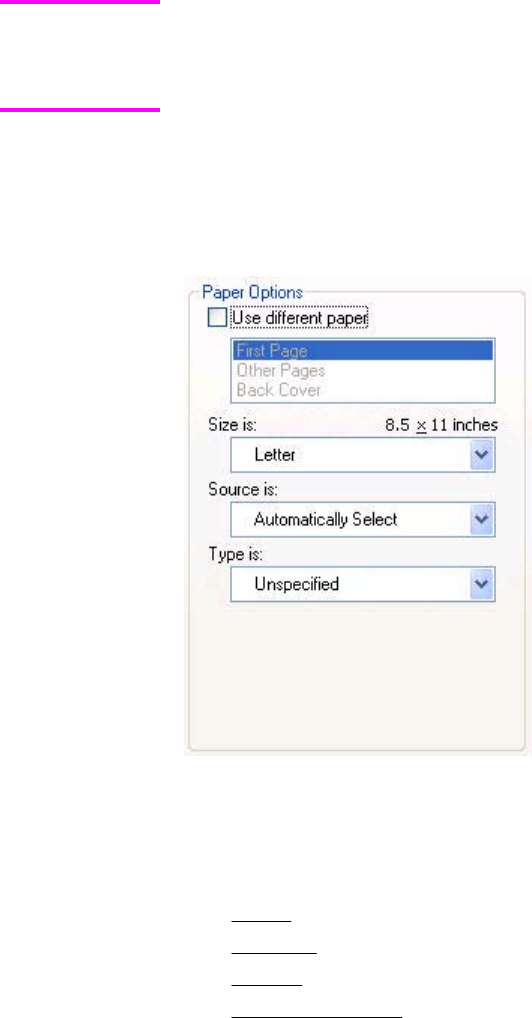
Type new Quick Set name here
By default, the Print Task Quick Sets menu is set to Type new Quick Set name here.
When you change any of the default settings on any of the Printing Preferences driver tabs
and you want to save the configuration as a Print Task Quick Set, highlight the words Type
new Quick Set name here, type the name you want for your new Print Task Quick Set, and
then click Save. Print Task Quick Sets are saved in the system registry. To delete a Print
Task Quick Set, select it from the drop-down menu and click Delete.
Administrators can predefine Print Task Quick Sets for their users. These administrator Print
Task Quick Sets are defined on the server and are available to users, but usually cannot be
modified by users. Users can also define Print Task Quick Sets for their own use. User-defined
Print Task Quick Sets are described later in this section.
You can store a maximum of 25 Print Task Quick Sets on a particular system. If you attempt to
save too many, a message box appears that reads, "There are too many Print Task Quick Sets
defined. Please delete some before adding new ones."
Paper Options
Figure 4-4. Paper Options group box
The appearance of the Paper Options group box changes when the Use different paper check
box is selected. For convenience, the settings in the Paper Options group box are described
below in the following order:
●Size is
●Source Is
●Type is
●Use different paper
Note
164 Paper/Quality tab features EN

Size is
The Size is: setting is a drop-down menu that lists all of the supported media sizes.
When you move the mouse over the dimensions label, the mouse cursor changes from an arrow
to a gloved hand. Click the dimensions label to toggle between English and metric units.
Because driver settings are overridden by media-size settings in most software applications,
it is generally best to use the driver to set media size only when you are printing from
software applications that lack a media-size setting, such as NotePad, or when you are
producing a book or a booklet that does not require different media sizes.
Certain software programs can override the size command and specify different media sizes
within a single document.
For information about media sizes, see the Media attributes section of this guide.
Custom paper sizes
1Click Start, select Settings, and then click Printers (Windows 2000) or Printers and
Faxes (Windows XP Professional and Windows Server 2003) or Printers and Other
Hardware Devices (Windows XP Home) to gain access to the same set of driver tabs
that the software program controls.
2Right-click in the blank space in the window.
3Click Server Properties. The Print Server Properties dialog box appears.
4Select the Create a new form check box.
5Type a name for the new paper size in the Form name: field.
6Select the Units: setting, either Metric or English.
7In the Paper size: fields, assign the width and height values of your custom paper size.
8In the Printer area margins: fields, assign left, right, top, and bottom print-area margins.
9Click OK to save the form and exit the Print Server Properties dialog box. If you want
to create other custom paper sizes, click Save Form, create the custom paper size, and
click Close to exit the dialog box.
The custom paper name appears in the Size is: drop-down menu in the Paper/Quality
driver tab.
Use different paper
When the Use different paper check box is selected and different options are configured,
the Size is:, Source is:, and Type is: menus change, offering a variety of options. For more
information, see Use different paper.
Source Is
The Source is: setting specifies the source tray to use for printing a document. The list of
source trays depends on the printer accessories. Any optional source trays that are installed
through the Device Settings tab also appear here.
The Source is: drop-down menu can contain the following options:
●Automatically select
●Printer Auto Select
●Manual Feed in Tray 1
Note
EN Chapter 4 HP PCL 6, HP PCL 5c, and HP PS 3 emulation unidrivers for Windows 165

●Tray 1 (100-sheet multipurpose tray)
●Tray 2 (500-sheet tray)
●Tray 3 (500-sheet tray)
●Tray 4 (500-sheet tray)
The default setting is Automatically Select. When this setting is selected, the
HP Color LaserJet 4650 uses the source tray that supports the media size that you have
selected. If you select a source tray other than Automatically select, make sure that the correct
media size is loaded in the source tray. For information about media sources, see the Media
attributes section of this guide.
Type is
The Type is: drop-down menu shows all the media types that the HP Color LaserJet 4650
supports. When you use the default setting, Unspecified, the printer uses the default media type,
which is usually Plain.
No mechanism exists for manually adding custom media types through the driver. Custom types
can be added only by using the bidirectional communication mechanism, so they must already
exist in the product when the bidirectional query occurs. If bidirectional communication is
enabled, then the information returned is an updated list of media types. If bidirectional
communication is not enabled, then the driver looks for custom media types saved from a
previous bidirectional communication query, and uses those. Otherwise, no custom media types
are available through the driver.
The following standard types appear in the lists:
●Unspecified
●Plain
●Preprinted
●Letterhead
●Transparency
●Prepunched
●Labels
●Bond
●Recycled
●Color
●Cardstock (164 to 200 g/m
2
or 43 to 53 lb.)
●Heavy (105 to 119 g/m
2
)
●Envelope
●Light (60 to 75 g/m
2
)
●Intermediate (90 to 104 g/m
2
)
●Ex Heavy (120 to 163 g/m
2
)
●Glossy (75 to 105 g/m
2
)
●Heavy Glossy (106 to 120 g/m
2
)
●HP High Glossy (Images)
●Tough Paper
166 Paper/Quality tab features EN
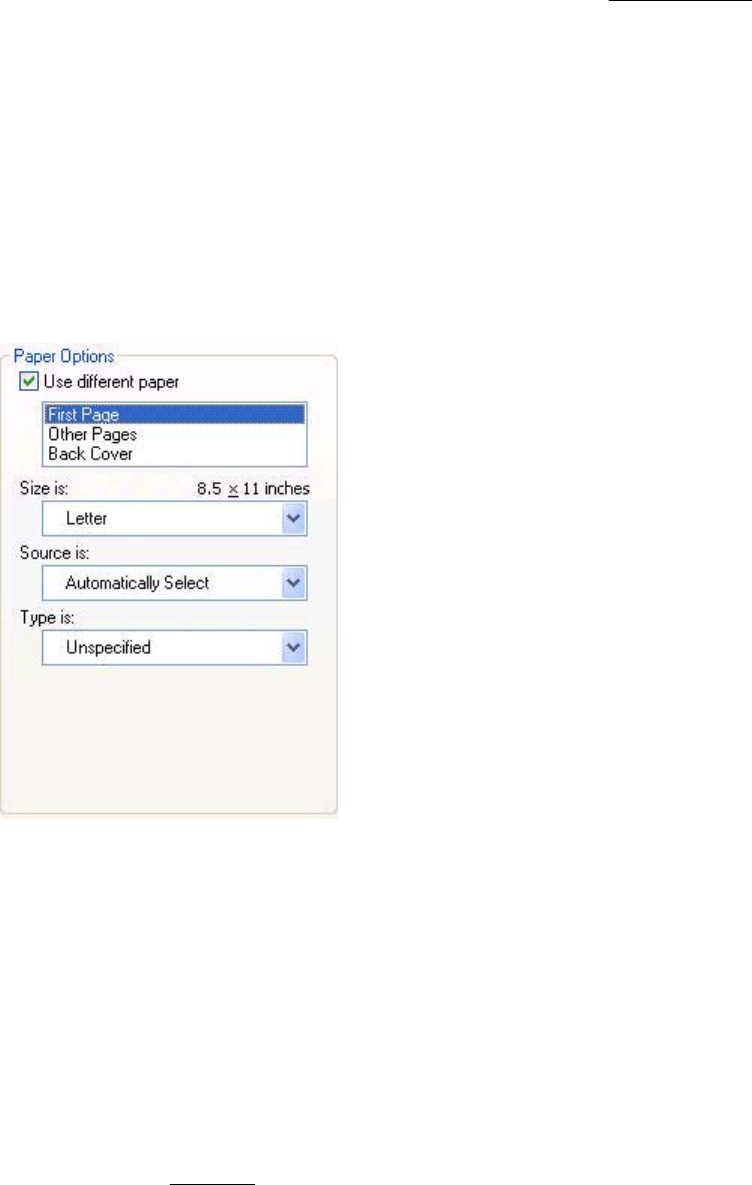
The default setting is Unspecified, and the program selects the media type. If you select a
different setting, make sure the correct media type is loaded in the tray you selected in the
Source is: setting. For more information about media types, see the Media attributes section of
this guide.
Use different paper
You can print books with different media types using the Use different paper options.
●First Page
●Other Pages
●Back Cover
Each option for the Use different paper setting is described in the following sections, in the
order they appear in the pane below the Use different paper check box.
First Page
Figure 4-5. First Page options
The First Page options are as follows:
●Size is: drop-down menu
●Source is: drop-down menu
●Type is: drop-down menu
The Size is: driver setting for the first page applies to the entire print job. When this is set,
the setting becomes unavailable for all the other Use different paper options.
The Source is: setting specifies the source tray to use for printing a document. The list of
source trays depends on the printer accessories. Any optional media trays that are installed
through the Device Settings tab also appear here. For more information about the Source
is: setting, see the Source Is section of this chapter.
EN Chapter 4 HP PCL 6, HP PCL 5c, and HP PS 3 emulation unidrivers for Windows 167

The Type is: drop-down menu shows all of the media types that the printer supports. For
more information about the Type is: drop-down menu settings, see the description for Type
is: in the Type is section of this chapter.
Other Pages
Use the Other Pages options to select an alternative media source (or the same source as First
Page) for the other pages of the document.
The following illustration shows the appearance of the Paper Options group box when you select
the Use different paper check box.
Figure 4-6. Other Pages options
The Other Pages options are as follows:
●Source is: drop-down menu
●Type is: drop-down menu
The Source is: setting specifies the source tray to use for printing a document. The list of source
trays depends on the printer accessories. Any optional media trays that are installed through the
Device Settings tab also appear here. For more information about the Source is: setting, see
the Source Is section of this chapter.
The Type is: drop-down menu shows all of the media types that the printer supports. For more
information about the Type is: drop-down menu settings, see the description for Type is: in the
Type is section of this chapter.
168 Paper/Quality tab features EN
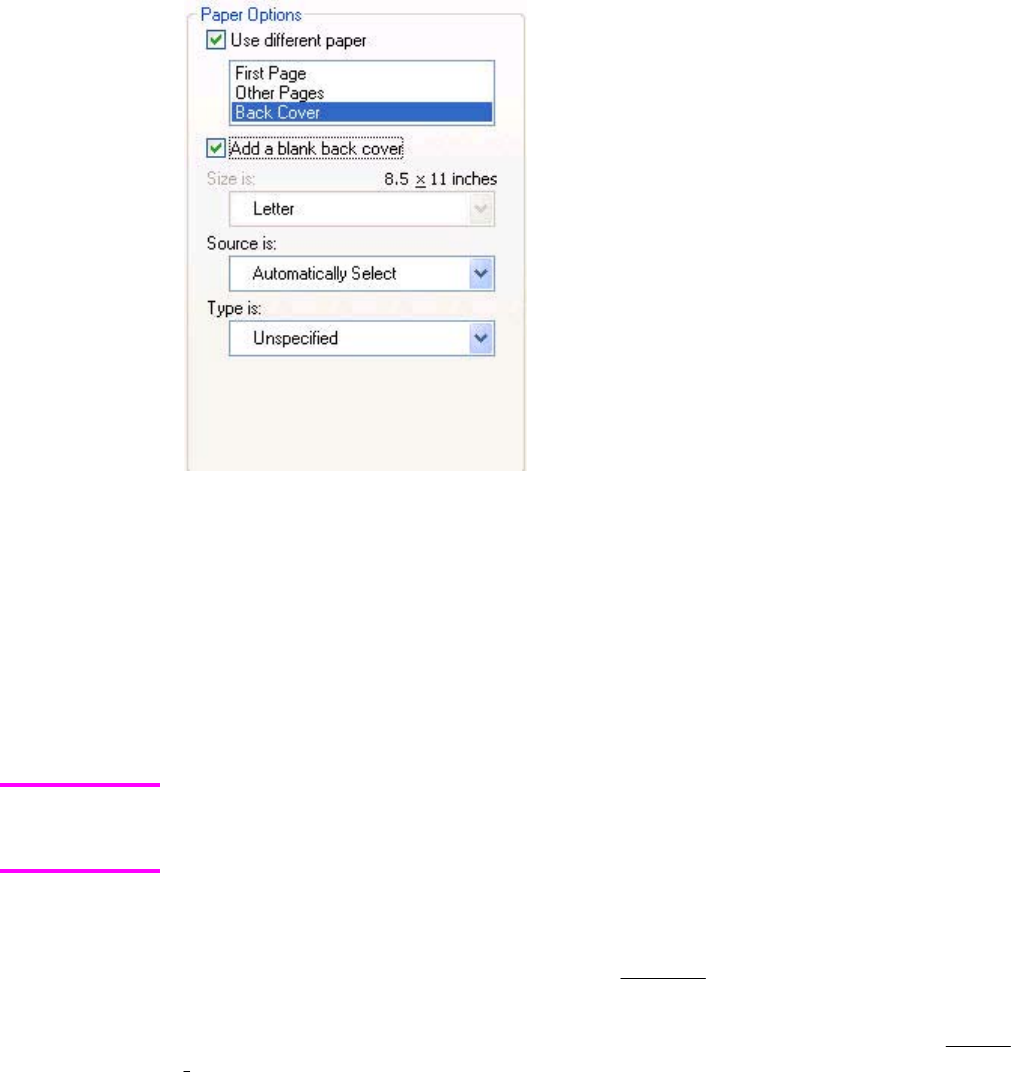
Back Cover
The following illustration shows the Back Cover setting and options.
Figure 4-7. Back Cover setting
The Back Cover options are as follows
●Add a blank back cover check box
●Source is: drop-down menu
●Type is: drop-down menu
When you select Back Cover, you must also select the Add a blank back cover check box
to enable the setting. When you select this check box, the Source is: and Type is: drop-
down menus become available and a check mark appears next to the Back Cover option.
The Back Cover options are not available when the Booklet Printing Layout setting is
enabled on the Finishing tab. The back cover setting is unavailable, because this page
would otherwise be printed in the middle of a booklet.
The Source is: setting specifies the source tray to use for adding a back cover to the
document. The list of source trays depends on the printer accessories. Any optional media
trays that are installed through the Device Settings tab also appear here. For more
information about the Source is: setting, see the Source Is section of this chapter.
The Type is: drop-down menu shows all of the media types that the printer supports. For
more information about the Type is: drop-down menu settings, see the Type is: in the Type is
section of this chapter.
Note
EN Chapter 4 HP PCL 6, HP PCL 5c, and HP PS 3 emulation unidrivers for Windows 169
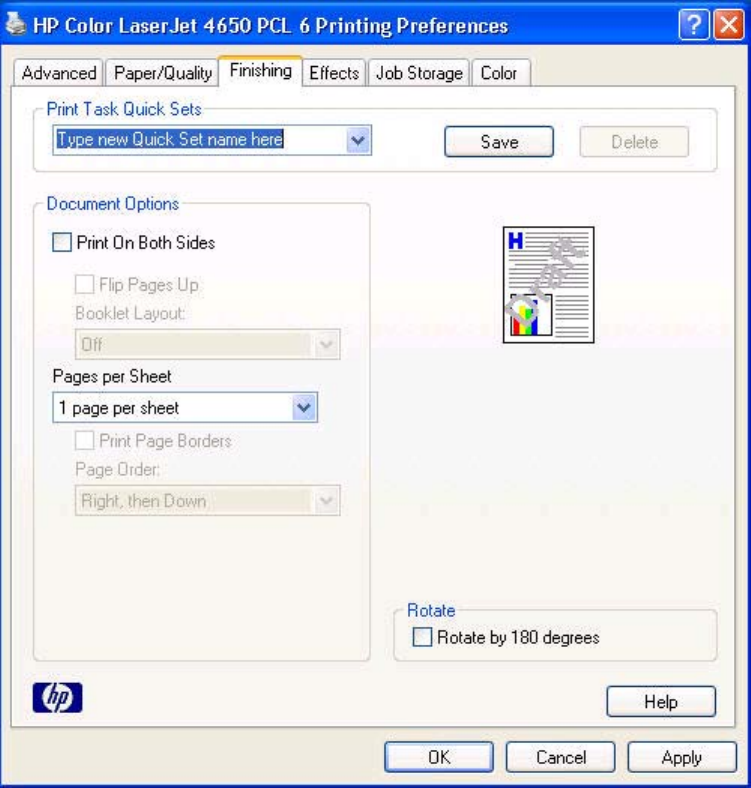
Document preview image
The document preview image is a line-drawn image of a page that represents graphics and
text. The document preview image is always oriented so that the contents of the page are
right-side up. The document preview image appears in the upper-right corner of the
Finishing, Effects, Paper/Quality, and Color tabs.
Switching between tabs does not change the location or appearance of the document
preview image. When you move the mouse over the document preview image, the mouse
cursor changes from an arrow to a gloved hand. You can toggle between portrait and
landscape page orientation by clicking on the image.
Finishing tab features
Use the Finishing tab to print booklets and control the media output. The following illustration
shows the Finishing tab.
Figure 4-8. Finishing tab
170 Finishing tab features EN

The Finishing tab contains the following controls:
●Print Task Quick Sets group box
●Document Options group box
●Document preview image
●Rotate check box
Print Task Quick Sets
Use the Print Task Quick Sets control to store the current combination of driver settings
that are found on all other Printing Preferences driver tabs. Print task quick sets are either
preset or user-defined printing specifications, such as media size and pages per sheet. For
more information, see the Paper/Quality tab features section of this guide.
Document Options
The Document Options group box contains the following controls.
●Print on Both Sides check box
●Flip Pages Up option
●Booklet Layout drop-down menu
●Pages per Sheet drop-down menu
●Print Page Borders check box
●Page Order drop-down menu
Print on Both Sides
The default setting for the Print on Both Sides option is off (not selected). Print on Both
Sides is available when the following conditions exist:
●Type is: on the Paper tab is set to any type except : Labels, Transparency,
Envelope, Envelope #10, Envelope #DL, Envelope #C5, Envelope #D5, Envelope
Monarch, or Tough Paper.
Print on Both Sides (Manually) is available for Ex Heavy 120 x 163 g/m
2
and Cardstock
164 x 200 g/m
2
.
●Size is: is set to any size except for A6, B6 (JIS), or Custom.
When Paper Size is set to Letter, Legal, or A4, selecting Print on Both Sides makes the
Flip Pages Up and Booklet Printing options available.
Automatically printing on both sides
The duplexing unit in the product prints on two sides of a sheet of media when the Print on
Both Sides option is specified in the print job. The HP Color LaserJet 4650dn, 4650dtn, and
4650hdn models come with a duplexing unit installed.
The HP Color LaserJet 4650 printer supports smart duplexing. The smart duplexing feature
increases printing performance by not sending one-page print jobs or single-sided pages of
a duplexed print job through the duplexing unit even when the duplexing feature has been
enabled in the driver.
Note
EN Chapter 4 HP PCL 6, HP PCL 5c, and HP PS 3 emulation unidrivers for Windows 171

All media types support the smart duplexing feature, except for media types that cannot be
printed on both sides, such as labels, and the following media types:
●Prepunched
●Preprinted
●Letterhead
When the media type is set to Unspecified, the smart duplexing feature is disabled.
To achieve the best print quality when printing on the second side of the page, the printer needs
to make adjustments to its print modes. When you select a media type, you are, in effect,
instructing the printer to use a group of settings (such as fuser temperature and print speed) to
print the media with the best possible quality. This group of settings is known as a mode or print
mode, and a different print mode is used with each media type. Print-mode adjustments are
automatic when the duplexing unit is used.
Manually printing on both sides
To make the Print on Both Sides (Manually) check box available in the document options, enable
the Allow Manual Duplexing option on the Device Settings tab in the Properties print driver
tabs. See Installable Options in this chapter.
Manually printing on the second side of a page is available when you are using the HP PCL 6,
HP PCL 5c, or the PS Emulation Unidriver. If a duplexing unit is installed and manual duplexing
is enabled in the driver, the printer automatically duplexes media types that are supported by
automatic duplexing (Letter, A4, Legal, 8.5 x 13, and Executive (JIS) only), and forces manual
printing on both sides for media types that are not supported.
●Plain
●Preprinted
●Letterhead
●Prepunched
●Bond
●Recycled
●Colored
●Rough
Heavy and Cardstock media can be manually printed on the second side, but there is no change
to the print mode. Transparencies and labels should not be manually printed on the second side.
Note
172 Finishing tab features EN
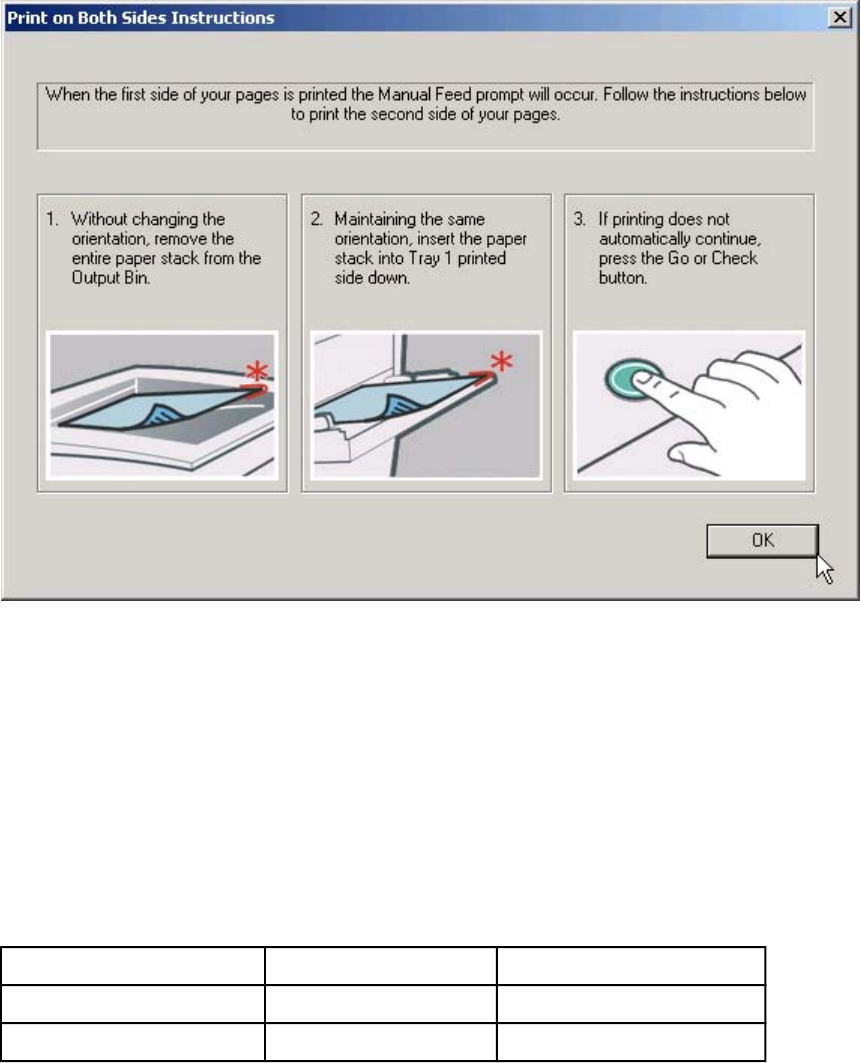
To print a multiple-page document, follow these steps:
1Select the Print on Both Sides (Manually) check box.
2Click OK.
3When the product control panel shows the MANUALLY FEED message, insert the stack of
media (on which the even-number pages have been printed) as indicated in the following
figure.
Figure 4-9. Print on Both Sides Instructions
When you have completed the steps that appear in the dialog box, the second half of the
print job prints on the back side of the stack of paper. The driver does not require the
application to specifically support odd- and even-page printing, because the driver
coordinates this function.
Flip Pages Up
The Flip Pages Up check box, enabled only when Print on Both Sides is selected, is used
to specify the duplex-binding option. By default, the Flip Pages Up check box is not
selected. The following table demonstrates the results of selecting this box, depending on
the media orientation selected on the Finishing tab.
Table 4-2. Page orientation
Orientation (Finishing tab) Flip Pages Up selected Flip Pages Up not selected
Portrait Short-edge binding Long-edge binding
Landscape Long-edge binding Short-edge binding
EN Chapter 4 HP PCL 6, HP PCL 5c, and HP PS 3 emulation unidrivers for Windows 173

When Print on Both Sides is selected, the document preview image changes to show a
spiral binding along either the left edge or the top edge of the page. In addition, a folded-
over corner appears in the lower-right portion of the preview image, indicating that printing
occurs on the back side. An arrow on the folded-over corner points in the direction that the
pages would be flipped if they were bound together.
Short-side binding is for print jobs with pages that read by flipping over like the pages of a note
pad. Long-side binding is for print jobs with pages that read by turning like the pages of a book.
Booklet layout
The Booklet Layout drop-down menu, visible when Print on Both Sides is selected, offers
choices that are based on the current media size. The default setting for the Booklet Printing
drop-down menu is Off.
●Left Edge Binding
●Right Edge Binding
When you select Left Edge Binding or Right Edge Binding, the document preview image
changes to show the location of the binding. If the Pages per Sheet setting is on the default
setting of 1, it automatically changes to 2 pages per sheet. If you change the Pages per Sheet
setting manually to 4, 6, 9, or 16 pages per sheet, the booklet setting is disabled. See the
Printing a Booklet section of this chapter for more information.
The Booklet Layout setting is disabled when A6 or B6 (JIS) is selected as the media size, and
an incompatibility error message appears when you click OK to close the driver.
Book and Booklet Printing
The HP Color LaserJet 4650 supports book and booklet printing.
A book is a print job consisting of at least two pages that can have a different media type for the
first page, other pages, or back cover. Use the First Page, Other Pages, and Back Cover
settings on the Paper/Quality tab (available when you select the Use Different Paper check
box) to select different media for the first page, other pages, and back cover.
A booklet is a print job that places two pages on each side of a sheet that can be folded into a
booklet that is half the size of the media. Use the Booklet Layout drop-down menu on the
Finishing tab to control booklet settings.
Printing a Booklet
1Click File, click Print, and then click Properties.
2Click the Finishing tab and select the Print on Both Sides check box.
3In the Booklet Layout drop-down menu, select the type of booklet printing that you want
(for example, Right Edge Binding).
4Click OK in the print driver.
5Click OK in the print dialog box to print.
Printing a Book
You can print a book in which the first page, other pages, and back cover have different media
types. For more information, see Paper/Quality tab features of this chapter.
174 Finishing tab features EN
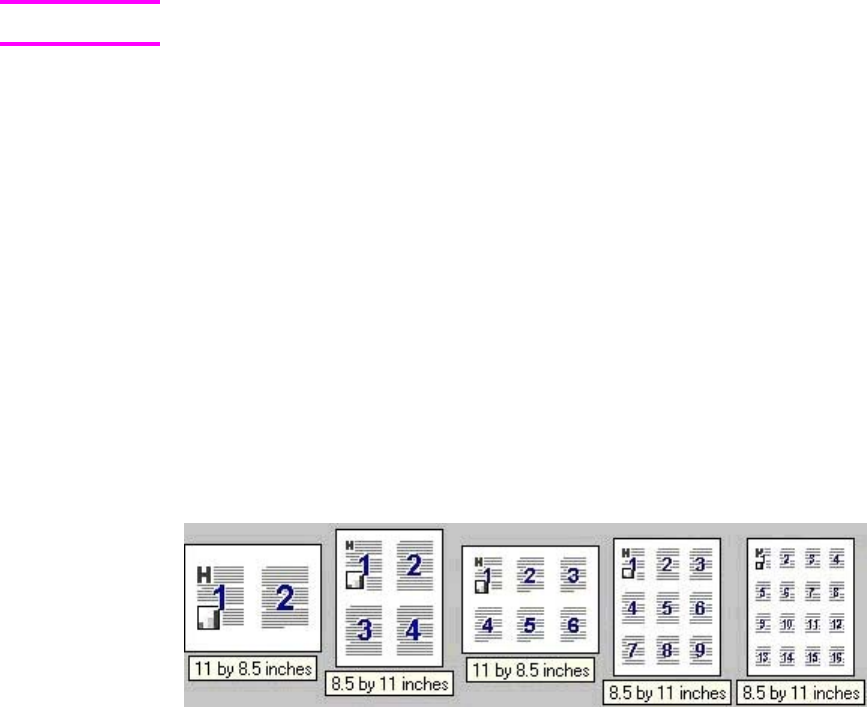
Pages per Sheet
Use the Pages per Sheet option to select the number of pages that you want to print on a single
sheet of media. If you choose to print more than one page per sheet, the pages appear smaller
and are arranged on the sheet in the order that they would otherwise be printed. The Pages per
Sheet drop-down menu provides six settings:
●1 page per sheet (default)
●2 pages per sheet
●4 pages per sheet
●6 pages per sheet
●9 pages per sheet
●16 pages per sheet
When you select an option other than 2 pages per sheet, booklet printing is unavailable.
Print Page Borders
Related controls indented beneath the Pages per Sheet edit box are Print Page Borders
and Page Order, which become active when Pages per Sheet is greater than 1.
Print Page Borders sets a line around each page image on a printed sheet to help visually
define the borders of each logical page.
Page Order
The Page Order drop-down menu contains four selections:
●Right, then Down
●Down, then Right
●Left, then Down
●Down, then Left
The preview document image changes to reflect alterations in these settings, as shown by
the examples in the following illustration.
Figure 4-10. Page-order preview images
●2 pages per sheet
●4 pages per sheet
●6 pages per sheet
●9 pages per sheet
●16 pages per sheet
Note
EN Chapter 4 HP PCL 6, HP PCL 5c, and HP PS 3 emulation unidrivers for Windows 175
Document preview image
The document preview image is a line-drawn image of a page that represents graphics and text.
The document preview image is always oriented so that the contents of the page are right-side
up. The document preview image appears in the upper-right corner of most Printing
Preferences driver tabs (the Paper/Quality, Effects, Finishing, and Color tabs).
Switching between tabs does not change the location or appearance of the document preview
image. When you move the mouse over the document preview image, the mouse cursor
changes from an arrow to a gloved hand. You can toggle between portrait and landscape page
orientation by clicking the document preview image.
Rotate
Select this feature to rotate the document image on the media 180 degrees. For example: If the
return address on an envelope is smudged, try this setting and feed the envelope so the return
address area is fed first into the printer.
176 Finishing tab features EN
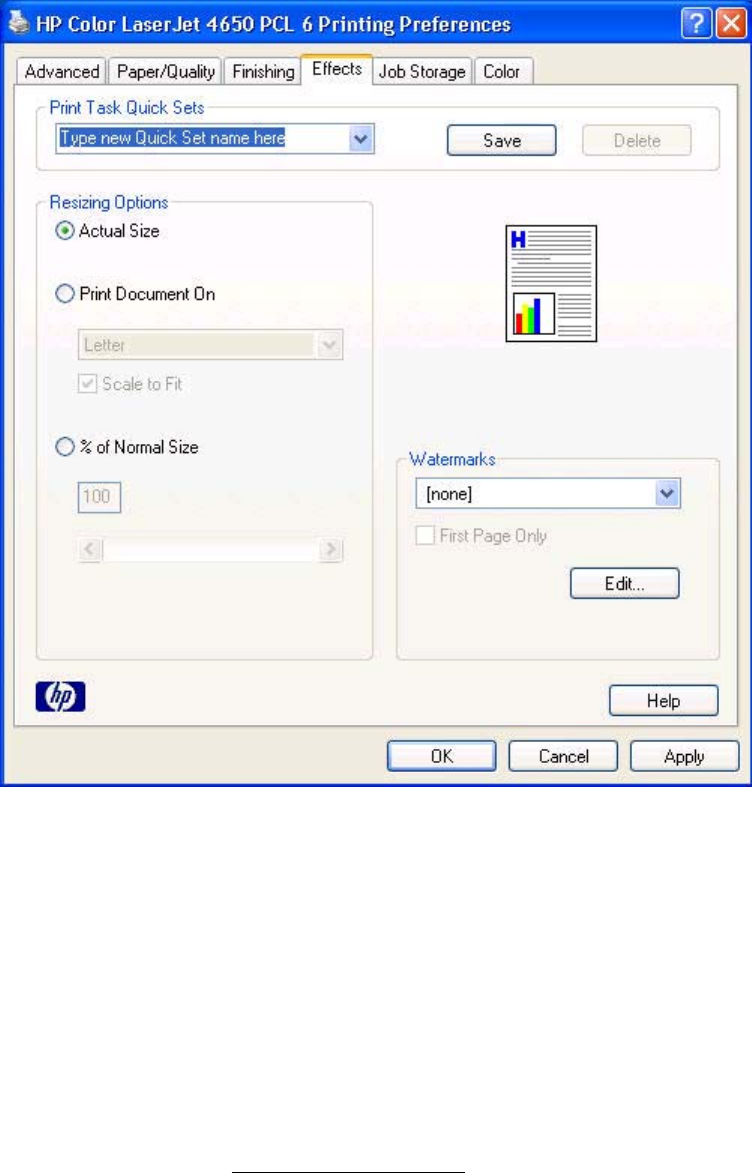
Effects tab features
Use the Effects tab to create unique media effects such as scaling and watermarks. The
following illustration shows the Effects tab.
Figure 4-11. Effects tab
The Effects tab contains the following controls:
●Print Task Quick Sets group box
●Resizing Options group box
●Document preview image
●Watermarks group box
Print Task Quick Sets
Use the Print Task Quick Sets control to store the current combination of driver settings
that are found on all other Printing Preferences driver tabs. Print task quick sets are either
preset or user-defined printing specifications, such as media size and pages per sheet. For
more information, see the Paper/Quality tab features section of this guide.
EN Chapter 4 HP PCL 6, HP PCL 5c, and HP PS 3 emulation unidrivers for Windows 177
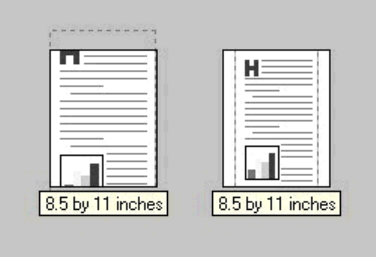
Resizing options
The Resizing Options group box consists of the following controls.
●Actual Size (default)
●Print Document On setting
●Scale to Fit option
●% of Normal Size setting
Actual Size
Actual Size is the default setting. It prints the document without changing the document size.
Print Document On
Select the Print Document On radio button to format the document for one media size and then
print the document on a different media size, with or without scaling the image to fit the new
media size.
The Print Document On control is disabled by either of the following conditions:
●The % of Normal Size value is not 100.
●The Pages per Sheet value (on the Finishing tab) is not 1.
When Print Document On is selected, the drop-down menu shows the media sizes on which
you can print. The list contains all of the standard media sizes that are supported by the selected
media source and any custom sizes that you have created. When Print Document On is
selected, Scale to Fit is automatically selected.
Scale to Fit
The Scale to Fit option box specifies whether each formatted document page image is scaled to
fit the target media size. By default, Scale to Fit is selected when Print Document On is
selected. If the setting is turned off, then the document page images will not be scaled, and are
instead centered at full size on the target media. If the document size is larger than the target
media size, then the document image is clipped. If it is smaller, then it is centered within the
target media. The following illustration shows preview images for a document formatted for legal-
size media with the Print Document On check box selected, and the target size specified as
Letter.
Figure 4-12. Preview images - Legal on Letter; Scale to Fit off (left) and on (right)
When the size for which the document is formatted (that is, the logical size) differs from the
target size, the preview image uses a dashed gray line to show the boundaries of the logical
page in relation to the target page size.
178 Effects tab features EN
% of Normal Size
The % of Normal Size option provides a slider bar to use for scaling the percentage setting.
The default setting in the entry box is 100 percent of normal size. Normal size is defined as
the media size that is selected within the driver or what the driver receives from the software
program (if the software program does not negotiate the media size with the driver). The
driver scales the page by the appropriate factor and sends it to the printer.
The limits of the range are from 25 percent to 400 percent, and any values outside the range
are adjusted to those limits as soon as the focus is removed from the control (that is, when
the Tab key is pressed or another control is selected).
Any change to the scale also changes the page preview, which increases or decreases from
the upper-left corner of the preview.
The slider bar controls the scale directly. The value in the edit box changes as the scroll bar
indicator is dragged, and the preview image is updated to the new image scale. Each click
on the scroll bar arrows increases or decreases the scale by one percent. Each click on the
slider bar affects the scale by 10 percent.
You cannot achieve an exact value by dragging the scroll bar indicator at the default
Windows resolution; use the scroll bar indicator to approximate the desired value, and then
use the scroll bar arrows to refine the value.
The following settings disable % of Normal Size:
●Print Document On (on the Effects tab) is selected
●Pages per Sheet (on the Finishing tab) is not 1
Document preview image
The document preview image is a line-drawn image of a page that represents graphics and
text. The document preview image is always oriented so that the contents of the page are
right-side up. The document preview image appears in the upper-right corner of most
Printing Preferences driver tabs (the Paper/Quality, Finishing, Effects and Color tabs).
Switching between tabs does not change the location or appearance of the document
preview image. When you move the mouse over the document preview image, the mouse
cursor changes from an arrow to a gloved hand. You can toggle between portrait and
landscape page orientation by clicking the document preview image.
Watermarks
Use the Watermarks feature to choose a watermark, create your own custom watermarks
(text only), or edit an existing watermark. The following watermarks are preset in the driver:
●(none)
●Confidential
●Draft
●SAMPLE
The drop-down menu shows alphabetically sorted watermarks that are currently available on
the system, plus the string "(none)", which indicates that no watermark is selected. This is
the default setting. Any watermark selected from this list appears in the preview image.
EN Chapter 4 HP PCL 6, HP PCL 5c, and HP PS 3 emulation unidrivers for Windows 179
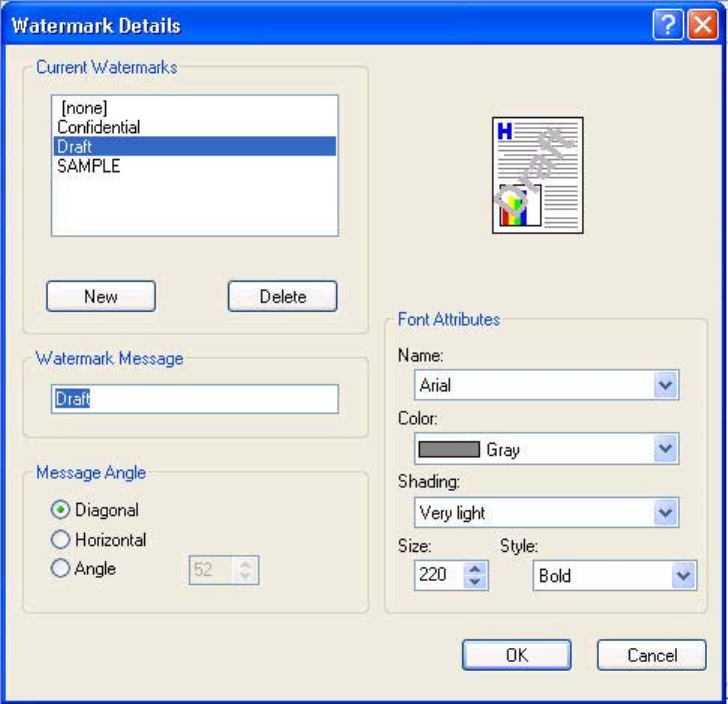
When the First Page Only check box is selected, the watermark is printed only on the first
page of the document. The First Page Only check box is disabled when the current
watermark selection is "(none)".
Watermarks are applied to logical pages. For example, when Pages per Sheet is set to "4" and
First Page Only is turned off, four watermarks appear on the physical page (one on each logical
page).
Click Edit, and the Watermark Details dialog box appears.
Figure 4-13. Watermark Details
The dialog box shows a preview image and provides options for creating a new watermark and
controlling the message angle and font attributes.
Click OK to accept all of the changes that are made in the Watermark Details dialog box.
However, clicking Cancel does not cancel all of the changes. If you make changes to a
watermark, and then select a different watermark or click New, all of the changes made to the
previous watermark are saved, and only the current, unsaved changes can be canceled.
Current watermarks
The Current Watermarks group box contains a list of available watermarks, both predefined
watermarks made available in the driver and any new watermarks you have created.
180 Effects tab features EN

To create a new watermark, click New. The new watermark appears in the Current Watermarks
list and in the Watermark Message edit box as "Untitled" until you name it. The name that you
type in the Watermark Message field appears in the Current Watermarks group box in the
Watermark Details dialog box and in the Watermarks group box on the Effects tab.
To name the new watermark, type the selected watermark text in the Watermark Message
edit box. To delete a watermark, select the watermark in the Current Watermarks list and
click Delete. A warning appears asking whether you are sure you want to delete the
selected item. Click Cancel if you want to keep the watermark. Click OK to delete the
selected watermark.
You can have no more that 30 watermarks in the Current Watermarks list at one time.
When you reach the limit of 30 watermarks, the New button is disabled.
To edit an existing watermark, select the watermark in the Current Watermarks list. If you
change the Watermark Message for that watermark, you are, in effect, creating a new
watermark.
Watermark Message
The Watermark Message is also the name that identifies the watermark in the Current
Watermarks list, except when more than one watermark has the same message. For
example, you might want several different watermarks with the message DRAFT, each with
a different typeface or font size. When this occurs, the string is appended with a space, a
pound sign, and a number (for example, Draft #2). When a number is added, the number
two is used first, but if the resulting name is also in the list, then the number increases until
the name is unique (Draft #3, Draft #4, and so on).
Message Angle
Use the controls in the Message Angle group box to print the watermark in different
orientations on the page. The settings are Diagonal, Horizontal, or Angle (custom). The
default is Diagonal. All three settings automatically center the watermark string within the
page; the selection of a particular setting affects only the angle of the string placement.
Diagonal places the text along a line that spans the lower-left to upper-right corners of the
page. Horizontal places the text along a line that spans the mid-left and mid-right edges of
the page. Angle places the text at the specified angle across the page.
Font Attributes
Use the controls in the Font Attributes group box to change the font and the shading, size,
and style of the font.
The Font Attributes group box contains the following controls.
●Name drop-down menu
●Color drop-down menu
●Shading drop-down menu
●Size spin box
●Style drop-down menu
Name
The Name drop-down menu lists fonts that are currently installed on the system. The default
is language-dependent.
Note
EN Chapter 4 HP PCL 6, HP PCL 5c, and HP PS 3 emulation unidrivers for Windows 181
Color
The Color drop-down menu contains a single setting: Gray.
Shading
The default Shading setting for new and preset watermarks is Very Light. The following range
of shades is available from the Shading drop-down menu.
●Lightest
●Very Light (default)
●Light
●Medium Light
●Medium
●Medium Dark
●Dark
●Very Dark
●Darkest
These values represent the intensity of the gray that is used. A choice of Light produces a lightly
saturated gray watermark. A choice of Lightest produces the lightest shade of watermark;
Darkest produces a black watermark.
Size
Font sizes from 1 to 999 points are available from the Size menu. The default point size is
language-dependent. The choice of Regular, Bold, Italic, and Bold Italic is available from the
Style drop-down menu.
Style
The choice of Regular, Bold, Italic, and Bold Italic is available from the Style drop-down menu.
The default Style setting for new and preset watermarks is Regular.
Default settings
The default settings for new watermarks are Arial font, Gray color, Very Light shading, 80
points, and Regular style. The default settings for preset watermarks are Arial font, Very Light
shading, and Bold style. The default point size for preset watermarks is language-dependent,
and varies.
Job Storage tab features
The HP Color LaserJet 4650 printer lets you store print jobs in the product's memory for printing
at a later time. These job-storage features are described in the following sections.
The Job Storage tab appears among the driver tabs only if Job Storage is enabled. To support
job-storage features for complex jobs, or if you often print complex graphics, print postscript
(.PS) documents, or use many downloaded fonts, HP recommends that you install additional
memory, install a hard disk, or both. Added memory also gives you more flexibility in supporting
job storage features. A minimum total memory of 288 MB is required to use Job Storage features.
182 Job Storage tab features EN

After a hard disk or additional memory is installed, the driver must be configured to reflect the
changes in the product. If bidirectional communication is enabled in your environment, the
Update Now feature can be used to update the drivers. For more information, see the Automatic
Configuration in this chapter.
To configure the drivers manually after installing a hard disk or additional memory, follow
these steps:
1Click Settings, and then click Printers (Windows 2000) or Printers and Faxes
(Windows XP Professional) or Printers and Other Hardware Devices (Windows XP
Home)
2Right-click the product name, click Properties, and then click the Device Settings tab.
3If additional memory has been installed, select Printer Memory: under Installable
Options, and then select either 288-415 MB or 416-544 MB, depending on the amount
of additional memory installed.
4If a hard disk has been installed, select Printer Hard Disk: under Installable Options,
and then select Installed in the drop-down menu.
5Click OK to make the printer hard disk and job-storage features available.
You can disable Job Storage while leaving the product hard-disk enabled. To disable Job
Storage, click Start, select Settings, and then click Printers (Windows 2000) or Printers
and Faxes (Windows XP Professional and Windows Server 2003) or Printers and Other
Hardware Devices (Windows XP Home). Right-click the product name, click Properties,
click the Device Settings tab, select Job Storage:, and then select Disabled in the Change
'Job Storage' Setting dialog box that appears. When Job Storage is disabled, the Job
Storage driver tab is not visible.
Note
EN Chapter 4 HP PCL 6, HP PCL 5c, and HP PS 3 emulation unidrivers for Windows 183
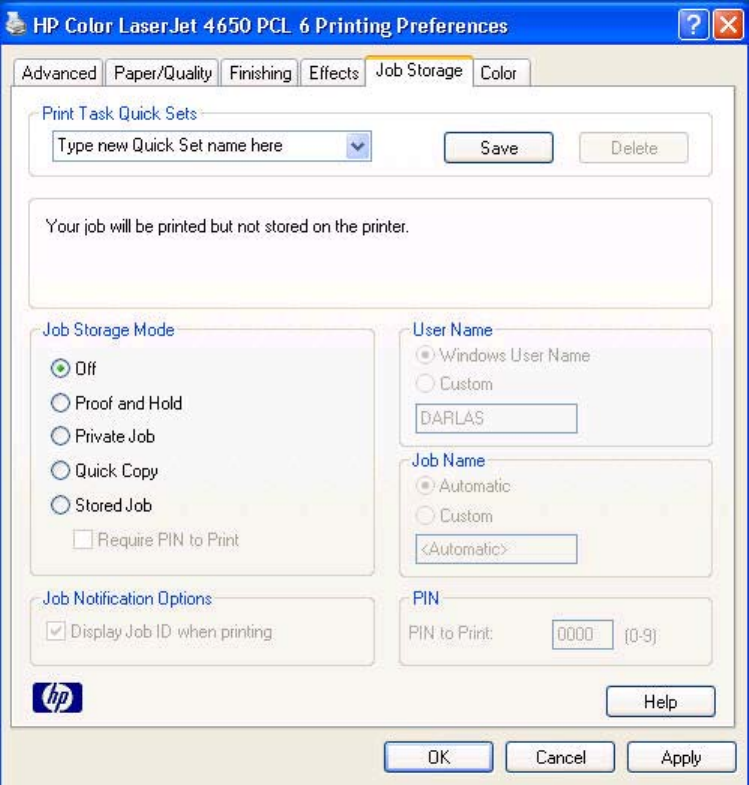
Job Storage tab
The following illustration shows the Job Storage tab.
Figure 4-14. Job Storage tab
The Job Storage tab contains the following controls:
●Print Task Quick Sets group box
●Status group box (unlabeled)
●Job Storage Mode group box
●Job Notification Options group box
●User Name group box
●Job Name group box
●PIN group box
184 Job Storage tab features EN

Print Task Quick Sets
Use the Print Task Quick Sets control to store the current combination of driver settings that
are found on all other Printing Preferences driver tabs. Print task quick sets are either preset or
user-defined printing specifications, such as media size and pages per sheet. For more
information, see the Paper/Quality tab features section of this guide.
Status group box
The unlabeled group box on the Job Storage tab contains a status message about the
destination of a print job. The status information changes depending on the selections that
are made on the Job Storage tab.
Job Storage Mode
Use the Job Storage Mode options on the HP Color LaserJet 4650 printer to store
documents at the product and then control their printing at the product control panel. This
feature is intended to provide greater flexibility, convenience, security, and cost savings.
The HP Color LaserJet 4650 printer offers the following Job Storage Mode options:
●Off
●Proof and Hold
●Private Job
●Quick Copy
●Stored Job
●Require PIN to Print (available when Stored Job is selected)
These options and the settings that control them are described below.
Off
When selected, this option turns the Job Storage feature off (it is disabled), which means
that the print job will not be stored in the product.
Proof and Hold
To use the Proof and Hold option, Job Storage must be enabled, and the product must
have a minimum total memory of 288 MB.
When selected, this option stores the print job in memory and prints only the first copy of the
job, allowing you to check the first copy. If the document prints correctly, you can print the
remaining copies of the print job at the control panel. You can set the number of proof-and-
hold print jobs that can be stored in the product at the control panel.
After it is released for printing, the proof-and-hold job is immediately deleted from the
product. If more copies are needed, you must reprint the job from the software program. If
you send a second proof-and-hold job to the product with the same user name and job name
as an existing proof-and-hold job (and you have not released the original job for printing), the
job will overwrite the existing job. Proof-and-hold jobs are deleted if you turn off the product.
EN Chapter 4 HP PCL 6, HP PCL 5c, and HP PS 3 emulation unidrivers for Windows 185

The product configuration can be set to hold a maximum of 50 quick-copy or proof-and-hold
jobs. The number is set at the control panel in the CONFIGURATION menu, and the default
is 32. When this preset limit is reached, a newer document will overwrite the oldest. Also, a
document that has the same user and job name as one that is already stored on the hard
disk will overwrite the existing document.
Private Job
To use the Private Job option, Job Storage must be enabled, and the product must have a
minimum total memory of 288 MB.
When you select Private Job, the print job is sent to the product, but is not printed until you
request the job at the product control panel. Selecting Private Job activates the PIN group box.
The print job can be printed only after you type the correct PIN at the control panel. After the job
is printed, the job is deleted from the product. This feature is useful when you are printing
sensitive or confidential documents that you do not want to leave in an output bin after printing.
After it is released for printing, the private job is immediately deleted from the product. If more
copies are needed, you must reprint the job from the software program. If you send a second
private job that has the same user name and job name as an existing private job (and you have
not released the original job for printing), the job will overwrite the existing job, regardless of the
PIN. Private jobs are deleted if you turn off the product.
Using a PIN for Private Job
The Private Job option can be secured by a four-digit personal identification number (PIN). You
must type in this number at the product control panel before the product can print the job.
The group box labeled PIN is usually inactive. It becomes active when you select the Private
Job option.
The Private Job/PIN coupling has a PIN restriction of four ASCII numeric characters (0 though
9). If you type non-numeric characters, they are removed immediately. If you type more than four
characters, the characters past the fourth are truncated. The field temporarily accepts fewer than
four digits in the string, but when the edit field loses focus, the zeroes pad the left end until the
PIN contains exactly four digits. The default initialized value for the PIN is 0000 for Private Job.
Quick Copy
To use the Quick Copy option, a hard disk must be installed, Job Storage must be enabled, and
the product must have a minimum total memory of 288 MB.
When you select Quick Copy, the entire print job prints and a copy of the print job is stored on
the product, after which you can print additional copies of the print job at the product control
panel. The number of quick-copy print jobs that can be stored in the product is set by using the
product control panel.
The product configuration can be set to hold a maximum of 50 quick-copy or proof-and-hold
jobs. The number is set at the product control panel in the CONFIGURATION menu, and the
default is 32. When this preset limit is reached, the new document overwrites the oldest held
document. Also, a document that has the same user and job name as one that is already stored
on the hard disk will overwrite the existing document. Quick Copy jobs are deleted if you turn off
the product.
Note
Note
186 Job Storage tab features EN

Stored Job
To use the Stored Job option, a hard disk must be installed, Job Storage must be enabled, and
the product must have a minimum total memory of 288 MB.
Use the Stored Job option to send a print job directly to the product hard disk without
printing it. The print job is stored in the product as if it is an electronic file cabinet. After the
print job is stored on the product hard disk, you can print the job at the product control panel.
The job remains stored in the product until it is deleted or overwritten by a document that has
the same user and job names. Stored jobs remain on the product hard disk when the
product is turned off. Use this feature for forms and other common or shared documents.
A stored job can be managed in two ways: as either a private or a public job. Use a private
stored job to send a print job directly to the product, which can then be printed only after you
type in a PIN at the product control panel. (You can set the PIN in the PIN group box.) After
the job is printed, the job remains in the product and can be printed again at the product
control panel. The private mode is initiated by selecting the Require PIN to Print check box.
In this mode, a PIN that is typed at the product control panel is required in order to release
the job.
The box labeled PIN is usually inactive. The Require PIN to Print option becomes available
when you select Stored Job. If you select the Require PIN to Print box, you must type a
PIN to make the stored job private.
A private stored job is not the same as a private job (see above). Private jobs are deleted
from the product after they are printed. Private stored jobs are retained in the product after
printing, but require that a PIN be typed each time they are printed.
Job notification
Clicking a job storage mode selection causes the User Name and Job Name options to
become available. The Display Job ID when printing check box is selected by default. The
Display Job ID when printing option causes a pop-up dialog box to appear when the job-
storage print job is printed. The dialog box shows the user name and job name that are
associated with the stored print job, as well as the product name, port, and location.
User Name
Use the User Name settings to help identify the job at the product control panel. The
following are the User Name settings:
●Windows User Name. This option associates your Windows user name with the
stored print job. The Windows user name is automatically displayed in the text field
below the Windows User Name options.
●Custom. Use this option to type a custom name for the stored print job. When you click
the Custom option button, the text field below the option becomes available. The User
Name field can contain no more than 16 characters, and is limited to A through Z and 0
through 9 because the name appears on the product control-panel display. If you try to
type a lowercase character, it automatically shifts to uppercase. If you try to type a
character in an ASCII code of fewer than 32 or more than 126 characters, the
character is removed from the edit field, along with all of the characters that follow it. If
you try to type more than 16 characters, any character beyond 16 is truncated.
Note
EN Chapter 4 HP PCL 6, HP PCL 5c, and HP PS 3 emulation unidrivers for Windows 187

Job Name
Use the Job Name options to specify a name to identify the job at the product control panel. The
following are the Job Name settings:
●Automatic. This option automatically generates the job name associated with the stored
print job. The file name of the print job is used if it is available to the print driver. Otherwise,
the software program name or a time stamp is used for the job name.
●Custom. Use this to type a custom job name for the stored print job. When you click the
Custom option button, the text field below the option becomes available.
The Job Name field can contain no more than 16 characters, and is limited to A through Z and 0
through 9 because the name appears on the product control-panel display. If you try to type a
lowercase character, it automatically shifts to uppercase. If you try to type a character in an
ASCII code of fewer than 32 or more than 126 characters, the character is removed from the edit
field, along with all of the characters that follow it. If you try to type more than 16 characters, any
character beyond 16 is truncated.
When the dialog box is closed, or as soon as the focus is removed from the control (that is, when
the Tab key is pressed or another control is selected), an empty string is replaced with
Automatic. The acceptable characters for job name and user name vary for each operating
system. The string must be of a length and type that can appear on the product control-panel
display.
PIN
The PIN group box is usually inactive. The option within the PIN group box, PIN to Print, is
activated if you select either of the following options:
●Select Private Job. If selected, you must type in the PIN number at the product control
panel in order to make the job print. For more information, see Using a PIN for Private Job .
●Select Stored Job, and then select the Require PIN to Print check box. If the Require
PIN to Print check box is selected, you must type a PIN in order to make the stored job
private. For more information, see Stored Job .
Using Job Storage features when printing
1Click File and then click Print from the software program. The Print dialog box appears.
Clicking the print icon in the software program toolbar prints the job without Job Storage features.
2Click Properties. The Properties dialog box appears.
3Click the Job Storage tab.
4Select the Job Storage options described above by clicking the appropriate option button
and complete any required fields.
5Click OK.
Note
188 Job Storage tab features EN
Releasing a Job Storage print job
After you send a print job that uses the Job Storage feature, you can release the job to print by
using the product control panel.
1Press the select button (the one with the check mark) to open the menus. RETRIEVE JOB
is highlighted.
2Press the select button.
3Press the up and down buttons to scroll to your User Name, and then press the select
button.
4Press the up and down buttons to scroll to the Job Name, and then press the select
button. PRINT JOB is highlighted.
5Press the select button.
6If a PIN number is assigned to the job, press the up and down buttons to select the first
digit of the PIN, and then press the select button. The number in the product control-
panel display changes to an asterisk. Repeat this step for each of the remaining three
digits of the PIN number.
If no PIN number is assigned to the job, continue with step 7.
7Press the up and down buttons to select the number of copies to print.
8Press the select button to print the job.
Deleting a Job Storage print job
Sometimes it is necessary to delete a print job from the product hard disk. You can do this
from the product control panel.
1Press the select button (the one with the check mark) to open the menus. RETRIEVE
JOB is highlighted.
2Press the select button.
3Press the up and down buttons to scroll to your User Name, and then press the select
button.
4Press the up and down buttons to scroll to the Job Name, and then press the select
button.
5Press the up and down buttons to select Delete.
6If a PIN number is assigned to the job, press the up and down buttons to select the first
digit of the PIN, and then press the select button. The number in the product control-
panel display changes to an asterisk. Repeat this step for each of the remaining three
digits of the PIN number.
If no PIN number is assigned to the job, continue with step 7.
7Press the select button to delete the job.
The stored print job is deleted and the product returns to the READY state.
EN Chapter 4 HP PCL 6, HP PCL 5c, and HP PS 3 emulation unidrivers for Windows 189
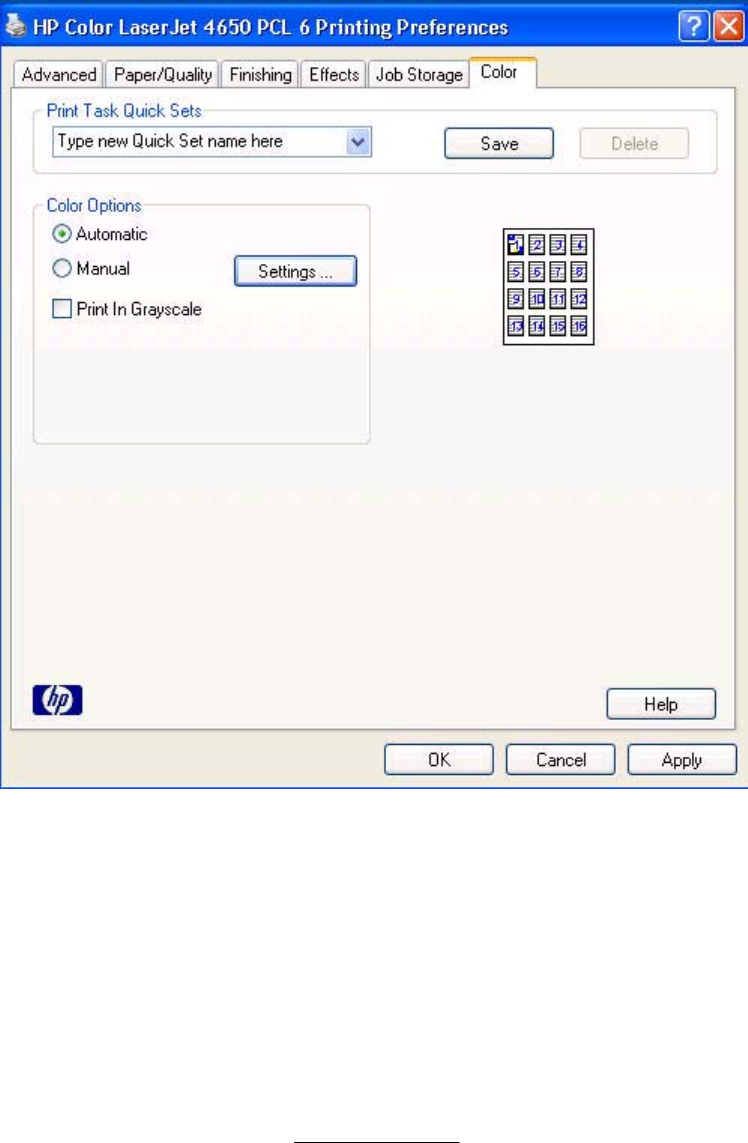
Color tab
Use the Color tab to specify predefined color-option settings or to fine-tune the color
treatments and half-toning. Color output can also be converted to grayscale. The Color tab
is shown in the following illustration.
Figure 4-15. Color tab
The Color tab contains the following controls:
●Print Task Quick Sets group box
●Color Options group box
●Document preview image
Print Task Quick Sets
The Print Task Quick Sets control is available on each Printing Preference tab, and is used to
store the current combination of driver settings found on all of the other tabs. Print Task Quick
Sets are either preset or user-defined printing specifications, such as media size and pages per
sheet. For more information, see Paper tab features.
190 Color tab EN
Color Options
Use the Color Options group box to adjust the independent color controls. The settings
affect the print job color rendering and print quality. The Color Options group box contains
the following controls:
●Automatic option (default)
●Manual option
●Settings button (opens the Color Settingsdialog box)
●Print in Grayscalecheck box
Automatic
Use the Automatic option for default coloration settings that automatically tune the printed
output. The HP Automatic default color settings provide high-quality output for most color
printing needs.
EN Chapter 4 HP PCL 6, HP PCL 5c, and HP PS 3 emulation unidrivers for Windows 191
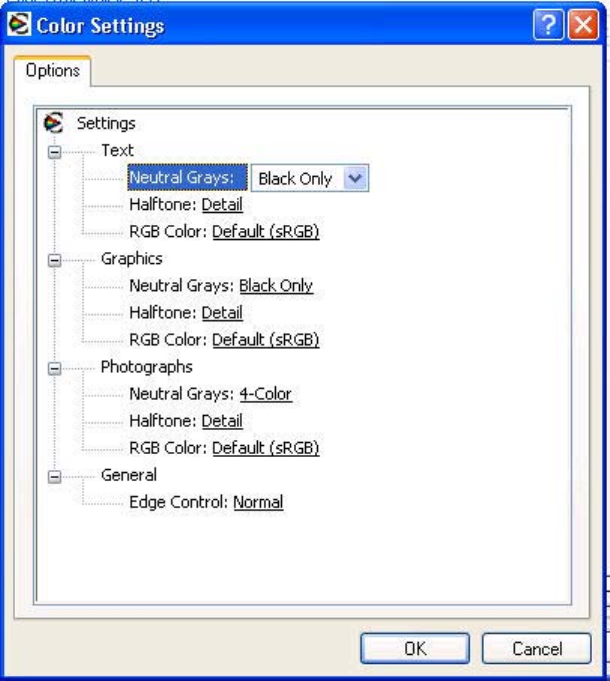
Manual
To change the default coloration settings, select the Manual option, and then click the
Settings button. The Color Settings dialog box appears.
To change the settings, make your selections by using the drop-down menus in the Color
Settings dialog box, and then click OK. The following illustration shows the Color Settings
dialog box:
Figure 4-16. Color settings
192 Color tab EN
The Color Settings dialog box contains controls for each of the following components:
●Text
●Neutral Grays
●Halftone
●RGB Color
●Graphics
●Neutral Grays
●Halftone
●RGB Color
●Photographs
●Neutral Grays
●Halftone
●RGB Color
●General
●Edge Control
Neutral Grays
The Neutral Grays drop-down menu controls the selection of a device-dependent color
table that is embedded in the product firmware. The options are Black Only or 4-Color. You
can adjust the Neutral Grays setting independently for text, graphics, or photographs.
●Black Only. This option generates neutral colors (grays and black) by using only black
toner. This option guarantees that neutral colors do not have a color cast. Black Only
is the default setting for the Text and Graphics components.
●4-Color. This option generates neutral colors by combining all four colors of toner,
which produces smoother gradients and transitions to non-neutral colors. It also
produces the darkest possible black. 4-Color is the default setting for Photographs.
Halftone
The Halftone setting controls the selection of a product-dependent halftone algorithm that is
embedded in the product firmware. The Halftone options, Smooth and Detail, affect the
resolution and clarity of your color output.
●Detail. This option is optimized for the best reproduction of images, graphics, and
large, solid-filled print areas. It also enhances photographs by smoothing out the fine
color gradations. Select this option when the color fidelity of large objects is the top
priority. Detail is the default setting for all components.
●Smooth. This option is optimized for the best readability and sharpness of small text.
EN Chapter 4 HP PCL 6, HP PCL 5c, and HP PS 3 emulation unidrivers for Windows 193

RGB Color
The RGB Color settings affect the color treatment for object types and determines how
colors are rendered. The options are Default (sRGB), Device, and Vivid.
●Default (sRGB). This option interprets RGB color space (sRGB), which is the accepted
standard for many software companies and organizations such as Microsoft and the
Worldwide Web Consortium. Default (sRGB) is the default setting for all components.
●Vivid. This option sets the product to increase the color saturation in the midtones. Less
colorful objects are rendered more colorfully. This value is recommended for printing
business graphics.
●Device. This option sets the product to print RGB data in raw device mode. To render
photographs correctly when this option is selected, you must manage color in the software
program in which you are working or in the operating system.
If your software program converts text and graphics to raster, the Photographs settings also
control the Text and Graphics settings.
General
Use the General setting group to control Edge Control settings for all color printing.
Edge Control determines how edges are rendered. Edge Control consists of three
components: Adaptive Halftoning, Trapping, and C-REt. Adaptive Halftoning increases the edge
sharpness. Trapping reduces the effect of color plane misregistration by slightly overlapping the
edges of adjacent objects. C-REt increases the apparent resolution by placing each dot for the
smoothest edges.
The Edge Control option offers four settings:
●Normal. The Normal setting provides the default trapping settings. Adaptive Halftoning is
set to On, and C-REt is set to On.
●Light. The Light setting provides minimal trapping. Adaptive Halftoning is set to On and C-
REt is set to On.
●Maximum. The Maximum setting provides the most trapping. Adaptive Halftoning is set to
On, and C-REt is set to On.
●Off. The Off setting turns Trapping, Adaptive Halftoning, and C-REt to Off.
Print in Grayscale
Select Print in Grayscale to print a document in black and white. This option is useful for
previewing preliminary copies of slides and hardcopy output quickly or for printing color
documents that will be photocopied or faxed.
Properties tabs
The Properties tabs contain information about and options for configuring the product.
Note
194 Properties tabs EN
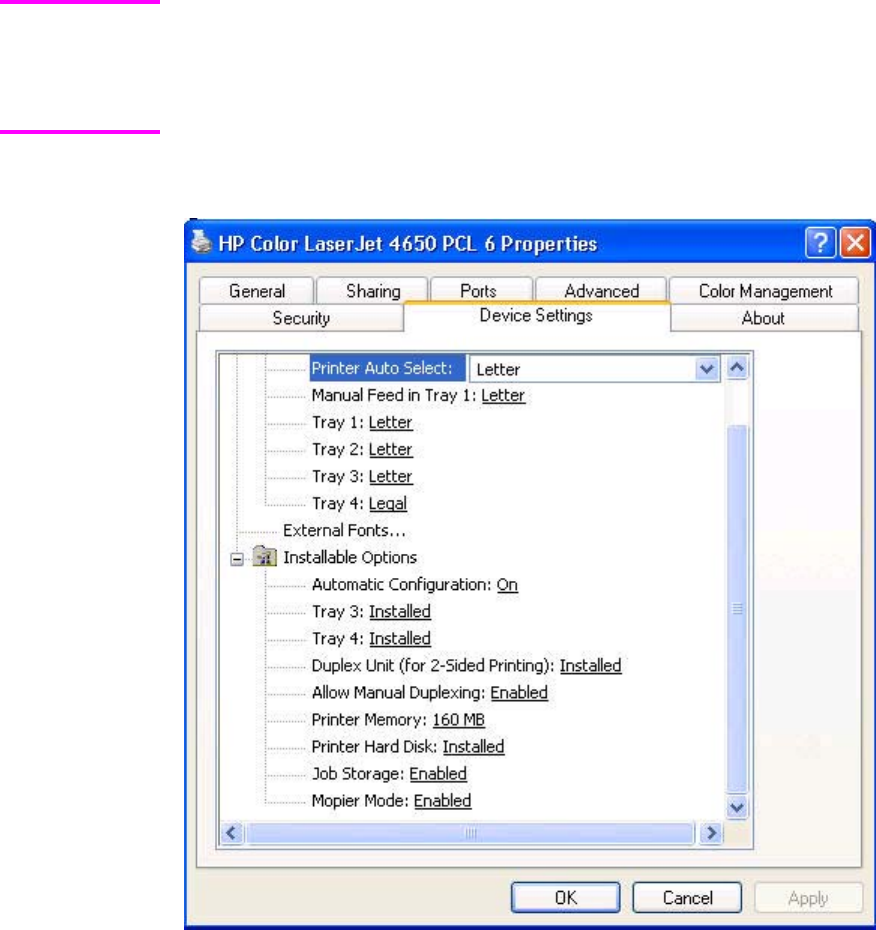
Device Settings
The Device Settings tab is in the Properties for the print driver. To gain access to the print
driver Properties, click Start on the Window task bar, select Settings, and then click Printers
(Windows 2000) or Printers and Faxes (Windows XP Professional and Windows Server 2003)
or Printers and Other Hardware Devices (Windows XP Home). Right-click the product name,
and then click Properties.
Available options depend on the feature. The following illustration shows the Device
Settings tab.
Figure 4-17. Device Settings tab
The Device Settings tab contains controls for media-handling devices and controls for
managing the HP Color LaserJet 4650.
The Device Settings tab contains the following controls:
●Form to Tray Assignment options
●External Fonts option
●Installable Options options
Note
EN Chapter 4 HP PCL 6, HP PCL 5c, and HP PS 3 emulation unidrivers for Windows 195

Form to Tray Assignment
A network administrator can use Form to Tray Assignment to specify the media size in
each input tray.
The HP Color LaserJet 4650 supports more than one source of media. You can assign a form
(which defines the media size and margins) to each of your printer media sources. When a form
is matched to a source, you can select the form when you print. The product prints from the tray
to which that form is assigned.
Network administrators can use the Form to Tray Assignment setting to specify, in the driver,
the media size that is loaded into each available input tray. The use of forms constrains the
choices that are available in the media-size list on the Advanced tab in the Document Defaults
driver tabs. This constraint prevents (or reduces the likelihood of) tying up the printer with media-
mount messages that occur when users request sizes or types that are not available.
The trays listed in the Form to Tray Assignment setting include standard trays and optional
accessory trays. Generally, items that are installed separately have a separate Installable
Options setting. For example, for the HP Color LaserJet 4650 printer, trays 3 and 4 are listed in
both the Form to Tray Assignment setting and the Installable Options setting.
The input trays listed here are also listed as media sources on the Paper/Quality tab.
Configuring the trays
1Select the appropriate tray in the Form to Tray Assignment list.
2Use the drop-down menu to select the media size (or form) that is loaded in that tray.
3Repeat steps 1 and 2 for the remaining trays.
4Click OK to enable your settings, or, if necessary, click the Cancel button to reconfigure all
the trays, and remove the size and type constraints that have been imposed on the Paper/
Quality tab.
External Fonts
The External Fonts option is available only in the HP PCL 6 and HP PCL 5c unidrivers. It is not
available in the PS Emulation Unidriver.
Use the External Fonts option to install and remove external fonts for the product. External
fonts can be soft fonts or DIMM fonts.
Note
196 Properties tabs EN
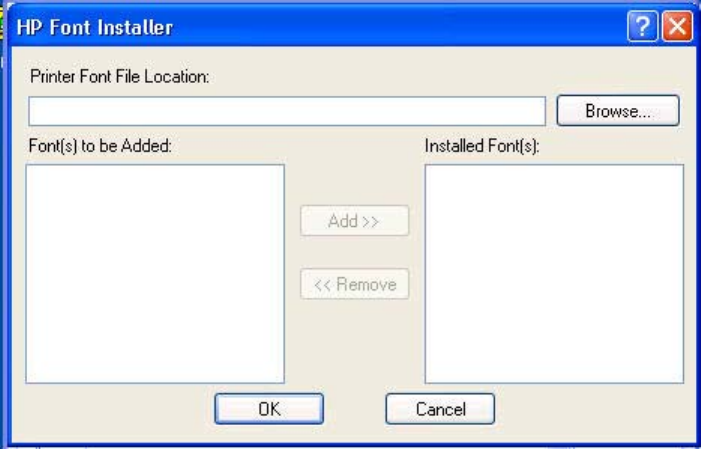
Clicking the External Fonts option causes the Properties button to appear. Clicking the
Properties button opens the Font Installer dialog box, which is shown in the following illustration.
Figure 4-18. Font Installer dialog box
Installing external fonts
Follow these steps to install external fonts.
1Click Start, select Settings, and then click Printers (Windows 2000) or Printers and
Faxes (Windows XP Professional and Windows Server 2003) or Printers and Other
Hardware Devices (Windows XP Home).
2Right-click the name of the product, and then click Properties
3Click the Device Settings tab.
4Click the External Fonts option. The Properties button appears.
5Click the Properties button. The Font Installer dialog box appears.
6Type the name and path of the font metric file in the Printer Font File Location text
box, or click Browse to locate the file on your computer. The font file names appear in
the Font(s) to be Added window.
7Select the fonts that you want to add, and then click Add. The fonts are installed and
the file names appear in the Installed Font(s) window.
8Click OK to close the Font Installer dialog box.
Removing external fonts
1Click Start, select Settings, and then click Printers (Windows 2000) or Printers and
Faxes (Windows XP Professional and Windows Server 2003) or Printers and Other
Hardware Devices (Windows XP Home).
2Right-click the name of the product, and then click Properties
3Click the Device Settings tab.
4Click the External Fonts option. The Properties button appears.
5Click the Properties button. The Font Installer dialog box appears.
EN Chapter 4 HP PCL 6, HP PCL 5c, and HP PS 3 emulation unidrivers for Windows 197
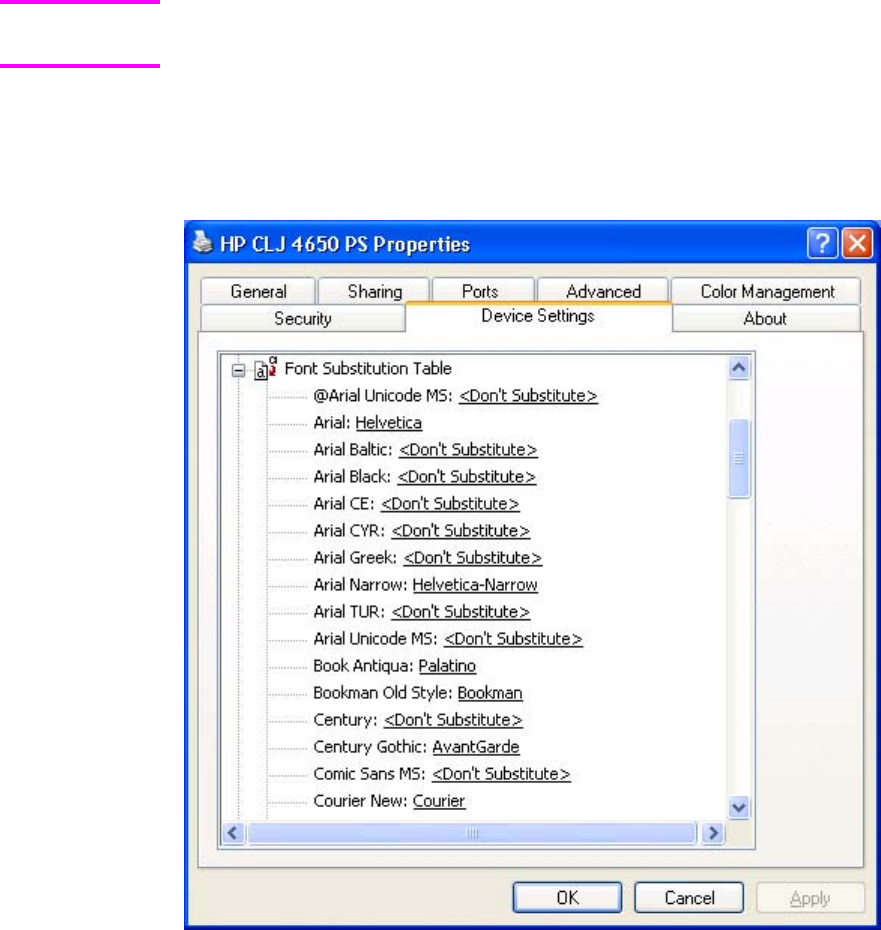
6The external fonts that are installed appear in the Installed Fonts window. Select the
fonts that you want to remove, and then click Remove. The fonts are removed.
7Click OK to close the Font Installer dialog box.
Font Substitution Table
The Font Substitution Table option is available only in the PS Emulation Unidriver. It is not
available in the HP PCL 6 Unidriver or the HP PCL 5c Unidriver.
Use the Font Substitution Table settings to install and remove external fonts for the product.
External fonts can be soft fonts or DIMM fonts.
Clicking the Font Substitution Table option causes a list of fonts to appear, as show in the
following illustration. Use the settings to change the TrueType-to-printer font mappings.
Figure 4-19. Font Substitution Table
Installable Options
This section provides information to configure the printing options that you can install for the
HP Color LaserJet 4650. The following controls are available:
●Automatic Configuration
●Tray 3
●Tray 4
Note
198 Properties tabs EN

●Duplex Unit (for 2-Sided Printing)
●Allow Manual Duplexing
●Printer Memory
●Printer Hard Disk
●Job Storage
●Mopier Mode
●Postscript Passthrough (PS Emulation Unidriver only)
Automatic Configuration
Tray 3
This control specifies whether you have Tray 3, an additional 500-sheet media feeder,
installed on your product. The default setting is Not Installed. In order to use Tray 3, you
must change this setting to Installed.
Tray 4
This control specifies whether you have Tray 4, an additional 500-sheet media feeder,
installed on your product. The default setting is Not Installed. In order to use Tray 4, you
must change this setting to Installed.
Duplex Unit (for 2-Sided Printing)
The HP Color LaserJet 4650dn, 4650dtn, and 4650hdn series printers come with a duplex
unit installed. This setting is enabled (Installed) by default.
The HP Color LaserJet 4650 printer supports smart duplexing. The product uses the smart
duplexing feature to detect information on both sides of the print job pages and only runs the
pages through the duplexing unit if there is printable information on the second side of the
page.
Allow Manual Duplexing
Some printer models do not support automatic 2-sided printing. However, you can print on
both sides of a page using manual 2-sided printing when this option is enabled.
Printer Memory
This option matches the setting to the amount of memory that is installed in the product. The
driver generates ranges of memory that can be selected, up to the maximum that the
product can accept. The driver can use this information to manage how the print driver uses
the product memory.
When a minimum total memory of 288 MB is installed, the Stored Job option and the
Mopier Mode are enabled in the print driver. The Stored Job option allows you to store print
jobs, and then print them later from the control panel. The multiple-original print (mopy)
function is an HP-designed feature that produces multiple, collated copies from a single print
job.
Printer Hard Disk
When this option is enabled, the Stored Job option and the Mopier Mode are enabled in
the print driver. The Stored Job option allows you to store print jobs, and then print them
later from the control panel. The multiple-original print (mopy) function is an HP-designed
feature that produces multiple, collated copies from a single print job.
Note
EN Chapter 4 HP PCL 6, HP PCL 5c, and HP PS 3 emulation unidrivers for Windows 199
Only the HP Color LaserJet 4650hdn comes with a hard disk installed.
Job Storage
If your HP Color LaserJet 4650 is equipped with a hard disk drive, the Job Storage option
should be enabled and all job storage options are available. If your HP Color LaserJet 4650 is
not equipped with a hard disk drive but has a minimum of 288 MB of memory, limited job storage
options are available. When job storage is enabled, the product can store print jobs so that you
can gain access to those print jobs later at the control panel.
Mopier Mode
The multiple-original print (mopy) function is an HP-designed feature that produces multiple,
collated copies from a single print job. Multiple-original printing (mopying) increases performance
and reduces network traffic by transmitting the job to the printer once, and then storing it in the
printer hard disk. The remainder of the copies are printed at the fastest speed. All documents
that are printed in mopier mode can be created, controlled, managed, and finished from the
computer, which eliminates the extra step of using a photocopier.
When you use the HP PCL 6, HP PCL 5c, or PS Emulation unidriver, mopying is performed in
one of two ways, either through the software or through the product hardware. When the mopier
is enabled, mopying takes place through the product hardware by default. One copy of a multiple-
page print job is transmitted once through the network to the product, together with a printer job
language (PJL) command directing the product to make the specified number of copies.
When you disable the mopier, you are not necessarily disabling mopying, which can still be
performed by the driver through the software rather than the product hardware (the mopying
path that is disabled when you change the Mopy Mode setting to Disabled). However, a
multiple-copy print job sent with the mopier disabled loses the advantage of transmitting the print
job once, since the print job is sent through the network as many times as the number of copies
selected.
Mopier mode and collation
Mopying and collating print jobs are independent but closely related functions. Mopying, the
ability to send original print jobs to the product, is performed by the print driver. Collating can be
controlled by either the print driver or the document software program. The mopying mode is
selected by default in the driver, and can be disabled by changing the Mopier Mode setting on
the Device Settings tab to Disabled.
You can control collation through the print driver by selecting or clearing the Collated check box
on the Advanced tab. You can clear the check box, which is available only when the Copy
Count option is set to more than 1 copy, to allow the software program to control collation.
To receive uncollated multiple copies of a print job, you must clear the Collated check box and
make sure that the software program collation feature is not selected.
The following table shows the relation between mopier mode settings and collation settings in
the software program and the driver. The first three columns show the settings; the last column,
"Expected result", shows how a 3-page print job would appear.
Table 4-3. Driver Mopier mode and collation settings
Mopier mode Application collation Driver collation Expected result
Disabled Not selected Not selected 3 copies uncollated
Disabled Not selected Selected 3 copies uncollated
Disabled Selected Not selected 3 copies collated
200 Properties tabs EN

Mopier mode Application collation Driver collation Expected result
Disabled Selected Selected 3 copies collated
Enabled Not selected Not selected 3 copies uncollated
Enabled Not selected Selected 3 copies uncollated
Enabled Selected Not selected 3 copies collated
Enabled Selected Selected 3 copies collated
Table 4-3. Driver Mopier mode and collation settings (continued)
EN Chapter 4 HP PCL 6, HP PCL 5c, and HP PS 3 emulation unidrivers for Windows 201
202 Properties tabs EN

5
Installing Windows printing-
system components
Introduction
The information that follows discusses these topics:
●Supported Windows operating systems
●System requirements
●Font support
●General Windows installation instructions
●Detailed Windows installation instructions
●Setting a default printer
Supported Windows operating systems
The HP Color LaserJet 4650 printing-system software supports the following Windows
operating systems:
●Windows 98
●Windows Me
●Windows NT 4.0 (parallel and networked only)
●Windows 2000 (32-bit)
●Windows XP Home Edition (32-bit)
●Windows XP Professional (32-bit and 64-bit)
●Windows Server 2003 (32-bit and 64-bit)
If your computer is running a 64-bit Windows OS, you must install the corresponding 64-bit
print driver. For instructions, see Installing print drivers by using Add Printer.
The HP Color LaserJet 4650 has not been tested with and does not support the Windows
3.1x or Windows 95 operating systems.
Note
EN Chapter 5 Installing Windows printing-system components 203
System requirements
The following are the system requirements for installing and using the HP Color LaserJet 4650
printing-system software on each of the supported operating systems:
●Pentium (R) or compatible processor
●Minimum 16-color/grayscale display with 640-by-480 pixel resolution (video graphics array
[VGA])
●Same amount of RAM as the minimum requirements for the operating system
●93 MB of available hard-disk space (on the same partition as the operating system) for full
installation
●Onboard parallel port or network connection
Font support
The following sections list the fonts that are included with Microsoft Windows software, and the
fonts that are available on the CD that came with the product.
Basic fonts
Microsoft Windows software includes these basic fonts, which can be used with any HP printing
product:
●Arial
●Courier New Italic
●Times New Roman Italic
●Arial Italic
●Courier New Bold
●Times New Roman Bold
●Arial Bold
●Courier New Bold Italic
●Times New Roman Bold Italic
●Arial Bold Italic
●Symbol
●Wingdings
●Courier New
●Times New Roman
Default fonts
The following default fonts are installed through a Typical Installation of the
HP Color LaserJet 4650 printing-system software.
204 System requirements EN

Table 5-1. Default fonts
File name Font name
ALBR85W.TTF Albertus Extra Bold
ALBR55W.TTF Albertus Medium
OLVR55W.TTF Antique Olive
OLVR75W.TTF Antique Olive Bold
OLVR56W.TTF Antique Olive Italic
CGOR45W.TTF CG Omega
CGOR65W.TTF CG Omega Bold
CGOR66W.TTF CG Omega Bold Italic
CGOR46W.TTF CG Omega Italic
CGTR45W.TTF CG Times
CGTR65W.TTF CG Times Bold
CGTR66W.TTF CG Times Bold Italic
CGTR46W.TTF CG Times Italic
CLAR67W.TTF Clarendon Condensed Bold
CORONET.TTF Coronet
CPSR45W.TTF CourierPS
CPSR65W.TTF CourierPS Bold
CPSR66W.TTF CourierPS Bold Oblique
CPSR46W.TTF CourierPS Oblique
GARR45W.TTF Garamond
GARR65W.TTF Garamond Bold
GARR46W.TTF Garamond Italic
GARR66W.TTF Garamond Kursiv Halbfett
HELR45W.TTF Helvetica (R)
HELR65W.TTF Helvetica Bold
HELR66W.TTF Helvetica Bold Oblique
HELR47W.TTF Helvetica Narrow
HELR67W.TTF Helvetica Narrow Bold
HELR68W.TTF Helvetica Narrow Bold Oblique
HELR48W.TTF Helvetica Narrow Oblique
HELR46W.TTF Helvetica Oblique
AVGR45W.TTF ITC Avant Garde Gothic Book
AVGR46W.TTF ITC Avant Garde Gothic Book Oblique
EN Chapter 5 Installing Windows printing-system components 205

File name Font name
AVGR65W.TTF ITC Avant Garde Gothic Demi
AVGR66W.TTF ITC Avant Garde Gothic Demi Oblique
BOKR75W.TTF ITC Bookman Demi
BOKR76W.TTF ITC Bookman Demi Italic
BOKR35W.TTF ITC Bookman Light
BOKR36W.TTF ITC Bookman Light Italic
CHANC___.TTF ITC Zapf Chancery Medium Italic
DINGS___.TTF ITC Zapf Dingbats
LETR45W.TTF Letter Gothic
LETR65W.TTF Letter Gothic Bold
LETR46W.TTF Letter Gothic Italic
MARIGOLD.TTF Marigold
NCSR75W.TTF New Century Schoolbook Bold
NCSR76W.TTF New Century Schoolbook Bold Italic
NCSR56W.TTF New Century Schoolbook Italic
NCSR55W.TTF New Century Schoolbook Roman
PALR65W.TTF Palatino Bold
PALR66W.TTF Palatino Bold Italic
PALR46W.TTF Palatino Italic
PALR45W.TTF Palatino Roman
SYMPS__.TTF SymbolPS
TIMR65W.TTF Times* Bold
TIMR66W.TTF Times Bold Italic
TIMR46W.TTF Times Italic
TIMR45W.TTF Times Roman
UNVR65W.TTF Univers Bold
UNVR66W.TTF Univers Bold Italic
UNVR67W.TTF Univers Condensed Bold
UNVR68W.TTF Univers Condensed Bold Italic
UNVR57W.TTF Univers Condensed Medium
UNVR58W.TTF Univers Condensed Medium Italic
UNVR55W.TTF Univers Medium
UNVR56W.TTF Univers Medium Italic
Table 5-1. Default fonts (continued)
206 Default fonts EN

Ninety-two additional PS emulation fonts are also available on the CD.
Table 5-2. Additional PS emulation fonts
File name Font name
PS_12639.TTF Albertus MT
PS_12640.TTF Albertus MT Italic
PS_14530.TTF Albertus MT Light
PS-11120.TTF Antique Olive CompactPS
PS_11119.TTF Antique Olive Roman
PS_11118.TTF Antique Olive Roman Bold
PS_11846.TTF Antique Olive Roman Italic
PS_24516.TTF Apple Chancery Italic
PS_12704.TTF Bodoni Poster
PS_14508.TTF Bodoni PosterCompressed
PS_12581.TTF BodoniPS
PS_12585.TTF BodoniPS Bold
PS_12586.TTF BodoniPS Bold Italic
PS_12582.TTF BodoniPS Italic
PS_24517.TTF Candid
PS_24518.TTF Chicago
PS_14513.TTF Clarendon Light
PS_10269.TTF ClarendonPS
PS_12968.TTF ClarendonPS Bold
PS_10369.TTF Cooper Black
PS_10370.TTF Cooper Black Italic
PS_14514.TTF Copperplate32bc
PS_14515.TTF Copperplate33bc
PS_10249.TTF Coronet
PS_10267.TTF Eurostile
PS_10268.TTF Eurostile Bold
PS_14512.TTF Eurostile Bold ExtendedTwo
PS_14511.TTF Eurostile ExtendedTwo
PS_10267.TTF Eurostile Medium
PS_24509.TTF Geneva
PS_13872.TTF GillSans
PS_13874.TTF GillSans Bold
EN Chapter 5 Installing Windows printing-system components 207

File name Font name
PS_13875.TTF GillSans Bold Italic
PS_14053.TTF GillSans Condensed
PS_14054.TTF GillSans Condensed Bold
PS_14051.TTF GillSans ExtraBold
PS_13873.TTF GillSans Italic
PS_13870.TTF GillSans Light
PS_13871.TTF GillSans Light Italic
PS_12542.TTF Goudy
PS_12544.TTF Goudy Bold
PS_10695.TTF Goudy Bold Italic
PS_12545.TTF Goudy ExtraBold
PS_12543.TTF Goudy Italic
PS_14526.TTF Helvetica Condensed
PS_14528.TTF Helvetica Condensed Bold
PS_14529.TTF Helvetica Condensed Bold Italic
PS_14527.TTF Helvetica Condensed Italic
PS_24519.TTF Hoefler Text
PS_24521.TTF Hoefler Text Black
PS_24522.TTF Hoefler Text Black Italic
PS_24520.TTF Hoefler Text Italic
PS_24523.TTF Hoefler Text Ornaments
PS_14503.TTF Joanna MT
PS_14505.TTF Joanna MT Bold
PS_14506.TTF Joanna MT Bold Italic
PS_14504.TTF Joanna MT Italic
PS_13778.TTF Letter Gothic Italic
PS_13777.TTF Letter GothicPS
PS_13779.TTF Letter GothicPS Bold
PS_13780.TTF Letter GothicPS Bold Italic
PS_12675.TTF Lubalin Graph
PS_12677.TTF Lubalin Graph Bold
PS_12625.TTF Lubalin Graph Bold Italic
PS_12623.TTF Lubalin Graph Italic
PS_94073.TTF Marigold
Table 5-2. Additional PS emulation fonts (continued)
208 Default fonts EN

File name Font name
PS_14525.TTF Mona Lisa Recut
PS_24524.TTF Monaco
PS_24510.TTF New York
PS_12506.TTF Optima
PS_12510.TTF Optima Bold
PS_12511.TTF Optima Bold Italic
PS_12507.TTF Optima Italic
PS_14072.TTF Oxford Italic
PS_11546.TTF Stempel Garamond Roman Italic
PS_11545.TTF Stempel Garamond Roman
PS_11547.TTF Stempel Garamond Roman Bold
PS_11548.TTF Stempel Garamond Roman Bold Italic
PS_14507.TTF Taffy
PS_13501.TTF Univers 45 Light
PS_14023.TTF Univers 45 Light Bold
PS_14024.TTF Univers 45 Light Bold Italic
PS_13502.TTF Univers 45 Light Italic
PS_14030.TTF Univers 47 Condensed Light Bold
PS_14040.TTF Univers 47 Condensed Light Bold Italic
PS_14021.TTF Univers 55
PS_14022.TTF Univers 55 Italic
PS_14029.TTF Univers 57 Condensed
PS_14039.TTF Univers 57 Condensed Italic
PS_13548.TTF Univers Extended Italic
PS_13547.TTF Univers ExtendedPS
PS_14481.TTF Univers ExtendedPS Bold Italic
PS_14480.TTF Univers ExtendedPS Italic
Installation instructions
The following sections provide instructions for installing the printer drivers on various
Windows operating systems.
Table 5-2. Additional PS emulation fonts (continued)
EN Chapter 5 Installing Windows printing-system components 209

General installation for Windows 98, Me,
NT 4.0, 2000, and XP
General installation instructions are similar for the Windows 98, Windows Me, Windows NT 4.0,
Windows 2000, and Windows XP operating systems.
If the HP Color LaserJet 4650 is connected through a file or print server, the printing-system
software must first be installed on the server before being installed on any client systems. If the
HP LaserJet printing-system software is not first installed on the server, then bidirectional
communication, some driver autoconfiguration methods, and the HP Toolbox are not available to
the client systems.
For Windows NT 4.0, Windows 2000, and Windows XP, administrator rights on the system are
necessary to install the software.
When the HP Color LaserJet 4650 printing-system installer runs, the HP LaserJet uninstaller is
always added to the system.
Installing from the printing-system CD
Follow these instructions to install the HP Color LaserJet 4650 printing system from the CD that
came with your product.
1Close all programs that are open on your computer.
2Insert the CD in the CD-ROM drive.
If your CD does not start automatically, click Start, click Run, and then browse to and double-
click the SETUP.EXE file in the root directory of the CD.
3Click Install Printer and follow the onscreen prompts.
Installing from a network or from downloaded files
Follow these instructions if you downloaded the files from the Web, or if you are installing the
printing system files from a network. You might need to see your network administrator for the
location of the printing-system software file.
1Browse to the location of the SETUP.EXE file.
2Double-click the SETUP.EXE file.
3Click Install Printer and continue to follow the instructions until the printer is installed. For
detailed installation instructions, see Detailed Windows installation .
Detailed Windows installation
This section provides information about the installation dialog box sequence for installing the
HP Color LaserJet 4650 printing-system software in Microsoft Windows environments. You can
choose to install the software by using either a typical installation or a custom installation.
Note
210 General installation for Windows 98, Me, NT 4.0, 2000, and XP EN

Typical Installation dialog box sequence
The dialog boxes shown in this chapter appear in the Windows XP Pro installation sequence.
The order and appearance of dialog boxes can vary among operating systems.
The typical installation includes the following components:
●HP Color LaserJet 4650 PCL 6 driver.
●Screen fonts.
The following illustration represents an overall path through the installation process. It is
intended as a reference only; selections and setups will vary.
Note
EN Chapter 5 Installing Windows printing-system components 211
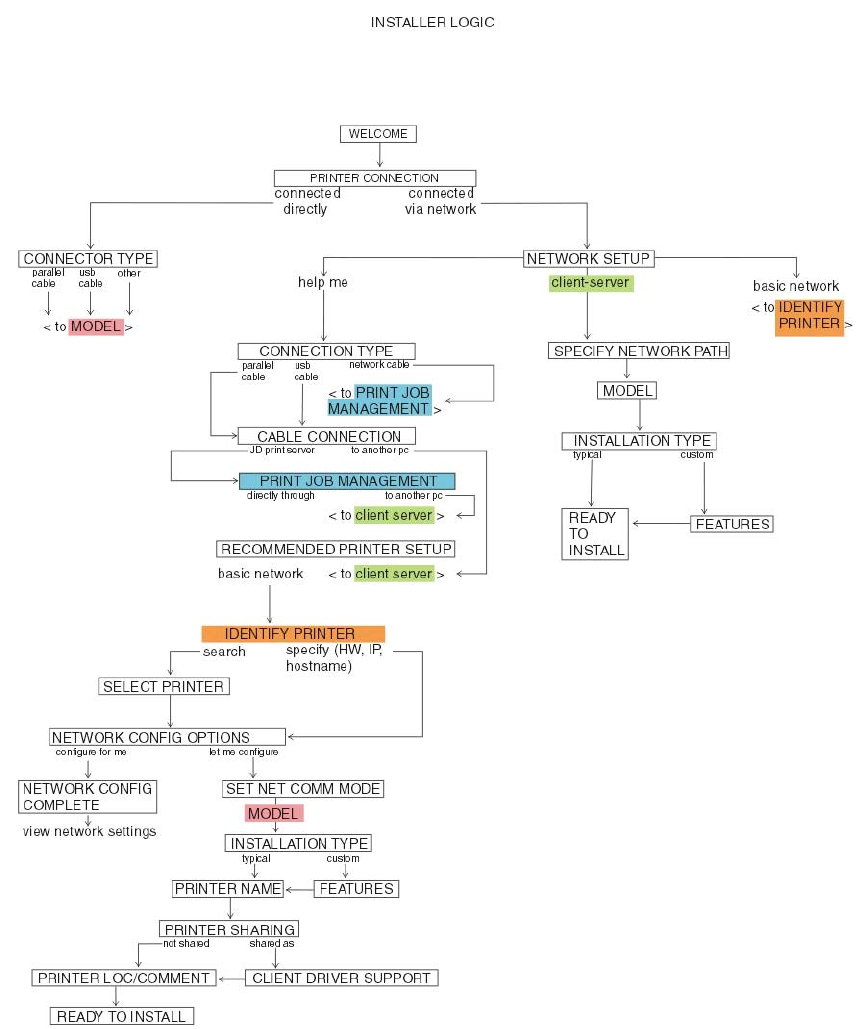
Figure 5-1. Installation path
212 Detailed Windows installation EN
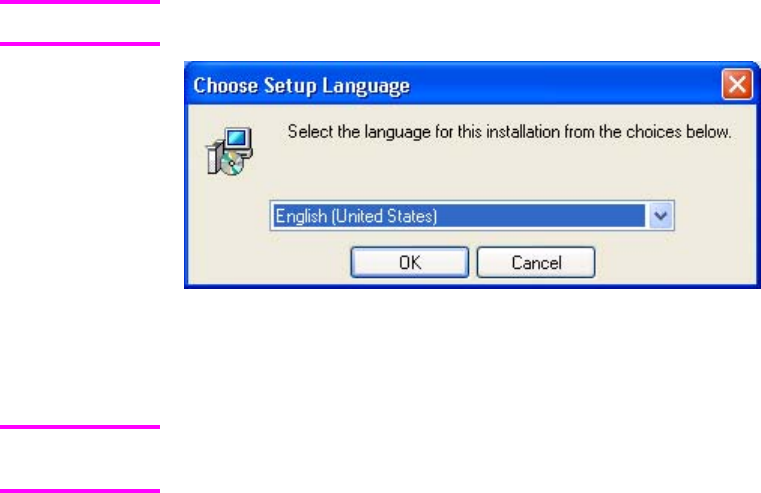
The components of a typical installation might vary from product to product.
Figure 5-2. Choose Setup Language dialog box
When you select the Install Printer option from the HP Color LaserJet 4650 software CD,
the Choose Setup Language dialog box appears.
The Choose Setup Language dialog box lists only the languages that are available on the
HP Color LaserJet 4650 software CD.
The installer automatically detects the language that your computer system uses and
presents this selection as the default.
You can select another language that is available on the CD by clicking the down arrow in
the drop-down menu.
Clicking OK initiates the printing system setup.
Clicking Cancel takes you to the Exit Setup dialog box.
Note
Note
EN Chapter 5 Installing Windows printing-system components 213
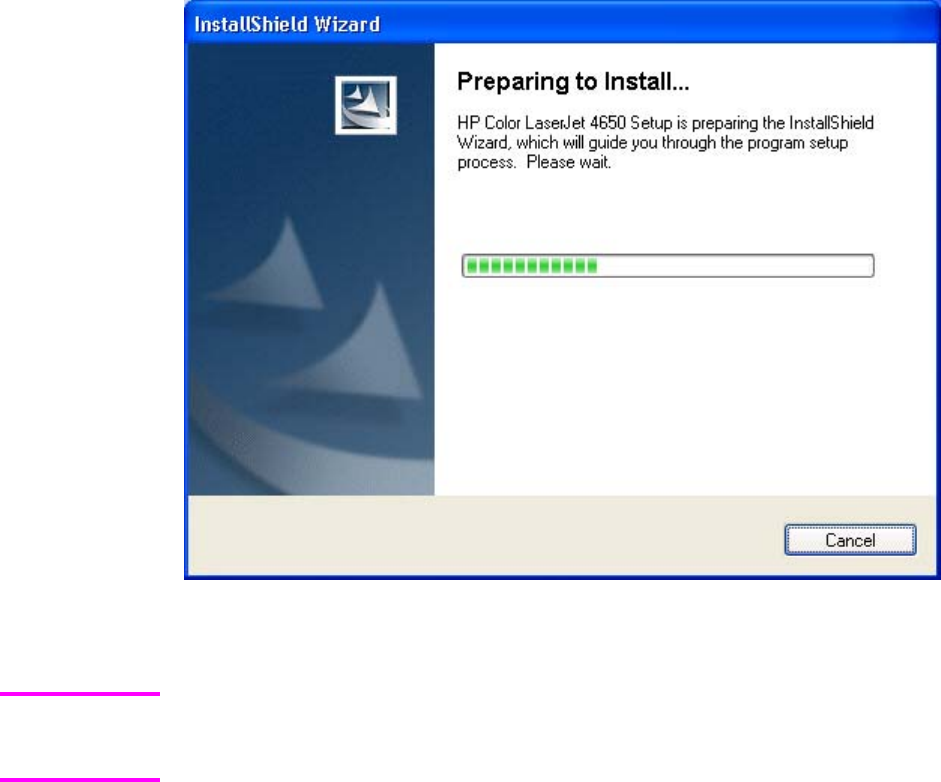
Figure 5-3. Preparing to Install dialog box
Next, the Preparing to Install dialog box appears.
While the Preparing to Install dialog box appears, the installer is decompressing files into the
system TEMP directory. The elapsed time to complete this action depends upon the
performance of your system.
Clicking Cancel takes you to the Exit Setup dialog box.
Note
214 Detailed Windows installation EN
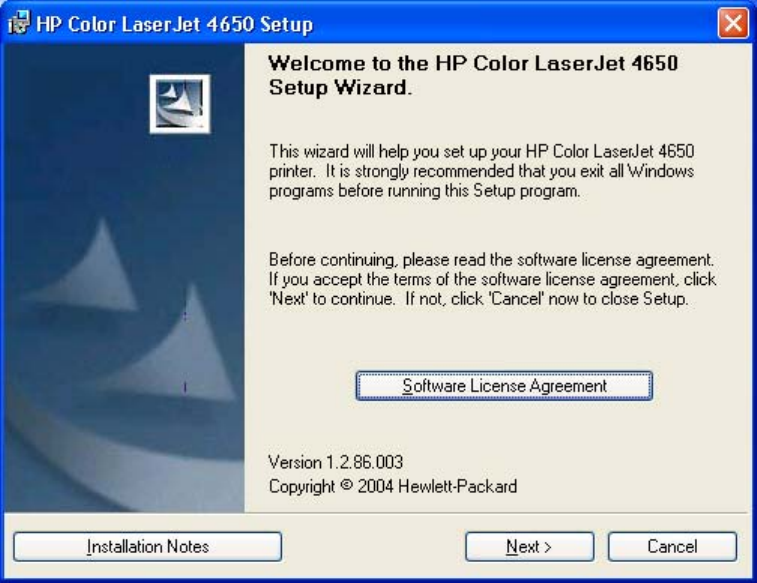
Figure 5-4. Welcome dialog box
Clicking Software License Agreement takes you to the HP Software License Agreement
dialog box.
Clicking Installation Notes opens the file LJ4650_INSTALL_NOTES_ENWW.RTF
Clicking Next takes you to the Type of Connection dialog box.
Clicking Cancel takes you to the Exit Setup dialog box.
EN Chapter 5 Installing Windows printing-system components 215
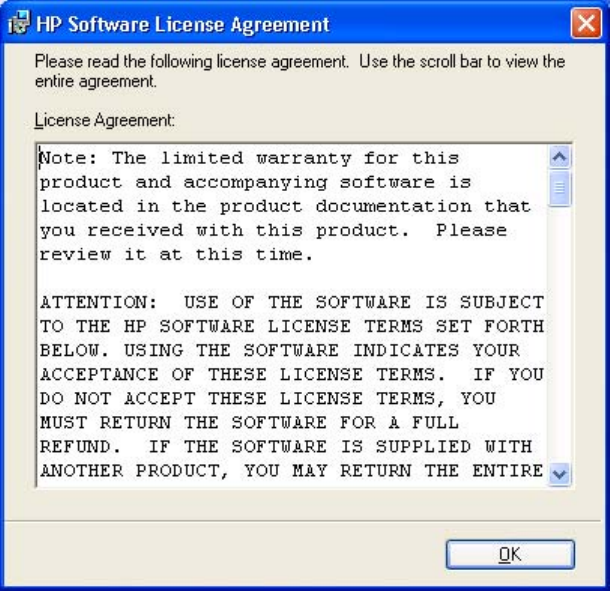
Figure 5-5. HP Software License Agreement dialog box
Clicking OK takes you back to the Welcome dialog box.
216 Detailed Windows installation EN
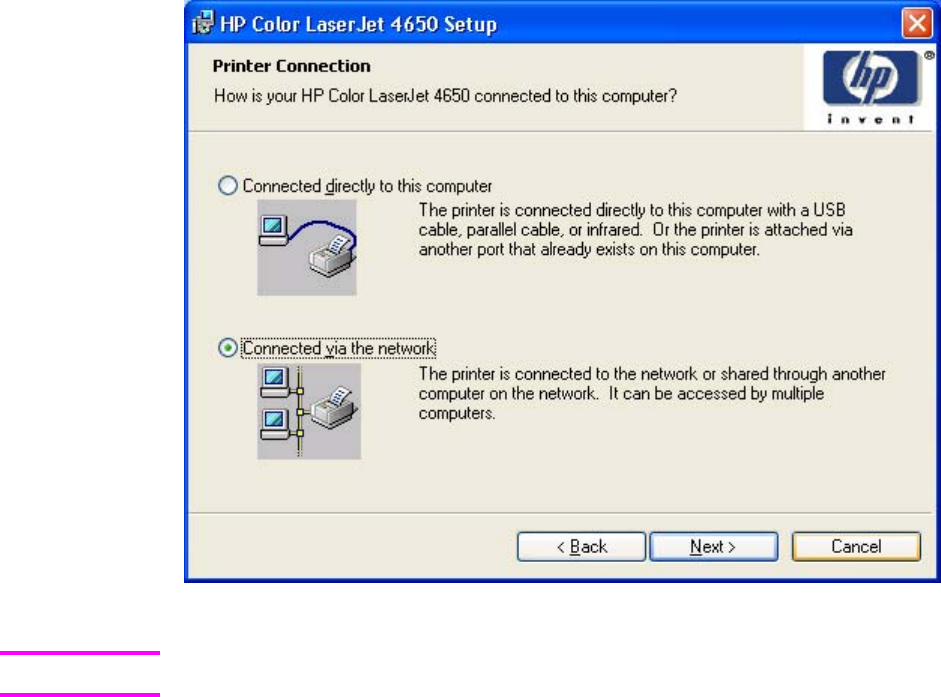
Figure 5-6. Printer Connection dialog box
The product does not support infrared connections.
If you select Connected directly to this computer (a "direct connection" using a parallel
cable or universal serial bus cable), clicking Next takes you to the Connection Type dialog
box, and then to the Model dialog box. This is the default option.
If you select Connected via the network, clicking Next takes you to the Network Setup
dialog box.
Clicking Back returns you to the HP Color LaserJet 4650 Welcome dialog box.
Clicking Cancel takes you to the Exit Setup dialog box.
Note
EN Chapter 5 Installing Windows printing-system components 217
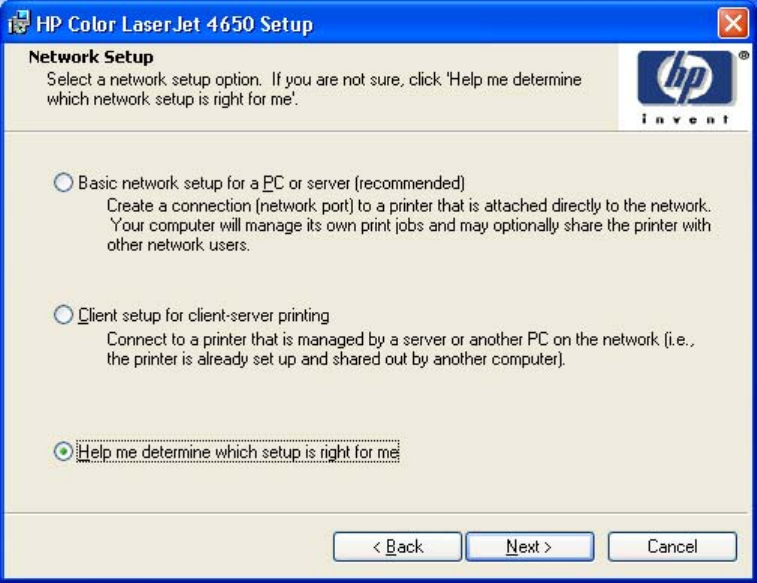
Figure 5-7. Network Setup dialog box
If you select Basic network setup for a PC or server, clicking Next takes you to the Specify
Network Path dialog box, and then to the Installation Type dialog box.
If you select Client setup for client-server printing, clicking Next initiates a series of question
dialog boxes that help you determine the best connection-type option to follow. This series
begins with the Cable Type Selection dialog box.
If you select Help me determine which setup is right for me, clicking Next takes you to the
Connection Type dialog box.
Clicking Back returns you to the Network Setup dialog box.
Clicking Cancel takes you to the Exit Setup dialog box.
218 Detailed Windows installation EN
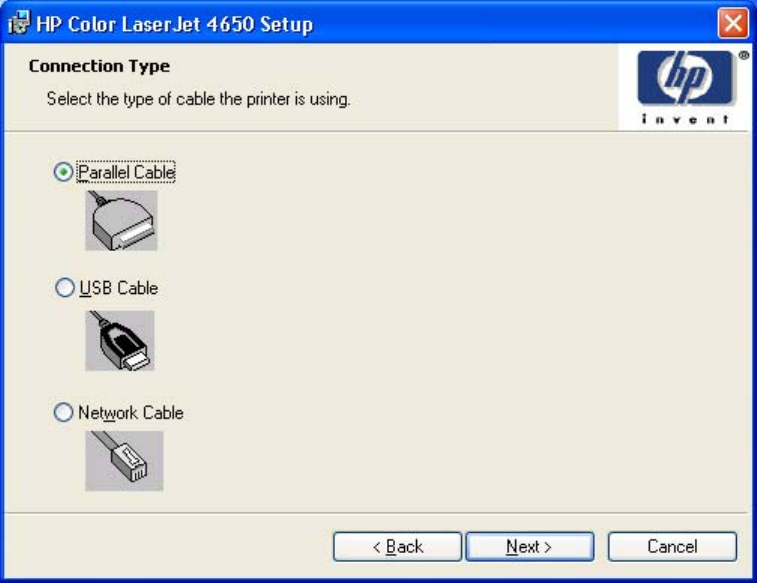
Figure 5-8. Connection type dialog box
Clicking Parallel Cable and then clicking Next takes you to the Cable Connection dialog
box.
Clicking USB Cable and then clicking Next takes you to the Cable Connection dialog box.
Clicking Network Cable and then clicking Next takes you to the Print Job Management
dialog box.
Clicking Back takes you to the either the Print Job Management dialog box or the Cable
Connection dialog box, depending on your previous selections.
Clicking Cancel takes you to the Exit Setup dialog box.
EN Chapter 5 Installing Windows printing-system components 219
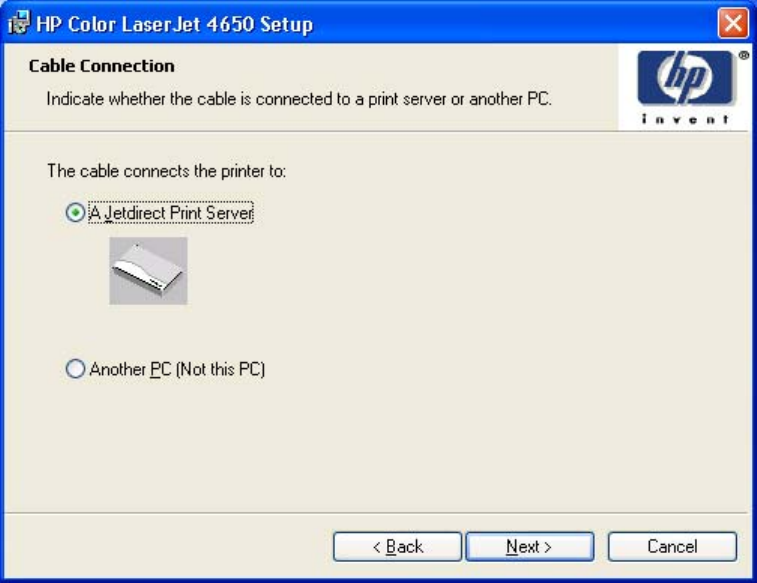
Figure 5-9. Cable Connection dialog box
Clicking A Jetdirect Print Server, and then clicking Next takes you to the Print Job
Management dialog box.
Clicking Another PC (not this PC), and then Next takes you to the Recommended Network
Setup for client-server printing dialog box.
Clicking Back takes you to the Connection Type dialog box.
Clicking Cancel takes you to the Exit Setup dialog box.
220 Detailed Windows installation EN
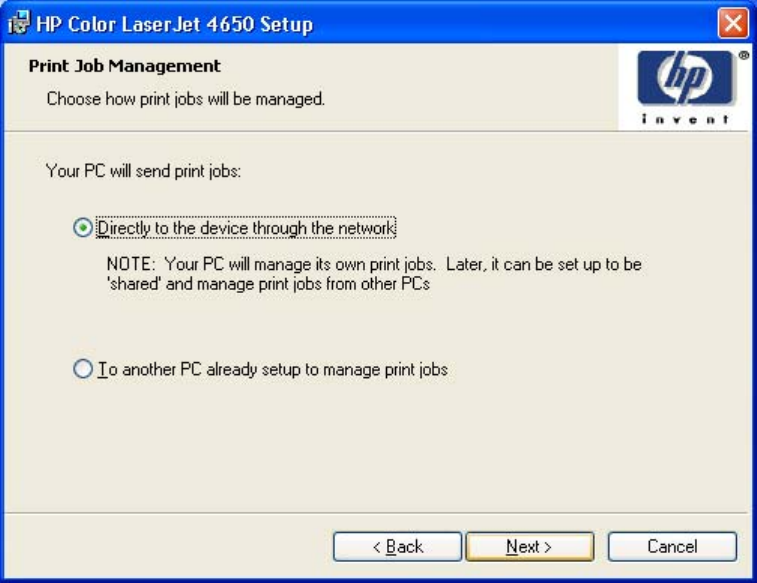
Figure 5-10. Print Job Management dialog box
Clicking either selection takes you to the Recommended Network Setup dialog box.
Clicking Cancel takes you to the Exit Setup dialog box.
EN Chapter 5 Installing Windows printing-system components 221
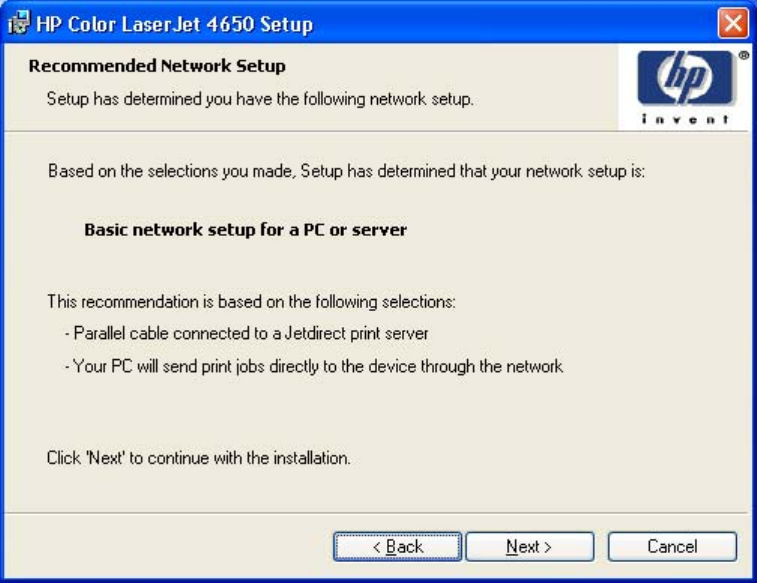
Figure 5-11. Recommended Network Setup dialog box
Clicking Next takes you to the Identify Printer dialog box.
Clicking Back takes you to either the Cable Connection dialog box or the Network Setup
dialog box, depending on the option you selected in the previous dialog box.
Clicking Cancel takes you to the Exit Setup dialog box.
222 Detailed Windows installation EN
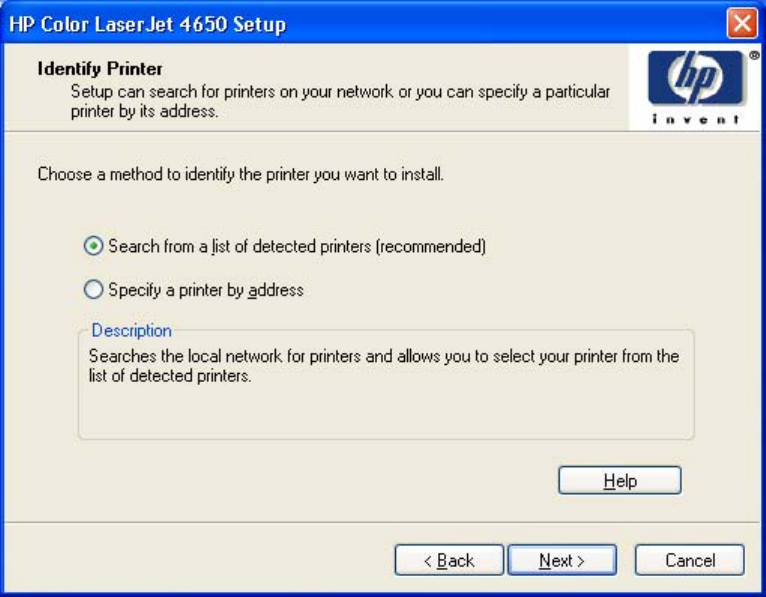
Figure 5-12. Identify Printer dialog box
Clicking Help takes you to context-sensitive HTML help.
Clicking Search from a list of detected printers (recommended), and then clicking Next
takes you to the Select Printer dialog box. The search returns a list of networked products.
Clicking Specify a printer by address and then clicking Next takes you to the Specify
Printer dialog box.
Clicking Cancel takes you to the Exit Setup dialog box.
EN Chapter 5 Installing Windows printing-system components 223
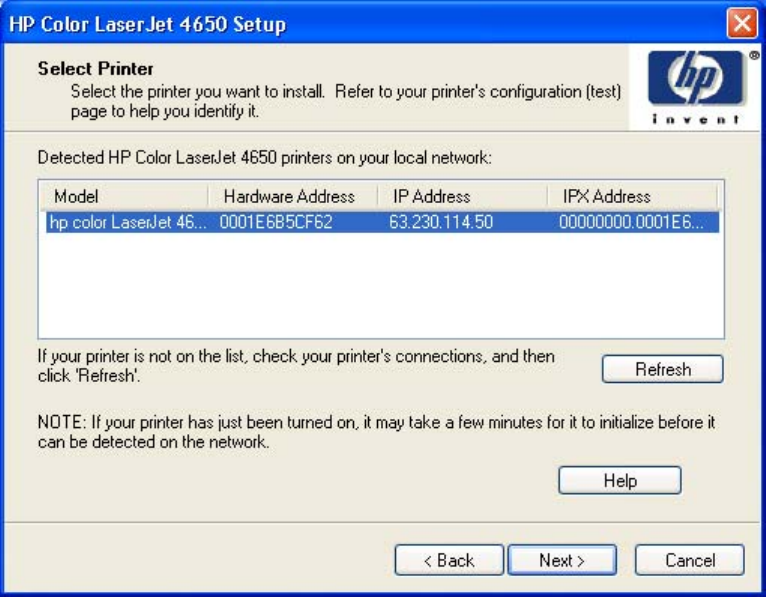
Figure 5-13. Select Printer dialog box
A dialog box appears, stating that the installer is searching the network for available printers.
After the search is complete, the Select Printer dialog box appears.
Clicking Help takes you to context sensitive HTML help.
Clicking Back takes you to the Identify Printer dialog box.
Clicking Next takes you to the Network Configuration Options dialog box.
Clicking Cancel takes you to the Exit Setup dialog box.
224 Detailed Windows installation EN
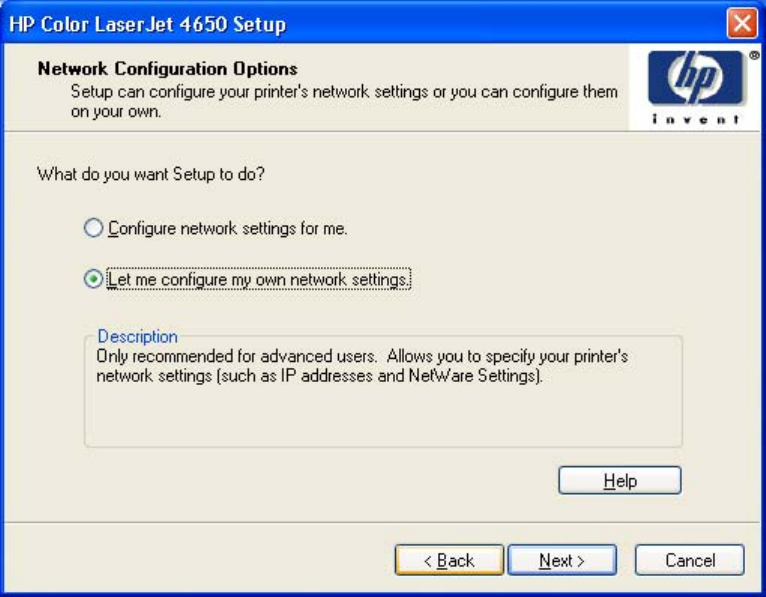
Figure 5-14. Network Configuration Options dialog box
Clicking Configure network setting for me, and then clicking Next takes you to the
Network Configuration Complete dialog box. In that dialog box, clicking View Network
Settings takes you to a list of network settings. Then, clicking OK returns you to the
Network Configuration Complete dialog box.
Clicking Let me configure my own network settings, and then clicking Next takes you to
the Set Network Communication Mode dialog box.
Clicking Help takes you to context-sensitive HTML Help.
Clicking Back takes you to the Network Configuration Options dialog box.
Clicking Cancel takes you to the Exit Setup dialog box.
EN Chapter 5 Installing Windows printing-system components 225
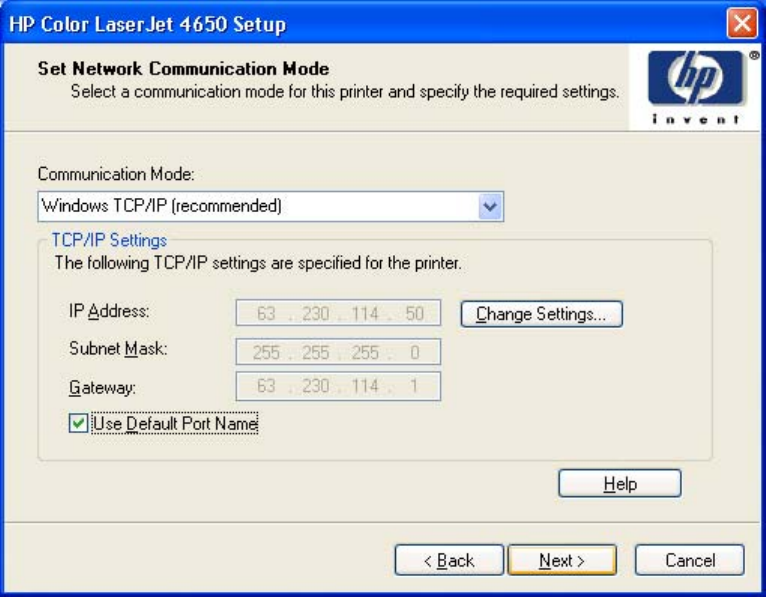
Figure 5-15. Set Network Communication Mode dialog box
Clicking Change Settings... takes you to the Change Settings dialog box, where you can type
a different IP Address, Subnet Mask, and Gateway address. Clicking OK returns you to the Set
Network Communications dialog box.
Clicking Next takes you to the Model dialog box or the Network Configuration Complete
dialog box, depending on your previous selections.
Clicking Back returns you to the Select Port dialog box when you are performing a direct
connection installation, or to the Set Network Communication Mode dialog box when you are
performing a network installation.
Clicking Cancel takes you to the Exit Setup dialog box.
226 Detailed Windows installation EN
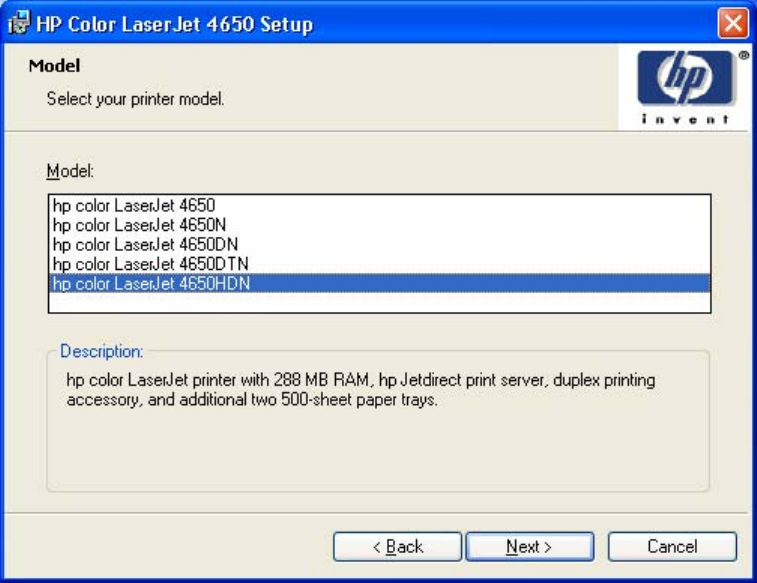
Figure 5-16. Model dialog box
Clicking Back takes you to the Connection Type dialog box.
Clicking Next takes you to the Installation Type dialog box.
Clicking Cancel takes you to the Exit Setup dialog box.
EN Chapter 5 Installing Windows printing-system components 227

Figure 5-17. Installation Type dialog box
The components of a Typical Installation might vary from product to product.
Clicking Typical Installation (Recommended) and then clicking Next, takes you to the Printer
Name dialog box.
Clicking Custom Installation and then clicking Next, opens the Features dialog box.
Clicking Cancel takes you to the Exit Setup dialog box.
Note
228 Detailed Windows installation EN
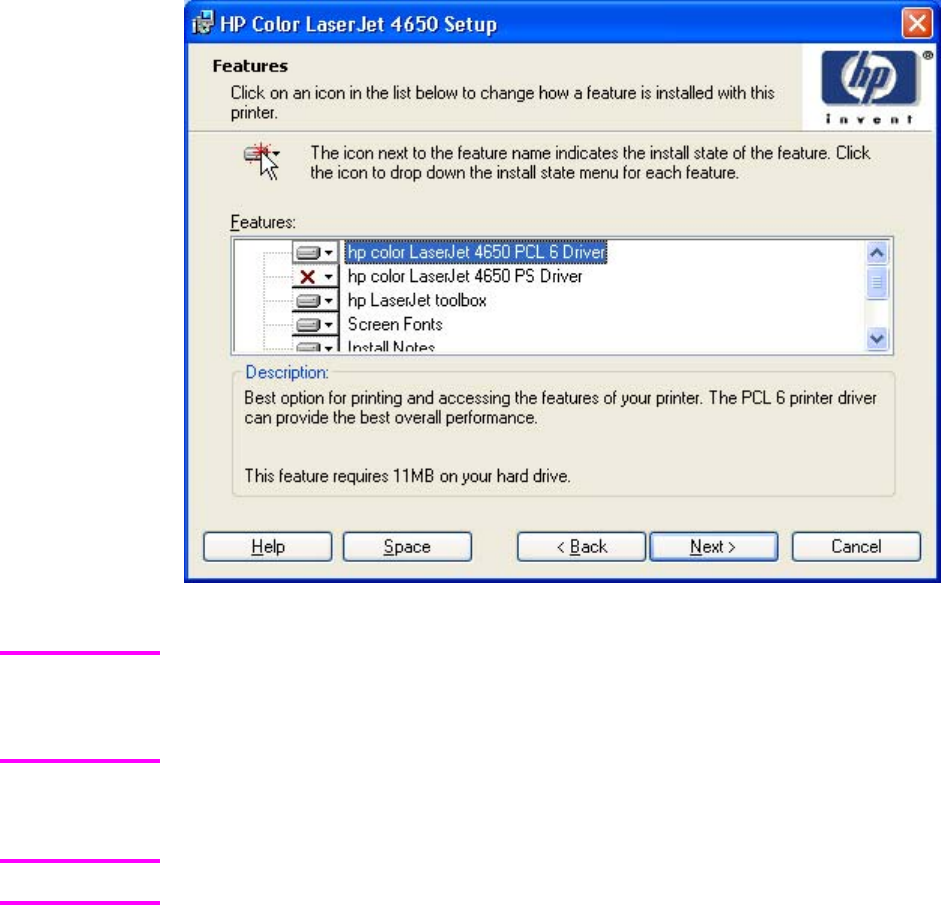
Figure 5-18. Features dialog box
When you do not share the printer, additional driver support is not available. If you share the
printer on Windows NT 4.0, Windows 2000, Windows XP, or Windows Server 2003
operating systems by selecting Share as, you must type a name. You can also provide
additional print driver support for other operating systems.
A red X in the icon indicates that the feature is not installed. The installed icon appears when
you select an install state for that feature.
Adobe Acrobat Reader appears as an option only if it has not been installed previously.
Click Space to view available space on your hard drive.
Click Back to view the Installation Type dialog box, with Custom Installation selected.
Click Next to view the Printer Name dialog box.
Clicking Cancel takes you to the Exit Setup dialog box.
Note
Note
EN Chapter 5 Installing Windows printing-system components 229
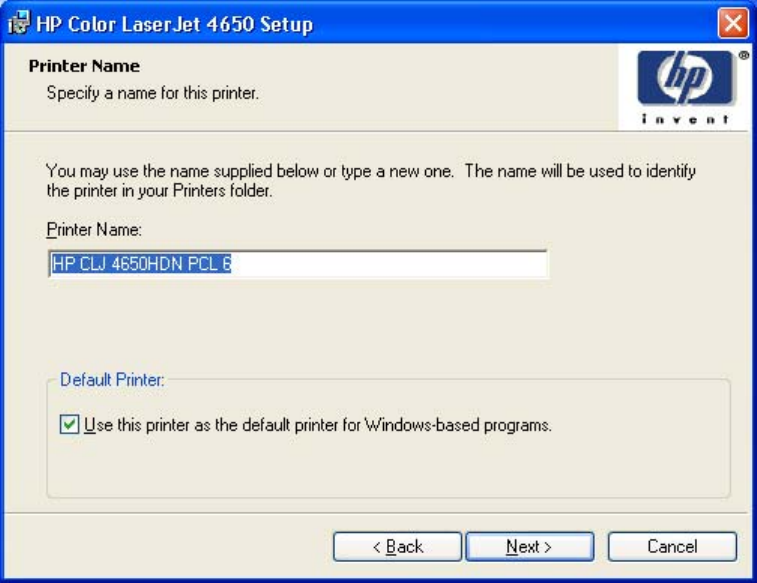
Figure 5-19. Printer Name dialog box
Clicking Back takes you to either the Installation Type dialog box or the Features dialog box,
depending on your previous selections.
Clicking Next takes you to the Printer Sharing dialog box.
Clicking Cancel takes you to the Exit Setup dialog box.
230 Detailed Windows installation EN
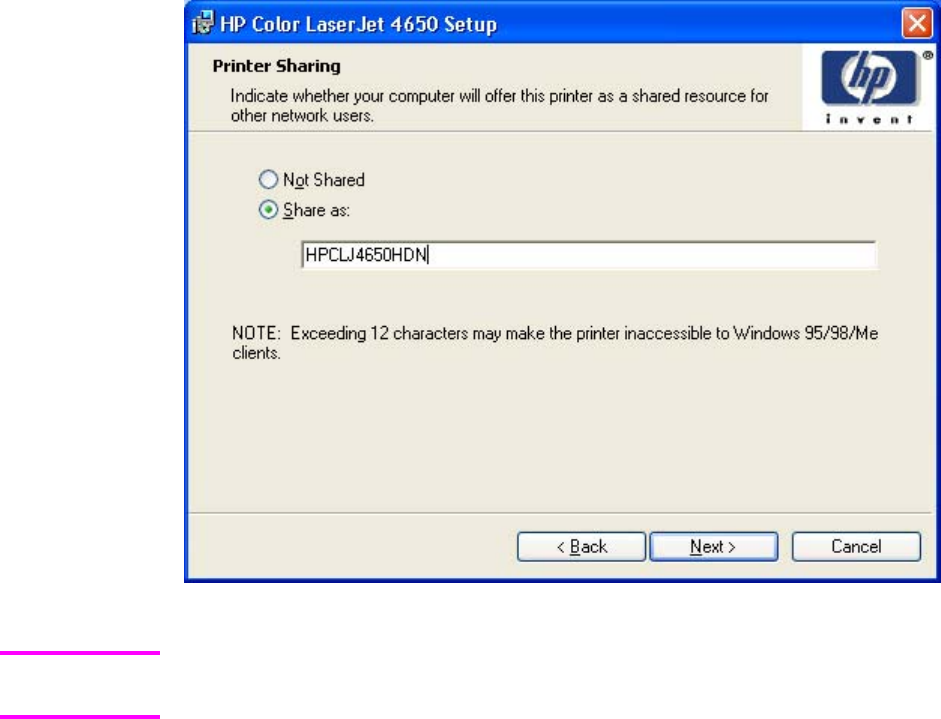
Figure 5-20. Printer Sharing Setup dialog box
The Printer Sharing dialog box does not appear if your computer is running Windows 98 or
Windows Me.
Clicking Not shared and then clicking Next takes you to the Printer Location and
Comment dialog box or the Installation Type dialog box.
Clicking Share as: causes the text box to become active. Typing the share name and then
clicking Next takes you to the Client Driver and Support dialog box.
Clicking Back takes you to the Printer Name dialog box or the Installation Type dialog box,
depending on your previous selections.
Clicking Cancel takes you to the Exit Setup dialog box.
Note
EN Chapter 5 Installing Windows printing-system components 231
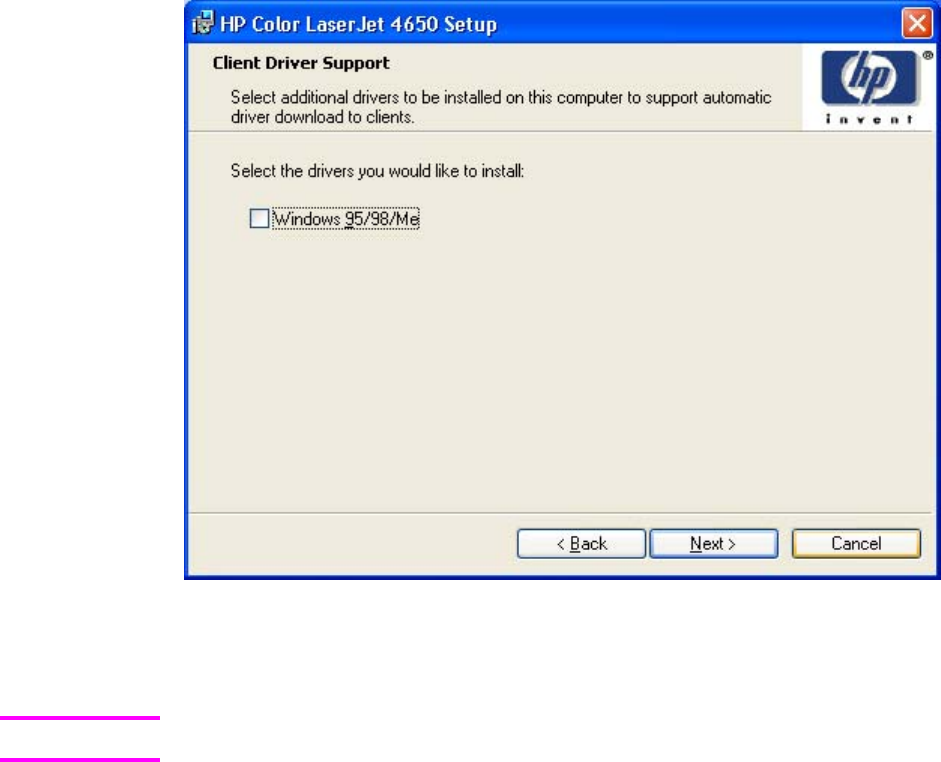
Figure 5-21. Client Driver Support dialog box
The Client Driver Support dialog box does not appear if the computer is running Windows 98 or
Windows Me.
Adobe Acrobat Reader appears as an option only if it has not been installed previously.
Clicking Back takes you to the Printer Sharing dialog box.
Clicking Next takes you to the Printer Location and Comment dialog box.
Clicking Cancel takes you to the Exit Setup dialog box.
Note
232 Detailed Windows installation EN
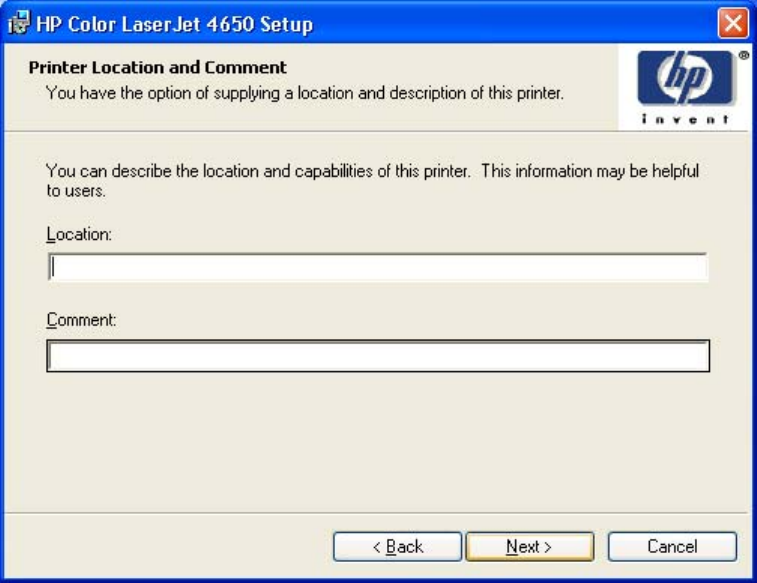
Figure 5-22. Printer Location and Comment dialog box
In the Location text box, you can type the physical location of the printer. In the Comment
text box, you can type any additional information that might be helpful to users.
Clicking Next takes you to the Ready to Install dialog box.
Clicking Back takes you to the Printer Name dialog box or the Installation Type dialog box,
depending on your previous selections.
Clicking Cancel takes you to the Exit Setup dialog box.
EN Chapter 5 Installing Windows printing-system components 233
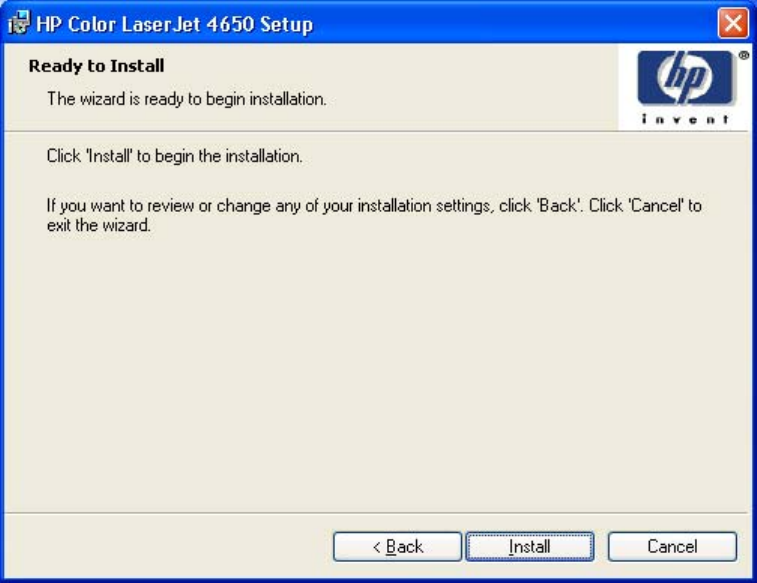
Figure 5-23. Ready to Install dialog box
Clicking Install starts the installation process.
Clicking Back takes you to the Printer Location and Comment dialog box.
Clicking Cancel takes you to the Exit Setup dialog box.
Custom Installation
The Custom Installation gives you the option of installing the following components:
●HP Color LaserJet 4650 PCL 6 Driver (for direct-connect and network installations)
●HP Color LaserJet 4650 PS Driver (for direct-connect and network installations)
●HP Toolbox (for network installations)
234 Detailed Windows installation EN
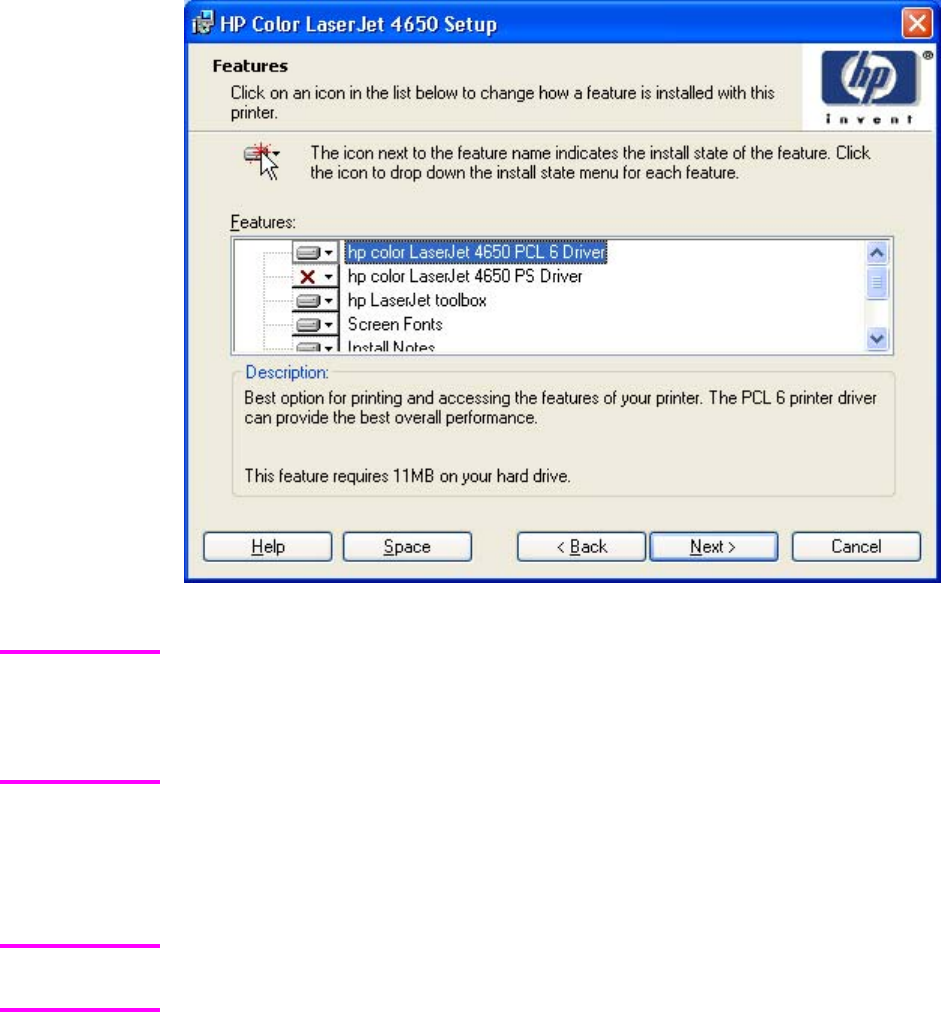
●Screen fonts
●Adobe Acrobat Reader
Figure 5-24. Features dialog box, Custom Installation
The available features of a Custom Installation might vary from product to product.
Windows NT 4.0, Windows 2000, Windows XP, and Windows Server 2003 computers
running a terminal server do not support the HP Toolbox option.
The appearance of the Features dialog box might vary, depending on product and
connection type.
Clicking Next takes you to the Printer Name dialog box.
Clicking Back returns you to the Installation Type dialog box.
Clicking Cancel takes you to the Exit Setup dialog box.
Custom Installation automatically selects the options that are available in the Typical
Installation. You can also select from among the following components:
●hp color LaserJet 4650 PCL 6 Driver
●
●hp LaserJet toolbox
●Screen Fonts
●Install Notes
●User Guide
●Adobe Acrobat Reader (TM)
Note
Note
EN Chapter 5 Installing Windows printing-system components 235

Installing print drivers by using Add Printer
Use the following steps to install the print drivers by using the Add Printer feature of Windows.
1Insert the CD in the CD-ROM drive.
2Go to the Add a printer feature in Windows.
In Windows XP, click Start on the desktop, and then click Printers and Faxes. The
Printers and Faxes window appears. Click Add a printer. The Add a printer wizard
screen appears.
In Windows NT, Windows 9x, and Windows 2000, click Start on the desktop, click Settings,
click Printers and Faxes and then click Add a printer. The Add a printer wizard screen
appears.
3Use the Add a printer wizard to find and connect to the printer. The print drivers are loaded
as a part of this process.
If your computer is running a 64-bit Windows OS, you must install the corresponding 64-bit print
driver. 64-bit print drivers are included on the software CD. Use the following steps to install a
print driver by using the Add Printer feature.
1Insert the CD in the CD-ROM drive.
2Click Start on the desktop, click Settings, click Printers and Faxes and then click Add a
printer. The Add a printer wizard screen appears.
3Use the Add a printer wizard to find and connect to the product. The print drivers are
loaded as a part of this process.
4Select the Have disk option and navigate to one of the the following files on the software CD:
To install the PCL 6 driver, select \<language>\Drivers\(your operating system)\PCL6
\hpc4650c.inf
To install the PCL 5c driver, select \<language>\Drivers\(your operating system)\PCL5
\hpc4650c.inf
5Complete the wizard steps. The print driver will be installed as part of the wizard process.
Installer Customization Wizard for Windows
The Installer Customization Wizard option allows administrators to customize the
HP Color LaserJet 4650 installer by pre-setting the installation options in a response file. To start
the utility, click installer customization wizard on the main menu of the software CD browser.
Using this option, administrators can create a silent (unattended) installer that is customized with
any of the following selections:
●Language
●Operating system
●Print drivers
●Components
For detailed information about the Installer Customization Wizard, see the HP Device Installer
Customization Wizard. This document (CUSTOMIZATIONDOC.RTF) is available on the printing-
system software CD-ROM at the root of the <language> folder.
Note
236 Detailed Windows installation EN
Running the installer customization wizard
Running the Installer Customization Wizard produces one installation package and a response
file (RESPONSE.INI) for a single system installation. The installation package might work for
multiple systems that have the same response information, or the RESPONSE.INI file can be
edited for system configuration differences directly in the RESPONSE.INI file. The Installer HP
Device Installer Customization Wizard, available on the printing-system software CD at the root
of the <language> folder, provides the exact text for replacing entries in the RESPONSE.INI file.
To run the installer customization wizard
1Insert the HP Color LaserJet 4650 software CD in the computer's CD-ROM drive.
2In the CD browser main screen, click installer customization wizard.
3Choose the setup language you wish to use. The installer automatically detects the
language that your computer system uses and presents this selection as the default.
Click OK to continue.
You can select another language that is available on the CD by clicking the down arrow
in the drop-down menu.
The Installer Customization Wizard starts automatically. To complete the installation, follow
the instructions in the dialog boxes, as described in the following section.
Dialogs
The Installer Customization Wizard runs from the CD. It can be launched from the CD
browser, depending on product-specific instantiation. It runs separately from MSI with its
own interface.
The Choose Setup Language dialog box, the InstallShield Wizard dialog box, and the
Preparing to Install dialog box appear the same as they appear in the standard installer.
After these dialog boxes, the Installer Customization Wizard Welcome dialog box appears.
EN Chapter 5 Installing Windows printing-system components 237
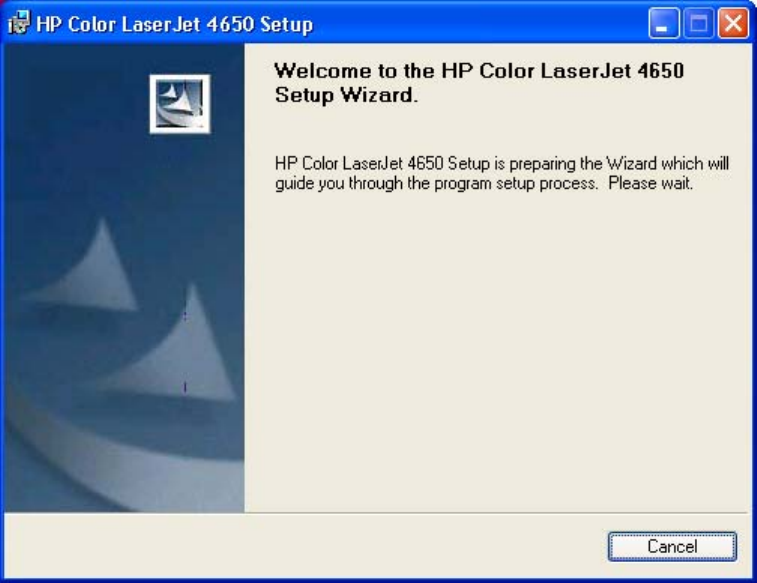
Figure 5-25. Installer Customization Wizard Welcome dialog box
Clicking Next takes you to the Language dialog box.
238 Detailed Windows installation EN
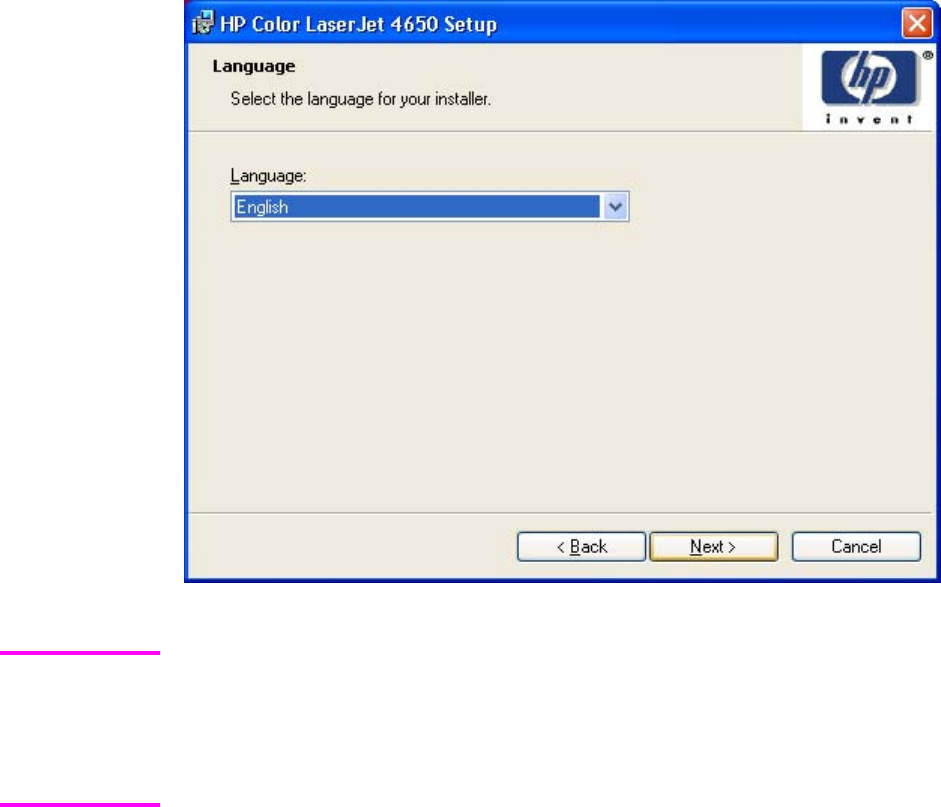
Figure 5-26. Language dialog box
The customized installer limits all system installations of the product to the language that is
selected in the Language dialog box. Maintenance Mode on systems where installation has
been completed using the customized installer does not provide options for changing the
language. To change the language on a system that used an Installer Customization Wizard
installation, the customized installation must be uninstalled, and a new product must be
installed to restore the option to install other languages.
The language that you selected is installed on users' computers regardless of the language
of the text in the dialog boxes (as specified in the Choose a language dialog box earlier).
The Language dialog box defaults to the language that was selected in the Choose a
language dialog box, but any language (that is available on the CD) can be chosen for the
customized installer. The language choice is recorded in the response file.
Clicking Next takes you to the Printer Port dialog box.
Clicking Back returns you to the Welcome dialog box.
Clicking Cancel takes you to the Exit Setup dialog box.
Note
EN Chapter 5 Installing Windows printing-system components 239
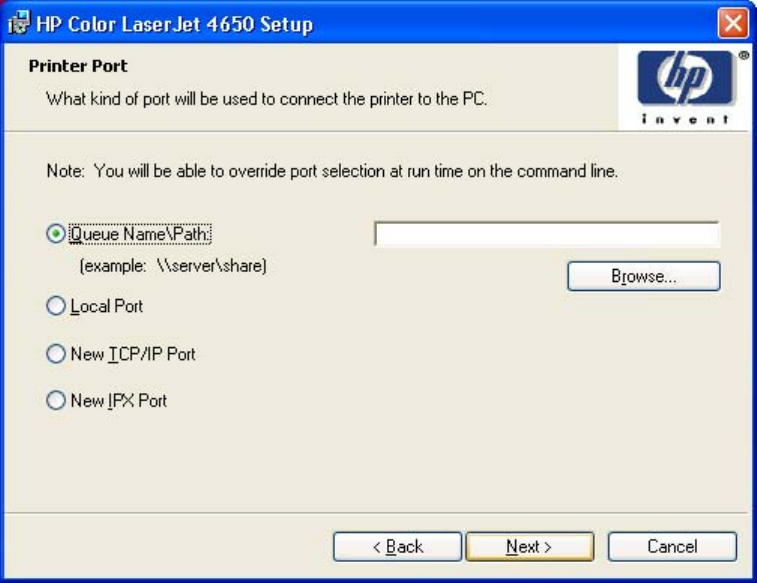
Figure 5-27. Printer Port dialog box
Clicking Queue Name\Path makes a text field available for a Queue entry. Click the Browse
button to navigate to a printer to record the path.
Clicking Local Port and then clicking Next takes you to the Connector Type dialog box, which
is similar to the Connection Type dialog box that appears during a standard installation.
However, the Connector Type dialog box includes all types of local ports regardless of local
support. It also includes all custom network ports that are available on the local system. To use
any custom network port for the customized installer, the port must be created identically on the
system where the port will be used.
Clicking New TCP/IP Port or New IPX Port, and then clicking Next, takes you to the Specify
Printer dialog box.
Clicking Back returns you to the Language dialog box.
Clicking Cancel takes you to the Exit Setup dialog box.
240 Detailed Windows installation EN
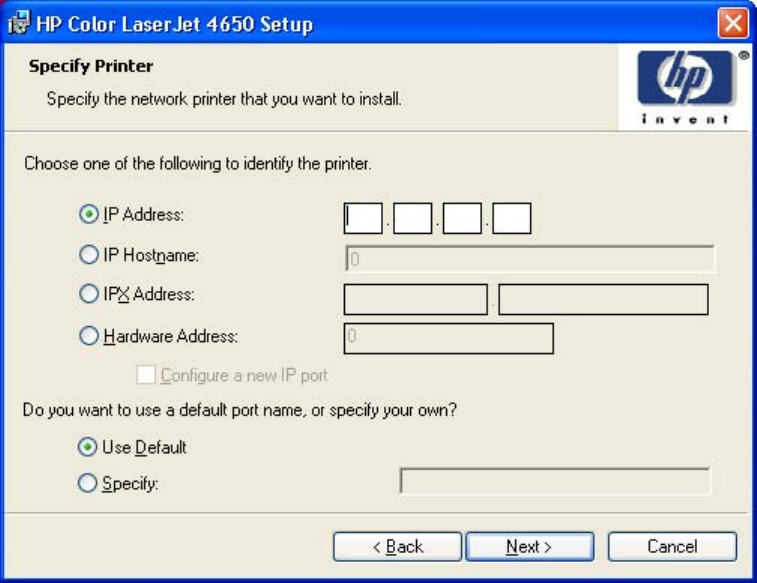
Figure 5-28. Specify Printer dialog box
Clicking IP Address: makes a field available for typing the IP address for the printer. Only
numerals are allowed in this field. If this option is selected, at least one digit must be typed in
the IP Address field to prevent an error message from appearing, asking for a valid IP
address.
Clicking IP Hostname: makes a field available for typing the IP hostname for the printer. Any
characters are allowed in this field, but an error message appears if spaces are included in
the field. If this option is selected, at least one character must be typed in the IP Hostname
field to prevent an error message from appearing, asking for a valid IP hostname.
Clicking IPX Address: makes a field available for typing the IPX address of the printer.
Clicking Hardware Address: makes a field available for typing the hardware address of the
printer. It accepts any characters but limits the entry to 13 characters.
The Hardware Address: option also creates an option to configure a new port. If you type a
hardware address and click Next in the Specify Printer dialog box with Configure a new IP
port selected, the IP Settings dialog box opens for setting up the new port.
Clicking Back takes you to the previous dialog box, based on your previous selections.
Clicking any of the options and then clicking Next takes you to either the IP Settings dialog
box or the Model dialog box, depending on your selection.
Clicking Cancel takes you to the Exit Setup dialog box.
EN Chapter 5 Installing Windows printing-system components 241
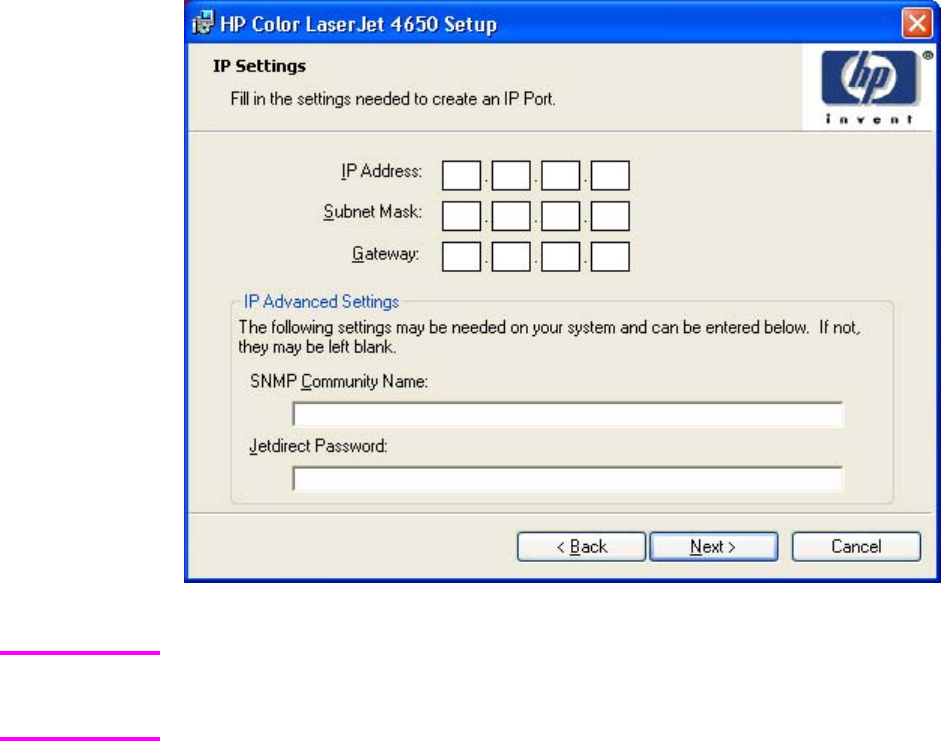
Figure 5-29. IP Settings dialog box
The Installer Customization Wizard does not validate that the printer or any of the printer
identification entries actually exist on the network, because the customized installer can be used
on a separate network.
Typing the appropriate information and then clicking Next takes you to the New IPX Port dialog
box.
The New IPX Port selection in the Printer Port dialog box behaves the same way that the New
TCP/IP Port selection behaves: The Specify Printer dialog box opens with the same options,
each with the same results.
Clicking Back takes you to the Specify Printer dialog box or the Printer Port dialog box,
depending on your previous selections.
Clicking Cancel takes you to the Exit Setup dialog box.
Note
242 Detailed Windows installation EN
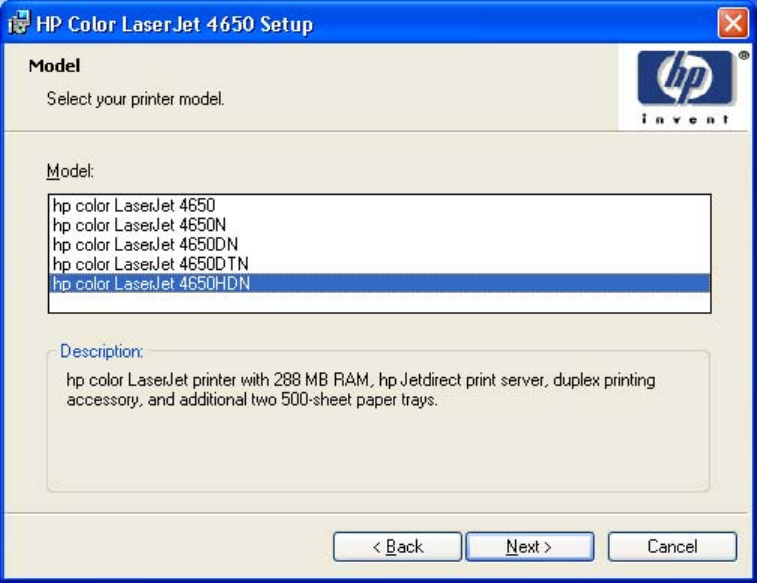
Figure 5-30. Model dialog box
After the identification or port setup dialog boxes are completed, the Model dialog box
appears.
The model selection can affect which features are available for the installation. It can also
affect driver defaults depending on the product-specific instantiation.
Clicking Next takes you to the Features dialog box.
Clicking Back takes you to the Printer Port, Connection Type, IP Settings, or Specify
Printer dialog box, depending on your previous selections.
Clicking Cancel takes you to the Exit Setup dialog box.
EN Chapter 5 Installing Windows printing-system components 243
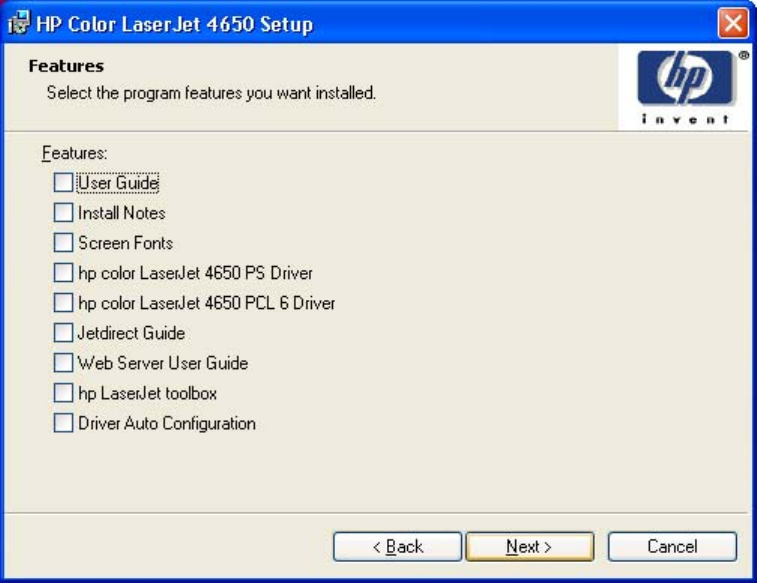
Figure 5-31. Features dialog box
Any combination of features can be selected for the installer, and none depends on any other
feature selection. It is possible to create a custom installer that installs features without including
a print driver.
Clicking Next takes you to the Driver Configuration dialog box.
Clicking Back takes you to the Model dialog box.
Clicking Cancel takes you to the Exit Setup dialog box.
244 Detailed Windows installation EN
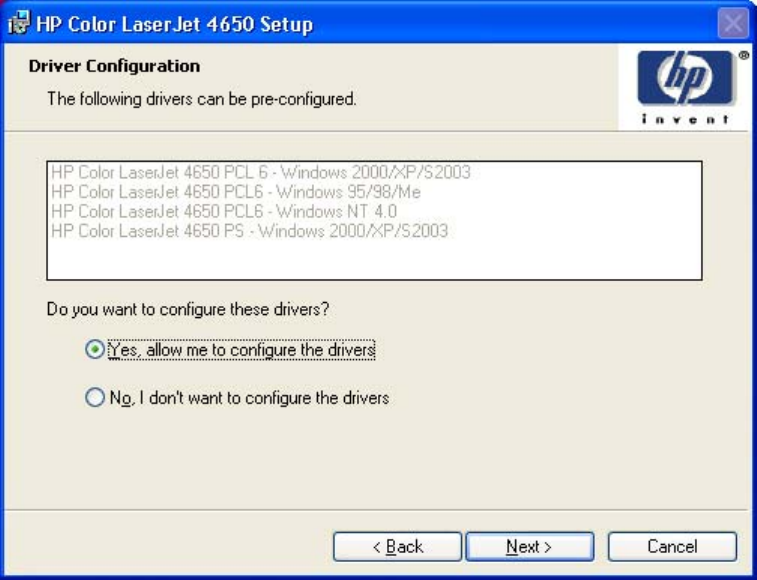
Figure 5-32. Driver Configuration dialog box
It is possible to supply a preconfigured driver in the customized installer if the driver supports
it. You can use the preconfigured driver to place default settings on the printer that is
installed. If a driver that supports this feature is selected in the Features dialog box, the
Driver Configuration dialog box appears.
Clicking Yes and then clicking Next opens a list of all printing preferences and device
options for the product.
Clicking No and then clicking Next takes you to the Printer Name dialog box.
Clicking Back takes you to the Features dialog box.
Clicking Cancel takes you to the Exit Setup dialog box.
EN Chapter 5 Installing Windows printing-system components 245
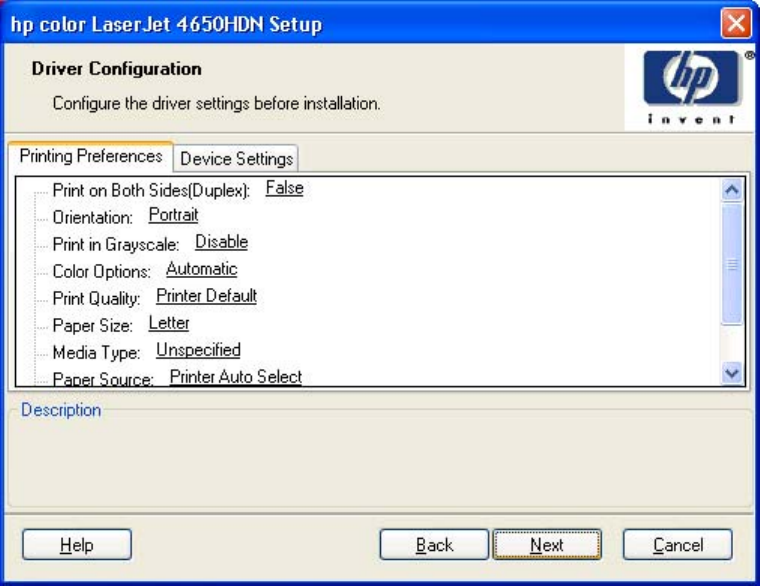
Figure 5-33. Driver Configuration preconfigure driver dialog box
Any setting in this dialog box, including those on the Device Settings tab, can be preset before
the printer is installed (subject to normal driver constraints).
Clicking Next opens either the Preconfigure Printer dialog box for another driver that supports
preconfiguration (if any), or the Printer Name dialog box.
Clicking Back takes you to the previous Driver Configuration dialog box.
Clicking Cancel takes you to the Exit Setup dialog box.
246 Detailed Windows installation EN
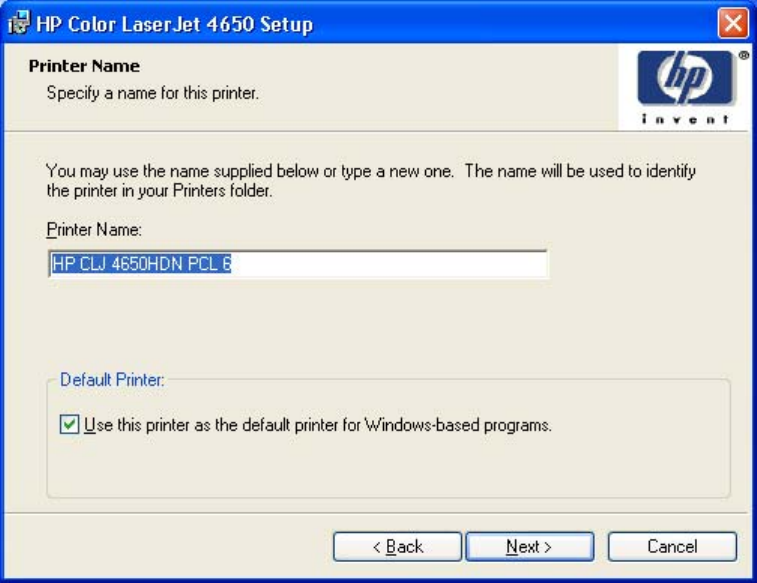
Figure 5-34. Printer Name dialog box
The Default Printer: drop-down menu lists only those drivers that are selected in the
Features dialog box.
Clicking Next opens the Printer Sharing dialog box.
Clicking Back takes you to the previous Driver Configuration dialog box.
Clicking Cancel takes you to the Exit Setup dialog box.
EN Chapter 5 Installing Windows printing-system components 247

Figure 5-35. Printer Sharing dialog box
Clicking Share as: opens a field for for naming the product as it will appear on the network.
Clicking Next with Not Shared selected takes you to the Printer Location and Comment dialog
box.
Clicking Share as: and then clicking Next takes you to the Client Driver Support dialog box.
Clicking Back takes you to the Printer Name dialog box.
Clicking Cancel takes you to the Exit Setup dialog box.
248 Detailed Windows installation EN
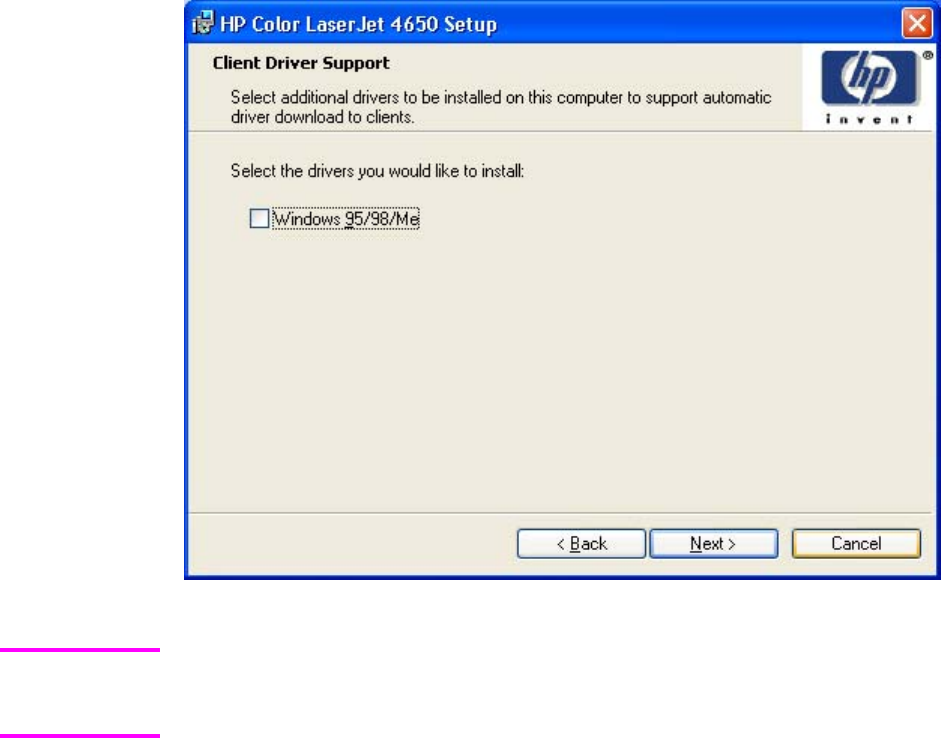
Figure 5-36. Client Driver Support dialog box
This dialog box provides options for selecting OS-specific drivers to add to the installation to
provide for Point and Print driver vending on the system. Either or both optional drivers can
be selected.
Clicking Next takes you to the Printer Location and Comment dialog box.
Clicking Back takes you to the Printer Sharing dialog box.
Clicking Cancel takes you to the Exit Setup dialog box.
Note
EN Chapter 5 Installing Windows printing-system components 249
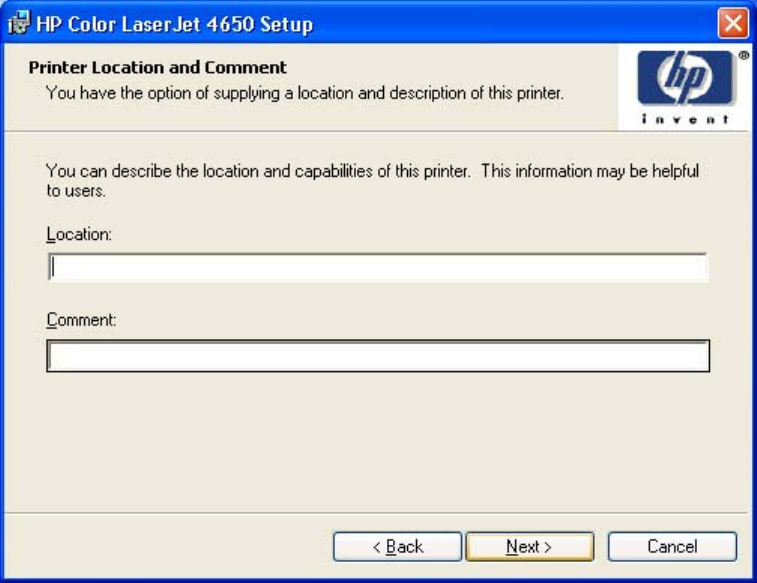
Figure 5-37. Printer Location and Comment support dialog box
Use the Location: text field to type a description of the physical location of the printer. The field
is limited to 241 characters.
Use the Comment: text field to type any other helpful text such as capabilities about the printer.
The field is limited to 241 characters.
Clicking Back takes you to the Printer Sharing or the Client Driver Support dialog box,
depending on your previous selection.
Clicking Next takes you to the Custom Installer Location dialog box.
Clicking Cancel takes you to the Exit Setup dialog box.
250 Detailed Windows installation EN
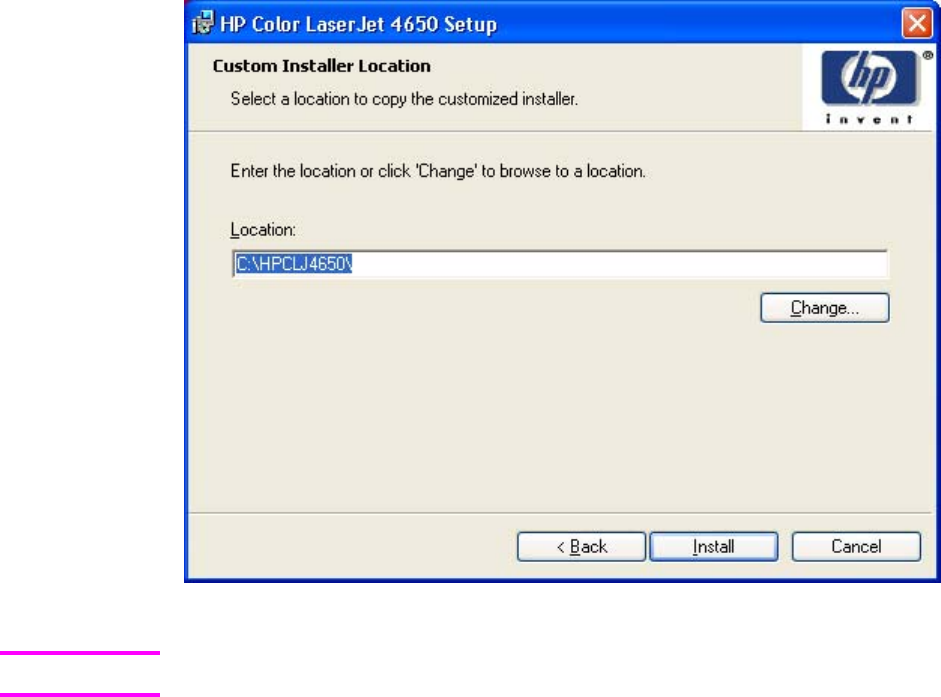
Figure 5-38. Custom Installer Location dialog box
The location for the installer package defaults to the drive that the system user opened last.
Clicking Change opens the Change Current Destination Folder dialog box to navigate to
the drive that you want.
Clicking Back takes you to the Printer Location and Comment dialog box.
Clicking Install after you have specified a location (or browsed to a location) starts the file
copy process and takes you to the Installing dialog box.
Clicking Cancel takes you to the Exit Setup dialog box.
Note
EN Chapter 5 Installing Windows printing-system components 251
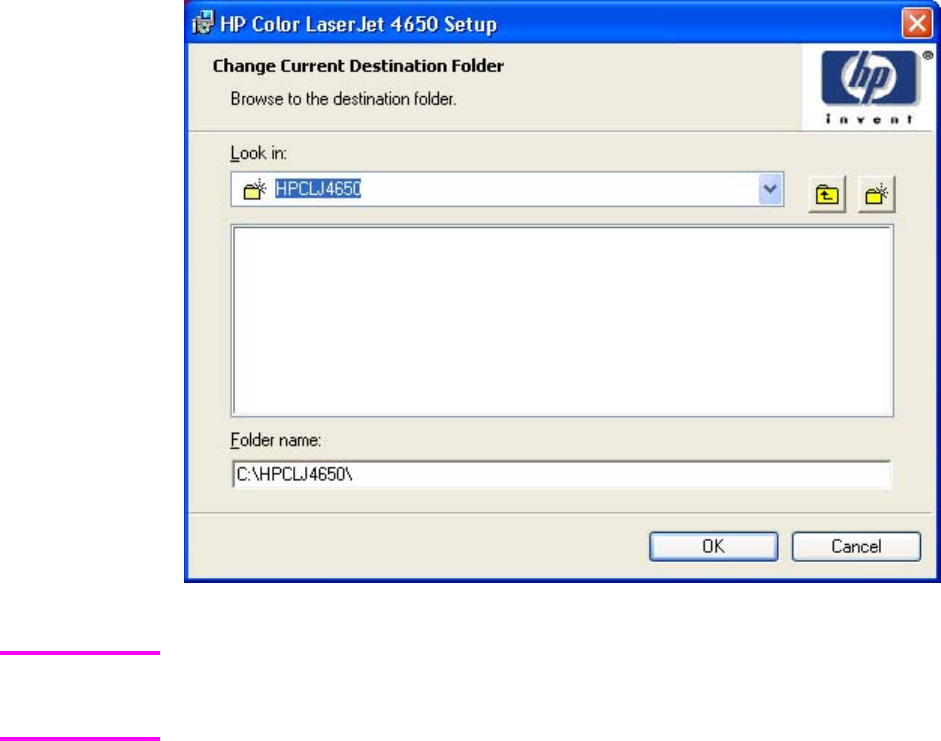
Figure 5-39. Change Current Destination Folder dialog box
Several files including system files will be placed at the root of the directory that appears in the
Folder Name field. These files collectively occupy approximately 37 MB on the directory. Be
sure that enough space is available on the directory before continuing.
After you select a location, click OK to return to the Custom Installer Location dialog box. The
location appears in the Folder name field.
Click the New Folder button to create a new folder.
Clicking Cancel takes you to the Exit Setup dialog box.
Note
252 Detailed Windows installation EN
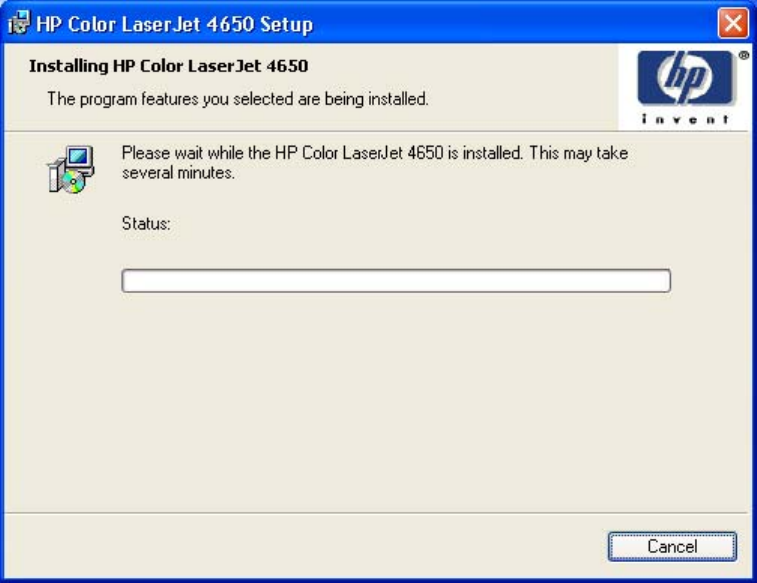
Figure 5-40. Installing dialog box
This dialog box remains on the screen until the status bar reaches the end.
Clicking Cancel takes you to the Exit Setup dialog box.
EN Chapter 5 Installing Windows printing-system components 253
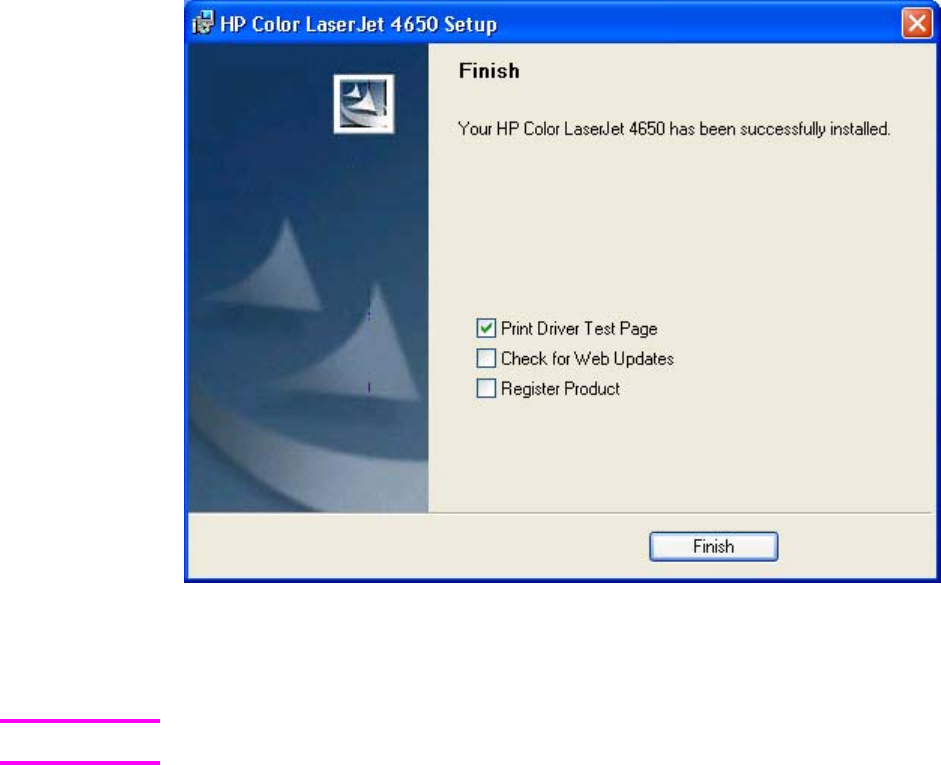
Figure 5-41. Finish dialog box
Clicking Print Driver Test Page prints a test page that verifies that the printer is successfully
installed.
You might need to turn off and restart the computer to print the test page.
Clicking Check for Web Updates connects you to the World Wide Web. You must have an
internet connection to perform this step.
Clicking Register Product takes you to the HP Web site where you can register your product.
You must have an internet connection to perform this step.
Clicking Finish closes the Finish dialog box and exits the Installer Customization Wizard.
Distribution
The installation package is now ready for distribution. It is the same as the package on the CD,
except that it is limited to one language, and it contains the features and options that you
selected. The installation package is run silently so that it requires no user interaction. This
installation method is useful when you want to use the default selections that the installer
provides or when you want to run the installation without being prompted.
You can perform the silent installation in two ways:
●customized silent installer
●command-line silent installer
Note
254 Detailed Windows installation EN

The response file can be renamed, but it must be in the root directory of the installer package.
The name cannot contain spaces; spaces prevent the SETUP.EXE file from passing to the
installer package.
Command-line silent install
This method cannot be customized. It installs only the printing-system components that are
included in the Typical Installation. For more information, see the HP Device Installer
Customization Wizard ReadMe file. This document (CustomizationDoc.rtf) is available on the
printing-system software CD at the root of the <language> folder.
Point and Print installation for Windows 98, Me, NT 4.0,
2000, XP, and 2003
Point and Print is a Microsoft term that describes a two-step driver installation process. The
first step is to install a shared driver on a network print server. The second step is to "point"
to the print server from a network client so that the client can use the print driver.
This section outlines the procedures for installing print drivers by using Point and Print. If
these procedures are not successful, contact Microsoft.
Hewlett-Packard provides drivers that are compatible with the Point and Print feature, but
this is a function of the Microsoft operating systems, not of HP print drivers. Windows
NT 4.0, Windows 2000, Windows XP, and Windows Server 2003 drivers from HP are
supported only on Intel X86 processor types. Any other processor types must use Windows
NT 4.0 drivers from Microsoft.
To install the print driver on a Windows NT 4.0, Windows 2000, Windows XP, Windows
Server 2003 server, you must have administrator privileges. To completely install the
Windows NT 4.0 print driver on the Windows NT 4.0 server (or the Windows 2000 print
driver on the Windows 2000 server), you must have administrator privileges on the server.
The Windows NT 4.0 Printer .INF file (or the Windows 2000 Printer .INF file) must contain
the same product name as the Windows 98 or Windows Me printer .INF file.
Point and Print installation of a postscript driver is supported only with a Microsoft
Windows 98 or Windows Me PS driver version 4.0 or later.
In a homogenous operating system environment (one in which all of the clients and servers
running the same operating system), the same print driver version that is vended from the
server to the clients in a Point and Print environment also runs and controls the print queue
configuration on the server.
However, in a mixed operating system environment (one in which servers and clients might
run on different operating systems), conflicts can occur when client computers run a version
of the print driver that is different from the one on the print server. With Windows NT 4.0,
print drivers executed in kernel mode. A kernel mode process runs in a specially privileged
part of the operating system that gives the process access to all of the system resources.
Consequently, a misbehaving driver can cause serious system stability problems, including
operating system crashes. In an effort to increase operating system stability, Microsoft
determined that, starting with Windows 2000 and continuing with all future operating
systems, print drivers would run as user-mode processes. User-mode drivers execute in a
protected part of the operating system just like all of the normal end-user processes and
software programs. A user-mode print driver that misbehaves is capable of crashing only the
process in which it is running, and cannot crash the whole operating system. Because
access to critical system resources is restricted, overall operating system stability is
increased.
Note
EN Chapter 5 Installing Windows printing-system components 255
Setting a default printer
This section applies to the Windows 98, Windows Me, Windows NT 4.0, Windows 2000,
Windows XP, and Windows Server 2003 operating systems.
1In Windows 98, Windows Me, Windows NT 4.0, and and Windows 2000 OSs, click Start,
click Settings, and then click Printers. In Windows XP and Windows Server 2003, click
Start, click Control Panel, click Printers and Faxes (Windows XP Professional) or
Printers and other hardware devices (Windows XP Home).
2Right-click the product that you want to set as the default printer.
3Click Set As Default. A check mark appears next to the menu option.
256 Setting a default printer EN
6
Installation for Macintosh
and Linux operating systems
Introduction
This section provides system requirements and procedures for installing and removing the
HP Color LaserJet 4650 printing-system software for supported operating systems other
than Windows. It also provides information about font support and system modifications. The
following operating systems are supported:
●Macintosh
●Linux
System requirements
The following are system requirements for installing and using the HP Color LaserJet 4650
printing-system software on each of these supported operating systems.
Macintosh
●PowerPC processor
●Macintosh OS 9.x or later or Mac OS X (10.1 or later)
●256 MB RAM
●110 MB available disk space
EN Chapter 6 Installation for Macintosh and Linux operating systems 257
Linux
For information about Linux support for the product, see the HP Linux Web site:
●http://www.hp.com/go/linux.
UNIX
For information about UNIX support for the HP Color LaserJet 4650, see the following Web
site:
●http://www.hp.com/go/jetdirectunix_software
Macintosh
The following sections contain information about using HP color LaserJet printing software for
the Macintosh OS.
Macintosh component descriptions
The product includes the following software for Macintosh computers:
●PPDs for Mac OS 9.x and Mac OS X (10.1 and later)
●PDEs for Mac OS X only (10.1 and later)
HP LaserJet PPDs
In Mac OS 9.x, postscript printer definition (PPD) files for the HP Color LaserJet 4650 are
installed to the Printer Descriptions folder, which is in the Extensions folder within the System
folder. In Mac OS X, the PPDs are installed in Library/Printers/PPDs/Contents/Resources:
<lang>.lproj where <lang> is the appropriate localized folder.
PPDs, in combination with the driver, provide access to the product features and allow the
computer to communicate with the product. An installation program for the PPDs is provided on
the printing software CD.
For Mac OS 9.x, the Apple LaserWriter 8 driver must be installed to use the PPD file. Use the
Apple LaserWriter 8 driver that came with your Macintosh. For Mac OS X, use Print Center to
print.
PDEs
Printer Dialog Extensions (PDEs) are code plug-ins (for Mac OS X only, 10.1 and later) that
provide access to product features, such as number of copies, duplexing, and quality settings.
258 Linux EN

HP Toolbox
The HP Toolbox is a series of Web pages and supporting Windows-based and Macintosh-based
software programs (for Mac OS X only, 10.2 and later). The HP Toolbox provides links to
product status information and enables you to receive alerts for product events.
For more information about the HP Toolbox, see the HP Toolbox section of this guide.
HP Embedded Web Server
The HP Embedded Web Server (EWS) is supported by Macintosh OS 9.x operating
systems. Use the HP LaserJet Utility to control features that are not available in the driver.
Use the HP EWS to perform the following tasks:
●name the product, assign it to a zone on the network, and change product settings
●set a password for the product
●from the computer, lock out functions on the control panel to prevent unauthorized
access (see the printing software help).
Install notes
This text file contains important information about product features, instructions for installing
the printing-system software, and technical assistance.
Online help
This HTML-based help system replaces the Apple Guide help system that was provided with
Mac OS 9.x HP products. The help system is in English only, and can be viewed through a
browser or in the Macintosh OS Help Center.
Screen fonts
These screen fonts are available only for Macintosh computers and Macintosh-compatible
computers (Mac OS classic only). Because the screen fonts match your printing fonts, you
can see onscreen how your printed page looks.
Font support
●Avant Garde
●Helvetica Narrow
●Times
●Bookman
●New Century Schoolbook
●Zapf Chancery
●Courier
●Palatino
●Zapf Dingbats
●Helvetica
●Symbol
EN Chapter 6 Installation for Macintosh and Linux operating systems 259
The Macintosh printing system also includes the HP 45 XPS font families:
●Clarendon Condensed Bold
●Symbol
●Albertus Medium
●Coronet
●Times New Roman
●Antique Olive
●Courier
●Univers
●Arial
●Garamond
●Univers Condensed
●CG Omega
●Letter Gothic
●Wingdings
●CG Times
●Marigold
The following bitmap screen fonts reside on the HP Color LaserJet 4650:
●ITC Avant Garde Gothic Book
●Helvetica
●Palatino
●ITC Avant Garde Gothic Book Oblique
●Helvetica Bold
●Palatino Bold
●ITC Avant Garde Gothic Demi
●Helvetica Bold Oblique
●Palatino Bold Italic
●ITC Avant Garde Gothic Demi Oblique
●Helvetica Oblique
●Palatino Italic
●ITC Bookman Demi
●Helvetica Narrow
●Symbol
●ITC Bookman Demi Italic
●Helvetica Narrow Bold
●Times Bold
●ITC Bookman Light
●Helvetica Narrow Bold Oblique
●Times Bold Italic
●ITC Bookman Light Italic
260 Macintosh component descriptions EN
●Helvetica Narrow Oblique
●Times Italic
●Courier
●New Century Schoolbook Bold
●Times Roman
●Courier Bold
●New Century Schoolbook Bold Italic
●ITC Zapf Chancery Medium Italic
●Courier Bold Oblique
●New Century Schoolbook Italic
●ITC Zapf Dingbats
●Courier Oblique
●New Century Schoolbook Roman
The following fonts reside on the HP Color LaserJet 4650, but can be used by Macintosh
platforms only if you install additional screen fonts. You can either use these screen fonts
directly from the HP Color LaserJet 4650 software CD or obtain them from the following Web
site: http://www.hp.com/support/lj4650.
●Albertus Extra Bold
●CG Times Italic
●Marigold
●Albertus Medium
●Clarendon Condensed Bold
●Symbol
●Antique Olive
●Coronet
●Times New Roman
●Antique Olive Bold
●Courier
●Times New Roman Bold
●Antique Olive Italic
●Courier Bold
●Times New Roman Bold Italic
●Arial Courier Bold Oblique
●Times New Roman Italic
●Arial Bold
●Courier Italic
●Univers Bold
●Arial Bold Italic
●Garamond Antiqua
●Univers Bold Italic
●Arial Italic
EN Chapter 6 Installation for Macintosh and Linux operating systems 261

●Garamond Halbfett
●Univers Condensed Bold Italic
●CG Omega
●Garamond Kursiv
●Univers Condensed Medium
●CG Omega Bold
●Garamond Kursiv Halbfett
●Univers Condensed Medium Italic
●CG Omega Bold Italic
●Letter Gothic
●Univers Medium
●CG Omega Italic
●Letter Gothic Bold
●Univers Medium Italic
●CG Times
●Letter Gothic Italic
●Univers Italic
●CG Times Bold
●CG Times Bold Italic
●Wingdings
●CG Times Bold Italic
Installing the Macintosh printing system
On a Macintosh-compatible computer, the installation procedures are the same for a network
administrator, a network client, and a single user. Install the software on any computer that has
access rights to the printer.
If the computer is connected to the printer by a LocalTalk (printer port) or EtherTalk connection,
you must configure the AppleTalk (or network) control panel for the correct connection to
communicate with the product. You must set up the HP Color LaserJet 4650, connect it to the
computer or network, and turn it on before the software is installed. Macintosh OS systems do
not support parallel connections. You can use a cross-over Ethernet cable for a direct
connection to a computer running the Macintosh OS. In the following instructions, "XXXX"
represents the HP Color LaserJet 4650:
The Macintosh partition contains an installer program for each language. Find the appropriate
language for the operating system that is being used, and then use the installer program for that
language.
Note
262 Installing the Macintosh printing system EN

To install the HP LaserJet printing-system software for the
Macintosh OS
1Insert the CD that came with the Macintosh printing-system software into the CD-ROM drive.
If the CD screen does not open automatically, double-click the CD-ROM icon on the desktop to
open the CD-ROM window.
2Open the HP LaserJet Installers folder. Find the Installer icon for the appropriate
language. Double-click the Installer icon to launch the Installer. In the opening dialog,
click Continue.
The Continue button appears only after you type the "Admin" password in the Authenticate
dialog box (OS X, versions 10.1 and later only).
3The main Installer dialog box appears. Click Install and then follow the onscreen
instructions to complete the software installation.
If you are installing the printing-system software on a Macintosh OS X system, please be
patient. The installer must perform an initial search of the computer for up to 1 minute.
During this time the installer might appear to be stalled.
4When software installation is complete, click Quit. Select one of the following options to
finish setting up your product:
●Set up a AppleTalk networked printer with Mac OS 9.x
●Set up a printer with Mac OS X
To set up an AppleTalk networked Printer with Mac OS 9.x
1Open the Chooser from within the Apple Menu.
2Click LaserWriter 8 on the left side of the Chooser dialog box.
3Click the appropriate Zone to select it, if required.
4Click your product name from the list that appears on the right side of the Chooser
dialog box, and then click Create.
To set up a Printer with Mac OS X
1In the Applications folder, open the Utilities folder, and then run the Print Center.
2Click Add (in Mac OS X 10.2) or Add Printer (in Mac OS X 10.1).
3From the top pop-up menu, select the appropriate connection type for your product.
4Select or type in any other information as indicated for the type of connection for your
product. For example, if you are using an AppleTalk connection, select your product
zone; or if you are using IP Printing, type in an IP address.
If the automatic selection fails, or if you want to manually select a PPD file, click the Printer
Model pop-up menu, select HP, and then click LaserJet 4650.
5Click Add.
6To configure installable options in Mac OS X 10.2 and later, such as a duplexing unit or
optional paper trays, click the appropriate product icon in the Print Center Printer List
window. Select Show Info from the Printers menu, and then select the appropriate
options from the Installable Options popup menu.
7Configure the options, and then click Apply Changes.
Note
Note
Note
Note
EN Chapter 6 Installation for Macintosh and Linux operating systems 263

To set up an IP/LPR networked Printer with Mac OS 9.x
1Run the Apple Desktop Printer utility.
2Click Printer (LPR), and then click OK.
3Click Change in the LPR Printer Selection area.
4Click the appropriate IP address and Queue, and then click OK.
5Click Change and scroll through the list of products.
6Click HP Color LaserJet 4650, and then click Select.
7Click Create.
Uninstalling the Macintosh printing system
To uninstall the Macintosh Printing System, drag the PPDs and the unwanted component(s) to
Trash. See the tables in the following sections for a list of new folders and files added when the
HP Color LaserJet 4650 printing-system software is installed in Macintosh OSs.
In-box disk layout
The Macintosh Printing System consists of one file: the HP LaserJet Installer - Integrated
installer program.
Folders and files added through installation
of the HP Color LaserJet 4650 software (Mac
OS)
The tables in the following sections detail the changes to your system as new folders and files
are added when the HP Color LaserJet 4650 printing-system software is installed on Macintosh
OS systems.
This listing does not include temporary directories and files that are created, and then deleted,
during the installation process.
In the following listing, "MACINTOSH HD" indicates the drive on which the software was installed.
Mac OS Classic installation
This section provides information about the various installation dialog box sequences for the Mac
OS Classic.
Note
264 Uninstalling the Macintosh printing system EN
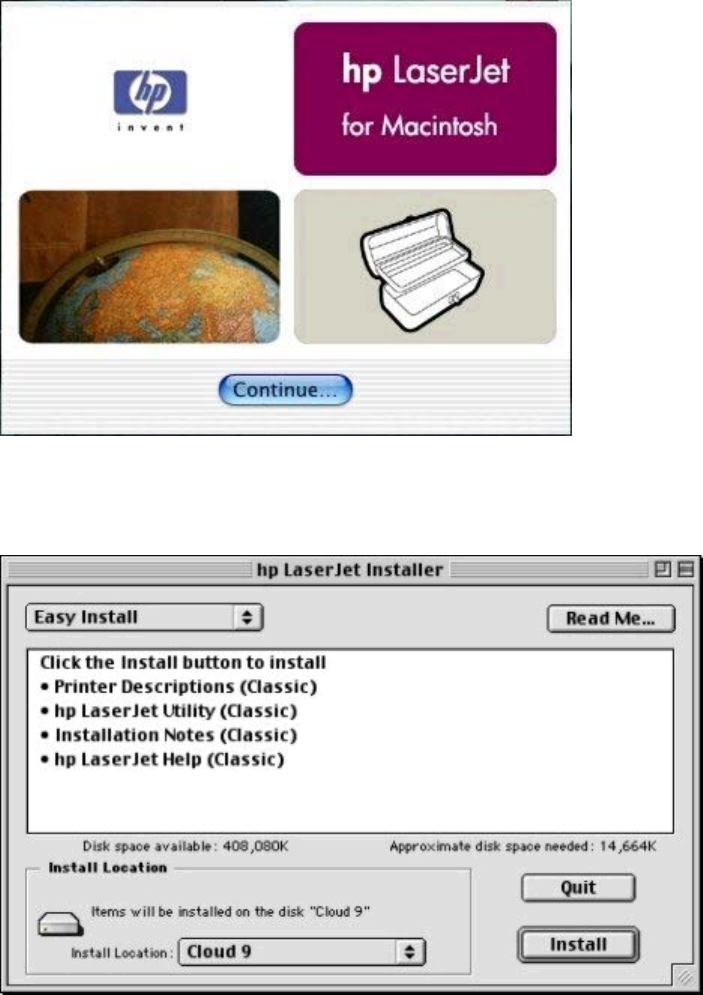
Main Install dialog box sequence
This subsection provides information about the Macintosh installation dialog box sequence for
the Easy Install (the typical installation option).
Figure 6-1. HP LaserJet for Macintosh installer splash screen dialog box
Click Continue to open the HP LaserJet Installer dialog box.
Figure 6-2. HP LaserJet Installer dialog box (easy install)
If you want to install the files in a location other than the default "Macintosh HD," click Install
Location: to specify a location.
You can also select the Custom installation option from the drop-down menu at the upper
left. Easy Install is the default.
EN Chapter 6 Installation for Macintosh and Linux operating systems 265
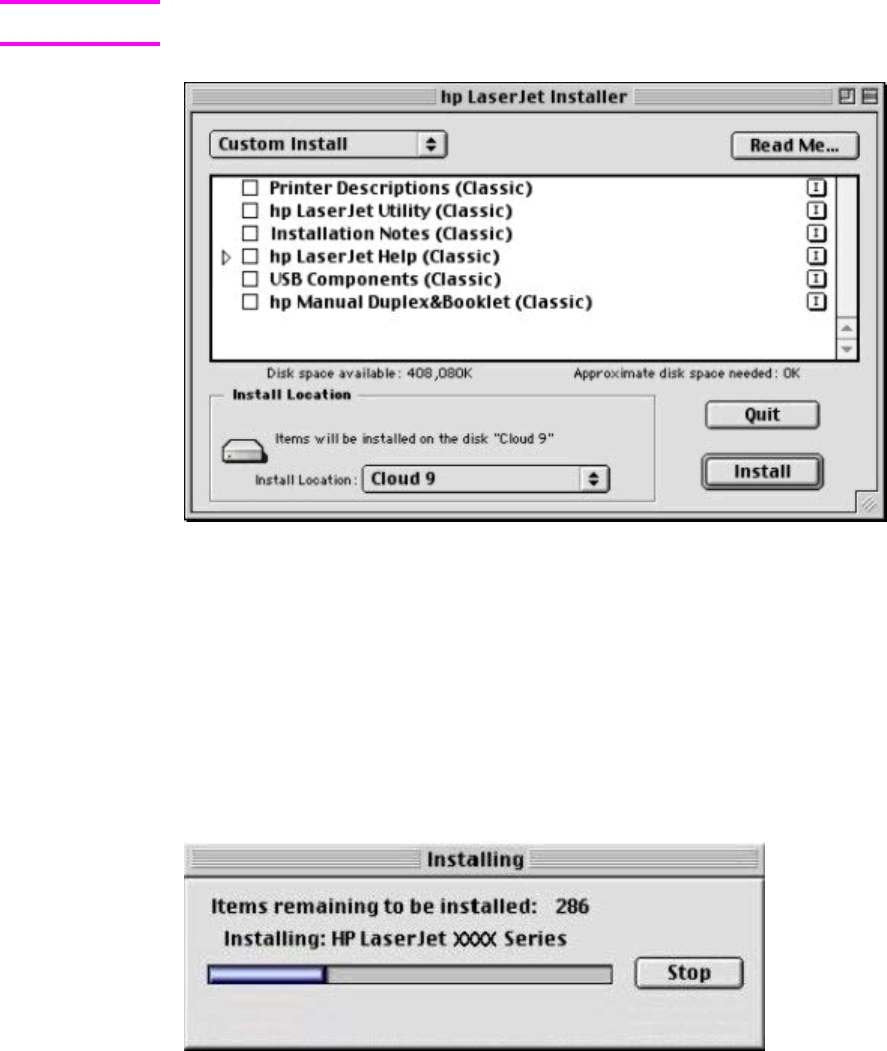
Click Read Me to open the Installer readme file.
Click Install to start the installation on the selected disk.
Click Quit to quit the Installer without making changes to the system.
A Read Me... button appears on each Macintosh installation screen.
Figure 6-3. HP LaserJet Installer dialog box (custom install)
If you want to install the files in a location other than the default "Macintosh HD," click Install
Location: to specify a location.
Select which of the available components to install by using the check boxes in the list.
Click Read Me to open the Installer readme file.
Click Install to start the installation on the selected disk.
Click Quit to quit the Installer without making any changes to the system.
Figure 6-4. Installing dialog box
This dialog box shows installation progress. No action is required unless you want to stop the
installation. Click Stop to interrupt the install file copy process.
Note
266 Mac OS Classic installation EN
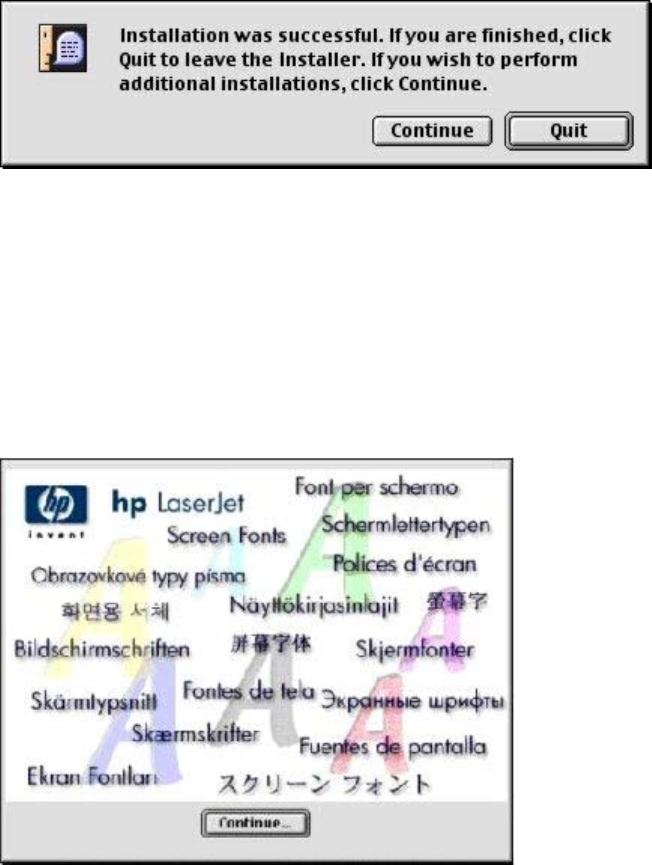
Figure 6-5. Installation was successful dialog box
Click Quit to exit the Installer. The Printer Setup Assistant opens.
Click Continue to return to the HP LaserJet Installer.
HP LaserJet Screen Fonts Installer dialog box sequence
This section provides information about the installation dialog box sequence for the
HP Screen Font Installer.
Figure 6-6. HP LaserJet Screen Fonts splash screen dialog box
Click Continue to open the HP LaserJet Screen Fonts dialog box.
EN Chapter 6 Installation for Macintosh and Linux operating systems 267
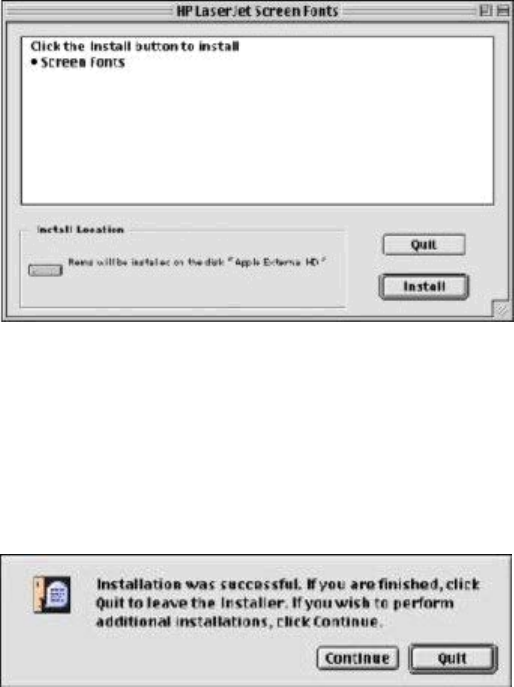
Figure 6-7. HP LaserJet Screen Fonts installer dialog box (1 of 2)
Click Install to start the installation.
Click Quit to quit the Installer without making changes to the system.
When you click Install, an installation progress bar dialog box briefly appears. Click Stop to
interrupt the install file copy process.
Figure 6-8. Installation was successful dialog box
Click Quit to exit the Installer.
Click Continue to return to the HP LaserJet Screen Fonts installer.
Mac OS X installation
This section provides information about the various installation dialog box sequences for the Mac
OS X operating system.
268 Mac OS X installation EN
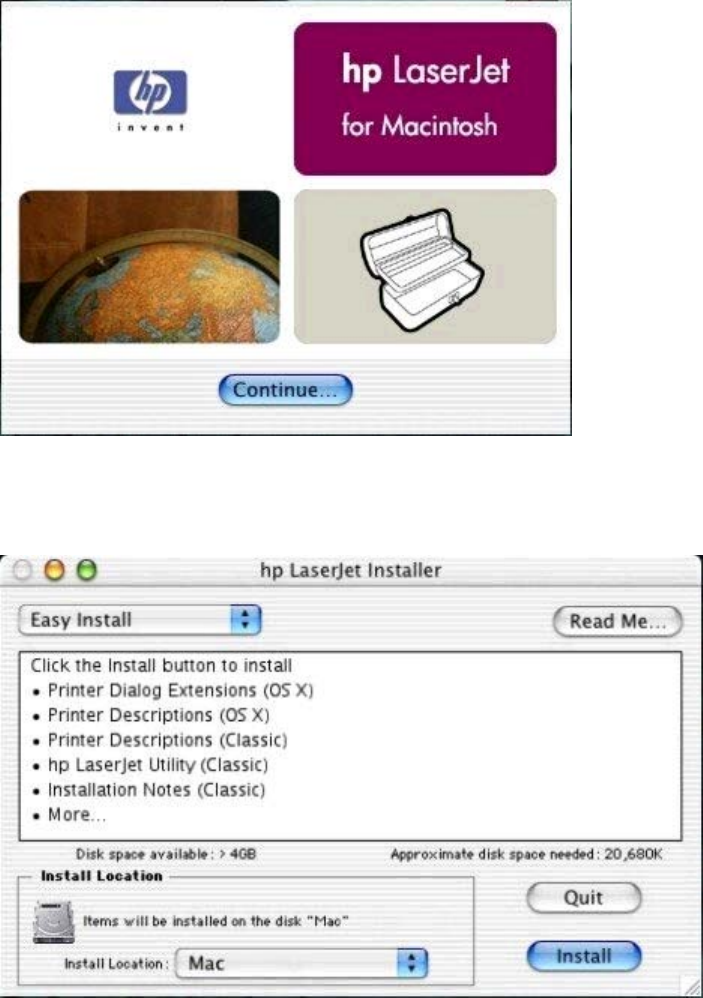
Main Install dialog box sequence
This section provides information about the Macintosh installation dialog box sequence for the
Easy Install (the typical installation option).
Figure 6-9. HP LaserJet for Macintosh installer splash screen dialog box
Click Continue to open the HP LaserJet Installer dialog box.
Figure 6-10. HP LaserJet Installer dialog box (easy install)
If you want to install the files in a location other than the default "Mac," click the Install
Location drop-down menu to specify a location.
You can also select a Custom installation option from the drop-down menu at upper left.
Click Read Me to open the Installer readme file.
EN Chapter 6 Installation for Macintosh and Linux operating systems 269
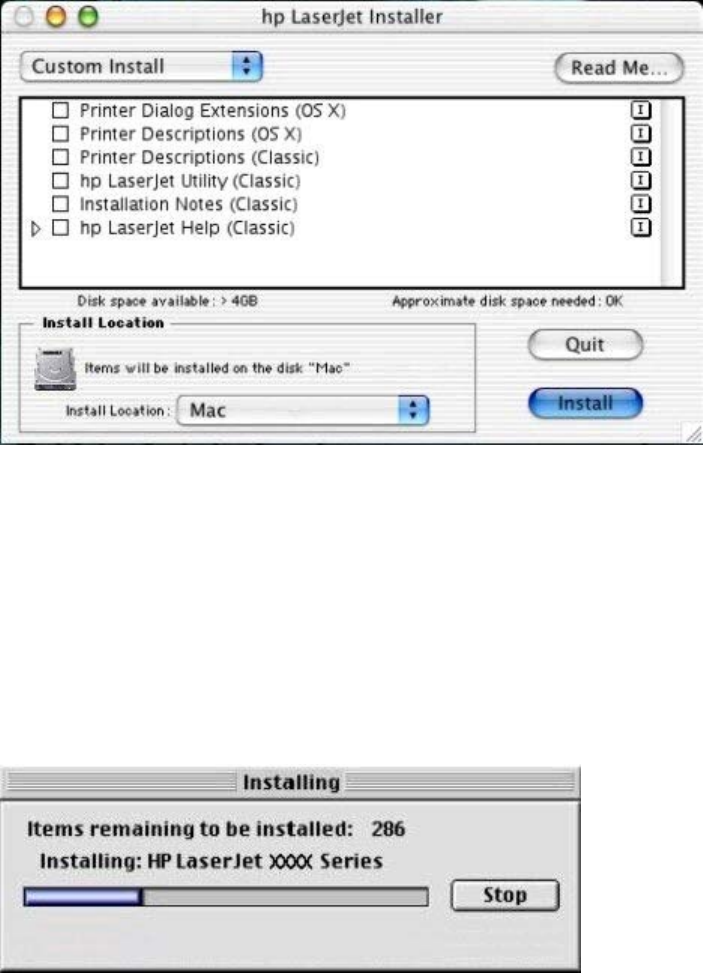
Click Install to start the installation on the selected disk
Click Quit to quit the Installer without making changes to the system.
Figure 6-11. HP LaserJet Installer dialog box (custom install)
Select the install location using the Install Location drop-down menu (if the desired location is
different from "Mac").
Select which of the available components to install by using the check boxes in the list.
Click Read Me to open the Installer readme file.
Click Install to start the installation on the selected disk.
Click Quit to quit the Installer without making any changes to the system.
Figure 6-12. Installing dialog box
This dialog box shows installation progress. No action is required unless you want to stop the
installation. Click Stop to interrupt the install file copy process.
270 Mac OS X installation EN

7
Engineering Detail
Introduction
This section presents engineering detail for the following topics:
●Media attributes
Media attributes
This section includes the following information about media attributes:
●paper sources and destinations
●paper-tray configurations
●paper-source commands
●media types and sizes
●PCL 6c custom paper sizes
Paper sources and destinations
The following table indicates the standard and optional paper sources and destinations for
the HP Color LaserJet 4650:
Table 7-1. HP Color LaserJet 4650 paper sources and destinations
Paper sources multipurpose tray (tray 1) standard
500-sheet paper tray (tray 2) standard
500-sheet paper tray (tray 3) optional
500-sheet paper tray (tray 4) optional
Paper destinations main output bin standard
EN Chapter 7 Engineering Detail 271
Paper-tray configurations
The HP Color LaserJet 4650n and the HP Color LaserJet 4650dn come with a 100-sheet
standard multipurpose tray (tray 1) and a 500-sheet paper feeder (tray 2). The
HP Color LaserJet 4650dtn comes with an additional 500-sheet paper feeder (tray 3) and
the HP Color LaserJet 4650hdn comes with two additional 500-sheet paper feeders (trays 3
and 4).
The following table indicates the paper tray configurations that are possible for the
HP Color LaserJet 4650:
Table 7-2. Media tray configurations for the HP Color LaserJet 4650
Product Tray number Tray type Standard/optional
HP Color LaserJet 4650n Tray 1 multipurpose tray standard
Tray 2 500-sheet tray standard
Tray 3 500-sheet tray optional
Tray 4 500-sheet tray optional
HP Color LaserJet 4650dn Tray 1 multipurpose tray standard
Tray 2 500-sheet tray standard
Tray 3 500-sheet tray optional
Tray 4 500-sheet tray optional
HP Color LaserJet 4650dtn Tray 1 multipurpose tray standard
Tray 2 500-sheet tray standard
Tray 3 500-sheet tray standard
Tray 4 500-sheet tray optional
HP Color LaserJet 4650hdn Tray 1 multipurpose tray standard
Tray 2 500-sheet tray standard
Tray 3 500-sheet tray standard
Tray 4 500-sheet tray standard
A duplexing unit is standard for the HP Color LaserJet 4650dn.
Paper-source commands
The PCL 5 escape sequence for paper source is Esc&l#H (the "l" is a lowercase "L" rather than
the numeral "1"). See the following table for values of #. For example, Esc&l8H is the command
for tray 4.
Note
272 Paper-tray configurations EN
Table 7-3. Paper-source commands
Paper source PCL 6
ubyte #
MediaSource
PCL 5
Esc&l#H
Postscript
/MediaPosition
# or null
Tray 1 3 4 3
Tray 2 (500-sheet) 4 1 0
Tray 3 (500-sheet) 5 5 1
Tray 4 (500-sheet) 7 8 4
Auto Select 1 7 null
Manual feed in tray 1 2 2 3
Media types and sizes
Driver features and attributes
The following table lists the features and attributes of various media listed under the Size Is:
drop-down menu on the Paper tab. The list order can vary, depending on the product and
operating system. The list contains all of the following sizes, and might contain sizes from
other drivers.
Table 7-4. Supported features and attributes by driver
Paper sizes
1
Width Height PCL 6
2
Letter 216 mm
(8.5 inches)
279 mm
(11.0 inches)
"LETTER"
11 x 17 279 mm
(11.0 inches)
432 mm
(17.0 inches)
"LEDGER"
16K
3
197 mm
(7.75 inches)
273 mm
(10.75 inches)
"ROC16K"
8.5 x 13 216 mm
(8.5 inches)
330 mm
(12.99 inches)
"8.5x13"
8K 273 mm
(10.75 inches)
394 mm
(15.50 inches)
"ROC8K"
A3 297 mm
(11.69 inches)
420 mm
(16.54 inches)
"A3"
A4 210 mm
(8.27 inches)
297 mm
(11.69 inches)
"A4"
A5 148 mm
(5.83 inches)
210 mm
(8.27 inches)
"A5"
B4 (JIS) 257 mm
(10.12 inches)
364 mm
(14.33 inches)
"JIS B4"
EN Chapter 7 Engineering Detail 273
Paper sizes
1
Width Height PCL 6
2
B5 (JIS) 182 mm
(7.17 inches)
257 mm
(10.12 inches)
"JIS B5"
Double Japan
Postcard Rotated
148 mm
(5.83 inches)
200 mm
(7.87 inches)
Envelope #10 105 mm
(4.12 inches)
241 mm
(9.5 inches)
"COM10"
Envelope B5 176 mm
(6.93 inches)
250 mm
(9.84 inches)
"B5 ENV"
Envelope C5 162 mm
(6.38 inches)
229 mm
(9.02 inches)
"C5"
Envelope DL 110 mm
(4.33 inches)
220 mm
(8.66 inches)
"DL"
Envelope Monarch 98 mm
(3.87 inches)
190 mm
(7.5 inches)
"MONARCH"
Executive 184 mm
(7.25 inches)
267 mm
(10.5 inches)
"EXEC"
Executive (JIS) 216 mm
(8.5 inches)
330 mm
(12.99 inches)
"JISEXEC"
Legal 216 mm
(8.5 inches)
356 mm
(14.0 inches)
"LEGAL"
Custom (leading
edge)
(other edge)
Minimum:
76.2 mm
(3.0 inches)
Maximum:
215 mm
(8.5 inches)
Minimum:
127 mm
(5.0 inches)
Maximum:
355.6 mm
(14.0 inches)
4
1
For all paper sizes, the PCL 6 margins are 100,100.
2
The PCL 6 command for paper size is ubyte array(String)MediaSize. The values in this
column are the values for "String."
3
In Windows NT 4.0, this paper size is treated as a custom size.
4
For custom sizes, the HP traditional PCL 6 driver specifies actual dimensions, for
example, for 8 by 9 inch custom size, "real32_8.000000 9.000000 CustomMediaSize."
Table 7-5. Supported input media types
Input media
types
(postscript
string)
Tray 1 Tray 2 (500-
sheet)
Tray 3 (500-
sheet)
Tray 4 (500-
sheet)
Duplexing unit Manual duplex
Plain Y Y Y Y Y Y
Table 7-4. Supported features and attributes by driver (continued)
274 Media types and sizes EN
Input media
types
(postscript
string)
Tray 1 Tray 2 (500-
sheet)
Tray 3 (500-
sheet)
Tray 4 (500-
sheet)
Duplexing unit Manual duplex
Preprinted Y Y Y Y Y Y
Letterhead Y Y Y Y Y Y
Transparency Y Y Y Y N N
Prepunched Y Y Y Y Y Y
Labels Y Y Y Y N N
Bond Y Y Y Y Y Y
Recycled Y Y Y Y Y Y
Color Y Y Y Y Y Y
Cardstock
1
Y Y Y Y Y N
Heavy
2
Y Y Y Y Y Y
Envelope Y N N N N N
Light
3
Y Y Y Y Y Y
Intermediate
90 - 104 g/m
2
(25 - 29 lbs)
Y Y Y Y Y Y
Extra Heavy
105 - 119 g/m
2
(29 - 33 lbs)
Y Y Y Y Y N
Glossy
75 - 105 g/m
2
(21 - 29 lbs)
Y Y Y Y Y Y
Heavy Glossy
106 - 120 g/m
2
(29 - 33 lbs)
Y Y Y Y Y Y
Non-HP Heavy
Glossy
Y Y Y Y Y Y
Rough Y Y Y Y Y Y
HP High Gloss
(Images)
Y Y Y Y Y Y
Tough Paper
(Glossy Film)
Y Y Y Y N N
1
Tray 1 accepts cardstock between 164 g/m
2
(45 lb.) and 200 g/m
2
(53 lb.).
2
Heavy paper is supported between 105 g/m
2
(29 lb.) and 119 g/m
2
(33 lb.).
3
Light paper is between 60 g/m
2
(16 lb.) and 74 g/m
2
(20 lb.).
Table 7-5. Supported input media types (continued)
EN Chapter 7 Engineering Detail 275
PCL 6 custom paper sizes
Table 7-6. PCL 6 custom paper sizes
Tray Dimensions Minimum Maximum
Tray 1 (multipurpose) Width 76.2 mm (3 inches) 215.9 mm (8.5 inches)
Height 127.0 mm (5 inches) 355.6 mm (14 inches)
Tray 2 (500-sheet) Width 148.0 mm (5.83 inches) 215.9 mm (8.5 inches)
Height 210.0 mm (8.27 inches) 355.6 mm (14 inches)
Tray 3 (500-sheet) Width 148.0 mm (5.83 inches) 215.9 mm (8.5 inches)
Height 210.0 mm (8.27 inches) 355.6 mm (14 inches)
Tray 4 (500-sheet) Width 148.0 mm (5.83 inches) 215.9 mm (8.5 inches)
Height 210.0 mm (8.27 inches) 355.6 mm (14 inches)
Duplexing unit Width Custom sizes not supported Custom sizes not supported
Height Custom sizes not supported Custom sizes not supported
Paper type commands
The PCL 5c escape sequence for paper type is "Esc&n#Wdpapertype", where "n#" is the
number of characters in the paper type plus 1. For example, in the sequence "Esc&n6WdPlain",
"Plain" has 5 letters plus 1, for a total of 6.
Some paper type options listed in the following table might not be defined in the print driver.
Table 7-7. Paper-type commands
Esc& n# Wd Paper type
Esc& 6 Wd Plain
Esc& 11 Wd Preprinted
Esc& 11 Wd Letterhead
Esc& 13 Wd Transparency
3
Esc& 11 Wd Prepunched
Esc& 7 Wd Labels
Esc& 5 Wd Bond
Esc& 9 Wd Recycled
Esc& 6 Wd Color
Esc& 11 Wd Cardstock
1
Esc& 6 Wd Heavy
Esc& 9 Wd Envelope
Esc& 6 Wd Light
Note
276 Media types and sizes EN

Esc& n# Wd Paper type
Esc& 13 Wd Intermediate
Esc& 12 Wd Extra Heavy
Esc& 6 Wd Gloss
Esc& 12 Wd Heavy Gloss
Esc& 16 Wd Non-HP Heavy Gloss
Esc& 11 Wd Gloss Film
2
3
You must spell out the word "Transparency" in the string, although it is abbreviated as
TRNSPRNCY on the control panel.
1
The correct command for cardstock is "Esc&n11WdCard Stock", with a space between the
"d" and the "S", and with an uppercase "S".
2
You must spell out the term "Gloss Film" in the string, although it is shown as TOUGHPAPER
on the control panel.
Table 7-7. Paper-type commands (continued)
EN Chapter 7 Engineering Detail 277
278 Media types and sizes EN
Index
Symbols/Numerics
% of Normal Size setting
PCL Traditional Drivers 91
unidrivers 179
A
About button, PCL Traditional Drivers 115
accessibility support in drivers 63
accessibility, documentation 10
accessories, automatic configuration ***
ADA (Americans with Disabilities Act) compliance 10
Add Printer installation 203
Add Printer wizard 21
Adobe Acrobat Reader
installing 7
printing PDF files without 20
viewing documentation 4
Adobe Web site ***
Advanced Printing Features setting, unidrivers 156
Advanced tab
PS Emulation Driver 132
unidrivers 154
alerts, e-mail 29, 31
Americans with Disabilities Act (ADA) compliance 10
application settings
traditional drivers 71
unidrivers 151
ASCII output protocol, PS Emulation Driver 146
Automatic color settings
PCL Traditional Drivers 117
unidrivers 191
autorun CD, Windows 7
B
Back Cover settings
PCL Traditional Drivers 96, 104
unidrivers 167, 169
Back to Front printing, unidrivers 158
Basics tab, PCL Traditional Drivers 113
bidirectional communication
about 20
driver support 61
Enterprise AutoConfiguration 21
binary output protocol, PS Emulation Driver 146
binding settings
PCL Traditional Drivers 82
unidrivers 173
bins
custom paper sizes 100
driver support 62
black, printing all text as
PCL Traditional Drivers 87, 88
unidrivers 157
Bluetooth devices 20
booklet printing
PCL Traditional Drivers settings 83
unidriver settings 174
Bubble help 75
C
Cable Connection dialog box, Windows 220
cardstock
paper type commands 277
trays supported 275
CD-ROM
documentation ***, 4
in-box file layout 12
installing Macintosh printing-system software 263
installing Windows printing-system software 6, 210
regional versions 13
Change Current Destination Folder dialog box 252
CHM files, viewing 10
Choose Setup Language dialog box, Windows 213
Client Driver Support dialog box, Windows
Customization Wizard 249
Typical Installation 232
collation settings
PCL Traditional Drivers mopier settings 123
unidriver 155
unidrivers 155, 200
color profiles 7, 20
Color tab
PCL Traditional Drivers 116
unidrivers 190
command-line printing
FTP, Windows 54
local port, Windows 55
LPR 58
Macintosh 57
networks, Windows 56
UNIX 57
Windows 20
command-line silent install for Windows 254, 255
commands, paper
size 274
source 272
type 276
common installer, features 7
Configuration Page, HP Embedded Web Server 26, 29
Configure Device page, HP Embedded Web Server 29
Configure tab, PCL Traditional Drivers 106
Connection type dialog box, Windows 219
connectivity
bidirectional communication support 20
driver support 60
Network Setup dialog box, Windows 218
Printer Connection dialog box, Windows 217
constraint messages
PCL Traditional Drivers 74
unidrivers 153
context-sensitive help
PCL Traditional Drivers 73
unidrivers 152
control panel settings
traditional drivers 71
unidrivers 151
Copy Count settings
PCL Traditional Drivers 114
PS Emulation Driver 131
unidrivers 155, 200
EN Index 279
covers, use different paper settings
PCL Traditional Drivers 96
unidrivers 167
Ctrl-D settings, PS Emulation Driver 147
Custom Installation 234
custom installation
choosing 7
Custom Installation dialog box, Windows 235
Custom Installer Location dialog box 251
custom paper sizes 276
custom paper sizes, PCL Traditional Drivers settings 96
custom paper support 276
customer support 27
Customization Wizard 236
D
datecode, firmware 26
default Print Task Quick Sets
PCL Traditional Drivers 77
unidrivers 160
default printer, setting 256
deleting Job Storage jobs 189
destinations, paper 271
Device Information page, HP Embedded Web Server 27, 30
Device Settings tab
PS Emulation Driver 73
unidrivers 195
Device Status page, HP Embedded Web Server 28
dialog boxes, printing-system software installation
Mac OS Classic 264
Mac OS X 268
Windows, Typical 210
DIMMs, fonts
PCL Traditional Drivers settings 126
unidriver settings 197
directory structure, software CD 12
disabling
driver features 24
disk space requirements
Macintosh and Linux 257
Windows 204
Document Options
PCL Traditional Drivers 80
unidrivers 156
document preview image, unidrivers 170
documentation
Help feature support 64
install notes 11
Print Task Quick Set for use guide, HP Traditional PCL 6 Driver
80
Print Task Quick Set for use guide, unidriver 163
viewing ***, 4
double-sided printing
PCL Traditional Driver settings 80
unidriver settings 171
downloading
firmware 45
printing-system software 17
Driver Configuration dialog box, Customization Wizard 245
Driver Work Space (DWS) 127
drivers
accessibility support 63
accessory configuration ***
Add Printer installation 203
availability by operating system 18
bidirectional communication support 61
bins supported 62
connectivity support 60
Enterprise AutoConfiguration 21
Help feature support 64
included 4
installable options support 62
job storage support 64
job stream output support 59
Linux operating systems 9
lockable features 24
Macintosh 9
media supported 273
paper source commands 272
PCL 6 color raster compression support 59
Point and Print installation 255
Postscript-specific features 69
Print Quality options 86
PS Emulation Driver features 128
settings 71, 151
standalone 17
UNIX operating systems 9
user interface support 63
watermarks support 67
See also PCL Traditional Drivers; PS Emulation Driver; unidrivers
duplexing unit
custom paper sizes 100
media supported 274
models including 272
PCL Traditional Drivers settings 80
print modes ***
unidriver settings 171
DWS (Driver Work Space) 127
E
e-mail alerts 29, 31
Edge Control settings
PCL Traditional Drivers 119
unidrivers 194
Edit Other Links page, HP Embedded Web Server 29
Effects tab
PCL Traditional Drivers 89
unidrivers 177
EIO Jetdirect page, printing 26
Email Server page, HP Embedded Web Server 29
embedded Web server. See HP Embedded Web Server
Enterprise AutoConfiguration
about 21
Novell NetWare operating systems supported 23
Windows operating systems supported 21
envelopes, paper type commands 277
escape sequences
paper source 272
paper type 276
euro character 20
event log 27
EWS. See HP Embedded Web Server
External Fonts settings, PCL Unidrivers 196
F
features
model specifications 2
Features dialog box, Windows
Customization Wizard 244
Typical Installation 229
file layout for software CD 12
files added by Macintosh software 264
Finishing tab
PCL Traditional Drivers 76
unidrivers 170
280 Index EN
firmware
datecode, locating 26
determining current level 45
downloading 45
FTP updates, Macintosh 50
FTP updates, Windows 46
HP Web Jetadmin updates 51
LPR command updates 51
Macintosh, updating 50
messages during update 48
troubleshooting updates 52
UNIX updates 50
updating remotely 20
verifying installation 52
Windows network updates 49
Windows, local port update 48
First Page paper settings
PCL Traditional Drivers 103
unidrivers ***
Flip Pages Up
PCL Traditional Drivers 82
unidriver settings 173
folders added by Macintosh software 264
Font Substitution Table, PS Emulation Unidriver 198
fonts
configuring for watermarks 93
DIMM settings, PCL Traditional Drivers 126
DIMM settings, unidrivers 197
euro character 20
External, PCL Unidrivers 196
Macintosh 259
PS 3 emulation 129
PS Emulation Driver settings 147
Send TrueType as Bitmap, PCL Traditional Drivers 87, 88
Send TrueType as Bitmap, PCL Unidrivers 157
substitution table, PS Emulation Driver 146
substitution table, PS Emulation Unidriver 198
TrueType download option 69
Windows 204, 207
Form to Tray Assignment
PS Emulation Driver 145
unidrivers 196
Front Cover settings
PCL Traditional Drivers 96
unidrivers 167
Front to Back printing, unidrivers 158
FTP
command-line printing, Windows 54
Macintosh command-line printing 57
Macintosh firmware updates 50
Windows firmware updates 46
G
Graphics Mode, unidrivers 158
guides. See documentation
H
Halftone settings
PCL Traditional Drivers 118
unidrivers 193
hard disk
PS Emulation Driver settings 148
unidriver settings 199
heavy paper
trays supported 275
type commands 277
help
Bubble 75
Macintosh 259
operating systems supported 64
PCL Traditional Drivers 73
PS Emulation Driver 130
unidrivers 152
HP Embedded Web Server
about 20, 259
alerts page 29
AutoSend page 29
Configuration Page 29
Configure Device page 29
Device Information page 27, 30
Device Status page 28
Email Server page 29
HP Web Jetadmin 26
Information tab 27
language, setting 30
links 27, 29
navigation 26
Networking tab 27
Security page 29
Settings tab 27
time settings 30
user guide 26
HP Instant Support 27
HP Jetdirect page, printing 26
HP LaserJet Screen Font Installer 267
HP LaserJet Utility
firmware updates 50
printing print-ready files 57
HP Network Registry Agent (HPNRA) 21
HP Software License Agreement dialog box, Windows 216
HP Toolbox
bidirectional communication 21
HP Web Jetadmin
about 43
downloading 7
Driver Configuration Plugin 20
firmware updates 51
HP Embedded Web Server 26
operating systems supported 43
HPNRA (HP Network Registry Agent) 21
HTML files, viewing 10
I
IBM operating systems, supported 19
ICC color profiles 7, 20
Identify Printer dialog box, Windows 223
Ignore Application Collation settings, PCL Traditional Drivers 123
inches, settings 101
Include types in application source list option in drivers 127
Incompatible Print Settings messages. See constraint messages
Information tab, HP Embedded Web Server 27
input trays. See trays
install notes 11
Installable Options
PS Emulation Driver 147
PS Emulation Unidriver 172
installation
Add Printer 203
Adobe Acrobat Reader 7
command-line silent 254, 255
custom option 234
dialog boxes, Mac OS Classic 264
dialog boxes, Mac OS X 268
dialog boxes, Windows 210
EN Index 281
Installer Customization Wizard for Windows 236
Macintosh printing-system software 263
Point and Print 255
system requirements for Macintosh and Linux operating
systems 257
system requirements for Windows operating systems 204
Windows printing-system software 210
Installation Type dialog box, Windows 228
installers
availability by operating system 18
common, features 7
customizing 236
Screen Fonts, Macintosh 267
Instant Support 27
IP address, locating 26
IP Settings dialog box, Customization Wizard 242
J
Jetadmin. See HP Web Jetadmin
Job Storage
operating systems supported 64
PCL Traditional Drivers settings 106, 125
PS Emulation Driver 137
PS Emulation Driver settings 139
unidriver settings 182, 200
job stream output support 59
Job Timeout settings, PS Emulation Driver 147
L
landscape orientation settings
PCL Traditional Drivers 82, 114
unidrivers 173
Language dialog box, Customization Wizard 239
languages
Choose Setup Language dialog box, Windows 213
HP Embedded Web Server 30
printing-system software 13
Layout Options, unidrivers 158
license agreement dialog box, Windows 216
light paper 275
links, HP Embedded Web Server 27, 29
Linux operating systems
driver availability 9
system requirements 257
local port command line printing, Windows 55
localization, software components 13
lockable features, drivers 24
LPR commands
firmware updates 51
printing PDF files 58
M
Macintosh operating systems
command-line printing 54, 57
components, software 258
dialog boxes, Mac OS Classic printing-system software
installation 264
dialog boxes, Mac OS X printing-system software installation
268
directory structure, software CD 13
driver versions 9
files and folders added by installation 264
firmware, updating 50
fonts supported 259
HP Embedded Web Server 259
install notes 259
installing printing-system software 263
network setup 262, 264
online help 259
PDEs 258
PPDs 258
printing print-ready files with HP LaserJet Utility 57
Screen Fonts installer 267
setting up products with Mac OS X 263
supported 19
system requirements 257
uninstalling printing-system software 264
Manual color settings
PCL Traditional Drivers 117
unidrivers 192
manuals. See documentation
margins, PCL 6 driver 274
measurement units 101
media. See paper
memory
base 2
installation requirements for Macintosh and Linux operating
systems 257
installation requirements for Windows operating systems 204
PCL Traditional Drivers settings 127
PS Emulation Driver settings 146, 148
unidriver settings 199
messages, constraint
PCL Traditional Drivers 74
unidrivers 153
Microsoft Point and Print installation 255
millimeters, settings 101
Model dialog box, Windows
Customization Wizard 243
Typical Installation 227
model scripts, UNIX 9
model specifications 2
moire effect, handling 87, 88
Mopier settings
PCL Traditional Drivers 123
PS Emulation Driver 149
unidriver 200
More Configuration Options, PCL Traditional Drivers 125
N
name printer dialog box
Customization Wizard 247
Typical Installation 230
Network Configuration Options dialog box, Windows 225
Network Setup dialog box, Windows 218
Networking tab, HP Embedded Web Server 27
networks
accessories supported 44
bidirectional communication support 60
command line printing 56
Communication Mode dialog box, Windows 226
EIO Jetdirect page, printing 26
firmware updates 49
Macintosh setup 262, 264
Point and Print installation 255
Recommended Network Setup dialog box, Windows 222
settings 32
Windows printing-system software installation 210
Neutral Grays settings
PCL Traditional Drivers 118
unidrivers 193
Novell NetWare operating systems, Enterprise AutoConfiguration
support 23
NT Forms tab, PCL Traditional Drivers 120
282 Index EN
number of copies, setting
PCL Traditional Drivers 114
PS Emulation Driver 131
unidrivers 155, 200
O
online help. See help
operating systems
availability of software components 18
bidirectional communication support 61
bins supported 62
Enterprise AutoConfiguration support 21
Help feature support 64
HP Driver Preconfiguration support 61
installable options support 62
job storage support 64
job stream output support 59
PCL 6 color raster compression support 59
PS Emulation Traditional Driver support 69
standalone drivers 17
supported 19
user interface support 63
watermarks support 67
Optimizations option, PCL Unidrivers 157
Optional Paper Sources, PCL Traditional Drivers 124
ordering supplies 7
orientation settings
PCL Traditional Drivers 82, 114
PS Emulation Driver 131
unidrivers 173
Other Pages paper settings
PCL Traditional Drivers 103
unidrivers 168
Output Protocol settings, PS Emulation Driver 146
Output Settings, PCL Traditional Drivers 87, 88
P
Page Order settings
PCL Traditional Drivers 85
unidrivers 158, 175
page orientation settings
PCL Traditional Drivers 82, 114
PS Emulation Driver 131
unidrivers 173
Page Setup tab, PS Emulation Driver 131
Pages per Sheet settings
PCL Traditional Drivers 83
unidrivers 175
PANTONE color profiles 7, 20
paper
custom sizes, PCL 6 support 276
custom sizes, PCL Traditional Drivers settings 96
Include types in application source list setting 127
margins 274
margins, PCL 6 driver 274
Pages per Sheet settings, PCL Traditional Drivers 83
Pages per Sheet settings, unidrivers 175
Print Document On settings, PCL Traditional Drivers 90
Print Document On settings, unidrivers 178
Print on Both Sides settings, unidrivers 171
Print on Both Sides, PCL Traditional Drivers 80
PS Emulation Driver settings 131
size commands 274
Size is settings, PCL Traditional Drivers 96
Size is settings, unidrivers 164
source commands 272
Source is settings, PCL Traditional Drivers 97
Source is: settings, unidrivers 165
sources and destinations 271
type commands 276
Type is settings, PCL Traditional Drivers 96
Type is: settings, unidrivers 164
types and sizes supported 273
types supported 274
Paper Handling Options, PCL Traditional Drivers 81
Paper Options
PCL Traditional Drivers 96
unidrivers 164
paper trays. See trays
Paper/Quality tab, unidrivers 159
PCL 5 driver
paper source commands 272
PCL 5c escape sequences 276
PCL 6 raster compression support 59
PCL 6 traditional driver
operating systems supported 18
PCL 6c Unidriver
operating systems supported 18
PCL files, printing 27, 20
PCL Traditional Drivers
about 8
About button 115
Basics tab 113
bidirectional communication support 61
bins supported 62
Color tab 116
Configuration Status 115
Configure tab 106
connectivity support 60
custom paper sizes 276
Document Options 80
Effects tab 89
features 71
Finishing tab 76
Help feature support 64
Help system 73
Include types in application source list setting 127
installable options support 62
Job Storage 106
job storage support 64
Job Storage, enabling 125
job stream output support 59
margins 274
media supported 273
memory settings 127
Mopier Enabled settings 123
More Configuration Options 125
NT Forms tab 120
Optional Paper Sources 124
Output Settings 87, 88
Paper Handling Options 81
Paper Options 96
paper size commands 274
PCL 6 color raster compression support 59
preconfiguration support 61
Print Quality Details settings 86, 87
Print Quality group box 86
Print Task Quick Sets 76
user interface support 63
Watermarks settings 91
watermarks support 67
PCL Unidrivers
about 8
accessing 152
Advanced tab 154
bidirectional communication support 61
bins supported 62
EN Index 283
Color tab 190
connectivity support 60
Copy Count settings 155
custom paper sizes 276
Device Settings tab 195
Document Options 156
document preview image 170
Effects tab 177
External Fonts settings 196
features 151
Finishing tab 170
Font DIMM Installer 197
Form to Tray Assignment 196
Graphics Mode 158
Help feature support 64
Help system 152
Installable Options 172
installable options support 62
Job Storage 182
job storage support 64
job stream output support 59
Layout Options 158
media supported 273
Mopier settings 200
Paper Options 164
Paper/Quality tab 159
PCL 6 color raster compression support 59
preconfiguration support 61
Print Optimizations option 157
Print Task Quick Sets 160
raster compression 157
Resizing Options 178
user interface support 63
Watermarks settings 179
watermarks support 67
PDEs (Printer Dialog Extensions) 258
PDF files
command-line printing 20
LPR commands, printing 58
printing using HP Embedded Web Server 27
viewing 4
Percentage of Normal Size setting
PCL Traditional Drivers 91
unidrivers 179
PINs, Job Storage
PCL Traditional Drivers 109
PS Emulation Driver 140
unidrivers 186
Point and Print installation, Windows printing-system software 255
port selection dialog box, Windows
Customization Wizard 240
Typical Installation 219
portrait orientation settings
PCL Traditional Drivers 82, 114
unidrivers 173
Postscript 3 Emulation Traditional Driver 18
Postscript 3 Emulation unidriver
operating systems supported 18
PostScript Device settings, PS Emulation Driver 146
postscript documents, printing 27
Postscript printer description (PPD) files 258
PPD (postscript printer description) files 258
Preparing to Install dialog box, Windows 214
Print All Text as Black
PCL Traditional Drivers 87, 88
unidrivers 157
Print Document On settings
PCL Traditional Drivers 90
unidrivers 178
print drivers. See drivers
Print Job Management dialog box, Windows 221
print modes ***
Print on Both Sides
PCL Traditional Drivers settings 80
unidriver settings 171
Print Optimizations option, PCL Unidrivers 157
Print Page Borders settings
PCL Traditional Drivers 85
unidrivers 175
Print Quality Details, PCL 5c Traditional Driver 87
Print Quality Details, PCL Traditional Drivers 86
Print Quality options in drivers 86
Print Task Quick Sets, PCL traditional driver
use guide 80
Print Task Quick Sets, PCL Traditional Drivers
about 76
defaults 77
Print Task Quick Sets, unidrivers
about 160
custom 164
defaults 160
use guide 163
print-ready files
command-line printing 20
printing with HP Embedded Web Server 27
printing with HP LaserJet Utility, Macintosh 57
Printer Connection dialog box, Typical Installation 217
printer control panel settings
traditional drivers 71
unidrivers 151
Printer Dialog Extensions (PDEs) 258
Printer Location and Comment dialog box, Windows
Customization Wizard 250
Typical Installation 233
Printer Name dialog box, Windows
Customization Wizard 247
Typical Installation 230
Printer Port dialog box, Customization Wizard 240
Printer Sharing dialog box, Windows
Customization Wizard 248
Typical Installation 231
printer, setting default 256
printing 11
printing files using HP Embedded Web Server 27
Private job settings
PCL Traditional Drivers 109
PS Emulation Driver 139
unidrivers 186
PRN files, printing 27
product support 27
Proof and Hold job settings
PCL Traditional Drivers 108
PS Emulation Driver 139
unidrivers 185
protocols
configuring 33
PS Emulation Driver 146
PS 3 font emulation 129
PS Emulation Driver
Advanced tab 132
Ctrl-D settings 147
Device Settings tab 73
features 128
font settings 147
Form to Tray Assignment 145
help 130
Installable Options 147
Job Storage 137
284 Index EN
Output Protocol settings 146
Page Setup tab 131
PostScript Device settings 146
Postscript memory settings 146
Print Quality group box 86
PS 3 font emulation 129
timeout settings 147
PS emulation fonts 207
PS Emulation Traditional Driver
about 8
bidirectional communication support 61
bins supported 62
connectivity support 60
features 69
Help feature support 64
installable options support 62
job storage support 64
job stream output support 59
media supported 273
preconfiguration support 61
user interface support 63
watermarks support 67
PS Emulation Unidriver
about 8
accessing 152
Advanced tab 154
bidirectional communication support 61
bins supported 62
connectivity support 60
Copy Count settings 155
Device Settings tab 195
Document Options 156
document preview image 170
Effects tab 177
features 69, 151
Finishing tab 170
Font DIMM Installer 197
Font Substitution Table 198
Form to Tray Assignment 196
Help feature support 64
Help system 152
Installable Options 172
installable options support 62
Job Storage 182
job storage support 64
job stream output support 59
Layout Options 158
media supported 273
Mopier settings 200
Paper Options 164
Paper/Quality tab 159
preconfiguration support 61
Print Task Quick Sets 160
raster compression 157
Resizing Options 178
user interface support 63
Watermarks settings 179
watermarks support 67
PS files, command-line printing 20
PS traditional driver and unidriver
paper source commands 272
Q
Quick Copy job settings
PCL Traditional Drivers 109
PS Emulation Driver 140
unidrivers 186
Quick Sets. See Print Task Quick Sets
R
raster compression
PCL Unidrivers 157
PS Emulation Unidriver 157
Ready to Install dialog box, Windows 234
Recommended Network Setup dialog box, Windows 222
regional versions for printing-system software 13
releasing Job Storage jobs 112, 189
remote firmware updates
about 20
datecode, locating 26
determining current firmware level 45
downloading 45
FTP, Windows 46
HP Web Jetadmin 51
LPR commands 51
Macintosh 50
messages 48
troubleshooting 52
UNIX 50
verifying installation 52
Windows network 49
Windows, using local port 48
Resizing Options, unidrivers 178
resolution, PCL Traditional Driver settings 87, 88
RFU. See remote firmware updates
RGB Color settings
PCL Traditional Drivers 119
unidrivers 194
RTF files, viewing 10
S
Scale Patterns (WYSIWYG) feature 87, 88
Scale to Fit setting
PCL Traditional Drivers 90
unidrivers 178
Screen Fonts installer, Macintosh 267
screen-readable documentation 10
Security page, HP Embedded Web Server 29
Select Printer dialog box 224
Select printer dialog box, Windows 224
Send Ctrl-D settings, PS Emulation Driver 147
Send TrueType as Bitmaps
PCL Traditional Drivers 87, 88
PCL Unidrivers 157
serial number 27
Set Network Communication Mode dialog box, Windows 226
settings
locking 24
overriding 71, 151
Print Task Quick Sets, PCL Traditional Drivers 76
Print Task Quick Sets, unidrivers 160
Settings tab, HP Embedded Web Server 27
shading, configuring for watermarks 182
sharing setup dialog box, Windows
Customization Wizard 248
Typical Installation 231
silent installation
command-line 254, 255
Customization Wizard 236
sizes, paper
commands 274
custom 276
margins 274
PCL Traditional Drivers settings 96
Print on Both Sides settings, unidrivers 171
Print on Both sides, PCL Traditional Drivers 80
EN Index 285
PS Emulation Driver settings 131
supported 273
unidriver settings 164
smart duplexing 171
Source is settings
PCL Traditional Drivers 97
Source is: settings
unidrivers 165
sources, paper. See trays
Specify Printer dialog box, Windows 241
standalone drivers 17
status
devices 28
supplies 27
storage, job
operating systems supported 64
PCL Traditional Drivers 106
PCL Traditional Drivers settings 125
PS Emulation Driver 137
PS Emulation Driver settings 139
unidriver settings 182, 200
Stored job settings
PCL Traditional Drivers 110
PS Emulation Driver 140
unidrivers 187
substitution table for fonts, PS Emulation Driver 146
supplies
AutoSend page, HP Embedded Web Server 29
ordering 7
usage AutoSend page 29
viewing status 27
support, product 27
system requirements
Macintosh and Linux 257
Windows 204
T
TBCP output protocol, PS Emulation Driver 146
TCP/IP address, locating 26
text files, command-line printing 20
text, printing all as black
PCL Traditional Drivers 87, 88
unidriver 157
time settings, HP Embedded Web Server 30
timeout settings, PS Emulation Driver 147
Toolbox
bidirectional communication 21
traditional drivers. See PCL Traditional Drivers; PS Emulation Driver
transparencies, paper type commands 277
trays
autoconfiguration ***
configurations 272
custom paper sizes 100
included 2, 271
Installable Options, PS Emulation Driver 147
media supported 274
paper source commands 272
paper type commands 276
PCL Traditional Drivers settings 124
PS Emulation Driver Form to Tray Assignment 145
Source is settings, PCL Traditional Drivers 97
Source is: settings, unidrivers 165
unidriver Form to Tray Assignment 196
Windows NT configuration 120
troubleshooting firmware updates 52
TrueType font settings
PS Emulation Driver 147
Send as Bitmap, PCL Traditional Drivers 87, 88
Send as Bitmap, PCL Unidrivers 157
substitution table, PS Emulation Driver 146
two-sided printing
PCL Traditional Drivers settings 80
unidriver settings 171
txt files, command-line printing 20
types, paper
Include in application source list setting 127
PCL Traditional Drivers settings 96
Print on Both Sides settings, unidrivers 171
Print on Both sides, PCL Traditional Drivers 80
supported 274
unidriver settings 164
Typical Installation
choosing 7
dialog boxes, Windows 210
U
unattended installation
command-line 254, 255
Customization Wizard 236
Unidrivers
operating systems supported 18
unidrivers
accessing 152
Advanced tab 154
automatic configuration ***
bidirectional communication support 61
bins supported 62
Color tab 190
connectivity support 60
constraint messages 153
Copy Count settings 155
custom paper sizes 276
Device Settings tab 195
Document Options 156
document preview image 170
Effects tab 177
features 151
Finishing tab 170
Font DIMM Installer 197
Form to Tray Assignment 196
Help feature support 64
Help system 152
Installable Options 172
Job Storage 182
job storage support 64
job stream output support 59
Layout Options 158
media supported 273
Mopier settings 200
Paper Options 164
Paper/Quality tab 159
PCL 6 color raster compression support 59
preconfiguration support 61
Print Task Quick Sets 160
Resizing Options 178
user interface support 63
Watermarks settings 179
watermarks support 67
uninstalling Macintosh printing-system software 264
units of measurement 101
286 Index EN
UNIX operating systems
command-line printing 57
driver availability 9
print-ready printing 57
remote firmware update 50
Update Now feature 21
updating firmware remotely. See remote firmware update
usage page 27
Use Different Paper
PCL Traditional Drivers 96
unidrivers 167
W
Wait Timeout settings, PS Emulation Driver 147
Watermarks settings
drivers supported 67
PCL Traditional Drivers 91
unidrivers 179
Web Jetadmin. See HP Web Jetadmin
Web sites
Adobe ***
downloading software 17
firmware download 45
HP Embedded Web Server 26
HP Embedded Web Server links 27
HP Web Jetadmin 43
links, HP Embedded Web Server 29
Linux product support 258
support links ***
UNIX model scripts 9
Welcome dialog box, Windows
Customization Wizard 238
Typical Installation 215
What's this? Help
PS Emulation Driver 130
unidrivers 152
Windows operating systems
availability of software components 18
CD, print system 6
command-line printing 54
command-line printing, local port 55
command-line printing, networks 56
custom installation, printing-system software 234
default printer, setting 256
dialog boxes, Typical Installation 210
directory structure, software CD 12
driver versions 8
Enterprise AutoConfiguration support 21
fonts supported 204
HP Traditional Postscript 3 Emulation Driver features 128
Installer Customization Wizard 236
installers 18
installing printing software 210
LPR commands 58
NT Forms tab, PCL Traditional Drivers 120
PCL Traditional Driver features 71
Point and Print installation 255
PS emulation fonts supported 207
remote firmware update 48
supported 19
system requirements 204
unidriver features 151
versions supported 203
wireless devices 20
EN Index 287
288 Index EN
© 2004 Hewlett-Packard Development Company, LP
www.hp.com
