HP Color LaserJet 1600 Software Technical Reference External Laser Jet C00599715
LASERJET 1600 c00599715
User Manual: HP HP Color LaserJet 1600 - Software Technical Reference
Open the PDF directly: View PDF  .
.
Page Count: 184 [warning: Documents this large are best viewed by clicking the View PDF Link!]
- Purpose and scope
- Software overview
- Supported Microsoft Windows operating systems
- Supported operating systems for plug and play installations
- Microsoft Windows system requirements
- Software-component information
- HP Color LaserJet 1600 printing-system software for Microsoft Windows
- Available printer configurations
- Port communication
- Regional settings
- Software installation for Microsoft Windows
- Installation overview
- Installation options
- Installation dialog box options for Microsoft Windows 2000, Microsoft Windows XP, and Microsoft Wind ...
- Uninstall
- Host-based driver features for Microsoft Windows
- The HP Color LaserJet 1600 Toolbox
- Engineering Detail
- Index
HP Color LaserJet 1600
Software Technical Reference

HP Color LaserJet 1600
Software Technical Reference
Copyright
® 2006 Copyright Hewlett-Packard
Development Company, L.P.
Reproduction, adaptation or translation
without prior written permission is prohibited,
except as allowed under the copyright laws.
The information contained herein is subject
to change without notice.
The only warranties for HP products and
services are set forth in the express warranty
statements accompanying such products
and services. Nothing herein should be
construed as constituting an additional
warranty. HP shall not be liable for technical
or editorial errors or omissions contained
herein.
Edition 1, 1/2006
Trademarks
Adobe ®, Acrobat ®, and the Acrobat logo ®
are trademarks of Adobe Systems
Incorporated.
Java (TM) is a US trademark of Sun
Microsystems, Inc.
Linux is a U.S. registered trademark of Linus
Torvalds.
Microsoft ®, Windows ®, and Windows NT ®
are U.S. registered trademarks of Microsoft
Corporation.
Pentium ® is a registered trademark of Intel
Corporation or its subsidiaries in the United
States and other countries.
UNIX ® is a registered trademark of The
Open Group.
Table of contents
1 Purpose and scope
Introduction ........................................................................................................................................... 2
HP Color LaserJet 1600 printer features .............................................................................................. 3
Software availability and fulfillment ...................................................................................................... 4
In-box file layout ................................................................................................................... 4
CD language groupings and part numbers .......................................................................... 4
Ordering software ................................................................................................................ 5
Documentation availability and localization .......................................................................................... 6
2 Software overview
Supported Microsoft Windows operating systems ............................................................................. 10
Supported operating systems for plug and play installations ............................................................. 11
Microsoft Windows system requirements ........................................................................................... 12
Software-component information ....................................................................................................... 13
New printing-system software features .............................................................................. 13
Software-component availability ....................................................................................... 13
Software-component localization ....................................................................................... 14
HP Color LaserJet 1600 printing-system software for Microsoft Windows ......................................... 16
Available printer configurations .......................................................................................................... 17
Software features by connection type ................................................................................ 17
Direct connections ............................................................................................................. 18
Local connection using Microsoft peer-to-peer networking (Microsoft Windows
only) .................................................................................................................................. 18
Port communication ............................................................................................................................ 19
USB port connections ........................................................................................................ 19
Device conflicts in Microsoft Windows ............................................................................... 19
Opening the Microsoft Windows Device Manager ............................................ 19
Check for device conflicts ................................................................................. 19
Guidelines for troubleshooting and resolving device conflicts ........................... 20
Regional settings ................................................................................................................................ 21
3 Software installation for Microsoft Windows
Installation overview .......................................................................................................................... 24
Installation options .............................................................................................................................. 25
Microsoft Windows installation for direct connections ....................................................... 25
........................................................................................................................... 25
Installing the printing-system using Microsoft Windows Plug and Play ............................. 26
Installation for Microsoft Windows 98 SE .......................................................... 26
Installation for Microsoft Windows Me ............................................................... 33
ENWW iii
Setting up Microsoft Windows-sharing (peer-to-peer networking) ..................................... 37
Setting up the host computer running Microsoft Windows 98 SE, Microsoft
Windows Me, or Microsoft Windows 2000 ........................................................ 37
Setting up the host computer running Microsoft Windows XP or Microsoft
Windows Server 2003 ....................................................................................... 37
Setting up the client computers ......................................................................... 38
Installation dialog box options for Microsoft Windows 2000, Microsoft Windows XP, and Microsoft
Windows Server 2003 ........................................................................................................................ 40
Uninstall .............................................................................................................................................. 47
Uninstall instructions for Microsoft Windows 2000, Microsoft Windows XP, and Microsoft
Windows Server 2003 ........................................................................................................ 47
Uninstall instructions for Microsoft Windows 98 SE and Microsoft Windows Me .............. 49
ZUNINST.EXE uninstall method ........................................................................................ 52
4 Host-based driver features for Microsoft Windows
Introduction to host-based printing ..................................................................................................... 54
Access to the driver ............................................................................................................................ 55
Printing Preferences tab set .............................................................................................. 55
Printer Properties tab set ................................................................................................... 55
Help system ........................................................................................................................................ 56
What's this? Help ............................................................................................................... 56
Context-sensitive Help ....................................................................................................... 56
Constraint messages ......................................................................................................... 56
Paper/Quality tab features .................................................................................................................. 59
Quick Sets ......................................................................................................................... 59
Defaults ............................................................................................................. 60
User Guide Print Settings .................................................................................. 60
Untitled .............................................................................................................. 60
Paper Options group box ................................................................................................... 60
Size is: ............................................................................................................... 61
Use Different Paper check box ......................................................... 61
Custom Paper Size group ................................................................ 62
Source Is: drop-down menu .............................................................................. 62
Type is: drop-down menu .................................................................................. 63
Use Different Paper options .............................................................................. 64
Document preview image .................................................................................................. 64
Effects tab features ............................................................................................................................ 66
Quick Sets ......................................................................................................................... 66
Fit to Page group box ........................................................................................................ 66
Print Document On setting ............................................................................... 67
Scale to Fit option ............................................................................................ 67
% of Normal Size option ................................................................................... 67
Document preview image .................................................................................................. 68
Watermarks group box ...................................................................................................... 68
Current watermarks ........................................................................................... 69
Watermark message ......................................................................................... 70
Message angle .................................................................................................. 70
Font attributes ................................................................................................... 70
Name ................................................................................................ 70
Color ................................................................................................. 70
iv ENWW
Shading ............................................................................................ 71
Size ................................................................................................... 71
Style .................................................................................................. 71
Finishing tab features ......................................................................................................................... 72
Quick Sets ......................................................................................................................... 72
Document Options ............................................................................................................. 72
Print on Both Sides (Manually) check box ....................................................... 73
Instructions for manually printing on both sides ............................... 74
Flip Pages Up .................................................................................................... 74
Booklet layout .................................................................................................... 74
Book and booklet printing ................................................................. 75
Printing a Booklet ............................................................................. 75
Printing a book .................................................................................. 75
Pages per Sheet ............................................................................................... 75
Print Page Borders ............................................................................................ 76
Page Order ........................................................................................................ 76
Document preview image .................................................................................................. 76
Print Quality group box ...................................................................................................... 77
Print Quality drop-down menu ........................................................................... 77
Print all Text as Black ........................................................................................ 77
Basics tab features ............................................................................................................................ 78
Orientation group box ........................................................................................................ 78
Portrait option button ......................................................................................... 78
Landscape option button ................................................................................... 79
Rotate check box .............................................................................................. 79
Copies group box ............................................................................................................... 79
Copy Count setting ........................................................................................... 79
Collate check box .............................................................................................. 79
About button ...................................................................................................... 79
Page count ........................................................................................................ 80
Service ID (Born-on date) ................................................................................. 80
Color tab ............................................................................................................................................. 82
Quick Sets ......................................................................................................................... 82
Color options ...................................................................................................................... 83
Automatic color settings ..................................................................................................... 83
Manual color settings ......................................................................................................... 83
Text, Graphics, and Photographs sections ........................................................................ 84
Neutral Grays .................................................................................................... 84
General .............................................................................................................................. 84
Edge Control ..................................................................................................... 84
Halftone ............................................................................................................. 85
RGB Color ......................................................................................................... 85
Print in Grayscale .............................................................................................................. 86
Configure tab ...................................................................................................................................... 87
Printer Model ..................................................................................................................... 87
Paper Handling Options ..................................................................................................... 87
Installable Options ............................................................................................................. 88
Jam Recovery ................................................................................................... 88
Courier Font Type ............................................................................................. 88
ENWW v
5 The HP Color LaserJet 1600 Toolbox
Overview of the HP Color LaserJet 1600 Toolbox ............................................................................. 90
Starting the HP Color LaserJet 1600 Toolbox ................................................................... 90
Structure ............................................................................................................................ 90
Opening page .................................................................................................................... 91
Navigation .......................................................................................................................... 91
System requirements ......................................................................................................................... 92
Web browser requirements ................................................................................................ 92
Other requirements ............................................................................................................ 92
Localization ........................................................................................................................................ 93
Configuration options for the HP Color LaserJet 1600 Toolbox ......................................................... 94
HP Color LaserJet 1600 Toolbox section .......................................................................... 95
Status tab .......................................................................................................... 96
Device Status page .......................................................................... 97
Supplies Status page ...................................................................... 105
Print Info Pages page ..................................................................... 107
Troubleshooting tab ........................................................................................ 108
Clearing Jams page ........................................................................ 109
Print Problems page ....................................................................... 110
Troubleshooting Tools page ........................................................... 111
Print Quality Troubleshooting Procedure page .............. 113
Animated Demonstrations page ..................................................... 115
Alerts tab ......................................................................................................... 116
Alerts page ..................................................................................... 116
Documentation tab .......................................................................................... 123
Print: How do I? page ..................................................................... 123
Other: How do I? page ................................................................... 124
User Guide page ............................................................................ 125
Readme page ................................................................................. 126
Device Settings section ................................................................................................... 127
Settings tab ..................................................................................................... 128
Paper Handling page ...................................................................... 129
Printing page .................................................................................. 130
Print Quality page ........................................................................... 131
Print Density page .......................................................................... 133
Paper Type Settings page .............................................................. 134
Print Modes page ........................................................................... 135
System Setup page ........................................................................ 138
Service page ................................................................................... 139
Other pages ..................................................................................................................... 140
About HP Color LaserJet 1600 Toolbox page ................................................. 141
HP Instant Support page ................................................................................. 142
Product Registration page ............................................................................... 143
Order Supplies page ....................................................................................... 144
Product Support page ..................................................................................... 145
6 Engineering Detail
Troubleshooting checklist ................................................................................................................. 148
Problem solving ................................................................................................................................ 150
Coexistence/conflict issues .............................................................................................. 150
vi ENWW
Communication issues ..................................................................................................... 150
Media attributes ................................................................................................................................ 152
Paper-source commands ................................................................................................ 152
Media types and sizes .................................................................................................... 152
Custom paper sizes ........................................................................................................ 154
HP Color LaserJet 1600 Readme .................................................................................................... 156
HP Color LaserJet 1600 Printing System Install Notes ................................................... 156
Introduction ..................................................................................................... 156
Purpose of this document ............................................................... 156
Product description ......................................................................... 156
Who needs this software? .............................................................. 157
Overview of the printing system components ................................. 157
Late-breaking information ............................................................................... 158
Known issues and workarounds ..................................................... 158
Issues fixed ..................................................................................... 158
Installation instructions .................................................................................... 158
Installation options .......................................................................... 158
Installing Software on Windows 98 SE and Windows Me Operating
Systems .......................................................................................... 159
Installing software on Windows 2000 and XP Operating
Systems .......................................................................................... 159
Uninstaller ....................................................................................... 160
Technical assistance ....................................................................................... 160
Customer support ........................................................................... 160
Web ................................................................................................ 160
HP Software and support services - Additional information ........... 161
Legal statements ............................................................................................. 161
Trademark notices .......................................................................... 161
Warranty ......................................................................................... 161
Copyright ........................................................................................ 161
Index ................................................................................................................................................................. 163
ENWW vii
viii ENWW
List of tables
Table 1-1 Features of the HP Color LaserJet 1600 printer ................................................................................ 3
Table 1-2 CD language groupings for Microsoft Windows ................................................................................. 4
Table 1-3 User documentation availability and localization ............................................................................... 6
Table 2-1 Software component availability for the HP Color LaserJet 1600 printer ........................................ 13
Table 2-2 Software component localization by language, A-I ......................................................................... 14
Table 2-3 Language key A-I ........................................................................................................................... 14
Table 2-4 Software component localization by language, K-Z ........................................................................ 15
Table 2-5 Language key, L-Z .......................................................................................................................... 15
Table 2-6 Software components for Microsoft Windows .................................................................................. 16
Table 2-7 Software features by connection type .............................................................................................. 17
Table 4-1 Constraint messages ....................................................................................................................... 56
Table 4-2 Standard paper types and engine speeds ....................................................................................... 63
Table 4-3 Page orientation ............................................................................................................................... 74
Table 4-4 Halftone settings (lpi) ....................................................................................................................... 85
Table 5-1 HP Color LaserJet 1600 Control Panel initialization and Ready messages .................................... 98
Table 5-2 HP Color LaserJet 1600 Control Panel supplies messages ............................................................ 98
Table 5-3 HP Color LaserJet 1600 Control Panel alert messages ................................................................ 101
Table 5-4 HP Color LaserJet 1600 Control Panel warning messages ........................................................... 103
Table 5-5 HP Color LaserJet 1600 Control Panel critical error messages ..................................................... 103
Table 5-6 HP Color LaserJet 1600 Control Panel status messages .............................................................. 104
Table 5-7 HP Color LaserJet 1600 Control Panel printing reports and documents messages ...................... 104
Table 5-8 Available alerts for the HP Color LaserJet 1600 printer ................................................................. 116
Table 5-9 Optimize menu ............................................................................................................................... 131
Table 5-10 Standard print modes ................................................................................................................... 136
Table 5-11 Extended print modes .................................................................................................................. 136
Table 6-1 Troubleshooting checklist ............................................................................................................... 148
Table 6-2 Paper-source commands for the HP Color LaserJet 1600 printer ................................................. 152
Table 6-3 Supported media attributes ............................................................................................................ 152
Table 6-4 Tray 1 and Tray 2 specifications .................................................................................................... 154
Table 6-5 Optional Tray 3 specifications ........................................................................................................ 154
ENWW ix
xENWW
List of figures
Figure 3-1 Add New Hardware Wizard USB Printing Support dialog box ........................................................ 27
Figure 3-2 Add New Hardware Wizard USB Printing Support - Search for driver dialog box .......................... 27
Figure 3-3 Add New Hardware Wizard USB Printing Support - Specify a location dialog box ........................ 28
Figure 3-4 Add New Hardware Wizard USB Printing Support - Ready to Install dialog box ............................ 28
Figure 3-5 Add New Hardware Wizard USB Printing Support - Finish dialog box ........................................... 29
Figure 3-6 Add New Hardware Wizard HP Color LaserJet 1600 ..................................................................... 29
Figure 3-7 Add New Hardware Wizard HP Color LaserJet 1600 - Search for driver dialog box ...................... 30
Figure 3-8 Add New Hardware Wizard HP Color LaserJet 1600 - Specify a location dialog box .................... 30
Figure 3-9 Add New Hardware Wizard HP Color LaserJet 1600 - Ready to Install dialog box ........................ 31
Figure 3-10 Add New Hardware Wizard HP Color LaserJet 1600 - Printer name dialog box .......................... 31
Figure 3-11 Add New Hardware Wizard HP Color LaserJet 1600 - Finish dialog box ..................................... 32
Figure 3-12 Add New Hardware Wizard USB Printing Support - Search for driver dialog box ........................ 33
Figure 3-13 Add New Hardware Wizard USB Printing Support - Select other driver dialog box ..................... 34
Figure 3-14 Add New Hardware Wizard USB Printing Support - Finish dialog box ......................................... 34
Figure 3-15 Add New Hardware Wizard HP Color LaserJet 1600 ................................................................... 35
Figure 3-16 Add New Hardware Wizard USB Printing Support - Select other driver dialog box ..................... 35
Figure 3-17 Add New Hardware Wizard HP Color LaserJet 1600 - Printer name dialog box .......................... 36
Figure 3-18 Add New Hardware Wizard HP Color LaserJet 1600 - Finish dialog box ..................................... 36
Figure 3-19 Step 1 - Welcome dialog box ........................................................................................................ 40
Figure 3-20 Step 2 - HP Software License Agreement dialog box ................................................................... 41
Figure 3-21 Step 3 - Start copying files dialog box .......................................................................................... 42
Figure 3-22 Step 4 - Printing System Setup dialog box ................................................................................... 43
Figure 3-23 Step 5 - Finish dialog box ............................................................................................................. 44
Figure 3-24 Step 6 - Setup complete dialog box .............................................................................................. 45
Figure 3-25 Step 7 - Cancel dialog box ............................................................................................................ 45
Figure 3-26 Step 8 - Exit Setup ........................................................................................................................ 45
Figure 3-27 The HP Color LaserJet 1600 uninstall wizard ............................................................................... 47
Figure 3-28 Ready to uninstall dialog box ........................................................................................................ 48
Figure 3-29 Uninstall Complete! dialog box ..................................................................................................... 49
Figure 3-30 Uninstall dialog box – Microsoft Windows 98 SE and Microsoft Windows Me ............................. 50
Figure 3-31 Default dialog box – Microsoft Windows 98 SE and Microsoft Windows Me ................................ 50
Figure 3-32 Reboot dialog box – Microsoft Windows 98 SE and Microsoft Windows Me ................................ 51
Figure 4-1 HP Color LaserJet 1600 host-based driver overview ..................................................................... 54
Figure 4-2 A typical constraint message .......................................................................................................... 56
Figure 4-3 Paper/Quality tab ........................................................................................................................... 59
Figure 4-4 Paper Options group box .............................................................................................................. 61
Figure 4-5 Custom Paper Size dialog box ........................................................................................................ 62
Figure 4-6 Effects tab ..................................................................................................................................... 66
Figure 4-7 Preview images - Legal on Letter; Scale to Fit off (left) and on (right) .......................................... 67
Figure 4-8 Watermark Details ........................................................................................................................ 69
ENWW xi
Figure 4-9 Finishing tab ................................................................................................................................... 72
Figure 4-10 Print on Both Sides Instructions .................................................................................................... 73
Figure 4-11 Page-order preview images ........................................................................................................ 76
Figure 4-12 Basics tab ..................................................................................................................................... 78
Figure 4-13 Color tab ....................................................................................................................................... 82
Figure 4-14 Manual Color Options ................................................................................................................... 83
Figure 4-15 Configure tab ................................................................................................................................ 87
Figure 5-1 Device Status page ......................................................................................................................... 97
Figure 5-2 Supplies Status page - 1 of 2 ........................................................................................................ 105
Figure 5-3 Supplies Status page - 2 of 2 ........................................................................................................ 106
Figure 5-4 Print Information Pages page ....................................................................................................... 107
Figure 5-5 Clearing Jams page ...................................................................................................................... 109
Figure 5-6 Print Problems page ..................................................................................................................... 110
Figure 5-7 Troubleshooting Tools page ......................................................................................................... 111
Figure 5-8 Print Quality Troubleshooting Procedure page - 1 of 2 ................................................................. 113
Figure 5-9 Print Quality Troubleshooting Procedure page - 2 of 2 ................................................................. 114
Figure 5-10 Animated Demonstrations page ................................................................................................. 115
Figure 5-11 Sample status alert window ........................................................................................................ 121
Figure 5-12 Set up Status Alerts page ........................................................................................................... 121
Figure 5-13 Configuration Result page .......................................................................................................... 122
Figure 5-14 Print: How do I? page ................................................................................................................. 123
Figure 5-15 Other: How do I? page ................................................................................................................ 124
Figure 5-16 User Guide page ......................................................................................................................... 125
Figure 5-17 Readme page ............................................................................................................................. 126
Figure 5-18 Device Settings .......................................................................................................................... 127
Figure 5-19 Paper Handling page .................................................................................................................. 129
Figure 5-20 Printing page ............................................................................................................................... 130
Figure 5-21 Print Quality page ....................................................................................................................... 131
Figure 5-22 Print Density page ....................................................................................................................... 133
Figure 5-23 Paper Type Settings page .......................................................................................................... 134
Figure 5-24 Print Modes page ........................................................................................................................ 135
Figure 5-25 System Setup page ..................................................................................................................... 138
Figure 5-26 Service page ............................................................................................................................... 139
Figure 5-27 About Toolbox page .................................................................................................................... 141
Figure 5-28 HP Instant Support page ............................................................................................................ 142
Figure 5-29 Product Registration page .......................................................................................................... 143
Figure 5-30 Order Supplies page ................................................................................................................... 144
xii ENWW


Introduction
This software technical reference (STR) provides information about and troubleshooting tips for the
printing-system software for the HP Color LaserJet 1600 printer.
This document is prepared in an electronic format to serve as a quick-reference tool for Customer
Contact Center (CCC) agents, support engineers, system administrators, management information
systems (MIS) personnel, and end users, as appropriate.
NOTE This STR describes drivers that are shipped on the printing-system software CD that
comes with the HP Color LaserJet 1600 printer. This STR does not cover drivers that will become
available on the Web.
The following information is included in this technical reference:
●Overview of drivers and platforms
●Procedures for installing and uninstalling software components
●Descriptions of problems that can arise while using the HP Color LaserJet 1600 printer and known
solutions to those problems
NOTE An addendum to this STR describes system modification information, including file lists
and changes to registry keys.
2 Chapter 1 Purpose and scope ENWW
Purpose and scope

HP Color LaserJet 1600 printer features
The following table describes the features of the HP Color LaserJet 1600 printer.
Table 1-1 Features of the HP Color LaserJet 1600 printer
Feature HP Color LaserJet 1600
HP Product number CB373A
Memory ●16 megabytes (MB) of double data rate-synchronous dynamic
random–access memory (DDR-SDRAM)
Speed ●Prints up to 8 pages per minute (ppm) in both black and color
●First page out speed is 20 seconds for both black and color
Connectivity A 2.0 hi-speed universal serial bus (USB) port
Paper handling ●One single-sheet priority feed slot (tray 1) for standard media sizes
●One universal 250-sheet tray (tray 2) that holds up to 250 sheets of
print media or 10 envelopes
●One optional 250-sheet tray (tray 3)
Print ●2400 dots per inch (dpi) color output quality using HP Image Resolution
Enhancement Technology (ImageREt) 2400
●600x600 dpi text and graphics output quality
●HP Color LaserJet 1600 host-based driver
●1,000-page capacity HP UltraPrecise color introductory print
cartridges in cyan, yellow, and magenta
●1,000-page capacity HP UltraPrecise black introductory print cartridge
●The following replacement print cartridges are available for order:
●Q6000A – Black – 2,500 pages based on 5 percent coverage
●Q6001A – Cyan – 2,000 pages
●Q6002A – Yellow – 2, 000 pages
●Q6003A – Magenta – 2,000 pages
ENWW HP Color LaserJet 1600 printer features 3
Purpose and scope

Software availability and fulfillment
In-box file layout
The HP Color LaserJet 1600 printing-system software consists of a single file set for installation on
Microsoft Windows operating systems. The files include both documentation files and files required to
install and uninstall the systems. The files reside in the following directories:
●Root directory
●Apps directory
●<language> directories (where <language> stands for the individual languages on each CD)
●Screen Fonts directory
To view the files, insert the HP Color LaserJet 1600 printing-system software CD, right-click Start, click
Explore, and then select the CD-ROM drive.
CD language groupings and part numbers
The following table presents the part numbers and language groups for Microsoft Windows on the
software CDs for the HP Color LaserJet 1600 printer.
Table 1-2 CD language groupings for Microsoft Windows
CD Part Number Languages
CB373–60101 ●English
●French
●Italian
●German
●Portuguese, Brazilian
●Spanish
●Dutch
●Catalan
CB373–60102 ●English
●Hebrew
●Danish
●Swedish
●Finnish
●Norwegian
CB373–60103 ●English
●Arabic
●Czech
4 Chapter 1 Purpose and scope ENWW
Purpose and scope

CD Part Number Languages
●French
●Greek
●Hungarian
●Polish
●Russian
●Turkish
CB373–60104 ●English
●Korean
●Simplified Chinese
●Traditional Chinese
●Thai
Ordering software
To order the software, contact Hewlett-Packard Support at the following Web site:
www.hp.com/go/clj1600_software
Click CD Order Page to order, or click Download drivers and software to get the software update.
To request the software CD by phone, see the following Web site for the correct contact number for your
country/region:
www.welcome.hp.com/country/us/en/wwcontact.html
Table 1-2 CD language groupings for Microsoft Windows (continued)
ENWW Software availability and fulfillment 5
Purpose and scope

Documentation availability and localization
The documentation in the following table is available for the HP Color LaserJet 1600 printer.
Table 1-3 User documentation availability and localization
Document name Languages Part Number Location
HP Color LaserJet 1600 User
Guide
English CB373-90906 The HP Color LaserJet 1600
User Guide is available in
electronic format on the
HP Color LaserJet 1600
software CD.
This guide is also available by
clicking Manuals on the
following Web site:
www.hp.com/support/clj1600
Arabic CB373–90907
Catalan CB373–90908
Chinese (Simplified) CB373–90923
Chinese (Traditional) CB373–90926
Czech CB373–90909
Danish CB373–90910
Dutch CB373–90911
Finnish CB373–90912
French CB373–90913
German CB373–90914
Hebrew CB373–90915
Hungarian CB373–90916
Indonesian (Bahasa) CB373–90929
Italian CB373–90917
Korean CB373–90918
Norwegian CB373–90919
Portuguese, Brazilian CB373–90921
Polish CB373–90920
Russian CB373–90922
Spanish CB373–90924
Swedish CB373–90925
Thai CB373–90927
Turkish CB373–90928
HP Color LaserJet 1600 Start
Guide
●English
●French
●Italian
●German
●Spanish
●Catalan
CB373–90901 The HP Color LaserJet 1600
Start Guide is available in
hardcopy and comes in the
box with your HP Color
LaserJet 1600 printer.
This guide is also available by
clicking Manuals on the
following Web site:
www.hp.com/support/clj1600
6 Chapter 1 Purpose and scope ENWW
Purpose and scope

Document name Languages Part Number Location
●Portuguese
●Dutch
●Hebrew
●English
●Danish
●Finnish
●Norwegian
●Swedish
●Estonian
●Lithuanian
CB373–90902
●English
●Turkish
●Arabic
●Greek
●Russian
●Ukrainian
●Bulgarian
●Kazakh
●French
CB373–90903
●English
●Chinese (Traditional)
●Chinese (Simplified)
●Thai
●Korean
●Bahasa Indonesian
CB373–90904
●English
●Polish
●Hungarian
●Czech
●Croatian
●Romanian
●Slovenian
●Slovak
CB373–90905
Table 1-3 User documentation availability and localization (continued)
ENWW Documentation availability and localization 7
Purpose and scope

Document name Languages Part Number Location
HP Color LaserJet 1600
Printing System Install Notes
English N/A The HP Color LaserJet 1600
Printing System Install Notes
are available in electronic
format on the HP Color
LaserJet 1600 printing-
system software CD.
Arabic
Chinese, simplified
Czech
Danish
Dutch
Finnish
French
German
Hebrew
Hungarian
Italian
Korean
Norwegian
Portuguese, Brazilian
Polish
Russian
Spanish, Castilian
Swedish
Traditional Chinese
Thai
Turkish
Table 1-3 User documentation availability and localization (continued)
8 Chapter 1 Purpose and scope ENWW
Purpose and scope

2 Software overview
This chapter provides information about the following topics:
●Supported Microsoft Windows operating systems
●Supported operating systems for plug and play installations
●Microsoft Windows system requirements
●Software-component information
●HP Color LaserJet 1600 printing-system software for Microsoft Windows
●Available printer configurations
●Port communication
●Regional settings
ENWW 9
Software overview

Supported Microsoft Windows operating systems
The following Microsoft Windows operating systems fully support the software installer, and drivers for
these operating systems are available on the software CD that comes with the printer.
●Microsoft® Windows® 2000
●Microsoft Windows XP (32-bit) Home edition
●Microsoft Windows XP (32–bit) Professional edition
●Microsoft Windows XP Media Center
●Microsoft Windows Server 2003
10 Chapter 2 Software overview ENWW
Software overview

Supported operating systems for plug and play
installations
The following operating systems support plug and play installations.
●Microsoft Windows 98 Second Edition (Microsoft Windows 98 SE)
●Microsoft Windows Millennium Edition (Microsoft Windows Me)
ENWW Supported operating systems for plug and play installations 11
Software overview

Microsoft Windows system requirements
●A computer with at least a Pentium 233 MHz processor with 64 MB of RAM
●150 MB or more of available hard-disk space
●CD-ROM drive (required for installation)
●An available USB port
12 Chapter 2 Software overview ENWW
Software overview

Software-component information
This section contains information about the following topics:
●New printing-system software features
●Software-component availability
●Software-component localization
New printing-system software features
The HP Color LaserJet 1600 printing-system software includes new features since the release of the
HP LaserJet 2550 series printer. New features for the HP Color LaserJet 1600 printer includes the
following:
●New Installer. The HP Color LaserJet 1600 printers include a new Installer that improves the
software installation process and supports either a hardware-first or a software-first installation.
●Software-first is the recommended installation method.
●In a hardware-first installation, the HP Color LaserJet 1600 printing-system software uses two
separate installers, which run together to set up the port and the printing-system software
correctly. If you cancel the installation after the hardware-first plug-and-play installer finishes,
your installation consists of the print driver only.
●HP Color LaserJet 1600 Toolbox. The HP Color LaserJet 1600 printing-system software includes
a Web program that you can use to communicate with and manage your HP Color LaserJet 1600
printer easily. Use the HP Color LaserJet 1600 Toolbox to monitor the status of the printer, examine
and change printer settings, provide printer alerts, find troubleshooting and “How Do I” content,
and gain access to HP Instant Support.
Software-component availability
The following table lists the availability of the HP Color LaserJet 1600 printing-system software
components by operating system.
NOTE In the following table, "98 SE/Me" refers to Microsoft Windows 98 Second Edition and
Microsoft Windows Me; "2K/XP/2003" refers to Microsoft Windows 2000, Microsoft Windows XP,
and Microsoft Windows Server 2003.
Table 2-1 Software component availability for the HP Color LaserJet 1600 printer
Component 98 SE/Me 2K/XP/2003
Drivers
HP Color LaserJet 1600 host-based driver X X
Installers
Common Microsoft Windows Installer X X
Fonts X X
.INF file (Add Printer) X X
Bidirectional communication
ENWW Software-component information 13
Software overview

Component 98 SE/Me 2K/XP/2003
Direct connect bidirectional communications X X
Remote management and status
HP Color LaserJet 1600 Toolbox X X
Online Documentation
HP Color LaserJet 1600 User Guide X X
HP Color LaserJet 1600 Printing System Install Notes X X
Help systems X X
Software-component localization
The following table provides localization information about the printing-system software components for
the HP Color LaserJet 1600 printer.
Table 2-2 Software component localization by language, A-I
Component
1
Operating
system
AR CA CS DA DE EL EN ES FI FR HE HU ID IT
HP Color LaserJet
1600 host-based
driver
98 SE, Me,
2000, XP
X X X X X X X X X X X X X
HP Color LaserJet
1600 Toolbox
98 SE, Me,
2000, XP
X X X X X X X X X X X X
Common Microsoft
Windows Installer
2000, XP X X X X X X X X X X X X X
Online manuals 98 SE, Me,
2000, XP
X X X X X X X X X X X X X X
Online Help 98 SE, Me,
2000, XP
X X X X X X X X X X X X X
1
Components that are not available in a specific language are supported in English.
Table 2-3 Language key A-I
AR = Arabic
CA = Catalan
CS = Czech
DA = Danish
DE = German
EL = Greek
EN = English
ES = Spanish
FI = Finnish
FR = French
HE = Hebrew
HU = Hungarian
ID = Bahasa Indonesian
IT = Italian
Table 2-1 Software component availability for the HP Color LaserJet 1600 printer (continued)
14 Chapter 2 Software overview ENWW
Software overview

Table 2-4 Software component localization by language, K-Z
Component
1
Operating system KO NL NO PL PT RU SV TH TR ZH
CN
ZHT
W
HP Color LaserJet 1600
host-based driver
98 SE, Me, 2000, XP X X X X X X X X X X X
HP Color LaserJet 1600
Toolbox
98 SE, Me, 2000, XP X X X X X X X X X X X
Common Microsoft
Windows Installer
2000, XP X X X X X X X X X X X
Online manuals 98 SE, Me, 2000, XP X X X X X X X X X X X
Online Help 98 SE, Me, 2000, XP X X X X X X X X X X X
1
Components that are not available in a specific language are supported in English.
Table 2-5 Language key, L-Z
KO = Korean
NL = Dutch
NO = Norwegian
PL = Polish
PT = Portuguese
RU = Russian
SV = Swedish
TH = Thai
TR = Turkish
ZHCN = Simplified Chinese
ZHTW = Traditional Chinese
ENWW Software-component information 15
Software overview

HP Color LaserJet 1600 printing-system software for
Microsoft Windows
The HP Color LaserJet 1600 printer includes the following software components and programs for
Microsoft Windows operating systems.
Table 2-6 Software components for Microsoft Windows
Components Description
HP installer Installs HP Color LaserJet 1600 printing-system software based on the hardware it detects from
the host computer
Uninstaller Removes files and folders that were installed when the HP Color LaserJet 1600 printing-system
software was originally installed on the computer
HP Color LaserJet 1600
Toolbox
Provides an interface through your Web browser to manage the HP Color LaserJet 1600 printer.
Use the HP Color LaserJet 1600 Toolbox to perform the following tasks:
●Monitor the status of your HP Color LaserJet 1600 printer.
●Change the print settings for your HP Color LaserJet 1600 printer.
●Find troubleshooting and "How-To" information for performing basic tasks
●Configure and receive Status Alerts when certain events occur or conditions exist on your
HP Color LaserJet 1600 printer.
Driver software Allows the computer and the HP Color LaserJet 1600 printer to communicate. This software
includes the HP Color LaserJet 1600 host-based driver.
Online Help Provides help for using the software for the HP Color LaserJet 1600 printer
The user documentation for this printer is included on the installation CD as both .CHM (online
help) files and Adobe® Acrobat® .PDF files. The software CD uses a version of Adobe Acrobat
Reader that remains on the CD and does not need to be installed on the computer. However, you
need to have a Web browser installed on the computer to view the contents from any .CHM file.
16 Chapter 2 Software overview ENWW
Software overview

Available printer configurations
This section contains information about the following topics:
●Software features by connection type
●Supported configurations
Software features by connection type
The HP Color LaserJet 1600 printer can function in one of two installations:
●Directly connected to a computer; local user
●Directly connected to a computer running Microsoft Windows 98 SE, Microsoft Windows Me,
Microsoft Windows 2000, Microsoft Windows XP, or Microsoft Windows Server 2003, and shared
through Microsoft Windows sharing.
NOTE This document outlines the procedures for sharing a printer using Microsoft
Windows Sharing (Peer-to-Peer networking). If these procedures are not successful,
contact Microsoft at the following Web site: http://www.microsoft.com. HP does not support
Peer-to-Peer networking, as the feature is a function of Microsoft operating systems and not
of the HP printer drivers.
The following table shows the features available to users through each type of connection.
Table 2-7 Software features by connection type
Feature or function Connected directly to computer; local
user
Connected directly to computer, but
shared with other users
1
Printing from the computer to the printer X X
Access through the printer software to
the print options
X
Access through the driver to the printer
configuration options
X X
Printer error messages appear on the
user's computer screen
X
1
Available to other users on the network when Microsoft Windows sharing is enabled from the computer that is directly
connected to the printer. When the computer in a direct connection installation is on a local area network (LAN), the printer
can be shared with other computers on the network.
ENWW Available printer configurations 17
Software overview

Direct connections
In the direct (or local) configuration, the HP Color LaserJet 1600 printer is connected directly to the host
computer with a universal serial bus (USB) cable. In this configuration, the printer is not shared. A single
user has complete physical control over the printer. In the direct configuration, you can gain access to
all of the printer capabilities.
Local connection using Microsoft peer-to-peer networking
(Microsoft Windows only)
NOTE This section outlines the procedures for sharing a printer using Microsoft Windows
Sharing (Peer-to-Peer networking). If these procedures are not successful, contact Microsoft at
the following Web site: http://www.microsoft.com. HP does not support Peer-to-Peer networking,
as the feature is a function of Microsoft operating systems and not of the HP printer drivers.
Use Microsoft Windows to share a local printer over the network. The operating system handles all of
the networking issues. The printer will print in this configuration, but it will not have access to the HP
Color LaserJet 1600 Toolbox. Also, because Microsoft peer-to-peer networking is unidirectional,
network users do not receive printer-status messages when they print to the printer.
The network computers that will be using the HP Color LaserJet 1600 printing-system software need to
meet the same requirements as a direct connection for operating systems, processor type and speed,
and available hard-disk space.
18 Chapter 2 Software overview ENWW
Software overview

Port communication
This section provides information about the following topics:
●USB port connections
●Device conflicts in Microsoft Windows
USB port connections
USB version 2.0 is an input/output (I/O) mode that is supported by Microsoft Windows. A wide variety
of consumer devices, such as digital cameras and scanners, also support USB. Version 2.0 is the current
standard. The HP Color LaserJet 1600 printer is compatible with USB version 2.0 specifications.
A distinction exists between a USB Host and a USB Device. The HP Color LaserJet 1600 is a USB
Device. It can only connect to a USB Host or a USB Hub.
Device conflicts in Microsoft Windows
When two-way communication cannot be established with the HP Color LaserJet 1600 printer, the
Microsoft Windows Device Manager might show a conflict. Conflicts should be resolved immediately,
and before continuing to troubleshoot two-way communication issues. The following sections contain a
few guidelines for identifying and resolving these conflicts.
Opening the Microsoft Windows Device Manager
Follow these steps to open the Microsoft Windows Device Manager.
1. For Microsoft Windows 98 SE, Microsoft Windows Me, and Microsoft Windows 2000, click Start,
click Settings, and then click Control Panel.
For Microsoft Windows XP or Microsoft Windows Server 2003, click Start, and then click Control
Panel.
2. Double-click the System icon.
3. On the Hardware tab, click Device Manager.
NOTE In Microsoft Windows 98 SE, click the Device Manager tab.
Check for device conflicts
Follow these steps to check for device conflicts.
1. Look for devices that appear on the list with a yellow exclamation mark (!) or a red X .
2. Identify port conflicts by double-clicking Port or by clicking the plus sign (+). Conflicts here usually
interfere with two-way communication.
3. To check the status of a device, click the device name, and then click Properties. The Device
Status appears in the middle of the dialog box.
ENWW Port communication 19
Software overview

4. To check the Conflicting Device list, click the device name, and then click Properties. Click
the Resources tab, and look at the Conflicting Device list at the bottom of the dialog box.
5. Click the plus sign (+) to the left of Open the Other Devices. Misidentified or noncategorized
devices appear here.
Guidelines for troubleshooting and resolving device conflicts
Follow these steps for resolving device conflicts.
1. If the conflicting device appears in the list of devices, click the device name, click Remove, and
then click Yes. Click Yes to restart Microsoft Windows.
2. If the conflicting device is a duplicate (and one of the duplicate listings does not show a conflict),
click the name of every device that has a conflict, click Remove, and then click Yes. Click Yes to
restart Microsoft Windows.
NOTE You might not need to restart the computer in Microsoft Windows 2000, Microsoft
Windows XP, or Microsoft Windows Server 2003, depending on the type of port conflict you
are resolving.
3. If a device has a conflict and you have the driver for that device, remove the device and then reinstall
it. After removing the device, restart the computer. When Microsoft Windows reinstalls devices, it
usually finds nonconflicting resources.
20 Chapter 2 Software overview ENWW
Software overview

Regional settings
When the HP Color LaserJet 1600 printing-system software is installed, the installation program uses
your computer’s regional settings to determine which language version of the software to install. If the
regional settings are incorrect on your computer, the HP Color LaserJet 1600 printing-system software
might install the software in a language different from what you were expecting. Use the following
instructions to set your computer’s regional settings:
Setting regional settings for Microsoft Windows 98 SE and Microsoft Windows Me
1. Click Start, select Settings, and then click Control Panel.
2. Double-click the Regional Settings icon.
3. On the Regional Settings tab, select the appropriate language from the Language drop-down list
and then click OK.
NOTE If the appropriate language is not listed in the drop-down list, consult the Microsoft
Windows documentation for information about adding additional language support to your
computer’s regional settings.
Setting regional settings for Microsoft Windows 2000
1. Click Start, select Settings, and then click Control Panel.
2. Double-click the Regional Options icon.
3. On the General tab, select the appropriate language from the Your locale (location) drop-down
list.
NOTE If the appropriate language is not listed in the Your locale (location) drop-down
list, first select the check box next to the appropriate language listed in the Language
settings for the system section. Then, look for that language again in the Your locale
(location) drop-down list.
4. In the Language settings for the system section, click Set default.
5. Select your language from the Select the appropriate locale drop-down list, and then click OK.
6. Click OK to save your changes and close the dialog box.
Setting regional settings for Windows XP and Microsoft Windows Server 2003
1. Click Start, and then click Control Panel.
2. Click Date, Time, Language, and Regional Options, and then click Regional and Language
Options.
NOTE In Microsoft Windows Server 2003, click Regional and Language Options.
3. On the Regional Options tab, select the appropriate language from the Language drop-down list.
ENWW Regional settings 21
Software overview

NOTE If the appropriate language does not appear in the Language drop-down list, follow
these instructions to add additional language support:
1. Click the Languages tab.
2. In the Supplemental language support section, click the check box to select one or both
of the following options:
- Install files for complex script and right-to-left languages. This option installs Arabic,
Armenian, Georgian, Hebrew, Indic, Thai, and Vietnamese language support.
- Install files for East Asian languages. This option installs Chinese, Japanese, and
Korean language support.
3. You are prompted to provide the operating system CD and to restart your computer after
the selected files have been installed. When your computer restarts, continue with step 3 in
Setting regional settings for Windows XP and Microsoft Windows Server 2003.
Changes to regional settings affect only the languages your computer supports. The
HP Color LaserJet 1600 printing-system software does not support all of the languages your
computer supports. For a list of the languages that the HP Color LaserJet 1600 printing-
system software supports, see Software-component localization.
4. Click the Advanced tab and select the appropriate language from the Language for non-Unicode
programs drop-down list.
5. Click the Default User Account Settings check box, and then click OK.
6. A dialog box appears, prompting you to restart your computer. Click OK to restart your computer
and to save your new regional settings.
22 Chapter 2 Software overview ENWW
Software overview

3 Software installation for Microsoft
Windows
NOTE This chapter covers information about the HP Color LaserJet 1600 printing-system
software for Microsoft Windows.
This chapter provides information about the following topics:
●Installation overview
●Installation options
●Installation dialog box options for Microsoft Windows 2000, Microsoft Windows XP, and Microsoft
Windows Server 2003
●Uninstall
ENWW 23
Software installation for
Microsoft Windows

Installation overview
The software for the HP Color LaserJet 1600 printer comes on a single CD. On computers running
Microsoft Windows 2000, Microsoft Windows XP, or Microsoft Windows Server 2003, the Setup program
installs the HP Color LaserJet 1600 printing-system software from the CD onto the hard disk and
updates Microsoft Windows files.
NOTE The Setup program is not supported for Microsoft Windows 98 SE or Microsoft Windows
Me. You must use a plug-and-play installation for these operating systems. For more information,
see Installing the printing-system using Microsoft Windows Plug and Play.
For all of the supported platforms, each install option presents a series of query dialog boxes that guide
you through the installation process. You provide information about your computer environment, and
the Installer guides you through the installation.
24 Chapter 3 Software installation for Microsoft Windows ENWW
Software installation for
Microsoft Windows

Installation options
The HP Color LaserJet 1600 printing-system software can be used with the HP Color LaserJet 1600
printer in the following configurations:
●You install the HP Color LaserJet 1600 printing-system software on a computer that is directly
connected to the product through a USB port, and that is running Microsoft Windows 2000,
Microsoft Windows XP, or Microsoft Windows Server 2003.
●You install the HP Color LaserJet 1600 printing-system software on a computer that is directly
connected to the product through a USB port, and that is running Microsoft Windows 98 SE or
Microsoft Windows Me.
●You install the HP Color LaserJet 1600 printing-system software on a computer that is directly
connected to the product through a USB port, and that is running Microsoft Windows 2000,
Microsoft Windows XP, or Microsoft Windows Server 2003 . You can then share your HP Color
LaserJet 1600 printer with other users on your network using Microsoft Windows sharing.
Microsoft Windows installation for direct connections
Use the following instructions to install the product software on a computer that is running Microsoft
Windows 2000, Microsoft Windows XP, or Microsoft Windows Server 2003.
NOTE Set up and turn on the HP Color LaserJet 1600 printer before installing the printing-
system software. Do not connect the HP Color LaserJet 1600 printer to the computer until the
software installation program prompts you.
NOTE You must have Administrator privileges to install the printing-system software on
Microsoft Windows 2000, Microsoft Windows XP, or Microsoft Windows Server 2003.
1. Quit all open programs.
2. Insert the HP Color LaserJet 1600 printing-system software CD into the CD-ROM drive.
NOTE If your CD does not start automatically, click Start, click Run, and then browse to
and double-click the SETUP.EXE file in the root directory of the CD.
3. Follow the onscreen prompts to install the software.
4. When the installation is nearly complete, the Finish dialog box appears and you can print a test
page. Click the Print a test page check box, and then click Finish to finish the installation and
print a test page.
5. If you are prompted to restart your computer, click Yes.
ENWW Installation options 25
Software installation for
Microsoft Windows

Installing the printing-system using Microsoft Windows Plug and
Play
The HP Color LaserJet 1600 printing-system software installer does not support Microsoft Windows 98
SE or Microsoft Windows Me. You must use a Plug and Play installation to install the printing-system
software on computers running Microsoft Windows 98 SE or Microsoft Windows Me.
Installation for Microsoft Windows 98 SE
Up to two events might occur when you install the HP Color LaserJet 1600 printing-system software
using Microsoft Windows Plug and Play . If the USB Printing Support (USB001 port) does not already
exist on the computer, the installer first installs the USB Printing Support driver (steps 5 through 9). Then
the installer installs the HP Color LaserJet 1600 printer driver. The procedures described in steps 4
through 8 might not occur if USB Printing Support already exists on the computer.
In addition to the USB print support and print driver, the installer also installs the HP Toolbox. Because
the HP Toolbox is installed with the printer driver, a separate Plug and Play event does not occur.
Follow these steps to install the HP Color LaserJet 1600 printing-system software on a computer running
Microsoft Windows 98 SE.
1. Verify that the HP Color LaserJet 1600 is turned on and that the READY message appears on the
printer control panel.
2. Close all open programs on your computer.
3. Insert the HP Color LaserJet 1600 printing-system CD into the CD-ROM drive on your computer.
NOTE If an error message appears that says SETUP is not available in Windows 98
and Me. Please use Add Printer Wizard or Plug and Play to install the driver., click
OK and go to step 4.
4. Connect a USB cable between the printer and your computer.
26 Chapter 3 Software installation for Microsoft Windows ENWW
Software installation for
Microsoft Windows
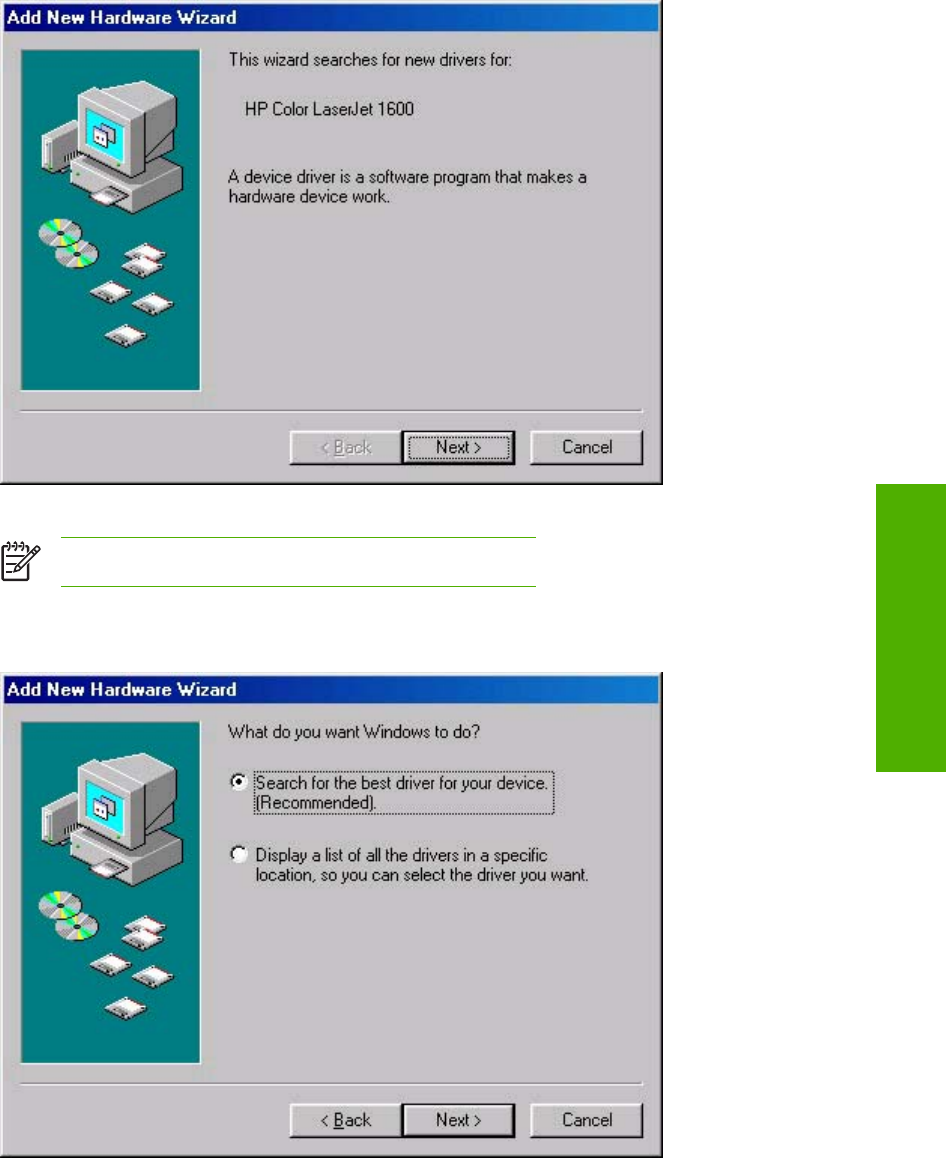
5. When the Add New Hardware Wizard HP Color LaserJet 1600 dialog box appears, click Next.
Figure 3-1 Add New Hardware Wizard USB Printing Support dialog box
NOTE If this screen does not appear, go to Step 10.
6. Click the Search for the best driver for your device. (Recommended) option button, and then
click Next.
Figure 3-2 Add New Hardware Wizard USB Printing Support - Search for driver dialog box
ENWW Installation options 27
Software installation for
Microsoft Windows
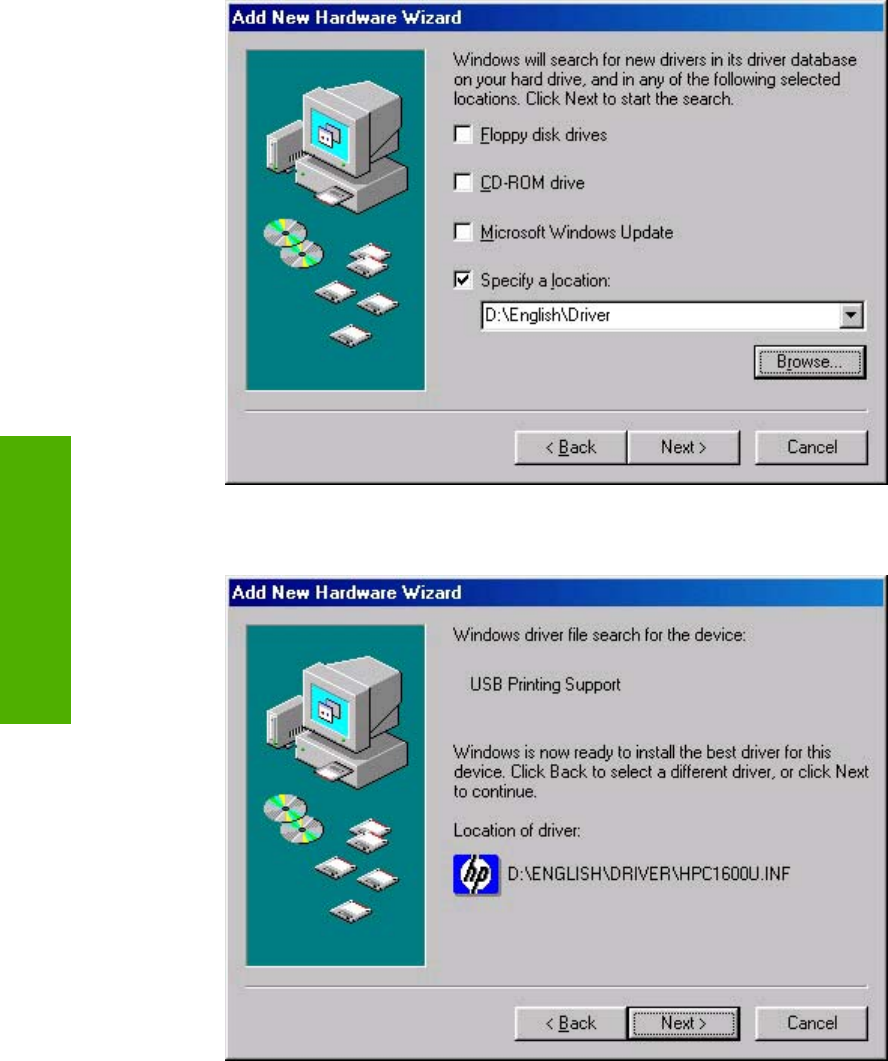
7. Select the Specify a location check box, and then click Browse. Navigate to the CD-ROM drive,
open the language folder for the language that you want to install, and then double-click the
Driver folder. Click Next to continue.
Figure 3-3 Add New Hardware Wizard USB Printing Support - Specify a location dialog box
8. When the path and the driver file name appear in the dialog box, click Next to continue.
Figure 3-4 Add New Hardware Wizard USB Printing Support - Ready to Install dialog box
28 Chapter 3 Software installation for Microsoft Windows ENWW
Software installation for
Microsoft Windows

9. The Wizard copies the driver files and then the following dialog box appears. Click Finish to
continue the installation.
NOTE If you are prompted to restart your computer, click No.
Figure 3-5 Add New Hardware Wizard USB Printing Support - Finish dialog box
10. A second Plug and Play event occurs and the Add New Hardware Wizard dialog box appears.
Click Next to continue.
Figure 3-6 Add New Hardware Wizard HP Color LaserJet 1600
ENWW Installation options 29
Software installation for
Microsoft Windows
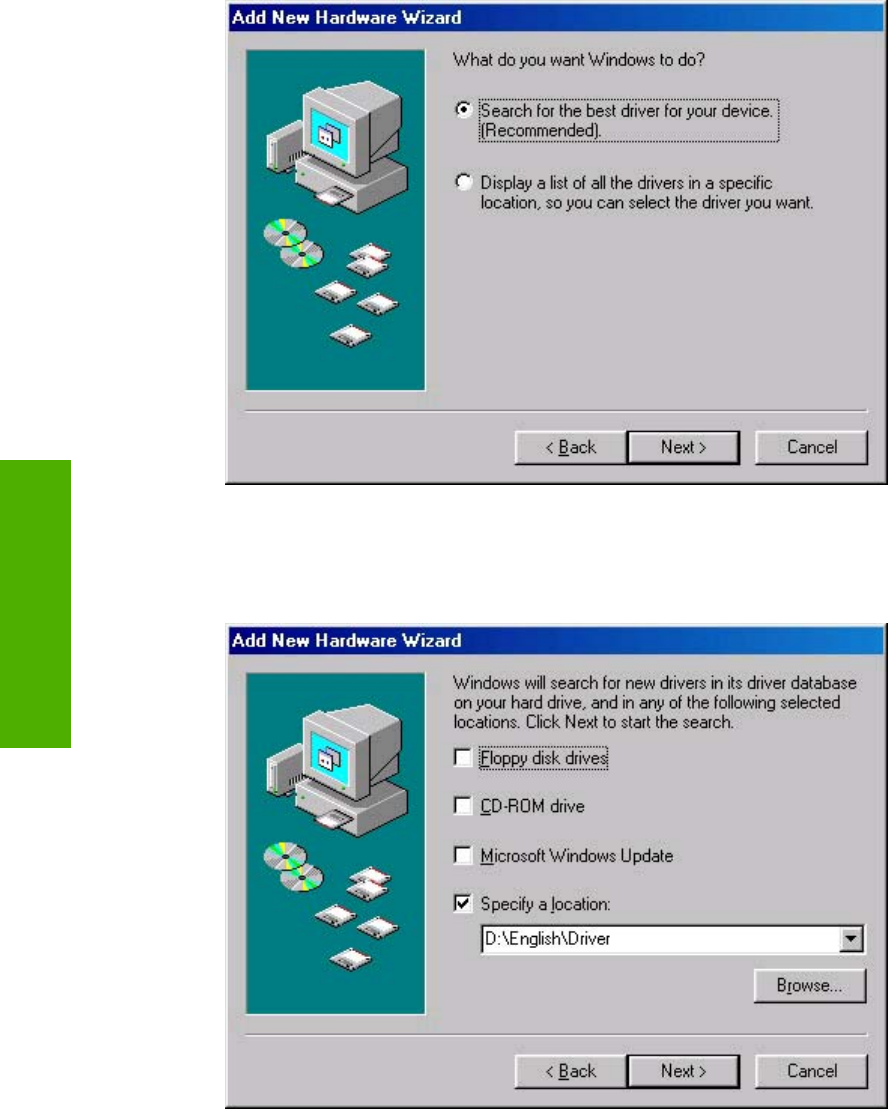
11. Click the Search for the best driver for your device. (Recommended) option button, and then
click Next.
Figure 3-7 Add New Hardware Wizard HP Color LaserJet 1600 - Search for driver dialog box
12. Select the Specify a location check box, and then click Browse. Navigate to the CD-ROM drive,
open the language folder for the language that you want to install, and then double-click the
Driver folder. Click Next to continue.
Figure 3-8 Add New Hardware Wizard HP Color LaserJet 1600 - Specify a location dialog box
30 Chapter 3 Software installation for Microsoft Windows ENWW
Software installation for
Microsoft Windows
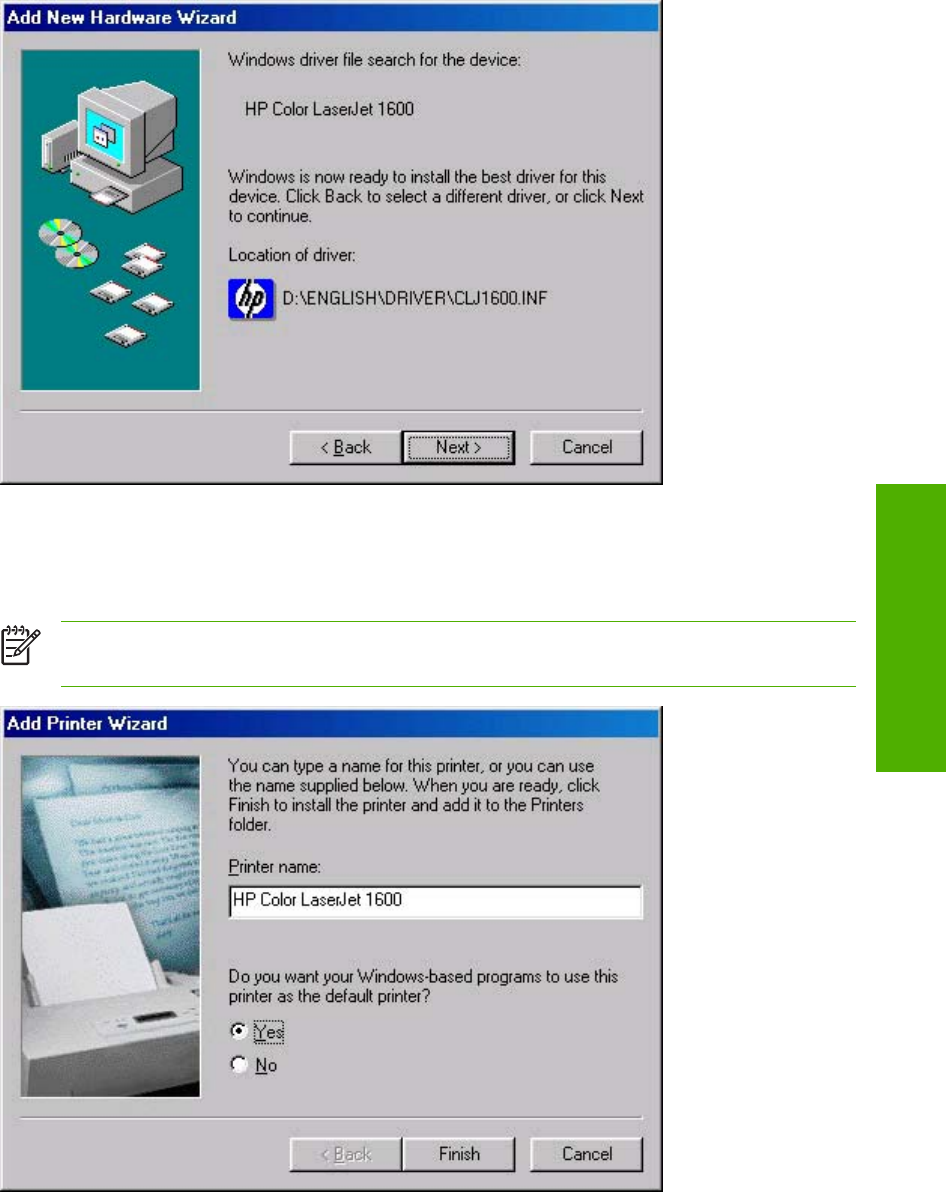
13. When the path and the driver file name appear on the dialog box. click Next to continue.
Figure 3-9 Add New Hardware Wizard HP Color LaserJet 1600 - Ready to Install dialog box
14. Accept the default name for your new HP Color LaserJet 1600 printer installation, or type a new
name in the Printer name field. Click Yes to make this your default printer, or click No if another
product is the default. Click Finish to continue.
NOTE The Yes and No option buttons do not appear if the HP Color LaserJet 1600 printer
is the only printer installed on the computer.
Figure 3-10 Add New Hardware Wizard HP Color LaserJet 1600 - Printer name dialog box
ENWW Installation options 31
Software installation for
Microsoft Windows
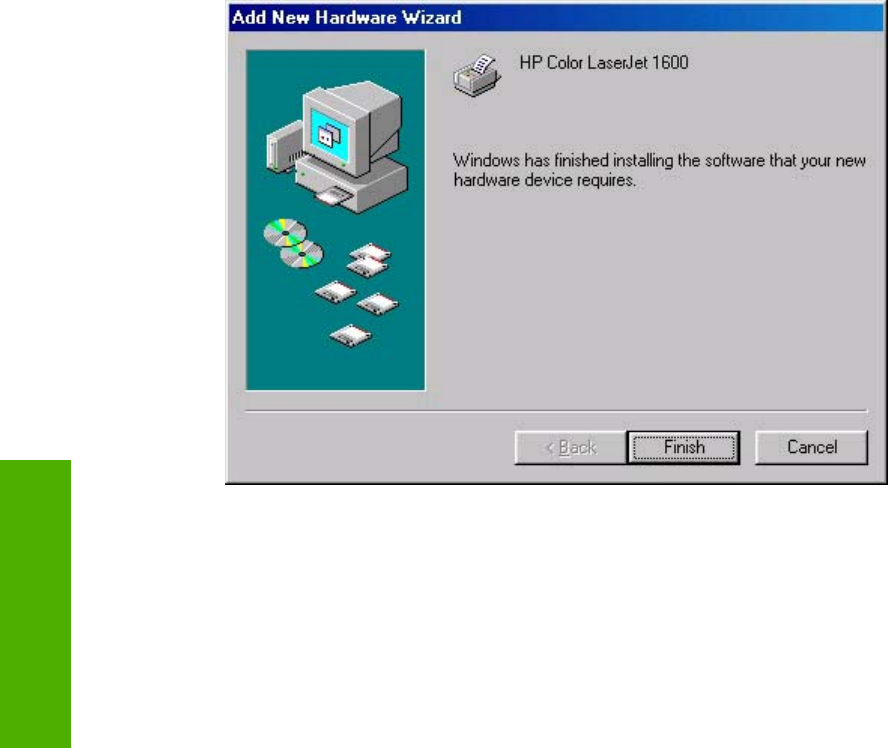
15. The Wizard copies the driver files and then the following dialog box appears. Click Finish to
complete the installation.
Figure 3-11 Add New Hardware Wizard HP Color LaserJet 1600 - Finish dialog box
16. Restart your computer.
32 Chapter 3 Software installation for Microsoft Windows ENWW
Software installation for
Microsoft Windows
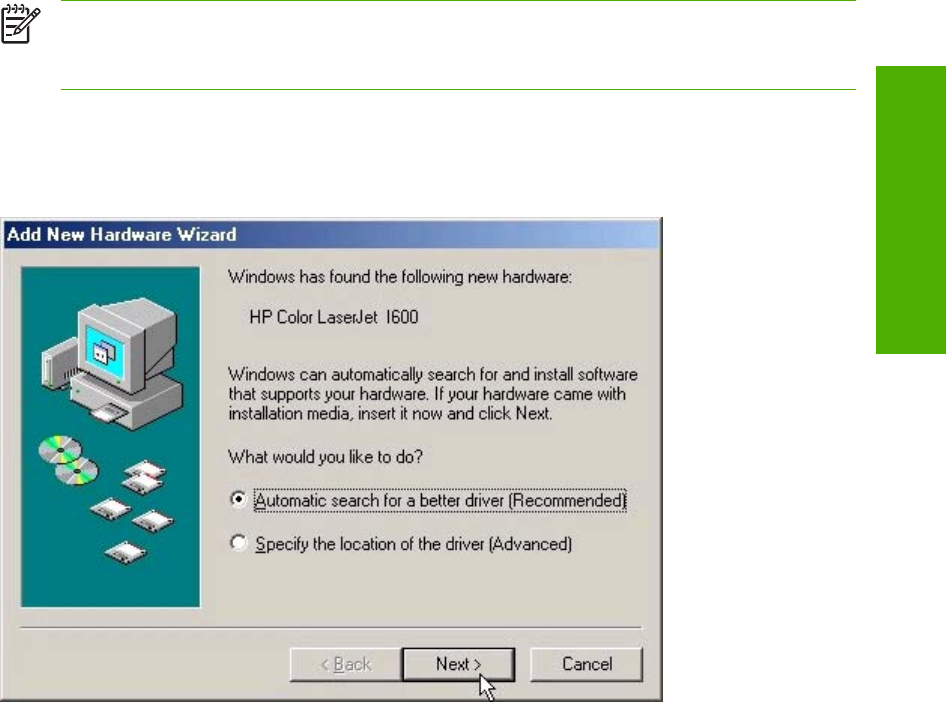
Installation for Microsoft Windows Me
Up to two events might occur when you install the HP Color LaserJet 1600 printing-system software
using Microsoft Windows Plug and Play . If the USB Printing Support (USB001 port) does not already
exist on the computer, the installer first installs the USB Printing Support driver (steps 5 through 9). Then
the installer installs the HP Color LaserJet 1600 printer driver. The procedures described in steps 4
through 8 might not occur if USB Printing Support already exists on the computer.
In addition to the USB print support and print driver, the installer also installs the HP Toolbox. Because
the HP Toolbox is installed with the printer driver, a separate Plug and Play event does not occur.
Follow these steps to install the HP Color LaserJet 1600 printing-system software on a computer running
Microsoft Windows Me.
1. Verify that the HP Color LaserJet 1600 is turned on and that the READY message appears on the
printer control panel.
2. Quit all open programs.
3. Insert the HP Color LaserJet 1600 printing-system CD into the CD-ROM drive on your computer.
NOTE If an error message appears that says SETUP is not available in Windows 98
and ME. Please use Add Printer Wizard or Plug and Play to install the driver., click
OK and go to step 4.
4. Connect a USB cable between the printer and your computer.
5. When the New Hardware Wizard HP Color LaserJet 1600 dialog box appears, click Automatic
search for a better driver. (Recommended), and then click Next.
Figure 3-12 Add New Hardware Wizard USB Printing Support - Search for driver dialog box
ENWW Installation options 33
Software installation for
Microsoft Windows
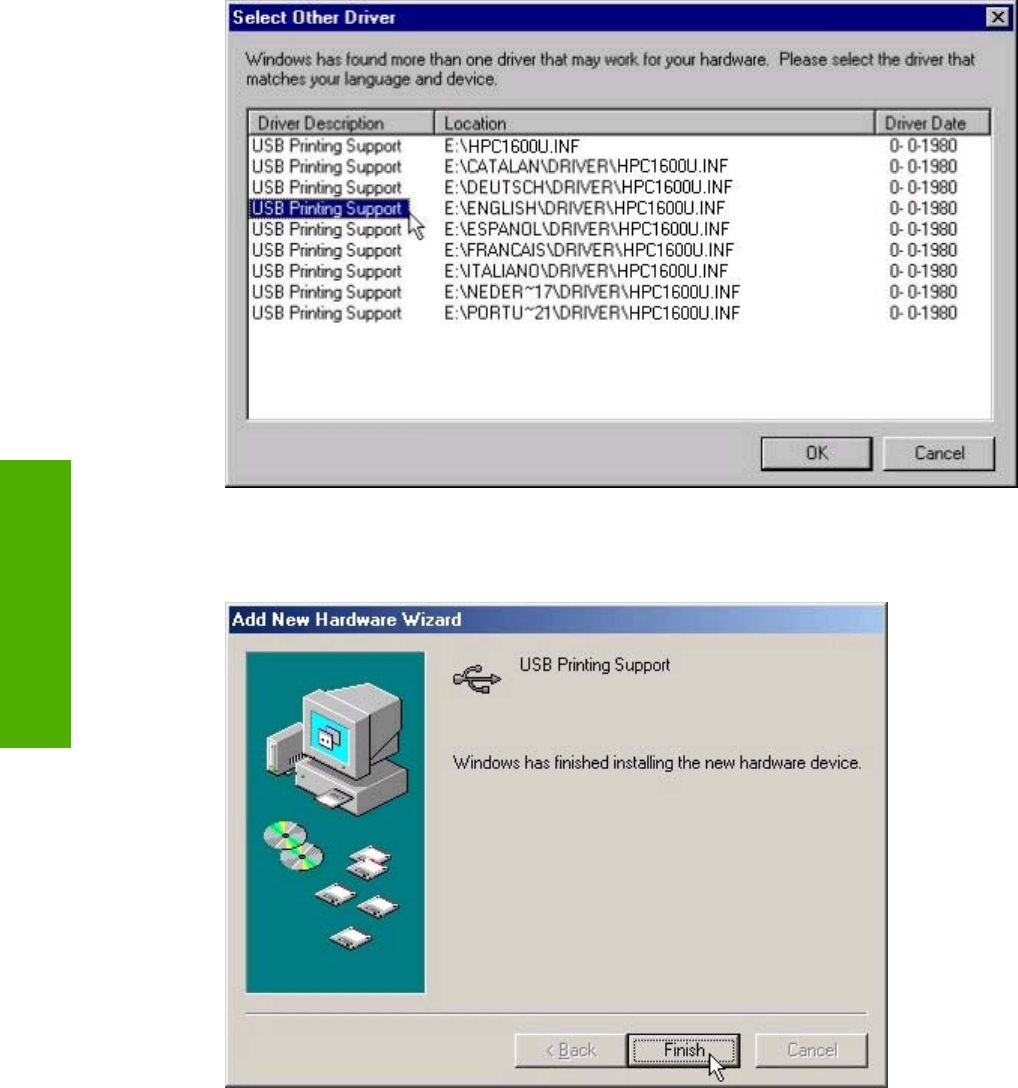
6. When the Select Other Driver dialog box appears, click to select the location of the language that
you want to install, and then click Next to continue.
Figure 3-13 Add New Hardware Wizard USB Printing Support - Select other driver dialog box
7. The Wizard copies the driver files and then the following dialog box appears. Click Finish to
continue the installation.
Figure 3-14 Add New Hardware Wizard USB Printing Support - Finish dialog box
34 Chapter 3 Software installation for Microsoft Windows ENWW
Software installation for
Microsoft Windows
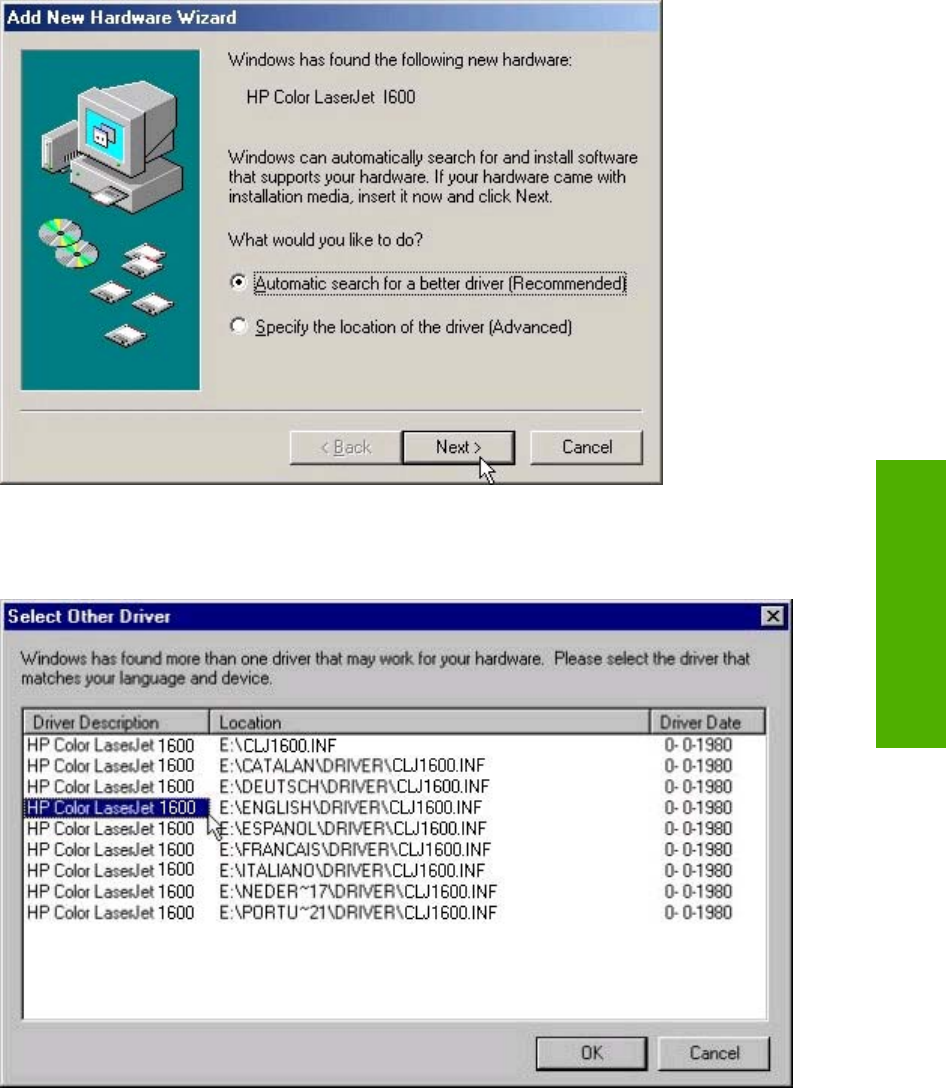
8. A second Plug and Play event occurs and the following dialog box appears. Click Automatic
search for a better driver. (Recommended), and then click Next to continue.
Figure 3-15 Add New Hardware Wizard HP Color LaserJet 1600
9. When the Select Other Driver dialog box appears, select the location of the language that you
want to install, and then click Next to continue.
Figure 3-16 Add New Hardware Wizard USB Printing Support - Select other driver dialog box
ENWW Installation options 35
Software installation for
Microsoft Windows
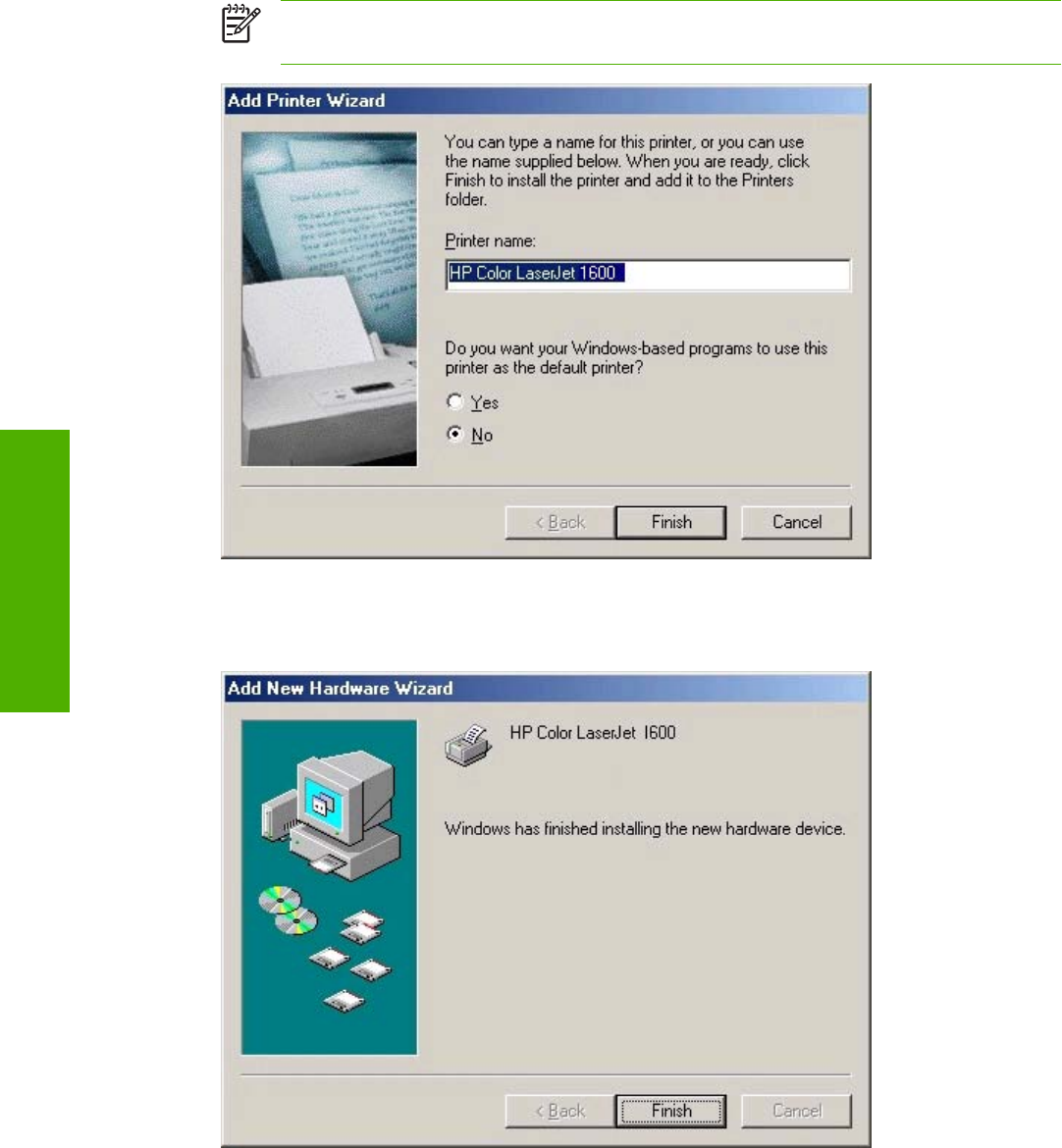
10. Accept the default name for your new HP Color LaserJet 1600 printer installation, or type a new
name in the Printer name field. Click Yes to make this your default printer, or click No if another
product is the default. Click Finish to continue.
NOTE The Yes and No option buttons do not appear if the HP Color LaserJet 1600 printer
is the only printer installed on the computer.
Figure 3-17 Add New Hardware Wizard HP Color LaserJet 1600 - Printer name dialog box
11. The Wizard copies the driver files and then the following dialog box appears. Click Finish to
complete the installation.
Figure 3-18 Add New Hardware Wizard HP Color LaserJet 1600 - Finish dialog box
36 Chapter 3 Software installation for Microsoft Windows ENWW
Software installation for
Microsoft Windows

Setting up Microsoft Windows-sharing (peer-to-peer networking)
This section contains instructions for using Microsoft Windows-sharing to make the product available to
network users when the product is directly connected to a computer.
NOTE This document outlines the procedures for sharing a printer using Microsoft Windows
Sharing (Peer-to-Peer networking). If these procedures are not successful, contact Microsoft at
the following Web site: http://www.microsoft.com. HP does not support Peer-to-Peer networking,
as the feature is a function of Microsoft operating systems and not of the HP printer drivers.
NOTE In Windows-sharing, the person who uses the computer that is directly connected to the
product can allow other users on the network to print to the HP Color LaserJet 1600 printer.
When the HP Color LaserJet 1600 printer is shared, install the printer drivers on all of the
computers that you want to be able to print to the HP Color LaserJet 1600 printer.
Setting up the host computer running Microsoft Windows 98 SE, Microsoft
Windows Me, or Microsoft Windows 2000
At the computer that is directly connected to the HP Color LaserJet 1600 printer, perform the following
steps.
1. Click Start, click Settings, and then click Printers.
2. In the printer list, right-click the icon for your HP Color LaserJet 1600 printer, and then click
Sharing.
NOTE If Sharing does not appear on the menu, you must first enable printer sharing for
Microsoft Windows 98 SE or Microsoft Windows Me. Follow these steps:
1. Click Start, click Settings, and then click Control Panel. 2. Double-click the Network
icon. 3. On the General tab, click File and Print Sharing. 4. Click the I want to be able to
allow others to print to my printers check box, and then click OK. 5. Click OK again, and
then close the Control Panel. If you are prompted to restart your computer, click Yes.
3. On the Sharing tab, click the Share As option button, and then type a name for the product in the
Share Name field. Click OK.
NOTE The printer Share Name is limited to 8 characters.
Setting up the host computer running Microsoft Windows XP or Microsoft
Windows Server 2003
At the computer that is directly connected to the HP Color LaserJet 1600 printer, perform the following
steps.
1. Click Start, and then click Printers and Faxes.
2. In the printer list, right-click the icon for your HP Color LaserJet 1600 printer, and then click
Sharing.
ENWW Installation options 37
Software installation for
Microsoft Windows

3. On the Sharing tab, click the Share this printer option button, and then type a name for the product
in the Share Name field. Click OK.
NOTE The printer Share Name is limited to 8 characters.
4. Click the Ports tab. Click to clear the Enable bidirectional support check box, and then click OK.
Setting up the client computers
When you have set up the host computer to share your HP Color LaserJet 1600 printer, you must also
configure the client computers. Perform the following steps at all the other network computers that will
use the HP Color LaserJet 1600 printer.
Setting up client computers running Microsoft Windows 98 SE, Microsoft Windows Me, or
Microsoft Windows 2000
1. Click Start, click Settings, and then click Printers.
2. Double-click the Add Printer icon to open the Add Printer wizard.
3. Click Next to start the wizard.
4. Click the Network Printer option button, and then click Next.
5. Type in the path and share name of the HP Color LaserJet 1600 printer to which you want to
connect.
NOTE Or you can click Browse and navigate to find the HP Color LaserJet 1600 printer
to which you want to connect.
6. Click Next.
7. Click Yes or No when asked if you want to use this printer as your default printer for Microsoft
Windows-based programs, and then click Next.
8. Click Finish to complete the installation and close the Add Printer wizard.
NOTE You might need the product software CD to complete the print–driver installations.
Setting up client computers running Microsoft Windows XP or Microsoft Windows Server 2003
1. Click Start, and then click Printers and Faxes.
2. In the column to the left, under Printer Tasks, click Add a printer to open the Add Printer wizard.
3. Click Next to start the wizard.
38 Chapter 3 Software installation for Microsoft Windows ENWW
Software installation for
Microsoft Windows

4. Click the A network printer or a printer attached to another computer option button, and then
click Next.
5. Type the path and share name of the HP Color LaserJet 1600 printer to which you want to connect
- OR -
Click Browse and navigate to find the HP Color LaserJet 1600 printer to which you want to connect.
Click Next.
6. Click Yes or No when asked if you want to use this printer as your default printer for Microsoft
Windows-based programs, and then click Next.
7. Click Finish to complete the installation and close the Add Printer wizard.
ENWW Installation options 39
Software installation for
Microsoft Windows
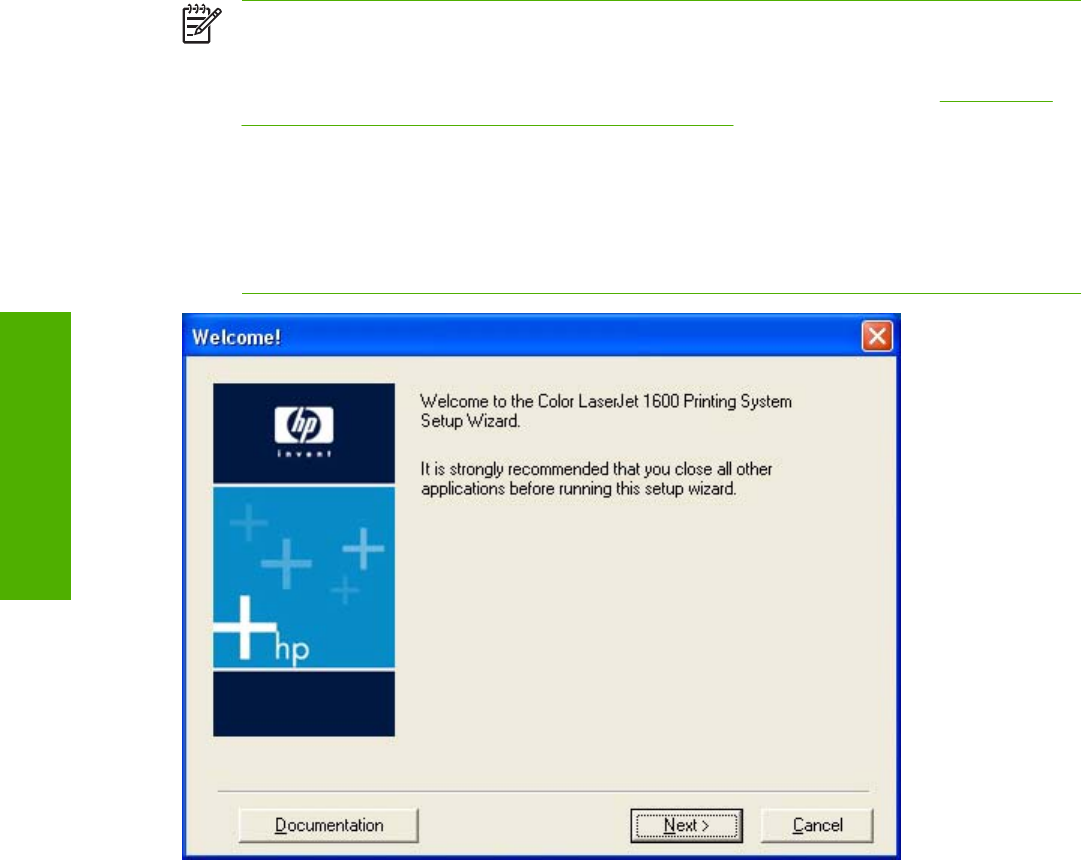
Installation dialog box options for Microsoft Windows
2000, Microsoft Windows XP, and Microsoft Windows
Server 2003
The following section shows the dialog box options that appear during the HP Color LaserJet 1600
printing-system software installation on Microsoft Windows 2000, Microsoft Windows XP, or Microsoft
Windows Server 2003 operating systems.
NOTE The HP Color LaserJet 1600 printing-system software installer does not support
Microsoft Windows 98 SE or Microsoft Windows Me. To install the HP Color LaserJet 1600
printing-system software on a computer running Microsoft Windows 98 SE or Microsoft Windows
Me, you must complete a Plug and Play installation. For more information, see Installing the
printing-system using Microsoft Windows Plug and Play.
NOTE HP recommends that you install the software before connecting the HP Color
LaserJet 1600 printer to the computer (software-first installation). These instructions are for a
software-first installation.
Use these instructions the first time you install the HP Color LaserJet 1600 printing-system
software .
Figure 3-19 Step 1 - Welcome dialog box
Click Documentation to open your Web browser and the HP Color LaserJet 1600 Printing System
Install Notes.
Click Next to go to the License Agreement dialog box (step 2).
Click Cancel to go to the Exit Setup dialog box (step 8).
40 Chapter 3 Software installation for Microsoft Windows ENWW
Software installation for
Microsoft Windows
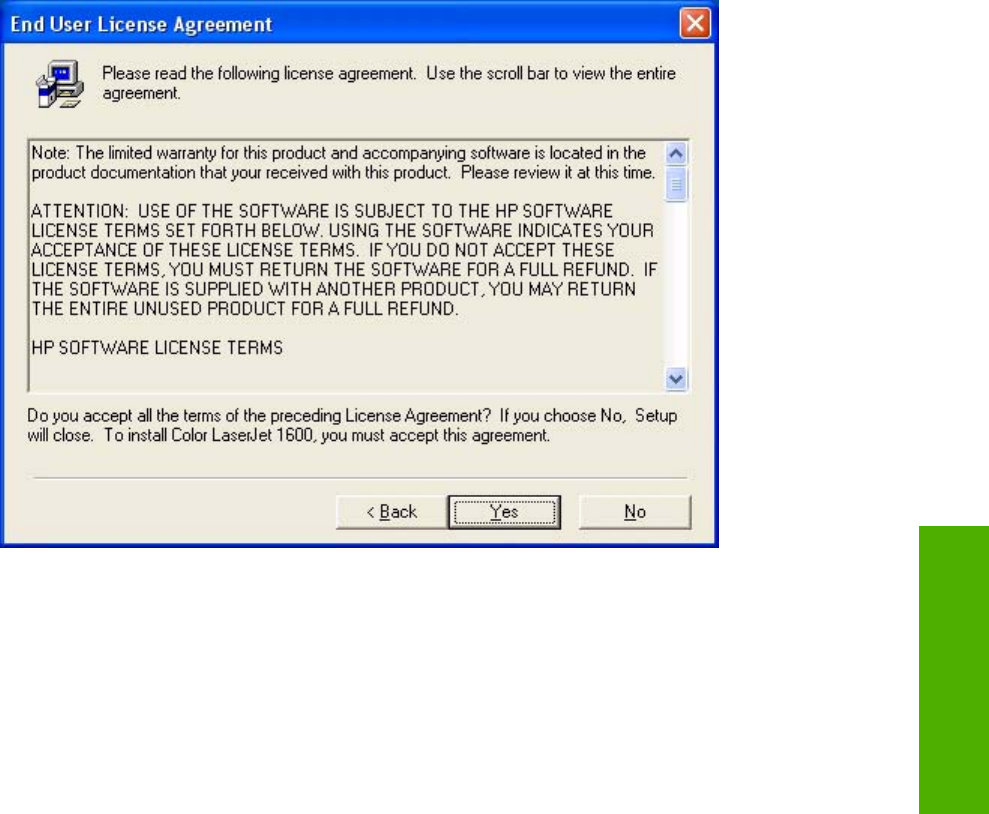
Figure 3-20 Step 2 - HP Software License Agreement dialog box
Click Back to return to the Welcome dialog box (step 1).
Click No to go to the Exit Setup dialog box (step 8).
Click Yes to go to the Start Copying Files dialog box (step 3).
ENWW Installation dialog box options for Microsoft Windows 2000, Microsoft Windows XP, and
Microsoft Windows Server 2003
41
Software installation for
Microsoft Windows
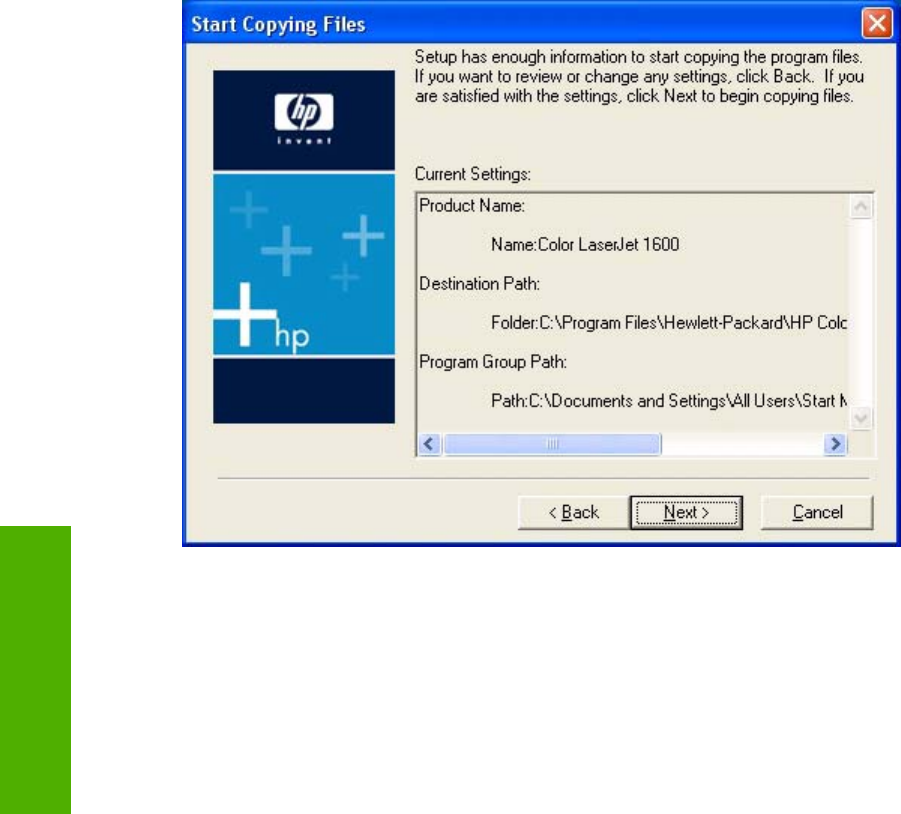
Figure 3-21 Step 3 - Start copying files dialog box
Click Next to start the installation process and go to thePrinting System Setup dialog box (step 4).
Click Back to return to the License Agreement dialog box (step 2).
Click Cancel to go to the Cancel dialog box (step 7).
42 Chapter 3 Software installation for Microsoft Windows ENWW
Software installation for
Microsoft Windows
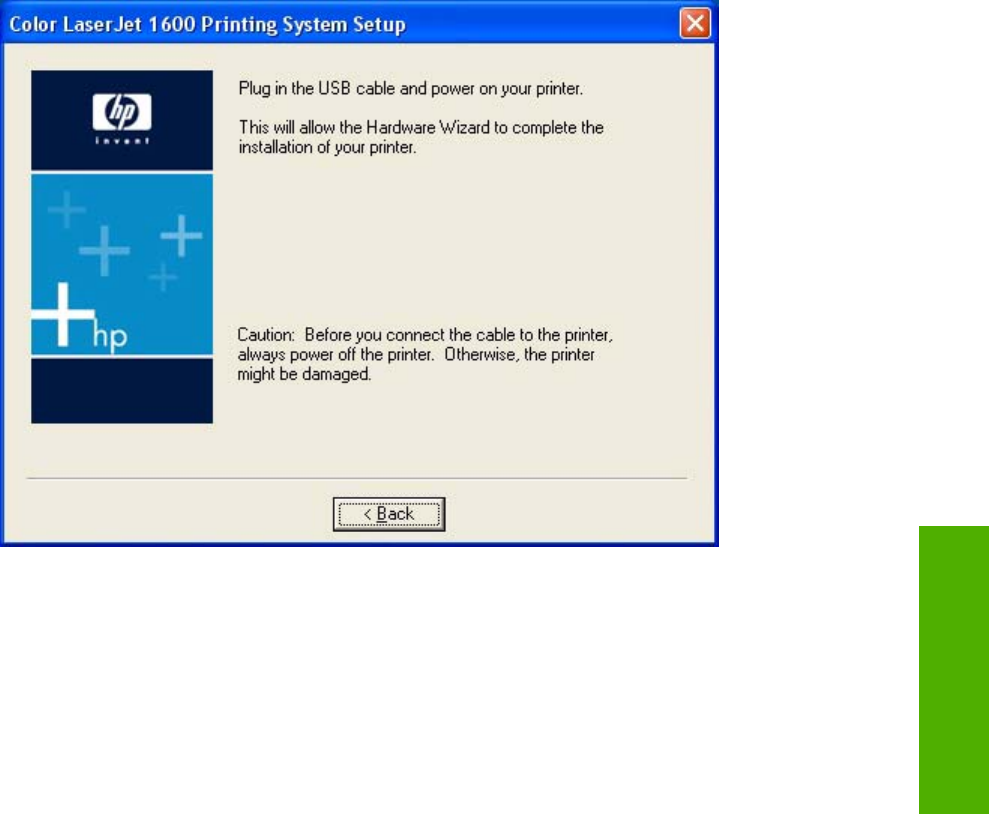
Figure 3-22 Step 4 - Printing System Setup dialog box
The Printing System Setup dialog box appears next.
Connect the USB cable to the printer and turn on the printer to continue the installation. When installation
is complete, the Finish dialog box appears (step 5).
Click Back to stop the installation and return to the Start Copying Files dialog box (step 3).
ENWW Installation dialog box options for Microsoft Windows 2000, Microsoft Windows XP, and
Microsoft Windows Server 2003
43
Software installation for
Microsoft Windows
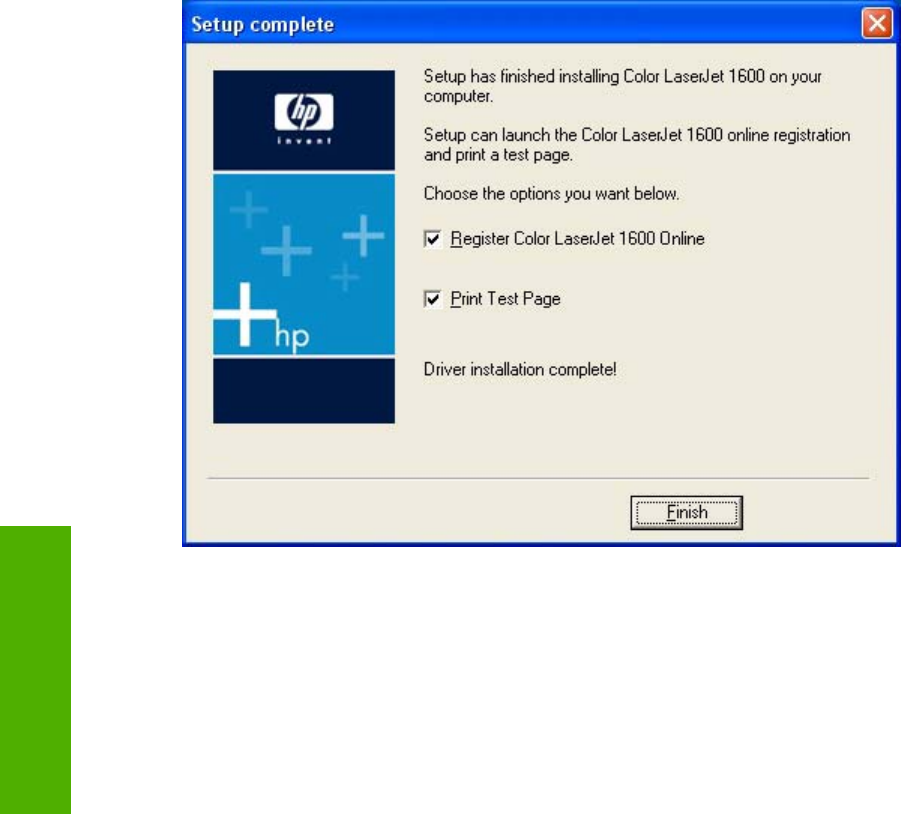
Figure 3-23 Step 5 - Finish dialog box
The Register Color LaserJet 1600 Online check box and the Print Test Page check box are selected
by default.
Click Finish with the Register Color LaserJet 1600 Online check box selected to open the Online
Registration page in your Web browser and the Setup Complete dialog box appears (step 6).
Click Finish with the Print Test Page check box selected to send a test page to the printer and the
Setup Complete dialog box appears (step 6).
44 Chapter 3 Software installation for Microsoft Windows ENWW
Software installation for
Microsoft Windows
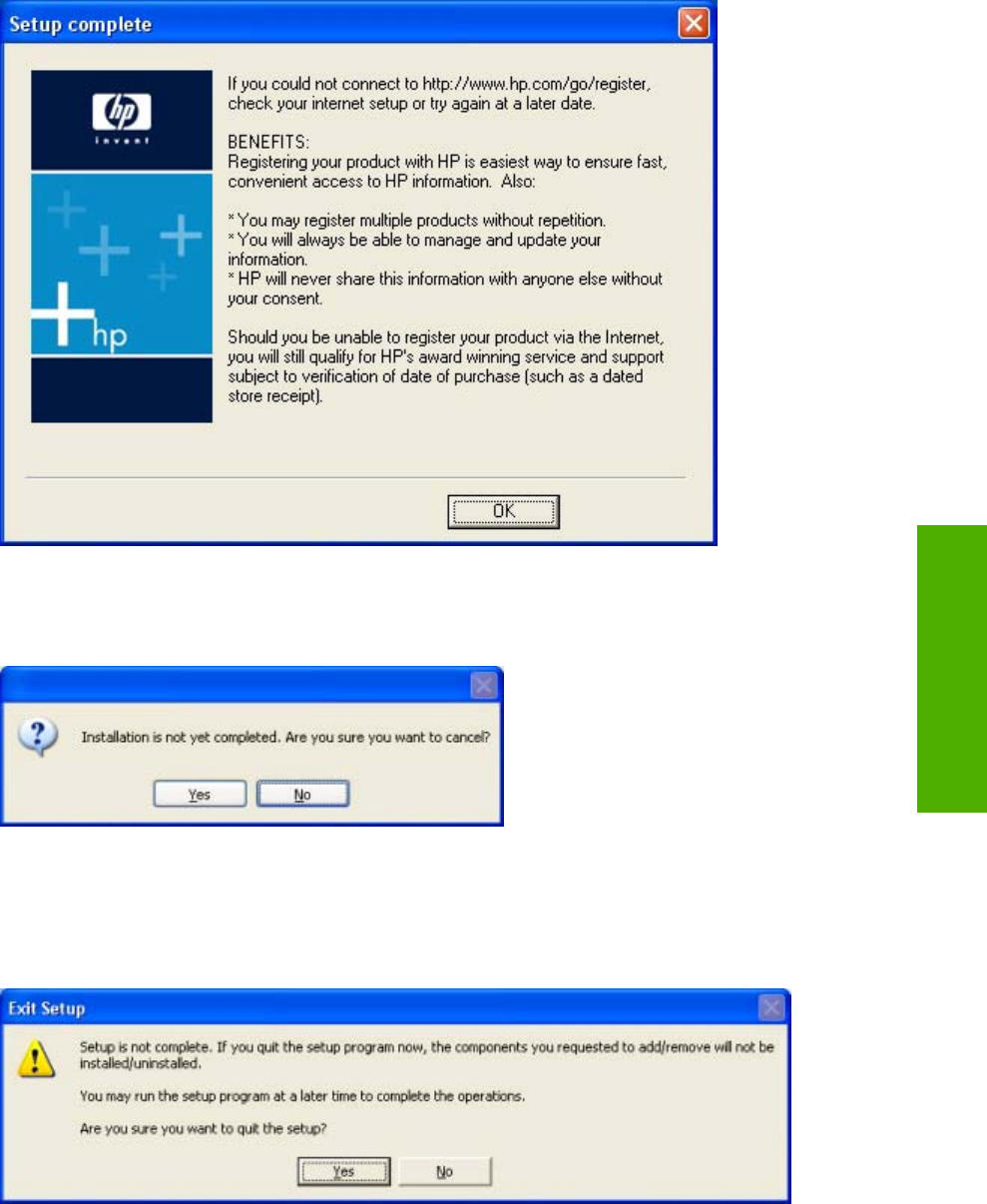
Figure 3-24 Step 6 - Setup complete dialog box
Click OK to close the installer.
Figure 3-25 Step 7 - Cancel dialog box
Click Yes to go to the Exit Setup dialog box (step 8).
Click No to return to the last installer dialog box that was open.
Figure 3-26 Step 8 - Exit Setup
Click Yes to close the installer.
ENWW Installation dialog box options for Microsoft Windows 2000, Microsoft Windows XP, and
Microsoft Windows Server 2003
45
Software installation for
Microsoft Windows

Click No to return to the last installer dialog box that was open.
46 Chapter 3 Software installation for Microsoft Windows ENWW
Software installation for
Microsoft Windows

Uninstall
This section provides information about the following topics:
●Uninstall instructions for Microsoft Windows 2000, Microsoft Windows XP, and Microsoft Windows
Server 2003
●Uninstall instructions for Microsoft Windows 98 SE and Microsoft Windows Me
●ZUNINST.EXE uninstall method
Uninstall instructions for Microsoft Windows 2000, Microsoft
Windows XP, and Microsoft Windows Server 2003
NOTE To uninstall the software from Microsoft Windows 2000, Microsoft Windows XP, or
Microsoft Windows Server 2003, you must log on with Administrator privileges.
NOTE The uninstall utility might cause some problems for other devices that use Zenographics
software (Minolta/QMS 4100, 6100, and 2100, and the HP LaserJet 1010, 1012, and 1015
printers). SeeCoexistence/conflict issues for more information.
1. Quit all open programs.
2. Click Start, click Programs (or All Programs in Microsoft Windows XP or Microsoft Windows
Server 2003), select HP, select HP Color LaserJet 1600, and then click Uninstall the Color
LaserJet 1600.
3. The HP Color LaserJet 1600 uninstall wizard appears.
Figure 3-27 The HP Color LaserJet 1600 uninstall wizard
Click Next to continue.
ENWW Uninstall 47
Software installation for
Microsoft Windows
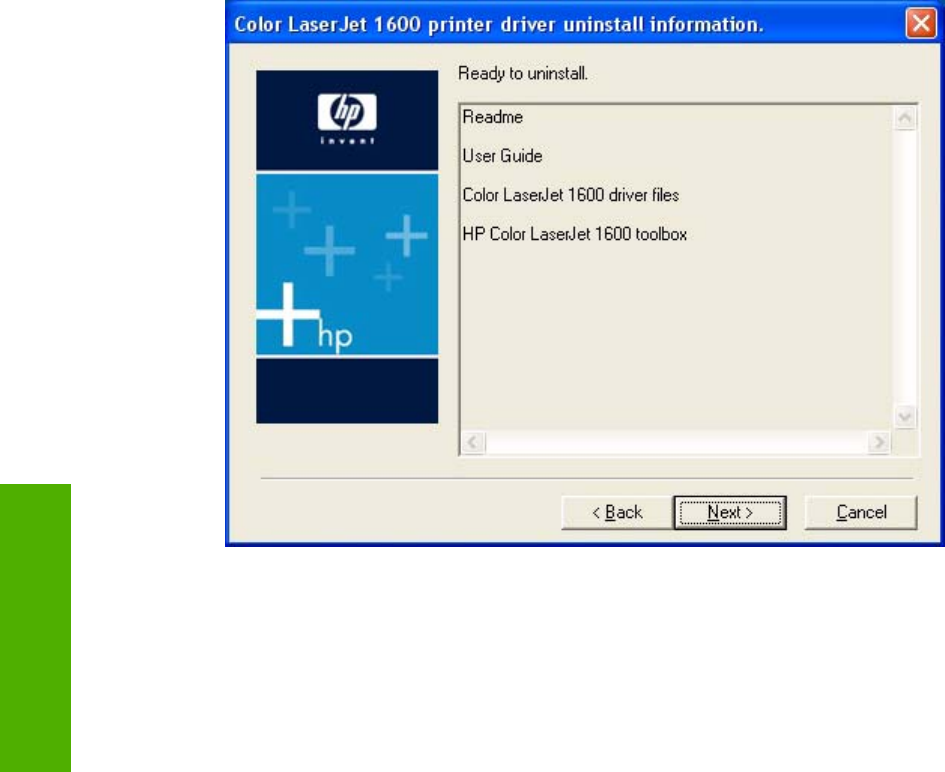
4. The Ready to uninstall dialog box appears. Click Next to begin the uninstall process.
Figure 3-28 Ready to uninstall dialog box
A progress bar reflects the status of the uninstall process.
48 Chapter 3 Software installation for Microsoft Windows ENWW
Software installation for
Microsoft Windows
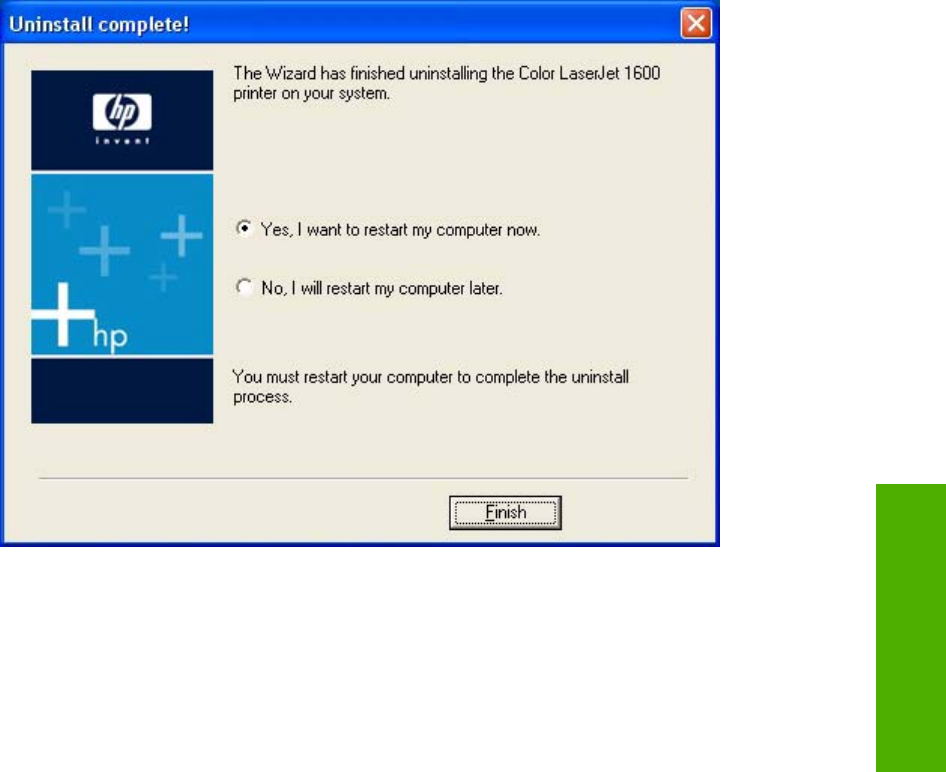
5. When the uninstall process is completed, the Uninstall Complete! dialog box appears.
Figure 3-29 Uninstall Complete! dialog box
Click Yes, and then click Finish to restart your computer and finish the uninstall process.
Uninstall instructions for Microsoft Windows 98 SE and Microsoft
Windows Me
The HP Color LaserJet 1600 program group does not appear on the Start menu in Microsoft Windows
98 SE or in Microsoft Windows Me. Without a program group, the uninstaller is not available. In addition,
there is no entry for the HP Color LaserJet 1600 printer in the Add Remove Programs feature found
in the Windows Control Panel.
To uninstall the HP Color LaserJet 1600 printing-system software on computers running Microsoft
Windows 98 SE or Microsoft Windows Me, follow these steps to run the ZUNINST.EXE program.
1. Close all open programs.
2. Click Start on the Windows taskbar and then click Run.
3. In the Open box, type C:\Windows\System\zuninst.exe and then click OK.
-or-
Insert the HP Color LaserJet 1600 software CD into the CD-ROM drive, type X:\ZUNINST.EXE
in the Open box, and then click OK (where X: represents the drive letter of your computer CD-
ROM drive).
ENWW Uninstall 49
Software installation for
Microsoft Windows
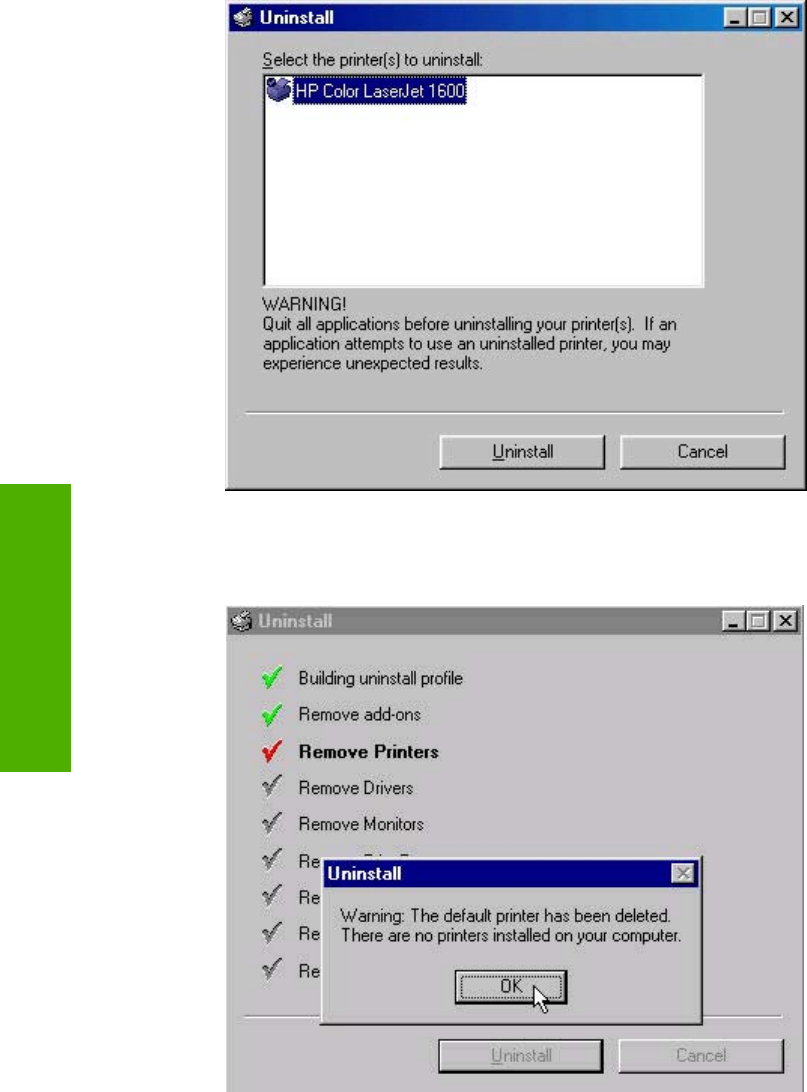
4. The Uninstall dialog box appears. Click HP Color LaserJet 1600 and then click Uninstall.
Figure 3-30 Uninstall dialog box – Microsoft Windows 98 SE and Microsoft Windows Me
5. If the HP Color LaserJet 1600 is your default printer the following dialog box appears. Click OK to
continue uninstalling the software.
Figure 3-31 Default dialog box – Microsoft Windows 98 SE and Microsoft Windows Me
50 Chapter 3 Software installation for Microsoft Windows ENWW
Software installation for
Microsoft Windows
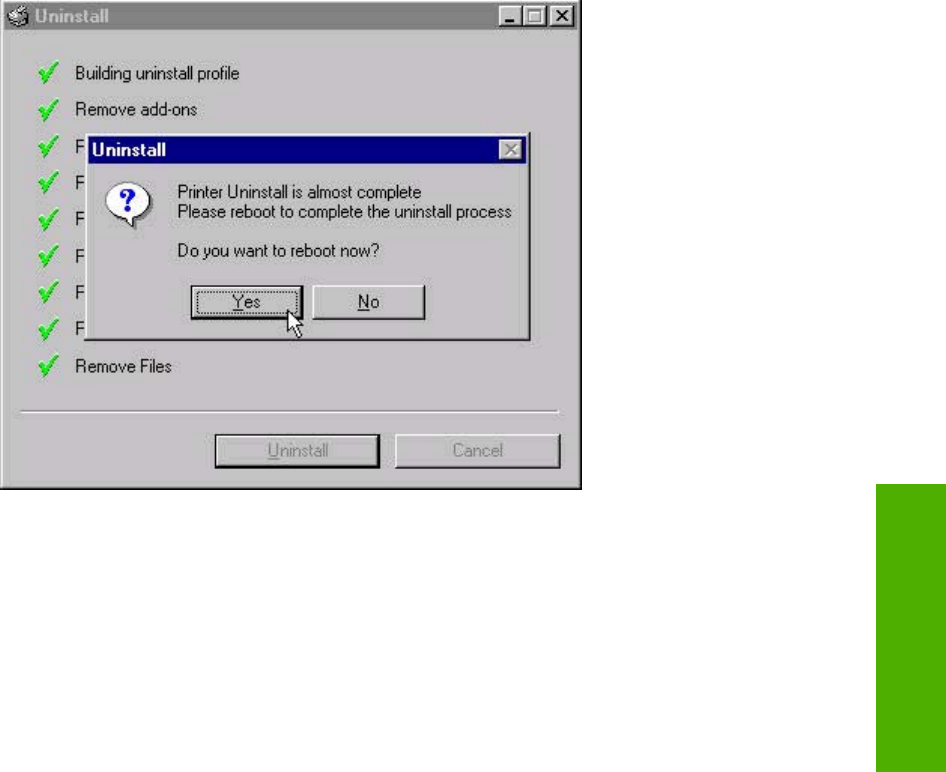
6. The reboot dialog box appears. Click Yes to restart your computer and complete the uninstall.
Figure 3-32 Reboot dialog box – Microsoft Windows 98 SE and Microsoft Windows Me
7. After your computer has restarted, delete the HP Color LaserJet 1600 Toolbox icon from the
Windows desktop.
ENWW Uninstall 51
Software installation for
Microsoft Windows

ZUNINST.EXE uninstall method
Zenographics has designed the ZUNINST.EXE program to uninstall their printers. Use Microsoft
Windows Explorer to navigate to the SYSTEM32 folder to find this program. When the user runs this
program, a list of all of the Zenographics drivers on the computer appears. The user is prompted to
select the driver to uninstall. Select HP Color LaserJet 1600 to uninstall the printer.
NOTE This method has not been tested by HP or Agilent and should be used only as a last
resort before attempting a manual uninstall process.
52 Chapter 3 Software installation for Microsoft Windows ENWW
Software installation for
Microsoft Windows

4 Host-based driver features for
Microsoft Windows
This chapter provides information about the following topics:
●Introduction to host-based printing
●Access to the driver
●Help system
●Paper/Quality tab features
●Effects tab features
●Finishing tab features
●Basics tab features
●Color tab
●Configure tab
ENWW 53
Host-based driver
features for Microsoft
Windows
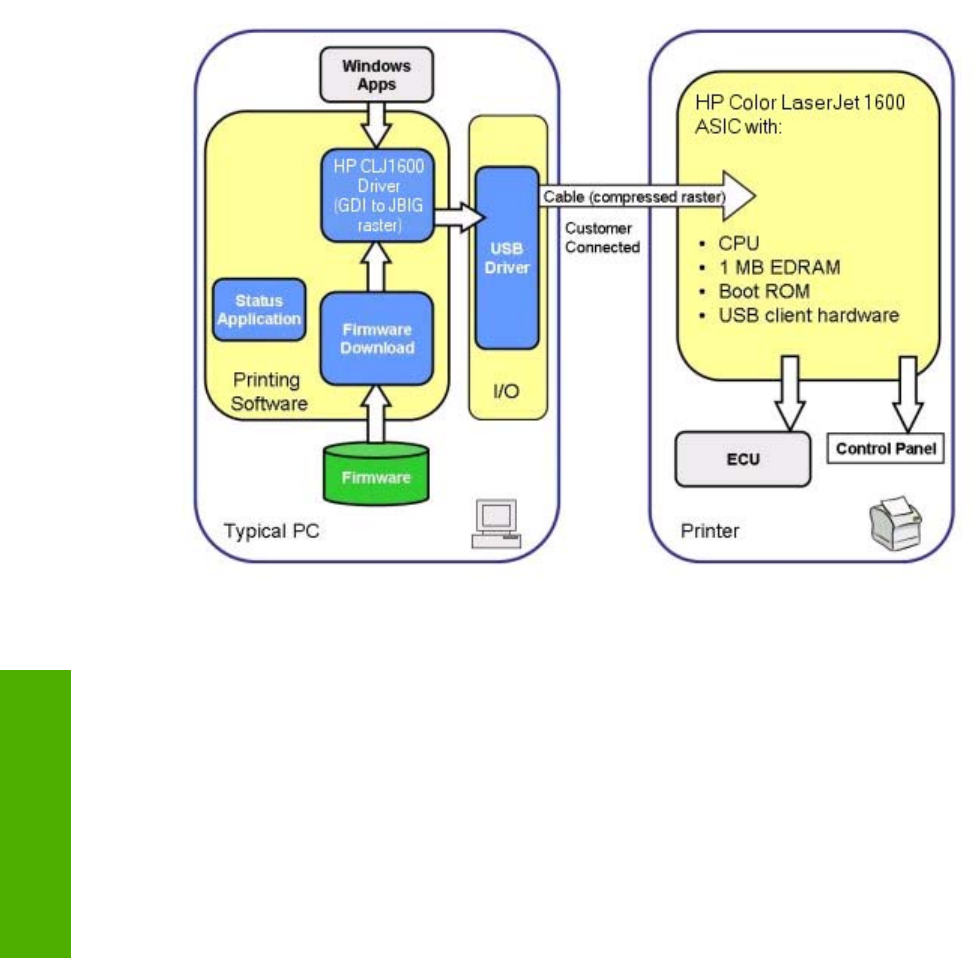
Introduction to host-based printing
The HP Color LaserJet 1600 printer is a host-based printer. Host-based printing differs from PCL printing
by computing the print job on the host computer, rather than computing the print job in the formatter.
The following illustration shows how the HP Color LaserJet 1600 printing-system software works.
Figure 4-1 HP Color LaserJet 1600 host-based driver overview
As a host-based printing system, the HP Color LaserJet 1600 print driver uses Microsoft Windows to
convert the graphics device interface (GDI) or device driver interface (DDI) calls from software programs
into JBIG (standard-compression) compressed pages. These pages are sent in “chunks” through the
driver to the printer formatter.
The HP Color LaserJet 1600 print driver also receives status messages from the formatter firmware.
These messages are passed to the Status Application, which then displays them.
The HP Color LaserJet 1600 printer formatter has 2 MB of read-only memory (ROM) and 16 MB of
double data rate random access memory (DDR RAM). Both the firmware and the compressed page
must fit into the 16 MB of DDR RAM. If the compressed page is too large for the available memory,
which is extremely rare, the All Pages Print mode is automatically invoked. The All Pages Print mode
reduces the resolution and attempts to create a balance between text and graphics print quality.
54 Chapter 4 Host-based driver features for Microsoft Windows ENWW
Host-based driver
features for Microsoft
Windows

Access to the driver
To gain access to driver settings from within most software programs, click File, click Print, and then
click Properties. The appearance and names of the driver tabs that appear can vary, depending on the
operating system. These settings apply only while the software program is open.
You can also control the driver directly from the Printers folder. These settings change the default
settings for all software programs.
●In Microsoft Windows 2000, click Start, click Settings, click Printers, right-click the printer name,
and then click Printing Preferences to gain access to the same set of driver tabs that the software
program controls.
●In Microsoft Windows XP or Microsoft Windows Server 2003, click Start, click Printers and
Faxes (Microsoft Windows XP Professional) or Printers and Other Hardware Devices (Microsoft
Windows XP Home) to gain access to the same set of driver tabs that the software program
controls.
If you click Properties after right-clicking the printer name, you gain access to a different set of tabs
that control the driver behavior and driver connections.
Printing Preferences tab set
The HP Color LaserJet 1600 host-based driver Printing Preferences tabs contain options for formatting
documents for the HP Color LaserJet 1600 printer. You can gain access to the Printing Preferences
tabs either through your software program or through the Microsoft Windows Printers folder. For more
information, see the Access to the driver section for Microsoft Windows 2000, Microsoft Windows XP,
Microsoft Windows Server 2003.
The following tabs are included in Printing Preferences tab set:
●Paper/Quality tab
●Effects tab
●Finishing tab
●Basics tab
●Color tab
Printer Properties tab set
The printer Properties tab set contains information about and options for configuring the printer. To
gain access to the printer Properties tabs, click Start on the Microsoft Windows task bar, click
Settings, and then click Printers for Microsoft Windows 2000 or Printers and Faxes for Microsoft
Windows XP and Microsoft Windows Server 2003. Right-click the printer name, and then click
Properties.
The Configure tab is included in the printer Properties tab set.
NOTE Microsoft Windows also has tabs in the printer Properties tab set. For information about
those tabs, see the documentation that came with your computer.
ENWW Access to the driver 55
Host-based driver
features for Microsoft
Windows
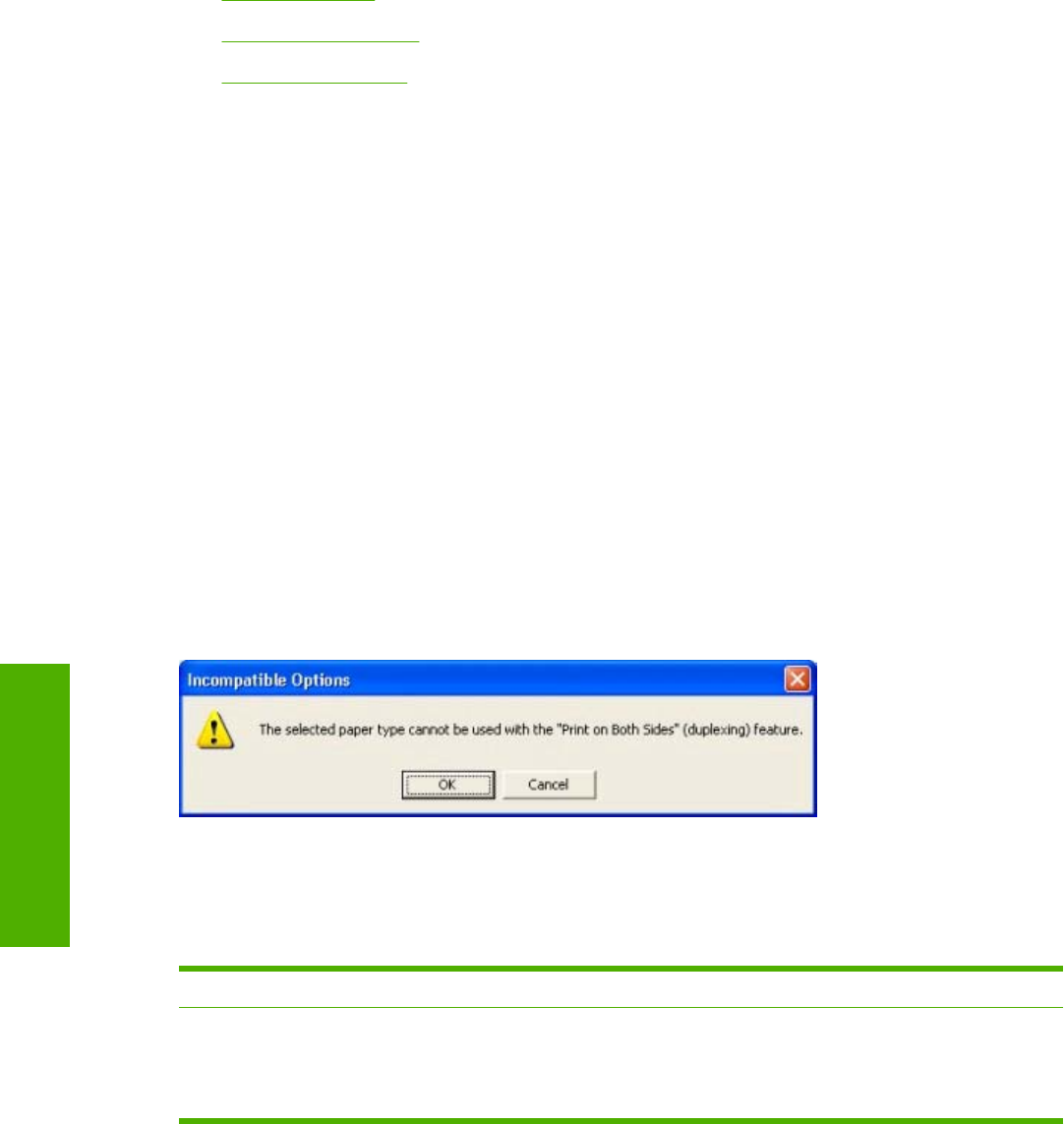
Help system
The HP Color LaserJet 1600 host-based driver includes a full-featured Help system to provide
assistance with printing and configuration options. The following Help options are available:
●What's this? Help
●Context-sensitive Help
●Constraint messages
What's this? Help
"What's this?" Help is supported in Microsoft Windows 2000, Microsoft Windows XP, and Microsoft
Windows Server 2003. You can gain access to "What's this?" Help messages in the following ways:
●Right-click a control and click What's this?, and a pop-up Help window appears.
●Click the ? button at the upper-right corner of the frame, next to the X, to change the cursor to an
arrow with a question mark. Use this special cursor to select a control, and the pop-up Help window
for that feature appears.
●Press the F1 key, and the Help window for the currently selected control appears.
Context-sensitive Help
Press the Help button on a driver tab or in a dialog box, and context-sensitive Help appears.
Constraint messages
Constraint messages are unsolicited messages that appear in response to specific actions you take.
These messages alert you to selections that are illogical or impossible given the capabilities of the printer
or the current settings of other controls. For example, if you click Print on Both Sides and then change
the paper type to Transparency, a message appears asking you to resolve this conflict.
Figure 4-2 A typical constraint message
The following table lists the available constraint messages and the conditions that cause them to appear
for the HP Color LaserJet 1600 printer.
Table 4-1 Constraint messages
Condition/Cause Effect Message
Finishing tab
Pages per Sheet is greater than 1
Finishing tab
Booklet Printing is not available if Print
on Both Sides (Manually) check box is
selected.
To use this feature, set Pages per
Sheet to 1 (see Finishing tab).
56 Chapter 4 Host-based driver features for Microsoft Windows ENWW
Host-based driver
features for Microsoft
Windows

Finishing tab
Pages per Sheet is greater than 1
Effects tab
Print Document On is not available.
To use this feature, set Pages per
Sheet to 1 (see Finishing tab).
Finishing tab
Pages per Sheet is greater than 1
Effects tab
% of Normal Size is not available.
To use this feature, set Pages per
Sheet to 1 (see Finishing tab).
Finishing tab
Booklet Printing setting is Off
Effects tab
Pages per Sheet is not available.
To use this feature, set the Booklet
Printing option to Off (see Finishing
tab).
Finishing tab
Booklet Printing setting is Off
Effects tab
Print Document On is not available.
To use this feature, set the Booklet
Printing option to Off (see Finishing
tab).
Finishing tab
Booklet Printing setting is Off
Effects tab
% of Normal Size is not available.
To use this feature, set the Booklet
Printing option to Off (see Finishing
tab).
Effects tab
The Print Document On check box is
selected.
Effects tab
% of Normal Size is not available.
To use this feature, turn off the Print
Document On option (see Effects tab).
Effects tab
The Print Document On check box is
selected.
Finishing tab
Pages per Sheet is not available.
To use this feature, turn off the Print
Document On option (see Effects tab).
Effects tab
The % of Normal Size setting is any
value except 100%.
Effects tab
Print Document On is not available.
To use this feature, set % of Normal
Size to 100 (see Effects tab).
Effects tab
The % of Normal Size setting is any
value except 100%.
Finishing tab
Booklet Printing is not available.
To use this feature, set % of Normal
Size to 100 (see Effects tab).
Effects tab
The % of Normal Size setting is any
value except 100%.
Finishing tab
Pages per Sheet is not available.
To use this feature, set % of Normal
Size to 100 (see Effects tab).
Paper tab
The % of Normal Size setting is any
value except 100%.
Finishing tab
Bubble Help points to the Print on Both
Sides (Manually) check box.
This feature is not available with the
currently selected paper type. (see
Paper tab)
Paper tab
The Size Is setting is anything except
Letter, Legal, or A4.
Finishing tab
Bubble Help points to the Booklet
Printing drop-down menu, which is not
available.
To use this feature, set the paper size to
Letter, Legal, or A4 (see Paper tab).
Paper tab
The Source Is tray selected for Other
Pages is the same as the one selected
for First Page.
Paper tab
Bubble Help points to Type Is drop-
down menu.
In order to use this feature, choose a
source tray different from the first page.
Table 4-1 Constraint messages (continued)
ENWW Help system 57
Host-based driver
features for Microsoft
Windows

Effects tab
Watermarks exceed 30.
Effects tab
Bubble Help points to Watermarks.
You cannot add a new watermark
because the list is full. You may edit
existing watermarks, or you may delete
unused ones to make more room.
Finishing tab
The Booklet Printing option is not set to
Off.
Paper tab, Back Cover option
Bubble Help points to the No Back
Cover option button.
To use this feature, set the Booklet
Printing option to Off (see Finishing
tab).
Table 4-1 Constraint messages (continued)
58 Chapter 4 Host-based driver features for Microsoft Windows ENWW
Host-based driver
features for Microsoft
Windows
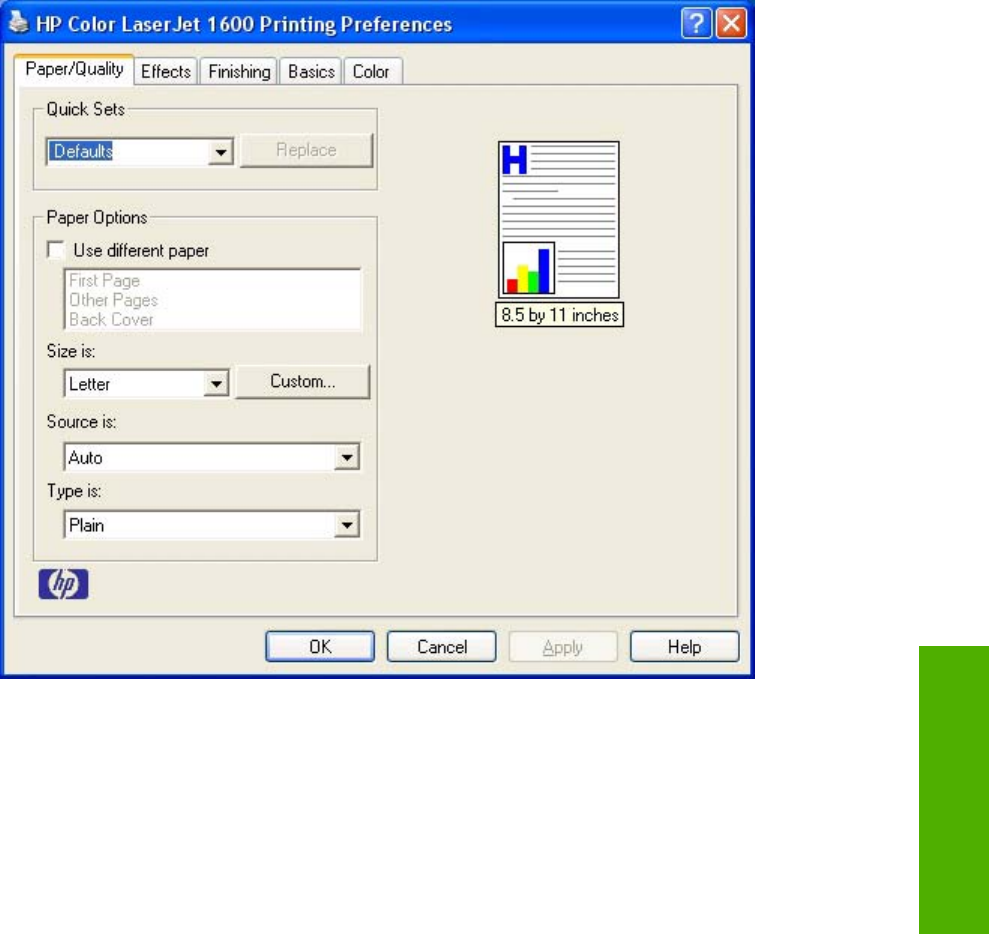
Paper/Quality tab features
Use the Paper/Quality tab to specify the size, type, and source of the media for your HP Color
LaserJet 1600 printer. You can also use this tab to indicate different paper-selection choices for the first
page, other pages, and back cover of the document. The following illustration shows the Paper/
Quality tab.
Figure 4-3 Paper/Quality tab
Quick Sets
The first group box in the upper portion of the Paper/Quality tab is Quick Sets. Because they are all
the same control, any change to the Quick Sets group box that is made on the Paper/Quality tab affects
the Quick Sets group boxes on the other driver tabs. The following tabs contain Quick Sets group
boxes:
●Paper/Quality
●Effects
●Finishing
●Basics
●Color
ENWW Paper/Quality tab features 59
Host-based driver
features for Microsoft
Windows

Use the Quick Sets setting to store the current combination of driver settings that appears on all of the
other print driver tabs. Quick Sets are user-defined printing specifications (such as media size, pages
per sheet, and so on). The Quick Sets control does not appear on the driver Properties tabs.
The following selections are available in the Quick Sets drop-down menu:
●Defaults
●User Guide Print Settings
●Untitled
Defaults
When you select Defaults, nearly all of the settings are restored to the combination that existed after
the driver was installed (the original settings). However, if the attribute combinations that are associated
with watermark definitions or custom paper sizes have been changed or deleted, the original settings
are not restored.
Untitled appears in the Quick Sets menu automatically if no other driver settings have been changed
since the driver was installed, or if all of the driver settings match the original settings. Otherwise, the
setting in the Quick Sets menu is the same label that appeared when you last closed the printing
Properties dialog box by clicking OK.
User Guide Print Settings
The User Guide Print Settings option provides a Quick Sets for optimal printing of the HP Color
LaserJet 1600 User Guide.
Untitled
By default, the Quick Sets menu is set to Untitled. When you change any of the default settings on any
of the Printing Preferences driver tabs and you want to save the configuration as a Print Task Quick
Set, highlight the words Untitled, type the name you want for your new Print Task Quick Set, and then
click Save. Quick Sets are saved in the system registry. To delete a Print Task Quick Set, select it from
the drop-down menu and click Delete.
You can store a maximum of 25 Quick Sets on a particular system. If you attempt to save too many, a
message box appears that reads, "There are too many Quick Sets defined. Please delete some before
adding new ones."
Paper Options group box
The settings specified in the Paper Options group box on the Paper/Quality tab apply to all of the
pages of the document. The following illustration shows the Paper Options group box and the selections
available .
60 Chapter 4 Host-based driver features for Microsoft Windows ENWW
Host-based driver
features for Microsoft
Windows
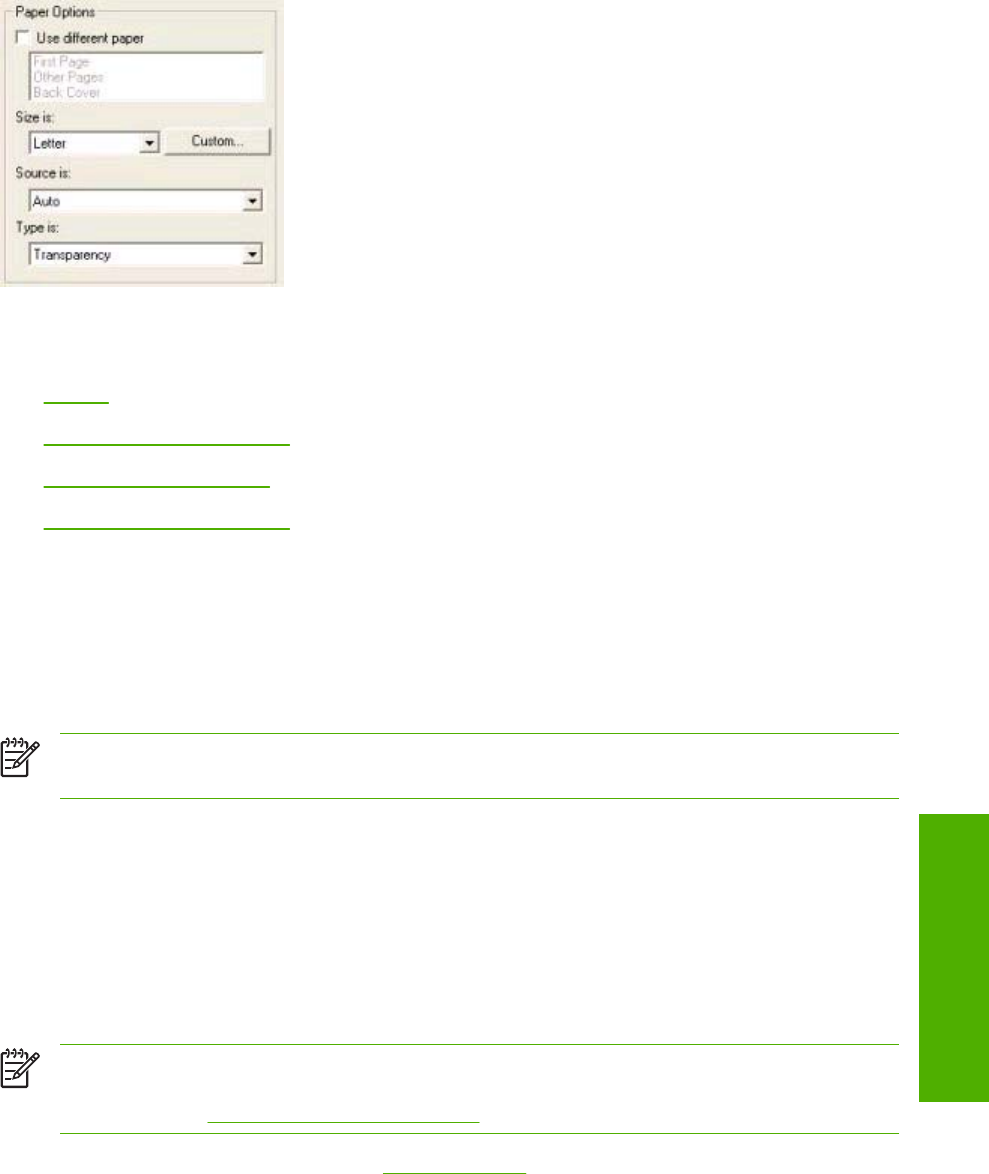
Figure 4-4 Paper Options group box
The following are settings in the Paper Options group box:
●Size is:
●Source Is: drop-down menu
●Type is: drop-down menu
●Use Different Paper options
Size is:
The Size is: setting is a drop-down menu that lists all of the supported media sizes.
You can specify size for all the settings in the Paper Options group box. You must use the same size
of media for the entire print job. That is, if the print job uses Letter-size media, any option that you select
from the available Use Different Paper options must also use Letter-size media.
NOTE Certain software programs can override the size command and specify different media
sizes within a single document.
For the Other Pages and Back Cover settings, you can select a source (tray) and media type that differ
from the settings selected for First Page. If a conflict exists among media source, media size, and/or
media type, and you choose to keep the conflicting settings, the settings are processed in the following
order: media size, media type, and then media source.
Because driver settings are overridden by media-size settings in most software applications, it is
generally best to use the driver to set media size only for software applications that lack a media-size
setting, such as NotePad, or when you are producing a book or a booklet that does not require different
media sizes.
NOTE When you use a software program with a media-size setting, you can specify different
media sizes within a single document by using the Use Different Paper options. For more
information, see Use Different Paper check box.
For information about media sizes, see the Media attributes section of this guide.
Use Different Paper check box
When the Use Different Paper check box is selected , the First page, Other pages, and Back
Cover options become available. Click any of these options and then choose Size is:, Source is:, and
Type is: for each option..
ENWW Paper/Quality tab features 61
Host-based driver
features for Microsoft
Windows
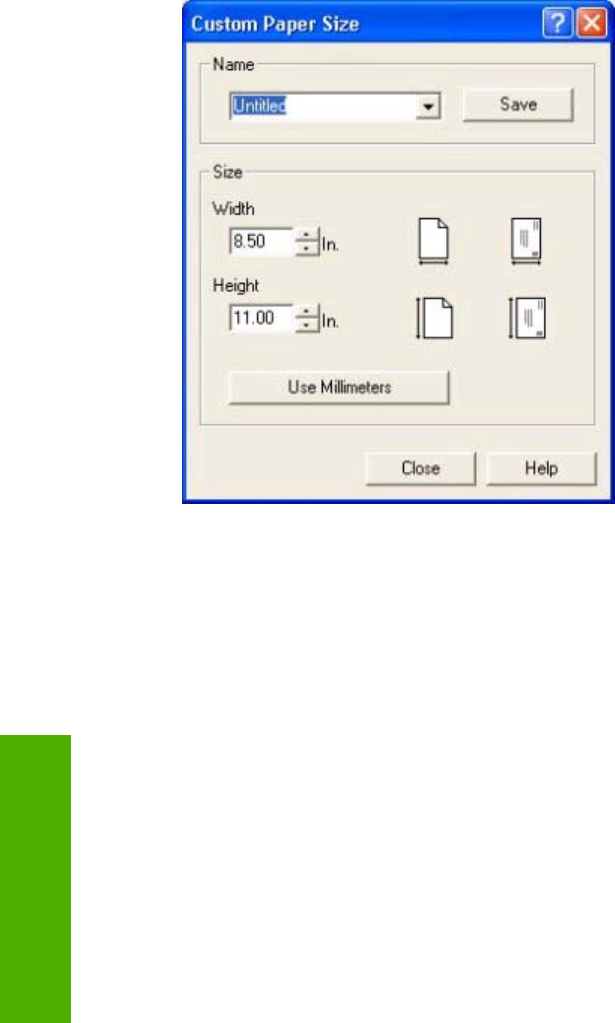
Custom Paper Size group
Click the Custom button to open the Custom Paper Size dialog box.
Figure 4-5 Custom Paper Size dialog box
Use the Custom Paper Size dialog box to create or modify custom paper-size information. The Custom
Paper Size dialog box contains the following options:
●Name field. Click the text box to type a name for your custom paper size or click the drop-down
menu to select a custom paper size that you have already defined.
●Size group box. If you type in a size that is too large or too small, the driver automatically adjusts
the size for you.
●Width spin box. Use the spin controls to select the width for your custom paper size, or click
in the text box to type the width.
●Height spin box. Use the spin controls to select the height for your custom paper size, or click
in the text box to type the height.
●Use Millimeters/Use Inches button. Click this button to toggle between using millimeters and
inches to define your custom paper size.
Click Save to save your custom size or click Close to return to the Paper/Quality tab.
Source Is: drop-down menu
The Source is: setting specifies the source tray to use for printing a document. If you have added an
optional Tray 3, it appears in this list only if you configured the tray through the Configure tab.
The Source is: drop-down menu can contain the following options:
●Auto
●Tray 1
62 Chapter 4 Host-based driver features for Microsoft Windows ENWW
Host-based driver
features for Microsoft
Windows

●Tray 2
●Tray 3 (if you have installed an optional tray 3 and configured it through the Configure tab)
The default setting is Auto. When this setting is selected, the printer uses the source tray that supports
the media size that you have selected. If you select a source tray other than Auto, make sure that the
correct media size is loaded in the source tray.
For information about media sources, see Media attributes .
Type is: drop-down menu
The Type is: drop-down menu shows all the paper types that the HP Color LaserJet 1600 printer
supports. When you use the default setting, Letter, the printer uses the default media type, which is
usually Plain.
The following standard paper types appear in the lists.
Table 4-2 Standard paper types and engine speeds
Paper type Engine speeds
Plain Full – 1:1
Preprinted Full – 1:1
Letterhead Full – 1:1
Transparency Half – 1:2
Prepunched Full – 1:1
Labels Half – 1:2
Bond Half – 1:2
Recycled Full – 1:1
Color Full – 1:1
HP Tough Paper Half – 1:2
Envelope Half – 1:2
1
Light (< 70 g/m
2
)Full – 1:1
Heavy (91 to 105 g/m
2
)Half – 1:2
Cardstock (106 to 163 g/m
2
or 43 to 53 lb.) Half – 1:2
Light Glossy (75 to 105 g/m
2
)Half – 1:2
Glossy (106 to 120 g/m
2
)Half – 1:2
Heavy Glossy (106 to 163 g/m
2
)Half – 1:2
HP Premium Cover (200 g/m
2
)
2
Half – 1:2
HP Premium Plus Photo (220 g/m
2
)
2
Half – 1:2
1
Throughput for continuous printing might be less than 4 pages per minute due to fuser heating limitations.
2
Support is only for HP papers at this weight.
ENWW Paper/Quality tab features 63
Host-based driver
features for Microsoft
Windows

The default setting is Plain. If you select a different setting, make sure that the correct media type is
loaded in the tray that you selected in the Source is: setting.
For more information about media types, see Media attributes .
Use Different Paper options
By using the Use Different Paper options, you can print books that include different types of media.
When you select the Use Different Paper check box, the following settings can appear in the group
box:
●First Page
●Other Pages
●Back Cover
To use Use Different Paper options, you must configure the setting for the print job. Each option for
the Use Different Paper setting is described in the sections that follow this procedure. Use the following
instructions to configure the setting:
To configure the Use Different Paper options for a print job
For each option, you can set a different tray by using the Source Is: drop-down menu. For some options,
the Type is: drop-down menu is also available.
1. To use different paper or cover stock, select the Use Different Paper check box. A list of options
appears in the dialog box. The full set of selections is visible when you scroll by using the down
arrow button to the right of the list.
2. To use different media for the pages within the print job, select the appropriate option (First Page,
Other Pages, or Back Cover) in the dialog box. Change the settings by using the Size is:, Source
is:, or Type is: drop-down menus.
3. Click OK to print.
NOTE You must use the same size of media for the entire print job. All options that you select
from the available Use Different Paper options use the size that you select in the First Page
settings.
When you change the type and source of the paper and covers, the settings that you select remain
configured until you close the software program.
Document preview image
The document preview image is a line-drawn image of a page that represents graphics and text. The
document preview image is always oriented so that the contents of the page are right-side-up. The
document preview image appears in the upper-right corner of the Paper/Quality, Effects, Finishing,
Basics, and Color tabs.
Switching between tabs does not change the location or appearance of the document preview image.
When you move the mouse over the document preview image, the mouse cursor changes from an arrow
64 Chapter 4 Host-based driver features for Microsoft Windows ENWW
Host-based driver
features for Microsoft
Windows

to a gloved hand. You can toggle between portrait and landscape page orientation by clicking on the
image.
ENWW Paper/Quality tab features 65
Host-based driver
features for Microsoft
Windows
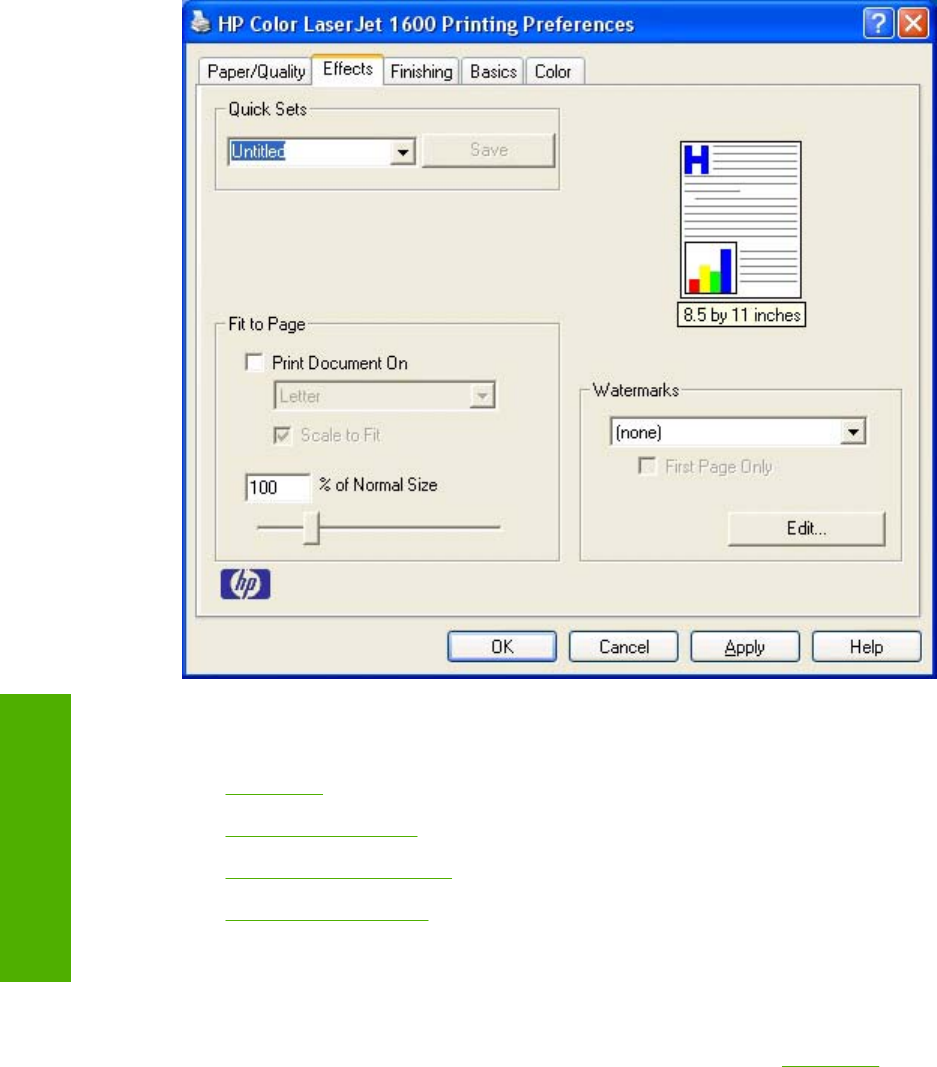
Effects tab features
Use the Effects tab to create unique paper effects such as scaling and watermarks. The following
illustration shows the Effects tab.
Figure 4-6 Effects tab
The Effects tab contains the following controls:
●Quick Sets
●Fit to Page group box
●Document preview image
●Watermarks group box
Quick Sets
Use the Quick Sets control to store the current combination of driver settings that are found on all other
Printing Preferences driver tabs. Quick Sets are either preset or user-defined printing specifications,
such as paper size and pages per sheet. For more information, see Quick Sets in the Paper/Quality
tab section of this guide.
Fit to Page group box
The Fit to Page group box consists of the following controls:
66 Chapter 4 Host-based driver features for Microsoft Windows ENWW
Host-based driver
features for Microsoft
Windows
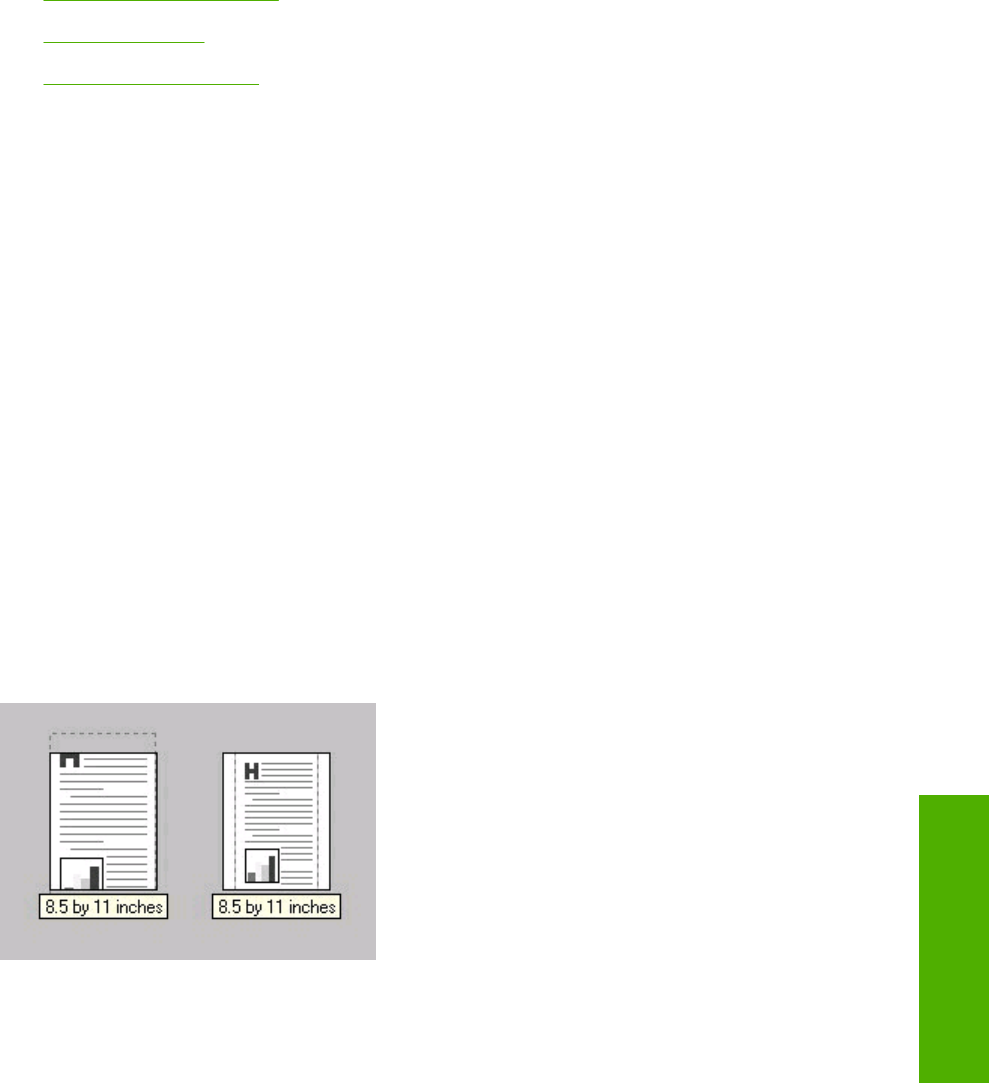
●Print Document On setting
●Scale to Fit option
●% of Normal Size option
Print Document On setting
Select the Print Document On option button to format the document for one paper size and then print
the document on a different paper size, with or without scaling the image to fit the new paper size.
The Print Document On control is disabled by either of the following conditions:
●The % of Normal Size value is not 100.
●The Pages per Sheet value (on the Finishing tab) is not 1.
When Print Document On is selected, the drop-down menu shows the media sizes on which you can
print. The list contains all of the standard media sizes that are supported by the selected media source
and any custom sizes that you have created. When Print Document On is selected, Scale to Fit is
automatically selected.
Scale to Fit option
The Scale to Fit option box specifies whether each formatted document page image is scaled to fit the
target paper size. By default, Scale to Fit is selected when Print Document On is selected. If the setting
is turned off, then the document page images will not be scaled, and are instead centered at full size
on the target paper. If the document size is larger than the target paper size, then the document image
is clipped. If it is smaller, then it is centered within the target paper. The following illustration shows
preview images for a document that is formatted for legal-size paper and where the Print Document
On check box is selected and the target size is specified as Letter.
Figure 4-7 Preview images - Legal on Letter; Scale to Fit off (left) and on (right)
When the size for which the document is formatted (that is, the logical size) differs from the target size,
the preview image uses a dashed gray line to show the boundaries of the logical page in relation to the
target page size.
% of Normal Size option
The % of Normal Size option provides a slider bar to use for scaling the percentage setting. The default
setting in the entry box is 100% of normal size. Normal size is defined as the paper size that is selected
within the driver or what the driver receives from the software program (if the software program does
not negotiate the paper size with the driver). The driver scales the page by the appropriate factor and
sends it to the printer.
ENWW Effects tab features 67
Host-based driver
features for Microsoft
Windows

The limits of the range are from 25% to 400%, and any values outside the range are adjusted to those
limits as soon as the focus is removed from the control (that is, when the Tab key is pressed or another
control is selected).
Any change to the scale also changes the page preview, which increases or decreases from the upper-
left corner of the preview.
The slider bar controls the scale directly. The value in the edit box changes as the scroll bar indicator
is dragged, and the preview image is updated to the new image scale. Each click on the scroll bar arrows
increases or decreases the scale by 1%. Each click on the slider bar affects the scale by 10%.
You cannot achieve an exact value by dragging the scroll bar indicator at the default Microsoft Windows
resolution; use the scroll bar indicator to approximate the appropriate value, and then use the scroll bar
arrows to refine the value.
The following settings disable % of Normal Size:
●Print Document On (on the Effects tab) is selected
●Pages per Sheet (on the Finishing tab) is not 1
Document preview image
The document preview image is a line-drawn image of a page that represents graphics and text. The
document preview image is always oriented so that the contents of the page are right-side up. The
document preview image appears in the upper-right corner of most Printing Preferences driver tabs
(the Paper/Quality, Finishing, Effects and Color tabs).
Switching between tabs does not change the location or appearance of the document preview image.
When you move the mouse over the document preview image, the mouse cursor changes from an arrow
to a gloved hand. You can toggle between portrait and landscape page orientation by clicking the
document preview image.
Watermarks group box
Use the Watermarks feature to select a watermark, create your own custom watermarks (text only), or
edit an existing watermark. The following watermarks are preset in the driver.
●Current watermarks
●Watermark message
●Message angle
●Font attributes
The drop-down menu shows alphabetically sorted watermarks that are currently available on the system,
plus the string "(none)", which indicates that no watermark is selected. This is the default setting. Any
watermark selected from this list appears in the preview image.
When the First Page Only check box is selected, the watermark is printed only on the first page of the
document. The First Page Only check box is disabled when the current watermark selection is "(none)".
Watermarks are applied to logical pages. For example, when Pages per Sheet is set to "4" and First
Page Only is turned off, four watermarks appear on the physical page (one on each logical page).
Click Edit, and the Watermark Details dialog box appears.
68 Chapter 4 Host-based driver features for Microsoft Windows ENWW
Host-based driver
features for Microsoft
Windows
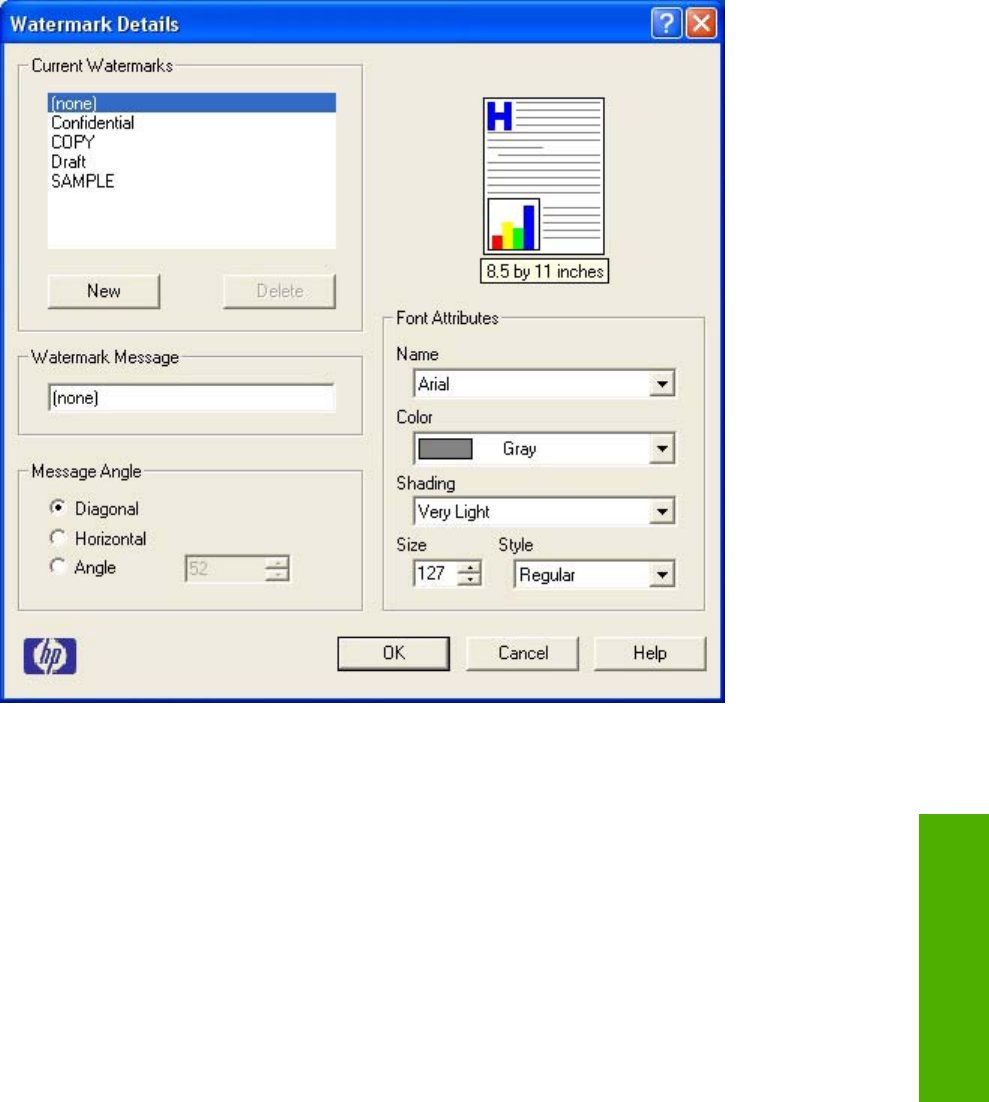
Figure 4-8 Watermark Details
The dialog box shows a preview image and provides options for creating a new watermark and
controlling the message angle and font attributes.
Click OK to accept all of the changes that are made in the Watermark Details dialog box. However,
clicking Cancel does not cancel all of the changes. If you make changes to a watermark, and then select
a different watermark or click New, all of the changes made to the previous watermark are saved, and
only the current, unsaved changes can be canceled.
Current watermarks
The Current Watermarks group box contains a list of available watermarks, both predefined
watermarks made available in the driver and any new watermarks you have created.
To create a new watermark, click New. The new watermark appears in the Current Watermarks list
and in the Watermark Message edit box as "Untitled" until you name it. The name that you type in the
Watermark Message field appears in the Current Watermarks group box in the Watermark Details
dialog box and in the Watermarks group box on the Effects tab.
To name the new watermark, type the selected watermark text in the Watermark Message edit box.
To delete a watermark, select the watermark in the Current Watermarks list and click Delete. A warning
appears asking whether you are sure you want to delete the selected item. Click Cancel if you want to
keep the watermark. Click OK to delete the selected watermark.
ENWW Effects tab features 69
Host-based driver
features for Microsoft
Windows

NOTE You can have no more that 30 watermarks in the Current Watermarks list at one time.
When you reach the limit of 30 watermarks, the New button is disabled.
To edit an existing watermark, select the watermark in the Current Watermarks list. If you change the
Watermark Message for that watermark, you are, in effect, creating a new watermark.
Watermark message
The Watermark Message is also the name that identifies the watermark in the Current Watermarks
list, except when more than one watermark has the same message. For example, you might want
several different watermarks with the message DRAFT, each with a different typeface or font size. When
this occurs, the string is appended with a space, a pound sign, and a number (for example, Draft #2).
When a number is added, the number two is used first, but if the resulting name is also in the list, then
the number increases until the name is unique (Draft #3, Draft #4, and so on).
Message angle
Use the controls in the Message Angle group box to print the watermark in different orientations in
relation to the page's text. The settings are Diagonal, Horizontal, or Angle (custom). The default is
Diagonal. All three settings automatically center the watermark string within the page; the selection of
a particular setting affects only the angle of the string placement. Diagonal places the text along a line
that spans the lower-left to upper-right corners of the page. Horizontal places the text along a line that
spans the mid-left and mid-right edges of the page. Angle places the text at the specified angle across
the page.
Font attributes
Use the controls in the Font Attributes group box to change the font and the shading, size, and style
of the font.
The Font Attributes group box contains the following controls:
●Name drop-down menu
●Color drop-down menu
●Shading drop-down menu
●Size spin box
●Style drop-down menu
Name
The Name drop-down menu lists fonts that are currently installed on the system. The default is language-
dependent.
Color
The Color drop-down menu provides a fixed, unalterable set of color choices for the watermark. The
following color choices are available for watermarks:
●Gray (default)
●Red
●Yellow
70 Chapter 4 Host-based driver features for Microsoft Windows ENWW
Host-based driver
features for Microsoft
Windows

●Green
●Cyan
●Blue
●Magenta
Shading
The default Shading setting for new and preset watermarks is Very Light. The following range of shades
is available from the Shading drop-down menu:
●Lightest
●Very Light (default)
●Light
●Medium Light
●Medium
●Medium Dark
●Dark
●Very Dark
●Darkest
These values represent the intensity of the gray that is used. A choice of Light produces a lightly
saturated gray watermark. A choice of Lightest produces the lightest shade of watermark; Darkest
produces a black watermark.
Size
Font sizes from 1 to 999 points are available from the Size menu. The default point size is language-
dependent. The choice of Regular, Bold, Italic, and Bold Italic is available from the Style drop-down
menu.
Style
The choice of Regular, Bold, Italic, and Bold Italic is available from the Style drop-down menu. The
default Style setting for new and preset watermarks is Regular.
ENWW Effects tab features 71
Host-based driver
features for Microsoft
Windows
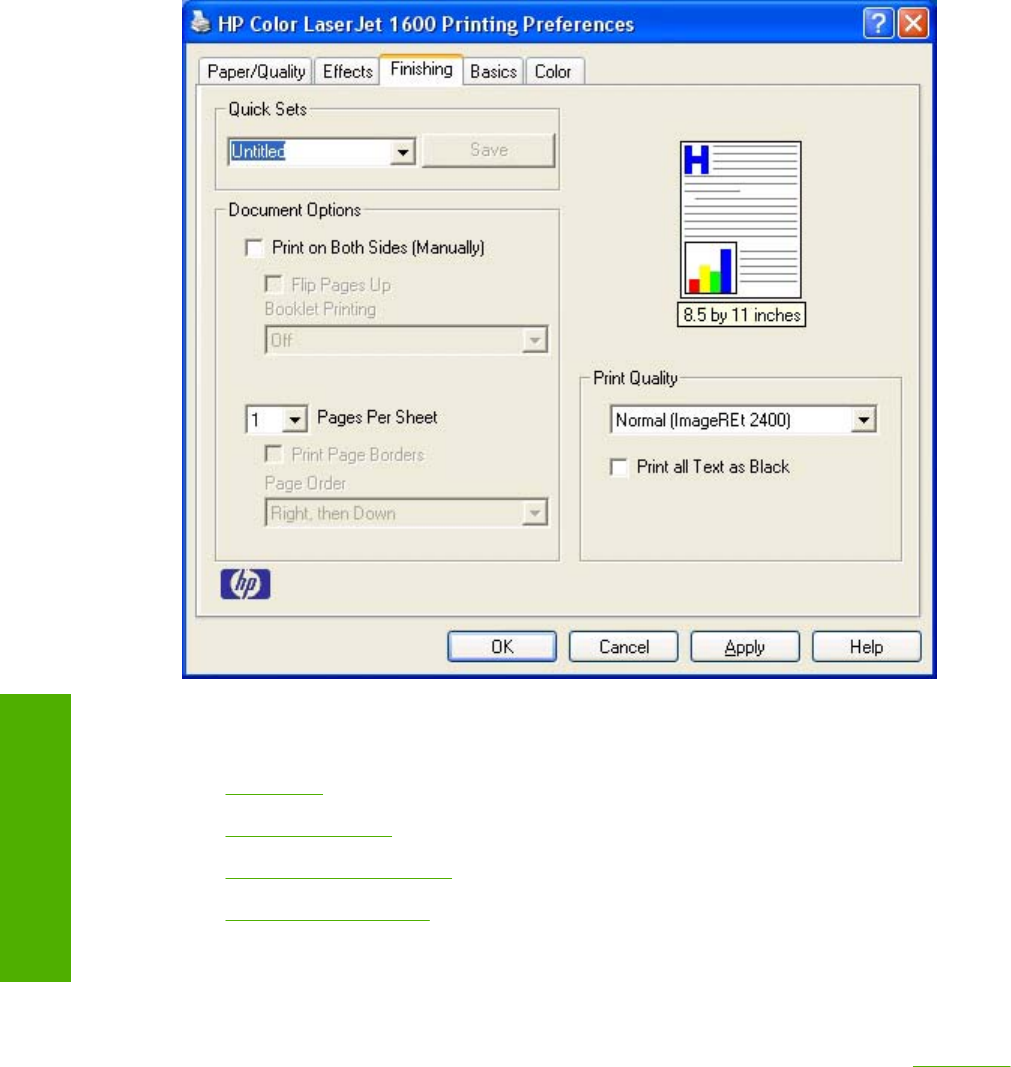
Finishing tab features
Use the Finishing tab to print booklets and control the media output. The following illustration shows
the Finishing tab.
Figure 4-9 Finishing tab
The Finishing tab contains the following controls:
●Quick Sets
●Document Options
●Document preview image
●Print Quality group box
Quick Sets
Use the Quick Sets control to store the current combination of driver settings that appear on all of the
other Printing Preferences driver tabs. Quick Sets are either preset or user-defined printing
specifications, such as paper size and pages per sheet. For more information, see Quick Sets in the
Paper/Quality tab section of this guide.
Document Options
The Document Options group box contains the following controls:
72 Chapter 4 Host-based driver features for Microsoft Windows ENWW
Host-based driver
features for Microsoft
Windows
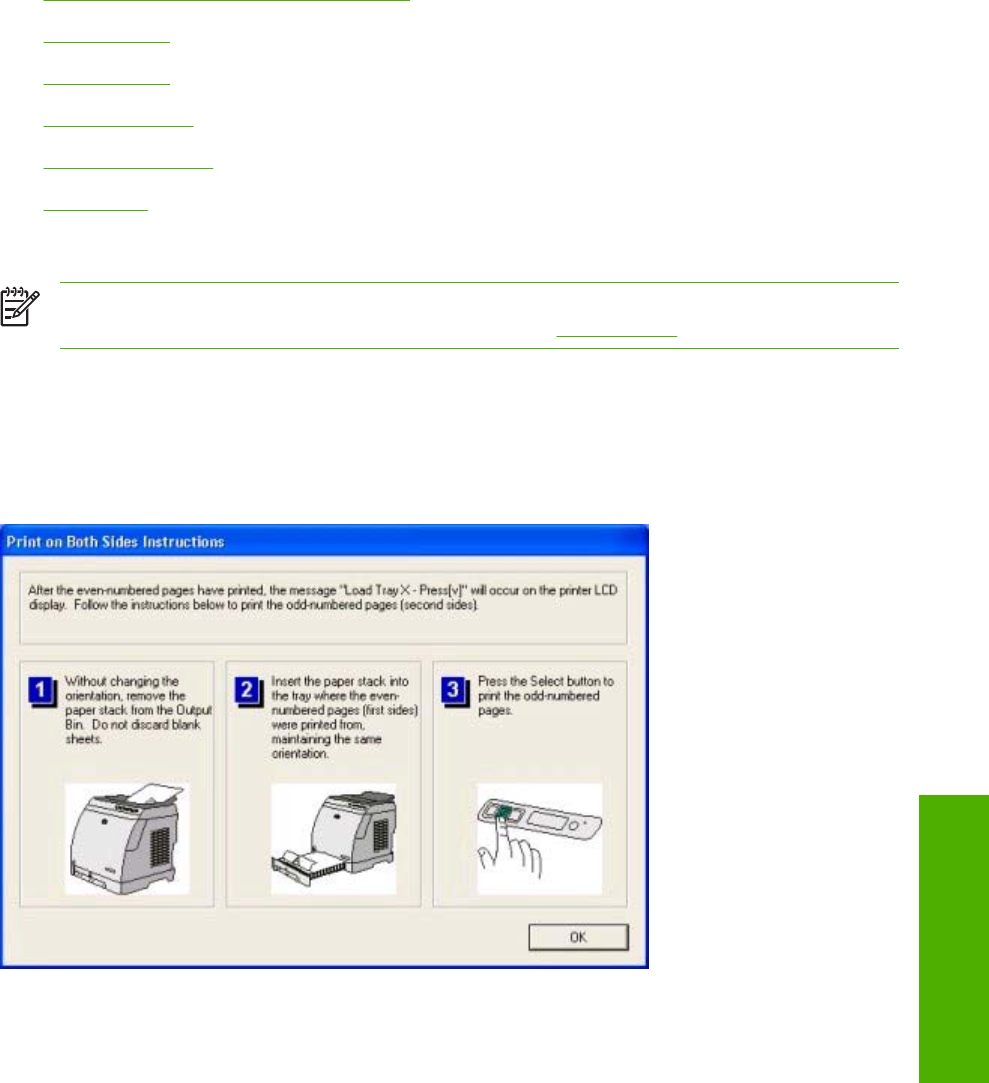
●Print on Both Sides (Manually) check box
●Flip Pages Up
●Booklet layout
●Pages per Sheet
●Print Page Borders
●Page Order
Print on Both Sides (Manually) check box
NOTE The Print on Both Sides (Manually) check box is unavailable if the Allow Manual
Duplexing option is disabled in the Configure tab. See Configure tab for more information.
The default setting for the Print on Both Sides (Manually) option is off (not selected). Selecting Print
on Both Sides (Manually) makes the Flip Pages Up and Booklet Printing options available.
When you send a print job to the printer with the Print on Both Sides (Manually) option selected, the
even pages print, and then the following dialog box appears so that you can complete the manual duplex
process.
Figure 4-10 Print on Both Sides Instructions
ENWW Finishing tab features 73
Host-based driver
features for Microsoft
Windows

Instructions for manually printing on both sides
Follow these steps to manually print on both sides.
1. Click File, Print, and then click Properties.
2. Click the Finishing tab, and then click the Print on Both Sides (Manually) check box. Click OK
to continue.
3. When the even-numbered pages have printed, the Load Tray X - Press (v) message appears on
the printer control panel and the Print on Both Sides Instructions dialog box appears on your
computer screen so that you can print the remaining pages.
a. Without changing the orientation, remove the paper stack from the output bin. Do not discard
blank sheets.
b. Insert the paper stack into the same input tray that the even-numbered pages (first sides)
were printed from, maintaining the same orientation (that is, with the same edge of the page
feeding into the printer first).
c. Press the Select button to print the odd-numbered pages.
Flip Pages Up
The Flip Pages Up check box, enabled only when Print on Both Sides is selected, is used to specify
the duplex-binding option. By default, the Flip Pages Up check box is not selected. The following table
demonstrates the results of selecting this box, depending on the paper orientation selected on the
Finishing tab.
Table 4-3 Page orientation
Orientation (Finishing tab) Flip Pages Up selected Flip Pages Up not selected
Portrait Short-edge binding Long-edge binding
Landscape Long-edge binding Short-edge binding
When Print on Both Sides is selected, the document preview image changes to show a spiral binding
along either the left edge or the top edge of the page. In addition, a folded-over corner appears in the
lower-right portion of the preview image, indicating that printing occurs on the back side. An arrow on
the folded-over corner points in the direction that the pages would be flipped if they were bound together.
Short-side binding is for print jobs with pages that read by flipping over like the pages of a notepad.
Long-side binding is for print jobs with pages that read by turning like the pages of a book.
Booklet layout
The Booklet Layout drop-down menu, visible when Print on Both Sides is selected, offers choices
that are based on the current paper size. The default setting for the Booklet Printing drop-down menu
is Off.
●Left Edge Binding
●Right Edge Binding
When you select Left Edge Binding or Right Edge Binding, the document preview image changes to
show the location of the binding. If the Pages per Sheet setting is on the default setting of 1, it
74 Chapter 4 Host-based driver features for Microsoft Windows ENWW
Host-based driver
features for Microsoft
Windows

automatically changes to 2 pages per sheet. If you change the Pages per Sheet setting manually to
4, 6, 9, or 16 pages per sheet, the booklet setting is disabled. See the Printing a Booklet section of this
chapter for more information.
The Booklet Layout setting is disabled when A6 or B6 (JIS) is selected as the media size, and an
incompatibility error message appears when you click OK to close the driver.
Book and booklet printing
The HP Color LaserJet 1600 printer supports book and booklet printing.
A book is a print job consisting of at least two pages that can have a different media type for the first
page, other pages, or back cover. Use the First Page, Other Pages, and Back Cover settings on
the Paper/Quality tab (available when you select the Use Different Paper check box) to select different
media for these pages.
A booklet is a print job that places two pages on each side of a sheet that can be folded into a booklet
that is half the size of the media type. Use the Booklet Layout drop-down menu on the Finishing tab
to control booklet settings.
Printing a Booklet
Complete the following steps to print a booklet.
1. Click File, click Print, and then click Properties.
2. Click the Finishing tab and select the Print on Both Sides check box.
3. In the Booklet Layout drop-down menu, select the type of booklet printing that you want (for
example, Right Edge Binding).
4. Click OK in the print driver.
5. Click OK in the Print dialog box to print.
Printing a book
You can print a book in which the first page, other pages, and back cover have different media types.
For more information, see the Paper/Quality tab features section of this chapter.
Pages per Sheet
Use the Pages per Sheet option to select the number of pages that you want to print on a single sheet
of media. If you choose to print more than one page per sheet, the pages appear smaller and are
arranged on the sheet in the order that they would otherwise be printed. The Pages per Sheet drop-
down menu provides six settings:
●1 page per sheet (this is the default)
●2 pages per sheet
●4 pages per sheet
●6 pages per sheet
ENWW Finishing tab features 75
Host-based driver
features for Microsoft
Windows
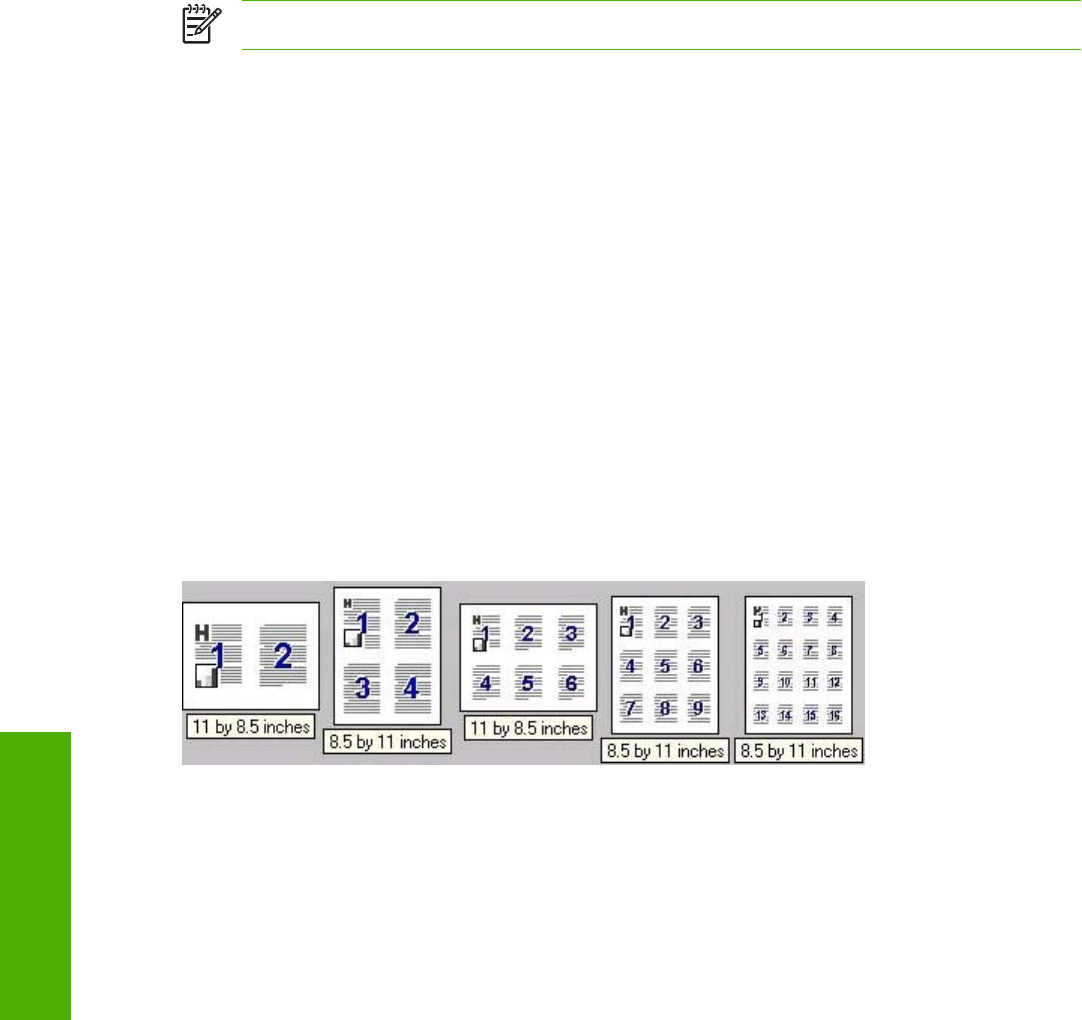
●9 pages per sheet
●16 pages per sheet
NOTE When you select an option other than 2 pages per sheet, booklet printing is unavailable.
Print Page Borders
Related controls indented beneath the Pages per Sheet edit box are Print Page Borders and Page
Order, which become active when Pages per Sheet is greater than 1.
Print Page Borders sets a line around each page image on a printed sheet to help visually define the
borders of each logical page.
Page Order
The Page Order drop-down menu contains four selections:
●Right, then Down
●Down, then Right
●Left, then Down
●Down, then Left
The preview document image changes to reflect alterations in these settings, as shown by the examples
in the following illustration.
Figure 4-11 Page-order preview images
●2 pages per sheet
●4 pages per sheet
●6 pages per sheet
●9 pages per sheet
●16 pages per sheet
Document preview image
The document preview image is a line-drawn image of a page that represents graphics and text. The
document preview image is always oriented so that the contents of the page are right-side up. The
document preview image appears in the upper-right corner of most Printing Preferences driver tabs
(the Paper/Quality, Effects, Finishing, and Color tabs).
76 Chapter 4 Host-based driver features for Microsoft Windows ENWW
Host-based driver
features for Microsoft
Windows

Switching between tabs does not change the location or appearance of the document preview image.
When you move the mouse over the document preview image, the mouse cursor changes from an arrow
to a gloved hand. You can toggle between portrait and landscape page orientation by clicking the
document preview image.
Print Quality group box
The Print Quality group box provides options that control resolution and font settings. The group box
includes the following options:
●Print Quality drop-down menu
●Print all Text as Black
Print Quality drop-down menu
Use the Print Quality drop-down menu to select from the following resolution options:
●Normal (ImageREt 2400). This setting produces 2400 dpi color output quality through HP Image
Resolution Enhancement Technology (ImageREt) 2400. This setting is selected by default.
●Draft (600 dpi). This setting produces 600x600 dpi 1–bit pixel text and graphics output quality. Use
this option to reduce print file size.
Print all Text as Black
Print all Text as Black is off by default. When selected, the driver prints all text as black regardless of
the original document text color. However, white text remains white, as a fail-safe method of printing
reverse typeface against a dark background. This setting does not affect graphic images on the
page. Print all Text as Black remains selected only for the current print job.
ENWW Finishing tab features 77
Host-based driver
features for Microsoft
Windows
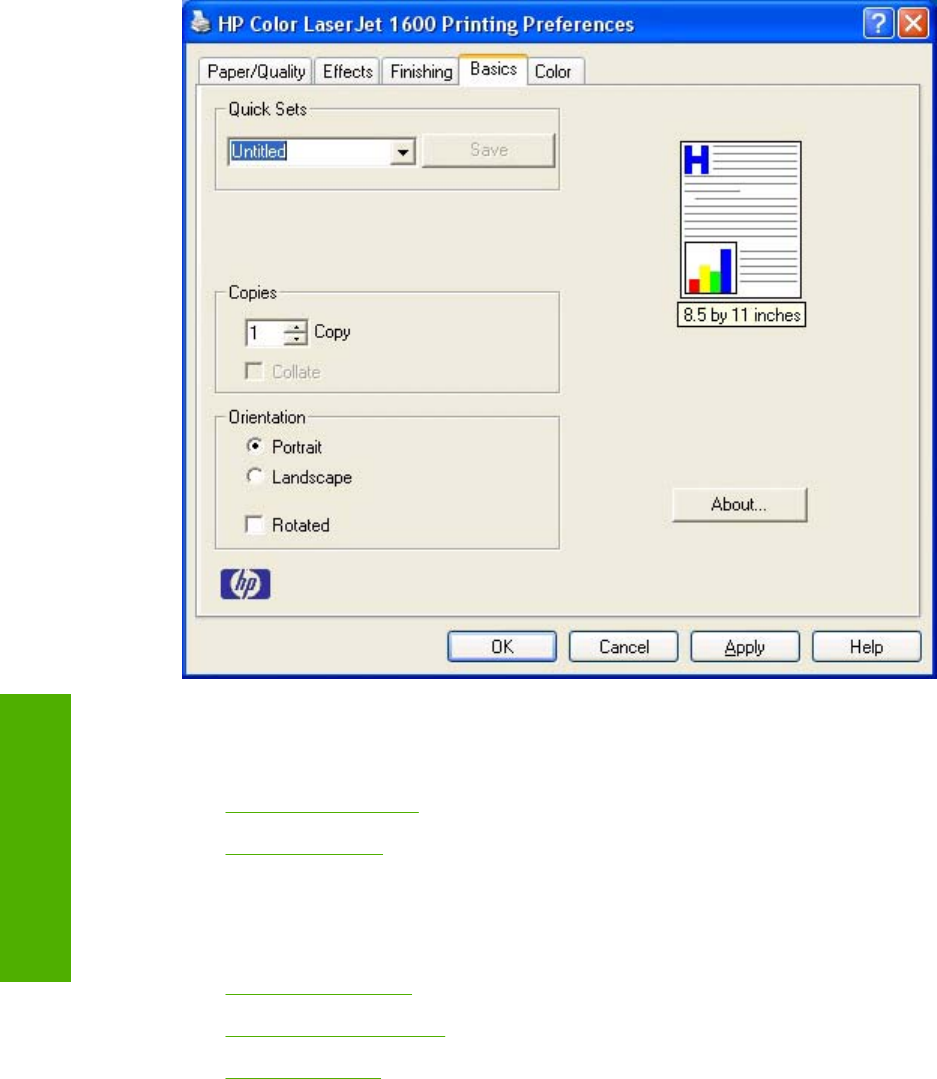
Basics tab features
You can use the Basics tab to change the layout of printed pages and the number of copies for a print
job. The following illustration shows the Basics tab.
Figure 4-12 Basics tab
The Basics tab contains the following controls:
●Orientation group box
●Copies group box
Orientation group box
The Orientation group box contains the following options:
●Portrait option button
●Landscape option button
●Rotate check box
Portrait option button
Select this feature to print your document in Portrait orientation. This is the default setting.
78 Chapter 4 Host-based driver features for Microsoft Windows ENWW
Host-based driver
features for Microsoft
Windows

Landscape option button
Select this feature to print your document in Landscape orientation.
Rotate check box
Select this feature to rotate the document image on the paper 180°. For example, if the return address
on an envelope is smudged, use this setting to feed the envelope so that the return address area feeds
first into the printer.
Copies group box
The Copies settings contain the following options:
●Copy Count setting
●Collate check box
●About button
●Page count
●Service ID (Born-on date)
Copy Count setting
This driver setting is useful for software programs that do not provide a copy count. If a copy count is
available in the software program, set the copy count in the software program. Copies specifies the
number of copies to print.
The number of copies that you request appears in the Copies option. You can select the number by
typing in the box or by using the up and down arrows to the right of the text box. Valid entries for the
HP Color LaserJet 1600 printer are numbers from 1 to 9999 . The copies value will not advance from
the maximum number (9999) to 1 when the up arrow is used, or change from 1 to the maximum number
(9999) when the down arrow is used. When you click another group box or leave the Basic tab, invalid
entries into the edit box (such as non-numerical input, numbers less than 1, or numbers greater than
the maximum allowed) change to the last valid value that appeared in the box. The default number of
copies is 1.
Because you can set the number of copies that you want from some software programs, conflicts can
arise between the software program that you are using and the driver. In most cases, the software
program and the driver communicate, so that the number of copies set in one location (such as the
program) will appear in the other (such as the driver). For some programs, this communication does not
happen, and the copies values are treated independently. For these programs, setting 10 copies in the
program and then setting 10 copies in the driver will result in 100 copies (10 x 10) being printed. It is
recommended that you set the number of copies in the program, wherever possible.
Collate check box
This option become available if the Copies setting is set to more than 1. Selecting this check box enables
the printer to print copies of multiple-page documents together. Selecting this option might slow down
the printing speed for multiple-page jobs.
About button
Click the About button to see the print driver version information, page count, and service ID.
ENWW Basics tab features 79
Host-based driver
features for Microsoft
Windows

A Software Update button is also available from this dialog box. When you click Software Update, the
driver opens your Web browser and connects you to the HP support Web site to update your HP Color
LaserJet 1600 printing-system software.
Page count
The page count is initialized at zero during installation, and every page that the driver prints should
update the count by one. When the driver is reinstalled, the customer can reset the page count to zero.
The page count is expressed as Page Count: NNNNNN, where N is a six-digit decimal representation
of the number of pages that have been printed.
Service ID (Born-on date)
The service ID (born-on date) is the date on which the HP Color LaserJet 1600 print driver was installed.
The number tells HP how long the customer has been using the printer. The customer can reset the
date by reinstalling the driver.
The service ID is expressed as Service ID: YYDDD, where YY is a decimal representation of the current
year minus 1990, and DDD is (calendar month minus 1) multiplied by 30 plus the calendar date (or 30
if the date is 31).
The Service ID is stored in the registry.
How to calculate the Service ID from a calendar date
1. YY = calendar year minus 1990
Examples:
1998 = 1998 minus 1990 = 08
2001 = 2001 minus 1990 = 11
2. DDD = (calendar month minus 1) times 30 plus calendar date (or 30 if the date is 31)
Examples:
October 10 = 9 times 30 plus 10 = 280
December 31 = 11 times 30 plus 30 = 360
How to convert the Service ID into a calendar date
1. Year = YY plus 1990
Examples:
YY = 08, then year = 08 plus 1990 = 1998
YY = 11, then year = 11 plus 1990 = 2001
2. Date = DDD divided by 30 (plus one if a remainder results) = the month. The remainder is the date.
If the remainder is 0, then the date is 30.
Examples:
DDD = 280, then 280 divided by 30 = 9 with a remainder of 10
80 Chapter 4 Host-based driver features for Microsoft Windows ENWW
Host-based driver
features for Microsoft
Windows

Because this leaves a remainder, month = 9 plus 1 = 10.
The Date = October 10
DDD = 360, then 260 divided by 30 = 12 (no remainder)
The Date = December 30
ENWW Basics tab features 81
Host-based driver
features for Microsoft
Windows
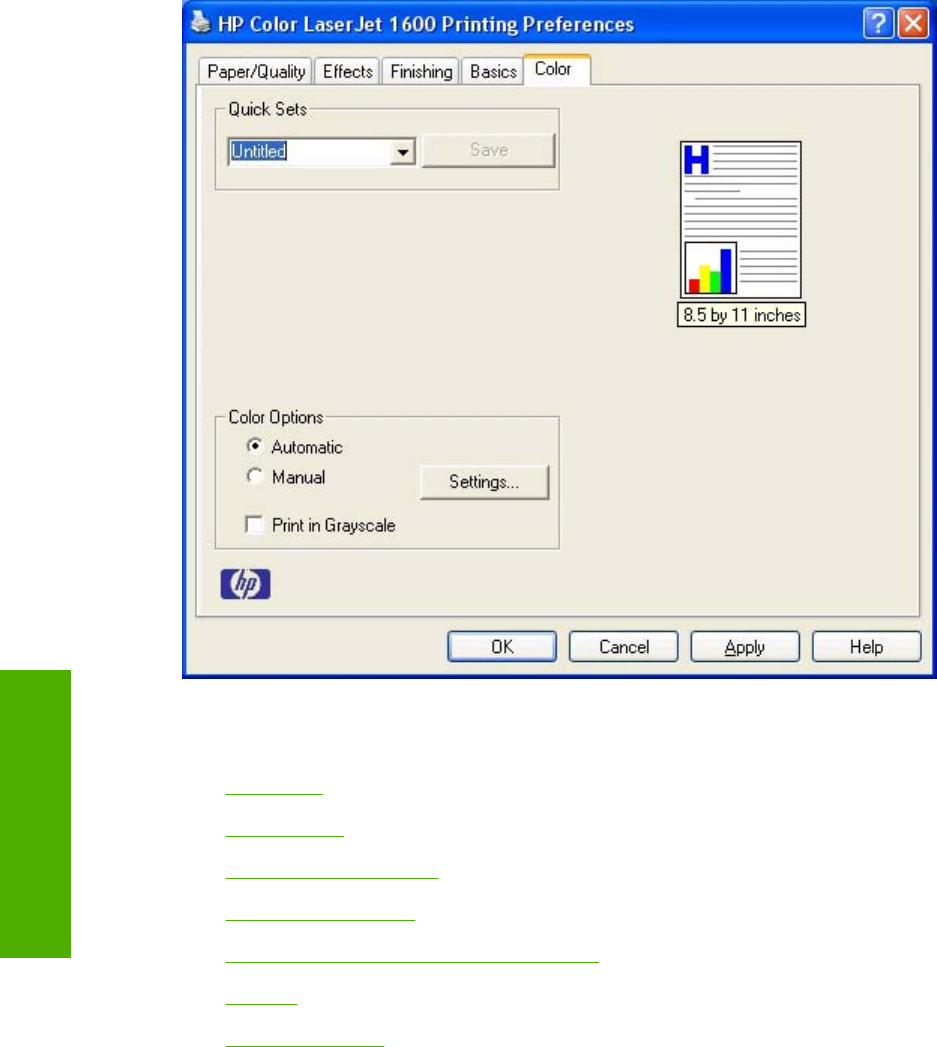
Color tab
Use the Color tab to specify predefined color-option settings or to fine-tune the color treatments and
half-toning. Color output can also be converted to grayscale. The Color tab is shown in the following
illustration.
Figure 4-13 Color tab
The Color tab contains the following controls:
●Quick Sets
●Color options
●Automatic color settings
●Manual color settings
●Text, Graphics, and Photographs sections
●General
●Print in Grayscale
Quick Sets
The Quick Sets control is available on each Printing Preference tab, and is used to store the current
combination of driver settings that appear on all of the other tabs. Quick Sets are either preset or user-
82 Chapter 4 Host-based driver features for Microsoft Windows ENWW
Host-based driver
features for Microsoft
Windows
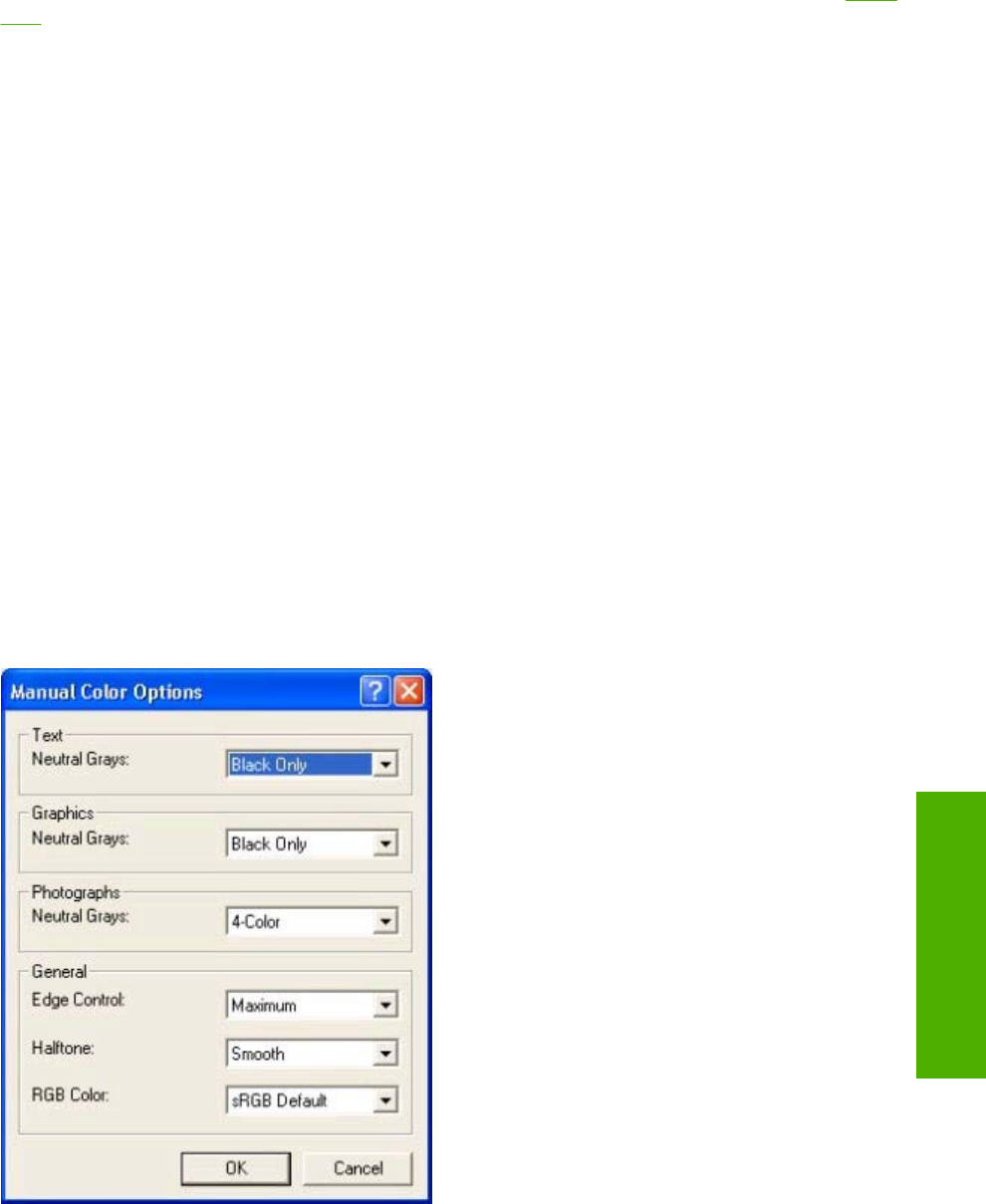
defined printing specifications, such as paper size and pages per sheet. For more information, see Quick
Sets in the Paper/Quality tab section of this guide.
Color options
Use the Color Options group box to adjust the independent color controls. The settings affect the color
rendering and print quality in the print job. The Color Options group box contains the following controls:
●Automatic option (default)
●Manual option
●Settings button (opens the Color Settingsdialog box)
●Print in Grayscalecheck box
Automatic color settings
Use the Automatic option for default color settings that automatically fine–tune your color-printer output.
The HP Automatic default color settings provide high-quality output for most color-printing needs.
Manual color settings
To change the default color settings, select the Manual option and then click the Settings button. The
Manual Color Options dialog box appears.
To change the settings, make your selections by using the drop-down menus in the Manual Color
Options dialog box, and then click OK. The following illustration shows the Manual Color Options
dialog box.
Figure 4-14 Manual Color Options
ENWW Color tab 83
Host-based driver
features for Microsoft
Windows

The Color Settings dialog box gives you independent control of the following settings:
●Text
●Graphics
●Photographs
●General
Text, Graphics, and Photographs sections
Use these sections to control the Neutral Grays setting for each control.
Neutral Grays
The Neutral Grays drop-down menu controls the selection of a device-dependent color table that is
embedded in the printer firmware. The options are Black Only or 4-Color. You can adjust the Neutral
Grays setting independently for Text, Graphics, or Photographs.
●Black Only. This option generates neutral colors (grays and black) by using only black toner. This
option guarantees that neutral colors do not have a color cast. Black Only is the default setting for
the Text and Graphics components.
●4-Color. This option generates neutral colors by combining all four colors of toner, which produces
smoother gradients and transitions to non-neutral colors. It also produces the darkest possible
black. 4-Color is the default setting for Photographs.
General
Use the General setting group to control the Edge Control, Halftone, and RGB Color settings for all
color printing.
Edge Control
Edge Control determines how edges are rendered. Edge Control consists of two components:
Adaptive Halftoning and Trapping. Adaptive Halftoning increases the edge sharpness. Trapping reduces
the effect of color plane misregistration by slightly overlapping the edges of adjacent objects.
The Edge Control option offers the following settings:
●Off turns off Trapping and Adaptive Halftoning.
●Normal provides the default trapping settings. Adaptive Halftoning is set to On.
●Maximum provides the most trapping. Adaptive Halftoning is set to On.
84 Chapter 4 Host-based driver features for Microsoft Windows ENWW
Host-based driver
features for Microsoft
Windows

Halftone
The Halftone setting controls the selection of a device-dependent halftone algorithm that is embedded
in the printer firmware. The Halftone options, Smooth and Detail, affect the resolution and clarity of
your color output.
●Smooth. This option provides better results for large, solid-filled print areas. It also enhances
photographs by smoothing out fine color gradations. Select this option for uniform and smooth area
fills.
●Detail. This option is useful for text and graphics that require sharp distinctions among lines or
colors, or for images that contain a pattern or high level of detail. Select this option for sharp edges
and detail.
The following table lists the lines per inch (lpi) for each resolution and halftone setting for the HP Color
LaserJet 1600 printer.
Table 4-4 Halftone settings (lpi)
Halftone Setting (Color tab) Resolution (Finishing tab)
Normal (ImageREt 2400) 2-bits/pixel Draft (600dpi) 1-bit/pixel
1
Smooth
Cyan 155 lines per inch (lpi) 146 lpi
Magenta 155 lpi 146 lpi
Yellow 212 lpi 200 lpi
Black 155 lpi 141 lpi
Detail
Cyan 190 lpi 146 lpi
Magenta 190 lpi 146 lpi
Yellow 200 lpi 200 lpi
Black 212 lpi 141 lpi
1
This option reduces print file size.
RGB Color
The RGB Color settings affect the color treatment for object types and determines how colors are
rendered. The options are Default (sRGB), Vivid, Device, and Photo/Image.
●Default (sRGB). This option interprets RGB color space (sRGB), which is the accepted standard
for many software companies and organizations such as Microsoft and the Worldwide Web
Consortium. Default (sRGB) is the default setting for all components.
●Vivid. This option sets the printer to increase the color saturation in the midtones. Less colorful
objects are rendered more colorfully. This value is recommended for printing business graphics.
NOTE This setting uses the SRGB color table for the HP Color LaserJet 2550 product.
ENWW Color tab 85
Host-based driver
features for Microsoft
Windows

●Device. This option sets the printer to print RGB data in raw device mode. To render photographs
correctly when this option is selected, you must manage color in the software program in which
you are working or in the operating system.
●Photo/Image. This option sets the printer to interpret the RGB color in the same way a digital mini-
lab interprets RGB to print a photograph. The printer prints the deeper, more saturated colors
differently in this mode than in Default (sRGB) mode. Use this setting for printing photos. For best
results, use HP Glossy Laser paper with this setting.
NOTE If your software program converts text and graphics to raster, the Photographs settings
also control the Text and Graphics settings.
Print in Grayscale
Select Print in Grayscale to print a color document in black and white. This option is useful for
previewing preliminary copies of slides and hardcopy output quickly or for color documents that will be
photocopied or faxed.
86 Chapter 4 Host-based driver features for Microsoft Windows ENWW
Host-based driver
features for Microsoft
Windows
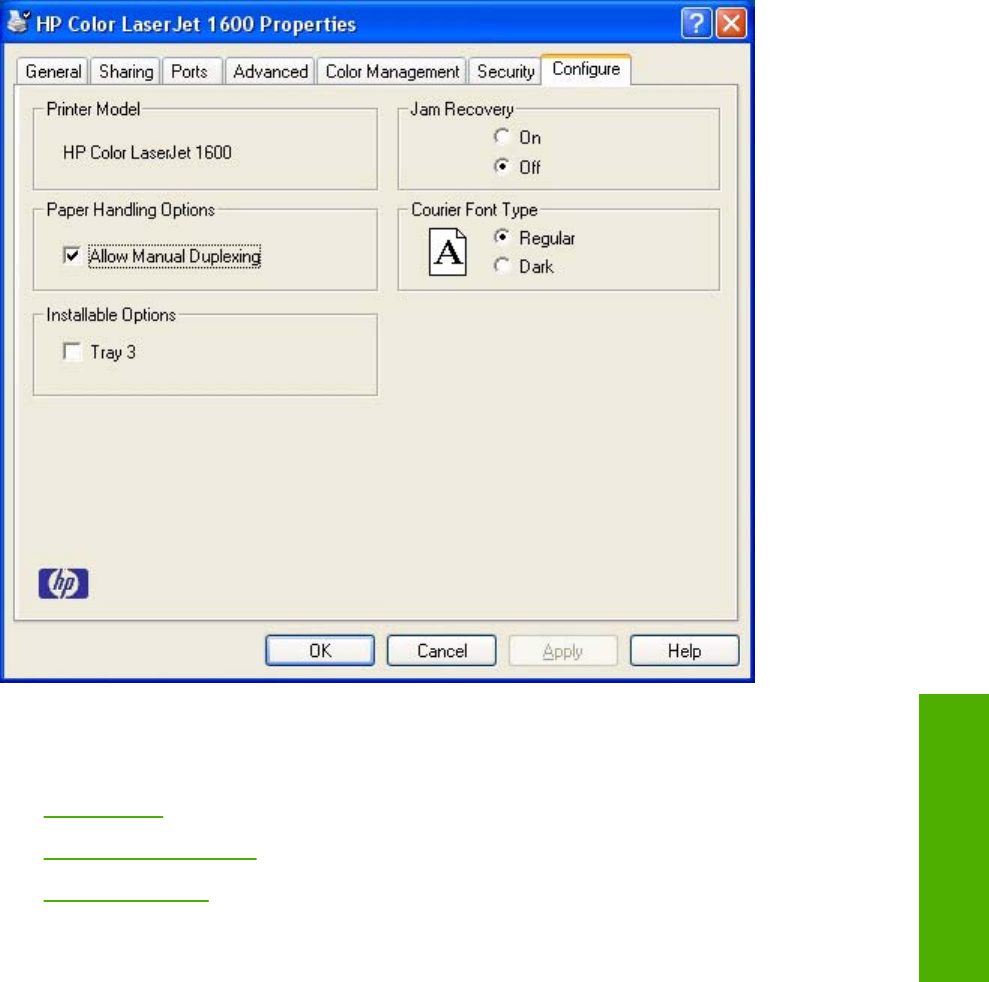
Configure tab
The Configure tab contains controls for media-handling devices and controls for managing the HP Color
LaserJet 1600 printer.
Figure 4-15 Configure tab
The Configure tab contains the following controls:
●Printer Model
●Paper Handling Options
●Installable Options
Printer Model
The Printer Model control identifies your printer model. Users cannot configure the Printer Model group
box.
Paper Handling Options
The Paper Handling Options group box contains the Allow Manual Duplexing check box. Select this
check box to enable the Print on Both Sides (Manually) option on the Finishing tab.
ENWW Configure tab 87
Host-based driver
features for Microsoft
Windows

Installable Options
This control specifies whether you have an additional 250-sheet tray 3 installed on your printer. The
default setting is unselected. In order to use tray 3, you must select the Tray 3 check box.
Jam Recovery
Click On to reprint the affected page if a jam occurs. Selecting this option might decrease the overall
performance of the printer.
Click Off if you do not want the affected page to be reprinted if a jam occurs. The printer prints more
quickly when Jam Recovery is turned off. Jam Recovery is turned off by default.
Courier Font Type
Click Regular to enable the printer to print any text using TrueType Courier or Courier New with a normal
weight.
Click Dark to enable the printer to print any text using TrueType Courier or Courier New with a dark
weight without changing the font attributes in the software program.
88 Chapter 4 Host-based driver features for Microsoft Windows ENWW
Host-based driver
features for Microsoft
Windows


Overview of the HP Color LaserJet 1600 Toolbox
NOTE The HP Color LaserJet 1600 printer uses version 1.0 of the HP Color LaserJet 1600
Toolbox. Some differences may exist between this version of HP Color LaserJet 1600 Toolbox
and previous versions.
The HP Color LaserJet 1600 Toolbox is a Web application that allows end users to easily communicate
and manage their HP Color LaserJet 1600 printer. The HP Color LaserJet 1600 Toolbox provides the
following capabilities:
●Monitor the status of the HP Color LaserJet 1600 printer
●Examine and set the device settings for the printer
●Provide Troubleshooting and "How do I" content
●Provide access to online printer documentation
●Provide Device Alert functionality, notifying the end user when particular events or conditions occur
at the device
●Provide access to HP instant support
Starting the HP Color LaserJet 1600 Toolbox
You can start the HP Color LaserJet 1600 Toolbox using either of the following methods.
●Click Start, click Programs (or All Programs in Microsoft Windows XP or Microsoft Windows
Server 2003, click HP, click HP Color LaserJet 1600, and then click HP Color LaserJet 1600
toolbox .
●Double-click the HP Color LaserJet 1600 toolbox icon on the Microsoft Windows desktop.
Structure
The HP Color LaserJet 1600 Toolbox is divided into two main sections: the HP Color LaserJet 1600
Toolbox section and the Device Settings section. Each of these sections has controls grouped into a
set of tabs. In addition to these two sections, the HP Color LaserJet 1600 Toolbox has other pages that
are accessible from various points within the HP Color LaserJet 1600 Toolbox.
90 Chapter 5 The HP Color LaserJet 1600 Toolbox ENWW
The HP Color LaserJet
1600 Toolbox

Opening page
The opening page that appears in the HP Color LaserJet 1600 Toolbox section depends on the installed
configuration of the HP Color LaserJet 1600 Toolbox. If you have installed the HP Color LaserJet 1600
Toolbox for a single HP Color LaserJet 1600 printer, the Device Content Page for that HP Color
LaserJet 1600 printer appears when you open the program. If you have installed the HP Color
LaserJet 1600 Toolbox for multiple printers, the Available Printers page appears when you open the
program. On the Available Printerspage, you can select the HP Color LaserJet 1600 printer you want
to manage with the HP Color LaserJet 1600 Toolbox.
Navigation
Every HP Color LaserJet 1600 Toolbox page that appears in the HP Color LaserJet 1600 Toolbox
section contains a Left Navigation section at the left side of the window. This navigation menu allows
you to gain access to additional Toolbox pages that pertain to the tab you have chosen.
Your Web browser’s Forward, Back, and History navigation buttons allow you to navigate between
pages that you have visited before. You can also set a bookmark for most pages that are displayed in
the HP Color LaserJet 1600 Toolbox section.
ENWW Overview of the HP Color LaserJet 1600 Toolbox 91
The HP Color LaserJet
1600 Toolbox

System requirements
The following table describes the system requirements for the HP Color LaserJet 1600 Toolbox.
Web browser requirements
The following Web browsers are supported by the HP Color LaserJet 1600 Toolbox.
●Microsoft Internet Explorer 5.5 or later
●Netscape Navigator 6.2 or later
●Opera Software ASA Opera 7 or later
Other requirements
The HP Color LaserJet 1600 Toolbox runs on Microsoft Windows operating systems with the minimum
Microsoft Windows requirements; for more information, see the Microsoft Windows system
requirements section of this guide. The TCP/IP protocol and Sun Java™ must also be installed on the
computer. To download Java, go to the following Web site.
http://www.java.com
92 Chapter 5 The HP Color LaserJet 1600 Toolbox ENWW
The HP Color LaserJet
1600 Toolbox

Localization
The HP Color LaserJet 1600 Toolbox content is localized into the following languages.
●English
●Czech
●Danish
●Dutch
●Finnish
●French
●German
●Hungarian
●Italian
●Korean
●Norwegian
●Polish
●Portuguese (Brazil)
●Russian
●Simplified Chinese
●Spanish
●Swedish
●Thai
●Traditional Chinese
●Turkish
ENWW Localization 93
The HP Color LaserJet
1600 Toolbox

Configuration options for the HP Color LaserJet 1600
Toolbox
The HP Color LaserJet 1600 Toolbox is divided into two main sections: the HP Color LaserJet 1600
Toolbox section and the Device Settings section. Each of these sections has controls grouped into a
set of tabs. In addition to these two sections, the HP Color LaserJet 1600 Toolbox has other pages that
are accessible from various points within the HP Color LaserJet 1600 Toolbox. The following lists
describe the basic layout of these sections and the configuration options available on each tab.
This section provides information about the following topics:
●HP Color LaserJet 1600 Toolbox section
●Device Settings section
●Other pages
94 Chapter 5 The HP Color LaserJet 1600 Toolbox ENWW
The HP Color LaserJet
1600 Toolbox


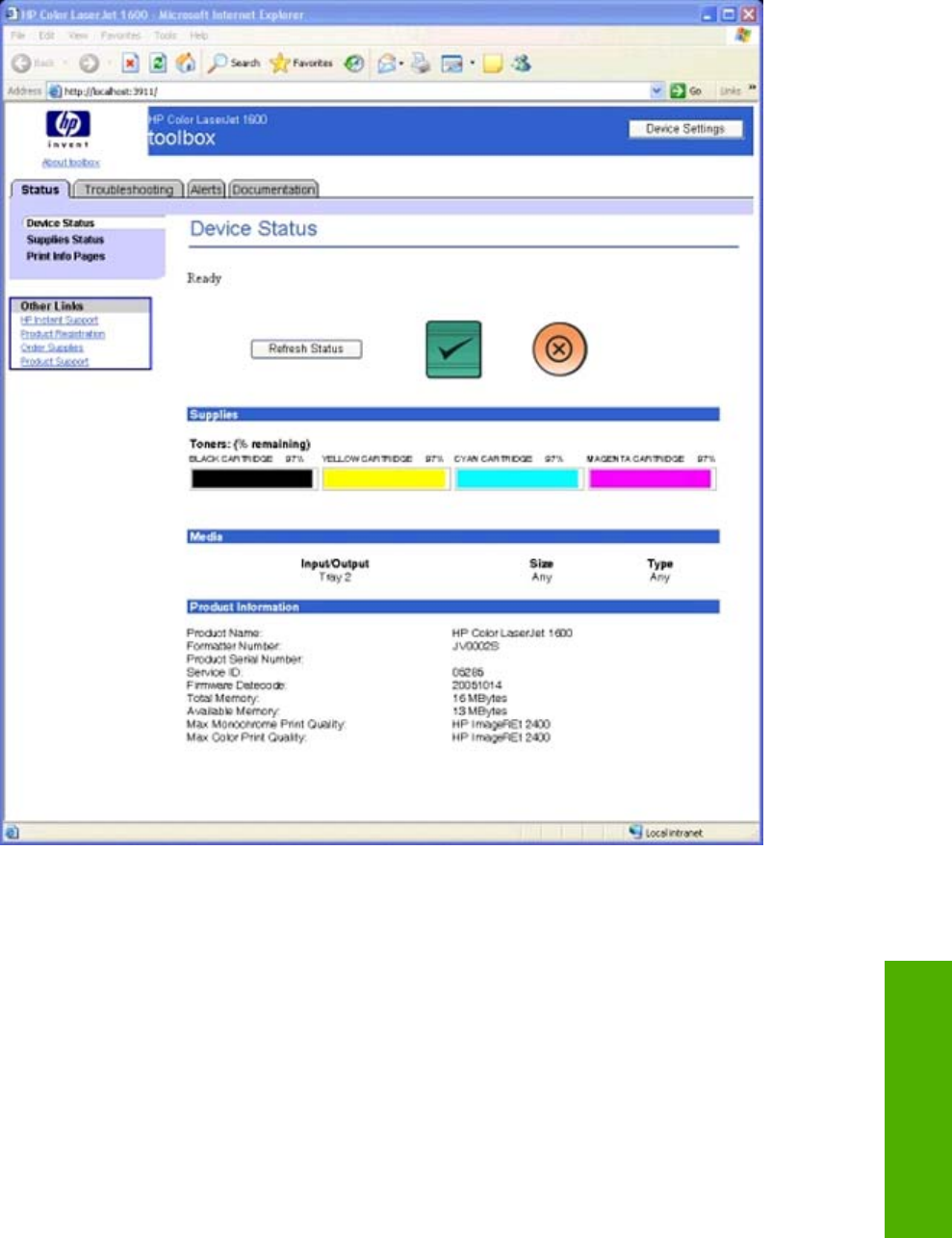
Device Status page
The Device Status page shows device status messages from the device. The Device Status page also
displays some pertinent printer information and device settings.
Figure 5-1 Device Status page
Status messages
The status messages that appear on the Device Status page are the same messages that appear on
the HP Color LaserJet 1600 control panel display. The following message types are available:
●Initialization and Ready messages
●Supplies messages
●Alert messages
●Warning messages
ENWW Configuration options for the HP Color LaserJet 1600 Toolbox 97
The HP Color LaserJet
1600 Toolbox
●Critical error messages
●Status messages
●Printing reports and documents messages
Initialization and Ready messages
The following table lists the available status/control panel initialization and Ready messages for the
HP Color LaserJet 1600 printer.
Table 5-1 HP Color LaserJet 1600 Control Panel initialization and Ready messages
Message Description
Hewlett Packard Power on
Permanent storage init. NVRAM initialization (power on with Select and Cancel buttons
pressed and held
Intitializing . . . Print engine warming up
Ready Idle with no other pending messages
Supplies messages
The following table lists the available status/control panel supplies messages for the HP Color
LaserJet 1600 printer.
Table 5-2 HP Color LaserJet 1600 Control Panel supplies messages
Message Description
Replace cyan cartridge
alternates with
Single supply is out (gas gauge for depleted supply flashes)
Replace magenta cartridge
alternates with
Replace yellow cartridge
alternates with
Replace black cartridge
alternates with
Replace supplies
alternates with
Multiple supplies are out
98 Chapter 5 The HP Color LaserJet 1600 Toolbox ENWW
The HP Color LaserJet
1600 Toolbox
Install cyan cartridge
alternates with
Single supply is not installed (identified by “?” character)
Install magenta cartridge
alternates with
Install yellow cartridge
alternates with
Install black cartridge
alternates with
Install supplies
alternates with
Multiple supplies are not installed (identified by “?” characters)
10.XXXX supply error
alternates with
Reinstall
Supply error for a specific cartridge. Identified by “?” character
The list of 10.XXXX errors appears below:
●10.0000 Black cartridge e-label error
●10.0001 Cyan cartridge e-label error
●10.0002 Magenta e-label error
●10.0003 Yellow e-label error
●10.1000 Black e-label missing
●10.1001 Cyan e-label missing
●10.1002 Magenta e-label missing
10.1003 Yellow e-label missing
Incorrect black Black cartridge incorrectly installed
Incorrect cyan Cyan cartridge incorrectly installed
Incorrect magenta Magenta cartridge incorrectly installed
Incorrect yellow Yellow cartridge incorrectly installed
Incorrect supplies Multiple cartridges incorrectly installed
Non HP cyan installed
alternates with
An non-HP supply is detected (cloned or refilled).
This is a continuable error state. The user must acknowledge
the message by pressing the Select button.
Table 5-2 HP Color LaserJet 1600 Control Panel supplies messages (continued)
ENWW Configuration options for the HP Color LaserJet 1600 Toolbox 99
The HP Color LaserJet
1600 Toolbox
To accept press
Non HP magenta installed
alternates with
To accept press
Non HP yellow installed
alternates with
To accept press
Non HP black installed
alternates with
To accept press
Unauthorized black
alternates with
To accept press
An unauthorized supply is detected (misuse of HP in OEM
elable field).
This is a continuable error state. The user must acknowledge
the message by pressing the Select button.
Unauthorized cyan
alternates with
To accept press
Unauthorized magenta
alternates with
To accept press
Unauthorized yellow
alternates with
To accept press
Non HP supply in use
alternates with
Ready
A non-HP supply has been overridden (cloned or refilled
supply).
This message is a Ready State with Warning error; it does not
require the user to take action.
Unauthorized supply in use
alternates with
Ready
An unauthorized supply was overridden (misuse of HP in OEM
field).
This message is a Ready State with Warning error; it does not
require the user to take action.
HP supplies installed
alternates with
Ready
The printer has transitioned from having one or more non-HP
supplies to having none. This message displays for 5 seconds
and then returns to Ready state.
This message is a Ready State with Warning error; it does not
require the user to take action.
Order black cartridge A supply is low.
Table 5-2 HP Color LaserJet 1600 Control Panel supplies messages (continued)
100 Chapter 5 The HP Color LaserJet 1600 Toolbox ENWW
The HP Color LaserJet
1600 Toolbox
alternates with
Ready
This message is a Ready State with Warning error; it does not
require the user to take action.
Order cyan cartridge
alternates with
Ready
Order magenta cartridge
alternates with
Ready
Order yellow cartridge
alternates with
Ready
Order supplies
alternates with
Ready
Multiple supplies are low.
This message is a Ready State with Warning error; it does not
require the user to take action.
Replace supply. Override in use
alternates with
Ready
Supply override in use. The user has decided to continue
printing beyond the out point.
Replace supplies. Override in use
alternates with
Ready
Alert messages
The following table lists the available status/control panel alert messages for the HP Color
LaserJet 1600 printer.
Table 5-3 HP Color LaserJet 1600 Control Panel alert messages
Message Description
Load Tray 1<Type> <Size>
alternates with
Press to use available media
Printer is processing job, but no trays match. The option is to
use existing tray settings.
Load tray # <Type> <Size>
alternates with
Press to use available media
Printer is processing job, but a matching tray is empty.
Table 5-2 HP Color LaserJet 1600 Control Panel supplies messages (continued)
ENWW Configuration options for the HP Color LaserJet 1600 Toolbox 101
The HP Color LaserJet
1600 Toolbox

Load paper Out of paper in all available trays
Manual feed Press
alternates with
Load tray 1 <Type> <Size>
Print manual feed mode.
Load tray #Press Manual duplex - # is the tray from which the first half of the print
job was printed.
MisprintPress Feed delay misprint
Unexpected size in tray #
alternates with
Load [Size]
Unexpected size error
No paper pickupPress Print paper tray mispick
Memory is lowPress Job processing memory low. User must acknowledge the
error.
Door open Door open
Jam in tray 2
alternates with
Clear jam and press
Paper jam in tray 2
Jam in tray 3
alternates with
Clear jam and press
Paper jam in tray 3
Jam in print paper path
alternates with
Open door and clear jam
Paper jam in registration area - drum area
Jam in cartridge area
alternates with
Open door and clear jam
Paper jam in drum area - fuser area
Jam in output bin
alternates with
Open door and clear jam
Paper jam in fuser area - output paper area
Jam in print paper path
alternates with
Open door and clear jam
Paper jam in duplex feeding area
Jam in output bin
alternates with
Open door and clear jam
Paper jam in duplex reversing area
Table 5-3 HP Color LaserJet 1600 Control Panel alert messages (continued)
102 Chapter 5 The HP Color LaserJet 1600 Toolbox ENWW
The HP Color LaserJet
1600 Toolbox

Warning messages
The following table lists the available status/control panel warning messages for the HP Color
LaserJet 1600 printer.
Table 5-4 HP Color LaserJet 1600 Control Panel warning messages
Message Description
Device errorPress BD glitch
Engine comm. error Print Engine Communication error
Engine errorPress Beam detect malfunction
Critical error messages
The following table lists the available status/control panel critical error messages for the HP Color
LaserJet 1600 printer.
Table 5-5 HP Color LaserJet 1600 Control Panel critical error messages
Message Description
50.1 Fuser ErrorTurn off then on 50.1 Low fuser error
50.2 Fuser ErrorTurn off then on 50.2 Slow fuser error
50.3 Fuser ErrorTurn off then on 50.3 High fuser error
50.4 Fuser ErrorTurn off then on 50.4 Fuser driver error
50.6 Fuser ErrorTurn off then on 50.6 Fuser open error
50.8 Fuser ErrorTurn off then on 50.8 Low subthermistor fuser error
50.9 Fuser ErrorTurn off then on 50.9 High subthermistor fuser error
'51.20 ErrorTurn off then on Black laser scanner error
51.21 ErrorTurn off then on Cyan laser scanner error
51.22 ErrorTurn off then on Magenta laser scanner error
51.23 ErrorTurn off then on Yellow laser scanner error
57 Fan Error Turn off then on Fan error
55.1 ErrorTurn off then on 55.1 DC controller error
59.4 ErrorTurn off then on 59.4 Abnormal fuser motor rotation
59.A0 ErrorTurn off then on 59.A0 ETB motor rotation error
59.9 ErrorTurn off then on 59.9 ETB motor start error
59.C0 ErrorTurn off then on 59.C0 Developer motor rotation error
54.1C ErrorTurn off then on Density sensor contamination warning or CPR sensor
contamination
Table 5-3 HP Color LaserJet 1600 Control Panel alert messages (continued)
ENWW Configuration options for the HP Color LaserJet 1600 Toolbox 103
The HP Color LaserJet
1600 Toolbox
Duplexer ErrorTurn off then on Duplex not connected/installed correctly
Sensor errorTurn off then on Toner level or TOP sensor errors
Status messages
The following table lists the available status/control panel status messages for the HP Color
LaserJet 1600 printer.
Table 5-6 HP Color LaserJet 1600 Control Panel status messages
Message Description
Calibrating . . . Calibrating
Cleaning . . . Cleaning
Load tray 1Plain, <Size>
alternates with
CAUTION Cleaning Mode to start
Cleaning mode paper prompt
Printing reports and documents messages
The following table lists the available status/control panel printing reports and documents messages for
the HP Color LaserJet 1600 printer.
Table 5-7 HP Color LaserJet 1600 Control Panel printing reports and documents messages
Message Description
Printing report:[Report name] Printing an internal report
Canceling report Canceling report
Printing document Printing
Canceling print Canceling print
Table 5-5 HP Color LaserJet 1600 Control Panel critical error messages (continued)
104 Chapter 5 The HP Color LaserJet 1600 Toolbox ENWW
The HP Color LaserJet
1600 Toolbox
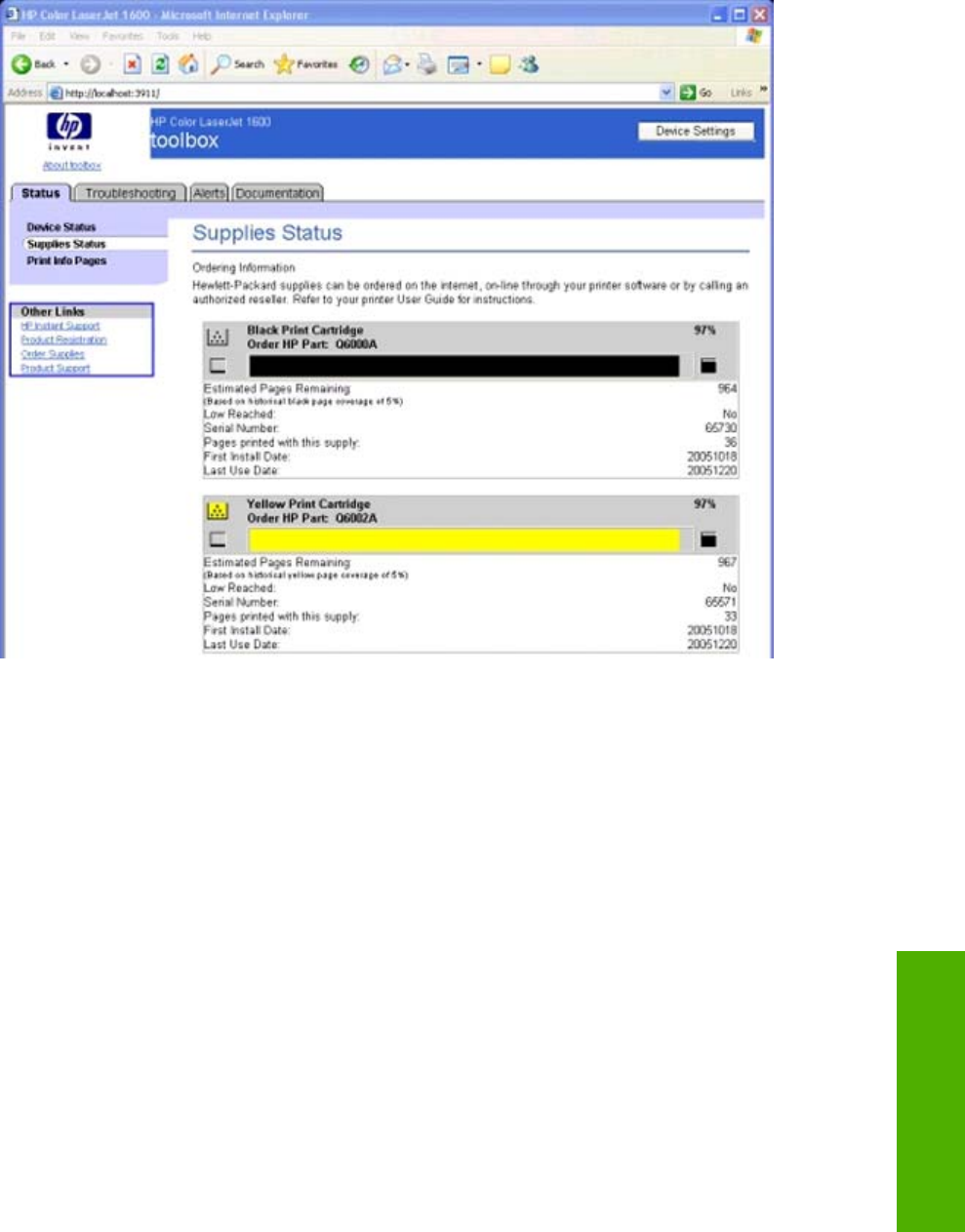
Supplies Status page
The Supplies Status page displays the status of all of the supplies used by the printer, including the
black, cyan, magenta, and yellow print cartridges and the imaging drum. This page also provides a link
for return and recycling information.
Figure 5-2 Supplies Status page - 1 of 2
ENWW Configuration options for the HP Color LaserJet 1600 Toolbox 105
The HP Color LaserJet
1600 Toolbox
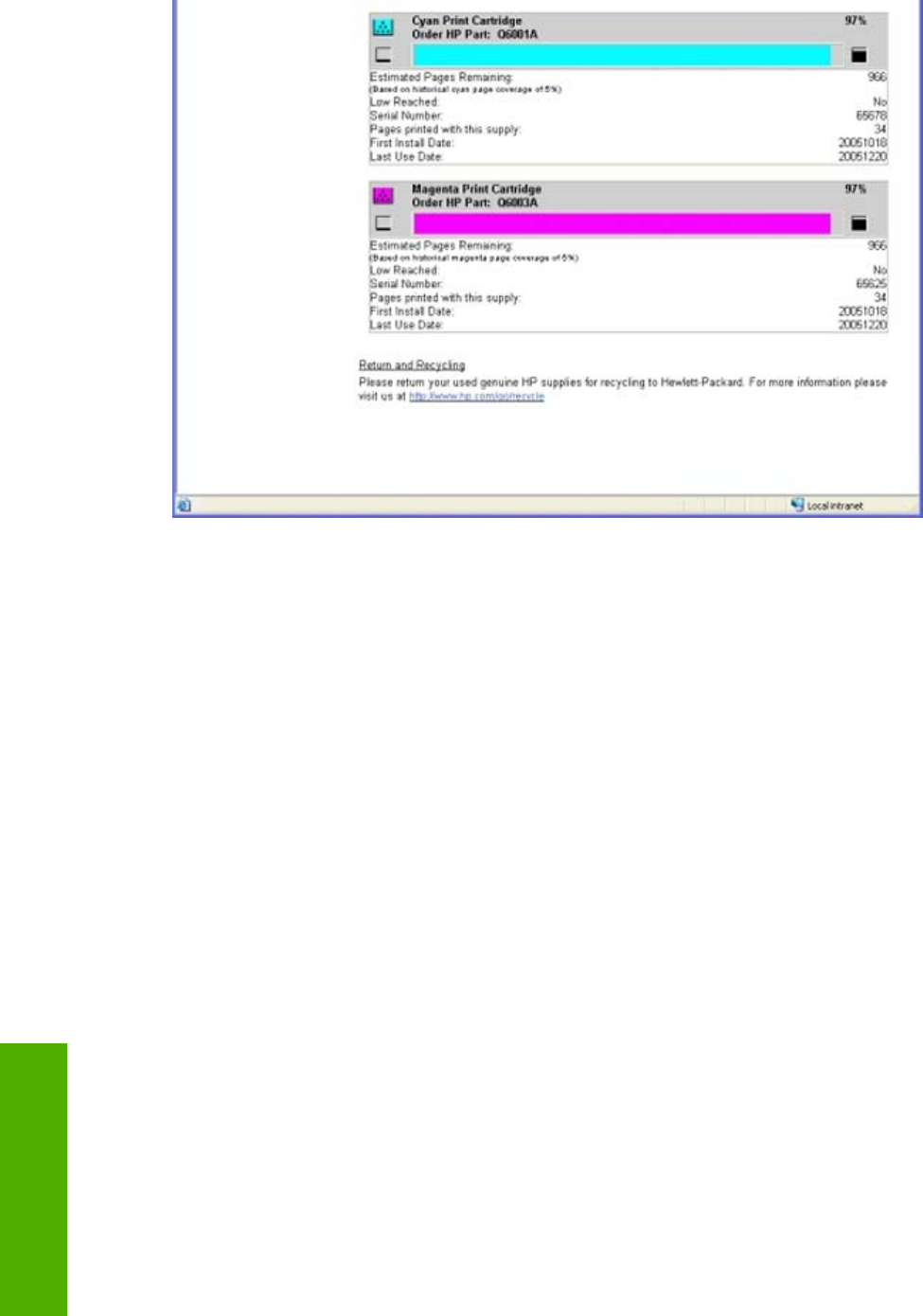
Figure 5-3 Supplies Status page - 2 of 2
106 Chapter 5 The HP Color LaserJet 1600 Toolbox ENWW
The HP Color LaserJet
1600 Toolbox
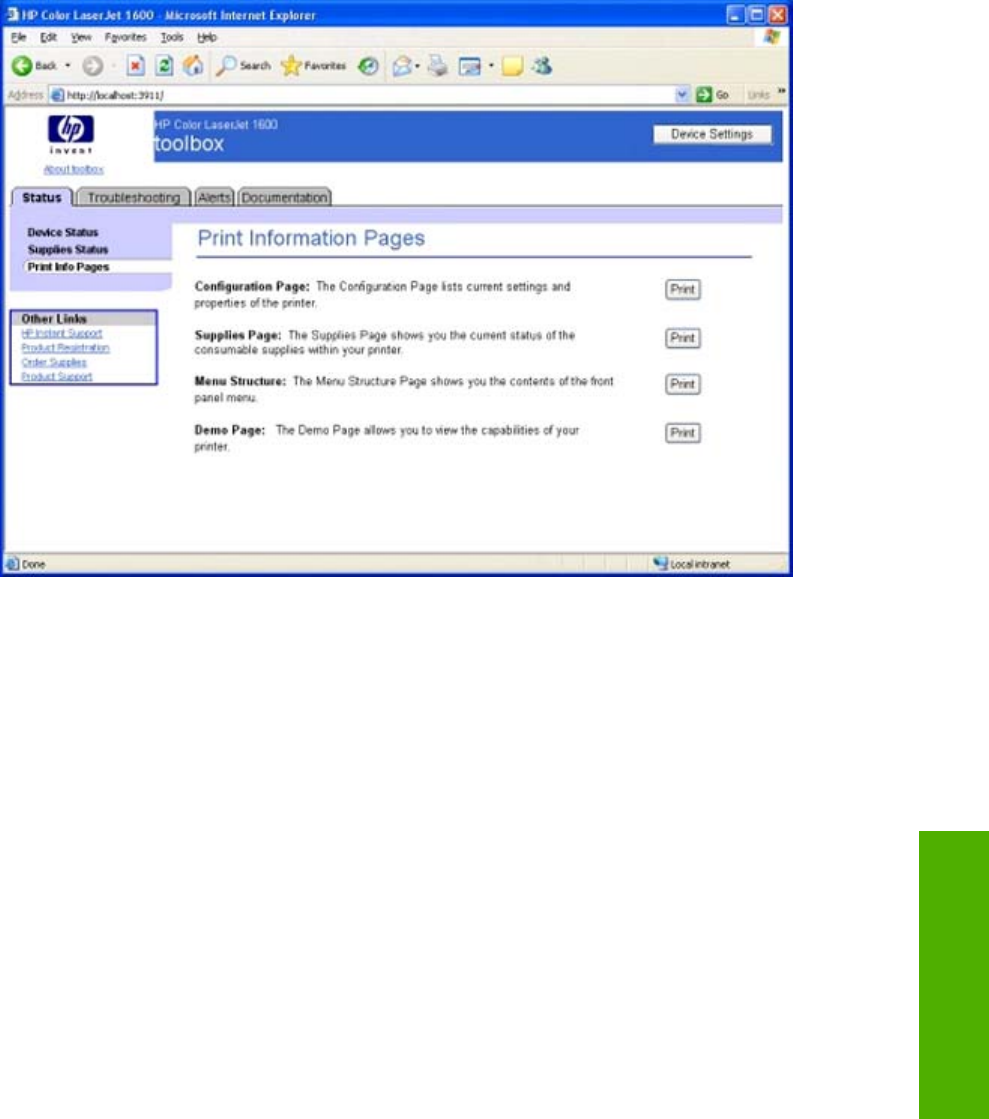
Print Info Pages page
The Print Info Pages page provides users the ability to easily print out the internal special pages that
are generated by the device. The following information pages are available.
●Configuration page
●Supplies page
●Menu structure
●Demo page
Figure 5-4 Print Information Pages page
ENWW Configuration options for the HP Color LaserJet 1600 Toolbox 107
The HP Color LaserJet
1600 Toolbox

Troubleshooting tab
The pages listed under the Troubleshooting tab consist of static HTML content outlining
troubleshooting procedures.
The Troubleshooting tab contains the following pages.
●Clearing Jams page
●Print Problems page
●Troubleshooting Tools page
●Animated Demonstrations page
108 Chapter 5 The HP Color LaserJet 1600 Toolbox ENWW
The HP Color LaserJet
1600 Toolbox
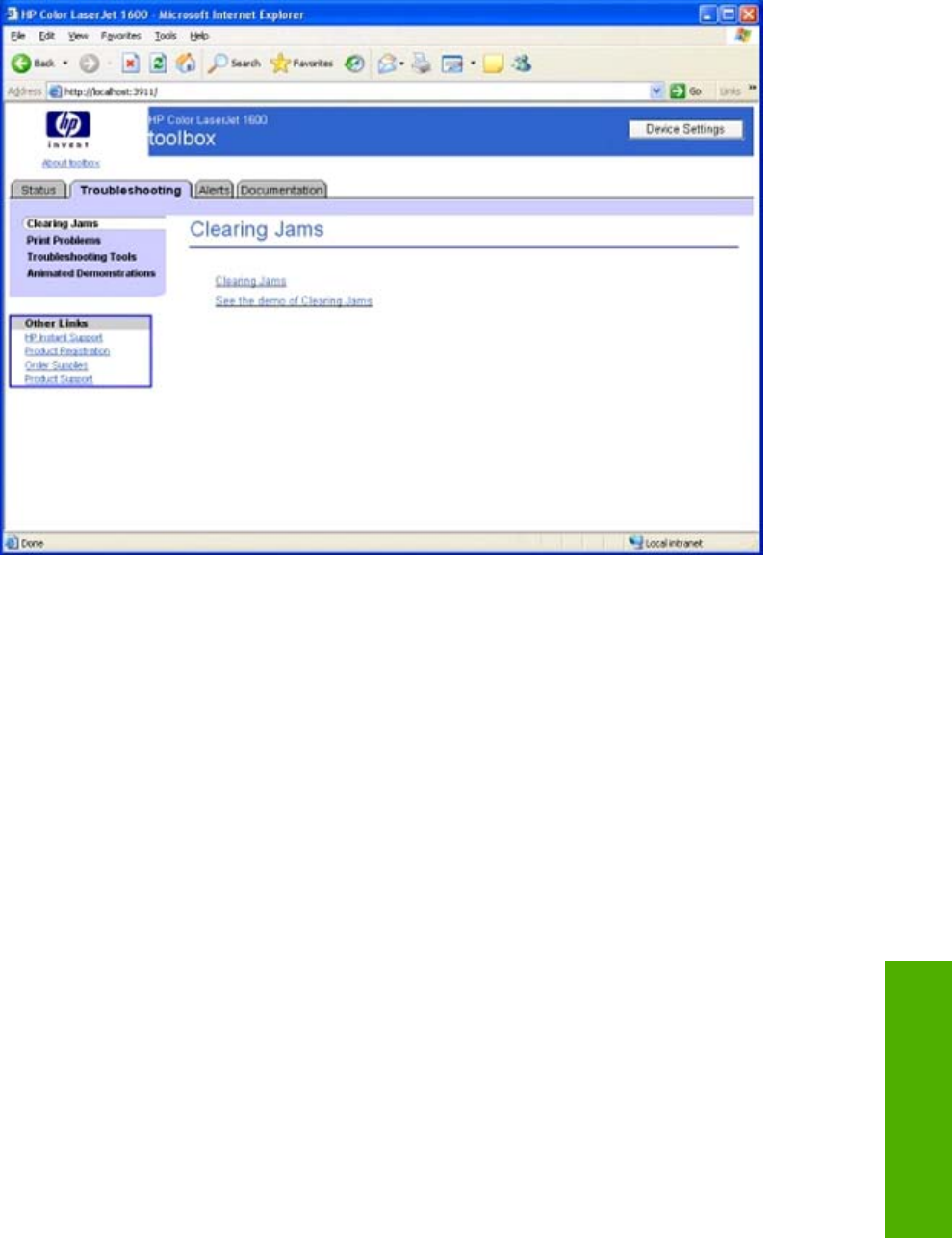
Clearing Jams page
Use this section to help you troubleshoot paper jams that might occur on your HP Color LaserJet 1600
printer.
Figure 5-5 Clearing Jams page
This page contains a link to static HTML content about clearing paper jams, as well as a Shockwave
Flash animation about clearing paper jams.
ENWW Configuration options for the HP Color LaserJet 1600 Toolbox 109
The HP Color LaserJet
1600 Toolbox
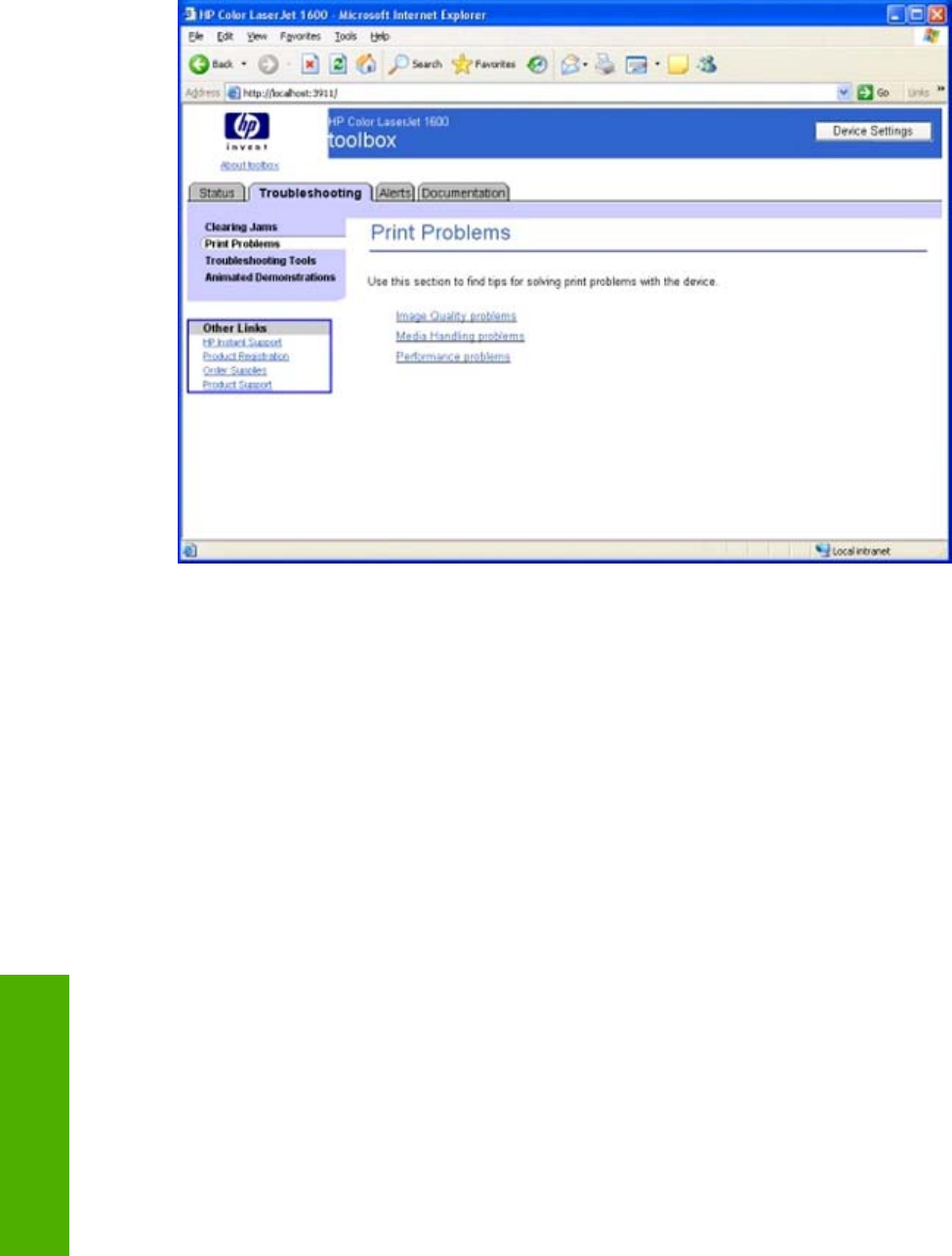
Print Problems page
Use this section to help you identify and find solutions for image quality, media handling, and
performance problems that might occur on your HP Color LaserJet 1600 printer.
Figure 5-6 Print Problems page
This page contains a link to static HTML content about basic print quality problems.
110 Chapter 5 The HP Color LaserJet 1600 Toolbox ENWW
The HP Color LaserJet
1600 Toolbox
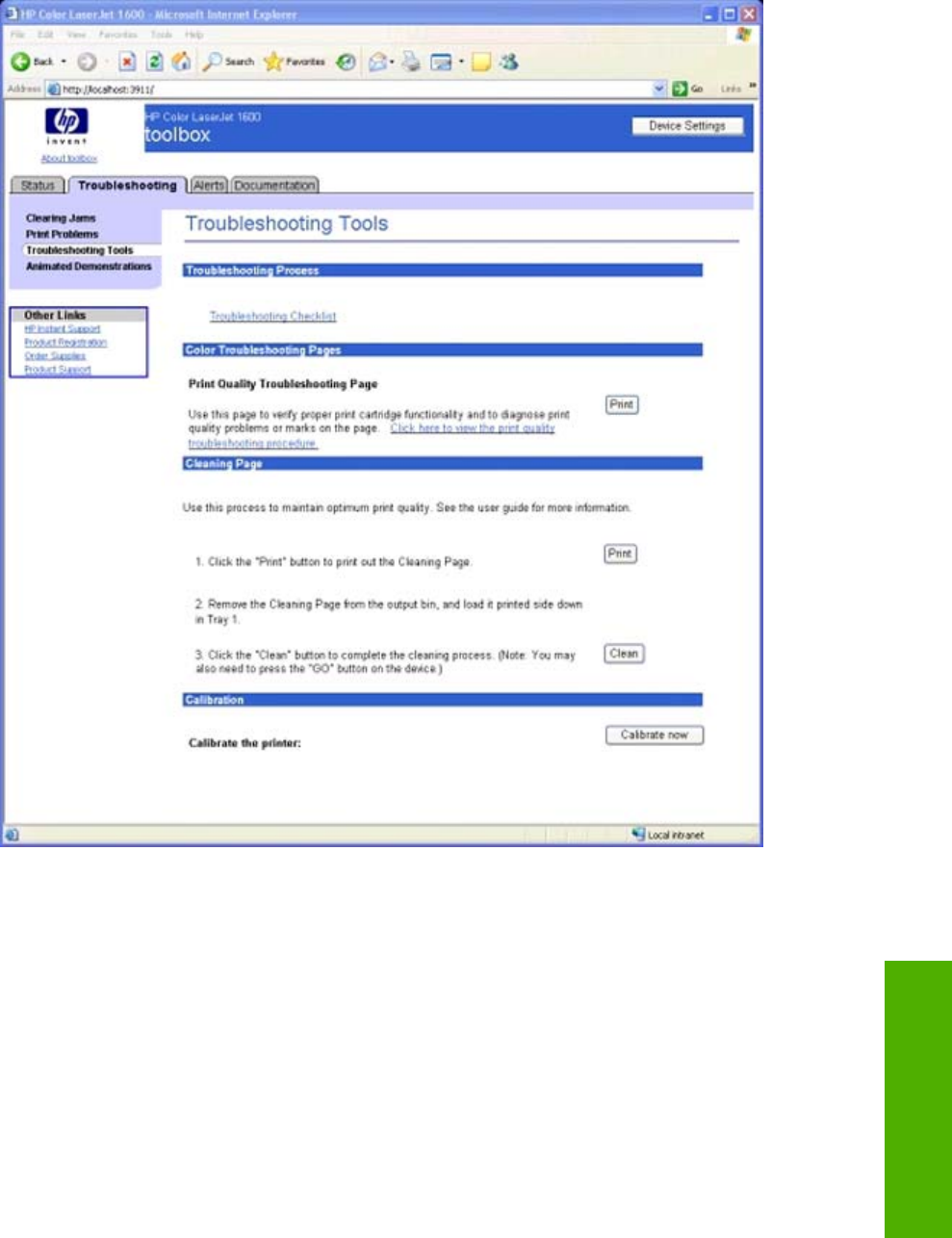
Troubleshooting Tools page
Clicking the Troubleshooting Tools link on the left navigation bar opens the Print Quality
Troubleshooting Tools page. Use the information on this page to troubleshoot print quality issues.
Figure 5-7 Troubleshooting Tools page
The Print Quality Troubleshooting Tools page contains links to the following troubleshooting tools.
●Troubleshooting Checklist. This link takes you to HTML content that contains the basic
troubleshooting checklist.
●Print Quality Troubleshooting Page. A link in this section allows you to view the Print Quality
Troubleshooting Procedure . Clicking Print sends the Print Quality Troubleshooting
Procedure page to the printer.
ENWW Configuration options for the HP Color LaserJet 1600 Toolbox 111
The HP Color LaserJet
1600 Toolbox

●Cleaning Page. This section takes you through the cleaning process including Print and Clean
buttons to print and use the cleaning page.
●Calibration. Clicking Calibrate Now initiates a calibration session on the HP Color LaserJet 1600
printer.
112 Chapter 5 The HP Color LaserJet 1600 Toolbox ENWW
The HP Color LaserJet
1600 Toolbox
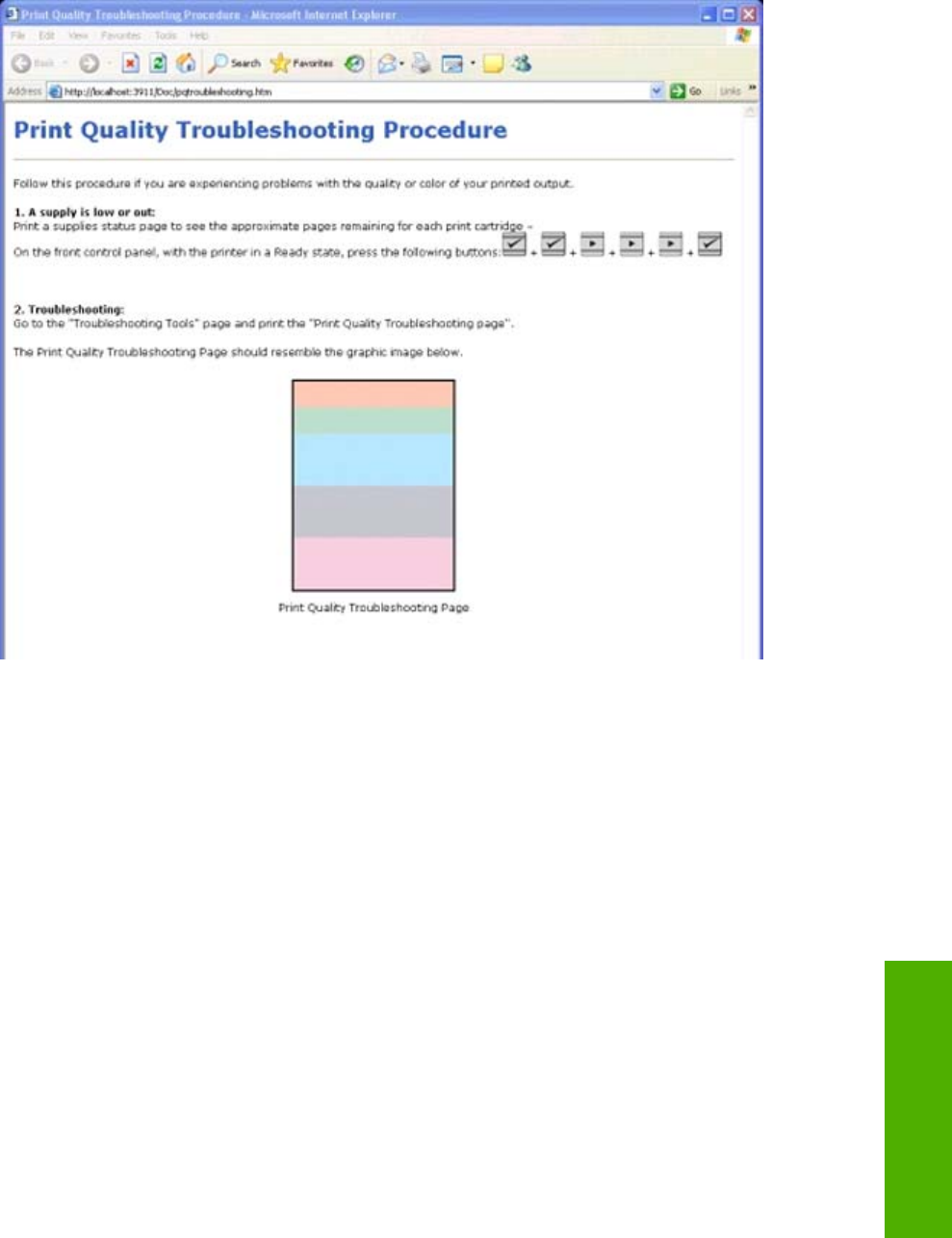
Print Quality Troubleshooting Procedure page
Clicking Click here to open the Print Quality Troubleshooting Procedure page on the
Troubleshooting Tools page opens the Print Quality Troubleshooting Procedure page.
Figure 5-8 Print Quality Troubleshooting Procedure page - 1 of 2
ENWW Configuration options for the HP Color LaserJet 1600 Toolbox 113
The HP Color LaserJet
1600 Toolbox
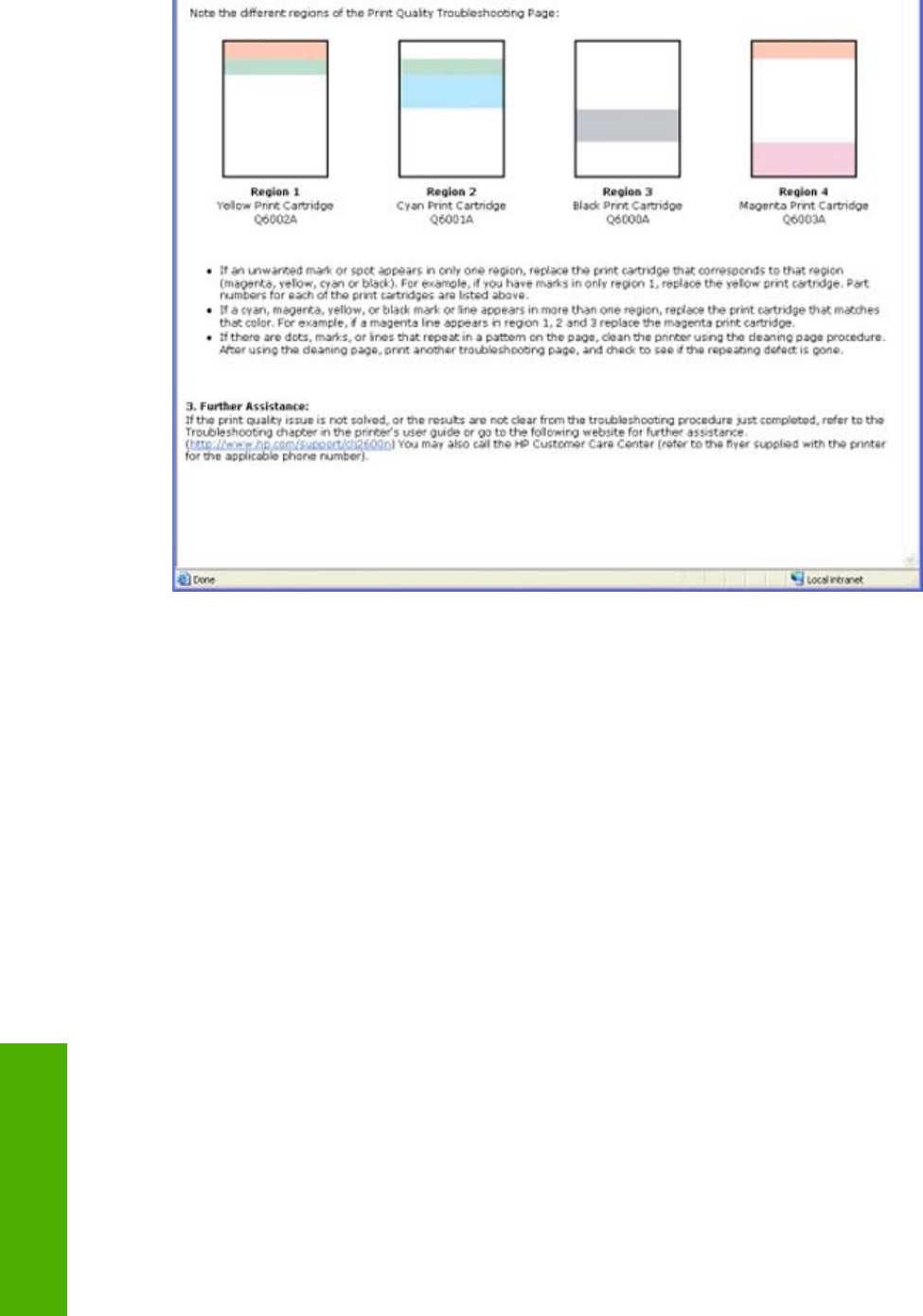
Figure 5-9 Print Quality Troubleshooting Procedure page - 2 of 2
This page provides information about how to use the Print Quality Troubleshooting Procedure and also
provides links to other helpful pages within the HP Color LaserJet 1600 Toolbox.
114 Chapter 5 The HP Color LaserJet 1600 Toolbox ENWW
The HP Color LaserJet
1600 Toolbox
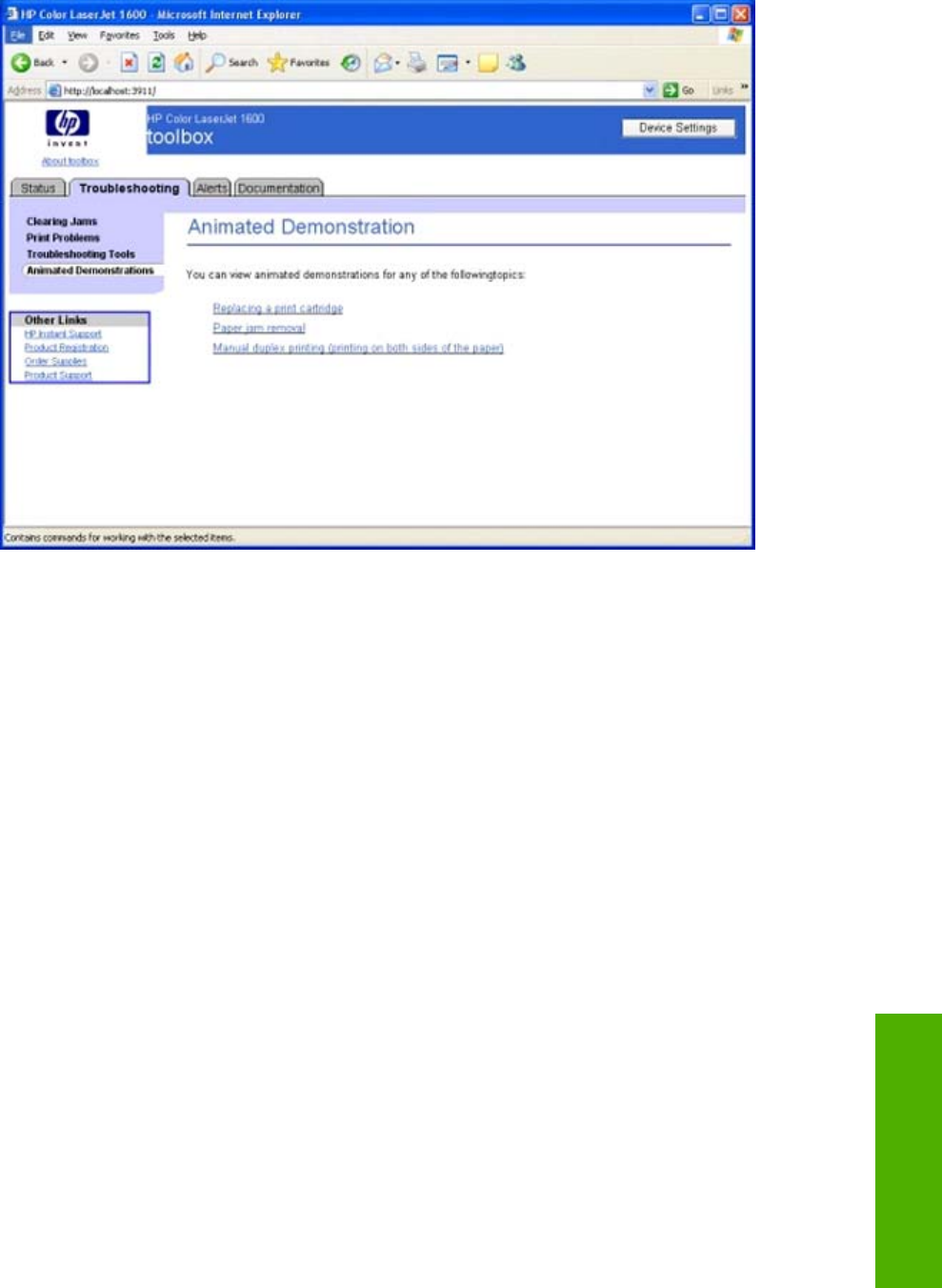
Animated Demonstrations page
Figure 5-10 Animated Demonstrations page
The links on this page take you to Shockwave Flash animations of the following procedures:
●Replacing a print cartridge
●Paper jam removal
●Manual duplex printing (printing on both sides of the paper)
ENWW Configuration options for the HP Color LaserJet 1600 Toolbox 115
The HP Color LaserJet
1600 Toolbox

Alerts tab
The Alerts tab contains theAlerts page.
Alerts page
This page allows you to set up the status alerts for your HP Color LaserJet 1600 printer.
The following table shows the available alerts for the HP Color LaserJet 1600 printer.
Table 5-8 Available alerts for the HP Color LaserJet 1600 printer
Alerts PLS Event Log Codes
Config Pg Codes
Instant Support XML Codes
Alert text Control Panel Message
Load Paper [TYPE] [TRAY] None The HP Color LaserJet 1600
is out of paper. Please load
YY
1
into Tray X
2
Load Paper
Manual Feed None Load the necessary paper in
the specified tray, OR, if
usable paper is already in the
specified tray, press the
SELECT button at the device.
Manual feed Press [√]
Door Cover Open None The printer door is open. The
door must be closed before
printing can continue.
Door open
Tray 2 Jam 13.0000 A paper jam has occurred in
Tray 2. Clear the jam, and
then press the SELECT
button at the device.
Jam in tray 2
Tray 3 Jam 13.0000 A paper jam has occurred in
Tray 3. Clear the jam, and
then press the SELECT
button at the device.
Jam in tray 3
Jam in Drum area 13.0000 A paper jam has occurred in
the print path. Open the door,
and clear the jam. Then press
the SELECT button at the
device.
Jam in print paper path
Jam in Drum Fuser area 13.0000 A paper jam has occurred in
the print path. Open the door,
and clear the jam. Then press
the SELECT button at the
device.
Jam in Cartridge area
Jam in Fuser output 13.0000 A paper jam has occurred in
the output area. Clear the jam.
And then press the SELECT
button at the device.
Jam in output bin
Printer Mispick None A paper mispick has occurred.
Check that paper is loaded
correctly, then press the
SELECT button at the device.
No paper pickup Press [√]
116 Chapter 5 The HP Color LaserJet 1600 Toolbox ENWW
The HP Color LaserJet
1600 Toolbox

Fuser Warmup Fail 50.2000 Slow Fuser 50.2 FUSER ERROR. To
continue, turn the device off.
Ensure the fuser is fully
seated, then turn the device
on.
Note: 50.2 Slow fuser error
Message: 50.2 Fuser Error
Turn off then on
Fuser Low Temp Fail 50.1000 50.1 FUSER ERROR. To
continue, turn the device off.
Ensure the fuser is fully
seated, then turn the device
on.
50.1 Fuser Error Turn off then
on
Fuser Hi Temp Fail 50.3000 50.3 FUSER ERROR. To
continue, turn the device off.
Ensure the fuser is fully
seated, then turn the device
on.
50.3 Fuser Error Turn off then
on
Scanner Yellow Laser fail 51.2300 YELLOW SCANNER
ERROR. To continue, turn the
device off then on.
51.23 Error Turn off then on
Scanner Magenta Laser fail 51.2200 MAGENTA SCANNER
ERROR. To continue, turn the
device off then on.
51.22 Error Turn off then on
Scanner Cyan Laser fail 51.2100 CYAN SCANNER ERROR.
To continue, turn the device
off then on.
51.22 Error Turn off then on
Scanner Black Laser fail 51.2000 BLACK SCANNER ERROR.
To continue, turn the device
off then on.
51.20 Error Turn off then on
Fan Error 57.0000 FAN ERROR. To continue,
turn the device off then on.
57 Fan Error Turn off then on
Engine Comm Error 55.0000 ENGINE COMMUNICATION
ERROR. To continue, turn the
device off then on.
Engine comm. Error
Misprint MISPRINT The printed page has been
incorrectly placed on the
paper. To continue, press the
SELECT button at the device.
Misprint Press [√]
DC Controller Error 55.1000 55.1 PRINTER ERROR. To
continue, turn the device off
then on.
55.1 Error Turn off then on
Order Black Cartridge None The Black Cartridge low
threshold has been reached.
For more information, go to
HP LaserJet 1600 toolbox and
click Supplies Status. To
order supplies online, click
Order Supplies.
Alternates: Order black
cartridge / Ready GAS
GAUGE
Order Yellow Cartridge None The Yellow Cartridge low
threshold has been reached.
For more information, go to
HP LaserJet 1600 toolbox and
click Supplies Status. To
order supplies online, click
Order Supplies.
Alternates: Order yellow
cartridge / Ready GAS
GAUGE
Table 5-8 Available alerts for the HP Color LaserJet 1600 printer (continued)
ENWW Configuration options for the HP Color LaserJet 1600 Toolbox 117
The HP Color LaserJet
1600 Toolbox

Order Magenta Cartridge None The Magenta Cartridge low
threshold has been reached.
For more information, go to
HP LaserJet 1600 toolbox and
click Supplies Status. To
order supplies online, click
Order Supplies.
Alternates: Order magenta
cartridge / Ready GAS
GAUGE
Order Cyan Cartridge None The Cyan Cartridge low
threshold has been reached.
For more information, go to
HP LaserJet 1600 toolbox and
click Supplies Status. To
order supplies online, click
Order Supplies.
Alternates: Order cyan
cartridge / Ready GAS
GAUGE
Black Incorrect None INCORRECT BLACK
CARTRIDGE. The cartridge is
in the incorrect position.
Incorrect black
Black Missing None INSTALL BLACK
CARTRIDGE. The print
cartridge is missing.
Alternates message: 10.1000
Supply Error / Reinstall GAS
GAUGE
Non-HP Black Cartridge 10.3000 NON-HP BLACK
CARTRIDGE INSTALLED.
Any printer repair required as
a result of using non-HP or
unauthorized supplies is not
covered under warranty. To
use this cartridge, override by
pressing the SELECT button
at the device.
Alternates message: Non HP
black installed / To accept
press [√]
Unauthorized Black Cartridge 10.3200 UNAUTHORIZED BLACK
CARTRIDGE INSTALLED.
Any printer repair required as
a result of using non-HP or
unauthorized supplies is not
covered under warranty. To
use this cartridge, override by
pressing the SELECT button
at the device.
Alternates message:
Unauthorized black / To
accept press [√]
Replace Black None REPLACE BLACK
CARTRIDGE. The out
threshold has been reached.
The supply must be replaced
before printing can continue.
Replace black cartridge
Black E-label Error 10.0000 SUPPLY MEMORY ERROR
ON BLACK. Unable to read
the supply data. Re-install the
supply. If the error reappears,
contact support.
Alternates message: 10.0000
Supply Error / Reinstall GAS
GAUGE
Cyan Incorrect None INCORRECT CYAN
CARTRIDGE. The cartridge is
in the incorrect position.
Incorrect cyan
Cyan Missing None INSTALL CYAN
CARTRIDGE. The print
cartridge is missing.
Alternates message: 10.1001
Supply Error / Reinstall GAS
GAUGE
Table 5-8 Available alerts for the HP Color LaserJet 1600 printer (continued)
118 Chapter 5 The HP Color LaserJet 1600 Toolbox ENWW
The HP Color LaserJet
1600 Toolbox

Non-HP Cyan Cartridge 10.3001 NON-HP CYAN CARTRIDGE
INSTALLED. Any printer
repair required as a result of
using non-HP or unauthorized
supplies is not covered under
warranty. To use this
cartridge, override by
pressing the SELECT button
at the device.
Alternates message: Non HP
cyan installed / To accept
press [√]
Unauthorized Cyan Cartridge 10.3201 UNAUTHORIZED CYAN
CARTRIDGE INSTALLED.
Any printer repair required as
a result of using non-HP or
unauthorized supplies is not
covered under warranty. To
use this cartridge, override by
pressing the SELECT button
at the device.
Alternates message:
Unauthorized cyan / To
accept press [√]
Replace Cyan None REPLACE CYAN
CARTRIDGE. The out
threshold has been reached.
The supply must be replaced
before printing can continue.
Replace cyan cartridge
Cyan E-label Error 10.0001 SUPPLY MEMORY ERROR
ON CYAN. Unable to read the
supply data. Re-install the
supply. If the error reappears,
contact support.
Alternates message: 10.0001
Supply Error / Reinstall GAS
GAUGE
Magenta Incorrect None INCORRECT MAGENTA
CARTRIDGE. The cartridge is
in the incorrect position.
Incorrect Magenta
Magenta Missing None INSTALL MAGENTA
CARTRIDGE. The print
cartridge is missing.
Alternates message: 10.1002
Supply Error / Reinstall GAS
GAUGE
Non-HP Magenta Cartridge 10.3002 NON-HP MAGENTA
CARTRIDGE INSTALLED.
Any printer repair required as
a result of using non-HP or
unauthorized supplies is not
covered under warranty. To
use this cartridge, override by
pressing the SELECT button
at the device.
Alternates message: Non HP
magenta installed / To accept
press [√]
Unauthorized Magenta
Cartridge
10.3202 UNAUTHORIZED
MAGENTA CARTRIDGE
INSTALLED. Any printer
repair required as a result of
using non-HP or unauthorized
supplies is not covered under
warranty. To use this
cartridge, override by
pressing the SELECT button
at the device.
Alternates message:
Unauthorized magenta / To
accept press [√]
Replace Magenta None REPLACE MAGENTA
CARTRIDGE. The out
threshold has been reached.
The supply must be replaced
before printing can continue.
Replace magenta cartridge
Table 5-8 Available alerts for the HP Color LaserJet 1600 printer (continued)
ENWW Configuration options for the HP Color LaserJet 1600 Toolbox 119
The HP Color LaserJet
1600 Toolbox

Magenta E-label Error 10.0002 SUPPLY MEMORY ERROR
ON MAGENTA. Unable to
read the supply data. Re-
install the supply. If the error
reappears, contact support.
Alternates message: 10.0002
Supply Error / Reinstall GAS
GAUGE
Yellow Incorrect None INCORRECT YELLOW
CARTRIDGE. The cartridge is
in the incorrect position.
Incorrect yellow
Yellow Missing None INSTALL YELLOW
CARTRIDGE. The print
cartridge is missing.
Alternates message: 10.1002
Supply Error / Reinstall GAS
GAUGE
Non-HP Yellow Cartridge 10.3003 NON-HP YELLOW
CARTRIDGE INSTALLED.
Any printer repair required as
a result of using non-HP or
unauthorized supplies is not
covered under warranty. To
use this cartridge, override by
pressing the SELECT button
at the device.
Alternates message: Non HP
yellow installed / To accept
press [√]
Unauthorized Yellow
Cartridge
10.3203 UNAUTHORIZED YELLOW
CARTRIDGE INSTALLED.
Any printer repair required as
a result of using non-HP or
unauthorized supplies is not
covered under warranty. To
use this cartridge, override by
pressing the SELECT button
at the device.
Alternates message:
Unauthorized yellow / To
accept press [√]
Replace Yellow None REPLACE YELLOW
CARTRIDGE. The out
threshold has been reached.
The supply must be replaced
before printing can continue.
Replace yellow cartridge
Yellow E-label Error 10.0003 SUPPLY MEMORY ERROR
ON YELLOW. Unable to read
the supply data. Re-install the
supply. If the error reappears,
contact support.
Alternates message: 10.0003
Supply Error / Reinstall GAS
GAUGE
1
YY stands for available paper types, such as Letter or Legal.
2
X stands for available trays, such as Tray 2 or Tray 3.
The following illustration shows a sample Status Alert.
Table 5-8 Available alerts for the HP Color LaserJet 1600 printer (continued)
120 Chapter 5 The HP Color LaserJet 1600 Toolbox ENWW
The HP Color LaserJet
1600 Toolbox
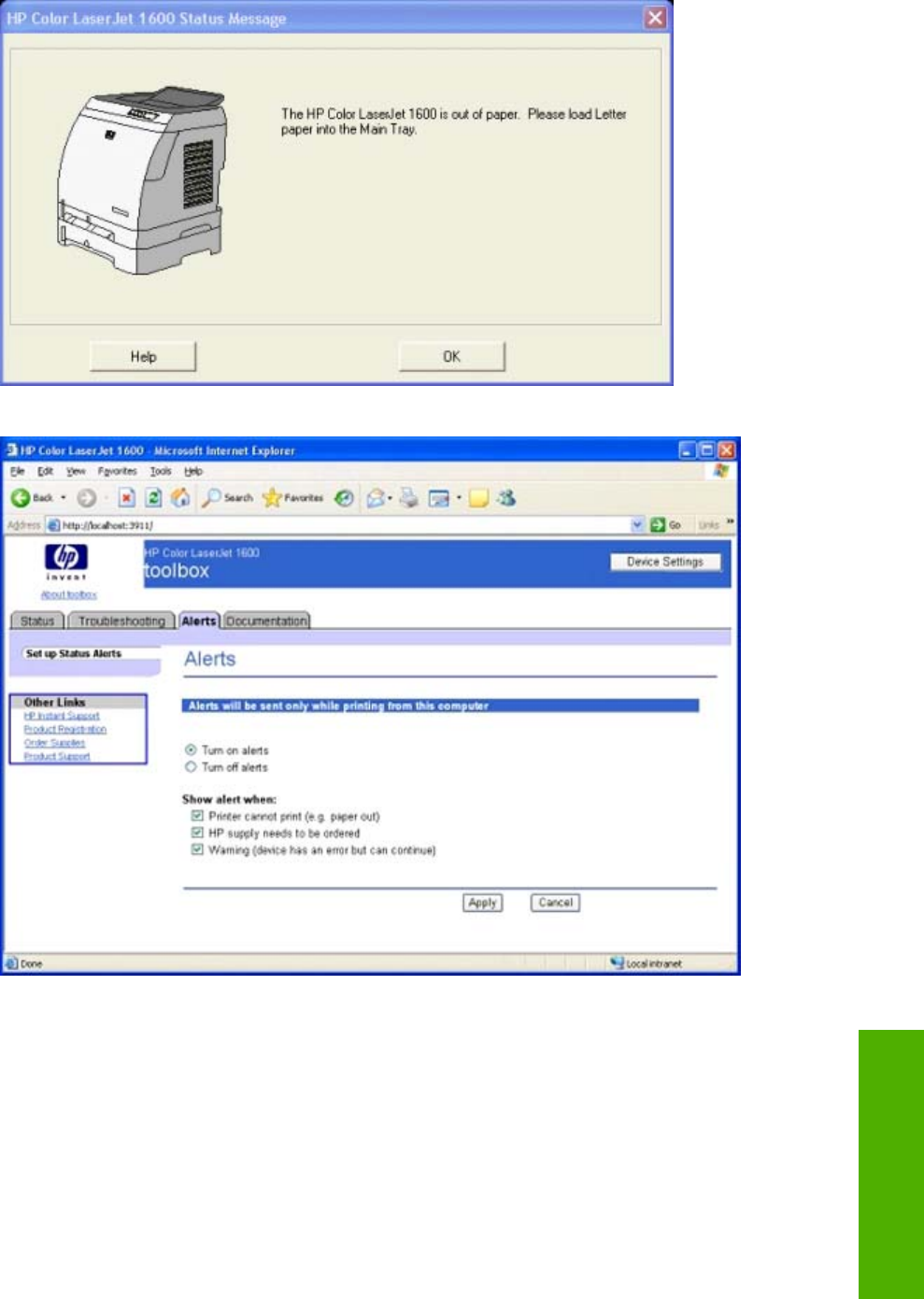
Figure 5-11 Sample status alert window
Figure 5-12 Set up Status Alerts page
Clicking the Turn on alerts option button or the Turn off alerts option button, and then clicking
Apply turns on or off the alerts you have selected on this page and displays the Configuration
Result page.
ENWW Configuration options for the HP Color LaserJet 1600 Toolbox 121
The HP Color LaserJet
1600 Toolbox
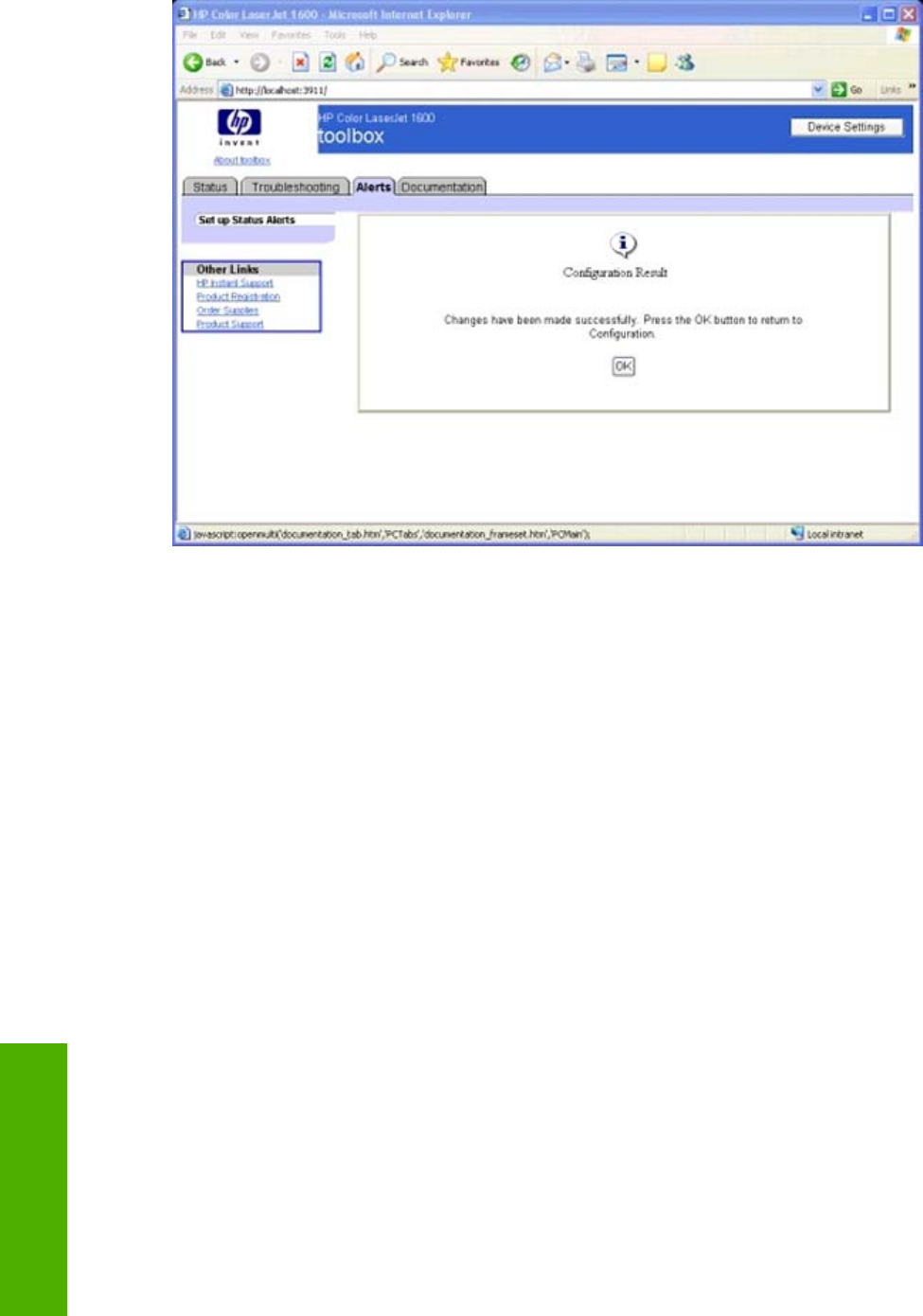
Figure 5-13 Configuration Result page
122 Chapter 5 The HP Color LaserJet 1600 Toolbox ENWW
The HP Color LaserJet
1600 Toolbox
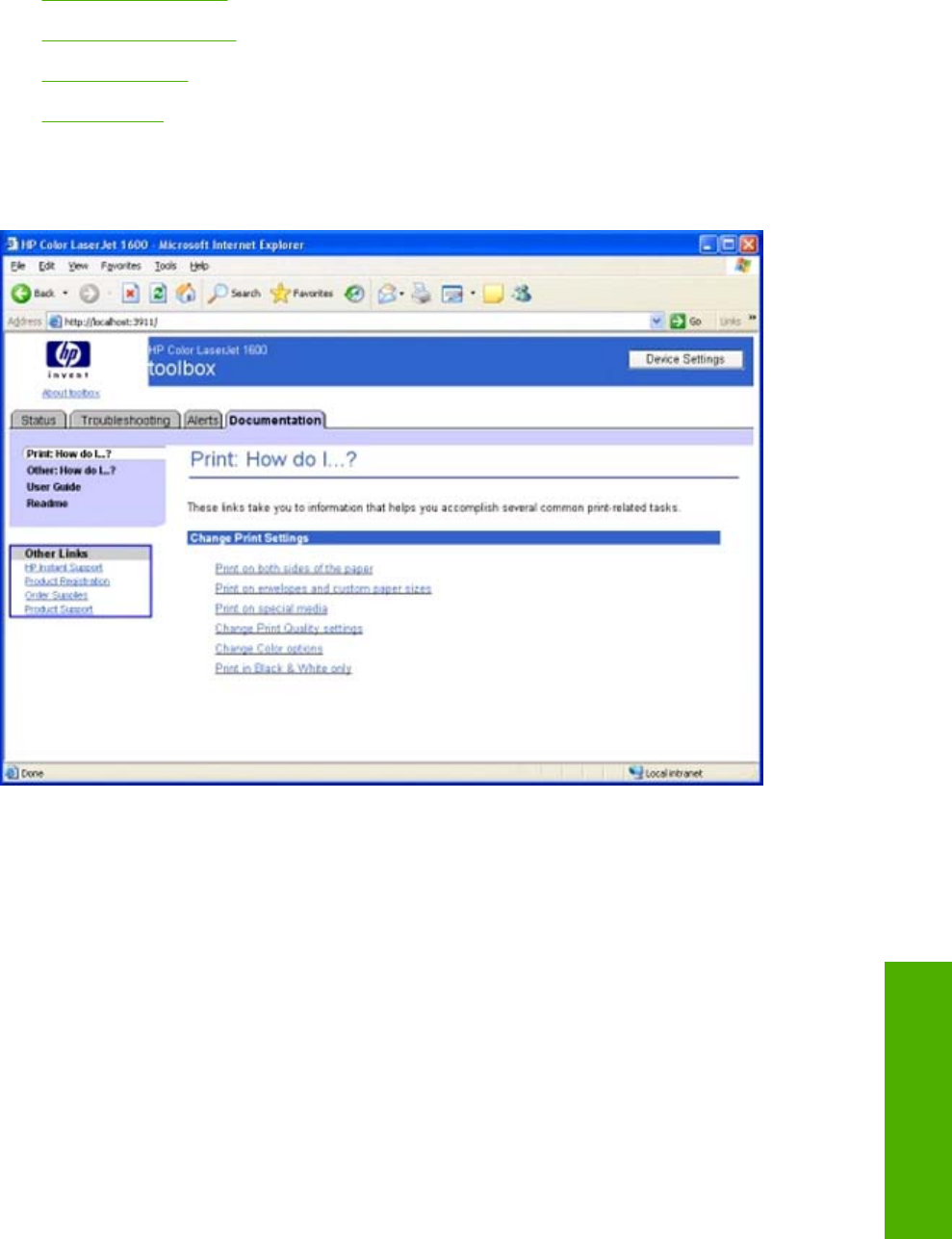
Documentation tab
The Documentation tab contains the following pages.
●Print: How do I? page
●Other: How do I? page
●User Guide page
●Readme page
Print: How do I? page
This page provides links to information to help you perform print tasks.
Figure 5-14 Print: How do I? page
ENWW Configuration options for the HP Color LaserJet 1600 Toolbox 123
The HP Color LaserJet
1600 Toolbox
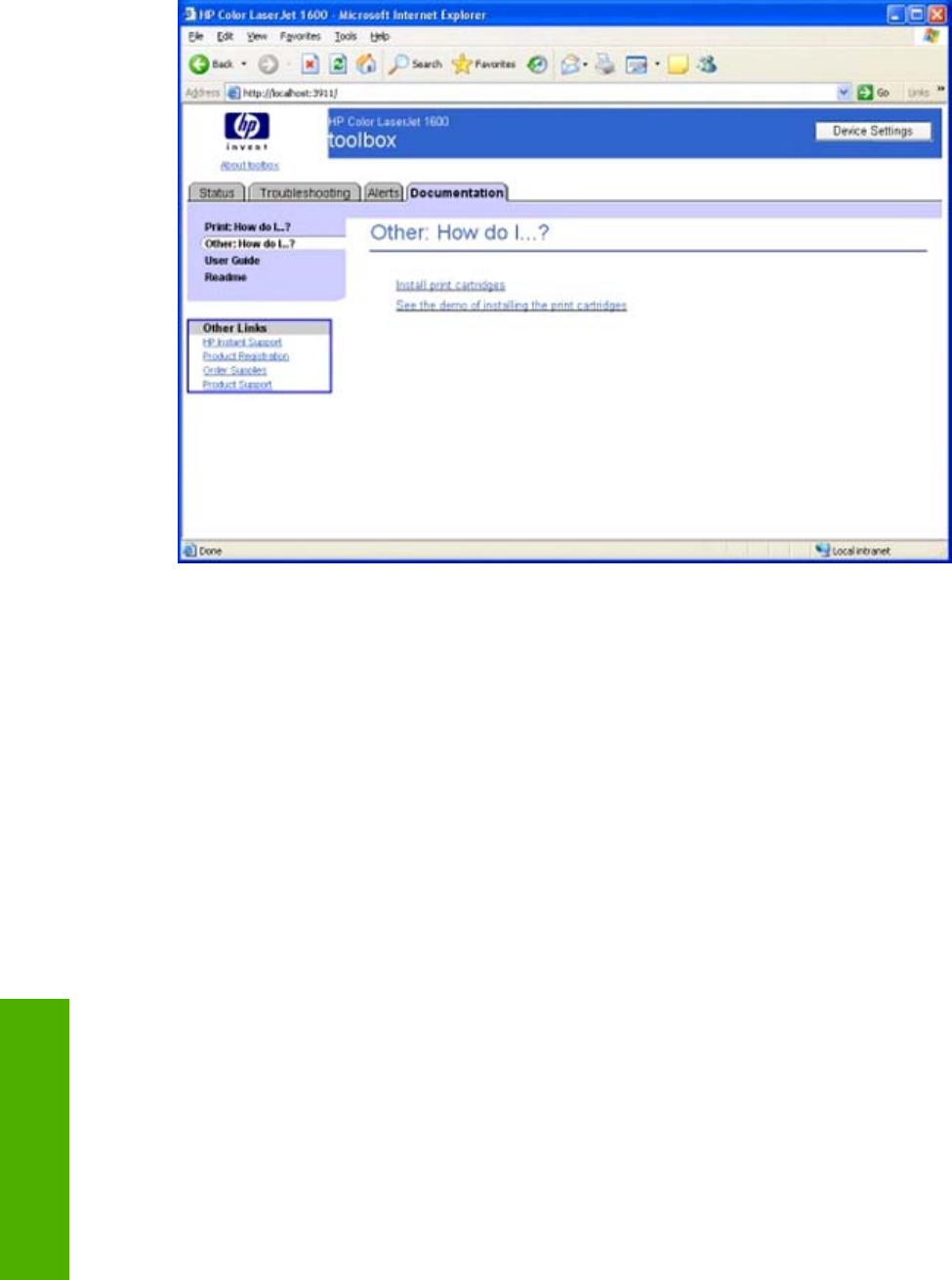
Other: How do I? page
This page provides links to information to help you install print cartridges.
Figure 5-15 Other: How do I? page
124 Chapter 5 The HP Color LaserJet 1600 Toolbox ENWW
The HP Color LaserJet
1600 Toolbox
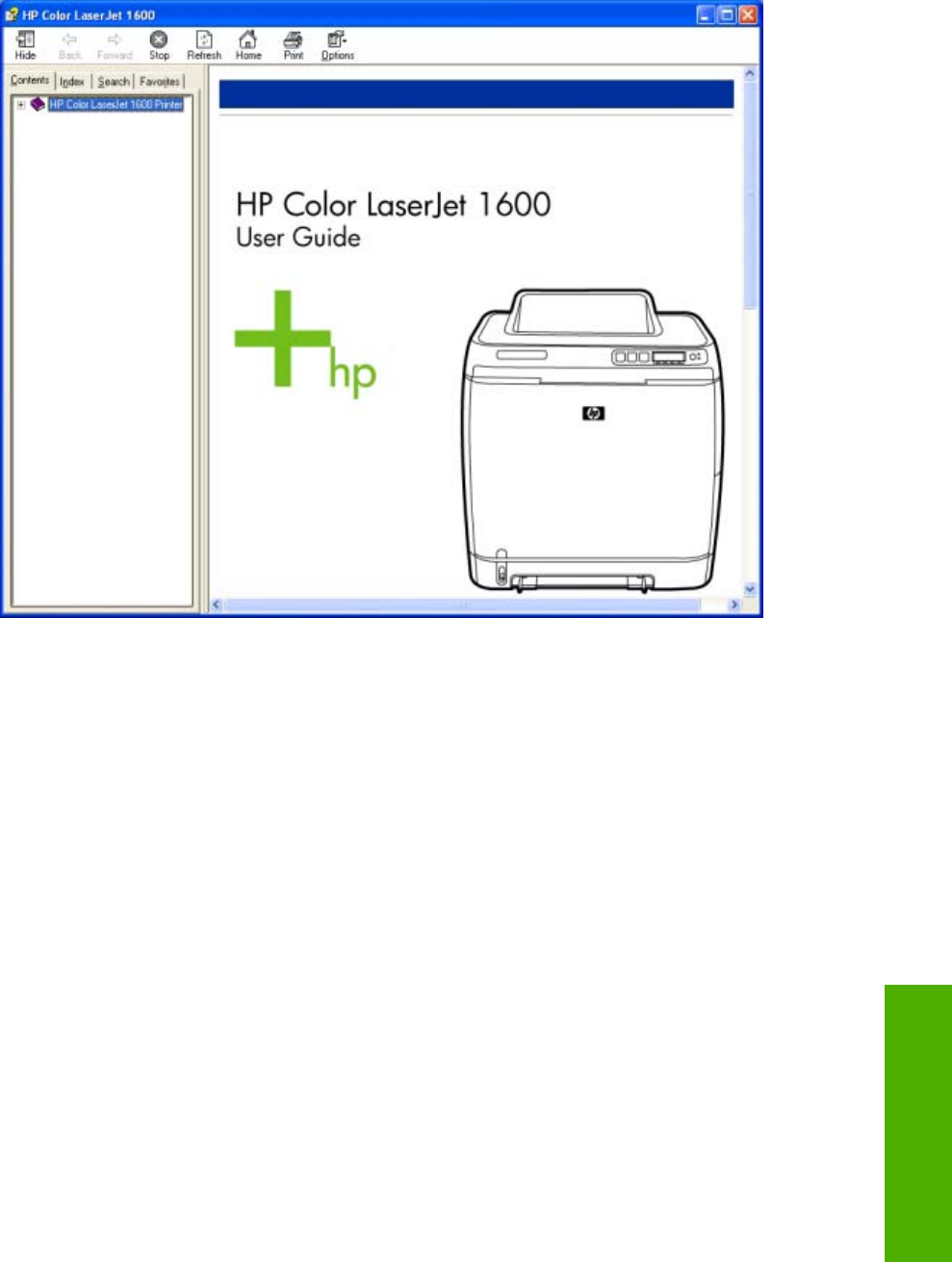
User Guide page
Use this page to gain access to the user guide for your HP Color LaserJet 1600 printer.
Figure 5-16 User Guide page
ENWW Configuration options for the HP Color LaserJet 1600 Toolbox 125
The HP Color LaserJet
1600 Toolbox
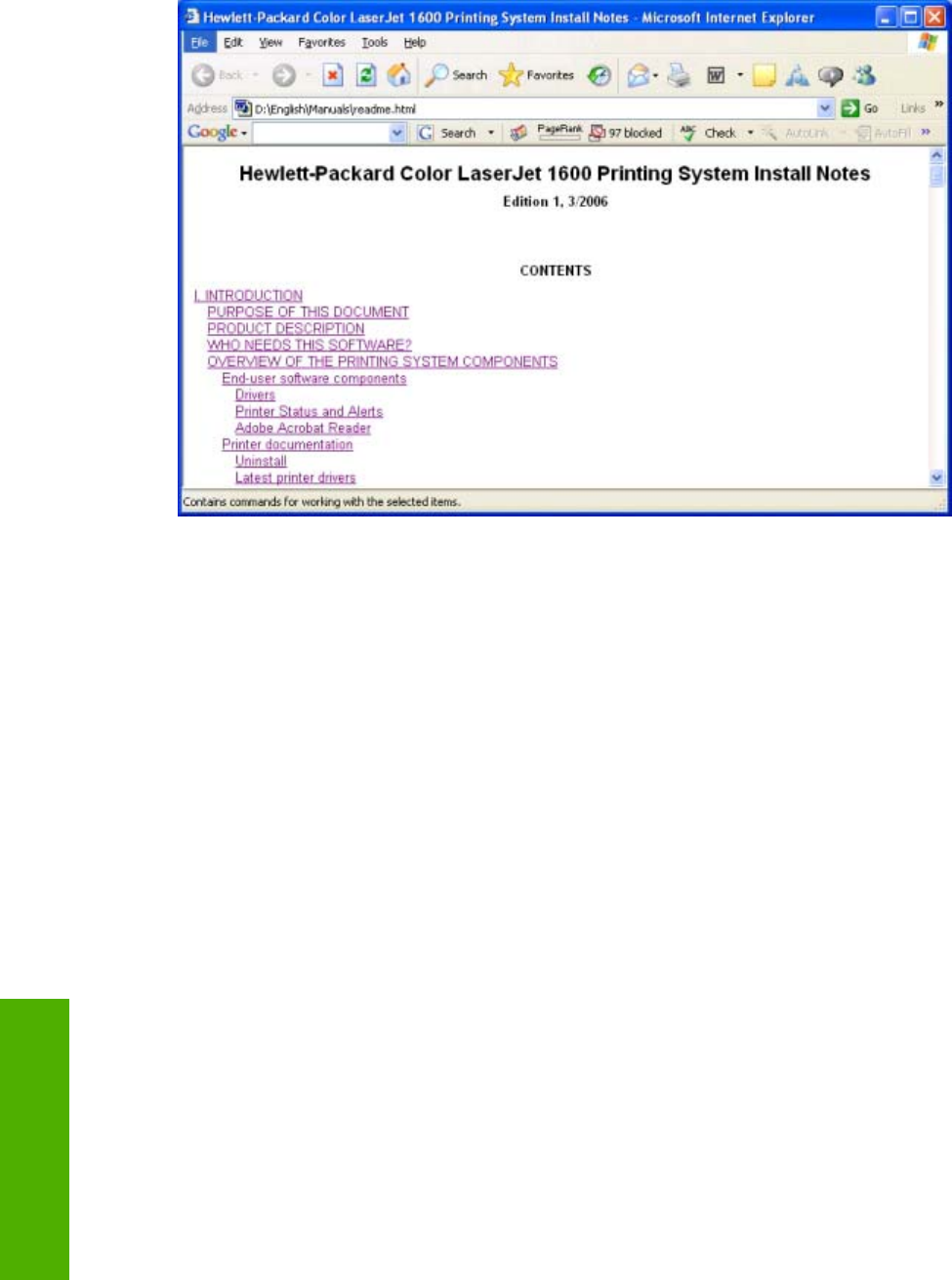
Readme page
Use this page to gain access to the Readme for your HP Color LaserJet 1600 printer.
Figure 5-17 Readme page
126 Chapter 5 The HP Color LaserJet 1600 Toolbox ENWW
The HP Color LaserJet
1600 Toolbox
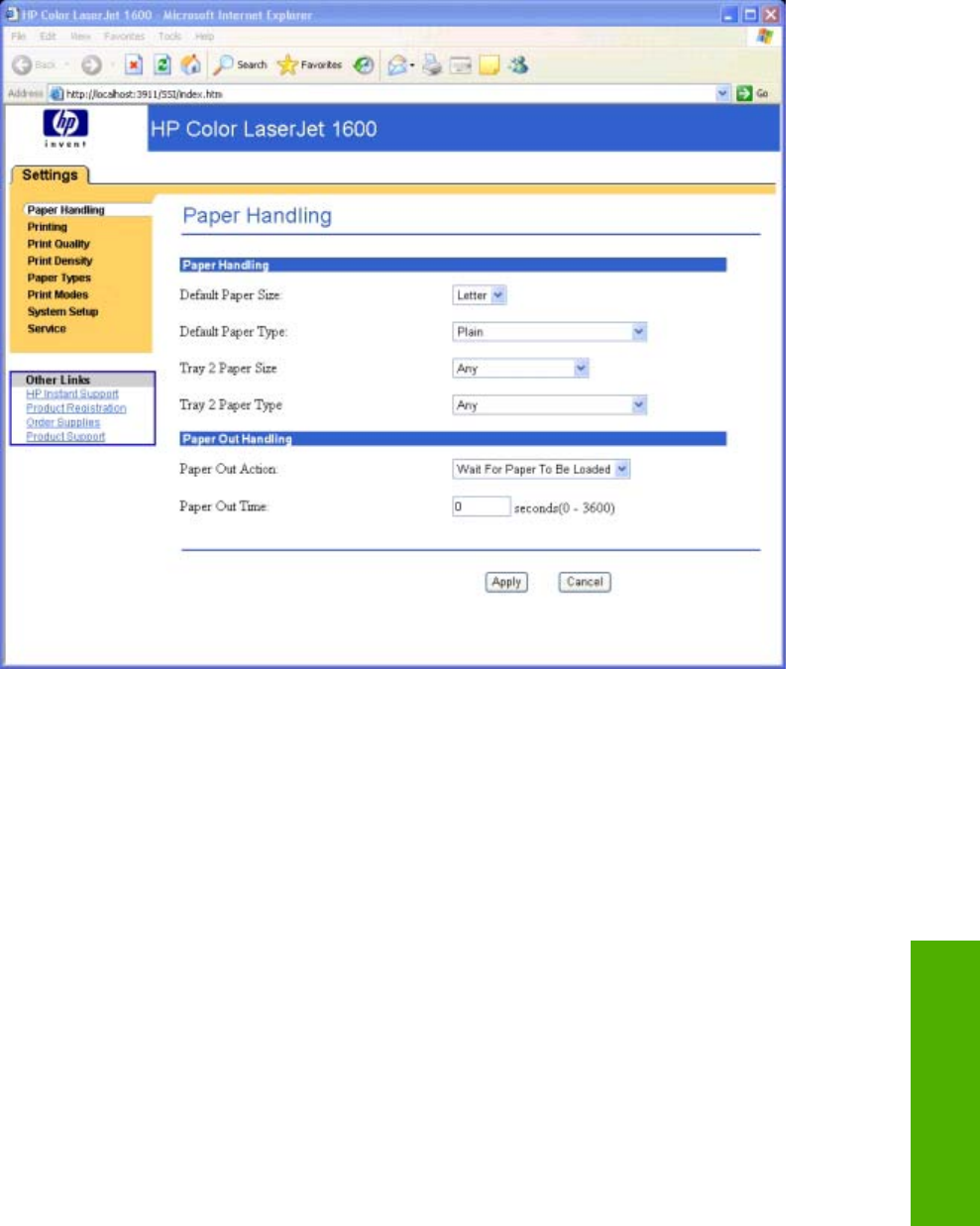
Device Settings section
The Device Settings section is comprised of the Settings tab.
You can gain access to the Device Settings section of the HP Color LaserJet 1600 Toolbox by clicking
the Device Settings button located at the top right corner of the Device Status page.
Figure 5-18 Device Settings
ENWW Configuration options for the HP Color LaserJet 1600 Toolbox 127
The HP Color LaserJet
1600 Toolbox

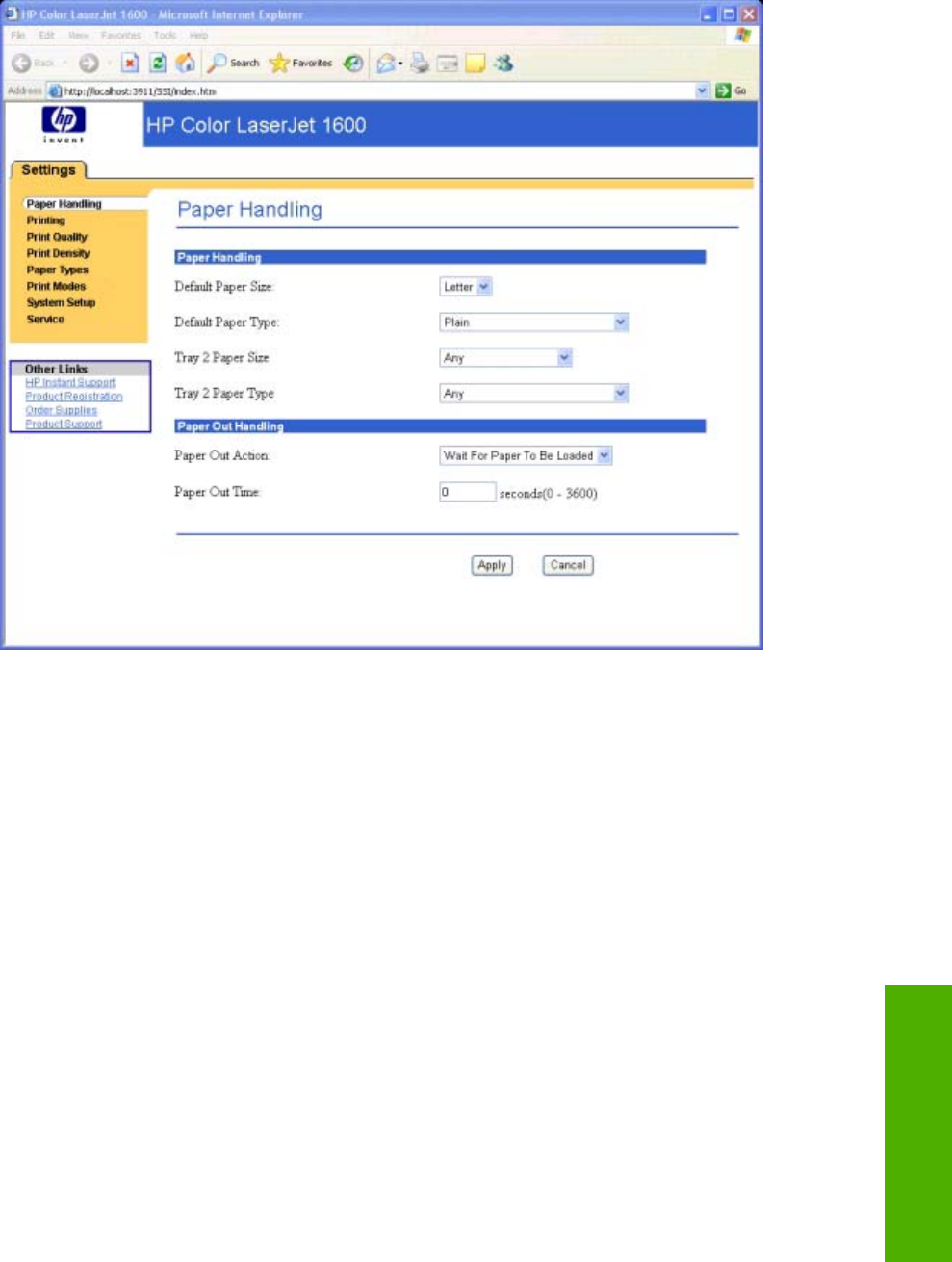
Paper Handling page
Use this page to configure the paper-handling settings for your HP Color LaserJet 1600 printer.
Figure 5-19 Paper Handling page
ENWW Configuration options for the HP Color LaserJet 1600 Toolbox 129
The HP Color LaserJet
1600 Toolbox
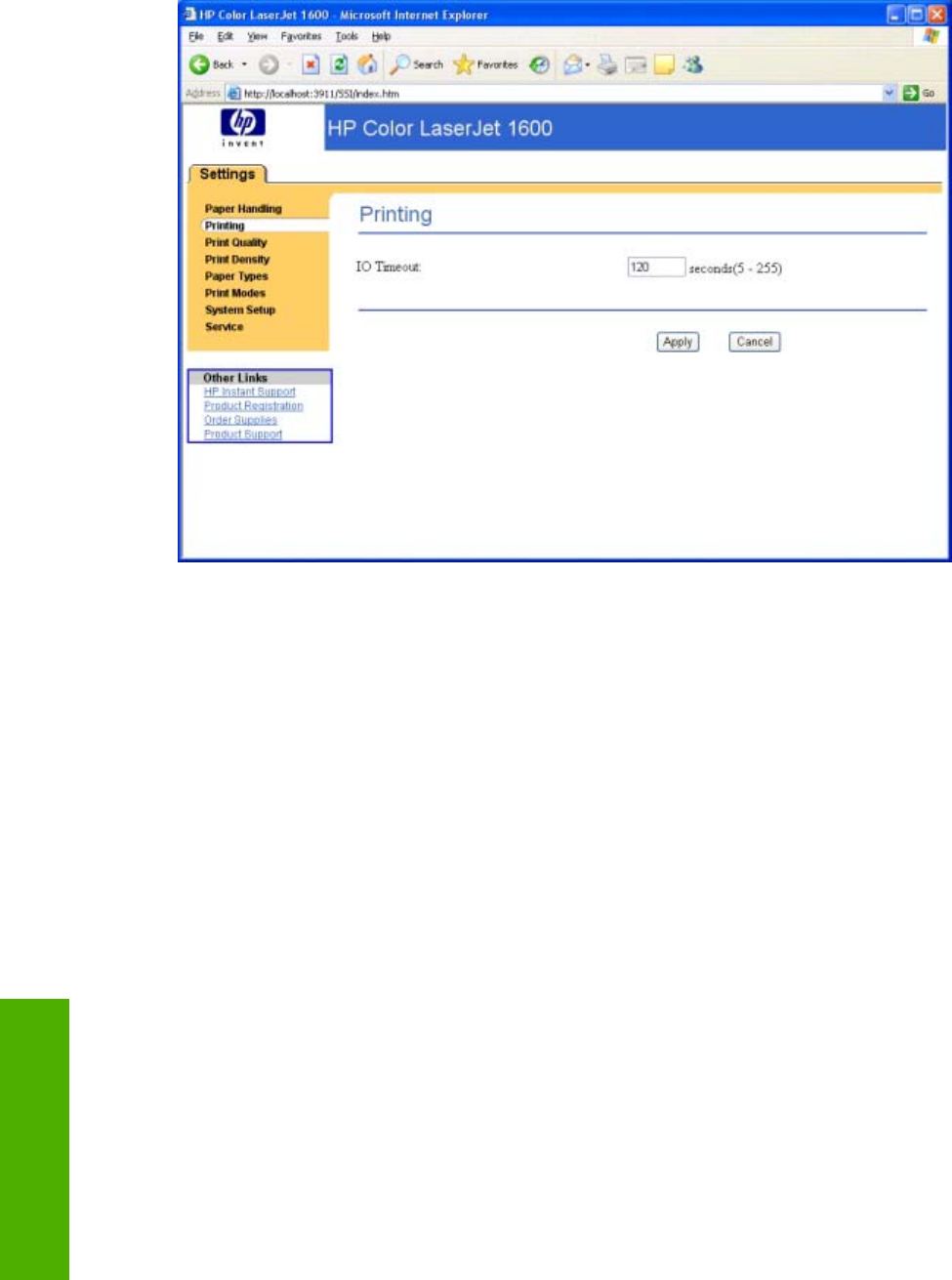
Printing page
Use this page to change the printing defaults for your HP Color LaserJet 1600 printer.
Figure 5-20 Printing page
130 Chapter 5 The HP Color LaserJet 1600 Toolbox ENWW
The HP Color LaserJet
1600 Toolbox
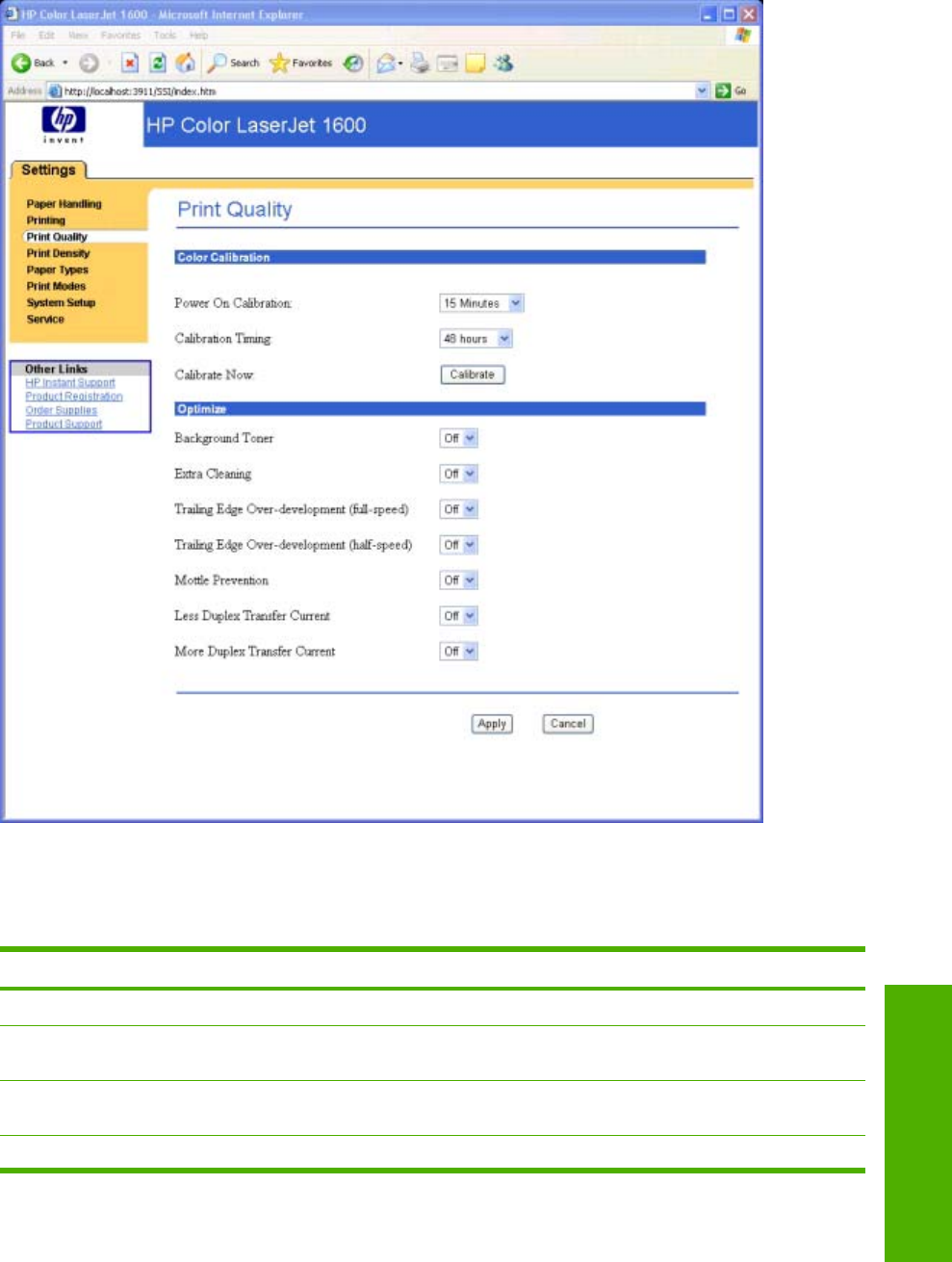
Print Quality page
Use this page to change the print quality defaults for your HP Color LaserJet 1600 printer.
Figure 5-21 Print Quality page
The following options are available from the Optimize menu.
Table 5-9 Optimize menu
Optimize option Description
Background Toner Decreased developer AC bias peak-to-peak voltage.
Extra Cleaning Extended post-rotation time (by 2 to 11 seconds) plus fan
speed up (for high-talc media).
Trailing Edge Over-development (full-speed) Change blank pulse setting (number of AC bias saves that are
dropped out).
Trailing Edge Over-development (half-speed) Decreased developer AC bias peak-to-peak voltage.
ENWW Configuration options for the HP Color LaserJet 1600 Toolbox 131
The HP Color LaserJet
1600 Toolbox

Optimize option Description
Mottle prevention Extended pre-rotation time (by 15 seconds).
Less Duplex Transfer Current Decreased transfer bias on second side of duplex jobs. For
media that has low resistivity after fusing.
More Duplex Transfer Current Increase transfer bias on second side of duplex jobs. For
media that has high resistivity after fusing.
Table 5-9 Optimize menu (continued)
132 Chapter 5 The HP Color LaserJet 1600 Toolbox ENWW
The HP Color LaserJet
1600 Toolbox
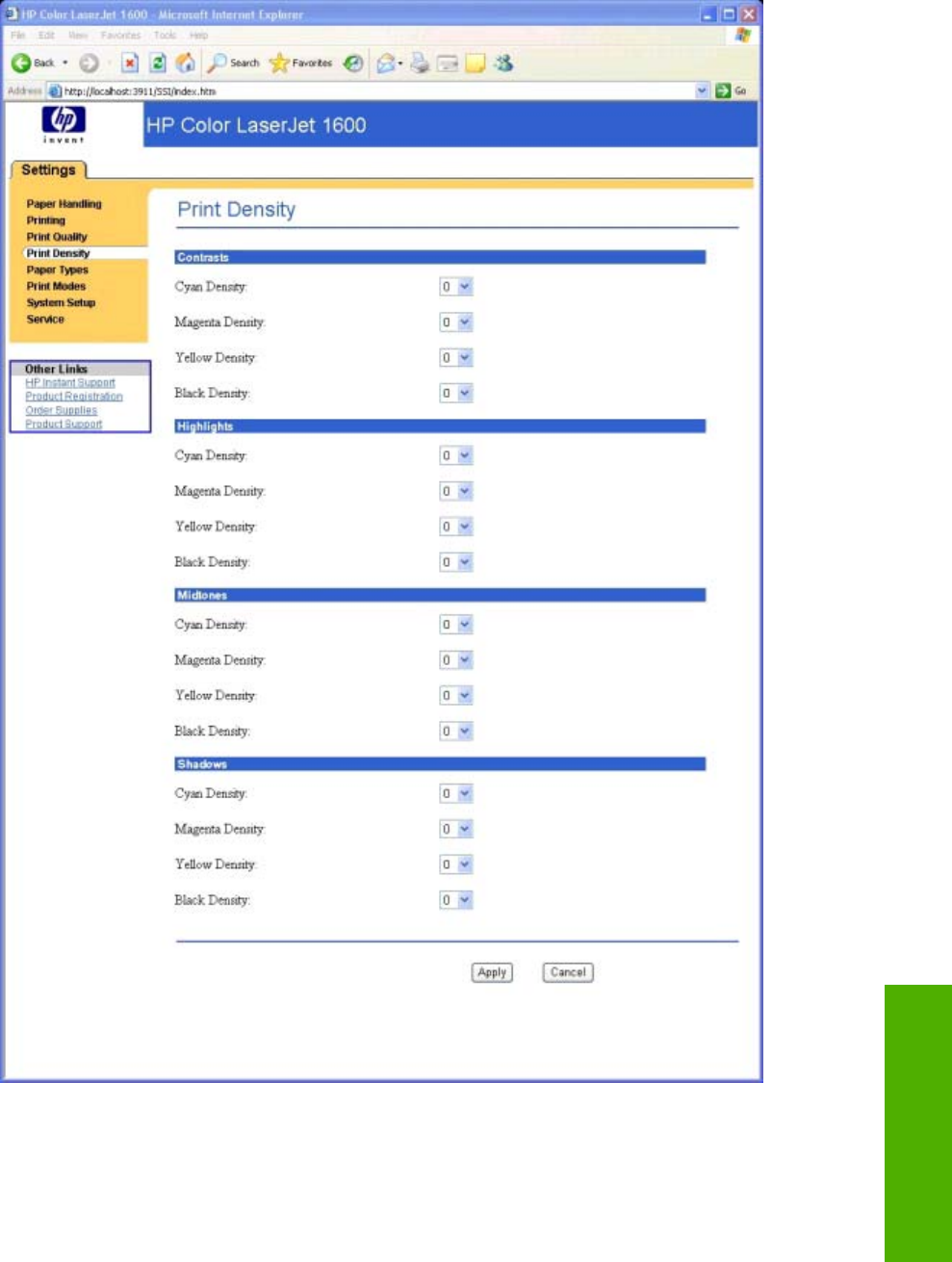
Print Density page
Use this page to control the print density of each print cartridge on your HP Color LaserJet 1600 printer.
Figure 5-22 Print Density page
ENWW Configuration options for the HP Color LaserJet 1600 Toolbox 133
The HP Color LaserJet
1600 Toolbox
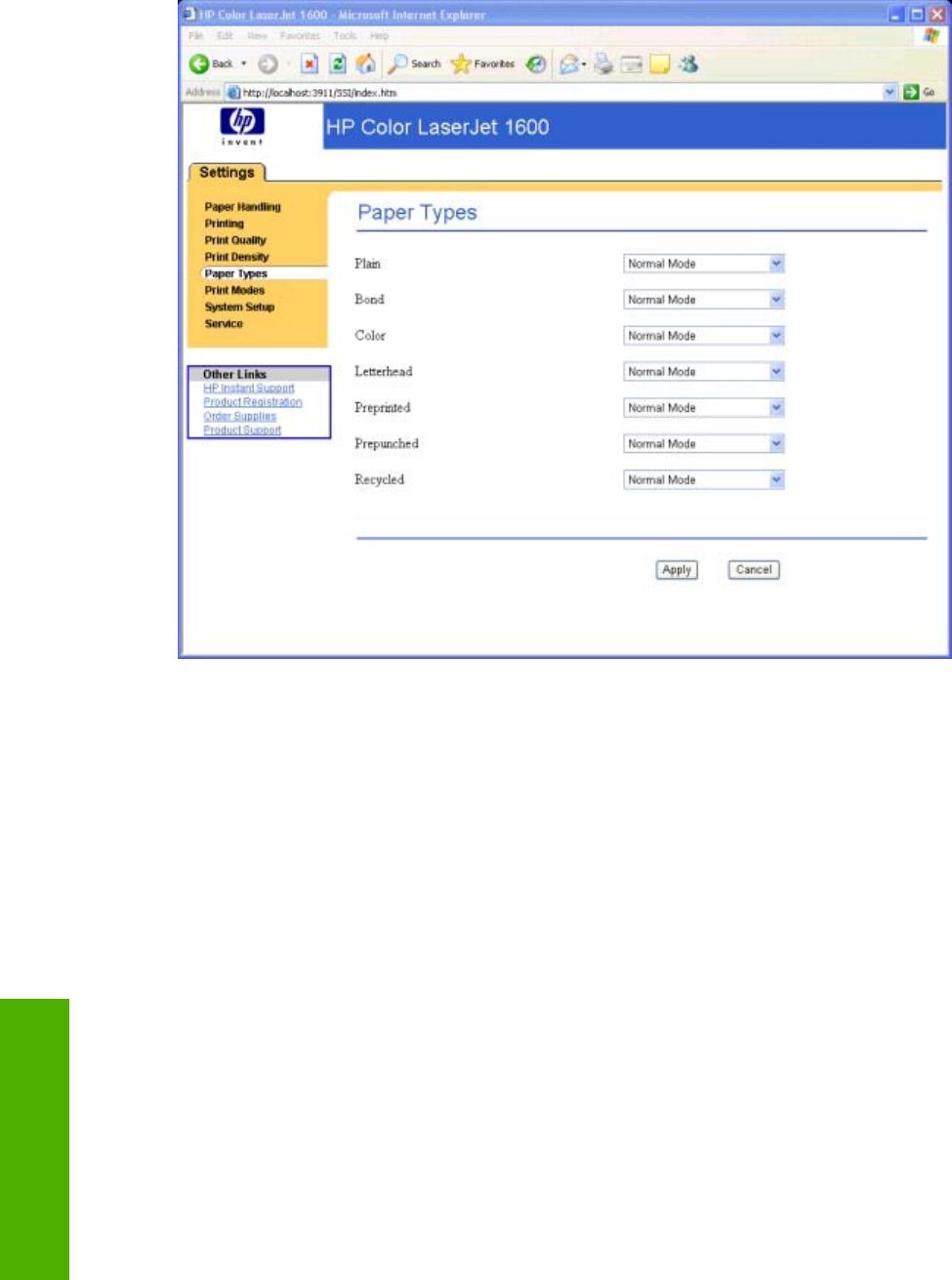
Paper Type Settings page
Use this page to set the default paper type settings for your HP Color LaserJet 1600 printer.
Figure 5-23 Paper Type Settings page
134 Chapter 5 The HP Color LaserJet 1600 Toolbox ENWW
The HP Color LaserJet
1600 Toolbox
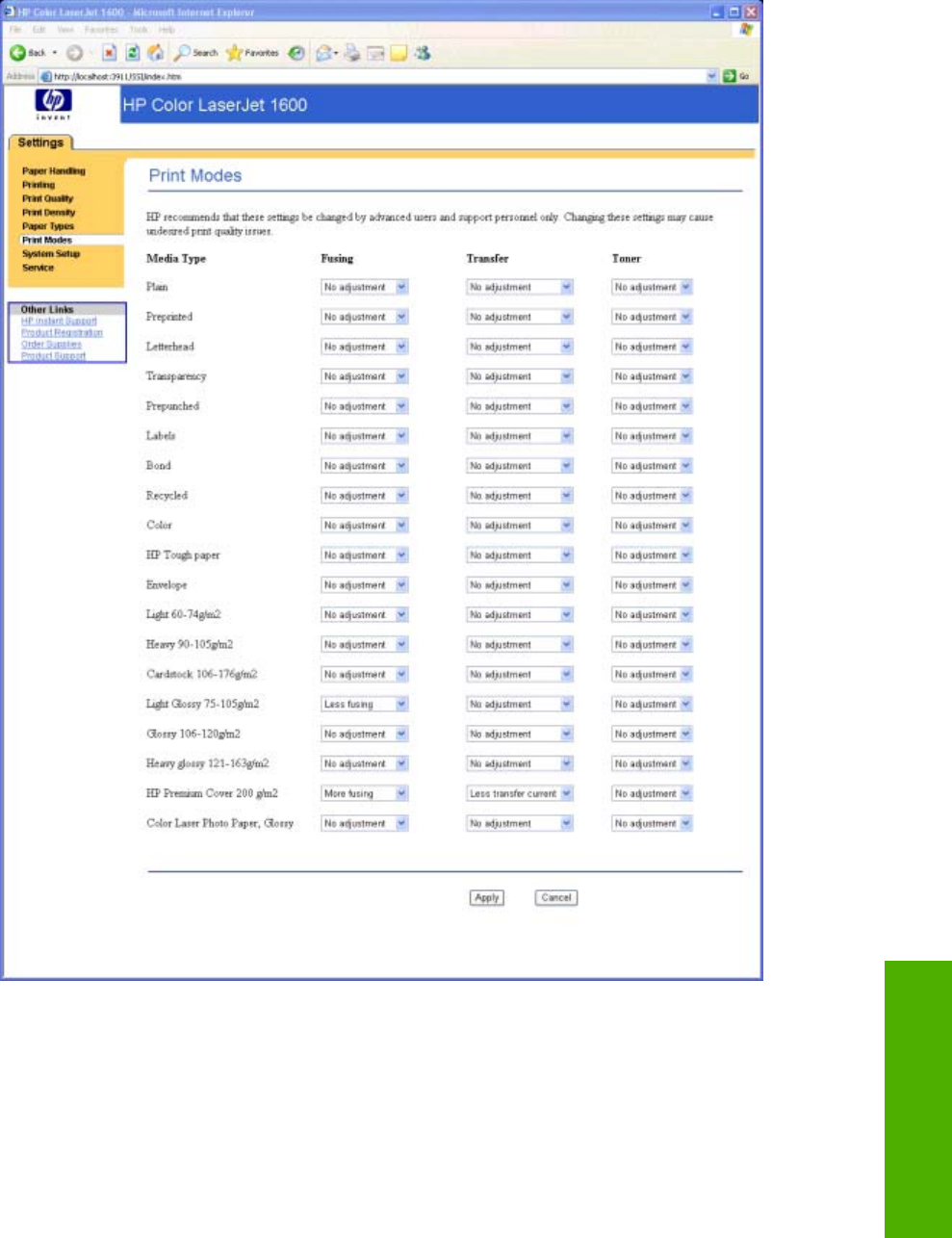
Print Modes page
Use this page to change the print mode for customizable paper types for your HP Color LaserJet 1600
printer.
Figure 5-24 Print Modes page
The following print modes occur for the HP Color LaserJet 1600 printer.
ENWW Configuration options for the HP Color LaserJet 1600 Toolbox 135
The HP Color LaserJet
1600 Toolbox

Table 5-10 Standard print modes
Standard Print
Modes
Extended print
mode
Color tables Sensor correlation Default media types
Normal mode none Plain Plain Plain, Color, Preprinted,
Prepunched, Recycled
Heavy mode none Plain Plain Heavy
Cardstock mode none Plain Plain Cardstock, Bond
Cardstock mode More fusing Plain Plain HP Premium Cover
Light mode none Plain Plain Light
Light Glossy mode Less fusing Glossy LightGlossy Light Glossy
Glossy mode none Glossy Glossy Glossy
Heavy Glossy mode none Glossy Glossy Heavy Glossy
Heavy Glossy mode none Glossy Glossy HP Premium Plus Photo
Tough Paper mode none Glossy Glossy HP Tough Paper
Envelope mode none Plain Plain Envelopes
Transparency mode none OHT Glossy Transparency
Label mode none Plain Plain Label
Table 5-11 Extended print modes
Extended Print Modes Description
Fusing
Less paper curl Reduced fuser temperature for less paper curl
Heavy coverage Increased fuser temperature for heavy toner coverage
Toner offset Reduced fuser temperature for less toner offset.
Flap sealing Reduced fuser temperature to keep envelope flaps from sealing.
Less fusing Reduced fuser temperature.
More fusing Increased fuser temperature.
Transfer
Dry paper Increase transfer current for high resistivity paper.
Humid paper Decreased transfer bias for high resistivity paper.
Rough paper Increased transfer bias for high resistivity paper.
Less transfer current Reduced transfer bias.
More transfer current Increased transfer bias.
Toner
Less toner Tone curve is scaled back so that solid is not 100% halftone.
136 Chapter 5 The HP Color LaserJet 1600 Toolbox ENWW
The HP Color LaserJet
1600 Toolbox

Extended Print Modes Description
Table 5-11 Extended print modes (continued)
ENWW Configuration options for the HP Color LaserJet 1600 Toolbox 137
The HP Color LaserJet
1600 Toolbox
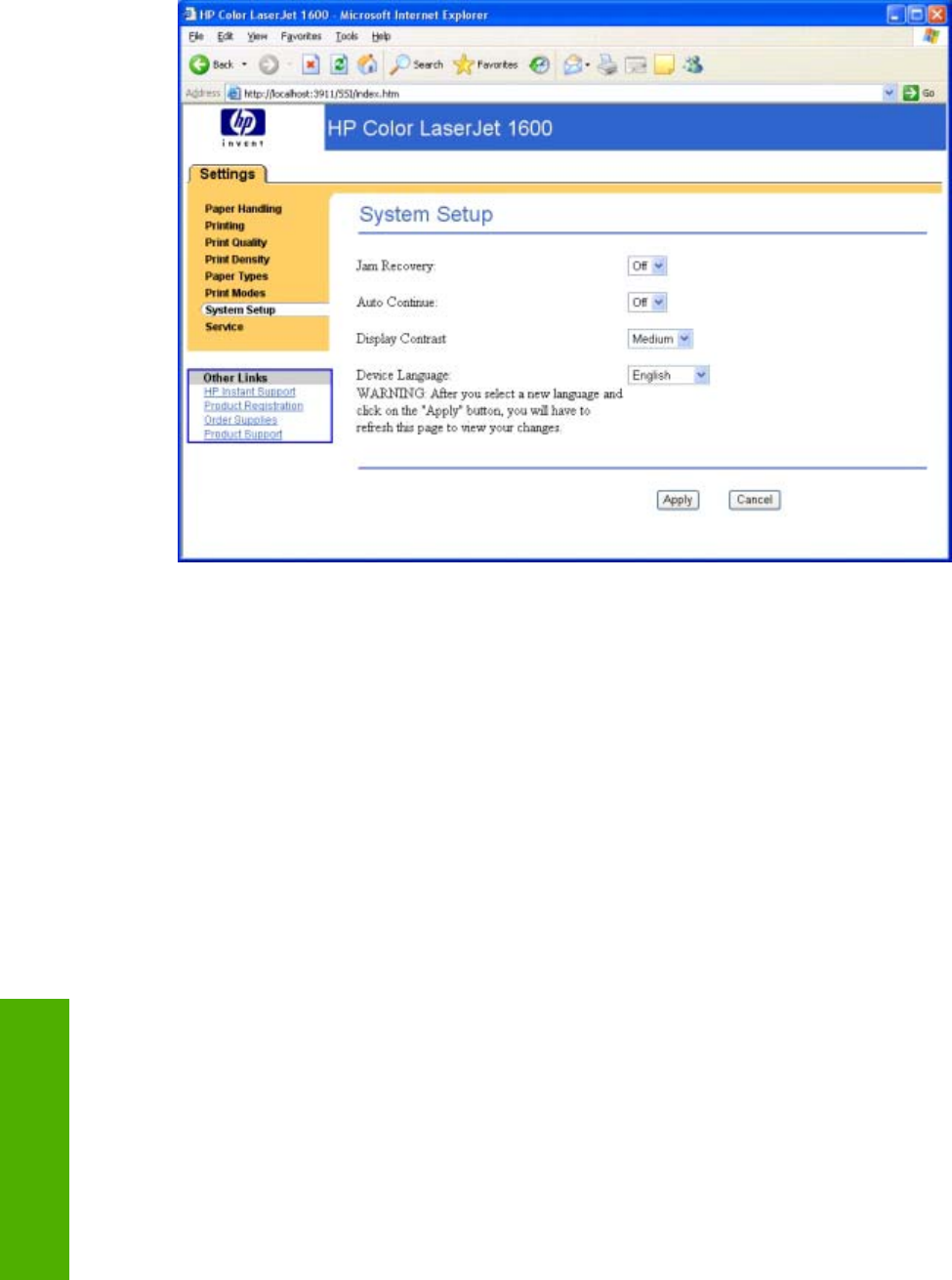
System Setup page
Use this page to change settings on your HP Color LaserJet 1600 printer.
Figure 5-25 System Setup page
138 Chapter 5 The HP Color LaserJet 1600 Toolbox ENWW
The HP Color LaserJet
1600 Toolbox
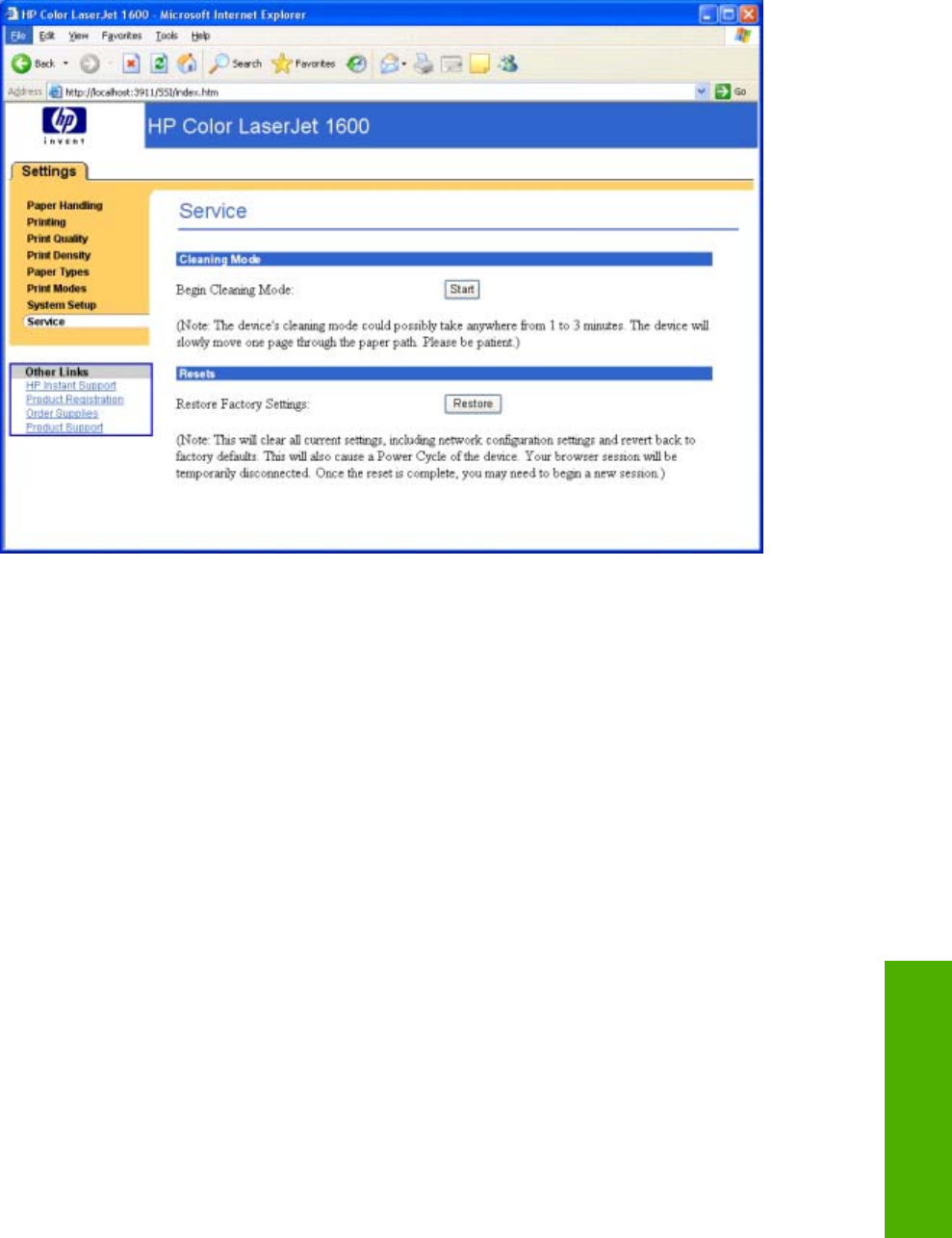
Service page
Use this page to begin the cleaning mode or to restore the factory settings for your HP Color
LaserJet 1600 printer.
Figure 5-26 Service page
ENWW Configuration options for the HP Color LaserJet 1600 Toolbox 139
The HP Color LaserJet
1600 Toolbox

Other pages
The following pages are also available through the HP Color LaserJet 1600 Toolbox.
●About HP Color LaserJet 1600 Toolbox page
●HP Instant Support page
●Product Registration page
●Order Supplies page
●Product Support page
140 Chapter 5 The HP Color LaserJet 1600 Toolbox ENWW
The HP Color LaserJet
1600 Toolbox
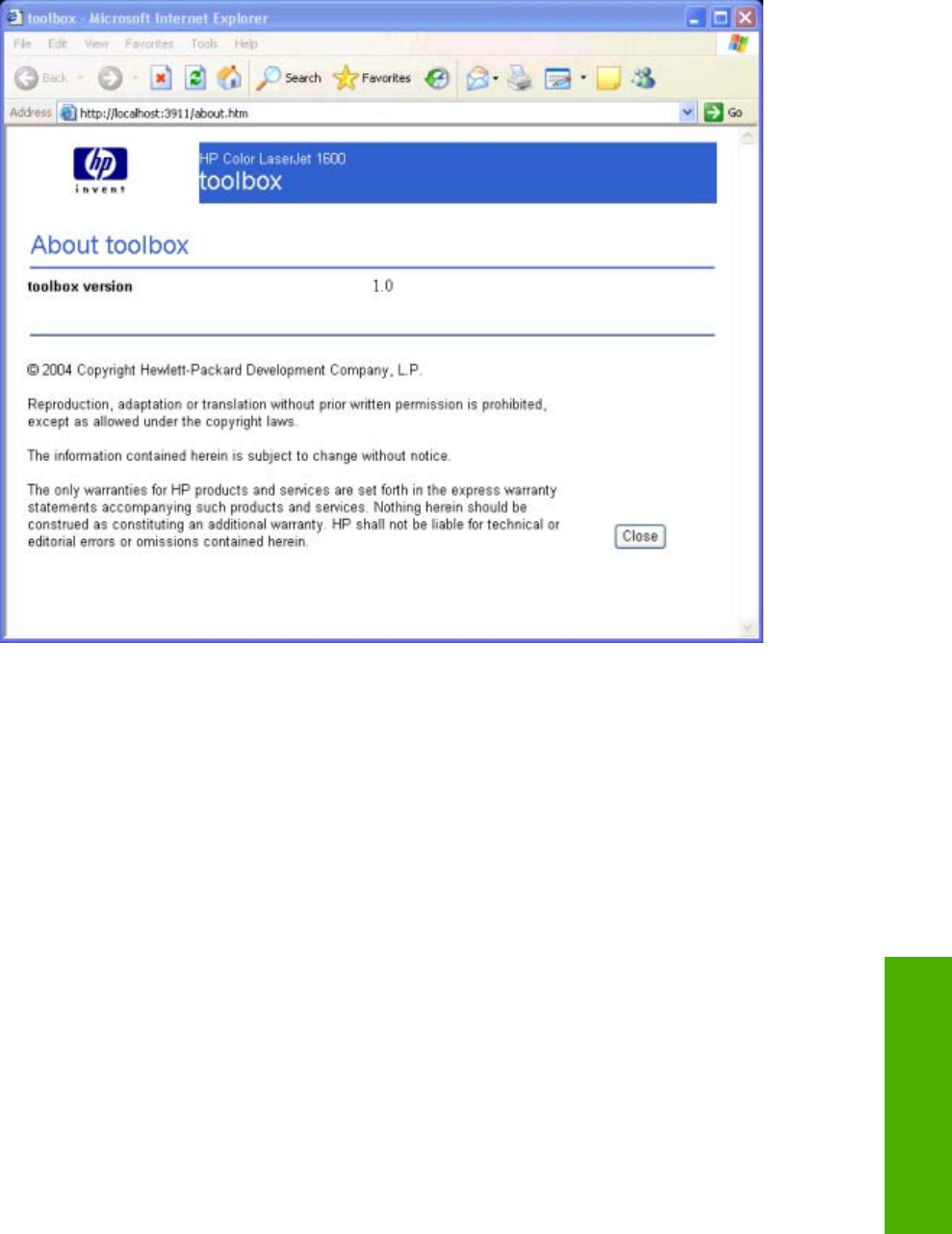
About HP Color LaserJet 1600 Toolbox page
This page contains information concerning the versions of the various HP Color LaserJet 1600 Toolbox
components installed on your computer.
Figure 5-27 About Toolbox page
ENWW Configuration options for the HP Color LaserJet 1600 Toolbox 141
The HP Color LaserJet
1600 Toolbox
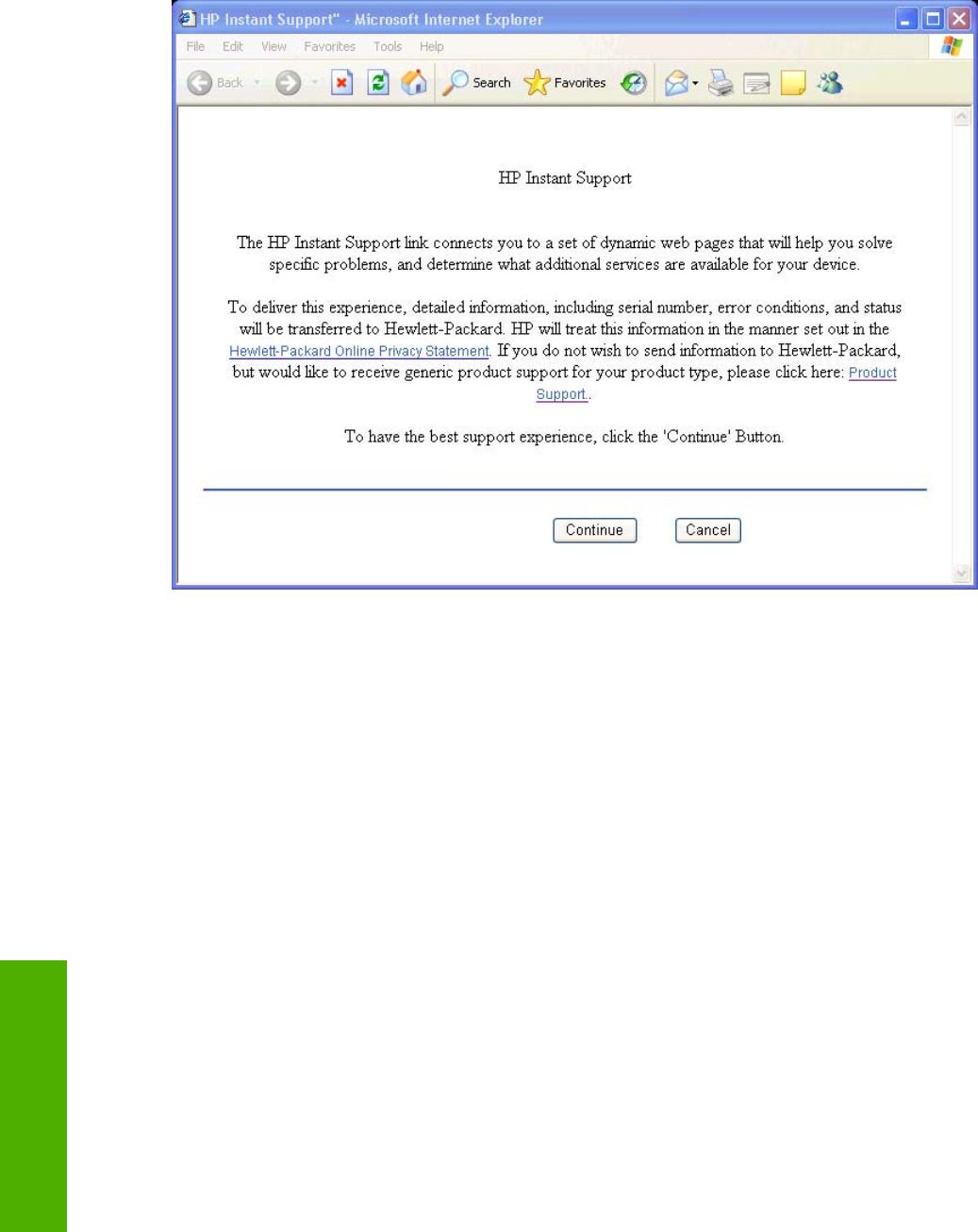
HP Instant Support page
Use this page to obtain instant support from HP,
Figure 5-28 HP Instant Support page
142 Chapter 5 The HP Color LaserJet 1600 Toolbox ENWW
The HP Color LaserJet
1600 Toolbox
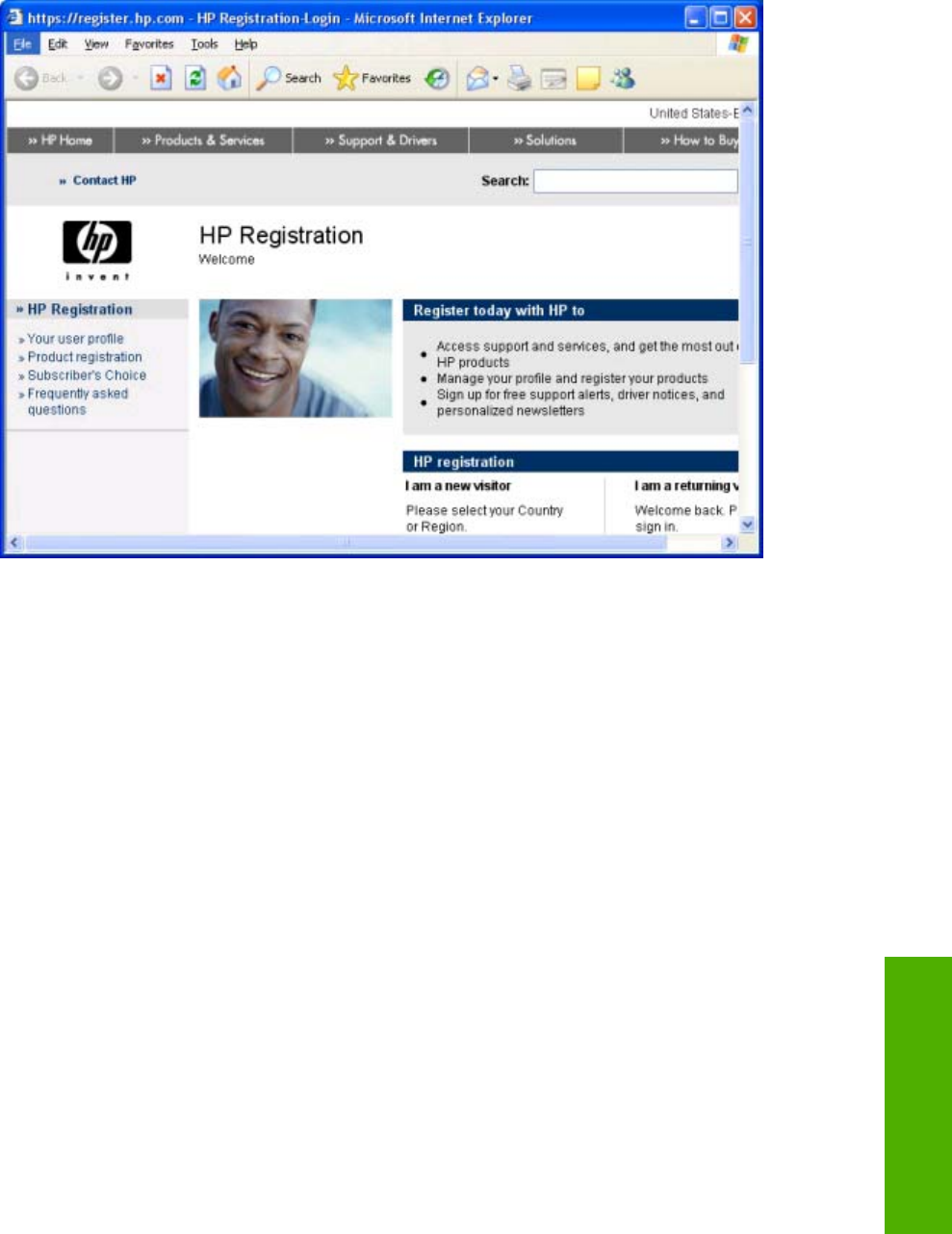
Product Registration page
The Product Registration link connects you to a Web page that helps you register your HP Color
LaserJet 1600 printer.
Figure 5-29 Product Registration page
ENWW Configuration options for the HP Color LaserJet 1600 Toolbox 143
The HP Color LaserJet
1600 Toolbox
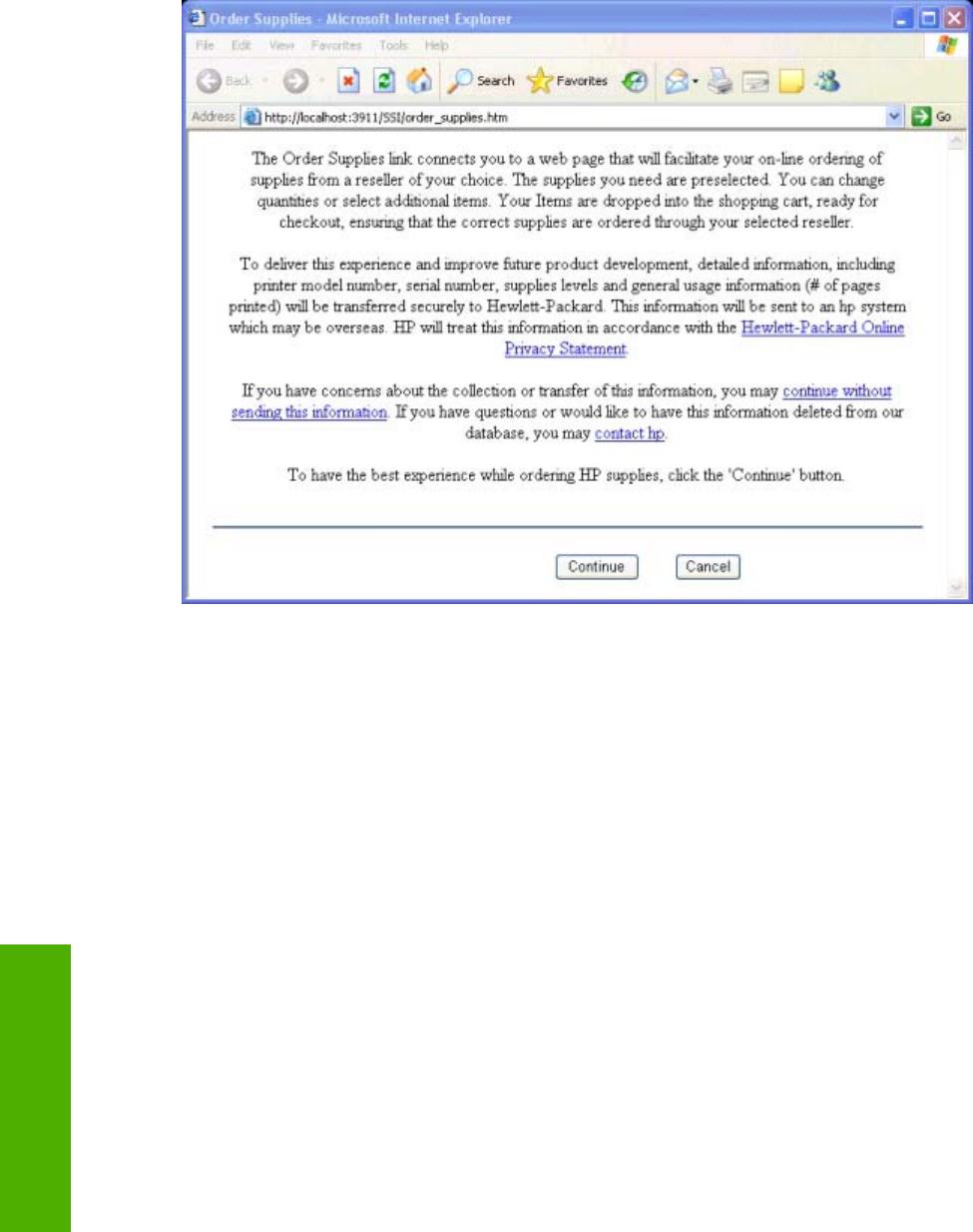
Order Supplies page
The Order Supplies link connects you to a Web page that helps you order supplies online from a reseller
of your choice. The supplies you need for your HP Color LaserJet 1600 printer are pre-selected. You
can change quantities or select additional items. Your items are dropped into the shopping cart, ready
for checkout, ensuring that the correct supplies are ordered through your selected reseller.
Figure 5-30 Order Supplies page
144 Chapter 5 The HP Color LaserJet 1600 Toolbox ENWW
The HP Color LaserJet
1600 Toolbox

Product Support page
The Product Support link connects you to a Web page that helps get online support for your HP Color
LaserJet 1600 printer.
ENWW Configuration options for the HP Color LaserJet 1600 Toolbox 145
The HP Color LaserJet
1600 Toolbox

146 Chapter 5 The HP Color LaserJet 1600 Toolbox ENWW
The HP Color LaserJet
1600 Toolbox


Troubleshooting checklist
Use the following steps when trying to solve a problem with the device.
Table 6-1 Troubleshooting checklist
Step number Verification step Possible problems Solutions
1Is the power on?
When the device is connected
to a grounded power source,
the control panel shows
Hewlett-Packard with both
the Ready and Attention lights
blinking. The control panel will
then display Initializing and
then Ready, at which time
only the green light will be on.
No power due to failed power
source, cable, switch, or fuse.
1. Verify that the device is
plugged in.
2. Verify that the power
cable is functional and
that the power switch is
on.
3. Check the power source
by plugging the device
directly into the wall or
into a different outlet.
4. Test the outlet or
connect another device
to the outlet to verify that
the outlet is functioning.
2Does Ready appear in the
device control panel?
The control panel should
function without error
messages.
Control panel shows an error. SeeDevice Status page for a
list of common messages that
will help you correct the error.
If the error persists, contact
HP Customer Contact Center.
3Do information pages
print?
Print a Configuration page.
Control panel displays an
error message.
See Device Status page for a
list of common messages that
will help you correct the error.
Media does not move
smoothly through the device
paper path.
Clean the paper path.
Poor print quality. See the HP Color LaserJet
1600 User Guide for
information about print quality
problems. If the error persists,
contact HP Customer Contact
Center.
4Does the device print from
the computer?
Connect the USB cable to the
device and the computer. Use
a word-processing application
to send a print job to the
device.
Software is not installed
correctly or an error occurred
during software installation.
Uninstall and then reinstall the
device software. Verify that
you are using the correct
installation procedure and the
correct port setting.
The cable is not connected
correctly.
Reconnect the cable.
An incorrect driver is selected. Select the proper driver.
Other devices are connected
to the USB port.
Disconnect the other devices
and try again to print.
There is a port driver problem
in Microsoft Windows.
Uninstall and then reinstall the
device software. Verify that
you are using the correct
148 Chapter 6 Engineering Detail ENWW
Engineering Detail

installation procedure and the
correct port setting.
If the error persists, contact HP Customer Contact Center.
Table 6-1 Troubleshooting checklist (continued)
ENWW Troubleshooting checklist 149
Engineering Detail

Problem solving
This section provides information about the following issues:
●Coexistence/conflict issues
●Communication issues
Coexistence/conflict issues
Issue Cause Solution
Uninstallation of the HP Color
LaserJet 1600 printer might cause other
devices that use Zenographic software to
stop working.
These devices share Zenographic files
with the HP Color LaserJet 1600 printer.
You might need to reinstall the software
for the other Zenographic devices after
you have uninstalled the HP Color
LaserJet 1600 printer.
The following devices are known to have
this conflict:
●QMS MagiColor Laser 2200 (no
suffix)
●QMS MagiColor Laser 6100 (no
suffix)
●QMS PagePro 4100W
●Minolta PageWorks 18L
●HP LaserJet 1010, 1012, and 1015
series printers
Communication issues
Issue Cause Solution
The computer does not print or
communicate with the printer.
The printer might not have power. Make sure that the printer is turned on
and connected to the computer.
The printer bidirectional capabilities
might not be engaged.
Open the HP Color LaserJet 1600
printer driver by clicking Start,
selecting Settings (in Microsoft
Windows XP or Microsoft Windows
Server 2003, click Printers and Faxes),
and then clicking Printers. Right-click
the HP Color LaserJet 1600 printer
icon, and then click Properties. Click the
Details tab, and then click Spool
Settings. make sure that the check box
for Enable bidirectional support for
this printer is selected.
150 Chapter 6 Engineering Detail ENWW
Engineering Detail

The printer Alerts setting might be
turned off.
Open the HP Color LaserJet 1600
Toolbox and click on the Alerts tab.
Verify that Turn on alerts is selected and
at least one of the options in the Show
alert when section is selected.
The USB cable might need to be
reseated.
Disconnect the cable from the computer
and then reconnect it.
ENWW Problem solving 151
Engineering Detail
Media attributes
This section includes the following information about media attributes:
●Paper-source commands
●Media types and sizes
●Custom paper sizes
Paper-source commands
The HP Color LaserJet 1600 printer uses the following ZJI_DMDEFAULTSOURCE settings.
Table 6-2 Paper-source commands for the HP Color LaserJet 1600 printer
Paper source Setting Code
Tray 1 (manual feed) 4DMBIN_MANUAL
Tray 2 1DMBIN_UPPER
Tray 3 (optional) 2DMBIN_LOWER
Auto 7 DMBIN_AUTO
Media types and sizes
The tables in this section provide information about media features, media attributes, and paper-
handling constraints for the HP Color LaserJet 1600 printer.
NOTE The following table lists the features and attributes of various media listed under the Size
Is drop-down menu on the Paper/Quality tab. The list order can vary, depending on the operating
system. The list will contain all the sizes shown here, and might contain sizes from other drivers.
Table 6-3 Supported media attributes
Paper sizes Width Height
Letter 216 mm
(8.5 inches)
279 mm
(11.0 inches)
16K 197 mm
(7.75 inches)
273 mm
(10.75 inches)
A4 210 mm
(8.27 inches)
297 mm
(11.69 inches)
A5 148 mm
(5.83 inches)
210 mm
(8.27 inches)
B5 (ISO) 176 mm
(6.93 inches)
250 mm
(9.84 inches)
152 Chapter 6 Engineering Detail ENWW
Engineering Detail

Paper sizes Width Height
B5 (JIS) 182 mm
(7.16 inches)
257 mm
(10.12 inches)
Postcard 100 mm
(3.94 inches)
148 mm
(5.83 inches)
Double Postcard 148 mm
(5.83 inches)
200 mm
(7.87 inches)
Envelope #10 105 mm
(4.13 inches)
241 mm
(9.5 inches)
Envelope B5 (ISO) 176 mm
(6.93 inches)
250 mm
(9.84 inches)
Envelope C5 (ISO) 162 mm
(6.38 inches)
229 mm
(9.02 inches)
Envelope DL (ISO) 110 mm
(4.33 inches)
220 mm
(8.66 inches)
Envelope Monarch 99 mm
(3.88 inches)
190 mm
(7.5 inches)
Executive 185 mm
(7.25 inches)
266 mm
(10.5 inches)
Executive (JIS) 216 mm
(8.5 inches)
330 mm
(12.99 inches)
Legal 216 mm
(8.5 inches)
355 mm
(14.0 inches)
Custom Minimum:
76 mm
(3.0 inches)
Maximum:
216 mm
(8.5 inches)
Minimum:
127 mm
(5.00 inches)
Maximum:
356 mm
(14.0 inches)
Table 6-3 Supported media attributes (continued)
ENWW Media attributes 153
Engineering Detail

Custom paper sizes
The following table identifies the media types the HP Color LaserJet 1600 supports in trays 1, 2, and 3.
Table 6-4 Tray 1 and Tray 2 specifications
Tray 1 and Tray 2 Dimensions
1
Weight Capacity
2
Paper Minimum: 76 x 127 mm
(3 x 5 inches)
60 to 163 g/m
2
(16 to 43 lb)
Up to 176 g/m
2
(47 lb) for
postcards
Single sheet of 75 g/m
2
(20 lb)
paper for Tray 1
Up to 250 sheets for Tray 2
Maximum: 216 x 356 mm
(8.5 x 14 inches)
HP LaserJet glossy paper and
HP LaserJet photo paper
Same as the preceding listed
minimum and maximum
sizes.
75 to 163 g/m
2
(20 to 32 lb) Single sheet of HP LaserJet
glossy paper or HP LaserJet
photo paper for Tray 1
Up to 25 mm (0.99 inch) stack
height for Tray 2
HP Premium Cover Paper
3
200 g/m
2
(75 lb) cover Single sheet of HP Cover
paper for Tray 1
Up to 25 mm (0.99 inch) stack
height for Tray 2
Transparencies and opaque
film
Thickness: 0.10 to 0.13 mm
(3.9 to 5.1 mils)
Single sheet of transparency
or opaque film for Tray 1
Up to 50 sheets for Tray 2
Labels
4
Thickness: up to 0.23 mm (up
to 9 mils)
Single sheet of labels for Tray
1
Up to 25 mm (0.99 inch) stack
height for Tray 2
Envelopes Up to 90 g/m
2
(16 to 24 lb) Single envelope for Tray 1
Up to ten envelopes for Tray 2
1
The printer supports a wide range of standard and custom sizes of print media. Check the printer driver for supported sizes.
2
Capacity can vary depending on media weight and thickness, and environmental conditions.
3
Smoothness: 100 to 250 (Sheffield).
4
Hewlett-Packard does not guarantee results when printing with other types of heavy paper.
Table 6-5 Optional Tray 3 specifications
Optional Tray 3 (250–sheet
tray)
Dimensions
1
Weight Capacity
2
Plain paper Minimum: 76 x 127 mm
(3 x 5 inches)
60 to 163 g/m
2
Up to 250 sheets
Maximum: 216 x 356 mm
154 Chapter 6 Engineering Detail ENWW
Engineering Detail

(8.5 x 14 inches)
1
The printer supports a wide range of standard and custom sizes of print media. Check the printer driver for supported sizes.
2
Capacity can vary depending on the media weight and thickness, and environmental conditions.
Table 6-5 Optional Tray 3 specifications (continued)
ENWW Media attributes 155
Engineering Detail

HP Color LaserJet 1600 Readme
The HP Color LaserJet 1600 Printing System Install Notes reside on the HP Color LaserJet 1600
printing-system software CD under the filename Readme.HTML.
HP Color LaserJet 1600 Printing System Install Notes
Contents
●Introduction
●Late-breaking information
●Installation instructions
●Technical assistance
●Legal statements
Introduction
Purpose of this document
This document provides specific installation instructions and other information you should know before
you install and use the printing system. Installation instructions are provided in this document for the
following operating systems:
●Windows 98 Second Edition (SE) and Milennium Edition (Me) (through Plug and Play only)
●Windows 2000
●Windows XP (32-bit)
●Windows Server 2003
NOTE The HP Color LaserJet 1600 is not supported by HP in the following operating systems:
– MS-DOS
– Linux
Macintosh (all)
– OS/2
– UNIX
– Windows NT 4.0
– Windows 95
Product description
The HP Color LaserJet 1600 printer (CB337A) is a four-color laser printer that prints eight pages per
minute (ppm) in both monochrome (black and white) and color, has a single sheet priority feed slot (Tray
1) and a universal tray (Tray 2) that holds up to 250 sheets of various paper types and sizes or 10
156 Chapter 6 Engineering Detail ENWW
Engineering Detail

envelopes, supports an optional 250-sheet paper tray (optional Tray 3), has a Hi-Speed USB 2.0 port,
and 16 megabytes (MB) of double data rate memory (DDR).
This document provides specific installation, compatibility, and troubleshooting information. For
additional information about printer features and driver features, see the user guide and the online help
included with each software component.
Who needs this software?
All users require this printing system software to operate the HP Color LaserJet 1600 printer.
Overview of the printing system components
The printer CD-ROM has software for IBM-compatible computer systems. For more information about
a particular driver or software component, see its associated online help.
End-user software components
Drivers
A printer driver is a software program that provides access to the printer features for other software
programs. Typically, you should install a printer driver for each printer. The printing-system software
CD-ROM that came with your printer includes the following Windows printer drivers:
●HP Color LaserJet 1600 driver for Windows 98 SE, Windows Me, Windows 2000, Windows Server
2003, and Windows XP (32-bit), all with similar graphical user interfaces
The most recent printer drivers and printing software for your HP Color LaserJet printer are available
on the Web: www.hp.com/support
Additional drivers might be available from your Hewlett-Packard distributor or from online sources. See
the "TECHNICAL ASSISTANCE" section of this document or the printer user guide for more information
about obtaining drivers and other HP software.
Printer Status and Alerts
The printing system includes the Printer Status Alerts software component for end-users. These alerts
can be configured to appear when the printer cannot print (for example, when the printer is out of paper),
an HP supply needs to be ordered, or a warning condition exists (the device has experienced an error
but can continue). Alerts only appear when you attempt to print.
The Status Alerts can also be configured to show no alert messages.
Adobe Acrobat Reader
Use Acrobat Reader 4.05 or later to view the online manuals. Acrobat Reader is available on the HP
Color LaserJet 1600 CD at the following location: <CD-ROM drive>:\apps\Adobe\Acrobat 5.0\Reader
\AcroRd32.exe
Printer documentation
The following documents are available on the printing system software CD-ROM:
●Document: HP Color LaserJet 1600 User Guide
File name: LJ1600_use_<language code>.PDF and LJ1600_use_<language code>.CHM
Path: <CD-ROM Drive>:\<Language>\MANUALS\
●Document: Hewlett-Packard Color LaserJet 1600 Printing System Install Notes
ENWW HP Color LaserJet 1600 Readme 157
Engineering Detail

File name: LJ1600_installnotes_<language code>.htm
Path: <CD-ROM Drive>:\<Language>\Manuals\
Uninstall
Use the uninstall utility to select and remove any or all of the Windows HP printing-system components.
See the "UNINSTALLER" section in this document for more instructions.
Latest printer drivers
The latest printer drivers and printing software for your HP LaserJet printer are available on the Web:
www.hp.com/support
Late-breaking information
Known issues and workarounds
For a complete list of known issues and workarounds, please click on the following link (you require an
Internet to use this link): http://h20000.www2.hp.com/bizsupport/TechSupport/Document.jsp?
objectID=c00499251
Issues fixed
See the HP Color LaserJet 1600 software download page at http://www.hp.com/support/clj1600 for an
updated listing of issues fixed for the HP LaserJet Printing System Software. Use the link for the "Release
Notes" or "Readme File" found on the driver download page for your operating system and driver version.
Fixes are listed only if the original software has been updated.
Installation instructions
In a Windows environment, the CD-ROM setup or installation software detects the version of the
operating system that you are running. The software is installed in the language that you have selected.
For example, if you are running an English version of Windows and have the language preference set
to Spanish, the installation utility will install the Spanish version of the printing software for the
appropriate Windows version.
Installation options
Use the installation program SETUP.EXE, located on the root of the HP Color LaserJet 1600 CD, to
install the full printing system. This program is supported in Windows XP and Windows 2000.
This installation method adds the following components:
●HP Color LaserJet 1600 driver.
●HP Color LaserJet 1600 toolbox. Use this feature to change some printer settings and view
documentation and self-help tools.
●Printer Status Alerts. This feature within the HP Toolbox alerts you if a job that you sent to
the printer cannot be completed. You can then view the printer status (for example, toner
levels and configuration).
158 Chapter 6 Engineering Detail ENWW
Engineering Detail

●Screen Fonts. These are printer-matching TrueType fonts that help ensure WYSIWYG printing.
●HP Color LaserJet 1600 printer documentation. This is a list of documentation that includes
information about product operation, troubleshooting, warranty and specifications, supplies, and
support.
Installing Software on Windows 98 SE and Windows Me Operating Systems
Printing-system installation through Plug and Play
1. Power on the printer and computer.
2. Verify that “Ready” appears on the printer control-panel display.
3. Attach the USB cable to the printer and computer.
4. When the Add New Hardware Wizard appears, click Next to install the USB Printing Support.
5. In the dialog box that opens, select Search for the best driver for your device, and then click
Next.
6. With the HP Color LaserJet 1600 CD in the CD-ROM drive, select Specify a location, browse to
your CD-ROM drive, and select your language and the Driver folder (for example, <CD-ROM>:
\<Language>\Driver. Click OK, and then click Next.
7. For Windows 98 SE, in the USB Printing Support dialog box you will see the path and file name.
Click Next. For Windows Me, this step might not apply.
8. After the files are copied, click Finish.
9. Repeat steps 4 through 8 to install the printer driver. (This procedure might occur automatically.)
File names will change. At step 8, you have the option to rename the printer. Click Finish. After
files have installed, click Finish to close the dialog box.
Installing software on Windows 2000 and XP Operating Systems
NOTE You require administrator privileges to install the printing system on a Windows 2000 or
Windows XP operating system.
Printing-system installation from the CD-ROM or through an Internet download
1. Close all programs.
2. Insert the CD-ROM.
3. If the HP printing system installer program has not started after 30 seconds, complete steps 4
through 7.
4. From the Start menu on the taskbar, select Run.
5. Browse to the root directory for the CD-ROM drive.
6. Select the SETUP.EXE file. Click Open, and then click OK.
7. Follow the onscreen instructions.
NOTE If you download the printing system electronically and are using Web files, you need to
first run the downloaded .EXE files.
ENWW HP Color LaserJet 1600 Readme 159
Engineering Detail

Printing-system installation through Plug and Play (alternative method)
If you cannot use the CD-ROM or Internet download, use the following alternative procedure:
1. Turn on the printer and computer.
2. Verify that “Ready” appears on the printer control-panel display.
1. Attach the USB cable to the printer and computer.
2. When the Add New Hardware Wizard appears, click Next to install the USB Printing Support.
3. In the dialog box that opens, select Search for the best driver for your device and then click
Next.
4. With the HP Color LaserJet 1600 CD in the CD-ROM drive, select Specify a location, browse to
your CD-ROM drive, and select your language and the Driver folder (for example, <CD ROM drive:
\<Language>\Driver). Click OK and then click Next.
5. After the files are copied, click Finish.
6. Repeat steps 4 through 8 to install the printer driver. (This procedure might occur automatically.)
File names will change. In step 8, you have the option to rename the printer. Click Finish. After
the files have been installed, click Finish to close the dialog box.
Uninstaller
After installing a printing system, click the uninstall icon in the HP Color LaserJet 1600 printer program
group to select and remove any or all of the HP printing system components.
Starting the Uninstaller
1. Click Start, select Programs (All Programs for Windows XP) and then select HP.
2. In the HP Color LaserJet 1600 program group, click the HP Color LaserJet 1600 uninstall icon.
3. The uninstaller guides you through removing the printing system components.
NOTE For driver-only (Add Printer/New Driver) installations, delete the printer icon from the
Printers folder (Windows 98 SE, Windows Me, Windows 2000, and Windows XP).
Technical assistance
Some of the following services are provided for users in the United States only. Similar services are
available in other countries/regions. See the printer user guide or call your local authorized HP dealer
for more information.
Customer support
See your printer user guide or call your local authorized HP dealer.
Web
Browse to the following URL for online technical support: http://www.hp.com/support/clj1600
160 Chapter 6 Engineering Detail ENWW
Engineering Detail

HP Software and support services - Additional information
See the printer user guide for additional ways to obtain software and support information, such as
through printer-driver distribution centers, other online services, fax services, and other online support.
Legal statements
Trademark notices
Adobe ® , Acrobat ® , and PostScript3 ® are either registered trademarks or trademarks of Adobe
Systems Incorporated in the United States and/or other countries/regions.
Microsoft ®, MS-DOS ®, Windows ®, and Windows NT ® are U.S. registered trademarks of Microsoft
Corp.
TrueType™ is a U.S. trademark of Apple Computer, Inc.
Warranty
See the printer documentation for complete warranty and support information.
Copyright
© 2006 Copyright Hewlett-Packard Development Company, L.P.
Reproduction, adaptation or translation without prior written permission is prohibited, except as allowed
under the copyright laws.
The information contained herein is subject to change without notice.
The only warranties for HP products and services are set forth in the express warranty statements
accompanying such products and services. Nothing herein should be construed as constituting an
additional warranty. HP shall not be liable for technical or editorial errors or omissions contained herein.
ENWW HP Color LaserJet 1600 Readme 161
Engineering Detail

162 Chapter 6 Engineering Detail ENWW
Engineering Detail
Index
Symbols/Numerics
% of Normal Size setting 67
A
About button 79
About HP Color LaserJet 1600
Toolbox page 141
Add Printer Wizard
installation for Windows 98 SE
26
installation for Windows Me
33
operating systems supported
10
Adobe Acrobat Reader 16
agreement, software license 41
alert messages 101
Alerts page, HP Color LaserJet
1600 Toolbox 116
Alerts tab, HP Color LaserJet 1600
Toolbox 116
Animated Demonstrations page,
HP Color LaserJet 1600 Toolbox
115
Automatic color settings 83
B
Back Cover settings 64
Basics tab 78
bidirectional communication
device conflicts 19
operating systems supported
13
troubleshooting 150
binding settings 74
black, printing text as 77
booklets 74
born-on date 80
both sides, printing on
animated demonstrations 115
settings 73
browsers supported, HP Color
LaserJet 1600 Toolbox 92
C
Cancel dialog box 45
cartridges
Animated Demonstrations page
115
How do I page 124
page capacities 3
supplies messages 98
Supplies Status page 105
CD
directory structure 4
localized versions 4
ordering 5
Clearing Jams page, HP Color
LaserJet 1600 Toolbox 109
client computers, setting up 38
coexistence issues 150
Collate check box 79
color
Automatic settings 83
Edge Control 84
grayscale settings 84, 86
Halftone settings 85
RGB settings 85
text, printing as black 77
Color Options group box 83
Color tab 82
commands, paper source 152
communication, troubleshooting
150
components, software 16
Configure tab 87
conflicts
device 19
software 150
connection types 17, 18
constraint messages 56
context-sensitive help 56
control panel messages
alert 101
critical error 103
initialization and ready 98
printing reports and documents
104
status 104
supplies 98
warning 103
copies, number of 79
Courier Font Type settings 88
cover settings 64
critical error messages 103
custom paper sizes 62, 154
D
date, service ID 80
default settings 55
density settings 133
device conflicts 19
Device Settings section, HP Color
LaserJet 1600 Toolbox 127
Device Status page, HP Color
LaserJet 1600 Toolbox 97
dialog boxes, installation
Cancel 45
Exit Setup 45
Finish 44
HP Software License
Agreement 41
Printing System Setup 43
Ready to Install 42
Setup Complete 45
Welcome 40
direct connections
features available 18
installating software 25
directory structure, CD 4
ENWW Index 163
Document Options 72
document preview image 64
documentation
install notes 156
localized versions 6
operating systems supported
14
Quick Set for User Guide 60
Readme 156
Documentation tab, HP Color
LaserJet 1600 Toolbox 123
double-sided printing
animated demonstrations 115
settings 73
dpi (dots per inch)
settings 77
specifications 3
Draft mode 77
drivers
% of Normal Size option 67
About button 79
about host-based printing 54
accessing 55
availability by operating system
13
Basics tab 78
Booklet Layout settings 74
Collate check box 79
Color tab 82
Configure tab 87
constraint messages 56
Copy Count setting 79
Courier Font Type settings 88
Custom Paper Size group box
62
direct connection installation
25
Document Options 72
document preview image 64
Edge Control 84
Effects tab 66
Finishing tab 72
Fit to Page settings 66
Flip Pages Up setting 74
grayscale settings 84, 86
Halftone settings 85
Help system 56
Installable Options 88
Jam Recovery settings 88
localized versions 14
operating systems supported
13
orientation settings 78
page count 80
Pages per Sheet settings 75
Paper Handling Options group
box 87
Paper Options 60
Paper/Quality tab 59
Plug and Play installation for
Windows 98 SE 26
Plug and Play installation for
Windows Me 33
Print all Text as Black setting
77
Print Document On setting 67
Print on Both Sides (Manually)
73
Print Quality settings 77
Printer Model group box 87
Printer Properties tab 55
Printing Preferences tab 55
Quick Sets 59
RGB Color settings 85
Scale to Fit setting 67
service ID 80
Size is settings 61
Source is settings 62
Type is settings 63
updating 80
Use Different Paper option 61,
64
Watermarks settings 68
duplexing
animated demonstrations 115
settings 73
E
e-mail alerts 116
Edge Control 84
Effects tab 66
error messages
alert 101
constraint 56
critical 103
supplies 98
warning 103
Exit Setup dialog box 45
F
features
hardware 3
HP Color LaserJet 1600 Toolbox
90
printing-system software 13
files, included on installation CD
4
Finish dialog box 44
Finishing tab 72
first page out 3
Fit to Page settings 66
Flip Pages Up settings 74
font settings, Courier 88
Front Cover settings 64
fulfillment centers 5
fuser modes 135
G
grayscale settings 84, 86
H
halftone settings 85
help
Animated Demonstrations page
115
context-sensitive 56
Documentation tab 123
host-based driver 56
localized versions 14
Microsoft Windows 16
operating systems supported
14
What's this 56
host-based driver
% of Normal Size option 67
about 54
About button 79
accessing 55
Basics tab 78
Booklet Layout settings 74
Collate check box 79
Color tab 82
Configure tab 87
constraint messages 56
Copy Count setting 79
Courier Font Type settings 88
Custom Paper Size group box
62
164 Index ENWW
direct connection installation
25
Document Options 72
document preview image 64
Edge Control 84
Effects tab 66
Finishing tab 72
Fit to Page settings 66
Flip Pages Up setting 74
grayscale settings 84, 86
Halftone settings 85
Help system 56
Installable Options 88
Jam Recovery settings 88
localized versions 14
operating systems supported
13
orientation settings 78
page count 80
Pages per Sheet settings 75
Paper Handling Options group
box 87
Paper Options 60
Paper/Quality tab 59
Plug and Play installation for
Windows 98 SE 26
Plug and Play installation for
Windows Me 33
Print all Text as Black setting
77
Print Document On setting 67
Print on Both Sides (Manually)
73
Print Quality settings 77
Printer Model group box 87
Printer Properties tab 55
Printing Preferences tab 55
Quick Sets 59
RGB Color settings 85
Scale to Fit setting 67
service ID 80
Size is settings 61
Source is settings 62
Type is settings 63
updating 80
Use Different Paper option 61,
64
Watermarks settings 68
host-based printing 54
How do I HP Color LaserJet 1600
Toolbox pages 123
HP Color LaserJet 1600 Toolbox
About page 141
alert messages 101
Alerts page 116
Alerts tab 116
Animated Demonstrations page
115
browsers supported 92
Clearing Jams page 109
critical error messages 103
Device Settings section 127
Device Status page 97
Documentation tab 123
features 16, 90
initialization and ready
messages 98
localized versions 14, 93
navigating 91
opening page 91
operating systems supported
14
Optimize menu 131
Order Supplies page 144
Paper Handling page 129
Paper Type page 134
Print Density page 133
Print Info Pages page 107
Print Modes page 135
Print Problems page 110
Print Quality page 131
Print Quality Tools page 111
Printing page 130
printing reports and documents
messages 104
Product Registration page
143
Product Support page 145
sections 90, 94
Service page 139
Settings tab 128
starting 90
status messages 104
Status tab 96
supplies messages 98
Supplies Status page 105
system requirements 92
System Setup page 138
Troubleshooting tab 108
warning messages 103
HP Color laserJet 1600 Toolbox
HP Instant Support page 142
HP Instant Support page, HP Color
LaserJet 1600 Toolbox 142
HP Software License Agreement
dialog box 41
I
Image REt 2400 77
in-box file layout 4
information pages, printing 107
initialization messages 98
Install Notes 156
Installable Options 88
installation
dialog boxes 40
direct connections 25
options 24
Plug and Play for Windows 98
SE 26
Plug and Play for Windows Me
33
installers
included 13
new features 13
J
Jam Recovery settings 88
jams
alert messages 102
Animated Demonstrations page
115
clearing 109
recovery settings 88
L
landscape orientation
Flip Pages Up 74
settings 78
languages, localized versions
documentation 6
HP Color LaserJet 1600 Toolbox
93
key to abbreviations 14, 15
regional settings 21
software 4, 5
software components 14
license agreement 41
local connections
features available 18
ENWW Index 165
installing software 25
localized versions
documentation 6
HP Color LaserJet 1600 Toolbox
93
key to abbreviations 14, 15
regional settings 21
software 4, 5
software components 14
M
Manual color settings 83
manual duplexing
animated demonstrations 115
settings 73
manuals
localized versions 6
operating systems supported
14
Quicks Set for User Guide 60
media. See paper
memory
HP Color LaserJet 1600 Toolbox
requirements 92
product, included 3
system requirements 12
messages
alert 101
constraint 56
critical error 103
initialization and ready 98
printing reports and documents
104
status 104
supplies 98
warning 103
Microsoft Windows
bidirectional communication
support 13
components, software 16
connection types 17, 18
device conflicts 19
dialog boxes, installation 40
host-based printing 54
installation options 24
installers 13
installing software 25
localized software 4
new features for 13
operating systems supported
10
peer-to-peer networking 18
Plug and Play installation for 98
SE 26
Plug and Play installation for Me
33
regional settings 21
sharing, setting up 37
system requirements 12
uninstalling software from 2000,
XP, and Server 2003 47
uninstalling software from 98 SE
and Me 49
uninstalling software using
ZUNINST.EXE 52
What's this Help 56
model 87
N
networks, peer-to-peer 18, 37
Neutral Grays settings 84
number of copies 79
O
online help. See help
operating systems supported 10
Optimize menu, HP Color LaserJet
1600 Toolbox 131
Order Supplies page, HP Color
LaserJet 1600 Toolbox 144
ordering software 5
orientation, page
Flip Pages Up 74
settings 78
P
page count 80
page orientation
Flip Pages Up 74
settings 78
pages per minute 3
Pages per Sheet settings 75
paper
Animated Demonstrations page
115
custom sizes supported 154
custom sizes, settings 62
driver settings 60
error messages 101
jam recovery settings 88
jams, clearing 109
Pages per Sheet settings 75
Print Document On settings
67
Print Modes 135
Print on Both Sides (Manually)
animated demonstrations
115
Print on Both Sides (Manually)
settings 73
Scale to Fit setting 67
Size is settings 61
sizes supported 152
source commands 152
Source is settings 62
tray capacities 3
Type is settings 63
types supported 152
types, default settings 134
Use Different Paper option 61,
64
Paper Handling Options group box
87
Paper Handling page, HP Color
LaserJet 1600 Toolbox 129
Paper Options 60
Paper Type page, HP Color
LaserJet 1600 Toolbox 134
Paper/Quality tab 59
part numbers
documentation 6
software CDs 5
PDF files, online help 16
peer-to-peer networking 18, 37
Percent of Normal Size setting
67
Plug and Play
installation for Windows 98 SE
26
installation for Windows Me
33
operating systems supported
10
portrait orientation
Flip Pages Up 74
settings 78
ports
device conflicts 19
specifications 3
preview image 64
166 Index ENWW
Print all Text as Black 77
print cartridges
Animated Demonstrations page
115
How do I page 124
page capacities 3
supplies messages 98
Supplies Status page 105
Print Density page, HP Color
LaserJet 1600 Toolbox 133
Print Document On settings 67
Print in Grayscale 86
Print Info Pages page, HP Color
LaserJet 1600 Toolbox 107
Print Modes page, HP Color
LaserJet 1600 Toolbox 135
Print on Both Sides (Manually)
animated demonstrations 115
settings 73
Print Problems page 110
Print Quality page, HP Color
LaserJet 1600 Toolbox 131
Print Quality settings 77
Print Quality Tools page, HP Color
LaserJet 1600 Toolbox 111
printer drivers. See drivers
Printer Model group box 87
Printer Properties tab 55
Printing page, HP Color LaserJet
1600 Toolbox 130
Printing Preferences tab set 55
printing reports and documents
messages 104
Printing System Install Notes 156
Printing System Setup dialog box
43
Product Registration page, HP
Color LaserJet 1600 Toolbox
143
product support 145
Q
quality
settings 77, 131
troubleshooting 111
Quick Sets 59
R
Readme file 156
Readme page, HP Color LaserJet
1600 Toolbox 126
ready messages 98
Ready to Install dialog box 42
regional settings 21
registration, product 143
release notes 14
removing software
Microsoft Windows 2000, XP,
and Server 2003 47
Microsoft Windows 98 SE and
Me 49
ZUNINST.EXE method 52
reports, printing 104, 107
resetting page count 80
resizing options 66
resolution
settings 77
specifications 3
RGB Color settings 85
S
saving settings 59
Scale to Fit setting 67
service ID 80
Service page, HP Color LaserJet
1600 Toolbox 139
settings
acccessing 55
constraint messages 56
Quick Sets 59
System Setup page 138
Settings tab, HP Color LaserJet
1600 Toolbox 128
Setup Complete dialog box 45
sharing 18, 37
sizes, paper
custom 62
settings 61
supported 152
software license agreement 41
Software Update button 80
software, ordering 5
source commands, paper 152
Source is settings 62
speed specifications 3
status messages 104
Status tab, HP Color LaserJet 1600
Toolbox 96
supplies messages 98
Supplies Status page, HP Color
LaserJet 1600 Toolbox 105
supplies, ordering 144
Support page, HP Color LaserJet
1600 Toolbox 145
system requirements
HP Color LaserJet 1600 Toolbox
92
System Setup page, HP Color
LaserJet 1600 Toolbox 138
T
Toolbox. See HP Color LaserJet
1600 Toolbox
trapping settings 84
trays
Alerts page 116
capacities 3
custom paper sizes supported
154
error messages 101
Installable Options 88
Source is settings 62
troubleshooting
alert messages 101
Animated Demonstrations page
115
checklist 148
Clearing Jams page 109
coexistence/conflict issues
150
communication issues 150
constraint messages 56
critical messages 103
device conflicts 19
HP Color LaserJet 1600 Toolbox
tab 108
Print Problems page 110
Print Quality Tools page 111
supplies messages 98
warning messages 103
two-sided printing
animated demonstrations 115
settings 73
types, paper
default settings 134
driver settings 63
Print Modes 135
supported 152
ENWW Index 167
U
uninstalling software
Microsoft Windows 2000, XP,
and Server 2003 47
Microsoft Windows 98 SE and
Me 49
ZUNINST.EXE 52
updating
software 80
USB port
device conflicts 19
devices vs. hubs 19
specifications 3
Use Different Paper option 61,
64
user guides
localized versions 6
operating systems supported
14
page, accessing 125
Quick Set Print Settings 60
V
version, driver 79
W
warning messages 103
watermarks 68
Welcome dialog box 40
What's this Help 56
Windows
bidirectional communication
support 13
components, software 16
connection types 17, 18
device conflicts 19
dialog boxes, installation 40
host-based printing 54
installation options 24
installers 13
installing software 25
localized software 4
new features for 13
operating systems supported
10
peer-to-peer networking 18
Plug and Play installation for 98
SE 26
Plug and Play installation for Me
33
regional settings 21
sharing, setting up 37
system requirements 12
uninstalling software from 2000,
XP and Server 2003 47
uninstalling software from 98 SE
and Me 49
uninstalling software using
ZUNINST.EXE 52
What's this Help 56
Z
Zenographic software issues 150
ZUNINST.EXE method 52
168 Index ENWW

© 2006 Hewlett-Packard Development Company, L.P.
www.hp.com
