HP Web Jetadmin Software Eco Solutions Reports C01951651
User Manual: HP HP Web Jetadmin Software - HP Eco Solutions reports
Open the PDF directly: View PDF  .
.
Page Count: 8

Assess using HP Eco Solutions reports .................... 2
HP Eco Solutions report types .......................... 2
Generating HP Eco Solutions reports ................ 4
Manage using HP Web Jetadmin ........................... 5
Energy savings ............................................... 5
Paper reduction .............................................. 7
Summary ............................................................. 8
HP Web Jetadmin software offers business intelligence capabilities, as part of the
Database Connectivity Module, that help IT managers assess printing behaviors and
lower their organization’s environmental footprint. HP Eco Solutions reports enable
measurement of environmentally relevant capabilities, settings and use patterns. IT can
use the results to spotlight opportunities to decrease energy and paper consumption—
for a printer, group of printers or an entire fleet.
HP Web Jetadmin then makes it easy to establish settings across networked printers to
reduce costs and manage the impact of printing and imaging. This whitepaper shows
how you can use select HP Web Jetadmin capabilities and the HP Eco Solutions reports
to drive environmental initiatives forward in your organization.
Overview
Achieve business and
environmental goals
Using HP Web Jetadmin functionality
and HP Eco Solutions reports to reduce
environmental impact
2
If you don’t know your organization’s current
printing practices, you can’t know its potential for
improvement. HP Web Jetadmin collects data from
networked and PC-connected devices to give you
insight into these details, helping you track printing
and manage device settings to improve environmental
performance.
The optional licensed HP Web Jetadmin Database
Connectivity Module includes a business intelligence
component, which together enable you to access
printer information from external SQL Server
databases and then run a range of intuitive HP Eco
Solutions reports that measure printing along key
environmental metrics. These capabilities allow you
to quickly assess printing and imaging device use,
evaluate your environment, and take action to reduce
both the cost and environmental impact of printing.
HP ECO SOLUTIONS REPORT TYPES
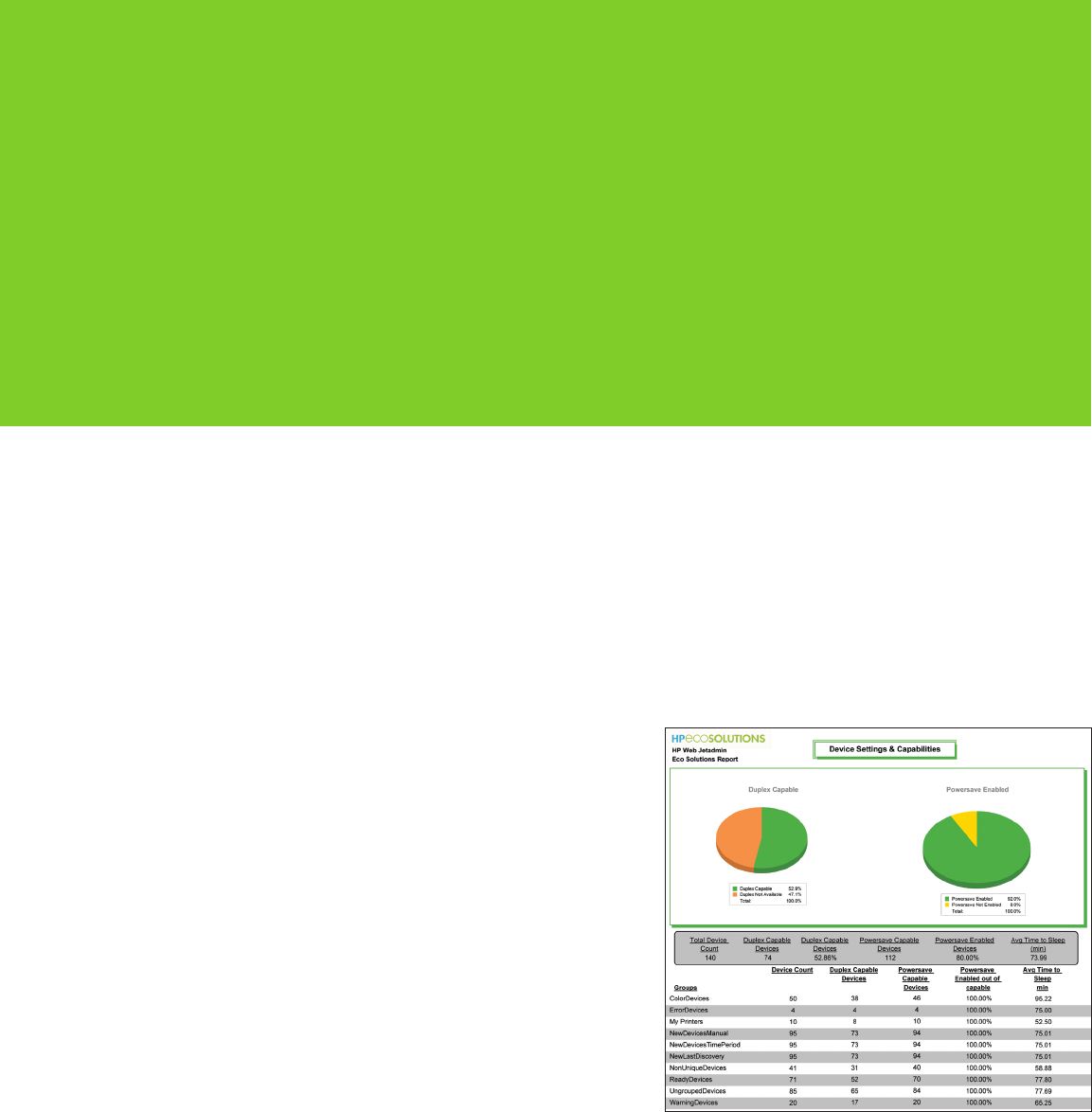
Device Settings and Capabilities report
Reports the availability of paper-saving features as
well as the availability and use of energy-saving
features. Data include:
• Devicecount—quantityofdevicesdetectableby
HP Web Jetadmin.
• Duplex-capabledevices—thepercentageofall
reported devices with automatic duplex feature
installed, listed by individual device status. This
shows your total opportunity to drive paper
savings via duplexing.
• Powersave-capabledevices—devicesthathavethis
energy-efficient capability. Highlights your potential
to further decrease energy consumption.
• Powersave-enableddevices—percentageof
devices with Powersave capability that have
Powersave features enabled, listed by individual
device status. Shows untapped potential to
decrease energy consumption by enabling
Powersave on capable devices.
• Averagetimetosleep—averageof“timetosleep”
settings across a selected group, in minutes.
Shorter“timetosleep”settingswillreduceenergy
consumed by moving devices out of higher energy
states, such as ready mode.
AssessusingHPEcoSolutionsreports
3
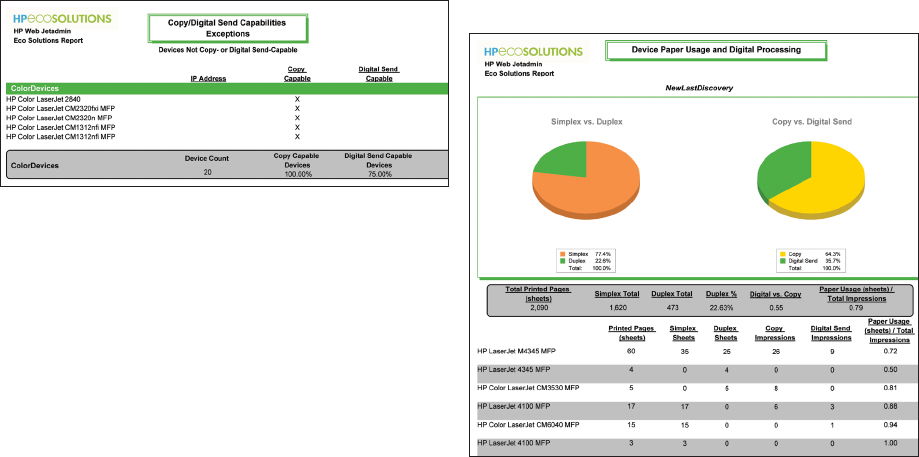
Copy/Digital Send Capabilities
Exception report
Reports devices without copy or digital send capability;
addition of digital send capability can enable digital,
rather than paper-based, information management,
reducing paper consumption. Data include:
• Devicecount—quantityofdevicesdetectableby
HP Web Jetadmin.
• Copy-capabledevices—deviceswithcopy
capability; such devices can also scan to locally
connected devices.
• Digitalsend-capabledevices—devicescapableof
copying to file and copying for digital sending.
This report can help you uncover alternatives to paper-
based processes. Using digitally green alternatives to
printing or copying and sharing documents can help
your organization speed processes and decrease
paper consumption.
Device Paper Usage and Digital
Processing report
Reports device use, showing both paper-based
and digital information management. This allows
comparison of simplex and duplex printing, as well
as the use of digital send capability rather than copy.
Data include:
• Totalcount—paperthroughput,insheets.
• Simplexsheets—numberofsingle-sidedprints.
• Duplexsheets—numberofsheetsofpaperprintedin
duplex (double-sided) mode; includes sheets printed
on one side while the device is in duplex mode.
• Simplexv.duplex—percentagesofone-sidedand
two-sidedprinting.Ahigherpercentageofsimplex
pages indicates potential to save paper with
duplex printing.
• Copyimpressions—numberofimpressions
processed in copy mode; each impression counts
once, regardless of whether copied to a single-
sided or double-sided copy.
• Digitalsendimpressions—numberofimpressions
processed in digital send mode.
• Copyversusdigitalsend—graphspercentageof
copy count and digital sends. The higher your
copy percentage, the greater your potential to
save paper and reduce waste moving to digital
processes.
• Paperusage(sheets)/totalimpressions—ratio
indicating how much information (impressions) is
managed with paper. The lower the ratio, the more
efficiently the device is being used (i.e., less paper
is used to transfer information).
4
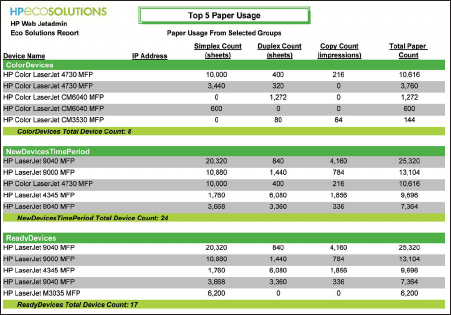
Top 5 Paper Usage report
(from select group)
Reports the printers with the greatest paper usage
among selected groups, enabling prioritized
follow-up. Data include:
• Simplexcount—numberofsingle-sidedprints.
• Duplexcount—numberofsheetsofpaperprinted
in duplex (double-sided) mode; includes sheets
printed on one side while the device is in duplex
mode.
• Totalcount—paperthroughput,insheets.
• Copyimpressions—numberofimpressions
processed in copy mode; each impression counts
once, regardless of whether copied to a single-
sided or double-sided copy.
GENERATING HP ECO
SOLUTIONS REPORTS
HP Web Jetadmin provides comprehensive
information about your printer fleet and its use. HP
Eco Solutions reports provide an intuitive presentation
of environmentally relevant data from the HP Web
Jetadmin tool, allowing IT managers to quickly assess
opportunities to reduce the environmental impact
of their organization’s printing, and track progress
toward green IT goals over time.
These intuitive HP Eco Solutions reports are available
only through the optional HP Web Jetadmin Database
Connectivity Module.
To access the reports:
• OnceHPWebJetadminDatabaseConnectivity
Module is installed, direct database access is
established for applications such as Business
ObjectsCrystalReports(availablefromSAP).
• UsersopenCrystalReports2008andspecifythe
HP Web Jetadmin SQL Server database and views
to access.
• HPEcoSolutionsreportscanbegeneratedto
review print devices and usage behaviors, and
model changes across your printing environment
to help you make informed business decisions.
• HPWebJetadmincanthenbeusedtomake
the adjustments to your print fleet that will drive
business and environmental benefits.
For more information on generating HP Eco Solutions
reports, refer to the instructions that come with the HP
Web Jetadmin Database Connectivity Module.
BusinessObjectsandCrystalReportsaretrademarksorregisteredtrademarksofBusinessObjectsS.A.intheUnitedStatesandinseveralother
countriesallovertheworld.BusinessObjectsisanSAPcompany.
5
Based on the assessment of printers and printing in
your organization, you can implement changes that
will bring business and environmental benefits. Use
HP Web Jetadmin to manage energy, paper and
supplies use.
ENERGY SAVINGS
Managing and reducing energy expenses associated
with printing—an area you help control—is important
to most organizations. With HP Web Jetadmin, you
can establish network-level settings that help reduce
the amount of energy your printer fleet uses.
Powersave/Sleep Delay
One way you can reduce energy consumption is
by ensuring printers consume as little power as
possible when not in use. Powersave mode, also
known as Sleep Delay (or Sleep mode,) lets you
specify the length of time each printer must be idle
(called the Sleep Delay Time) before it automatically
enters an energy-efficient Sleep mode. Shorter Sleep
Delay generally means greater energy efficiency
(i.e., less time in higher energy modes). With HP
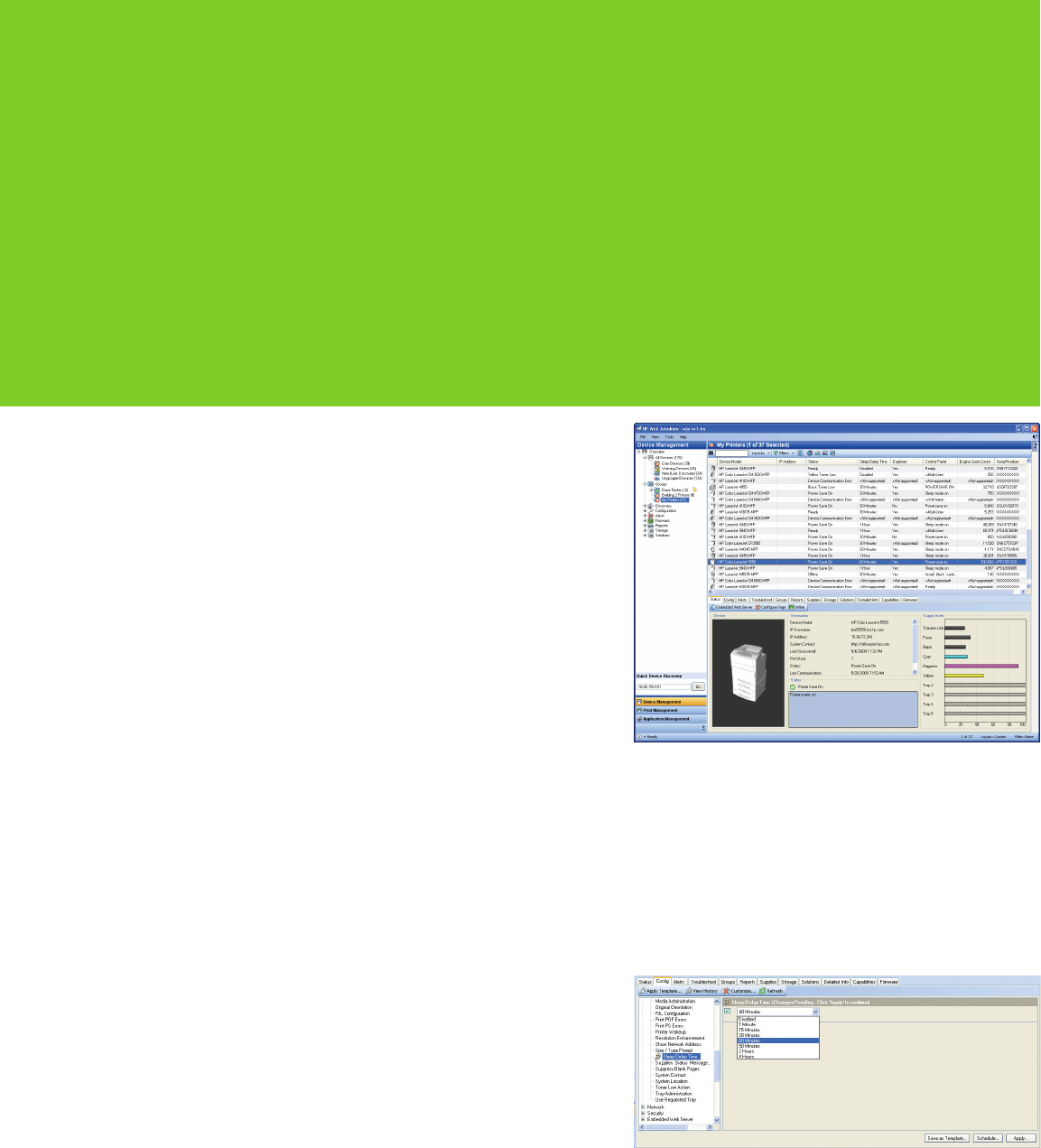
Web Jetadmin, you can set a Sleep Delay Time for
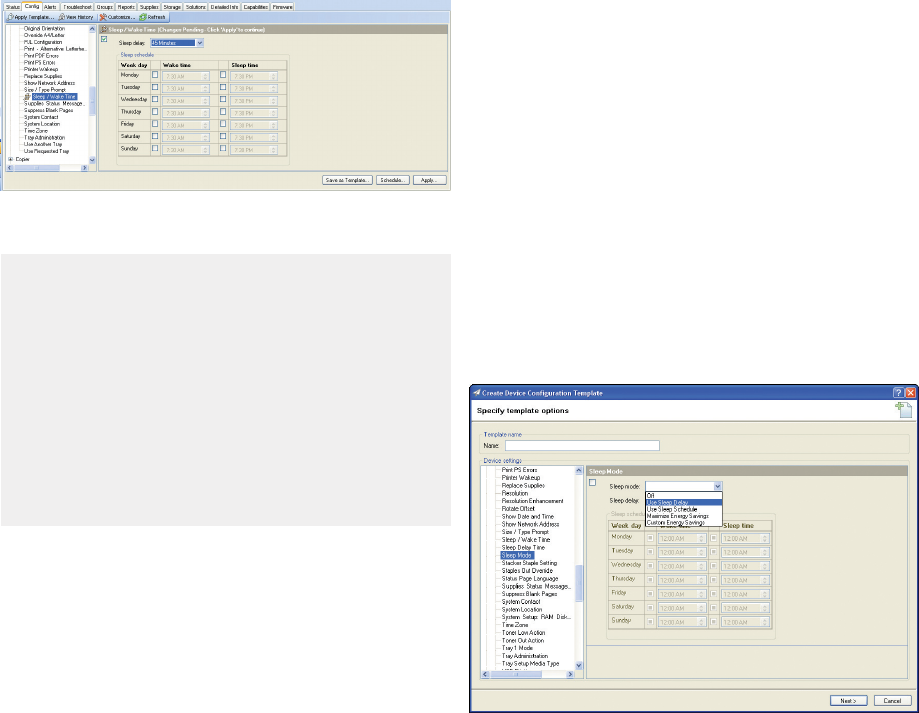
Powersave-capable printers (see Figure 1).
To configure Sleep Delay Time:
• SelecttheConfigtab.
• ViewtheDevicecategory;capableprinterswill
contain a category labeled Sleep Delay Time.
• Selectanyofvarioussupportedvaluesdepending
on printer model (see Figure 2).
Manage using HP Web Jetadmin
Figure 1 – Sleep Delay Time column
Figure 2 – Sleep Delay Time configuration
6
Wake Time
Many newer printer models combine Sleep Delay with
the ability to schedule a printer to automatically wake
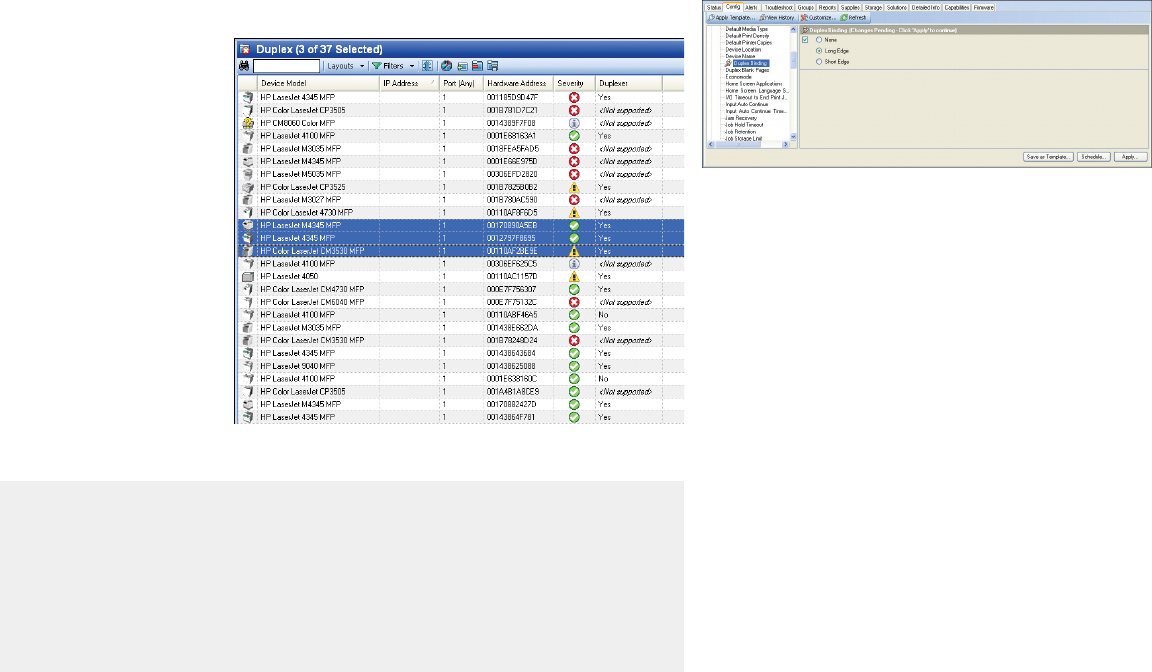
from Sleep mode at a particular time (see Figure 3).
Wake Time configuration ensures the printer is ready
each morning before users begin sending print jobs,
eliminating wait time for printer calibration. Wake
Time can be set to a different time each day,
if desired.
AdvancedSleep/Wakeoptions
Some devices offer advanced options to specify Sleep
mode and Wake Times (see Figure 4). The following
Sleep mode options can first be set to dictate which
Sleep Delay, Wake Time or Sleep Time settings will
be used:
• Off puts the printer into Sleep mode at a set time.
• Use Sleep Delay causes the printer to go into
Sleep mode at the desired time.
• Use Sleep Schedule defines when a device will
go into Sleep mode and wake up again.
• Maximize Energy Savings allows the printer
to determine which are the best sleep options.
• Custom Energy Savings allows user-preferred
settings for Sleep Delay, Wake Time and Sleep
Time to be used simultaneously.
If multiple, concurrent sets are made, the Custom
Energy Savings option will be automatically selected.
If awakened during a set Sleep schedule, the device
will return to sleep after the Sleep Delay setting or
15 minutes of inactivity, whichever is less.
ENERGY SAVINGS:
• AssessyourorganizationforPowersave
capabilities and current settings.
• Schedulesleepandwaketimesbyprinter
or for an entire fleet.
• ManageSleepmodesettingstomaximize
energy savings.
Figure 3 – Wake Time configuration
Figure 4 – Sleep mode configuration options
7
PAPER REDUCTION
Lowering the amount of paper your organization
uses for everyday office printing saves money while
reducing waste and environmental impact. HP Web
Jetadmin allows you to identify areas of potential
paper saving and easily manage paper-saving
settings across networked printers.
Duplex printing
One of the primary ways to reduce paper use is by
printing on both sides of a sheet of paper, called
duplex printing. Tracking paper consumption and
rates of duplex printing over time can enable a
department or the entire organization to demonstrate
progress toward paper conservation objectives.
You can use HP Web Jetadmin to establish duplex
printing as the default mode on all networked HP
LaserJet printers (see Figure 5).
To set duplex printing on enabled devices:
• SelecttheConfigtab.
• ViewlistingsbyDevicecategory.
• SetDuplexBinding,specifyingeitherLongEdge
or Short Edge binding (see Figure 6).
It is important to note that a print driver will override
this setting for special print jobs, but by making
duplex the rule, you can see a measurable reduction
in paper usage.
Duplex settings are most common in printing
environments using pre-configured drivers that allow
duplex to be set or locked as the default. If duplex is
not locked, users can still override this setting at print
time. This paper shows how HP Web Jetadmin can be
used as another option to set duplexing remotely to
help reinforce duplex printing at an enterprise level.
PAPER REDUCTION:
• Assessyourorganization’sduplexprintingcapabilitiesandsettings.
• Setduplexasthedefaultmodeonallcapableprinters.
• Determinedigital-sendcapabilitiesandpromotetheiruse.
Figure 5–Viewingdeviceswithduplexcapabilities
Figure 6 – Duplex binding configuration

8
HP Web Jetadmin is an industry-leading tool
for efficient management of networked printers,
multifunction products and digital senders. This single
solution allows you to remotely monitor and maintain
your printing and imaging environment to reduce both
the cost and environmental impact of office printing.
HP Eco Solutions reports give IT managers a quick,
intuitive way to assess their organization’s printing
fleet and identify ways to lower environmental impact.
Specifically, HP Web Jetadmin enables you to:
• Centrallymanagelargeimagingandprintingfleets
• Right-sizeyourfleetbymatchingdevicestouser
needs
• Understandyourinventory—thenumberandtypes
of devices
• Increaseend-userproductivitybymaximizing
uptime and proactively solving problems
• ImproveITefficiencybycentralizingand
automating device management
• Assessandunderstandyourcolorprintcosts
• Optimizedeviceusebycreatingtrendreports
by user or device
HP Web Jetadmin Database Connectivity
Moduleoffers even more robust reporting. HP
Eco Solutions reports make it easy to identify
opportunities to optimize settings and practices for
more efficient energy and paper use. These reports
are included
as part of the business intelligence module of HP
Web Jetadmin Database Connectivity Module,
which offers:
• Robustreportingonbusinessandenvironmental
factors
• Opportunitytoidentifypotentialareastoreduce
energy use
• Abilitytouncoverdigitalalternativestopaper
output that can decrease paper consumption
and waste
• Easyintegrationintoexistingenterprisesystems
With HP Web Jetadmin, HP Web Jetadmin Database
Connectivity Module, and the HP Eco Solutions
reports, IT departments can take the lead in
maximizing cost and environmental efficiency across
the enterprise.
HP ECO SOLUTIONS REPORTS:
•DeviceSettingsandCapabilities
•Copy/DigitalSendCapabilitiesException
•DevicePaperUsageandDigitalProcessing
•Top5PaperUsage(fromselectgroup)
To learn more, visit www.hp.com/go/webjetadmin
HPWebJetadminDatabaseConnectivityModuleavailablefall2009.
©2009Hewlett-PackardDevelopmentCompany,L.P.Theinformationcontainedhereinissubjecttochangewithoutnotice.TheonlywarrantiesforHPproducts
and services are set forth in the express warranty statements accompanying such products and services. Nothing herein should be construed as constituting an
additional warranty. HP shall not be liable for technical or editorial errors or omissions contained herein.
4AA2-6728ENW,Rev.2,September,2009
Summary
