HP Upgrade Microsoft SQL Server Express For Web Jetadmin ENWW Microsoft® C04666651
User Manual: HP Upgrade Microsoft® SQL Server Express for HP Web Jetadmin
Open the PDF directly: View PDF  .
.
Page Count: 8

UPGRADE MICROSOFT® SQL SERVER
EXPRESS FOR HP WEB JETADMIN
CONTENTS
Overview ................................................................................................................................ 2
Versions of SQL Server Express that HP Web Jetadmin uses (after a default installation) ................... 2
Determine which version of SQL Server Express is installed ........................................................... 2
Method 1—Add/Remove Programs ........................................................................................ 2
Method 2—Error logs ............................................................................................................ 2
Method 3—SQL Server Management Studio ............................................................................ 3
Other methods ...................................................................................................................... 3
Why HP recommends upgrading to SQL Server 2012 SP2 Express ................................................ 3
Upgrade from SQL Server 2008 Express to SQL Server 2012 SP2 Express ..................................... 3
Back up the data and HP Web Jetadmin settings ...................................................................... 4
Method A (Upgrade) ............................................................................................................. 4
Method B (Migration) ............................................................................................................ 5
Method C (Migration) ............................................................................................................ 6

2
OVERVIEW
By default HP Web Jetadmin uses Microsoft® SQL Server 2008 Express or SQL Server 2012 SP2
Express. This white paper explains when SQL Server 2012 SP2 Express is used and how SQL Server
2008 Express can be upgraded to SQL Server 2012 SP2 Express for HP Web Jetadmin.
VERSIONS OF SQL SERVER EXPRESS THAT HP WEB
JETADMIN USES (AFTER A DEFAULT INSTALLATION)
HP Web Jetadmin 10.3 SR8 uses SQL Server 2008 Express or SQL Server 2012 SP2 Express
depending on whether it is a new installation or an upgrade from an older version. New installations
of HP Web Jetadmin 10.3 SR8 and later use SQL Server 2012 Express SP2. Older installations of
HP Web Jetadmin or installations that were upgraded from 10.3 SR7 and earlier to 10.3 SR8 and
later continue to use SQL Server 2008 Express.
DETERMINE WHICH VERSION OF SQL SERVER EXPRESS IS
INSTALLED
There are several methods to determine which version of SQL Server Express is installed.
Method 1—Add/Remove Programs
The product version is displayed in Add/Remove Programs.
The following table provides an overview of the relevant releases and product versions.
Release Product version
SQL Server 2008 SP3 Express 10.00.5500.00
SQL Server 2008 SP2 Express 10.00.4000.00
SQL Server 2008 SP1 Express 10.00.2531.00
SQL Server 2008 Express RTM 10.00.1600.22
SQL Server 2012 SP2 Express 11.0.5058.0
SQL Server 2012 SP1 Express 11.00.3000.00
SQL Server 2012 Express RTM 11.00.2100.60
However, different versions of SQL Server Express might be listed in Add/Remove Programs. For
example, if Microsoft SQL Server Management Studio is installed, another method must be used to
find the product version.
Method 2—Error logs
Look at the first few lines of any ERRORLOG.n file for the HPWJA instance. The error logs are
available in a location similar to one of the following:
• C:\Program Files\Microsoft SQL Server\MSSQL10.SQLEXPRESS\MSSQL\Log
• C:\Program Files\Microsoft SQL Server\MSSQL11.HPWJA\MSSQL\Log
The version is listed in the first line of all the ERRORLOG.n files.
3
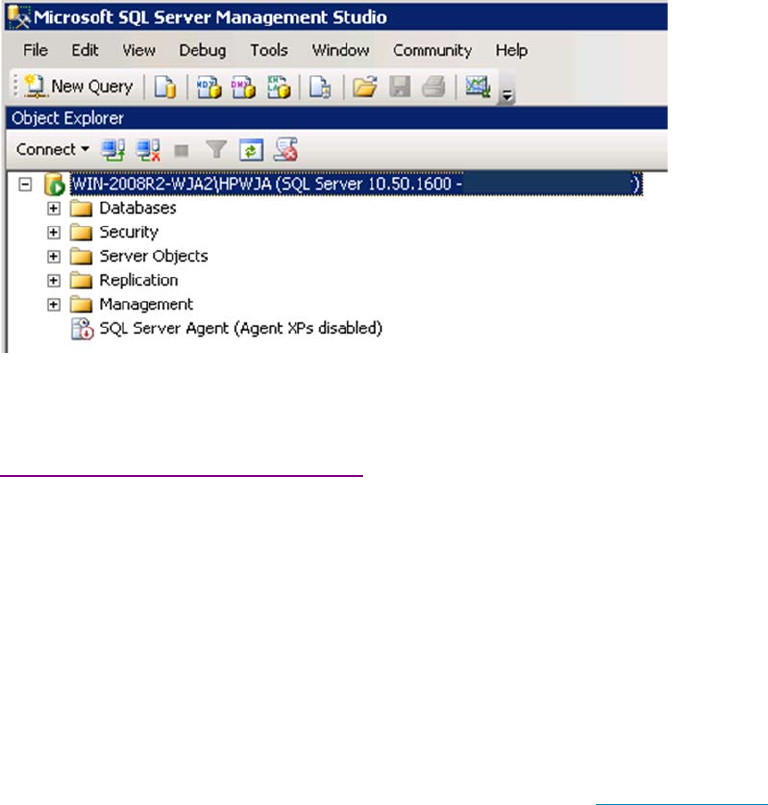
Method 3—SQL Server Management Studio
If SQL Server Management Studio is installed, the product version for SQL Server Express is displayed
after connecting to the instance.
Other methods
For more information about other methods, see the Microsoft support document at
support.microsoft.com/en-us/kb/321185.
WHY HP RECOMMENDS UPGRADING TO SQL SERVER 2012
SP2 EXPRESS
The most noticeable difference between the two versions of SQL Server is the maximum database
size. For SQL Server 2008 Express, the maximum database size is 4 GB. For SQL Server 2012 SP2
Express, the maximum database size is 10 GB.
When the maximum database size is reached, HP Web Jetadmin no longer operates correctly. To
prevent running into database size limitations, HP recommends upgrading to SQL Server 2012 SP2
Express or using the full version of SQL Server.
Information about other changes and improvements can be found at www.microsoft.com.
UPGRADE FROM SQL SERVER 2008 EXPRESS TO SQL SERVER
2012 SP2 EXPRESS
There are several different methods to upgrade or migrate from SQL Server 2008 Express to SQL
Server 2012 SP2 Express.
• Method A (Upgrade)—An in-place upgrade of SQL Server Express.
• Method B (Migration)—Uninstall SQL Server 2008 Express, install SQL Server 2012 SP2 Express,
and then perform a restore.
• Method C (Migration—Uninstall HP Web Jetadmin and SQL Server 2008 Express, install
HP Web Jetadmin 10.3 SR8, and then perform a restore.
Regardless of the method selected, a backup of the data and HP Web Jetadmin settings must be
created. The backup procedure for all three methods is the same.

4
Back up the data and HP Web Jetadmin settings
1. Stop the HP Web Jetadmin service.
2. Open a command prompt with administrative rights, and go to the following directory:
C:\Program Files\HP Inc\Web Jetadmin 10\WJABackupRestore
3. Run the backup.bat file.
4. Copy the *.dat file and Settings directory that were created in the WJABackupRestore directory to
a different location.
The *.dat file contains a backup of the database. The Settings directory contains all the settings
for HP Web Jetadmin.
Method A (Upgrade)
SQL Server 2008 Express cannot be upgraded to SQL Express SP2 2012 in one step because the
upgrade requires a minimum of SQL Server 2008 SP2 Express. The upgrade can be started only after
a backup is created and SQL Server 2008 SP3 Express and SQL Server 2012 SP2 Express are
downloaded.
To download SQL Server 2008 SP3 Express, go to the following website:
www.microsoft.com/en-us/download/details.aspx?id=27597
To download SQL Server 2012 SP2 Express, go to the following website:
www.microsoft.com/en-US/download/details.aspx?id=43351
Note When downloading the files, be sure to change the file names. The default file names for
both versions are the same.
1. Stop the HP Web Jetadmin service.
2. To upgrade SQL Server 2008 Express to SQL Server 2008 SP3 Express, launch the installer for
SQL Server 2008 SP3 Express, and then follow the wizard.
3. After the installation is complete, verify that the database version is 10.00.2531.00.
4. To upgrade SQL Server 2008 SP3 Express to SQL Server 2012 SP2 Express, launch the installer
for SQL Server 2012 SP2 Express, and then follow the wizard.
5. Select the Upgrade from SQL Server 2005, SQL Server 2008 or SQL Server 2008R2 option under
the Installation option. The Upgrade to SQL Server 2012 wizard starts.
6. Follow the wizard. On the Select Instance screen, make sure that the instance to upgrade is
HPWJA.
7. Complete the upgrade.
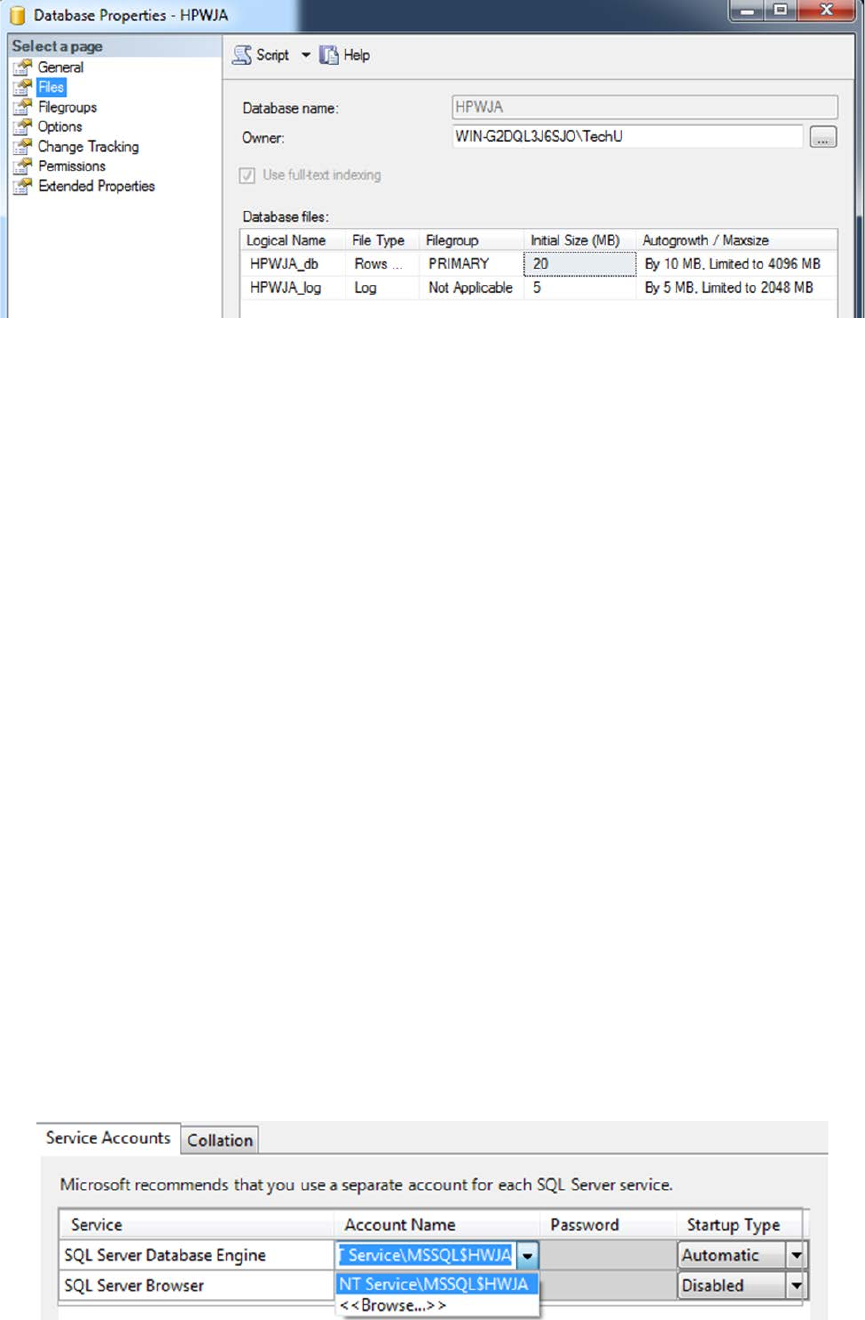
After the upgrade is complete, the maximum size of the HP Web Jetadmin database is still 4 GB.
5
8. To increase the size of the database, open a command prompt with administrative rights, and go
to the following directory:
C:\Program Files\HP Inc\Web Jetadmin 10\WJABackupRestore
9. If a custom database name is used, edit the resize.bat file.
10. Run the resize.bat file.
11. Restart the HP Web Jetadmin service, and verify that HP Web Jetadmin is working.
Method B (Migration)
1. Verify that a backup has been created.
2. Stop the HPWJA and SQL Server (HPWJA) services.
3. Go to Control Panel > Programs and Features.
4. Right-click Microsoft SQL Server 2008 (64 bit), and then select Uninstall.
5. In the Uninstall wizard, remove the HPWJA instance.
6. On the Select features screen, select all the features to be removed.
7. Launch the installer for SQL Server 2012 SP2 Express.
8. Select the New SQL Server stand-alone installation or add features to an existing installation
option.
9. Follow the wizard. On the Feature Selection screen, clear the SQL Server Replication option.
10. On the Instance Configuration screen, change the named instance and Instance ID to HPWJA.
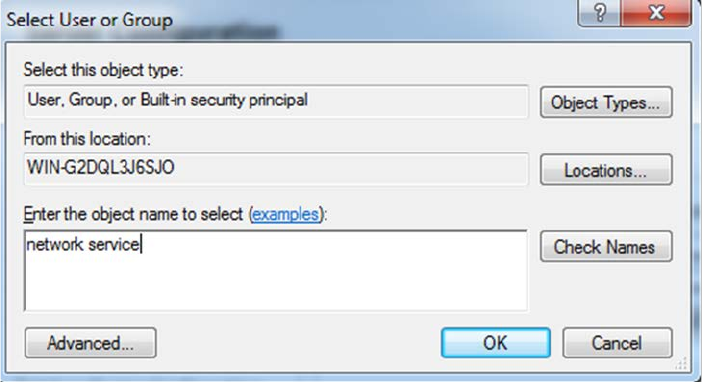
11. On the Server Configuration screen, use the following steps to change the Account Name for the
SQL Server Database Engine to NT Authority\Network Service:
a. Click the down arrow next to the Account Name box, and then select <<Browse…>>.
6
b. On the Select User or Group screen, enter network service, click Check Names, and then click
OK.
c. On the Server Configuration screen, click Next.
12. On the Database Engine Configuration screen, verify that Windows Authentication mode is
selected.
13. When the installation is complete, close the wizard.
14. Open a command prompt with administrative rights, and go to the following directory:
C:\Program Files\HP Inc\Web Jetadmin 10\WJABackupRestore
15. If the *.dat file and the Settings directory were moved to a different location, copy them to the
WJABackupRestore directory.
16. Run the restore.bat file.
Note Since the maximum database size of SQL Server 2008 Express is 4 GB, the maximum
database size remains 4 GB after the restore.
17. Run the resize.bat file from the command prompt that is still open.
18. Restart the HP Web Jetadmin service, and verify that HP Web Jetadmin is working.
Method C (Migration)
1. Go to Control Panel > Programs and Features.
2. To uninstall HP Web Jetadmin:
a. Right-click HP Web Jetadmin 10.3, and then select Change. The InstallShield Wizard starts.
b. Click Next.
c. On the Program Maintenance window, select the Remove option, and then click Next.
d. Follow the wizard to complete the uninstallation of HP Web Jetadmin.
3. To uninstall SQL Server 2008:
a. Right-click Microsoft SQL Server 2008 (64 bit), and then select Uninstall/Change. The SQL
Server 2012 wizard starts.
b. Click Remove. The Remove SQL Server 2012 wizard starts.
c. On the Select Instance screen, select the HPWJA instance, and then click Next.
7
d. On the Select Features screen, select Database Engine Services and SQL Client Connectivity
SDK (if not used by other instances), and then click Next.
e. Follow the wizard to complete the uninstallation of SQL Server 2008.
4. Install HP Web Jetadmin 10.3 SR8 or later.
5. Copy the Settings directory and HPWJA_DB_BACKUP.dat file to the following directory:
C:\Program Files\HP Inc\Web Jetadmin 10\WJABackupRestore
For more information, see “Back up the data and HP Web Jetadmin settings” on page 4.
6. Open a command prompt with administrative rights, and go to the following directory:
C:\Program Files\HP Inc\Web Jetadmin 10\WJABackupRestore
7. Run the restore.bat file.
Note Since the maximum database size of SQL Server 2008 Express is 4 GB, the maximum
database size remains 4 GB after the restore.
8. Run the resize.bat file from the command prompt that is still open.
9. Restart the HP Web Jetadmin service, and verify that HP Web Jetadmin is working.
Note Method C can also be used if you started with an installation of HP Web Jetadmin 10.3 SR7
and earlier. When HP Web Jetadmin 10.3 SR8 is started, the database is upgraded to the
10.3 SR8 functionality.
Note To upgrade only SQL Server Express on an installation of HP Web Jetadmin 10.3 SR7 and
earlier, Method C can be used with some additional modifications. Executing step 7 (restore
the database with the restore.bat file) will not work without the following additional steps:
Note
: HP has not extensively tested the following additional steps and does not support these
steps.
a. Install HP Web Jetadmin 10.3 SR8 on another system.
b. Copy the restore.bat and backup.bat files from the 10.3 SR8 installation to the pre-10.3
SR8 installation.
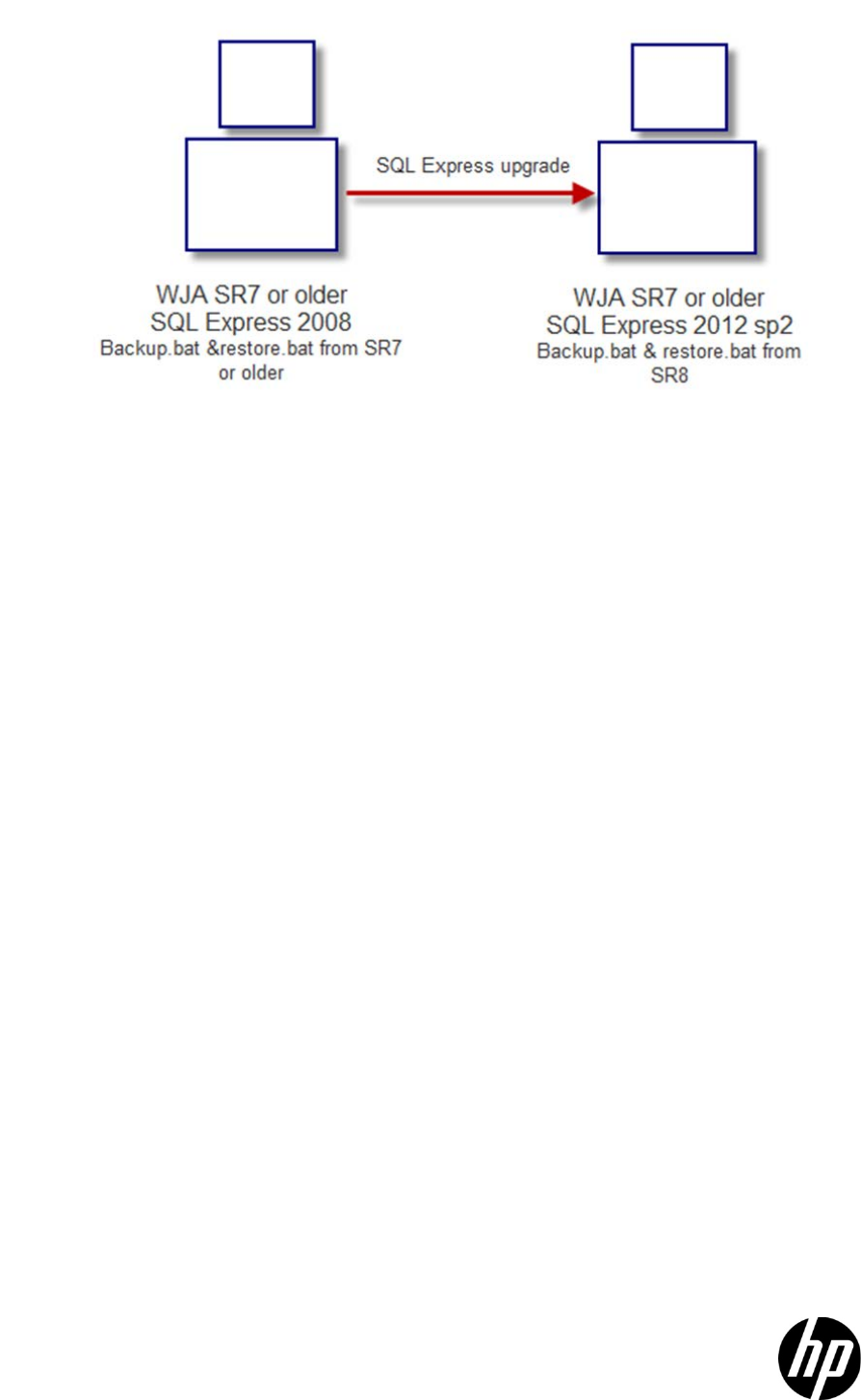
Reason: SQL Server 2012 has a different file location and different SQL commands. The
backup.bat and restore.bat files from 10.3 SR8 have the backup and restore commands
for SQL Server 2008 Express and the backup and restore commands for SQL Server
2012 SP2 Express. The 10.3 SR8 restore.bat file detects the installed SQL version and
uses the appropriate backup and restore commands. The pre-10.3 SR8 restore.bat and
backup.bat files can only restore and back up a SQL Server 2008 database, not a SQL
Server 2012 database, as shown in the following graphic.
8
© Copyright 2016 HP Development Company, L.P. The information contained herein is subject to change without
notice. The only warranties for HP products and services are set forth in the express warranty statements accompanying
such products and services. Nothing herein should be construed as constituting an additional warranty. HP shall not be
liable for technical or editorial errors or omissions contained herein.
Microsoft and Windows are either registered trademarks or trademarks of Microsoft Corporation in the United States
and/or other countries.
c04666651EN, Rev. 3, April 2016
