HUBSAN INTELLIGENT 002TX REMOTE CONTROLLER User Manual

SHENZHEN HUBSAN INTELLIGENT COMPANY LIMITED REMOTE CONTROLLER Users Manual

Users Manual

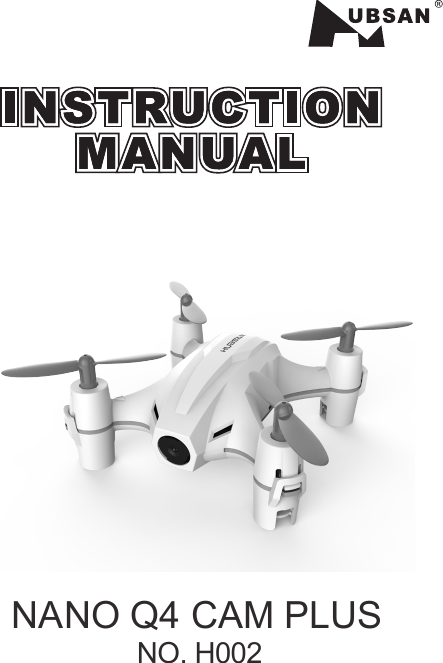
NANO Q4 CAM PLUS                               NO. H002
ContentIntroduction------------------------------------------------      Safety Notes-------------------------------------------------     Safety check before flying---------------------------------     Charge the Li-Po battery--------------------------------------     Remote Controller------------------------------------------Camera------------------------------------------------------Start to Fly--------------------------------------------------Advanced Performance Setup------------------------------------Propellers---------------------------------------------------Exploded View----------------------------------------------Troubleshooting--------------------------------------------Spare Part List-----------------------------------------------11335679111213
1 Introduction2 Safety NotesThank you for buying the HUBSAN products. It is designed as an easy-to-use,multi-functional RC model, capable of hovering, fast forward and acrobatic flightmaneuvers. Please read the manual carefully and follow all the instructions. Besure to keep the manual for future reference.12.1 Important NotesThis multi-functional RC model is not a toy.In case of any injuries caused by improper operations, please read the instructionscarefully before use. Be aware of your personal safety, safety of others and yoursurrounding environment. It is advised that beginners learn to fly the qudcopterunder the guidance of professional2.2 CautionPropellers work in high speed, which may cause dangerous. User will beresponsible for any damages caused by improper operations.Do not operate the quadcopter in crowds, buildings, airports or nearby highvoltage cables.2.3 Li-Po Battery Safety NotesThe quadcopter is powered by a Lithium-Polymer battery.If you do not plan to use the products for a long time, store the batteryapproximately 50% charged to maintain battery performance and life.    Important● Risk of explosion if battery is replaced by an incorrect type.● Dispose of used batteries according to the local regulations.
2
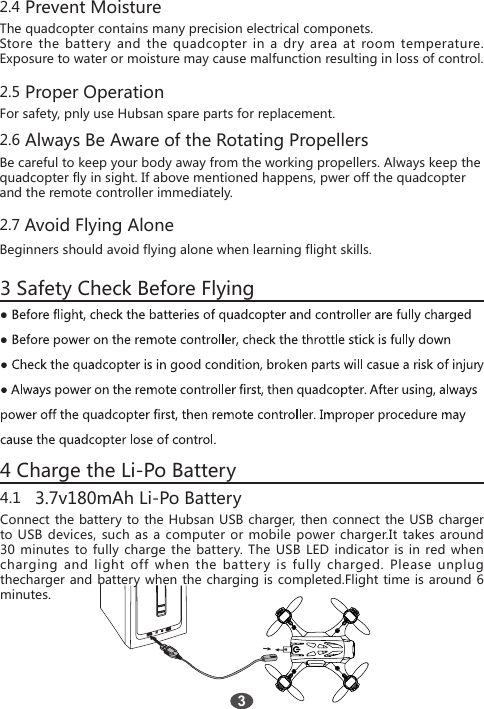
2.4 Prevent Moisture The quadcopter contains many precision electrical componets.  Store the battery and the quadcopter in a dry area at room temperature. Exposure to water or moisture may cause malfunction resulting in loss of control. 2.5 Proper OperationFor safety, pnly use Hubsan spare parts for replacement.2.6 Always Be Aware of the Rotating PropellersBe careful to keep your body away from the working propellers. Always keep the quadcopter fly in sight. If above mentioned happens, pwer off the quadcopterand the remote controller immediately.2.7 Avoid Flying Alone Beginners should avoid flying alone when learning flight skills. 3 Safety Check Before Flying4 Charge the Li-Po Battery34.1   3.7v180mAh Li-Po BatteryConnect the battery to the Hubsan USB charger, then connect the USB charger to USB devices, such as a computer or mobile power charger.It takes around 30 minutes to fully charge the battery. The USB LED indicator is in red when charging and light off when the battery is fully charged. Please unplug thecharger and battery when the charging is completed.Flight time is around 6 minutes.  ● ● y
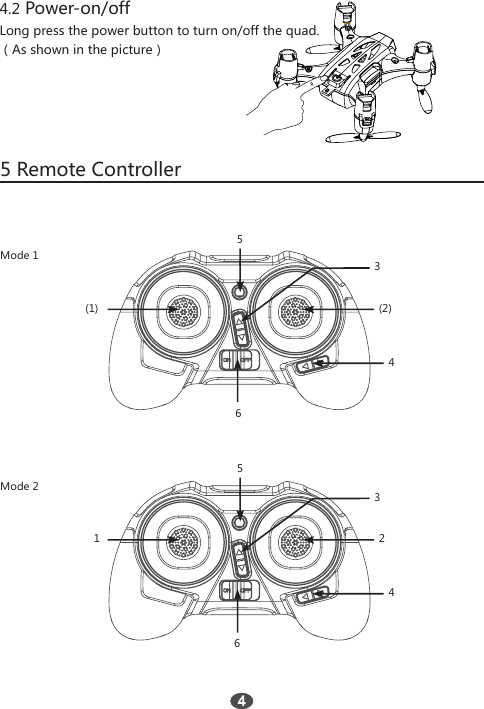
4.2 Power-on/offLong press the power button to turn on/off the quad.(As shown in the picture)5 Remote Controller (1)1443 3 6 5 5  Mode 16 Mode 2(2) 2
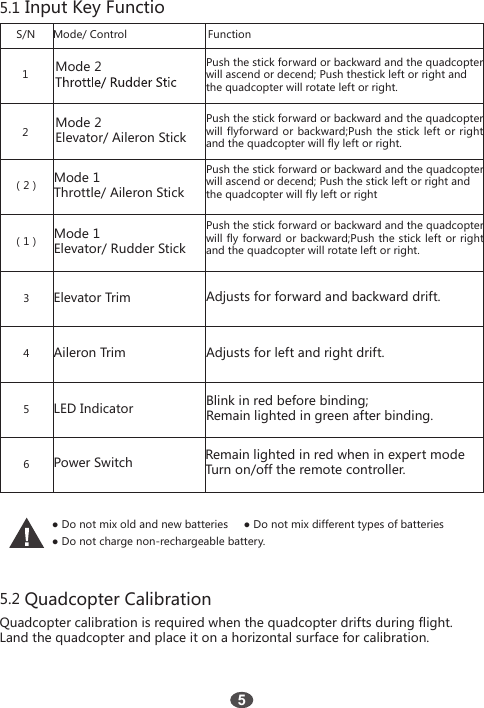
5.1 Input Key Functio5.2 Quadcopter CalibrationS/N1(2)(1)23456Mode 2Mode 2Elevator/ Aileron StickMode 1Throttle/ Aileron StickMode 1Elevator/ Rudder StickElevator TrimAileron TrimLED IndicatorPower SwitchMode/ Control FunctionPush the stick forward or backward and the quadcopterwill ascend or decend; Push thestick left or right and the quadcopter will rotate left or right.Push the stick forward or backward and the quadcopter will flyforward or backward;Push the stick left or right and the quadcopter will fly left or right.Push the stick forward or backward and the quadcopter will ascend or decend; Push the stick left or right andthe quadcopter will fly left or rightPush the stick forward or backward and the quadcopter will fly forward or backward;Push the stick left or right and the quadcopter will rotate left or right.Adjusts for forward and backward drift.Adjusts for left and right drift.Blink in red before binding;Remain lighted in green after binding.Remain lighted in red when in expert modeTurn on/off the remote controller.● Do not mix old and new batteries     ● Do not mix different types of batteries● Do not charge non-rechargeable battery.Quadcopter calibration is required when the quadcopter drifts during flight.Land the quadcopter and place it on a horizontal surface for calibration.5
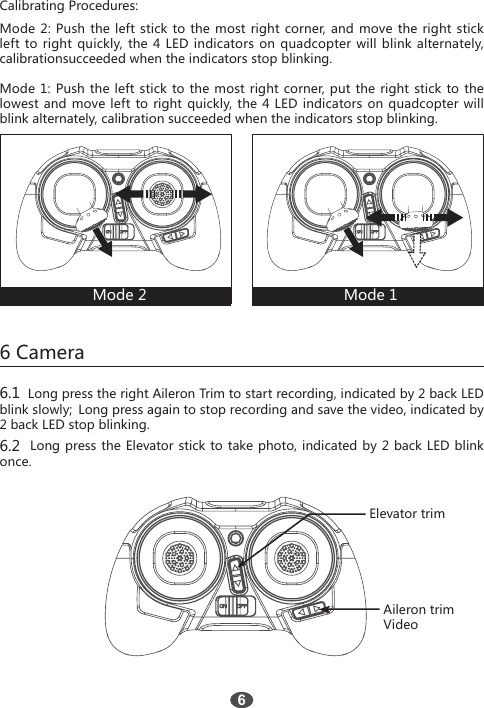
Calibrating Procedures:Mode 2: Push the left stick to the most right corner, and move the right stick left to right quickly, the 4 LED indicators on quadcopter will blink alternately, calibrationsucceeded when the indicators stop blinking.Mode 1: Push the left stick to the most right corner, put the right stick to the lowest and move left to right quickly, the 4 LED indicators on quadcopter will blink alternately, calibration succeeded when the indicators stop blinking.6 Camera6.1  Long press the right Aileron Trim to start recording, indicated by 2 back LED blink slowly;  Long press again to stop recording and save the video, indicated by 2 back LED stop blinking.6.2  Long press the Elevator stick to take photo, indicated by 2 back LED blink once. Elevator trimAileron trimVideo6Mode 2  Mode 1
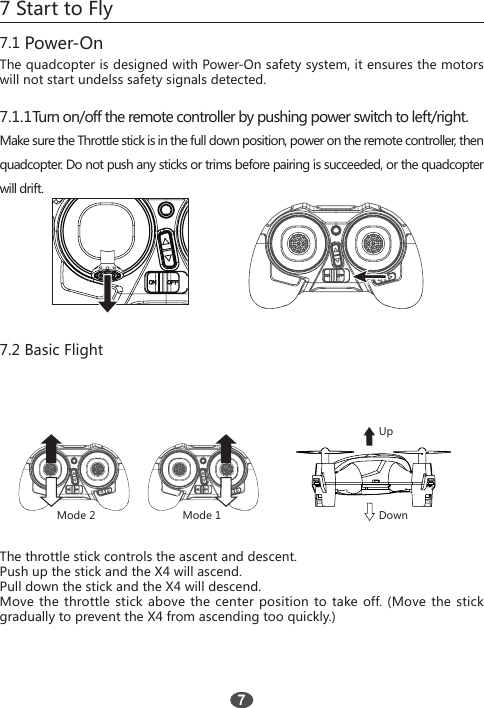
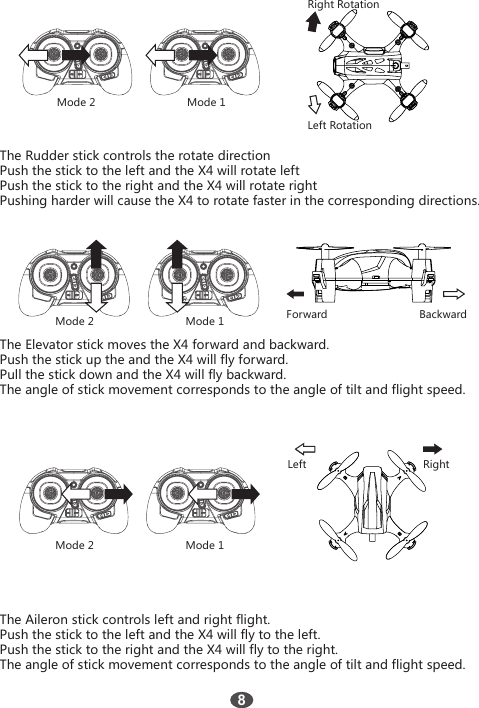
7 Start to Fly7.1 Power-OnThe quadcopter is designed with Power-On safety system, it ensures the motors will not start undelss safety signals detected.7.2 Basic Flight7.1.1Turn on/off the remote controller by pushing power switch to left/right.Make sure the Throttle stick is in the full down position, power on the remote controller, then quadcopter. Do not push any sticks or trims before pairing is succeeded, or the quadcopter will drift.The throttle stick controls the ascent and descent.Push up the stick and the X4 will ascend.Pull down the stick and the X4 will descend.Move the throttle stick above the center position to take off. (Move the stick gradually to prevent the X4 from ascending too quickly.)Mode 2 Mode 1UpDown7
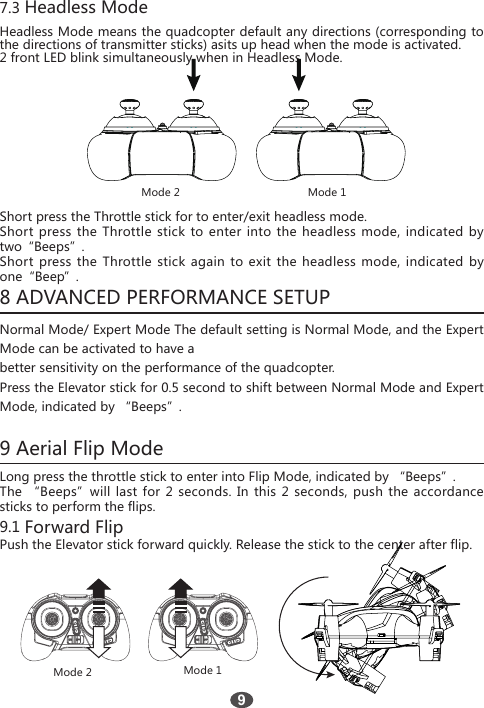
Mode 2Mode 2Mode 1Mode 1Right RotationForward BackwardLeft RotationThe Rudder stick controls the rotate directionPush the stick to the left and the X4 will rotate leftPush the stick to the right and the X4 will rotate rightPushing harder will cause the X4 to rotate faster in the corresponding directions.The Elevator stick moves the X4 forward and backward.Push the stick up the and the X4 will fly forward.Pull the stick down and the X4 will fly backward.The angle of stick movement corresponds to the angle of tilt and flight speed.The Aileron stick controls left and right flight.Push the stick to the left and the X4 will fly to the left.Push the stick to the right and the X4 will fly to the right.The angle of stick movement corresponds to the angle of tilt and flight speed.Mode 2 Mode 1Left Right8
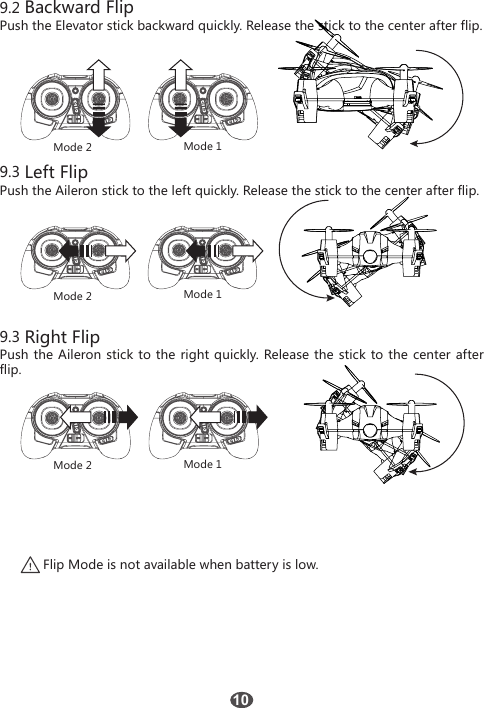
7.3 Headless ModeHeadless Mode means the quadcopter default any directions (corresponding to the directions of transmitter sticks) asits up head when the mode is activated.2 front LED blink simultaneously when in Headless Mode.Mode 2Mode 2Mode 1Mode 1Short press the Throttle stick for to enter/exit headless mode.Short press the Throttle stick to enter into the headless mode, indicated by two“Beeps”.Short press the Throttle stick again to exit the headless mode, indicated by one“Beep”. 8 ADVANCED PERFORMANCE SETUPNormal Mode/ Expert Mode The default setting is Normal Mode, and the Expert Mode can be activated to have abetter sensitivity on the performance of the quadcopter.Press the Elevator stick for 0.5 second to shift between Normal Mode and Expert Mode, indicated by “Beeps”.9 Aerial Flip ModeLong press the throttle stick to enter into Flip Mode, indicated by “Beeps”.The “Beeps”will last for 2 seconds. In this 2 seconds, push the accordance sticks to perform the flips.9.1 Forward FlipPush the Elevator stick forward quickly. Release the stick to the center after flip.9
9.2 Backward FlipPush the Elevator stick backward quickly. Release the stick to the center after flip.9.3 Left FlipPush the Aileron stick to the left quickly. Release the stick to the center after flip.9.3 Right FlipPush the Aileron stick to the right quickly. Release the stick to the center after flip.Mode 2Mode 2Mode 2Mode 1Mode 1Mode 1Flip Mode is not available when battery is low.10
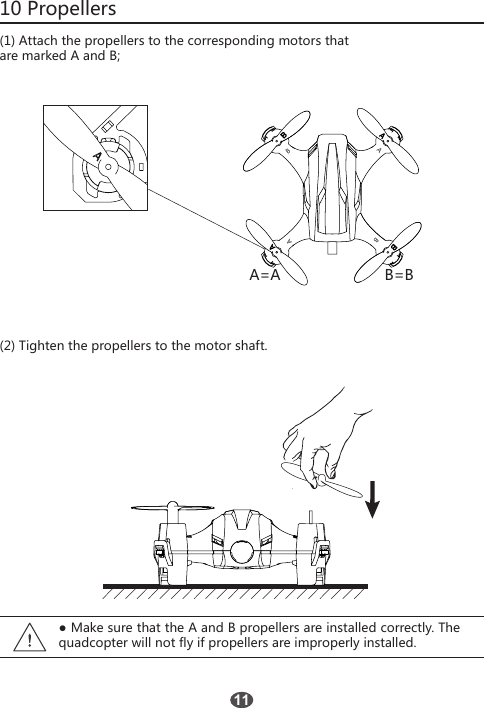
10 Propellers(1) Attach the propellers to the corresponding motors thatare marked A and B;A=AABABB=B(2) Tighten the propellers to the motor shaft.11● Make sure that the A and B propellers are installed correctly. The quadcopter will not fly if propellers are improperly installed.
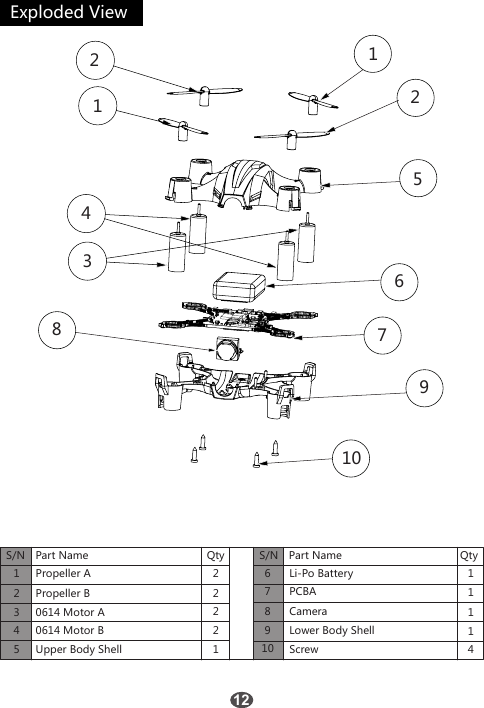
121122345789106S/N1 22221Propeller A Li-Po BatteryPCBACameraPropeller B0614 Motor A0614 Motor BUpper Body Shell ScrewLower Body Shell234561111478910S/NQty QtyPart Name Part NameExploded View
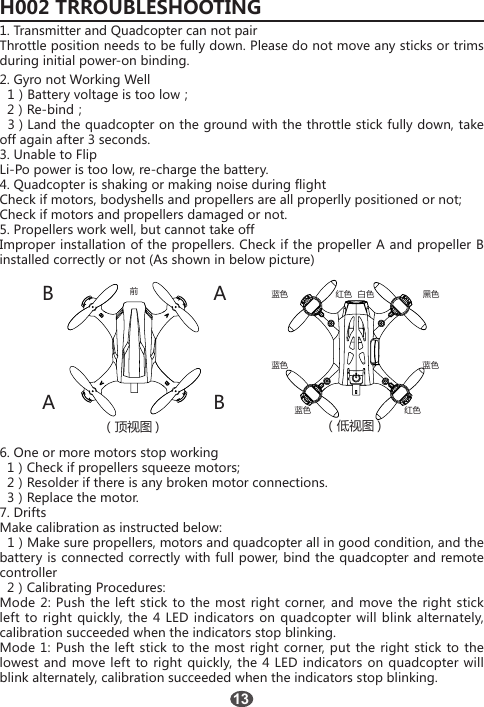
H002 TRROUBLESHOOTING1. Transmitter and Quadcopter can not pairThrottle position needs to be fully down. Please do not move any sticks or trims during initial power-on binding.2. Gyro not Working Well   1)Battery voltage is too low;  2)Re-bind;    3)Land the quadcopter on the ground with the throttle stick fully down, take off again after 3 seconds.  3. Unable to FlipLi-Po power is too low, re-charge the battery.4. Quadcopter is shaking or making noise during flightCheck if motors, bodyshells and propellers are all properlly positioned or not;Check if motors and propellers damaged or not.5. Propellers work well, but cannot take offImproper installation of the propellers. Check if the propeller A and propeller B installed correctly or not (As shown in below picture)(顶视图 ) (低视图 )蓝色 蓝色蓝色  前蓝色 红色红色 白色 黑色BAAB6. One or more motors stop working  1)Check if propellers squeeze motors;  2)Resolder if there is any broken motor connections.  3)Replace the motor.7. DriftsMake calibration as instructed below:  1)Make sure propellers, motors and quadcopter all in good condition, and the battery is connected correctly with full power, bind the quadcopter and remote controller  2)Calibrating Procedures:Mode 2: Push the left stick to the most right corner, and move the right stick left to right quickly, the 4 LED indicators on quadcopter will blink alternately, calibration succeeded when the indicators stop blinking.Mode 1: Push the left stick to the most right corner, put the right stick to the lowest and move left to right quickly, the 4 LED indicators on quadcopter will blink alternately, calibration succeeded when the indicators stop blinking.13
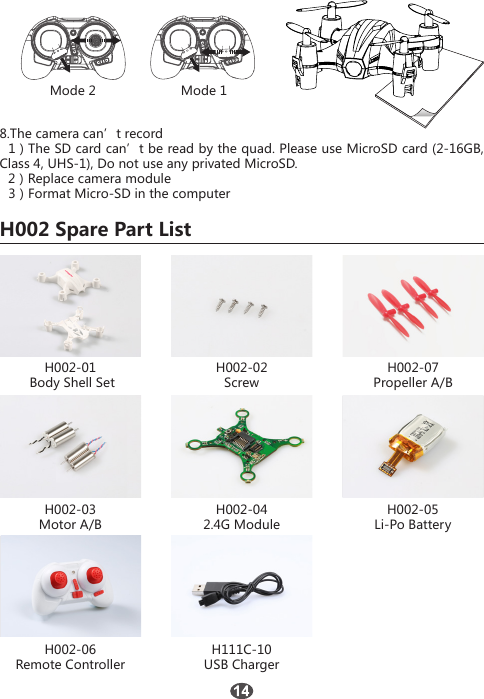
Mode 2 Mode 18.The camera can’t record  1)The SD card can’t be read by the quad. Please use MicroSD card (2-16GB,        Class 4, UHS-1), Do not use any privated MicroSD.  2)Replace camera module         3)Format Micro-SD in the computerH002 Spare Part ListH002-01 Body Shell SetH002-02ScrewH002-06Remote ControllerH111C-10USB ChargerH002-07Propeller A/BH002-042.4G ModuleH002-03Motor A/BH002-05Li-Po Battery
Changes or modifications not expressly approved by the party responsiblefor compliance could void the user's authority to operate the equipment.This equipment has been tested and found to comply with the limits for a Class B digital device, pursuant to Part 15 of the FCC Rules. These limitsare designed to provide reasonable protection against harmful interference in a residential installation. This equipment generates uses and can radiateradio frequency energy and, if not installed and used in accordance with theinstructions, may cause harmful interference to radio communications. However, there is no guarantee that interference will not occur in a particular  installation. If this equipment does cause harmful interference to radio or television reception, which can be determined by turning the equipmentoff and on, the user is encouraged to try to correct the interference by one or more of the following measures:-- Reorient or relocate the receiving antenna.-- Increase the separation between the equipment and receiver.-- Connect the equipment into an outlet on a circuit different from that towhich the receiver is connected.-- Consult the dealer or an experienced radio/TV technician for helpThis device complies with part 15 of the FCC rules. Operation is subject to the following two conditions (1)this device may not cause harmfulinterference, and (2) this device must accept any interference received, includingincluding interference that may cause undesired operation5FCC Statement

Navigation menu