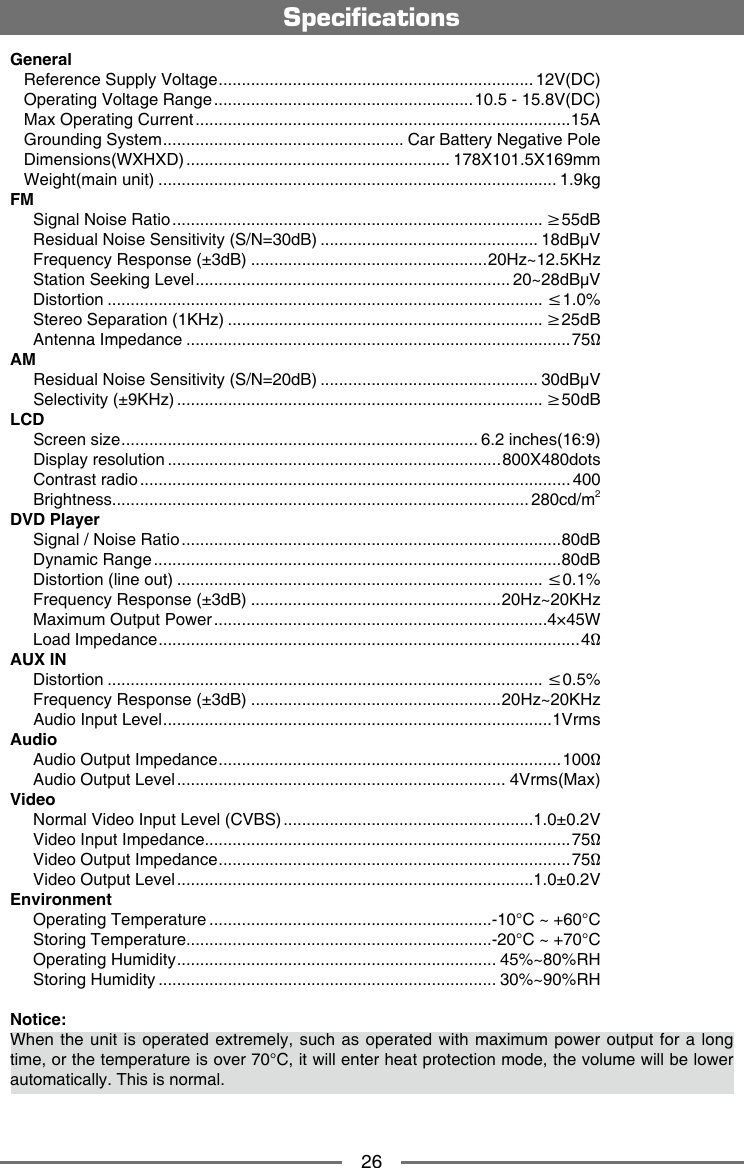
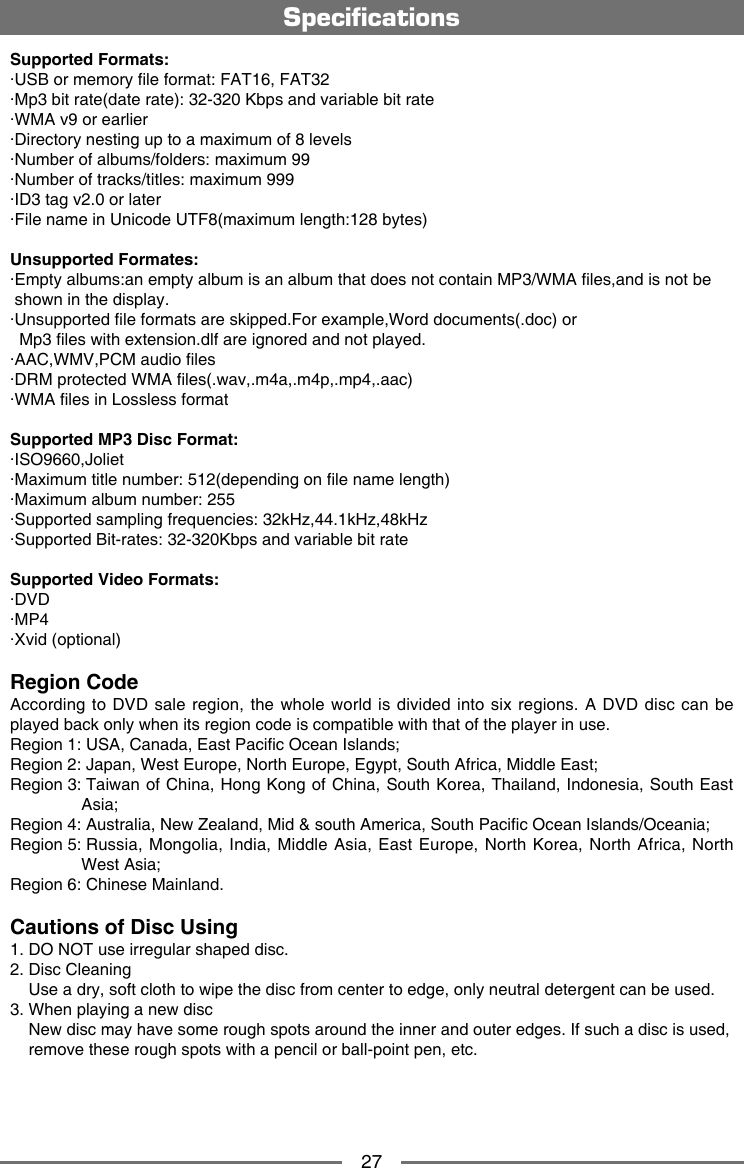
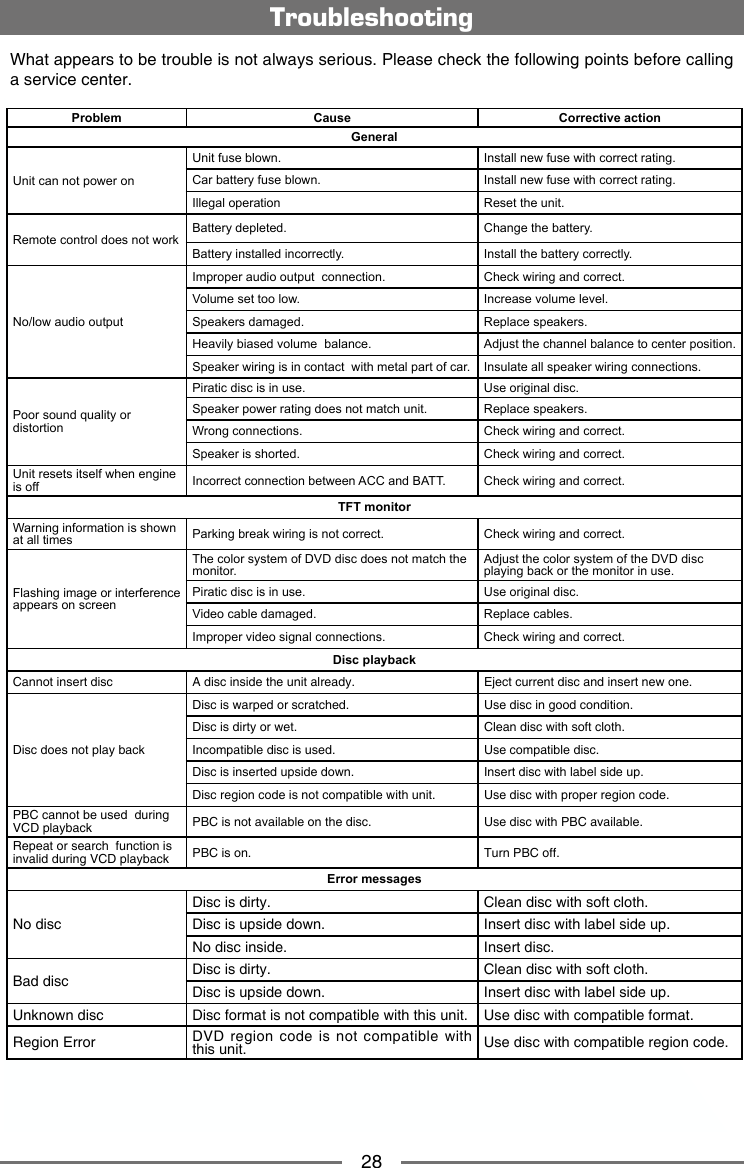
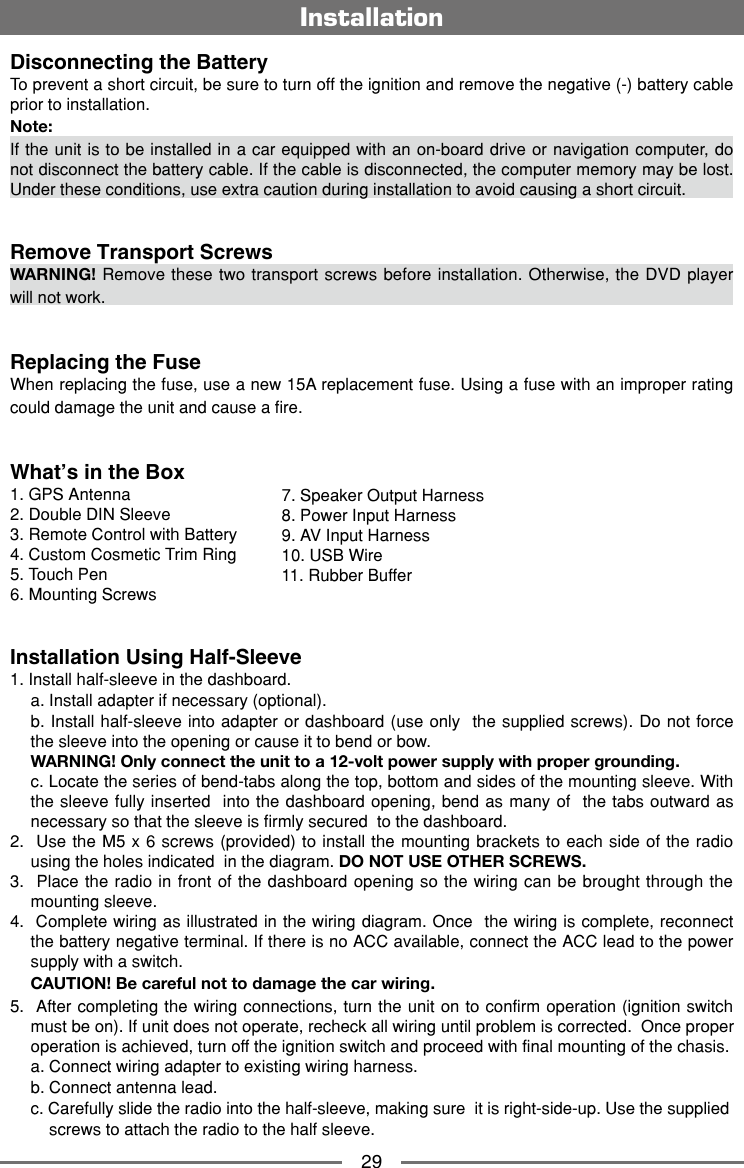
HUIZHOU FORYOU GENERAL ELECTRONICS CE4K01 CAR DVD PLAYER User Manual
HUIZHOU FORYOU GENERAL ELECTRONICS CO.,LTD. CAR DVD PLAYER
UserManual.wiki
>
HUIZHOU FORYOU GENERAL ELECTRONICS
>
CE4K01 User Manual
User Manual
Navigation menu
Upload a User Manual
Namespaces
Wiki Guide
HTML
PDF
Info
Views
User Manual
Discussion / Help
Navigation

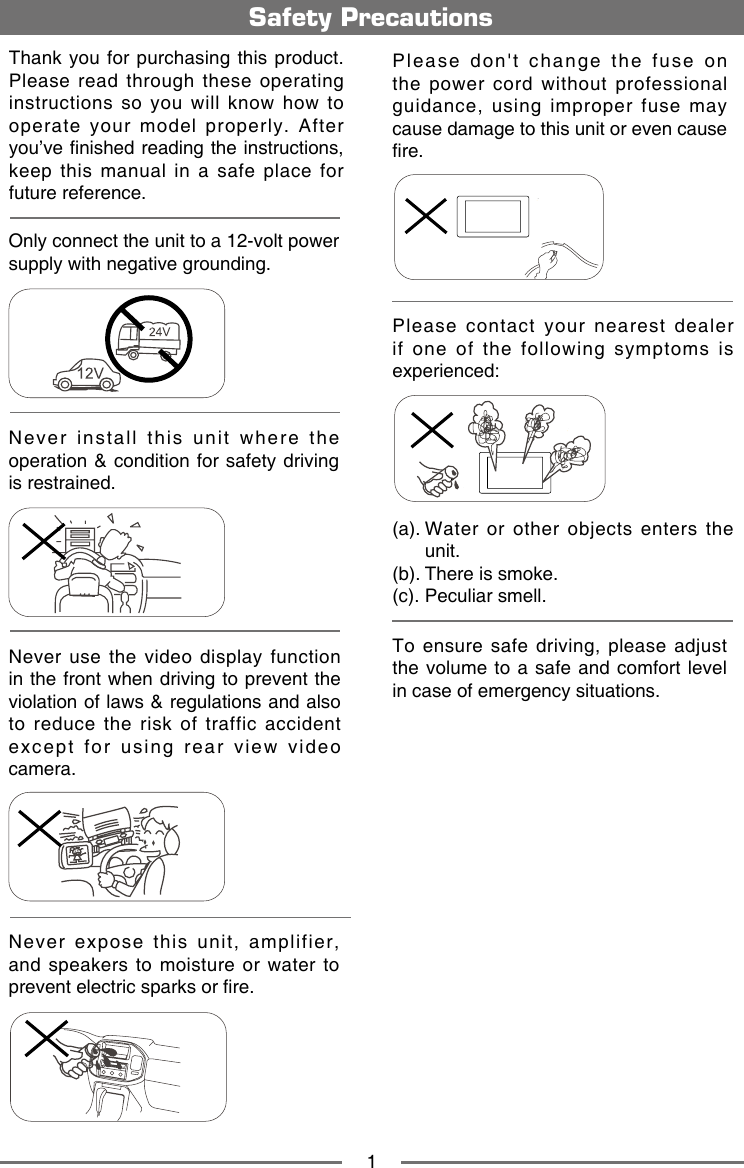
![21. Never disassemble or adjust the unit without any professional guidance. For details, please consult any professional car shop / dealer for inquiry.2. If the front panel or TFT monitor is dirty, please use a clean silicone cloth and neutral detergent to wipe off the spot. Using a rough cloth and non-neutral detergent such as alcohol for cleaning may result in scratching or decoloration to the monitor.3. If any abnormal behavior of the unit is found, please refer to trouble shooting guide of this manual. If no relevant information is found, please press the [RESET] key on the front panel to resume factory default.4. If you have parked the car in hot or cold weather for a long time, please wait until the temperature in the car becomes normal before operating the unit.5. Using the car heater in low temperature environment may result in moisture inside the unit, DO NOT use the unit in this situation. Eject the disc and wipe off the moisture on the disc. If the unit still doesn't work after a few hours, please contact the service center.6. Do not impact the LCD monitor which could cause damage.7. To prevent damage to the screen, avoid touching it with sharp objects.8. To provide a clear demonstration and an alternative for easy understanding to the operation of this unit, graphic illustrations are used. However, some illustrations are different from the actual images displayed on the screen.9. Operate the unit correctly according to this manual to prevent unnecessary problem. The guarantee won't be valid if the problem is caused by inappropriate operation.Safety PrecautionsNote:The items listed outside of the frame are the commercial products generally sold.Expanding Systems](https://usermanual.wiki/HUIZHOU-FORYOU-GENERAL-ELECTRONICS/CE4K01/User-Guide-2144136-Page-3.png)
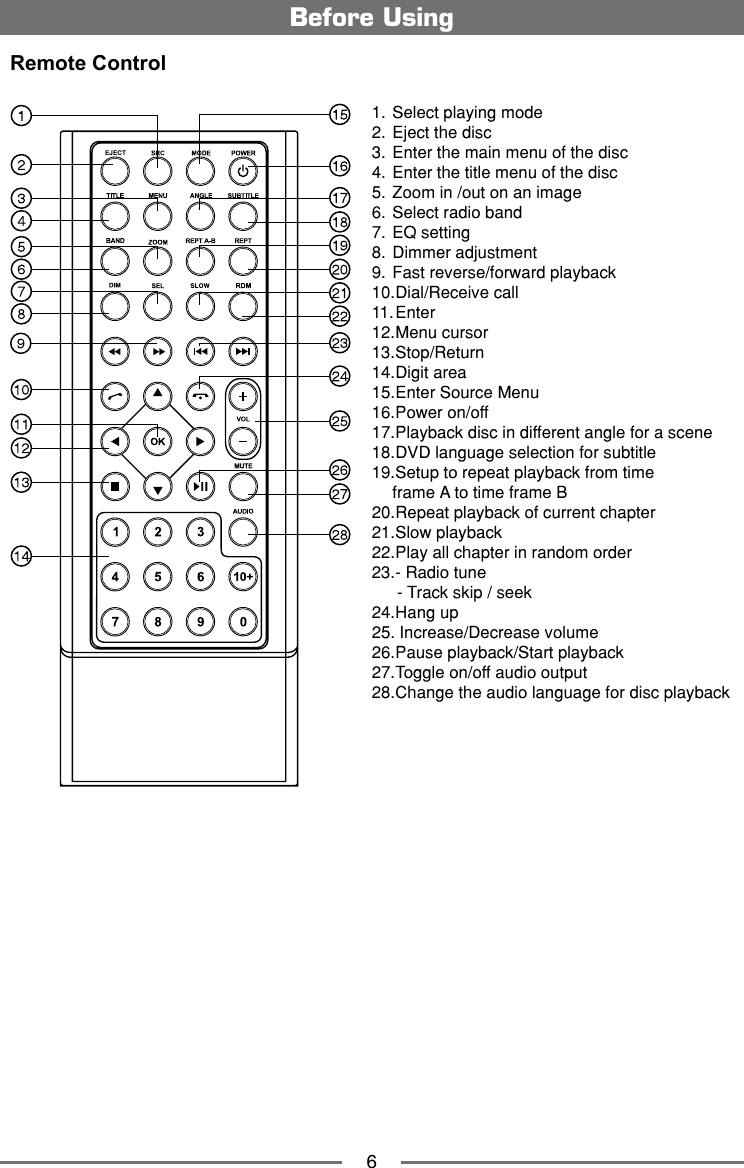
![5Front Panel1. [ ] ButtonPress to eject a disc.2.Internal MicrophoneInternal microphone for Bluetooth calls. 3. [MENU] ButtonPress to switch between the main menu and current source. Press and hold to enter brightness adjustment mode, then rotate the knob to adjust.4. [VOL/ / ] KnobRotate to adjust the volume. Press momentarily to activate the MUTE function. Press again to resume normal listening. Press to turn the unit ON. Press and hold to turn the unit OFF. 5. NavigationPress to switch to navigation mode.6. Reset ButtonPress to reset system settings to factory default (except password and parental lock settings).7. A/V InputAccepts a 3.5mm jack through which signals from various audio/video devices can be applied to the unit.8. USB Connector Connect a USB device for playback of music/video les.9. SD Interface Connector Insert an SD card for playback of music/video les.10. Map SlotThe Mini SD card is used for the Navigation Map only, not for music or other les. This may be used for rmware updates if required.11. Disc slotBefore UsingNotice:The graphic in this manual is for reference only, and may be different from the actual unit. Reference to actual unit is suggested.](https://usermanual.wiki/HUIZHOU-FORYOU-GENERAL-ELECTRONICS/CE4K01/User-Guide-2144136-Page-6.png)
![8Parking Brake Inhibit• When the “BRAKE” cable is connected to the brake switch, the display on the TFT monitor will display video only when the vehicle is applied.• Parking brake function is overridden when the video source is set to REVERSE.• When the parking brake inhibit is active, the front monitor displays “WARNING Do not watch wideo while driving!”, preventing the driver from watching content while driving. Rear video screens are not affected.MutePress [ VOL/ / ] knob or the [ MUTE ] button on remote control to mute the volume from the unit. Press again to restore the volume. [ ] is displayed on the LCD. Adjusting the volume or using any of the audio setup features cancels the mute function. Power On / OffPress the [ VOL/ / ] knob on the unit (or the [ POWER ] button on the remote control) to turn the unit on. The current mode status appears in the LCD. Press and hold the [ VOL/ / ] knob to power off the unit. Audible Beep ConrmationAn audible beep tone conrms each function selection. The Beep tone can be disabled through the Setup menu.Playing Source SelectionPress the [ MENU ] button on the front panel or the [ SRC ] button on the remote to change between available playing sources. The playing mode is displayed on the screen.1. Date and Time display. Double click to switch to Clock mode.2. Function icons3. 1/2 or 2/2: Touch this page button to view the first or second page of on-screen buttons. You also can drag left or right on the blank area to switch the pages.4. Touch repeatedly to change wall papers.5. Touch for quick access to Equalizer level settings.Volume AdjustmentTo increase or decrease the volume level, turn the [ VOL/ / ] knob on the front panel or press the [ VOL+ ] / [ VOL ] button on the remote control. The volume ranges from “0”to “39”. The LCD or TFT screen displays the volume level for 3 seconds.EQ MenuThe Audio Control feature allows you to easily adjust your audio system to meet the acoustical characteristics of your vehicle, which vary depending on the type of vehicle and its measurements. Proper setting of the Fader and Balance boosts the effects of the cabin equalizer. Basic Operations43123 5 3](https://usermanual.wiki/HUIZHOU-FORYOU-GENERAL-ELECTRONICS/CE4K01/User-Guide-2144136-Page-9.png)
![9Select Preset Equalizer1. Enter the EQ setup mode Touch the [ ] icon in the user interface and the EQ setup interface will display on the screen. 2. Select EQ mode∙ [User] ∙ [Rock] ∙ [Flat] ∙ [Class] ∙ [Pop] ∙ [Jazz]∙ [Techno] ∙ [Optimal]Adjust EQ ParametersTo adjust EQ parameters, touch and drag the parameters adjustment bar. Touch [ ] / [ ] or drag [ ] to adjust the parameters.[ User ]: Set the desired audio effect. ∙ [BAS] bass range: -7 to +7∙ [MID] middle range: -7 to +7∙ [TRE] treble range: -7 to +7∙ [LPH] low pass filter range: 60, 80, 100, 200∙ [MPF] middle pass filter range: 0.5K, 1K, 1.5K, 2.5K∙ [HPF] high pass filter rang: 10K, 12.5K, 15K, 17.5K[ LOUD: On/Off ]: When listening to music at low volumes, this featurewill selectively boost certain bass and treble frequencies. [ RESET ]: Cancel the equalizer function settings.Adjust Fader/BalanceYou can adjust front/back/left/right balance of the speaker and the subwoofer volume to get larruping listening effect according to the surroundings and your interest. 1. Enter the EQ setup mode Touch the [ ] icon in the user interface and the EQ setup interface will display on the screen.2. Adjust subwoofer volume Touch [ ] / [ ] or drag [ ] to adjust subwoofer volume from 0 to 38.3. Adjust fader / balance value Touch [ ] / [ ] / [ ] / [ ] to adjust fader / balance value ∙ [ ]: Front speaker, fader range: 7 to 7.∙ [ ]: Rear speaker, fader range: 7 to 7.∙ [ ]: Left speaker, balance range: 7 to 7.∙ [ ]: Right speaker, balance range: 7 to 7.Notes:1. The parameters of the EQ modes has been preset and you can not change them besides ‘User’.3. The EQ mode will change to ‘User’ automatically when you adjust the frequency value under the modes besides ‘User’.4. The value of Sub is independent of EQ mode and can be adjusted solely.Basic Operations](https://usermanual.wiki/HUIZHOU-FORYOU-GENERAL-ELECTRONICS/CE4K01/User-Guide-2144136-Page-10.png)
![10Basic OperationsSet Date /Time1. Touch [ ].2. Touch [ Time ]. The date/time setup menu is displayed.Set Date1. Touch [ Date ].2. Touch the date informationon on the screen . A submenu is displayed.3. Touch [ ] or [ ] to set year, month and day.Set Clock Mode1. Touch [Clock mode].2. Touch [12H] or [24H] to switch clock mode.Set Time1. Touch [ Time ].2. Touch the time on the screen, a submenu is displayed.3. Touch [ ] or [ ] to set hour and minute.Set Desk Timer1. Touch [ Desk Timer ].2. Touch [ Simulate Timer ] or [ Numeral Timer ] .Set Power Off Timer1. Touch [ Power Off Timer ].2. Touch [ On ] or [ Off ] to select whether timer displays after power off.](https://usermanual.wiki/HUIZHOU-FORYOU-GENERAL-ELECTRONICS/CE4K01/User-Guide-2144136-Page-11.png)
![11Select Radio as Playing SourceOpen the Source Menu and then touch [Radio].Select One Radio BandPress the [BAND] key on remote control or touch the [ ] icon on the user interface to select one radio band among FM1, FM2, FM3, AM1 and AM2.TuneAuto TuningPress the [ ] / [ ] key on the remote control briey or hold [ ] / [ ] icon on the user interface more than 1 second to seek a higher / lower station.To stop searching, repeat the operation above or press other keys having radio functions.Note:When a station is received, searching stops and the station is played.Manual TuningMethod 1:During manual tuning, the frequency will be changed in steps. Press the [ ] or [ ] key on remote control or touch the [ ] / [ ] icon on the user interface to tune in a higher / lower station.Method 2: 1. Touch the numeric keypad icon [ ]. Numeric keyboard is displayed, touch number to input frequency.2. Touch [ ] to delete the input number step by step.3. Touch [ OK ] to enter. Radio Mode1. Touch to view the SOURCE MENU and select a new playback source2. Distant signal broadcasting indicator3. Current radio band indicator4. Clock5. Broadcaster information stored at the preset6. Touch to view more on-screen buttons7. Touch to seek backward8. Scan preset stations9. Touch to seek forward10. Touch to change between AM/FM bands11. Current radio information12. RDS setting options13. Current band preset radio stations14. Touch to change between Local and Distance15. Enter frequency directly16. Touch for quick access to Equalizer level settingsTuner TFT Display 1234567 8 9 1014 15 16131211](https://usermanual.wiki/HUIZHOU-FORYOU-GENERAL-ELECTRONICS/CE4K01/User-Guide-2144136-Page-12.png)
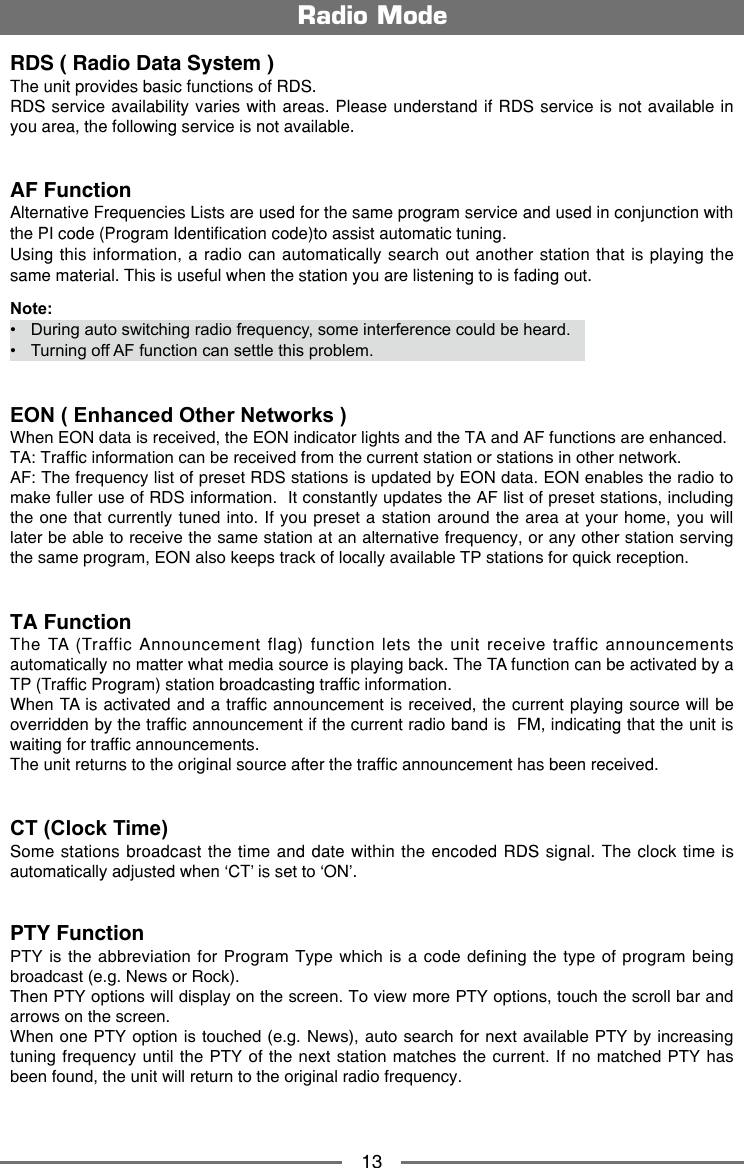
![12Radio ModePreset StationThe unit has 5 bands, such as FM1, FM2, FM3, AM1, AM2, and each band can store 6 stations; hence the unit can store 30 stations in total.Intro/ScanPress the [ ] icon to intro. Each stored station will play for 5 seconds automatically. Hold down the [ ] icon to scan. Only stations with sufcient signal strength will be detected and stored in the memory. After scaning, P1 will play automatically.Manual Store1. Tune to a station.2. Touch [ ] to display the 2nd menu.3. Touch [ ].4. Touch one of the channels P1 to P6 to save the select band.Tune to a Preset Station1. Touch [Radio].2. Select a band (if needed).3. Touch one of the preset channels (P1 to P6) on the screen.Local SeekingTouch the [ ] icon and choose the Radio Local or Distance.When the [ ] icon turns bright, only stations with sufficient signal strength will be detected.EQ SelectionPress the [ ] icon and enter the EQ setup.RDS BasicsRDS transmits data to the radio which displays information such as station identication, song artist, and song title.RDS service availability varies with areas. Please understand if RDS service is not available in you area, the following service is not available. Adjust RDS Settings1. In Radio menu, touch [ ]. The option menu is displayed.2. Touch on the selected option to change the setting.∙ [TA]: To turn on or off “TA” function.∙ [AF]: To turn on or off “AF” function.∙ [PTY]: To show PTY list.](https://usermanual.wiki/HUIZHOU-FORYOU-GENERAL-ELECTRONICS/CE4K01/User-Guide-2144136-Page-13.png)
![14Load a DiscYou can play video, audio or images stored on the following discs:• DVD Video, DVD-R, DVD-RW• VCD• Audio CD, CD-R, CD-RWNote:Ensure that the disc contains playable content. Eject a DiscPress the [ ] key on the front panel or remote control to eject the disc. When the disc is ejected, the unit switches to the previous source.Touch Screen ControlsThe touch key areas for DVD playback are outlined below: A: Return to the main menu B: Play the video and display playback information C: Display onscreen control menu D: Time displayControlling PlaybackTo access the on-screen controls, touch the screen except upper left corner, and touch again to cancel display. Touch [ ] to view all function icons. Connect a USB Device1. Open the USB door.2. Insert the small end of the USB cable to the 3.5 jack and USB socket, then connect the other end of the cable to your USB device.Remove a USB Device1. Select other source on the main menu.2. Remove the USB device.Insert a SD/MMC Card1. Open SD/MMC card cover.2. Insert the SD/MMC card into the SD/MMC card slot. Play starts automatically.Remove a SD/MMC Card1. Select other source on the main menu.2. Press the card unit you hear a click sound.3. Remove the SD or MMC card.Playback ModeBCA](https://usermanual.wiki/HUIZHOU-FORYOU-GENERAL-ELECTRONICS/CE4K01/User-Guide-2144136-Page-15.png)
![15Play/Pause1. Once a disc, USB or SD/MMC card is inserted, play starts automatically. For DVD movie, if a menu appears, press [ ] to start play.2. To pause, touch [ ]. To resume play, touch [ ].3. Skip to previous / next track / chapter, press [ ] / [ ] key.Previous/NextTouch [ ] / [ ] key on the screen to skip to previous / next track / chapter.Search for a FolderFor Video Files1. Touch [ ] to display all available video folders.2. Touch a folder,then touch the desired le. 3. Touch the le again to start play.For Audio Files1. Touch [ ] to display all available audio folders.2. Touch a folder,then touch the desired le. 3. Touch the le again to start play.For Picture Files1. Touch [ ] to display all available picture folders2. Touch a folder,then touch the desired le. 3. Touch the le again to start play.RepeatFor DVD/VCD movie disc:1. Touch bottom half of the screen to display menu on the screen, if necessary.2. Touch [ ] to display the 2nd menu.3. Touch [ ] repeatedly to select: DVD [ ] Repeat chapter: Play the current chapter repeatedly. [ ] Repeat title: Play all chapters in the title repeatedly. [ ] Repeat off: Play all in the all repeatedly. Repeat off: Cancel repeat play. VCD [ 1 ] Repeat single: Play the current single repeatedly. [ ] Repeat all: Play all in the all repeatedly. Repeat off: Cancel repeat play. Playback Mode](https://usermanual.wiki/HUIZHOU-FORYOU-GENERAL-ELECTRONICS/CE4K01/User-Guide-2144136-Page-16.png)
![16For CD/MP3/WMA les:1. Touch anywhere except the upper left corner to display menu on the screen, if necessary.2. Touch [ ] repeatedly: [ 1 ] Repeat single: Play the current single repeatedly. [ ] Repeat all: Play all in the all repeatedly. [ ] Repeat folder: Play all in the current folder. [ ] Repeat off: Cancel repeat play. Repeat A-BYou can repeat a specic of video le (repeat A-B).1. Touch the screen to display control menu, if necessary.2. Touch [ ] to display the 2nd menu, if necessary.3. Touch [ A-B ] repeatedly to mark: Repeat A-: the start of the section to repeat. Repeat A-B: the end of the section to repeat. The selected section plays repeatedly.4. To exit A-B repeat mode, touch A-B repeatedly, [Repeat A-B off] is displayed. Shufe (Random) PlayYou can play audio tracks/les in random order.1. Touch the screen to display control menu, if necessary.2. Touch [ ] to display the 2nd menu, if necessary.3. Touch [ ] on the screen remote control repeatedly to turn random play on or off.Select Audio ModeWhen you play VCDs, you can select an audio mode (R/L/Stereo).1. During play, touch bottom half of the screen to display menu on the screen, if necessary.2. Touch [ ] to display the 2nd menu. Touch [ ] repeatedly until the audio mode is selected.Select Subtitle LanguageFor DVD or Divx discs that contain two or more subtitle languages.1. During play, touch the screen to display menu on the screen, if necessary.2. Touch [ ] to display the 2nd menu.3. Touch [ ] repeatedly to select a language. The selected language is displayed.Change View AngleSome DVDs contain alternate scenes,such as scenes recorded from different camera angles. For such DVDs, you can select from the available alternate scenes. 1. During play, touch of the screen to display menu on the screen, if necessary.2. Press [ Angle ] repeatedly on the remote control. The view angle is changed.Playback Mode](https://usermanual.wiki/HUIZHOU-FORYOU-GENERAL-ELECTRONICS/CE4K01/User-Guide-2144136-Page-17.png)
![17Video SetupTouch [ ] to access video setup mode, touch [ ] or [ ] to set the desired effect.You may set the brightness, contrast, saturation, and HUE of the video output from 0 to 16.[] Brightness: range for 0 to 16.[ ] Contrast: range for 0 to 16. [ ] Saturation: range for 0 to 16. [ ] HUE: range for 0 to 16. Playback InformationTouch the screen when playing back DVD and VCD discs and the playback information will be displayed on the top area of the TFT.For DVD1. Disc type.2. DVD Title information. “1/8” indicates that this DVD has 8 titles and the title playing back now is the first title.3. DVD Chapter information. “5/12” indicates that current title has 12 chapters and the chapter playing back now is the fifth chapter.For VCD1. Disc type.2. VCD Track information. “1/8” indicates that this VCD has 8 tracks and the track playing back now is the first title.Elapsed Time1. Elapsed time of the current track.2. Total time of the current track.Direct Track EntryTo select a track directly, touch the [ ] icon on screen control to displaythe direct entry menu. Enter the desired track using the on-screen number pad. Press [ OK ] to the selected track. Rotate Pictures1. When you view pictures, touch the screen to display menu on the screen, if necessary. 2. Touch [ ] to display the 2nd menu.3. Touch [ ] repeatedly to rotate the picture.ZoomYou can zoom in pictures for a close view.1. When you view pictures, touch the screen to display menu on the screen, if necessary.2. Touch [ ] to display the 2nd menu.3. Touch [ ] repeatedly to zoom in or out the picture.Playback Mode1200:01:20 00:30:17 12 3 DVD TTL:1/8 CHP:5/1212 VCD 1/8](https://usermanual.wiki/HUIZHOU-FORYOU-GENERAL-ELECTRONICS/CE4K01/User-Guide-2144136-Page-18.png)
![18You can make or receive phone calls with Bluetooth-enabled phones through the unit. You can also listen to music from a Bluetooth-enabled device.Pair the Bluetooth-enabled DevicesTo connect your Bluetooth device to the unit, you need to pair the device to the unit. Pairing needs only to be done once. You can pair up to five devices. You also can search for Bluetooth devices by mobile phone.1. Turn on the Bluetooth function on the device.2. Touch [ + ] to search for Bluetooth device with the device. 3. Select the Bluetooth device ID in the pairing list.4. Touch [ Link ].4. Enter default password “0000”. Tip:• The operational range between this unit and a Bluetooth device is approximately 5 meters .• Before you connect a Bluetooth device to this unit, familiarize yourself with the Bluetooth capabilities of the device.• Compatibility with all Bluetooth device is not guaranteed.• Any obstacle between this unit and a Bluetooth device can reduce the operational range.• Keep this unit away from any other electronic device that may cause interference.Disconnect Bluetooth DeviceTo disconnect one device, touch [ ] .Tip• The device will also be disconnected when the device is moved beyond the operational range.• If you want to reconnect the device to the unit, place it within the operational range.• If you do not want to reconnect the device to the unit automatically, touch [ ], then set [ Auto Connect ] to [ Off ]. For details, see the “Adjust Bluetooth Settings” section.Make a Call1. Select Bluetooth function in the home menu.2. Pair the phone with the unit.3. Search for phone number from the following list: [ ]: Phone Book [ ]: Call Log [Missed calls] [Received calls] [Dialed calls]Or touch the number pad directly.Bluetooth Mode](https://usermanual.wiki/HUIZHOU-FORYOU-GENERAL-ELECTRONICS/CE4K01/User-Guide-2144136-Page-19.png)
![19Answer an Incoming CallBy default, all incoming calls are received automaticaly.1. If there is an incoming call, the screen will appear “Incoming”. 2. You may touch the screen to select [ Hang up ] or [ Answer ].Speak into the Bluetooth microphone.∙ [ ]: Touch to mute the microphone audio from the unit. Touch the icon again to restore the microphone audio from the unit.∙ [ ]: Touch to access the direct dial screen.∙ [ ]: Touch to transfer a call back to the mobile phone.Tip• You can select to receive calls manually by set [Auto Answer] to [Off] status.Adjust Bluetooth Settings1. In Bluetooth menu,touch [ ]. The option menu is displayed.2. Touch on the selected option to change the setting.∙ [BT]: To turn on or off “Bluetooth” function.∙ [Auto Connect]: To turn on or off “Auto connect” function.∙ [Auto Answer]: To turn on or off “Auto answer” function.∙ [Pair Password]: To set paring code.∙ [Phone Book]: To synchronize phone book, touch [ Download ] on the sub-menu popped out. Phonebook sync may take several minutes to load on initial setup.Music ModeA2DPA2DP is short for Advanced Audio Distribution Profile. The mobile phones supporting this function can transmit stereo audio, whereas the ones not supporting this function can transmit mono audio only.AVRCPAVRCP is short for Audio/Video Remote Control Profile. The mobile phones supporting this function can control the playback of a Bluetooth audio player.In the mode of the music player working, if you want to make a phone call, you can press the number keys on the mobile phone. At the same time the music player will stop. The TFT screen will appear “Send Dail”, after the call received, the voice will be transferred to the unit. When the call ends, the screen will appear music playing menu. If there is an incoming phone call, the music player will stop, and the screen will appear “Incoming Call”. When the call ends, the screen will appear music playing menu. Bluetooth Mode](https://usermanual.wiki/HUIZHOU-FORYOU-GENERAL-ELECTRONICS/CE4K01/User-Guide-2144136-Page-20.png)
![20RecorderDVR(Digital video recorder)Connect car recorder (iReg 4000HD) to the unit. Refering to “Device Connections”. After connection, user can control the car recorder through DVD screen.To access the Recorder menu, touch [ DVR ] icon on the main menu.Quick instruction167321. Video record/Power2. Voice record/System3. File browse/Time setting4. Emergency backup5. Mic6. LED7. Micro SD Card slotIndicator status tablePower Mute Record FunctionPower IndicatorMute Off IndicatorRecord(Mute)Record(Voice)Mute indicator ash indicating the begining of the emergency backupColor indicates On,White indicates Off, Slash indicates Flash.Cautions of installation1. Install the car recorder on a dry, clean and safety position by the 3M double-sided tape.2. Installation temperature range is 15~40°C .3. If you need to re-install the recorder, replace the 3M double-sided tape by a new one.How to export the video leComputerPlug in microSDChoose the le on left side which is supposed to be exported, click “ ” to export the le.Double click the icon to enter.Settings• TIME SETTING1. Press “ ” to pause record. 2. Long press 5 seconds to enter time setting menu.3. Press “ ” to switch year, month, day, hour, minute, second option.4. Press “ ” or “ ” to switch the current option.5. After setup, long press 5 seconds “ ” to exit time setting menu.• PAL/NTSC SWITCHPress “ ” to stop record, blue LED off light.Long press 5 second “ ” to switch PAL/NTSC.CAUTION:When reading the micro SD card on PC, in the case the Anti-virus softwares remind suspicious le or virus les of “ADRPlayer”, please click NO on the pop-up window of choice of delete le. In case ADRPlayer was deleted carefully, enter folder of “APPLAYER”, copy PLAYER.BIN to the root directory of TF card, rename to PLAYER.EXE for use.](https://usermanual.wiki/HUIZHOU-FORYOU-GENERAL-ELECTRONICS/CE4K01/User-Guide-2144136-Page-21.png)
![21RecorderDVR OperationsDVR main menu1. Touch [ ].2. Touch [ ] or [ ] to highlight a setting.3. Touch [ ] to display an option, then touch [ ] or [ ] to a select.4. Touch [ ] to conrm. 5. Touch [ ] of the screen to exit.① System time display② Recording time display③ Open SOURCE MENU④ Turn on or off the recording⑤ Press to silence the audio volume⑥ Next page⑦ Enter the settings main menu10 11 1312 14• Recording quality Touch [Recording quality] to select the desired recording quality.• Frame rate Touch [Frame rate] to select the desired frame rate.• Time setupTouch [ Time setup] to set the time.• Auto-off time Touch [ Auto-off time] to set the auto-off time.• G-SENSOR sensitivity Touch [ G-SENSOR sensitivity] to select the desired G-SENSOR sensitivity.• Light frequencyTouch [ Light frequency] to select the desired light frequency.• LanguageTouch [ Language ] to select the desired language.• FormatTouch [ Format ] to select the desired format.• Default settingTouch [ Default setting ], touch [ ] or [ ] to select [YES] or [NO].select [YES] , the DVR will default setting.⑧ Return to the previous page⑨ previous recording le⑩ Play/pause recording le Nexe recording le Skip to the previous Skip to the next Enter](https://usermanual.wiki/HUIZHOU-FORYOU-GENERAL-ELECTRONICS/CE4K01/User-Guide-2144136-Page-22.png)
![22Display System1. Touch the upper left corner to display main menu. 2. Touch [ Settings ]. The settings menu is displayed.Adjust General Settings1. Touch [ General ], if necessary.2. Touch to select a setting.3. Touch on the option to display/select an option.4. Touch blank area of the screen to exit. General settings Options DescriptionLanguage Select on-screen display language.Radio AreaEuropeSelect one that matches your location.AmericaAmerica4East EuropeAustraliaChinaBeep On Turn on the beep sound. Each time you press a button, the unit beeps.Off Turn off the beep sound.Key colour Adjust You can select the color of the key.Calibration Ok Calibrate the touch screen.Wallpaper Ok You can select a wall paper.Gps Path SetupCalibrationWhen the touch operation is not sensitive or valid, you should calibrate the touch screen through calibration setting function.Adjust the response positions of the touch panel as followings:1. Press the [ Calibration ] option on the setup menu to enter.2. Touch [ Start ] to enter.3. Press and hold the center of [ + ] for 2 seconds, the [ + ] will move automatically.4. Aim at center of [ + ], follow the path as shown of the gure, after steps from 1 to 5, the system will exit calibrating automatically.Adjust Time Settings1. Touch [ Time ].2. Touch an option repeatedly to select.3. Touch blank area of the screen to exit. Time settings Options DescriptionDate Year/Month/Day Touch [ ] or [ ] to set year, month and day.Time Mode 12H/24H Touch [12H] or [24H] to switch time mode.Time Touch [ ] or [ ] to set hour and minute.Desk Timer Touch to select [ Simulate Timer] or [ Numeral Timer ].Power Off Time On/Off Touch to select whether the time displays after power off.Settings](https://usermanual.wiki/HUIZHOU-FORYOU-GENERAL-ELECTRONICS/CE4K01/User-Guide-2144136-Page-23.png)
![23Adjust Sound Settings1. Touch [Sound].2. Touch an option repeatedly to select.3. Touch blank area of the screen to exit. Sound settings Options DescriptionSub Woofer FilterFlatTouch to select a crossover frequency.80Hz120Hz160HzLoud On/Off When listening to music at low volumes, this feature will selectively boost certain bass and treble frequencies.Reverse Mute On/Off Turn on/off the reverse sound.Adjust Video Settings1. Touch [Video].2. Touch an option repeatedly to select.3. Touch blank area of the screen to exit. Video settings Options DescriptionBackview Mirror Normal When you drive in reverse, the rear view displayed in normally.Mirror When you drive in reverse, the rear view is displayed in mirror.Brightness SetupNightTouch to select the desired brightness setting.DarkNormalBrightnessParking On / Off Enable video / disable video.When in Park “On” mode, the screen will display “WARNING” [if you play the video disc]. The above warning screen will prevent the driver watching images.Adjust Disc Rating1. Touch [Disc].2. Touch an option repeatedly to select.3. Touch blank area of the screen to exit. DVD rating Options DescriptionSet password Set password to restrict the play of discs. The default password is 0000.Rating levelKid safe Acceptable for children.G Acceptable for general viewers.PG Parental guidance suggested.PG-13 Unsuitable for children under age 13.PG-R Recommend parents to restrict children under 17 to view.R Restricted recommend parents to guide children under 17 to view.NC-17 Unsuitable for children under age 17.Adult Acceptable for adults only.DVD Audio Select DVD audio language. Options available are depend on DVD disc.DVD Subtitle Select DVD subtitle language. Options available are depend on DVD disc.DVD Menu Select DVD menu language. Options available are depend on DVD disc.Aspect Ratio Touch to select display ratio: [ 4:3 PS ], [ 4:3 LB ], or [16:9 ].Settings](https://usermanual.wiki/HUIZHOU-FORYOU-GENERAL-ELECTRONICS/CE4K01/User-Guide-2144136-Page-24.png)
![24Adjust Volume SettingsYou can set different volume for different modes. 1. Touch [Volume]. The volume setting sub-menu is displayed.2. Touch on a source.∙ [Media] ∙ [Radio] ∙ [Bluetooth] ∙ [AV-IN1]∙ [AV-IN2]3. Touch [ ] or [ ] to assign value: 0 to 12. When switches to the source, the volume increases automatically.4. Touch blank area of the screen to exit. Adjust Reset Settings1. Touch [Reset].2. Touch an option repeatedly to select.3. Touch blank area of the screen to exit. Language settings DescriptionReset FactoryTouch to restore to default settings.Reset VolumeReset VideoSettings](https://usermanual.wiki/HUIZHOU-FORYOU-GENERAL-ELECTRONICS/CE4K01/User-Guide-2144136-Page-25.png)
![25Listen to Other DevicesYou can connect an external audio/video device to the unit.1. Connect the external device with the supplied AV cable.2. Touch the upper left corner to display the main menu.3. Touch [AV-IN 1] = Front input [AV-IN 2] = Rear inputResetWhen the unit hangs up, you can reset it.Press [ RESET ] with a ball-point pen or similar tool.TipWhen the unit has been reset, all the settings will return to default settings.Replace a FuseIf there is no power, the fuse may be damaged and need to be replaced.1. Take out the unit from dashbpard.2. Check the electric connection.3. Buy a fuse that matches the amperage of the damaged fuse.4. Replace the fuse while the units power is disconnected.GPS1. Touch the upper left corner to display home menu.2. Touch [Navigation], the navigation menu will display.3. Refer to the map manual to operate the navigation tool.Steering Wheel Control Programming1. Touch the upper left corner to display home menu.2. Touch [ SWC ], the SWC menu will display.3. Press each individual steering wheel control button for each corresponding function.4. Once the final steering wheel control button is programmed, the functions are saved and the programming will end. 5. Touch [ Reset ] to reset the programming.TV(optional)Touch [DVB-T] in the main menu to switch to TV mode, and touch the center of the screen to show control buttons.Other ModesReset](https://usermanual.wiki/HUIZHOU-FORYOU-GENERAL-ELECTRONICS/CE4K01/User-Guide-2144136-Page-26.png)