HUIZHOU FORYOU GENERAL ELECTRONICS DMX5020 Mobile DVD Player with FM/AM Tuner User Manual

HUIZHOU FORYOU GENERAL ELECTRONICS CO.,LTD. Mobile DVD Player with FM/AM Tuner Users Manual

Users Manual

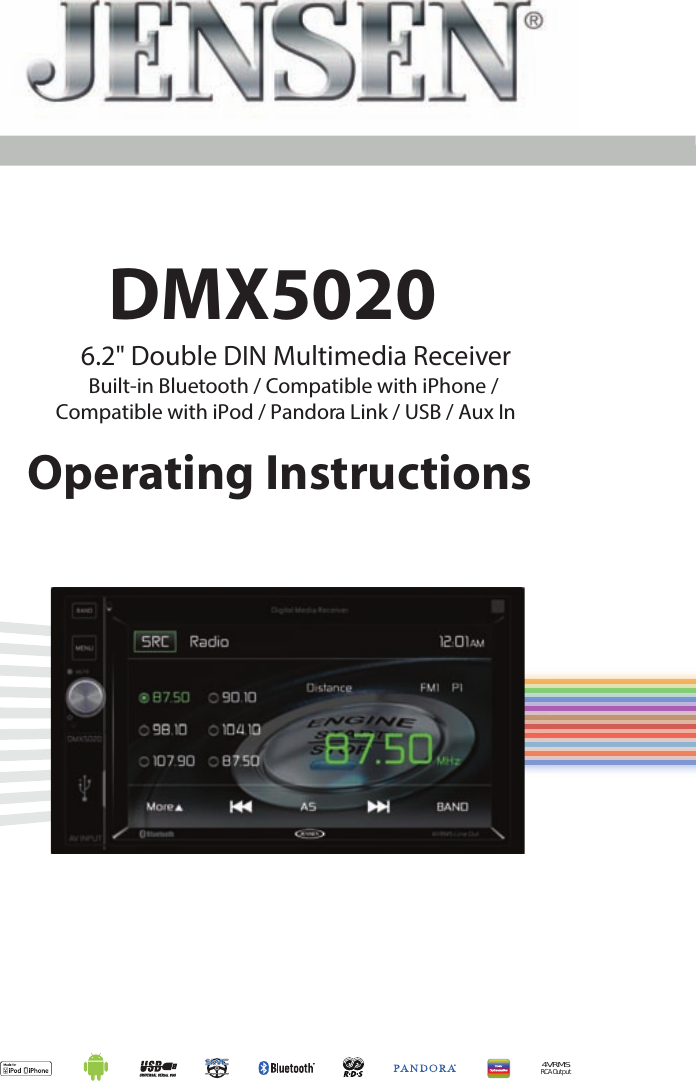
6.2" Double DIN Multimedia ReceiverBuilt-in Bluetooth / Compatible with iPhone / Compatible with iPod / Pandora Link / USB / Aux InDMX50204VRMSRCA OutputOperating Instructions
2DMX5020“Made for iPod” and “Made for iPhone” means that an electronic accessory has been designed to connect specically to iPod or iPhone, respectively, and has been certied by the developers to meet Apple performance standards. Apple is not responsible for the operation of this device or its compliance with safety or regulatory standards. Please note that the use of this accessory with iPod or iPhone may aect wireless performance.Android is a trademark of Google Inc.The Bluetooth® word mark and logos are registered trademarks owned by Bluetooth SIG, Inc. and any use of such marks by Audiovox is under license. Other trademarks and trade names are those of their respective owners.microSD is a trademark or registered trademark of SD-3C, LLC in the United States, other countries or both.Pandora is a registered trademark of Pandora Media, Inc.
3DMX5020CONTENTSFEATURES ...............................................................................................................5CONTROLS AND INDICATORS ...............................................................................8REMOTE CONTROL ...............................................................................................10EXTERNAL DEVICES .............................................................................................16QUICK START GUIDE ............................................................................................18EQUALIZER CONTROL MENU ..............................................................................21SYSTEM SETTINGS ...............................................................................................23RADIO TUNER OPERATION .................................................................................. 31USB AND SDHC OPERATION ...............................................................................36iPod®/iPhone® OPERATION .................................................................................41AV-IN OPERATION ................................................................................................ 46BLUETOOTH OPERATION .....................................................................................47STEERING WHEEL CONTROLS (SWC) OPERATION .............................................55REAR CAMERA OPERATION .................................................................................57PANDORA RADIO OPERATION ............................................................................58CARE AND MAINTENANCE ..................................................................................64SPECIFICATIONS ..................................................................................................65NOTES ...................................................................................................................67
4DMX5020FCC Statement1. This device complies with Part 15 of the FCC Rules. Operation is subject to the following two conditions: (1) This device may not cause harmful interference. (2) This device must accept any interference received, including interference that may cause undesired operation.2. Changes or modications not expressly approved by the party responsible for compliance could void the user’s authority to operate the equipment.NOTE: This equipment has been tested and found to comply with the limits for a Class B digital device, pursuant to Part 15 of the FCC Rules. These limits are designed to provide reasonable protection against harmful interference in a residential installation.This equipment generates uses and can radiate radio frequency energy and, if not installed and used in accordance with the instructions, may cause harmful interference to radio communications. However, there is no guarantee that interference will not occur in a particular installation. If this equipment does cause harmful interference to radio or television reception, which can be determined by turning the equipment o and on, the user is encouraged to try to correct the interference by one or more of the following measures:• Reorient or relocate the receiving antenna.• Increase the separation between the equipment and receiver.• Connect the equipment into an outlet on a circuit dierent from that to which the receiver is connected.• Consult the dealer or an experienced radio/TV technician for help.FCC Radiation Exposure StatementThis equipment complies with FCC radiation exposure limits set forth for an uncontrolled environment. This equipment should be installed and operated with minimum distance of 20 centimeters between the radiator and your body.
5DMX5020Thank you for choosing a Jensen product. We hope you will nd the instructions in this owner’s manual clear and easy to follow. If you take a few minutes to look through it, you’ll learn how to use all the features of your new Jensen DMX5020 Media Receiver for maximum enjoyment. Please save this manual for future reference.We recommend having your Jensen DMX5020 Media Receiver installed by a reputable installation shop.FEATURESMP3 / WMA• ID3 Tag Compatible• Directory Search (MP3 / WMA Only)• Random, Repeat and Intro• Play, Pause, Stop, Next Track and Previous TrackAM-FM• USA, China, Japan, Europe, Europe (LW) and Orient (OIRT)• 30 Station Presets (18 FM / 12 AM)• Auto Stereo / Mono• Local / Distance• Auto Store / Preview ScaniPod®/iPhone®• iPod®/ iPhone® via USB•  High Speed Direct Connect Interface to Access iPod® Playlists, Artists, Albums and Songs. Play music and view video/photo* les from your iPod®. *Video/photo playback requires jLink-USB iPod® interface cable (sold separately).• Power Management Charges iPod® while ConnectedChassis• 2.0 DIN (Import / ISO-DIN Mountable)• Fixed Front Panel• 6.2” High Denition TFT LCD• 1,152,000 Sub Pixels (800 x 3 x 480)• Beep Tone Conrmation (ON-OFF Option)
6DMX5020General• Built-In Bluetooth® providing Hands-Free operation for safety and convenience and A2DP for streaming music from your smartphone or other Bluetooth® device. • One Composite Video Output for Additional Screens• Front Panel Audio/Video Input• Ten-Band Tone Equalizer• Rear Subwoofer Line Output• Rear Camera Input• Touch Screen Calibration Mode• Rotary Encoder Audio ControlRear CameraThe DMX5020 is “camera ready.” Before accessing any camera features, you must purchase and install a rear video camera.
7DMX5020WARNING! Never install this unit where operation and viewing could interfere with safe driving conditions.WARNING! To reduce the risk of a trac accident (except when using for rear view video camera) never use the video display function while driving the vehicle. This is a violation of federal law.WARNING! Never disassemble or adjust the unit.WARNING! To prevent injury from shock or re, never expose this unit to moisture or water.WARNING! To prevent damage to the mechanism inside this unit, avoid impact to the unit’s monitor.WARNING! Using an improper fuse may cause damage to the unit and result in re.
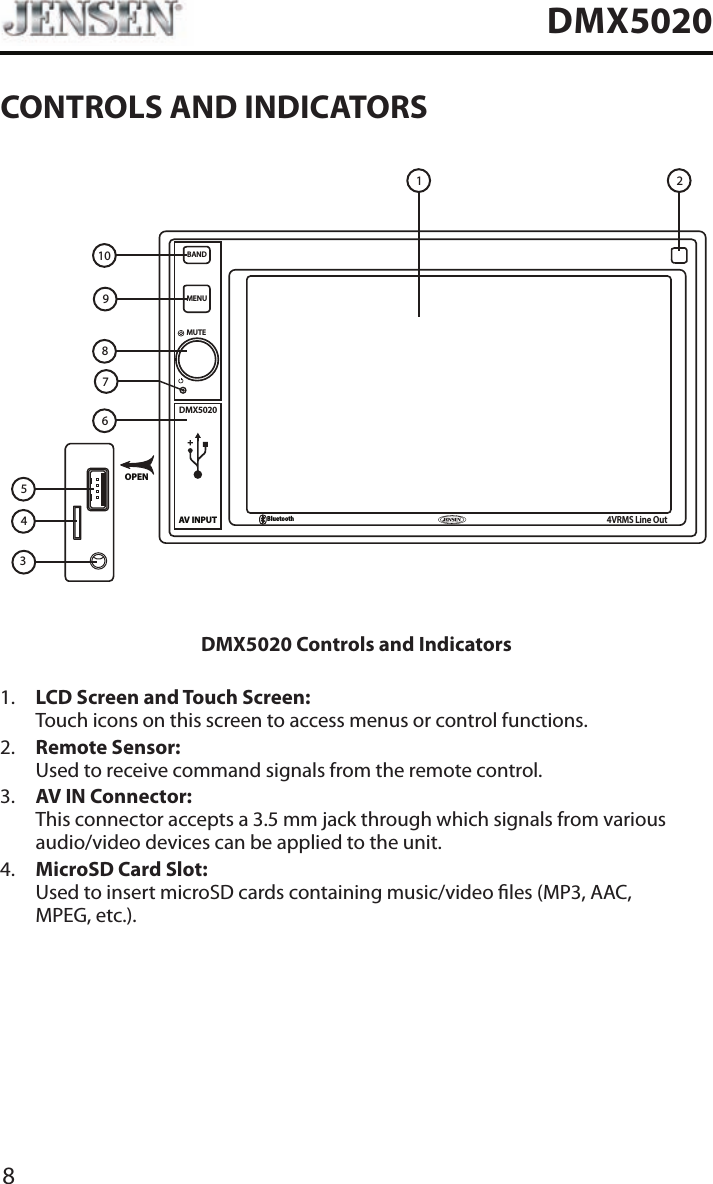
8DMX5020CONTROLS AND INDICATORSDMX5020AV INPUTBANDMENUMUTEBluetooth4VRMS Line OutOPEN10986754321DMX5020 Controls and Indicators1.   LCD Screen and Touch Screen: Touch icons on this screen to access menus or control functions.2.   Remote Sensor: Used to receive command signals from the remote control.3.   AV IN Connector: This connector accepts a 3.5 mm jack through which signals from various audio/video devices can be applied to the unit.4.   MicroSD Card Slot: Used to insert microSD cards containing music/video les (MP3, AAC,  MPEG, etc.).
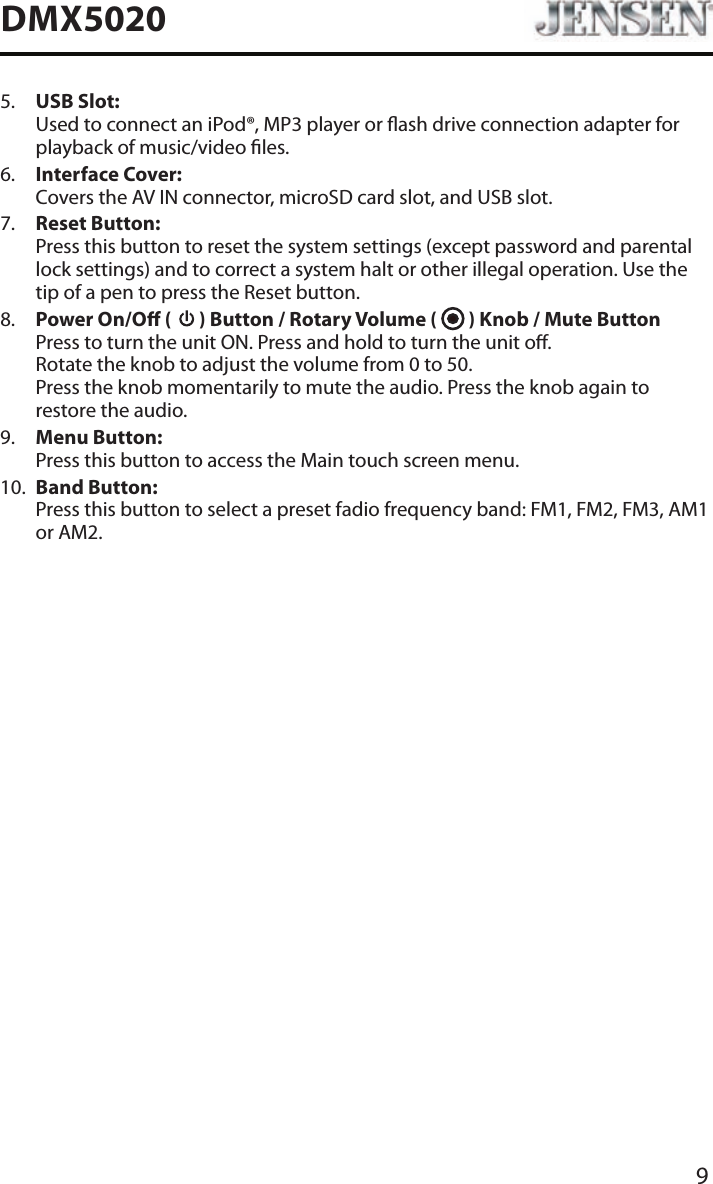
9DMX50205.   USB Slot: Used to connect an iPod®, MP3 player or ash drive connection adapter for playback of music/video les.6.   Interface Cover: Covers the AV IN connector, microSD card slot, and USB slot.7.   Reset Button: Press this button to reset the system settings (except password and parental lock settings) and to correct a system halt or other illegal operation. Use the tip of a pen to press the Reset button.8.   Power On/O (   ) Button / Rotary Volume (   ) Knob / Mute Button Press to turn the unit ON. Press and hold to turn the unit o.  Rotate the knob to adjust the volume from 0 to 50. Press the knob momentarily to mute the audio. Press the knob again to restore the audio.9.   Menu Button: Press this button to access the Main touch screen menu.10.   Band Button: Press this button to select a preset fadio frequency band: FM1, FM2, FM3, AM1 or AM2.
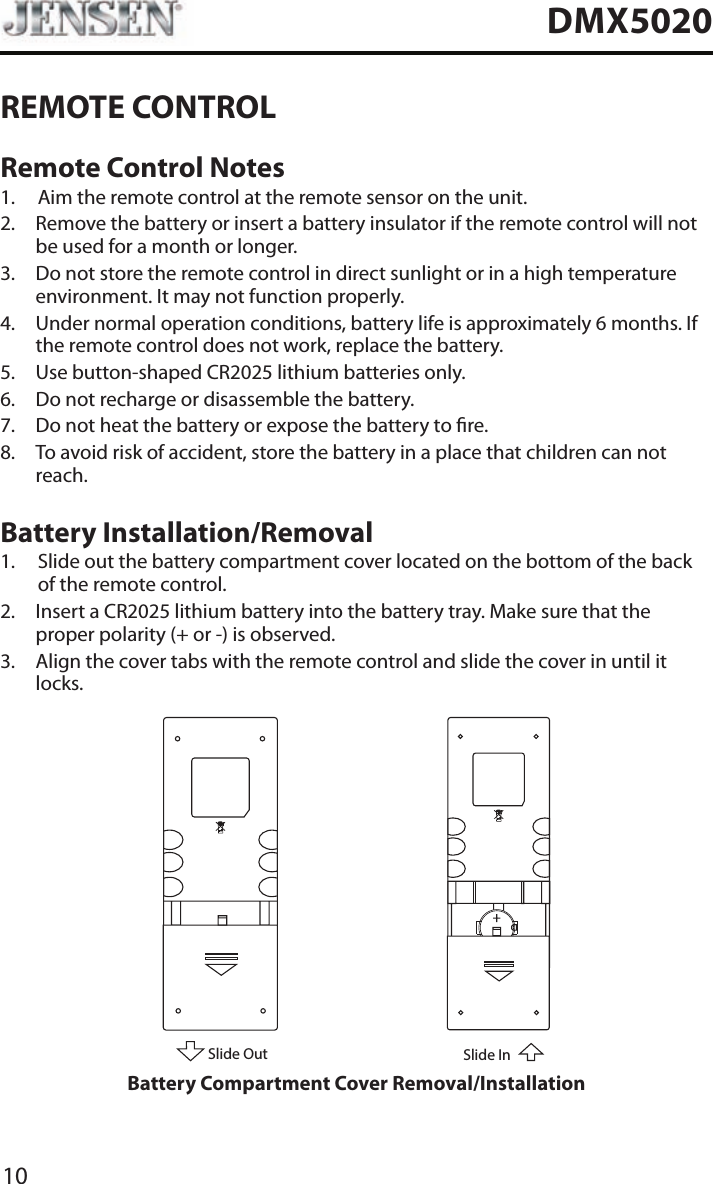
10DMX5020REMOTE CONTROLRemote Control Notes1.  Aim the remote control at the remote sensor on the unit.2.   Remove the battery or insert a battery insulator if the remote control will not be used for a month or longer.3.   Do not store the remote control in direct sunlight or in a high temperature environment. It may not function properly.4.   Under normal operation conditions, battery life is approximately 6 months. If the remote control does not work, replace the battery.5.  Use button-shaped CR2025 lithium batteries only.6.  Do not recharge or disassemble the battery.7.  Do not heat the battery or expose the battery to re.8.   To avoid risk of accident, store the battery in a place that children can not reach.Battery Installation/Removal1.   Slide out the battery compartment cover located on the bottom of the back of the remote control.2.   Insert a CR2025 lithium battery into the battery tray. Make sure that the proper polarity (+ or -) is observed.3.   Align the cover tabs with the remote control and slide the cover in until it locks.Slide OutSlide InBattery Compartment Cover Removal/Installation
11DMX5020This page intentionally left blank
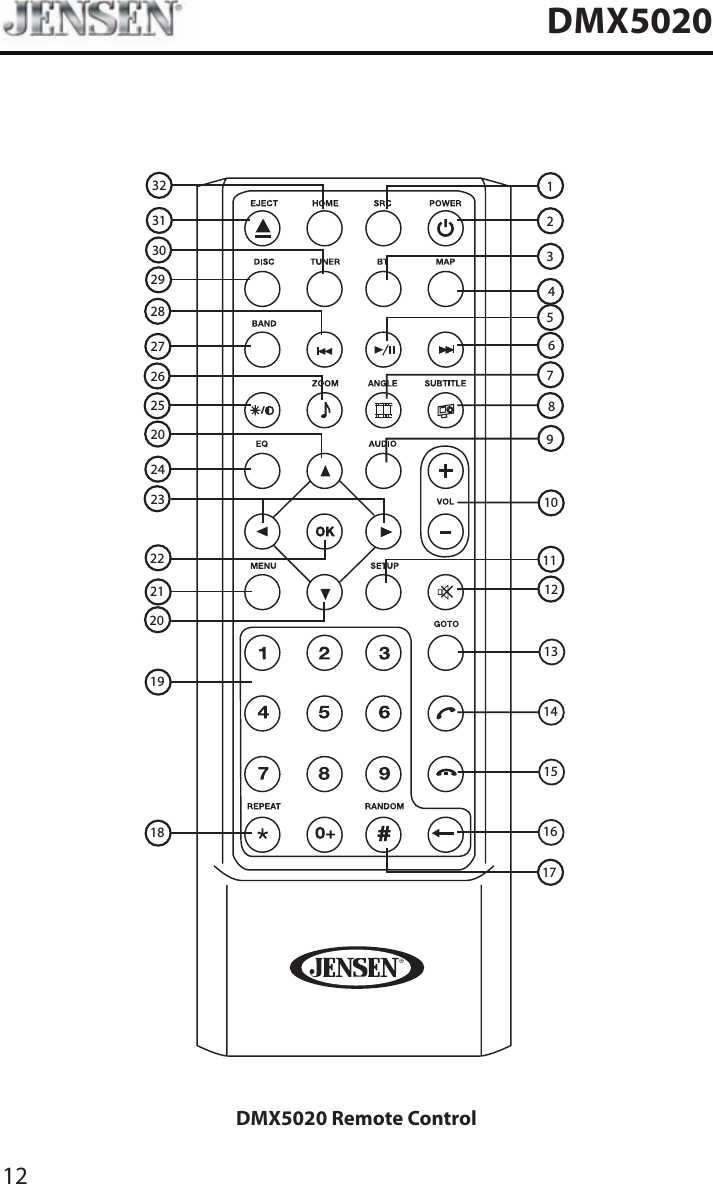
12DMX5020302932312625282723202422211918 161514139107811121234175620DMX5020 Remote Control
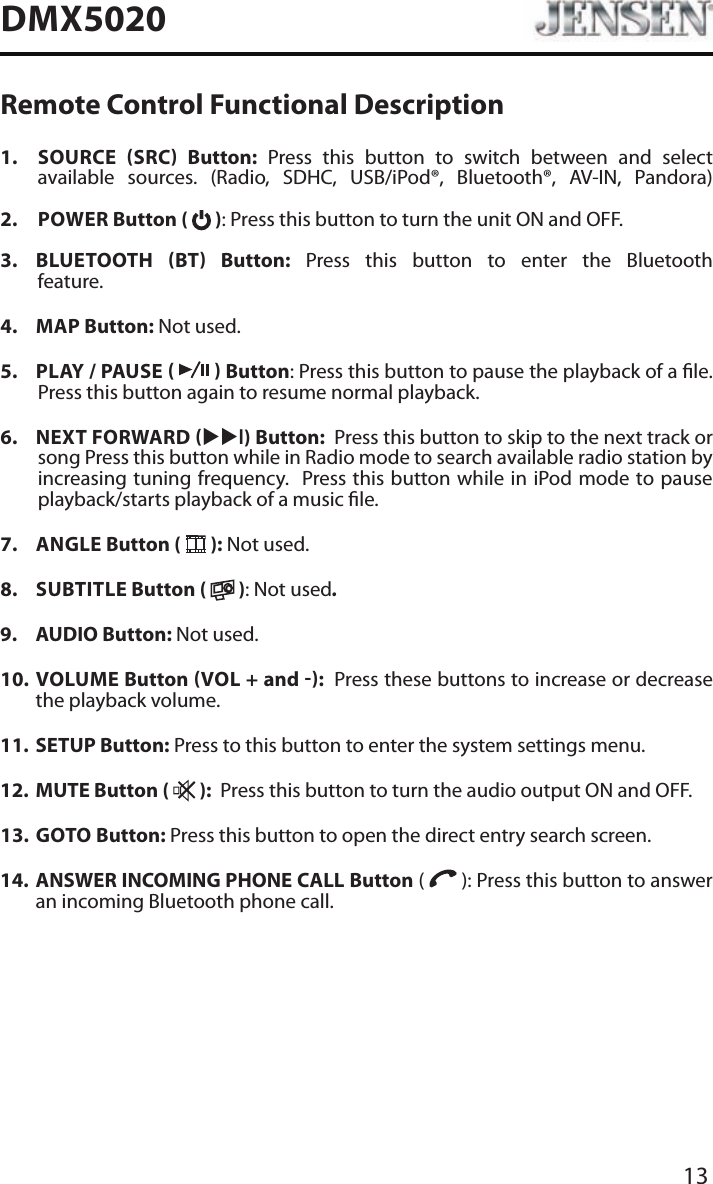
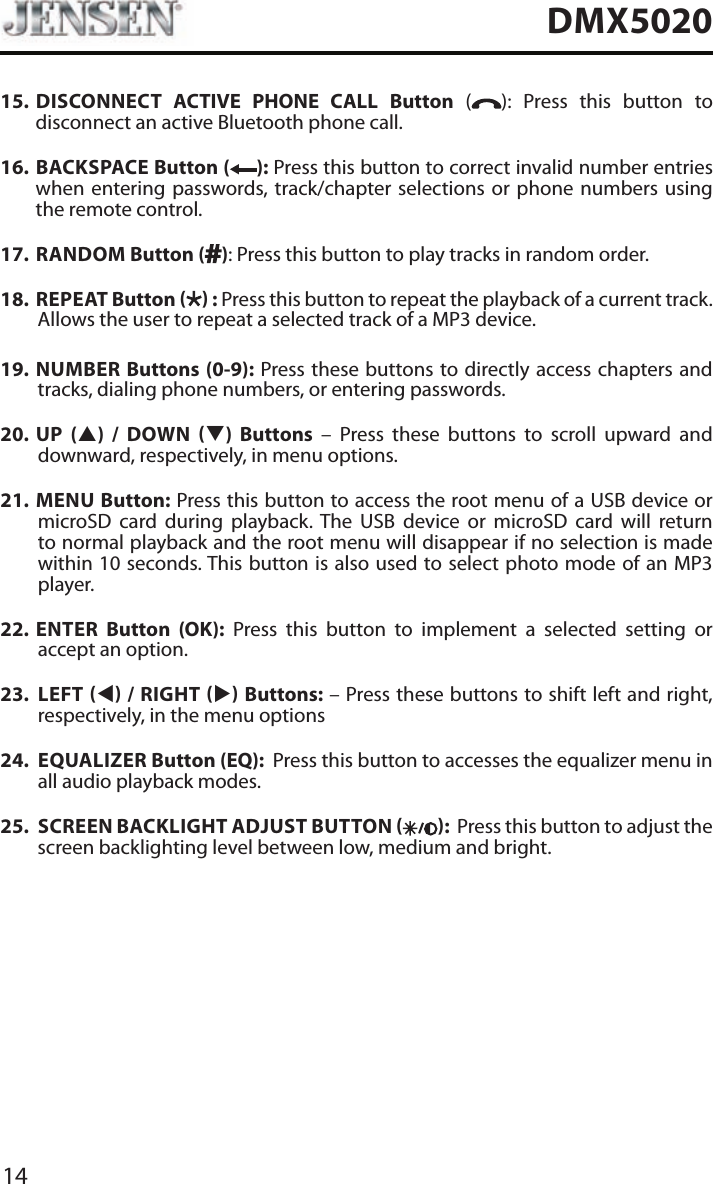
13DMX5020Remote Control Functional Description1.    SOURCE SRC Button: Press this button to switch between and select available sources. (Radio, SDHC, USB/iPod®, Bluetooth®, AV-IN, Pandora) 2.   POWER Button (   ): Press this button to turn the unit ON and OFF.   3.   BLUETOOTH  BT  Button: Press this button to enter the Bluetooth feature. 4.  MAP Button: Not used.5.  PLAY / PAUSE     Button: Press this button to pause the playback of a le.  Press this button again to resume normal playback.6.  NEXT FORWARD uul) Button:  Press this button to skip to the next track or song Press this button while in Radio mode to search available radio station by increasing tuning frequency.  Press this button while in iPod mode to pause playback/starts playback of a music le.7.  ANGLE Button (   ): Not used.8.  SUBTITLE Button (   ): Not used.9.   AUDIO  Button:  Not used.10.   VOLUME  Button VOL + and :  Press these buttons to increase or decrease the playback volume.11.  SETUP Button: Press to this button to enter the system settings menu.12.  MUTE Button (   ):  Press this button to turn the audio output ON and OFF.13.   GOTO  Button: Press this button to open the direct entry search screen.14.   ANSWER INCOMING PHONE CALL Button (   ): Press this button to answer an incoming Bluetooth phone call.
14DMX502015.   DISCONNECT ACTIVE PHONE CALL Button ( ): Press this button to disconnect an active Bluetooth phone call.16.    BACKSPACE Button ( ): Press this button to correct invalid number entries when entering passwords, track/chapter selections or phone numbers using the remote control.17.   RANDOM  Button ( ): Press this button to play tracks in random order.18.   REPEAT  Button   : Press this button to repeat the playback of a current track. Allows the user to repeat a selected track of a MP3 device.19.  NUMBER Buttons (0-9): Press these buttons to directly access chapters and tracks, dialing phone numbers, or entering passwords. 20.  UP (p) / DOWN q) Buttons – Press these buttons to scroll upward and downward, respectively, in menu options. 21.  MENU Button: Press this button to access the root menu of a USB device or microSD card during playback. The USB device or microSD card will return to normal playback and the root menu will disappear if no selection is made within 10 seconds. This button is also used to select photo mode of an MP3 player.22.  ENTER Button (OK): Press this button to implement a selected setting or accept an option. 23.  LEFT t / RIGHT u Buttons: – Press these buttons to shift left and right, respectively, in the menu options24.  EQUALIZER Button (EQ):  Press this button to accesses the equalizer menu in all audio playback modes.25.  SCREEN BACKLIGHT ADJUST BUTTON  :  Press this button to adjust the screen backlighting level between low, medium and bright.
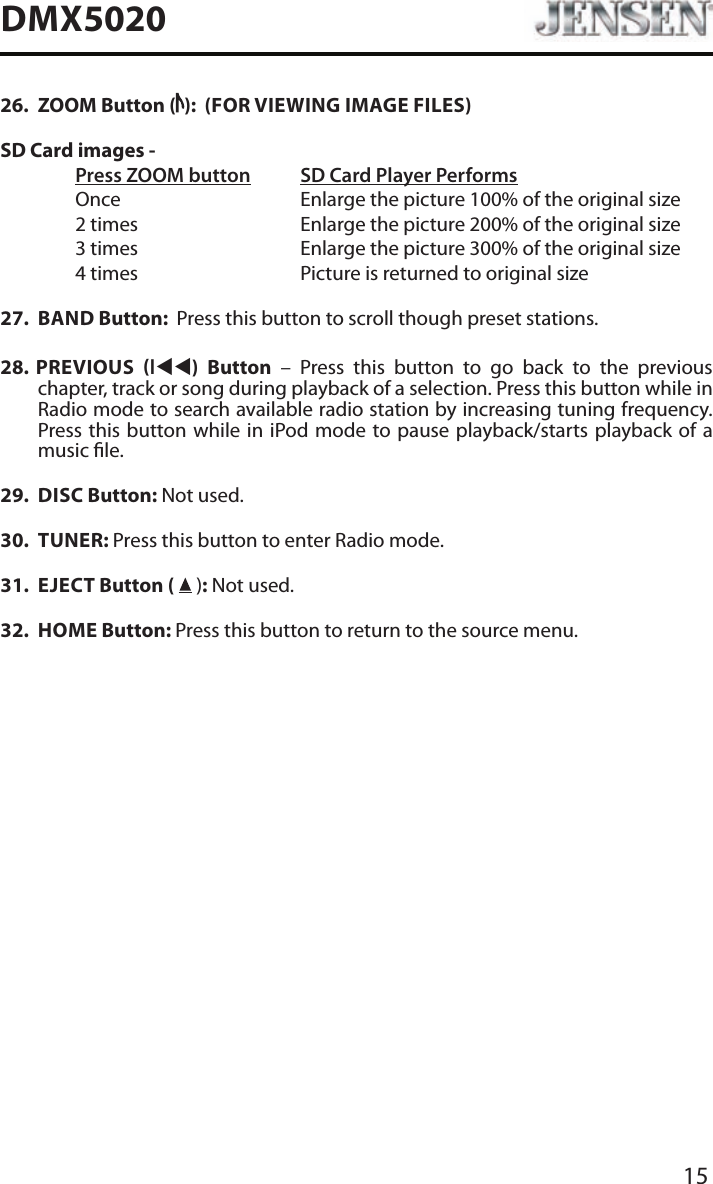
15DMX502026.  ZOOM Button ( ):  (FOR VIEWING IMAGE FILES)SD Card images - Press ZOOM button SD Card Player Performs  Once       Enlarge the picture 100% of the original size        2 times       Enlarge the picture 200% of the original size        3 times       Enlarge the picture 300% of the original size        4 times      Picture is returned to original size27.  BAND Button:  Press this button to scroll though preset stations.28.  PREVIOUS ltt)  Button – Press this button to go back to the previous  chapter, track or song during playback of a selection. Press this button while in Radio mode to search available radio station by increasing tuning frequency. Press this button while in iPod mode to pause playback/starts playback of a music le.29.  DISC Button: Not used.30.  TUNER: Press this button to enter Radio mode. 31.  EJECT Button (   ): Not used.32.  HOME Button: Press this button to return to the source menu.
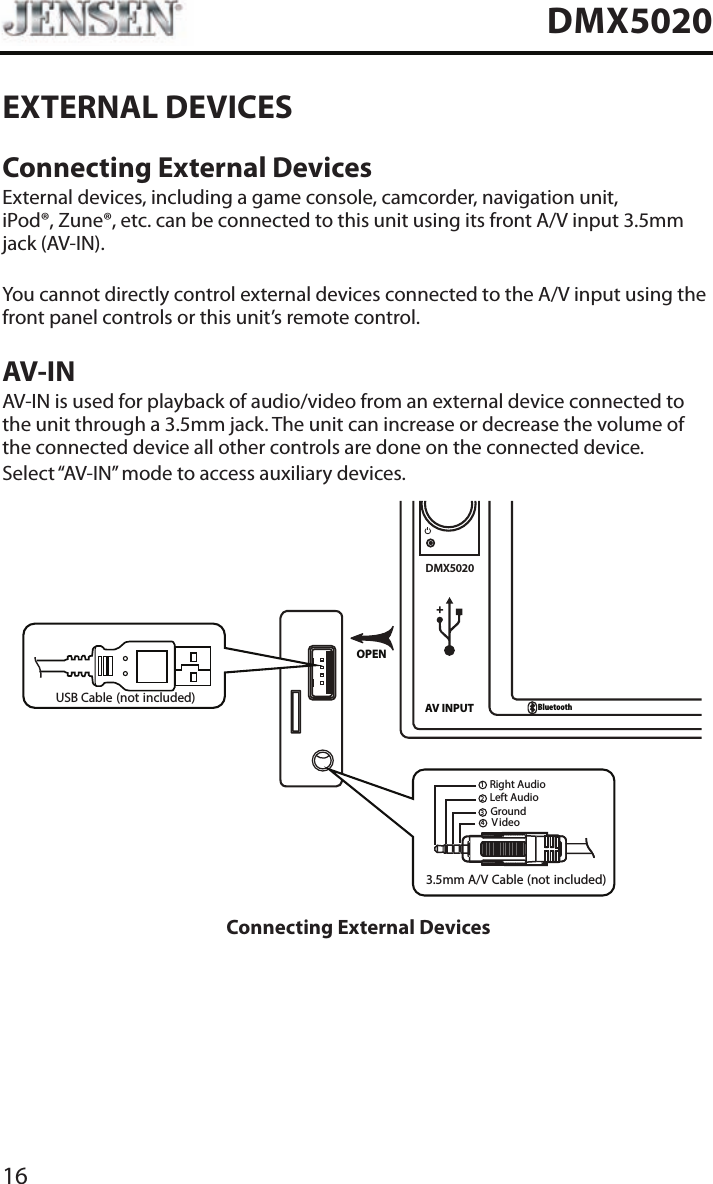
16DMX5020EXTERNAL DEVICESConnecting External DevicesExternal devices, including a game console, camcorder, navigation unit,  iPod®, Zune®, etc. can be connected to this unit using its front A/V input 3.5mm jack (AV-IN).You cannot directly control external devices connected to the A/V input using the front panel controls or this unit’s remote control.AV-INAV-IN is used for playback of audio/video from an external device connected to the unit through a 3.5mm jack. The unit can increase or decrease the volume of the connected device all other controls are done on the connected device.Select “AV-IN” mode to access auxiliary devices.DMX5020AV INPUTBluetoothOPEN3.5mm A/V Cable (not included)V ideoLeft AudioRight AudioGround1234USB Cable (not included)Connecting External Devices
17DMX5020This page intentionally left blank
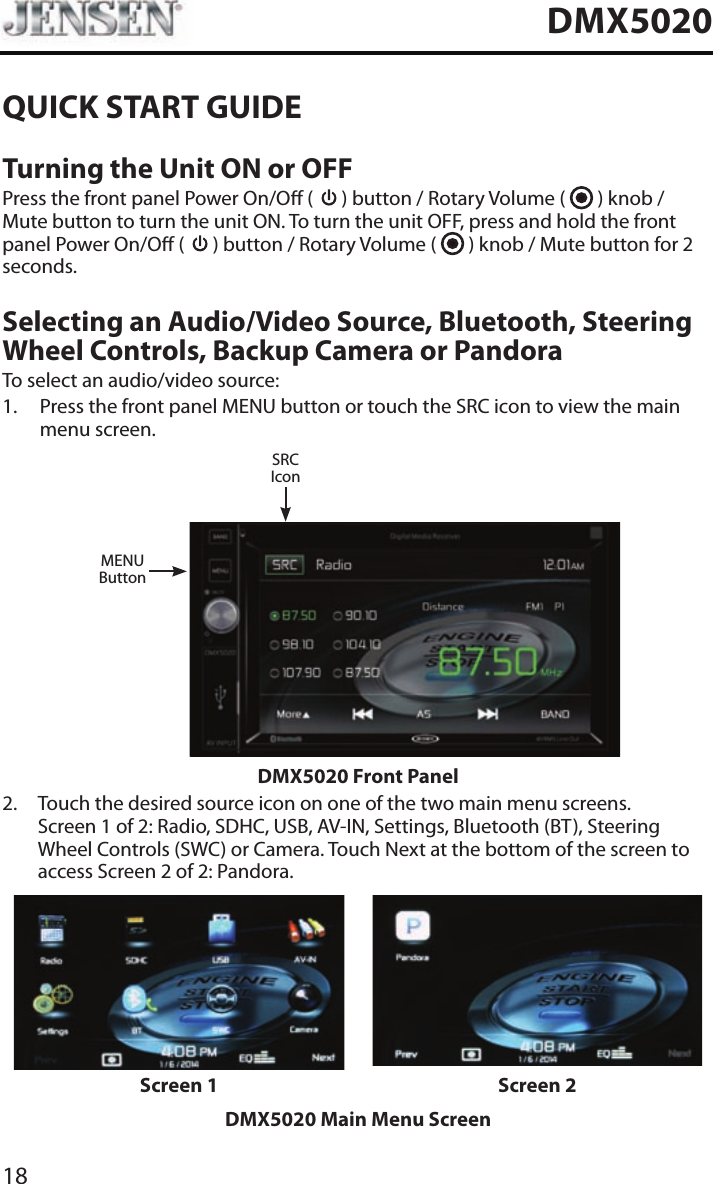
18DMX5020QUICK START GUIDETurning the Unit ON or OFFPress the front panel Power On/O (   ) button / Rotary Volume (   ) knob / Mute button to turn the unit ON. To turn the unit OFF, press and hold the front panel Power On/O (   ) button / Rotary Volume (   ) knob / Mute button for 2 seconds.Selecting an Audio/Video Source, Bluetooth, Steering Wheel Controls, Backup Camera or PandoraTo select an audio/video source:1.   Press the front panel MENU button or touch the SRC icon to view the main menu screen.MENUButtonSRCIconDMX5020 Front Panel2.   Touch the desired source icon on one of the two main menu screens. Screen 1 of 2: Radio, SDHC, USB, AV-IN, Settings, Bluetooth (BT), Steering Wheel Controls (SWC) or Camera. Touch Next at the bottom of the screen to access Screen 2 of 2: Pandora.Screen 1 Screen 2DMX5020 Main Menu Screen
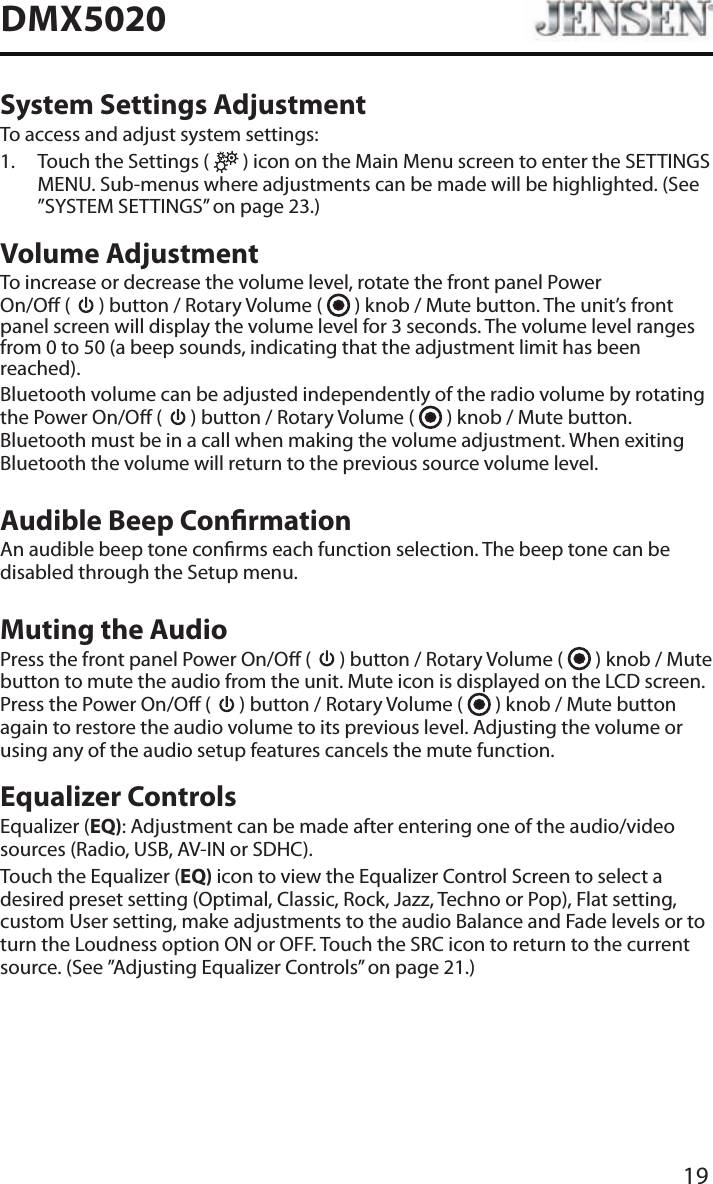
19DMX5020System Settings AdjustmentTo access and adjust system settings:1.   Touch the Settings (   ) icon on the Main Menu screen to enter the SETTINGS MENU. Sub-menus where adjustments can be made will be highlighted. (See ”SYSTEM SETTINGS” on page 23.)Volume AdjustmentTo increase or decrease the volume level, rotate the front panel Power  On/O (   ) button / Rotary Volume (   ) knob / Mute button. The unit’s front panel screen will display the volume level for 3 seconds. The volume level ranges from 0 to 50 (a beep sounds, indicating that the adjustment limit has been reached).Bluetooth volume can be adjusted independently of the radio volume by rotating the Power On/O (   ) button / Rotary Volume (   ) knob / Mute button. Bluetooth must be in a call when making the volume adjustment. When exiting Bluetooth the volume will return to the previous source volume level.Audible Beep ConrmationAn audible beep tone conrms each function selection. The beep tone can be disabled through the Setup menu. Muting the AudioPress the front panel Power On/O (   ) button / Rotary Volume (   ) knob / Mute button to mute the audio from the unit. Mute icon is displayed on the LCD screen. Press the Power On/O (   ) button / Rotary Volume (   ) knob / Mute button again to restore the audio volume to its previous level. Adjusting the volume or using any of the audio setup features cancels the mute function.Equalizer ControlsEqualizer (EQ): Adjustment can be made after entering one of the audio/video sources (Radio, USB, AV-IN or SDHC).Touch the Equalizer (EQ) icon to view the Equalizer Control Screen to select a desired preset setting (Optimal, Classic, Rock, Jazz, Techno or Pop), Flat setting, custom User setting, make adjustments to the audio Balance and Fade levels or to turn the Loudness option ON or OFF. Touch the SRC icon to return to the current source. (See ”Adjusting Equalizer Controls” on page 21.)
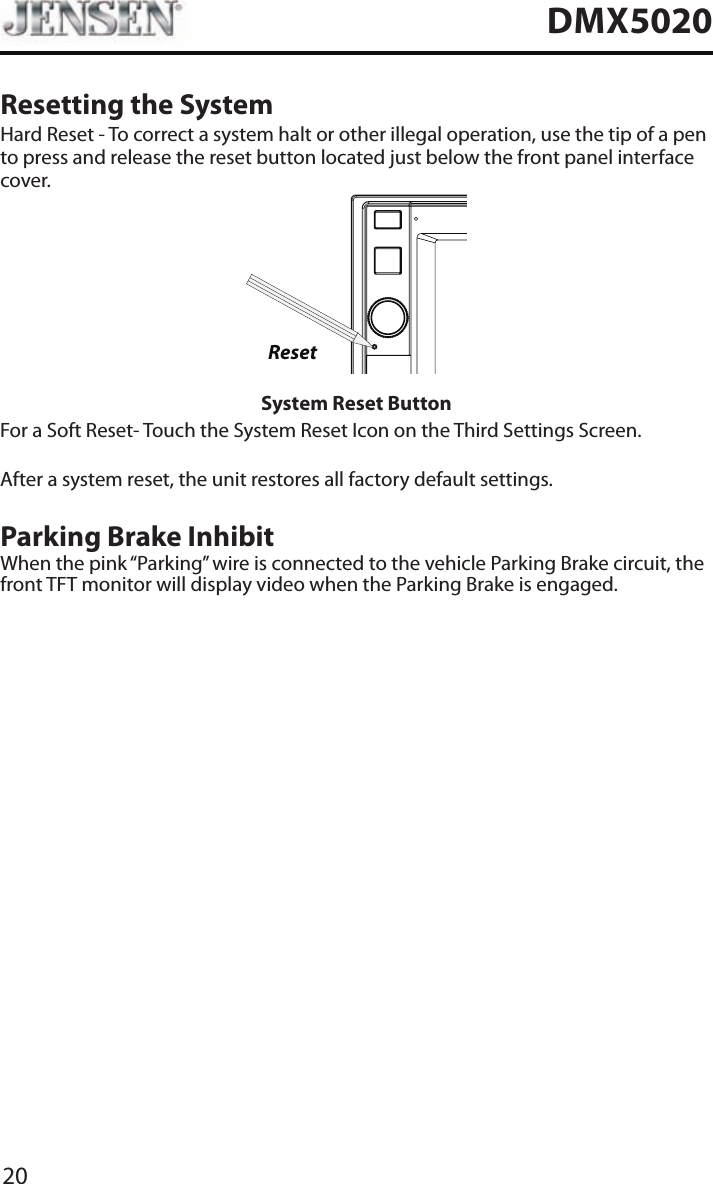
20DMX5020Resetting the SystemHard Reset - To correct a system halt or other illegal operation, use the tip of a pen to press and release the reset button located just below the front panel interface cover.ResetSystem Reset ButtonFor a Soft Reset- Touch the System Reset Icon on the Third Settings Screen.After a system reset, the unit restores all factory default settings.Parking Brake InhibitWhen the pink “Parking” wire is connected to the vehicle Parking Brake circuit, the front TFT monitor will display video when the Parking Brake is engaged.
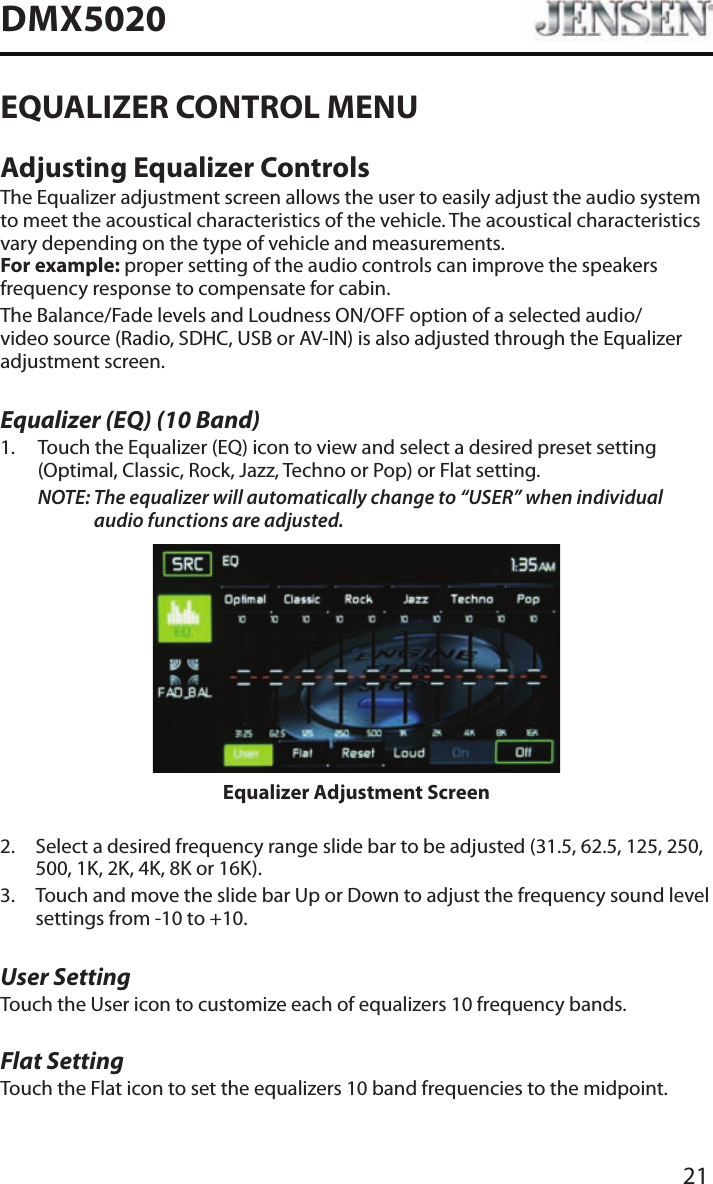
21DMX5020EQUALIZER CONTROL MENUAdjusting Equalizer ControlsThe Equalizer adjustment screen allows the user to easily adjust the audio system to meet the acoustical characteristics of the vehicle. The acoustical characteristics vary depending on the type of vehicle and measurements. For example: proper setting of the audio controls can improve the speakers frequency response to compensate for cabin.The Balance/Fade levels and Loudness ON/OFF option of a selected audio/video source (Radio, SDHC, USB or AV-IN) is also adjusted through the Equalizer adjustment screen.Equalizer (EQ) (10 Band)1.   Touch the Equalizer (EQ) icon to view and select a desired preset setting (Optimal, Classic, Rock, Jazz, Techno or Pop) or Flat setting.NOTE:  The equalizer will automatically change to “USER” when individual audio functions are adjusted.Equalizer Adjustment Screen2.   Select a desired frequency range slide bar to be adjusted (31.5, 62.5, 125, 250, 500, 1K, 2K, 4K, 8K or 16K).3.   Touch and move the slide bar Up or Down to adjust the frequency sound level settings from -10 to +10.User SettingTouch the User icon to customize each of equalizers 10 frequency bands. Flat SettingTouch the Flat icon to set the equalizers 10 band frequencies to the midpoint.
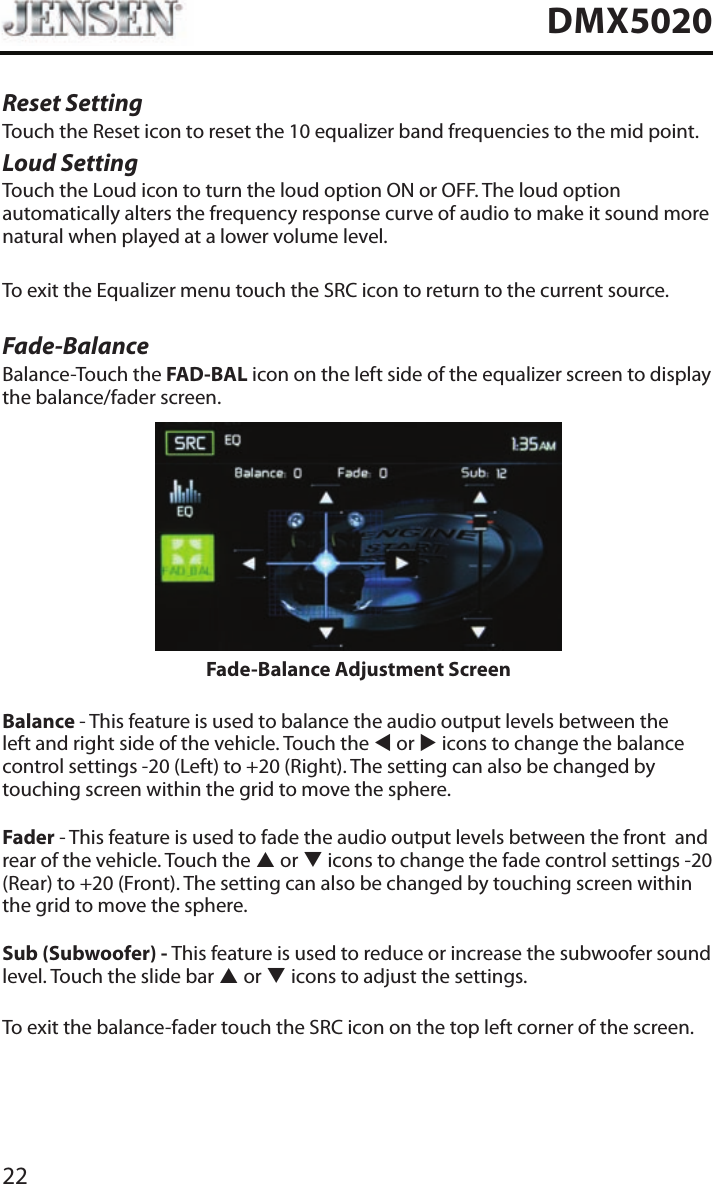
22DMX5020Reset SettingTouch the Reset icon to reset the 10 equalizer band frequencies to the mid point.Loud SettingTouch the Loud icon to turn the loud option ON or OFF. The loud option automatically alters the frequency response curve of audio to make it sound more natural when played at a lower volume level.To exit the Equalizer menu touch the SRC icon to return to the current source.Fade-BalanceBalance-Touch the FAD-BAL icon on the left side of the equalizer screen to display the balance/fader screen. Fade-Balance Adjustment ScreenBalance - This feature is used to balance the audio output levels between the left and right side of the vehicle. Touch the t or u icons to change the balance control settings -20 (Left) to +20 (Right). The setting can also be changed by touching screen within the grid to move the sphere.Fader - This feature is used to fade the audio output levels between the front  and rear of the vehicle. Touch the p or q icons to change the fade control settings -20 (Rear) to +20 (Front). The setting can also be changed by touching screen within the grid to move the sphere.Sub (Subwoofer) - This feature is used to reduce or increase the subwoofer sound level. Touch the slide bar p or q icons to adjust the settings.To exit the balance-fader touch the SRC icon on the top left corner of the screen.
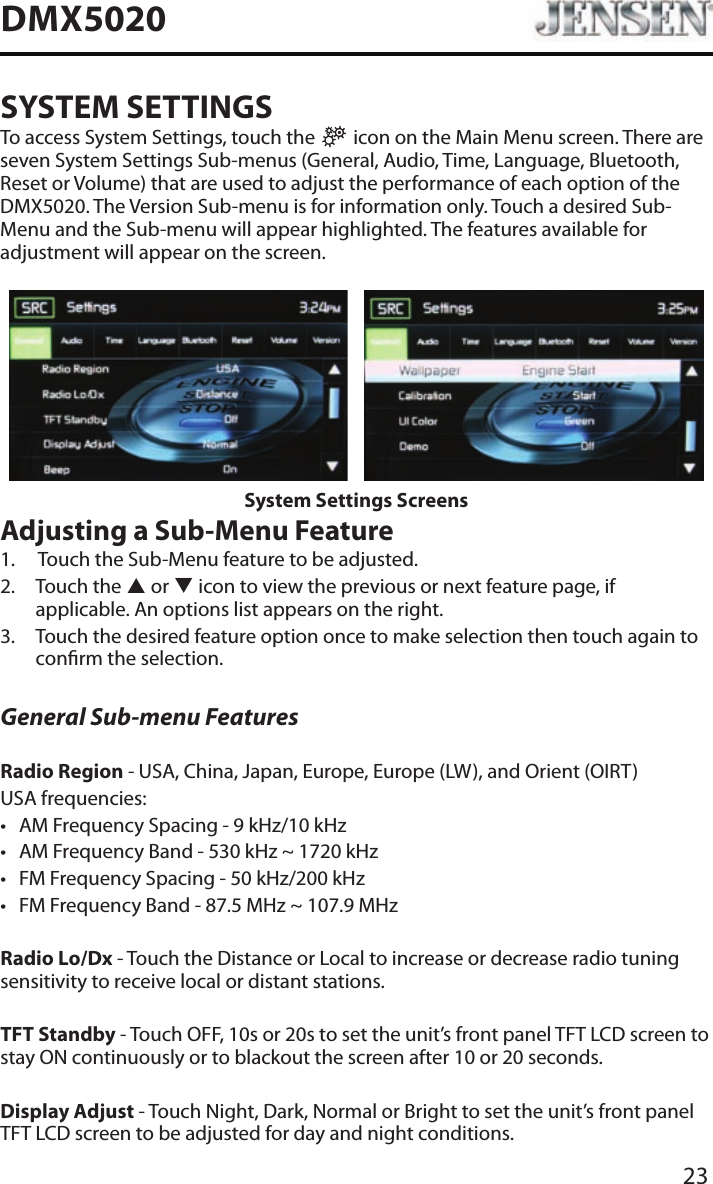
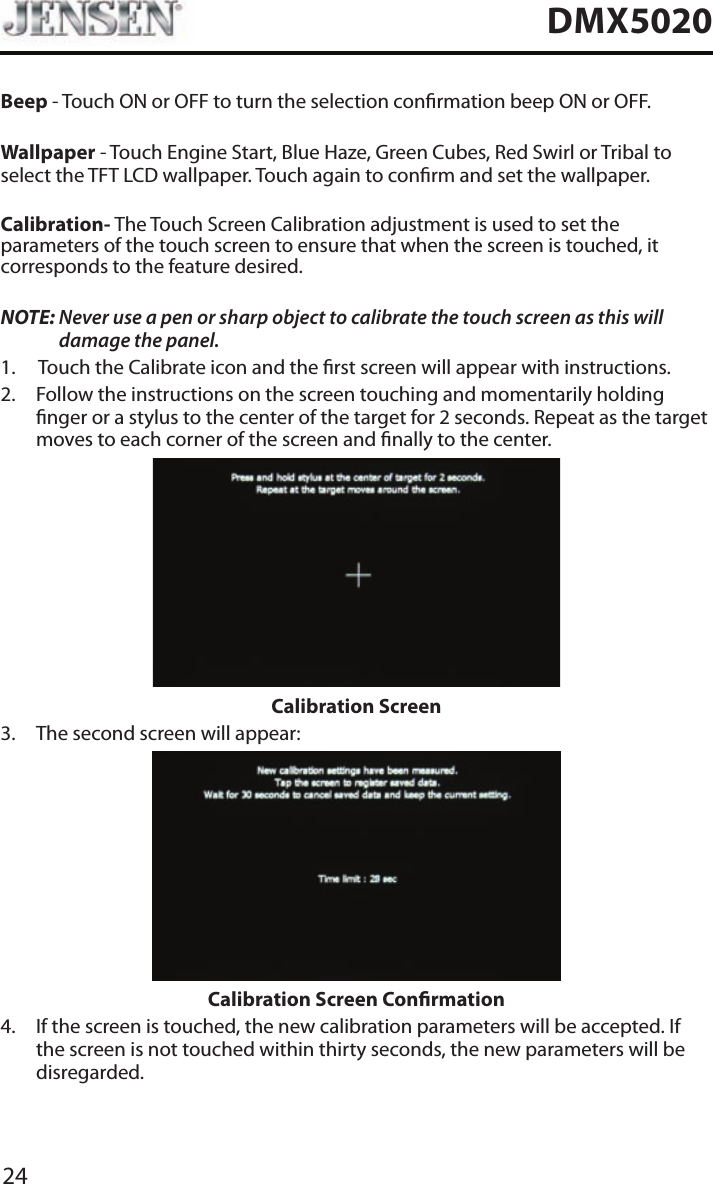
23DMX5020SYSTEM SETTINGSTo access System Settings, touch the   icon on the Main Menu screen. There are seven System Settings Sub-menus (General, Audio, Time, Language, Bluetooth, Reset or Volume) that are used to adjust the performance of each option of the DMX5020. The Version Sub-menu is for information only. Touch a desired Sub-Menu and the Sub-menu will appear highlighted. The features available for adjustment will appear on the screen.System Settings ScreensAdjusting a Sub-Menu Feature1.   Touch the Sub-Menu feature to be adjusted.2.   Touch  the  p or q icon to view the previous or next feature page, if applicable. An options list appears on the right. 3.   Touch the desired feature option once to make selection then touch again to conrm the selection.General Sub-menu FeaturesRadio Region - USA, China, Japan, Europe, Europe (LW), and Orient (OIRT)USA frequencies:• AM Frequency Spacing - 9 kHz/10 kHz • AM Frequency Band - 530 kHz ~ 1720 kHz• FM Frequency Spacing - 50 kHz/200 kHz• FM Frequency Band - 87.5 MHz ~ 107.9 MHzRadio Lo/Dx - Touch the Distance or Local to increase or decrease radio tuning sensitivity to receive local or distant stations.TFT Standby - Touch OFF, 10s or 20s to set the unit’s front panel TFT LCD screen to stay ON continuously or to blackout the screen after 10 or 20 seconds.Display Adjust - Touch Night, Dark, Normal or Bright to set the unit’s front panel TFT LCD screen to be adjusted for day and night conditions.
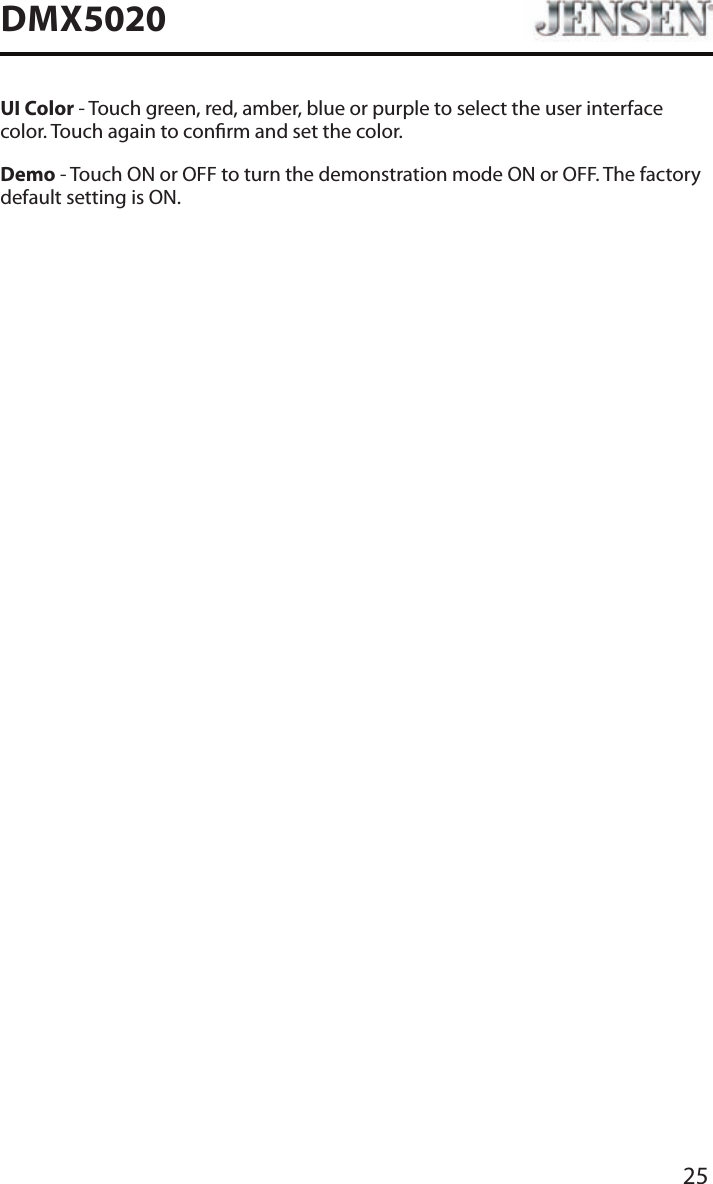
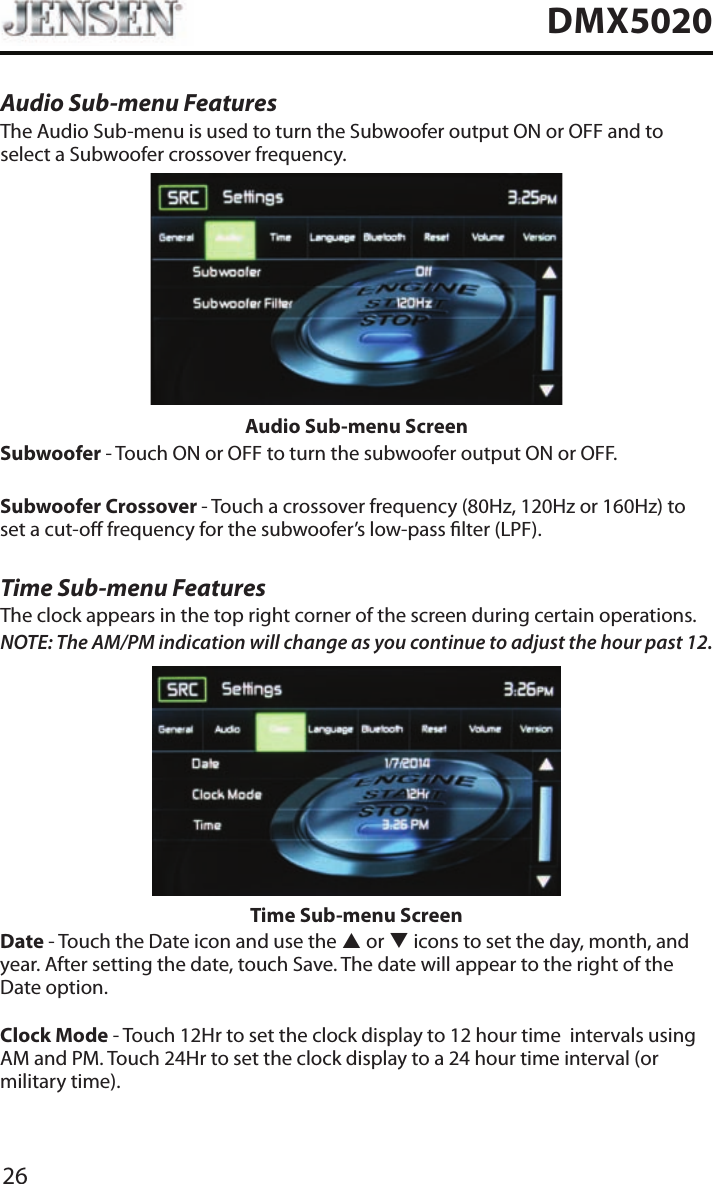
24DMX5020Beep - Touch ON or OFF to turn the selection conrmation beep ON or OFF.Wallpaper - Touch Engine Start, Blue Haze, Green Cubes, Red Swirl or Tribal to select the TFT LCD wallpaper. Touch again to conrm and set the wallpaper.Calibration- The Touch Screen Calibration adjustment is used to set the parameters of the touch screen to ensure that when the screen is touched, it corresponds to the feature desired.NOTE:  Never use a pen or sharp object to calibrate the touch screen as this will damage the panel.1.  Touch the Calibrate icon and the rst screen will appear with instructions.2.   Follow the instructions on the screen touching and momentarily holding nger or a stylus to the center of the target for 2 seconds. Repeat as the target moves to each corner of the screen and nally to the center.Calibration Screen3.  The second screen will appear:Calibration Screen Conrmation4.   If the screen is touched, the new calibration parameters will be accepted. If the screen is not touched within thirty seconds, the new parameters will be disregarded.
25DMX5020UI Color - Touch green, red, amber, blue or purple to select the user interface color. Touch again to conrm and set the color.Demo - Touch ON or OFF to turn the demonstration mode ON or OFF. The factory default setting is ON.
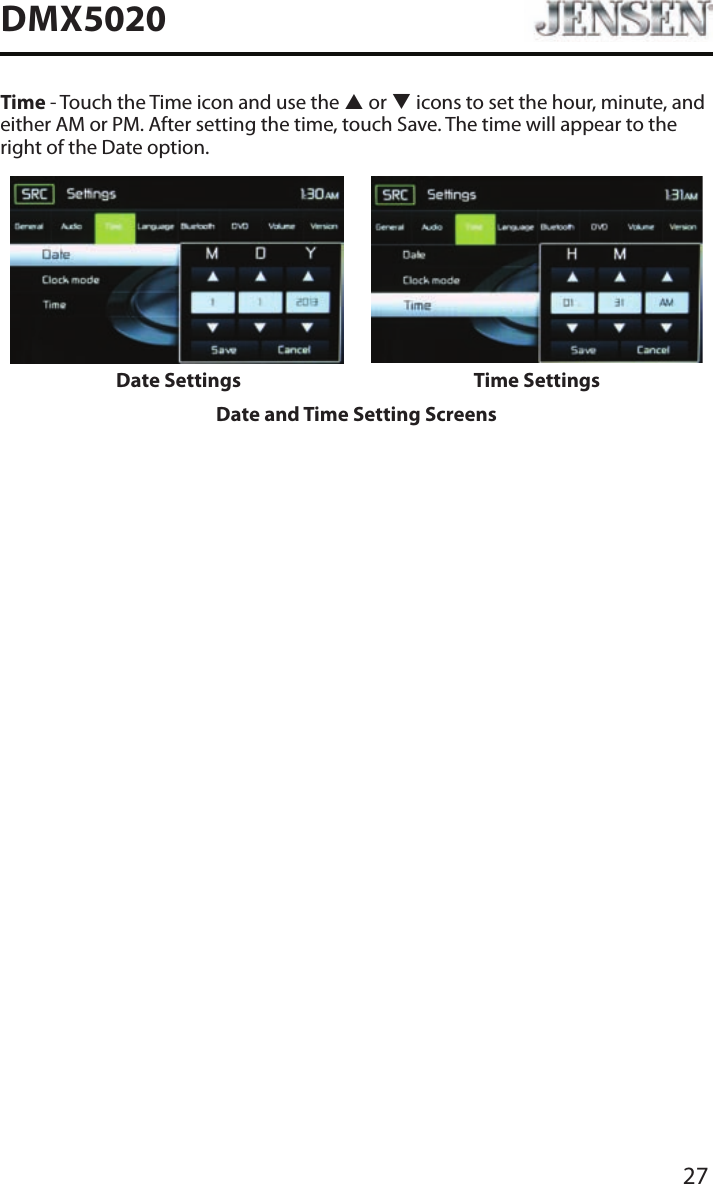
26DMX5020Audio Sub-menu FeaturesThe Audio Sub-menu is used to turn the Subwoofer output ON or OFF and to select a Subwoofer crossover frequency.Audio Sub-menu ScreenSubwoofer - Touch ON or OFF to turn the subwoofer output ON or OFF.Subwoofer Crossover - Touch a crossover frequency (80Hz, 120Hz or 160Hz) to set a cut-o frequency for the subwoofer’s low-pass lter (LPF).Time Sub-menu FeaturesThe clock appears in the top right corner of the screen during certain operations.NOTE: The AM/PM indication will change as you continue to adjust the hour past 12.Time Sub-menu ScreenDate - Touch the Date icon and use the p or q icons to set the day, month, and year. After setting the date, touch Save. The date will appear to the right of the Date option. Clock Mode - Touch 12Hr to set the clock display to 12 hour time  intervals using AM and PM. Touch 24Hr to set the clock display to a 24 hour time interval (or military time).
27DMX5020Time - Touch the Time icon and use the p or q icons to set the hour, minute, and either AM or PM. After setting the time, touch Save. The time will appear to the right of the Date option.Date Settings Time SettingsDate and Time Setting Screens
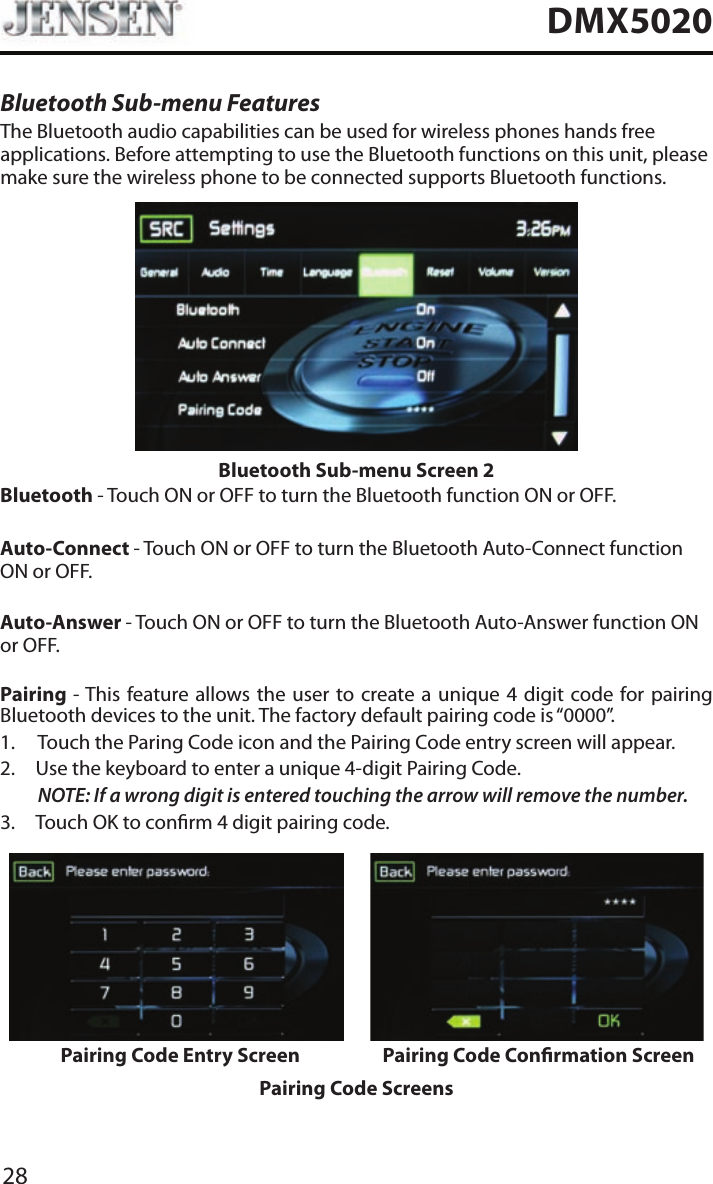
28DMX5020Bluetooth Sub-menu FeaturesThe Bluetooth audio capabilities can be used for wireless phones hands free applications. Before attempting to use the Bluetooth functions on this unit, please make sure the wireless phone to be connected supports Bluetooth functions.Bluetooth Sub-menu Screen 2Bluetooth - Touch ON or OFF to turn the Bluetooth function ON or OFF.Auto-Connect - Touch ON or OFF to turn the Bluetooth Auto-Connect function ON or OFF.Auto-Answer - Touch ON or OFF to turn the Bluetooth Auto-Answer function ON or OFF.Pairing - This feature allows the user to create a unique 4 digit code for pairing Bluetooth devices to the unit. The factory default pairing code is “0000”.1.  Touch the Paring Code icon and the Pairing Code entry screen will appear. 2.  Use the keyboard to enter a unique 4-digit Pairing Code.NOTE:  If a wrong digit is entered touching the arrow will remove the number.3.  Touch OK to conrm 4 digit pairing code.Pairing Code Entry Screen Pairing Code Conrmation ScreenPairing Code Screens
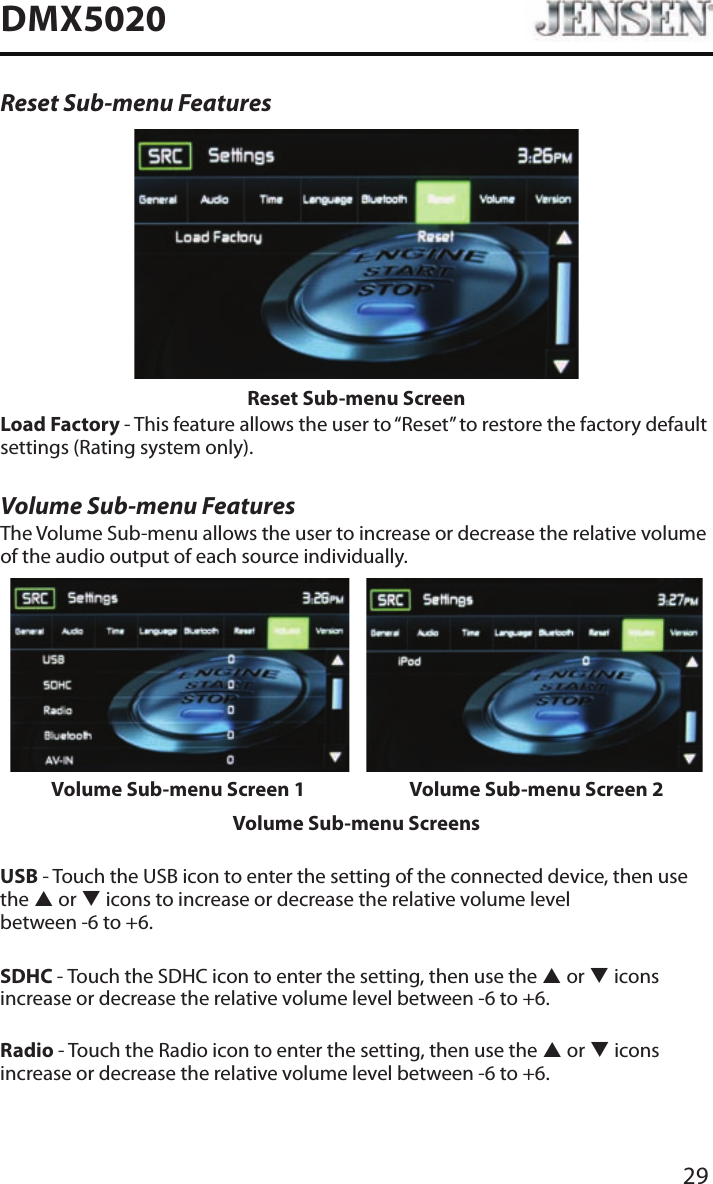
29DMX5020Reset Sub-menu FeaturesReset Sub-menu ScreenLoad Factory - This feature allows the user to “Reset” to restore the factory default settings (Rating system only).Volume Sub-menu FeaturesThe Volume Sub-menu allows the user to increase or decrease the relative volume of the audio output of each source individually.Volume Sub-menu Screen 1 Volume Sub-menu Screen 2Volume Sub-menu ScreensUSB - Touch the USB icon to enter the setting of the connected device, then use the p or q icons to increase or decrease the relative volume level  between -6 to +6.SDHC - Touch the SDHC icon to enter the setting, then use the p or q icons increase or decrease the relative volume level between -6 to +6.Radio - Touch the Radio icon to enter the setting, then use the p or q icons increase or decrease the relative volume level between -6 to +6.
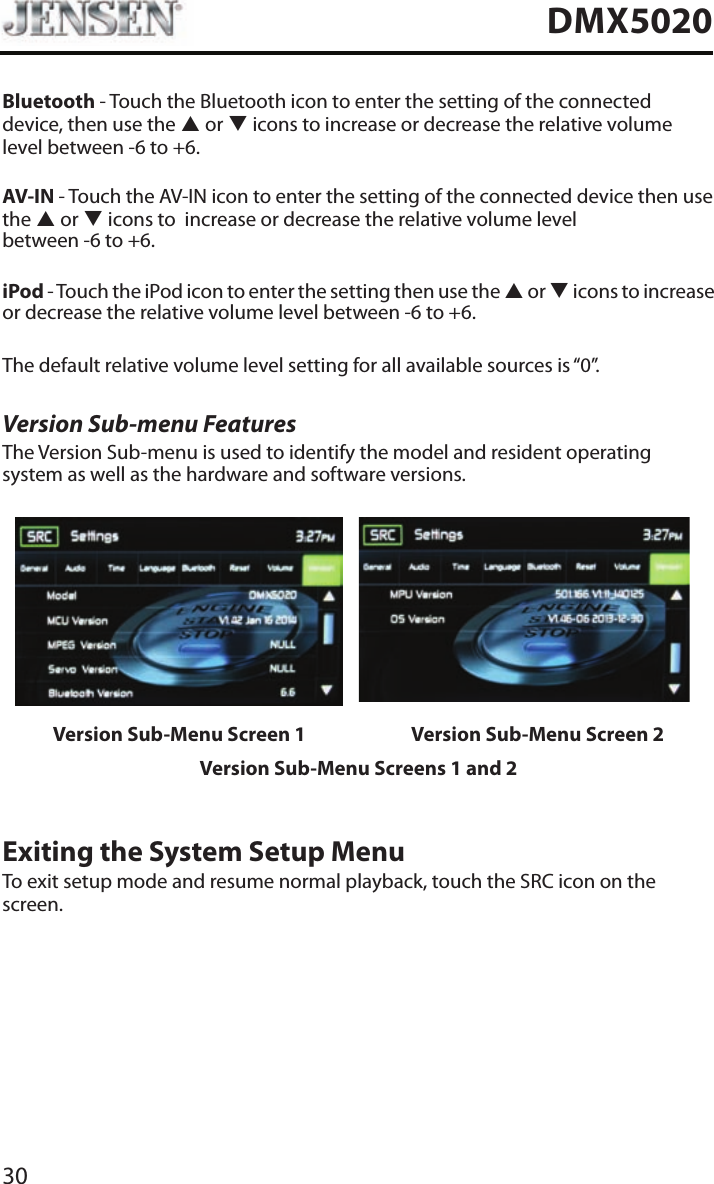
30DMX5020Bluetooth - Touch the Bluetooth icon to enter the setting of the connected device, then use the p or q icons to increase or decrease the relative volume level between -6 to +6.AV-IN - Touch the AV-IN icon to enter the setting of the connected device then use the p or q icons to  increase or decrease the relative volume level  between -6 to +6. iPod - Touch the iPod icon to enter the setting then use the p or q icons to increase or decrease the relative volume level between -6 to +6.The default relative volume level setting for all available sources is “0”.Version Sub-menu FeaturesThe Version Sub-menu is used to identify the model and resident operating system as well as the hardware and software versions.Version Sub-Menu Screen 1 Version Sub-Menu Screen 2Version Sub-Menu Screens 1 and 2Exiting the System Setup MenuTo exit setup mode and resume normal playback, touch the SRC icon on the screen.
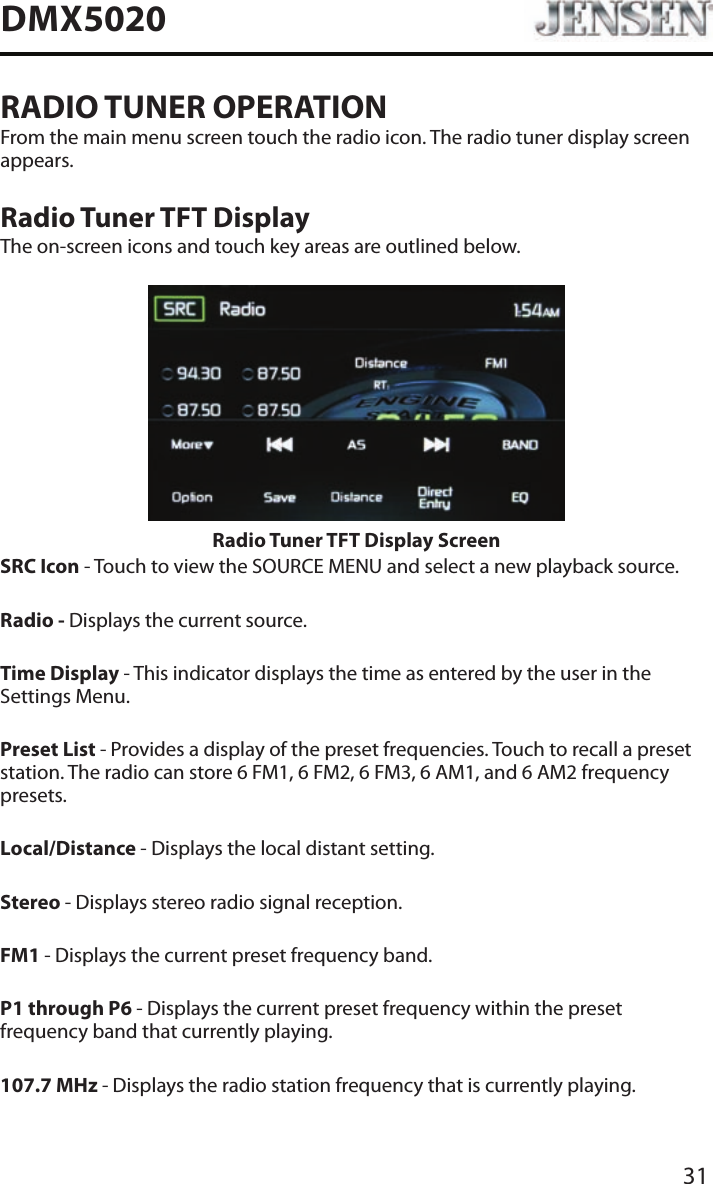
31DMX5020RADIO TUNER OPERATIONFrom the main menu screen touch the radio icon. The radio tuner display screen appears.Radio Tuner TFT DisplayThe on-screen icons and touch key areas are outlined below.Radio Tuner TFT Display Screen SRC Icon - Touch to view the SOURCE MENU and select a new playback source. Radio - Displays the current source.Time Display - This indicator displays the time as entered by the user in the Settings Menu.Preset List - Provides a display of the preset frequencies. Touch to recall a preset station. The radio can store 6 FM1, 6 FM2, 6 FM3, 6 AM1, and 6 AM2 frequency presets.Local/Distance - Displays the local distant setting.Stereo - Displays stereo radio signal reception.FM1 - Displays the current preset frequency band. P1 through P6 - Displays the current preset frequency within the preset frequency band that currently playing. 107.7 MHz - Displays the radio station frequency that is currently playing.
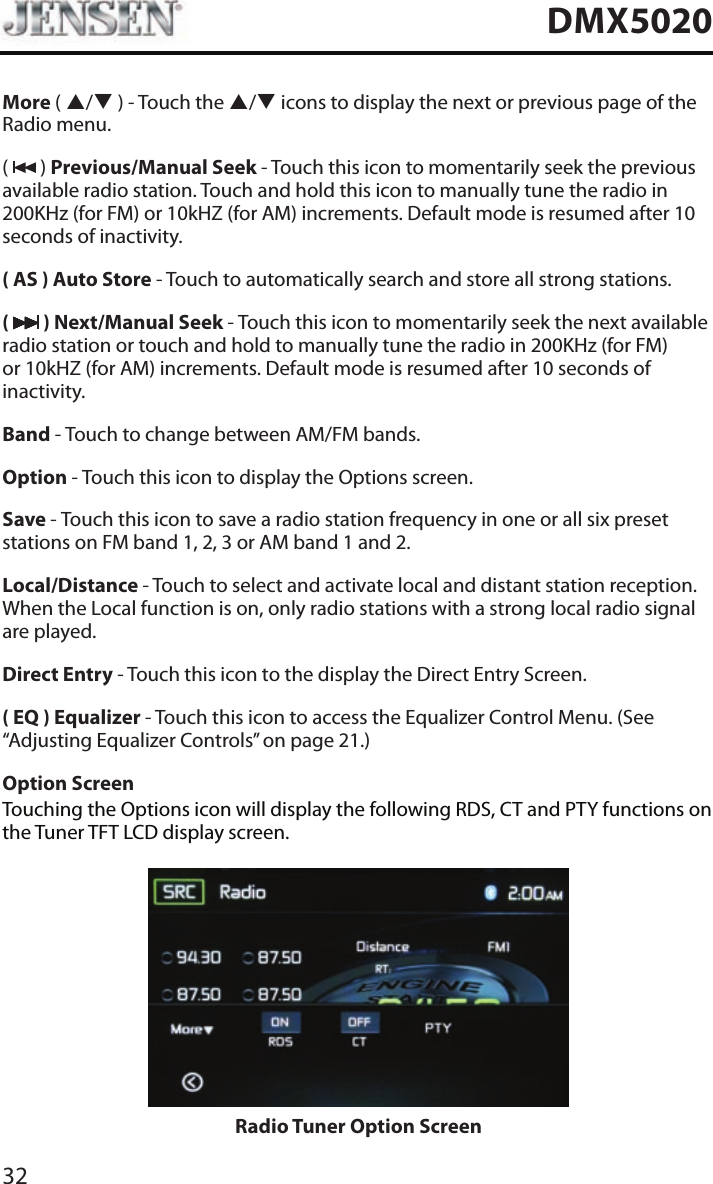
32DMX5020More ( p/q ) - Touch the p/q icons to display the next or previous page of the Radio menu. (   ) Previous/Manual Seek - Touch this icon to momentarily seek the previous available radio station. Touch and hold this icon to manually tune the radio in 200KHz (for FM) or 10kHZ (for AM) increments. Default mode is resumed after 10 seconds of inactivity.( AS ) Auto Store - Touch to automatically search and store all strong stations.(   ) Next/Manual Seek - Touch this icon to momentarily seek the next available radio station or touch and hold to manually tune the radio in 200KHz (for FM) or 10kHZ (for AM) increments. Default mode is resumed after 10 seconds of inactivity.Band - Touch to change between AM/FM bands.Option - Touch this icon to display the Options screen.Save - Touch this icon to save a radio station frequency in one or all six preset stations on FM band 1, 2, 3 or AM band 1 and 2.Local/Distance - Touch to select and activate local and distant station reception. When the Local function is on, only radio stations with a strong local radio signal are played.Direct Entry - Touch this icon to the display the Direct Entry Screen.( EQ ) Equalizer - Touch this icon to access the Equalizer Control Menu. (See “Adjusting Equalizer Controls” on page 21.)Option ScreenTouching the Options icon will display the following RDS, CT and PTY functions on the Tuner TFT LCD display screen.Radio Tuner Option Screen
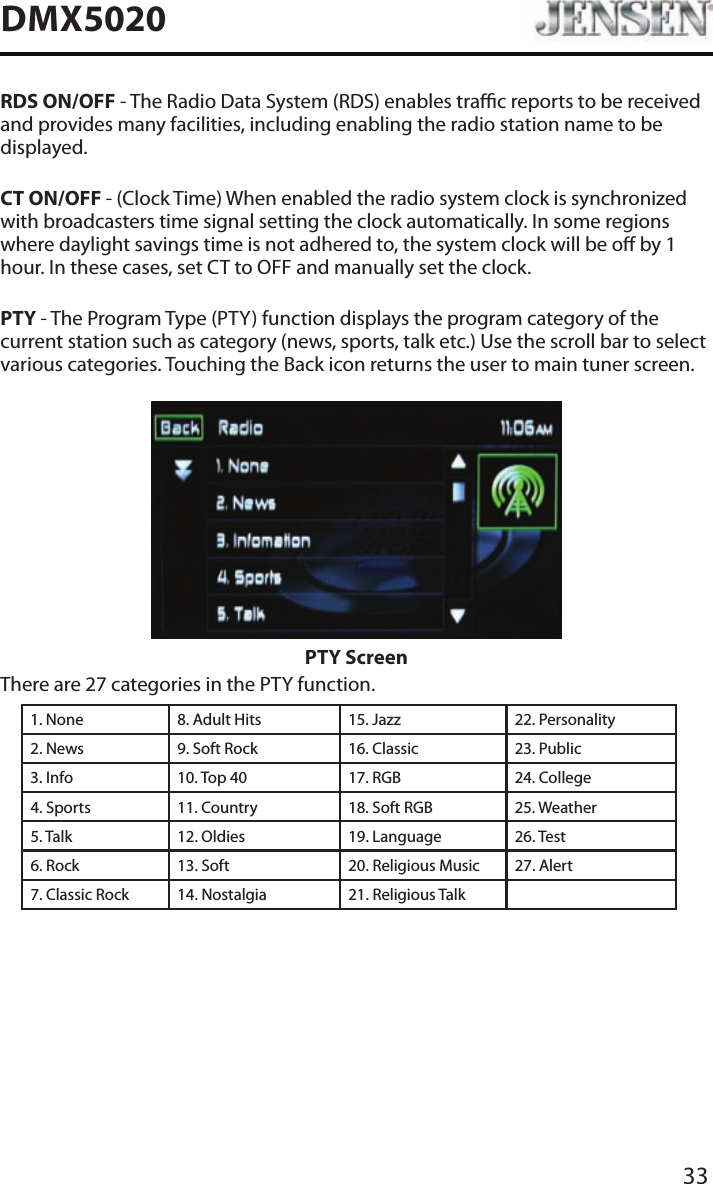
33DMX5020RDS ON/OFF - The Radio Data System (RDS) enables trac reports to be received and provides many facilities, including enabling the radio station name to be displayed.CT ON/OFF - (Clock Time) When enabled the radio system clock is synchronized with broadcasters time signal setting the clock automatically. In some regions where daylight savings time is not adhered to, the system clock will be o by 1 hour. In these cases, set CT to OFF and manually set the clock.PTY - The Program Type (PTY) function displays the program category of the current station such as category (news, sports, talk etc.) Use the scroll bar to select various categories. Touching the Back icon returns the user to main tuner screen.PTY ScreenThere are 27 categories in the PTY function.1. None 8. Adult Hits 15. Jazz 22. Personality2. News 9. Soft Rock 16. Classic  23. Public3. Info 10. Top 40 17. RGB 24. College4. Sports 11. Country 18. Soft RGB 25. Weather5. Talk 12. Oldies 19. Language 26. Test6. Rock 13. Soft 20. Religious Music 27. Alert7. Classic Rock 14. Nostalgia 21. Religious Talk
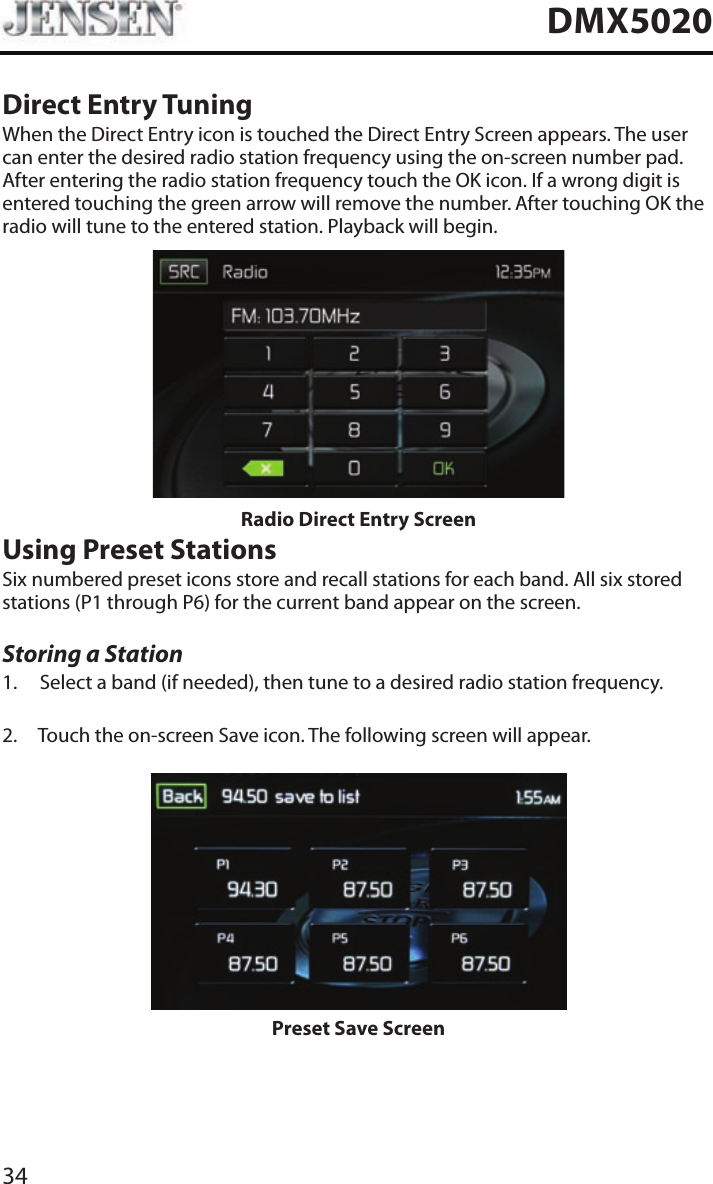
34DMX5020Direct Entry TuningWhen the Direct Entry icon is touched the Direct Entry Screen appears. The user can enter the desired radio station frequency using the on-screen number pad. After entering the radio station frequency touch the OK icon. If a wrong digit is entered touching the green arrow will remove the number. After touching OK the radio will tune to the entered station. Playback will begin. Radio Direct Entry ScreenUsing Preset StationsSix numbered preset icons store and recall stations for each band. All six stored stations (P1 through P6) for the current band appear on the screen.Storing a Station1.  Select a band (if needed), then tune to a desired radio station frequency.2.  Touch the on-screen Save icon. The following screen will appear.Preset Save Screen
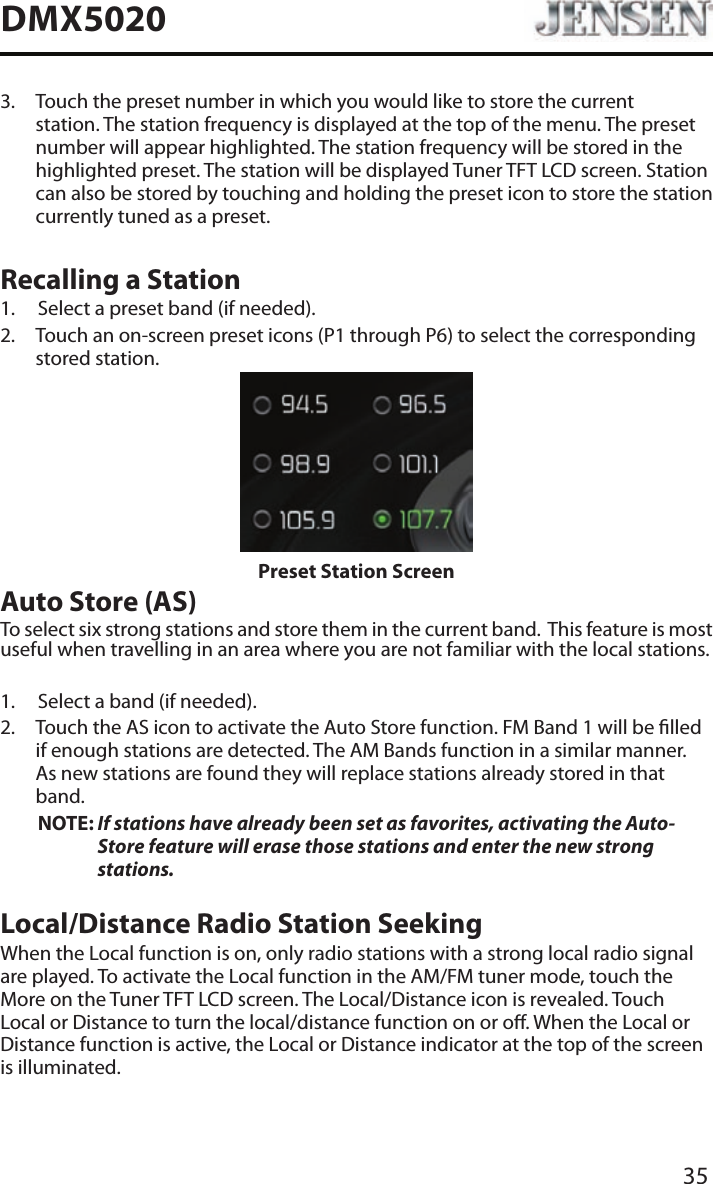
35DMX50203.   Touch the preset number in which you would like to store the current station. The station frequency is displayed at the top of the menu. The preset number will appear highlighted. The station frequency will be stored in the highlighted preset. The station will be displayed Tuner TFT LCD screen. Station can also be stored by touching and holding the preset icon to store the station currently tuned as a preset.Recalling a Station1.  Select a preset band (if needed).2.   Touch an on-screen preset icons (P1 through P6) to select the corresponding stored station. Preset Station ScreenAuto Store (AS)To select six strong stations and store them in the current band.  This feature is most useful when travelling in an area where you are not familiar with the local stations. 1.  Select a band (if needed).2.   Touch the AS icon to activate the Auto Store function. FM Band 1 will be lled if enough stations are detected. The AM Bands function in a similar manner.  As new stations are found they will replace stations already stored in that band.NOTE:  If stations have already been set as favorites, activating the Auto-Store feature will erase those stations and enter the new strong stations. Local/Distance Radio Station SeekingWhen the Local function is on, only radio stations with a strong local radio signal are played. To activate the Local function in the AM/FM tuner mode, touch the More on the Tuner TFT LCD screen. The Local/Distance icon is revealed. Touch Local or Distance to turn the local/distance function on or o. When the Local or Distance function is active, the Local or Distance indicator at the top of the screen is illuminated.
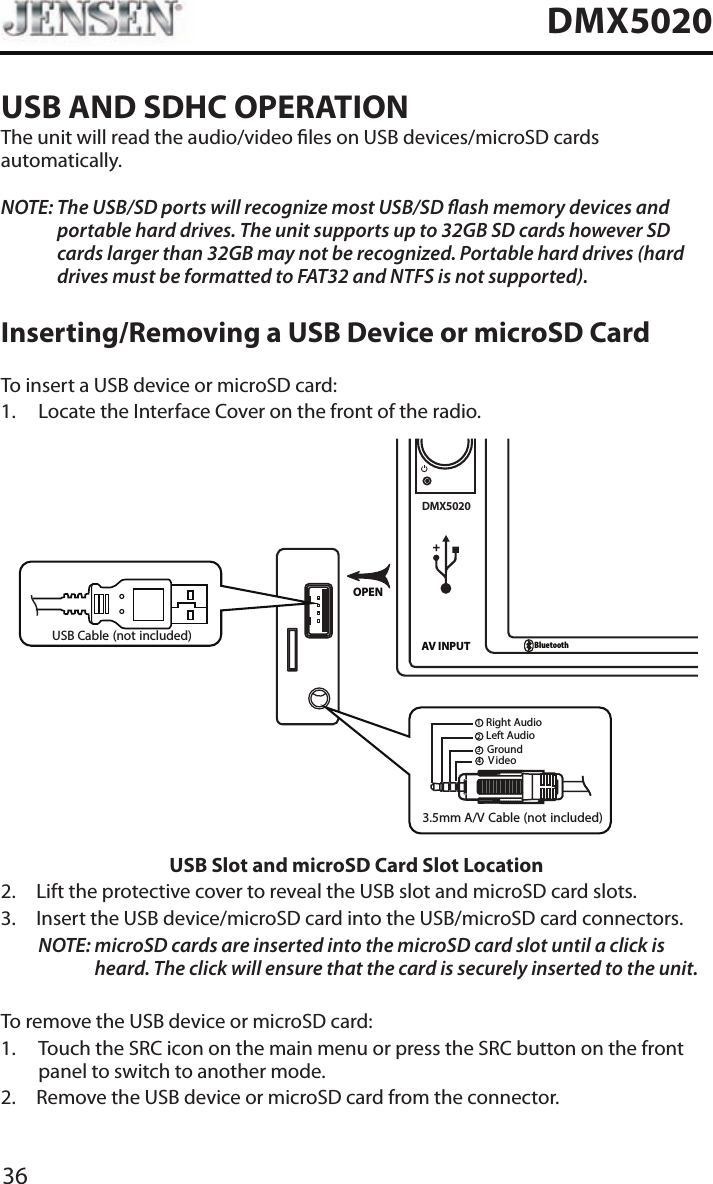
36DMX5020USB AND SDHC OPERATIONThe unit will read the audio/video les on USB devices/microSD cards automatically.NOTE:  The USB/SD ports will recognize most USB/SD ash memory devices and portable hard drives. The unit supports up to 32GB SD cards however SD cards larger than 32GB may not be recognized. Portable hard drives (hard drives must be formatted to FAT32 and NTFS is not supported).Inserting/Removing a USB Device or microSD CardTo insert a USB device or microSD card:1.  Locate the Interface Cover on the front of the radio.DMX5020AV INPUTBluetoothOPEN3.5mm A/V Cable (not included)V ideoLeft AudioRight AudioGround1234USB Cable (not included)USB Slot and microSD Card Slot Location2.  Lift the protective cover to reveal the USB slot and microSD card slots.3.   Insert the USB device/microSD card into the USB/microSD card connectors. NOTE:  microSD cards are inserted into the microSD card slot until a click is heard. The click will ensure that the card is securely inserted to the unit.To remove the USB device or microSD card:1.   Touch the SRC icon on the main menu or press the SRC button on the front panel to switch to another mode.2.  Remove the USB device or microSD card from the connector.
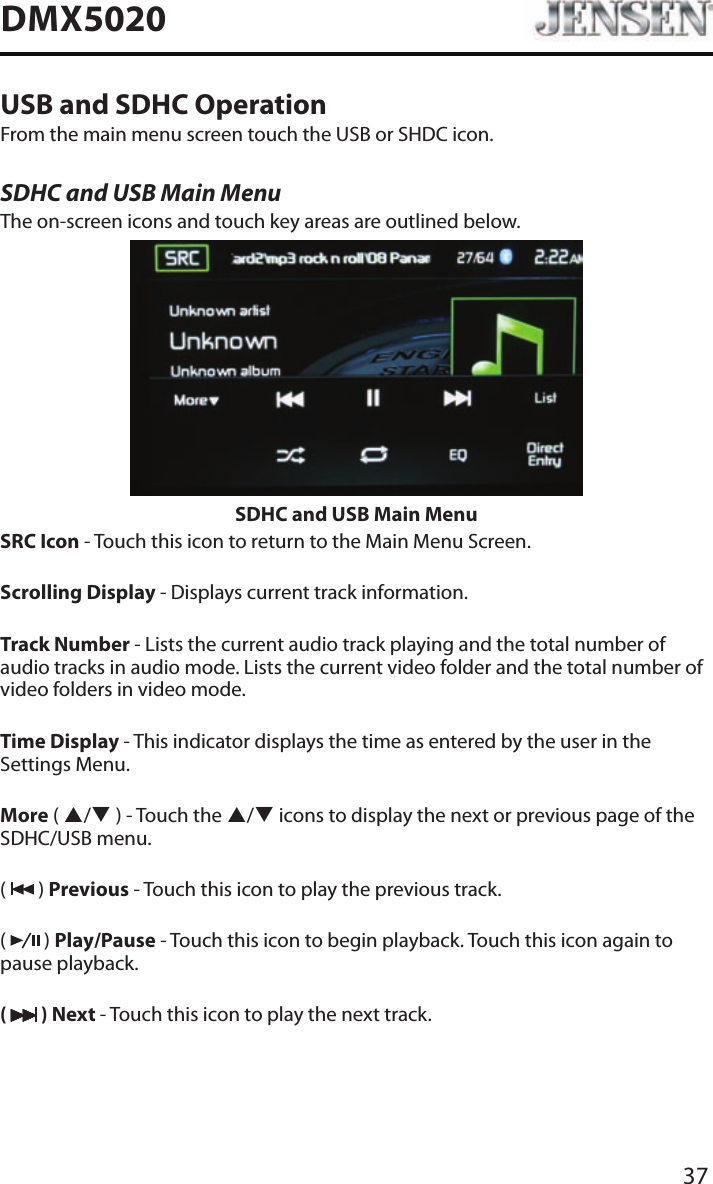
37DMX5020USB and SDHC OperationFrom the main menu screen touch the USB or SHDC icon.SDHC and USB Main MenuThe on-screen icons and touch key areas are outlined below.SDHC and USB Main MenuSRC Icon - Touch this icon to return to the Main Menu Screen.Scrolling Display - Displays current track information.Track Number - Lists the current audio track playing and the total number of audio tracks in audio mode. Lists the current video folder and the total number of video folders in video mode.Time Display - This indicator displays the time as entered by the user in the Settings Menu.More ( p/q ) - Touch the p/q icons to display the next or previous page of the SDHC/USB menu.(   ) Previous - Touch this icon to play the previous track.(   ) Play/Pause - Touch this icon to begin playback. Touch this icon again to pause playback.(   ) Next - Touch this icon to play the next track.
38DMX5020List - Touch this icon to access the list of audio and video les contained on the USB device/microSD card. Touch a folder icon and the contents of the folder will be displayed. Touch a desired track icon twice and the track will begin playing.(   ) Shue - Touch this icon to play audio or video tracks in a random order. The icon will light on the main TFT LCD screen.(   ) Repeat - In audio mode touch this icon to repeat playback of the current audio track. The icon on the main TFT LCD screen will light and a small letter A will appear below the icon and the all the audio tracks will repeat. Touch this icon again and single track will repeat. The icon on the TFT LCD  screen will light and small number 1 will appear below the icon. Touch the icon again the repeat function will be cancelled. The icon on the main TFT LCD screen will dim and playback of the remainder of the tracks will resume.In video mode touch this icon during playback to repeat the current track. The icon on the main TFT LCD screen will light and small number 1 will appear below the icon and the track will repeat. Touch the icon again to repeat all the tracks will repeat. The icon on the main TFT LCD screen will light and small letter A will appear below the icon and all the tracks will repeat. Touch the icon again the repeat function will be cancelled. The icon on the main TFT LCD screen will dim and playback of the remainder of the tracks will resume.( EQ ) Equalizer - Touch this icon to access the Equalizer Control Menu. (See “Adjusting Equalizer Controls” on page 21.)Direct Entry - Touch this icon to the display the Direct Entry Screen.
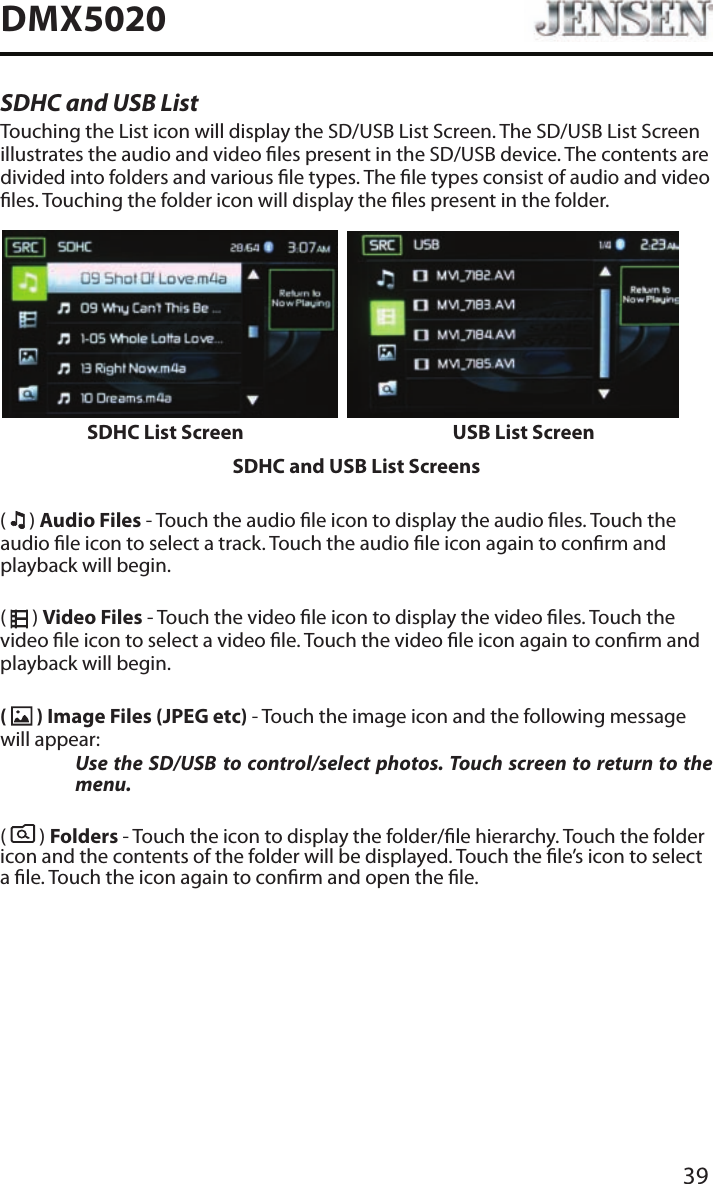
39DMX5020SDHC and USB ListTouching the List icon will display the SD/USB List Screen. The SD/USB List Screen illustrates the audio and video les present in the SD/USB device. The contents are divided into folders and various le types. The le types consist of audio and video les. Touching the folder icon will display the les present in the folder.SDHC List Screen USB List ScreenSDHC and USB List Screens(   ) Audio Files - Touch the audio le icon to display the audio les. Touch the audio le icon to select a track. Touch the audio le icon again to conrm and playback will begin.(   ) Video Files - Touch the video le icon to display the video les. Touch the video le icon to select a video le. Touch the video le icon again to conrm and playback will begin.(   ) Image Files (JPEG etc) - Touch the image icon and the following message will appear:  Use the SD/USB to control/select photos. Touch screen to return to the menu. (   ) Folders - Touch the icon to display the folder/le hierarchy. Touch the folder icon and the contents of the folder will be displayed. Touch the le’s icon to select a le. Touch the icon again to conrm and open the le.
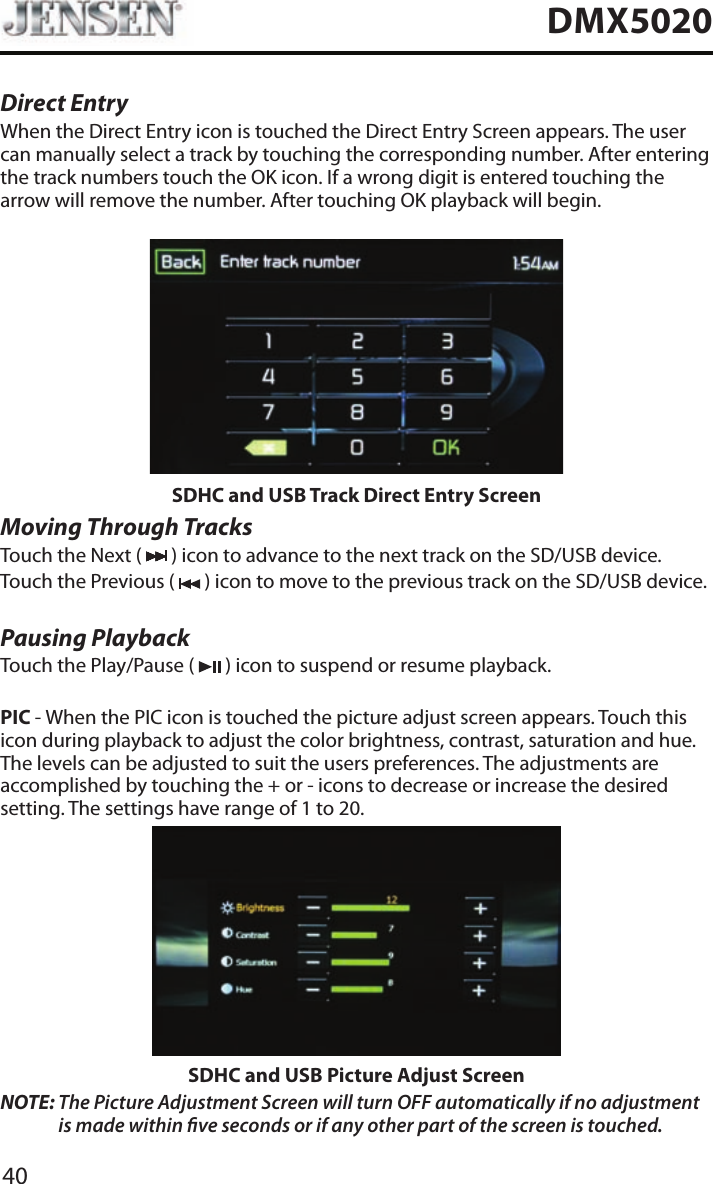
40DMX5020Direct EntryWhen the Direct Entry icon is touched the Direct Entry Screen appears. The user can manually select a track by touching the corresponding number. After entering the track numbers touch the OK icon. If a wrong digit is entered touching the arrow will remove the number. After touching OK playback will begin.SDHC and USB Track Direct Entry ScreenMoving Through TracksTouch the Next (   ) icon to advance to the next track on the SD/USB device.Touch the Previous (   ) icon to move to the previous track on the SD/USB device.Pausing PlaybackTouch the Play/Pause (   ) icon to suspend or resume playback.PIC - When the PIC icon is touched the picture adjust screen appears. Touch this icon during playback to adjust the color brightness, contrast, saturation and hue. The levels can be adjusted to suit the users preferences. The adjustments are accomplished by touching the + or - icons to decrease or increase the desired setting. The settings have range of 1 to 20. SDHC and USB Picture Adjust ScreenNOTE:  The Picture Adjustment Screen will turn OFF automatically if no adjustment is made within ve seconds or if any other part of the screen is touched.
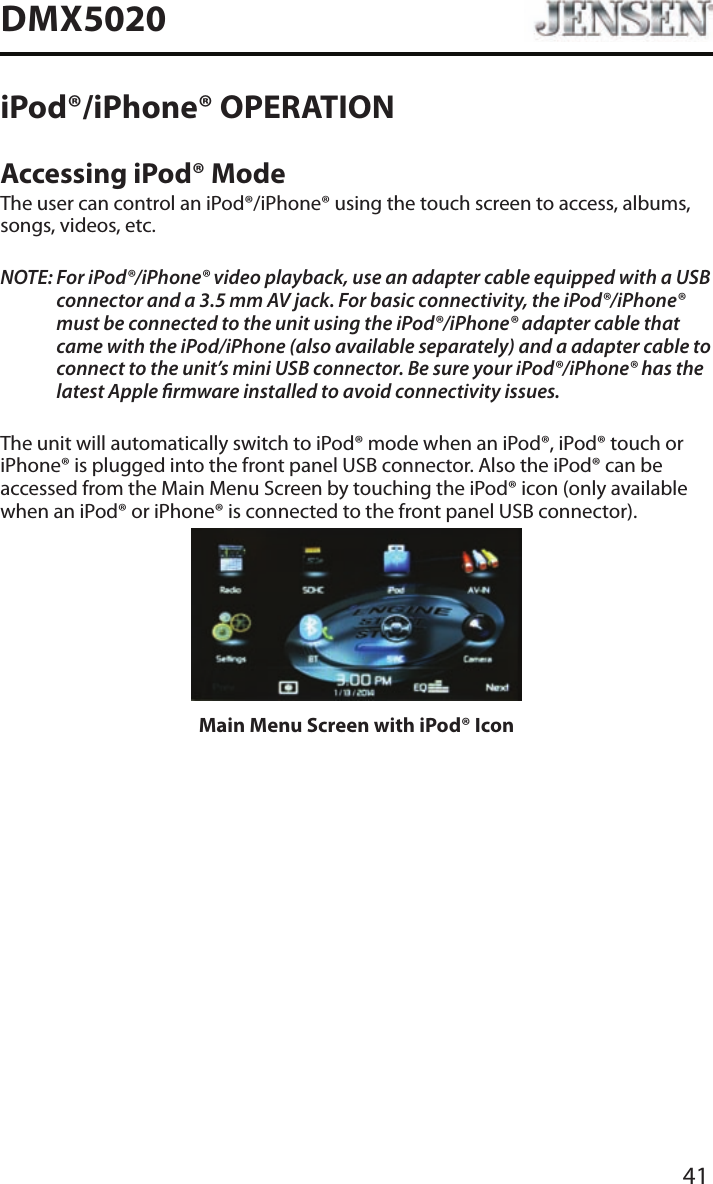
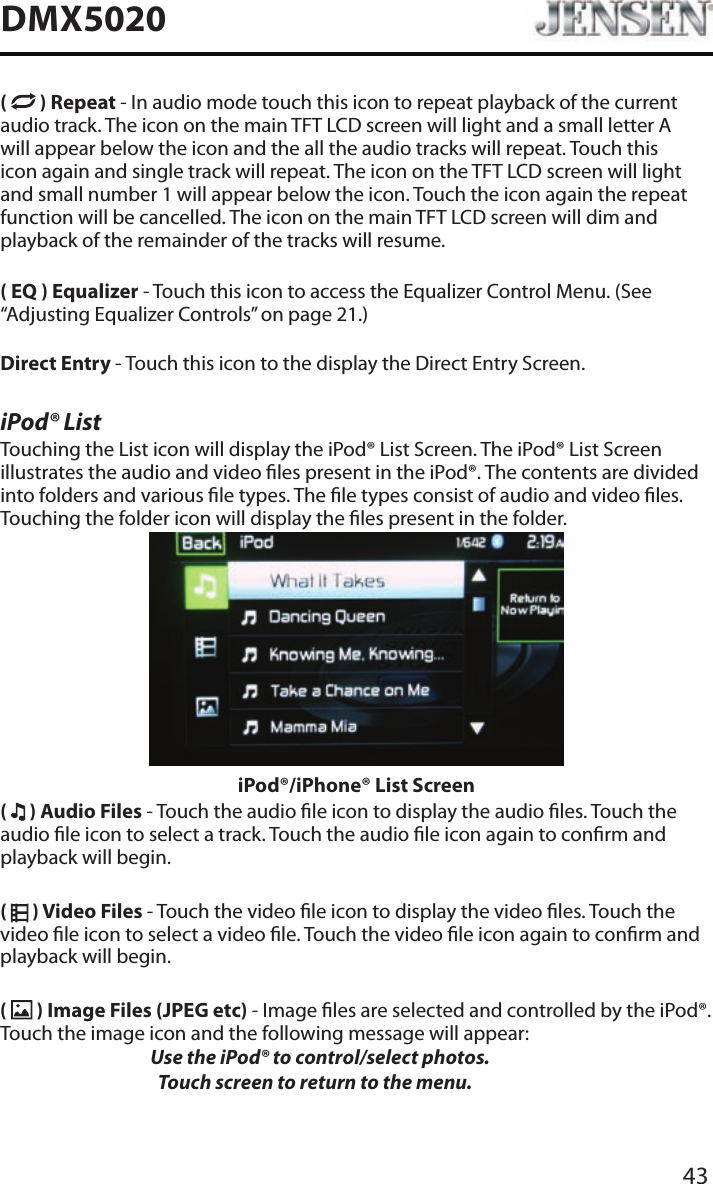
41DMX5020iPod®/iPhone® OPERATIONAccessing iPod® ModeThe user can control an iPod®/iPhone® using the touch screen to access, albums, songs, videos, etc.NOTE:  For iPod®/iPhone® video playback, use an adapter cable equipped with a USB connector and a 3.5 mm AV jack. For basic connectivity, the iPod®/iPhone® must be connected to the unit using the iPod®/iPhone® adapter cable that came with the iPod/iPhone (also available separately) and a adapter cable to connect to the unit’s mini USB connector. Be sure your iPod®/iPhone® has the latest Apple rmware installed to avoid connectivity issues.The unit will automatically switch to iPod® mode when an iPod®, iPod® touch or iPhone® is plugged into the front panel USB connector. Also the iPod® can be accessed from the Main Menu Screen by touching the iPod® icon (only available when an iPod® or iPhone® is connected to the front panel USB connector).Main Menu Screen with iPod® Icon
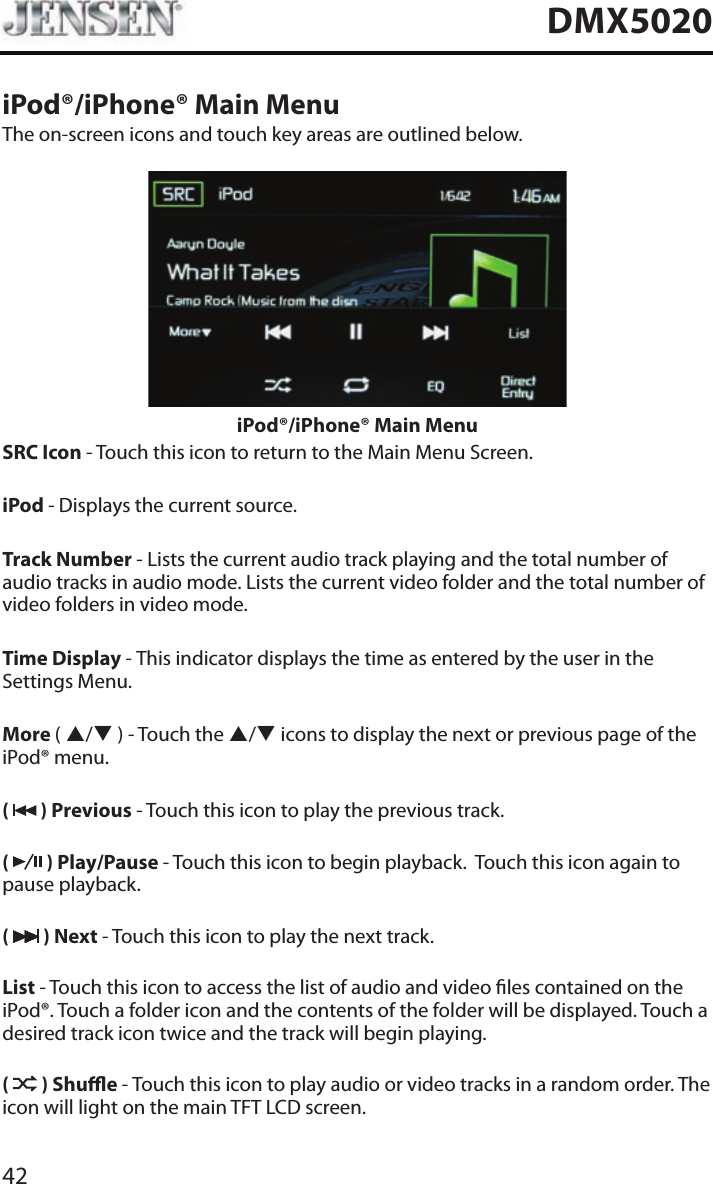
42DMX5020iPod®/iPhone® Main MenuThe on-screen icons and touch key areas are outlined below.iPod®/iPhone® Main MenuSRC Icon - Touch this icon to return to the Main Menu Screen. iPod - Displays the current source.Track Number - Lists the current audio track playing and the total number of audio tracks in audio mode. Lists the current video folder and the total number of video folders in video mode.Time Display - This indicator displays the time as entered by the user in the Settings Menu.More ( p/q ) - Touch the p/q icons to display the next or previous page of the iPod® menu.(   ) Previous - Touch this icon to play the previous track.(   ) Play/Pause - Touch this icon to begin playback.  Touch this icon again to pause playback.(   ) Next - Touch this icon to play the next track.List - Touch this icon to access the list of audio and video les contained on the iPod®. Touch a folder icon and the contents of the folder will be displayed. Touch a desired track icon twice and the track will begin playing. (   ) Shue - Touch this icon to play audio or video tracks in a random order. The icon will light on the main TFT LCD screen.
43DMX5020(   ) Repeat - In audio mode touch this icon to repeat playback of the current audio track. The icon on the main TFT LCD screen will light and a small letter A will appear below the icon and the all the audio tracks will repeat. Touch this icon again and single track will repeat. The icon on the TFT LCD screen will light and small number 1 will appear below the icon. Touch the icon again the repeat function will be cancelled. The icon on the main TFT LCD screen will dim and playback of the remainder of the tracks will resume.( EQ ) Equalizer - Touch this icon to access the Equalizer Control Menu. (See “Adjusting Equalizer Controls” on page 21.)Direct Entry - Touch this icon to the display the Direct Entry Screen.iPod® ListTouching the List icon will display the iPod® List Screen. The iPod® List Screen illustrates the audio and video les present in the iPod®. The contents are divided into folders and various le types. The le types consist of audio and video les. Touching the folder icon will display the les present in the folder. iPod®/iPhone® List Screen(   ) Audio Files - Touch the audio le icon to display the audio les. Touch the audio le icon to select a track. Touch the audio le icon again to conrm and playback will begin.(   ) Video Files - Touch the video le icon to display the video les. Touch the video le icon to select a video le. Touch the video le icon again to conrm and playback will begin.(   ) Image Files (JPEG etc) - Image les are selected and controlled by the iPod®. Touch the image icon and the following message will appear:   Use the iPod® to control/select photos.      Touch screen to return to the menu.
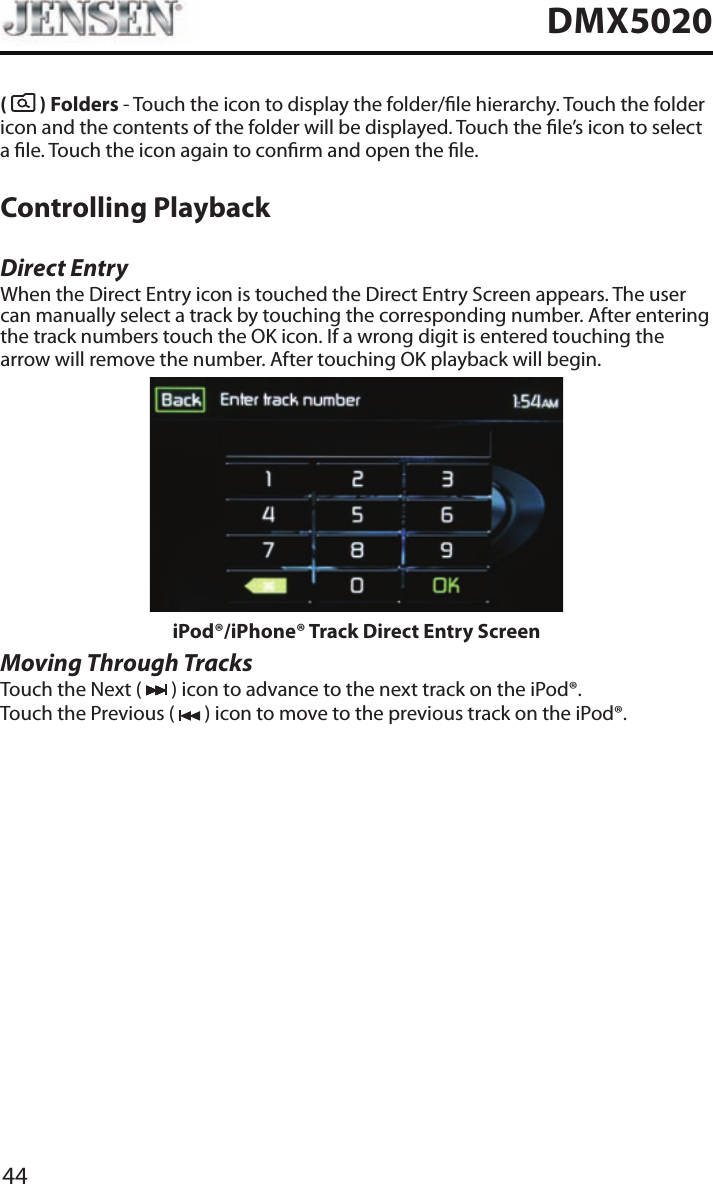
44DMX5020(   ) Folders - Touch the icon to display the folder/le hierarchy. Touch the folder icon and the contents of the folder will be displayed. Touch the le’s icon to select a le. Touch the icon again to conrm and open the le.Controlling PlaybackDirect EntryWhen the Direct Entry icon is touched the Direct Entry Screen appears. The user can manually select a track by touching the corresponding number. After entering the track numbers touch the OK icon. If a wrong digit is entered touching the arrow will remove the number. After touching OK playback will begin.iPod®/iPhone® Track Direct Entry ScreenMoving Through TracksTouch the Next (   ) icon to advance to the next track on the iPod®.Touch the Previous (   ) icon to move to the previous track on the iPod®.
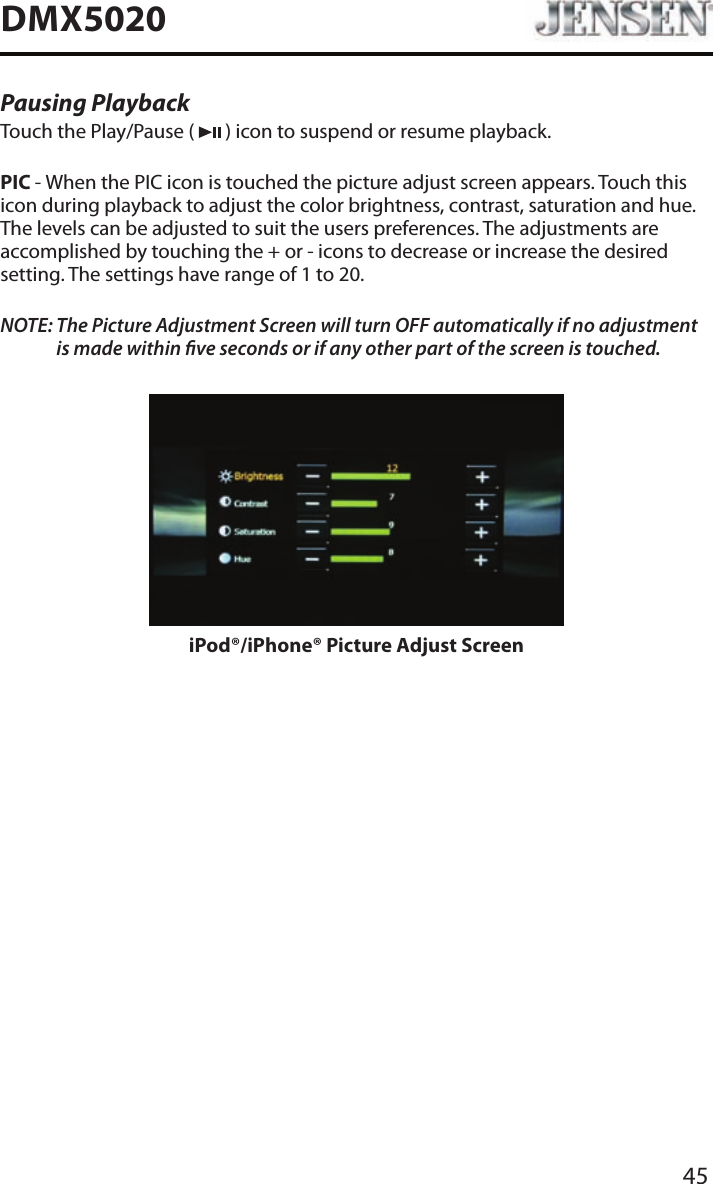
45DMX5020Pausing PlaybackTouch the Play/Pause (   ) icon to suspend or resume playback.PIC - When the PIC icon is touched the picture adjust screen appears. Touch this icon during playback to adjust the color brightness, contrast, saturation and hue. The levels can be adjusted to suit the users preferences. The adjustments are accomplished by touching the + or - icons to decrease or increase the desired setting. The settings have range of 1 to 20. NOTE:  The Picture Adjustment Screen will turn OFF automatically if no adjustment is made within ve seconds or if any other part of the screen is touched.iPod®/iPhone® Picture Adjust Screen
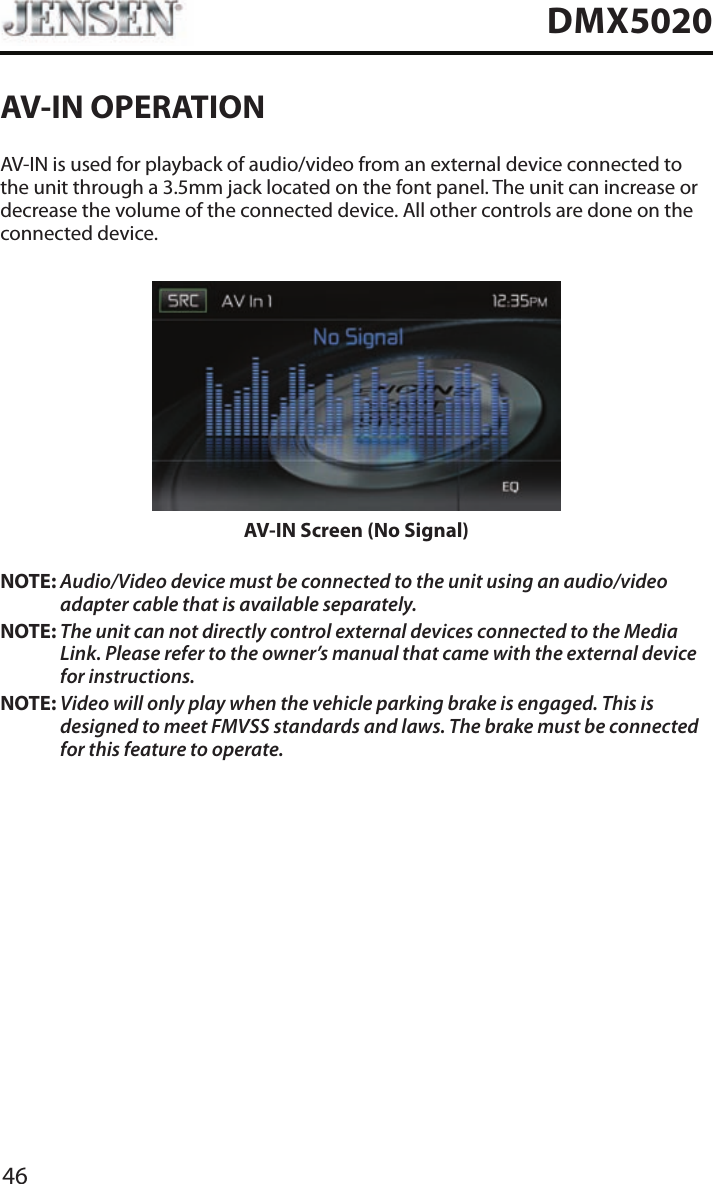
46DMX5020AV-IN OPERATIONAV-IN is used for playback of audio/video from an external device connected to the unit through a 3.5mm jack located on the font panel. The unit can increase or decrease the volume of the connected device. All other controls are done on the connected device.AV-IN Screen (No Signal)NOTE: Audio/Video device must be connected to the unit using an audio/video adapter cable that is available separately.NOTE: The unit can not directly control external devices connected to the Media Link. Please refer to the owner’s manual that came with the external device for instructions.NOTE: Video will only play when the vehicle parking brake is engaged. This is designed to meet FMVSS standards and laws. The brake must be connected for this feature to operate.
47DMX5020BLUETOOTH OPERATIONBluetooth® was launched by a special interest group (SIG) comprised of Ericsson Inc., Intel Corp., Nokia Corp., Toshiba and IBM in 1998, and it is currently developed by nearly 2,000 companies worldwide. The Bluetooth® word mark and logos are owned by the Bluetooth® SIG, Inc. and any use of such marks by Audiovox Corporation is under license. Other trademarks and trade names are those of their respective owners.Bluetooth® technology has the capability to wirelessly synchronize and transfer data among devices. The Bluetooth® audio capabilities can be used for mobile phones hands free applications. Bluetooth® has many proles and the unit is compatible with most Bluetooth® enabled mobile phones. Before attempting to use the Bluetooth® functions on the unit, please make sure your mobile phone supports Bluetooth® functions.NOTE:  The line-of-sight distance between this unit and your mobile phone must be 8 feet (2.4 meters) or less for sending and receiving voice and data via Bluetooth® wireless technology.Please make sure your mobile phone supports Bluetooth® functions (Headset or Handsfree proles or both). Adhere to the following guidelines for successful operation.• Before using Bluetooth® functions, you must pair your mobile phone to the DMX5020 unit (see “Pairing the Bluetooth® System with Your Mobile Phone and Unit”). To ensure the best reception for pairing and re-connection, please make sure the mobile phone battery is fully charged before you begin.• Try to perform pairing within a few minutes of the mobile phone being turned on.• Once the unit has been paired with the mobile phone, the unit’s model number, “DMX5020”, will be displayed on the mobile phone.• To achieve the best performance, always keep the mobile phone within 10 feet (3 meters) of the unit.• Always keep a clear path between the mobile phone and the unit. Never place a metal object or any other obstacle between the mobile phone and the unit. • Some mobile phones may have a “Power Saving Mode” option. PLEASE DO NOT use the power saving mode with the DMX5020.• Before accepting or making a call, make sure your mobile phone’s “Bluetooth® function” is turned on.• To ensure the best conversation quality/performance, stay within 3 feet (1 meter) of the unit’s microphone when talking.• To manually disconnect the mobile phone from the unit, touch the “Chain Link” icon on the Bluetooth® user interface (next to the mobile phone name) and the Bluetooth® device will be “disconnected”, but still paired.
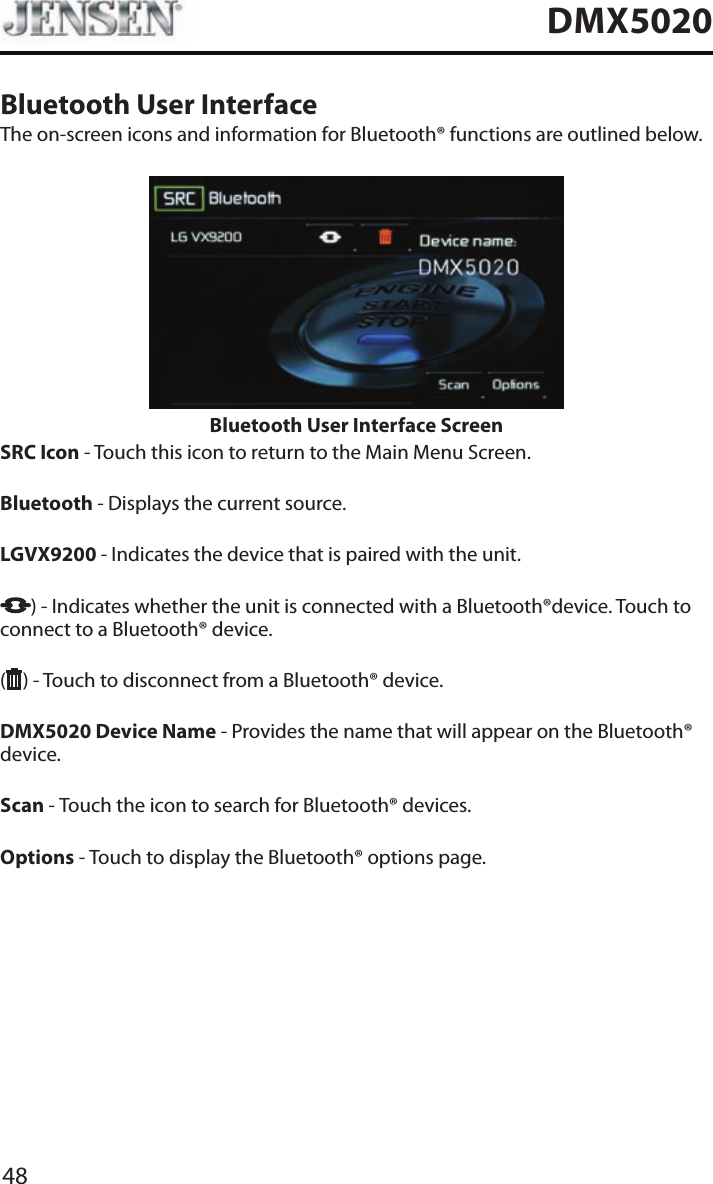
48DMX5020Bluetooth User InterfaceThe on-screen icons and information for Bluetooth® functions are outlined below.Bluetooth User Interface ScreenSRC Icon - Touch this icon to return to the Main Menu Screen.Bluetooth - Displays the current source. LGVX9200  - Indicates the device that is paired with the unit.) - Indicates whether the unit is connected with a Bluetooth®device. Touch to connect to a Bluetooth® device.( ) - Touch to disconnect from a Bluetooth® device.DMX5020 Device Name - Provides the name that will appear on the Bluetooth® device. Scan - Touch the icon to search for Bluetooth® devices.Options - Touch to display the Bluetooth® options page.
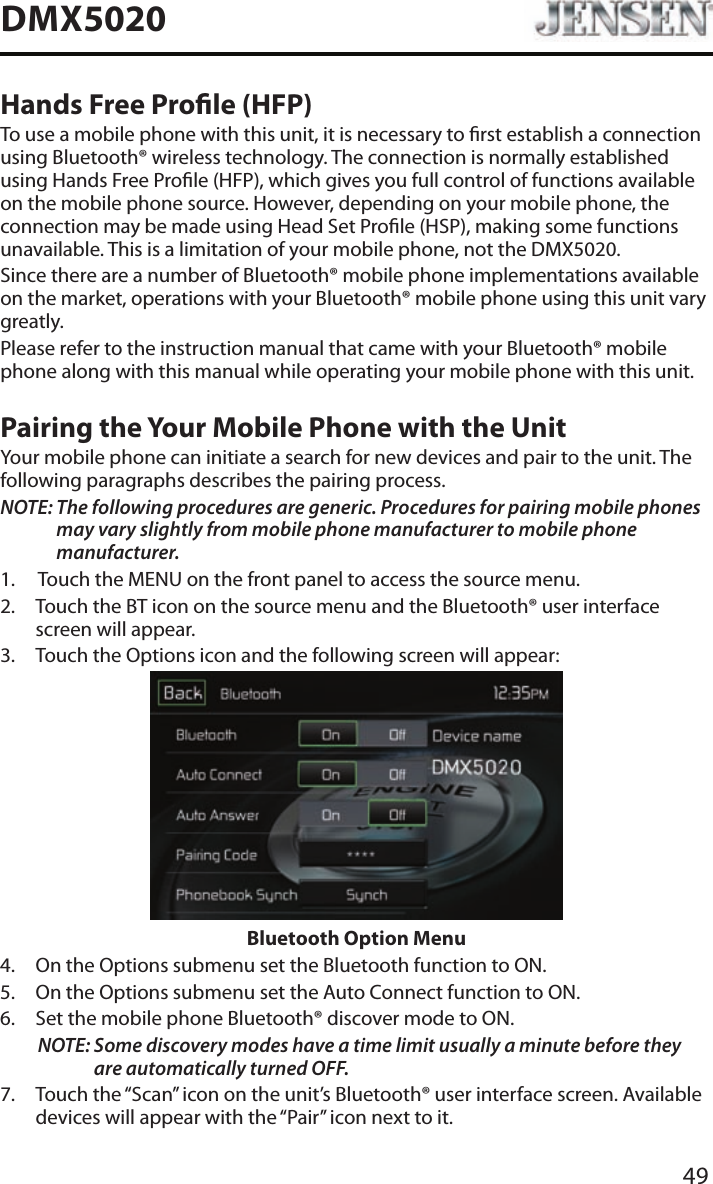
49DMX5020Hands Free Prole (HFP)To use a mobile phone with this unit, it is necessary to rst establish a connection using Bluetooth® wireless technology. The connection is normally established using Hands Free Prole (HFP), which gives you full control of functions available on the mobile phone source. However, depending on your mobile phone, the connection may be made using Head Set Prole (HSP), making some functions unavailable. This is a limitation of your mobile phone, not the DMX5020.Since there are a number of Bluetooth® mobile phone implementations available on the market, operations with your Bluetooth® mobile phone using this unit vary greatly.Please refer to the instruction manual that came with your Bluetooth® mobile phone along with this manual while operating your mobile phone with this unit.Pairing the Your Mobile Phone with the UnitYour mobile phone can initiate a search for new devices and pair to the unit. The following paragraphs describes the pairing process.NOTE:  The following procedures are generic. Procedures for pairing mobile phones may vary slightly from mobile phone manufacturer to mobile phone manufacturer.1.  Touch the MENU on the front panel to access the source menu.2.   Touch the BT icon on the source menu and the Bluetooth® user interface screen will appear. 3.  Touch the Options icon and the following screen will appear: Bluetooth Option Menu4.  On the Options submenu set the Bluetooth function to ON.5.  On the Options submenu set the Auto Connect function to ON.6.  Set the mobile phone Bluetooth® discover mode to ON.NOTE:  Some discovery modes have a time limit usually a minute before they are automatically turned OFF.7.   Touch the “Scan” icon on the unit’s Bluetooth® user interface screen. Available devices will appear with the “Pair” icon next to it.
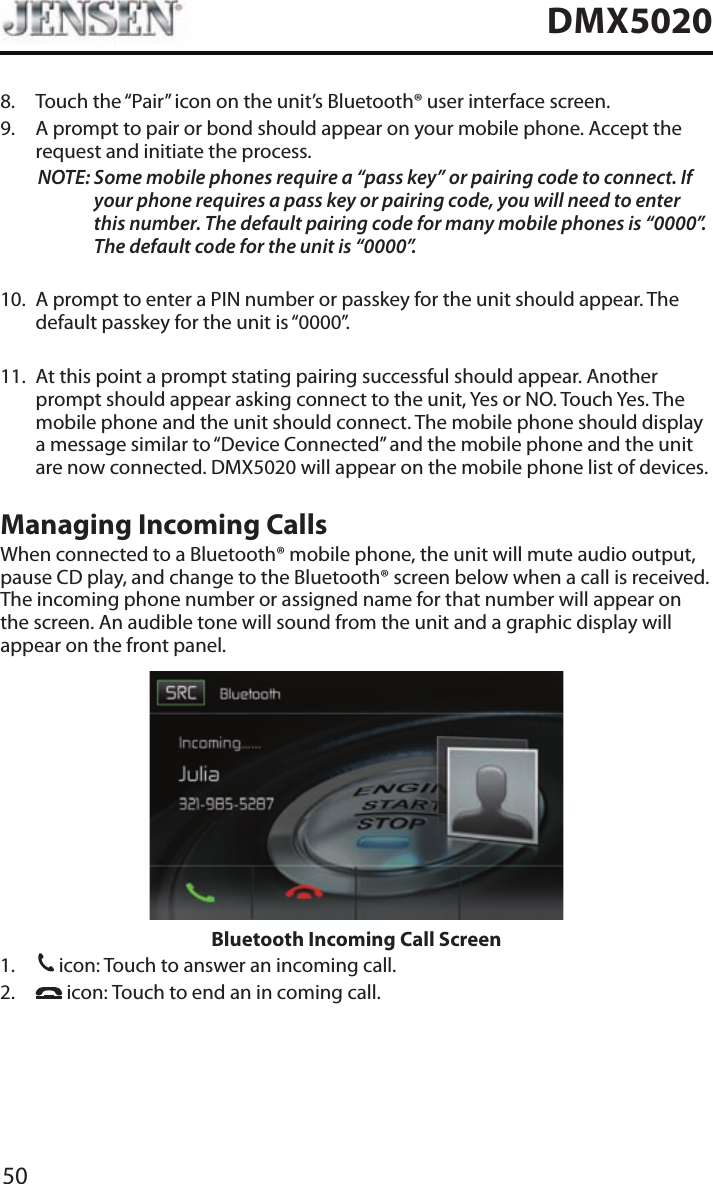
50DMX50208.   Touch the “Pair” icon on the unit’s Bluetooth® user interface screen.9.   A prompt to pair or bond should appear on your mobile phone. Accept the request and initiate the process.NOTE:  Some mobile phones require a “pass key” or pairing code to connect. If your phone requires a pass key or pairing code, you will need to enter this number. The default pairing code for many mobile phones is “0000”. The default code for the unit is “0000”.  10.   A prompt to enter a PIN number or passkey for the unit should appear. The default passkey for the unit is “0000”.11.   At this point a prompt stating pairing successful should appear. Another prompt should appear asking connect to the unit, Yes or NO. Touch Yes. The mobile phone and the unit should connect. The mobile phone should display a message similar to “Device Connected” and the mobile phone and the unit are now connected. DMX5020 will appear on the mobile phone list of devices.Managing Incoming CallsWhen connected to a Bluetooth® mobile phone, the unit will mute audio output, pause CD play, and change to the Bluetooth® screen below when a call is received. The incoming phone number or assigned name for that number will appear on the screen. An audible tone will sound from the unit and a graphic display will appear on the front panel. Bluetooth Incoming Call Screen1. 31 icon: Touch to answer an incoming call.2.     icon: Touch to end an in coming call.
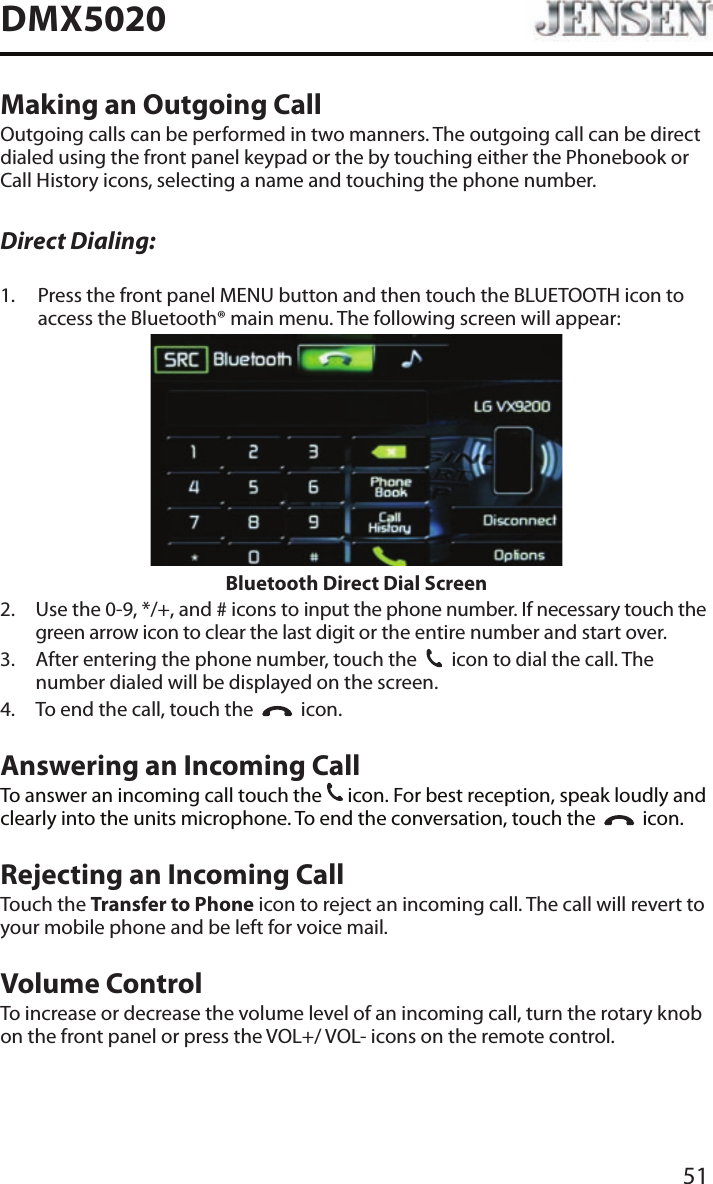
51DMX5020Making an Outgoing CallOutgoing calls can be performed in two manners. The outgoing call can be direct dialed using the front panel keypad or the by touching either the Phonebook or Call History icons, selecting a name and touching the phone number.Direct Dialing:1.   Press the front panel MENU button and then touch the BLUETOOTH icon to access the Bluetooth® main menu. The following screen will appear:Bluetooth Direct Dial Screen2.   Use the 0-9, */+, and # icons to input the phone number. If necessary touch the green arrow icon to clear the last digit or the entire number and start over.3.   After entering the phone number, touch the  31  icon to dial the call. The number dialed will be displayed on the screen. 4.  To end the call, touch the     icon.Answering an Incoming CallTo answer an incoming call touch the 31 icon. For best reception, speak loudly and clearly into the units microphone. To end the conversation, touch the     icon.Rejecting an Incoming CallTouch the Transfer to Phone icon to reject an incoming call. The call will revert to your mobile phone and be left for voice mail.Volume ControlTo increase or decrease the volume level of an incoming call, turn the rotary knob on the front panel or press the VOL+/ VOL- icons on the remote control.
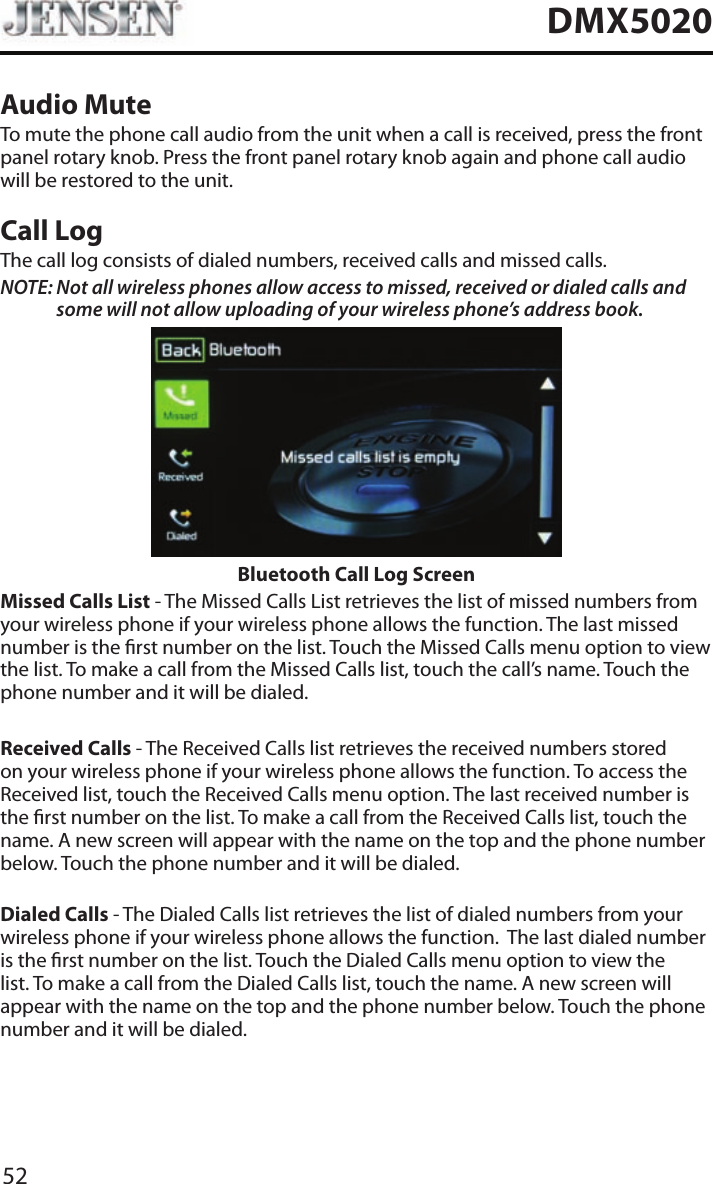
52DMX5020Audio MuteTo mute the phone call audio from the unit when a call is received, press the front panel rotary knob. Press the front panel rotary knob again and phone call audio will be restored to the unit.Call LogThe call log consists of dialed numbers, received calls and missed calls.NOTE:  Not all wireless phones allow access to missed, received or dialed calls and some will not allow uploading of your wireless phone’s address book. Bluetooth Call Log ScreenMissed Calls List - The Missed Calls List retrieves the list of missed numbers from your wireless phone if your wireless phone allows the function. The last missed number is the rst number on the list. Touch the Missed Calls menu option to view the list. To make a call from the Missed Calls list, touch the call’s name. Touch the phone number and it will be dialed.Received Calls - The Received Calls list retrieves the received numbers stored on your wireless phone if your wireless phone allows the function. To access the Received list, touch the Received Calls menu option. The last received number is the rst number on the list. To make a call from the Received Calls list, touch the name. A new screen will appear with the name on the top and the phone number below. Touch the phone number and it will be dialed.Dialed Calls - The Dialed Calls list retrieves the list of dialed numbers from your wireless phone if your wireless phone allows the function.  The last dialed number is the rst number on the list. Touch the Dialed Calls menu option to view the list. To make a call from the Dialed Calls list, touch the name. A new screen will appear with the name on the top and the phone number below. Touch the phone number and it will be dialed.
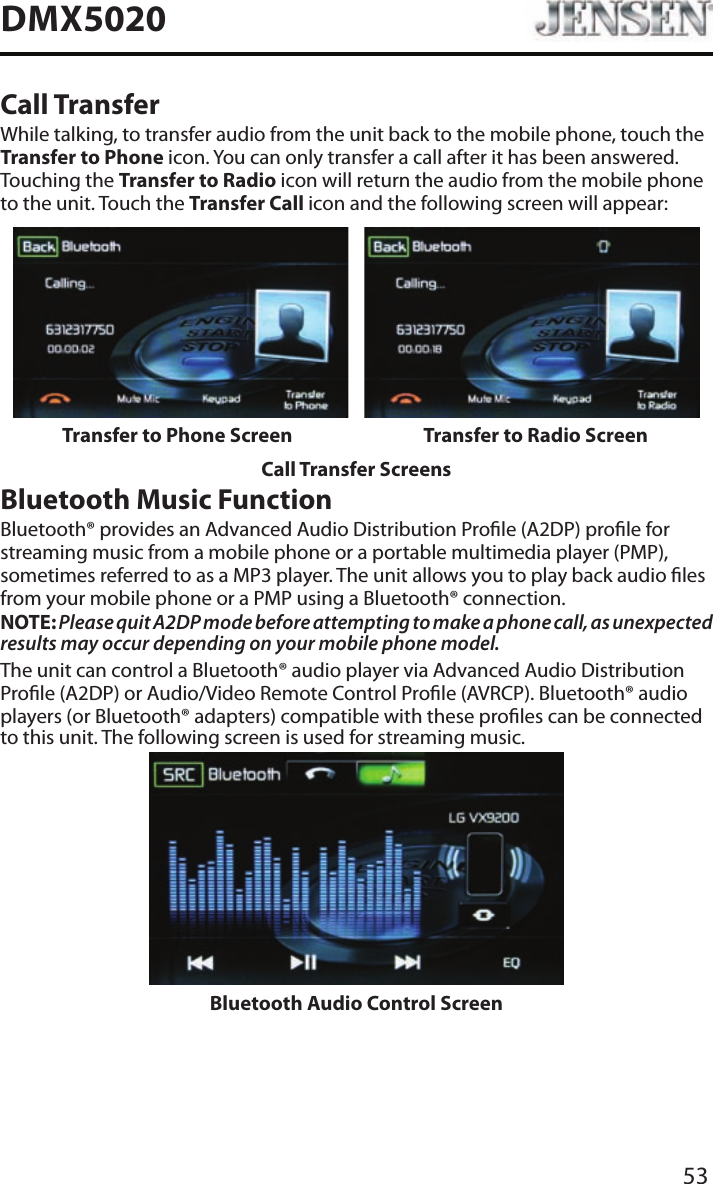
53DMX5020Call TransferWhile talking, to transfer audio from the unit back to the mobile phone, touch the Transfer to Phone icon. You can only transfer a call after it has been answered. Touching the Transfer to Radio icon will return the audio from the mobile phone to the unit. Touch the Transfer Call icon and the following screen will appear:Transfer to Phone Screen Transfer to Radio ScreenCall Transfer ScreensBluetooth Music FunctionBluetooth® provides an Advanced Audio Distribution Prole (A2DP) prole for streaming music from a mobile phone or a portable multimedia player (PMP), sometimes referred to as a MP3 player. The unit allows you to play back audio les from your mobile phone or a PMP using a Bluetooth® connection.NOTE: Please quit A2DP mode before attempting to make a phone call, as unexpected results may occur depending on your mobile phone model.The unit can control a Bluetooth® audio player via Advanced Audio Distribution Prole (A2DP) or Audio/Video Remote Control Prole (AVRCP). Bluetooth® audio players (or Bluetooth® adapters) compatible with these proles can be connected to this unit. The following screen is used for streaming music.Bluetooth Audio Control Screen
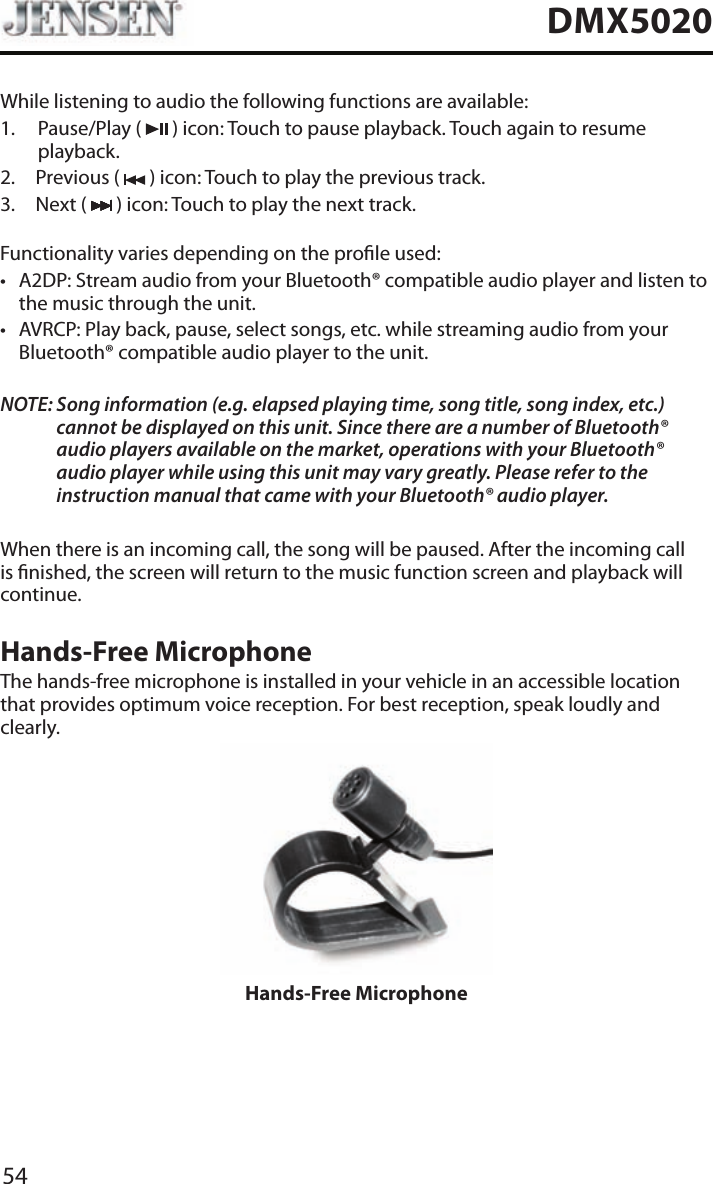
54DMX5020While listening to audio the following functions are available:1.   Pause/Play  (   ) icon: Touch to pause playback. Touch again to resume playback.2.  Previous (   ) icon: Touch to play the previous track.3.  Next (   ) icon: Touch to play the next track.Functionality varies depending on the prole used: • A2DP: Stream audio from your Bluetooth® compatible audio player and listen to the music through the unit.• AVRCP: Play back, pause, select songs, etc. while streaming audio from your Bluetooth® compatible audio player to the unit.NOTE:  Song information (e.g. elapsed playing time, song title, song index, etc.) cannot be displayed on this unit. Since there are a number of Bluetooth® audio players available on the market, operations with your Bluetooth® audio player while using this unit may vary greatly. Please refer to the instruction manual that came with your Bluetooth® audio player. When there is an incoming call, the song will be paused. After the incoming call is nished, the screen will return to the music function screen and playback will continue.Hands-Free MicrophoneThe hands-free microphone is installed in your vehicle in an accessible location that provides optimum voice reception. For best reception, speak loudly and clearly.Hands-Free Microphone
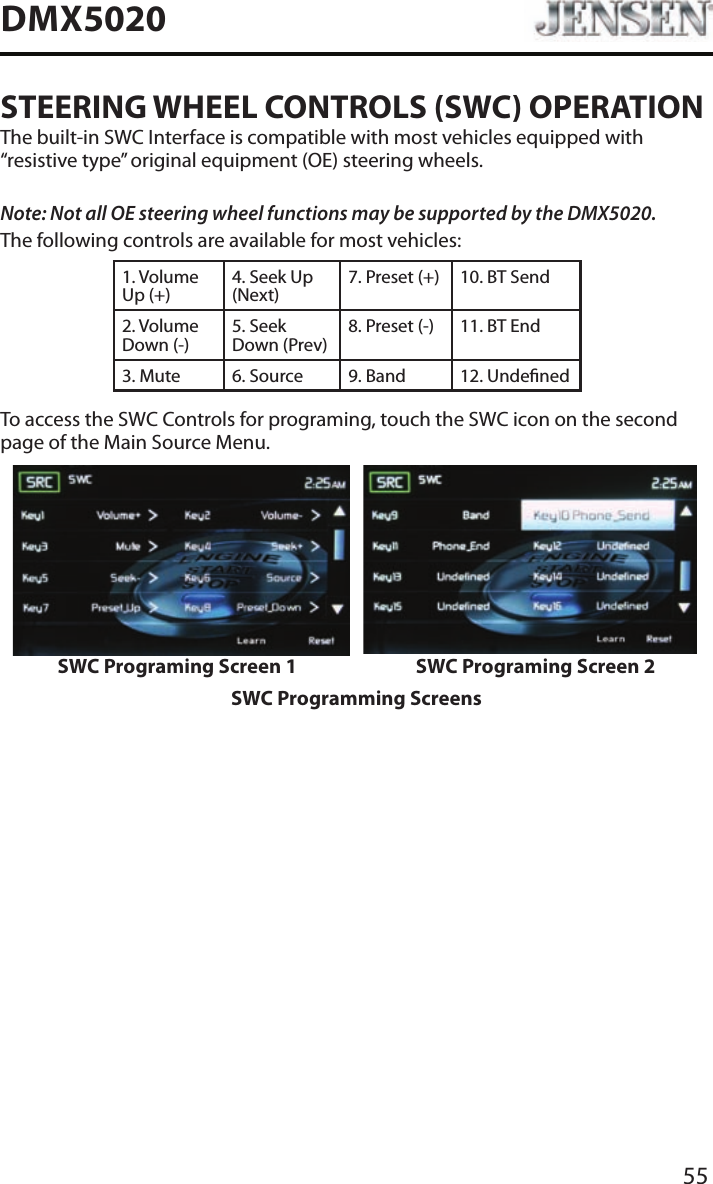
55DMX5020STEERING WHEEL CONTROLS (SWC) OPERATIONThe built-in SWC Interface is compatible with most vehicles equipped with “resistive type” original equipment (OE) steering wheels.Note: Not all OE steering wheel functions may be supported by the DMX5020.The following controls are available for most vehicles:1. Volume Up (+)4. Seek Up (Next)7. Preset (+) 10. BT Send2. Volume Down (-)5. Seek Down (Prev)8. Preset (-)  11. BT End3. Mute 6. Source 9. Band 12. UndenedTo access the SWC Controls for programing, touch the SWC icon on the second page of the Main Source Menu.SWC Programing Screen 1 SWC Programing Screen 2SWC Programming Screens
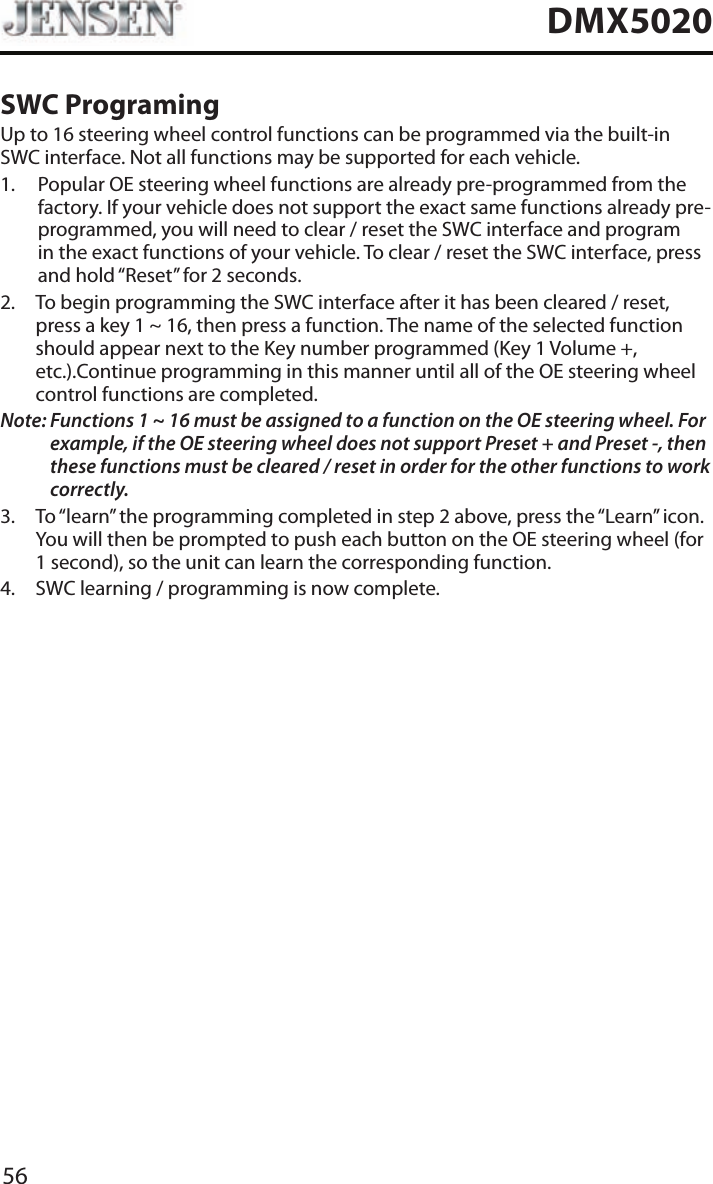
56DMX5020SWC ProgramingUp to 16 steering wheel control functions can be programmed via the built-in SWC interface. Not all functions may be supported for each vehicle.1.   Popular OE steering wheel functions are already pre-programmed from the factory. If your vehicle does not support the exact same functions already pre-programmed, you will need to clear / reset the SWC interface and program in the exact functions of your vehicle. To clear / reset the SWC interface, press and hold “Reset” for 2 seconds.2.   To begin programming the SWC interface after it has been cleared / reset, press a key 1 ~ 16, then press a function. The name of the selected function should appear next to the Key number programmed (Key 1 Volume +, etc.).Continue programming in this manner until all of the OE steering wheel control functions are completed.Note:  Functions 1 ~ 16 must be assigned to a function on the OE steering wheel. For example, if the OE steering wheel does not support Preset + and Preset -, then these functions must be cleared / reset in order for the other functions to work correctly. 3.   To “learn” the programming completed in step 2 above, press the “Learn” icon. You will then be prompted to push each button on the OE steering wheel (for 1 second), so the unit can learn the corresponding function. 4.  SWC learning / programming is now complete.
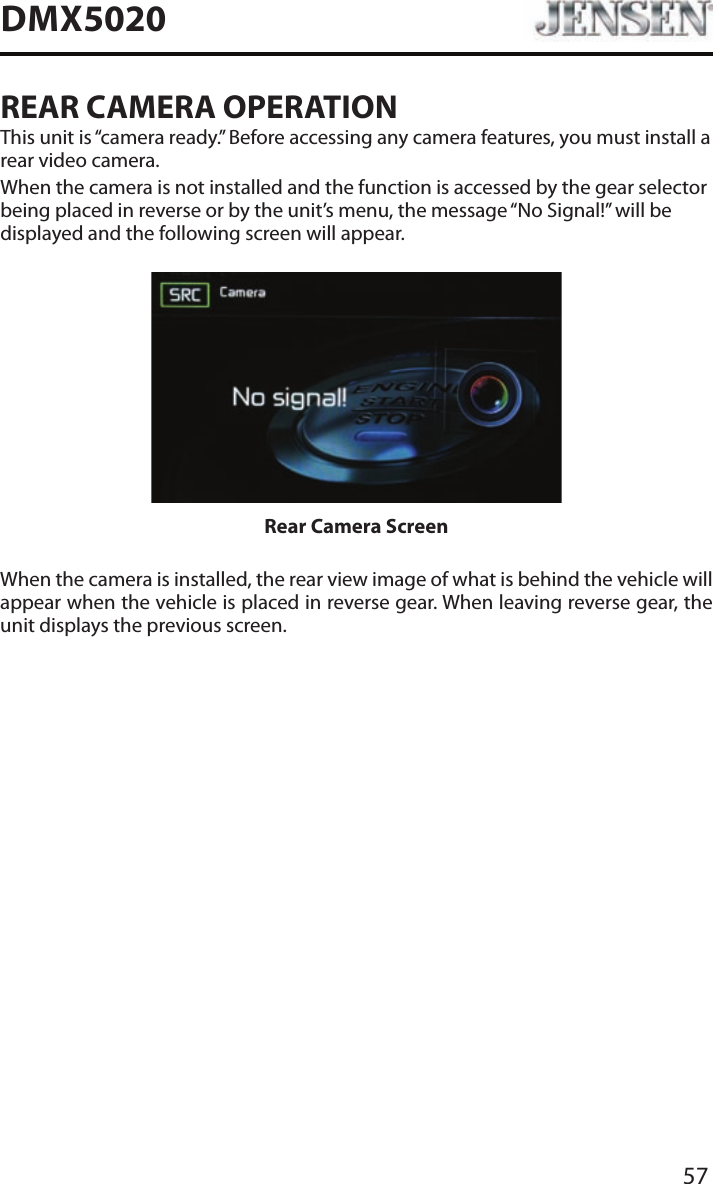
57DMX5020REAR CAMERA OPERATIONThis unit is “camera ready.” Before accessing any camera features, you must install a rear video camera.When the camera is not installed and the function is accessed by the gear selector being placed in reverse or by the unit’s menu, the message “No Signal!” will be displayed and the following screen will appear.Rear Camera ScreenWhen the camera is installed, the rear view image of what is behind the vehicle will appear when the vehicle is placed in reverse gear. When leaving reverse gear, the unit displays the previous screen.
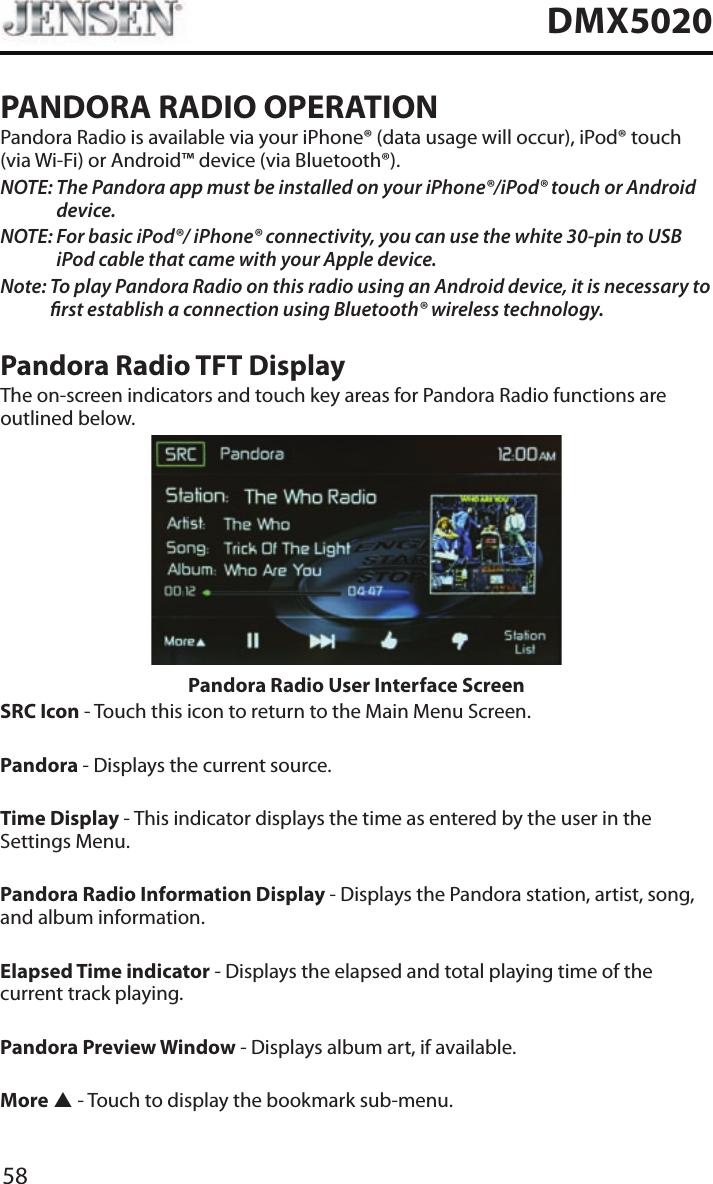
58DMX5020PANDORA RADIO OPERATIONPandora Radio is available via your iPhone® (data usage will occur), iPod® touch (via Wi-Fi) or Android™ device (via Bluetooth®).NOTE:  The Pandora app must be installed on your iPhone®/iPod® touch or Android device.NOTE:  For basic iPod®/ iPhone® connectivity, you can use the white 30-pin to USB iPod cable that came with your Apple device.Note:  To play Pandora Radio on this radio using an Android device, it is necessary to rst establish a connection using Bluetooth® wireless technology.Pandora Radio TFT DisplayThe on-screen indicators and touch key areas for Pandora Radio functions are outlined below.Pandora Radio User Interface ScreenSRC Icon - Touch this icon to return to the Main Menu Screen. Pandora - Displays the current source. Time Display - This indicator displays the time as entered by the user in the Settings Menu.Pandora Radio Information Display - Displays the Pandora station, artist, song, and album information.Elapsed Time indicator - Displays the elapsed and total playing time of the current track playing.Pandora Preview Window - Displays album art, if available.More p - Touch to display the bookmark sub-menu.
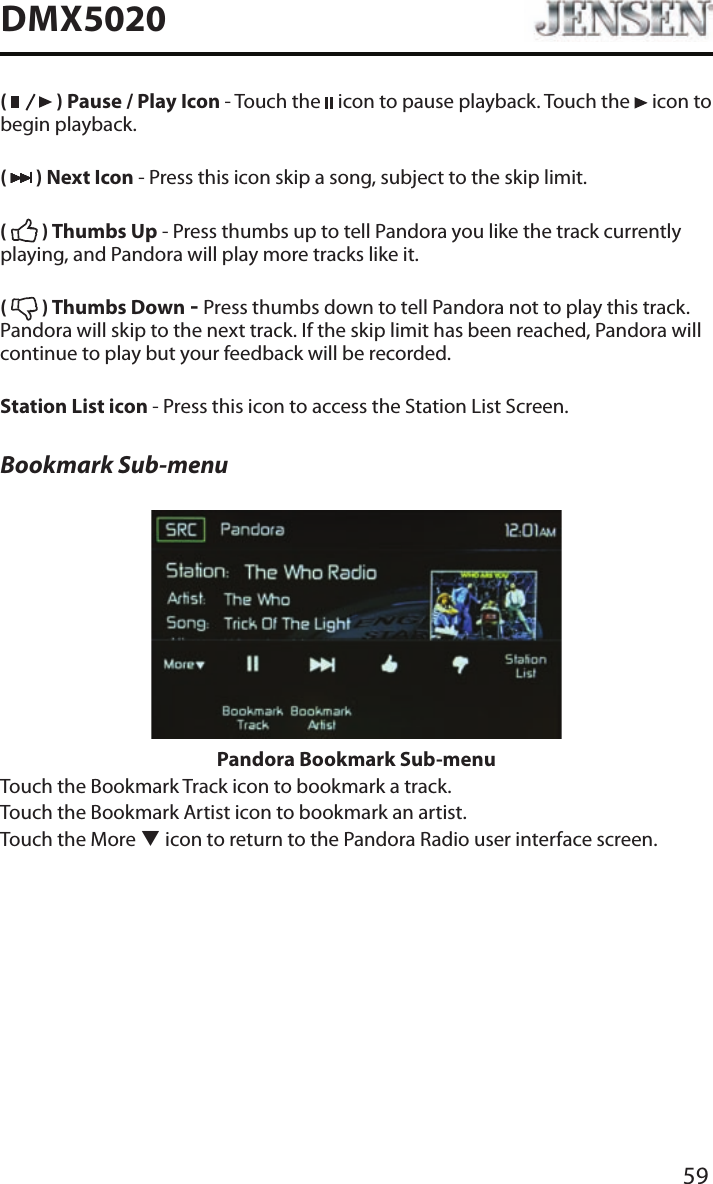
59DMX5020(   ) Pause / Play Icon - Touch the   icon to pause playback. Touch the   icon to begin playback.(   ) Next Icon - Press this icon skip a song, subject to the skip limit.(   ) Thumbs Up - Press thumbs up to tell Pandora you like the track currently playing, and Pandora will play more tracks like it.(   ) Thumbs Down - Press thumbs down to tell Pandora not to play this track. Pandora will skip to the next track. If the skip limit has been reached, Pandora will continue to play but your feedback will be recorded.Station List icon - Press this icon to access the Station List Screen.Bookmark Sub-menuPandora Bookmark Sub-menuTouch the Bookmark Track icon to bookmark a track.Touch the Bookmark Artist icon to bookmark an artist.Touch the More q icon to return to the Pandora Radio user interface screen.
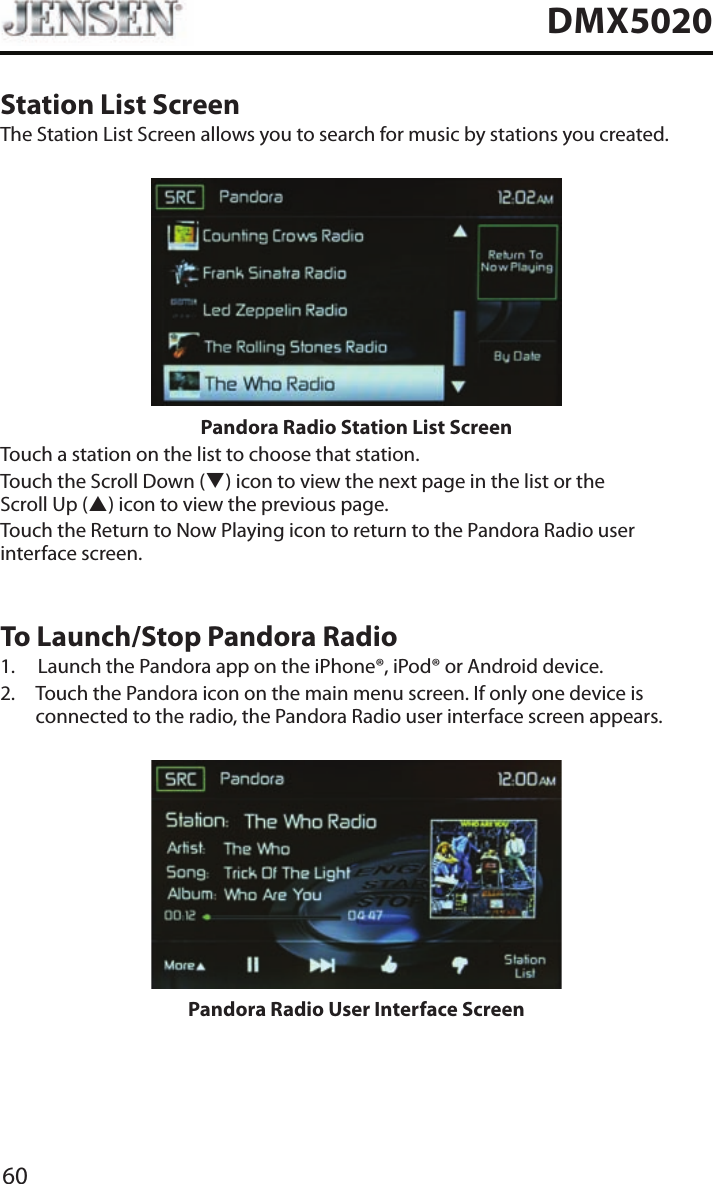
60DMX5020Station List ScreenThe Station List Screen allows you to search for music by stations you created.Pandora Radio Station List ScreenTouch a station on the list to choose that station.Touch the Scroll Down (q) icon to view the next page in the list or the Scroll Up (p) icon to view the previous page. Touch the Return to Now Playing icon to return to the Pandora Radio user interface screen.To Launch/Stop Pandora Radio1.  Launch the Pandora app on the iPhone®, iPod® or Android device.2.   Touch the Pandora icon on the main menu screen. If only one device is connected to the radio, the Pandora Radio user interface screen appears.Pandora Radio User Interface Screen
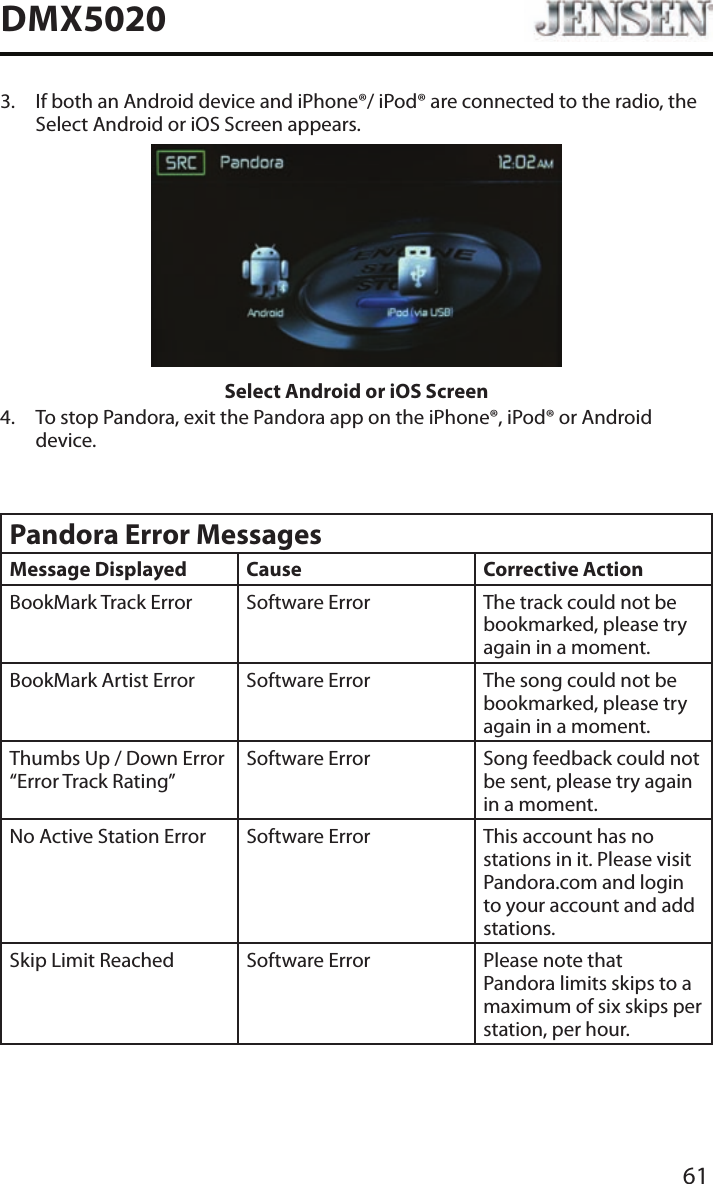
61DMX50203.   If both an Android device and iPhone®/ iPod® are connected to the radio, the Select Android or iOS Screen appears.Select Android or iOS Screen4.   To stop Pandora, exit the Pandora app on the iPhone®, iPod® or Android device.Pandora Error MessagesMessage Displayed Cause Corrective ActionBookMark Track Error Software Error The track could not be bookmarked, please try again in a moment.BookMark Artist Error Software Error The song could not be bookmarked, please try again in a moment.Thumbs Up / Down Error “Error Track Rating”Software Error Song feedback could not be sent, please try again in a moment.No Active Station Error Software Error This account has no stations in it. Please visit Pandora.com and login to your account and add stations.Skip Limit Reached Software Error Please note that Pandora limits skips to a maximum of six skips per station, per hour.
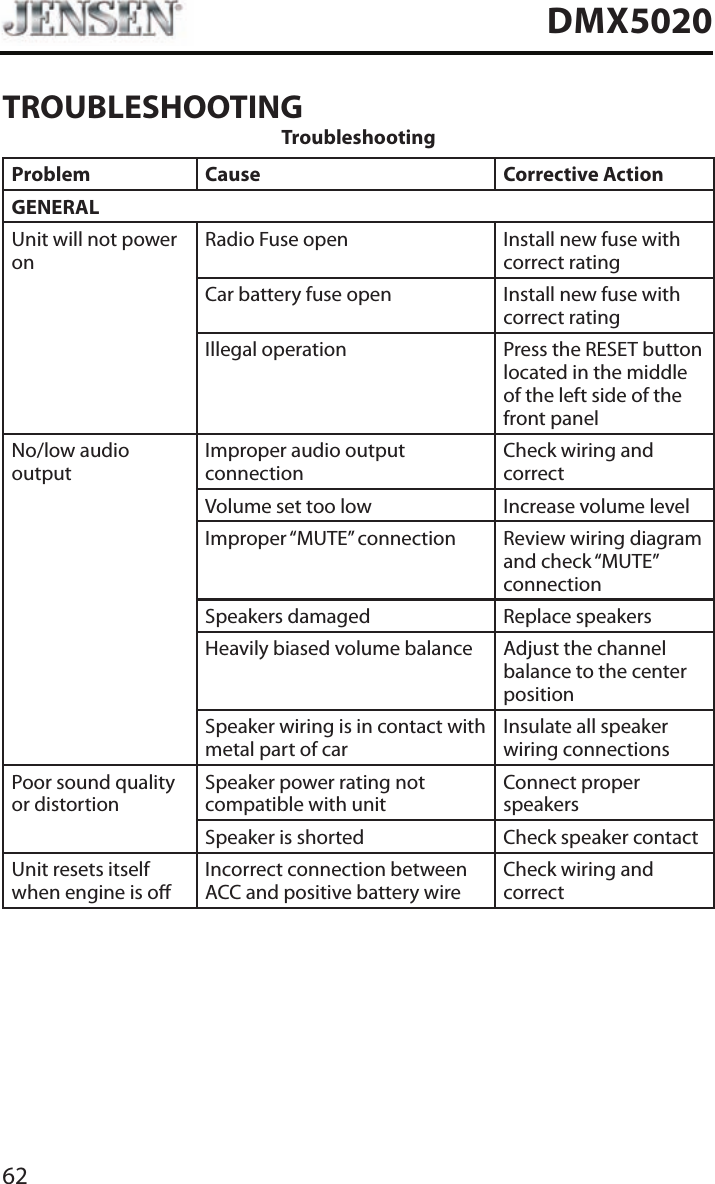
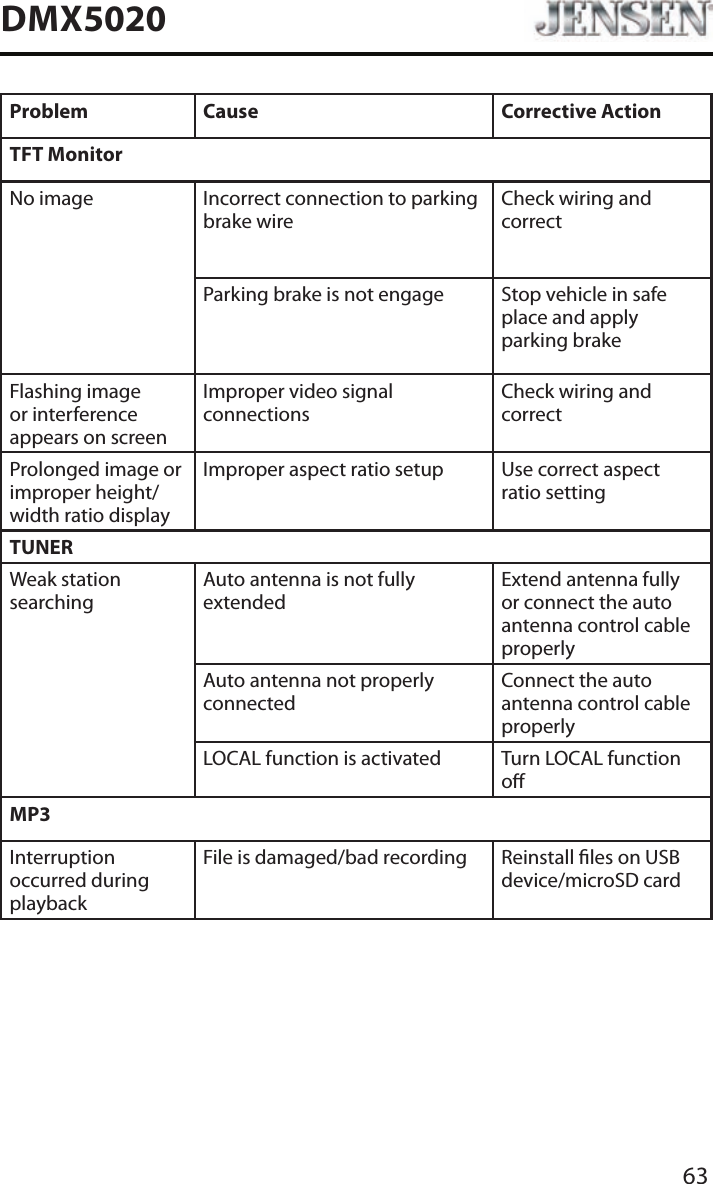
62DMX5020TROUBLESHOOTINGTroubleshootingProblem Cause Corrective ActionGENERALUnit will not power onRadio Fuse open Install new fuse with correct ratingCar battery fuse open Install new fuse with correct ratingIllegal operation Press the RESET button located in the middle of the left side of the front panelNo/low audio outputImproper audio output connectionCheck wiring and correctVolume set too low Increase volume levelImproper “MUTE” connection Review wiring diagram and check “MUTE” connectionSpeakers damaged Replace speakersHeavily biased volume balance Adjust the channel balance to the center positionSpeaker wiring is in contact with metal part of carInsulate all speaker wiring connectionsPoor sound quality or distortionSpeaker power rating not compatible with unitConnect proper speakersSpeaker is shorted Check speaker contactUnit resets itself when engine is oIncorrect connection between ACC and positive battery wireCheck wiring and correct
63DMX5020Problem Cause Corrective ActionTFT MonitorNo image Incorrect connection to parking brake wireCheck wiring and correctParking brake is not engage Stop vehicle in safe place and apply parking brakeFlashing image or interference appears on screenImproper video signal connectionsCheck wiring and correctProlonged image or improper height/width ratio displayImproper aspect ratio setup Use correct aspect ratio settingTUNERWeak station searchingAuto antenna is not fully extendedExtend antenna fully or connect the auto antenna control cable properlyAuto antenna not properly connectedConnect the auto antenna control cable properlyLOCAL function is activated Turn LOCAL function oMP3Interruption occurred during playbackFile is damaged/bad recording Reinstall les on USB device/microSD card
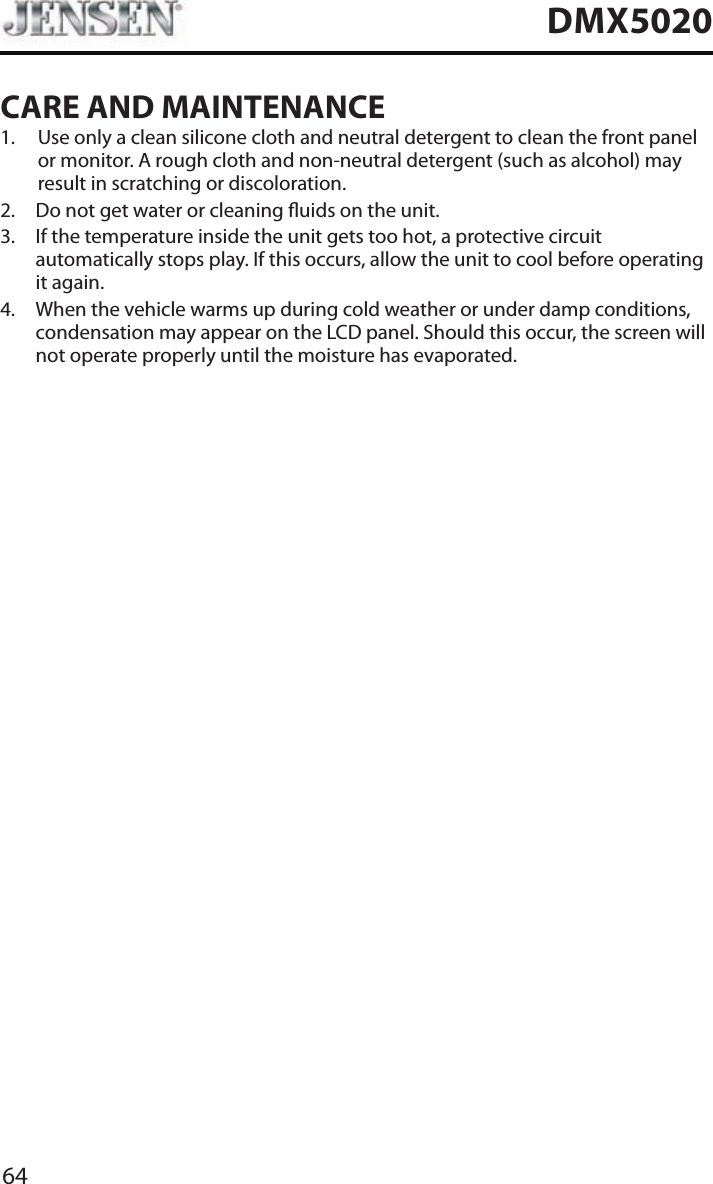
64DMX5020CARE AND MAINTENANCE1.   Use only a clean silicone cloth and neutral detergent to clean the front panel or monitor. A rough cloth and non-neutral detergent (such as alcohol) may result in scratching or discoloration.2.  Do not get water or cleaning uids on the unit.3.   If the temperature inside the unit gets too hot, a protective circuit automatically stops play. If this occurs, allow the unit to cool before operating it again. 4.   When the vehicle warms up during cold weather or under damp conditions, condensation may appear on the LCD panel. Should this occur, the screen will not operate properly until the moisture has evaporated.
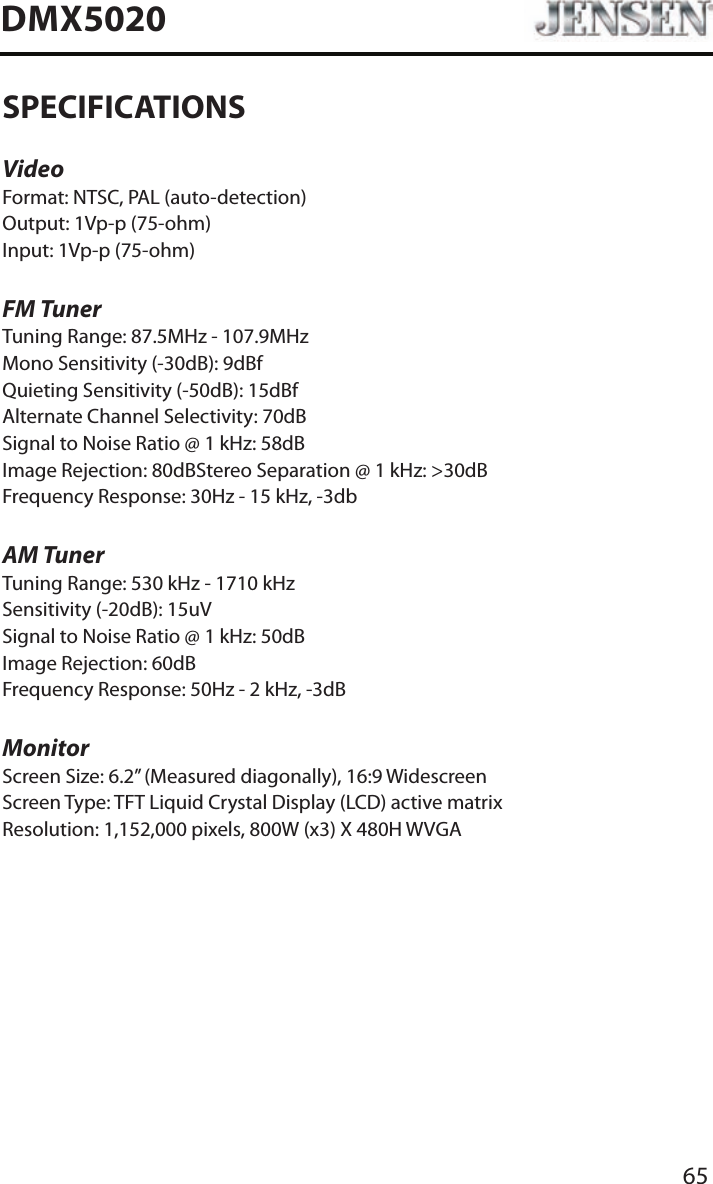
65DMX5020SPECIFICATIONSVideoFormat: NTSC, PAL (auto-detection)Output: 1Vp-p (75-ohm)Input: 1Vp-p (75-ohm)FM TunerTuning Range: 87.5MHz - 107.9MHzMono Sensitivity (-30dB): 9dBfQuieting Sensitivity (-50dB): 15dBfAlternate Channel Selectivity: 70dBSignal to Noise Ratio @ 1 kHz: 58dB Image Rejection: 80dBStereo Separation @ 1 kHz: >30dBFrequency Response: 30Hz - 15 kHz, -3dbAM TunerTuning Range: 530 kHz - 1710 kHzSensitivity (-20dB): 15uVSignal to Noise Ratio @ 1 kHz: 50dBImage Rejection: 60dBFrequency Response: 50Hz - 2 kHz, -3dBMonitorScreen Size: 6.2” (Measured diagonally), 16:9 WidescreenScreen Type: TFT Liquid Crystal Display (LCD) active matrixResolution: 1,152,000 pixels, 800W (x3) X 480H WVGA
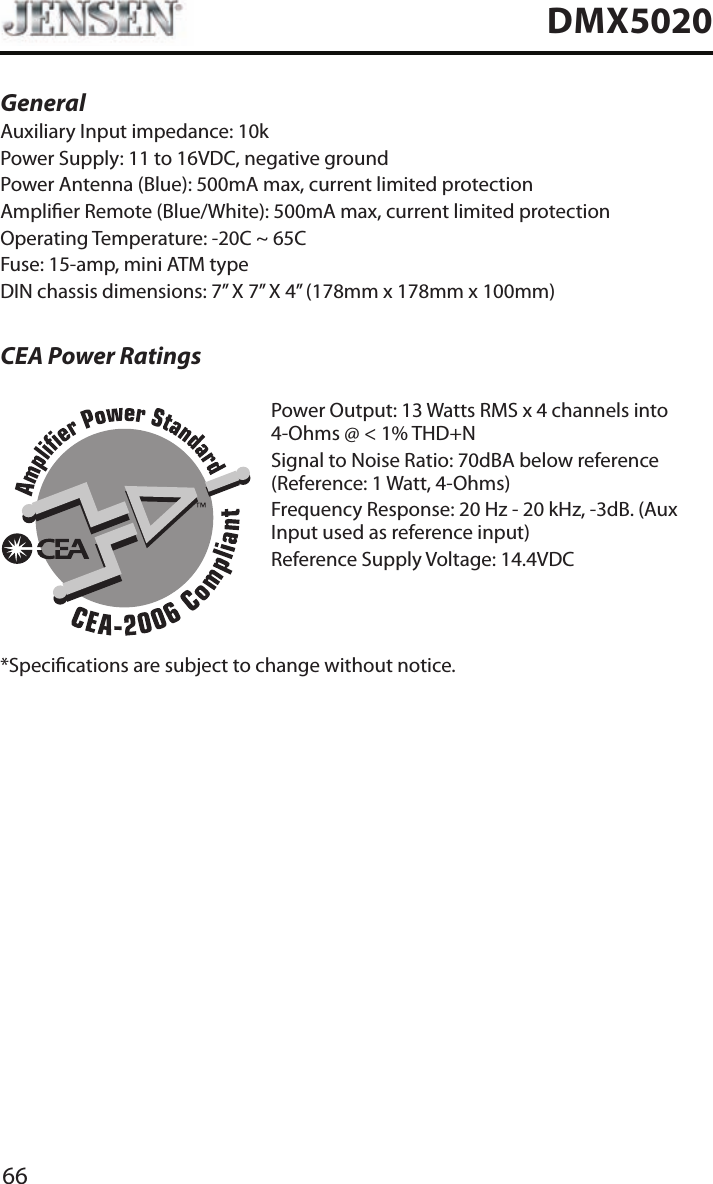
66DMX5020General Auxiliary Input impedance: 10k Power Supply: 11 to 16VDC, negative groundPower Antenna (Blue): 500mA max, current limited protectionAmplier Remote (Blue/White): 500mA max, current limited protectionOperating Temperature: -20C ~ 65CFuse: 15-amp, mini ATM typeDIN chassis dimensions: 7” X 7” X 4” (178mm x 178mm x 100mm)CEA Power RatingsPower Output: 13 Watts RMS x 4 channels into 4-Ohms @ < 1% THD+NSignal to Noise Ratio: 70dBA below reference (Reference: 1 Watt, 4-Ohms)Frequency Response: 20 Hz - 20 kHz, -3dB. (Aux Input used as reference input)Reference Supply Voltage: 14.4VDC*Specications are subject to change without notice.
67DMX5020NOTES
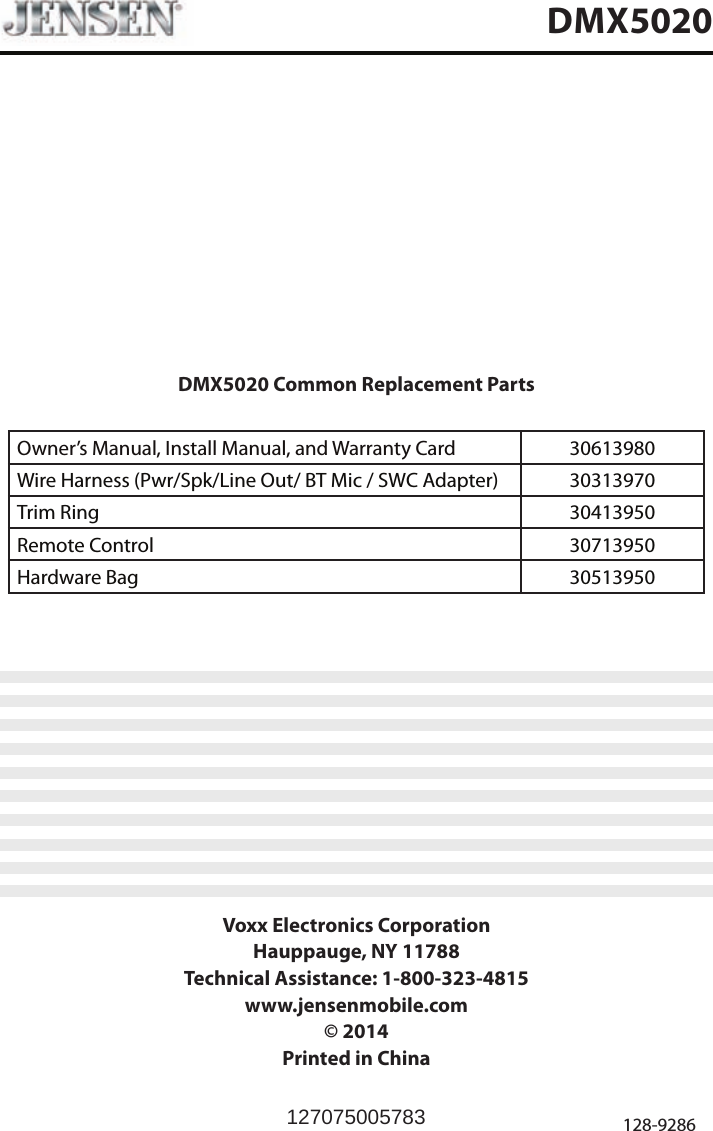
DMX5020 Common Replacement PartsOwner’s Manual, Install Manual, and Warranty Card   30613980 Wire Harness (Pwr/Spk/Line Out/ BT Mic / SWC Adapter) 30313970Trim Ring 30413950Remote Control 30713950Hardware Bag 30513950Voxx Electronics CorporationHauppauge, NY 11788Technical Assistance: 1-800-323-4815www.jensenmobile.com© 2014Printed in China 128-9286DMX5020127075005783

Navigation menu