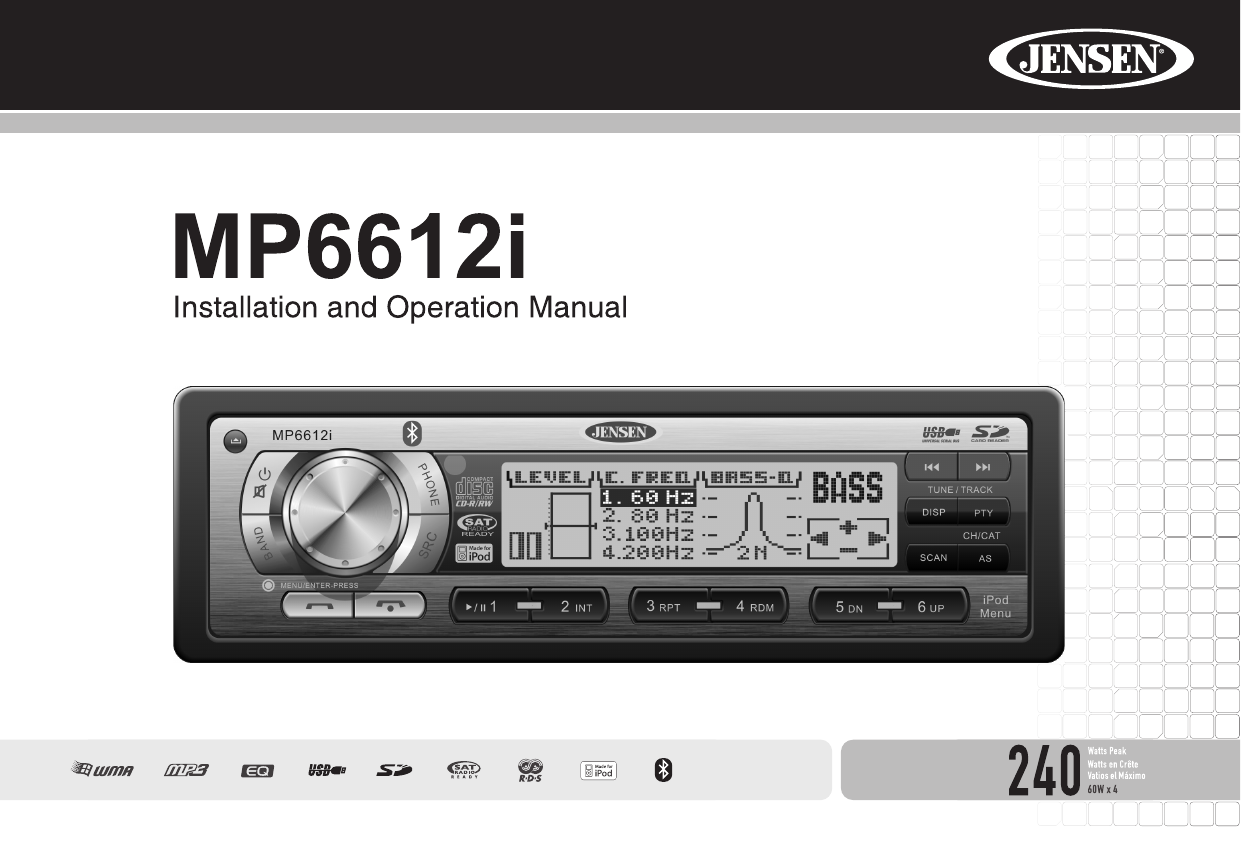
HUIZHOU FORYOU GENERAL ELECTRONICS FGECMB235 Car FM/AM/CD/MP3 Tuner Player with Bluetooth User Manual

HUIZHOU FORYOU GENERAL ELECTRONICS CO.,LTD. Car FM/AM/CD/MP3 Tuner Player with Bluetooth Users Manual

Users Manual

iMP6612iTABLE OF CONTENTSIntroduction  ..............................................................................................1Installation ................................................................................................2Wiring .......................................................................................................5Front Panel Release  ................................................................................6Operation  .................................................................................................7Tuner Operation .....................................................................................11CD Player Operation ..............................................................................13MP3/WMA Operation  .............................................................................14Satellite Radio Operation  .......................................................................17iPod Operation  .......................................................................................19Bluetooth Operation  ...............................................................................20Remote Control ......................................................................................24Care and Maintenance ...........................................................................25Troubleshooting  .....................................................................................26Specifications .........................................................................................27Changes or modications not expressly approved by the party responsible for compliance could void the user's authority to operate the equipment.
iiMP6612i
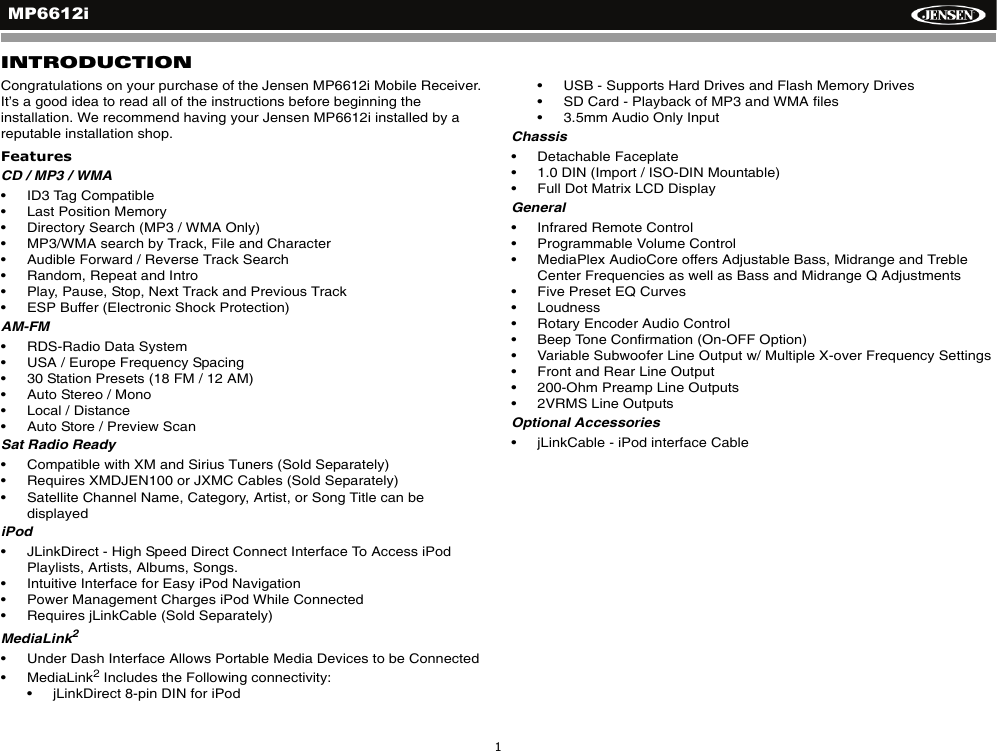
MP6612i1INTRODUCTIONCongratulations on your purchase of the Jensen MP6612i Mobile Receiver. It’s a good idea to read all of the instructions before beginning the installation. We recommend having your Jensen MP6612i installed by a reputable installation shop.FeaturesCD / MP3 / WMA• ID3 Tag Compatible• Last Position Memory• Directory Search (MP3 / WMA Only)• MP3/WMA search by Track, File and Character • Audible Forward / Reverse Track Search • Random, Repeat and Intro• Play, Pause, Stop, Next Track and Previous Track• ESP Buffer (Electronic Shock Protection)AM-FM• RDS-Radio Data System• USA / Europe Frequency Spacing• 30 Station Presets (18 FM / 12 AM)• Auto Stereo / Mono• Local / Distance• Auto Store / Preview Scan Sat Radio Ready• Compatible with XM and Sirius Tuners (Sold Separately)• Requires XMDJEN100 or JXMC Cables (Sold Separately)• Satellite Channel Name, Category, Artist, or Song Title can be displayediPod• JLinkDirect - High Speed Direct Connect Interface To Access iPod Playlists, Artists, Albums, Songs.• Intuitive Interface for Easy iPod Navigation• Power Management Charges iPod While Connected• Requires jLinkCable (Sold Separately)MediaLink2• Under Dash Interface Allows Portable Media Devices to be Connected• MediaLink2 Includes the Following connectivity: • jLinkDirect 8-pin DIN for iPod• USB - Supports Hard Drives and Flash Memory Drives• SD Card - Playback of MP3 and WMA files• 3.5mm Audio Only InputChassis• Detachable Faceplate• 1.0 DIN (Import / ISO-DIN Mountable)• Full Dot Matrix LCD DisplayGeneral• Infrared Remote Control• Programmable Volume Control• MediaPlex AudioCore offers Adjustable Bass, Midrange and Treble Center Frequencies as well as Bass and Midrange Q Adjustments• Five Preset EQ Curves• Loudness • Rotary Encoder Audio Control• Beep Tone Confirmation (On-OFF Option)• Variable Subwoofer Line Output w/ Multiple X-over Frequency Settings• Front and Rear Line Output• 200-Ohm Preamp Line Outputs• 2VRMS Line OutputsOptional Accessories• jLinkCable - iPod interface Cable
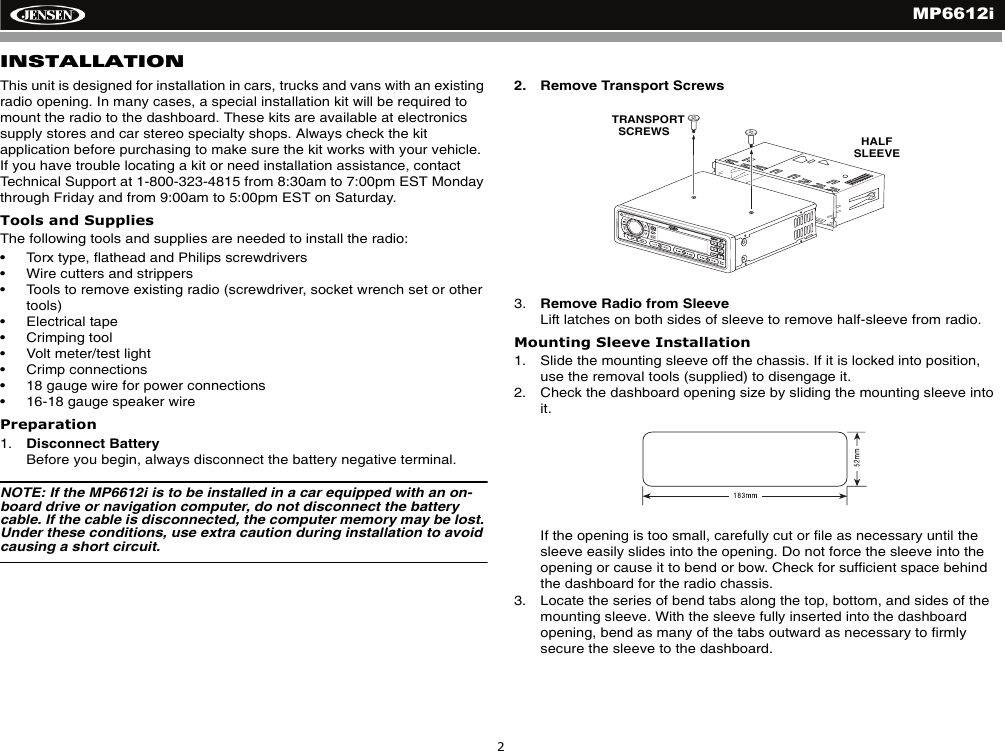
MP6612i2INSTALLATIONThis unit is designed for installation in cars, trucks and vans with an existing radio opening. In many cases, a special installation kit will be required to mount the radio to the dashboard. These kits are available at electronics supply stores and car stereo specialty shops. Always check the kit application before purchasing to make sure the kit works with your vehicle. If you have trouble locating a kit or need installation assistance, contact Technical Support at 1-800-323-4815 from 8:30am to 7:00pm EST Monday through Friday and from 9:00am to 5:00pm EST on Saturday.Tools and SuppliesThe following tools and supplies are needed to install the radio:• Torx type, flathead and Philips screwdrivers• Wire cutters and strippers• Tools to remove existing radio (screwdriver, socket wrench set or other tools)• Electrical tape• Crimping tool• Volt meter/test light• Crimp connections• 18 gauge wire for power connections• 16-18 gauge speaker wirePreparation1. Disconnect BatteryBefore you begin, always disconnect the battery negative terminal.NOTE: If the MP6612i is to be installed in a car equipped with an on-board drive or navigation computer, do not disconnect the battery cable. If the cable is disconnected, the computer memory may be lost. Under these conditions, use extra caution during installation to avoid causing a short circuit.2. Remove Transport Screws3. Remove Radio from SleeveLift latches on both sides of sleeve to remove half-sleeve from radio.Mounting Sleeve Installation1. Slide the mounting sleeve off the chassis. If it is locked into position, use the removal tools (supplied) to disengage it.2. Check the dashboard opening size by sliding the mounting sleeve into it.If the opening is too small, carefully cut or file as necessary until the sleeve easily slides into the opening. Do not force the sleeve into the opening or cause it to bend or bow. Check for sufficient space behind the dashboard for the radio chassis.3. Locate the series of bend tabs along the top, bottom, and sides of the mounting sleeve. With the sleeve fully inserted into the dashboard opening, bend as many of the tabs outward as necessary to firmly secure the sleeve to the dashboard.CH/CATMP6512i/SATREADYUNIVERSALSERIALBUSTRANSPORT   SCREWS HALF SLEEVE
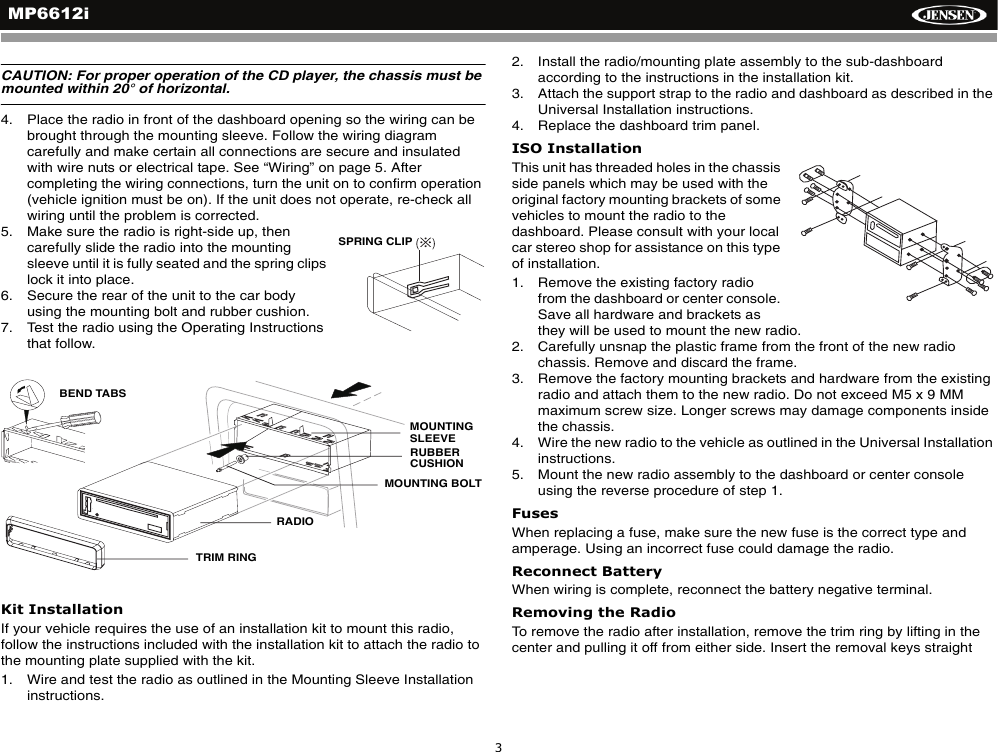
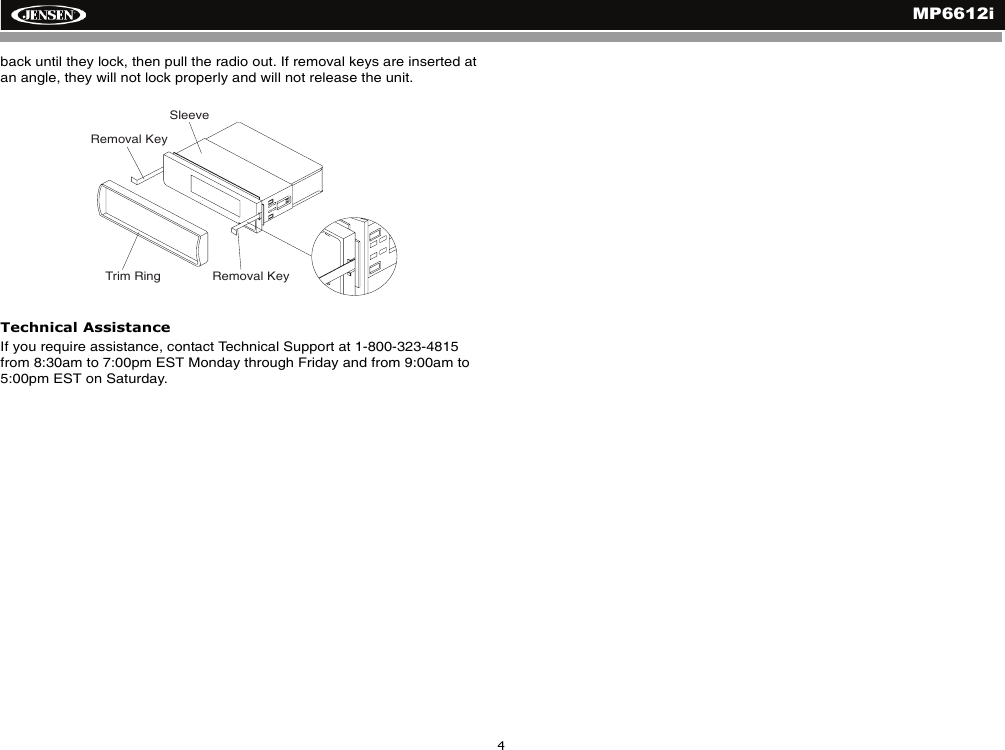
MP6612i3CAUTION: For proper operation of the CD player, the chassis must be mounted within 20° of horizontal. 4. Place the radio in front of the dashboard opening so the wiring can be brought through the mounting sleeve. Follow the wiring diagram carefully and make certain all connections are secure and insulated with wire nuts or electrical tape. See “Wiring” on page 5. After completing the wiring connections, turn the unit on to confirm operation (vehicle ignition must be on). If the unit does not operate, re-check all wiring until the problem is corrected. 5. Make sure the radio is right-side up, then carefully slide the radio into the mounting sleeve until it is fully seated and the spring clips lock it into place. 6. Secure the rear of the unit to the car body using the mounting bolt and rubber cushion.7. Test the radio using the Operating Instructions that follow.Kit InstallationIf your vehicle requires the use of an installation kit to mount this radio, follow the instructions included with the installation kit to attach the radio to the mounting plate supplied with the kit.1. Wire and test the radio as outlined in the Mounting Sleeve Installation instructions.2. Install the radio/mounting plate assembly to the sub-dashboard according to the instructions in the installation kit.3. Attach the support strap to the radio and dashboard as described in the Universal Installation instructions.4. Replace the dashboard trim panel.ISO InstallationThis unit has threaded holes in the chassis side panels which may be used with the original factory mounting brackets of some vehicles to mount the radio to the dashboard. Please consult with your local car stereo shop for assistance on this type of installation.1. Remove the existing factory radio from the dashboard or center console. Save all hardware and brackets as they will be used to mount the new radio.2. Carefully unsnap the plastic frame from the front of the new radio chassis. Remove and discard the frame.3. Remove the factory mounting brackets and hardware from the existing radio and attach them to the new radio. Do not exceed M5 x 9 MM maximum screw size. Longer screws may damage components inside the chassis.4. Wire the new radio to the vehicle as outlined in the Universal Installation instructions.5. Mount the new radio assembly to the dashboard or center console using the reverse procedure of step 1.FusesWhen replacing a fuse, make sure the new fuse is the correct type and amperage. Using an incorrect fuse could damage the radio.Reconnect BatteryWhen wiring is complete, reconnect the battery negative terminal.Removing the RadioTo remove the radio after installation, remove the trim ring by lifting in the center and pulling it off from either side. Insert the removal keys straight SPRING CLIP   MOUNTINGRUBBERMOUNTING BOLT  RADIOTRIM RING   BEND TABS   SLEEVECUSHION
MP6612i4back until they lock, then pull the radio out. If removal keys are inserted at an angle, they will not lock properly and will not release the unit.Technical AssistanceIf you require assistance, contact Technical Support at 1-800-323-4815 from 8:30am to 7:00pm EST Monday through Friday and from 9:00am to 5:00pm EST on Saturday.Trim RingRemoval KeySleeveRemoval Key
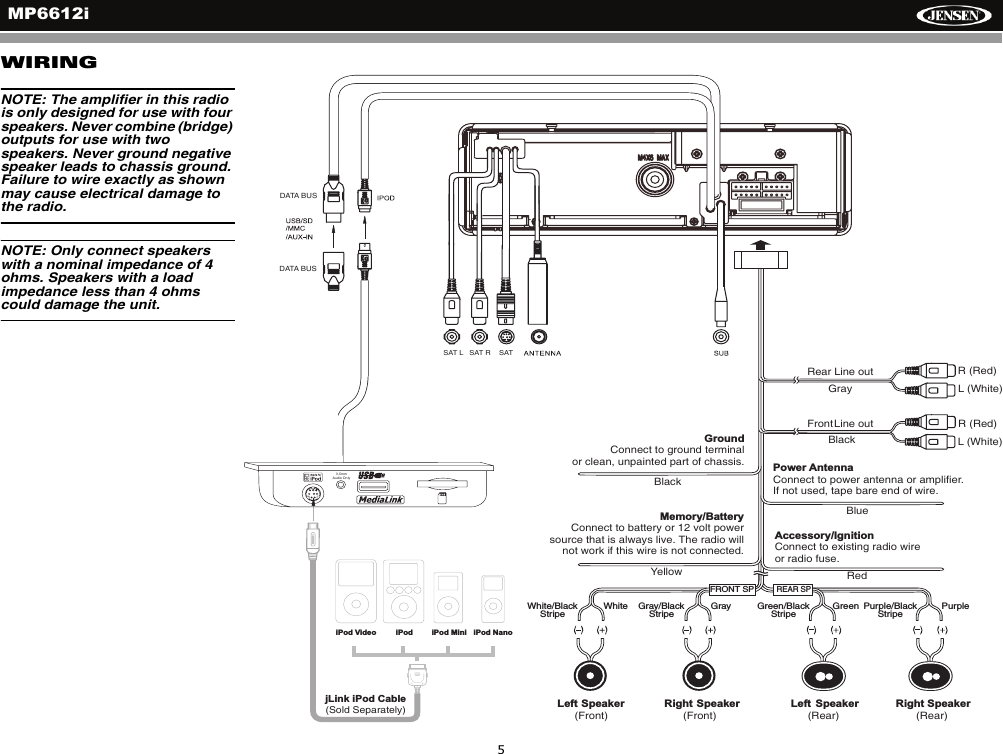
MP6612i5FRONT SPPurplePurple/BlackStripeGrayGray/BlackStripeWhite/BlackStripeWhite Green/BlackStripeGreenLeft Speaker(Front)Right Speaker(Front)Left Speaker(Rear)Right Speaker(Rear)BlackYellowBlueRedREAR SPFrontLine out R (Red)L (White)BlackPower AntennaConnect to power antenna or amplifier.If not used, tape bare end of wire.Accessory/IgnitionConnect to existing radio wireor radio fuse.GroundConnect to ground terminalor clean, unpainted part of chassis.Memory/BatteryConnect to battery or 12 volt powersource that is always live. The radio willnot work if this wire is not connected.jLink iPod Cable(Sold Separately)iPod NanoiPod MiniiPodiPod VideoRear Line out R (Red)L (White)Gray3.5mmAudio OnlySAT L SAT R SATDATA BUSDATA BUSWIRINGNOTE: The amplifier in this radio is only designed for use with four speakers. Never combine (bridge) outputs for use with two speakers. Never ground negative speaker leads to chassis ground. Failure to wire exactly as shown may cause electrical damage to the radio.NOTE: Only connect speakers with a nominal impedance of 4 ohms. Speakers with a load impedance less than 4 ohms could damage the unit.
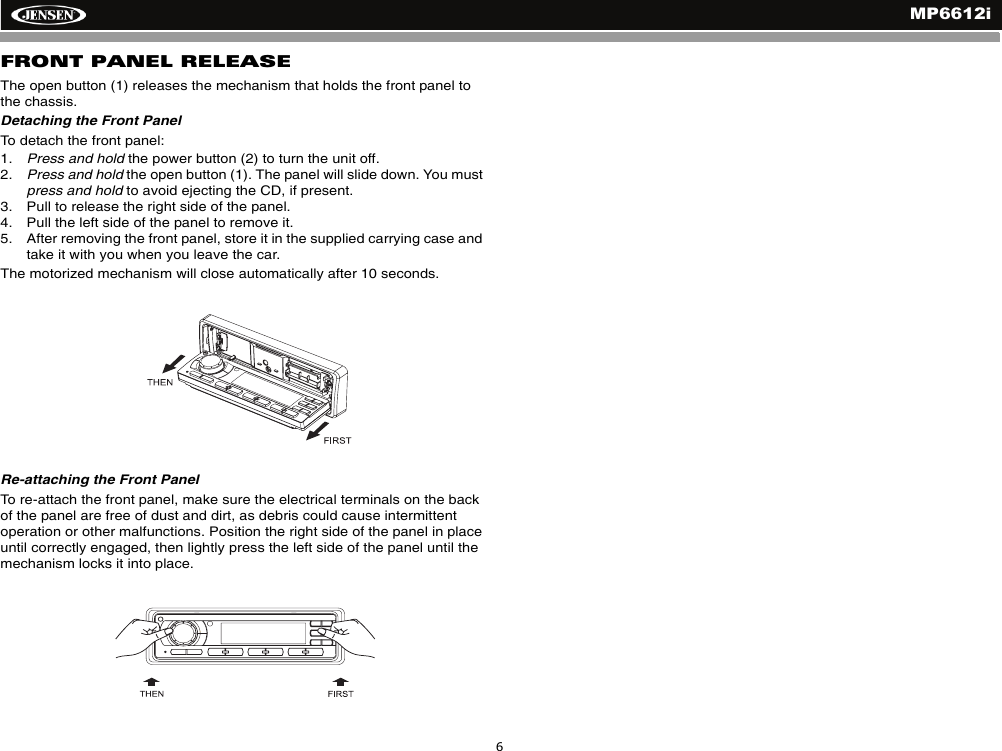
MP6612i6FRONT PANEL RELEASEThe open button (1) releases the mechanism that holds the front panel to the chassis. Detaching the Front PanelTo detach the front panel:1. Press and hold the power button (2) to turn the unit off.2. Press and hold the open button (1). The panel will slide down. You must press and hold to avoid ejecting the CD, if present.3. Pull to release the right side of the panel.4. Pull the left side of the panel to remove it.5. After removing the front panel, store it in the supplied carrying case and take it with you when you leave the car.The motorized mechanism will close automatically after 10 seconds.Re-attaching the Front PanelTo re-attach the front panel, make sure the electrical terminals on the back of the panel are free of dust and dirt, as debris could cause intermittent operation or other malfunctions. Position the right side of the panel in place until correctly engaged, then lightly press the left side of the panel until the mechanism locks it into place.
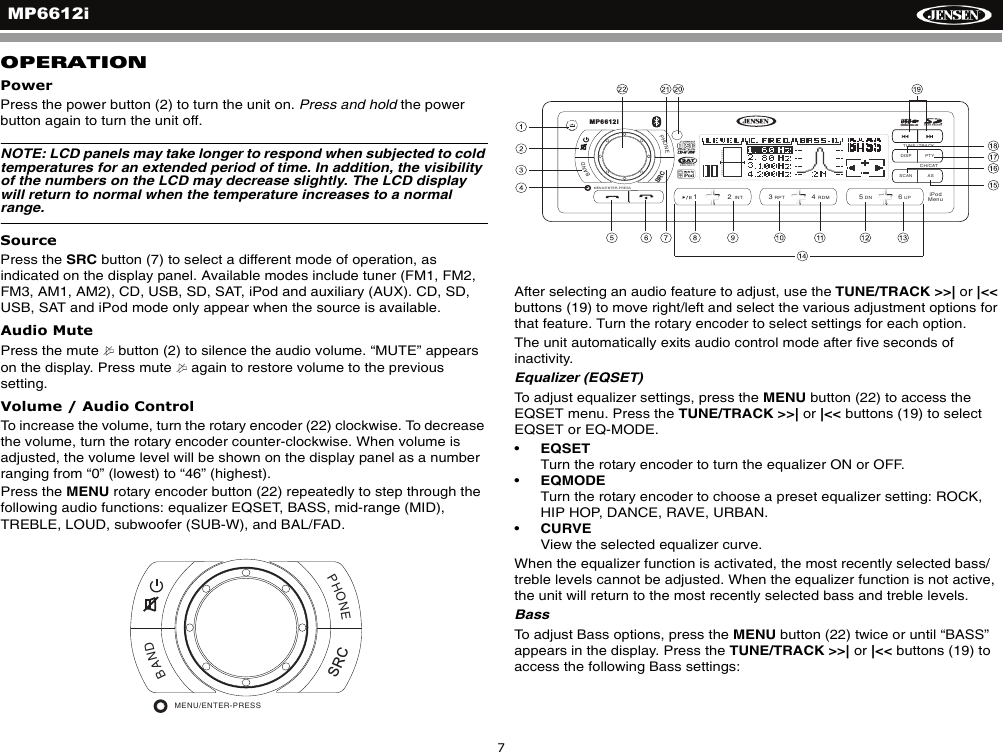
MP6612i7OPERATIONPowerPress the power button (2) to turn the unit on. Press and hold the power button again to turn the unit off.NOTE: LCD panels may take longer to respond when subjected to cold temperatures for an extended period of time. In addition, the visibility of the numbers on the LCD may decrease slightly. The LCD display will return to normal when the temperature increases to a normal range.SourcePress the SRC button (7) to select a different mode of operation, as indicated on the display panel. Available modes include tuner (FM1, FM2, FM3, AM1, AM2), CD, USB, SD, SAT, iPod and auxiliary (AUX). CD, SD, USB, SAT and iPod mode only appear when the source is available.Audio MutePress the mute   button (2) to silence the audio volume. “MUTE” appears on the display. Press mute   again to restore volume to the previous setting.Volume / Audio ControlTo increase the volume, turn the rotary encoder (22) clockwise. To decrease the volume, turn the rotary encoder counter-clockwise. When volume is adjusted, the volume level will be shown on the display panel as a number ranging from “0” (lowest) to “46” (highest). Press the MENU rotary encoder button (22) repeatedly to step through the following audio functions: equalizer EQSET, BASS, mid-range (MID), TREBLE, LOUD, subwoofer (SUB-W), and BAL/FAD. After selecting an audio feature to adjust, use the TUNE/TRACK >>| or |<< buttons (19) to move right/left and select the various adjustment options for that feature. Turn the rotary encoder to select settings for each option.The unit automatically exits audio control mode after five seconds of inactivity.Equalizer (EQSET)To adjust equalizer settings, press the MENU button (22) to access the EQSET menu. Press the TUNE/TRACK >>| or |<< buttons (19) to select EQSET or EQ-MODE. •EQSETTurn the rotary encoder to turn the equalizer ON or OFF.•EQMODETurn the rotary encoder to choose a preset equalizer setting: ROCK, HIP HOP, DANCE, RAVE, URBAN.•CURVEView the selected equalizer curve.When the equalizer function is activated, the most recently selected bass/treble levels cannot be adjusted. When the equalizer function is not active, the unit will return to the most recently selected bass and treble levels.BassTo adjust Bass options, press the MENU button (22) twice or until “BASS” appears in the display. Press the TUNE/TRACK >>| or |<< buttons (19) to access the following Bass settings:PHONEBANDMENU/ENTER-PRESSSRCDISP PTYASSCANPHONEBAND/2INT13RPT4RDM56DN UPRADIOREADYTUNE / TRACKMP6612iCH/CATMENU/ENTER-PRESSiPodMenuSRC
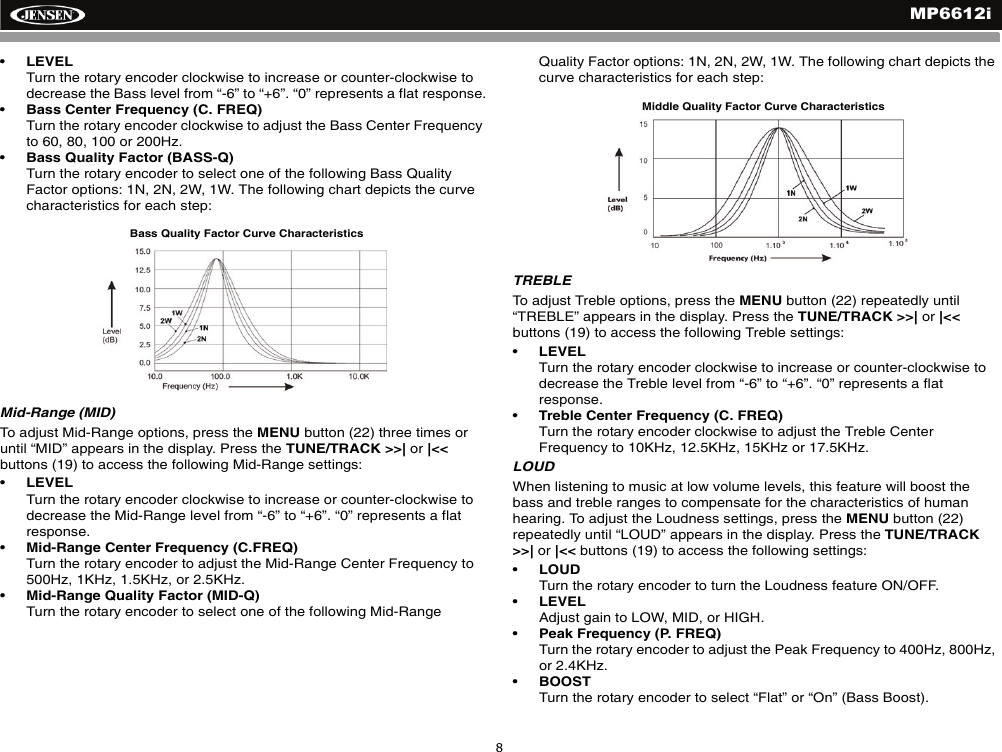
MP6612i8•LEVELTurn the rotary encoder clockwise to increase or counter-clockwise to decrease the Bass level from “-6” to “+6”. “0” represents a flat response.•Bass Center Frequency (C. FREQ)Turn the rotary encoder clockwise to adjust the Bass Center Frequency to 60, 80, 100 or 200Hz.•Bass Quality Factor (BASS-Q)Turn the rotary encoder to select one of the following Bass Quality Factor options: 1N, 2N, 2W, 1W. The following chart depicts the curve characteristics for each step:Mid-Range (MID)To adjust Mid-Range options, press the MENU button (22) three times or until “MID” appears in the display. Press the TUNE/TRACK >>| or |<< buttons (19) to access the following Mid-Range settings:•LEVELTurn the rotary encoder clockwise to increase or counter-clockwise to decrease the Mid-Range level from “-6” to “+6”. “0” represents a flat response.•Mid-Range Center Frequency (C.FREQ)Turn the rotary encoder to adjust the Mid-Range Center Frequency to 500Hz, 1KHz, 1.5KHz, or 2.5KHz.•Mid-Range Quality Factor (MID-Q)Turn the rotary encoder to select one of the following Mid-Range Quality Factor options: 1N, 2N, 2W, 1W. The following chart depicts the curve characteristics for each step:TREBLETo adjust Treble options, press the MENU button (22) repeatedly until “TREBLE” appears in the display. Press the TUNE/TRACK >>| or |<< buttons (19) to access the following Treble settings:•LEVELTurn the rotary encoder clockwise to increase or counter-clockwise to decrease the Treble level from “-6” to “+6”. “0” represents a flat response.•Treble Center Frequency (C. FREQ)Turn the rotary encoder clockwise to adjust the Treble Center Frequency to 10KHz, 12.5KHz, 15KHz or 17.5KHz. LOUDWhen listening to music at low volume levels, this feature will boost the bass and treble ranges to compensate for the characteristics of human hearing. To adjust the Loudness settings, press the MENU button (22) repeatedly until “LOUD” appears in the display. Press the TUNE/TRACK >>| or |<< buttons (19) to access the following settings:•LOUDTurn the rotary encoder to turn the Loudness feature ON/OFF.•LEVELAdjust gain to LOW, MID, or HIGH.•Peak Frequency (P. FREQ)Turn the rotary encoder to adjust the Peak Frequency to 400Hz, 800Hz, or 2.4KHz.•BOOSTTurn the rotary encoder to select “Flat” or “On” (Bass Boost).Bass Quality Factor Curve CharacteristicsMiddle Quality Factor Curve Characteristics
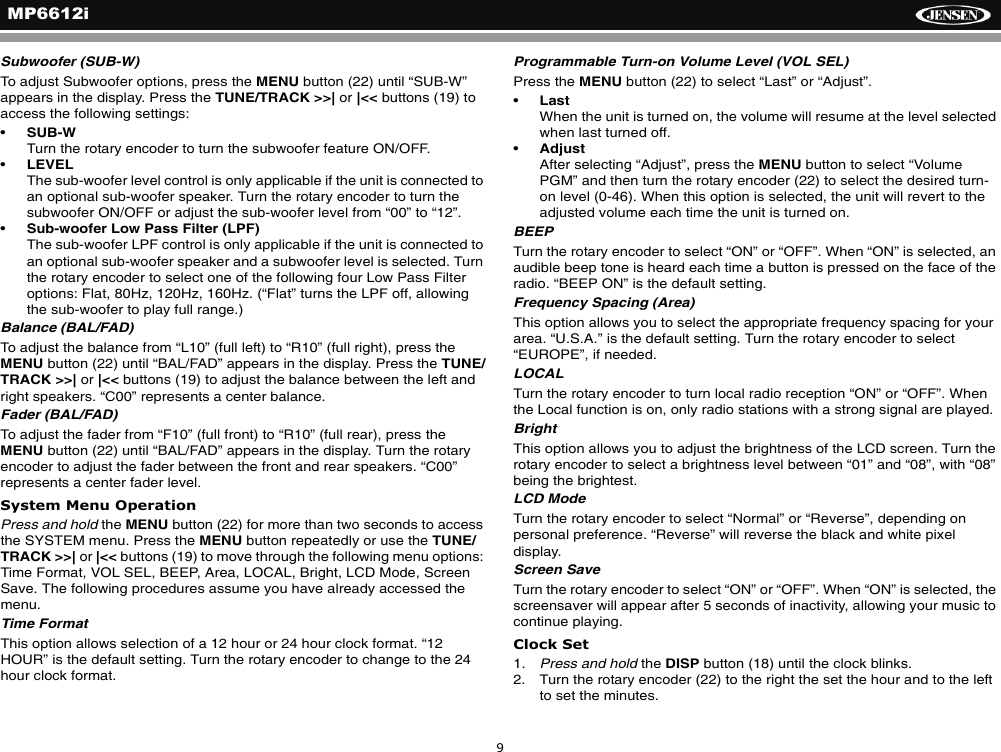
MP6612i9Subwoofer (SUB-W)To adjust Subwoofer options, press the MENU button (22) until “SUB-W” appears in the display. Press the TUNE/TRACK >>| or |<< buttons (19) to access the following settings:•SUB-WTurn the rotary encoder to turn the subwoofer feature ON/OFF.•LEVELThe sub-woofer level control is only applicable if the unit is connected to an optional sub-woofer speaker. Turn the rotary encoder to turn the subwoofer ON/OFF or adjust the sub-woofer level from “00” to “12”.•Sub-woofer Low Pass Filter (LPF)The sub-woofer LPF control is only applicable if the unit is connected to an optional sub-woofer speaker and a subwoofer level is selected. Turn the rotary encoder to select one of the following four Low Pass Filter options: Flat, 80Hz, 120Hz, 160Hz. (“Flat” turns the LPF off, allowing the sub-woofer to play full range.)Balance (BAL/FAD)To adjust the balance from “L10” (full left) to “R10” (full right), press theMENU button (22) until “BAL/FAD” appears in the display. Press the TUNE/TRACK >>| or |<< buttons (19) to adjust the balance between the left and right speakers. “C00” represents a center balance. Fader (BAL/FAD)To adjust the fader from “F10” (full front) to “R10” (full rear), press theMENU button (22) until “BAL/FAD” appears in the display. Turn the rotary encoder to adjust the fader between the front and rear speakers. “C00” represents a center fader level. System Menu OperationPress and hold the MENU button (22) for more than two seconds to access the SYSTEM menu. Press the MENU button repeatedly or use the TUNE/TRACK >>| or |<< buttons (19) to move through the following menu options: Time Format, VOL SEL, BEEP, Area, LOCAL, Bright, LCD Mode, Screen Save. The following procedures assume you have already accessed the menu.Time FormatThis option allows selection of a 12 hour or 24 hour clock format. “12 HOUR” is the default setting. Turn the rotary encoder to change to the 24 hour clock format.Programmable Turn-on Volume Level (VOL SEL)Press the MENU button (22) to select “Last” or “Adjust”.•LastWhen the unit is turned on, the volume will resume at the level selected when last turned off.•AdjustAfter selecting “Adjust”, press the MENU button to select “Volume PGM” and then turn the rotary encoder (22) to select the desired turn-on level (0-46). When this option is selected, the unit will revert to the adjusted volume each time the unit is turned on.BEEP Turn the rotary encoder to select “ON” or “OFF”. When “ON” is selected, an audible beep tone is heard each time a button is pressed on the face of the radio. “BEEP ON” is the default setting. Frequency Spacing (Area)This option allows you to select the appropriate frequency spacing for your area. “U.S.A.” is the default setting. Turn the rotary encoder to select “EUROPE”, if needed.LOCALTurn the rotary encoder to turn local radio reception “ON” or “OFF”. When the Local function is on, only radio stations with a strong signal are played. BrightThis option allows you to adjust the brightness of the LCD screen. Turn the rotary encoder to select a brightness level between “01” and “08”, with “08” being the brightest.LCD ModeTurn the rotary encoder to select “Normal” or “Reverse”, depending on personal preference. “Reverse” will reverse the black and white pixel display.Screen SaveTurn the rotary encoder to select “ON” or “OFF”. When “ON” is selected, the screensaver will appear after 5 seconds of inactivity, allowing your music to continue playing. Clock Set1. Press and hold the DISP button (18) until the clock blinks.2. Turn the rotary encoder (22) to the right the set the hour and to the left to set the minutes.
MP6612i10Reset ButtonThe RESET button (4) is located on the front panel below the rotary encoder. The reset circuitry protects the microprocessor circuitry. Since resetting the unit will erase the time and preset memories, it should only be activated upon initial installation after all wiring is complete, or if there is a malfunction of any of the switches on the unit. In these circumstances, pressing the RESET button will clear the system and return the unit to normal operation.
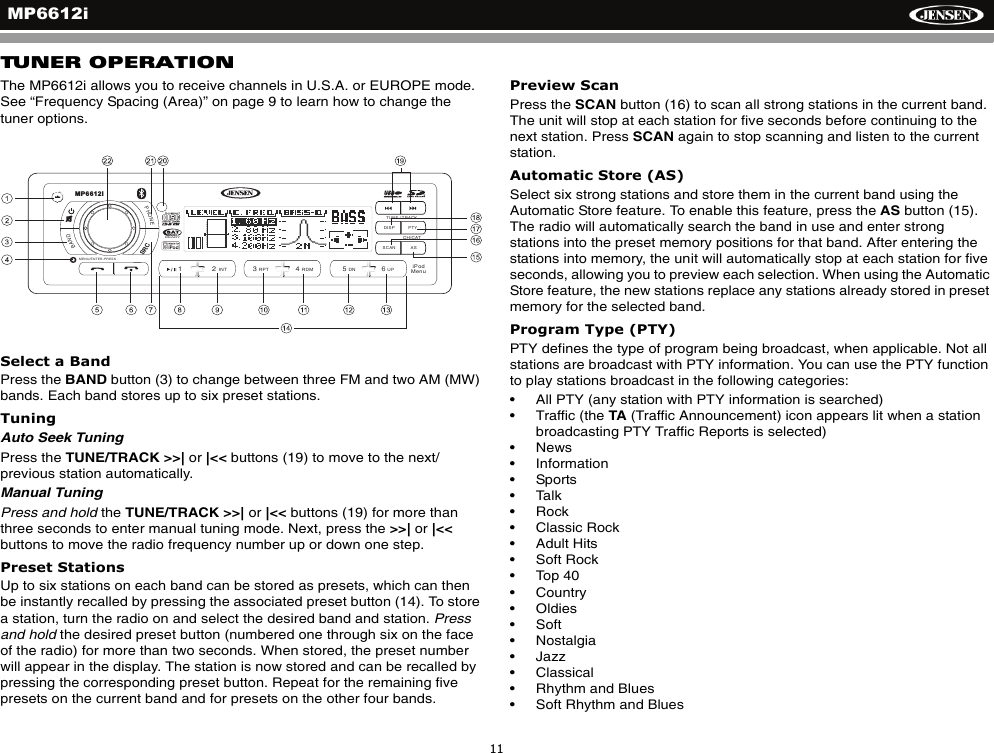
MP6612i11TUNER OPERATIONThe MP6612i allows you to receive channels in U.S.A. or EUROPE mode. See “Frequency Spacing (Area)” on page 9 to learn how to change the tuner options.Select a BandPress the BAND button (3) to change between three FM and two AM (MW) bands. Each band stores up to six preset stations.TuningAuto Seek TuningPress the TUNE/TRACK >>| or |<< buttons (19) to move to the next/previous station automatically.Manual TuningPress and hold the TUNE/TRACK >>| or |<< buttons (19) for more than three seconds to enter manual tuning mode. Next, press the >>| or |<<buttons to move the radio frequency number up or down one step.Preset StationsUp to six stations on each band can be stored as presets, which can then be instantly recalled by pressing the associated preset button (14). To store a station, turn the radio on and select the desired band and station. Pressand hold the desired preset button (numbered one through six on the face of the radio) for more than two seconds. When stored, the preset number will appear in the display. The station is now stored and can be recalled by pressing the corresponding preset button. Repeat for the remaining five presets on the current band and for presets on the other four bands.Preview ScanPress the SCAN button (16) to scan all strong stations in the current band. The unit will stop at each station for five seconds before continuing to the next station. Press SCAN again to stop scanning and listen to the current station.Automatic Store (AS)Select six strong stations and store them in the current band using the Automatic Store feature. To enable this feature, press the AS button (15). The radio will automatically search the band in use and enter strong stations into the preset memory positions for that band. After entering the stations into memory, the unit will automatically stop at each station for five seconds, allowing you to preview each selection. When using the Automatic Store feature, the new stations replace any stations already stored in preset memory for the selected band.Program Type (PTY)PTY defines the type of program being broadcast, when applicable. Not all stations are broadcast with PTY information. You can use the PTY function to play stations broadcast in the following categories: • All PTY (any station with PTY information is searched)• Traffic (the TA (Traffic Announcement) icon appears lit when a station broadcasting PTY Traffic Reports is selected)• News• Information• Sports• Talk• Rock• Classic Rock• Adult Hits• Soft Rock• Top 40• Country• Oldies• Soft• Nostalgia• Jazz• Classical• Rhythm and Blues• Soft Rhythm and BluesDISP PTYASSCANPHONEBAND/2INT13RPT 4RDM 56DN UPRADIOREADYTUNE / TRACKMP6612iCH/CATMENU/ENTER-PRESSiPodMenuSRC
MP6612i12• Language (foreign)• Religious Music• Religious Talk• Personality• Public• College• Weather• Emergency Test• EmergencyTo search for stations in a PTY category:1. Press the PTY button (17) to view the current PTY category. 2. Turn the rotary encoder (22) to move through the list of available categories.3. After 2 seconds of inactivity, the radio will automatically scan and play the first station it locates in the selected category.NOTE: PTY is a new broadcast technology that may not be extensively available in your area.
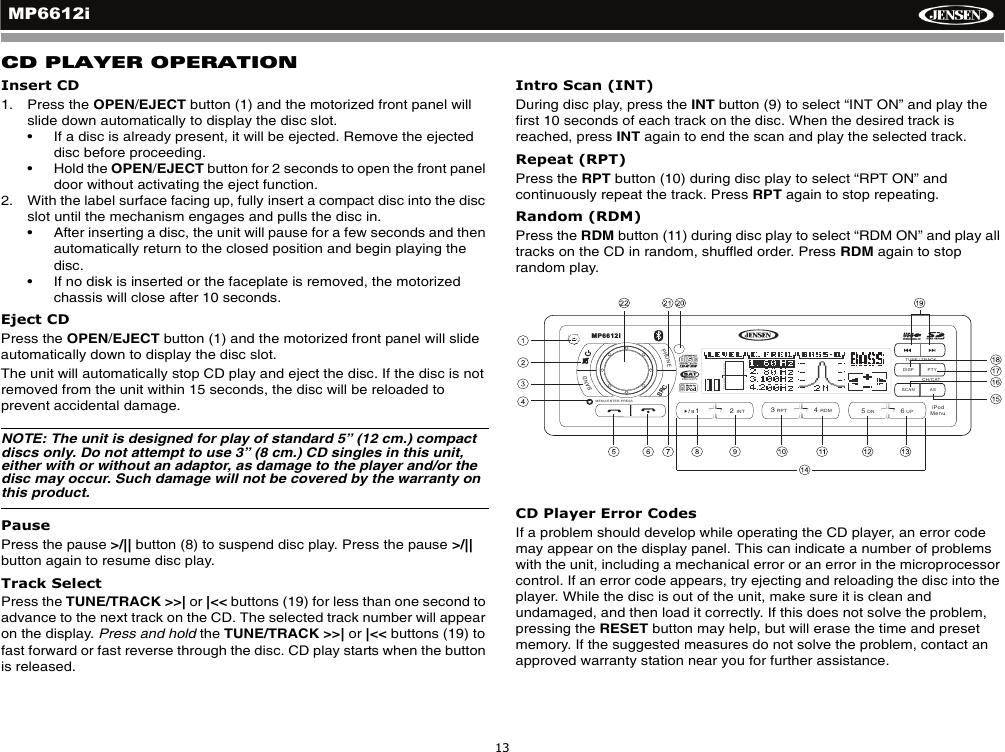
MP6612i13CD PLAYER OPERATIONInsert CD1. Press the OPEN/EJECT button (1) and the motorized front panel will slide down automatically to display the disc slot. • If a disc is already present, it will be ejected. Remove the ejected disc before proceeding.• Hold the OPEN/EJECT button for 2 seconds to open the front panel door without activating the eject function.2. With the label surface facing up, fully insert a compact disc into the disc slot until the mechanism engages and pulls the disc in. • After inserting a disc, the unit will pause for a few seconds and then automatically return to the closed position and begin playing the disc. • If no disk is inserted or the faceplate is removed, the motorized chassis will close after 10 seconds.Eject CDPress the OPEN/EJECT button (1) and the motorized front panel will slide automatically down to display the disc slot. The unit will automatically stop CD play and eject the disc. If the disc is not removed from the unit within 15 seconds, the disc will be reloaded to prevent accidental damage.NOTE: The unit is designed for play of standard 5” (12 cm.) compact discs only. Do not attempt to use 3” (8 cm.) CD singles in this unit, either with or without an adaptor, as damage to the player and/or the disc may occur. Such damage will not be covered by the warranty on this product.PausePress the pause >/|| button (8) to suspend disc play. Press the pause >/||button again to resume disc play.Track SelectPress the TUNE/TRACK >>| or |<< buttons (19) for less than one second to advance to the next track on the CD. The selected track number will appear on the display. Press and hold the TUNE/TRACK >>| or |<< buttons (19) to fast forward or fast reverse through the disc. CD play starts when the button is released.Intro Scan (INT)During disc play, press the INT button (9) to select “INT ON” and play the first 10 seconds of each track on the disc. When the desired track is reached, press INT again to end the scan and play the selected track.Repeat (RPT)Press the RPT button (10) during disc play to select “RPT ON” and continuously repeat the track. Press RPT again to stop repeating. Random (RDM)Press the RDM button (11) during disc play to select “RDM ON” and play all tracks on the CD in random, shuffled order. Press RDM again to stop random play.CD Player Error CodesIf a problem should develop while operating the CD player, an error code may appear on the display panel. This can indicate a number of problems with the unit, including a mechanical error or an error in the microprocessor control. If an error code appears, try ejecting and reloading the disc into the player. While the disc is out of the unit, make sure it is clean and undamaged, and then load it correctly. If this does not solve the problem, pressing the RESET button may help, but will erase the time and preset memory. If the suggested measures do not solve the problem, contact an approved warranty station near you for further assistance.DISP PTYASSCANPHONEBAND/2INT13RPT4RDM56DN UPRADIOREADYTUNE / TRACKMP6612iCH/CATMENU/ENTER-PRESSiPodMenuSRC
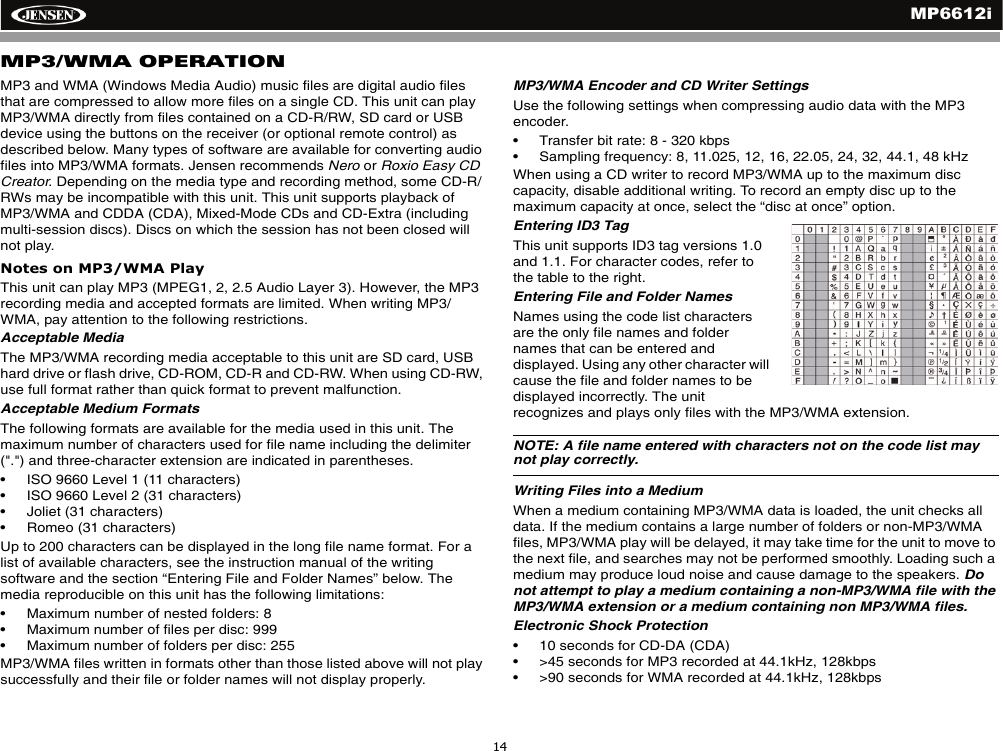
MP6612i14MP3/WMA OPERATIONMP3 and WMA (Windows Media Audio) music files are digital audio files that are compressed to allow more files on a single CD. This unit can play MP3/WMA directly from files contained on a CD-R/RW, SD card or USB device using the buttons on the receiver (or optional remote control) as described below. Many types of software are available for converting audio files into MP3/WMA formats. Jensen recommends Nero or Roxio Easy CD Creator. Depending on the media type and recording method, some CD-R/RWs may be incompatible with this unit. This unit supports playback of MP3/WMA and CDDA (CDA), Mixed-Mode CDs and CD-Extra (including multi-session discs). Discs on which the session has not been closed will not play.Notes on MP3/WMA PlayThis unit can play MP3 (MPEG1, 2, 2.5 Audio Layer 3). However, the MP3 recording media and accepted formats are limited. When writing MP3/WMA, pay attention to the following restrictions.Acceptable MediaThe MP3/WMA recording media acceptable to this unit are SD card, USB hard drive or flash drive, CD-ROM, CD-R and CD-RW. When using CD-RW, use full format rather than quick format to prevent malfunction.Acceptable Medium FormatsThe following formats are available for the media used in this unit. The maximum number of characters used for file name including the delimiter (".") and three-character extension are indicated in parentheses.• ISO 9660 Level 1 (11 characters)• ISO 9660 Level 2 (31 characters)• Joliet (31 characters)• Romeo (31 characters)Up to 200 characters can be displayed in the long file name format. For a list of available characters, see the instruction manual of the writing software and the section “Entering File and Folder Names” below. The media reproducible on this unit has the following limitations:• Maximum number of nested folders: 8• Maximum number of files per disc: 999 • Maximum number of folders per disc: 255MP3/WMA files written in formats other than those listed above will not play successfully and their file or folder names will not display properly.MP3/WMA Encoder and CD Writer SettingsUse the following settings when compressing audio data with the MP3 encoder.• Transfer bit rate: 8 - 320 kbps• Sampling frequency: 8, 11.025, 12, 16, 22.05, 24, 32, 44.1, 48 kHzWhen using a CD writer to record MP3/WMA up to the maximum disc capacity, disable additional writing. To record an empty disc up to the maximum capacity at once, select the “disc at once” option.Entering ID3 TagThis unit supports ID3 tag versions 1.0 and 1.1. For character codes, refer to the table to the right. Entering File and Folder NamesNames using the code list characters are the only file names and folder names that can be entered and displayed. Using any other character will cause the file and folder names to be displayed incorrectly. The unit recognizes and plays only files with the MP3/WMA extension.NOTE: A file name entered with characters not on the code list may not play correctly.Writing Files into a MediumWhen a medium containing MP3/WMA data is loaded, the unit checks all data. If the medium contains a large number of folders or non-MP3/WMA files, MP3/WMA play will be delayed, it may take time for the unit to move to the next file, and searches may not be performed smoothly. Loading such a medium may produce loud noise and cause damage to the speakers. Donot attempt to play a medium containing a non-MP3/WMA file with the MP3/WMA extension or a medium containing non MP3/WMA files.Electronic Shock Protection• 10 seconds for CD-DA (CDA)• >45 seconds for MP3 recorded at 44.1kHz, 128kbps• >90 seconds for WMA recorded at 44.1kHz, 128kbps
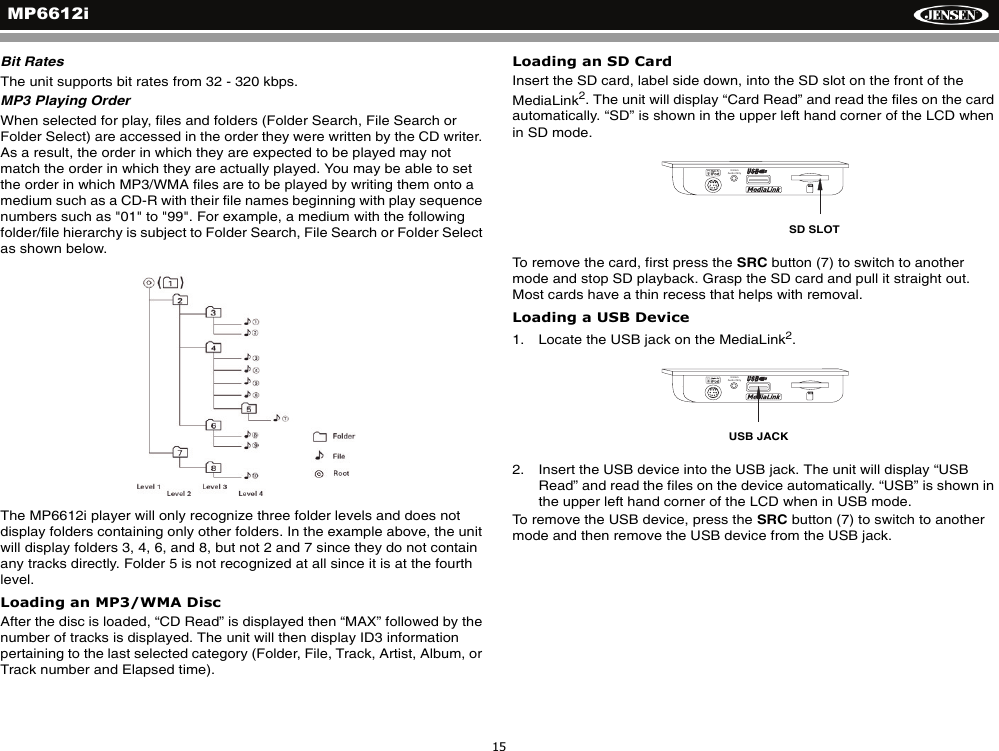
MP6612i15Bit RatesThe unit supports bit rates from 32 - 320 kbps.MP3 Playing OrderWhen selected for play, files and folders (Folder Search, File Search or Folder Select) are accessed in the order they were written by the CD writer. As a result, the order in which they are expected to be played may not match the order in which they are actually played. You may be able to set the order in which MP3/WMA files are to be played by writing them onto a medium such as a CD-R with their file names beginning with play sequence numbers such as "01" to "99". For example, a medium with the following folder/file hierarchy is subject to Folder Search, File Search or Folder Select as shown below.The MP6612i player will only recognize three folder levels and does not display folders containing only other folders. In the example above, the unit will display folders 3, 4, 6, and 8, but not 2 and 7 since they do not contain any tracks directly. Folder 5 is not recognized at all since it is at the fourth level.Loading an MP3/WMA DiscAfter the disc is loaded, “CD Read” is displayed then “MAX” followed by the number of tracks is displayed. The unit will then display ID3 information pertaining to the last selected category (Folder, File, Track, Artist, Album, or Track number and Elapsed time).Loading an SD CardInsert the SD card, label side down, into the SD slot on the front of the MediaLink2. The unit will display “Card Read” and read the files on the card automatically. “SD” is shown in the upper left hand corner of the LCD when in SD mode.To remove the card, first press the SRC button (7) to switch to another mode and stop SD playback. Grasp the SD card and pull it straight out. Most cards have a thin recess that helps with removal.Loading a USB Device1. Locate the USB jack on the MediaLink2.2. Insert the USB device into the USB jack. The unit will display “USB Read” and read the files on the device automatically. “USB” is shown in the upper left hand corner of the LCD when in USB mode.To remove the USB device, press the SRC button (7) to switch to another mode and then remove the USB device from the USB jack.3.5mmAudio OnlySD SLOT   3.5mmAudio OnlyUSB JACK
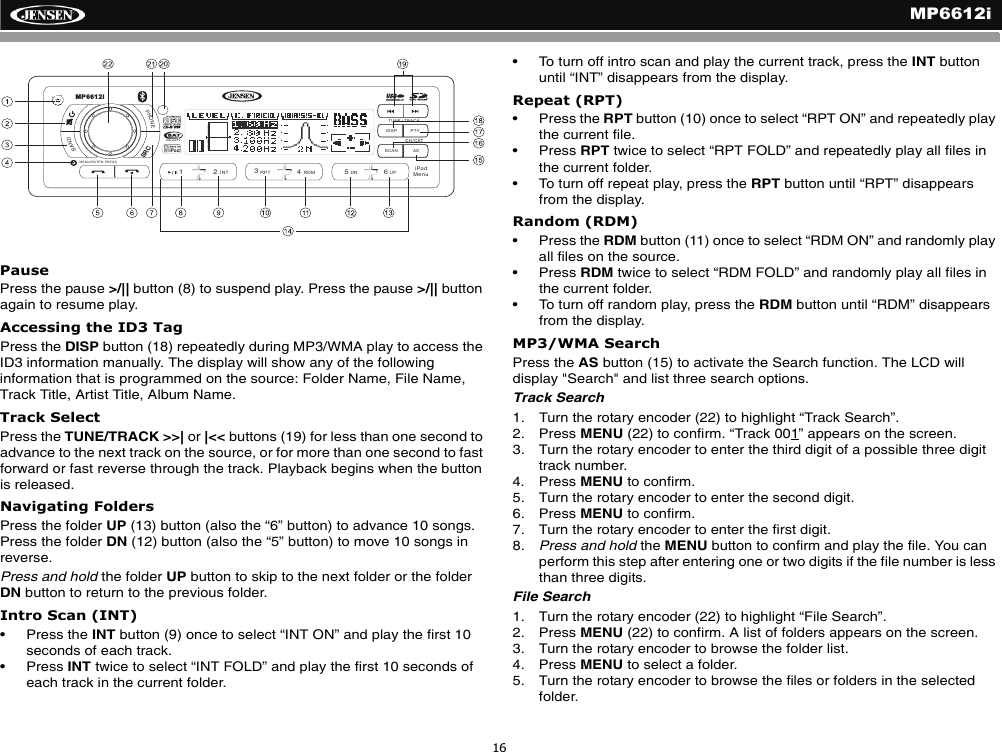
MP6612i16PausePress the pause >/|| button (8) to suspend play. Press the pause >/|| button again to resume play.Accessing the ID3 TagPress the DISP button (18) repeatedly during MP3/WMA play to access the ID3 information manually. The display will show any of the following information that is programmed on the source: Folder Name, File Name, Track Title, Artist Title, Album Name.Track SelectPress the TUNE/TRACK >>| or |<< buttons (19) for less than one second to advance to the next track on the source, or for more than one second to fast forward or fast reverse through the track. Playback begins when the button is released.Navigating FoldersPress the folder UP (13) button (also the “6” button) to advance 10 songs. Press the folder DN (12) button (also the “5” button) to move 10 songs in reverse.Press and hold the folder UP button to skip to the next folder or the folder DN button to return to the previous folder.Intro Scan (INT)• Press the INT button (9) once to select “INT ON” and play the first 10 seconds of each track. • Press INT twice to select “INT FOLD” and play the first 10 seconds of each track in the current folder. • To turn off intro scan and play the current track, press the INT button until “INT” disappears from the display.Repeat (RPT)• Press the RPT button (10) once to select “RPT ON” and repeatedly play the current file. • Press RPT twice to select “RPT FOLD” and repeatedly play all files in the current folder. • To turn off repeat play, press the RPT button until “RPT” disappears from the display. Random (RDM)• Press the RDM button (11) once to select “RDM ON” and randomly play all files on the source. • Press RDM twice to select “RDM FOLD” and randomly play all files in the current folder. • To turn off random play, press the RDM button until “RDM” disappears from the display. MP3/WMA SearchPress the AS button (15) to activate the Search function. The LCD will display "Search" and list three search options. Track Search1. Turn the rotary encoder (22) to highlight “Track Search”. 2. Press MENU (22) to confirm. “Track 001” appears on the screen.3. Turn the rotary encoder to enter the third digit of a possible three digit track number.4. Press MENU to confirm.5. Turn the rotary encoder to enter the second digit.6. Press MENU to confirm.7. Turn the rotary encoder to enter the first digit.8. Press and hold the MENU button to confirm and play the file. You can perform this step after entering one or two digits if the file number is less than three digits.File Search1. Turn the rotary encoder (22) to highlight “File Search”. 2. Press MENU (22) to confirm. A list of folders appears on the screen.3. Turn the rotary encoder to browse the folder list.4. Press MENU to select a folder.5. Turn the rotary encoder to browse the files or folders in the selected folder. DISP PTYASSCANPHONEBAND/2INT13RPT4RDM56DN UPRADIOREADYTUNE / TRACKMP6612iCH/CATMENU/ENTER-PRESSiPodMenuSRC
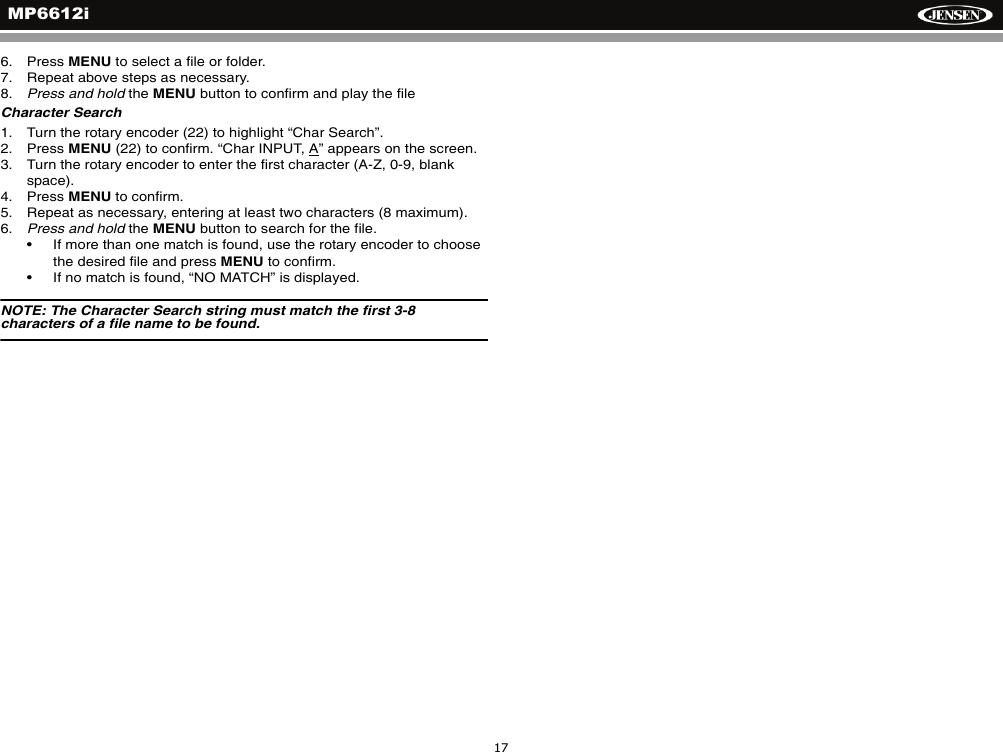
MP6612i176. Press MENU to select a file or folder.7. Repeat above steps as necessary.8. Press and hold the MENU button to confirm and play the fileCharacter Search1. Turn the rotary encoder (22) to highlight “Char Search”. 2. Press MENU (22) to confirm. “Char INPUT, A” appears on the screen.3. Turn the rotary encoder to enter the first character (A-Z, 0-9, blank space).4. Press MENU to confirm.5. Repeat as necessary, entering at least two characters (8 maximum).6. Press and hold the MENU button to search for the file. • If more than one match is found, use the rotary encoder to choose the desired file and press MENU to confirm.• If no match is found, “NO MATCH” is displayed.NOTE: The Character Search string must match the first 3-8 characters of a file name to be found.
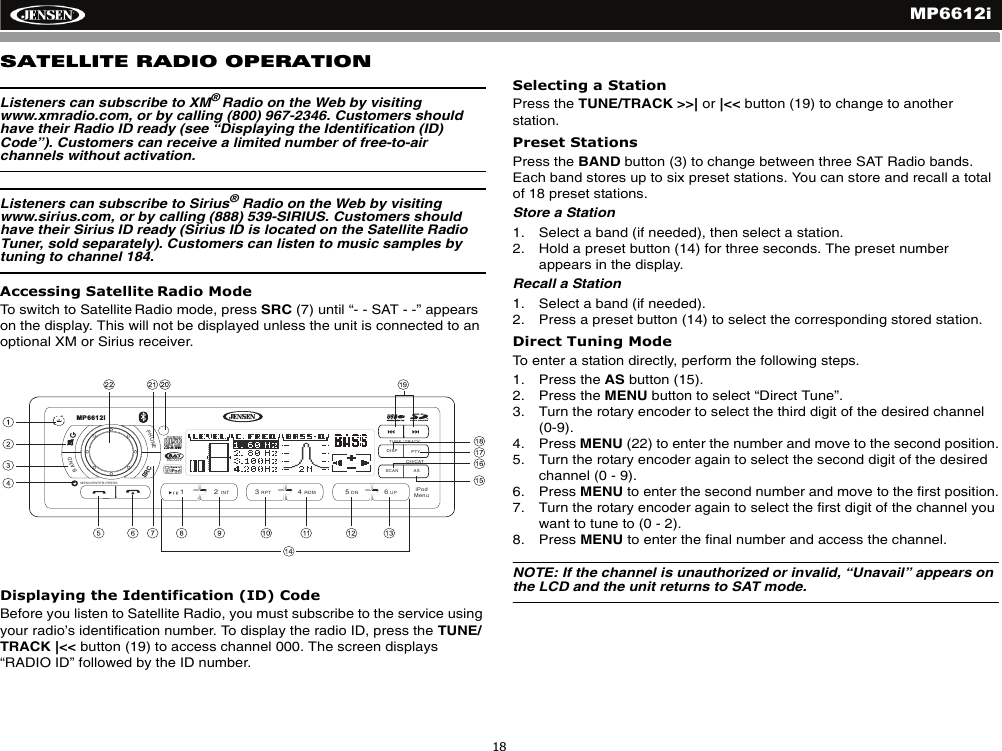
MP6612i18SATELLITE RADIO OPERATIONListeners can subscribe to XM®Radio on the Web by visiting www.xmradio.com, or by calling (800) 967-2346. Customers should have their Radio ID ready (see “Displaying the Identification (ID) Code”). Customers can receive a limited number of free-to-air channels without activation. Listeners can subscribe to Sirius® Radio on the Web by visiting www.sirius.com, or by calling (888) 539-SIRIUS. Customers should have their Sirius ID ready (Sirius ID is located on the Satellite Radio Tuner, sold separately). Customers can listen to music samples by tuning to channel 184.Accessing Satellite Radio ModeTo switch to Satellite Radio mode, press SRC (7) until “- - SAT - -” appears on the display. This will not be displayed unless the unit is connected to an optional XM or Sirius receiver.Displaying the Identification (ID) CodeBefore you listen to Satellite Radio, you must subscribe to the service using your radio’s identification number. To display the radio ID, press the TUNE/TRACK |<< button (19) to access channel 000. The screen displays “RADIO ID” followed by the ID number.Selecting a StationPress the TUNE/TRACK >>| or |<< button (19) to change to another station. Preset StationsPress the BAND button (3) to change between three SAT Radio bands. Each band stores up to six preset stations. You can store and recall a total of 18 preset stations.Store a Station1. Select a band (if needed), then select a station.2. Hold a preset button (14) for three seconds. The preset number appears in the display.Recall a Station1. Select a band (if needed).2. Press a preset button (14) to select the corresponding stored station.Direct Tuning ModeTo enter a station directly, perform the following steps.1. Press the AS button (15). 2. Press the MENU button to select “Direct Tune”. 3. Turn the rotary encoder to select the third digit of the desired channel (0-9).4. Press MENU (22) to enter the number and move to the second position.5. Turn the rotary encoder again to select the second digit of the desired channel (0 - 9).6. Press MENU to enter the second number and move to the first position.7. Turn the rotary encoder again to select the first digit of the channel you want to tune to (0 - 2).8. Press MENU to enter the final number and access the channel.NOTE: If the channel is unauthorized or invalid, “Unavail” appears on the LCD and the unit returns to SAT mode.DISP PTYASSCANPHONEBAND/2INT13RPT4RDM56DN UPRADIOREADYTUNE / TRACKMP6612iCH/CATMENU/ENTER-PRESSiPodMenuSRC
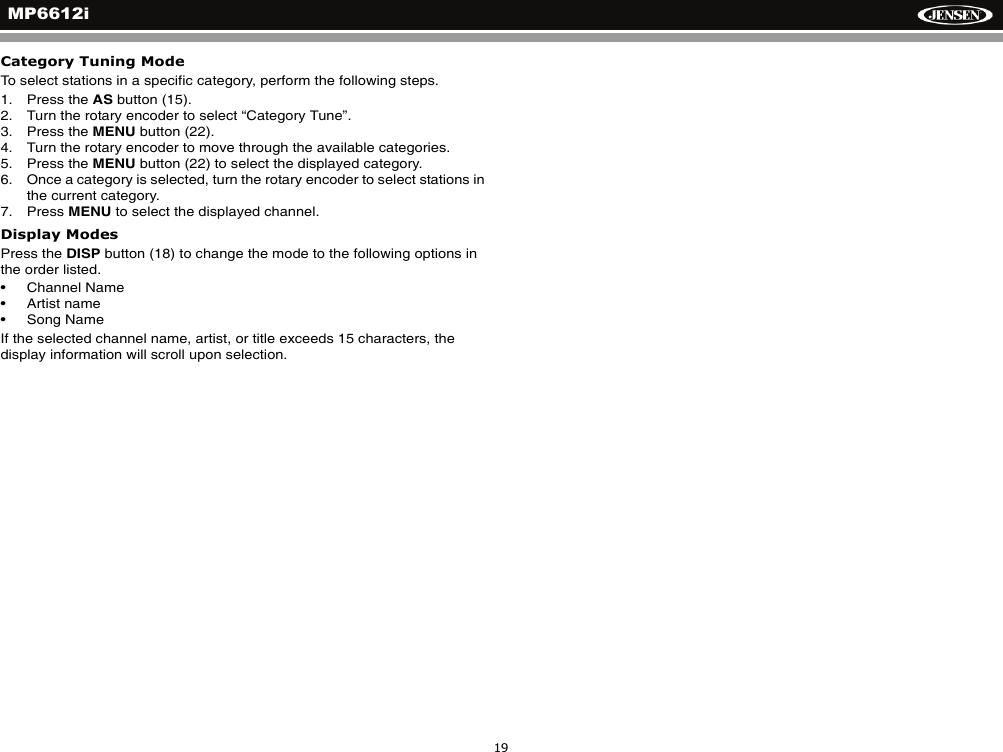
MP6612i19Category Tuning ModeTo select stations in a specific category, perform the following steps.1. Press the AS button (15).2. Turn the rotary encoder to select “Category Tune”.3. Press the MENU button (22).4. Turn the rotary encoder to move through the available categories.5. Press the MENU button (22) to select the displayed category.6. Once a category is selected, turn the rotary encoder to select stations in the current category.7. Press MENU to select the displayed channel.Display ModesPress the DISP button (18) to change the mode to the following options in the order listed.• Channel Name• Artist name• Song NameIf the selected channel name, artist, or title exceeds 15 characters, the display information will scroll upon selection.
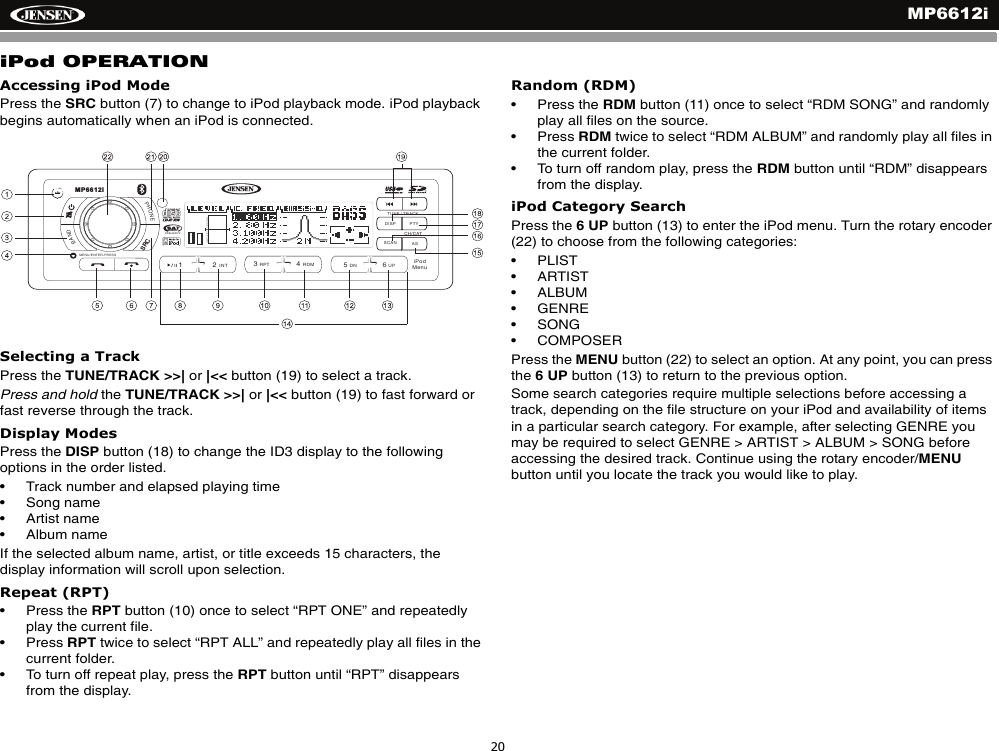
MP6612i20iPod OPERATIONAccessing iPod ModePress the SRC button (7) to change to iPod playback mode. iPod playback begins automatically when an iPod is connected.Selecting a TrackPress the TUNE/TRACK >>| or |<< button (19) to select a track.Press and hold the TUNE/TRACK >>| or |<< button (19) to fast forward or fast reverse through the track.Display ModesPress the DISP button (18) to change the ID3 display to the following options in the order listed.• Track number and elapsed playing time• Song name• Artist name• Album nameIf the selected album name, artist, or title exceeds 15 characters, the display information will scroll upon selection.Repeat (RPT)• Press the RPT button (10) once to select “RPT ONE” and repeatedly play the current file. • Press RPT twice to select “RPT ALL” and repeatedly play all files in the current folder. • To turn off repeat play, press the RPT button until “RPT” disappears from the display. Random (RDM)• Press the RDM button (11) once to select “RDM SONG” and randomly play all files on the source. • Press RDM twice to select “RDM ALBUM” and randomly play all files in the current folder. • To turn off random play, press the RDM button until “RDM” disappears from the display. iPod Category SearchPress the 6 UP button (13) to enter the iPod menu. Turn the rotary encoder (22) to choose from the following categories:• PLIST• ARTIST• ALBUM• GENRE• SONG• COMPOSERPress the MENU button (22) to select an option. At any point, you can press the 6 UP button (13) to return to the previous option.Some search categories require multiple selections before accessing a track, depending on the file structure on your iPod and availability of items in a particular search category. For example, after selecting GENRE you may be required to select GENRE > ARTIST > ALBUM > SONG before accessing the desired track. Continue using the rotary encoder/MENUbutton until you locate the track you would like to play.DISP PTYASSCANPHONEBAND/2INT13RPT4RDM56DN UPRADIOREADYTUNE / TRACKMP6612iCH/CATMENU/ENTER-PRESSiPodMenuSRC
MP6612i21BLUETOOTH OPERATIONAbout BluetoothBluetooth is a short-range wireless radio connectivity technology that is developed as a cable replacement for mobile phones, handheld PCs and other devices. Bluetooth operates in 2.4 GHz frequency range and transmits voice and data at speeds up to 1 megabit per second. Bluetooth was launched by a special interest group (SIG) comprised of Ericsson Inc., Intel Corp., Nokia Corp., Toshiba and IBM in 1998, and it is currently developed by nearly 2,000 companies worldwide. The Bluetooth word mark and logos are owned by the Bluetooth SIG, Inc. and any use of such marks by Audiovox Corporation is under license. Other trademarks and trade names are those of their respective owners.NOTE: The line-of-sight distance between this unit and your cellular phone must be 8 meters or less for sending and receiving voice and data via Bluetooth wireless technology. However, the transmission distance may become shorter than the estimated distance, depending on the environment in use. Before attempting to use the Bluetooth functions on the MP6612i, please make sure your mobile phone supports Bluetooth functions (Headset or Handsfree profiles or both). Adhere to the following guidelines for successful operation.• Before using Bluetooth functions, you must pair your mobile phone to the MP6612i head unit (see “Pairing your Mobile Phone and Head Unit via Bluetooth”). To ensure the best reception for pairing and re-connection, please make sure the phone battery is fully charged before you begin.• Try to perform pairing within a few minutes of the phone being turned on.• Once the unit has been paired with the phone, the unit’s model number, “MP6612i”, will be displayed on the mobile phone. • To achieve the best performance, always keep the mobile phone within3 meters of the head unit.• Always keep a clear path between the mobile phone and the head unit. Never place a metal object or any other obstacle between the mobile phone and the head unit.Some mobile phones (like Sony Ericsson) may have a "Power Saving Mode" option. PLEASE DO NOT use the power saving mode with the MP6612i.• Before accepting or making a call, make sure your mobile phone's “Bluetooth function” is turned on.• To ensure the best conversation quality/performance, stay within one meter of the head unit when talking. • To “disconnect” the mobile phone from the head unit, turn the Bluetooth connectivity off on the mobile phone.•Phone Book direct searching through the head unit is only available if the mobile phone supports Phone Book Download. Ifthe feature is not supported, the head unit will display “EMPTY” when an attempt is made to download a phone book. Hands Free Profile (HFP)To use a phone wirelessly with this unit, it is necessary to first establish a connection using Bluetooth wireless technology. Connection is normally established using HFP (Hands Free Profile), which gives you full control of functions available on the telephone source. However, depending on your phone, the connection may be made using HSP (Head Set Profile), making some functions unavailable. This is a limitation of your phone, not the MP6612i.Since there are a number of Bluetooth mobile phone implementations available on the market, operations with your Bluetooth mobile phone using this unit vary greatly. Please refer to the instruction manual that came with your Bluetooth mobile phone along with this manual while operating your phone with this unit.Pairing your Mobile Phone and Head Unit via Bluetooth1. Press the SRC button (7) to access Bluetooth mode and initiate the pairing process. Keep the phone within 2 meters of the head unit during pairing. NOTE: If your phone does not automatically discover the MP6612i, press and hold the SRC button to manually pair your phone. 2. Select the Bluetooth setup option on the bluetooth phone to be paired (please refer to the phone’s instruction manual to learn how to enter Bluetooth setup, turn Bluetooth on/off, and perform pairing).3. Select “MP6612i” from the pairing list on the Bluetooth phone and select “YES” to connect.4. When your phone asks for a “pass key”, enter “1234”. • If pairing is successful, “Pairing OK” appears on the LCD and the Bluetooth icon will stop flashing.• If pairing fails, “Pairing Failed” appears on the LCD.
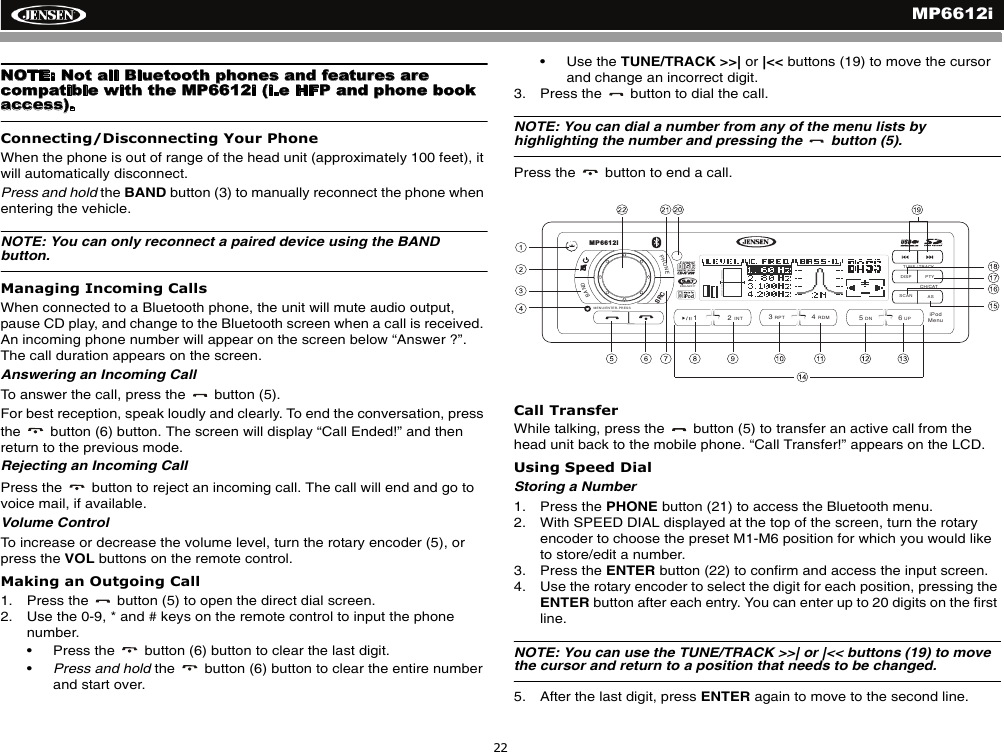
MP6612i22NOTE: Not all Bluetooth phones and features are compatible with the MP6612i (i.e HFP and phone book access). Connecting/Disconnecting Your PhoneWhen the phone is out of range of the head unit (approximately 100 feet), it will automatically disconnect.Press and hold the BAND button (3) to manually reconnect the phone when entering the vehicle. NOTE: You can only reconnect a paired device using the BAND button. Managing Incoming CallsWhen connected to a Bluetooth phone, the unit will mute audio output, pause CD play, and change to the Bluetooth screen when a call is received. An incoming phone number will appear on the screen below “Answer ?”.  The call duration appears on the screen.Answering an Incoming CallTo answer the call, press the   button (5).For best reception, speak loudly and clearly. To end the conversation, press the   button (6) button. The screen will display “Call Ended!” and then return to the previous mode.Rejecting an Incoming CallPress the   button to reject an incoming call. The call will end and go to voice mail, if available.Volume ControlTo increase or decrease the volume level, turn the rotary encoder (5), or press the VOL buttons on the remote control. Making an Outgoing Call1. Press the   button (5) to open the direct dial screen.2. Use the 0-9, * and # keys on the remote control to input the phone number.• Press the   button (6) button to clear the last digit.•Press and hold the   button (6) button to clear the entire number and start over.• Use the TUNE/TRACK >>| or |<< buttons (19) to move the cursor and change an incorrect digit.3. Press the   button to dial the call.NOTE: You can dial a number from any of the menu lists by highlighting the number and pressing the   button (5). Press the   button to end a call.Call TransferWhile talking, press the   button (5) to transfer an active call from the head unit back to the mobile phone. “Call Transfer!” appears on the LCD.Using Speed DialStoring a Number1. Press the PHONE button (21) to access the Bluetooth menu.2. With SPEED DIAL displayed at the top of the screen, turn the rotary encoder to choose the preset M1-M6 position for which you would like to store/edit a number.3. Press the ENTER button (22) to confirm and access the input screen.4. Use the rotary encoder to select the digit for each position, pressing the ENTER button after each entry. You can enter up to 20 digits on the first line.NOTE: You can use the TUNE/TRACK >>| or |<< buttons (19) to move the cursor and return to a position that needs to be changed.5. After the last digit, press ENTER again to move to the second line.DISP PTYASSCANPHONEBAND/2INT13RPT4RDM56DN UPRADIOREADYTUNE / TRACKMP6612iCH/CATMENU/ENTER-PRESSiPodMenuSRC
MP6612i236. Use the rotary encoder to enter a name to identify the number, pressing ENTER after each entry. You can enter up to 10 characters (digits and/or letters) on the second line.7. After the last character, press ENTER again to finalize your entry.NOTE: You can also save a number from the RECV or DIAL list by highlighting the number and then pressing and holding a preset number (M1-M6).Dialing a Saved Number1. Press the   button (5) to begin a call.2. Press and hold the corresponding preset number (M1-M6) to dial the SPEED DIAL number associated with that preset position.Menu ListPress the PHONE button (21) to access the Bluetooth menu. The following menu options are available.NOTE: Not all phones allow access to missed, received or dialed calls and some will not allow uploading of your phone’s address book.SPEED DIALUse the Speed Dial feature to store up to 6 numbers for easy recall using the M1-M6 memory buttons on the front of the radio. See “Using Speed Dial” on page 22.RECV LISTSelect the RECV LIST (received calls list) to view the received numbers stored on your phone. The last received number is the first number on the list. To make a call from the received list, turn the rotary encoder (22) to select the number and then press the   button (5). The LCD will display “Empty” when the feature is not available.DIALED LISTSelect the DIALED LIST option to retrieve the list of dialed numbers from your phone. The last dialed number is the first number on the list. To make a call from the Dialed list, turn the rotary encoder (22) to select the number and then press the   button (5). The LCD will display “Empty” when the feature is not available.MISSED LISTSelect the MISSED LIST option to retrieve the list of Missed numbers from your phone. The last missed number is the first number on the list. To make a call from the Missed list, turn the rotary encoder (22) to select the number and then press the   button (5). The LCD will display “Empty” when the feature is not available.PHONE BOOKSelect the MOBILE or SIM Phone Book menu option to display the phone book stored on your mobile phone, if compatible. The screen will display “Reading” while the phone book is downloading.To make a call from the Phone Book list, turn the rotary encoder (22) to select the number and then press the   button (5). The LCD will display “Empty” when the feature is not available.NOTE: Some mobile phones and most “Smart” phones do not support Phone Book upload through Bluetooth. .Auto AnswerYou can choose to have the MP6612i automatically answer incoming calls to your paired Bluetooth phone. Turn the rotary encoder (22) to turn Auto Answer “ON” or “OFF”.BT VolumeTurn the rotary encoder (22) to select the desired Bluetooth volume, from 0-46.Advanced Audio Distribution Profile (A2DP)The MP6612i allows you to play back audio files from your phone, PDA or personal music player using a Bluetooth connection.Before using an audio player, it may be necessary to enter a PIN code (1234) into the unit. NOTE: Please turn A2DP off on your phone before attempting to make a phone call, as unexpected results may occur depending on your mobile phone model.The MP6612i can control a Bluetooth audio player via Advanced Audio Distribution Profile (A2DP) or Audio/Video Remote Control Profile (AVRCP). Bluetooth audio players (or Bluetooth adapters) compatible with these profiles can be connected to this unit. Functionality varies depending on the profile used:• A2DP: Stream audio from your Bluetooth compatible audio player and listen to the music through your MP6612i. Play/pause, song selection, etc. are not possible.
MP6612i24• AVRCP: Play back, pause, select songs, etc. while streaming audio from your Bluetooth compatible audio player to the MP6612i.NOTE: Song information (e.g. elapsed playing time, song title, song index, etc.) cannot be displayed on this unit. Since there are a number of Bluetooth audio players available on the market, operations with your Bluetooth audio player using this unit vary greatly.Please refer to the instruction manual that came with your Bluetooth audio player as well as this manual while operating your player with the MP6612i.
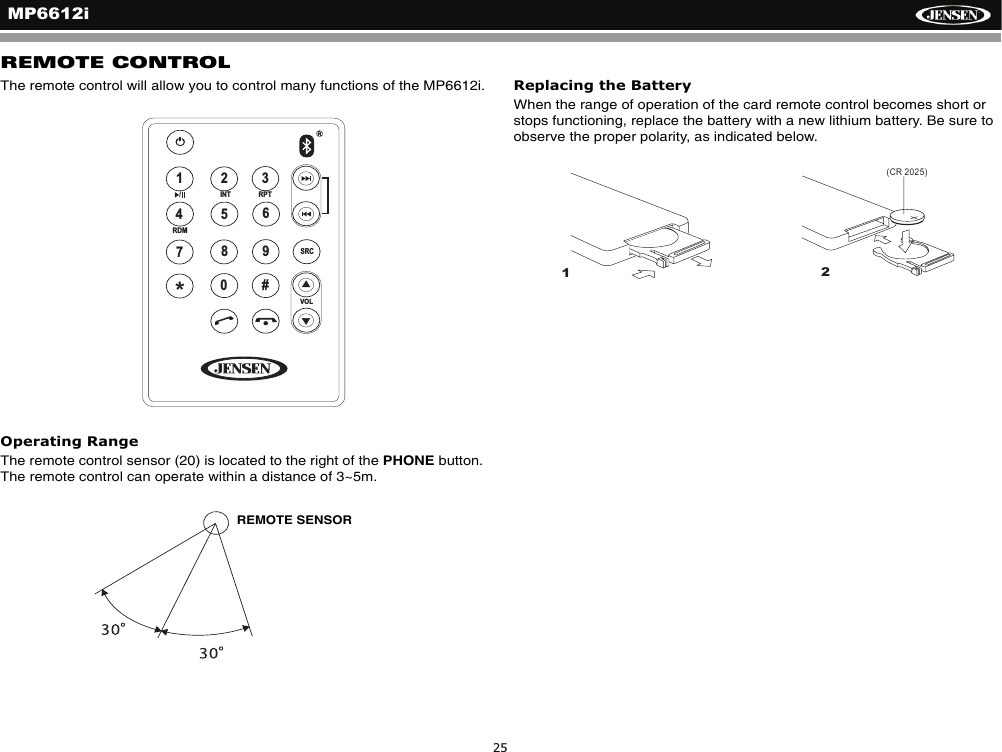
MP6612i25REMOTE CONTROLThe remote control will allow you to control many functions of the MP6612i.Operating RangeThe remote control sensor (20) is located to the right of the PHONE button. The remote control can operate within a distance of 3~5m.Replacing the BatteryWhen the range of operation of the card remote control becomes short or stops functioning, replace the battery with a new lithium battery. Be sure to observe the proper polarity, as indicated below.12INT3RPT4SRCRDM56/VOL789*0#REMOTE SENSOR1(CR 2025)2
MP6612i26CARE AND MAINTENANCECD PlayerThe following guidelines will help you extend the life of your CD player:1. When cleaning the vehicle interior, do not get water or cleaning fluids on the unit.2. The CD player will not operate properly in extreme hot/cold or under damp conditions. In case of such conditions, wait until the vehicle interior reaches a normal temperature or any condensation on the disc player lens has evaporated before using the player.3. Never insert anything other than round 5” CDs into the player. Attempting to insert CDs of other sizes (even with an adaptor) will cause damage not covered by the warranty.4. Always remove the CD when the player is not in use.5. The unit is designed with a vibration dampening CD mechanism to minimize interruption of disc play due to normal vibration in a moving vehicle. However, occasional sound skips may occur when driving on very rough roads. This will not scratch or damage the disc, and normal play will resume when the rough conditions cease.Compact DiscsCD-R and CD-RW CapabilityDepending on media type and method of "recording/burning", some CD-R/RWs may be incompatible with this unit. After "recording/burning", the session must be closed. Please refer to your software's recommended procedures for closing a disc/session. Review your recording software to familiarize yourself with the correct "recording/burning" procedures. We recommend using the latest versions of ROXIOTM or NEROTM burning software. In addition, this unit will only recognize the CDDA (Compact Disc Digital Audio), .MP3 and .WMA formats "recorded / burned" onto a CD-R/RW. Thisunit does not support .WAV, .OGG or other formats. CD Care and HandlingDirt, dust, scratches and warpage can cause skips in the playback and deterioration of sound quality. Please follow these guidelines to take care of your compact discs.1. Carefully wipe fingerprints, dust and dirt from the disc’s playing surface with a soft cloth. Wipe in a straight motion from the inside to the outside of the disc.2. Never use chemicals such as record sprays or household cleaners to clean CDs, as they can irreparably damage the disc’s surface.3. Discs should be kept in their storage cases when not in use.4. Do not expose discs to direct sunlight, high temperatures or high humidity for long periods.5. Do not stick paper, tape or CD labels on disc surfaces, as internal damage may occur.
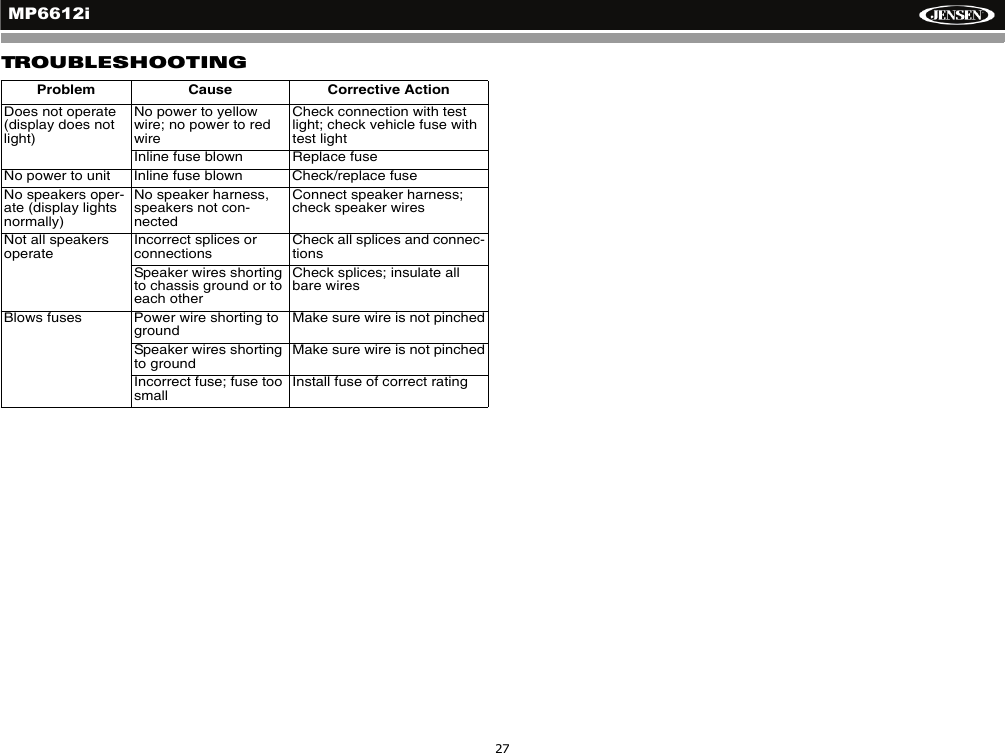
MP6612i27TROUBLESHOOTINGProblem Cause Corrective ActionDoes not operate (display does not light)No power to yellow wire; no power to red wireCheck connection with test light; check vehicle fuse with test lightInline fuse blown Replace fuseNo power to unit Inline fuse blown Check/replace fuseNo speakers oper-ate (display lights normally)No speaker harness, speakers not con-nectedConnect speaker harness; check speaker wiresNot all speakers operateIncorrect splices or connectionsCheck all splices and connec-tionsSpeaker wires shorting to chassis ground or to each otherCheck splices; insulate all bare wiresBlows fuses Power wire shorting to groundMake sure wire is not pinchedSpeaker wires shorting to groundMake sure wire is not pinchedIncorrect fuse; fuse too smallInstall fuse of correct rating
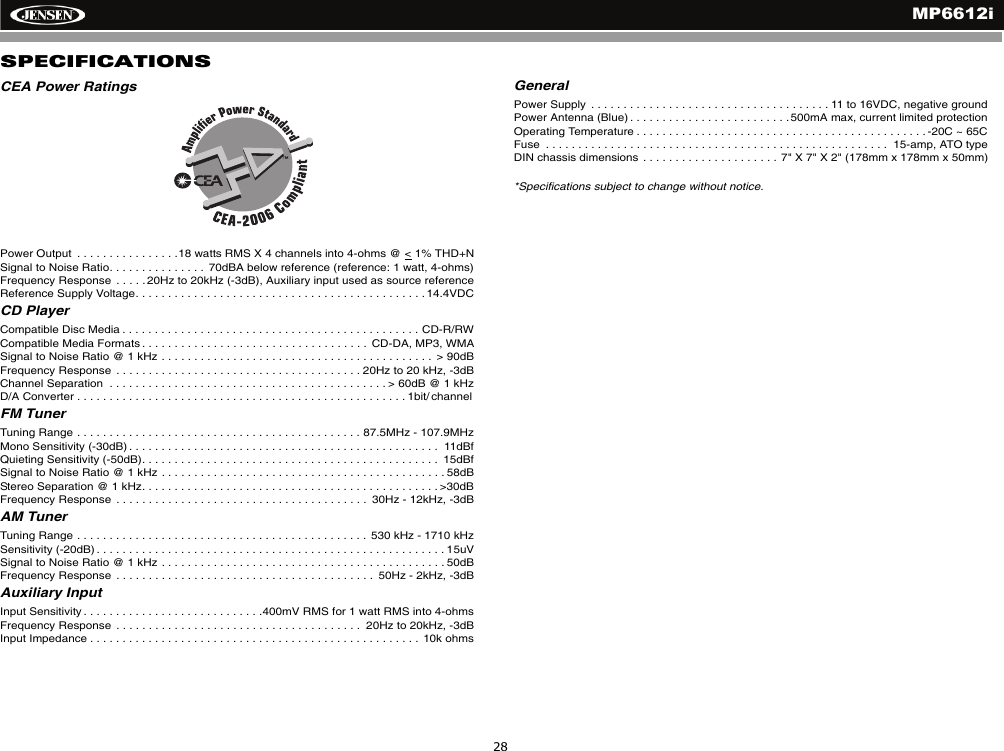
MP6612i28SPECIFICATIONSCEA Power RatingsPower Output  . . . . . . . . . . . . . . . .18 watts RMS X 4 channels into 4-ohms @ < 1% THD+NSignal to Noise Ratio. . . . . . . . . . . . . . .  70dBA below reference (reference: 1 watt, 4-ohms)Frequency Response  . . . . .20Hz to 20kHz (-3dB), Auxiliary input used as source referenceReference Supply Voltage. . . . . . . . . . . . . . . . . . . . . . . . . . . . . . . . . . . . . . . . . . . . . 14.4VDCCD PlayerCompatible Disc Media . . . . . . . . . . . . . . . . . . . . . . . . . . . . . . . . . . . . . . . . . . . . . . CD-R/RWCompatible Media Formats . . . . . . . . . . . . . . . . . . . . . . . . . . . . . . . . . . .  CD-DA, MP3, WMASignal to Noise Ratio @ 1 kHz . . . . . . . . . . . . . . . . . . . . . . . . . . . . . . . . . . . . . . . . . .  > 90dBFrequency Response  . . . . . . . . . . . . . . . . . . . . . . . . . . . . . . . . . . . . . . 20Hz to 20 kHz, -3dBChannel Separation  . . . . . . . . . . . . . . . . . . . . . . . . . . . . . . . . . . . . . . . . . . . > 60dB @ 1 kHzD/A Converter . . . . . . . . . . . . . . . . . . . . . . . . . . . . . . . . . . . . . . . . . . . . . . . . . . . 1bit/ channelFM TunerTuning Range . . . . . . . . . . . . . . . . . . . . . . . . . . . . . . . . . . . . . . . . . . . . 87.5MHz - 107.9MHzMono Sensitivity (-30dB) . . . . . . . . . . . . . . . . . . . . . . . . . . . . . . . . . . . . . . . . . . . . . . . .  11dBfQuieting Sensitivity (-50dB). . . . . . . . . . . . . . . . . . . . . . . . . . . . . . . . . . . . . . . . . . . . . .  15dBfSignal to Noise Ratio @ 1 kHz . . . . . . . . . . . . . . . . . . . . . . . . . . . . . . . . . . . . . . . . . . . . 58dB Stereo Separation @ 1 kHz. . . . . . . . . . . . . . . . . . . . . . . . . . . . . . . . . . . . . . . . . . . . . . >30dBFrequency Response  . . . . . . . . . . . . . . . . . . . . . . . . . . . . . . . . . . . . . . .  30Hz - 12kHz, -3dBAM TunerTuning Range . . . . . . . . . . . . . . . . . . . . . . . . . . . . . . . . . . . . . . . . . . . . .  530 kHz - 1710 kHzSensitivity (-20dB) . . . . . . . . . . . . . . . . . . . . . . . . . . . . . . . . . . . . . . . . . . . . . . . . . . . . . . 15uVSignal to Noise Ratio @ 1 kHz . . . . . . . . . . . . . . . . . . . . . . . . . . . . . . . . . . . . . . . . . . . . 50dBFrequency Response  . . . . . . . . . . . . . . . . . . . . . . . . . . . . . . . . . . . . . . . .  50Hz - 2kHz, -3dBAuxiliary InputInput Sensitivity . . . . . . . . . . . . . . . . . . . . . . . . . . . .400mV RMS for 1 watt RMS into 4-ohmsFrequency Response  . . . . . . . . . . . . . . . . . . . . . . . . . . . . . . . . . . . . . .  20Hz to 20kHz, -3dBInput Impedance . . . . . . . . . . . . . . . . . . . . . . . . . . . . . . . . . . . . . . . . . . . . . . . . . . .  10k ohmsGeneral Power Supply  . . . . . . . . . . . . . . . . . . . . . . . . . . . . . . . . . . . . . 11 to 16VDC, negative groundPower Antenna (Blue) . . . . . . . . . . . . . . . . . . . . . . . . .500mA max, current limited protectionOperating Temperature . . . . . . . . . . . . . . . . . . . . . . . . . . . . . . . . . . . . . . . . . . . . . -20C ~ 65CFuse  . . . . . . . . . . . . . . . . . . . . . . . . . . . . . . . . . . . . . . . . . . . . . . . . . . . . .  15-amp, ATO typeDIN chassis dimensions  . . . . . . . . . . . . . . . . . . . . .  7" X 7" X 2" (178mm x 178mm x 50mm)*Specifications subject to change without notice.
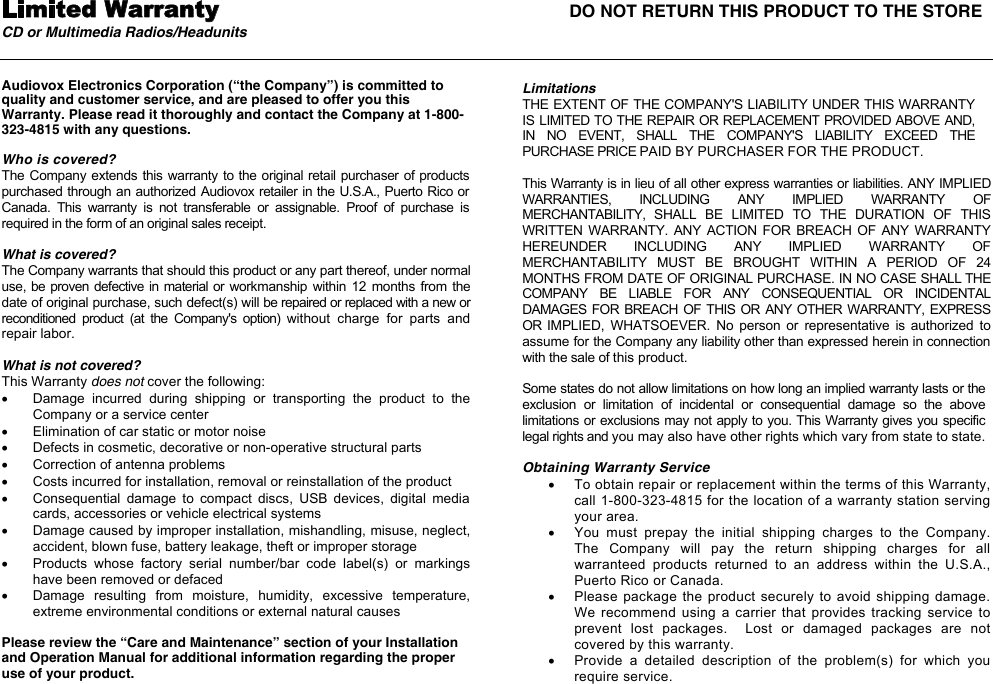
Limited Warranty  DO NOT RETURN THIS PRODUCT TO THE STORECD or Multimedia Radios/Headunits Audiovox Electronics Corporation (“the Company”) is committed to quality and customer service, and are pleased to offer you this Warranty. Please read it thoroughly and contact the Company at 1-800-323-4815 with any questions. Who is covered? The Company extends this warranty to the original retail purchaser of products purchased through an authorized Audiovox retailer in the U.S.A., Puerto Rico or Canada.  This  warranty  is  not  transferable  or  assignable.  Proof  of  purchase  is required in the form of an original sales receipt. What is covered? The Company warrants that should this product or any part thereof, under normal use, be proven defective in material or workmanship within  12 months  from  the date of original purchase, such defect(s) will be repaired or replaced with a new or reconditioned  product  (at  the  Company's  option)  without  charge  for  parts  and repair labor. What is not covered? This Warranty does not cover the following: x  Damage  incurred  during  shipping  or  transporting  the  product  to  the Company or a service center x  Elimination of car static or motor noise x  Defects in cosmetic, decorative or non-operative structural parts  x  Correction of antenna problems x  Costs incurred for installation, removal or reinstallation of the product x  Consequential  damage  to  compact  discs,  USB  devices,  digital  media cards, accessories or vehicle electrical systems x  Damage caused by improper installation, mishandling, misuse, neglect, accident, blown fuse, battery leakage, theft or improper storage x  Products  whose  factory  serial  number/bar  code  label(s)  or  markings have been removed or defaced x  Damage  resulting  from  moisture,  humidity,  excessive  temperature, extreme environmental conditions or external natural causes Please review the “Care and Maintenance” section of your Installation and Operation Manual for additional information regarding the proper use of your product.Limitations THE EXTENT OF THE COMPANY'S LIABILITY UNDER THIS WARRANTY IS LIMITED TO THE REPAIR OR REPLACEMENT PROVIDED ABOVE AND, IN  NO  EVENT,  SHALL  THE  COMPANY'S  LIABILITY  EXCEED  THE PURCHASE PRICE PAID BY PURCHASER FOR THE PRODUCT. This Warranty is in lieu of all other express warranties or liabilities. ANY IMPLIED WARRANTIES,  INCLUDING  ANY  IMPLIED  WARRANTY  OF MERCHANTABILITY,  SHALL  BE  LIMITED  TO  THE  DURATION  OF  THIS WRITTEN  WARRANTY.  ANY  ACTION  FOR BREACH OF ANY  WARRANTY HEREUNDER  INCLUDING  ANY  IMPLIED  WARRANTY  OF MERCHANTABILITY  MUST  BE  BROUGHT  WITHIN  A  PERIOD  OF  24 MONTHS FROM DATE OF ORIGINAL PURCHASE. IN NO CASE SHALL THE COMPANY  BE  LIABLE  FOR  ANY  CONSEQUENTIAL  OR  INCIDENTAL DAMAGES FOR  BREACH OF THIS OR ANY OTHER WARRANTY, EXPRESS OR  IMPLIED,  WHATSOEVER.  No  person  or  representative  is  authorized  to assume for the Company any liability other than expressed herein in connection with the sale of this product. Some states do not allow limitations on how long an implied warranty lasts or the exclusion  or  limitation  of  incidental  or  consequential  damage  so  the  above limitations or exclusions may not apply to you. This Warranty gives you specific legal rights and you may also have other rights which vary from state to state. Obtaining Warranty Servicex  To obtain repair or replacement within the terms of this Warranty, call 1-800-323-4815 for the location of a warranty station serving your area. x  You  must  prepay  the  initial  shipping  charges  to  the  Company.  The  Company  will  pay  the  return  shipping  charges  for  all warranteed  products  returned  to  an  address  within  the  U.S.A., Puerto Rico or Canada.   x  Please package the product securely  to  avoid  shipping  damage.  We recommend using  a carrier  that provides  tracking service  to prevent  lost  packages.    Lost  or  damaged  packages  are  not covered by this warranty. x  Provide  a  detailed  description  of  the  problem(s)  for  which  you require service.
Audiovox Electronics CorporationHauppauge, NY 11788Technical Assistance: 1-800-323-4815www.jensen.com © 2007 AudiovoxVer. 013007Printed in ChinaAudiovox Electronics CorporationHauppauge, NY 11788Technical Assistance: 1-800-323-4815www.jensen.com © 2007 AudiovoxVer. 080307Printed in China

Navigation menu