HUIZHOU FORYOU GENERAL ELECTRONICS FGEDV6310 CAR DVD RECEIVER User Manual VM9022 Caution content

HUIZHOU FORYOU GENERAL ELECTRONICS CO.,LTD. CAR DVD RECEIVER VM9022 Caution content

Users Manual

Caution content for VM9022 Caution content: changes or modifications not expressly approved by the party reponsible for compliance could void the user's authority to operate the equipment  For a Class B digital device or peripheral, the instructions furnished the user shall include the following or similar statement, placed in a prominent location in the text of the manual: NOTE: This equipment has been tested and found to comply with the limits for a class B digital device, pursuant to Part 15 of the FCC Rules. These limits are designed to provide reasonable protection against harmful interference in a residential installation. This equipment generates, uses and can radiate radio frequency energy and, if not installed and used in accordance with the instructions may cause harmful interference to radio communications. However, there is no guarantee that interference will not occur in a particular installation. If this equipment does cause harmful interference to radio or television reception, which can be determined by turning the equipment off and on, the user is encouraged to try to correct the interference by one or more of the following measures: --Reorient or relocate the receiving antenna. --Increase the separation between the equipment and receiver. --Connect the equipment into and outlet on a circuit different from that to which the receiver is connected. --Consult the dealer or an experienced radio/TV technician for help.
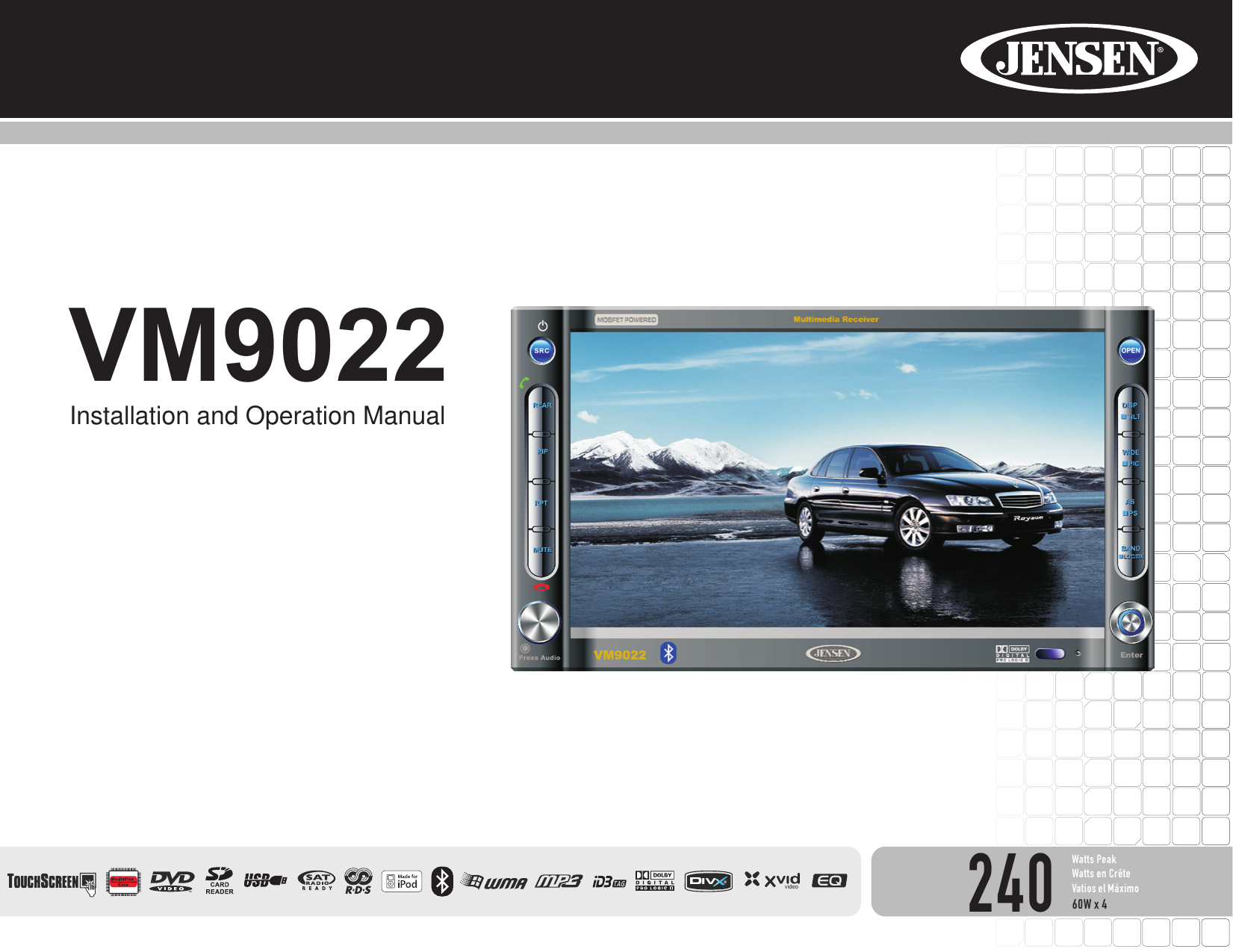
240®DIVWatts Peak Watts en Crête Vatios el Máximo60W x 4 VM9022Installation and Operation Manualvideo
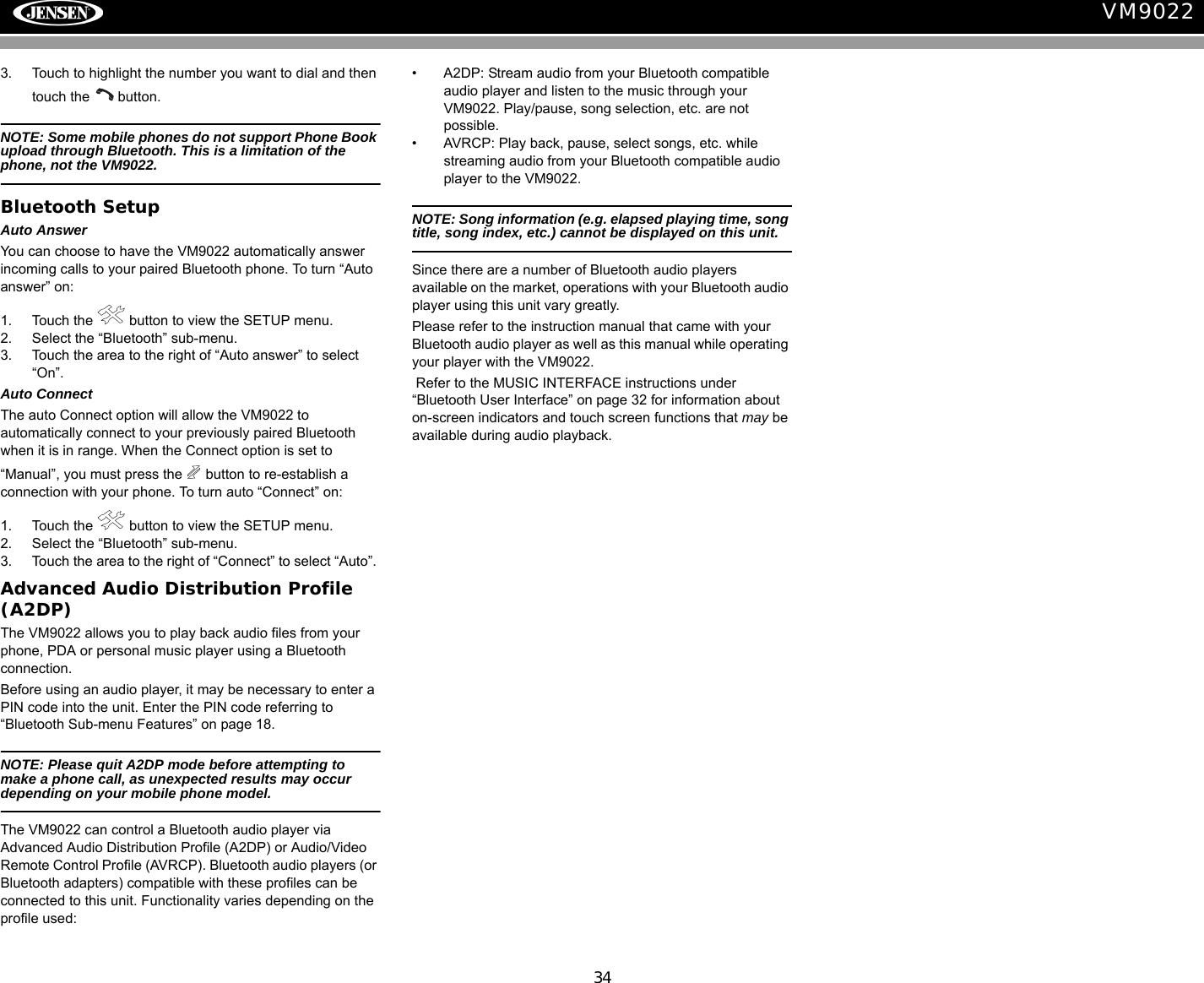
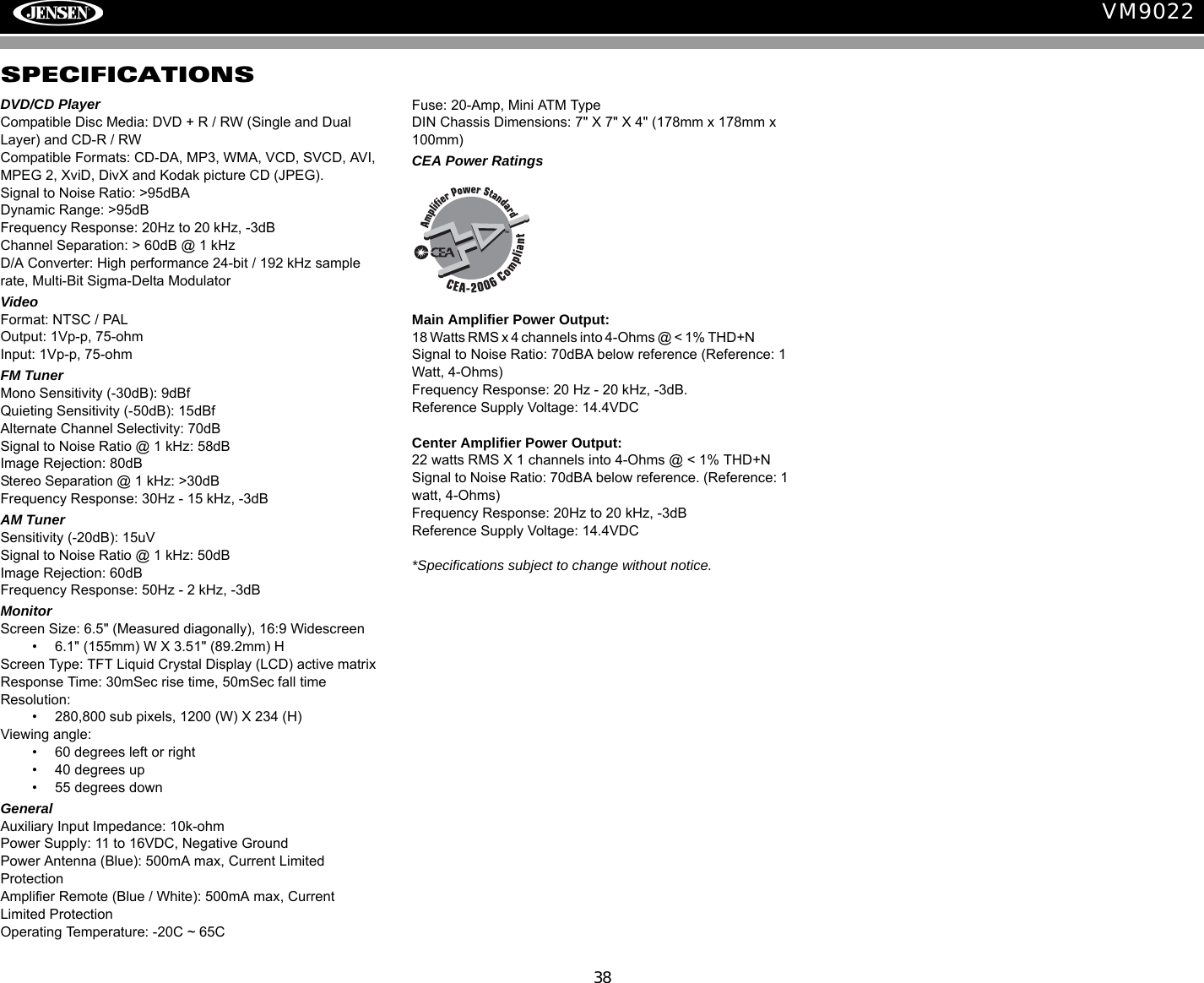
iCONTENTSThank you for choosing a Jensen product. We hope you will find the instructions in this owner’s manual clear and easy to follow. If you take a few minutes to look through it, you’ll learn how to use all the features of your new Jensen VM9022 Mobile Multimedia Receiver for maximum enjoyment.Preparation............................................................................................................................ 1Installation ............................................................................................................................. 5Anti-Theft Feature ................................................................................................................. 7Controls and Indicators ......................................................................................................... 8Remote Control ................................................................................................................... 10Using the TFT Monitor ........................................................................................................ 13Operating Instructions ......................................................................................................... 14Multi-ZONE Operation......................................................................................................... 16Setup Menu......................................................................................................................... 17Tuner Operation .................................................................................................................. 20Satellite Radio Operation .................................................................................................... 22DVD/VCD Video Operation ................................................................................................. 24DVD/CD Audio Operation ................................................................................................... 27MP3/WMA Operation .......................................................................................................... 29iPod Operation .................................................................................................................... 31Bluetooth Operation ............................................................................................................ 32Troubleshooting .................................................................................................................. 35Specifications ...................................................................................................................... 38
ii
1VM9022PREPARATIONCongratulations on your purchase of the Jensen VM9022 Mobile Multimedia Receiver.It’s a good idea to read all of the instructions before beginning the installation. We recommend having your Jensen VM9022 installed by a reputable installation shop.FeaturesDVD• Aspect Ratio – Cinema and Normal• Fast Forward / Reverse – 2X, 4X, 8X and 32X• Play, Pause, Stop, Next Chapter and Previous Chapter• ESP – 2MB BufferCD / MP3 / WMA• ID3 Tag Compatible• Directory Search (MP3 / WMA Only)• Direct Track Access via Remote control• Burn up to 1500 MP3 and WMA Files onto a DVD+R / RW• Audible Forward / Reverse Track Search• Random, Repeat and Intro• Play, Pause, Stop, Next Track and Previous Track• ESP – 2MB BufferAM-FM • USA/Europe/Latin America/Asia Frequency Spacing• 30 Station Presets (18 FM, 12 AM)• Auto Stereo/Mono• Local/Distance• Auto Store/Preview Scan • RDS (Radio Data System)Sat Radio Ready• Compatible with XM and Sirius Tuners (Sold Separately)• Requires XMDJEN100 or JXMC Cables (Sold Separately)• Satellite Channel Name, Artist, Song and Categories Displayed on TFT ScreeniPod•jLinkDirect - High Speed Direct Connect Interface to Access iPod Playlists, Artists, Albums, Songs, *Photos and *Video (*Requires Photo or Video iPod)• Power Management Charges iPod while ConnectedMediaLink4• Under Dash Interface Allows Portable Media Devices to be Connected• MediaLink4 Includes the Following Connectivity: • USB – Supports Flash Memory and Hard Drives with Audio Files• LinkDirect iPod Connectivity• 3.5mm Audio Only Input• RCA Audio /Video InputChassis• 2.0 DIN (Import / ISO-DIN Mountable)• Motorized Swing-Down LCD Screen• 6.5" TFT Active Matrix LCD with Anti-Glare Coating• Screen Tilt / Angle Adjustment• Heat Management System - Forced Air-Cooling to Keep the Chip-Sets Operating at Nominal TemperaturesGeneral• Bluetooth – Bluetooth hands-free profile for safety / convenience and A2DP profile for streaming music from a PDA / PMP• Navigation Ready (Nav101 Only)• 38-Key Infrared Remote Control with 5-way Joystick• Two Composite Video Outputs for Additional Screens• Compatible with MZ7TFT Rear Seat Monitors with Touch Screen Interface• Two Audio /Video Auxiliary Inputs • 200-Ohm Preamp Line Output – All Audio Channels• 4VRMS Line Output – All Channels• Rotary Encoder Audio Control• Seven-Band EQ with Eight Preset EQ Curves • Spectrum Analyzer• Front, Rear, Center and Subwoofer Line Output• Built-In Integrated Center Channel Amplifier (40 Watts X 1)• Subwoofer Crossover and Phase Control• Dolby Digital / Pro-Logic ll• Programmable Volume Control• Rear Camera Input (Normal and Mirror Image View)• 5-Way Joystick
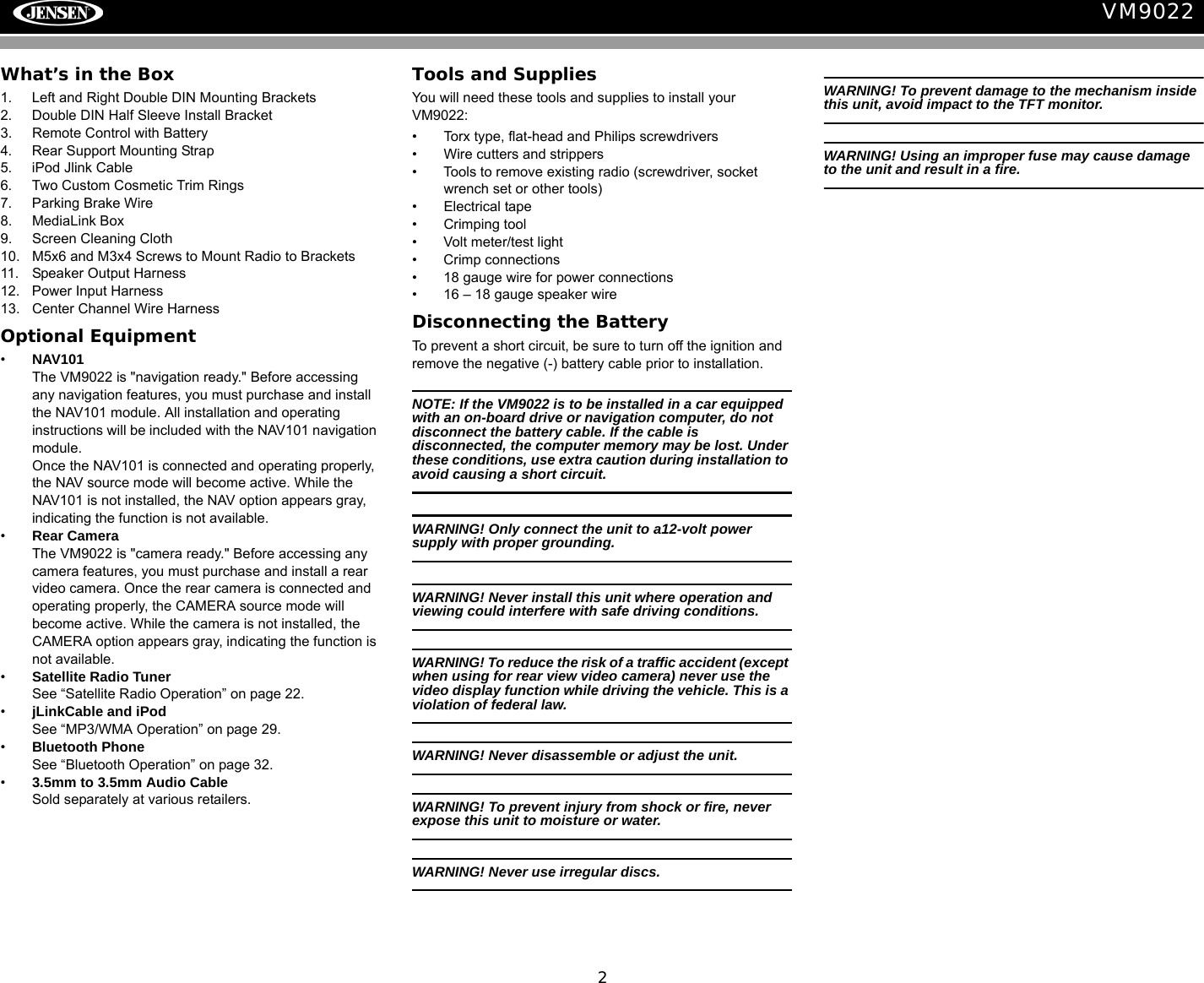
2VM9022What’s in the Box1. Left and Right Double DIN Mounting Brackets2. Double DIN Half Sleeve Install Bracket3. Remote Control with Battery4. Rear Support Mounting Strap5. iPod Jlink Cable6. Two Custom Cosmetic Trim Rings7. Parking Brake Wire8. MediaLink Box9. Screen Cleaning Cloth10. M5x6 and M3x4 Screws to Mount Radio to Brackets11. Speaker Output Harness12. Power Input Harness13. Center Channel Wire HarnessOptional Equipment•NAV101The VM9022 is "navigation ready." Before accessing any navigation features, you must purchase and install the NAV101 module. All installation and operating instructions will be included with the NAV101 navigation module.Once the NAV101 is connected and operating properly, the NAV source mode will become active. While the NAV101 is not installed, the NAV option appears gray, indicating the function is not available.•Rear CameraThe VM9022 is "camera ready." Before accessing any camera features, you must purchase and install a rear video camera. Once the rear camera is connected and operating properly, the CAMERA source mode will become active. While the camera is not installed, the CAMERA option appears gray, indicating the function is not available.•Satellite Radio Tuner See “Satellite Radio Operation” on page 22.•jLinkCable and iPodSee “MP3/WMA Operation” on page 29.•Bluetooth PhoneSee “Bluetooth Operation” on page 32.•3.5mm to 3.5mm Audio CableSold separately at various retailers.Tools and SuppliesYou will need these tools and supplies to install your VM9022:• Torx type, flat-head and Philips screwdrivers• Wire cutters and strippers• Tools to remove existing radio (screwdriver, socket wrench set or other tools)• Electrical tape• Crimping tool• Volt meter/test light• Crimp connections• 18 gauge wire for power connections• 16 – 18 gauge speaker wireDisconnecting the BatteryTo prevent a short circuit, be sure to turn off the ignition and remove the negative (-) battery cable prior to installation.NOTE: If the VM9022 is to be installed in a car equipped with an on-board drive or navigation computer, do not disconnect the battery cable. If the cable is disconnected, the computer memory may be lost. Under these conditions, use extra caution during installation to avoid causing a short circuit.WARNING! Only connect the unit to a12-volt power supply with proper grounding.WARNING! Never install this unit where operation and viewing could interfere with safe driving conditions.WARNING! To reduce the risk of a traffic accident (except when using for rear view video camera) never use the video display function while driving the vehicle. This is a violation of federal law. WARNING! Never disassemble or adjust the unit.WARNING! To prevent injury from shock or fire, never expose this unit to moisture or water.WARNING! Never use irregular discs.WARNING! To prevent damage to the mechanism inside this unit, avoid impact to the TFT monitor.WARNING! Using an improper fuse may cause damage to the unit and result in a fire.
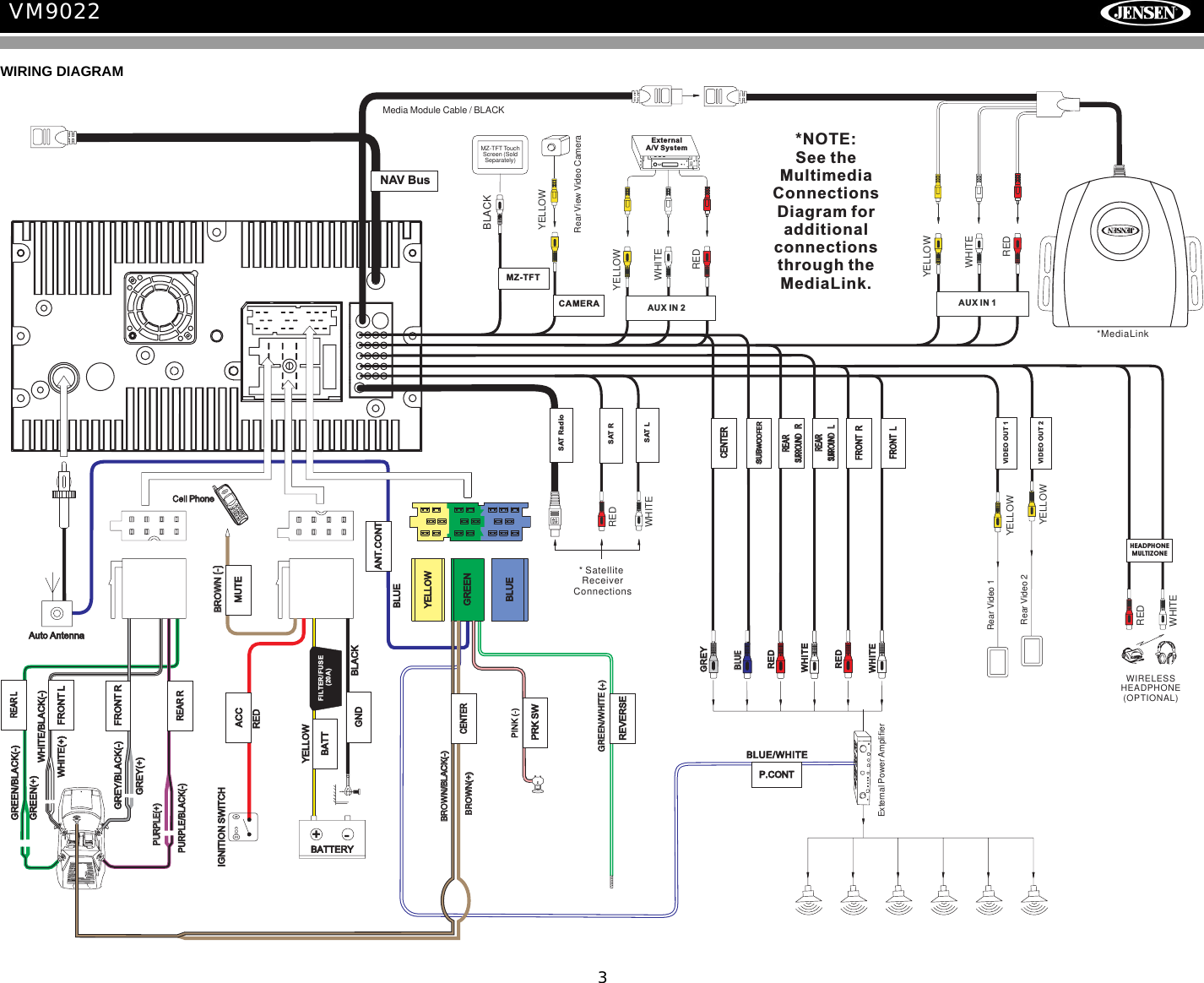
3VM9022GREEN(+)GREEN/BLACK(-)WHITE(+)WHITE/BLACK(-)GREY(+)GREY/BLACK(-)PURPLE(+)PURPLE(+)PURPLE/BLACK(-)BLUE/WHITEBATTERY+-IGNITION SWITCHREDYELLOWBLACKBROWN(+)BROWN(+)BROWN/BLACK(-)BROWN/BLACK(-)BROWN(-)BROWN(-)PINK (-)GREEN/WHITE (+)GREEN/WHITE (+)BLUEAuto AntennaCell PhoneCell PhoneBLUEGREENYELLOWMedia Module Cable / BLACKExternal Power AmplifierGREYBLUEBLUEREDWHITEREDWHITEFRONT LFRONT RREARLSURROUNDREARLSURROUNDREARRSURROUNDREARRSURROUNDSUBWOOFERSUBWOOFERCENTERGNDP.CONTMUTEBATTCENTERPRK SWREVERSEANT.CONTACCREAR RFRONT LREAR LFRONT RNAV BusRear View Video CameraBLACKMZ-TFT TouchScreen (SoldSeparately)WIRELESSHEADPHONE(OPTIONAL)WHITEREDYELLOWWHITEYELLOWREDAUX IN 2CAMERAMZ-TFTSAT RadioSAT LSAT R* SatelliteReceiverConnectionsWHITEREDRear Video 2Rear Video 1YELLOWYELLOWVIDEO OUT 1VIDEO OUT 2HEADPHONEMULTIZONE*MediaLinkAUX IN 1WHITEYELLOWREDExternalA/V System *NOTE:See theMultimediaConnectionsDiagram foradditionalconnectionsthrough theMediaLink.FILTER/FUSE(20A)WIRING DIAGRAM
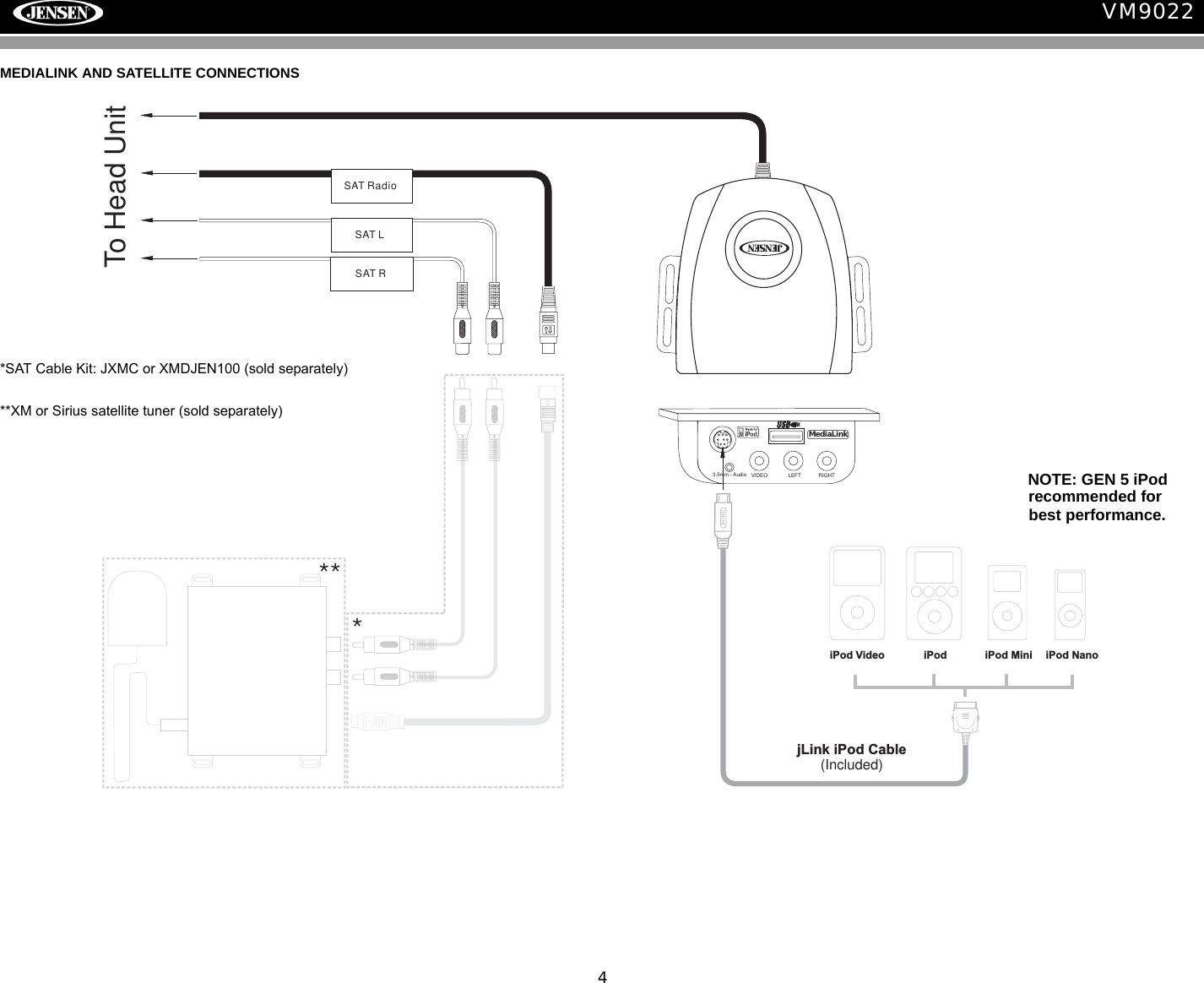
4VM9022***jLink iPod Cable(Included)iPod NanoiPod MiniiPodiPod VideoSAT RadioSAT LSAT RTo Head UnitVIDEO LEFT RIGHT3.5mm - AudioMediaLinkMEDIALINK AND SATELLITE CONNECTIONS*SAT Cable Kit: JXMC or XMDJEN100 (sold separately)**XM or Sirius satellite tuner (sold separately)NOTE: GEN 5 iPod best performance.recommended for
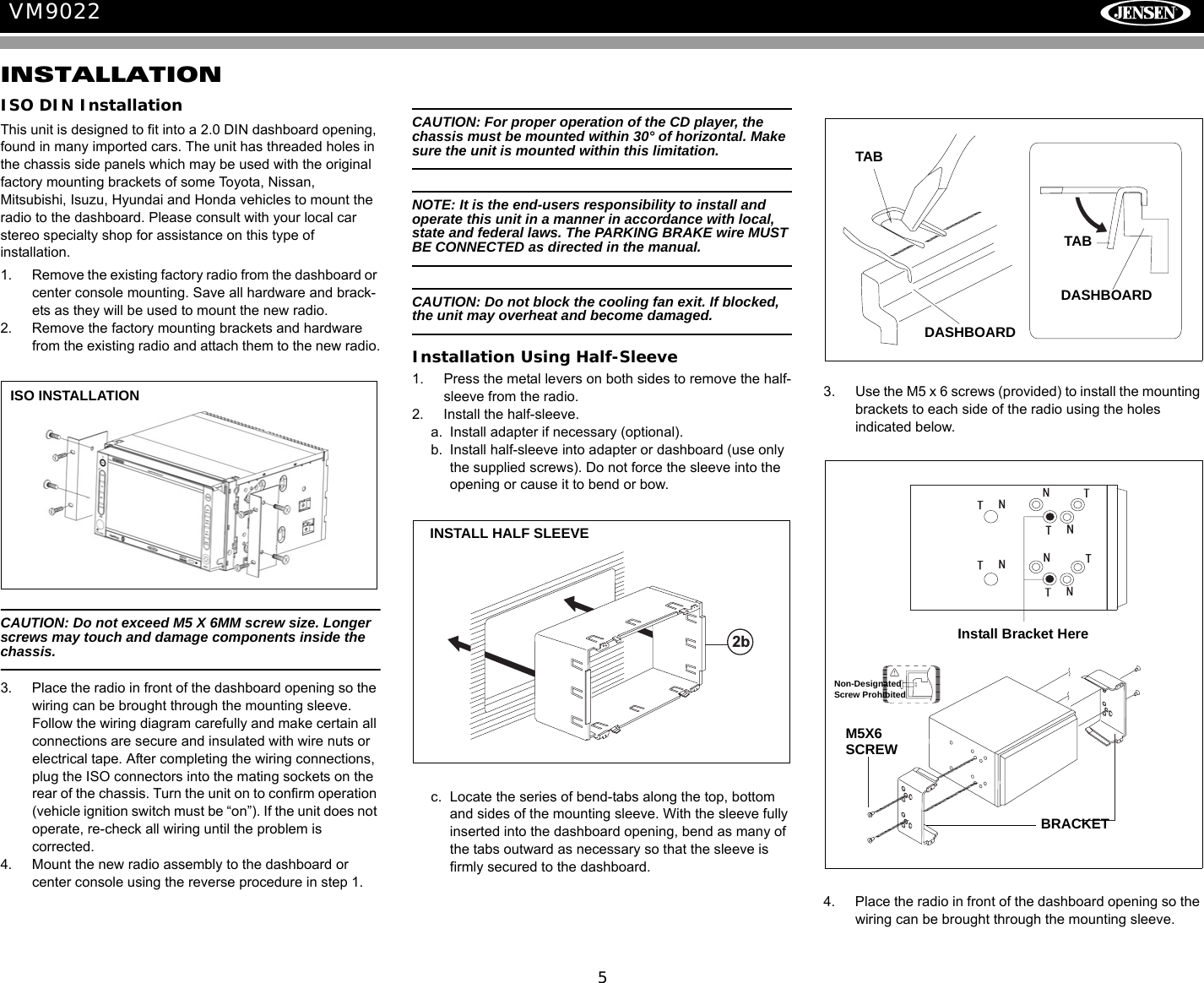
5VM9022INSTALLATIONISO DIN InstallationThis unit is designed to fit into a 2.0 DIN dashboard opening, found in many imported cars. The unit has threaded holes in the chassis side panels which may be used with the original factory mounting brackets of some Toyota, Nissan, Mitsubishi, Isuzu, Hyundai and Honda vehicles to mount the radio to the dashboard. Please consult with your local car stereo specialty shop for assistance on this type of installation.1. Remove the existing factory radio from the dashboard or center console mounting. Save all hardware and brack-ets as they will be used to mount the new radio.2. Remove the factory mounting brackets and hardware from the existing radio and attach them to the new radio.CAUTION: Do not exceed M5 X 6MM screw size. Longer screws may touch and damage components inside the chassis.3. Place the radio in front of the dashboard opening so the wiring can be brought through the mounting sleeve. Follow the wiring diagram carefully and make certain all connections are secure and insulated with wire nuts or electrical tape. After completing the wiring connections, plug the ISO connectors into the mating sockets on the rear of the chassis. Turn the unit on to confirm operation (vehicle ignition switch must be “on”). If the unit does not operate, re-check all wiring until the problem is corrected. 4. Mount the new radio assembly to the dashboard or center console using the reverse procedure in step 1.CAUTION: For proper operation of the CD player, the chassis must be mounted within 30° of horizontal. Make sure the unit is mounted within this limitation.NOTE: It is the end-users responsibility to install and operate this unit in a manner in accordance with local, state and federal laws. The PARKING BRAKE wire MUST BE CONNECTED as directed in the manual. CAUTION: Do not block the cooling fan exit. If blocked, the unit may overheat and become damaged.Installation Using Half-Sleeve1. Press the metal levers on both sides to remove the half-sleeve from the radio.2. Install the half-sleeve.a. Install adapter if necessary (optional).b. Install half-sleeve into adapter or dashboard (use only the supplied screws). Do not force the sleeve into the opening or cause it to bend or bow.c. Locate the series of bend-tabs along the top, bottom and sides of the mounting sleeve. With the sleeve fully inserted into the dashboard opening, bend as many of the tabs outward as necessary so that the sleeve is firmly secured to the dashboard.3. Use the M5 x 6 screws (provided) to install the mounting brackets to each side of the radio using the holes indicated below.4. Place the radio in front of the dashboard opening so the wiring can be brought through the mounting sleeve.ISO INSTALLATIONINSTALL HALF SLEEVE2bTABTABDASHBOARDDASHBOARDInstall Bracket HereM5X6 SCREWBRACKETNon-DesignatedScrew Prohibited
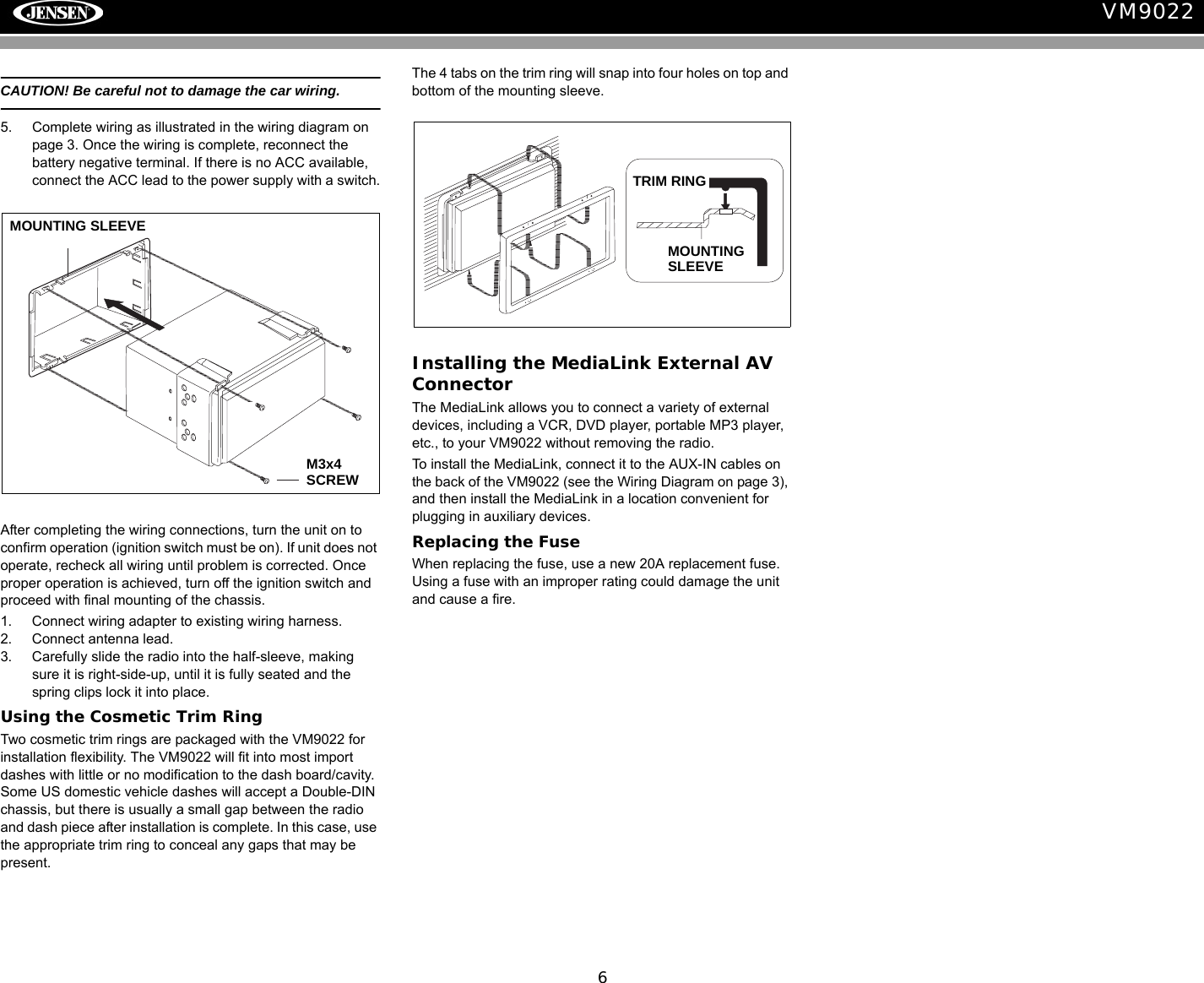
6VM9022CAUTION! Be careful not to damage the car wiring.5. Complete wiring as illustrated in the wiring diagram on page 3. Once the wiring is complete, reconnect the battery negative terminal. If there is no ACC available, connect the ACC lead to the power supply with a switch.After completing the wiring connections, turn the unit on to confirm operation (ignition switch must be on). If unit does not operate, recheck all wiring until problem is corrected. Once proper operation is achieved, turn off the ignition switch and proceed with final mounting of the chassis.1. Connect wiring adapter to existing wiring harness.2. Connect antenna lead.3. Carefully slide the radio into the half-sleeve, making sure it is right-side-up, until it is fully seated and the spring clips lock it into place.Using the Cosmetic Trim RingTwo cosmetic trim rings are packaged with the VM9022 for installation flexibility. The VM9022 will fit into most import dashes with little or no modification to the dash board/cavity. Some US domestic vehicle dashes will accept a Double-DIN chassis, but there is usually a small gap between the radio and dash piece after installation is complete. In this case, use the appropriate trim ring to conceal any gaps that may be present. The 4 tabs on the trim ring will snap into four holes on top and bottom of the mounting sleeve. Installing the MediaLink External AV ConnectorThe MediaLink allows you to connect a variety of external devices, including a VCR, DVD player, portable MP3 player, etc., to your VM9022 without removing the radio.To install the MediaLink, connect it to the AUX-IN cables on the back of the VM9022 (see the Wiring Diagram on page 3), and then install the MediaLink in a location convenient for plugging in auxiliary devices.Replacing the FuseWhen replacing the fuse, use a new 20A replacement fuse. Using a fuse with an improper rating could damage the unit and cause a fire.MOUNTING SLEEVE M3x4 SCREWOPTIONAL TRIM RINGTRIM RINGMOUNTINGSLEEVE
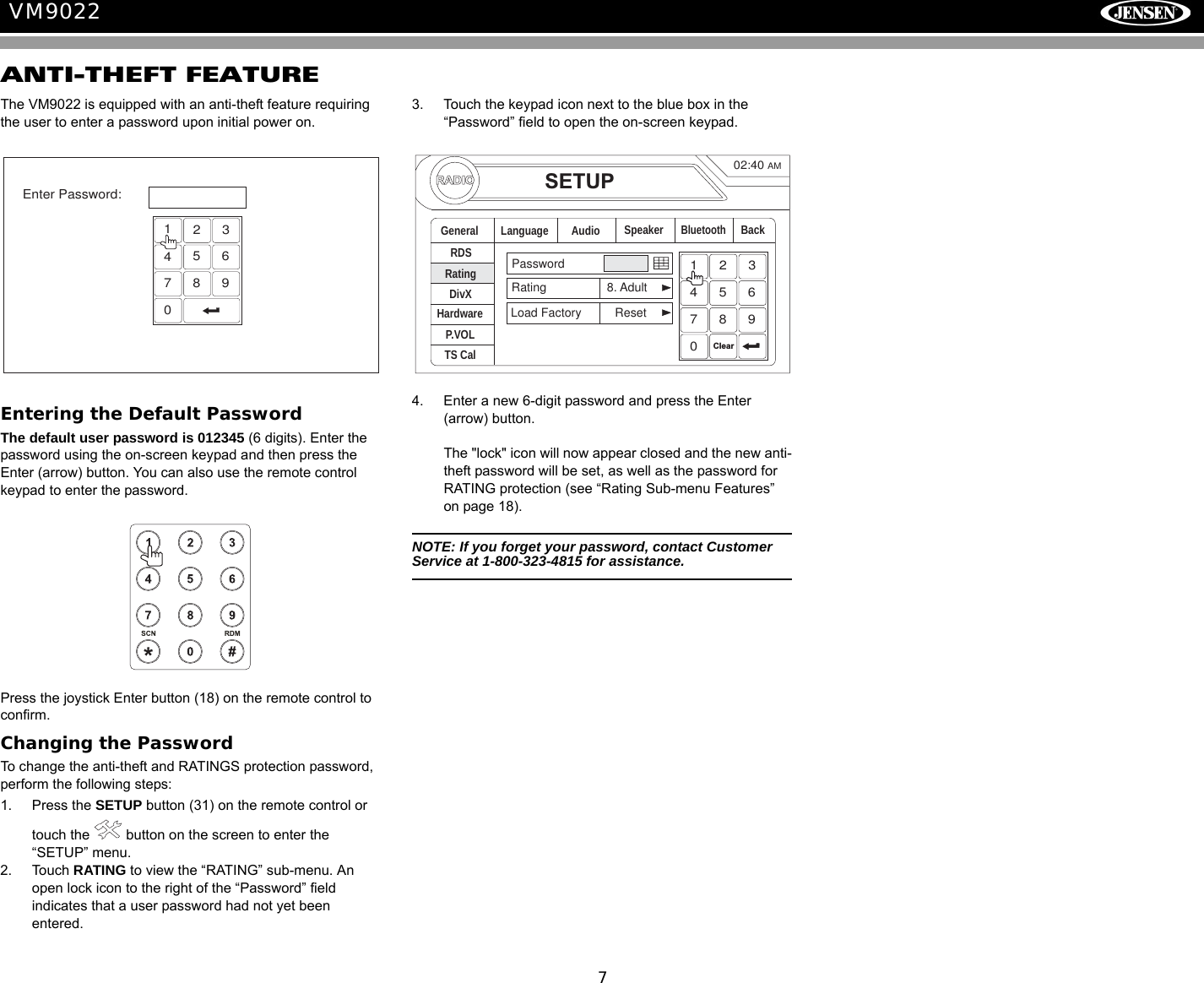
7VM9022ANTI-THEFT FEATUREThe VM9022 is equipped with an anti-theft feature requiring the user to enter a password upon initial power on.Entering the Default PasswordThe default user password is 012345 (6 digits). Enter the password using the on-screen keypad and then press the Enter (arrow) button. You can also use the remote control keypad to enter the password. Press the joystick Enter button (18) on the remote control to confirm.Changing the PasswordTo change the anti-theft and RATINGS protection password, perform the following steps:1. Press the SETUP button (31) on the remote control or touch the   button on the screen to enter the “SETUP” menu. 2. Touch RATING to view the “RATING” sub-menu. An open lock icon to the right of the “Password” field indicates that a user password had not yet been entered. 3. Touch the keypad icon next to the blue box in the “Password” field to open the on-screen keypad.4. Enter a new 6-digit password and press the Enter (arrow) button. The "lock" icon will now appear closed and the new anti-theft password will be set, as well as the password for RATING protection (see “Rating Sub-menu Features” on page 18).NOTE: If you forget your password, contact Customer Service at 1-800-323-4815 for assistance.1234567890Enter Password:RADIOSETUPRDSRatingHardwareP.VOLTS CalGeneral Language Audio BackPasswordRating 8. AdultLoad Factory ResetSpeakerDivXBluetooth02:40AM1234567890Clear
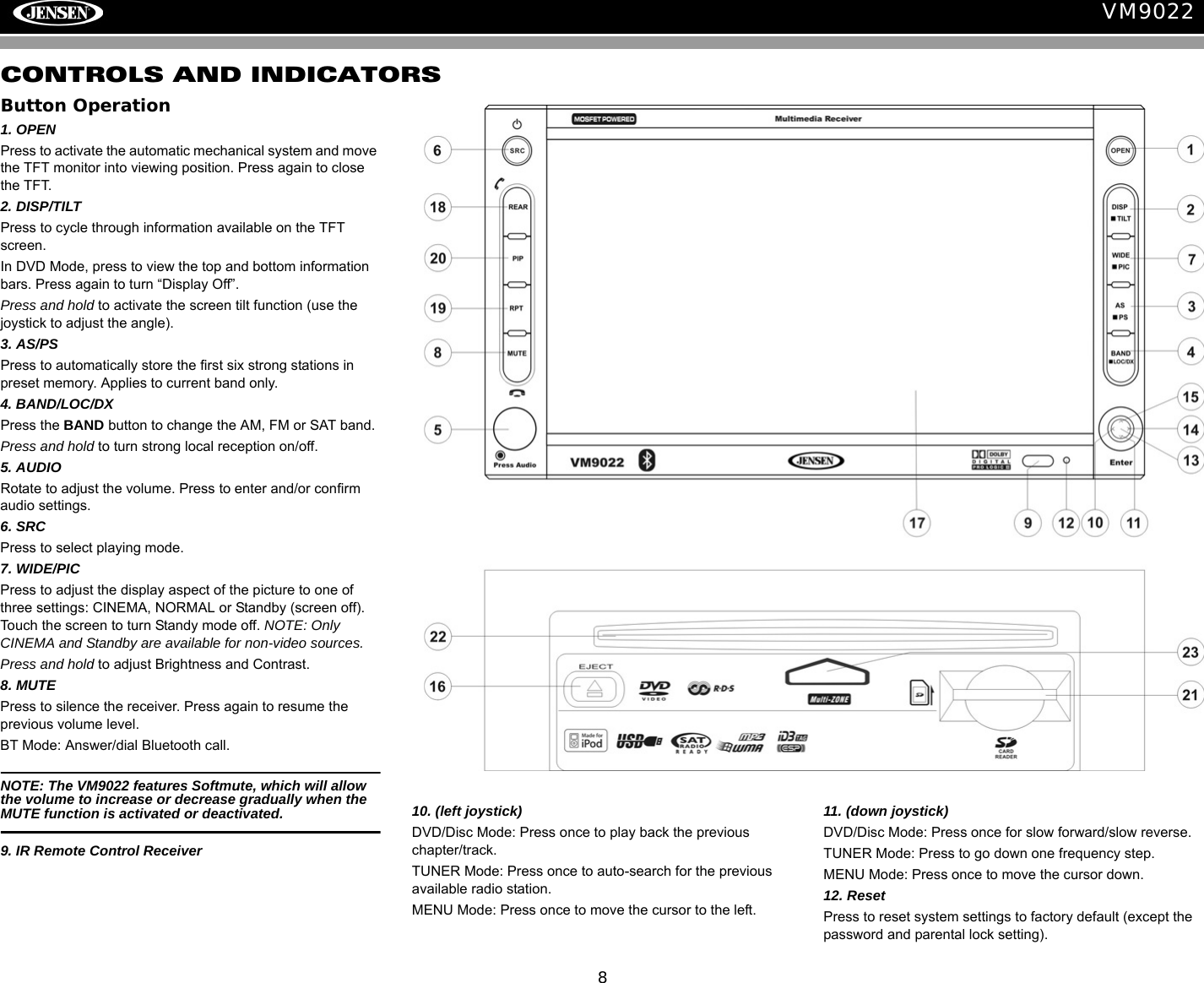
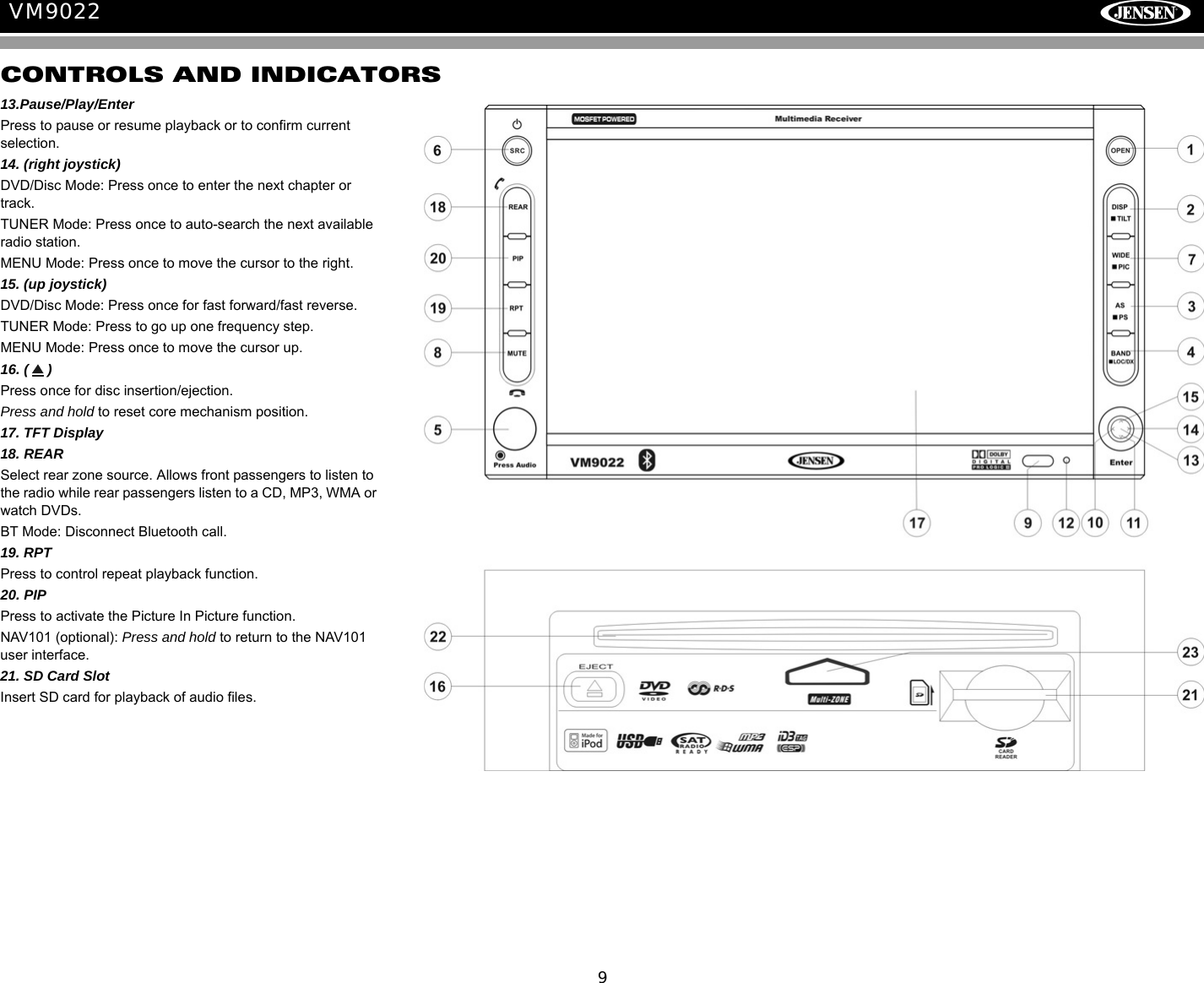
8VM9022CONTROLS AND INDICATORSButton Operation1. OPENPress to activate the automatic mechanical system and move the TFT monitor into viewing position. Press again to close the TFT.2. DISP/TILTPress to cycle through information available on the TFT screen.In DVD Mode, press to view the top and bottom information bars. Press again to turn “Display Off”.Press and hold to activate the screen tilt function (use the joystick to adjust the angle). 3. AS/PSPress to automatically store the first six strong stations in preset memory. Applies to current band only.4. BAND/LOC/DXPress the BAND button to change the AM, FM or SAT band.Press and hold to turn strong local reception on/off.5. AUDIORotate to adjust the volume. Press to enter and/or confirm audio settings.6. SRCPress to select playing mode.7. WIDE/PICPress to adjust the display aspect of the picture to one of three settings: CINEMA, NORMAL or Standby (screen off). Touch the screen to turn Standy mode off. NOTE: Only CINEMA and Standby are available for non-video sources.Press and hold to adjust Brightness and Contrast. 8. MUTEPress to silence the receiver. Press again to resume the previous volume level.BT Mode: Answer/dial Bluetooth call.NOTE: The VM9022 features Softmute, which will allow the volume to increase or decrease gradually when the MUTE function is activated or deactivated.9. IR Remote Control Receiver10. (left joystick)DVD/Disc Mode: Press once to play back the previous chapter/track.TUNER Mode: Press once to auto-search for the previous available radio station.MENU Mode: Press once to move the cursor to the left. 11. (down joystick)DVD/Disc Mode: Press once for slow forward/slow reverse.TUNER Mode: Press to go down one frequency step.MENU Mode: Press once to move the cursor down.12. Reset Press to reset system settings to factory default (except the password and parental lock setting).
9VM9022CONTROLS AND INDICATORS13.Pause/Play/EnterPress to pause or resume playback or to confirm current selection.14. (right joystick)DVD/Disc Mode: Press once to enter the next chapter or track.TUNER Mode: Press once to auto-search the next available radio station. MENU Mode: Press once to move the cursor to the right.15. (up joystick)DVD/Disc Mode: Press once for fast forward/fast reverse.TUNER Mode: Press to go up one frequency step.MENU Mode: Press once to move the cursor up. 16. ( ) Press once for disc insertion/ejection.Press and hold to reset core mechanism position.17. TFT Display18. REARSelect rear zone source. Allows front passengers to listen to the radio while rear passengers listen to a CD, MP3, WMA or watch DVDs.BT Mode: Disconnect Bluetooth call.19. RPTPress to control repeat playback function.20. PIPPress to activate the Picture In Picture function. NAV101 (optional): Press and hold to return to the NAV101 user interface.21. SD Card SlotInsert SD card for playback of audio files.
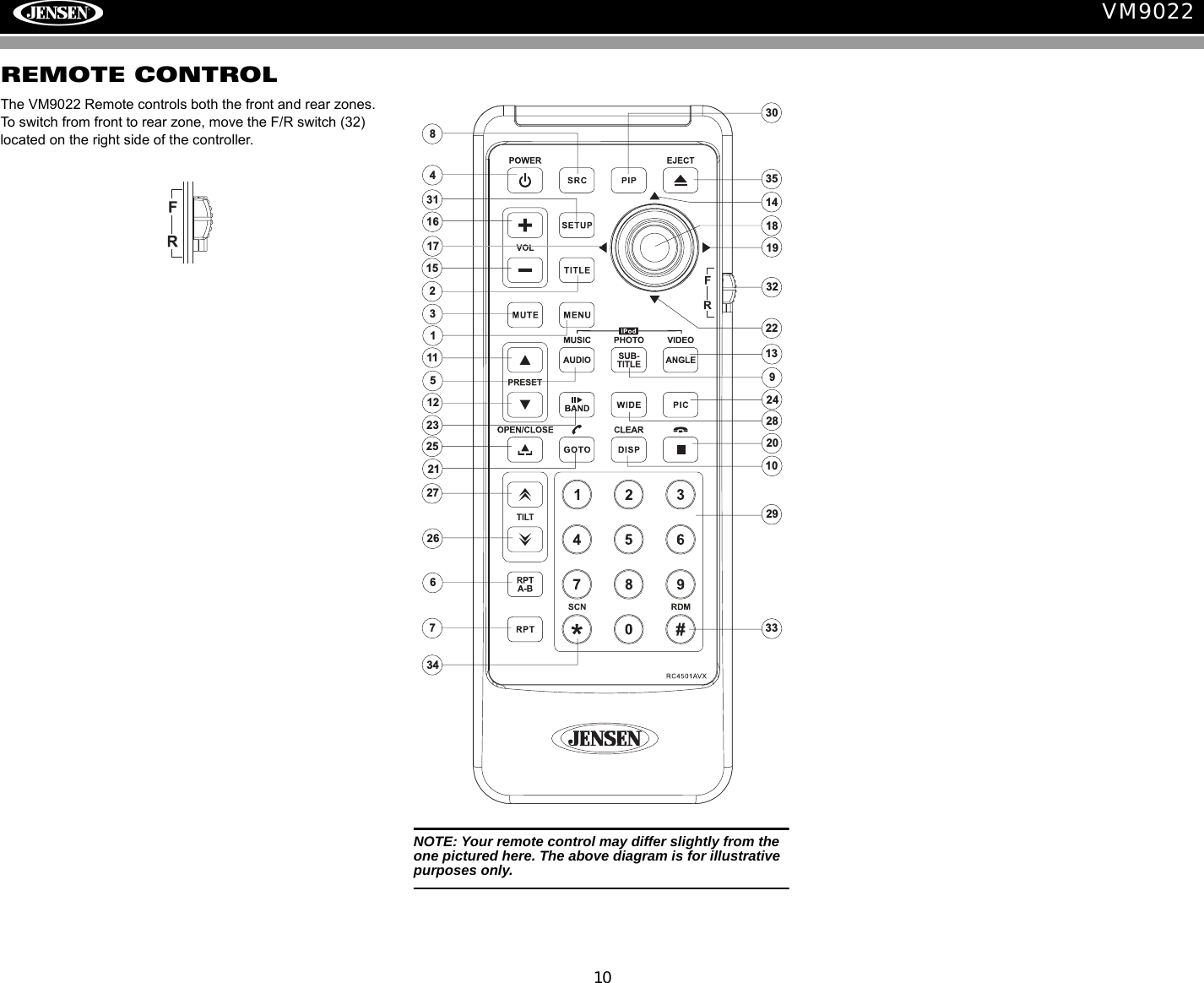
10VM9022REMOTE CONTROLThe VM9022 Remote controls both the front and rear zones. To switch from front to rear zone, move the F/R switch (32) located on the right side of the controller.2934596726271516343319322324313083512101328251112142018172221NOTE: Your remote control may differ slightly from the one pictured here. The above diagram is for illustrative purposes only.
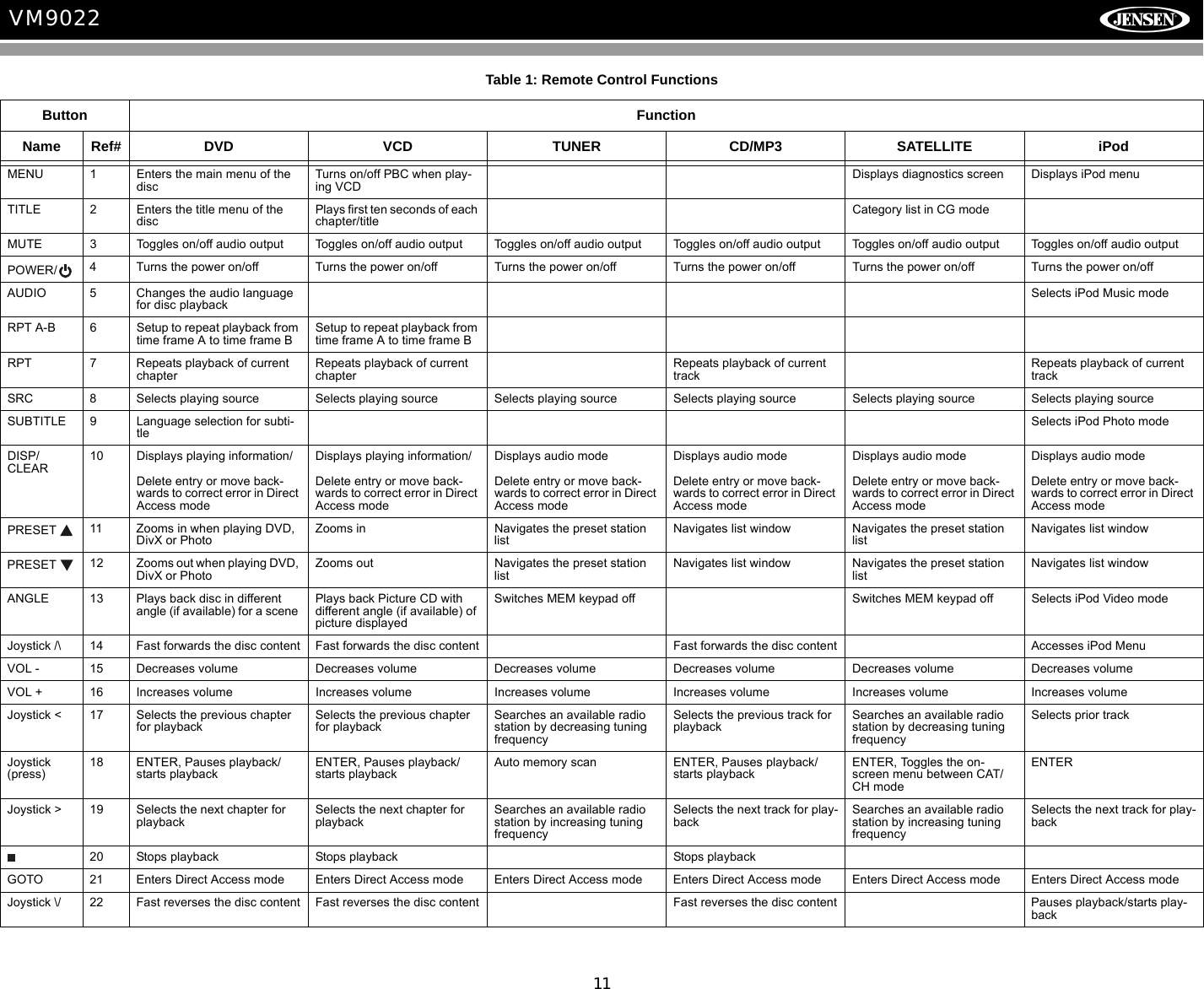
11VM9022Table 1: Remote Control FunctionsButton FunctionName Ref# DVD VCD TUNER CD/MP3 SATELLITE iPodMENU 1 Enters the main menu of the discTurns on/off PBC when play-ing VCDDisplays diagnostics screen Displays iPod menuTITLE 2 Enters the title menu of the discPlays first ten seconds of each chapter/titleCategory list in CG modeMUTE 3 Toggles on/off audio output Toggles on/off audio output Toggles on/off audio output Toggles on/off audio output Toggles on/off audio output Toggles on/off audio outputPOWER/ 4 Turns the power on/off Turns the power on/off Turns the power on/off Turns the power on/off Turns the power on/off Turns the power on/offAUDIO 5 Changes the audio language for disc playbackSelects iPod Music modeRPT A-B 6 Setup to repeat playback from time frame A to time frame BSetup to repeat playback from time frame A to time frame BRPT 7 Repeats playback of current chapterRepeats playback of current chapterRepeats playback of current trackRepeats playback of current trackSRC 8 Selects playing source Selects playing source Selects playing source Selects playing source Selects playing source Selects playing sourceSUBTITLE 9 Language selection for subti-tleSelects iPod Photo modeDISP/CLEAR10 Displays playing information/Delete entry or move back-wards to correct error in Direct Access modeDisplays playing information/Delete entry or move back-wards to correct error in Direct Access modeDisplays audio modeDelete entry or move back-wards to correct error in Direct Access modeDisplays audio modeDelete entry or move back-wards to correct error in Direct Access modeDisplays audio modeDelete entry or move back-wards to correct error in Direct Access modeDisplays audio modeDelete entry or move back-wards to correct error in Direct Access modePRESET  11 Zooms in when playing DVD, DivX or PhotoZooms in Navigates the preset station listNavigates list window Navigates the preset station listNavigates list windowPRESET  12 Zooms out when playing DVD, DivX or PhotoZooms out Navigates the preset station listNavigates list window Navigates the preset station listNavigates list windowANGLE 13 Plays back disc in different angle (if available) for a scene Plays back Picture CD with different angle (if available) of picture displayedSwitches MEM keypad off Switches MEM keypad off Selects iPod Video modeJoystick /\ 14 Fast forwards the disc content Fast forwards the disc content Fast forwards the disc content Accesses iPod MenuVOL - 15 Decreases volume Decreases volume Decreases volume Decreases volume Decreases volume Decreases volumeVOL + 16 Increases volume Increases volume Increases volume Increases volume Increases volume Increases volumeJoystick < 17 Selects the previous chapter for playbackSelects the previous chapter for playbackSearches an available radio station by decreasing tuning frequencySelects the previous track for playbackSearches an available radio station by decreasing tuning frequencySelects prior trackJoystick (press)18 ENTER, Pauses playback/starts playbackENTER, Pauses playback/starts playbackAuto memory scan ENTER, Pauses playback/starts playbackENTER, Toggles the on-screen menu between CAT/CH modeENTERJoystick > 19 Selects the next chapter for playbackSelects the next chapter for playbackSearches an available radio station by increasing tuning frequencySelects the next track for play-backSearches an available radio station by increasing tuning frequencySelects the next track for play-back20 Stops playback Stops playback Stops playbackGOTO 21 Enters Direct Access mode Enters Direct Access mode Enters Direct Access mode Enters Direct Access mode Enters Direct Access mode Enters Direct Access modeJoystick \/ 22 Fast reverses the disc content Fast reverses the disc content Fast reverses the disc content Pauses playback/starts play-back
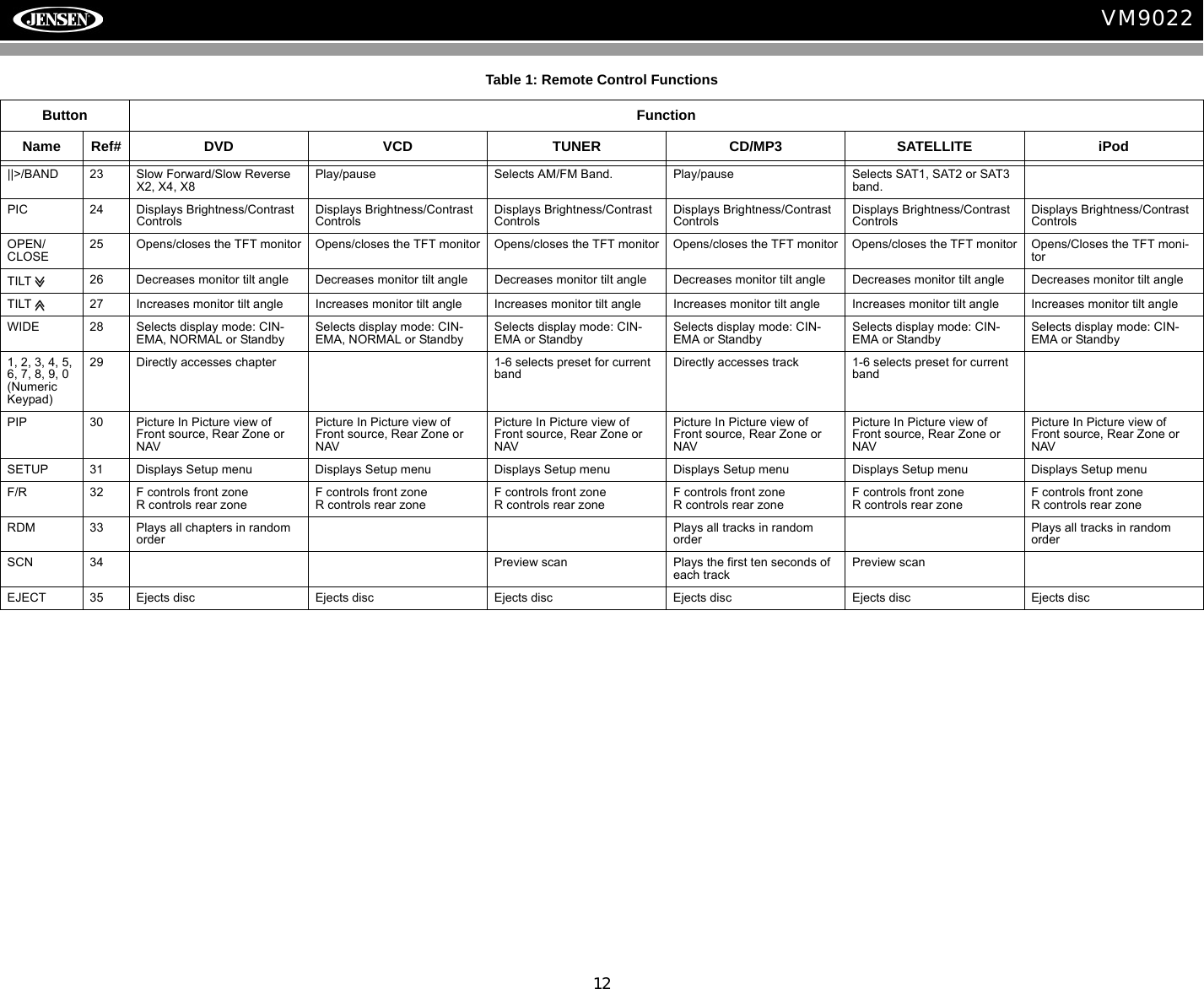
12VM9022||>/BAND 23 Slow Forward/Slow ReverseX2, X4, X8Play/pause Selects AM/FM Band. Play/pause Selects SAT1, SAT2 or SAT3 band.PIC 24 Displays Brightness/Contrast ControlsDisplays Brightness/Contrast ControlsDisplays Brightness/Contrast ControlsDisplays Brightness/Contrast ControlsDisplays Brightness/Contrast ControlsDisplays Brightness/Contrast ControlsOPEN/CLOSE25 Opens/closes the TFT monitor Opens/closes the TFT monitor Opens/closes the TFT monitor Opens/closes the TFT monitor Opens/closes the TFT monitor Opens/Closes the TFT moni-torTILT  26 Decreases monitor tilt angle Decreases monitor tilt angle Decreases monitor tilt angle Decreases monitor tilt angle Decreases monitor tilt angle Decreases monitor tilt angleTILT  27 Increases monitor tilt angle Increases monitor tilt angle Increases monitor tilt angle Increases monitor tilt angle Increases monitor tilt angle Increases monitor tilt angleWIDE 28 Selects display mode: CIN-EMA, NORMAL or StandbySelects display mode: CIN-EMA, NORMAL or StandbySelects display mode: CIN-EMA or StandbySelects display mode: CIN-EMA or StandbySelects display mode: CIN-EMA or StandbySelects display mode: CIN-EMA or Standby1, 2, 3, 4, 5, 6, 7, 8, 9, 0 (Numeric Keypad)29 Directly accesses chapter 1-6 selects preset for current bandDirectly accesses track 1-6 selects preset for current bandPIP 30 Picture In Picture view of Front source, Rear Zone or NAVPicture In Picture view of Front source, Rear Zone or NAVPicture In Picture view of Front source, Rear Zone or NAVPicture In Picture view of Front source, Rear Zone or NAVPicture In Picture view of Front source, Rear Zone or NAVPicture In Picture view of Front source, Rear Zone or NAVSETUP 31 Displays Setup menu Displays Setup menu Displays Setup menu Displays Setup menu Displays Setup menu Displays Setup menuF/R 32 F controls front zoneR controls rear zoneF controls front zoneR controls rear zoneF controls front zoneR controls rear zoneF controls front zoneR controls rear zoneF controls front zoneR controls rear zoneF controls front zoneR controls rear zoneRDM 33 Plays all chapters in random orderPlays all tracks in random orderPlays all tracks in random orderSCN 34 Preview scan Plays the first ten seconds of each trackPreview scanEJECT 35 Ejects disc Ejects disc Ejects disc Ejects disc Ejects disc Ejects discTable 1: Remote Control FunctionsButton FunctionName Ref# DVD VCD TUNER CD/MP3 SATELLITE iPod
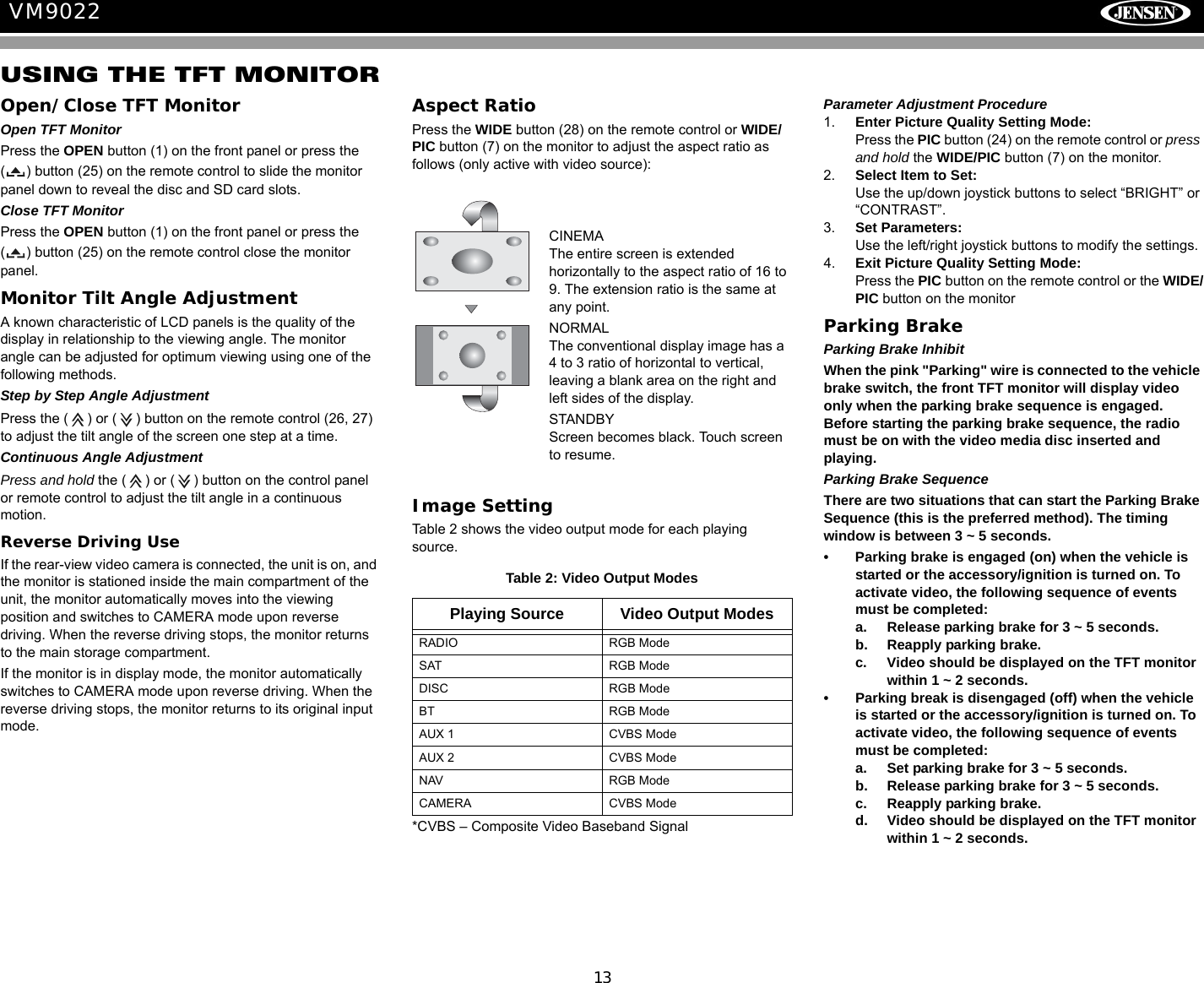
13VM9022USING THE TFT MONITOROpen/Close TFT MonitorOpen TFT MonitorPress the OPEN button (1) on the front panel or press the ( ) button (25) on the remote control to slide the monitor panel down to reveal the disc and SD card slots.Close TFT MonitorPress the OPEN button (1) on the front panel or press the ( ) button (25) on the remote control close the monitor panel.Monitor Tilt Angle AdjustmentA known characteristic of LCD panels is the quality of the display in relationship to the viewing angle. The monitor angle can be adjusted for optimum viewing using one of the following methods.Step by Step Angle AdjustmentPress the ( ) or ( ) button on the remote control (26, 27) to adjust the tilt angle of the screen one step at a time.Continuous Angle AdjustmentPress and hold the ( ) or ( ) button on the control panel or remote control to adjust the tilt angle in a continuous motion.Reverse Driving UseIf the rear-view video camera is connected, the unit is on, and the monitor is stationed inside the main compartment of the unit, the monitor automatically moves into the viewing position and switches to CAMERA mode upon reverse driving. When the reverse driving stops, the monitor returns to the main storage compartment.If the monitor is in display mode, the monitor automatically switches to CAMERA mode upon reverse driving. When the reverse driving stops, the monitor returns to its original input mode.Aspect RatioPress the WIDE button (28) on the remote control or WIDE/PIC button (7) on the monitor to adjust the aspect ratio as follows (only active with video source):Image SettingTable 2 shows the video output mode for each playing source. *CVBS – Composite Video Baseband SignalParameter Adjustment Procedure1. Enter Picture Quality Setting Mode:Press the PIC button (24) on the remote control or press and hold the WIDE/PIC button (7) on the monitor.2. Select Item to Set:Use the up/down joystick buttons to select “BRIGHT” or “CONTRAST”.3. Set Parameters:Use the left/right joystick buttons to modify the settings.4. Exit Picture Quality Setting Mode:Press the PIC button on the remote control or the WIDE/PIC button on the monitor Parking BrakeParking Brake InhibitWhen the pink "Parking" wire is connected to the vehicle brake switch, the front TFT monitor will display video only when the parking brake sequence is engaged. Before starting the parking brake sequence, the radio must be on with the video media disc inserted and playing.Parking Brake SequenceThere are two situations that can start the Parking Brake Sequence (this is the preferred method). The timing window is between 3 ~ 5 seconds.• Parking brake is engaged (on) when the vehicle is started or the accessory/ignition is turned on. To activate video, the following sequence of events must be completed:a. Release parking brake for 3 ~ 5 seconds.b. Reapply parking brake.c. Video should be displayed on the TFT monitor within 1 ~ 2 seconds. • Parking break is disengaged (off) when the vehicle is started or the accessory/ignition is turned on. To activate video, the following sequence of events must be completed:a. Set parking brake for 3 ~ 5 seconds.b. Release parking brake for 3 ~ 5 seconds.c. Reapply parking brake. d. Video should be displayed on the TFT monitor within 1 ~ 2 seconds. Table 2: Video Output ModesPlaying Source Video Output ModesRADIO RGB ModeSAT RGB ModeDISC RGB ModeBT RGB ModeAUX 1 CVBS ModeAUX 2 CVBS ModeNAV RGB ModeCAMERA CVBS ModeCINEMAThe entire screen is extended horizontally to the aspect ratio of 16 to 9. The extension ratio is the same at any point.NORMALThe conventional display image has a 4 to 3 ratio of horizontal to vertical, leaving a blank area on the right and left sides of the display.STANDBYScreen becomes black. Touch screen to resume.
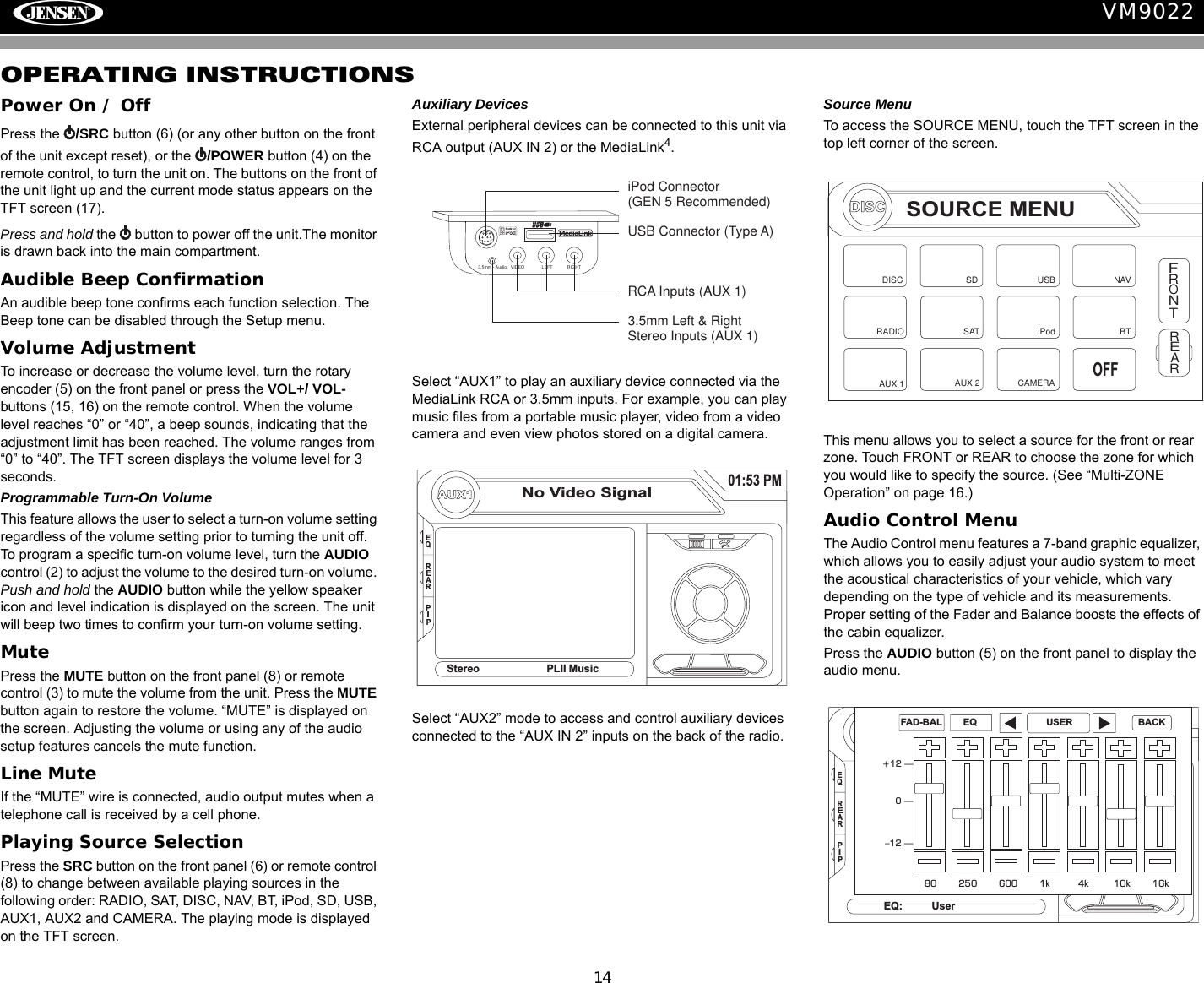
14VM9022OPERATING INSTRUCTIONSPower On / OffPress the  /SRC button (6) (or any other button on the front of the unit except reset), or the  /POWER button (4) on the remote control, to turn the unit on. The buttons on the front of the unit light up and the current mode status appears on the TFT screen (17). Press and hold the   button to power off the unit.The monitor is drawn back into the main compartment.Audible Beep ConfirmationAn audible beep tone confirms each function selection. The Beep tone can be disabled through the Setup menu. Volume AdjustmentTo increase or decrease the volume level, turn the rotary encoder (5) on the front panel or press the VOL+/ VOL- buttons (15, 16) on the remote control. When the volume level reaches “0” or “40”, a beep sounds, indicating that the adjustment limit has been reached. The volume ranges from “0” to “40”. The TFT screen displays the volume level for 3 seconds.Programmable Turn-On VolumeThis feature allows the user to select a turn-on volume setting regardless of the volume setting prior to turning the unit off. To program a specific turn-on volume level, turn the AUDIO control (2) to adjust the volume to the desired turn-on volume. Push and hold the AUDIO button while the yellow speaker icon and level indication is displayed on the screen. The unit will beep two times to confirm your turn-on volume setting. MutePress the MUTE button on the front panel (8) or remote control (3) to mute the volume from the unit. Press the MUTE button again to restore the volume. “MUTE” is displayed on the screen. Adjusting the volume or using any of the audio setup features cancels the mute function.Line MuteIf the “MUTE” wire is connected, audio output mutes when a telephone call is received by a cell phone.Playing Source SelectionPress the SRC button on the front panel (6) or remote control (8) to change between available playing sources in the following order: RADIO, SAT, DISC, NAV, BT, iPod, SD, USB, AUX1, AUX2 and CAMERA. The playing mode is displayed on the TFT screen.Auxiliary DevicesExternal peripheral devices can be connected to this unit via RCA output (AUX IN 2) or the MediaLink4. Select “AUX1” to play an auxiliary device connected via the MediaLink RCA or 3.5mm inputs. For example, you can play music files from a portable music player, video from a video camera and even view photos stored on a digital camera.Select “AUX2” mode to access and control auxiliary devices connected to the “AUX IN 2” inputs on the back of the radio.Source MenuTo access the SOURCE MENU, touch the TFT screen in the top left corner of the screen. This menu allows you to select a source for the front or rear zone. Touch FRONT or REAR to choose the zone for which you would like to specify the source. (See “Multi-ZONE Operation” on page 16.)Audio Control MenuThe Audio Control menu features a 7-band graphic equalizer, which allows you to easily adjust your audio system to meet the acoustical characteristics of your vehicle, which vary depending on the type of vehicle and its measurements. Proper setting of the Fader and Balance boosts the effects of the cabin equalizer.Press the AUDIO button (5) on the front panel to display the audio menu. VIDEO LEFT RIGHT3.5mm - AudioMediaLinkiPod Connector(GEN 5 Recommended)USB Connector (Type A)RCA Inputs (AUX 1)3.5mm Left & RightStereo Inputs (AUX 1)AUX1No Video Signal01:53 PMEQStereo PLII MusicREARPIPDISCSOURCE MENUDISCRADIOSDiPodSATUSBAUX 1 AUX 2FRONTREARNAVCAMERAOFFBTEQEQ: UserREARPIP+12 —0—–12 —80 250 600 1k 4k 10k 16kFAD-BAL EQ USER BACK
15VM9022To adjust an audio feature:1. Use the left/right joystick buttons to highlight the audio feature to be adjusted.2. Press the joystick Enter button on the control panel (13) or remote control (18) to select the highlighted option.3. Use the joystick to adjust the selected feature to the desired setting.NOTE: The EQ mode will automatically change to “USER” when individual EQ bands are adjusted.Proper setting of the Fader and Balance complement the effects of the cabin equalizer. The Audio menu will automatically exit after a few seconds of inactivity. To exit quickly, touch the top left corner of the screen or press and hold the AUDIO button (5).Alternate Display OptionsA menu located on the left side of the screen provides immediate access to the Equalizer, Rear Zone screen view and PIP (Picture in Picture) features.•EQ: Touch to view Spectrum Analyzer > Equalizer.•REAR: Touch to view the Rear Zone screen. Control options appear below the PIP image, depending on the source.•PIP: Touch to view the Rear Zone, current Front Zone, or NAV screen. Use the left/right arrows below the PIP image to change the PIP source.System ResetTo correct a system halt or other illegal operation, use the tip of a pen to press the reset button (12) located on the front bottom-right corner of the unit. After a system reset, the unit restores all factory default settings.NOTE: If the unit is reset while a DVD is playing, the DVD resumes play once the reset is complete.Table 3: Audio AdjustmentsFunction Adjustment OptionsEQ User In user mode, you can manually adjust each of the seven frequency bands.Acoustic Use the on-screen arrows to select a predefined equalization curve.UrbanRaveLatinDanceHip HopRockFAD-BAL Use this screen to adjust the output level for each speaker in your surround system from 0 to -24dB. You can also adjust the master volume from this screen.CAT–          CH–         CH+        CAT+BAND ASDISCAM/FM RADIOSATELLITEPIP: DISCDISCMP3 4/84 00:00:2301:02 AM1 Cherry Poppin Da2 Chris Isaak - Baby3 Crazy Town - Butt4 Phish - Birds Of A5 Phish - Bouncin' R6 Phish - Freebird (L(Root)1/2EQREARPIP[RESET] Button
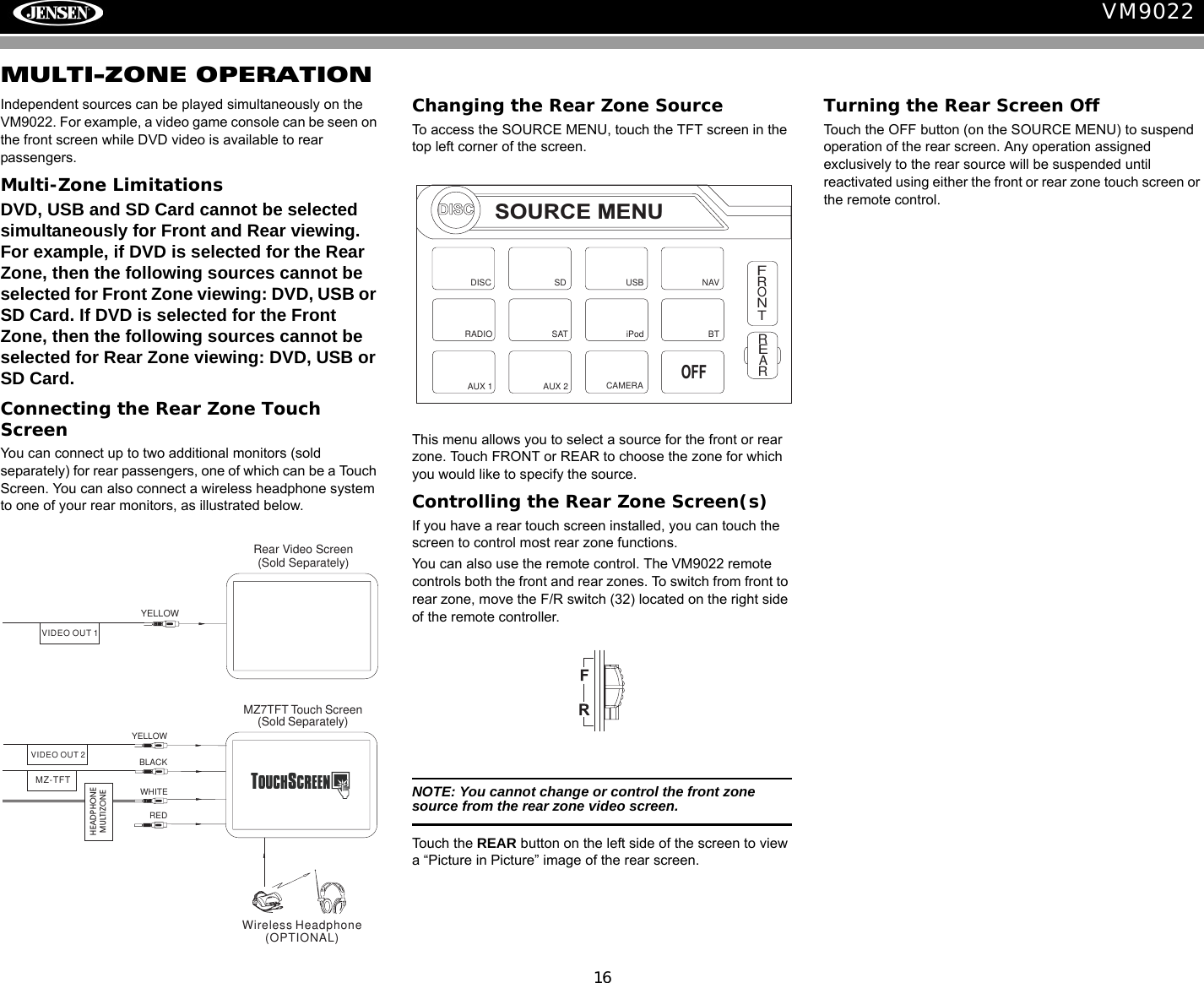
16VM9022MULTI-ZONE OPERATIONIndependent sources can be played simultaneously on the VM9022. For example, a video game console can be seen on the front screen while DVD video is available to rear passengers.Multi-Zone LimitationsDVD, USB and SD Card cannot be selected simultaneously for Front and Rear viewing. For example, if DVD is selected for the Rear Zone, then the following sources cannot be selected for Front Zone viewing: DVD, USB or SD Card. If DVD is selected for the Front Zone, then the following sources cannot be selected for Rear Zone viewing: DVD, USB or SD Card.Connecting the Rear Zone Touch ScreenYou can connect up to two additional monitors (sold separately) for rear passengers, one of which can be a Touch Screen. You can also connect a wireless headphone system to one of your rear monitors, as illustrated below.Changing the Rear Zone SourceTo access the SOURCE MENU, touch the TFT screen in the top left corner of the screen. This menu allows you to select a source for the front or rear zone. Touch FRONT or REAR to choose the zone for which you would like to specify the source.Controlling the Rear Zone Screen(s)If you have a rear touch screen installed, you can touch the screen to control most rear zone functions. You can also use the remote control. The VM9022 remote controls both the front and rear zones. To switch from front to rear zone, move the F/R switch (32) located on the right side of the remote controller.NOTE: You cannot change or control the front zone source from the rear zone video screen.Touch the REAR button on the left side of the screen to view a “Picture in Picture” image of the rear screen.Turning the Rear Screen OffTouch the OFF button (on the SOURCE MENU) to suspend operation of the rear screen. Any operation assigned exclusively to the rear source will be suspended until reactivated using either the front or rear zone touch screen or the remote control.YELLOWBLACKMZ7TFT Touch Screen(Sold Separately)WHITEREDWireless Headphone(OPTIONAL)VIDEO OUT 2MZ-TFTHEADPHONEMULTIZONEYELLOWVIDEO OUT 1Rear Video Screen(Sold Separately)DISCSOURCE MENUDISCRADIOSDiPodSATUSBAUX 1 AUX 2FRONTREARNAVCAMERAOFFBT
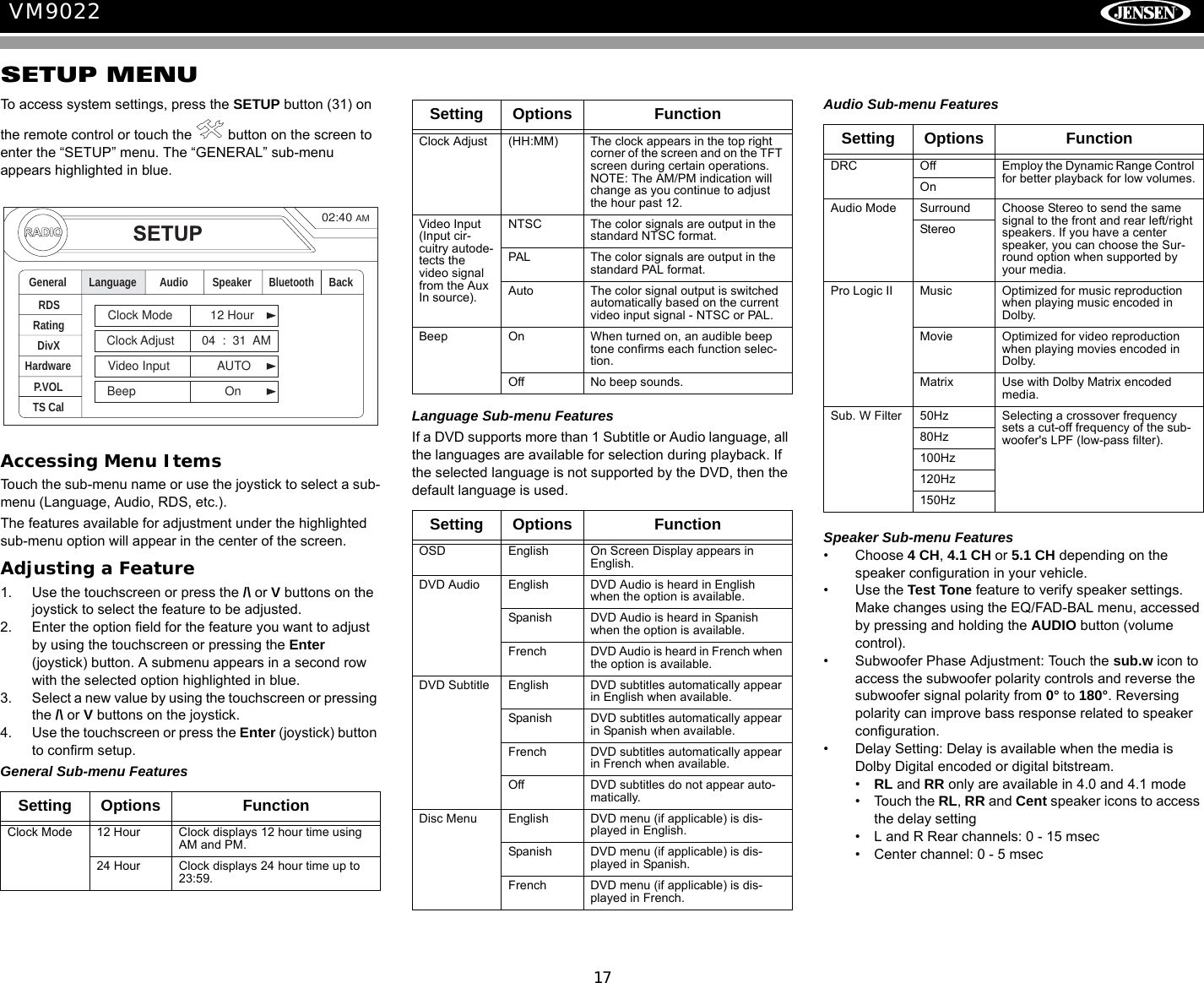
17VM9022SETUP MENUTo access system settings, press the SETUP button (31) on the remote control or touch the   button on the screen to enter the “SETUP” menu. The “GENERAL” sub-menu appears highlighted in blue.Accessing Menu ItemsTouch the sub-menu name or use the joystick to select a sub-menu (Language, Audio, RDS, etc.). The features available for adjustment under the highlighted sub-menu option will appear in the center of the screen.Adjusting a Feature1. Use the touchscreen or press the /\ or V buttons on the joystick to select the feature to be adjusted.2. Enter the option field for the feature you want to adjust by using the touchscreen or pressing the Enter (joystick) button. A submenu appears in a second row with the selected option highlighted in blue.3. Select a new value by using the touchscreen or pressing the /\ or V buttons on the joystick.4. Use the touchscreen or press the Enter (joystick) button to confirm setup. General Sub-menu FeaturesLanguage Sub-menu FeaturesIf a DVD supports more than 1 Subtitle or Audio language, all the languages are available for selection during playback. If the selected language is not supported by the DVD, then the default language is used.Audio Sub-menu FeaturesSpeaker Sub-menu Features• Choose 4 CH, 4.1 CH or 5.1 CH depending on the speaker configuration in your vehicle.• Use the Test Tone feature to verify speaker settings. Make changes using the EQ/FAD-BAL menu, accessed by pressing and holding the AUDIO button (volume control).• Subwoofer Phase Adjustment: Touch the sub.w icon to access the subwoofer polarity controls and reverse the subwoofer signal polarity from 0° to 180°. Reversing polarity can improve bass response related to speaker configuration.• Delay Setting: Delay is available when the media is Dolby Digital encoded or digital bitstream.•RL and RR only are available in 4.0 and 4.1 mode• Touch the RL, RR and Cent speaker icons to access the delay setting• L and R Rear channels: 0 - 15 msec• Center channel: 0 - 5 msecSetting Options FunctionClock Mode 12 Hour Clock displays 12 hour time using AM and PM.24 Hour Clock displays 24 hour time up to 23:59.RADIORADIOSETUPRDSRatingHardwareP.VOLTS CalGeneral Language Audio BackClock Mode 12 HourClock Adjust 04 : 31 AMVideo Input AUTOBeep OnSpeakerDivXBluetooth02:40AMClock Adjust (HH:MM) The clock appears in the top right corner of the screen and on the TFT screen during certain operations. NOTE: The AM/PM indication will change as you continue to adjust the hour past 12.Video Input(Input cir-cuitry autode-tects the video signal from the Aux In source).NTSC The color signals are output in the standard NTSC format.PAL The color signals are output in the standard PAL format.Auto The color signal output is switched automatically based on the current video input signal - NTSC or PAL.Beep On When turned on, an audible beep tone confirms each function selec-tion.Off No beep sounds.Setting Options FunctionOSD English On Screen Display appears in English.DVD Audio English DVD Audio is heard in English when the option is available.Spanish DVD Audio is heard in Spanish when the option is available.French DVD Audio is heard in French when the option is available.DVD Subtitle English DVD subtitles automatically appear in English when available.Spanish DVD subtitles automatically appear in Spanish when available.French DVD subtitles automatically appear in French when available.Off DVD subtitles do not appear auto-matically.Disc Menu English DVD menu (if applicable) is dis-played in English.Spanish DVD menu (if applicable) is dis-played in Spanish.French DVD menu (if applicable) is dis-played in French.Setting Options FunctionSetting Options FunctionDRC Off Employ the Dynamic Range Control for better playback for low volumes.OnAudio Mode Surround Choose Stereo to send the same signal to the front and rear left/right speakers. If you have a center speaker, you can choose the Sur-round option when supported by your media.StereoPro Logic II Music Optimized for music reproduction when playing music encoded in Dolby.Movie Optimized for video reproduction when playing movies encoded in Dolby.Matrix Use with Dolby Matrix encoded media.Sub. W Filter 50Hz Selecting a crossover frequency sets a cut-off frequency of the sub-woofer's LPF (low-pass filter).80Hz100Hz120Hz150Hz
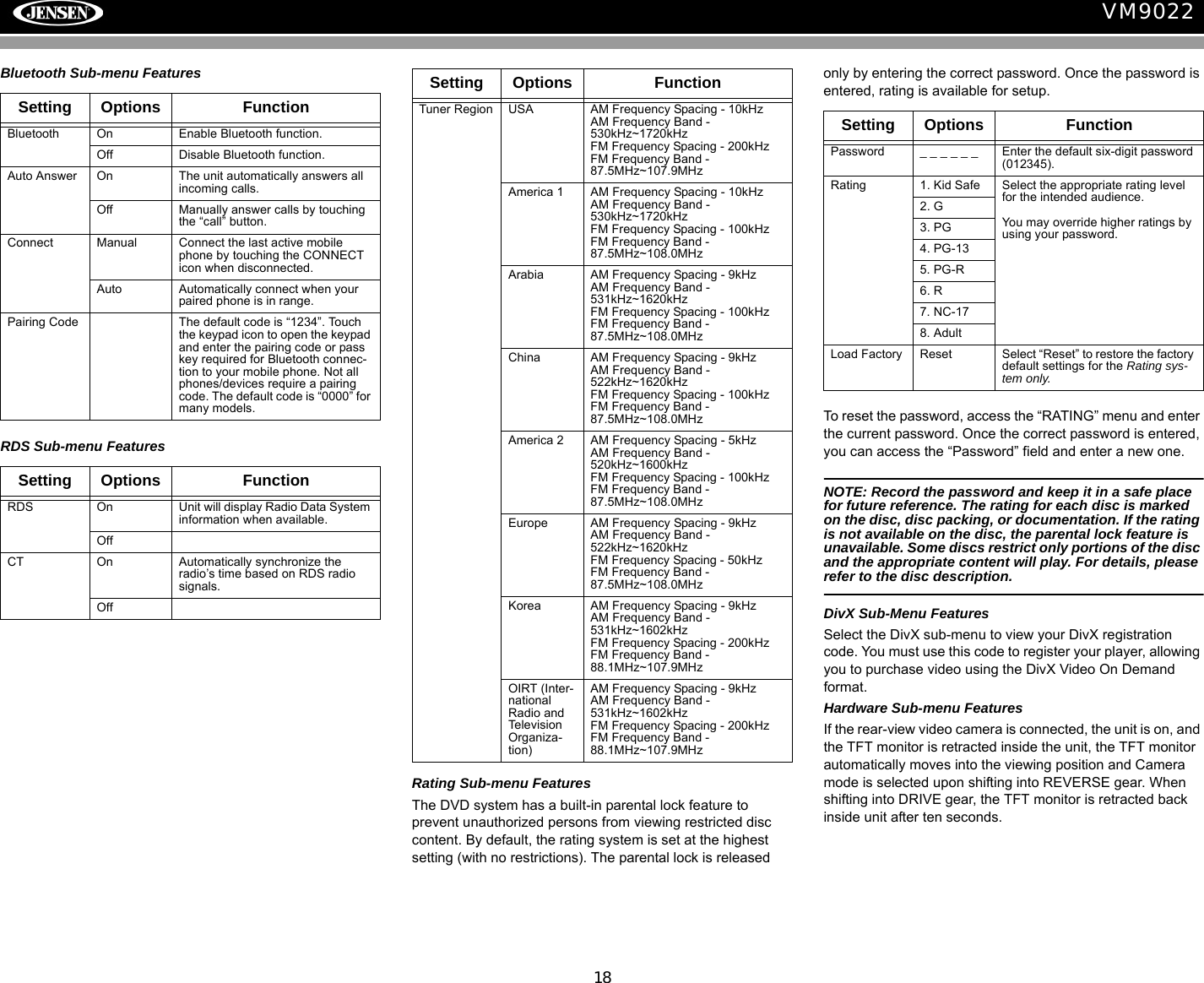
18VM9022Bluetooth Sub-menu FeaturesRDS Sub-menu FeaturesRating Sub-menu FeaturesThe DVD system has a built-in parental lock feature to prevent unauthorized persons from viewing restricted disc     content. By default, the rating system is set at the highest setting (with no restrictions). The parental lock is released only by entering the correct password. Once the password is entered, rating is available for setup.To reset the password, access the “RATING” menu and enter the current password. Once the correct password is entered, you can access the “Password” field and enter a new one.NOTE: Record the password and keep it in a safe place for future reference. The rating for each disc is marked on the disc, disc packing, or documentation. If the rating is not available on the disc, the parental lock feature is unavailable. Some discs restrict only portions of the disc and the appropriate content will play. For details, please refer to the disc description.DivX Sub-Menu FeaturesSelect the DivX sub-menu to view your DivX registration code. You must use this code to register your player, allowing you to purchase video using the DivX Video On Demand format.Hardware Sub-menu FeaturesIf the rear-view video camera is connected, the unit is on, and the TFT monitor is retracted inside the unit, the TFT monitor automatically moves into the viewing position and Camera mode is selected upon shifting into REVERSE gear. When shifting into DRIVE gear, the TFT monitor is retracted back inside unit after ten seconds.Setting Options FunctionBluetooth On Enable Bluetooth function.Off Disable Bluetooth function.Auto Answer On The unit automatically answers all incoming calls.Off Manually answer calls by touching the “call” button.Connect Manual Connect the last active mobile phone by touching the CONNECT icon when disconnected.Auto Automatically connect when your paired phone is in range.Pairing Code The default code is “1234”. Touch the keypad icon to open the keypad and enter the pairing code or pass key required for Bluetooth connec-tion to your mobile phone. Not all phones/devices require a pairing code. The default code is “0000” for many models.Setting Options FunctionRDS On Unit will display Radio Data System information when available.OffCT On Automatically synchronize the radio’s time based on RDS radio signals.OffTuner Region USA AM Frequency Spacing - 10kHz AM Frequency Band - 530kHz~1720kHzFM Frequency Spacing - 200kHzFM Frequency Band - 87.5MHz~107.9MHzAmerica 1 AM Frequency Spacing - 10kHz AM Frequency Band - 530kHz~1720kHzFM Frequency Spacing - 100kHzFM Frequency Band - 87.5MHz~108.0MHzArabia AM Frequency Spacing - 9kHz AM Frequency Band - 531kHz~1620kHzFM Frequency Spacing - 100kHzFM Frequency Band - 87.5MHz~108.0MHzChina AM Frequency Spacing - 9kHz AM Frequency Band - 522kHz~1620kHzFM Frequency Spacing - 100kHzFM Frequency Band - 87.5MHz~108.0MHzAmerica 2 AM Frequency Spacing - 5kHz AM Frequency Band - 520kHz~1600kHzFM Frequency Spacing - 100kHzFM Frequency Band - 87.5MHz~108.0MHzEurope AM Frequency Spacing - 9kHz AM Frequency Band - 522kHz~1620kHzFM Frequency Spacing - 50kHzFM Frequency Band - 87.5MHz~108.0MHzKorea AM Frequency Spacing - 9kHz AM Frequency Band - 531kHz~1602kHzFM Frequency Spacing - 200kHzFM Frequency Band - 88.1MHz~107.9MHzOIRT (Inter-national Radio and Television Organiza-tion)AM Frequency Spacing - 9kHz AM Frequency Band - 531kHz~1602kHzFM Frequency Spacing - 200kHzFM Frequency Band - 88.1MHz~107.9MHzSetting Options FunctionSetting Options FunctionPassword _ _ _ _ _ _ Enter the default six-digit password (012345).Rating 1. Kid Safe Select the appropriate rating level for the intended audience.You may override higher ratings by using your password.2. G3. PG4. PG-135. PG-R6. R7. NC-178. AdultLoad Factory Reset Select “Reset” to restore the factory default settings for the Rating sys-tem only.
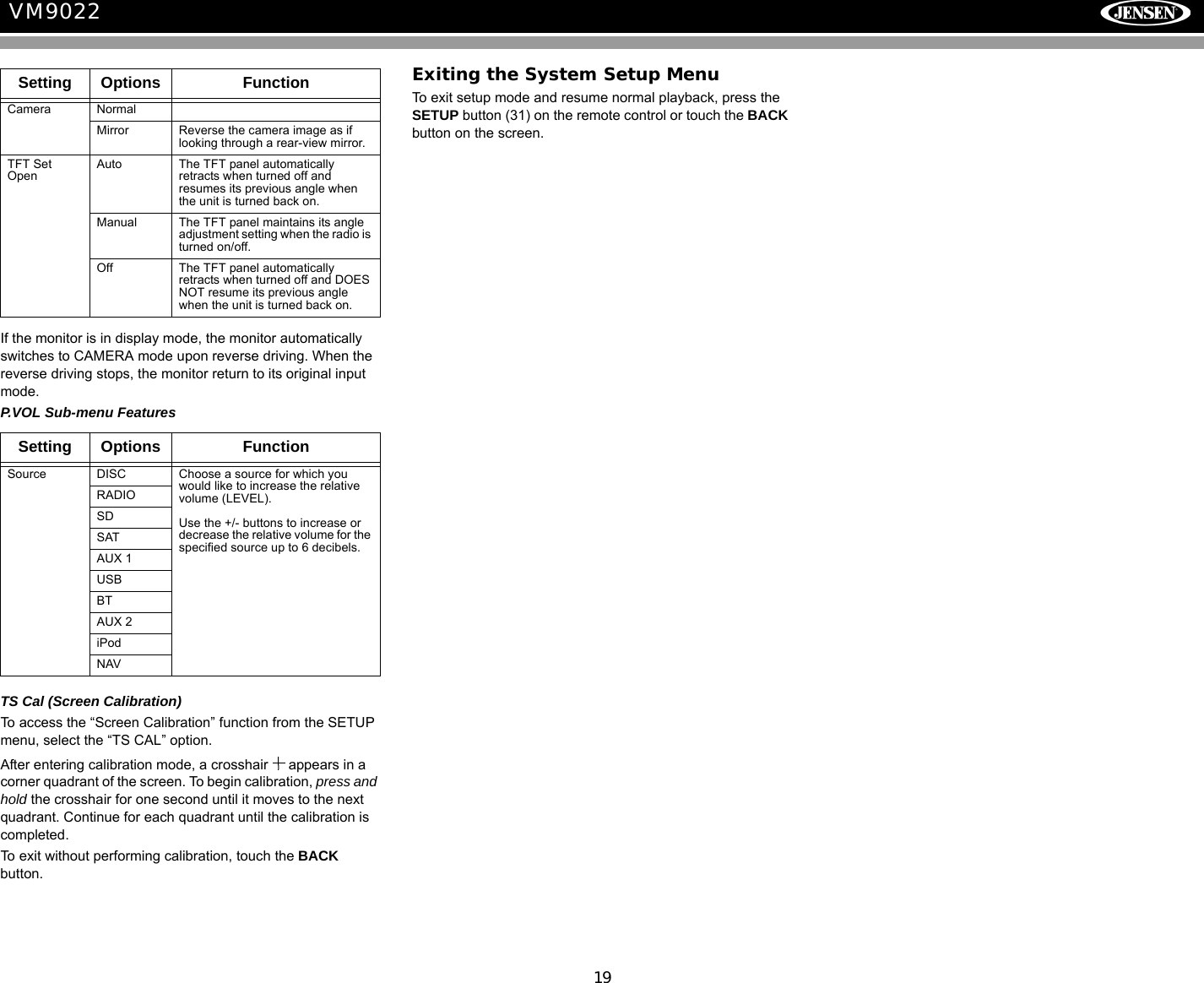
19VM9022If the monitor is in display mode, the monitor automatically switches to CAMERA mode upon reverse driving. When the reverse driving stops, the monitor return to its original input mode.P.VOL Sub-menu FeaturesTS Cal (Screen Calibration)To access the “Screen Calibration” function from the SETUP menu, select the “TS CAL” option.After entering calibration mode, a crosshair   appears in a corner quadrant of the screen. To begin calibration, press and hold the crosshair for one second until it moves to the next quadrant. Continue for each quadrant until the calibration is completed.To exit without performing calibration, touch the BACK button.Exiting the System Setup MenuTo exit setup mode and resume normal playback, press the SETUP button (31) on the remote control or touch the BACK button on the screen.Setting Options FunctionCamera NormalMirror Reverse the camera image as if looking through a rear-view mirror.TFT Set OpenAuto The TFT panel automatically retracts when turned off and resumes its previous angle when the unit is turned back on.Manual The TFT panel maintains its angle adjustment setting when the radio is turned on/off. Off The TFT panel automatically retracts when turned off and DOES NOT resume its previous angle when the unit is turned back on.Setting Options FunctionSource DISC Choose a source for which you would like to increase the relative volume (LEVEL).Use the +/- buttons to increase or decrease the relative volume for the specified source up to 6 decibels.RADIOSDSATAUX 1USBBTAUX 2iPodNAV
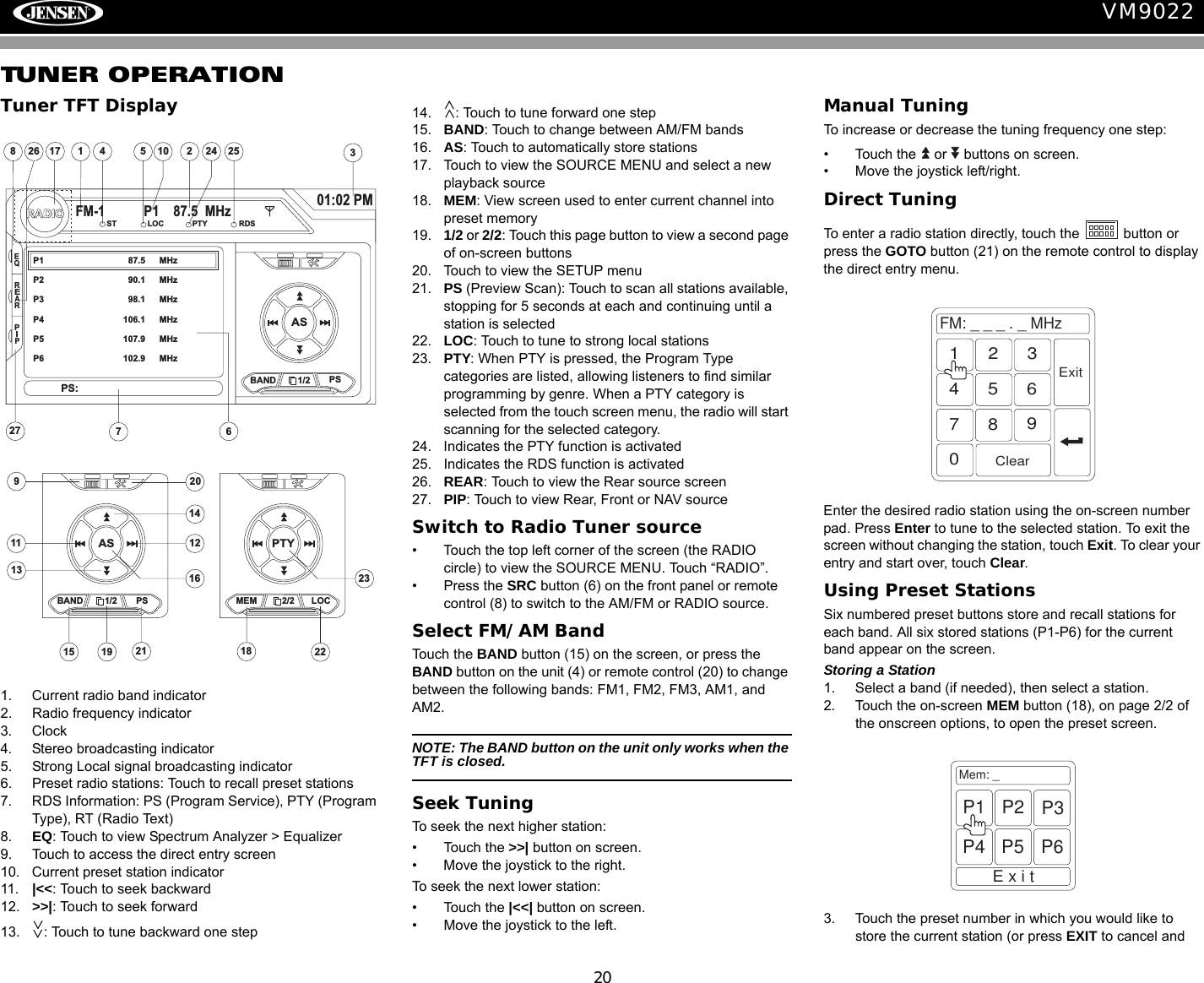
20VM9022TUNER OPERATIONTuner TFT Display1. Current radio band indicator2. Radio frequency indicator3. Clock4. Stereo broadcasting indicator5. Strong Local signal broadcasting indicator6. Preset radio stations: Touch to recall preset stations7. RDS Information: PS (Program Service), PTY (Program Type), RT (Radio Text)8. EQ: Touch to view Spectrum Analyzer > Equalizer9. Touch to access the direct entry screen10. Current preset station indicator11. |<<: Touch to seek backward12. >>|: Touch to seek forward13. : Touch to tune backward one step14. : Touch to tune forward one step15. BAND: Touch to change between AM/FM bands16. AS: Touch to automatically store stations17. Touch to view the SOURCE MENU and select a new playback source18. MEM: View screen used to enter current channel into preset memory19. 1/2 or 2/2: Touch this page button to view a second page of on-screen buttons20. Touch to view the SETUP menu21. PS (Preview Scan): Touch to scan all stations available, stopping for 5 seconds at each and continuing until a station is selected 22. LOC: Touch to tune to strong local stations23. PTY: When PTY is pressed, the Program Type categories are listed, allowing listeners to find similar programming by genre. When a PTY category is selected from the touch screen menu, the radio will start scanning for the selected category.24. Indicates the PTY function is activated25. Indicates the RDS function is activated26. REAR: Touch to view the Rear source screen27. PIP: Touch to view Rear, Front or NAV sourceSwitch to Radio Tuner source• Touch the top left corner of the screen (the RADIO circle) to view the SOURCE MENU. Touch “RADIO”. • Press the SRC button (6) on the front panel or remote control (8) to switch to the AM/FM or RADIO source. Select FM/AM BandTouch the BAND button (15) on the screen, or press the BAND button on the unit (4) or remote control (20) to change between the following bands: FM1, FM2, FM3, AM1, and AM2.NOTE: The BAND button on the unit only works when the TFT is closed.Seek TuningTo seek the next higher station:• Touch the >>| button on screen.• Move the joystick to the right.To seek the next lower station:• Touch the |<<| button on screen.• Move the joystick to the left.Manual TuningTo increase or decrease the tuning frequency one step:• Touch the   or   buttons on screen.• Move the joystick left/right.Direct TuningTo enter a radio station directly, touch the   button or press the GOTO button (21) on the remote control to display the direct entry menu.Enter the desired radio station using the on-screen number pad. Press Enter to tune to the selected station. To exit the screen without changing the station, touch Exit. To clear your entry and start over, touch Clear.Using Preset StationsSix numbered preset buttons store and recall stations for each band. All six stored stations (P1-P6) for the current band appear on the screen.Storing a Station1. Select a band (if needed), then select a station.2. Touch the on-screen MEM button (18), on page 2/2 of the onscreen options, to open the preset screen.3. Touch the preset number in which you would like to store the current station (or press EXIT to cancel and 4110 25783617RADIOFM-1 P1 87.5 MHz01:02 PMEQASBAND 1/2 PSP1 87.5 MHzP2 90.1 MHzP3 98.1 MHzP4 106.1 MHzP5 107.9 MHzP6 102.9 MHzPS:ST LOC PTY RDS24 25REARPIP2726911 1213141516ASBAND 1/2 MEM19 18202123PTYPS 2/2 LOC22FM:___._MHz1234567890ClearExitMem: _ExitP1 P2 P3P4 P5 P6
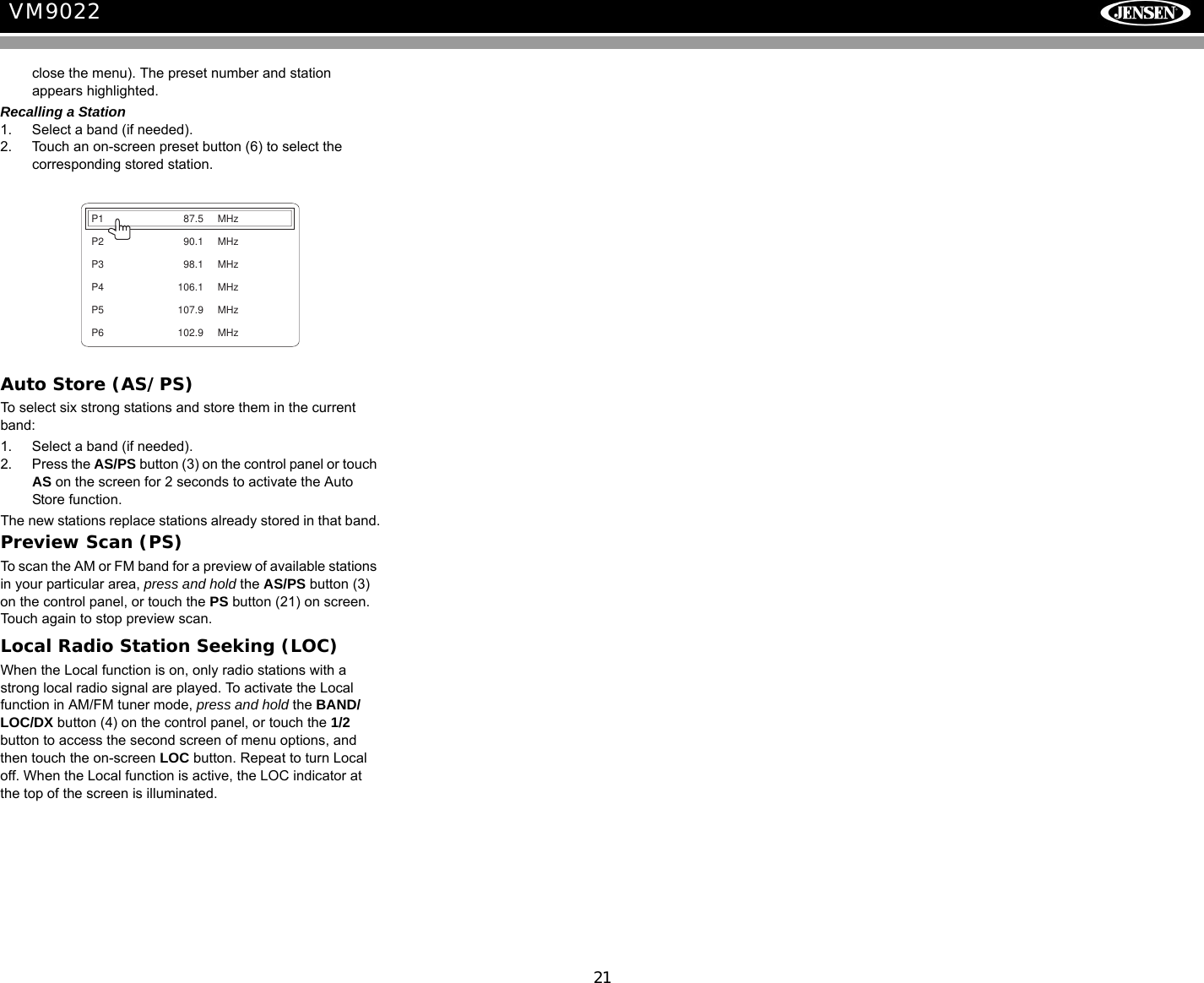
21VM9022close the menu). The preset number and station appears highlighted.Recalling a Station1. Select a band (if needed).2. Touch an on-screen preset button (6) to select the corresponding stored station.Auto Store (AS/PS)To select six strong stations and store them in the current band:1. Select a band (if needed).2. Press the AS/PS button (3) on the control panel or touch AS on the screen for 2 seconds to activate the Auto Store function. The new stations replace stations already stored in that band.Preview Scan (PS)To scan the AM or FM band for a preview of available stations in your particular area, press and hold the AS/PS button (3) on the control panel, or touch the PS button (21) on screen. Touch again to stop preview scan.Local Radio Station Seeking (LOC)When the Local function is on, only radio stations with a strong local radio signal are played. To activate the Local function in AM/FM tuner mode, press and hold the BAND/LOC/DX button (4) on the control panel, or touch the 1/2 button to access the second screen of menu options, and then touch the on-screen LOC button. Repeat to turn Local off. When the Local function is active, the LOC indicator at the top of the screen is illuminated.P1 87.5 MHzP2 90.1 MHzP3 98.1 MHzP4 106.1 MHzP5 107.9 MHzP6 102.9 MHz
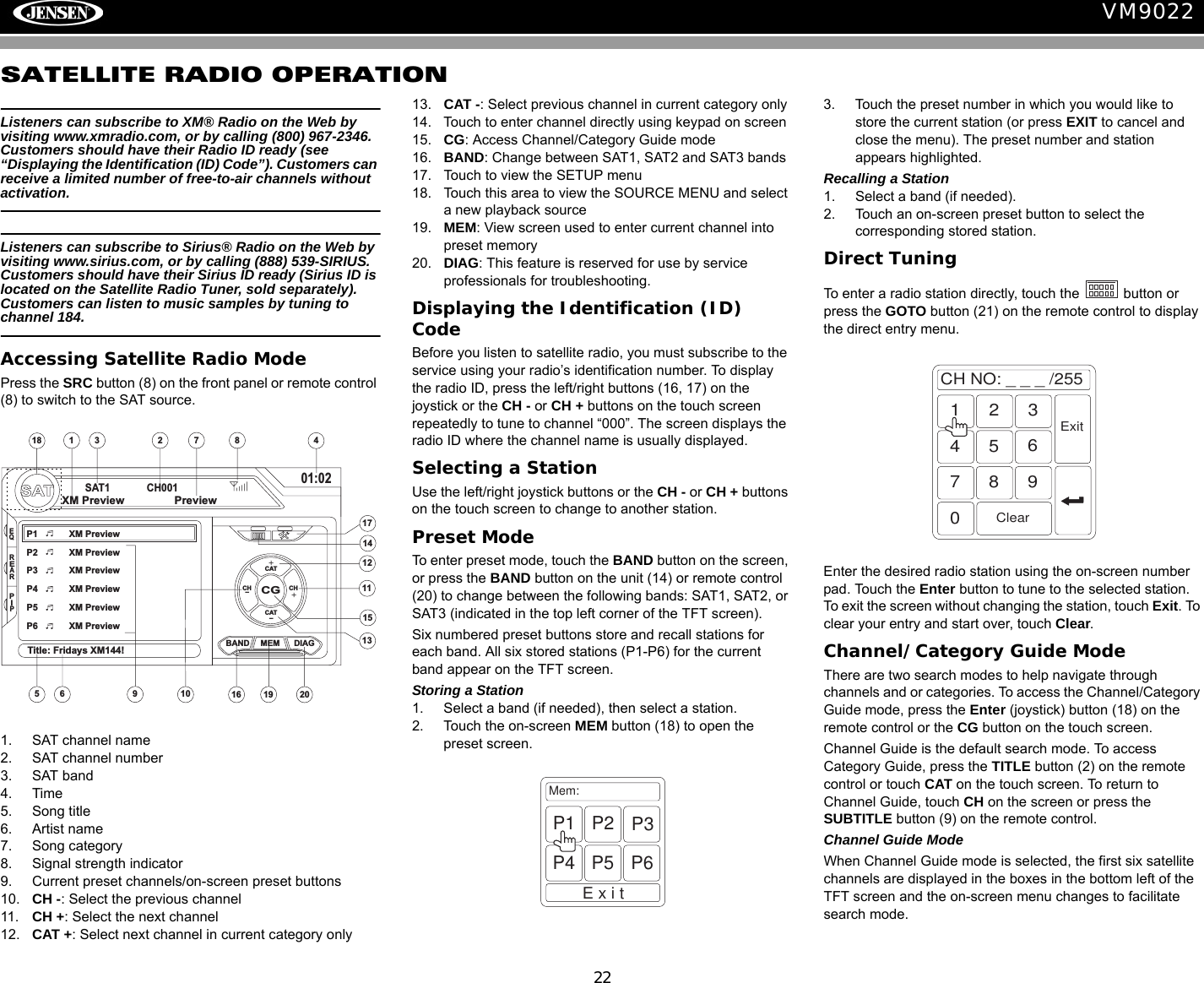
22VM9022SATELLITE RADIO OPERATIONListeners can subscribe to XM® Radio on the Web by visiting www.xmradio.com, or by calling (800) 967-2346. Customers should have their Radio ID ready (see “Displaying the Identification (ID) Code”). Customers can receive a limited number of free-to-air channels without activation. Listeners can subscribe to Sirius® Radio on the Web by visiting www.sirius.com, or by calling (888) 539-SIRIUS. Customers should have their Sirius ID ready (Sirius ID is located on the Satellite Radio Tuner, sold separately). Customers can listen to music samples by tuning to channel 184.Accessing Satellite Radio ModePress the SRC button (8) on the front panel or remote control (8) to switch to the SAT source. 1. SAT channel name2. SAT channel number3. SAT band4. Time5. Song title6. Artist name7. Song category8. Signal strength indicator9. Current preset channels/on-screen preset buttons10. CH -: Select the previous channel11. CH +: Select the next channel12. CAT +: Select next channel in current category only13. CAT -: Select previous channel in current category only14. Touch to enter channel directly using keypad on screen15. CG: Access Channel/Category Guide mode16. BAND: Change between SAT1, SAT2 and SAT3 bands17. Touch to view the SETUP menu18. Touch this area to view the SOURCE MENU and select a new playback source19. MEM: View screen used to enter current channel into preset memory20. DIAG: This feature is reserved for use by service professionals for troubleshooting.Displaying the Identification (ID) CodeBefore you listen to satellite radio, you must subscribe to the service using your radio’s identification number. To display the radio ID, press the left/right buttons (16, 17) on the joystick or the CH - or CH + buttons on the touch screen repeatedly to tune to channel “000”. The screen displays the radio ID where the channel name is usually displayed.Selecting a StationUse the left/right joystick buttons or the CH - or CH + buttons on the touch screen to change to another station.Preset ModeTo enter preset mode, touch the BAND button on the screen, or press the BAND button on the unit (14) or remote control (20) to change between the following bands: SAT1, SAT2, or SAT3 (indicated in the top left corner of the TFT screen).Six numbered preset buttons store and recall stations for each band. All six stored stations (P1-P6) for the current band appear on the TFT screen.Storing a Station1. Select a band (if needed), then select a station.2. Touch the on-screen MEM button (18) to open the preset screen.3. Touch the preset number in which you would like to store the current station (or press EXIT to cancel and close the menu). The preset number and station appears highlighted.Recalling a Station1. Select a band (if needed).2. Touch an on-screen preset button to select the corresponding stored station.Direct TuningTo enter a radio station directly, touch the   button or press the GOTO button (21) on the remote control to display the direct entry menu.Enter the desired radio station using the on-screen number pad. Touch the Enter button to tune to the selected station. To exit the screen without changing the station, touch Exit. To clear your entry and start over, touch Clear.Channel/Category Guide ModeThere are two search modes to help navigate through channels and or categories. To access the Channel/Category Guide mode, press the Enter (joystick) button (18) on the remote control or the CG button on the touch screen.Channel Guide is the default search mode. To access Category Guide, press the TITLE button (2) on the remote control or touch CAT on the touch screen. To return to Channel Guide, touch CH on the screen or press the SUBTITLE button (9) on the remote control.Channel Guide ModeWhen Channel Guide mode is selected, the first six satellite channels are displayed in the boxes in the bottom left of the TFT screen and the on-screen menu changes to facilitate search mode.SATSAT1 CH00101:02CGBAND MEM DIAGP1 XM PreviewP2 XM PreviewP3 XM PreviewP4 XM PreviewP5 XM PreviewP6 XM PreviewTitle: Fridays XM144!XM Preview PreviewCAT+CAT-CHCH +-10111213141518 43 2151617678919 20EQREARPIPMem:ExitP1 P2 P3P4 P5 P6CHNO:___/2551234567890ClearExit
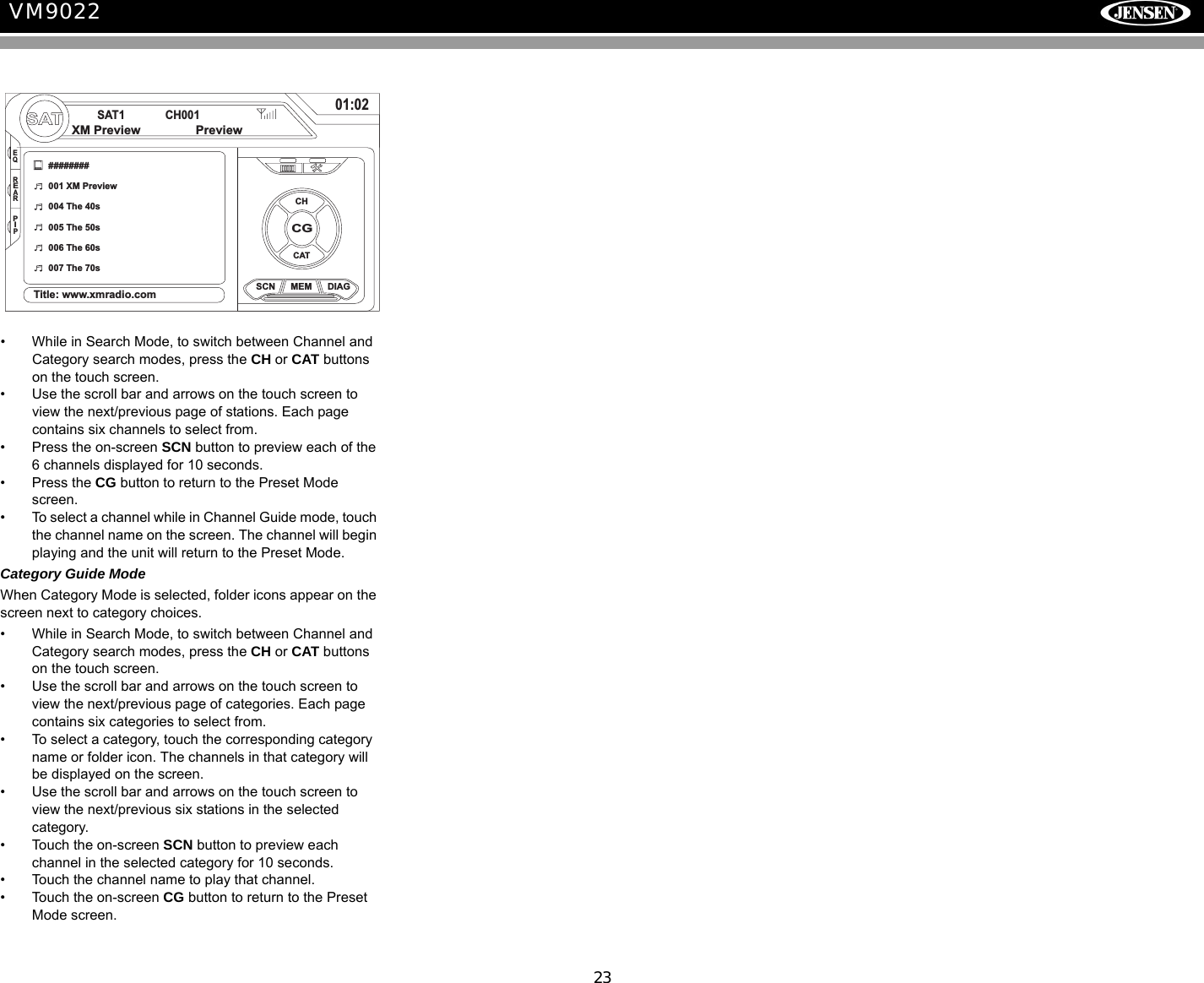
23VM9022• While in Search Mode, to switch between Channel and Category search modes, press the CH or CAT buttons on the touch screen. • Use the scroll bar and arrows on the touch screen to view the next/previous page of stations. Each page contains six channels to select from.• Press the on-screen SCN button to preview each of the 6 channels displayed for 10 seconds.• Press the CG button to return to the Preset Mode screen.• To select a channel while in Channel Guide mode, touch the channel name on the screen. The channel will begin playing and the unit will return to the Preset Mode. Category Guide ModeWhen Category Mode is selected, folder icons appear on the screen next to category choices. • While in Search Mode, to switch between Channel and Category search modes, press the CH or CAT buttons on the touch screen. • Use the scroll bar and arrows on the touch screen to view the next/previous page of categories. Each page contains six categories to select from.• To select a category, touch the corresponding category name or folder icon. The channels in that category will be displayed on the screen.• Use the scroll bar and arrows on the touch screen to view the next/previous six stations in the selected category.• Touch the on-screen SCN button to preview each channel in the selected category for 10 seconds.• Touch the channel name to play that channel.• Touch the on-screen CG button to return to the Preset Mode screen.SATSAT1 CH00101:02CGSCN MEM DIAG########001 XM Preview004 The 40s005 The 50s006 The 60s007 The 70sTitle: www.xmradio.comXM Preview PreviewCHCATEQREARPIP
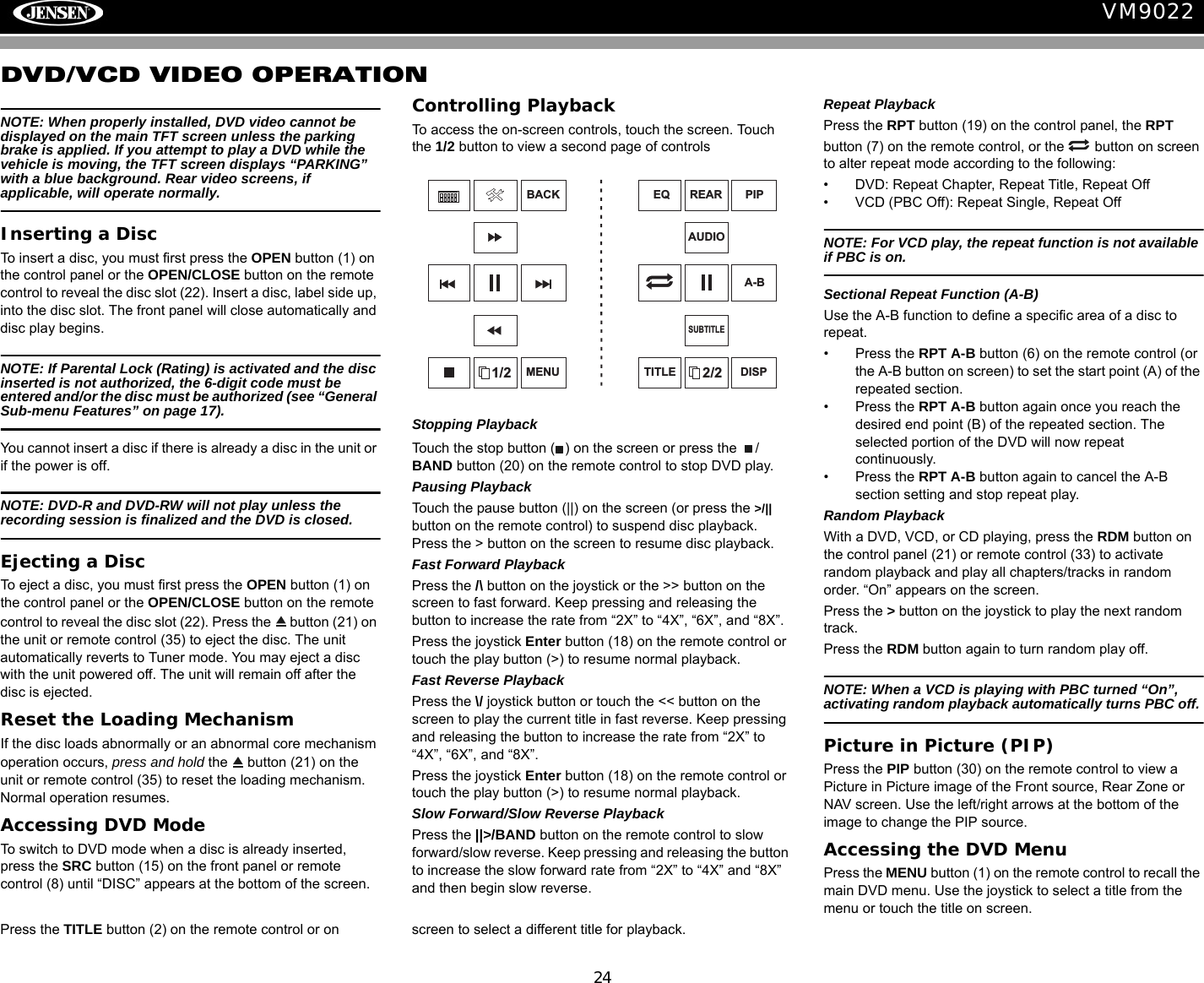
24VM9022DVD/VCD VIDEO OPERATIONNOTE: When properly installed, DVD video cannot be displayed on the main TFT screen unless the parking brake is applied. If you attempt to play a DVD while the vehicle is moving, the TFT screen displays “PARKING” with a blue background. Rear video screens, if applicable, will operate normally.Inserting a DiscTo insert a disc, you must first press the OPEN button (1) on the control panel or the OPEN/CLOSE button on the remote control to reveal the disc slot (22). Insert a disc, label side up, into the disc slot. The front panel will close automatically and disc play begins. NOTE: If Parental Lock (Rating) is activated and the disc inserted is not authorized, the 6-digit code must be entered and/or the disc must be authorized (see “General Sub-menu Features” on page 17).You cannot insert a disc if there is already a disc in the unit or if the power is off. NOTE: DVD-R and DVD-RW will not play unless the recording session is finalized and the DVD is closed.Ejecting a Disc To eject a disc, you must first press the OPEN button (1) on the control panel or the OPEN/CLOSE button on the remote control to reveal the disc slot (22). Press the   button (21) on the unit or remote control (35) to eject the disc. The unit automatically reverts to Tuner mode. You may eject a disc with the unit powered off. The unit will remain off after the disc is ejected.Reset the Loading MechanismIf the disc loads abnormally or an abnormal core mechanism operation occurs, press and hold the   button (21) on the unit or remote control (35) to reset the loading mechanism. Normal operation resumes. Accessing DVD ModeTo switch to DVD mode when a disc is already inserted, press the SRC button (15) on the front panel or remote control (8) until “DISC” appears at the bottom of the screen.Controlling PlaybackTo access the on-screen controls, touch the screen. Touch the 1/2 button to view a second page of controlsStopping PlaybackTouch the stop button ( ) on the screen or press the  /BAND button (20) on the remote control to stop DVD play.Pausing PlaybackTouch the pause button (||) on the screen (or press the >/|| button on the remote control) to suspend disc playback. Press the > button on the screen to resume disc playback.Fast Forward PlaybackPress the /\ button on the joystick or the >> button on the screen to fast forward. Keep pressing and releasing the button to increase the rate from “2X” to “4X”, “6X”, and “8X”.Press the joystick Enter button (18) on the remote control or touch the play button (>) to resume normal playback. Fast Reverse PlaybackPress the \/ joystick button or touch the << button on the screen to play the current title in fast reverse. Keep pressing and releasing the button to increase the rate from “2X” to “4X”, “6X”, and “8X”. Press the joystick Enter button (18) on the remote control or touch the play button (>) to resume normal playback. Slow Forward/Slow Reverse PlaybackPress the ||>/BAND button on the remote control to slow forward/slow reverse. Keep pressing and releasing the button to increase the slow forward rate from “2X” to “4X” and “8X” and then begin slow reverse.Repeat PlaybackPress the RPT button (19) on the control panel, the RPT button (7) on the remote control, or the   button on screen to alter repeat mode according to the following:• DVD: Repeat Chapter, Repeat Title, Repeat Off• VCD (PBC Off): Repeat Single, Repeat OffNOTE: For VCD play, the repeat function is not available if PBC is on.Sectional Repeat Function (A-B)Use the A-B function to define a specific area of a disc to repeat.• Press the RPT A-B button (6) on the remote control (or the A-B button on screen) to set the start point (A) of the repeated section. • Press the RPT A-B button again once you reach the desired end point (B) of the repeated section. The selected portion of the DVD will now repeat continuously. • Press the RPT A-B button again to cancel the A-B section setting and stop repeat play. Random PlaybackWith a DVD, VCD, or CD playing, press the RDM button on the control panel (21) or remote control (33) to activate random playback and play all chapters/tracks in random order. “On” appears on the screen. Press the > button on the joystick to play the next random track.Press the RDM button again to turn random play off. NOTE: When a VCD is playing with PBC turned “On”, activating random playback automatically turns PBC off. Picture in Picture (PIP)Press the PIP button (30) on the remote control to view a Picture in Picture image of the Front source, Rear Zone or NAV screen. Use the left/right arrows at the bottom of the image to change the PIP source.Accessing the DVD MenuPress the MENU button (1) on the remote control to recall the main DVD menu. Use the joystick to select a title from the menu or touch the title on screen.Press the TITLE button (2) on the remote control or on  screen to select a different title for playback.1/2BACKMENU 2/2PIPDISPEQAUDIOA-BTITLESUBTITLEREAR
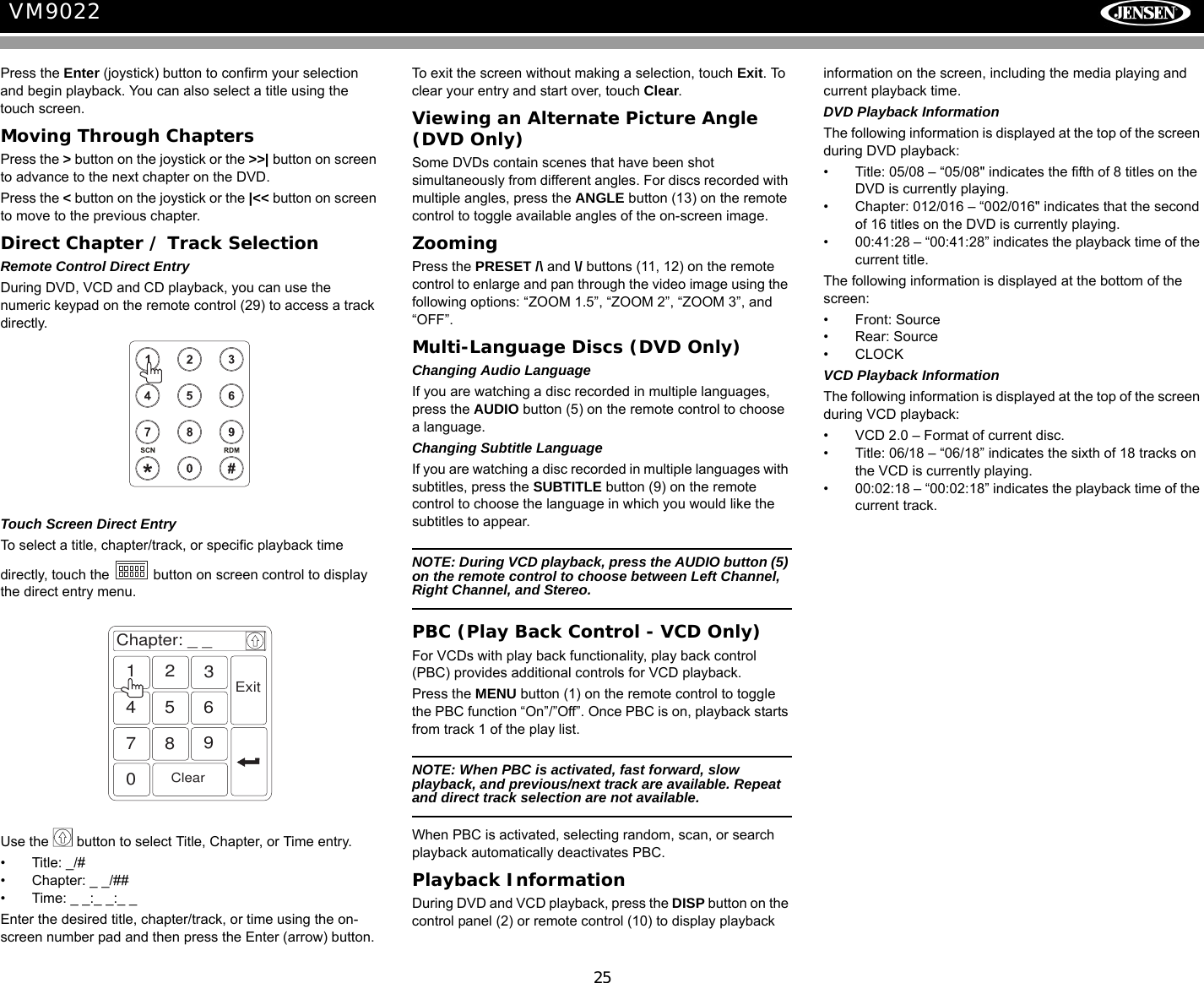
25VM9022Press the Enter (joystick) button to confirm your selection and begin playback. You can also select a title using the touch screen.Moving Through ChaptersPress the > button on the joystick or the >>| button on screen to advance to the next chapter on the DVD. Press the < button on the joystick or the |<< button on screen to move to the previous chapter.Direct Chapter / Track SelectionRemote Control Direct EntryDuring DVD, VCD and CD playback, you can use the numeric keypad on the remote control (29) to access a track directly.Touch Screen Direct EntryTo select a title, chapter/track, or specific playback time directly, touch the   button on screen control to display the direct entry menu.Use the   button to select Title, Chapter, or Time entry.• Title: _/#• Chapter: _ _/##• Time: _ _:_ _:_ _Enter the desired title, chapter/track, or time using the on-screen number pad and then press the Enter (arrow) button. To exit the screen without making a selection, touch Exit. To clear your entry and start over, touch Clear.Viewing an Alternate Picture Angle (DVD Only)Some DVDs contain scenes that have been shot simultaneously from different angles. For discs recorded with multiple angles, press the ANGLE button (13) on the remote control to toggle available angles of the on-screen image. ZoomingPress the PRESET /\ and \/ buttons (11, 12) on the remote control to enlarge and pan through the video image using the following options: “ZOOM 1.5”, “ZOOM 2”, “ZOOM 3”, and “OFF”.Multi-Language Discs (DVD Only)Changing Audio LanguageIf you are watching a disc recorded in multiple languages, press the AUDIO button (5) on the remote control to choose a language.Changing Subtitle LanguageIf you are watching a disc recorded in multiple languages with subtitles, press the SUBTITLE button (9) on the remote control to choose the language in which you would like the subtitles to appear.NOTE: During VCD playback, press the AUDIO button (5) on the remote control to choose between Left Channel, Right Channel, and Stereo.PBC (Play Back Control - VCD Only)For VCDs with play back functionality, play back control (PBC) provides additional controls for VCD playback.Press the MENU button (1) on the remote control to toggle the PBC function “On”/”Off”. Once PBC is on, playback starts from track 1 of the play list.NOTE: When PBC is activated, fast forward, slow playback, and previous/next track are available. Repeat and direct track selection are not available.When PBC is activated, selecting random, scan, or search playback automatically deactivates PBC.Playback InformationDuring DVD and VCD playback, press the DISP button on the control panel (2) or remote control (10) to display playback information on the screen, including the media playing and current playback time. DVD Playback InformationThe following information is displayed at the top of the screen during DVD playback:• Title: 05/08 – “05/08" indicates the fifth of 8 titles on the DVD is currently playing.• Chapter: 012/016 – “002/016" indicates that the second of 16 titles on the DVD is currently playing.• 00:41:28 – “00:41:28” indicates the playback time of the current title.The following information is displayed at the bottom of the screen:• Front: Source• Rear: Source•CLOCKVCD Playback InformationThe following information is displayed at the top of the screen during VCD playback:• VCD 2.0 – Format of current disc.• Title: 06/18 – “06/18” indicates the sixth of 18 tracks on the VCD is currently playing.• 00:02:18 – “00:02:18” indicates the playback time of the current track.Chapter: _ _1234567890ClearExit
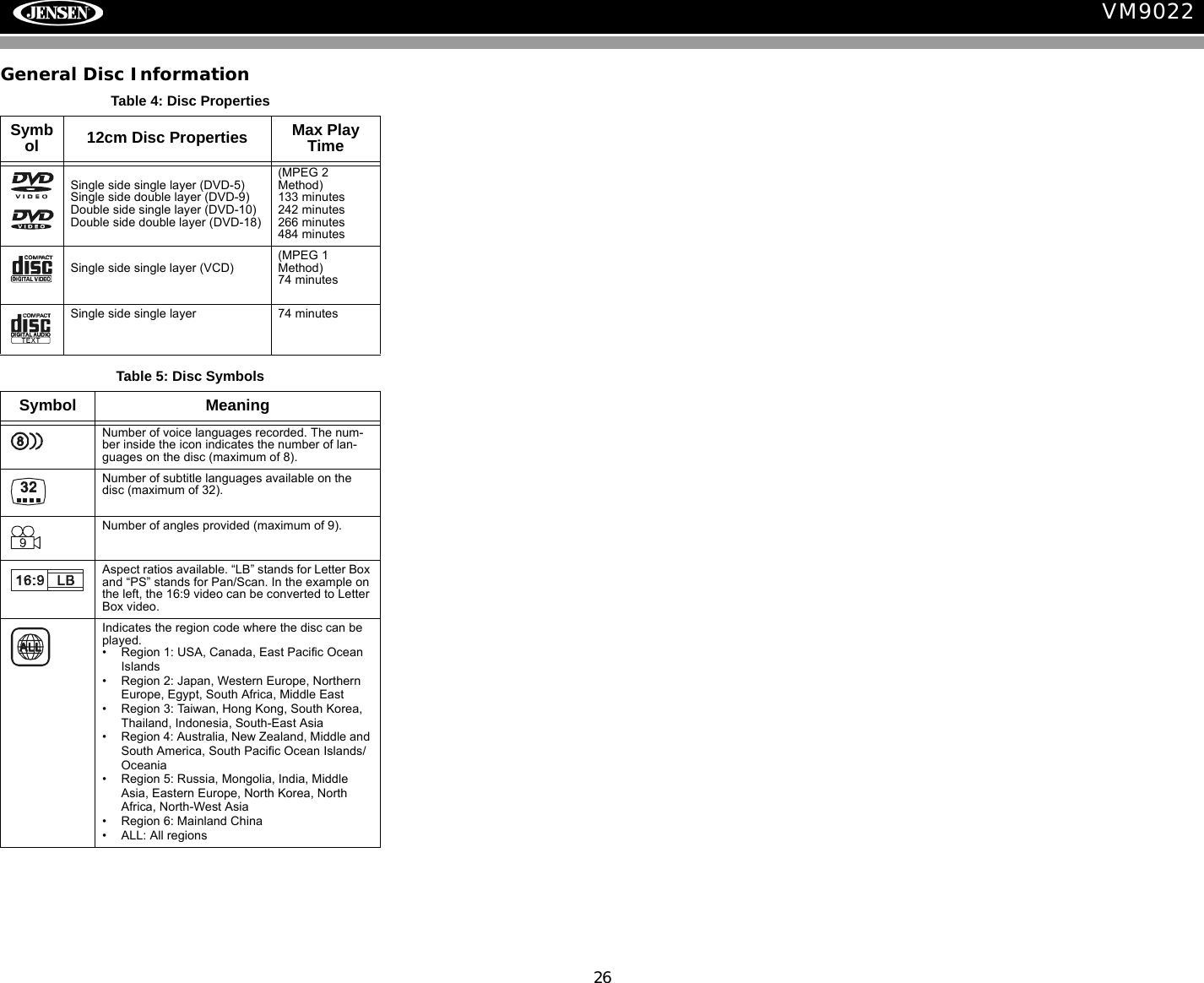
26VM9022General Disc InformationTable 4: Disc PropertiesSymbol 12cm Disc Properties Max Play TimeSingle side single layer (DVD-5)Single side double layer (DVD-9)Double side single layer (DVD-10)Double side double layer (DVD-18)(MPEG 2 Method)133 minutes242 minutes266 minutes484 minutesSingle side single layer (VCD)(MPEG 1 Method)74 minutesSingle side single layer 74 minutesTable 5: Disc SymbolsSymbol MeaningNumber of voice languages recorded. The num-ber inside the icon indicates the number of lan-guages on the disc (maximum of 8).Number of subtitle languages available on the disc (maximum of 32).Number of angles provided (maximum of 9).Aspect ratios available. “LB” stands for Letter Box and “PS” stands for Pan/Scan. In the example on the left, the 16:9 video can be converted to Letter Box video.Indicates the region code where the disc can be played.• Region 1: USA, Canada, East Pacific Ocean Islands• Region 2: Japan, Western Europe, Northern Europe, Egypt, South Africa, Middle East• Region 3: Taiwan, Hong Kong, South Korea, Thailand, Indonesia, South-East Asia• Region 4: Australia, New Zealand, Middle and South America, South Pacific Ocean Islands/Oceania• Region 5: Russia, Mongolia, India, Middle Asia, Eastern Europe, North Korea, North Africa, North-West Asia              • Region 6: Mainland China• ALL: All regions
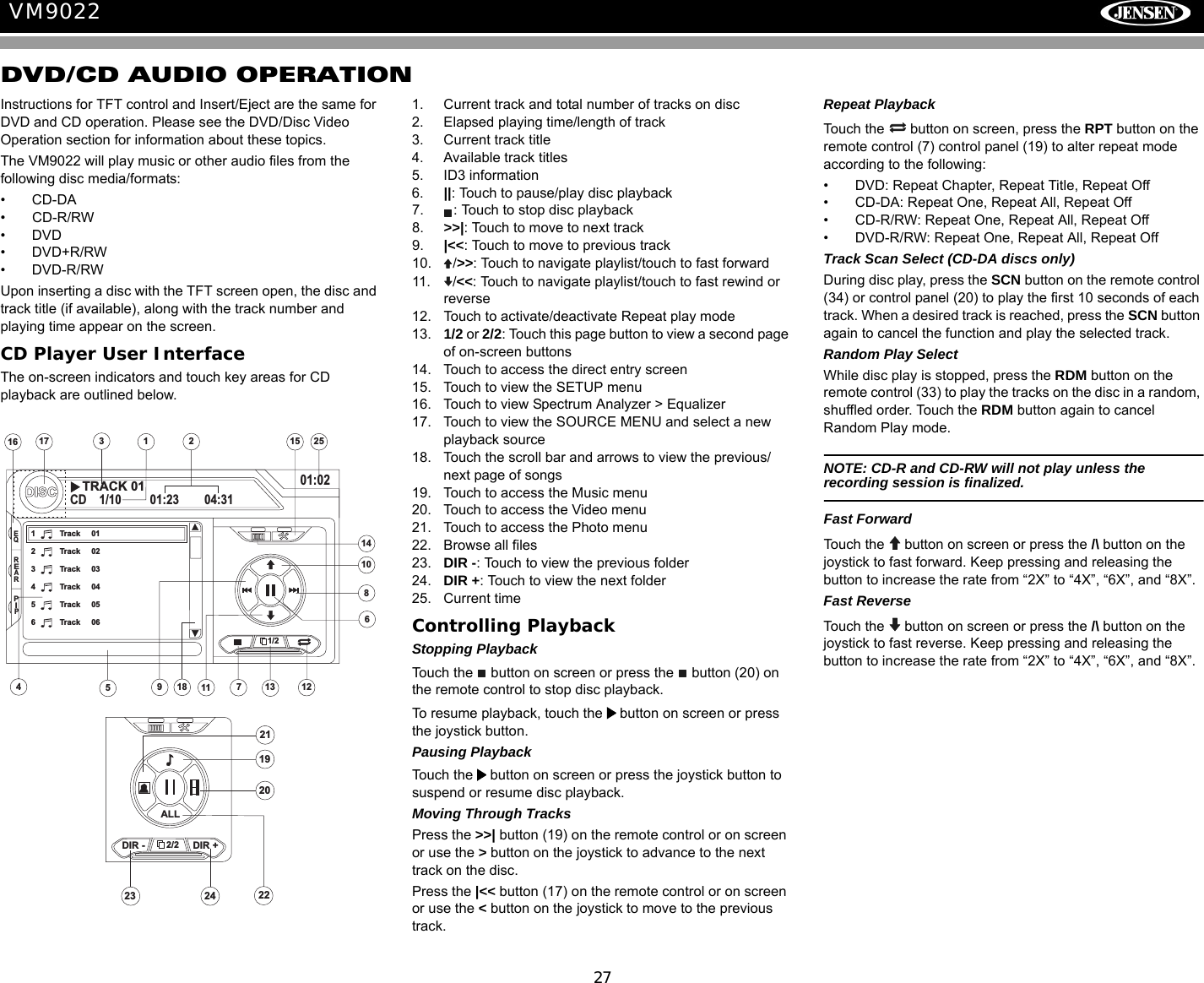
27VM9022DVD/CD AUDIO OPERATIONInstructions for TFT control and Insert/Eject are the same for DVD and CD operation. Please see the DVD/Disc Video Operation section for information about these topics.The VM9022 will play music or other audio files from the following disc media/formats:• CD-DA• CD-R/RW•DVD•DVD+R/RW•DVD-R/RWUpon inserting a disc with the TFT screen open, the disc and track title (if available), along with the track number and playing time appear on the screen.CD Player User InterfaceThe on-screen indicators and touch key areas for CD playback are outlined below.1. Current track and total number of tracks on disc2. Elapsed playing time/length of track3. Current track title4. Available track titles5. ID3 information6. ||: Touch to pause/play disc playback7. : Touch to stop disc playback8. >>|: Touch to move to next track 9. |<<: Touch to move to previous track10. />>: Touch to navigate playlist/touch to fast forward11. /<<: Touch to navigate playlist/touch to fast rewind or reverse12. Touch to activate/deactivate Repeat play mode13. 1/2 or 2/2: Touch this page button to view a second page of on-screen buttons14. Touch to access the direct entry screen15. Touch to view the SETUP menu16. Touch to view Spectrum Analyzer > Equalizer17. Touch to view the SOURCE MENU and select a new playback source18. Touch the scroll bar and arrows to view the previous/ next page of songs19. Touch to access the Music menu20. Touch to access the Video menu21. Touch to access the Photo menu22. Browse all files23. DIR -: Touch to view the previous folder24. DIR +: Touch to view the next folder25. Current timeControlling PlaybackStopping PlaybackTouch the   button on screen or press the   button (20) on the remote control to stop disc playback.To resume playback, touch the   button on screen or press the joystick button.Pausing PlaybackTouch the   button on screen or press the joystick button to suspend or resume disc playback.Moving Through TracksPress the >>| button (19) on the remote control or on screen or use the > button on the joystick to advance to the next track on the disc. Press the |<< button (17) on the remote control or on screen or use the < button on the joystick to move to the previous track.Repeat PlaybackTouch the   button on screen, press the RPT button on the remote control (7) control panel (19) to alter repeat mode according to the following:• DVD: Repeat Chapter, Repeat Title, Repeat Off• CD-DA: Repeat One, Repeat All, Repeat Off• CD-R/RW: Repeat One, Repeat All, Repeat Off• DVD-R/RW: Repeat One, Repeat All, Repeat OffTrack Scan Select (CD-DA discs only)During disc play, press the SCN button on the remote control (34) or control panel (20) to play the first 10 seconds of each track. When a desired track is reached, press the SCN button again to cancel the function and play the selected track. Random Play SelectWhile disc play is stopped, press the RDM button on the remote control (33) to play the tracks on the disc in a random, shuffled order. Touch the RDM button again to cancel Random Play mode. NOTE: CD-R and CD-RW will not play unless the recording session is finalized.Fast ForwardTouch the   button on screen or press the /\ button on the joystick to fast forward. Keep pressing and releasing the button to increase the rate from “2X” to “4X”, “6X”, and “8X”. Fast ReverseTouch the  button on screen or press the /\ button on the joystick to fast reverse. Keep pressing and releasing the button to increase the rate from “2X” to “4X”, “6X”, and “8X”. 151721251613317DISCCD 1/10 01:23 04:3101:021 Track 012 Track 023 Track 034 Track 045 Track 056 Track 061449111086EQREARPIP1/218TRACK 01252/22423DIR - DIR +ALL21221920
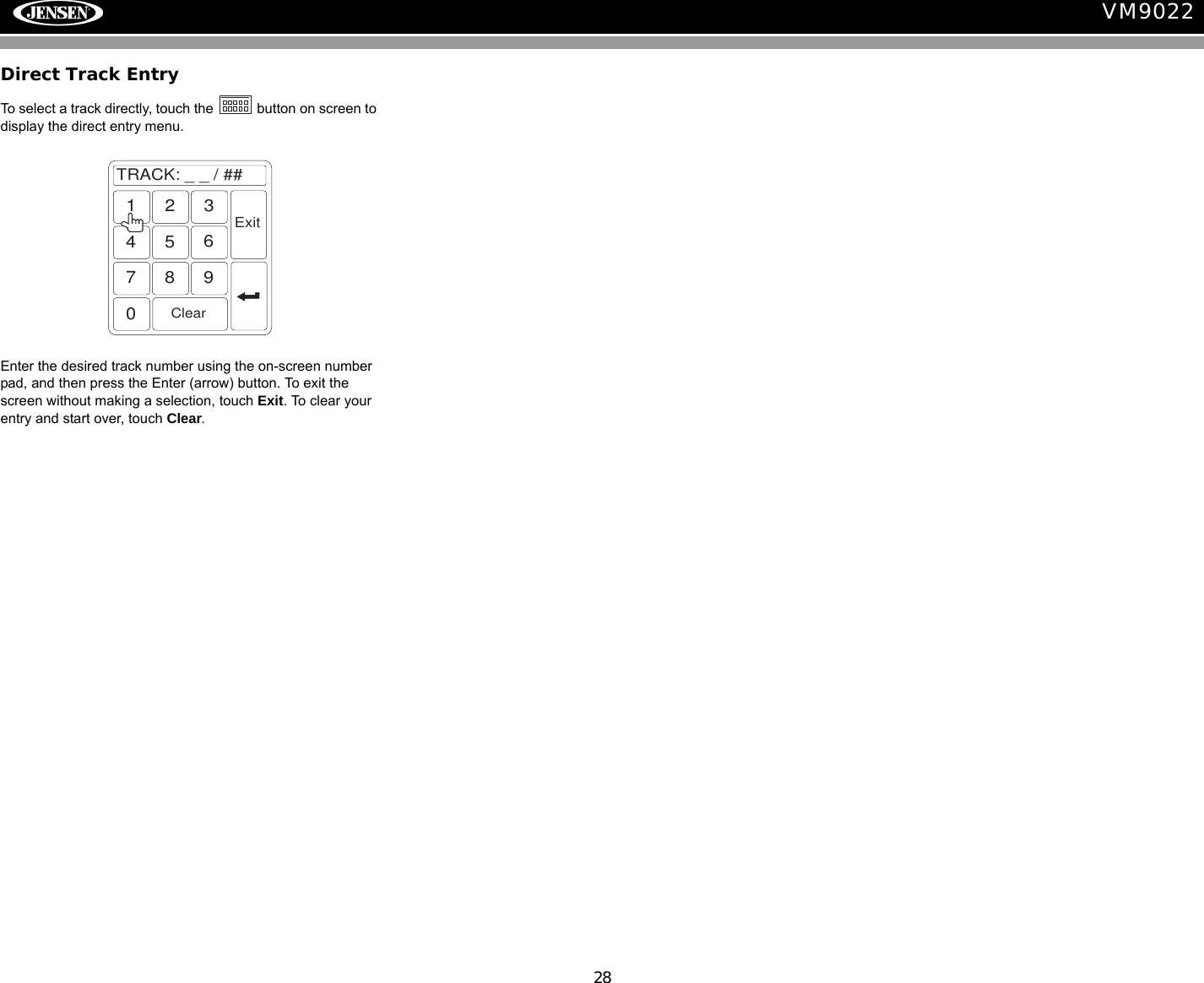
28VM9022Direct Track EntryTo select a track directly, touch the   button on screen to display the direct entry menu.Enter the desired track number using the on-screen number pad, and then press the Enter (arrow) button. To exit the screen without making a selection, touch Exit. To clear your entry and start over, touch Clear.TRACK:__/##1234567890ClearExit
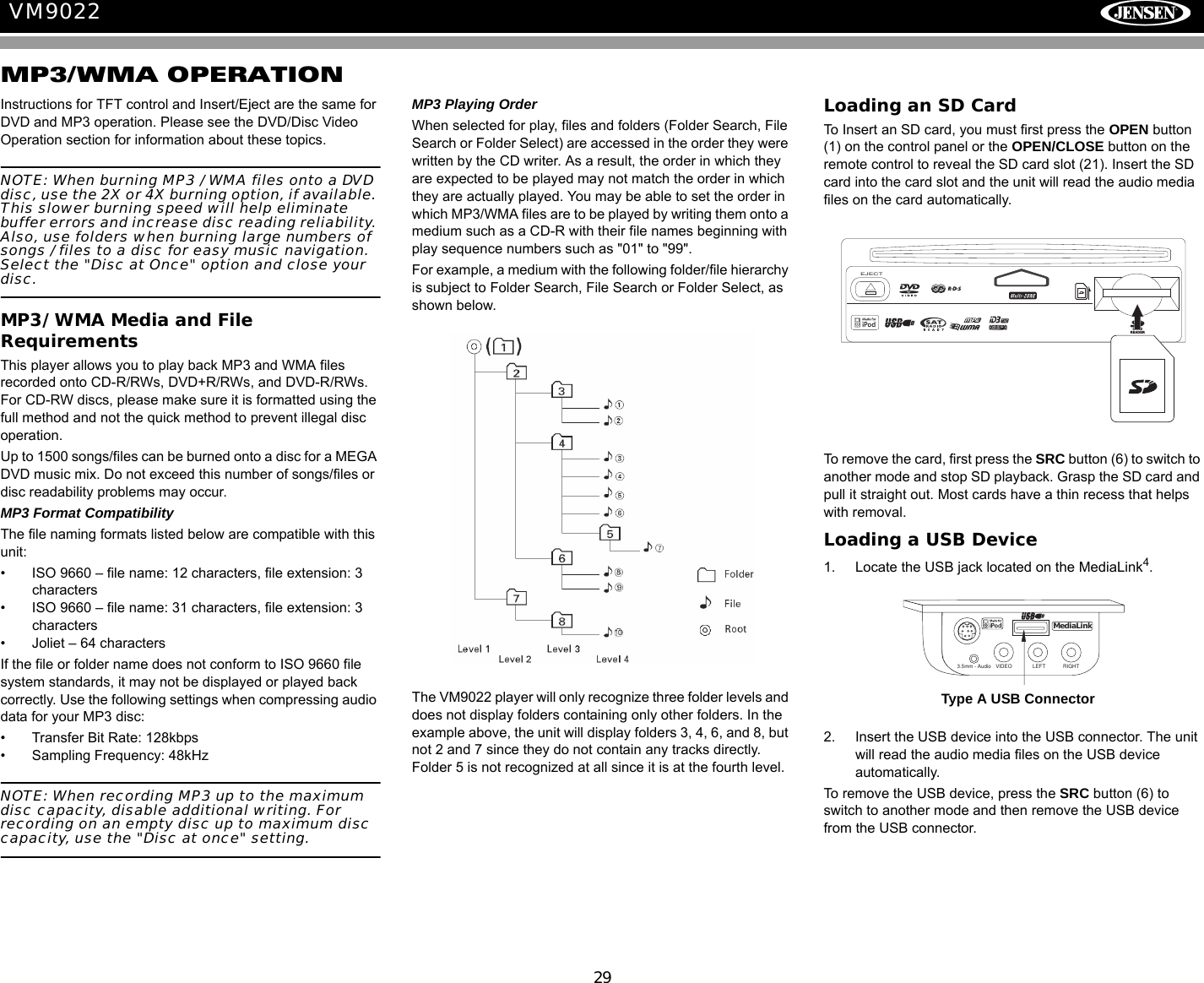
29VM9022MP3/WMA OPERATIONInstructions for TFT control and Insert/Eject are the same for DVD and MP3 operation. Please see the DVD/Disc Video Operation section for information about these topics.NOTE: When burning MP3 / WMA files onto a DVD disc, use the 2X or 4X burning option, if available. This slower burning speed will help eliminate buffer errors and increase disc reading reliability. Also, use folders when burning large numbers of songs / files to a disc for easy music navigation. Select the "Disc at Once" option and close your disc.MP3/WMA Media and File RequirementsThis player allows you to play back MP3 and WMA files recorded onto CD-R/RWs, DVD+R/RWs, and DVD-R/RWs. For CD-RW discs, please make sure it is formatted using the full method and not the quick method to prevent illegal disc operation.Up to 1500 songs/files can be burned onto a disc for a MEGA DVD music mix. Do not exceed this number of songs/files or disc readability problems may occur.MP3 Format CompatibilityThe file naming formats listed below are compatible with this unit:• ISO 9660 – file name: 12 characters, file extension: 3 characters• ISO 9660 – file name: 31 characters, file extension: 3 characters• Joliet – 64 charactersIf the file or folder name does not conform to ISO 9660 file system standards, it may not be displayed or played back correctly. Use the following settings when compressing audio data for your MP3 disc:• Transfer Bit Rate: 128kbps• Sampling Frequency: 48kHzNOTE: When recording MP3 up to the maximum disc capacity, disable additional writing. For recording on an empty disc up to maximum disc capacity, use the "Disc at once" setting.MP3 Playing OrderWhen selected for play, files and folders (Folder Search, File Search or Folder Select) are accessed in the order they were written by the CD writer. As a result, the order in which they are expected to be played may not match the order in which they are actually played. You may be able to set the order in which MP3/WMA files are to be played by writing them onto a medium such as a CD-R with their file names beginning with play sequence numbers such as "01" to "99".For example, a medium with the following folder/file hierarchy is subject to Folder Search, File Search or Folder Select, as shown below.The VM9022 player will only recognize three folder levels and does not display folders containing only other folders. In the example above, the unit will display folders 3, 4, 6, and 8, but not 2 and 7 since they do not contain any tracks directly. Folder 5 is not recognized at all since it is at the fourth level.Loading an SD CardTo Insert an SD card, you must first press the OPEN button (1) on the control panel or the OPEN/CLOSE button on the remote control to reveal the SD card slot (21). Insert the SD card into the card slot and the unit will read the audio media files on the card automatically.To remove the card, first press the SRC button (6) to switch to another mode and stop SD playback. Grasp the SD card and pull it straight out. Most cards have a thin recess that helps with removal.Loading a USB Device1. Locate the USB jack located on the MediaLink4.2. Insert the USB device into the USB connector. The unit will read the audio media files on the USB device automatically.To remove the USB device, press the SRC button (6) to switch to another mode and then remove the USB device from the USB connector.CARDREADEREJECTVIDEO LEFT RIGHT3.5mm - AudioMediaLinkType A USB Connector
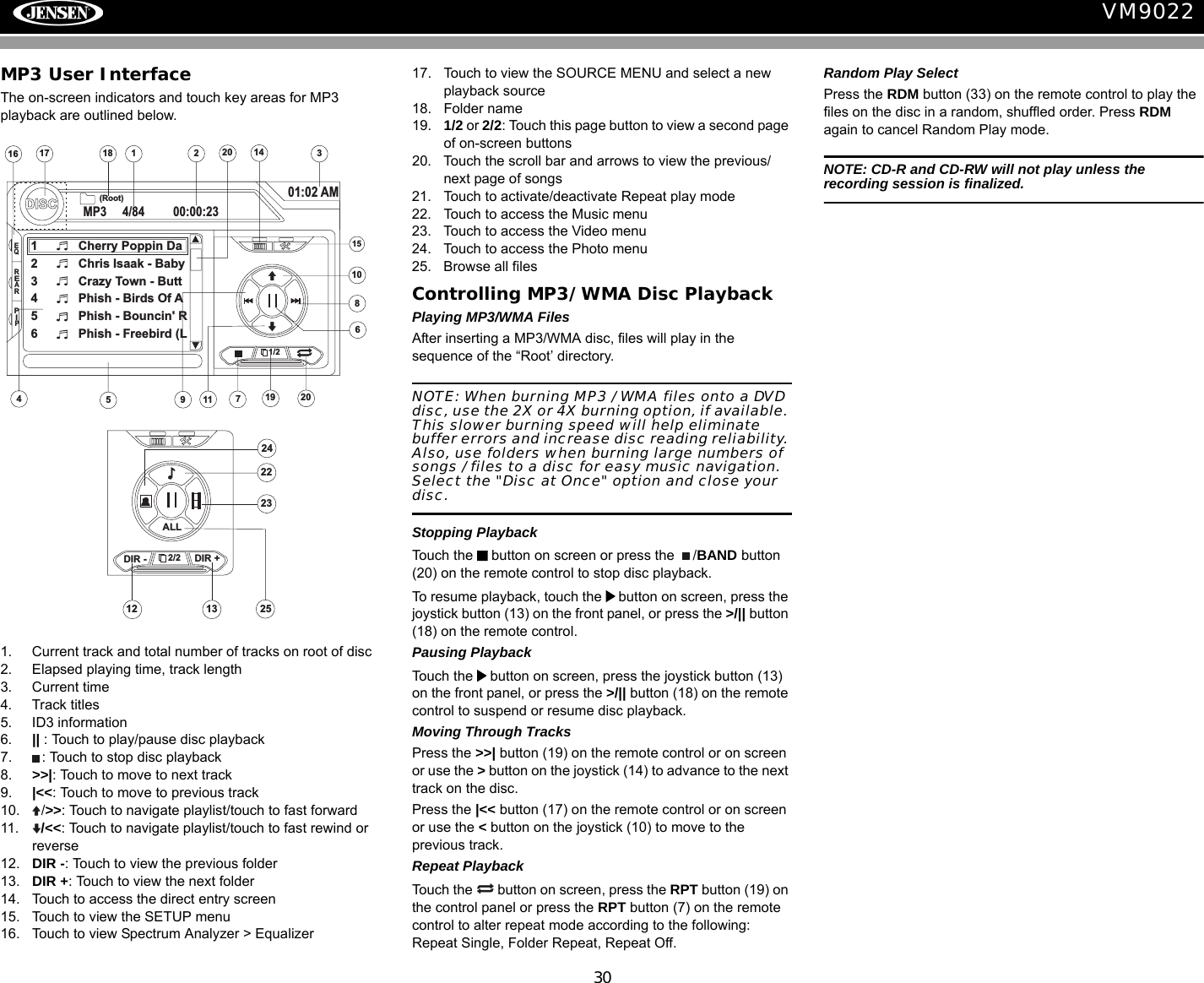
30VM9022MP3 User InterfaceThe on-screen indicators and touch key areas for MP3 playback are outlined below.1. Current track and total number of tracks on root of disc2. Elapsed playing time, track length3. Current time4. Track titles5. ID3 information6. || : Touch to play/pause disc playback7. : Touch to stop disc playback8. >>|: Touch to move to next track 9. |<<: Touch to move to previous track10. />>: Touch to navigate playlist/touch to fast forward11. /<<: Touch to navigate playlist/touch to fast rewind or reverse12. DIR -: Touch to view the previous folder13. DIR +: Touch to view the next folder14. Touch to access the direct entry screen15. Touch to view the SETUP menu16. Touch to view Spectrum Analyzer > Equalizer17. Touch to view the SOURCE MENU and select a new playback source18. Folder name19. 1/2 or 2/2: Touch this page button to view a second page of on-screen buttons20. Touch the scroll bar and arrows to view the previous/ next page of songs21. Touch to activate/deactivate Repeat play mode22. Touch to access the Music menu23. Touch to access the Video menu24. Touch to access the Photo menu25. Browse all filesControlling MP3/WMA Disc PlaybackPlaying MP3/WMA FilesAfter inserting a MP3/WMA disc, files will play in the sequence of the “Root’ directory. NOTE: When burning MP3 / WMA files onto a DVD disc, use the 2X or 4X burning option, if available. This slower burning speed will help eliminate buffer errors and increase disc reading reliability. Also, use folders when burning large numbers of songs / files to a disc for easy music navigation. Select the "Disc at Once" option and close your disc.Stopping PlaybackTouch the   button on screen or press the  /BAND button (20) on the remote control to stop disc playback.To resume playback, touch the   button on screen, press the joystick button (13) on the front panel, or press the >/|| button (18) on the remote control.Pausing PlaybackTouch the   button on screen, press the joystick button (13) on the front panel, or press the >/|| button (18) on the remote control to suspend or resume disc playback.Moving Through TracksPress the >>| button (19) on the remote control or on screen or use the > button on the joystick (14) to advance to the next track on the disc. Press the |<< button (17) on the remote control or on screen or use the < button on the joystick (10) to move to the previous track.Repeat PlaybackTouch the   button on screen, press the RPT button (19) on the control panel or press the RPT button (7) on the remote control to alter repeat mode according to the following: Repeat Single, Folder Repeat, Repeat Off.Random Play SelectPress the RDM button (33) on the remote control to play the files on the disc in a random, shuffled order. Press RDM again to cancel Random Play mode.NOTE: CD-R and CD-RW will not play unless the recording session is finalized.12516 317DISCMP3 4/84 00:00:2301:02 AM1 Cherry Poppin Da2 Chris Isaak - Baby3 Crazy Town - Butt4 Phish - Birds Of A5 Phish - Bouncin' R6 Phish - Freebird (L4(Root)181/215714911108619 2020EQREARPIP2/21312DIR - DIR +ALL24252223
31VM9022iPod OPERATIONiPod User InterfaceThe on-screen indicators and touch key areas for iPod playback are outlined below.1. Elapsed playing time2. Current track and total number of files3. Current time4. Media titles/menu information5. ID3 information6. Enter7. Touch to access photos8. >>|: Touch to move to next track 9. |<<: Touch to move to previous track10. Touch to access the iPod menu11. >|| : Touch to play/pause disc playback12. Touch to access music files13. Touch to access video files14. Touch to access the SETUP screen15. Touch to view Spectrum Analyzer > Equalizer16. Touch to view the SOURCE MENU and select a new playback source17. Song title18. Touch to view the direct entry menu19. Touch the scroll bar and arrows to view the previous/ next page of songsControlling Your iPodThe unit will automatically switch to iPod mode when an iPod is plugged into the MediaLink4. To return to the iPod menu from any other source menu, press the SRC button (6) on the front panel or remote control (8) until the iPod menu appears on the screen. NOTE: Be sure your iPod has the latest Apple firmware installed to avoid connectivity issues.The following touch screen icons and remote control buttons are used to access the iPod menus:Use the touchscreen, the joystick, or the directional keys on the remote control to navigate the iPod menus.iPod Music PlaybackTo access iPod music files, touch the   button on screen or press the AUDIO button (5) on the remote control.• Touch the > || button on screen to play/pause.• Touch >>| on screen, press the >>| button (19) on the remote control, or press the > button on the joystick (17) to move to the next item on the menu. • Touch |<< on screen, press the |<< button (17) on the remote control, or press the < button on the joystick (16) to move to the previous item on the menu.• Use the touch screen or press the >/|| button (18) on the remote control or the joystick Enter button (20) on the control panel to select the highlighted menu option.• Press the >> button (14) on the remote control or the /\ button (18) on the joystick, or touch the MENU button on screen to return to the previous menu.Fast Forward/Fast ReversePress and hold the |<< or >>| buttons on screen or on the remote control (17, 19) for 1 second and continue to hold for fast forward or fast reverse. Release to resume normal playback. Photo PlaybackWhile iPod photos can be viewed on the VM9022 screen, you must use the iPod to control photo playback options. Touch the   icon on screen or press the SUB-TITLE button (9) on the remote control to access the iPod PHOTO mode. The VM9022 will release control back to the iPod so you can select video media to be displayed on the TFT monitor. To exit PHOTO mode, touch the screen. Video PlaybackWhile iPod video can be viewed on the VM9022 screen, you must use the iPod to control video playback options. Touch the   button on screen or press the ANGLE button (13) on the remote control to access iPod VIDEO mode. The VM9022 will release control back to the iPod so you can select video media to be displayed on the TFT monitor. To exit VIDEO mode, touch the screen, press the >> button (14) on the remote control, or press the MENU button on the iPod.NOTE: To transmit the video from your iPod to the VM9022 screen, you must set the following options through the iPod video settings menu: TV Out = On, TV Signal = NTSC, and Widescreen = On.NOTE: After disconnecting your iPod, the VM9022 will always return to the last mode accessed when the iPod is plugged back into the unit.Direct Track/File EntryTo select a track/file directly, touch the   button on screen control to display the direct entry menu.Enter the desired track/file using the on-screen number pad. Press the Enter (arrow) button to tune to the selected station. To exit the screen without changing the station, touch Exit. To clear your entry and start over, touch Clear.You can also use the numeric keypad (29) on the remote control to access files directly.141721351512316iPod1:08 2/12401:02 AM0001 A Rush Of Blood to0002 400003 4th of July0004 A Little Less Conver0005 A Message0006 A Sort of Homecomi4911108617A Rush of Blood to the HeadMENUArtist: ColdplayEnter18EQREARPIP19Menu Touch Screen Remote ControlMusic AUDIOPhotos SUB-TITLEVideos ANGLETRACK:__/##1234567890ClearExit
32VM9022BLUETOOTH OPERATIONAbout BluetoothBluetooth is a short-range wireless radio connectivity technology that is developed as a cable replacement for mobile phones, handheld PCs and other devices. Bluetooth operates in 2.4 GHz frequency range and transmits voice and data at speeds up to 1 megabit per second. Bluetooth was launched by a special interest group (SIG) comprised of Ericsson Inc., Intel Corp., Nokia Corp., Toshiba and IBM in 1998, and it is currently developed by nearly 2,000 companies worldwide. The Bluetooth word mark and logos are owned by the Bluetooth SIG, Inc. and any use of such marks by Audiovox Corporation is under license. Other trademarks and trade names are those of their respective owners.NOTE: The line-of-sight distance between this unit and your cellular phone must be 8 meters or less for sending and receiving voice and data via Bluetooth wireless technology. However, the transmission distance may become shorter than the estimated distance, depending on the environment in use. Before attempting to use the Bluetooth functions on the VM9022, please make sure your mobile phone supports Bluetooth functions (Headset or Handsfree profiles or both). Adhere to the following guidelines for successful operation.• Before using Bluetooth functions, you must pair your mobile phone to the VM9022 head unit (see “Pairing the Bluetooth System with Your Mobile Phone and Head Unit”). To ensure the best reception for pairing and reconnection, please make sure the phone battery is fully charged before you begin.• Try to perform pairing within a few minutes of the phone being turned on.• Once the unit has been paired with the phone, the unit’s model number, “VM9022”, will be displayed on the mobile phone.• To achieve the best performance, always keep the mobile phone within 3 meters of the head unit.• Always keep a clear path between the mobile phone and the head unit. Never place a metal object or any other obstacle between the mobile phone and the head unit.• Some mobile phones (like Sony Ericsson) may have a "Power Saving Mode" option. PLEASE DO NOT use the power saving mode with the VM9022.• Before accepting or making a call, make sure your mobile phone's “Bluetooth function” is turned on.• To ensure the best conversation quality/performance, stay within one meter of the head unit when talking. • To “disconnect” the mobile phone from the head unit, turn the Bluetooth connectivity off on the mobile phone.•Phone Book direct searching through the head unit is only available if the mobile phone supports Phone Book Download. If the feature is not supported, the head unit will display “Phone book not provided by this phone” when an attempt is made to download a phone book. Bluetooth User InterfaceThe on-screen indicators and touch key areas for Bluetooth operation are outlined below.1. Current connection status/device connected2. Current time3. Bluetooth menu4. Current operation status5. Toggle Music/Phone menu6. Transfer active call back to handset7. Pair your Bluetooth phone (first time use)8. Connect/disconnect Bluetooth device (phone, PDA, personal music player, etc.) with hand-free function9. Exit call listing display10. Mute/unmute microphone (located on left side of radio) during active call11. Answer incoming call/make call12. Reject incoming call/end call/quit pairing process/quit reading phone book or call listing13. Touch to view the SETUP menu14. Touch to view Spectrum Analyzer > Equalizer15. Touch to view the SOURCE MENU and select a new playback source16. Indicates connection/current operation (--> indicates incoming call, <-- indicates dialing alert)17. Touch to access the direct entry screen18. : Touch to stop playback19. Touch the scroll bar and arrows to view the previous/ next page of songs20. Toggle Music/Phone menu/mode21. Play/Pause selected file22. |<<: Touch to move to the previous file23. >>|: Touch to move to the next file24. Signal strength indicatorHands Free Profile (HFP)To use a phone wirelessly with this unit, it is necessary to first establish a connection using Bluetooth wireless technology. Connection is normally established using HFP (Hands Free Profile), which gives you full control of functions available on the telephone source. However, depending on your phone, the connection may be made using HSP (Head Set Profile), making some functions unavailable. This is a limitation of your phone, not the VM9022.Since there are a number of Bluetooth mobile phone implementations available on the market, operations with your Bluetooth mobile phone using this unit vary greatly. Please refer to the instruction manual that came with your Bluetooth mobile phone along with this manual while operating your phone with this unit.1414 215BTDisconnected01:02 AM1 Missed Calls2 Received Calls3 Dialed Calls4 Phone Book317MENUMenu ListEQREARPIP1924MENU1897109115612138238MENU202122 18PHONE INTERFACE          MUSIC INTERFACE
33VM9022Pairing the Bluetooth System with Your Mobile Phone and Head Unit1. Press the   button (8) to initiate the pairing process. Keep the mobile phone within 2 meters of the head unit when pairing. (To terminate the pairing process, press the   button again.)2. Select the Bluetooth setup option on the mobile phone to be paired (please refer to the phone’s instruction manual to learn how to enter Bluetooth setup, turn Bluetooth on/off, and perform pairing).NOTE: Some phones require a “pass key” or pairing code to connect. If your phone requires a pass key or pairing code, you will need to enter this number in the Pairing Code field under the Bluetooth SETUP menu. The default pairing code for many phones is “0000”. The default code for the VM9022 is “1234”. See “Bluetooth Sub-menu Features” on page 18 for instructions on entering the pairing code.3. Select “VM9022” from the pairing list on the mobile phone. • If pairing is successful, the TFT will display the paired mobile phone model number or name (as specified in your phone’s Bluetooth Setup menu).• If pairing fails, “Phone Pairing Fail” is displayed at the bottom of the screen.Reconnecting Once the Bluetooth device has been paired, you can touch the connect   button to reconnect. NOTE: You can only connect to a phone using the buttons on the on-screen Phone interface.Each time the   button is pressed, the head unit will automatically reconnect with the mobile phone once (only if the mobile phone was previously paired with the head unit).Managing Incoming CallsWhen connected to a Bluetooth phone, the unit will mute audio output, pause CD play, and change to the Bluetooth screen when a call is received. An incoming phone number will appear at the top of the screen. Answering an Incoming CallTo answer the call, touch the   button.For best reception, speak loudly and clearly. The microphone is located on the left side of the unit.To end the conversation, press the   button. The screen will display the call duration for 3 seconds, and then return to the previous mode.Rejecting an Incoming CallTouch the   button to reject an incoming call. The call will revert to your phone and can be answered directly or left for voice mail.Volume ControlTo increase or decrease the volume level, turn the rotary encoder (5) on the front panel or press the VOL+/ VOL- buttons (15, 16) on the remote control. Microphone MuteTo mute the microphone, touch the   button. Touch again to resume microphone functionality.Making an Outgoing CallNOTE: Press the   button from the main Bluetooth screen to automatically dial the last call received.1. Touch the   button to open the direct dial screen.2. Use the 0-9, *, and # buttons to input the phone number. • Touch the CLEAR button to clear the last digit. • Touch the   button to clear the entire number and start over.3. After entering the phone number, press the   button to dial the call. The direct dial screen will close once your call is connected.To end the conversation, press the   button. Call TransferWhile talking, to transfer audio from the head unit back to the mobile phone, touch the   button (7). The TFT will display “Transfer”. You can only transfer a call after it has been answered.Menu ListThe menu list appears on the left side of the screen and can be accessed from other modes by touching the MENU button on the right side of the screen. NOTE: Not all phones allow access to missed, received or dialed calls and some will not allow uploading of your phone’s address book.Missed CallsThe Missed Calls list retrieves the list of Missed numbers from your phone. The last missed number is the first number on the list. Touch the Missed Calls menu option to view the list. To make a call from the Missed Calls list, touch the number and then touch the   button. The TFT will display “Cannot get missed record” when the feature is not available.Dialed CallsThe Dialed Calls list retrieves the list of dialed numbers from your phone. The last dialed number is the first number on the list. Touch the Dialed Calls menu option to view the list. To make a call from the Dialed Calls list, touch the number and then touch the   button. The TFT will display “Cannot get dialed record” when the feature is not available.Received CallsUse the Received Calls list to view the last 10 received numbers stored on your phone. To access the Received list, touch the Received Calls menu option. The last received number is the first number on the list. To make a call from the Received Calls list, touch the number and then touch the   button. The TFT will display “Cannot get received record” when the feature is not available.Phone Book1. Touch the Phone Book menu option to display the phone book stored on your mobile phone, if compatible. The screen will display “Ready...” while the phone book is downloading.2. Once the download is completed, you can use the arrow buttons and scroll bar on the right side of the window to navigate the list. Since the unit downloads one page of entries at a time, there may be a slight delay while the next page of numbers is downloaded.ExitClear12345 67890#*
34VM90223. Touch to highlight the number you want to dial and then touch the   button.NOTE: Some mobile phones do not support Phone Book upload through Bluetooth. This is a limitation of the phone, not the VM9022.Bluetooth SetupAuto AnswerYou can choose to have the VM9022 automatically answer incoming calls to your paired Bluetooth phone. To turn “Auto answer” on:1. Touch the   button to view the SETUP menu. 2. Select the “Bluetooth” sub-menu.3. Touch the area to the right of “Auto answer” to select “On”.Auto ConnectThe auto Connect option will allow the VM9022 to automatically connect to your previously paired Bluetooth when it is in range. When the Connect option is set to “Manual”, you must press the   button to re-establish a connection with your phone. To turn auto “Connect” on:1. Touch the   button to view the SETUP menu.2. Select the “Bluetooth” sub-menu.3. Touch the area to the right of “Connect” to select “Auto”. Advanced Audio Distribution Profile (A2DP)The VM9022 allows you to play back audio files from your phone, PDA or personal music player using a Bluetooth connection.Before using an audio player, it may be necessary to enter a PIN code into the unit. Enter the PIN code referring to “Bluetooth Sub-menu Features” on page 18.NOTE: Please quit A2DP mode before attempting to make a phone call, as unexpected results may occur depending on your mobile phone model.The VM9022 can control a Bluetooth audio player via Advanced Audio Distribution Profile (A2DP) or Audio/Video Remote Control Profile (AVRCP). Bluetooth audio players (or Bluetooth adapters) compatible with these profiles can be connected to this unit. Functionality varies depending on the profile used:• A2DP: Stream audio from your Bluetooth compatible audio player and listen to the music through your VM9022. Play/pause, song selection, etc. are not possible.• AVRCP: Play back, pause, select songs, etc. while streaming audio from your Bluetooth compatible audio player to the VM9022.NOTE: Song information (e.g. elapsed playing time, song title, song index, etc.) cannot be displayed on this unit. Since there are a number of Bluetooth audio players available on the market, operations with your Bluetooth audio player using this unit vary greatly.Please refer to the instruction manual that came with your Bluetooth audio player as well as this manual while operating your player with the VM9022. Refer to the MUSIC INTERFACE instructions under “Bluetooth User Interface” on page 32 for information about on-screen indicators and touch screen functions that may be available during audio playback.
35VM9022TROUBLESHOOTINGTable 6: TroubleshootingProblem Cause Corrective ActionGENERALUnit will not power on Radio Fuse blown Install new fuse with correct ratingCar battery fuse blown Install new fuse with correct ratingIllegal operation Press the RESET button located in the bottom right corner of the front panelRemote control does not function Battery depleted Replace battery with new oneBattery installed incorrectly Remove battery and install correctlyNo/low audio output Improper audio output connection Check wiring and correctVolume set too low Increase volume levelImproper “MUTE” connection Review wiring diagram and check “MUTE” connectionSpeakers damaged Replace speakersHeavily biased volume balance Adjust the channel balance to the center positionSpeaker wiring is in contact with metal part of car Insulate all speaker wiring connectionsPoor sound quality or distortion Pirated disc is in use Use original copySpeaker power rating not compatible with unit Connect proper speakersSpeaker is shorted Check speaker contactTel-Mute malfunction “MUTE” wire is grounded Check that the “MUTE” connection is not grounded and that it’s properly insulated Unit resets itself when engine is off Incorrect connection between ACC and positive battery wireCheck wiring and correctTFT MONITORNo image Incorrect connection to parking brake wire Check wiring and correctPRK SW is activated and parking brake is not engaged Stop vehicle in safe place and apply parking brakeFlashing image or interference appears on screen DVD is not compatible with current TV system settings Change setup to accommodate discImproper video signal connections Check wiring and correctProlonged image or improper height/width ratio dis-playImproper aspect ratio setup Use correct aspect ratio settingMonitor stops at incorrect position Moving path is blocked Press OPEN key to restart monitor movementTUNERWeak station searching Auto antenna is not fully extended Connect the auto antenna control cable properlyAuto antenna not properly connected Connect the auto antenna control cable properlyLOCAL function is activated Turn LOCAL function offCD/DVDCannot insert disc Disc already inside unit Eject current disc and insert new one
36VM9022Error MessagesDisc does not play back Disc is warped or scratched Use disc in good conditionDisc is dirty or wet Clean disc with soft clothLaser pickup is dirty Clean laser pickup with cleaning discIncompatible disc is used Use compatible discDisc rating exceeds Parental Lock rating limit Change Parental Lock settings to lower restrictionDisc region code is not compatible with unit Use disc with proper region codeDisc is inserted upside down Insert disc with label side upImage blurred, distorted, or dark Disc is illegally copied Use original discPBC cannot be used during VCD playback PCB is not available on the discNo repeat or searching while playing VCD PCB is on Turn PCB offMP3Interruption occurred during playback Disc is dirty or scratched Clean disc or replaceFile is damaged/bad recording Recreate disc with good filesIncorrect playback message displayed Message is longer than screen can displaySAT RADIONo Sound Incorrect cable connections Check RCA cablesSatellite source not available Incorrect cable connections Check Satellite Data cableIPODiPod source not available Incorrect cable connections Check jLink and MediaLink cablesCannot see video and photo media on TFT screen Wrong iPod Video Settings Change iPod video settings to TV Out = OnTable 6: TroubleshootingProblem Cause Corrective ActionTable 7: Error MessagesMessage Displayed Cause Corrective ActionLoading Disc is being readNo Disc Disc is dirty Clean disc with soft clothDisc is upside down Insert disc with label side upDisc not present in loading compartment Insert discBad Disc Disc is dirty Clean disc with soft clothDisc is upside down Insert disc with label side upUnknown disc Disc format is not compatible with this unitRegion Error DVD is not compatible with region code of unitError Illegal mechanism operation Press EJECT key for 5 seconds to reset loading mechanism
37VM9022Care and Maintenance1. Use only a clean silicone cloth and neutral detergent to clean the front panel or monitor. A rough cloth and non-neutral detergent (such as alcohol) may result in scratching or discoloration.2. Do not get water or cleaning fluids on the unit.3. If the temperature inside the player gets too hot, a protective circuit automatically stops play of the disc. If this occurs, allow the unit to cool before operating the player again.4. Never insert anything other than a 5” (12 cm) disc into the player as the mechanism can be damaged by foreign objects.5. Do not attempt to use a 3” (8 cm) CD-Single disc in this unit, either with or without an adaptor, as damage to the player and/or disc may occur. Such damage is not covered by the Warranty on this product.6. The CD player may not operate properly in extreme hot or cold. If such conditions occur, allow the interior of the vehicle to reach a normal temperature before using player.7. When the vehicle warms up during cold weather or under damp conditions, condensation may appear on the screen. Should this occur, the screen will not operate properly until the moisture has evaporated.8. We suggest you use a cleaning disc in this unit more frequently than in the unit in your home due to the environmental conditions of the vehicle.
38VM9022SPECIFICATIONSDVD/CD PlayerCompatible Disc Media: DVD + R / RW (Single and Dual Layer) and CD-R / RWCompatible Formats: CD-DA, MP3, WMA, VCD, SVCD, AVI, MPEG 2, XviD, DivX and Kodak picture CD (JPEG). Signal to Noise Ratio: >95dBADynamic Range: >95dBFrequency Response: 20Hz to 20 kHz, -3dBChannel Separation: > 60dB @ 1 kHzD/A Converter: High performance 24-bit / 192 kHz sample rate, Multi-Bit Sigma-Delta Modulator  VideoFormat: NTSC / PAL Output: 1Vp-p, 75-ohmInput: 1Vp-p, 75-ohmFM TunerMono Sensitivity (-30dB): 9dBfQuieting Sensitivity (-50dB): 15dBfAlternate Channel Selectivity: 70dBSignal to Noise Ratio @ 1 kHz: 58dB Image Rejection: 80dBStereo Separation @ 1 kHz: >30dBFrequency Response: 30Hz - 15 kHz, -3dBAM TunerSensitivity (-20dB): 15uVSignal to Noise Ratio @ 1 kHz: 50dBImage Rejection: 60dBFrequency Response: 50Hz - 2 kHz, -3dBMonitorScreen Size: 6.5" (Measured diagonally), 16:9 Widescreen•  6.1" (155mm) W X 3.51" (89.2mm) HScreen Type: TFT Liquid Crystal Display (LCD) active matrixResponse Time: 30mSec rise time, 50mSec fall timeResolution:•  280,800 sub pixels, 1200 (W) X 234 (H)Viewing angle:•  60 degrees left or right•  40 degrees up•  55 degrees downGeneral Auxiliary Input Impedance: 10k-ohmPower Supply: 11 to 16VDC, Negative GroundPower Antenna (Blue): 500mA max, Current Limited ProtectionAmplifier Remote (Blue / White): 500mA max, Current Limited ProtectionOperating Temperature: -20C ~ 65CFuse: 20-Amp, Mini ATM TypeDIN Chassis Dimensions: 7" X 7" X 4" (178mm x 178mm x 100mm)CEA Power RatingsMain Amplifier Power Output: 18 Watts RMS x 4 channels into 4-Ohms @ < 1% THD+N               Signal to Noise Ratio: 70dBA below reference (Reference: 1 Watt, 4-Ohms)Frequency Response: 20 Hz - 20 kHz, -3dB.Reference Supply Voltage: 14.4VDCCenter Amplifier Power Output: 22 watts RMS X 1 channels into 4-Ohms @ < 1% THD+NSignal to Noise Ratio: 70dBA below reference. (Reference: 1 watt, 4-Ohms)Frequency Response: 20Hz to 20 kHz, -3dBReference Supply Voltage: 14.4VDC*Specifications subject to change without notice.
Limited Warranty  DO NOT RETURN THIS PRODUCT TO THE STORE CD or Multimedia Radios/Headunits   Audiovox Electronics Corporation (“the Company”) is committed to quality and customer service, and are pleased to offer you this Warranty. Please read it thoroughly and contact the Company at 1-800-323-4815 with any questions.  Who is covered? The Company extends this warranty to the original retail purchaser of products purchased through an authorized Audiovox retailer in the U.S.A., Puerto Rico or Canada. This warranty is not transferable or assignable. Proof of purchase is required in the form of an original sales receipt.  What is covered? The Company warrants that should this product or any part thereof, under normal use, be proven defective in material or workmanship within 12 months from the date of original purchase, such defect(s) will be repaired or replaced with a new or reconditioned product (at the Company's option) without charge for parts and repair labor.  What is not covered? This Warranty does not cover the following: •  Damage incurred during shipping or transporting the product to the Company or a service center •  Elimination of car static or motor noise •  Defects in cosmetic, decorative or non-operative structural parts  •  Correction of antenna problems •  Costs incurred for installation, removal or reinstallation of the product •  Consequential damage to compact discs, USB devices, digital media cards, accessories or vehicle electrical systems •  Damage caused by improper installation, mishandling, misuse, neglect, accident, blown fuse, battery leakage, theft or improper storage •  Products whose factory serial number/bar code label(s) or markings have been removed or defaced •  Damage resulting from moisture, humidity, excessive temperature, extreme environmental conditions or external natural causes  Please review the “Care and Maintenance” section of your Installation and Operation Manual for additional information regarding the proper use of your product.Limitations THE EXTENT OF THE COMPANY'S LIABILITY UNDER THIS WARRANTY IS LIMITED TO THE REPAIR OR REPLACEMENT PROVIDED ABOVE AND, IN NO EVENT, SHALL THE COMPANY'S LIABILITY EXCEED THE PURCHASE PRICE PAID BY PURCHASER FOR THE PRODUCT.  This Warranty is in lieu of all other express warranties or liabilities. ANY IMPLIED WARRANTIES, INCLUDING ANY IMPLIED WARRANTY OF MERCHANTABILITY, SHALL BE LIMITED TO THE DURATION OF THIS WRITTEN WARRANTY. ANY ACTION FOR BREACH OF ANY WARRANTY HEREUNDER INCLUDING ANY IMPLIED WARRANTY OF MERCHANTABILITY MUST BE BROUGHT WITHIN A PERIOD OF 24 MONTHS FROM DATE OF ORIGINAL PURCHASE. IN NO CASE SHALL THE COMPANY BE LIABLE FOR ANY CONSEQUENTIAL OR INCIDENTAL DAMAGES FOR BREACH OF THIS OR ANY OTHER WARRANTY, EXPRESS OR IMPLIED, WHATSOEVER. No person or representative is authorized to assume for the Company any liability other than expressed herein in connection with the sale of this product.  Some states do not allow limitations on how long an implied warranty lasts or the exclusion or limitation of incidental or consequential damage so the above limitations or exclusions may not apply to you. This Warranty gives you specific legal rights and you may also have other rights which vary from state to state.  Obtaining Warranty Service •  To obtain repair or replacement within the terms of this Warranty, call 1-800-323-4815 for the location of a warranty station serving your area. •  You must prepay the initial shipping charges to the Company.  The Company will pay the return shipping charges for all warranteed products returned to an address within the U.S.A., Puerto Rico or Canada.   •  Please package the product securely to avoid shipping damage.  We recommend using a carrier that provides tracking service to prevent lost packages.  Lost or damaged packages are not covered by this warranty. •  Provide a detailed description of the problem(s) for which you require service.
Audiovox Electronics CorporationHauppauge, NY 11788Technical Assistance: 1-800-323-4815www.jensen.com © 2007 AudiovoxVer. 081607Printed in China

Navigation menu