HUIZHOU FORYOU GENERAL ELECTRONICS K17 CAR AUDIO PLAYER User Manual
HUIZHOU FORYOU GENERAL ELECTRONICS CO.,LTD. CAR AUDIO PLAYER
User Manual
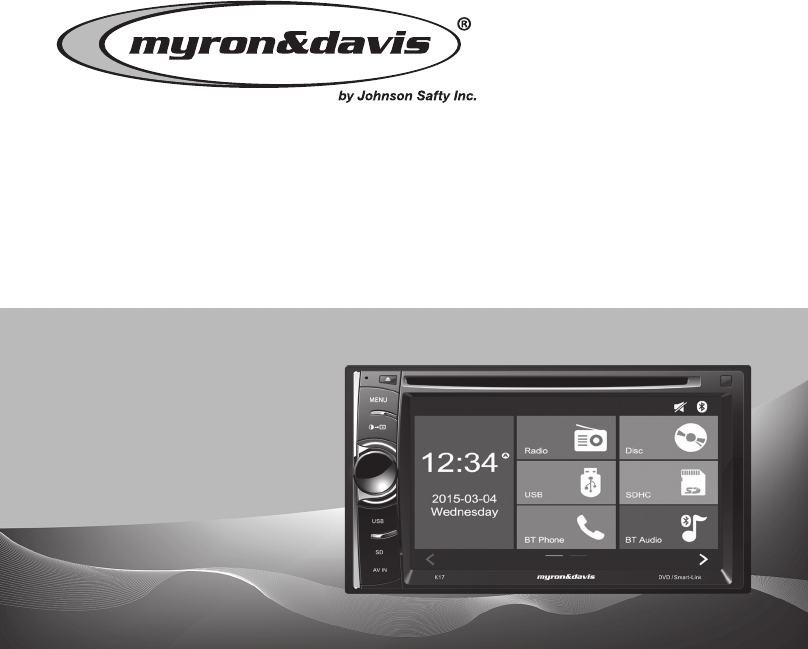
Operating Instructions
DVD | CD | MP3 | SD | USB | BLUETOOTH | SMARTLINK
In-Dash
Double Din
Multimedia
SmartLink
K17
1
Safety Precautions
Do not change the fuse on the power
cord without professional guidance. Using
an improper fuse may cause damage to
this unit or even cause re.
Please contact your nearest dealer if one
of the following is experienced:
(a). Water or other objects enter the unit.
(b). There is smoke.
(c). Peculiar smell.
To ensure safe driving, please adjust the
volume to a safe and comfortable level in
case of emergency situations.
Thank you for purchasing this product.
Please read through these operating
instructions so you will know how to
operate your model properly. Please keep
this manual in a safe place for future
reference.
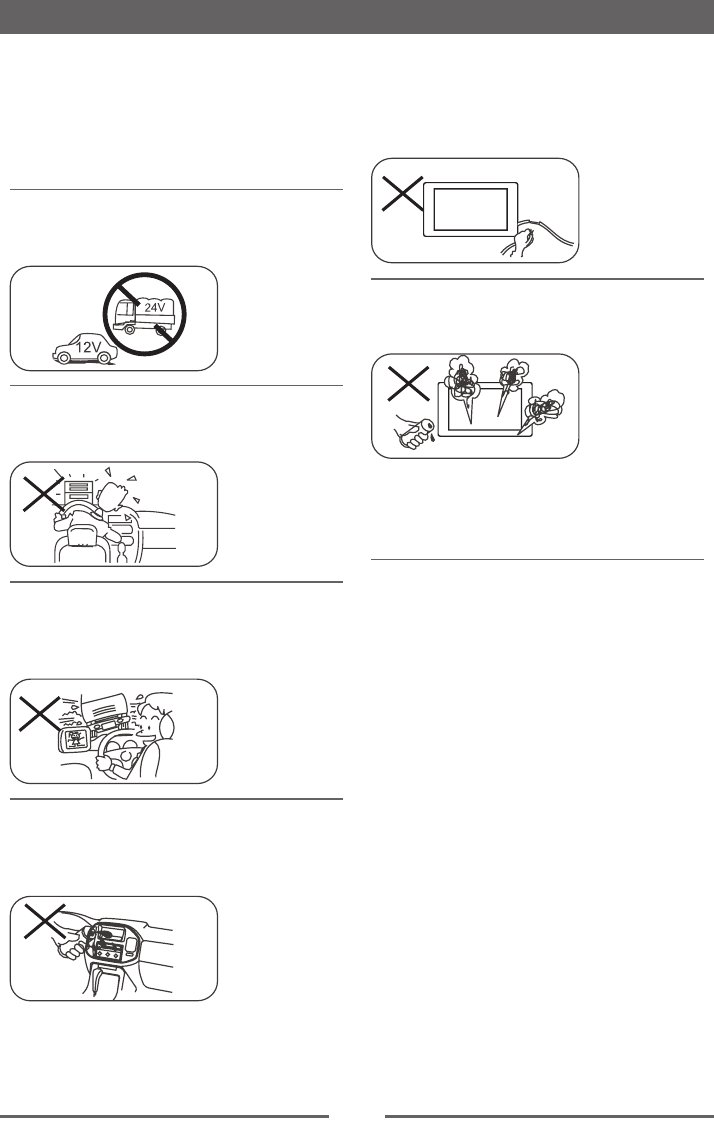
Only connect the unit to a 12-volt power
supply with negative grounding.
Never install this unit where operating it
may impair safe driving conditions.
Never use the front video display function
when driving, so as to prevent violating
trafc regulations or causing an accident.
Never expose this unit, amplifier, and
speakers to moisture or water to prevent
electric sparks or re.

2
Safety Precautions
1. Never disassemble or adjust the unit without
any professional guidance.
For details, please consult any professional
car shop / dealer for inquiry.
2. If the front panel or TFT monitor is dirty,
please use a clean silicone cloth and neutral
detergent to wipe off the spot. Using a rough
cloth and non-neutral detergent such as
alcohol for cleaning may result in scratching
or decoloration to the monitor.
3. If any abnormal behavior of the unit is
found, please refer to trouble shooting guide
of this manual. If no relevant information is
found, please press the [RESET] key on the
front panel to resume factory default.
4. If you have parked the car in hot or cold
weather for a long time, please wait until
the temperature in the car becomes normal
before operating the unit.
5. Using the car heater in low temperature
environment may result in moisture inside
the unit, DO NOT use the unit in this
situation. Eject the disc and wipe off the
moisture on the disc. If the unit still doesn't
work after a few hours, please contact the
service center.
6. Do not impact the LCD monitor which could
cause damage.
7. To prevent damage to the screen, avoid
touching it with sharp objects.
8. To provide a clear demonstration and an
alternative for easy understanding to the
operation of this unit, graphic illustrations
are used.
However, some illustrations are different
from the actual images displayed on the
screen.
9. Operate the unit correctly according to this
manual to prevent unnecessary problem.
The guarantee won't be valid if the problem
is caused by inappropriate operation.
FCC STATEMENT
1. This device complies with Part 15 of the
FCC Rules.Operation is subject to the
following two conditions:
(1) This device may not cause harmful
interference.
(2) This device must accept any interference
received, including interferencethat may
causeundesired operation.
2. Changes or modifications not expressly
approved by the party responsible
forcompliance could void the user's authority
to operate the equipment.
NOTE: This equipment has been tested and
found to comply with the limits for aClass
B digital device, pursuant to Part 15 of the
FCC Rules. These limits aredesigned to
provide reasonable protection against harmful
interference in aresidential installation.
This equipment generates uses and can
radiate radio frequency energy and,if not
installed and used in accordance with the
instructions, may causeharmful interference
to radio communications. However, there is
noguarantee that interference will not occur
in a particular installation. If this equipment
does cause harmful interference to radio or
televisionreception, which can bedetermined
by turning the equipment off and on, the user
is encouraged to try to correct the interference
by one or more ofthe following measures:
• Reorient or relocate the receiving antenna.
• Increase the separation between the
equipment and receiver.
• Connect the equipment into an outlet on
a circuit different from that towhich the
receiver is connected.
• Consult the dealer or an experienced radio/
TV technician for help.
FCC Radiation Exposure Statement
This equipment complies with FCC radiation
exposure limits set forth for an uncontrolled
environment. This equipment should be
installed and operated with minimum distance
20cm between the radiator & your body

3
Contents
Safety Precautions ...................................1
Before Using .............................................4
Front Panel .............................................4
Basic Operations ......................................5
Power On / Off ........................................5
Playing Source Selection ........................ 5
Mute ........................................................5
Volume Adjustment.................................5
Audible Beep Conrmation .....................5
Parking Brake Inhibit...............................5
Adjusting Equalizer Controls...................5
Equalizer (EQ) ........................................5
Adjusting the Fader and Balance ...........6
Settings .....................................................7
System Settings ...................................... 7
General Settings .....................................7
Calibration...............................................7
SWC Programing .................................... 7
Audio Settings.........................................8
Time Settings .......................................... 8
Language Settings .................................. 9
Video Settings.........................................9
Adjust Volume Settings...........................9
Radio Mode .............................................10
Select Radio as Playing Source ...........10
Select One Radio Band ........................10
Tune......................................................10
Preset Station .......................................10
Local radio station seeking ...................11
EQ Selection ......................................... 11
RBDS ....................................................11
Playback Mode........................................12
Basic information ..................................12
Insert a disc ..........................................12
Eject a Disc ........................................... 12
Touch Screen Controls .........................12
Controlling Playback .............................12
Connecting the USB Device .................12
Removing the USB Device ...................12
Inserting the SD card ............................12
Removing the SD card..........................13
DVD movie playback ............................13
Audio playback ....................................13
Video playback ....................................14
Image playback ....................................15
Bluetooth Mode ......................................16
Pairing Bluetooth Enabled Devices ......16
Disconnecting a Bluetooth Device ........16
Make a Call ........................................... 16
Receiving a Call .................................... 17
Adjust Bluetooth Settings......................17
Bluetooth Music Function .....................17
iPod/iPhone Operations ......................... 18
Accessing iPod mode ...........................18
Pausing play .........................................18
Selecting a track ...................................18
Fast forward/Fast backward .................18
Repeat play...........................................18
Random play.........................................18
Search function ..................................... 18
SmartLink ................................................19
About SmartLink ...................................19
About HDMI ..........................................19
Connect with Android Phone ................19
Connect with iPhone ............................. 19
Setting...................................................20
Limitations.............................................20
Other Modes ............................................21
Aux 1 / Aux 2 Controls ..........................21
Reset ....................................................21
Replace a Fuse.....................................21
Rear Camera Operation .......................21
Specications .........................................22
Troubleshooting .....................................24
Wire Connections ...................................25
4
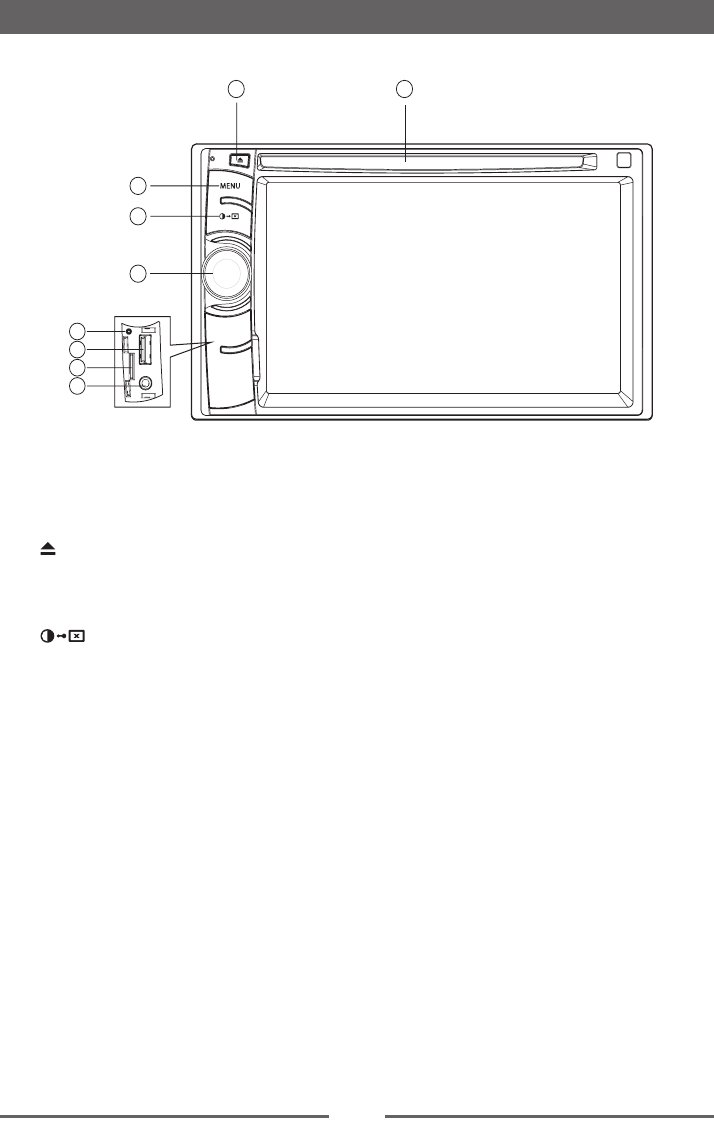
Front Panel
Before Using
1. Disc slot
2. [ ] Button
Press to eject a disc.
3.[MENU] Button
Press to display the main menu
4. [ ] Button
Adjust the brightness of screen.
5. Power/Volume knob
Rotate to adjust volume.
Press briey to activate the MUTE function. Press again to resume normal sound.
Press and hold to turn the unit OFF.
6. Reset Hole
7. USB Socket
8. SD card reader for media.
9. A/V IN Socket
Notice:
The graphics in this manual are for reference purposes only and
may differ somewhat from the actual unit.
1
3
2
5
4
7
6
8
9
5
Power On / Off
Press the Power/Volume knob on the unit or
[ ] on the remote control to turn the unit ON.
The buttons on the front panel light up for a
moment and the current mode status appears
on LCD.
Press and hold the knob or [ ] on the remote
control to turn OFF the unit.
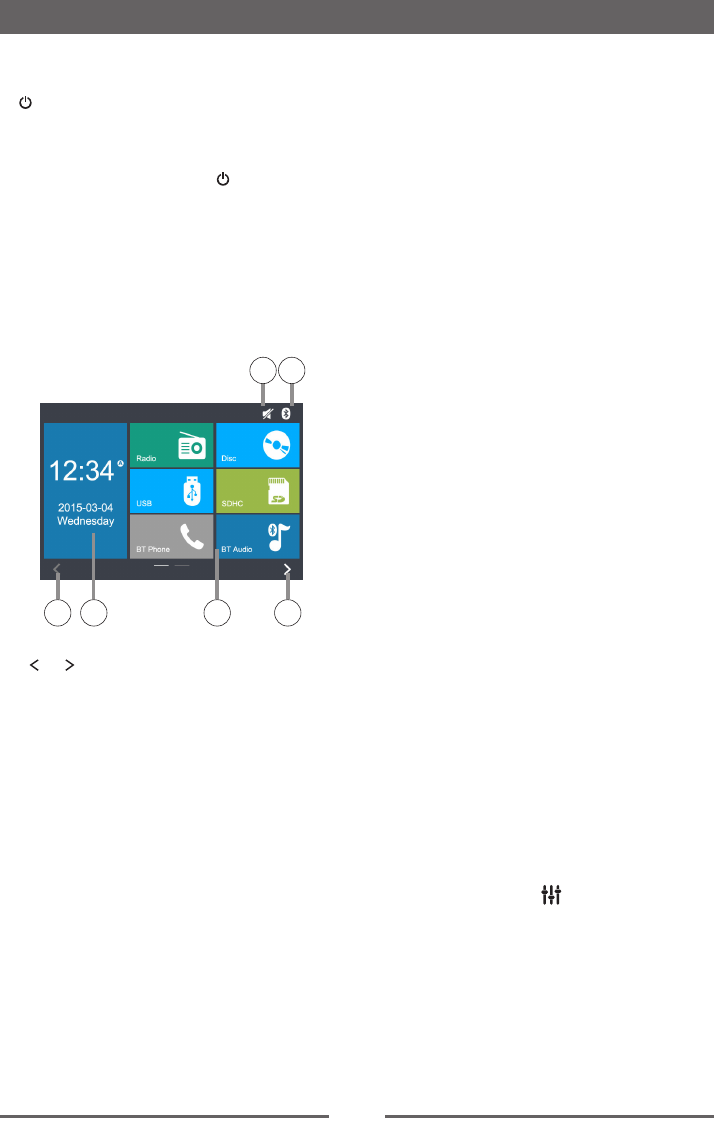
Playing Source Selection
Press the [ MENU ] button on the front panel
or [ SRC ] on the remote control to display the
playing source menu.
1
3
5
4
1 2
1. or : Touch to view the previous or next
page of playing sources.
2. Time and Date
3. Playing source icon: touch to access
corresponding work mode.
4. Mute indicator
5. Bluetooth status
Mute
Press the Power/Volume knob on the front
panel or press [ MUTE ] on the remote control
to mute the volume from the unit. Press again
to restore the volume. Adjusting the volume or
using any of the audio setup features cancels
the mute function.
Basic Operations
Volume Adjustment
To increase or decrease the volume level, turn
the knob on the front panel or press [ + ]/[ - ]
on the remote control. The volume range is
from “0” to “40”. The TFT screen displays the
volume level for 3 seconds.
Audible Beep Conrmation
An audible beep tone confirms each function
selection. The Beep tone can be disabled
through the Setup menu.
Parking Brake Inhibit
• When the “BRAKE” wire is connected to the
brake switch, the TFT monitor will display
video only when the vehicle is parked.
• Parking brake function is overridden when
the video source is set to REVERSE.
• When the parking brake inhibit is active, the
front monitor displays Warning information,
preventing the driver from watching content
while driving. Rear video screens are not
affected.
Adjusting Equalizer Controls
The Equalizer adjustment screen allows
the user to easily adjust the audio system
to meet the acoustical characteristics of the
vehicle depending on vehicle type and cabin
dimensions.
For example: proper setting of the audio
controls can improve the speakers frequency
response.
The Balance/Fade levels also adjusted through
the Equalizer adjustment screen.
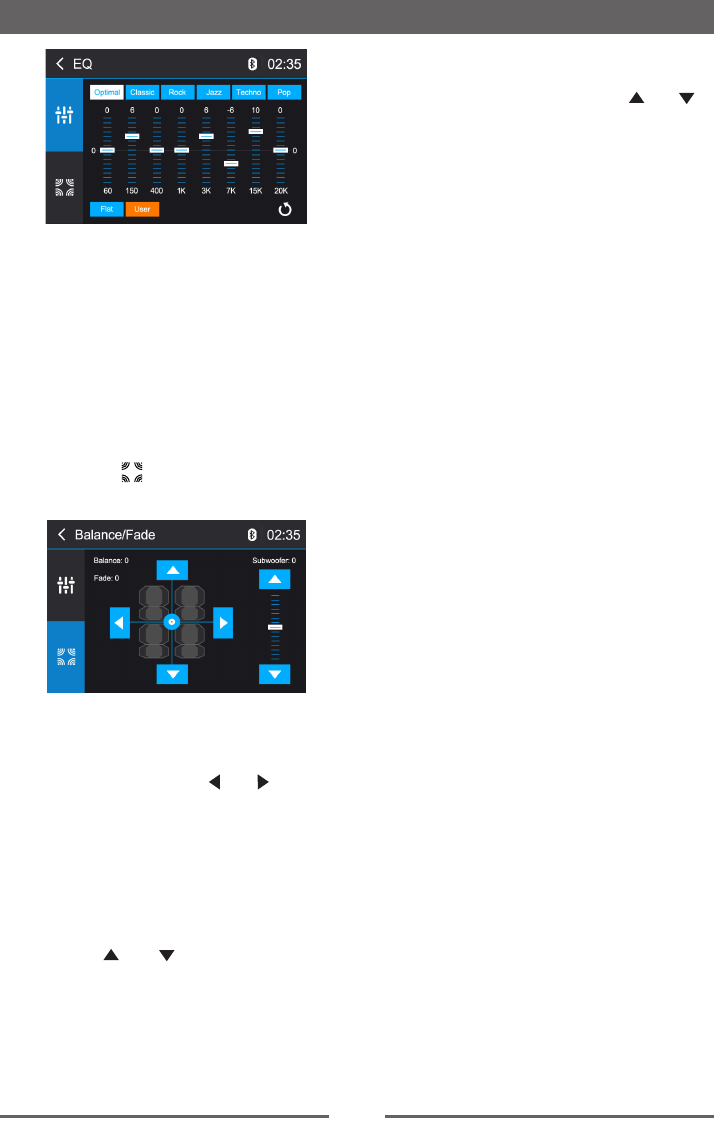
Equalizer (EQ)
Touch the Equalizer [ ] icon to view and
select a desired acoustical preset level
( Optimal / Classic / Rock / Jazz / Techno / Pop
or User).
6
Basic Operations
NOTE:
The equalizer will automatically change to
“USER” when individual audio functions are
adjusted.
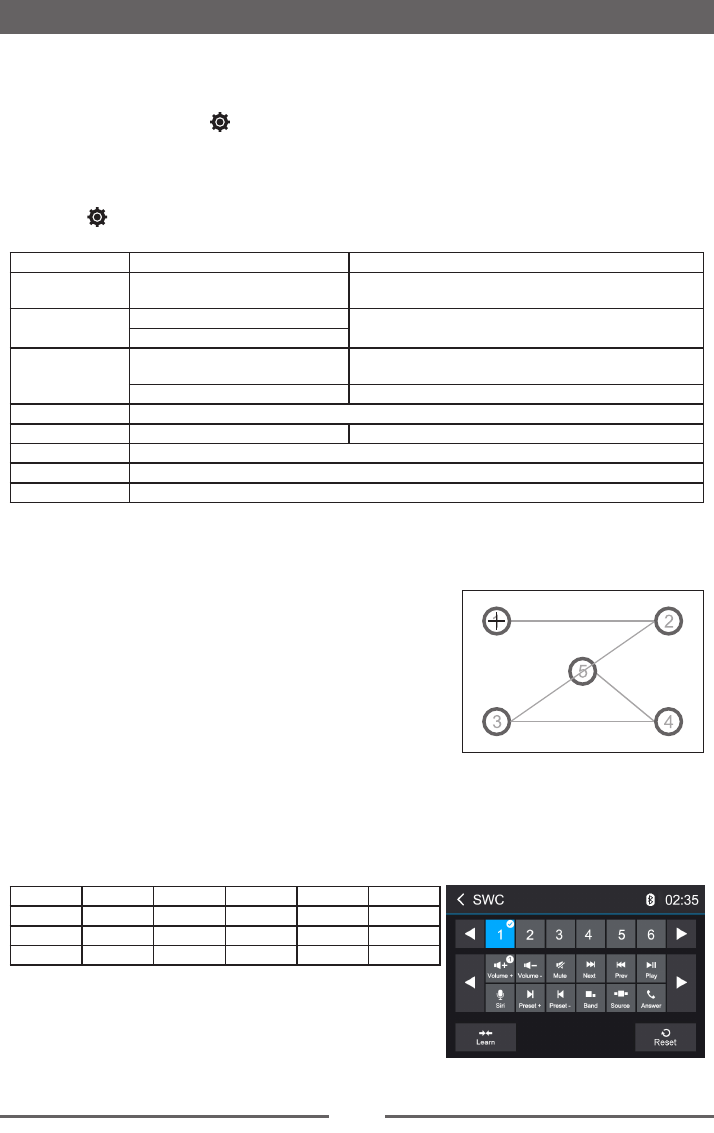
Adjusting the Fader and Balance
The user can adjust front/rear fader settings,
L/R balance settings, and subwoofer levels
here.
1. Enter the EQ setup mode.
2. Touch the [ ] icon in the EQ interface
menu.
Balance
This feature is used to balance the audio
output levels between the left and right side
of the vehicle. Touch the [ ] / [ ] icons to
change the balance control settings -14 (Left)
to +14 (Right).The setting can also be changed
by touching screen within the grid to move the
blue sphere.
Fader
This feature is used to fade the audio output
levels between the front and rear of the vehicle.
Touch the [ ] / [ ] icons to change the
fade control settings -14 (Rear) to +14 (Front).
The setting can also be changed by touching
screen within the grid to move the blue sphere.
Subwoofer
This feature is used to reduce or increase the
subwoofer sound level. Touch the [ ] / [ ]
icons to adjust the subwoofer volume from -8
to +8. This setting will vary depending on the
input level setting of your subwoofer amplier.
To exit the Balance/Fader touch the return icon
on the top left corner of the screen.
NOTE:
The EQ mode will change to ‘User’
automatically when you adjust the frequency
value in all modes besides ‘User’.
7
System Settings
1. Press the [ MENU ] button on the front panel or [ SRC ] on the remote control to display the
playing source menu.
2. Touch the Settings icon [ ] and the settings menu is displayed.
General Settings
1. Touch [ ], if necessary.
2. Touch to highlight a setting to display/select an option.
General Settings Options Description
Radio Region USA/Asia/Japan/Europe/Europe
LW/Oirt Select one that matches your location.
Radio Range Distance Select Local to receive only stations with extremely
strong signal.
Local
Beep On Turn-ON the beep sound. Each time you press a button,
the unit beeps.
Off Turn-OFF the beep sound.
Key Color Choose the backlight color of the buttons.
Calibration Start Calibrate the touch screen.
Shortcut Set the shortcut.
SWC Enter to SWC interface
Load Factory Restore to default settings.
Calibration
When the touch operation is not sensitive or valid, you should
calibrate the touch screen using the calibration setting function.
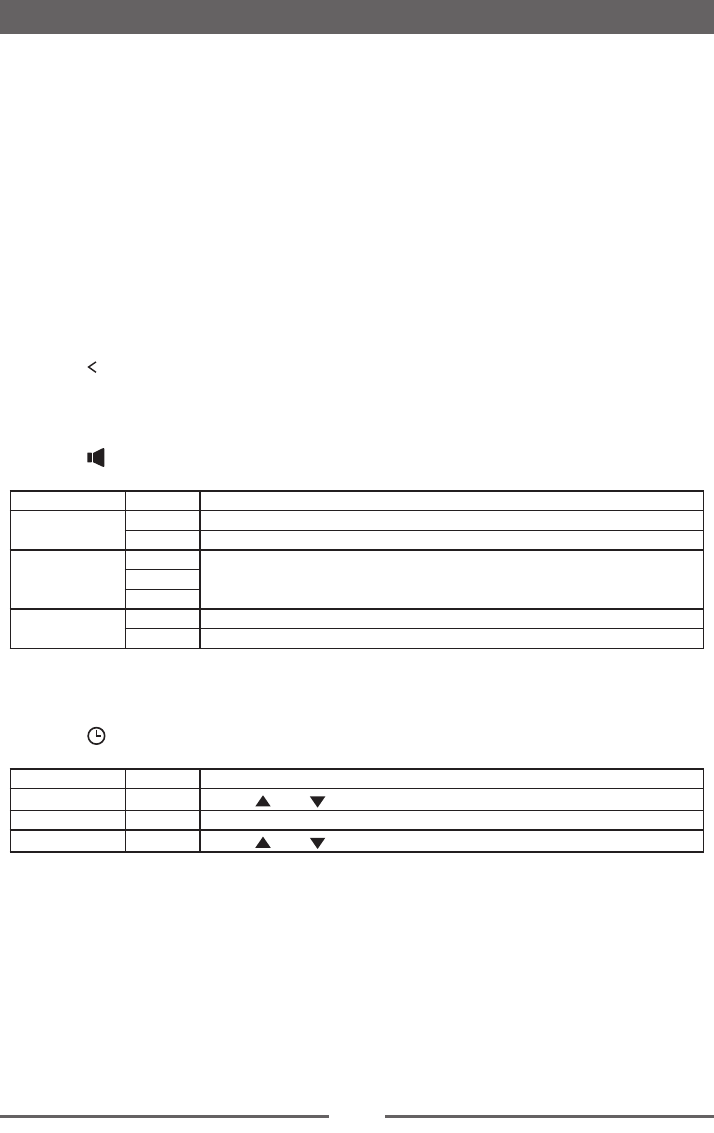
Adjust the response positions of the touch panel as followings:
1. Touch [ Start ] to enter.
2. Touch [ Cancel ] to exit.
3. Press and hold the center of [ + ] for 2 seconds, the [ + ] will
move automatically.
4. Aim at center of [ + ], follow the path as shown in the gure.
Once steps 1-5 are complete, touch [ OK ] to exit calibrating
mode.
SWC Programing
The following controls are available for most vehicles:
123456
Volume + Volume - Mute Next Prev Play
7 8 9 10 11 12
Siri Preset + Preset - Band Source Answer
Touch [ Enter ], the SWC menu will display.
Up to 12 steering wheel control functions can be
programmed via the built-in SWC interface. Not all functions
may be supported for each vehicle.
Settings
8
1. Popular OE steering wheel functions are already pre-programmed from the factory. If your
vehicle does not support the exact same functions already pre-programmed, you will need to
clear / reset the SWC interface and program in the exact functions of your vehicle. To clear /
reset the SWC interface, touch [ Reset ] icon.
2. To begin programming the SWC interface after it has been cleared / reset, press a number
1 ~ 12, then press a function. A check mark should appear corresponding to the number
and function. Continue programming in this manner until all of the OE steering wheel control
functions are completed.
NOTE:
Functions 1 ~ 12 must be assigned to a function on the OE steering wheel. For example, if
the OE steering wheel does not support Preset + and Preset -, then these functions must be
cleared / reset in order for the other functions to work correctly.
3. To “learn” the programming completed in step 2 above, touch the [ Learn ] icon. You will then
be prompted to push each button on the OE steering wheel (for 1 second), so the unit can learn
the corresponding function.
4. SWC learning / programming is now complete.
5. Touch [ ] to exit.
Audio Settings
1. Touch [ ].
2. Touch an option repeatedly to select.
Audio Settings Options Description
Subwoofer On Turn On the subwoofer.
Off Turn Off the subwoofer
Subwoofer Filter
80Hz Select a crossover frequency to set a cut-off frequency for the subwoofer’s LPF
(low-pass lter).
120Hz
160Hz
Loudness On Turn On the loudness
Off Turn Off the loudness
Time Settings
1. Touch [ ].
2. Touch an option repeatedly to select.
Time Settings Options Description
Date Y/M/D Touch [ ] or [ ] to set year, month and day.
Clock Format 24Hr/12Hr Touch [ 24Hr ] or [ 12Hr ] to switch clock mode.
Time H/M Touch [ ] or [ ] to set hour and minutes.
NOTE:
When date/time is set, touch [ Save ] to conrm or [ Cancel ] to exit.
Settings
9
Settings
Language Settings
1. Touch [ ].
2. Touch an option repeatedly to select.
Language Settings Description
OSD Language Select on-screen display language.
DVD Audio Select DVD audio language. Options available depending on DVD disc.
DVD Subtitle Select DVD subtitle language. Options available depending on DVD disc.
DVD Menu Select DVD menu language. Options available depending on DVD disc.
Video Settings
1. Touch [ ].
2. Touch an option repeatedly to select.
Video Settings Options Description
Aspect Ratio Full Adjust aspect ratio.
Normal
Parking On Disable video when driving.
Off Enable video when driving.
Password Set password to restrict the play of discs. The default password is 0000.
Rating
1 Kid Safe Acceptable for children.
2 G Acceptable for general viewers.
3 PG Parental guidance suggested.
4 PG13 Unsuitable for children under age 13.
5 PG-R Recommend parents to restrict viewing for children under 17.
6 R Restricted re-parental guidance is advised for children under the age of 17.
7 NC-17 Unsuitable for children under age 17.
8 Adult Acceptable for adults only.
Adjust Enter Touch [ + ] or [ - ] to adjust brightness, contrast and saturation.
Version Info Enter Display the current version information
Adjust Volume Settings
You can set different volumes for different sources.
1. Touch the [ ] icon to display and access the volume setting sub-menu
2. Touch the source to be adjusted.
3. The volume range is from “00” to “06”
When switching to the source, the volume increases automatically.
4. Touch blank area to close the sub-menu and touch the upper left corner icon [ ] to exit setting
menu.
10
Radio Mode
Select Radio as Playing Source
Open the Source Menu and then touch [Radio].
1
4
3
2
5
6 7 8 109
14131211 15 10
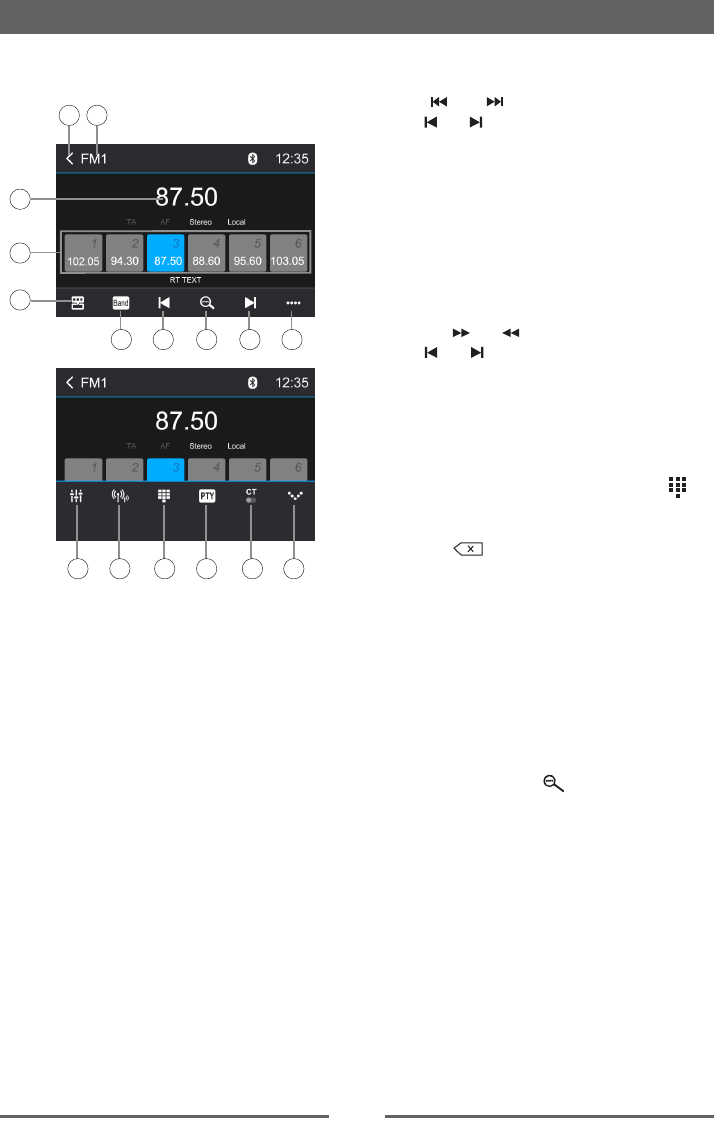
1. Current radio band indicator.
2. Return to home menu.
3. Current station frequency.
4. Preset stations list.
5. Shortcut.
6. Band switch.
7. Tune backward.
8. Auto searching.
9. Tune forward.
10. Opening/closing the options menu.
11. Enter EQ menu.
12. Choose local or distant seeking mode.
13. Enter frequency directly.
14. To show PTY list.
15. To turn On or Off “Clock Time”
synchronization function.
Select One Radio Band
Touch the [ Band ] icon on the user interface
to select one radio band among FM1, FM2,
FM3, AM1 and AM2.
Tune
Auto Tuning
Press [ ] / [ ] on the remote control or
touch [ ] / [ ] icons on the user interface to
seek a higher / lower station.
To stop searching, repeat the operation above
or press other keys having radio functions.
NOTE:
When a station is received, searching stops
and the station is played.
Manual Tuning
Method 1:
Press the [ ] / [ ] on the remote control or
touch [ ] / [ ] icon on the user interface for
more than 1 second to enter Manual Tuning
mode.
During manual tuning, the frequency will be
changed in steps.
Method 2:
1. Touch the numeric keypad icon [ ].
Numeric keyboard is displayed, touch
numbers to input frequency.
2. Touch [ ] to delete the input numbers
step by step.
3. Touch [ OK ] to enter.
Preset Station
The unit has 5 bands, such as FM1, FM2,
FM3, AM1, AM2, and each band can store 6
stations; hence the unit can store 30 stations in
total.
Search Stations Automatically
Touch the search icon [ ] to search stations
and store the 6 strongest stations in the current
band automatically.
Manual Store
1. Tune to a desired station.
2. Touch and hold one of the presets (1 to 6)
to save the selected station.
Recalling a Station
1. Select a band.
2. Touch an on-screen preset button to select
the corresponding stored station.

11
Radio Mode
Local radio station seeking
When the Local function is on, only radio
stations with a strong local radio signal are
played. To activate the Local function in the
AM/FM tuner mode, touch [ ] on the screen.
The Options tab is revealed. Touch [ ]
icon and choose the Radio Local or Distance.
When the Local function is active, the “Local”
indicator on the screen is illuminated. When
the Distant function is active, the “Distance”
indicator on the screen is illuminated.
EQ Selection
Press the [ ] icon and enter the EQ setup.
RBDS
RBDS (Radio Broadcast Data System)
transmits data to the radio which displays
information such as station identication, song
artist, and song title.
RBDS service availability varies with areas. If
RBDS service is not available in your area, the
following service is not available.
CT (Clock Time)
Some stations broadcast the time and date
within the encoded RBDS signal. The clock
time is automatically adjusted when ‘CT’ is set
to ‘ON’.
NOTE:
Stations broadcasting close to time zones may
not broadcast the correct time in your particular
area. In this case, turn CT Off and manually
set the time.
PTY Function
PTY is the abbreviation for Program Type
which is a code defining the type of program
being broadcast (e.g. News or Rock).
Then PTY options will display on the screen.
To view more PTY options, touch the scroll bar
and arrows on the screen.
When one PTY option is touched (e.g.
News), auto search for next available PTY
by increasing tuning frequency until the PTY
of the next station matches the current. If no
matched PTY has been found, the unit will
return to the original radio frequency.
12
Basic information
This system will play the following types of
discs:
The car sound system can be used to play
audio DVDs/CDs and DVD/CD-R/RWs with
audio or MP3 files as well as MP3 or WMA
les on USB stick and SD cards.
In addition, you can view movies and images
from DVDs/VCDs/CDs, USB stick and SD
cards on the display.
For safety reasons, the playback of movies and
images on the integrated monitor is allowed
only while the vehicle is standing and the hand
brake is applied. The “PARKING” cable must
be connected with the hand brake connection
of the vehicle (see Connection diagram at the
end of these instructions).
NOTE:
This unit is designed to play pre-recorded
(original) DVDs/VCDs/CDs. Some burned
DVDs/VCDs/CDs may not play due to different
recording formats.
Insert a disc
Upon inserting a disc, the unit will switch to
[Disc] mode automatically.
Eject a Disc
Press the [ ] key on the front panel or [EJECT]
on the remote control to eject the disc.
Touch Screen Controls
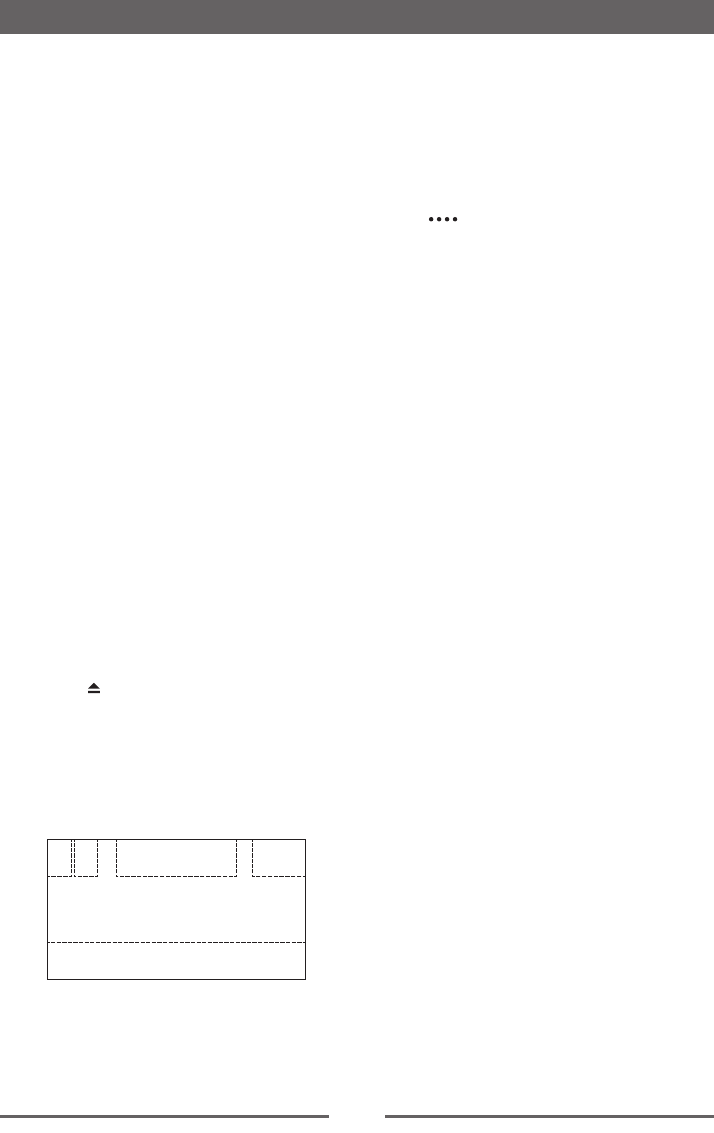
The touch key areas for DVD playback are
outlined below:
A B C
E
D
A: Return to the main menu
B: Disc type
C: Play the video and display playback
information
Playback Mode
D: Time display
E: Display onscreen control menu
Controlling Playback
To access the on-screen controls, touch the
screen anywhere except for the upper left
corner and touch again to cancel display.
Touch [ ] to view all function icons.
Connecting the USB Device
1. Open the USB door.
2. Connect an USB device into the USB
connector.
Play starts automatically.
NOTES:
1. If there are audio files supported on the
USB stick, the system will enter the audio
les menu automatically.
If there are no audio files, but there are
video files supported on the USB stick,
the system will enter the video files menu
automatically.
If there are no audio or video les, but there
are picture les supported on the USB stick,
the system will enter the picture les menu
automatically.
If there no above audio/video/picture files
supported in the USB stick, the screen will
display “Load Error!”.
2. Not all USB devices are compatible with the
unit.
Removing the USB Device
1. Select another source in the main menu.
2. Remove the USB device.
Inserting the SD card
1. Open SD card cover.
2. Insert the SD card into the SD card slot.
Play starts automatically.
NOTES:
1. If there are audio les supported on the SD
card, the system will enter the audio files
menu automatically.
If there are no audio files, but there are
video files supported on the SD card, the
system will enter the video files menu
13
Playback Mode
automatically.
If there are no audio or video les, but there
are picture les supported on the SD card,
the system will enter the picture les menu
automatically.
If there no above audio/video/picture files
supported in the SD card, the screen will
display “Load Error!”.
2. Not all SD cards are compatible with the
unit.
Removing the SD card
1. Select another source in the main menu.
2. Press the card until you hear a click sound.
3. Remove the SD card.
DVD movie playback
The car sound system can play video DVDs
and VCDs. After inserting the DVD, the
playback starts automatically.
The DVD menu is displayed.
You can navigate in the DVD menu by
touching the corresponding buttons in the DVD
menu on the screen.
After starting the movie via the menu of the
DVD, the movie is displayed. The playback
menu for DVDs is hidden.
NOTE:
Briefly touch the screen once to display the
playback menu again.
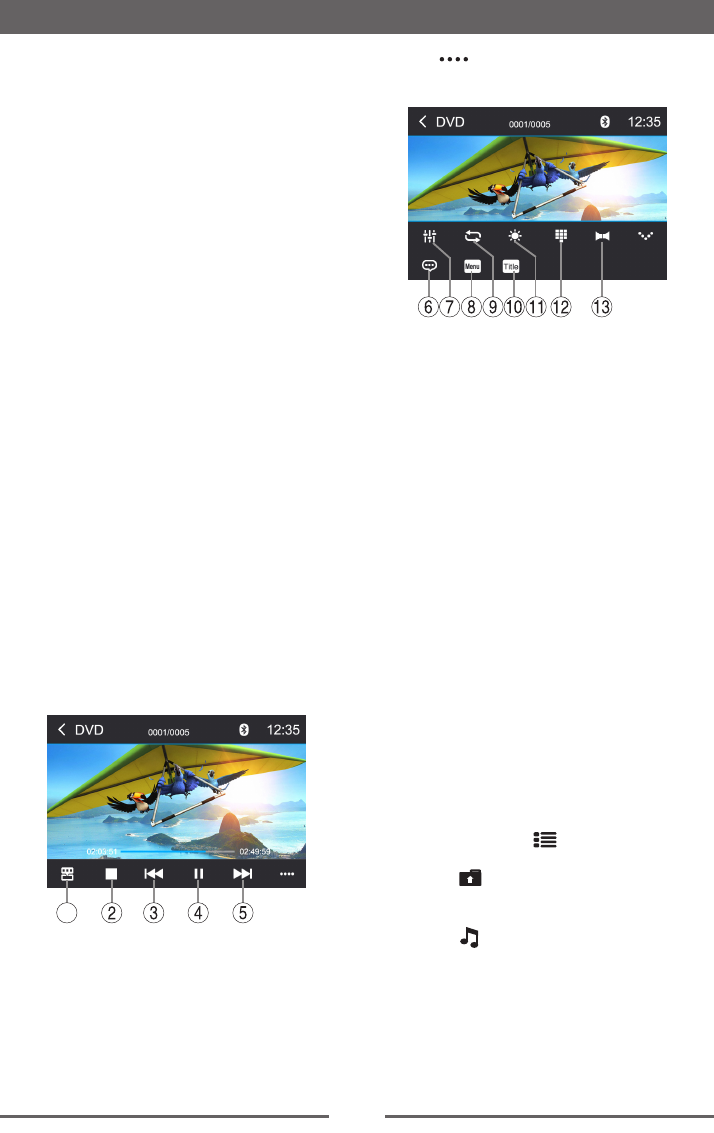
The playback menu is shown.
1
1. Shortcut.
2. Stop playback, call up home menu.
3. Select previous chapter.
4. Pause playback and continue playback.
5. Select next chapter.
Tap on [ ] to display additional operating
options of the playback menu.
6. Select playback language (only if supported
by the DVD).
7. Display equalizer.
8. Return to menu.
9. Start and end REPEAT function.
Repeat mode:
Repeat Chapter → Repeat Title → Repeat
All → Repeat Off
10. Return to title.
11. Adjust the brightness, contrast, and
saturation.
12. Call up keypad for direct selection of titles
or chapters.
13. Select playback audio channel (only if
supported by the DVD).
Audio playback from DVD/CD, USB
or SD
The principles of audio playback (MP3/WMA)
from data carriers are identical for all sources.
Select the desired source via the main menu.
The device changes to the desired source and
the playback starts.
If the playback does not start with the audio
playback, touch the [ ] icon to change to
the folder/le list.
Touch the [ ] icon to display all the folders
and les of the data carrier.
- Or -
Press the [ ] icon to display all the audio
les of the data carrier.
14
Playback Mode
After starting a title, the playback menu is
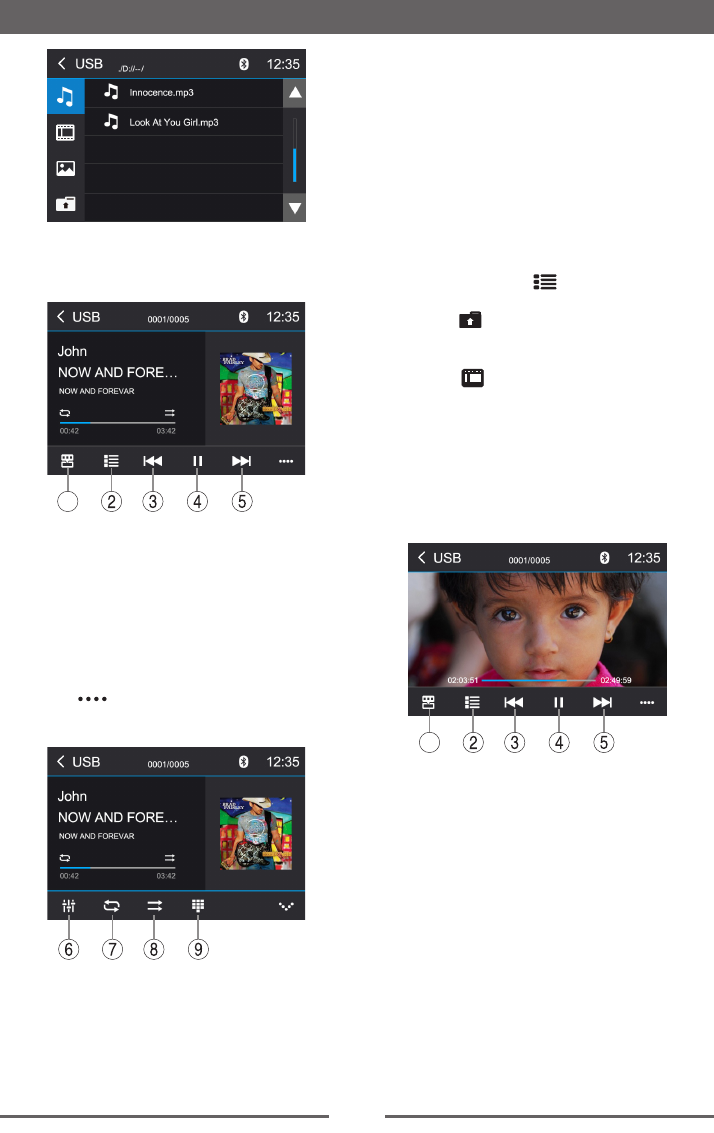
displayed.
1
1. Shortcut.
2. Display the folder/le list.
3. Short press: Previous track.
Long press: Fast backward.
4. Pause playback and continue playback.
5. Short press: Next track.
Long press: Fast forward.
Tap on [ ] to display additional operating
options of the playback menu.
6. Display equalizer.
7. Start and end REPEAT function.
Repeat mode:
Repeat One → Repeat Folder → Repeat All
→ Repeat Off
8. Shufe playback.
9. Display keypad to directly enter the number
of the desired title.
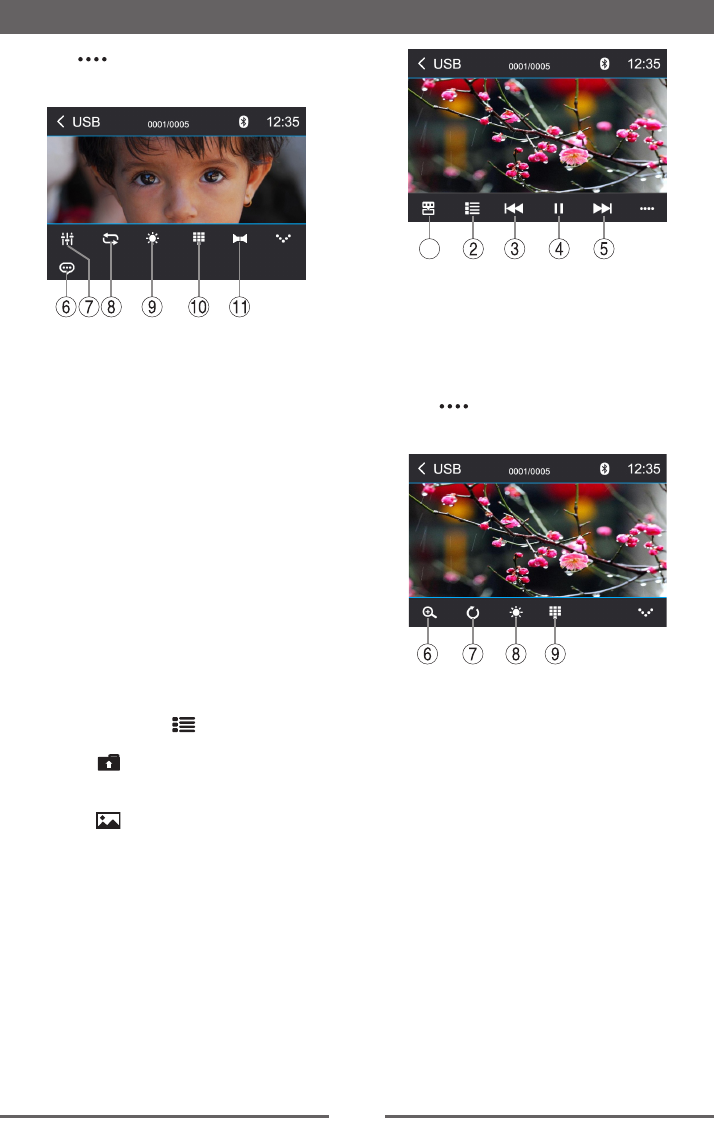
Video playback from DVD/CD, USB
or SD
Select the desired source via the main menu.
The device changes to the desired source and
the playback starts.
If the playback does not start with the video
playback, touch the [ ] icon to change to
the folder/le list.
Touch the [ ] icon to display all the folders
and les of the data carrier.
- Or -
Touch the [ ] icon to display all the audio
les of the data carrier.
If you selected a movie, the playback is started.
During the movie playback, the playback menu
is hidden.
Briefly touch the screen once to display the
playback menu again.
The playback menu is shown.
1
1. Shortcut.
2. Display the folder/le list.
3. Short press: Previous movie.
Long press: Fast backward.
4. Pause playback and continue playback.
5. Short press: Next movie.
Long press: Fast forward.
15
Playback Mode
Tap on [ ] to display additional operating
options of the playback menu.
6. Select playback language.
7. Display equalizer.
8. Start and end REPEAT function.
Repeat mode:
Repeat One → Repeat Folder → Repeat All
→ Repeat Off
9. Adjust the brightness, contrast, and
saturation.
10. Display keypad to directly enter the
number of the desired title.
11. Select playback audio channel.
Image playback from DVD/CD, USB
or SD
Select the desired source via the main menu.
The device changes to the desired source and
the playback starts.
If the playback does not start with the image
playback, touch the [ ] icon to change to
the folder/le list.
Touch the [ ] icon to display all the folders
and les of the data carrier.
- Or -
Touch the [ ] icon to display all the images
of the data carrier.
If you selected a image, the playback is
started. During the playback, the playback
menu is hidden.
Briefly touch the screen once to display the
playback menu again.
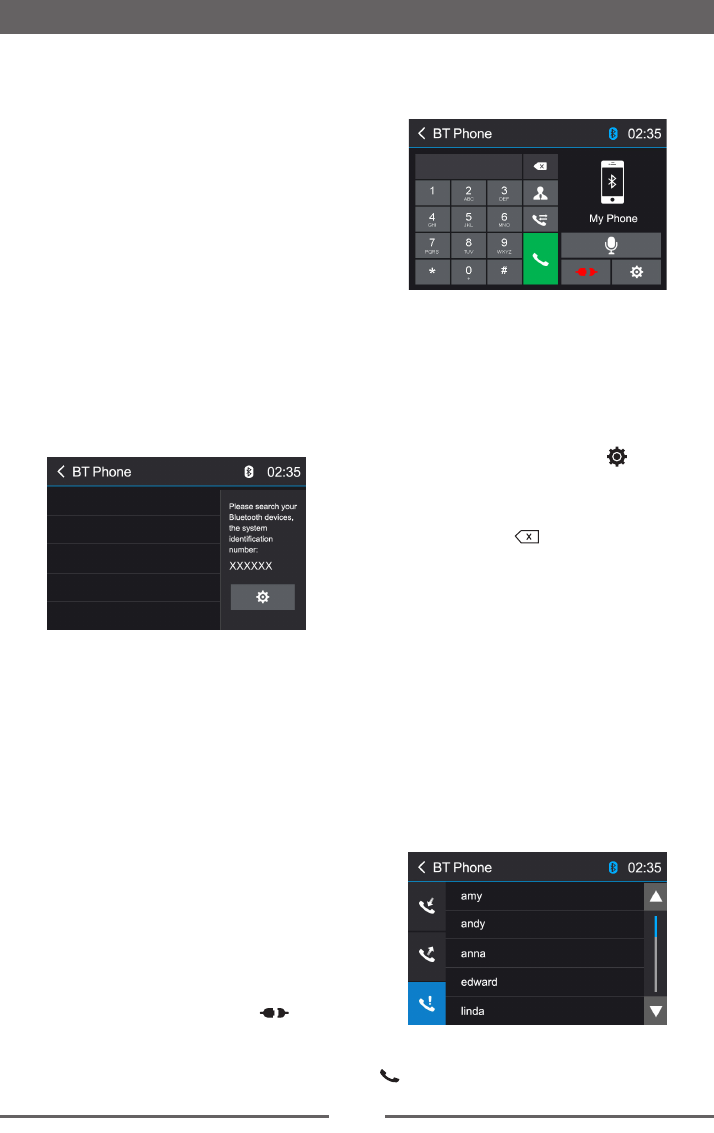
The playback menu is shown.
1
1. Shortcut.
2. Display the folder/le list.
3. Previous image.
4. Pause playback and continue playback.
5. Next image.
Tap on [ ] to display additional operating
options of the playback menu.
6. Zoom in/out.
7. Rotate images .
8. Adjust the brightness, contrast, and
saturation.
9. Display keypad to directly enter the number
of the desired title.
16
The user can make or receive phone calls
with Bluetooth enabled phones through the
unit. The user can also listen to music from a
Bluetooth enabled device.
Pairing Bluetooth Enabled Devices
To connect your Bluetooth phone to the unit,
the user needs to pair the phone to the unit.
Pairing needs only to be done once. The user
can pair up to ve phones.
The user can search for Bluetooth head units
by mobile phone.
1. Turn ON the Bluetooth function on the
device.
2. Search for Bluetooth devices by mobile
phone.
3. Select the Bluetooth device ID(shown on
the screen of the unit) in the pairing list.
4. Enter default password “0000” if necessary.
NOTES:
• The operational range between this unit
and a Bluetooth device is approximately 5
meters.
• Before you connect a Bluetooth device
to this unit, familiarize yourself with the
Bluetooth capabilities of the device.
• Compatibility with all Bluetooth device is not
guaranteed.
• Any obstacle between this unit and a
Bluetooth device can reduce the operational
range.
• Keep this unit away from any other
electronic device that may cause
interference.
Disconnecting a Bluetooth Device
To disconnect one device, touch [ ]. After
pressed, the unit will display a screen listing
paired devices. Pressing the Green “Plug” icon
will reconnect a previously paired phone to the
Bluetooth Mode
BT radio. Pressing the “Wastebin” icon next to
a device’s name will unpair the phone from the
unit.
NOTES
• The device will be disconnected when the
device is moved beyond the operational
range.
• If you want to reconnect the device to the
unit, place it within the operational range.
• If you do not want to reconnect the device to
the unit automatically, touch [ ], then set
[ Auto Connect ] to [ OFF ].
For details, see the “Adjust Bluetooth
Settings” section.
• Touch and hold [ ] to clear all the inputs.
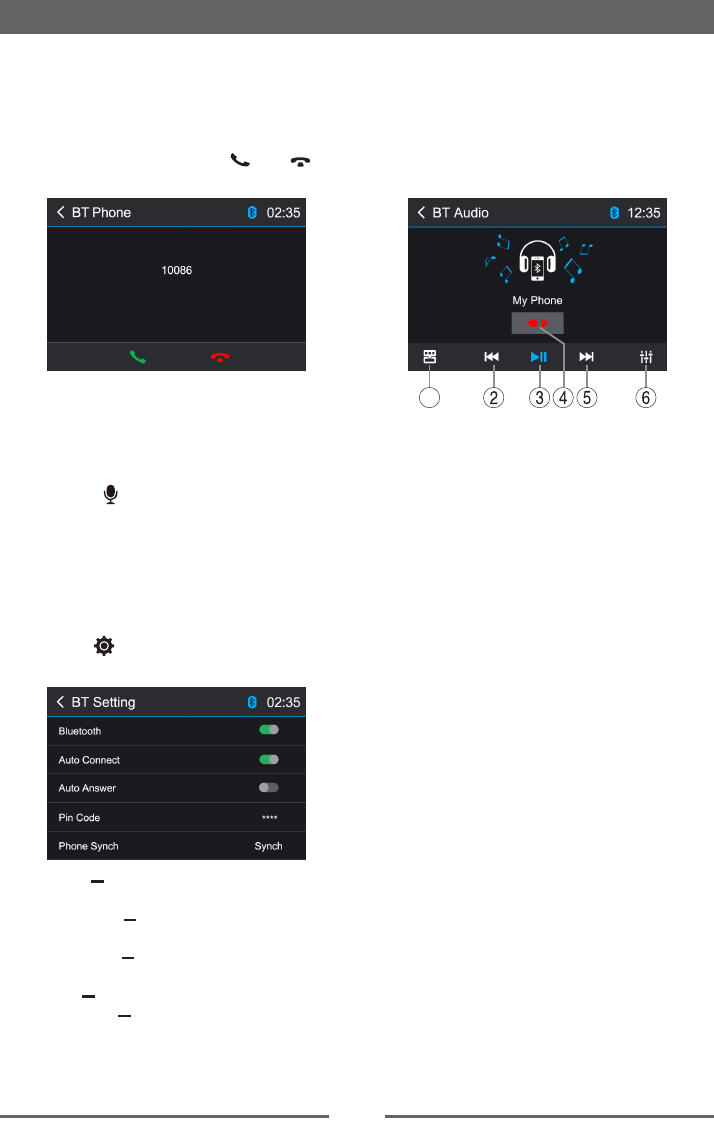
Make a Call
1. Select Bluetooth function in the home menu.
2. On Option page, see the “Phone Synch”
item, and press “Synch” to synchronize the
phone book with the BT. If you have many
contacts, this may take up to 3-4 minutes.
3. Search for phone number from the following
list:
[Phone Book]
[Call History]
[Missed calls]
[Received calls]
[Dialed calls]
Or touch the number pad directly, then touch
[ ] to dial.
17
Bluetooth Mode
Receiving a Call
By default, all incoming calls are received
automaticaly.
1. If there is an incoming call, the screen will
display incoming call number.
2. Touch the screen to select [ ] or [ ].
Speak into the Bluetooth microphone.
NOTE:
• You can select to receive calls manually by
setting [Auto Answer] to [OFF]
i-Mode
Touch the [ ] icon to activate Siri of your
iPhone.
Adjust Bluetooth Settings
In the options menu for Bluetooth, you can
make the basic settings for the Bluetooth
mode.
Touch the [ ] icon.
The options menu is displayed.
Bluetooth To turn the “Bluetooth” function
ON or OFF.
Auto Connect To turn the “Auto Connect”
function ON or OFF.
Auto Answer To turn the “Auto Answer”
function ON or OFF.
Pin Code To set the paring code.
Phone Synch To synchronize phone book,
touch [ OK ] on the sub-menu Phonebook
Synch may take seve ral minute s to load on
initial setup.
Bluetooth Music Function
Bluetooth provides an Advanced Audio
Distribution Prole (A2DP) prole for streaming
music from a mobile phone, sometimes
referred to as a MP3 player. The unit allows
you to play back audio les from your mobile
phoneusing a Bluetooth connection.
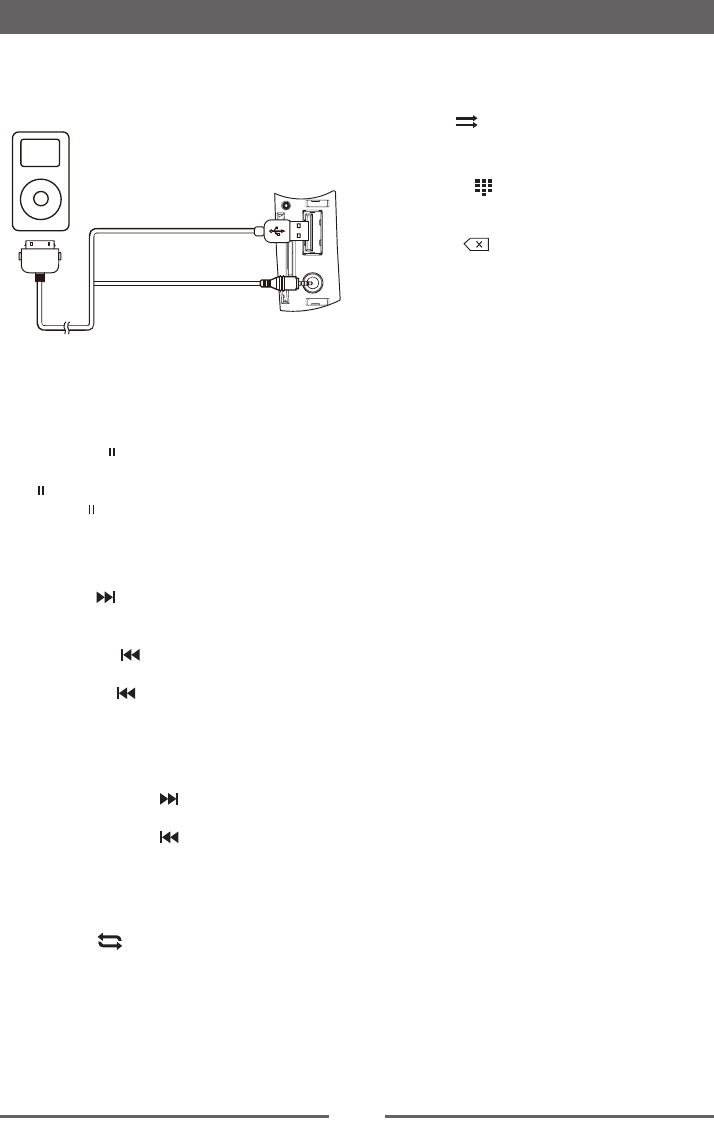
1
1. Shortcut.
2. Previous track.
3. Pause playback and continue playback.
4. Disconnect connection with current device.
5. Next track.
6. Display equalizer.
NOTE:
Please quit A2DP mode before attempting to
make a phone call, as unexpected results may
occur depending on your mobile phone model.
AVRCP is short for Audio/Video Remote
Control Profile. Mobile phones supporting
this function can control the playback of a
Bluetooth audio player.
The unit can control a Bluetooth audio player
via Advanced Audio Distribution Profile
(A2DP) or Audio/Video Remote Control
Profile (AVRCP). Bluetooth audio players (or
Bluetooth adapters) compatible with these
proles can be connected to this unit.
While listening to music from any source, the
user can make a phone call by pressing the
number keys on the mobile phone. The unit will
stop playing music, after the call received, the
voice will be transferred to the unit. When the
call ends, the screen will display music playing
menu.
If there is an incoming phone call, the music
will stop, when the call ends, the screen will
display music playing menu.
18
iPod/iPhone Operations
Accessing iPod mode
Connect an iPod or iPhone to the USB
connector via an iPod cable.
Touch [iPod] on the main menu to enter iPod
menu.
Pausing play
1. Touch the [ ] icon on the bottom of the screen
to pause play.
[ ] appears on the screen.
2. Touch [ ] icon again to resume play.
Selecting a track
Track-up
Touch the [ ] icon to move to the beginning
of the next track.
Track-down
1. Touch the [ ] icon to move back to the
beginning of the current track.
2. Touch the [ ] icon twice to move back to
the beginning of the previous track.
Fast forward/Fast backward
Fast forward
Touch and hold the [ ] icon .
Fast backward
Touch and hold the [ ] icon .
Repeat play
This function allows you to play the track
repeatedly.
Touch the [ ] icon to select Repeat one or
Repeat all.
Random play
This function allows you to play all tracks
recorded in a random order.
Touch the [ ] icon to perform random play.
Search function
1. Touch the [ ] icon to enter search menu.
2 Input number, then touch [ OK ] to begin
searching.
Touch [ ] icon to delete inputted
number.
19
SmartLink
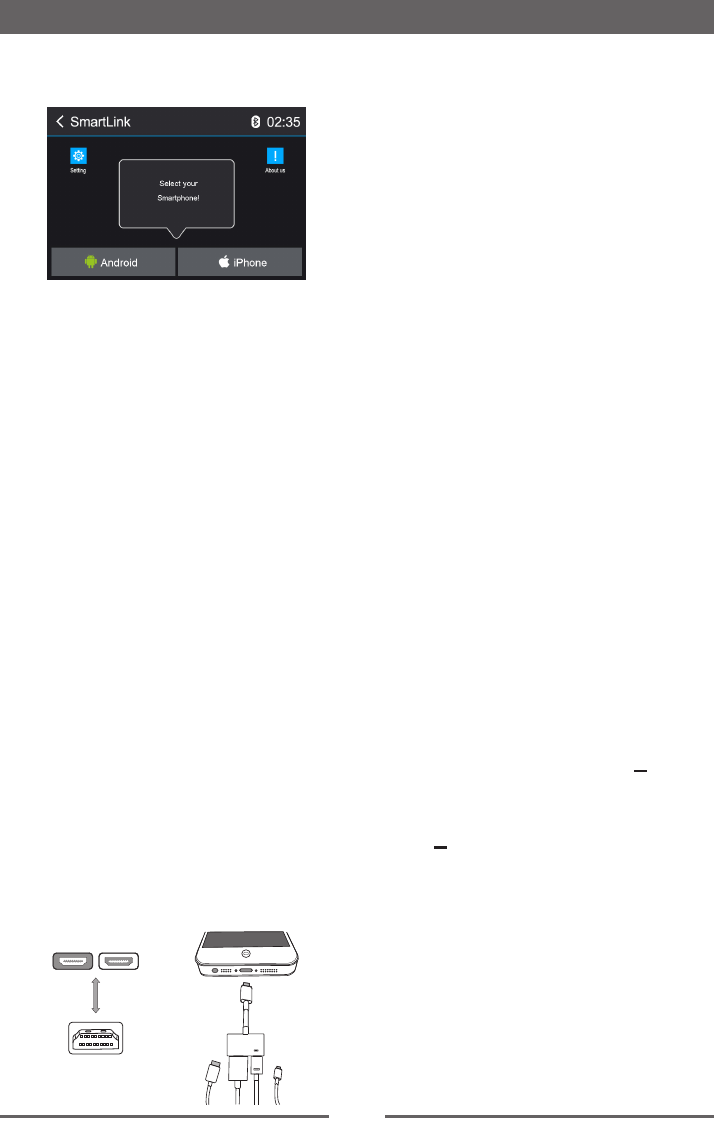
Open the Source Menu and then touch
[ SmartLink ] to enter SmartLink menu.
About SmartLink
SmartLink is the function about interconnecting
information between the smart phone and the
car device.
By SmartLink, you can synchronize the screen
from your smart phone to the car device.
And you can also control your phone by the car
device, such as receiving calls, dialing calls,
listening to the music and watching movies
or pictures from your phone, as well using
navigation from the smart phone to the screen
of the car device.
The function of the SmartLink depends on the
conguration of your smart phone.
About HDMI
To active the SmartLink function, you need to
connect your smartphone to the car device’s
HDMI connector via appropriative cable(sold
separately).
HDMI (High-Definition Multimedia Interface)
is a proprietary audio/video interface for
transferring uncompressed video data and
compressed or uncompressed digital audio
data from an HDMI-compliant source device,
such as a display controller, to a compatible
computer monitor, video projector, digital
television, or digital audio device.
HDMI
HDMI
HDMI
HDMI
Connect with Android Phone
1. How to get SmartLink APP
Method1: Scan the QR code on the screen
of the car device with your Android phone to
download and install “SmartLink” APP.
Method 2: Download and install SmartLink
from Google Play.
2. Cable connection
Connect your Smartphone with this system
via appropriative cable(sold separately).
(Some Samsung phones adaptor cable
interface is different to others)
3. BT Connection
Scan for Bluetooth devices and select this
system for connection.
4. Touch panel calibration
Dialog box will be shown on your
smartphone when connection between
Smartphone and this system via BT. Click
“OK” on the dialog, and then touch panel
calibration procedure will be run on this
system. Calibration should be made for
horizontal display case and vertical display
case of your smartphone.
Connect with iPhone
Connect you iPhone with this system via HDMI
cable(sold separately).
For iPhone 5 or above: To connect HDMI use
the Apple Lightning Digital AV Adapter.
Setting
Touch [ Setting ] icon to display the following
option:
Screen Rotation(iphone only) Select
the screen’s landscape direction based on
your preference. The default setting is Right
landscape.
Version Displaying the device version

20
SmartLink
Limitations
1. SmartLink can’t work if car-unit or phone is
Off or in inappropriate operation.
2. SmartLink can’t work if operated in a wrong
way or without specied adaptor or wiring.
3. Wireless communication could be shortly
influenced for some phones which can
cause impact on SmartLink.
4. Inappropriate phones or systems can cause
impact on SmartLink.
5. If no specied versions of app in phone or
can’t match with the versions of app in car-
unit can cause impact on SmartLink.
6. SmartLink can limited to third-party
software. (IOS or Android systems upgrade,
treaty of phone port changed, navigation
systems upgrade or the treaty changed.)
7. SmartLink can’t work if PIN code is needed
when starting Wi-Fi.
8. Wire or wireless communication is upset by
weather, busy lines, capacitance, device,
and so on, which may cause influence on
SmartLink.
9. Power system and the structure of your
car, car-unit, phone, or damaged wiring can
cause impact on SmartLink.
10. SmartLink can’t work without available
signal or normal system.
11. The dpi of phone may cause little deviation
when you control phone with car-unit.
NOTE:
No liability shall be assumed for cases
described above.
21
Aux 1 / Aux 2 Controls
Aux 1
Aux 1 is used for playback of audio/video
from an external device connected to the unit
through a 3.5mm jack located on the front
panel.
Aux 2
Aux 2 is used for playback of audio/video from
an external device connected through RCA
connectors located on the back of the unit.
You can connect an external audio/video
device to the unit.
1. Connect the external device with the
supplied AV cable.
2. Touch the upper left corner to display the
main menu.
3. Touch [Aux 1] / [Aux 2] to access external
device.
NOTES:
1. Audio/Video device must be connected to
the unit using an audio/video adapter cable
that is available separately.
2. Video will only play when the vehicle parking
brake is engaged. The parking brake must
be connected for this feature to operate.
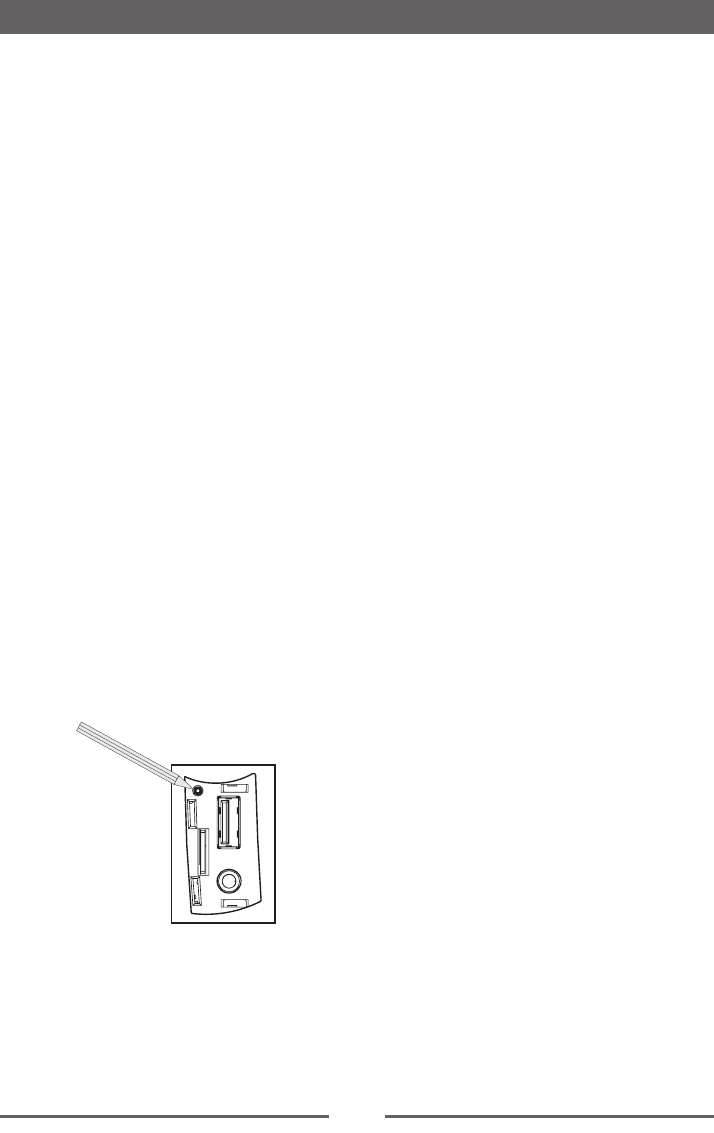
Reset
When the unit hangs up, you can reset it, press
[ RESET ] with a ball-point pen or similar tool.
Reset
NOTE:
When the [RESET] button is pressed,
frequencies of radio stations, date, time, etc.
stored in memory are cleared.
Other Modes
Replace a Fuse
If there is no power, the fuse may be damaged
and need to be replaced.
1. Remove the unit from the dashboard.
2. Check all electrical connections.
3. Buy a fuse that matches the amperage of
the damaged fuse.
4. Replace the fuse while the unit is powered
off.
Rear Camera Operation
This unit is “camera ready.” Before accessing
any camera features, you must install a rear
video camera (sold Separately).
When the camera is installed, the rear view
image of what is behind the vehicle will appear
when the vehicle is placed in reverse gear.
When leaving reverse gear, the unit displays
the previous screen.

22
Specications
General
Reference Supply Voltage .................................................................... 12V(DC)
Operating Voltage Range ........................................................ 10.8 - 16.0V(DC)
Max Operating Current .................................................................................15A
Grounding System ................................................................................ Negative
Dimensions(WXHXD) ................................................... 178.5X101.5X166.0mm
Weight(main unit) ...................................................................................... 1.8kg
FM
Signal Noise Ratio ................................................................................ ≥55dB
Residual Noise Sensitivity (S/N=30dB) ............................................≤15dBμV
Frequency Response (±3dB) ......................................................30Hz~15KHz
Station Seeking Level .................................................................... 20~28dBμV
Distortion .............................................................................................. ≤1.0%
Stereo Separation (1KHz) .................................................................... ≥25dB
Antenna Impedance ...................................................................................75Ω
AM
Residual Noise Sensitivity (S/N=20dB) ............................................≤35dBμV
Selectivity (±9KHz) ............................................................................... ≥50dB
Screen
Screen size ............................................................................. 6.2 inches(16:9)
Display resolution ...............................................................................800X480
DVD Player
S/N Ratio .............................................................................................. ≥75dB
THD+N ................................................................................................. ≤0.1%
Frequency Response (±3dB) ......................................................20Hz~20KHz
Maximum Output Power......................................................................... 4×40W
Load Impedance ........................................................................................... 4Ω
AUX IN
Distortion .............................................................................................. ≤0.5%
Frequency Response (±3dB) ......................................................20Hz~20KHz
Audio Input Level .......................................................................................0.5V
Preout
Output Impedance ................................................................................... 10KΩ
Output Level .................................................................................................3V
Video
Normal Video Input Level (CVBS) ......................................................1.0±0.2V
Video Input Impedance...............................................................................75Ω
Video Output Impedance ............................................................................ 75Ω
Video Output Level ....................................................................... 1.0±0.2Vp-p
Environment
Operating Temperature .............................................................-20°C ~ +60°C
Storing Temperature................................................................. -30°C ~ +80°C
Operating Humidity ......................................................................45°C/80%RH
Storing Humidity ..........................................................................60°C/90%RH
Notice:
When the unit is operated to extremes, such as with maximum power output for a long time,
or the temperature is over 70°C, it will enter heat protection mode, the volume will be reduced
automatically. This is normal.

23
Supported Formats:
·USB or memory le format: FAT16,FAT32
·Mp3 bit rate(date rate): 32-320 Kbps and variable bit rate
·Directory nesting up to a maximum of 8 levels
·Number of albums/folders: maximum 99
·Number of tracks/titles: maximum 999
·ID3 tag v2.0 or later
·File name in Unicode UTF8(maximum length:128 bytes)
Unsupported Formates:
· Empty albums: an empty album is an album that does not contain MP3 les and is not shown in
the display.
· Unsupported le formats are skipped. For example, Word documents(.doc) or Mp3 les with
extension.dlf are ignored and not played.
Supported MP3 Disc Format:
·ISO9660, Joliet
·Maximum title number: 512(depending on le name length)
·Maximum album number: 255
·Supported sampling frequencies: 32kHz,44.1kHz,48kHz
·Supported bit-rates: 32-320Kbps and variable bit rates
Supported Video Formats:
·DVD
·MPEG
·RMVB
etc.
Region Code
According to DVD sales regions, the whole world is divided into six regions. A DVD disc can be
played back only when its region code is compatible with that of the player in use.
Region 1: USA, Canada, East Pacic Ocean Islands;
Region 2: Japan, West Europe, North Europe, Egypt, South Africa, Middle East;
Region 3: Taiwan of China, Hong Kong of China, South Korea, Thailand, Indonesia, South East
Asia;
Region 4: Australia, New Zealand, Mid & south America, South Pacic Ocean Islands/Oceania;
Region 5: Russia, Mongolia, India, Middle Asia, East Europe, North Korea, North Africa, North
West Asia;
Region 6: China, Mainland.
Precautions when using Discs
1) DO NOT use irregular shaped discs.
2) Disc cleaning:
Use a dry, soft cloth to wipe the disc from center to edge, only neutral detergent can be used.
3) When playing a new disc:
New discs may have some rough spots around the inner and outer edges. If such a disc is
used, remove these rough spots with a pencil or ball-point pen, etc.
Specications
24
Troubleshooting
What appears to be a problem is not always serious. Please check the following points before
calling a service center.
Problem Cause Corrective action
General
Unit does not power on
Unit fuse blown. Install new fuse with correct rating.
Car battery fuse blown. Install new fuse with correct rating.
Illegal operation Reset the unit.
No/low audio output
Improper audio output connection. Check wiring and correct.
Volume set too low. Increase volume level.
Speakers damaged. Replace speakers.
Heavily biased volume balance. Adjust the channel balance to center
position.
Speaker wiring is in contact with metal part
of car. Insulate all speaker wiring connections.
Poor sound quality or
distortion
Pirated disc is in use. Use original disc.
Speaker power rating does not match unit. Replace speakers.
Wrong connections. Check wiring and correct.
Speaker is shorted. Check wiring and correct.
Tel-Mute malfunction MUTE wire is grounded. Check the ‘MUTE’ wiring and correct.
Unit resets itself when
engine is off
Incorrect connection between ACC and
BATT. Check wiring and correct.
TFT monitor
Warning information is
shown at all times Parking break wiring is not correct. Check wiring and correct.
Flashing image or
interference appears on
screen
The color system of DVD disc does not
match the monitor.
Adjust the color system of the DVD
disc playing back or the monitor in use.
Pirated disc is in use. Use original disc.
Video cable damaged. Replace cables.
Improper video signal connections. Check wiring and correct.
Disc playback
Cannot insert disc A disc is already inside the unit. Eject current disc and insert new one.
Disc does not play back
Disc is warped or scratched. Use disc in good condition.
Disc is dirty or wet. Clean disc with soft cloth.
Incompatible disc is used. Use compatible disc.
Disc is inserted upside down. Insert disc with label side up.
Disc region code is not compatible with
unit. Use disc with proper region code.
PBC cannot be used
during VCD playback PBC is not available on the disc. Use disc with PBC available.
Repeat or search
function is invalid during
VCD playback
PBC is on. Turn PBC off.
Error messages
No disc
Disc is dirty. Clean disc with soft cloth.
Disc is upside down. Insert disc with label side up.
No disc inside. Insert disc.
Bad disc Disc is dirty. Clean disc with soft cloth.
Disc is upside down. Insert disc with label side up.
Unknown disc Disc format is not compatible with this unit. Use disc with compatible format.
Region error DVD region code is not compatible with
this unit. Use disc with compatible region code.
25
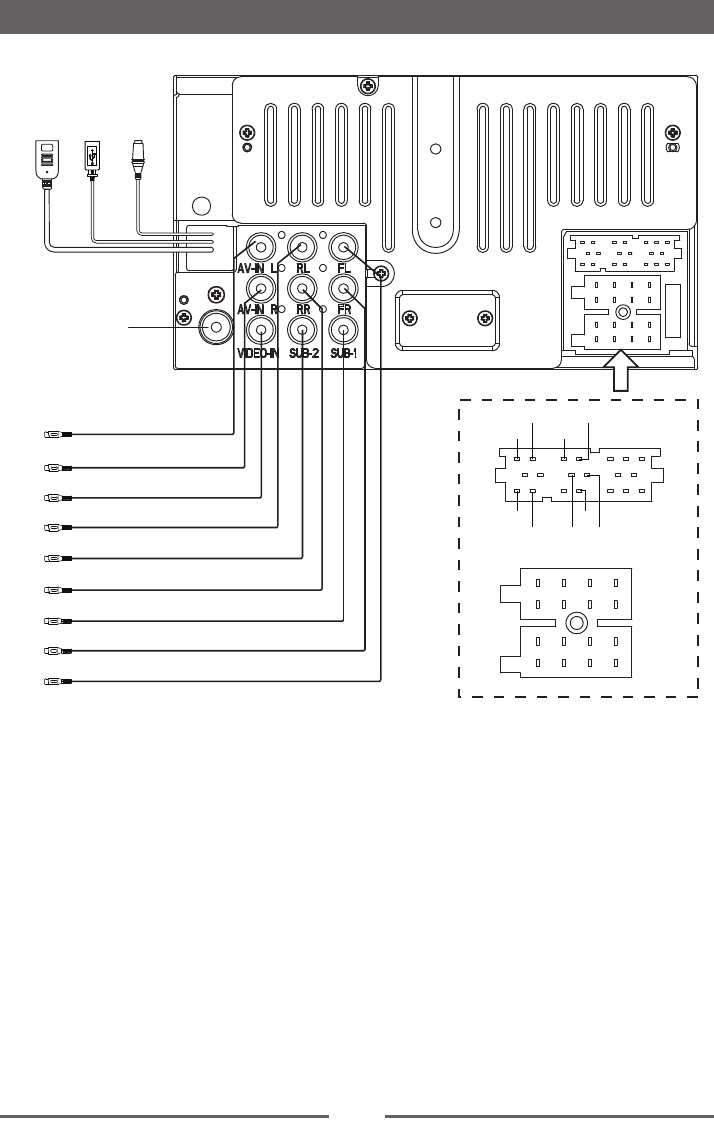
Wire Connections
Radio Antenna
SUB OUT 1
SUB OUT 2
VIDEO IN
LINE OUT RL
LINE OUT RR
LINE OUT FL
LINE OUT FR
AV-IN L
AV-IN R
NC
NC
NC
ACC
P.ANT
ILL
B+
GND
RR+
GND
CAMERA IN
RR-
FR+
FR-
FL+
FL-
RL+
RL-
GND GND
REVERSE
VIDEO OUT SWC 1 SWC 2
BRAKE
HDMI MICUSB
(charge only)

P/N: 127075006775