HUIZHOU FORYOU GENERAL ELECTRONICS VM9725BT Mobile DVD Player With FM/AM Tuner User Manual

HUIZHOU FORYOU GENERAL ELECTRONICS CO.,LTD. Mobile DVD Player With FM/AM Tuner

User Manual

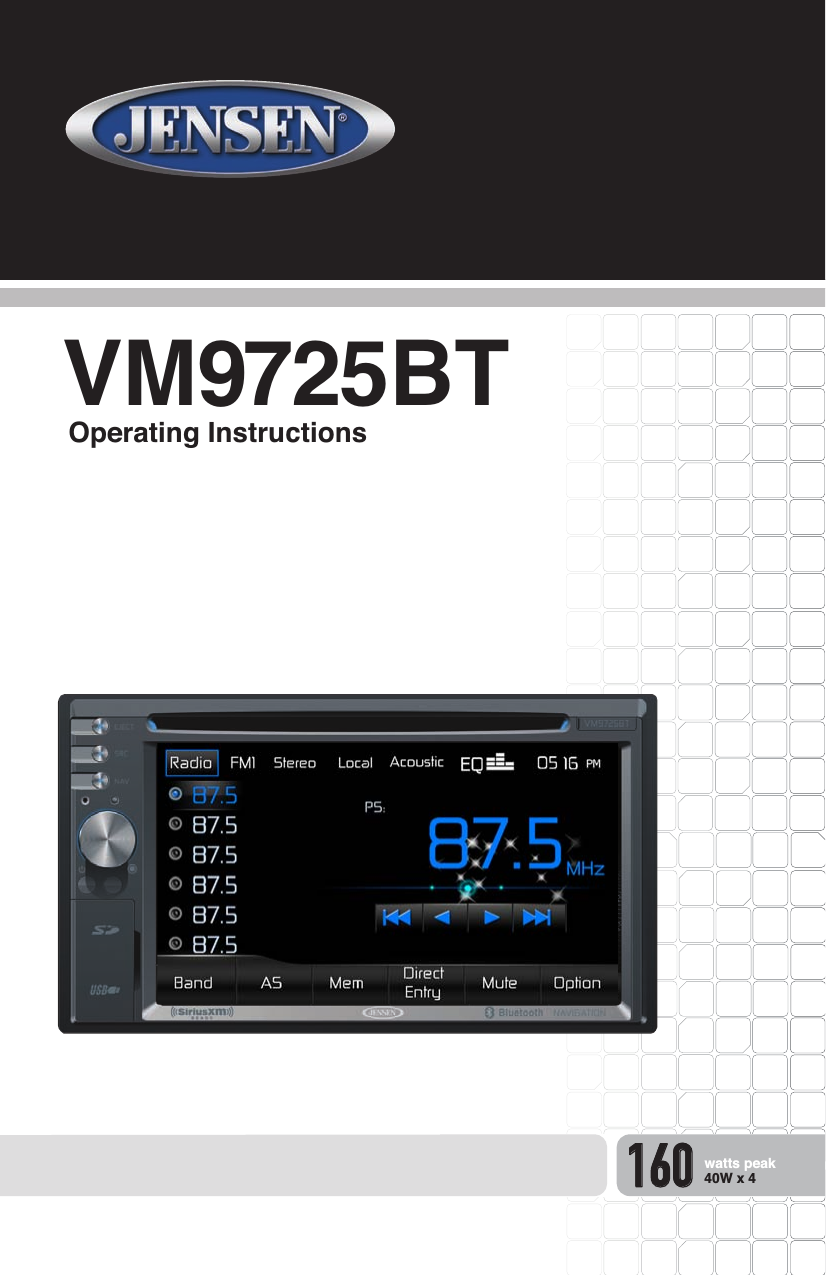
VM9725BTOperating Instructions160watts peak40W x 4
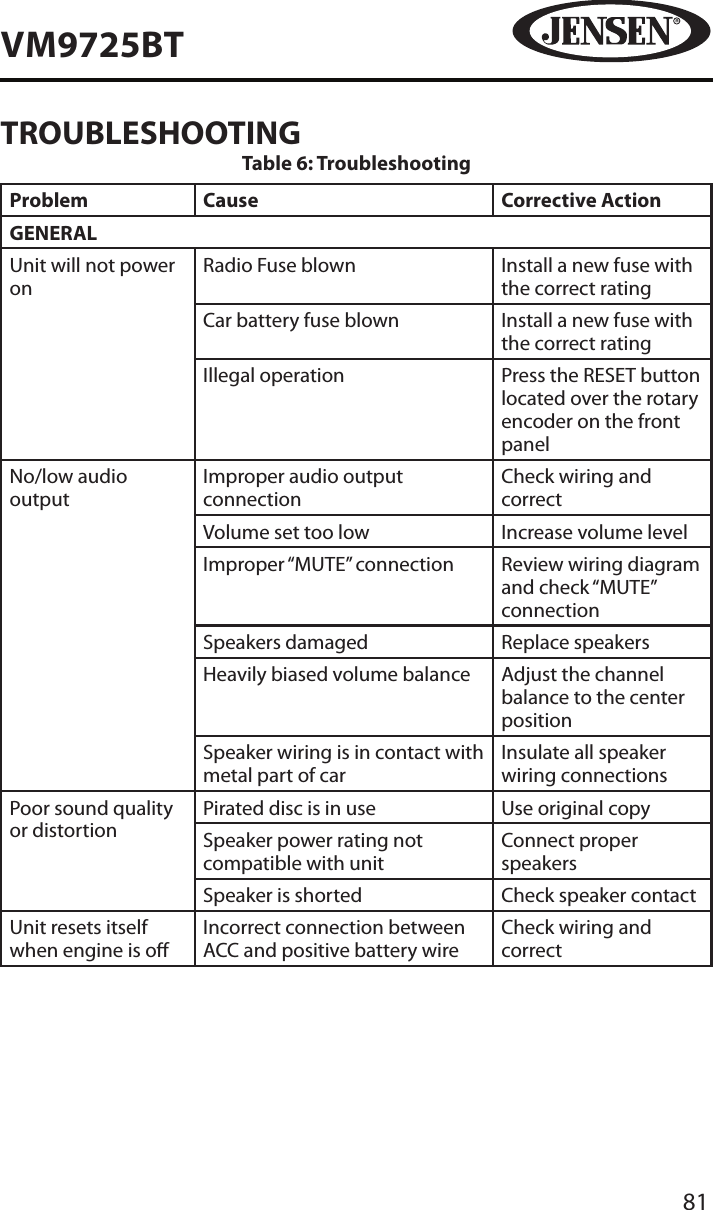
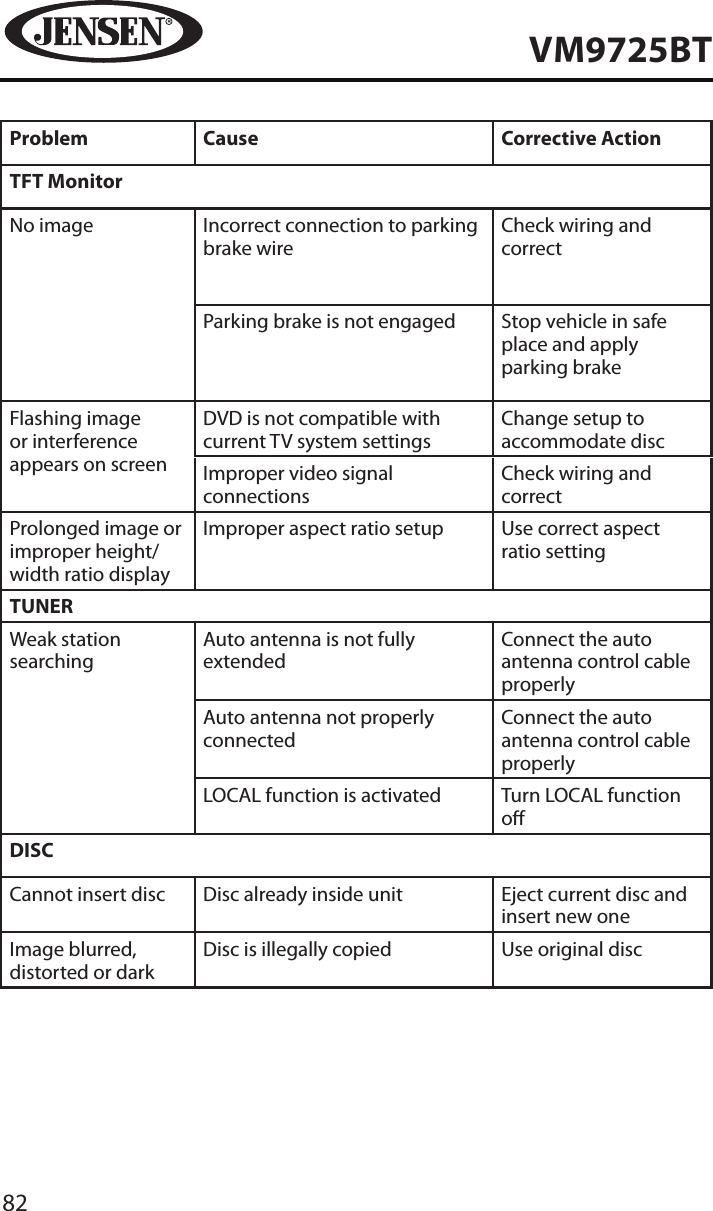
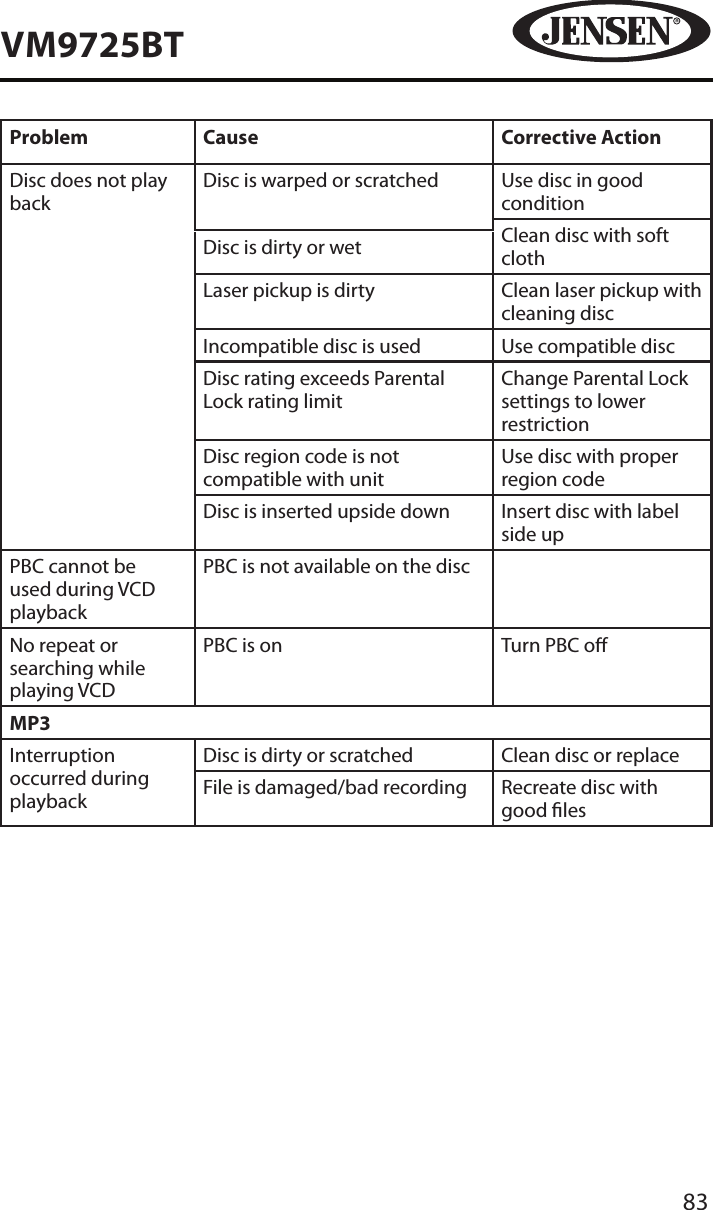
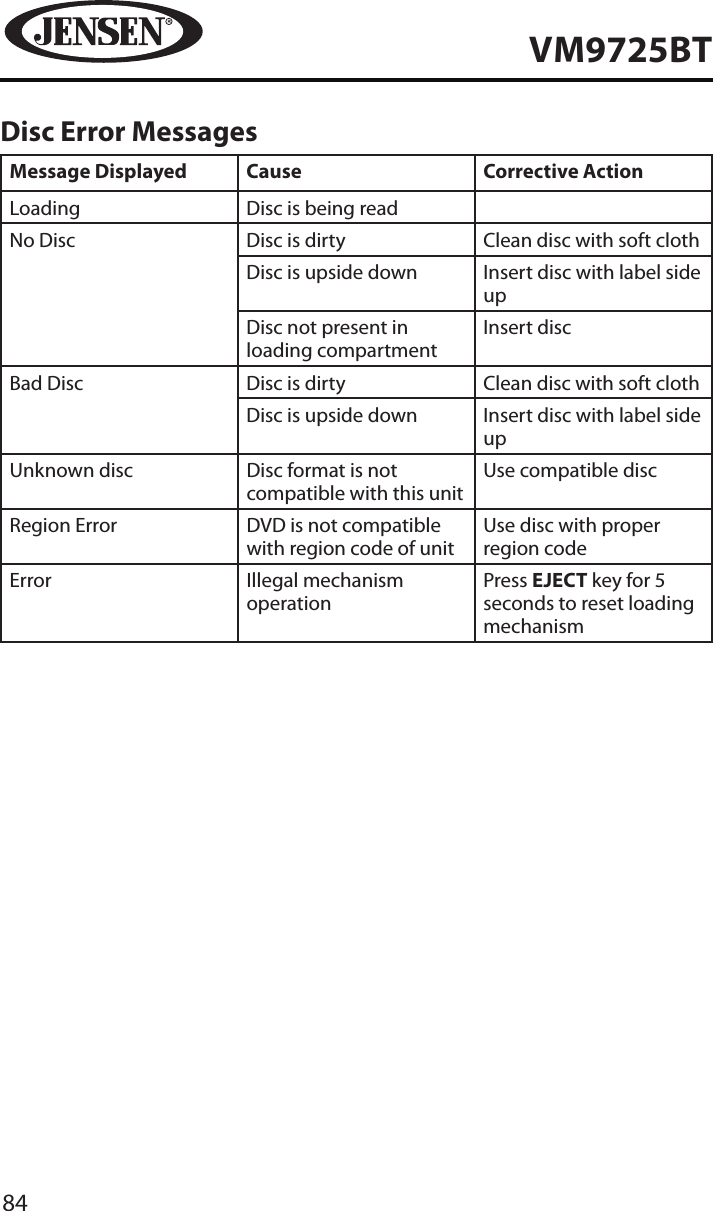
2VM9725BTThank you for choosing a Jensen product. We hope you will nd the instructions in this owner’s manual clear and easy to follow. If you take a few minutes to look through it, you’ll learn how to use all the features of your new Jensen VM9725BT Mobile Multimedia Receiver for maximum enjoyment.CONTENTSFeatures ������������������������������������������������������������������������������������������������������������������3Controls and Indicators �����������������������������������������������������������������������������������������6Remote Control ������������������������������������������������������������������������������������������������������8Operating Instructions ����������������������������������������������������������������������������������������14Steering Wheel Controls �������������������������������������������������������������������������������������22Settings Menu ������������������������������������������������������������������������������������������������������23Tuner Operation ��������������������������������������������������������������������������������������������������31DVD/VCD Video Operation ���������������������������������������������������������������������������������37DVD/CD Audio Operation �����������������������������������������������������������������������������������43MP3/WMA Operation ������������������������������������������������������������������������������������������47iPod®/iPhone® Operation ������������������������������������������������������������������������������������53Pandora Operation ����������������������������������������������������������������������������������������������57Bluetooth Operation �������������������������������������������������������������������������������������������61SiriusXM® Radio Operation ���������������������������������������������������������������������������������70Rear Camera Operation ���������������������������������������������������������������������������������������80Troubleshooting ��������������������������������������������������������������������������������������������������81Care and Maintenance ����������������������������������������������������������������������������������������85Specications �������������������������������������������������������������������������������������������������������86Common Replacement Parts ������������������������������������������������������������������������������87
3VM9725BTFEATURESCongratulations on your purchase of the Jensen VM9725BT Mobile Multimedia Receiver. It’s a good idea to read all of the instructions before beginning the installation. We recommend having your Jensen VM9725BT installed by a reputable installation shop.DVD•  Fast Forward/Reverse - 2X, 4X, 8X, and 20X•  Slow Motion Forward/Reverse - 1/2, 1/4, 1/6, and 1/8•  Play, Pause, Stop, Next Chapter, and Previous ChapterCD / MP3 / WMA•  CD-Text Compatible•  ID3 Tag Compatible•  Directory Search (MP3 / WMA Only)•  Burn up to 1500 MP3 and WMA Files onto a DVD+R / RW•  Audible Forward / Reverse Track Search (CD-DA Only)•  Random, Repeat and Intro•  Play, Pause, Stop, Next Track, and Previous TrackAM-FM•  USA / Europe / Latin America / Asia Frequency Spacing•  30 Station Presets (18 FM / 12 AM)•  Auto Stereo / Mono•  Local / Distance•  Auto Store / Preview ScaniPod®/iPhone®•  iPod®/ iPhone® via USB•   High Speed Direct Connect Interface to Access iPod® Playlists, Artists, Albums and Songs. Play music and view video/photo* les from your iPod®. *Video/photo playback requires jLink-USB iPod® interface cable (sold separately).•  Power Management Charges iPod® while ConnectedSiriusXM® Ready•  Satellite Channel Name, Artist, Song and Categories Displayed on Monitor
4VM9725BTChassis•  2.0 DIN (Import / ISO-DIN Mountable)•  Fixed Front Panel•  6.2” High Denition TFT LCD•  1,152,000 Sub Pixels (800 x 3 X 480)•  Beep Tone Conrmation (ON-OFF Option)•  Heat Management System - Forced-Air Cooling To Keep The Chip-Sets Operating at Nominal TemperaturesGeneral•  Built-In Bluetooth® with external microphone, providing Hands-Free operation for safety and convenience and A2DP for streaming music from your smartphone or other Bluetooth® device. •  One Composite Video Output for Additional Screens•  Front Panel Audio/Video Input•  Three-Band Tone control (Bass, Mid and Treble) with Eight Preset EQ Curves•  Front Panel A/V Aux Input for Portable Media Devices•  Rear Subwoofer Line Output•  Programmable Volume Control•  Rear Camera Input (Normal and Mirror Image View)•  Touch Screen Calibration Mode•  4VRMS Line Output - All Channels•  Rotary Encoder Audio Control•  Front / Rear / Sub Line Output•  Rear USB InputNavigation•  TTS Voice Guidance – Street Names Announced•  English, French and Spanish TTS Voice•  Tele Atlas Map Data•  11 Million Points of Interest•  4GB SD Card with Continental US, Alaska, Hawaii, and Puerto Rico•  Latest Map Guarantee (Limited time only - Must be used within 90 days of  initial activation) Rear CameraThe VM9725BT is “camera ready.” Before accessing any camera features, you must purchase and install a rear video camera. Once the camera is connected and operating properly, the CAMERA source mode will become active. While the camera is not installed, the CAMERA option appears gray, indicating the function is not available.
5VM9725BTWARNING! Never install this unit where operation and viewing could interfere with safe driving conditions.WARNING! To reduce the risk of a trac accident (except when using for rear view video camera) never use the video display function while driving the vehicle. This is a violation of federal law.WARNING! Never disassemble or adjust the unit.WARNING! To prevent injury from shock or re, never expose this unit to moisture or water.WARNING! Never use irregular discs.FCC STATEMENT1. This device complies with Part 15 of the FCC Rules. Operation is subject to the following two conditions:(1) This device may not cause harmful interference.(2) This device must accept any interference received, including interference that may cause undesired operation.could void the user's authority to operate the equipment.NOTE: This equipment has been tested and found to comply with the limits for a Class B digital device, pursuant to Part 15 of the FCC Rules. These limits are designed to provide reasonable protection against harmful interference in a residential installation.This equipment generates uses and can radiate radio frequency energy and, if not installed and used in accordance with the instructions, may cause harmful interference to radio communications. However, there is no guarantee that interference will not occur in a particular installation. If this equipment does cause harmful interference to radio or television reception, which can be determined by turning the equipment o  and on, the user is encouraged to try to correct the interference by one or more of the following measures:  Reorient or relocate the receiving antenna.  Increase the separation between the equipment and receiver.  Connect the equipment into an outlet on a circuit di erent from that to which the receiver is connected.  Consult the dealer or an experienced radio/TV technician for help.FCC Radiation Exposure StatementThis equipment complies with FCC radiation exposure limits set forth for an uncontrolled environment. This equipment should be installed and operated with minimum distance 20cm between the radiator & your body
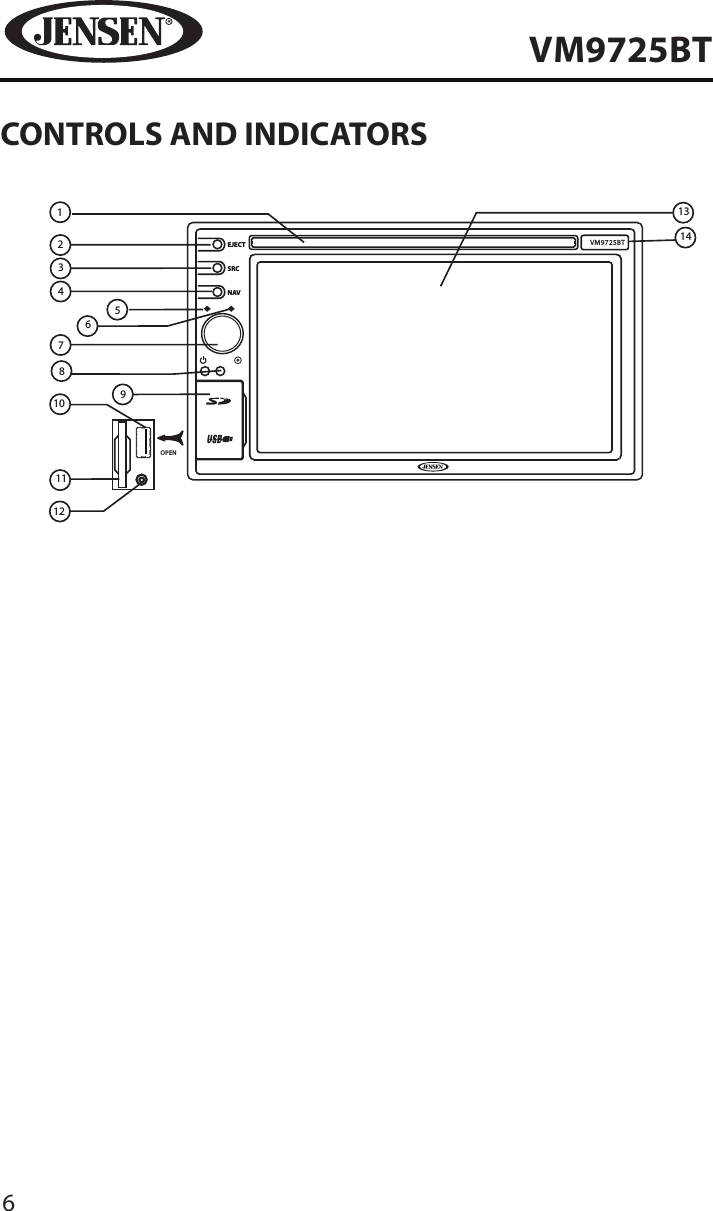
6VM9725BTCONTROLS AND INDICATORSNAVSRCEJECT123471110125OPENVM9725BT8914136
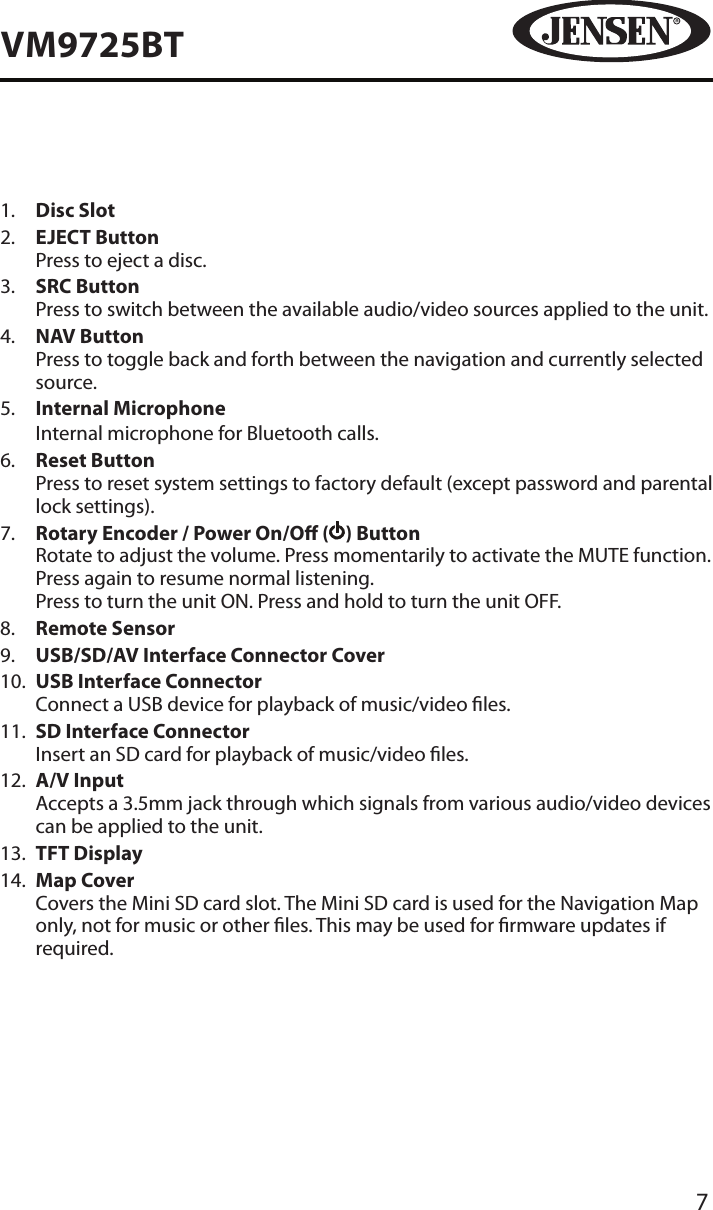
7VM9725BT1.   Disc Slot2.   EJECT ButtonPress to eject a disc.3.   SRC ButtonPress to switch between the available audio/video sources applied to the unit.4.   NAV ButtonPress to toggle back and forth between the navigation and currently selected source.5.   Internal MicrophoneInternal microphone for Bluetooth calls.6.   Reset ButtonPress to reset system settings to factory default (except password and parental lock settings).7.   Rotary Encoder / Power On/O ( ) ButtonRotate to adjust the volume. Press momentarily to activate the MUTE function. Press again to resume normal listening. Press to turn the unit ON. Press and hold to turn the unit OFF. 8.   Remote Sensor9.   USB/SD/AV Interface Connector Cover10.   USB Interface Connector Connect a USB device for playback of music/video les.11.   SD Interface Connector Insert an SD card for playback of music/video les.12.   A/V Input Accepts a 3.5mm jack through which signals from various audio/video devices can be applied to the unit.13.   TFT Display14.   Map CoverCovers the Mini SD card slot. The Mini SD card is used for the Navigation Map only, not for music or other les. This may be used for rmware updates if required.
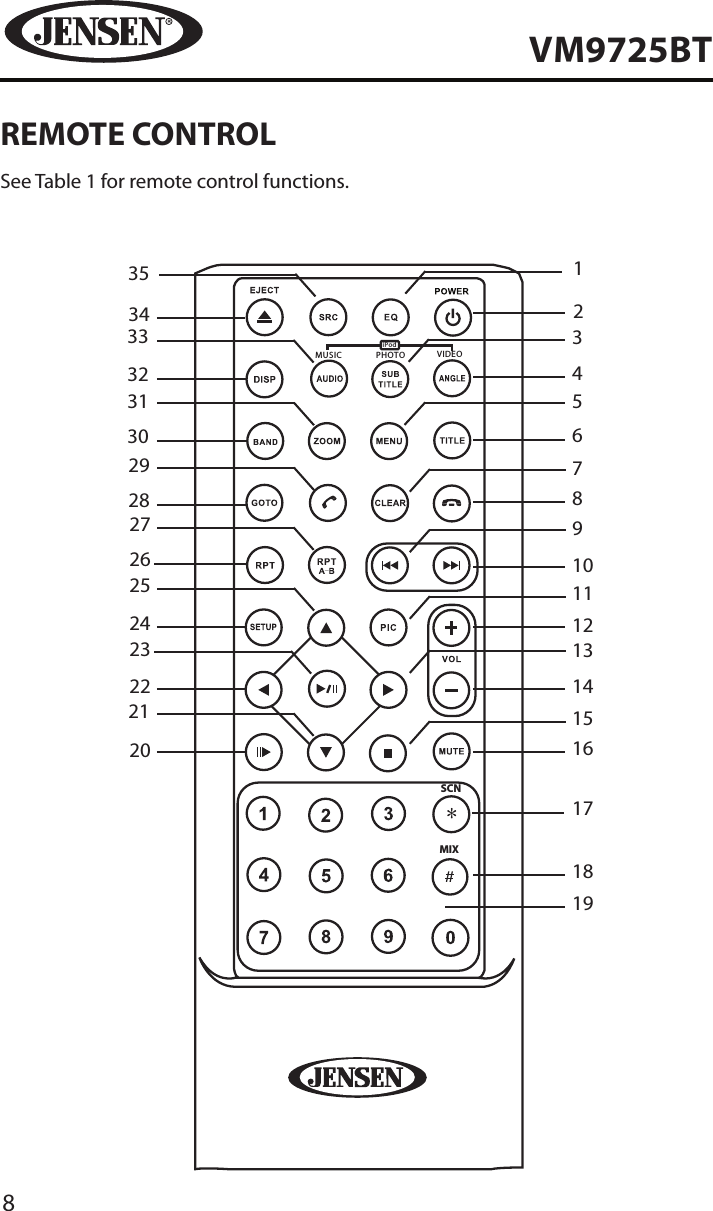
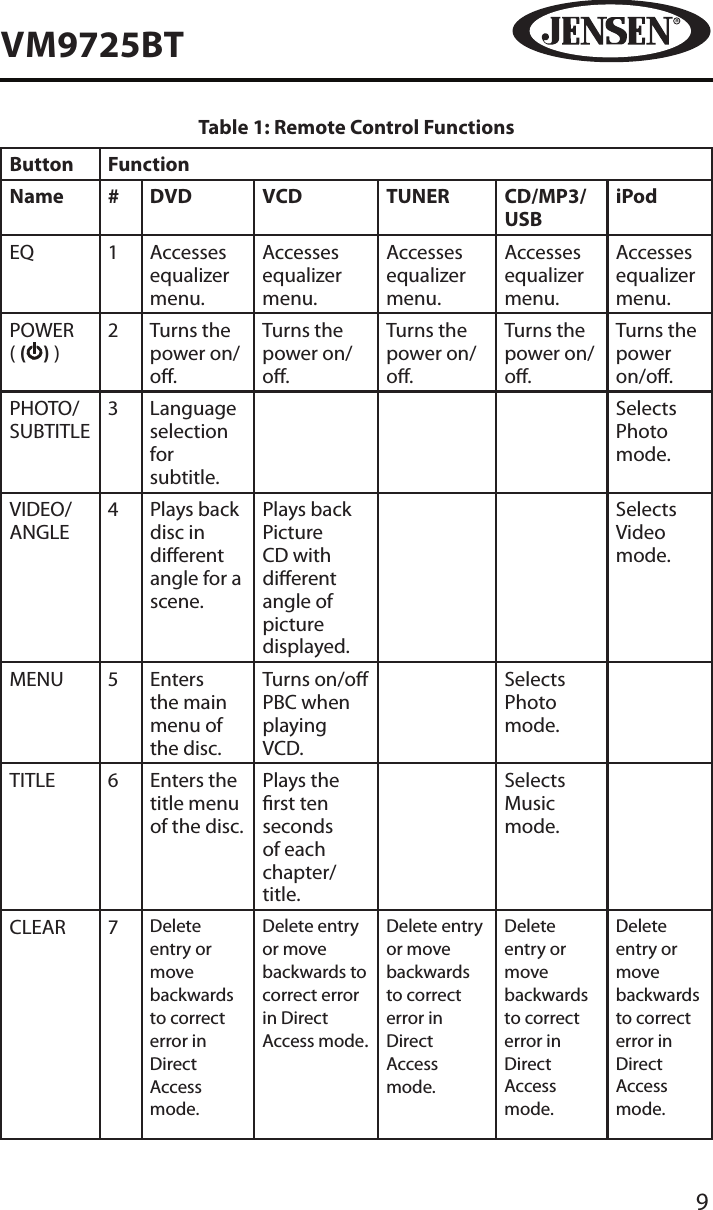
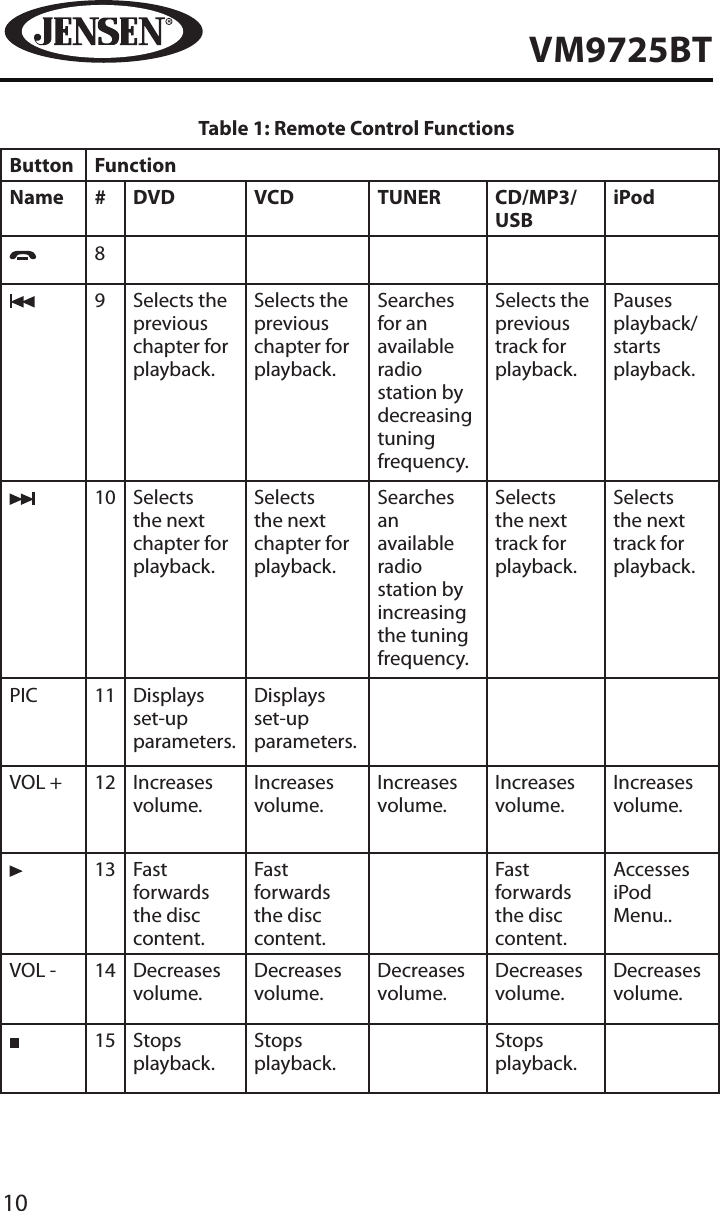
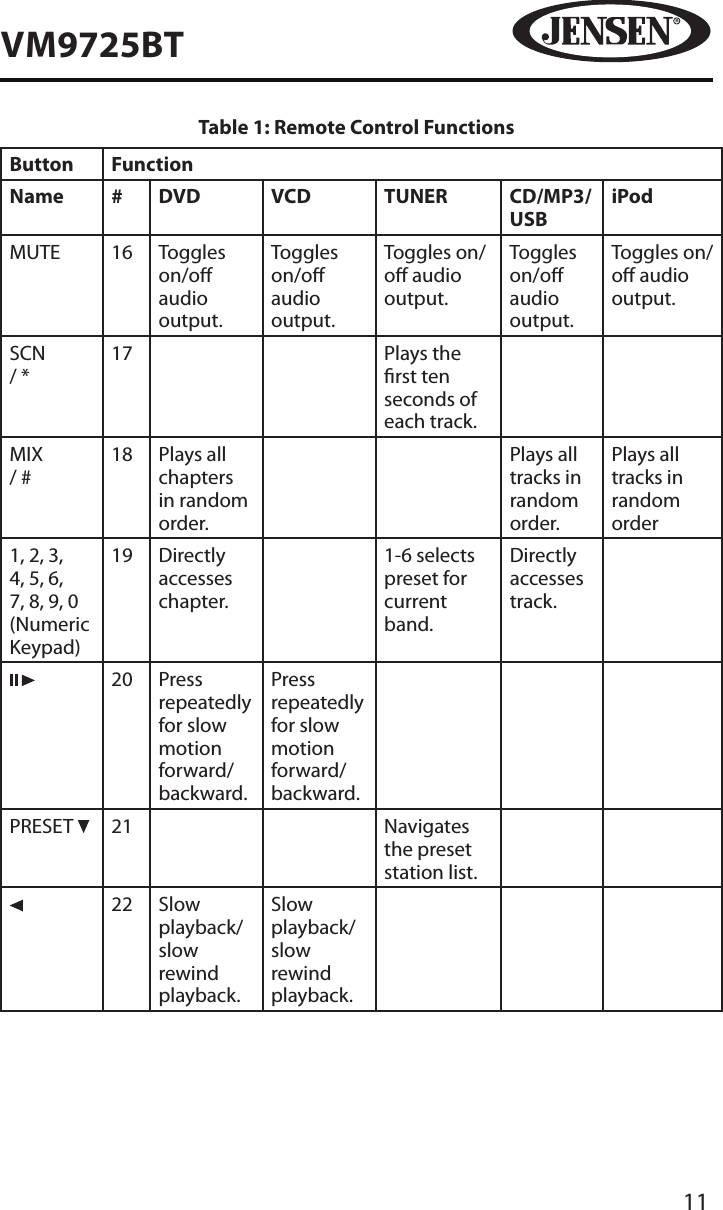
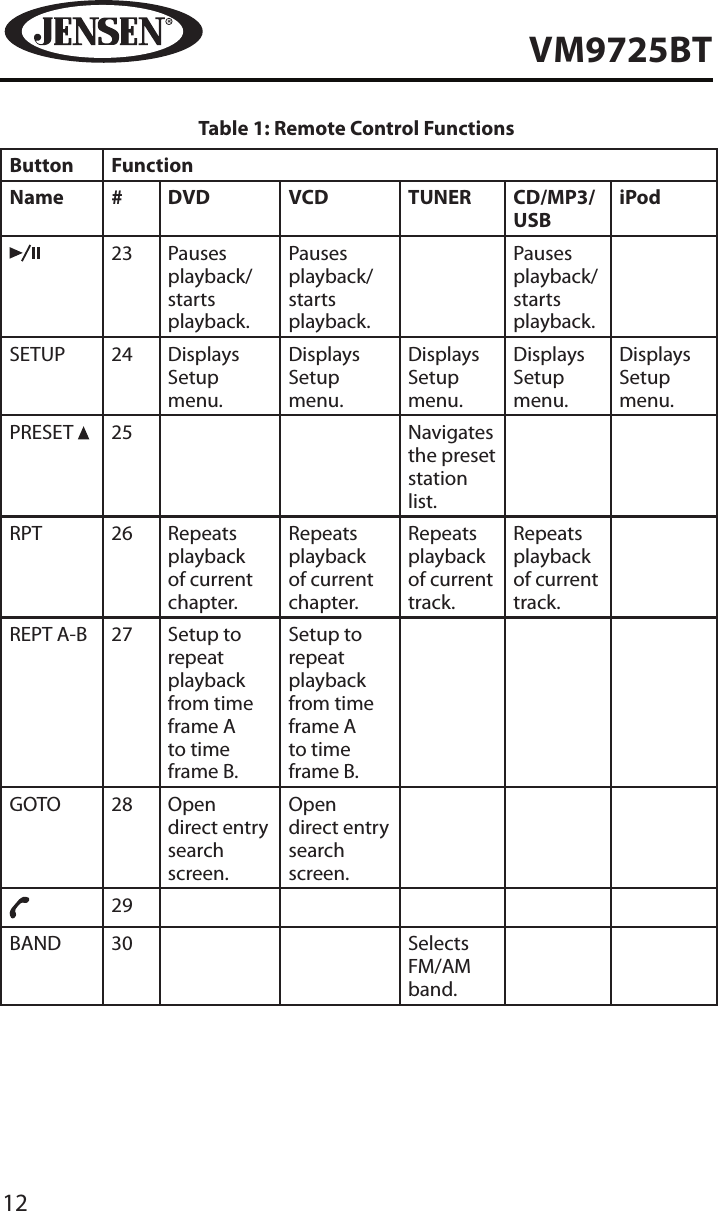
8VM9725BTREMOTE CONTROLSee Table 1 for remote control functions.MUSIC PHOTO VIDEOiPodSCNMIX1291316181910141117156547381226272021222324252829303132333435
9VM9725BTTable 1: Remote Control FunctionsButton FunctionName # DVD VCD TUNER CD/MP3/USBiPodEQ 1 Accesses equalizer menu.Accesses equalizer menu.Accesses equalizer menu.Accesses equalizer menu.Accesses equalizer menu.POWER ( ( ) )2 Turns the power on/o.Turns the power on/o.Turns the power on/o.Turns the power on/o.Turns the power on/o.PHOTO/SUBTITLE3 Language selection for subtitle.Selects Photo mode.VIDEO/ANGLE4 Plays back disc in dierent angle for a scene.Plays back Picture CD with dierent angle of picture displayed.Selects Video mode.MENU 5 Enters the main menu of the disc.Turns on/o PBC when playing VCD.Selects Photo mode.TITLE 6 Enters the title menu of the disc.Plays the rst ten seconds of each chapter/title.Selects Music mode.CLEAR 7 Delete entry or move backwards to correct error in Direct Access mode.Delete entry or move backwards to correct error in Direct Access mode.Delete entry or move backwards to correct error in Direct Access mode.Delete entry or move backwards to correct error in Direct Access mode.Delete entry or move backwards to correct error in Direct Access mode.
10VM9725BTTable 1: Remote Control FunctionsButton FunctionName # DVD VCD TUNER CD/MP3/USBiPod89 Selects the previous chapter for playback.Selects the previous chapter for playback.Searches for an available radio station by decreasing tuning frequency.Selects the previous track for playback.Pauses playback/starts playback.10 Selects the next chapter for playback.Selects the next chapter for playback.Searches an available radio station by increasing the tuning frequency.Selects the next track for playback.Selects the next track for playback.PIC 11 Displays set-up parameters.Displays set-up parameters.VOL + 12 Increases volume.Increases volume.Increases volume.Increases volume.Increases volume.13 Fast forwards the disc content.Fast forwards the disc content.Fast forwards the disc content.Accesses iPod Menu..VOL - 14 Decreases volume.Decreases volume.Decreases volume.Decreases volume.Decreases volume.  15 Stops playback.Stops playback.Stops playback.
11VM9725BTTable 1: Remote Control FunctionsButton FunctionName # DVD VCD TUNER CD/MP3/USBiPodMUTE 16 Toggles on/o audio output.Toggles on/o audio output.Toggles on/o audio output.Toggles on/o audio output.Toggles on/o audio output.SCN  / *17 Plays the rst ten seconds of each track.MIX  / #18 Plays all chapters in random order.Plays all tracks in random order.Plays all tracks in random order1, 2, 3, 4, 5, 6, 7, 8, 9, 0 (Numeric Keypad)19 Directly accesses chapter.1-6 selects preset for current band.Directly accesses track.20 Press repeatedly for slow motion forward/backward.Press repeatedly for slow motion forward/backward.PRESET  21 Navigates the preset station list.22 Slow playback/slow rewind playback.Slow playback/slow rewind playback.
12VM9725BTTable 1: Remote Control FunctionsButton FunctionName # DVD VCD TUNER CD/MP3/USBiPod23 Pauses playback/starts playback.Pauses playback/starts playback.Pauses playback/starts playback.SETUP 24 Displays Setup menu.Displays Setup menu.Displays Setup menu.Displays Setup menu.Displays Setup menu.PRESET  25 Navigates the preset station list.RPT 26 Repeats playback of current chapter.Repeats playback of current chapter.Repeats playback of current track.Repeats playback of current track.REPT A-B 27 Setup to repeat playback from time frame A  to time frame B.Setup to repeat playback from time frame A  to time frame B.GOTO 28 Open direct entry search screen.Open direct entry search screen.29BAND 30 Selects FM/AM band.
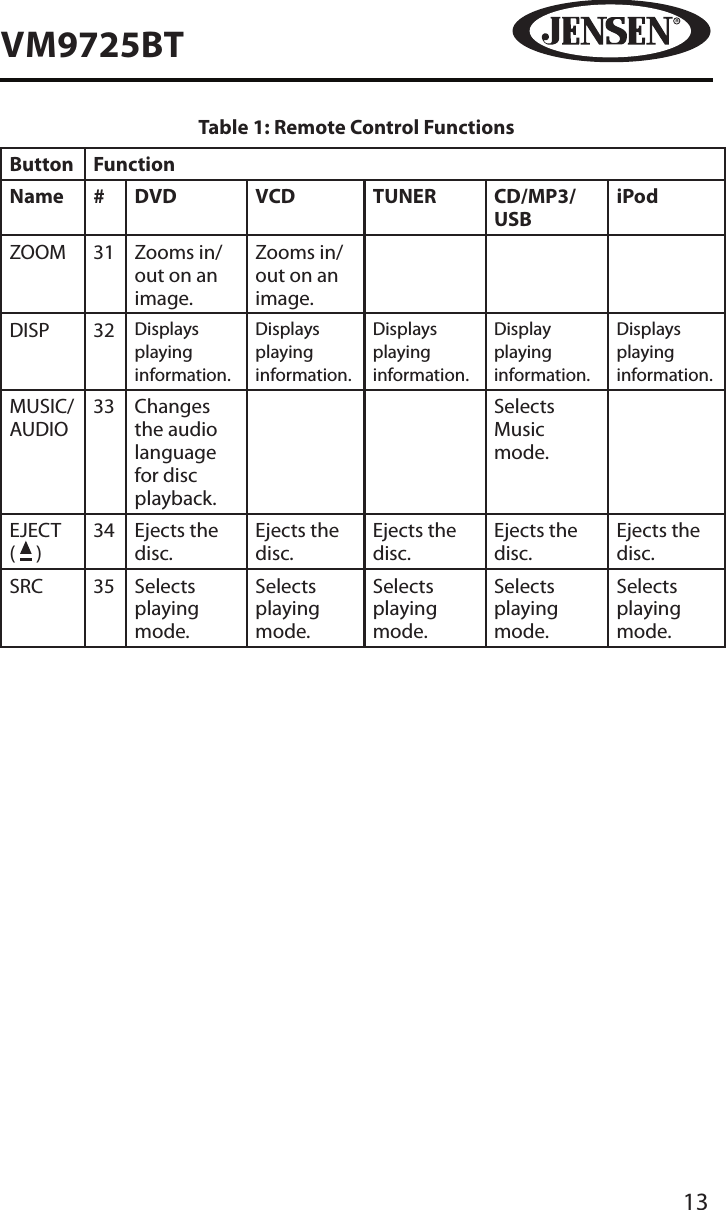
13VM9725BTTable 1: Remote Control FunctionsButton FunctionName # DVD VCD TUNER CD/MP3/USBiPodZOOM 31 Zooms in/out on an image.Zooms in/out on an image.DISP 32 Displays playing information.   Displays playing information.Displays playing information.Display playing information.Displays playing information.MUSIC/AUDIO33 Changes the audio language for disc playback.Selects Music mode.EJECT  (   )34 Ejects the disc.Ejects the disc.Ejects the disc.Ejects the disc.Ejects the disc.SRC 35 Selects playing mode.Selects playing mode.Selects playing mode.Selects playing mode.Selects playing mode.
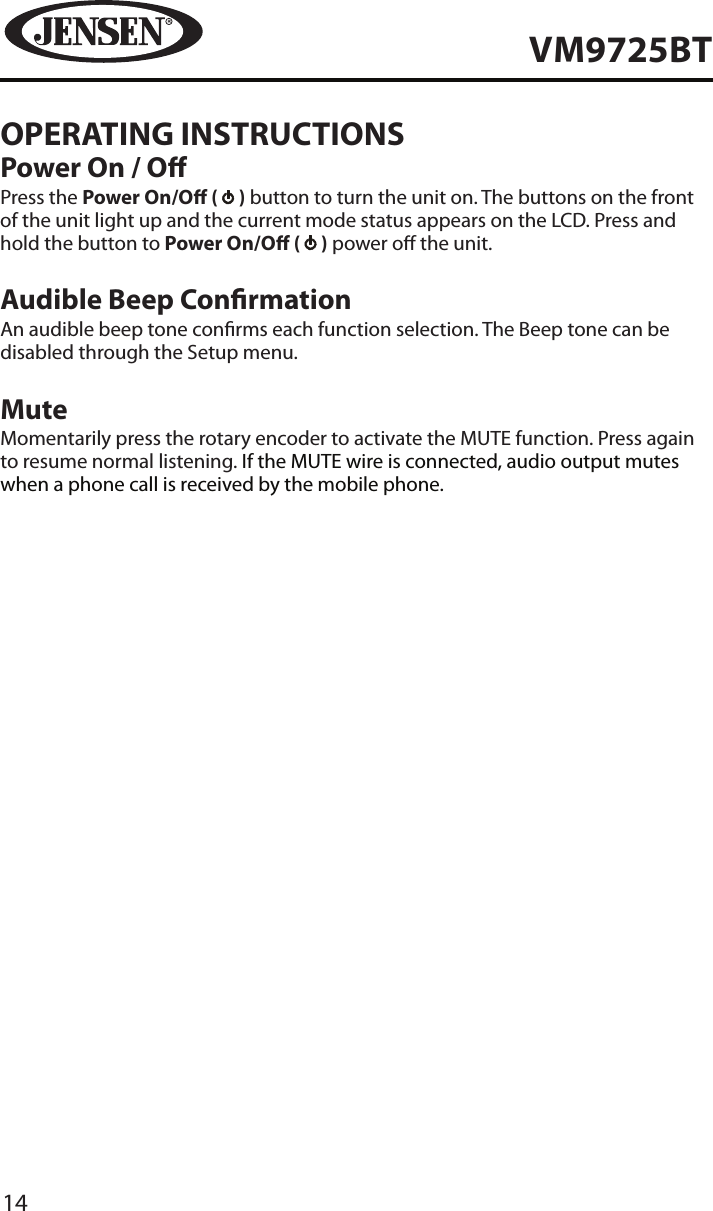
14VM9725BTOPERATING INSTRUCTIONSPower On / OPress the Power On/O (   ) button to turn the unit on. The buttons on the front of the unit light up and the current mode status appears on the LCD. Press and hold the button to Power On/O (   ) power o the unit.Audible Beep ConrmationAn audible beep tone conrms each function selection. The Beep tone can be disabled through the Setup menu.MuteMomentarily press the rotary encoder to activate the MUTE function. Press again to resume normal listening. If the MUTE wire is connected, audio output mutes when a phone call is received by the mobile phone.
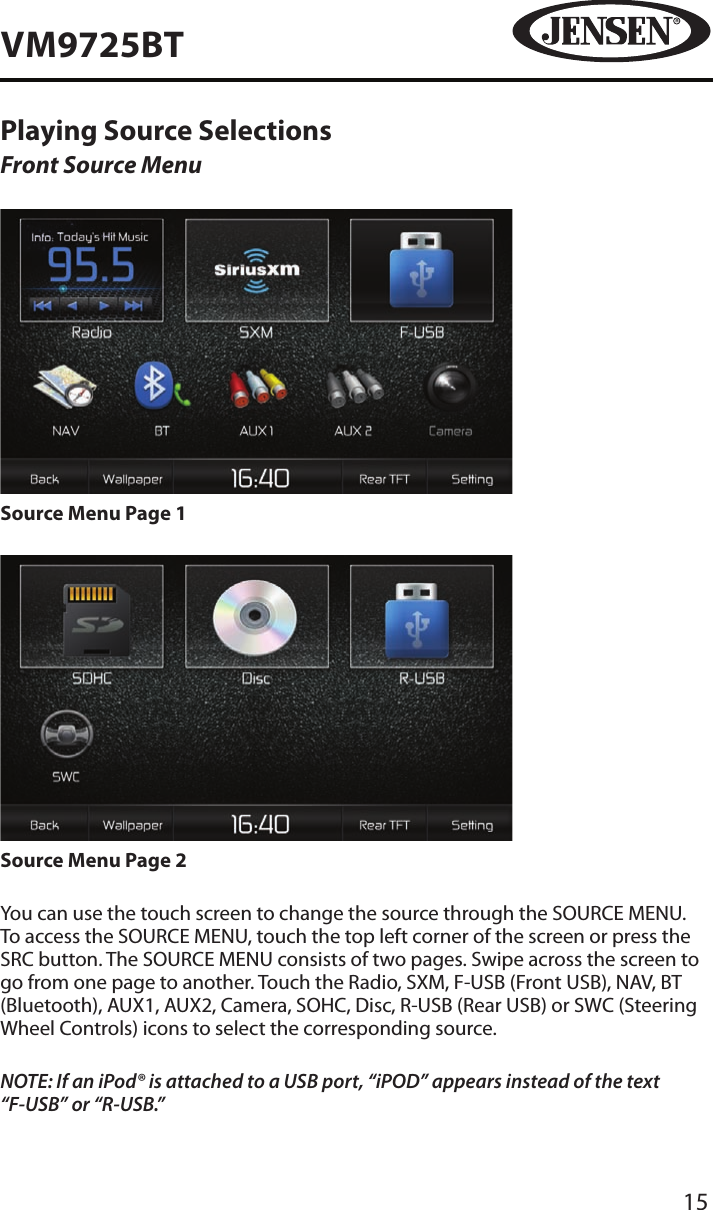
15VM9725BTPlaying Source SelectionsFront Source MenuSource Menu Page 1Source Menu Page 2You can use the touch screen to change the source through the SOURCE MENU. To access the SOURCE MENU, touch the top left corner of the screen or press the SRC button. The SOURCE MENU consists of two pages. Swipe across the screen to go from one page to another. Touch the Radio, SXM, F-USB (Front USB), NAV, BT (Bluetooth), AUX1, AUX2, Camera, SOHC, Disc, R-USB (Rear USB) or SWC (Steering Wheel Controls) icons to select the corresponding source.NOTE: If an iPod® is attached to a USB port, “iPOD” appears instead of the text “F-USB” or “R-USB.”
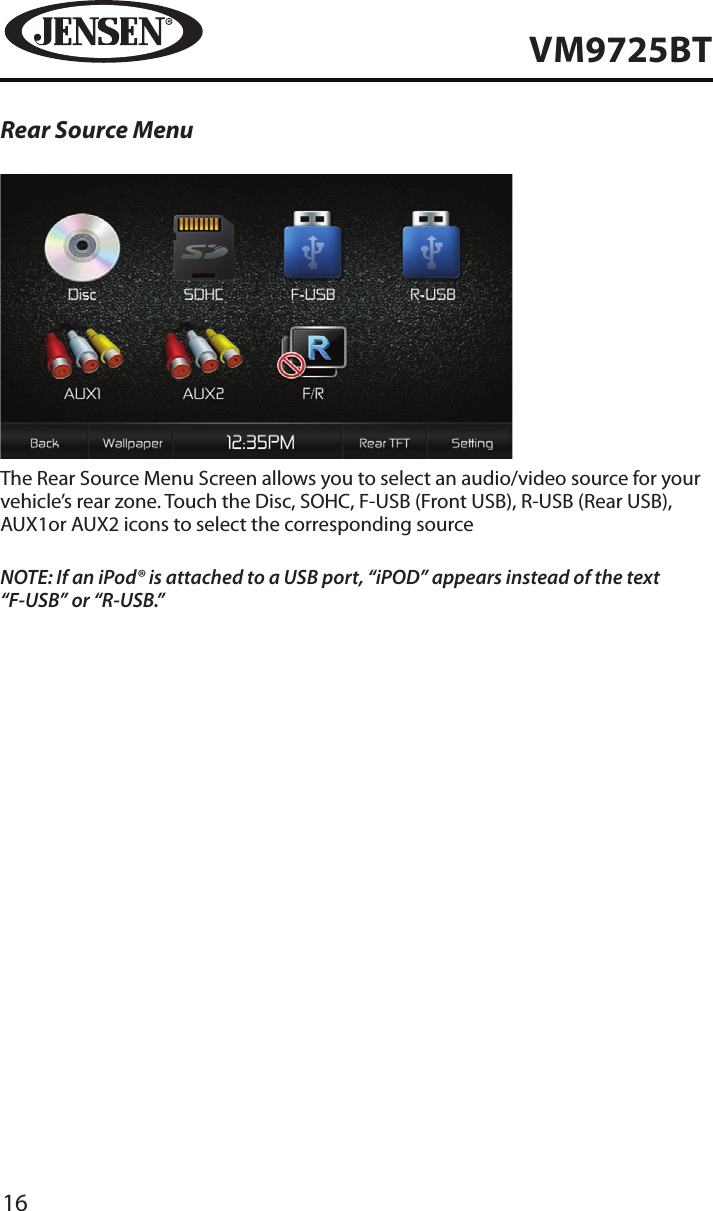
16VM9725BTRear Source MenuThe Rear Source Menu Screen allows you to select an audio/video source for your vehicle’s rear zone. Touch the Disc, SOHC, F-USB (Front USB), R-USB (Rear USB), AUX1or AUX2 icons to select the corresponding sourceNOTE: If an iPod® is attached to a USB port, “iPOD” appears instead of the text “F-USB” or “R-USB.”
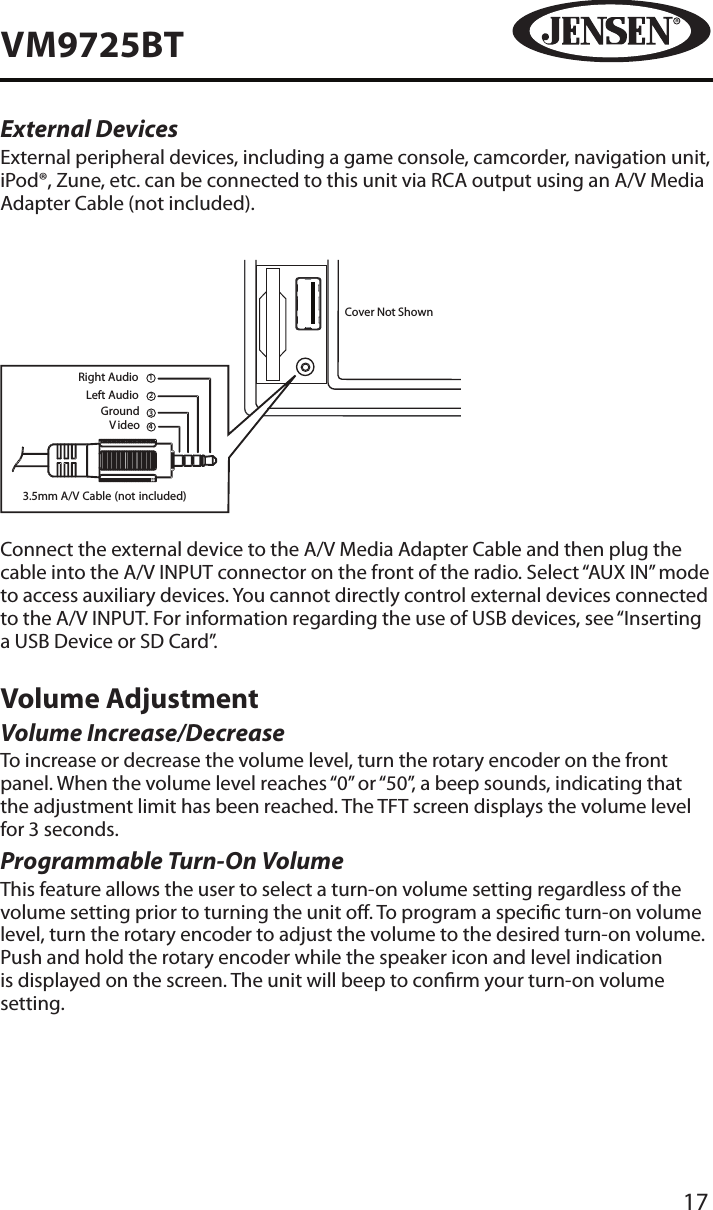
17VM9725BTExternal DevicesExternal peripheral devices, including a game console, camcorder, navigation unit, iPod®, Zune, etc. can be connected to this unit via RCA output using an A/V Media Adapter Cable (not included). 3.5mm A/V Cable (not included)V ideoLeft AudioRight AudioGround1234Cover Not ShownConnect the external device to the A/V Media Adapter Cable and then plug the cable into the A/V INPUT connector on the front of the radio. Select “AUX IN” mode to access auxiliary devices. You cannot directly control external devices connected to the A/V INPUT. For information regarding the use of USB devices, see “Inserting a USB Device or SD Card”.Volume AdjustmentVolume Increase/DecreaseTo increase or decrease the volume level, turn the rotary encoder on the front panel. When the volume level reaches “0” or “50”, a beep sounds, indicating that the adjustment limit has been reached. The TFT screen displays the volume level for 3 seconds.Programmable Turn-On Volume This feature allows the user to select a turn-on volume setting regardless of the volume setting prior to turning the unit o. To program a specic turn-on volume level, turn the rotary encoder to adjust the volume to the desired turn-on volume. Push and hold the rotary encoder while the speaker icon and level indication is displayed on the screen. The unit will beep to conrm your turn-on volume setting.
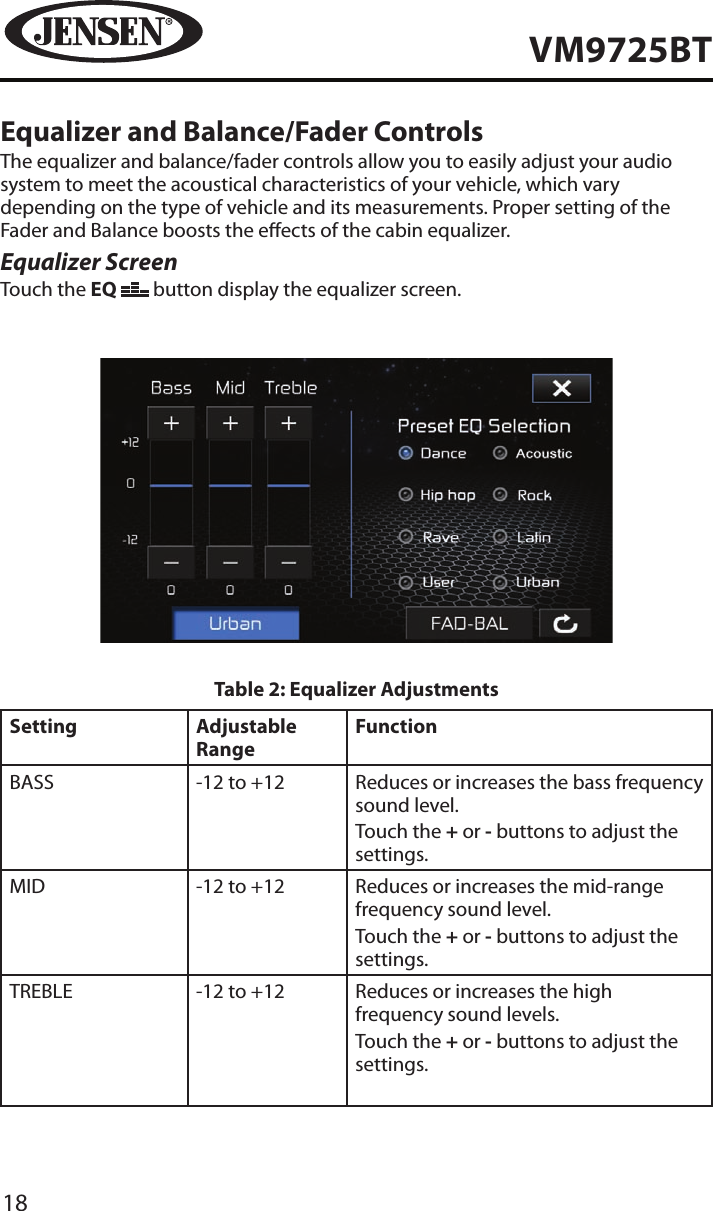
18VM9725BTEqualizer and Balance/Fader ControlsThe equalizer and balance/fader controls allow you to easily adjust your audio system to meet the acoustical characteristics of your vehicle, which vary depending on the type of vehicle and its measurements. Proper setting of the Fader and Balance boosts the eects of the cabin equalizer.Equalizer ScreenTouch the EQ   button display the equalizer screen.Table 2: Equalizer AdjustmentsSetting Adjustable RangeFunctionBASS -12 to +12 Reduces or increases the bass frequency sound level.Touch the + or - buttons to adjust the settings.MID -12 to +12 Reduces or increases the mid-range frequency sound level.Touch the + or - buttons to adjust the settings.TREBLE -12 to +12 Reduces or increases the high frequency sound levels.Touch the + or - buttons to adjust the settings.
19VM9725BTPreset EQ SelectionEqualizer presets apply a preset sound level to the unit’s audio output signal. Touch the User, Acoustic, Urban, Rave, Latin, Dance, Hip Hop or Rock button to change the setting.NOTE: The equalizer will automatically change to “USER” when individual audio functions are adjusted.To Exit the Equalizer:•  Touch the X button on the top right corner of the screen to return to the source screen.•  Touch the BAL-FAD button to display the balance/fader screen.
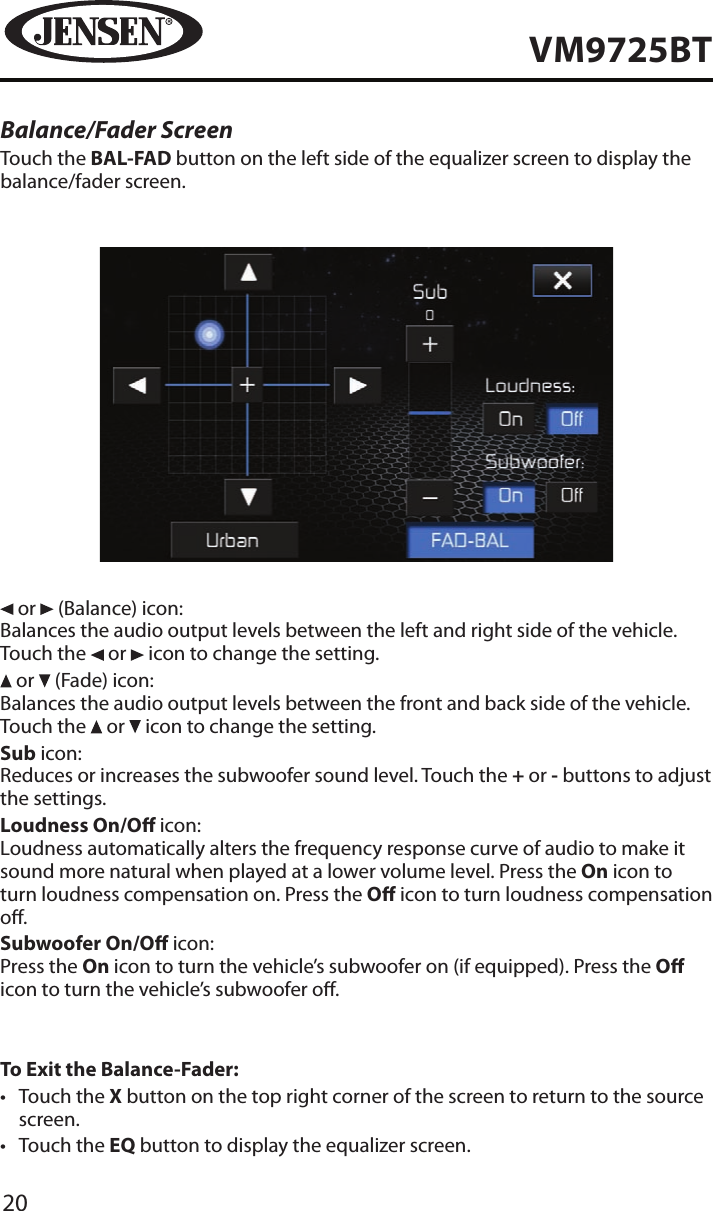
20VM9725BTBalance/Fader ScreenTouch the BAL-FAD button on the left side of the equalizer screen to display the balance/fader screen. or   (Balance) icon:Balances the audio output levels between the left and right side of the vehicle. Touch the   or   icon to change the setting. or   (Fade) icon:Balances the audio output levels between the front and back side of the vehicle. Touch the   or   icon to change the setting.Sub icon:Reduces or increases the subwoofer sound level. Touch the + or - buttons to adjust the settings.Loudness On/O icon:Loudness automatically alters the frequency response curve of audio to make it sound more natural when played at a lower volume level. Press the On icon to turn loudness compensation on. Press the O icon to turn loudness compensation o.Subwoofer On/O icon:Press the On icon to turn the vehicle’s subwoofer on (if equipped). Press the O icon to turn the vehicle’s subwoofer o.To Exit the Balance-Fader:•  Touch the X button on the top right corner of the screen to return to the source screen.•  Touch the EQ button to display the equalizer screen.
21VM9725BTSystem ResetTo correct a system halt or other illegal operation, use the tip of a pen to press the reset button located over the rotary encoder. After a system reset, the unit restores all factory default settings.NOTE: If the unit is reset while a DVD is playing, the DVD resumes play once the reset is complete.Image/Display SettingsVideo Output ModesTable 3 shows the video output mode for each playing source.Table 3: Video Output ModesPlaying Source Video Output ModesAM/FM TUNER                                                     RGB    ModeDVD YCbCr Mode AUX IN CVBS* Mode*CVBS – Composite Video Baseband SignalParking Brake Inhibit•  When the pink “Parking” wire is connected to the vehicle Parking Brake circuit, the front TFT monitor will display video when the Parking Brake is engaged. (When the pink wire is grounded via the Parking Brake circuit, video will be displayed.)[RESET] Button
22VM9725BTSTEERING WHEEL CONTROLS (SWC)(if equipped)The VM9725BT is compatible with the PAC (Pacic Accessory Corporation)  SWI-PS and Metra ASWC steering wheel control adapters. A 3.5mm female connector (labeled “SWC Interface”) on the back of the head unit allows connectivity to the adapters. Please refer to the instructions included with the adapters for detailed installation information.SWC FunctionsThe following controls are available for most vehicles:1.  Volume Up2.  Volume Down3.  Mute4.  Seek Up5.  Seek Down6.  Source7.  Band8.  Bluetooth Send9.  Bluetooth End**All SWC functions may not be available on some vehicles.
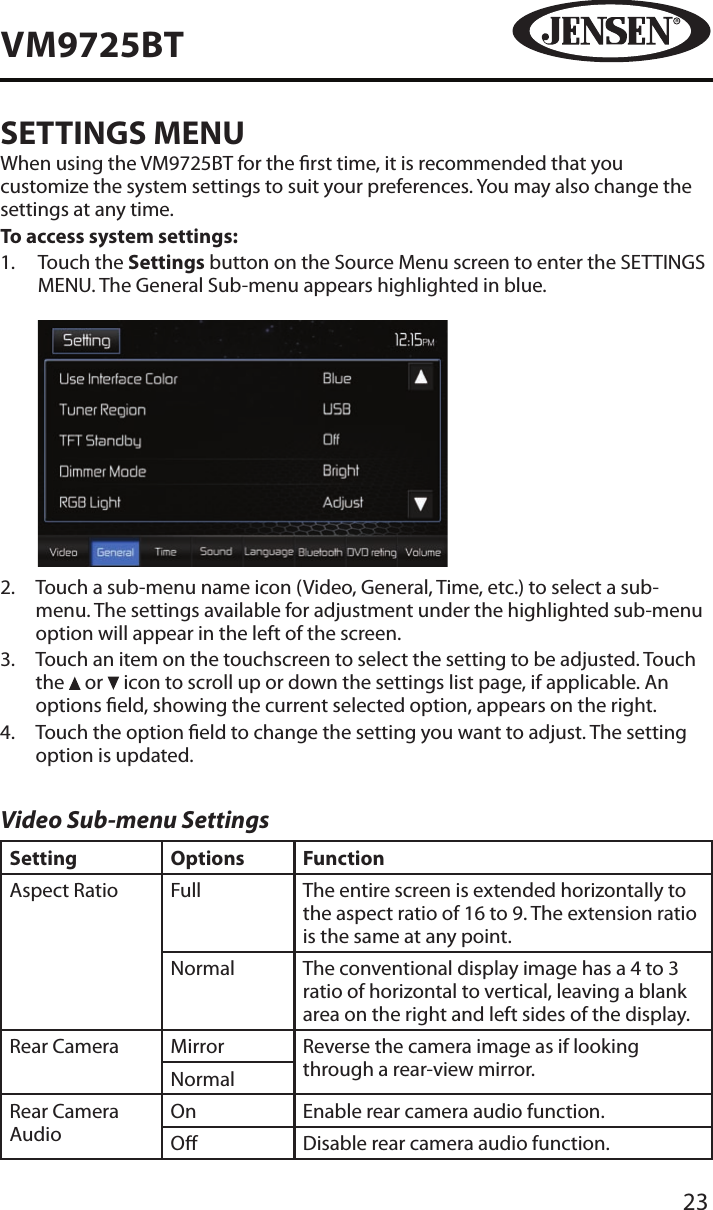
23VM9725BTSETTINGS MENUWhen using the VM9725BT for the rst time, it is recommended that you customize the system settings to suit your preferences. You may also change the settings at any time.To access system settings:1.   Touch the Settings button on the Source Menu screen to enter the SETTINGS MENU. The General Sub-menu appears highlighted in blue.            2.   Touch a sub-menu name icon (Video, General, Time, etc.) to select a sub-menu. The settings available for adjustment under the highlighted sub-menu option will appear in the left of the screen.3.   Touch an item on the touchscreen to select the setting to be adjusted. Touch the   or   icon to scroll up or down the settings list page, if applicable. An options eld, showing the current selected option, appears on the right. 4.   Touch the option eld to change the setting you want to adjust. The setting option is updated.Video Sub-menu SettingsSetting Options FunctionAspect Ratio Full The entire screen is extended horizontally to the aspect ratio of 16 to 9. The extension ratio is the same at any point.Normal The conventional display image has a 4 to 3 ratio of horizontal to vertical, leaving a blank area on the right and left sides of the display.Rear Camera Mirror Reverse the camera image as if looking through a rear-view mirror.NormalRear Camera AudioOn Enable rear camera audio function.O Disable rear camera audio function.
24VM9725BTNOTE: If the rear-view video camera is connected and the unit is on, Camera mode is selected upon shifting into REVERSE gear. If the monitor is in display mode, the monitor automatically switches to CAMERA mode upon reverse driving. When the reverse driving stops, the monitor returns to its original input mode.General Sub-menu SettingsSetting Options FunctionUser Interface ColorAqua This setting allows the user to select ve pre-dened LED colors for the front panel illumination.RedBlueAmberGreenTuner Region USA •  AM Frequency Spacing - 10 kHz •  AM Frequency Band - 530 kHz ~ 1720 kHz•  FM Frequency Spacing - 200 kHz•  FM Frequency Band - 87.5 MHz ~ 107.9 MHzEurope •  AM Frequency Spacing - 9 kHz •  AM Frequency Band - 522 kHz ~ 1620 kHz•  FM Frequency Spacing - 50 kHz•  FM Frequency Band - 87.5 MHz ~ 108.0 MHzTFT Standby O Screen remains on continuously.10s Screen goes blank (standby mode) after 10 seconds of inactivity. Touch the screen to exit standby and view the display.20s Screen goes blank (standby mode) after 20 seconds of inactivity. Touch the screen to exit standby and view the display.Dimmer ModeAuto This setting dims the LCD screen when the vehicle’s headlights are turned on. FIve settings are pre-dened.NightDarkNormalBrightRGB Light Adjust This setting allows the user to tune the RGB colors of the LEDs to obtain an exact match for their vehicle.
25VM9725BTBeep Off No beep sounds.On When turned on, an audible beep tone conrms each function selection.Background Animation StarAllows the user to select a screen background. The Wallpaper will not appear on the Main Source Menu, Camera source or EQ settings page.Starry SkyBlackAnimation FireworksAnimation WaveUser DenedCalibration Start Press to access the touch screen calibration function.Demo On Display various user interface TFT display pages.Displays the Equalizer and Settings menu pages. OTouch Screen CalibrationTo access the “Touch Screen Calibration” function from the General sub-menu:1.   Select the “Calibration” Start option. A calibration test pattern appears on the screen.2.   To begin calibration, touch and hold the crosshair ( + ) that appears in the “1” icon in the center of the screen. After about one second, the crosshair moves to the “2” icon in the quadrant.3.  Continue for each quadrant until the calibration is completed.Demo Mode FeaturesThe Demo mode is to On (Auto run) by default. The Demo mode will display various user interface TFT display pages such as the Radio, Disc, Aux In, and Camera sources. The Demo mode will also display the Equalizer and Settings menu pages. Touching any portion of the touch screen will pause the Demo mode temporarily. If the touch screen is not pressed again (within 30 seconds) the Demo mode will resume.To turn the Demo mode o, access the General Sub-menu Settings and turn Demo   to O.
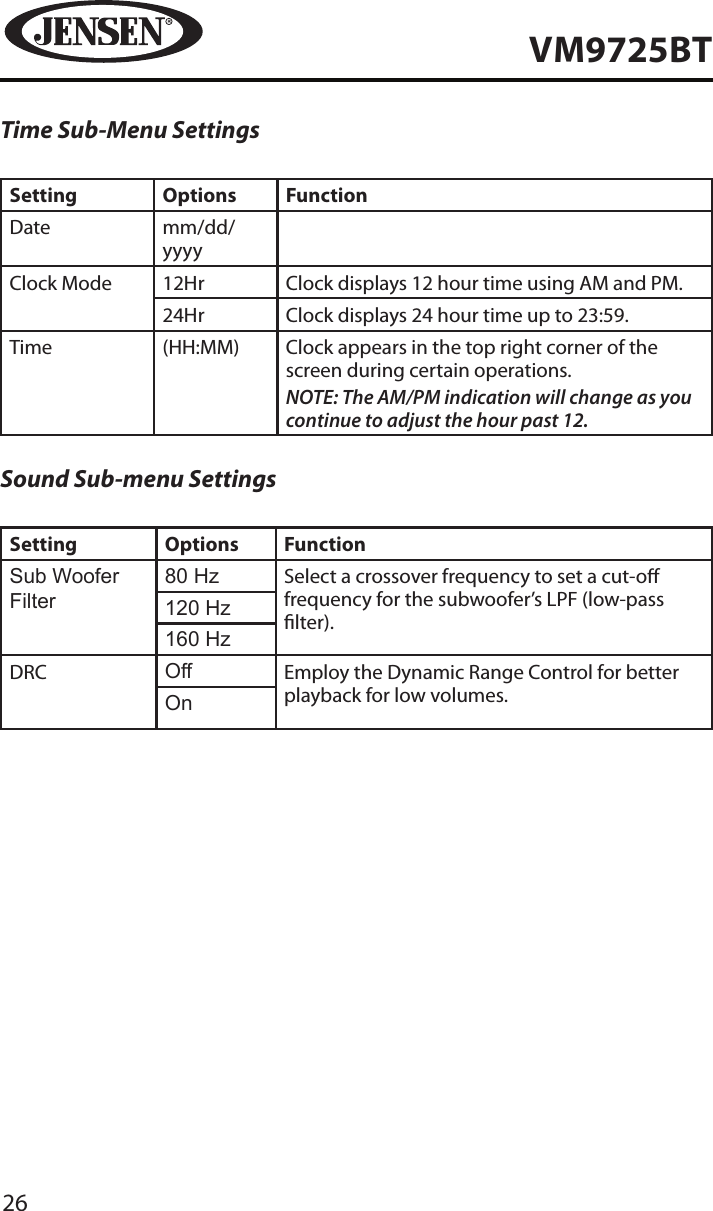
26VM9725BTTime Sub-Menu SettingsSetting Options FunctionDate mm/dd/yyyyClock Mode 12Hr Clock displays 12 hour time using AM and PM.24Hr Clock displays 24 hour time up to 23:59.Time (HH:MM) Clock appears in the top right corner of the screen during certain operations.NOTE: The AM/PM indication will change as you continue to adjust the hour past 12.Sound Sub-menu SettingsSetting Options FunctionSub Woofer Filter80 Hz Select a crossover frequency to set a cut-o frequency for the subwoofer’s LPF (low-pass lter).120 Hz160 HzDRC Off Employ the Dynamic Range Control for better playback for low volumes.On
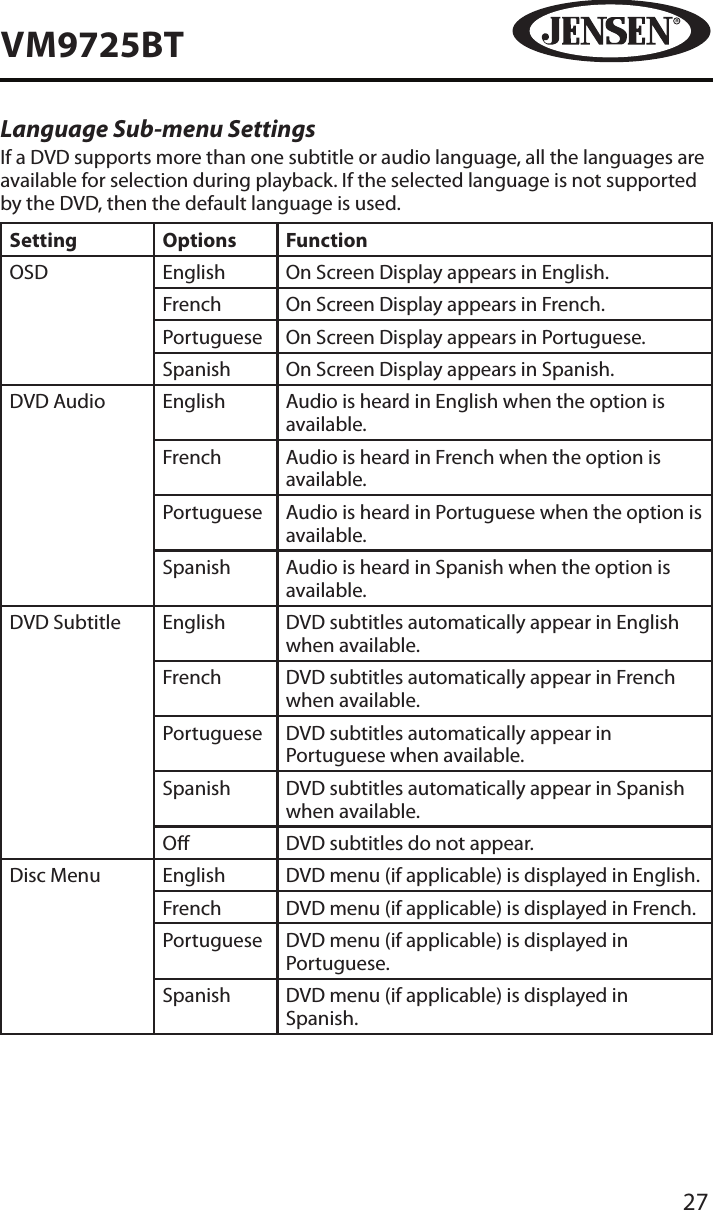
27VM9725BTLanguage Sub-menu SettingsIf a DVD supports more than one subtitle or audio language, all the languages are available for selection during playback. If the selected language is not supported by the DVD, then the default language is used.Setting Options FunctionOSD English On Screen Display appears in English.French On Screen Display appears in French.Portuguese On Screen Display appears in Portuguese.Spanish On Screen Display appears in Spanish.DVD Audio English Audio is heard in English when the option is available.French Audio is heard in French when the option is available.Portuguese Audio is heard in Portuguese when the option is available.Spanish Audio is heard in Spanish when the option is available.DVD Subtitle English DVD subtitles automatically appear in English when available.French DVD subtitles automatically appear in French when available.Portuguese DVD subtitles automatically appear in Portuguese when available.Spanish DVD subtitles automatically appear in Spanish when available.O DVD subtitles do not appear.Disc Menu English DVD menu (if applicable) is displayed in English.French DVD menu (if applicable) is displayed in French.Portuguese DVD menu (if applicable) is displayed in Portuguese.Spanish DVD menu (if applicable) is displayed in Spanish.
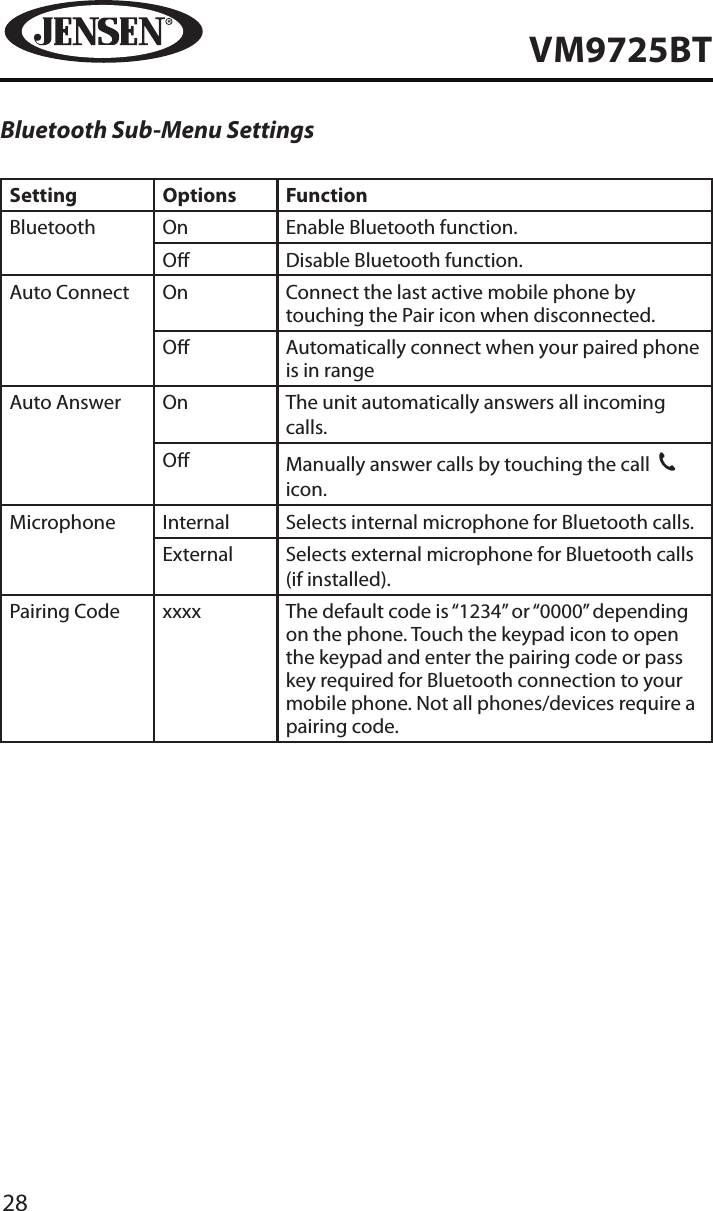
28VM9725BTBluetooth Sub-Menu SettingsSetting Options FunctionBluetooth On Enable Bluetooth function.O Disable Bluetooth function.Auto Connect On Connect the last active mobile phone by touching the Pair icon when disconnected.O Automatically connect when your paired phone is in rangeAuto Answer On The unit automatically answers all incoming calls.O Manually answer calls by touching the call  31 icon.Microphone Internal Selects internal microphone for Bluetooth calls.External Selects external microphone for Bluetooth calls (if installed).Pairing Code xxxx The default code is “1234” or “0000” depending on the phone. Touch the keypad icon to open the keypad and enter the pairing code or pass key required for Bluetooth connection to your mobile phone. Not all phones/devices require a pairing code.
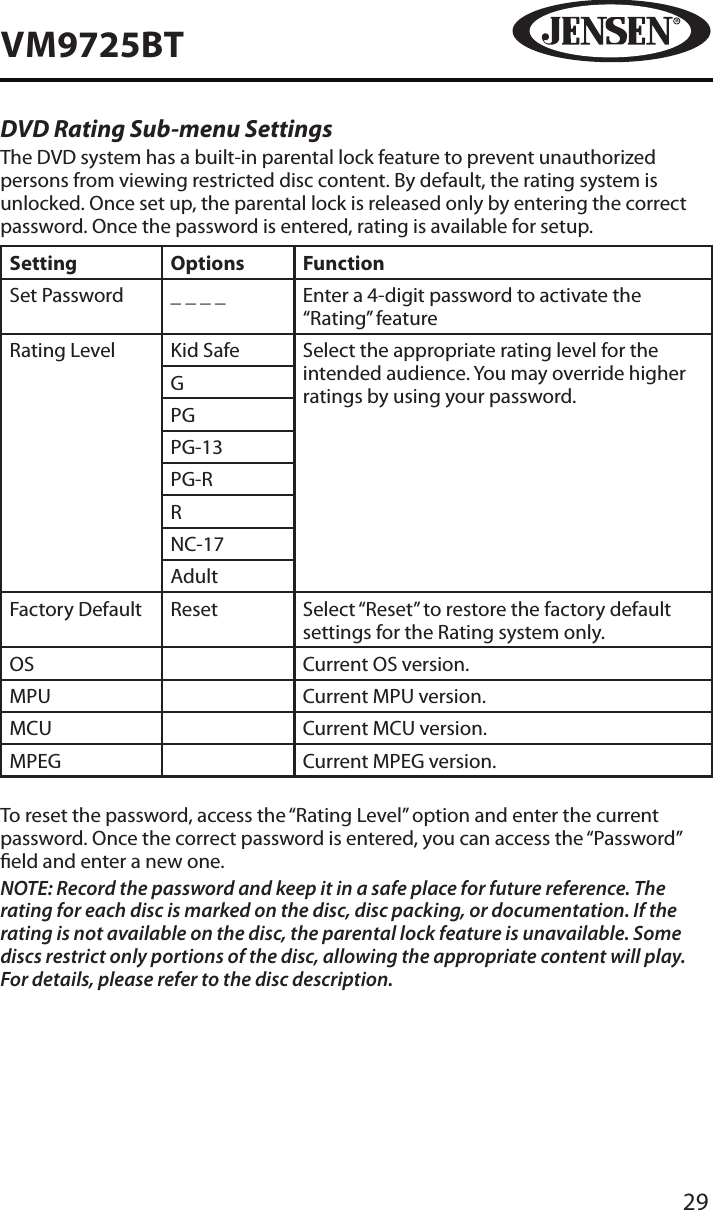
29VM9725BTDVD Rating Sub-menu SettingsThe DVD system has a built-in parental lock feature to prevent unauthorized persons from viewing restricted disc content. By default, the rating system is unlocked. Once set up, the parental lock is released only by entering the correct password. Once the password is entered, rating is available for setup.Setting Options FunctionSet Password _ _ _ _ Enter a 4-digit password to activate the “Rating” featureRating Level Kid Safe Select the appropriate rating level for the intended audience. You may override higher ratings by using your password.GPGPG-13PG-RRNC-17AdultFactory Default Reset Select “Reset” to restore the factory default settings for the Rating system only.OS Current OS version.MPU Current MPU version.MCU Current MCU version.MPEG Current MPEG version.To reset the password, access the “Rating Level” option and enter the current password. Once the correct password is entered, you can access the “Password” eld and enter a new one.NOTE: Record the password and keep it in a safe place for future reference. The rating for each disc is marked on the disc, disc packing, or documentation. If the rating is not available on the disc, the parental lock feature is unavailable. Some discs restrict only portions of the disc, allowing the appropriate content will play. For details, please refer to the disc description.
30VM9725BTVolume Sub-menu SettingsSetting Options FunctionDVD 0 - 12 Increase or reduce the relative DVD volume.USB 0 - 12 Increase or reduce the relative USB volume.SD 0 - 12 Increase or reduce the relative SD volumeRadio 0 - 12 Increase or reduce the relative radio volume.Bluetooth 0 - 12 Increase or reduce the relative Bluetooth volume.AV-IN1 0 - 12 Increase or reduce the relative AV-IN1 volume.AV-IN2 0 - 12 Increase or reduce the relative AV-IN2 volume.Navigation 0 - 12 Increase or reduce the relative navigation volume.iPod 0 - 12 Increase or reduce the relative iPod® volume.SXM 0 - 12 Increase or reduce the relative SiriusXM® volume.Exiting the System Settings MenuTo exit setup mode and resume normal playback, touch the Setting button on the screen.
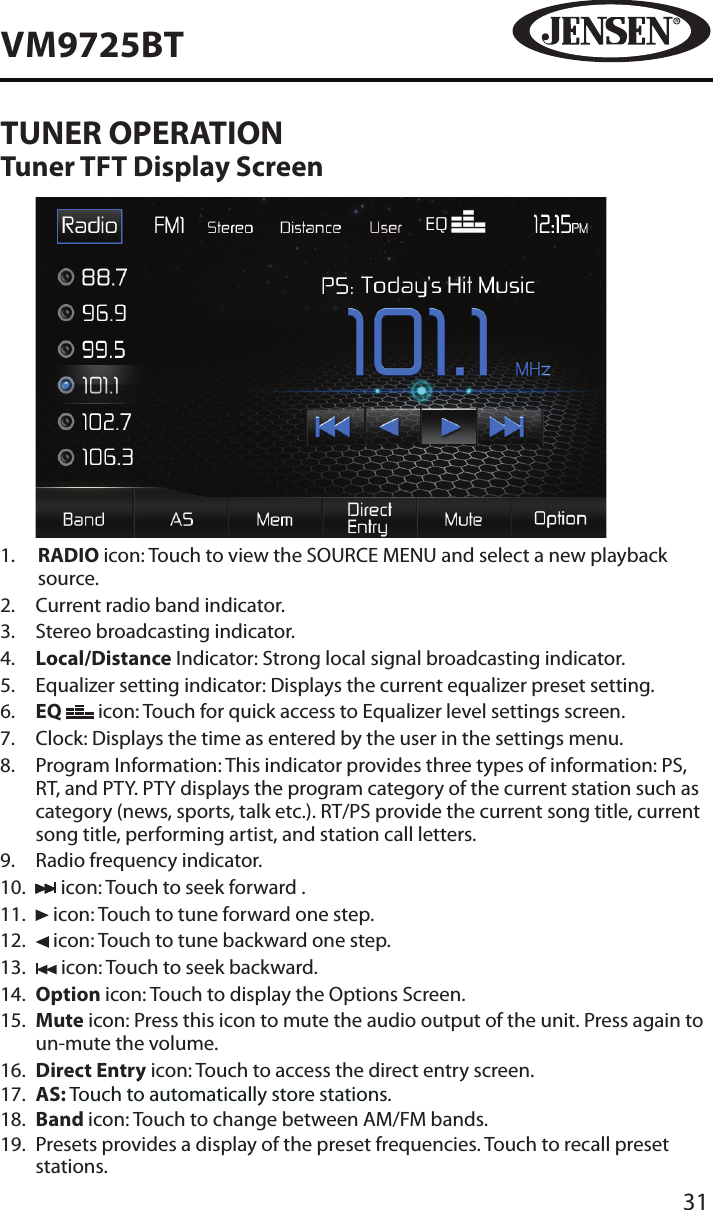
31VM9725BTTUNER OPERATIONTuner TFT Display Screen1.   RADIO icon: Touch to view the SOURCE MENU and select a new playback source.2.  Current radio band indicator.3.  Stereo broadcasting indicator. 4.   Local/Distance Indicator: Strong local signal broadcasting indicator.5.  Equalizer setting indicator: Displays the current equalizer preset setting.6.   EQ   icon: Touch for quick access to Equalizer level settings screen.7.  Clock: Displays the time as entered by the user in the settings menu.8.   Program Information: This indicator provides three types of information: PS, RT, and PTY. PTY displays the program category of the current station such as category (news, sports, talk etc.). RT/PS provide the current song title, current song title, performing artist, and station call letters. 9.  Radio frequency indicator.10.   icon: Touch to seek forward .11.   icon: Touch to tune forward one step.12.   icon: Touch to tune backward one step.13.   icon: Touch to seek backward.14.   Option icon: Touch to display the Options Screen.15.   Mute icon: Press this icon to mute the audio output of the unit. Press again to un-mute the volume.16.   Direct Entry icon: Touch to access the direct entry screen.17.   AS: Touch to automatically store stations.18.   Band icon: Touch to change between AM/FM bands.19.   Presets provides a display of the preset frequencies. Touch to recall preset stations.
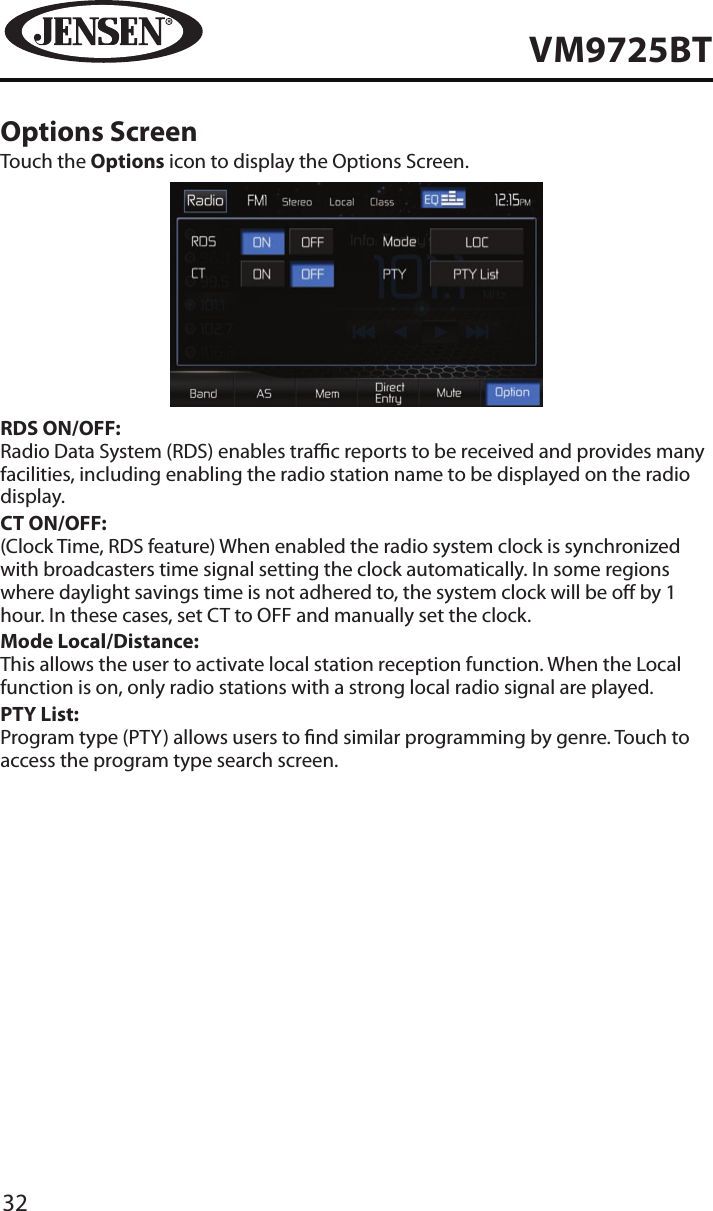
32VM9725BTOptions ScreenTouch the Options icon to display the Options Screen.RDS ON/OFF:Radio Data System (RDS) enables trac reports to be received and provides many facilities, including enabling the radio station name to be displayed on the radio display.CT ON/OFF:(Clock Time, RDS feature) When enabled the radio system clock is synchronized with broadcasters time signal setting the clock automatically. In some regions where daylight savings time is not adhered to, the system clock will be o by 1 hour. In these cases, set CT to OFF and manually set the clock. Mode Local/Distance:This allows the user to activate local station reception function. When the Local function is on, only radio stations with a strong local radio signal are played.PTY List:Program type (PTY) allows users to nd similar programming by genre. Touch to access the program type search screen.
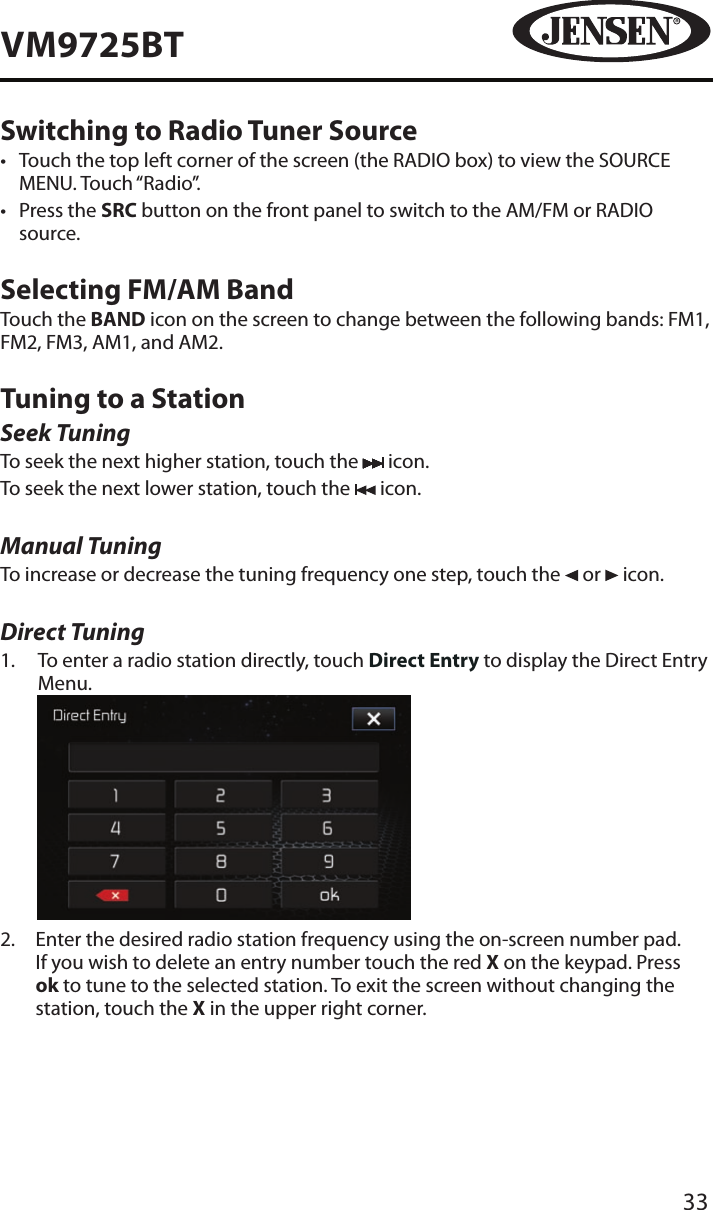
33VM9725BTSwitching to Radio Tuner Source•  Touch the top left corner of the screen (the RADIO box) to view the SOURCE MENU. Touch “Radio”. •  Press the SRC button on the front panel to switch to the AM/FM or RADIO source.Selecting FM/AM BandTouch the BAND icon on the screen to change between the following bands: FM1, FM2, FM3, AM1, and AM2.Tuning to a StationSeek TuningTo seek the next higher station, touch the   icon.To seek the next lower station, touch the   icon.Manual TuningTo increase or decrease the tuning frequency one step, touch the   or   icon.Direct Tuning1.   To enter a radio station directly, touch Direct Entry to display the Direct Entry Menu.          2.   Enter the desired radio station frequency using the on-screen number pad. If you wish to delete an entry number touch the red X on the keypad. Press ok to tune to the selected station. To exit the screen without changing the station, touch the X in the upper right corner.
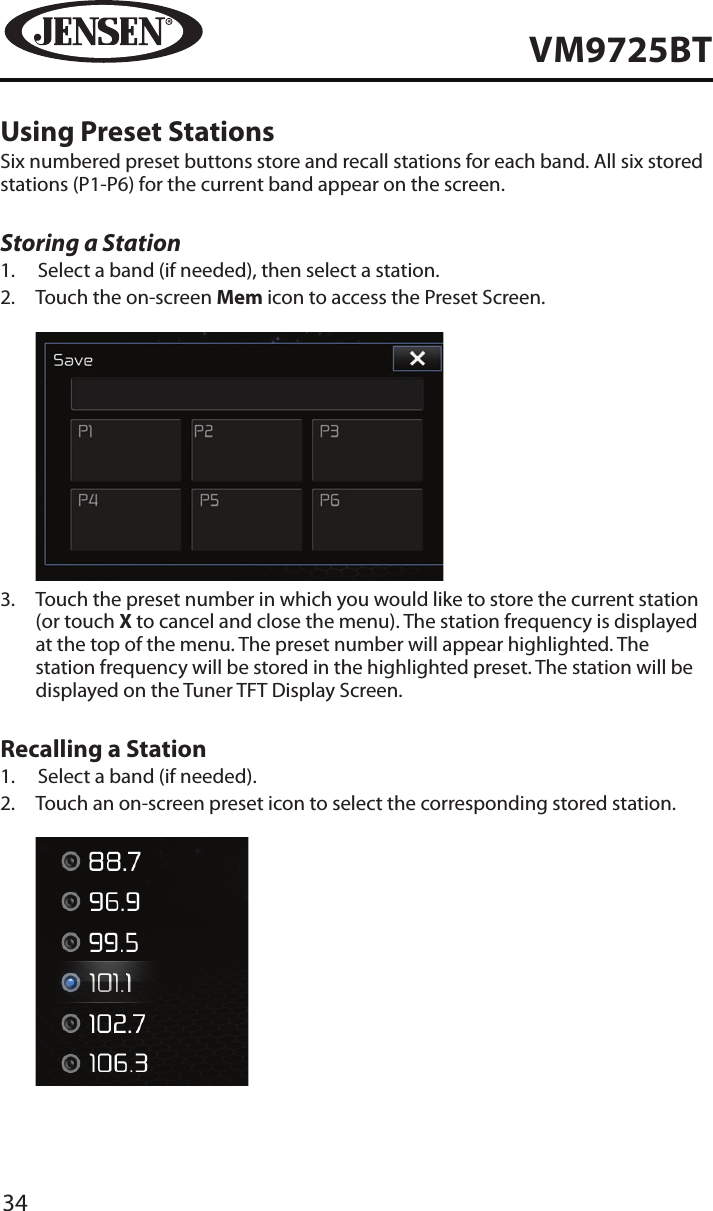
34VM9725BTUsing Preset StationsSix numbered preset buttons store and recall stations for each band. All six stored stations (P1-P6) for the current band appear on the screen.Storing a Station1.  Select a band (if needed), then select a station.2.   Touch the on-screen Mem icon to access the Preset Screen.           3.   Touch the preset number in which you would like to store the current station (or touch X to cancel and close the menu). The station frequency is displayed at the top of the menu. The preset number will appear highlighted. The station frequency will be stored in the highlighted preset. The station will be displayed on the Tuner TFT Display Screen.Recalling a Station1.  Select a band (if needed).2.   Touch an on-screen preset icon to select the corresponding stored station.
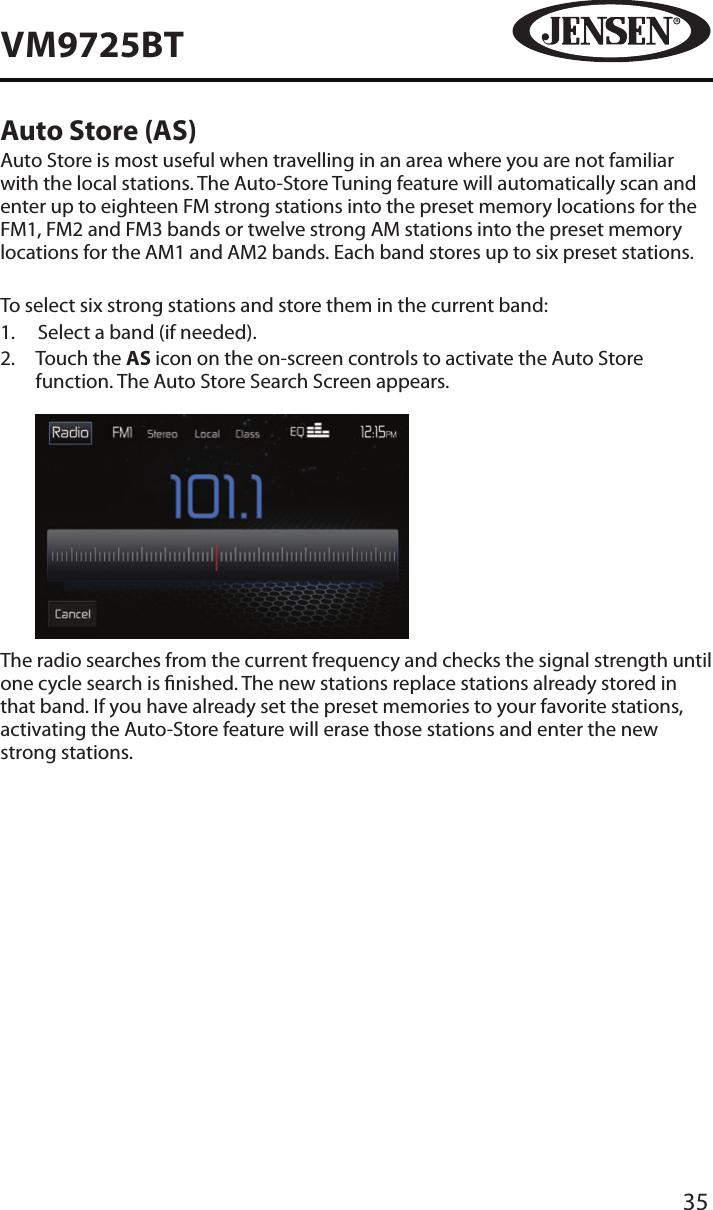
35VM9725BTAuto Store (AS)Auto Store is most useful when travelling in an area where you are not familiar with the local stations. The Auto-Store Tuning feature will automatically scan and enter up to eighteen FM strong stations into the preset memory locations for the FM1, FM2 and FM3 bands or twelve strong AM stations into the preset memory locations for the AM1 and AM2 bands. Each band stores up to six preset stations.To select six strong stations and store them in the current band:1.  Select a band (if needed).2.   Touch the AS icon on the on-screen controls to activate the Auto Store function. The Auto Store Search Screen appears.            The radio searches from the current frequency and checks the signal strength until one cycle search is nished. The new stations replace stations already stored in that band. If you have already set the preset memories to your favorite stations, activating the Auto-Store feature will erase those stations and enter the new strong stations.
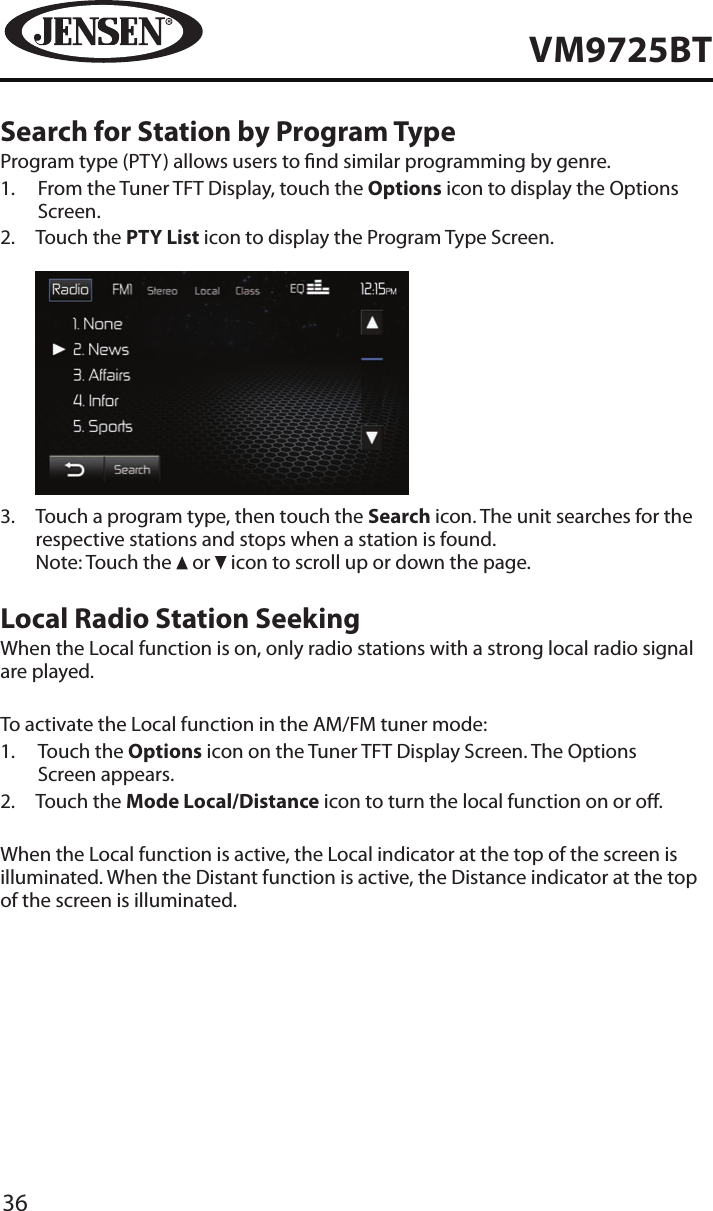
36VM9725BTSearch for Station by Program TypeProgram type (PTY) allows users to nd similar programming by genre.1.   From the Tuner TFT Display, touch the Options icon to display the Options Screen.2.   Touch the PTY List icon to display the Program Type Screen.          3.   Touch a program type, then touch the Search icon. The unit searches for the respective stations and stops when a station is found. Note: Touch the   or   icon to scroll up or down the page. Local Radio Station SeekingWhen the Local function is on, only radio stations with a strong local radio signal are played. To activate the Local function in the AM/FM tuner mode:1.   Touch the Options icon on the Tuner TFT Display Screen. The Options Screen appears.2.  Touch the Mode Local/Distance icon to turn the local function on or o. When the Local function is active, the Local indicator at the top of the screen is illuminated. When the Distant function is active, the Distance indicator at the top of the screen is illuminated.
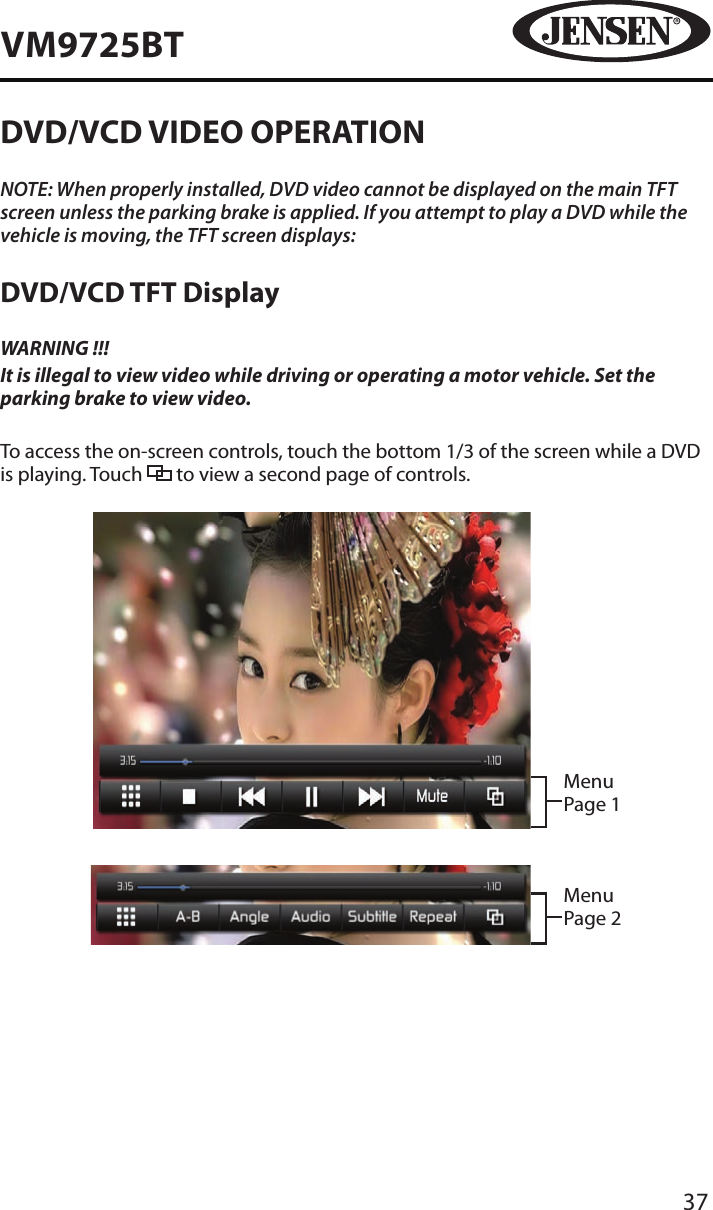
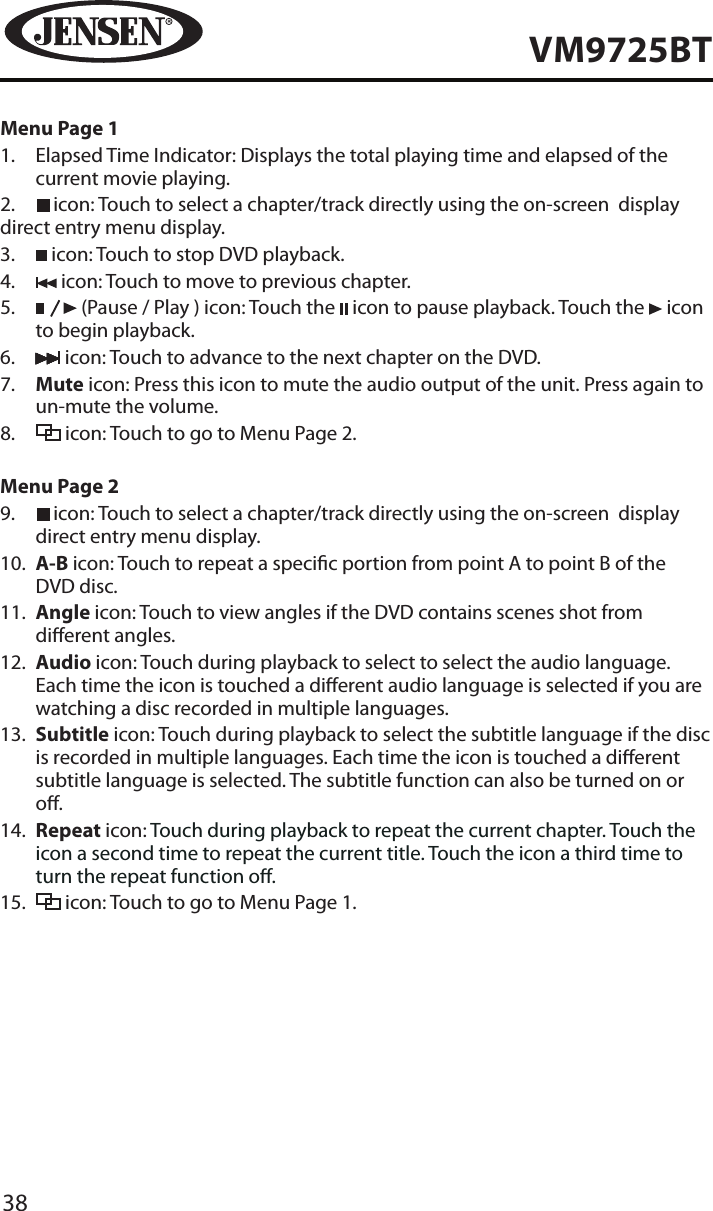
37VM9725BTDVD/VCD VIDEO OPERATIONNOTE: When properly installed, DVD video cannot be displayed on the main TFT screen unless the parking brake is applied. If you attempt to play a DVD while the vehicle is moving, the TFT screen displays:DVD/VCD TFT DisplayWARNING !!!It is illegal to view video while driving or operating a motor vehicle. Set the parking brake to view video.To access the on-screen controls, touch the bottom 1/3 of the screen while a DVD is playing. Touch   to view a second page of controls.Menu Page 1Menu Page 2
38VM9725BTMenu Page 11.   Elapsed Time Indicator: Displays the total playing time and elapsed of the current movie playing.2.   icon: Touch to select a chapter/track directly using the on-screen  display direct entry menu display.3.   icon: Touch to stop DVD playback.4.   icon: Touch to move to previous chapter.5.      (Pause / Play ) icon: Touch the   icon to pause playback. Touch the   icon to begin playback.6.   icon: Touch to advance to the next chapter on the DVD.  7.   Mute icon: Press this icon to mute the audio output of the unit. Press again to un-mute the volume.8.   icon: Touch to go to Menu Page 2.Menu Page 29.     icon: Touch to select a chapter/track directly using the on-screen  display direct entry menu display.10.   A-B icon: Touch to repeat a specic portion from point A to point B of the DVD disc.11.   Angle icon: Touch to view angles if the DVD contains scenes shot from dierent angles. 12.   Audio icon: Touch during playback to select to select the audio language. Each time the icon is touched a dierent audio language is selected if you are watching a disc recorded in multiple languages.13.   Subtitle icon: Touch during playback to select the subtitle language if the disc is recorded in multiple languages. Each time the icon is touched a dierent subtitle language is selected. The subtitle function can also be turned on or o. 14.   Repeat icon: Touch during playback to repeat the current chapter. Touch the icon a second time to repeat the current title. Touch the icon a third time to turn the repeat function o.15.   icon: Touch to go to Menu Page 1.
39VM9725BTControlling PlaybackInserting a DiscUpon inserting a DVD disc, DVD mode is entered and disc play begins. NOTE: If Parental Lock (Rating) is activated and the disc inserted is not authorized, the 4-digit code must be entered and/or the disc must be authorized (see “Rating Sub-menu Features”).You cannot insert a disc if there is already a disc in the unit or if the power is o. NOTE: DVD-R and DVD-RW will not play unless the recording session is nalized and the DVD is closed.Ejecting a Disc Press the EJECT (   ) button on the front of the unit to eject the disc. The unit automatically reverts to Tuner mode. You may eject a disc with the unit powered o. The unit will remain o after the disc is ejected.Resetting the Loading MechanismIf the disc loads abnormally or an abnormal core mechanism operation occurs, touch and hold the EJECT (   ) button to reset the loading mechanism. Normal operation resumes.Accessing DVD ModeTo switch to DVD mode when a disc is already inserted, touch SRC on the front panel to access the source menu. Touch the disc icon.Repeat PlaybackTouch the Repeat icon to alter repeat mode in the following sequence:•  DVD: Repeat Chapter, Repeat Title, Repeat O•  VCD (PBC O ): Repeat Single, Repeat ONOTE: For VCD play, the repeat function is not available if PBC is on.
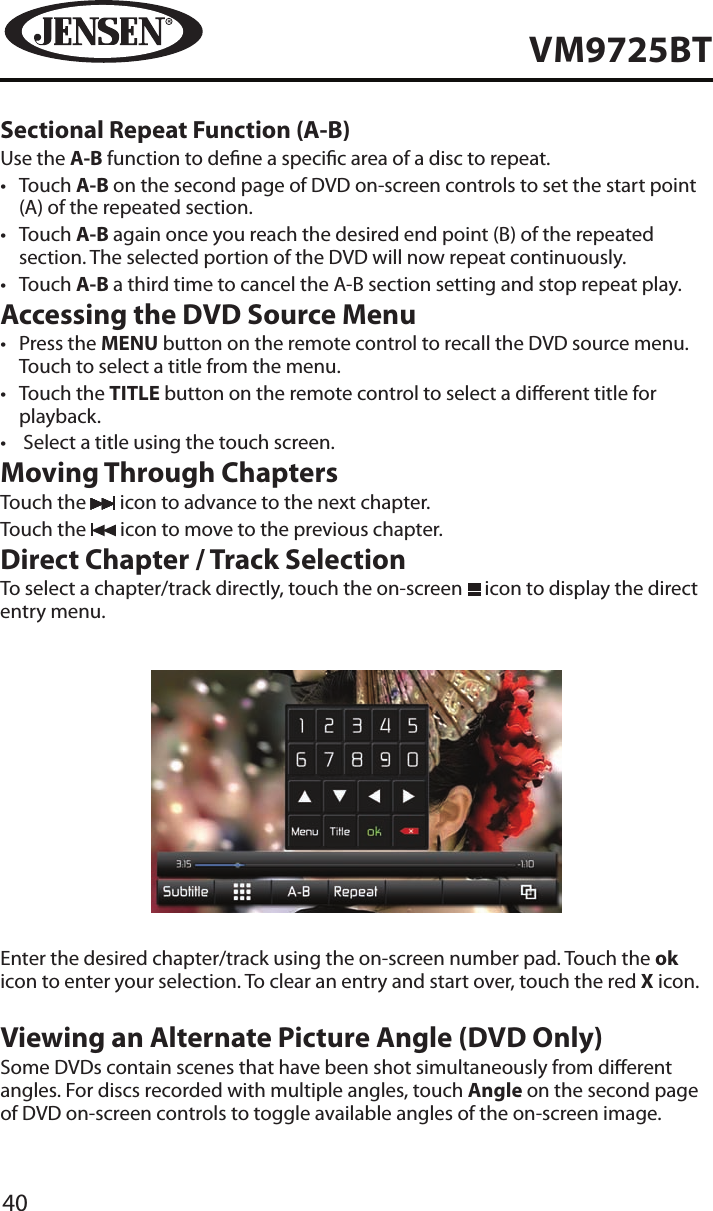
40VM9725BTSectional Repeat Function (A-B)Use the A-B function to dene a specic area of a disc to repeat.•  Touch A-B on the second page of DVD on-screen controls to set the start point (A) of the repeated section.•  Touch A-B again once you reach the desired end point (B) of the repeated section. The selected portion of the DVD will now repeat continuously.•  Touch A-B a third time to cancel the A-B section setting and stop repeat play.Accessing the DVD Source Menu•  Press the MENU button on the remote control to recall the DVD source menu. Touch to select a title from the menu.•  Touch the TITLE button on the remote control to select a dierent title for playback.•   Select a title using the touch screen.Moving Through ChaptersTouch the   icon to advance to the next chapter.Touch the   icon to move to the previous chapter.Direct Chapter / Track SelectionTo select a chapter/track directly, touch the on-screen   icon to display the direct entry menu.Enter the desired chapter/track using the on-screen number pad. Touch the ok icon to enter your selection. To clear an entry and start over, touch the red X icon.Viewing an Alternate Picture Angle (DVD Only)Some DVDs contain scenes that have been shot simultaneously from dierent angles. For discs recorded with multiple angles, touch Angle on the second page of DVD on-screen controls to toggle available angles of the on-screen image.
41VM9725BTMulti-Language Discs (DVD Only)Changing Audio LanguageIf you are watching a disc recorded in multiple languages, touch Audio on the second page of DVD on-screen controls to choose a language. Each time the icon is touched the language will change.Changing Subtitle LanguageIf you are watching a disc recorded in multiple languages with subtitles, touch Subtitle on the second page of DVD on-screen controls to choose the language in which you would like the subtitles to appear.NOTE: During VCD playback, touch the AUDIO on the second page of DVD on-screen controls to choose between Left Channel, Right Channel, and Stereo.PBC - Play Back Control (VCD Only)For VCDs with play back functionality, play back control (PBC) provides additional controls for VCD playback.Touch PBC on the rst page of DVD on-screen controls to toggle the PBC function “On”/”O”. Once PBC is on, playback starts from track one of the play list.NOTE: When PBC is activated, fast forward, slow playback, and previous/next track are available. Repeat and direct track selection are not available.When PBC is activated, selecting random, scan or search playback automatically deactivates PBC.Playback InformationDuring DVD and VCD playback, touch the center of the screen to display playback information on the screen, including the media playing and current playback time.DVD Playback Information•  DVD Video – Format of current disc.•  Time 00:01:30/00:36:10 – Indicates the playback time of the current track.•  Title 5/08 – Indicates the fth of 8 titles on the DVD is currently playing.•  Chapter 2/16 – Indicates that the second of 16 chapters on the DVD is currently playing.VCD Playback Information•  VCD2.0 – Format of current disc.•  Time 00:01:30/00:36:10 – Indicates the playback time of the current track.•  PBC On/O – Indicates whether Play Back Control is On or O.
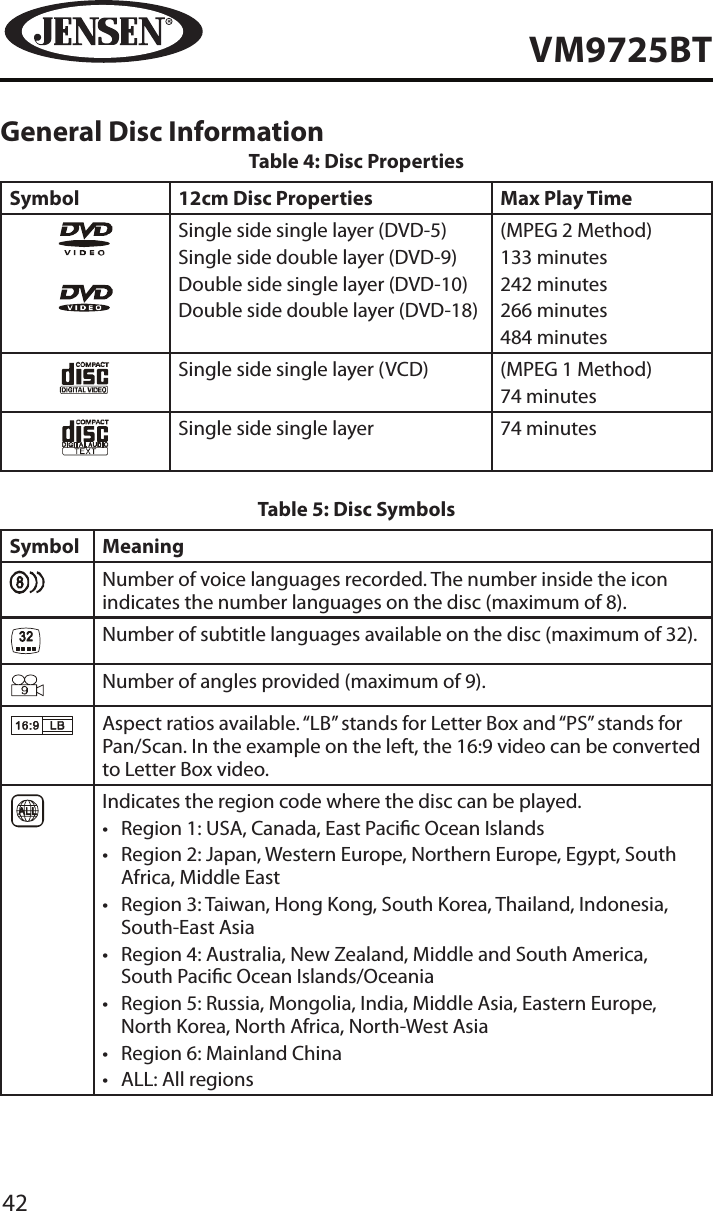
42VM9725BTGeneral Disc InformationTable 4: Disc PropertiesSymbol 12cm Disc Properties Max Play TimeSingle side single layer (DVD-5)Single side double layer (DVD-9)Double side single layer (DVD-10)Double side double layer (DVD-18)(MPEG 2 Method)133 minutes242 minutes266 minutes484 minutesSingle side single layer (VCD) (MPEG 1 Method)74 minutesSingle side single layer 74 minutesTable 5: Disc SymbolsSymbol MeaningNumber of voice languages recorded. The number inside the icon indicates the number languages on the disc (maximum of 8).Number of subtitle languages available on the disc (maximum of 32).Number of angles provided (maximum of 9).Aspect ratios available. “LB” stands for Letter Box and “PS” stands for Pan/Scan. In the example on the left, the 16:9 video can be converted to Letter Box video.Indicates the region code where the disc can be played.•  Region 1: USA, Canada, East Pacic Ocean Islands•  Region 2: Japan, Western Europe, Northern Europe, Egypt, South Africa, Middle East•  Region 3: Taiwan, Hong Kong, South Korea, Thailand, Indonesia, South-East Asia•  Region 4: Australia, New Zealand, Middle and South America, South Pacic Ocean Islands/Oceania•  Region 5: Russia, Mongolia, India, Middle Asia, Eastern Europe, North Korea, North Africa, North-West Asia•  Region 6: Mainland China•  ALL: All regions
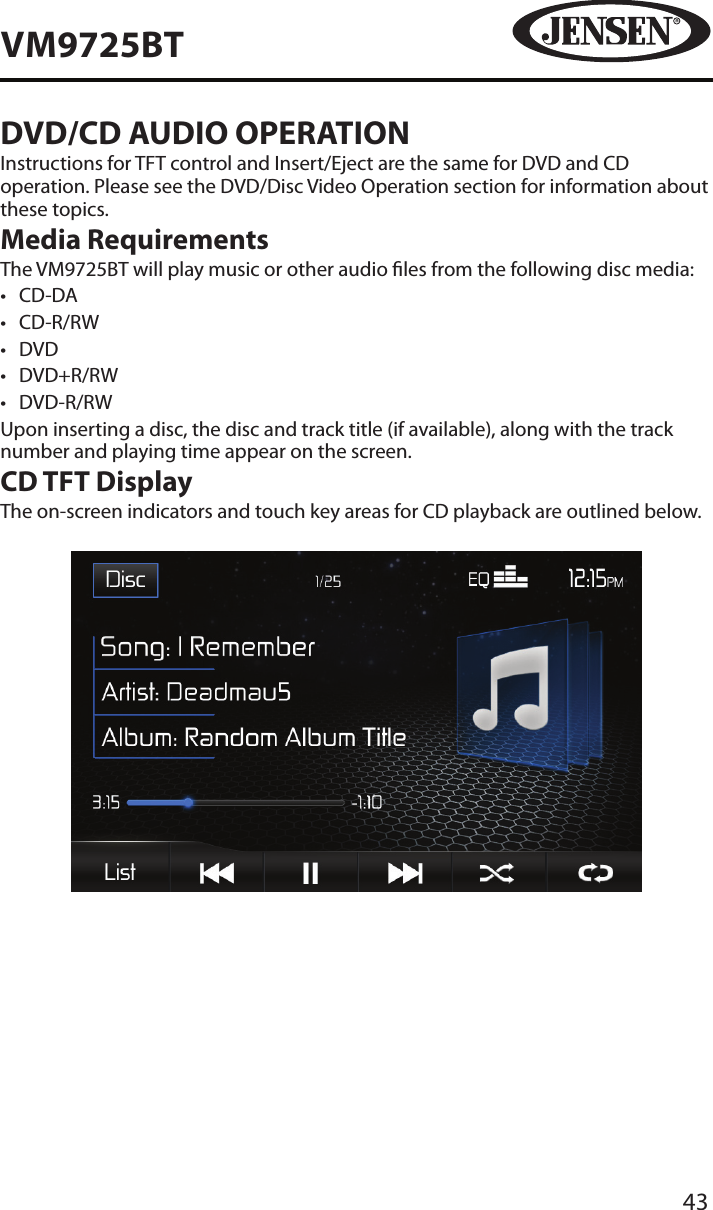
43VM9725BTDVD/CD AUDIO OPERATIONInstructions for TFT control and Insert/Eject are the same for DVD and CD operation. Please see the DVD/Disc Video Operation section for information about these topics.Media RequirementsThe VM9725BT will play music or other audio les from the following disc media:•  CD-DA•  CD-R/RW•  DVD•  DVD+R/RW•  DVD-R/RWUpon inserting a disc, the disc and track title (if available), along with the track number and playing time appear on the screen.CD TFT DisplayThe on-screen indicators and touch key areas for CD playback are outlined below.
44VM9725BT1.   Disc icon: Touch to view the SOURCE MENU and select a new playback source.2.   Track Indicator: Displays the current track number playing and total number of tracks on disc.3.   EQ  : Touch for quick access to the Equalizer level settings menu.4.  Clock: Displays the time as entered by the user in the settings menu.5.     (Repeat) icon: Touch to alter repeat mode as follows: Repeat Single > Repeat Folder > Repeat All > Repeat O6.      ( Random ) icon: Touch to alter random mode as follows: Random On > Random O7.   ( Next ) icon: Touch to play the next track.8.     (Pause / Play ) icon: Touch the   icon to pause playback. Touch the   icon to begin playback.9.   ( Previous ) icon: Touch to play the previous track.10.   List icon: Touch to display the Playlist screen.11.   Elapsed time Indicator: Displays the elapsed and total playing time of the current track playing.12.  Playback Information Display: Displays song, artist, and album information.
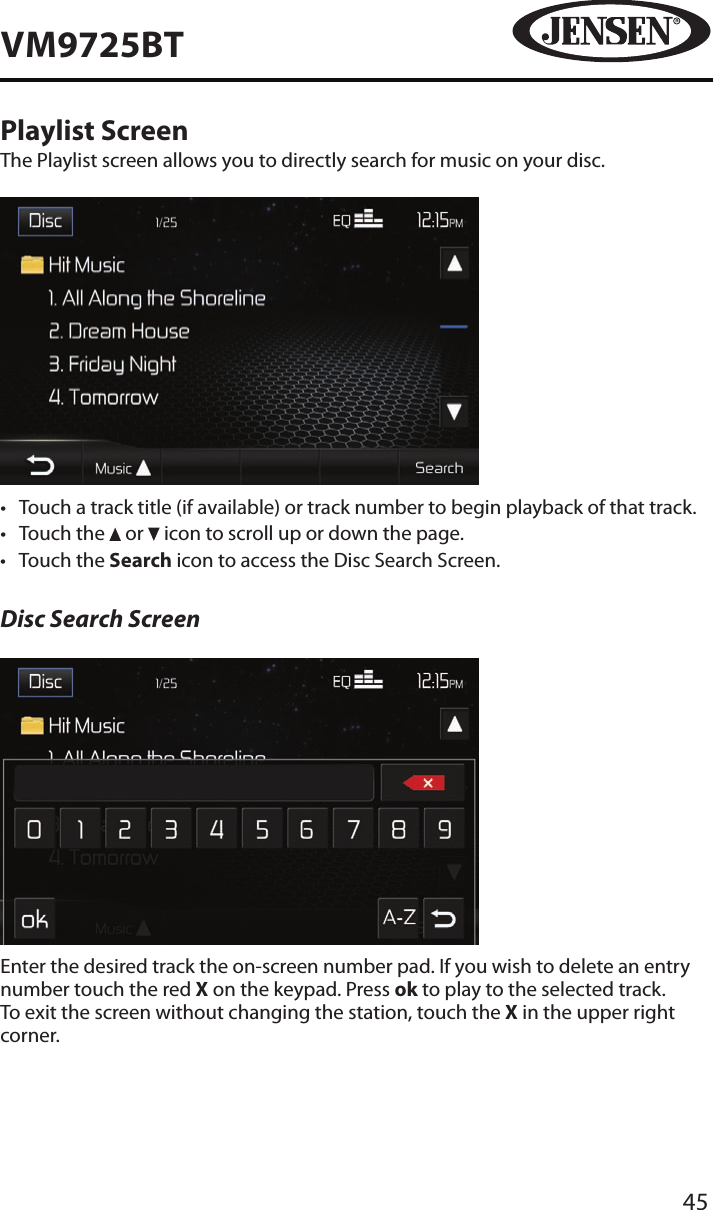
45VM9725BTPlaylist ScreenThe Playlist screen allows you to directly search for music on your disc.•  Touch a track title (if available) or track number to begin playback of that track.•  Touch the   or   icon to scroll up or down the page. •  Touch the Search icon to access the Disc Search Screen.Disc Search ScreenEnter the desired track the on-screen number pad. If you wish to delete an entry number touch the red X on the keypad. Press ok to play to the selected track. To exit the screen without changing the station, touch the X in the upper right corner.
46VM9725BTControlling PlaybackInserting a DiscUpon inserting a CD, disc play begins. You cannot insert a disc if there is already a disc in the unit or if the power is o. Ejecting a Disc Press the EJECT (   ) button on the front of the unit to eject the disc. The unit automatically reverts to Tuner mode. You may eject a disc with the unit powered o. The unit will remain o after the disc is ejected.Resetting the Loading MechanismIf the disc loads abnormally or an abnormal core mechanism operation occurs, press and hold the EJECT (   ) button to reset the loading mechanism. Normal operation resumes.Pausing/Resuming PlaybackTouch the   icon to pause playback. Touch the   icon to resume playback.Moving Through TracksTouch the   icon to advance to the next track on the disc. Touch the   icon to move to the previous track.Repeat PlaybackTouch the   icon to alter repeat mode according to the following: •  DVD: Repeat Single > Repeat Folder > Repeat All > Repeat O•  CD-DA: Repeat Single > Repeat Folder > Repeat All > Repeat O•  CD-R/RW: Repeat Single > Repeat Folder > Repeat All > Repeat O•  DVD-R/RW: Repeat Single > Repeat Folder > Repeat All > Repeat O• Random Play SelectTouch the   icon to play the tracks on the disc in a random, shued order. Touch the    icon again to cancel Random Play mode. NOTE: CD-R and CD-RW will not play unless the recording session is nalized.
47VM9725BTMP3/WMA OPERATIONInstructions for TFT control and Insert/Eject are the same for DVD and MP3 operation. Please see the DVD/Disc Video Operation section for information about these topics.Media and File RequirementsThis player allows you to play back MP3 and WMA les recorded onto CD-R/RWs, DVD+R/RWs, and DVD-R/RWs. For CD-RW discs, please make sure it is formatted using the full method and not the quick method to prevent illegal disc operation.For the greatest le capacity, Dual Layer DVD’s can be used when burning music to a disc. .MP3 Format CompatibilityThe le naming formats listed below are compatible with this unit:•  ISO 9660 – le name: 12 characters, le extension: 3 characters•  ISO 9660 – le name: 31 characters, le extension: 3 characters•  Joliet – 64 charactersIf the le or folder name does not conform to ISO 9660 le system standards, it may not be displayed or played back correctly. Use the following settings when compressing audio data for your MP3 disc:•  Transfer Bit Rate: 128kbps•  Sampling Frequency: 48kHzWhen recording MP3 up to the maximum disc capacity, disable additional writing. For recording on an empty disc up to maximum disc capacity, use the “Disc at once” setting.MP3 Playing OrderWhen selected for play, les and folders (Folder Search, File Search or Folder Select) are accessed in the order they were written by the CD writer. As a result, the order in which they are expected to be played may not match the order in which they are actually played. You may be able to set the order in which MP3/WMA les are to be played by writing them onto a medium such as a CD-R with their le names beginning with play sequence numbers such as “01” to “99”.
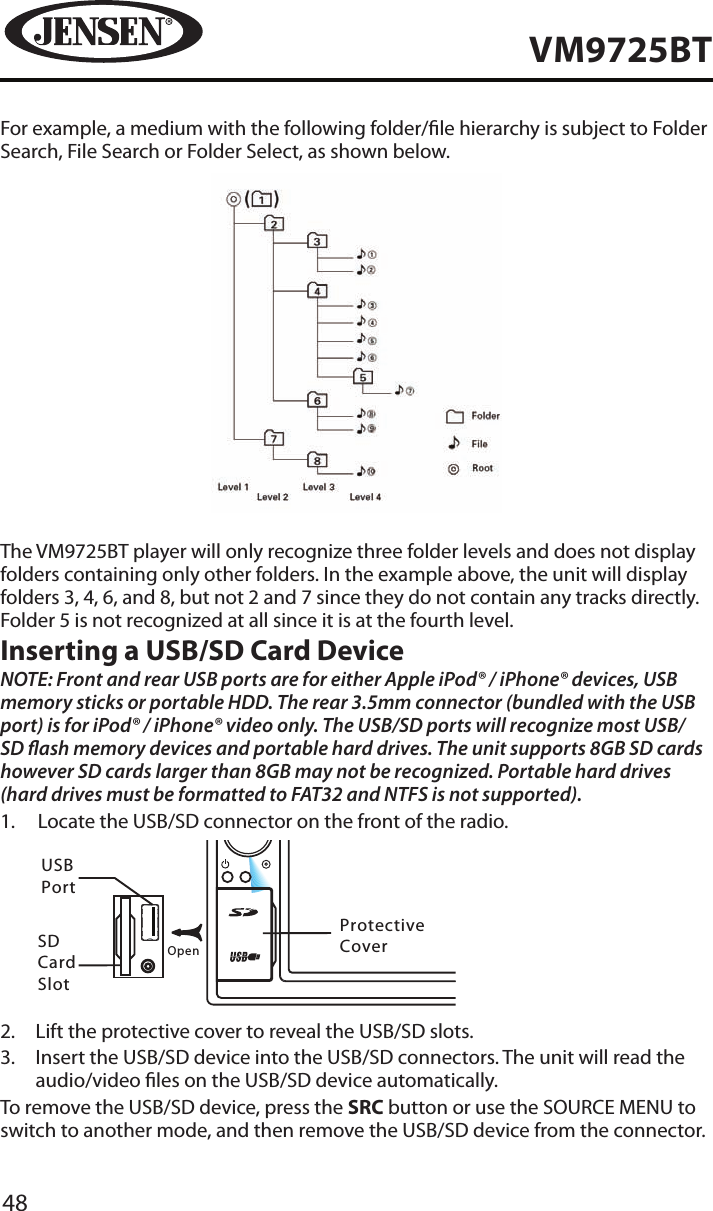
48VM9725BTFor example, a medium with the following folder/le hierarchy is subject to Folder Search, File Search or Folder Select, as shown below.The VM9725BT player will only recognize three folder levels and does not display folders containing only other folders. In the example above, the unit will display folders 3, 4, 6, and 8, but not 2 and 7 since they do not contain any tracks directly. Folder 5 is not recognized at all since it is at the fourth level.Inserting a USB/SD Card DeviceNOTE: Front and rear USB ports are for either Apple iPod® / iPhone® devices, USB memory sticks or portable HDD. The rear 3.5mm connector (bundled with the USB port) is for iPod® / iPhone® video only. The USB/SD ports will recognize most USB/SD ash memory devices and portable hard drives. The unit supports 8GB SD cards however SD cards larger than 8GB may not be recognized. Portable hard drives (hard drives must be formatted to FAT32 and NTFS is not supported).1.   Locate the USB/SD connector on the front of the radio.        NAVSRCEJECTOpenVM9725BTUSBPortSD CardSlotProtective Cover2.  Lift the protective cover to reveal the USB/SD slots.3.   Insert the USB/SD device into the USB/SD connectors. The unit will read the audio/video les on the USB/SD device automatically.To remove the USB/SD device, press the SRC button or use the SOURCE MENU to switch to another mode, and then remove the USB/SD device from the connector.
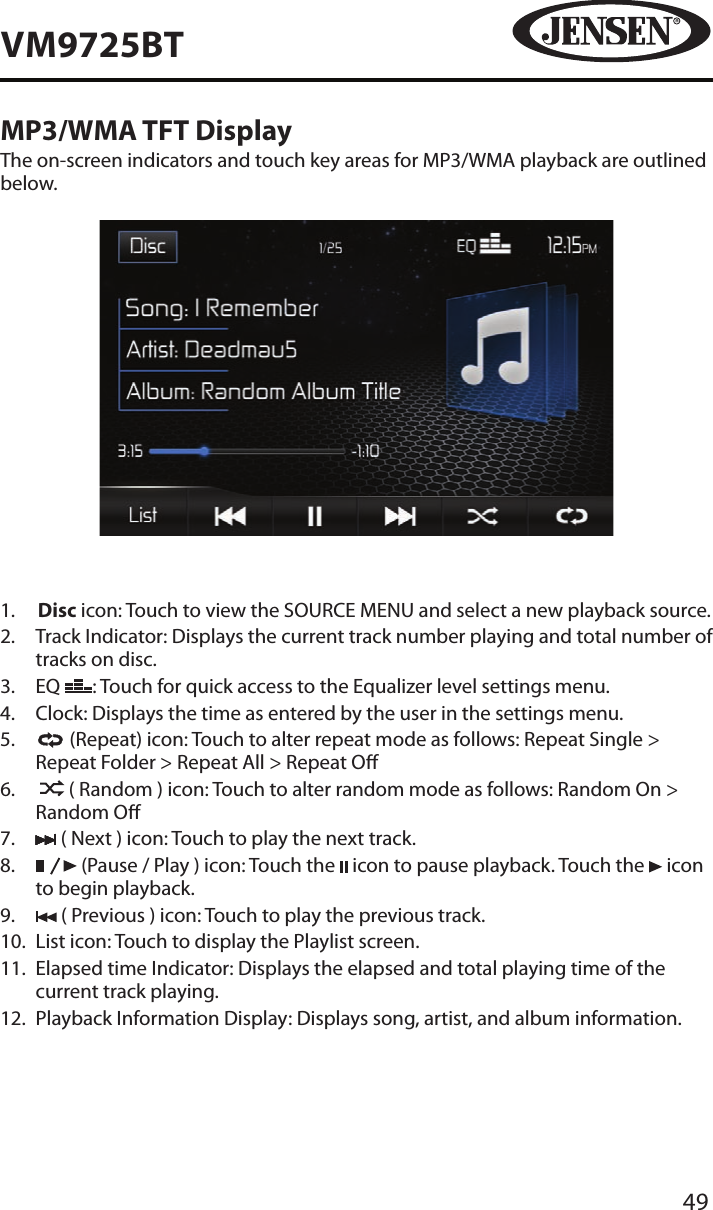
49VM9725BTMP3/WMA TFT DisplayThe on-screen indicators and touch key areas for MP3/WMA playback are outlined below.1.   Disc icon: Touch to view the SOURCE MENU and select a new playback source.2.   Track Indicator: Displays the current track number playing and total number of tracks on disc.3.   EQ  : Touch for quick access to the Equalizer level settings menu.4.  Clock: Displays the time as entered by the user in the settings menu.5.     (Repeat) icon: Touch to alter repeat mode as follows: Repeat Single > Repeat Folder > Repeat All > Repeat O6.      ( Random ) icon: Touch to alter random mode as follows: Random On > Random O7.   ( Next ) icon: Touch to play the next track.8.     (Pause / Play ) icon: Touch the   icon to pause playback. Touch the   icon to begin playback.9.   ( Previous ) icon: Touch to play the previous track.10.   List icon: Touch to display the Playlist screen.11.   Elapsed time Indicator: Displays the elapsed and total playing time of the current track playing.12.  Playback Information Display: Displays song, artist, and album information.
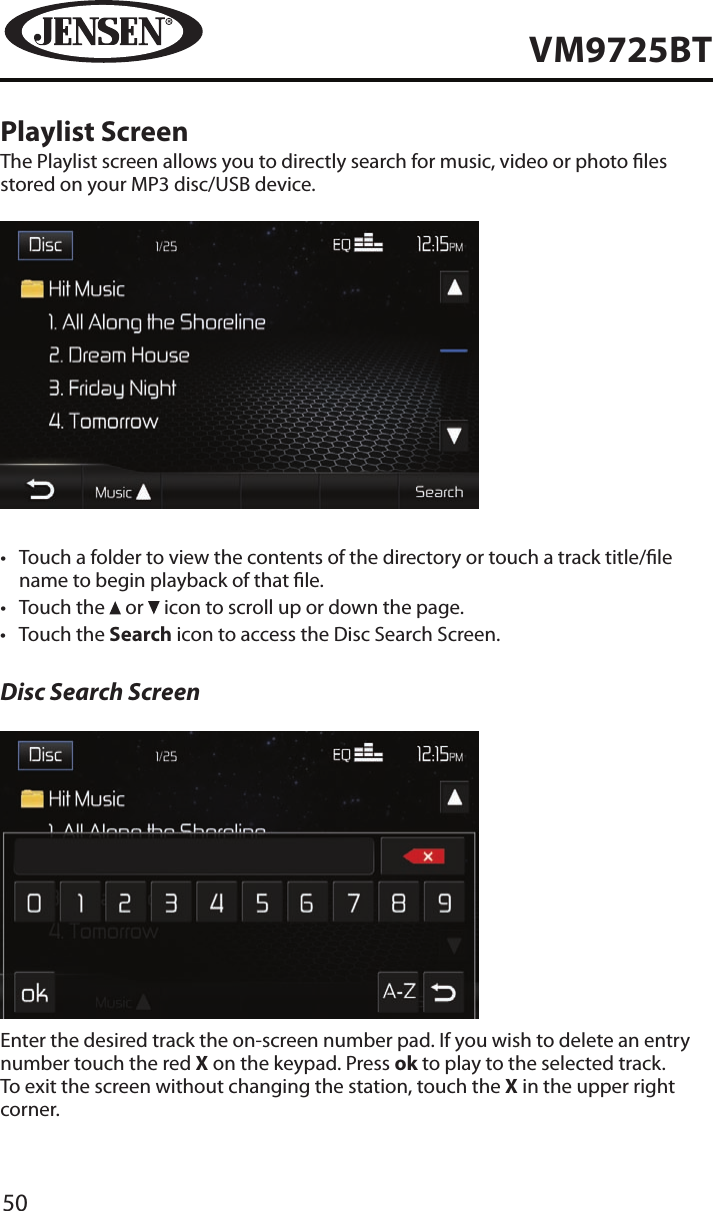
50VM9725BTPlaylist ScreenThe Playlist screen allows you to directly search for music, video or photo les stored on your MP3 disc/USB device.•  Touch a folder to view the contents of the directory or touch a track title/le name to begin playback of that le.•  Touch the   or   icon to scroll up or down the page. •  Touch the Search icon to access the Disc Search Screen.Disc Search ScreenEnter the desired track the on-screen number pad. If you wish to delete an entry number touch the red X on the keypad. Press ok to play to the selected track. To exit the screen without changing the station, touch the X in the upper right corner.
51VM9725BTSearch Playlist by File Type1.   Touch the MUSIC   icon.2.   Touch “MUSIC,” “PHOTO” or “VIDEO”. The list of les that appear will be ltered by the type of le selected.Controlling PlaybackInserting a DiscUpon inserting a MP3/WMA disc, disc play begins. You cannot insert a disc if there is already a disc in the unit or if the power is o. Ejecting a Disc Press the EJECT (   ) button on the front of the unit to eject the disc. The unit automatically reverts to Tuner mode. You may eject a disc with the unit powered o. The unit will remain o after the disc is ejected.Resetting the Loading MechanismIf the disc loads abnormally or an abnormal core mechanism operation occurs, press and hold the EJECT (   ) button to reset the loading mechanism. Normal operation resumes.Playing MP3/WMA FilesAfter inserting a MP3/WMA disc, les will play in the sequence of the “Root’ directory.NOTE: When burning MP3 / WMA les onto a DVD disc, use the 2X or 4X burning option, if available. This slower burning speed will help eliminate buer errors and increase disc reading reliability. Also, use folders when burning large numbers of songs / les to a disc for easy music navigation. Select the “Disc at Once” option and close your disc.
52VM9725BTPausing/Resuming PlaybackTouch the   icon to pause playback. Touch the   icon to resume playback.Moving Through TracksTouch the Next (   ) icon to advance to the next track on the MP3 disc/USB device. Touch the Previous (   ) button to move to the previous track on the MP3 disc/USB device.Repeat PlaybackTouch the   (Repeat) icon to alter repeat mode as follows: Repeat Single > Repeat Folder > Repeat All > Repeat ONOTE: CD-R and CD-RW will not play unless the recording session is nalized.Random Play SelectTouch the   (Random) icon to play the tracks on the MP3 disc/USB device in a random, shued order. Touch the   icon again to cancel Random Play mode.
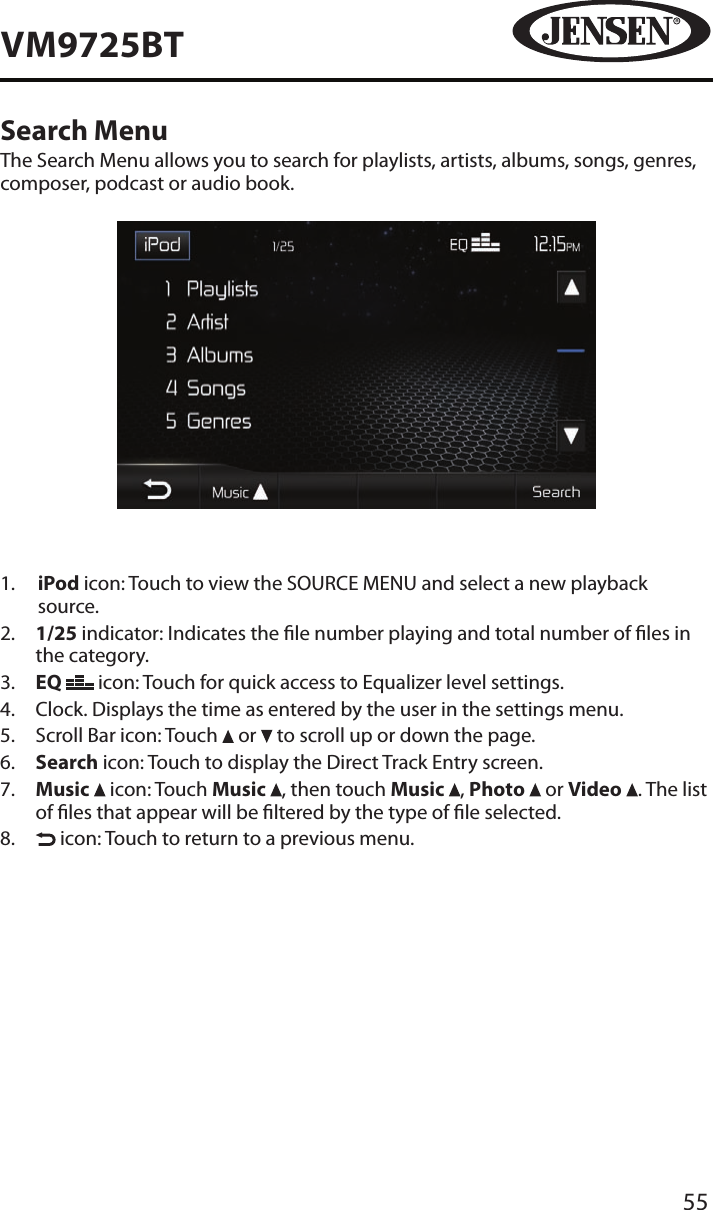
53VM9725BTiPod®/iPhone® OPERATIONNOTE: Be sure your iPod® has the latest Apple rmware installed to avoid connectivity issues.Accessing iPod® ModeThis unit is Made for iPod® and iPhone®. You can control your iPod® via touch screen to access Playlist, Artist, Albums, Songs, etc. Supported models include, but are not limited to the following:•  iPhone® 4S / 4 / 3GS / 3G and 1st Generation•  iPod®touch 4th / 2nd and 1st Generation•  iPod® nano 6th / 5th / 4th and 3rd Generation•  iPod® classic and iPod® with videoThe unit will automatically switch to iPod® mode when an iPod®, iPod® touch or iPhone is plugged into the front or rear USB connector.NOTE: For basic iPod® connectivity, you can use the white 30-pin to USB iPod® cable that came with your Apple device . For iPod® video or photo playback, you must purchase the jLink-USB cable.To return to the iPod® menu from any other source menu, touch SRC on the front panel until the iPod® menu appears on the screen, or choose the iPod® icon from the source menu (only available when an iPod® or iPhone® is connected to the USB connector).NOTE: To transmit the video from your iPod® to the VM9725BT screen, you must set the following options through the iPod® video settings menu:  TV Out = On, TV Signal = NTSC, and Widescreen = On.NOTE: After disconnecting your iPod®, the VM9725BT will always return to the last mode accessed when the iPod® is plugged back into the unit.
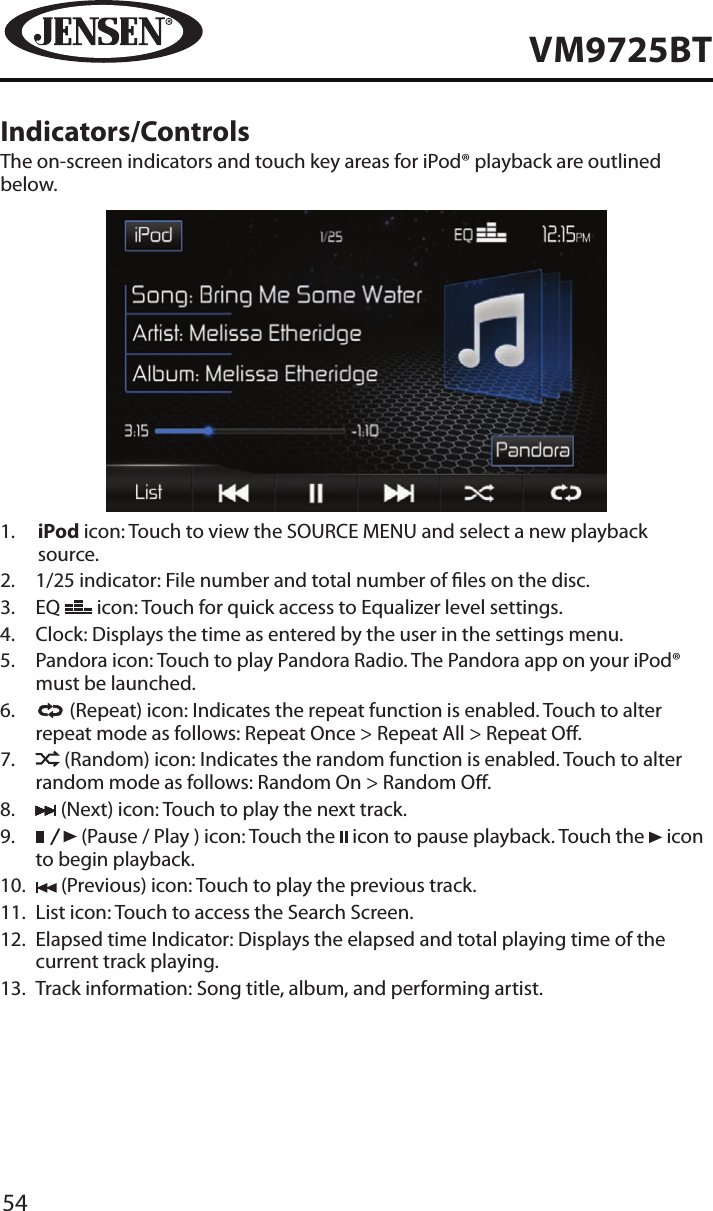
54VM9725BTIndicators/ControlsThe on-screen indicators and touch key areas for iPod® playback are outlined below.1.   iPod icon: Touch to view the SOURCE MENU and select a new playback source.2.   1/25 indicator: File number and total number of les on the disc.3.   EQ   icon: Touch for quick access to Equalizer level settings. 4.  Clock: Displays the time as entered by the user in the settings menu.5.   Pandora icon: Touch to play Pandora Radio. The Pandora app on your iPod® must be launched.6.     (Repeat) icon: Indicates the repeat function is enabled. Touch to alter repeat mode as follows: Repeat Once > Repeat All > Repeat O.7.     (Random) icon: Indicates the random function is enabled. Touch to alter random mode as follows: Random On > Random O.8.   (Next) icon: Touch to play the next track.9.     (Pause / Play ) icon: Touch the   icon to pause playback. Touch the   icon to begin playback.10.   (Previous) icon: Touch to play the previous track.11.   List icon: Touch to access the Search Screen.12.   Elapsed time Indicator: Displays the elapsed and total playing time of the current track playing.13.   Track information: Song title, album, and performing artist.
55VM9725BTSearch MenuThe Search Menu allows you to search for playlists, artists, albums, songs, genres, composer, podcast or audio book. 1.   iPod icon: Touch to view the SOURCE MENU and select a new playback source.2.   1/25 indicator: Indicates the le number playing and total number of les in the category.3.   EQ   icon: Touch for quick access to Equalizer level settings. 4.  Clock. Displays the time as entered by the user in the settings menu.5.  Scroll Bar icon: Touch   or   to scroll up or down the page.6.   Search icon: Touch to display the Direct Track Entry screen.7.   Music   icon: Touch Music  , then touch Music  , Photo   or Video  . The list of les that appear will be ltered by the type of le selected.8.     icon: Touch to return to a previous menu.
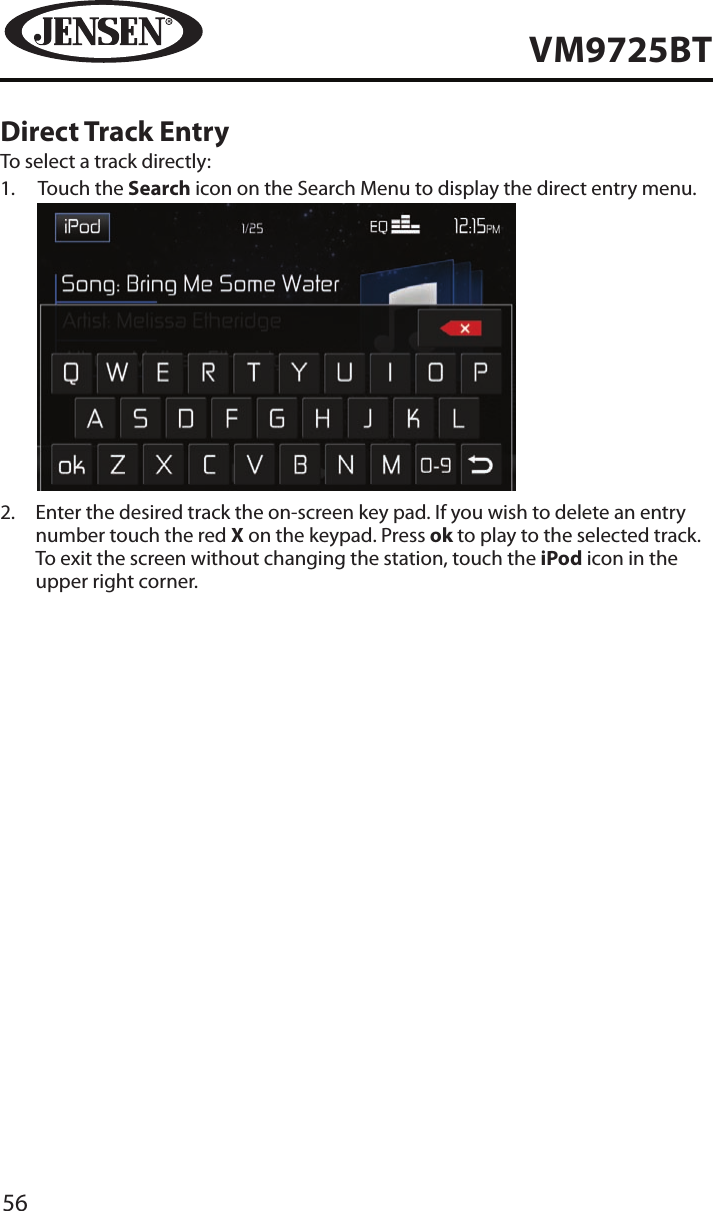
56VM9725BTDirect Track EntryTo select a track directly:1.   Touch the Search icon on the Search Menu to display the direct entry menu.            2.   Enter the desired track the on-screen key pad. If you wish to delete an entry number touch the red X on the keypad. Press ok to play to the selected track. To exit the screen without changing the station, touch the iPod icon in the upper right corner.
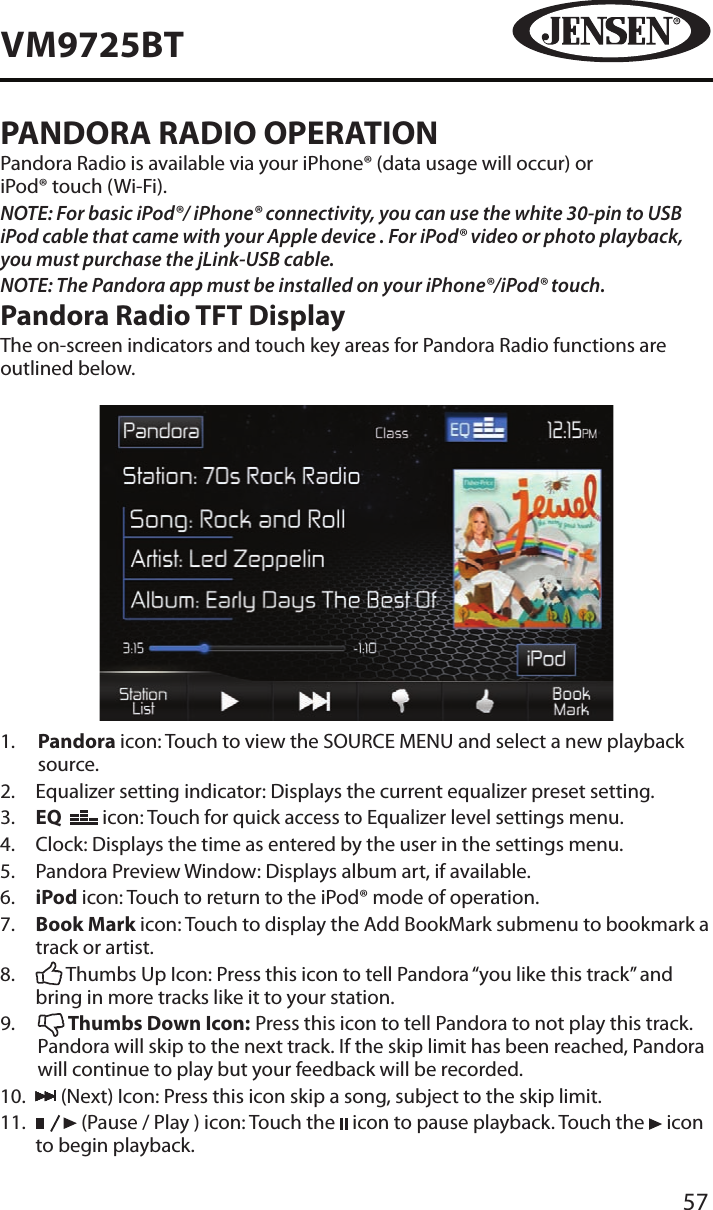
57VM9725BTPANDORA RADIO OPERATIONPandora Radio is available via your iPhone® (data usage will occur) or  iPod® touch (Wi-Fi).NOTE: For basic iPod®/ iPhone® connectivity, you can use the white 30-pin to USB iPod cable that came with your Apple device . For iPod® video or photo playback, you must purchase the jLink-USB cable.NOTE: The Pandora app must be installed on your iPhone®/iPod® touch.Pandora Radio TFT DisplayThe on-screen indicators and touch key areas for Pandora Radio functions are outlined below.1.   Pandora icon: Touch to view the SOURCE MENU and select a new playback source.2.   Equalizer setting indicator: Displays the current equalizer preset setting.3.   EQ    icon: Touch for quick access to Equalizer level settings menu.4.  Clock: Displays the time as entered by the user in the settings menu.5.   Pandora Preview Window: Displays album art, if available.6.   iPod icon: Touch to return to the iPod® mode of operation.7.   Book Mark icon: Touch to display the Add BookMark submenu to bookmark a track or artist.8.     Thumbs Up Icon: Press this icon to tell Pandora “you like this track” and bring in more tracks like it to your station.9.     Thumbs Down Icon: Press this icon to tell Pandora to not play this track. Pandora will skip to the next track. If the skip limit has been reached, Pandora will continue to play but your feedback will be recorded.10.     (Next) Icon: Press this icon skip a song, subject to the skip limit. 11.      (Pause / Play ) icon: Touch the   icon to pause playback. Touch the   icon to begin playback.
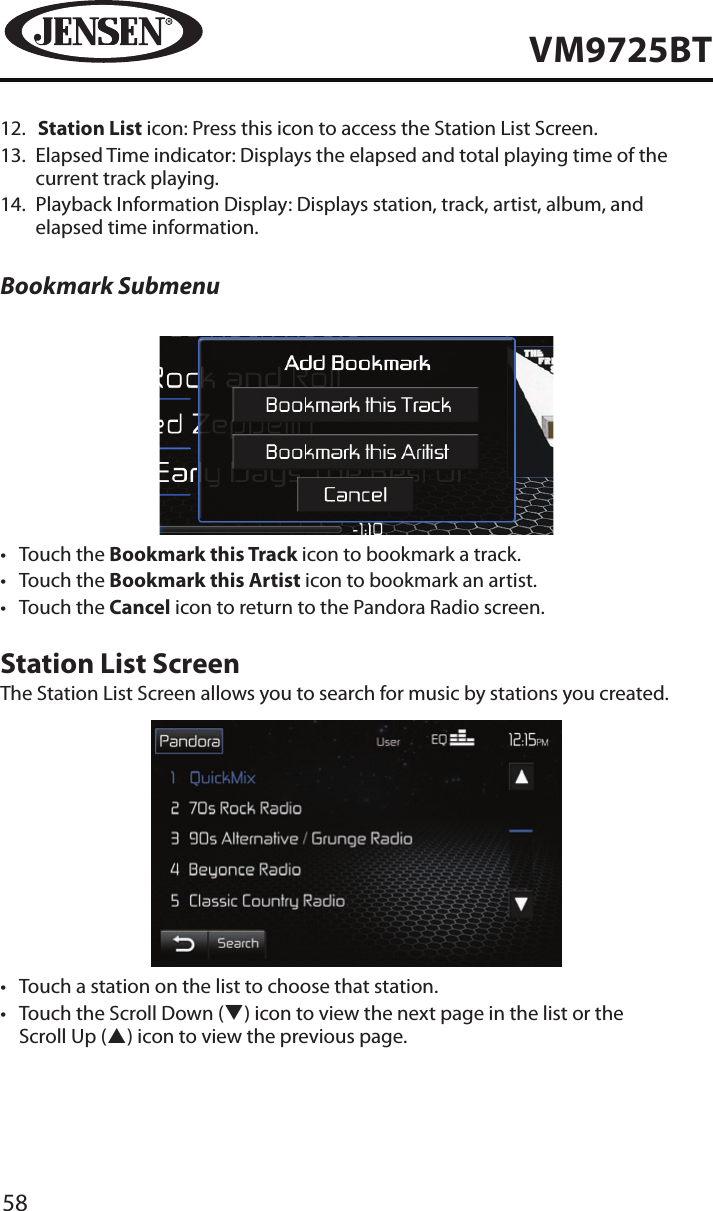
58VM9725BT12.   Station List icon: Press this icon to access the Station List Screen.13.   Elapsed Time indicator: Displays the elapsed and total playing time of the current track playing.14.   Playback Information Display: Displays station, track, artist, album, and elapsed time information.Bookmark Submenu•  Touch the Bookmark this Track icon to bookmark a track.•  Touch the Bookmark this Artist icon to bookmark an artist.•  Touch the Cancel icon to return to the Pandora Radio screen.Station List ScreenThe Station List Screen allows you to search for music by stations you created.•  Touch a station on the list to choose that station.•  Touch the Scroll Down (q) icon to view the next page in the list or the Scroll Up (p) icon to view the previous page.
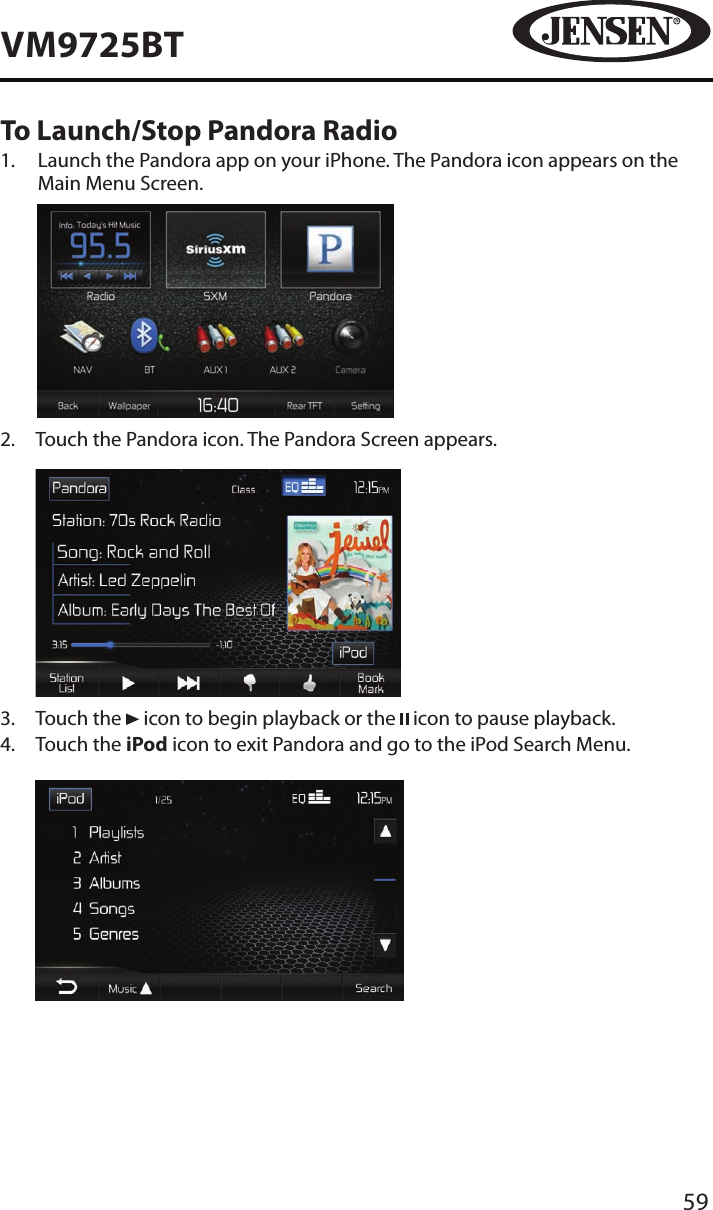
59VM9725BTTo Launch/Stop Pandora Radio1.   Launch the Pandora app on your iPhone. The Pandora icon appears on the Main Menu Screen.          2.   Touch the Pandora icon. The Pandora Screen appears.           3.  Touch the   icon to begin playback or the   icon to pause playback.4.   Touch the iPod icon to exit Pandora and go to the iPod Search Menu.
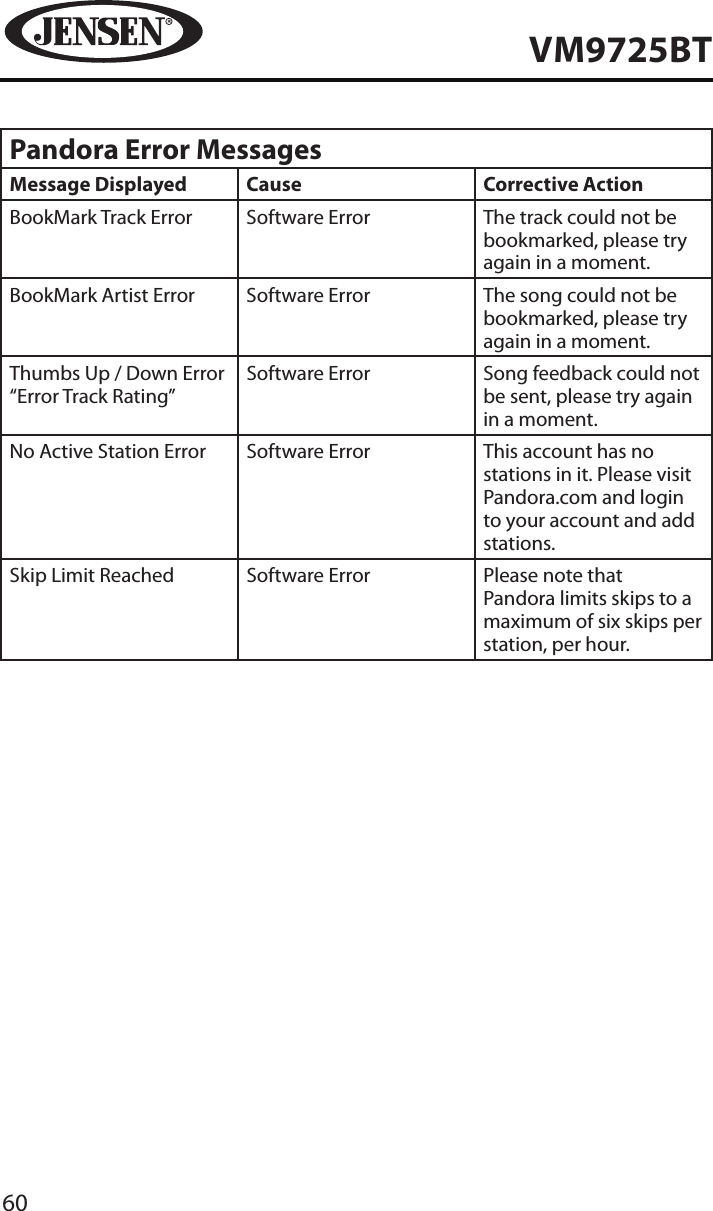
60VM9725BTPandora Error MessagesMessage Displayed Cause Corrective ActionBookMark Track Error Software Error The track could not be bookmarked, please try again in a moment.BookMark Artist Error Software Error The song could not be bookmarked, please try again in a moment.Thumbs Up / Down Error “Error Track Rating”Software Error Song feedback could not be sent, please try again in a moment.No Active Station Error Software Error This account has no stations in it. Please visit Pandora.com and login to your account and add stations.Skip Limit Reached Software Error Please note that Pandora limits skips to a maximum of six skips per station, per hour.
61VM9725BTBLUETOOTH OPERATIONBluetooth® was launched by a special interest group (SIG) comprised of Ericsson Inc., Intel Corp., Nokia Corp., Toshiba and IBM in 1998, and it is currently developed by nearly 2,000 companies worldwide. The Bluetooth® word mark and logos are owned by the Bluetooth SIG, Inc. and any use of such marks by Audiovox Corporation is under license. Other trademarks and trade names are those of their respective owners.Bluetooth® technology has the capability to wirelessly synchronize and transfer data among devices. The Bluetooth® audio capabilities can be used for mobile phones hands free applications. Bluetooth® has many proles and the unit is compatible with most Bluetooth® enabled mobile phones. Before attempting to use the Bluetooth® functions on the unit, please make sure your mobile phone supports Bluetooth® functions.NOTE: The line-of-sight distance between this unit and your mobile phone must be 8 feet (2.4 meters) or less for sending and receiving voice and data via Bluetooth® wireless technology.Please make sure your mobile phone supports Bluetooth® functions (Headset or Handsfree proles or both). Adhere to the following guidelines for successful operation.•  Before using Bluetooth® functions, you must pair your mobile phone to the VM9725BT head unit (see “Pairing the Bluetooth® System with Your Mobile Phone and Head Unit”). To ensure the best reception for pairing and re-connection, please make sure the mobile phone battery is fully charged before you begin.•  Try to perform pairing within a few minutes of the mobile phone being turned on.•  Once the unit has been paired with the mobile phone, the unit’s model number, “VM9725BT”, will be displayed on the mobile phone.•  To achieve the best performance, always keep the mobile phone within 3 meters of the head unit.•  Always keep a clear path between the mobile phone and the head unit. Never place a metal object or any other obstacle between the mobile phone and the head unit.•  Some mobile phones (like Sony Ericsson) may have a “Power Saving Mode” option. PLEASE DO NOT use the power saving mode with the VM9725BT.•  Before accepting or making a call, make sure your mobile phone’s “Bluetooth® function” is turned on.•  To ensure the best conversation quality/performance, stay within one meter of the microphone when talking.•  To manually disconnect the mobile phone from the head unit, press the “Chain Link” icon on the Bluetooth® user interface (next to the mobile phone name) and the Bluetooth® will be “disconnected”, but still paired.
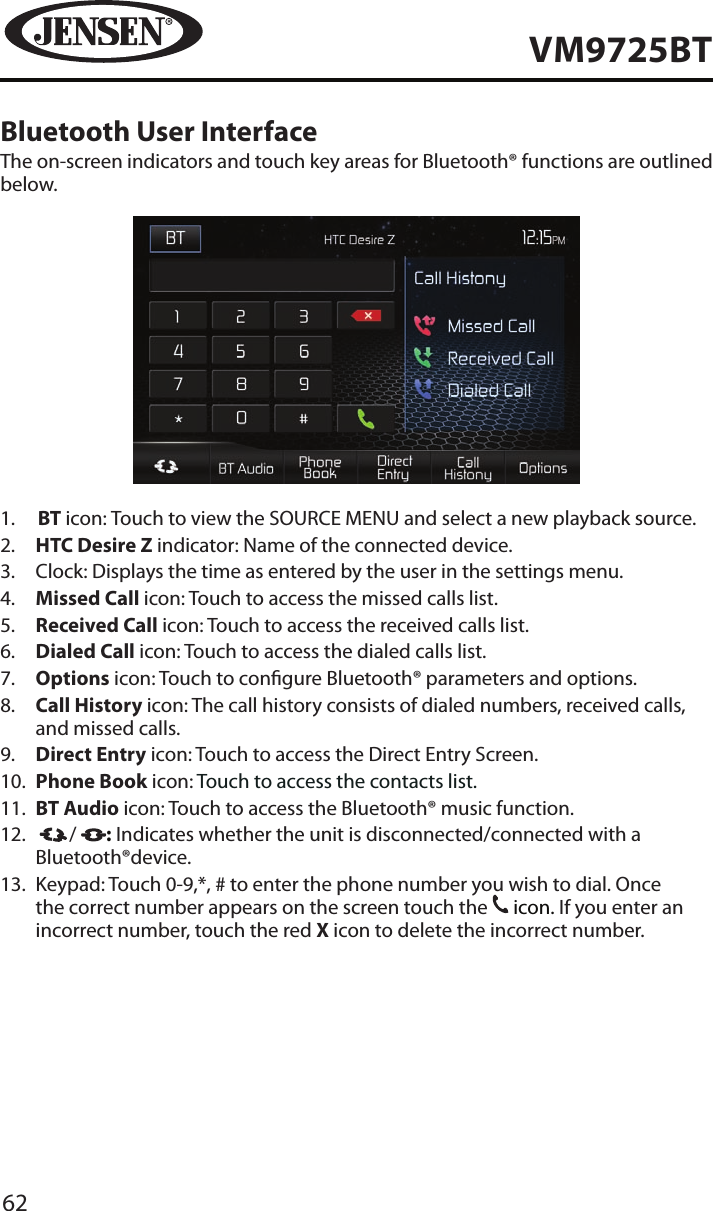
62VM9725BTBluetooth User InterfaceThe on-screen indicators and touch key areas for Bluetooth® functions are outlined below.1.   BT icon: Touch to view the SOURCE MENU and select a new playback source.2.   HTC Desire Z indicator: Name of the connected device.3.  Clock: Displays the time as entered by the user in the settings menu.4.   Missed Call icon: Touch to access the missed calls list.5.   Received Call icon: Touch to access the received calls list.6.   Dialed Call icon: Touch to access the dialed calls list.7.   Options icon: Touch to congure Bluetooth® parameters and options.8.   Call History icon: The call history consists of dialed numbers, received calls, and missed calls.9.   Direct Entry icon: Touch to access the Direct Entry Screen.10.    Phone Book icon: Touch to access the contacts list.11.   BT Audio icon: Touch to access the Bluetooth® music function.12.    / : Indicates whether the unit is disconnected/connected with a Bluetooth®device. 13.   Keypad: Touch 0-9,*, # to enter the phone number you wish to dial. Once the correct number appears on the screen touch the 31 icon. If you enter an incorrect number, touch the red X icon to delete the incorrect number.
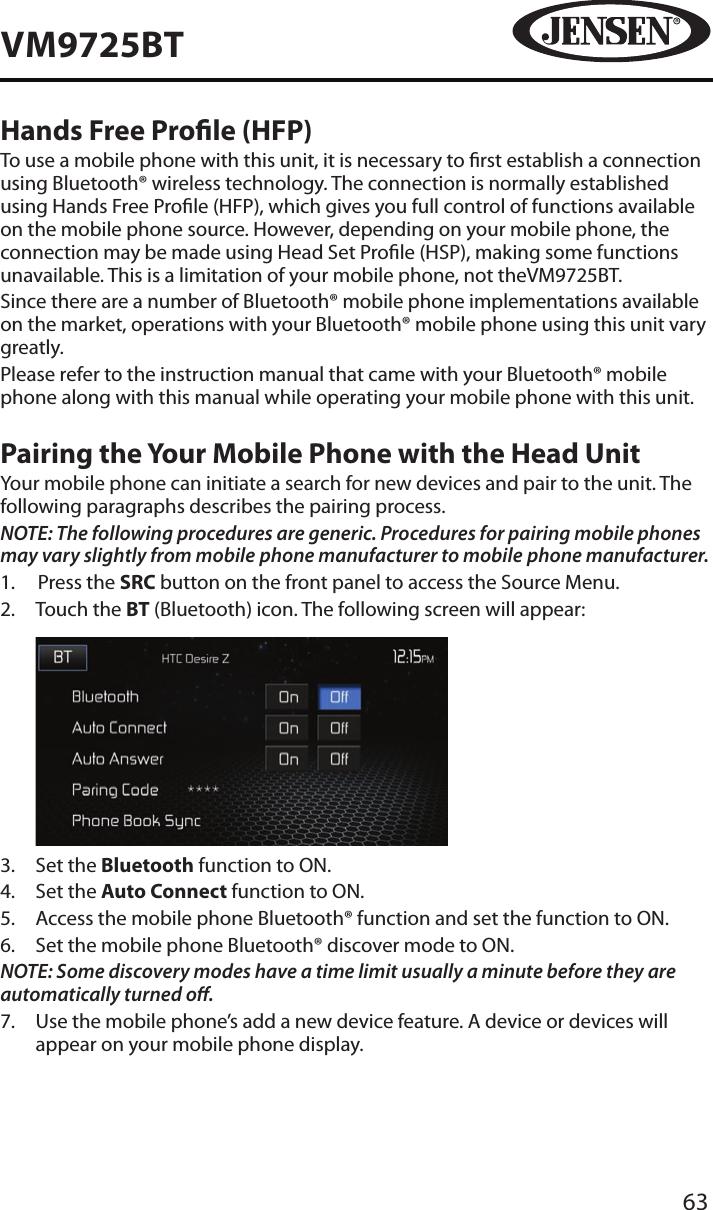
63VM9725BTHands Free Prole (HFP)To use a mobile phone with this unit, it is necessary to rst establish a connection using Bluetooth® wireless technology. The connection is normally established using Hands Free Prole (HFP), which gives you full control of functions available on the mobile phone source. However, depending on your mobile phone, the connection may be made using Head Set Prole (HSP), making some functions unavailable. This is a limitation of your mobile phone, not theVM9725BT.Since there are a number of Bluetooth® mobile phone implementations available on the market, operations with your Bluetooth® mobile phone using this unit vary greatly.Please refer to the instruction manual that came with your Bluetooth® mobile phone along with this manual while operating your mobile phone with this unit.Pairing the Your Mobile Phone with the Head UnitYour mobile phone can initiate a search for new devices and pair to the unit. The following paragraphs describes the pairing process.NOTE: The following procedures are generic. Procedures for pairing mobile phones may vary slightly from mobile phone manufacturer to mobile phone manufacturer.1.  Press the SRC button on the front panel to access the Source Menu.2.   Touch the BT (Bluetooth) icon. The following screen will appear:          3.  Set the Bluetooth function to ON.4.  Set the Auto Connect function to ON.5.   Access the mobile phone Bluetooth® function and set the function to ON.6.   Set the mobile phone Bluetooth® discover mode to ON.NOTE: Some discovery modes have a time limit usually a minute before they are automatically turned o.7.   Use the mobile phone’s add a new device feature. A device or devices will appear on your mobile phone display.
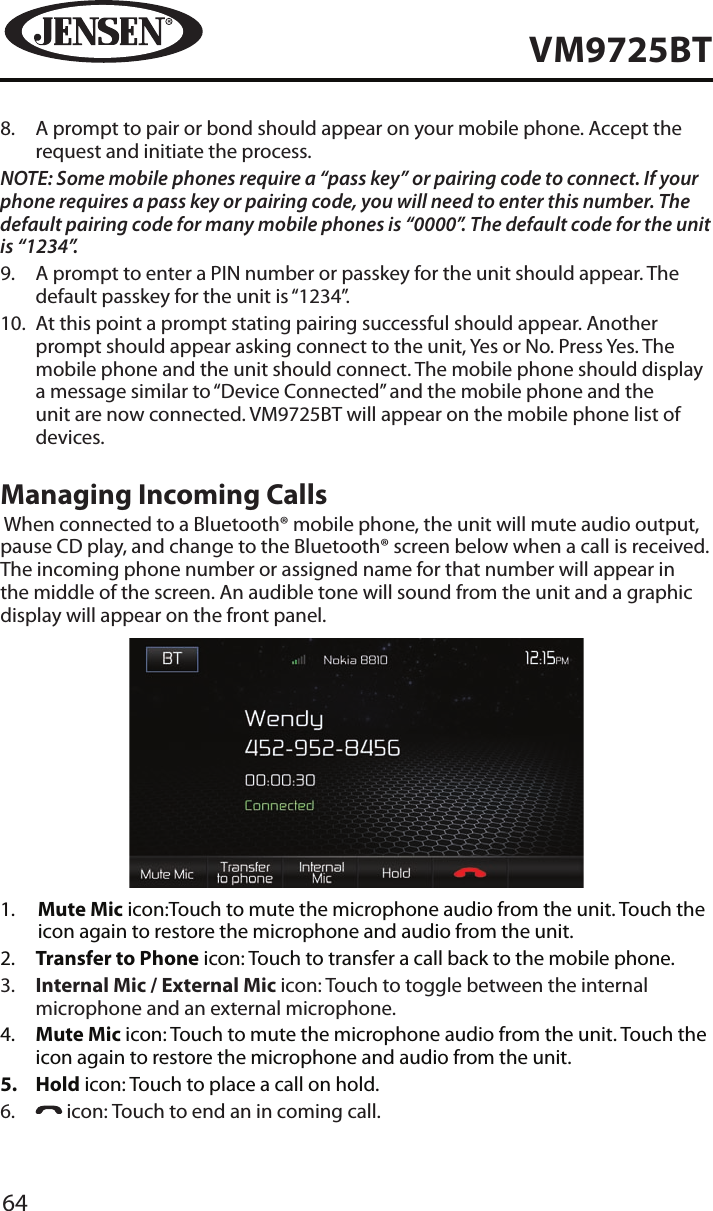
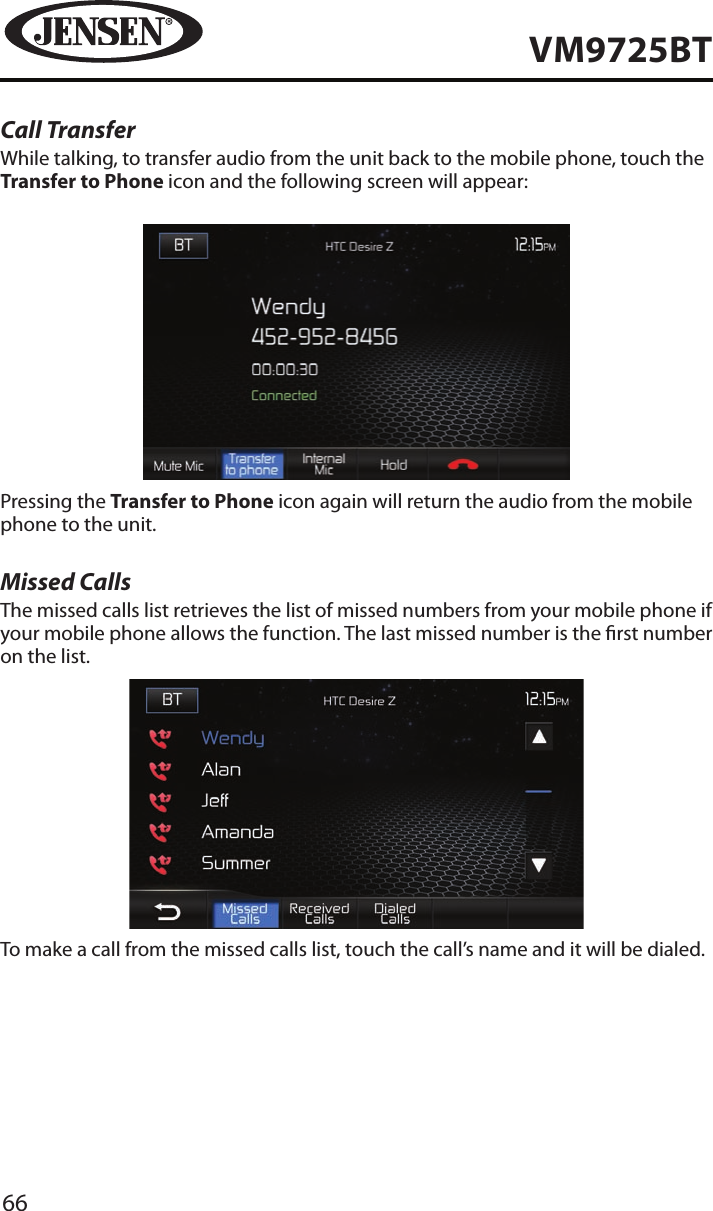
64VM9725BT8.   A prompt to pair or bond should appear on your mobile phone. Accept the request and initiate the process.NOTE: Some mobile phones require a “pass key” or pairing code to connect. If your phone requires a pass key or pairing code, you will need to enter this number. The default pairing code for many mobile phones is “0000”. The default code for the unit is “1234”.  9.   A prompt to enter a PIN number or passkey for the unit should appear. The default passkey for the unit is “1234”.10.   At this point a prompt stating pairing successful should appear. Another prompt should appear asking connect to the unit, Yes or No. Press Yes. The mobile phone and the unit should connect. The mobile phone should display a message similar to “Device Connected” and the mobile phone and the unit are now connected. VM9725BT will appear on the mobile phone list of devices.Managing Incoming Calls When connected to a Bluetooth® mobile phone, the unit will mute audio output, pause CD play, and change to the Bluetooth® screen below when a call is received. The incoming phone number or assigned name for that number will appear in the middle of the screen. An audible tone will sound from the unit and a graphic display will appear on the front panel. 1.   Mute Mic icon:Touch to mute the microphone audio from the unit. Touch the icon again to restore the microphone and audio from the unit.2.   Transfer to Phone icon: Touch to transfer a call back to the mobile phone.3.   Internal Mic / External Mic icon: Touch to toggle between the internal microphone and an external microphone.4.   Mute Mic icon: Touch to mute the microphone audio from the unit. Touch the icon again to restore the microphone and audio from the unit. 5�  Hold icon: Touch to place a call on hold.6.     icon: Touch to end an in coming call.
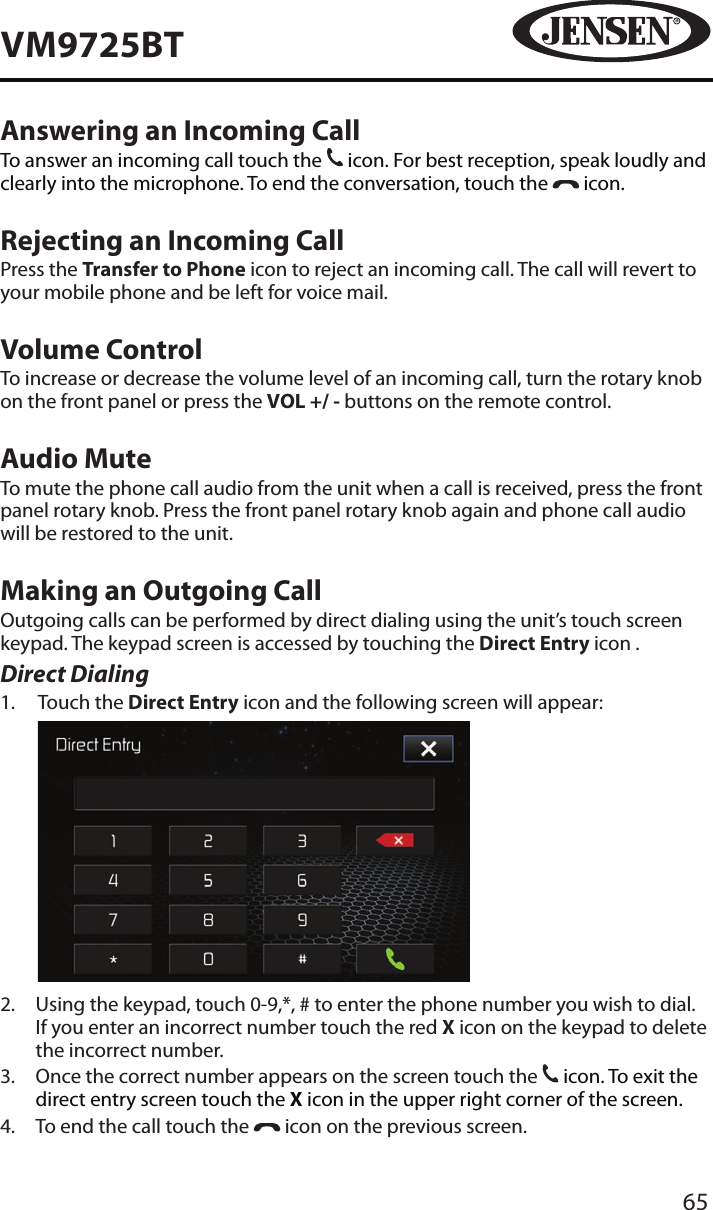
65VM9725BTAnswering an Incoming CallTo answer an incoming call touch the 31 icon. For best reception, speak loudly and clearly into the microphone. To end the conversation, touch the   icon.Rejecting an Incoming CallPress the Transfer to Phone icon to reject an incoming call. The call will revert to your mobile phone and be left for voice mail.Volume ControlTo increase or decrease the volume level of an incoming call, turn the rotary knob on the front panel or press the VOL +/ - buttons on the remote control.Audio MuteTo mute the phone call audio from the unit when a call is received, press the front panel rotary knob. Press the front panel rotary knob again and phone call audio will be restored to the unit.Making an Outgoing CallOutgoing calls can be performed by direct dialing using the unit’s touch screen keypad. The keypad screen is accessed by touching the Direct Entry icon . Direct Dialing1.   Touch the Direct Entry icon and the following screen will appear:           2.   Using the keypad, touch 0-9,*, # to enter the phone number you wish to dial. If you enter an incorrect number touch the red X icon on the keypad to delete the incorrect number. 3.   Once the correct number appears on the screen touch the 31 icon. To exit the direct entry screen touch the X icon in the upper right corner of the screen.4.  To end the call touch the   icon on the previous screen.
66VM9725BTCall TransferWhile talking, to transfer audio from the unit back to the mobile phone, touch the Transfer to Phone icon and the following screen will appear:Pressing the Transfer to Phone icon again will return the audio from the mobile phone to the unit.Missed CallsThe missed calls list retrieves the list of missed numbers from your mobile phone if your mobile phone allows the function. The last missed number is the rst number on the list. To make a call from the missed calls list, touch the call’s name and it will be dialed.
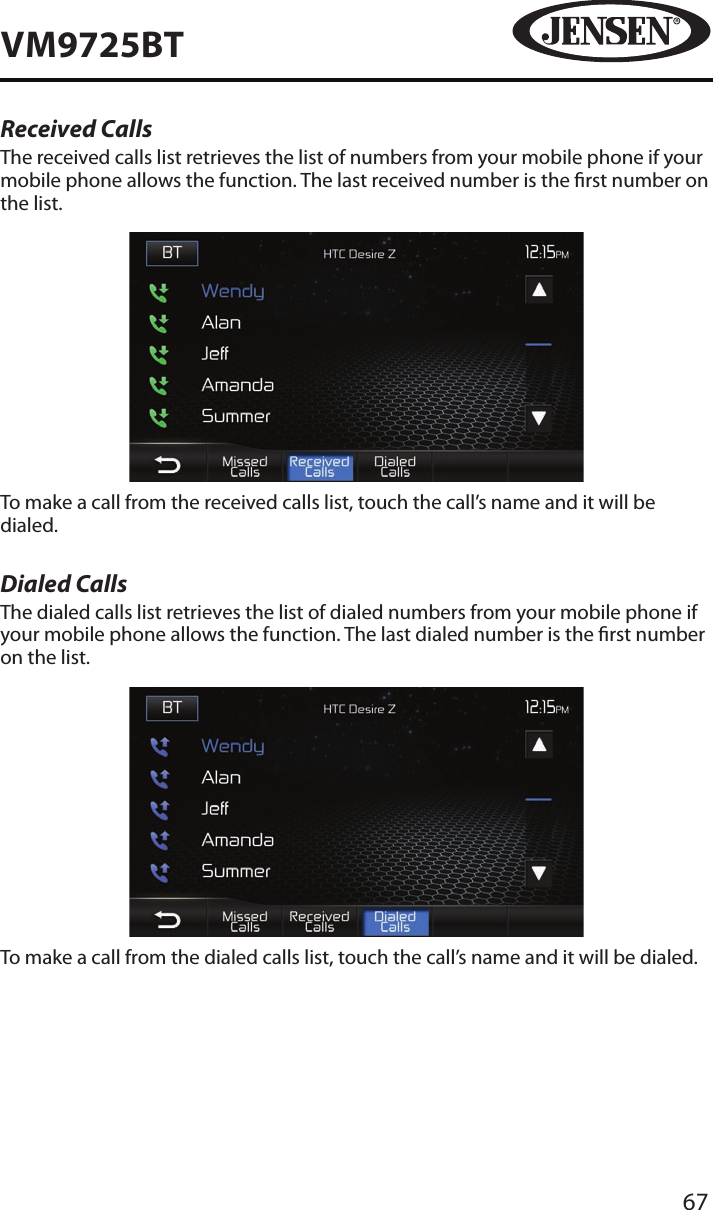
67VM9725BTReceived CallsThe received calls list retrieves the list of numbers from your mobile phone if your mobile phone allows the function. The last received number is the rst number on the list. To make a call from the received calls list, touch the call’s name and it will be dialed.Dialed CallsThe dialed calls list retrieves the list of dialed numbers from your mobile phone if your mobile phone allows the function. The last dialed number is the rst number on the list. To make a call from the dialed calls list, touch the call’s name and it will be dialed.
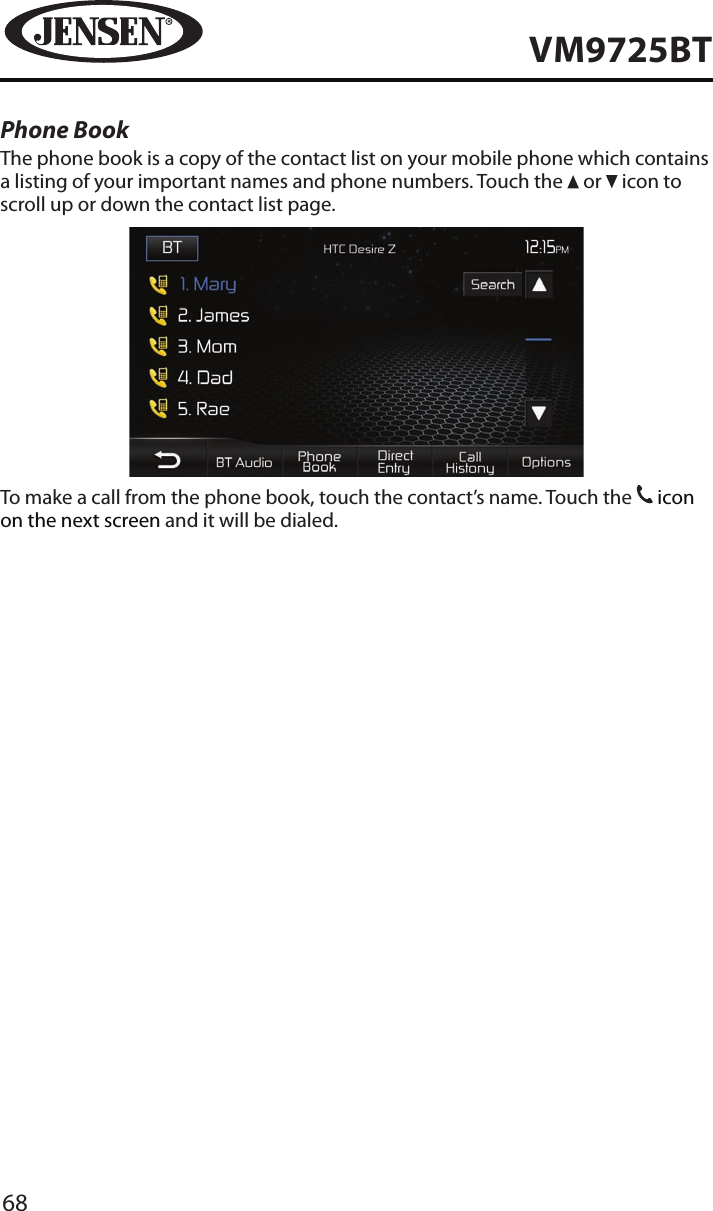
68VM9725BTPhone BookThe phone book is a copy of the contact list on your mobile phone which contains a listing of your important names and phone numbers. Touch the   or   icon to scroll up or down the contact list page.To make a call from the phone book, touch the contact’s name. Touch the 31 icon on the next screen and it will be dialed.
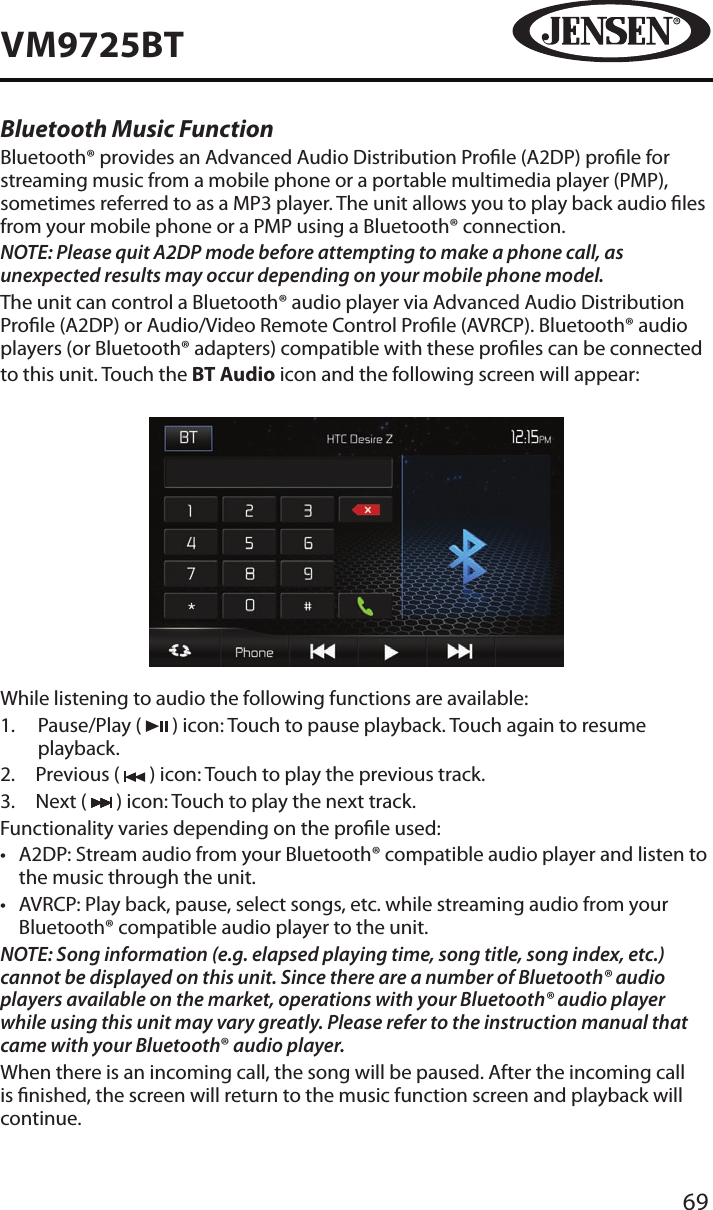
69VM9725BTBluetooth Music FunctionBluetooth® provides an Advanced Audio Distribution Prole (A2DP) prole for streaming music from a mobile phone or a portable multimedia player (PMP), sometimes referred to as a MP3 player. The unit allows you to play back audio les from your mobile phone or a PMP using a Bluetooth® connection. NOTE: Please quit A2DP mode before attempting to make a phone call, as unexpected results may occur depending on your mobile phone model.The unit can control a Bluetooth® audio player via Advanced Audio Distribution Prole (A2DP) or Audio/Video Remote Control Prole (AVRCP). Bluetooth® audio players (or Bluetooth® adapters) compatible with these proles can be connectedto this unit. Touch the BT Audio icon and the following screen will appear:While listening to audio the following functions are available:1.   Pause/Play (   ) icon: Touch to pause playback. Touch again to resume playback.2.  Previous (   ) icon: Touch to play the previous track.3.  Next (   ) icon: Touch to play the next track.Functionality varies depending on the prole used: •  A2DP: Stream audio from your Bluetooth® compatible audio player and listen to the music through the unit.•  AVRCP: Play back, pause, select songs, etc. while streaming audio from your Bluetooth® compatible audio player to the unit.NOTE: Song information (e.g. elapsed playing time, song title, song index, etc.) cannot be displayed on this unit. Since there are a number of Bluetooth® audio players available on the market, operations with your Bluetooth® audio player while using this unit may vary greatly. Please refer to the instruction manual that came with your Bluetooth® audio player. When there is an incoming call, the song will be paused. After the incoming call is nished, the screen will return to the music function screen and playback will continue.
70VM9725BTSiriusXM® RADIO OPERATIONEverything worth listening to is on SiriusXM®, getting over 130 channels, including the most commercial-free music, plus the best sports, news, talk and entertainment. A Vehicle Tuner (sold separately) and subscription are required. For more information, visit www.siriusxm.com.Sirius, XM and all related marks and logos are trademarks of Sirius XM Radio Inc. and its subsidiaries. All other marks and logos are the property of their respective owners. All rights reserved.Activating SiriusXM® RadioSatellite Radio operation requires the connection of an optional Vehicle Tuner and antenna (sold separately). To connect the Vehicle Tuner, follow the instructions provided with the tuner.To listen to Satellite Radio, a subscription is required.Activate the Vehicle Tuner using one of the two methods below:•  Online: Go to www.siriusxm.com and choose ACTIVATE RADIO.•  Phone: Call 1-866-635-2349.Activation typically takes 10-15 minutes, but may take up to an hour. It is recommended to leave your vehicle on until the “Subscription Updated” message appears.Retrieving the Radio ID CodeThe Satellite Radio Subscription requires that the Radio ID be retrieved. To display the Radio ID:1.  Touch the Direct icon. The Direct Entry Menu appears.2.   Enter channel “0” using the on-screen number pad then press the ok icon. The SiriusXM® User Interface tuner screen displays the ID where the artist name is displayed.
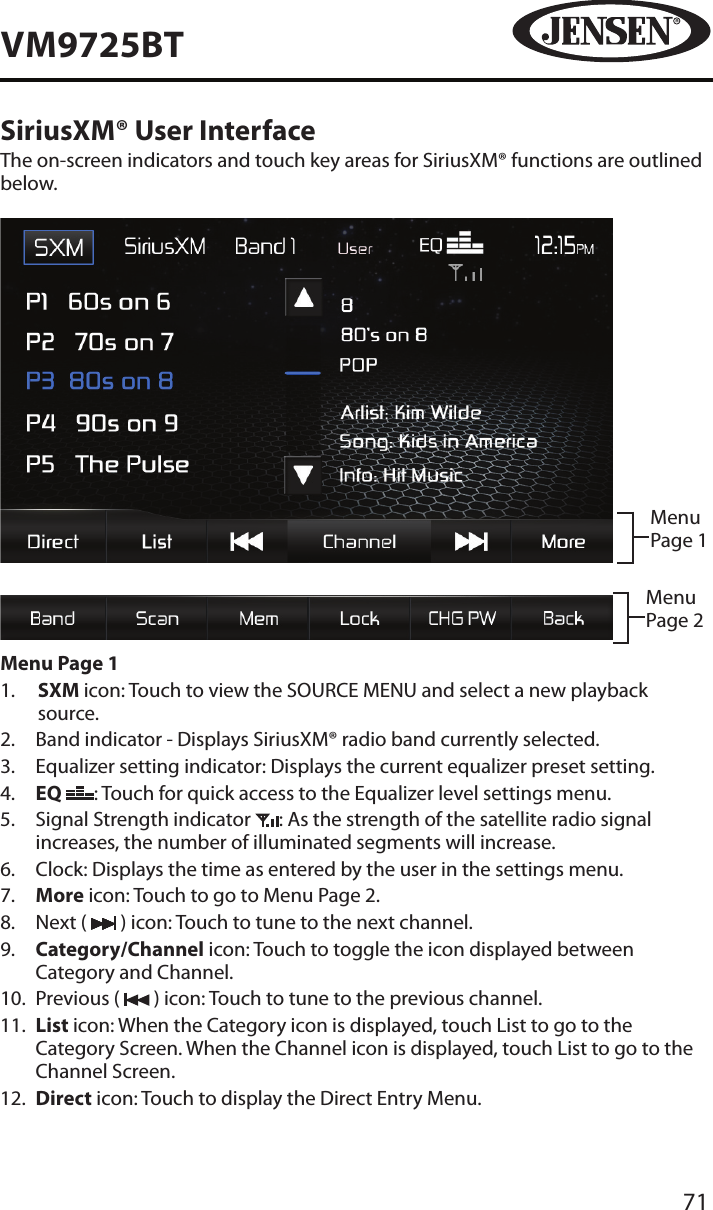
71VM9725BTSiriusXM® User InterfaceThe on-screen indicators and touch key areas for SiriusXM® functions are outlined below. Menu Page 1Menu Page 2Menu Page 11.   SXM icon: Touch to view the SOURCE MENU and select a new playback source.2.  Band indicator - Displays SiriusXM® radio band currently selected.3.  Equalizer setting indicator: Displays the current equalizer preset setting.4.   EQ  : Touch for quick access to the Equalizer level settings menu.5.   Signal Strength indicator  : As the strength of the satellite radio signal increases, the number of illuminated segments will increase.6.  Clock: Displays the time as entered by the user in the settings menu.7.   More icon: Touch to go to Menu Page 2.8.  Next (   ) icon: Touch to tune to the next channel.9.   Category/Channel icon: Touch to toggle the icon displayed between Category and Channel.10.  Previous (   ) icon: Touch to tune to the previous channel.11.   List icon: When the Category icon is displayed, touch List to go to the Category Screen. When the Channel icon is displayed, touch List to go to the Channel Screen. 12.   Direct icon: Touch to display the Direct Entry Menu.
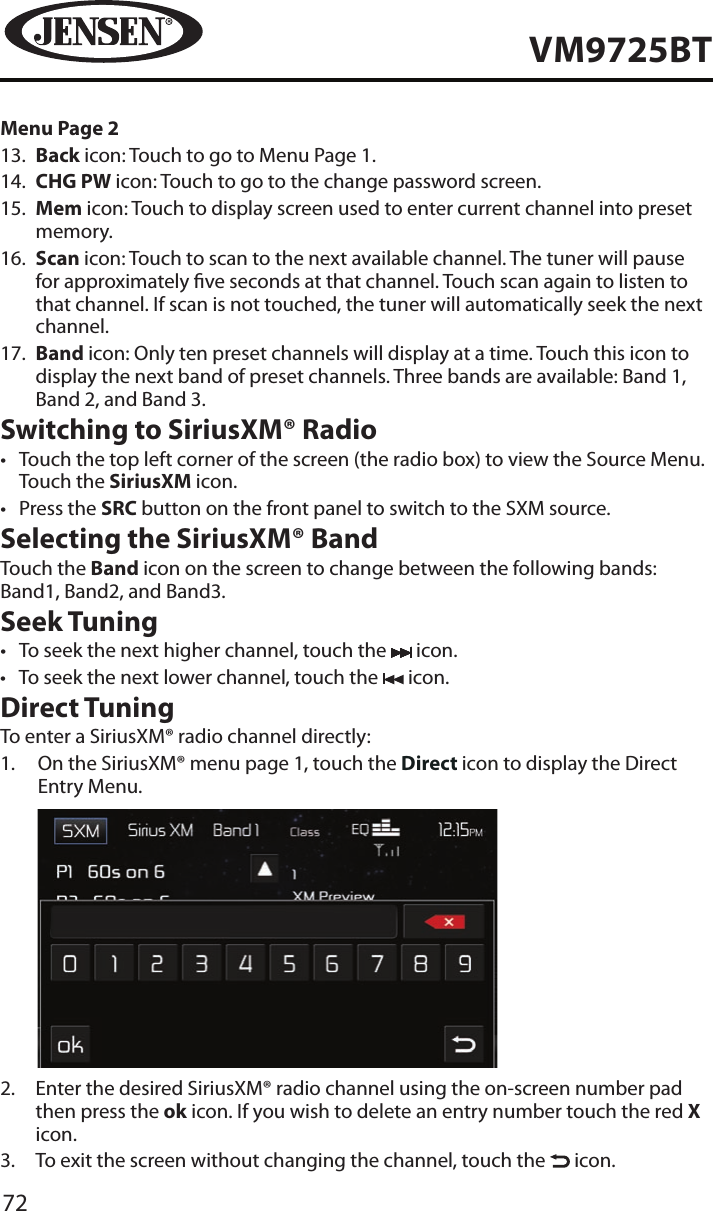
72VM9725BTMenu Page 213.   Back icon: Touch to go to Menu Page 1.14.   CHG PW icon: Touch to go to the change password screen.15.   Mem icon: Touch to display screen used to enter current channel into preset memory.16.   Scan icon: Touch to scan to the next available channel. The tuner will pause for approximately ve seconds at that channel. Touch scan again to listen to that channel. If scan is not touched, the tuner will automatically seek the next channel.17.   Band icon: Only ten preset channels will display at a time. Touch this icon to display the next band of preset channels. Three bands are available: Band 1, Band 2, and Band 3.Switching to SiriusXM® Radio•  Touch the top left corner of the screen (the radio box) to view the Source Menu. Touch the SiriusXM icon. •  Press the SRC button on the front panel to switch to the SXM source. Selecting the SiriusXM® BandTouch the Band icon on the screen to change between the following bands: Band1, Band2, and Band3.Seek Tuning•  To seek the next higher channel, touch the   icon.•  To seek the next lower channel, touch the   icon.Direct TuningTo enter a SiriusXM® radio channel directly:1.   On the SiriusXM® menu page 1, touch the Direct icon to display the Direct Entry Menu.            2.   Enter the desired SiriusXM® radio channel using the on-screen number pad then press the ok icon. If you wish to delete an entry number touch the red X icon.3.   To exit the screen without changing the channel, touch the   icon.
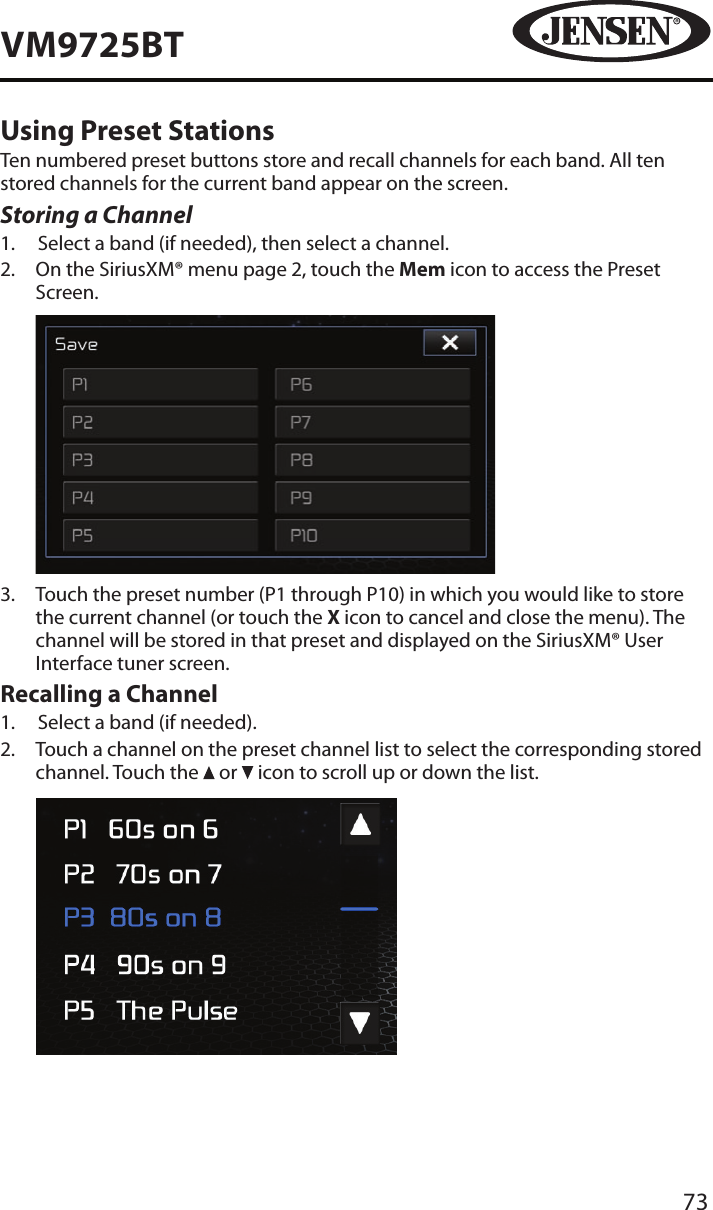
73VM9725BTUsing Preset StationsTen numbered preset buttons store and recall channels for each band. All ten stored channels for the current band appear on the screen.Storing a Channel1.  Select a band (if needed), then select a channel.2.   On the SiriusXM® menu page 2, touch the Mem icon to access the Preset Screen.            3.   Touch the preset number (P1 through P10) in which you would like to store the current channel (or touch the X icon to cancel and close the menu). The channel will be stored in that preset and displayed on the SiriusXM® User Interface tuner screen.Recalling a Channel1.  Select a band (if needed).2.   Touch a channel on the preset channel list to select the corresponding stored channel. Touch the   or   icon to scroll up or down the list.
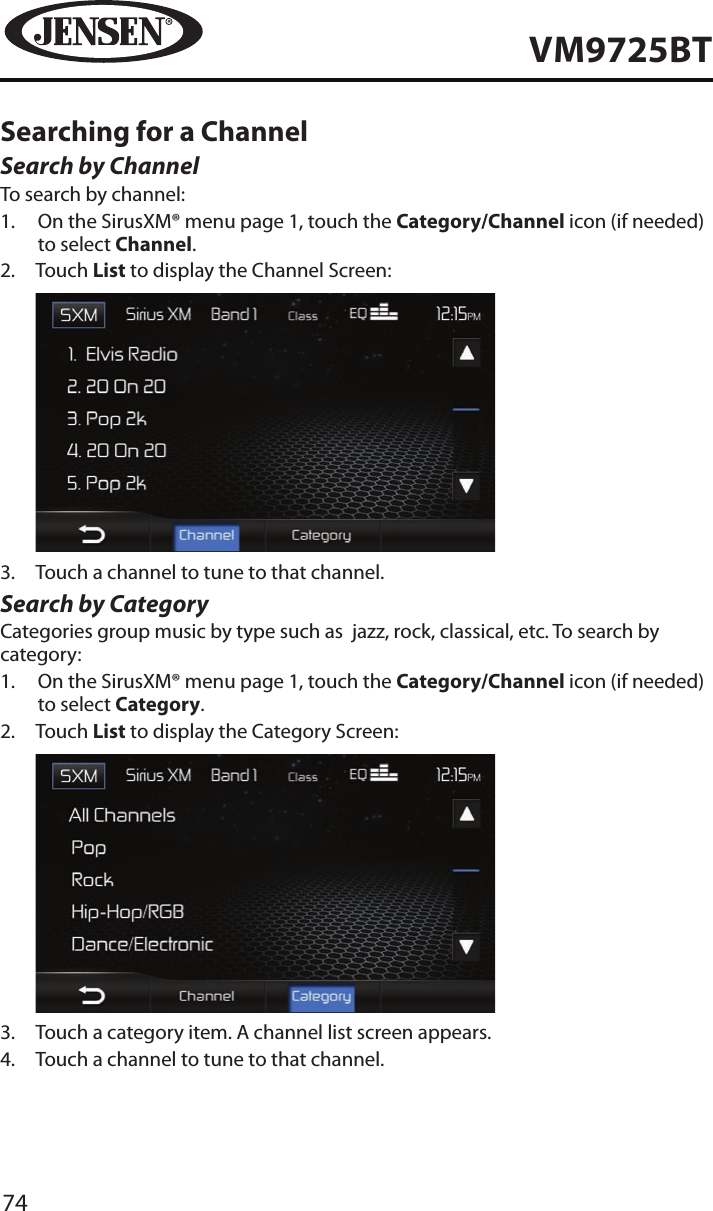
74VM9725BTSearching for a ChannelSearch by ChannelTo search by channel:1.   On the SirusXM® menu page 1, touch the Category/Channel icon (if needed) to select Channel.2.   Touch List to display the Channel Screen:           3.  Touch a channel to tune to that channel.Search by CategoryCategories group music by type such as  jazz, rock, classical, etc. To search by category:1.   On the SirusXM® menu page 1, touch the Category/Channel icon (if needed) to select Category.2.   Touch List to display the Category Screen:           3.  Touch a category item. A channel list screen appears.4.  Touch a channel to tune to that channel.
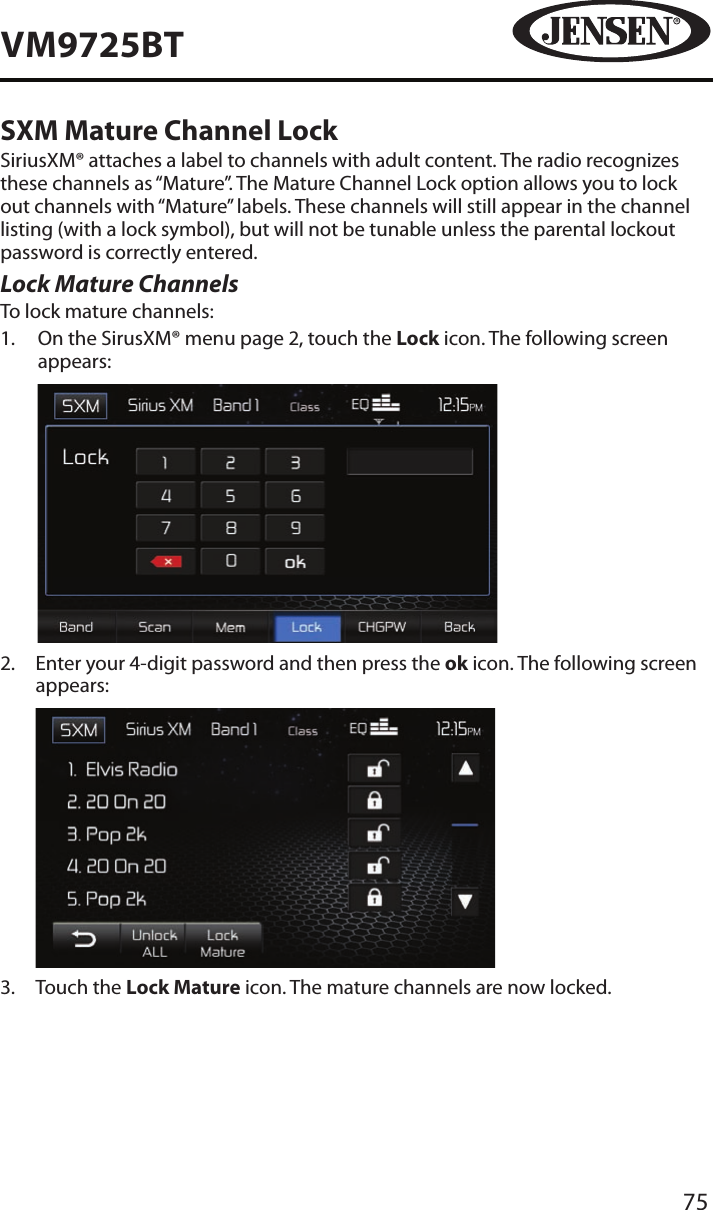
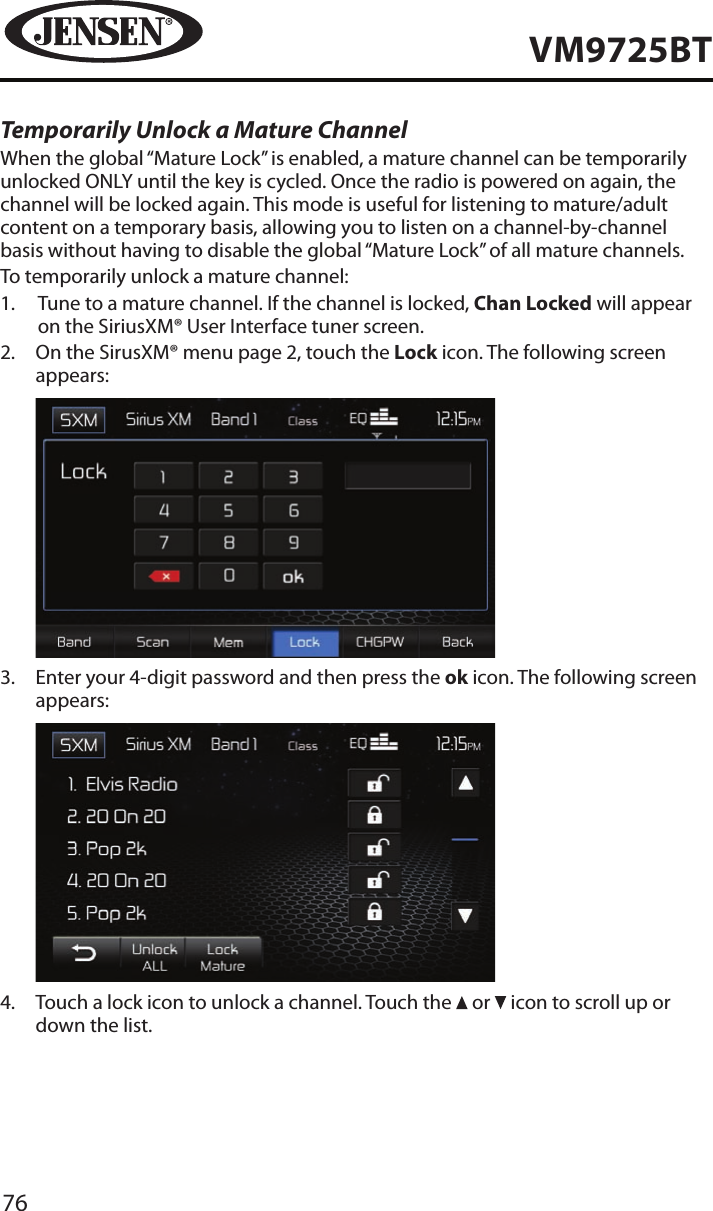
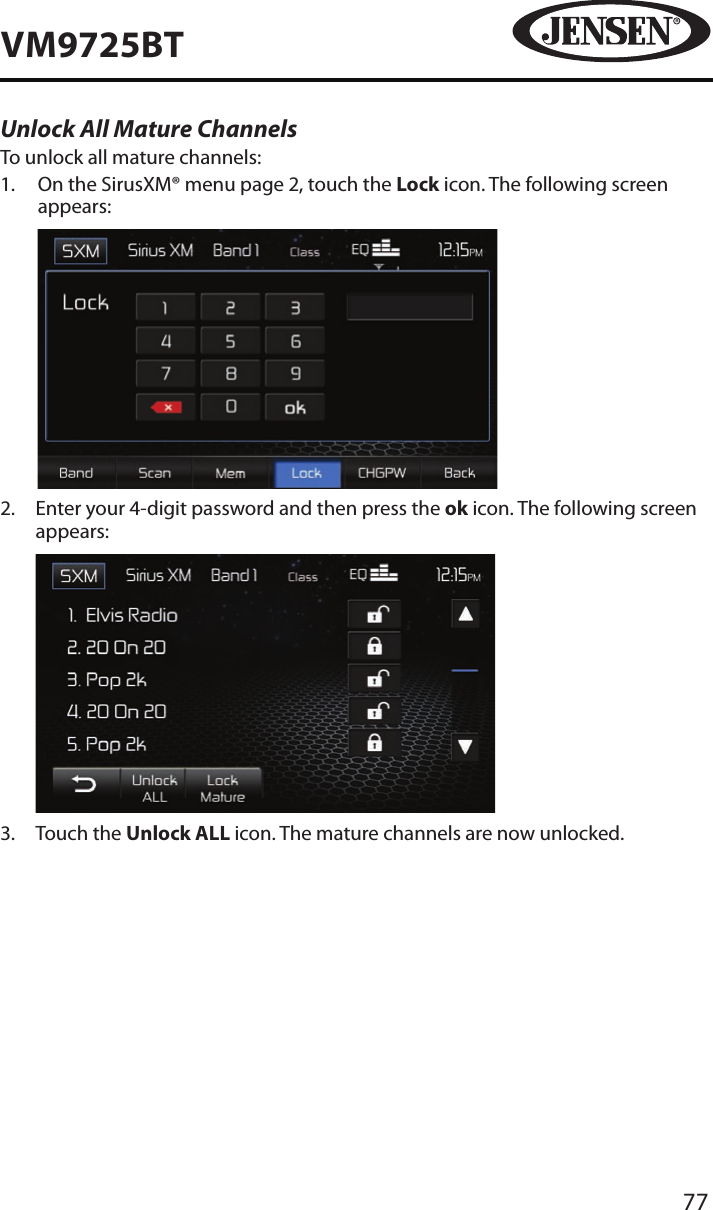
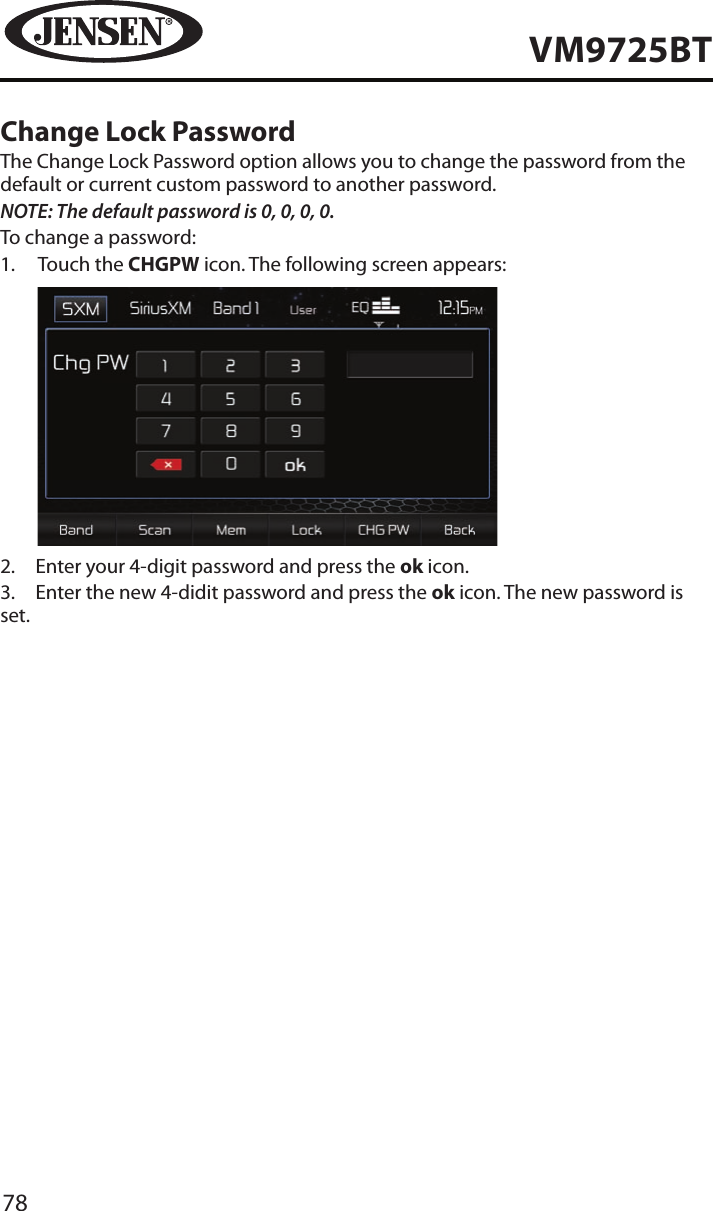
75VM9725BTSXM Mature Channel LockSiriusXM® attaches a label to channels with adult content. The radio recognizes these channels as “Mature”. The Mature Channel Lock option allows you to lock out channels with “Mature” labels. These channels will still appear in the channel listing (with a lock symbol), but will not be tunable unless the parental lockout password is correctly entered.Lock Mature ChannelsTo lock mature channels:1.   On the SirusXM® menu page 2, touch the Lock icon. The following screen appears:            2.   Enter your 4-digit password and then press the ok icon. The following screen appears:            3.  Touch the Lock Mature icon. The mature channels are now locked.
76VM9725BTTemporarily Unlock a Mature ChannelWhen the global “Mature Lock” is enabled, a mature channel can be temporarily unlocked ONLY until the key is cycled. Once the radio is powered on again, the channel will be locked again. This mode is useful for listening to mature/adult content on a temporary basis, allowing you to listen on a channel-by-channel basis without having to disable the global “Mature Lock” of all mature channels.To temporarily unlock a mature channel:1.   Tune to a mature channel. If the channel is locked, Chan Locked will appear on the SiriusXM® User Interface tuner screen.2.   On the SirusXM® menu page 2, touch the Lock icon. The following screen appears:            3.   Enter your 4-digit password and then press the ok icon. The following screen appears:            4.   Touch a lock icon to unlock a channel. Touch the   or   icon to scroll up or down the list.
77VM9725BTUnlock All Mature ChannelsTo unlock all mature channels:1.   On the SirusXM® menu page 2, touch the Lock icon. The following screen appears:            2.   Enter your 4-digit password and then press the ok icon. The following screen appears:            3.  Touch the Unlock ALL icon. The mature channels are now unlocked.
78VM9725BTChange Lock PasswordThe Change Lock Password option allows you to change the password from the default or current custom password to another password.NOTE: The default password is 0, 0, 0, 0.To change a password:1.   Touch the CHGPW icon. The following screen appears:           2.  Enter your 4-digit password and press the ok icon.3.  Enter the new 4-didit password and press the ok icon. The new password is set.
79VM9725BTSiriusXM® Radio Advisory MessagesSiriusXM® user advisory messages are listed below:Advisory Displayed CauseCheck Tuner Check the SiriusXM® tuner connection on the back of the unit to ensure that it’s correctly connected. Check Antenna Ensure the SiriusXM® antenna cable is connected to the SiriusXM® tuner correctly.Check the SiriusXM® antenna wire for breaks or sharp bends.Replace the antenna if necessary. If the message remains, the antenna may have been damaged.No Signal The vehicle must be outside, and the antenna must have a clear view of the southern sky. The magnetic antenna must be mounted on the outside of the vehicle for the best reception.Channel Not Subscribed  This channel is not included in your SiriusXM® subscription plan. Call 1-866-635-2349 to subscribe.Channel Not Available This channel is not a valid SiriusXM® channel. The channel number has been entered incorrectly, or the channel was removed from the SiriusXM® channel lineup. Channel Locked The selected channel has been locked by the parental controls, or a mature channel has been selected. A prompt to enter the unlock code will appear. Enter the unlock code.
80VM9725BTREAR CAMERA OPERATIONThis unit is “camera ready.” Before accessing any camera features, you must install a rear video camera.When the camera is not installed and the function is accessed by the gear selector being placed in reverse or by the unit’s menu, the message “VIDEO NOT DETECTED” will appear, indicating the function is not available.When the camera is installed, the rear view image of what is behind the vehicle will appear when the vehicle is placed in reverse gear. When leaving reverse gear, the unit displays the previous screen.The rear camera image can be adjusted from Normal to Mirror using the “Setup” menu (“see Video Sub-menu Features”).
81VM9725BTTROUBLESHOOTINGTable 6: TroubleshootingProblem Cause Corrective ActionGENERALUnit will not power onRadio Fuse blown Install a new fuse with the correct ratingCar battery fuse blown Install a new fuse with the correct ratingIllegal operation Press the RESET button located over the rotary encoder on the front panelNo/low audio outputImproper audio output connectionCheck wiring and correctVolume set too low Increase volume levelImproper “MUTE” connection Review wiring diagram and check “MUTE” connectionSpeakers damaged Replace speakersHeavily biased volume balance Adjust the channel balance to the center positionSpeaker wiring is in contact with metal part of carInsulate all speaker wiring connectionsPoor sound quality or distortionPirated disc is in use Use original copySpeaker power rating not compatible with unitConnect proper speakersSpeaker is shorted Check speaker contactUnit resets itself when engine is oIncorrect connection between ACC and positive battery wireCheck wiring and correct
82VM9725BTProblem Cause Corrective ActionTFT MonitorNo image Incorrect connection to parking brake wireCheck wiring and correctParking brake is not engaged Stop vehicle in safe place and apply parking brakeFlashing image or interference appears on screenDVD is not compatible with current TV system settingsChange setup to accommodate discImproper video signal connectionsCheck wiring and correctProlonged image or improper height/width ratio displayImproper aspect ratio setup Use correct aspect ratio settingTUNERWeak station searchingAuto antenna is not fully extendedConnect the auto antenna control cable properlyAuto antenna not properly connectedConnect the auto antenna control cable properlyLOCAL function is activated Turn LOCAL function oDISCCannot insert disc Disc already inside unit Eject current disc and insert new oneImage blurred, distorted or darkDisc is illegally copied Use original disc
83VM9725BTProblem Cause Corrective ActionDisc does not play backDisc is warped or scratched Use disc in good conditionClean disc with soft clothDisc is dirty or wetLaser pickup is dirty Clean laser pickup with cleaning discIncompatible disc is used Use compatible discDisc rating exceeds Parental Lock rating limitChange Parental Lock settings to lower restrictionDisc region code is not compatible with unitUse disc with proper region codeDisc is inserted upside down Insert disc with label side upPBC cannot be used during VCD playbackPBC is not available on the discNo repeat or searching while playing VCDPBC is on Turn PBC oMP3Interruption occurred during playbackDisc is dirty or scratched Clean disc or replaceFile is damaged/bad recording Recreate disc with good les
84VM9725BTDisc Error MessagesMessage Displayed Cause Corrective ActionLoading Disc is being readNo Disc Disc is dirty Clean disc with soft clothDisc is upside down Insert disc with label side upDisc not present in loading compartmentInsert discBad Disc Disc is dirty Clean disc with soft clothDisc is upside down Insert disc with label side upUnknown disc Disc format is not compatible with this unitUse compatible discRegion Error DVD is not compatible with region code of unitUse disc with proper region codeError Illegal mechanism operationPress EJECT key for 5 seconds to reset loading mechanism
85VM9725BTCare and Maintenance1.   Use only a clean silicone cloth and neutral detergent to clean the front panel or monitor. A rough cloth and non-neutral detergent (such as alcohol) may result in scratching or discoloration.2.  Do not get water or cleaning uids on the unit.3.   If the temperature inside the player gets too hot, a protective circuit automatically stops play of the disc. If this occurs, allow the unit to cool before operating the player again.4.   Never insert anything other than a 5” (12 cm) compact disc into the player as the mechanism can be damaged by foreign objects.5.   Do not attempt to use a 3” (8 cm) CD-Single disc in this unit, either with or without an adaptor, as damage to the player and/or disc may occur. Such damage is not covered by the Warranty on this product.6.   The CD player may not operate properly in extreme hot or cold. If such conditions occur, allow the interior of the vehicle to reach a normal temperature before using player.7.   When the vehicle warms up during cold weather or under damp conditions, condensation may appear on the LCD panel. Should this occur, the screen will not operate properly until the moisture has evaporated.8.   We suggest you use a cleaning disc in this unit more frequently than in the unit in your home due to the environmental conditions of the vehicle.
86VM9725BTSPECIFICATIONSDVD/CD PlayerCompatible Disc Media: DVD + R / RW (Single and Dual Layer) and CD-R / RWCompatible Media Formats: CD-DA, MP3, WMA, VCD, SVCD, Xvid, AVI, MPEG 1/2Signal to Noise Ratio: >95dBADynamic Range: >95dBFrequency Response: 20Hz to 20 kHz, -3dBChannel Separation: > 60dB @ 1 kHzD/A Converter: High performance 24-bit / 192 kHz sample rate, Multi-Bit Sigma-Delta Modulator VideoFormat: NTSC, PAL (auto-detection)Output: 1Vp-p (75-ohm)Input: 1Vp-p (75-ohm)FM TunerTuning Range: 87.5MHz - 107.9MHzMono Sensitivity (-30dB): 9dBfQuieting Sensitivity (-50dB): 15dBfAlternate Channel Selectivity: 70dBSignal to Noise Ratio @ 1 kHz: 58dB Image Rejection: 80dBStereo Separation @ 1 kHz: >30dBFrequency Response: 30Hz - 15 kHz, -3dAM TunerTuning Range: 530 kHz - 1720 kHzSensitivity (-20dB): 15uVSignal to Noise Ratio @ 1 kHz: 50dBImage Rejection: 60dBFrequency Response: 50Hz - 2 kHz, -3dBMonitorScreen Size: 6.2” (Measured diagonally), 16:9 WidescreenScreen Type: TFT Liquid Crystal Display (LCD) active matrixResolution: 1,152,000 sub pixels, 800x3 (W) X 480 (H)
87VM9725BTGeneralAuxiliary Input impedance: 10k Power Supply: 11 to 16VDC, negative groundPower Antenna (Blue): 500mA max, current limited protectionAmplier Remote (Blue/White): 500mA max, current limited protectionOperating Temperature: -20C ~ 65CFuse: 15-amp, mini ATO typeDIN chassis dimensions: 7” X 7” X 4” (178mm x 178mm x 100mm)CEA Power Ratings     Power Output: 13 Watts RMS x 4 channels into 4-Ohms @ < 1% THD+N     Signal to Noise Ratio: 70dBA below reference (Reference: 1 Watt, 4-Ohms)     Frequency Response: 20 Hz - 20 kHz, -3dB. (Aux Input used as reference input)    Reference Supply Voltage: 14.4VDC*Specications subject to change without noticeCommon Replacement PartsOwner’s Manual and Install Manual 30613600 Wire Harness 30313600Trim Rings (Main and Secondary-Packaged Together) 30413590External Microphone  30443240Remote Control 30713600Parking Wire 38213030Sleeve and Mounting Brackets 30113270Hardware Bag 30513270
Audiovox Electronics CorporationHauppauge, NY 11788Technical Assistance: 1-800-323-4815www�jensenmobile.com© 2012 AudiovoxPrinted in China128-9054P/N:127075004116

Navigation menu