Hantel 450PAN Alpha-Numeric Pager User Manual TITAN3 USERMANUAl pocsag

Hantel Co., Ltd. Alpha-Numeric Pager TITAN3 USERMANUAl pocsag

USer Manual

Congratulations on your purchase of our                   Pager.  By incorporating some of the most advanced electronic paging technologies, the                is reliable and easy to use.  Best of all, the               is affordable and will keep you in touch with those important to you.Please carefully read this manual before using your pager  in order to fully understand the          functions and capabilities.  Once again, congratulations on your purchase.
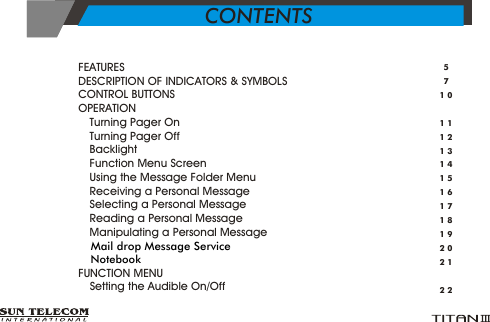
>  FEATURES      >  DESCRIPTION OF INDICATORS & SYMBOLS      >  CONTROL BUTTONS      >  OPERATION      Ÿ      Turning Pager On      Ÿ      Turning Pager OffŸ      Backlight         Ÿ      Function Menu Screen Ÿ      Using the Message Folder Menu           Ÿ      Receiving a Personal MessageŸ      Selecting a Personal Message Ÿ      Reading a Personal Message Ÿ      Manipulating a Personal Message Ÿ  Ÿ >  FUNCTION MENU           Ÿ      Setting the Audible On/Off Mail drop Message Service   Notebook5710111213141516171819202122CONTENTS
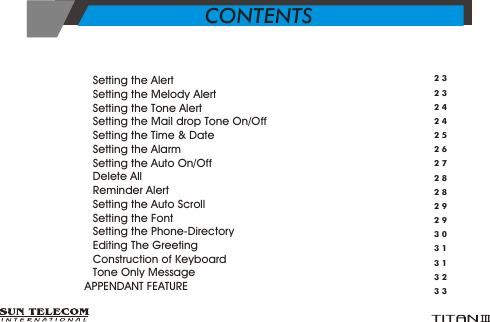
Ÿ      Setting the Alert   Ÿ      Setting the Melody Alert Ÿ      Setting the Tone AlertŸ      Setting the Mail drop Tone On/OffŸ      Setting the Time & DateŸ      Setting the AlarmŸ      Setting the Auto On/OffŸ      Delete AllŸ      Reminder AlertŸ      Setting the Auto ScrollŸ      Setting the FontŸ      Setting the Phone-DirectoryŸ      Editing The GreetingŸ      Construction of KeyboardŸ      Tone Only Message>   APPENDANT FEATURE23232424252627282829293031313233CONTENTS
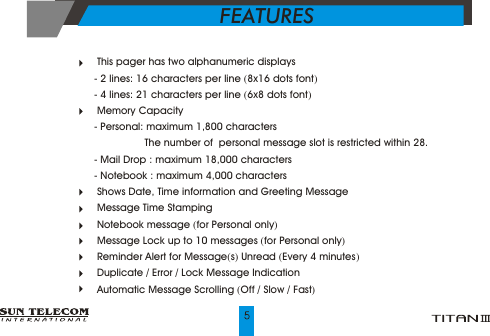
 This pager has two alphanumeric displays- 2 lines: 16 characters per line (8x16 dots font)- 4 lines: 21 characters per line (6x8 dots font) Memory Capacity- Personal: maximum 1,800 characters                  The number of  personal message slot is restricted within 28.- Mail Drop : maximum 18,000 characters- Notebook : maximum 4,000 characters Shows Date, Time information and Greeting Message Message Time Stamping   Notebook message (for Personal only) Message Lock up to 10 messages (for Personal only) Reminder Alert for Message(s) Unread (Every 4 minutes)  Duplicate / Error / Lock Message Indication Automatic Message Scrolling (Off / Slow / Fast)FEATURES
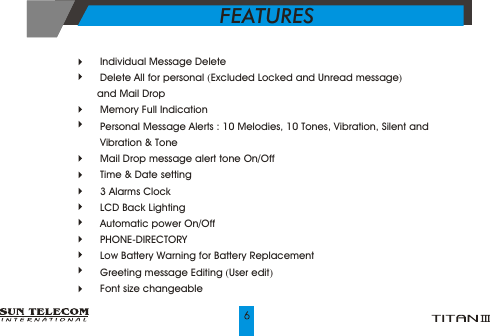
 Individual Message Delete Delete All for personal (Excluded Locked and Unread message) and Mail Drop Memory Full Indication  Personal Message Alerts : 10 Melodies, 10 Tones, Vibration, Silent and  Vibration & Tone Mail Drop message alert tone On/Off Time & Date setting  3 Alarms Clock LCD Back Lighting Automatic power On/Off  PHONE-DIRECTORY  Low Battery Warning for Battery Replacement Greeting message Editing (User edit) Font size changeableFEATURES
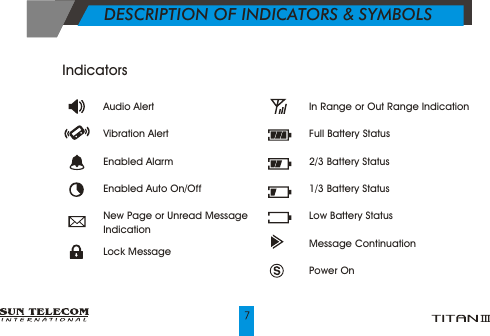
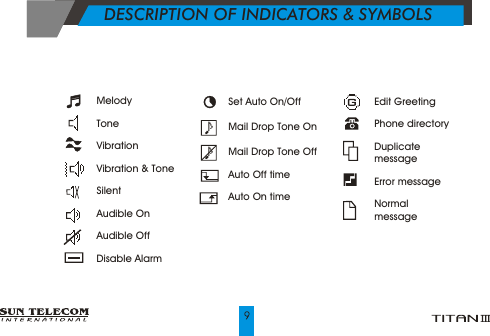
           DESCRIPTION OF INDICATORS & SYMBOLS   Indicators               Audio Alert         Vibration AlertEnabled AlarmEnabled Auto On/OffNew Page or Unread Message IndicationLock MessageIn Range or Out Range IndicationFull Battery Status2/3 Battery Status1/3 Battery StatusLow Battery StatusMessage ContinuationPower On
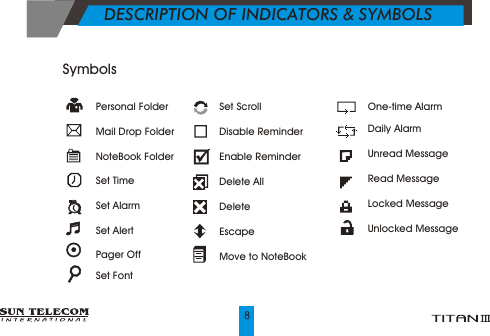
One-time Alarm Daily AlarmUnread MessageRead MessageLocked MessageUnlocked Message           DESCRIPTION OF INDICATORS & SYMBOLS  Personal FolderMail Drop FolderNoteBook FolderSet TimeSet AlarmSet AlertPager OffSet FontSet ScrollDisable Reminder Enable Reminder Delete AllDelete EscapeMove to NoteBookSymbols
Edit GreetingPhone directoryDuplicate messageError messageNormal message               Set Auto On/OffMail Drop Tone OnMail Drop Tone OffAuto Off timeAuto On time           DESCRIPTION OF INDICATORS & SYMBOLS  MelodyTone Vibration  Vibration & Tone   SilentAudible OnAudible OffDisable Alarm
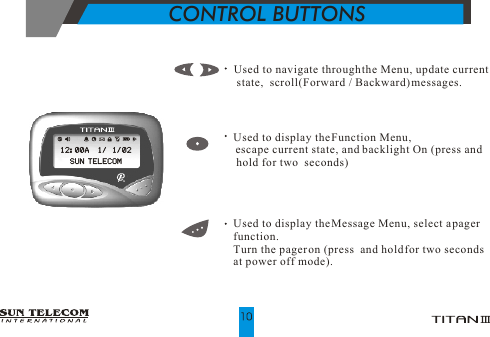
   Used to navigate through the Menu, update current     state,  scroll(Forward / Backward) messages.  Used to display the Function Menu,   escape current state, and    backlight On (press and   hold for two  seconds)  Used to display the Message Menu, select a pager  function.  Turn the pager on (press  and hold for two seconds  at power off mode).CONTROL BUTTONS
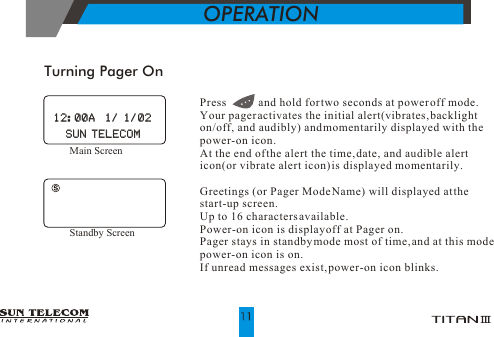
Turning Pager OnOPERATIONPress           and hold for two seconds at power off mode. Your pager activates the initial alert(vibrates, backlight on/off, and audibly) and momentarily displayed with the power-on icon.At the end of the alert the time, date, and audible alert icon(or vibrate alert icon) is displayed momentarily.Greetings (or Pager Mode Name) will displayed at the start-up screen. Up to 16 characters available.Power-on icon is display off at Pager on.Pager stays in standby mode most of time, and at this mode power-on icon is on.If unread messages exist, power-on icon blinks.Main Screen 12:00A  1/ 1/0212:00A  1/ 1/02SUN TELECOMSUN TELECOMStandby Screen
Turning Pager OffOPERATIONYour Pager is now off and the screen is blank.If you press           shortly, "POWER OFF" is displayed with current time  and  date. The Pager cannot be receive messages in this mode. Only alarm function is active.The Power-on icon is displayed off, in the power off mode.1) Press            to display the function menu. 2) Press         or         to move the cursor  to       .3) Press          to move the cursor to YES.4) Press          to turn Pager off.            [  NO  ]            [  NO  ]POWER OFFPOWER OFF [  YES ] [  YES ]POWER OFFPOWER OFFPower off confirm screenPower off display screen12:00A  1/ 1/0212:00A  1/ 1/02
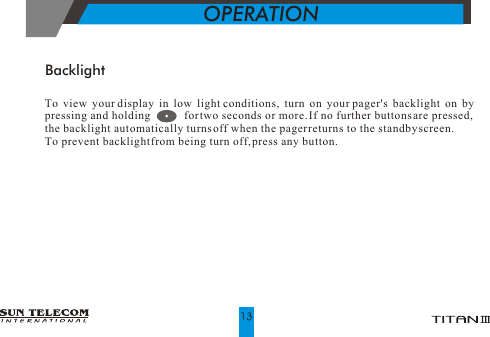
OPERATIONTo view your display in low light conditions, turn on your pager's backlight on by pressing and holding           for two seconds or more. If no further buttons are pressed, the backlight automatically turns off when the pager returns to the standby screen.To prevent backlight from being turn off, press any button.Backlight
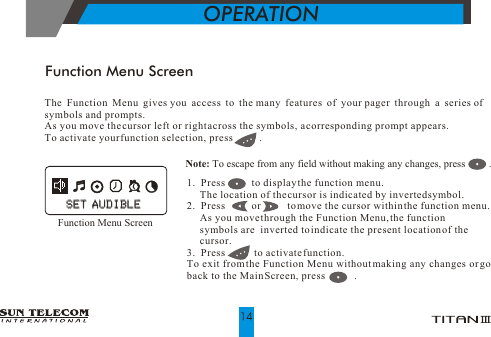
Function Menu ScreenOPERATIONNote: To escape from any field without making any changes, press         .      The Function Menu gives you access to the many features of your pager through a series of symbols and prompts.As you move the cursor left or right across the symbols, a corresponding prompt appears. To activate your function selection, press          .1.  Press          to display the function menu.     The location of the cursor is indicated by inverted symbol. 2.  Press          or          to move the cursor within the function menu.      As you move through the Function Menu, the function       symbols are  inverted to indicate the present location of the       cursor.3.  Press           to activate function.To exit from the Function Menu without making any changes or go back to the Main Screen, press           .             Function Menu ScreenSET AUDIBLESET AUDIBLE
Preview Message ScreenUsing the Message Folder Menu1.   Press           to display the message Folder menu.2.   Press          or         to move within the message select menu     (personal, Mail Drop and Notebook).3.   Press          to read message.PERSONAL  [ 1] The number of unread Personal                                                              message(s).MAILDROP [ 1] The number of unread Mail Drop                                   message(s).NOTEBOOK[ 1] The number of total messages in                                    notebook.     PERSONAL   [ 1]PERSONAL   [ 1]OPERATION15
This pager can receive until personal memory are full. When a message is received, your pager alerts for about 8seconds according to the current alert setting (audible,  vibrate, or silent).   By the way, memory space(capacity) is overflow, the oldest message(s) is(are) deleted until it make room for the newest  message.  And the pager will delete unlocked message, and then unread message in order.This Receiver automatically stores the message along with  the time and date of  when the message was received.Note: When memory remains under for save message or  the number of message is 28,            the "PERSONAL FULL" displays on the main screen.Receiving a Personal MessageOPERATION16
Selecting a Personal Message1. Press           to display the message folder  menu. 2. Move to         , and press           to display the message select    menu..3. Press         or         to move to the message you want to read.          As you move through the message selection screen, the message symbols is inverted to indicate the present location of the cursor.Note: Duplicated(      ) and Error(      ) messages are indicated on the status line.Message Symbols:      (Unread Message),       (Read Message),                                        (Locked Message)Message Selection  Screen001:1234567890001:1234567890OPERATION17[001/001]  01/01     12:20[AM][001/001]  01/01     12:20[AM]Time Stamp Screen
Reading a Personal Message1.  Press          to display the message folder  menu.2.  Move to        ,  press          to message selection  menu.3.  Press        or       to move to the message you want  to read.4.  Press           to read the message.5.  Press          or        to forward scroll.       Press           to backward scroll.6.  When end of message, time stamp screen is displayed on.7. If you want to delete/lock/unlock/ move to notebook the message while reading it,      press          to display Message Manipulate Menu.  Press       or       to move the cursor to the desired function, and press         to activate it.Note : When an unread message exists, your pager gives a periodic reminder alert(every 4 minutes) until all Unread messages are read.            A         on the status line indicates that you have unread messages.            Reminder alert is enabled or disabled through the Function Menu. OPERATION18
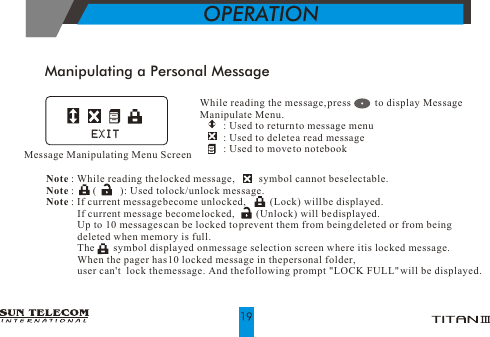
Manipulating a Personal MessageWhile reading the message, press         to display Message Manipulate Menu.         : Used to return to message menu         : Used to delete a read message          : Used to move to notebook                        Note : While reading the locked message,         symbol cannot be selectable.                    Note :       (         ): Used to lock/unlock message. Note : If current message become unlocked,         (Lock) will be displayed.             If current message become locked,        (Unlock) will be displayed.             Up to 10 messages can be locked to prevent them from being deleted or from being               deleted when memory is full.              The       symbol displayed on message selection screen where it is locked message.             When the pager has 10 locked message in the personal folder,               user can't  lock the message. And the following prompt "LOCK FULL" will be displayed.OPERATIONMessage Manipulating Menu ScreenEXITEXIT
Mail drop Message ServiceReading Messages in Your Mail drop Folder1) From the Message Menu, press       or       to move the cursor to        .2) Mail drop messages are read the same way as personal messages.Note : The number of unread Mail drop message will be displayed in service title line.Manipulating a Mail Drop Message1) Press         to display Message Manipulate Menu, while reading the message.2)         : Used to return to message menu3)         : Used to delete a read messageOPERATIONMail drop Message Service ScreenMAILDROP    [  1]MAILDROP    [  1]Mail Drop Message Manipulate Menu screenEXITEXIT0101 0202 0303 0404
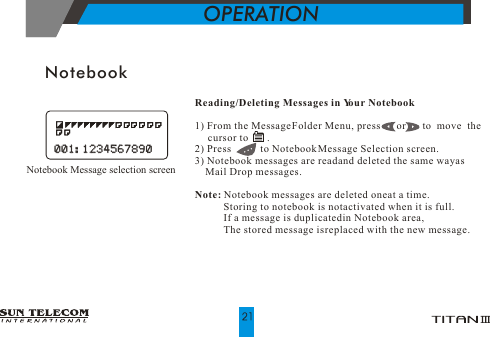
NotebookReading/Deleting Messages in Your Notebook1) From the Message Folder Menu, press      or       to  move  the      cursor to       .2) Press           to Notebook Message Selection screen.3) Notebook messages are read and deleted the same way as     Mail Drop messages.Note: Notebook messages are deleted one at a time.            Storing to notebook is not activated when it is full.                                                       If a message is duplicated in Notebook area,            The stored message is replaced with the new message.OPERATION Notebook Message selection screen001:1234567890001:1234567890
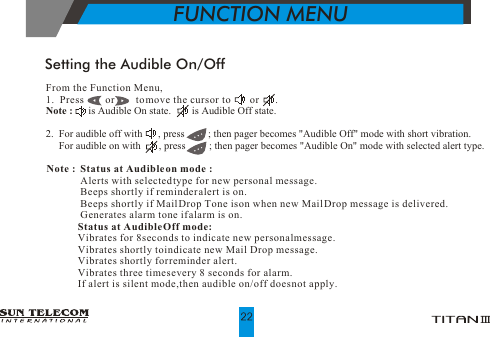
From the Function Menu,1.  Press        or        to move the cursor to        or      .Note :      is Audible On state.        is Audible Off state.2.  For audible off with      , press         ; then pager becomes "Audible Off" mode with short vibration.     For audible on with       , press         ; then pager becomes "Audible On" mode with selected alert type. Setting the Audible On/OffNote :  Status at Audible on mode :             Alerts with selected type for new personal message.             Beeps shortly if reminder alert is on.             Beeps shortly if Mail Drop Tone is on when new Mail Drop message is delivered.             Generates alarm tone if alarm is on.            Status at Audible Off mode:            Vibrates for 8 seconds to indicate new personal message.            Vibrates shortly to indicate new Mail Drop message.            Vibrates shortly for reminder alert.            Vibrates three times every 8 seconds for alarm.            If alert is silent mode, then audible on/off does not apply.FUNCTION MENU
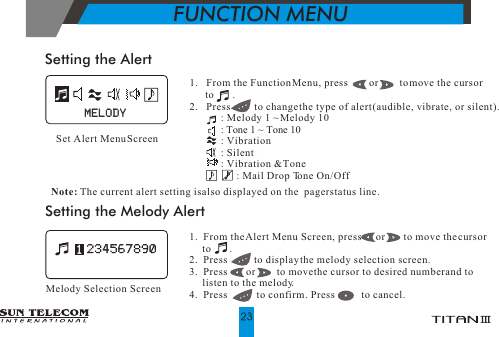
1.   From the Function Menu, press        or        to move the cursor       to       .2.   Press         to change the type of alert (audible, vibrate, or silent).            : Melody 1 ~ Melody 10            : Tone 1 ~ Tone 10            : Vibration                    : Silent            : Vibration & Tone                  : Mail Drop Tone On/Off       Set Alert Menu ScreenSetting the Alert1.  From the Alert Menu Screen, press      or       to move the cursor     to       .2.  Press          to display the melody selection screen.3.  Press       or        to move the cursor to desired number and to      listen to the melody. 4.  Press           to confirm. Press           to cancel.Setting the Melody AlertMelody Selection ScreenNote: The current alert setting is also displayed on the  pager status line.MELODYMELODYFUNCTION MENU
1.   From the Alert Menu Screen, press        or        to move the       cursor to       .2.   Press          to display the tone selection screen.3.   Press       or       to move the cursor to desired number and to       listen to the tone. 4.   Press          to confirm. Press          to cancel.Setting the Tone AlertTone Selection Screen1.  From the Alert Menu Screen, press      or       to move the       cursor to        or       .2.   Press           to turn the mail drop alert on or off.3.   Press         or        to move to on [ON] or off [Off]. 4.   Press          to confirm. Press          to cancel.Setting the Mail Drop Tone On/Off12345678901234567890FUNCTION MENU
1.    From the Function Menu, press       or       to move the cursor          to       .2.    Press          to display the SET CLOCK screen.3.    Press        or       to adjust the date, time.4.    Press          to move the cursor to next set of  digits.5. Press tocancel thedate andtime setting.                          Note:  If pressed and hold       or      , setting value may increment             or decrement quickly.Setting the Time & DateSet Time & Date Screen   02/01/01    02/01/01 12:2212:22[ AM ][ AM ]FUNCTION MENU
Setting the AlarmSet Alarm Screen1.  From the Function Menu, press       or        to move the cursor       to       .2.  Press         to display the SET ALARM screen.3.  Press        or        to choose the alarm number.4.  Press         to move to the alarm attributes.                                 5.  Repeat steps 3) and 4)  for Hour, Minutes, AM-PM, Alarm      message.6.  Press         to cancel the alarm setting.     If an alarm is enabled,          is displayed on the status line.      Alarm can be cancelled only in main screen, Standby Mode,        and Power Off Mode.     Alarm alert emits in according to the personal message alert.     Melody or Tone : Emits an alarm tone for 20-seconds.                         Vibration : Vibrates for 24 seconds.  Note :        : Disable Alarm,          : One-time Alarm,                                : Daily AlarmAlarm Expire Screen1    12:001    12:00 [ AM ] [ AM ]ALARMALARM1   12:001   12:00 [ AM ] [ AM ]ALARMALARMFUNCTION MENU26
Setting the Auto On/Off1.  From the Function Menu, press       or        to move the cursor      to      .2.  Press          to display the AUTO ON/OFF screen. 3.  Press        or        to enable       or       disable .4.  Press          to move the cursor to Auto-Off hour digits.5.  Press        or        to adjust the hour of Auto-Off time.                           6.  Repeat steps 4) and 5) to adjust the minutes and Auto-On time.7.  Press          to cancel the Auto-Power-On-Off setting.     Auto-Power-On-Off is executed on the Main Screen, Standby       Mode and Power Off Mode.Note :            : Auto Power Off,             : Auto Power OnAuto Power On/Off Screen 12:00 12:00 [AM] [AM] 06:00 06:00 [AM] [AM]FUNCTION MENU27
Delete All1.  From the Function Menu, press       or        to move the cursor      to        .2.  Press          to display the message DELETE ALL screen.3.  Press        or        to on [ YES], off [ NO ] .4.  Press           to confirm. Press           to cancel.                                 Note: All personal message(exclude locked and unread message)            and mail drop message are deleted.Delete All Message Screen [ YES ] [ YES ][ NO ][ NO ]1.  From the Function Menu, press       or         to move the cursor      to        or         .2.  Press          to display the REMINDER ALERT On/Off screen.3.  Press        or        to on [ ON ] , off [ OFF]. 4.  Press           to confirm. Press           to cancel.                                 Reminder AlertReminder Alert On/Off Screen   DELETE ALL   DELETE ALL [ ON ] [ ON ][ OFF ][ OFF ]REMINDER ALERTREMINDER ALERTFUNCTION MENU28
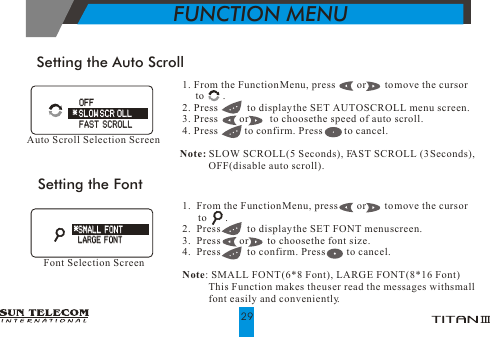
 1. From the Function Menu, press        or       to move the cursor       to       . 2. Press           to display the SET AUTO SCROLL menu screen. 3. Press        or        to choose the speed of auto scroll. 4. Press          to confirm. Press         to cancel.Note: SLOW SCROLL(5 Seconds), FAST SCROLL (3 Seconds),            OFF(disable auto scroll).Setting the Auto ScrollAuto Scroll Selection ScreenSetting the Font1.  From the Function Menu, press       or       to move the cursor       to       .2.  Press          to display the SET FONT menu screen.                         3.  Press       or       to choose the font size.4.  Press          to confirm. Press         to cancel. Note: SMALL FONT (6*8 Font), LARGE FONT (8*16 Font)          This Function makes the user read the messages with small          font easily and conveniently.Font Selection Screen*SMALL FONT*SMALL FONTLARGE FONTLARGE FONT   OFF    FAST SCROLL   OFF    FAST SCROLL* SLOW SCR OLL* SLOW SCR OLLFUNCTION MENU29
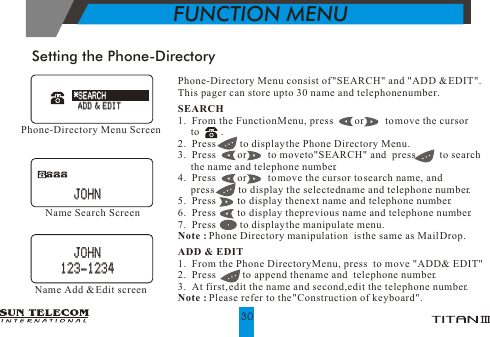
Setting the Phone-DirectoryPhone-Directory Menu consist of "SEARCH" and "ADD & EDIT".This pager can store up to 30 name and telephone number.SEARCH1.  From the Function Menu, press        or        to move the cursor      to        .2.  Press         to display the Phone Directory Menu.3.  Press        or        to move to"SEARCH" and  press         to search     the name and telephone number.4.  Press        or        to move the cursor to search name, and      press         to display the selected name and telephone number.5.  Press        to display the next name and telephone number.6.  Press        to display the previous name and telephone number.7.  Press         to display the manipulate menu.Note : Phone Directory manipulation  is the same as Mail Drop.ADD & EDIT1.  From the Phone Directory Menu, press  to move "ADD & EDIT" 2.  Press          to append the name and  telephone number.3.  At first, edit the name and second, edit the telephone number.Note : Please refer to the "Construction of keyboard".Phone-Directory Menu ScreenName Search ScreenName Add & Edit screen*SEARCH*SEARCHADD & EDITADD & EDIT   JOHN   JOHN   JOHN   JOHN123-1234123-1234FUNCTION MENU30
 1. From the Function Menu, press        or        to move the cursor       to        . 2. Press          to edit greeting message.Note : Refer to "Construction of keyboard".Editing The GreetingEdit Greeting Screen A~Z : Alphabet A~Z, SPACE,         : Hyphen,          : Enter(Confirm),            : Escape(Cancel),   0~9  : Numeric Number 0~9.1.  Press       or        to move the cursor to a letter.2.  If pressed and hold       or       for 2 seconds or more, the cursor      may move backward and forward quickly.3.  Press          to select the letter.4.  Press          to move the cursor backward(for backspacing).Construction of Keyboard  AGER WORLD  AGER WORLDPPFUNCTION MENU31Keyboard
FUNCTION MENUPressing         at       asks whether a user wants to save a message or not. However, if a message is a name, then the screen changes to input phone number or greeting message.Pressing          at  [ YES] saves an entered message.Pressing          at [ NO] cancels an entered message.(Not saved)Pressing        at       confirms if a user wants to cancel the message. However, if a message is phone number, then the screen change to input name.Pressing          at  [ YES] cancels the message.Pressing          at [ NO] continues to enter a message(Not saved)Tone Only MessageThis pager considers the following conditions as tone only message.Tone only message can be displayed as "TONE ONLY". [ YES ] [ YES ][  NO ][  NO ]   SAVE   SAVE [ YES ] [ YES ][  NO ][  NO ]   EXIT   EXIT32
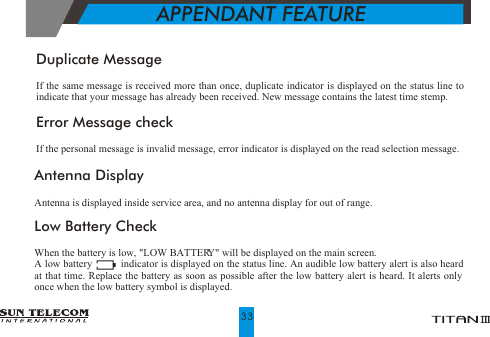
Low Battery CheckWhen the battery is low, "LOW BATTERY" will be displayed on the main screen.A low battery          indicator is displayed on the status line. An audible low battery alert is also heard at that time. Replace the battery as soon as possible after the low battery alert is heard. It alerts only once when the low battery symbol is displayed.APPENDANT FEATUREDuplicate MessageIf the same message is received more than once, duplicate indicator is displayed on the status line to indicate that your message has already been received. New message contains the latest time stemp.Error Message checkIf the personal message is invalid message, error indicator is displayed on the read selection message.Antenna DisplayAntenna is displayed inside service area, and no antenna display for out of range.33
Neither your Wireless Provider nor Sun Telecom International is responsible for data that may be damaged or lost at any time, including, without limitation data lost or damaged during the servicing of Sun Telecom International hardware. In as much as the wireless data service provided, we cannot guarantee or warrant that the wireless data service will always be available or will always function properly. For this and other reasons, the wireless data service should not be relied upon for the transmission of data relating to emergency or life-threatening or mission critical situations, and Sun Telecom International disclaims any liability on its behalf and on behalf of its Wireless Providers for events or damages resulting from such reliance or the failure of the wireless data service to perform or to be available for your use of the wireless data service, including, without limitation, the lack of service coverage in the area in which YOU wish to use the wireless solution. To the extent the third party providing the wireless data service provides any warranties or guarantees that may be passed on to YOU, such warranties and/or guarantees are automatically passed on to YOU without any further effort on your part or on the part of Sun Telecom International. Neither Sun Telecom International nor your wireless provider shall in any way be liable to you for any damages you suffer or incur (including, but not limited to, general, special, consequential or incidental damages including damages for loss of business profits, business interruption, loss of business information and the like and personal injury or wrongful death damages) arising from or in connection with the use or performance of our product, even if Sun Telecom International or your wireless solution provider are aware of the possibility of such damages. This limitation is intended to apply and does apply without regard to whether such damages are claimed, asserted or brought in an action or claim sounding in tort or contract, or on the warranty, or under any other law or form of action.
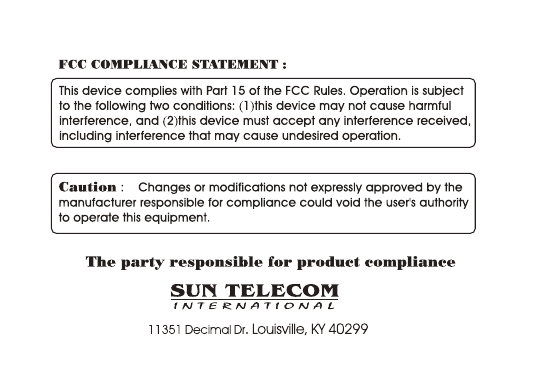
This equipment has been tested and found to comply with the limits of a Class B digital device, pursuant to Part 15 of the FCC Rules. These limits are designed to provide reasonable protection against harmful interference in a residential installation. This equipment generates, uses, and can radiate radio frequency energy and, if not installed and used in accordance with the instructions, may cause harmful interference to radio communications.  However, there is no guarantee that interference will not occur in a particular installation. If this equipment does cause harmful interference to radio or television reception (which can be determined by turning the equipment off and on), the user is encouraged to try to correct the interference by one or more of the following measures:           Reorient/Relocate the receiving antenna.   Increase the separation between the equipment and receiver.   Connect the equipment into an outlet on a circuit different  from             that  to which the  receiver is connected.   Consult the dealer or an experienced radio/TV technician for help.

Navigation menu