Hantel 900FAN Alpha Numeric Pager User Manual

Hantel Co., Ltd. Alpha Numeric Pager

User Manual

Congratulations on your purchase of our                   Pager.  By incorporating some of the most advanced electronic paging technologies, the                is reliable and easy to use.  Best of all, the               is affordable and will keep you in touch with those important to you.Please carefully read this manual before using your pager  in order to fully understand the          functions and capabilities.  Once again, congratulations on your purchase.
>  FEATURES      >  DESCRIPTION OF INDICATORS & SYMBOLS      >  CONTROL BUTTONS      >  OPERATION                                                                                                                Ÿ      Turning The Pager On      Ÿ       Turning The Pager OffŸ       Main Screen         Ÿ       Function Menu Screen        Ÿ       Personal Message Screen    Ÿ       MailDrop/ Information Message Screen      Ÿ       NoteBook Message Screen>  FUNCTION MENU                                                                                                  Ÿ      Reading a Stored Message in each Message Screen                                             Ÿ      Setting the Time and Date                                                                                           Ÿ      Setting the Alarm                                                                                                          Ÿ      Setting the Paging AlertŸ      Setting the  Audible On/Off5811121314151617171819202122CONTENTS
Ÿ      Enabling the Display ZoomŸ      Setting the Scroll ModeŸ      Enabling the Reminder Alert          Ÿ      Locking and Unlocking MessagesŸ      Deleting A MessageŸ      Deleting All Messages      Ÿ      Moving A Message to the NoteBookŸ      Selecting a MailDrop Alert Type2324252627272829CONTENTS
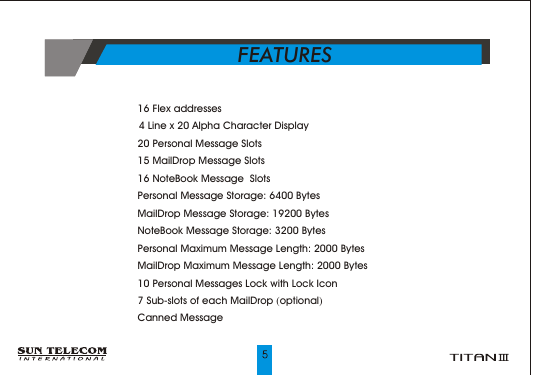
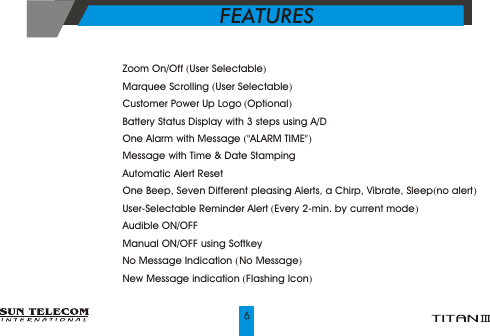
?      16 Flex addresses ?       4 Line x 20 Alpha Character Display ?      20 Personal Message Slots?      15 MailDrop Message Slots?      16 NoteBook Message  Slots?      Personal Message Storage: 6400 Bytes?      MailDrop Message Storage: 19200 Bytes?      NoteBook Message Storage: 3200 Bytes?      Personal Maximum Message Length: 2000 Bytes?      MailDrop Maximum Message Length: 2000 Bytes?      10 Personal Messages Lock with Lock Icon?      7 Sub-slots of each MailDrop (optional)?      Canned MessageFEATURES
?    Zoom On/Off (User Selectable)?    Marquee Scrolling (User Selectable) ?    Customer Power Up Logo (Optional)?    Battery Status Display with 3 steps using A/D?    One Alarm with Message ("ALARM TIME")  ?    Message with Time & Date Stamping?    Automatic Alert Reset?    One Beep, Seven Different pleasing Alerts, a Chirp, Vibrate, Sleep(no alert)?    User-Selectable Reminder Alert (Every 2-min. by current mode)?    Audible ON/OFF?    Manual ON/OFF using Softkey?    No Message Indication ( No Message)?    New Message indication (Flashing Icon)FEATURES
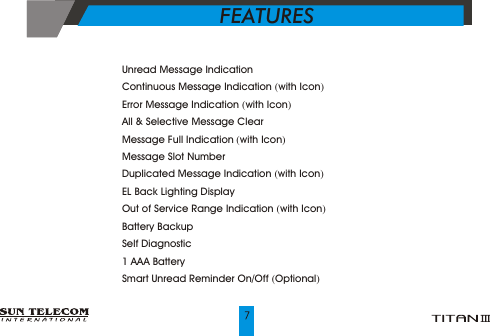
?    Unread Message Indication ?    Continuous Message Indication (with Icon)?    Error Message Indication (with Icon)?    All & Selective Message Clear?    Message Full Indication (with Icon)?    Message Slot Number?    Duplicated Message Indication (with Icon)?    EL Back Lighting Display?    Out of Service Range Indication (with Icon)?    Battery Backup ?    Self Diagnostic?    1 AAA Battery?       Smart Unread Reminder On/Off (Optional)FEATURES
 Indicators               Audio Alert         Silent Alert (Vibration)Enabled AlarmSleep AlertNew Page or Unread Message IndicationLock MessageUnlock MessageIn Range or Out Range IndicationFull Battery Status2/3 Battery Status1/3 Battery StatusLow Battery StatusMessage ContinuationPower On           DESCRIPTION OF INDICATORS & SYMBOLS
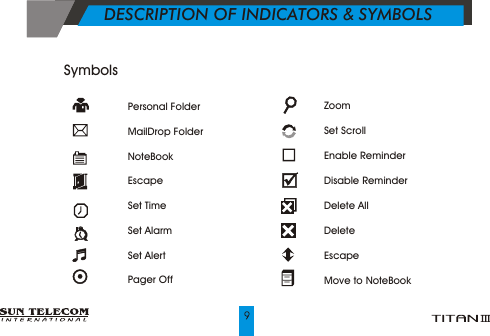
Symbols              Personal FolderMailDrop FolderNoteBookEscapeSet TimeSet AlarmSet AlertPager Off               Zoom Set ScrollEnable Reminder Disable Reminder Delete AllDelete EscapeMove to NoteBook           DESCRIPTION OF INDICATORS & SYMBOLS
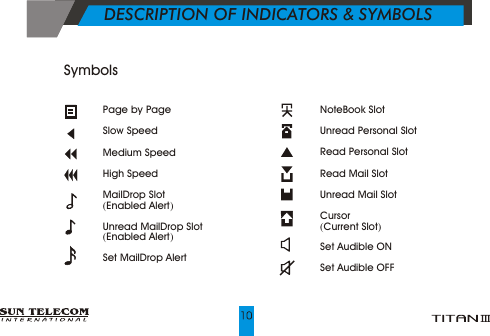
Page by PageSlow SpeedMedium SpeedHigh SpeedMailDrop Slot(Enabled Alert)Unread MailDrop Slot(Enabled Alert)Set MailDrop AlertNoteBook SlotUnread Personal SlotRead Personal SlotRead Mail SlotUnread Mail SlotCursor(Current Slot)Set Audible ONSet Audible OFFSymbols                         DESCRIPTION OF INDICATORS & SYMBOLS
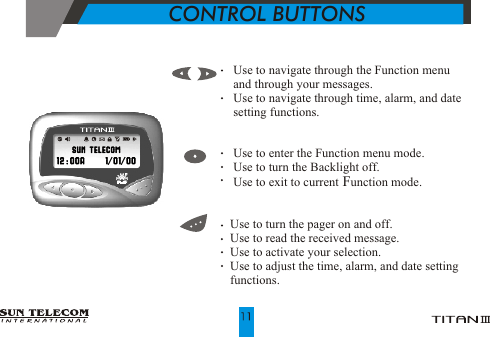
CONTROL BUTTONS          Use to navigate through the Function menu             and through your messages.                                 Use to navigate through time, alarm, and date                   setting functions.    Use to enter the Function menu mode.       Use to turn the Backlight off.    Use to exit to current Function mode.   Use to turn the pager on and off.   Use to read the received message.   Use to activate your selection.   Use to adjust the time, alarm, and date setting    functions.
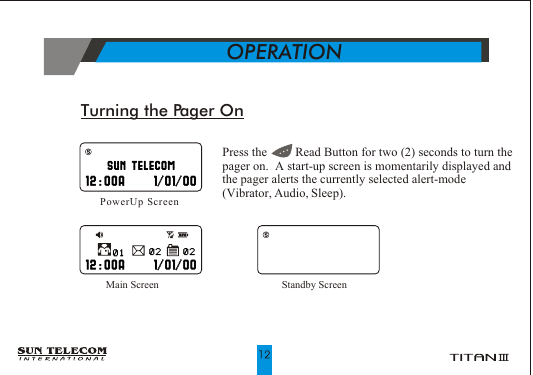
Turning the Pager On     OPERATION      Main Screen PowerUp ScreenStandby Screen Press the         Read Button for two (2) seconds to turn the pager on.  A start-up screen is momentarily displayed and the pager alerts the currently selected alert-mode (Vibrator, Audio, Sleep).
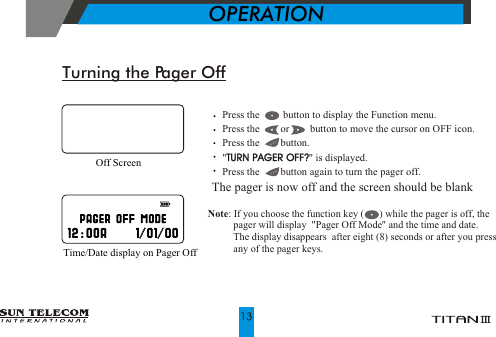
Turning the Pager Off    Press the         button to display the Function menu.    Press the        or        button to move the cursor on OFF icon.    Press the        button.     "TURN PAGER OFF?" is displayed.    Press the        button again to turn the pager off.The pager is now off and the screen should be blankTURN PAGER OFF?Off Screen             OPERATIONTime/Date display on Pager Off Note: If you choose the function key (      ) while the pager is off, the           pager will display   Pager Off Mode  and the time and date.            The display disappears  after eight (8) seconds or after you press          any of the pager keys. ""
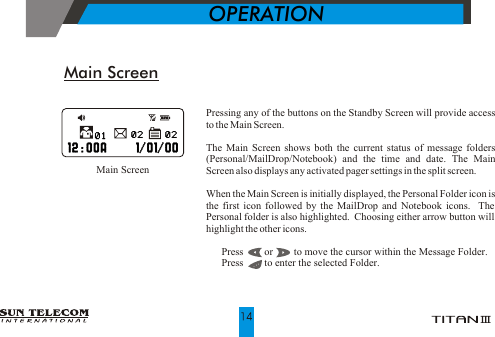
Main ScreenPressing any of the buttons on the Standby Screen will provide access to the Main Screen. The Main Screen shows both the current status of message folders (Personal/MailDrop/Notebook) and the time and date. The Main Screen also displays any activated pager settings in the split screen.When the Main Screen is initially displayed, the Personal Folder icon is the first icon followed by the MailDrop and Notebook icons.  The Personal folder is also highlighted.  Choosing either arrow button will highlight the other icons.!  Press        or        to move the cursor within the Message Folder.!  Press        to enter the selected Folder.                     Main Screen           OPERATION
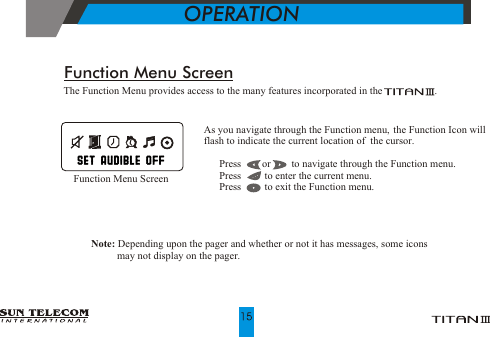
Function Menu ScreenOPERATION      As you navigate through the Function menu, the Function Icon willflash to indicate the current location of  the cursor.  Press        or        to navigate through the Function menu.  Press         to enter the current menu.  Press         to exit the Function menu. !!!             Function Menu ScreenThe Function Menu provides access to the many features incorporated in the                    .Note: Depending upon the pager and whether or not it has messages, some icons          may not display on the pager.
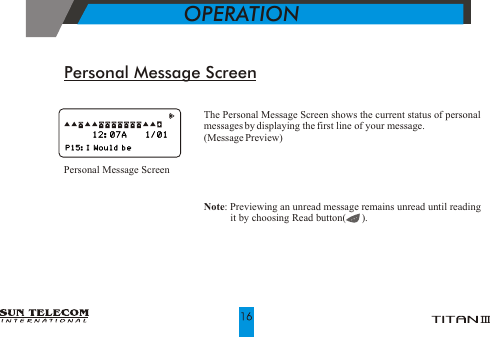
Personal Message ScreenThe Personal Message Screen shows the current status of personal messages by displaying the first line of your message.(Message Preview)Personal Message ScreenNote: Previewing an unread message remains unread until reading it by choosing Read button(      ).OPERATION
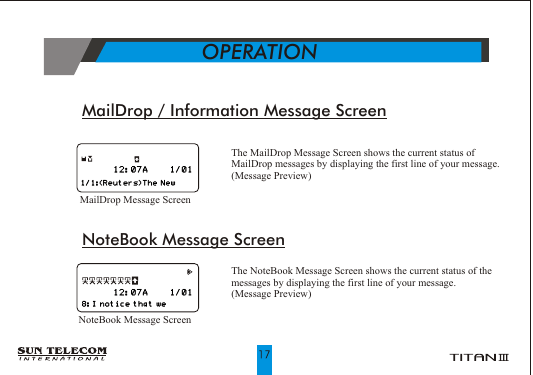
MailDrop / Information Message ScreenThe MailDrop Message Screen shows the current status of MailDrop messages by displaying the first line of your message. (Message Preview)NoteBook Message ScreenThe NoteBook Message Screen shows the current status of the messages by displaying the first line of your message. (Message Preview)MailDrop Message ScreenNoteBook Message ScreenOPERATION
!!  From each Message screen press        or        to move the cursor to the message you want to read.   Press         button to read the message.Reading Stored Message in each Message ScreenAuto Scrolling Screen by Screen   Press and hold        button.Reading Previous or Next Message  Press         or        button.!!Note: When an unread message exists, the pager gives a periodic reminder alert until all unread              messages are read.  A flashing      symbol  on the StandBy screen indicates that there are            unread messages on your pager.           FUNCTION MENU
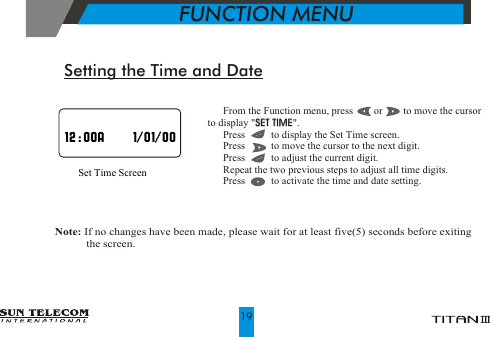
!!!!!!  From the Function menu, press        or        to move the cursor    to display "SET TIME".  Press          to display the Set Time screen.  Press          to move the cursor to the next digit.  Press          to adjust the current digit.  Repeat the two previous steps to adjust all time digits.  Press          to activate the time and date setting.SET TIMESet Time ScreenSetting the Time and Date  Note: If no changes have been made, please wait for at least five(5) seconds before exiting                                        the screen.            FUNCTION MENU
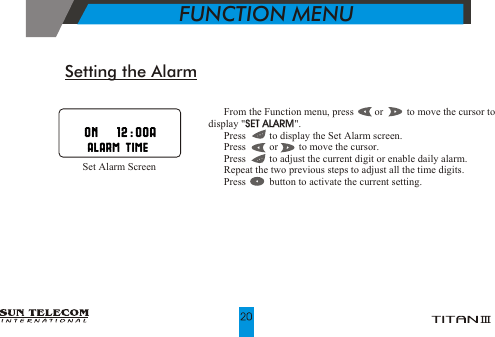
!!!!!!  From the Function menu, press        or         to move the cursor to display "SET ALARM".  Press         to display the Set Alarm screen.  Press         or        to move the cursor.  Press         to adjust the current digit or enable daily alarm.  Repeat the two previous steps to adjust all the time digits.  Press         button to activate the current setting.SET ALARMSetting the Alarm     Set Alarm Screen           FUNCTION MENU
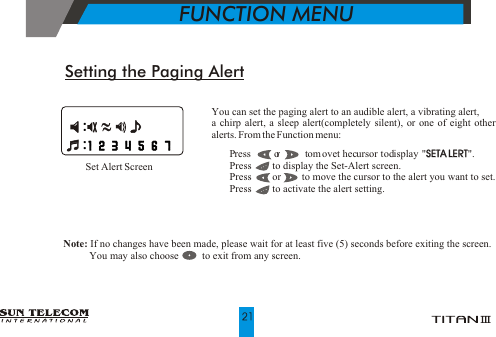
You can set the paging alert to an audible alert, a vibrating alert, a chirp alert, a sleep alert(completely silent), or one of eight other alerts. From the Function menu:!   P  ress         o r         t om  ovet hec ursor t od isplay " SETA LERT".!   Press        to display the Set-Alert screen.!   Press        or        to move the cursor to the alert you want to set.!   Press        to activate the alert setting.SETA LERTSetting the Paging AlertNote: If no changes have been made, please wait for at least five (5) seconds before exiting the screen.                 You may also choose         to exit from any screen.Set Alert Screen            FUNCTION MENU
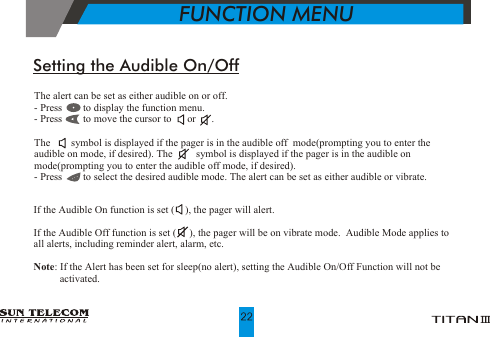
           FUNCTION MENUThe alert can be set as either audible on or off.- Press        to display the function menu.- Press        to move the cursor to      or      .The        symbol is displayed if the pager is in the audible off  mode(prompting you to enter the audible on mode, if desired). The         symbol is displayed if the pager is in the audible on mode(prompting you to enter the audible off mode, if desired). - Press        to select the desired audible mode. The alert can be set as either audible or vibrate.Setting the Audible On/OffIf the Audible On function is set (    ), the pager will alert.  If the Audible Off function is set (     ), the pager will be on vibrate mode.  Audible Mode applies to all alerts, including reminder alert, alarm, etc. Note: If the Alert has been set for sleep(no alert), setting the Audible On/Off Function will not be          activated.
When this feature is enabled, the standard 4-line Display is converted to a 2-line Display. The characters are enlarged to increase message readability. From the Function Menu:!   Press        or        to more the cursor to display "ZOOM".!   Press         to display the Zoom screen.!   Press        or        to move the cursor.!   Press        to activate the Zoom.ZOOMSetting Display ZoomEnable Zoom-In Screen           FUNCTION MENU
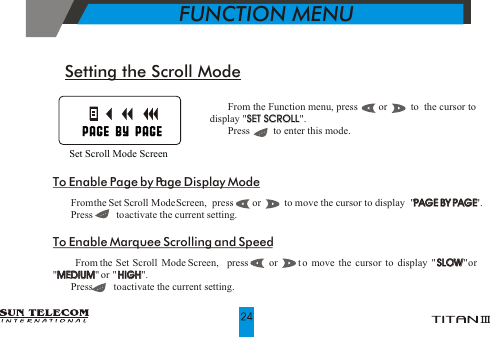
!   From the Function menu, press        or         to  the cursor to                           display "SET SCROLL".  !   Press         to enter this mode.SET SCROLLSetting the Scroll Mode  Set Scroll Mode ScreenTo Enable Page by Page Display Mode!   From the Set Scroll Mode Screen,  press        or         to move the cursor to display  "PAGE BY PAGE". !   Press         to activate the current setting.To Enable Marquee Scrolling and Speed!   From the Set Scroll Mode Screen,  press      or     t o  mo ve the cu rsor to dis play "S LOW "or  "MEDIUM" or  "HIGH". !   Press        to activate the current setting.PAGE BY PAGESLOWMEDIUM HIGH           FUNCTION MENU
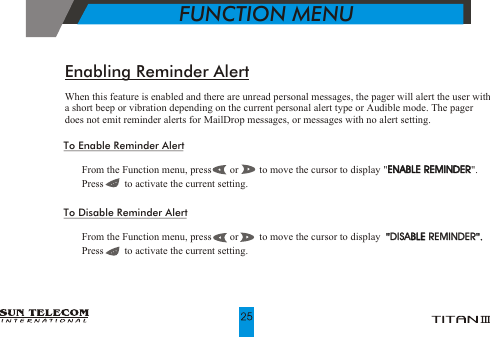
To Enable Reminder Alert!   From the Function menu, press       or        to move the cursor to display "ENABLE REMINDER".!   Press        to activate the current setting.To Disable Reminder Alert!   From the Function menu, press       or        to move the cursor to display  "DISABLE REMINDER".!   Press        to activate the current setting.ENABLE REMINDERBLE       "".DISA REMINDEREnabling Reminder AlertWhen this feature is enabled and there are unread personal messages, the pager will alert the user with a short beep or vibration depending on the current personal alert type or Audible mode. The pager does not emit reminder alerts for MailDrop messages, or messages with no alert setting.           FUNCTION MENU
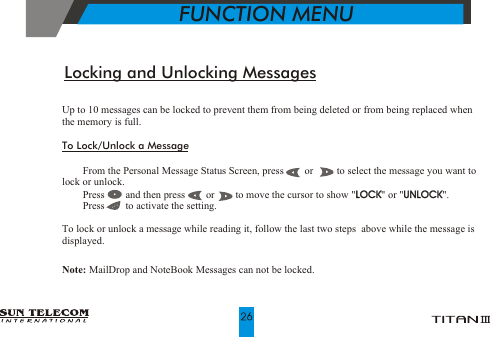
Up to 10 messages can be locked to prevent them from being deleted or from being replaced when the memory is full. To Lock/Unlock a Message!    From the Personal Message Status Screen, press        or         to select the message you want to lock or unlock.!    Press        and then press        or        to move the cursor to show "LOCK" or "UNLOCK".!    Press        to activate the setting.To lock or unlock a message while reading it, follow the last two steps  above while the message is displayed.Note: MailDrop and NoteBook Messages can not be locked.LOCK UNLOCKLocking and Unlocking Messages           FUNCTION MENU
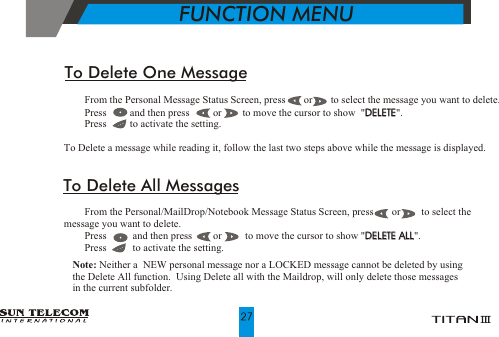
!    From the Personal Message Status Screen, press       or       to select the message you want to delete.!    Press         and then press         or        to move the cursor to show  "DELETE".!    Press         to activate the setting.To Delete a message while reading it, follow the last two steps above while the message is displayed.DELETETo Delete One Message!    From the Personal/MailDrop/Notebook Message Status Screen, press       or        to select the             message you want to delete.!    Press          and then press        or         to move the cursor to show "DELETE ALL". !    Press          to activate the setting.                                                                                                  DELETE ALLTo Delete All Messages           FUNCTION MENUNote: Neither a  NEW personal message nor a LOCKED message cannot be deleted by using the Delete All function.  Using Delete all with the Maildrop, will only delete those messages in the current subfolder.
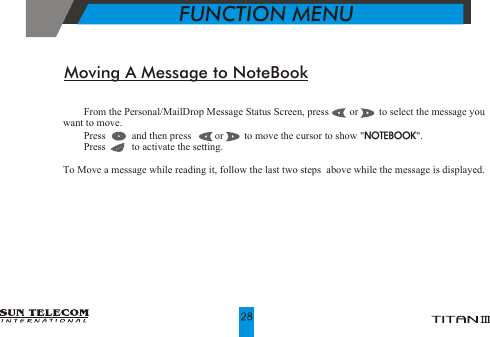
!    From the Personal/MailDrop Message Status Screen, press        or        to select the message you                         want to move.!    Press          and then press         or        to move the cursor to show "NOTEBOOK". !    Press          to activate the setting.To Move a message while reading it, follow the last two steps  above while the message is displayed.NOTEBOOKMoving A Message to NoteBook           FUNCTION MENU
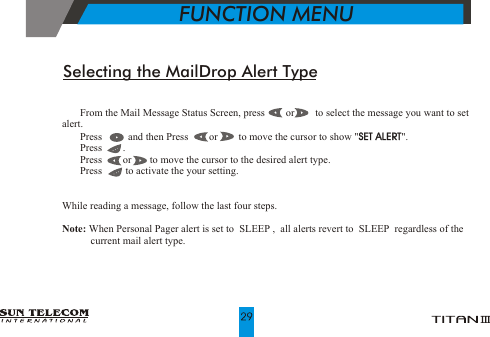
!   From the Mail Message Status Screen, press        or        to select the message you want to set alert.!   Press          and then Press        or        to move the cursor to show "SET ALERT".!   Press        .   !   Press        or       to move the cursor to the desired alert type.!   Press         to activate the your setting.While reading a message, follow the last four steps.Note: When Personal Pager alert is set to  SLEEP ,  all alerts revert to  SLEEP  regardless of the            current mail alert type. SET ALERTSelecting the MailDrop Alert Type           FUNCTION MENU
Neither your Wireless Provider nor Sun Telecom International is responsible for data that may be damaged or lost at any time, including, without limitation data lost or damaged during the servicing of Sun Telecom International hardware. In as much as the wireless data service provided, we cannot guarantee or warrant that the wireless data service will always be available or will always function properly. For this and other reasons, the wireless data service should not be relied upon for the transmission of data relating to emergency or life-threatening or mission critical situations, and Sun Telecom International disclaims any liability on its behalf and on behalf of its Wireless Providers for events or damages resulting from such reliance or the failure of the wireless data service to perform or to be available for your use of the wireless data service, including, without limitation, the lack of service coverage in the area in which YOU wish to use the wireless solution. To the extent the third party providing the wireless data service provides any warranties or guarantees that may be passed on to YOU, such warranties and/or guarantees are automatically passed on to YOU without any further effort on your part or on the part of Sun Telecom International. Neither Sun Telecom International nor your wireless provider shall in any way be liable to you for any damages you suffer or incur (including, but not limited to, general, special, consequential or incidental damages including damages for loss of business profits, business interruption, loss of business information and the like and personal injury or wrongful death damages) arising from or in connection with the use or performance of our product, even if Sun Telecom International or your wireless solution provider are aware of the possibility of such damages. This limitation is intended to apply and does apply without regard to whether such damages are claimed, asserted or brought in an action or claim sounding in tort or contract, or on the warranty, or under any other law or form of action.
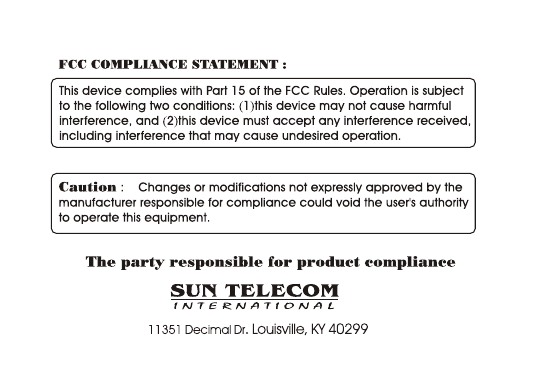
This equipment has been tested and found to comply with the limits of a Class B digital device, pursuant to Part 15 of the FCC Rules. These limits are designed to provide reasonable protection against harmful interference in a residential installation. This equipment generates, uses, and can radiate radio frequency energy and, if not installed and used in accordance with the instructions, may cause harmful interference to radio communications.  However, there is no guarantee that interference will not occur in a particular installation. If this equipment does cause harmful interference to radio or television reception (which can be determined by turning the equipment off and on), the user is encouraged to try to correct the interference by one or more of the following measures:           Reorient/Relocate the receiving antenna.   Increase the separation between the equipment and receiver.   Connect the equipment into an outlet on a circuit different  from             that  to which the  receiver is connected.   Consult the dealer or an experienced radio/TV technician for help.

Navigation menu